How to Display WooCommerce Products to Google Sheets | Step by Step

How to Display WooCommerce Products to Google Sheet

Are you busy finding a way to display WooCommerce products to Google Sheets? If yes, then here in this article we will walk you through the process of WooCommerce and Google Sheets integration.
How to Display WooCommerce Products to Google Sheet

Most of the people are relying on the WooCoomerce plugin for WordPress to sell products online without any trouble. It is one of the best eCommerce plugins. But as you know keeping an eye on every other product in your store is quite difficult. And for the same, we prefer to maintain Google Sheets.

Not to forget, adding every product detail manually like product name,  pricing, stock status and all is a lot of work. So we started looking out for software that can easily integrate WooCommerce with Google Sheets.

Why Choose This Method Of Integration?

In contrast with other integration services-

  • Pabbly Connect does not charge you for its in-built apps like filters, Iterator, Router, Data transformer, and more
  • Create “Unlimited Workflows” and smoothly define multiple tasks for each action
  • As compared to other services which offer 750 tasks at $24.99, Pabbly Connect proffers 50000 tasks in the starter plan of $29 itself
  • Unlike Zapier, there’s no restriction on features. Get access to advanced features even in the basic plan
  • Try before you buy! Before spending your money, you can actually signup & try out the working of Pabbly Connect for FREE

Sign Up To Pabbly Connect     

To be very honest, compared to this “software hunt”, finding a polar bear in a hailstorm would be easy. But guess what! Not anymore. Here we are suggesting integrating software named Pabbly Connect that can connect unlimited applications in a matter of time.

Pabbly Connects eases the tedious or repetitive actions by creating seamless workflows. With zero coding skills, you can bind unlimited applications in a minute. It lets you transfer data in real-time. Plus the software doesn’t restrict on any features like unlimited workflows, actions, triggers, and much more even in its free plan.

Here, in this article, we will understand how one can display WooCommerce products to Google Sheets using an automation tool i.e Pabbly Connect.

How to Display WooCommerce Products to Google Sheets (step by step)

So, let’s get started.

Step 1: Sign up to Pabbly Connect
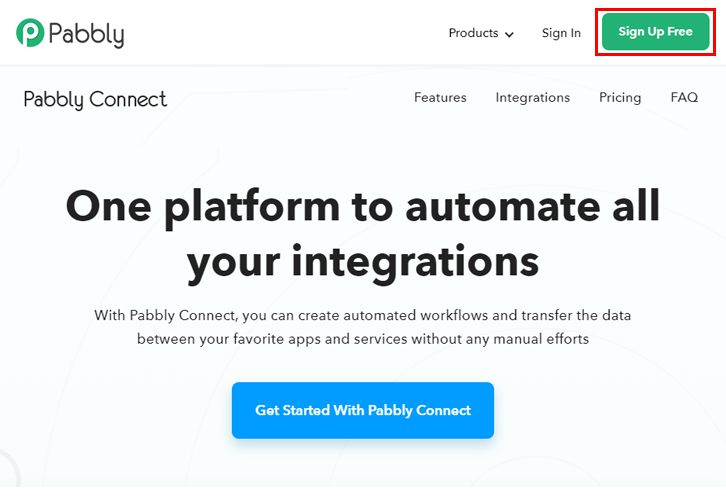
Sign Up

Start the process of connecting WooCommerce to Google Sheets by clicking on the “Sign Up Free” icon on the Pabbly Connect dashboard. Next, either manually fill-up all the details or sign up using Gmail credentials.

Try Pabbly Connect for FREE

Step 2: Access Pabbly Connect

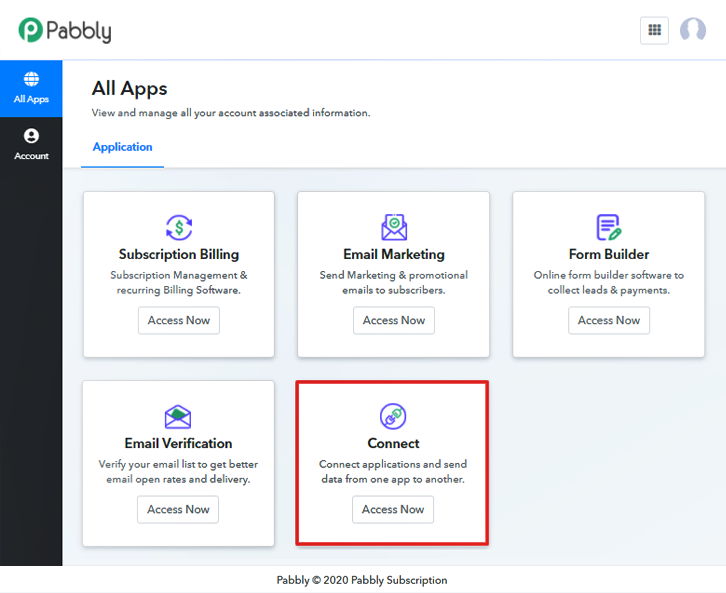
Select Connect

Further, after login into the account, click on the “Access Now” button of Connect.

Step 3: WorkFlow for WooCommerce to Google Sheets Integration

(a) Start with a New Workflow
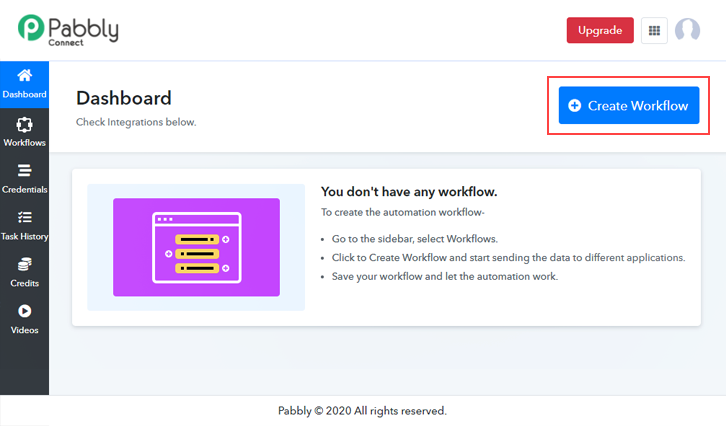
Create New Workflow

Start the process of creating a workflow for displaying the WooCommerce product to Google Sheets integration by clicking the “Create Workflow” button.

(b) Name the Workflow

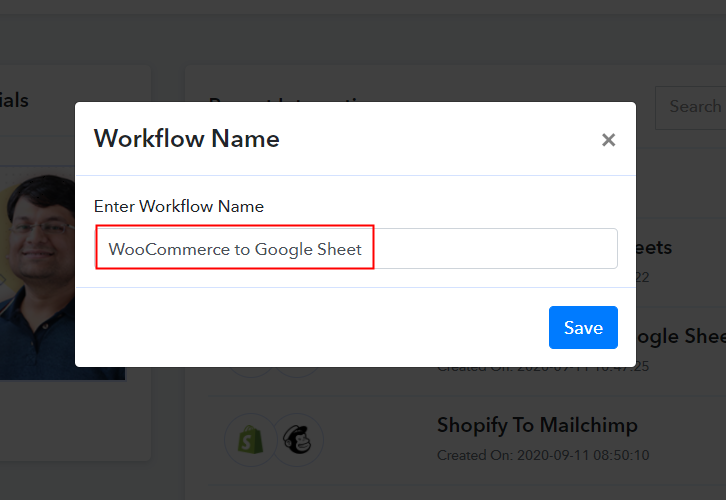
Name the Workflow

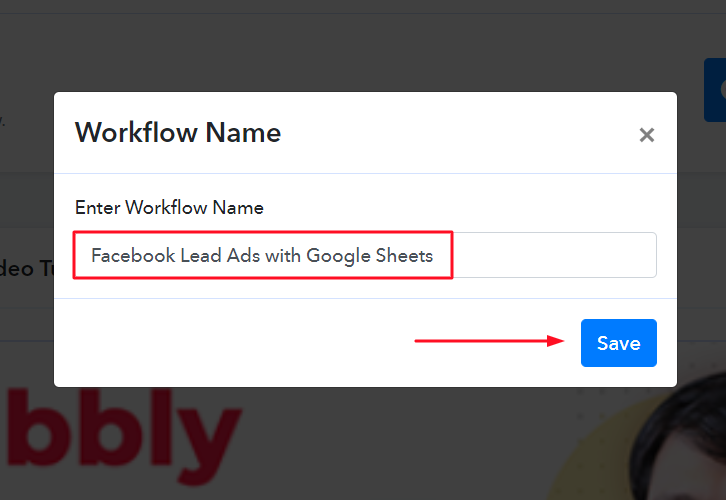
Further, add the name of workflow which in our case is “WooCommerce to Google Sheets”. Nevertheless, you can always name the workflow according to your requirements.

Step 4: Setting Trigger for WooCommerce & Google Sheets Integration

Next, after creating a workflow, you have to choose the integration app to connect your Woocommerce to Google Sheets. Using Pabbly Connect one can bind or connect unlimited apps, click here to avail your access to unlimited workflows.

(a) Select Application you Want to Integrate
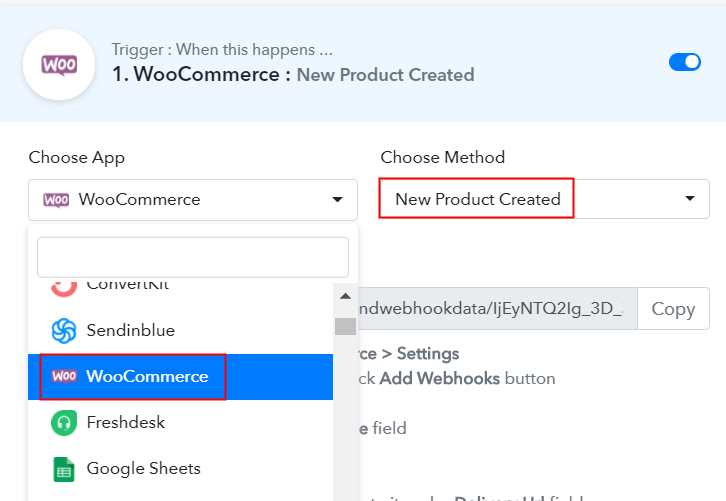
Select Woocommerce

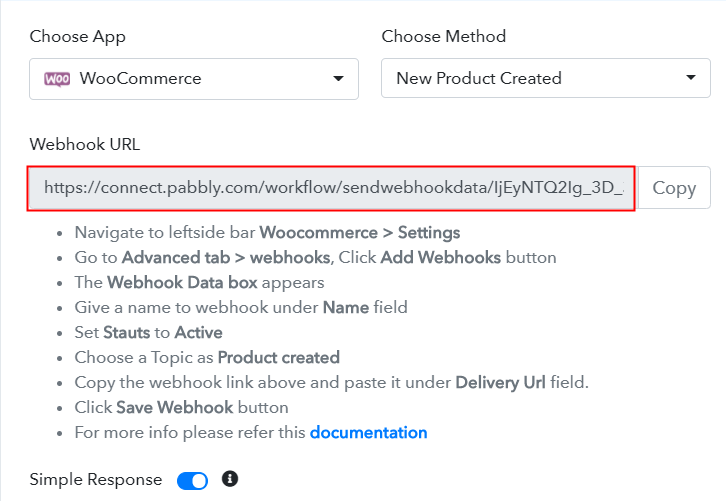
The following step is to select “WooCommerce” from the dropdown, then choose the “New Product Created” option to append every product data from the software into Google Sheets.

(b) Copy the Webhook URL

Copy the Webhook URL

The following step is to copy the webhook URL which is appearing on the dashboard.

Step 5: Connecting WooCommerce to Pabbly Connect

To collect product data from WooCommerce, you gotta paste the copied Webhook URL in the software. For that, you have to log in to your WordPress account where you installed your Woocommerce plugin.

(a) Go to WooCommerce Settings

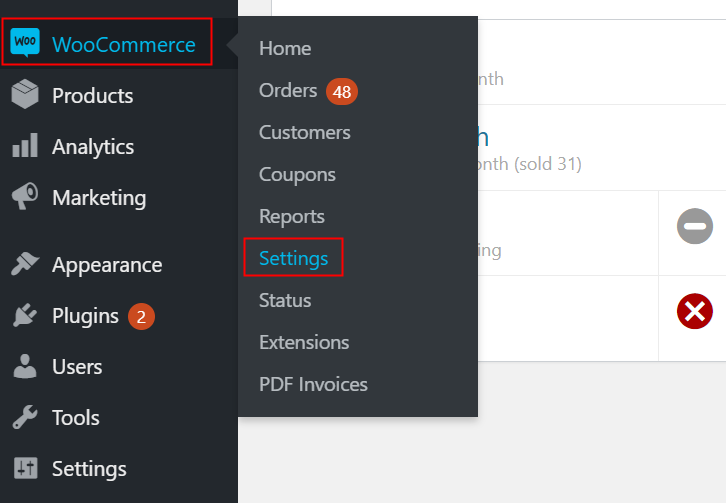
Go to WooCommerce Settings

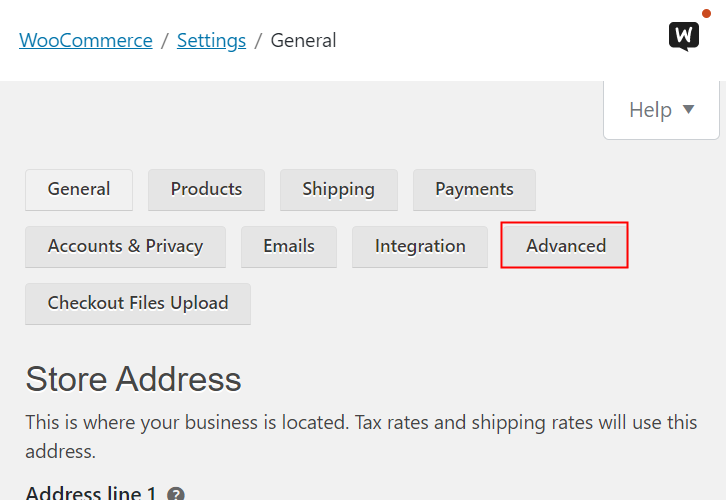
After login into the WordPress account, go to the “WooCommerce” section then there click on the “Settings” option.

(b) Click on Advanced Option

Click on Advanced Option

Next, when you click on “Settings”, it will open up a tab with a different option. Just click on the “Advanced” option.

(c) Click on Webhooks Option

Click on Webhooks Option

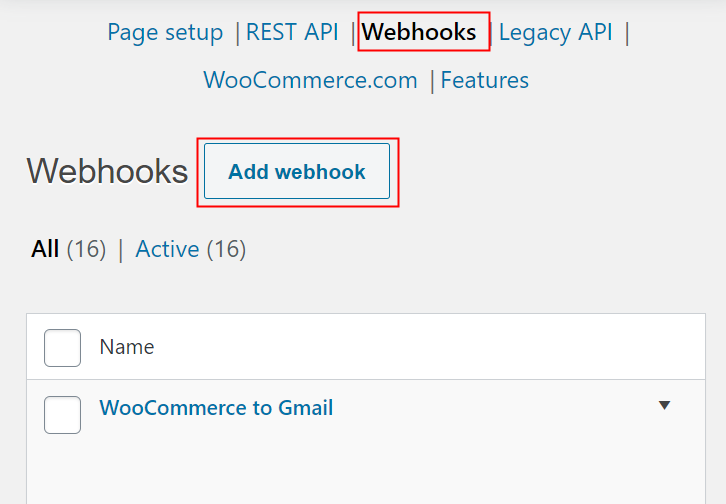
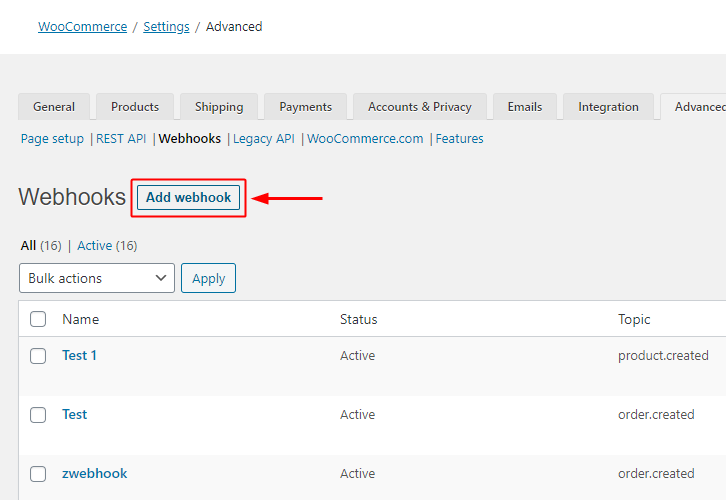
Further, when you click on “Webhooks”, it will open up a tab with a certain option. Just click on the “Add Webhook” option to paste the Webhook URL.

(d) Add Webhook

Add Webhook

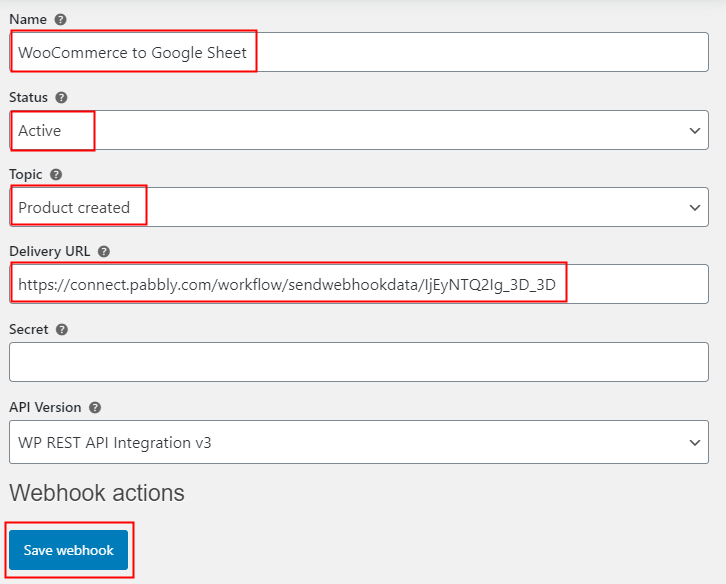
Now, assign the name according to your need. Make sure to make status “Active” and in the topic section, select “Product Created”.  Then in the delivery URL, paste your copied URL from Pabbly Connect. After making all changes, click the “Save Webhook” button.

(e) Head Back to Product Section

Head Back to Product Section

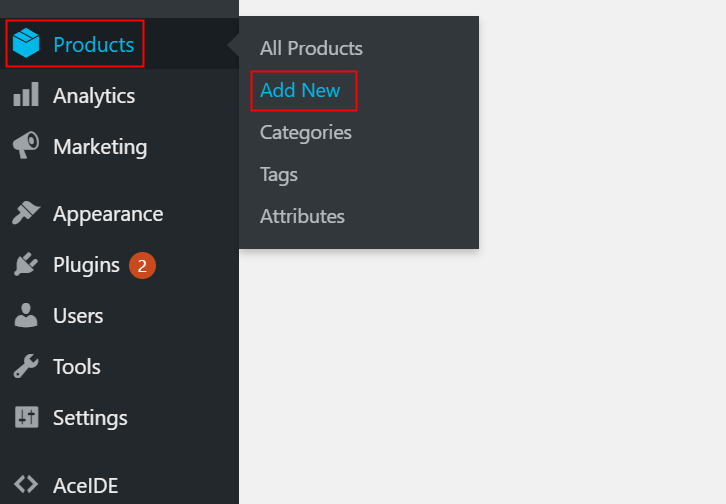
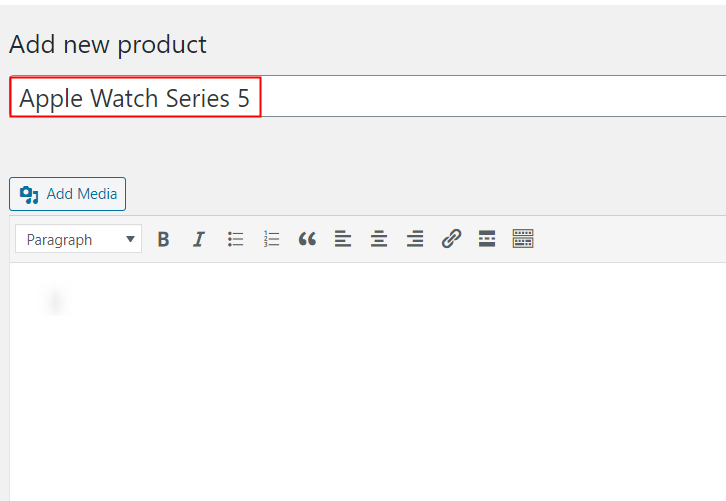
Next, to test the WooCommerce integration, we are going to add a new product for your store. For that, you have to click on “Products” then click on the “Add New” option.

(f) Add Product

Add Product 

Further, add your product as mentioned image, provide a little description of the product.

(g) Publish the Product

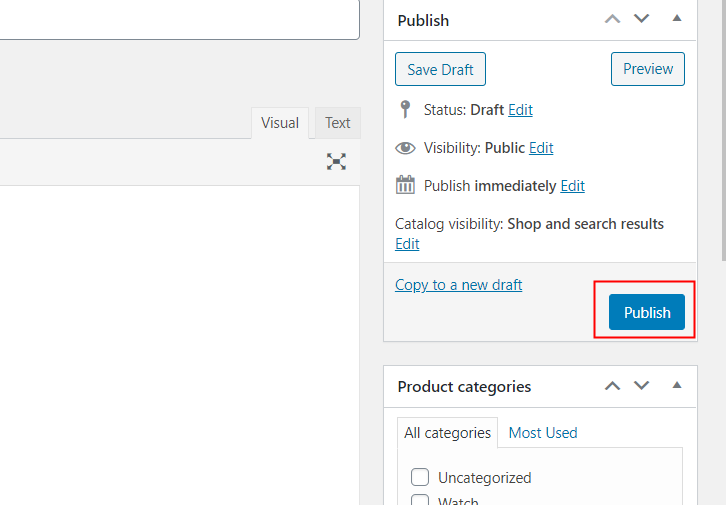
Publish the Product

After adding pricing and all, hit the “Publish” button. But before hitting the button, make sure to click “Capture Webhook Response” in the Pabbly Connect dashboard.

Step 6: Test the Response in Pabbly Connect Dashboard
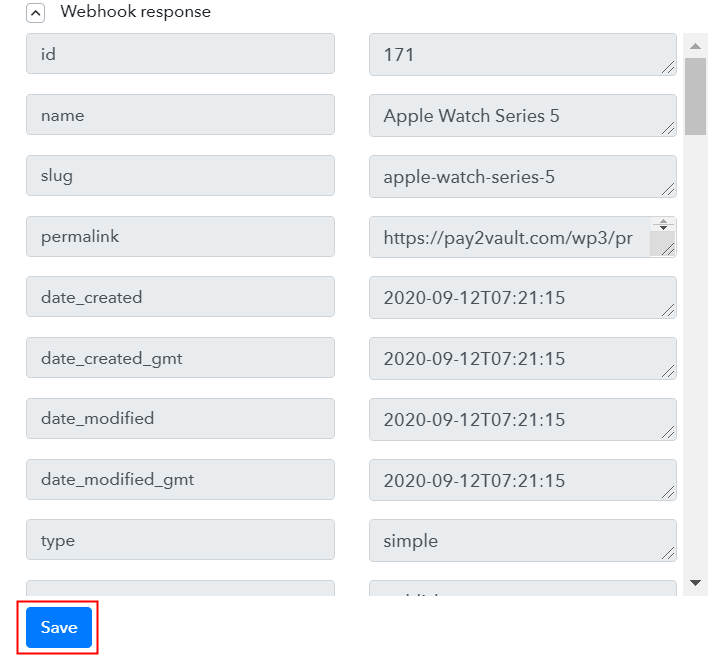
Test the Response

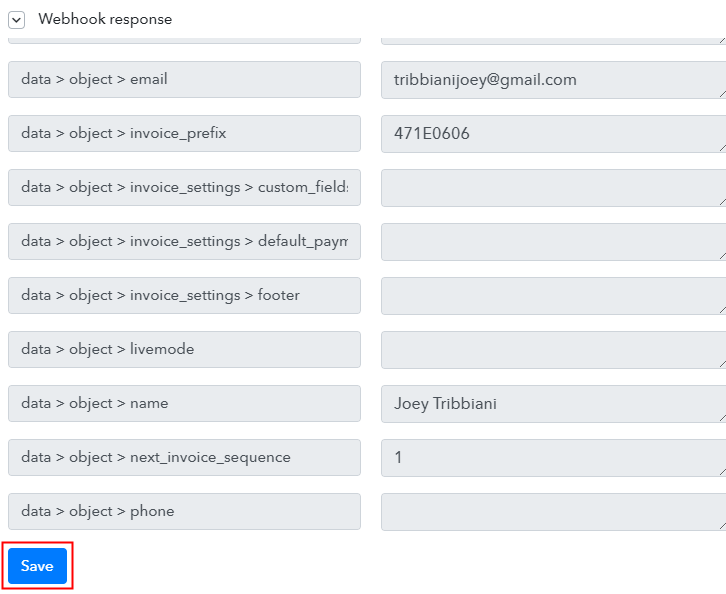
As soon as you click on the “Publish” button, the entry will appear on the “Pabbly Connect” dashboard. Then, click on the “Save” option.

Step 7: Setting Action for WooCommerce & Google Sheets Integration

To make this WooCommerce Google Sheets integration work, you have to choose the action for your trigger.

(a) Select Application you Want to Integrate
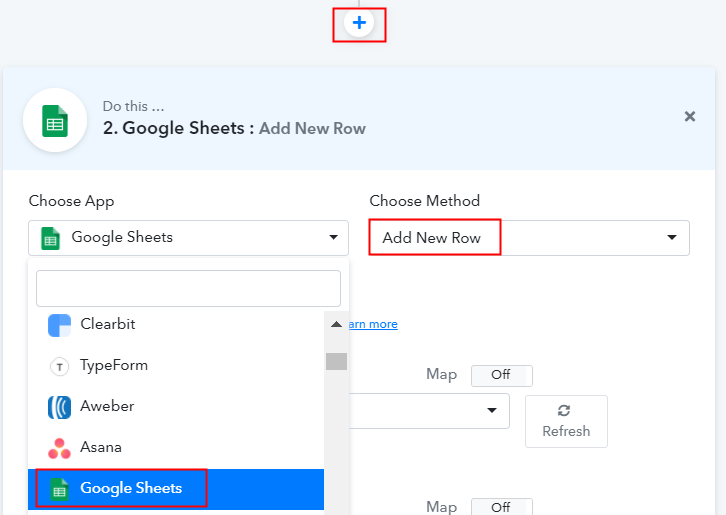
Select Google Sheets

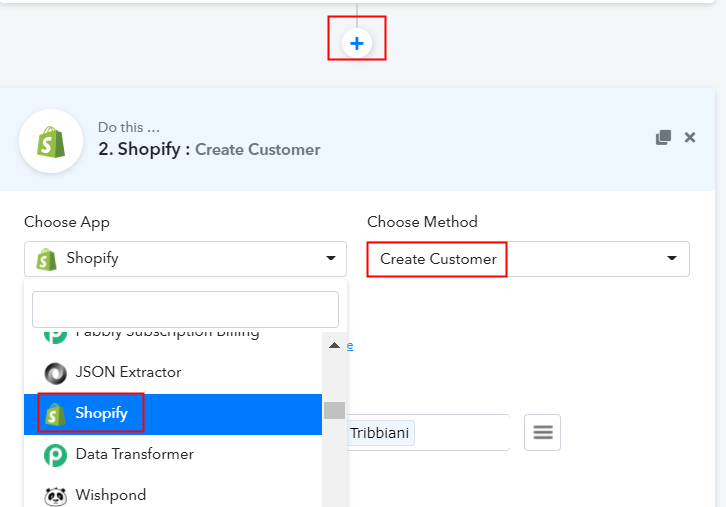
Moving on, click on the “+” icon then select “Google Sheets” and in the choose method option, select ” Add New Row”.

(b) Click the Connect Button

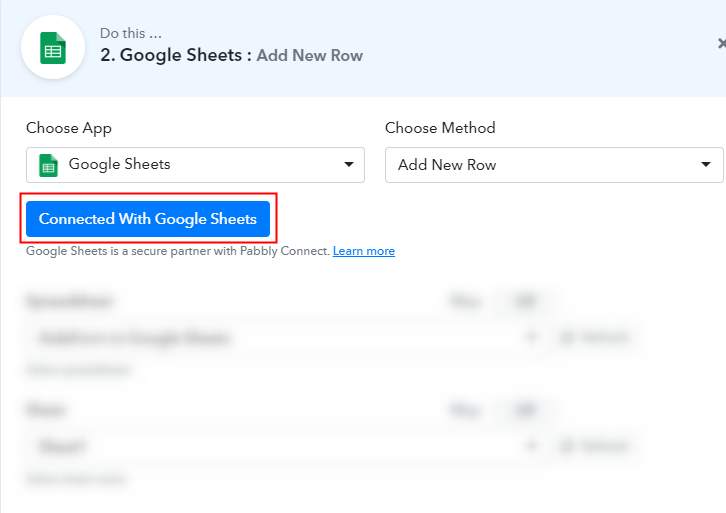
Connected with Google Sheets

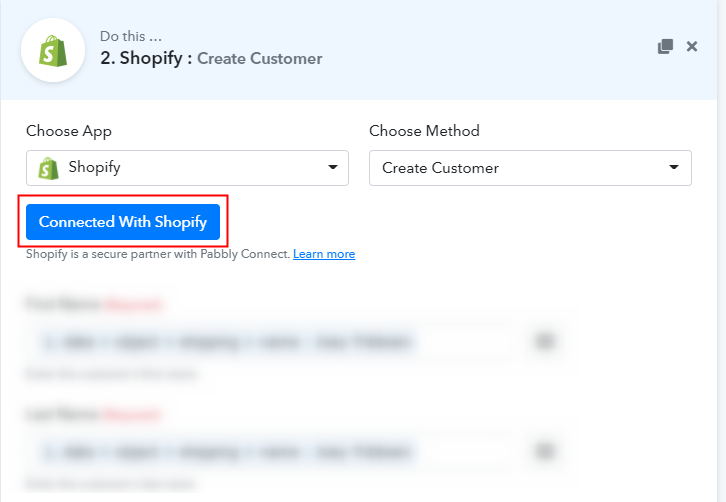
After making all the necessary changes, click on the “Connected with Google Sheets” button. Further, it will open the authorization window, for which you have to log in to your Google account.

(c) Map Field Data

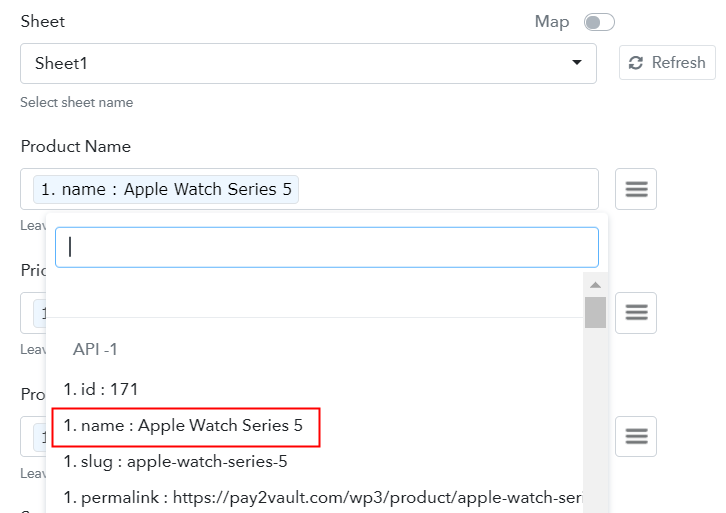
Map Field Data

All the sheets in your account will appear on the dropdown. Simply select the sheet, which in our case is “WooCommerce Products”. Now, all you have to do is add the necessary field from drop-down such as for the product name, select the product name option, and for the product id field select the product number.

(d) Save and Send Test Request

Save and Send Test Request

Subsequently, after filling all the details, save the setting and then “Send Test Request” to test the WooCommerce Google Sheets integration.

Step 8: Check Response in Google Sheets
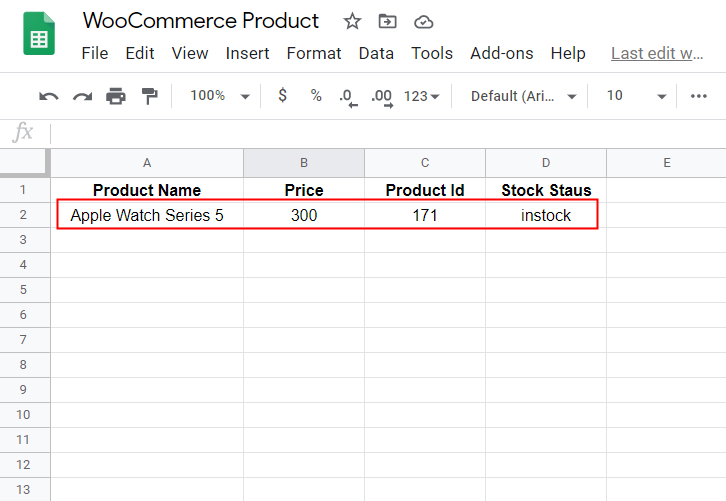
Check Response in Google Sheet

Lastly, when you check the Google Sheets, the entered product details get auto-populated in a sheet.

Now you know how to add WooCommerce products into Google Sheets. This is a one-time process, after this every time when you add a new product, it will get auto-populated in the sheet.

Conclusion –

Hopefully, now we have cleared all the confusion about the automation process. Here, in this article, we learned how to display WooCommerce products to Google Sheets. All you have to do is follow all the above-mentioned steps and you can easily connect WooCommerce to Google Sheets. With the help of automation, one can easily avoid repetitive work. And in such cases, software like Pabbly Connect is a real savior that lets you connect unlimited premium apps.

So, don’t wait anymore. Go and get your access by signing up for a free account.

You May Also Like To Read –
 

How to Get Email Notified When Product is Added in WooCommerce Cart

How to Get Email Notified When Product is Added in WooCommerce Cart

If you are looking for some easy way to get notified whenever a product is added to your WooCommerce cart then this article might help you. WooCommerce site does so for various customer engagement purposes such as to recover abandoned carts, to run deals on the most added to cart product etc.

In this blog, we’ll set-up an email notification system for the WooCommerce add to cart action step by step. We are going to do this with the help of Pabbly Connect. It will help us in easily setting up the workflow by fixing a trigger on the ‘Add to Cart’ button click of the WooCommerce site and its respective email notification action.

How to Get Email Notified When Product is Added in WooCommerce Cart

Pabbly Connect supports joining two or more services together to create unlimited workflows and set-up instant triggers on certain conditions. Besides, it also allows you to use various formatters, filters, routers etc without writing a single line of code. Further, you can define an action using multi-steps calls based on the trigger condition.

Why Choose This Method Of Integration?

In contrast with other integration services-

  • Pabbly Connect does not charge you for its in-built apps like filters, Iterator, Router, Data transformer and more
  • Create “Unlimited Workflows” and smoothly define multiple tasks for each action
  • As compared to other services which offer 750 tasks at $24.99, Pabbly Connect proffers 50000 tasks in the starter plan of $29 itself
  • Unlike Zapier, there’s no restriction on features. Get access to advanced features even in the basic plan
  • Try before you buy! Before spending your money, you can actually signup & try out the working of Pabbly Connect for FREE

Sign Up To Pabbly Connect  

In a matter of few minutes, it allows you to send notifications for all add to cart action from WooCommerce to Gmail. So, save your time and accessing all Pabbly Connect features without any restriction even in its free plan.

Momentarily, let’s get started with the step by step procedure to integrate WooCommerce and Gmail to send automatic emails notification on add to cart customer action.

How to Get Email Notified When Product is Added in WooCommerce Cart (step by step)

Step 1: Sign up to Pabbly Connect

Sign UpGo to the official website of Pabbly Connect and then click on the ‘Sign-Up Free‘ button. On the registration page, either signup using an existing Gmail account or manually fill out the form to get into the system.

Try Pabbly Connect for FREE

Step 2: Access Pabbly Connect

Select Connect

After signing up successfully, click the ‘Access Now’ button of the software ‘Connect’ Pabbly application.

Step 3: WorkFlow for WooCommerce with Gmail Integration

(a) Start with a New Workflow

Create New Workflow

Start with creating a workflow to send automatic emails notifications when customer hits add to cart button in WooCommerce and to do this strike the ‘Create New Workflow’ button.

(b) Name the Workflow

WooCommerce to Gmail Workflow

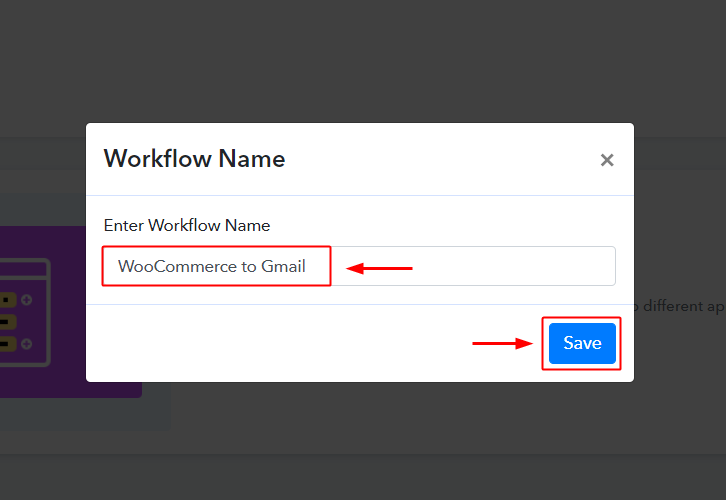
Now, name the workflow as per your need (for instance: WooCommerce to Gmail or WooCommerce Notification Automation etc) and push the ‘Save’ button.

Step 4: Select Triggers for WooCommerce – Gmail Integration

To send automatic emails whenever an item is added to cart on your WooCommerce store, you need to set-up a trigger and its respective action. So, let’s get started with setting up the trigger first.

(a) Select Application you want to integrate

Integrate WooCommerce

When you hit the save button to create a workflow, a trigger window will open next.

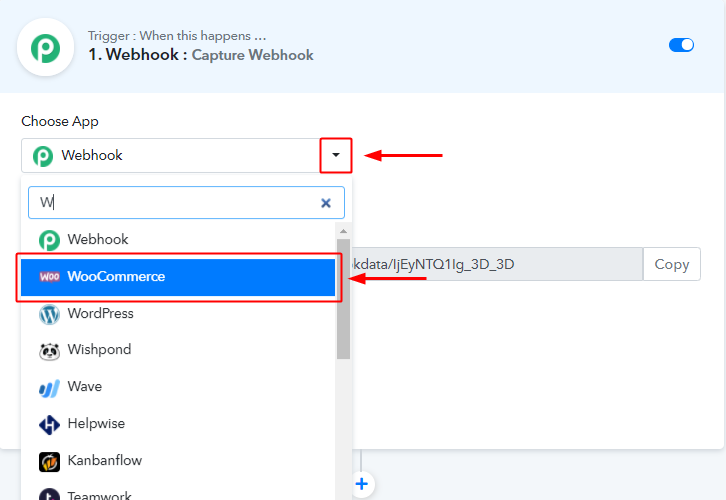
You’ll need to select the ‘WooCommerce’ option from the ‘Choose App’ field drop-down options.

(b) Select the WooCommerce Method

Select Method

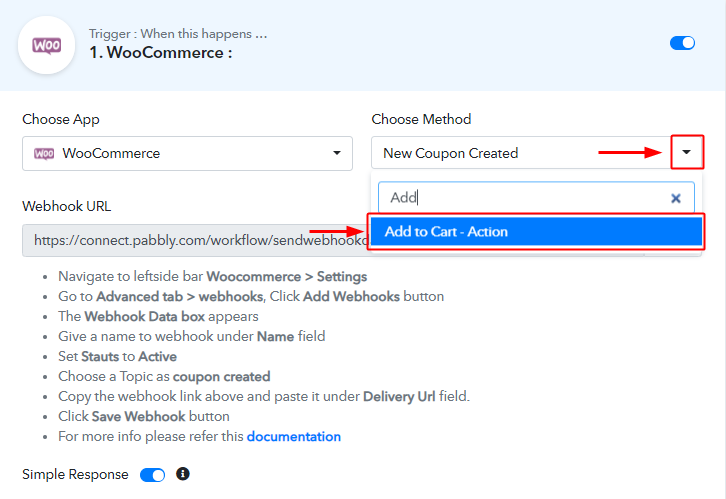
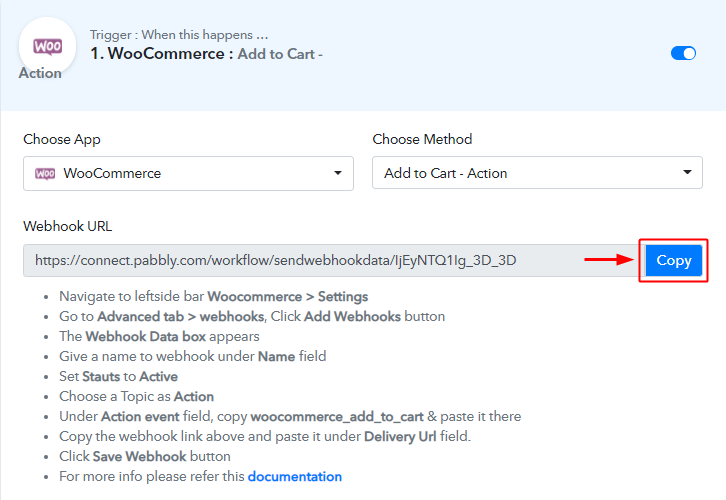
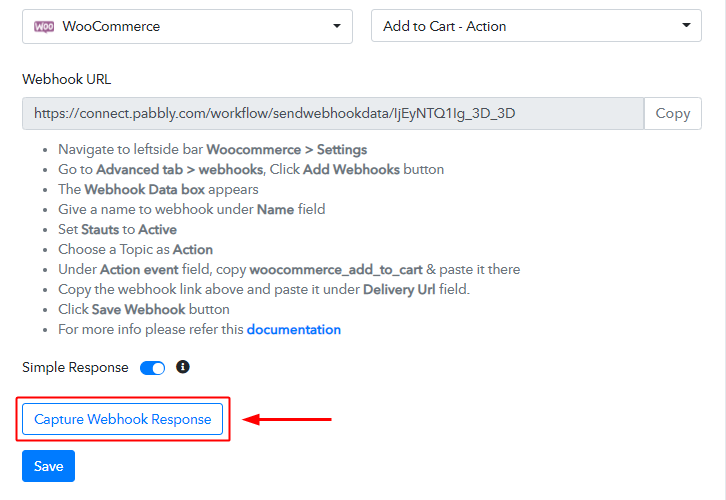
Next, select the ‘Add to Cart – Action’ from the ‘Choose Method’ field’s drop-down options.

(c) Copy the Webhook URL

Copy Webhook URL

Further, copy the ‘Webhook URL’ by clicking the ‘Copy’ button on this page.

Up to this point, we are half-way done with the WooCommerce to Gmail trigger settings. As we have generated a Webhook URL, next we’ll need to paste this URL on our WP WooCommerce plugin settings to get the trigger working.

Step 5: Connecting WooCommerce to Pabbly Connect

(a) Go to Your WordPress WooCommerce Settings

WooCommerce Settings

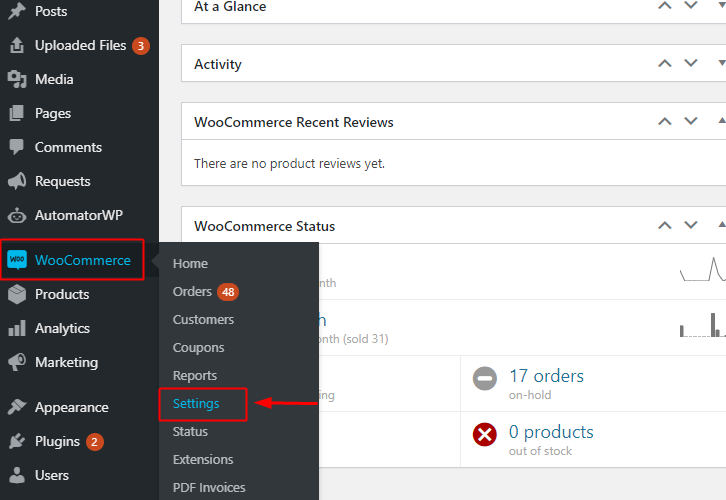
Go to your WordPress site dashboard and if you have the WooCommerce plugin enabled then click on the ‘WooCommerce’ option available in the WP dashboard menu. And then click the ‘Settings’ option on the secondary many that become visible after clicking ‘WooCommerce’.

On the other hand, if you don’t have the WooCommerce plugin enabled then do enable it first. And then only perform the above-explained method in this step.

(b) Click on the Advanced Settings Option

WooCommerce Advanced Settings

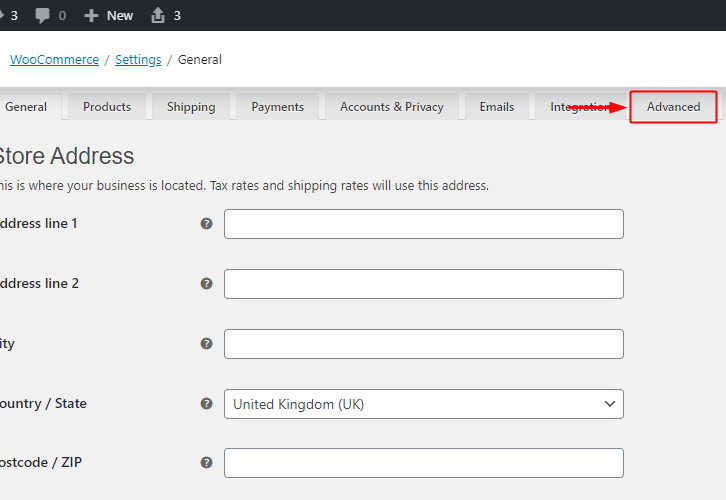
Next, you will see a page carrying the WooCommerce general settings, click on the ‘Advanced’ option on the page’s menu.

(c) Click on Webhooks

Click on Webhooks

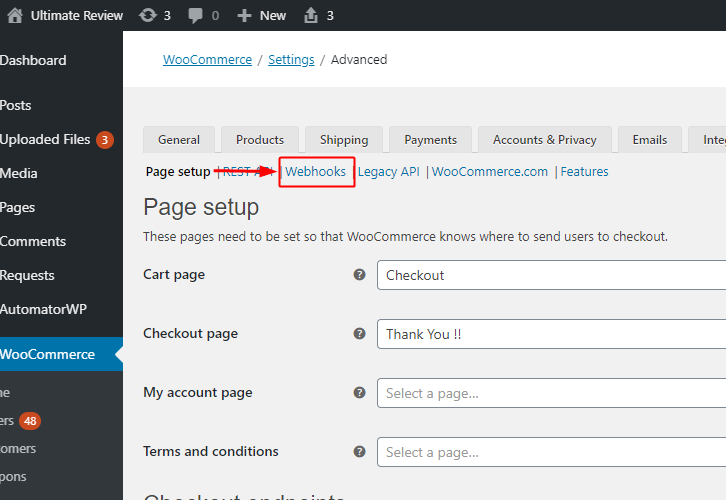
Afterwards, another page will open up carrying another menu below the setting’s menu. Click on the ‘Webhook’ option.

(d) Click on Add Webhook Button

Click Add Webhook

The page carrying all the webhooks created so far will open up.

Push the ‘Add webhook’ button present next to the ‘Webhooks’ head.

(e) Fill the Webhook Data Box Entries

Fill in the Webhook Data Box

A page carrying the Webhook data box will open up.

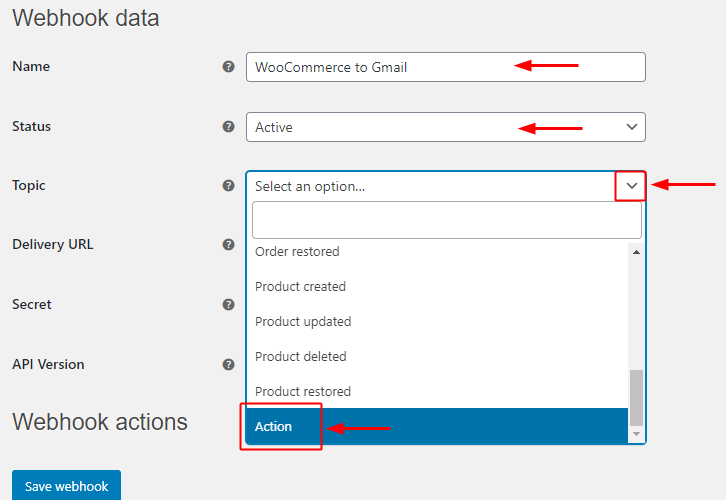
Fill in the name that you wanna give to your Webhook.

Change the value of the ‘Status’ field to be ‘Active’ by selecting the same option from this field’s drop-down.

Next, accurately select the ‘Topic’ field value to be an ‘Action’ from the field’s drop-down menu.

(f) Mention the Action Event & Paste the Delivery URL

Action Event and Delivery URL

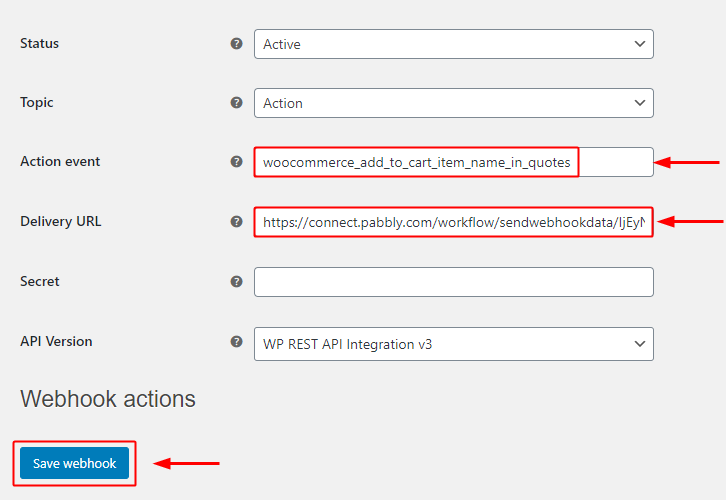
Next, in the ‘Action event’ field you’ll need to paste a code i.e, “woocommerce_add_to_cart_item_name_in_quotes”. This code is to get the name of the item that has been added to cart recently. Also, there are other actions to carry out on the ‘Add to Cart’ action as well. You can always get more action event codes on the WooCommerce site.

Lastly, paste the copied Pabbly Connect Webhook URL in the ‘Delivery URL’ field and save the webhook settings by clicking the ‘Save Webhook’ button.

Step 6: Test the Trigger Response in Pabbly Connect Dashboard

As we can see we are done setting up the trigger to get email notified when product is added in WooCommerce cart. So, let’s just test the trigger by making a test ‘Add to Cart’ action.

(a) Go to Pabbly Connect Trigger & Click Capture Webhook Response

Capture Webhook Response

Well, to capture the response of your testing activity. First, hit the ‘Capture Webhook Response’ button on the Pabbly Connect trigger window.

This way when you make an action afterwards, the response will be stored here.

(b) Go to a Product & Press the Add to Cart Button

Add to Cart

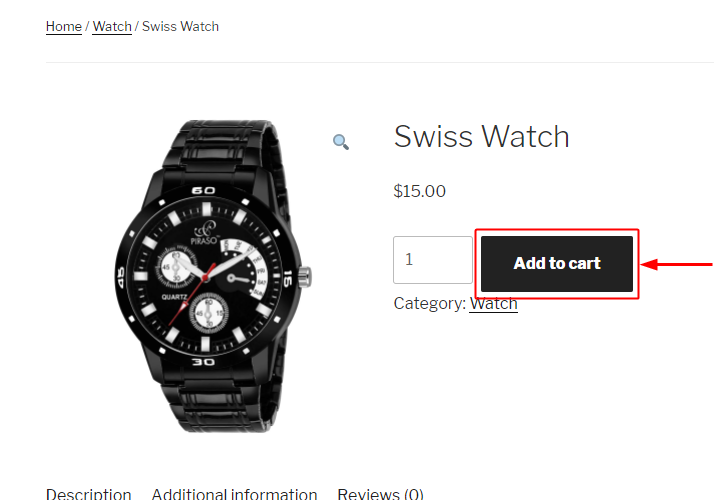
Now, open any of your product and press the ‘Add to Cart’ button.

(c) Check the Trigger Response

Trigger Response

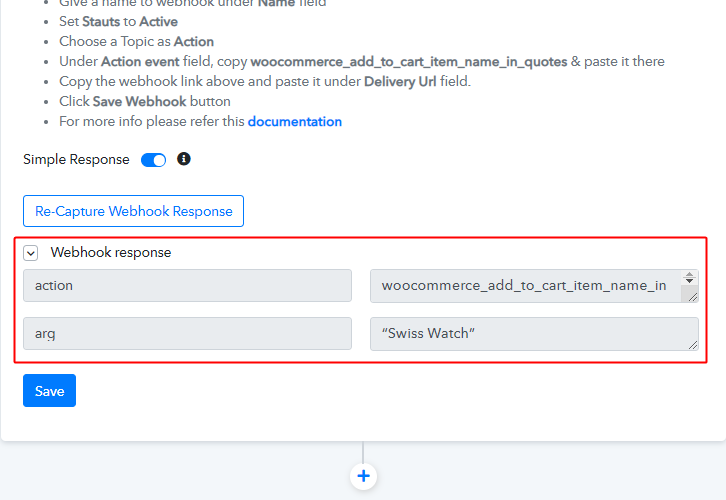
You can see the response of your ‘Add to Cart’ action on the trigger response.

The response will start showing the name of the item that is recently been added to your WooCommerce cart.

Step 7: Select Action for WooCommerce – Gmail Integration

As we can see the response of our set trigger is perfect as expected and now we can move forward towards taking an action on the received data from WooCommerce.

(a) Select Application You Want to Integrate

Integrate Gmail

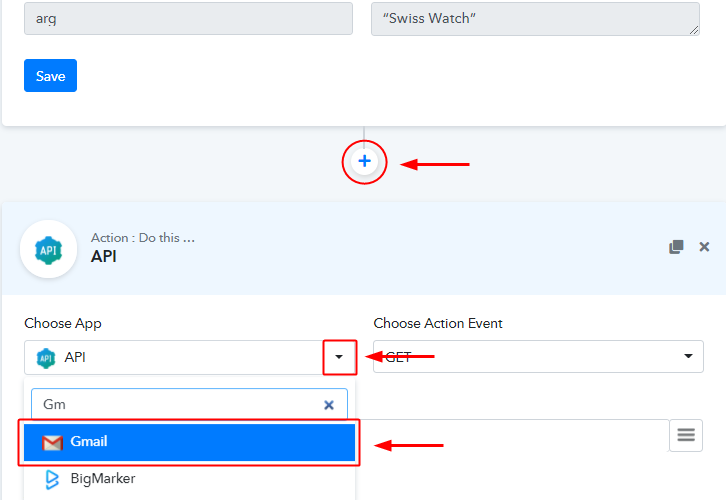
First, click the plus button available next to your trigger set-up.

Then, select the application that you want to integrate as Gmail from the Choose App field’s drop-down choices.

(b) Connect with Your Gmail Account

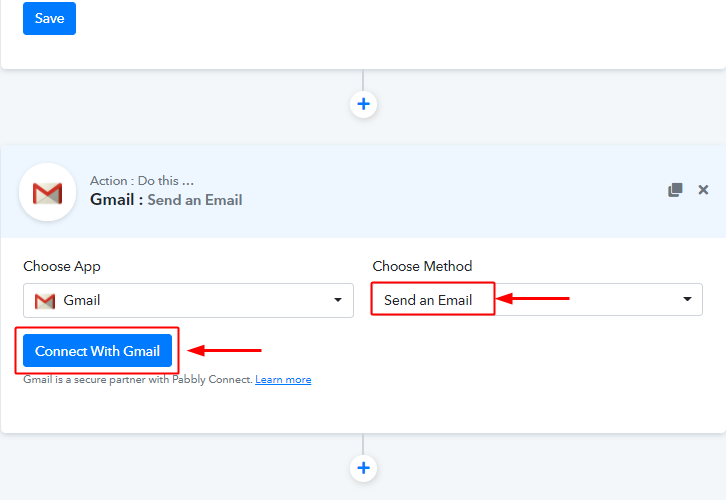
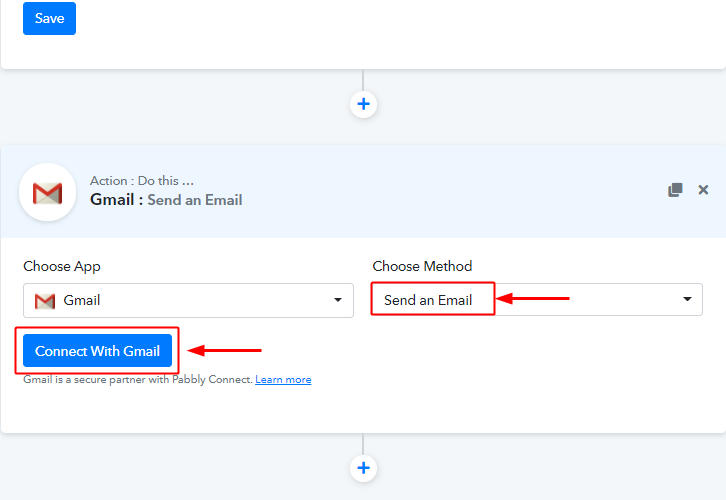
Connect with Gmail

Make sure of the method to be ‘Send an Email’ in the ‘Choose Method’ field.

Lastly, hit the ‘Connect with Gmail’ button.

(c) Authorize Gmail Account

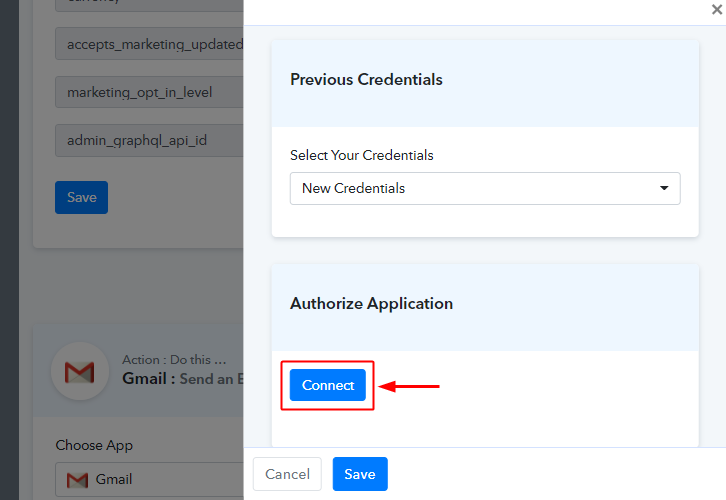
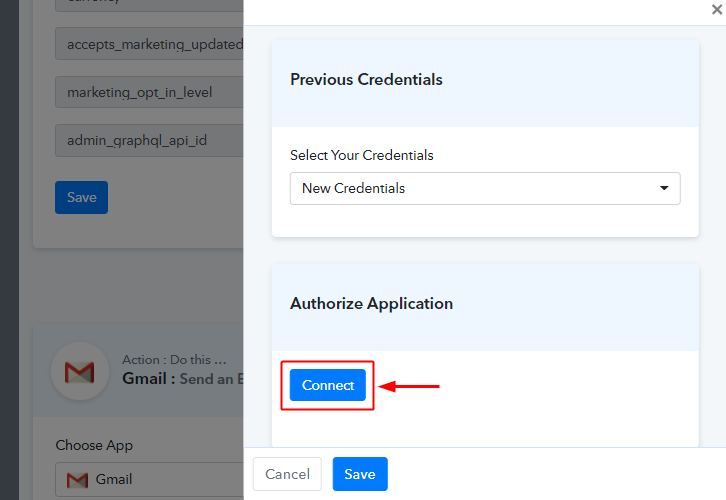
Authorize Gmail Acoount

On the page that slides in from the right side, click the ‘Connect’ button to add as well as authorize a Gmail account.

(d) Fill Email Details

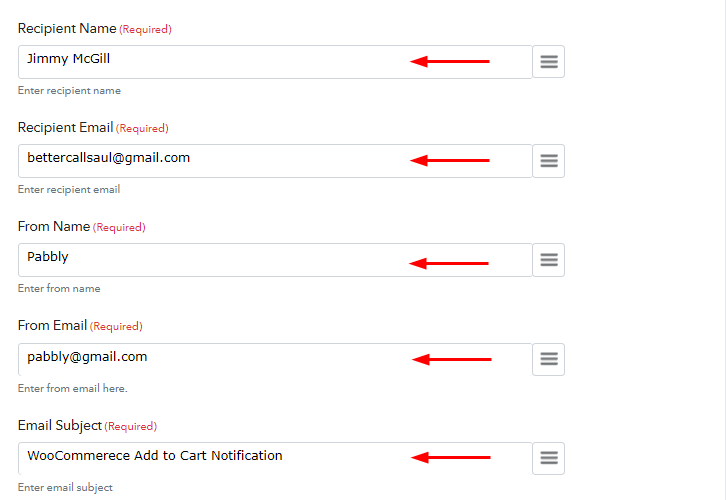
Fill Email Details

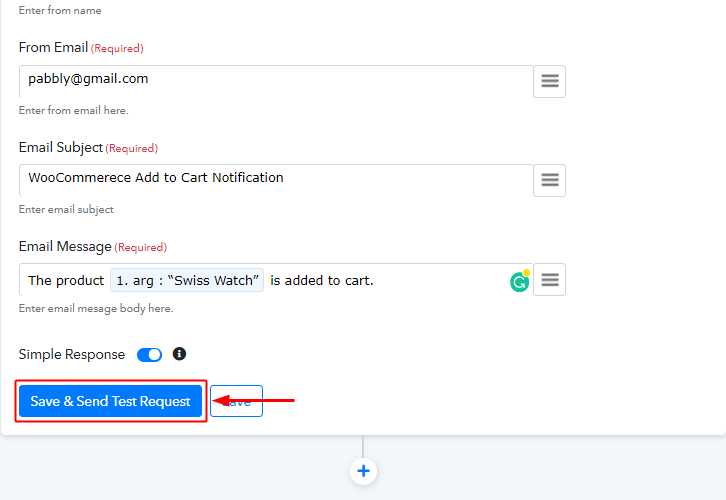
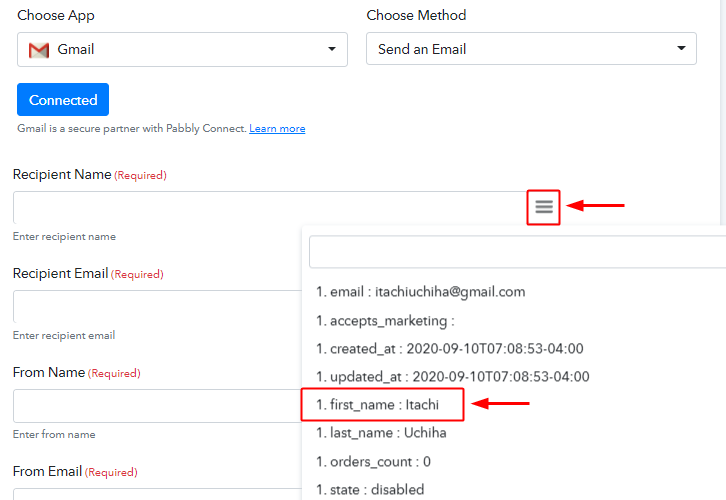
Carefully, fill up all the email details asked such as the recipient name to whom we want to notify the action, ‘From Name’ as from which site the notification is and the Email Subject etc.

(e) Map the Action Value in Email

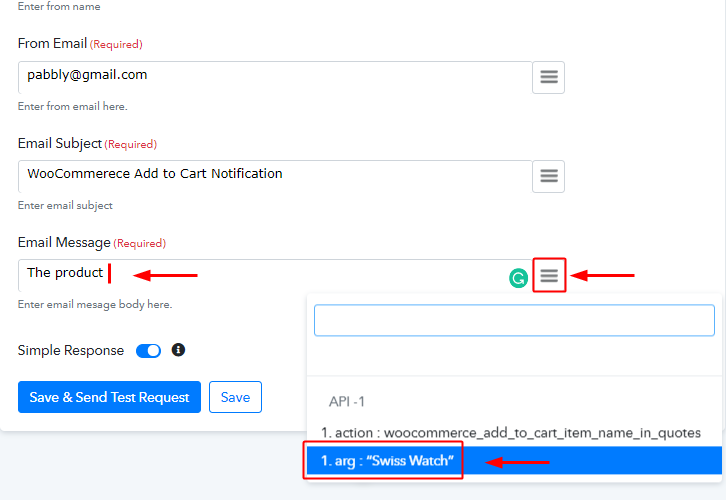
Map Values

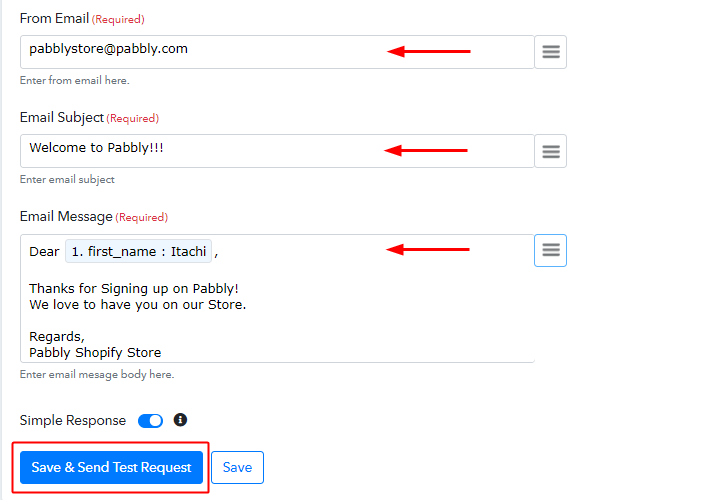
This is an important step and you can map the values that you got from the WooCommerce response and send them as an email notification.

You can always use the WooCommerce response values in any field. To map a value, place your cursor to the position on which you wanna map the value, click the menu button (three verticle lines) next to that particular field and then click select the value that you want to map.

Moreover, you can format the Email Message field as per your need.

(f) Save the Action & Send Test Request

Save Action & Send Test Request

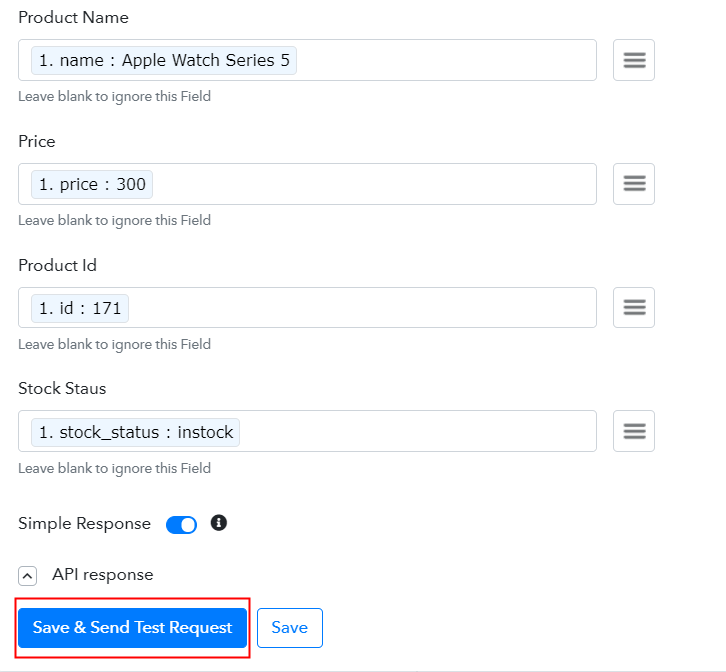
Lastly, save & send test request for testing the action.

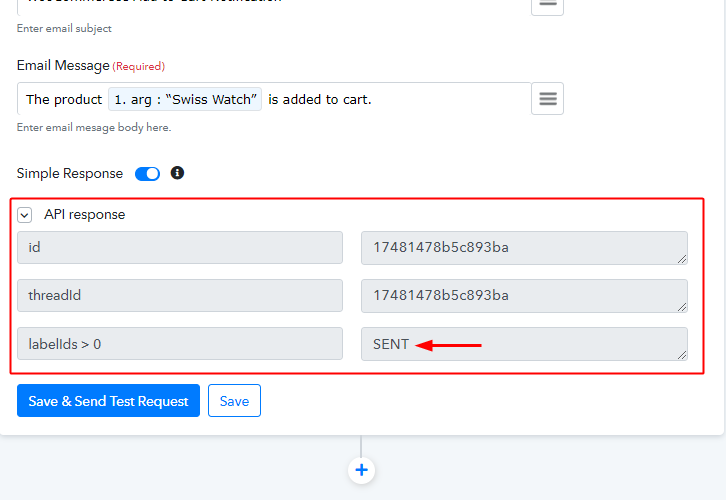
(g) Check Action Response

Check Action Response

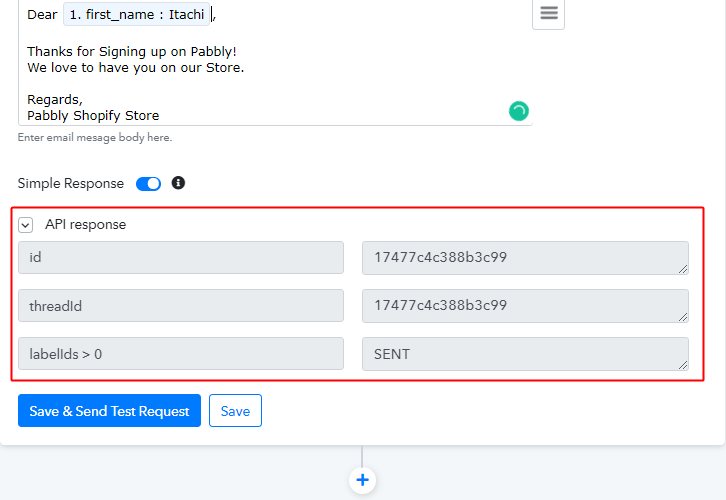
You can observe the response value labelled as SENT, reflecting the success of your designed workflow.

Step 8: Check the Final Response

(a) Check Response in the Test Email Inbox

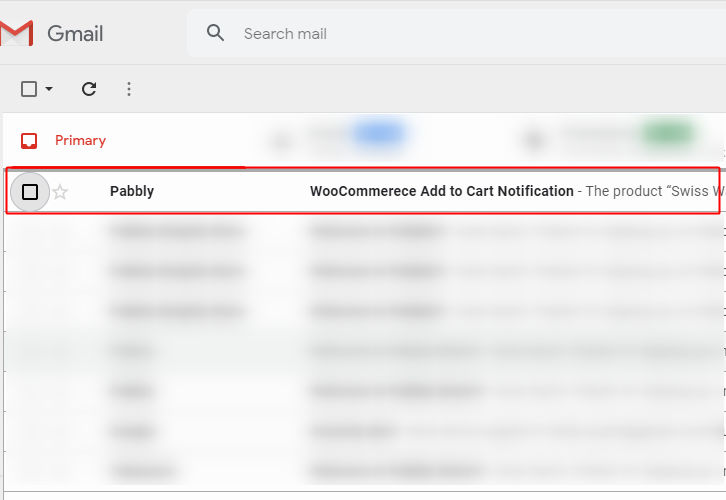
Check Receiver's Inbox

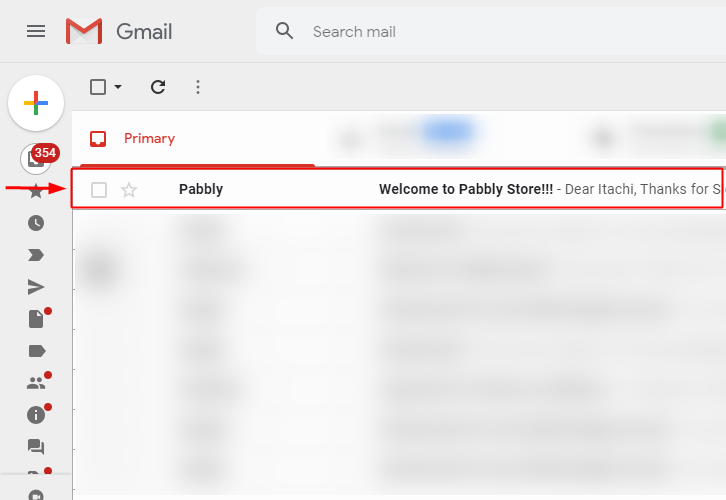
Also, you can check the email delivery in the receivers email inbox too.

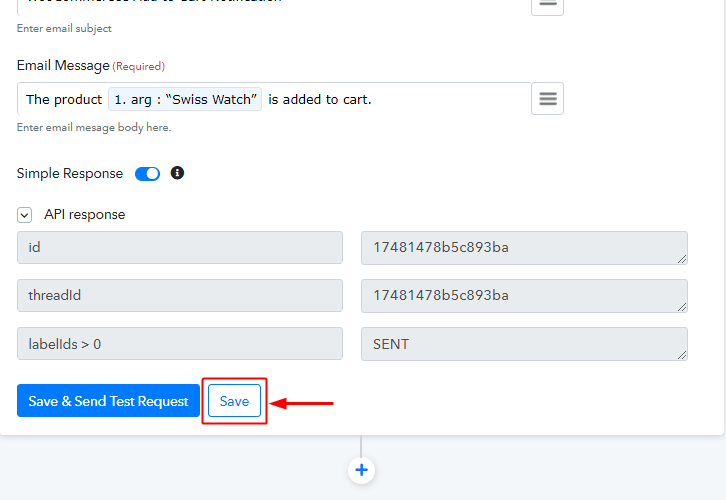
(b) Save the Webhook

Save Webhook

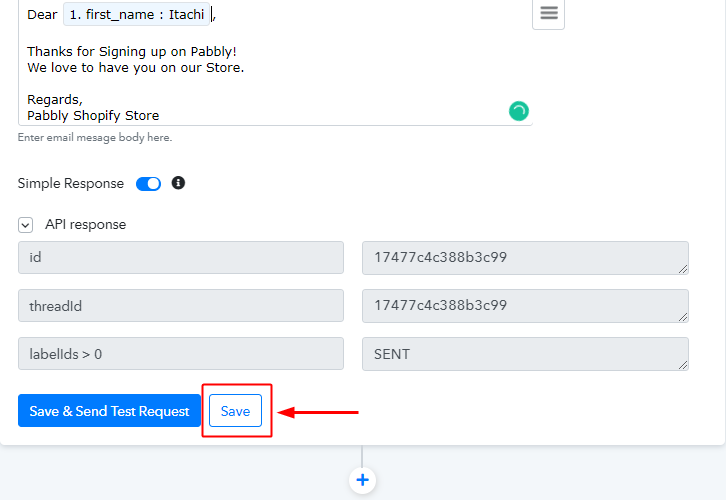
As we can see the Webhook is working perfectly. So, simply save the webhook by clicking the last action’s save button.

Wind-Up

Well, this is all about ‘How to get email notified when product is added in WooCommerce cart’. Consequently, after completing the step by step procedure, you will end up receiving automated emails notification when a product is added in the WooCommerce cart. Most importantly, the procedure is very easy to implement and you don’t need any coding knowledge to follow the steps.

Do you want to try Pabbly Connect for FREE?

For any further queries, do comment below.

You May Also Like to Read:

How to Import Shopify Orders to Google Sheets | Step by Step

How to Import Shopify Orders to Google Sheets

Fed up of looking for ways to import Shopify orders to Google Sheets? If yes, then you’ve come to the right place. As, in this article, you will get a step by step guide to import Shopify orders to Google Sheets.

How to Import Shopify Orders to Google Sheets

But before we began, let’s know a little bit about the software that we are about to integrate. Basically, Shopify is an online store builder software that helps you in creating an online shop. Whereas, Google Sheets is a spreadsheet program that helps you keep your data in place. Therefore, integrating these two services can help you import all the Shopify orders to your Google Sheets in real-time. Hence, you don’t have to worry about doing the redundant work & can eventually save a lot of time and effort.

Now, here comes the question that how you can integrate Shopify with Google Sheets? Well, the answer is quite simple and that is known as Pabbly Connect.

Why Choose This Method Of Integration?

In contrast with other integration services-

  • Pabbly Connect does not charge you for its in-built apps like filters, Iterator, Router, Data transformer and more
  • Create “Unlimited Workflows” and smoothly define multiple tasks for each action
  • As compared to other services which offer 750 tasks at $24.99, Pabbly Connect proffers 50000 tasks in the starter plan of $29 itself
  • Unlike Zapier, there’s no restriction on features. Get access to advanced features even in the basic plan
  • Try before you buy! Before spending your money, you can actually signup & try out the working of Pabbly Connect for FREE

Sign Up To Pabbly Connect

Pabbly Connect is one of the best integration tool that can help you integrate thousands of applications, set unlimited triggers & actions, create infinite workflows, and so much more. Besides, to do so, you don’t even need to have any coding skills. Just integrate it once and relax, it will handle all the work afterward.

So, without wasting any more time, let’s dive into the steps to import Shopify orders to Google Sheets.

Step 1: Sign up to Pabbly Connect

Sign Up

Let’s begin the process of importing Shopify orders to Google Sheets by pressing the “Sign Up Free” icon on the Pabbly Connect dashboard. Furthermore,  either you can manually enter the entire details or else sign up using your Gmail account.

Try Pabbly Connect for FREE

Step 2: Access Pabbly Connect

Select Connect

After signing into the account, click on the “Access Now” button of the Connect section to access Pabbly Connect software.

Step 3: WorkFlow to Import Shopify Orders to Google Sheets

(a) Start with a New Workflow

Create New Workflow

Here, you have to click on the button named “Create New Workflow” in order to start the integrate Shopify with Google Sheets.

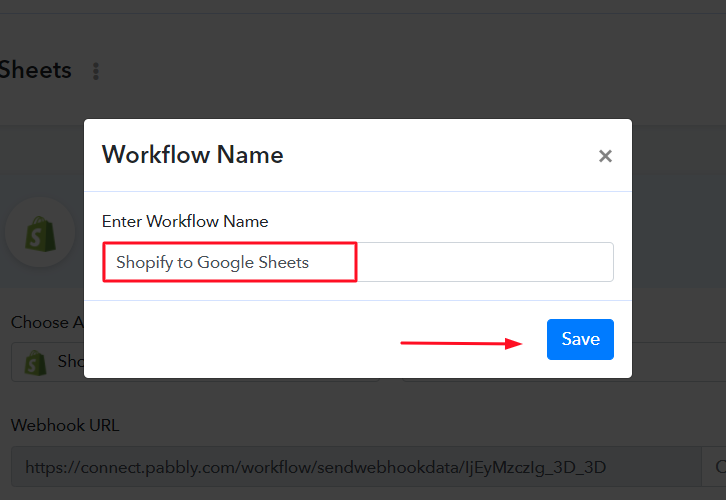
(b) Name the Workflow

Name the Workflow

After that, just name the workflow as per your needs. As here, I have named the workflow as Shopify to Google Sheets.

Step 4: Setting Trigger to Integrate Shopify with Google Sheets

Once the workflow is created, now you have to choose the application you want to integrate. Pabbly Connect helps you to connect unlimited apps in real-time, click here to try it out for free.

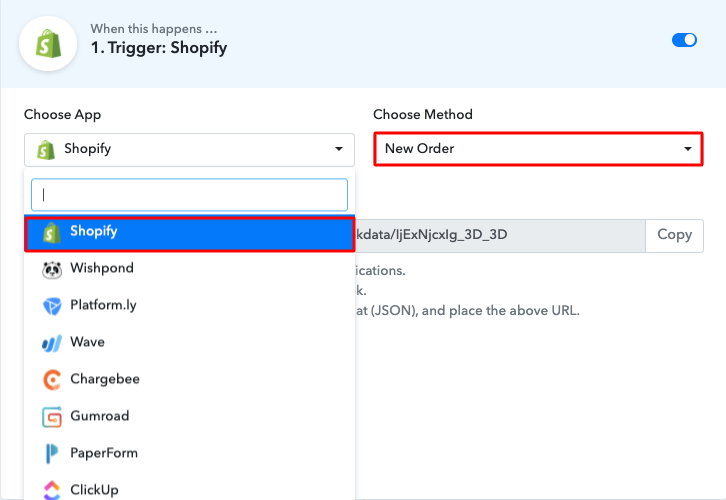
(a) Select Application you Want to Integrate

Select Shopify

Simply select the application that you want to integrate along with the Method. Like in this case, I am choosing Shopify for integration and selecting the ” New Order” option as a method.

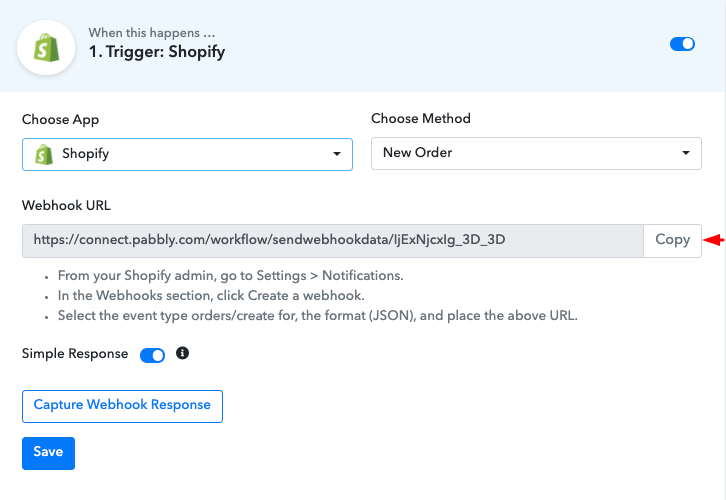
(b) Copy the Webhook URL

Copy Webhook URL

Afterward, now its time to copy the webhook URL, just click on the button “Copy” in order to take further the integration process.

Step 5: Paste the Webhook URL

The next step is to paste the copied webhook URL in your Shopify account’s settings section. So, log in to your Shopify account to move forward.

(a) Click on Settings

Click on Settings

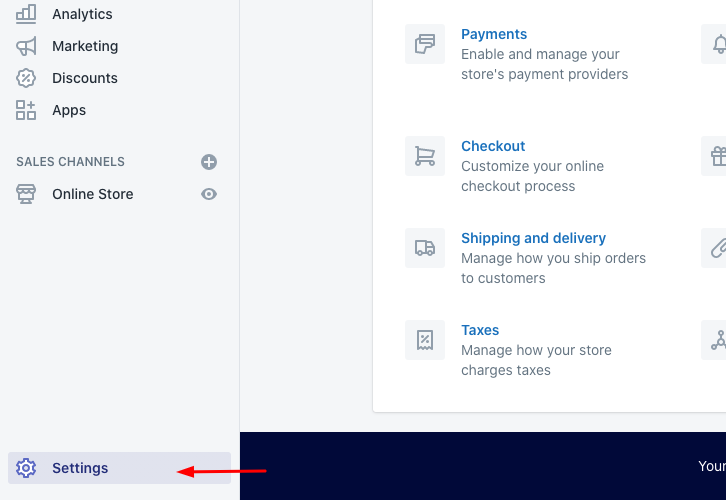
After you log in to your Shopify account, just press the “Settings” option at the bottom of the screen, just like we did.

(b) Select Webhook

Create Webhook

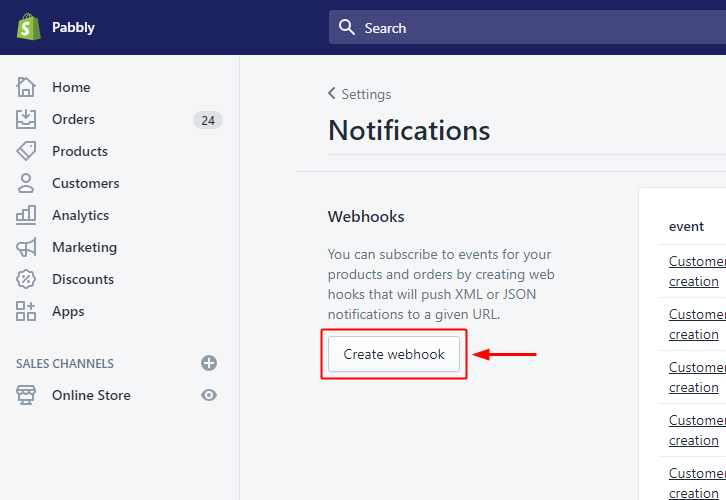
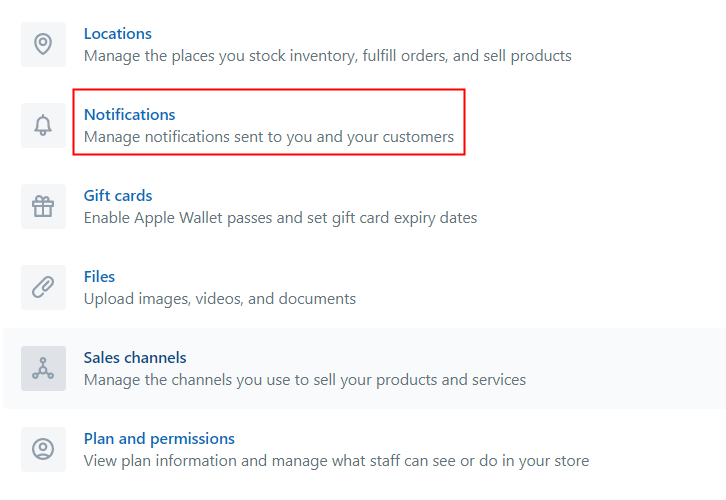
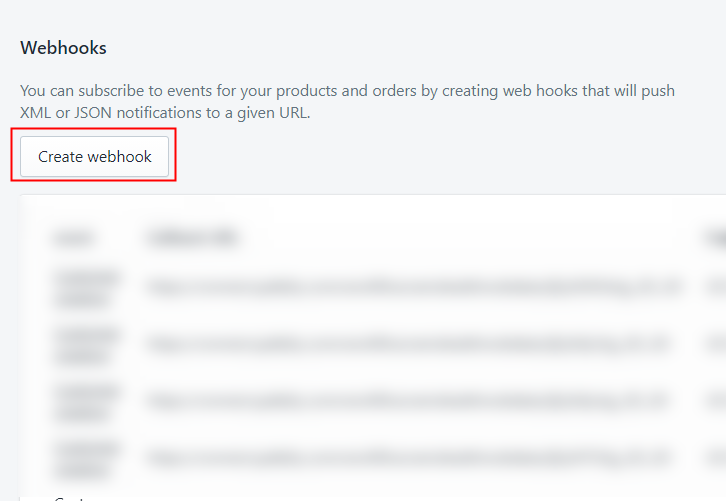
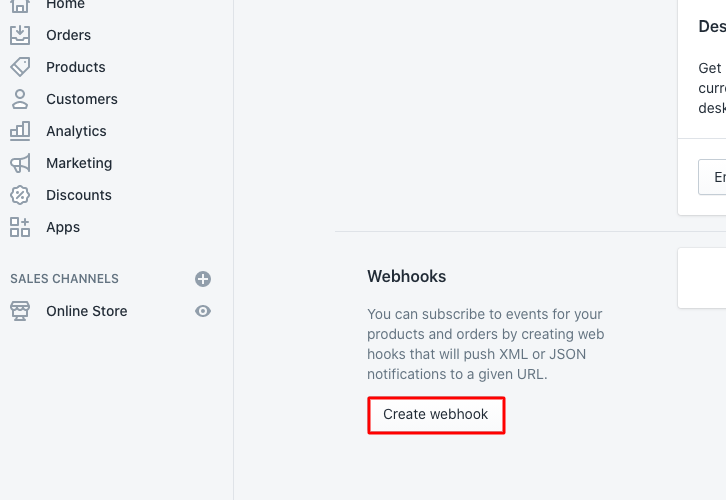
Once you reach the settings page, just click on notifications and scroll down where you will find a webhooks option. Simply click on the “Create Webhook” button.

(c) Paste the URL

Paste the Webhook

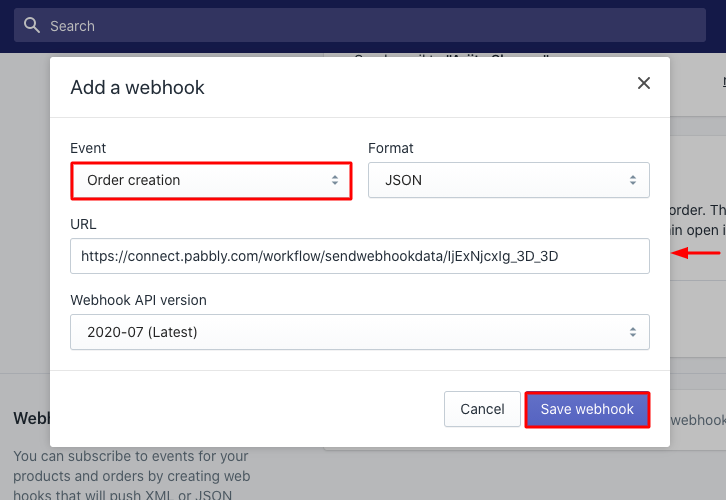
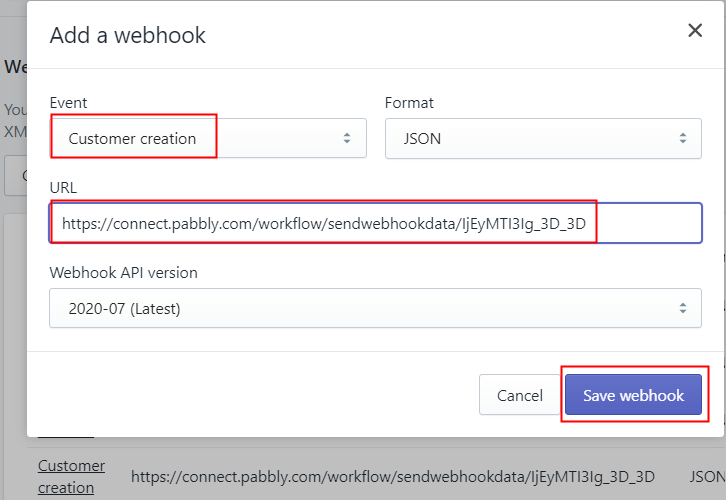
After pressing the button, a screen will pop-up where you need to paste your copied webhook URL. Just select “Order creation” from the event section and press the “Save Webhook” button.

Step 6: Make a Purchase to Test Shopify Integration

Make a Purchase to Test Shopify Integration

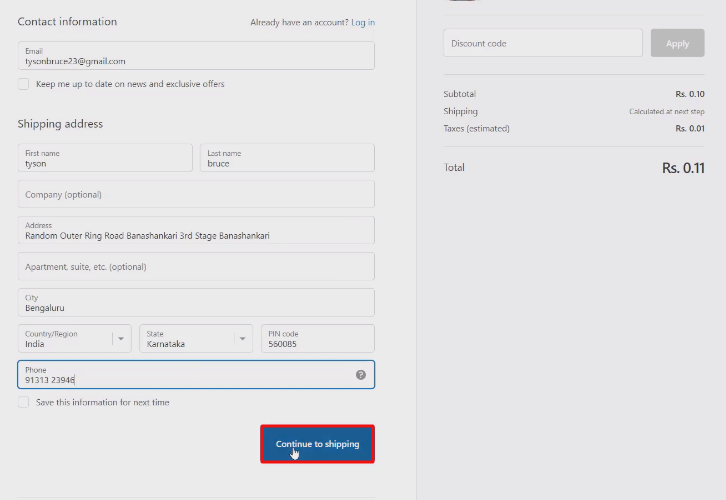
Consequently, in order to test the integration among Shopify & Pabbly Connect, just make a dummy purchase in your Shopify account of any product.  After that, enter all the required details and tap on the “Pay Now” button. After making the purchase, you need to go to the Pabbly Connect dashboard and press the button named “Capture Webhook Response”.

Step 7: Test the Response in Pabbly Connect Dashboard

Test the Response in Pabbly Connect Dashboard

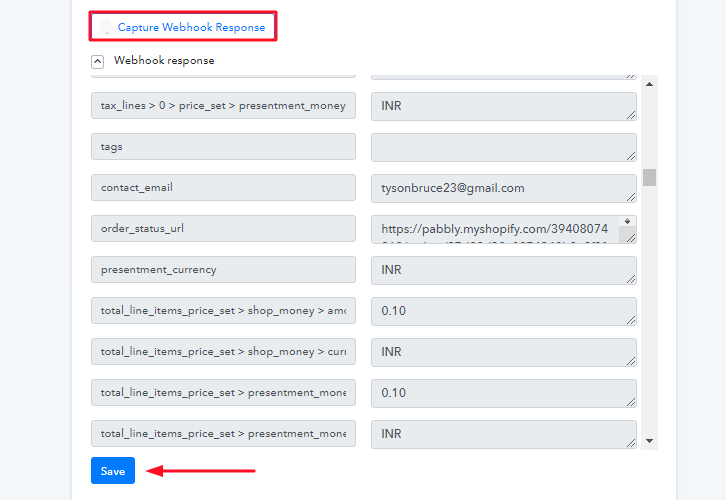
Once you click on the capture webhook response, in a few seconds all the submitted entries will get captured. Next, press the “Save” button in order to continue the workflow.

Step 8: Setting Action for Shopify & Google Sheets Integration

Moving forward to the next step, now its time to set an action for your trigger. And to do that, you have to choose the application you wish to integrate i.e, Google Sheets.

(a) Select Google Sheets

Select Google Sheets to Set Action to Integrate Facebook Lead Ads & Google Sheets

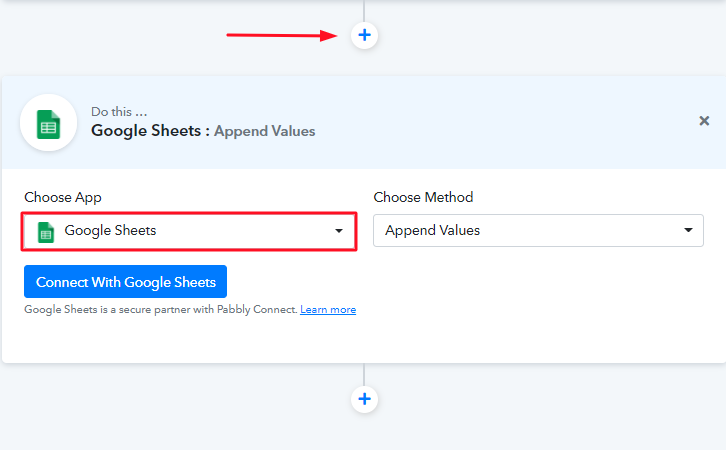
Now, to import Shopify orders to Google Sheets, you need to click on the “(+)” button. Then, select Google Sheet from the drop-down option & hit the button named ” Connect With Google Sheets”.

(b) Click on “Connect”

Authorize Application for Facebook Lead Ads Integration

The subsequent step is to connect with Google Sheet by clicking on the “Connect” button. After that, a window will pop-up asking you to select/fill a Google Account that you want to connect the Google Sheets & Pabbly Connect.

Step 9: Fill up All the Fields

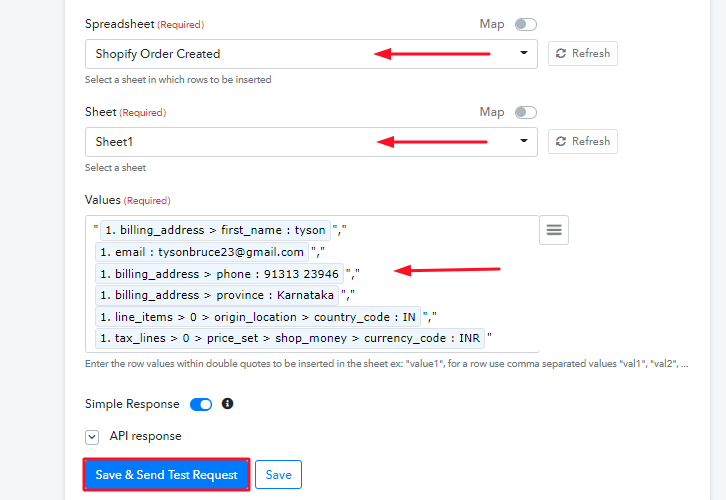
Fill up All the Fields

After connecting your google sheet, simply enter all the required fields one by one. Furthermore, once you fill up all the details, simply hit the “Save & Send Test Request” button to complete the entire procedure.

Step 10: Check the Google Sheet

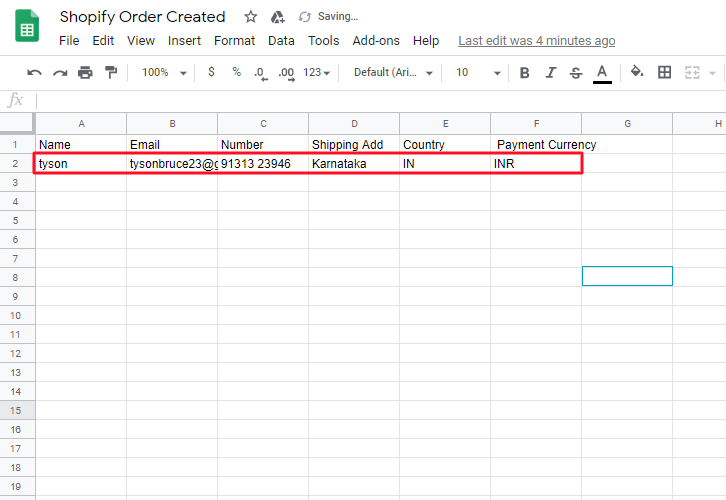
Check the Google Sheet

Voila! As you can see that, all the order details are now visible in your google sheet & your automation is now set.

Conclusion –

To put in a nutshell, we have explained the entire process that how you can import Shopify orders to Google sheets with the help of an automation tool Pabbly Connect. Furthermore, the process is quite easy and you have to do it only once. So go ahead and create your account for free.

Hope the process was clear to you guys. Nevertheless, in case you have any doubts, drop it in the comment section below.  We’ll get back to you as soon as possible.

You May Also Like to Read –

How to Send Automatic Emails on User Sign Up in Shopify Store

How to Send Automatic Emails on User Sign Up in Shopify Store

In this blog, we will walk you through the step by step procedure to send automatic emails as soon as the user sign up on Shopify store. If you are having a Shopify store then you must be willing to send emails such as welcome, offer, current deals. Well, as you can see it’s not possible through the Shopify dashboard. So, here is the easiest solution.

You can connect your Shopify store with Pabbly Connect and send automatic emails to your customers as soon as they sign-up.

How to Send Automatic Emails on User Sign Up in Shopify Store

Pabbly Connect helps you join two or more services together. We can use it to create unlimited workflows and set-up instant triggers on certain conditions. Furthermore, you can also make use of various formatters, filters, routers etc without zero coding knowledge. Also, we can define an action using multi-steps calls based on the trigger condition.

Why Choose This Method Of Integration?

In contrast with other integration services-

  • Pabbly Connect does not charge you for its in-built apps like filters, Iterator, Router, Data transformer and more
  • Create “Unlimited Workflows” and smoothly define multiple tasks for each action
  • As compared to other services which offer 750 tasks at $24.99, Pabbly Connect proffers 50000 tasks in the starter plan of $29 itself
  • Unlike Zapier, there’s no restriction on features. Get access to advanced features even in the basic plan
  • Try before you buy! Before spending your money, you can actually signup & try out the working of Pabbly Connect for FREE

Sign Up To Pabbly Connect  

Well, it somehow sounds tough, but I can tell you it would take only a few minutes and the service allow you to use it’s all features without any restriction even in its free plan.

Now, let’s get started with the step by step procedure to integrate Shopify and Gmail to send automatic emails on customer sign-up.

Step 1: Sign up to Pabbly Connect

Sign Up

Firstly, visit the official website of Pabbly Connect and then click on the ‘Sign-Up Free‘ button. Next, on the signup page, either make use of an existing Google account or manually fill out the registration form details to get in.

Try Pabbly Connect for FREE

Step 2: Access Pabbly Connect

Select Connect

After signing up successfully, click the ‘Access Now’ button that is present in the ‘Connect’ Pabbly application window.

Step 3: Create a WorkFlow to Send Emails on User Sign Up in Shopify

(a) Click over the Create New Workflow Button

Create New Workflow

Start with creating a workflow to send automatic emails on user sign up in Shopify store and for this hit the ‘Create New Workflow’ button.

(b) Name the Workflow

How to Send Automatic Emails on User Sign Up in Shopify Store

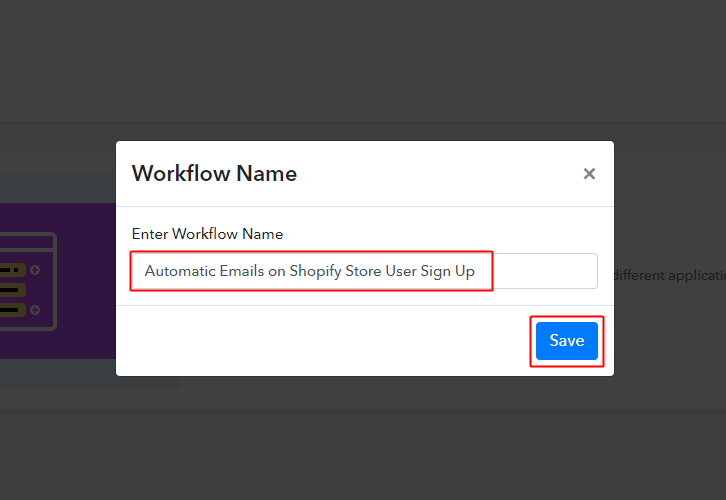
Name the Workflow as per your need (for instance: Automatic emails on user sign up in Shopify store) and hit the ‘Save’ button.

Step 4: Setting Triggers for Shopify & Gmail Integration

To send automatic emails on user sign up in Shopify store, you need to set-up a trigger and an action. So, let’s start setting up the trigger first.

(a) Select Application you want to integrate as Shopify

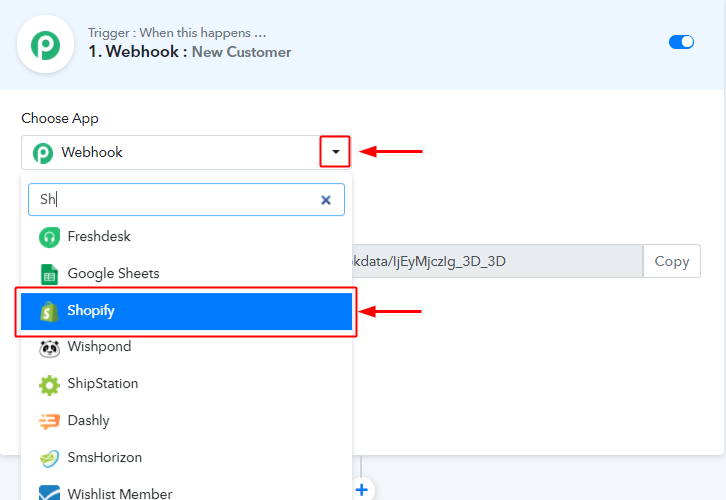
Integrate Shopify

When you name and create a workflow on Pabbly Connect, a window asking for trigger details will open up.

Select the ‘Shopify’ app from the drop-down of the ‘Choose App’ field.

(b) Choose the Shopify Method

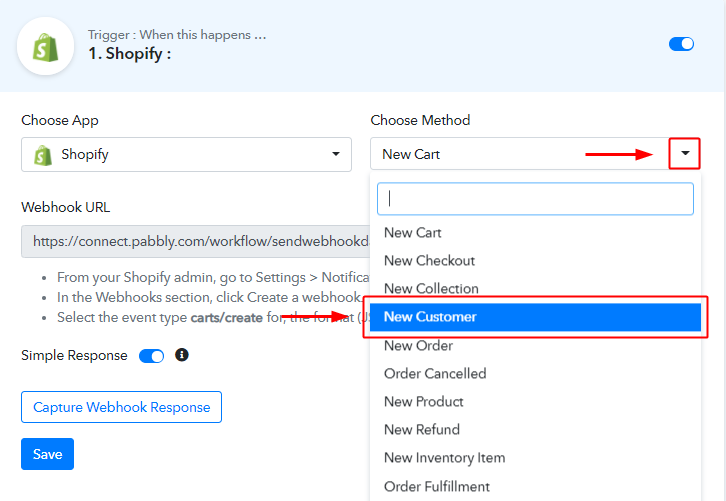
Choose Shopify Method

Next, select the method as ‘New Customer’ from the Choose Method field’s drop-down list.

Now, you are all set to connect this trigger with a Shopify store.

Step 5: Connect Pabbly Connect & Shopify Store

To plant the Webhook on your Shopify store, go to the dashboard of your Shopify store.

(a) Go to Your Shopify Store Dashboard

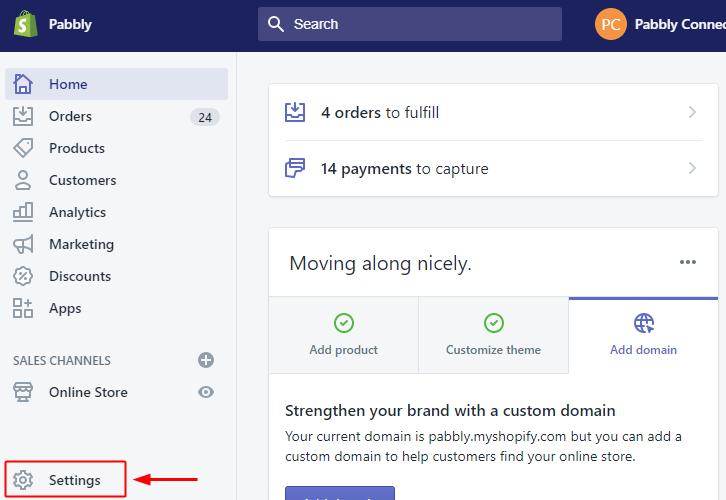
Shopify Settings

Click the ‘Settings’ option present at the bottom-left corner of your Shopify dashboard.

(b) Select Notification Option

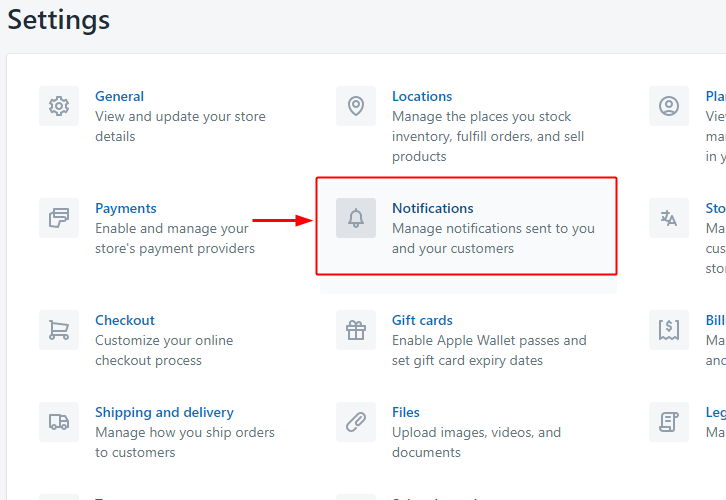
Go To Notification

A page will open up carrying all the different setting options of the application. Select the notification option as we need to send automatic emails on user sign up in Shopify store.

(c) Click over Create Webhook Button in the Webhook Section

Create Webhook Shopify

On the next page, there will be many notification options. So, head directly to the bottom of the page on ‘Webhooks’ and click the ‘Create Webhook’ button.

(d) Select the Event

Select Event

When you click over the ‘Create Webhook’ button. A window will pop open asking for a few webhook settings.

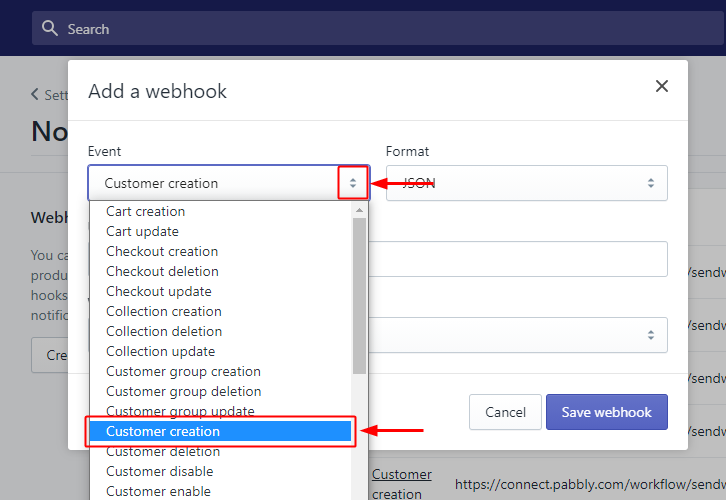
Set the Event field value to ‘Customer Creation’ by selecting the same from this field’s drop-down menu.

(e) Copy the Webhook URL from Pabbly Connect Trigger

Copy Webhook URL

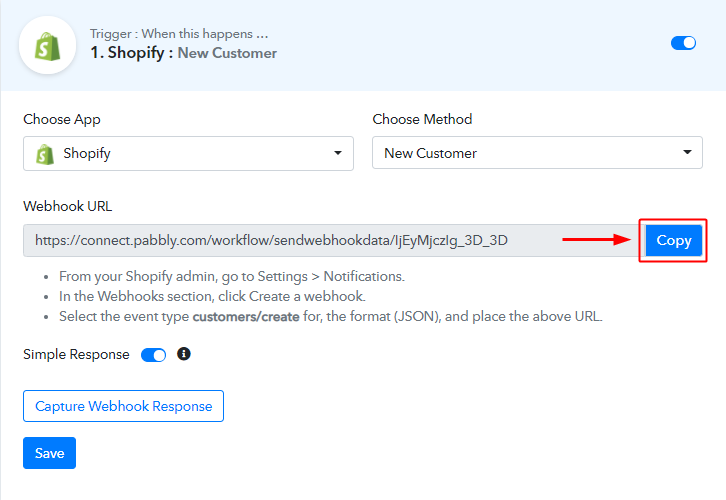
To fill out the URL field in the Shopify store’s webhook settings, head back to Pabbly Connect trigger and copy the Webhook URL.

(f) Paste Webhook URL

Paste Webhook URL

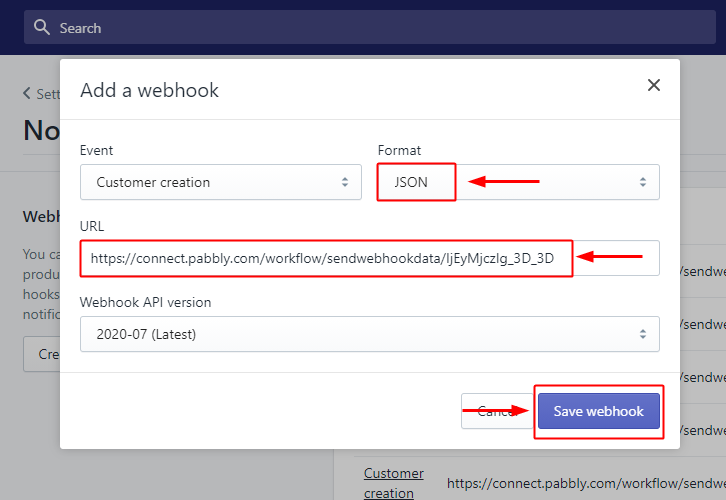
Check the ‘Format’ to be ‘JSON’.

And paste the copied Pabbly Connect Webhook URL in the URL field.

Lastly, save the created Webhook.

Step 6: Test the Trigger Response

Up to this point, the trigger is all set. So, let’s check the response of the set trigger.

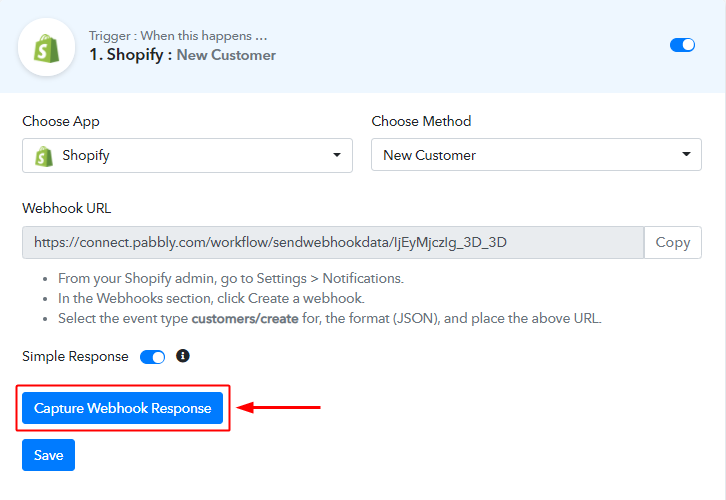
(a) Go to Pabbly Connect Trigger & Capture the Webhook Response

Capture Webhook Response

Click the ‘Capture Webhook Response’ button on the Pabbly Connect trigger.

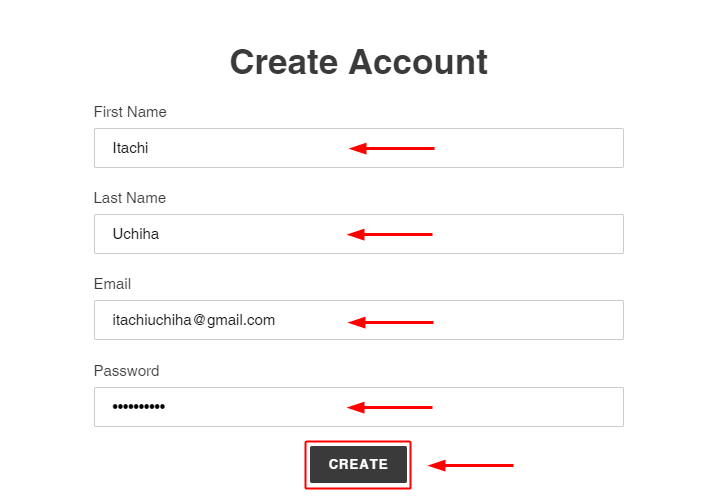
(b) Fill the Sign UP from of Your Shopify Store

Fill Sign Up Form

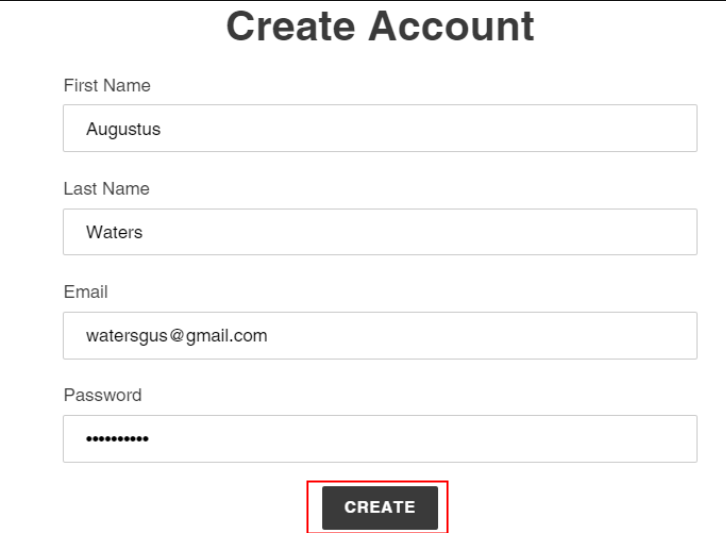
Go to your Shopify store’s sign-up form and fill in the details for a new customer for testing purpose.

Complete the sign-up process by hitting the create and submit button afterwards.

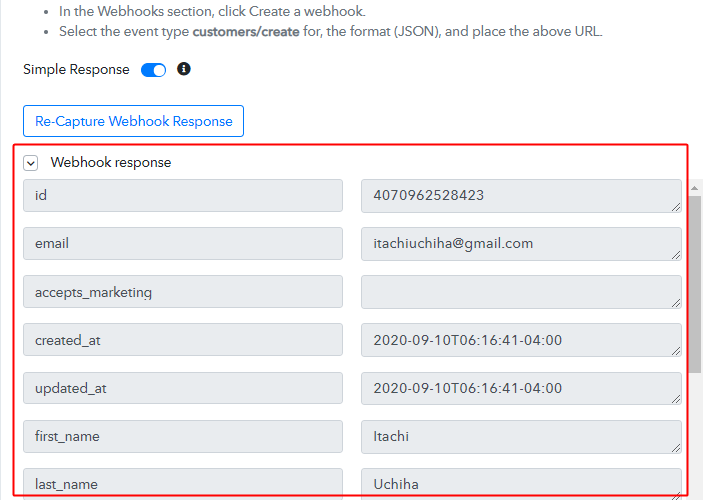
(c) Check the Webhook Response on Pabbly Connect Trigger

Check Trigger Response

You can see the response of your sign-up on your Shopify store in the Pabbly Connect trigger window.

All the information that was filled and submitted on your Shopify store’s sign-up will be available on the response.

This ensures that our trigger setting to send automatic emails on user sign up in Shopify store is working as expected.

Step 7: Set-up An Action to Send Emails on User Sign Up in Shopify

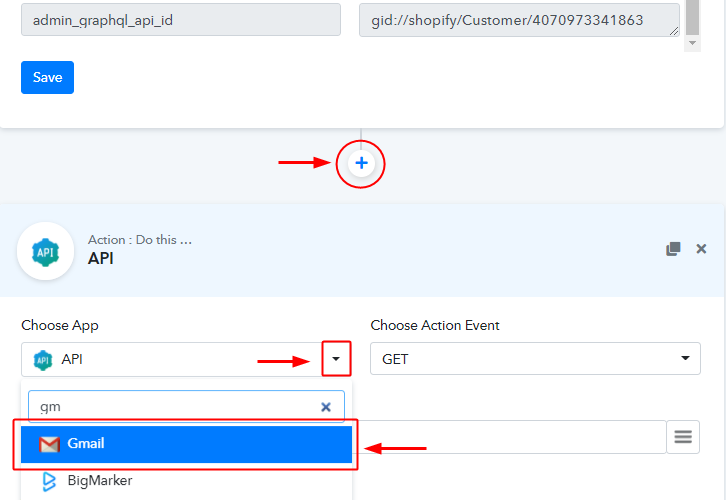
As now we have the Shopify customer’s data on Pabbly Connect trigger, we can simply integrate an email service to send emails to the customer. To do so we are going to integrate Gmail. But, I wanna let you know that you can also select any email marketing service in the place of Gmail in here too.

(a) Select the App to Integrate as Gmail

Integrate Gmail

To integrate an email service, click the plus button next to your recently created trigger.

And select the Gmail app from the Choose App field’s drop-down list.

(b) Connect with Gmail

Connect with Gmail

Make sure the method in here is set to ‘Send an Email’.

Lastly, hit the ‘Connect with Gmail’ button.

(c) Authorize Your Gmail Account

Authorize Gmail

Next, the system will ask you to authorize a Gmail account.

So, click the ‘Connect’ button in the window that slides in.

Complete the authorization by allowing the system to send emails using your set account.

Step 8: Map the Action Email Values

(a) Map the Email Values from the Received Shopify Trigger Response

Map Email Values

Once the authorization is completed, you will be asked to fill the details that will be used for sending all the emails more further.

You’ll need to map the values from the response that we received from the trigger.

To map a value simple place your cursor to a position where you want to map the value. Then click the three verticle lines (the menu icon) present next to that particular field. And then click over the values that you wanna map from the response drop-down list.

Likewise, fill all the rest email requirements.

(b) Complete the Email Requirements & Send a Test Request

Save & Send Test Request

Once you are done with all the details click the ‘Save & Send Test Request’ button.

(c) Check the Action Response

Action Response

You can check the success of your nation as the response is labelled SENT.

(d) Action Response on Customer’s Gmail

Action Response on Customer's Gmail

Also, while testing you can check the email’s send status on the customer’s inbox.

Step 9: Save the Webhook

Save the Webhook

As we can see the Webhook is working perfectly. So, simply save the webhook by clicking the last action’s save button.

Wind-Up

Well, this is all about ‘How to send automatic emails on user sign-up in Shopify store’. Consequently, after completing the step by step procedure, you will end up sending automated emails to your customer’s as soon as they sign-up on your Shopify store. Most importantly, the procedure is very easy to implement and you don’t need any coding skills to carry these simple steps.

Do you want to try Pabbly Connect for FREE?

For any further queries, do comment below.

You May Also Like to Read:

How to Add Shopify Customers to MailChimp | Step by Step

How to Add Shopify Customers to MailChimp

Want to know how to add Shopify Customers to Mailchimp? If yes, then here in this blog post we will discuss how to connect Shopify with MailChimp.

How to Add Shopify Customers to MailChimp

Owning a Shopify store is something very common these days. But to bring the best out of it is something which only some of us can do. Many times to stand out in the market we want to send emails or newsletters to our loyal Shopify customers. And for the same, we use email marketing software like MailChimp to send customized automated emails to prospects.

But generally, we get stuck in between, when comes to how to connect these two software. Then we spent days looking out for services that can connect both software with ease. This is actually a lot of work to do in such a hectic life.

Why Choose This Method Of Integration?

In contrast with other integration services-

  • Pabbly Connect does not charge you for its in-built apps like filters, Iterator, Router, Data transformer, and more
  • Create “Unlimited Workflows” and smoothly define multiple tasks for each action
  • As compared to other services which offer 750 tasks at $24.99, Pabbly Connect proffers 50000 tasks in the starter plan of $29 itself
  • Unlike Zapier, there’s no restriction on features. Get access to advanced features even in the basic plan
  • Try before you buy! Before spending your money, you can actually signup & try out the working of Pabbly Connect for FREE

Sign Up To Pabbly Connect    

But guess what! Here we are saving all trouble by suggesting affordable automation software named  Pabbly Connect. It is the best business automation software that lets you create unlimited workflows, integrations, triggers, and actions without knowing any coding skill. The interface of the software is easy even an amateur or newbie can work with it.

Unlike most of the top marketing automation platforms, Pabbly Connects doesn’t restrict you on any features like workflows, filters, and much more even in its free plan.

Here in this article, we will add Shopify customers to Mailchimp using an automation tool i.e Pabbly Connect.

Let’s dive into the Mailchimp Shopify integration process.

Step 1: Sign up to Pabbly Connect

Sign Up

Start the process of connecting Shopify with MailChimp by clicking on the “Sign Up Free” icon on the Pabbly Connect dashboard. Next, either manually fill-up all the details or sign up using Gmail credentials.

Try Pabbly Connect for FREE

Step 2: Access Pabbly Connect

Select Connect

Next, to proceed with Shopify and MailChimp integration, click on the “Access Now” button of Connect.

Step 3: WorkFlow for Shopify – MailChimp Integration

(a) Start with a New Workflow

Create New Workflow

Start the process of creating a Shopify – MailChimp workflow for online business automation by clicking the “Create New Workflow” button.

(b) Name the Workflow

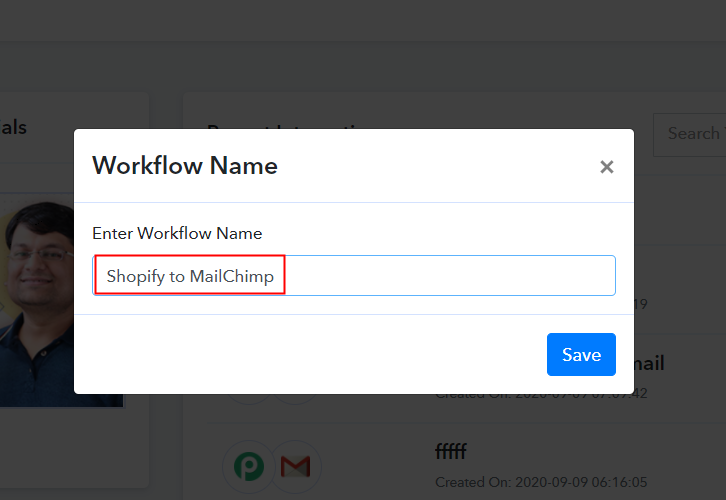
Name the Workflow

Further, add the name of workflow which in our case is “Shopify to Mailchimp”. Nevertheless, you can name the workflow according to your needs.

Step 4: Setting Trigger for Shopify – MailChimp Integration

Next, after creating a workflow, you have to choose the integration app to connect your Shopify store to Mailchimp. Using Pabbly Connect one can integrate or connect unlimited apps, tap here to get your access to unlimited workflows.

(a) Select Application you Want to Integrate

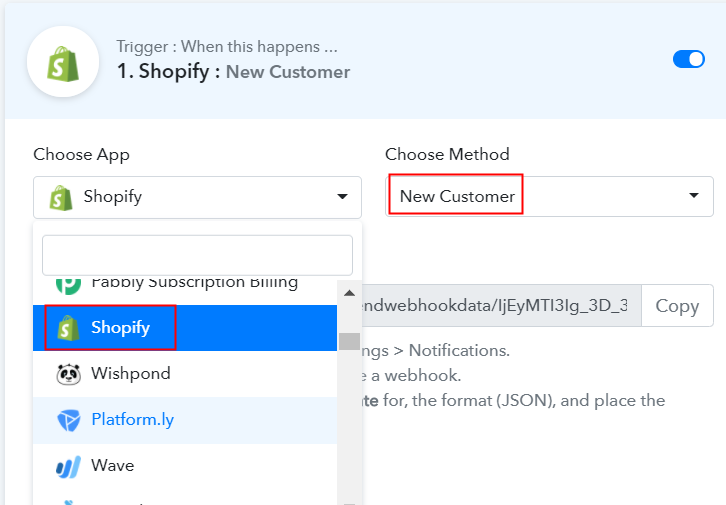
Select Shopify

The following step is to select “Shopify” from the dropdown, then choose the “New Customer” option to append every customer data from the software into Mailchimp.

(b) Copy the Webhook URL

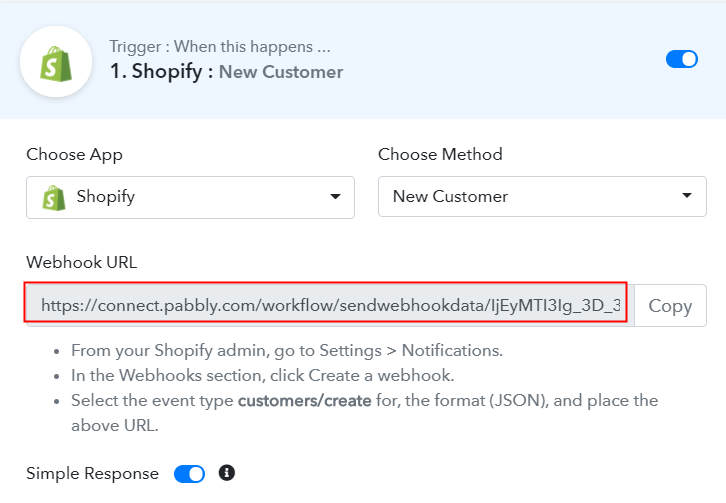
Copy the Webhook URL

The next step is to copy the webhook URL which is appearing on the dashboard.

Step 5: Connecting Shopify to Pabbly Connect

To collect customer’s data from Shopify, you gotta paste the copied Webhook URL in the software. For that, you have to log in to your Shopify account.

(a) Go to Shopify Settings

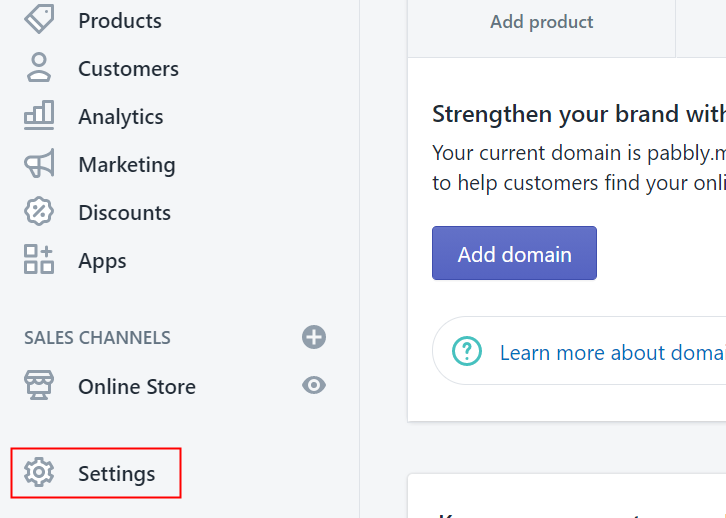
Go to Settings

After login into the Shopify account, go to the “Settings” section on the bottom of the dashboard.

(b) Click on Notifications

Click on Notifications

Next, when you click on “Settings”, it will open up a tab with a different option. Just click on the “Notifications” option to paste the Webhook URL.

(c) Move to Webhook Option

Move to Webhook Option

Below in the “Notification” tab, you will see the Webhook option, just click on the “Create Webhook” button.

(d) Paste the Webhook URL

Paste the Webhook URL

As soon as you click on the “Create Webhook” option, it will open up the window with a certain option. In “Event”, choose “Customer Creation” from the dropdown, the “Format” would be JSON. Simply paste the copied URL in the “URL” column. Lastly, click on “Save Webhook” to save the setting.

(e) Create Account from Customer End

Create Account from Customer End

Now, to test the whole integration we will fill out the form of creating an account from the customer end. Just fill all the details and hit the “Create” button. Make sure to hit the “Capture Webhook Response” button in the Pabbly Connect dashboard.

(f) Check Response in Shopify Backend

Check Response in Shopify Backend

Further, when you check the admin end of the store, you will see the entry will appear there.

Step 6: Test the Response in Pabbly Connect Dashboard

Test the Response

As soon as you click on the “Save” option in the Shopify account, the entry will appear on the “Pabbly Connect” dashboard. Further, click on the “Save” option.

Step 7: Setting Action for Shopify – MailChimp Integration

To make this Shopify Mailchimp integration work, you have to choose the action for your trigger.

(a) Select Application you Want to Integrate

Select MailChimp

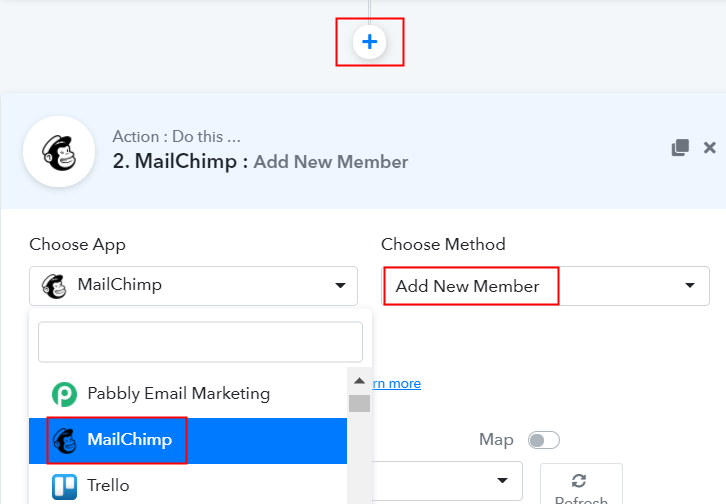
Click on the “+” icon to add an action for your trigger. In our case, it is “Mailchimp”. Then, select the “Add New Member” option.

(b) Click the Connect Button

Click the Connect Button

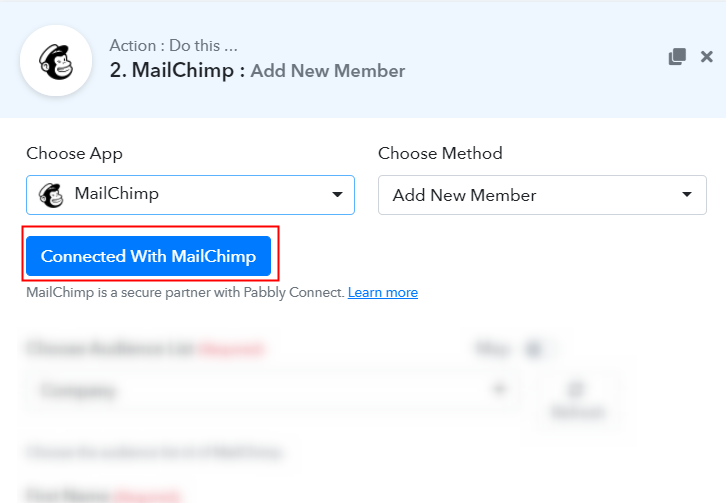
After making all the necessary changes, click on the “Connected with MailChimp” button. Further, it will open the authorization window, for which you have to log in to your MailChimp account.

Step 8: Connecting MailChimp to Pabbly Connect

To connect Shopify to MailChimp, you need to paste the “Bearer Token” for which you have to log in to your MailChimp account.

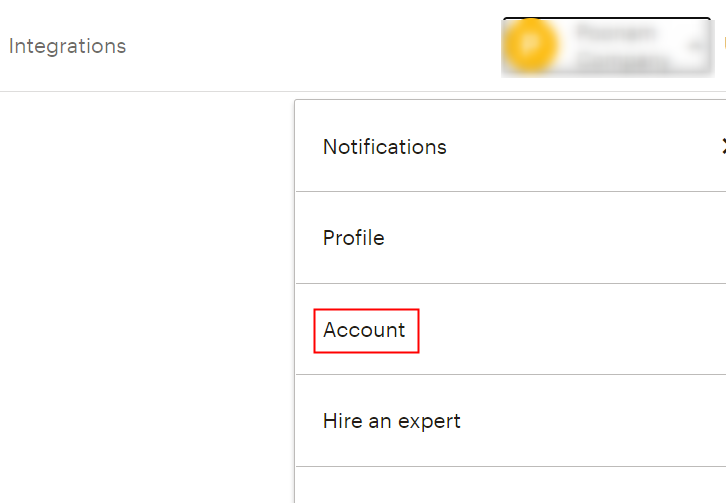
(a) Click on Account

Click on Account

After login, click on the “Account” on the uppermost section of the dashboard.

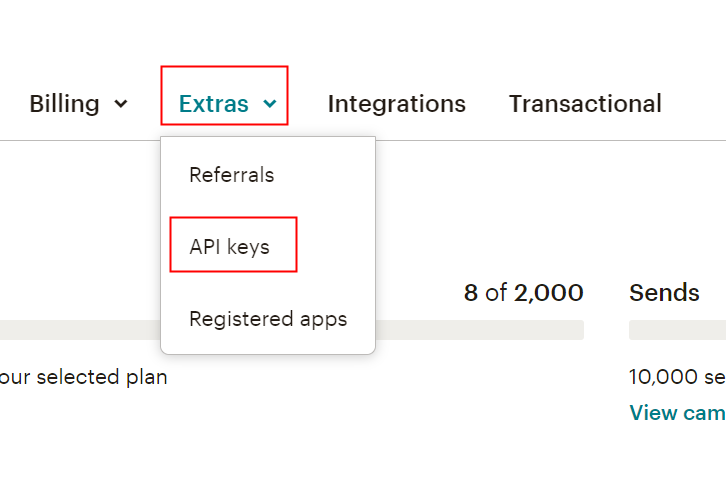
(b) Move to Extras

Move to Extras

When you click on “Account” it will open up the new window. There you will see the “Extras” option, simply click on it. Then, click on the “API Keys” option.

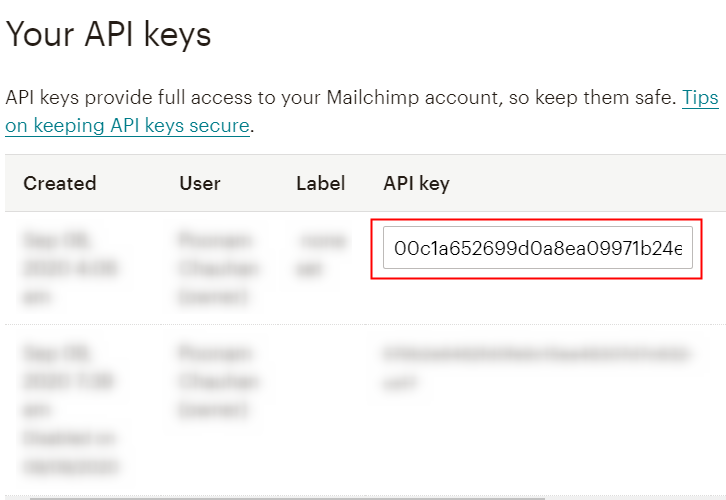
(c) Create a Key

Create a Key

As soon as you will click on the “Create a Key” button, it will generate the key. Just copy it.

Step 9: Paste API Key in Pabbly Connect Dashboard

Head back to the Pabbly Connect dashboard to paste the API key.

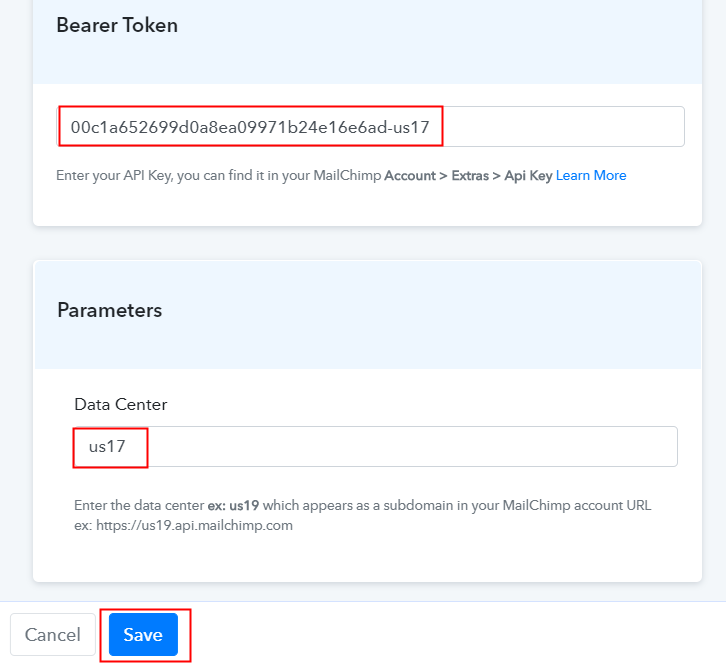
(a) Fill API Key

Fill API Key

So, just paste API Key in the bearer token option, and in the “Data Center” column, mention MailChimp id which appears in the starting of your MailChimp URL. After ensuring all this, click the “Save” button.

(b) Map Field Data

Map Field Data

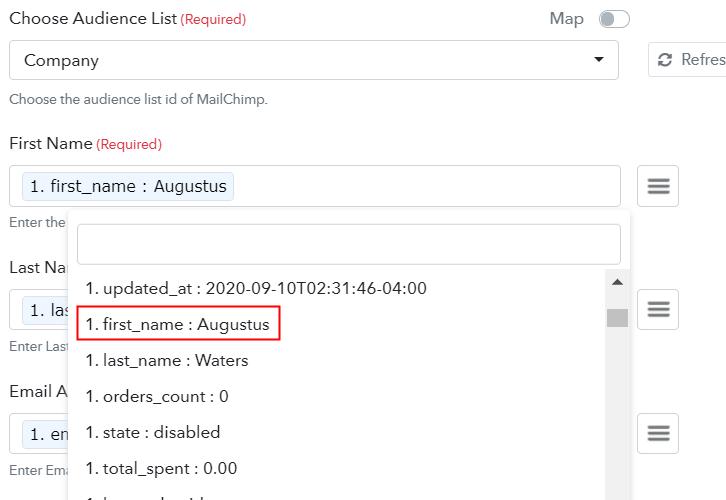
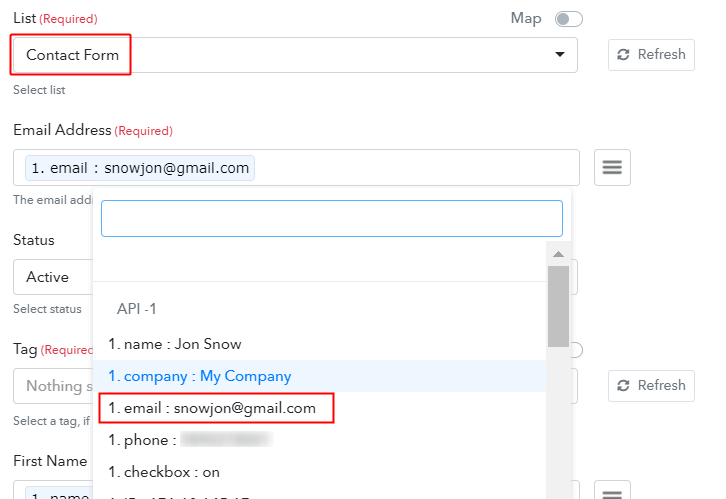
Next, map the required field from drop-down such as for the email field, select the email option, and for the name field select the name option.

(c) Save and Send Test Request

Save and Send Test Request

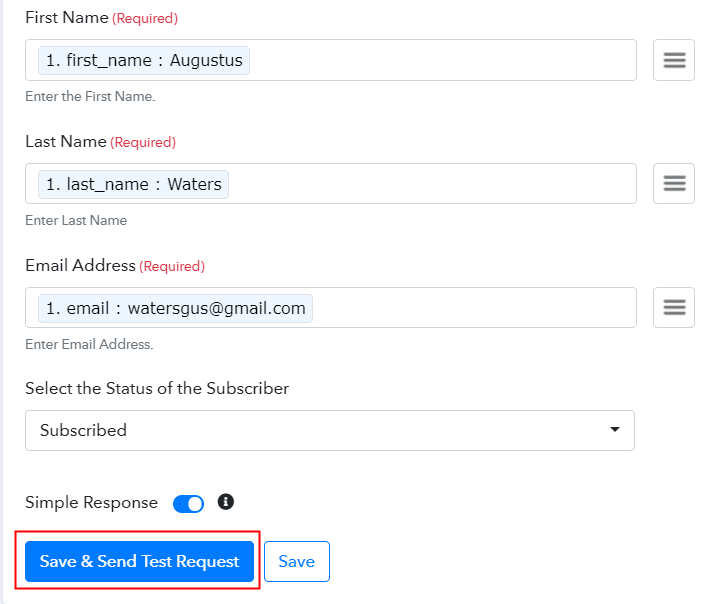
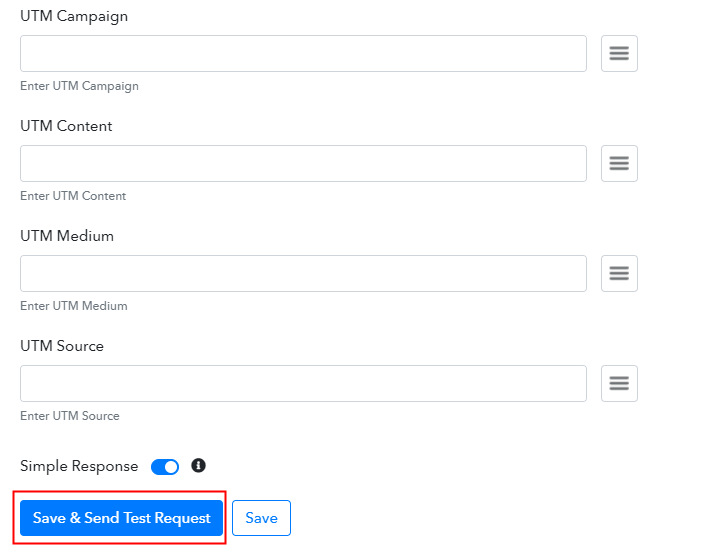
Subsequently, after filling all the details, save the setting and then “Send Test Request” to test the Shopify MailChimp integration.

Step 10: Check Response in MailChimp Dashboard

Check Response in MailChimp Dashboard

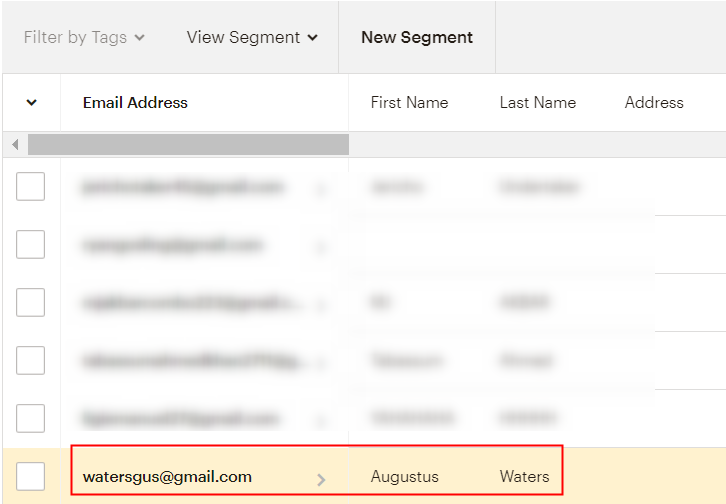
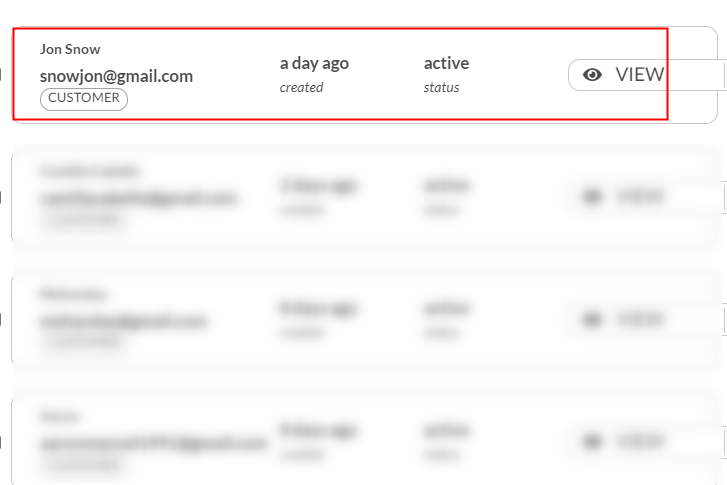
Lastly, when you check the Audience section in MailChimp, your entry will automatically appear there.

Now you know how to add Shopify customers to MailChimp. This is a one-time process, now all your manual work will be done by the online business automation tool i.e Pabbly Connect.

Conclusion –

That’s it! Here we provide in detail “how to add Shopify Customers to MailChimp” using the software. We understand how much overwhelming can be a process of connecting two software. This is a reason why people switching towards the best automation tools that can ease the whole work. And, believe us Pabbly Connect is one of the best Zapier alternatives available in the market that doesn’t empty your pockets. Even in its free trial, you get access to every feature.

So, don’t wait anymore! Go and grab a deal by signing up for a free account.

You May Also Like To Read –
How to Integrate ThriveCart with New Zenler | Step by Step

How to Integrate Thrivecart with New Zenler

Want to integrate ThriveCart with New Zenler? If yes, then stick around my friend. But before we jump to the integration process, let’s talk a wee bit about these services.

How to Integrate Thrivecart with New Zenler

ThriveCart is a software that helps you to advertise and collect payments for physical products, digital products, subscriptions, and services to your customers. New Zenler is a course creation tool that lets you control all elements of your online courses. And we will be integrating these two services with the help of an awesome tool called Pabbly Connect without any coding skills.

Why Choose This Method Of Integration?

In contrast with other integration services-

  • Pabbly Connect does not charge you for its in-built apps like filters, Iterator, Router, Data transformer and more
  • Create “Unlimited Workflows” and smoothly define multiple tasks for each action
  • As compared to other services which offer 750 tasks at $24.99, Pabbly Connect proffers 50000 tasks in the starter plan of $29 itself
  • Unlike Zapier, there’s no restriction on features. Get access to advanced features even in the basic plan
  • Try before you buy! Before spending your money, you can actually signup & try out the working of Pabbly Connect for FREE

Sign Up To Pabbly Connect  

Pabbly Connect is an amazing integration tool through which you can integrate thousands of applications. Other than this, you can access its other great features even with the free plan:

  • Set unlimited triggers, unlimited actions to those triggers
  • Create unlimited workflows without any restrictions
  • Path Routers
  • Unlimited premium apps

After this integration, whenever there will be a new sale on your ThriveCart account then information of the buyer will be automatically updated in your New Zenler profile. Therefore without further delay, let’s integrate ThriveCart with New Zenler.

Step 1 : Sign up to Pabbly Connect

Sign Up

Start the integration process by signing up for Pabbly Connect. Quickly fill in the details manually or sign-up via your Google account.

Try Pabbly Connect for FREE

Step 2 : Access Pabbly Connect

Select Connect

After completing the signup process, access the Connect section in the dashboard.

Step 3 : WorkFlow for ThriveCart with New Zenler Integration

(a) Create New Workflow

Create New Workflow

Start with creating a workflow for your project by clicking on the ‘Create New Workflow’ button.

(b) Name the Workflow for ThriveCart with New Zenler

Name the Workflow

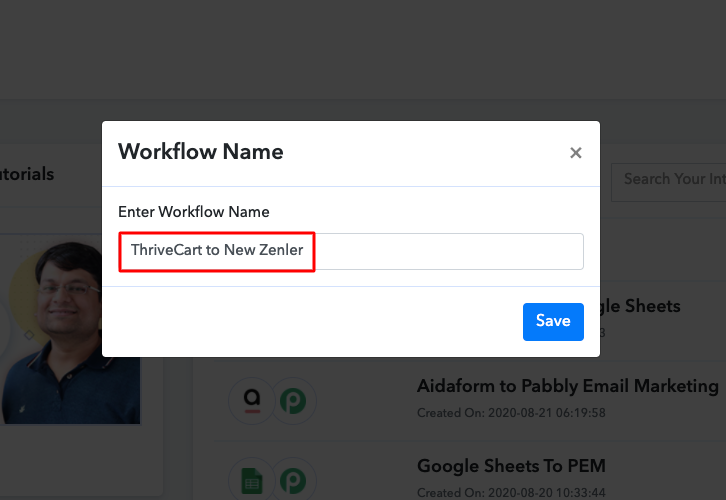
Next, you need to name the workflow just like in the above-shown image. I named the workflow as ThriveCart to New Zenler, you can obviously name the workflow as per your requirements and need.

Step 4 : Setting Triggers for ThriveCart New Zenler Integration

As soon as you are done with creating a workflow, you will have to select the application you want to integrate. Using Pabbly Connect, you can integrate any two or more than two applications, create your free account now.

(a) Select Application you want to Integrate

Select Thrive Cart

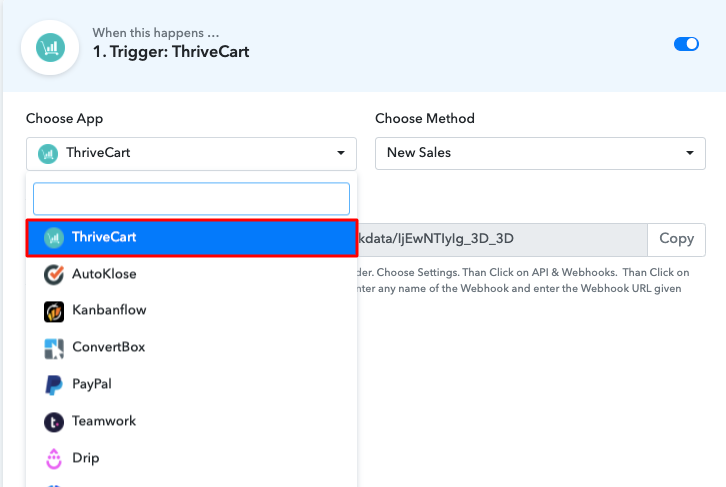
Now, you have to select the application that you want to integrate. In this case, we are choosing “ThriveCart” for integration.

(b) Copy the Webhook URL

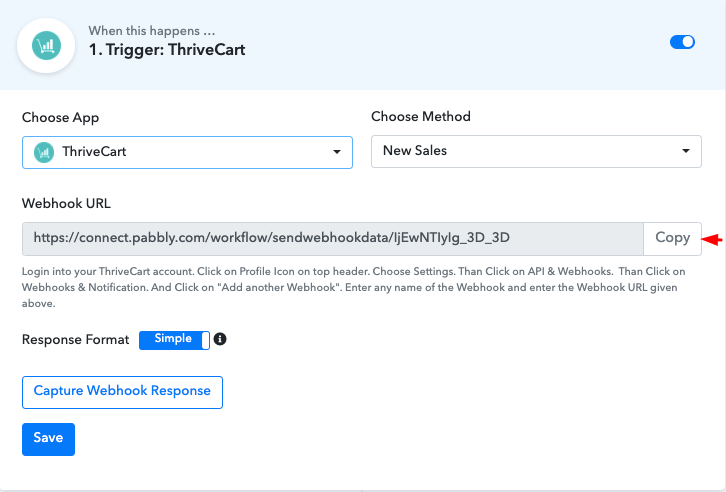
Copy URL

After selecting the application, now you have to copy the webhook URL just like in the above-shown image to take further the integration process.

Step 5 : Paste the Webhook URL in ThriveCart

To connect with ThriveCart, you have to log in to your ThriveCart account and paste the copied Webhook URL in your ThriveCart dashboard.

(a) Click on Settings Option

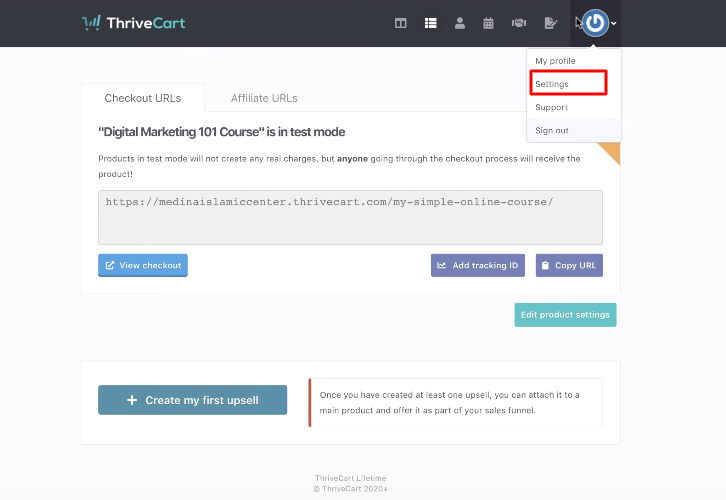
Clickon Settings

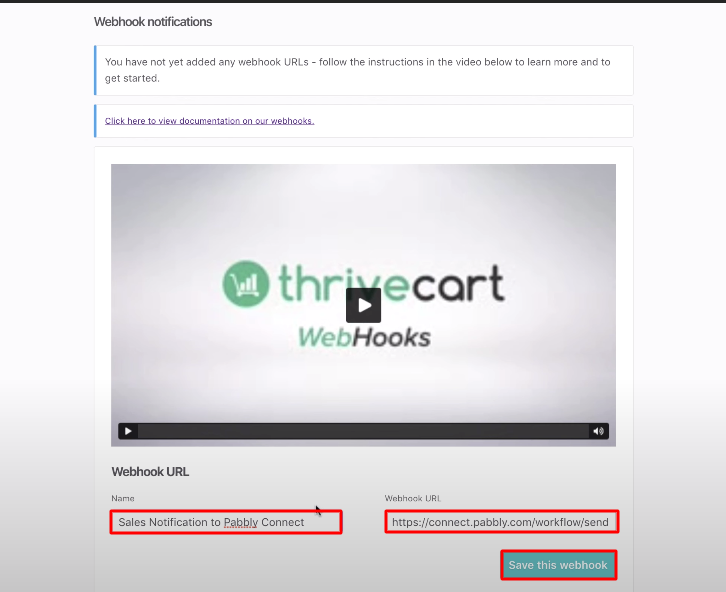
To copy the webhook URL,  click on the “Profile” button of your ThriveCart account, then click on settings and you will land on the API & Webhooks page.

(b) Click on Webhook Option

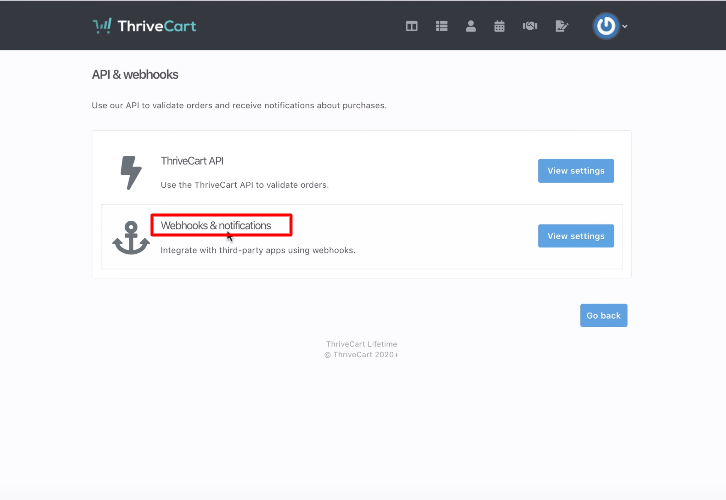
Api and Webhooks

After clicking on the settings option in ThriveCart, API and Webhooks page will appear, where you have to click on the webhooks and notifications button.

(c) Paste the URL

Paste the URL

After clicking on the button, simply name your webhook and paste the copied URL and then click on the “Save this Webhook” button.

Step 6 : Test the Submission in Pabbly Connect Dashboard 

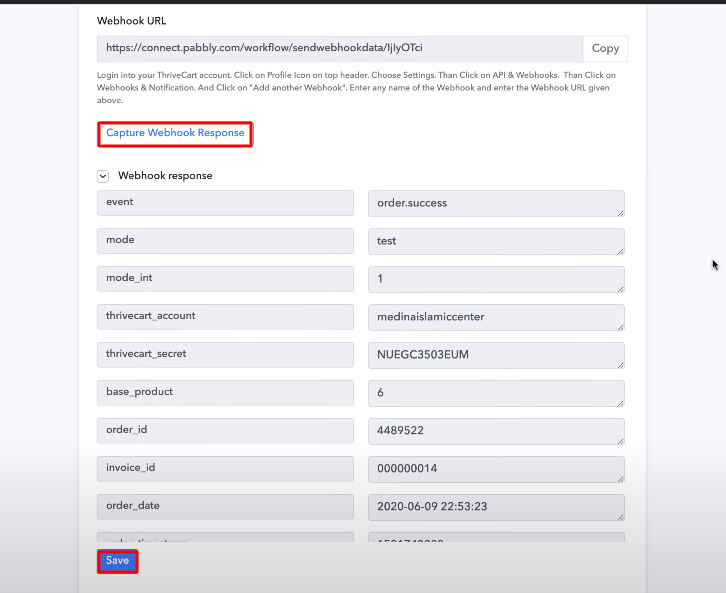
Capture Webhook Response

To test the checkout page that you have created in ThriveCart for your product, you have to make a dummy entry and click on “Capture Webhook Response” in Pabbly Connect. As soon as you fill the checkout page, the entry will appear on the “Pabbly Connect” dashboard. Then, click on the “Save” option.

Step 7 : Setting Action for ThriveCart New Zenler Integration

Now the next step is to set an action for your trigger. For this, you have to choose the application you want to integrate.

Select Application you want to Integrate

Select Zenler

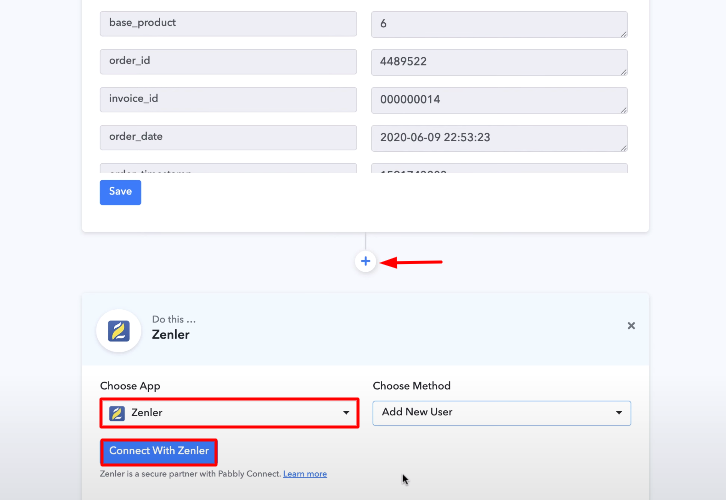
Now in this step, click on the + button below to add an action for your trigger and choose Zenler among various other applications. After choosing Zenler now you have to select “Add New User” and then click on the “Connect with Zenler” button.

Step 8 : Connecting New Zenler to Pabbly Connect

To connect New Zenler with Pabbly Connect, you have to log in to your Zenler account to enter the API key and name of your school.

(a) Copy API Key

Copy API Key

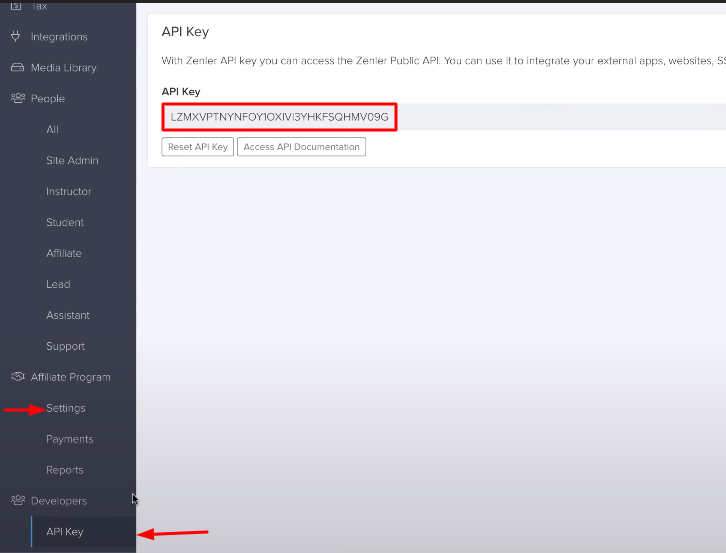
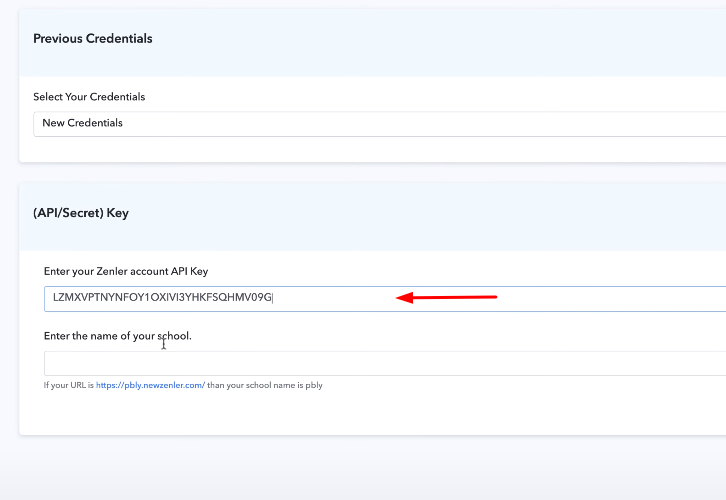
After clicking on the button, now you have to enter your Zenler account API key to move further. Go to your Zenler account and click on the profile icon, then click on settings, here you can find your account API key.

(b) Add the Account API Key

Integrate Thrivecart with New Zenler

Just copy the API key from your Zenler account and paste it in Pabbly Connect.

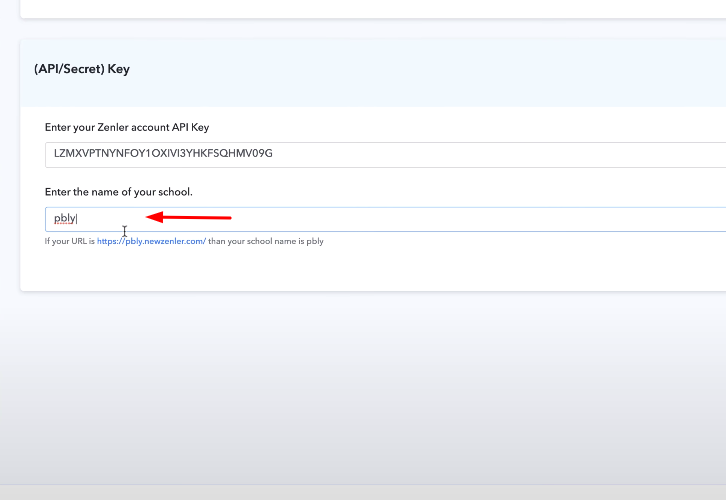
(c) Add School Name

Integrate Thrivecart with New Zenler

Here you have to copy and paste the sub-domain part of the Zenler API key webpage and then click on the “Save” button.

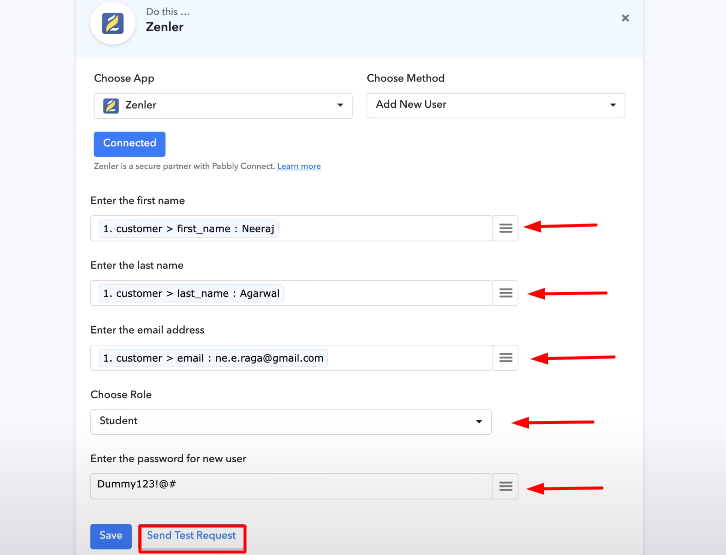
(d) Send a Test Request

Integrate Thrivecart with New Zenler

As soon as you click on the save button, the software picks the required field automatically from your account. Now you have to map up the required fields and click on the “Send Test Request” button.

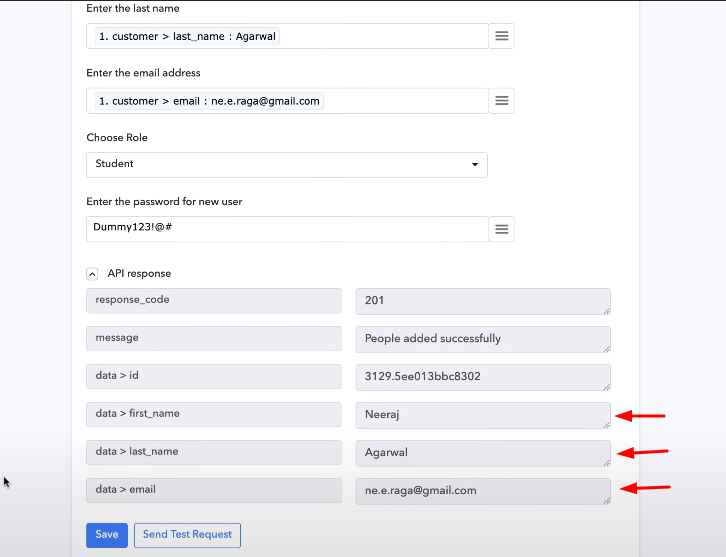
Integrate Thrivecart with New Zenler

You can see as you send a test request, all the required information from the ThriveCart checkout page is added to your Zenler account. Now every time whenever someone will make a purchase from ThriveCart, this software will automatically add the information to your Zenler account.

Conclusion –

Alright, now that you know how to integrate ThriveCart with New Zenler, you can integrate any applications on Pabbly Connect. This amazing tool provides you the freedom of time, that you can save after the integrations, without doing the redundant work. Therefore integrate applications on Pabbly Connect, save time, and utilize that time into some other important work. For any queries or suggestions, leave your comments down below.

You May Also Like to Read –

How to Sync New Stripe Customers to Shopify | Step by Step

How to Sync New Stripe Customers to Shopify

Looking for a way to sync new Stripe customers to Shopify? If yes, then this article will walk you through the process of connecting Stripe to Shopify.

How to Sync New Stripe Customers to Shopify

Actually, most of the time we want our customer’s data from Stripe into Shopify for further business purposes. Then we started looking out for a tool that can actually connect Stripe to Shopify. But finding a perfect and best automation tool is like searching a needle in a haystack.

Well! Not anymore, here we are recommending amazing automation software named Pabbly Connect. It is one of the simplest automation tools that remove all repetitive actions and saves a lot of time. Using this software, you can transfer data among different applications in real-time.

Why Choose This Method Of Integration?

In contrast with other integration services-

  • Pabbly Connect does not charge you for its in-built apps like filters, Iterator, Router, Data transformer and more
  • Create “Unlimited Workflows” and smoothly define multiple tasks for each action
  • As compared to other services which offer 750 tasks at $24.99, Pabbly Connect proffers 50000 tasks in the starter plan of $29 itself
  • Unlike Zapier, there’s no restriction on features. Get access to advanced features even in the basic plan
  • Try before you buy! Before spending your money, you can actually signup & try out the working of Pabbly Connect for FREE

Sign Up To Pabbly Connect   

Now, the thing which makes it distinct, it doesn’t require any coding skill to operate even a newbie or amateur can work with it.

Further, the software doesn’t restrict you on features like unlimited workflows, premium apps, and much more even in its free plan.

Here, in this article, we will understand how one can integrate Stripe with Shopify using an automation tool i.e Pabbly Connect.

So, let’s begin the process.

Step 1: Sign up to Pabbly Connect

Sign Up

Start the process of connecting Stripe with Shopify by clicking on the “Sign Up Free” icon on the Pabbly Connect dashboard. Next, either manually fill-up all the details or sign up using Gmail credentials.

Try Pabbly Connect for FREE

Step 2: Access Pabbly Connect

Select Connect

Further, after login into the account, click on the “Access Now” button of Connect.

Step 3: WorkFlow for Stripe with Shopify Integration

(a) Start with a New Workflow

Create New Workflow

Begin the process of creating a workflow for online business automation by clicking the “Create New Workflow” button.

(b) Name the Workflow

Name the Workflow

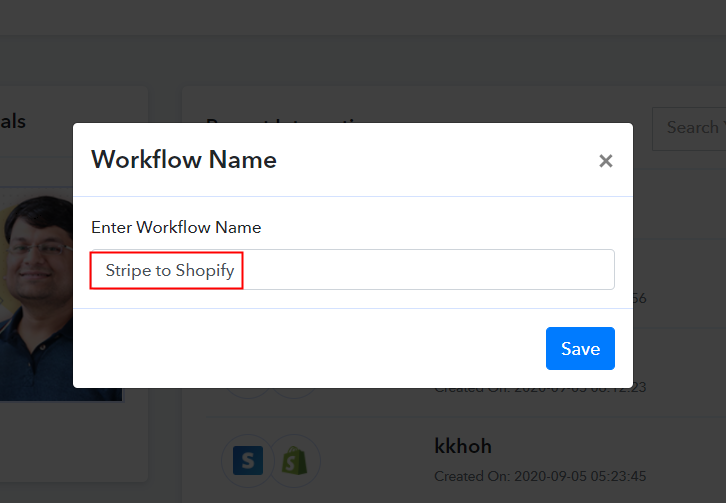
Further, add the name of workflow which in our case is “Stripe to Shopify”. Nevertheless, you can name the workflow according to your needs.

Step 4: Setting Trigger for Stripe – Shopify Integration

Further after creating a workflow, you have to choose the application you want to integrate. Using Pabbly Connect one can integrate or connect unlimited apps, tap here to get your access to unlimited workflows.

(a) Select Application you Want to Integrate

Select Stripe

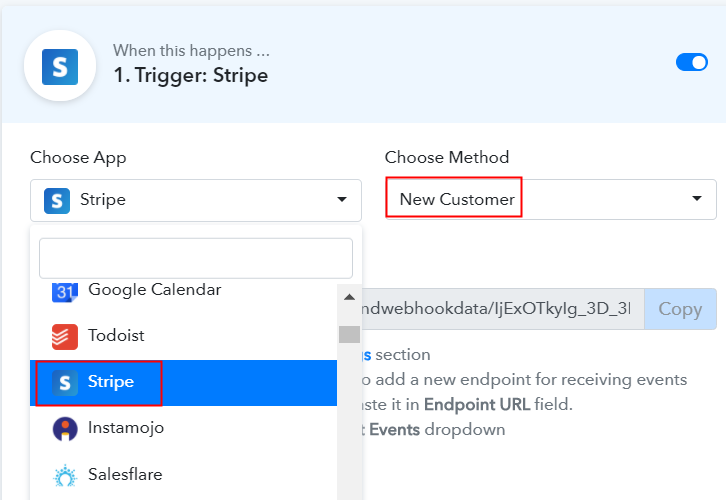
The following step is to select “Stripe” from the dropdown, then choose the “New Customer” option to append every customer data from the software into Shopify.

(b) Copy the Webhook URL

Copy the Webhook URL

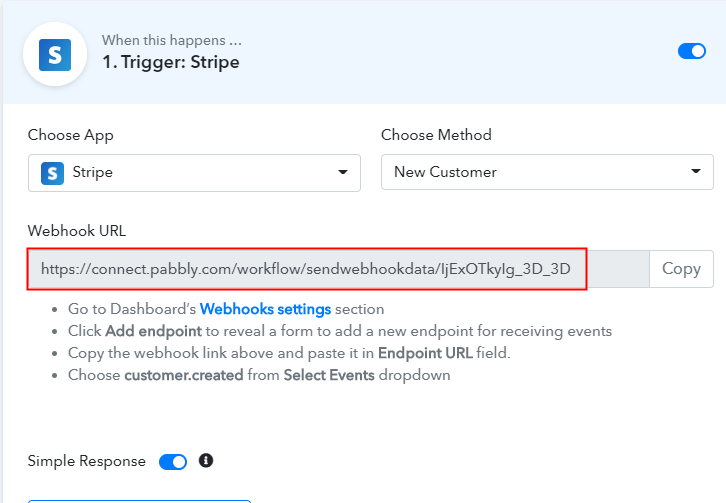
The following step is to copy the webhook URL which is appearing on the dashboard.

Step 5: Connecting Stripe to Pabbly Connect

To collect customer’s data from Stripe, you gotta paste the copied Webhook URL in the software. For that, you have to log in to your Stripe account.

(a) Go to Developer Section

Go to Developer Section

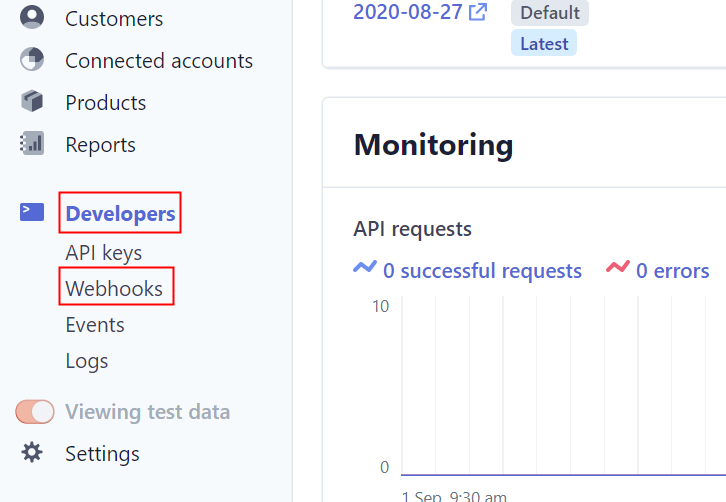
After login into the Stripe account, go to the “Developer” section on the left of the dashboard. Then click on the “Webhooks” option.

(b) Click on Add Endpoint

Click on Add Endpoint

Next, when you click on “Webhooks”, it will open up an endpoint tab, Just click on the “Add Endpoint” option to paste the Webhook URL.

(c) Paste the Webhook URL

Paste The Webhook URL

As soon as you click on the “Add Endpoint” option, it will open up the window with a certain option. Simply paste the copied URL  in the “Endpoint URL”  column. Make sure to select customer.created in the “Event to Send” column. Lastly, click on “Add Endpoint” to save the setting.

(d) Click on Customers

Click on Customers

Head back to the “Customer” section on the left of the dashboard, then click on the “New” button to add customers.

(e) Add Customers

Add Customers

After clicking on the “New” button, a pop-up will appear. Just fill all the required details and hit the “Add Customer” button at the bottom. But before pressing the button, make sure to click capture webhook response in the Pabbly Connect dashboard.

Step 6: Test the Response in Pabbly Connect Dashboard

Test the Response

As soon as you click on the “Add Customers” option, the entry will appear on the “Pabbly Connect” dashboard. Then, click on the “Save” option.

Step 7: Setting Action for Stripe – Shopify Integration

To make this Stripe Shopify integration work, you have to choose the action for your trigger.

(a) Select Application you Want to Integrate

Select Shopify

Click on the “+” icon to add an action for your trigger. In our case, it is “Shopify”. Then, select the “Create Customer” option.

(b) Click the Connect Button

Click the Connect Button

After making all the necessary changes, click on the “Connected with Shopify” button. Further, it will open the authorization window, for which you have to log in to your Shopify account.

Step 8: Connecting Shopify to Pabbly Connect

To connect Stripe to Shopify, you need to paste the API key for which you have to log in to your Shopify account.

(a) Click on Apps

Click on Apps

After login, click on the “Apps” on the left section of the dashboard.

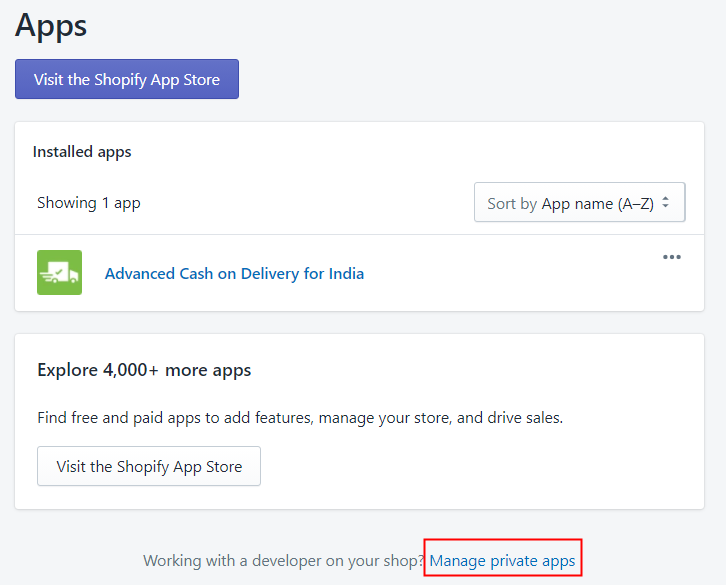
(b) Manage Private Apps

Manage Private Apps

When you click on “Apps” it will open up the new window. Below, you will see the “Manage Private Apps” option, simply click on it.

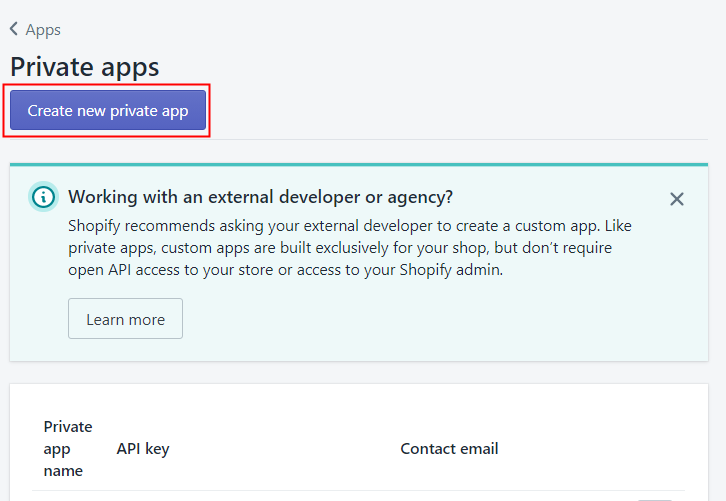
(c) Create New Private App

Create New Private App

Further, here click on the “Create New Private App” button.

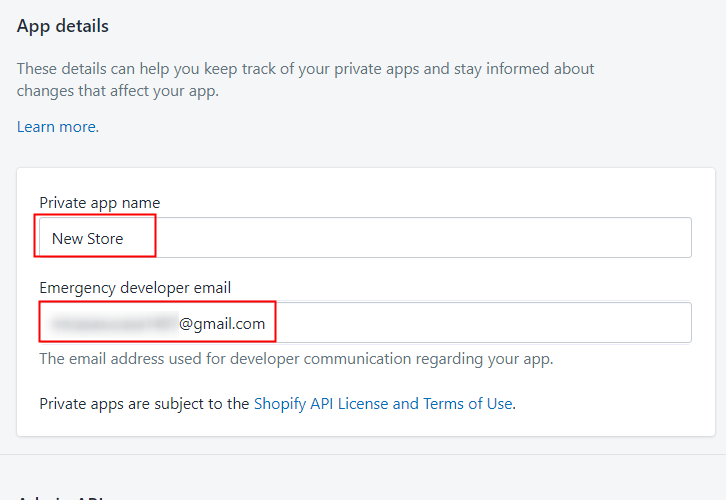
(d) Fill all the details

Fill all the details

Now as soon as you click on the ” Create New App” button, it will open up a new window asking for a private app name and developer email. Fill all the details.

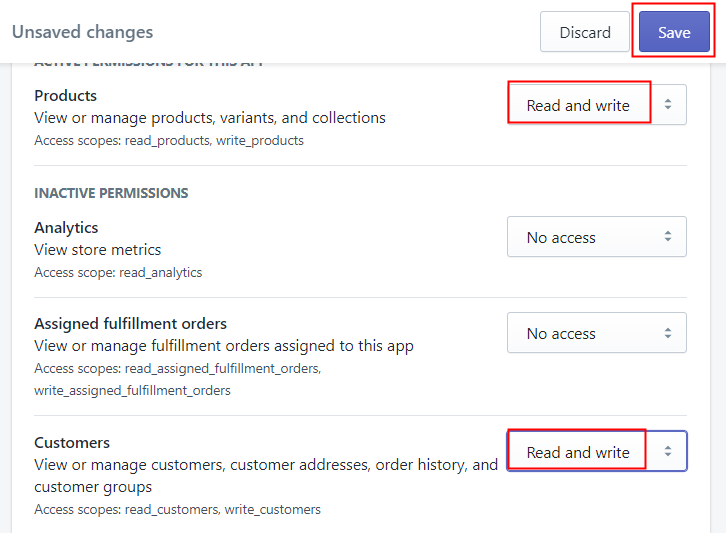
(e) Active Permission

Active Permission

Further, to make Shopify integration work, it will ask for certain access. Make sure to select the “Read and Write” option for product and customer. Finally, click on the “Save” option after making all changes.

(f) Copy the API Key Password

Copy the API Key Password

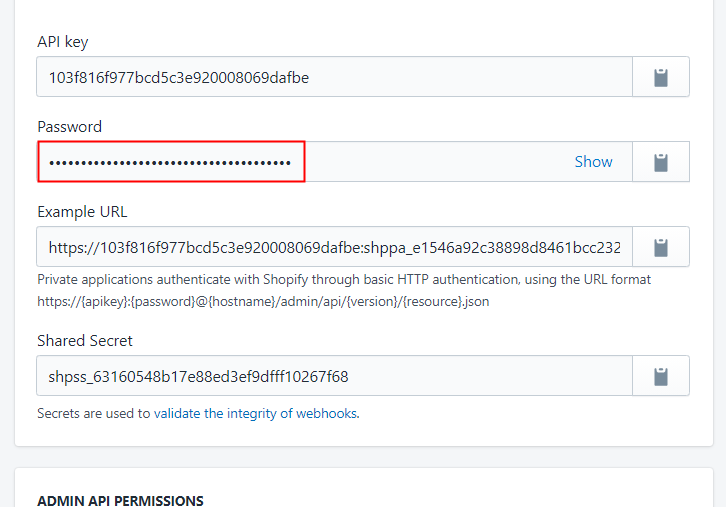
Now your private app is created, when you will click on it, the API key and Password will appear. Simply copy the password.

Step 9: Paste API Key in Pabbly Connect Dashboard

Now go back to the Pabbly Connect dashboard to paste the API key.

(a) Fill API Key Password

Fill API Key Password

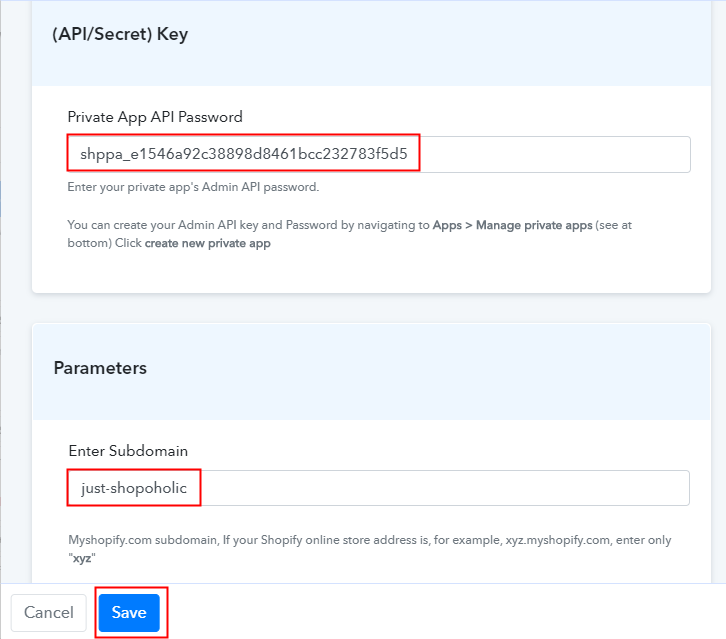
As we mentioned above, when you click on the “Connected” button in the Shopify section. It will open up the page with “New Credentials”. Below on this page, it will ask for API Key, paste your copied key there. It will also ask for a subdomain which is basically your store name. After ensuring all this, click the “Save” button.

(b) Map Field Data

Map Field Data

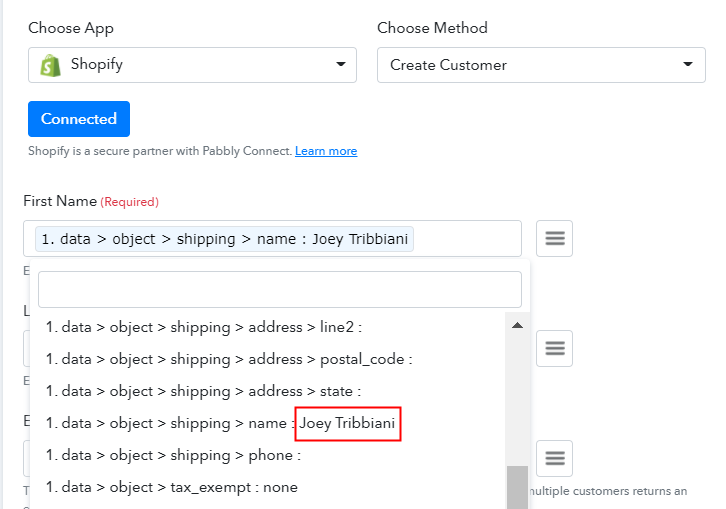
Next, map the required field from drop-down such as for the email field, select the email option, and for the name field select the name option.

(c) Save and Send Test Request

Save and Send Test Request

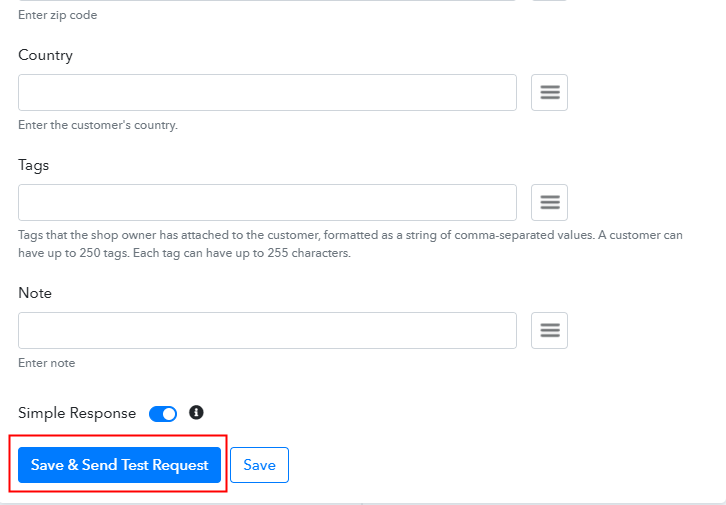
Subsequently, after filling all the details, save the setting and then “Send Test Request” to test the Stripe Shopify integration.

Step 10: Check Response in Shopify Dashboard

Check Response in Shopify Dashboard

Lastly, when you check the Customer section in Shopify, your entry will automatically appear there.

Now you know how to sync new Stripe customers to Shopify. This is a one-time process, now all your manual work will be done by the online business automation tool i.e Pabbly Connect.

Conclusion –

Okay! Here we have mentioned all the crucial steps to sync new Stripe customers to Shopify using software Pabbly Connect. Now you know how easy is to integrate Stripe with Shopify. Not just this, one can connect unlimited apps within minutes using this software. Not to forget, almost every industry big or even small preferring automation tools to reduces manual effort.

So, don’t confuse yourself anymore! Claim your access by signing up for a free account.

You May Also Like To Read –
How to Integrate Facebook Lead Ads with Google Sheets | Step by Step

How to Integrate Facebook Lead Ads with Google Sheets | Step by Step

Searching for Facebook Lead Ads Integration with Google Sheets? Then, look no further, as here we have a perfect tool suggestion for you i.e, Pabbly Connect, which will help you to integrate Facebook Lead Ads with Google Sheets in real-time.

How to Integrate Facebook Lead Ads with Google Sheets | Step by Step

Facebook is one of the most used social media!

Stating the facts –

  • Every second there are 20,000 people on Facebook. This means in just 18 minutes there are 11 million users on Facebook.
  • Moving on to the sharing of content, people sharing 1.3 million pieces of content on Facebook every minute of a day won’t be a surprise.

The above-mentioned facts make it crystal clear that this is just the right place for you to collect leads & that’s what you are already doing right? But where do you store the data? How do you process the data? All manually? If yes, then it definitely would’ve taken a lot of your time and effort. Simply integrating the two will be of great help. Won’t it?

Why Choose This Method Of Integration?

In contrast with other integration services-

  • Pabbly Connect does not charge you for its in-built apps like filters, Iterator, Router, Data transformer, and more
  • Create “Unlimited Workflows” and smoothly define multiple tasks for each action
  • As compared to other services which offer 750 tasks at $24.99, Pabbly Connect proffers 50000 tasks in the starter plan of $29 itself
  • Unlike Zapier, there’s no restriction on features. Get access to advanced features even in the basic plan
  • Try before you buy! Before spending your money, you can actually signup & try out the working of Pabbly Connect for FREE

Sign Up To Pabbly Connect   

Well, now the question is How to Integrate Facebook Lead Ads to Gmail and Google Sheets?

In this blog, I am gonna walk you through the easiest steps Facebook lead ads integration using Pabbly Connect.

Let me tell you, Pabbly Connect is an application that lets you connect multiple apps and create seamless workflows for effortless data transmission. Moreover, you can access all its features even with the free plan.

Lets quickly dive in to find out the process –

Step 1 – Sign up to Pabbly Connect

How

To start with the process, you gotta sign up to a free account of Pabbly Connect which will further help in the Facebook Lead Ads integration process. Quickly fill in the details manually or sign-up via your Google account.

Try Pabbly Connect for FREE

Step 2 – Access Pabbly Connect

How

Once you are done with signing up, access Connect (a service of Pabbly for automated integration & data transmission).

Step 3 – Create a WorkFlow for Facebook Lead Ads Integration

(a) Start with a New Workflow

How

Start with creating a workflow for your project by hitting the ‘Create New Workflow’ button.

(b) Name the Workflow for Facebook Lead Ads with Google Sheets

Name the Workflow for Facebook Lead Ads with Google Sheets

Next, you need to name the workflow just like I did. You can obviously name the workflow as per your requirements and need.

Step 4 – Setting Trigger for Facebook Lead Ads Integration

As soon as you are done with creating a workflow, you will have to select the application you want to integrate. With the help of Pabbly Connect, you can bind or connect unlimited apps, click here to create your account for free.

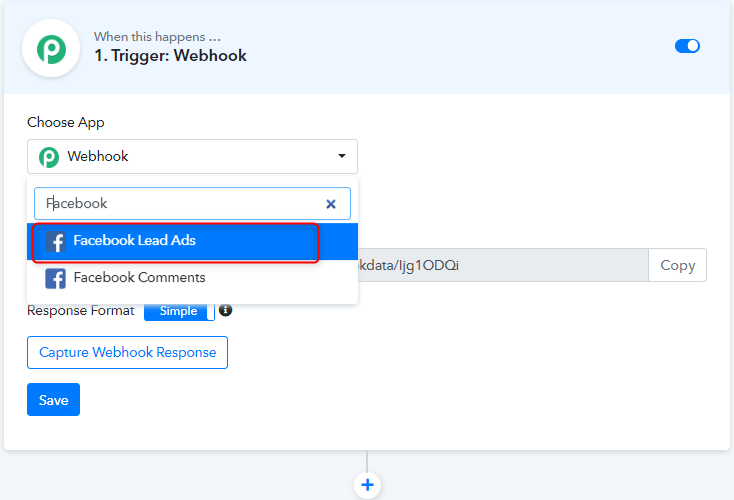
(a) Select Facebook Lead Ads

How

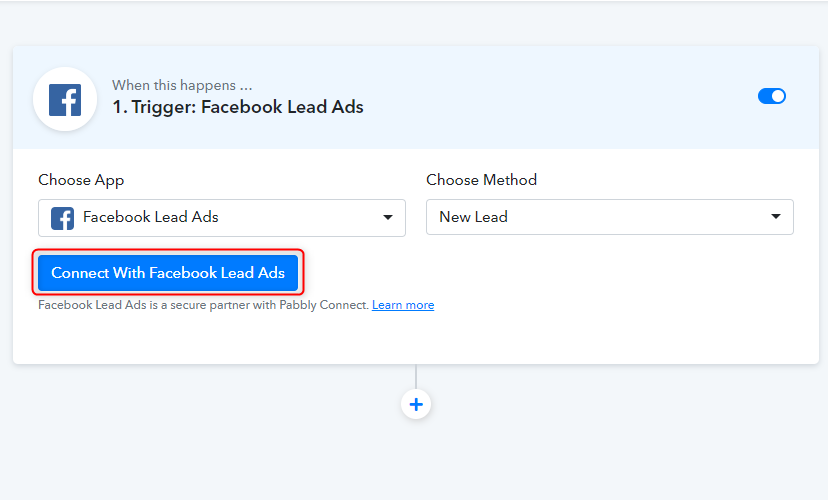
(b) Connect with Facebook Lead Ads

How

Simply, select the app i.e. Trigger to Facebook Lead Ads along with the method set as “New Lead” and hit the connect button.

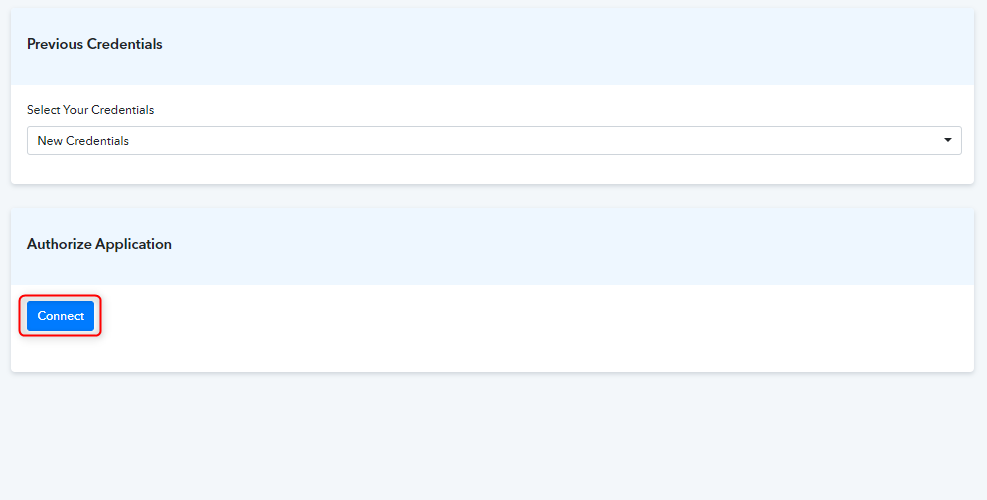
(c) Click Authorize & Connect

How

Quickly, authorize and connect the Facebook account from where you want to collect leads.

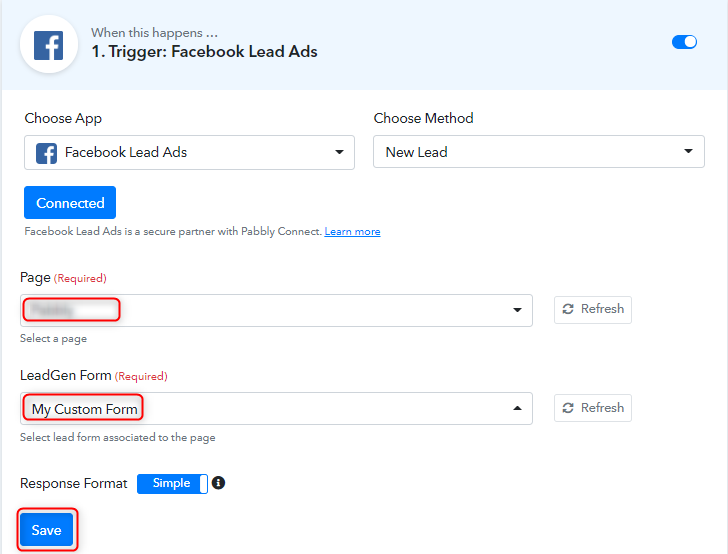
Step 5:  Select Fb Page and Form to Collect Leads Data

Select Fb Page and Form to Collect Leads Data

On connecting with Facebook, you will have to choose the page and form from which you want to get leads data.

Step 6: Test the Submission in Pabbly Connect Dashboard

Save and Send Test Request for Facebook Lead Ads integration
Save and Send Test Request to find out the data that will be provided while Facebook Lead Ads integration process.

Step 7: Set Action to Integrate Facebook Lead Ads & Google Sheets

(a) Select Google Sheets

Select Google Sheets to Set Action to Integrate Facebook Lead Ads & Google Sheets

In order to connect the Pabbly Form Builder to Google Sheets, you need to press the “(+)” button. After that, just select Google Sheet from the drop-down option & press the button termed ” Connect With Google Sheets”.

(b) Click on “Connect”

Authorize Application for Facebook Lead Ads Integration

The consequent step is to connect with Google Sheet by pressing the “Connect” button. Once you press the ‘Connect ‘ button, a window will pop-up asking you to select/fill a Google Account to which you want to connect the Google Sheets and Pabbly Connect.

Step 8: Fill up All the Fields

Fill up All the Fields for Facebook Lead Ads Integration

After connecting your google sheet, simply enter all the required fields one by one. Furthermore, once you fill up all the details, simply hit the “Save & Send Test Request” button to complete the entire procedure.

Step 9: Check the Google Sheet

Check the Google Sheet for Facebook Lead Ads Integration

Voila! As you can see that, all the form details are now visible in your google sheet & your automation is now set.

Conclusion –

To put in a nutshell, we have explained the process of Facebook Lead Ads integration with Google sheets with the help of an automation tool Pabbly Connect.

Moreover, the process is very smooth and efficient as all you gotta do is follow the simple steps. Once you start doing so, you will find it very easy peasy to continue working on the data transmission as the software itself provides hints regarding what to do next. So go ahead and create your account for free.

Hope the process was clear to you guys. However, in case of doubts, you can always drop in your comments.  We’ll get back to as early as possible.

You May Also Like to Read –
How to Integrate Gravity Forms with Google Sheets | Step by Step

How to Integrate Gravity Forms with Google Sheets

Are you looking to integrate Gravity Forms with Google Sheets? If yes, then your search ends here. Through an amazing service called Pabbly Connect, you can easily integrate any two or more than two software without any coding skills.

How to Integrate Gravity Forms with Google Sheets

Pabbly Connect also offers so many great and helping features for your projects like:

  • Create unlimited workflows without any restrictions,
  • Integrate thousands of applications,
  • Set unlimited triggers, unlimited actions to those triggers,

You can access all these features even with the free plan.

Why Choose This Method Of Integration?

In contrast with other integration services-

  • Pabbly Connect does not charge you for its in-built apps like filters, Iterator, Router, Data transformer and more
  • Create “Unlimited Workflows” and smoothly define multiple tasks for each action
  • As compared to other services which offer 750 tasks at $24.99, Pabbly Connect proffers 50000 tasks in the starter plan of $29 itself
  • Unlike Zapier, there’s no restriction on features. Get access to advanced features even in the basic plan
  • Try before you buy! Before spending your money, you can actually signup & try out the working of Pabbly Connect for FREE

Sign Up To Pabbly Connect

In this blog, we are talking about how you can integrate Gravity Forms to Google Sheets. Gravity Forms is one of the WordPress plugins that you can install in your WordPress account. After this integration, you won’t have to update data into Google Sheets manually. Whenever there will be any new submission in Gravity Forms, the data will be automatically updated in your Google Sheets. Hence, without taking any more of your time, let’s get started with the blog.

Step 1 : Sign up to Pabbly Connect

Sign Up

Start the process by signing up for a free account on Pabbly Connect. Quickly fill in the details manually or sign-up via your Google account.

Try Pabbly Connect for FREE

Step 2 : Access Pabbly Connect

Select Connect

After completing the signup process, click on the Connect section in the dashboard to access Pabbly Connect.

Step 3 : WorkFlow for Gravity Forms with Google Sheets Integration

(a) Create New Workflow

Create New Workflow

Start with creating a workflow for your project by clicking on the ‘Create New Workflow’ button.

(b) Name the Workflow for Gravity Forms with Google Sheets

Name the Workflow

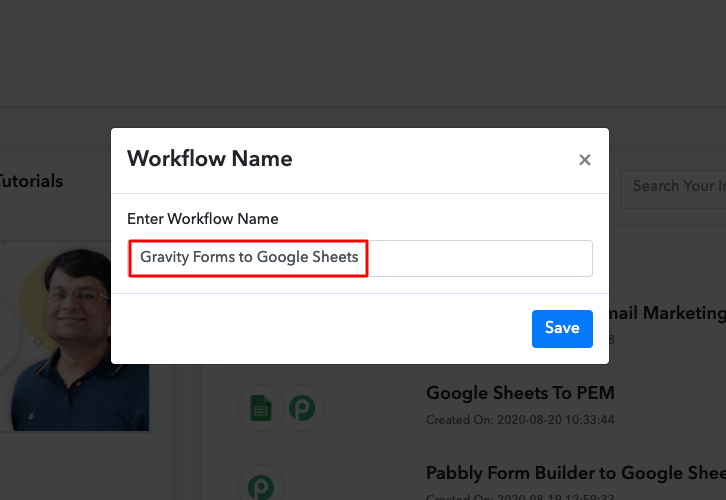
Next, you need to name the workflow just like in the above-shown image. I named the workflow as Gravity Forms to Google Sheets, you can obviously name the workflow as per your requirements.

Step 4 : Setting Triggers for Gravity Forms Google Sheets Integration

As soon as you are done with creating a workflow, you will have to select the application you want to integrate. Using Pabbly Connect one can bind or connect unlimited apps, click here to sign up for free.

(a) Select Application you want to Integrate

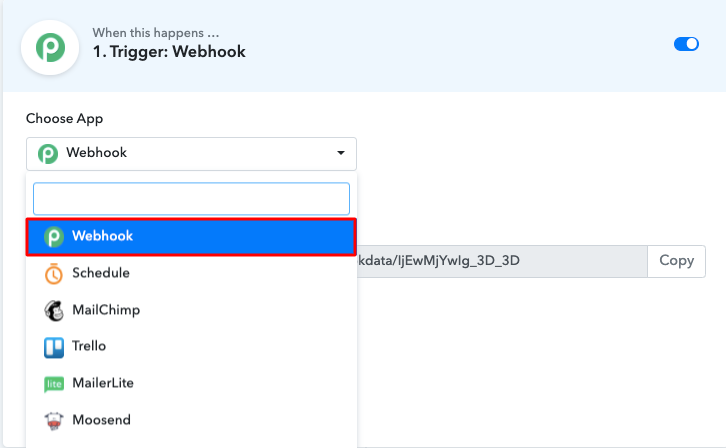
Select Webhook

Now, you have to select the application that you want to integrate. In this case, we are choosing “Webhook” for integration.

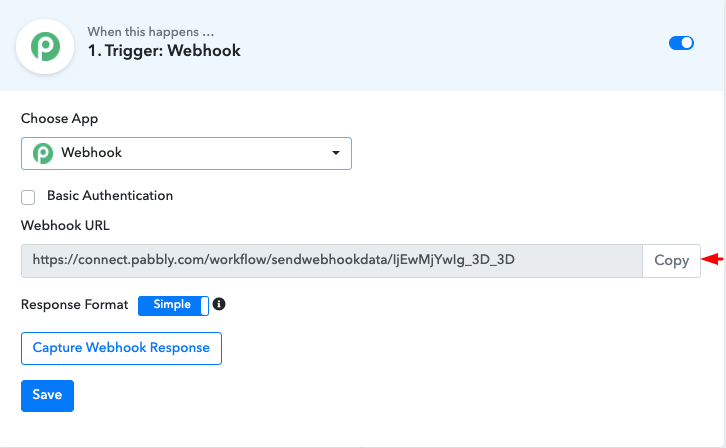
(b) Copy the Webhook URL

Copy URL

After selecting the application, now you have to copy the webhook URL just like in the above-shown image to take further the integration process.

Step 5 : Paste the Webhook URL in Gravity Forms

To connect with Gravity Forms, you have to paste the copied Webhook URL in your WordPress form dashboard.

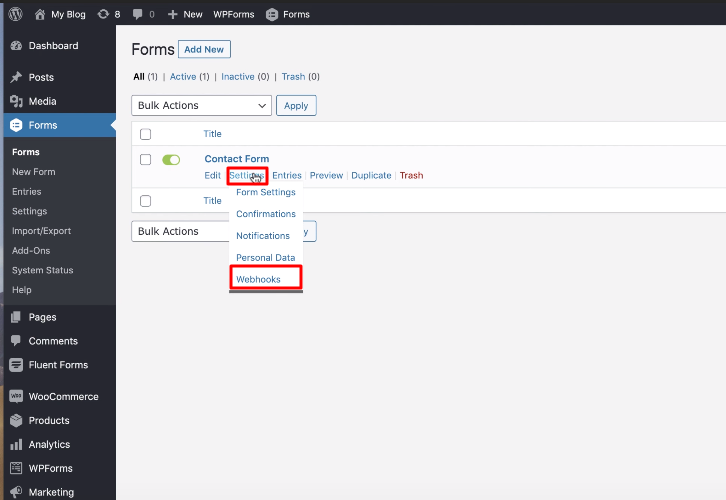
(a) Click on Settings Option

Click on Settings

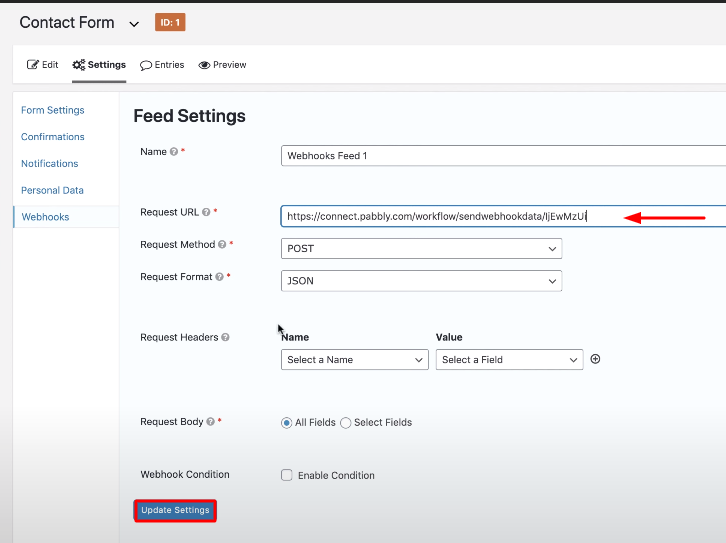
You can create a new form on your WordPress account through the Gravity Forms plugin. After choosing a form just click on the “settings” option of the form and then click on the “webhook”.

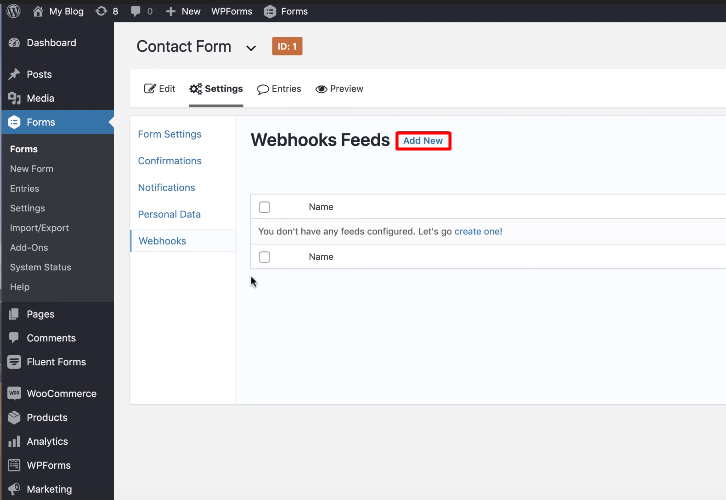
(b) Click on “Add New”

Click on Add New

After clicking on the webhook option, click on the “Add New” button to paste the webhook URL.

(c) Paste the Webhook URL

Paste the URL

After you click the button the webhook page will appear on your screen where you have to paste the URL. Just paste the webhook URL copied earlier and click on the”Update Settings” button.

Step 6 : Test the Submission in Pabbly Connect Dashboard 

Capture Webhook Response

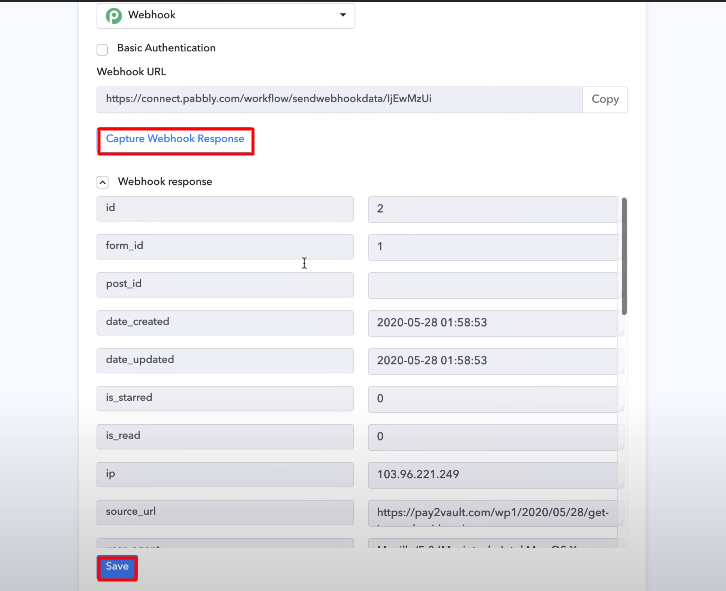
To test the form you have to make a dummy entry and click on “Capture Webhook Response” in Pabbly Connect. As soon as you fill the form the entry will appear on the “Pabbly Connect” dashboard. Then, click on the “Save” option.

Step 7 : Setting Action for Gravity Forms Google Sheets Integration

Now the next step is to set an action for your trigger. For this, you have to choose the application you want to integrate.

(a) Select Application you Want to Integrate

Select Google Sheets

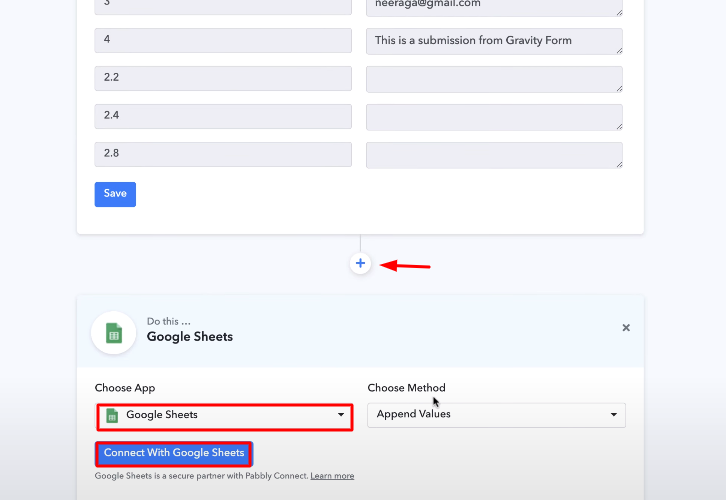
Now in this step, click on the + button below to add an action for your trigger and choose Google Sheets among various other applications and then click on the “Connect with Google Sheets” button.

Step 8 : Connecting Google Sheets to Pabbly Connect

To connect Google Sheets with Pabbly Connect, you have to select your Google Account to authorize the application.

(a) Authorize the Application

Integrate Gravity Forms with Google Sheets

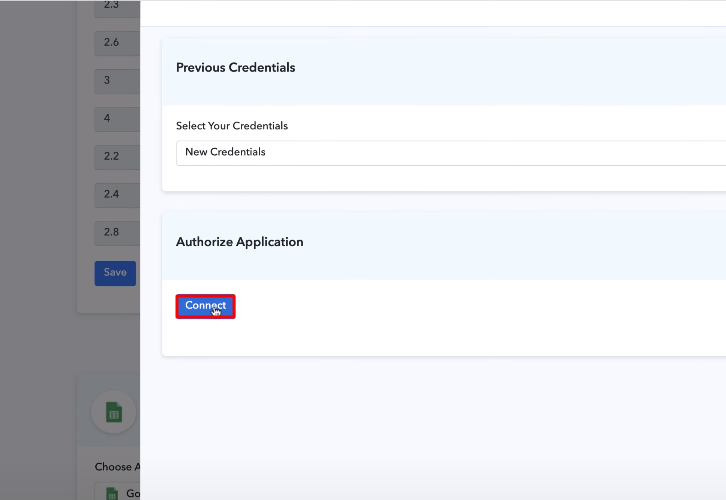
After clicking on the button, a pop-up window will appear where you have to click on the “Connect” button to authorize your Google account. Select your account for data transmission.

(b) Select Google Sheet

Integrate Gravity Forms with Google Sheets

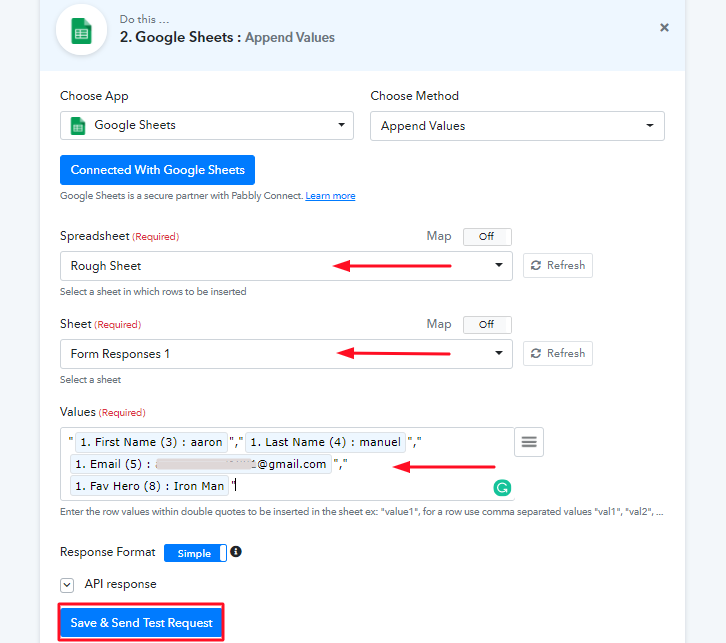
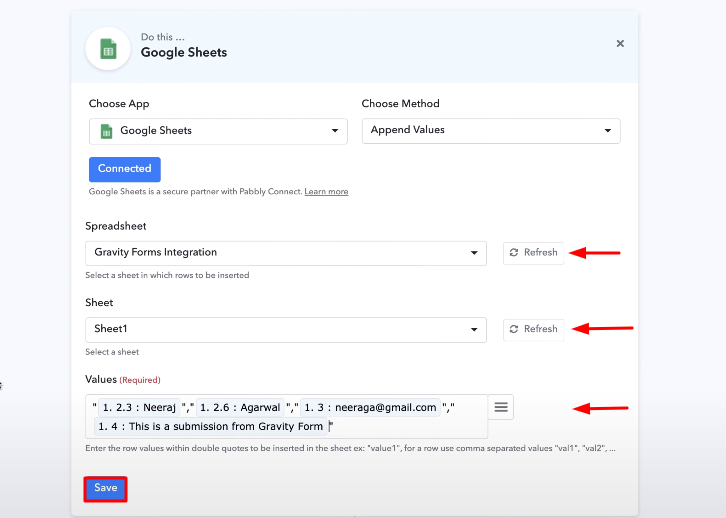
Here you have to select the Google Sheet to which you want to transmit data and then add the values that you want in your Google Sheet from Gravity Forms. After mapping the values click on the “Save” button to save your workflow.

(c) Send a Test Request

Integrate Gravity Forms with Google Sheets

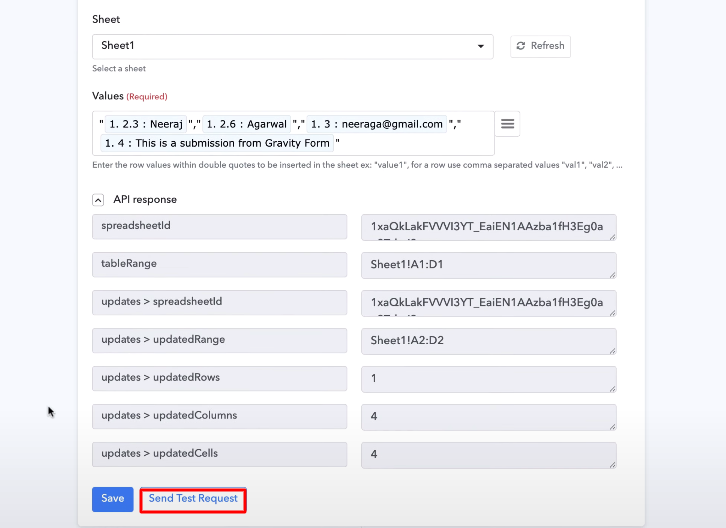
After saving your workflow click on the “Send Test Request” button.

Integrate Gravity Forms with Google Sheets

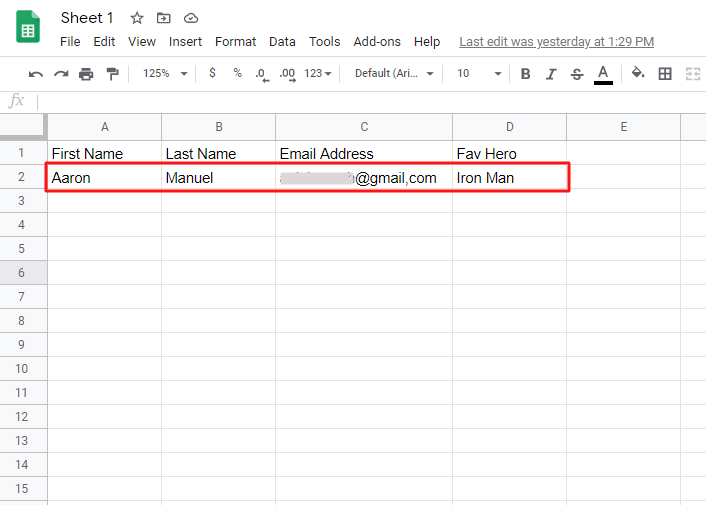
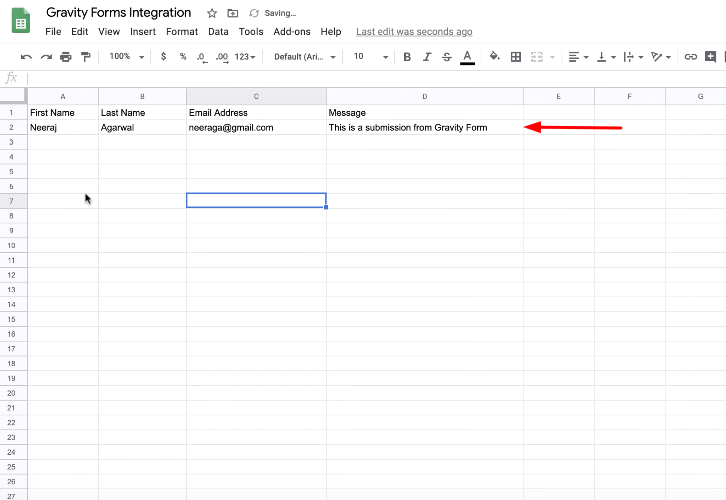
You can see as you send a test request, all the required information from the form is added to your Google Sheet. Now every time whenever someone will fill and submit your form, this software will automatically add the information to your Google Sheet.

Conclusion –

Finally, now you know how to integrate Gravity Forms with Google Sheets, you can integrate any applications just by following these simple steps. Other than this integration, you can integrate thousands of other applications on Pabbly Connect. All thanks to Pabbly Connect now data transmission is a cakewalk. Every information you want to transmit from one application to another can now be updated automatically. You don’t have to worry about anything. Therefore, signup for free, integrate, and relax. For any doubts, please leave your comments below.

You May Also Like to Read –
How to Integrate ThriveCart with Automizy | Step by Step

How to Integrate ThriveCart with Automizy | Step by Step

Searching for ways to Integrate ThriveCart with Automizy using Pabbly Connect? Then, you don’t have to look any further, as here you will get a step by step guide to do so.

How to Integrate ThriveCart with Automizy | Step by Step

In this blog, we are going to integrate Thrivecart with Automizy so that whenever there is a new sale inside Thrivecart, its lead will automatically get updated inside Automizy contact list.

So, here we will be using external software i.e, Pabbly Connect which is an integration software. With the help of this software, you will be able to bind two different software through a single interface. And what amazing is that you don’t need any coding skills to do that.

Why Choose This Method Of Integration?

In contrast with other integration services-

  • Pabbly Connect does not charge you for its in-built apps like filters, Iterator, Router, Data transformer and more
  • Create “Unlimited Workflows” and smoothly define multiple tasks for each action
  • As compared to other services which offer 750 tasks at $24.99, Pabbly Connect proffers 50000 tasks in the starter plan of $29 itself
  • Unlike Zapier, there’s no restriction on features. Get access to advanced features even in the basic plan
  • Try before you buy! Before spending your money, you can actually signup & try out the working of Pabbly Connect for FREE

Sign Up To Pabbly Connect   

Not only that, but one can also bind unlimited premiums apps & removes all time-consuming work. One of the best thing that makes it stand alone in the crowd is its interface, that can be easily operated by anyone without any coding skill. Besides, it is packed with features such as filters, path routers, etc for hassle-free data transmission.

Here, in this article, we will understand how one can integrate ThriveCart with Automizy using an automation tool i.e Pabbly Connect. All you need to do is follow the steps below and your automation is set. So, without wasting any of your time, let me take you through the steps.

Step 1: Sign up to Pabbly Connect

Signup to Pabbly Connect to Integrate ThriveCart with Automizy

The initial step is to sign up to Pabbly Connect which will further help in the ThriveCart integration process. However, either you can enter all the details manually or else sign-up via your Gmail account.

Try Pabbly Connect for FREE

Step 2: Access Pabbly Connect

Access Pabbly Connect to Integrate ThriveCart with Automizy

Once you complete the sign-up process, you just need to access Connect (a service of Pabbly for automated integration & data transmission).

Step 3: Create a WorkFlow for ThriveCart Integration

(a) Start with a New Workflow

Create a WorkFlow for ThriveCart Integration

Now, start with creating a workflow for your project by clicking on the ‘Create New Workflow’ button.

(b) Name the Workflow

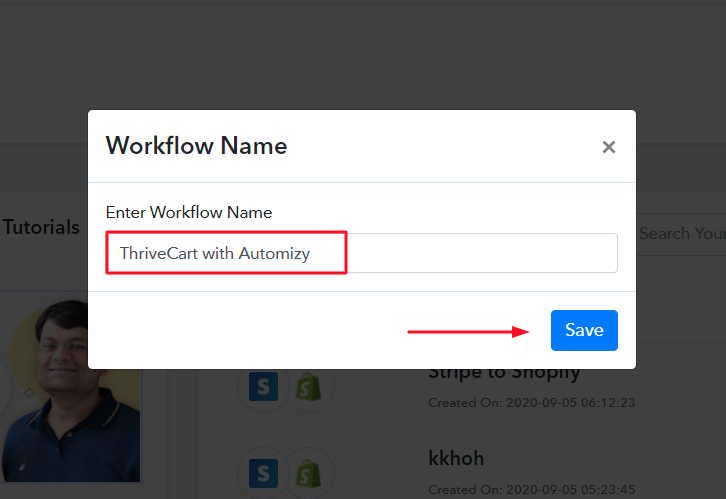
Name the Workflow to ThriveCart with Automizy

Consequently, its time to add the name of the workflow that is “ThriveCart with Automizy”. Even though, you can change the name of your workflow whenever you want to as per your requirements.

Step 4: Setting Trigger to Integrate ThriveCart with Automizy

Setting Trigger to Integrate ThriveCart with Automizy

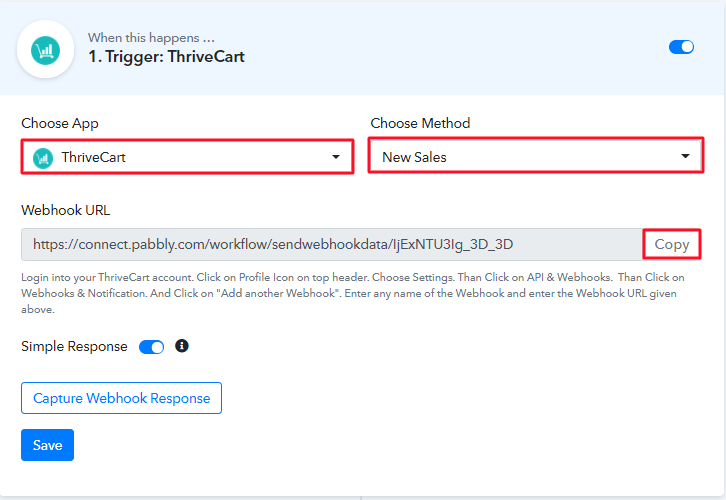
After creating the workflow, the subsequent step is to select the application that you wish to integrate, i.e, “ThriveCart” and also choose the method i.e, “New Sales”. Then, the next step is to copy the webhook URL. With the help of this trigger, we can initiate the process of automation and integrated the first service with Pabbly Connect for data transferring. Hence, the next step is to go the app which is in this case is ThriveCart.

Step 5: Paste the Webhook URL in ThriveCart

In order to connect with ThriveCart, the following step is to paste the copied Webhook URL in your form builder dashboard.

(a) Go to Setting

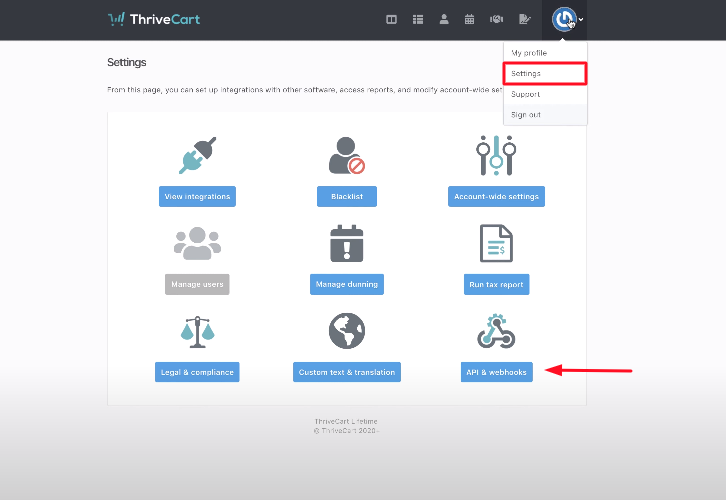
Go to Setting

After entering the ThriveCart dashboard, the initial step is to create a sales form. And later, you need to go to the settings by pressing the “Settings” button. Then, simply hit the “App & Integration” button.

(b) Select Webhook Option

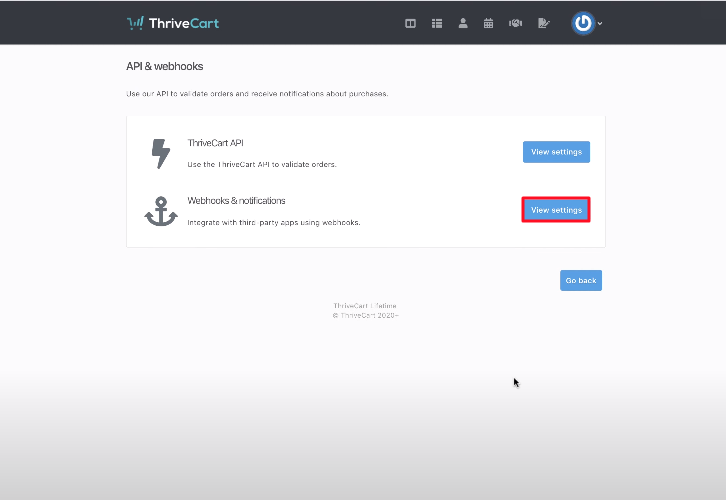
Select Webhook Option & Paste Webhook URL

Afterward, you need to press the “View Setting” button of the Webhook option.

(c) Paste the Webhook URL

Paste the Webhook URL

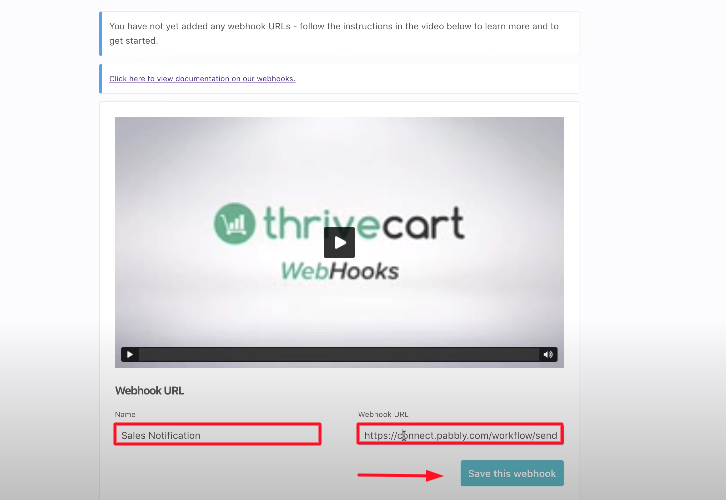
Once you reach the Webhook settings, now you need to name the workflow & paste the URL copied from Pabbly Connect. Just press the button stating “Save the webhook”.

(d) Fill-up the Sales Form

Fill-up the Sales Form

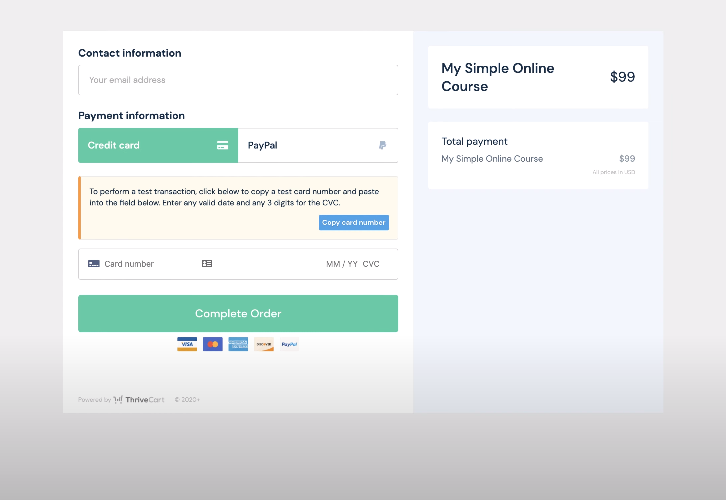
Following the earlier step, now its time to test the form, and to do that, you need to fill all the details of the sales form which you have recently created in the ThriveCart Account.

Step 6: Test the Submission in Pabbly Connect Dashboard

Capture Webhook Response

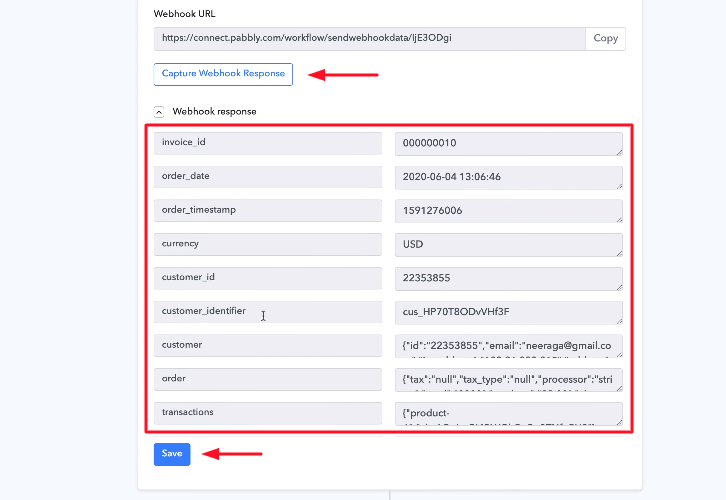
Once you complete filling the form, simply press the button named “Capture Webhook Response”. After that, it will automatically capture all the responses that you have filled in the ThriveCart sales form. Then, just click on the “Save” button.

Step 7: Set Action to Integrate ThriveCart & Automizy

Afterward, its time to set a trigger, select the action for your trigger. For this, you have to choose the application you want to integrate.

(a) Select Application you Want to Integrate

Select Automizy

Subsequently, just click on the “+” icon to add an action for your trigger. Here you need to select “Automizy” from the dropdown. After that, select the “Creating a Contact on a List” option.

(b) Click the Connect Button

Click the Connect Button

After making all the necessary changes, you need to press the “Connected with Automizy” button. Moreover, it will ask for “Bearer Token”, for which you have to visit the Automizy account.

Step 8: Connecting Automizy to Pabbly Connect

In order to copy the “Bearer Token”, first of all, you have to log in to your Automizy account.

(a) Click on Setting

Setting Option

Once you login to your Automizy account, now just select the “Setting” option. Furthermore, press the API token option.

(b) Copy API Token

Copy API Token

Consequently, the API token option will open up the tab with the “New API key” option, just press on it which will generate the key. Simply copy your generated key & close the pop-up window.

(c) Paste API Token in Pabbly Connect Dashboard

Paste API Token in Pabbly Connect

Now you need to paste the copied API token, just go back to the “Pabbly Connect” dashboard. And later press the “Connected with Automizy” button, the page will open with the option “New Credentials”. Below on this page, you will see the option of “Token”, just paste your copied token there, and click on the “Save” button.

(d) Add Field Data

Add Field Data in Pabbly Connect

Next, its time to select the list from the dropdown in which you want your subscribers to get added. Next, just add the required field from drop-down like for the email field, select the email option, and for the name field select the name option.

(e) Save and Send Test Request

Save and Send Test Request to Integrate ThriveCart with Automizy

Once you make all the changes, simply save the setting and then “Send Test Request” to test the process.

Step 9: Check Responses in Automizy Dashboard

Check Submission In Automizy Dashboard to Integrate ThriveCart with Automizy

Conclusively, when you check the subscriber list in Automizy, your response will appear there. Therefore,in the same manner, all the form submissions will automatically get added to your subscriber list after that simple procedure.

Conclusion –
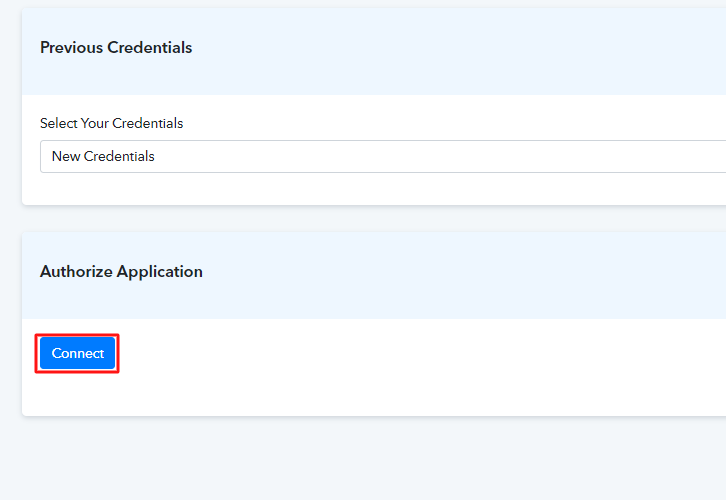
Alright! Now you know how to easily integrate ThriveCart with Automizy using Pabbly Connect software. Apart from the automation task, it also provides you several features such as filters, path routers, and many more for easy data transmission. Besides, you don’t need to have any coding skills for operating this amazing software. So why wait anymore? Get your access by creating a free account.

And, in case you have any queries regarding software, simply write to us in the comment section below. We will get back to you ASAP. Thank You!!

You May Also Like To Read –