How to Create Trello Cards for New WooCommerce Orders | Step by Step

How to Create Trello Cards for New WooCommerce Orders

Are you looking for a way to create Trello cards for the new WooCommerce orders? If yes, then here in this article we will learn how to integrate Trello with WooCommerce.

How to Create Trello Cards for New WooCommerce Orders

But before moving forward, let’s understand why there is a need for integrating WooCommerce with Trello. We all know WooCommerce is the best e-commerce selling plugin for WordPress users. It is scalable and user friendly whereas Trello is a software used by business professionals to organize a plan, events, tasks, and much more. It enhances teamwork and ensures work done in a more efficient way.

By connecting Trello with WooCommerce, you can ensure all the orders gets a response in a definite timeframe. Also, you can keep a record of inquiries in a systematic way. Now, the dilemma we face is how to bind Trello with WooCommerce. We spend hours searching for the best automation tool that can connect both software.

But finding the right tool is not easy as pie, it requires a lot of effort and knowledge. Guess what! Not anymore. Here we have done all the heavy lifting for you and we are recommending one of the best automation tool named Pabbly Connect.

Why Choose This Method Of Integration?

In contrast with other integration services-

  • Pabbly Connect does not charge you for its in-built apps like filters, Iterator, Router, Data transformer, and more
  • Create “Unlimited Workflows” and smoothly define multiple tasks for each action
  • As compared to other services which offer 750 tasks at $24.99, Pabbly Connect proffers 50000 tasks in the starter plan of $29 itself
  • Unlike Zapier, there’s no restriction on features. Get access to advanced features even in the basic plan
  • Try before you buy! Before spending your money, you can actually signup & try out the working of Pabbly Connect for FREE

Sign Up To Pabbly Connect

Pabbly Connect is one of the affordable business automation platforms that lets you integrate multiple applications in a matter of time without needing any technical skill. Using software one can create unlimited workflows, actions, triggers, and much more for seamless data transmission.

Not just this, it is the only software that doesn’t restrict on features like filters, path routers, and much more even in its free plan.

Here in this article, we will learn how to create Trello cards for new WooCommerce orders using an automation tool i.e Pabbly Connect.

So, let’s start the integration process.

Step 1: Sign up to Pabbly Connect
Sign Up

Start the process of connecting WooCommerce to Trello by clicking on the “Sign Up Free” icon on the Pabbly Connect dashboard. Next, either manually fill-up all the details or sign up using Gmail credentials.

Try Pabbly Connect for FREE

Step 2: Access Pabbly Connect

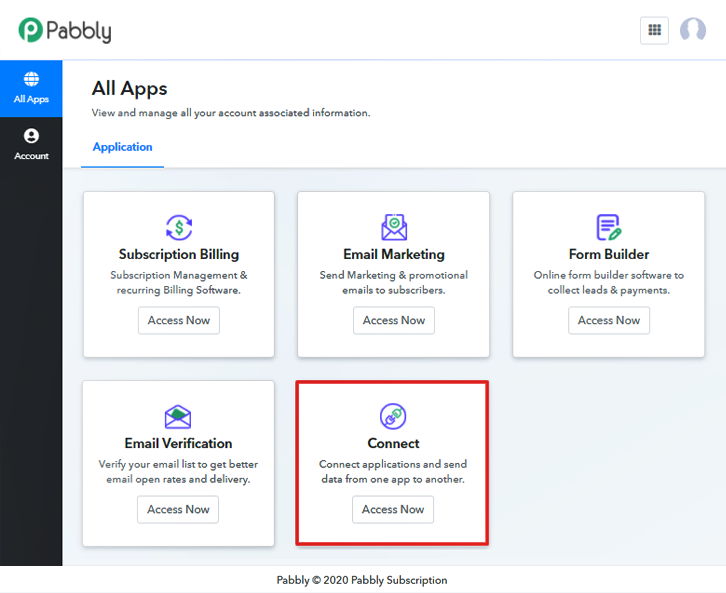
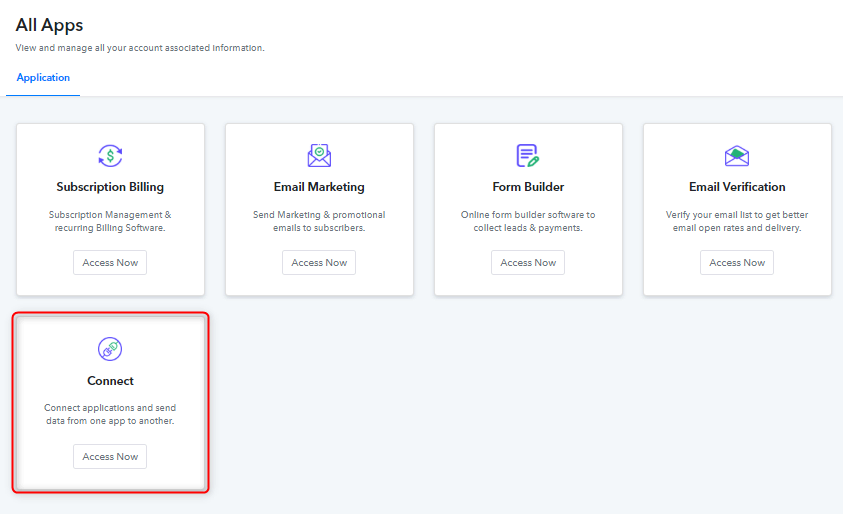
Select Connect

Next, after logging into the account, click on the “Access Now” button of Connect.

Step 3: WorkFlow for WooCommerce to Trello integration

(a) Start with a New Workflow
Create New Workflow

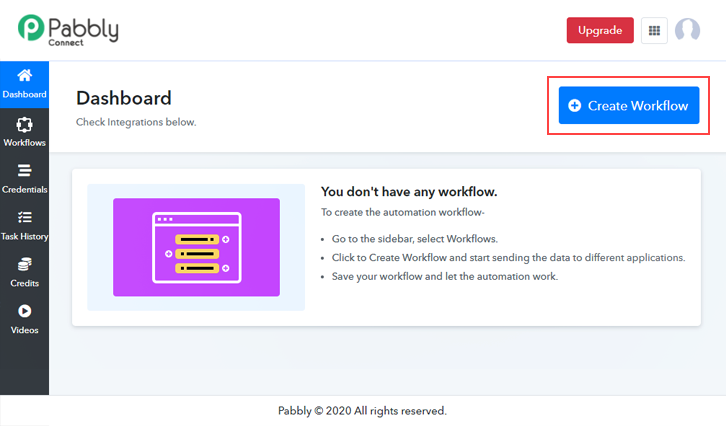
Start the process of building a workflow for Trello-WooCommerce integrations by clicking on the “Create New Workflow” button.

(b) Name the Workflow

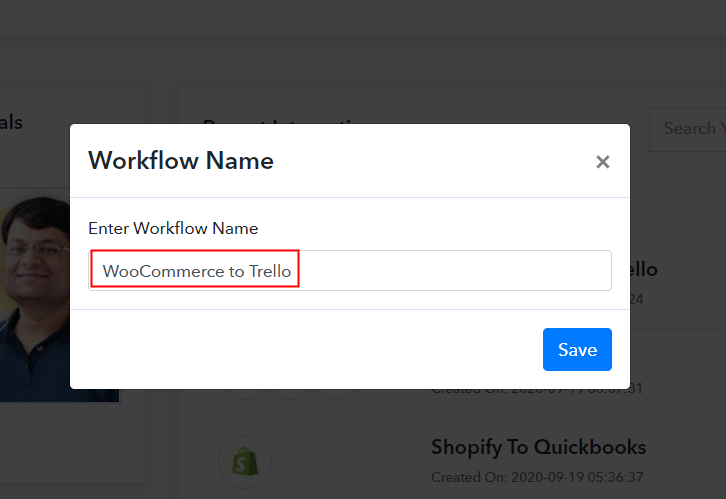
Name the Workflow

Further, add the name of workflow which in our case is “WooCommerce to Trello”. Nevertheless, you can always name the workflow according to your requirements.

Step 4: Setting Trigger for WooCommerce & Trello Integration

Further, after building a workflow, you have to choose the integration app to connect your Woocommerce account to Trello. Pabbly Connect lets you integrate or connect unlimited apps within minutes, click here to grab your access to unlimited workflows.

(a) Select Application you Want to Integrate
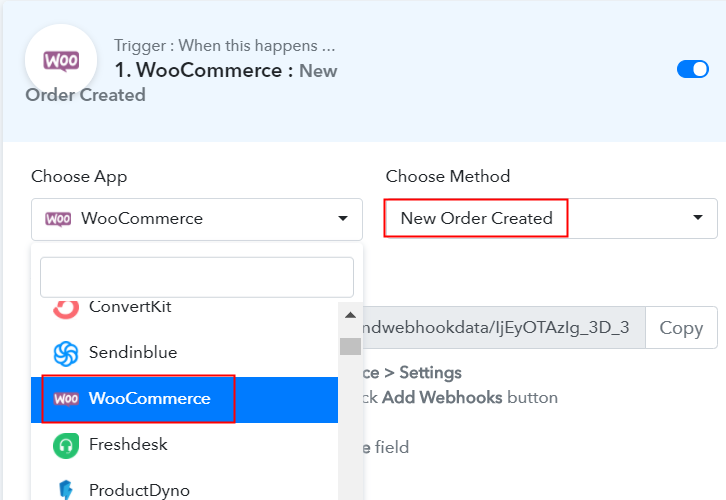
Select WooCommerce

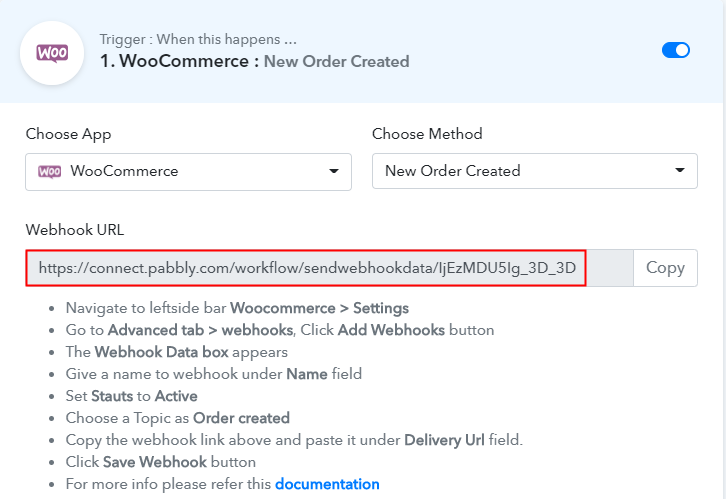
The next step is to choose “WooCommerce” from the dropdown, then choose the “New Order Created” option to create a board in Trello whenever a purchase happens in WooCommerce.

(b) Copy the Webhook URL

Copy the Webhook URL

The following step is to copy the webhook URL which is appearing on the dashboard.

Step 5: Connecting WooCommerce to Pabbly Connect

To create a Trello board whenever a new sale happens in WooCommerce, you gotta paste the copied Webhook URL in the software. For that, you have to log in to your WordPress account where you have installed your Woocommerce plugin.

(a) Go to WooCommerce Settings

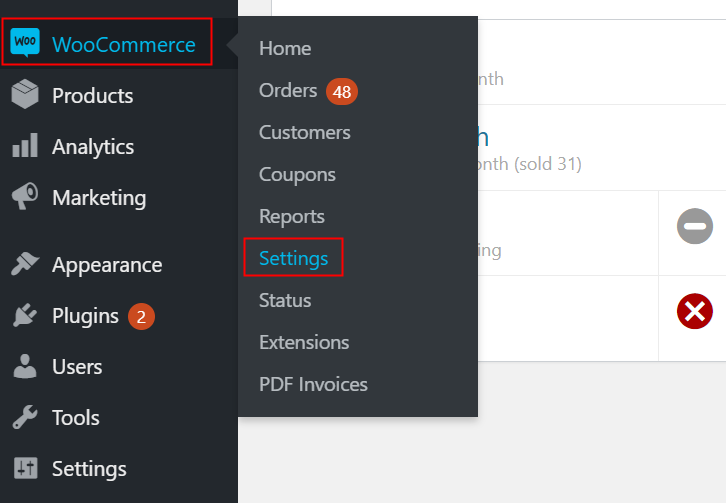
Go to WooCommerce Settings

After successfully logging into your WordPress account, go to the “WooCommerce” section then there click on the “Settings” option.

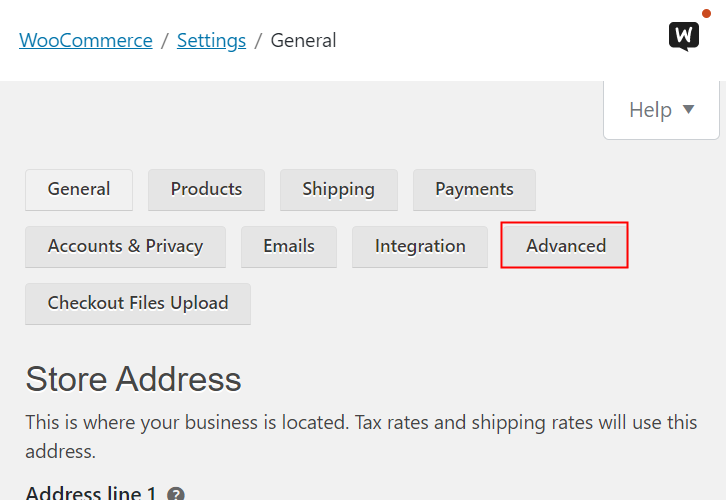
(b) Click on Advanced Option

Click on Advanced Option

Further, when you click on “Settings”, it will open a tab with different options. Select the “Advanced” option.

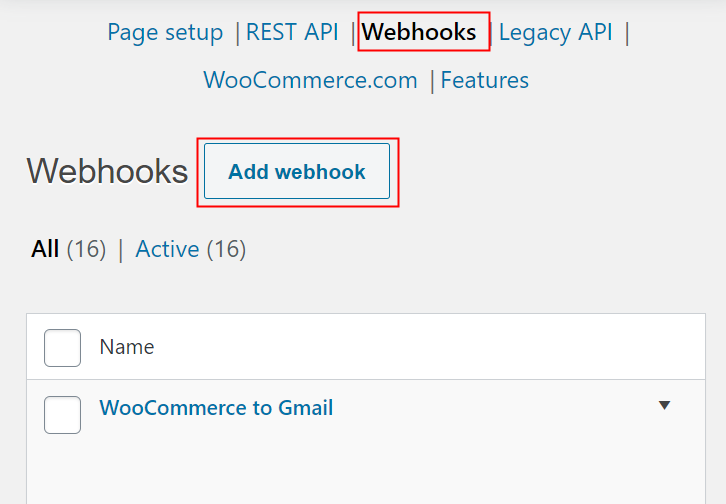
(c) Click on Webhooks Option

Click on Webhooks Option

Next, when you click on “Webhooks”, it will open a new tab with a certain option. Just click on the “Add Webhook” option to paste the Webhook URL.

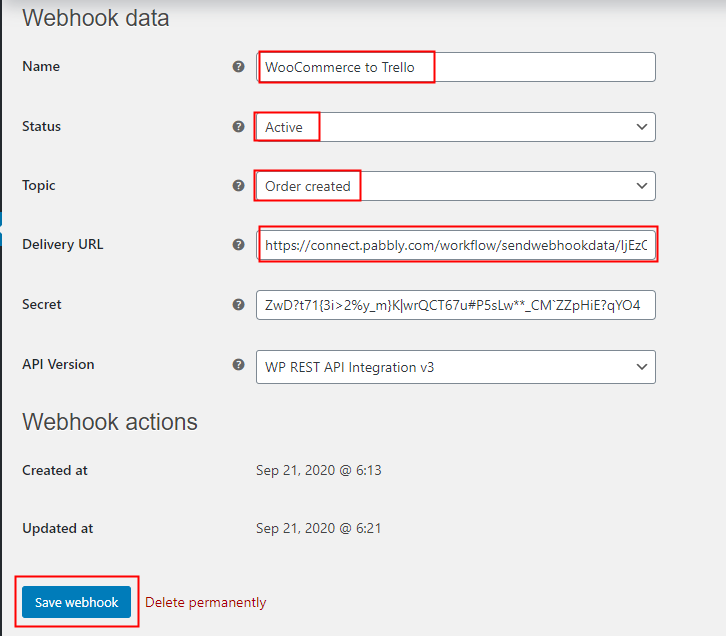
(d) Add Webhook

Add Webhook

Moreover, name the Webhook according to your need. Make sure that status should be “Active” and in the topic section, select “Order Created”. Then in the delivery URL, paste your copied URL from Pabbly Connect. After making all changes, click the “Save Webhook” button.

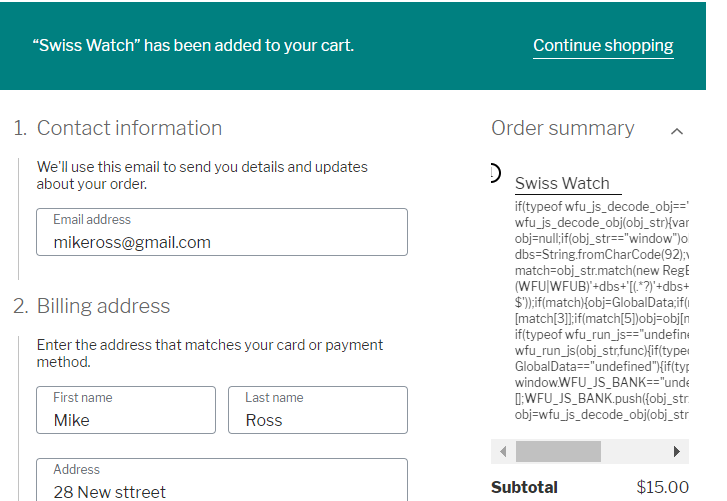
(e) Make a Test Purchase

Make a Test Purchase

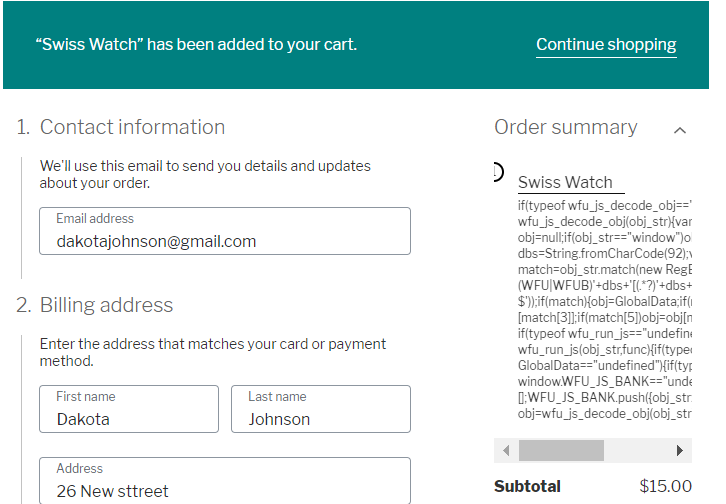
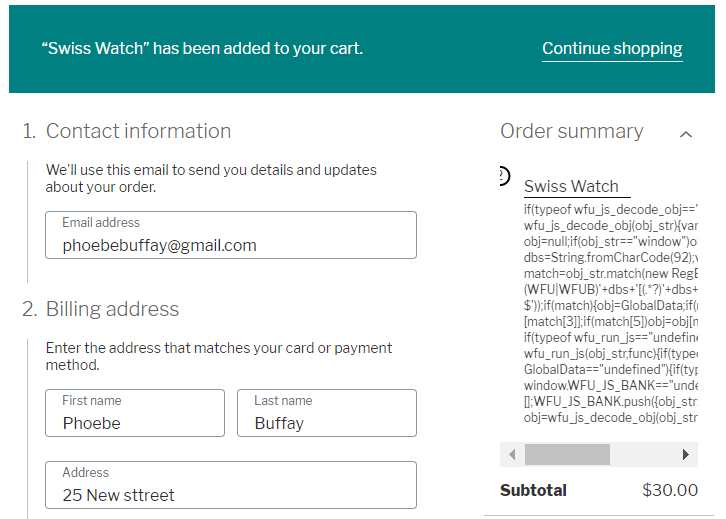
Open the product checkout in a new tab and make a dummy purchase. Just fill all the details, hit the “Place Order” button. But before hitting the button, make sure to click “Capture Webhook Response” in the Pabbly Connect dashboard.

Step 6: Test the Response in Pabbly Connect Dashboard
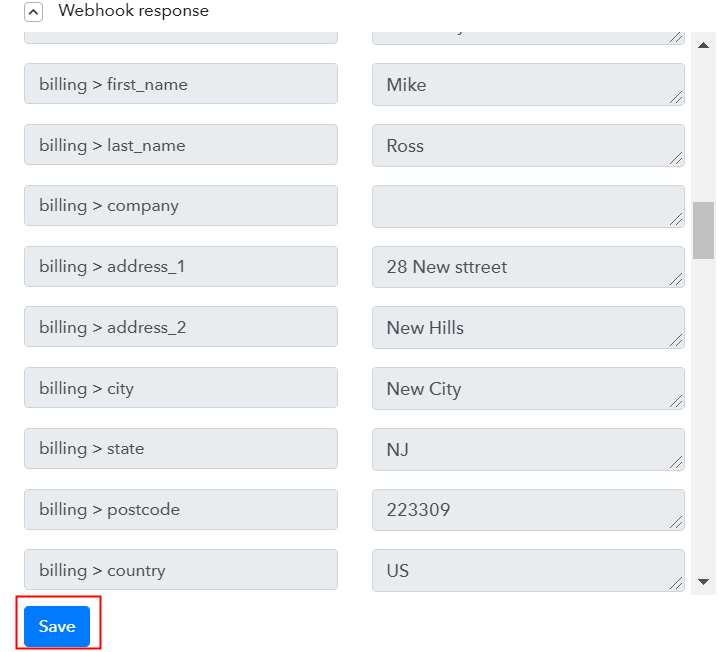
Test the Response

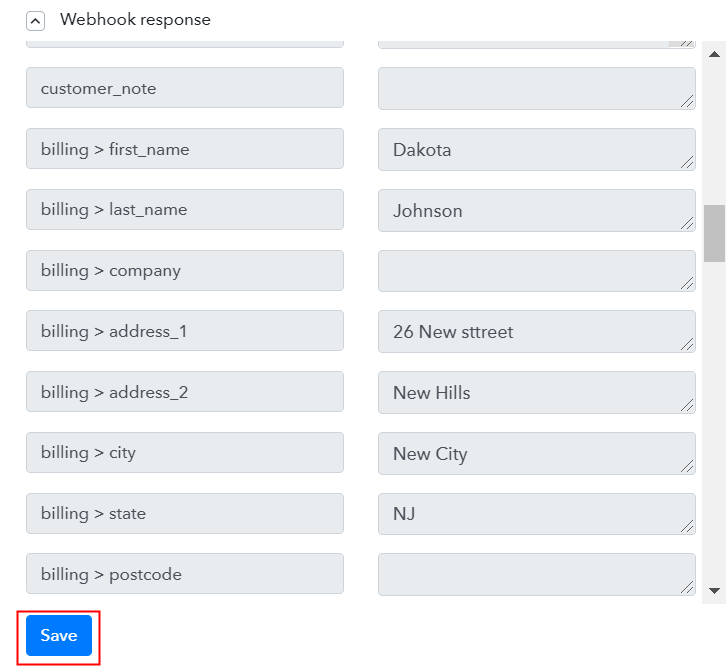
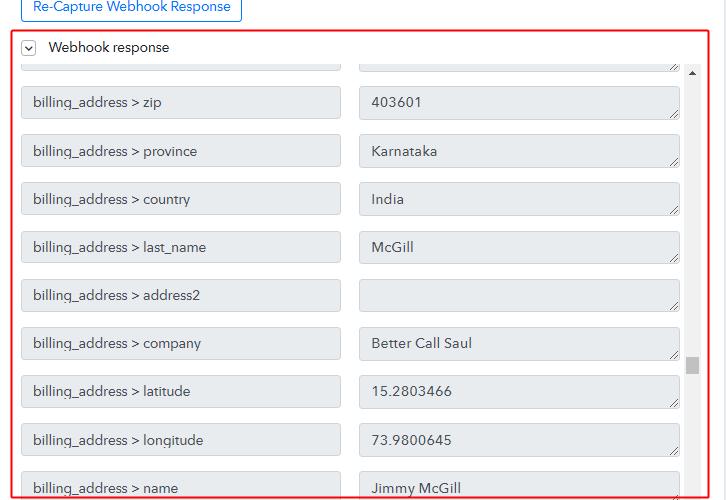
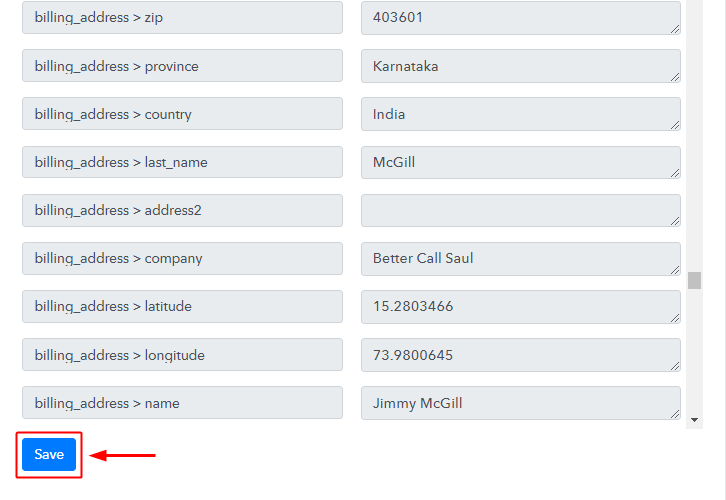
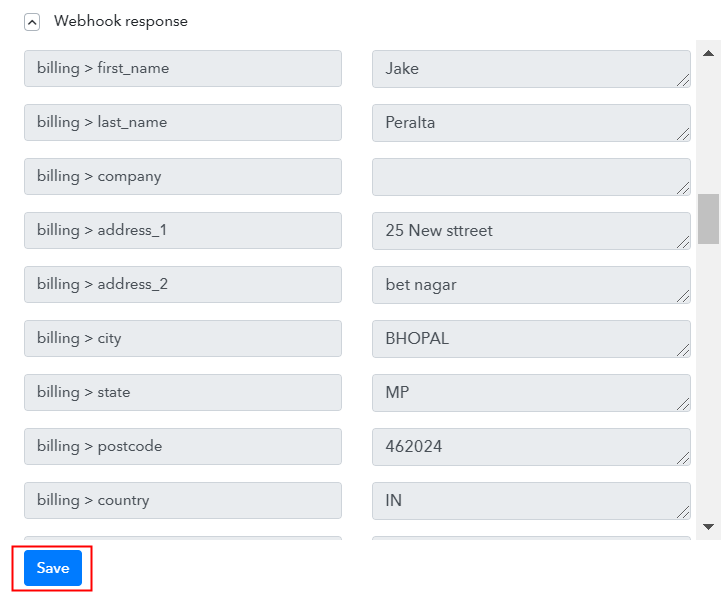
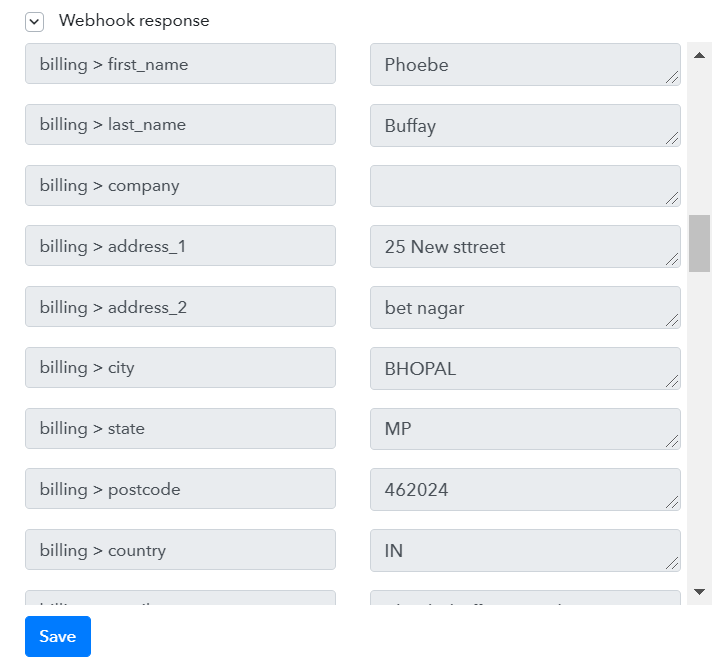
As soon as you hit the “Place Order” button, the entry will appear on the “Pabbly Connect” dashboard. Simply click on the “Save” option.

Step 7: Setting Action for WooCommerce & Trello Integration

To make this WooCommerce Trello integration work, you have to choose the action for your trigger.

(a) Select Application you Want to Integrate
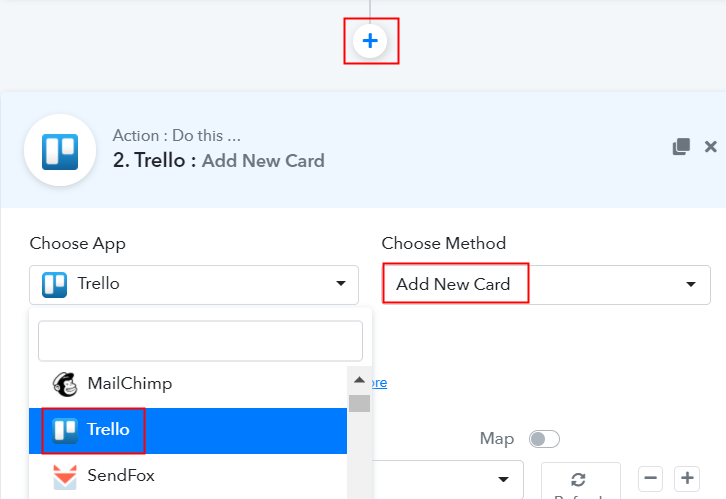
Select Trello

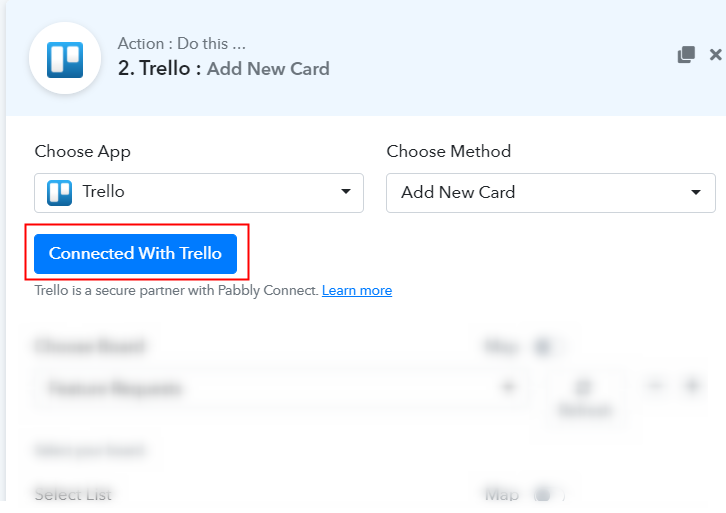
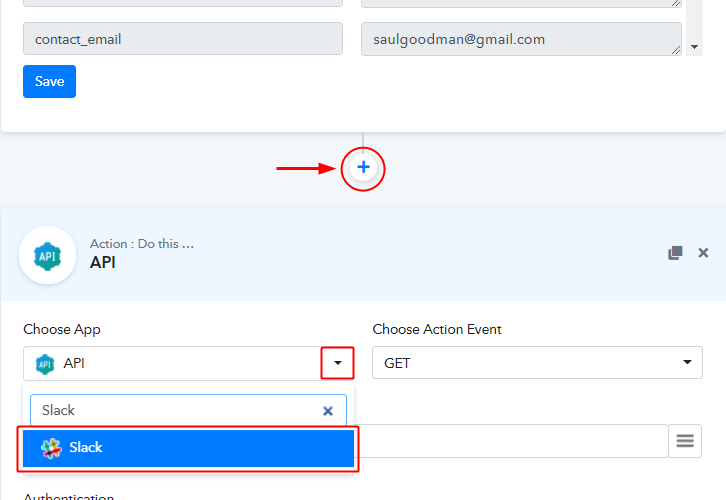
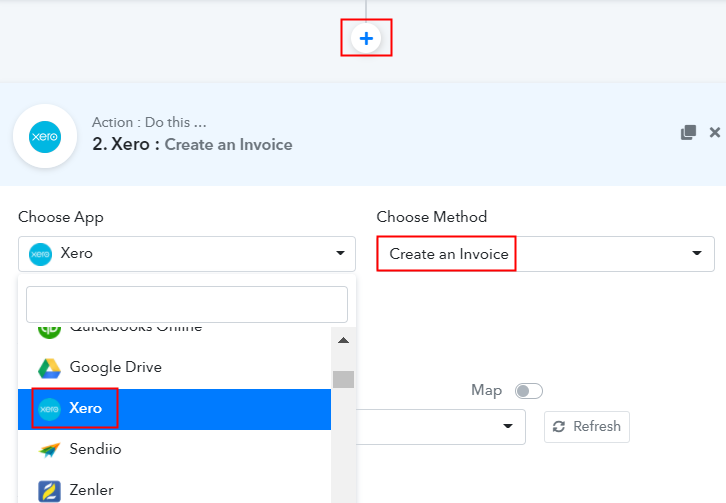
Further, click on the “+” icon to add an action for your trigger. Here we are going to select “Trello” from the dropdown. Then, select the “Add New Card” option.

(b) Click the Connect Button

Click the Connect Button

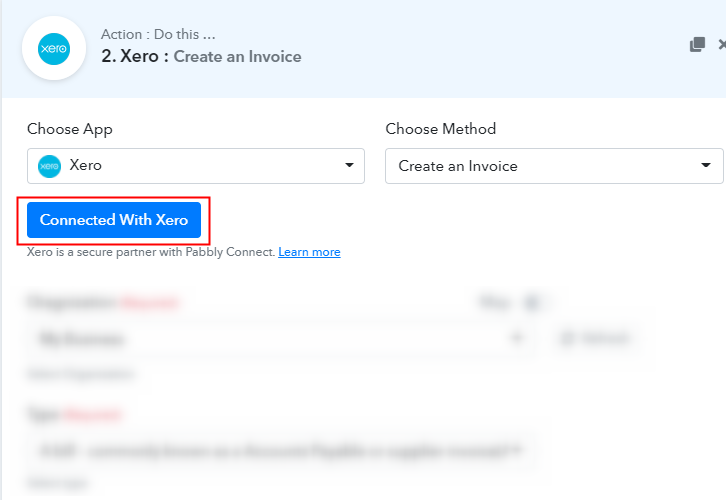
Now, after making all the necessary changes, click on the “Connect with Trello” button. Further, it will ask for account authorization for which you have to fill certain details for which you have to log in to your Trello account.

Step 8: Account Authorization

Further, to integrate Trello with WooCommerce, you need to fill details.

(a) Get your API Key & Bearer Token

Get your API Key & Bearer Token

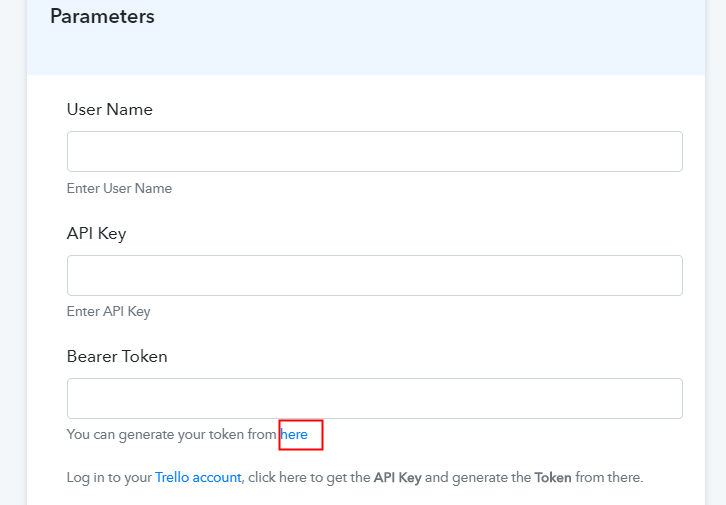
Further, it will ask for “Bearer Token/API key/Username”, for which you have to log in to Trello account or click on the “here” link.

(b) Copy API Key

Copy API Key & Bearer Token

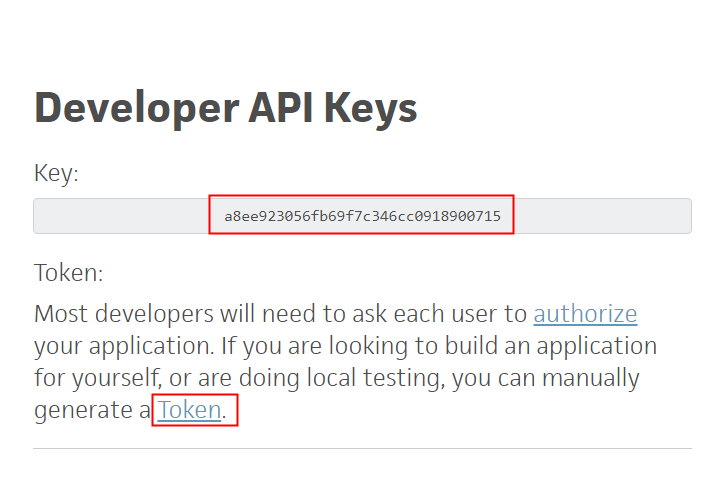
As soon as you click on the “Here” link, it will open up the page with the API key, paste that key in the API Key section. For “Bearer Token”, click on the “Token” link as shown in the image.

(c) Copy Username

Copy Username

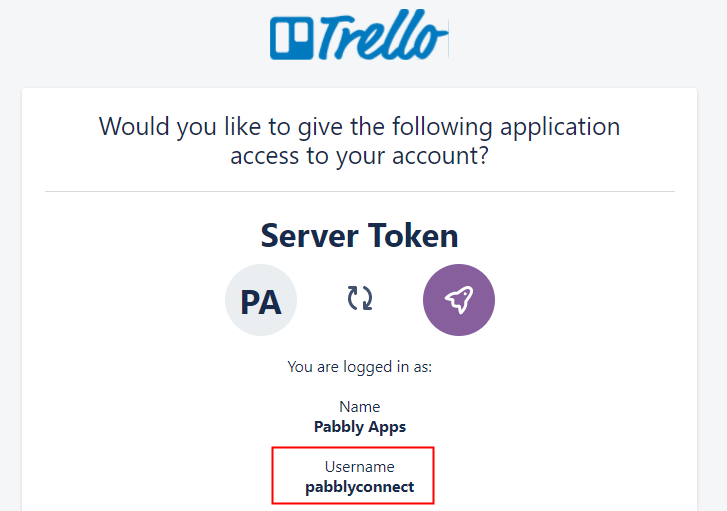
Now when you click on the “Token” link as shown in the image, it will redirect to another tab that has a username, simply keep that username in mind. Below on this page, you have to allow access by clicking on the “Allow” button.

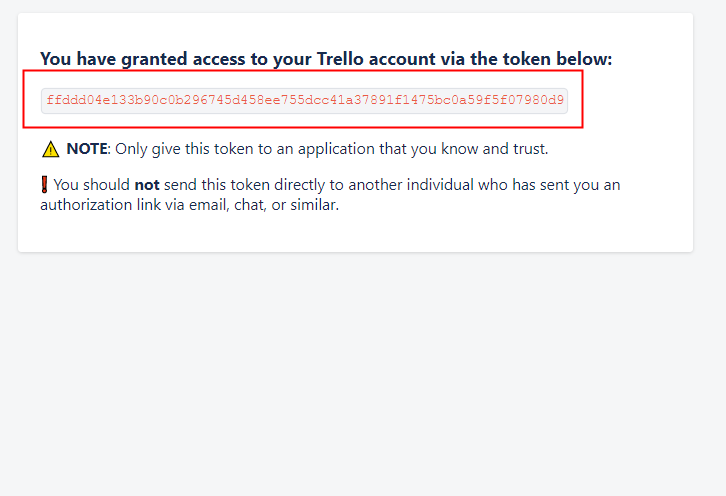
(d) Copy Bearer Token

Copy Bearer Token

Now after allowing access it will open up the page with your token. Just copy it.

(e) Paste Credentials in Pabbly Connect Dashboard
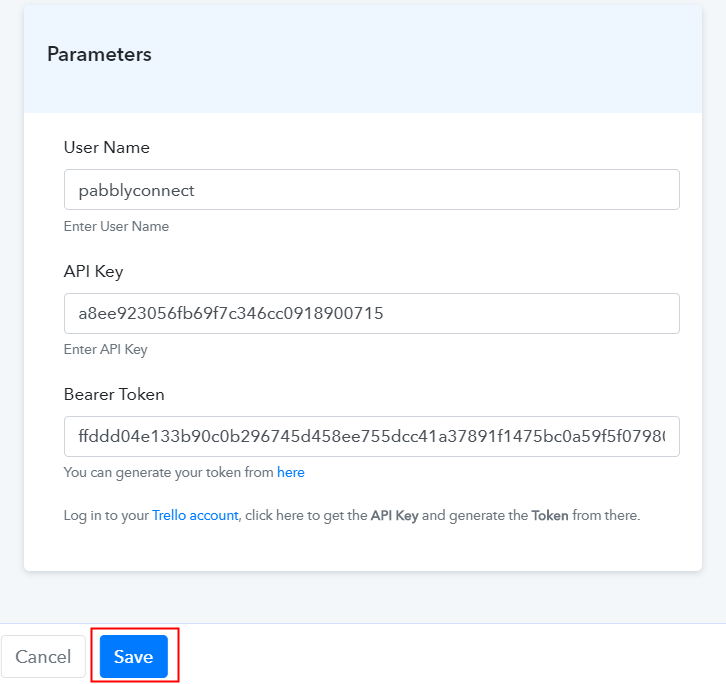
Paste Credentials in Pabbly Connect Dashboard

Just fill all the details and hit the “Save” button.

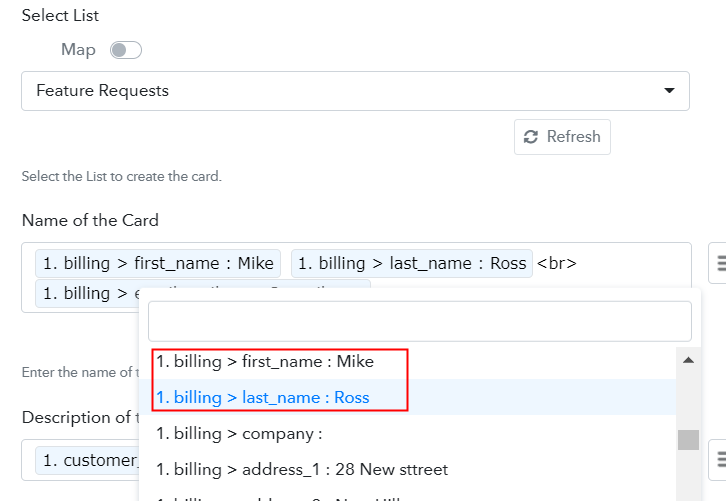
(f) Add Field Data

Add Field Data

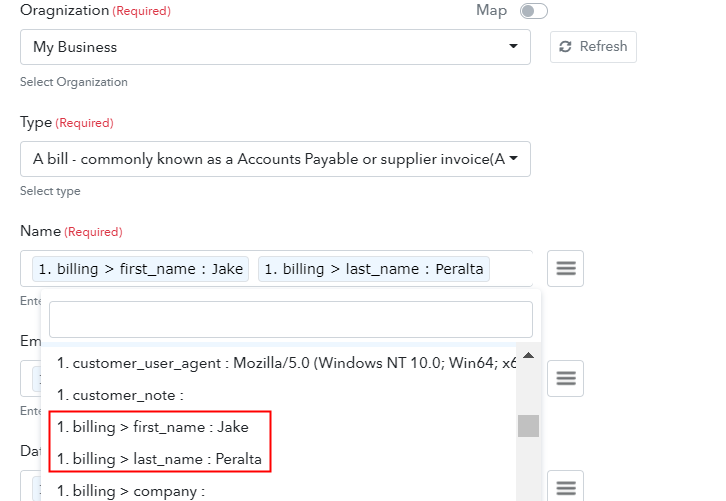
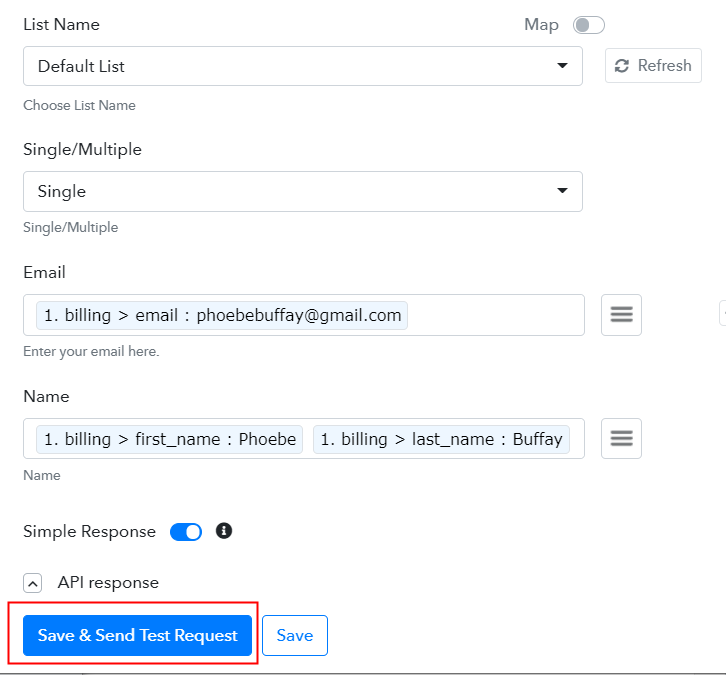
Further, select the list which in our case is “Featured Request”. Then add the name of the card from the dropdown.

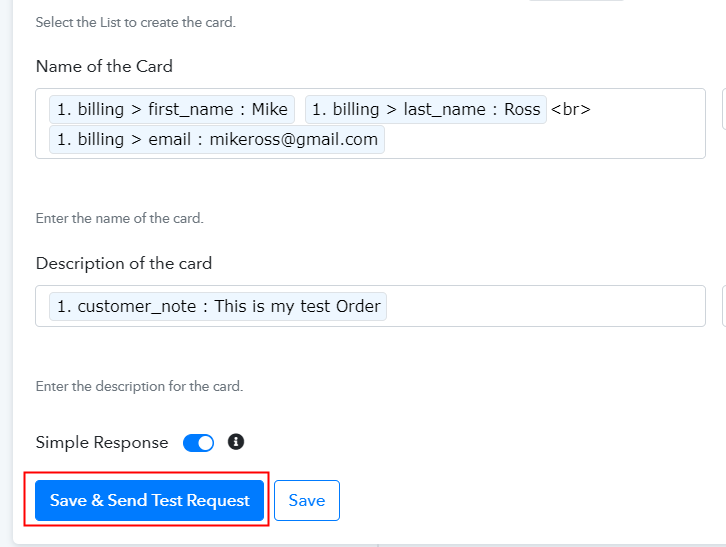
(g) Save and Send Test Request

Save and Send Test Request

After making all the changes, save the setting and then “Send Test Request”.

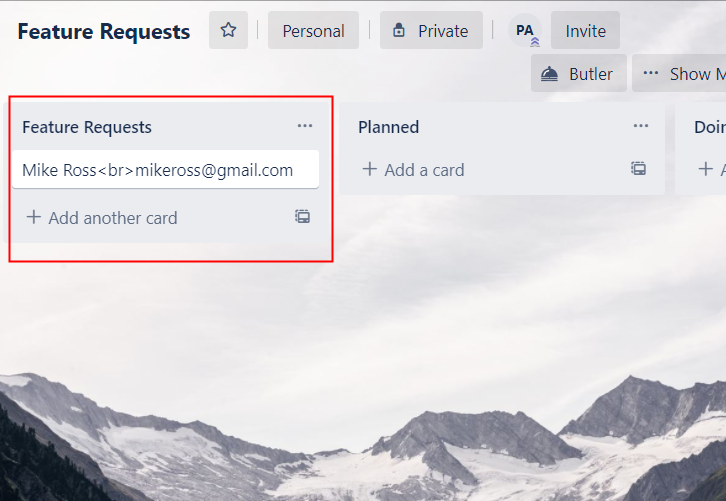
Step 9: Check the Response

Check the Response

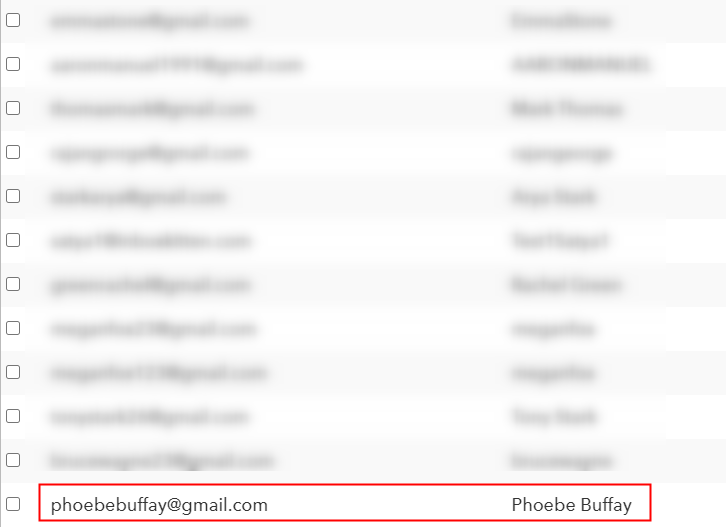
Lastly, when you check the Trello board, your entry will appear there.

Now you know how to create a Trello board for new WooCommerce orders. This is a one-time process, after this every time when purchase happens, the customer’s details will get append in the Trello.

Conclusion –

Alright! Here at the end of this blog, we know how easy is to create Trello cards for new Woocommerce orders. With the help of a business automation tool, i.e Pabbly Connect one can bind unlimited applications in minutes. Just follow all the aforementioned steps and you’re all set.

So, why wait anymore. Go and seize your deal by registering up for a free account.

You May Also Like To Read –
How to Sync WooCommerce and QuickBooks Inventory | Step by Step

How to Sync WooCommerce and QuickBooks Inventory

Do you want to know how to sync WooCommerce and QuickBooks inventory? If yes, then you are in the right place. You can easily sync these two software via a magic tool called Pabbly Connect.

How to Sync WooCommerce and QuickBooks Inventory

But before we get into the syncing process, let’s talk a little bit about these two services first. WooCommerce is a WordPress plugin used for selling different types of goods online. You can install this plugin in your WordPress account, and it is used by small as well as big merchants. And QuickBooks is an accounting software through which you can readily accept business payments, manage and pay bills, and payroll functions.

Through Pabbly Connect when you will sync these two services, then whenever someone will buy something from your WooCommerce platform, your inventory will be automatically updated in your QuickBooks account. You won’t even have to lift a finger and you will save a lot of time as well.

Why Choose This Method Of Integration?

In contrast with other integration services-

  • Pabbly Connect does not charge you for its in-built apps like filters, Iterator, Router, Data transformer and more
  • Create “Unlimited Workflows” and smoothly define multiple tasks for each action
  • As compared to other services which offer 750 tasks at $24.99, Pabbly Connect proffers 50000 tasks in the starter plan of $29 itself
  • Unlike Zapier, there’s no restriction on features. Get access to advanced features even in the basic plan
  • Try before you buy! Before spending your money, you can actually signup & try out the working of Pabbly Connect for FREE

Sign Up To Pabbly Connect

Aside from the integrations, Pabbly Connect also comes with so many great features:

  • Create unlimited workflows without any restrictions
  • Unlimited premium apps
  • Set unlimited triggers, unlimited actions to those triggers
  • Path Routers

and the amazing part is that you can access all the features even with the free plan.

Hence, without any further delay, let’s start the process to sync WooCommerce and QuickBooks inventory.

Step 1: Sign up to Pabbly Connect

Sign Up

Let’s begin the process to sync WooCommerce and QuickBooks inventory by clicking on the “Sign Up Free” icon on the Pabbly Connect home page. Next, either manually fill-up all the details or sign up using your Gmail account.

Try Pabbly Connect for FREE

Step 2: Access Pabbly Connect

Select Connect

Next, after logging into the account, click on the “Access Now” button of the Connect section in the dashboard.

Step 3: WorkFlow for WooCommerce and Quickbooks Integration

(a) Start with a New Workflow

Create New Workflow

Start with creating a workflow for your project by clicking on the ‘Create New Workflow’ button.

(b) Name the Workflow

Name the Workflow

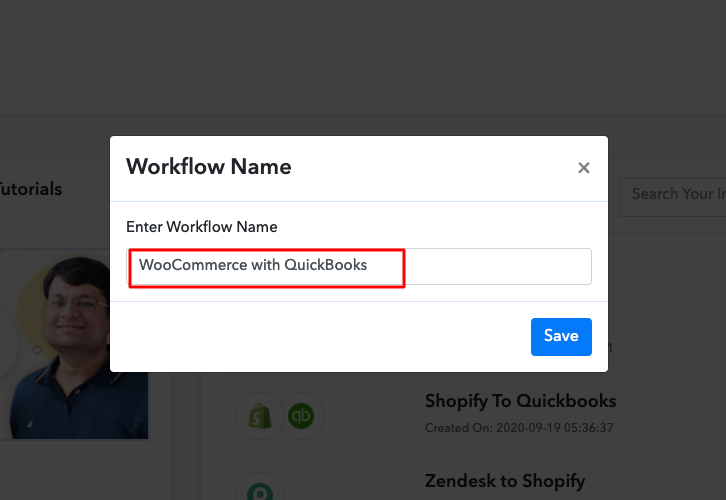
Now, you need to name the workflow just like in the above-shown image. I named the workflow as “WooCommerce with QuickBooks”, you can obviously name the workflow as per your requirements and needs.

Step 4: Setting Trigger for WooCommerce and Quickbooks Integration

As soon as you are done with creating a workflow, you will have to select the application you want to integrate. Using Pabbly Connect, you can integrate any two or more than two applications, create your free account now.

(a) Select Application you Want to Integrate

Select WooCommerce

Now, you have to select the application that you want to integrate. In this case, we are choosing “WooCommerce” for integration.

(b) Copy the Webhook URL

Copy the Webhook URL

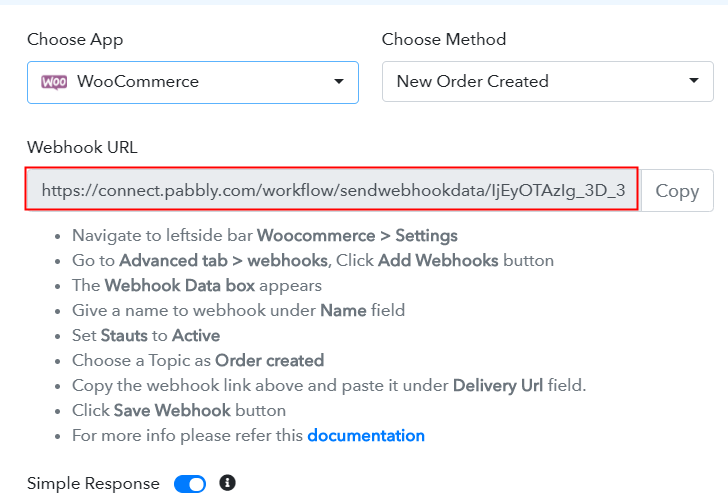
After selecting the application, now you have to copy the webhook URL just like in the above-shown image to take further the integration process.

Step 5: Connecting WooCommerce to Pabbly Connect

To connect WooCommerce with Pabbly Connect, you have to paste the copied Webhook URL in the software. For that, you have to login to your WordPress account.

(a) Go to WooCommerce Settings

Go to WooCommerce Settings

Once you have logged into your WordPress account, now click on WooCommerce then select settings.

(b) Click on Advanced Option

Click on Advanced Option

After clicking on “Settings”, a tab will open up with different options, here you have to select “Advanced”.

(c) Click on Webhooks Option

Click on Webhooks Option

Now, after clicking on”Webhooks”, click on “Add Webhook” option.

(d) Add Webhook

Add Webhook

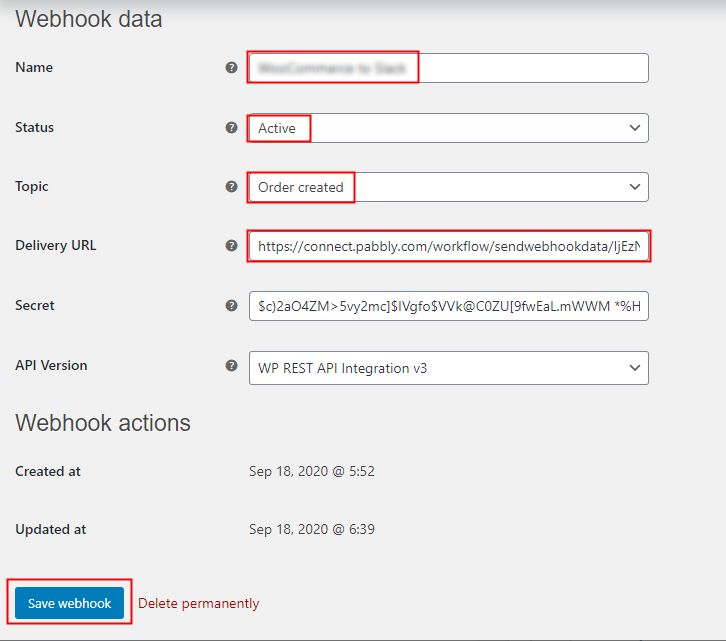
Name the Webhook according to your need. Make sure that status should be “Active” and in the topic section, select “Order Created”. Then in the delivery URL, paste your copied URL from Pabbly Connect. After making all changes, click the “Save Webhook” button.

(e) Make a Test Purchase

Make a Test Purchase

Open the product checkout in a new tab and make a dummy purchase. Just fill all the details, hit the “Place Order” button. But before hitting the button, make sure to click “Capture Webhook Response” in the Pabbly Connect dashboard.

Step 6: Test the Response in Pabbly Connect Dashboard

How To Sync WooCommerce and QuickBooks Inventory

To test the WooCommerce data you have to click on “Capture Webhook Response” in Pabbly Connect. The entry will appear on the Pabbly Connect dashboard. Then, click on the “Save” option.

Step 7: Setting Action for WooCommerce and Quickbooks Integration

To make this WooCommerce QuickBooks integration work, you have to choose the action for your trigger.

(a) Select Application you Want to Integrate

Select QuickBooks

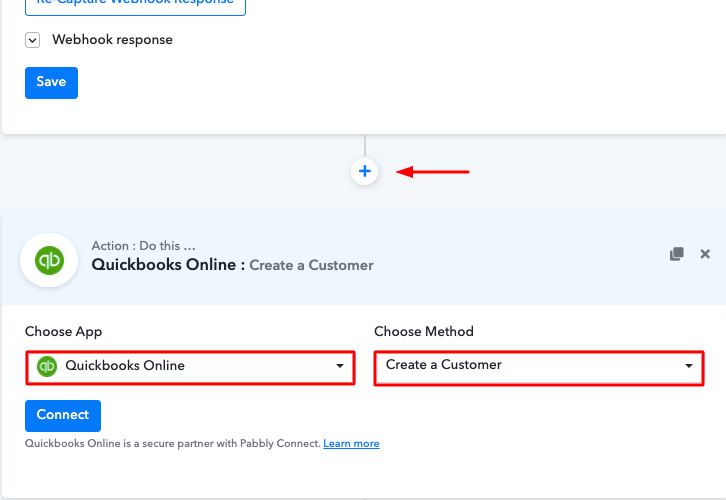
Now in this step, click on the + button below and choose the application that you want to integrate. Here we have chosen “QuickBooks Online” to integrate.

(b) Click the Connect Button

Click on Connect

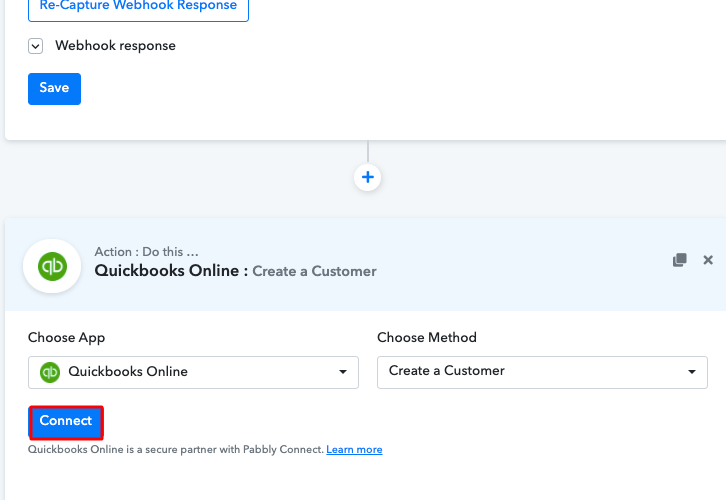
After choosing the application click on the “Connect” button to move forward.

Step 8 : Connecting QuickBooks to Pabbly Connect

To connect QuickBooks to Pabbly Connect, you have to authorize your QuickBooks account or you can also sign in through your Google account.

(a) Authorize Application

How To Sync WooCommerce and QuickBooks Inventory

After you hit the connect with QuickBooks button, a pop up window will appear on your screen, here you have to click on the “Connect” button and then select the account through which want to sign in.

(b) Add Field Data

How To Sync WooCommerce and QuickBooks Inventory

After authorizing the application, now you have to map up all the required details to move further.

(d) Save and Send Test Request

How To Sync WooCommerce and QuickBooks Inventory

After making all the changes, save the setting and then “Send Test Request”.

Step 9: Check the Response

Check Response

Finally, when you check the QuickBooks, the entered info of the customer and the purchase.

Now you know how to integrate WooCommerce with QuickBooks. This is a one-time process, after this every time when purchase happens in WooCommerce, the info will get updated in your QuickBooks account automatically.

Conclusion –

To conclude, this is the most effective and time-saving way to sync WooCommerce and QuickBooks Inventory. Now whenever there will be any sales in WooCommerce, your QuickBooks inventory will be automatically updated after this integration. Pabbly Connect is the answer to all your integration needs, as you just have to make a few clicks and you are good to go. Therefore, signup for free today and explore the world of hassle-free integrations. In case of any doubts or suggestions, please leave your comments down below. 

You May Also Like to Read –

How to Send Slack Messages for New Shopify Orders | Step by Step

How to Send Slack Messages for New Shopify Orders

Are you looking for some way to send Slack messages for every new Shopify order?

Then you’ve landed on the correct place, as we are going to implement the same mechanism step by step in this article. Many times we want to notify our team or an individual about the recent sales of our store. But, as this feature is pretty advanced for many services this isn’t possible using a single service. And you’ll need to connect two completely different software to do so. Well, this has now become possible by using Pabbly Connect. You can set-up a trigger for every order that happens on Shopify, a message will be send consisting the recent order details.

How to Send Slack Messages for New Shopify Orders

You can create unlimited workflows and set-up instant triggers on certain conditions using Pabbly Connect. Further, it facilitates formatters, filters, routers etc to refine the data without zero coding knowledge. Additionally, it allows defining actions using multi-steps calls based on the trigger condition.

Why Choose This Method Of Integration?

In contrast with other integration services-

  • Pabbly Connect does not charge you for its in-built apps like filters, Iterator, Router, Data transformer and more
  • Create “Unlimited Workflows” and smoothly define multiple tasks for each action
  • As compared to other services which offer 750 tasks at $24.99, Pabbly Connect proffers 50000 tasks in the starter plan of $29 itself
  • Unlike Zapier, there’s no restriction on features. Get access to advanced features even in the basic plan
  • Try before you buy! Before spending your money, you can actually signup & try out the working of Pabbly Connect for FREE

Sign Up To Pabbly Connect  

In just a few minutes, it allows you to send slack regarding the recent purchase from Shopify to Slack. So, save your time and access all Pabbly Connect features without any restriction even in its free plan.

Now, let’s get started with the step by step procedure to integrate Shopify and Slack to send automatic messages on a Slack channel whenever a sale happens on your Shopify store.

Step 1: Sign up to Pabbly Connect

Sign UpFirst, visit the official website of Pabbly Connect & click on the ‘Sign-Up Free‘ button there. On the next page redirect, either direct signup using an existing Gmail ID or manually fill out the registration form to get into the system.

Try Pabbly Connect for FREE

Step 2: Access Pabbly Connect

Select Connect

After sign-up, a page will open up containing all the Pabbly services. Click the ‘Access Now’ button of the software ‘Connect’.

Step 3: WorkFlow for Shopify with Slack Integration

(a) Start with a New Workflow

Create New Workflow

Start with creating a workflow to send automatic messages on your Slack channel whenever a sale happens on your Shopify store and to do this strike the ‘Create New Workflow’ button.

(b) Name the Workflow

Create Workflow Shopify to Slack
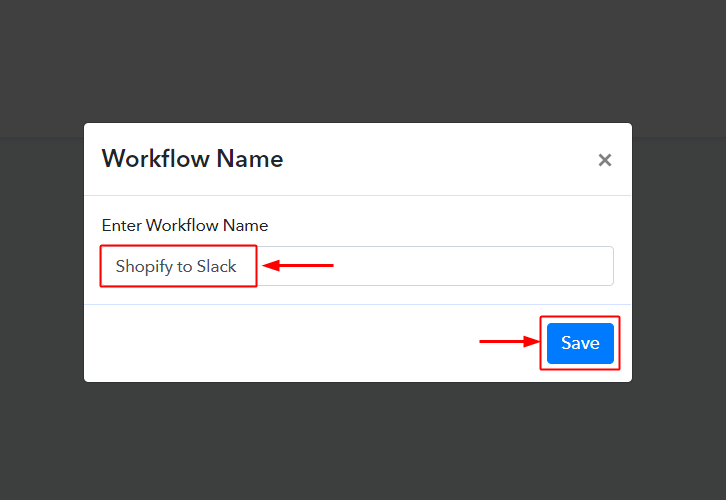
Now, name the workflow as per your need (for instance: Shopify to Slack Integration etc) and push the ‘Save’ button.

Step 4: Select Triggers for Shopify – Slack Integration

To send automatic messages whenever an item is ordered on your Shopify store, you need to set-up a trigger on Shopify and its respective action on Slack. Hence, let’s get started with setting up the trigger on Shopify orders first.

(a) Select Application you want to integrate

Integrate Shopify

When you hit the save button to create a workflow, a trigger window will open next.

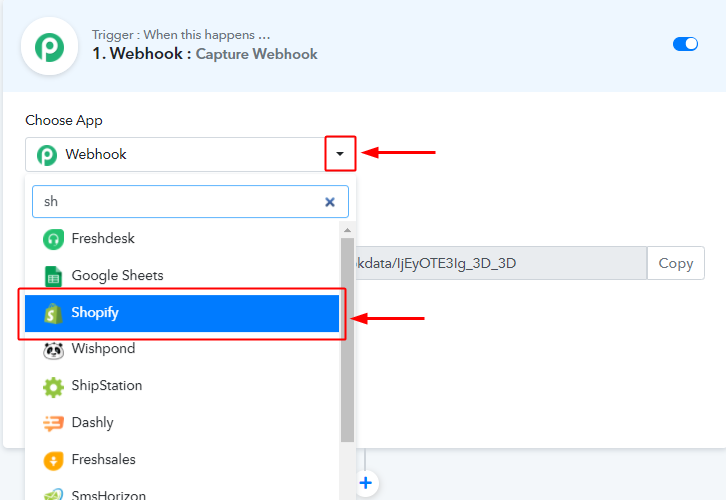
You’ll need to select the ‘Shopify’ option from the ‘Choose App’ field drop-down options.

(b) Select the Shopify Method

Choose Shopify Method

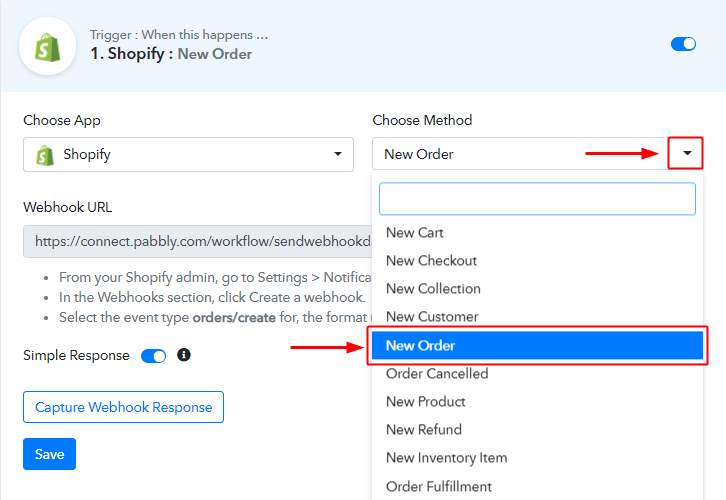
Next, select the ‘New Order’ method from the ‘Choose Method’ menu.

(c) Copy the Webhook URL

Copy Webhook URL

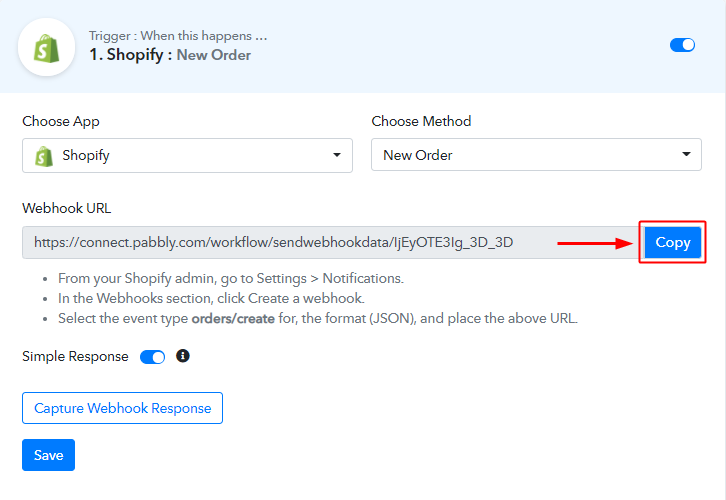
Further, copy the ‘Webhook URL’ by clicking the ‘Copy’ button on this page.

Up to this point, we are half-way done with the Shopify to Gmail trigger settings. As we have generated a Webhook URL, next we’ll need to paste this URL on our Shopify account settings to get the trigger working.

Step 5: Connecting Shopify to Pabbly Connect

To connect Shopify with Pabbly Connect, log in on your Shopify account and follow the following steps afterwards.

(a) Go to Your Shopify Store Dashboard

Shopify Settings

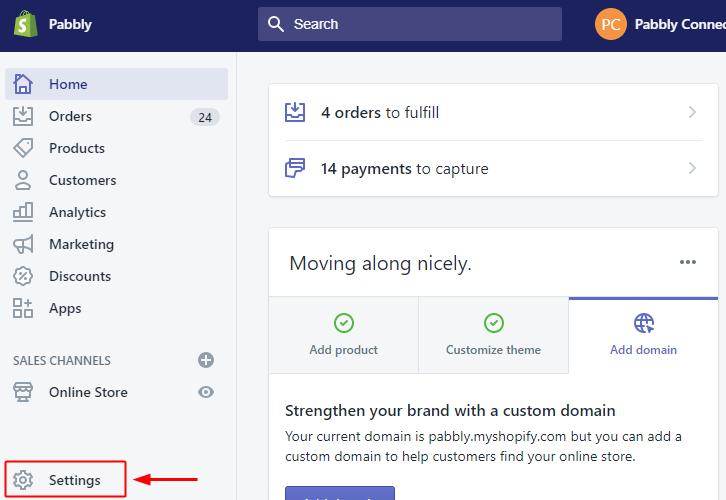
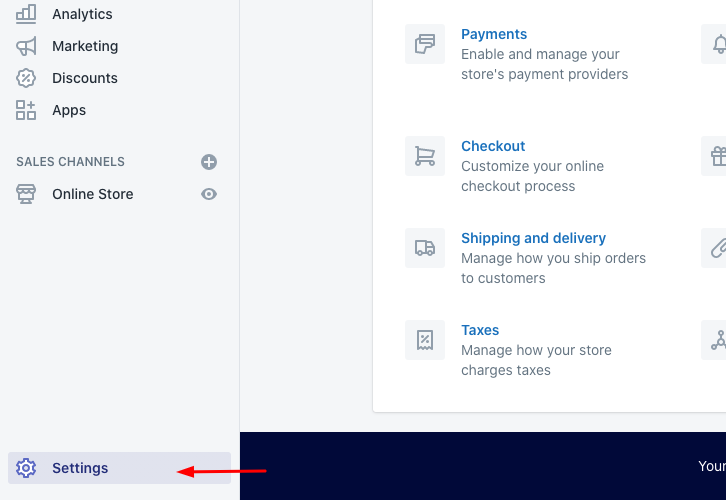
Click the ‘Settings’ option present at the bottom-left corner of your Shopify dashboard.

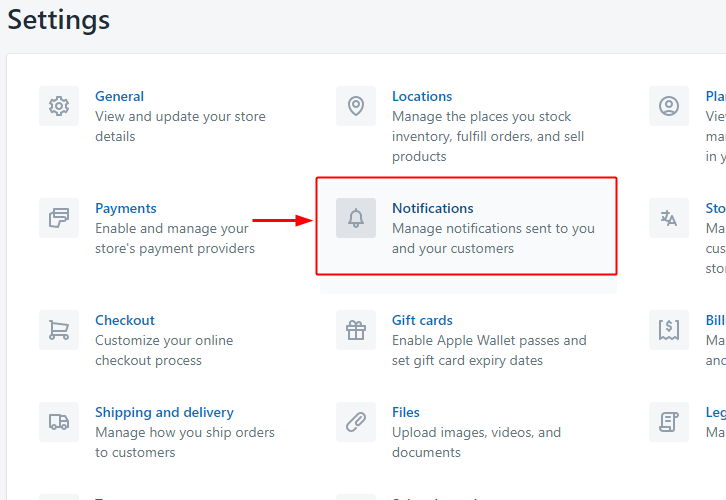
(b) Select Notification Option

Go To Notification

A page will open up carrying all the different setting options of the application. Select the notification option as we need to send automatic emails on user sign up in Shopify store.

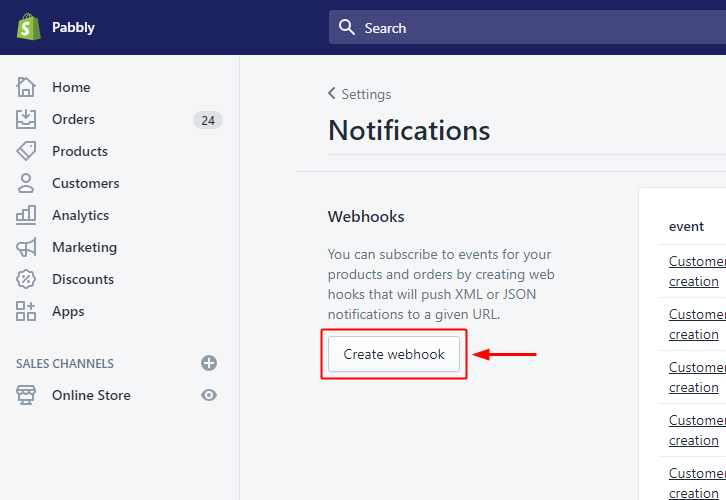
(c) Click the Create Webhook Button

Create Webhook Shopify

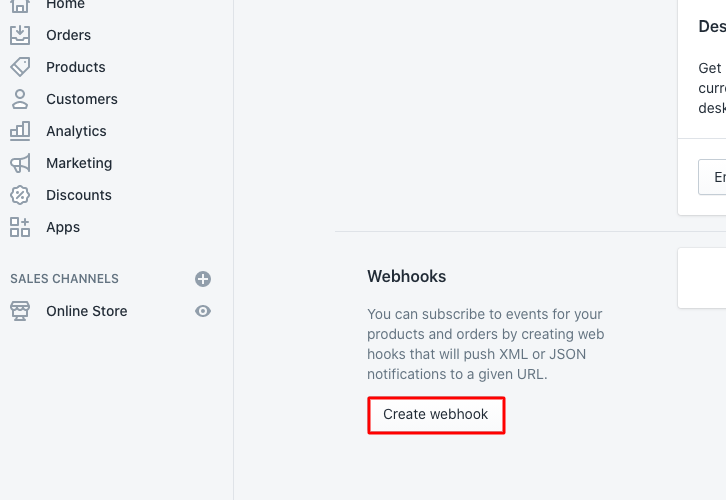
On the next page, there will be many notification options. So, head directly to the bottom of the page on ‘Webhooks’ and click the ‘Create Webhook’ button.

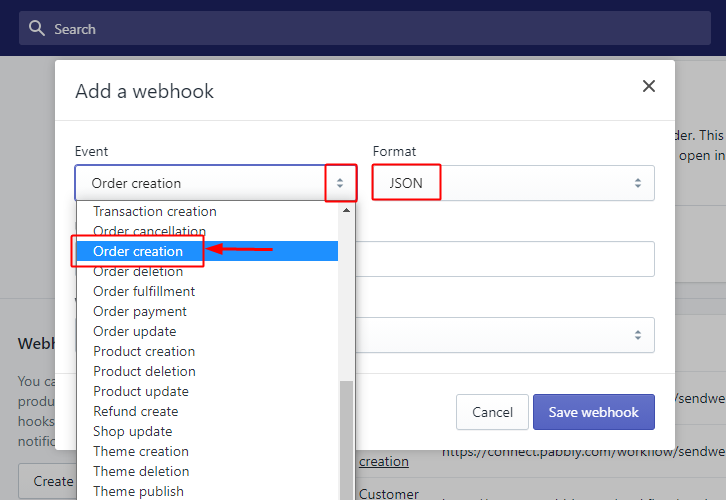
(d) Select the Event

Shopify Event & Format

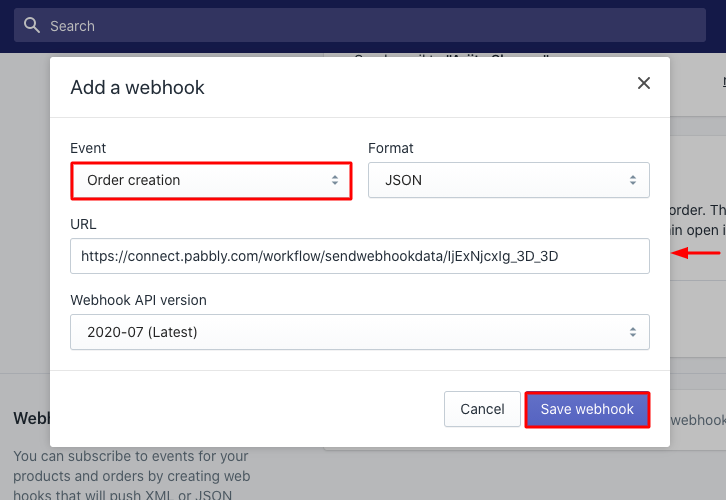
In the Webhook details pop-up, select the event as ‘Order Creation’.

Also, make sure that the format here is ‘JSON’.

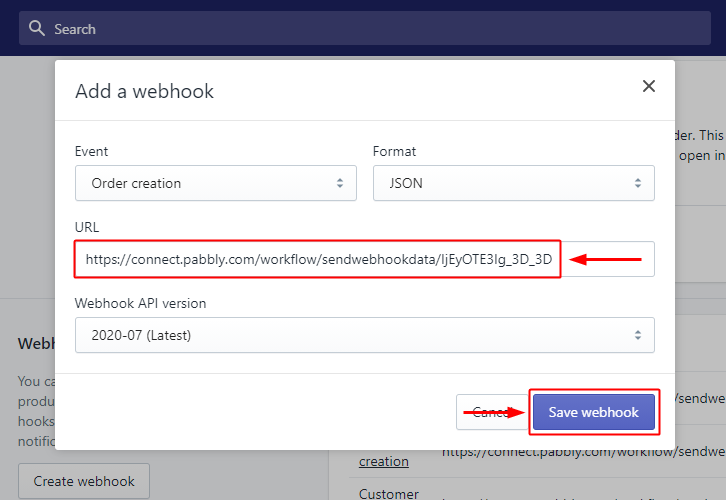
(e) Paste Webhook URL

Paste Webhook URL

Paste the copied Pabbly Connect Webhook URL in the URL field.

Lastly, save the created Webhook.

Step 6: Test the Trigger Response in Pabbly Connect Dashboard

Up to this point, the trigger is all set. So, let’s check the response of the set trigger.

(a) Capture the Webhook Response

Click Capture Webhook Response

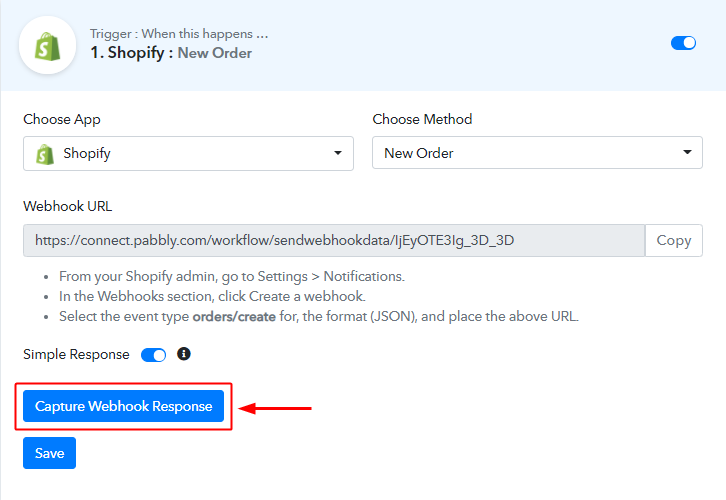
Click the ‘Capture Webhook Response’ button on the Pabbly Connect trigger.

(b) Fill the Product Checkout Information on Your Shopify Store

Product Order Details

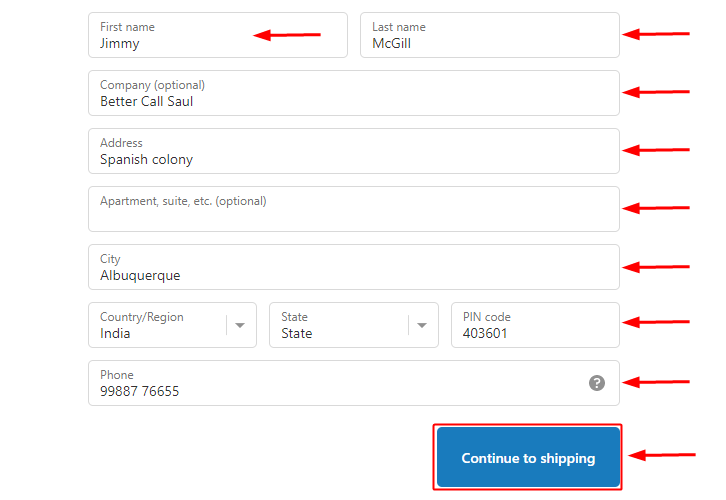
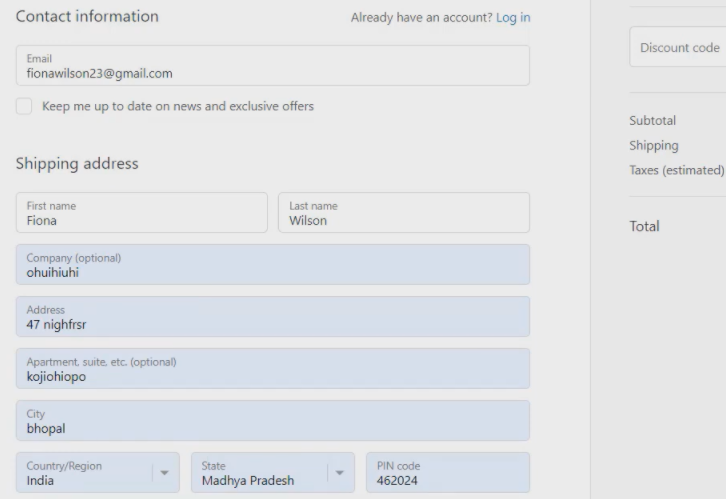
Now, go to your Shopify store and make a test order. Fill all the required details for any item and click ‘continue to shipping’.

(c) Make a Payment

Make a Payment

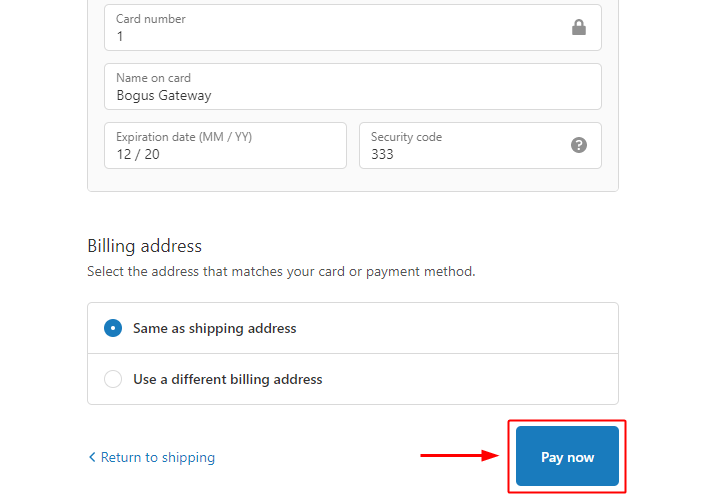
Fill the card details and click on the ‘Pay now’ button.

(d) Check Order Confirmation

Order Confirmation

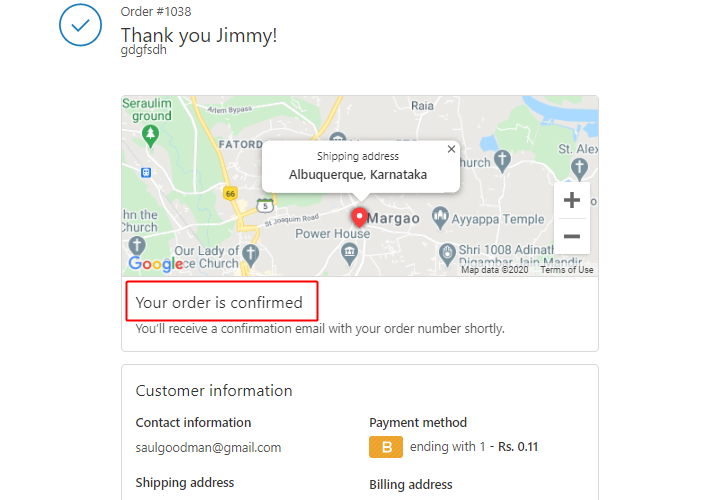
Lastly, just check whether your order is confirmed or not. A window will most likely show up on a successful purchase.

(e) Check the Webhook Response

Check Trigger Response

You can see the response of order in the Pabbly Connect trigger window. All the order details will show up in the Pabbly Connect trigger response.

This ensures that our trigger setting to send automatic messages on Shopify orders is working as expected.

Step 7: Setting Action for Shopify – Slack Integration

As now we have the Shopify customer’s data on Pabbly Connect trigger, we can simply integrate Slack and send messages on the Slack channel. To do so we are going to integrate Slack now.

(a) Select the App to Integrate as Slack

Integrate Slack App

First, click on the plus button next to your recently created trigger.

To integrate Slack, click the ‘Choose App’ field’s drop-down and select the ‘Slack’ application.

(b) Select the Slack Method

Select Slack Method & Connect

Next, select the method here as ‘Send Channel Message’ and hit the ‘Connect to Slack’ button.

(c) Authorize Slack Account

Authorize Slack Account

A window will slide in from the right, click on the ‘Connect’ button next.

(d) Map the Action Value

Map Values

This is an important step, you can map the Shopify trigger response values in the Slack message with it.

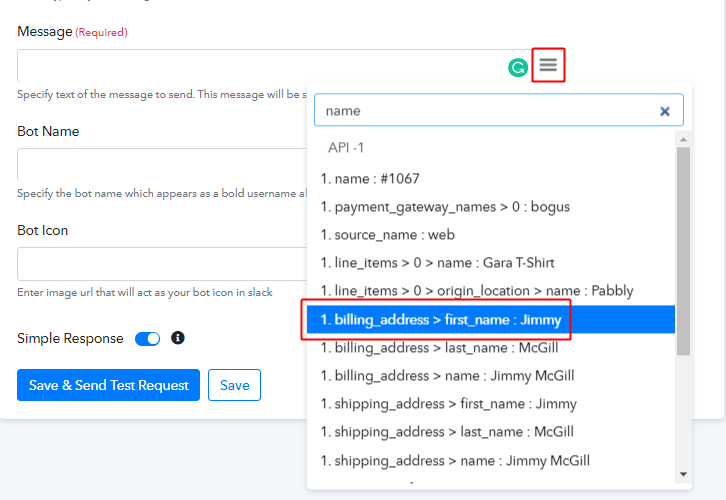
To map a value, place your cursor to the position where you wanna map the response value, click the menu button (three verticle lines) next to that ‘Message’ field and then pick the value that you want to map from the drop-down.

(e) Save the Action & Send Test Request

Send Test Request for Action

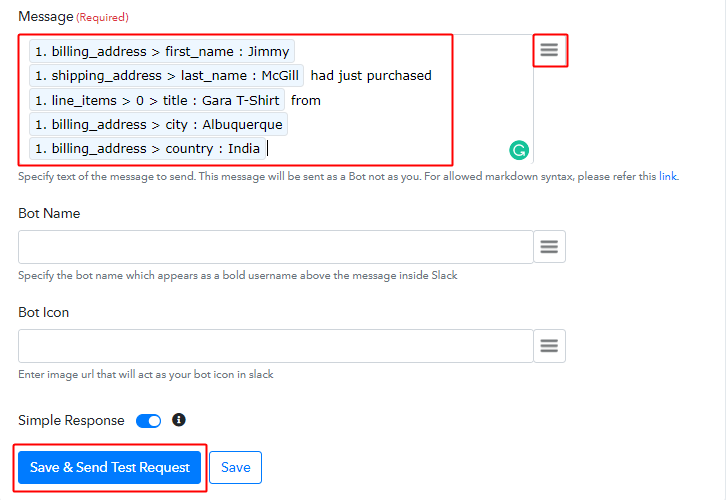
Draft a proper message using the trigger response values and text. As this message is going to be displayed on your Slack channel.

Lastly, save & send test request for testing the action.

(f) Check Action Response

Action Response

You can observe the response value labelled as SENT, reflecting the success of your designed workflow.

Step 8: Check the Final Response

(a) Check Response on the Slack Channel

Slack Channel response

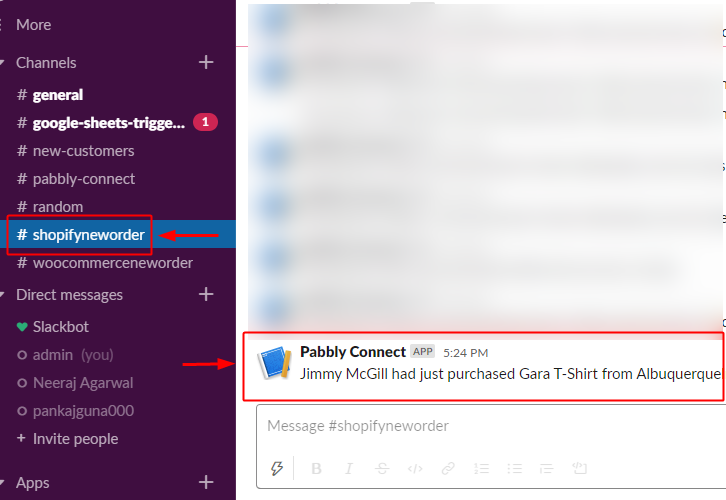
Also, you can check the response on the selected Slack channel too.

(b) Save the Webhook

Save Webhook

As we can see the Webhook is working perfectly. So, simply save the webhook by clicking the last action’s save button.

Wind-Up

Well, this is all about ‘How to send Slack messages for new Shopify orders’. Consequently, after completing the step by step procedure, you will end up receiving automated messages on your Slack channel whenever a new Shopify order is created. Most importantly, the procedure is very easy to implement and you don’t need any coding knowledge to follow the steps.

Do you want to try Pabbly Connect for FREE?

For any further queries, do comment below.

You May Also Like to Read:

How to Send Slack Message for New WooCommerce Orders | Step by Step

How to Send Slack Message for New WooCommerce Orders

Are you looking for a way to send a Slack message for new WooCommerce orders? If yes, then here in this article we will tell you how to connect WooCommerce with Slack.

How to Send Slack Message for New WooCommerce Orders

But let’s first cast light on both software and why there is a need for WooCommerce – Slack integration. As we all know WooCommerce is one of the rising E-commerce platforms with around 2M+ active users. Whereas Slack is a one-stop destination of team collaboration and communication.

Using WooCommerce Slack integration, you can send direct messages for various events and triggers so that team can respond to them directly. This integration keeps you on top of the customer service. But integrating these two tools can be a lot of work for someone who is totally new to this. That’s why we are suggesting software named Pabbly Connect that lets you bind unlimited applications in a couple of minutes.

Why Choose This Method Of Integration?

In contrast with other integration services-

  • Pabbly Connect does not charge you for its in-built apps like filters, Iterator, Router, Data transformer, and more
  • Create “Unlimited Workflows” and smoothly define multiple tasks for each action
  • As compared to other services which offer 750 tasks at $24.99, Pabbly Connect proffers 50000 tasks in the starter plan of $29 itself
  • Unlike Zapier, there’s no restriction on features. Get access to advanced features even in the basic plan
  • Try before you buy! Before spending your money, you can actually signup & try out the working of Pabbly Connect for FREE

Sign Up To Pabbly Connect        

Pabbly Connect allows you to create an unlimited workflow for seamless data transmission. Along with that, it is swamped with features like path routers, filters, formatters, and much more to ease-up the whole automation process. The only software that offers unlimited events, triggers, actions, etc even in its free plan.

Above all, there are no coding skills required to operate the software. We know you want to see  integration in working that’s why here in this article we will learn how to send Slack message for new WooCommerce orders using an automation tool i.e Pabbly Connect.

How to Send Slack Message for New WooCommerce Orders (step by step)

So, let’s start the integration process.

Step 1: Sign up to Pabbly Connect

Sign Up

Begin the process of connecting WooCommerce to Slack by clicking on the “Sign Up Free” icon on the Pabbly Connect dashboard. Next, either manually fill-up all the details or sign up using Gmail credentials.

Try Pabbly Connect for FREE

Step 2: Access Pabbly Connect

Select Connect

Next, after logging into the account, click on the “Access Now” button of Connect.

Step 3: WorkFlow for WooCommerce to Slack integration

(a) Start with a New Workflow

Create New Workflow

Begin the process of creating a workflow for sending a message to the Slack channel for new WooCommerce orders by clicking the “Create New Workflow” button.

(b) Name the Workflow

Name the Workflow

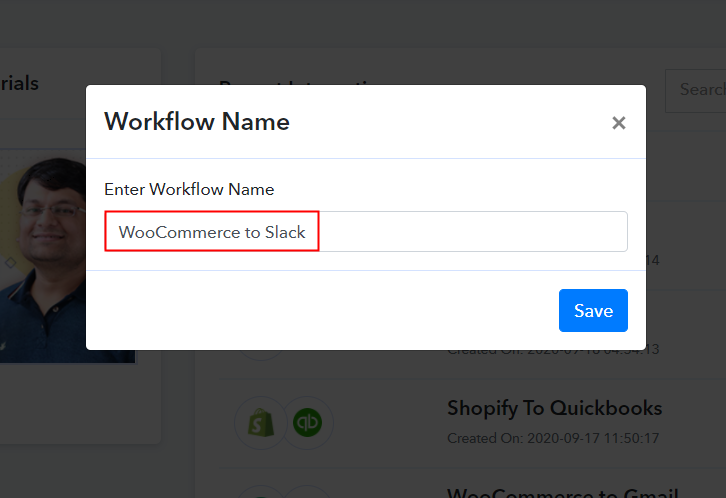
Further, add the name of workflow which in our case is “WooCommerce to Slack”. Nevertheless, you can always name the workflow according to your requirements.

Step 4: Setting Trigger for WooCommerce & Slack Integration

Further, after building a workflow, you have to choose the integration app to connect your Woocommerce account to Slack. Pabbly Connect lets you integrate or connect unlimited apps within minutes, click here to grab your access to unlimited workflows.

(a) Select Application you Want to Integrate

Select WooCommerce

The next step is to choose “WooCommerce” from the dropdown, then choose the “New Order Created” option to send a message to Slack whenever a purchase happens in WooCommerce.

(b) Copy the Webhook URL

Copy the Webhook URL

The next step is to copy the webhook URL which is appearing on the dashboard.

Step 5: Connecting WooCommerce to Pabbly Connect

To send a message whenever a new sale happens in WooCommerce, you gotta paste the copied Webhook URL in the software. For that, you have to log in to your WordPress account where you have installed your Woocommerce plugin.

(a) Go to WooCommerce Settings

Go to WooCommerce Settings

After successfully logging into your WordPress account, go to the “WooCommerce” section then there click on the “Settings” option.

(b) Click on Advanced Option

Click on Advanced Option

Next, when you click on “Settings”, it will open a tab with different options. Select the “Advanced” option.

(c) Click on Webhooks Option

Click on Webhooks Option

Next, when you click on “Webhooks”, it will open a new tab with a certain option. Just click on the “Add Webhook” option to paste the Webhook URL.

(d) Add Webhook

Add Webhook

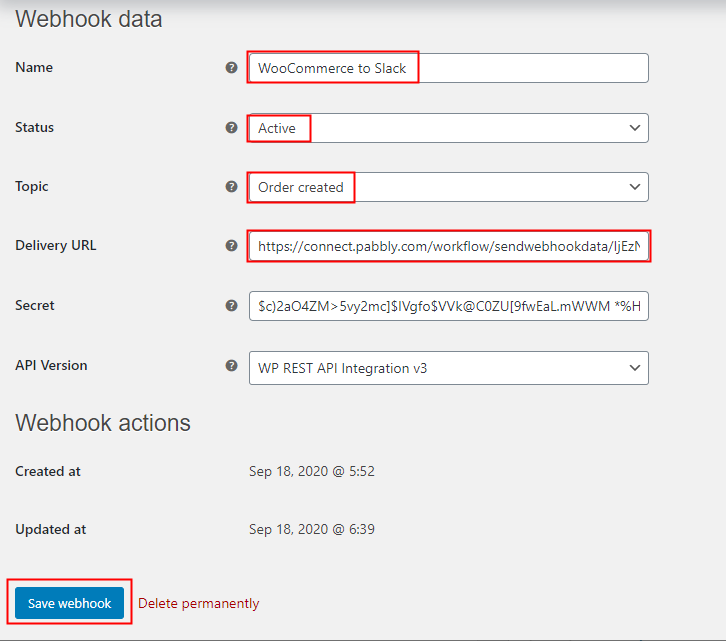
Now, name the Webhook according to your need. Make sure that status should be “Active” and in the topic section, select “Order Created”. Then in the delivery URL, paste your copied URL from Pabbly Connect. After making all changes, click the “Save Webhook” button.

(e) Make a Test Purchase

Make a Test Purchase

Open the product checkout in a new tab and make a dummy purchase. Just fill all the details, hit the “Place Order” button. But before hitting the button, make sure to click “Capture Webhook Response” in the Pabbly Connect dashboard.

Step 6: Test the Response in Pabbly Connect Dashboard

Test the Response

As soon as you hit the “Place Order” button, the entry will appear on the “Pabbly Connect” dashboard. Simply click on the “Save” option.

Step 7: Setting Action for WooCommerce & Slack Integration

To make this WooCommerce Slack integration work, you have to choose the action for your trigger.

(a) Select Application you Want to Integrate

Select Slack

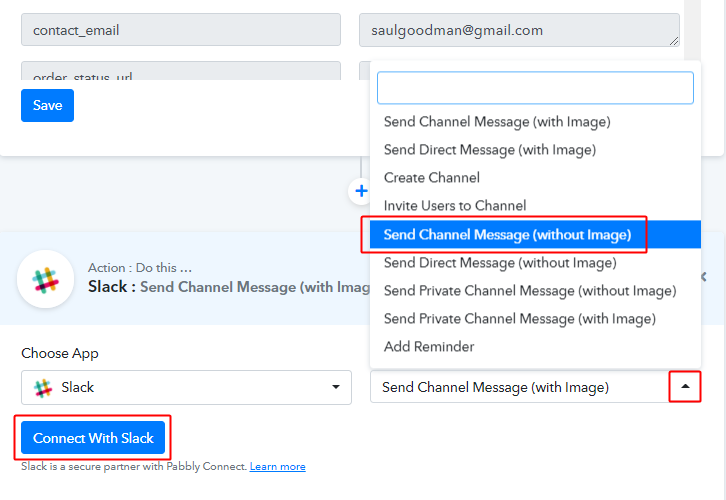
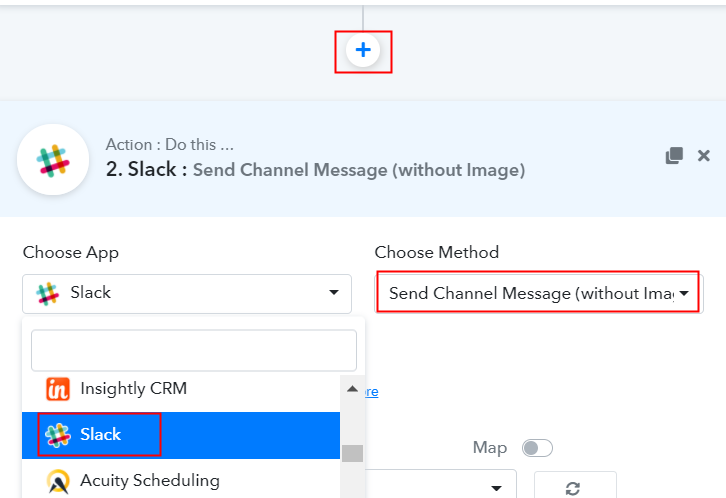
Further, click on the “+” icon to add an action for your trigger. Here we are going to select “Slack” from the dropdown. Then, select the “Send Channel Message (without Image)” option.

(b) Click the Connect Button

Click the Connect Button

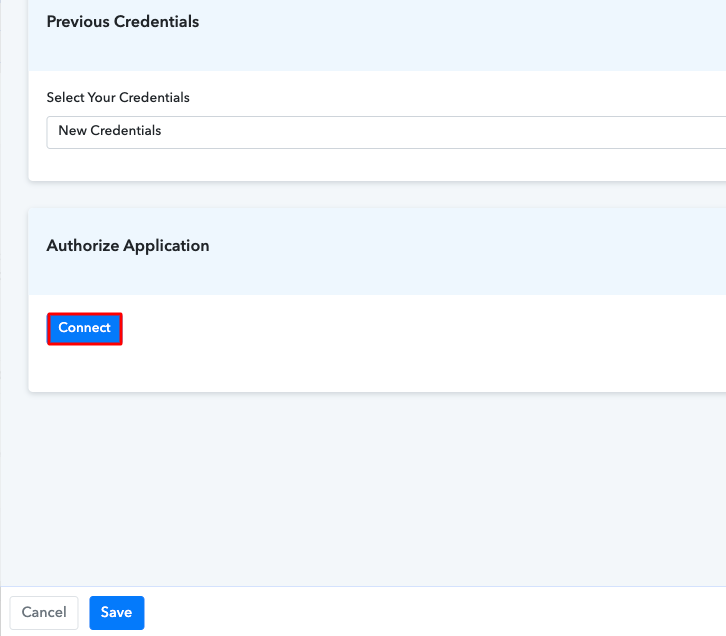
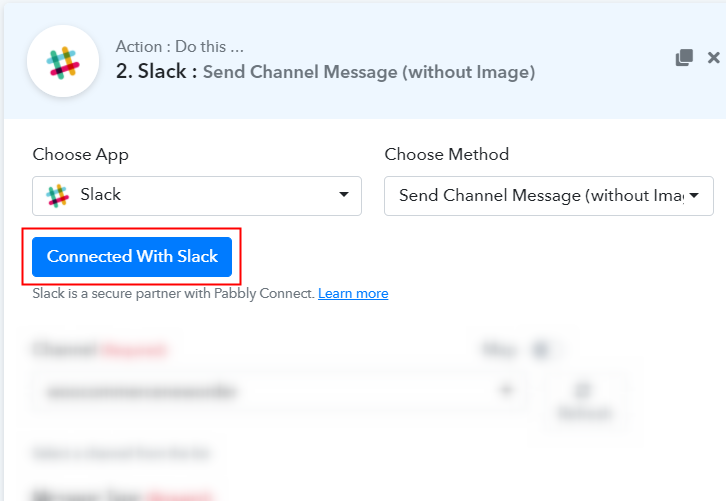
Now, after making all the necessary changes, click on the “Connect with Slack” button. Further, it will ask for account authorization for which you have to log in to the Slack account.

(c) Add Field Data

Add Field Data

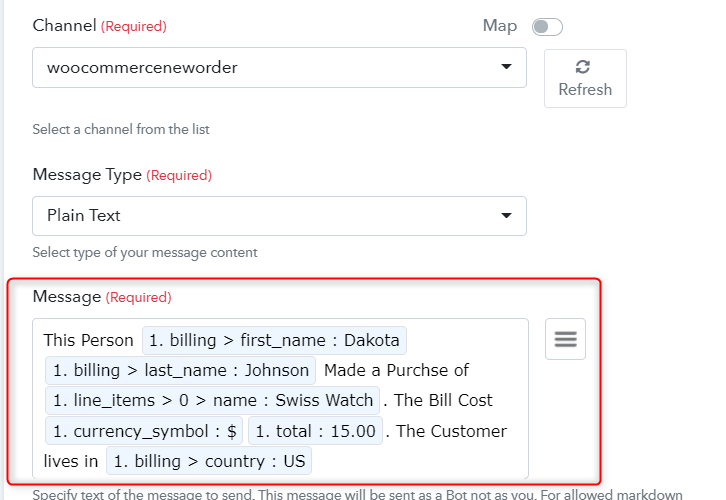
Further, select the channel which in our case is “woocommerceneworder”. Keep message type to be plain text. Now, all you have to do is add the message which you want to send on your Slack channel.

(d) Save and Send Test Request

Save and Send Test Request

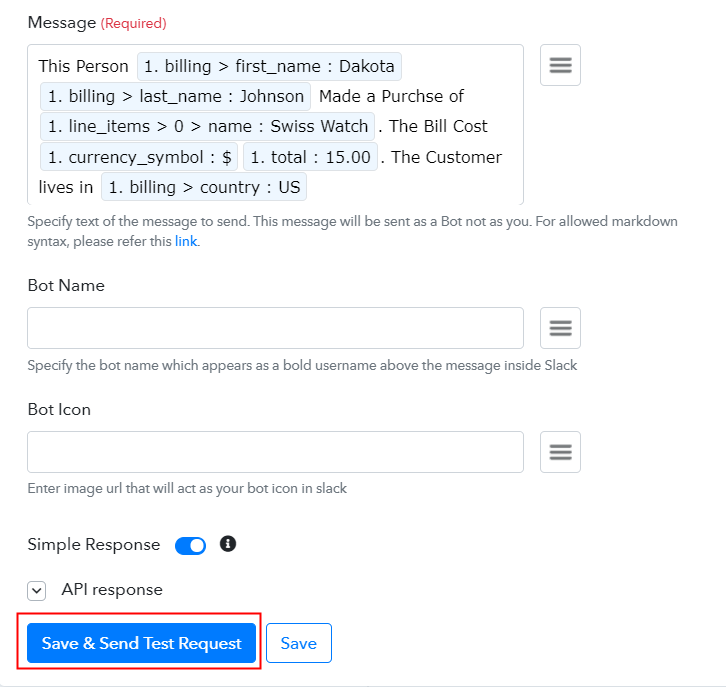
After making all the changes, save the setting and then “Send Test Request”.

Step 8: Check the Response

Check the Response

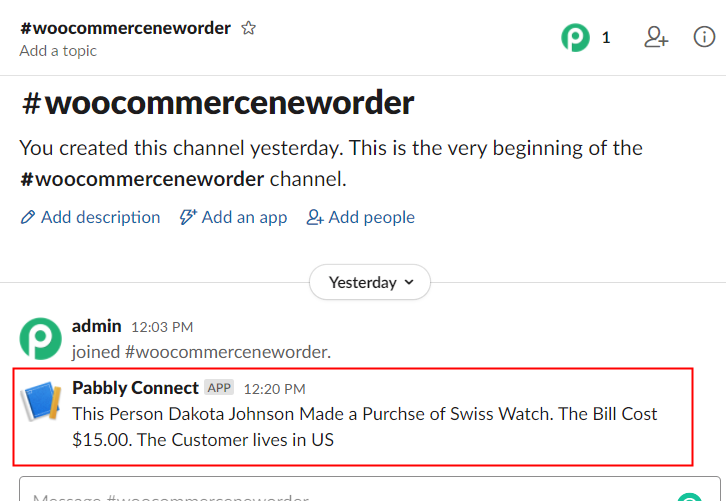
Lastly, when you check the Slack, the entered message will be there.

Now you know how to send Slack message for new WooCommerce orders. This is a one-time process, after this every time when purchase happens, the message will get append in the Slack channel.

Conclusion –

Alright! Here we have saved you from all the overwhelming process of connecting different applications.  With Pabbly Connect, you can integrate the unlimited application in a matter of time without doing any technical stuff. Just follow all the above-mentioned steps and you’re good to go.

So, don’t waste any more time, go and grab your access by signing up for a free account.

You May Also Like to Read –

How to Transfer Razorpay Payment Details Automatically to Google Spreadsheet

How to Transfer Razorpay Payment Details Automatically to Google Spreadsheet

Searching for ways to transfer Razorpay payment details automatically to Google Spreadsheet? Then, you don’t have to look any further, as here you will get a step by step guide to do so using Pabbly Connect.

How to Transfer Razorpay Payment Details Automatically to Google Spreadsheet

In this blog, we are going to integrate Razorpay with Google Sheets so that whenever there is a new transaction happens inside Razorpay it will automatically get updated inside Google Sheets.

Hence, to do so, we will be using an integration software named Pabbly Connect that will help you connect different software through a single interface. With this, you can create automated workflows and transmit the data between your favorite apps and services without any manual work or coding skills. Moreover, this is the only software that lets you create unlimited workflows, connect limitless applications, filters, etc., even in its free plan.

Why Choose This Method Of Integration?

In contrast with other integration services-

  • Pabbly Connect does not charge you for its in-built apps like filters, Iterator, Router, Data transformer and more
  • Create “Unlimited Workflows” and smoothly define multiple tasks for each action
  • As compared to other services which offer 750 tasks at $24.99, Pabbly Connect proffers 50000 tasks in the starter plan of $29 itself
  • Unlike Zapier, there’s no restriction on features. Get access to advanced features even in the basic plan
  • Try before you buy! Before spending your money, you can actually signup & try out the working of Pabbly Connect for FREE

Sign Up To Pabbly Connect

All you need to do is follow the steps below and your automation is set. So, let’s get started.

How to Transfer Razorpay Payment Details Automatically to Google Spreadsheet (Step by Step)

Step 1 – Sign up to Pabbly Connect

Sign Up

Firstly, visit the Pabbly Connect website and click on the Sign-up Free button. Promptly, either manually enters all the details or sign up using Gmail credentials.

Sign Up To Pabbly Connect

Step 2 – Access Pabbly Connect

All Apps - Pabbly Connect

After completing the signup process, click on the “Access Now” button of Connect.

Step 3 – WorkFlow to Integrate Razorpay & Google Sheets

(a) Create New Workflow

Create First Workflow

Let’s begin the process of creating a workflow to automatically transfer Razorpay payment details to Google Sheet by hitting the ‘Create New Workflow’ button.

(b) Name the Workflow

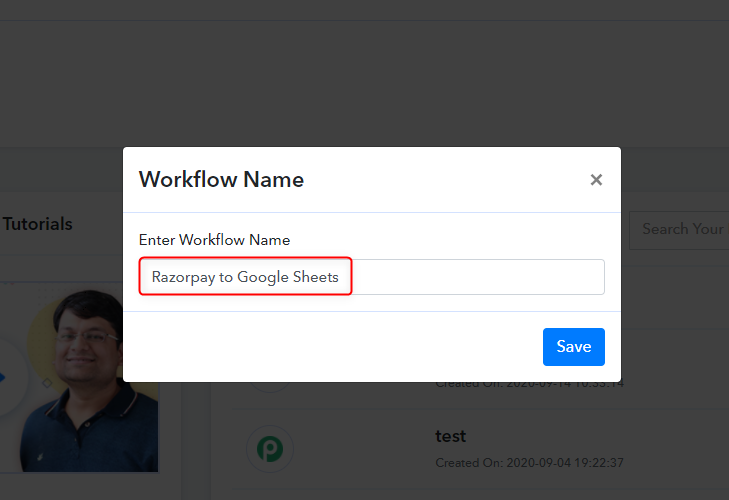
Workflow Name - Razorpay to Google Sheets

Now, named your workflow which in our case is “Razorpay to Google Sheets.”

Step 4 – Setting Trigger for Razorpay & Google Spreadsheet Integration

With Pabbly Connect, you can integrate or connect unlimited apps and create unlimited workflows, click here to claim your access to unlimited workflows. As soon as you are done with creating a workflow, you will have to select the application you want to integrate.

(a) Select Application you want to Integrate

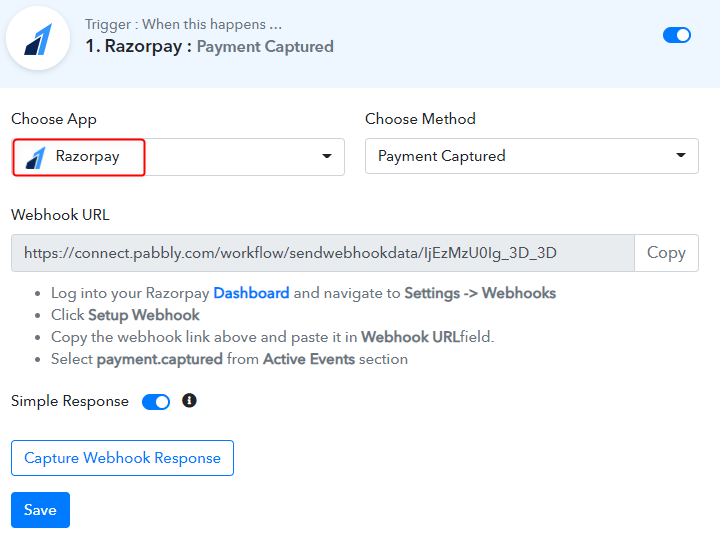
Setting Trigger - Razorpay App

Here, choose the Razorpay application from the drop-down menu and method as “Payment Captured”.

(b) Copy Webhook URL

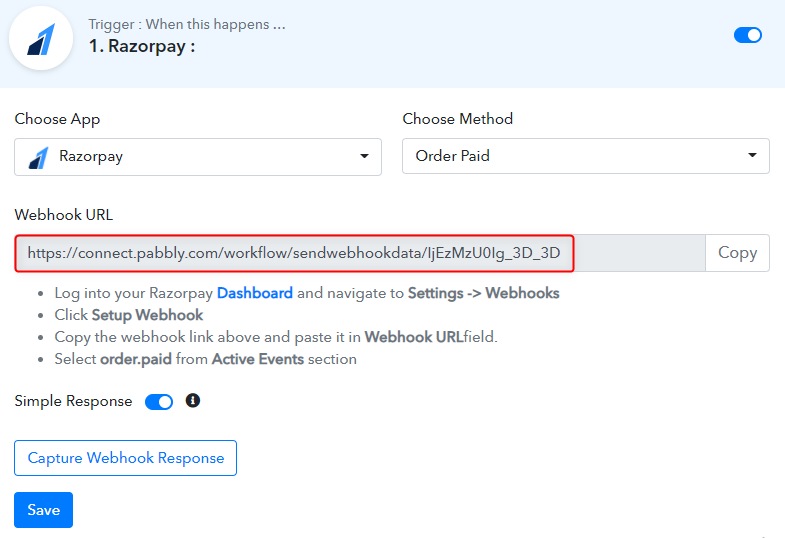
Copy Webhook URL

Now, the next step is to copy the webhook URL which is appearing on the dashboard. Then, click on the “Capture Webhook Response”.

Step 5 – Connecting Razorpay to Pabbly Connect

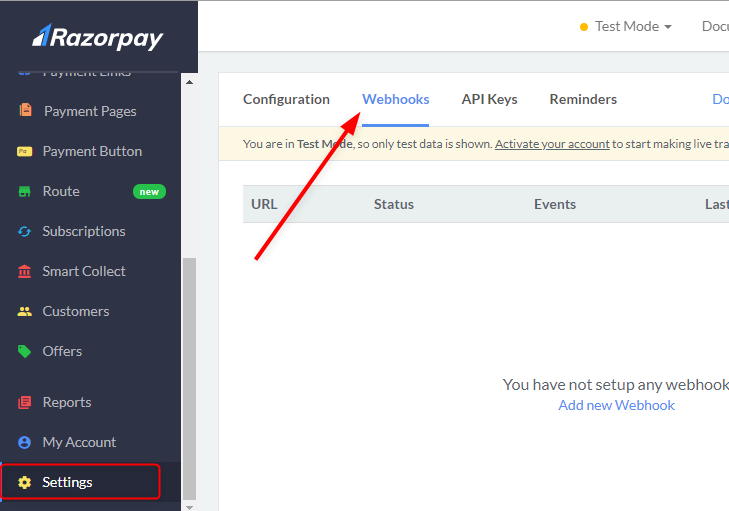
Settings

Now, go to your Razorpay account and click on the “Settings” options. As soon you click on the settings Webhooks option will appear on the menu.

(a) Setup Webhook

Webhook Setup

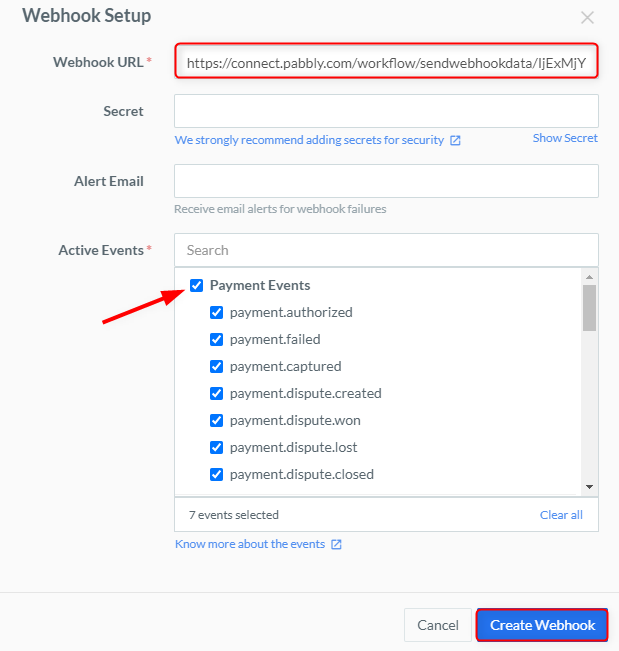
Therefore, just paste the Webhook URL, click on the “Payment Events” and create your Webhook.

(b) Open Your Payment Form

Razorpay Payment Page

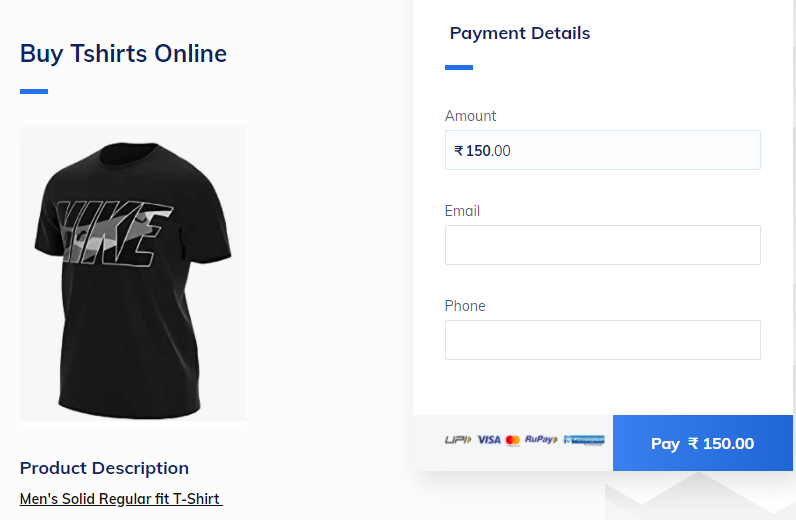
After that, open your payment page and fill all the details given in it like amount, email, phone etc. But before hitting the pay button click on the “Capture Webhook Response” button in the Pabbly Connect dashboard.

Step 6 – Test the Response in Pabbly Connect Dashboard

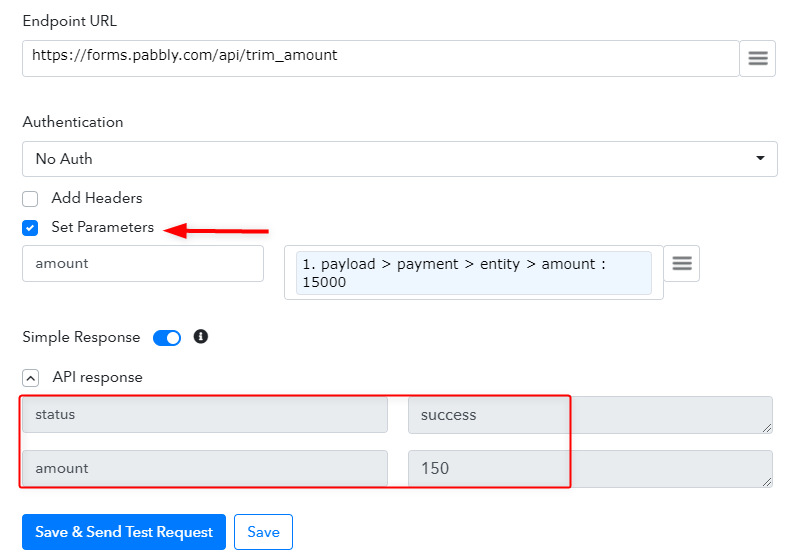
Capture Webhooks Response - Razorpay to Google SheetsAs you fill in the details, you can see that it will be shown automatically in the Pabbly Connect’s dashboard. Hereabouts, you can see that the payment amount is visible without any decimal value such as we filled amount 150 Rs in form but here it shows 15000 Rs. So, now we have to convert this amount in Rupees format using our API module.

Step 7 – Trim Amount

Trim Payment Amount

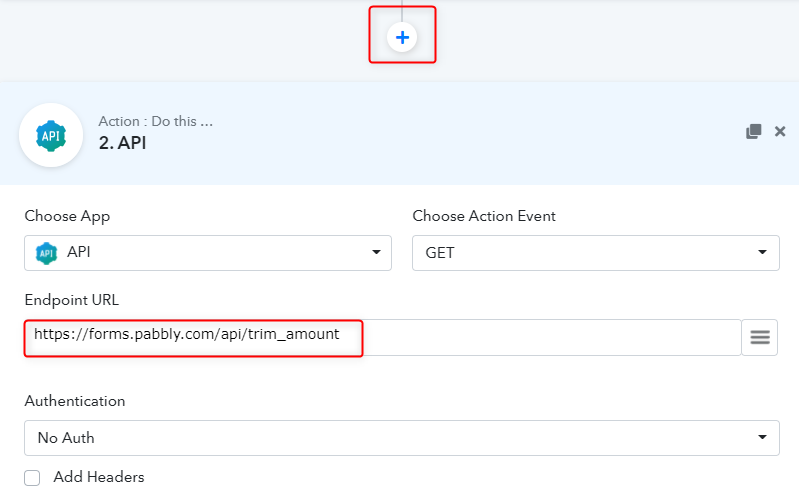
For trimming the amount click on the plus icon and add GET type of API in your workflow. You have to paste the trim amount API (https://forms.pabbly.com/api/trim_amount).

(a) Set Parameter

Set Parameters

In this step, set the parameters, map the data module, and click on the “Save & Send Test Request” button. Further, you can see that the amount is trimmed.

Step 8 – Setting Action for Razorpay & Google Sheets Integration

Here, you have to set the action for your workflow which in our case is Google Sheets.

(a) Select Application you Want to Integrate

Setting Action - Google Sheets

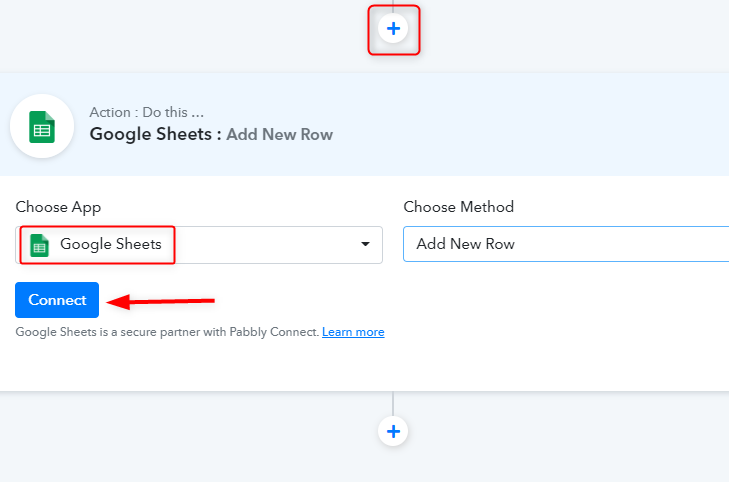
Click on the “+” icon to add an action for your trigger. Select “Google Sheets” from the drop-down list, choose the “Add New Row” option as a method, and hit the “Connect” button.

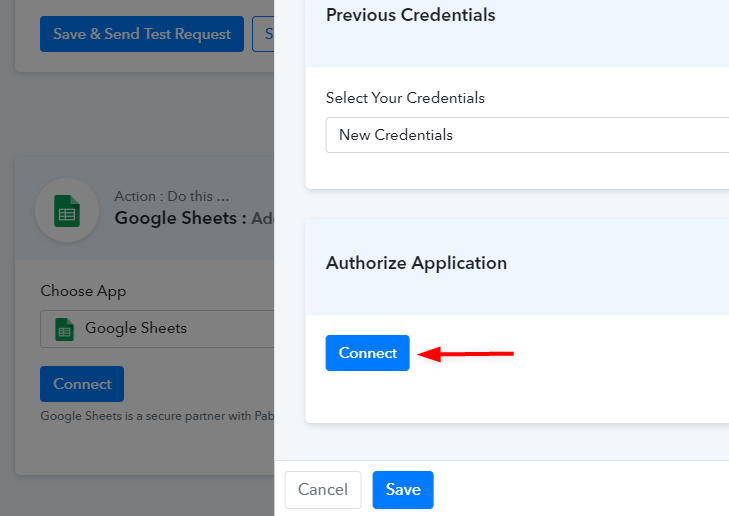
(a) Authorize your Google Sheets

Authorize Google Account - Transfer Razorpay Payment details

As soon as, you authorize your Google account and give permission to access files it automatically pulled spreadsheet headers in Pabbly Connect’s dashboard.

Step 9 – Mapping the Keys & Values

Choose Spreadsheet - Transfer Razorpay Payment details

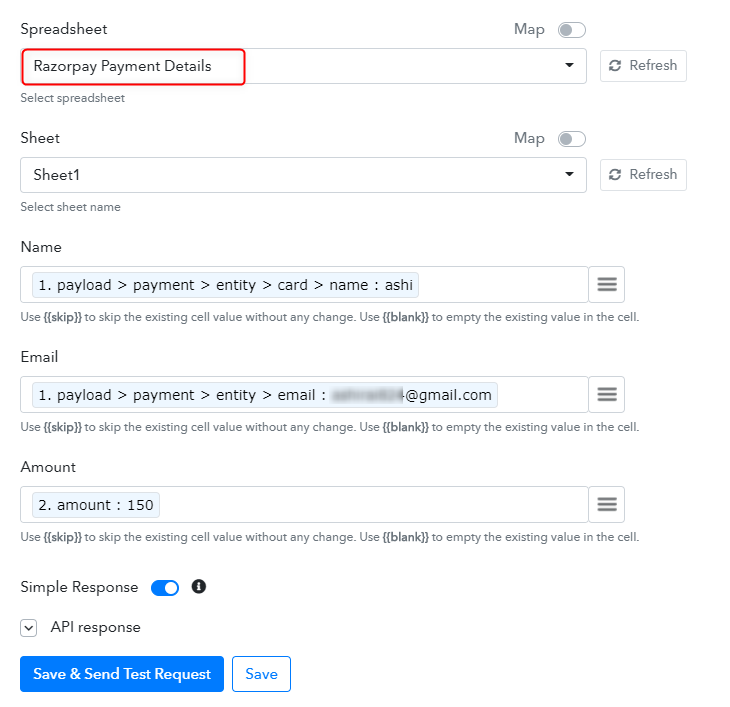
Further, select the sheet in which you want to add data which in our case is “Razorpay Payment Details”. Now, click on the three-line symbol to map the data such as email, name, amount etc according to your needs. After, doing all the changes hit the “Save & Send Test Request” button.

Step 10 – Check Response in Google Sheet

Check Submission in Google Sheet - Transfer Razorpay Payment details

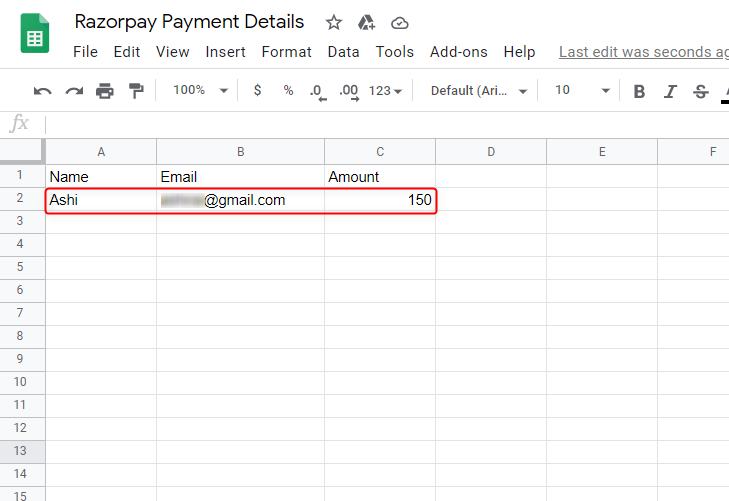
As soon as, you hit the send test request button data will appear on the Google sheet.

Wrapping Up

That’s it! now you have seen transfer Razorpay payment details automatically to Google Spreadsheet via Pabbly Connect. Not only this integration, but you can connect thousands of other applications together with the help of Pabbly Connect. Follow these simple steps and automate your projects by just signing up for a free account.

In case of any queries or suggestions, please leave your comments below.

You May Also Like To Read –

How to Add New Shopify Orders to Xero | Step by Step

How to Add New Shopify Orders to Xero

Fed up of searching for ways to add new Shopify orders to Xero? If yes, then you don’t have to look any further. Because, in this article, we will be integrating Shopify with Xero in real-time.

How to Add New Shopify Orders to Xero

Before we get started, let’s know a little bit about the software that we are about to integrate in this article. So, as the name says Shopify is an online store builder software which helps you to create an online shop. On the other hand, Xero is a business accounting software which allows you to manage accounting activities such as generating invoices, bank account balance, and many more.

Hence, integrating these two services could be very beneficial for you as it will save your time and effort by importing all the Shopify orders to your Xero account automatically.

Now, you must be thinking that exactly how is that going to happen? Well, the answer is quite simple i.e, known as Pabbly Connect.

Why Choose This Method Of Integration?

In contrast with other integration services-

  • Pabbly Connect does not charge you for its in-built apps like filters, Iterator, Router, Data transformer and more
  • Create “Unlimited Workflows” and smoothly define multiple tasks for each action
  • As compared to other services which offer 750 tasks at $24.99, Pabbly Connect proffers 50000 tasks in the starter plan of $29 itself
  • Unlike Zapier, there’s no restriction on features. Get access to advanced features even in the basic plan
  • Try before you buy! Before spending your money, you can actually signup & try out the working of Pabbly Connect for FREE

Sign Up To Pabbly Connect

Pabbly Connect is the best integration tool available in the market which can help you integrate thousands of applications, set countless triggers & actions, create infinite workflows, and so much more in real-time. Furthermore, in order to do that there is no coding skill required. All you need to do is integrate it once and relax, it will manage all the redundant work afterwards.

Therefore, without wasting any more time, let me take you through the steps to add new Shopify orders to Xero automatically.

Step 1: Sign up to Pabbly Connect

Sign Up

Let’s begin the process to add new Shopify orders to Xero by pressing the “Sign Up Free” icon on the Pabbly Connect dashboard. Besides,  either you can manually enter the entire details or else sign up using your Gmail account.

Try Pabbly Connect for FREE

Step 2: Access Pabbly Connect

Select Connect

After signing into the account, press the “Access Now” button of the Connect section to access Pabbly Connect software.

Step 3: WorkFlow to Add New Shopify Orders to Xero

(a) Start with a New Workflow

Create New Workflow

Here, you have to click on the button named “Create New Workflow” in order to start the integrate Shopify with Xero.

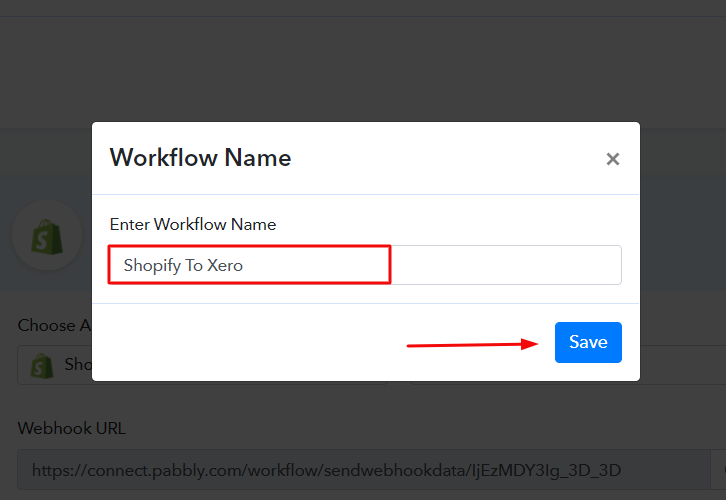
(b) Name the Workflow

Name the Workflow to Add New Shopify Orders to Xero

The next step is to name the workflow as per your requirements. As here, I have named the workflow as Shopify to Xero.

Step 4: Setting Trigger to Integrate Shopify with Xero

Once the workflow is created, now its time to choose the application you want to integrate. Pabbly Connect helps you to connect unlimited apps in real-time, click here to try it out for free.

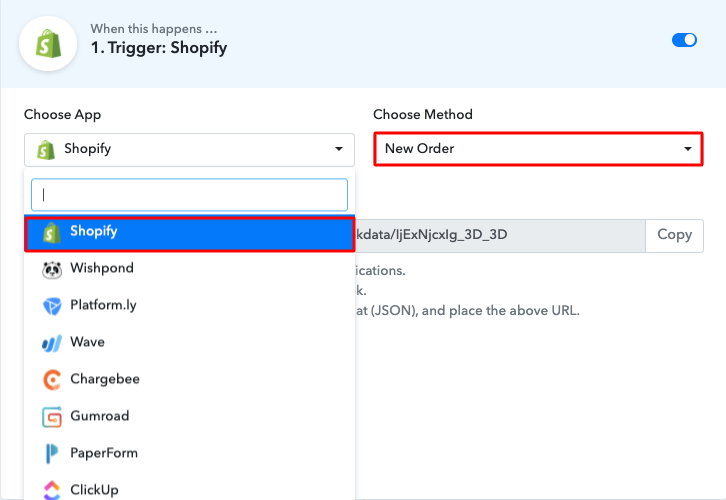
(a) Select Application you Want to Integrate

Select Shopify

Now, choose the application that you want to integrate as well as the Method. Here, I am selecting Shopify for integration and “New Order” option as a method.

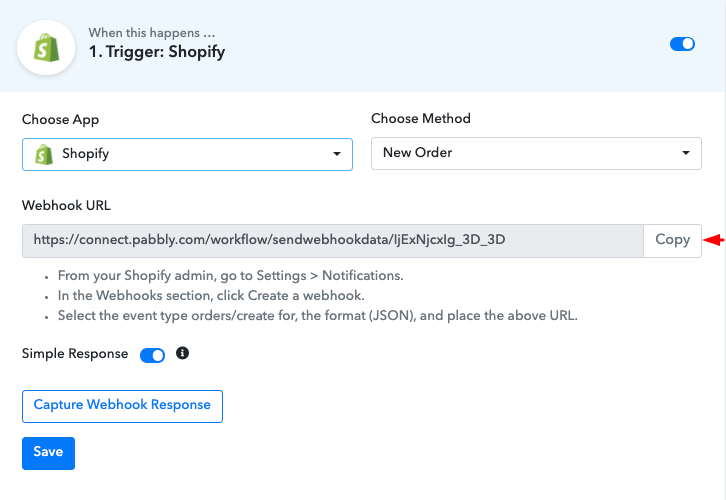
(b) Copy the Webhook URL

Copy Webhook URL

Afterward, just copy the webhook URL and press the button named “Copy” to take further the integration process.

Step 5: Connecting Shopify to Pabbly Connect

The subsequent step is to paste the copied webhook URL in your Shopify account’s settings section. Hence, to do that log in to your Shopify account to move forward.

(a) Click on Settings

Click on Settings

Once you log in to your Shopify account, click on the “Settings” option at the bottom of the screen, as we did.

(b) Select Webhook

Create Webhook

After you reach the settings page, simply tap on notifications and scroll down the page. There you will find a webhooks option saying the “Create Webhook” button just tap on that.

(c) Paste the URL

Paste the Webhook

After pressing the button, you will see a screen pop-up where you need to paste your copied webhook URL. Simply select “Order creation” from the event section and hit on the “Save Webhook” button.

Step 6: Make a Purchase to Test Shopify Integration

Make a Purchase to Test Shopify Integration

Subsequently, to test the integration among Shopify & Pabbly Connect, you just need to make a dummy purchase in your Shopify account of any specific product. Then, enter all the required details and hit the “Pay Now” button. Once you make the purchase, just go to the Pabbly Connect dashboard and hit the button named “Capture Webhook Response”.

Step 7: Test the Response in Pabbly Connect Dashboard

Test the Response in Pabbly Connect Dashboard

After clicking on the capture webhook response button,  all the submitted entries will get captured in just a few seconds. Succeedingly hit on the “Save” button to continue the workflow.

Step 8: Setting Action for Shopify & Xero Integration

Moving on, to set an action for your trigger, you have to select the application you wish to integrate i.e, Xero.

(a) Select Application you Want to Integrate

Setting Action for Shopify & Xero Integration

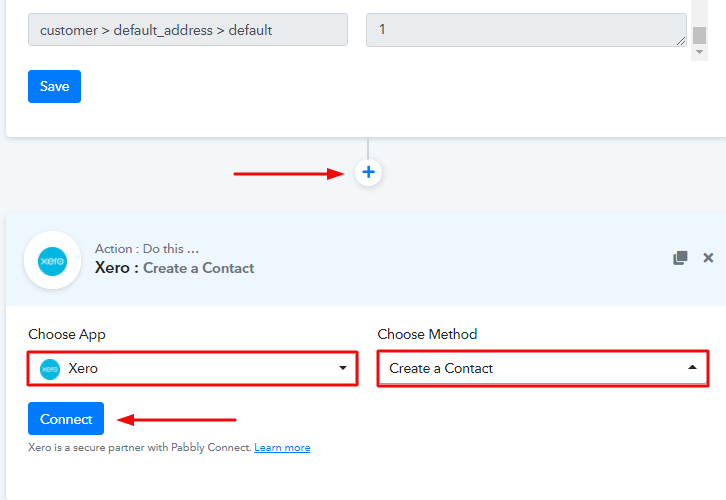
Furthermore, in order to add new Shopify orders to Xero, you need to hit the “(+)” button. Moreover, choose Xero from the drop-down option along with the method named “Create a Contact”. Then, press the button named “Connect”.

(b) Click on “Connect”

Authorize Application for Facebook Lead Ads Integration

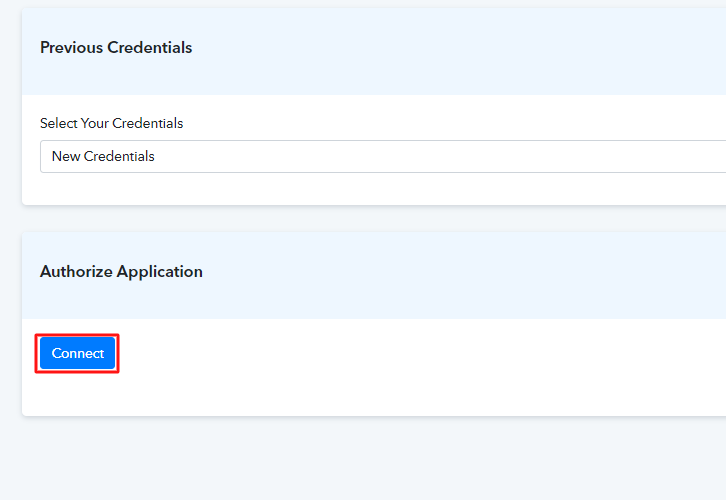
Now, to connect with Xero, you just need to tap on the “Connect” button. A few moments later, a window will pop-up asking you to select/fill a Google Account that you want to connect the Xero & Pabbly Connect.

Step 9: Fill up All the Fields

Fill up All the Fields

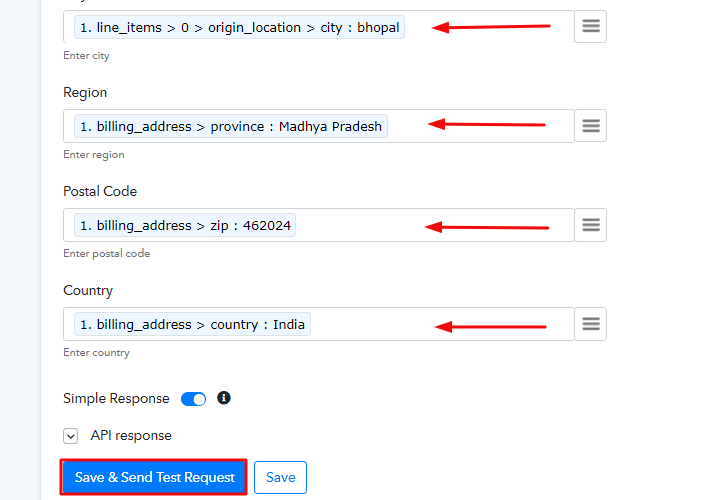
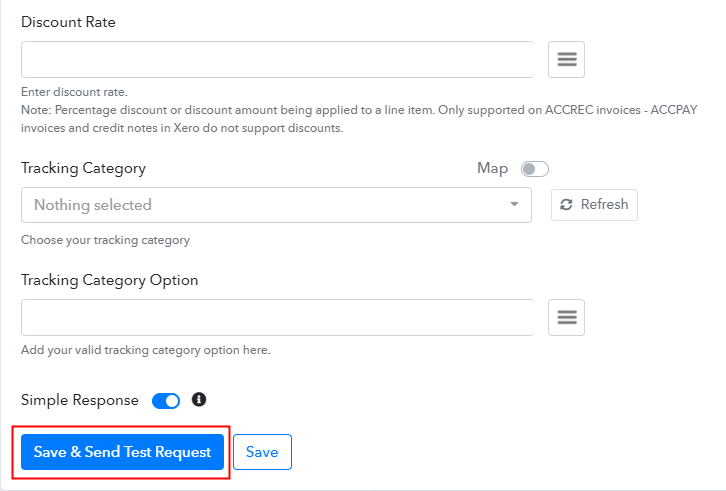
After connecting your Xero account, just enter all the required fields manually. Further, after you complete entering all the details, just tap the “Save & Send Test Request” button in order to complete the entire procedure.

Step 10: Check the Xero Account

Check the Xero Account

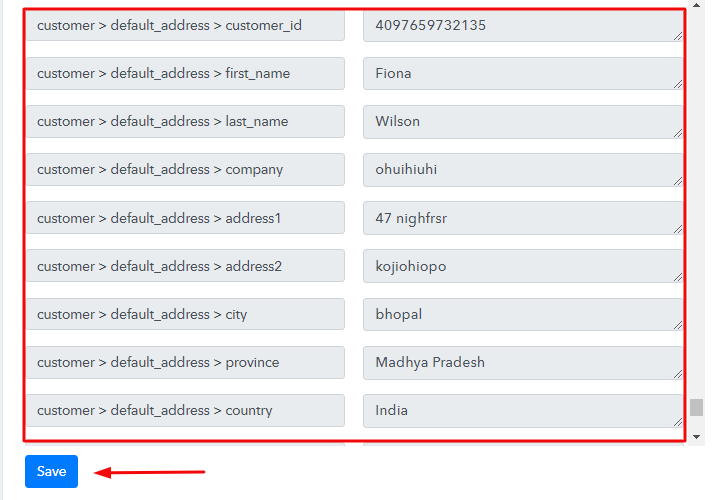
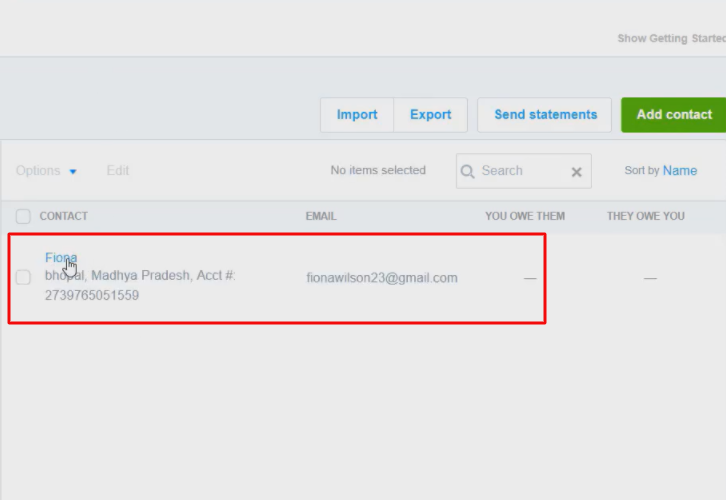
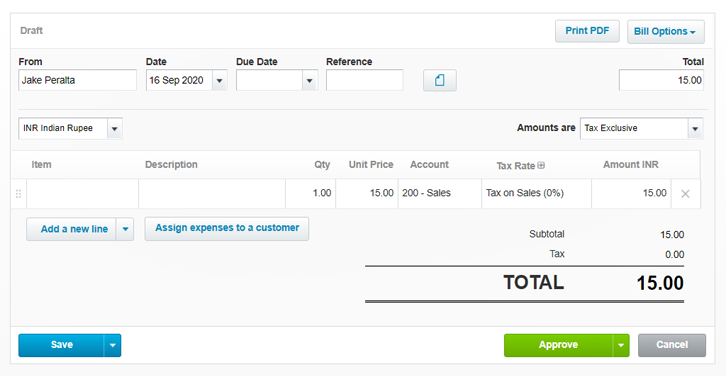
Voila! Now, as you can see that all the order details are now visible in your Xero account & your automation is now set.

Conclusion –

To put in a nutshell, here we have explained the entire procedure that how you can add new Shopify orders to Xero using an automation tool i.e, Pabbly Connect. Moreover, the procedure is quite simple & you have to do it only once. So go ahead and create your account for free.

We hope the process was clear to you guys. However, in case you have any doubts, don’t forget to write to us in the comment section below.  We’ll get back to you ASAP.

You May Also Like to Read –
How to Create Xero Invoices for New WooCommerce Orders

How to Create Xero Invoices for New WooCommerce Orders

Tired of searching for a way to create Xero invoices for new WooCommerce orders? If so, then here you can sigh in relief as we are going to reveal how to integrate Xero with WooCommerce in real-time.

How to Create Xero Invoices for New WooCommerce Orders

But before jumping on that, let’s understand why there is a need of connecting WooCommerce with Xero. WooCommerce is a WordPress plugin that lets you manage the eCommerce platform without any difficulty.  Whereas Xero is a business accounting software that looks out for other accounting  activities like generating an invoice,  bank account balance, and much more.

Many times we want to send an invoice to customers instantly as soon as the order is placed. But doing it manually consumes times so we search for software that can connect WooCommerce to Xero for creating invoice whenever a sale happen.

Why Choose This Method Of Integration?

In contrast with other integration services-

  • Pabbly Connect does not charge you for its in-built apps like filters, Iterator, Router, Data transformer, and more
  • Create “Unlimited Workflows” and smoothly define multiple tasks for each action
  • As compared to other services which offer 750 tasks at $24.99, Pabbly Connect proffers 50000 tasks in the starter plan of $29 itself
  • Unlike Zapier, there’s no restriction on features. Get access to advanced features even in the basic plan
  • Try before you buy! Before spending your money, you can actually signup & try out the working of Pabbly Connect for FREE

Sign Up To Pabbly Connect       

So here we are saving you from a  lot of trouble by suggesting software named Pabbly Connect that allows you to integrate both software in a matter of time.

Pabbly Connect makes business automation a walk-in park by letting you create seamless workflows without the need of any technical knowledge. Using the software one can transfer data in real-time. Not only this, but it is also packed with features like unlimited applications, filters, and much more even in its free plan.

Here, in this article, we will understand how to create Xero invoices for new WooCommerce orders using an automation tool i.e Pabbly Connect.

How to Create Xero Invoices for New WooCommerce Orders (step by step)

So, let’s start the integration process.

Step 1: Sign up to Pabbly Connect

Sign Up

Start the process of connecting WooCommerce to Xero by clicking on the “Sign Up Free” icon on the Pabbly Connect dashboard. Further, either manually fill-up all the details or sign up using Gmail credentials.

Try Pabbly Connect for FREE

Step 2: Access Pabbly Connect

Select Connect

Further, after logging into the account, click on the “Access Now” button of Connect.

Step 3: WorkFlow for WooCommerce to Xero Integration

(a) Start with a New Workflow

Create New Workflow

Start the process of creating a workflow for creating an invoice from WooCommerce to Xero by clicking the “Create New Workflow” button.

(b) Name the Workflow

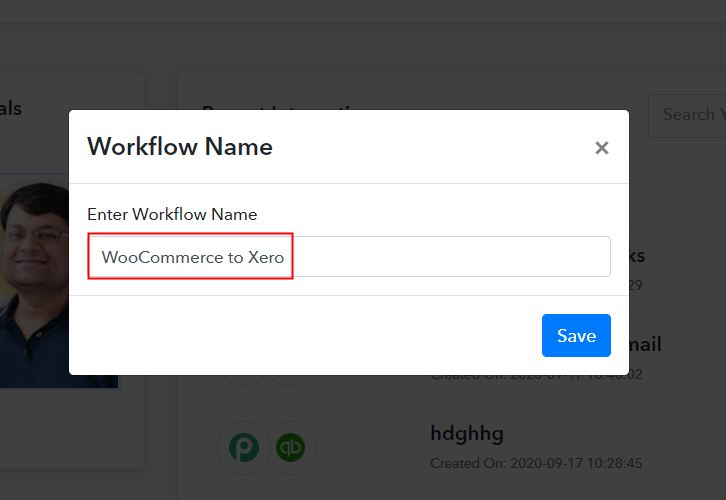
Name the Workflow

Further, add the name of workflow which in our case is “WooCommerce to Xero”. Nevertheless, you can always name the workflow according to your requirements.

Step 4: Setting Trigger for WooCommerce & Xero Integration

Further, after building a workflow, you have to choose the integration app to connect your Woocommerce account to Xero. Using Pabbly Connect one can integrate or connect unlimited apps, click here to claim your access to unlimited workflows.

(a) Select Application you Want to Integrate

Select WooCommerce

The next step is to choose “WooCommerce” from the dropdown, then choose the “New Order Created” option to create an invoice whenever a purchase happens in WooCommerce.

(b) Copy the Webhook URL

Copy the Webhook URL

The following step is to copy the webhook URL which is appearing on the dashboard.

Step 5: Connecting WooCommerce to Pabbly Connect

To create an invoice whenever a new sale happens in WooCommerce, you gotta paste the copied Webhook URL in the software. For that, you have to log in to your WordPress account where you have installed your Woocommerce plugin.

(a) Go to WooCommerce Settings

Go to WooCommerce Settings

After successfully login into your WordPress account, head to the “WooCommerce” section then there click on the “Settings” option.

(b) Click on Advanced Option

Click on Advanced Option

Next, when you click on “Settings”, it will lead to a tab with different options. Select the “Advanced” option.

(c) Click on Webhooks Option

Click on Webhooks Option

Next, when you click on “Webhooks”, it will take you on a new tab with a certain option. Just click on the “Add Webhook” option to paste the Webhook URL.

(d) Add Webhook

Add Webhook

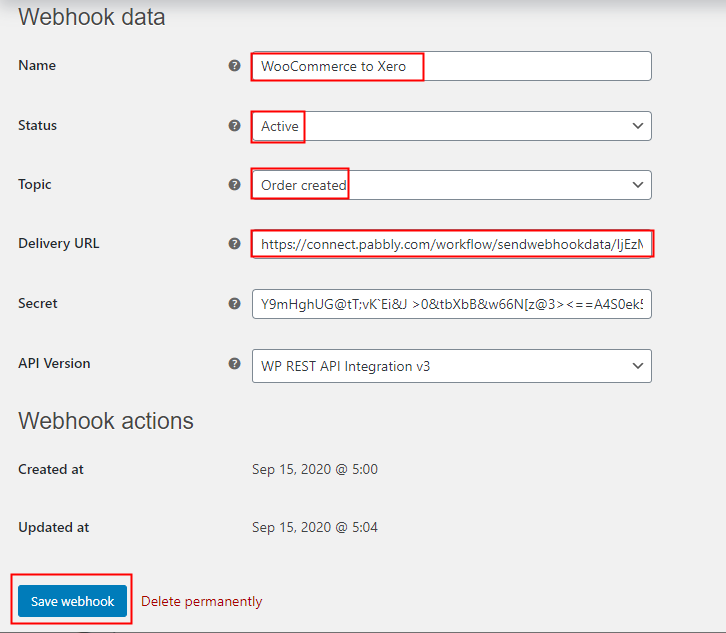
Now, name the Webhook according to your need. Make sure that status should be “Active” and in the topic section, select “Order Created”. Then in the delivery URL, paste your copied URL from Pabbly Connect. After making all changes, click the “Save Webhook” button.

(e) Make a Test Purchase

Make a Test Purchase

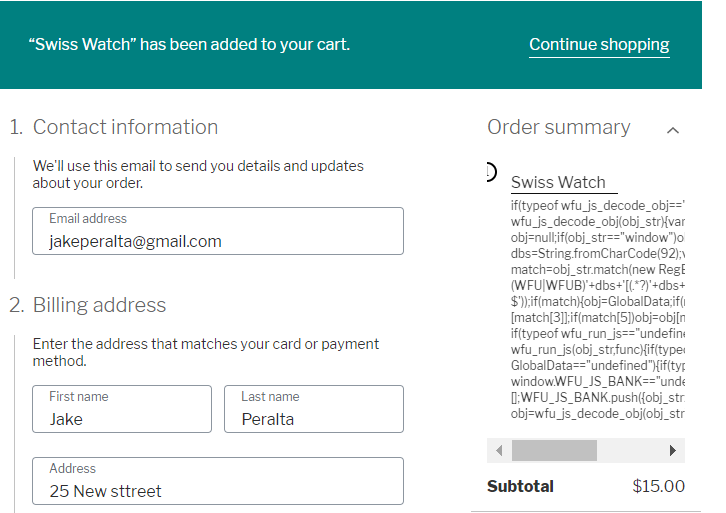
Open the product checkout in a new tab and make a dummy purchase. Just fill all the details, hit the “Place Order” button. But before hitting the button, make sure to click “Capture Webhook Response” in the Pabbly Connect dashboard.

Step 6: Test the Response in Pabbly Connect Dashboard

Test the Response

As soon as you hit the “Place Order” button, the entry will appear on the “Pabbly Connect” dashboard. Simply click on the “Save” option.

Step 7: Setting Action for WooCommerce & Xero Integration

To make this WooCommerce Xero integration work, you have to choose the action for your trigger.

(a) Select Application you Want to Integrate

Select Xero

Further, click on the “+” icon to add an action for your trigger. Here we are going to select “Xero” from the dropdown. Then, select the “Create an Invoice” option.

(b) Click the Connect Button

Click the Connect Button

Now, after making all the necessary changes, click on the “Connect with Xero” button. Further, it will ask for account authorization for which you have to log in to Xero account.

(c) Add Field Data

Map Field Data

Further, it will automatically fetch the data of the organization and type after successful login. Now, all you have to do is add the required field from drop-down such as for the email field, select the email option, and for the name field select the name option.

(d) Save and Send Test Request

Save and Send Test Request

After making all the changes, save the setting and then “Send Test Request”.

Step 8: Check the Response

Check the Response

Lastly, when you check the Xero bills, the entered customer’s invoice gets automatically drafted in software.

Now you know how to create Xero invoices for new WooCommerce orders. This is a one-time process, after this every time when purchase happens, the customer’s invoice will get append in business accounting software.

Conclusion –

Okay! Now you know how easy is to create Xero invoices for new WooCommerce orders. All you have to do is follow all the above-mentioned steps and you can easily connect WooCommerce to business accounting software i.e Xero. With the help of a business automation tool, you can avoid manual hard work and increase your work efficiency. And in such cases, software like Pabbly Connect can be a great help that allows you to connect create unlimited workflows.

So, don’t wait anymore. Go and grab your access by signing up for a free account.

You May Also Like to Read –
How to Send Text Messages Directly from Google Sheets

How to Send Text Messages Directly from Google Sheets

Do you ever think about if there is any way through which you can send text messages to your contacts from Google Sheets directly without even using a mobile phone?

How to Send Text Messages Directly from Google Sheets

Well, you don’t have to be surprised to know that there is a way through which you can send bulk SMS to Google Sheet contacts directly, without investing a lot of time. We have a magic tool for all your projects called Pabbly Connect. This software allows you to integrate two or more than two applications to automate the entire workflow without any coding skills.

Why Choose This Method Of Integration?

In contrast with other integration services-

  • Pabbly Connect does not charge you for its in-built apps like filters, Iterator, Router, Data transformer, and more
  • Create “Unlimited Workflows” and smoothly define multiple tasks for each action
  • As compared to other services which offer 750 tasks at $24.99, Pabbly Connect proffers 50000 tasks in the starter plan of $29 itself
  • Unlike Zapier, there’s no restriction on features. Get access to advanced features even in the basic plan
  • Try before you buy! Before spending your money, you can actually signup & try out the working of Pabbly Connect for FREE

Sign Up To Pabbly Connect

Apart from the integrations, Pabbly Connect also comes with so many great and helpful features:

  • Create unlimited workflows without any restrictions
  • Unlimited premium apps
  • Set unlimited triggers, unlimited actions to those triggers
  • Path Routers

and the best part is that you can access all the features even with the free plan.

After this integration with Google Sheet, you can easily send bulk text messages to your Google Sheet contacts with just a few clicks. Hence, let’s not waste anymore of your time and get into the blog about how to send text messages directly from Google Sheets.

Step 1 : Sign up to Pabbly Connect

Sign Up

Let’s begin the integration process by signing up for Pabbly Connect. Quickly fill in the details manually or sign-up via your Google account.

Try Pabbly Connect for FREE

Step 2 : Access Pabbly Connect

Select Connect

Once you have completed the signup process, click on the Connect section in the dashboard to access Pabbly Connect.

Step 3 : WorkFlow for SMS Text Messages to Google Sheet Contacts

(a) Create New Workflow

Create New Workflow

Start with creating a workflow for your project by clicking on the ‘Create New Workflow’ button.

(b) Name the Workflow

How to Send Text Messages Directly from Google Sheets

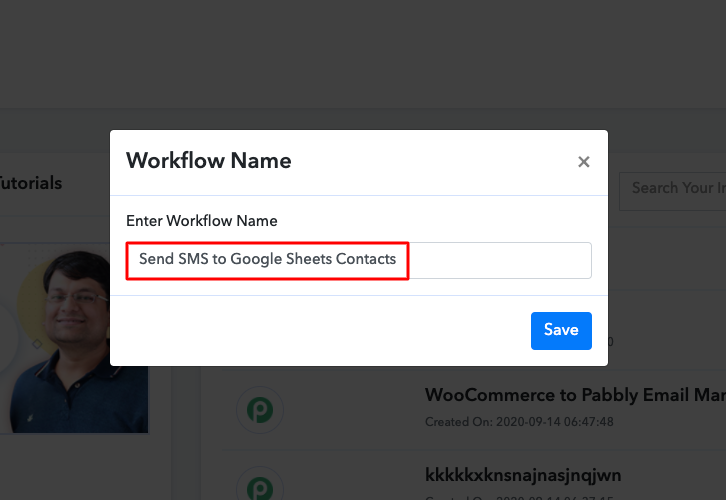
Now, you need to name the workflow just like in the above-shown image. I named the workflow as “Send SMS to Google Sheet Contacts”, you can obviously name the workflow as per your requirements and needs.

Step 4 : Setting Triggers for SMS Text Messages to Google Sheet Contacts

As soon as you are done with creating a workflow, you will have to select the application you want to integrate. Using Pabbly Connect, you can integrate any two or more than two applications, create your free account now.

(a) Select Application you want to Integrate

How to Send Text Messages Directly from Google Sheets

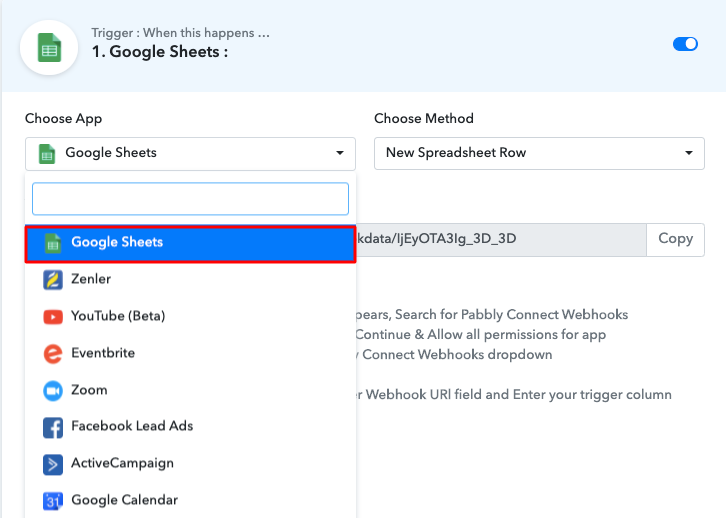
Now, you have to select the application that you want to integrate. In this case, we are choosing “Google Sheets” for integration. After selecting Google Sheets, choose “New Spreadsheet Row” in the method section.

(b) Copy the Webhook URL

How to Send Text Messages Directly from Google Sheets

After selecting the application, now you have to copy the webhook URL just like in the above-shown image to take further the integration process.

Step 5 : Connecting Google Sheets to Pabbly Connect

To connect with Google Sheets, you have to paste the copied Webhook URL in your Google Sheet Add-ons section.

(a) Click on Add-ons

How to Send Text Messages Directly from Google Sheets

Go to your Google Sheet that you want to integrate and click on the “Add-ons” option above and then select the add-ons. We have selected “Pabbly Connect Webhooks” and if you don’t have them, then you can also install the add-ons from “Get add-ons” section. After this, select the “Initial Setup” option to paste the webhook URL.

(b) Paste the Webhook URL

Paste the Url

After selecting the “Initial Set-up” paste the copied webhook URL. Once you have pasted the URL, now you have to mention the trigger column and then click on the “Send Test” button.

Step 6 : Test the Submission in Pabbly Connect Dashboard 

Capture Webhook Response

To test the Google Sheet data you have to click on “Capture Webhook Response” in Pabbly Connect. As soon as you click on the “Send Test” in Google Sheet and “Capture Webhook Response” in Pabbly Connect the entry will appear on the Pabbly Connect dashboard. Then, click on the “Save” option.

Step 7 : Setting Action for SMS Text Messages to Google Sheet Contacts

In this step, we will be adding an action for your trigger.

(a) Select Application you want to Integrate

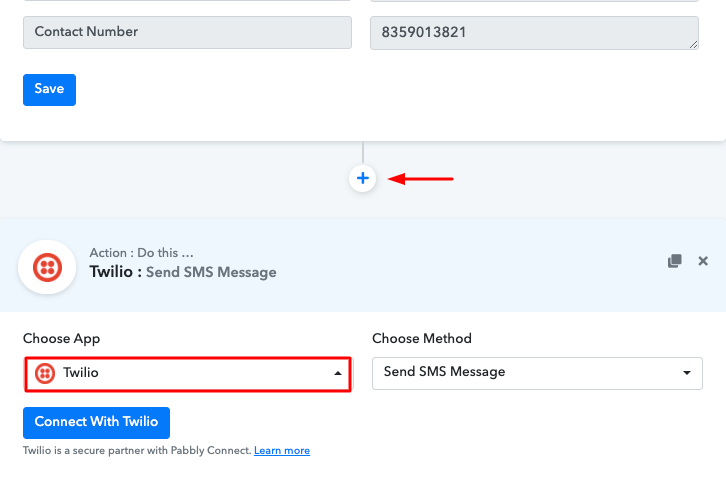
Select Twilio

Now in this step, click on the + button below and choose any of the SMS sending application that you want to integrate. Here we have chosen “Twilio” to integrate.

(b) Click on Connect Button

Click on Connect Button

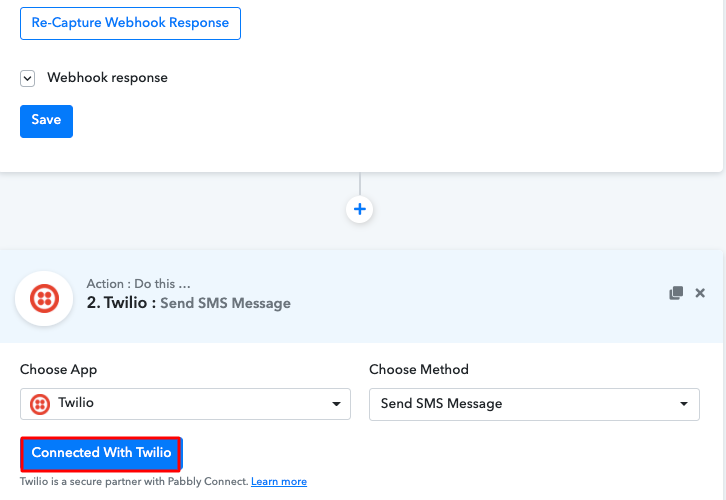
After choosing the application click on the “Connected with Twilio” button to move forward.

Step 8 : Connecting Twilio to Pabbly Connect

To connect Twilio to Pabbly Connect, you have to enter the account SID and authorization token of your Twilio account in the Pabbly Connect dashboard. For this, you have to log in to your Twilio account.

(a) Copy Authorization Token

Copy Account SID

Now, you have to click on “Setting” in your Twilio dashboard to copy the account SID and authorization token. After clicking on “Settings” click on “General”, here you will find the required details. Simply copy these details to move further.

(b) Add Account SID and Authorization Token

Paste the API Key

Simply paste the account SID and authorization token in the Pabbly Connect dashboard and then click on the “Save” button.

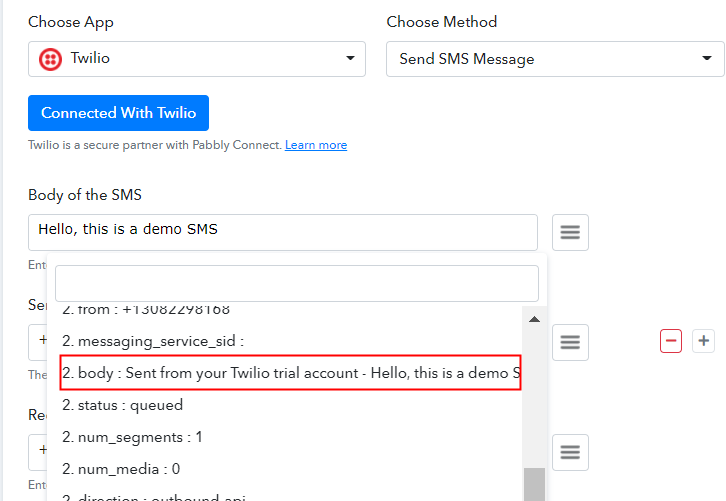
(c) Map the Fields

Map the Feilds

After saving your workflow map up all the required fields.

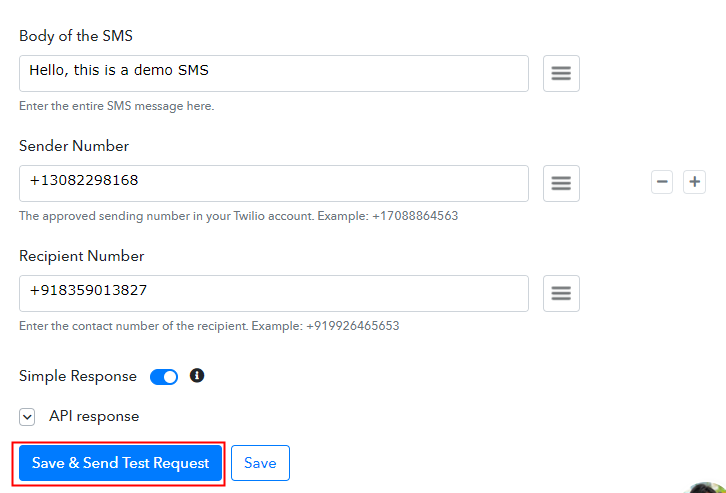
(d) Send a Test Request

Test Request

Once you are done mapping up all fields click on the “Send Test Request” button.

How to Send Text Messages Directly from Google Sheets

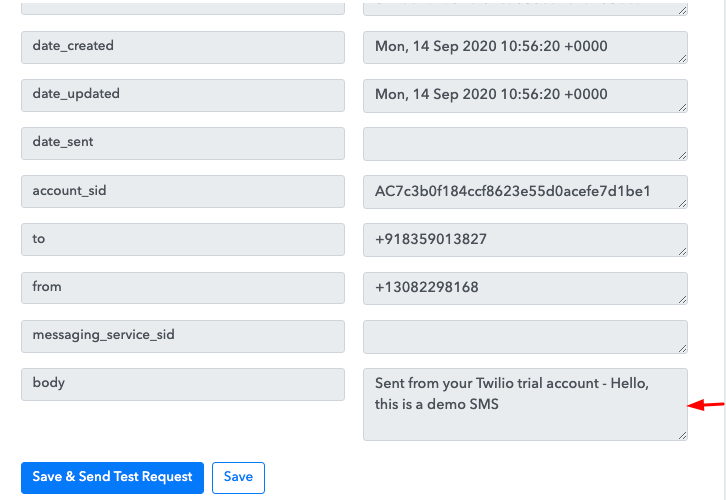
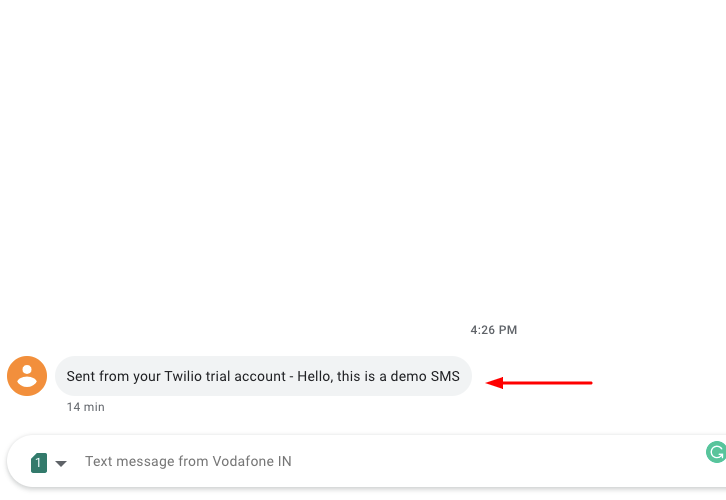
You can see as you send a test request, the SMS is delivered to the recipient picked from the Google Sheet. Now, whenever you want to send SMS automatically to bulk recipients you can choose in add-ons “Send All Data” while doing the integration.

Step 9 : Check Response

How to Send Text Messages Directly from Google Sheets

Here, you can see the integration was successful and the SMS has been delivered to the contact picked from Google Sheet automatically. Now in a similar way, you can send SMS to bulk contacts picked from Google Sheets.

Conclusion –

Good job my friend! Now that you have learned how you can send text messages directly from Google Sheets, you can integrate any applications via Pabbly Connect to automate your entire workflow without any coding skills. Pabbly Connect is the magic wand that you can use to automate your projects and save a lot of time and effort. Therefore, signup for a free account now for the best integration experience. In case of any doubts or suggestions, please leave your comments below.

You May Also Like to Read –
How to Import Instamojo Sales to New Zenler | Step by Step

How to Import Instamojo Sales to New Zenler

Tired of searching for ways so that you can import Instamojo sales to New Zenler? If yes!! then you have come to the right place, as here you will get a step by step guide to do so.

How to Import Instamojo Sales to New Zenler

In this article, we are going to import Instamojo sales to New Zenler. Instamojo is an online payment software using which you can sell different products online and New Zenler is a course creation tool that lets you control all elements of your online courses. Here, we will be integrating these two services with the help of an amazing tool known as Pabbly Connect. Hence, whenever a sell happens in Instamojo the information will be automatically get transferred to New Zenler in real-time.

Why Choose This Method Of Integration?

In contrast with other integration services-

  • Pabbly Connect does not charge you for its in-built apps like filters, Iterator, Router, Data transformer and more
  • Create “Unlimited Workflows” and smoothly define multiple tasks for each action
  • As compared to other services which offer 750 tasks at $24.99, Pabbly Connect proffers 50000 tasks in the starter plan of $29 itself
  • Unlike Zapier, there’s no restriction on features. Get access to advanced features even in the basic plan
  • Try before you buy! Before spending your money, you can actually signup & try out the working of Pabbly Connect for FREE

Sign Up To Pabbly Connect  

Pabbly Connect is an amazing integration tool that helps you to integrate thousands of applications. Not only that, but you can also access its other great features even with the free plan:

  • Set unlimited triggers, unlimited actions to those triggers
  • Create unlimited workflows without any restrictions
  • Path Routers
  • Unlimited premium apps

Pabbly Connect will work as a switch between two services. Besides, it is capable of creating an infinite workflows, apply formatters, filters, routers, etc to send as well as receive data to multiple integrated services. Not only that, but you can also make multi-step calls & set-up multiple triggers and action in minutes. So, without any further due, let’s start importing Instamojo sales to New Zenler.

Step 1 : Sign up to Pabbly Connect

Sign Up

Start the integration process by signing up for Pabbly Connect. Quickly enter all the details manually or else sign-up via your Google account.

Try Pabbly Connect for FREE

Step 2: Access Pabbly Connect

Select Connect

Once you successfully sign up, click on the ‘Access Now’ button next to the Pabbly application ‘Connect’.

Step 3: WorkFlow to Import Instamojo Sales to New Zenler

(a) Start with a New Workflow Button

Create New Workflow

Start with creating a workflow to integrate Intsmojo to New Zenler and hit the ‘Create New Workflow’ button.

(b) Name the Workflow

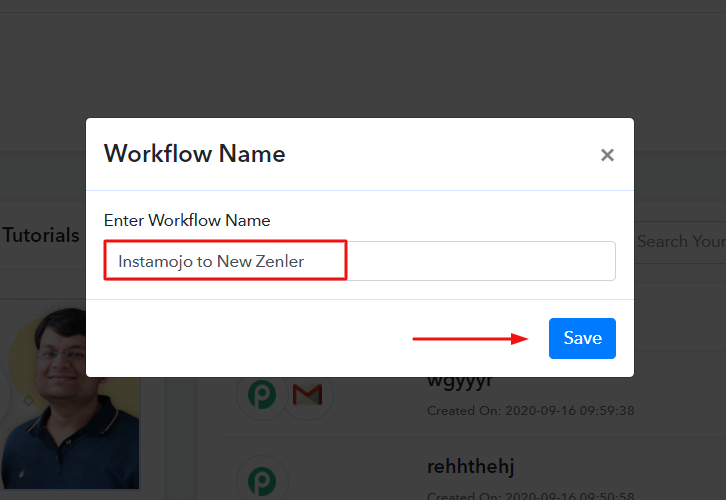
Name the Workflow

Name the Workflow as per your need (for instance: Instamojo to New Zenler’) and hit the ‘Save’ button.

Step 4: Setting Trigger to Import Instamojo Sales to New Zenler

(a) Select Application you Want to Integrate

Select Application to Integrate as Instamojo

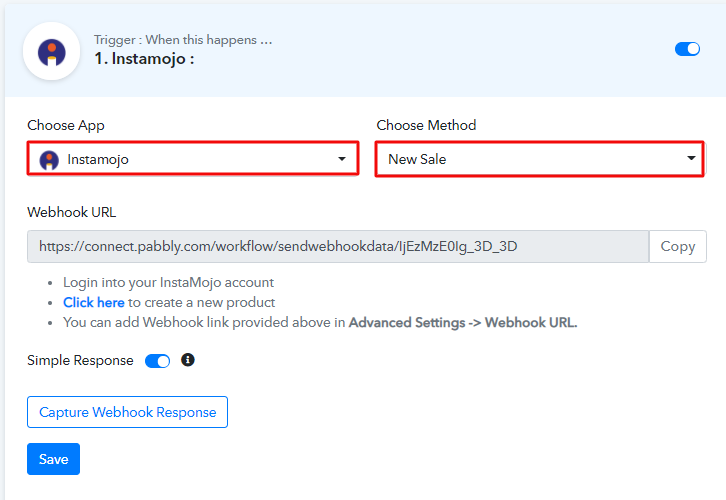
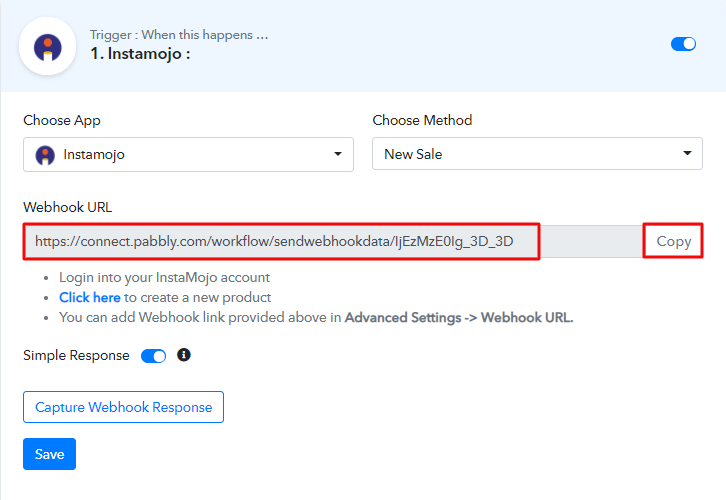
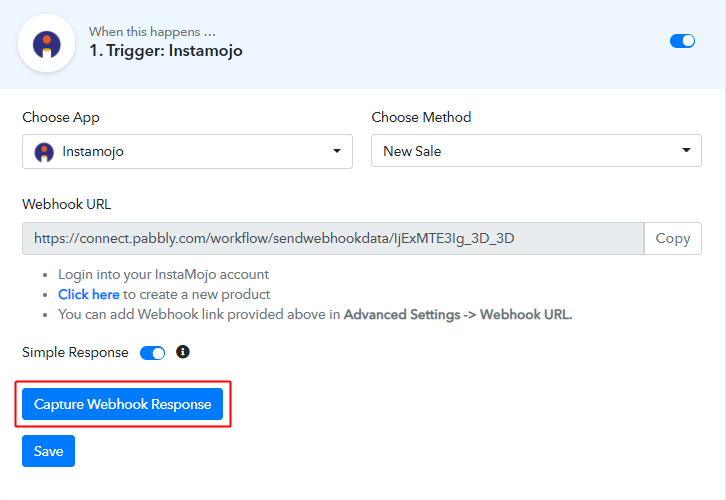
After naming the workflow, a window will open up for setting up a trigger condition. Simply select the app to integrate as Instamojo from the ‘Choose App’ field from the drop-down option and choose the method as ‘New Sale’.

(b) Copy the Webhook URL

Copy the Webhook URL

Now, copy the Webhook URL by pressing the button named ‘Copy’.

Step 5: Connecting Instamojo to Pabbly Connect

Now, in order to paste the Webhook URL that we have copied in the former step we have to go to the Instamojo account.

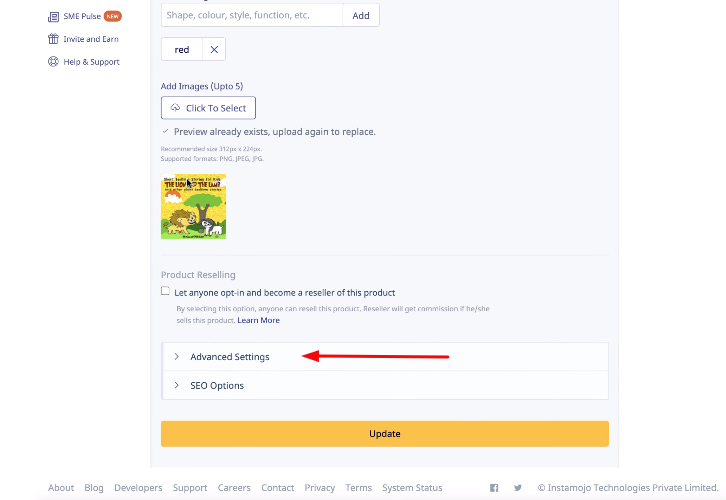
(a) Click on Advance Settings

Click on Advance Settings

Now you need to scroll down the page of Instamojo, where you will find “Advance Settings”, just click on it.

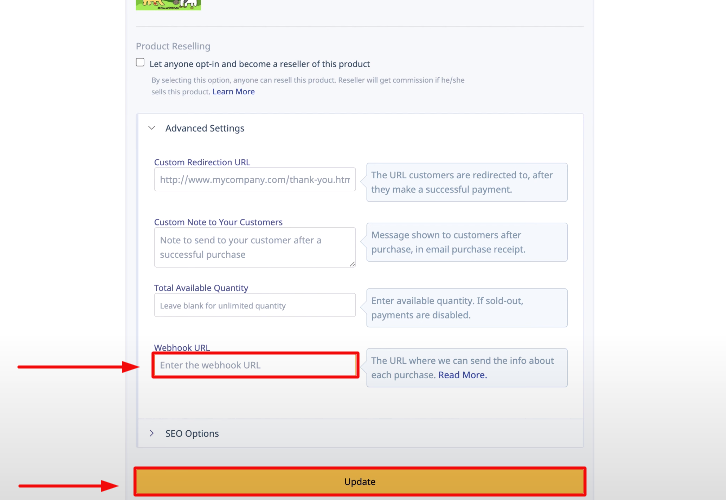
(b) Paste the Webhook URL

Paste the Webhook URL

Once it gets open, you will see the “Webhook URL” option, simply paste the copied link taken from Pabbly Connect & click on “Update”.

Step 6: Create a Product

In order to capture the webhook response in pabbly connect, you need to make a purchase in the Instamojo account. And for that, you need to create a product first.

(b) Add Product

Instamojo Add Product

Simply, click on the “Add Product option given on the side panel of the Instamojo dashboard.

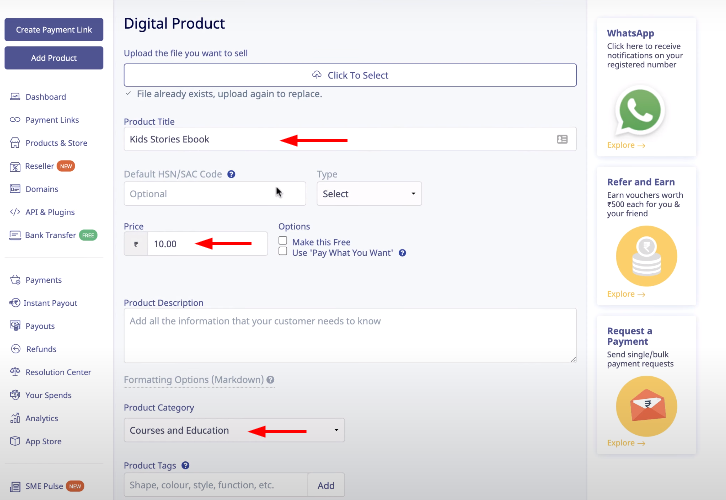
(c) Fill Up the Product Details

Instamojo Product Details

Afterwards, you have to fill up all the product details like the product title, its price, product category, product image, etc. Once you enter all the required product information, just save the product settings.

Step 7: Make a Purchase to Test the Trigger’s Working

(a) Click the Buy Now Button on Instamojo

Make Purchase Instamojo

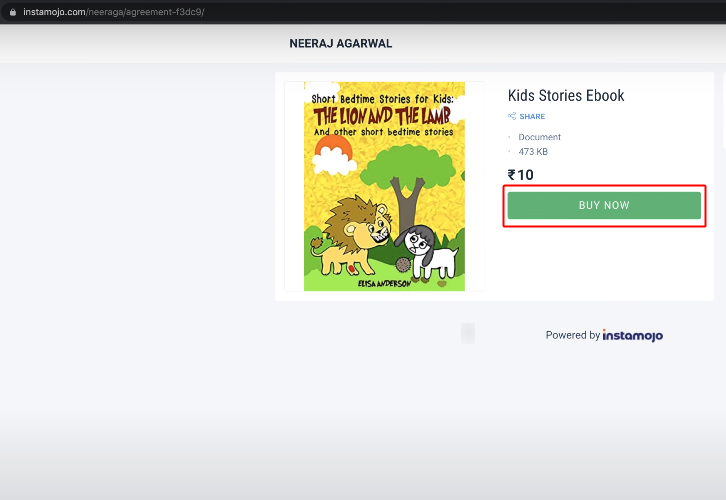
Next, you need to open the product that you have recently created and make an actual payment for setting up the trigger. So, press the ‘Buy Now’ button of the created product.

(b) Go Back to Pabbly Connect & Capture Webhook Response

Capture Webhook Response of Instamojo

Now, go back to the Pabbly Connect trigger window and hit ‘Capture Webhook Response’ button so that when you make a purchase all the details get captured in Pabbly Connect.

(c) Make a Purchase

Make a Purchase

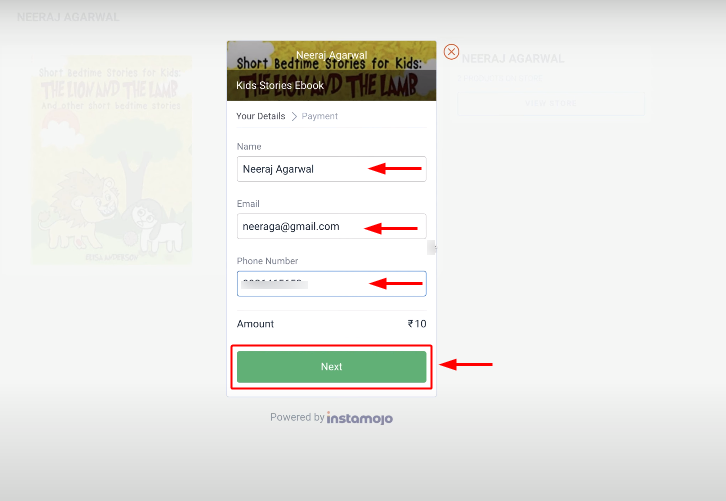
Subsequently, enter all the details in the checkout page & press the button ‘Next’. Then, complete the purchase as directed by Instamojo and check the successful payment response after your purchase.

(d) Check the Webhook Response

Observe Webhook Response

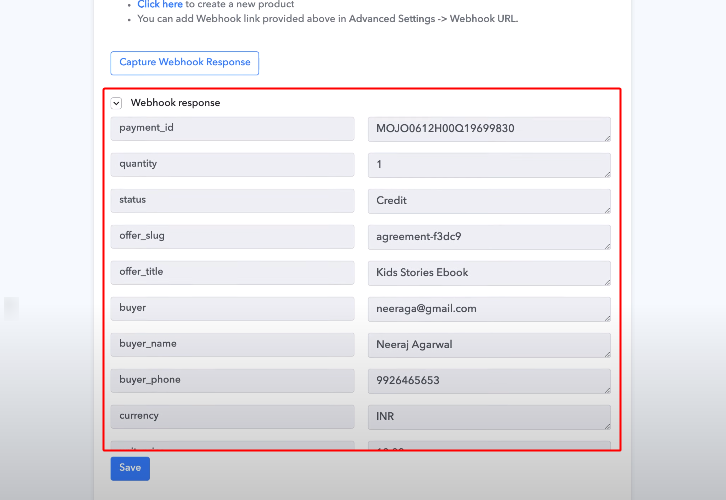
Next, go back to the Pabbly Connect trigger & check your purchase response that has been captured. And, click on the “Save” option.

Step 8: Setting Action for Instamojo New Zenler Integration

Consequently, now its time to set an action for your trigger. And to do so, you have to select the application you want to integrate.

(a) Select Application you want to Integrate

Select Zenler

Now, click on the (+) button below to add an action for your trigger and select the application named Zenler. Once you choose Zenler, just select the method as “Add New User” and press the “Connect with Zenler” button.

Step 9: Connecting New Zenler to Pabbly Connect

In order to connect New Zenler with Pabbly Connect, you have to first log in to your Zenler account so that you can copy the API key.

(a) Copy API Key

Copy API Key

Afterwards, just go to your Zenler account and click on the profile icon, then click on settings, here you can find your account API key. Just copy the API key to proceed further.

(b) Add the Account API Key

Integrate Thrivecart with New Zenler

Now, paste the API key in Pabbly Connect that you have recently copied from your Zenler account.

(c) Add School Name

Integrate Thrivecart with New Zenler

Here you have to copy and paste the sub-domain part of the Zenler API key webpage and then click on the “Save” button.

(d) Send a Test Request

Integrate Thrivecart with New Zenler

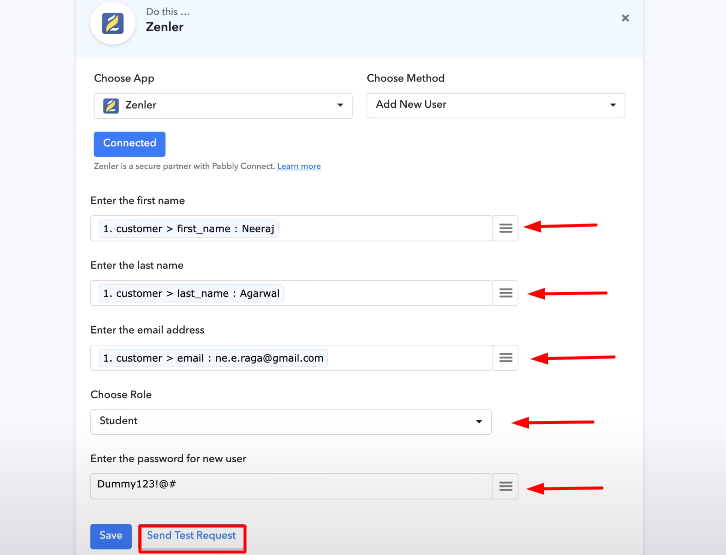
As soon as you click on the save button, the software picks the required field automatically from your account. Now you have to map up the required fields and click on the “Send Test Request” button.

Step 10: Check the Response

Integrate Thrivecart with New Zenler

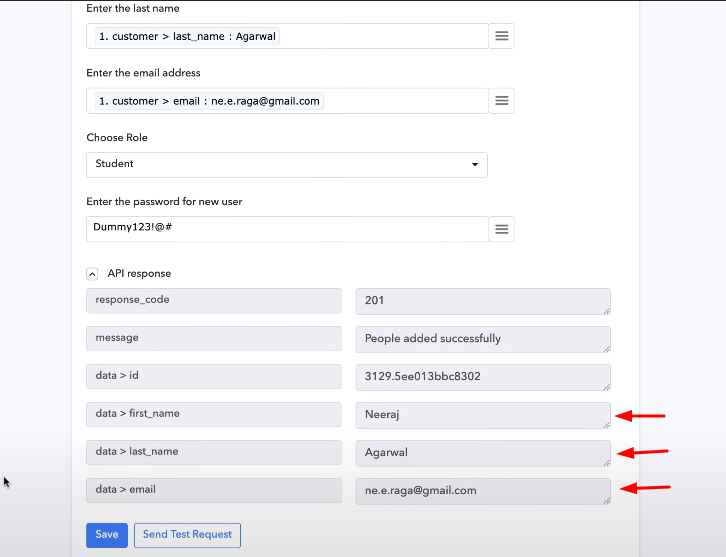
As you can see that once you send a test request, all the required information from the Instamojo checkout page has now been added to your Zenler account. Furthermore, now whenever someone is going to make a purchase from Instamojo, this software will automatically update the information to your Zenler account in real-time.

Conclusion –

Alright, now that you know how to import Instamojo sales to New Zenler using Pabbly Connect. This amazing tool provides you the freedom of time, that you can save after the integrations, without doing the redundant work. Therefore integrate applications on Pabbly Connect, save time, and utilize that time into some other important work. So, go ahead and try Pabbly Connect for free. For any queries or suggestions, leave your comments down below.

You May Also Like to Read –
How to Import Emails from WooCommerce to Pabbly Email Marketing

How to Import Emails from WooCommerce to Pabbly Email Marketing

Are you scrolling back and forth to find a way to import emails from WooCommerce to Pabbly Email Marketing? If yes, then here in this article we will tell you how to integrate WooCommerce to Pabbly Email Marketing.

How to Import Emails from WooCommerce to Pabbly Email Marketing

Owning a WordPress store with the use of the WooCommerce plugin is quite simple. It is one of the best platforms for online business. This is a reason why they have 2M+ active stores. But running a store is not that much easy, you have to do a lot of email campaigning of products.

For the same, people used to look for applications that can connect WooCommerce to an email marketing solution that can fetch customer’s details and send them a customized email about products. The key here is to find the right tool.

Why Choose This Method Of Integration?

In contrast with other integration services-

  • Pabbly Connect does not charge you for its in-built apps like filters, Iterator, Router, Data transformer, and more
  • Create “Unlimited Workflows” and smoothly define multiple tasks for each action
  • As compared to other services which offer 750 tasks at $24.99, Pabbly Connect proffers 50000 tasks in the starter plan of $29 itself
  • Unlike Zapier, there’s no restriction on features. Get access to advanced features even in the basic plan
  • Try before you buy! Before spending your money, you can actually signup & try out the working of Pabbly Connect for FREE

Sign Up To Pabbly Connect      

But guess what! We have already done all the heavy lifting for you. Here we are suggesting one of the best business automation tool named Pabbly Connect that can connect different applications in a matter of time.

Using software one can create seamless workflows for data transfer among various applications without knowing any coding skill. Also, the thing which makes it distinct is, the software allows us to create unlimited workflows, action, triggers, and much more even in this free plan.

Here, in this article, we will understand how one can import emails from WooCommerce into Pabbly Email Marketing using an automation tool i.e Pabbly Connect.

So, let’s start the process.

Step 1: Sign up to Pabbly Connect

Sign Up

Start the process of connecting WooCommerce to Pabbly Email Marketing by clicking on the “Sign Up Free” icon on the Pabbly Connect dashboard. Further, either manually fill-up all the details or sign up using Gmail credentials.

Try Pabbly Connect for FREE

Step 2: Access Pabbly Connect

Select Connect

Next, after login into the account, click on the “Access Now” button of Connect.

Step 3: WorkFlow for WooCommerce to Pabbly Email Marketing Integration

(a) Start with a New Workflow

Create New Workflow

Start the process of creating a workflow for importing customer emails from WooCommerce to Pabbly Email Marketing by clicking the “Create New Workflow” button.

(b) Name the Workflow

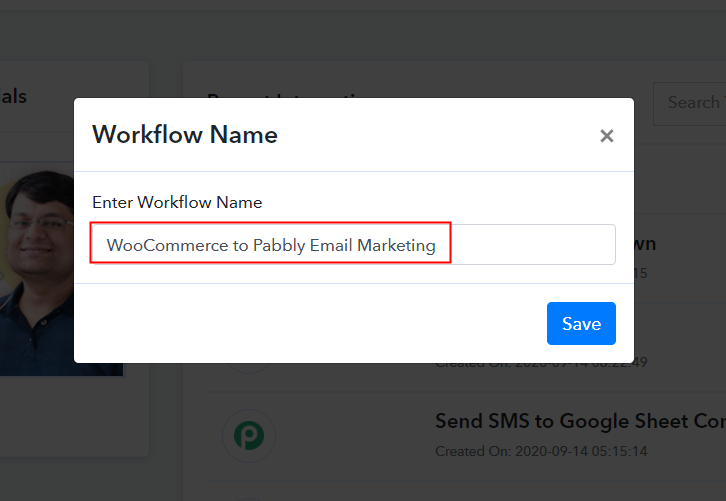
Name the Workflow

Further, add the name of workflow which in our case is “WooCommerce to Pabbly Email Marketing”. Nevertheless, you can always name the workflow according to your requirements.

Step 4: Setting Trigger for WooCommerce & Pabbly Email Marketing Integration

Next, after creating a workflow, you have to choose the integration app to connect your Woocommerce account to Pabbly Email Marketing. Using Pabbly Connect one can bind or connect unlimited apps, click here to avail your access to unlimited workflows.

(a) Select Application you Want to Integrate

Select WooCommerce

The following step is to select “WooCommerce” from the dropdown, then choose the “New Order Created” option to append every customer data from the software into email marketing software.

(b) Copy the Webhook URL

Copy the Webhook URL

The next step is to copy the webhook URL which is appearing on the dashboard.

Step 5: Connecting WooCommerce to Pabbly Connect

To collect customer’s data like email addresses and names from WooCommerce, you gotta paste the copied Webhook URL in the software. For that, you have to log in to your WordPress account where you have installed your Woocommerce plugin.

(a) Go to WooCommerce Settings

Go to WooCommerce Settings

After login into the WordPress account, go to the “WooCommerce” section then there click on the “Settings” option.

(b) Click on Advanced Option

Click on Advanced Option

Next, when you click on “Settings”, it will open up a tab with a different option. Just click on the “Advanced” option.

(c) Click on Webhooks Option

Click on Webhooks Option

Further, when you click on “Webhooks”, it will open up a tab with a certain option. Just click on the “Add Webhook” option to paste the Webhook URL.

(d) Add Webhook

Add Webhooks

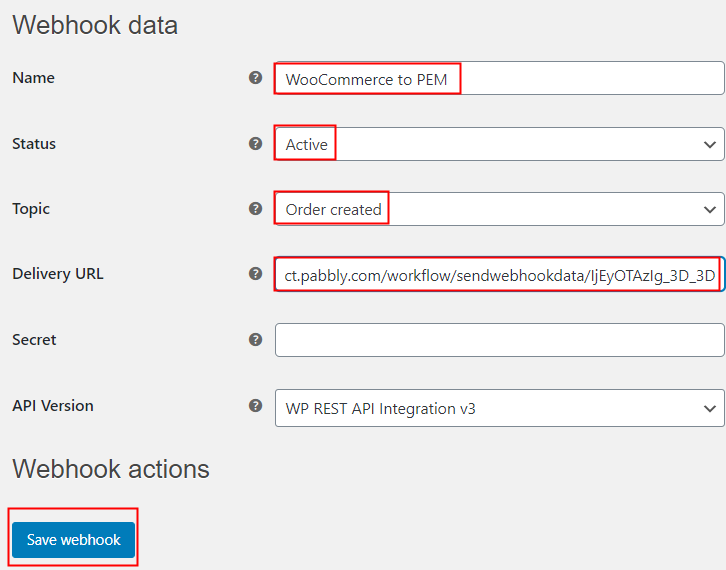
Now, assign the name according to your need. Make sure to make status “Active” and in the topic section, select “OrderCreated”. Then in the delivery URL, paste your copied URL from Pabbly Connect. After making all changes, click the “Save Webhook” button.

(e) Make a Test Purchase

Make a Test Purchase

Open the product checkout in a new tab and make a dummy purchase. Just fill all the details, hit the “Place Order” button. But before hitting the button, make sure to click “Capture Webhook Response” in the Pabbly Connect dashboard.

Step 6: Test the Response in Pabbly Connect Dashboard

Test the Response

As soon as you click on the “Place Order” button, the entry will appear on the “Pabbly Connect” dashboard. Then, click on the “Save” option.

Step 7: Setting Action for WooCommerce & Pabbly Email Marketing Integration

To make this WooCommerce Pabbly Email Marketing integration work, you have to choose the action for your trigger.

(a) Select Application you Want to Integrate

Select Pabbly Email Marketing

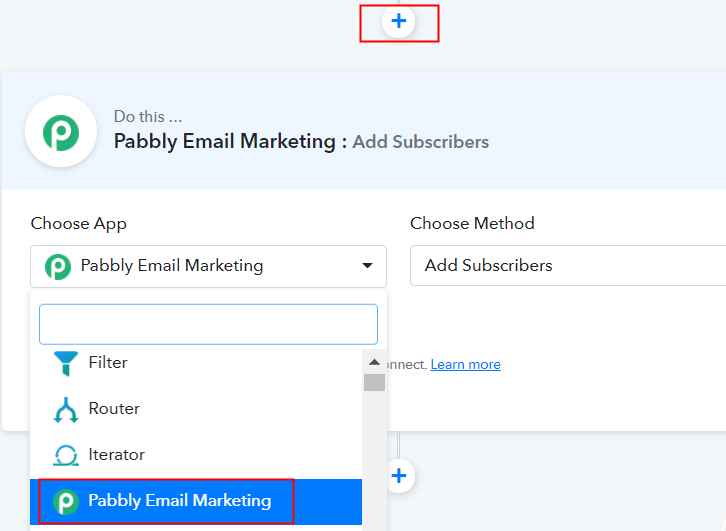
Further, click on the “+” icon to add an action for your trigger. Here we are going to select “Pabbly Email Marketing” from the dropdown. Then, select the “Add subscriber” option.

(b) Click the Connect Button

Click on Connect Button

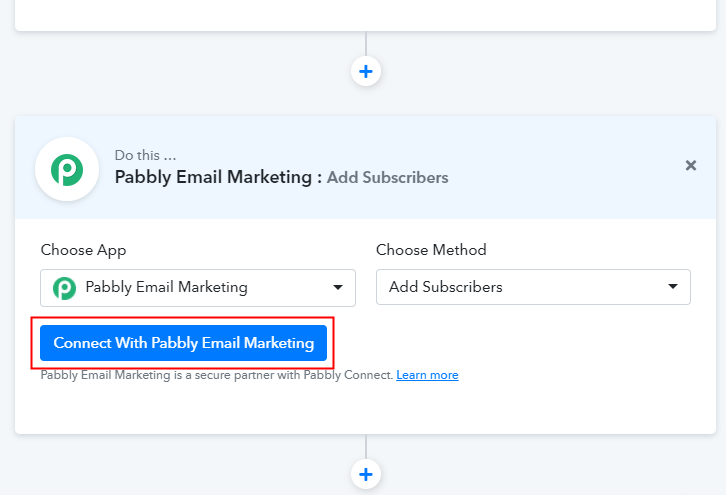
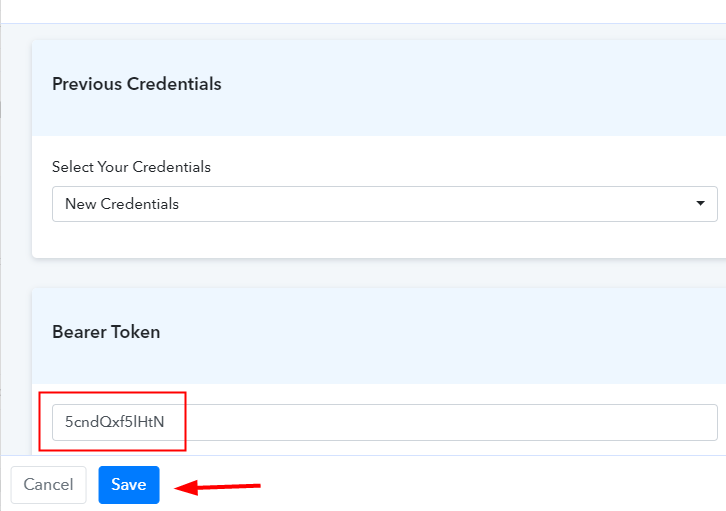
Now, after making all the necessary changes, click on the “Connect with Pabbly Email Marketing” button. Further, it will ask for “Bearer Token”, for which you have to log in to Pabbly Email Marketing account.

Step 8: Connecting Pabbly Email Marketing to Pabbly Connect

To copy the “Bearer Token”, you have to log in to your Pabbly Email Marketing account.

(a) Click on Integrations

Integration Option

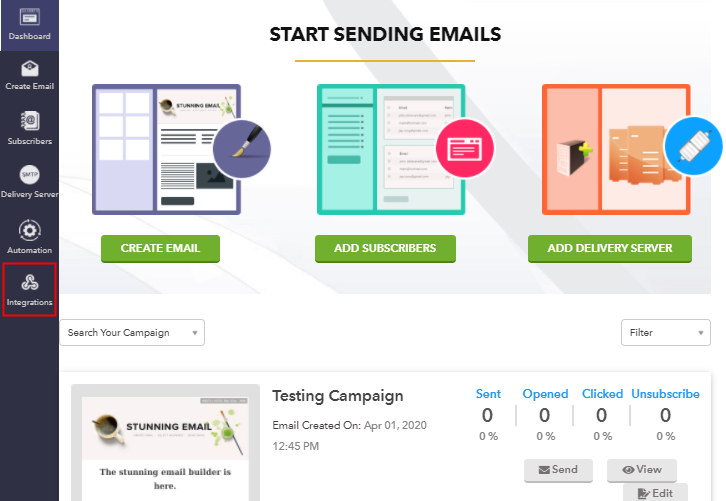
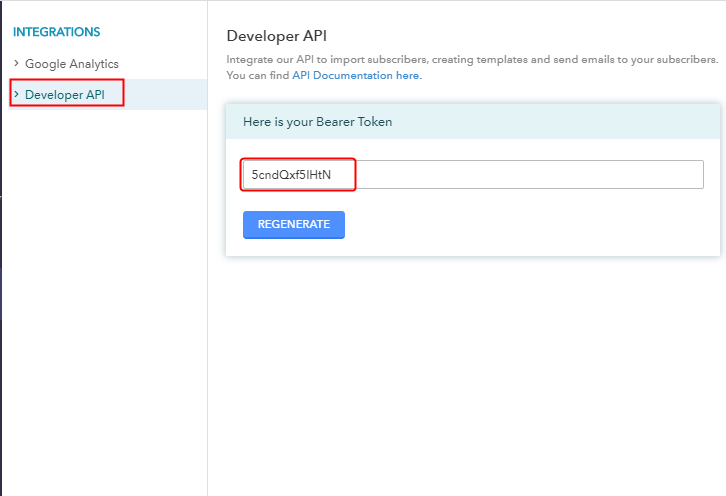
Next, to make WooCommerce & Pabbly Email Marketing works, log in to your account and select the “Integrations” option from the tab on the left. Then, further, click on the developer API option.

(b) Copy Bearer Token

Copy the Bearer Token

Next, copy the “Bearer Token” code provided as shown in the above image.

(c) Paste Bearer Token in Pabbly Connect Dashboard

Paste Bearer Token

To paste your bearer token, go back to the “Pabbly Connect” dashboard. Then click on the “Connected with Pabbly Email Marketing” button which will open the page. Below on this page, you will see the option of “Bearer Token”, just paste your copied token there.

(d) Add Field Data

Add Field Data

Further, the “Default List” will appear in the “List Name” field. Now, all you have to do is add the required field from drop-down such as for the email field, select the email option, and for the name field select the name option.

(e) Save and Send Test Request

Save and Send Test Request

After making all the changes, save the setting and then “Send Test Request”.

Step 9: Check the Response

Check the Response

Lastly, when you check the subscriber list, the entered customer’s details get auto-populated in software.

Now you know how to import emails from WooCommerce to Pabbly Email Marketing whenever a new purchase happens. This is a one-time process, after this every time whenever purchase happens, the customer’s details will get append in email marketing software.

Conclusion –

Alright! Now we have cleared all the air about the automation process. Here, in this article, we learned how to import emails from WooCommerce to Pabbly Email Marketing. All you have to do is follow all the above-mentioned steps and you can easily connect WooCommerce to email marketing software. With the help of an automation tool, one can easily avoid repetitive tasks. And in such cases, software like Pabbly Connect is a real help that lets you connect unlimited premium apps.
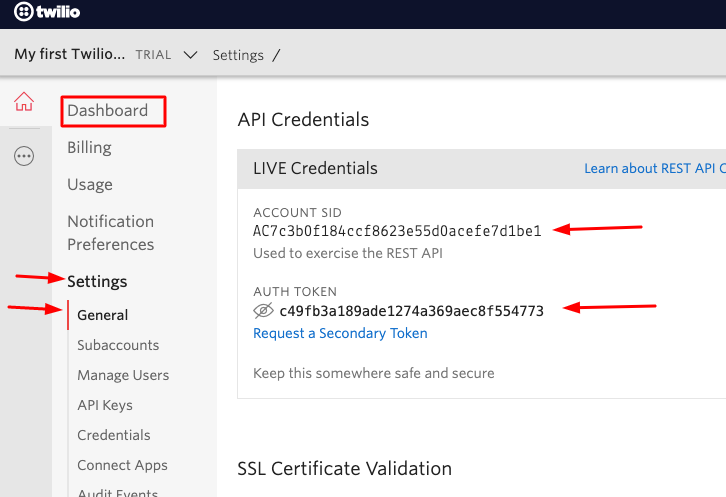
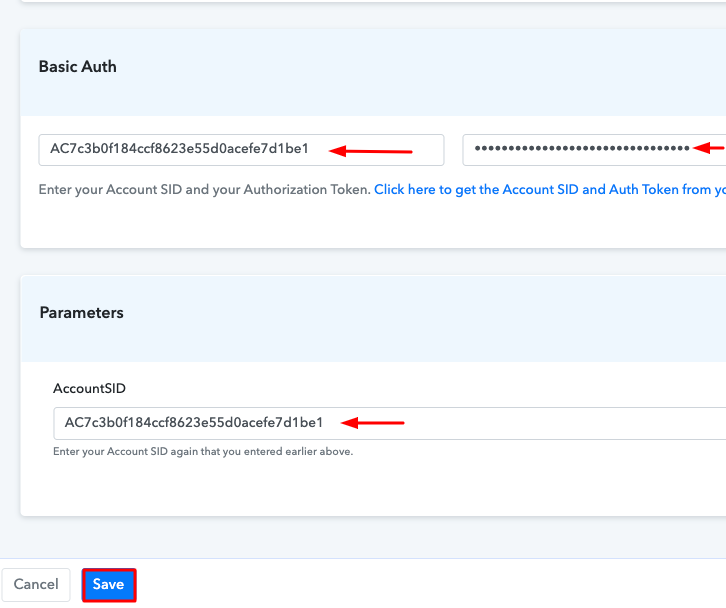
So, don’t wait anymore. Go and grab your access by claiming for a free account.

You May Also Like To Read –