How to Integrate Google Sheets with Aweber | Step by Step

How to Integrate Google Sheet with Aweber

Looking for a way to integrate Google Sheets with Aweber? If yes, then you can sit back and relax as we are unfolding out the integration process for easy data transmission.
How to Integrate Google Sheet with Aweber

But before jumping on that let’s understand why would somebody wants their data from Google Sheets into an Aweber account which is an email marketing tool. Many times we build a customer data list and want to append this data to any application. So, we started looking out for the best automation tool that can save us from all the manual efforts. But, let’s face it finding the right tool in your budget seems impossible. Well! Not anymore, here we are suggesting software named Pabbly Connect that can look out for big or even small businesses need.

Why Choose This Method Of Integration?

In contrast with other integration services-

  • Pabbly Connect does not charge you for its in-built apps like filters, Iterator, Router, Data transformer and more
  • Create “Unlimited Workflows” and smoothly define multiple tasks for each action
  • As compared to other services which offer 750 tasks at $24.99, Pabbly Connect proffers 50000 tasks in the starter plan of $29 itself
  • Unlike Zapier, there’s no restriction on features. Get access to advanced features even in the basic plan
  • Try before you buy! Before spending your money, you can actually signup & try out the working of Pabbly Connect for FREE

Sign Up To Pabbly Connect   

Pabbly Connect is a simple automation tool that removes all repetitive actions and saves a lot of time. Using the software, you can transfer data among different applications in real-time.

Not just this, one can bind unlimited premiums apps and removes all time-consuming work. The thing which makes it stand alone in the crowd is its interface, which can be operated by anyone without any coding skill. Plus it is packed with features like filters, path routers, and much more for hassle-free data transmission.

Here, in this article, we will understand how one can integrate Google Sheets with Aweber using automation tool i.e Pabbly Connect.

So, let’s get started.

Step 1: Sign up to Pabbly Connect
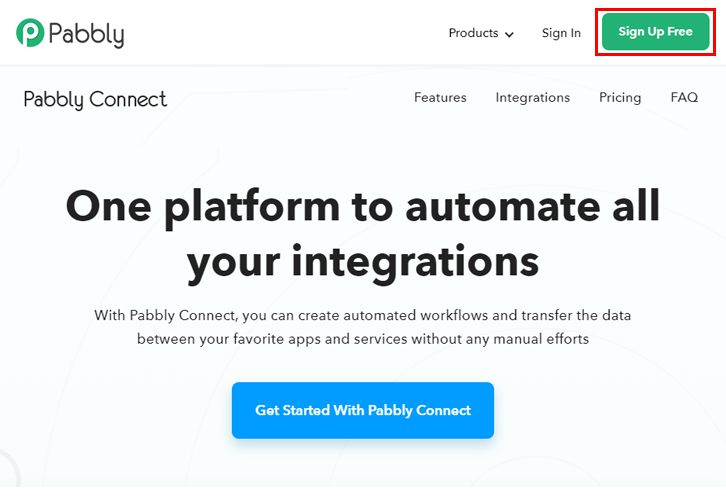
Sign Up

Begin the process of connecting Google Sheets with Aweber by clicking on the “Sign Up Free” icon on the Pabbly Connect dashboard. Next, either manually fill-up all the details or sign up using Gmail credentials.

Step 2: Access Pabbly Connect
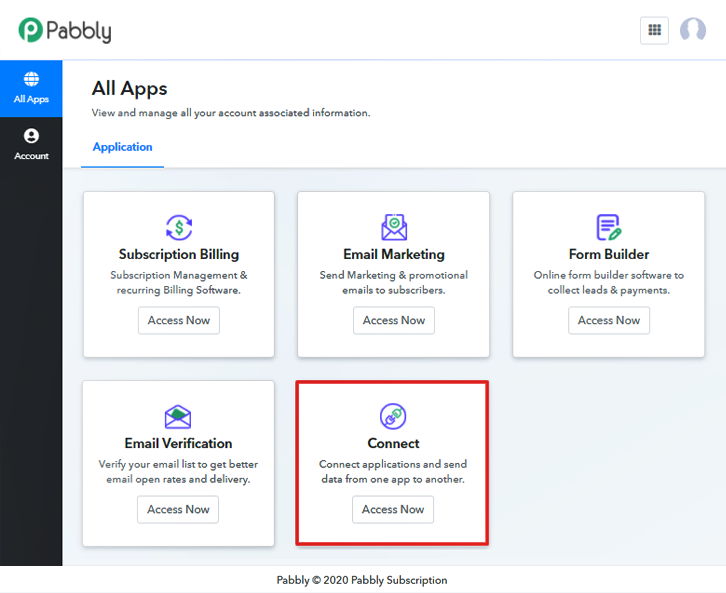
Select Connect

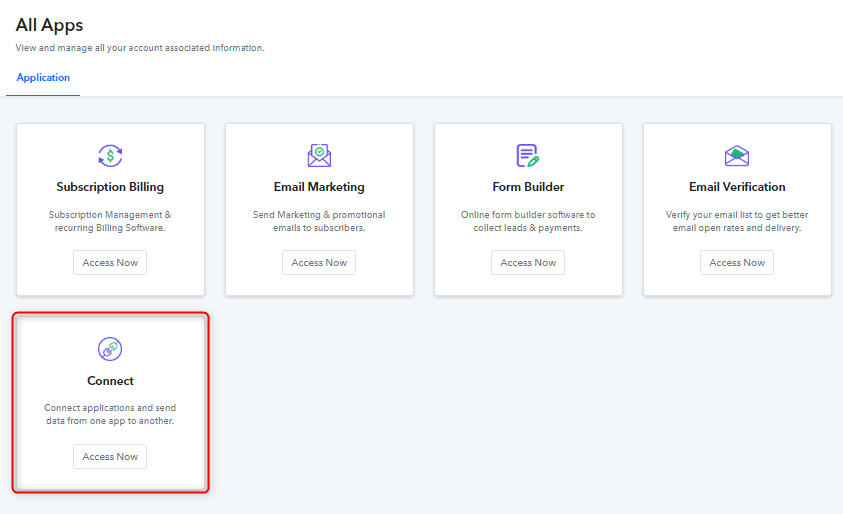
Next, after successful login into the account, click on the “Access Now” button of Connect.

Step 3: WorkFlow for Google Sheets with Aweber Integration

(a) Start with a New Workflow
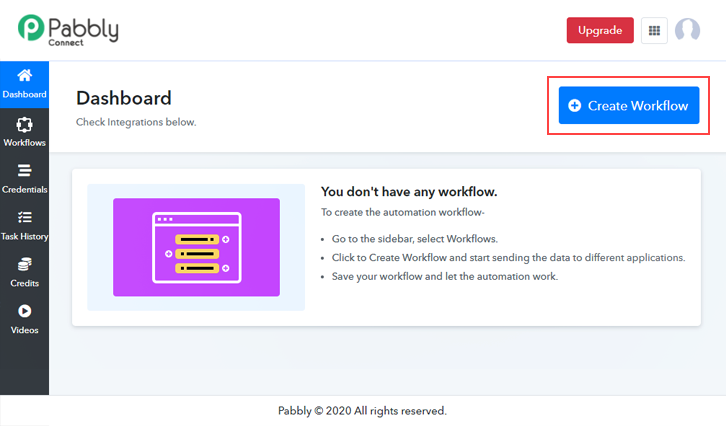
Create New Workflow

Start the process of making a workflow for online business automation by clicking the “Create Workflow” button.

(b) Name the Workflow
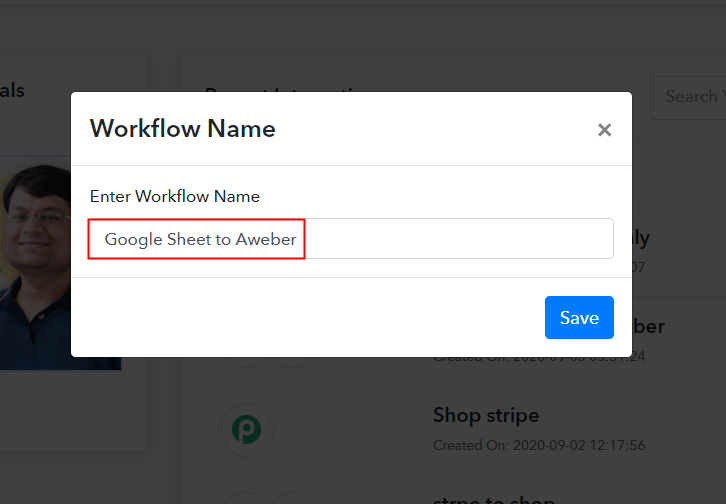
Name the Workflow

Further, add the name of workflow which in our case is “Google Sheets to Aweber”. Nevertheless, you can name the workflow according to your needs.

Step 4: Setting Trigger for Google Sheets – Aweber Integration

Now after making a workflow, you have to select the application you want to integrate. Using Pabbly Connect one can bind or connect unlimited apps, click here to sign up for free.

(a) Select Application you Want to Integrate
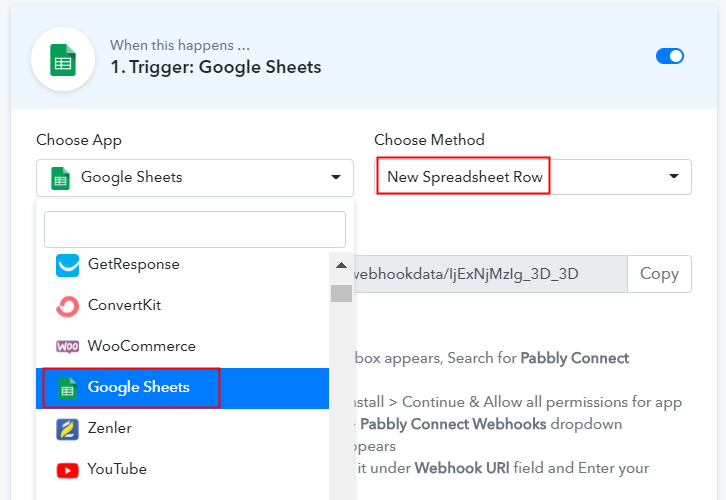
Select Google Sheet

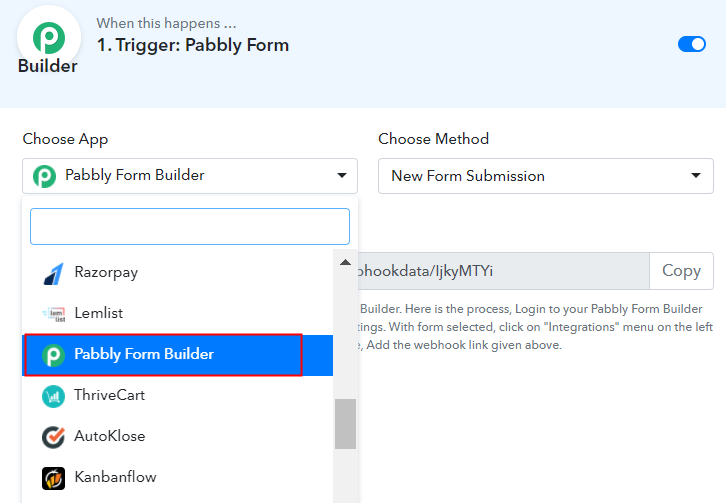
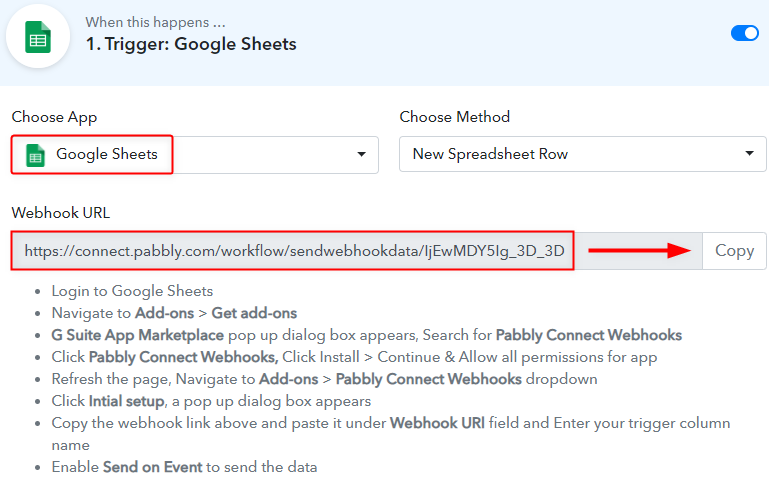
The following step is to select “Google Sheets” from the dropdown, then choose the “New Spreadsheet Row” option to append data from the sheet into our email marketing software.

(b) Copy the Webhook URL
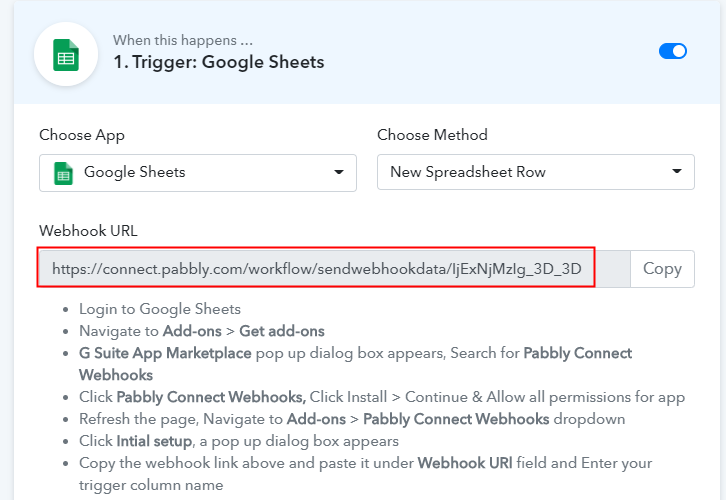
Copy the Webhook URL

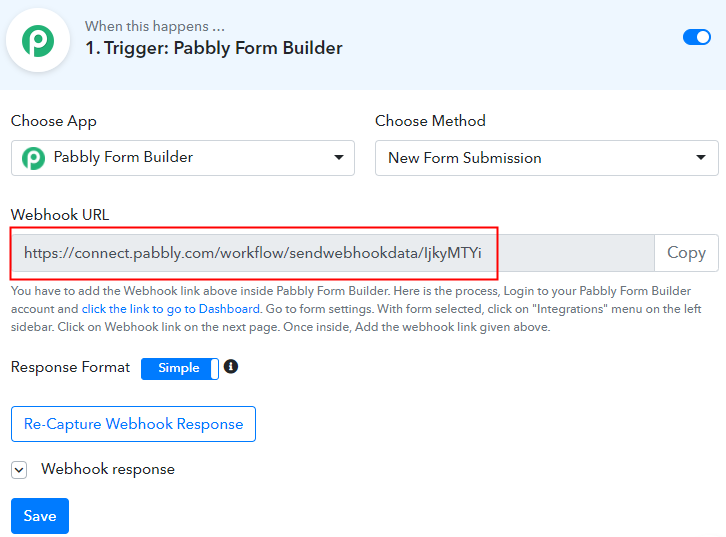
The next step is to copy the webhook URL which is appearing on the dashboard.

Step 5: Connecting Google Sheets with Pabbly Connect

To collect responses from Google Sheets, you gotta paste the copied Webhook URL in the sheet. But before that, you, have to install the Add-on named Pabbly Connect.

(a) Create a Google Sheet
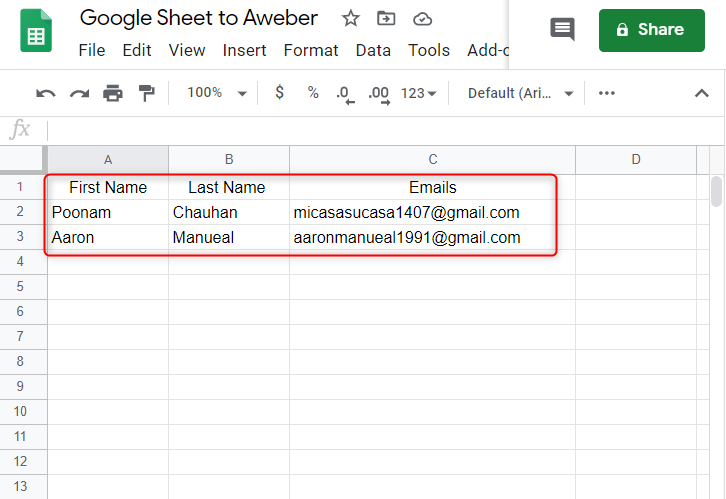
Create Google Sheet

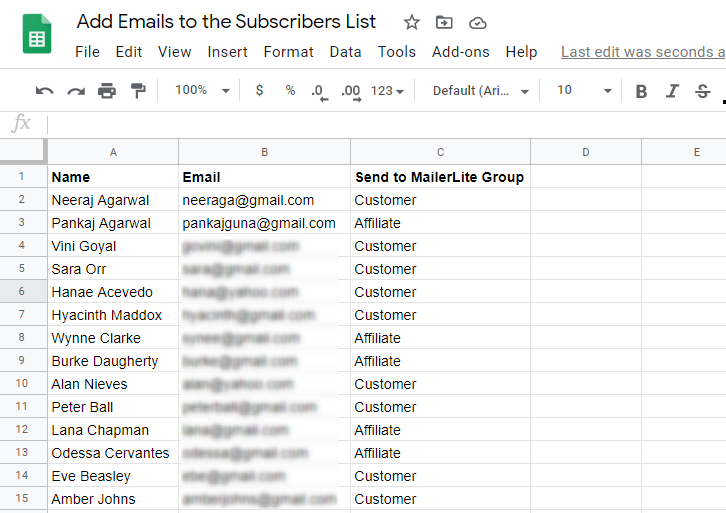
The very first thing to do is create a Google Sheets with basic details like first name, last name, and email address. You can select a sheet of your choice too.

(b) Click on Add-ons
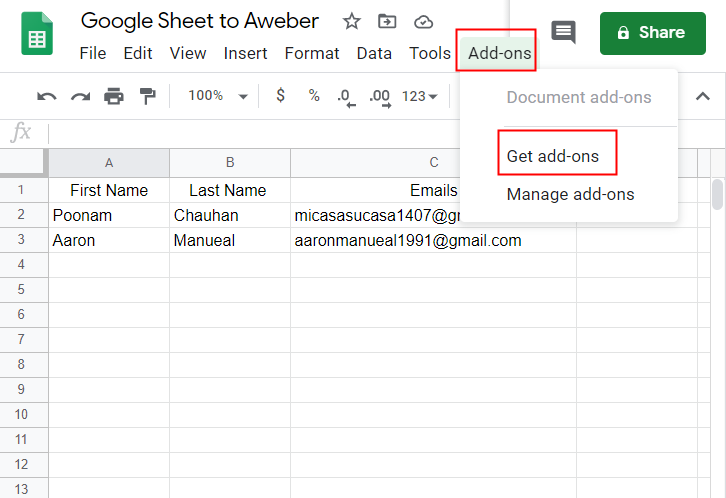
Click on Add-ons

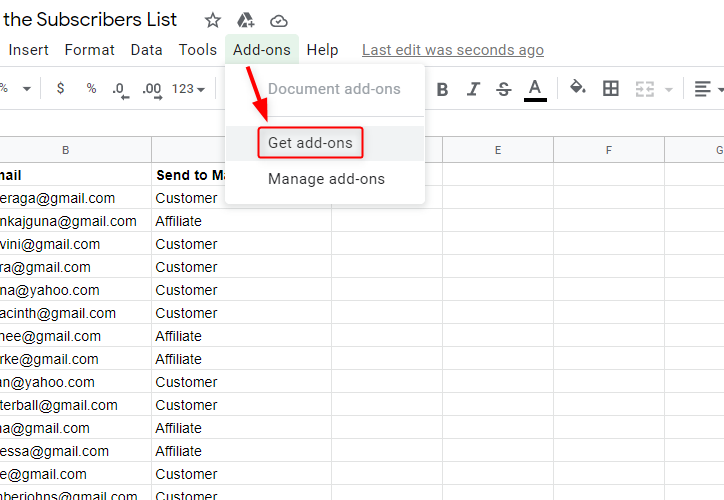
Further, in the add-on section, you have to click on the “Get add-ons” button to download the “Pabbly Connect Webhook”.

(c) Find Pabbly Connect in G Suite Market Place
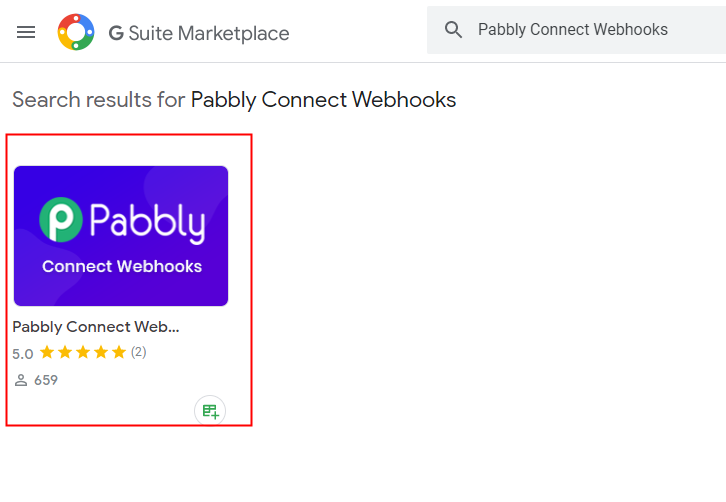
Find Pabbly Connect

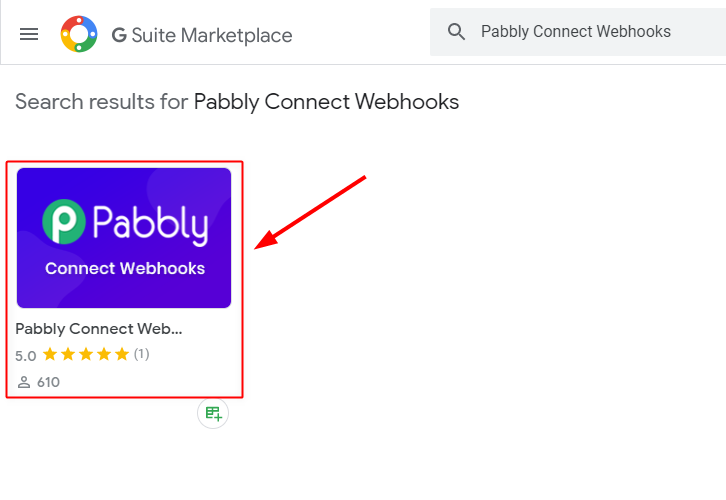
After clicking on ‘Get Add-on’ a new window will pop-up. Here in the search bar look for Pabbly Connect Webhooks.

(d) Install Pabbly Connect
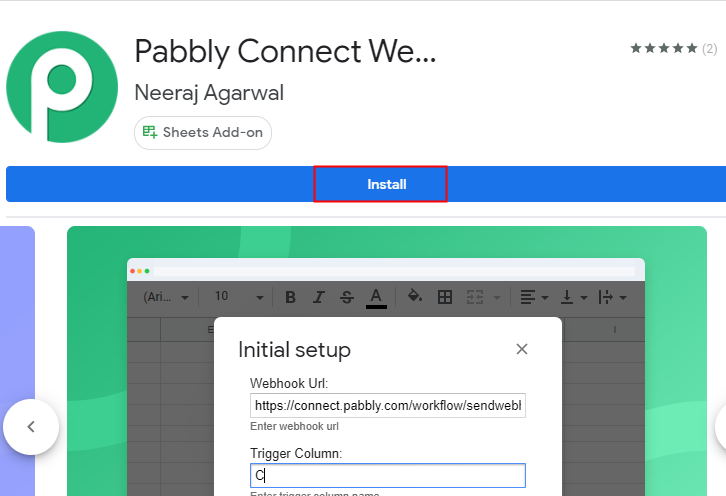
Install Pabbly Connect

Now just click on the install option and within seconds it will get installed into your Google Sheets.

(e) Press Initial Setup In Google Sheets
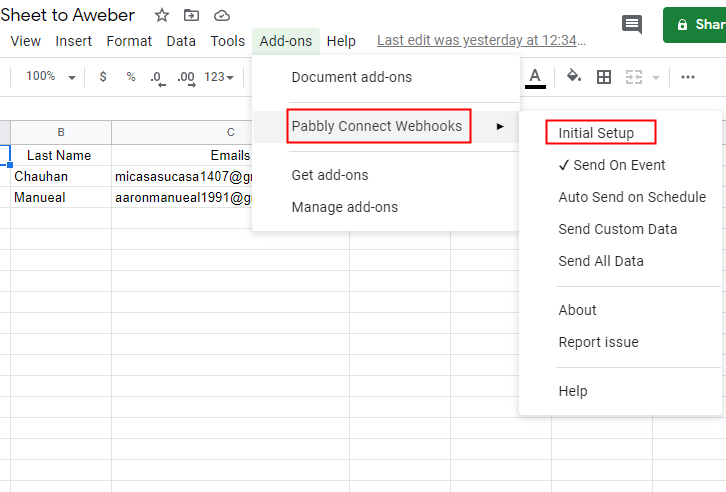
Initial Set-Up

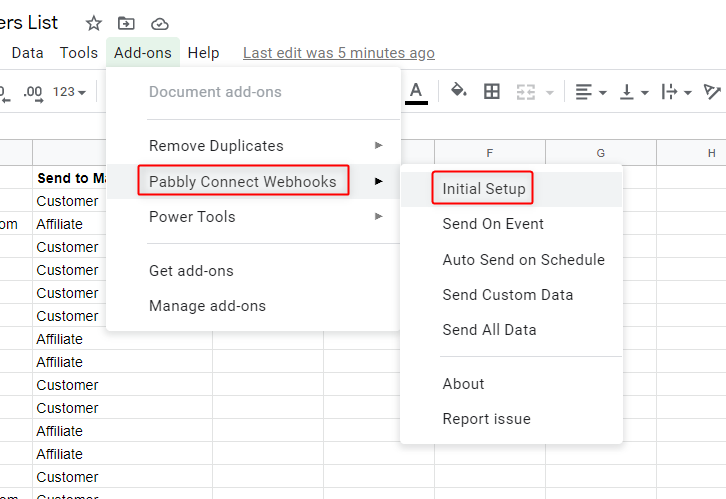
Now, when you click on add-ons, Pabbly Connect Webhook will appear there. Just click on it, it will open certain options, select “Initial Setup” to smooth the whole Google Sheet integration process.

(f) Paste The Webhook URL
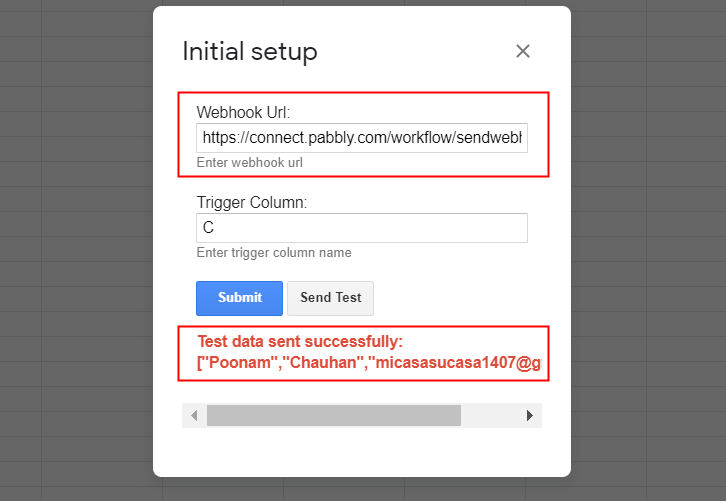
Paste the Webhook URL

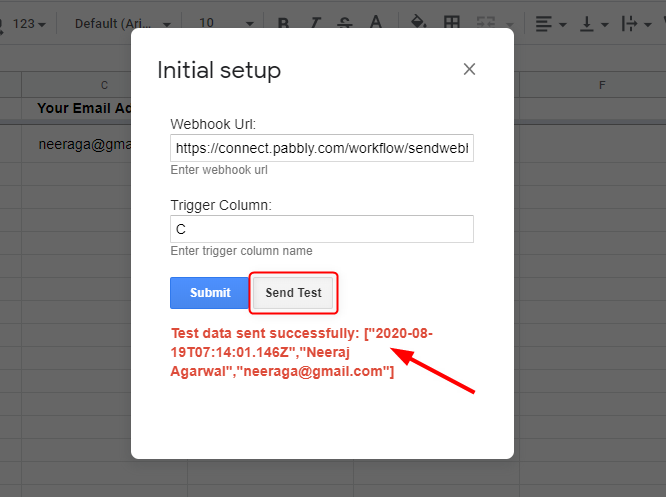
Further, when you click on “Initial Set-Up”, a window will emerge with two option which is Webhook URL and Trigger Column. Just paste your copied Webhook URL from Pabbly Connect in that section and mention the trigger column as per your need. Then click on the “Send Test” button to check the integration. Make sure to click “Capture Webhook Response” in the Pabbly Connect dashboard before sending a test request.

As the test request sent, it will show a message in red letters that the data has been successfully sent to Pabbly Connect.

(g) Click Send On Event In Google Sheets
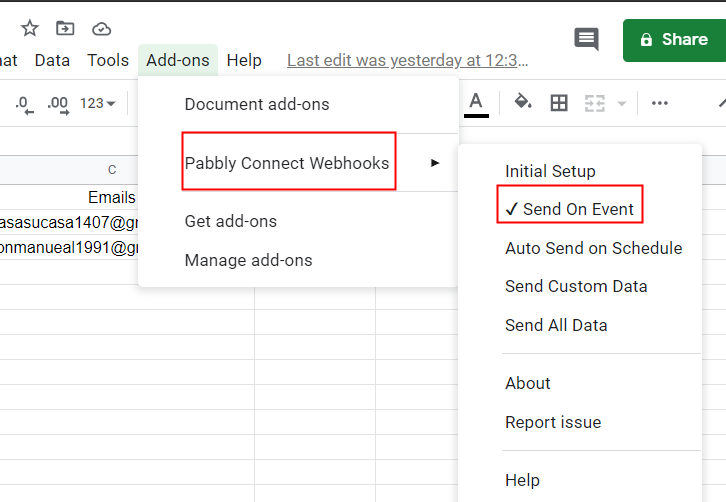
Send on Event

This is the additional step you have to do to ensure that every time new data added in the sheet it will automatically appear in your Aweber account. For this, all you have to do is click on “Send on Event” in the “Add-On” option.

Step 6: Test the Response in Pabbly Connect Dashboard
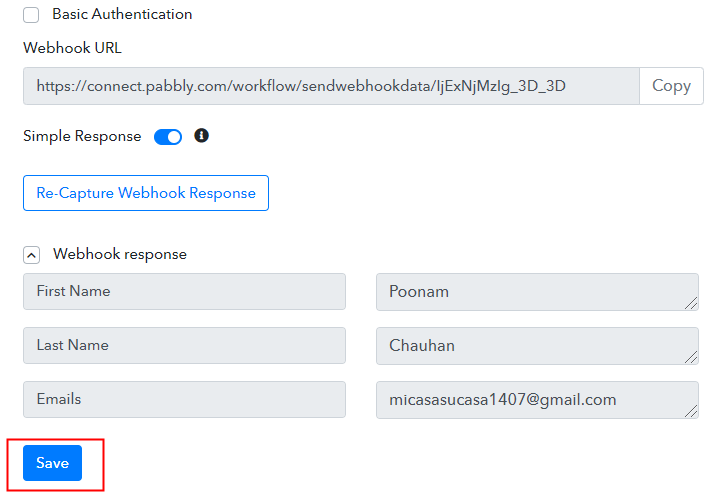
Test the Response

As soon as you click on the “Send Test” option, the entry will appear on the “Pabbly Connect” dashboard. Then, click on the “Save” option.

Step 7: Setting Action for Google Sheets – Aweber Integration

After setting a trigger, you have to choose the action for your trigger.

(a) Select Application you Want to Integrate
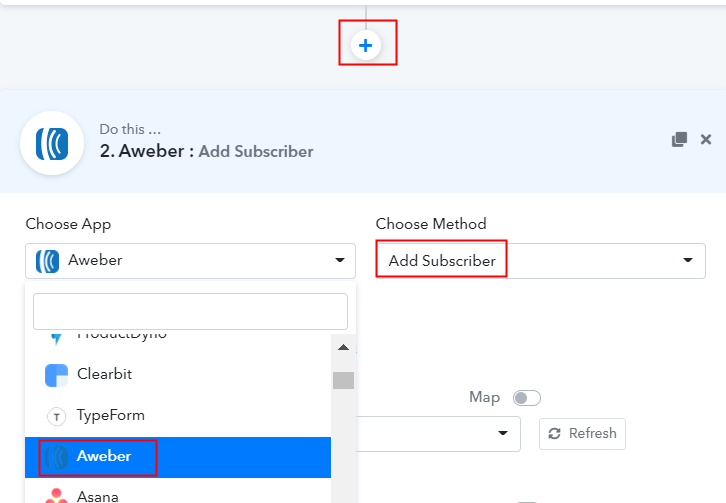
Select Aweber

Click on the “+” icon to add an action for your trigger. In our case, it is “Aweber”. Then, select the “Add Subscriber” option.

(b) Click the Connect Button
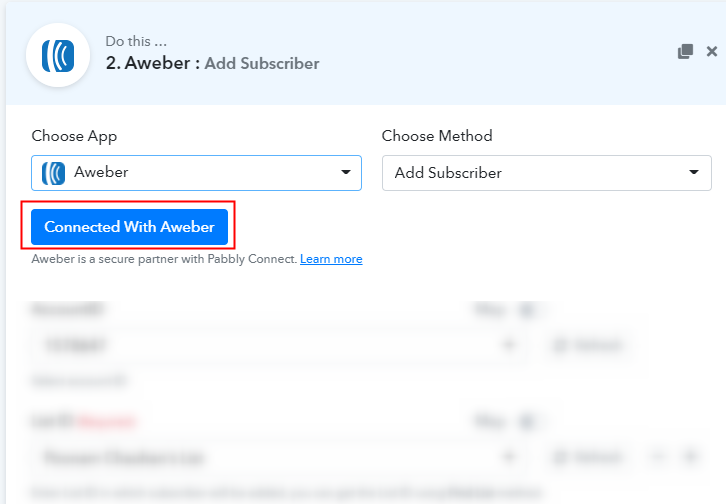
Click the Connect Button

After making all the necessary changes, click on the “Connected with Aweber” button. Further, it will open the authorization window, for which you have to log in to your Aweber account.

(c) Map Field Data
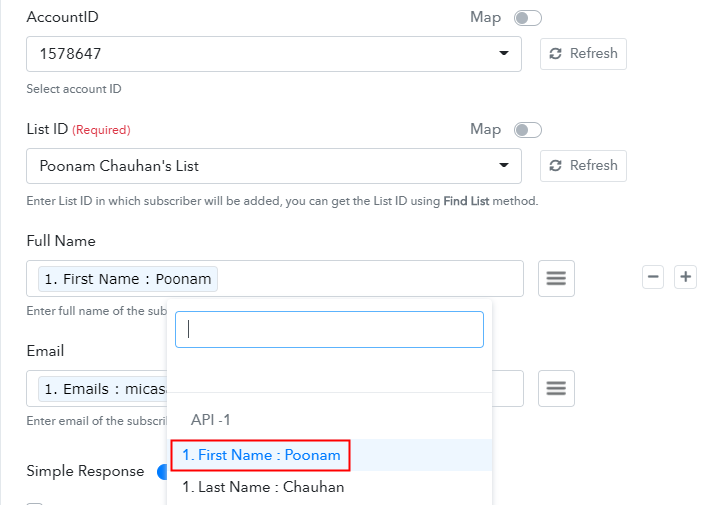
Map Field Data

After a successful login, it will already fetch the “Account Id”. Further, select the “List ID” from the dropdown in which you want subscribers to be added. Next, add the required field from drop-down such as for the email field, select the email option, and for the name field select the name option.

(d) Save and Send Test Request
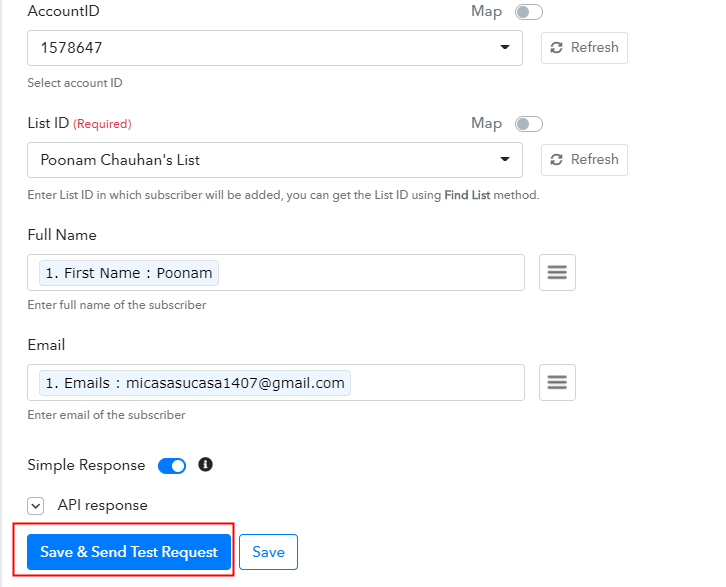
Save and Send Test Request

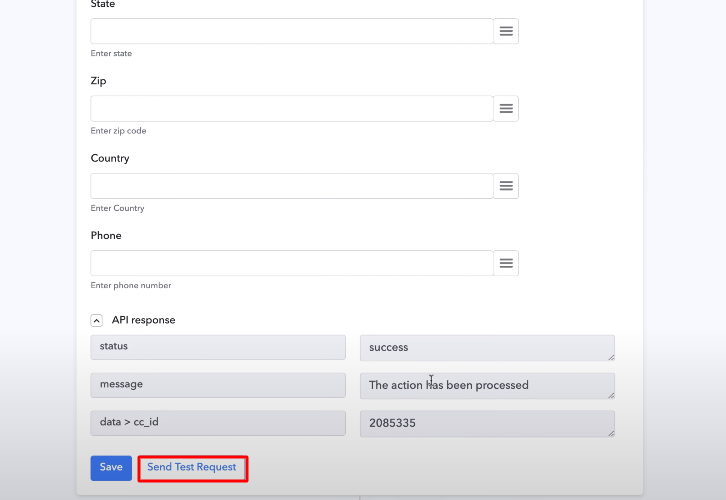
Subsequently, after filling all the details, save the setting and then “Send Test Request” to test the workflow automation.

Step 8: Check Response in Aweber Dashboard
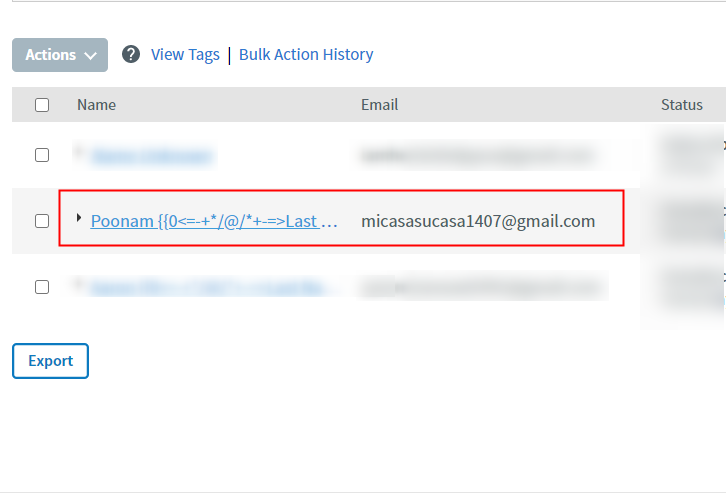
Check Response in Aweber Dashboard

Lastly, when you check the manage subscriber option in Aweber, your entry will automatically appear there. This is a single-time process, after that, all your repetitive work will be done by the online business automation tool i.e Pabbly Connect.

Conclusion –

Voila! Now you know how easy is to integrate Google Sheets with Aweber account. Nothing fancy or typical, all you have to do is follow all the mentioned steps and you’re good to go. And if you still have any second thoughts, let us remind you automation is a need of big and even small or medium businesses. It cuts out all the manual work and when comes to automation Pabbly Connect is the smartest choice as it requires no technical skill.

So, don’t dwell anymore! Get your access by creating a free account.
You May Also Like To Read –

How to Integrate Pabbly Form Builder with Trello | Step by Step

How to Integrate Pabbly Form Builder with Trello

Want to integrate Pabbly Form Builder with Trello? If yes, then don’t go anywhere here we are going to walk you through the process with the help of Pabbly Connect.

By integrating Pabbly Form Builder with Trello, you can communicate and work directly with each other. Further, you can automate your workflow so that when a user fills out your form, their submission information will automatically appear in your Trello’s board based on your integration settings. And all you can do with this with the help of Pabbly Connect.

Why Choose This Method Of Integration?

In contrast with other integration services-

  • Pabbly Connect does not charge you for its in-built apps like filters, Iterator, Router, Data transformer, and more.
  • Create “Unlimited Workflows” and smoothly define multiple tasks for each action.
  • As compared to other services which offer 750 tasks at $24.99, Pabbly Connect proffers 50000 tasks in the starter plan of $29 itself.
  • Unlike Zapier, there’s no restriction on features. Get access to advanced features even in the basic plan.
  • Try before you buy! Before spending your money, you can actually signup & try out the working of Pabbly Connect for FREE.

Sign Up To Pabbly Connect

Pabbly Connect is an automation tool through which you can integrate thousands of apps, set unlimited triggers and actions, create unlimited workflows, etc without requiring any coding skills. Furthermore, you can also add formatters, filters, routers, create multi-step calls etc in your workflow.

Here, in this article, we will understand how to integrate Pabbly Form Builder with Trello using Pabbly Connect.

So, let’s begin the process.

Step 1: Sign up to Pabbly Connect

Sign Up


Firstly, to do is visit Pabbly Connect website and click on the Sign-up Free button. Promptly, either manually enters all the details or sign up using Gmail credentials.

Try Pabbly Connect for FREE

Step 2: Access Pabbly Connect

pasted image 0 22

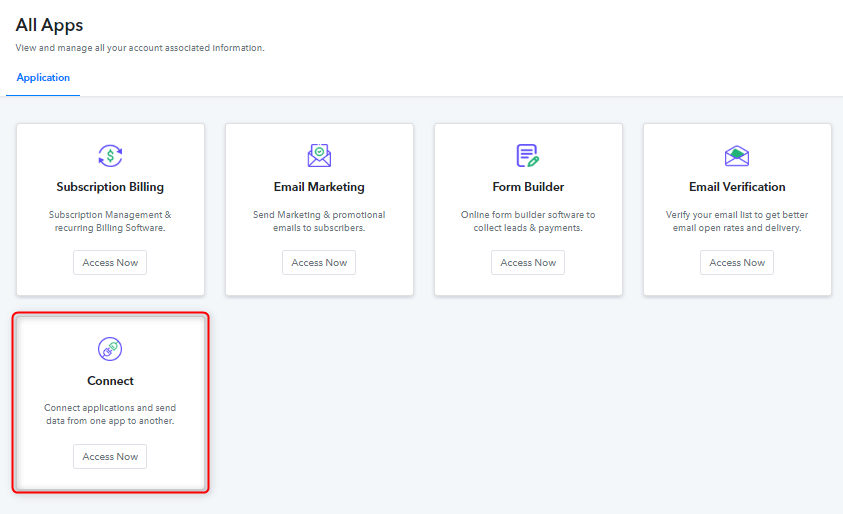
After completing the signup process, click on the “Access Now” button of Connect.

Step 3: WorkFlow for Pabbly Form Builder to Trello Integration

(a) Create New Workflow

create first workflow 1

Let’s begin the process of creating a workflow to integrate Pabbly Form Builder toTrello by hitting the ‘Create New Workflow’ button.

(b) Name the Workflow

pasted image 0 34

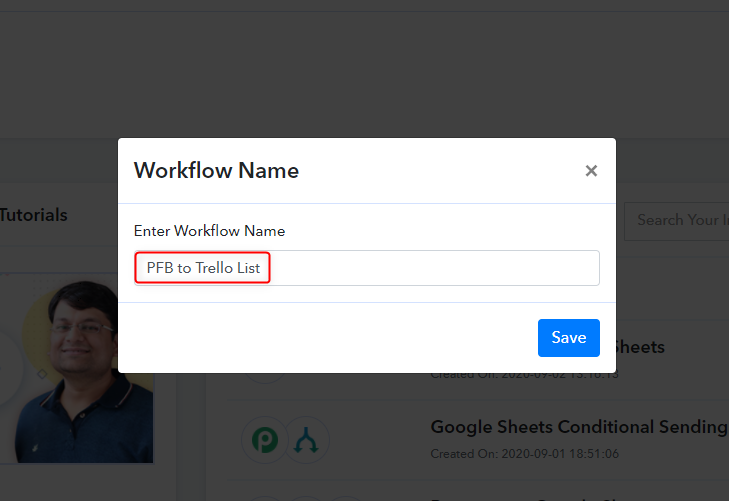
Subsequently, add the name of workflow which in our circumstance is “Pabbly Form Builder to Trello List”. However, you can name the workflow as per your requirement and demand.

Step 4: Setting Trigger

As soon as you are done with creating a workflow, you will have to select the application you want to integrate.

(a) Select Pabbly Form Builder

Setting Trigger- Integrate Pabbly Form Builder with Trello

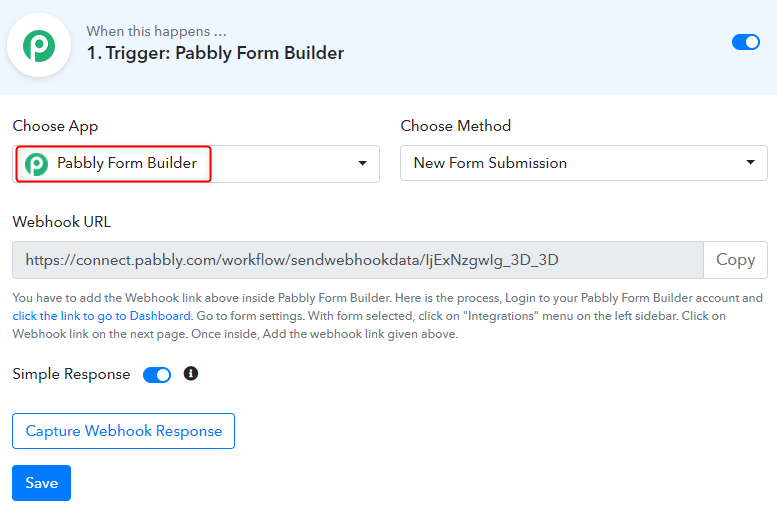
Here, choose the Pabbly Form Builder application from the drop-down menu and method as “New Form Submission”.

(b) Copy Webhook URL

Copy Webhook URL

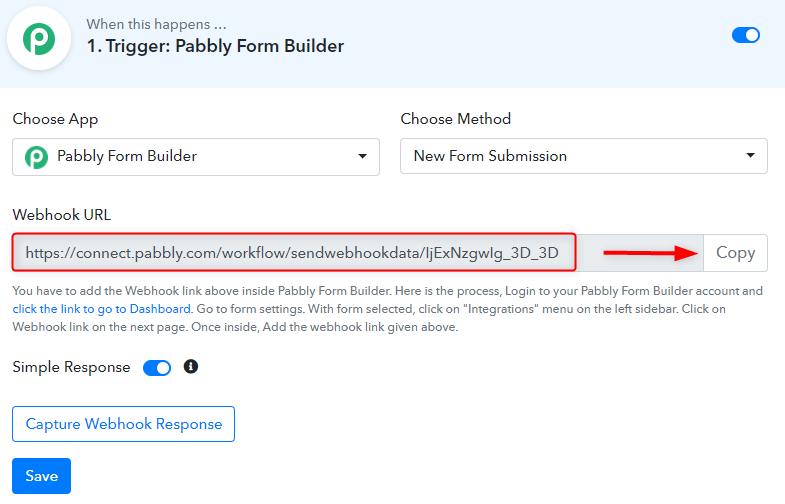
Now, the next step is to copy the webhook URL which is appearing on the dashboard. Then, click on the “Capture Webhook Response”.

Step 5: Create/Choose a Form from Pabbly Form Builder

(a) Open your Form

Form Preview

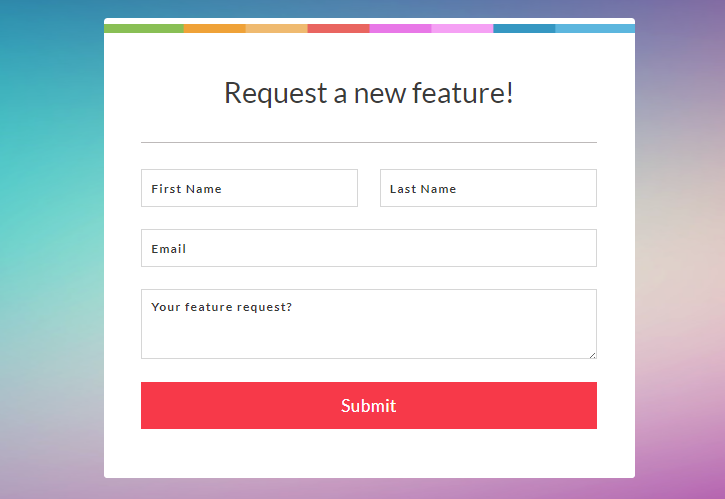
You can create a new form or choose the existing one from the Pabbly Form Builder dashboard to capture the data. Here, we have already created the “Request a new feature” form for integrating Pabbly Form Builder with Trello.

(b) Go to Integration Option

Integration Option

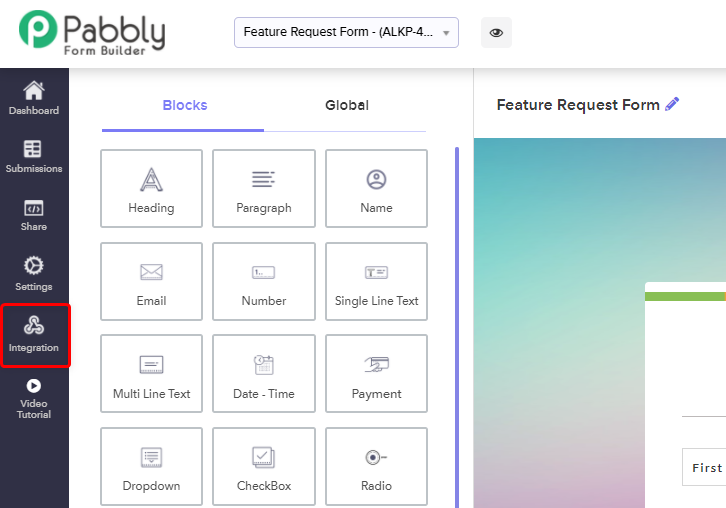
Go to the integration option of the form where you find the Webhooks option.

(c) Add Webhook URL

Add Webhook URL

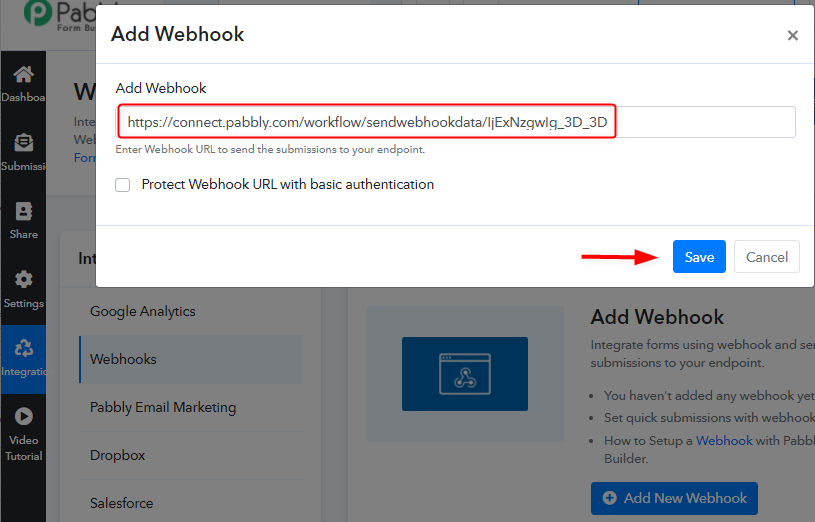
Just paste the copied Webhook URL. Once you paste the URL inside your form every submission data will automatically send to this Webhook URL

Step 6: Submit the Form

Submit the Form - Integrate Pabbly Form Builder with Trello

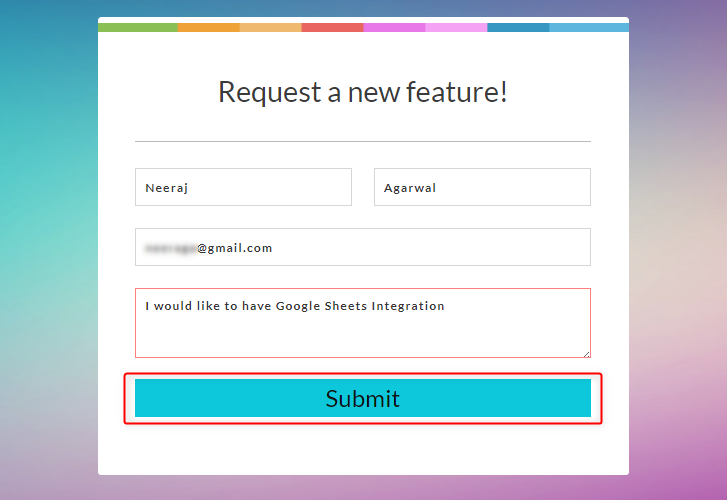
Fill all the details of the form like name, email, and feature request then click on the “Submit” button.

Step 7: Test the Submission in Pabbly Connect Dashboard

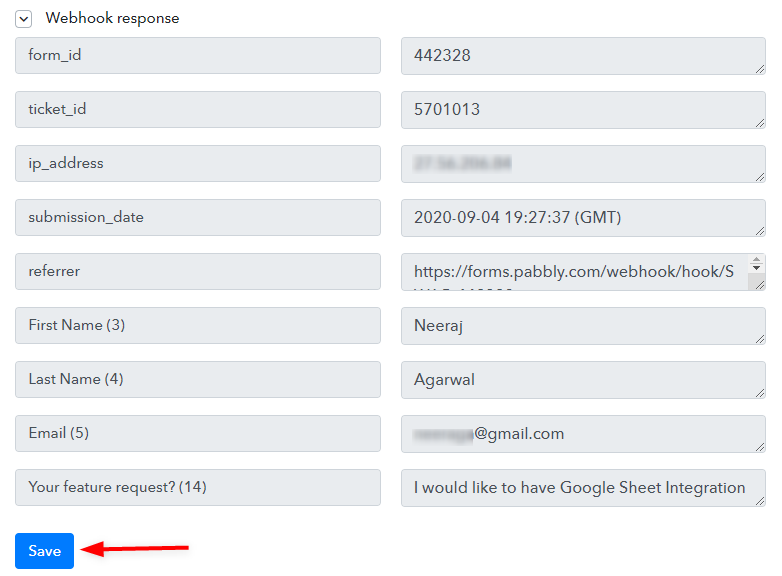
Webhook Response

As soon as you fill the form the entry will appear on the “Pabbly Connect” dashboard. Then, click on the “Save” option.

Step 8: Setting Action

Now you will have to set the action for your trigger for which you have to select the application you want to integrate.

(a) Select Trello App

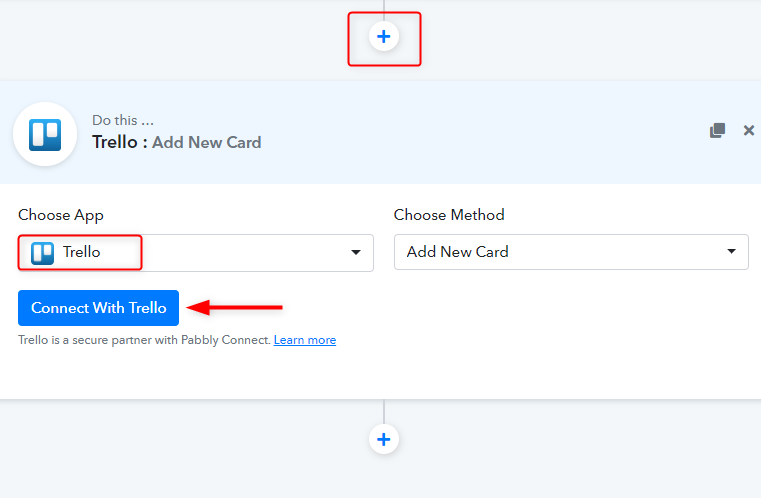
Setting Action - Integrate Pabbly Form Builder with Trello

Click on the “+” icon to add an action for your trigger.  In our case, app is “Trello” and method is Add new card then, hit the “Connet With Trello” button.

(b) Get your API Key & Bearer Token

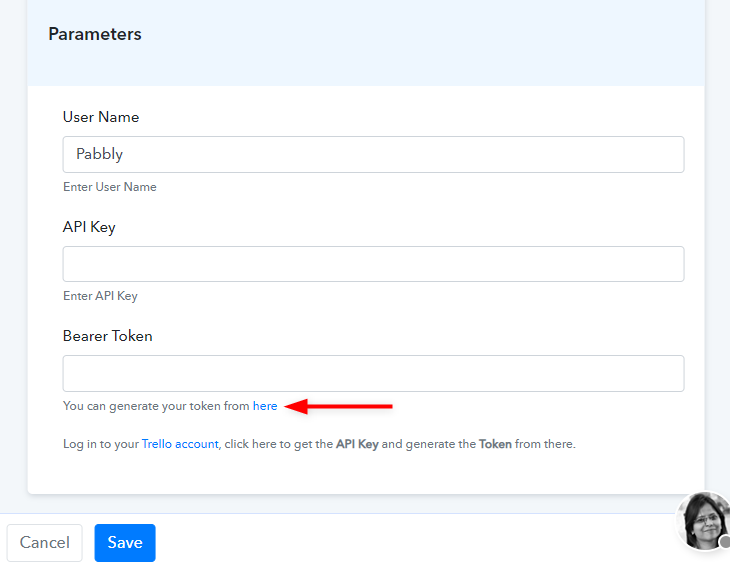
API Key & Bearer Token

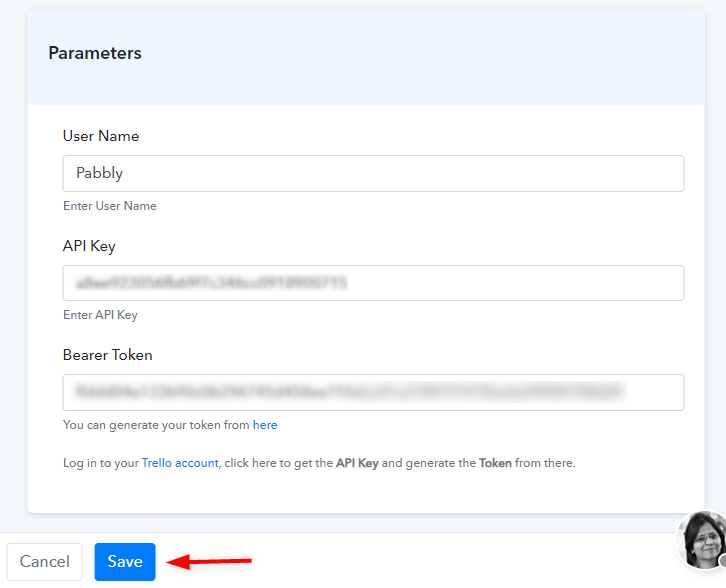
Further, it will ask for “Bearer Token”, for which you have to log in to Trello account or click on the “here” link.

(c) Copy API Key & Bearer Token

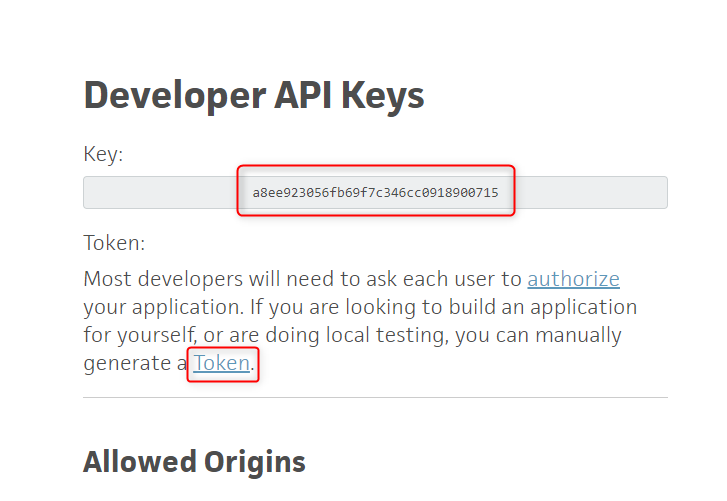
Copy API Key & Bearer Token - Trello

You will get your API key inside the Trello account, as shown in the image above, just copy the available API code. For bearer tokens, you have to authorize your account by giving some permissions and then you get your token.

(d) Paste API Key/Bearer Token in Pabbly Connect Dashboard

Paste API Key/Bearer Token - Pabbly Connect

Go back to the “Pabbly Connect” dashboard and paste the copied key and hit the “Save” button.

Step 9: Choose Board & Add Field Data

Choose Board & Add Field Data - Integrate Pabbly Form Builder with Trello

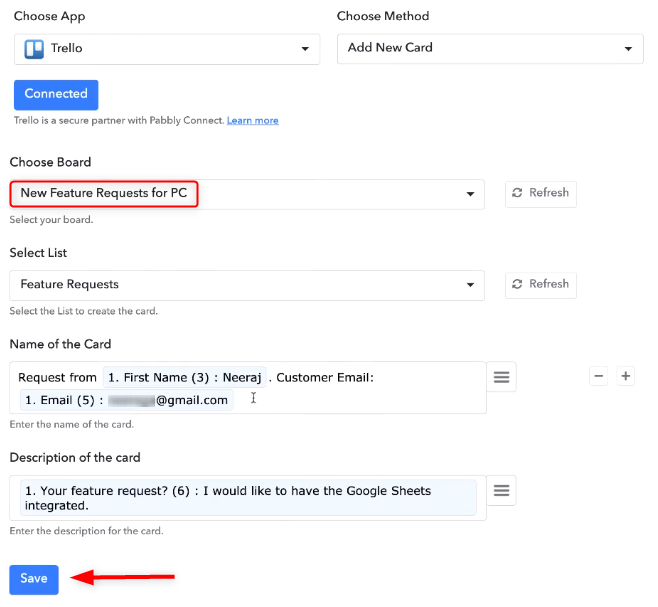
Now, as you can see your board name in the drop-down list so just choose your board. Here, all you have to do is add the required field from drop-down such as for the name of the card and description. It all depends on what data you want to map into your board like name, email, information, etc.

Step 10: Check Submission in Trello Dashboard

Check Submission in Trello Dashboard - Integrate Pabbly Form Builder with Trello

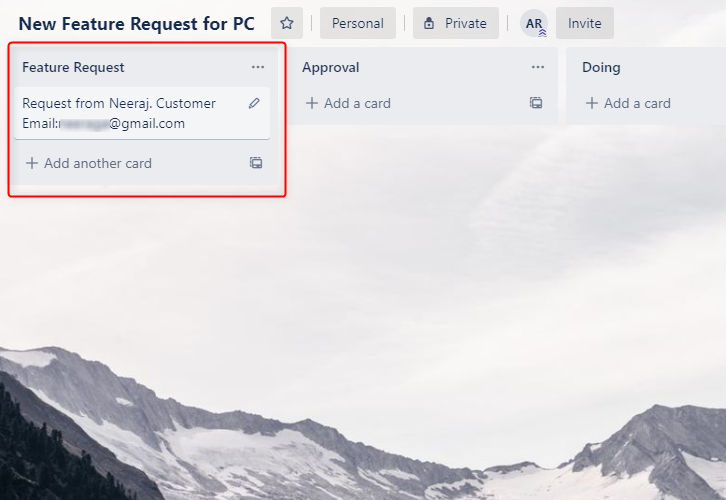
Lastly, when you check the board in Trello, your entry will automatically appear there. This is a one-time process, after that, all the card entries will automatically get added to your Trello’s board.

Wrapping Up

Thats it! This is our article on “How to Integrate Pabbly Form Builder with Trello”. All you have to do is follow all the above-mentioned steps and you’re good to go. Using Pabbly Connect, you can integrate limitless applications and create unlimited workflows. So let’s start your automation work with Pabbly Connect without worrying about anything else.

Further, in case you have any queries regarding the same, you can always contact us.

You May Also Like To Read:

How to Connect WP Amelia to Google Calendar and Gmail

How to Connect WP Amelia to Google Calendar and Gmail

In this article, we’re going to connect WP Amelia to Google Calendar and Gmail. WP Amelia is an appointment booking service and once an appointment is booked on WP Amelia, we’ll store its confirmation inside Google Calendar and an automated email will be sent for the same event.

We are going to accomplish this three-step workflow with the help of Pabbly Connect.

How to Connect WP Amelia to Google Calendar and Gmail

Pabbly Connect helps you connect two or more services together. We can create unlimited workflows and set-up instant triggers on service conditions. Furthermore, you can also make use of various formatters, filters, routers etc. Based on the trigger condition we can define an action using multi-steps calls of Pabbly Connect.

Why Choose This Method Of Integration?

In contrast with other integration services-

  • Pabbly Connect does not charge you for its in-built apps like filters, Iterator, Router, Data transformer and more
  • Create “Unlimited Workflows” and smoothly define multiple tasks for each action
  • As compared to other services which offer 750 tasks at $24.99, Pabbly Connect proffers 50000 tasks in the starter plan of $29 itself
  • Unlike Zapier, there’s no restriction on features. Get access to advanced features even in the basic plan
  • Try before you buy! Before spending your money, you can actually signup & try out the working of Pabbly Connect for FREE

Sign Up To Pabbly Connect  

Well, it somehow sounds tough, but I can tell you it would take only a few minutes and you don’t have to use any coding in here.

Now, let’s get started with the step by step procedure to connect WP Amelia to Google Calendar and Gmail.

Step 1: Sign up to Pabbly Connect

Sign Up

Firstly, visit the official website of Pabbly Connect and then click on the ‘Sign-Up Free‘ button. Next, on the signup page, either make use of an existing Google account or manually fill out the registration form details to get in.

Try Pabbly Connect for FREE

Step 2: Access Pabbly Connect

Select Connect

After signing up successfully, click the ‘Access Now’ button that is present in the ‘Connect’ Pabbly application window.

Step 3: Create a WorkFlow to Connect WP Amelia to Google Calendar and Gmail

(a) Click over the Create New Workflow Button

Create New Workflow

Start with creating a workflow to connect WP Amelia to Google Calendar and Gmail and for this hit the ‘Create New Workflow’ button.

(b) Name the Workflow

Connect WP Amelia to Google Calendar and Gmail

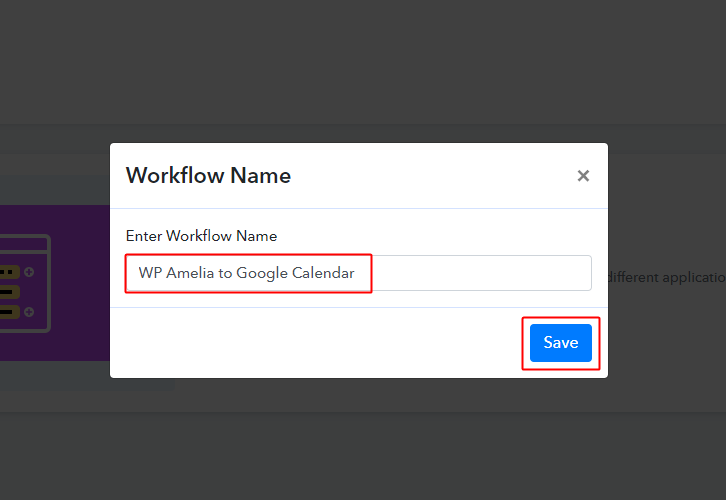
Name the Workflow as per your need (for instance: WP Amelia to Google Calendar’) and hit the ‘Save’ button.

Step 4: Set-up A Trigger to Connect WP Amelia to Google Calendar and Gmail

For WP Amelia to Google Calendar and Gmail integration, you need to set-up a trigger and an action. So, let’s start setting up the trigger first.

(a) Select Application to Integrate as WP Amelia

Integrate WP Amelia to Connect WP Amelia to Google Calendar and Gmail

After naming and creating a webhook, you’ll be asked to set-up a trigger condition.

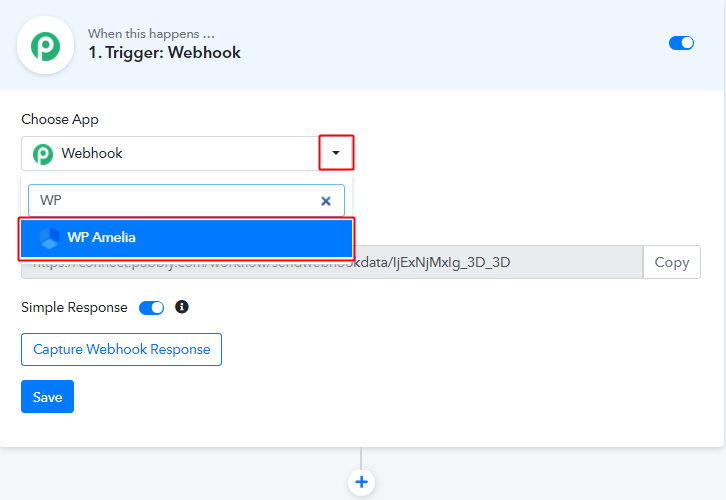
So, select the ‘WP Amelia’ application from the Choose App field drop-down.

(b) Go to your WordPress Site & Embed a Booking Calender

Embed Booking Calendar on WordPress to Connect WP Amelia to Google Calendar and Gmail

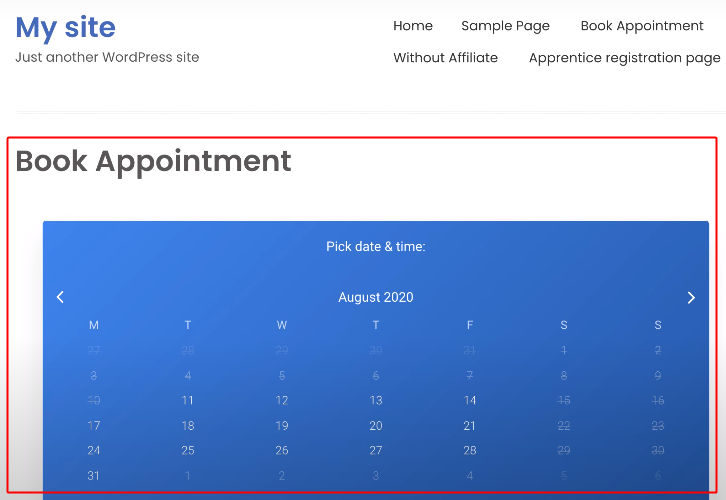
Now, to set-up a trigger on WP Amelia appointment, the triggering calendar should be present on your WordPress site.

So, if you have already created a calendar then you can directly proceed forward towards the next step.

But, if you haven’t created a booking calendar yet then simply embed one on your WordPress site.

(c) Go to WP Amelia Settings

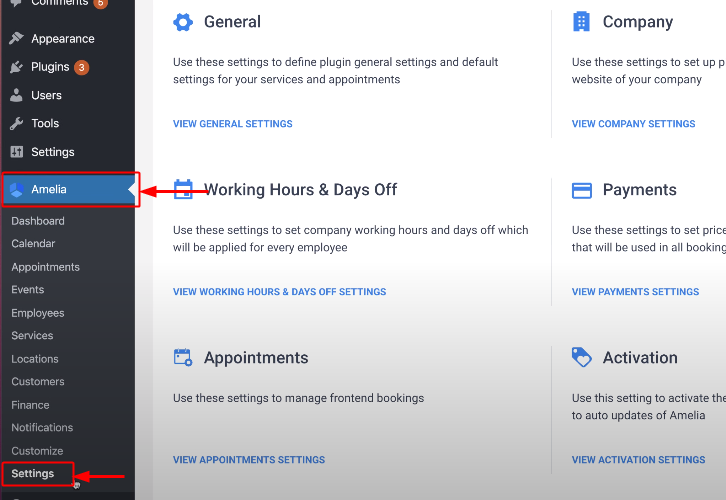
Amelia > Settings

Next, to establish a connection in between your WP Amelia booking calendar and Pabbly Connect, you must do some settings.

So, go to your WordPress site and click on the ‘Amelia’ present in the verticle menu there.

When you click ‘Amelia’ another menu open up below it. Click on the ‘Settings’  onto this menu.

(d) Click on Integration

Amelia Integrations

Once you click on the Amelia Settings a settings page will open up in the right window.

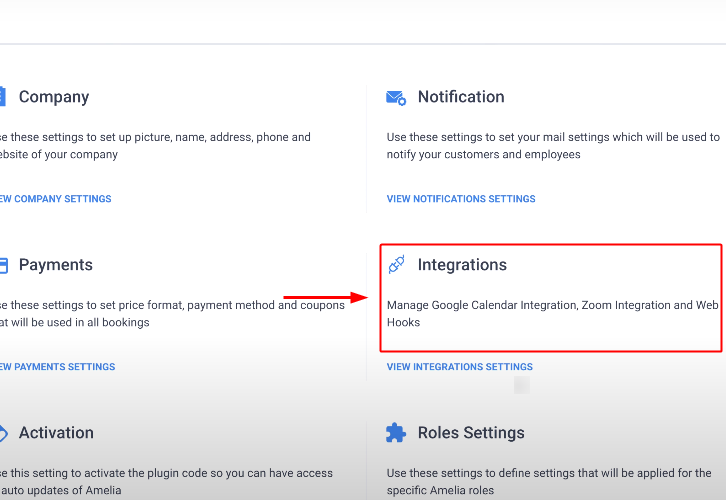
Click over ‘Integrations’ from the multiple setting options available there.

(e) Add a New Webhook on Amelia

Add New Webhook

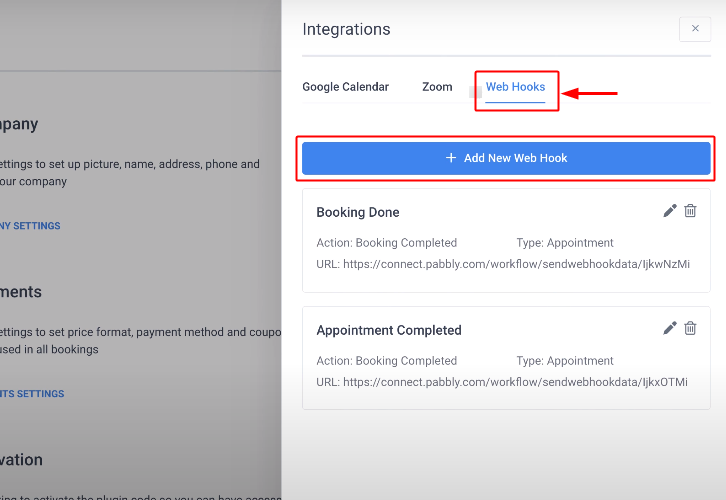
Next, a window will slide in from the right side.

Click over ‘Web Hooks’ from the horizontal menu.

And click over the ‘+ Add New Web Hook’ button.

(f) Go to Pabbly Connect and Copy the Webhook URL

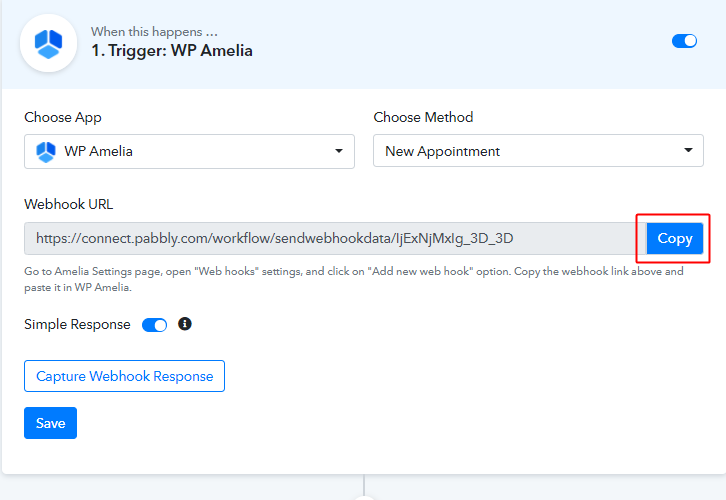
Copy PC Webhook URL to Connect WP Amelia to Google Calendar and Gmail

You can see three values to fill-in. So, for the URL field value, held back to Pabbly Connect and copy the Webhook URL.

(g) Paste the Copied Pabbly Connect Webhook URL on Amelia

Paste Pabbly Connect Webhook URL on Amelia

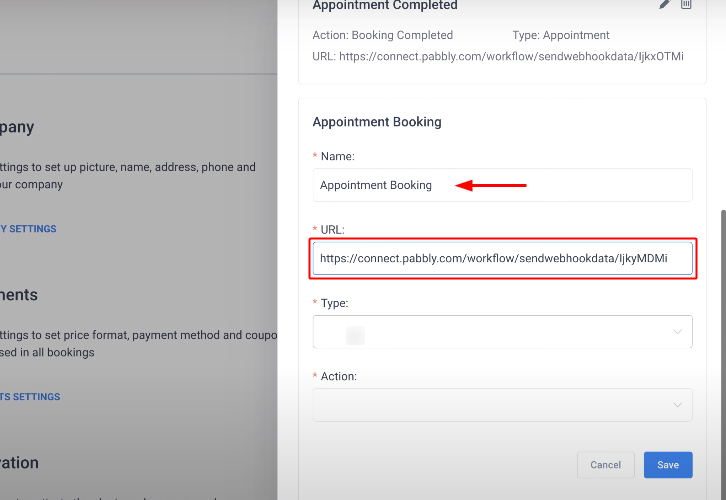
Mention a Webhook name in the ‘Name’ field.

And paste the copied Webhook URL from Pabbly Connect in the ‘URL’ field.

(h) Save the WP Amelia Settings

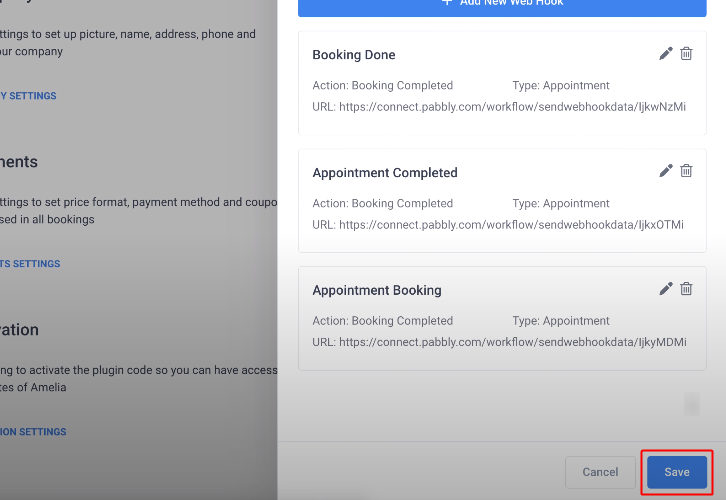
Save WP Amelia Settings

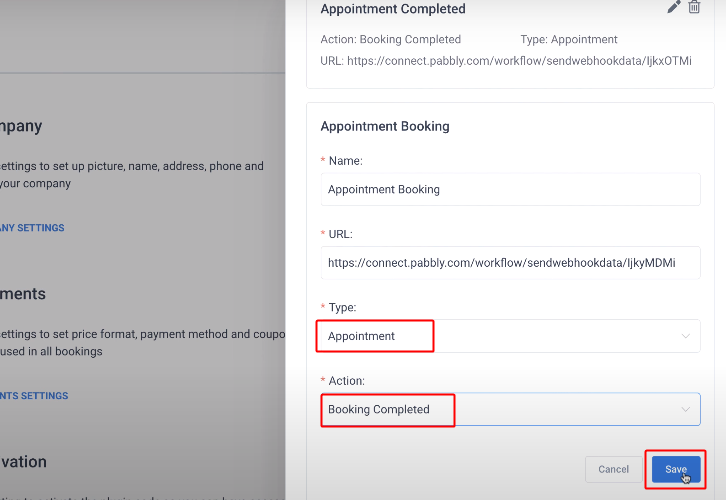
Choose the ‘Appointment’ option from the ‘Type’ field’s drop-down.

And the ‘Booking Completed’ option from the ‘Action’ field’s drop-down.

Lastly, save the Webhook Setting on this page.

(i) Save Amelia Webhook Settings

Save WP Amelia Webhook Settings

Click the ‘Save’ button on the next window too.

Step 5: Test the Trigger

(a) Click Capture Webhook Response on Pabbly Connect

Capture Webhook Response to Connect WP Amelia to Google Calendar and Gmail

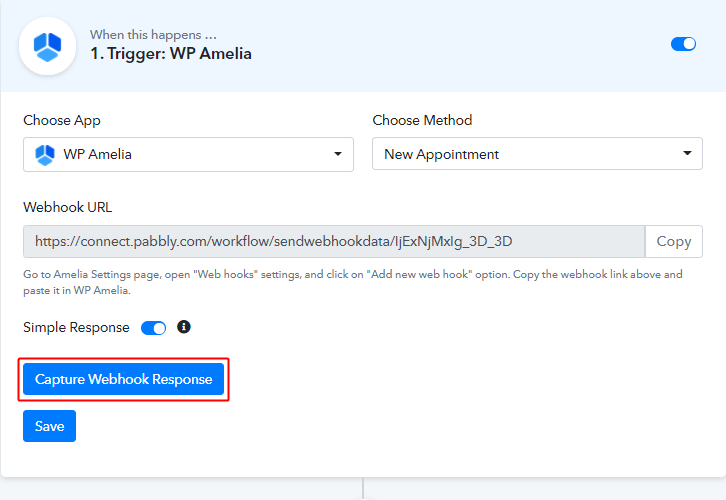
Now, again held back to the Pabbly Connect trigger and click the ‘Capture Webhook Response’ button. The trigger starts capturing the data from the attached Amelia booking calendar.

(b) Make an Appointment

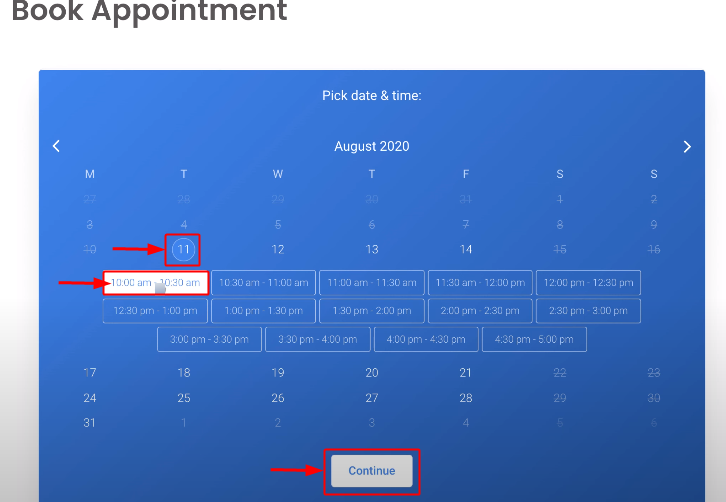
Make an Appointment

Now, to test whether the integration is successful or not, make an appointment using the attached Amelia booking calendar.

Select a date, time and press the ‘Continue’ button to make an appointment.

(c) Confirm Appointment

Confirm Apponitment

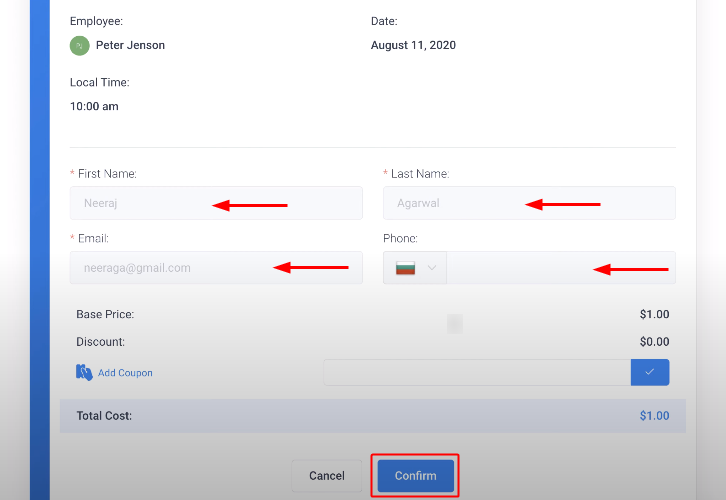
Next, confirm the appointment by filling out the details required & hit the ‘Confirm’ button.

(d) Check Booking Confirmation

Booking Confirmation

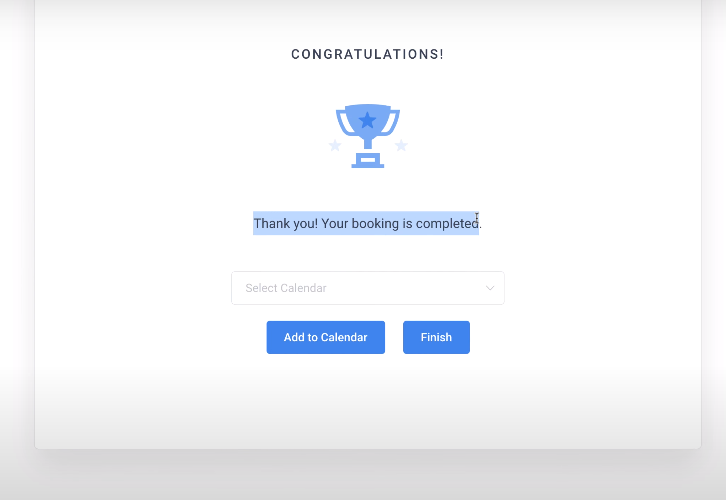
If you made a successful booking then the above-shown response will ensure the booking’s success.

(e) Check Webhook Response

Check Webhook Response

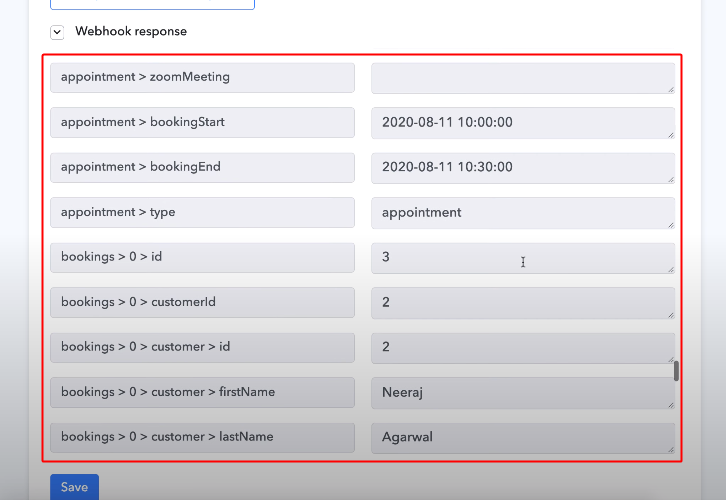
Also, check the Webhook’s response on Pabbly Connect for the successfully booked appointment on Amelia.

Step 6: Set-up an Action to Connect WP Amelia to Google Calendar and Gmail

We’ve gathered the data from WP Amelia in the last step. But the date-time format in WP Amelia is different than the date-time format of Google Calendar. So, our very first action step would be to convert the date-time format for the bookingStart & bookingEnd timings.

(a) Connect Date-Time Formatter

Integrate Date Time Formatter to Connect WP Amelia to Google Calendar and Gmail

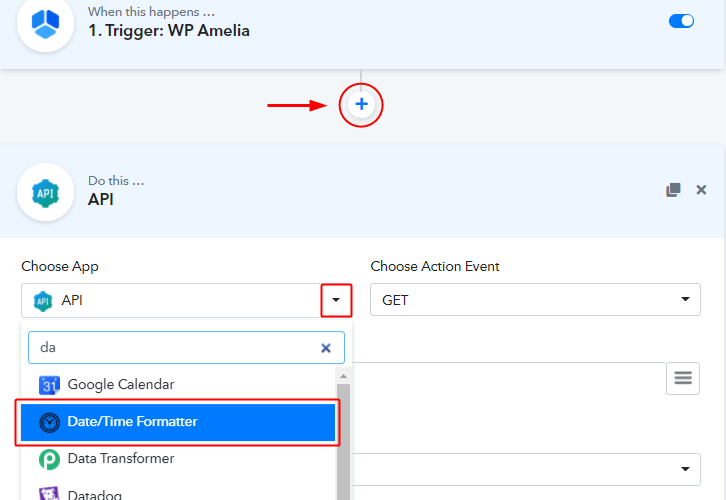
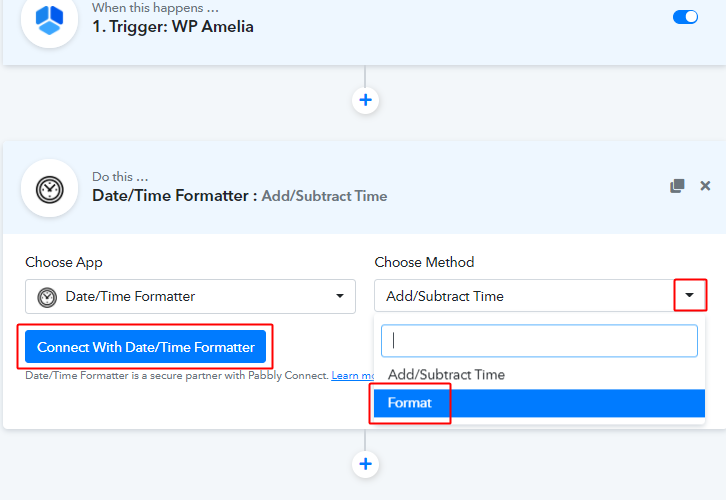
To change the date format integrate the Date/Time Formatter and to do this, select the ‘Date/Time Formatter option from the Choose App field drop-down.

(b) Select Method for Date/Time Formatter

Date Time Formatter Method

Now, select the method as ‘Format’ and then click the ‘Connect’ button.

(c) Map Date Variables

Map Date Variables

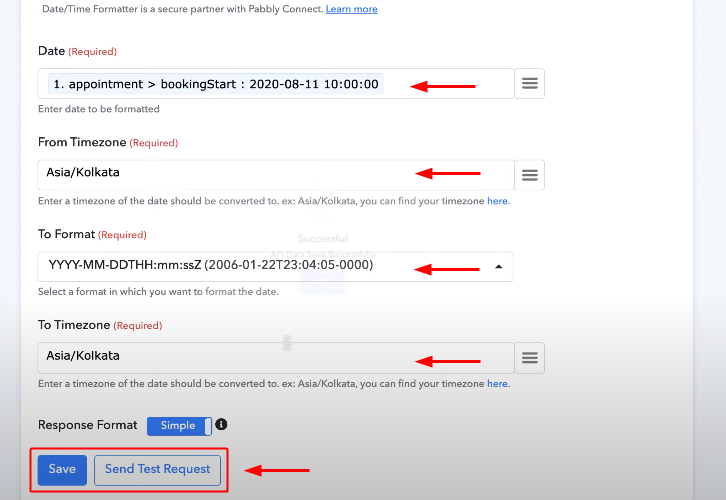
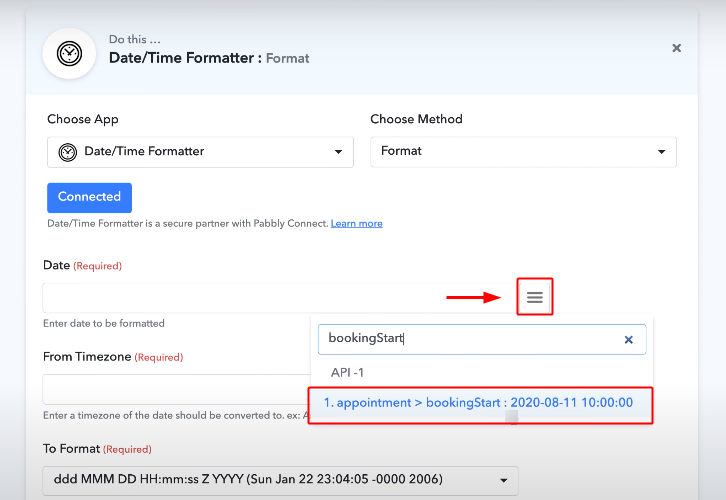
Next map the ‘bookingStart’ date in the date field.

For this, first, click the menu icon (or three verticle lines) next to the ‘Date’ field.

(d) Select the Google Calendar Date Format

Google Calendar Date Format

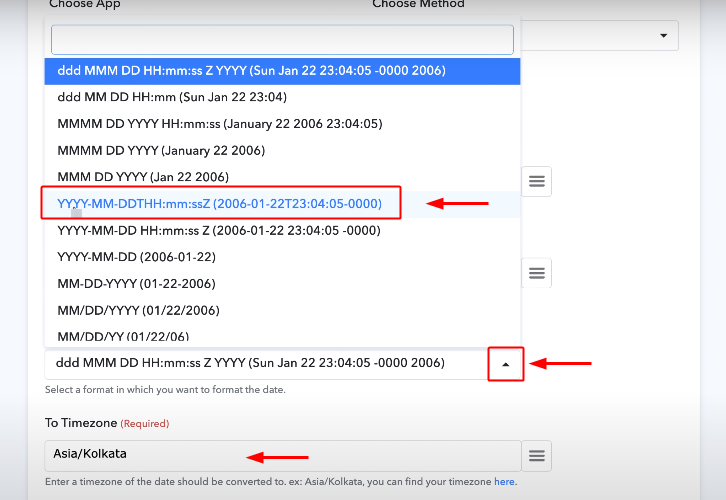
Select the date formate as ‘ YYYY-MM-DDTHH:mm:ssZ’, which is actually the Google Calender date-time format.

(e) Save the Date/Time Formatter Settings

Save Date Time Formatter Settings

Also, select the timezone, here I’ve selected the timezone as per my country.

Once you are done with all this, hit the ‘Save & Send Test Request’ button.

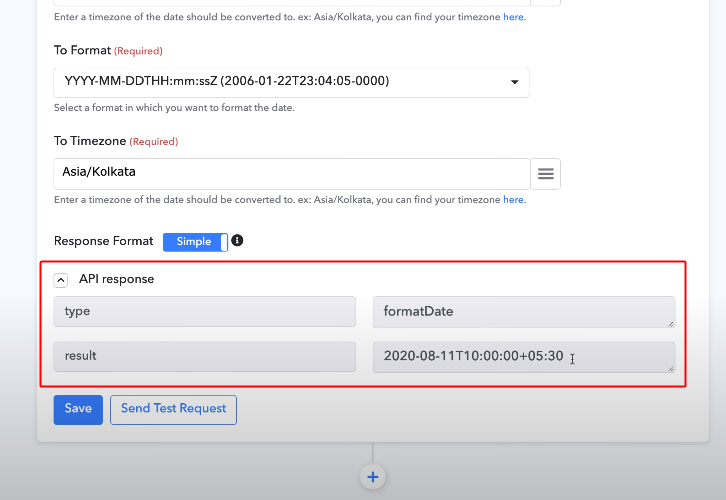
(f) Check the Date/Time Formatter Response

Formatter Response

Lastly, check the response of the integration.

Step 7: Format Date/Time for the ‘bookingEnd’ Value

Repeat the last step (Step 5) for ‘bookingEnd’ variable as well with a single change i.e, map the ‘bookingEnd’ variable instead of bookingStart on step 5(b).

Step 8: Integrate Google Calendar

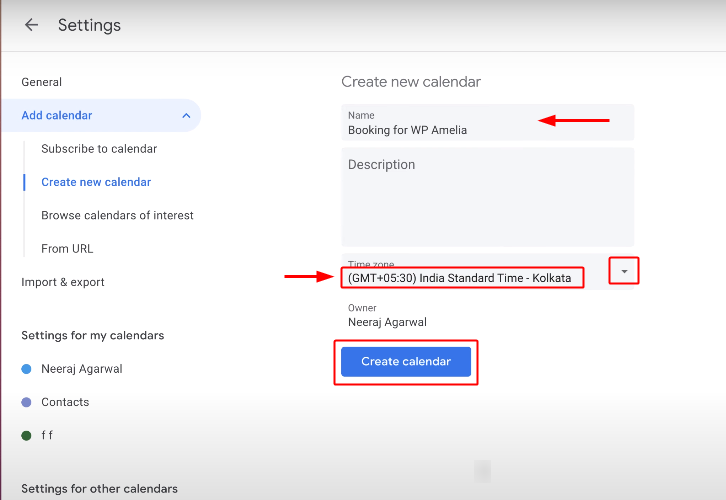
As we have all the values from the trigger response and formatted now. We can start integrating it with Google Calendar. For this, first, you must have an calendar dedicatedly for the purpose. If you haven’t created one then follow the following steps.

(a) Add Calendar

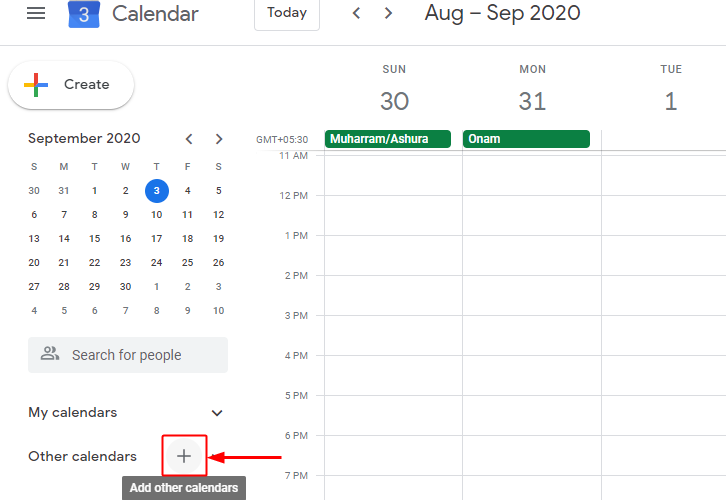
Add Calendar

Click the ‘+’ button next to other calendars of your Google Calendar account.

(b) Create a New Calendar

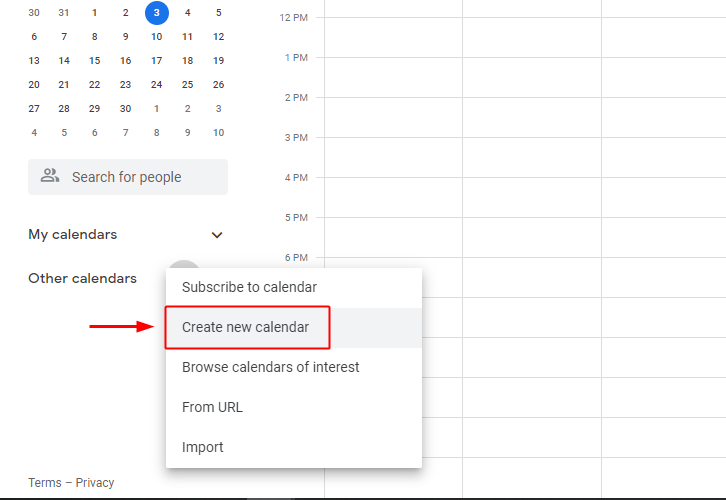
Create New Calendar

After clicking on the plus button, a drop-down will open up. Select the ‘Create new calendar’ option from the available options here.

(c) Calendar Time Zone Settings

Calendar Settings

Next, name the newly created calendar, select a time zone as per your location and press the ‘Create Calendar’ button.

(d) Select the Application to Integrate as Google Calendar

Integrate Google Calendar

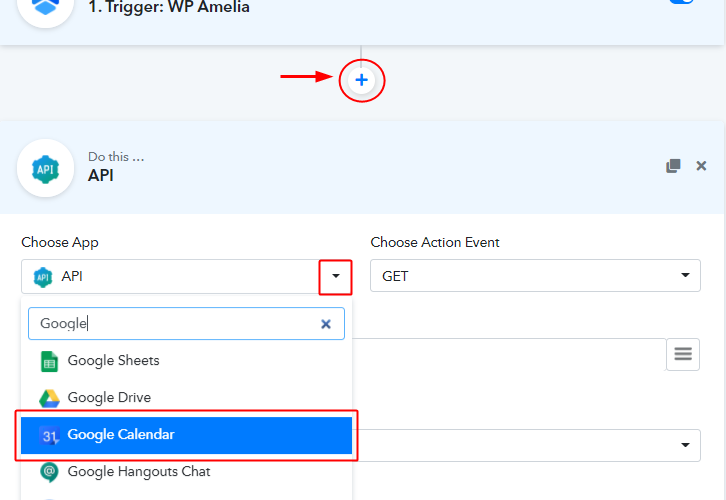
Now, go to Pabbly Connect and click the ‘+’ button next to 2nd Date/Time Formatter that you’ve integrated.

Select the ‘Google Calendar’ application to integrate.

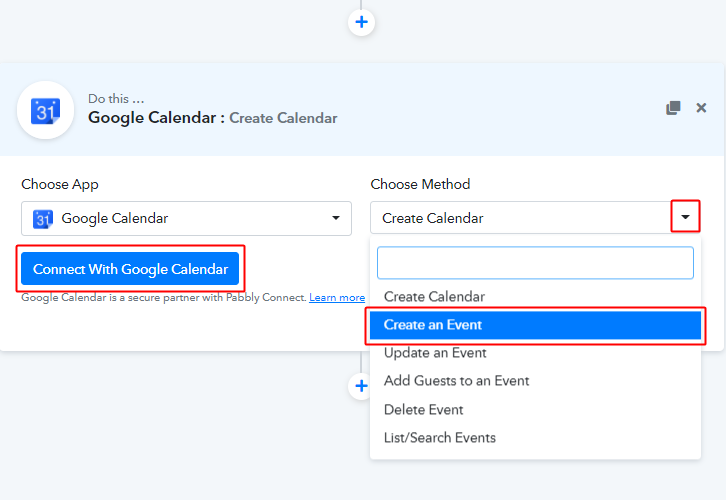
(e) Select Google Calendar Method

Google Calendar Method

In the choose Method field, select the ‘Create an Event’ option.

Lastly, hit the ‘Connect with Google Calendar’ button.

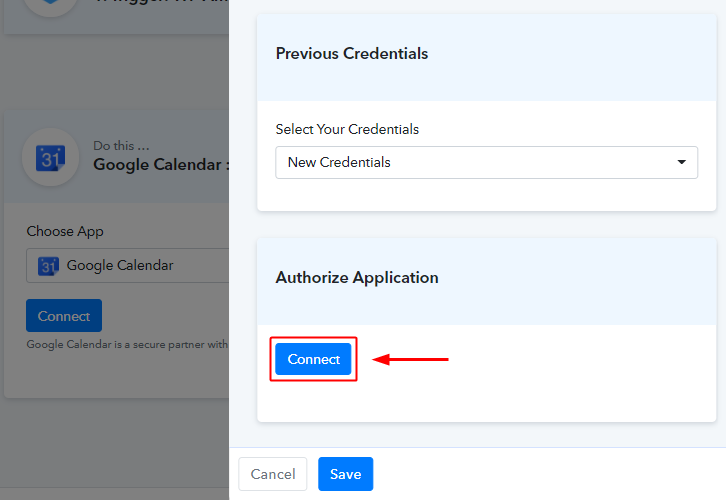
(f) Authorize your Google Account

Authorize Google Account

A window will slide in from the right, click on the ‘Connect’ button in it. Authorize the Google account that you want to use for the integration.

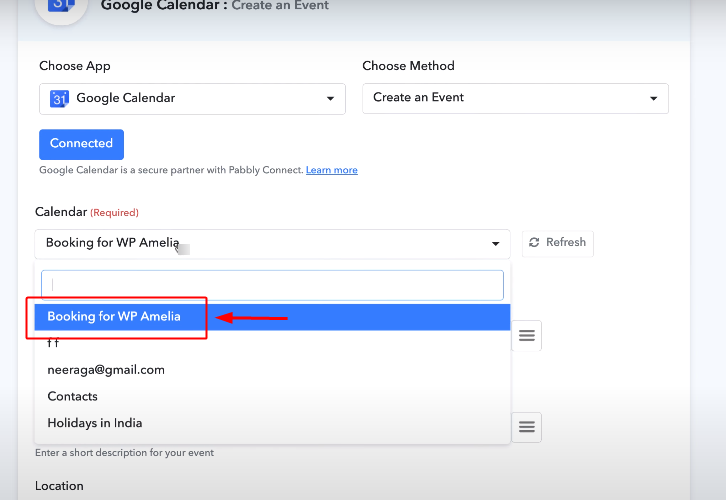
(g) Choose Calendar Name

Select Calendar Name

The calendar field starts showing all the created calendars of your connected Google account.

Select the calendar option from the drop-down that you have created for this particular integration.

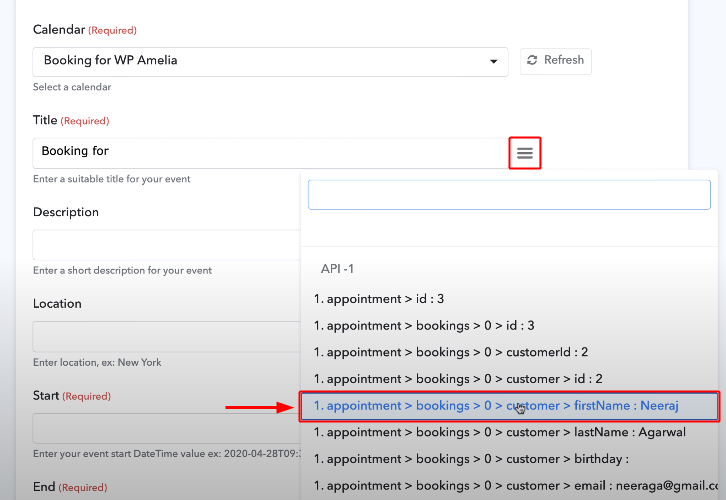
(h) Map Values

Map Values

You can use the WP Amelia data to fill-in any field here.

To map a value, place your cursor over the place where you want to map a value then click the three verticle lines next to that field and click over the values that you wanna map from the drop-down.

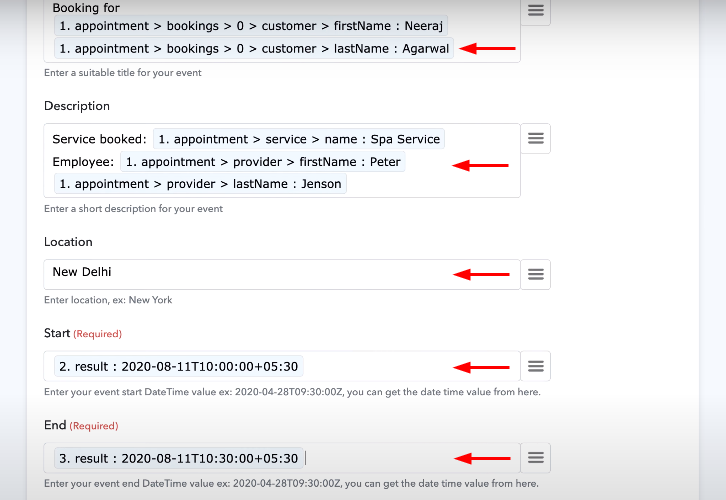
(i) Map All Values

Map All Values

Similarly, map all the other values too. Remember, to map the ‘bookingStart’ & ‘bookingEnd’ time that we have converted after date-time formatting.

You can find the responses in the end of the drop-down.

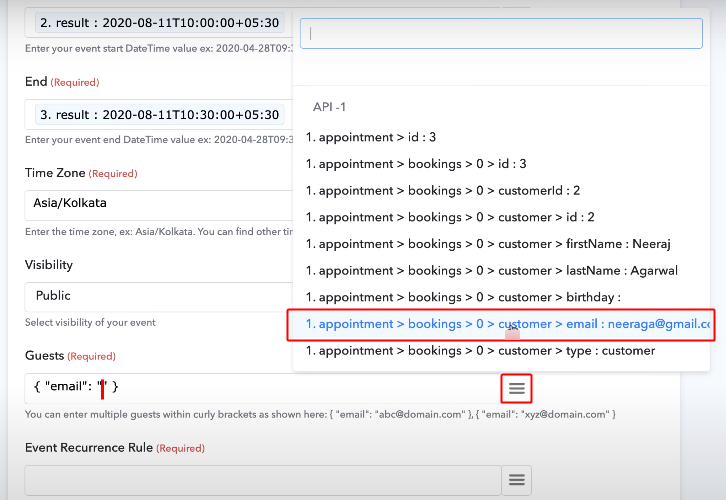
(j) Map the Guest Email

Map Guest Email

Also, select the ‘Time Zone’ as per your location.

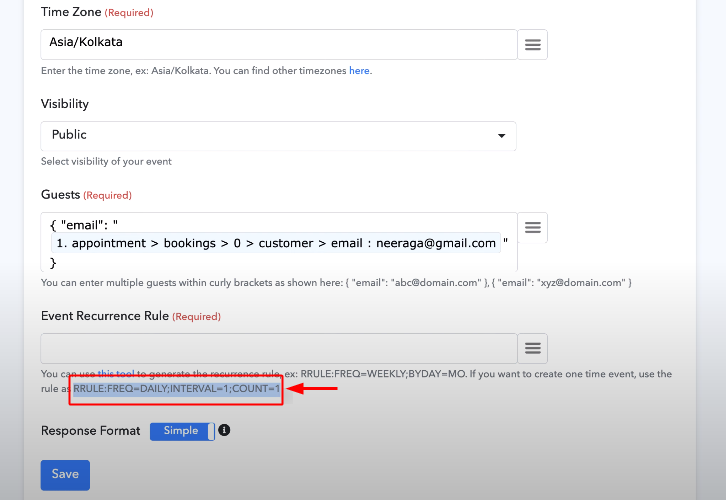
To map the ‘Guests’ field, write {“email”:””} and then place your cursor in between the blank double quotes (as shown) then press the three vericle lines icon next to the Guests field and select the customer’s email.

Moreover, the hints are also present below the field.

(k) Select Event Recurrence & Copy the Rule

Event Recurrence Rule

Next, is the Event Recurrenace Rule field, again the field value hints are available at the bottom of the field. There are two choices for selecting the event recurrence. I’ve selected the one time recurrence value. Moreover, you can select the event occurrence other than that as well.

To set the event recurrence to a single time, select and copy the text shown in the above image.

(l) Paste the Chosen Event Recurrence Rule, Save & Send Test Request

Paste Event Recurrence Rule

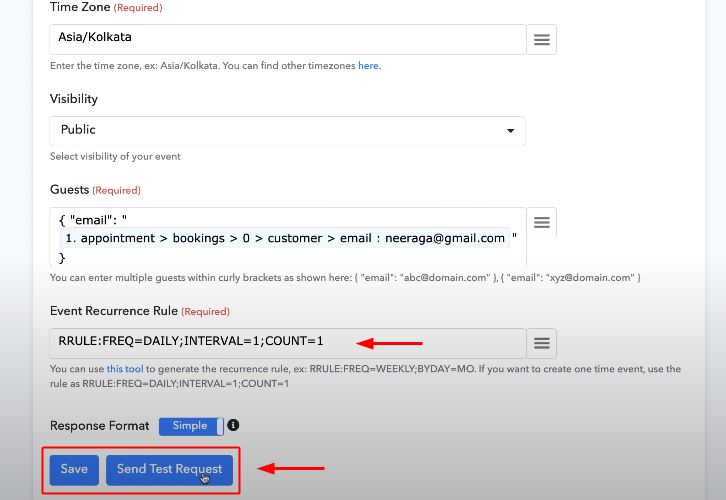
Paste the copied event recurrence values in the field.

Lastly, click save and send a test request.

(m) Check the Response in Google Calendar Account

Check Response in Google Calendar

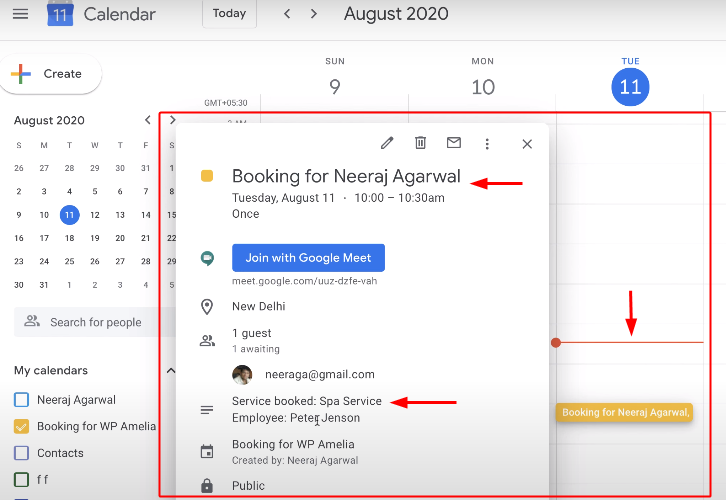
If everything goes fine, you can check the response of the action in your created Google Calendar by a coloured event bar and when you click or hover on it, you can see the booking details that we’ve to send from WP Amelia appointment.

Step 9: Integrate Gmail

As the third step, we’ve to send the appointment information to Gmail as well. So, follow the following steps to do so.

(a) Select the Application to Integrate as Gmail

Integrate Gmail

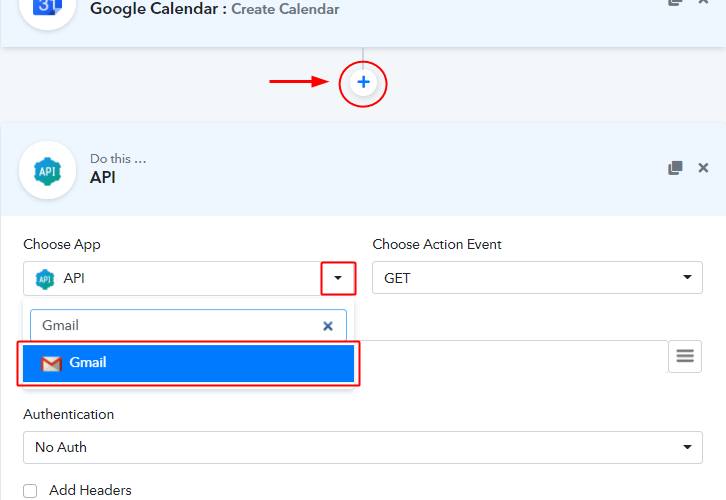
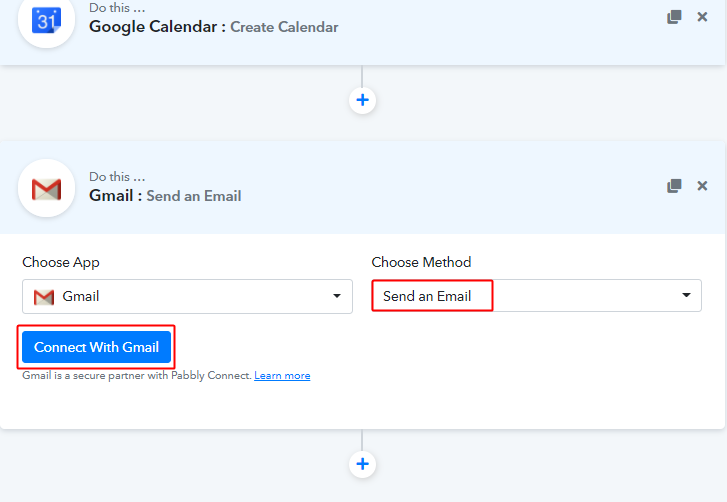
First, click the ‘+’ sign on the bottom and select ‘Gmail’ from the ‘Choose App’ field’s drop-down.

(b) Connect with Gmail Account

Connect with Gmail

Select the method as ‘Send an Email’ and hit the ‘Connect with Gmail’ button.

(c) Authorize the Gmail Account

Authorize the Gmail Account

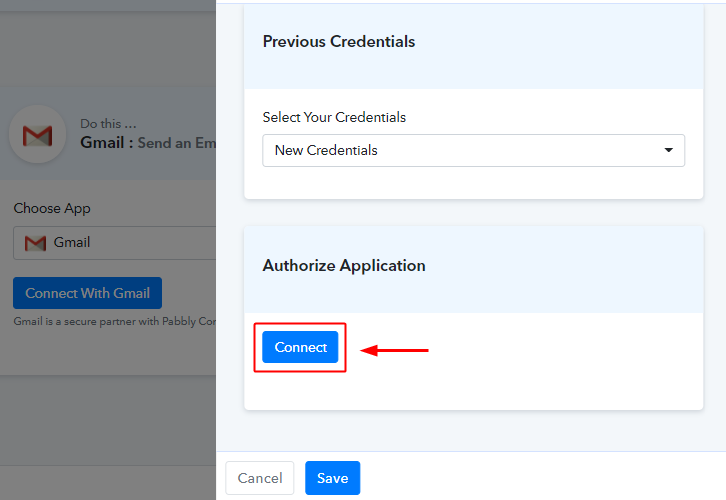
In the next, right sliding window, press the ‘Connect’ button and authorize your Gmail account.

(d) Map Gmail Values

Map Gmail Values

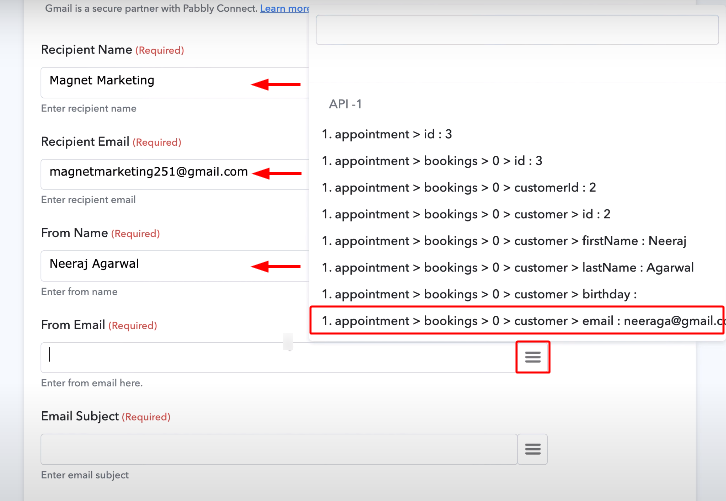
Map the values that you wanna send on Gmail regarding the WP Amelia appointment.

(e) Save Gmail Settings

Save Gmail Action

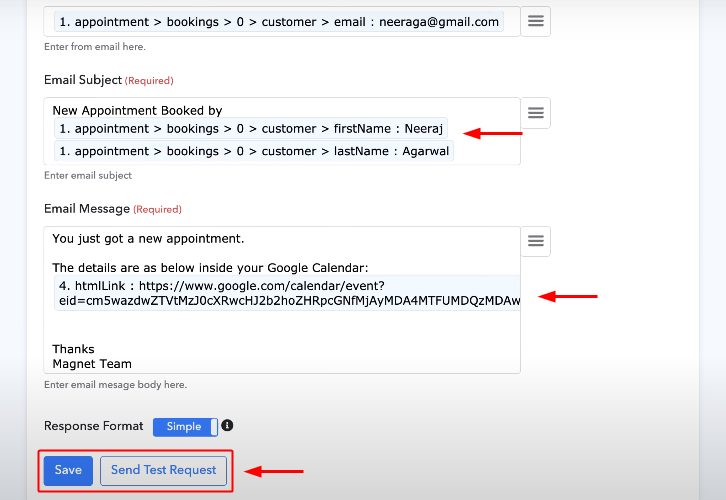
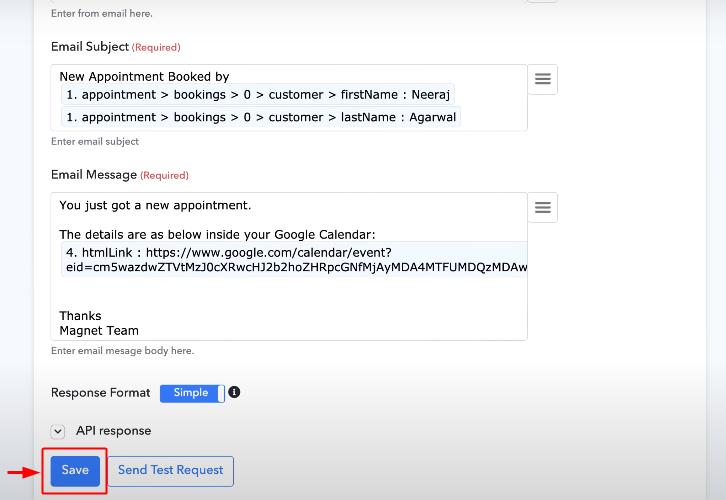
Fill in all the other details and email draft.

Lastly, click ‘Save & Send Test Request’.

(f) Check the Response of the Action over Gmail

Check Email Action Response

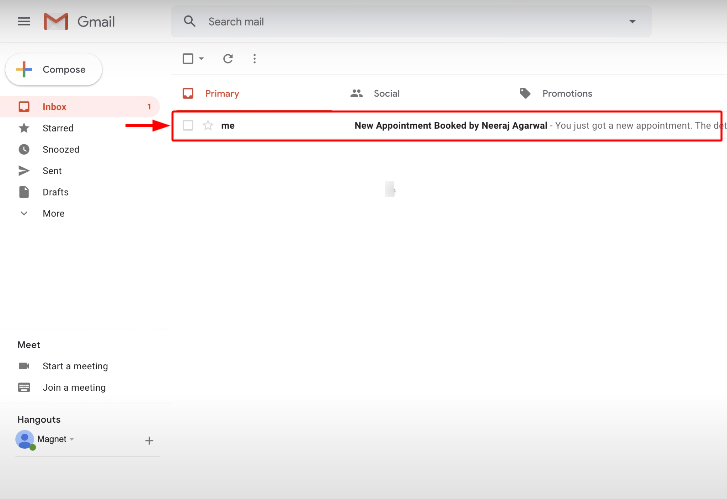
Check the response of the workflow on the Gmail account.

Step 10: Save the Workflow for WP Amelia to Google Calendar and Gmail Integration

Save Workflow

Save the workflow by clicking the ‘Save’ button of the last step of your workflow. In this case, save button of the ‘Gmail’ action.

To test whether your workflow is working as expected or not, make more appointments via WP Amelia and check the response over your Google Calendar and Gmail.

Wind-Up

Well, this is ‘How to connect WP Amelia to Google Calendar and Gmail using Pabbly Connect. Consequently, after completing this procedure, you will end up getting emails of your customer’s bookings from WP Amelia to your Google Calendar and Gmail automatically. Most importantly, the procedure is very easy to implement and you don’t need any coding skills to carry these simple steps.

Are you ready to try Pabbly Connect for FREE?

For any further queries, do comment below.

You May Also Like to Read:

How to Integrate Shopify with Platformly | Step by Step

How to Integrate Shopify with Platformly

Have you been searching for a method to integrate Shopify with Platformly? If yes, then keep on reading as this is the right place for you.

How to Integrate Shopify with Platformly

Although, before we start the integration process, let’s know a little bit about these two software.  Shopify is an online store builder, where you can easily set up your online shopping store within a few minutes. It’s easy to use, secure, and you get a 14 days free trial before you buy it. On the other hand, Platformly is an awesome and easy to use email marketing software. Hence, if you integrate these two services, the customers’ information from Shopify will be automatically transferred to your Platformly account. You won’t have to be bothered again and again to do this redundant work and you will save a lot of time and effort.

Now the question is how you can integrate Shopify with Platformly? Well, the answer is simple and it’s called Pabbly Connect.

Why Choose This Method Of Integration?

In contrast with other integration services-

  • Pabbly Connect does not charge you for its in-built apps like filters, Iterator, Router, Data transformer and more
  • Create “Unlimited Workflows” and smoothly define multiple tasks for each action
  • As compared to other services which offer 750 tasks at $24.99, Pabbly Connect proffers 50000 tasks in the starter plan of $29 itself
  • Unlike Zapier, there’s no restriction on features. Get access to advanced features even in the basic plan
  • Try before you buy! Before spending your money, you can actually signup & try out the working of Pabbly Connect for FREE

Sign Up To Pabbly Connect

Pabbly Connect is a fabulous integration tool through which you can integrate thousands of apps, set unlimited triggers and actions, create unlimited workflows, and much more and that too without any coding skills. Pabbly Connect can change your whole working routine, you just have to try its free plan.

Therefore, without wasting any more time, let’s integrate Shopify with Platformly.

Step 1: Sign up to Pabbly Connect

Sign Up

Let’s start the process of integrating Shopify with Platformly by clicking on the “Sign Up Free” icon on the Pabbly Connect dashboard. Further, you can manually fill-up all the details or sign up using your Gmail account.

Try Pabbly Connect for FREE

Step 2: Access Pabbly Connect

Select Connect

After signing into the account, click on the “Access Now” button of the Connect section to access Pabbly Connect software.

Step 3: WorkFlow for Shopify with Platformly Integration

(a) Start with a New Workflow

Create New Workflow

Here, you have to press the “Create New Workflow” button to start the Shopify Platformly integration process.

(b) Name the Workflow for Shopify with Platformly

Name the Workflow

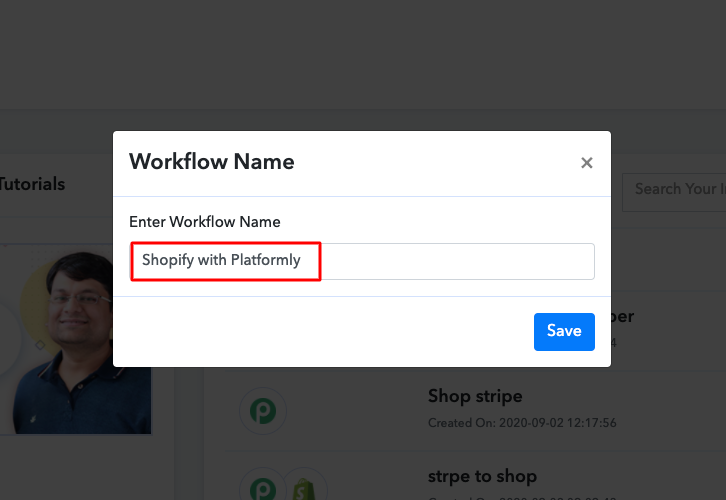
Thereafter, name the workflow according to your needs. Here, we have named the workflow as Shopify with Platformly.

Step 4: Setting Trigger for Shopify Platformly Integration

Now after creating a workflow, you have to choose the application you want to integrate. Using Pabbly Connect one can bind or connect unlimited apps, click here to try it out for free.

(a) Select Application you Want to Integrate

Select Shopify

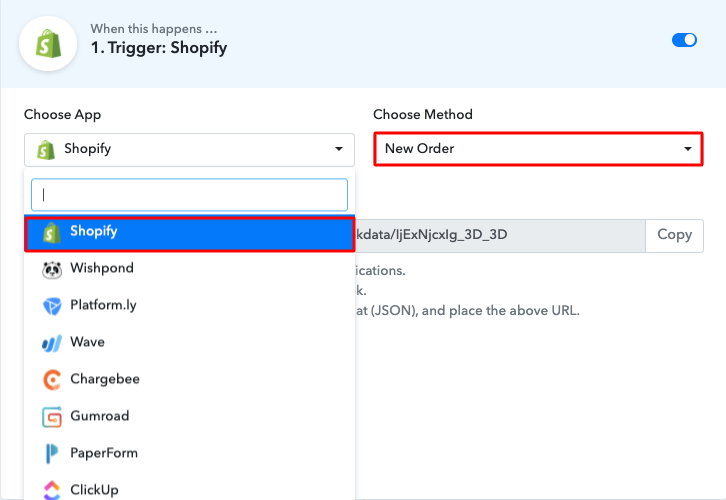
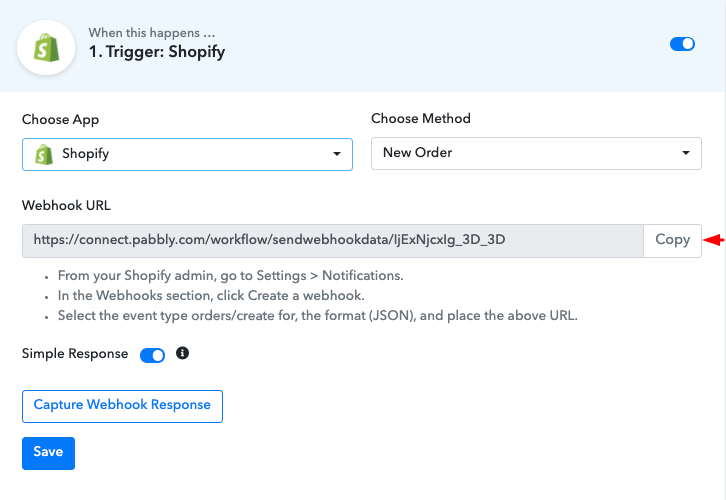
Now, you have to select the application that you want to integrate. In this case, we are choosing Shopify for integration. After selecting the application, choose the ” New Order” option.

(b) Copy the Webhook URL

Copy Webhook URL

After selecting the application and other options, now you have to copy the webhook URL just like in the above-shown image to take further the integration process.

Step 5 : Paste the Webhook URL

In this step, to move forward, you have to paste the copied webhook URL in your Shopify account’s settings section.

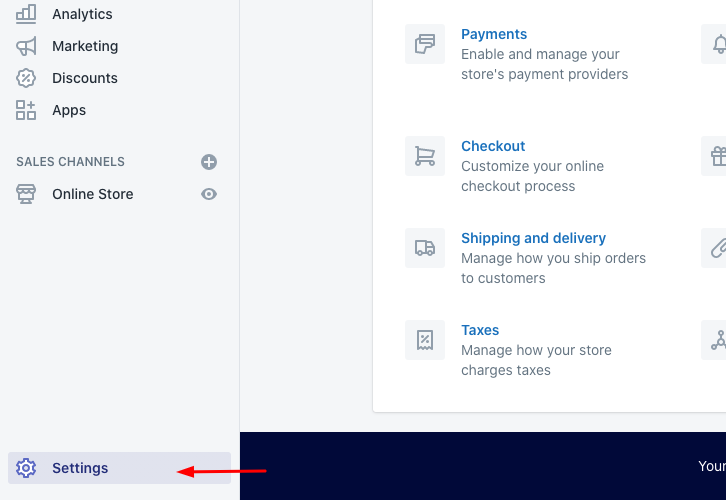
(a) Click on Settings

Click on Settings

After logging in your Shopify account, click on the “Settings” option at the bottom of the screen, just like we did.

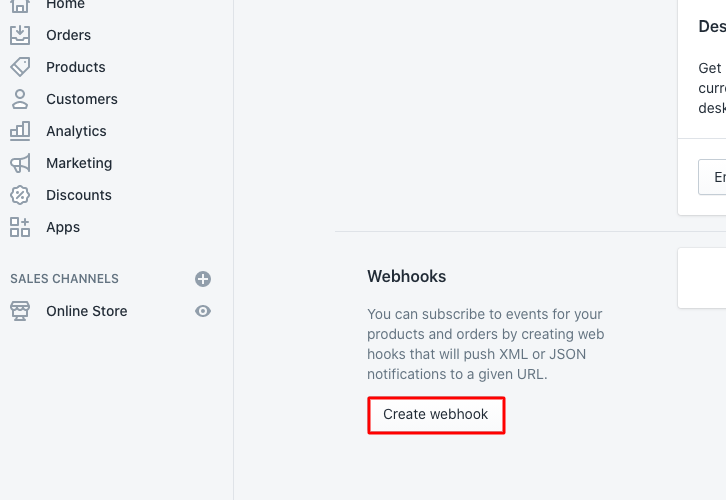
(b) Select Webhook

Create Webhook

Once you have reached the settings page, now you have to click on notifications and scroll down and you will see a webhooks option where you have to click on the “Create Webhook” button.

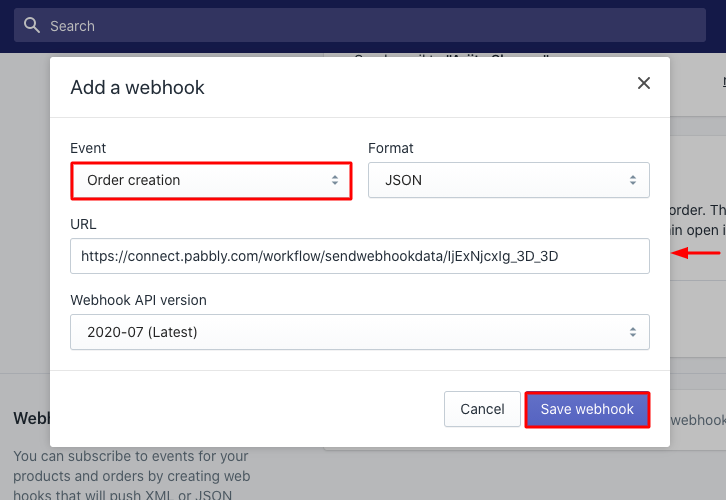
(c) Paste the URL

Paste the Webhook

A pop-up will appear on your screen after pressing the button, paste your copied webhook URL, in the event section select “Order creation” and then click on the “Save Webhook” button.

Step 6: Make a Purchase to Test Shopify Integration

Make Purchase

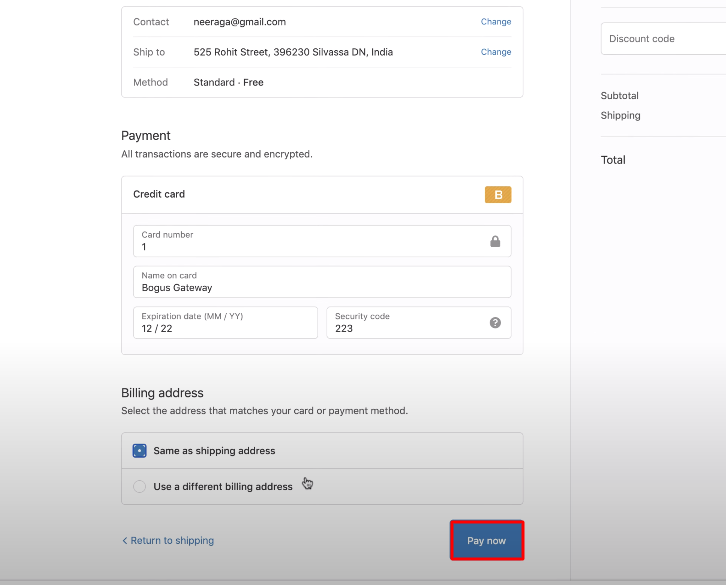
Now, to test the integration between Shopify and Pabbly Connect, make a dummy purchase in your Shopify account of any product. Fill all the required details and click on the “Pay Now” button.

Step 7: Test the Response in Pabbly Connect Dashboard

Test the Submission

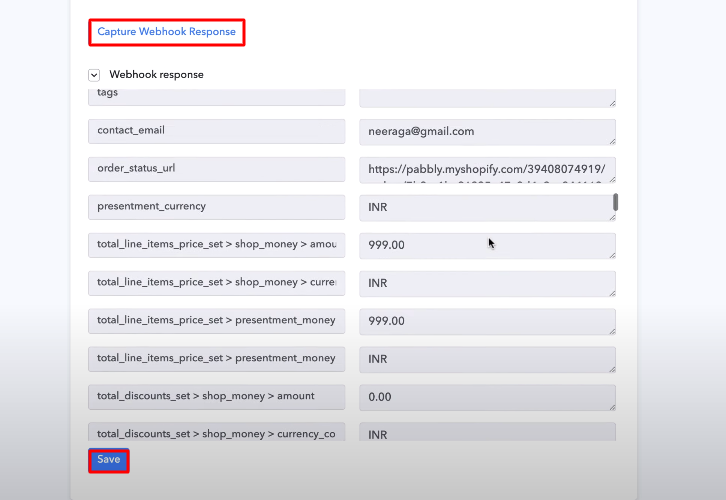
As soon as you make the purchase, go back to the Pabbly Connect dashboard and click on the “Capture Webhook Response” button, where you will see the submitted entry. Then, click on the “Save” button to continue the workflow.

Step 8: Setting Action for Shopify Platformly Integration

Now the next step is to set an action for your trigger. For this, you have to choose the application you want to integrate.

(a) Select Application you Want to Integrate

Select Platformly

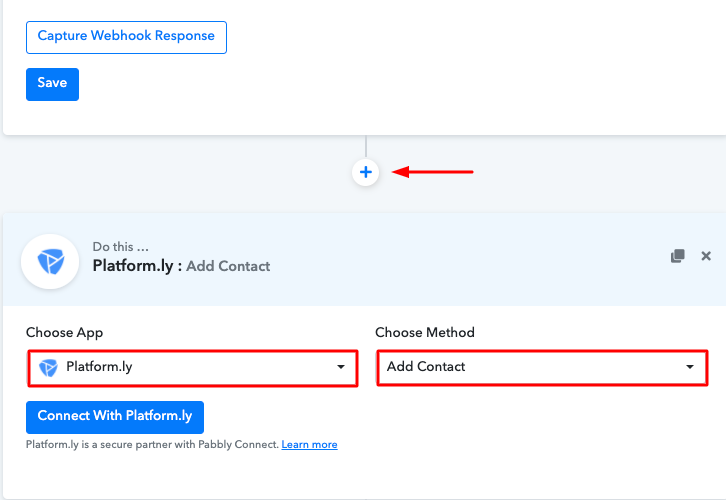
Next, click on the “+” icon to add an action for your trigger. Here we are going to select “Platformly” from the dropdown. Then, select the “Add Contact” option.

(b) Click the Connect Button

Click on the Connect Button

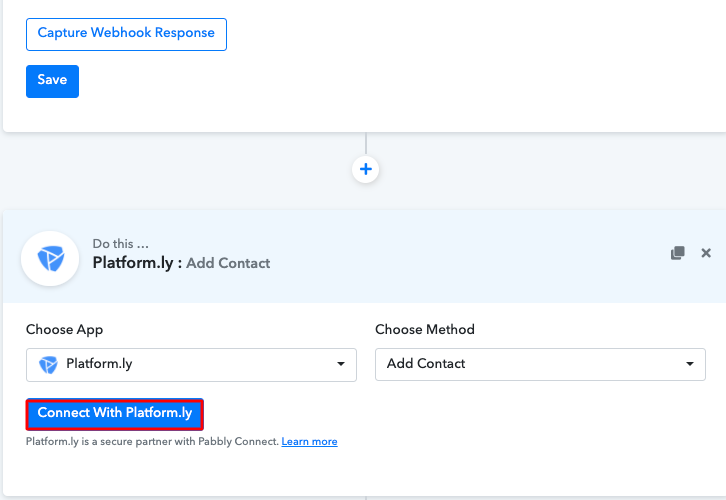
After making all the required changes, click on the “Connect with Platformly” button. Further, it will ask for “API Key”, which you can get from your Platformly account.

Step 9: Connecting Platformly to Pabbly Connect

To copy the “API Key”, you have to log in to your Platformly account.

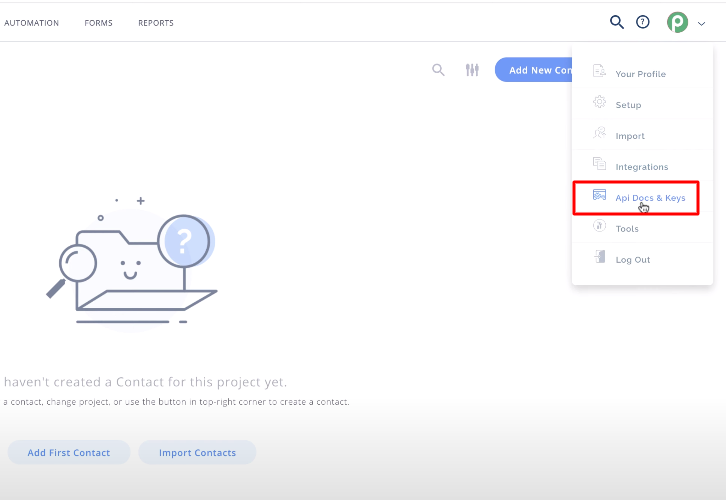
(a) Select API Docs and Keys

Select API Docs and Keys

After logging in to your Platformly account, select the “API Docs and Keys” option from the dropdown.

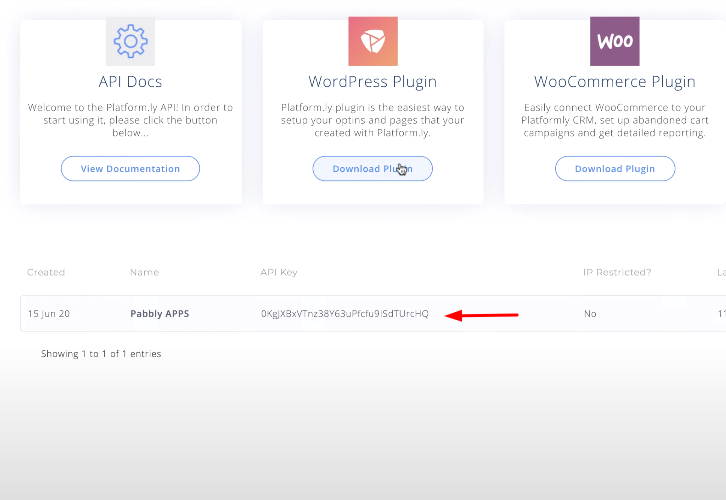
(b) Copy API Key

Copy API key

When you reach the API keys page, you can see your API Key on your screen. Copy the API Key to move further.

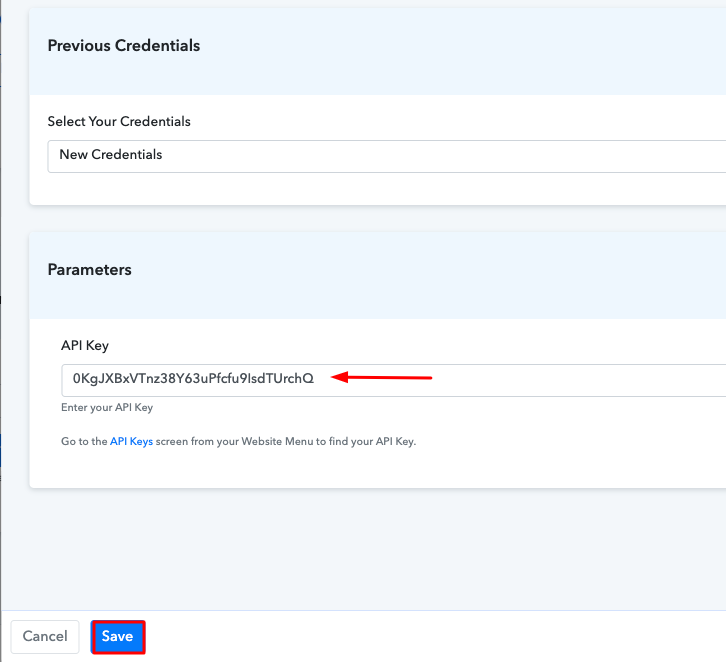
(c) Paste API Key in Pabbly Connect Dashboard

Paste API Key

Now to paste the copied API key, go back to the “Pabbly Connect” dashboard and paste the API key in the pop-up window and click on the “Save” button.

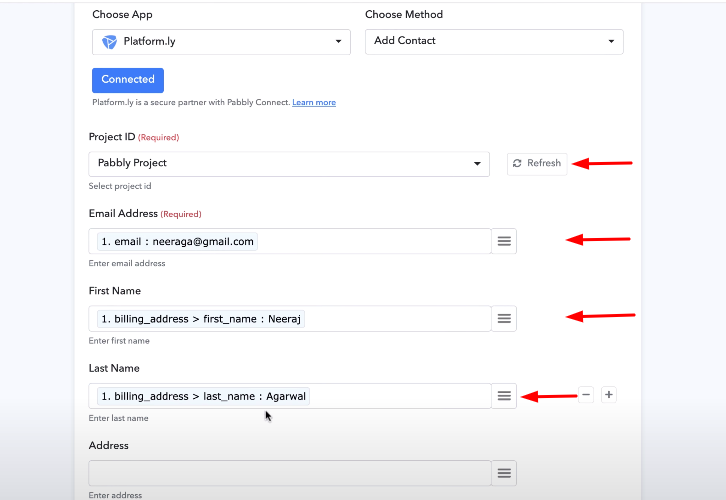
(d) Add Field Data

Integrate Shopify with Platformly

Further, select the project id from the dropdown in which you want your subscribers to get added. Then, add the required field from drop-down such as for the email field, select the email option, and for the name field select the name option.

(e) Save and Send Test Request

Integrate Shopify with Platformly

After making all the changes, save the setting and then “Send Test Request” to test the integration.

Step 10: Check Responses in Platformly Dashboard

Integrate Shopify with Platformly

After completing the integration process, to check the response, go to your Platformly account’s contacts section and you can see the test contact is added to your Platformly account from Shopify.

Consequently, after the integration, whenever someone will make a purchase from your Shopify store, the buyer’s info will be updated automatically in your Platformly account.

Conclusion –

Well done! Now that you have learned how to integrate Shopify with Platformly, you can integrate any two or more than two applications on Pabbly Connect and automate your entire workflow. With the help of this awesome integration tool, you can create unlimited workflows, integrate unlimited apps, set triggers and actions, and the list is long. Pabbly Connect is here to change your working experience for good. You just have to integrate and relax.

In case of any doubts or suggestions, kindly leave your comments down below.

You May Also Like To Read –

How to Integrate Pabbly Form Builder with Lemlist | Step by Step

How to Integrate Pabbly Form Builder with Lemlist

Looking for automation software to integrate Pabbly Form Builder with Lemlist? If so, then stop right there as we are going to tell you the easiest way for data transmission.

How to Integrate Pabbly Form Builder with Lemlist

But first, let’s put light on both the software and its use in day to day life. Pabbly Form Builder is a form builder that lets you create beautiful responsive forms to collect data from all across the globe. Whereas, Lemlist is email automation and outreach software that allows you to send cold emails to prospects.

Most of the time people want their leads collected from a form builder into email marketing software like Lemlist. By doing so, one can easily send customized emails to the targeted audience. That’s where people start searching for the best business automation tools that can help in the data transferring process. Keeping this in mind, we would like to suggest automation software named Pabbly Connect.

Why Choose This Method Of Integration?

In contrast with other integration services-

  • Pabbly Connect does not charge you for its in-built apps like filters, Iterator, Router, Data transformer and more
  • Create “Unlimited Workflows” and smoothly define multiple tasks for each action
  • As compared to other services which offer 750 tasks at $24.99, Pabbly Connect proffers 50000 tasks in the starter plan of $29 itself
  • Unlike Zapier, there’s no restriction on features. Get access to advanced features even in the basic plan
  • Try before you buy! Before spending your money, you can actually signup & try out the working of Pabbly Connect for FREE

Sign Up To Pabbly Connect  

Pabbly Connects is a simple automation platform that avoids repetitive tasks. It allows you to build a workflow to remove all manual works which save a lot of time. Using the tool, one can bind unlimited premiums apps and cut out all time-consuming work. The interface of the software is simple, one can operate it without any technical skills.

Here, in this article, we will understand how one can integrate Pabbly Form Builder with Lemlist using Pabbly Connect.

So, let’s start the process.

Step 1: Sign up to Pabbly Connect

Sign Up

Start the process of connecting Pabbly Form Builder to Lemlist by clicking on the “Sign Up Free” icon on the Pabbly Connect dashboard. Next, either manually fill-up all the details or sign up using Gmail credentials.

Try Pabbly Connect for FREE

Step 2: Access Pabbly Connect

Select Connect

Further, after successful login into the account, click on the “Access Now” button of Connect.

Step 3: WorkFlow for Pabbly Form Builder with Lemlist Integration

(a) Start with a New Workflow

Create New Workflow

Initiate the process of making a workflow for your data transmission by clicking the “Create New Workflow” button.

(b) Name the Workflow

Name the Workflow

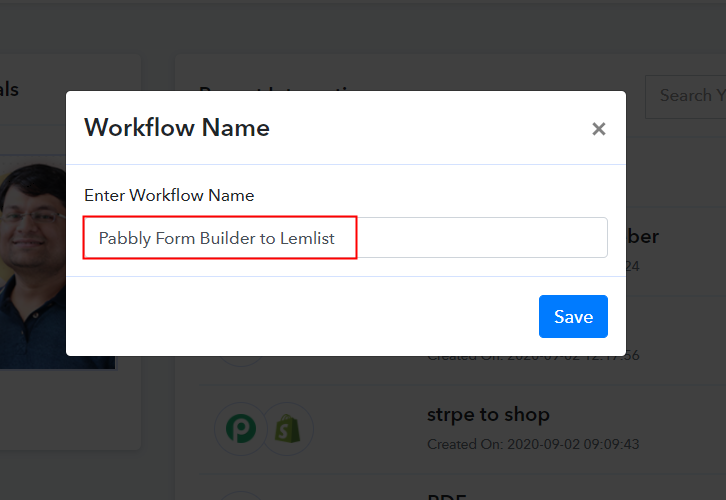
Further, add the name of workflow which in our case is “Pabbly Form Builder to Lemlist”. Nevertheless, you can name the workflow according to your requirements.

Step 4: Setting Trigger for Pabbly Form Builder – Lemlist Integration

Now after making a workflow, you have to select the application you want to integrate. Using Pabbly Connect one can bind or connect unlimited apps, click here to try it out for free.

(a) Select Application you Want to Integrate

Select Pabbly Form Builder

The following step is to select “Pabbly Form Builder” from the dropdown, then choose the “New Form Submission” option.

(b) Copy the Webhook URL

Copy the Webhook URL

The next step is to copy the webhook URL which is appearing on the dashboard. Then, click on the “Capture Webhook Response”.

Step 5: Paste the Webhook URL in Pabbly Form Builder

To collect responses from Pabbly Form Builder, you gotta paste the copied Webhook URL in your form builder dashboard.

(a) Click on Integration Option

Integration Option

Either create a new form or select pre-built templates. Here we are choosing the already created form “Connect with us”. Further, click on the “integration” option of the form.

(b) Click on Webhook Option

Webhook Option

Subsequently, in the integration section, click on the Webhook option and then paste the copied URL.

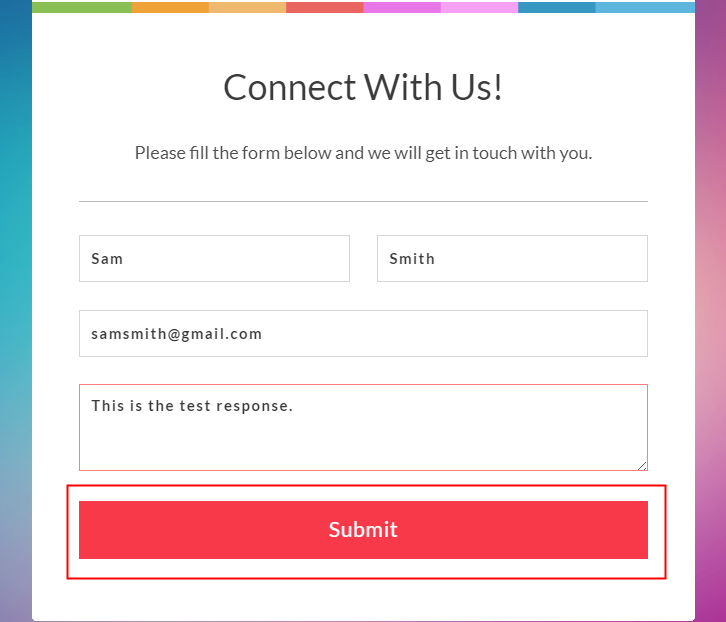
(c) Fill the Form to Test Integration

Fill the Form to Test Integration

Now to check the Pabbly Form Builder integration we have to make a dummy entry using the software. Just fill all the details and click the “Submit” button. Make sure to click the “Capture Webhook Response” button in the Pabbly Connect dashboard before submitting it.

Step 6: Test the Response in Pabbly Connect Dashboard

Test the Responses

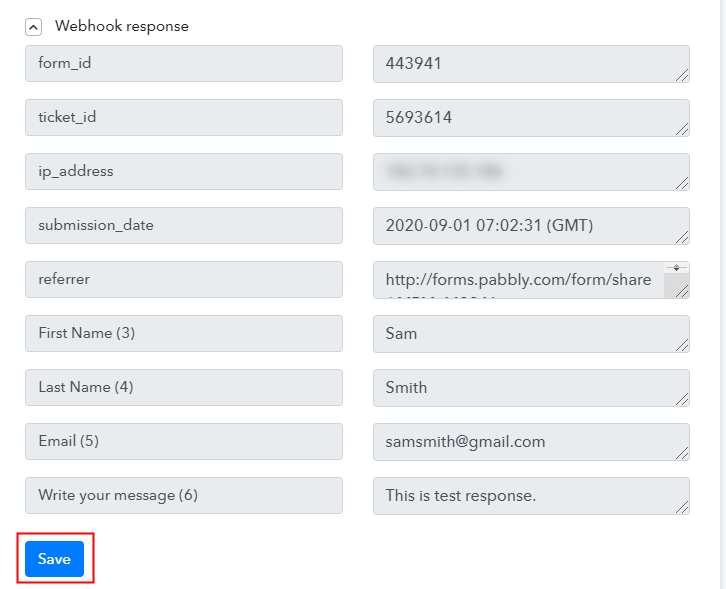
As soon as you fill the form the entry will appear on the “Pabbly Connect” dashboard. Then, click on the “Save” option.

Step 7: Setting Action for Pabbly Form Builder – Lemlist Integration

After setting a trigger, you have to choose the action for which you have to select the application you want to integrate.

(a) Select Application you Want to Integrate

Select Lemlist

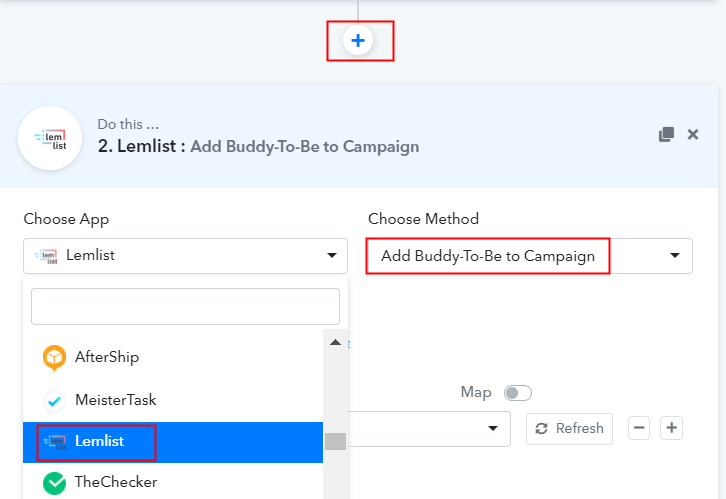
Click on the “+” icon to add an action for your trigger. In our case, it is “Lemlist”. Then, select the “Add Buddy-To-Be to Campaign” option.

(b) Click the Connect Button

Click the Connect Button

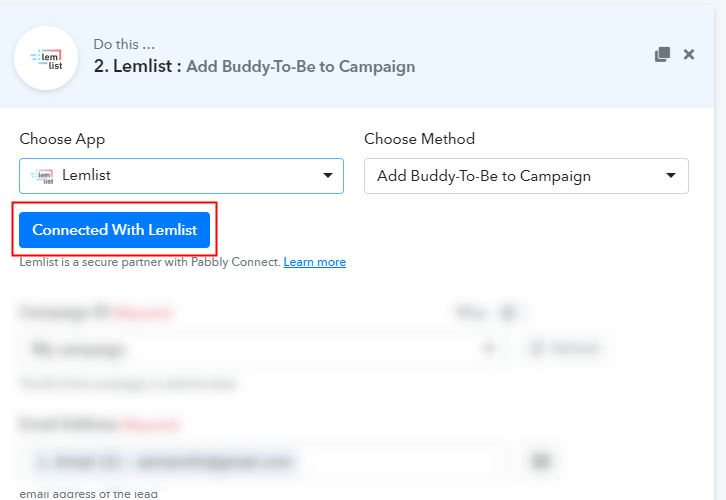
After making all the necessary changes, click on the “Connected with Lemlist” button. Further, it will ask for “Basic Auth”, for which you have to log in to Lemlist account.

Step 8: Connecting Lemlist to Pabbly Connect

For “Basic Auth”, it will ask for a username and password. Username can be left blank and the password is basically your API Key. To copy the “API key”, you have to log in to your Lemlist account.

(a) Click on Settings

Settings Option

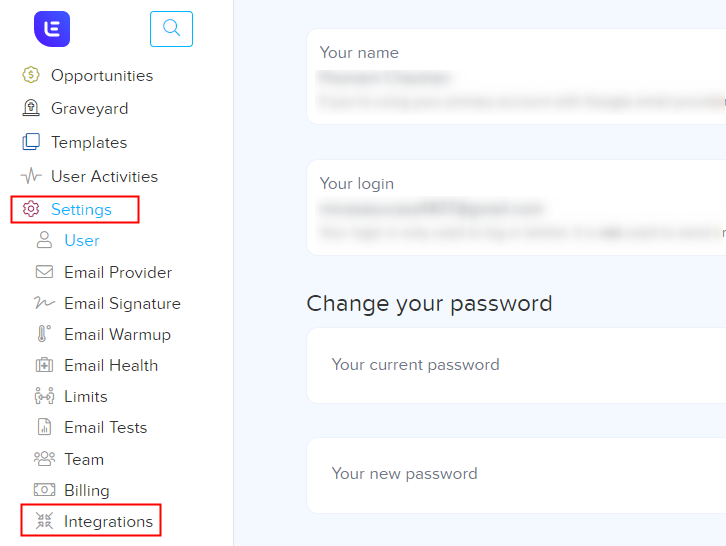
Sign in to your Lemlist account and select the “Settings” option from the tab on the left. Then, further, click on the Integrations option.

(b) CopyAPI Key

Copy API Key

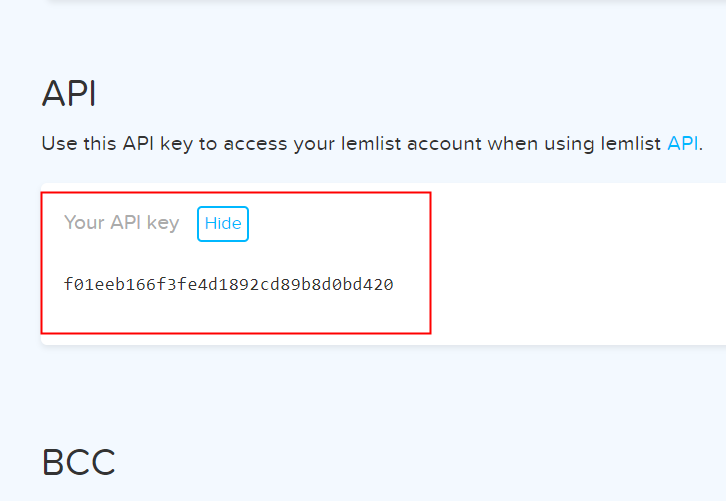
The “Integrations” tab will open the window. Just copy the “API Key” code from there.

(c) Paste API Key in Pabbly Connect Dashboard

Paste API Key

To paste the copied key, go back to the “Pabbly Connect” dashboard. As soon as you click on the “Connected with Lemlist” button, the page will appear with the option “New Credentials”. Below on this page, you will see the option of “Basic Auth”, here you have to paste the username and password. Simply paste the API key in the password option and leave blank the username section.

(d) Map Field Data

Map Field Data

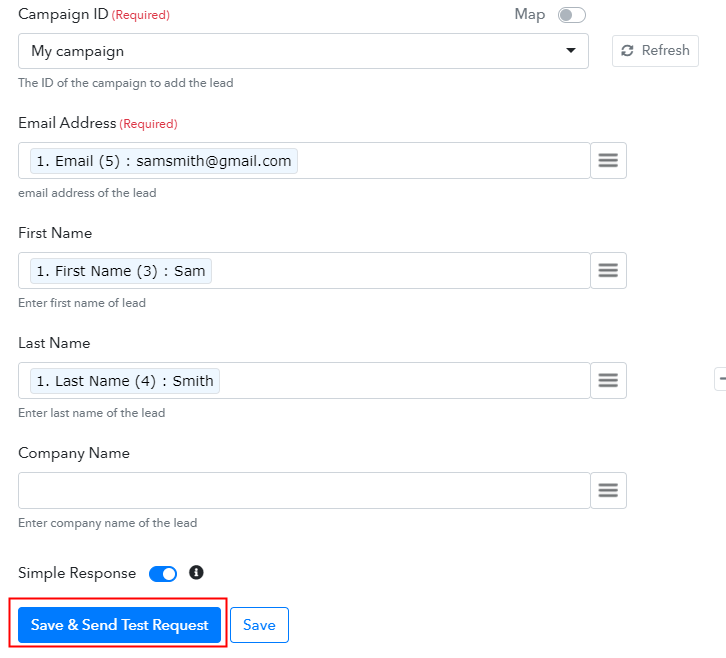
Now, you have to select the “Campaign ID” from the dropdown in which you want subscribers to be added. Further, add the required field from drop-down such as for the email field, select the email option, and for the name field select the name option.

(e) Save and Send Test Request

Save and Send Test Request

After making all the changes, save the setting and then “Send Test Request” to test the workflow automation.

Step 9: Check Response in Lemlist Dashboard

Check Response in Lemlist Dashboard

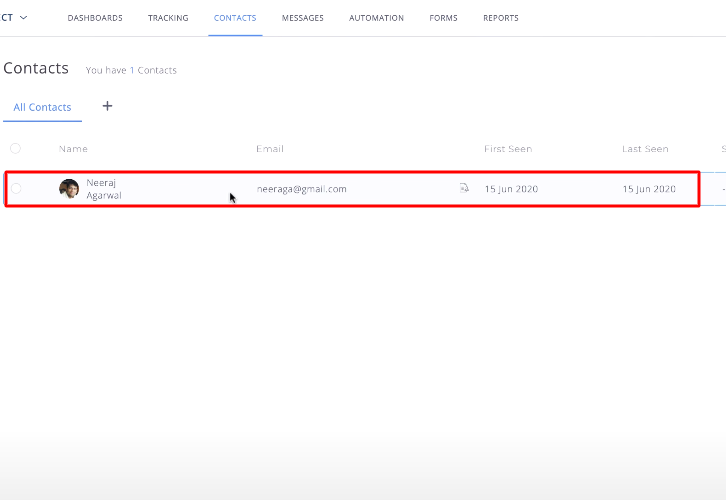
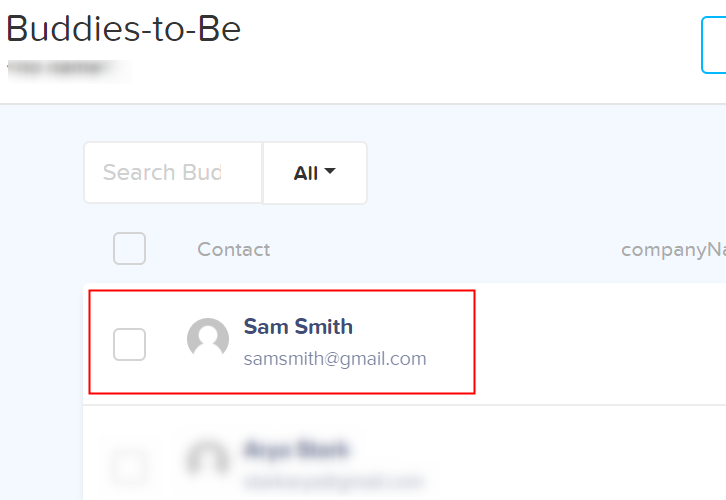
Lastly, when you check the Buddies-to-be option in Lemlist, your entry will automatically appear there. This is a one-time process, after that, all your manual work will be done by the online business automation tool i.e Pabbly Connect.

Conclusion –

Alright! Here we have revealed the easiest method to integrate Pabbly Form Builder with Lemlist. With automation tools like Pabbly Connect, one can easily transmit data and removes all manual effort. The software can be a great help to a big enterprise. Not to forget, automation in small business doing wonders too. All you have to do is follow the step by step guide of integration mentioned above and nothing else. Plus, if you any queries, you can reach out to the support staff of the software.

So, don’t wait anymore! Get your access by signing up for a free account.
You May Also Like To Read –

How to Integrate ThriveCart with Google Sheets | Step by Step

How to Integrate ThriveCart with Google Sheets using Pabbly Connect?

Searching for ways to Integrate ThriveCart with Google Sheets using Pabbly Connect? Then, you don’t have to look any further, as here you will get a step by step guide to do so.

How to Integrate ThriveCart with Google Sheets using Pabbly Connect?

In this blog, we are going to integrate Thrivecart with Google Sheets so that whenever there is a new sale inside Thrivecart it will automatically get updated inside Google Sheets.

Hence, to do so, we will be using external software i.e, Pabbly Connect which is an integration software that will help you bind two different software through a single interface. And what amazing is that you don’t need any coding skills to do that.

All you need to do is follow the steps below and your automation is set. So, without wasting any of your time, let me take you through the steps.

Step 1: Sign up to Pabbly Connect

How

The very first step is to sign up to Pabbly Connect that will further help in the ThriveCart integration process. Either you can fill out all the details manually or else sign-up via your Gmail account.

Try Pabbly Connect for FREE

Step 2: Access Pabbly Connect

How

After completing the sign-up process, now its time to access Connect (a service of Pabbly for automated integration & data transmission).

Step 3: Create a WorkFlow for ThriveCart Integration

(a) Start with a New Workflow

How

Now, start with creating a workflow for your project by clicking on the ‘Create New Workflow’ button.

(b) Name the Workflow

Name the Workflow

Subsequently, its time to add the name of the workflow that is “ThriveCart with Google Sheets”. Even though, you can change the name of your workflow whenever you want to as per your requirements.

Step 4: Setting Trigger to Integrate ThriveCart with Google Sheets

Setting Trigger to Integrate ThriveCart with Google Sheets

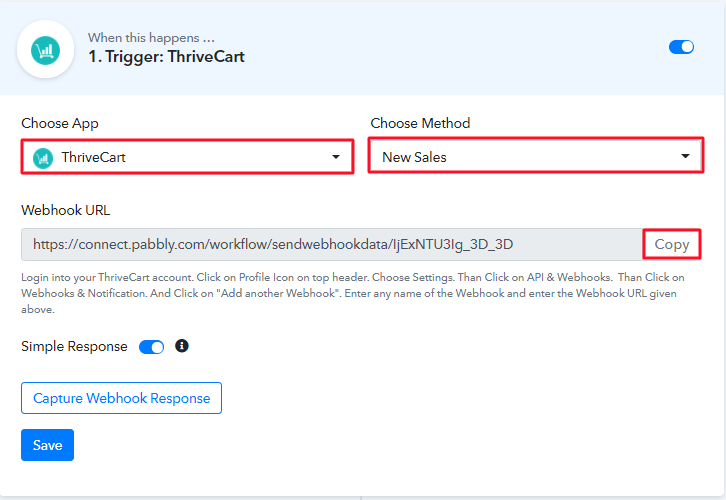
Once you create a workflow, the next step is to choose the application which you want to integrate, i.e, “ThriveCart” and also choose the method i.e, “New Sales”. Now, the next step is to copy the webhook URL. Using this trigger, we can initiate the process of automation and integrated the first service with Pabbly Connect for data transferring. Thus, the subsequent step is to go the app which is in this case is ThriveCart.

Step 5: Paste the Webhook URL in ThriveCart

In order to connect with ThriveCart, the next step is to paste the copied Webhook URL in your form builder dashboard.

(a) Go to Setting

Go to Setting

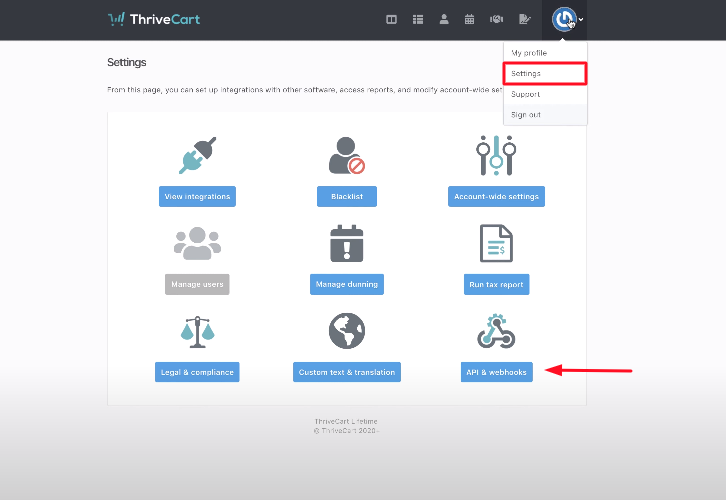
Once you enter the ThriveCart dashboard, the first step is to create a sales form. And after that, you need to go to the settings by clicking on the “Settings” button. The subsequent step is to just press the “App & Integration” button.

(b) Select Webhook Option

Select Webhook Option & Paste Webhook URL

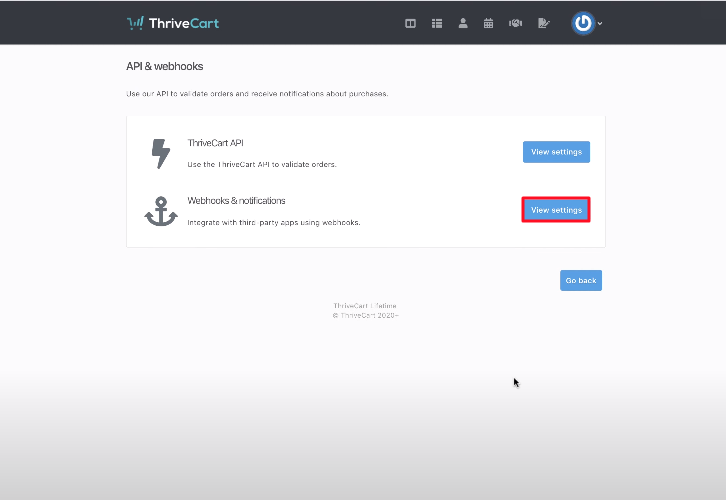
After that, you need to click on the “View Setting” button of the Webhook option.

(c) Paste the Webhook URL

Paste Webhook URL

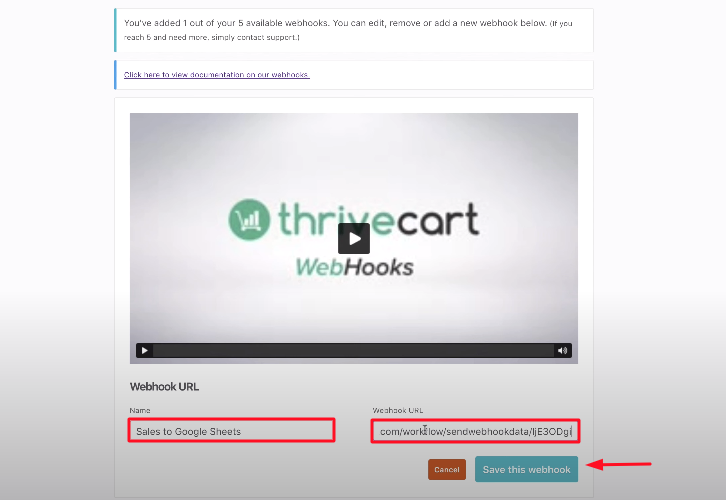
Once you reach the Webhook settings, now its time to name the workflow and paste the URL copied from Pabbly Connect. Now, just hit the button stating “Save the webhook”.

(d) Fill-up the Sales Form

Fill-up the Form

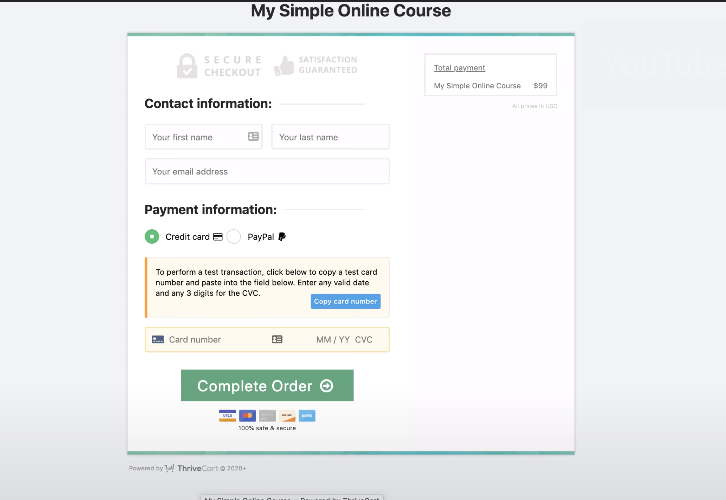
Now, its time to test the form, and for that, you need to fill all the details of the sales form which you have recently created in the ThriveCart Account.

Step 6: Test the Submission in Pabbly Connect Dashboard

Capture Webhook Response

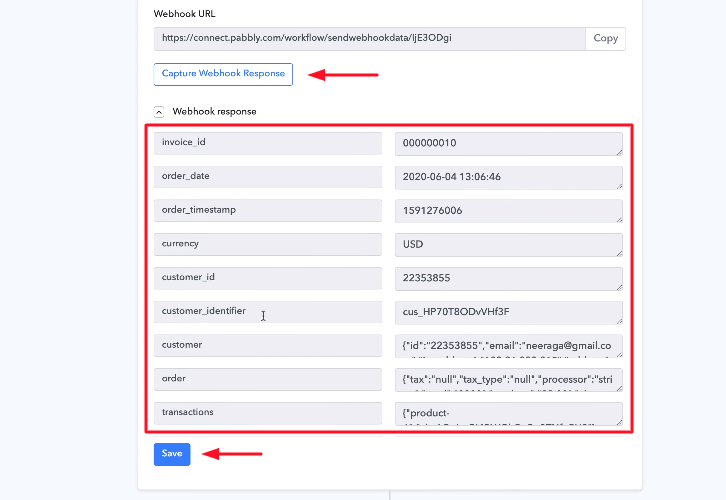
After filling the form, just click on the button “Capture Webhook Response” button. Once you do that, it will automatically capture all the responses that you have filled in the ThriveCart sales form. Later, simply press the “Save” button.

Step 7: Set Action to Integrate ThriveCart & Google Sheets

(a) Select Google Sheets

Select Google Sheets

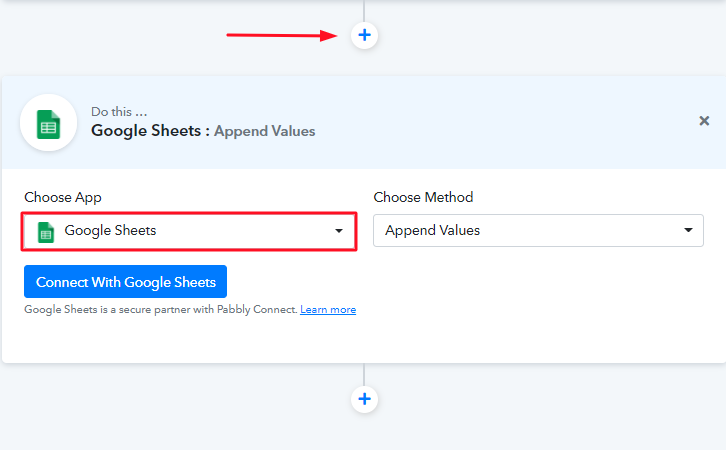
In order to integrate the ThriveCart with Google Sheets, the following step is to click on the “(+)” button. After that, you need to select Google Sheet from the drop-down option & press the button entitled “Connect with Google Sheets”.

(b) Click on “Connect”

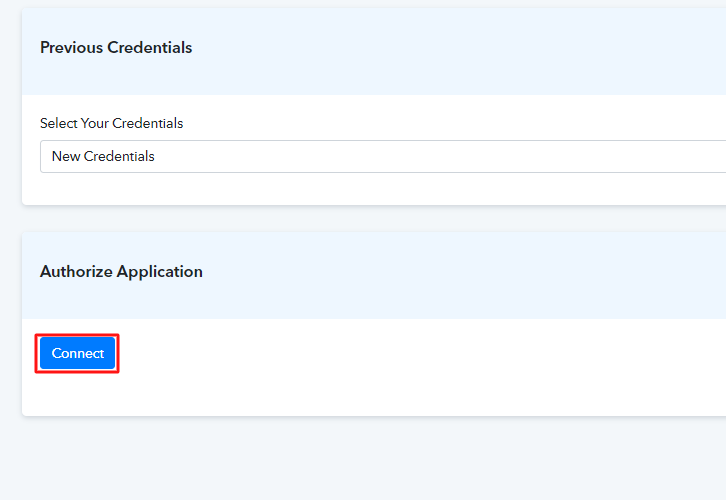
Authorize Application

The next step is to connect with Google Sheet by clicking on the “Connect” button. Once you click on the ‘Connect ‘ button, a window will pop-up asking you to select/fill a Google Account to which you want to connect the Google Sheets and Pabbly Connect.

Step 8: Mapping the Keys & Values

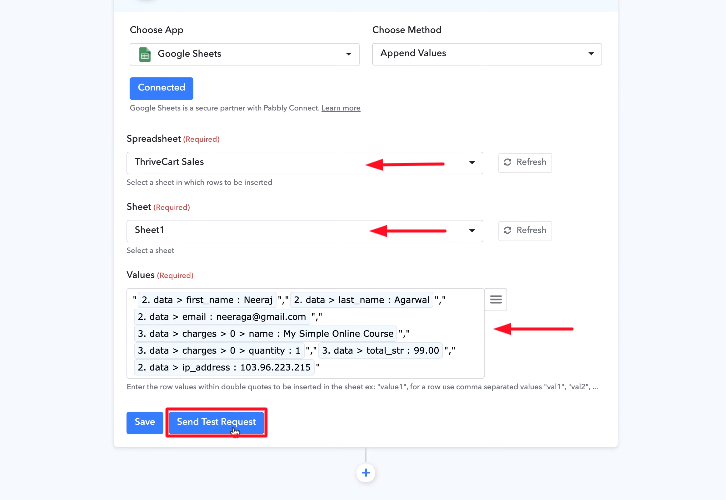
Mapping the Keys & Values

After connecting your google sheet, now its time to fill up the required fields one by one. And, once you fill up all the details, just click on the “Save & Send Test Request” button in order to complete the whole procedure.

Step 9: Check the Google Sheet

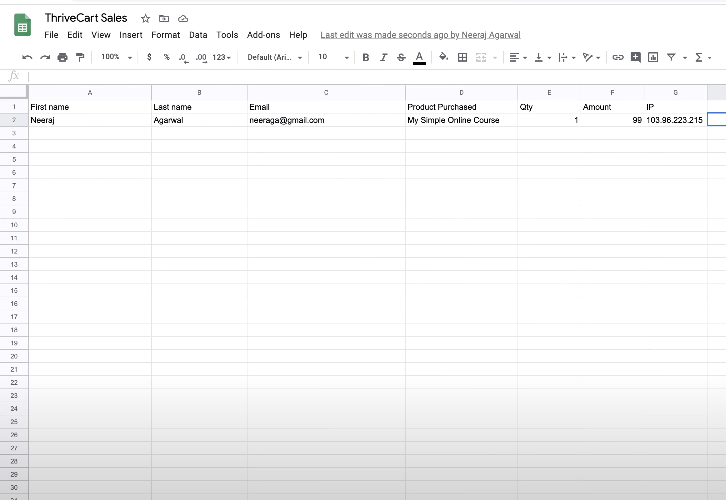
Check the Google Sheet

Voila! As you can see that, all the form details are now visible in your google sheet and your automation is now set.

Conclusion

There you go! See how easy it is to integrate ThriveCart to Google Sheets using Pabbly Connect. All you need to do is follow all the above-mentioned steps once and your integration is ready to roll. Now, whenever any sales are going to take place in your ThriveCart account using this form, it will automatically update the Google Sheet. Isn’t it amazing? So, don’t wait anymore and sign in to Pabbly Connect to get a hassle-free work experience.

You May Also Like to Read –

How to Integrate Google Sheets to MailerLite Conditionally | Step by Step

How to Integrate Google Sheets & MailerLite Conditionally

If you want to split the automation workflow into different paths then you can do it with conditional integration. The conditioning step works according to rules. Subscribers who match the rule or rule set will follow the Yes or Thumb up path. Subscribers who don’t match the rule or rule set will follow the No or Thumb down the path.

How to Integrate Google Sheets & MailerLite Conditionally

In this article, we’re using Pabbly Connect for applying conditional routing between Google Sheets & MailerLite. It allows you to automatically send information between these two apps within a few minutes according to the specified condition.

With Pabbly Connect you can easily set-up a trigger and its respective action. Here, we’ll simply set-up a trigger on Google Sheet that whenever a condition matches, it will automatically take action to send an email instantly inside the MailerLite.

Pabbly Connect allows you to create unlimited workflows with instant triggers and multi-step calls. Also, it allows you to set filters and route data smoothly.

Why Choose This Method Of Integration?

In contrast with other integration services-

  • Pabbly Connect does not charge you for its in-built apps like filters, Iterator, Router, Data transformer and more
  • Create “Unlimited Workflows” and smoothly define multiple tasks for each action
  • As compared to other services which offer 750 tasks at $24.99, Pabbly Connect proffers 50000 tasks in the starter plan of $29 itself
  • Unlike Zapier, there’s no restriction on features. Get access to advanced features even in the basic plan
  • Try before you buy! Before spending your money, you can actually signup & try out the working of Pabbly Connect for FREE

Sign Up To Pabbly Connect  

Let’s get started with the step by step procedure to setup conditional integration between Google Sheets and MailerLite without any technical skills.

Step 1: Open Your Subscribers List to Add Emails to MailerLite

Google Sheets - integrate Google Sheets to MailerLite Conditionally.

Here, we are applying conditional routing between Google Sheets and MailerLite so that you can send data from Google Sheet to MailerLite according to the specified condition. For conditional integration, we are distributing the emails on the basis of customer and affiliate groups.

For e.g., if you see the customer field you’ll send this email to a different group inside MailerLite and if you see the Affiliate option you’ll send this data to a different group.

(a) Go to the Add-ons Button of Sheet Menu Bar

Get Add-ons

Firstly you need to install the Pabbly Connect Webhook for integrating Google Sheets & MailerLite. Just click on the “Add-ons” button from the sheet menu bar and go to the “Get add-ons” option.

(b) Install Pabbly Connect Webhooks

Install Pabbly Connect Webhooks

Next, when you click on the “Get add-ons” button, the G Suite Marketplace window will appear on your screen. Momentarily, search for the Pabbly Connect Webhooks and install it for integrating Google Sheets and MailerLite.

(c) Go to Pabbly Connect Webhooks and Click on Initial Setup Option

Initial setup for Pabbly Connect Webhooks

After installing the Pabbly Connect Webhook you will see that it appears on the add-ons section. Now go to the “Initial Setup” option.

Step 2: Sign-up to Pabbly Connect

Sign Up

Now, to create your workflow, visit the Pabbly Connect website and Signup to your account. Either manually fill all the details or sign-up via your Google account.
Try Pabbly Connect for FREE

Step 3: Access Pabbly Connect

Access to Pabbly Connect

After completing the signup process, go to the “Connect” option and click on the “Access Now” button.

Step 4: Create a WorkFlow to Add Data to Google Sheets

(a) Create New Workflow

Create New Workflow

Let’s begin the process of creating a conditional workflow between Google Sheets & MailerLite by hitting the ‘Create New Workflow’ button.

(b) Name the Workflow

Name the Workflow - Conditional Integration

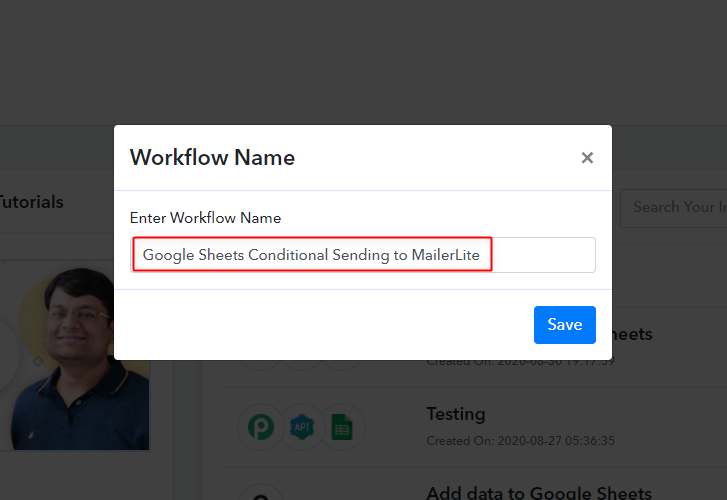
Following, named your workflow according to your project, which in our case is “Google Sheet Conditional Sending to MailerLite.”

Step 5: Setting Trigger

Setting Trigger - To Integrate Google Sheets to MailerLite Conditionally

In this step, you need to choose the trigger app, i.e Google Sheets which you want to integrate with MailerLiter. Additionally, copy the webhook URL which appears on the Pabbly Connect dashboard. Basically, a Webhook URL is a way to receive data from the application without any coding requirement.

(a) Go Back to the Google Sheet and Paste the Webhook URL

Initial Setup

Now go back to the Google spreadsheet, paste the Webhook URL. Also, you have to set the trigger which is the last column of your sheet. Now click on the “Send Test” button and can see the name, date, and email address are posted to the Pabbly Connect

Step 6: Capture Test Data in Pabbly Connect Dashboard

Capture Test Data

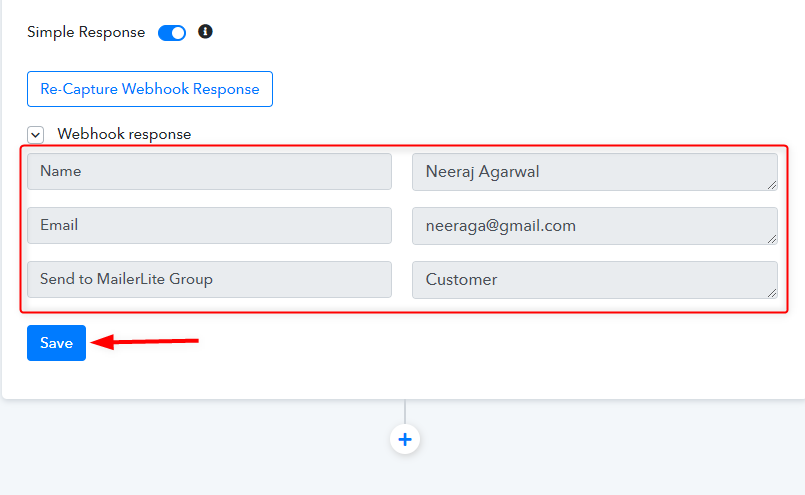
After sending the test data to your workflow, hit the “Capture Webhook Response” button. All details of your sheet like name, email, and group name will come on the Pabbly Connect dashboard. Immediately, save all the responses by clicking on the “Save” button, and your Google spreadsheet is integrated with Pabbly Connect.

Step 7: Add Routes for Conditional Integration

Add Routes - Integrate Google Sheets with MailerLite

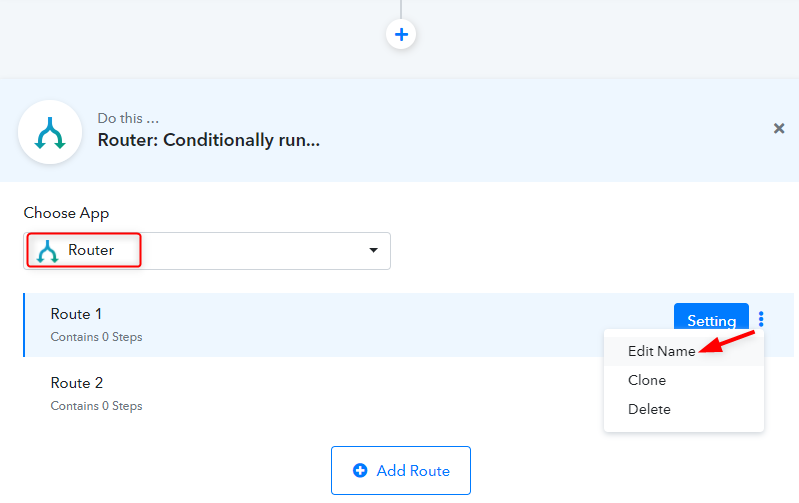
Now, you need to add the conditions using the router. So click on the “+” icon to add a condition for your trigger. Select “Routers” from the drop-down list and edit the route names by clicking on the “three-dots”.

(a) Name the Router’s Condition

Name Routers

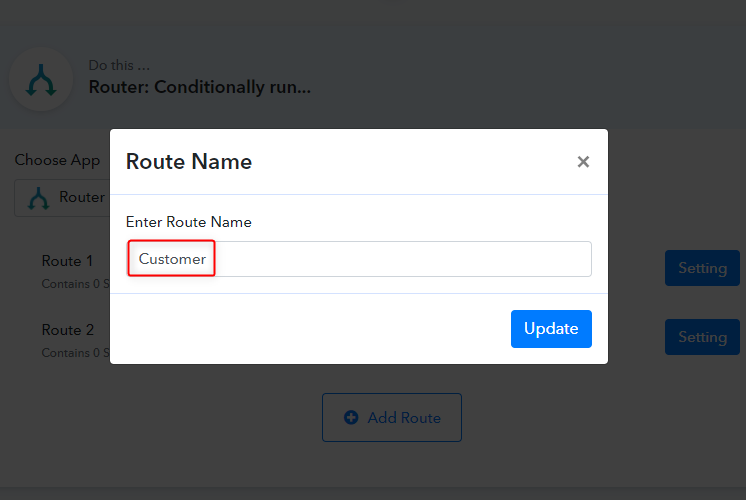
Next, rename your route according to your specified category which in our case is “Customer” & “Affiliate” and hit the update button.

(b) Apply Filter to Router & Save

Apply Filters - integrate Google Sheets MailerLite Conditionally

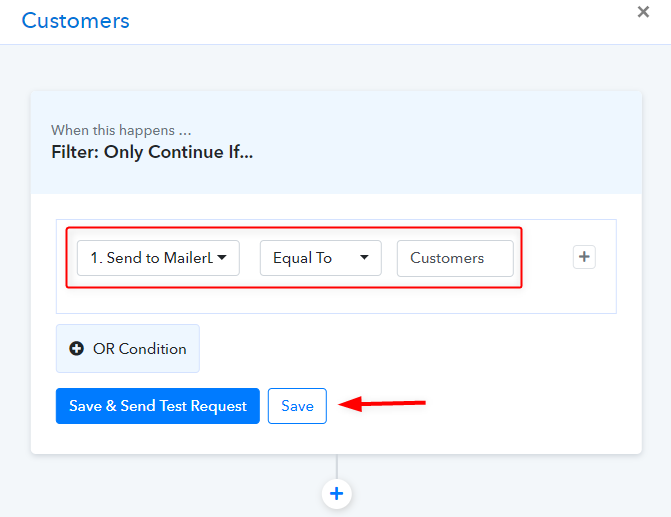
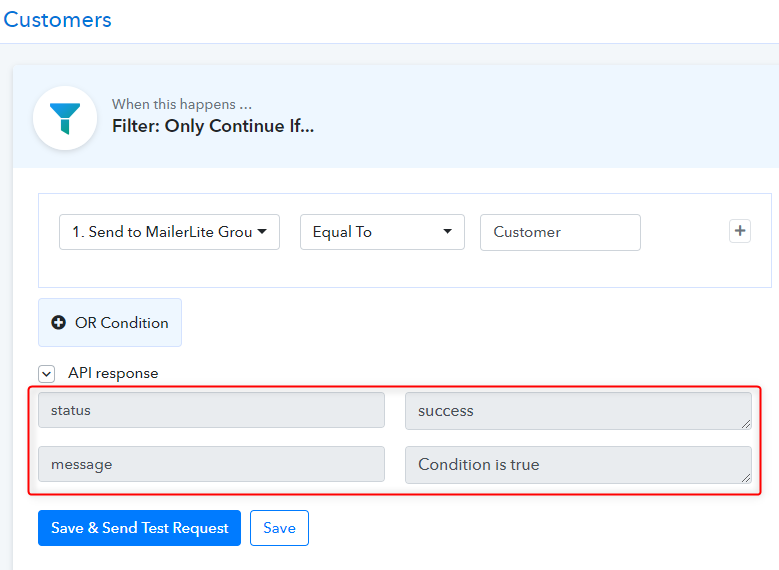
Click on the “Setting” button of your route to set-up the whole customer integration. As soon as, you click on the setting button a new window will pop-up on your screen where you need to apply the filter or condition. Hit the “Save & Send Test Request” button.

(c) Capture API Response

Capture API Response

Success message will appear on your screen it means if the data is equals to the Customer this condition will fire up.

Step 8: Setting Action

Setting Action - To integrate Google Sheets to MailerLite Conditionally

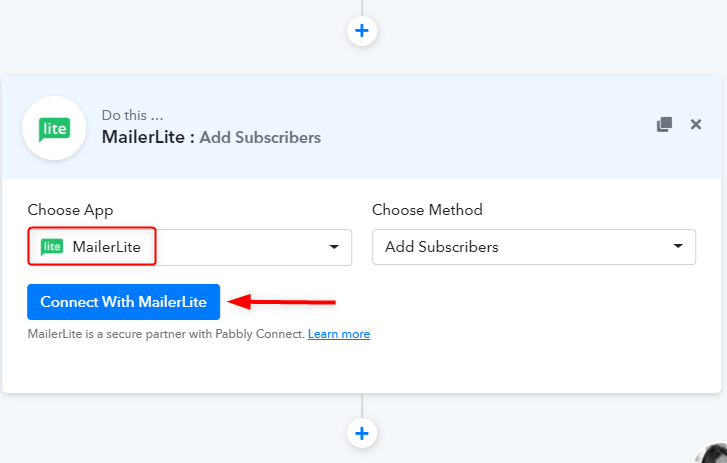
In this step, you have to add subscribers to MailerLite. So click on the “+” icon, choose the MailerLite app, and method as “Add Subscribers”. Hit the “Connect With MailerLiter” button.

(a) Paste the API key inside Pabbly Connect Dashboard & Save

Add API Key

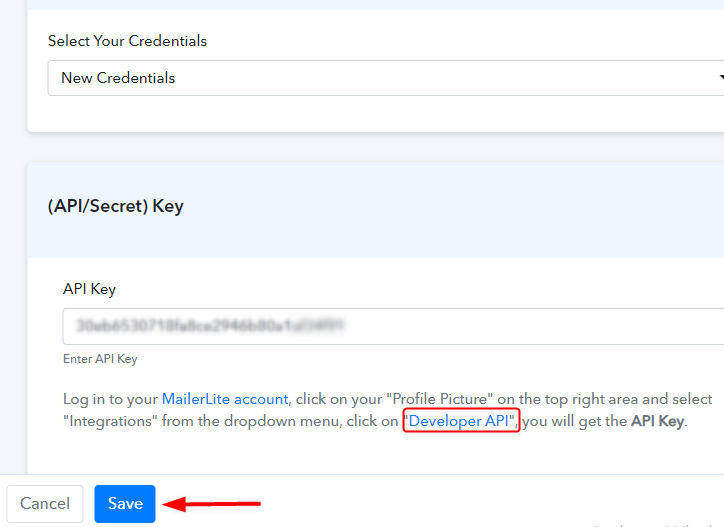
Here, you can see the option to enter the API key which will available inside the MailerLite account. So just click on the “Developer API” and you will get the API key. Paste the API key and click on the Save button.
(b) Map the Data Modules with Google Spreadsheet

Map Data Modules - Conditional Integration

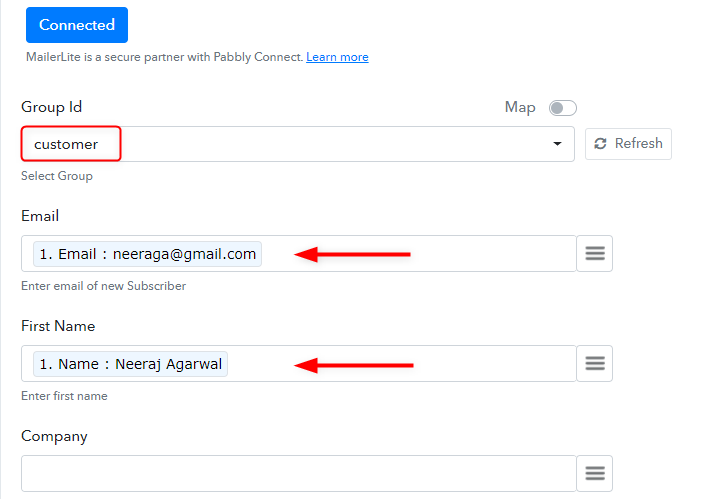
In this step, select the relevant group ID in which you want to add data which in our case is “Customer”. Further, in the next step click on the three-line symbol and map the data that is coming from the Google sheet such as email, name, etc. After, doing all the changes hit the “Save & Send Test Request” button.

Similarly, follow all the steps for the affiliate route like apply condition, connect MailerLite, and map the data.

Step 9: Check Subscribers in Your MailerLite Dashboard

Subscribers Group - MailerLite Integration

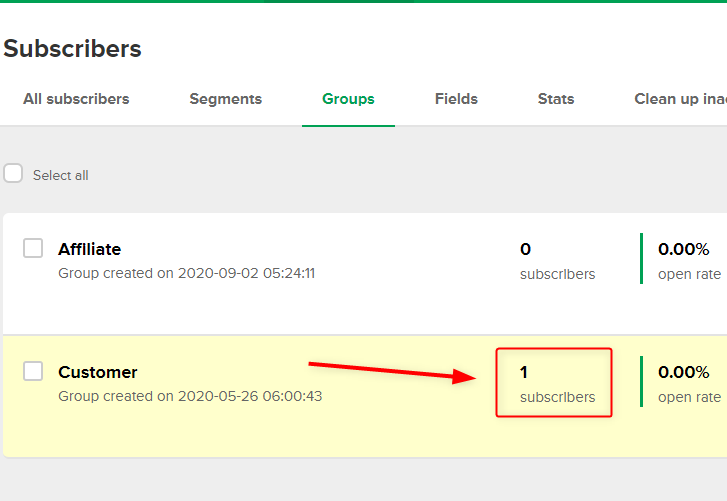
Go to the MailerLite and you’ll see that your subscriber is added to the specific group. So this is the entire process to setup one route. You can set-up the affiliate route as well by following the previous steps.

Step 10: Send All Data

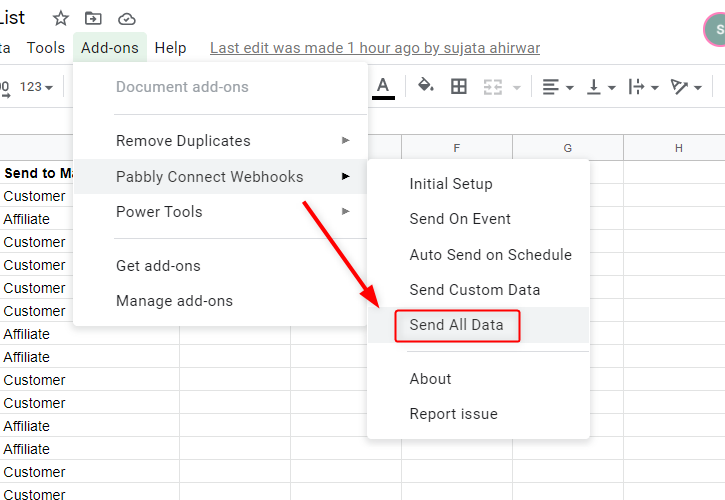
Send All Data

After setting up both the routes, go to the Google Sheets, click on the “Send All Data” option from the Pabbly Connect Webhooks and all your subscribers list added to the MailerLite groups according to the conditional integration.

Step 11: Data is Separated by Groups

Subscribers Groups - integrate Google Sheets MailerLite Conditionally

That’s it! You can see that your subscriber’s lists are sorted according to your conditional Integration.

Wrapping Up

This was the entire procedure to integrate Google Sheet & MailerLite. Just follow the simple steps as described in this article and you’ll end up receiving an email instantly inside your MailerLite account.
I hope this has helped you! For any further queries comment below.

You May Also Like To Read:

How to Integrate Calendly with Pabbly Email Marketing | Step by Step

How to Integrate Calendly with Pabbly Email Marketing

Want to know a way to integrate Calendly with Pabbly Email Marketing software? If yes, then sit back and relax as we are going to reveal the automation process.

How to Integrate Calendly with Pabbly Email Marketing

But before jumping on that part, let’s put a light on both the software and its use. Basically, Calendly is an automated scheduling tool used by business personalities to book meetings, schedule events, and much more in advance. On the other hand, Pabbly Email Marketing is an email marketing software that allows users to send unlimited customized emails to prospects in no time.

Now, most of the time users want their Calendly response in email marketing software as a subscriber. The reason for doing that is to send email alerts, reminders, or customize newsletters to customers in the near future. By this, one can build a strong relationship with their customers.

Why Choose This Method Of Integration?

In contrast with other integration services-

  • Pabbly Connect does not charge you for its in-built apps like filters, Iterator, Router, Data transformer and more
  • Create “Unlimited Workflows” and smoothly define multiple tasks for each action
  • As compared to other services which offer 750 tasks at $24.99, Pabbly Connect proffers 50000 tasks in the starter plan of $29 itself
  • Unlike Zapier, there’s no restriction on features. Get access to advanced features even in the basic plan
  • Try before you buy! Before spending your money, you can actually signup & try out the working of Pabbly Connect for FREE

Sign Up To Pabbly Connect 

For doing the same people search for a lot of techniques and software over the internet that saves manual effort. Filling every entity one by one is a lot in such a busy life. Considering this, we are removing drape from an amazing software named Pabbly Connect that lets you connect multiple software, automates the data transmission task, and removes all the manual work through a single interface. One can use this software without any technical skill which makes it the easiest automation software on the market.

With its lifetime deal, you can get access to unlimited premium apps, workflows, path routers, and much more.

Here, in this article, we will understand how one can integrate Calendly with Pabbly Email Marketing using Pabbly Connect.

So, let’s start the process.

Step 1: Sign up to Pabbly Connect

Sign Up

Start the process of connecting Calendly to Pabbly Email Marketing by clicking on the “Sign Up Free” icon on the Pabbly Connect dashboard. Further, either manually fill-up all the details or sign up using Gmail credentials.

Try Pabbly Connect for FREE

Step 2: Access Pabbly Connect

Select Connect

After login into the account, click on the “Access Now” button of Connect.

Step 3: WorkFlow for Calendly with Pabbly Email Marketing Integration

(a) Start with a New Workflow

Create New Workflow

Start the process of making a workflow for your automation by clicking the “Create New Workflow” button.

(b) Name the Workflow

Name the Workflow

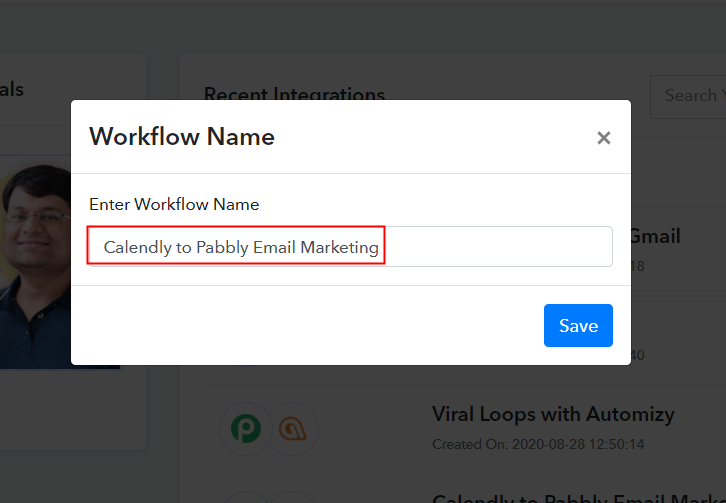
Afterward, add the name of workflow which in our case is “Calendly to Pabbly Email Marketing”. Nevertheless, you can name the workflow according to your requirements.

Step 4: Setting Trigger for Calendly – Pabbly Email Marketing Integration

Now after creating a workflow, you have to choose the application you want to integrate.

(a) Select Application you Want to Integrate

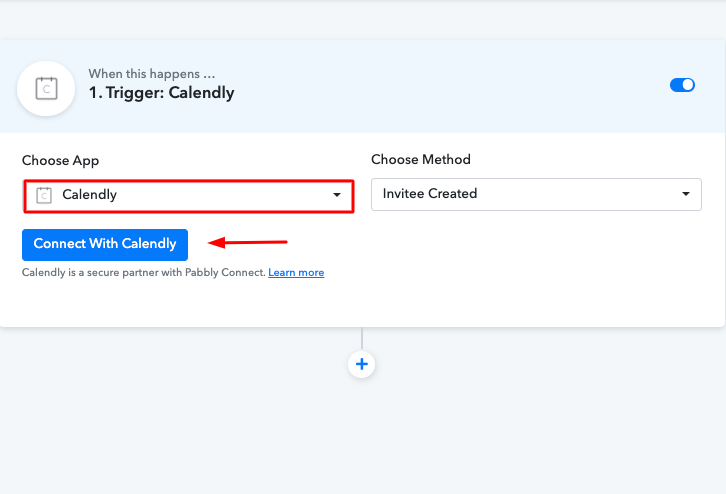
Select Calendly

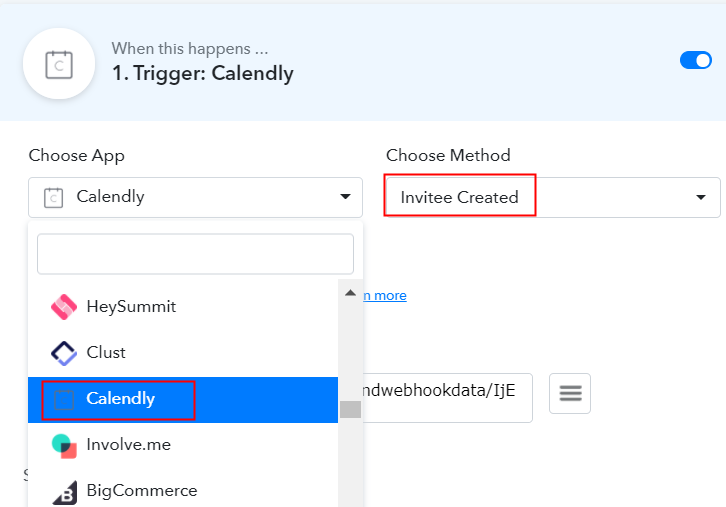
The following step is to select “Calendly” from the dropdown, then choose the “Invitee Created” option.

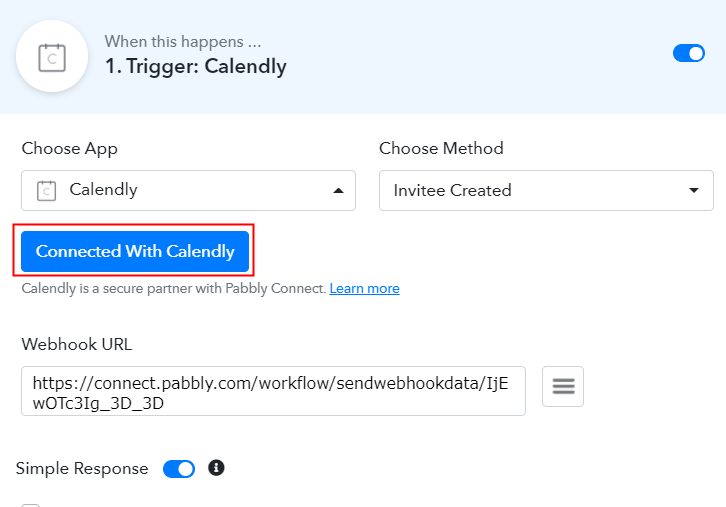
(b) Click on Connect button

Click on Connect Button

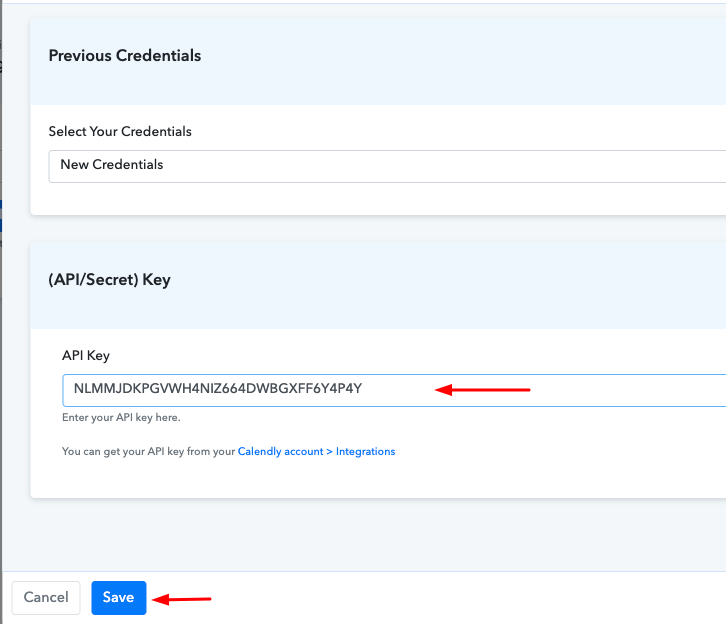
As soon as you click on the “Connected” button, it will open up the page with the choice “New Credentials”. Below on this page, you will see the option of “API Key” which you need to fill.

Step 5: Copy the API Key

To move further in the Calendly – Pabbly Email Marketing integration process, you gotta copy the API key for which you have to log in to your Calendly account.
(a) Click on Integrations

Click on Integrations

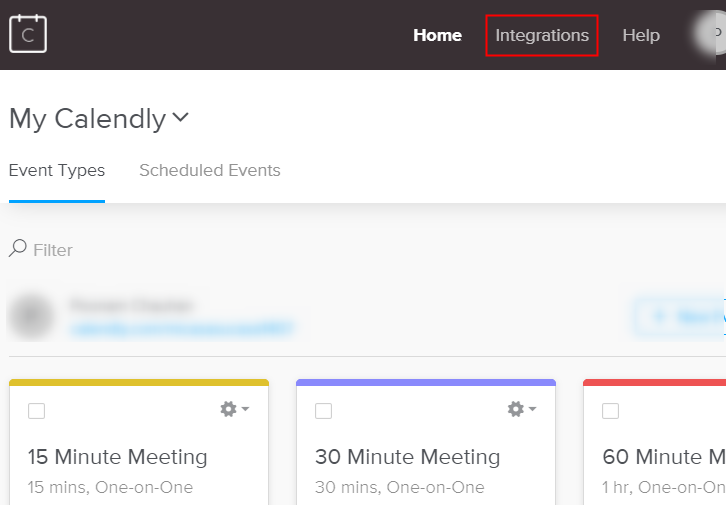
After login to your Calendly account, click on the “Integrations” option appearing on top.

(b) Copy or Regenerate the API Key

Copy or Regenerate the API Key

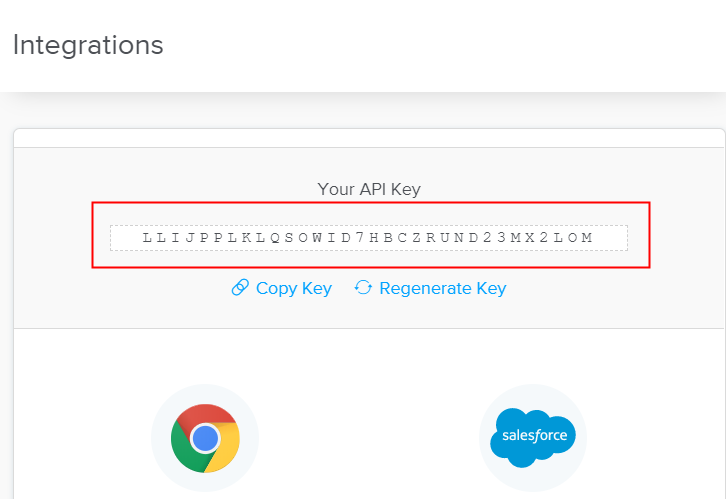
Further, it will give you two options either copy the API key appearing on the dashboard or regenerate the key as per your need. Simply copy the key.

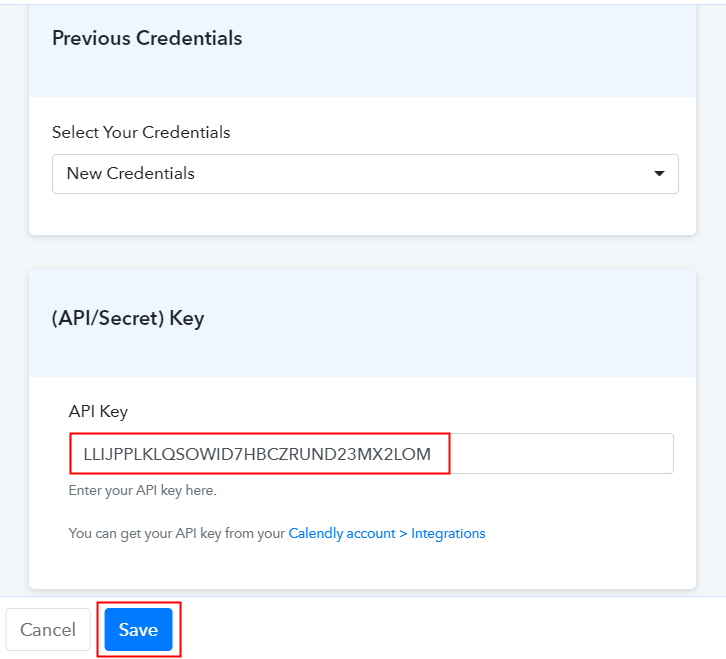
(c) Paste API Key in Pabbly Connect Dashboard

Paste API Key in Pabbly Connect Dashboard

Now to paste the API key, move back to the Pabbly Connect dashboard. As we mentioned above in the article that when you click on the “Connected” button it will open up the page with the “API key” option. Just paste the copied API there. Further, click on the “Save” button.

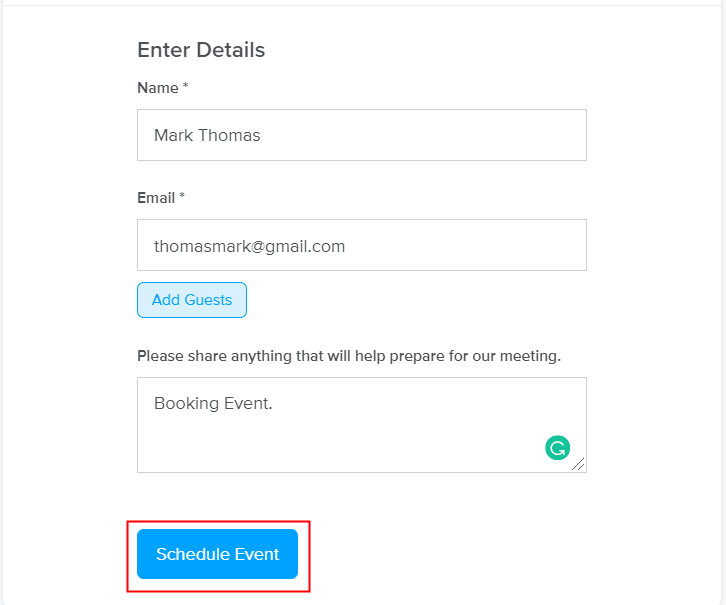
Step 6: Schedule the Event to Test Calendly Integration

Schedule the Event

Now to check the Calendly integration we have to schedule an appointment using the software. For this, go back to Calendly software, copy the link of the event and paste in another tab, then book an appointment by filling all the details. After filling all the necessary details, click on the “Schedule Event” button.

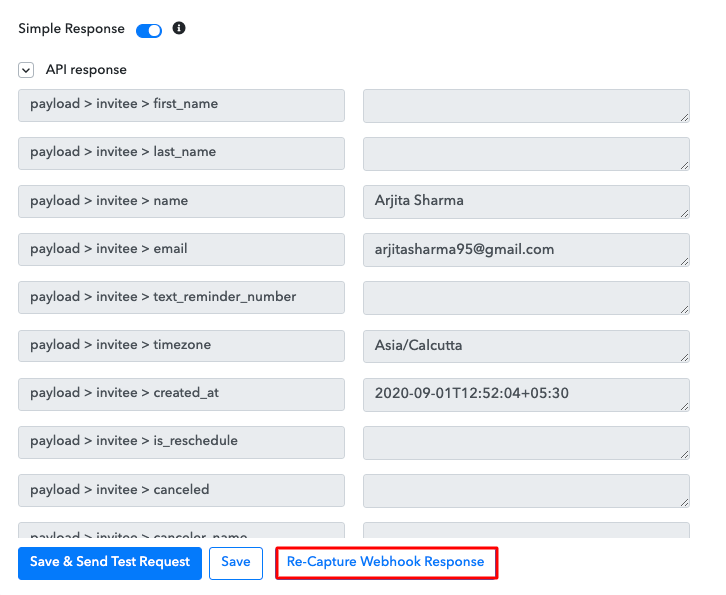
However, a response can take a while to appear so make sure to click “Capture Webhook Response” in Pabbly Connect before scheduling an event.

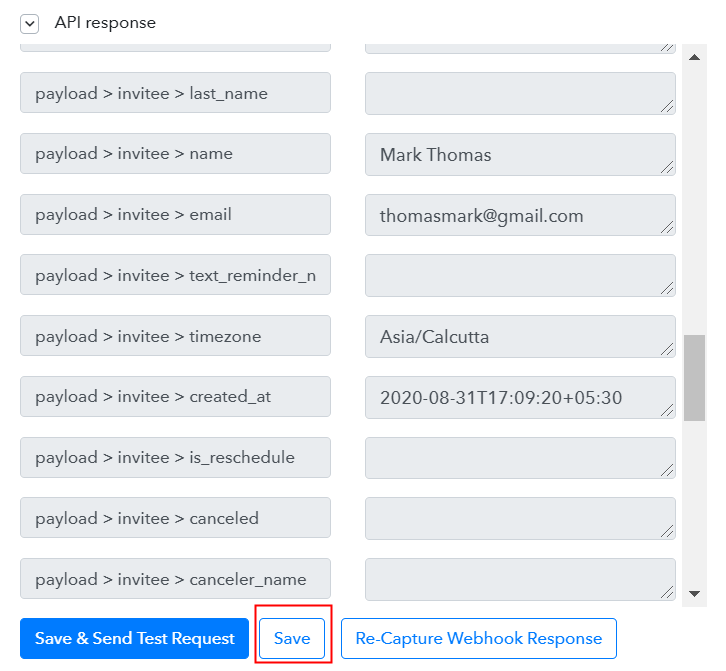
Step 7: Test the Response in Pabbly Connect Dashboard

Test the Response

As soon as you submit the response, go back to the Pabbly Connect dashboard where you will see the submitted entry. Then, click on the “Save” button to continue the workflow.

Step 8: Setting Action for Calendly – Pabbly Email Marketing Integration

Now the next step is to set a trigger, select the action for your trigger. For this, you have to select the application you want to integrate.

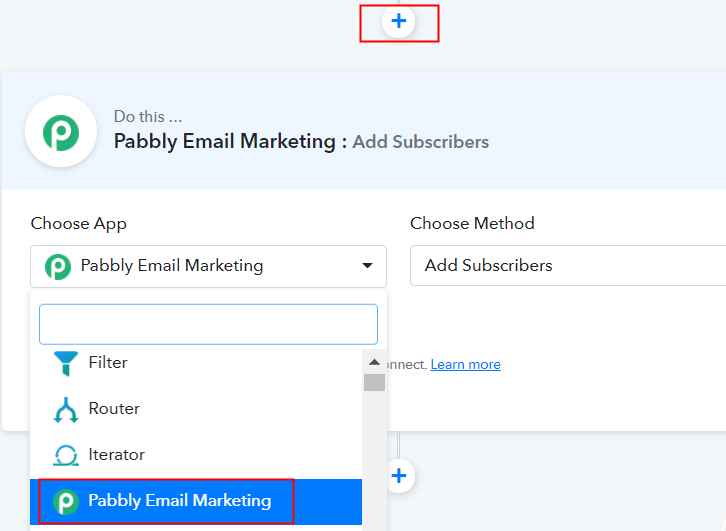
(a) Select Application you Want to Integrate

Select Pabbly Email Marketing

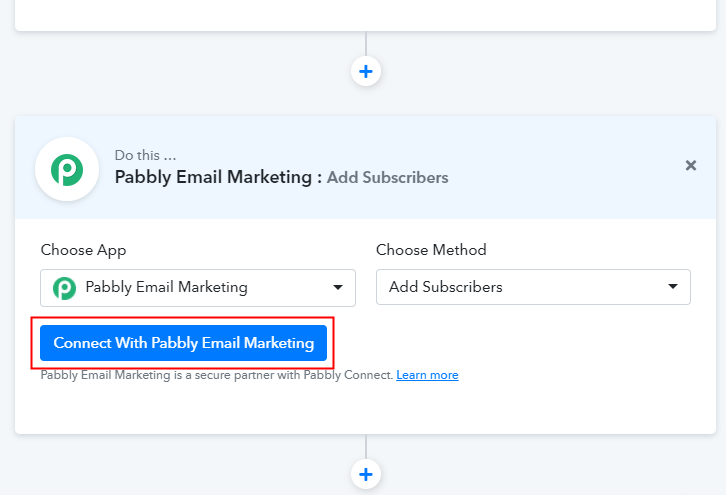
Next, click on the “+” icon to add an action for your trigger. Here we are going to select “Pabbly Email Marketing” from the dropdown. Then, select the “Add Subscribers” option.

(b) Click the Connect Button

Click on Connect Button

Now, after making all the necessary changes, click on the “Connected with Pabbly Email Marketing” button. Further, it will ask for “Bearer Token”, for which you have to visit the Pabbly Email Marketing account.
Step 9: Connecting Pabbly Email Marketing to Pabbly Connect

To copy the “Bearer Token”, you have to log in to your Pabbly Email Marketing account.
(a) Click on Integrations

Integration Option

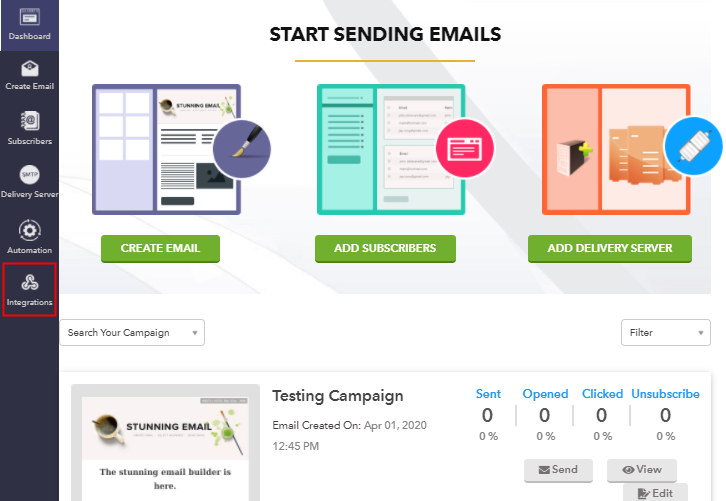
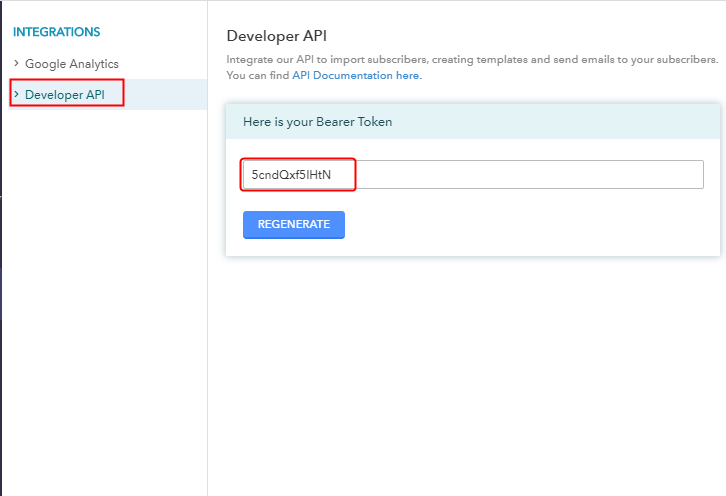
Login to your Pabbly Email Marketing account and select the “Integrations” option from the tab on the left. Then, further, click on the developer API option.

(b) Copy Bearer Token

Copy the Bearer Token

Now copy the “Bearer Token” code provided on the dashboard as shown in the above image.

(c) Paste Bearer Token in Pabbly Connect Dashboard

Paste Bearer Token

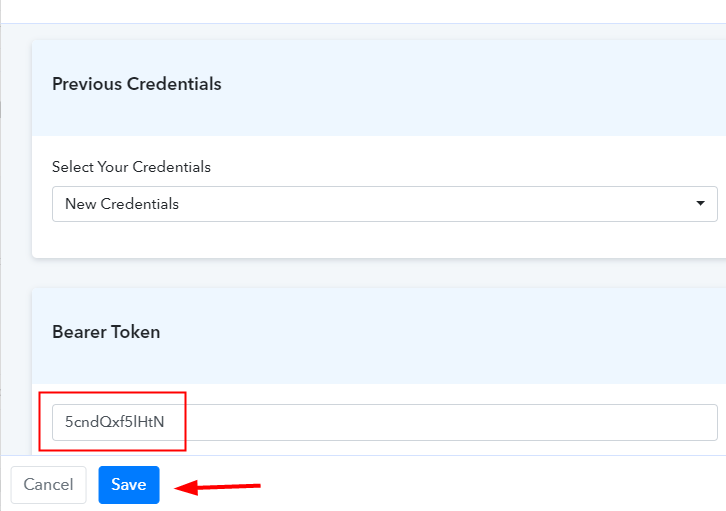
So, to paste the copied token, go back to the “Pabbly Connect” dashboard. As we mentioned above when you click on the “Connected with Pabbly Email Marketing” button. It will showcase the page with “New Credentials”. Here on this page, you will see the option of “Bearer Token”, just paste your copied token there.

(d) Add Field Data

Add Field Data

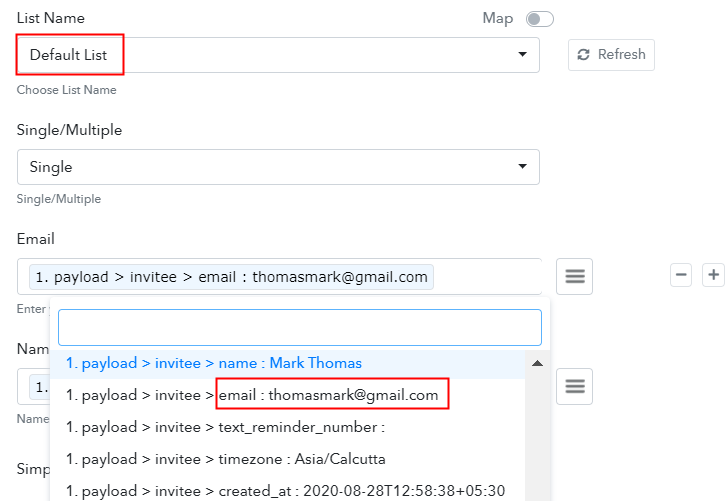
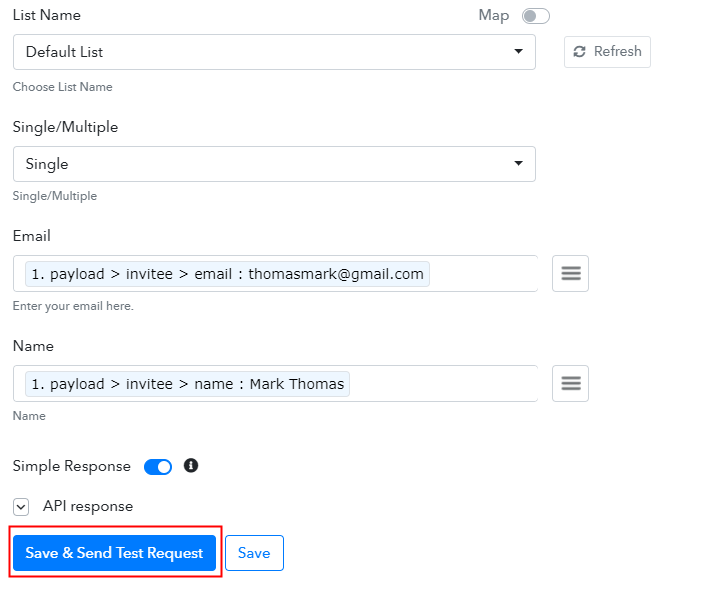
Now, as you can see “Default List” is appearing in the “List Name” field. Now, all you have to do is add the required field from drop-down such as for the email field, select the email option, and for the name field select the name option.

(e) Save and Send Test Request

Save and Send Test Request

After making all the changes, save the setting and then “Send Test Request”.

Step 10: Check Response in Pabbly Email Marketing Dashboard

Check the Submission

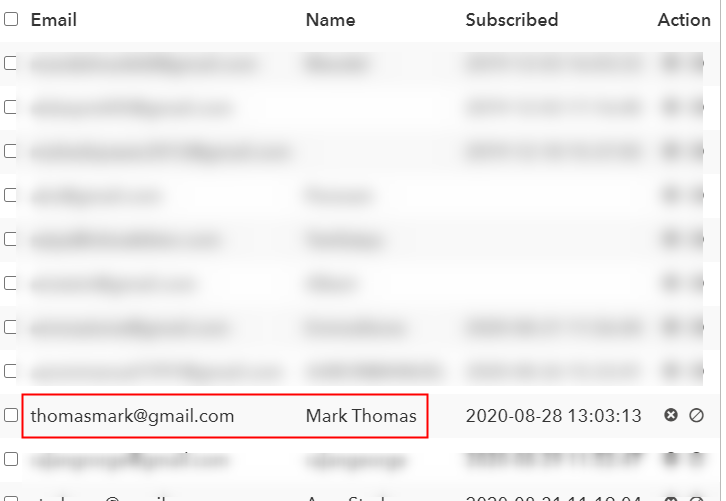
Lastly, when you check the default subscriber list in Pabbly Email Marketing, your submitted response will automatically appear there. This is a one-time process, after that, all the form submissions will automatically get added to your subscriber list.

Conclusion –

There you have it! Here you have successfully gained the knowledge on “how to integrate Calendly with Pabbly Email Marketing” software. Just follow all the above-mentioned steps and you’re good to go. We all understand the importance of time and that’s why software like Pabbly Connect is a great help as it provides easy automation with zero coding skills.

So, don’t confuse yourself anymore. Try this software out and you can contact the support staff in case of any difficulty.

You May Also Like To Read –

How to Integrate ManyChat with Slack | Step by Step

Integrate ManyChat with Slack

In this blog, I’ll explain the step by step procedure to integrate ManyChat with Slack. ManyChat is a tool to build messenger bots and Slack is a chat room app. And anyone willing to integrate these two services must be trying to send data from ManyChat bot to a Slack chat room.

We’ll be going to accomplish the integration using Pabbly Connect service. This service allows us to create a workflow with instant triggers and multi-step calls to automate the process. The procedure will take a few minutes and provide a real-time message on Slack, every time the ManyChat bot brings data.

Integrate ManyChat with Slack

I’m using the simplest example to give an idea of the integration of ManyChat with Slack. Moreover, you can also make use of the formatters, filters, routers etc that came along with Pabbly Connect.

Now, let’s get started with the step by step procedure to integrate ManyChat with Slack using Pabbly Connect.

Step 1: Sign up to Pabbly Connect

Sign Up

Firstly, visit the Pabbly official website and click on the ‘Sign-Up Free‘ button. On the signup page, either use your existing Google account or manually fill out the registration form details to get in.

Try Pabbly Connect for FREE

Step 2: Access Pabbly Connect

Select Connect

After signing up successfully, click the ‘Access Now’ button that is present in the ‘Connect’ Pabbly application window.

Step 3: WorkFlow for ManyChat with Slack Integration

(a) Click over the Create New Workflow Button

Create New Workflow

Start with creating a workflow to integrate ManyChat with Slack and for this hit the ‘Create New Workflow’ button.

(b) Name the Workflow

ManyChat with Slack Workflow Integrate ManyChat with Slack

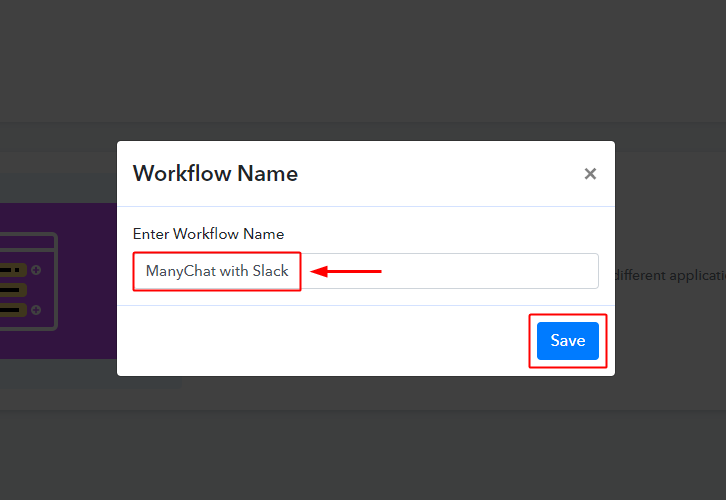
Name the Workflow as per your need (for instance: ManyChat with Slack’) and hit the ‘Save’ button.

Step 4: Set-up A Trigger to Integrate ManyChat with Slack

(a) Select Application to Integrate as ManyChat

Integrate ManyChat Integrate ManyChat with Slack

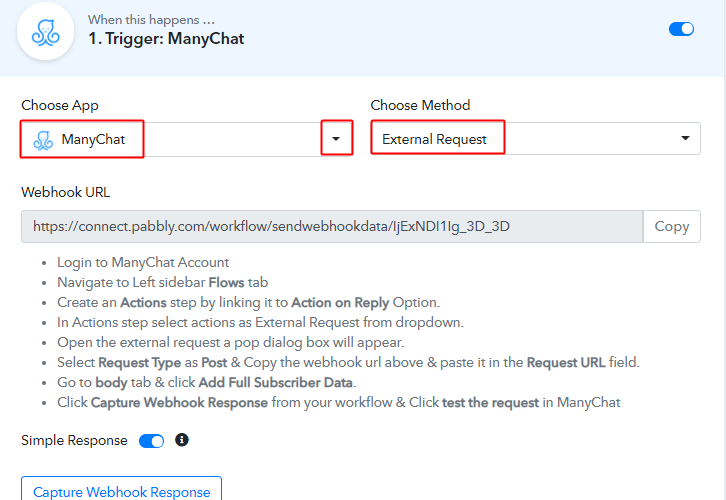
After naming and creating a workflow, a trigger window becomes visible. You have to select the ‘ManyChat’ app from the drop-down values of the field named ‘Choose App’.

Make sure the method here is ‘External Request’.

Step 5: Create a Flow on ManyChat

ManyChat Flow Integrate ManyChat with Slack

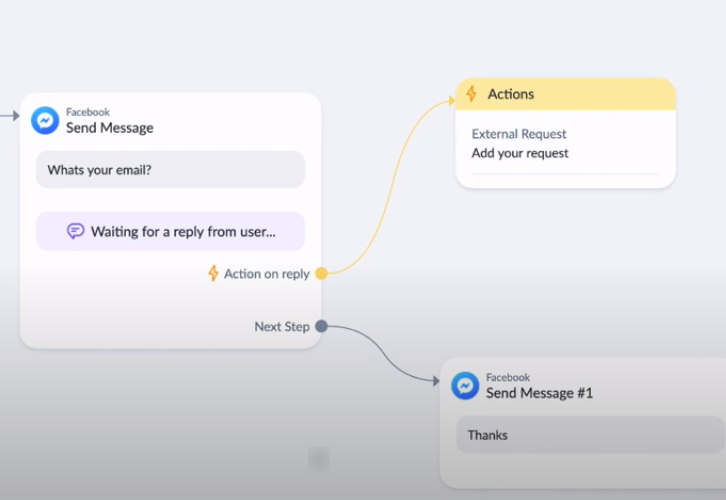
To attach the Pabbly Connect trigger with a ManyChat bot, we’ve to paste the Pabbly Webhook URL in a bot’s action. So, first, create a chat flow and if you already have one then skip this step.

For instance, in the above flow, I’m asking for a user email and if the user fills out an email then I’m going to perform an action.

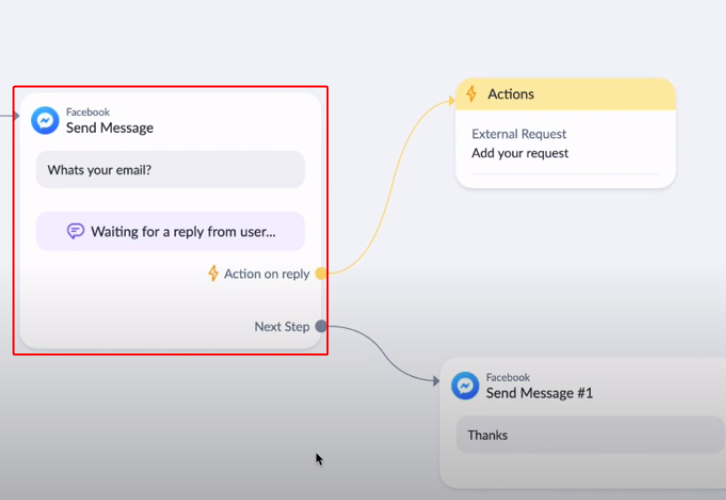
(a) The Condition Step

ManyChat Condition Integrate ManyChat with Slack

I’ve taken a ‘Send Message’ as content on the condition step.

(c) ManyChat Condition Settings

ManyChat Flow Settings Integrate ManyChat with Slack

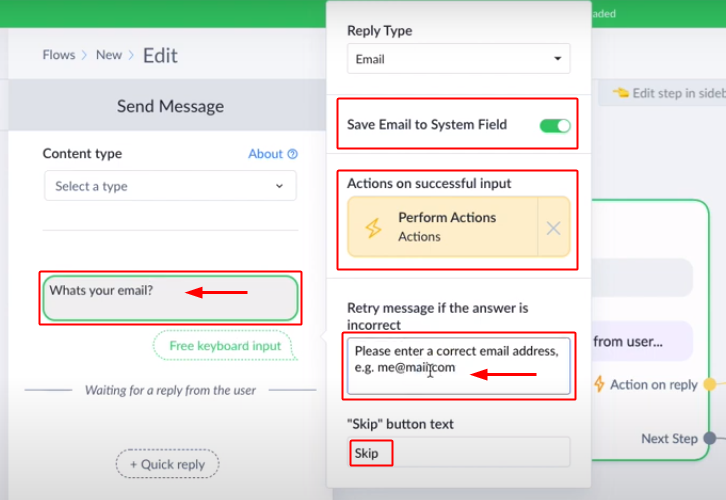
Inside the condition, I’m asking for writing an email from the customer. If the customer provides one then going to save it else an error message will be sent. Also, I’m including a ‘Skip’ button to the flow as if the customers simply want to skip this.

(d) Go to your ManyChat Action

ManyChat Action Setting Integrate ManyChat with Slack

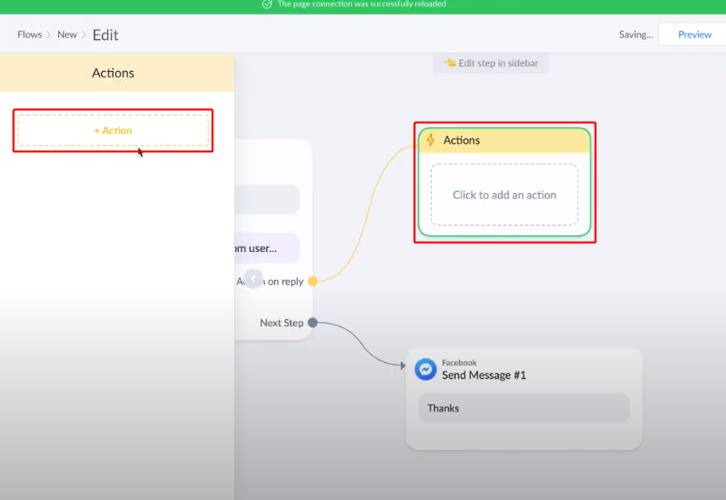
In the action step (when a customer submits an email) as we want to send the customer’s response forward, we are going to do some settings.

For that, click on action.

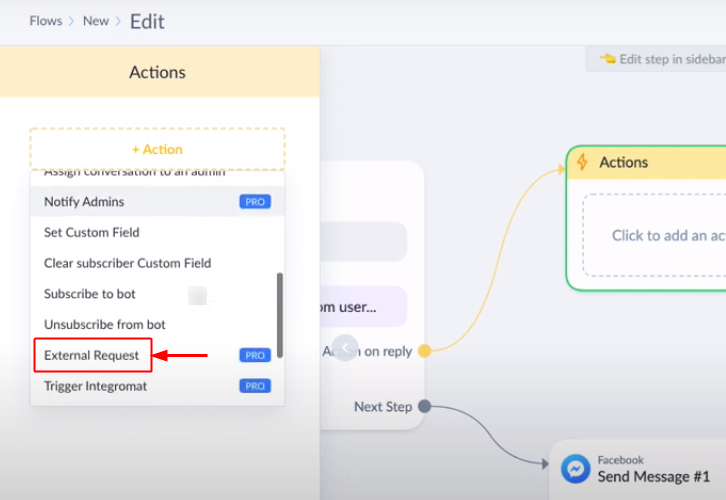
(e) Select Action as External Request

Select External Request

When you click on the ‘+Action’ button a drop-down will open up. Select the ‘External Request’ option from the drop-down.

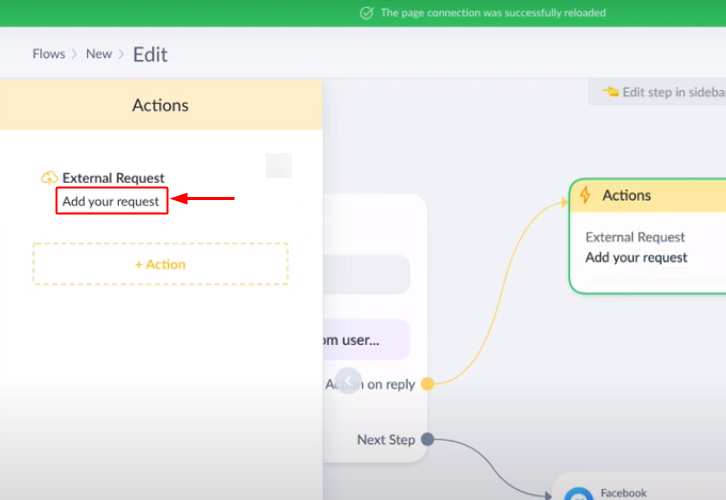
(f) Click on Add Your Request

Click on Add Your Request

After selecting the ‘External Request’ option a text i.e, ‘Add your request’ will become visible. Simply click over it and a window will pop open.

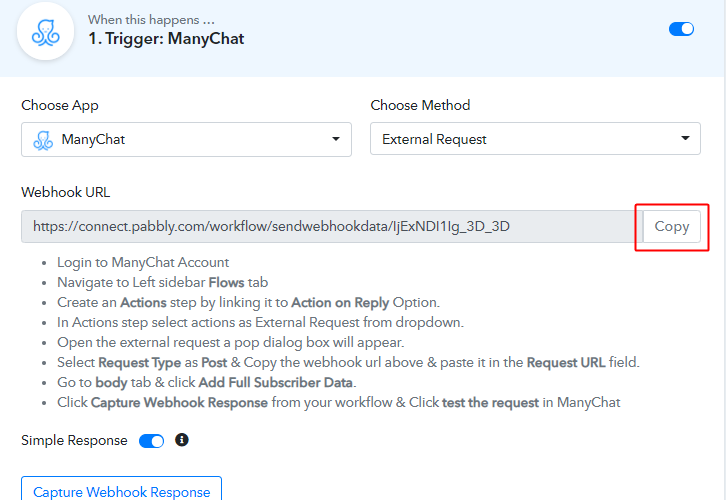
(g) Go back to Pabbly Connect & Copy Webhook URL

Copy Webhook URL

(h) Paste the Copied Webhook URL form Pabbly to ManyChat Action

Paste Pabbly Webhook URL in ManyChat & Do Settings Integrate ManyChat with Slack

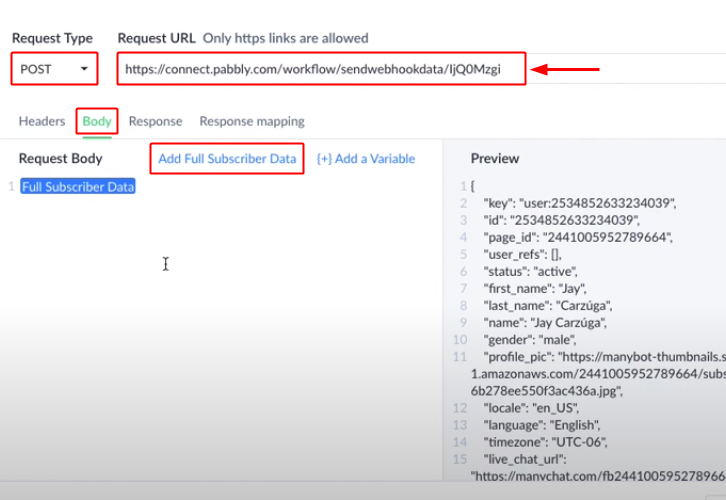
Paste the copied Webhook URL from Pabbly Connect in the Request URL field for this window. Make sure the Request type is POST here.

After that click the option ‘Body’ from the menu given below and then click over ‘Add Full Subscriber Data’.

We are sending the full subscriber data here, but we can also choose to add selective variables too.

Step 6: Test the Trigger Request’s Working

(a) Click the Test the Request Button

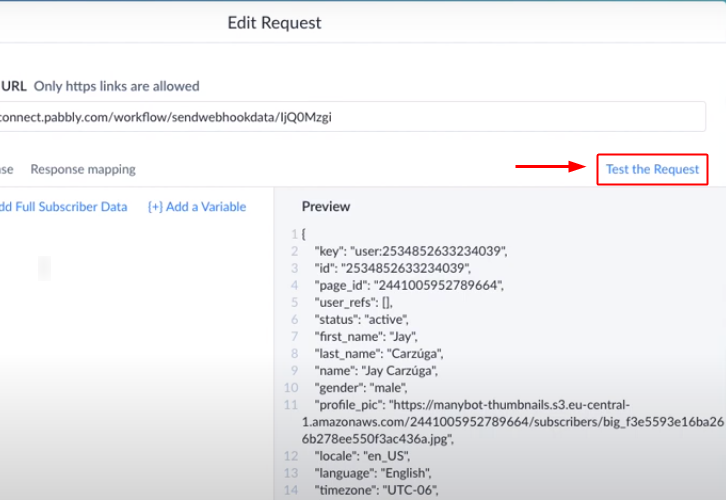
Test the Request

Hit the ‘Test the Request’ button present at the right of the pop-up window.

(b) Check the Response

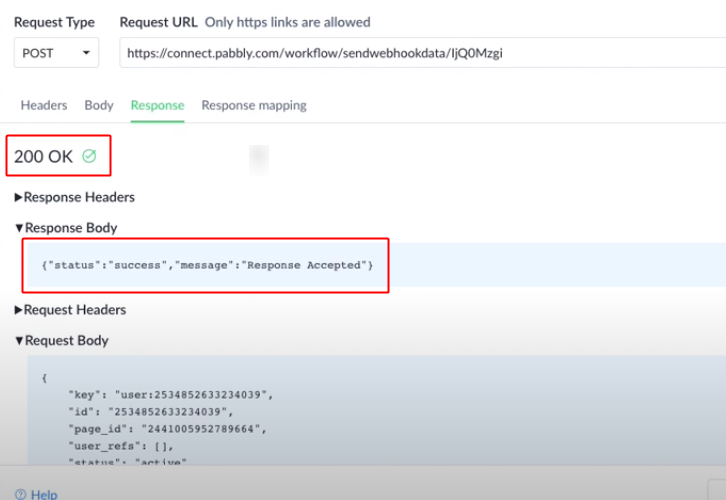
Test Response

Check for the success of your action after the test request. Make sure there will be no errors.

(c) Capture the Webhook Response in Pabbly Connect

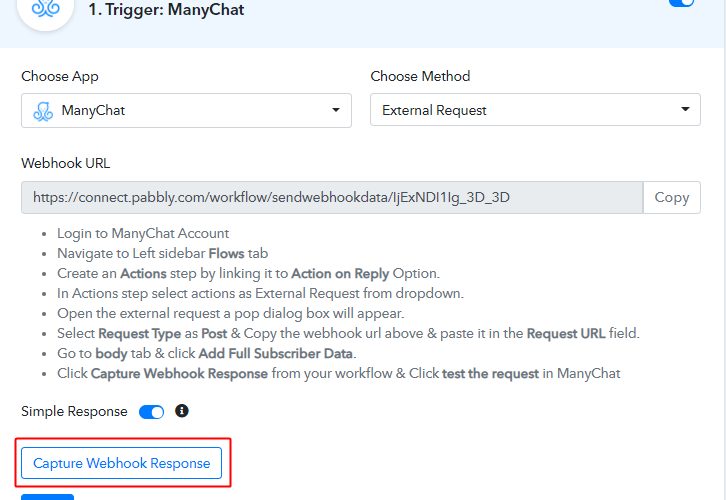
Capture Webhook Response Pabbly Connect

Now, go back to the Pabbly Connect trigger and strike the ‘Capture Webhook Response’ button.

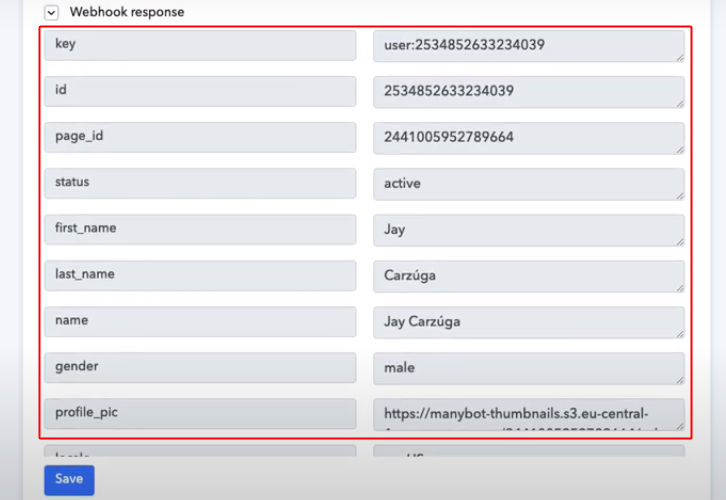
(d) Check the Response in Pabbly Connect

Check Captured Response Pabbly Connect

Check the response of the trigger that all the values sent from ManyChat are received successfully on Pabbly Connect.

Step 7: Set-up An Action to Integrate ManyChat with Slack

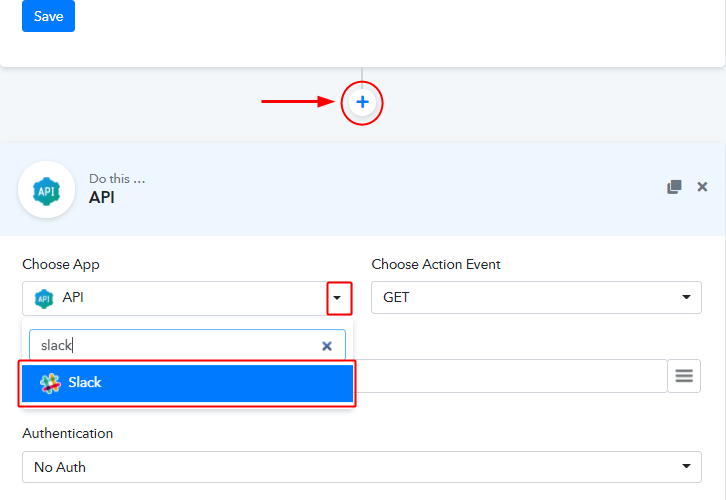
(a) Select the Application to Integrate as Slack

Integrate Slack

Click the ‘+’ button next to the trigger window.

Select ‘Slack’ app from the Choose App field drop-down.

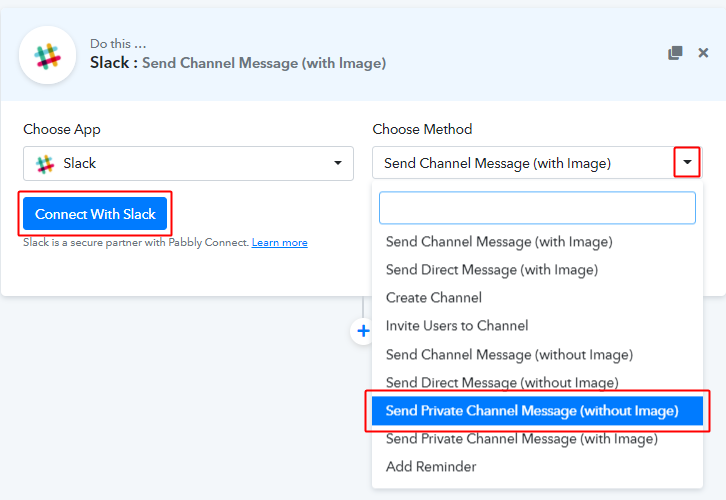
(b) Select the Method for Slack Integration

Select Slack Method

Select the method as ‘Send Channel Message (without image). Remember, you can also select other methods available as per your choice in your workflow.

Lastly, hit ‘Connect with Slack’.

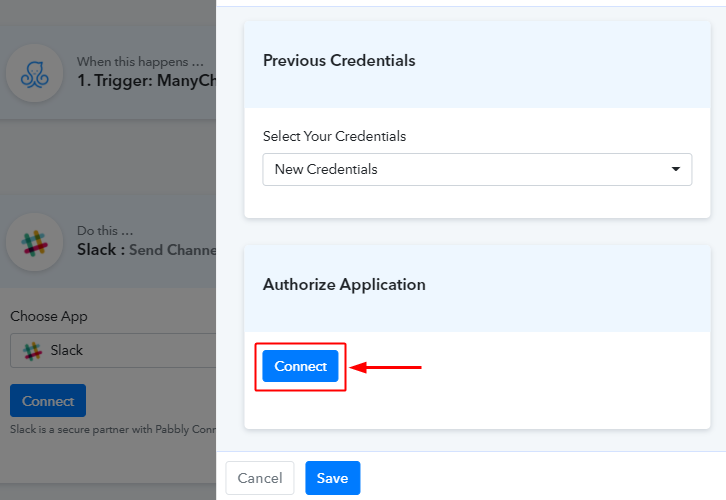
(c) Authorize your Slack Account

Authorize Slack Account

When you hit connect, the system will ask you to authorize an account. So, simply allow your Pabbly Connect and slack account authorization.
Step 8: Map the Values that you Wanna Send to Slack

Map Values Integrate ManyChat with Slack

Once you authorize your slack account, all the channels get populated automatically. Select the Channel in which you want to send the message.

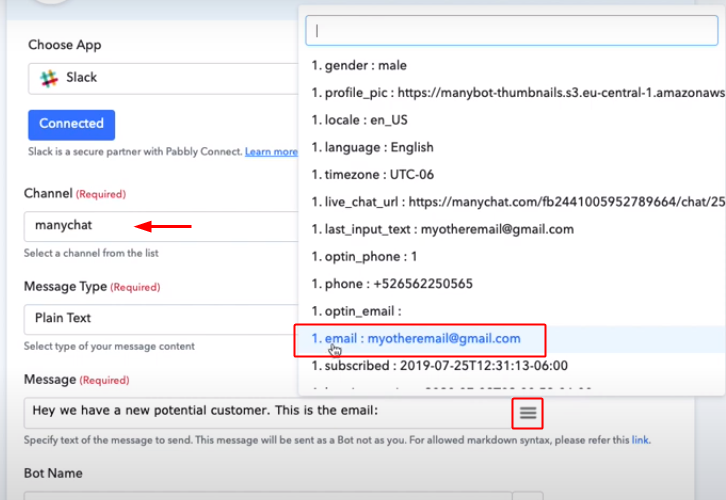
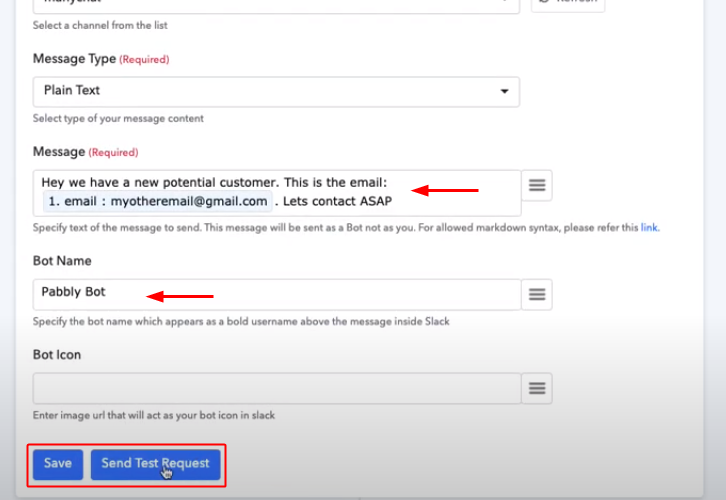
Under the Message field, write down the messenger that you want to send. You can customize the message as per your choice and can make use of any information that you have gathered from Manychat as well.

To insert data that we’ve gathered from ManyChat, simply put your cursor to a destined position and then click the menu icon (three verticle line) next to the writing field and click over the value that you want to use in the message.

Step 9: Save the Action

Save Action & Send Test Request

Save & Send Test Request, after completing the message write-up and other field details.

Step 10: Check Response on Slack

Check Response on Slack Integrate ManyChat with Slack

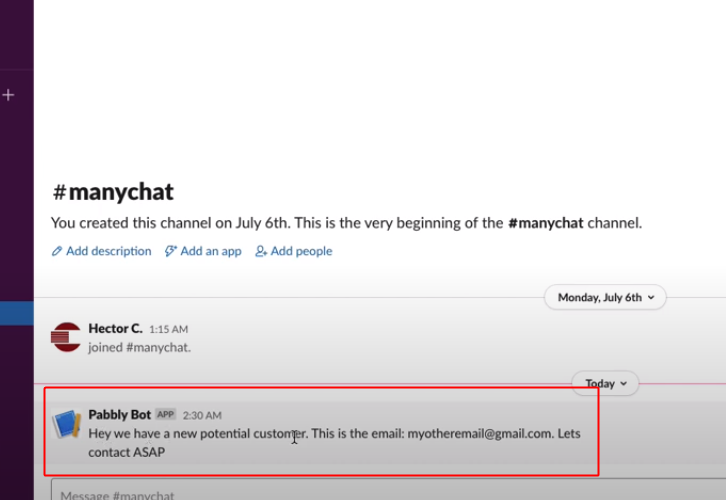
Finally, check the response of the workflow on your Slack chat room that you have selected.

Wind-Up

Well, this is ‘How to integrate ManyChat with Slack using Pabbly Connect. Consequently, after completing this procedure, you will end up getting messages of your potential customers from your ManyChat bot to your Slack chat room automatically. Most importantly, the procedure is very easy to implement and you don’t need any coding skills to carry these simple steps.

For any further queries, do comment below.

You May Also Like to Read:

How to Integrate Calendly with Kirim.Email | Step by Step

How to Integrate Calendly with Kirim.Email

Are you looking for a way to integrate Calendly with Kirim.Email? If yes, then keep reading, this blog might be beneficial for you.

How to Integrate Calendly with Kirim.Email

But before starting the integration process let’s talk a little bit about these software i.e, Calendly and Kirim.Email.  Calendly is an app for scheduling appointments, meetings, and events without the use of email chains and phone tags. You can confirm your appointment by sending a Calendly link to the people even if they don’t use Calendly. While Kirim.Email is a web-based, very easy to use email marketing platform to send personalized emails to your subscribers.

Now, you must be thinking that if you can integrate these apps to save your time and a lot of effort. So, that every time someone makes an appointment on Calendly, the lead data or the customer’s info can be automatically updated in your Kirim.Email account.  Of course, there is a way to integrate these two apps via an amazing software called Pabbly Connect.
Why Choose This Method Of Integration?

In contrast with other integration services-

  • Pabbly Connect does not charge you for its in-built apps like filters, Iterator, Router, Data transformer and more
  • Create “Unlimited Workflows” and smoothly define multiple tasks for each action
  • As compared to other services which offer 750 tasks at $24.99, Pabbly Connect proffers 50000 tasks in the starter plan of $29 itself
  • Unlike Zapier, there’s no restriction on features. Get access to advanced features even in the basic plan
  • Try before you buy! Before spending your money, you can actually signup & try out the working of Pabbly Connect for FREE

Sign Up To Pabbly Connect 

Through Pabbly Connect, you can create automated workflows and transmit the data between several apps and services without any manual work or coding skills. After integrating any two or more than two applications, your entire workflow works automatically. Other than workflows, you can access its other great features like instant triggers, filters, path routers, etc even with the free plan.

Hence, without any further delay, let’s begin the integration process of Calendly with Kirim.Email.

Step 1: Sign up to Pabbly Connect

Sign Up

Commence the process of integrating Calendly with Kirim.Email by clicking on the “Sign Up Free” icon on the Pabbly Connect dashboard. Further, you can manually fill-up all the details or sign up using your Gmail account.
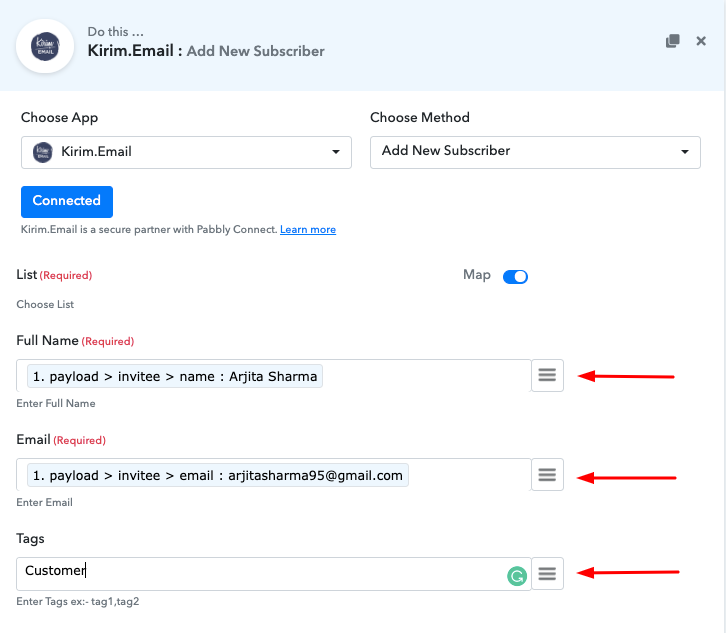
Try Pabbly Connect for FREE

Step 2: Access Pabbly Connect


Select Connect

After signing into the account, click on the “Access Now” button of the Connect section to access Pabbly Connect software.

Step 3: WorkFlow for Calendly with Kirim.Email Integration

(a) Start with a New Workflow

Create New Workflow

Here, you have to press the “Create New Workflow” button to start the integration process.

(b) Name the Workflow for Calendly with Kirim.Email

Name the Workflow

Thereafter, name the workflow according to your needs. Here, we have named the workflow as Calendly with Kirim.Email.

Step 4: Setting Trigger for Calendly Kirim.Email Integration

Now after creating a workflow, you have to choose the application you want to integrate. Integrate thousands of other applications via Pabbly Connect, click here to signup now.

Select Application you Want to Integrate

Select Calendly

Now, you have to select the application that you want to integrate. In this case, we are choosing Calendly for integration. After selecting the application, click on the “Connect with Calendly” button.

Step 5 : Copy the API Key

Next to move forward, you have to log into your Calendly account to get the API Key

(a) Click on Integrations

Click on Integrations

After you log in to your Calendly account, click on the “Integration” option appearing on top.

(b) Copy or Regenerate the API Key

Copy or Regenerate the API Key

Further, you will have two options, either you can copy the API key appearing on the dashboard or you can also regenerate the key as per your need. After getting the key, simply copy it.

(c) Add API Key

Add API Key

When you click the “Connect with Calendly” button, a pop-up window will appear on your screen asking for your Calendly API key. Paste the API key you copied from the Calendly account in Pabbly Connect. The webhook provided by the Pabbly Connect is automatically connected with your Calendly account after this step.

Step 6: Test the Submission in Pabbly Connect Dashboard

Capture Webhook Response

To test the integration between Pabbly Connect and Calendly, head back to your Calendly account and create a meeting appointment. Now, click on the “Capture Webhook Response” button in Pabbly Connect.

As soon as you click on the button, you can see the info about the person who made an appointment on Calendly is captured automatically.

Step 7: Setting Action for Calendly Kirim.Email Integration

Now the next step is to select the action for your trigger. For this, you have to choose the application you want to integrate.

(a) Select Application you Want to Integrate

Select Kirim.Email

Next, click on the “+” icon to add an action for your trigger. Here we are going to select “Kirim.Email” among other applications. Then, select the “Add New Subscriber” option.

(b) Click the Connect Button

Integrate Calendly with Kirim.Email

Now, after making all the required changes, click on the “Connect” button. Later, it will ask for “Username” and “Rest API Token, for which you have to visit the Kirim.Email account.
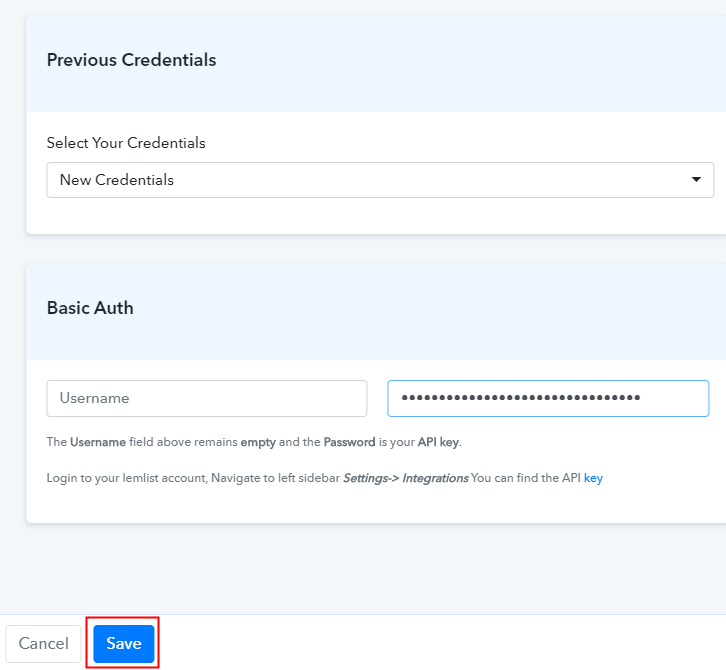
Step 8: Connecting Kirim.Email to Pabbly Connect

To get the “Username” and “Rest API Token”, you have to log in to your Kirim.Email account.
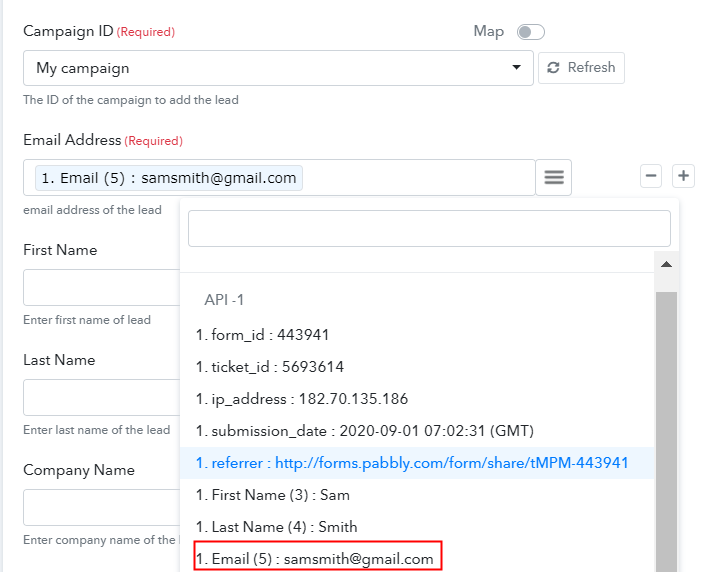
(a) Click on Instructions

Click on the Instructions

In Pabbly Connect, you can easily find the authentication instructions to get API keys for the integration process. After clicking on the authentication instructions, you will reach to your Kirim.Email account settings page.

(b) Copy Username and Rest API Token

Copy API Token

On this page, you will find all the required data i.e, username, and the rest API token. Copy these credentials.

(c) Paste Username and Rest API Token in Pabbly Connect Dashboard

Enter Credentials

Now to paste the copied username and rest API token, go back to the “Pabbly Connect” dashboard. Paste the credentials into their respective places and just hit the “Save” button.

(d) Add Field Data

Integrate Calendly with Kirim.Email

Now, select the list from the dropdown in which you want your subscribers to get added. Then, add the required field from drop-down such as for the email field, select the email option, and for the name field select the name option. You can also add some custom data of the subscribers like tags, city, country, etc.

(e) Save and Send Test Request

Integrate Calendly with Kirim.Email

After making all the changes, save the setting and then press the “Send Test Request” button to test the integration.

Step 9: Check Responses in Kirim.Email Dashboard

Integrate Calendly with Kirim.Email

Eventually, when you check the subscribers count in Kirim.Email list, your response will appear there.

So, just like that, all the appointments made in Calendly will automatically get added to your subscriber’s list in Kirim.Email after this integration.

Conclusion –

At last, now you have seen how to integrate Calendly with Kirim.Email via Pabbly Connect. Not only this integration, but you can also bind up thousands of other applications together with the help of Pabbly Connect. You just have to make a few changes in the software, and your entire workflow will be automated, after the integration, you don’t even have to lift a finger. Just follow these simple steps and automate your projects.
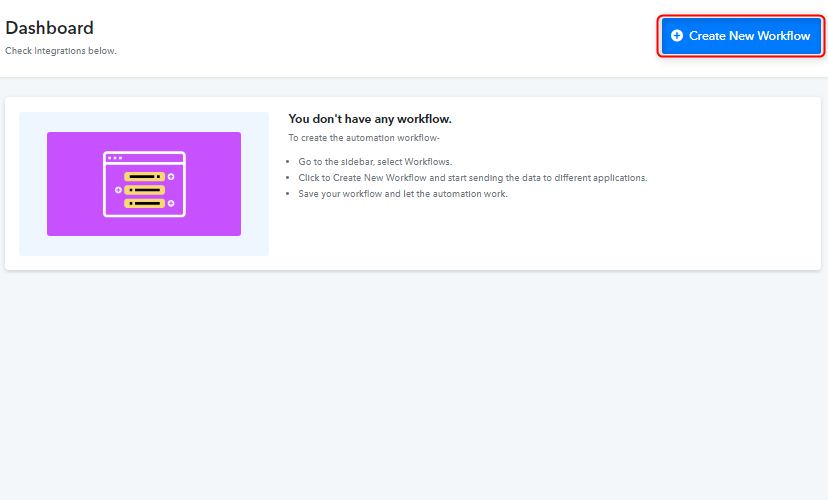
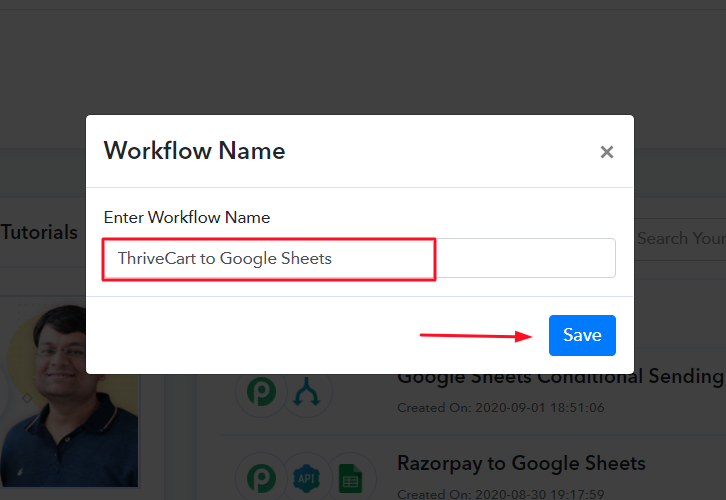
In case of any queries or suggestions, please leave your comments below.

You May Also Like To Read –