How to Save Telegram Messages to Google Sheets Automatically

How to Save Telegram Messages to Google Sheets Automatically

If you are looking for some way to gather all your Telegram messages on Google Sheets then this could be the simplest way possible.

As in this article, we are going to integrate Telegram with Google Sheets using Pabbly Connect to save Telegram messages to Google Sheets automatically. To store the conversation for further referencing, record keeping and machine learning etc. This service enables integrating any two or more services together as well as share information within the connected services instantly.
How to Save Telegram Messages to Google Sheets Automatically

We’ll simply set up a trigger on the Telegram bot messages and its respective action on Google Sheets to save the sent message.

Moreover, Pabbly Connect offers more advanced feature other than instant triggers that are routers, filters and formatters etc. Using this service you can design unlimited workflows, make multi-step calls, integration with unlimited premium apps etc. All this without any hard coding or help from professionals.

Why Choose This Method Of Integration?

In contrast with other integration services-

  • Pabbly Connect does not charge you for its in-built apps like filters, Iterator, Router, Data transformer and more
  • Create “Unlimited Workflows” and smoothly define multiple tasks for each action
  • As compared to other services which offer 750 tasks at $24.99, Pabbly Connect proffers 50000 tasks in the starter plan of $29 itself
  • Unlike Zapier, there’s no restriction on features. Get access to advanced features even in the basic plan
  • Try before you buy! Before spending your money, you can actually signup & try out the working of Pabbly Connect for FREE

Sign Up To Pabbly Connect  

In just a minutes interval, it enables you to set up a trigger on Telegram to send messages data to the Google Sheets and save them. So now you can save your time from manual coding and integrate services in simple clicks. Also, Pabbly Connect allows you to access all Pabbly Connect features without any restriction even in its free plan.

Further, let’s move forward with the step by step procedure to integrate Telegram with Google Sheets to automatically save messages on sheets.

How to Save Telegram Messages to Google Sheets Automatically (step by step)

Step 1: Sign up to Pabbly Connect

Sign Up
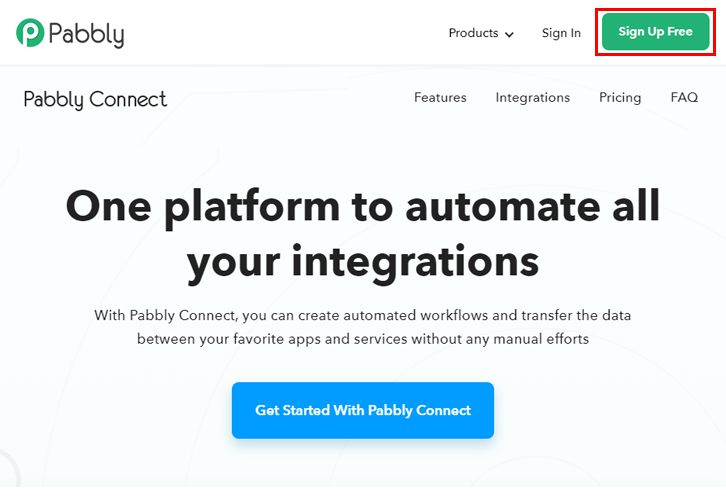
Go to the official website of Pabbly Connect and then click on the ‘Sign-Up Free‘ button. On the registration page, either signup using an existing Gmail account or manually fill out the form to get into the system.

Try Pabbly Connect for FREE

Step 2: Access Pabbly Connect

Select Connect

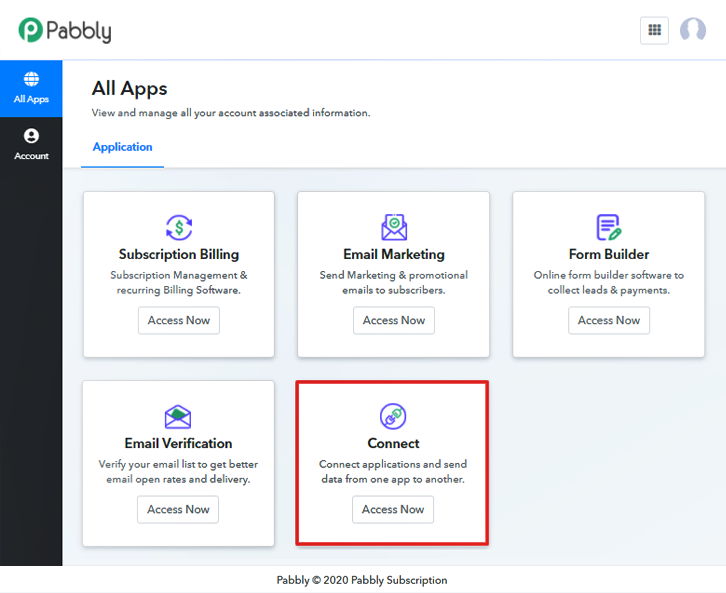
After signing up successfully, click the ‘Access Now’ button of the software ‘Connect’ Pabbly application.

Step 3: WorkFlow for Telegram with Google Sheets Integration

(a) Start with a New Workflow
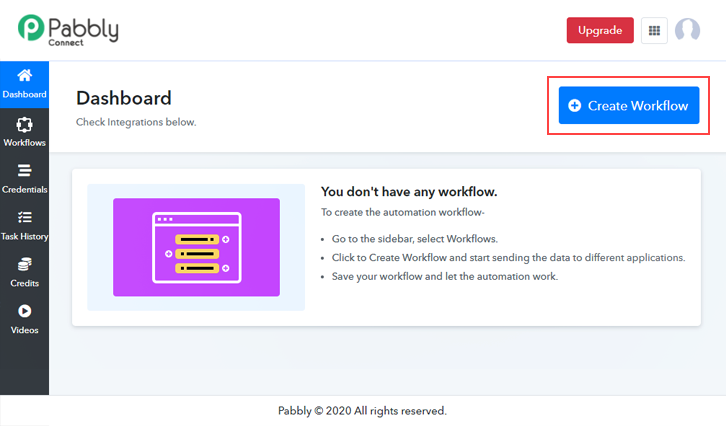
Create New Workflow

Start with creating a workflow to send Telegram messages automatically to Google Sheets and to do this strike the ‘Create New Workflow’ button.

(b) Name the Workflow
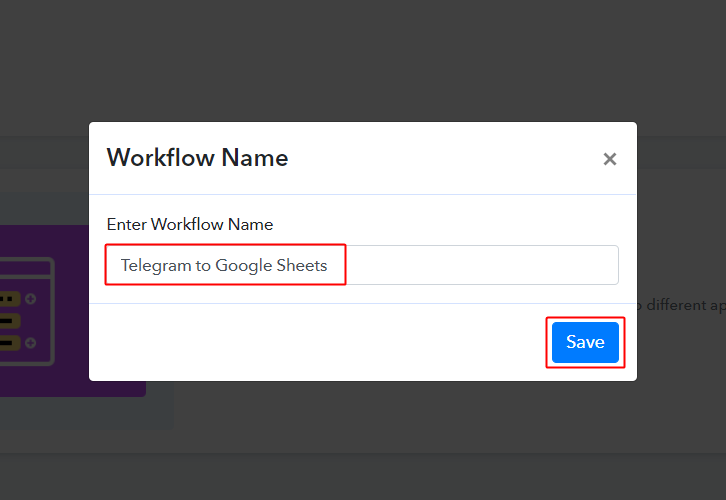
Telegram to Google Sheets Workflow

Now, name the workflow (for instance: Telegram to Google Sheets etc) and push the ‘Save’ button.

Step 4: Setting Trigger for Telegram – Google Sheets Integration

To automatically save messages to Google Sheets whenever a message arrives on Telegram, you need to set-up a trigger on messages using Telegram bot and its respective action to save the messages Google Sheets. So, let’s get started with setting up the trigger first.

(a) Select Application you want to integrate
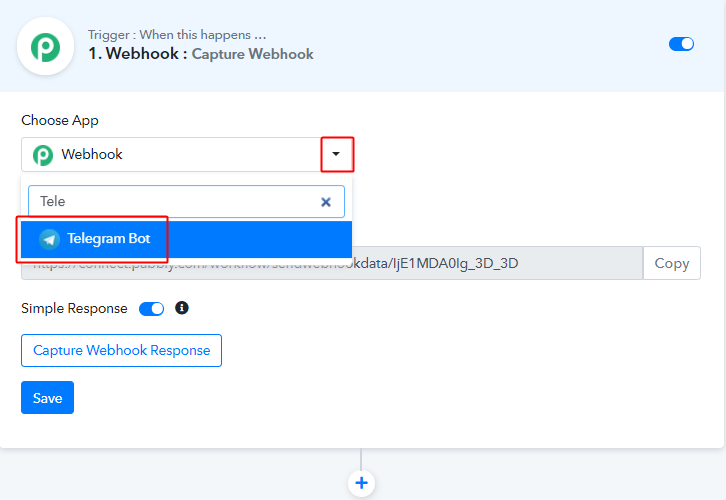
Integrate Telegram

When you hit the save button to create a workflow, a trigger window will open next.

You’ll need to select the ‘Telegram Bot’ option from the ‘Choose App’ field drop-down options to connect as well as start setting up a trigger on the Telegram account.

(b) Connect with Telegram Bot
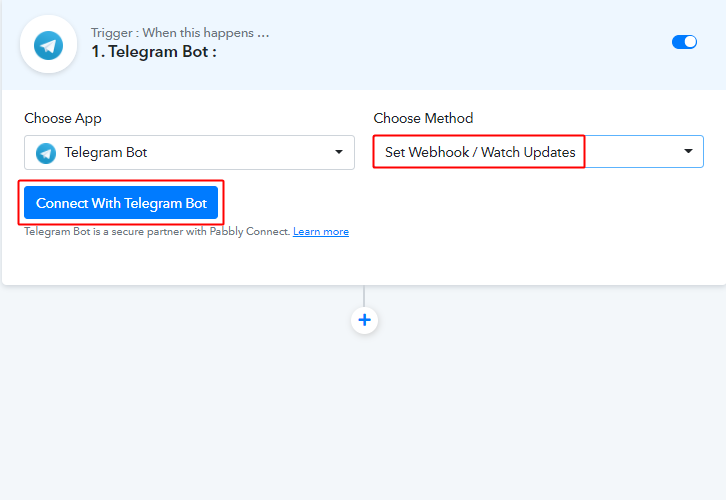
Connect with Telegram Bot

Make sure of the method in here to be ‘Set Webhook/Watch Updates’.

Then, click the ‘Connect with Telegram Bot’ button.

Step 5: Connecting Telegram to Pabbly Connect

Sign-in your Telegram account and go to the backend dashboard.

(a) Click the BotFather Link
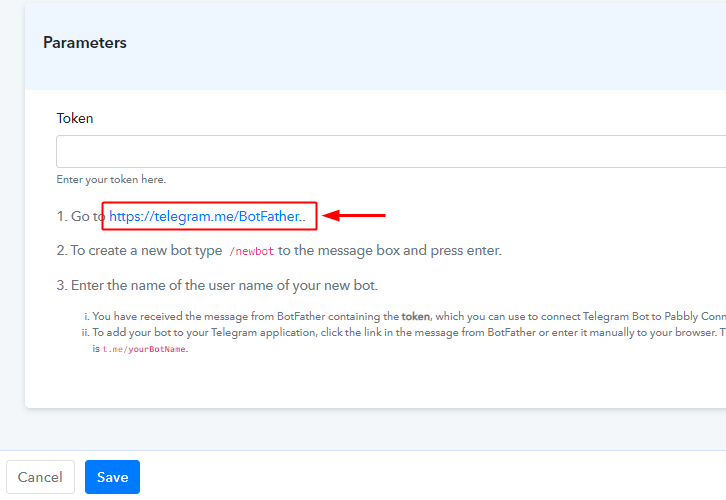
Click the BotFather Link

When you click on the ‘Connect to Telegram Bot’ button, a window will slide in from the right, click on the BotFather link or go to your telegram account and search for BotFather.

(b) Click Start on BotFather Chat
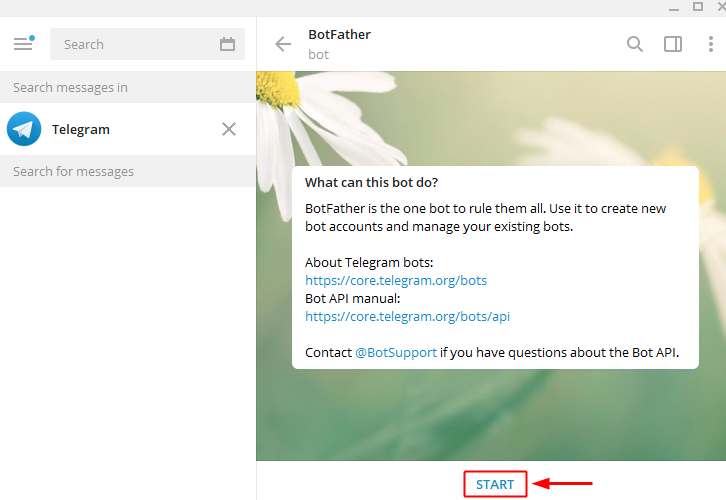
Click Start on BotFather Chat

Once you enter into the BotFather chat, you’ll see a ‘Start’ button. So, simply press it to initiate creating a bot.

(c) Create a New Bot
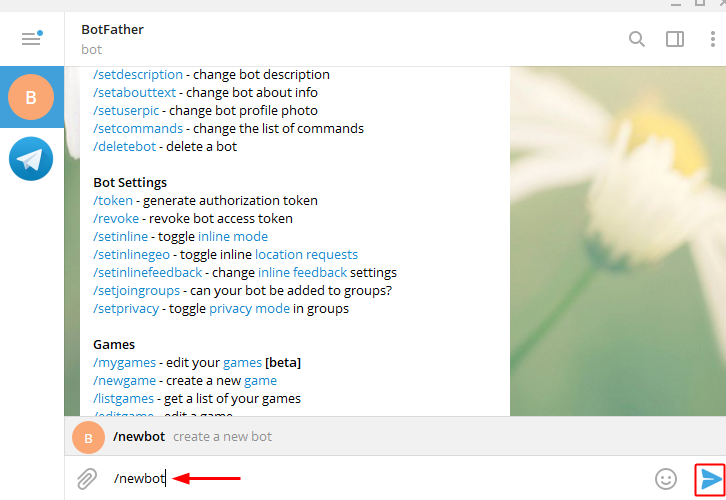
Create New Bot

To create a new bot type ‘/newbot’ and then hit send.

(c) Name Your Created Bot
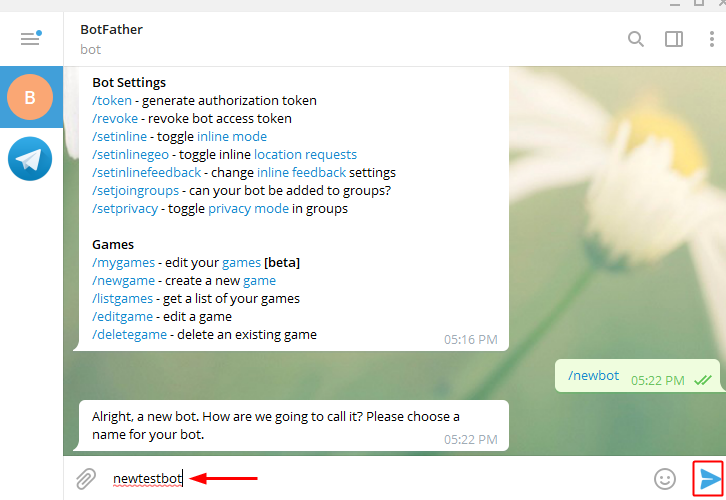
Name Your Bot

Next, it will ask you for a bot name. So, type any bot name that you wanna give to the recently created bot and hit the send icon.

(d) Give Your Bot a Username
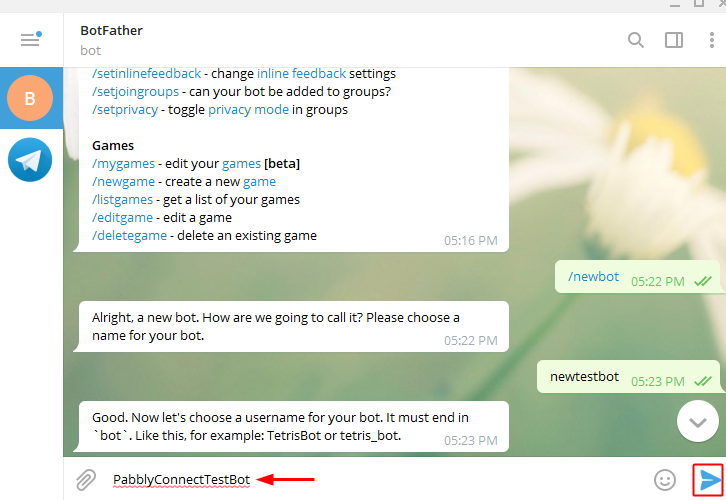
Bot Username

Lastly, give your bot any username that ends with a suffix ‘bot’. Just type the username and hit send.

(e) Copy the Token
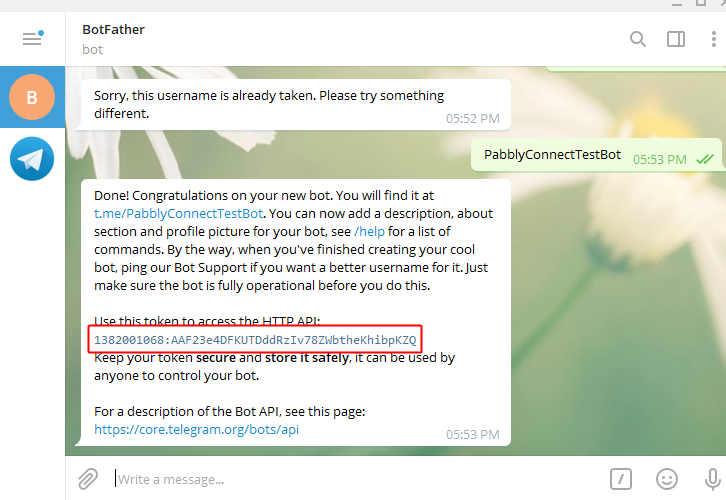
Copy Telegram Token

Once you successfully assign a username to your bot, a token will show up along with the new bot greetings.

Select and copy the token from here.

(f) Paste the Copied Token on Pabbly Connect
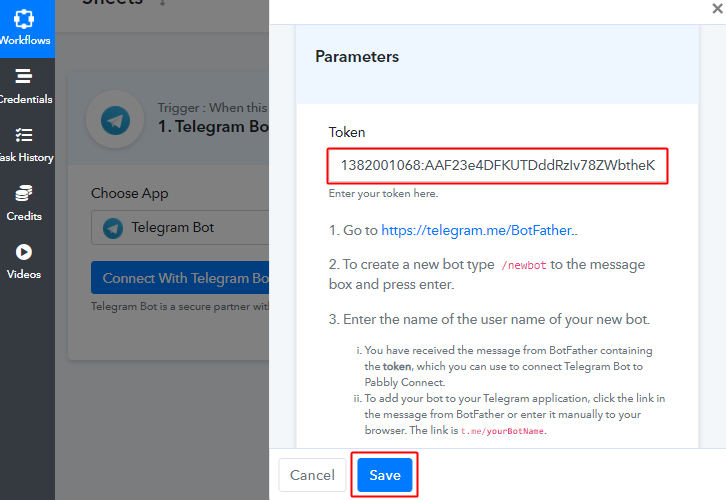
Paste the Telegram Token

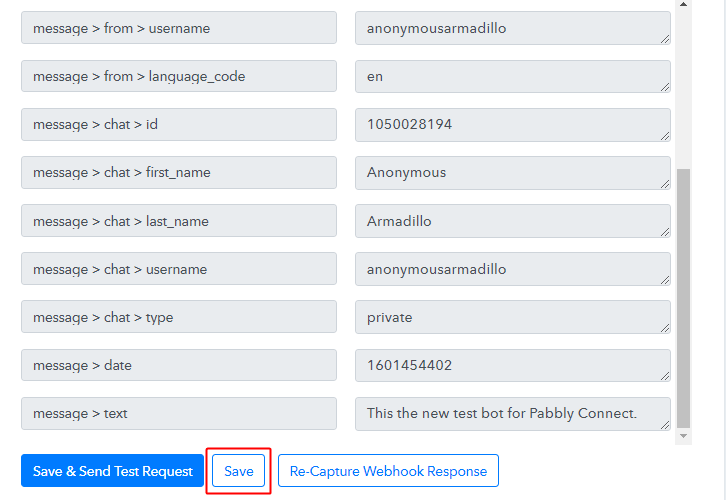
Paste the copied Telegram token in the Pabbly Connect and hit the ‘Save’ button.

Step 6: Test the Trigger Response in Pabbly Connect Dashboard

As we can see we are done setting up the trigger to save the messages send via Telegram in Google Sheets. So, let’s just test the trigger by making a test order on Telegram.

(a) Click on ‘Save & Send Test Request’ Button
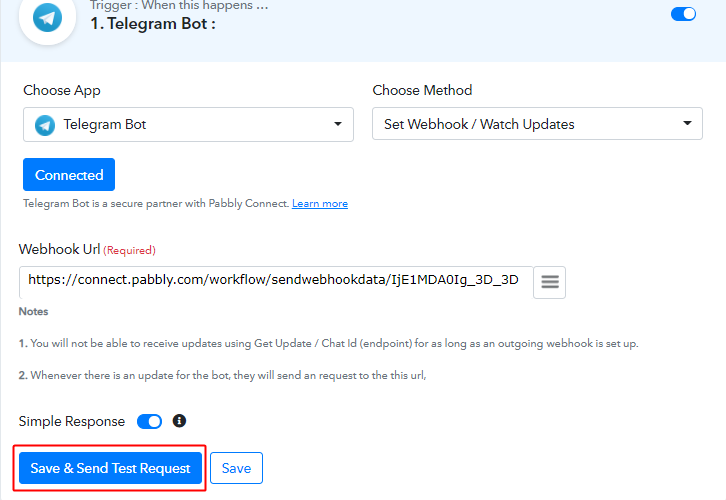
Save & Send Test Request

After connecting a Telegram account, a Webhook URL becomes visible along with some extra notes.

Simply click on the ‘Save & Send Test Request’ button in here.

(b) Check the Test Response
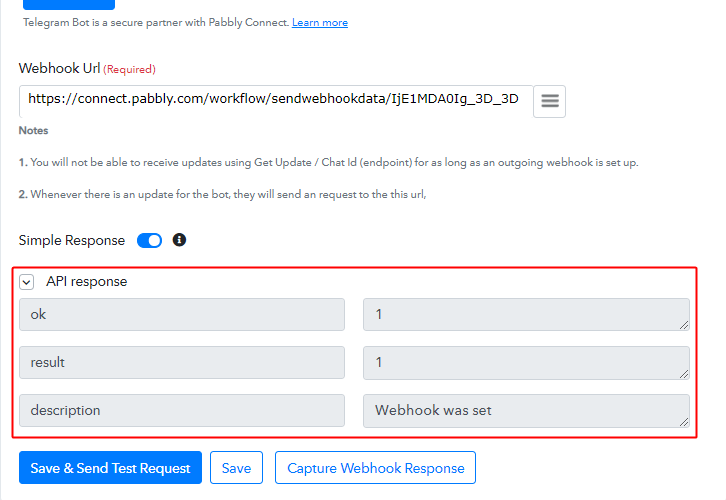
Check the Test Response

Check the success of your Webhook settings by looking at the API response of the trigger test request. If it looks like thing (as shown in the above image) then your trigger is working fine.

(c) Capture Webhook Response
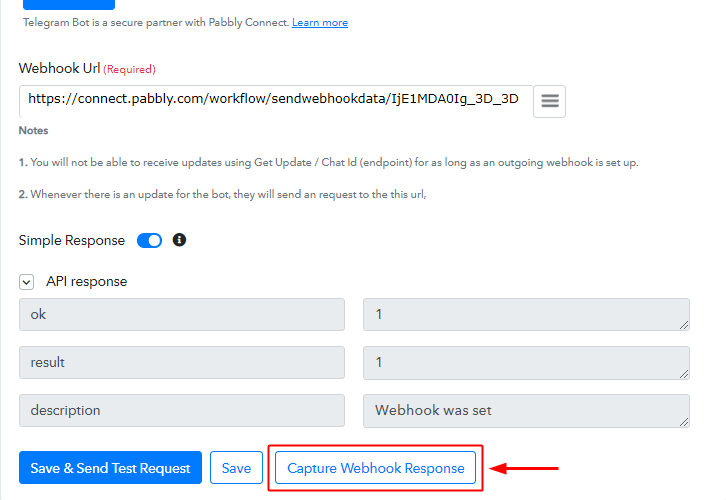
Capture Webhook Response

To test the trigger, first, hit the ‘Capture Webhook Response’ button on the Pabbly Connect trigger window.

(d) Go to Your Created Telegram Bot Window
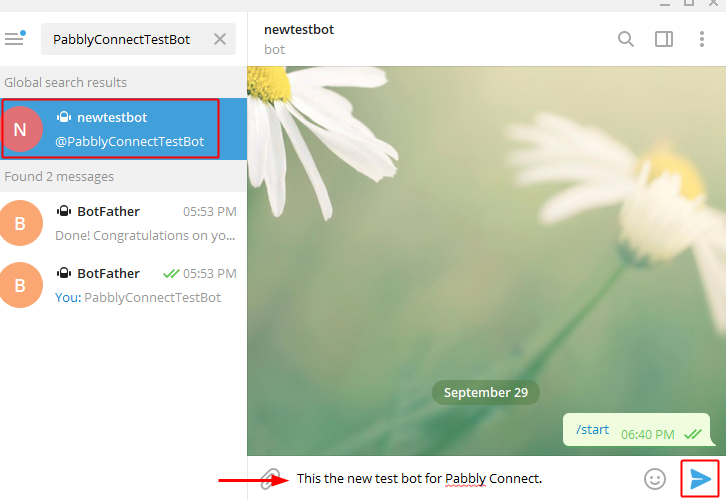
Test Your Bot

Open the bot’s chat window that you just created, type any message and then hit the send button icon.

(e) Check the Trigger Response
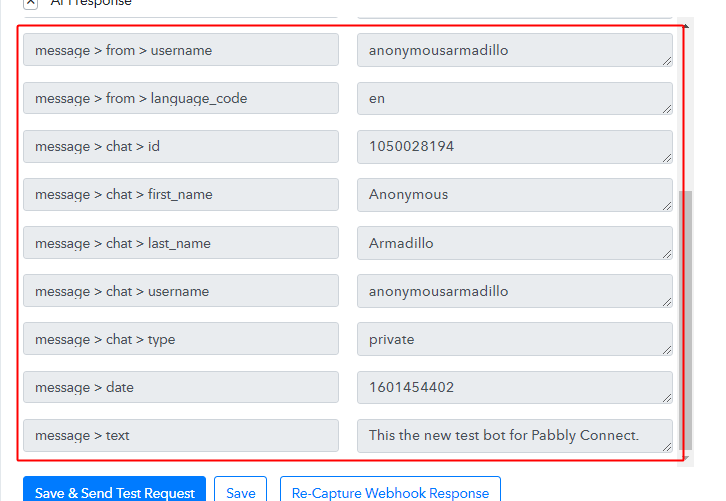
Trigger API Response

You can see the response of your created trigger below the API Response.

The response will start showing the details of the trigger response.

Step 7: Setting Action for Telegram – Google Sheets Integration

As we can see the response that we got from the set trigger is as expected and now we can move forward towards taking an action on the received data from Telegram.

(a) Create a Google Sheet
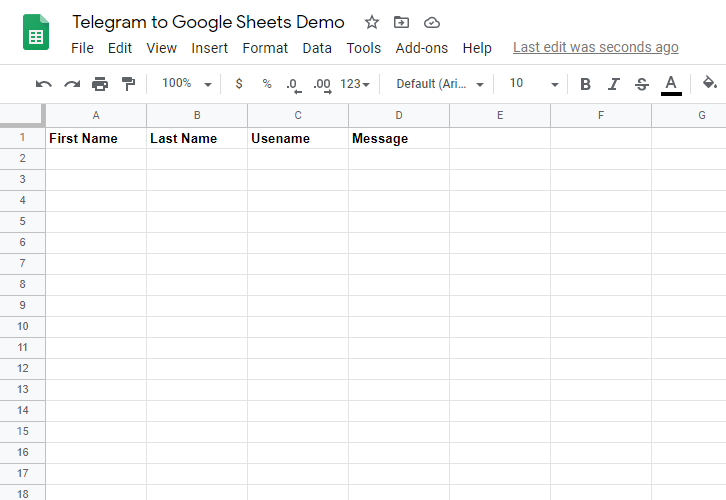
Google Sheet

If you’ve already created a Google Sheet then simply move forward to the next step else create a Google Sheet to save Telegram messages first. Also, define the column heads for the data that you wanna store.

(b) Select Application You Want to Integrate
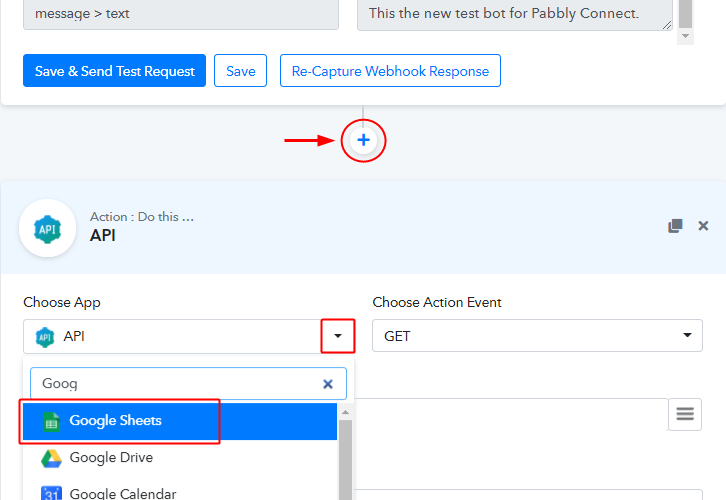
Integrate Google Sheets

To start saving the Telegram messages in Google Sheets, click the plus button next to your recently created trigger window.

Then select the ‘Google Sheets’ app to integrate from the ‘Choose App’ field’s drop-down menu.

(c) Connect with Google Sheets
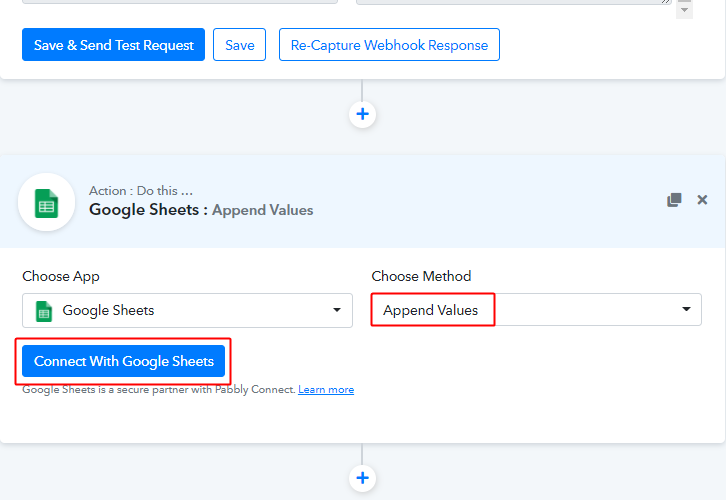
Connect with Google Sheets

Next, check the method in here to be ‘Append Values’ and then click ‘Connect with Google Sheets’ button.

(d) Authorize your Google Sheets Account
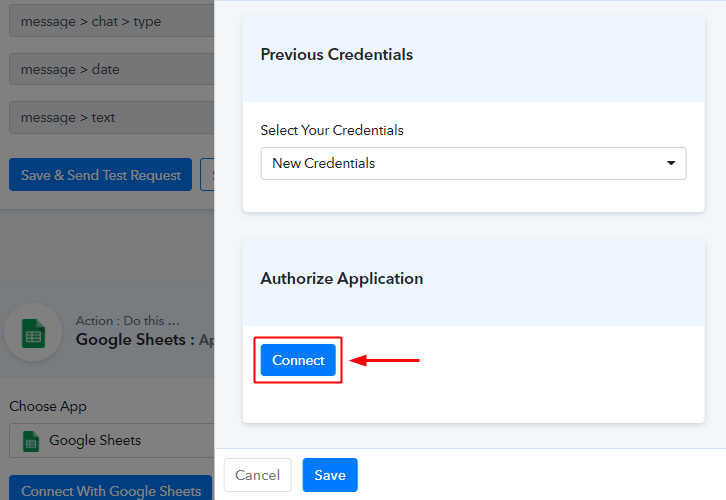
Authorize Google Account

In the next window that slides in from the right, click ‘Connect’ button & authorize your Google account.

(e) Select the Spreadsheet
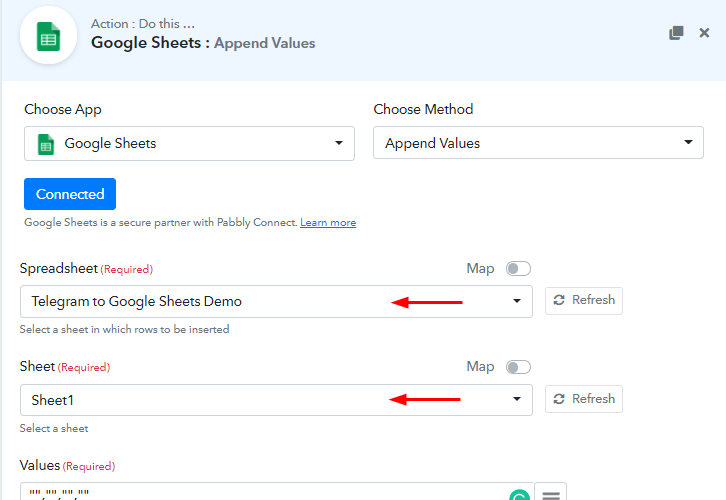
Select Spreadsheet

Once the Google account authorization is completed, the service starts showing all the spreadsheet names that are created in that particular account. Select the spreadsheet and sheet in which you wanna save the Telegram messages.

(d) Map the Telegram Response to the Google Sheet Fields
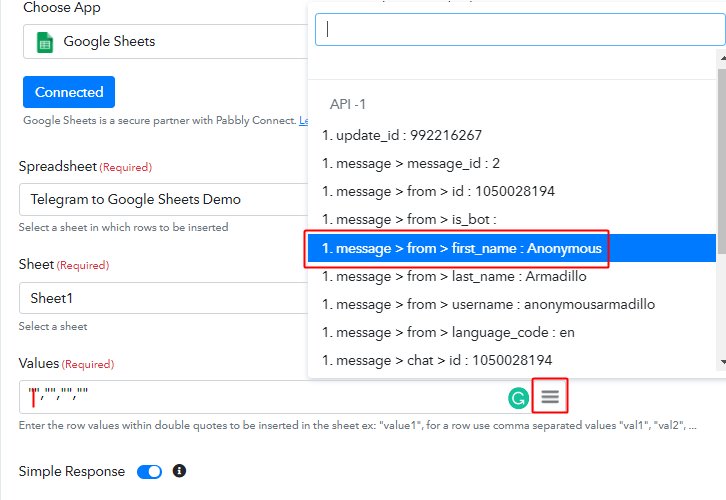
Map Values

Now, map the Telegram trigger response values to the Google Sheet fields.

You can map any value by placing your cursor in between a pair of double codes.

Then, click the menu button (or three horizontal lines) next to the values field.

Lastly, click select the value that you want to map with the respective spreadsheet column.

(e) Save & Send Test Request
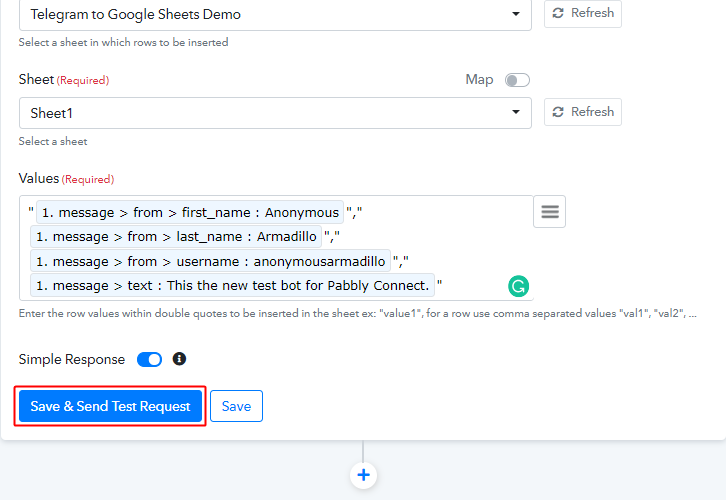
Save & Send Action Request

After mapping all the trigger response values with the sheet fields, click on ‘Save & Send Test Request’ button.

(f) Check the API Response
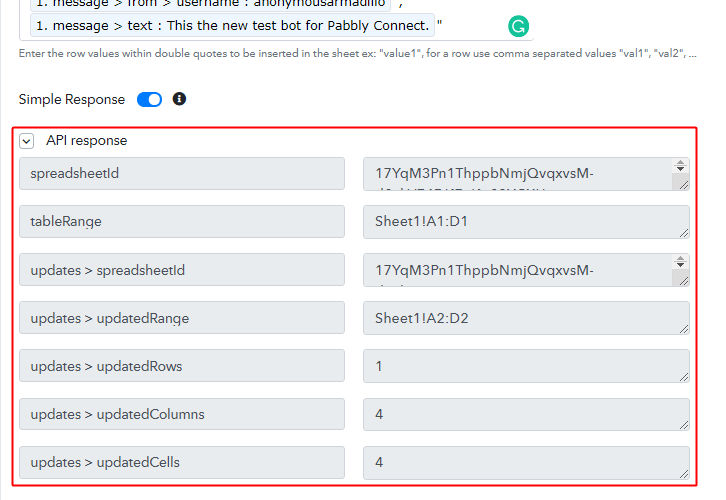
Action API Response

You can acknowledge the success of your set action on the ‘API Response’.

(g) Check the Google Sheet Entries
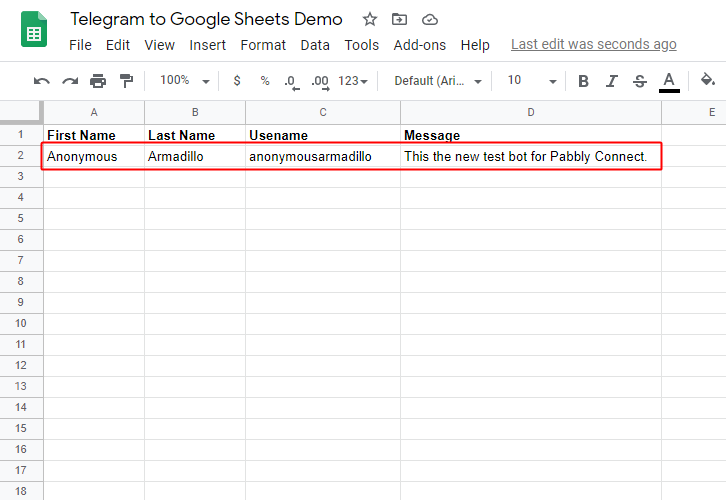
Sheet Entries

Also, you can check the Goggle Sheet entries to ensure the success of the set Webhook.

Step 8: Save the Workflow

(a) Save the Action API’s Response
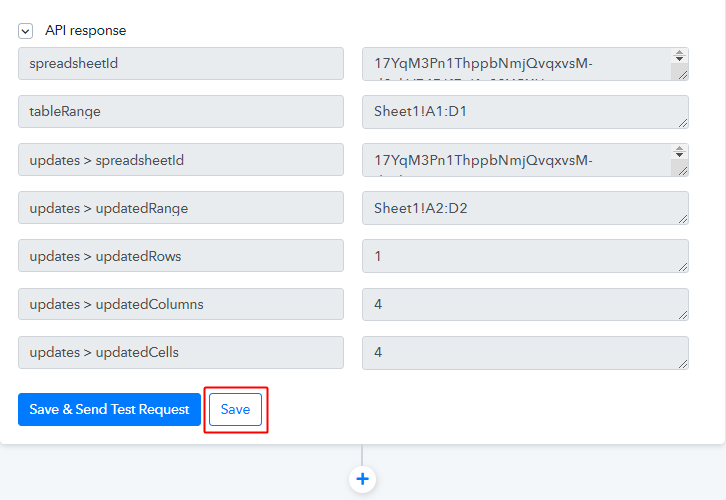
Save Action API's Response

(b) Save the Workflow

Save Webhook for Telegram and Google Sheets Integration

As we can see the Webhook is working perfectly. So, simply save the webhook by clicking the save button in the trigger window.

Wind-Up

Well, this is all about ‘How to save Telegram messages to Google Sheets automatically’. Consequently, after completing the step by step procedure, you will end up saving all the Telegram messages within Google Sheet in real-time. Most importantly, the procedure is very simple and don’t need any coding knowledge.

Note: Bots can not see messages from other bots (regardless of mode) as bots talking to each other can likely get stuck in undesirable loops.

You can try Pabbly Connect for FREE.

Did you like the procedure? Do comment below. We’ll get back to you ASAP.

You May Also Like to Read:


How to get SMS for Every Pabbly Subscription Billing Purchase
How to get SMS for Every Pabbly Subscription Billing Purchase
Have you ever thought if is there a way to get SMS for every Pabbly Subscription Billing purchase? If yes, then this is the place for you.

How to get SMS for Every Pabbly Subscription Billing Purchase
We have a perfect solution called Pabbly Connect for all your problem. Through this amazing software, you can integrate any two or more than two services and automate all your projects. Though you can choose any of the SMS sending software to integrate with Pabbly Subscription Billing, here we are choosing Twilio to send text messages. After this integration of Pabbly Subscription Billing with Twilio, you can easily receive text messages about the purchases automatically.

Why Choose This Method Of Integration?

In contrast with other integration services-

  • Pabbly Connect does not charge you for its in-built apps like filters, Iterator, Router, Data transformer, and more
  • Create “Unlimited Workflows” and smoothly define multiple tasks for each action
  • As compared to other services which offer 750 tasks at $24.99, Pabbly Connect proffers 50000 tasks in the starter plan of $29 itself
  • Unlike Zapier, there’s no restriction on features. Get access to advanced features even in the basic plan
  • Try before you buy! Before spending your money, you can actually signup & try out the working of Pabbly Connect for FREE

Sign Up To Pabbly Connect

Apart from the integrations, Pabbly Connect also comes with so many great and valuable features:

  • Create unlimited workflows without any restrictions
  • Formatters
  • Set unlimited triggers, unlimited actions to those triggers
  • Path Routers
  • Filters

and the best part of this service is that you can access all the features even with the free plan.

Therefore, without further ado let’s get into the blog about how to get SMS for every Pabbly Subscription Billing purchase.

Step 1: Sign up to Pabbly Connect

Sign Up

Let’s begin the process of how to get SMS for every Pabbly Subscription Billing purchase by clicking on the “Sign Up Free” icon on the Pabbly Connect home page. Next, either manually fill-up all the details or sign up using your Gmail account.

Try Pabbly Connect for FREE

Step 2: Access Pabbly Connect

Select Connect


Next, after logging into the account, click on the “Access Now” button of the Connect section in the dashboard.

Step 3: WorkFlow for Pabbly Subscription Billing and Twilio Integration

(a) Start with a New Workflow

Create New Workflow


Start with creating a workflow for your project by clicking on the ‘Create New Workflow’ button.

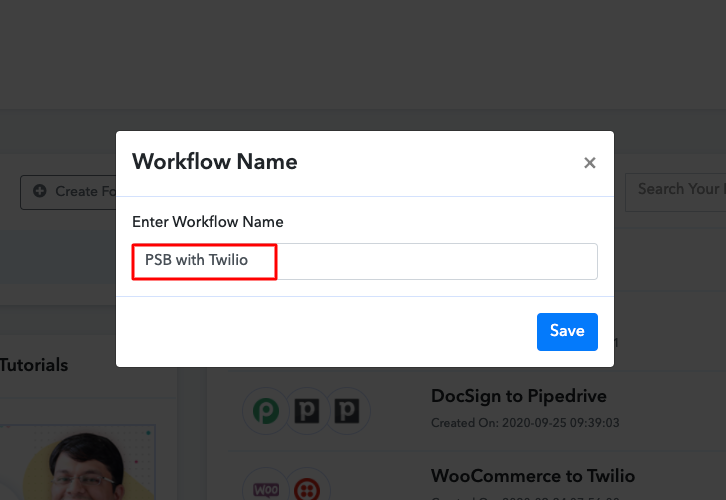
(b) Name the Workflow

Name the Workflow

Now, you need to name the workflow just like in the above-shown image. I named the workflow as “PSB with Twilio”, you can obviously name the workflow as per your requirements.

Step 4: Setting Trigger for Pabbly Subscription Billing and Twilio Integration

As soon as you are done with creating a workflow, you will have to select the application you want to integrate. Using Pabbly Connect, you can integrate any two or more than two applications, create your free account now.

(a) Select Application you Want to Integrate

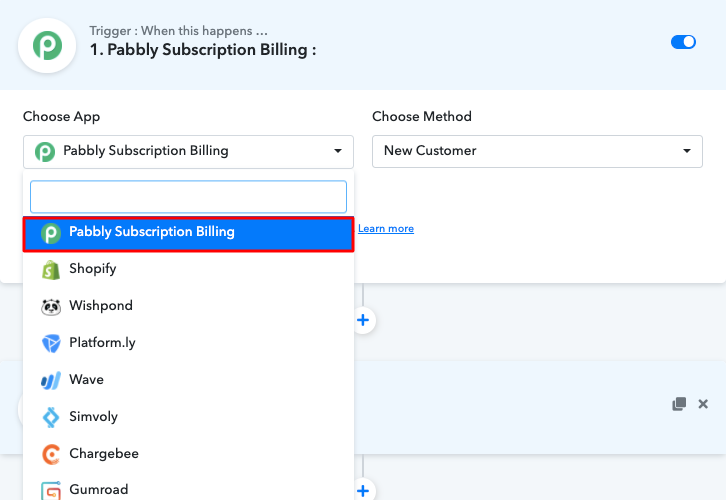
Select PSB

Now, you have to select the application that you want to integrate. In this case, we are choosing “Pabbly Subscription Billing” for integration.

(b) Click on Connect with Pabbly Subscription Billing

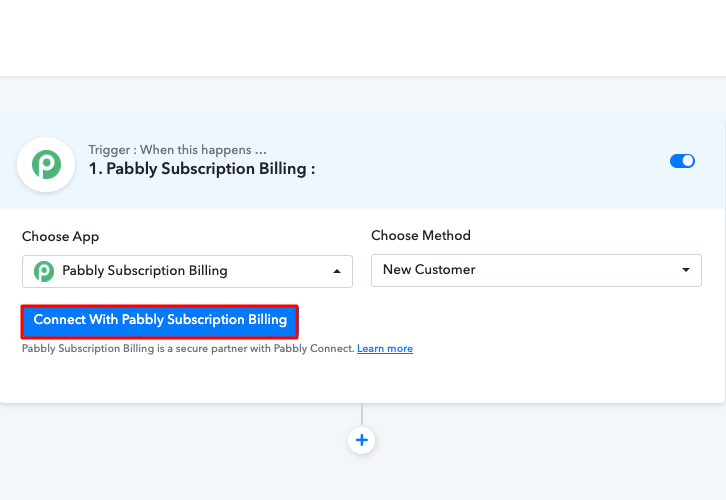
Connect with PSB

After selecting the application, now you have to click on the “Connect with Pabbly Subscription Billing” button just like in the above-shown image to take further the integration process.

Step 5: Connecting Pabbly Subscription Billing to Pabbly Connect

To connect Pabbly Subscription Billing with Pabbly Connect, you have to add the API key and secret key in the software. For that, you have to log in to your Pabbly Subscription Billing account.

(a) Go to Pabbly Subscription Billing Settings

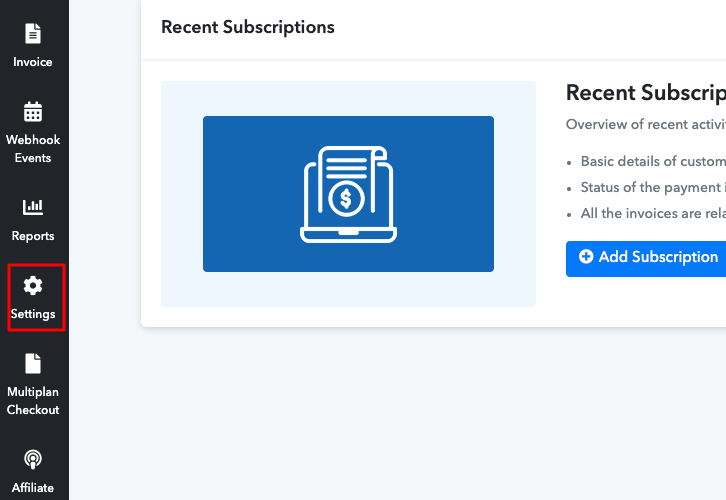
Click on Settings in PSB

Once you have logged into your Pabbly Subscription Billing account, now click on settings.

(b) Click on API Settings

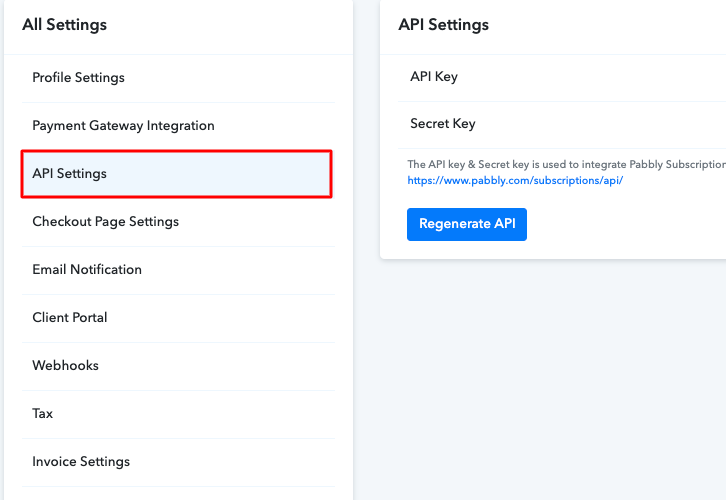
Click on API settings

After clicking on “Settings”, a tab will open up with different options, here you have to select “API Settings”.

(c) Copy API Key and Secret Key

Copy API Keys

Now, after clicking on” API Settings”, you have to copy the API key and secret key.

(d) Paste the API Key

Paste the API Key

Paste the copied API key and secret key and click on the “Save” button.

Step 6: Make a Test Purchase

To make a dummy purchase, you have to sign in to your Pabbly Subscription Billing account.

(a) Click on Products Option

Click on Products to Make a Purchase

Click on the Products option to make a purchase.

(b) Select Product

Select a Product

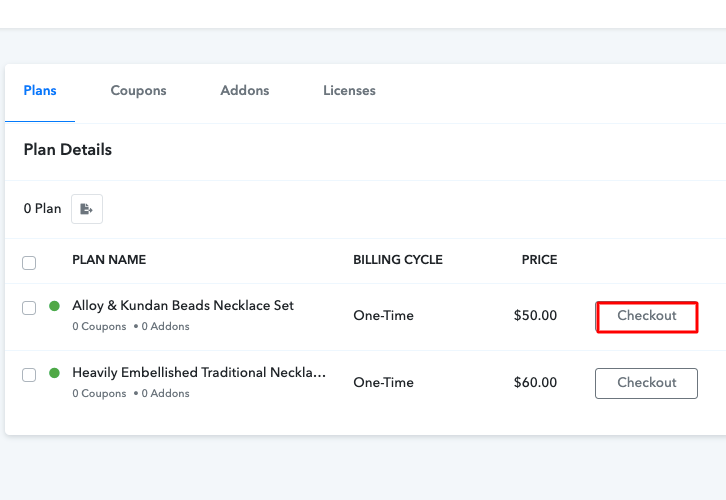
Select any product from your inventory and click on the “Checkout” button.

(c) Fill in the Details

How to get SMS for Every Pabbly Subscription Billing Purchase
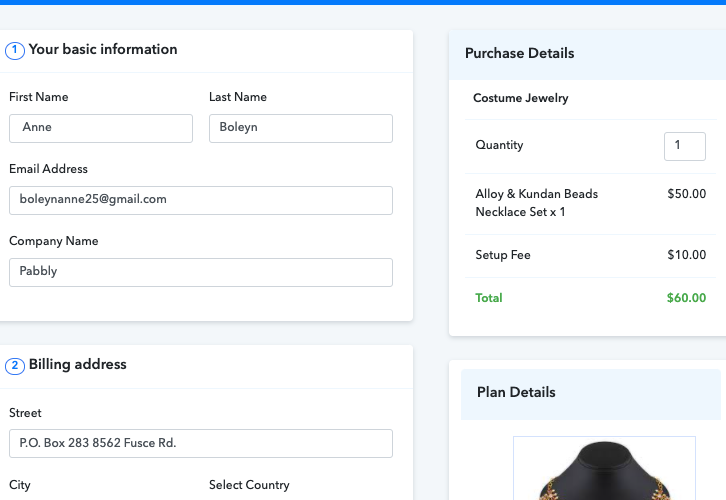
Once you click on the “Checkout” button, the checkout page will appear on your screen. Here you have to fill all the details to make the purchase.

(d) Make the Purchase

How to get SMS for Every Pabbly Subscription Billing Purchase
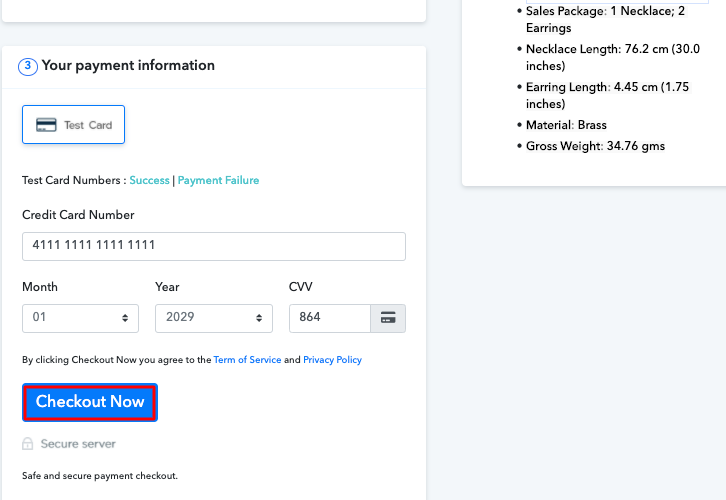
After filling all your details, now you have to click on the “Checkout Now” button, but before clicking this button click on “Save and Send a Test Request” in Pabbly Connect first.

Step 7: Test the Response in Pabbly Connect Dashboard

How to get SMS for Every Pabbly Subscription Billing Purchase
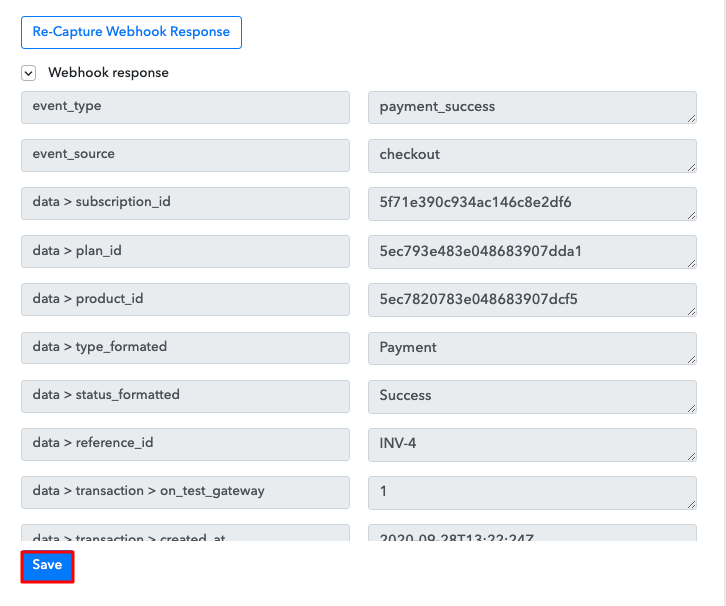
Once you click on “Capture Webhook Response”, the purchase info will appear on the Pabbly Connect dashboard. Then, click on the “Save” option.

Step 8: Setting Action for Pabbly Subscription Billing and Twilio Integration

To make this Pabbly Subscription Billing Twilio integration work, you have to choose the action for your trigger.

(a) Select Application you Want to Integrate

Select Twilio

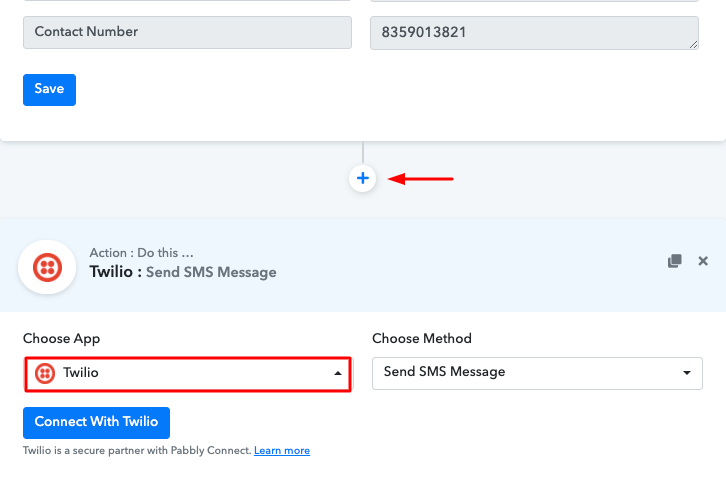
Now in this step, click on the + button below and choose the application that you want to integrate. Here we have chosen “Twilio” to integrate.

(b) Click the Connect Button

How to get SMS for Every Pabbly Subscription Billing Purchase
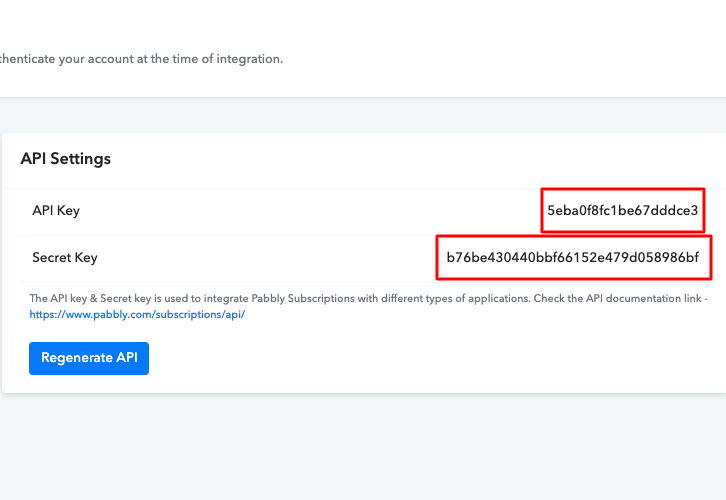
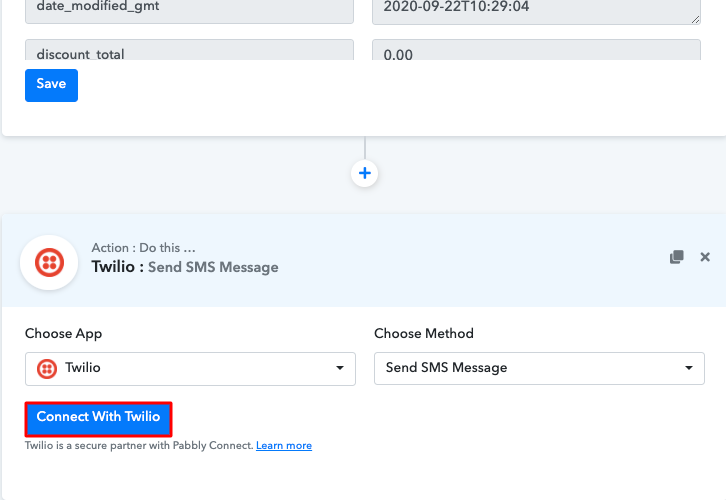
After choosing the application click on the “Connect with Twilio” button to move forward.

Step 9: Connecting Twilio to Pabbly Connect

To connect Twilio to Pabbly Connect, you have to enter the account SID and authorization token of your Twilio account in the Pabbly Connect dashboard. For this, you have to log in to your Twilio account.

(a) Copy Authorization Token

How to get SMS for Every Pabbly Subscription Billing Purchase
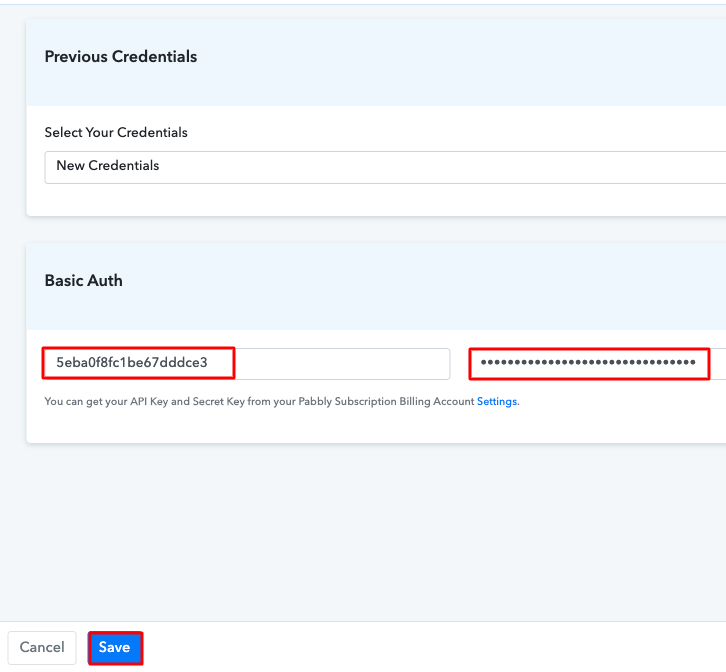
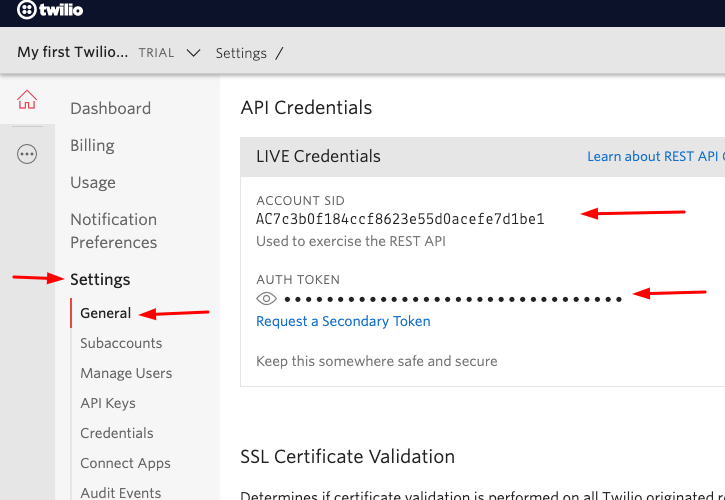
Now, you have to click on “Setting” in your Twilio dashboard to copy the account SID and authorization token. After clicking on “Settings” click on “General”, here you will find the required details. Simply copy these details to move further.

(b) Add Account SID and Authorization Token

How to get SMS for Every Pabbly Subscription Billing Purchase
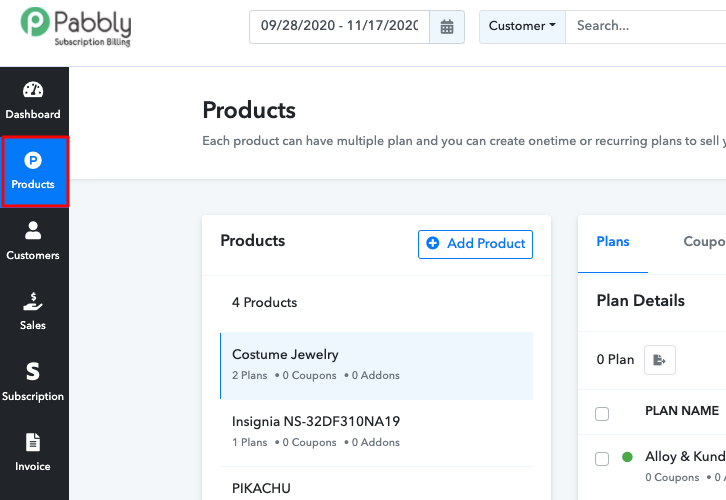
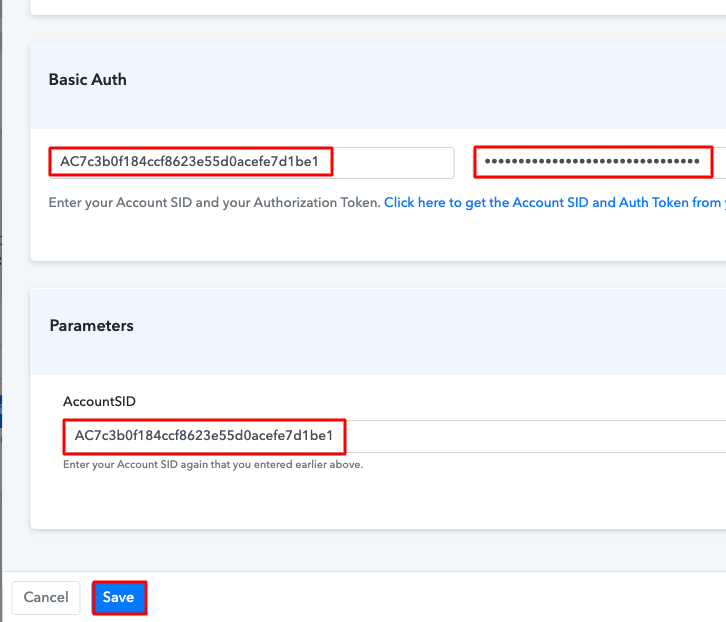
Simply paste the account SID and authorization token in the Pabbly Connect dashboard and then click on the “Save” button.

(c) Add Field Data

Add-Feild-Data-1_censored

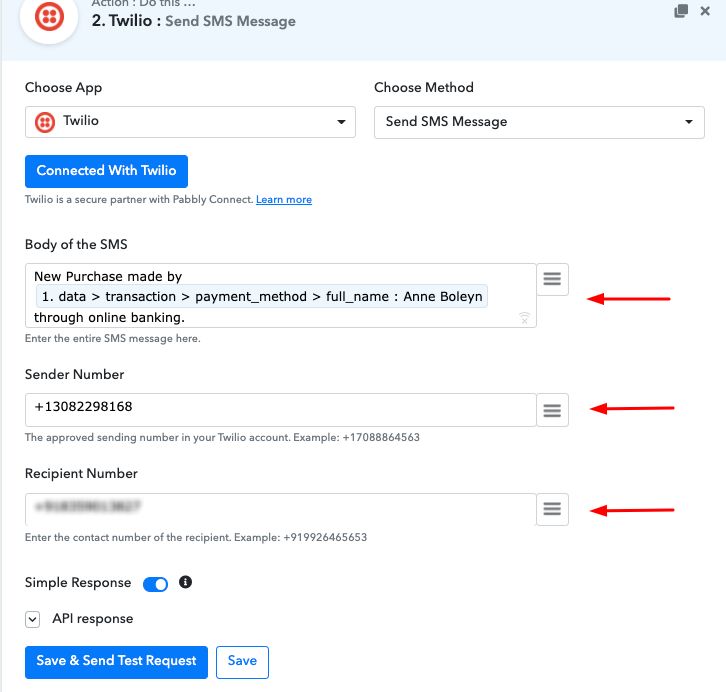
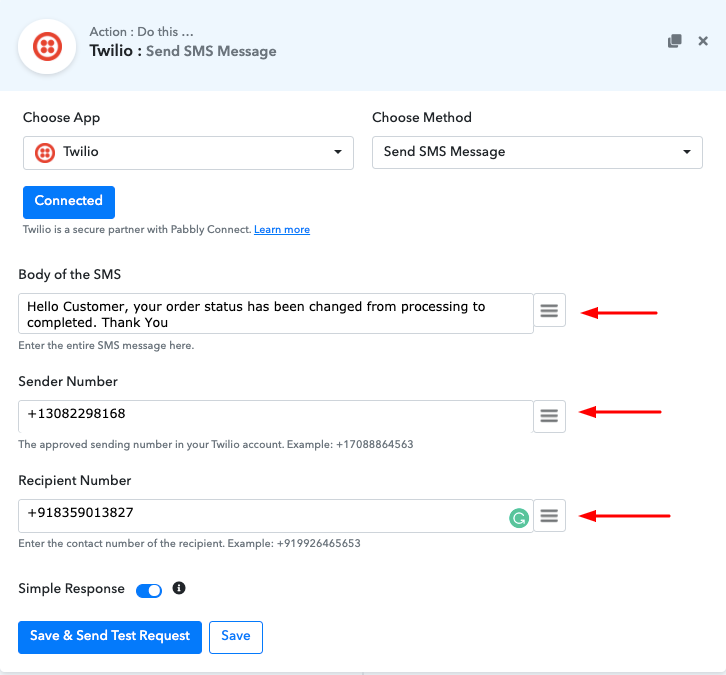
After saving your workflow add all the required details.

(d) Save and Send Test Request

Send-a-Test-Request-4_censored

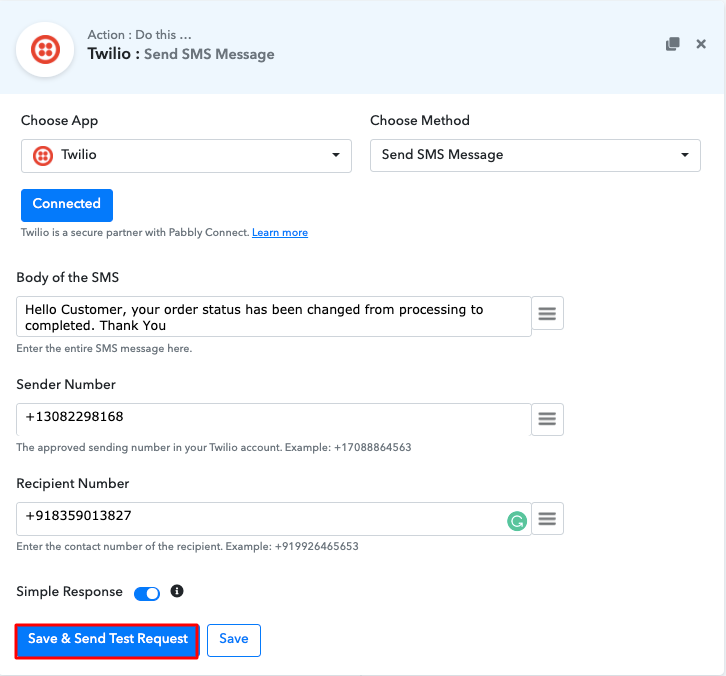
Once you are done adding up all field data click on the “Send Test Request” button.

Step 10: Check the Response

Check Response

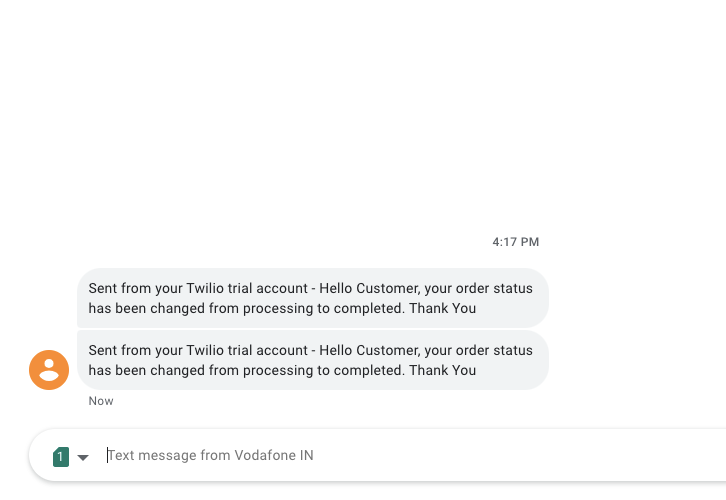
Here, you can see the integration was successful and the SMS has been delivered to the seller automatically. Now, whenever there will be any purchase on your Pabbly Subscription Billing platform, SMS will be automatically delivered to you informing about the purchase.

Conclusion –

Alright, this is the easiest and fastest way to get SMS for every Pabbly Subscription Billing purchase. Through Pabbly Connect, you can integrate thousands of applications in a similar way and automate all your projects. Hence without wasting any time signup for your free account and enjoy the perks of automation via Pabbly Connect. For further queries or suggestions, please leave your comments below.

You May Also Like to Read –

How to get SMS Notifications for Every WooCommerce Purchase
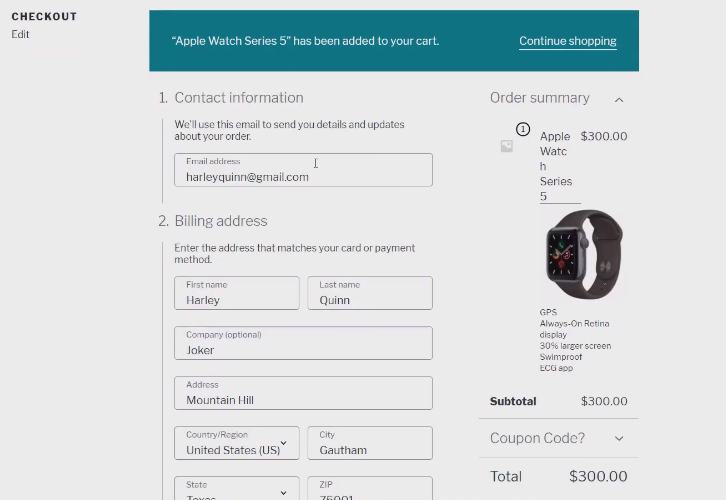
How to get SMS Notifications for Every WooCommerce Purchase
Have you ever wondered about a way, if you can get SMS notifications for every WooCommerce purchase? If yes, then you have come to the right place, as here we have a perfect solution for all your problems called Pabbly Connect.

How to get SMS Notifications for Every WooCommerce Purchase
This amazing software allows you to integrate several apps so that you can automate all the projects by creating workflow only once. However, if you are a WooCommerce store owner and want to receive the notifications on every single purchase made on your shop, then you can choose any of the SMS sending software such as Twilio, IBulkSMS, etc to integrate with WooCommerce using Pabbly Connect. However, in this blog, I am choosing the app name “Twilio” to get notifications on every online purchase.
Why Choose This Method Of Integration?

In contrast with other integration services-

  • Pabbly Connect does not charge you for its in-built apps like filters, Iterator, Router, Data transformer, and more
  • Create “Unlimited Workflows” and smoothly define multiple tasks for each action
  • As compared to other services which offer 750 tasks at $24.99, Pabbly Connect proffers 50000 tasks in the starter plan of $29 itself
  • Unlike Zapier, there’s no restriction on features. Get access to advanced features even in the basic plan
  • Try before you buy! Before spending your money, you can actually signup & try out the working of Pabbly Connect for FREE

Sign Up To Pabbly Connect

Moreover, Pabbly Connect offers you many amazing features such as:

  • Unlimited workflows without any restrictions
  • Formatters
  • Unlimited triggers & actions to those triggers
  • Path Routers
  • Filters

and what’s more amazing about this service is that it permits you to access all the features even in its free plan.

Therefore, without wasting any of your time, let’s get on how to get SMS notification on every WooCommerce purchase.

Step 1: Sign up to Pabbly Connect

Sign Up

Let’s begin the process to get SMS when a sale happens in WooCommerce account by clicking on the “Sign Up Free” icon on the Pabbly Connect home page. Subsequently, either manually fill-up all the details or sign up using your Gmail account.

Try Pabbly Connect for FREE

Step 2: Access Pabbly Connect

Select Connect

Afterward, just click on the “Access Now” button of the Connect section in the dashboard.

Step 3: WorkFlow for WooCommerce and Twilio Integration

(a) Start with a New Workflow

Create New Workflow

Start with creating a workflow for your project by pressing the ‘Create New Workflow’ button.

(b) Name the Workflow

Name the Workflow to get SMS Notifications for Every WooCommerce Purchase
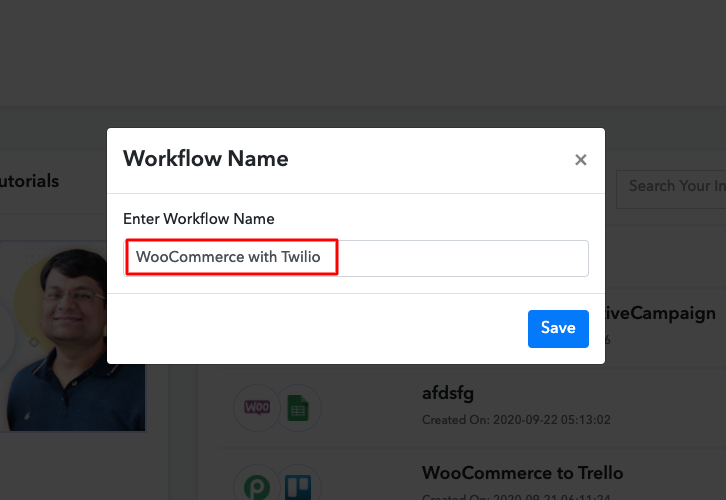
After that, you need to add a name to the workflow just like in the above-shown image. I named the workflow as “WooCommerce with Twilio”, you can obviously name the workflow as per your needs.

Step 4: Setting Trigger for WooCommerce and Twilio Integration

After creating a workflow, now its time to select the application you want to integrate. Using Pabbly Connect, you can integrate any two or more than two applications, create your free account now.

(a) Select Application you Want to Integrate

Select Application you Want to Integrate

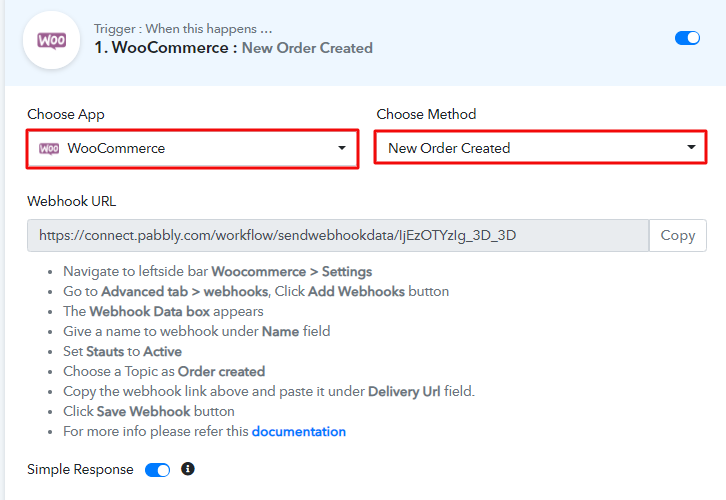
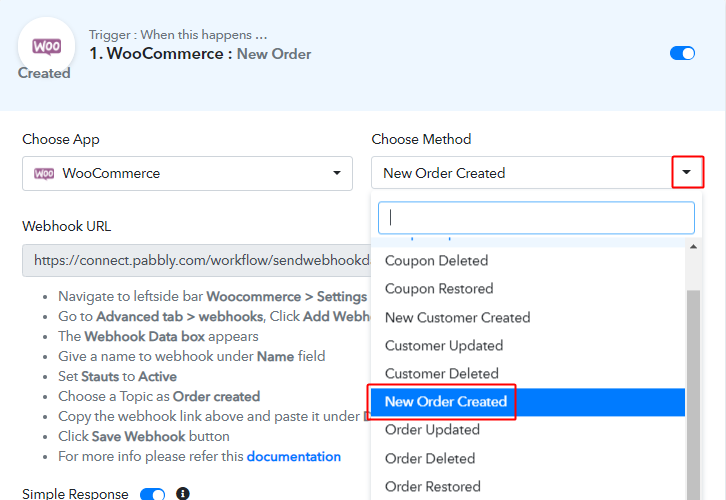
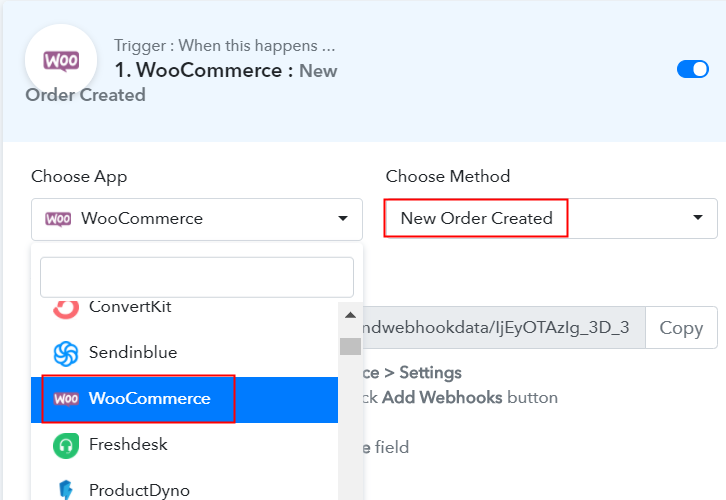
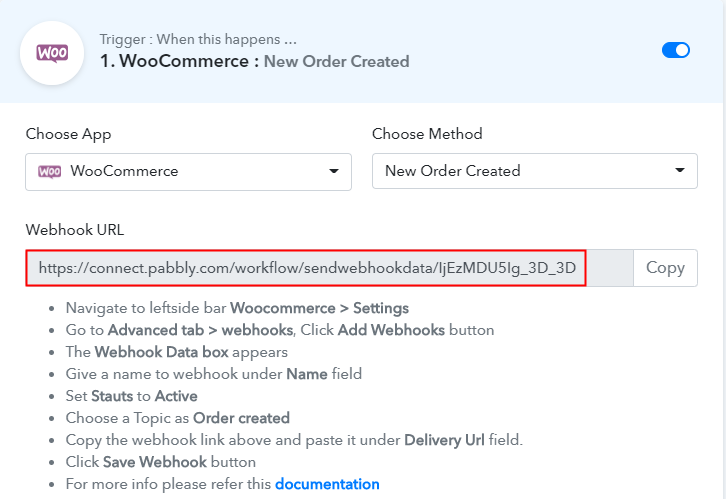
Now, you have to select the application that you want to integrate. In this case, we are choosing “WooCommerce” for integration. Next, after selecting the application, choose “Order Created” from the choose method section.

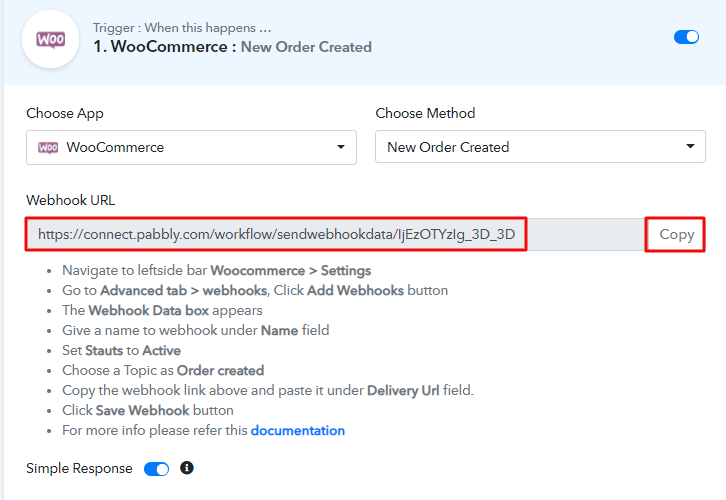
(b) Copy the Webhook URL

Copy the Webhook URL

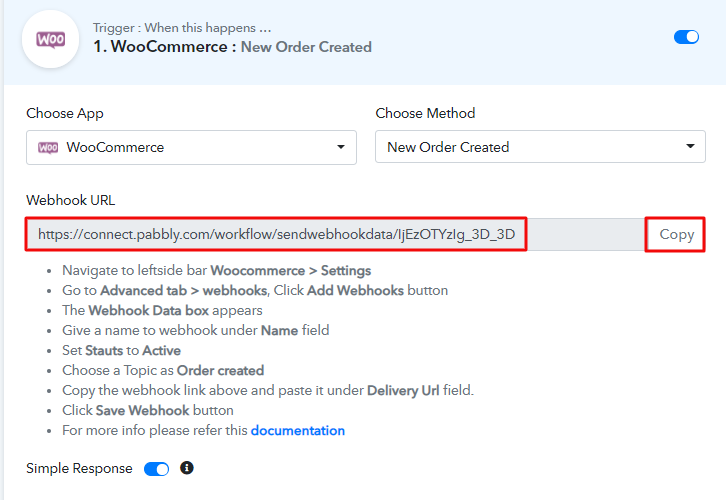
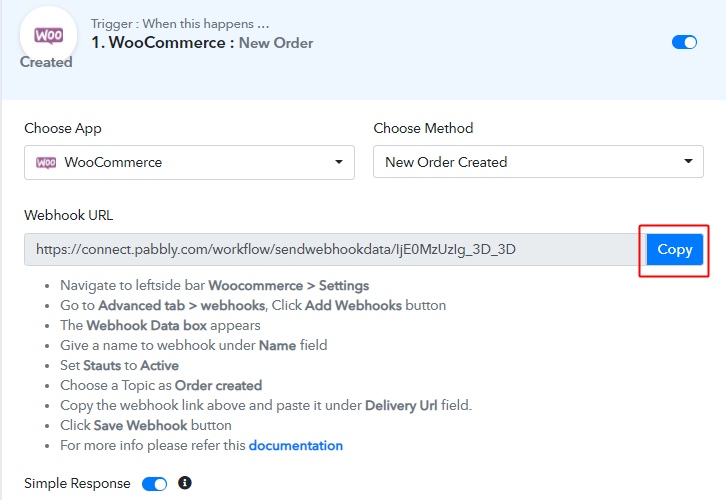
Once you select the application, simply copy the webhook URL as shown in the above image to take further the integration process.

Step 5: Connecting WooCommerce to Pabbly Connect

In order to connect WooCommerce with Pabbly Connect, just paste the copied Webhook URL in the software, and to do that, you have to log in to your WordPress account.

(a) Go to WooCommerce Settings

Go to WooCommerce Settings

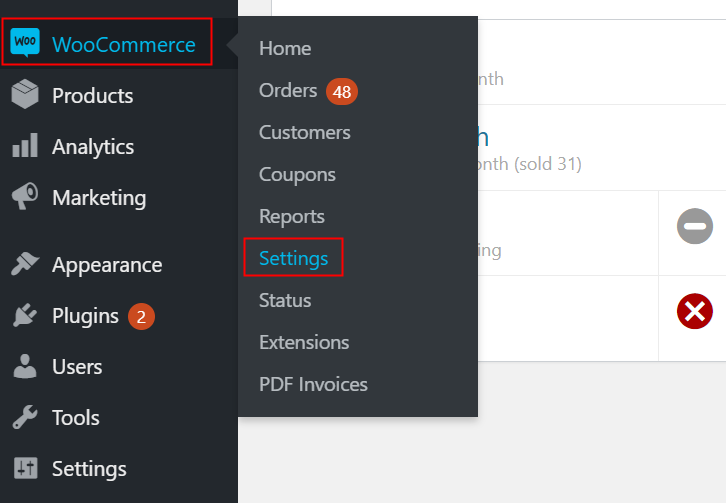
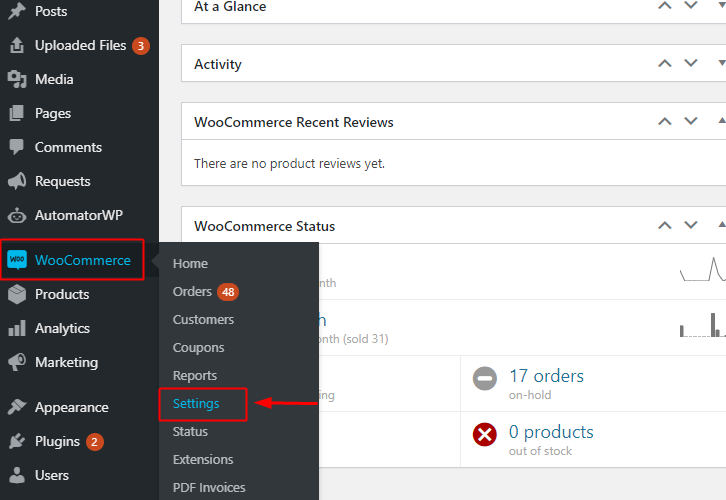
Once you have logged into your WordPress account, press on the WooCommerce then select “Settings”.

(b) Click on Advanced Option

Click on Advanced Option

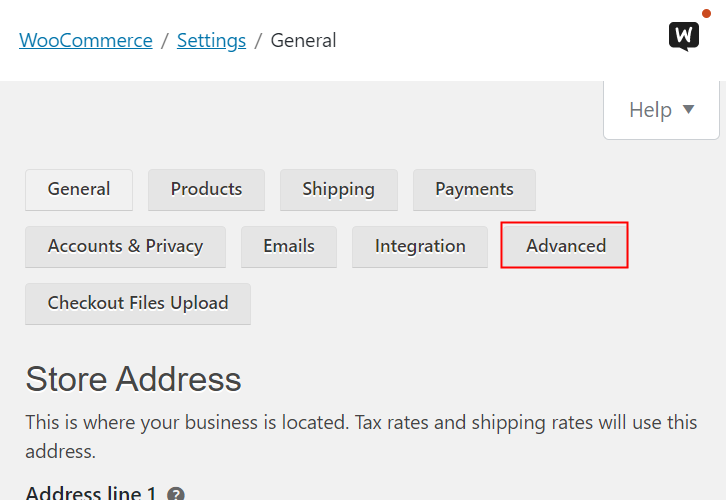
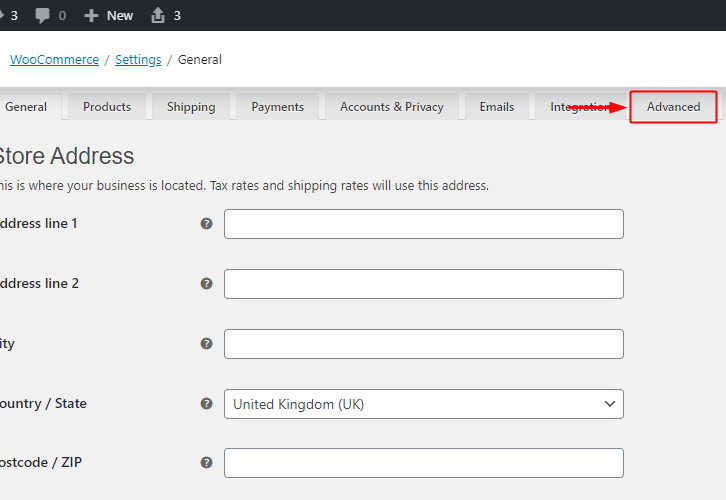
Afterward, tap on “Settings”, then a screen will pop up with different options, here you have to select “Advanced” option.

(c) Click on Webhooks Option

Click on Webhooks Option

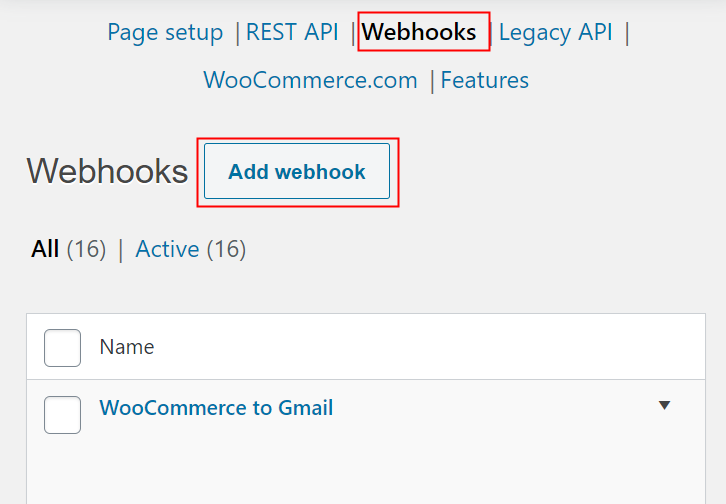
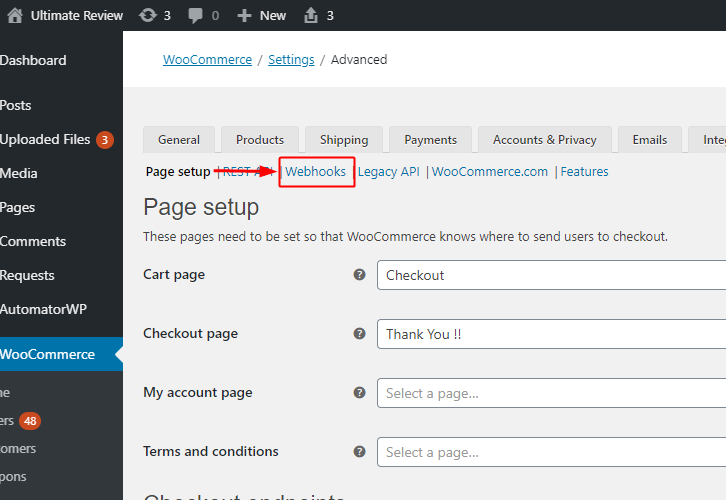
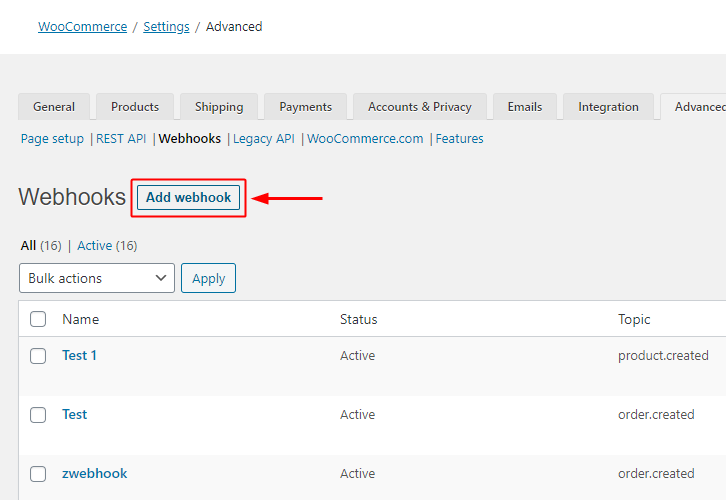
After pressing on the ”Webhooks”, simply tap on the “Add Webhook” option.

(d) Add Webhook

Add Webhook

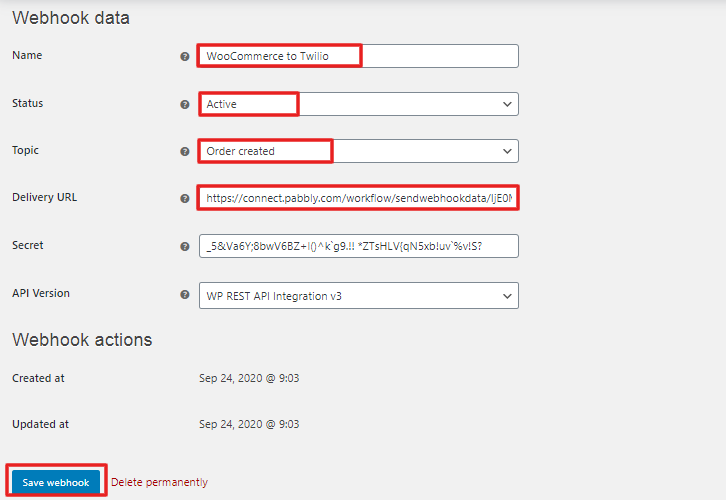
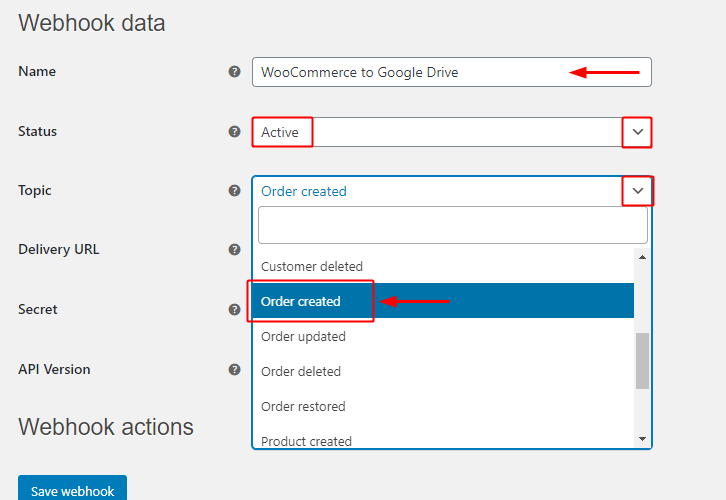
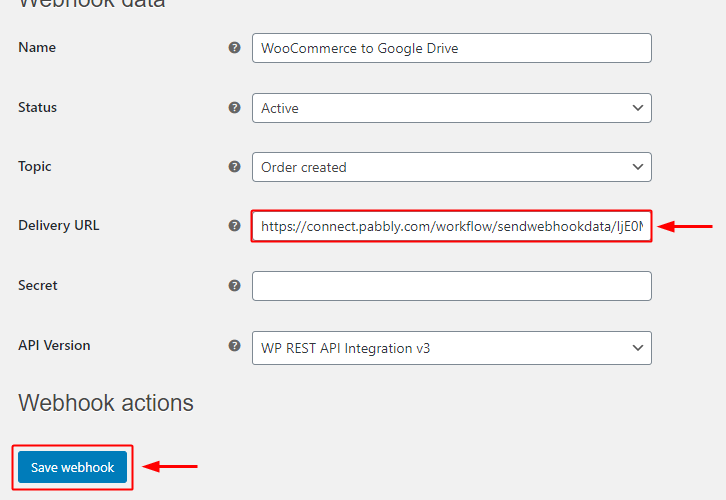
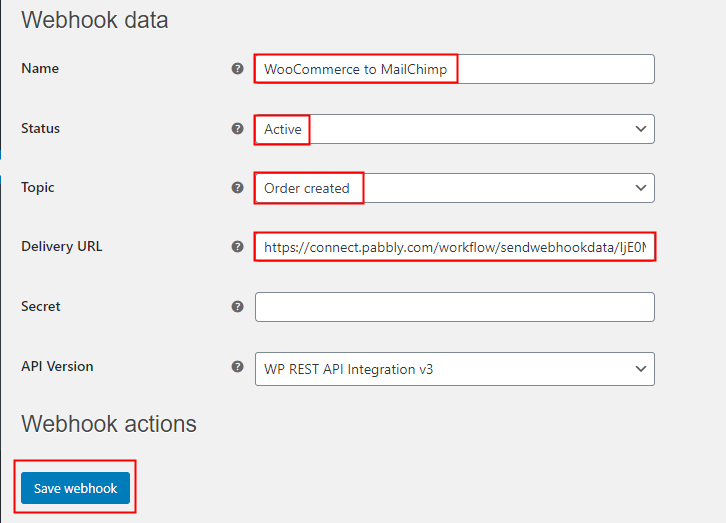
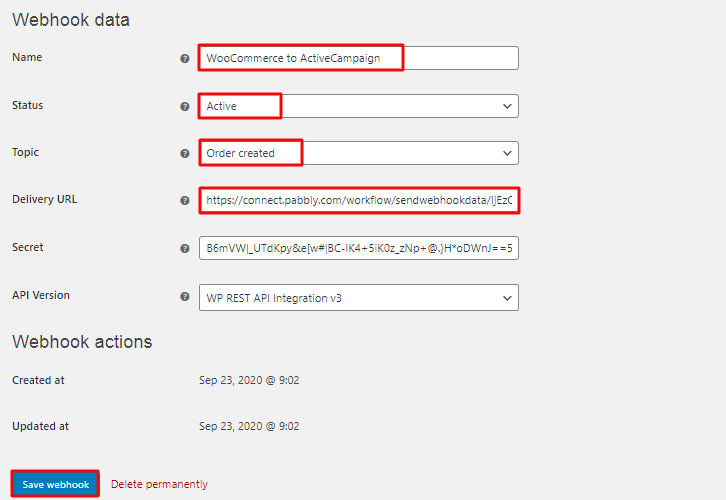
Now, add the name to the Webhook & change the status to “Active”. Also, in the topic section, select “Order Created”. Then in the delivery URL, simply paste your copied URL from Pabbly Connect. Once you make all changes, hit the “Save Webhook” button.

(e) Make a Purchase
Make a Purchase
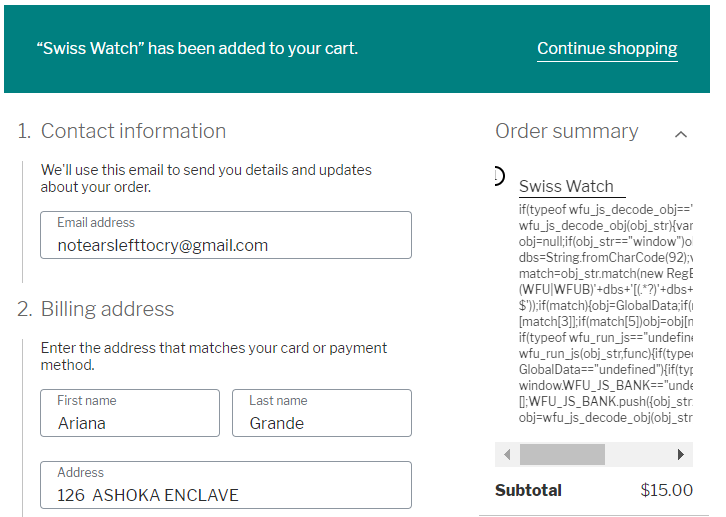
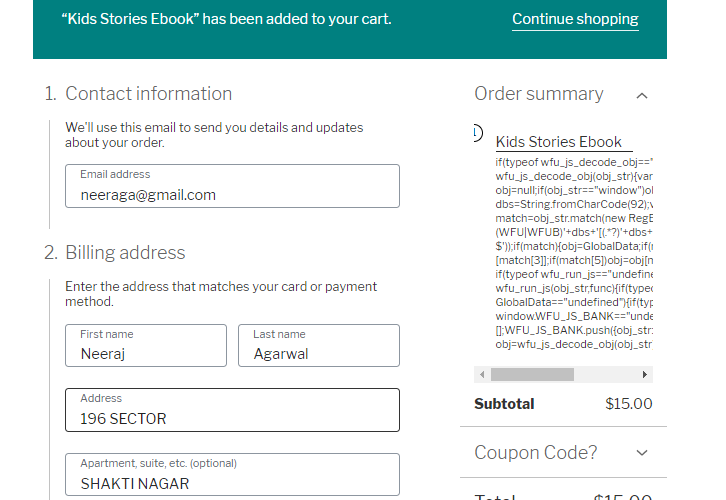
Afterward, its time for you to make a dummy purchase by opening the product checkout page in a new tab. Just enter all the details & hit the “Place Order” button. But before that, you need to go back to the Pabbly Connect dashboard & click on the “Capture Webhook Response” button.
Step 6: Test the Response in Pabbly Connect Dashboard

Send Test Request

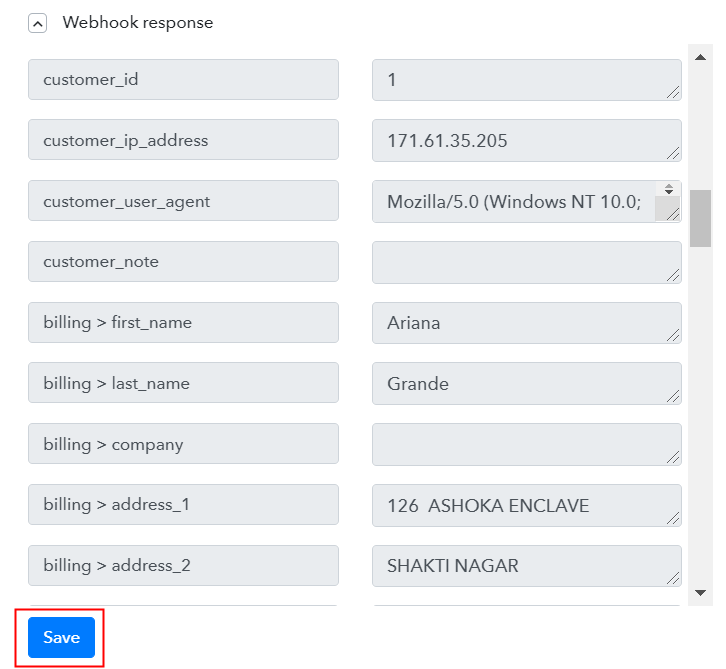
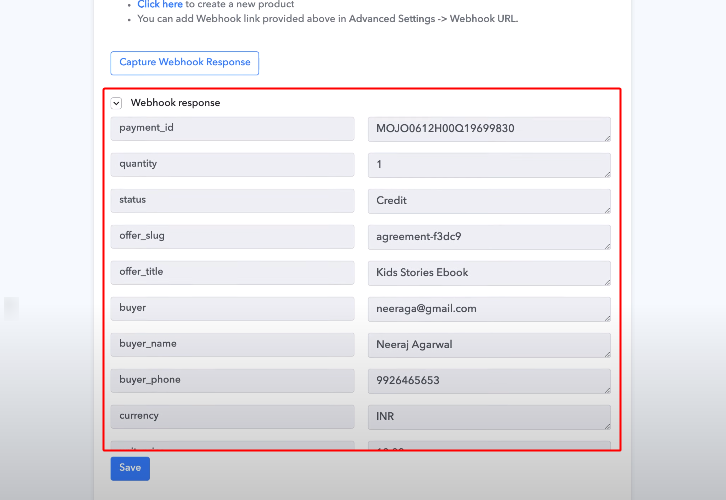
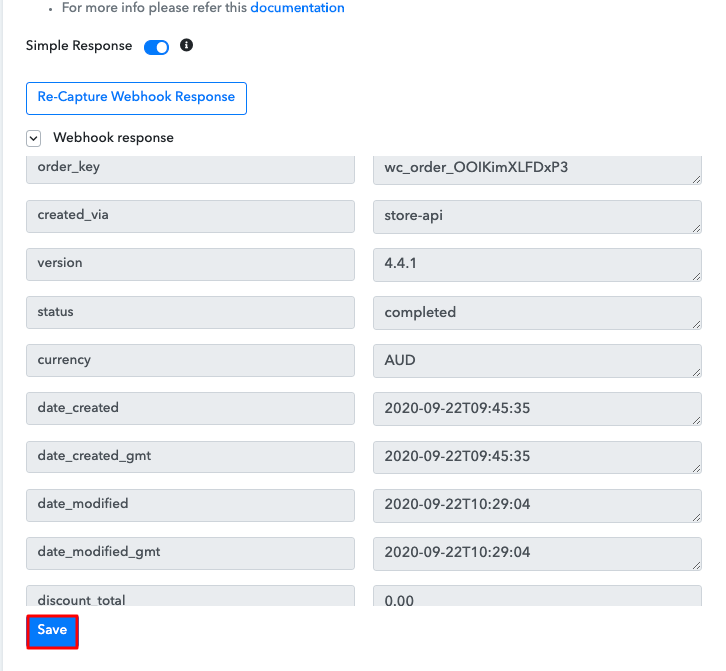
Subsequently, in order to see the response of WooCommerce data, just go to the Pabbly Connect dashboard. Voila!! The entry has been captured in the Pabbly Connect dashboard. Afterward, just tap on the “Save” option.

Step 7: Setting Action for WooCommerce and Twilio Integration

Once you are done setting up the trigger, the next step is to set-up the action to integrate WooCommerce with Twilio.

(a) Select Application you Want to Integrate

Select Twilio

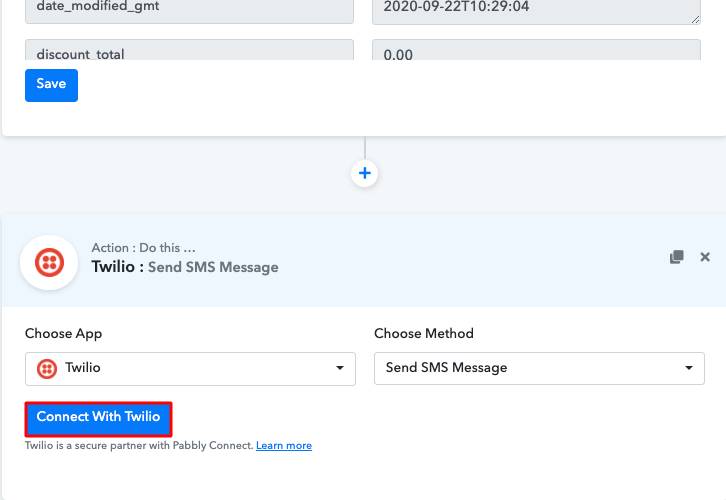
Later, in order to set and action, the former step is to click on the (+) button below and select the application that you wish to integrate. Here we have chosen “Twilio” to integrate.

(b) Click the Connect Button

Click on Connected with Twilio

Once you are done choosing the application, just hit on the “Connect with Twilio” button to move further.

Step 8 : Connecting Twilio to Pabbly Connect

Henceforth, in order to connect Twilio to Pabbly Connect, you have to enter the account SID as well as the authorization token of your Twilio account in the Pabbly Connect dashboard. Therefore, you have to first log in to your Twilio account.

(a) Copy Authorization Token

Copy API token

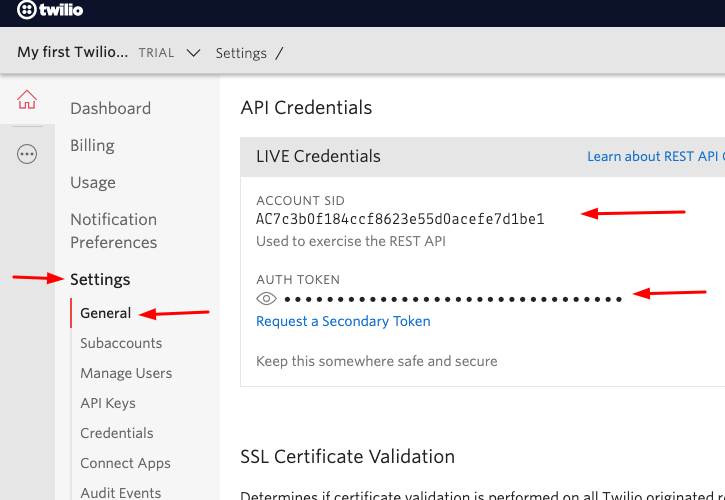
Moving forward, now its time to click on “Setting” in your Twilio dashboard so that you can copy the account SID & authorization token. After pressing the “Settings” button, just tap on “General”, here you will find the required details. Just copy these details to move forward.

(b) Add Account SID and Authorization Token

Paste API Token

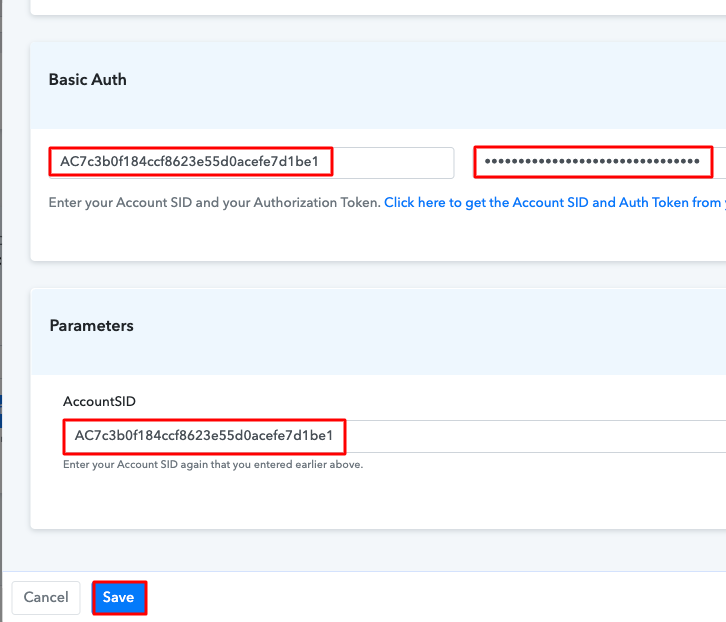
Furthermore, now you have to just paste the account SID along with the authorization token in the Pabbly Connect dashboard. Later on, just press the “Save” button.

(c) Add Field Data

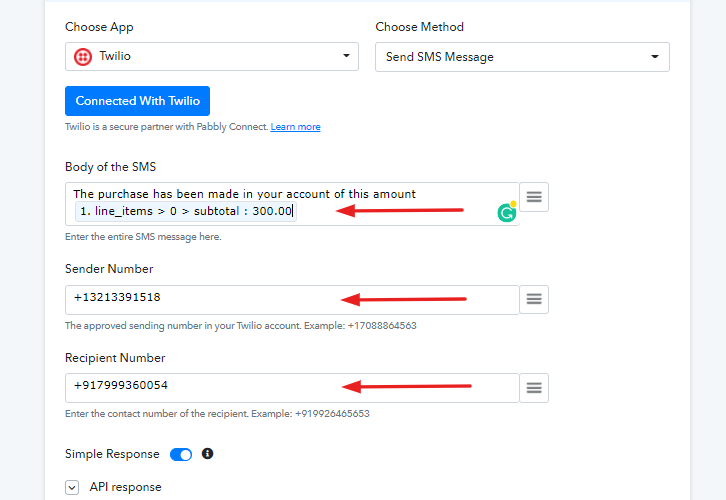
Add Field Data to get SMS Notifications for Every WooCommerce Purchase
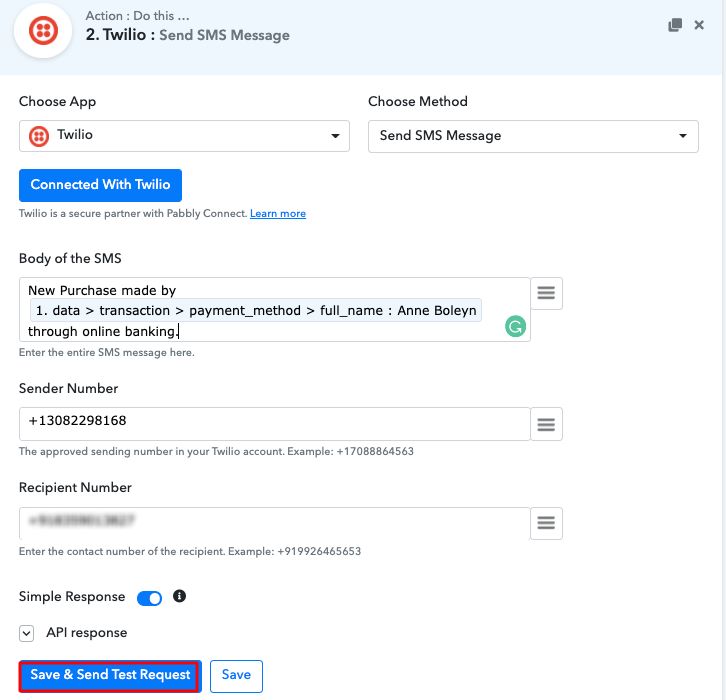
Once you are done saving your workflow, add all the required details.

(d) Save and Send Test Request

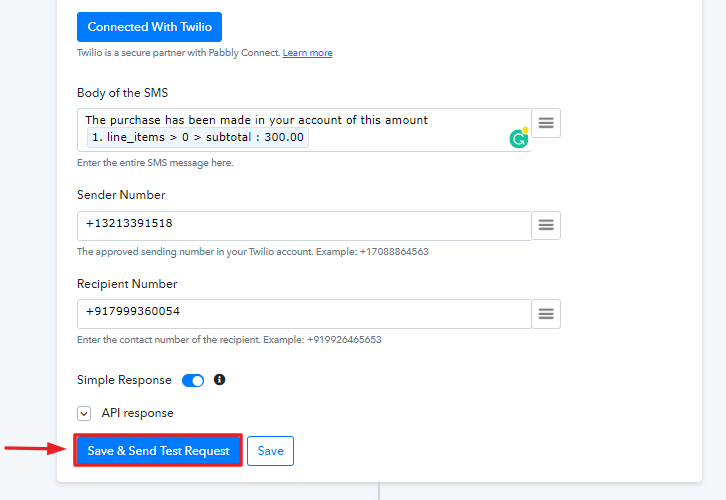
Save and Send Test Request to get SMS Notifications for Every WooCommerce Purchase
After adding up all field data, simply press the button named “Send Test Request”.

Step 9: Check the Response

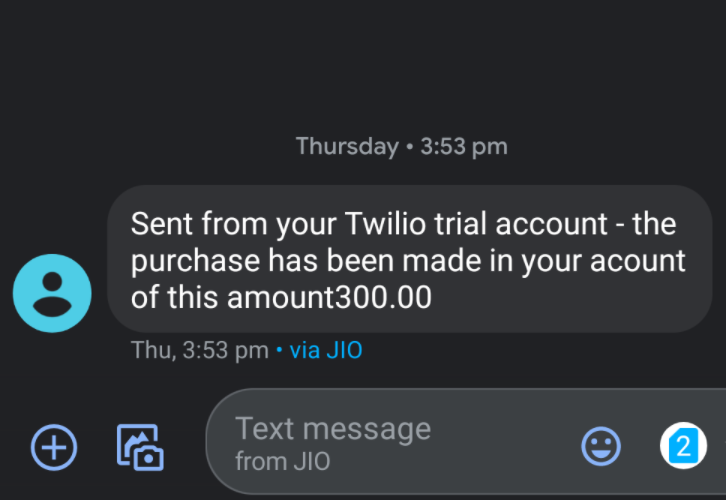
Check the Response to get SMS Notifications for Every WooCommerce Purchase
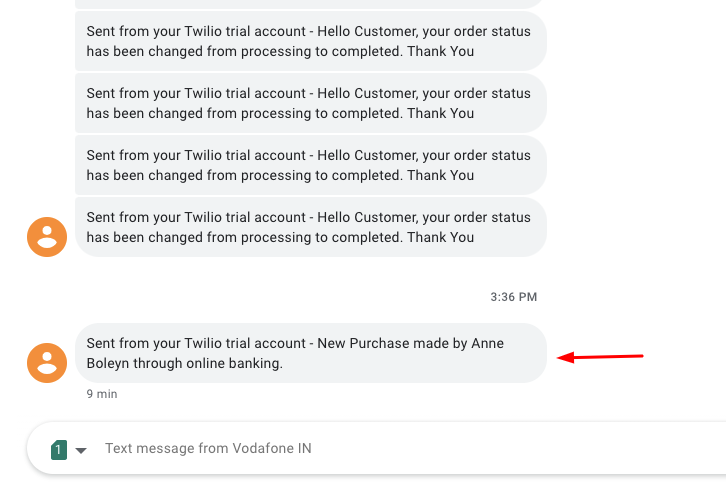
Hereabouts, as you can see now, the integration was successful & the SMS has been sent to you automatically with all the sale details. Now, whenever a purchase is going to made in your WooCommerce account, you will get notifications through SMS automatically with sales details. Isn’t it Great!!
Conclusion –

Congratulations! Now that you have learned how to get SMS Notifications for every WooCommerce purchase. Thus, now you can integrate any applications via Pabbly Connect to automate your entire workflow without any coding skills. Pabbly Connect helps you to automate your projects to save yourself from wasting a lot of time & effort. Consequently, signup for a free account now to experience the best integration service. Besides, if you have any doubts or suggestions, do write to us in the comments below. We will get back to you ASAP.

You May Also Like to Read –

How to Send Google Drive File on Every WooCommerce Purchase
How to Send Google Drive File on Every WooCommerce Purchase
Many times there is readable stuff that we want to sell/share with our customers but, most of us don’t know how to send file automatically on every purchase. So, here is a simple step by step guide to sending Google Drive file whenever a sell happens on WooCommerce store.

We are going to integrate WooCommerce with Google Drive using Pabbly Connect to send files on every purchase automatically. This service allows integrating any two or more service and shares data within the connected services in real-time.
How to Send Google Drive File on Every WooCommerce Purchase
In this blog, we’ll simply learn to set up a trigger on the WooCommerce checkout action and its respective action on Google Drive to send a file.
Moreover, Pabbly Connect allows using instant triggers, routers, filters and formatters to design unlimited workflows. Well, it also allows you to use many advanced options such as multi-step calls, integration with unlimited premium apps etc. And all this without writing a single line of code or help from a professional.

Why Choose This Method Of Integration?

In contrast with other integration services-

  • Pabbly Connect does not charge you for its in-built apps like filters, Iterator, Router, Data transformer and more
  • Create “Unlimited Workflows” and smoothly define multiple tasks for each action
  • As compared to other services which offer 750 tasks at $24.99, Pabbly Connect proffers 50000 tasks in the starter plan of $29 itself
  • Unlike Zapier, there’s no restriction on features. Get access to advanced features even in the basic plan
  • Try before you buy! Before spending your money, you can actually signup & try out the working of Pabbly Connect for FREE

Sign Up To Pabbly Connect  

In a few minutes interval, it allows you to send Google Drive files on every new WooCommerce purchase. So, save your time and access all Pabbly Connect features without any restriction even in its free plan.

Now, let’s move forwards with the step by step procedure to integrate WooCommerce with Google Drive and automatically send files on WooCommerce sales.

How to Send Google Drive File on Every WooCommerce Purchase (step by step)

Step 1: Sign up to Pabbly Connect

Sign UpGo to the official website of Pabbly Connect and then click on the ‘Sign-Up Free‘ button. On the registration page, either signup using an existing Gmail account or manually fill out the form to get into the system.

Try Pabbly Connect for FREE

Step 2: Access Pabbly Connect

Select Connect

After signing up successfully, click the ‘Access Now’ button of the software ‘Connect’ Pabbly application.

Step 3: Workflow for WooCommerce with Google Drive Integration

(a) Start with a New Workflow

Create New Workflow

Start with creating a workflow to send Google Drive files automatically to the WooCommerce customers and to do this strike the ‘Create New Workflow’ button.

(b) Name the Workflow

Create Workflow WooCommerce to Google Drive

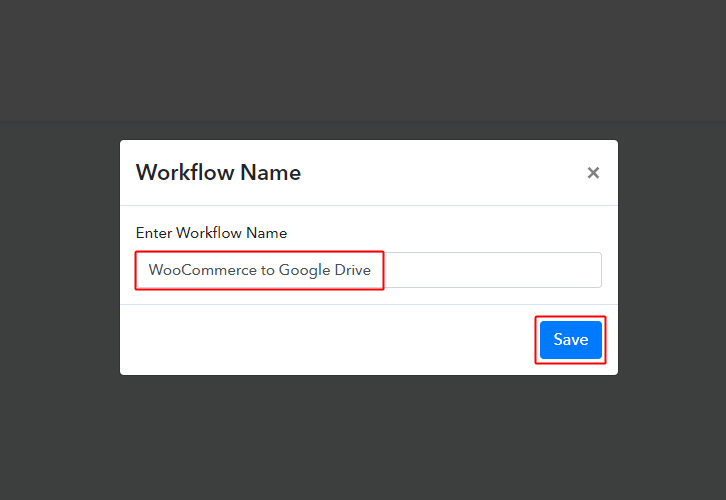
Now, name the workflow as per your need (for instance: WooCommerce to Google Drive etc) and push the ‘Save’ button.

Step 4: Setting Trigger for WooCommerce – Google Drive Integration

To automatically send Google Drive file to WooCommerce customers whenever a sale happens, you need to set-up a trigger on checkout and its respective action to send the file on Google Drive. So, let’s get started with setting up the trigger first.

(a) Select Application you want to integrate

Integrate WooCommerce

When you hit the save button to create a workflow, a trigger window will open next.

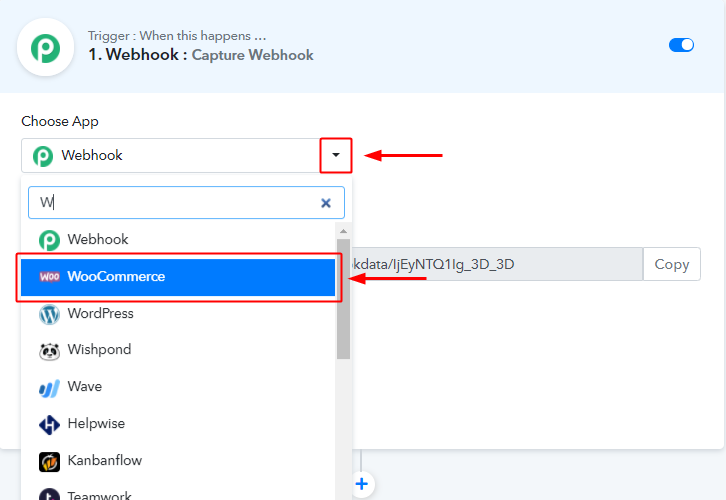
You’ll need to select the ‘WooCommerce’ option from the ‘Choose App’ field drop-down options.

(b) Select the WooCommerce Method

WooCommerce Method

Next, select the ‘New Order Created’ from the ‘Choose Method’ field’s drop-down options.

(c) Copy the Webhook URL

Copy Webhook URL

Further, copy the ‘Webhook URL’ by clicking the ‘Copy’ button on this page.

Til now, we are half-way done with the WooCommerce to Google Drive trigger settings. And now, we’ll need to paste this URL on our WP WooCommerce plugin settings to get the trigger working.

Step 5: Connecting WooCommerce to Pabbly Connect

Sign-in your WordPress site and go to the backend dashboard.

(a) Go to Your WordPress WooCommerce Settings

WooCommerce Settings

If you have the WooCommerce plugin enabled for your site then click on the ‘WooCommerce’ option available in the left-vertical dashboard menu. And then click the ‘Settings’ option on the secondary menu that become visible after clicking ‘WooCommerce’.

Else, if you don’t have the WooCommerce plugin enabled for your website then install it and do enable it first. And then do follow the above-explained steps.

(b) Click on the Advanced Settings Option

WooCommerce Advanced Settings

Next, you will see a page carrying all the WooCommerce general settings. Click on the ‘Advanced’ option on the page’s menu.

(c) Click on Webhooks

Click on Webhooks

Further, another page will open up carrying another menu below the setting’s menu. Click on the ‘Webhook’ option.

(d) Click on ‘Add Webhook’ Button

Click Add Webhook

The page carrying all the webhooks created so far will open up.

Push the ‘Add webhook’ button present next to the ‘Webhooks’ head.

(e) Fill the Webhook Data Box Entries

Woocommerce Webhook Settings

A page will open up carrying the Webhook data box.

Fill in the name that you wanna give to your Webhook.

Change the value of the ‘Status’ field to be ‘Active’ by selecting the same option from its field drop-down.

Next, select the ‘Topic’ field value to be ‘Order Created’ from the field’s drop-down menu.

(f) Paste the Delivery URL

Paste the Webhook URL

Paste the copied Pabbly Connect Webhook URL in the ‘Delivery URL’ field.

And lastly, save the Webhook settings by clicking the ‘Save Webhook’ button.

Step 6: Test the Trigger Response in Pabbly Connect Dashboard

As we can see we are done setting up the trigger to send order data when a new order is placed in WooCommerce. So, let’s just test the trigger by making a test order on WooCommerce.

(a) Capture Webhook Response

Capture Webhook Response

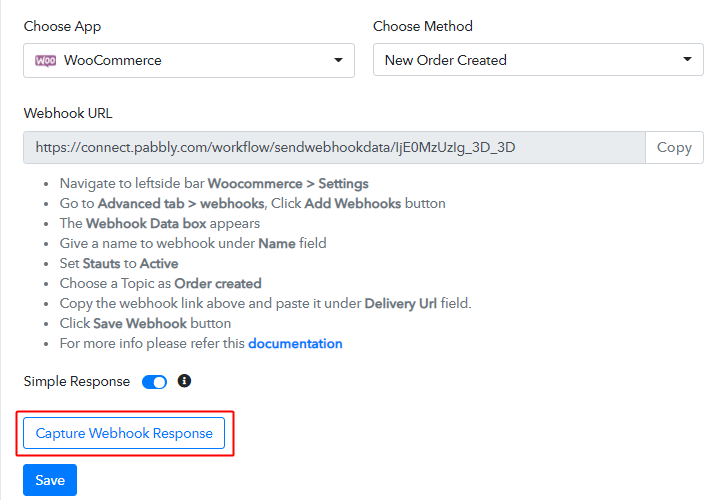
To test the trigger, first, hit the ‘Capture Webhook Response’ button on the Pabbly Connect trigger window.

(b) Go to Your WooCommerce Checkout Page

Place Order

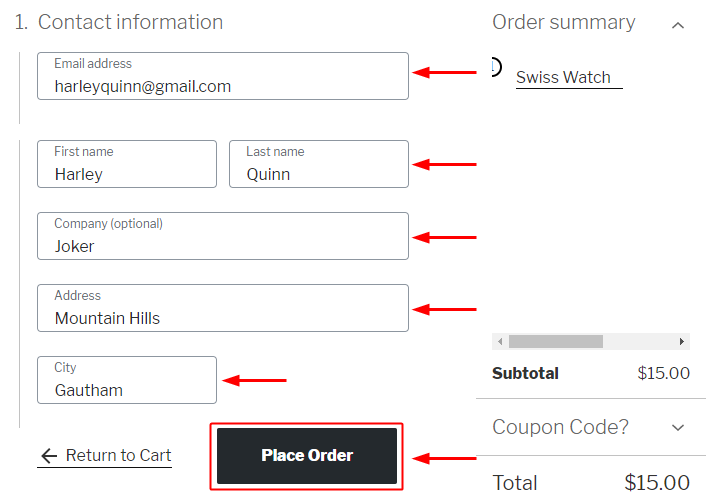
Open any checkout page and place an order. Just fill all the mandatory details and hit the ‘Place Order’ button to capture the response.

(c) Check the Trigger Response

Trigger Response

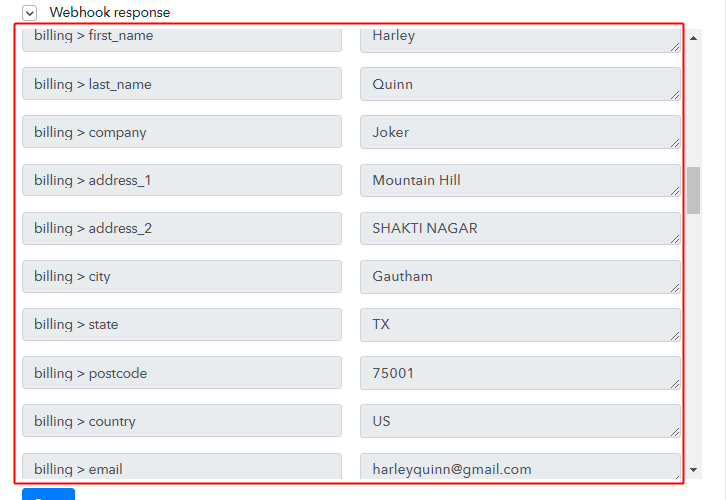
You can see the response of your created trigger below the Webhook Response.

The response will start showing the details of a recent WooCommerce order.

Step 7: Setting Action for WooCommerce – Google Drive Integration

As we can see the response that we got of the set trigger is as expected and now we can move forward towards taking an action on the received data from WooCommerce.

(a) Select Application You Want to Integrate

Integrate Google Drive

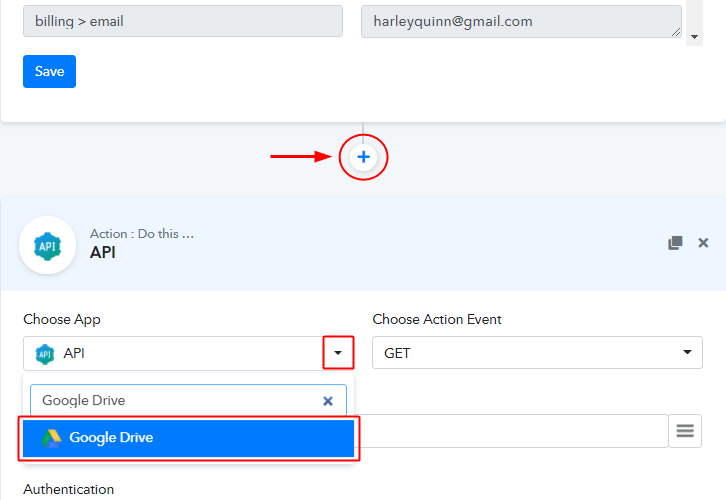
To start sending Google Drive files on every WooCommerce purchase, click the plus button next to your recently created trigger window.

Then select the ‘Google Drive’ app to integrate from the ‘Choose App’ field’s drop-down menu.

(b) Connect with Google Drive

Connect with Google Drive

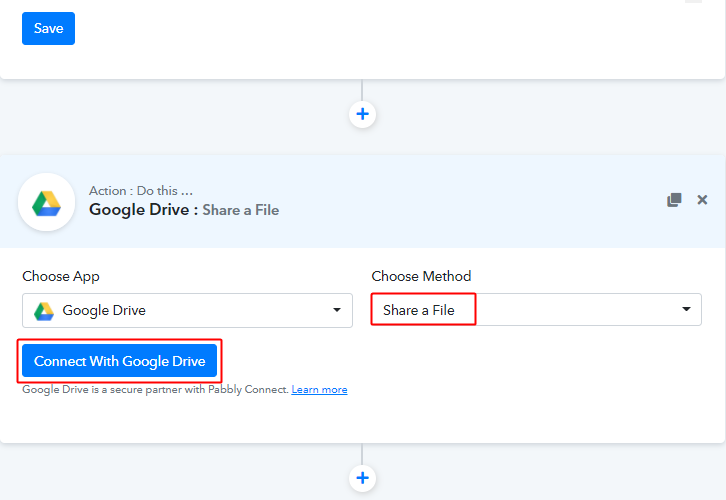
Next, check the method in here to be ‘Share a File’ and then click ‘Connect with Google Drive’ button.

(c) Authorize your Google Drive Account

Authorize Google Account

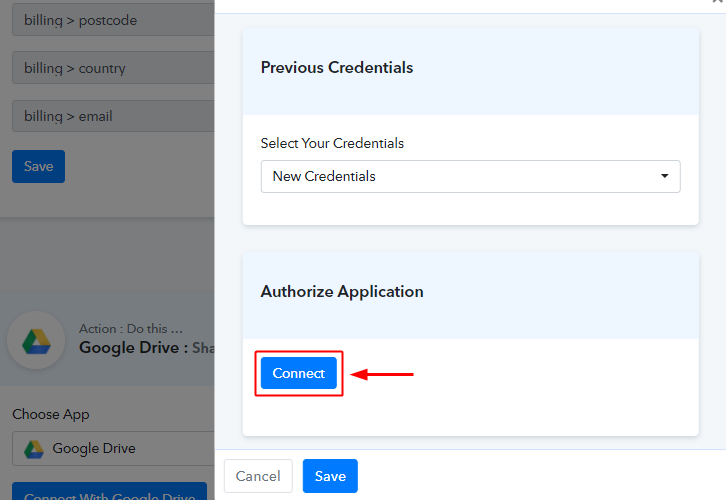
In the next window that slides in from the right, click ‘Connect’ & authorize your Google account.

(d) Map the Response to the Invoice

Map Values

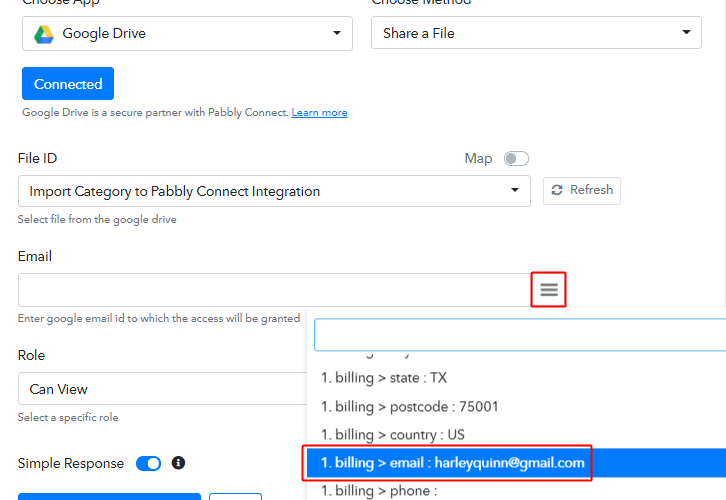
This is a significant step & you can map the values that you got from the WooCommerce response to the Google Drive action details. The mapped values will be responsible for the automatic action afterwards.

To map a value, place your cursor to the position on which you wanna map the value.

Click the menu button (or three vertical lines) next to that particular field.

Lastly, click select the value that you want to map.

(e) Save & Send Test Request

Save & Send Test Request

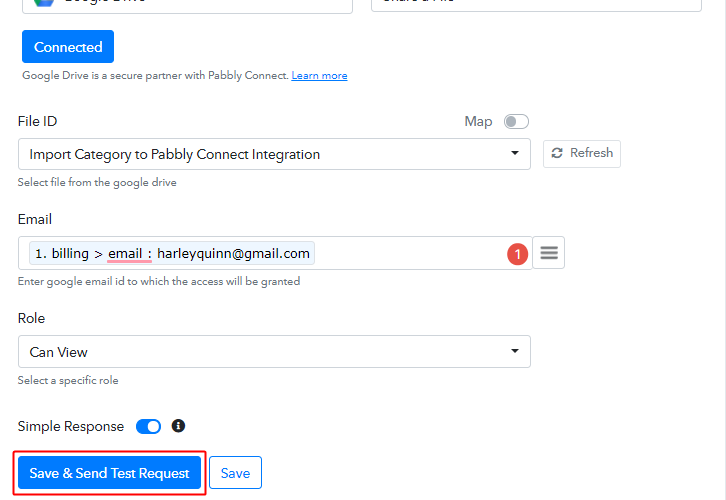
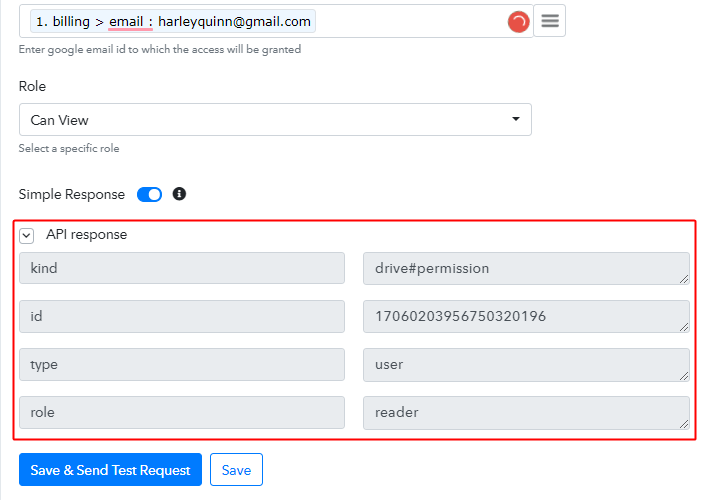
After mapping the email address, select a role for the customer and then click on ‘Save & Send Test Request’.

(f) Check the API Response

Action API Response

You can acknowledge the success of your set action on the ‘API Response’.

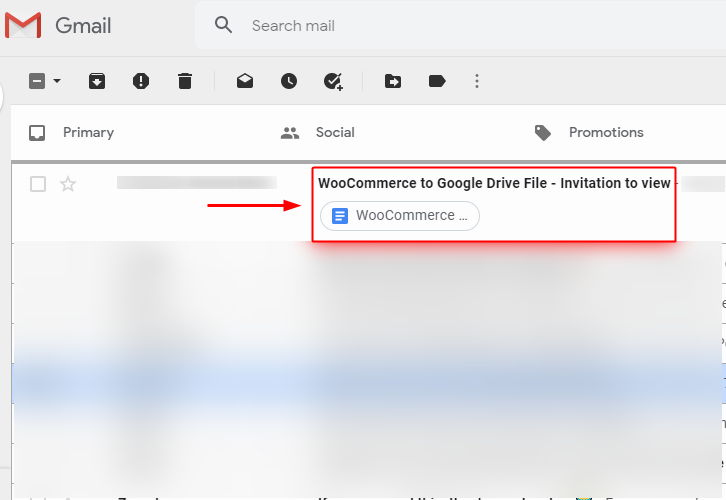
(g) Check the Google Drive File in the Test Order’s Account

Google Drive File Sent

Also, you can check the Goggle Drive file in the test customer’s email inbox.

Step 8: Save the Workflow

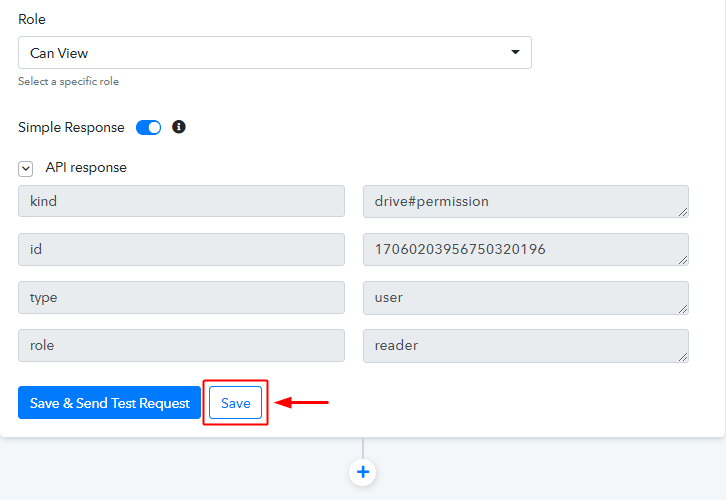
(a) Save the Action API’s Response

Save Action API's Response

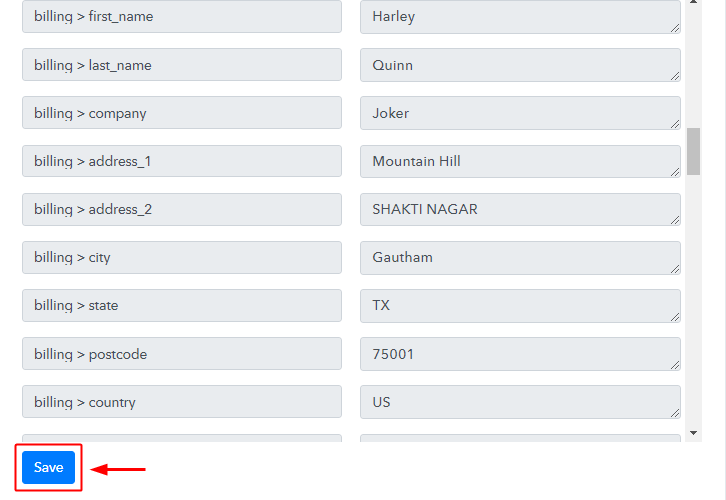
(b) Save the Workflow

Save Webhook

As we can see the Webhook is working perfectly. So, simply save the webhook by clicking the save button in the trigger window.

Wind-Up

Well, this is all about ‘How to send Google Drive file on every WooCommerce purchase’. Consequently, after completing the step by step procedure, you will end up sending Google Drive file on every WooCommerce store product purchase. Most importantly, the procedure is very easy to implement and you don’t need any coding knowledge to follow the steps.

You can always try Pabbly Connect for FREE.

For any further questions, do comment below. We’ll get back to you ASAP.

You May Also Like to Read:

How to Add Stripe Payments as Customers in QuickBooks Online

How to Add Stripe Payments as Customers in QuickBooks Online

Are you juggling your way to add Stripe payments as customers in Quickbooks Online in real-time? If yes, then this article will provide step by step guide to integrate Stripe with Quickbooks Online.

How to Add Stripe Payments as Customers in QuickBooks Online

But before moving forward, let’s understand both software and why there is a need to integrate Stripe with Quickbooks. Stripe is a payment infrastructure for all kinds of businesses. You can easily accept payments and manage payouts via Stripe. Whereas Quickbooks Online is accounting software that handles payment, create invoices, and much more.

By connecting Stripe with Quickbooks Online, one can automatically send every Stripe payment to Quickbooks Online, so that it can create an invoice and manage all payouts in a single dashboard. To help you with this we are recommending business automation software named Pabbly Connect.

Why Choose This Method Of Integration?

In contrast with other integration services-

  • Pabbly Connect does not charge you for its in-built apps like filters, Iterator, Router, Data transformer, and more
  • Create “Unlimited Workflows” and smoothly define multiple tasks for each action
  • As compared to other services which offer 750 tasks at $24.99, Pabbly Connect proffers 50000 tasks in the starter plan of $29 itself
  • Unlike Zapier, there’s no restriction on features. Get access to advanced features even in the basic plan
  • Try before you buy! Before spending your money, you can actually signup & try out the working of Pabbly Connect for FREE

Sign Up To Pabbly Connect         

Pabbly Connect is one of the affordable automation tool that can integrate unlimited premium apps in a matter of time without any coding skill. Not just this, you can access its features like filters, path routers, and much more even in its free plan.

Here in this article, we will understand how to add Stripe payments as customers in Quickbooks Online using an automation tool i.e Pabbly Connect.

How to Add Stripe Payments as Customers in QuickBooks Online (step by step)

So, let’s start the integration process.

Step 1: Sign up to Pabbly Connect

Sign Up

Start the process of connecting Stripe to Quickbooks by clicking on the “Sign Up Free” icon on the Pabbly Connect dashboard. Further, either manually fill-up all the details or sign up using Gmail credentials.

Try Pabbly Connect for FREE

Step 2: Access Pabbly Connect

Select Connect

Further, after logging into the account, click on the “Access Now” button as shown in the above image.

Step 3: WorkFlow for Stripe to Quickbooks Integration

(a) Start with a New Workflow

Create New Workflow

Start the process of building a workflow for Stripe- Quickbooks Online integrations by clicking on the “Create New Workflow” button.

(b) Name the Workflow

Name the Workflow

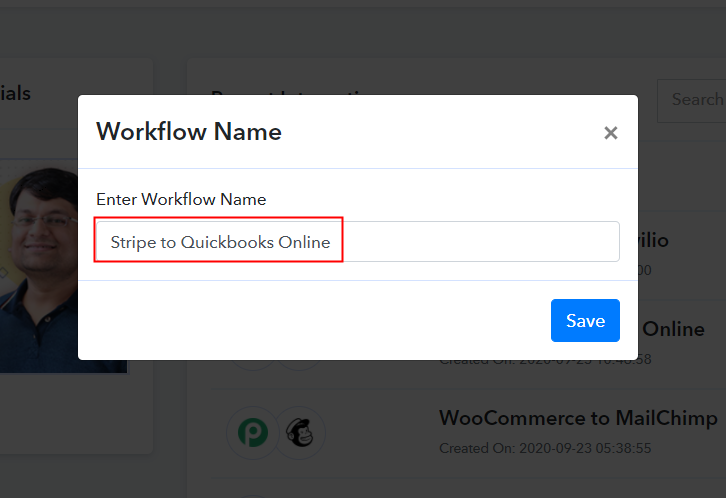
Further, add the name of workflow which in our case is “Stripe to Quickbooks Online”. Nevertheless, you can always name the workflow according to your requirements.

Step 4: Setting Trigger for Stripe & Quickbooks Online Integration

Next, after building a workflow, you have to choose the integration app to connect your Stripe account to Quickbooks. Pabbly Connect lets you create unlimited workflows within minutes, click here to sign up for unlimited workflows for free.

(a) Select Application you Want to Integrate

Select Stripe

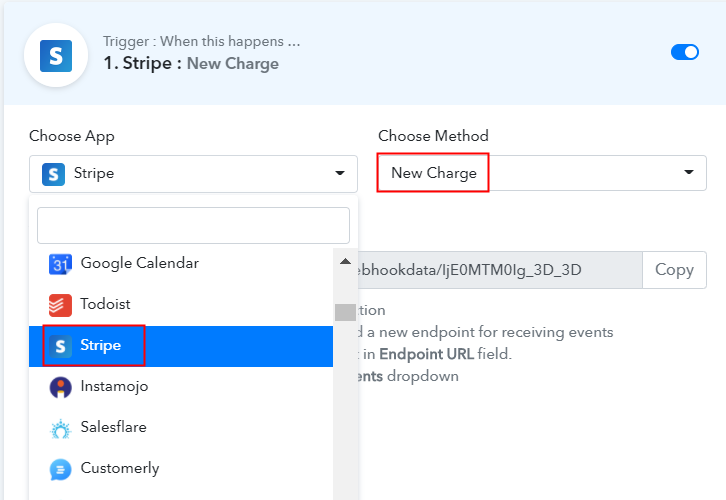
The accompanying step is to choose “Stripe” from the dropdown, then choose the “New Charge” option to add payments as customers in Quickbooks Online.

(b) Copy the Webhook URL

Copy the Webhook URL

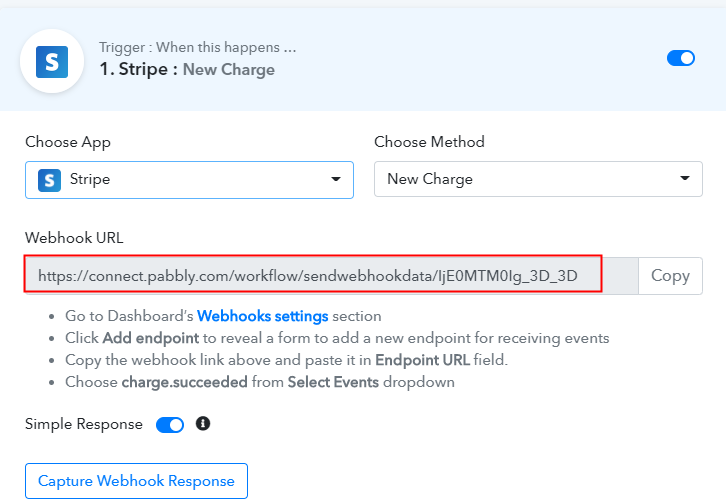
The next step is to copy the webhook URL which is appearing on the dashboard.

Step 5: Connecting Stripe to Pabbly Connect

To add Stripe payment as customers in Quickbooks Online, you gotta paste the copied Webhook URL in the software. For that, you have to log in to your Stripe account.

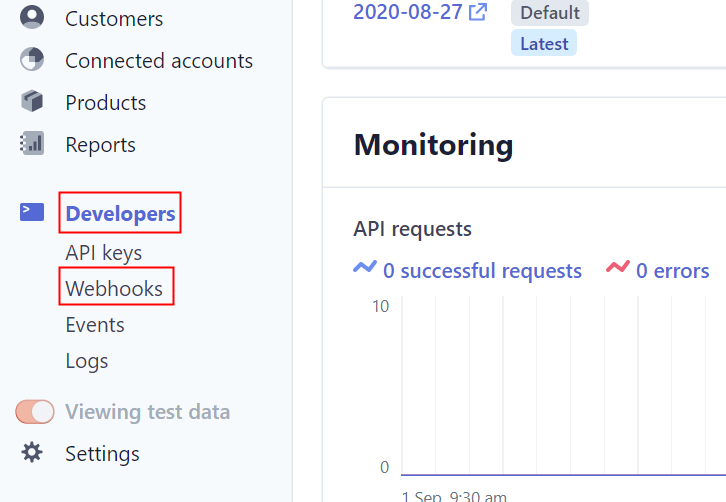
(a) Go to Developer Section

Go to Developer Section

After logging into the Stripe account, go to the “Developer” section on the left of the dashboard. Then click on the “Webhooks” option.

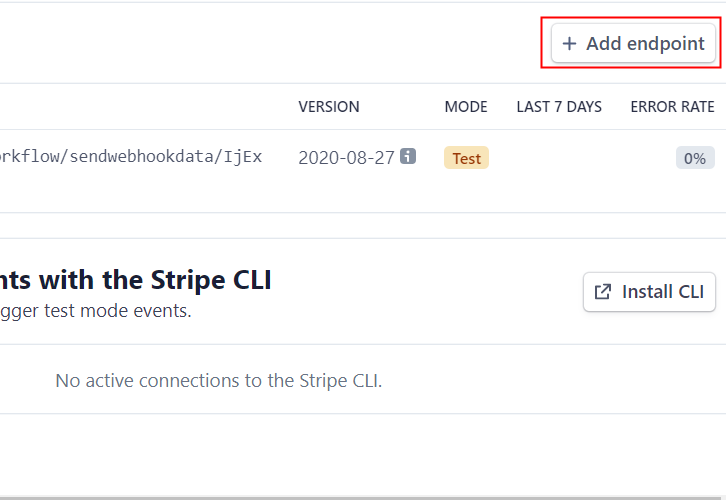
(b) Click on Add Endpoint

Click on Add Endpoint

Further, when you click on “Webhooks”, it will open up an endpoint tab, Just click on the “Add Endpoint” option to paste the Webhook URL.

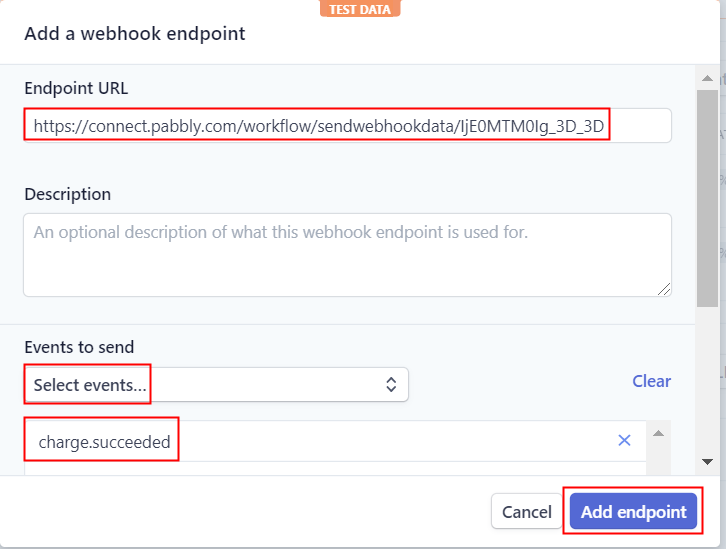
(c) Paste the Webhook URL

Paste the Webhook URL

As soon as you click on the “Add Endpoint” option, it will open up the window with options. Simply paste the copied URL in the “Endpoint URL” section. Make sure to select charge.succeeded in the “Event to Send” column. Lastly, click on “Add Endpoint” to save the setting.

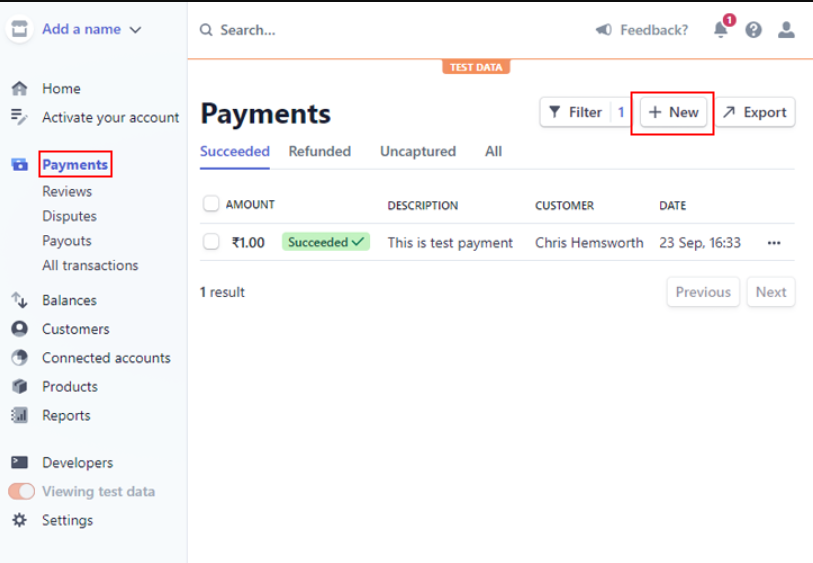
(d) Click on Payment Option

Click on Payment Option

Head back to the “Payment” section on the left of the dashboard, then click on the “New” button to add payment.

(e) Add Payment

Add Payment

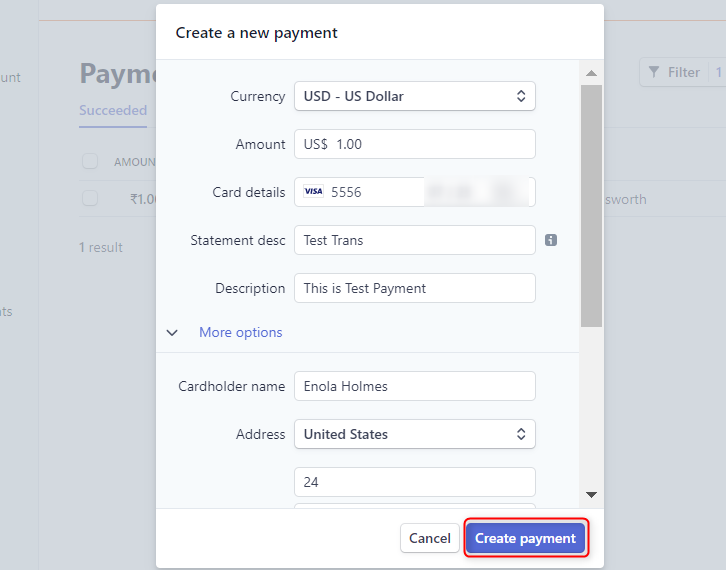
After clicking on the “New” button, a pop-up will appear. Just fill all the required details and hit the “Create Payment” button at the bottom. But before pressing the button, make sure to click capture webhook response in the Pabbly Connect dashboard.

Step 6: Test the Response in Pabbly Connect Dashboard

Test the Response

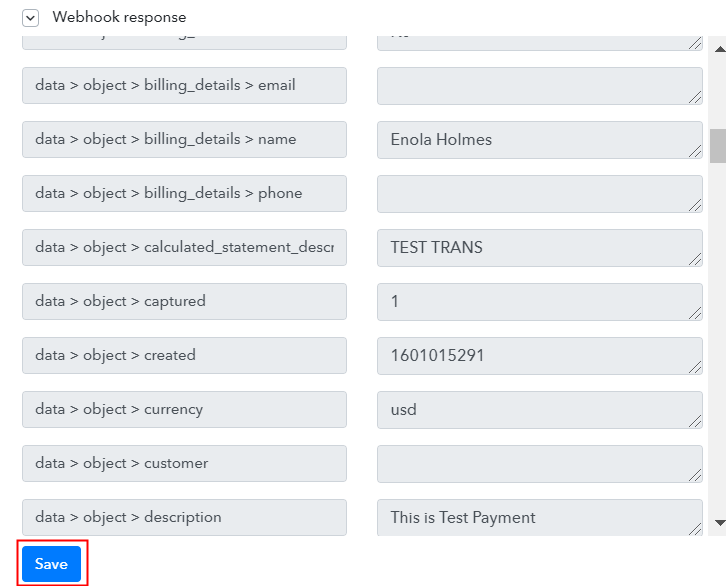
As soon as you click on the “Add Payment” option, the entry will appear on the “Pabbly Connect” dashboard. Then, click on the “Save” option.

Step 7: Setting Action for Stripe & Quickbooks Online Integration

To make this Stripe Quickbooks Online integration work, you have to choose the action for your trigger.

(a) Select Application you Want to Integrate

Select Quickbooks Online

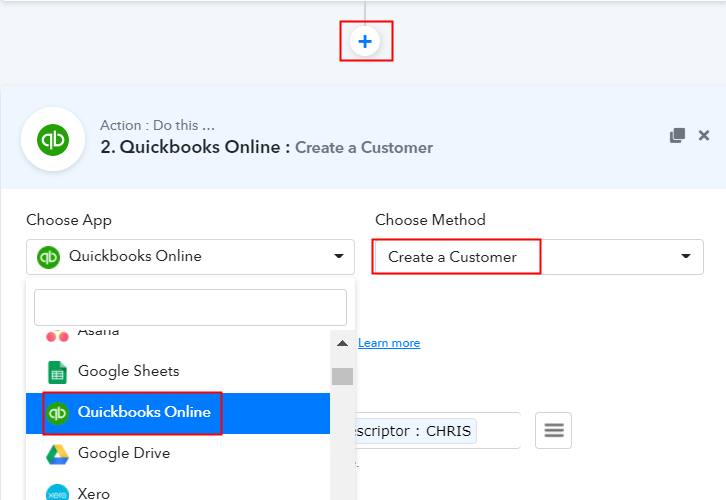
Click on the “+” icon to add an action for your trigger. In our case, it is “Quickbooks Online”. Then, select the “Create a Customer” option.

(b) Click the Connect Button

Click the Connect Button

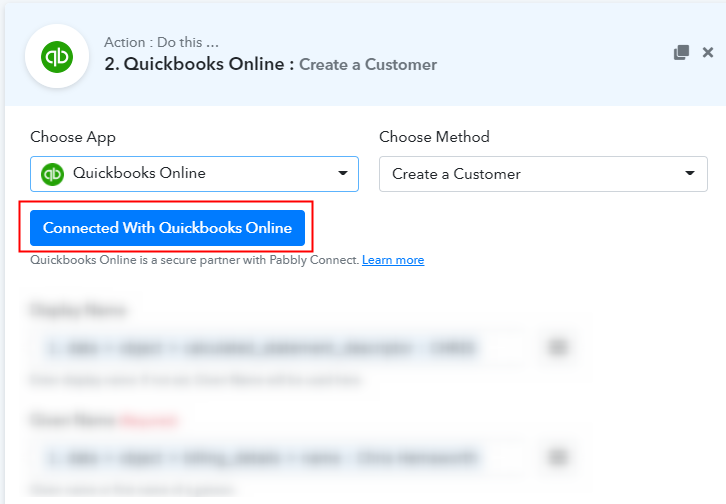
After making all the necessary changes, click on the “Connected with Quickbooks Online” button. Further, it will open the authorization window, for which you have to log in to your Quickbooks Online account.

(c) Map Field Details

Map Field Details

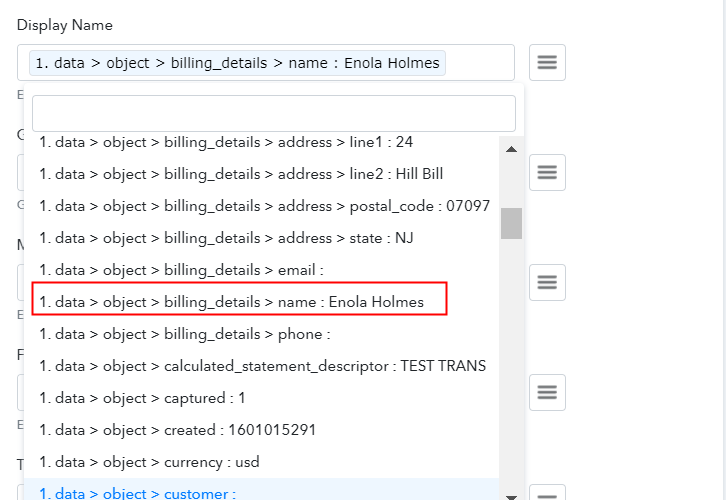
Next, map the required field from drop-down such as for the display name, select the name, and for the billing address, map the address.

(d) Save and Send Test Request

Save and Send Test Request

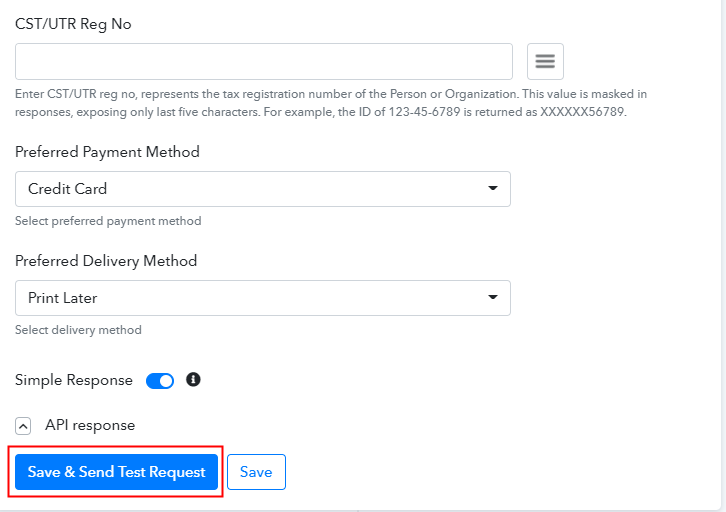
Subsequently, after filling all the details, save the setting and then “Send Test Request” to test the Stripe Quickbooks Online integration.

Step 8: Check Response in Quickbooks Online Dashboard

Check Response in Quickbooks Online Dashboard

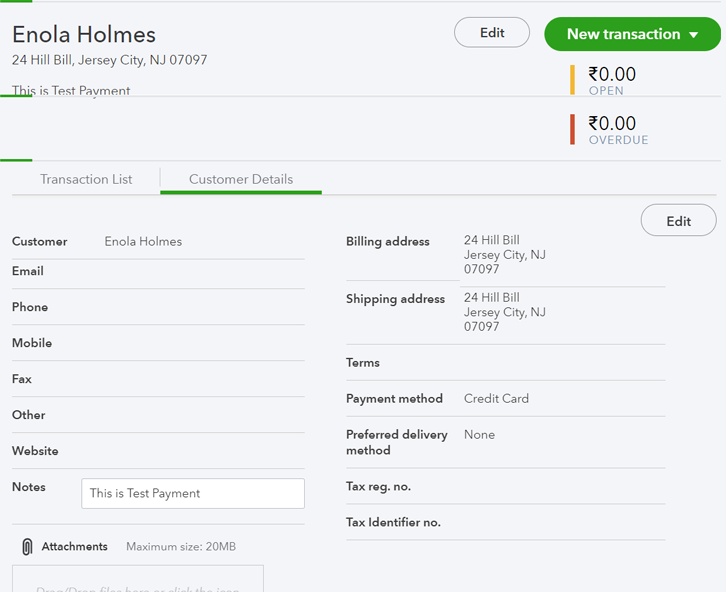
Lastly, when you check the Customer section in Quickbooks, your entry will automatically appear there.

Now you know how to sync Stripe payments in Quickbooks. This is a one-time process, now all your manual work will be done by the online business automation tool i.e Pabbly Connect.

Conclusion –

Okay! Here we have mentioned all the crucial steps to add Stripe payment as customers in Quickbooks Online using software Pabbly Connect. Now you know how easy is to integrate Stripe with Quickbooks. Not just this, one can connect unlimited apps within minutes using this software. Not to forget, almost every industry big or even small preferring automation tools to reduces manual effort.

So, don’t confuse yourself anymore! Claim your access by signing up for a free account.

You May Also Like To Read –

How to Add Salesforce Leads from DocuSign Envelopes in Real-Time

How to Add Salesforce Leads from DocuSign Envelopes in Real-Time

Are you tired of updating the data in your Salesforce account from DocuSign manually? If yes, then you don’t have to worry about it anymore as we have the best solution for all your worries called Pabbly Connect.

How to Add Salesforce Leads from DocuSign Envelopes in Real-Time

Pabbly Connect is an amazing integration software through which you can integrate two or more than two applications and automate your entire workflow. Today, we will be integrating DocuSign with Salesforce via Pabbly Connect. After this integration, whenever there will be any completed DocuSign document, the info about the recipient will be automatically updated in your Salesforce account.

Why Choose This Method Of Integration?

In contrast with other integration services-

  • Pabbly Connect does not charge you for its in-built apps like filters, Iterator, Router, Data transformer, and more
  • Create “Unlimited Workflows” and smoothly define multiple tasks for each action
  • As compared to other services which offer 750 tasks at $24.99, Pabbly Connect proffers 50000 tasks in the starter plan of $29 itself
  • Unlike Zapier, there’s no restriction on features. Get access to advanced features even in the basic plan
  • Try before you buy! Before spending your money, you can actually signup & try out the working of Pabbly Connect for FREE

Sign Up To Pabbly Connect 

Other than the integrations, Pabbly Connect also comes with so many awesome features:

  • Create unlimited workflows without any restrictions
  • Formatters
  • Instant triggers and actions
  • Path Routers
  • Filters

and the amazing part of this service is that you can access all the features even with the free plan.

Hence, without taking any more of your time let’s get into the blog about how to add Salesforce leads from DocuSign envelopes in real-time.

Step 1: Sign up to Pabbly Connect

Sign Up

Let’s begin the process of how to add Salesforce leads from DocuSign envelopes in real-time by clicking on the “Sign Up Free” icon on the Pabbly Connect home page. Next, either manually fill-up all the details or sign up using your Gmail account.

Try Pabbly Connect for FREE

Step 2: Access Pabbly Connect

Select Connect

Next, after logging into the account, click on the “Access Now” button of the Connect section in the dashboard.

Step 3: WorkFlow for DocuSign and Salesforce Integration

(a) Start with a New Workflow

Create New Workflow

Start with creating a workflow for your project by clicking on the ‘Create New Workflow’ button.

(b) Name the Workflow

Name the Workflow

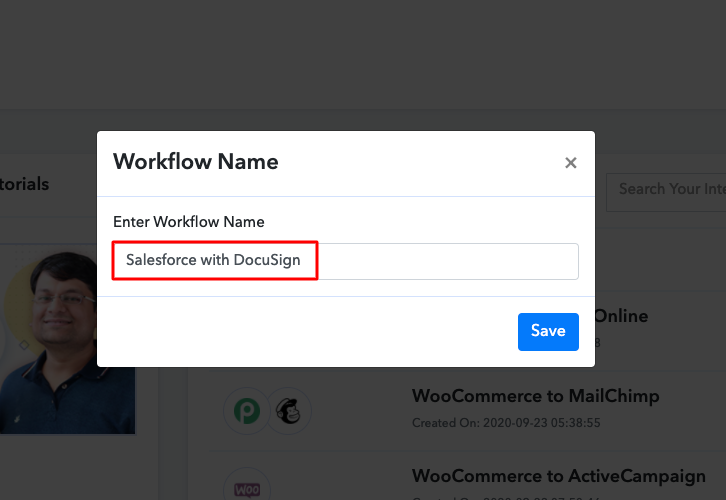
Now, you need to name the workflow just like in the above-shown image. I named the workflow as “Salesforce with DocuSign”, you can name the workflow as per your requirements and needs.

Step 4: Setting Trigger for DocuSign and Salesforce Integration

As soon as you are done with creating a workflow, you will have to select the application you want to integrate. Using Pabbly Connect, you can integrate any two or more than two applications, create your free account now.

(a) Select Application you Want to Integrate

Select Docusign

Now, you have to select the application that you want to integrate. In this case, we are choosing “DocuSign” for integration and in the choose method section select “Configure Webhooks”.

(b) Copy the Webhook URL

Copy the Webhook URL

After selecting the application, now you have to copy the webhook URL just like in the above-shown image to take further the integration process.

Step 5: Connecting DocuSign to Pabbly Connect

To connect DocuSign with Pabbly Connect, you have to paste the copied Webhook URL in the software. For that, you have to log in to your DocuSign account.

(a) Go to DocuSign Settings

Click on Settings

Once you have logged into your DocuSign account, now click on settings.

(b) Click on Connect Option

Click on Connect in Integration of Docusign

After clicking on settings, now you have to scroll down and click on the “Connect” option from the integration section.

(c) Click on Add Configuration Option

Select Add Configuration

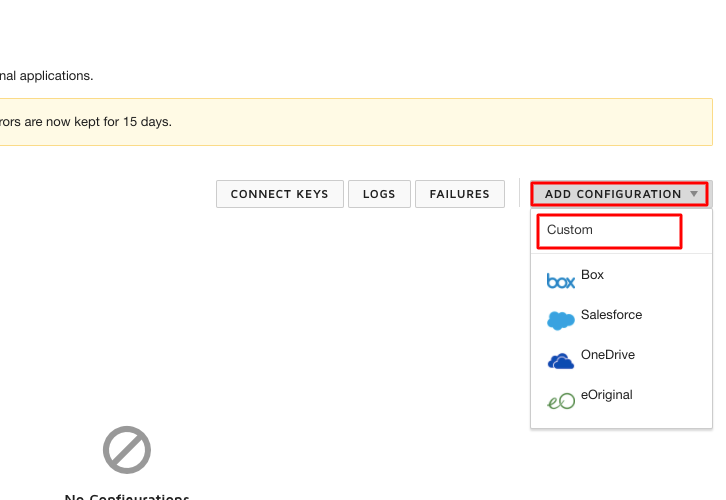
Now, here you have to click on “Add Configuration” and then select the “Custom” option to add the copied webhook.

(d) Add Webhook

Paste the Webhook URL

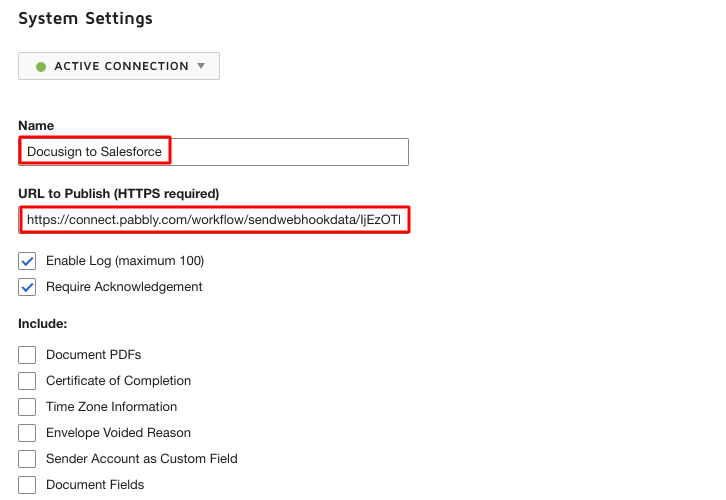
Name the Webhook according to your requirement. Make sure that status should be “Active Connection”. Then in the URL to publish, paste your copied URL from Pabbly Connect. After making all changes, click the “Add Webhook” button.

Step 6: Send the Document to be Signed

To, test this integration, you have to send a document from DocuSign to the recipient.

(a) Select Document

Upload Any Document

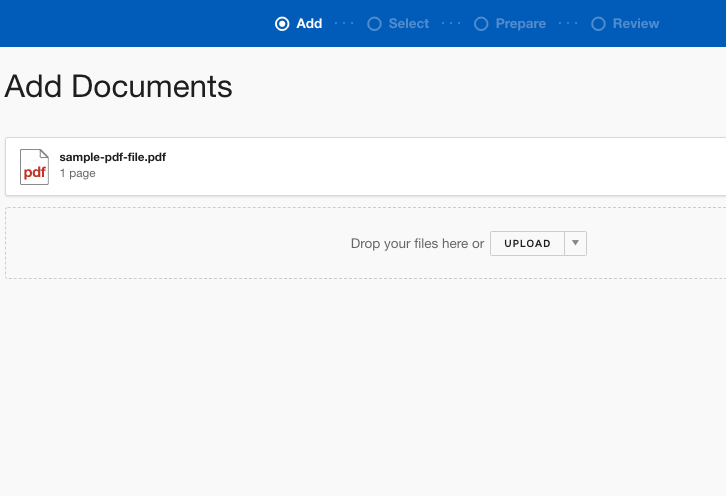
Select any document or upload your files, here we are using a sample pdf file for the task.

(b) Click on Next Button

Click on Next Button

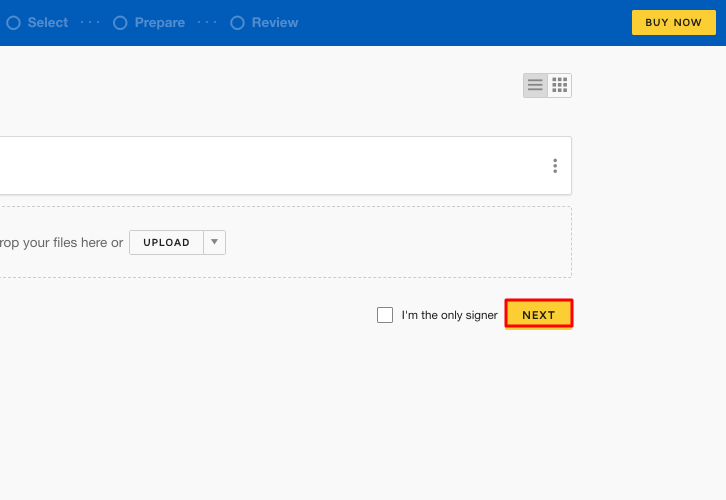
After selecting a document click on the “Next” button.

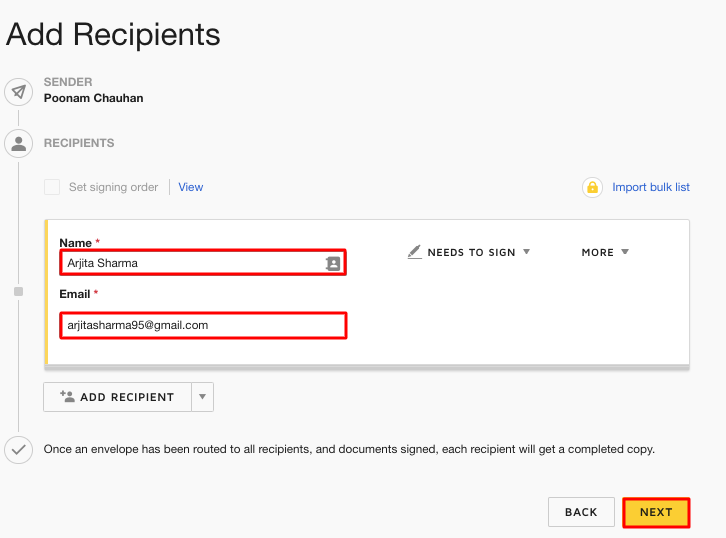
(c) Add Recipients

Add Recipients

Here, you have to add the information of the recipients like name and email address. After making all the changes click on the “Next” button.

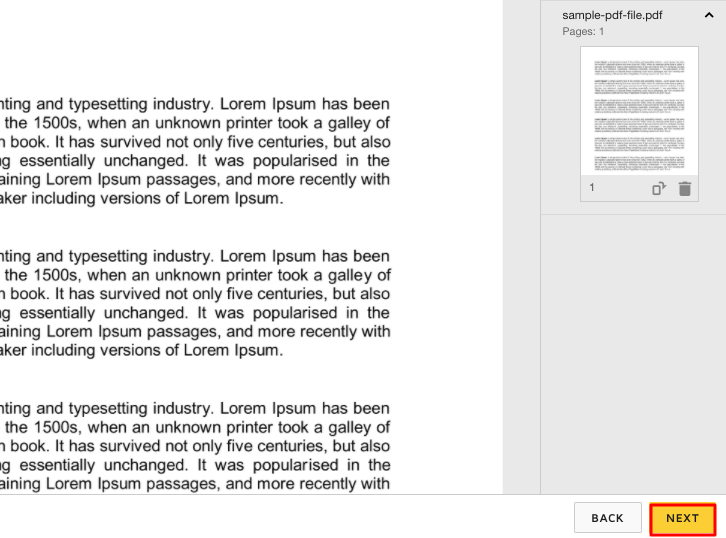
(d) Review the Document

Review and Click Next

Before finally sending the document, review it once thoroughly so that there are no mistakes and then click on the “Next” button.

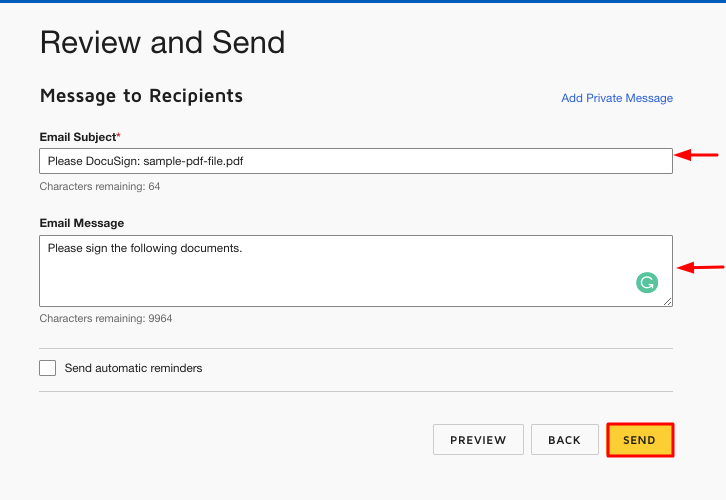
(e) Send the Document

Enter Feilds and Click Send

At the final stage add a message for your recipient in the message, although this is completely optional. After making all the changes you have to click on the “Send” button but before clicking on send click on the “Capture Webhook Response” button in Pabbly Connect.

Step 7: Test the Response in Pabbly Connect Dashboard

Save the Webhook Response

Once you click on “Capture Webhook Response”, the signed document entry from DocuSign will appear on the Pabbly Connect dashboard. Then, click on the “Save” option.

Step 8: Setting Action for DocuSign and Salesforce Integration

To make this DocuSign Salesforce integration work, you have to choose the action for your trigger.

(a) Select Application you Want to Integrate

Select Salesforce

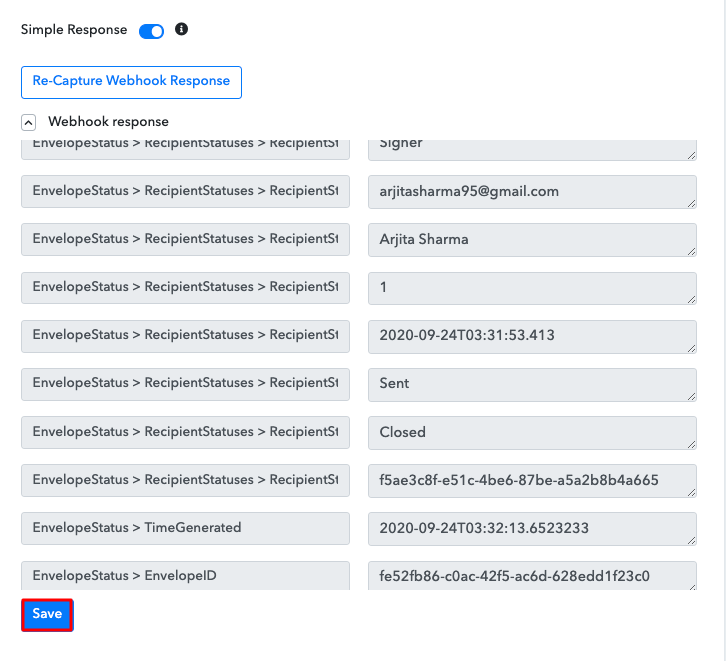
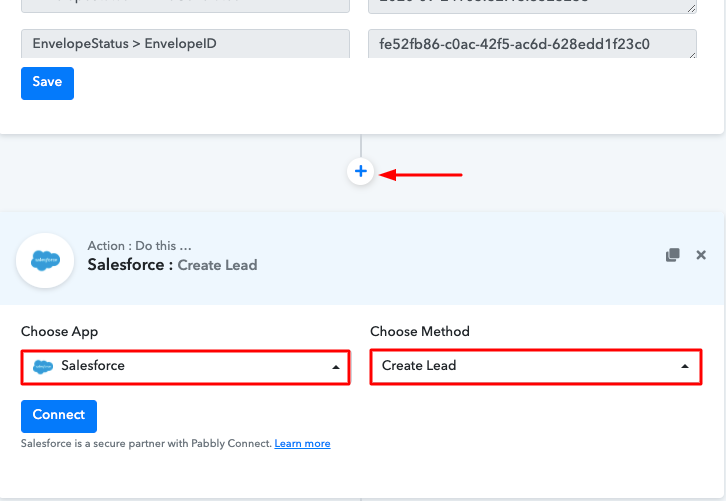
Now in this step, click on the + button below and choose the application that you want to integrate. Here we have chosen “Salesforce” to integrate and in the choose method section select “Create Lead”.

(b) Click the Connect Button

Click on Connect Button

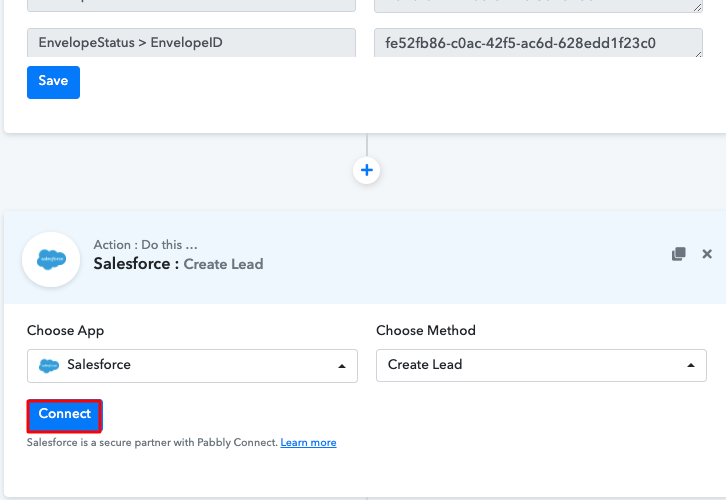
After choosing the application click on the “Connect” button to move forward.

Step 9: Connecting Salesforce to Pabbly Connect

To connect Salesforce to Pabbly Connect, you have to authorize the account through which you want to login to your Salesforce platform.

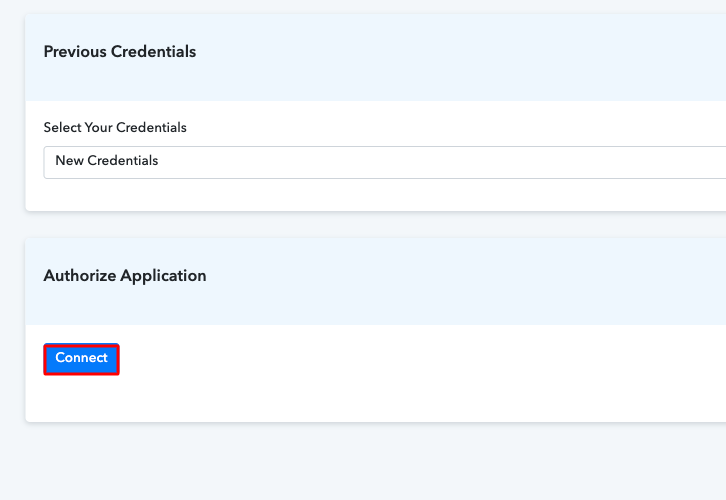
(a) Authorize the Account

How to Add Salesforce Leads from DocuSign Envelopes in Real-Time

Once you have selected Salesforce, then a pop-up window will appear on your screen. Here you have to click on the “Connect” button and then select the account through which you want to login to Salesforce.

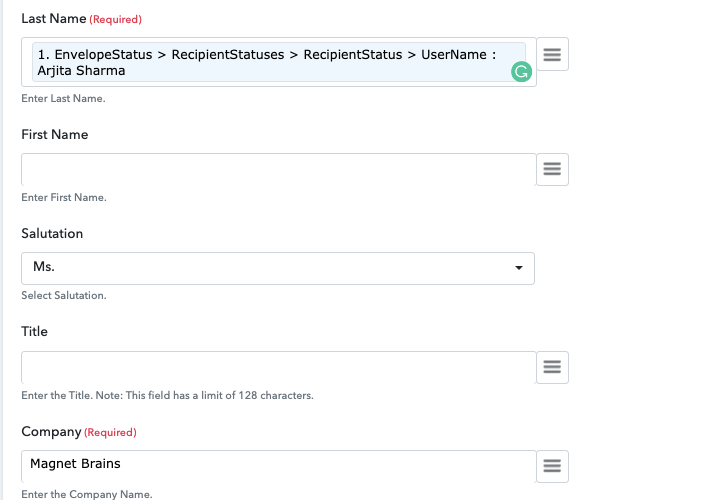
(b) Add Field Data

How to Add Salesforce Leads from DocuSign Envelopes in Real-Time

After saving your workflow add all the required details.

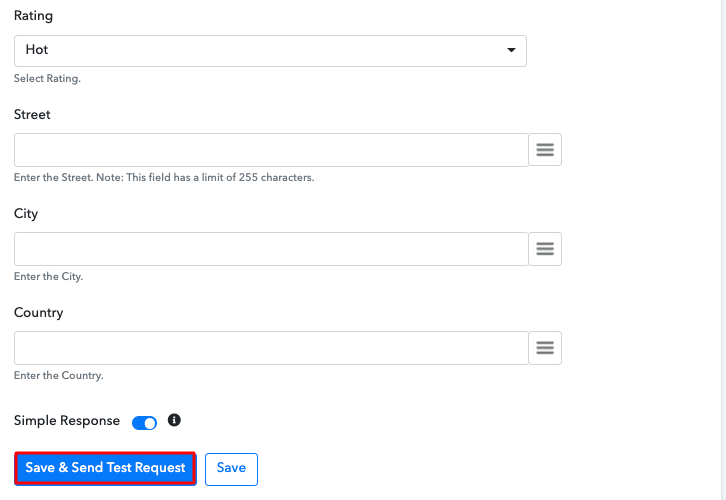
(c) Save and Send Test Request

How to Add Salesforce Leads from DocuSign Envelopes in Real-Time

Once you are done adding up all required field data click on the “Send Test Request” button.

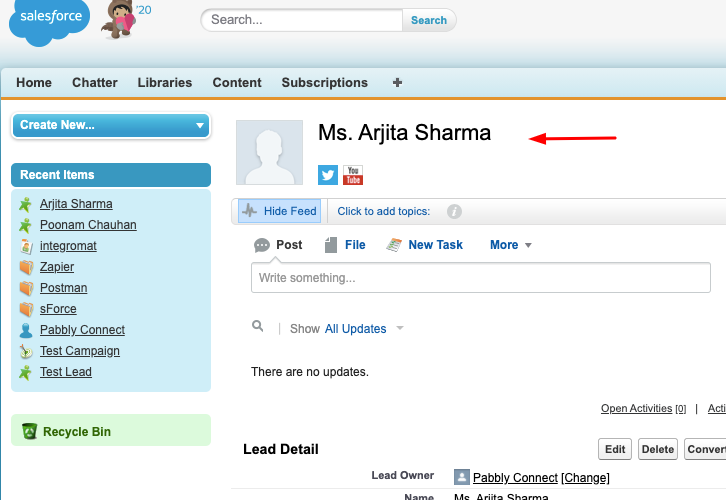
Step 10: Check the Response

How to Add Salesforce Leads from DocuSign Envelopes in Real-Time

Here, you can see the integration was successful and the lead has been added to the Salesforce account automatically. Now, whenever there will be any completed DocuSign documents, the leads will be automatically updated in your Salesforce account.

Conclusion –

Eventually, now you have learned how to add Salesforce leads from DocuSign envelopes in real-time through these simple steps. Not only this integration but via Pabbly Connect, you can integrate thousands of applications, automate all your projects without even paying anything. Because of this amazing software, you will not only save a lot of time but also you won’t have to do the redundant work again and again. Therefore, just signup for your free account and make your work easy and stressful. In case of any queries or suggestions, kindly drop your comments below.

You May Also Like to Read –

How to Add WooCommerce Customers as MailChimp Subscribers

How to Add WooCommerce Customers as MailChimp Subscribers

Looking for a way to add WooCommerce customers as MailChimp subscribers in real-time? If yes, here in this article we will reveal the step by step guide to integrate WooCommerce with MailChimp.

How to Add WooCommerce Customers as MailChimp Subscribers

But before moving forward, let’s understand the need for WooCommerce and MailChimp integration. Woo Commerce is the largest eCommerce selling plugin for WordPress users. Whereas MailChimp is an email marketing service provider that manages all your email campaigns.

So with the help of WooCommerce – MailChimp integration, you can send emails to customers in the near future about a product, deals, and offers. Also, you can build and manage your WooCommeerce customer’s list in the MailChimp account. Like any other service, the automation tool is prevailing in the market that lets you connect software in a couple of minutes.

This is why here we are recommending one of the affordable business automation tool named Pabbly Connect.

Why Choose This Method Of Integration?

In contrast with other integration services-

  • Pabbly Connect does not charge you for its in-built apps like filters, Iterator, Router, Data transformer, and more
  • Create “Unlimited Workflows” and smoothly define multiple tasks for each action
  • As compared to other services which offer 750 tasks at $24.99, Pabbly Connect proffers 50000 tasks in the starter plan of $29 itself
  • Unlike Zapier, there’s no restriction on features. Get access to advanced features even in the basic plan
  • Try before you buy! Before spending your money, you can actually signup & try out the working of Pabbly Connect for FREE

Sign Up To Pabbly Connect         

Pabbly Connect is one of the best SaaS-based automation platforms that let you connect multiple application for data transmission. In a couple of minutes, you can create a workflow to integrate different software without applying any technical skills. Further, it is swamped with features like unlimited workflows, triggers, action, and much more even in its free plan.

Here in this article, we will understand how to add WooCommerce customers as MailChimp subscribers using an automation tool i.e Pabbly Connect.

So, let’s start the integration process.

Step 1: Sign up to Pabbly Connect

Sign Up

Initiate the process of connecting WooCommerce to MailChimp by clicking on the “Sign Up Free” icon on the Pabbly Connect dashboard. Further, either manually fill-up all the details or sign up using Gmail credentials.

Try Pabbly Connect for FREE

Step 2: Access Pabbly Connect

Select Connect

Next, after logging into the account, click on the “Access Now” button of Connect.

Step 3: WorkFlow for WooCommerce to MailChimp Integration

(a) Start with a New Workflow

Create New Workflow

Begin the process of building a workflow forWooCommerce-MailChimp integrations by clicking on the “Create New Workflow” button.

(b) Name the Workflow

Name the Workflow

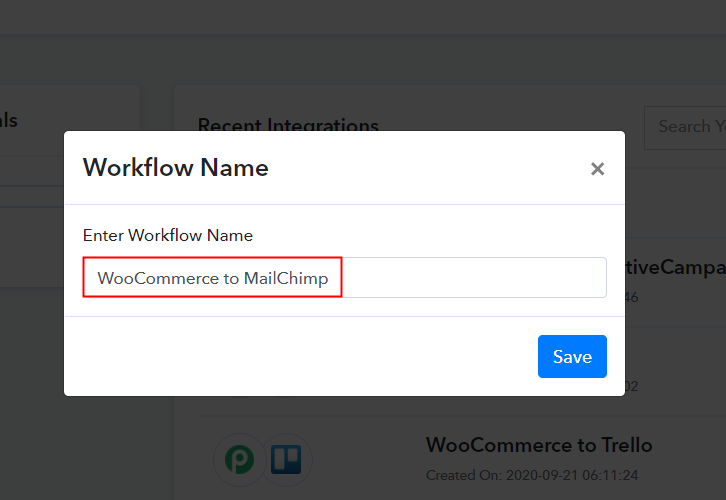
Further, add the name of workflow which in our case is “WooCommerce to MailChimp”. Nevertheless, you can always name the workflow according to your requirements.

Step 4: Setting Trigger for WooCommerce & MailChimp Integration

Further, after building a workflow, you have to choose the integration app to connect your Woocommerce account to MailChimp. Pabbly Connect lets you bind or connect unlimited apps within minutes, click here to sign up for unlimited workflows.

(a) Select Application you Want to Integrate

Select WooCommerce

The following step is to choose “WooCommerce” from the dropdown, then choose the “New Order Created” option to add subscribers in MailChimp whenever a purchase happens in WooCommerce.

(b) Copy the Webhook URL

Copy the Webhook URL

The next step is to copy the webhook URL which is appearing on the dashboard.

Step 5: Connecting WooCommerce to Pabbly Connect

To add a subscriber in MailChimp whenever a new sale happens in WooCommerce, you gotta paste the copied Webhook URL in the software. For that, you have to log in to your WordPress account where you have installed your Woocommerce plugin.

(a) Go to WooCommerce Settings

Go to WooCommerce Settings

After successfully logging into your WordPress account, go to the “WooCommerce” section then there click on the “Settings” option.

(b) Click on Advanced Option

Click on Advanced Option

Further, when you click on “Settings”, it will open a tab with different options. Select the “Advanced” option.

(c) Click on Webhooks Option

Click on Webhooks Option

Further, as soon as you click on “Webhooks”, it will open a new tab with a different option. Simply click on the “Add Webhook” option to paste the Webhook URL.

(d) Add Webhook

Add Webhook

Next, name the Webhook according to your need. Make sure that status should be “Active” and in the topic section, select “Order Created”. Then in the delivery URL, paste your copied URL from Pabbly Connect. After making all changes, click the “Save Webhook” button.

(e) Make a Test Purchase

Make a Test Purchase

Now to add customers as a subscriber in MailChimp, open the product checkout in a new tab, and make a dummy purchase. Just fill all the details, hit the “Place Order” button. But before hitting the button, make sure to click “Capture Webhook Response” in the Pabbly Connect dashboard.

Step 6: Test the Response in Pabbly Connect Dashboard

Test the Response

As soon as you hit the “Place Order” button, the entry will appear on the “Pabbly Connect” dashboard. Simply click on the “Save” option.

Step 7: Setting Action for WooCommerce & MailChimp Integration

To make this WooCommerce MailChimp integration work, you have to choose the action for your trigger.

(a) Select Application you Want to Integrate

Select MailChimp

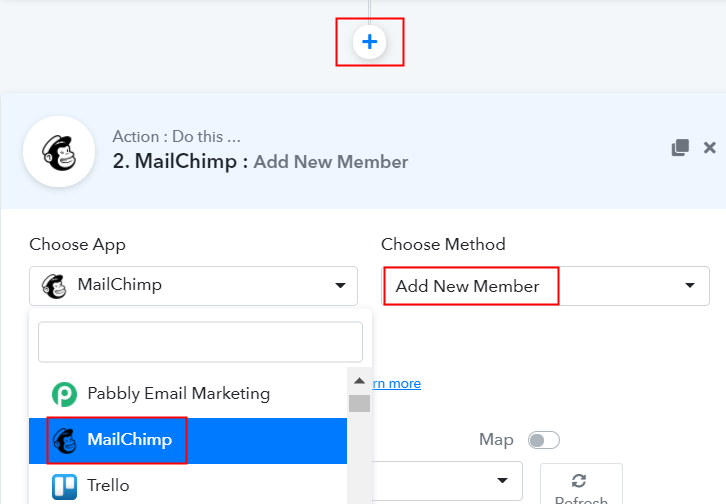
Further, click on the “+” icon to add an action for your trigger. Here we are going to select “MailChimp” from the dropdown. Then, select the “Add New Member” option.

(b) Click the Connect Button

Click the Connect Button

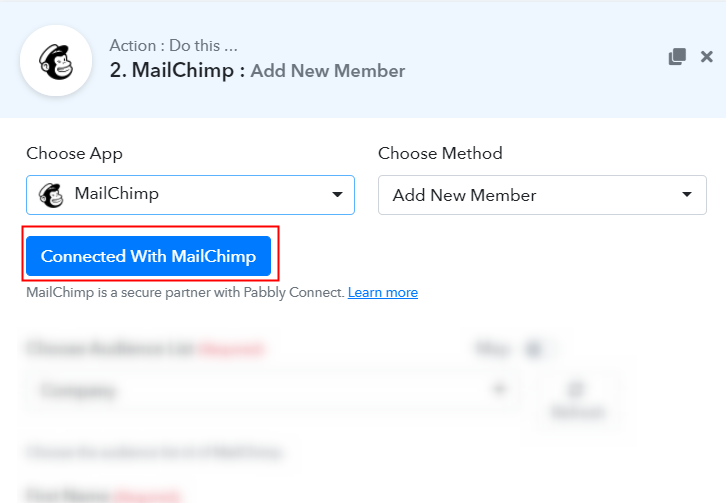
After making all the necessary changes, click on the “Connected with MailChimp” button. Further, it will open the authorization window, for which you have to log in to your MailChimp account.

Step 8: Connecting MailChimp to Pabbly Connect

To connect WooCommerce to MailChimp, you need to paste the “Bearer Token” for which you have to log in to your MailChimp account.

(a) Click on MailChimp Account Settings

Click on MailChimp Account Settings

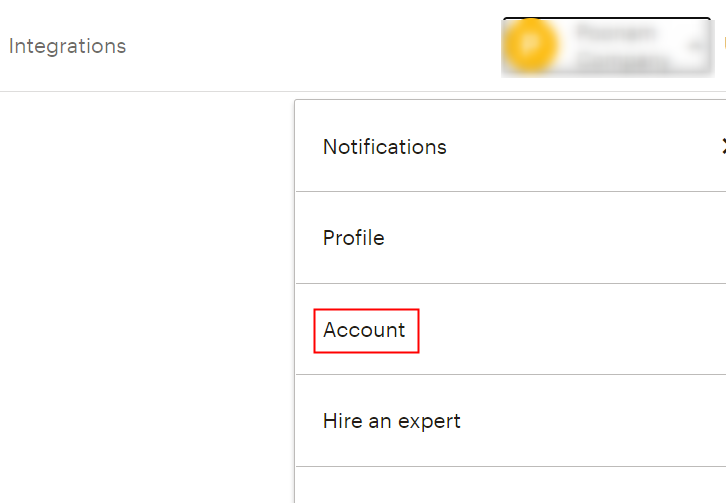
After login, click on the “Account” on the uppermost section of the dashboard.

(b) Move to Extras

Move to Extras

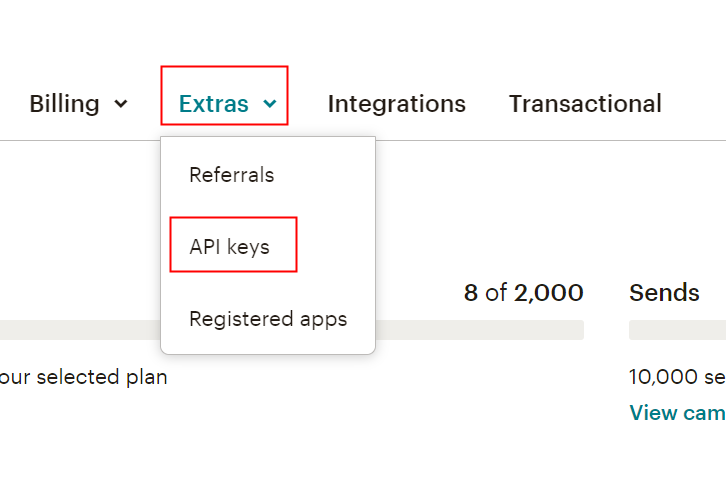
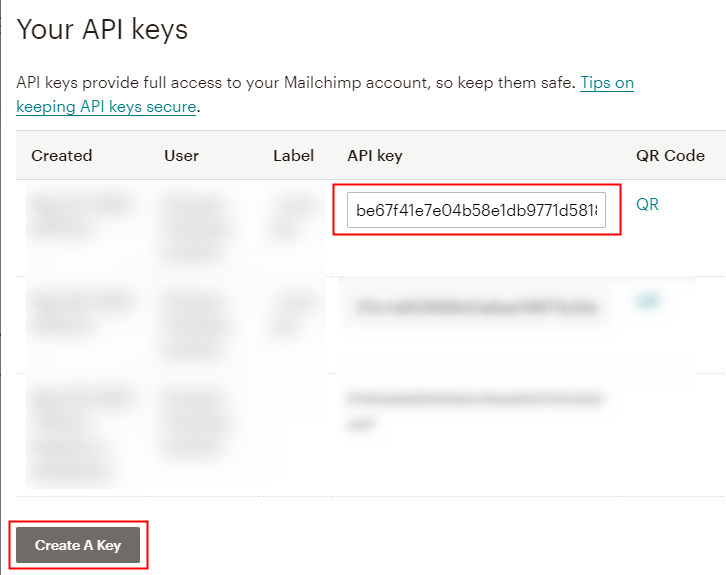
When you click on “Account” it will open up the new window. There you will see the “Extras” option, simply click on it. Then, click on the “API Keys” option.

(c) Create a Key

Create a Key

As soon as you will click on the “Create a Key” button, it will generate the key. Just copy it.

Step 9: Paste API Key in Pabbly Connect Dashbaord

To add customer’s data as subscribers in MailChimp, you have to head back to the Pabbly Connect dashboard to paste the API key.

(a) Fill API Key

Fill API Key

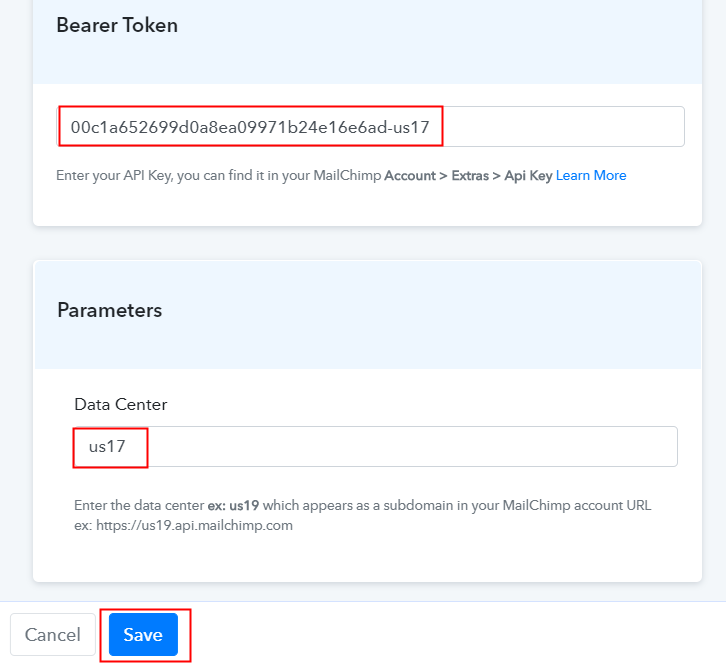
Just paste API Key in the bearer token option, and in the “Data Center” column, mention MailChimp id which appears in the starting of your MailChimp URL. After ensuring all this, click the “Save” button.

(b) Map Field Data

Map Field Data

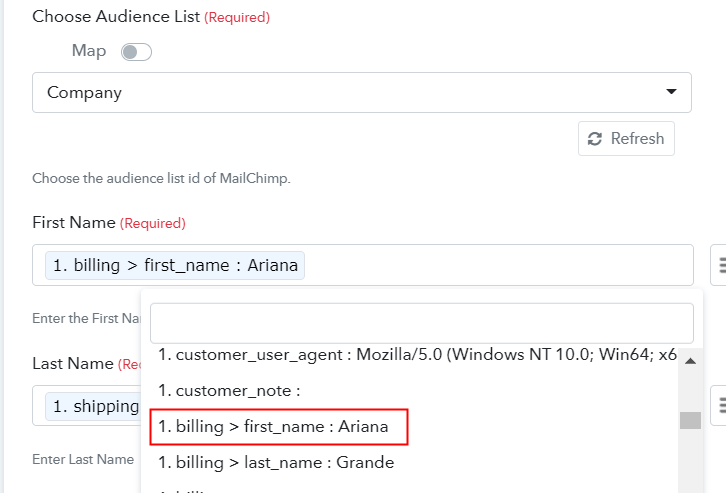
Now as you see the software has already fetched the audience list. Just map the required field from drop-down such as for the email field, select the email option, and for the name field select the name option.

(c) Save and Send Test Request

Save and Send Test Request

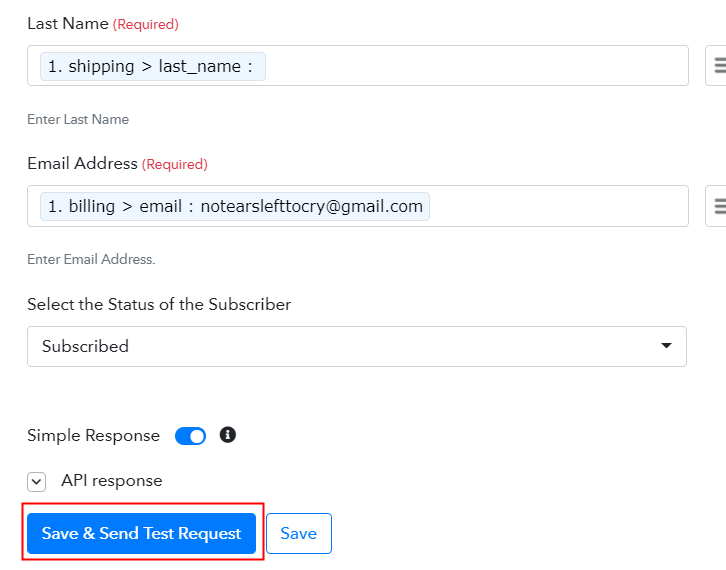
Subsequently, after filling all the details, save the setting and then “Send Test Request” to test the WooCommerce MailChimp integration.

Step 10: Check Response in MailChimp Dashboard

Check Response in MailChimp Dashboard

Lastly, when you check the Audience section in MailChimp, your entry will automatically appear there.

Now you know how to add WooCommerce customers to MailChimp in real-time. This is a one-time process, now all your manual work will be done by the online business automation tool i.e Pabbly Connect.

Conclusion –

That’s it! Here we provide in detail “How to Save WooCommerce Customers as MailChimp Subscribers” using the software. We understand how much overwhelming can be a process of connecting two software. This is a reason why people looking for tool that can help them. And, believe us Pabbly Connect is one of the best Zapier alternatives available in the market that doesn’t put a hole in your pocket. You will get access to everything even in its free trial.

Okay, what’s stopping you now! Go and grab a deal by signing up for a free account.

You May Also Like To Read –

How to Add New WooCommerce Customers as ActiveCampaign Contacts

How to Add New WooCommerce Customers as ActiveCampaign Contacts

Are you looking for a way to add new WooCommerce Customers as ActiveCampaign contacts? If yes, then here in this article we will tell you how to connect WooCommerce with ActiveCampaign in real-time.

How to Add New WooCommerce Customers as ActiveCampaign Contacts

But before we get started, let’s first cast some light on both the software that we are going to integrate i.e, WooCommerce & ActiveCampaign. As we all know WooCommerce is an E-commerce platform that helps you to build your own online store. Whereas ActiveCampaign is an email marketing software for all kinds of businesses be it small or large.

By integrating WooCommerce with ActiveCampaign, you can easily send the data of all the new customers that buy products on WooCommerce. Hence, to save you from doing it all manually here we have a perfect tool suggestion for you i.e, Pabbly Connect. This software allows you to bind unlimited applications in a couple of minutes. What’s amazing is you have to do it only once & it will take care of the rest and to do so, you don’t even need to have any coding skills.

Why Choose This Method Of Integration?

In contrast with other integration services-

  • Pabbly Connect does not charge you for its in-built apps like filters, Iterator, Router, Data transformer, and more
  • Create “Unlimited Workflows” and smoothly define multiple tasks for each action
  • As compared to other services which offer 750 tasks at $24.99, Pabbly Connect proffers 50000 tasks in the starter plan of $29 itself
  • Unlike Zapier, there’s no restriction on features. Get access to advanced features even in the basic plan
  • Try before you buy! Before spending your money, you can actually signup & try out the working of Pabbly Connect for FREE

Sign Up To Pabbly Connect        

Pabbly Connect enables you to generate unlimited workflow for seamless data transmission. Apart from that, it is swamped with great features such as path routers, filters, formatters, etc to ease-up the entire automation process. Moreover, it also offers unlimited events, triggers, actions, etc even in its free plan.

So, without wasting any of your time, lets start the process of adding new WooCommerce customers as ActiveCampaign contacts.

So, let’s start the integration process.

Step 1: Sign up to Pabbly Connect

Sign Up

The process begins by pressing the “Sign Up Free” icon on the Pabbly Connect dashboard. Then, either by manually filling-up the entire details or sign up via Gmail credentials.

Try Pabbly Connect for FREE

Step 2: Access Pabbly Connect

Select Connect

Moreover, after logging into the account, press the “Access Now” button of Connect.

Step 3: WorkFlow for WooCommerce to ActiveCampaign Integration

(a) Start with a New Workflow

Create New Workflow

Now, create the workflow for integrating ActiveCampaign & WooCommerce by pressing the “Create New Workflow” button.

(b) Name the Workflow

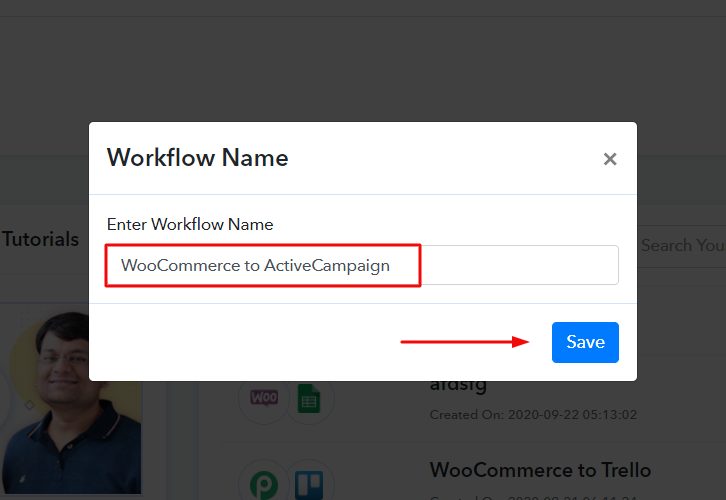
Name the Workflow to How to Add New WooCommerce Customers as ActiveCampaign Contacts

Afterward, add the name of workflow i.e, “WooCommerce to ActiveCampaign”. Although, you can always change the name of the workflow as per your requirements.

Step 4: Setting Trigger for WooCommerce & ActiveCampaign Integration

Once you create a workflow, now its time to choose the integration app that is WooCommerce. Pabbly Connect allows you to integrate or connect unlimited apps within minutes, click here to grab your access to unlimited workflows.

(a) Select Application you Want to Integrate

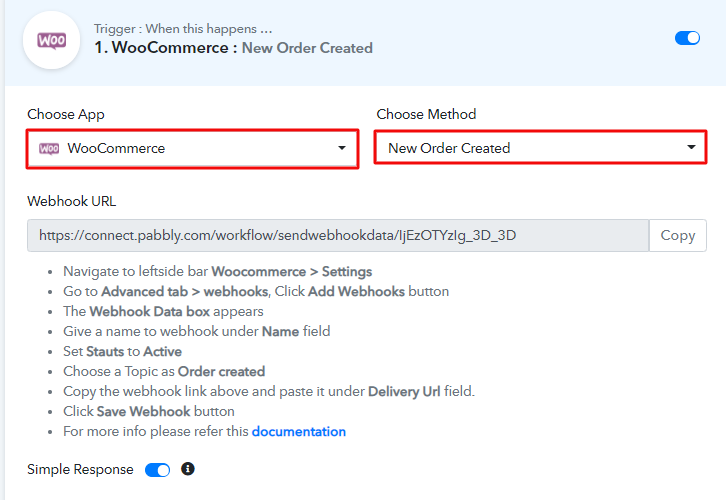
Select Application you Want to Integrate

The next step is to choose “WooCommerce” from the dropdown, then choose the “New Order Created”.

(b) Copy the Webhook URL

Copy the Webhook URL

The subsequent step is to copy the webhook URL which is appearing on the dashboard.

Step 5: Connecting WooCommerce to Pabbly Connect

In order to capture the details of all the customers in Pabbly Connect whenever a sale happend in WooCommerce, you need to paste the copied Webhook URL in the software. And to do that, you have to first log in to the WordPress account where you have installed your Woocommerce plugin.

(a) Go to WooCommerce Settings

Go to WooCommerce Settings

Once you successfully logging into your WordPress account, just go to the “WooCommerce” section and tap on the “Settings” option.

(b) Click on Advanced Option

Click on Advanced Option

Later, when you press “Settings”, it will open a tab with different options, where you need to select the “Advanced” option.

(c) Click on Webhooks Option

Click on Webhooks Option

Subsequently, when you press on the “Webhooks” option, it will open a new tab with a certain option. Simply tap on the “Add Webhook” option in order to paste the Webhook URL.

(d) Add Webhook

Add Webhook to How to Add New WooCommerce Customers as ActiveCampaign Contacts

Now, name the Webhook as per your requirement and change the status to “Active”. Also, in the topic section, select “Order Created” and paste the URL copied from Pabbly Connect in the delivery URL. Once you are done making all changes, just hit the “Save Webhook” button.

(e) Make a Test Purchase

Make a Test Purchase

Now, make a dummy purchase by opening the product checkout page in a new tab. Simply enter the entire details and click on the “Place Order” button. But before you do that, just go back to the Pabbly Connect dashboard and press the “Capture Webhook Response” button.

Step 6: Test the Response in Pabbly Connect Dashboard

Observe Webhook Response

Now, go back to the Pabbly Connect dashboard and check the response that has been captured. Simply click on the “Save” option.

Step 7: Setting Action for WooCommerce and ActiveCampaign Integration

After setting up the trigger, now its time to set-up the action.

(a) Select Application to Integrate as ActiveCampaign

Select Application to Integrate as ActiveCampaign

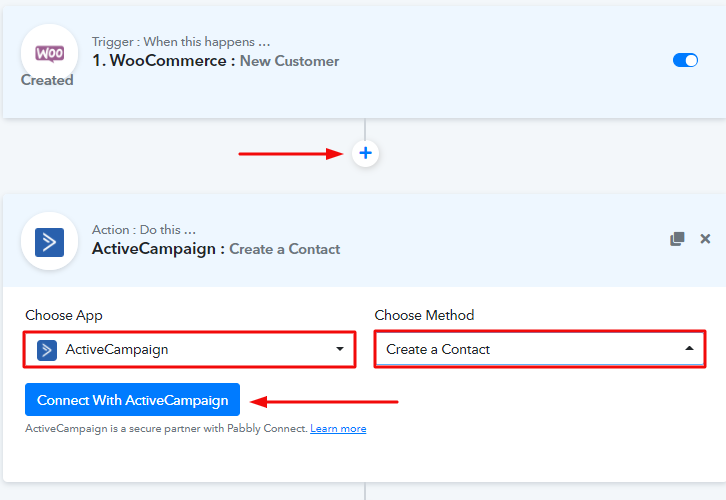
First of all, press the plus (+) button then select the app to integrate as ActiveCampaign from the ‘Choose App’ along with the method i.e, ‘Create a Contact’. And click on the ‘Connect with ActiveCampaign’ button.

Step 8: Connecting ActiveCampaign to Pabbly Connect

Now, in order to connect ActiveCampaign with Pabbly Connect, we need to log in to the ActiveCampaign account.

(a) Go to ActiveCampaign Settings

Go to ActiveCampaign Settings

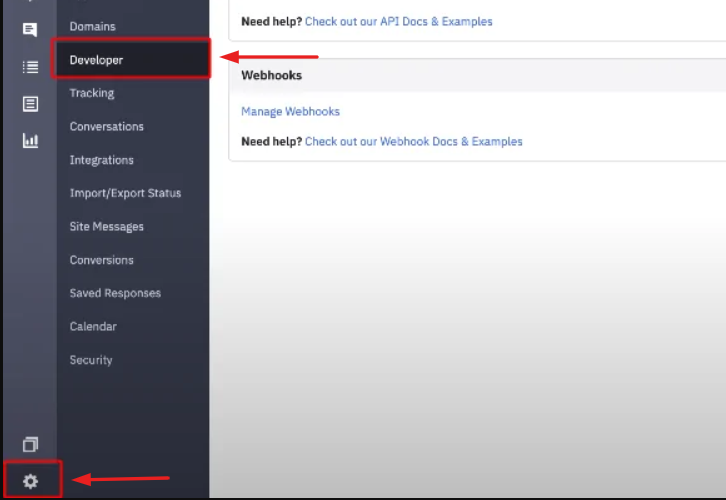
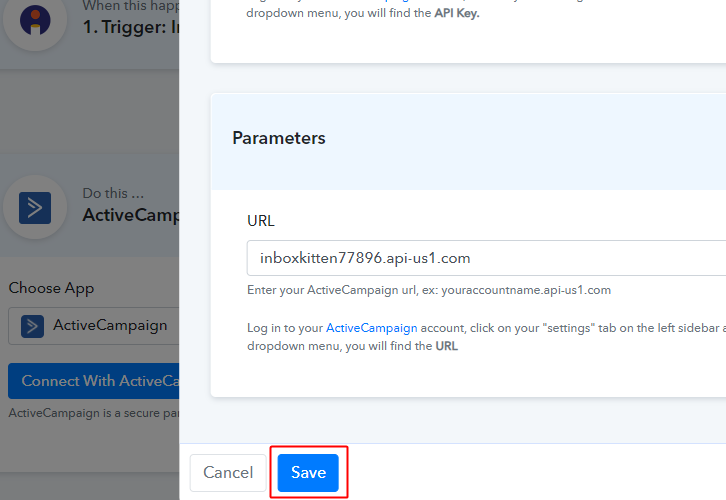
In order to complete the ActiveCampaign integration, you must bring the API Key along with the URL from ActiveCampaign and paste them in Pabbly Connect action step.

Hence to do that, just go to your ActiveCampaign account and hit on the gear icon (or settings) available at the bottom left corner with a tooltip ‘Settings’ which will open the menu option. Simply click on the ‘Developer’ option from the available menu options.

(b) Copy the API key & URL form ActiveCampaign

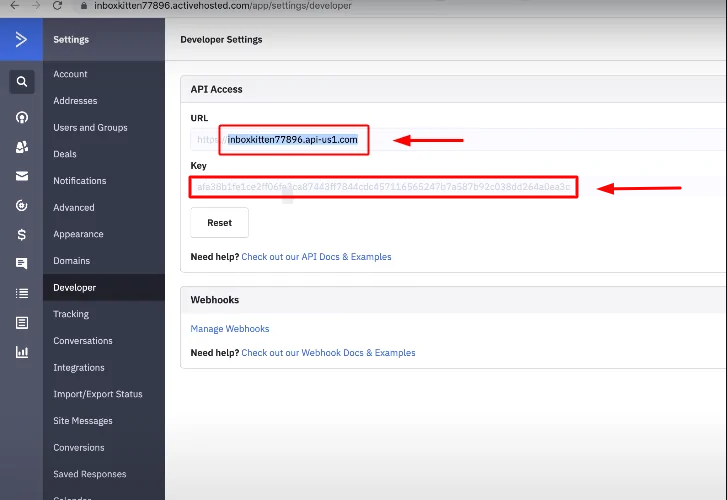
Copy the API key & URL form ActiveCampaign

Afterward, just go back to ActiveCampaign & copy the URL and API key.

(c) Paste ActiveCampaign API  Key & URL in Pabbly Connect Action

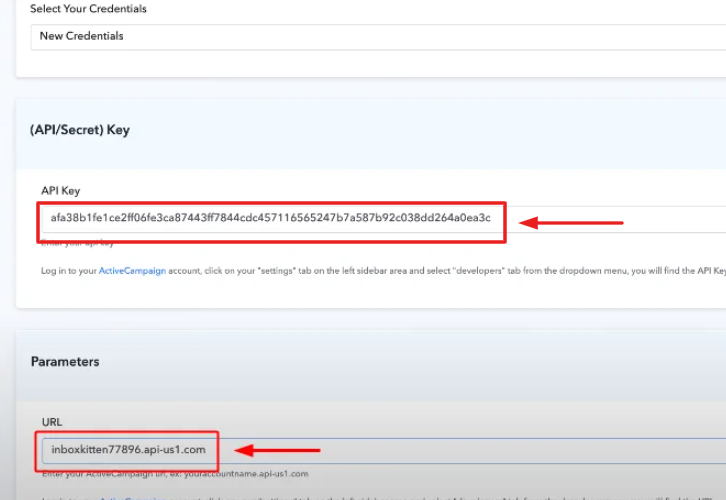
Paste ActiveCampaign API  Key & URL in Pabbly Connect Action

Now, go back to the Pabbly Connect ActiveCampaign action integration page & paste the copied API Key under the field named ‘API Key’ and paste the copied URL under the field named URL.

(e) Save All the Settings

Save ActiveCampaign Integration Settings

Finally, click the ‘Save’ button to save the settings that you just did.

Step 9: Map the Values

After completing the integration process of ActiveCamapign, now its time to map the values from your WooCommerce response in order to send to ActiveCampaign.

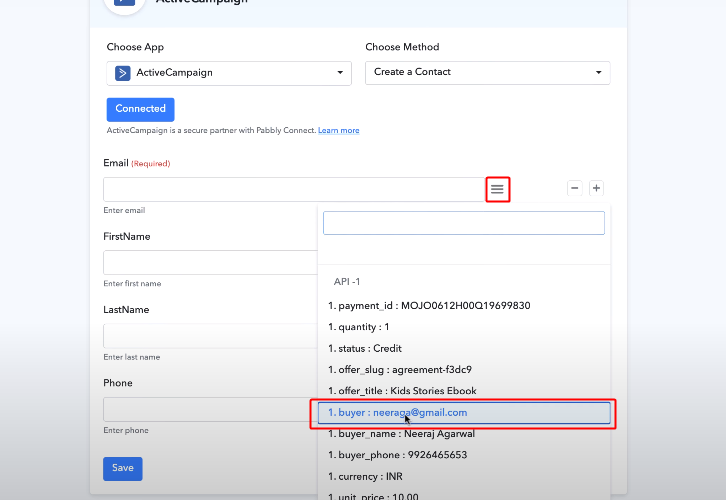
(a) Map the FirstName

Map the Values

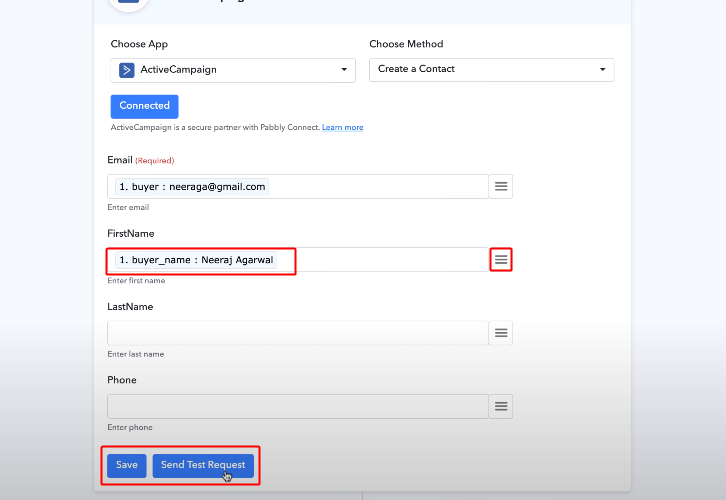
Tap on the menu icon (three verticle line) next to a field & select the respective value from the response options in the drop-down. Likewise, map all the other field values as well.

(b) Save the Action

Save & Send Test Request

After mapping all the keys and values, just press the ‘Save & Send Test Request’ button.

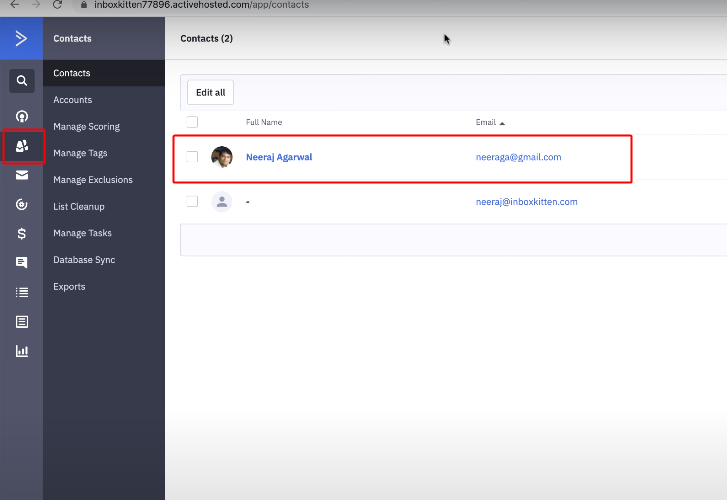
Step 10: Check the Final Response in your ActiveCampaign Account

Observe the Response in ActiveCamapign Acoount

In order to check the response, just go back to your ActiveCampaign account and click on ‘Contacts’. Voila!! All the values that you mapped are visible here.

Wind-Up

Finally!! now you know how to add WooCommerce Customers in ActiveCampaign as contacts using Pabbly Connect. All you need to do is follow all the above-mentioned steps just once and your workflow is set. So, go ahead and try Pabbly Connect for free and tell us about your experience in the comment section below.

You May Also Like to Read:

How to Create Zoho CRM Leads from New WooCommerce Customers

How to Create Zoho CRM Leads from New WooCommerce Customers

Are you searching for a way to automatically create Zoho CRM lead whenever a new customer registers on your WooCommerce store?

Well, this could be the end of your search as we are going to integrate WooCommerce and Zoho CRM using Pabbly Connect. We’ll implement this by setting up a trigger on new WooCommerce registrations and then its respective action to append the lead on Zoho CRM as well.

How to Create Zoho CRM Leads from New WooCommerce Customers

Pabbly Connect supports connecting two or more software together to create unlimited workflows & setup instant triggers based on certain conditions like customer creation, checkouts, invoice creation etc. Moreover, it also allows you to use multiple formatters, filters, routers etc without hand coding. Besides, you can define an action using multi-steps calls based on the trigger condition.

Why Choose This Method Of Integration?

In contrast with other integration services-

  • Pabbly Connect does not charge you for its in-built apps like filters, Iterator, Router, Data transformer and more
  • Create “Unlimited Workflows” and smoothly define multiple tasks for each action
  • As compared to other services which offer 750 tasks at $24.99, Pabbly Connect proffers 50000 tasks in the starter plan of $29 itself
  • Unlike Zapier, there’s no restriction on features. Get access to advanced features even in the basic plan
  • Try before you buy! Before spending your money, you can actually signup & try out the working of Pabbly Connect for FREE

Sign Up To Pabbly Connect  

In a matter of few minutes, it allows you to send new WooCommerce customer registration data to Zoho CRM. So, save your time and access all Pabbly Connect features without any restriction even in its free plan.

Now, let’s perceive with the step by step procedure to integrate WooCommerce and Zoho CRM and automatically send newly registered customers as leads.

How to Create Zoho CRM Leads from New WooCommerce Customers (step by step)

Step 1: Sign up to Pabbly Connect

Sign UpGo to the official website of Pabbly Connect and then click on the ‘Sign-Up Free‘ button. On the registration page, either signup using an existing Gmail account or manually fill out the form to get into the system.

Try Pabbly Connect for FREE

Step 2: Access Pabbly Connect

Select Connect

After signing up successfully, click the ‘Access Now’ button of the software ‘Connect’ Pabbly application.

Step 3: WorkFlow for WooCommerce with Zoho CRM Integration

(a) Start with a New Workflow

Create New Workflow

Start with creating a workflow to send WooCommerce customers automatically to Zoho CRM when a customer hits the register button and to do this strike the ‘Create New Workflow’ button.

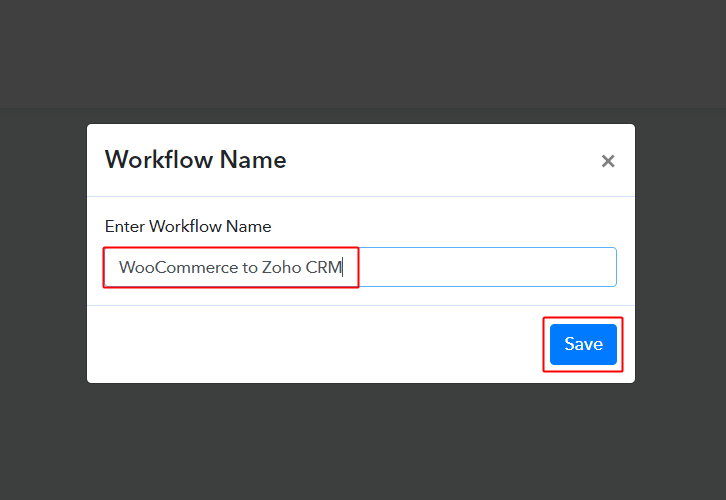
(b) Name the Workflow

Create Workflow WooCommerce toZoho CRM

Now, name the workflow as per your need (for instance: WooCommerce to Zoho CRM etc) and push the ‘Save’ button.

Step 4: Setting Trigger for WooCommerce – Zoho CRM Integration

To automatically send WooCommerce customers to Zoho CRM leads emails whenever a new customer registers on your WooCommerce store, you need to set-up a trigger on sign-up and its respective action to add a lead on Zoho CRM. So, let’s get started with setting up the trigger first.

(a) Select Application you want to integrate

Integrate WooCommerce

When you hit the save button to create a workflow, a trigger window will open next.

You’ll need to select the ‘WooCommerce’ option from the ‘Choose App’ field drop-down options.

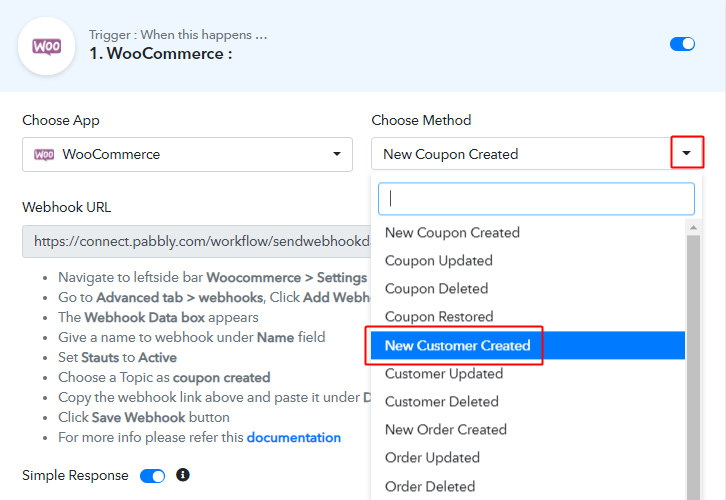
(b) Select the WooCommerce Method

Select WooCommerce Method

Next, select the ‘New Customer Created’ from the ‘Choose Method’ field’s drop-down options.

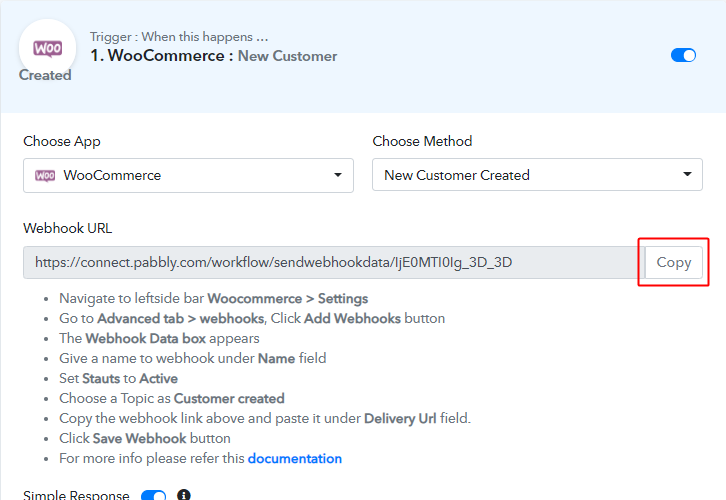
(c) Copy the Webhook URL

Copy Webhook URL

Further, copy the ‘Webhook URL’ by clicking the ‘Copy’ button on this page.

Up to this point, we are half-way done with the WooCommerce to Zoho CRM trigger settings. As we have generated a Webhook URL, next we’ll need to paste this URL on our WP WooCommerce plugin settings to get the trigger working.

Step 5: Connecting WooCommerce to Pabbly Connect

(a) Go to Your WordPress WooCommerce Settings

WooCommerce Settings

Go to your WordPress site dashboard and if you have the WooCommerce plugin enabled then click on the ‘WooCommerce’ option available in the WP dashboard menu. And then click the ‘Settings’ option on the secondary many that become visible after clicking ‘WooCommerce’.

On the other hand, if you don’t have the WooCommerce plugin enabled then do enable it first. And then only perform the above-explained method in this step.

(b) Click on the Advanced Settings Option

WooCommerce Advanced Settings

Next, you will see a page carrying the WooCommerce general settings, click on the ‘Advanced’ option on the page’s menu.

(c) Click on Webhooks

Click on Webhooks

Afterwards, another page will open up carrying another menu below the setting’s menu. Click on the ‘Webhook’ option.

(d) Click on Add Webhook Button

Click Add Webhook

The page carrying all the webhooks created so far will open up.

Push the ‘Add webhook’ button present next to the ‘Webhooks’ head.

(e) Fill the Webhook Data Box Entries

WooCommerce Webhook Method Settings

A page carrying the Webhook data box will open up.

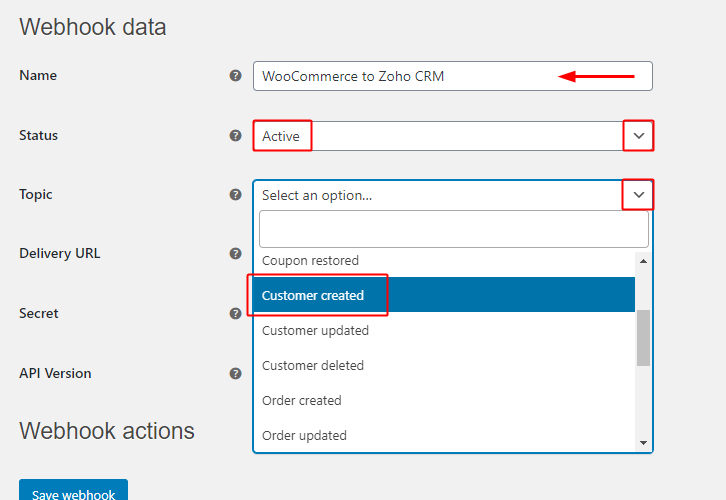
Fill in the name that you wanna give to your Webhook.

Change the value of the ‘Status’ field to be ‘Active’ by selecting the same option from this field’s drop-down.

Next, accurately select the ‘Topic’ field value to be ‘Customer Created’ from the field’s drop-down menu.

(f) Paste the Delivery URL

Paste the Webhook URL

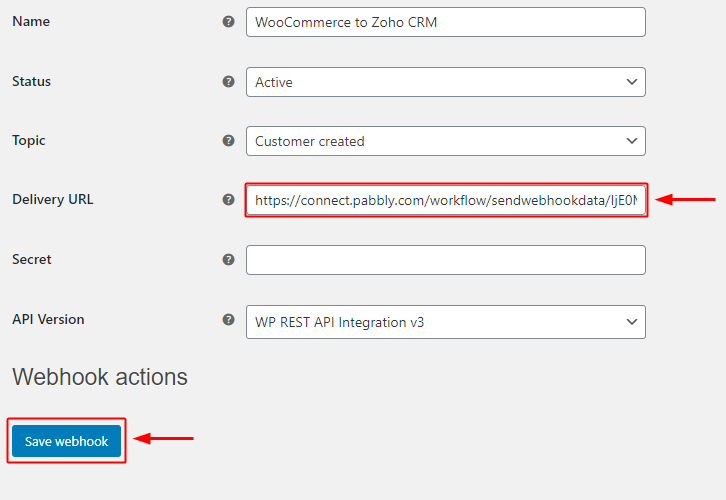
Paste the copied Pabbly Connect Webhook URL in the ‘Delivery URL’ field.

And lastly, save the webhook settings by clicking the ‘Save Webhook’ button.

Step 6: Test the Trigger Response in Pabbly Connect Dashboard

As we can see we are done setting up the trigger to send customer data when a new customer is added in WooCommerce. So, let’s just test the trigger by making a test registration on WooCommerce.

(a) Go to Pabbly Connect Trigger & Click Capture Webhook Response

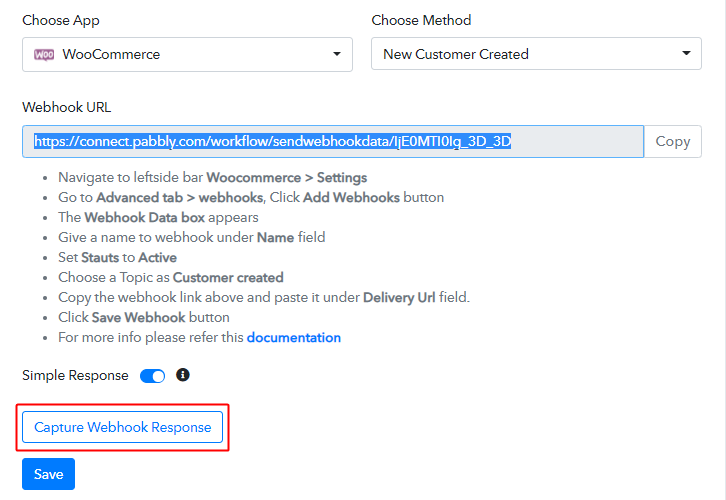
Capture Webhook Response

To test the trigger, first, hit the ‘Capture Webhook Response’ button on the Pabbly Connect trigger window.

It starts to look like it’s been growing something, leave it like that only and proceed to the next step.

(b) Go to Your WooCommerce Registration Page

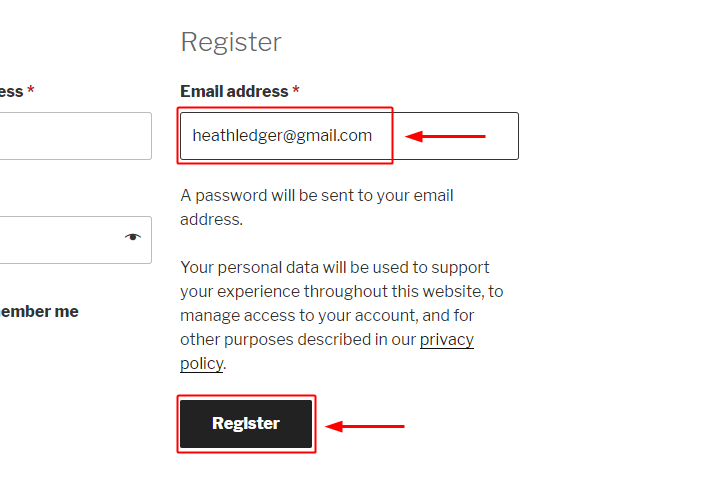
WooCommerce Registration

Open the registration page in an incognito window of your browser and create a customer by completing the registration. Hit the ‘Register’ button to capture the response.

Here, I’m using the very basic registration form for WooCommerce registration. But, if you want more information to be sent directly from WooCommerce customer registration to Zoho CRM directly, you can always use a customized WooCommerce registration form.

(c) Check the Trigger Response

Trigger Response

You can see the response of your created trigger below the Webhook Response.

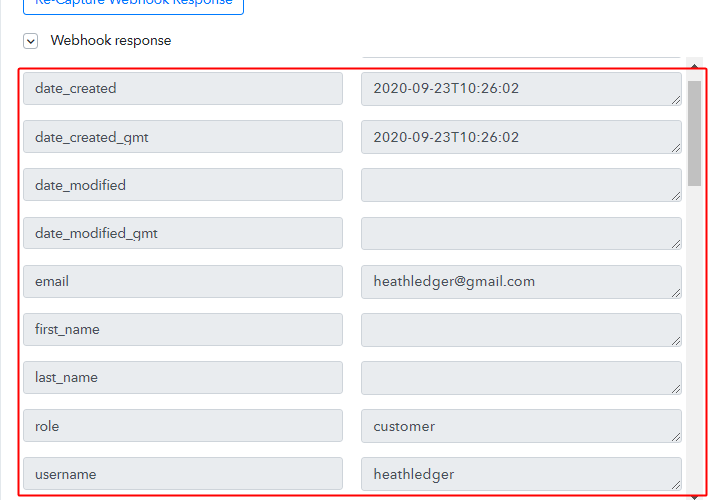
The response will start showing the name of the customer that is recently been added to WooCommerce.

Step 7: Select Action for WooCommerce – Zoho CRM Integration

As we can see the response that we got of the set trigger is as expected and now we can move forward towards taking an action on the received data from WooCommerce.

(a) Select Application You Want to Integrate

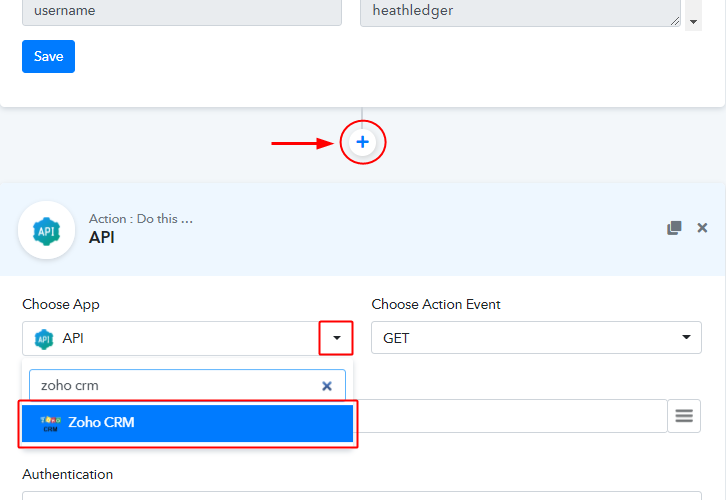
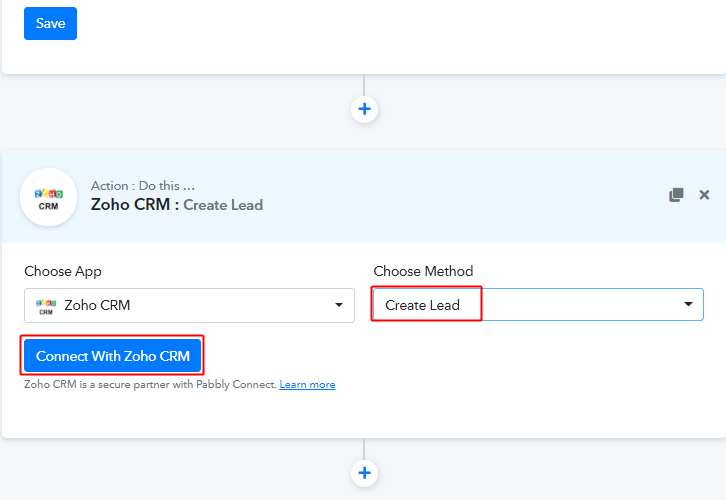
Integrate Zoho CRM

To start sending customer data from WooCommerce registration response, click the plus button next to your recently created trigger window.

Then select the ‘Zoho CRM’ app to integrate from the ‘Choose App’ field’s drop-down menu.

(b) Connect with Zoho CRM

Connect with Zoho CRM

Next, check the method in here to be ‘Create Lead’ and then click ‘Connect with Zoho CRM’ button.

(c) Authorize Zoho CRM Account

Authorize Zoho CRM Account

In the next window that slides in from the right, click ‘Connect’ & authorize your Zoho CRM account.

(d) Mention a Zoho Domain

Zoho Domain

The system with then asks you to mention a Zoho domain, enter your domain and then click ‘Done’.

Allow, the system to access your Zoho account to create leads more further.

(e) Map the Response to the Invoice

Map Values

This is a significant step & you can map the values that you got from the WooCommerce response to the Zoho CRM lead details. The mapped values will be responsible for the dynamic entries of all the customers afterwards. You can use the WooCommerce response values to fill any field.

To map a value, place your cursor to the position on which you wanna map the value.

Click the menu button (or three verticle lines) next to that particular field.

Lastly, click select the value that you want to map.

(f) Fill All the Company Details & Send a Test Request

Save & Send Test Request

Fill in all the required details for lead creation and click on ‘Save & Send Test Request’ button.

(e) Check the API Response

Action API Response

You can acknowledge the success of your set action on the ‘API Response’.

(f) Check the Lead Entry on Your Zoho CRM Account

Response on Zoho CRM

Also, you can check the lead entry in the Zoho CRM leads.

Step 8: Save the Workflow

(a) Save the API Response

Save API Response

(b) Save the Workflow

Save Trigger Response

As we can see the Webhook is working perfectly. So, simply save the webhook by clicking the save button in the trigger window.

Wind-Up

Well, this is all about ‘How to create Zoho CRM leads from new WooCommerce customers’. Consequently, after completing the step by step procedure, you will end up sending WooCommerce customer data automatically whenever a customer is created. Most importantly, the procedure is very easy to implement and you don’t need any coding knowledge to follow the steps.

You can always try Pabbly Connect for FREE?

For any further questions, do comment below. We’ll get back to you ASAP.

You May Also Like to Read:

How to Send SMS when Order Status Changes in WooCommerce

How to Send SMS when Order Status Changes In WooCommerce

Have you ever wondered if there is a way to send SMS when order status changes in your WooCommerce platform?

How to Send SMS when Order Status Changes In WooCommerce

If yes, then you don’t have to stress about it anymore as we have the best solution for all your problems called Pabbly Connect. Through this amazing software, you can integrate any two or more than two services and automate all the projects. Though you can choose any of the SMS sending software to integrate with WooCommerce, here we are choosing Twilio to send text messages. After this integration of WooCommerce with Twilio, you can easily send text messages to your customers automatically with just a few clicks whenever order status changes in WooComerce.

Why Choose This Method Of Integration?

In contrast with other integration services-

  • Pabbly Connect does not charge you for its in-built apps like filters, Iterator, Router, Data transformer, and more
  • Create “Unlimited Workflows” and smoothly define multiple tasks for each action
  • As compared to other services which offer 750 tasks at $24.99, Pabbly Connect proffers 50000 tasks in the starter plan of $29 itself
  • Unlike Zapier, there’s no restriction on features. Get access to advanced features even in the basic plan
  • Try before you buy! Before spending your money, you can actually signup & try out the working of Pabbly Connect for FREE

Sign Up To Pabbly Connect

In addition to the integrations, Pabbly Connect also comes with so many great and valuable features:

  • Create unlimited workflows without any restrictions
  • Formatters
  • Set unlimited triggers, unlimited actions to those triggers
  • Path Routers
  • Filters

and the highlight of this service is that you can access all the features even with the free plan.

Hence, without further ado let’s get into the blog about how to send SMS when order status changes in WooCommerce.

Step 1: Sign up to Pabbly Connect

Sign Up

Let’s begin the process to send SMS when order status changes in WooCommerce by clicking on the “Sign Up Free” icon on the Pabbly Connect home page. Next, either manually fill-up all the details or sign up using your Gmail account.

Try Pabbly Connect for FREE

Step 2: Access Pabbly Connect

Select Connect

Next, after logging into the account, click on the “Access Now” button of the Connect section in the dashboard.

Step 3: WorkFlow for WooCommerce and Twilio Integration

(a) Start with a New Workflow

Create New Workflow

Start with creating a workflow for your project by clicking on the ‘Create New Workflow’ button.

(b) Name the Workflow

Name the Workflow

Now, you need to name the workflow just like in the above-shown image. I named the workflow as “WooCommerce with Twilio”, you can obviously name the workflow as per your requirements and needs.

Step 4: Setting Trigger for WooCommerce and Twilio Integration

As soon as you are done with creating a workflow, you will have to select the application you want to integrate. Using Pabbly Connect, you can integrate any two or more than two applications, create your free account now.

(a) Select Application you Want to Integrate

Select WooCommerce

Now, you have to select the application that you want to integrate. In this case, we are choosing “WooCommerce” for integration. Next, after selecting the application, choose “Order Updated” from the choose method section.

(b) Copy the Webhook URL

Copy the Webhook URL

After selecting the application, now you have to copy the webhook URL just like in the above-shown image to take further the integration process.

Step 5: Connecting WooCommerce to Pabbly Connect

To connect WooCommerce with Pabbly Connect, you have to paste the copied Webhook URL in the software. For that, you have to log in to your WordPress account.

(a) Go to WooCommerce Settings

Go to WooCommerce Settings

Once you have logged into your WordPress account, now click on WooCommerce then select settings.

(b) Click on Advanced Option

Click on Advanced Option

After clicking on “Settings”, a tab will open up with different options, here you have to select “Advanced”.

(c) Click on Webhooks Option

Click on Webhooks Option

Now, after clicking on” Webhooks”, click on the “Add Webhook” option.

(d) Add Webhook

Paste Webhook URL

Name the Webhook according to your requirement. Make sure that status should be “Active” and in the topic section, select “Order Updated”. Then in the delivery URL, paste your copied URL from Pabbly Connect. After making all changes, click the “Save Webhook” button.

(e) Update the Status of your Order

Change the Order Status

Open the orders section in a new tab and select any order that you want to update. Just make all the required changes, hit the “Update” button. But before hitting the button, make sure to click “Capture Webhook Response” in the Pabbly Connect dashboard.

Step 6: Test the Response in Pabbly Connect Dashboard

Send Test Request

To test the WooCommerce data you have to click on “Capture Webhook Response” in Pabbly Connect. The entry will appear on the Pabbly Connect dashboard. Then, click on the “Save” option.

Step 7: Setting Action for WooCommerce and Twilio Integration

To make this WooCommerce Twilio integration work, you have to choose the action for your trigger.

(a) Select Application you Want to Integrate

Select Twilio

Now in this step, click on the + button below and choose the application that you want to integrate. Here we have chosen “Twilio” to integrate.

(b) Click the Connect Button

Click on Connected with Twilio

After choosing the application click on the “Connect with Twilio” button to move forward.

Step 8 : Connecting Twilio to Pabbly Connect

To connect Twilio to Pabbly Connect, you have to enter the account SID and authorization token of your Twilio account in the Pabbly Connect dashboard. For this, you have to log in to your Twilio account.

(a) Copy Authorization Token

Copy API token

Now, you have to click on “Setting” in your Twilio dashboard to copy the account SID and authorization token. After clicking on “Settings” click on “General”, here you will find the required details. Simply copy these details to move further.

(b) Add Account SID and Authorization Token

Paste API Token

Simply paste the account SID and authorization token in the Pabbly Connect dashboard and then click on the “Save” button.

(c) Add Field Data

Add Feild Data

After saving your workflow add all the required details.

(d) Save and Send Test Request

Send Test Request for Twilio

Once you are done adding up all field data click on the “Send Test Request” button.

Step 9: Check the Response

Check Response

Here, you can see the integration was successful and the SMS has been delivered to the contact automatically. Now, whenever there will be any changes in your WooCommerce orders’ status, SMS will be automatically delivered to the buyers.

Conclusion –

Congratulations! Now that you have learned how you can send SMS when order status changes in WooCommerce, you can integrate any applications via Pabbly Connect to automate your entire workflow without any coding skills. Pabbly Connect is the magic formula that you can use to automate your projects and save a lot of time and effort. Therefore, signup for a free account now to experience the best integration service. In case of any doubts or suggestions, please leave your comments below.

You May Also Like to Read –