How to Sell Hardware Online | Step by Step (Free Method)

How to Sell Hardware Online

Ideal For: All the hardware manufacturers, hardware sellers, hardware dealers, hardware suppliers, hardware shop owners, and other merchants can use this method to sell hardware online.
How to Sell Hardware Online

Why Choose this Method to Sell Hardware Online?

Unlike any other solution, this method allows you to:

  • List and sell your hardware for FREE. Absolutely no payment required.
  • No need to pay commission on any of your sales.
  • Multiple payment options like PayPal, Credit Card, etc to collect payment from a single place.
  • Sell one time or recurring subscriptions of your hardware.
  • Collect payments & sell products in any currency as per your requirement.
  • Give discounts on your products by offering special coupon codes.
  • Add sales commission agents to help you in selling hardware online.

Get Pabbly Subscription Billing for Free

Hardware usually refers to the physical parts of a computer system that include monitor, keyboard, motherboard, hard drives, etc. And in this digital age, hardware business is considered as the most profitable business.

Nowadays, most people prefer to buy hardware online as it is more convenient and time-saving. Hence, if you are searching for ways to start your hardware business online then you have come to the right place. Because, here we have perfect software for you i.e, Pabbly Subscription Billing which can assist you in selling hardware online without any trouble.

Additionally, using this tool, you can create stunning checkout pages effortlessly. Not only that, but this tool also grants you the flexibility to share the checkout pages link on your websites, social media accounts, and even through SMS or email marketing. Besides, here are some of its striking features :

  • Unlimited Plans & Products
  • Multiple Billing Models
  • Numerous Payment Gateways
  • Professional Invoices
  • Tax Management

Now, let me take you through those 10 steps that you need to follow for creating amazing checkout pages to sell hardware online.

Final View of Checkout Page for Your Hardware Selling Business
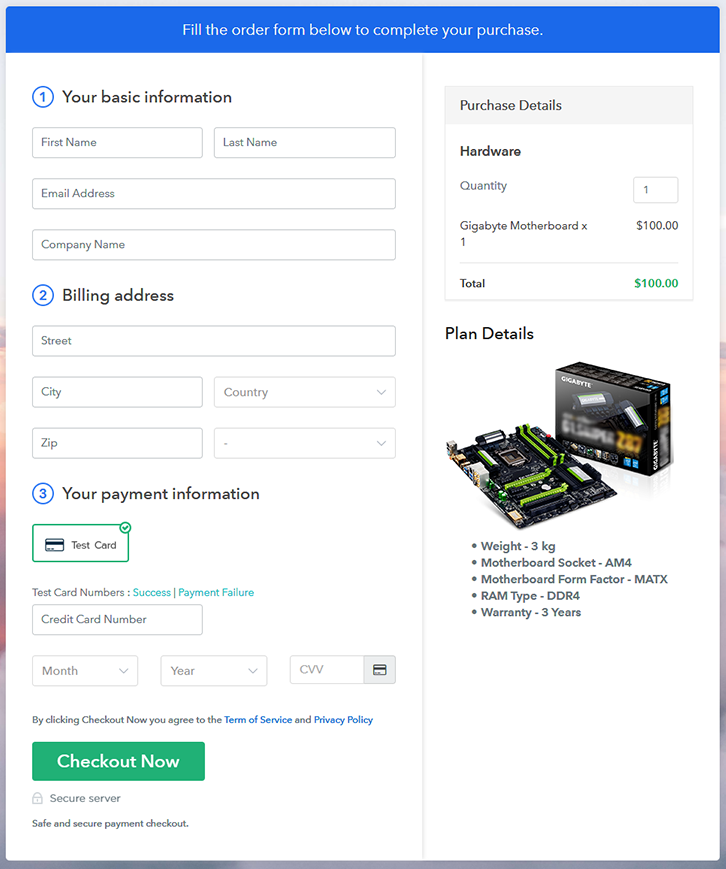
Final View of Checkout Page for Your Hardware Selling Business

Preview Checkout Page

Step 1: Log in to Pabbly Subscription Billing
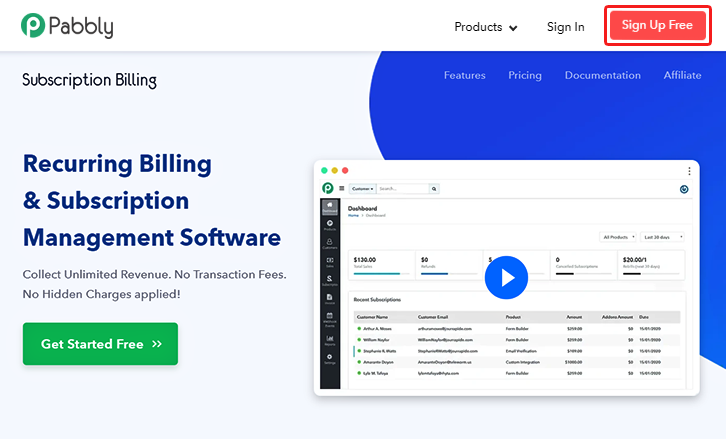
Signup

First of all,  start the process by visiting the Pabbly Subscription Billing website. After that, hit the “Sign up Free“ button. And later, fill out the details either manually or else sign in via Google account.

Sign Up For Free!

Step 2: Select Subscription Billing

Access Subscription Billing

Step 3: Account Setup
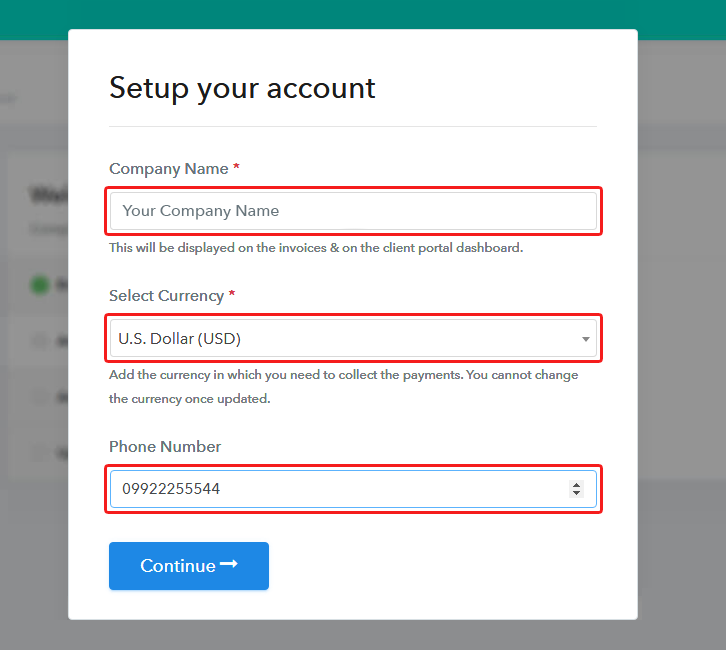
Setup Account

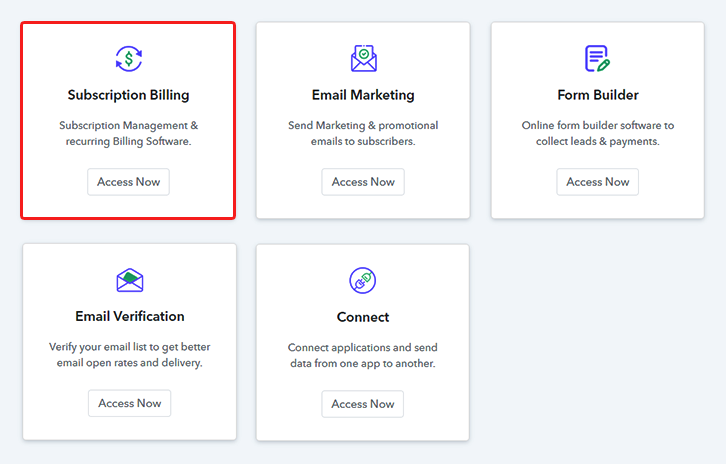
Once you press the “Access Now” button, a page will pop up where you need to fill up the fields like company name, select currency, and phone number. Enter all the details in order to continue creating a checkout page for hardware.

Step 4: Connect Payment Gateways & Start Hardware Selling Business Online
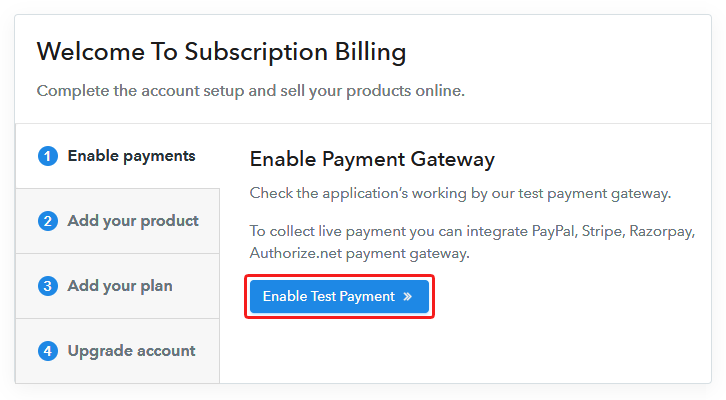
Connect Payment Gateway

Ultimately, its time to specify the details associated with the payment procedures with the help of “Test Payment Gateway”. Here, I am going to give a brief detail on the checkout page payment process for the hardware using a “Test Payment Gateway”. Furthermore, this tool provides multiple payment gateways like PayPal, Stripe, etc. Moreover, beneath are their respective payment integration guides to assist you further.

Step 5: Add Product for your Hardware
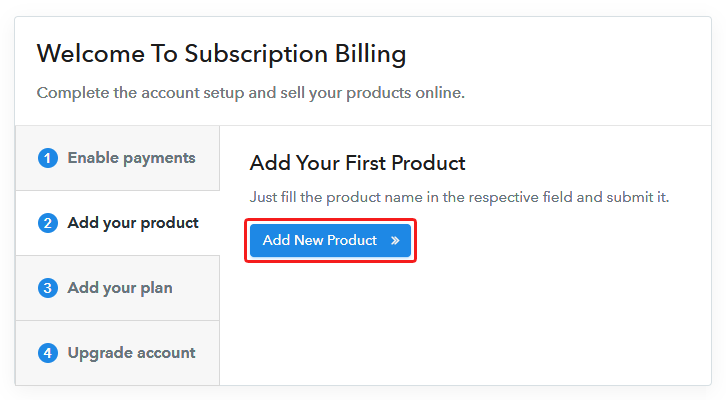
Add Product

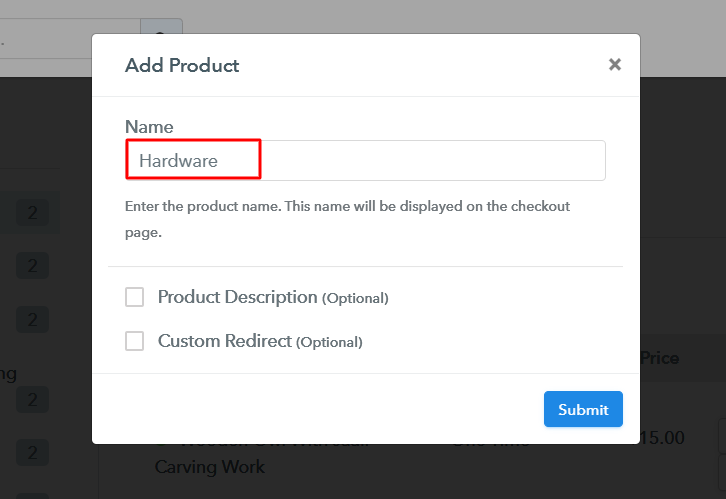
Add the name, that is “Hardware” and specify the type along with a short description of the hardware to catch the buyer’s attention.

Add Product to Start Selling Hardware Online

Moreover, just fill out all those details and your product is created.

Note: Here you can add all the products related to the similar category by creating plans for each of them.

Step 6: Add Plans 

Let’s cast light on plans for different kinds of hardware available in your store.

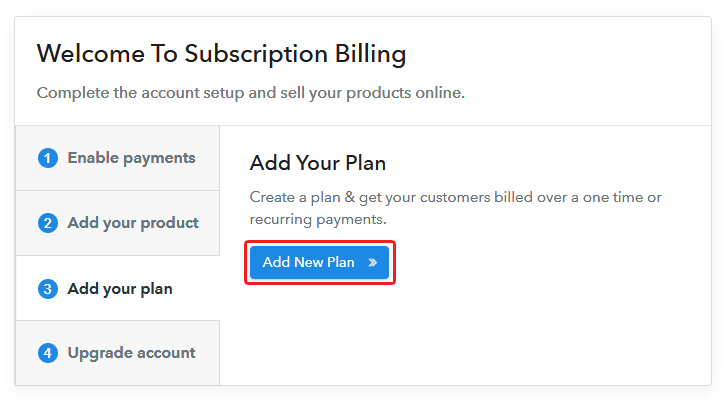
(a) Select Add New Plan

Add Plan

(b) Specify the Plan & Pricing Details
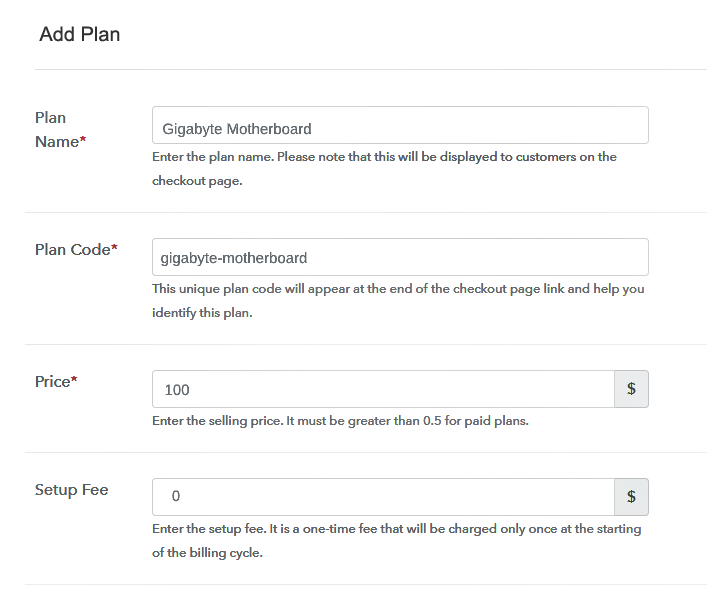
Specify the Plan and Pricing to Sell Hardware Online

The succeeding step is to fill all the details of the hardware like plan name, code, price, set-up fee, and much more to continue.

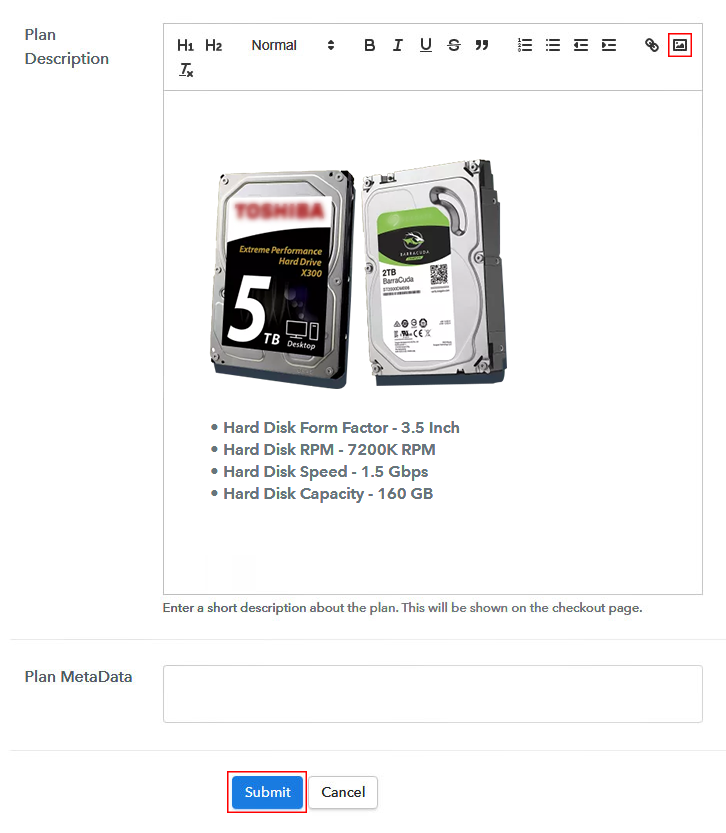
(c) Add Image & Description of Hardware
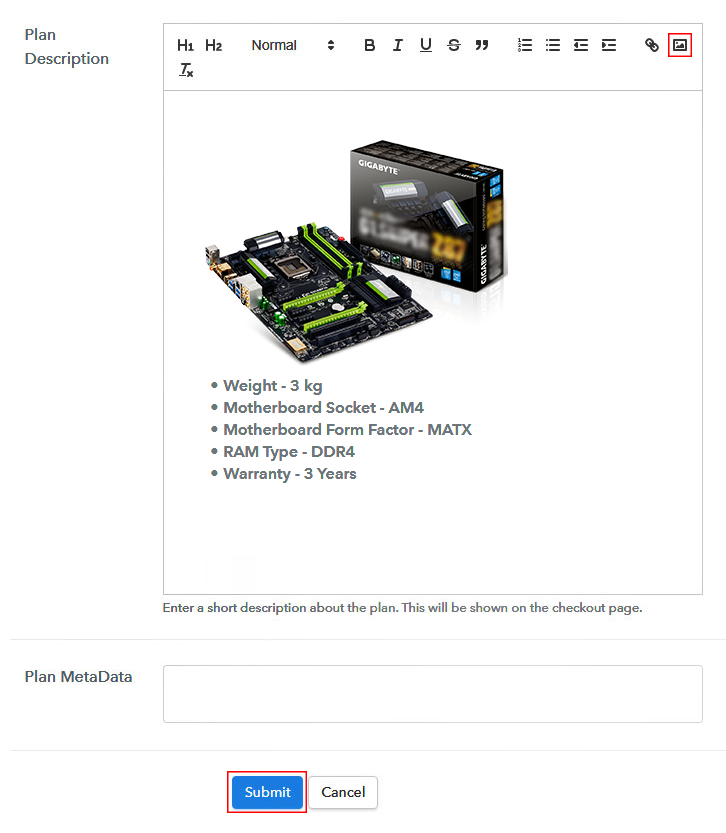
Add Image & Description to Sell How to Sell Hardware Online

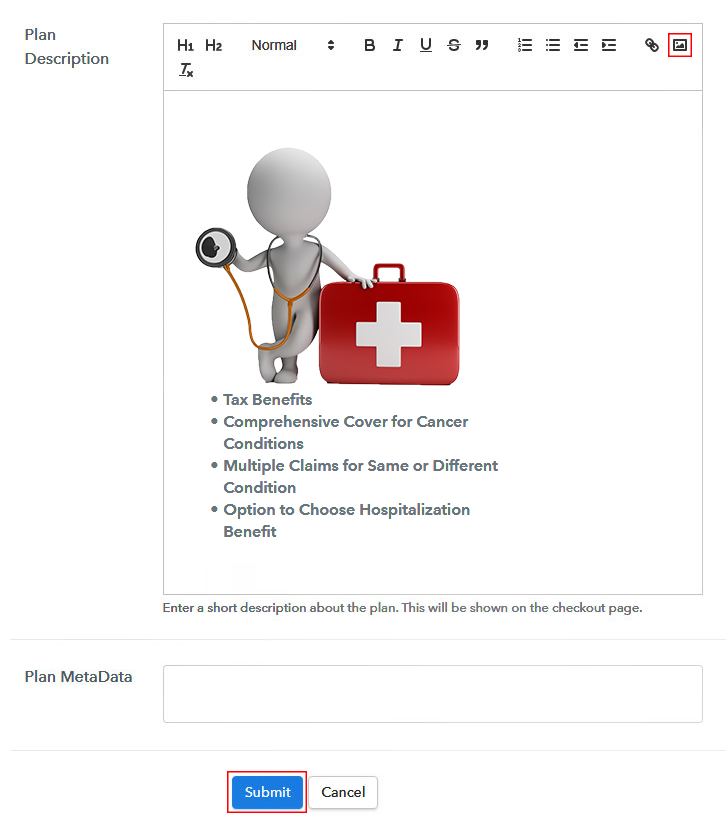
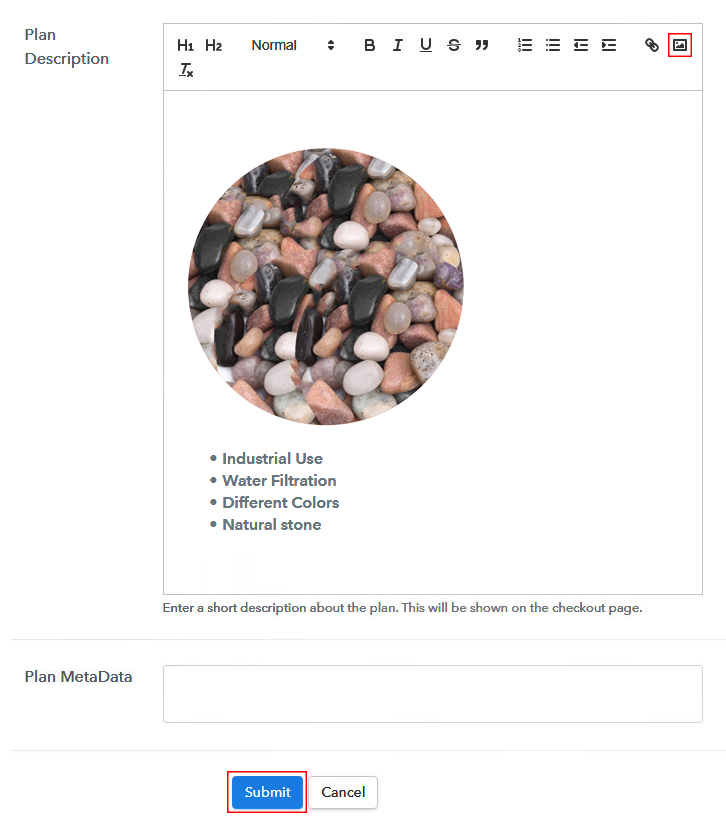
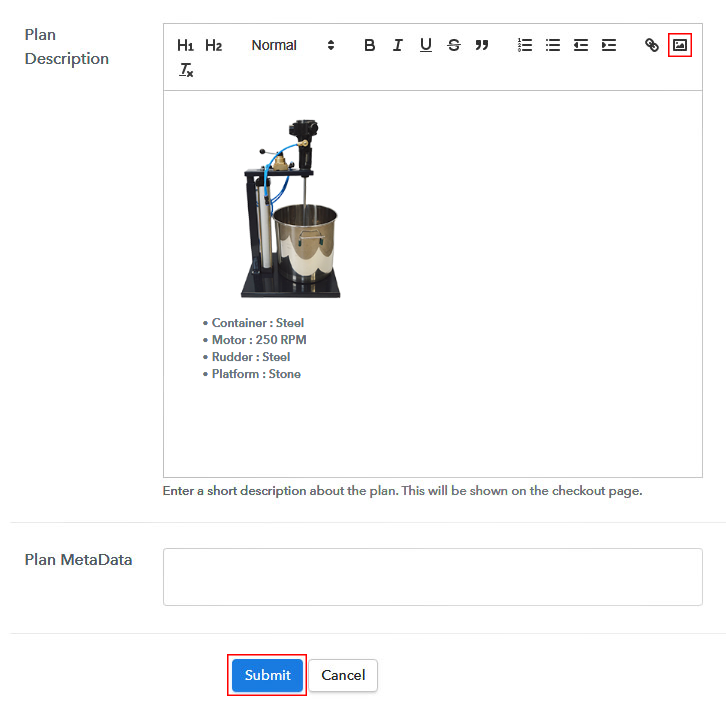
Following the previous step, now give a brief description of hardware with the help of bullets, images, links, etc.

Consequently, press the “Submit” button in order to add the hardware on the checkout page.

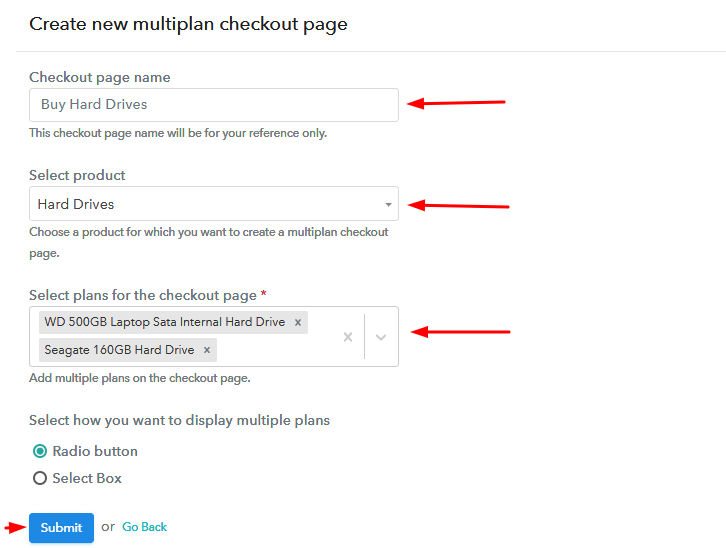
Eventually, now its time to add multiple plans along with different varieties of hardware in your product list that you wish to sell online.

Step 7: Share your Checkout Page

Share Checkout Page on Social Media

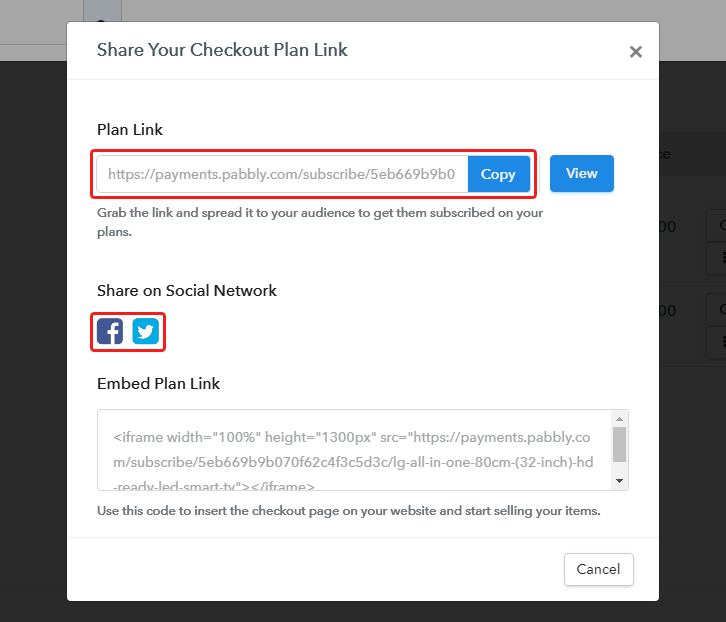
  • Moreover, share the checkout page of the hardware on social media platforms like Facebook & Twitter with the help of their respective buttons.
  • Plus, you can even share the hardware checkout page link with your customers directly using SMS or email marketing.
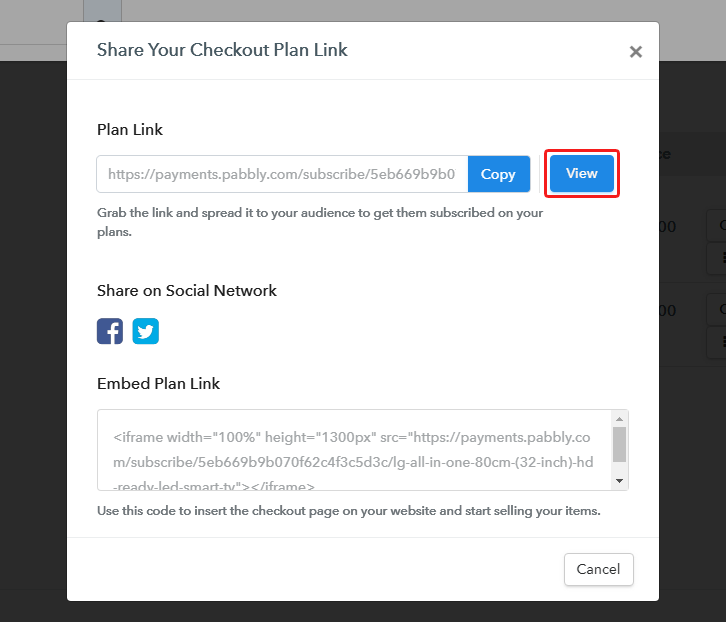
  • Apart from that, you can also embed the provided plan link of the hardware in the buttons or any anchor text on your website.

Step 8: Preview Checkout Page

Follow up the recommended steps to preview the checkout page:

(a) Click on the View Button

View Checkout Plan

(b) Take a Look at the Checkout Page

Final View of Checkout Page for Your Hardware Selling Business

Step 9: Embed Checkout Page in Site & Sell Hardware  Online
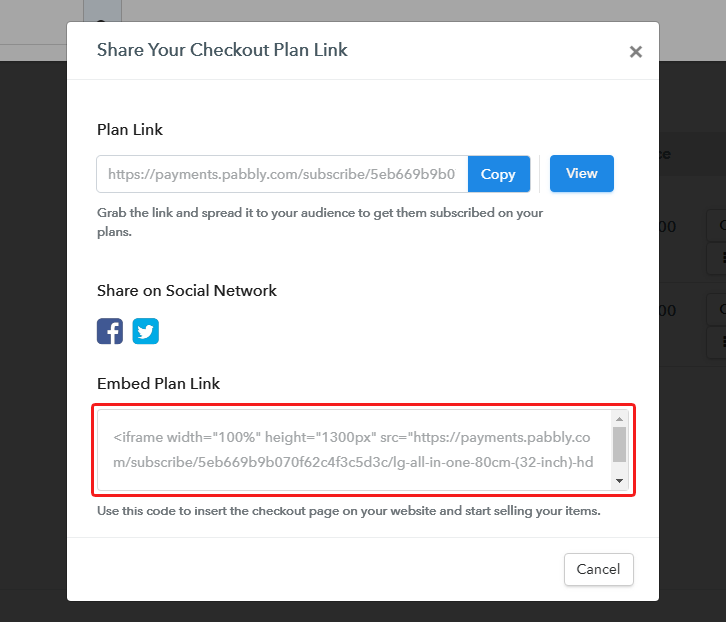
Embed Checkout Page on Website

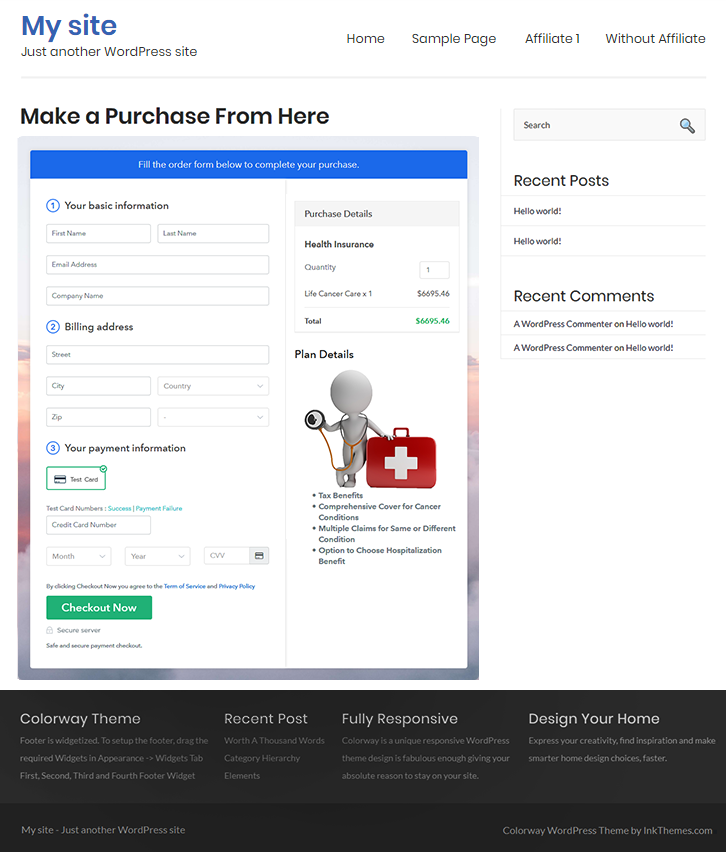
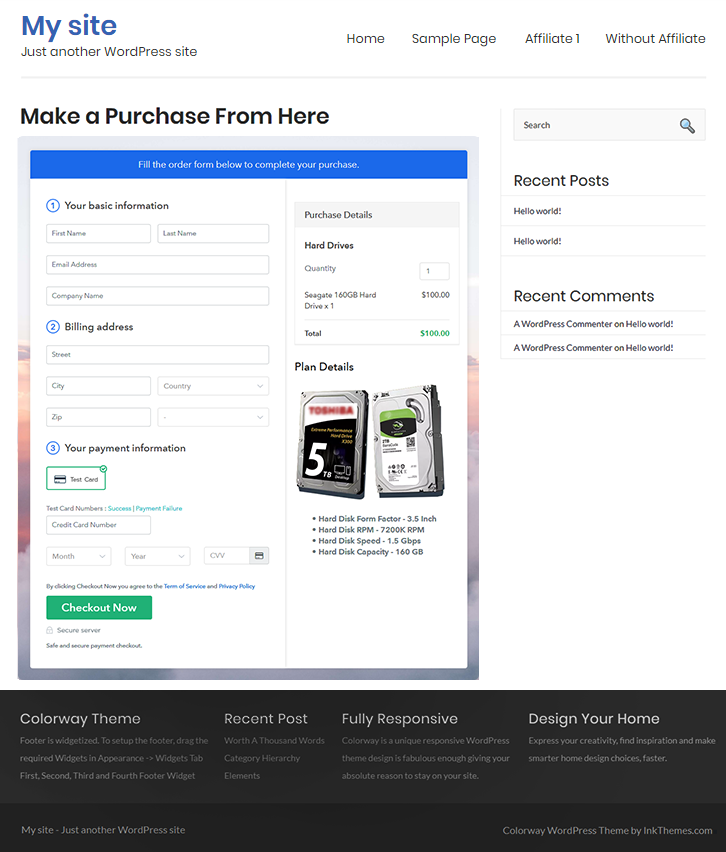
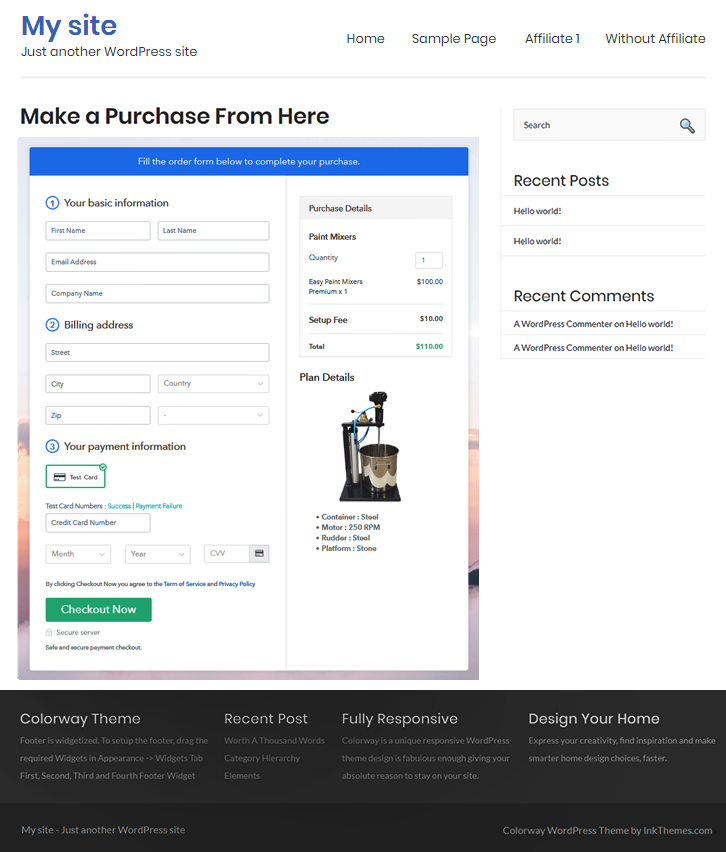
Just copy the link and add the checkout page to sell hardware online at any proper place on your WordPress site.

(a) Edit the Page & Paste the Copied Link
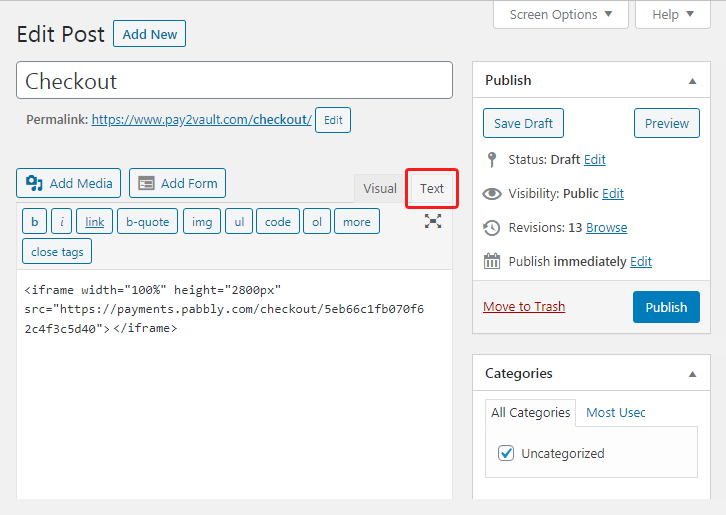
Embed Checkout Page on Website

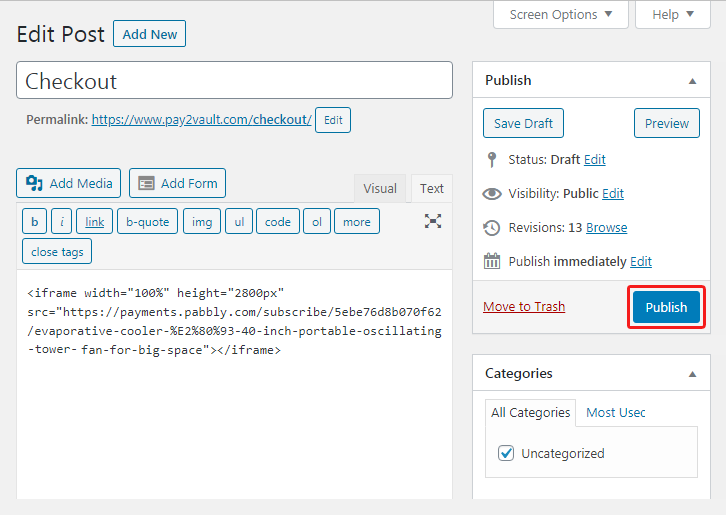
Further, paste the plan link on a text editor of the WordPress dashboard.

(b) Save & Publish the Checkout Page

Save_and_Publish

Next, click the “Publish” button, after making changes.

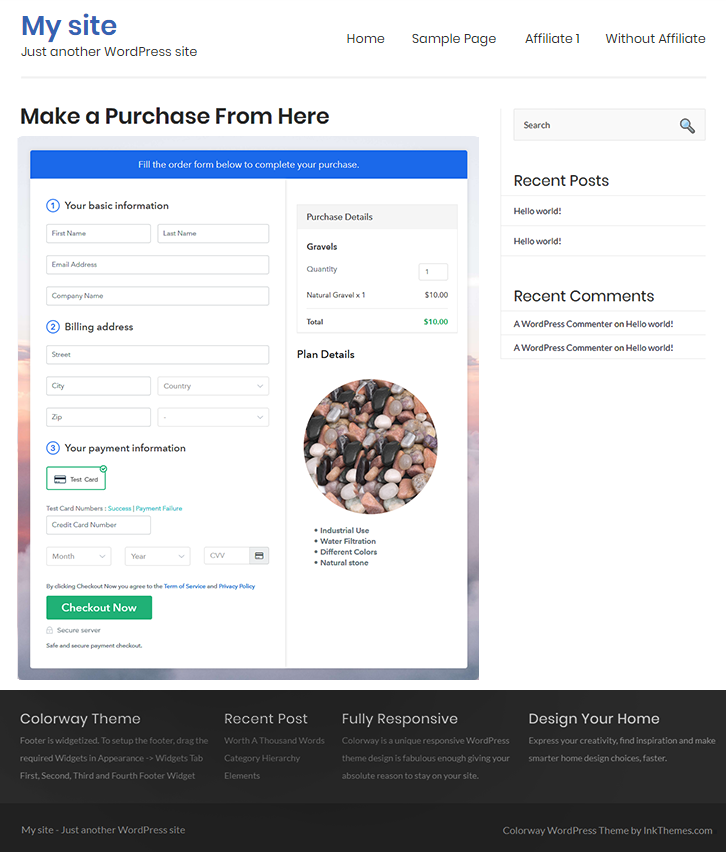
(c) Check out the Final Look of your Checkout Page on WordPress Site
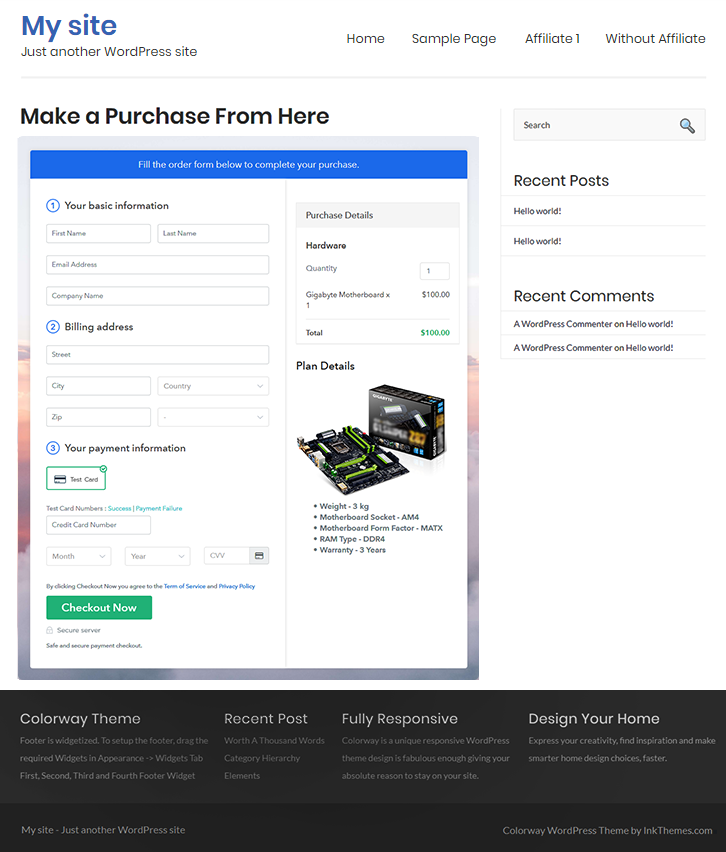
Final Look of your Checkout Page to Sell How to Sell Hardware Online

Step 10: Multiplan Checkout Page

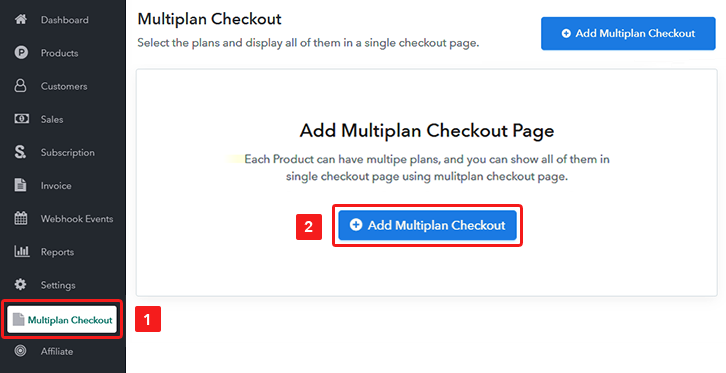
Note: In case you want to sell multiple products via a single checkout page, you can create a multi-plan checkout page otherwise skip this step.

(a) Click on Add Mutiplan Checkout

Multiplan Checkout

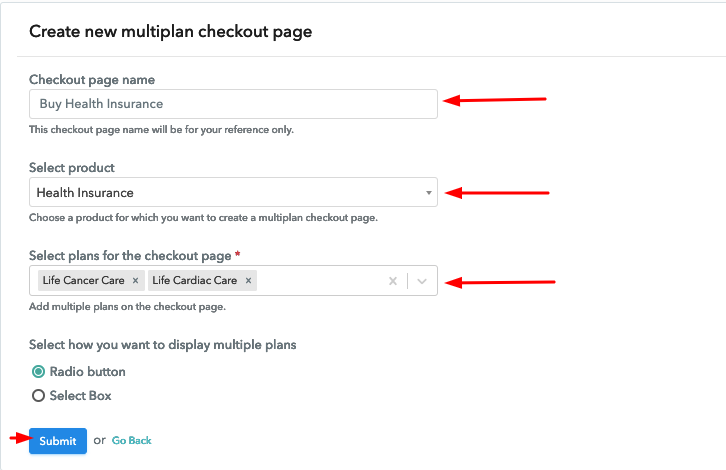
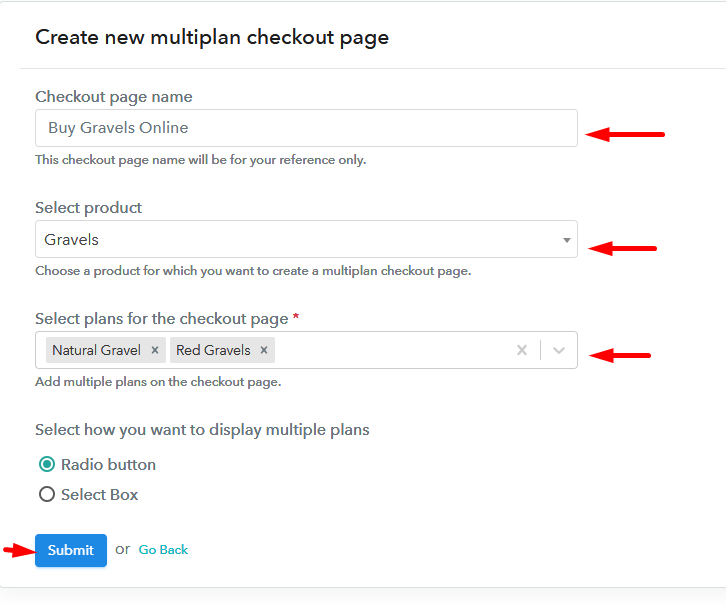
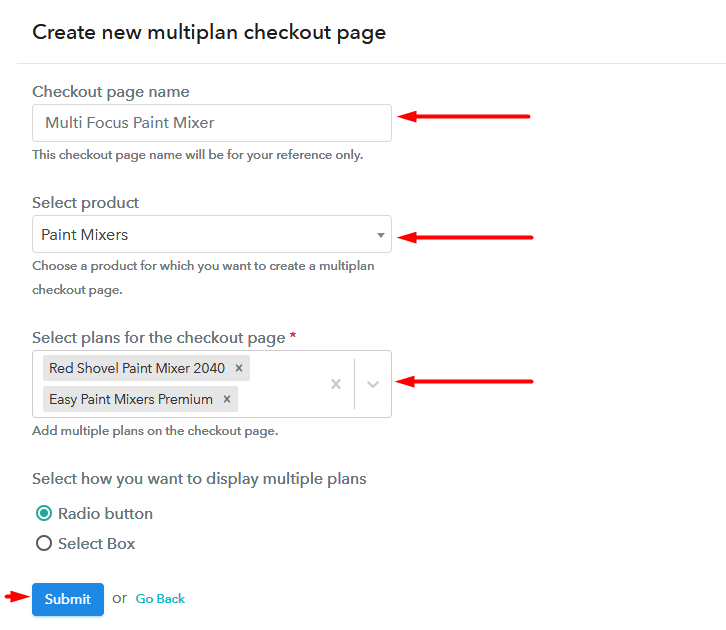
(b) Add Plans to Sell Multiple Hardware from Single Checkout Page
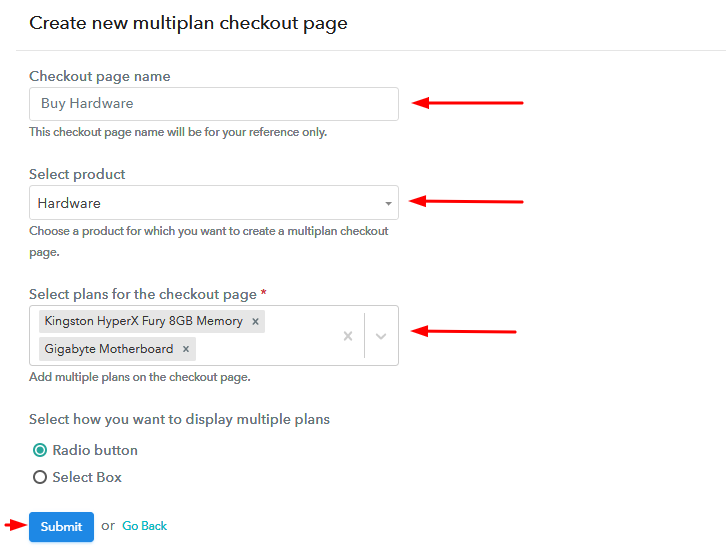
Add Plans to Sell Multiple Hardware from Single Checkout Page

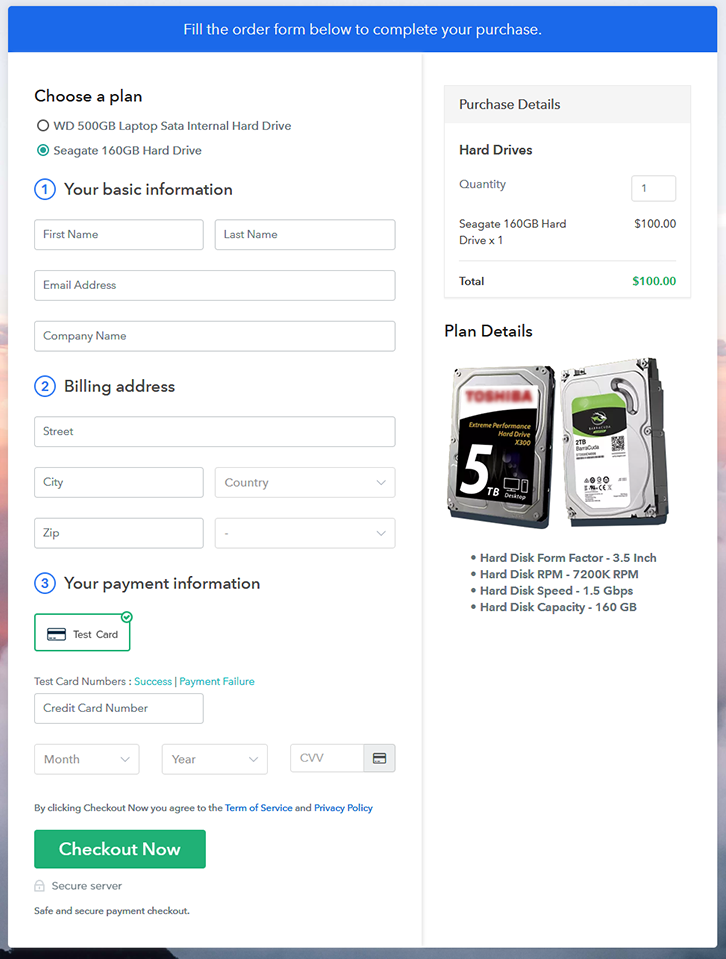
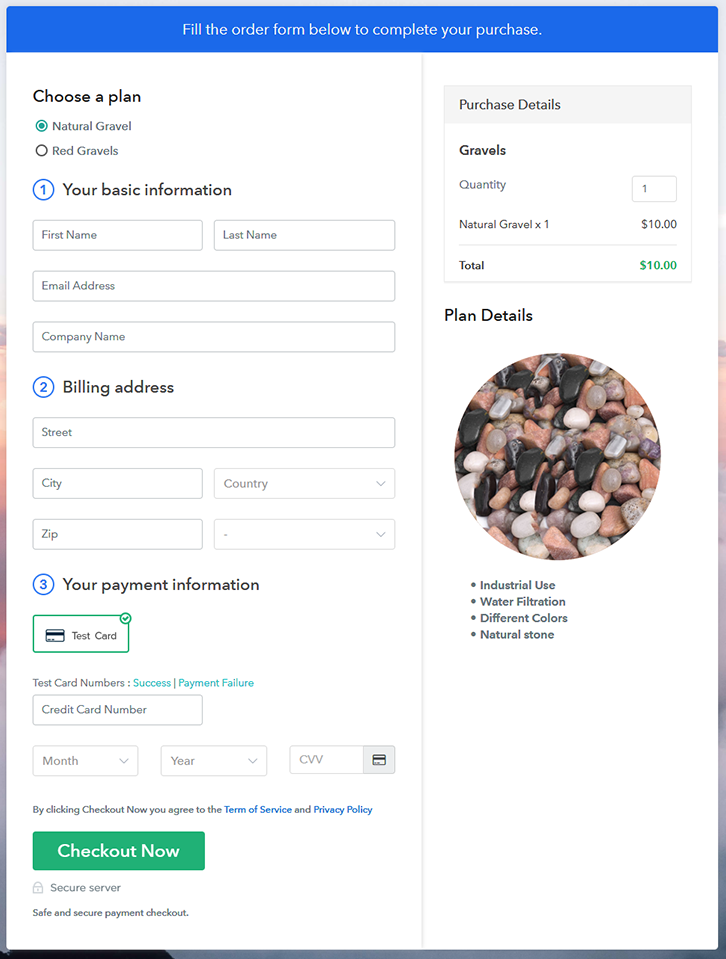
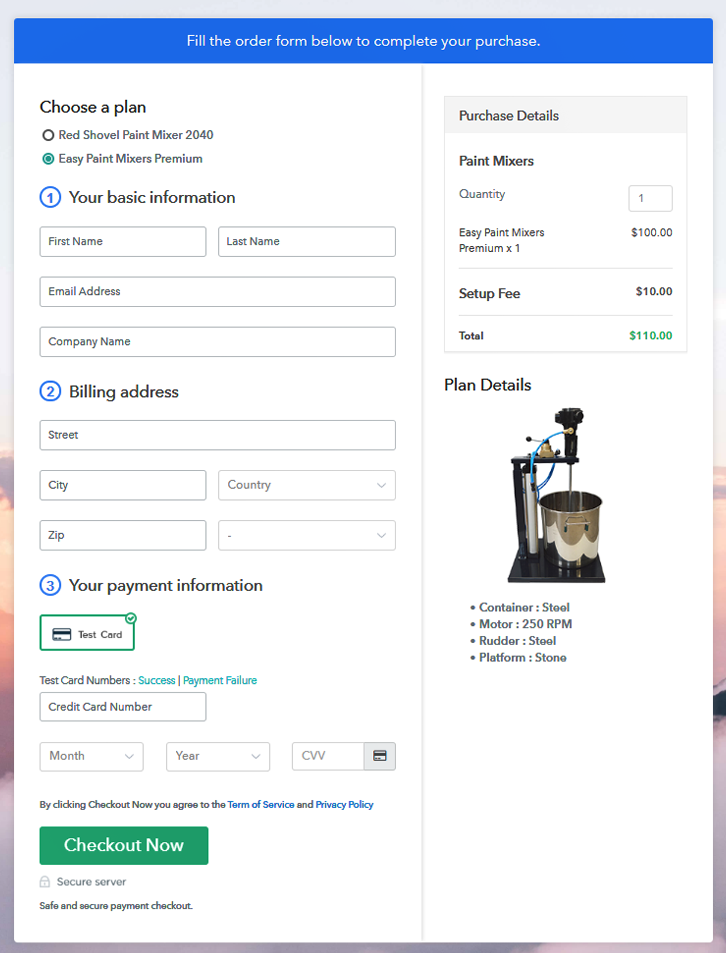
(c) Take a Look at the Checkout Page
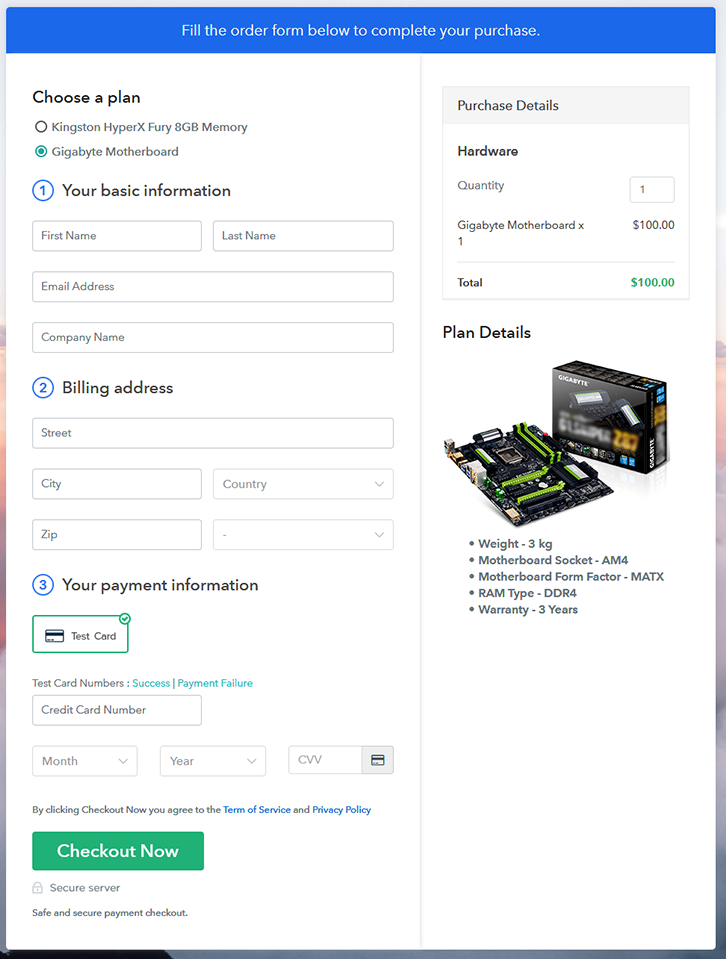
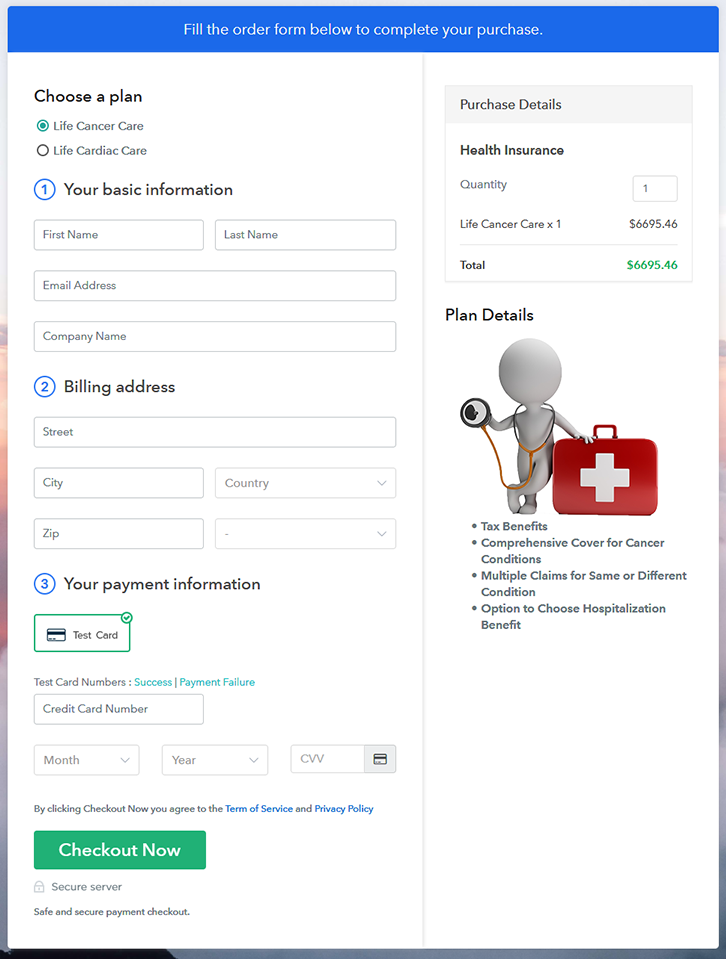
Multiplan Checkout Page to Sell How to Sell Hardware Online

Preview Checkout Page

Wrapping Up

That’s all for now!! Now you know how to start hardware business online with Pabbly Subscription Billing. All you need to do is follow the above-mentioned steps and your business is ready to roll. So, go ahead and log in to Pabbly Subscription Billing to start your online business journey in no time. Thank you!!

You May Also Like To Read –
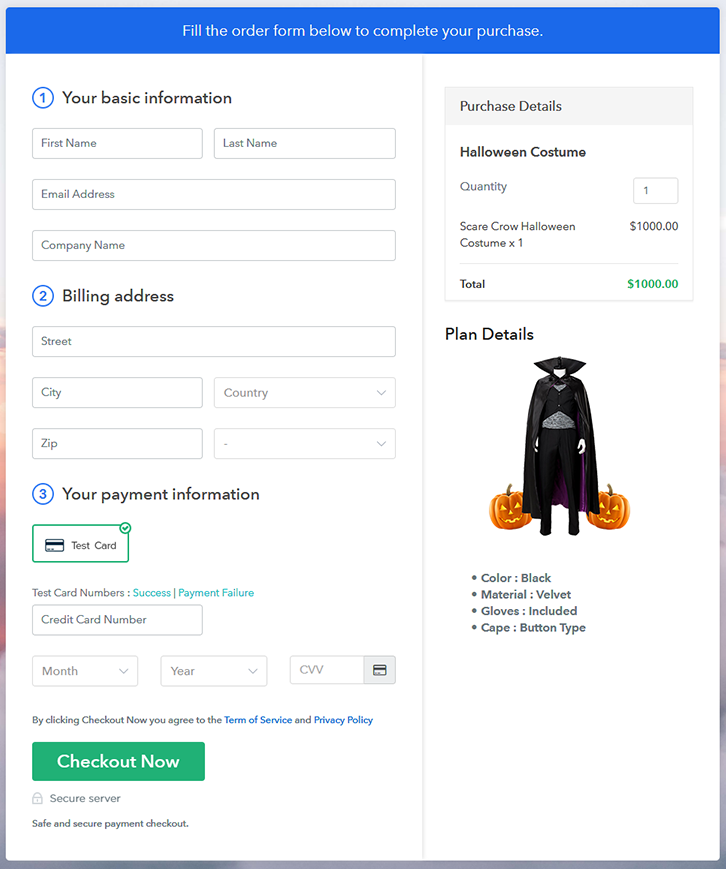
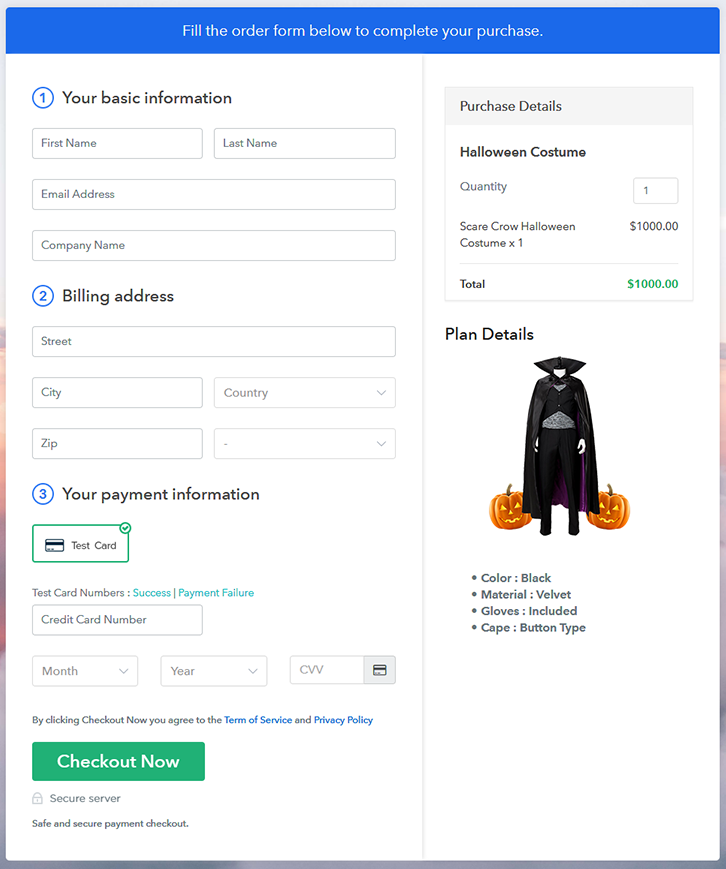
How To Sell Halloween Costumes Online | Step by Step (Free Method)

Ideal For: All the Halloween shop owners, pawn stores, tailoring shop owners, costume shop owners and other merchants can use this method to sell Halloween costumes online.

How To Sell Halloween Costumes Online

Why Choose this Method to Sell Halloween Costumes Online?

Unlike any other solution, this method allows you to:

  • List and sell your fresh Halloween costumes for FREE. Absolutely no payment required.
  • No need to pay commission on any of your sale.
  • Multiple payment options like PayPal, Credit Card, etc to collect payment from a single place.
  • Sell one time or recurring subscriptions of your Halloween costumes.
  • Collect payments & sell products in any currency as per your requirement.
  • Give discounts on your products by offering special coupon codes.
  • Add sales commission agents to help you in selling Halloween costumes.

Get Pabbly Subscription Billing for Free

Ever heard about a guy named Tom Fallestein, who earned over $100 million in revenues just by selling Halloween costumes online? Not kidding !! He started stitching awesome Halloween costumes in his garage and listed them online. In a matter of days, he got business orders not just from his immediate neighbors but from a global audience. This is the power of the internet and you can have it too.

Now there are many online tools that can help you in selling Halloween costumes online, but here I will recommend an awesome software called Pabbly Subscription Billing. The advantage of using Pabbly Subscription Billing over others is that you can list and sell unlimited Halloween costumes online, without paying a dime in transaction fees. Also, you will get your own custom domain and receive revenues in both offline/online modes. Some other benefits are:

  • Unlimited Products Listing
  • Create Unlimited Coupons, Plans & Discounts
  • Custom Logo
  • Auto Credit Card Reattempts on Decline
  • Generate Unlimited Revenues
  • Revenue Tracking

So, without wasting time lets create our first checkout page with Pabbly Subscription Billing to sell Halloween costumes online.

Final View of Checkout Page for your Halloween Costumes Selling Business

How

Preview Checkout Page

Step 1: Log in to Pabbly Subscription Billing

Signup

First to start the process look for the website Pabbly Subscription Billing in your search engine. Here click on the “Sign up Free“ button. You can either manually fill all the information or simply sign in using your Gmail account.

Sign Up For Free!

Step 2: Select Subscription Billing

Access Subscription Billing

Step 3: Account Setup

Setup Account

Click on the “Access Now” button of the software, a page will redirect with fields like company name, select currency, and phone number. Just fill out those details to continue creating a checkout page for Halloween costumes.

Step 4: Connect Payment Gateways & Start Halloween Costumes Selling Business Online

Connect Payment Gateway

To prevent glitches during transactions, Pabbly Subscription Billing provides a dummy payment gateway where you can beta test the entire payment experience of the customer in advance.

Payment gateways such as Razorpay, Stripe, and many more can be easily integrated using Pabbly Subscription Billing. There is an integration guide for each of them below this para. But I am going ahead to enable the test payment option to continue the process.

Step 5: Add Product for your Halloween Costumes

Add Product

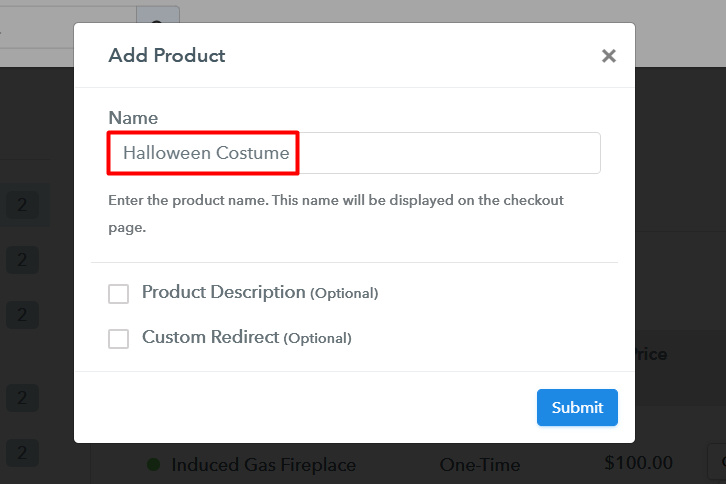
I am hoping that the payment gateway integration went well, so let’s start adding the products. Below the “Enable Payments” segment there is the “Add your product” section click on it. This will generate a dialog box with a blue button “Add New Product”. Click on it.

You have to add the required product title, in this case, it is ‘Halloween costumes’.

Add Product To Sell Halloween Costumes Online

Fill out all the details like the name of the product and voila your product is created.

Note: Here you can add all the products related to the similar category by creating plans for each of them.

Step 6: Add Plans 

Now let’s create plans for different kinds of costumes available in your store.

(a) Select Add New Plan

Add Plan

(b) Specify the Plan & Pricing Details

Add Plan To Sell Halloween Costumes Online

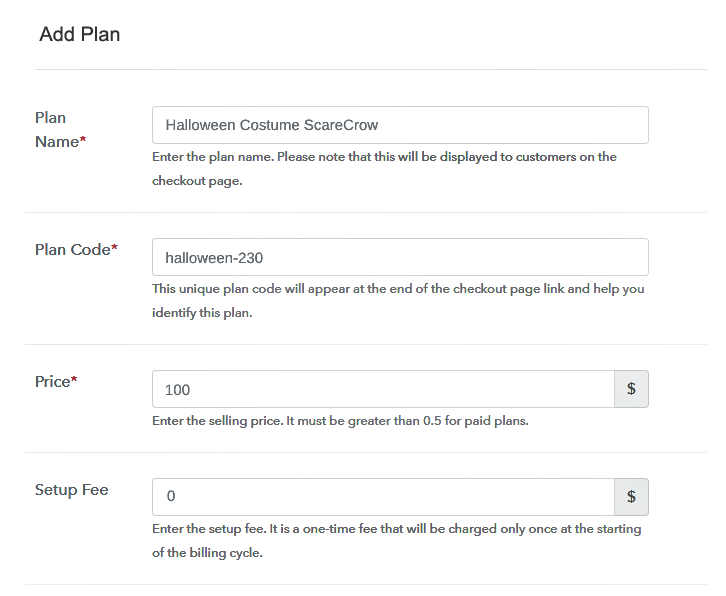
In the plan page, fill in information like plan name, code, price, setup fees, etc. Moreover, while coming down you will find different billing models like one-time payment, recurring, based on cycles, etc. Now, choose the one that interests you the most. Furthermore, you can change it any time you want.

(c) Add Image & Description of Halloween Costumes

Add Description To Sell Halloween Costumes Online

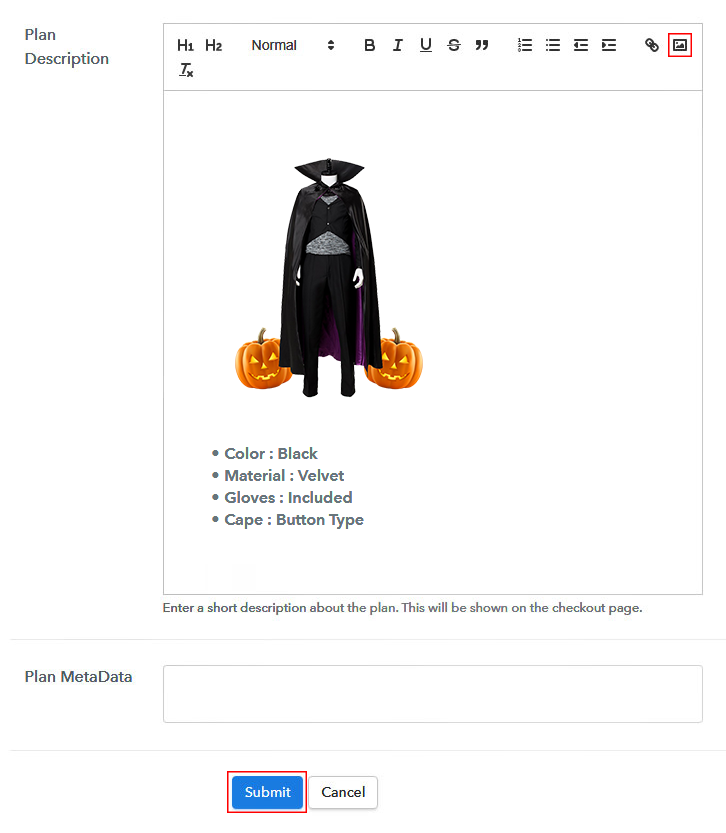
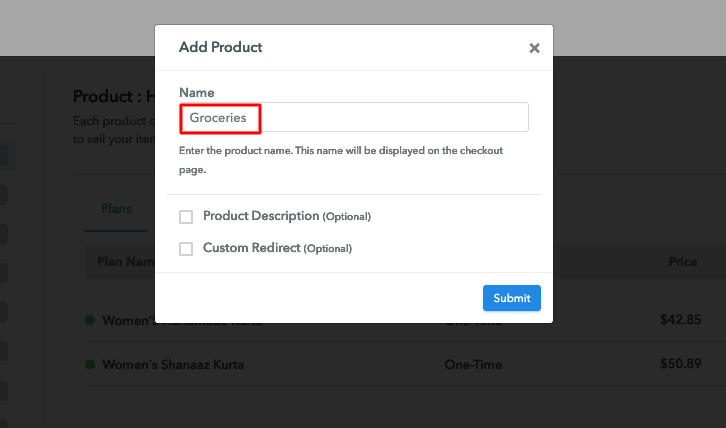
By clicking the image button you can upload some good images of Halloween costumes.

After uploading the images add some important information about the costumes like material, size, fittings, cape, etc, and then press the “Submit” button.

Also, by using the same process, you can list more products.

Step 7: Share your Checkout Page

Share Checkout Page on Social Media

  • Also, to create more awareness about your products you can share your checkout page on Twitter & Facebook by just pressing the respective buttons.
  • Moreover, share the checkout pages on email and SMS.
  • Furthermore, you can build buttons on your webpage and paste the checkout links on it. Or you can place it on any anchor text on your website, so the users will be redirected to the checkout page.

Step 8: Preview Checkout Page

Follow up the recommended steps to preview the checkout page:

(a) Click on the View Button

View Checkout Plan

(b) Take a Look at the Checkout Page

Add Checkout To Sell Halloween Costumes Online

Step 9: Embed Checkout Page in Site & Sell Halloween Costumes Online

Embed Checkout Page on Website

Also, just copy the link and add the checkout page to sell the Halloween costumes online at any suitable place on your WordPress site.

(a) Edit the Page & Paste the Copied Link

Embed Checkout Page on Website

Further, paste the plan link of the fast-food on a text editor of the WordPress dashboard.

(b) Save & Publish the Checkout Page

Save_and_Publish

Next, click the “Publish” button, after making changes.

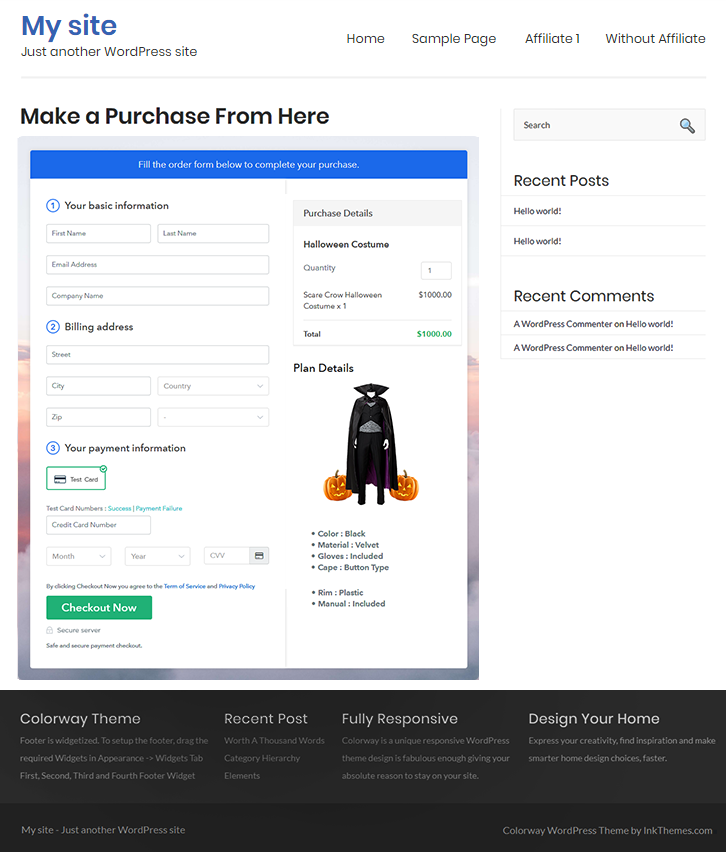
(c) Check out the Final Look of your Checkout Page on WordPress Site

Embed WordPress To Sell Halloween Costumes Online

Step 10: Multiplan Checkout Page

Note: In case you want to sell multiple products via a single checkout page, you can create a multi-plan checkout page otherwise skip this step.

(a) Click on Add Mutiplan Checkout

Multiplan Checkout

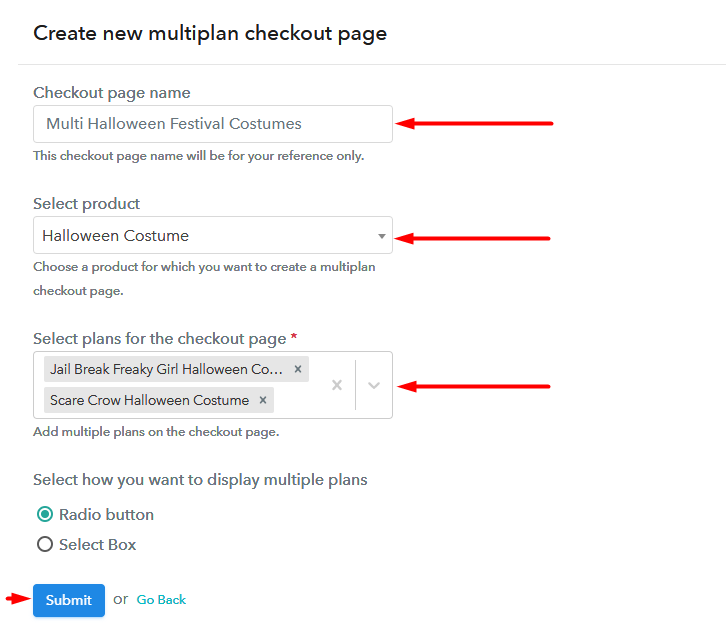
(b) Add Plans to Sell Multiple Halloween Costumes Online from Single Checkout Page

Multiplan To Sell Halloween Costumes Online

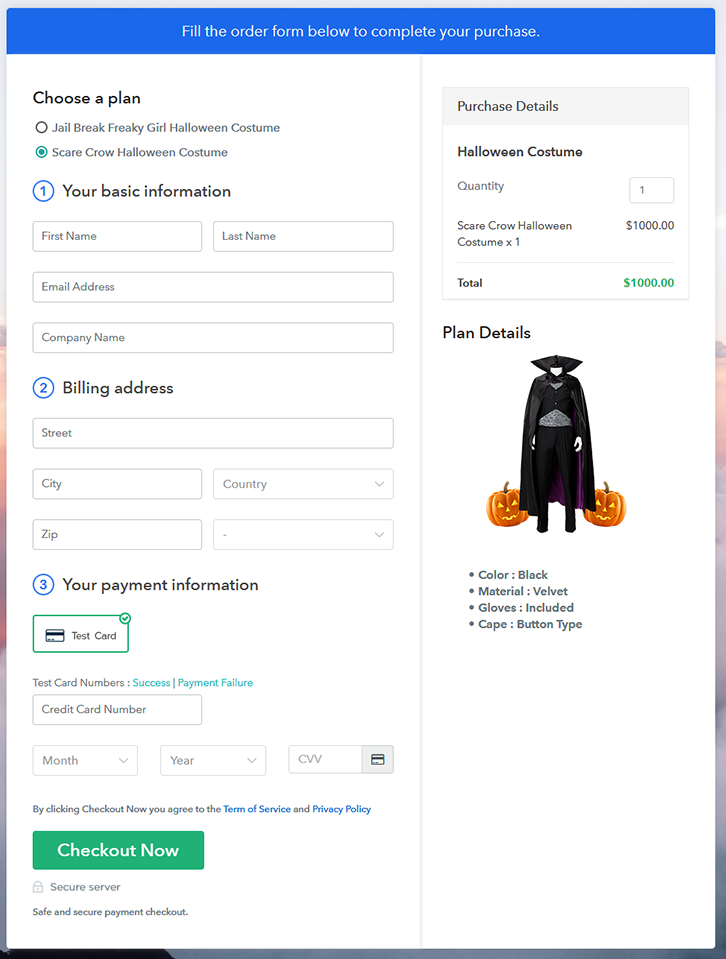
(c) Take a Look at the Checkout Page

Multiplan Checkout To Sell Halloween Costumes Online

Preview Checkout Page

Wrapping Up

Trick-or-treat !! Gone are those days, when Halloween was strictly celebrated only in the United States. Now, due to globalization, increasingly many countries like the Philippines, Singapore, Japan are actively celebrating Halloween. And the checkout page you recently made to sell Halloween costumes online, will definitely cater to demands from these countries and more.

Now, since you are new to this process, you may have some doubts, so feel free to ask your queries in the comment section below.
Happy Halloween!!

You May Also Like To Read –
How to Sell Groceries Online | Step by Step (Free Method)

How to Sell Groceries Online

Ideal For: All the grocery stores, grocery shops, grocery supermarkets, and other sellers can use this method to take their groceries selling business online.

How to Sell Groceries Online

Why Choose this Method To Sell Groceries Online?

Unlike any other solution, this method allows you to:

  • List and sell your groceries for FREE. Absolutely no payment required.
  • No need to pay commission on any of your sales.
  • Multiple payment options like PayPal, Credit Card, etc to collect payment from a single place.
  • Sell one time or recurring subscriptions of your groceries.
  • Collect payments & sell products in any currency as per your requirement.
  • Give discounts on your products by offering special coupon codes.
  • Add sales commission agents to help you in selling groceries online.

Get Pabbly Subscription Billing for Free

Everybody loves the comfort of their homes and wants everything delivered to their doorsteps and the same goes for groceries as well. Hence, if you sell groceries and you want to expand your business then why not sell groceries online.

By taking your groceries selling business online, you can increase your customer base which will consequently increase your revenue. It will become more accessible for you and your customers as you can sell all the grocery items easily from home. To start your online business there is an amazing service available and that is Pabbly Subscription Billing which offers you a completely free platform. You just have to create checkout pages for your groceries and share their links on any online platforms so that people can buy groceries directly through those links.

Other than checkout pages, you can also access its other great features for your online business:

  • Add and sell unlimited groceries online
  • Collect one-time or recurring payment for your groceries
  • Create discount coupons for your customers
  • Share invoices of groceries automatically with your customers

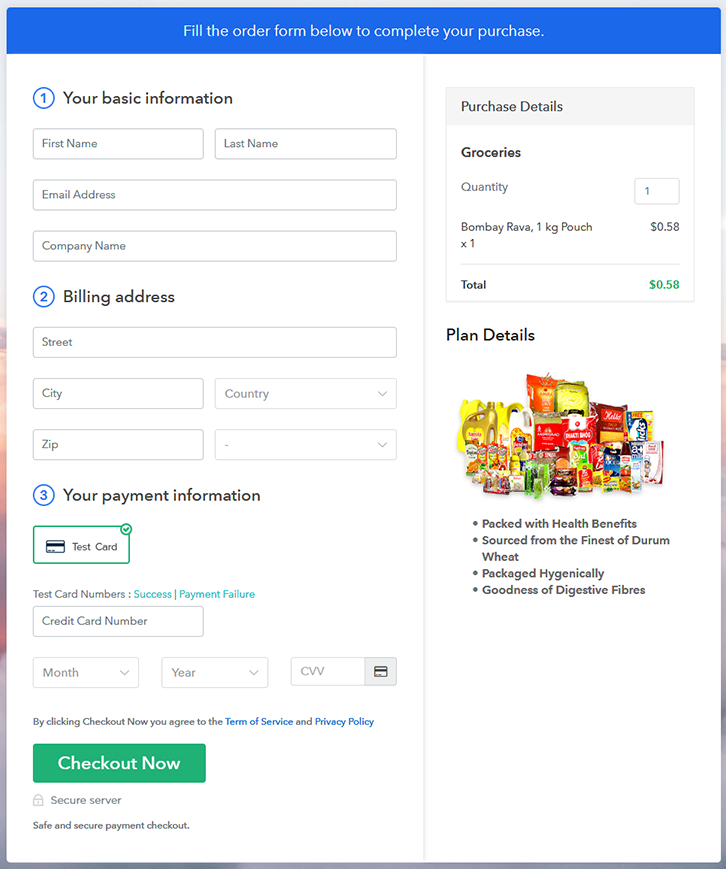
Final View of Checkout Page For Your Groceries Selling Business

Preview Checkout Page

Preview Checkout Page

Step 1: Log in to Pabbly Subscription Billing

Signup

Now in the first step, we have to visit Pabbly Subscription Billing website and then click on the “Signup Free” button. Once you click the button, you will reach to the signup page, where you can create your account automatically via Gmail or enter your details manually.

Sign Up For Free!

Step 2: Select Subscription Billing

Access Subscription Billing

Step 3: Account Setup

Setup Account

After finishing the signup process, now you have to fill up your company details like company name, currency, phone number in the dialogue box.

Step 4: Connect Payment Gateways & Start Groceries Selling Business Online

Connect Payment Gateway

In this step as you can see, we have described the payment collection process by enabling the “Test Payment” mode. You can also try and use the test payment mode before proceeding further. Later, you have to connect with any of the payment gateways such as PayPal, Stripe, etc that you prefer. Following are the links to complete payment gateway integration guide-

Step 5: Add Product For Your Groceries

Add Product

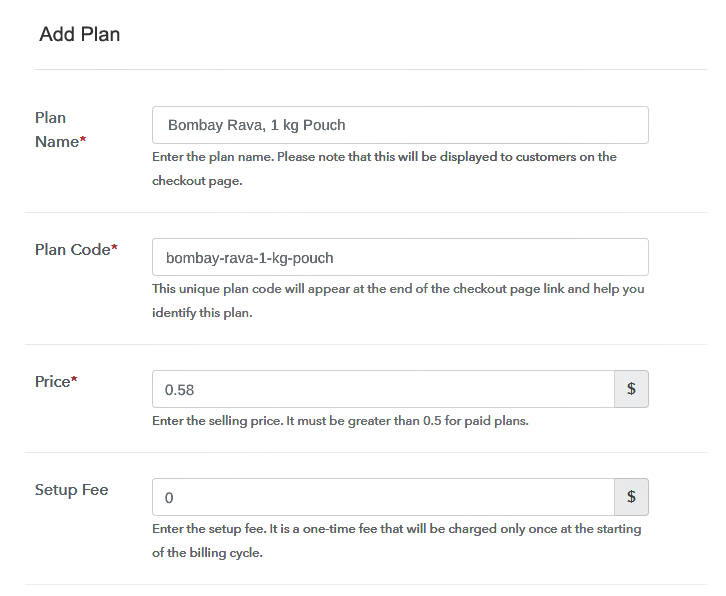
Moving on to this step, here you have to add your first product. You can add groceries of different varieties like dairy, meat & poultry, etc.

Sell Groceries Online Product Name

Add all the other groceries in the same product section by creating different plans.

Note: Here you can add all the products related to the similar category by creating plans for each of them.

Step 6: Add Plans 

Let’s rollout plans for different kinds of groceries available in your store.

(a) Select Add New Plan

Add Plan

(b) Specify the Plan & Pricing Details

Sell Groceries Online Details

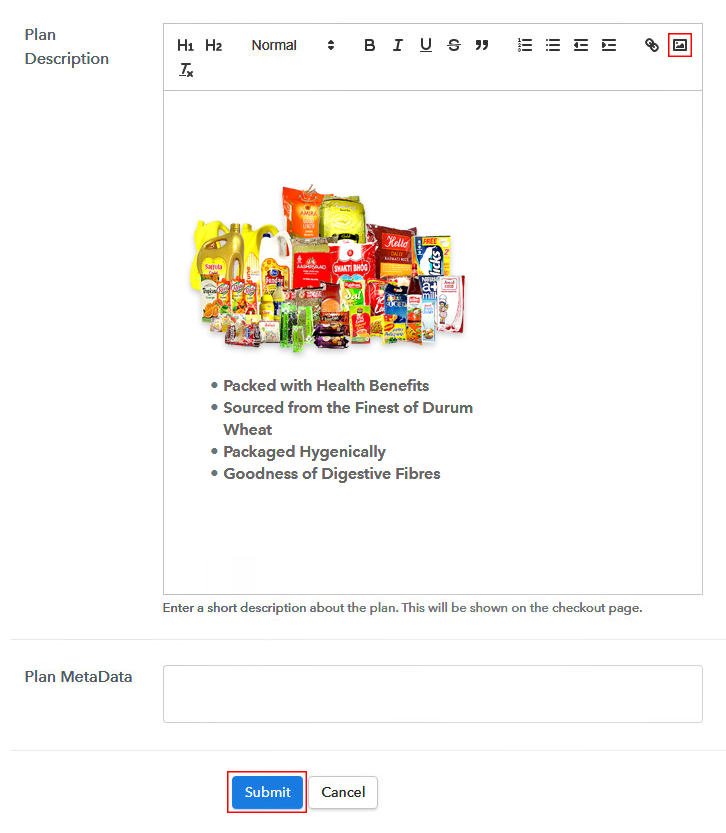
After clicking the “Add New Plan” button, the plan page will open, where you have to add details like plan name, billing cycle, code, price, etc.

(c) Add Image & Description of Groceries

Sell Groceries Online Image

Also, you can describe the groceries that you want to sell along with the product images, links, etc, and then click on the submit button to add your plan. You can create more plans for all the groceries similarly.

Step 7: Share your Checkout Page

Share Checkout Page on Social Media

Increase your sales of groceries by following the given steps:

  • Share your checkout page on social media like Facebook and Twitter.
  • Also, copy the mentioned link and send it to your customers through SMS or emails directly.
  • Embed your plan link to your website so that your customers can be landed on the checkout page directly.

Step 8: Preview Checkout Page

Follow up the recommended steps to preview the checkout page:

(a) Click on the View Button

View Checkout Plan

(b) Take a Look at the Checkout Page

Preview Checkout Page

Step 9: Embed Checkout Page in Site & Sell Groceries Online

Embed Checkout Page on Website

Just copy the link and add the checkout page to sell groceries online at any preferable place on your WordPress site.

(a) Edit the Page & Paste the Copied Link

Embed Checkout Page on Website

Further, paste the plan link on a text editor of the WordPress dashboard.

(b) Save & Publish the Checkout Page

Save_and_Publish

Next, click the “Publish” button, after making changes.

(c) Check out the Final Look of your Checkout Page on WordPress Site

Sell Groceries Online Website

Step 10: Multiplan Checkout Page

Note: In case you want to sell multiple products via a single checkout page, you can create a multi-plan checkout page otherwise skip this step.

(a) Click on Add Mutiplan Checkout

Multiplan Checkout

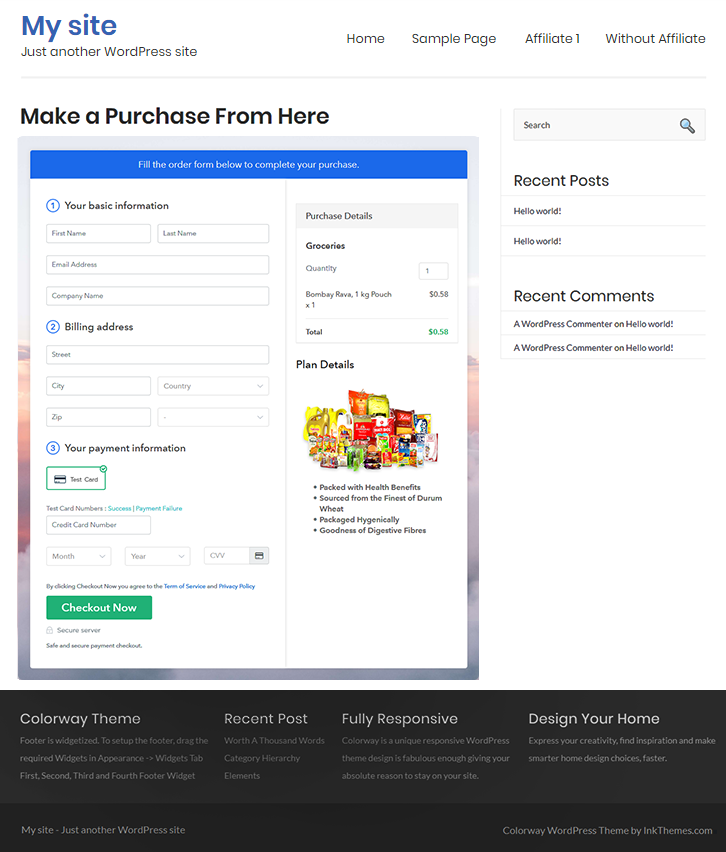
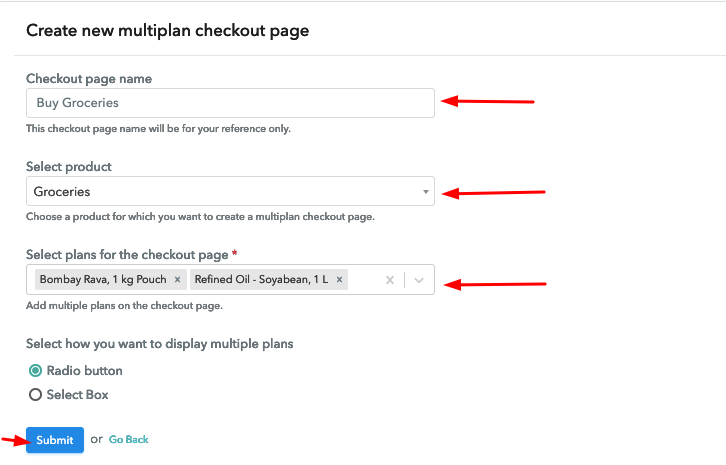
(b) Add Plans to Sell Multiple Groceries from Single Checkout Page

Sell Groceries Online Multi Details

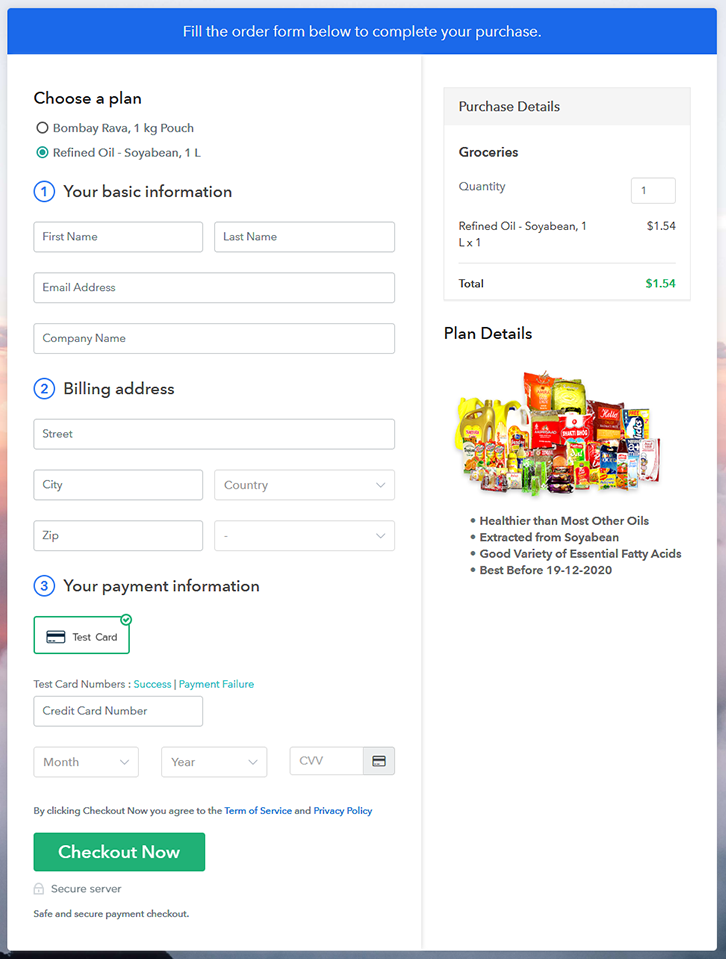
(c) Take a Look at the Checkout Page

Sell Groceries Online Multi Checkout

Preview Checkout Page

Wrapping Up

In conclusion, your worries end here with Pabbly Subscription Billing. With this software, you can easily sell groceries online, share invoices, collect payments and so much more. It is easier than ever before to start your own online business for free. So, signup and start selling groceries online today. For further queries or suggestions, please write to us.

You May Also Like To Read –
How to Sell Guitars Online | Step by Step (Free Method)

How to Sell Guitars Online

Ideal For: All the guitar manufacturers, guitar sellers, guitar dealers, guitar suppliers, music instrument shop owners and other merchants can use this method to sell guitars online.

How to Sell Guitars Online

Why Choose this Method to Sell Guitars Online?

Unlike any other solution, this method allows you to:

  • List and sell your guitars for FREE. Absolutely no payment required.
  • No need to pay commission on any of your sales.
  • Multiple payment options like PayPal, Credit Card, etc to collect payment from a single place.
  • Sell one time or recurring subscriptions of your guitars.
  • Collect payments & sell products in any currency as per your requirement.
  • Give discounts on your products by offering special coupon codes.
  • Add sales commission agents to help you in selling guitars online.

Get Pabbly Subscription Billing for Free

Guitars are the most popular thing in millennial culture. Most of the people who play instruments have stated that music is a kind of therapy which is why people love looking for guitars online. Why online? Because online stores open the doors to unlimited choices and options which every buyer seeks. That’s why it is important to start guitars selling business online.

According to the Cision PR Newswire report, the global guitar market is projected to grow at a CAGR of almost 3% during the forecast period which is encouraging. Also, it has perks like no middleman, unlimited stock, etc. And fortunately, we have a software named Pabbly Subscription Billing that can give a start to your business online. Not only, it keeps you on top of stocks, invoices, sales but also offers ways to collect recurring or one-time payment through the checkout page. Further, you can build a single or multiplan checkout page to grab the customer’s attention.

Some of its remarkable features involve:

  • List various guitars in a single checkout page
  • Add taxation charges if any
  • Collect currency via online and offline mode

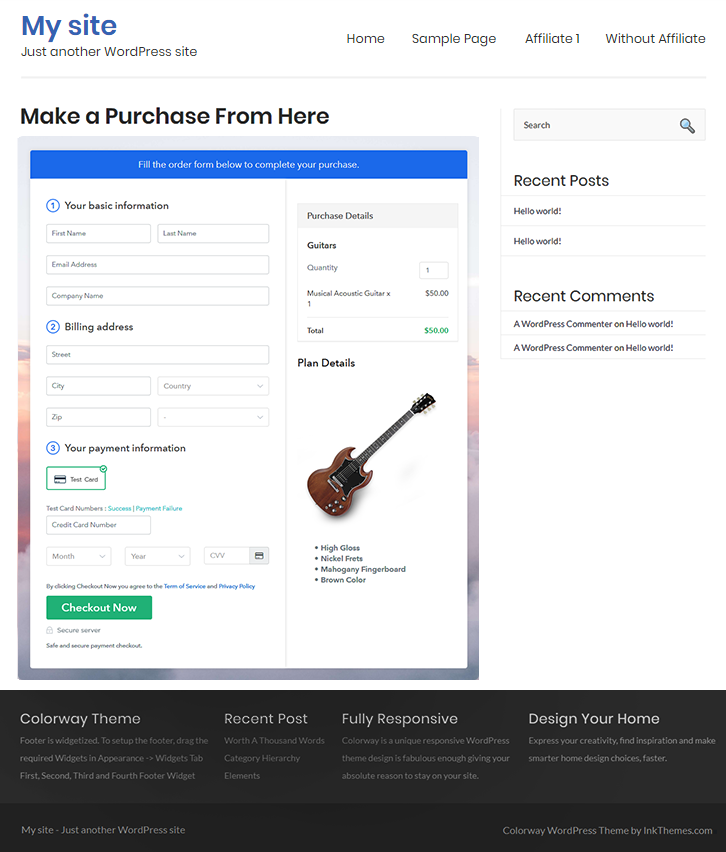
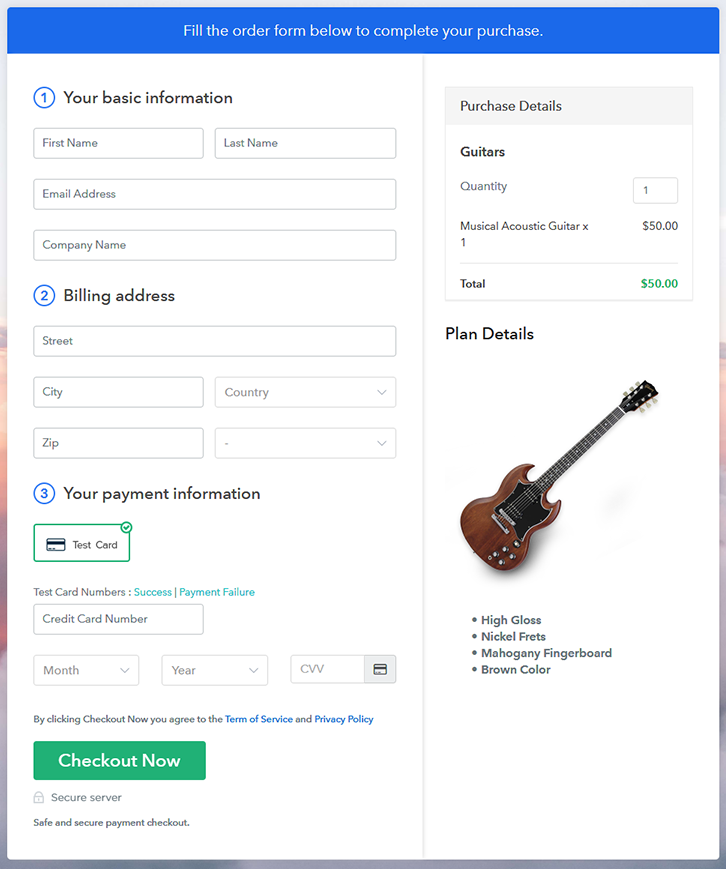
Final View of Checkout Page for your Guitars Selling Business

Checkout Page to Sell Guitars Online

Preview Checkout Page

Step 1: Log in to Pabbly Subscription Billing

Signup

Begin the process for creating a checkout page for guitars by visiting the Pabbly Subscription Billing in your browser. After that, click on the “Sign up Free“ button. Moreover, either manually filled out the details or sign in using your Gmail account.

Sign Up For Free!

Step 2: Select Subscription Billing

Access Subscription Billing

Step 3: Account Setup

Setup Account

Besides, after clicking on the “Access Now” button of the software, a page will open with fields like company name, select currency, and phone number. Simply fill out those details to continue creating a checkout page for guitars.

Step 4: Connect Payment Gateways & Start Guitars Selling Business Online

Connect Payment Gateway

The subsequent step is to gaining knowledge about payment procedures using a “Test Payment Gateway”. Here, we will describe the checkout page process for the guitars with the help of a test payment gateway. Besides this, the tool offers various payment gateways such as PayPal, Stripe, etc. Further, below are the payment integration guides to help you out.

Step 5: Add Product for your Guitars

Add Product

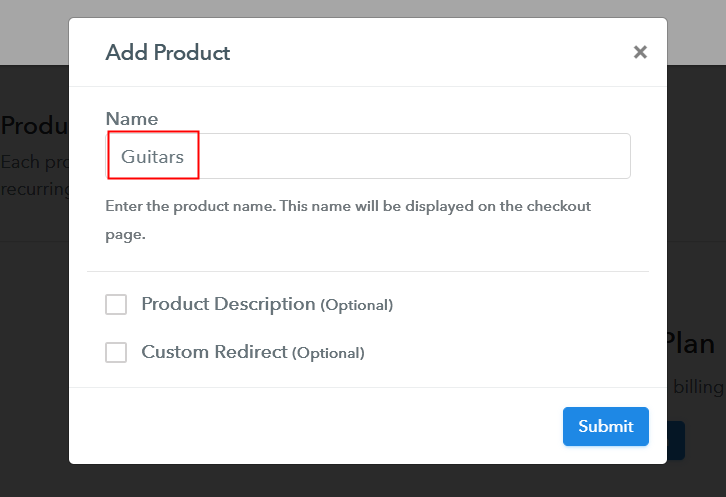
Additionally, add the name, which in our case is “Guitars”. Here you can specify the type like acoustic guitar, electric guitar, etc. Further, write a short description of the guitars to grab the customer’s attention.

Add Product to Start Selling Guitars Online

Moreover, just fill out all those details and your product is created.

Note: Here you can add all the products related to the similar category by creating plans for each of them.

Step 6: Add Plans 

Let’s expose plans for different kinds of guitars available in your store.

(a) Select Add New Plan

Add Plan

(b) Specify the Plan & Pricing Details

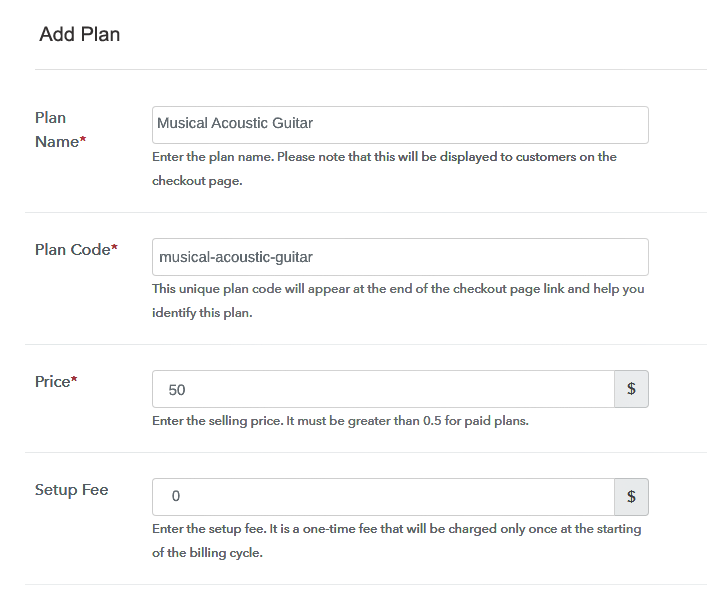
Specify the Plan and Pricing to Sell Guitars Online

The next thing to do is fill all the details of the guitars like plan name, code, price, set-up fee, and much more to continue.

(c) Add Image & Description of Guitars

Add Image & Description to Sell Guitars Online

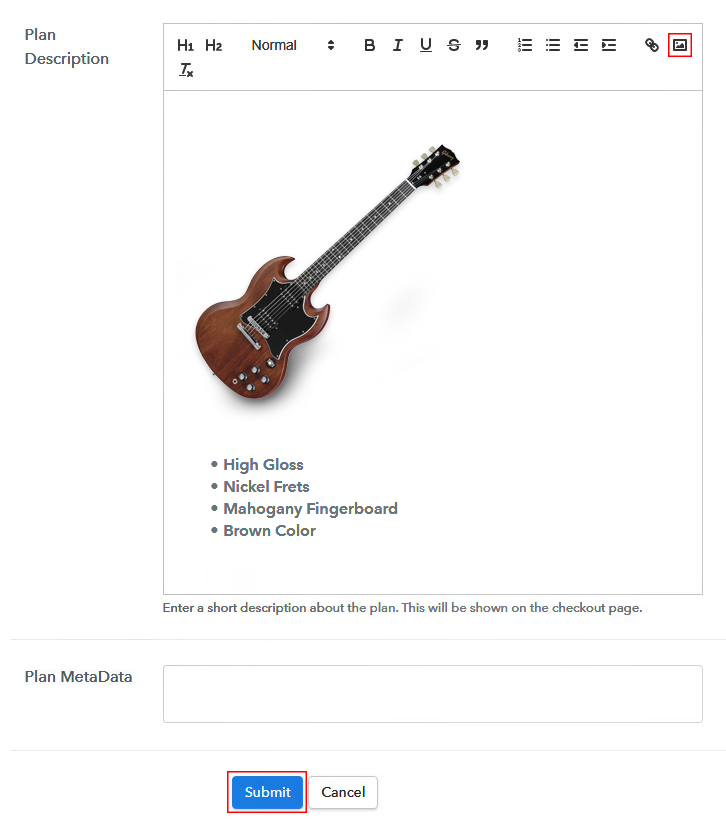
Furthermore, write a brief description of the guitars using bullets, images, etc, to bring original buyers to the checkout page.

Next, click on the “Submit” button to add the guitars on the checkout page.

Finally, you can add multiple plans and kinds of guitars in your product list which you want to sell online.

Step 7: Share your Checkout Page

Share Checkout Page on Social Media

  • Moreover, share the checkout page of the guitars on social media accounts like Facebook & Twitter to grab the customer’s attention.
  • Also, you can share the direct link of the guitars checkout page with your customers via SMS or email marketing.
  • Additionally, embed the provided plan link of the guitars in the buttons or any anchor text on your website.

Step 8: Preview Checkout Page

Follow up the recommended steps to preview the checkout page:

(a) Click on the View Button

View Checkout Plan

(b) Take a Look at the Checkout Page

Checkout Page to Sell Guitars Online

Step 9: Embed Checkout Page in Site & Sell Guitars Online

Embed Checkout Page on Website

Just copy the link and add the checkout page to sell guitars online at any proper place on your WordPress site.

(a) Edit the Page & Paste the Copied Link

Paste Link in Text Editor

Further, paste the plan link of guitars on a text editor of the WordPress dashboard.

(b) Save & Publish the Checkout Page

Save_and_Publish

Next, click the “Publish” button, after making changes.

(c) Check out the Final Look of your Checkout Page on WordPress Site

Final Look of your Checkout Page to Sell Guitars Online

Step 10: Multiplan Checkout Page

Note: In case you want to sell multiple products via a single checkout page, you can create a multi-plan checkout page otherwise skip this step.

(a) Click on Add Mutiplan Checkout

Multiplan Checkout

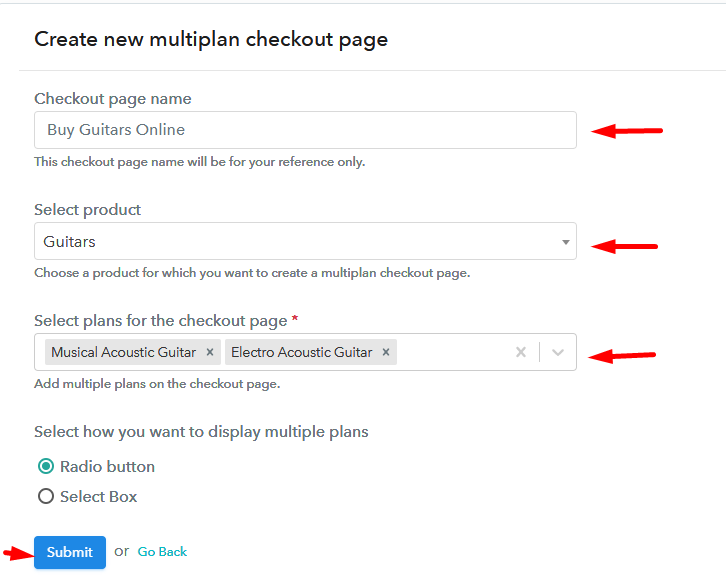
(b) Add Plans to Sell Multiple Guitars from Single Checkout Page

Add Multiple Products to Start Selling Guitars Online

(c) Take a Look at the Checkout Page

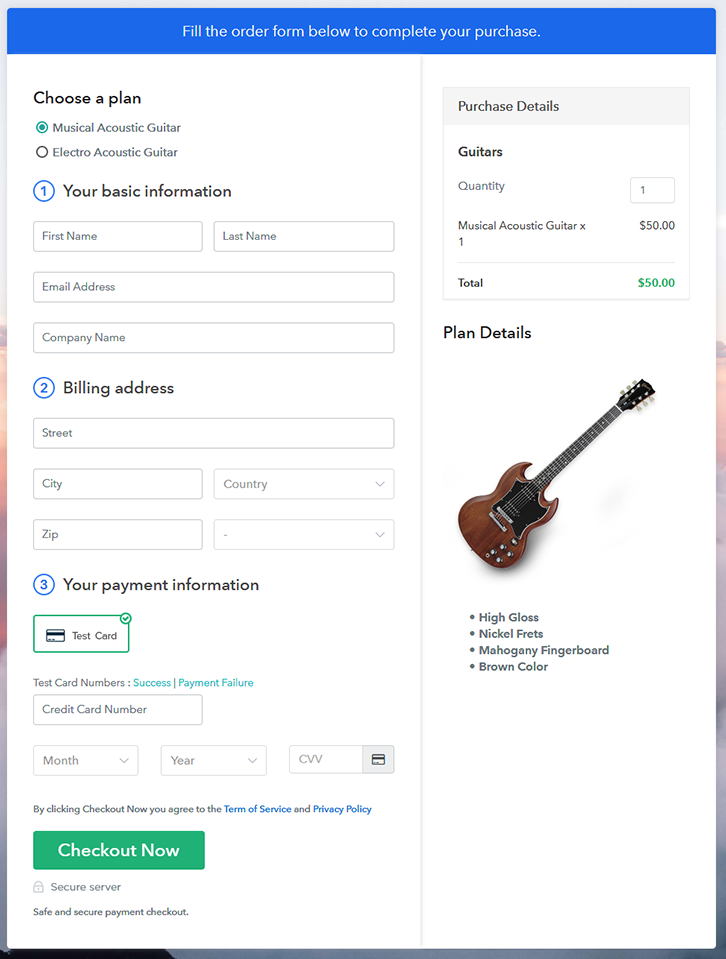
Multiplan Checkout Page to Sell Guitars Online

Preview Checkout Page

Wrapping Up

Alright! Music is good for mental health and that’s why people love to play guitars in their spare time. So starting a guitars business is the right idea. Now you know how easy is to sell guitars online using Pabbly Subscription Billing software. Simply go through all the implied steps and nothing else.

So, don’t wait anymore, try this software out.

You May Also Like To Read –
How to Sell Health Insurance Online | Step by Step (Free Method)

How to Sell Health Insurance Online

Ideal For: All the health insurance companies, health insurance agents, and other sellers can use this method to take their health insurance selling business online.

How to Sell Health Insurance Online

Why Choose this Method To Sell health insurance Online?

Unlike any other solution, this method allows you to:

  • List and sell your health insurance for FREE. Absolutely no payment required.
  • No need to pay commission on any of your sales.
  • Multiple payment options like PayPal, Credit Card, etc to collect payment from a single place.
  • Sell one time or recurring subscriptions of your health insurance.
  • Collect payments & sell products in any currency as per your requirement.
  • Give discounts on your products by offering special coupon codes.
  • Add sales commission agents to help you in selling health insurance online.

Get Pabbly Subscription Billing for Free

The e-commerce industry is thriving and everyone is taking their business ideas online and the health insurance selling business is one of them. People are buying health insurance for their loved ones for a safe future, and that’s why you should also sell health insurance online.

You can start selling health insurance and make a profit without any investments. But how can you do that? Well, the answer is Pabbly Subscription Billing. With this platform, you can take your health insurance selling business online for free.

Apart from this, there will be no charges on your sales as well. Also, you can easily collect one time or the recurring payments by creating a checkout page for health insurance and sharing the link with customers on any online platforms. Your customers can directly pay through that checkout page.

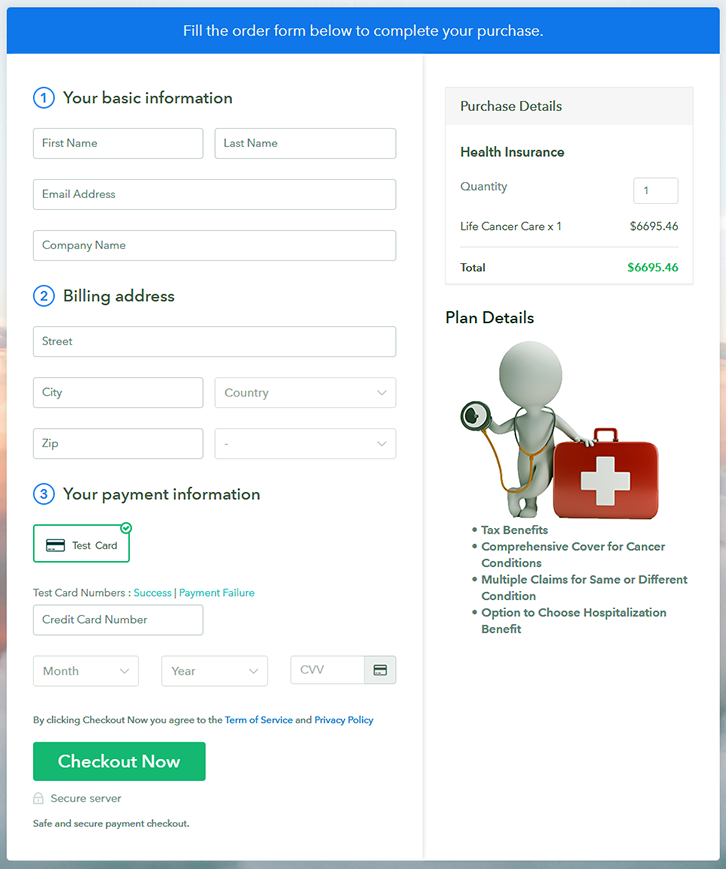
Final View of Checkout Page For Your Health Insurance Selling Business

Preview Checkout Page

Preview Checkout Page

Step 1: Log in to Pabbly Subscription Billing

Signup

Visit the Pabbly Subscription Billing website and click on Sign Up Free, here you can sign up through your Gmail account or enter your email address, password and other details manually.

Sign Up For Free!

Step 2: Select Subscription Billing

Access Subscription Billing

Step 3: Account Setup

Setup Account

After the signup process, a dialogue box will appear where you have to fill your company details i.e. company name, currency, and contact number. You have to fill all these details to move forward to the next step.

Step 4: Connect Payment Gateways & Start Health Insurance Selling Business Online

Connect Payment Gateway

If you want to check how the payment collection process works, you can enable the test payment mode for the first time as shown in the picture above. Later you have to connect other payment gateways like PayPal, Stripe, etc. The complete integration guide for payment gateways is provided below-

Step 5: Add Product For Your Health Insurance

Add Product

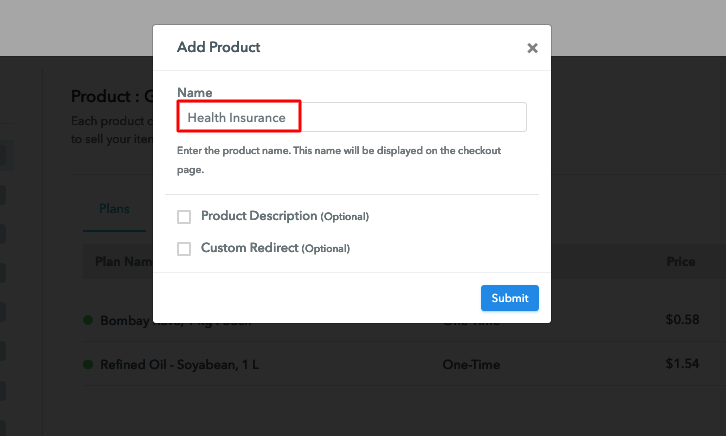
After enabling payment mode, add the product. You can add health insurance of different categories, for example, life cancer cover, life cardiac cover, etc.

Sell Health Insurance Online Product Name

Add all the other health insurance in the same product by creating different plans.

Note: Here you can add all the products related to the similar category by creating plans for each of them.

Step 6: Add Plans 

Let’s create plans for different kinds of health insurance that you want to sell.

(a) Select Add New Plan

Add Plan

(b) Specify the Plan & Pricing Details

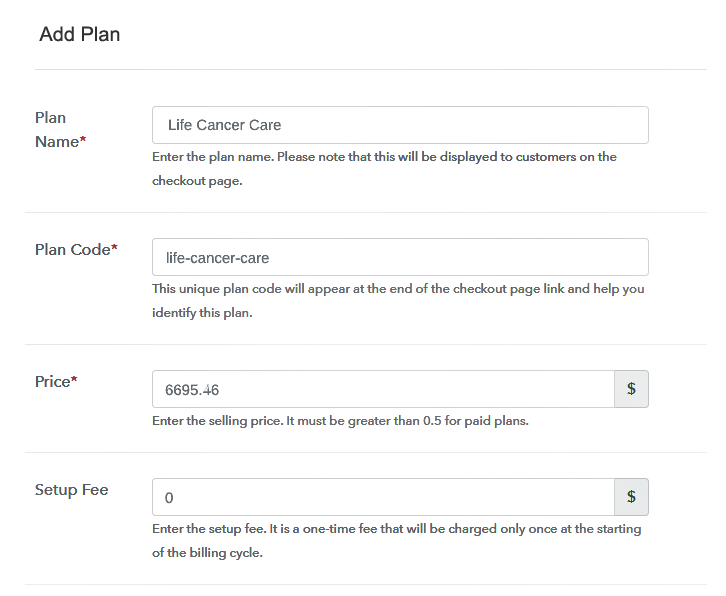
Sell Health Insurance Online Details

After adding a plan, you are redirected to the plan page, where you have to fill the plan details such as plan name, code, billing cycle, price, description, etc.

(c) Add Image & Description of Health Insurance

Sell Health Insurance Online I

Write a description of the health insurance along with the product links, images, etc, and click the submit button to add your plan.
You can create more plans for all the other health insurance in a similar manner.

Step 7: Share your Checkout Page

Share Checkout Page on Social Media

  • Share your checkout page on social media like Facebook and Twitter.
  • Copy the link provided and send it to your customers through SMS or emails directly.
  • Embed your plan link to your website so your customers can be redirected to the checkout page.

Step 8: Preview Checkout Page

Follow up the recommended steps to preview the checkout page:

(a) Click on the View Button

View Checkout Plan

(b) Take a Look at the Checkout Page

Preview Checkout Page

Step 9: Embed Checkout Page in Site & Sell Health Insurance Online

Embed Checkout Page on Website

Simply copy the provided plan embedding link and add the checkout page to your WordPress site to sell health insurance online.

(a) Edit the Page & Paste the Copied Link

Embed Checkout Page on Website

Further, paste the plan link on a text editor of the WordPress dashboard.

(b) Save & Publish the Checkout Page

Save_and_Publish

Next, click the “Publish” button, after making changes.

(c) Check out the Final Look of your Checkout Page on WordPress Site

Sell Health Insurancce Online W

Step 10: Multiplan Checkout Page

Note: In case you want to sell multiple products via a single checkout page, you can create a multi-plan checkout page otherwise skip this step.

(a) Click on Add Mutiplan Checkout

Multiplan Checkout

(b) Add Plans to Sell Multiple Health Insurance from Single Checkout Page

Sell Health Insurance Online Multi Details

(c) Take a Look at the Checkout Page

Sell Health Insurance Online Multi

Preview Checkout Page

Wrapping Up

Lastly, this was the easiest method to sell health insurance online. With Pabbly Subscription Billing, it becomes a lot simpler and handy to start selling health insurance online and smoothly share the invoices with your customers. Everyone who is looking to expand their health insurance selling business can access Pabbly Subscription Billing for free. With its checkout pages, now you can simply increase your customer reach and your sales. Now easily collect payments and start selling health insurance with comfort. For further queries or suggestions, please write to us.

You May Also Like To Read –
How to Sell Handmade Clothing Online | Step by Step (Free Method)

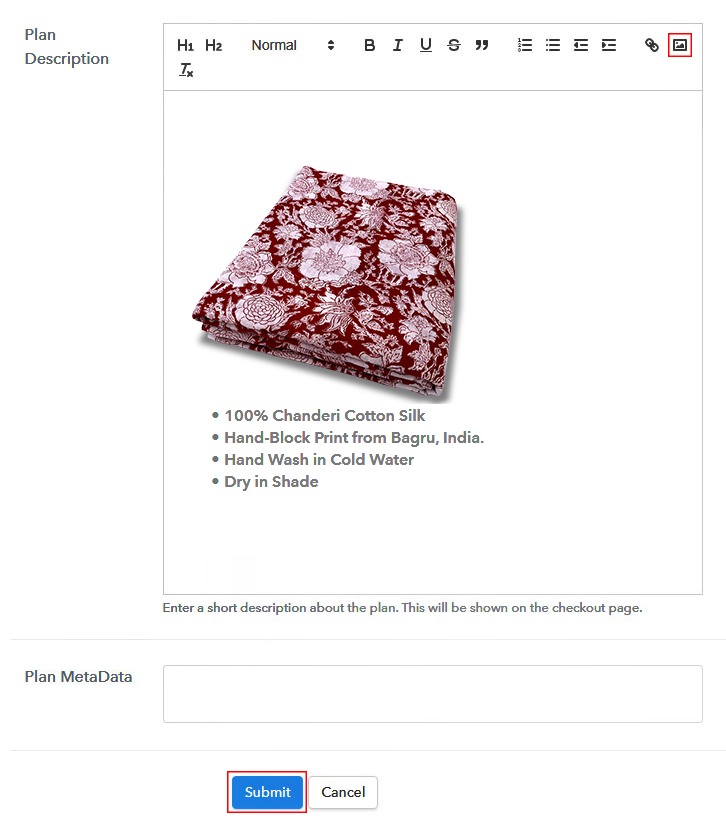
How to Sell Handmade Clothing Online

Ideal For: All the handmade clothing stores, handmade clothes shop, handmade clothing showrooms, local sellers of handmade clothing, and other sellers can use this method to take their handmade clothing selling business online.

How to Sell Handmade Clothing Online

Why Choose this Method To Sell Handmade Clothing Online?

Unlike any other solution, this method allows you to:

  • List and sell your handmade clothing for FREE. Absolutely no payment required.
  • No need to pay commission on any of your sales.
  • Multiple payment options like PayPal, Credit Card, etc to collect payment from a single place.
  • Sell one time or recurring subscriptions of your handmade clothing.
  • Collect payments & sell products in any currency as per your requirement.
  • Give discounts on your products by offering special coupon codes.
  • Add sales commission agents to help you in selling handmade clothing online.

Get Pabbly Subscription Billing for Free

Handmade clothing is the new fashion trend and people are going crazy to buy these handmade clothes. Hence, if you are in this handmade clothing selling business then you should think to start selling handmade clothing online to earn some extra profit.

With Pabbly Subscription Billing, you can start your handmade clothing selling business online without paying any money on this platform. You can make money and gain profit with this service and sell all types of handmade clothing to your customers. With this service, you can create and share invoices easily with your customers, add unlimited customers to your list, add unlimited plans and products, and much more.

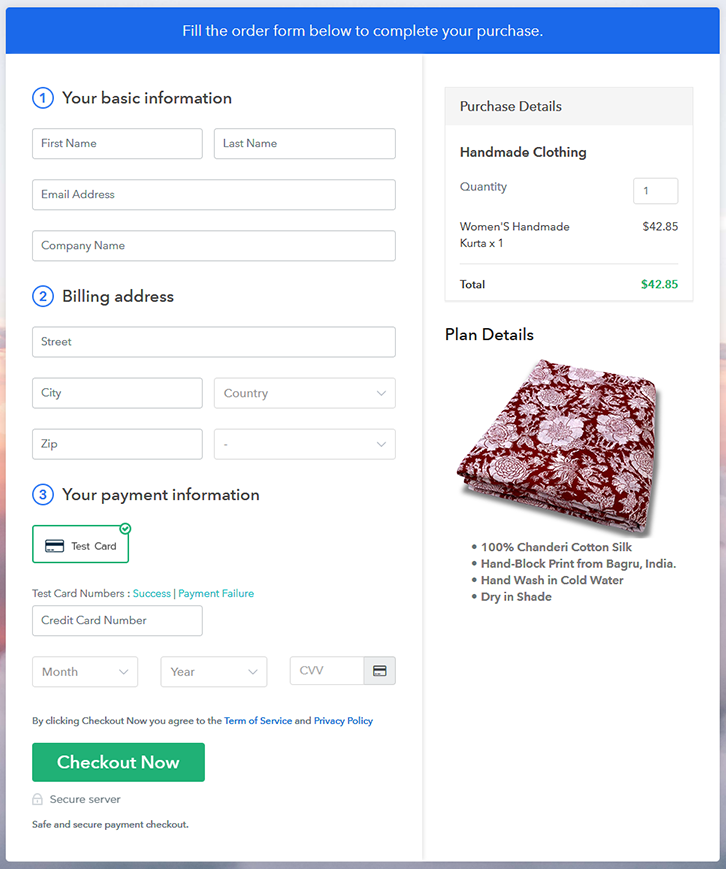
Moreover, you just have to create a checkout page and share its link with your customers on online platforms to effortlessly collect one time or the recurring payments. Your customers will be able to make direct purchases through these checkout pages.

Final View of Checkout Page For Your Handmade Clothing Selling Business

Preview Checkout Page

Preview Checkout Page

Step 1: Log in to Pabbly Subscription Billing

Signup

Visit the Pabbly Subscription Billing website and click on “Sign Up Free,” you will be landed on the sign-up page where you can sign up via your Gmail account or enter your email address and password and other details manually for free.

Sign Up For Free!

Step 2: Select Subscription Billing

Access Subscription Billing

Step 3: Account Setup

Setup Account

After the signup process, you have to fill your company details i.e. company name, currency, and contact number in the dialogue box. Fill all these details to move forward to the next step.

Step 4: Connect Payment Gateways & Start Handmade Clothing Selling Business Online

Connect Payment Gateway

If you want to know about the payment collection process, you can enable the test payment mode for the first time and check the payment collection process. Further, you have to connect other payment gateways like PayPal, Stripe, etc. The complete integration guide for payment gateways is provided below-

Step 5: Add Product For Your Handmade Clothing

Add Product

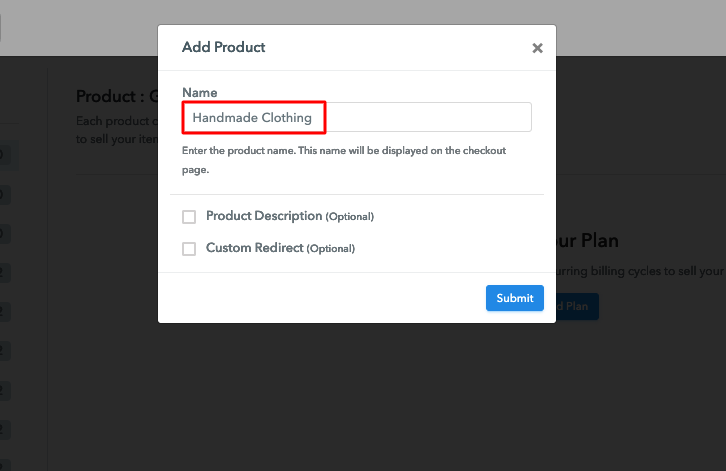
After enabling payment mode, you have to add your product. You can add handmade clothing from different categories, for example, silk clothes, cotton clothes, etc.

Sell Handmade Clothing Online Product Name

Add all other types of handmade clothing in the same product by creating different plans.

Note: Here you can add all the products related to the similar category by creating plans for each of them.

Step 6: Add Plans 

Let’s create plans for different kinds of handmade clothing available in your store.

(a) Select Add New Plan

Add Plan

(b) Specify the Plan & Pricing Details

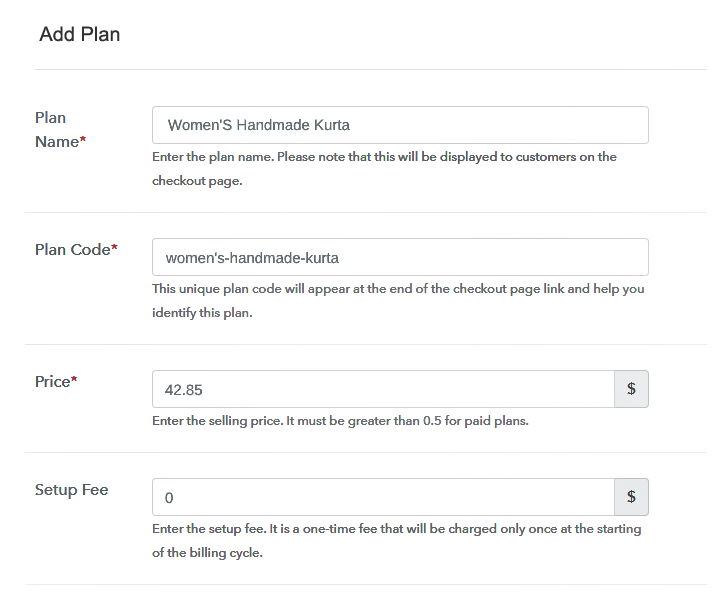
Sell Handmade Clothing Online Details

After clicking on add new plan, you are landed on the plan page, where you will have to fill the plan details such as plan name, code, billing cycle, price, description, etc.

(c) Add Image & Description of Handmade Clothing

Sell Handmade Clothing Online I

Now after adding the plan you also have to write a description of the handmade clothing along with the product links, images, etc, and then click on the submit button to add your plan.
You can create more plans for all the handmade clothing in a similar manner.

Step 7: Share your Checkout Page

Share Checkout Page on Social Media

Enhance your sales by following the given steps:

  • Share your checkout page on social networking sites such as Facebook and Twitter.
  • Copy the given link and send it to your customers via SMS or emails directly.
  • Embed your plan link to your website so that your customers can be redirected to the checkout page

Step 8: Preview Checkout Page

Follow up the recommended steps to preview the checkout page:

(a) Click on the View Button

View Checkout Plan

(b) Take a Look at the Checkout Page

Preview Checkout Page

Step 9: Embed Checkout Page in Site & Sell Handmade Clothing Online

Embed Checkout Page on Website

Easily copy the provided plan embedding link and embed the checkout page to your WordPress site.

(a) Edit the Page & Paste the Copied Link

Embed Checkout Page on Website

Further, paste the plan link on a text editor of the WordPress dashboard.

(b) Save & Publish the Checkout Page

Save_and_Publish

Next, click the “Publish” button, after making changes.

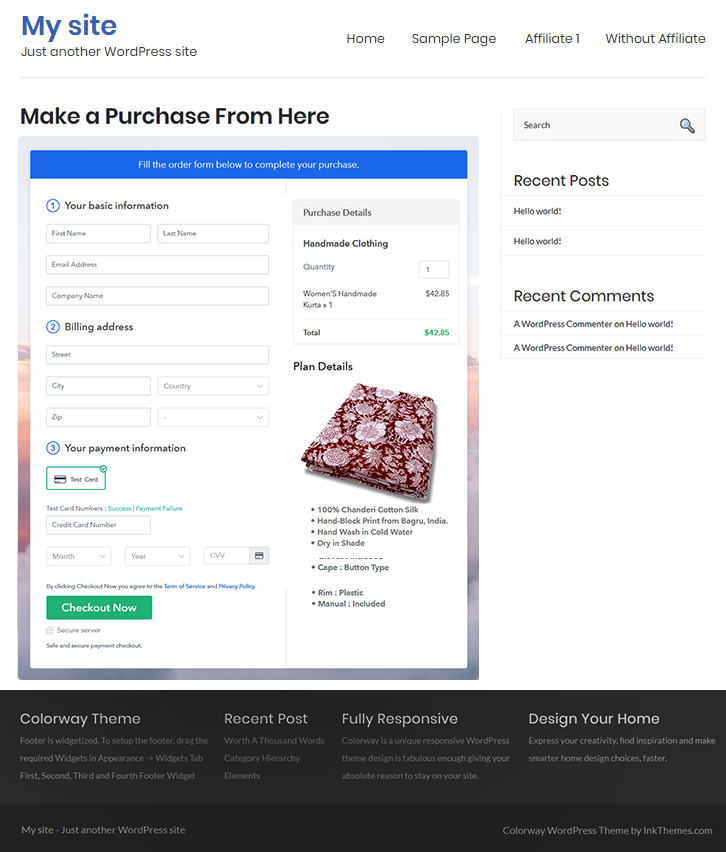
(c) Check out the Final Look of your Checkout Page on WordPress Site

Sell Handmade Clothing Online W

Step 10: Multiplan Checkout Page

Note: In case you want to sell multiple products via a single checkout page, you can create a multi-plan checkout page otherwise skip this step.

(a) Click on Add Mutiplan Checkout

Multiplan Checkout

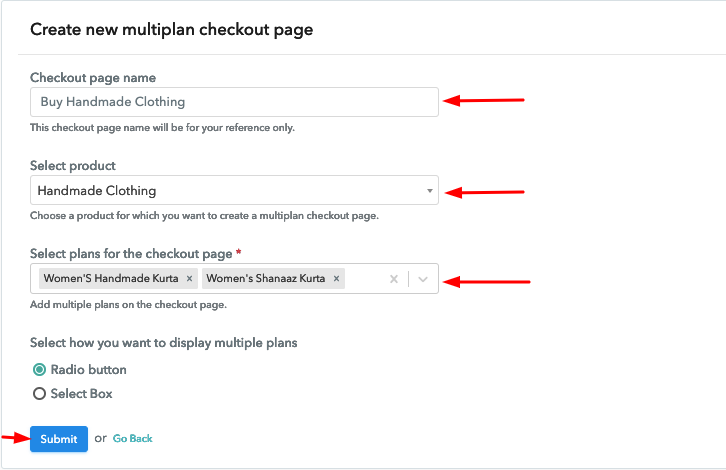
(b) Add Plans to Sell Multiple Handmade Clothing from Single Checkout Page

Sell Handmade Clothing Online Multi Details

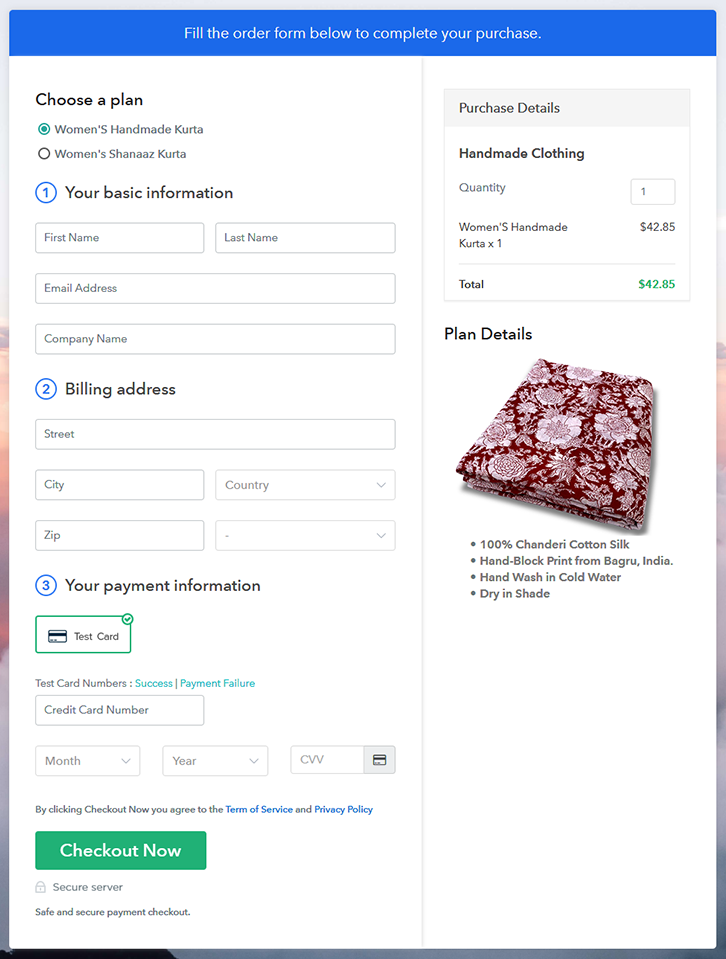
(c) Take a Look at the Checkout Page

Sell Handmade Clothing Online Multi

Preview Checkout Page

Wrapping Up

In conclusion, Pabbly Subscription Billing is the one and only online platform that allows you to sell handmade clothing online for free. Without spending a single penny from your pocket, you can easily take your handmade clothing selling business from a store to an online platform. In the end, we hope that this blog was helpful for you, and you soon start your handmade clothing selling business online.

For further queries or suggestions, please write to us. We will try to get back to you as soon as possible.

You May Also Like To Read –
How to Sell Hard Drives Online | Step by Step (Free Method)

How to Sell Hard Drives Online

Ideal For: All the hard drive manufactures, hard drive sellers, hard drive dealers, hard drive suppliers, hard drive shop owners and other merchants can use this method to sell hard drives online.

How to Sell Hard Drives Online

Why Choose this Method to Sell Hard Drives Online?

Unlike any other solution, this method allows you to:

  • List and sell your hard drives for FREE. Absolutely no payment required.
  • No need to pay commission on any of your sales.
  • Multiple payment options like PayPal, Credit Card, etc to collect payment from a single place.
  • Sell one time or recurring subscriptions of your hard drives.
  • Collect payments & sell products in any currency as per your requirement.
  • Give discounts on your products by offering special coupon codes.
  • Add sales commission agents to help you in selling hard drives online.

Get Pabbly Subscription Billing for Free

Hard drive is a pocket-size device that is widely used by peoples to store and transfer any data, including pictures, videos, text documents, etc. And most probably people use hard drives in offices to store large data files easily. That’s a reason why hard drives never go out of business. So, if you own a hard drives shop, then it’s the right time for you to expand your business by taking hard drives business online. As, it will increase your revenue by taking orders from all around the world.

Hence to do that, we have a software named Pabbly Subscription Billing that can assist you in starting your own hard drives business online. This software lets you create amazing checkout pages for selling hard drives online. Some of its striking features include:

  • List various hard drives in a single checkout page
  • Add tax and delivery charges as per customer’s location
  • Offer discount and coupon codes to consumers
  • Collect money in both online and offline mode
  • Share checkout pages link on social media websites

So, let’s get started by creating our checkout page with the help of Pabbly Subscription Billing to sell hard drives online.

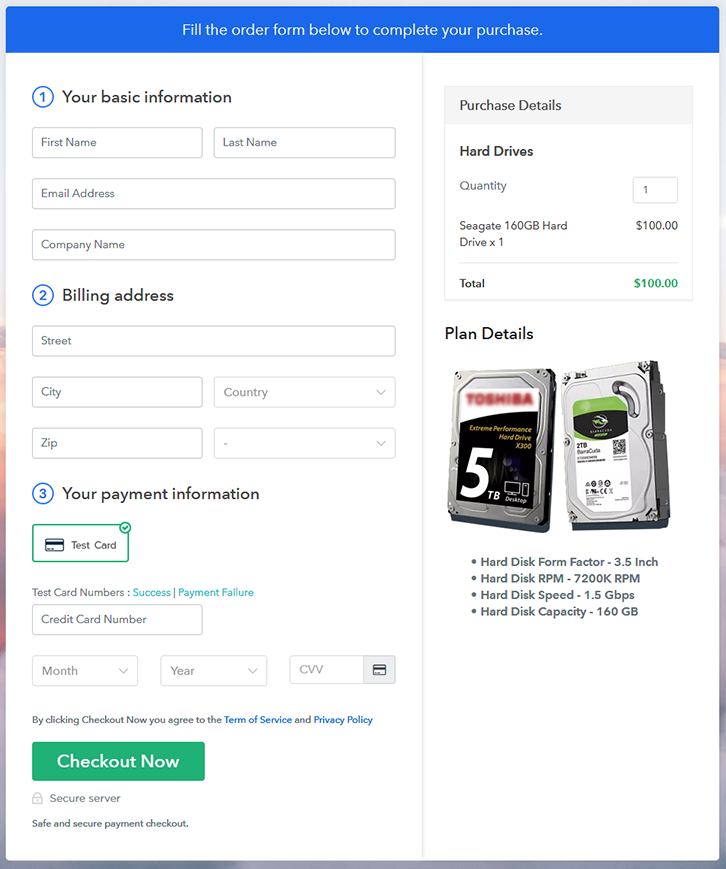
Final View of Checkout Page for your Hard Drives Selling Business

Final View of Checkout Page for your Hard Drives Selling Business

Preview Checkout Page

Step 1: Log in to Pabbly Subscription Billing

Signup

Begin the process for creating a checkout page for hard drives by visiting the Pabbly Subscription Billing in your browser. After that, click on the “Sign up Free“ button. Moreover, either manually filled out the details or sign in using your Gmail account.

Sign Up For Free!

Step 2: Select Subscription Billing

Access Subscription Billing

Step 3: Account Setup

Setup Account

Furthermore, after pressing on the “Access Now” button of the software, a page will open with fields like company name, select currency, and phone number. Just fill out those details to continue creating a checkout page for hard drives.

Step 4: Connect Payment Gateways & Start Hard Drives Selling Business Online

Connect Payment Gateway

The following step is to understand the whole payment procedures using a “Test Payment Gateway”. Here, we will describe the checkout page process for the hard drives with the help of a test payment gateway. Apart from this, the tool offers various payment gateways such as PayPal, Stripe, etc. Furthermore, below are the payment integration guides to help you further.

Step 5: Add Product for your Hard Drives

Add Product

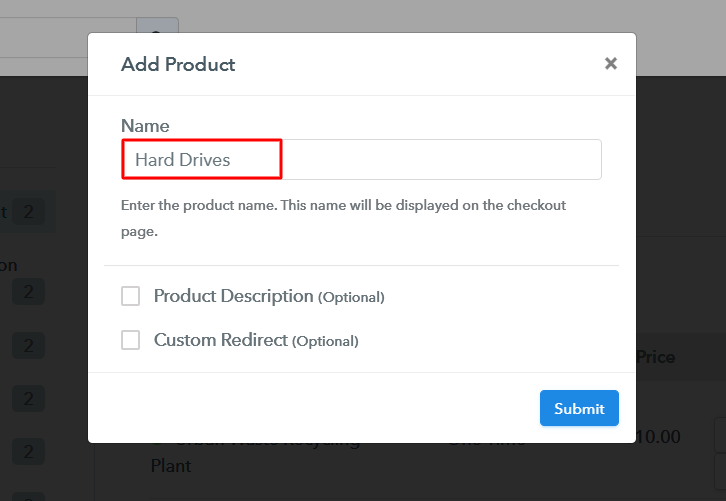
Plus, add the name, which in our case is “Hard Drives”. Here you can specify the type and write a short description of the hard drives too.

Add Product to Start Selling Hard Drives Online

Moreover, just fill out all those details and your product is created.

Note: Here you can add all the products related to the similar category by creating plans for each of them.

Step 6: Add Plans 

Let’s reveal plans for different kinds of hard drives available in your store.

(a) Select Add New Plan

Add Plan

(b) Specify the Plan & Pricing Details

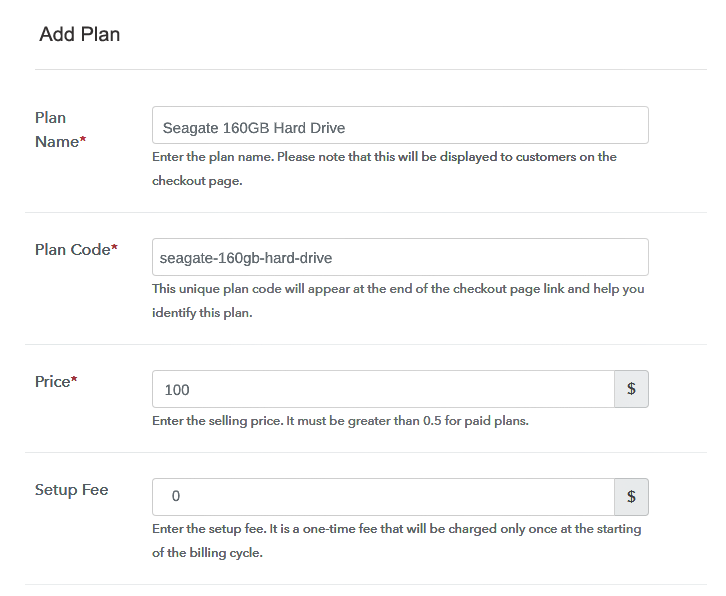
Specify the Plan and Pricing to Sell Hard Drives Online

The subsequent thing to do is fill all the details of the hard drives like plan name, code, price, set-up fee, and much more to continue.

(c) Add Image & Description of Hard Drives

Add Image & Description to Sell Hard Drives Online

Furthermore, it is necessary to write a brief description of the hard drive using bullets, images, etc, to bring original buyers to the checkout page.

Next, click on the “Submit” button to add the hard drive on the checkout page.

Finally, you can add multiple plans and kinds of hard drives in your product list which you want to sell online.

Step 7: Share your Checkout Page

Share Checkout Page on Social Media

  • Moreover, share the checkout page of the hard drives on social media accounts like Facebook & Twitter to grab the customer’s attention.
  • Also, you can share the direct link of the hard drive’s checkout page with your customers via SMS or email marketing.
  • Additionally, embed the provided plan link of the hard drives in the buttons or any anchor text on your website.

Step 8: Preview Checkout Page

Follow up the recommended steps to preview the checkout page:

(a) Click on the View Button

View Checkout Plan

(b) Take a Look at the Checkout Page

Final View of Checkout Page for your Hard Drives Selling Business

Step 9: Embed Checkout Page in Site & Sell Hard Drives Online

Embed Checkout Page on Website

Just copy the link and add the checkout page to sell hard drives online at any proper place on your WordPress site.

(a) Edit the Page & Paste the Copied Link

Paste Link in Text Editor

Further, paste the plan link of hard drives on a text editor of the WordPress dashboard.

(b) Save & Publish the Checkout Page

Save_and_Publish

Next, click the “Publish” button, after making changes.

(c) Check out the Final Look of your Checkout Page on WordPress Site

Final Look of your Checkout Page to Sell Hard Drives Online

Step 10: Multiplan Checkout Page

Note: In case you want to sell multiple products via a single checkout page, you can create a multi-plan checkout page otherwise skip this step.

(a) Click on Add Mutiplan Checkout

Multiplan Checkout

(b) Add Plans to Sell Multiple Hard Drives from Single Checkout Page

Add Plans to Sell Multiple Hard Drives from Single Checkout Page

(c) Take a Look at the Checkout Page

Multiplan Checkout Page to Sell Hard Drives Online

Preview Checkout Page

Wrapping Up

There you go! See, how easy it was to start hard drives business online using Pabbly Subscription Billing software. Just go through all the steps we have mentioned above and set up your hard drives business effortlessly. Don’t wait anymore, try this software out and let us know about your experience in the comment section below.

You May Also Like To Read –
How to Sell Gravels Online | Step by Step (Free Method)

How to Sell Gravels Online

Ideal For: All the gravel manufacturers, gravel sellers, gravel dealers, gravel suppliers, construction material shop owners and other merchants can use this method to sell gravels online.

How to Sell Gravels Online

Why Choose this Method to Sell Gravels Online?

Unlike any other solution, this method allows you to:

  • List and sell your gravels for FREE. Absolutely no payment required.
  • No need to pay commission on any of your sales.
  • Multiple payment options like PayPal, Credit Card, etc to collect payment from a single place.
  • Sell one time or recurring subscriptions of your gravels.
  • Collect payments & sell products in any currency as per your requirement.
  • Give discounts on your products by offering special coupon codes.
  • Add sales commission agents to help you in selling gravels online.

Get Pabbly Subscription Billing for Free

Do you know the word gravel is originated from the Breton language which means small particles. Gravels are widely used in the construction business and also preferred in decorative purposes. So, if you have an offline shop of gravels then it is the right time to start selling gravels online. Why?

Because, as compared to an offline store, online store operating costs are low plus profit margins are high. Plus, the e-store offers scalability, and there are no opening time restrictions. Gladly, we have a perfect software recommendation for you that is, Pabbly Subscription Billing which can give a headstart to your business. Using this tool you can create beautiful checkout pages to sell gravels online without any hassle. However, let me tell you some of the perks that this software offers:

  • Multiple Billing Module
  • Professional Invoices
  • Add Taxation Charges

Now, without any ado let’s create a checkout page for selling gravels online using this tool.

Final View of Checkout Page for your Gravels Selling Business

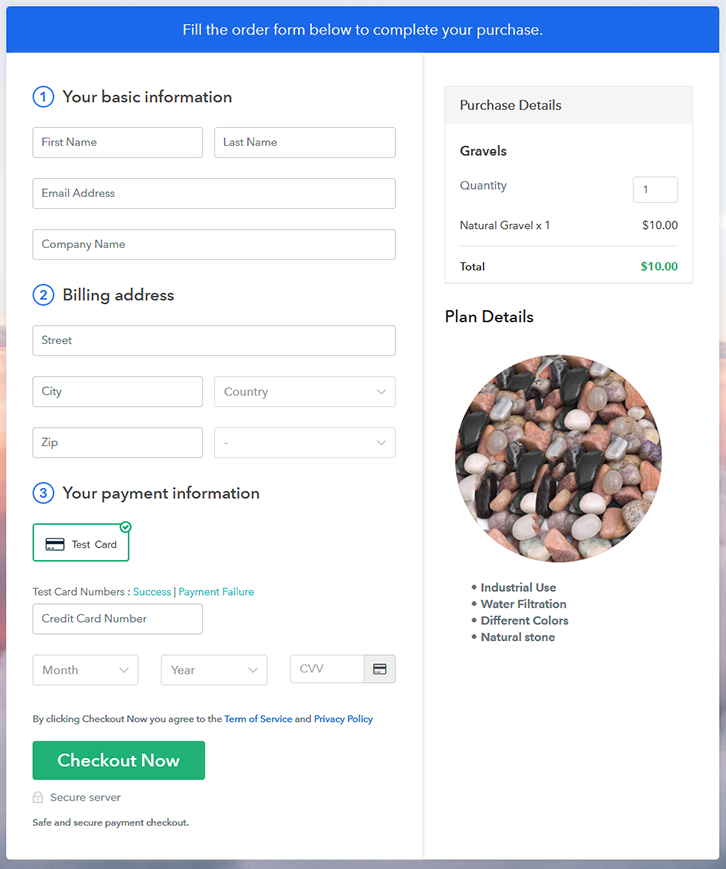
Checkout Page to Sell Gravels Online

Preview Checkout Page

Step 1: Log in to Pabbly Subscription Billing

Signup

Begin the process for creating a checkout page for gravels by visiting the Pabbly Subscription Billing in your browser. After that, click on the “Sign up Free“ button. Moreover, either manually filled out the details or sign in using your Gmail account.

Sign Up For Free!

Step 2: Select Subscription Billing

Access Subscription Billing

Step 3: Account Setup

Setup Account

Besides, after clicking on the “Access Now” button of the software, a page will open with fields like company name, select currency, and phone number. Simply fill out those details to continue creating a checkout page for gravels.

Step 4: Connect Payment Gateways & Start Gravels Selling Business Online

Connect Payment Gateway

The subsequent step is to gaining knowledge about payment procedures using a “Test Payment Gateway”. Here, we will describe the checkout page process for the gravels with the help of a test payment gateway. Besides this, the tool offers various payment gateways such as PayPal, Stripe, etc. Further, below are the payment integration guides to help you out.

Step 5: Add Product for your Gravels

Add Product

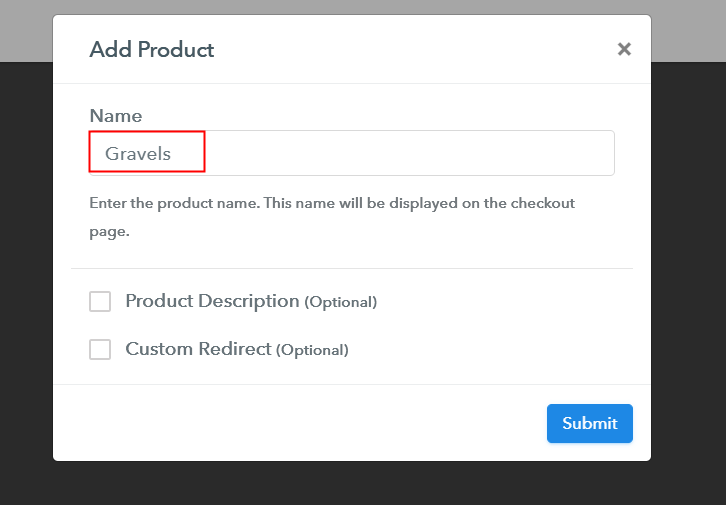
Additionally, add the name, which in our case is “Gravels”. Here you can specify the type like crushed stones, pea gravels, etc. Further, write a short description of the gravels to grab the customer’s attention.

Add Product to Start Selling Gravels Online

Moreover, just fill out all those details and your product is created.

Note: Here you can add all the products related to the similar category by creating plans for each of them.

Step 6: Add Plans 

Let’s expose plans for different kinds of gravels available in your store.

(a) Select Add New Plan

Add Plan

(b) Specify the Plan & Pricing Details

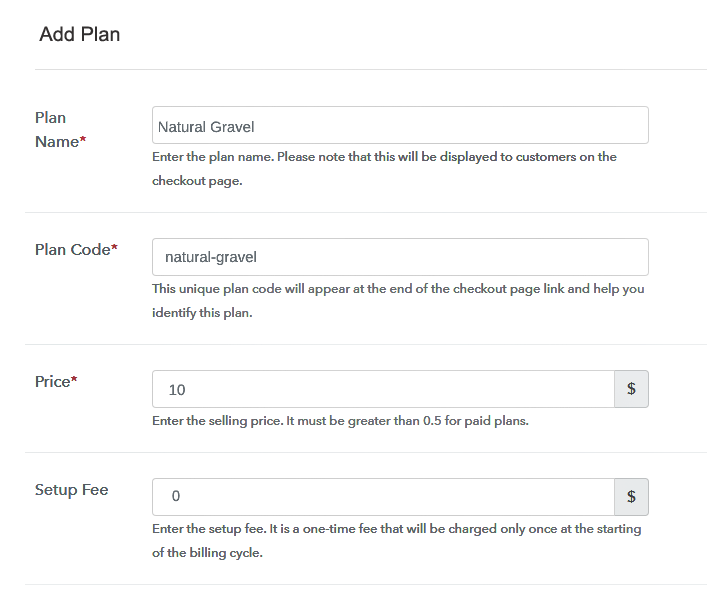
Specify the Plan and Pricing to Sell Gravels Online

The next thing to do is fill all the details of the gravels like plan name, code, price, set-up fee, and much more to continue.

(c) Add Image & Description of Gravels

Add Image & Description to Sell Gravels Online

Furthermore, write a brief description of the gravels using bullets, images, etc, to bring original buyers to the checkout page.

Next, click on the “Submit” button to add the gravels on the checkout page.

Finally, you can add multiple plans and kinds of gravels in your product list which you want to sell online.

Step 7: Share your Checkout Page

Share Checkout Page on Social Media

  • Moreover, share the checkout page of the gravels on social media accounts like Facebook & Twitter to grab the customer’s attention.
  • Also, you can share the direct link of the gravels checkout page with your customers via SMS or email marketing.
  • Additionally, embed the provided plan link of the gravels in the buttons or any anchor text on your website.

Step 8: Preview Checkout Page

Follow up the recommended steps to preview the checkout page:

(a) Click on the View Button

View Checkout Plan

(b) Take a Look at the Checkout Page

Checkout Page to Sell Gravels Online

Step 9: Embed Checkout Page in Site & Sell Gravels Online

Embed Checkout Page on Website

Just copy the link and add the checkout page to sell gravels online at any proper place on your WordPress site.

(a) Edit the Page & Paste the Copied Link

Paste Link in Text Editor

Further, paste the plan link of gravels on a text editor of the WordPress dashboard.

(b) Save & Publish the Checkout Page

Save_and_Publish

Next, click the “Publish” button, after making changes.

(c) Check out the Final Look of your Checkout Page on WordPress Site

Final Look of your Checkout Page to Sell Gravels Online

Step 10: Multiplan Checkout Page

Note: In case you want to sell multiple products via a single checkout page, you can create a multi-plan checkout page otherwise skip this step.

(a) Click on Add Mutiplan Checkout

Multiplan Checkout

(b) Add Plans to Sell Multiple Gravels from Single Checkout Page

Add Multiple Products to Start Selling Gravels Online

(c) Take a Look at the Checkout Page

Multiplan Checkout Page to Sell Gravels Online

Preview Checkout Page

Wrapping Up

Alright! This is our exposure on “how to sell gravels online” using Pabbly Subscription Billing software. You can headstart any business online easily with the help of this tool. Just follow all the aforementioned steps and your checkout page for gravels is created in minutes.

So, try this software out and let us know what you think in the comments section.

You May Also Like To Read –
How To Sell Paint Mixers Online | Step by Step (Free Method)

Ideal For: All the paint mixer sellers, paint mixer manufacturers, paint store owners, and other merchants can use this method to sell paint mixers online.

How

Why Choose this Method to Sell Paint Mixers Online?

Unlike any other solution, this method allows you to:

  • List and sell your fresh paint mixers for FREE. Absolutely no payment required.
  • No need to pay commission on any of your sale.
  • Multiple payment options like PayPal, Credit Card, etc to collect payment from a single place.
  • Sell one time or recurring subscriptions of your paint mixers.
  • Collect payments & sell products in any currency as per your requirement.
  • Give discounts on your products by offering special coupon codes.
  • Add sales commission agents to help you in selling paint mixers.

Get Pabbly Subscription Billing for Free

Looking for a method to sell paint mixers online? Well, you have arrived at the right article but before let us discuss the benefits of selling paint mixers online. They are as follows

  • 24×7 Open Online Shop
  • Higher Margins,
  • Lower Logistics and Utilities
  • Higher Scalability,
  • Better Cash flows
  • Marketing Strategy
  • Automation

Obviously, since this 2022 the online market is flooded with tools to help you sell paint mixers online. But many of these software are very pricey and lacks many of the above-listed features. That is why in this article we recommend using Pabbly Subscription Billing to sell paint mixers online. Because here you can build checkout pages to list and sell unlimited paint mixers online, track your sales in the form of graphs, access to a custom domain to give it a professional look, etc.

Furthermore, the system automatically sends emails alerts on card decline, transaction failures/completion thus keeping you in a loop. Also, there are no annoying extra transaction costs and the need for any technical skills whatsoever. Simply put it is awesome.

Now, let’s create our first checkout page with Pabbly Subscription Billing to sell paint mixers online.

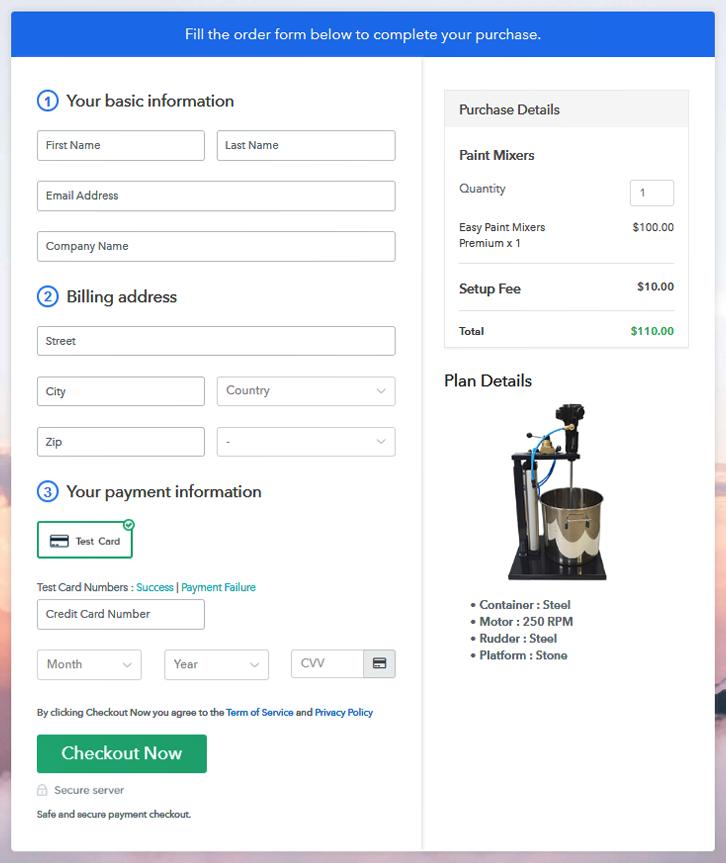
Final View of Checkout Page for your Paint Mixers Selling Business

Checkout To Sell Paint Mixers Online

Preview Checkout Page

Step 1: Log in to Pabbly Subscription Billing

Signup

First to start the process look for the website Pabbly Subscription Billing in your search engine. Here click on the “Sign up Free“ button. You can either manually fill all the information or simply sign in using your Gmail account.

Sign Up For Free!

Step 2: Select Subscription Billing

Access Subscription Billing

Step 3: Account Setup

Setup Account

Click on the “Access Now” button of the software, a page will redirect with fields like company name, select currency, and phone number. Just fill out those details to continue creating a checkout page for paint mixers.

Step 4: Connect Payment Gateways & Start Paint Mixers Selling Business Online

Connect Payment Gateway

To prevent glitches during transactions, Pabbly Subscription Billing provides a dummy payment gateway where you can beta test the entire payment experience of the customer in advance.

Payment gateways such as Razorpay, Stripe, and many more can be easily integrated using Pabbly Subscription Billing. There is an integration guide for each of them below this para. But I am going ahead to enable the test payment option to continue the process.

Step 5: Add Product for your Paint Mixers

Add Product

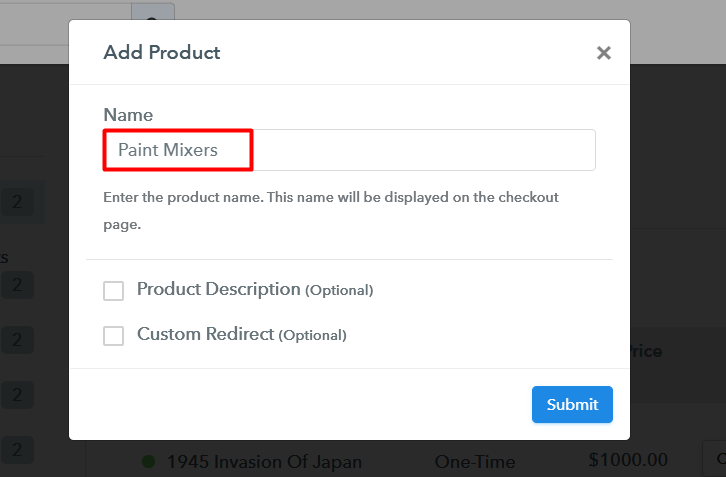
I am hoping that the payment gateway integration went well, so let’s start adding the products. Below the “Enable Payments” segment there is the “Add your product” section click on it. This will generate a dialog box with a blue button “Add New Product”. Click on it.

You have to add the required product title, in this case, it is ‘paint mixers’.

Add Product Checkout To Sell Paint Mixers Online

Fill out all the details like the name of the product and voila your product is created.

Note: Here you can add all the products related to the similar category by creating plans for each of them.

Step 6: Add Plans 

Now let’s create plans for different kinds of costumes available in your store.

(a) Select Add New Plan

Add Plan

(b) Specify the Plan & Pricing Details

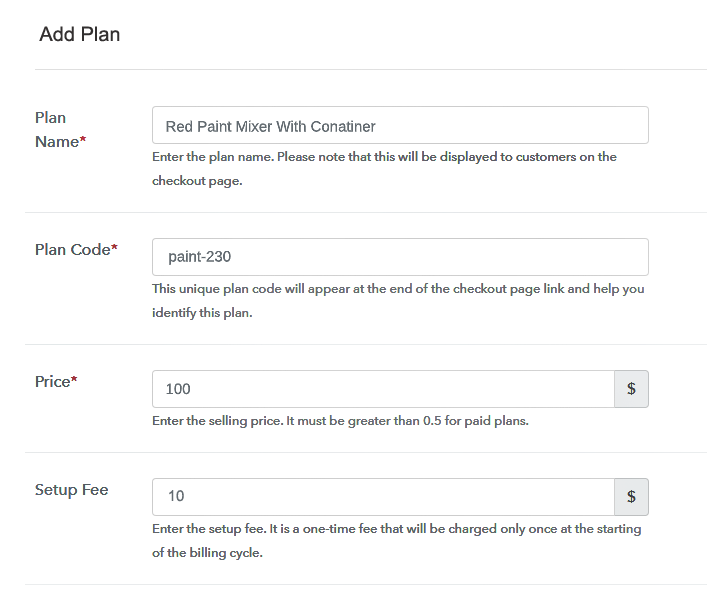
Add Plan To Sell Paint Mixers Online

In the plan page, fill in information like plan name, code, price, setup fees, etc. Moreover, while coming down you will find different billing models like one-time payment, recurring, based on cycles, etc. Now, choose the one that interests you the most. Furthermore, you can change it any time you want.

(c) Add Image & Description of Paint Mixers

Add Image To Sell Paint Mixers Online

By clicking the image button you can upload some good images of paint mixers.

Now give some description of the paint mixers like containers, mixer speed etc and then press the “Submit” button.

You can list many more products by using the same process.

Step 7: Share your Checkout Page

Share Checkout Page on Social Media

  • Also, to create more awareness about your products you can share your checkout page on Twitter & Facebook by just pressing the respective buttons.
  • Moreover, share the checkout pages via email and SMS.
  • Furthermore, you can build buttons on your webpage and paste the checkout links on it. Or you can place it on any anchor text on your website, so the users will be redirected to the checkout page.

Step 8: Preview Checkout Page

Follow up the recommended steps to preview the checkout page:

(a) Click on the View Button

View Checkout Plan

(b) Take a Look at the Checkout Page

Add Checkout To Sell Paint Mixers Online

Step 9: Embed Checkout Page in Site & Sell Paint Mixers Online

Embed Checkout Page on Website

Also, just copy the link and add the checkout page to sell the paint mixers online at any suitable place on your WordPress site.

(a) Edit the Page & Paste the Copied Link

Embed Checkout Page on Website

Further, paste the plan link of the paint mixers on a text editor of the WordPress dashboard.

(b) Save & Publish the Checkout Page

Save_and_Publish

Next, click the “Publish” button, after making changes.

(c) Check out the Final Look of your Checkout Page on WordPress Site

Wordpress To Sell Paint Mixers Online

Step 10: Multiplan Checkout Page

Note: In case you want to sell multiple products via a single checkout page, you can create a multi-plan checkout page otherwise skip this step.

(a) Click on Add Mutiplan Checkout

Multiplan Checkout

(b) Add Plans to Sell Multiple Paint Mixers Online from Single Checkout Page

Multiplan To Sell Paint Mixers Online

(c) Take a Look at the Checkout Page

Mulltiplan To Sell Paint Mixers Online

Preview Checkout Page

Wrapping Up

The checkout page to sell paint mixers is finally ready. The versatility of the checkout page can be gauged from the fact that with that few tweaks, you can sell any products online. Also, It barely takes 10 minutes to create one checkout page and with practice, you will able to create multiple versions of them.

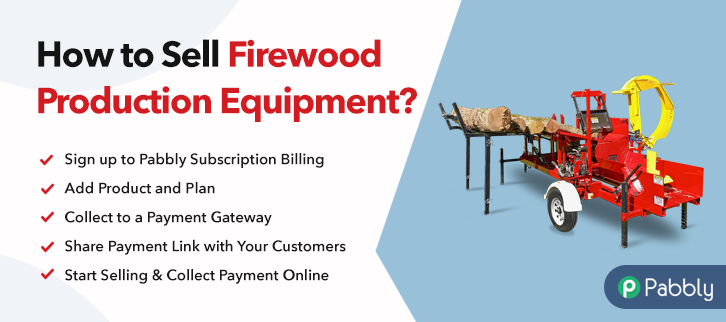
How to Sell Firewood Production Equipment Online

How to Sell Firewood Production Equipment Online

Ideal For: All the firewood production equipment manufacturers, firewood production equipment sellers, retail firewood production equipment shop owners, and other merchants can use this method to take their firewood production equipment selling business online.

How to Sell Firewood Production Equipment Online

Why Choose this Method to Sell Firewood Production Equipment Online?

Unlike any other solution, this method allows you to:

  • List and sell your firewood production equipment for FREE. Absolutely no payment required.
  • No need to pay commission on any of your sale.
  • Multiple payment options like PayPal, Credit Card, etc to collect payment from a single place.
  • Sell one time or recurring subscriptions of your firewood production equipment.
  • Collect payments & sell products in any currency as per your requirement.
  • Give discounts on your products by offering special coupon codes.
  • Add sales commission agents to help you in selling firewood production equipment online.

Get Pabbly Subscription Billing for Free

Firewood production equipment are very useful for purposes like cutting, chipping, processing etc of the firewood. But there is a catch for both the buyers & sellers as there are not many services that facilitate them both.

In this blog, we’ll discuss a service which can be useful for both small as well as large businesses. Also, it can be used to start firewood production equipment business online.

You can create checkout pages for selling firewood production equipment online. These checkout pages will let you display your product, its peculiarities, pricing etc excellently. Moreover, you can also collect payments using these checkout pages very easily.

In addition, you’ll get a dashboard to manage almost every selling need, whether it is record keeping, billing, invoicing, product sharing, embedding checkout pages on posts, pages, buttons, text and many more…

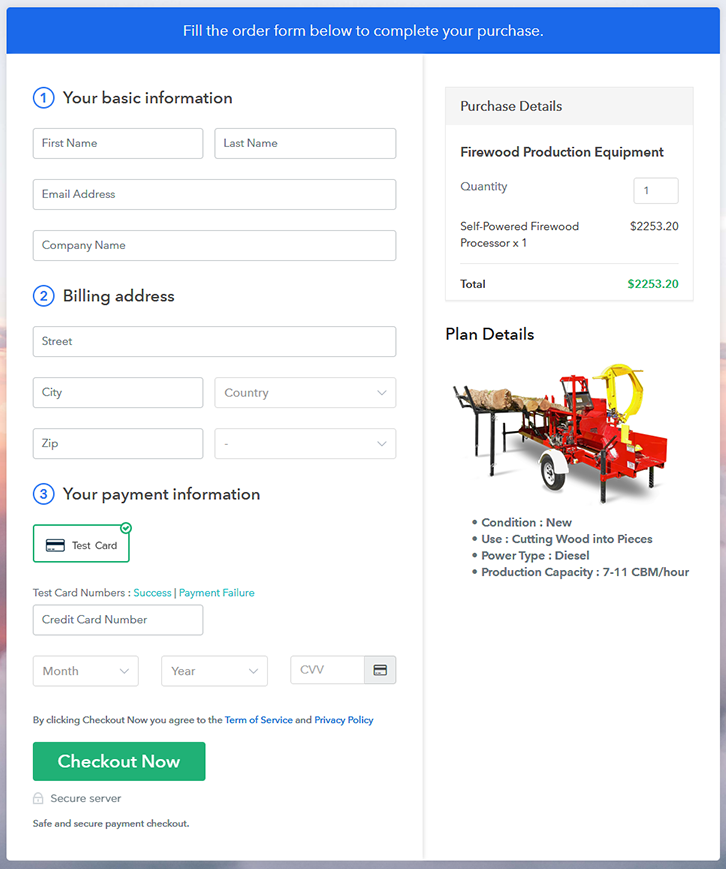
Final View of Checkout Page For Your Firewood Production Equipment Selling Business

Checkout Page Preview to Sell Firewood Production Equipment Online

Preview Checkout Page

Step 1: Log in to Pabbly Subscription Billing

Signup

To start selling firewood production equipment online first, visit the Pabbly Subscription Billing official website. On the website, strike the Sign Up Free button & sign-up using a Google account or fill-in the form manually with a few details.

Sign Up For Free!

Step 2: Select Subscription Billing

Access Subscription Billing

Step 3: Account Setup

Setup Account

Next, you’ll need to fill in some company details like the company name, the currency you wanna deal in & a contact number to complete the system settings.

Step 4: Connect Payment Gateways & Start Firewood Production Equipment Selling Business Online

Connect Payment Gateway

In this step, you’ve to integrate a payment gateway method to collect payments for the sold firewood production equipment. Furthermore, for testing, you can also enable the test payment gateway method. But, you must choose & integrate a payment method for collecting payments amongst the below available choices.

Step 5: Add Product For Your Firewood Production Equipment

Add Product

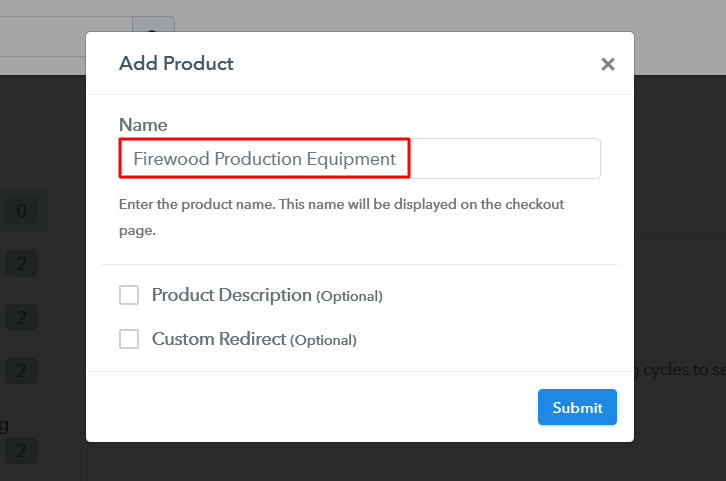
Now all the system settings are done & you can start adding firewood production equipment products. You can also name the product as a category of items such as cutters, chippers, processors etc.

Add Product to Sell Firewood Production Equipment Online

Fill up the details and your product is created.

Note: Here you can add all the products related to the similar category by creating plans for each of them.

Step 6: Add Plans 

Now, let’s start adding plans for the different types of firewood production equipment available in your store.

(a) Select Add New Plan

Add Plan

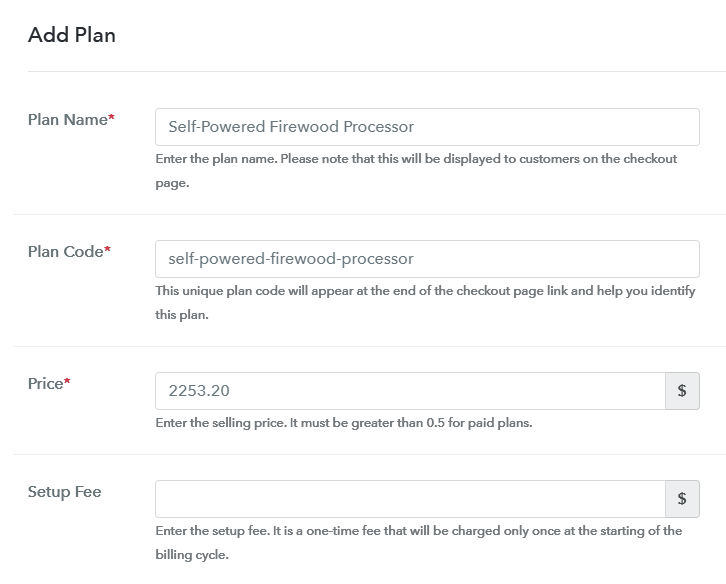
(b) Specify the Plan & Pricing Details

Add Plan to Sell Firewood Production Equipment Online

You can mention the details of the firewood production equipment that you wanna sell here in the plan details page. Also, you can mention a name, code, price, billing cycle etc.

(c) Add Image & Description of Firewood Production Equipment

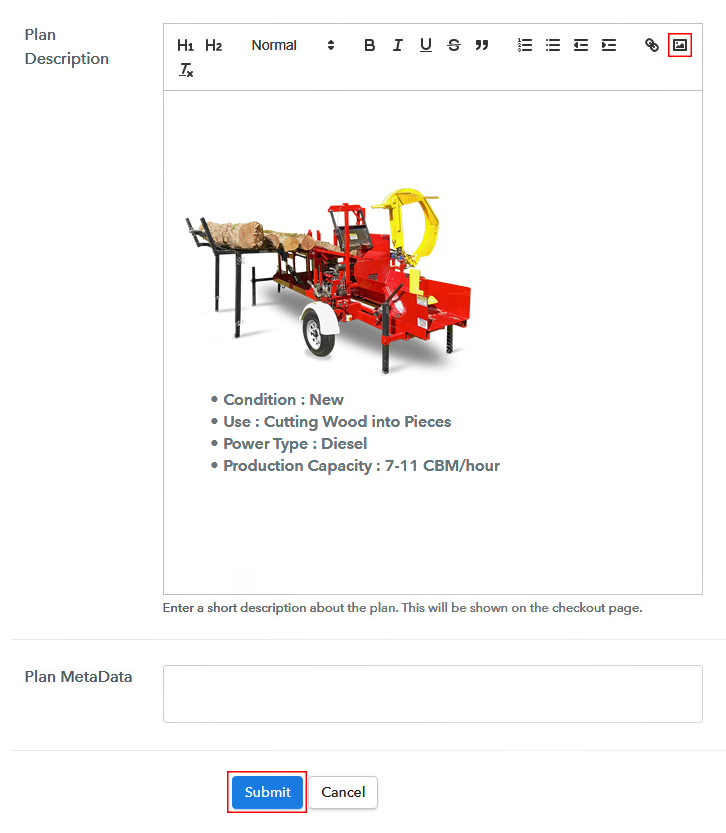
Add Image & Description to Sell Firewood Production Equipment Online

Moreover, you can also show an image & some text about the firewood production equipment.

Once you submit this page a checkout page will be generated.

Similarly, you can repeat this step to add more firewood production equipment.

Step 7: Share your Checkout Page

Share Checkout Page on Social Media

To sell firewood production equipment online, you can share or embed the checkout pages.

  • You can share the created checkout page on Facebook and Twitter directly
  • Also, you can share the checkout page on other social media & link sharing platforms such as emails, WhatsApp etc by sharing the plan link
  • To embed a checkout page in the buttons & texts of a website or app, you can embed the plan link that will redirect the customer on the checkout page

Step 8: Preview Checkout Page

Follow up the recommended steps to preview the checkout page:

(a) Click on the View Button

View Checkout Plan

(b) Take a Look at the Checkout Page

Checkout Page Preview to Sell Firewood Production Equipment Online

Step 9: Embed Checkout Page in Site & Sell Firewood Production Equipment Online

Embed Checkout Page on Website

Just copy the link and add the checkout page to sell firewood production equipment online at any preferable place on your WordPress site.

(a) Edit the Page & Paste the Copied Link

Embed Checkout Page on Website

Further, paste the plan link on a text editor of the WordPress dashboard.

(b) Save & Publish the Checkout Page

Save_and_Publish

Next, click the “Publish” button, after making changes.

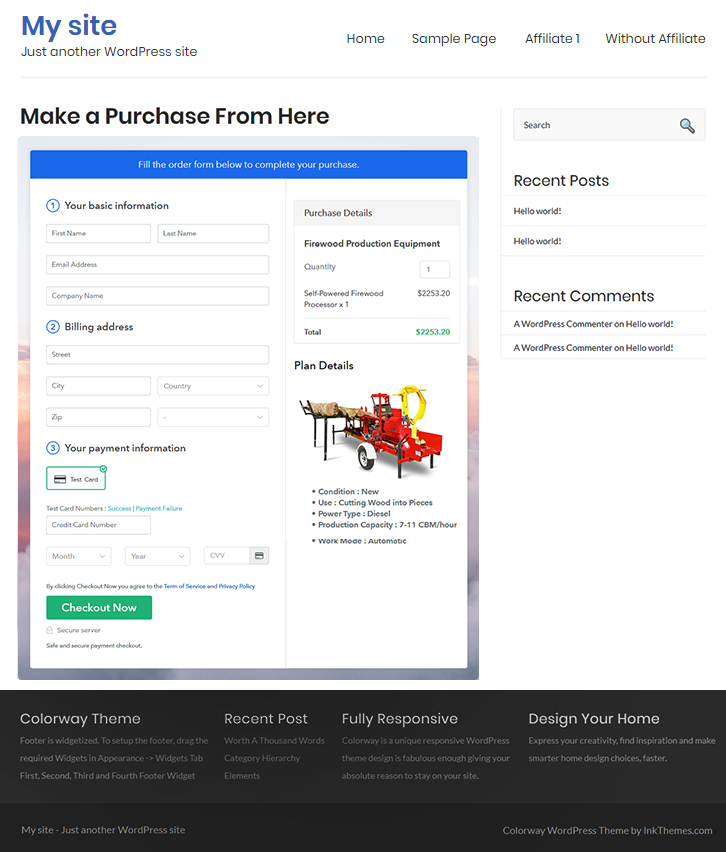
(c) Check out the Final Look of your Checkout Page on WordPress Site

Checkout Page On WordPress Site to Sell Firewood Production Equipment Online

Step 10: Multiplan Checkout Page

Note: In case you want to sell multiple products via a single checkout page, you can create a multi-plan checkout page otherwise skip this step.

(a) Click on Add Mutiplan Checkout

Multiplan Checkout

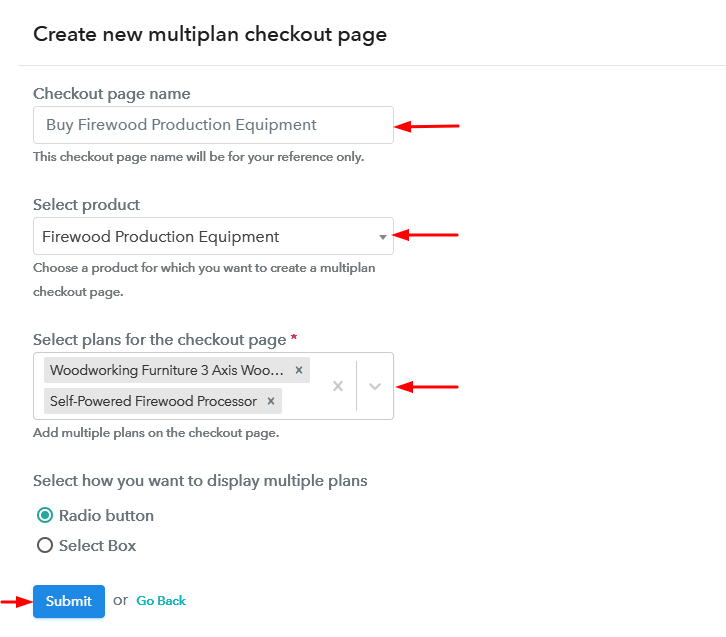
(b) Add Plans to Sell Multiple Firewood Production Equipment from Single Checkout Page

Create Multiplan Checkout to Sell Firewood Production Equipment Online

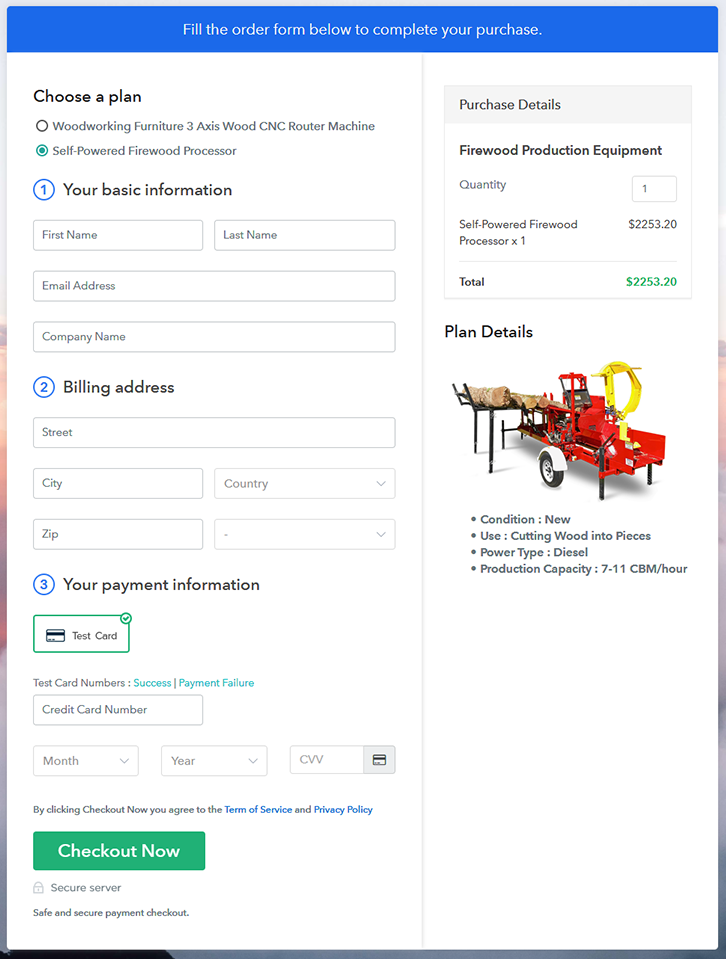
(c) Take a Look at the Checkout Page

Multiplan Checkout Page to Sell Firewood Production Equipment Online

Preview Checkout Page

Wrapping Up

This was my catch on ‘How to sell firewood production equipment online?’ fast as well as easily. Furthermore, there are several reliable options to choose for a payment gateway such as PayPal, Stripe, Razorpay & Authorize.Net. Also, you can accept multiple currencies by selling firewood production equipment online.

Hope this was helpful & you’ll start firewood production equipment business online very soon!

You May Also Like To Read –