How to Integrate Pabbly Subscription Billing and Moosend

How to Integrate Pabbly Subscription Billing & Moosend

In this article, we’ll walk you through the complete guide to send automated emails to your customers and ‘How to integrate Pabbly Subscription Billing and Moosend’.

How to Integrate Pabbly Subscription Billing & Moosend

We are going to use ‘Pabbly Connect’ as a switch between Pabbly Subscription Billing and Moosend. It will help us to send emails using Moosend to the customers of Pabbly Subscription Billing in real-time automatically with a simple concept of creating triggers and respective actions in Pabbly Connect.

That means for every purchase that happens inside your Pabbly Subscription Billing account the lead and the customer for that purchase will be directly & instantly transferred to your Moosend subscriber’s list.

Why Choose This Method Of Integration?

In contrast with other integration services-

  • Pabbly Connect does not charge you for its in-built apps like filters, Iterator, Router, Data transformer and more
  • Create “Unlimited Workflows” and smoothly define multiple tasks for each action
  • As compared to other services which offer 750 tasks at $24.99, Pabbly Connect proffers 50000 tasks in the starter plan of $29 itself
  • Unlike Zapier, there’s no restriction on features. Get access to advanced features even in the basic plan
  • Try before you buy! Before spending your money, you can actually signup & try out the working of Pabbly Connect for FREE

Sign Up To Pabbly Connect  

The step by step procedure will help you to follow the path without getting lost anywhere and end up automating the entire system for further use.

Up to this point, I suppose the whole idea is pretty much clear and let’s jump onto the step by step procedure to integrate Pabbly Subscription Billing & Moosend.

Step 1: Sign up to Pabbly Connect
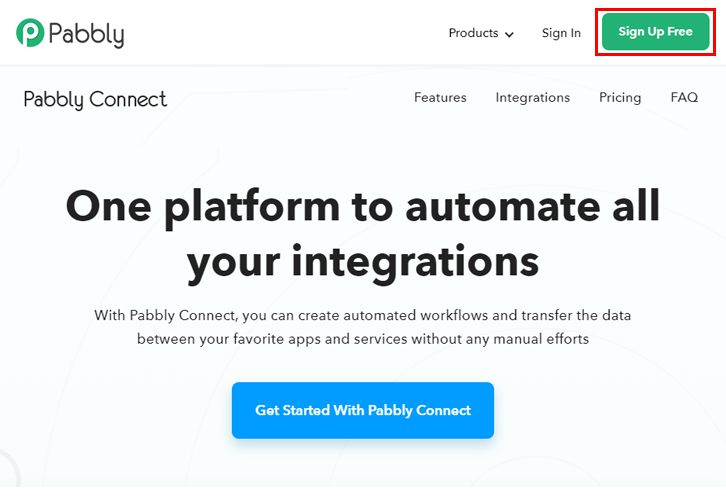
Sign Up

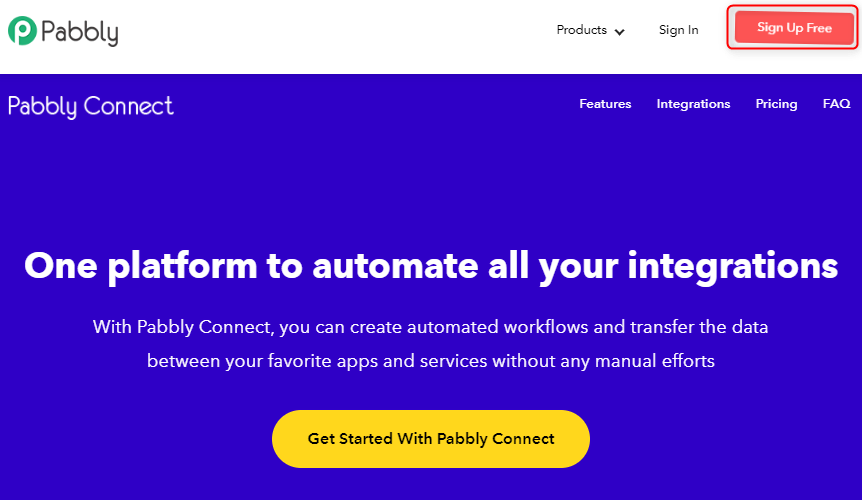
To get started, visit the official website of Pabbly and click ‘Sign-Up Free‘ button to sign-up for Pabbly Connect. On the next page redirect, either make use of an existing Google account or do fill out the registration form details manually.

Try Pabbly Connect for FREE

Step 2: Access Pabbly Connect

Select Connect

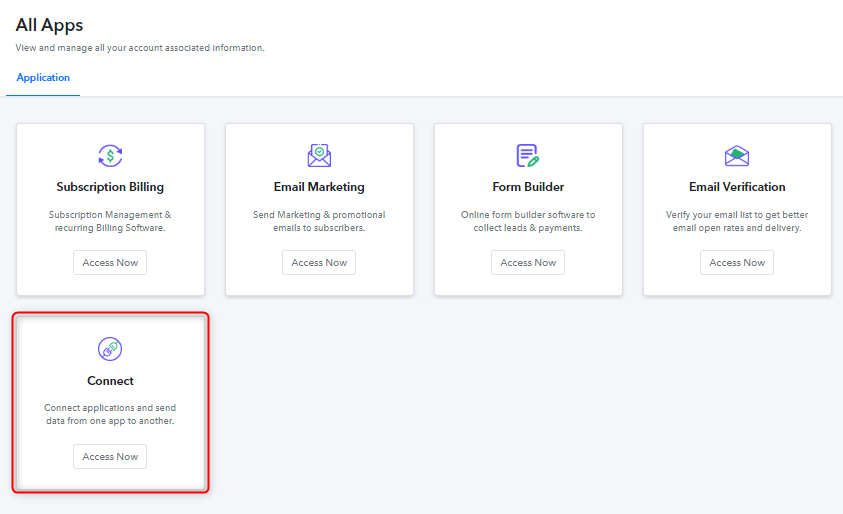
Once you successfully sign up, click on the ‘Access Now’ button next to ‘Connect’.

Step 3: Create a New WorkFlow

(a) Click over the Create New Workflow Button

Create New Workflow

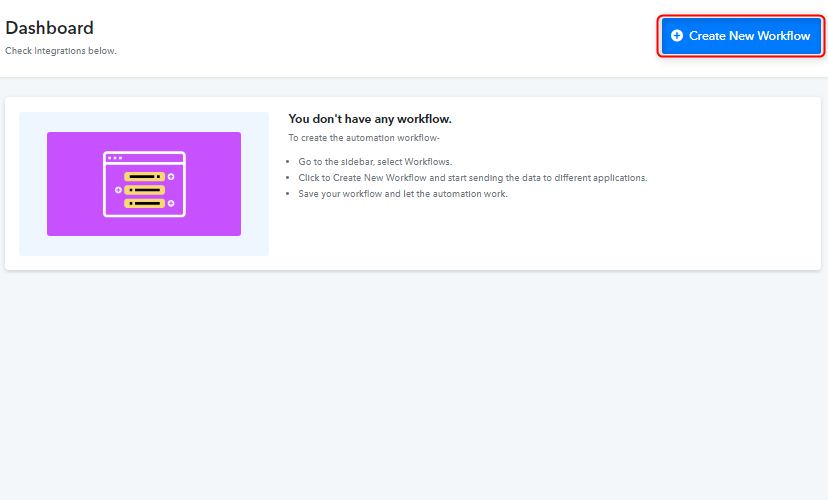
Start with creating a workflow to integrate Pabbly Subscription Billing & Moosend and hit the ‘Create New Workflow’ button.

(b) Name the Workflow
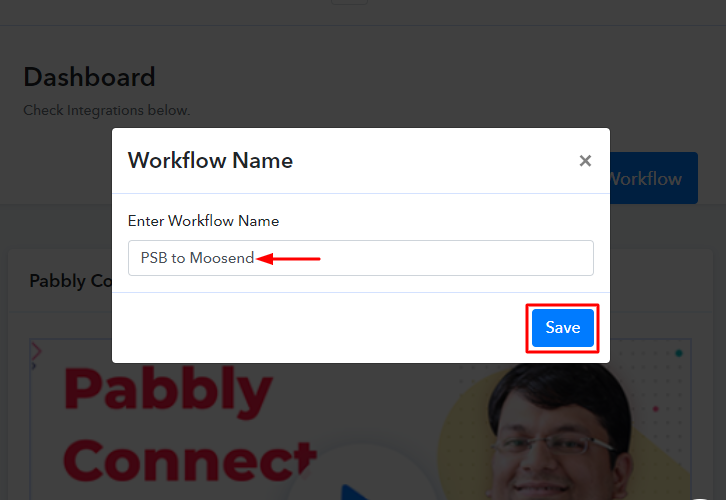
Workflow Name

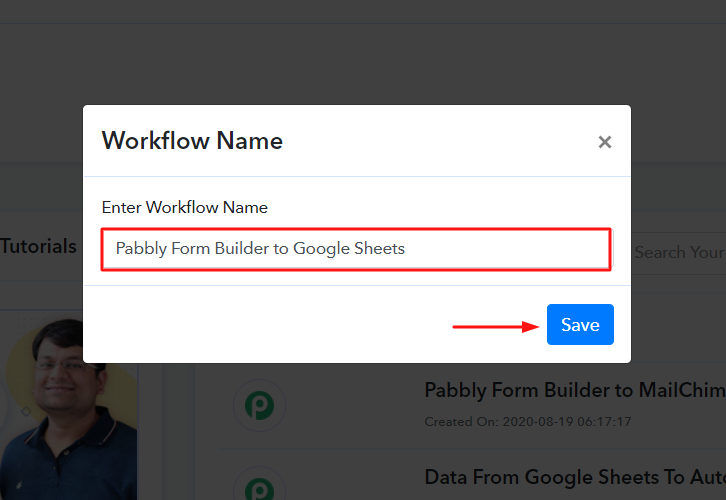
Name the Workflow as per your need and hit the ‘Save’ button.

Step 4: Set-up A Trigger

(a) Copy the Webhook URL
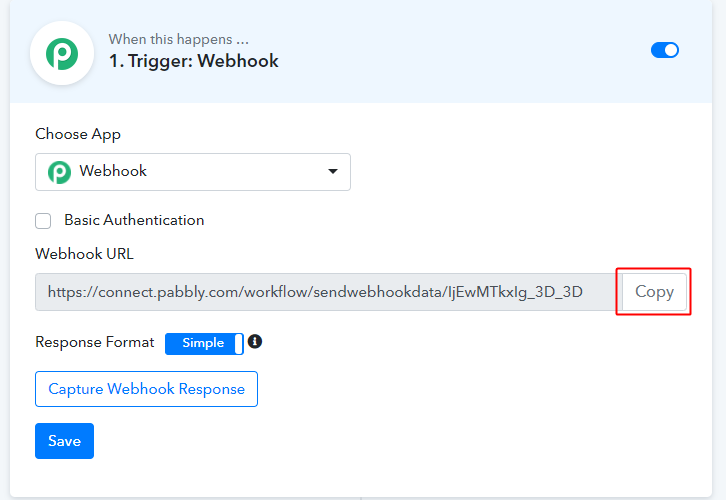
Copy Webhook URL

Once you save a workflow, a trigger window will appear carrying a webhook URL. Click the button named as ‘Copy’ right next to the URL.

To connect two different services together you’ll need a Webhook. Webhooks are used to send data to a remote application whenever a certain event happens in the Pabbly Subscription account.

(b) Go to Pabbly Subscription Billing > Settings > Webhooks
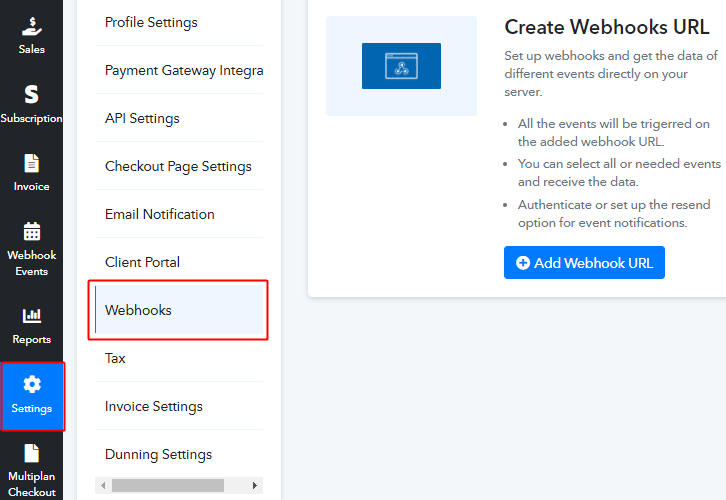
PSB Settings Webhooks

To paste the copied webhook URL you must go to your Pabbly Subscription Billing account.

Then, click on ‘Settings’ from the verticle menu visible.

Next, click on the ‘Webhooks’ option from the ‘All Settings’ menu.

(c) Add Webhook URL
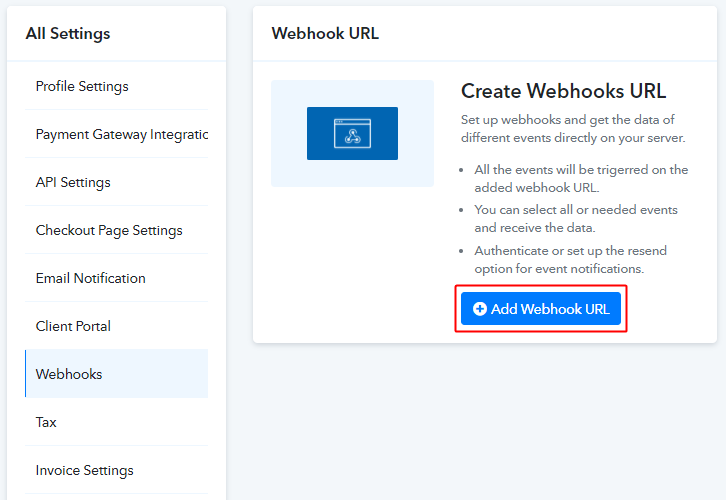
Add Webhook URL

Now, hit the ‘Add Webhook URL’ button.

(d) Add Webhook URL in Pabbly Subscription Billing
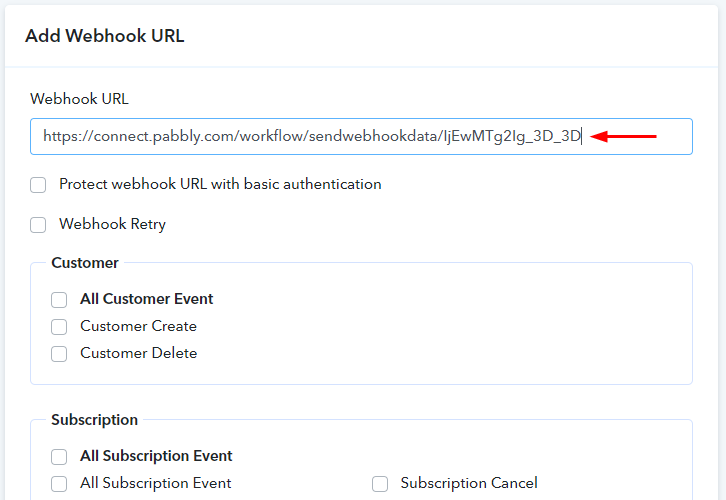
Paste Webhook URL

After clicking on the ‘Add Webhook URL’ button, you’ll land on a page. Paste the copied Webhook URL under the very first field named as ‘Webhook URL’.

(e) Check the Successful Payment Condition
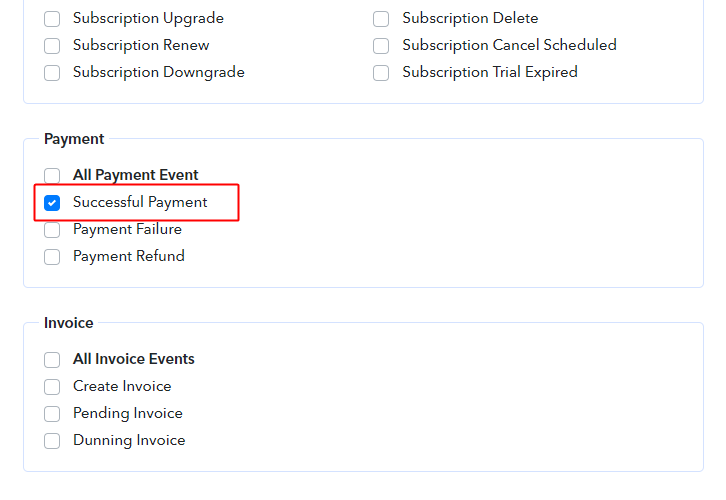
Check Successful Payment

Tick the ‘Successful Payment’ option under the head ‘Payment’.

Likewise, to set the trigger on any other event of Pabbly Subscription Billing checkout page there are multiple options available. You can choose among conditions such as subscription cancel, affiliate events, payment failure etc.

() Save the Webhook URL Setting
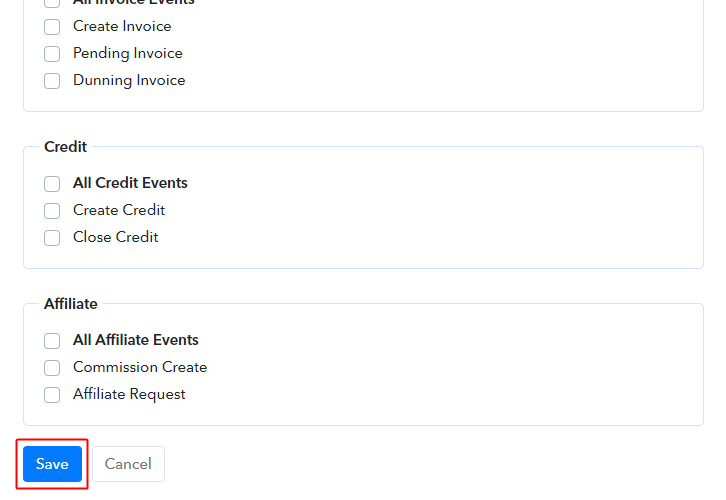
Save Webhook URL

When you are done with the webhook URL settings on Pabbly Subscription Billing, save the page.

Step 5: Run a Test Purchase

To test the response of the set webhook, Pabbly Connect provides testing options. Using these test options you can simulate a webhook’s response.

To test the webhook response follow these steps.

(a) Go to the Pabbly Subscription Billing > Product
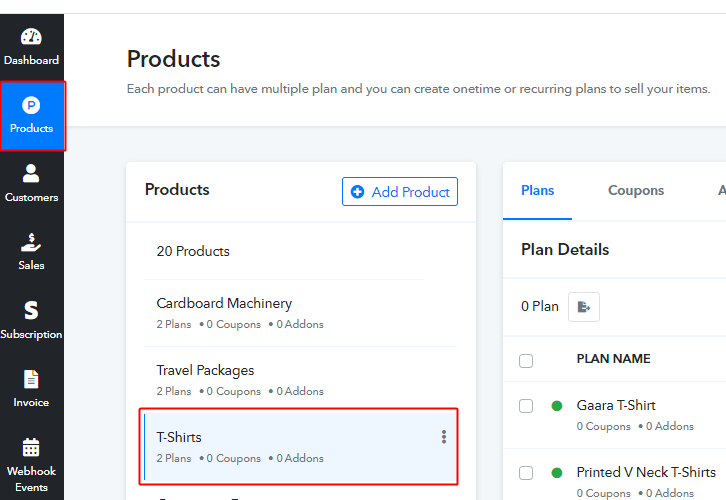
PSB Product

Visit your Pabbly Subscription Billing account dashboard and click on ‘Products’ in the verticle menu.

(b) Access the Checkout Page
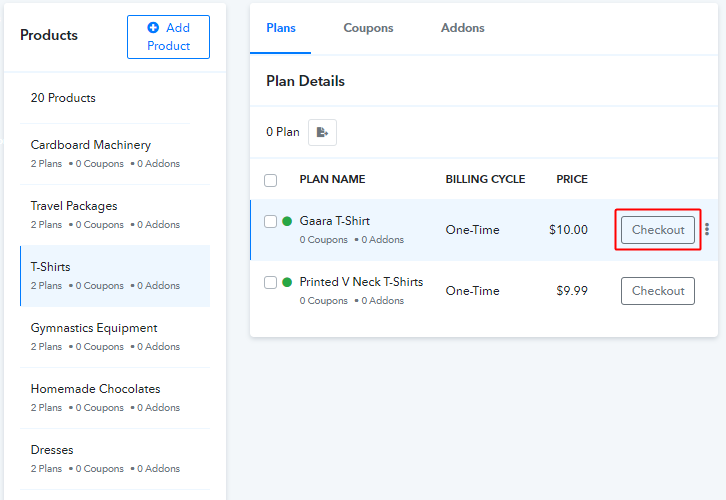
Access Checkout Page

If your products and associated plans then select a product and click on the ‘Checkout’ button to visit a plan’s payment page.

Or there is no product then simply create one along with a plan.

(b) Fill the Checkout Page for Testing
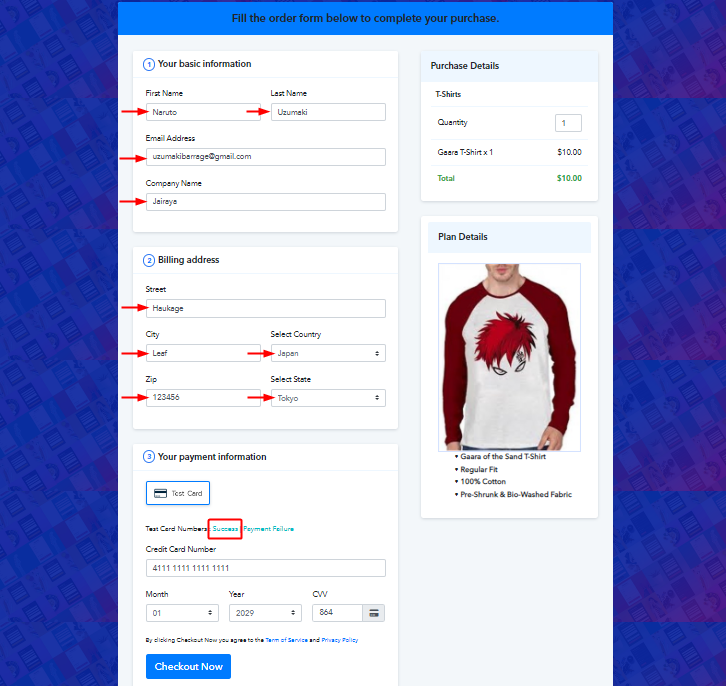
Fill Test Checkout Page

Fill in all the necessary details on the checkout page and click on the ‘Success’ option of the next to Test Card Number. This action will automatically feed the dummy card details. Don’t hit the ‘Checkout Now’ button yet.

(c) Go to Pabbly Subscription Billing & Capture Webhook Response
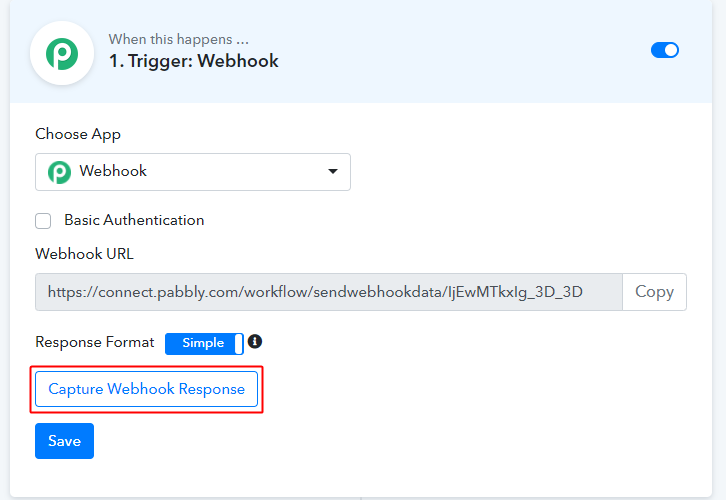
Capture Webhook Response

Before submitting the payment page, go to the created webhook on Pabbly Connect and press the ‘Capture Webhook Response’ button there.

(d) Click on Checkout Now on the Checkout Page
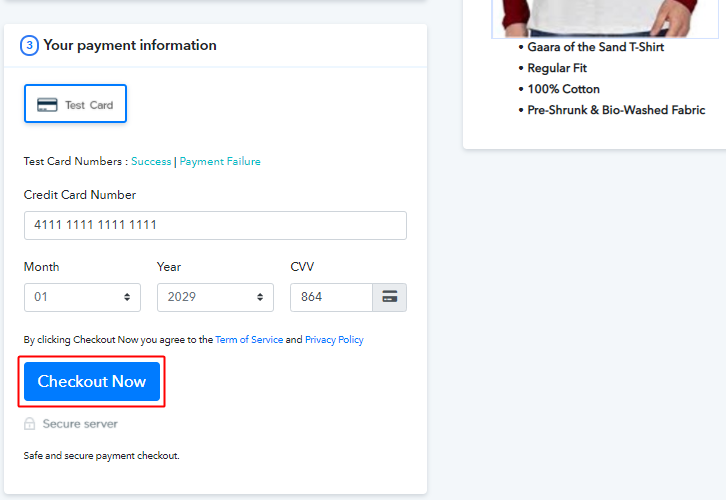
Checkout Now

Now return to the test form and click the ‘Checkout Now’ button to complete the purchase.

(e) Notice the Webhook Response
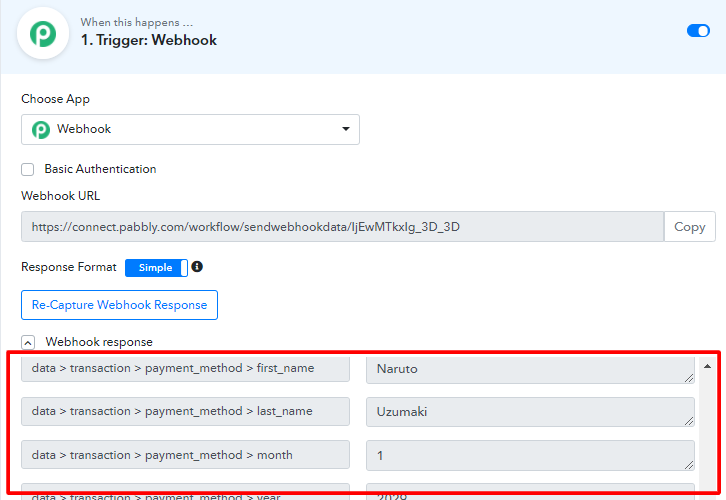
Notice the Webhook Response

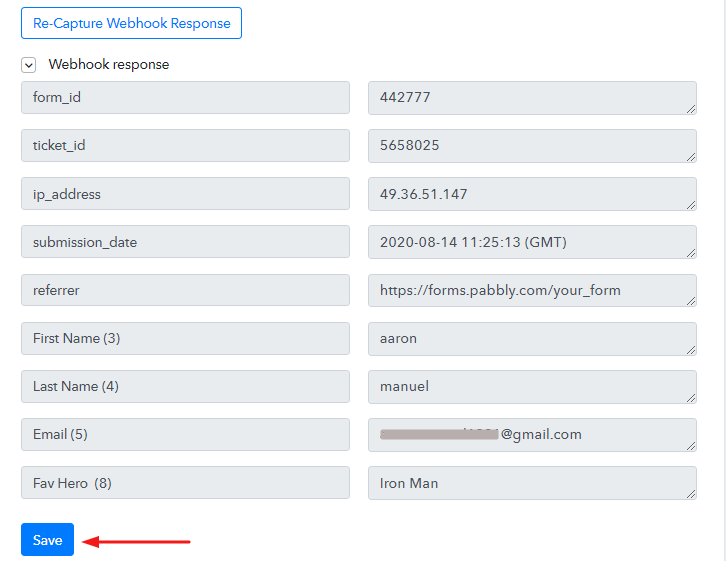
If everything is as directed then you can see the complete webhook response within a few seconds under the created trigger webhook.

Step 6: Set-up an Action

Now, we’ve seen that the trigger is all set and working as expected. So, we can start defining an action for completing the Pabbly Subscription Billing & Moosend integration.

(a) Add an Action
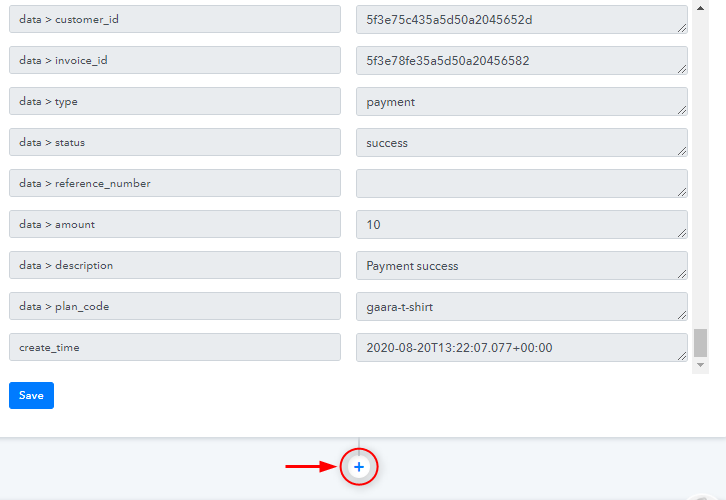
Click Plus Button

Click the plus button next to the trigger window to add an action.

(b) Select App for Integration
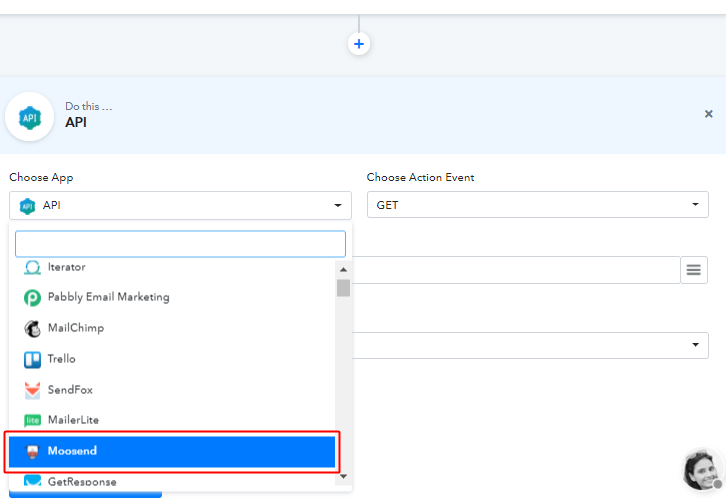
Choose App Moosend

When you click on the ‘+’ button then an action window will become visible. You can choose an app for integration here. In this case, we’ll select ‘Moosend’ from the drop-down list.

 (c) Connect with Moosend
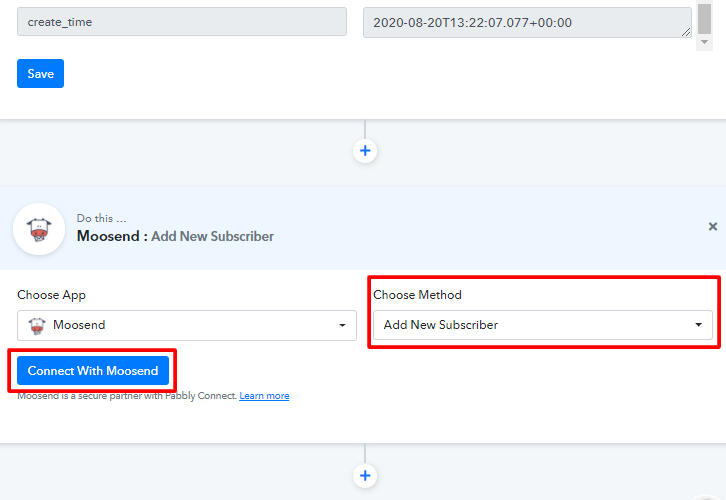
Connect with Moosend

After making a choice for the app to integrate, make sure for the method to be as ‘Add New Subscriber’ and then hit the ‘Connect to Moosend’ button available.

A window will slide open from the right side, asking for an API key.

(d) Copy Moosend API Key
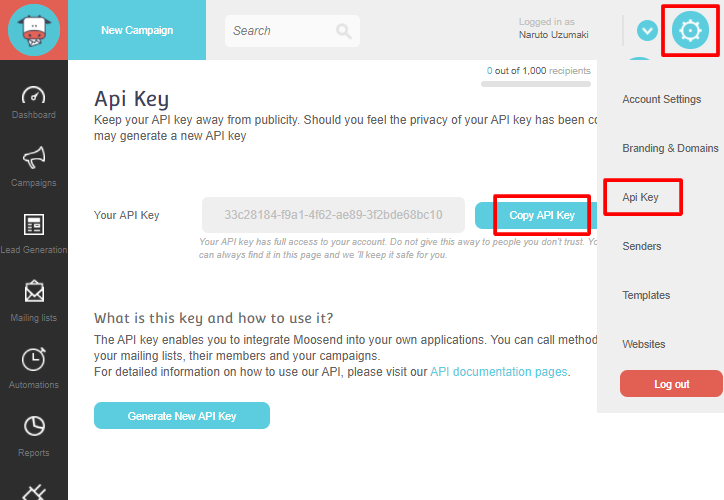
Copy Moosend API Key

To get a Moosend API key, go to your Moosend account.

Next, click the gear icon on the top-right corner, a drop-down menu will open up.

Select the ‘API Key’ option from the list and a page containing API key will open up.

Lastly, hit the ‘Copy API Key’ button and the key will get copied.

(e) Paste the Moosend API in Pabbly Connect Action
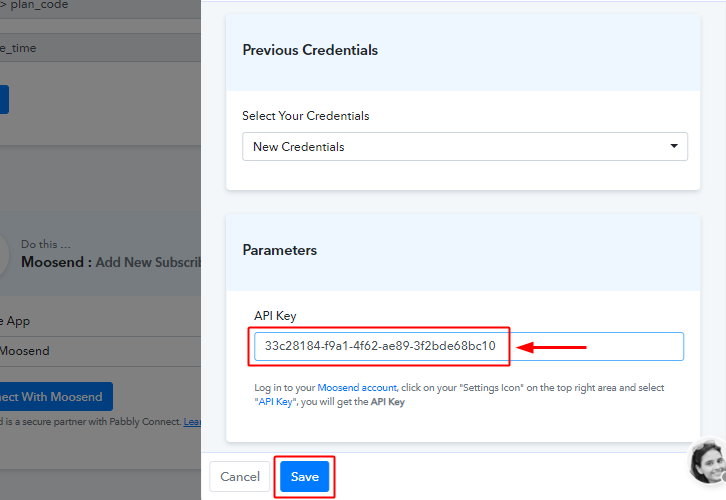
Paste Moosend API

Return to the Pabbly Connect and paste the copied key in the API key text area.

Step 7: Mapping the Keys & Values

This is an important step and will be responsible for the values that you send to Mooosend from the captured payment page response.

(a) Select Mailing List
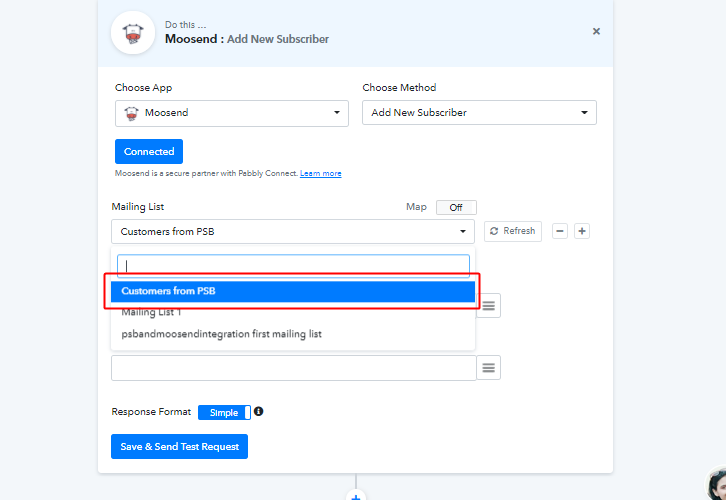
Select Mailing List

Once you feed in the Moosend API key, all the lists got populated under the mailing list head dropdown. Moreover, if want to send the data to a new list then you can simply create a new list from your Moosend dashboard and simply press the ‘Refresh’ button right next to the list choices. Consequently, the newly created list will start appearing after a refresh and you can select it too.

(b) Map the Values to Integrate Pabbly Subscription Billing and Moosend
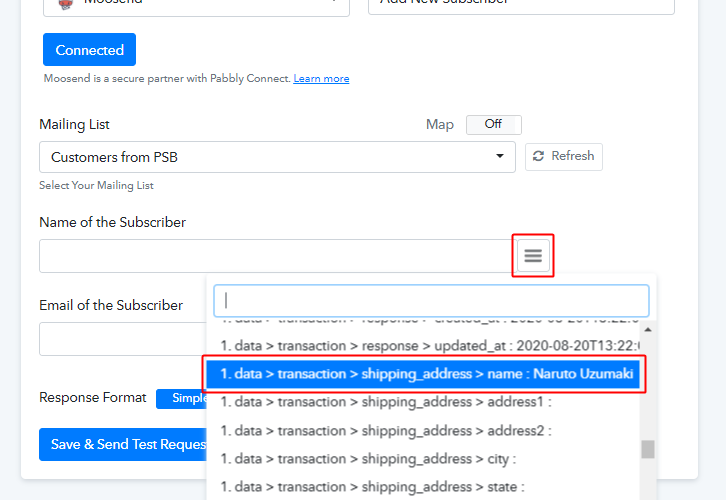
Map Keys and Values

To map the keys and values, click the menu icon/three-vertical lines next to a mapping entry field and select the option that you want to map with the ‘Name of Subscriber’ field from the previously captured response.

Similarly, map the value for the ‘Email of the Subscriber’ field.

(c) Save & Send Test Request
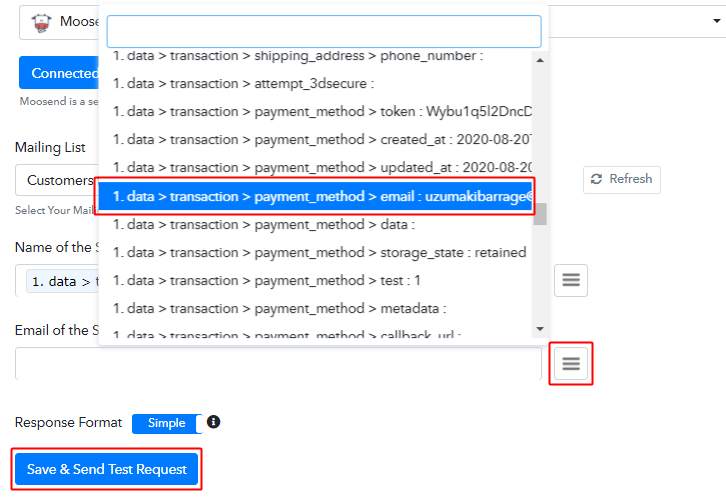
Save & Send Test Request

After mapping both the field entries, strike the ‘Save &Send Test Request’ button.

Step 8: Notice the Entries in Moosend Mailing List
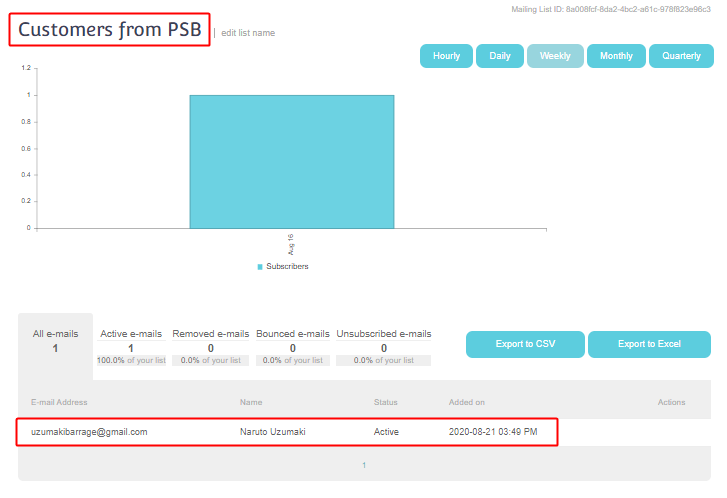
Notice the Entries in Moosend Mailing List

Go to the Moosend mailing list which you have selected on Step: 7 (a) and notice the test entries there.

Step 9: Save the Workflow
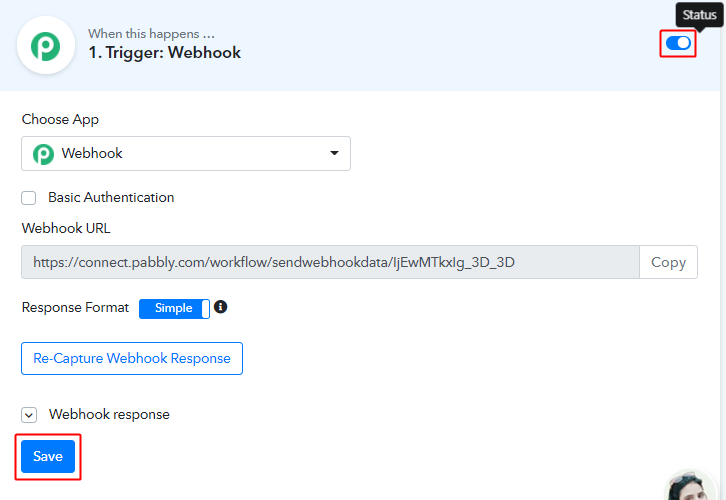
Save Workflow

As we can see from the test response that the webhook is working fine. We can save it. Also, notice the webhook status as on (blue coloured) on the top-right corner of the webhook.

Wind-up

Consequently, you might have understood that ‘How to integrate Pabbly Subscription Billing and Moosend’. Similarly, you can also set up a workflow for cancelled users and make a separate list of them on Moosend mailing list. And all the cancelled users will automatically be added to the mailing list in the Moosend account. Once those customers are added there you can offer other interesting deals/offers through automation. Or you can send automated emails regarding ‘Why they’ve cancelled the subscription?’.

I do hope that you’ve found this useful and if you are having any other query do comment below.
You May Also Like to Read

How to Fetch & Send Data From Google Sheets to Pabbly Email Marketing

Google Sheets To Pabbly Email Marketing

Having trouble sending data from Google Sheets to Pabbly Email Marketing? Well in this article we will use a simple yet efficient method to solve this problem.

Google Sheets to Pabbly Email Marketing

Imagine having a data list in Google Sheets and you want to append this data to any application in the world. Of course, it is possible but the only prerequisite is that you need to have some good technical skills like coding. But let’s face it most of us really don’t have any programming knowledge nor have the patience to manually insert each data into applications. We just wish to click some buttons and the data automatically adds into the application we want.

Well, for people like you, I propose using a SaaS tool called Pabbly Connect. It simply acts like a middleman or a pipe that delivers data from Google Sheets to any application you desire and that too in real-time!!

To explain this process, we will trigger data from Google Sheets into Pabbly Email Marketing using Pabbly Connect. Now the gist of the process is, first we are going to connect Google Sheet to Pabbly Connect then Pabbly Connect to Pabbly Email Marketing.

So, without wasting any more time lets start the process.

Step 1:  Connecting Google Sheets To Pabbly Connect

(a) Create a Gooogle Sheet

Create a Gooogle Sheet

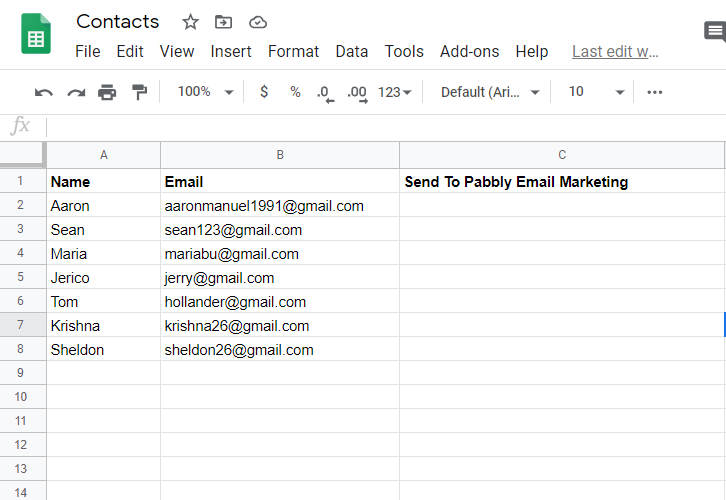
This is my Google Sheet, as you can there are three columns i.e Name, Email, and Send To Pabbly Email Marketing. We will be sending the data in column ‘A’ and ‘B’ to Pabbly Email Marketing. Also, with few tweaks, you can use this awesome method to send data to any other applications.

(b) Click on Add-ons

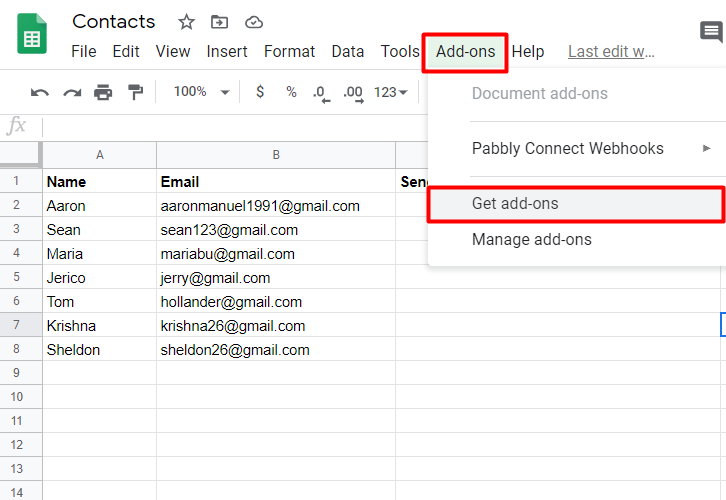
To connect google sheets to pabbly email marketing click on add-on

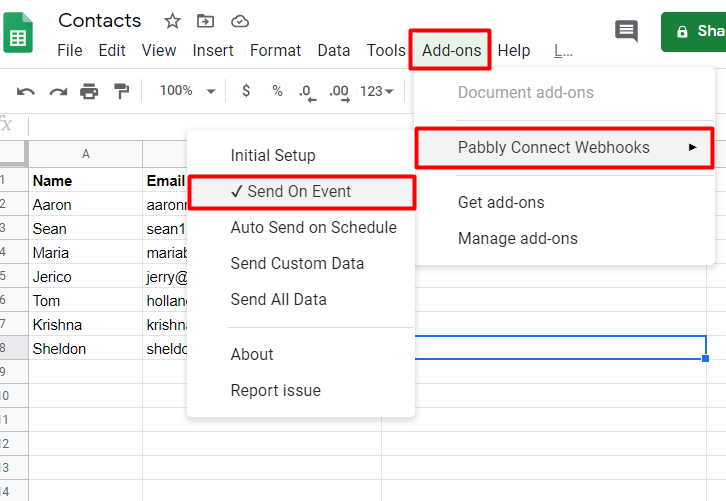
In the upper taskbar of Google Sheet, you will find a button called ‘Add-on’, click it. A drop down emerges, here you can choose the option called ‘Pabbly Connect Webhook’. But since you are hearing Pabbly Connect for the first time, this add-on is obviously not installed in your system. So let’s first install Pabbly Connect into Google Sheet by clicking on the option ‘Get add-on’.

(c)  Find Pabbly Connect in G Suite Market Place

Pabbly Connect in G Suite Market Place

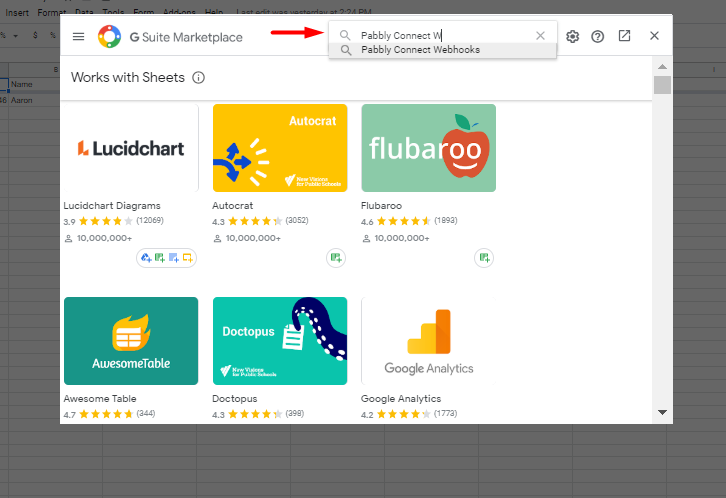
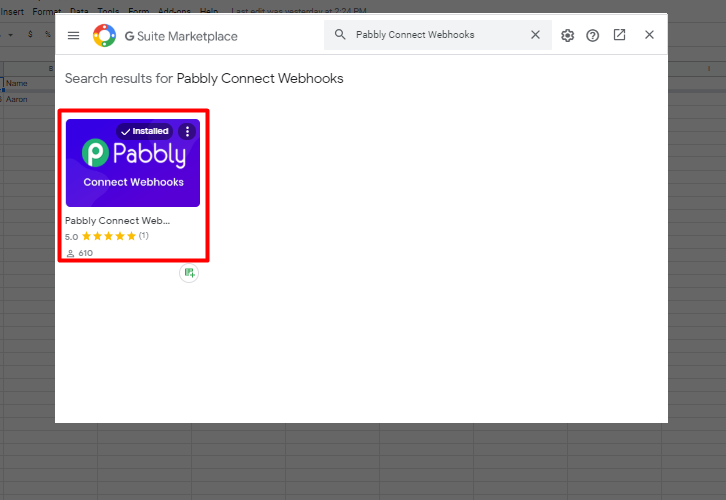
Once you click on ‘Get Add-on’ a new window will pop-up. Here in the search bar look for Pabbly Connect Webhooks. If you have it then click it.

(d) Install Pabbly Connect

How

Click on install and within seconds this extremely light add-on gets installed into your Google Sheets.

(e) Press Initial Setup In Google Sheets

How

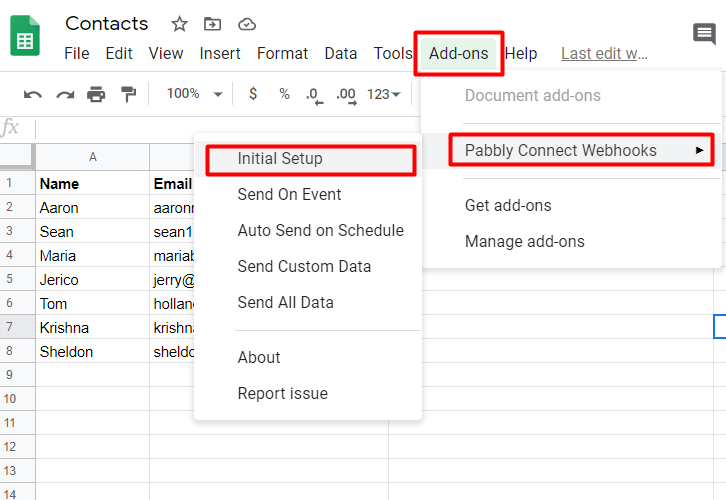
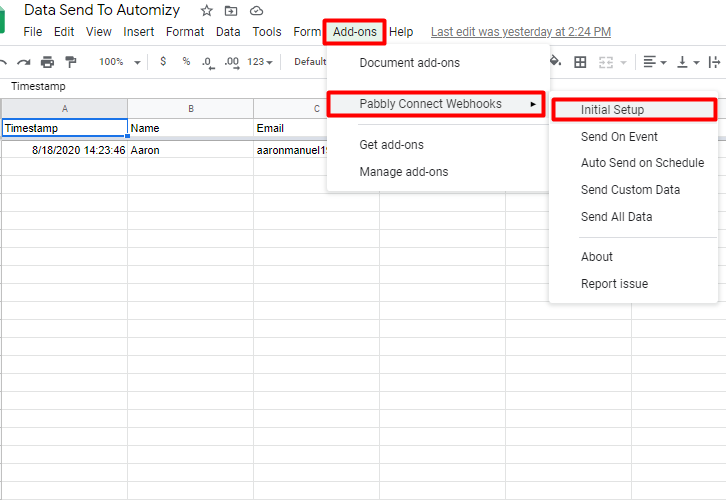
Now, that the Pabbly Connect add-on has been installed in your system, it is time that we exploit it thoroughly. Again from the upper taskbar click on ‘Add-on’ and here click on Pabbly Connect Webhooks. When you click on ‘Pabbly Connect Webhooks’ another drop-down expands with options like Initial Setup, Send on Event, Auto Send On Schedule, etc. Click on ‘Initial Setup’.

Note: In case after clicking Pabbly Connect Webhooks, if it doesn’t show Initial setup, you just need to refresh your Google Sheets. It is a glitch with Google Sheets.

(f) Place The Trigger Column As C

How

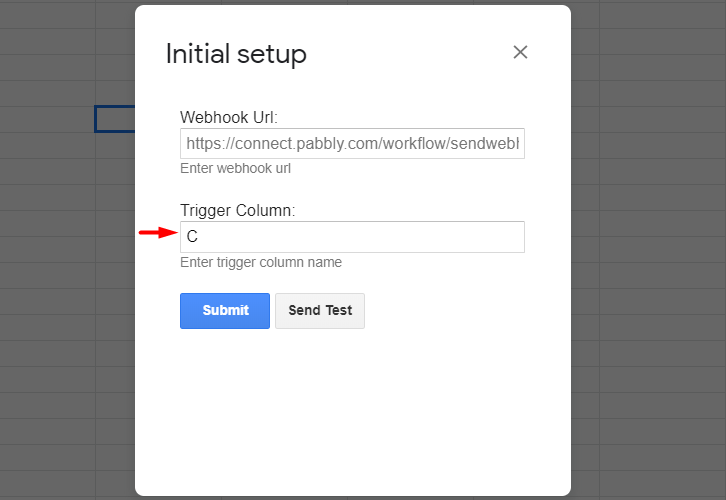
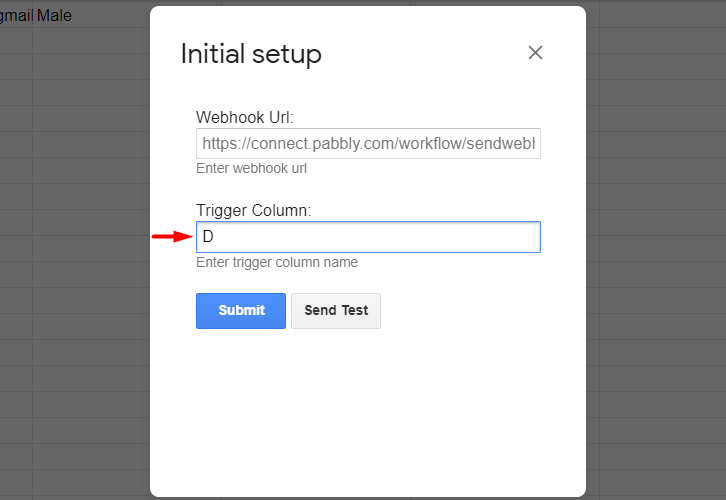
A window emerges, here you have to fill two blanks, the first is Webhook URL and the other is Trigger Column. Since our last data entry column is C, we shall add C in the trigger column. And in the next step, we will learn to place the Webhook URL.

Step 2: Sign into Pabbly Connect

Sign-up

Let’s sign in to Pabbly Connect to begin the process of data filtration. Now either fill in the details manually or sign-up through your Google account.

Step 3: Access Pabbly Connect

Access Pabbly Connect

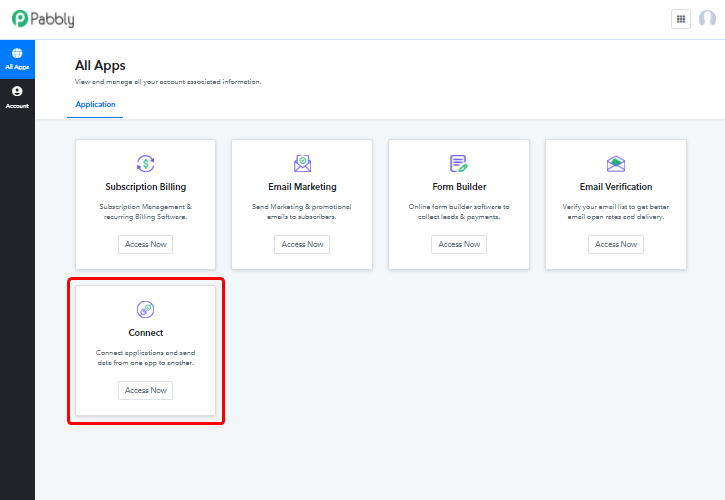
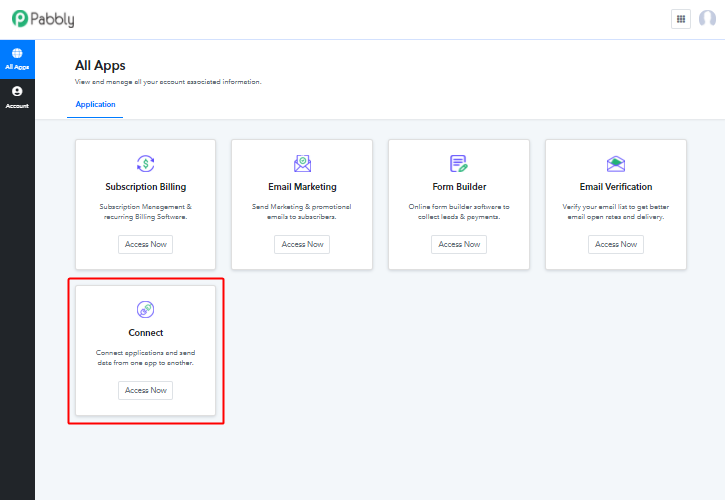
After signing up you will enter the dashboard, here access Connect (a service of Pabbly for automated integration & data transmission).

Step 4: Create A New Workflow

(a) Click on Create New Workflow

Create New Workflow

Now, let us create a new workflow by clicking on the button ‘Create New Workflow’ which is located at the right uppermost corner of the dashboard.

(b) Give a Name to Workflow

How

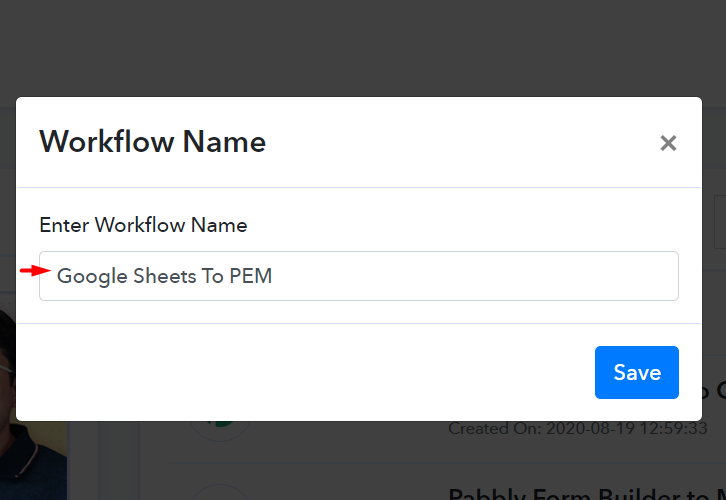
When you click on the blue button ‘Create New Workflow’, a pop-up spring out asking you to name the workflow. You can give any name to workflow according to your discretion, here I am naming it as “Google Sheets To PEM”. After naming the workflow, press the blue save button.

(c) Chose App And Method

How

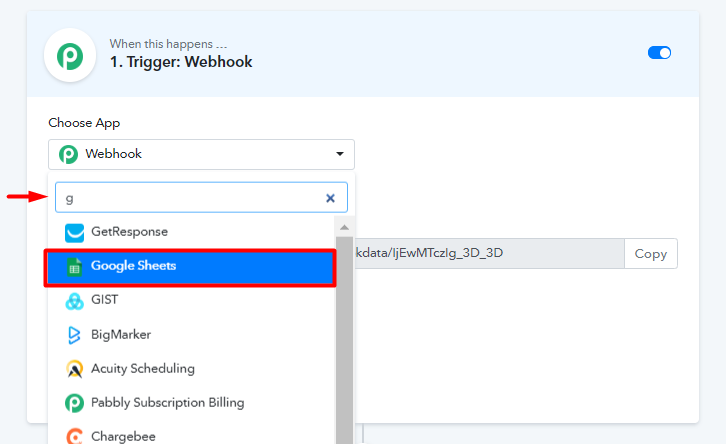
After pressing the save button, a window emerges, here in this window, you will be building the mechanism for triggers to work. The default mode of ‘Choose App’ is Webhook. Now click it and a drop-down emerges, here select Google Sheets.

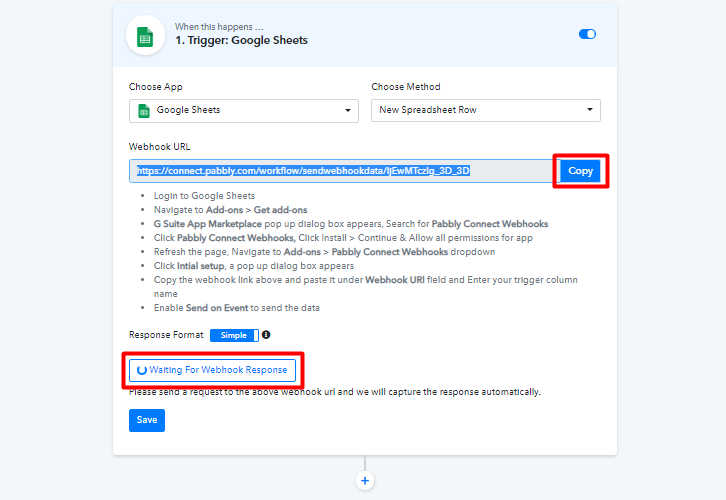
Once the Google Sheets app is selected, an option automatically appears called Chose Method. Here change the method as a spreadsheet row.

(d) Copy The Webhook URL

How

Copy the Webhook URL, just by pressing the ‘Copy’ button. Then press the button ‘Capture Webhook Response’, on clicking it will a response ‘Waiting For Webhook Response’.

(e) Paste The Webhook URL

How

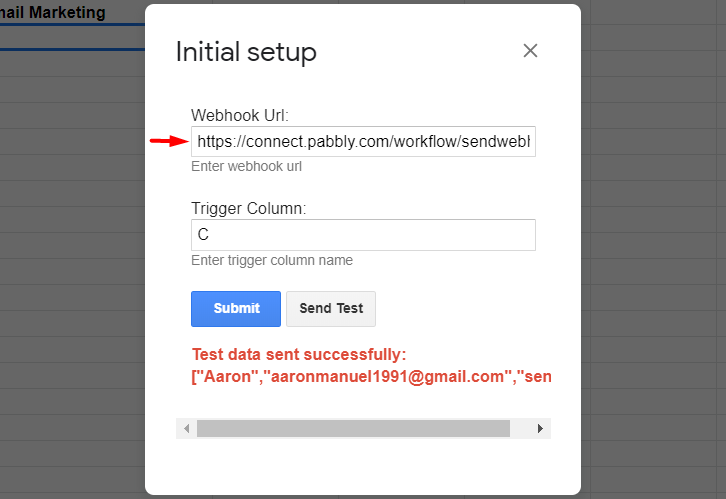
Now, let’s go back to Google Sheet for a minute, and in the initial set up dialogue box let’s paste this URL. After pasting the URL, press the ‘Send Test’ button.

It will show a message in red letters that the data has been successfully sent to Pabbly Connect.

(f) Preview The Data Capture

How

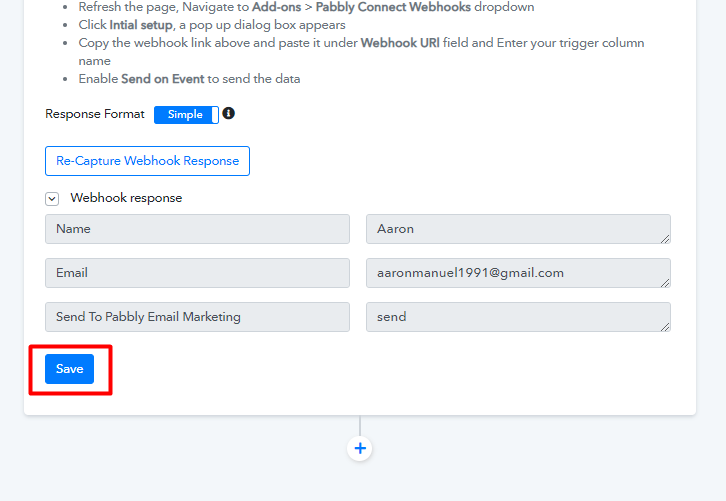
Here, you will see that the data has been automatically been captured by Pabbly Connect and will be reflected in the trigger window box. Now press the save button.

(g) Click Send On Event In Google Sheets

How

Now click on ‘Send on Event’ by clicking on ‘Add-on’ from the upper-taskbar in Google Sheet. Then click on Pabbly Connect and then ‘Send on Event’. This will ensure, every time a data in column C is added, the data in the whole row will be inserted into Pabbly Connect automatically and that too in real-time!!

So, this whole process ensures that Google Sheet is now connected with Pabbly Connect. Now we will integrate Pabbly Connect with Pabbly Email Marketing.

Step 5: Build API Window

(a) Change Choose API

How

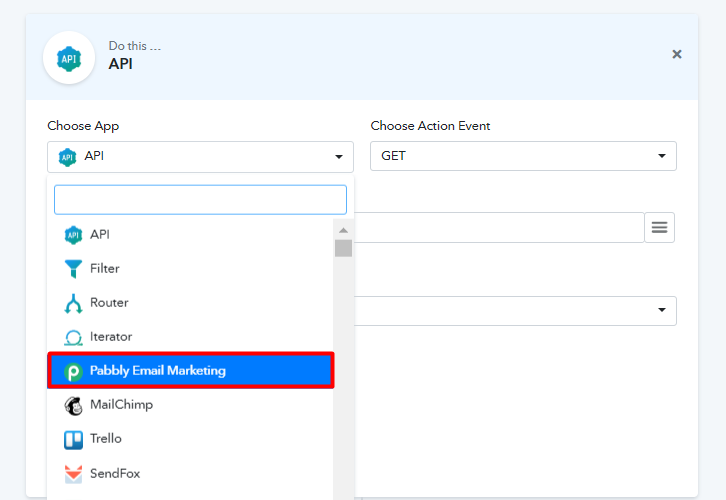
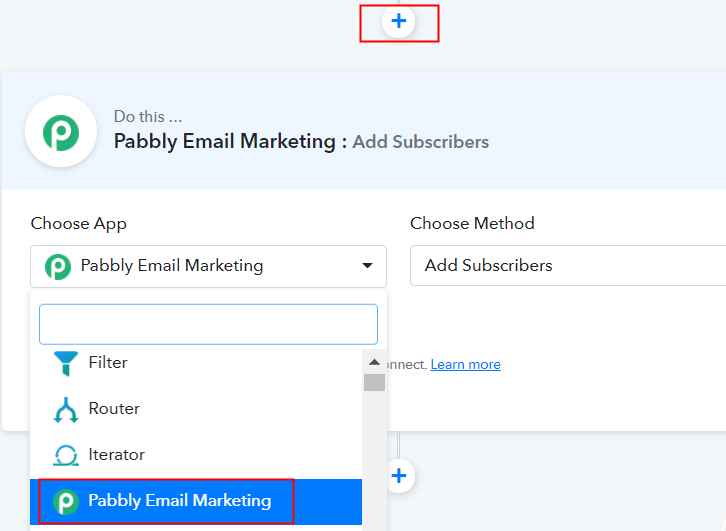
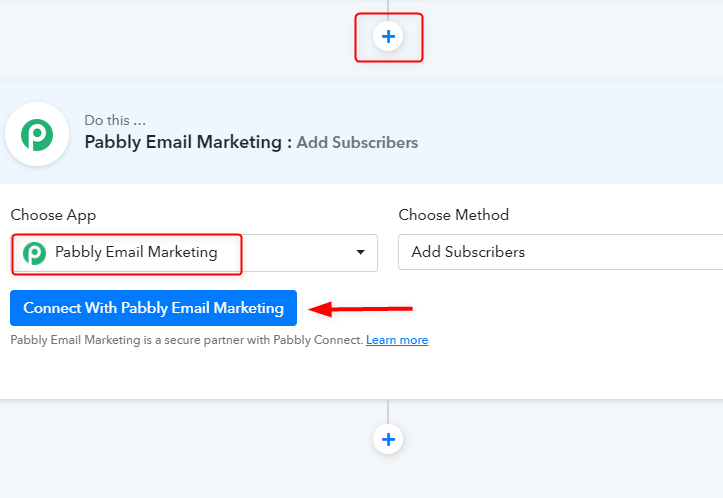
You will find a (+) button beneath the first trigger window, let’s create another trigger window by clicking on this (+) button. Once the trigger window has been created, change the ‘Choose App’ from default API to Pabbly Email Marketing. Now since we are adding new subscribers, we have to change Çhoose Action Event from default GET to Add Subscribers.

(b) Click on Connect With Pabbly Email Marketing

Integrate google sheets to pabbly email marketing clcik on connect

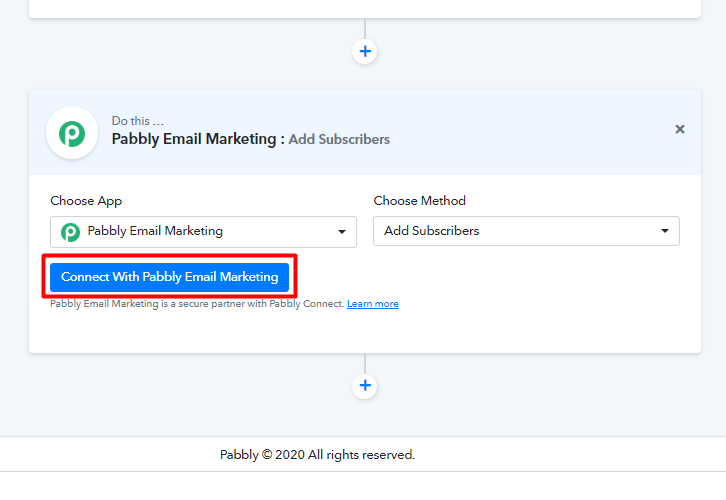
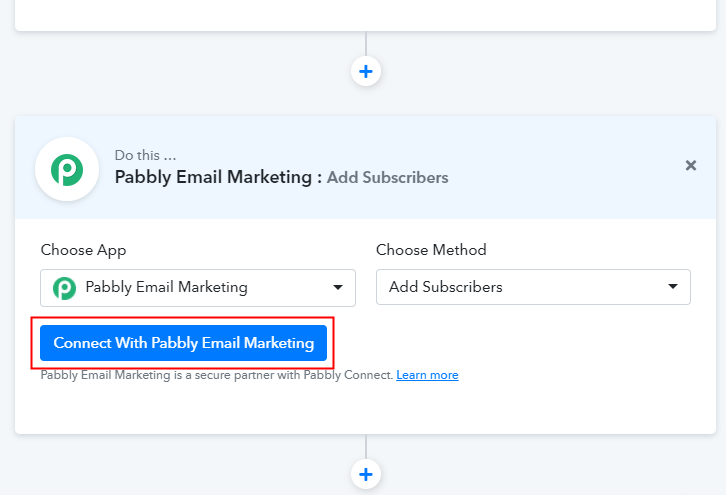
After mentioning your ‘Choose Method’, now click on the blue button located at the end of the trigger box called ‘ Connect With Pabbly Email Marketing’

(c) Add Credentials

integrate pabbly connect to pabbly email marketing

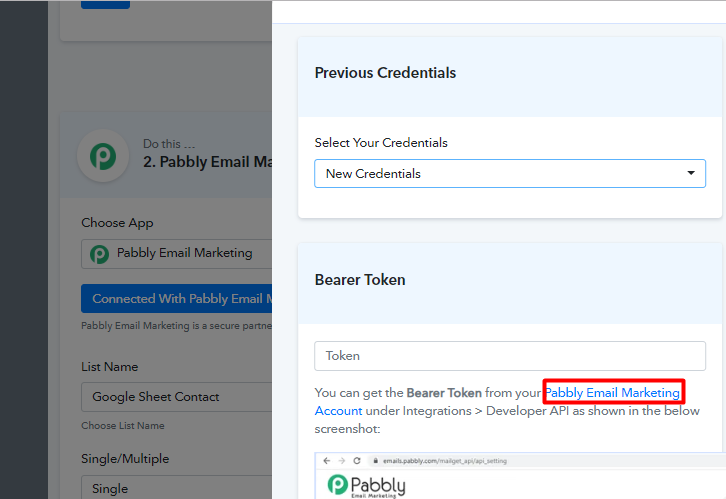
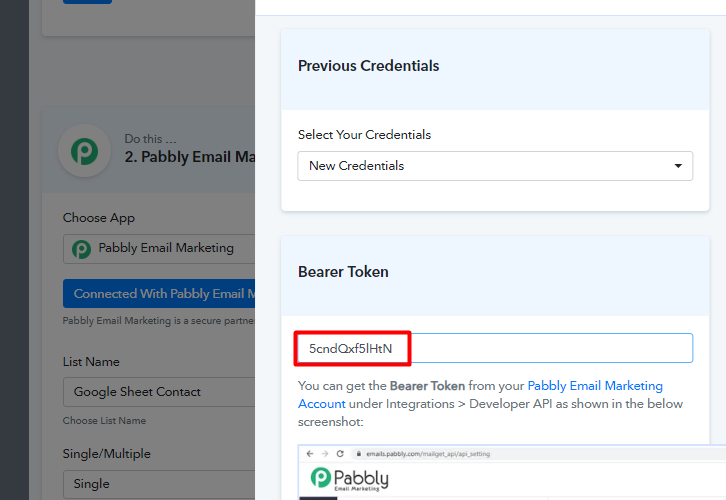
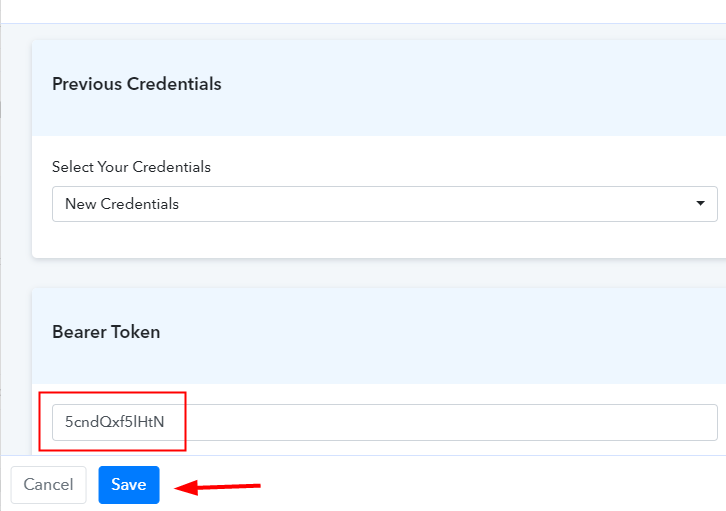
Here, you have to change your credentials to ‘New Credentials’. To get the bearer token click on to Pabbly Email Marketing Account. When you click on the blue link, you will be re-directed to Pabbly Email Marketing’s dashboard.

Step 6: Integrate Pabbly Email Marketing To Pabbly Connect

(a) Click Integrations

click integrations

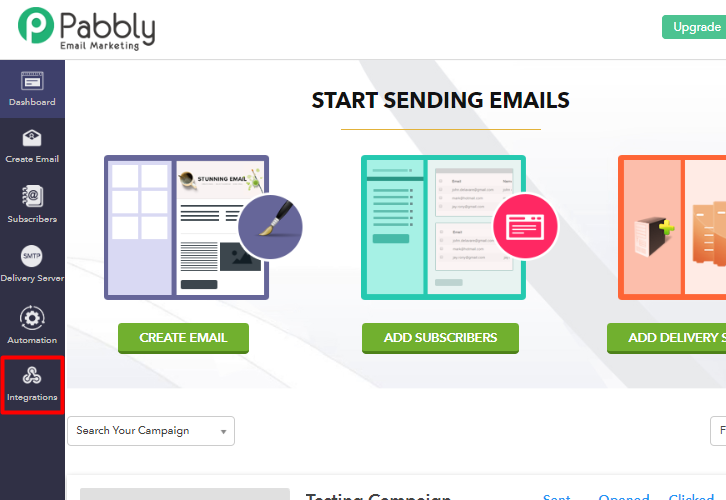
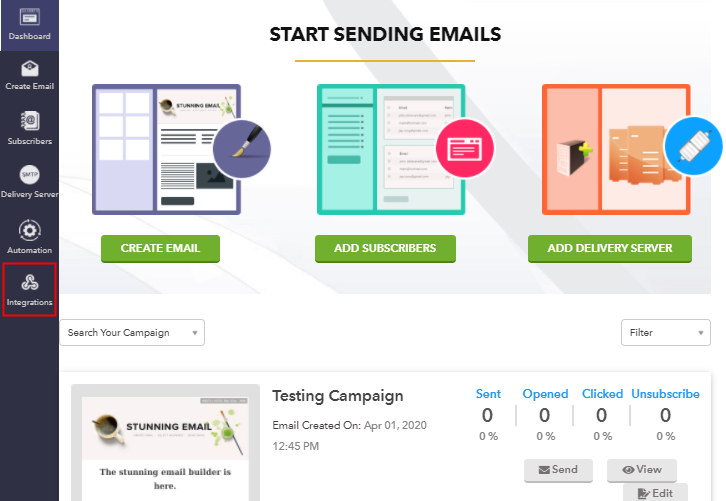
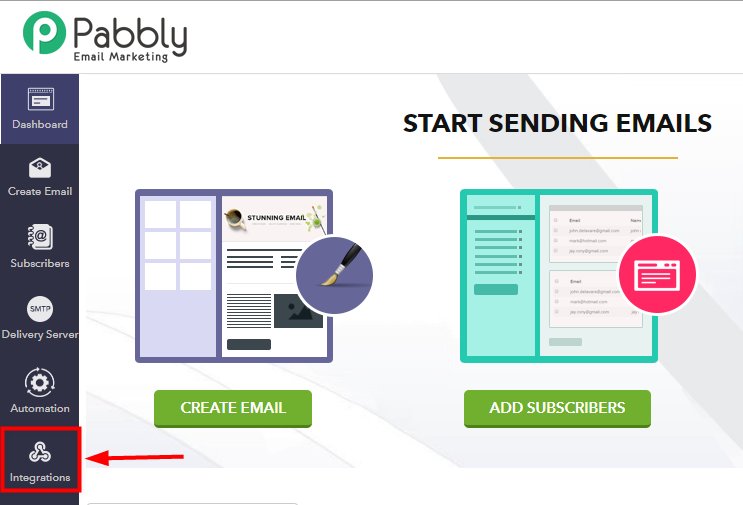
Now, that you have entered the dashboard of Pabbly Email Marketing scroll down and click on integrations.

(b) Press Developer API

Copy Developer API integrate pabbly connect to pabbly email marketing

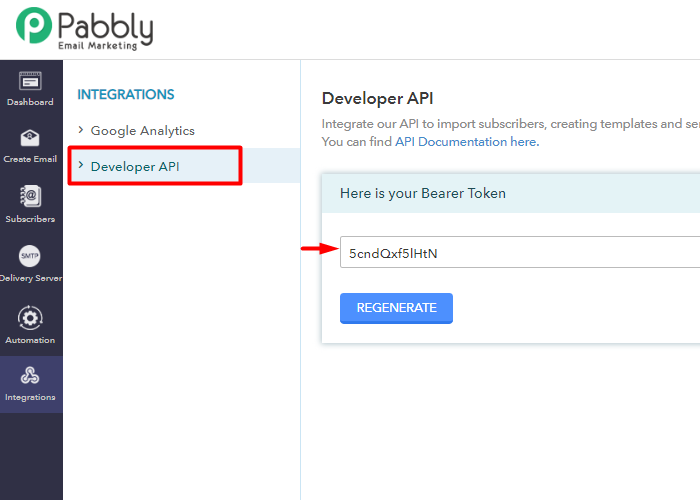
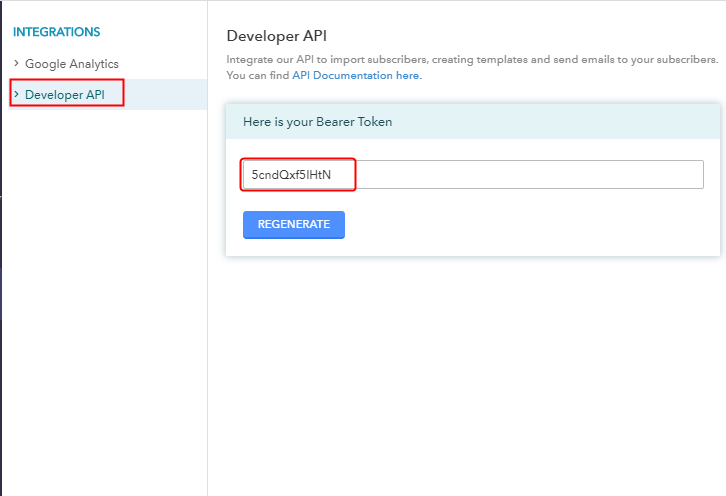
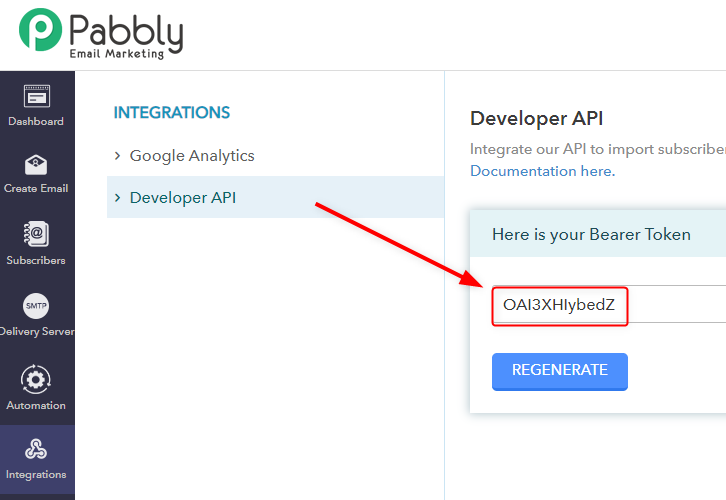
On clicking the integrations option, you will brought to a new window. Here click on Developer API. And in the dialogue box called ‘Here is your Bearer Token’ copy the codes.

(c) Paste The Token

Paste the Tokenfor connecting google sheets to pabbly email marketing

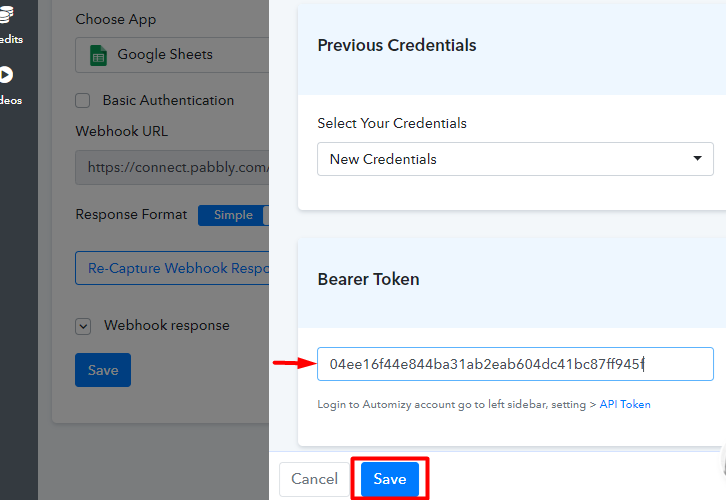
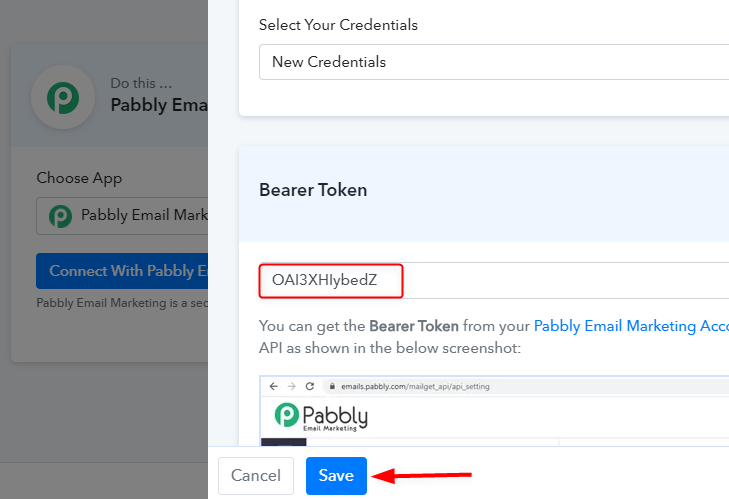
Come back to Pabbly Connect and paste the bearer token in the blank provided and press save.

(d) Create New List

Create New List to integrate pabbly connect to pabbly email marketing

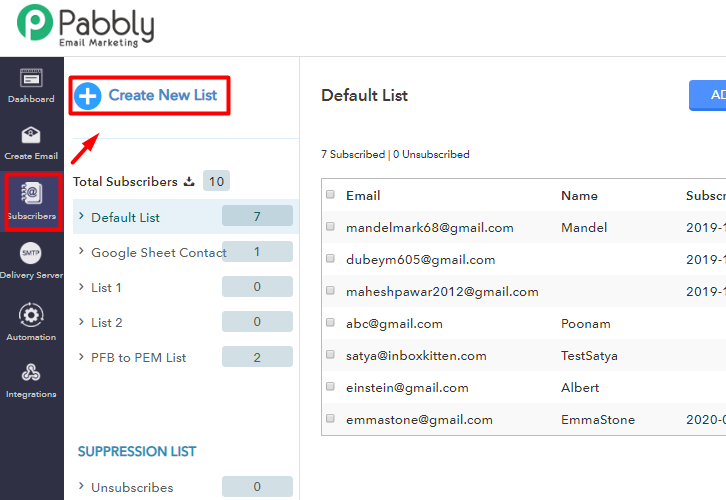
In Pabbly Email Marketing, go to the subscriber’s tab and click it. This will summon a new window, and here add a name to the new contact and press the update button.

(d) Place The Data In Trigger Window

Connect Google sheets to Pabbly Emails Marketing

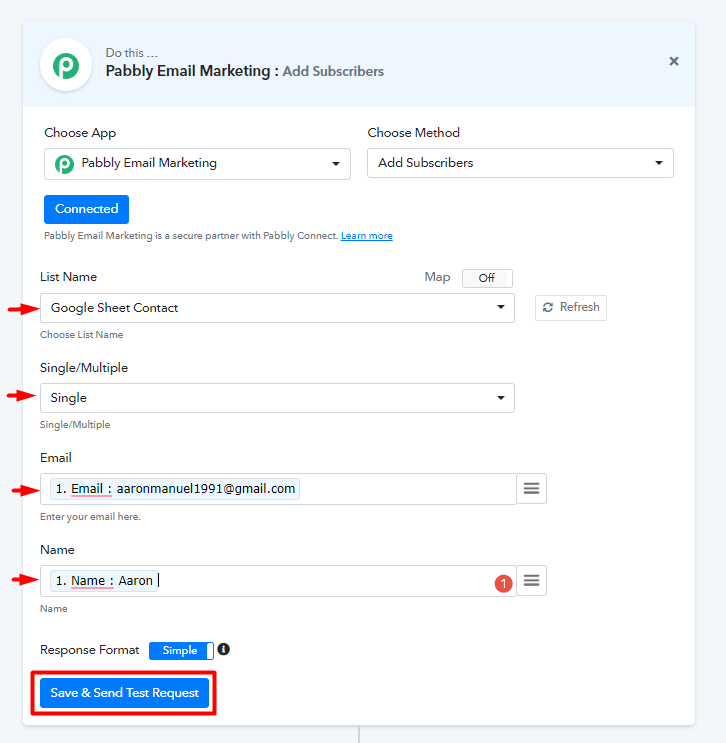
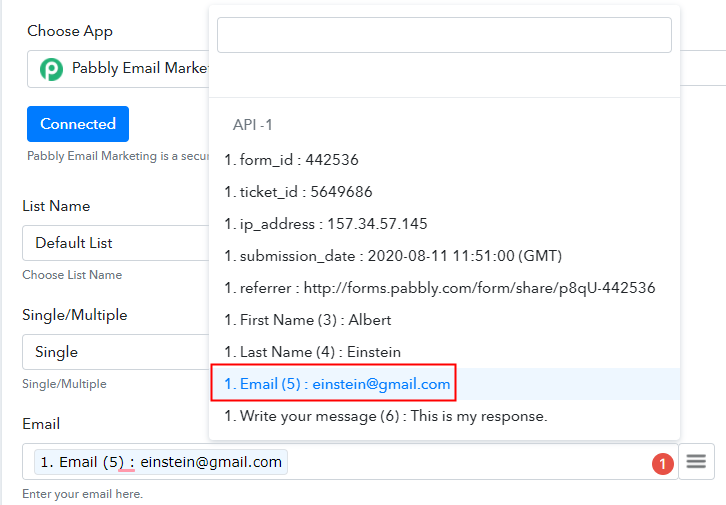
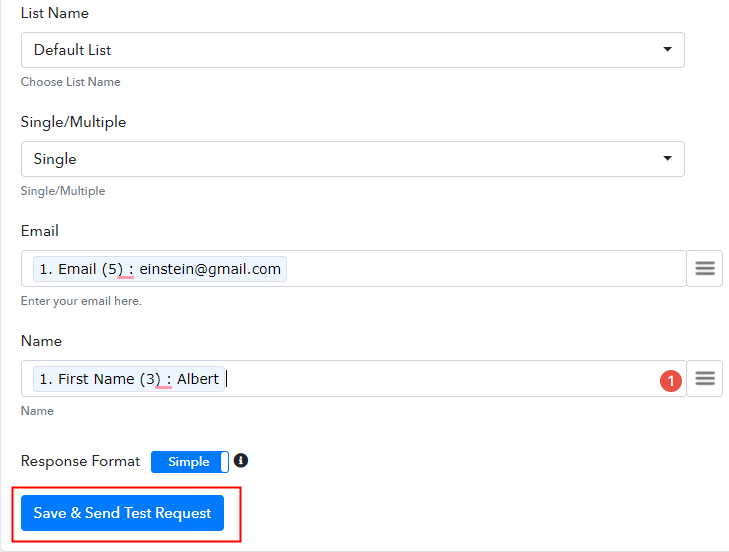
In the second trigger window of Pabbly Connect concerning Pabbly Email Marketing, refresh the list name, and ints drop-down you will see the list name as ‘Google Sheet Connect’. Then change the entries to single this will ensure there is only entry per trigger not multiple. Likewise, from the drop-down change the email and name accordingly.

Then after placing these data, click on ‘Save & Send Test Request’.

Step 7: Preview Result

How

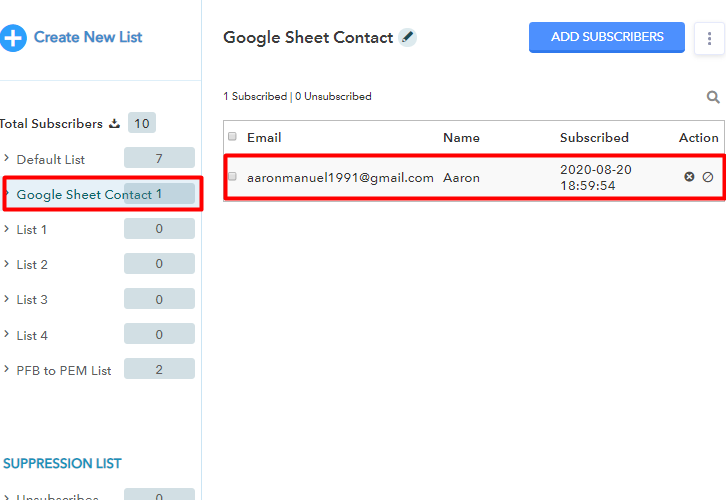
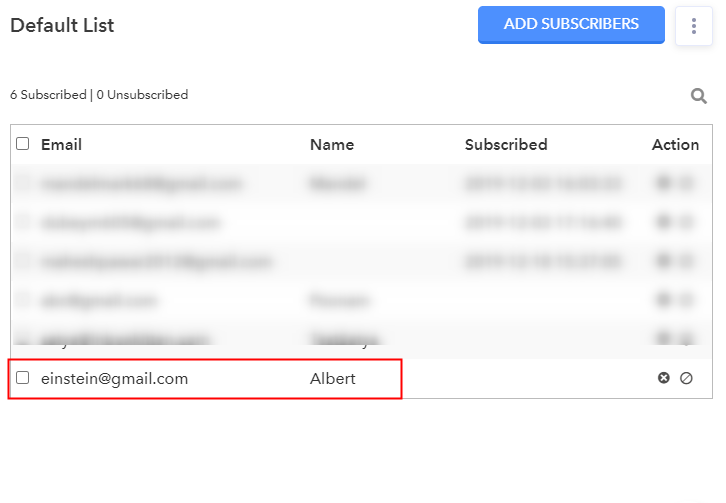
Once you click on ‘Save & Send Test Request’, the data from the Google Sheets will be auto-populated into Pabbly Email Marketing’s subscriber’s list. In my case, as you can see the data has been inserted in the Subscribers’list called as Google Contact List.

Furthermore, every time a responded fills in column C in Google Sheet, his data will be added into the subscriber’s list of Pabbly Email Marketing through Pabbly Connect in real-time. Incredible isn’t it?

Conclusion

Now, you know how easily Pabbly Connect integrates Google Sheets to Pabbly Email Marketing. This is perhaps your first step into the world of automation. Just enter the data and instantaneously, your data will be appended into any application you want through Pabbly Connect. Furthermore, this is just one of its awesome features, there are a ton of wild features you need to try and explore, to fully fathom the applications of this beast. Moreover, to ace Pabbly Connect, you will have access to our incredible video tutorials and documentation to help you with the same.

Also, if you have any queries regarding this article or about Pabbly Connect in general feel free to ask in the comment section below. Our associates will be in touch with you soon.
You May Also Like To Read –


How to Integrate Pabbly Form Builder to Zoom Meeting Registrant

How to Integrate Pabbly Form Builder to Zoom Meeting Registrant using Pabbly Connect

Searching for ways to Integrate Pabbly Form Builder to Zoom Meeting Registrant? Then, look no further, as here you will get a step by step guide to do so.

How to Integrate Pabbly Form Builder to Zoom Meeting Registrant using Pabbly Connect

Isn’t it very hectic to fill each and every single Zoom Meeting Registrants manually whenever a form gets filled in the Pabbly Form Builder? No doubt, why you might be searching for ways to integrate Pabbly Form Builder with Zoom Meeting Registrants to automate the whole procedure and save yourself from all the hassle.

Therefore, here we have the perfect tool suggestion for you i.e, Pabbly Connect that can help you integrate Pabbly Form Builder to Zoom Meeting Registrants and transfer data between services in no time. Pabbly Connect is a software that can basically pine multiple applications through a single common interface.

Thus, here I am going to show you all the steps that you need to follow to complete your automation in real time. So, without wasting any of your time, let me take you through the steps.

Step 1: Sign up to Pabbly Connect

Sign Up

First of all, you need to sign up to Pabbly Connect that will further help you in all the integration processes. Either you can fill out all the details manually or else you can sign-up via your Google account.

Try Pabbly Connect for FREE

Step 2: Access Pabbly Connect

Access Pabbly Connect

Once you complete the signup process, now its time to access Connect (a service of Pabbly for automated integration & data transmission).

Step 3: Create a WorkFlow for Pabbly Form Builder Integration

(a) Start with a New Workflow

How

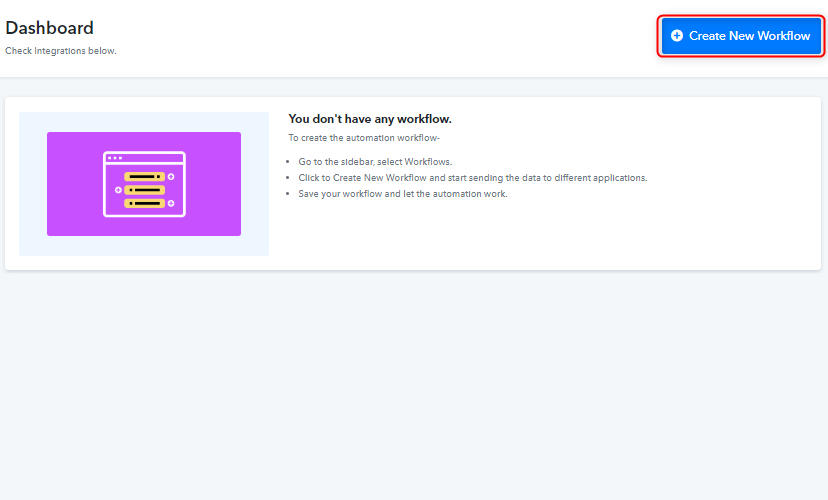
Instantly, start with creating a workflow for your project by clicking on the ‘Create New Workflow’ button.

(b) Name the Workflow

Name the Workflow

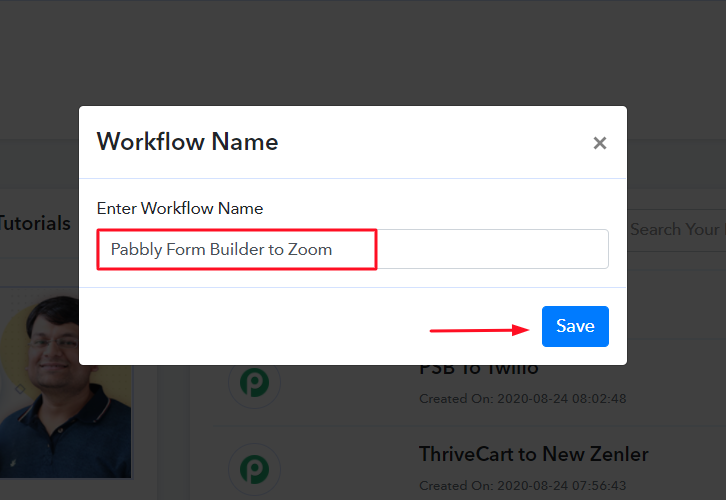
Subsequently, add the name the workflow i.e, “Pabbly Form Builder to Zoom Meeting Registrants”. Even though you can also change the name of your workflow anytime you wish to as per your requirements.

Step 4: Setting Trigger

Copy the Webhook URL

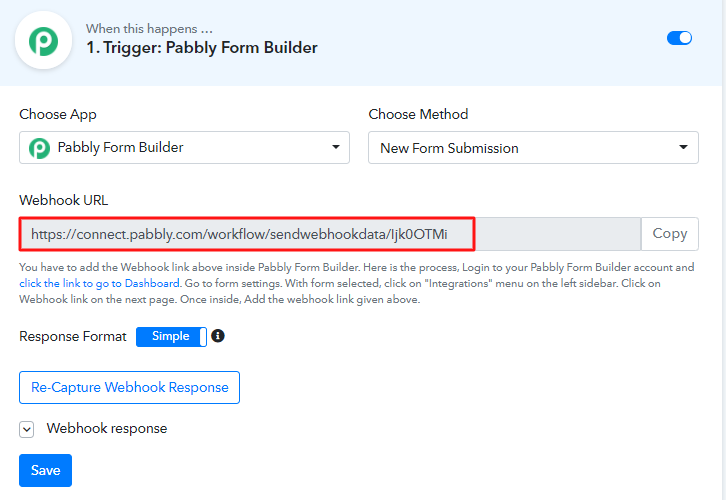
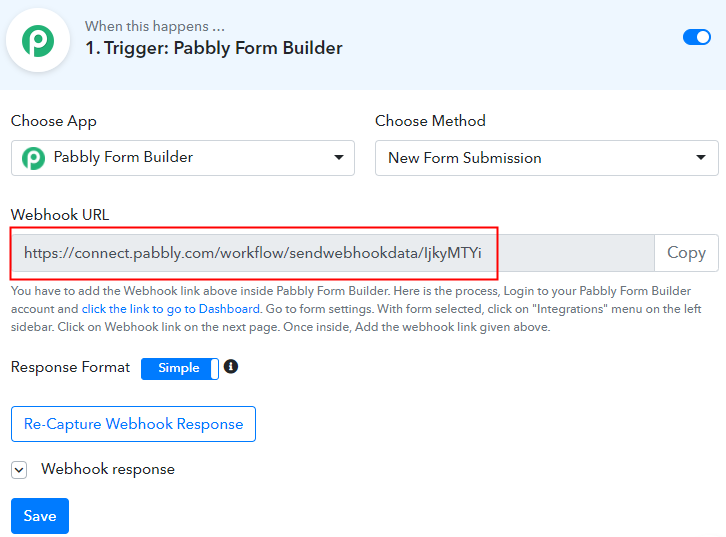
After creating the workflow, the following step is to choose the application which you want to integrate, i.e, “Pabbly Form Builder”.After that, you need to copy the webhook URL. With the help of this trigger, we can initiate the process of automation and integrated the first service with Pabbly Connect for further data transfer. Consequently, now its time to go the app that you wish to integrate, in this case, i.e, Pabbly Form Builder.

Step 5: Paste the Webhook URL in Pabbly Form Builder

The subsequent step is to paste the copied Webhook URL in your form builder dashboard in order to connect with Pabbly Form Builder.

(a) Click on Integration Setting

Integartion Option

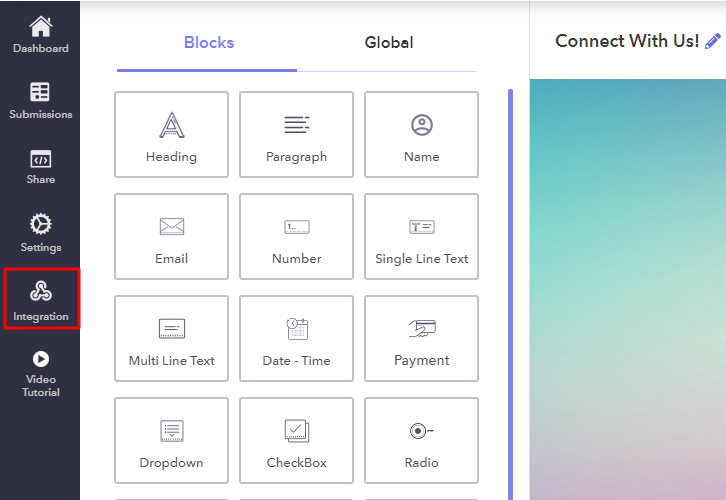
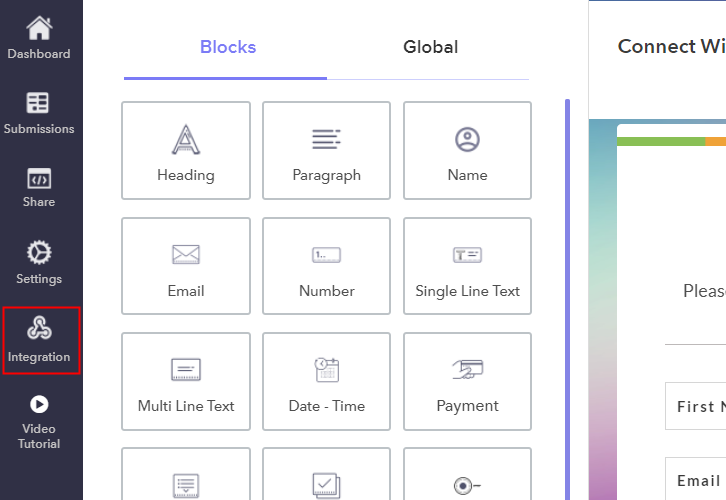
After entering the dashboard of Pabbly Form Builder, now its time to create a form from scratch or else just select pre-built templates provided in the dashboard. For example, here I am going to use the pre-built template i.e, “Connect With Us”.And, the very next step is to just click on the “Integration” setting of the form.

(c) Select Webhook Option & Paste Webhook URL

Webhook Option

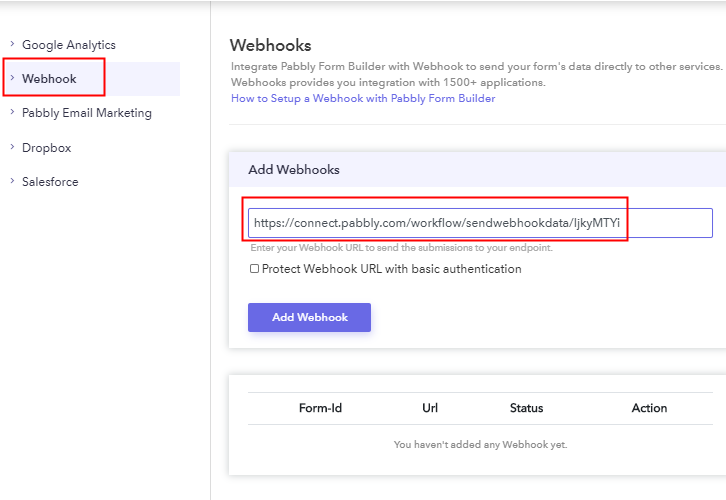
Afterward, you need to press on the Webhook option where you have to paste the copied URL.

Step 6: Test the Submission in Pabbly Connect Dashboard

Test the Submission in Pabbly Connect Dashboard

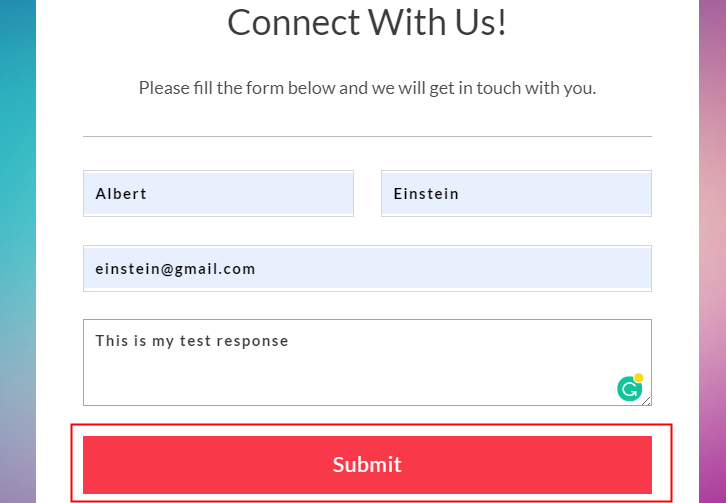
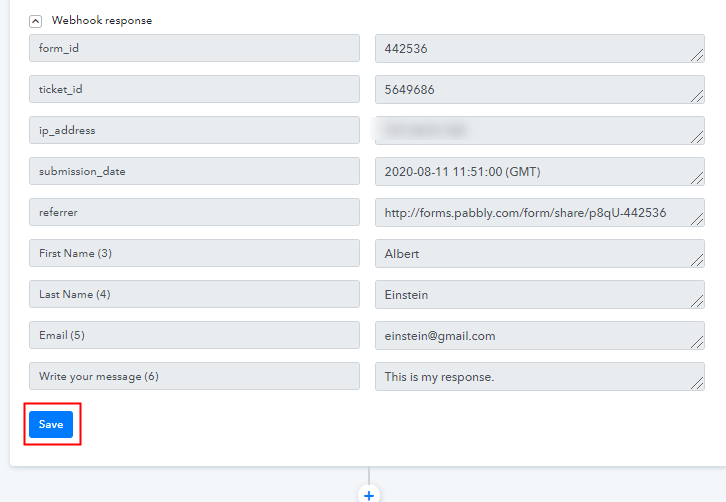
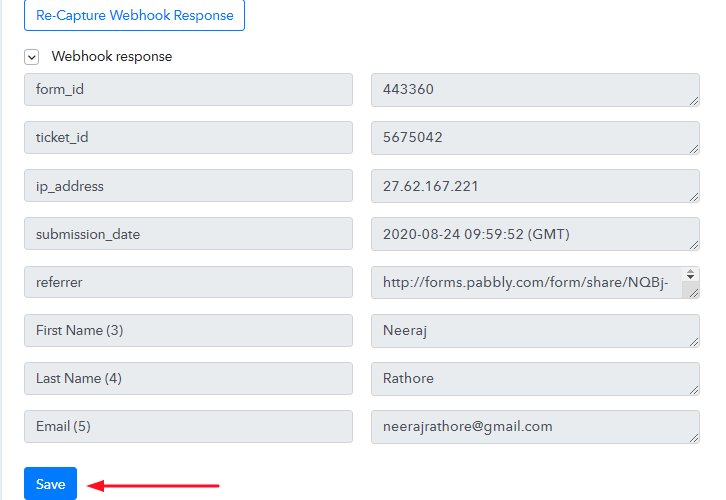
Moreover, now its time to test the form, and for that, you need to enter the details of the form that you have recently created. After filling up the form details your entry will appear in the “Pabbly Connect” dashboard. Just tap on the “Save” option.

Step 7: Set Action to Integrate Pabbly Form Builder & Zoom

(a) Select Zoom Meeting Registrants

Select Zoom Meeting Registrants to Integrate Pabbly Form Builder to Zoom

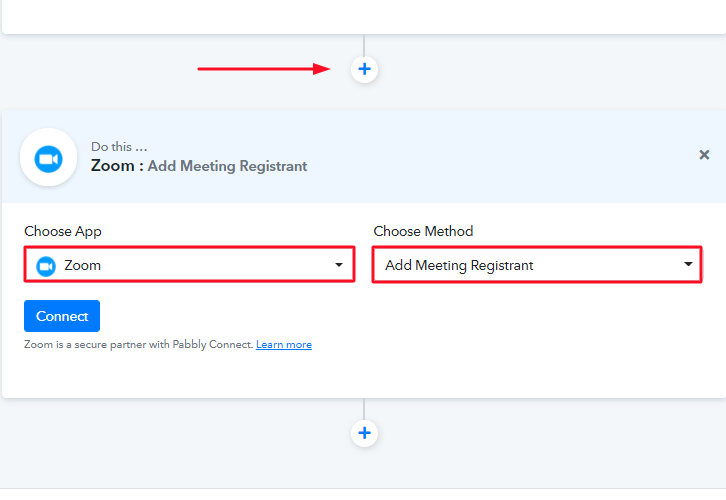
Consequently, in order to connect the Pabbly Form Builder to Zoom Meeting Registrants, simply hit the “(+)” button. And, select Zoom Meeting Registrants from the choose app option & select “Add Meeting Registrants” from the choose method option. After that, just hit the button named “Connect”.

(b) Click on “Connect”

Authorize Application to Integrate Pabbly Form Builder to Zoom

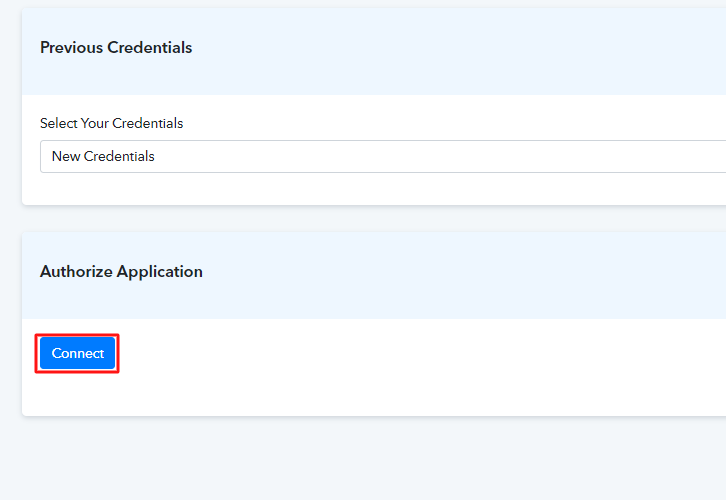
The succeeding step is to connect with Zoom Meeting Registrants by clicking on the “Connect” button. After pressing the ‘Connect ‘ button, a window will pop-up asking you to select/fill a Google Account to which you want to connect the Zoom Meeting Registrants and Pabbly Connect.

Step 8: Fill up All the Fields

Fill up All the Fields to Integrate Pabbly Form Builder to Zoom

After connecting your Zoom Meeting Registrants, now its time to fill up the required fields one by one so that it can be registered in Zoom Meeting Registrant.

Step 9: Save & Send Test Request

Save & Send Test Request to Integrate Pabbly Form Builder to Zoom

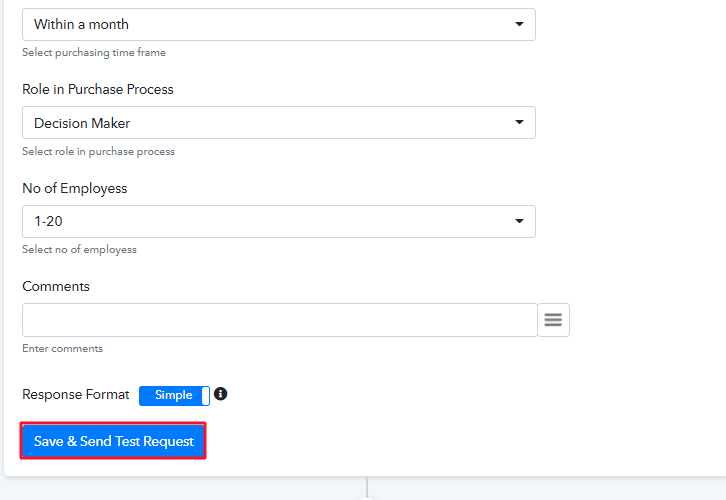
Furthermore, once you fill up all the details, just hit the “Save & Send Test Request” button in order to complete the whole procedure.

Step 10: Check the Zoom Meeting Registrants

Check the Zoom Meeting Registrants

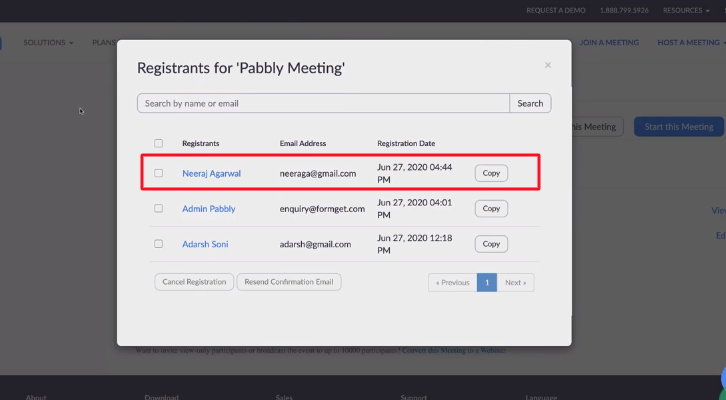
Voila! As you can see that, all the form details are now visible in your Zoom Meeting Registrants and your automation is now set.

Conclusion

There you go! See how easy it is to integrate Pabbly Form Builder to Zoom Meeting Registrants using Pabbly Connect. All you need to do is follow all the above-mentioned steps once and your integration is ready to roll. Now, whenever someone is going to fill the form your Zoom Meeting Registrant will get updated automatically. Isn’t it amazing? So, don’t wait anymore and sign in to Pabbly Connect to get hassle-free work experience.

You May Also Like to Read –

How to Integrate Aidaform to Google Sheets

How to Integrate Aidaform to Google Sheets

Want to integrate your Aidaform to Google Sheets? If so, then here you can sigh in relief as we are going to show the integration process.

How to Integrate Aidaform to Google Sheets

But before moving further let’s understand about Aidaform. Basically, Aidaform is a form builder that lets you create amazing forms in a couple of minutes. However, many times we want our form entries to auto-populated in the Google Sheets. Filling every single entity manually is a lot to ask for in such a busy schedule. That’s where software like Pabbly Connect comes in action.

Pabbly Connects simplifies the tedious or repetitive actions by creating seamless workflows. Plus, you don’t need any technical skills to operate the software. Within 5 minutes Pabbly Connect is ready to rule without any installation. It lets you collect responses from Aidaform and transfer that data into Google Sheets in real-time. Isn’t it amazing?

Yes, it is, plus the software is packed with features like filters, path-routers, instant triggers, and much more for making data transmission a cakewalk.

Here, in this article, we will understand the process of integrating Aidaform to Google Sheets.

So, let’s get started.

Step 1: Sign up to Pabbly Connect

Sign Up

Begin the process by clicking on the “Sign Up Free” icon on the Pabbly Connect dashboard. Moreover, either manually fill-up all the details or sign up using Gmail credentials.

Try Pabbly Connect for FREE

Step 2: Access Pabbly Connect

Select Connect

Further, after signing into the account, click on the “Access Now” button of Connect.

Step 3: WorkFlow for Aidaform to Google Sheets Integration

(a) Start with a New Workflow

Create New Workflow

Start the process of creating a workflow for your automation by hitting the “Create New Workflow” button.

(b) Name the Workflow

Name the Workflow

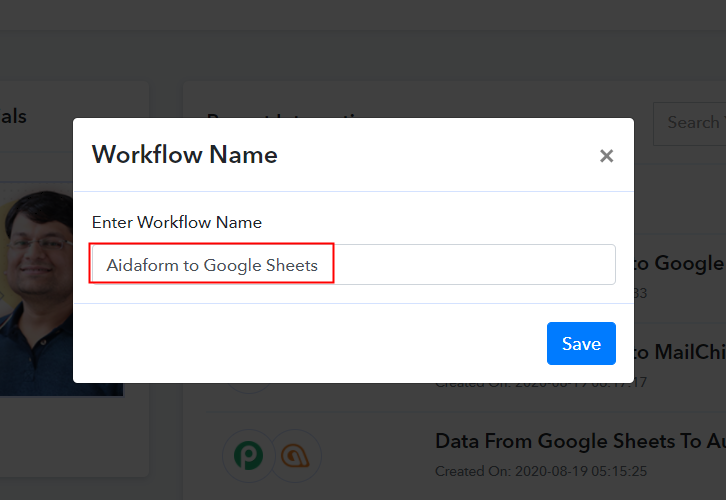
Afterward, add the name of workflow which in our matter is “Aidaform to Google Sheets”. Nonetheless, you can name the workflow as per your needs and demand.

Step 4: Setting Trigger

After creating a workflow, you have to choose the application you want to integrate.

(a) Select Application you want to Integrate

Select Application

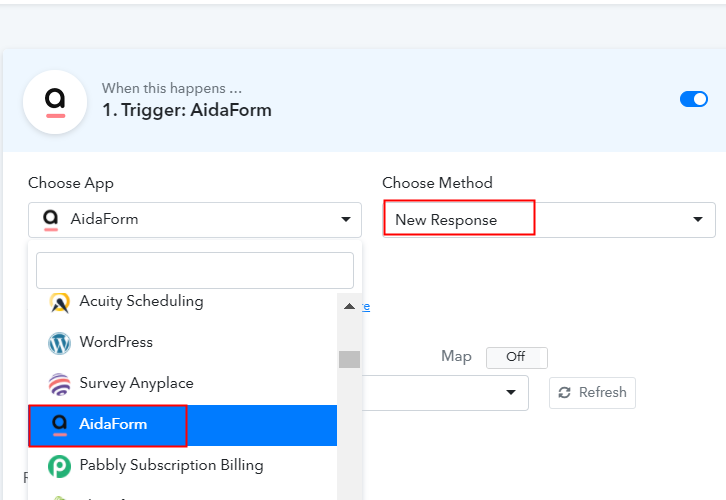
The next step is to select “Aidaform” from the dropdown, then choose the “New Response” option.

(b) Click the Connect Button

Click the Connect Button

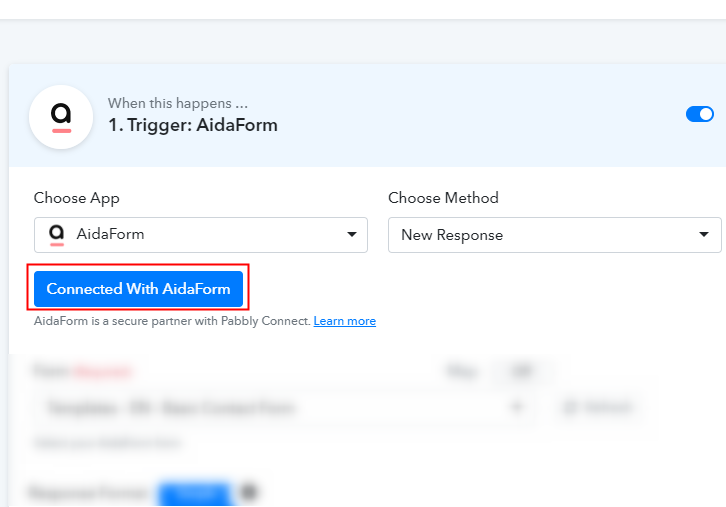
Next, click on the “Connected With Aidaform” button. It will open up the form which asks for the API key.

Step 5: Copy the API Key from Aidaform

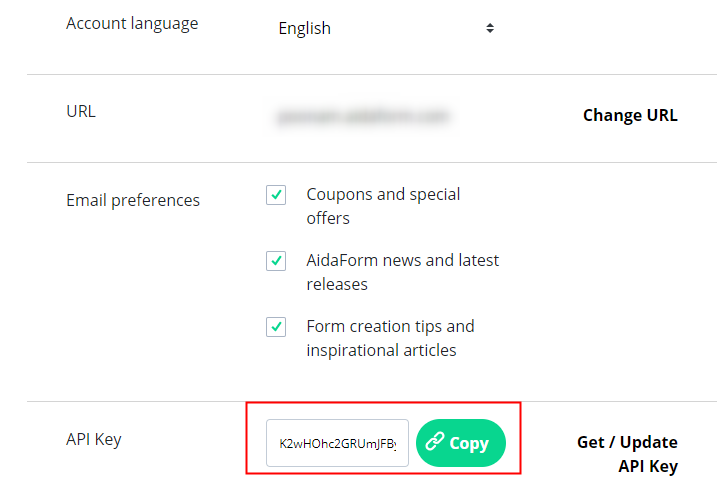
An API key will help to fetch data and smooth the integration process. For this, you have to log in to your Aidaform account and copy the API key from there.

(a) Click on My Account

My Account

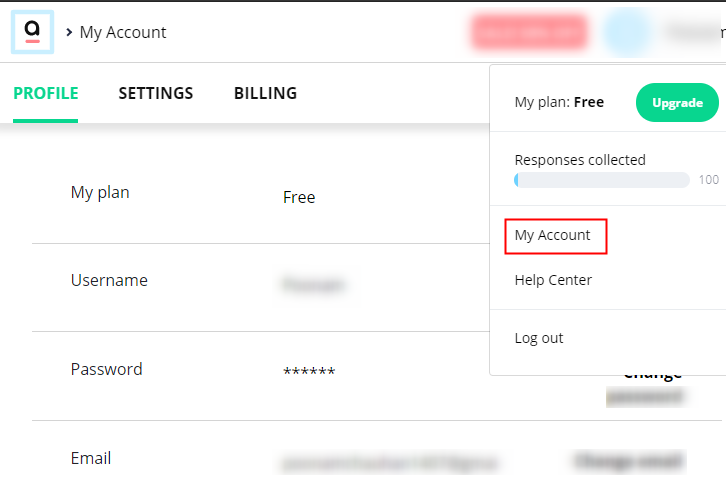
After login to the Aidaform account, click on the “My Account” option.

(b) Click on Setting Option

Setting Option

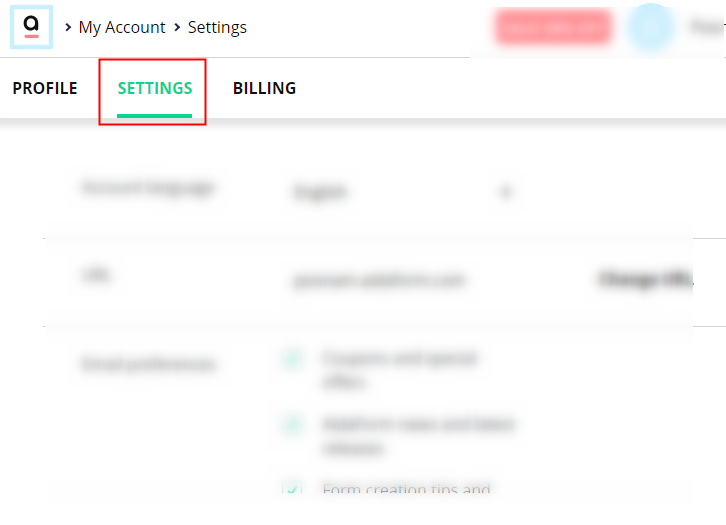
Further, click on the “Setting” option in the dashboard.

(c) Copy the API Key

Copy the API Key

Just copy the API key appearing on the dashboard.

Step 6: Connecting Aidaform to Pabbly Connect

To paste the API key, go back to the Pabbly Connect dashboard.

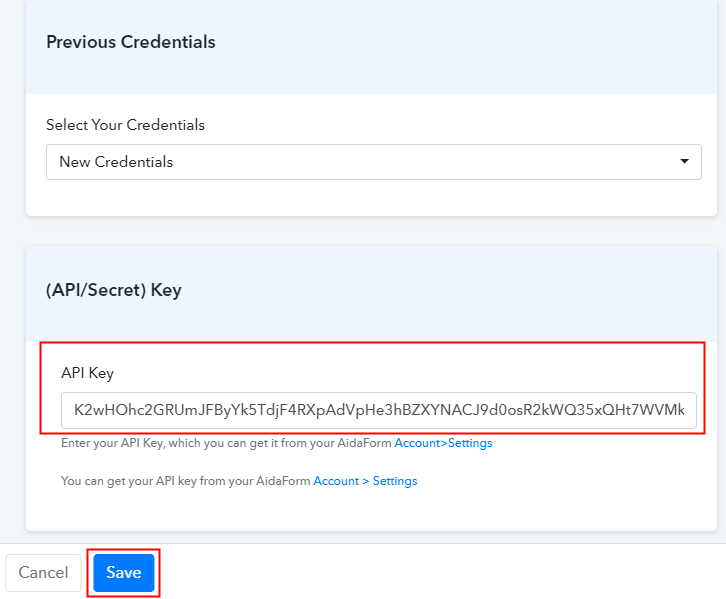
(a) Paste the API Key

Paste the API Key

Further, simply paste the API Key in the form appearing, then click on the “Save” option.

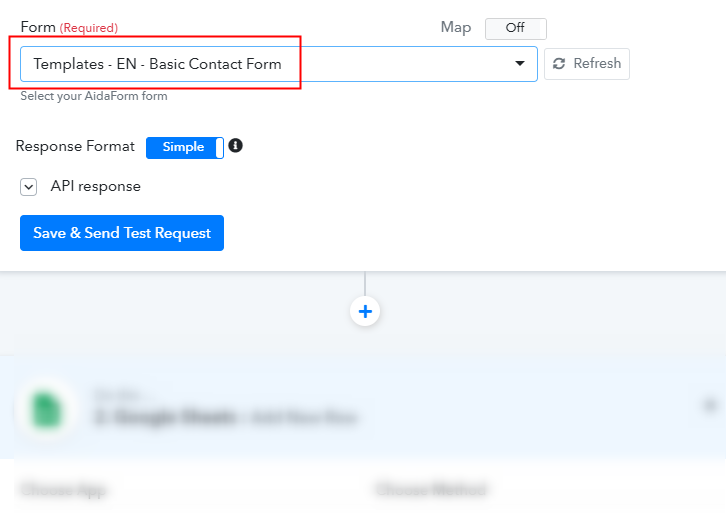
(b) Add Form

Add the Form

Now it will automatically fetch all your templates of Aidaform, select the one you want to integrate into Google Sheets.

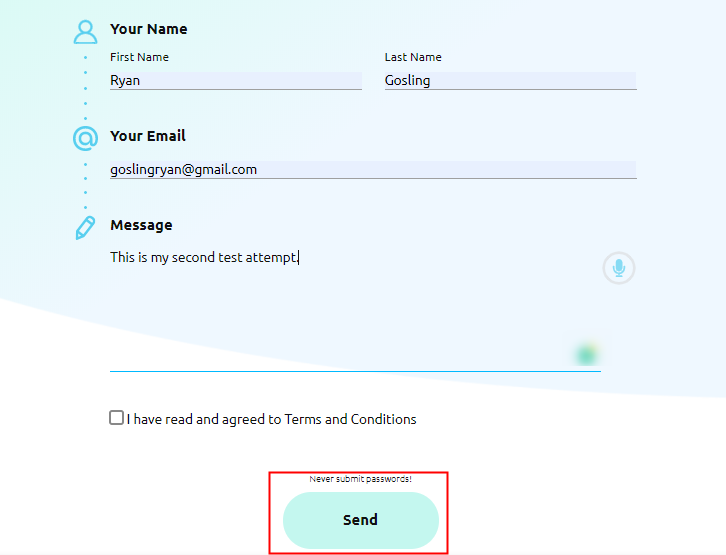
Step 7: Fill the Form

Test the Form

Now go back to Aidaform and make a dummy entry. Just fill all the details and then click on the “Send” button.

Step 8: Test the Submission in Pabbly Connect Dashboard

Test the Submission

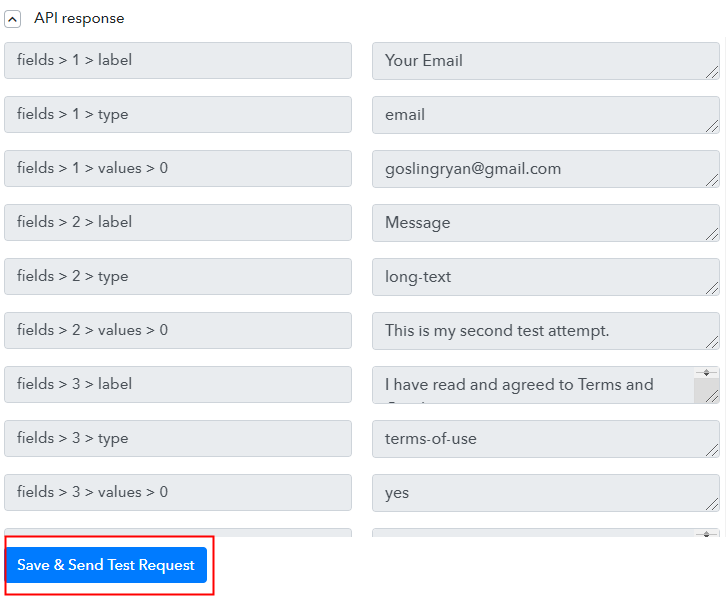
As soon as you fill the form, the recent form entry will appear on the dashboard. Further, click on “Save and Send Test Request”.

Step 9: Setting Action

After setting a trigger, you will have to select the action for which you have to select the application you want to integrate.

(a) Select Google Sheets

Select Google Sheets

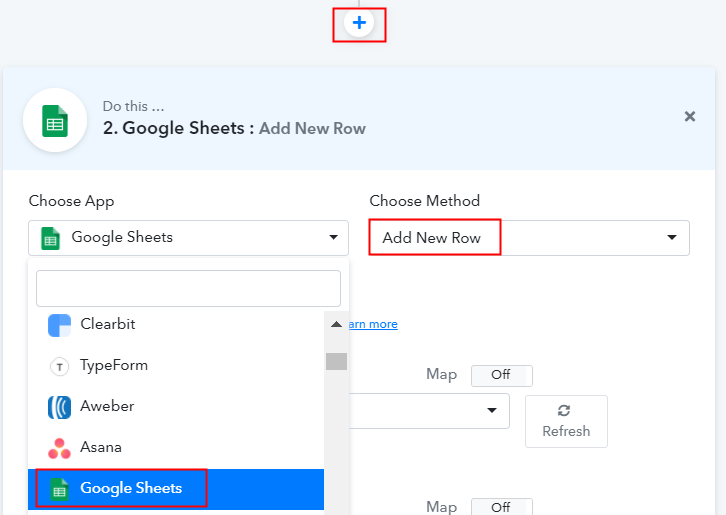
Moving on, click on the “+” icon then select “Google Sheet” and in choose method option, select ” Add New Row”.

(b) Connected with Google Sheets

Connected with Google Sheets

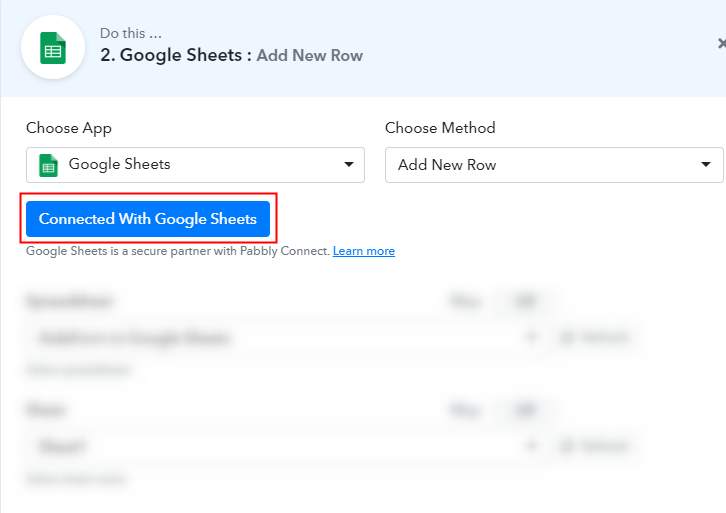
Further, click on the “Connected with Google Sheets” button.

(c) Integrate Aidaform to Google Sheets

Integrate with Google Sheets

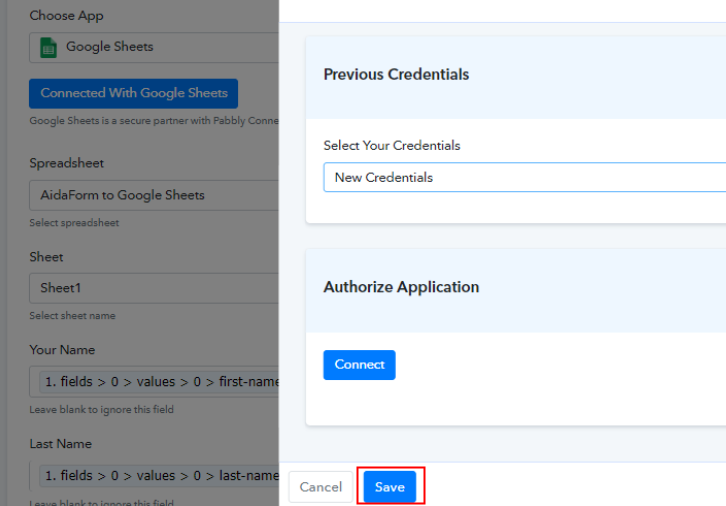
To integrate your Aidaform with google sheets, it will ask for authorization to your Google Account. After giving access, simply click on the “Save” button. Now, all the sheets will automatically appear on the dashboard.

(d) Add Field Data

Add Field Data

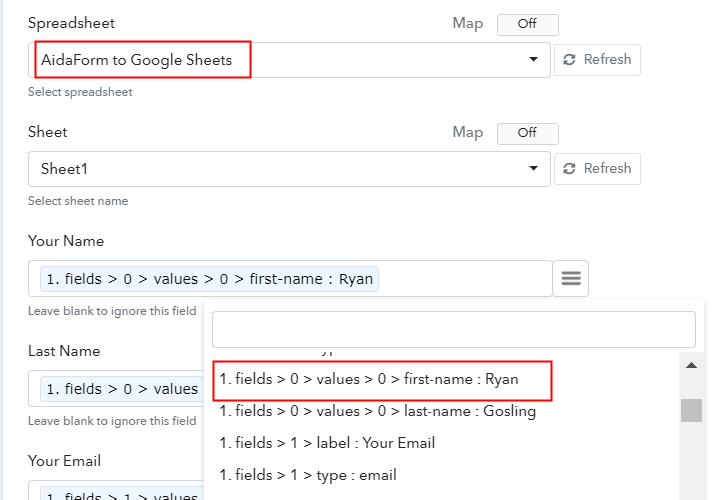
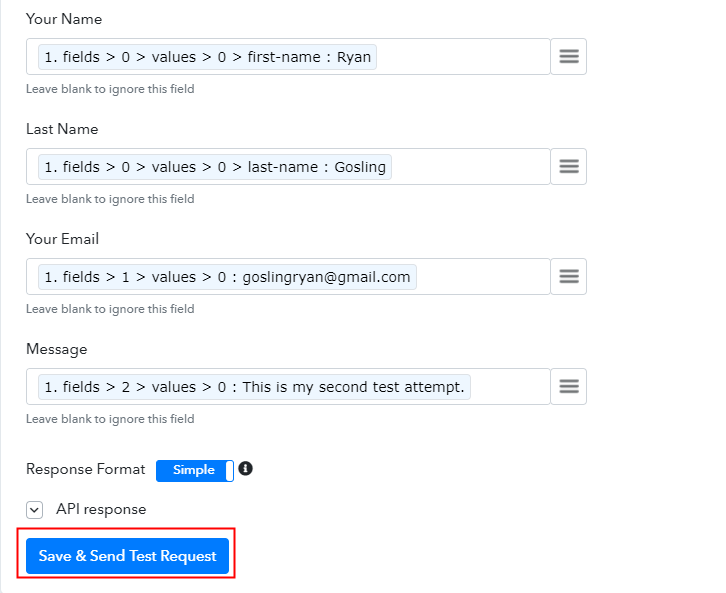
All the sheets in your account will appear on the dropdown. Simply select the sheet, which in our case is “Aidaform to Google Sheet”. Now, all you have to do is add the necessary field from drop-down such as for the email field, select the email option, and for name field select the name option.

(e) Save and Send Test Request

Save and Send Test Request

After filling all the fields, save the setting and then click on the “Save & Send Test Request” option.

Step 10: Check the Submission

Check the Submission

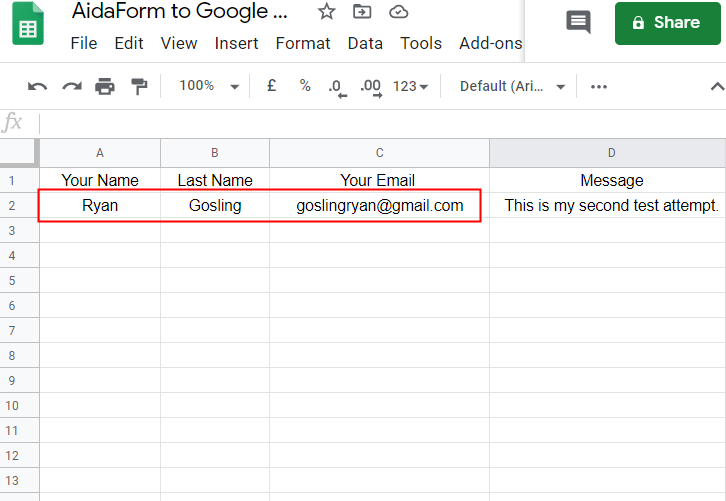
Lastly, when you check the Google Sheets, the entered form entries get auto-populated in a sheet.

Conclusion –

Hopefully, now we have cleared all the air about the automation process. Here, in this article, we learned how to integrate Aidaform to Google Sheets. All you have to do is follow all the above-mentioned steps and you can easily connect Aidaform to Google Sheets. With the help of automation, one can easily avoid manual hard work. And in such cases, software like Pabbly Connect is a real savior that lets you connect unlimited premium apps.

So, don’t wait anymore. Go and try this software out.

You May Also Like To Read –

How to Send Google Forms Data to Automizy in Real Time

Are you looking for an easy method to send data from Google Forms to Automizy and that too in real-time? Well in this article, we will definitely show you a solution to this problem.

How To Send Google Forms Data to Automizy in Real Time

Google Forms and Automizy are both impressive tools for any data collector. Through Google Forms, you can receive respondents’ data while Automizy can mail this data to many other contacts.

Now the traditional approach is you receive Google Form responses and manually place this data into Automizy. This works fine for a few respondents but imagine submissions from 100+ respondents!! How can you possibly append these data into Automizy in real-time?

So, we need a channel that automatically brings data from Google Forms into Automizy and that too in real-time. Simply put once a respondent has submitted the form, the data should be immediately reflected in Automizy.

Now, here in this article, we will use an awesome tool called as Pabbly Connect to fetch data from Google Forms and append it in Automizy in real-time. Let me show you how it is done.

Sign Up To Pabbly Connect 

Step 1: Send Google Forms Data To Google Sheets

(a) First Build A Google Form

First Build A Google Form

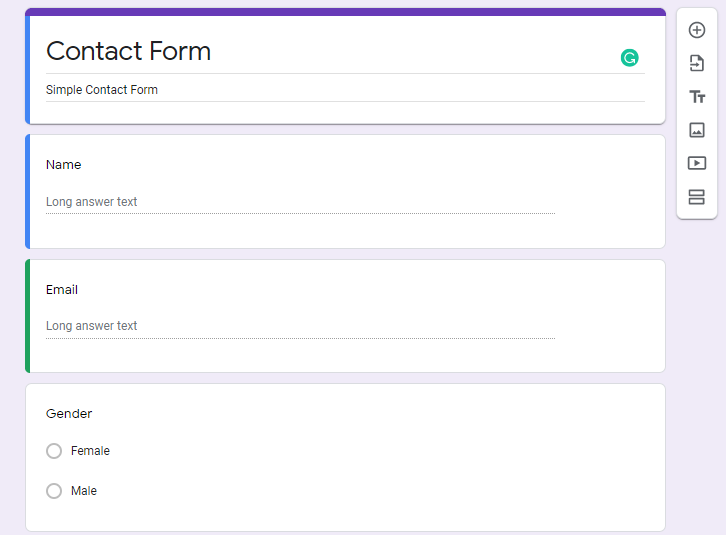
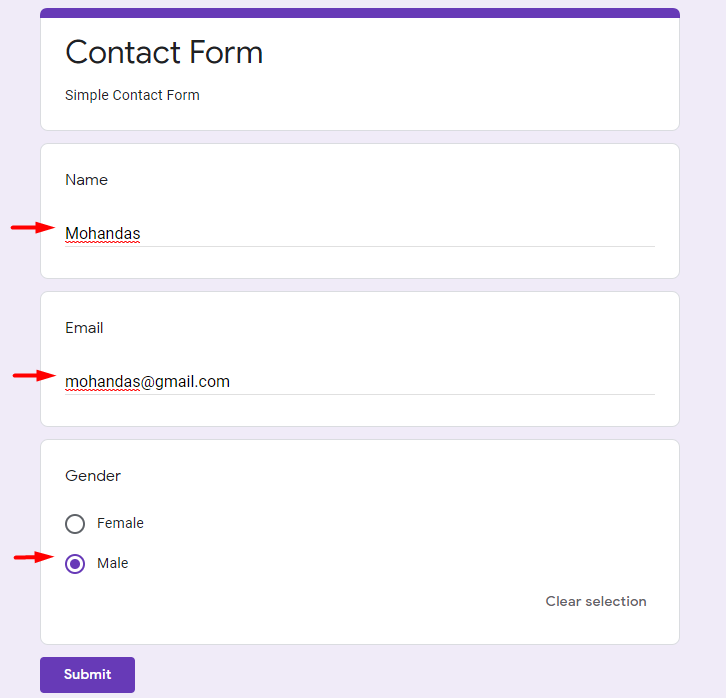
You should build a kickass Google Form but here I am simply creating a generic form with name, email, and radio options like gender.

(b) Submit Your Responses

Submit Your Responses

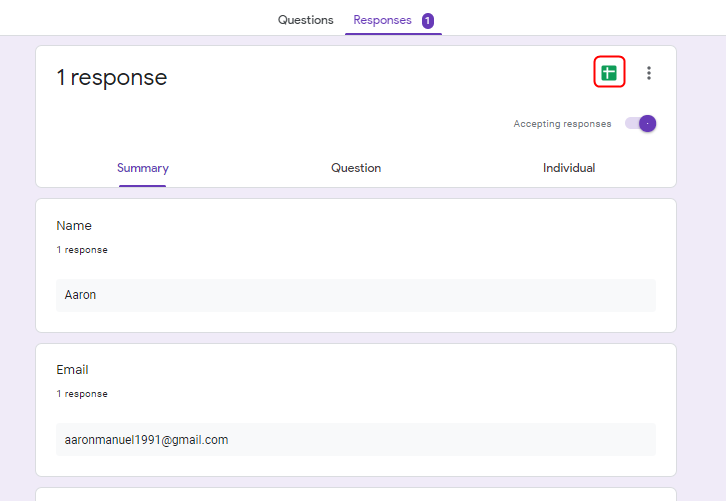
In the preview, fill in the details like your name, email and gender. After filling the responses, press the Google Sheet icon located near the top-right corner of Google Form.

(c) Preview The Google Sheet

Preview The Google Sheet

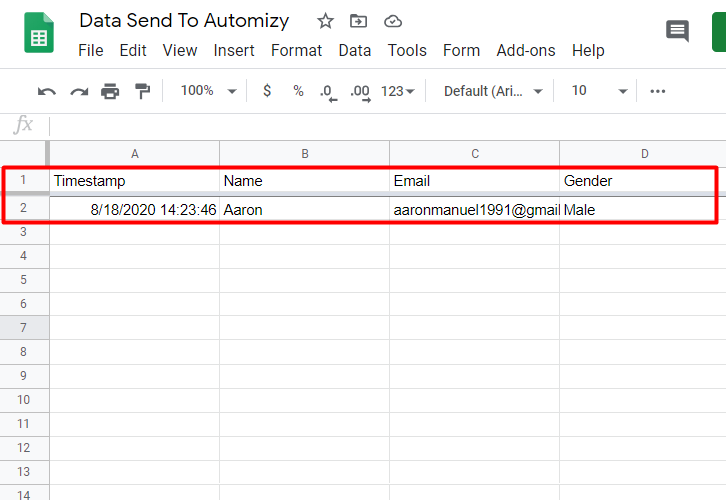
Once, you press the icon, a Google Sheet will be generated, here provide the title of the sheet. As you can see the data from Google form has already been appended into the Google Sheet.

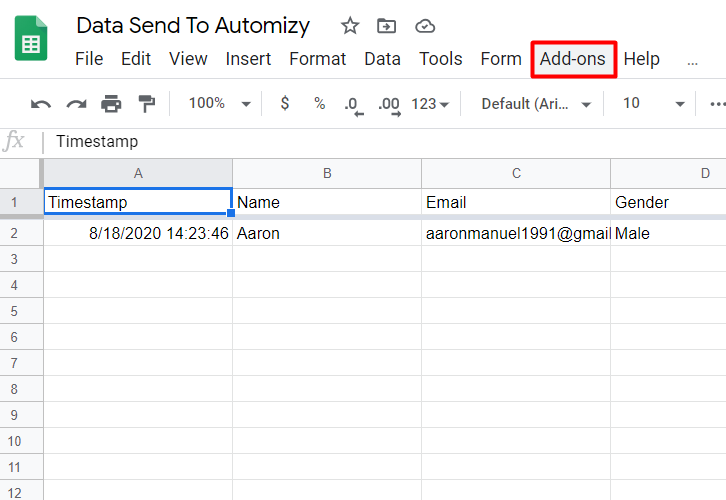
(d) Click  Add-ons in Google Sheet

How

Now we are going to create an Add-on called Pabbly Connect and so in the upper taskbar press ‘Add-On’.

Step 2: Integrate Pabbly Connect With Google Sheet

(a) Now Click on Get Add-ons

How

When you click on ‘Add-On’ a drop-down comes out, here press ‘Get Add-On’.

(b) Look For Add-on Called Pabbly Connect Webhooks

How

Once you press get add-on a window called G Suite Marketplace appears. In the search tab, look for ‘Pabbly Connect’. If you can find it then click it.

(c) Install Pabbly Connect Webhooks

How

Locate the app, and install it.

(d) Chose Initial Setup

How

Again click on ‘Add-ons’ in the upper taskbar, a drop-down will emerge. Here click on Pabbly Connect Webhooks. And after clicking on Pabbly Connect Webhooks another side window will emerge, here chose ”Initial Setup”.

(e) Set Trigger Column

How

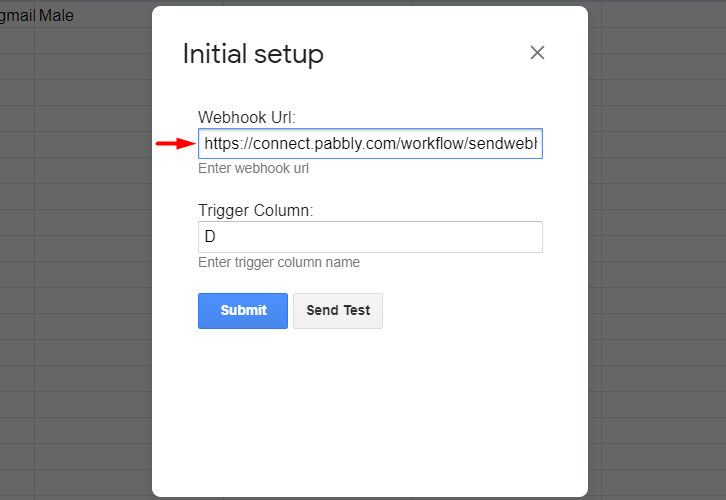
The last data entry column is the trigger column, in my case, it is column ‘D’. It basically means that after the last column has been filled, it will automatically trigger the Webhook Pabbly Connect.

Step 3: Sign into Pabbly Connect

Sign Up

Here sign in to Pabbly Connect to begin the process of data filtration. Now either fill in the details manually or sign-up via your Google account.

Try Pabbly Connect for FREE 

Step 4: Access Pabbly Connect

How

Once you are done with signing up, access Connect (a service of Pabbly for automated integration & data transmission).

Step 5: Create A New Workflow

(a) Click on Create New Workflow

How

Now, we are going to start a new workflow. So on the right top corner, you will find a button, ‘Create New Workflow’. Click it.

(b) Name The Workflow

How

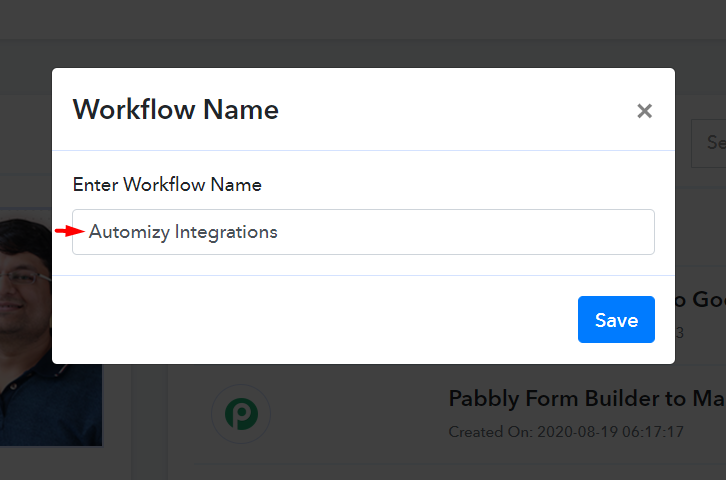
You can give it any name you desire for your workflow. Here I am giving it the name “Automizy Integrations”.

(c) Change The Choose App To Google Sheets

How

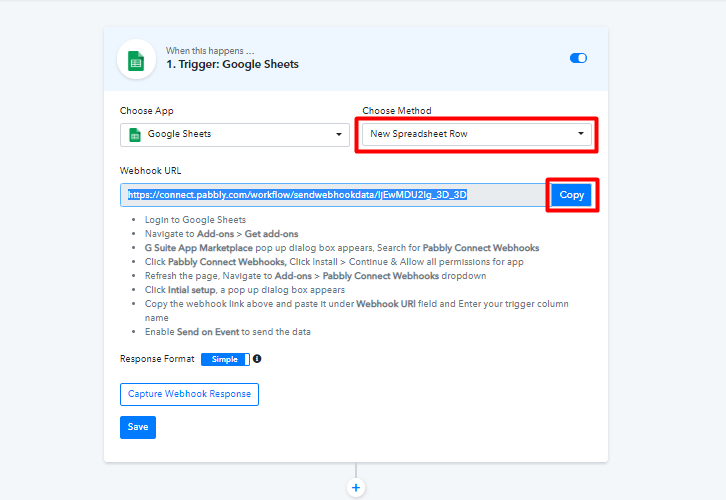
First, change the “Choose App” from Webhooks to Google Sheets and in the “Choose Method” select New Spreadsheet Row. After that, press the blue copy button to copy the URL.

(d) Paste The URL

How

Now, in the Initial setup window, paste the Webhook URL in the blank provided.

(e) Start Capturing Webhook Response

How

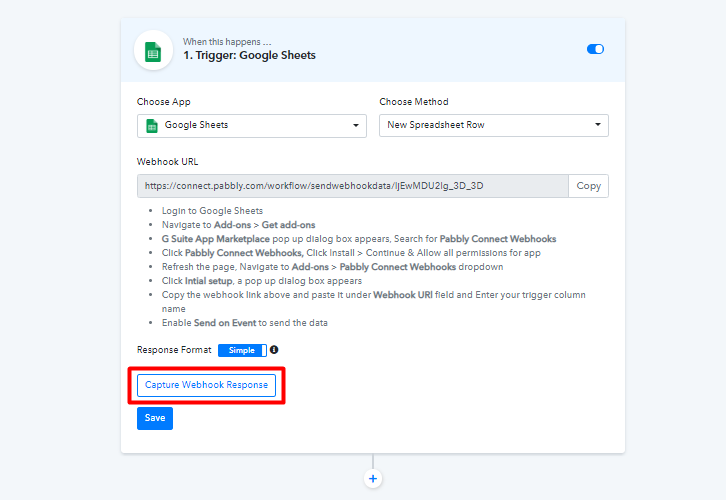
After pasting the URL in the Initial setup window of Google Sheet, click on the button ‘Capture Webhook Response’. Once clicked, the button turns into blue and starts receiving information.

(f) Click Send Test

How

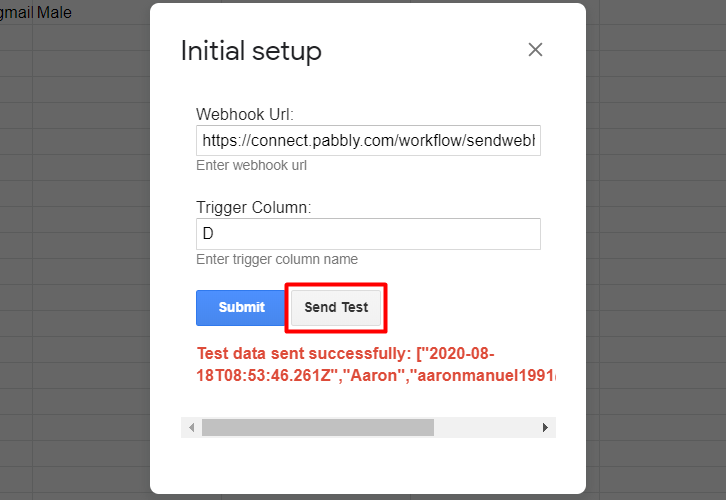
Click on the ‘Send Test’ button, as you can see it will convey a message in red letters that test data has been sent successfully.

Step 6: Integrate Pabbly Connect With Automizy

(a) Create Another Trigger Window

How

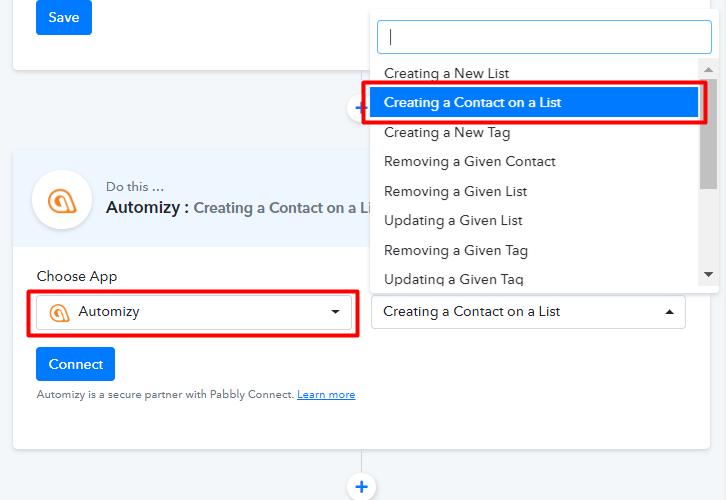
Pressing on (+) button located beneath the trigger window for Pabbly Connect Webhook creates another window. Here you have to repeat the same process as we did with Google Sheets. Choose the app as Automizy and the method as ‘Creating a Contact on a List’. And then click Connect.

(b) Click on API Token

How

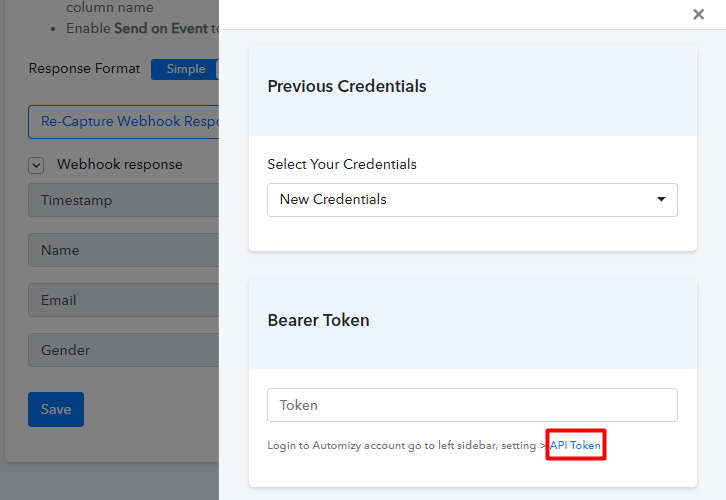
When you click on the connect button, it will create a dialogue box in the right corner. Here at the button click on API Token.

(c) Generate Your API Token

How

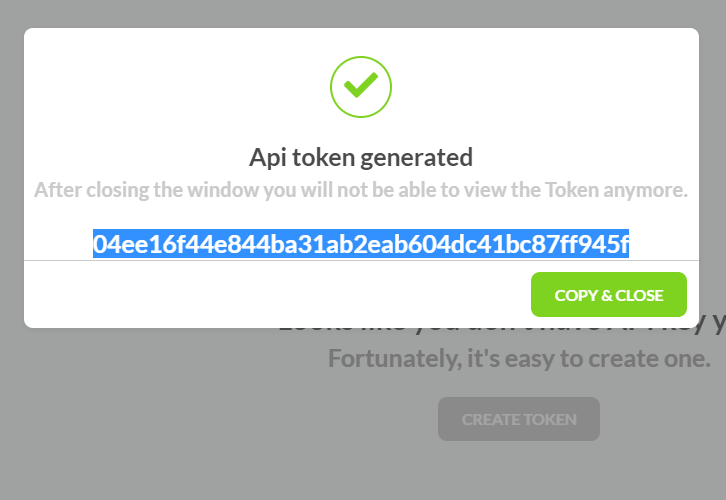
Generate your API Token and press copy & close.

(d) Paste The Token

How

Paste the whole API token in the blank and press the save button.

(e) Create A Contact List In Automizy Dashboard

How

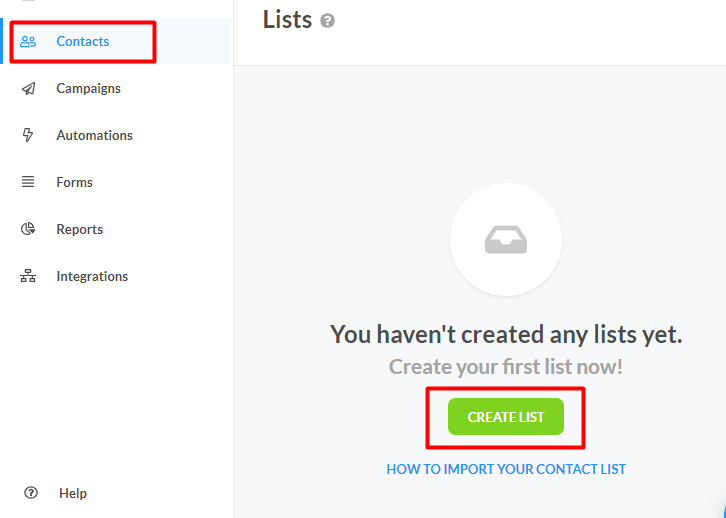
If you have a ready-made list, then it is fine otherwise build a new list by clicking on ‘Create List’.

(f) Fill in The Data

How

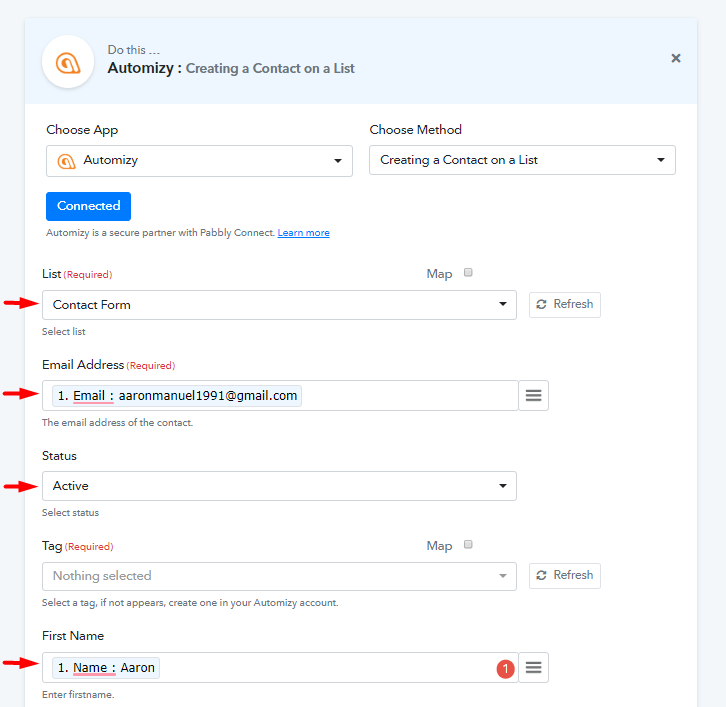
In the trigger window of Automizy, auto-fill in the data fields like First Name, Email, etc.

(g) Press The Save Button

How

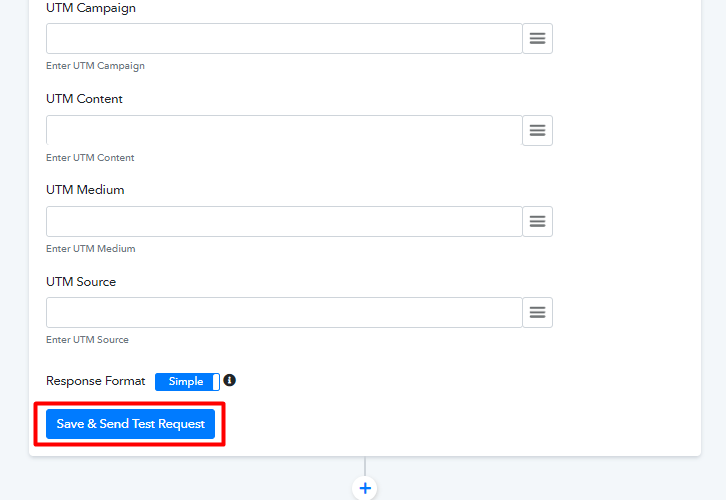
Press ‘Save & Send Test Request’ button.

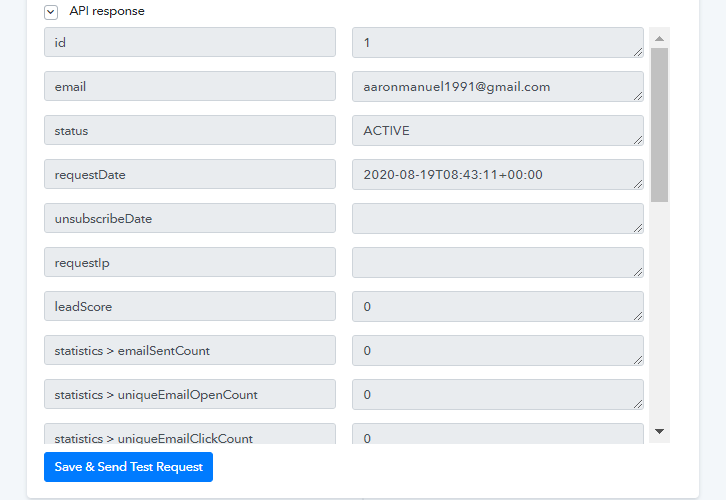
(h) Preview The API Response

How

As you can see in the API response, the data has been captured.

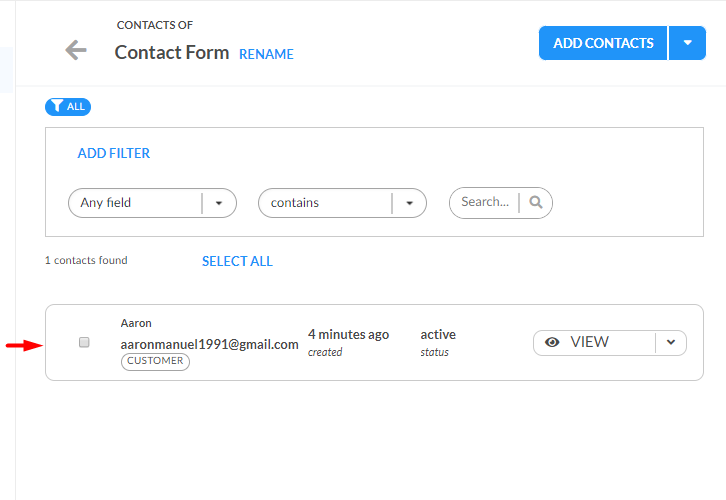
(I) Preview The Contact

How

So the first data has been successfully been captured into the contact form.

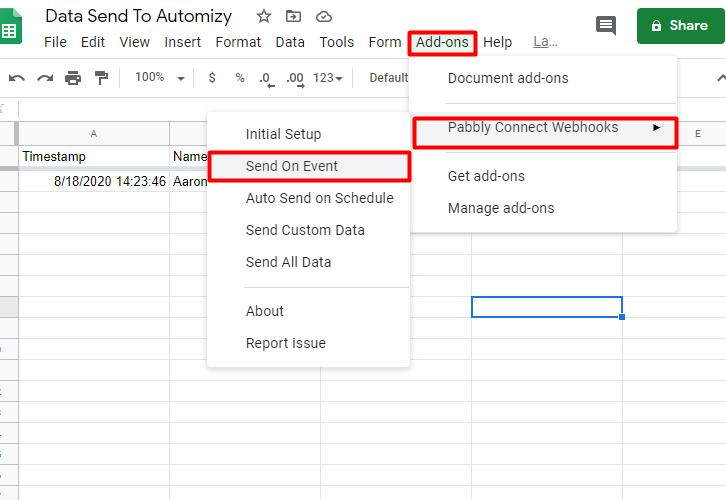
(j) Press Send On Event

How

Now for the third time, we will go to ‘Add-on’ click, then to Pabbly Connect Webhooks, and just below the initial setup click on ‘Send On Event’.This will ensure that all responses will be appended into Automizy in real-time.

Step 7: Re-Check Data Collection

(a) Refill Another Response

How

So fill in the Google Form with another set of data, and submit it.

(b) Preview The Data in Automizy

How

Every time a new respondent fills the Google Forms, its data will be patched automatically into Automizy and that too in real time. Impressive isn’t it?

Conclusion

So, in this article, we learned how Pabbly Connect helps you to send google forms data to Automizy. This is awesome because the people in the mailing list can receive data exactly at the time of submission.  Also, you should know that other than integration there are many awesome features in Pabbly Connect, like routers, filters, etc. So do explore and experiment with all the features in Pabbly Connect. Moreover, we also provide excellent video tutorials and documentation to help you with the same.

Furthermore, if you have any queries regarding this article or about Pabbly Connect in general feel free to ask in the comment section below. We will respond as soon as possible.
How to Integrate Pabbly Form Builder to Pabbly Email Marketing

How to Integrate Pabbly Form Builder to Pabbly Email Marketing

Looking for a way to integrate Pabbly Form Builder to Pabbly Email Marketing? If so, then you can take a deep breath as we are going to walk you through the process.

How to Integrate Pabbly Form Builder to Pabbly Email Marketing

Many times we want entries collected through our forms to get added as a subscriber in the email marketing software. But, adding every single entity manually is a lot of work. And, in such cases software like Pabbly Connect is a great help that offers automation process.

Basically, Pabbly Connect automates the repetitious tasks or works without any technical skill. It allows you to create unlimited workflows to smoothen the tedious or manual process. In simple words, the software connects various applications to automate the data transmission task. Further, it is swamped with instant triggers, formatters, filters, path routers, and much more for effortless data transmission.

Now, let’s move to the part where one can integrate Pabbly Form Builder to Pabbly Email Marketing using tool Pabbly Connect.

So, without wasting any more time let’s jump on the process-

Step 1: Sign up to Pabbly Connect

Sign Up

The very first thing to do is click on the “Sign Up Free” icon on the Pabbly Connect dashboard. Further, either manually enters all the details or sign up using Gmail credentials.

Try Pabbly Connect for FREE

Step 2: Access Pabbly Connect

Select Connect

After the sign-up process, Select “Connect” then click on the “Access Now” button.

Step 3: WorkFlow for Pabbly Form Builder to Pabbly Email Marketing Integration

(a) Create New Workflow

Create New Workflow

Begin the process of creating a workflow for your automation by tapping the ‘Create New Workflow’ button.

(b) Name the Workflow

Name the Workflow

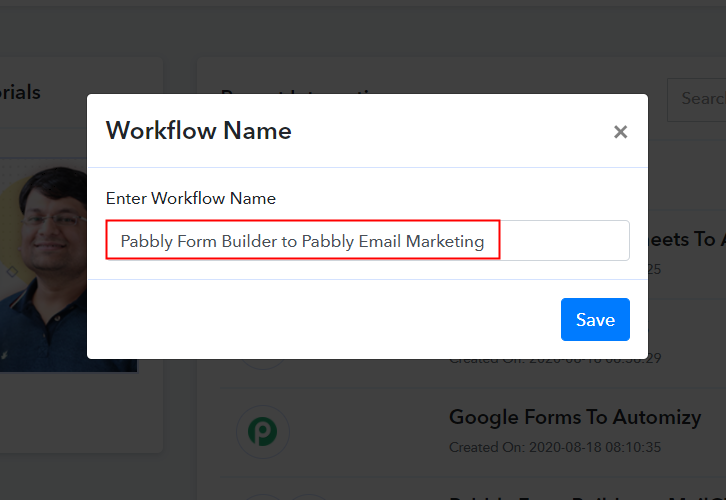
Subsequently, add the name of workflow which in our circumstance is “Pabbly Form Builder to Pabbly Email Marketing”. However, you can name the workflow as per your necessities and demand.

Step 4: Setting Trigger

After creating a workflow, you will have to select the application you want to integrate

(a) Select Application you want to Integrate

Select Pabbly Form Builder

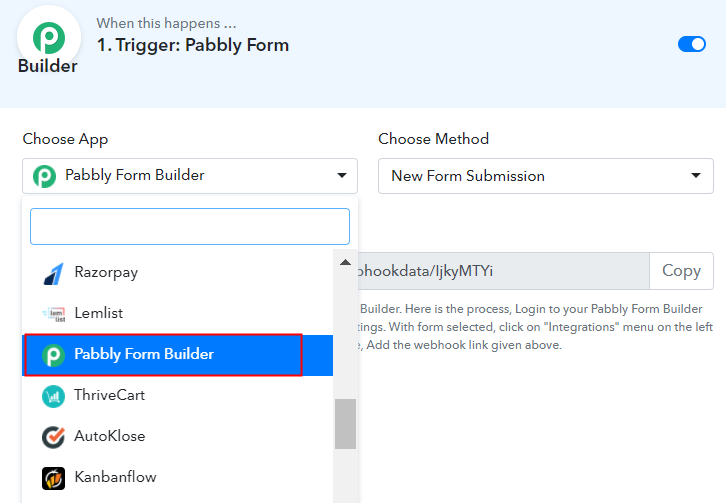
Here we are going to select an application which in our case is “Pabbly Form Builder”

(b) Copy the Webhook URL

Copy the Webhook URL

After creating a workflow, you will have to choose the trigger/application you want to integrate, in our case it is “Pabbly Form Builder”. Further, the next step is to copy the webhook URL which is appearing on the dashboard. Then, click on the “Capture Webhook Response”.

Step 5: Paste the Webhook URL in Pabbly Form Builder

To connect with Pabbly Form Builder, you gotta paste the copied Webhook URL in your form builder dashboard.

(a) Click on Integration Option

Integration Option

Either create a new form or select pre-built templates. Here we are using the already created form “Connect with us”. Simply click on the “integration” option of the form.

(b) Click on Webhook Option

Webhook Option

Next, in the integration section, click on the Webhook option and then paste the copied URL.

(c) Fill the Form

Fill the Form

Fill all the details and then click on the “Submit” button.

Step 6: Test the Submission in Pabbly Connect Dashboard

Test Response

As soon as you fill the form the entry will appear on the “Pabbly Connect” dashboard. Then, click on the “Save” option.

Step 7: Setting Action

After setting a trigger, you will have to select the action for which you have to select the application you want to integrate.

(a) Select Application you want to Integrate

Select Pabbly Email Marketing

Click on the “+” icon to add an action for your trigger.  In our case, it is “Pabbly Email Marketing”. Then, select the “Add subscriber” option.

(b) Click the Connect Button

Select Action

After making all the necessary changes, click on the “Connected” button. Further, it will ask for “Bearer Token”, for which you have to log in to Pabbly Email Marketing account.

Step 8: Connecting Pabbly Email Marketing to Pabbly Connect

To copy the “Bearer Token”, you have to log in to your Pabbly Email Marketing account.

(a) Click on Integrations

Integration Option

Sign to your Pabbly Email Marketing account and select the “Integrations” option from the tab on the left. Then, further, click on the developer API option.

(b) Copy Bearer Token

Copy the Bearer Token

Now copy the “Bearer Token” code provided as shown in the above image.

(c) Paste Bearer Token in Pabbly Connect Dashboard

Paste Bearer Token

To paste the copied code, go back to the “Pabbly Connect” dashboard. As soon as you click on the “Connected” button, the page will appear with the option “New Credentials”.  Below on this page, you will see the option of “Bearer Token”, just paste your copied token there.

(d) Add Field Data

Add Field Data

Now, as you can see “Default List” is appearing in the “List Name” field. Now, all you have to do is add the required field from drop-down such as for the email field, select the email option, and for name field select the name option.

(e) Save and Send Test Request

Save & Send Test Request

After making all the changes, save the setting and then “Send Test Request”.

Step 9: Check Submission in Pabbly Email Marketing Dashboard

Check the Submission

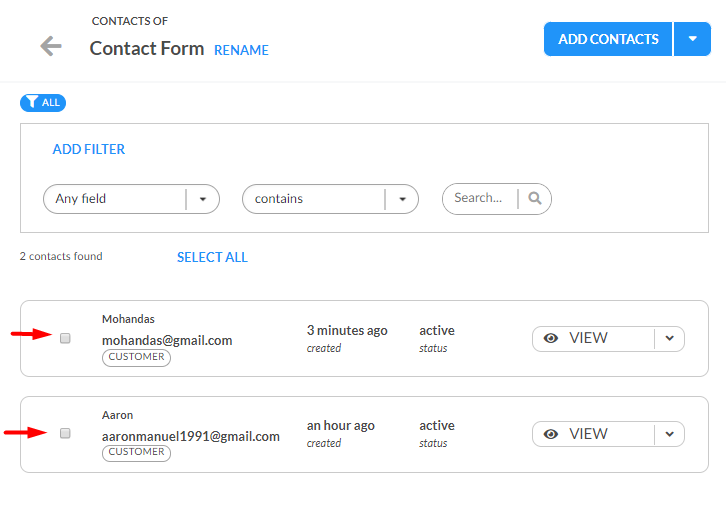
Lastly, when you check the default subscriber list in Pabbly Email Marketing, your entry will automatically appear there. This is a one-time process, after that, all the form submissions will automatically get added to your subscriber list.

Conclusion –

Alright! This is our catch on “How to Integrate Pabbly Form Builder to Pabbly Email Marketing”. All you have to do is follow all the above-mentioned steps and you’re good to go. Through Pabbly Connect, one can connect unlimited premium applications. Just integrate the webhook into your software and then don’t worry about anything else.

Further, in case you have any queries regarding the same, you can always contact the support staff of the software.

So, what are you waiting for? Go and try this software out.

How to Integrate Google Forms & Pabbly Email Marketing

How to Integrate Google Forms & Pabbly Email Marketing

Google Forms is an easy way to collect data and feedback from various stakeholders. Undoubtedly, it integrates seamlessly with other Google products like sheets, Gmail, etc. But, if you want to integrate Google Forms with Pabbly Email Marketing and you’re a beginner then don’t worry!

How to Integrate Google Forms & Pabbly Email Marketing

Here, we are recommending a tool called Pabbly Connect that integrates Google Forms with any email marketing software. Pabbly Connect automatically send data and email addresses to your subscriber’s list from a new or updated Google Forms without doing any manual efforts. Apart from this, it will directly send email addresses to Pabbly Email Marketing, MailChimp, ActiveCampaign, or another platform.

Basically, Pabbly Connect is an automation software that automates all your integrations without any manual efforts. It lets you create unlimited multi-step calls for connecting limitless applications in your workflows at a very affordable price. Apart from this, it is the only software that offers advanced features like instant triggers, formatters, filters, path routers, etc even with its basic plan without any restrictions.

Now, let’s take a look at how to integrate Google Forms with Pabbly Email Marketing using Pabbly Connect.

Just follow these easy and simple steps without using a single line of code and send info between Google Forms and Pabbly Email Marketing.

Step 1: Create New Google Forms

Create New Google Forms - Integrate Google Forms

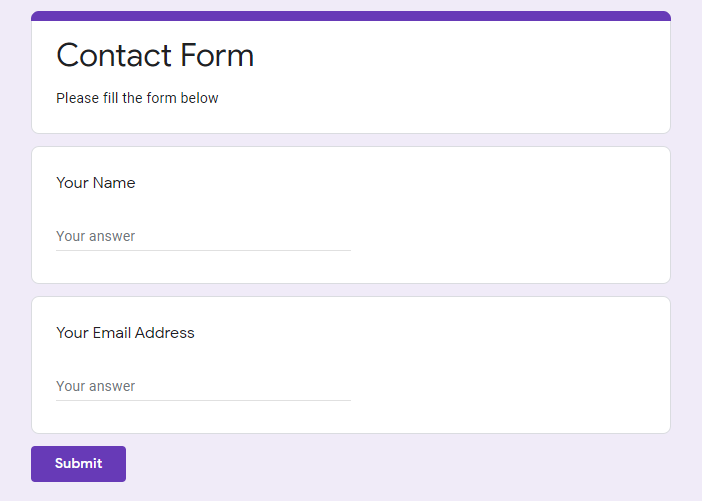
First of all, create a simple form through Google Forms to collect lead data in Pabbly Email Marketing.

Step 2: Create New Spreadsheet to Capture Form Responses

Capture Responses - Google Forms

After creating the form click on the “Responses” option. Here you need to create a new spreadsheet to save all the responses to the Google Spreadsheet file. Just click on the spreadsheet icon, name the sheet, and your spreadsheet is ready to capture the form responses.

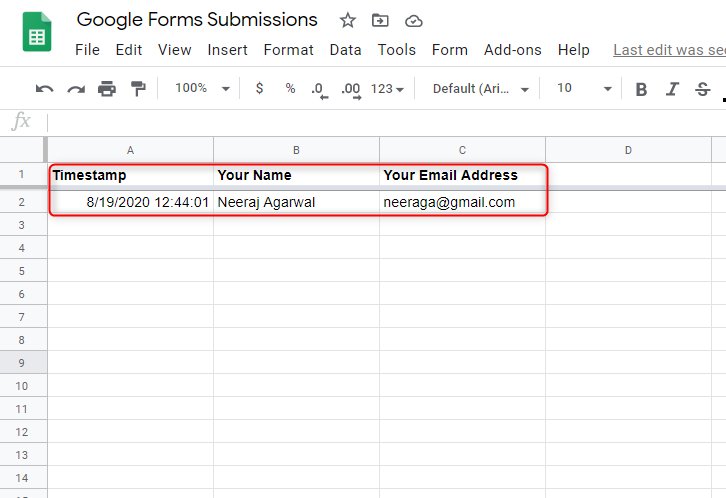
As soon as you click on the Spreadsheet icon, you will see that multiple columns are created in the sheet according to your form such as timestamp, your name, email address.

Step 3: Fill your Form to Get Test Data on Google Sheet

Test Data - Google Forms Submissions

Fill your form to get some test data through which you can do the testing and push that test data to Pabbly Email Marketing. Once you filled the form the entry will appear on the Google Spreadsheet.

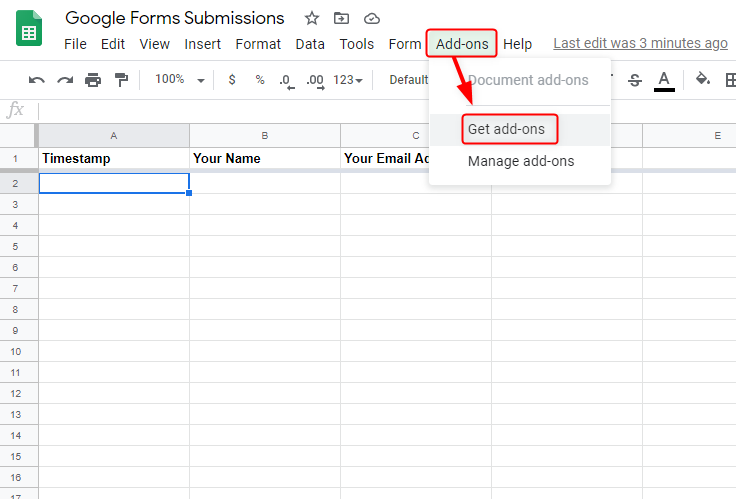
(a) Go to the Add-ons Button of Sheet Menu Bar

Get Add-ons - Google Forms Submissions

In this step, click on the “Add-ons” button from the sheet menu bar and go to the “Get add-ons” option for installing the Pabbly Connect webhooks.

(b) Install Pabbly Connect Webhooks

Install Pabbly Connect Webhooks

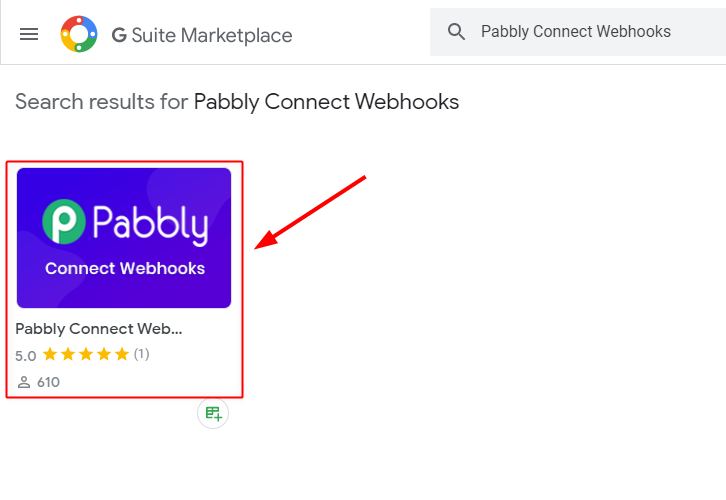
Next, when you click on the “Get add-ons” button G Suite Marketplace window will appear on your screen. Momentarily, search for the Pabbly Connect Webhooks and install it on your Google sheet for integrating Google Forms and Pabbly Email Marketing.

(c) Go to Pabbly Connect Webhooks and Click on Initial Setup Option

Initial Setup - Pabbly Connect Webhook

After installing the Pabbly Connect Webhook you will see that it appears on the add-ons section. Now go to the “Initial Setup” option.

(d) Paste Webhook URL and Set Trigger Column

Webhook URL

A small pop-up window will open on the screen where you will need to paste the webhook URL, which you will find on the Pabbly Connect dashboard after creating the workflow.

Step 4: Sign-up to Pabbly Connect

Sign-up to Pabbly Connect

Now, to create your workflow, visit the Pabbly Connect website and Signup to your account. Either manually fill all the details or sign-up via your Google account.

Step 5: Access Pabbly Connect

Access Pabbly Connect - Integrate Google Forms & Pabbly Email Marketing

After completing the signup process, go to the “Connect” option and click on the “Access Now” button.

Step 6: Create a WorkFlow for Integrating Google Forms to Pabbly Email Marketing

(a) Create New Workflow

Create New Workflow - Pabbly Connect

Let’s begin the process of creating a workflow to integrate Google Forms to Pabbly Email Marketing by hitting the ‘Create New Workflow’ button.

(b) Name the Workflow

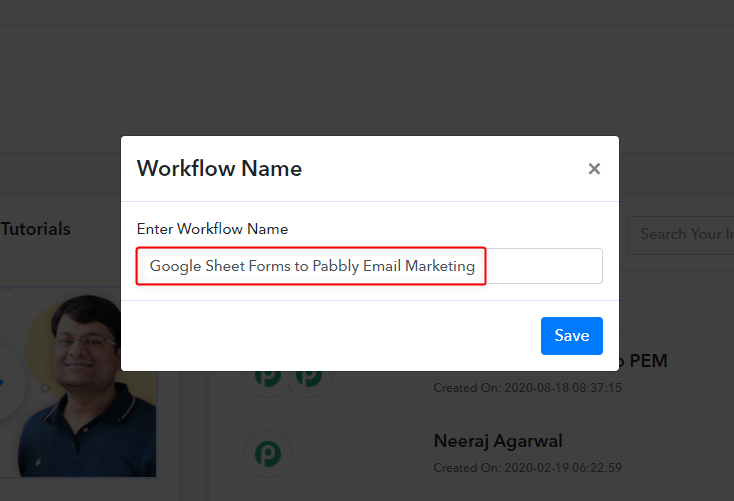
Name the Workflow

Following, named your workflow according to your project, which in our case is “Google Sheet Forms to Pabbly Email Marketing.”

(c) Setting Trigger

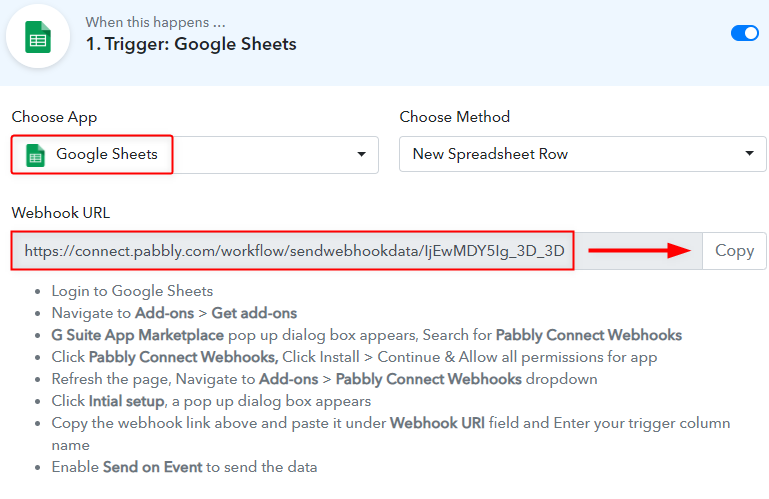
Setting Triggers - To Integrate Google Sheets

In this step, you need to choose the trigger app, i.e Google Sheets which you want to integrate with Pabbly Email Marketing. Additionally, copy the webhook URL which appears on the Pabbly Connect dashboard. Basically, a Webhook URL is a way to receive data from the application without any coding requirement.

Step 7: Go Back to the Google Sheet and Paste the Webhook URL

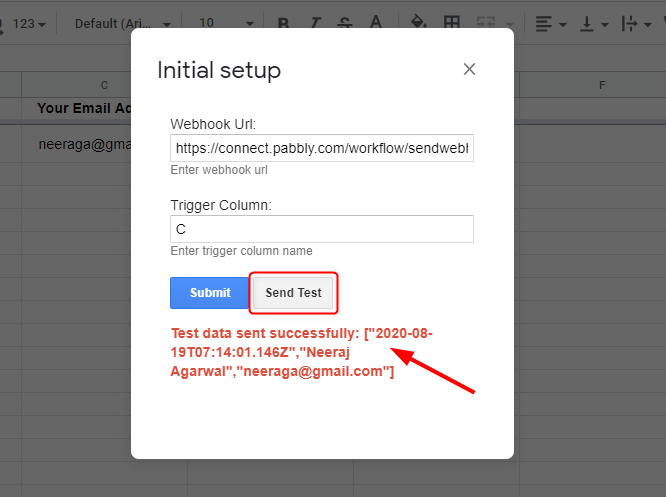
Send Test Data

Now go back to the Google spreadsheet, paste the Webhook URL, and click on the “Send Test” button. Here, you can see the name, date, and email address are posted to the Pabbly Connect.

Step 8: Capture Test Data

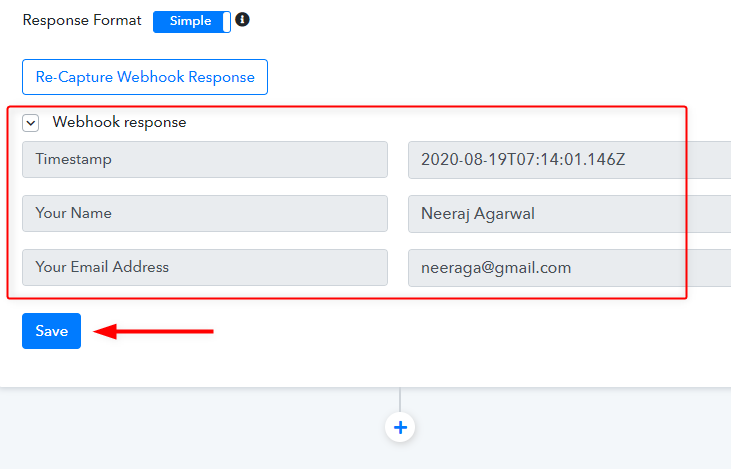
Capture Test Data

After sending the test data to your workflow, hit the “Capture Webhook Response” button, and capture the webhook response. All details of the form like email, name, and timestamp will come on the Pabbly Connect dashboard. Immediately, save all the responses by clicking on the “Save” button, and your Google spreadsheet is integrated with Pabbly Connect.

Step 9: Log-in to Pabbly Email Marketing Account for Developer API

(a)Click on the Integration Option from the Menu bar

Pabbly Email Marketing

Here, all you have to do is log-in to your Pabbly Email Marketing account and go to the “Integrations” option.

(b) Visit Developer API Option

Paste Bearer Token

Next, inside the developer API, you will find bearer token of your specific account. Just copy it and go back to the Pabbly Connect dashboard.

Step 10: Setting Action

(a) Choose Pabbly Email Marketing App

Choose Pabbly Email Marketing App - Setting Action

Here click on the “+” icon to add an action for your trigger. Choose “Pabbly Email Marketing” from the drop-down list, select the “Add subscriber” option as a method, and hit the “Connect with Pabbly Email Marketing” button.

(b) Paste the API key inside Pabbly Connect Dashboard & Save

Paste the API key

Afterward, paste the “Bearer Token”, which you have copied from the Pabbly Email Marketing account.

(c) Map the Data Modules with Google Forms

Map the Data Modules

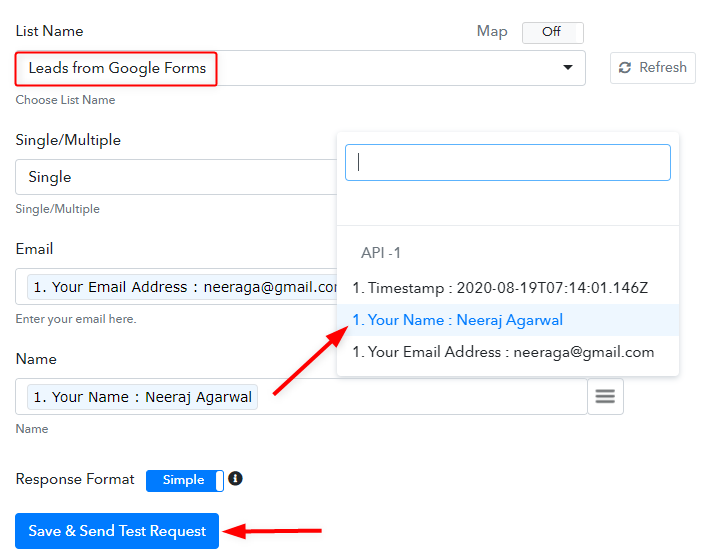
In this step, select the relevant list name in which you want to add data which in our case is “Leads from Google Forms”. Also, you can select the default list for storing your subscriber’s list. Further, in the next step click on the three-line symbol and map the data that is coming from the Google Forms such as email with “Your Email Address” and name with “Your Name”. After, doing all the changes hit the “Save & Send Test Request” button.

(d) Save and Send Test Request

Save and Send Test Request

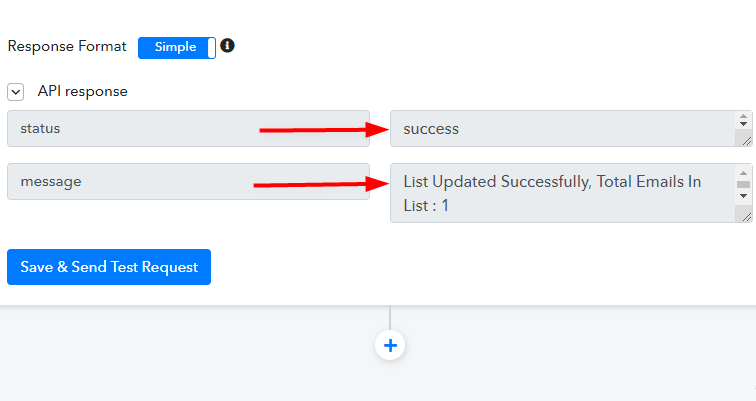
That’s it! Success message will appear on your screen it means your Google Forms are integrated with Pabbly Email Marketing.

Step 11: Check Submission in Pabbly Email Marketing Dashboard

Check Submission

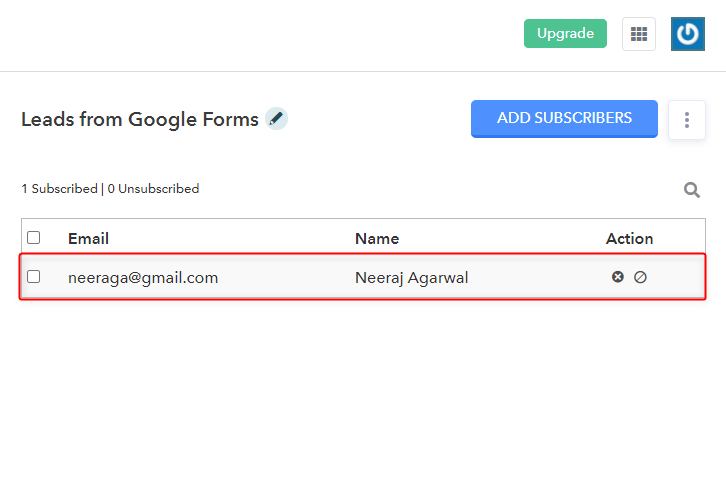
Finally, visit the Pabbly Email Marketing dashboard and check the subscriber list. All the details of the subscriber will appear there automatically. With Pabbly Connect, you won’t have to spend time reading through each response before taking action. It will automatically get added to your subscriber list.

Wrapping Up

This was a step by step guide towards “How to Integrate Google Forms & Pabbly Email Marketing”. As per now, you can clearly see the advantages of using Pabbly Connect over the other automation tools. Also, the service has made it super easy to integrate your favorite apps and services without requiring any technical skills. Just follow the above steps and transfer the data between multiple application.

If you have any queries, do comment us below. We’ll get back to you as early as possible.
You May Also Like To Read:

How to Integrate Pabbly Form Builder to Mailchimp | Step by Step

Integrate Pabbly form Builder to Mailchimp

Are you tired of transferring data manually every single time? Well, there are times when you are too occupied to add the same data in other software. There are even chances, you may miss out on details in the process. While updating your Mailchimp account you must have thought, if there is a way to do all this automatically without investing so much time.

Integrate Pabbly form Builder to Mailchimp

Yes of course there is! In this blog, I am gonna tell you how to integrate Pabbly Form Builder to Mailchimp using Pabbly Connect by following some simple steps. Pabbly Connect is an amazing software through which you can integrate thousands of applications easily. After this integration, every time when someone will fill up your form, their information will automatically be updated in your Mailchimp account.

Why Choose This Method Of Integration?

In contrast with other integration services-

  • Pabbly Connect does not charge you for its in-built apps like filters, Iterator, Router, Data transformer and more
  • Create “Unlimited Workflows” and smoothly define multiple tasks for each action
  • As compared to other services which offer 750 tasks at $24.99, Pabbly Connect proffers 50000 tasks in the starter plan of $29 itself
  • Unlike Zapier, there’s no restriction on features. Get access to advanced features even in the basic plan
  • Try before you buy! Before spending your money, you can actually signup & try out the working of Pabbly Connect for FREE

Sign Up To Pabbly Connect  

Other than Mailchimp and Pabbly Form Builder integration, Pabbly Connect also comes with many other great features such as you can create unlimited workflows, fire instant triggers, use unlimited premium apps, and so much more. The best part is, you can access all these features even with the free plan.

Hence, without wasting any more time, let’s get started with the integration process.

Step 1 : Sign up to Pabbly Connect

Sign Up

You have to start by signing up for Pabbly Connect. Quickly fill in the details manually or sign-up via your Google account.

Try Pabbly Connect for FREE

Step 2 : Access Pabbly Connect

Select Connect

After completing the signup process, access the Connect section in the dashboard.

Step 3 : WorkFlow for Pabbly Form Builder to Mailchimp Integration

(a) Create New Workflow

Create New Workflow

Start with creating a workflow for your project by clicking on the ‘Create New Workflow’ button.

(b) Name the Workflow for Pabbly Form Builder to Mailchimp

Name the Workflow

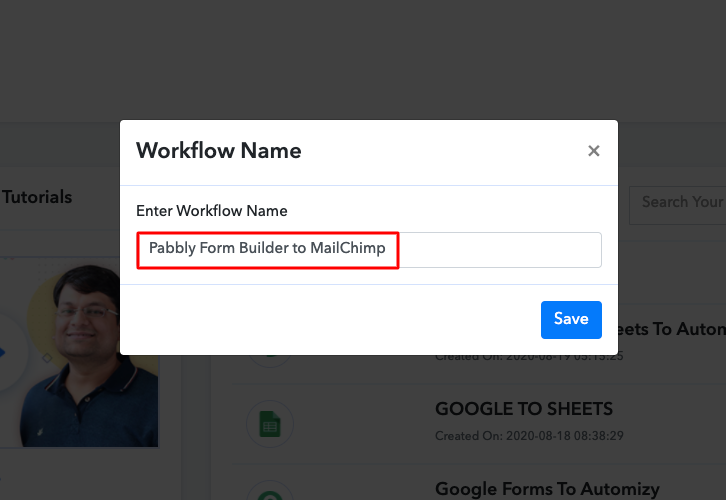
Next, you need to name the workflow just like in the above-shown image. I named the workflow as Pabbly Form Builder to Mailchimp, you can obviously name the workflow as per your requirements and need.

Step 4 : Setting Triggers for Pabbly Form Builder to MailChimp Integration

As soon as you are done with creating a workflow, you will have to select the application you want to integrate. Using Pabbly Connect one can bind or connect unlimited apps, click here to sign up for free.

(a) Select Application you want to Integrate

select pfb

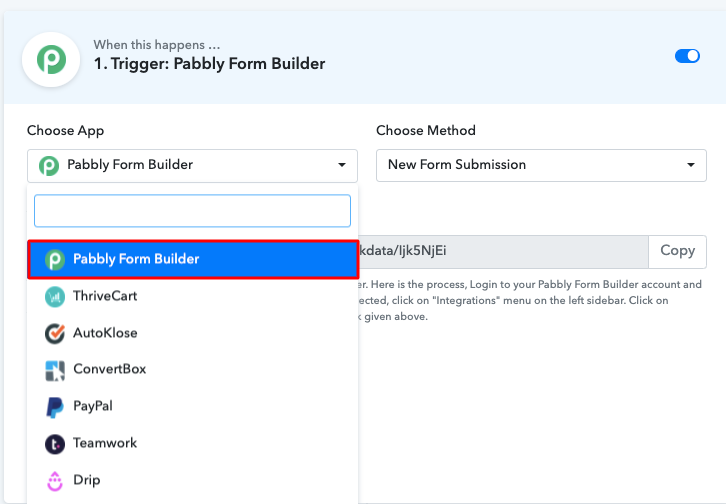
Now you have to choose the application you want to integrate. Here we are choosing Pabbly Form Builder for the integration.

(b) Copy the Webhook URL

copy url

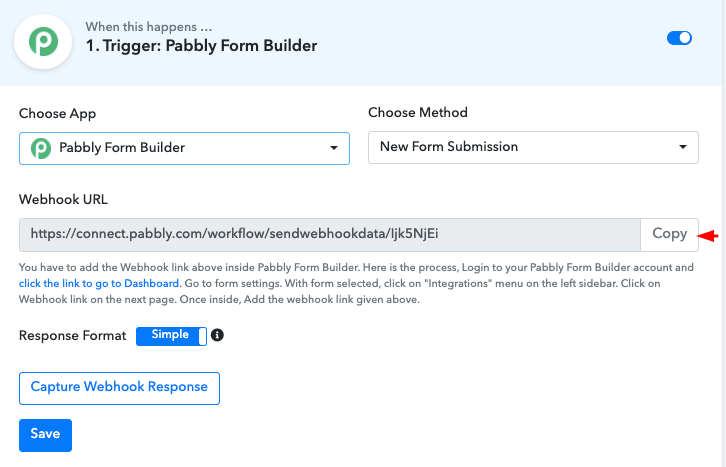
To move further, copy the given webhook URL, just the in the above-shown image.

Step 5 : Paste the Webhook URL in Pabbly Form Builder

To connect with Pabbly Form Builder, you have to paste the copied Webhook URL in your form builder dashboard.

(a) Click on Integration Option

Integartion Option

You can create a new form or you can also select pre-built templates. After choosing a form just click on the “integration” option of the form.

(b) Click on Webhook Option

Webhook Option

After clicking on the integration tab in Pabbly Form Builder go to the webhook option. Paste the webhook URL copied earlier and click on the”Add Webhook” button.

Step 6 : Test the Submission in Pabbly Connect Dashboard 

capture webhook

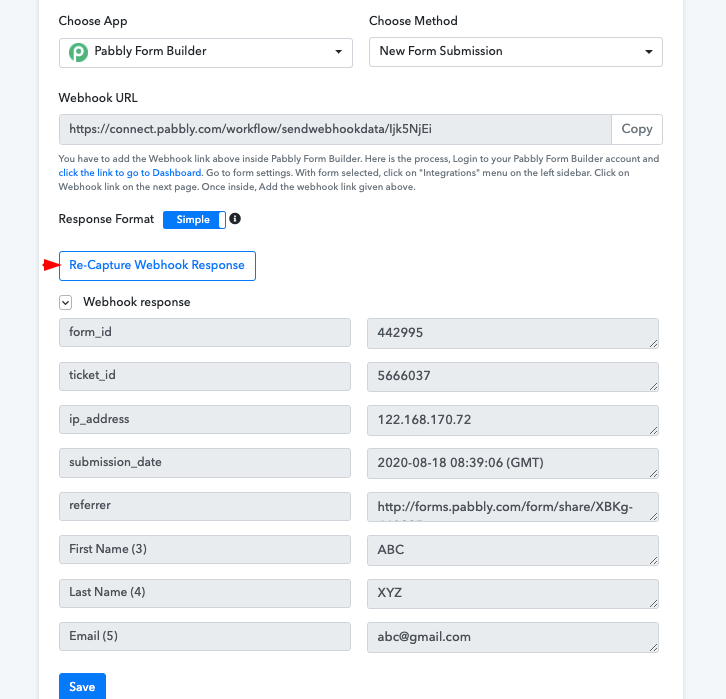
To test the form you have to make a dummy entry and click on “Capture Webhook Response” in Pabbly Connect. As soon as you fill the form the entry will appear on the “Pabbly Connect” dashboard. Then, click on the “Save” option.

Step 7 : Setting Action for Pabbly Form Builder to MailChimp Integration

Now the next step is to set an action for your trigger. For this, you have to choose the application you want to integrate.

Select Application you Want to Integrate

connect mailchimp

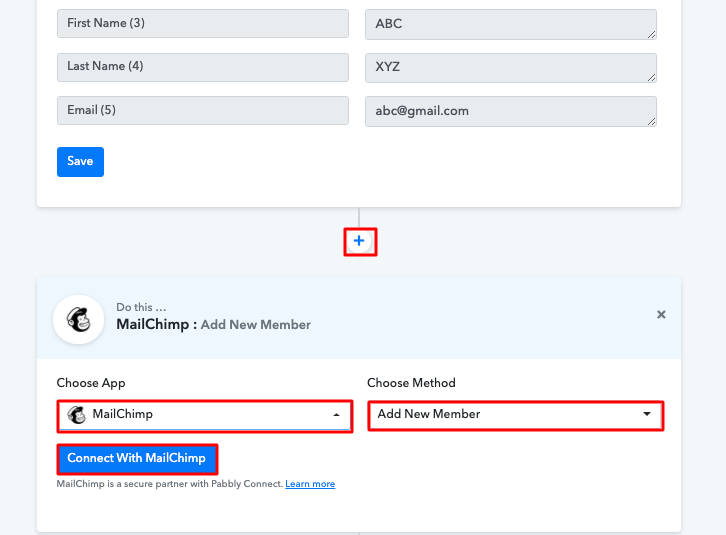
Now in this step, click on the + button below to add an action for your trigger and choose Mailchimp among various other applications. After choosing Mailchimp now you have to select “Add New Member” and then click on the “Connect with MailChimp” button.

Step 8 : Connecting Mailchimp to Pabbly Connect

To connect MailChimp with Pabbly Connect, you have to enter the API key and data center of your MailChimp account in Pabbly Connect dashboard.

(a) Add the API Key

Add API Key

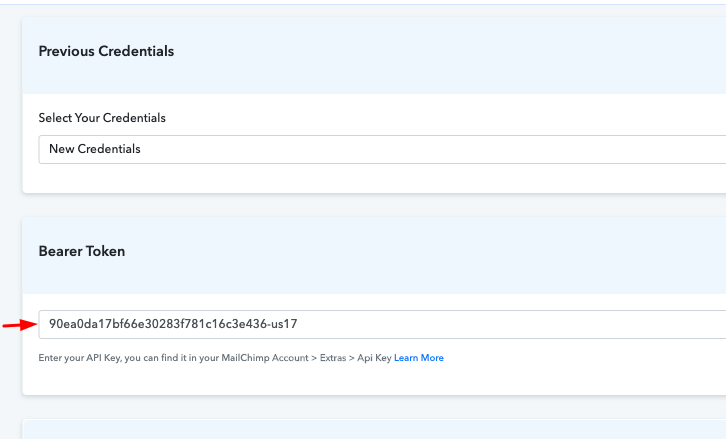
After clicking on the button, now you have to add your Mailchimp API key to move further which you can get from your Mailchimp account.

(b) Add Data Center

Add Data Center

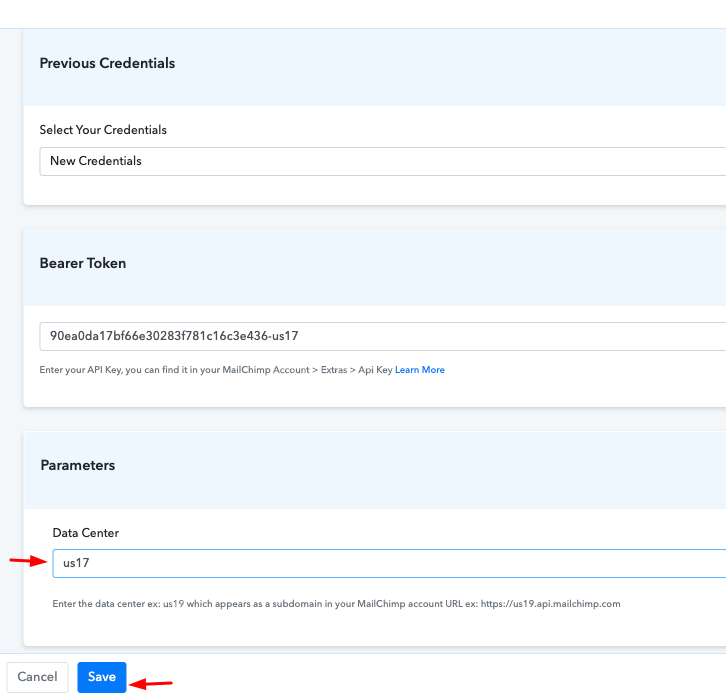
Here you have to copy and paste the sub-domain part of the Mailchimp API key webpage and then click on the “Save” button.

(c) Send a Test Request

Send Test Request

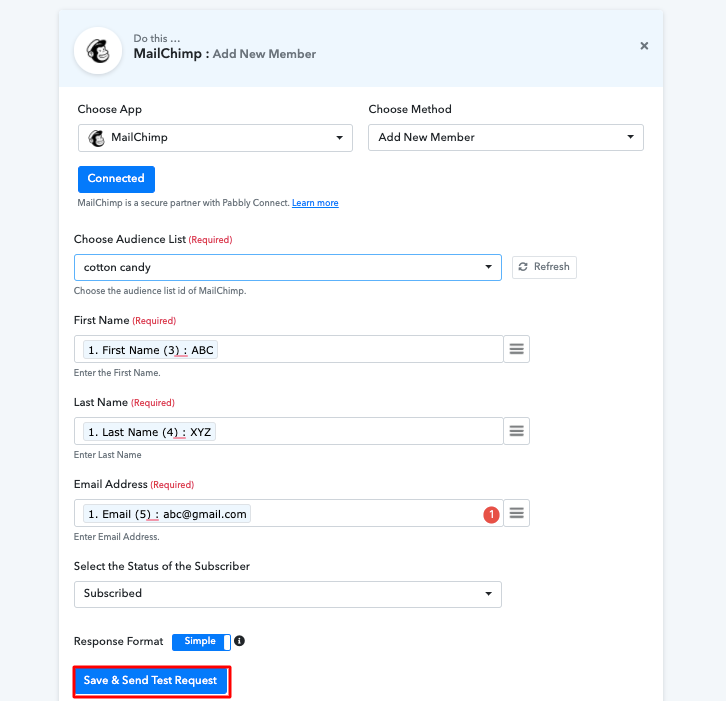
As soon as you click on the save button, the software picks the required field automatically from your account. Now you have to map up the required fields and click on the “Save” button to save your workflow.
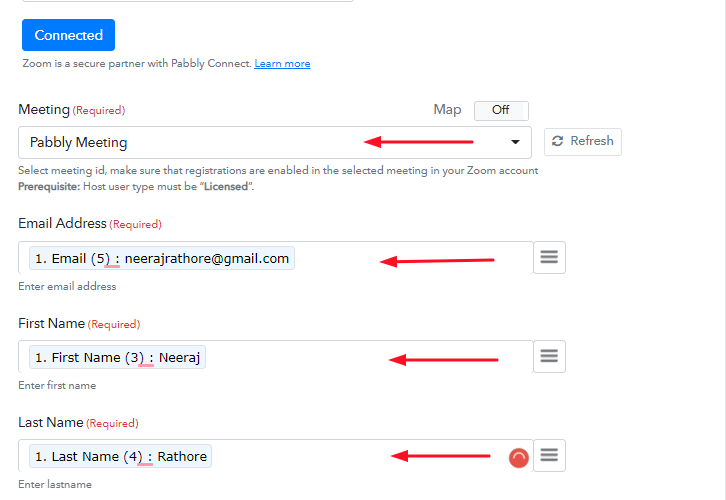
After saving your workflow click on the “Send Test Request” button.

You can see as you send a test request, all the required information from the form is added to your Mailchimp account. Now every time whenever someone will fill and submit your form, this software will automatically add the information to your Mailchimp account.
Conclusion –

So this was the easiest and fastest method that you could use to integrate Pabbly Form Builder to Mailchimp. Not only these two applications, but you can connect thousands of applications on Pabbly Connect easily. It’s simple and easy to use and you won’t have to go for any other software after using it. Now the data transmission is a child’s play, all thanks to Pabbly Connect. If you have any suggestions or queries, please drop them down in the comment section, we will get back to as soon as possible.

You May Also Like to Read –

How to Integrate Pabbly Form Builder to Google Sheets

How to Integrate Pabbly Form Builder to Google Sheets

Searching for ways to Integrate Pabbly Form Builder to Google Sheets? Then, look no further, as here you will get a step by step guide to do so.

How to Integrate Pabbly Form Builder to Google Sheets

We understand how hectic it gets to fill google sheet manually whenever a form gets filled. No wonder why you must be looking for ways to connect Pabbly Form Builder with Google Sheets to automate the whole process and save yourself from all the hassle.

And to do so, here we have the perfect tool for you i.e, Pabbly Connect which can help you integrate Pabbly Form Builder to Google Sheets and transfer data between services in no time.

All you need to do is follow the steps below and your automation is set. So, without wasting any of your time, let me take you through the steps.

Step 1: Sign up to Pabbly Connect

How

The very first step is to sign up to Pabbly Connect that will further help in the Pabbly Form Builder integration process. All you need to do is fill out all the details manually or else sign-up via your Google account.

Step 2: Access Pabbly Connect

How

After completing the sign up process, now its time to access Connect (a service of Pabbly for automated integration & data transmission).

Step 3: Create a WorkFlow for Pabbly Form Builder Integration

(a) Start with a New Workflow

How

Now, start with creating a workflow for your project by clicking on the ‘Create New Workflow’ button.

(b) Name the Workflow

Name the Workflow for Pabbly Form Builder to Google Sheets

Afterward, now its time to add the name the workflow that is “Pabbly Form Builder to Google Sheets”. Although, you can change the name of your workflow whenever you want to as per your requirements.

Step 4: Setting Trigger

Copy the Webhook URL

Once you create a workflow, the next step is to choose the application which you want to integrate, i.e, “Pabbly Form Builder”.Now, the next step is to copy the webhook URL. Using this trigger, we can initiate the process of automation and integrated the first service with Pabbly Connect for further data transfer. Thus, the subsequent step is to go the app that you wish to integrate, in this case, i.e, Pabbly Form Builder.

Step 5: Paste the Webhook URL in Pabbly Form Builder

In order to connect with Pabbly Form Builder, the next step is to paste the copied Webhook URL in your form builder dashboard.

(a) Click on Integration Setting

Integartion Option

Once you enter the Pabbly Form Builder dashboard, now its time to create a form from scratch or else just select pre-built templates provided in the dashboard. For instance, here we are using the pre-built template i.e, “Connect With Us”. The subsequent step is to just press the “integration” setting of the form.

(c) Select Webhook Option & Paste Webhook URL

Webhook Option

After that, you need to click on the Webhook option where you have to paste the copied URL.

Step 6: Test the Submission in Pabbly Connect Dashboard

Test the Form

Now, its time to test the form, and to do so you need to fill the details of the form that you have recently created. Once you fill out the form details your entry will appear in the “Pabbly Connect” dashboard. Then, click on the “Save” option.

Step 7: Set Action to Integrate Pabbly Form Builder & Google Sheets

(a) Select Google Sheets

Select Google Sheets

In order to connect the Pabbly Form Builder to Google Sheets, the next step is to click on the “(+)” button. After that, you need to select Google Sheet from the drop-down option and hit the button named ” Connect With Google Sheets”.

(b) Click on “Connect”

Authorize Application

The subsequent step is to connect with Google Sheet by clicking on the “Connect” button. After pressing the ‘Connect ‘ button, a window will pop-up asking you to select/fill a Google Account to which you want to connect the Google Sheets and Pabbly Connect.

Step 8: Fill up All the Fields

Fill up All the Fields

After connecting your google sheet, now its time to fill up the required fields one by one. And, once you fill up all the details, just hit the “Save & Send Test Request” button in order to complete the whole procedure.

Step 9: Check the Google Sheet

Check the Google Sheet

Voila! As you can see that, all the form details are now visible in your google sheet and your automation is now set.

Conclusion

There you go! See how easy it is to integrate Pabbly Form Builder to Google Sheets using Pabbly Connect. All you need to do is follow all the above-mentioned steps once and your integration is ready to roll. Now, whenever someone is going to fill the form your sheet will get updated automatically. Isn’t it amazing? So, don’t wait anymore and sign in to Pabbly Connect to get hassle-free work experience.

Spreadsheet Formulas inside Pabbly Connect

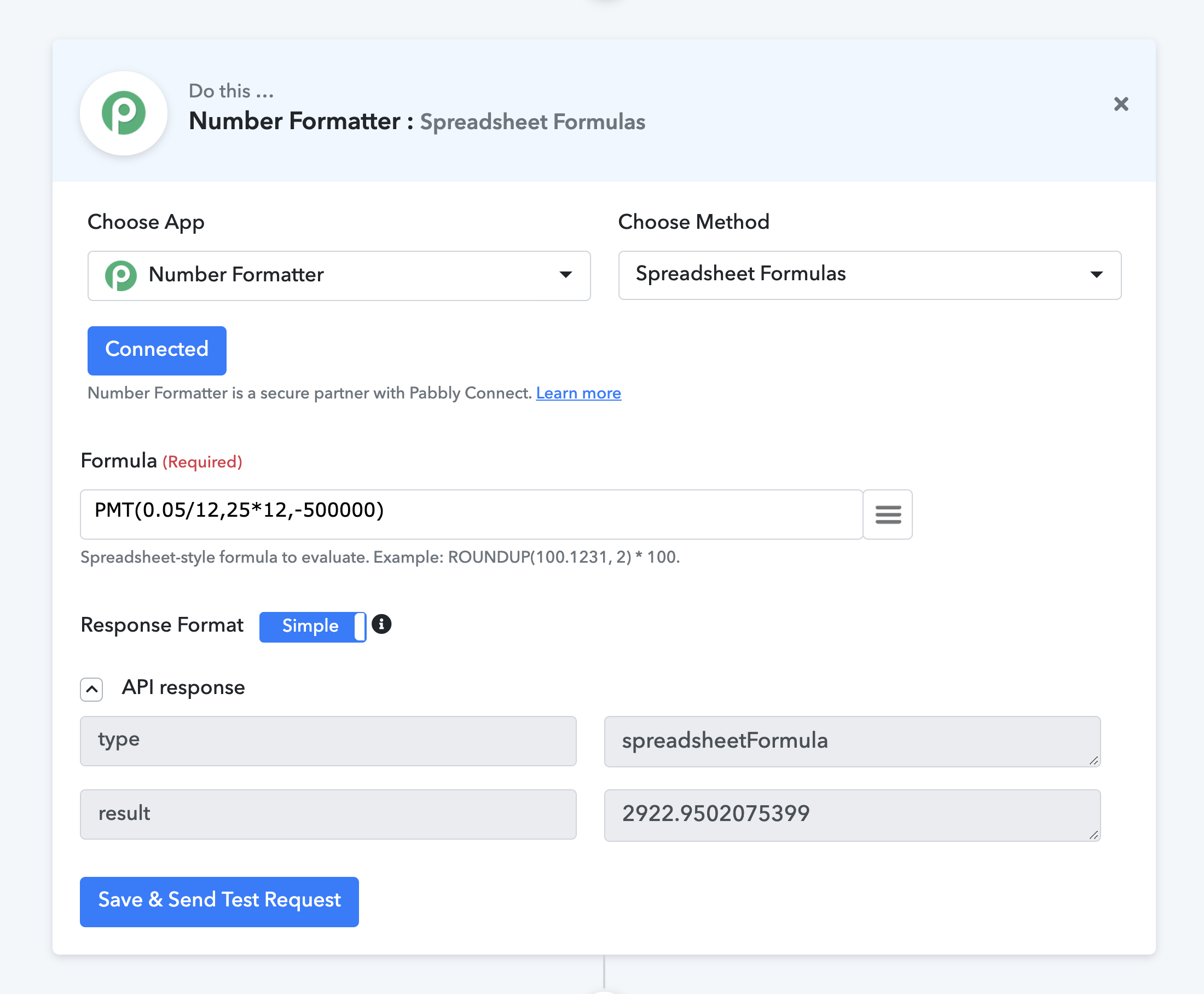
Pabbly Connect supports tons of Spreadsheet functions. Most of the functions supported by Excel or Google Sheets can be used directly inside Pabbly Connect.

Steps to use:

  1. Choose App: Number Formatter
  2. Choose Method: Spreadsheet Formulas
  3. Use the formula you want to use and click on “Save & Send Test Request”
  4. You will find the result in the result key value pair.
  5. You can than map the result in any other module that you need.

Spreadsheet

Supported Spreadsheet Formulas.

DATE

Function Example call Expected result
DATE
DATE(2008, 7, 8)
2008-07-08T00:00:00.000Z
DAY
DAY('15-Apr-11')
15
DAYS
DAYS('3/15/11', '2/1/11')
42
HOUR
HOUR('7/18/2011 7:45:00 AM')
7
MINUTE
MINUTE('2/1/2011 12:45:00 PM')
45
ISOWEEKNUM
ISOWEEKNUM('3/9/2012')
10
MONTH
MONTH('15-Apr-11')
4
NOW
NOW()
2021-05-28T05:33:52.062Z
SECOND
SECOND('2/1/2011 4:48:18 PM')
18
TIME
TIME(16, 48, 10)
0.7001157407407408
TIMEVALUE
TIMEVALUE('22-Aug-2011 6:35 AM')
0.2743055555555556
TODAY
TODAY()
2021-05-28T05:41:13.217Z
WEEKDAY
WEEKDAY('2/14/2008', 3)
3
YEAR
YEAR('7/5/2008')
2008
WEEKNUM
WEEKNUM('3/9/2012', 2)
11
YEARFRAC
YEARFRAC('1/1/2012', '7/30/2012', 3)
0.5780821917808219

FINANCIAL

Function Example call Expected result
ACCRINT
ACCRINT('01/01/2011', '02/01/2011', '07/01/2014', 0.1, 1000, 1, 0)
350
CUMIPMT
CUMIPMT(0.1/12, 30*12, 100000, 13, 24, 0)
-9916.77251395708
CUMPRINC
CUMPRINC(0.1/12, 30*12, 100000, 13, 24, 0)
-614.0863271085149
DB
DB(1000000, 100000, 6, 1, 6)
159500
DDB
DDB(1000000, 100000, 6, 1, 1.5)
250000
DOLLARDE
DOLLARDE(1.1, 16)
1.625
DOLLARFR
DOLLARFR(1.625, 16)
1.1
EFFECT
EFFECT(0.1, 4)
0.10381289062499977
FV
FV(0.1/12, 10, -100, -1000, 0)
2124.874409194097
IPMT
IPMT(0.1/12, 6, 2*12, 100000, 1000000, 0)
928.8235718400465
ISPMT
ISPMT(0.1/12, 6, 2*12, 100000)
-625
NOMINAL
NOMINAL(0.1, 4)
0.09645475633778045
NPER
NPER(0.1/12, -100, -1000, 10000, 0)
63.39385422740764
NPV
NPV(0.1, -10000, 2000, 4000, 8000)
1031.3503176012546
PDURATION
PDURATION(0.1, 1000, 2000)
7.272540897341714
PMT
PMT(0.1/12, 2*12, 100000, 1000000, 0)
-42426.08563793503
PPMT
PPMT(0.1/12, 6, 2*12, 100000, 1000000, 0)
-43354.909209775076
PV
PV(0.1/12, 2*12, 1000, 10000, 0)
-29864.950264779152
RATE
RATE(2*12, -1000, -10000, 100000, 0, 0.1)
0.06517891177181533

ENGINEERING

Function Example call Expected result
BIN2DEC
BIN2DEC(101010)
42
BIN2HEX
BIN2HEX(101010)
2a
BIN2OCT
BIN2OCT(101010)
52
BITAND
BITAND(42, 24)
8
BITLSHIFT
BITLSHIFT(42, 24)
704643072
BITOR
BITOR(42, 24)
58
BITRSHIFT
BITRSHIFT(42, 2)
10
BITXOR
BITXOR(42, 24)
50
COMPLEX
COMPLEX(3, 4)
3+4i
CONVERT
CONVERT(64, 'kibyte', 'bit')
524288
DEC2BIN
DEC2BIN(42)
101010
DEC2HEX
DEC2HEX(42)
2a
DEC2OCT
DEC2OCT(42)
52
DELTA
DELTA(42, 42)
1
ERF
ERF(1)
0.8427007929497149
ERFC
ERFC(1)
0.1572992070502851
GESTEP
GESTEP(42, 24)
1
HEX2BIN
HEX2BIN('2a')
101010
HEX2DEC
HEX2DEC('2a')
42
HEX2OCT
HEX2OCT('2a')
52
IMABS
IMABS('3+4i')
5
IMAGINARY
IMAGINARY('3+4i')
4
IMARGUMENT
IMARGUMENT('3+4i')
0.9272952180016122
IMCONJUGATE
IMCONJUGATE('3+4i')
3-4i
IMCOS
IMCOS('1+i')
0.8337300251311491-0.9888977057628651i
IMCOSH
IMCOSH('1+i')
0.8337300251311491+0.9888977057628651i
IMCOT
IMCOT('1+i')
0.21762156185440265-0.8680141428959249i
IMCSC
IMCSC('1+i')
0.6215180171704283-0.3039310016284264i
IMCSCH
IMCSCH('1+i')
0.3039310016284264-0.6215180171704283i
IMDIV
IMDIV('1+2i', '3+4i')
0.44+0.08i
IMEXP
IMEXP('1+i')
1.4686939399158851+2.2873552871788423i
IMLN
IMLN('1+i')
0.3465735902799727+0.7853981633974483i
IMLOG10
IMLOG10('1+i')
0.1505149978319906+0.3410940884604603i
IMLOG2
IMLOG2('1+i')
0.5000000000000001+1.1330900354567985i
IMPOWER
IMPOWER('1+i', 2)
1.2246063538223775e-16+2.0000000000000004i
IMPRODUCT
IMPRODUCT('1+2i', '3+4i', '5+6i')
-85+20i
IMREAL
IMREAL('3+4i')
3
IMSEC
IMSEC('1+i')
0.4983370305551868+0.591083841721045i
IMSECH
IMSECH('1+i')
0.4983370305551868-0.591083841721045i
IMSIN
IMSIN('1+i')
1.2984575814159773+0.6349639147847361i
IMSINH
IMSINH('1+i')
0.6349639147847361+1.2984575814159773i
IMSQRT
IMSQRT('1+i')
1.0986841134678098+0.45508986056222733i
IMSUB
IMSUB('3+4i', '1+2i')
2+2i
IMSUM
IMSUM('1+2i', '3+4i', '5+6i')
9+12i
IMTAN
IMTAN('1+i')
0.2717525853195117+1.0839233273386946i
OCT2BIN
OCT2BIN('52')
101010
OCT2DEC
OCT2DEC('52')
42
OCT2HEX
OCT2HEX('52')
2a

LOGICAL

Function Example call Expected result
AND
AND(true, false, true)
false
false
FALSE()
false
IF
IF('John' = 'John', 'Hello!', 'Goodbye!')
Hello!
IFS
IFS(false, 'Hello!', true, 'Goodbye!')
Goodbye!
NOT
NOT(true)
false
OR
OR(true, false, true)
true
SWITCH
SWITCH(7, 9, 'Nine', 7, 'Seven')
Seven
XOR
XOR(true, false, true)
false

MATH

Function Example call Expected result
ABS
ABS(-4)
4
ACOS
ACOS(-0.5)
2.0943951023931957
ACOSH
ACOSH(10)
2.993222846126381
ACOT
ACOT(2)
0.46364760900080615
ACOTH
ACOTH(6)
0.16823611831060645
ARABIC
ARABIC('MCMXII')
1912
ASIN
ASIN(-0.5)
-0.5235987755982988
ASINH
ASINH(-2.5)
-1.6472311463710965
ATAN
ATAN(1)
0.7853981633974483
ATAN2
ATAN2(-1, -1)
-2.356194490192345
ATANH
ATANH(-0.1)
-0.10033534773107562
BASE
BASE(15, 2, 10)
0000001111
CEILING
CEILING(-5.5, 2, -1)
-6
CEILINGMATH
CEILINGMATH(-5.5, 2, -1)
-6
CEILINGPRECISE
CEILINGPRECISE(-4.1, -2)
-4
COMBIN
COMBIN(8, 2)
28
COMBINA
COMBINA(4, 3)
20
COS
COS(1)
0.5403023058681398
COSH
COSH(1)
1.5430806348152437
COT
COT(30)
-0.15611995216165922
COTH
COTH(2)
1.0373147207275482
CSC
CSC(15)
1.5377805615408537
CSCH
CSCH(1.5)
0.46964244059522464
DECIMAL
DECIMAL('FF', 16)
255
ERF
ERF(1)
0.8427007929497149
ERFC
ERFC(1)
0.1572992070502851
EVEN
EVEN(-1)
-2
EXP
EXP(1)
2.718281828459045
FACT
FACT(5)
120
FACTDOUBLE
FACTDOUBLE(7)
105
FLOOR
FLOOR(-3.1)
-4
GCD
GCD(24, 36, 48)
12
INT
INT(-8.9)
-9
ISEVEN
ISEVEN(-2.5)
true
ISODD
ISODD(-2.5)
false
LCM
LCM(24, 36, 48)
144
LN
LN(86)
4.454347296253507
LOG
LOG(8, 2)
3
LOG10
LOG10(100000)
5
MOD
MOD(3, -2)
-1
MROUND
MROUND(-10, -3)
-9
MULTINOMIAL
MULTINOMIAL(2, 3, 4)
1260
ODD
ODD(-1.5)
-3
POWER
POWER(5, 2)
25
PRODUCT
PRODUCT(5, 15, 30)
2250
QUOTIENT
QUOTIENT(-10, 3)
-3
RADIANS
RADIANS(180)
3.141592653589793
RAND
RAND()
[Random real number greater between 0 and 1]
RANDBETWEEN
RANDBETWEEN(-1, 1)
[Random integer between bottom and top]
ROUND
ROUND(626.3, -3)
1000
ROUNDDOWN
ROUNDDOWN(-3.14159, 2)
-3.14
ROUNDUP
ROUNDUP(-3.14159, 2)
-3.15
SEC
SEC(45)
1.9035944074044246
SECH
SECH(45)
5.725037161098787e-20
SIGN
SIGN(-0.00001)
-1
SIN
SIN(1)
0.8414709848078965
SINH
SINH(1)
1.1752011936438014
SQRT
SQRT(16)
4
SQRTPI
SQRTPI(2)
2.5066282746310002
SUM
SUM(-5, 15, 32, 'Hello World!')
42
SUMSQ
SUMSQ(3, 4)
25
TAN
TAN(1)
1.5574077246549023
TANH
TANH(-2)
-0.9640275800758168
TRUNC
TRUNC(-8.9)
-8

STATISTICAL

Function Example call Expected result
BETADIST
BETADIST(2, 8, 10, true, 1, 3)
0.6854705810117458
BETAINV
BETAINV(0.6854705810117458, 8, 10, 1, 3)
1.9999999999999998
BINOMDIST
BINOMDIST(6, 10, 0.5, false)
0.205078125
COUNTA
COUNTA([1, null, 3, 'a', '', 'c'])
4
COUNTUNIQUE
COUNTUNIQUE([1,1,2,2,3,3])
3
DEVSQ
DEVSQ([2,4,8,16])
115
EXPONDIST
EXPONDIST(0.2, 10, true)
0.8646647167633873
FDIST
FDIST(15.2069, 6, 4, false)
0.0012237917087831735
FINV
FINV(0.01, 6, 4)
0.10930991412457851
FISHER
FISHER(0.75)
0.9729550745276566
FISHERINV
FISHERINV(0.9729550745276566)
0.75
GAMMA
GAMMA(2.5)
1.3293403919101043
GAMMALN
GAMMALN(10)
12.801827480081961
GAUSS
GAUSS(2)
0.4772498680518208
HYPGEOMDIST
HYPGEOMDIST(1, 4, 8, 20, false)
0.3632610939112487
KURT
KURT([3,4,5,2,3,4,5,6,4,7])
-0.15179963720841627
LOGNORMDIST
LOGNORMDIST(4, 3.5, 1.2, true)
0.0390835557068005
LOGNORMINV
LOGNORMINV(0.0390835557068005, 3.5, 1.2, true)
4.000000000000001
MODESNGL
MODESNGL([1,2,3,4,3,2,1,2,3])
2
NORMDIST
NORMDIST(42, 40, 1.5, true)
0.9087887802741321
NORMINV
NORMINV(0.9087887802741321, 40, 1.5)
42
NORMSDIST
NORMSDIST(1, true)
0.8413447460685429
PERMUT
PERMUT(100, 3)
970200
PERMUTATIONA
PERMUTATIONA(4, 3)
64
PHI
PHI(0.75)
0.30113743215480443
POISSONDIST
POISSONDIST(2, 5, true)
0.12465201948308113
SKEW
SKEW([3,4,5,2,3,4,5,6,4,7])
0.3595430714067974
SKEWP
SKEWP([3,4,5,2,3,4,5,6,4,7])
0.303193339354144
STANDARDIZE
STANDARDIZE(42, 40, 1.5)
1.3333333333333333
TDIST
TDIST(60, 1, true)
0.9946953263673741
TINV
TINV(0.9946953263673741, 1)
59.99999999996535
WEIBULLDIST
WEIBULLDIST(105, 20, 100, true)
0.9295813900692769

TEXT

Function Example call Expected result
CHAR
CHAR(65)
A
CLEAN
CLEAN('Monthly report')
Monthly report
CODE
CODE('A')
65
CONCATENATE
CONCATENATE('Andreas', ' ', 'Hauser')
Andreas Hauser
EXACT
EXACT('Word', 'word')
false
FIND
FIND('M', 'Miriam McGovern', 3)
8
LEFT
LEFT('Sale Price', 4)
Sale
LEN
LEN('Phoenix, AZ')
11
LOWER
LOWER('E. E. Cummings')
e. e. cummings
MID
MID('Fluid Flow', 7, 20)
Flow
PROPER
PROPER('this is a TITLE')
This Is A Title
REGEXEXTRACT
REGEXEXTRACT('Palo Alto', 'Alto')
Alto
REGEXMATCH
REGEXMATCH('Palo Alto', 'Alto')
true
REGEXREPLACE
REGEXREPLACE('Sutoiku', 'utoiku', 'TOIC')
STOIC
REPLACE
REPLACE('abcdefghijk', 6, 5, '*')
abcde*k
REPT
REPT('*-', 3)
*-*-*-
RIGHT
RIGHT('Sale Price', 5)
Price
ROMAN
ROMAN(499)
CDXCIX
SEARCH
SEARCH('margin', 'Profit Margin')
8
SUBSTITUTE
SUBSTITUTE('Quarter 1, 2011', '1', '2', 3)
Quarter 1, 2012
T
T('Rainfall')
Rainfall
TRIM
TRIM(' First Quarter Earnings ')
First Quarter Earnings
UNICHAR
UNICHAR(66)
B
UNICODE
UNICODE('B')
66
UPPER
UPPER('total')
TOTAL

For getting more filtered results check this link:  https://support.google.com/docs/table/25273?hl=en