This Chatbot Handles 100+ Customer Queries Daily (No Coding)

Watch Step By Step Video Tutorial Below


1. Overview of Pabbly Connect for WhatsApp Integration

Pabbly Connect is a powerful automation tool that allows you to integrate various applications, including WhatsApp. This integration streamlines communication and automates responses, enhancing customer interactions. To start, you need to access Pabbly Connect and set up your account.

Once you log in, you can begin creating automated workflows. Here are the steps to get started with Pabbly Connect:

  • Log in to your Pabbly Connect account.
  • Navigate to the dashboard and select the WhatsApp integration option.
  • Choose the trigger event for your automation.

By following these steps, you will lay the groundwork for your WhatsApp automation using Pabbly Connect. This platform simplifies the process of connecting your applications seamlessly.


2. Creating a WhatsApp Chatbot Using Pabbly Connect

Building a WhatsApp chatbot with Pabbly Connect is straightforward. You can design a chatbot that handles customer inquiries efficiently. Begin by selecting the Chatflow feature in Pabbly Connect.

To create your chatbot, follow these steps:

  • Click on the ‘Add Flow’ button to start a new chatbot flow.
  • Name your flow appropriately to reflect its purpose.
  • Select the trigger event, like ‘Template Selected’ for your WhatsApp messages.

These steps will help you create a responsive chatbot that interacts with users in real-time. With Pabbly Connect, you can customize the chatbot to suit your business needs.


3. Setting Up WhatsApp Templates in Pabbly Connect

Templates are essential for WhatsApp communication, and Pabbly Connect makes it easy to set them up. You can create predefined messages that follow WhatsApp guidelines. Start by navigating to the Templates section in Pabbly Connect.

Here’s how to set up your WhatsApp templates:

  • Click on the ‘Add Template’ button to create a new message template.
  • Fill in the required fields, including the message body and buttons.
  • Ensure your template complies with WhatsApp’s messaging policies.

By setting up these templates, you can enhance your customer engagement through Pabbly Connect. This ensures that your messages are professional and effective.


4. Designing the Interaction Flow in Pabbly Connect

Designing the interaction flow is crucial for a successful chatbot. With Pabbly Connect, you can create a seamless flow that guides users through their inquiries. Start by adding response buttons to your chatbot.

Follow these steps to design the interaction flow:

  • Add buttons for user responses, such as ‘View Courses’ or ‘Talk to Counselor’.
  • Link these buttons to corresponding actions or messages in your flow.
  • Test the flow to ensure it responds correctly to user selections.

This process allows you to create a dynamic interaction that keeps users engaged. With Pabbly Connect, you can manage these interactions effortlessly.


5. Finalizing Your WhatsApp Chatbot with Pabbly Connect

After designing your chatbot, it’s time to finalize it in Pabbly Connect. Ensure that all components are connected properly and that the flow is saved. This step is crucial to prevent any loss of data.

To finalize your chatbot, follow these steps:

  • Review all connections between nodes to ensure they are linked correctly.
  • Click the ‘Save’ button to update your flow.
  • Test the chatbot to confirm it operates as intended.

Finalizing your chatbot ensures that it functions smoothly and provides a great user experience. With Pabbly Connect, you can create an efficient and effective WhatsApp chatbot.


Conclusion

In this tutorial, we explored how to integrate WhatsApp using Pabbly Connect, creating a dynamic chatbot that enhances customer interaction. By following these steps, you can automate your responses and improve engagement seamlessly.

How to Add Lead Details to Google Sheets in 5 Minutes

Watch Step By Step Video Tutorial Below


1. Accessing Pabbly Connect for Integration

To start the integration process, you need to access Pabbly Connect. If you are an existing user, simply open your workflow builder. For new users, visit pabbl.com/connect in your browser.

Once on the landing page, click on the ‘Sign up for free’ option in the top right corner. This allows you to explore Pabbly Connect with 100 free tasks each month, enabling you to add lead details to your Google Sheets without any cost.


2. Setting Up Your Workflow in Pabbly Connect

After accessing Pabbly Connect, the workflow builder is where you will configure your automation. Click on the ‘Add Trigger’ button to initiate your workflow.

For the trigger application, select Google Ads and choose the event as ‘New Lead Form Entry’. Click on ‘Connect’ to retrieve the webhook URL. You will then need to copy this URL and paste it into your Google Ads campaign’s lead delivery settings.

  • Open your Google Ads campaign.
  • Locate the lead delivery option.
  • Paste the webhook URL and click on ‘Send Test Data’.

Once the test data is sent, Pabbly Connect will capture the response, confirming that your integration is set up correctly.


3. Adding Lead Details to Google Sheets

Now that your trigger is set, the next step is to add the captured lead details into Google Sheets using Pabbly Connect. Click on ‘Add New Action Step’ and select Google Sheets as the action application.

For the event, choose ‘Add New Row’. If you have previously connected Google Sheets to Pabbly Connect, select the existing connection. Otherwise, create a new connection by signing in with your Google account and granting necessary permissions.

  • Select the spreadsheet named “New Lead Details”.
  • Choose the sheet named “Details”.
  • Map the lead details dynamically from the previous step.

Mapping allows Pabbly Connect to insert data from the trigger automatically, ensuring that your Google Sheets updates with each new lead.


4. Testing the Integration in Pabbly Connect

After mapping the fields, click on ‘Save and Send Test Request’ in Pabbly Connect. This action tests the connection and adds the lead details to your Google Sheets.

Once the test is successful, check your Google Sheets to verify that the details such as name, email, phone number, and city have been added correctly. This confirms that the integration is functioning as intended.

Remember, for this automation to work, your Google Ads campaign must be in live mode. If it’s in draft mode, new leads will not trigger the process.


Conclusion

In this tutorial, we demonstrated how to integrate Google Ads with Google Sheets using Pabbly Connect. By following these steps, you can automate the process of capturing lead details seamlessly. Enjoy the benefits of automation with Pabbly Connect and streamline your workflow effectively.

Auto Send WhatsApp Messages for Shopify Orders

Watch Step By Step Video Tutorial Below


1. Accessing Pabbly Connect for Integration

To integrate WhatsApp with Shopify using Pabbly Connect, start by visiting the Pabbly Connect website. If you’re a new user, click on “Sign Up Free” to create an account and get 100 free tasks each month. Existing users can simply log in to their accounts.

Once logged in, navigate to the dashboard and select the option to access Pabbly Connect. Here, you will find the tools needed to create your automation workflow.


2. Creating a New Workflow in Pabbly Connect

After accessing Pabbly Connect, you will need to create a new workflow to connect Shopify and WhatsApp. Click on “Create from Scratch” or use the AI workflow builder for assistance. For this integration, you’ll prompt the AI with a request like “When a new order comes in from Shopify, send a WhatsApp message via Pabbly Chatflow.”

  • Select the trigger as “New Order” from Shopify.
  • Choose the action as “Send Text Message” from Pabbly Chatflow.

Once the AI generates the workflow, review it and click “Approve and Create”. You will receive a unique workflow link to access it later.


3. Setting Up the Trigger for Shopify Orders

In this step, you will set up the trigger for your workflow in Pabbly Connect. You will receive a webhook URL that connects Shopify to Pabbly Connect. Copy this URL to use in Shopify’s settings.

Log into your Shopify account, navigate to Settings, and select Notifications. Under Webhooks, create a new webhook for “Order Creation” with the format set to JSON. Paste the copied webhook URL and save the changes. This establishes a connection between Shopify and Pabbly Connect.


4. Testing the Integration to Ensure Functionality

To test the integration, you must place a test order in your Shopify store. Enter dummy customer details and complete the payment process. Once the order is placed, check your Pabbly Connect dashboard to verify that the webhook response has been received successfully.

After confirming the webhook response, you can proceed to set up the WhatsApp message. In the workflow, choose to add a new connection to Pabbly Chatflow, where you will need to input your API token from the Pabbly Chatflow dashboard.

  • Copy the API token from Pabbly Chatflow settings.
  • Paste it into the connection setup in Pabbly Connect.

After successfully connecting, you can map the customer’s phone number from the previous step to send personalized WhatsApp messages.


5. Sending Automated WhatsApp Messages

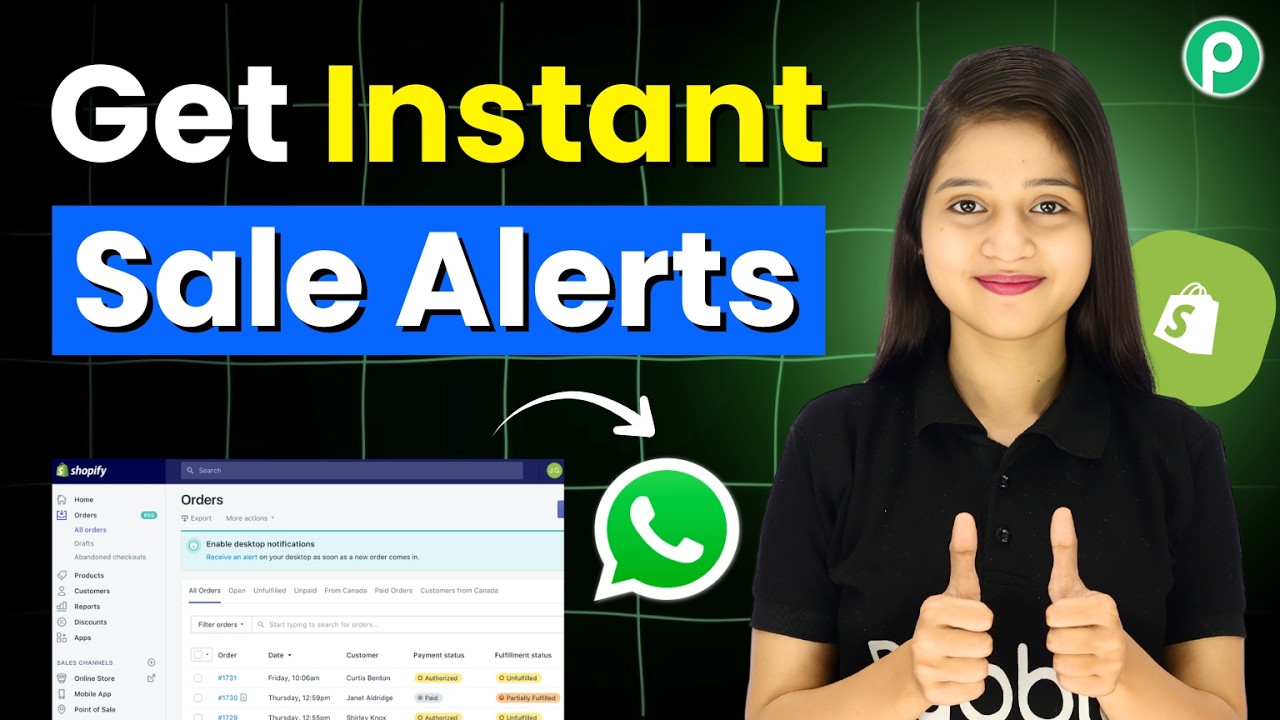
Now that you have set up the trigger and connection, it’s time to send automated WhatsApp messages using Pabbly Connect. In the message setup, craft your WhatsApp message, including the customer’s name and order details.

Ensure that you map the necessary fields such as the customer’s phone number and order ID. Once everything is set, click “Save and Send Request” to send the message. You should receive a confirmation response indicating that the message was sent successfully.

Check your WhatsApp to see the message received, confirming that the automation works seamlessly. This integration allows you to keep your customers informed about their orders instantly.


Conclusion

In this tutorial, we demonstrated how to integrate WhatsApp with Shopify using Pabbly Connect for automated order notifications. By following these steps, you can enhance customer communication and improve your business efficiency.

This AI Tool Turns Design Enquiries into Paid Projects

Watch Step By Step Video Tutorial Below


1. Accessing Pabbly Connect for Integration

To start integrating your WhatsApp AI agent, first access Pabbly Connect. This platform is essential for automating workflows between various applications, including WhatsApp and your AI agent.

Visit the Pabbly Connect website and sign in to your account. If you don’t have one, sign up for free to explore its features. Once logged in, you can create a new workflow to connect your WhatsApp AI agent with the necessary applications.


2. Creating Your AI Agent with Pabbly Connect

Once you are in Pabbly Connect, the next step is to create your AI agent. This agent will handle customer queries automatically, making your business operations more efficient.

  • Navigate to the Pabbly Chartflow dashboard.
  • Click on ‘Create New AI Assistant’ and name your agent.
  • Select the AI instructions and fill in the required details.

After filling in the necessary details, click ‘Save’. This action will create an AI agent capable of handling inquiries related to your business’s design services.


3. Configuring AI Instructions in Pabbly Connect

With your AI agent created, it’s time to configure its instructions. This step is crucial for ensuring that your AI agent responds accurately to customer queries.

In Pabbly Connect, go to the AI instructions section. Here, you can set the type of AI agent and adjust parameters like creativity levels. For instance, set the temperature to 0.7 for balanced creativity.

  • Select the AI model from OpenAI.
  • Enter your OpenAI API key to enable the AI model.
  • Configure fallback messages for unresponsive queries.

Once configured, these instructions will guide your AI agent in responding to customer inquiries effectively.


4. Connecting WhatsApp to Your AI Agent via Pabbly Connect

After setting up your AI agent, the next step is to connect it to WhatsApp using Pabbly Connect. This integration allows your AI agent to communicate with customers through WhatsApp seamlessly.

To connect WhatsApp, navigate to the WhatsApp integration section within Pabbly Connect. Here, you can add your WhatsApp number and configure the connection settings.

  • Click on ‘Add WhatsApp Number’ and choose the preferred connection method.
  • Follow the prompts to authenticate your WhatsApp account.
  • Save the settings to finalize the WhatsApp connection.

By completing this step, your AI agent will be ready to handle queries through WhatsApp effectively.


5. Deploying Your AI Agent for Customer Queries

Now that your AI agent is configured and connected to WhatsApp via Pabbly Connect, it’s time to deploy it. This step involves setting up auto-reply features for efficient customer interaction.

In Pabbly Connect, navigate to the auto-reply settings. Here, you can assign your AI agent to specific contacts or groups, enabling it to respond automatically to incoming queries.

  • Select the contact list or group you want to enable the AI agent for.
  • Toggle on the AI auto-reply settings.
  • Save the settings to activate the AI agent.

With these settings saved, your AI agent will now handle WhatsApp conversations, providing instant responses to customer inquiries.


Conclusion

In this tutorial, we explored how to integrate a WhatsApp AI agent using Pabbly Connect. By following these detailed steps, you can automate customer queries and enhance your business operations effectively.

How to Do a Giveaway on Instagram (Automatically Scheduled) 🤯

Watch Step By Step Video Tutorial Below


1. Accessing Pabbly Connect for Automation

To start automating Instagram giveaways, first access Pabbly Connect by visiting pabby.com/connect. This platform will enable you to create workflows without coding skills.

If you are a new user, sign up for free to explore 100 tasks monthly. Once logged in, navigate to the dashboard where you can create your first workflow.


2. Creating a New Workflow in Pabbly Connect

To create a new workflow in Pabbly Connect, click on the “Create Workflow” button. Name your workflow something descriptive, like “Instagram Giveaway Automation.” This name will help you identify the workflow later.

Next, select the folder where you want to save this workflow. Inside Pabbly Connect, you will need to set up a trigger and an action. The trigger initiates the workflow, while the action executes the task.

  • Click on “Create from Scratch” to begin.
  • Choose “Scheduled by Pabbly” as your trigger application.
  • Set the event to “Schedule Workflow” to run daily.

After configuring your trigger, you can move on to the action steps to automate your Instagram posts.


3. Setting Up Triggers for Daily Execution

For the trigger, you will need to schedule the workflow to run every day at a specific time. In Pabbly Connect, set the time to 12 PM Asia/Kolkata timezone. This ensures your workflow checks for new entries daily.

Once the trigger is set, the next step is to fetch the current date. This is crucial for matching the date in your Google Sheets where you have listed your giveaway ideas.

  • Add an action step for “Date Time Formatter” by Pabbly.
  • Choose “Current Date” and set the format to dd/mm/yyyy.

By doing this, the workflow will now have the current date to compare against your Google Sheets data.


4. Integrating Google Sheets to Fetch Giveaway Ideas

In this step, you will integrate Google Sheets with Pabbly Connect to fetch the giveaway ideas based on the current date. Add another action step and select Google Sheets as your application.

Choose the event “Lookup Spreadsheet Row V2” to find the giveaway details. Connect your Google account and select the spreadsheet containing your giveaway schedule.

  • Map the current date to the lookup value.
  • Specify the range of columns to search.
  • Test the action to ensure it retrieves the correct giveaway details.

This integration will allow your workflow to automatically pull the relevant giveaway details into Pabbly Connect.


5. Posting to Instagram Using Pabbly Connect

After fetching the giveaway details, it’s time to post on Instagram. Add another action step and select Instagram for Business as the application. Choose the event “Create and Upload Photo” to publish the giveaway post.

Connect your Instagram account to Pabbly Connect and select the specific account where you want to post. Map the image URL and caption from the previous steps to create a compelling giveaway post.

  • Map the shortened URL for the image.
  • Include hashtags from your Google Sheets.
  • Test the action to confirm the post is created successfully.

Once this step is complete, your Instagram account will automatically post the giveaway without any manual effort, thanks to Pabbly Connect.


Conclusion

Using Pabbly Connect to automate your Instagram giveaways simplifies the process significantly. With daily scheduling and seamless integration with Google Sheets, you can ensure timely posts without manual intervention. This setup not only saves time but also enhances your marketing efforts effectively.

This WhatsApp AI Bot Handles Your Customers 24/7 🤯

Watch Step By Step Video Tutorial Below


1. Accessing Pabbly Chatflow for WhatsApp Automation

To start automating your WhatsApp conversations, you need to access Pabbly Chatflow. Simply visit the Pabbly Chatflow website by entering www.pabbly.com/chatflow in your browser. Once there, you can either sign in or sign up for a free account.

For new users, clicking on ‘Sign Up for Free’ grants you 100 free credits monthly. Existing users should select ‘Sign In’ to access their dashboard. Once logged in, navigate to the Pabbly Chatflow app where you can manage your WhatsApp automation settings.


2. Setting Up WhatsApp Integration in Pabbly Chatflow

In this section, you will connect your WhatsApp number to Pabbly Chatflow. On your dashboard, locate the ‘Add WhatsApp Number’ option. You can choose to connect via WhatsApp Connect or use a manual token. The WhatsApp Connect method is recommended for ease of use.

  • Click on ‘Add WhatsApp Number’
  • Select ‘WhatsApp Connect’
  • Follow the prompts to complete the connection

Once connected, you can manage your WhatsApp settings directly from Pabbly Chatflow. This integration allows your chatbot to start responding to customer inquiries automatically.


3. Creating an AI Agent in Pabbly Chatflow

Now that you have connected your WhatsApp number, it’s time to create an AI agent in Pabbly Chatflow. Navigate to the AI Assistant section on the left sidebar. Click on ‘Add AI Assistant’ to start the setup process.

When prompted, name your AI assistant, for example, “Spa WhatsApp Chatbot”. Configure the AI instructions by selecting the instruction type as “AI Agent”. You can customize these instructions based on your business needs.

  • Set the temperature to 0.7 for balanced responses
  • Enter your OpenAI API key
  • Toggle on header and footer messages as needed

By following these steps, you will have a functional AI agent ready to assist your customers on WhatsApp.


4. Uploading Your Knowledge Base to Pabbly Chatflow

To ensure your AI agent provides accurate responses, you’ll need to upload a knowledge base file to Pabbly Chatflow. This can be done in the AI Assistant settings where you will find the option to upload files.

Prepare a document that includes all relevant business information. Click on the ‘Upload File’ button, select your document, and confirm the upload. Make sure your document contains details like services offered, pricing, and contact information.

  • Ensure the document is in PDF format
  • Limit the document to 10 pages if it contains images
  • Include all necessary business details

With your knowledge base uploaded, your AI agent will now have the information needed to respond effectively to customer queries.


5. Assigning Your AI Assistant in Pabbly Chatflow

After setting up your AI agent, you need to assign it to specific contacts or groups in Pabbly Chatflow. This can be done from the inbox settings. Navigate to the settings and select ‘Inbox Settings’.

Here, you can enable AI auto-replies and assign your AI assistant to contact lists. You can create multiple contact lists and assign different AI assistants to each list based on your needs.

  • Enable AI auto-replies
  • Select your desired contact list
  • Save the settings to apply changes

This final step ensures that your AI assistant is actively engaging with customers, providing them with timely responses without any manual intervention.


Conclusion

In conclusion, using Pabbly Chatflow to automate WhatsApp conversations can significantly enhance customer engagement. By following the steps outlined, you can create an efficient AI agent that responds to customer queries seamlessly.

Turn Customers into 5-Star Reviews Automatically ⭐

Watch Step By Step Video Tutorial Below


1. Accessing Pabbly Connect for Automation

To start using Pabbly Connect, visit the Pabbly Connect dashboard. If you are new, sign up for a free account to access 100 free tasks each month. This allows you to test the features of Pabbly Connect without any cost.

Once logged in, click on the “Create Workflow” button. Here, you can create your automation workflow from scratch. Select a name for your workflow, such as “Turn Customers into Five-Star Reviews Automatically,” and choose a folder for organization. Click the “Create” button to proceed.


2. Setting Up the Trigger in Pabbly Connect

In this step, you will set up the trigger for your workflow using Pabbly Connect. Select Shopify as your trigger application, as it is essential for capturing new orders. For the event, choose “New Order” and click on the connect button.

  • Select Shopify as the trigger application.
  • Choose “New Order” as the event.
  • Click the connect button to create a webhook URL.

After connecting, copy the provided webhook URL. You will need this URL to link your Shopify store with Pabbly Connect for order notifications.


3. Connecting Shopify to Pabbly Connect

Now, navigate to your Shopify settings to create a new webhook. Go to the “Settings” option, then click on “Notifications” followed by “Webhooks.” Here, you will add a new webhook for order creation.

  • Select “Order Creation” as the event.
  • Paste the copied webhook URL from Pabbly Connect.
  • Choose JSON format and save the webhook.

Once saved, your Shopify store will now send order data to Pabbly Connect whenever a new order is placed, establishing a connection between the two platforms.


4. Adding Action Steps in Pabbly Connect

Next, you will add action steps in Pabbly Connect to send a WhatsApp message after a delay. First, add a delay step to wait for 20 days. Select “Delay by Pabbly” as your action application and configure the delay time.

After setting the delay, add another action step using the WhatsApp Cloud API to send a text message. Connect your WhatsApp account by providing the necessary credentials such as token and phone number ID.


5. Finalizing the Workflow and Testing

In this final step, map the customer’s phone number from the previous order response to ensure the WhatsApp message reaches the correct recipient. Enter the message you want to send, including a link to your Google business profile for reviews.

After completing the setup, click the “Save and Send Test Request” button to test the workflow. If configured correctly, the customer will receive a WhatsApp message after 20 days requesting feedback on their order.


Conclusion

This tutorial demonstrated how to use Pabbly Connect to automate WhatsApp notifications for customer feedback after an order is placed. By following the steps outlined, you can enhance customer engagement and encourage positive reviews effectively.

This WhatsApp Bot Replaces Your Customer Support Team 😱

Watch Step By Step Video Tutorial Below


1. Accessing Pabbly Connect for WhatsApp Integration

To start automating your WhatsApp replies, first, access Pabbly Connect. This platform is essential for integrating WhatsApp with various applications seamlessly. Open a new tab and visit the official Pabbly website to sign up or log in.

After logging in, navigate to the Pabbly Connect dashboard. Here, you can manage your integrations and create workflows. To begin, select the option to create a new workflow specifically for WhatsApp, ensuring that you can automate customer responses effectively.


2. Creating Your WhatsApp Chatbot with Pabbly Connect

Once you are in Pabbly Connect, the next step is to create your WhatsApp chatbot. This involves using the Pabbly Chartflow feature, which allows you to design a flow for your bot. Click on the ‘Create New Flow’ button to get started.

  • Name your flow, for example, “WhatsApp Bot for Customer Support”.
  • Select the trigger event to start your flow.
  • Choose a template for your chatbot, like the library membership offer.

After selecting your template, you will see options to customize the messages and actions your bot will perform. This is where Pabbly Connect shines, allowing you to create interactive responses for your users.


3. Designing the Chatbot Flow in Pabbly Connect

In this section, you will design the flow of your WhatsApp chatbot. Using the drag-and-drop interface of Pabbly Chartflow, add various actions and messages to your flow. Start by adding a list button that users can click to choose their membership plan.

For instance, you can create options like Basic, Standard, and Premium plans. Each option should link to a corresponding action that captures user input. Ensure to save your flow frequently to avoid losing any progress. With Pabbly Connect, you can also set up custom fields to store user details like names and contact numbers.


4. Customizing User Input and Responses

After designing the initial flow, the next step is to customize how your chatbot captures user information. For example, after a user selects a plan, prompt them to enter their full name and contact number. Use the ‘Ask a Question’ feature in Pabbly Connect to create these prompts.

  • Ask for the user’s full name with a text format.
  • Request the contact number in a numeric format.
  • Collect the user’s email address for future communications.

By using Pabbly Connect, you can ensure that all user inputs are stored dynamically, enabling personalized responses based on the information provided.


5. Finalizing Your WhatsApp Chatbot Setup

Once all the user interaction flows are set up, it’s time to finalize your WhatsApp chatbot. Review all the messages and actions to ensure they align with your business goals. This includes confirming that the bot sends a personalized message summarizing the user’s input.

After making sure everything is in order, click the save button to update your flow. With Pabbly Connect, your WhatsApp chatbot is now ready to provide instant replies to users, enhancing customer engagement and support.


Conclusion

In conclusion, using Pabbly Connect to create an automated WhatsApp chatbot streamlines customer interactions. By following these steps, you can efficiently manage customer queries and enhance user experience.

WordPress to Instagram Automation (Step-by-Step)

Watch Step By Step Video Tutorial Below


1. Accessing Pabbly Connect for Automation

To automate your WordPress posts to Instagram, you first need to access Pabbly Connect. Open a new tab and type the URL pabbly.com/connect. This will take you to the Pabbly Connect homepage.

If you’re a new user, click on the “Sign Up Free” button to create an account. Existing users can simply click “Sign In”. Pabbly Connect offers 100 free tasks every month for new users, allowing you to explore its features without commitment.


2. Setting Up Your Workflow in Pabbly Connect

Once logged in, navigate to the workflow page of Pabbly Connect. Here, you can create a new automation workflow. The first step is to set a trigger, which in this case is the creation of a new post in WordPress.

  • Select “WordPress” as your trigger application.
  • Choose “New Post Published” as the event.
  • Click the “Connect” button to generate a webhook URL.

Copy this webhook URL, as it acts as a bridge between WordPress and Pabbly Connect. You will need this URL in the next steps to link your WordPress account.


3. Integrating WordPress with Pabbly Connect

To complete the integration, go to your WordPress dashboard. Navigate to the “Plugins” section and click on “Add New”. Search for the plugin “WP Webhooks” and install it. This plugin allows you to send data from WordPress to Pabbly Connect.

After installation, go to the settings of the WP Webhooks plugin. Here, add the webhook URL you copied earlier. Set the trigger to “Post Created” and ensure the status is set to “Published”. Save your settings to finalize the integration.


4. Creating an Instagram Post Automatically

With the integration set up, it’s time to create a new post in WordPress. Go back to your WordPress dashboard and click on “Add New” under Posts. Fill in the title and description, upload an image, and click on “Publish”.

Once the post is published, Pabbly Connect will capture the data automatically. You can verify this by checking your Pabbly Connect dashboard, where it will indicate that it’s waiting for a webhook response.

  • Ensure your post title and image URL are mapped correctly in Pabbly Connect.
  • Select “Instagram for Business” as your action app.
  • Choose “Create and Publish Photo” as the action event.

Map the fields from your WordPress post to Instagram, including the photo URL and post title. This mapping ensures that data flows correctly between applications.


5. Verifying the Integration with Instagram

After setting up the action in Pabbly Connect, click on “Save and Send Test Request”. This will send the data to your Instagram account. You should see a confirmation message indicating that the post has been successfully created.

Go to your Instagram account and refresh the page. You should see the new post, complete with the title and link to your WordPress post. This confirms that the integration is working seamlessly, allowing you to automate your social media presence.


Conclusion

By integrating WordPress and Instagram through Pabbly Connect, you can automate your posting process effectively. This not only saves time but also enhances your business’s online presence. Start using Pabbly Connect today to streamline your social media automation.

Build a Restaurant Ordering Chatbot That Increases Daily Sales 🍔

Watch Step By Step Video Tutorial Below


1. Setting Up Pabbly Connect

To create an automated WhatsApp chatbot, the first step is to access Pabbly Connect. This platform allows seamless integration between various applications, including WhatsApp. Start by visiting the official Pabbly website and logging into your account.

Once logged in, navigate to the Pabbly Connect dashboard. Here, you can manage your integrations effectively. Ensure you have your WhatsApp number added to your Pabbly Chartflow account to proceed with the chatbot setup.


2. Creating the Chatbot Flow with Pabbly Connect

In this section, we will build the actual chatbot flow using Pabbly Connect. Begin by selecting the “Flows” feature from the dashboard. Click on the “Add Flow” button to start creating your restaurant ordering chatbot.

  • Name your flow, for example, “Restaurant Ordering Chatbot”.
  • Select a trigger event; choose a template for ease.
  • Save your flow to ensure all changes are recorded.

After saving, you can start designing the flow by adding messages and actions. Utilize the drag-and-drop builder to create an intuitive experience for your users.


3. Designing Message Templates in Pabbly Connect

Next, you will design the message templates that the chatbot will use. This is crucial for providing a professional and engaging user experience. In Pabbly Connect, navigate to the “Templates” section to create your WhatsApp message templates.

Click on the “Add Template” button and follow the prompts to design your restaurant order template, ensuring it meets WhatsApp’s guidelines. Include buttons like “View Menu” and “Contact Us” to enhance user interaction.


4. Setting Up User Interaction Questions

The next step involves setting up questions for user interaction. Using Pabbly Connect, you can create a series of questions that the chatbot will ask users when they place an order. Start by adding a question node in your flow.

  • Ask for the name of the dish they want to order.
  • Request the quantity of the dish.
  • Ask for the user’s full name and address.

Ensure that each question is linked correctly in the flow so that the bot can guide the user through the ordering process smoothly. This interaction design is key to a successful chatbot experience.


5. Finalizing Your Chatbot Flow in Pabbly Connect

Once you have set up all user interactions, it’s time to finalize your chatbot flow. Review all the nodes and ensure that the connections are correct. Using Pabbly Connect, save your flow to make it live.

After saving, test the chatbot to ensure it responds correctly to user inputs. Make adjustments as necessary to improve the user experience and ensure all details are captured accurately during the order process.


In conclusion, using Pabbly Connect to create an automated WhatsApp chatbot can significantly enhance your restaurant’s customer service. By following the steps outlined in this tutorial, you can streamline your ordering process and improve user engagement effectively.