Create a Powerful AI Agent That Converts Chats Into Sales

Watch Step By Step Video Tutorial Below


1. Overview of Creating a WhatsApp AI Agent Using Pabbly Connect

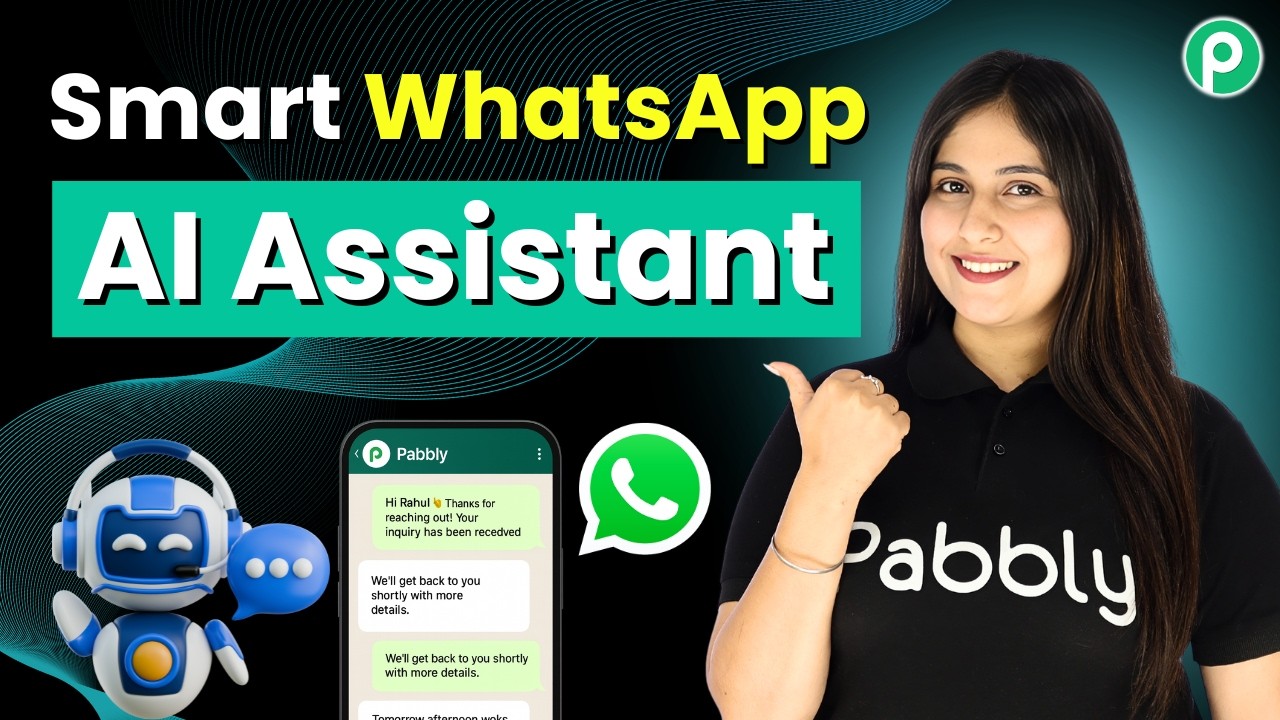
Creating an automated WhatsApp AI agent using Pabbly Connect allows businesses to handle multiple inquiries efficiently. This AI agent can respond to user messages instantly, making communication seamless.

In this tutorial, we will walk through the steps to set up your WhatsApp AI agent using Pabbly Connect. This will enable you to automate responses to common queries, saving you time and improving customer interaction.


2. Setting Up Pabbly Connect for WhatsApp Integration

To start using Pabbly Connect, first visit the Pabbly Chartflow page. If you’re a new user, sign up for a free account to get started. Existing users can simply log in to their accounts.

Once logged in, navigate to the Pabbly Chartflow dashboard. Here are the steps to set up your WhatsApp integration:

  • Go to the Assistant feature in the left sidebar.
  • Click on the ‘Add Assistant’ button.
  • Name your assistant, for example, ‘AI Sales Agent’.

After setting up your assistant, you can begin customizing its responses and behaviors to suit your business needs. This is where Pabbly Connect shines, providing the tools to create tailored interactions.


3. Customizing Your AI Agent with Pabbly Connect

With Pabbly Connect, you can customize how your AI agent interacts with users. Start by selecting the type of instructions for your assistant. Choose the AI agent option to define how it will respond to inquiries.

Next, set the temperature for the AI responses. A lower temperature ensures stable and accurate replies, while a higher temperature allows for more creative interactions. For optimal performance, set the temperature to 0.5. After this, configure the model settings by selecting OpenAI and the desired model, such as GPT-4 Mini.

  • Add your API key from your OpenAI account.
  • Enable header and footer messages for user engagement.
  • Define stop keywords to manage conversation flow.

These settings allow Pabbly Connect to create a responsive and engaging AI assistant tailored to your business’s specific needs.


4. Uploading Knowledge Base for Enhanced Responses

To provide accurate and relevant answers, your AI agent needs a knowledge base. Using Pabbly Connect, you can upload a knowledge base file in PDF or TXT format. Ensure the file size is under 90 MB for optimal performance.

Here’s how to upload your knowledge base:

  • Click on the ‘Add New File’ option.
  • Upload your pre-prepared knowledge base file.
  • Insert the file to finalize the upload.

By integrating a knowledge base, Pabbly Connect enhances the AI agent’s ability to provide specific responses based on user queries, making it a powerful tool for customer interaction.


5. Finalizing Your AI Agent Setup with Pabbly Connect

After configuring your AI agent and uploading the knowledge base, it’s time to finalize the setup. Use Pabbly Connect to assign the assistant to your contacts. Navigate to the inbox settings and enable the AI auto-reply feature.

Follow these steps to complete your setup:

  • Select the contact list for your assistant.
  • Save the settings to activate your AI agent.
  • Test the assistant by sending a message on WhatsApp.

With these steps, your WhatsApp AI agent is now fully operational, thanks to Pabbly Connect. It will provide instant replies to user inquiries, enhancing customer engagement and operational efficiency.


Conclusion

In this tutorial, we explored how to create an automated WhatsApp AI agent using Pabbly Connect. By following the steps outlined, you can enhance your business communication and customer service.

How to Send Bulk Emails in 5 Minutes

Watch Step By Step Video Tutorial Below


1. Accessing Pabbly Connect for Bulk Email Automation

To begin sending bulk emails using Pabbly Connect, first open your browser and navigate to pabbl.com/connect. If you are a new user, click on the “Sign Up for Free” button located at the top right corner of the page. This gives you access to 100 free tasks every month, allowing you to explore the capabilities of Pabbly Connect.

Once you’ve signed up, you can start creating workflows. If you’re an existing user, simply log in to your account and access your workflow dashboard. Here, you can set up a new automation to send bulk emails through Gmail using data from Google Sheets.


2. Creating a Workflow in Pabbly Connect

After logging into Pabbly Connect, click on the “Add New Workflow” button to create a new automation. This is where you will define the trigger and actions for your email sending process. The trigger will be set to Google Sheets, specifically selecting the “New or Updated Spreadsheet Row” option.

  • Select Google Sheets as the trigger application.
  • Choose the event as “New or Updated Spreadsheet Row”.
  • Click on “Connect” to link your Google Sheets account.

Once you’ve set the trigger, copy the webhook URL provided by Pabbly Connect and head over to your Google Sheets to set up the integration. This step is crucial as it allows data to flow from Google Sheets into your Pabbly workflow.


3. Setting Up Google Sheets with Pabbly Connect

To configure Google Sheets, open the sheet containing your email leads. Navigate to the “Extensions” menu, select “Add-ons”, and then click on “Get add-ons”. Search for “Pabbly Connect Webhooks” and install the extension if you haven’t already done so.

After installation, refresh your Google Sheets. You should now see the “Pabbly Connect Webhooks” option. Click on it, then select “Initial Setup”. Paste the copied webhook URL and specify the trigger column, which is the column that will initiate the workflow when updated.

  • Paste the webhook URL.
  • Enter the trigger column (e.g., Column D).
  • Click “Submit” to save your settings.

Once configured, you will see a message indicating the setup was successful. This means your Google Sheets is now connected to Pabbly Connect and ready to send data.


4. Sending Emails via Gmail with Pabbly Connect

With your Google Sheets set up, return to Pabbly Connect to add an action step. Click on “Add New Action Step” and select Gmail as the action application. Choose the action event as “Send Email” and click on “Connect” to link your Gmail account.

If this is your first time connecting Gmail, you will need to sign in and grant the necessary permissions. Once connected, you can customize the email settings, including the sender’s name and email address. For the recipient’s email address, map it from the previous step to ensure each email is sent to the correct contact.

  • Map the recipient email from Google Sheets.
  • Enter your email subject and content.
  • Use dynamic mapping to personalize your emails.

After filling in the required fields, click on “Save and Send Test Request”. You should receive a confirmation that the email was sent successfully, demonstrating that Pabbly Connect has successfully facilitated the email sending process.


5. Sending Bulk Emails Using Pabbly Connect

To send bulk emails to all contacts listed in your Google Sheets, simply return to the “Pabbly Connect Webhooks” option in your Google Sheets. Click on “Send All Data” to trigger the workflow for each contact in your sheet.

Once you click this option, Pabbly Connect will process each row and send emails to all recipients listed. You can monitor the progress by refreshing your Gmail inbox to see the emails arriving in real-time.

  • Click “Send All Data” in Google Sheets.
  • Refresh your Gmail to check for incoming emails.
  • Watch as emails are sent to all contacts.

This process showcases the power of automation with Pabbly Connect, allowing you to send bulk emails efficiently and effectively.


Conclusion

In this tutorial, we explored how to use Pabbly Connect to send bulk emails through Gmail using data from Google Sheets. This integration not only simplifies the process but also enhances efficiency, allowing for personalized communication with multiple recipients.

Automate Meta Ads Leads | Capture & Follow-Up Instantly

Watch Step By Step Video Tutorial Below


1. Accessing Pabbly Connect for Automation

To start automating your Facebook leads, first access Pabbly Connect by visiting pab.com/connect. This platform will facilitate the integration between your Facebook leads and Google Sheets.

If you are a new user, you can sign up for free and get 100 tasks every month. Existing users can sign in directly. Once logged in, navigate to the Pabbly apps window and select Pabbly Connect to access the dashboard.


2. Creating a Workflow in Pabbly Connect

Within Pabbly Connect, you can create a new workflow by selecting either to create from scratch or using the AI workflow builder. For this tutorial, we will use the AI option.

Type a prompt describing your automation needs. For instance, you can write: “When a new lead comes in from Facebook, add it to Google Sheets and send a WhatsApp message via Pabbly Chatflow.” This will help the AI configure the necessary integrations.

  • Select Facebook Lead Ads as the trigger app.
  • Choose New Lead Instant for the event.
  • Select Google Sheets and choose Add a New Row for the action.
  • Finally, select Pabbly Chatflow and Send Text Message as the action.

After confirming the workflow, you will receive a link to your newly created workflow in Pabbly Connect.


3. Setting Up Trigger for Facebook Leads

Next, set up the trigger for your Facebook leads in Pabbly Connect. Choose your Facebook account and grant the necessary permissions to allow Pabbly to access your data securely.

Select your Facebook page, such as “Prime Properties,” and the lead generation form you wish to connect. You can choose specific forms or opt for all lead gen forms for comprehensive coverage.

  • Choose the page and form from the dropdown.
  • Update the response format to simple for better organization.
  • Click Save and Send Test Request to verify the connection.

Once you generate a test lead using Meta’s lead testing tool, you can confirm that the trigger is working properly in Pabbly Connect.


4. Adding Leads to Google Sheets

After successfully setting up the trigger, the next step is to add the lead details to Google Sheets using Pabbly Connect. Create a new connection by signing in with your Google account and granting access to Pabbly.

Select the spreadsheet where you want to store the leads, such as “New Leads,” and map the fields like name, email, and phone number from the lead details you received in the trigger step.

  • Choose the spreadsheet and sheet where data will be stored.
  • Map the relevant fields from the previous step to ensure dynamic updates.
  • Click Save and Send Request to confirm the data addition.

Upon successful execution, the new lead details will appear in your Google Sheets, confirming that Pabbly Connect has successfully integrated the two applications.


5. Sending WhatsApp Messages via Pabbly Chatflow

The final step is to send an automated WhatsApp message to the new leads using Pabbly Connect. Access Pabbly Chatflow and retrieve your API token from the settings section.

After entering the token in Pabbly Connect, you will need to map the phone number of the lead and compose your message. Use variables to personalize the message for each lead.

  • Select the WhatsApp communication platform.
  • Map the lead’s phone number for the message recipient.
  • Compose your message and include dynamic elements for personalization.

After finalizing the message, click Save and Send Request to send the WhatsApp message. This confirms that your entire automation process is operational through Pabbly Connect.


Conclusion

In this tutorial, we explored how to automate Facebook leads using Pabbly Connect, Google Sheets, and WhatsApp. By following these steps, you can efficiently manage your leads and ensure timely follow-ups.

Auto Create Contacts in Salesforce from WhatsApp Leads

Watch Step By Step Video Tutorial Below


1. Setting Up Pabbly Connect for Integration

To begin automating the process of creating Salesforce CRM contacts from WhatsApp leads, you need to access Pabbly Connect. Start by visiting the Pabbly Connect website. If you are a new user, click on the “Sign Up Free” option to create an account and receive 100 free tasks each month.

After signing in, navigate to the dashboard. Click on the “Access Now” button under Pabbly Connect to enter the automation workspace. Here, you can create and manage all your workflows efficiently. Click on the “Create Workflow” button to start setting up your automation.


2. Creating a New Workflow in Pabbly Connect

In this step, you will create a new workflow in Pabbly Connect. Enter a descriptive name for your workflow, such as “Auto-create Contacts in Salesforce from WhatsApp Leads”. Choose the appropriate folder for your workflow and click on the “Create” button.

  • Name your workflow appropriately.
  • Select the folder for organization.
  • Click on “Create” to finalize.

Once the workflow is created, the next crucial step is to set up the trigger. This will allow your automation to activate whenever a new lead comes through your WhatsApp chatbot.


3. Setting Up the Trigger in Pabbly Connect

The trigger is the first step in your workflow. In Pabbly Connect, select the application as Pabbly Chatflow. Then, choose the event as “New Message Received”. Click on the “Connect” button, and you will receive a webhook URL along with steps to connect your Pabbly Connect account with Pabbly Chatflow.

Now, go to your Pabbly Chatflow account and access the chatbot flow you have designed. You will need to set the API request using the webhook URL provided by Pabbly Connect. Edit the request method as POST and paste the URL into the designated field.


4. Configuring the API Request in Pabbly Chatflow

In this section, you will configure the API request in Pabbly Chatflow to ensure it communicates effectively with Pabbly Connect. Select the parameters for the API request, including first name, last name, course type, contact number, email, and city name.

  • Set the request method to POST.
  • Input the webhook URL from Pabbly Connect.
  • Map the parameters to the corresponding fields.

After setting up the parameters, click on the “Test” button to ensure the API request is successful. Once confirmed, save the request and ensure the connection between Pabbly Chatflow and Pabbly Connect is established correctly.


5. Integrating Salesforce CRM with Pabbly Connect

Now that your trigger is set up, it’s time to configure the action application. Choose Salesforce as your action application in Pabbly Connect. Select the event as “Create Contact” and click on the “Connect” button. You will have the option to either add a new connection or select an existing one.

Once connected, you will need to map the fields from the previous application (Pabbly Chatflow) to the Salesforce fields. This mapping ensures that the data from WhatsApp leads is correctly transferred to Salesforce CRM. Map the first name, last name, email, contact number, course type, and city name appropriately.

After completing the mapping, click on the “Save and Send Test Request” button to verify that the integration works as expected. If successful, a new contact will be automatically created in your Salesforce CRM whenever a new lead comes through your WhatsApp chatbot.


Conclusion

This tutorial demonstrated how to automate the creation of Salesforce CRM contacts from WhatsApp leads using Pabbly Connect and Pabbly Chatflow. By following these steps, you can streamline your lead management process effectively.

How to Share RSS Feed to Blogger

Watch Step By Step Video Tutorial Below


1. Accessing Pabbly Connect for RSS Feeds Integration

To integrate RSS feeds with Google Blogger, start by accessing Pabbly Connect. If you’re new, visit pabbly.com/connect in your browser to reach the landing page.

In the top right corner, click on “Sign up for free”. This allows you to access hundreds of tasks each month to explore Pabbly Connect. You can post up to 100 items on Google Blogger from RSS feeds without any cost.


2. Setting Up Your Workflow in Pabbly Connect

Once you’re logged into Pabbly Connect, navigate to the workflow builder. This is where you’ll create your trigger and action steps. Click on the “Add Trigger” button to start.

  • Select “RSS by Pabbly” as your trigger application.
  • Choose “New Item in Feed” as the event.
  • Paste your RSS feed URL in the designated field.

After entering the feed URL, click on “Save and Send Test Request” to retrieve the latest feed data. This will include the title, link, publish date, and description of the new items.


3. Configuring Your RSS Feed Settings

In Pabbly Connect, you can configure your RSS feed settings. Click on the RSS feed by Pabbly and select “Set Trigger Time”. The minimum time is 10 minutes, while the maximum is 24 hours.

Set your desired time interval. For example, you can select 60 minutes. This ensures that your RSS feed checks for new items at your preferred frequency.

After setting the trigger time, close the RSS feed configuration. You’re now ready to convert the RSS feed into a Google Blogger post using Gemini.


4. Using Gemini to Generate Content from RSS Feeds

To convert the RSS feed into a Google Blogger post, add a new action step in Pabbly Connect. Search for and select “Gemini” as your action application.

  • Choose “Generate Content” as the event.
  • Connect your existing Google AI Studio account or create a new connection by providing the API key.
  • Enter the prompt details for generating the content.

Using mapping in Pabbly Connect, dynamically insert data from the previous RSS feed step. This approach allows the generated content to change with each new feed item.


5. Posting to Google Blogger via Pabbly Connect

Finally, to post the generated content to Google Blogger, add another action step in Pabbly Connect. Search for “Google Blogger” and select it as your action application.

Choose “Create Post” as the event. If you’ve set up connections before, select the existing connection. Otherwise, create a new connection by signing in with your Gmail account.

  • Map the title and content from the Gemini output.
  • Choose the blog ID from your Google Blogger account.
  • Select the post status (draft, scheduled, or live).

After filling in all necessary details, click “Save and Send Test Request”. Your post will be drafted successfully on Google Blogger, ready for you to review and publish.


Conclusion

This tutorial has guided you through integrating RSS feeds with Google Blogger using Pabbly Connect. By following these steps, you can automate your blogging process efficiently.

I Added Bulk Contacts to Salesforce in Minutes

Watch Step By Step Video Tutorial Below


1. Accessing Pabbly Connect for Integration

To start integrating Google Sheets with Salesforce, first access Pabbly Connect. You can do this by visiting the Pabbly Connect website and signing in or signing up for a free account. Once logged in, you will be on the Pabbly Connect dashboard, ready to create your workflow.

For new users, Pabbly Connect offers 100 free tasks, allowing you to test its features without any cost. This is a great opportunity to explore how Pabbly Connect facilitates automation between various applications, including Google Sheets and Salesforce.


2. Creating a Workflow in Pabbly Connect

Once you are on the Pabbly Connect dashboard, click on the “Create Workflow” button. From there, select the option to create using AI. This feature allows you to automate the process of adding contacts from Google Sheets to Salesforce.

  • Click on “Create Workflow”.
  • Select the AI option to automate your setup.
  • Input your request: “Add contacts in Salesforce from Google Sheets”.

After entering your request, approve and create the workflow. Pabbly Connect will automatically set up the necessary connections for you. This simplifies the integration process significantly, allowing you to focus on your business.


3. Connecting Google Sheets to Pabbly Connect

To connect Google Sheets to Pabbly Connect, you will need to copy the webhook URL provided by Pabbly Connect. This URL is essential for sending data from Google Sheets to Salesforce.

Open your Google Sheets and go to Extensions > Add-ons > Get Add-ons. Search for “Pabbly Connect Webhooks” and install it. After installation, refresh your Google Sheets to ensure the add-on is active.

  • Navigate to Extensions > Pabbly Webhooks.
  • Select “Initial Setup” and paste the webhook URL.
  • Set the trigger column to the one that contains final data, such as phone numbers.

After configuring the initial setup, test the connection by sending test data. This will verify that the data is being sent correctly from Google Sheets to Pabbly Connect.


4. Mapping Data to Salesforce Using Pabbly Connect

Now that Google Sheets is connected to Pabbly Connect, the next step is to map the data to Salesforce. Click on the action step and select Salesforce as your application. You will need to connect to your Salesforce account by granting the necessary permissions.

During the mapping process, ensure to input the first name, last name, email address, and phone number. Since the name is combined, use the text formatter by Pabbly to split the name into first and last names. This will require you to specify a space as the separator.

  • Select Salesforce as the action application.
  • Map the data for first name, last name, email, and phone number.
  • Use the text formatter to separate first and last names.

After mapping all necessary fields, send a test request to ensure that the data is correctly added to Salesforce. This confirms that Pabbly Connect is working effectively to automate your workflow.


5. Bulk Uploading Contacts to Salesforce from Google Sheets

With the initial setup complete, you can now bulk upload contacts from Google Sheets to Salesforce. To do this, go back to the Extensions menu in Google Sheets and select the option to send all data.

This action will forward all the data in your Google Sheets to Pabbly Connect, which will then create the contacts in Salesforce automatically. This process saves time and reduces the risk of data entry errors.

  • Navigate to Extensions > Pabbly Webhooks.
  • Select “Send All Data” to upload contacts.
  • Confirm that contacts are created in Salesforce.

This bulk upload feature effectively demonstrates how Pabbly Connect can streamline your business processes, allowing you to focus on growth rather than manual data entry.


Conclusion

In this tutorial, we explored how to integrate Google Sheets with Salesforce using Pabbly Connect. This process not only automates the addition of contacts but also minimizes errors, making your workflow more efficient. With easy setup and bulk upload capabilities, Pabbly Connect is an invaluable tool for businesses looking to streamline their operations.

WhatsApp Broadcast for Businesses — Full Automation Guide

Watch Step By Step Video Tutorial Below


1. Accessing Pabbly Connect for WhatsApp Automation

To start automating your WhatsApp marketing, the first step is to access Pabbly Connect. Open a new tab and navigate to pabby.com/chartflow. This platform allows you to streamline your WhatsApp communication effectively.

If you are new to Pabbly, click on the “Sign Up Free” option to create an account. Existing users can sign in directly. Once logged in, you will see various Pabbly apps, including Pabbly Connect, which is crucial for your automation tasks.


2. Setting Up WhatsApp Broadcast with Pabbly Connect

After accessing Pabbly Connect, navigate to the Pabbly Chartflow dashboard. Here, you will find the broadcast feature on the left side panel. This feature allows you to send messages to multiple contacts at once, making it perfect for announcements and promotions.

  • Click on the “Add Broadcast” button.
  • Select the broadcast type as “Broadcast Campaign”.
  • Name your broadcast (e.g., “Food Offer Alert”).
  • Choose the contact list to send the broadcast.

This setup allows you to reach hundreds or even thousands of contacts instantly, enhancing your marketing efforts through Pabbly Connect.


3. Creating Contact Lists and Uploading CSV Files

To send messages effectively, you need to create a contact list in Pabbly Connect. Go to the contacts section and click on the “Add Contact” button. You can add contacts manually or upload them in bulk using a CSV file.

To create a CSV file, you can utilize Google Sheets or Excel. Ensure that your CSV file includes all necessary user data such as first name, last name, and phone number. Once your contacts are ready, download the file in CSV format.

  • Upload the CSV file by clicking on “Add New File”.
  • Drag and drop your CSV file into the upload area.
  • Select the uploaded file and click “Insert”.

This process allows you to manage your contacts effectively through Pabbly Connect, ensuring that you can reach your audience efficiently.


4. Designing Message Templates in Pabbly Connect

Once your contacts are set up, the next step is to design your message templates. Navigate to the templates feature in Pabbly Connect. Here, you can create and manage various WhatsApp templates that comply with WhatsApp guidelines.

To create a new template, click on the “Add Template” button. You can choose from pre-approved templates or create your own. For instance, if you select a restaurant order template, you can add images and buttons for user interaction.

  • Select the template type (e.g., “Restaurant Order”).
  • Upload relevant images to enhance your message.
  • Add buttons for user engagement (e.g., “View Menu”).

This feature of Pabbly Connect allows you to create engaging and interactive messages that can drive customer responses effectively.


5. Testing and Scheduling Broadcasts with Pabbly Connect

After designing your message, it’s crucial to test your broadcast. Enter a test user’s name and phone number in the broadcast setup. Click on the “Send Test Message” button to ensure everything works correctly.

If the test is successful, you can proceed to schedule your broadcast. You can choose to send it immediately or schedule it for a later date and time. For instance, you might want to schedule a broadcast for April 30th at 5 PM.

  • Click on the “Schedule” button to set the time.
  • View broadcast stats by clicking on the “View Stats” button.
  • Export reports for further analysis.

Utilizing Pabbly Connect for testing and scheduling broadcasts ensures that your marketing efforts are timely and effective, maximizing customer engagement.


Conclusion

By following these steps, you can effectively automate your WhatsApp marketing using Pabbly Connect. This integration allows you to reach a larger audience, ensuring your marketing messages are sent efficiently and effectively.

Capture LinkedIn Leads in GoHighLevel & Alert Your Sales Team Instantly

Watch Step By Step Video Tutorial Below


1. Accessing Pabbly Connect for Integration

To start integrating LinkedIn leads with GoHighLevel and Slack, you need to access Pabbly Connect. Begin by visiting the Pabbly website and signing in to your account. If you are a new user, you can sign up for free and explore the features.

Once logged in, navigate to the Pabbly Connect dashboard. Here, you can create workflows that automate tasks between applications. This step is crucial for setting up your LinkedIn integration.


2. Creating a New Workflow in Pabbly Connect

In this section, we will create a new workflow for capturing LinkedIn leads. Click on the “Create Workflow” button in Pabbly Connect. Name your workflow, such as “Capture LinkedIn Leads in GoHighLevel and Notify Slack”. Select a folder for better organization.

  • Click on the “Create” button to finalize your workflow setup.
  • This action will take you to the workflow editor where you can add triggers and actions.

This is where you will set up the trigger application, which in this case is LinkedIn. By using Pabbly Connect, you can easily automate the process of capturing leads from LinkedIn.


3. Setting Up LinkedIn as the Trigger Application

To set LinkedIn as your trigger application, select it from the list of available applications in Pabbly Connect. Choose the trigger event as “Lead Notifications”. This event will activate the workflow whenever a new lead is captured.

After selecting LinkedIn, you will need to connect your LinkedIn account to Pabbly Connect. If you already have a connection, choose it; otherwise, click on “Add New Connection” and enter your LinkedIn credentials to establish the link.


4. Adding Action Steps for GoHighLevel and Slack

With LinkedIn set up as the trigger, the next step is to add action applications. First, select GoHighLevel for creating a new contact. Choose the action event as “Create Contact”. Connect your GoHighLevel account to Pabbly Connect by granting the necessary permissions.

Next, map the fields from LinkedIn to GoHighLevel. This ensures that data like name, email, and phone number are transferred correctly. After mapping, save your settings and send a test request to confirm the integration is working.

  • Ensure that all required fields are filled out accurately during the mapping process.
  • Once the test is successful, proceed to the next action step.

After confirming the GoHighLevel integration, add a new action step for Slack. Select “Send Channel Message” as the action event. Connect your Slack account to Pabbly Connect and specify the channel where notifications will be sent.


5. Finalizing the Integration and Testing

Once both action steps are set up, you need to finalize the integration by testing it. Send a test lead from LinkedIn and check if the contact is created in GoHighLevel and if your Slack channel receives a notification.

Verify that the details sent to Slack are accurate and reflect the lead information captured. This testing phase is critical to ensure everything is functioning as intended. By using Pabbly Connect, you can automate this entire process seamlessly.

After successful testing, your workflow will be fully operational. Whenever a new lead is captured from LinkedIn, it will automatically create a contact in GoHighLevel and notify your team on Slack.


Conclusion

In this tutorial, we explored how to integrate LinkedIn leads with GoHighLevel and Slack using Pabbly Connect. By following these steps, you can automate lead capture and notifications, enhancing your business efficiency.

This AI Assistant Runs Your Business 24/7 🤖

Watch Step By Step Video Tutorial Below


1. Introduction to Pabbly Connect for WhatsApp Integration

In this section, we will explore how to utilize Pabbly Connect to create an automated WhatsApp assistant. This integration allows businesses to respond instantly to customer inquiries, enhancing customer service significantly. By using Pabbly Connect, you can ensure that your assistant operates 24/7, providing timely responses without manual intervention.

To start, you’ll need to sign up for Pabbly Connect if you haven’t already. Once signed in, navigate to the Pabbly Chartflow section, which is the tool for creating your WhatsApp assistant. This will be the foundation for automating responses to your customers.


2. Setting Up Your WhatsApp Assistant with Pabbly Connect

To set up your WhatsApp assistant, first, access the Pabbly Chartflow platform. This is where you will design your AI assistant. Begin by clicking on the ‘Add Assistant’ button. Here, you will provide a name for your assistant, which can be customized based on your business needs.

  • Click on the ‘Add Assistant’ button.
  • Enter a name for your assistant.
  • Select the instruction type as AI agent.

After naming your assistant, you will select the instruction type. This is crucial as it dictates how your assistant will respond to users. Choose the AI agent option, and Pabbly Connect will generate the necessary instructions for your assistant, ensuring it behaves as intended.


3. Configuring Assistant Settings in Pabbly Connect

Once your assistant is created, the next step is to configure its settings. Within Pabbly Connect, you will find multiple options for customization. This includes setting the temperature, which controls the creativity of the responses, and entering your OpenAI API key for enhanced functionality.

  • Set the assistant’s temperature for response creativity.
  • Enter your OpenAI API key.
  • Customize header and footer messages.

Make sure to enable the AI auto-reply feature. This allows your assistant to respond to customer inquiries without delay. By properly configuring these settings in Pabbly Connect, you ensure a seamless experience for your customers.


4. Uploading Knowledge Base for Your Assistant

The knowledge base is essential for your assistant to provide accurate information. In this step, you will upload a knowledge base file that contains relevant data about your business. This file will help your assistant answer customer queries effectively.

To upload the knowledge base, first create a document that includes all necessary information, such as services offered, pricing, and FAQs. Once your document is ready, follow these steps:

  • Ensure the file is in PDF or TXT format.
  • Upload the file through the Pabbly Chartflow interface.
  • Insert the file into your assistant settings.

By doing this, your assistant will have access to vital information, allowing it to respond accurately to customer inquiries. This step is crucial to ensure effective communication through Pabbly Connect.


5. Finalizing Your Assistant and Testing

After uploading the knowledge base, it’s time to finalize your assistant. In this section, you will design the appearance of your assistant and ensure it is activated. This includes setting up initial messages and customizing the look and feel of the assistant.

Make sure to enable the assistant and test its functionality. You can do this by sending a message to see how it responds. Here’s how to finalize:

  • Customize the assistant’s appearance.
  • Enable the assistant for all contacts.
  • Test the assistant by sending a message.

Once everything is set up correctly, your assistant will be live and ready to assist customers through WhatsApp, ensuring instant replies and a better customer experience, all facilitated by Pabbly Connect.


Conclusion

In this tutorial, we learned how to create an automated WhatsApp assistant using Pabbly Connect. This integration allows businesses to respond to customer inquiries instantly, enhancing service quality and efficiency. Implementing this assistant can significantly improve your customer interactions.

How to Add WhatsApp Messages to Google Sheets in 5 Minutes

Watch Step By Step Video Tutorial Below


1. Accessing Pabbly Connect to Set Up Integration

To begin, you need to access Pabbly Connect. Open a new tab and navigate to pabby.com/connect. Once there, sign in to your Pabbly Connect account.

After logging in, you will be directed to the dashboard. From here, click on the “Create Workflow” button. This is where you will set up the integration between WhatsApp and Google Sheets.


2. Creating a New Workflow with Pabbly Connect

In this step, you will create a new workflow using Pabbly Connect. Click on the option to create using AI. Enter the prompt: “Add WhatsApp message to Google Sheets” and submit it.

Pabbly Connect will analyze your request and suggest a workflow. Select the option for WhatsApp Cloud API for message notifications and Google Sheets to add a new row. Approve this workflow to proceed.


3. Configuring WhatsApp Cloud API in Pabbly Connect

Now, let’s configure the WhatsApp Cloud API within Pabbly Connect. You will see a webhook URL that you need to integrate with your WhatsApp Cloud API. Go to the configuration page of your WhatsApp Cloud API in Meta.

  • Paste the webhook URL into the callback URL field.
  • Copy the verify token from Pabbly Connect and paste it in the required field.
  • Enable all subscriptions except for message echoes and message hangovers.

After saving these settings, your WhatsApp Cloud API will be connected to Pabbly Connect. This setup allows you to capture messages sent to your WhatsApp number.


4. Testing the Integration with Pabbly Connect

With the configuration complete, it’s time to test the integration. Send a WhatsApp message to your number, such as “Hey, I need assistance. Can you please give your support team details?” This message will be captured by Pabbly Connect.

Check the response in Pabbly Connect to ensure that it matches your sent message. All details, including name, phone number, and message content, should appear correctly.


5. Adding WhatsApp Messages to Google Sheets

Now you will add the captured WhatsApp message to Google Sheets using Pabbly Connect. Click on the option to connect Google Sheets. Sign in with your Google account and grant the necessary permissions.

  • Select the spreadsheet titled “WhatsApp Messages” and choose the relevant sheet.
  • Map the data fields from the previous response to the appropriate columns in Google Sheets.
  • Click on the “Save and Send Test Request” button to finalize the setup.

After saving, you will see a confirmation response, and the WhatsApp message will be recorded in Google Sheets. This integration ensures that all WhatsApp messages are systematically logged for easy access.


Conclusion

In this tutorial, we explored how to integrate WhatsApp messages into Google Sheets using Pabbly Connect. This setup allows you to maintain a systematic record of all your WhatsApp communications in just a few simple steps. Now, you can easily manage your messages with this powerful automation.