This Simple Email Marketing System Grows My Business

Watch Step By Step Video Tutorial Below


1. Accessing Pabbly Email Marketing

To start using Pabbly Email Marketing, go to pabbly.com/emarketing. This platform helps you create effective email marketing campaigns without coding skills. If you’re new, sign up for free to explore its features.

Once signed up, log in to access the dashboard. Here, you will find the option to create campaigns. If you already have an account, simply sign in and navigate to the campaign section to begin.


2. Creating Email Campaigns in Pabbly Email Marketing

After logging into Pabbly Email Marketing, click on the “Create Email” button in the campaign section. This initiates the process of setting up your email campaign. You’ll need to fill in the necessary campaign details.

  • Select the campaign type (Regular).
  • Name your campaign (e.g., “New Campaign”).
  • Specify the sender name and subject line.

Once you’ve filled in these details, click on the “Continue” button to proceed to the next step of your campaign setup.


3. Designing Your Email with Pabbly Email Marketing

In this step, Pabbly Email Marketing allows you to choose how to design your email. You can select a pre-made template or create one from scratch using the drag-and-drop builder. This flexibility makes it easy to customize your email to match your brand.

To create an email from scratch, select the drag-and-drop builder. Here, you can add various elements like headers, images, text, and buttons. For instance, you can insert your logo and customize the email content to engage your audience effectively.

  • Add a header with your logo.
  • Insert images and text blocks as needed.
  • Include call-to-action buttons linking to your website.

Once you have designed your email, you can save the template for future campaigns, making your workflow more efficient.


4. Sending Your Campaign via Pabbly Email Marketing

After designing your email, it’s time to send it out. In Pabbly Email Marketing, click on the “Send” button to review your campaign details. Ensure that all information, including the recipient list, is correct before proceeding.

You must select a delivery server for sending your emails. If you haven’t set one up yet, follow the instructions provided in the settings section of Pabbly Email Marketing. Once your delivery server is configured, choose it from the dropdown menu.

  • Select your subscriber list.
  • Optionally add individual email addresses.
  • Schedule the campaign or send it immediately.

After confirming the details, you can either schedule the email for a later date or send it right away. This feature allows you to optimize your outreach strategy effectively.


5. Tracking Your Results with Pabbly Email Marketing

Once your campaign is sent, Pabbly Email Marketing provides tools to track its performance. You can view reports that detail how your email campaign is performing, including open rates and click-through rates.

To access these reports, navigate to the “View Report” section in your dashboard. This allows you to analyze the effectiveness of your campaign and make necessary adjustments for future emails.

Understanding these metrics is crucial for improving your email marketing strategy. By leveraging the insights gained from Pabbly Email Marketing, you can enhance your campaigns and drive better results.


Conclusion

In summary, using Pabbly Email Marketing allows you to create, send, and track effective email campaigns seamlessly. By following these steps, you can enhance your marketing efforts and grow your business efficiently.

Automatically Send LinkedIn Leads to Slack in Real-Time (No Code Automation)

Watch Step By Step Video Tutorial Below


1. Accessing Pabbly Connect for Integration

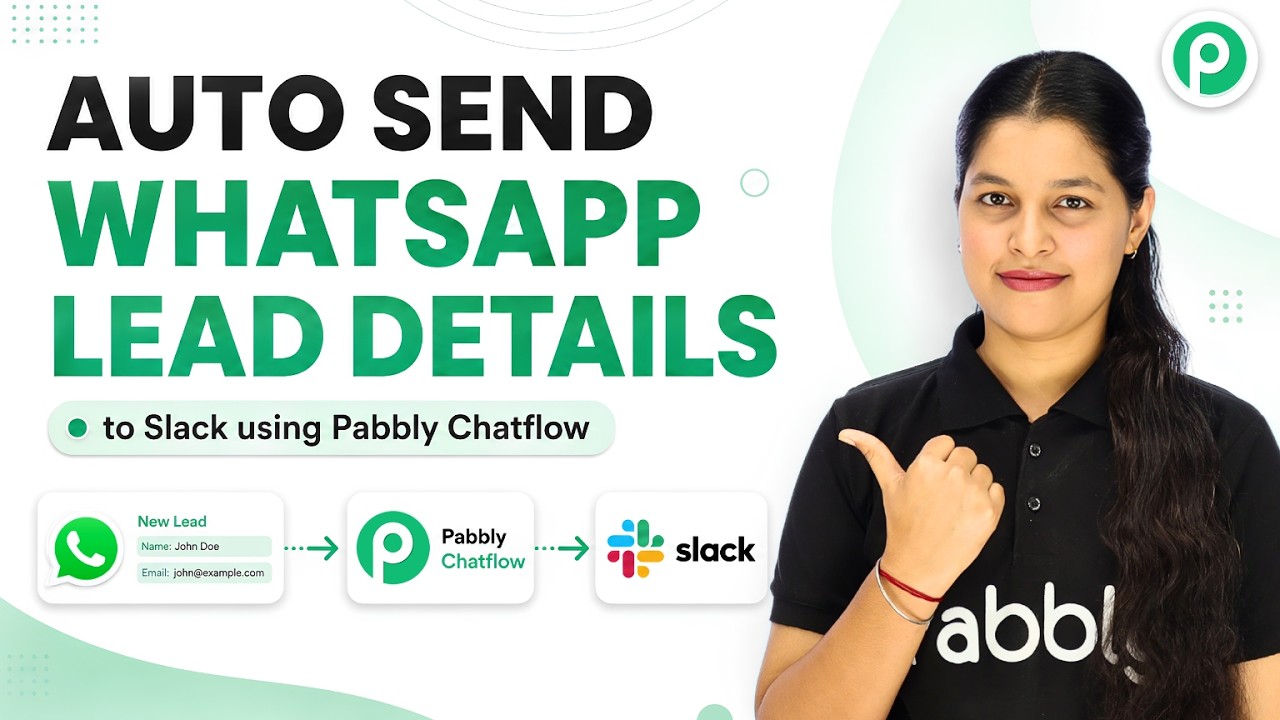
To begin integrating LinkedIn leads with Slack, you need to access Pabbly Connect. Start by visiting the Pabbly website and logging into your account. If you don’t have an account, you can sign up for free, which gives you access to 100 tasks per month.

Once logged in, navigate to the Pabbly Connect dashboard. Here, you’ll find options to create new workflows. Click on the “Create Workflow” button to start setting up your integration between LinkedIn and Slack.


2. Creating a Workflow in Pabbly Connect

After accessing your dashboard, the next step is to create a new workflow in Pabbly Connect. Click on the “Create Workflow” button and select the new beta workflow builder for a better experience. Name your workflow something descriptive, like “Automatically Send LinkedIn Leads to Slack in Real Time.”

  • Select the folder for your workflow, such as “LinkedIn Automations”.
  • Click on “Create” to finalize your workflow setup.

Your new workflow will now be visible on the dashboard. This is where you will set the trigger application to LinkedIn, which will initiate the process.


3. Setting Up LinkedIn as the Trigger Application

In this step, you will configure LinkedIn as the trigger application in Pabbly Connect. Select LinkedIn from the dropdown menu as your trigger application and choose the trigger event as “Lead Notification”. Click on “Connect” to establish a connection.

If you have an existing connection, you can use that; otherwise, click on “Add New Connection”. Enter your LinkedIn credentials to connect your account to Pabbly Connect. Once connected, you will see a confirmation message indicating a successful connection.


4. Testing the Integration with a Dummy Submission

To ensure that the integration works, you need to perform a test submission from LinkedIn. Fill out the lead form with dummy information, such as the name “Pabi”, email “[email protected]”, and phone number. Click “Submit” to send the information.

After submitting, return to your Pabbly Connect workflow and check for a webhook response. You should see the details captured successfully. This confirms that your LinkedIn leads are being sent to Pabbly Connect properly.


5. Sending Notifications to Slack

Now that your LinkedIn leads are captured in Pabbly Connect, the next step is to notify your team on Slack. Add a new action step in your workflow and select Slack as the action application. Choose “Send Channel Message” as the action event.

  • Connect Slack to Pabbly Connect by entering your Slack token type.
  • Select the channel where you want to send the notifications, such as “LinkedIn Leads”.

Compose your message to include details like the lead’s name, email, and company. Use mapping to ensure that the information updates dynamically with each new lead. Finally, save the configuration and test the action to confirm that messages are being sent to your Slack channel.


Conclusion

By following this tutorial, you have successfully integrated LinkedIn leads with Slack using Pabbly Connect. This automation allows you to receive instant notifications, saving you time and improving your team’s efficiency. Implement this workflow to enhance your lead management process effectively.

Automatically Send Tally Form Responses to Google Sheets (Real-Time Data Sync)

Watch Step By Step Video Tutorial Below


Accessing Pabbly Connect for Integration

To integrate Teleforms with Google Sheets, start by accessing Pabbly Connect. Visit the Pabbly website by typing pabby.com in your browser. Once there, you can sign in or create a new account.

If you are an existing user, click on the “Sign In” option at the top right. New users can click “Sign Up for Free” to get started with 100 free tasks monthly. After logging in, navigate to the Pabbly Connect dashboard to create your integration workflow.


Creating a Workflow in Pabbly Connect

After accessing Pabbly Connect, click on the “Create Workflow” button. You’ll be prompted to select between the new beta workflow builder and the classic version. Choose the new beta for a modern experience.

Name your workflow, for example, “Automatically Send Teleform Responses to Google Sheets,” and select the appropriate folder for organization. Then, click on “Create” to proceed with setting up your trigger application.


Setting Up Teleforms as the Trigger Application

In this step, you will configure Pabbly Connect to use Teleforms as your trigger application. Select Teleforms and choose the “New Response” trigger event. Click on “Connect” to establish the connection.

A webhook URL will be generated, acting as a bridge between Teleforms and Pabbly Connect. Copy this URL and go to your Teleforms account. Navigate to your desired form, access the integration settings, and paste the webhook URL. Save the changes to complete the setup.

  • Open your Teleforms account and select the form.
  • Navigate to integration settings and find the webhook option.
  • Paste the copied webhook URL and save the changes.

Now, Pabbly Connect will wait for a response from Teleforms, signaling that the connection is ready for testing.


Testing the Connection with a Form Submission

To ensure everything is set up correctly, perform a test submission using the Teleforms link. Fill out the form with dummy details and submit it. This will trigger the webhook and send the data to Pabbly Connect.

After submission, return to Pabbly Connect to check if the response has been captured. You should see the details from your test submission reflected in the workflow, confirming that the integration is functioning properly.


Adding Google Sheets as the Action Application

Now that your trigger is set up, it’s time to add Google Sheets as the action application in Pabbly Connect. Click on “Add New Action Step” and select Google Sheets. Choose the “Add New Row” action event and click on “Connect”.

Sign in to your Google account and grant the necessary permissions. Once connected, select the spreadsheet you created for Teleform submissions. You will see the fields from your spreadsheet appear, allowing you to map the data from Teleforms.

  • Select the spreadsheet named “Teleform Submissions”.
  • Map the fields from Teleforms to the corresponding columns in Google Sheets.
  • Hit “Save” and send test request to verify the integration.

After successfully mapping the fields, you will see the lead details automatically populated in your Google Sheets, confirming that the integration through Pabbly Connect is complete.


Conclusion

In this tutorial, we demonstrated how to integrate Teleforms with Google Sheets using Pabbly Connect. By following these steps, you can automate your form submissions and ensure all data is captured efficiently in your Google Sheets.

This integration not only streamlines your workflow but also saves time and reduces manual data entry errors. Start utilizing Pabbly Connect today to enhance your automation capabilities!

Send SMS Automatically on Form Submission (No Coding)

Watch Step By Step Video Tutorial Below


1. Accessing Pabbly Connect for Automation

To start automating SMS notifications, first access Pabbly Connect. If you’re a new user, visit the Pabbly Connect landing page by searching for pabbl.com/connect in your browser.

Once on the page, click on the ‘Sign Up for Free’ button in the top right corner. This allows you to explore Pabbly Connect with up to 100 free SMS messages each month, perfect for testing your automation setup.


2. Creating Your Workflow in Pabbly Connect

After signing up, navigate to the workflow builder in Pabbly Connect. This is where you’ll create your automation workflow. Click on the ‘Add Trigger’ button to start the process.

For your trigger application, search for “Typeform” and select it. Choose the event as “New Entry” and click on “Connect.” If you haven’t created a connection yet, select “Add a New Connection” and follow the prompts to log into your Typeform account.

  • Search for Typeform in the trigger application.
  • Select “New Entry” as the event.
  • Connect your Typeform account to Pabbly Connect.

Once connected, select your form name (e.g., “Event Registration”) and ensure the response format is set to “Advanced.” Click on “Save and Send Test Request” to capture the webhook response.


3. Submitting the Form for Testing

To test your setup, submit the Typeform you just connected. Open the form URL, fill in the required fields like first name, last name, email, and phone number, and then click on “Submit.” This action will trigger your workflow in Pabbly Connect.

After submitting, return to your workflow. You should see that Pabbly Connect has captured the response data, including the first name, last name, email, and phone number. This information will be used to send automated SMS notifications.


4. Sending SMS Notifications Using Twilio

Next, you will set up the action step to send SMS notifications. Click on “Add New Action Step” and choose Twilio as your action application. Select the event as “Send SMS Message” and click on “Connect.”

If you haven’t created a connection between Twilio and Pabbly Connect, click on “Add New Connection.” You will need to enter your Twilio Account SID and Authorization Token, which you can find in your Twilio dashboard. Paste these values into the respective fields in Pabbly Connect.

  • Input your Twilio Account SID and Authorization Token.
  • Map the SMS body using the captured data from the previous step.
  • Specify the sender’s number from your Twilio account.

For the SMS body, customize your message to include the user’s name by mapping the first and last names from the previous step. Finally, set the recipient’s number by mapping the phone number field.


5. Testing the Integration and Confirmation

After setting up the SMS details, click on “Save and Send Test Request” in Pabbly Connect. You should receive a confirmation that the SMS has been sent successfully. Check the recipient’s phone to ensure the message has arrived.

If you used a test number during setup, replace it with the actual number to see the real-time results. This process demonstrates how Pabbly Connect effectively automates SMS notifications for new form submissions.

With this setup, you can now send automated SMS notifications to users upon form submissions seamlessly. This integration showcases the power and flexibility of Pabbly Connect for automating tasks across different applications.


Conclusion

In this tutorial, we explored how to use Pabbly Connect to automate SMS notifications through Typeform and Twilio. By following these steps, you can streamline your communication processes effectively.

Send Form Links to Multiple Contacts on WhatsApp Automatically

Watch Step By Step Video Tutorial Below


1. Getting Started with Pabbly Connect

To begin automating WhatsApp messages, you need to access Pabbly Connect. This platform enables seamless integration between your Google Sheets and WhatsApp, making it easier to send personalized messages.

Start by navigating to the Pabbly Connect website. If you are a new user, click on “Sign Up Free” to create an account and receive 100 free tasks per month. Existing users should log in to access the dashboard.


2. Creating a Workflow in Pabbly Connect

Once logged into Pabbly Connect, select the option to create a new workflow. You will see two options: “Create from Scratch” or “Create Using AI”. For this tutorial, choose “Create from Scratch”.

  • Select the Beta version for a modern interface.
  • Name your workflow, e.g., “Send Form Links to Multiple Contacts on WhatsApp Automatically”.
  • Choose a folder for organization, such as “Automations”.

After naming the workflow, click the “Create” button. This sets the stage for defining your trigger and action steps.


3. Setting Up the Trigger in Pabbly Connect

The next step involves setting the trigger for your workflow. Choose “Google Sheets” as your trigger application and select the event “New or Updated Spreadsheet Row”. Click the “Connect” button to proceed.

Upon connecting, you will receive a webhook URL. This URL is crucial for linking your Google Sheets with Pabbly Connect. Copy this URL for the next steps.

In your Google Sheets, install the Pabbly Connect Webhooks add-on. Navigate to Extensions > Add-ons > Get Add-ons, and search for “Pabbly Connect Webhooks”. Once installed, refresh your Google Sheets and set up the initial configuration using the copied webhook URL.


4. Sending WhatsApp Messages Using Pabbly Connect

After setting up the trigger, it’s time to define the action step. Select Pabbly Chatflow as the application for sending WhatsApp messages. Choose the event “Send Text Message” and create a new connection by entering your API token from your Pabbly Chatflow account.

  • Map the WhatsApp mobile number from the Google Sheets data.
  • Compose your personalized message for the customers.
  • Click “Save and Send Test Request” to ensure the message is sent successfully.

This completes the automation setup, allowing you to send personalized WhatsApp messages to your customers efficiently.


5. Testing and Optimizing Your Automation

Finally, you should test your automation to ensure everything is functioning correctly. Add a new entry in your Google Sheets and check if the WhatsApp message is sent automatically. This confirms that your Pabbly Connect setup is working as intended.

To enhance your automation, consider using the “Send All Data” feature. This allows you to send bulk WhatsApp messages to all contacts in your Google Sheets with just one click. To enable this, go to Extensions > Pabbly Connect Webhooks and select “Send All Data”.

This powerful feature makes it easy to manage communications with multiple customers, saving you time and effort.


Conclusion

In this tutorial, we explored how to automate sending WhatsApp messages using Pabbly Connect with Google Sheets. By following these steps, you can streamline your communication and enhance customer engagement effectively.

How to Send Welcome Emails to New Signups Automatically

Watch Step By Step Video Tutorial Below


1. Setting Up Pabbly Connect for Automation

To start automating welcome emails, first access Pabbly Connect by visiting pabby.com/connect. If you are new, click on “Sign Up Free” to create an account. Existing users can simply log in to their account.

Once logged in, navigate to your dashboard and click on “Access Now” under Pabbly Connect. This will take you to the workflow creation area where you can set up your automation process.


2. Creating a New Workflow in Pabbly Connect

To create a new workflow in Pabbly Connect, select the option to “Create from Scratch”. You will then see options for the workflow builder. Choose the “Beta” version for a modern experience.

Next, enter a name for your workflow, such as “Send Welcome Emails to New Signups Automatically”. Select a folder for organization, like “Automations”, and click the “Create” button to proceed.

  • Name your workflow clearly.
  • Select the appropriate folder for easy access.

With your workflow created, you can now add a trigger to initiate the automation process.


3. Adding a Trigger in Pabbly Connect

In Pabbly Connect, triggers are essential for automation. Select your form application (e.g., Typeform) and choose the event as “New Entry”. This tells Pabbly Connect to listen for new form submissions.

Next, establish a new connection with your form application. Allow access when prompted to ensure Pabbly Connect can retrieve data from your form submissions.

  • Select the right form application for your setup.
  • Confirm the connection to receive form data.

After setting up the trigger, perform a test submission to ensure everything is functioning correctly.


4. Configuring Email Sending Action in Pabbly Connect

Once the trigger is set, the next step is to send an email through Gmail. In Pabbly Connect, select Gmail as your action application and choose the event as “Send Email”. You will need to create a new connection to your Google account.

After connecting your Gmail account, configure the email settings. Set the sender name and email address, and map the recipient’s email address from the form submission data. This ensures personalized emails are sent to each new signup.

  • Map recipient email dynamically from form data.
  • Customize the email subject and content for personalization.

After completing these steps, click “Save and Send Test Request” to verify that the email is sent successfully.


5. Testing Your Automation in Pabbly Connect

To ensure your automation works, conduct a test by submitting a new entry in your form. Check your Gmail account to confirm that the welcome email is received. This step validates the entire process set up in Pabbly Connect.

If the email is successfully sent, your automation is complete. You can now enjoy automated welcome emails for your new signups without manual effort.

In summary, this tutorial demonstrated how to use Pabbly Connect to automate welcome emails effectively. By following these steps, you can streamline your onboarding process and enhance customer engagement.


Conclusion

In this tutorial, we explored how to automate welcome emails using Pabbly Connect. By setting up triggers and actions, you can efficiently manage new signups and enhance your communication strategy with personalized emails.

STOP Losing Website Leads! Auto-Send Them to GoHighLevel (Full Automation Setup)

Watch Step By Step Video Tutorial Below


1. Setting Up Pabbly Connect for Integration

To begin, you will need to access Pabbly Connect to set up the integration between your website form and GoHighLevel. Start by visiting the Pabbly website and signing in to your account. If you’re a new user, you can sign up for free, which allows you to use 100 tasks monthly.

Once logged in, navigate to the Pabbly Connect dashboard. Here, you can create a new workflow by clicking on the “Create Workflow” button. Select the beta workflow builder for a more modern experience. Name your workflow something like “Auto Send Website Leads to GoHighLevel” and click on “Create” to proceed.


2. Creating the Trigger Application in Pabbly Connect

In this section, you will set up the trigger application in Pabbly Connect. A trigger is an event that starts your automation workflow. For this integration, select “Webhook by Pabbly” as your trigger application. Choose the “Catch Webhook” event and click on “Connect” to generate a webhook URL.

  • Select “Webhook by Pabbly” as the trigger application.
  • Choose the event “Catch Webhook”.
  • Click “Connect” to generate a webhook URL.

Copy the generated webhook URL, as this will be used to connect your website form to Pabbly Connect. You will need to paste this URL into your website form’s code to establish the connection.


3. Configuring Your Website Form for Integration

Next, you will configure your website form to work with Pabbly Connect. Open the code for your website form and replace the existing webhook URL with the one you copied earlier. Save the changes to your form code and ensure it’s ready to capture submissions.

After updating the code, go back to your Pabbly Connect workflow and refresh the page. You should see a message indicating that it is waiting for a webhook response. To test the integration, submit a dummy entry through your website form.


4. Adding the Action Step to Connect with GoHighLevel

Once you receive the webhook response in Pabbly Connect, you can proceed to add an action step. Click on “Add New Action Step” and select “Lead Connector V2” as your action application. Choose the “Create Contact” action event and click on “Connect” to link it with your GoHighLevel account.

  • Select “Lead Connector V2” as the action application.
  • Choose the action event “Create Contact”.
  • Click “Connect” to link with your GoHighLevel account.

Once connected, map the fields from the webhook response to the corresponding fields in GoHighLevel. This ensures that each new lead captured from your website form is automatically added as a contact in GoHighLevel.


5. Testing the Integration and Finalizing Setup

To finalize your integration setup in Pabbly Connect, you will need to test the entire workflow. Submit another test entry through your website form and check if the contact appears in GoHighLevel. You should see the new contact created with the details you submitted.

If everything works correctly, you have successfully automated the lead capture process. Each time a new lead submits the form, Pabbly Connect will trigger the workflow, adding the lead to GoHighLevel automatically. This saves time and ensures no leads are missed.


Conclusion

In this tutorial, we demonstrated how to use Pabbly Connect to automate lead capture from your website form to GoHighLevel. By following the steps outlined, you can streamline your lead management process and ensure that every submission is captured efficiently.

Auto-Sync Housing.com Leads to HubSpot (No Copy-Paste!)

Watch Step By Step Video Tutorial Below


1. Accessing Pabbly Connect for CRM Integration

To start automating your CRM with Pabbly Connect, first, access the platform by visiting the official Pabbly website. Here, you can sign in or create a new account if you are a first-time user. The process is straightforward and will allow you to explore the various features of Pabbly Connect.

Once signed in, you will be directed to the Pabbly dashboard, where you can see all your applications. From here, select Pabbly Connect to begin creating your integration workflow. This is where you will set up the automation between Housing.com and your HubSpot CRM.


2. Creating a Workflow in Pabbly Connect

After accessing Pabbly Connect, the next step is to create a new workflow. Click on the “Create Workflow” button, and you will be prompted to name your workflow. For this integration, you can name it something like “AutoSync Housing.com Leads to HubSpot”.

  • Select the new beta workflow builder for a more flexible experience.
  • Choose a folder for organization, such as “All Automations”.

Once the workflow is created, you will need to set up the trigger application. In this case, the trigger application will be Housing.com, which will initiate the workflow whenever a new lead is received. This is crucial for automating the lead capture process.


3. Setting Up Trigger and Action Integration

In the workflow, you will define the trigger event. Choose Housing.com as your trigger application and select “New Lead” as the trigger event. This means that every time a new lead comes in from Housing.com, your workflow will activate.

Next, you need to connect Pabbly Connect with Housing.com using a webhook URL. This URL acts as a bridge between the two applications. You will send this webhook URL to your Housing.com account manager for setup, as it cannot be added directly through the user interface.

  • Capture the webhook response to confirm the connection.
  • Wait for a new lead response to verify that the integration works.

Once you receive the lead response, you can proceed to the next step, which involves adding the lead details to your HubSpot CRM.


4. Adding the Lead to HubSpot CRM

After capturing the lead from Housing.com, the next action in your Pabbly Connect workflow is to add this lead to HubSpot CRM. To do this, select HubSpot as your action application and choose “Create a Contact” as the action event.

Connect HubSpot to Pabbly Connect by selecting your existing account or adding a new connection. Once connected, you will map the lead details from Housing.com to the corresponding fields in HubSpot, ensuring that the data is dynamic and updates with each new lead.

  • Map the email, first name, last name, and phone number from the lead response.
  • Set default values for any fields that do not receive data.

Finally, save the setup and send a test request to ensure that the lead is correctly added to HubSpot CRM. This step is essential to confirm that your automation is functioning as intended.


5. Verifying Integration Success

To verify the success of your integration, check your HubSpot CRM for the newly created contact. Navigate to the “Contacts” section and look for the lead you just added. If everything is set up correctly, you should see the lead details populated with the information received from Housing.com.

This integration demonstrates how Pabbly Connect effectively automates the process of capturing real estate leads and adding them to your CRM. By following these steps, you can streamline your lead management and enhance your overall productivity.

In summary, you have successfully created an automation workflow using Pabbly Connect to connect Housing.com with HubSpot CRM. This setup will help you capture leads effortlessly and ensure they are added to your CRM without manual intervention.


Conclusion

In this tutorial, we explored how to automate your CRM process by integrating Housing.com with HubSpot using Pabbly Connect. This automation streamlines lead management and enhances efficiency, allowing you to focus on closing deals.

Instantly Send Google Ads Leads to Slack Channel

Watch Step By Step Video Tutorial Below


1. Accessing Pabbly Connect for Integration

To start the integration process, first access Pabbly Connect by visiting the Pabbly website. Sign in or create a new account to get started. If you are new, you can sign up for free and receive 100 tasks monthly to test the platform.

After logging in, navigate to the Pabbly apps page and select Pabbly Connect. This will take you to the dashboard where you can create and manage your workflows. Click on the “Create Workflow” button to begin setting up your integration.


2. Creating a New Workflow in Pabbly Connect

In the workflow creation section of Pabbly Connect, select the option to create a workflow from scratch. Name your workflow something descriptive, like “Instantly Send Google Ads Leads to Slack Channel”. Choose a folder for organization, such as “All Automations”, and click on “Create”.

Once your workflow is created, you will need to set a trigger application. This is where you will choose Google Ads as the trigger application. Here’s how to set it up:

  • Select Google Ads as the trigger application.
  • Choose the trigger event as “New Lead Form Entry”.
  • Connect your Google Ads account to Pabbly Connect by following the prompts.

Now that the trigger is set, you can proceed to configure the connection between Google Ads and Pabbly Connect.


3. Connecting Google Ads to Pabbly Connect

To connect Google Ads with Pabbly Connect, you will receive a webhook URL that acts as a bridge for communication. Copy this URL and navigate to your Google Ads account. In your lead form settings, locate the lead delivery options and paste the webhook URL into the designated field.

After pasting the URL, enter the required key and click on “Send Test” to ensure the connection is working. This will allow Google Ads to send lead details directly to Pabbly Connect. You should see a confirmation that the test data has been sent successfully.


4. Setting Up Slack Notifications with Pabbly Connect

Next, you need to configure the action application to send notifications to Slack. In your Pabbly Connect workflow, add a new action step and select Slack as the action application. Choose the action event as “Send Channel Message” and connect your Slack account.

While setting up the Slack connection, make sure to select the appropriate channel for notifications, such as “Google Ads”. You can customize the message format to include lead details. For example, craft a message that says, “Hello team, we have received a new lead from Google Ads: Name, Email, Phone, Company.” Use mapping to dynamically insert lead details into the message instead of entering them manually.


5. Testing the Integration for Success

After configuring both Google Ads and Slack, it’s crucial to test the entire workflow to ensure everything functions correctly. Click on “Save and Send Test Request” in your Pabbly Connect workflow. This will trigger the workflow and send a test message to your Slack channel.

Check your Slack channel to confirm that the message has been received. You should see the details of the test lead sent from Google Ads. If everything looks good, your integration is successfully set up! Now, every time you receive a new lead from Google Ads, your team will be notified instantly on Slack.


Conclusion

In this tutorial, we explored how to integrate Google Ads with Slack using Pabbly Connect. By automating lead notifications, you can ensure your team responds quickly to potential clients. This integration not only saves time but also enhances your team’s efficiency in managing leads.

Turn WhatsApp into an AI Assistant for FREE

Watch Step By Step Video Tutorial Below


1. Setting Up Pabbly Connect for WhatsApp Integration

To create an AI assistant for WhatsApp, first, access Pabbly Connect. This platform allows you to seamlessly integrate various applications, including WhatsApp, without any coding skills. Start by visiting the Pabbly Connect dashboard after signing up or logging in.

Once you’re in, navigate to the Pabbly Connect interface, where you can create workflows that connect WhatsApp with various other applications. This setup will allow your WhatsApp to function as an AI assistant, responding to customer queries automatically.


2. Creating Your AI Assistant with Pabbly Connect

To create your AI assistant, select the AI Assistant feature on the Pabbly Connect dashboard. Click on the ‘Add’ button to begin setting up your assistant. You will be prompted to name your assistant, which can be something like “WhatsApp AI Assistant”.

Next, you will need to configure various settings for your assistant. This includes:

  • Choosing the instruction type, which should be set to ‘AI agent’.
  • Setting the temperature for the AI responses, typically around 0.5 for balanced replies.
  • Selecting ‘OpenAI’ as the AI to use, ensuring you have a paid account for access.

After setting these configurations, click on the ‘Add Assistant’ button to finalize the creation of your AI assistant. This process is crucial for enabling the automatic response feature of your WhatsApp assistant.


3. Setting Up API Key for Pabbly Connect Integration

To connect your AI assistant with OpenAI through Pabbly Connect, you will need to set up an API key. Log into your OpenAI account and navigate to the API keys section. Here, you can create a new token by clicking the ‘Create’ button.

When prompted, name your token and ensure you select all permissions. After creating the token, copy it and return to the Pabbly Connect interface. Paste the token into the designated field and click the ‘Connect’ button to establish the integration.


4. Configuring Knowledge Source for Your AI Assistant

The next step in setting up your AI assistant involves configuring the knowledge source. This documentation will guide your AI in answering customer queries effectively. You should prepare a PDF or TXT document that outlines your business details, policies, and FAQs.

Upload this document in the knowledge source section of Pabbly Connect. This step is essential as it equips the AI with the necessary information to respond accurately to customer inquiries. Ensure the document is comprehensive, covering all aspects relevant to your business.

Once uploaded, the AI assistant will utilize this knowledge base to provide informed responses to customer queries, enhancing its effectiveness. This feature is what enables your WhatsApp to function as a robust AI assistant.


5. Enabling Your AI Assistant on WhatsApp

After successfully creating your AI assistant in Pabbly Connect, the final step is to enable it on WhatsApp. Go to the settings section and find the ‘Inbox Settings’. Here, you can toggle the AI auto-reply settings on.

Select the contact list you want to enable this assistant for and save the changes. This will ensure that all selected contacts will receive automated responses from your AI assistant. You can also assign the assistant to specific chats individually if needed.

Once enabled, your WhatsApp will start responding to queries automatically, allowing you to manage customer interactions efficiently without manual input. This integration showcases the powerful capabilities of Pabbly Connect in automating your business processes.


In conclusion, integrating WhatsApp with Pabbly Connect allows you to create a powerful AI assistant that can handle customer inquiries automatically. By following the steps outlined in this tutorial, you can enhance your business efficiency and improve customer engagement.