How To Sell Pianos Online | Step by Step (Free Method)

How to Sell Pianos Online

Ideal For: All the piano sellers, pawn shop owners, piano manufacturers, vinatge piano sellers, music instruments makers, and other merchants can use this method to sell pianos online.
How to Sell Pianos Online

Why Choose this Method to Sell Pianos Online?

Unlike any other solution, this method allows you to:

  • List and sell your pianos for FREE. Absolutely no payment required.
  • No need to pay commission on any of your sale.
  • Multiple payment options like PayPal, Credit Card, etc to collect payment from a single place.
  • Sell one time or recurring subscriptions of your pianos.
  • Collect payments & sell products in any currency as per your requirement.
  • Give discounts on your products by offering special coupon codes.
  • Add sales commission agents to help you in selling pianos.

Get Pabbly Subscription Billing for Free

From the early 1900s to the 1980s the pianos were once considered the ‘heart of the home’. But now, due to weak global demands in 2019 barely 3,103 pianos were sold. However, the manufacturers are still very upbeat, as they are reinventing their business channels. They are working on new methods to sell pianos online to get better demand from a global audience.

There are many online tools available for selling pianos online. But many of them are either pricey or demand excessive pay cuts as commissions. The way out of this conundrum is using an affordable Saas tool called Pabbly Subscription Billing. This software allows you to build checkout pages to list an unlimited number of pianos to sell them online. Furthermore, there are no annoying transaction fees and the UIs are so easy, that it can be piloted even by a kid. Some other prime features are

  • Versatile Checkout Pages
  • Custom Domain for Professional Outlook
  • Auto Card Reattempt
  • Multi Billing Models
  • Custom Logo
  • Tracking Revenue Sources

Now, without wasting time, let us build our first checkout page to start selling pianos online.

Final View of Checkout Page for your Pianos Selling Business
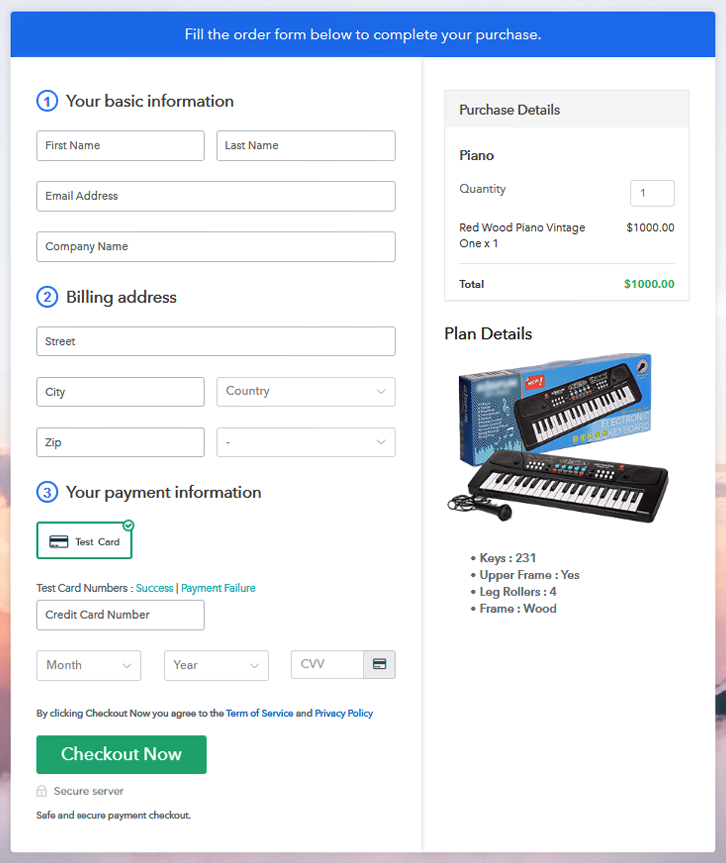
Checkout To Sell Pianos Online

Preview Checkout Page

Step 1: Log in to Pabbly Subscription Billing
Signup

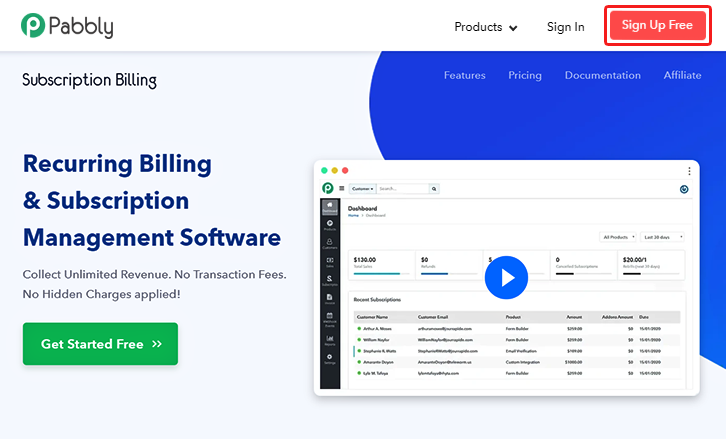
Check for Pabbly Subscription Billing in your browser. Now, click on the “Sign up Free“ button. Either fill all the information or simply sign in using your Gmail account.

Sign Up For Free!

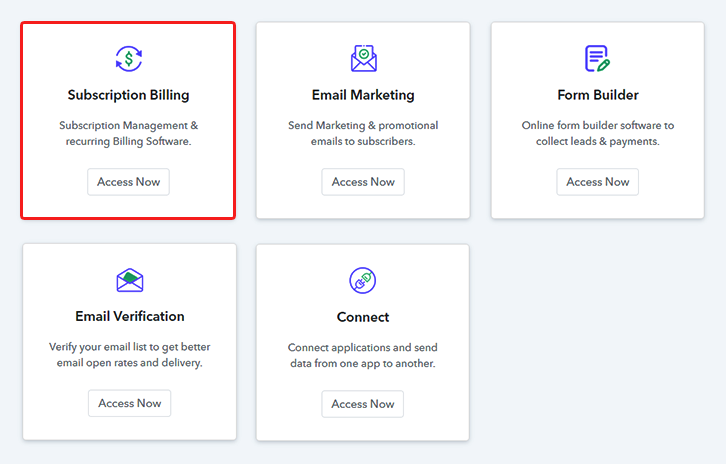
Step 2: Select Subscription Billing

Access Subscription Billing

Step 3: Account Setup
Setup Account

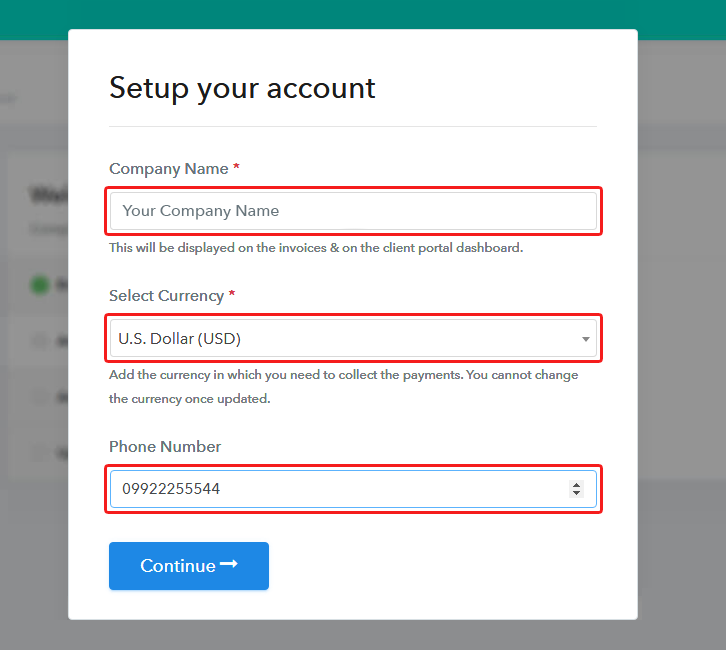
Once you’re done click on the “Access Now” button of Pabbly Subscription Billing, a page will pop-up with details like company name, currency, and contact number. Next, you need to fill those details to go on.

Step 4: Connect Payment Gateways & Start Pianos Selling Business Online
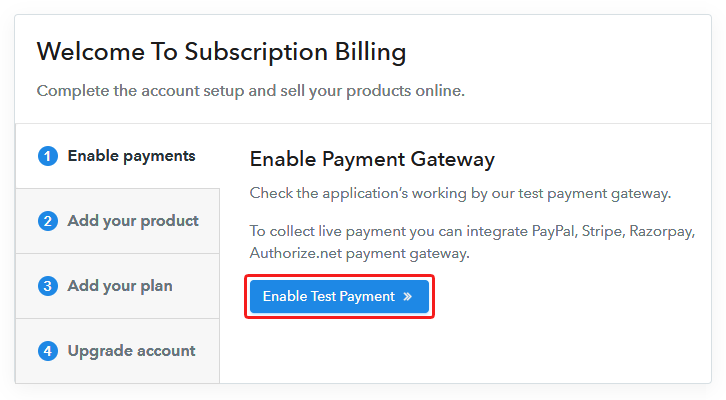
Connect Payment GatewayPabbly Subscription Billing provides for pilot testing the whole payment experience of a customer using dummy payment gateways. You can do this by clicking on the “Enable Test Payment” option. These payment gateways can be easily integrated using the help of the articles given below.

Step 5: Add Product for your Pianos
Add Product

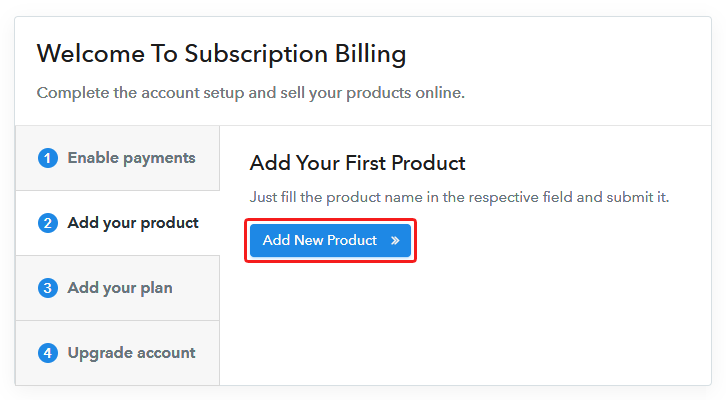
Let’s start to add the products. Also, beneath the  “Enable Payments” segment there is the “Add your product” section click on it. Furthermore, this will generate a dialog box with a blue button “Add New Product”. Click on it.

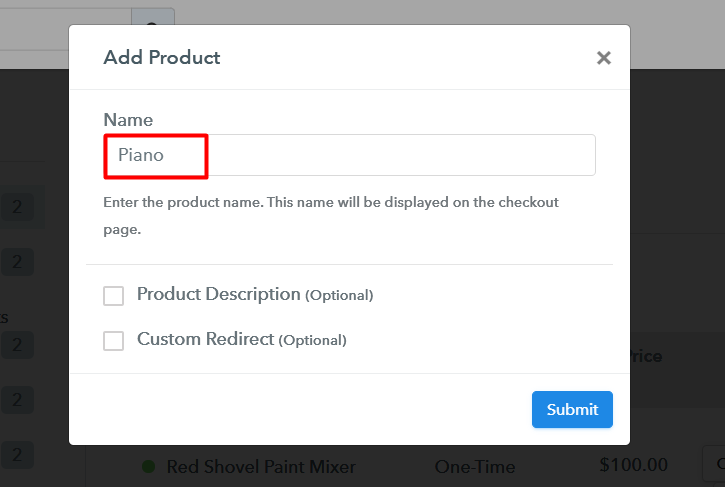
Also, you have to add the required product title, in this case, it is ‘pianos’.

Add Product Checkout To Sell Pianos Online

Fill out all the details like the name of the product and voila your product is created.

Note: Here you can add all the products related to the similar category by creating plans for each of them.

Step 6: Add Plans 

Now let’s create plans for different kinds of pianos available in your store.

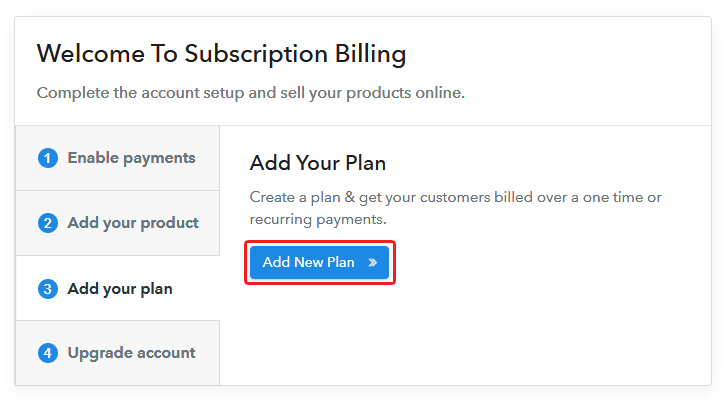
(a) Select Add New Plan

Add Plan

(b) Specify the Plan & Pricing Details
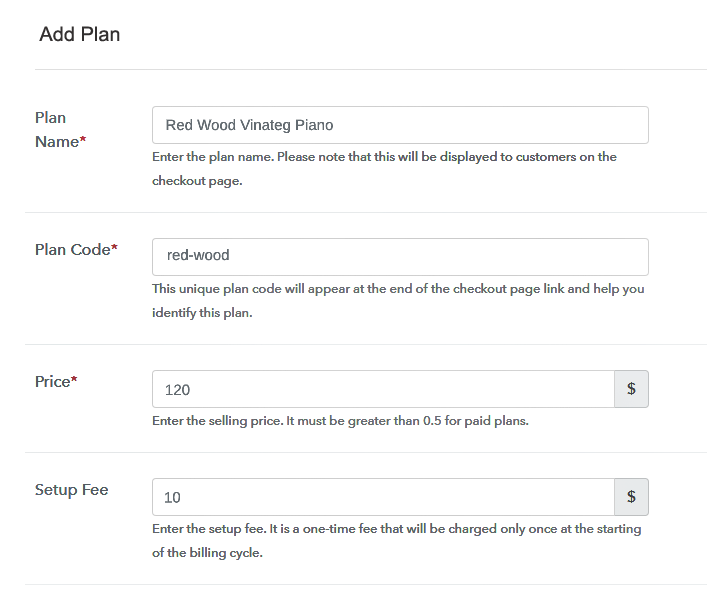
Add Plan Checkout To Sell Pianos Online

In the plan page, here you have to fill in details like plan name, code, price, setup fees.

Now scroll down, and in the section below you can see the choice to change the billing models like one-time payment, recurring, etc.

Furthermore, choose your preferred revenue model accordingly and after some time you can even change it according to your discretions.

(c) Add Image & Description of Pianos
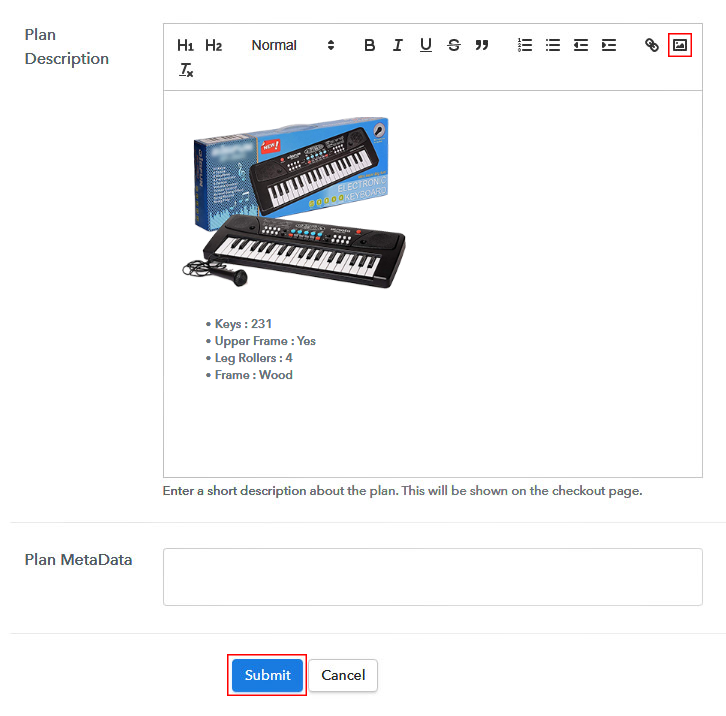
Add Description Checkout To Sell Pianos Online

Also, let’s take some amazing pics of your pianos and upload it by clicking the image button.

Moreover, now under the image place some good information about your pianos like the date, strings, buttons etc, and then press the “Submit” button.

Furthermore, later, by using the same process, you can list more products.

Step 7: Share your Checkout Page

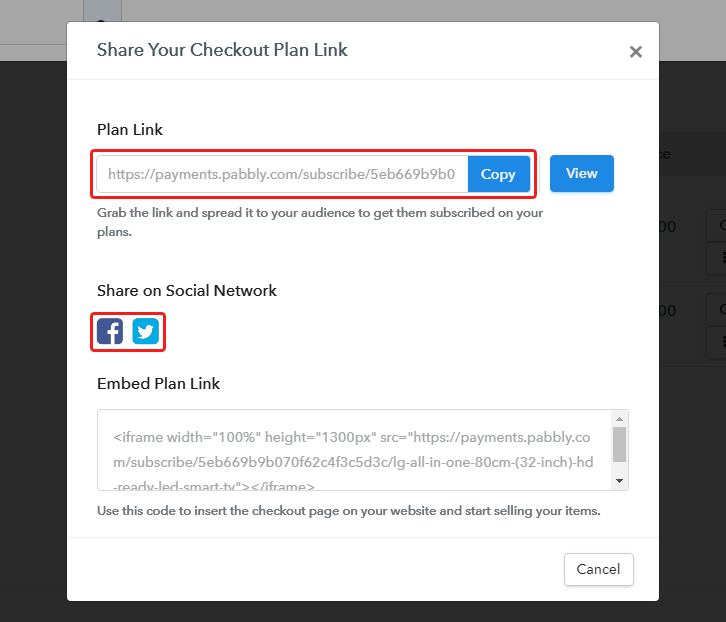
Share Checkout Page on Social Media

There are three methods by which you can build brand awareness of your pianos in social media sites

  • First, share your checkout page on Twitter & Facebook by just pressing the respective buttons.
  • Likewise, you can always share the checkout pages via email and SMS.
  • Also, you can create buttons on your webpage and paste the checkout links on it. Or you can place it on any anchor text on your website, so the users will be redirected to the checkout page.

Step 8: Preview Checkout Page

Follow up the recommended steps to preview the checkout page:

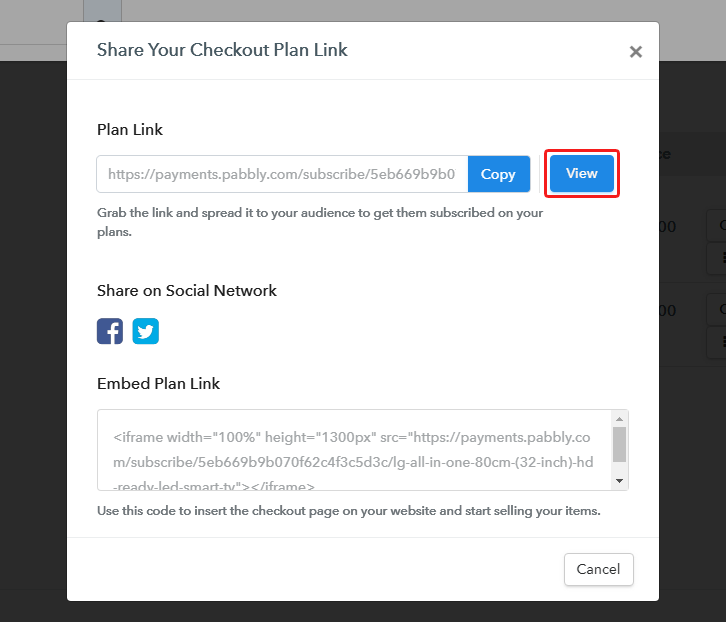
(a) Click on the View Button

View Checkout Plan

(b) Take a Look at the Checkout Page
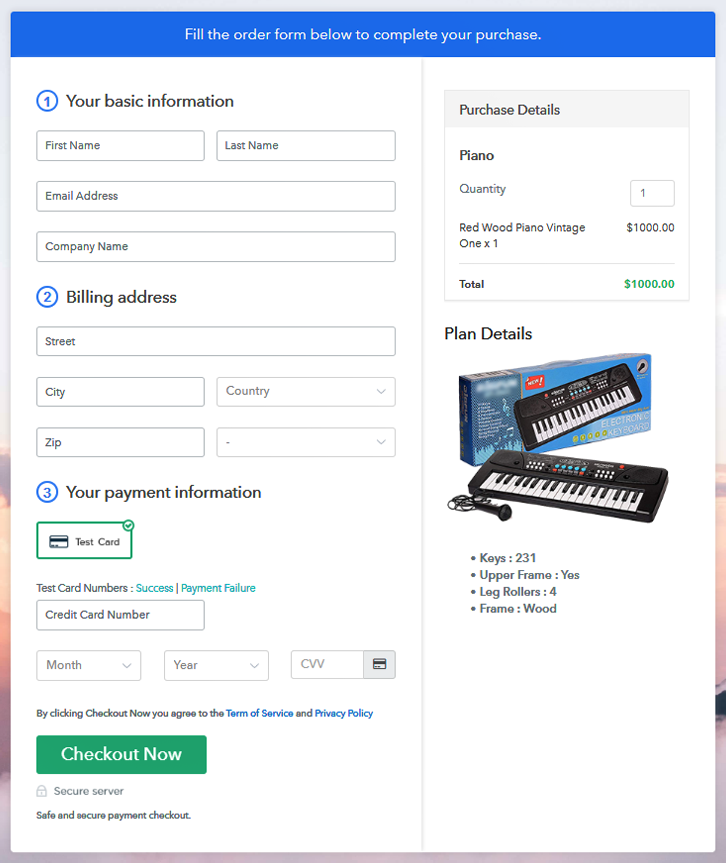
Checkout To Sell Pianos Online

Step 9: Embed Checkout Page in Site & Sell Online
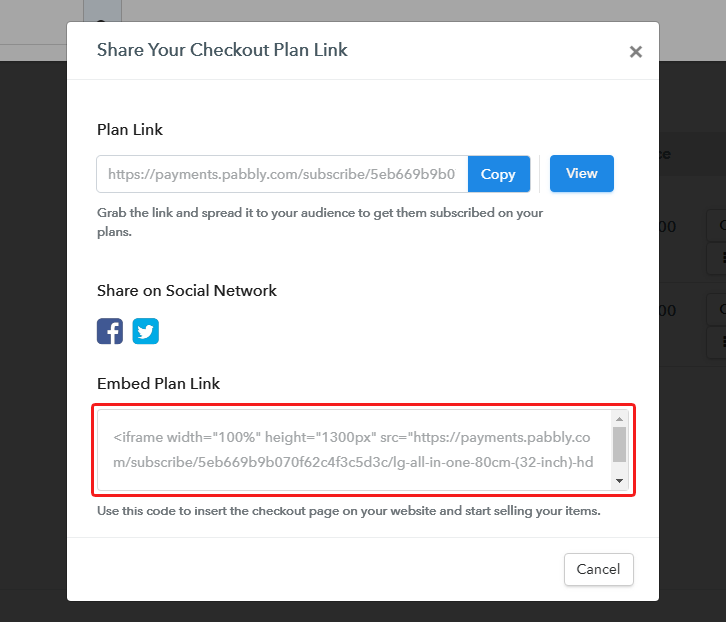
Embed Checkout Page on Website

Moreover, just copy the link and add the checkout page to sell pianos at any suitable place on your WordPress site.

(a) Edit the Page & Paste the Copied Link
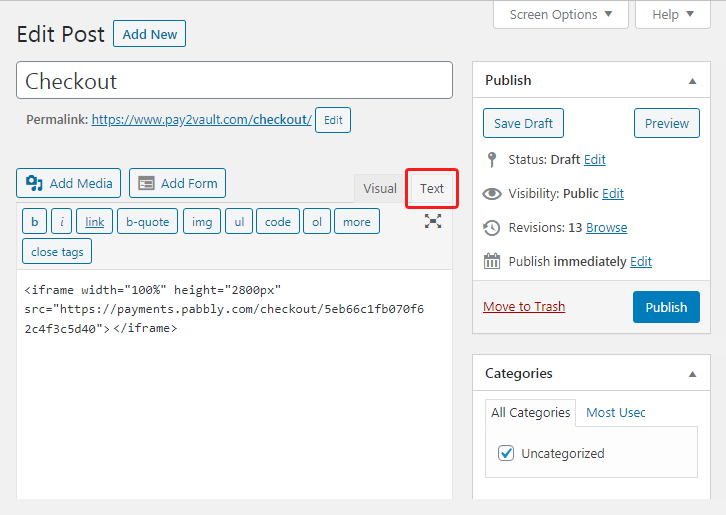
Embed Checkout Page on Website

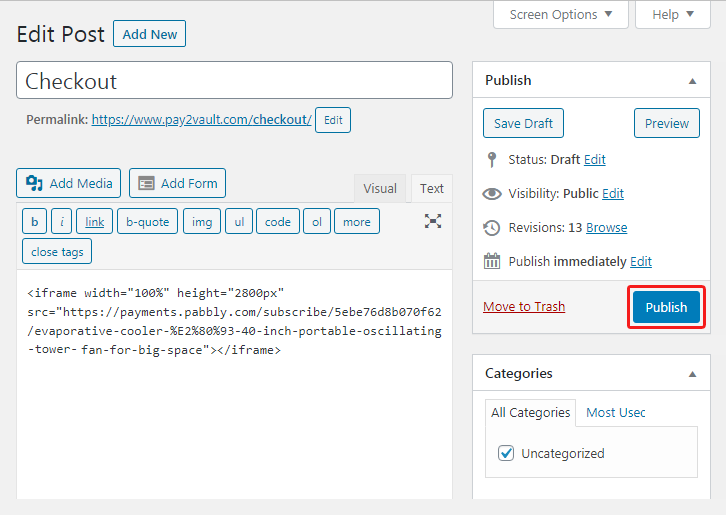
Further, paste the plan link of the pianos on a text editor of the WordPress dashboard.

(b) Save & Publish the Checkout Page

Save_and_Publish

Next, click the “Publish” button, after making changes.

(c) Check out the Final Look of your Checkout Page on WordPress Site
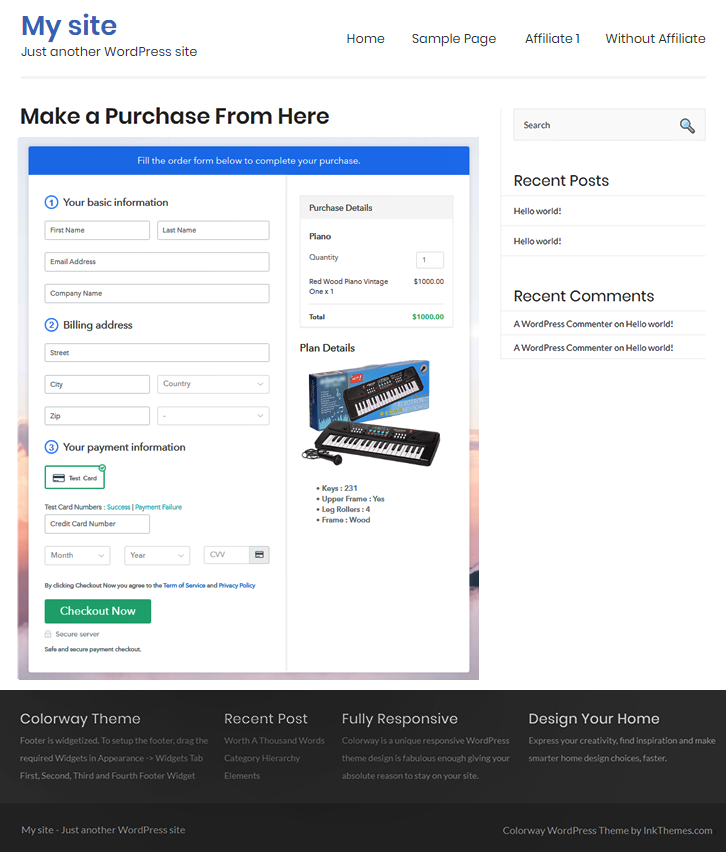
Embed in WordPress Checkout To Sell Pianos Online

Step 10: Multiplan Checkout Page

Note: In case you want to sell multiple products via a single checkout page, you can create a multi-plan checkout page otherwise skip this step.

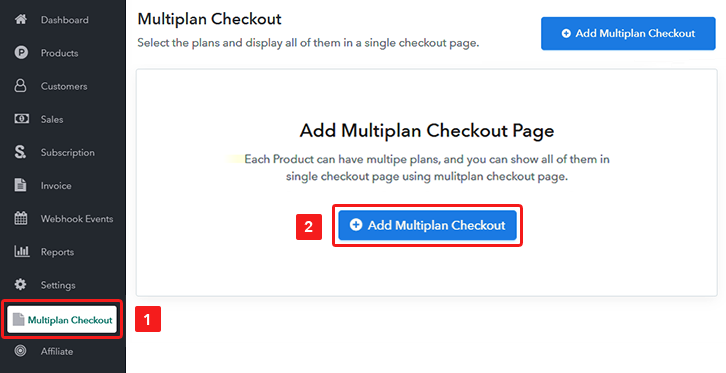
(a) Click on Add Mutiplan Checkout

Multiplan Checkout

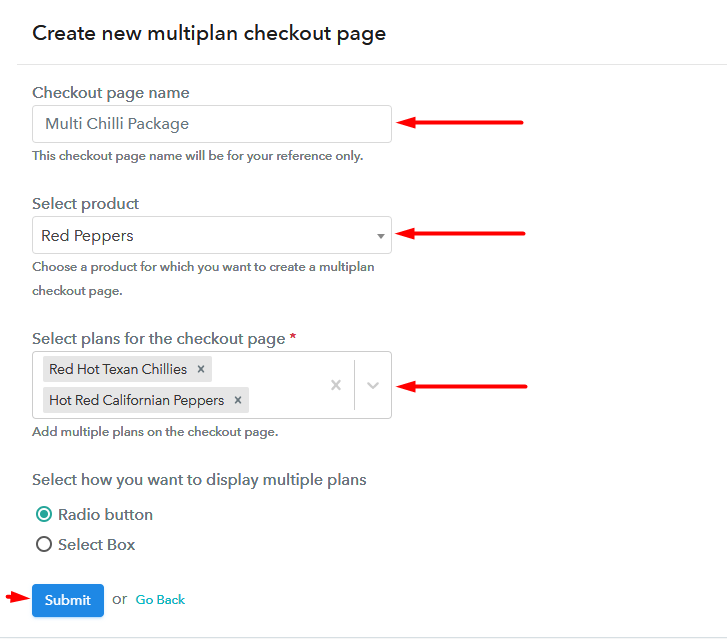
(b) Add Plans to Sell Multiple Pianos from Single Checkout Page
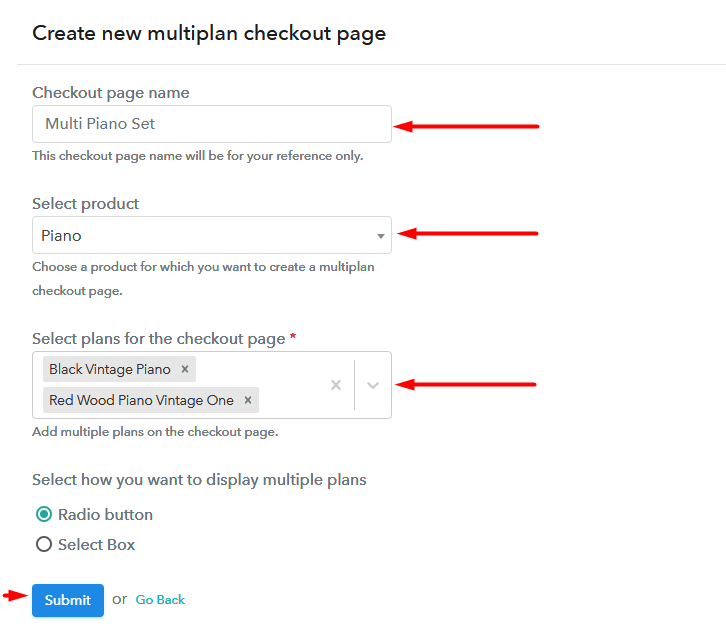
Multiplan Checkout To Sell Pianos Online

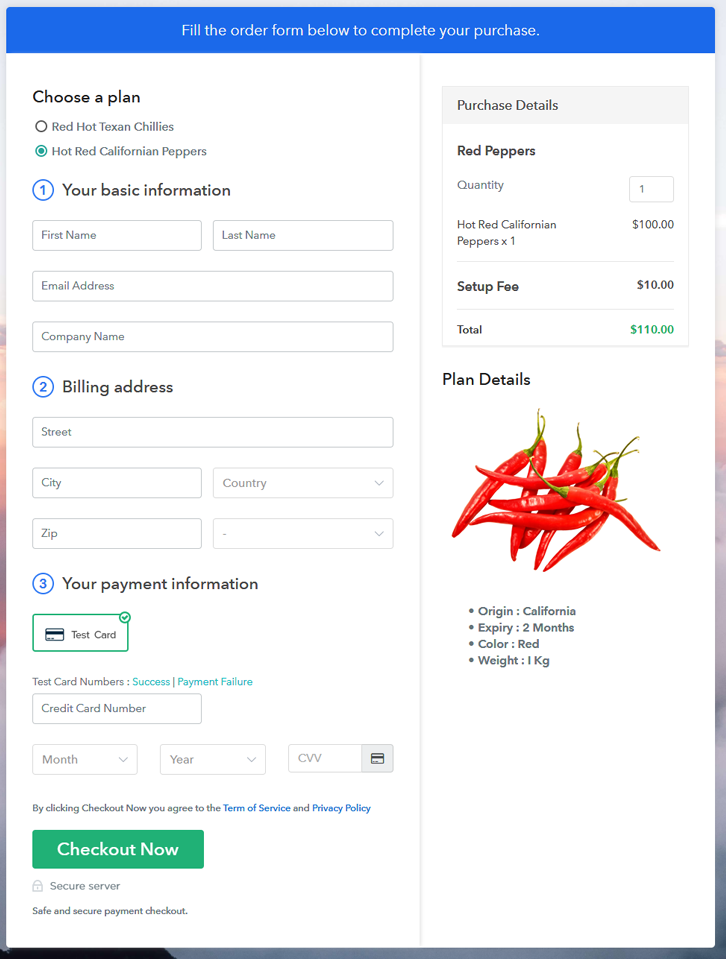
(c) Take a Look at the Checkout Page
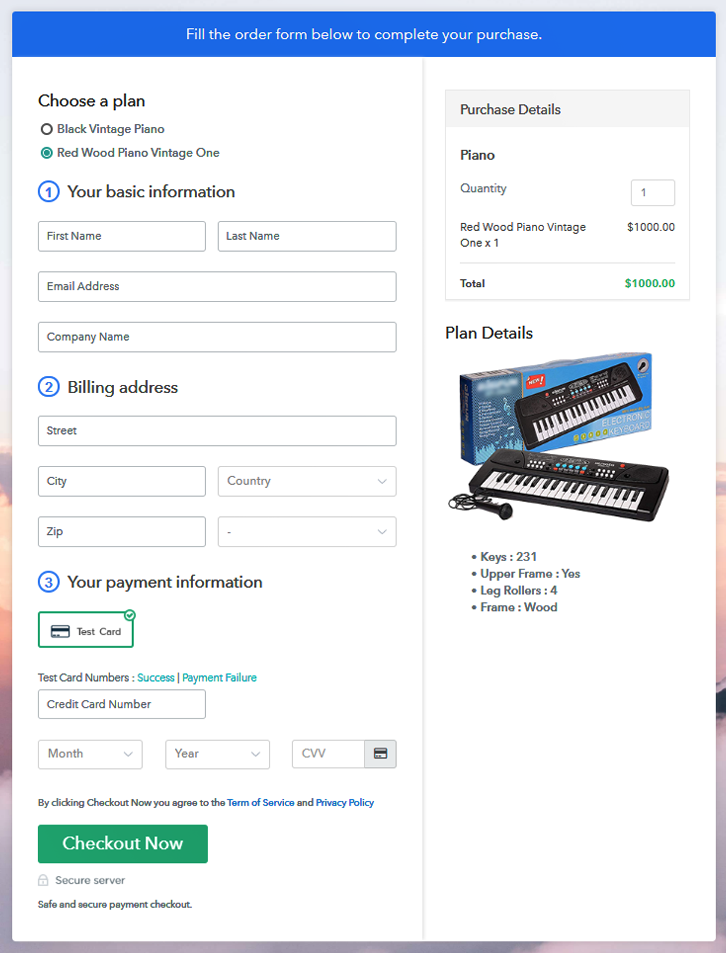
Multiplan Checkout To Sell Pianos Online

Preview Checkout Page

Wrapping Up

Do remember the world is heading towards a total internet-based economy. Your first checkout page to sell pianos online is the proof that you made the cut. So congratulation!! Furthermore, you should know that are a ton of features available in Pabbly Subscription Billing that I haven’t mention due to constraints of time. But due explore and experiment with them.

Moreover, for now, if you have any queries please let me know in the comment section below. We will reply at the earliest.

You May Also Like To Read –
How To Sell Pork Meat Online | Step by Step (Free Method)

How to Sell Pork In India

Ideal For: All the pork meat sellers, pork meat owners, pig farmers, and other merchants can use this method to sell pork meat online.

How to Sell Pork In India

Why Choose this Method to Sell Pork Meat Online?

Unlike any other solution, this method allows you to:

  • List and sell your pork meat for FREE. Absolutely no payment required.
  • No need to pay commission on any of your sale.
  • Multiple payment options like PayPal, Credit Card, etc to collect payment from a single place.
  • Sell one time or recurring subscriptions of your pork meat.
  • Collect payments & sell products in any currency as per your requirement.
  • Give discounts on your products by offering special coupon codes.
  • Add sales commission agents to help you in selling pork meat.

Get Pabbly Subscription Billing for Free

The global pork meat consumption has risen in developing countries like China, Korea, and Brazil. Now owing to saturation in the local markets many pig farmers are opting to sell pork meat online to get better demands from these countries.

Other than exposure to global consumers there are many more benefits of selling pork meat online. For example, you will get a very precise automated open online shop that can cater to business 24×7. The setup cost is obviously very low considering no need for zoning permits, licensing fees, utilities, rent, and security. Also, if you need to scale your business, you just need to upgrade your domain and hosting facilities. Well, now comes the prime question How will you sell pork meat online in the first place?

In this article, we will work with an incredible software called Pabbly Subscription Billing to sell pork meat online. The advantage of using this software over others is, even without technical skills, it barely takes 10 minutes to set up the system. Some other features worth mentioning are

  • Generate Unlimited Revenue
  • Transparent Billing
  • Muti-Subscription Models
  • Auto- Card Rettempts on Declines

Note: Some communities and religions, forbade the consumption of pork meat. So do-follow guidelines, before selling pork meat online to avoid hurting religious sensitivities.

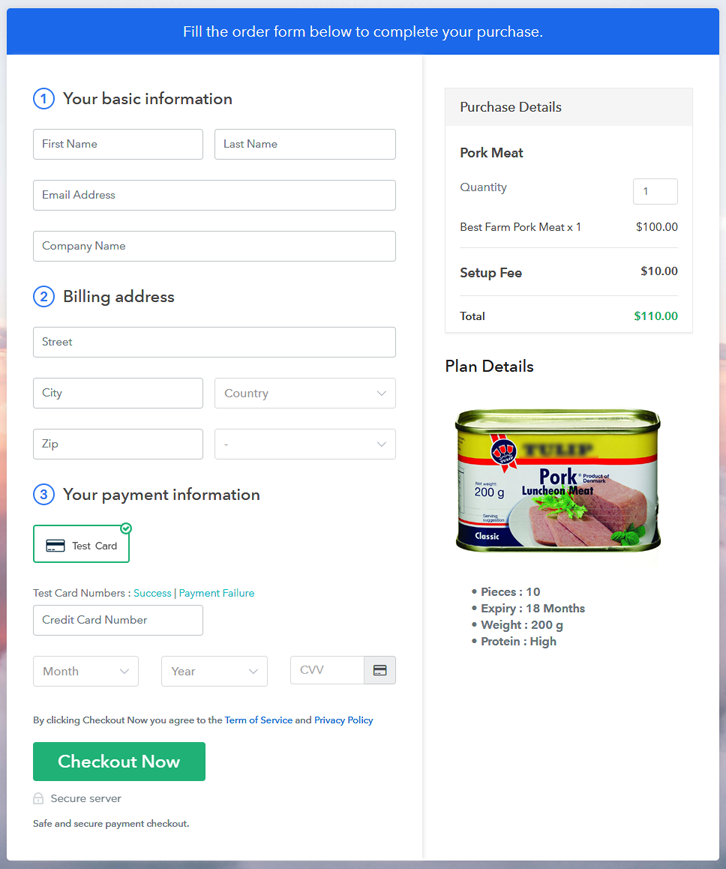
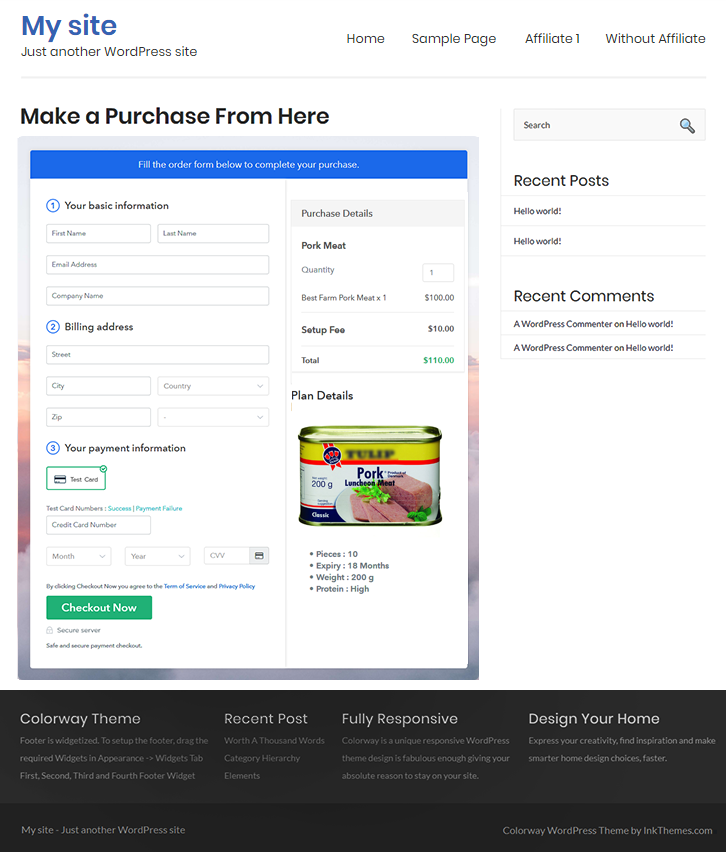
Final View of Checkout Page for your Pork Meat Selling Business

Checkout To Sell Pork Meat Online

Preview Checkout Page

Step 1: Log in to Pabbly Subscription Billing

Signup

Check for Pabbly Subscription Billing in your browser. Now, click on the “Sign up Free“ button. Either fill all the information or simply sign in using your Gmail account.

Sign Up For Free!

Step 2: Select Subscription Billing

Access Subscription Billing

Step 3: Account Setup

Setup Account

Now click on the “Access Now” button then, a page will pop-up with details like company name, currency, and contact number will spring out. Next, you need to fill those details to go on.

Step 4: Connect Payment Gateways & Start Pork Meat Selling Business Online

Connect Payment GatewayThe next step is to understand the payment process using a “Test Payment Gateway”. By pressing this button, you will be having the same payment experience that a customer will have.

Moreover, this will allow you to sort out the glitches and make the transactions seamless. Also, this software allows integrations with payment gateways such as PayPal, Stripe, etc. Furthermore, there are manuals listed below to help you out.

Step 5: Add Product for your Pork Meat

Add Product

Now we will add products and here beneath the  “Enable Payments” segment there is the “Add your product” section click on it. Also, this will generate a dialog box with a blue button “Add New Product”. Click on it.

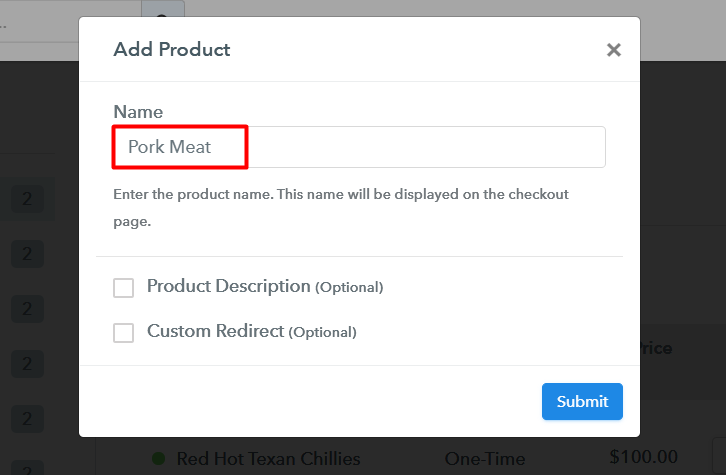
Now, here you will add the title which is ‘pork meat’

Add Product To Sell Pork Meat Online

Fill out all the details like the name of the product and voila your product is created.

Note: Here you can add all the products related to the similar category by creating plans for each of them.

Step 6: Add Plans 

We are going to build plans for different kinds of pork meats available in your store.

(a) Select Add New Plan

Add Plan

(b) Specify the Plan & Pricing Details

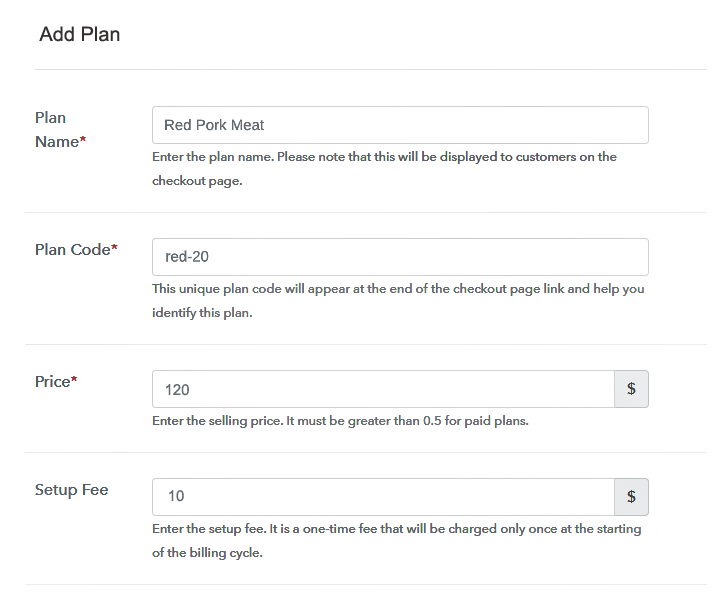
Add Plan To Sell Pork Meat Online

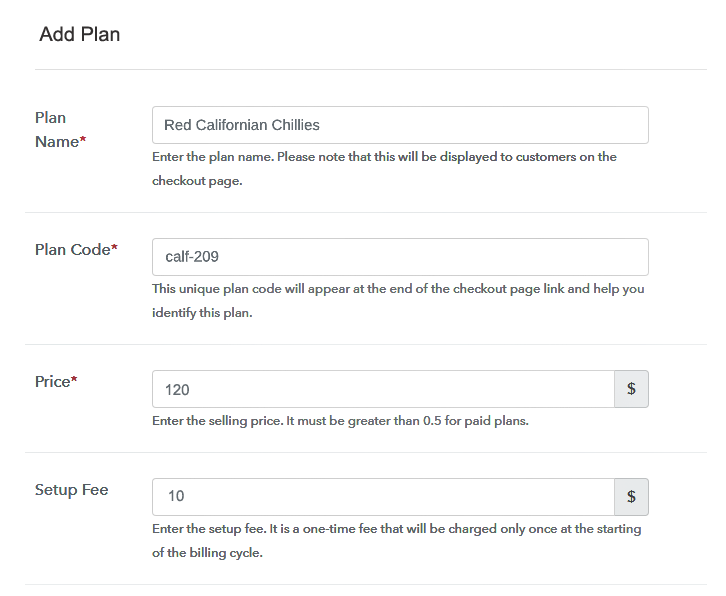
In the plan page, here you have to fill in details like plan name, code, price, setup fees. Moreover, choose your preferred revenue model accordingly and after some time you can even change it according to your choice.

(c) Add Image & Description of Pork Meat

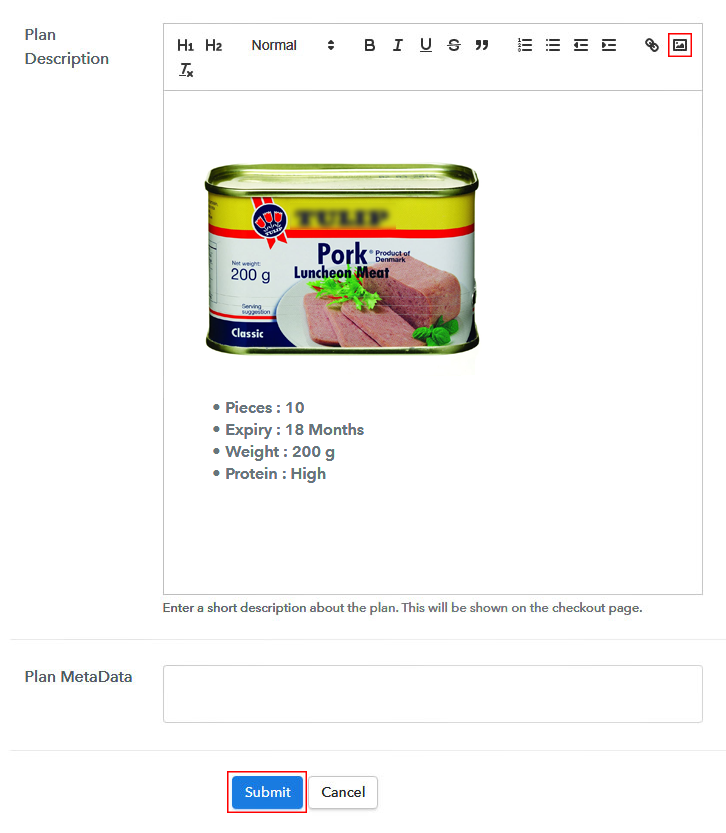
Add Image To Sell Pork Meat Online

Moreover, pressing the image button, you can upload some high-quality pictures of your pork meat.

Furthermore, here below the image give some knowledge about the pork meat in bullet points or numbers like expiry, weight, proteins etc then press the “Submit” button.

Likewise, by using the same process, you can list more products.

Step 7: Share your Checkout Page

Share Checkout Page on Social Media

For actively promoting your pork products you can easily share the checkout page using these three methods.

  • Here, click on respective buttons for Twitter, Facebook and the checkout pages get automatically shared
  • Likewise, simply paste the checkout pages link on to share it via email and SMS.
  • Also, you can create buttons on your webpage and paste the checkout links on it. Or you can place it on any anchor text on your website, so the users will be redirected to the checkout page.

Step 8: Preview Checkout Page

Follow up the recommended steps to preview the checkout page:

(a) Click on the View Button

View Checkout Plan

(b) Take a Look at the Checkout Page

Checkout To Sell Pork Meat Online

Step 9: Embed Checkout Page in Site & Sell Online

Embed Checkout Page on Website

Furthermore, you can just copy the link and add the checkout page to sell pork meat at any suitable place on your WordPress site.

(a) Edit the Page & Paste the Copied Link

Embed Checkout Page on Website

Further, paste the plan link of the pork meat on a text editor of the WordPress dashboard.

(b) Save & Publish the Checkout Page

Save_and_Publish

Next, click the “Publish” button, after making changes.

(c) Check out the Final Look of your Checkout Page on WordPress Site

Wordpress To Sell Pork Meat Online

Step 10: Multiplan Checkout Page

Note: In case you want to sell multiple products via a single checkout page, you can create a multi-plan checkout page otherwise skip this step.

(a) Click on Add Mutiplan Checkout

Multiplan Checkout

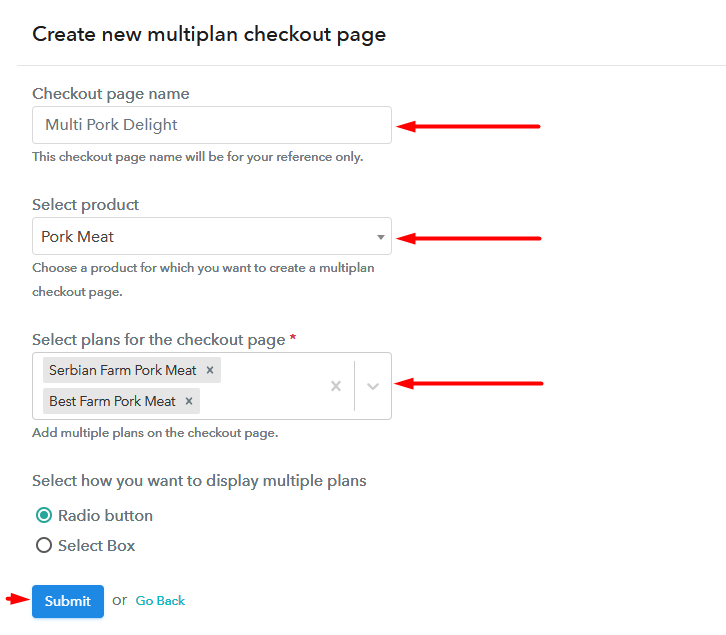
(b) Add Plans to Sell Multiple Pork Meat from Single Checkout Page

Multiplan To Sell Pork Meat Online

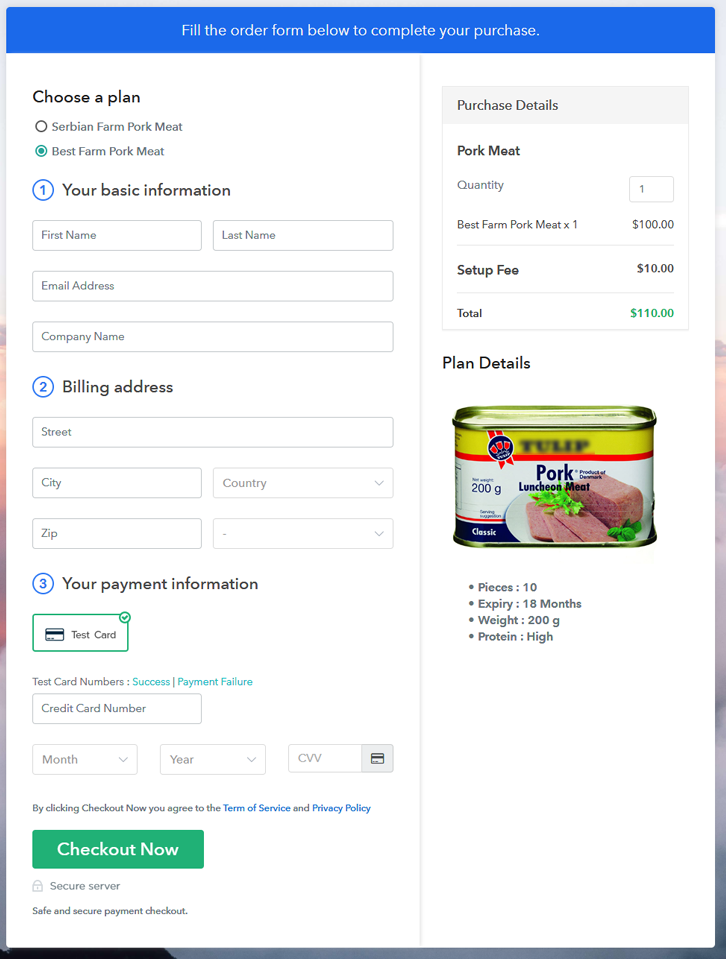
(c) Take a Look at the Checkout Page

Multiplan To Sell Pork Meat Online

Preview Checkout Page

Wrapping Up

So, these were the steps to help you create a checkout page to pork meat online. Without any transaction fees, good marketing system, and easy setup, you will definitely rock the online marketing with Pabbly Subscription Billing.

But, if you have any doubts regarding the process, do contact us in the comment section below. Thank You!!

You May Also Like To Read –
How To Sell Red Peppers Online | Step by Step (Free Method)

Ideal For: All the red pepper sellers, red pepper dealers, red pepper suppliers, pepper traders, and other merchants can use this method to sell red peppers online.

How To Sell Red Peppers Online

Why Choose this Method to Sell Red Peppers Online?

Unlike any other solution, this method allows you to:

  • List and sell your red peppers for FREE. Absolutely no payment required.
  • No need to pay commission on any of your sales.
  • Multiple payment options like PayPal, Credit Card, etc to collect payment from a single place.
  • Sell one time or recurring subscriptions of your red peppers.
  • Collect payments & sell products in any currency as per your requirement.
  • Give discounts on your products by offering special coupon codes.
  • Add sales commission agents to help you in selling red peppers online.

Get Pabbly Subscription Billing for Free

Many growers of red peppers are in a fix as the countries like the United States or Western Europe have lowered their demands for red peppers. But regions like MEA, Asia Pacific are witnessing strong growth for the red pepper. Now to shift the area of business from one region to another takes time and capital. But if you start selling red peppers online, you can get business proposals from around the world almost immediately.

In this article, we will suggest you use an awesome Saas tool called Pabbly Subscription Billing to sell peppers online. Using this software you can design mesmerizing checkout pages to list and sell unlimited red peppers online. Moreover, there are some dedicated buttons available to share these checkout pages on social media sites like Facebook, Twitter, etc. Some other useful features are:

  • Unlimited Revenue Generation
  • Tracking Payments
  • Multiple Billing Models
  • Auto Email Alerts

So without wasting time let’s generate a checkout page to sell red peppers online.

Caution: Some varieties of peppers have high Scoville heat constant, do mention it before selling red peppers online. Otherwise, your consumers may risk medical problems like inflammation, rashes, and diarrhea.

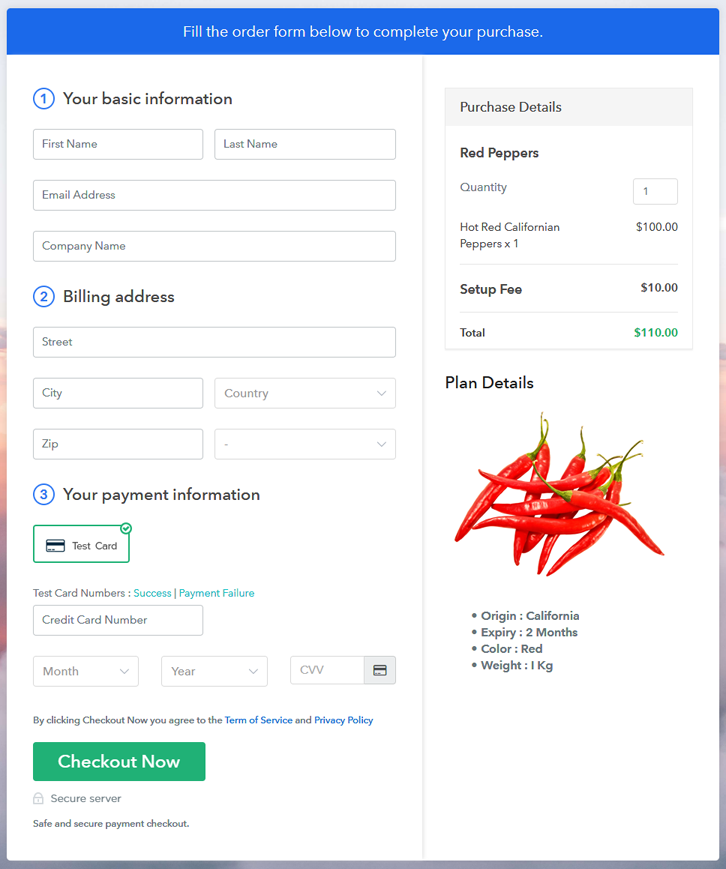
Final View of Checkout Page for your Red Peppers Selling Business

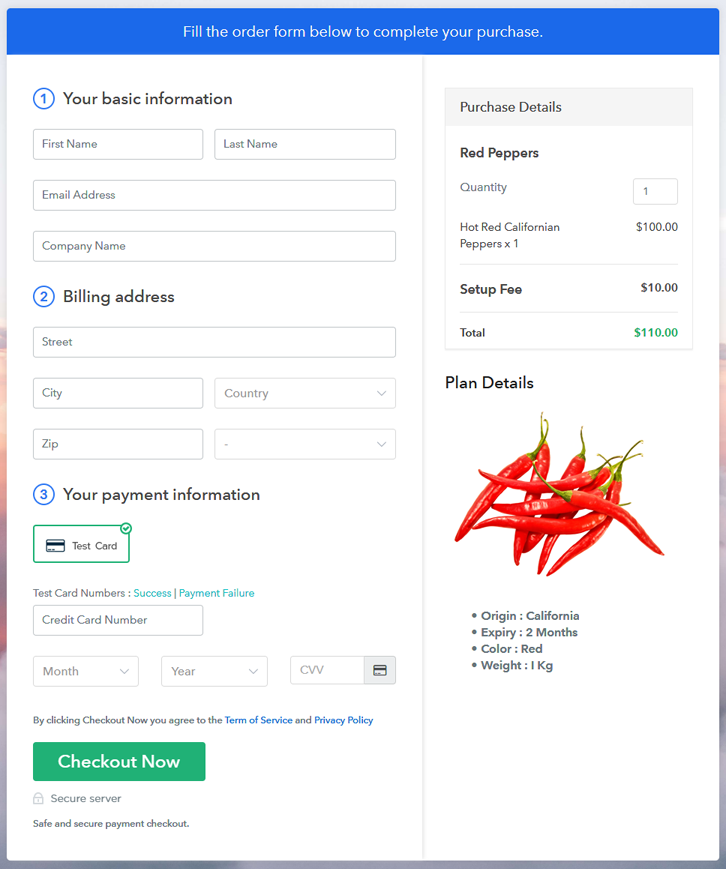
Checkout How To Sell Red Peppers Online

Preview Checkout Page

Step 1: Log in to Pabbly Subscription Billing

Signup

To begin the process for creating a checkout page to sell red peppers online look Pabbly Subscription Billing in your browser. Then, click on the “Sign up Free“ button. Moreover, you can either manually filled out the details or sign in using your Gmail account.

Sign Up For Free!

Step 2: Select Subscription Billing

Access Subscription Billing

Step 3: Account Setup

Setup Account

Also, after clicking on the “Access Now” button of the software, a page will open with fields like company name, select currency, and phone number. Just fill out those details to continue creating a checkout page for red pepper.

Step 4: Connect Payment Gateways & Start Red Pepper Selling Business Online

Connect Payment Gateway

Here to get some idea about the payment procedures you may start using a “Test Payment Gateway”. Also, this tool offers integration with many payment gateways such as PayPal, Razorpay, Stripe, etc. Further, below are the payment integration guides to help you out.

Step 5: Add Product for your Red Peppers

Add Product

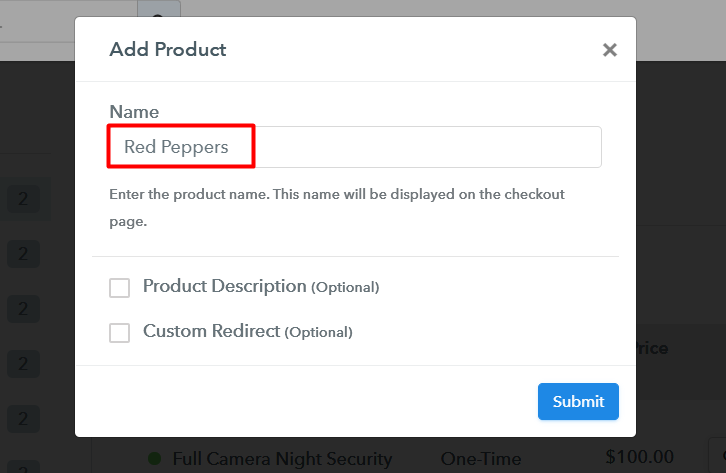
Also, add the name, which in our case is “red peppers”. While you are at it, give some description about the peppers to get the attention of the customer.

Add Product To Sell Red Peppers Online

Moreover, just fill out all those details and your product for red pepper is created.

Note: Here you can add all the products related to the similar category by creating plans for each of them.

Step 6: Add Plans 

Let’s display plans for different kinds of available in your store.

(a) Select Add New Plan

Add Plan

(b) Specify the Plan & Pricing Details

Add Plan To Sell Red Peppers Online

The next thing to do is fill all the details of the red pepper like plan name, code, price, set-up fee, and much more to continue.

(c) Add Image & Description of Red Pepper

Add Plan To Sell Red Peppers Online

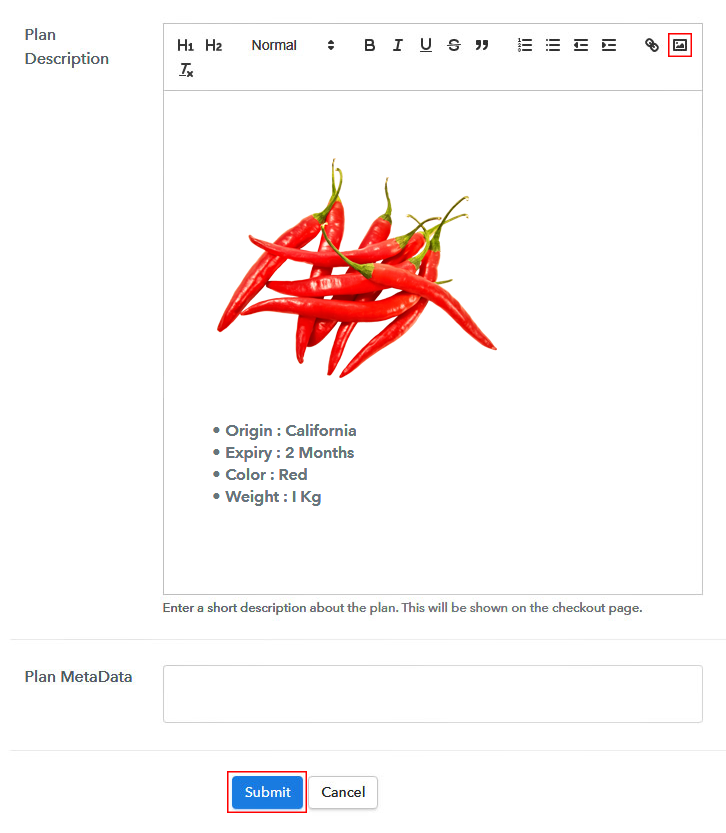
Furthermore, now add some information about the red peppers using bullets, images, etc, to make your customer interested.

Then click on the “Submit” button.

Also, you can add multiple plans and kinds of red peppers in your product list which you want to market online.

Step 7: Share your Checkout Page

Share Checkout Page on Social Media

  • Moreover, share the checkout page of the red peppers on social media accounts like Facebook & Twitter to grab the customer’s attention.
  • Also, you can share the direct link of the red peppers checkout page with your customers via SMS or email marketing.
  • Additionally, embed the provided plan link of the red peppers in the buttons or any anchor text on your website.

Step 8: Preview Checkout Page

Using the recommended steps to preview the checkout page for red peppers

(a) Click on the View Button

View Checkout Plan

(b) Take a Look at the Checkout Page

Add Checkout To Sell Red Peppers Online

Step 9: Embed Checkout Page in Site & Sell Red Peppers Online

Embed Checkout Page on Website

Just copy the link and add the checkout page to sell red peppers online at any proper place on your WordPress site.

(a) Edit the Page & Paste the Copied Link

Paste Link in Text Editor

Further, paste the plan link of red peppers on a text editor of the WordPress dashboard.

(b) Save & Publish the Checkout Page

Save_and_Publish

Next, click the “Publish” button, after making changes.

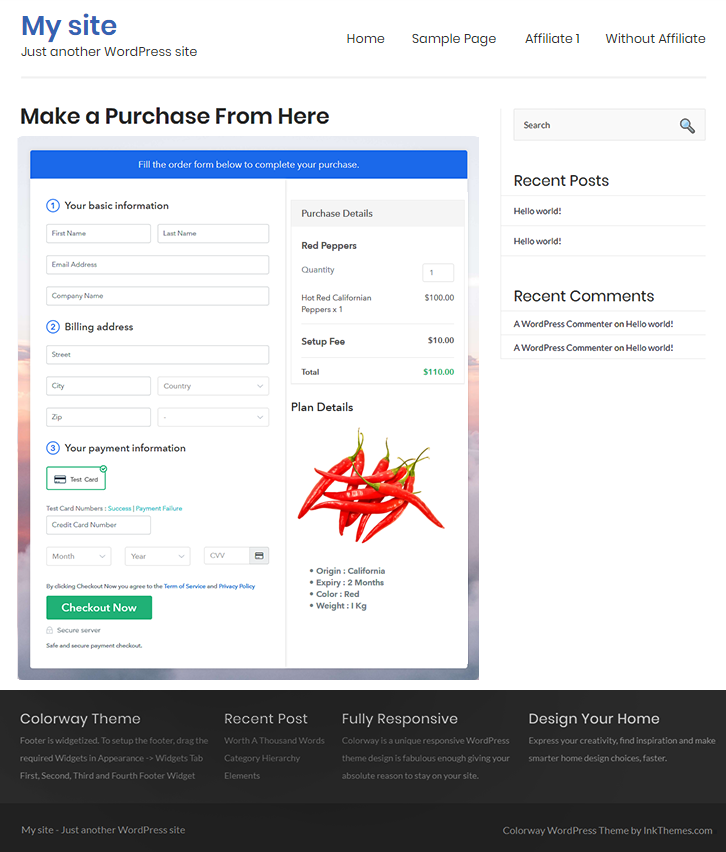
(c) Check out the Final Look of your Checkout Page on WordPress Site

Add WordPress To Sell Red Peppers Online

Step 10: Multiplan Checkout Page

Note: In case you want to sell multiple products via a single checkout page, you can create a multi-plan checkout page otherwise skip this step.

(a) Click on Add Mutiplan Checkout

Multiplan Checkout

(b) Add Plans to Sell Multiple Red Peppers from Single Checkout Page

Add Plan To Sell Red Peppers Online

(c) Take a Look at the Checkout Page

Add Checkout To Sell Red Peppers Online

Preview Checkout Page

Wrapping Up

So, your first checkout page to sell red peppers is ready. Now we have an amazing collection of documents and video tutorials to ace the features in Pabbly Subscription Billing. Do ask for them in the comment section below, we will provide the links as soon as possible. Thanks!!

You May Also Like To Read –
How To Sell Peanuts Online | Step by Step (Free Method)

Ideal For: All the peanuts sellers, peanut farmers, agricultural association owners, peanut cultivators and other merchants can use this method to sell peanuts online.

How To Sell Peanuts Online

Why Choose this Method to Sell Peanuts Online?

Unlike any other solution, this method allows you to:

  • List and sell your peanuts for FREE. Absolutely no payment required.
  • No need to pay commission on any of your sale.
  • Multiple payment options like PayPal, Credit Card, etc to collect payment from a single place.
  • Sell one time or recurring subscriptions of your peanuts.
  • Collect payments & sell products in any currency as per your requirement.
  • Give discounts on your products by offering special coupon codes.
  • Add sales commission agents to help you in selling peanuts.

Get Pabbly Subscription Billing for Free

Ever heard the metaphor ‘from selling peanuts on streets to becoming a millionaire’. This is not a metaphor anymore as a lady named Fe Barino from the Philippines literally made millions from selling peanuts online. You can also start a peanut selling business online through the internet.

Obviously you can begin on dedicated platforms like Groffers, Mother Choice, and Amazon to sell peanuts online. But here you cannot build your own brand as your products will be submerged in a tsunami of countless other items. Also, there are many ridiculous guidelines you need to follow, and these websites charge some ridiculous commissions based on profits.

So, I will present to you another approach where you can be the boss of your own business. Here I am recommending a software called Pabbly Subscription Billing which allows you to sell unlimited peanuts online through checkout pages. This software provides a custom domain to build a brand and there are no transaction fees. Some other advantages are

  • Unlimited Revenues
  • Custom Logo
  • Auto Alerts
  • Multi Billing Models
  • Revenue Tracking

Note: Some populace have an allergic reaction to certain varieties of peanuts, hence it would be advisable to mark the minerals properly, before selling peanuts online.

Final View of Checkout Page for your Peanuts Selling Business

Checkout To Sell Peanuts Online

Preview Checkout Page

Step 1: Log in to Pabbly Subscription Billing

Signup

Navigate to Pabbly Subscription Billing in your browser. Here, you have to click on the “Sign up Free“ button. You may either fill all the information or simply sign in using your Gmail account.

Sign Up For Free!

Step 2: Select Subscription Billing

Access Subscription Billing

Step 3: Account Setup

Setup Account

After clicking the “Access Now” button of Pabbly Subscription Billing, a page will pop-up with details like company name, currency, and contact number. Next, you need to fill those details to go on.

Step 4: Connect Payment Gateways & Start Peanuts Selling Business Online

Connect Payment GatewayPabbly Subscription Billing gives a fake payment gateway where you can cross-check the payment experience beforehand. This is done by clicking on the “Enable Test Payment” option.

Furthermore, payment gateways can be easily integrated with Pabbly Subscription Billing using the help of the articles given below.

Step 5: Add Product for your Peanuts

Add Product

Let’s start to add the products. Also, beneath the  “Enable Payments” segment there is the “Add your product” section click on it. Furthermore, this will generate a dialog box with a blue button “Add New Product”. Click on it.

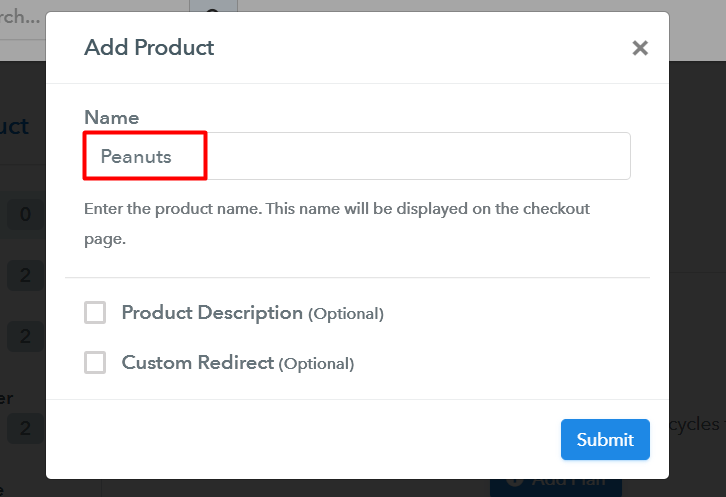
Also, you have to add the required product title, in this case, it is ‘peanuts’.

Add Product To Sell Peanuts Online

Fill out all the details like the name of the product and voila your product is created.

Note: Here you can add all the products related to the similar category by creating plans for each of them.

Step 6: Add Plans 

Now let’s create plans for different kinds of peanuts available in your store.

(a) Select Add New Plan

Add Plan

(b) Specify the Plan & Pricing Details

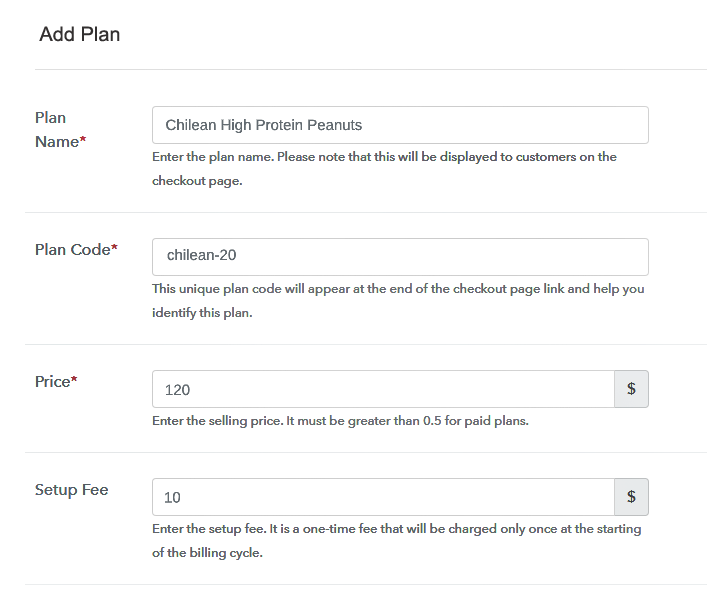
Add Plan To Sell Peanuts Online

In the plan page, here you have to fill in details like plan name, code, price, setup fees.

Now scroll down, and in the section below you can see the choice to change the billing models like one-time payment, recurring, etc.

Furthermore, choose your preferred revenue model accordingly and after some time you can even change it according to your discretions.

(c) Add Image & Description of Peanuts

Add Image To Sell Peanuts Online

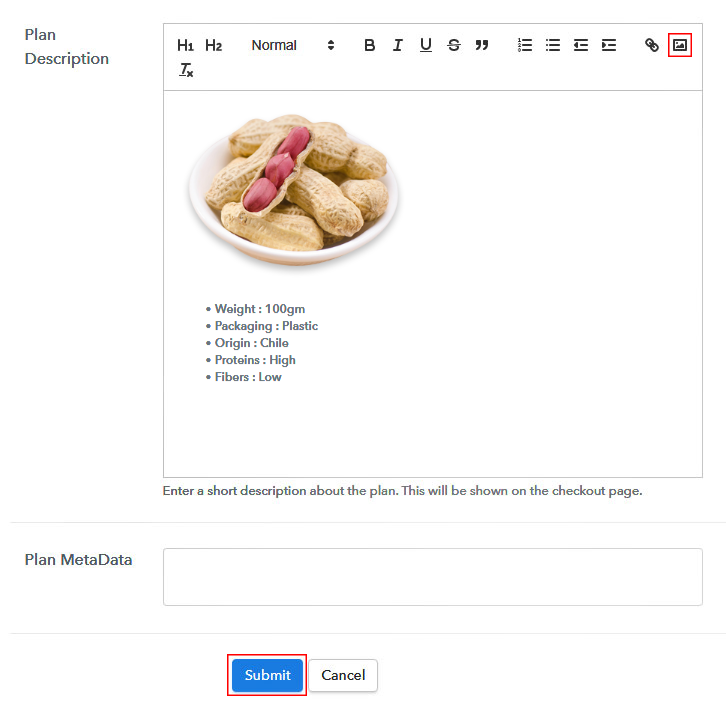
By clicking the image button upload some good images of your peanuts.

Also, add some good description of your peanuts like the expiration, weight, protein, fat contents, etc, and then press the “Submit” button.

Moreover, by using the same method, you can list more products.

Step 7: Share your Checkout Page

Share Checkout Page on Social Media

For the digital marketing of your products, Pabby Subscription Billing provides three streams.

  • Pressing the dedicated button for Twitter & Facebook you can share the checkout pages on these websites.
  • Furthermore, you can always share the checkout pages via email and SMS.
  • For more action, you can create a button on your webpage and paste the checkout links on it. Or you can place it on any anchor text on your website, so the users will be redirected to the checkout page.

Step 8: Preview Checkout Page

Follow up the recommended steps to preview the checkout page:

(a) Click on the View Button

View Checkout Plan

(b) Take a Look at the Checkout Page

Add Checkout To Sell Peanuts Online

Step 9: Embed Checkout Page in Site & Sell Online

Embed Checkout Page on Website

Likewise, just copy the link and add the checkout page to sell peanuts online at any suitable place on your WordPress site.

(a) Edit the Page & Paste the Copied Link

Embed Checkout Page on Website

Further, paste the plan link of the peanuts on a text editor of the WordPress dashboard.

(b) Save & Publish the Checkout Page

Save_and_Publish

Next, click the “Publish” button, after making changes.

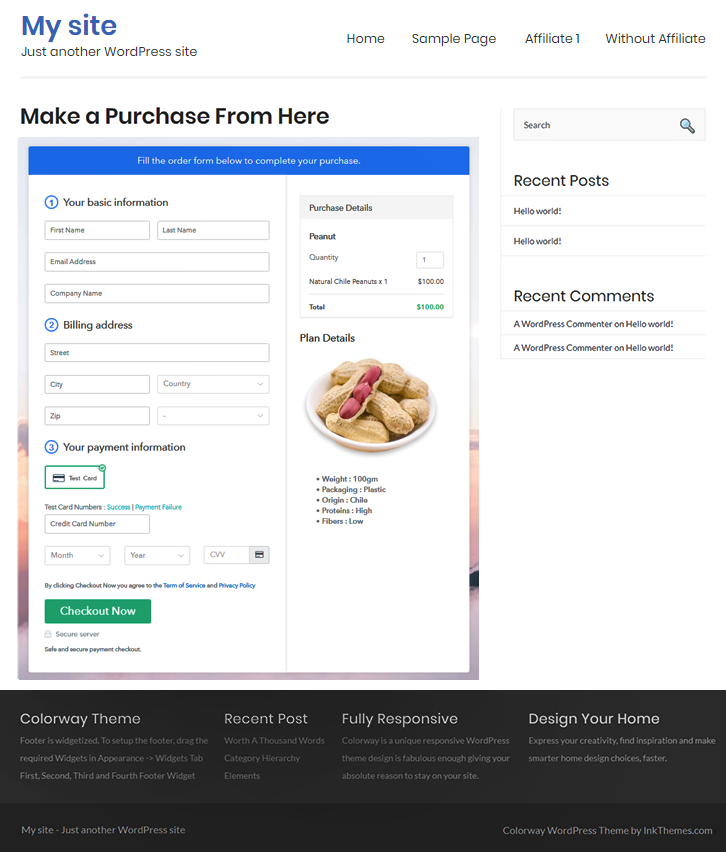
(c) Check out the Final Look of your Checkout Page on WordPress Site

Embed WordPress To Sell Peanuts Online

Step 10: Multiplan Checkout Page

Note: In case you want to sell multiple products via a single checkout page, you can create a multi-plan checkout page otherwise skip this step.

(a) Click on Add Mutiplan Checkout

Multiplan Checkout

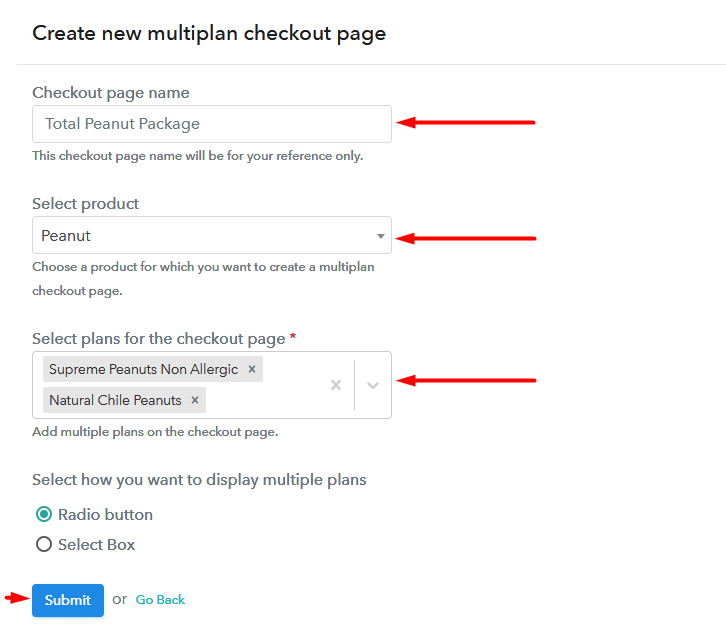
(b) Add Plans to Sell Multiple Peanuts from Single Checkout Page

Create Multiplan To Sell Peanuts Online

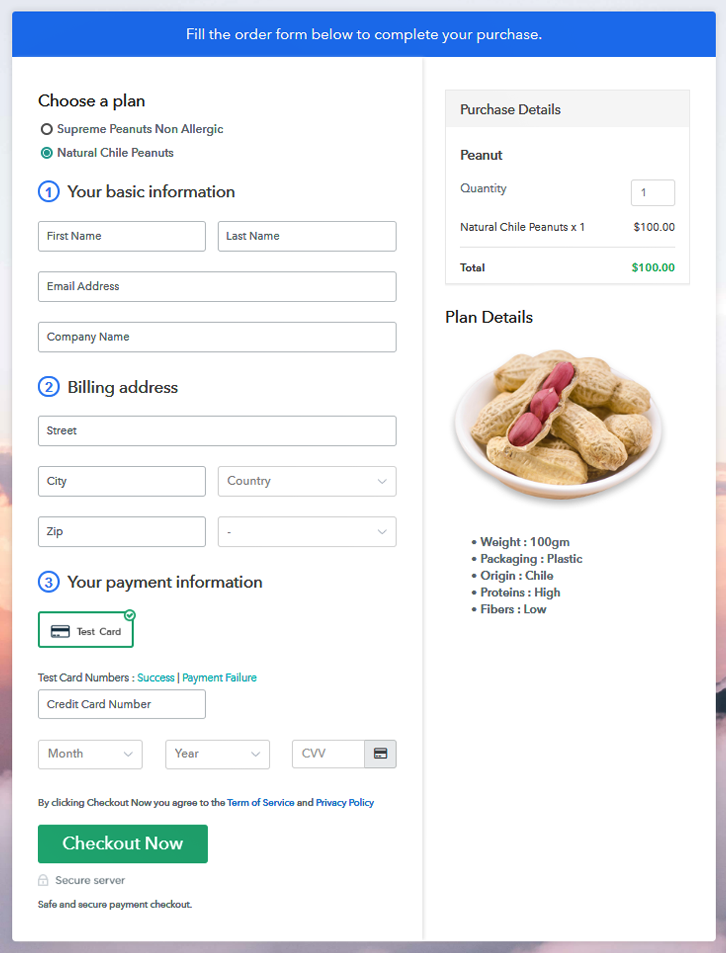
(c) Take a Look at the Checkout Page

Multiplan Checkout To Sell Peanuts Online

Preview Checkout Page

Wrapping Up

So, the checkout page is ready to sell peanuts online. With some practice, you will be able to make them in just 5-10 minutes. Furthermore, the dedicated buttons to share the checkout page son social media will take you on another level. But for now, if you have any confusion regarding the steps please lets us know in the comment section below.

You May Also Like To Read –
How to Sell Meat Online | Step by Step (Free Method)

How to Sell Meat Online

Ideal For: All the meat manufacturers, meat sellers, retail meat shop owners, and other merchants can use this method to take their meat selling business online.

How to Sell Meat Online

Why Choose this Method to Sell Meat Online?

Unlike any other solution, this method allows you to:

  • List and sell your meat for FREE. Absolutely no payment required.
  • No need to pay commission on any of your sale.
  • Multiple payment options like PayPal, Credit Card, etc to collect payment from a single place.
  • Sell one time or recurring subscriptions of your meat.
  • Collect payments & sell products in any currency as per your requirement.
  • Give discounts on your products by offering special coupon codes.
  • Add sales commission agents to help you in selling meat online.

Get Pabbly Subscription Billing for Free

The online fresh food business has been growing rapidly from the last few years and investing in it can have excellent results. So, what’s stopping you to sell meat online? If it’s a good selling platform then this could be the end of your search.

In this blog, I’ve explained 10 simple steps to start meat business online. I’m going to create checkout pages which will help you display your product details like image, peculiarities, price etc and collect payments through it.

Well, this is not just it, the service will provide other facilities for selling meat online efficiently. It renders a dashboard to keep track on items in stock, payments, refunds and more. Also, you can easily automate the billing and invoicing with a simple click.

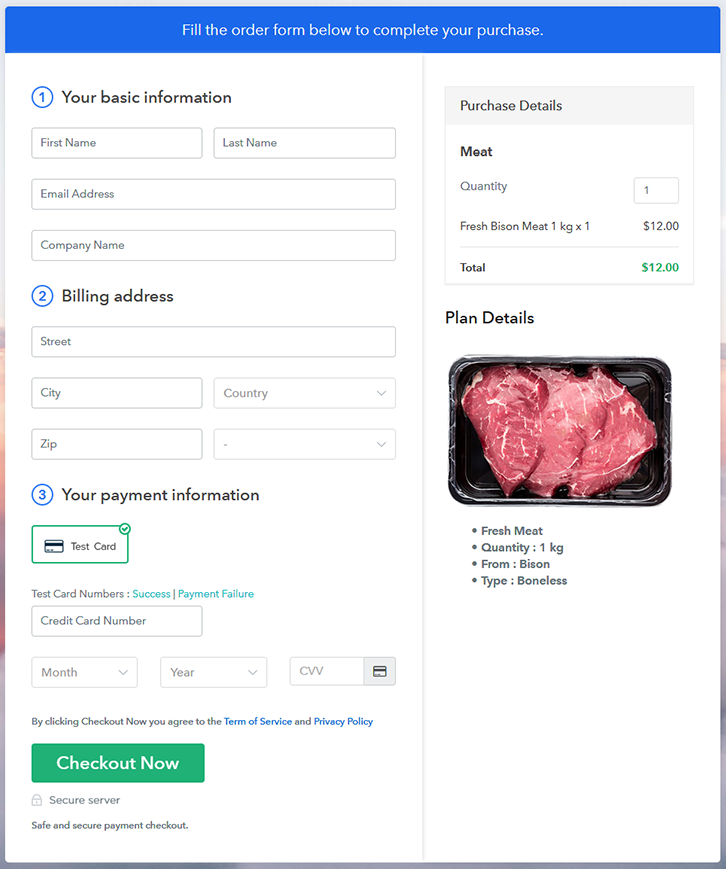
Final View of Checkout Page For Your Meat Selling Business

Checkout Page Preview to Sell Meat Online

Preview Checkout Page

Step 1: Log in to Pabbly Subscription Billing

Signup

Visit the Pabbly Subscription Billing website first to get started with selling meat online. Sign-up on the website either manually or using a Gmail account.

Sign Up For Free!

Step 2: Select Subscription Billing

Access Subscription Billing

Step 3: Account Setup

Setup Account

The service will ask you to fill out some company details like company name, phone number, and to select a currency. Feed the informations & hit ‘Continue’ to proceed further.

Step 4: Connect Payment Gateways & Start Meat Selling Business Online

Connect Payment Gateway

In this step, you have to integrate a payment method to collect payments for the meat product that you want to sell online. Also, you can enable the test payment gateway to complete this step for now & get familiar with the procedure. Nonetheless, you will need to pick an option from the following options available.

Step 5: Add Product For Your Meat

Add Product

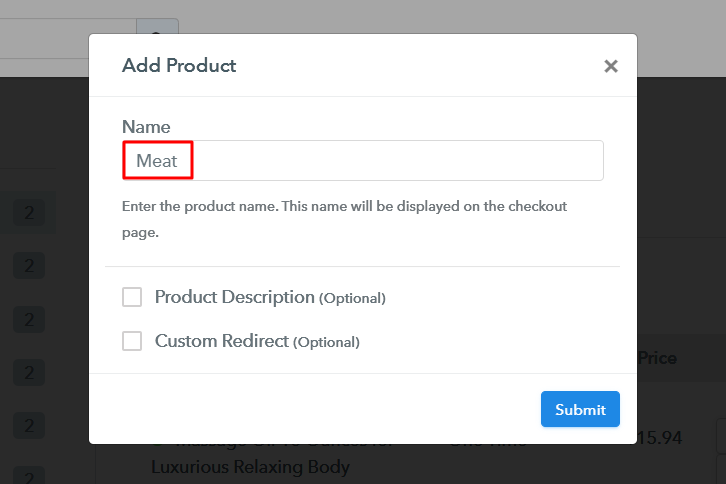
Now, you can start adding meat categories as products. Just name the product as a meat category such as beef, pork etc. More further, well be adding meat items as plans to these product categories.

Add Product to Sell Meat Online

Hit ‘Submit’ when you are done filling the details.

Note: Here you can add all the products related to the similar category by creating plans for each of them.

Step 6: Add Plans 

Let’s start adding plans for the different kinds of meat items available in your store based on a product category.

(a) Select Add New Plan

Add Plan

(b) Specify the Plan & Pricing Details

Add Plan to Sell Meat Online

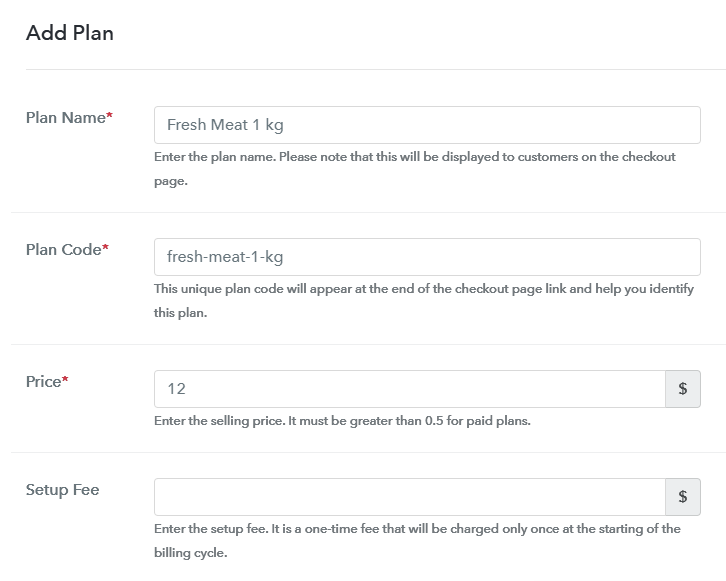
In the plan details page, you can mention a name, code, pricing details, billing cycle etc information related to the meat item that you wanna sell.

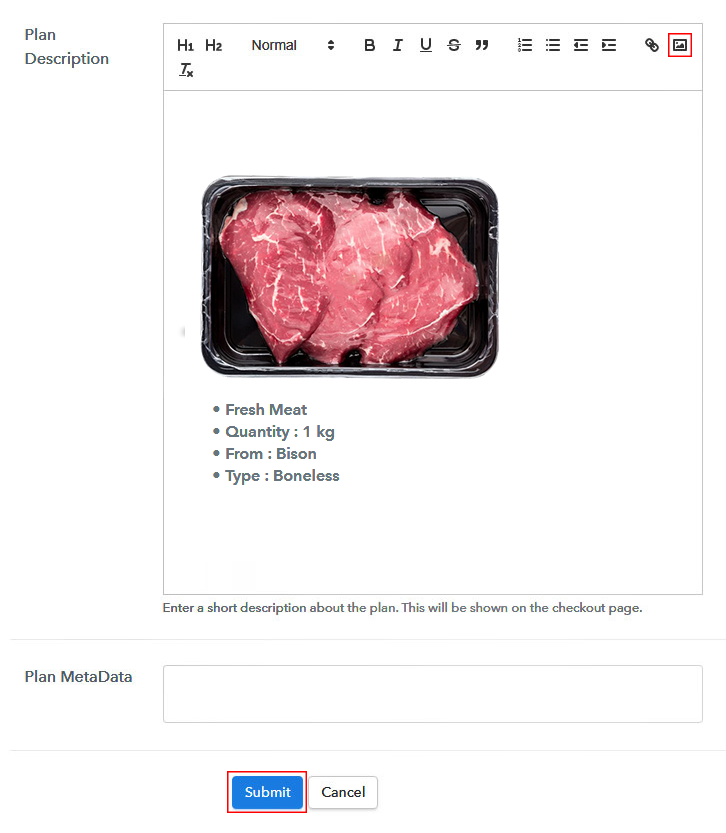
(c) Add Image & Description of Meat

Add Image & Description to Sell Meat Online

Further, you can also choose to reveal an image & specialities of the meat item.

Once you hit ‘Submit’ on this page a checkout page to sell meat online will be generated instantly.

Repeat this step every time you want to add a plan.

Step 7: Share your Checkout Page

Share Checkout Page on Social Media

You can share these checkout pages for selling meat online.

  • You can share the plan link given, with your customers over any social media & link sharing platforms such as SMS, emails, WhatsApp etc
  • Also, you can click on the buttons available to share the pages on Facebook & Twitter
  • Link the plan link URL with buttons & texts of a website or app to redirect a customer over the payment/checkout page

Step 8: Preview Checkout Page

Follow up the recommended steps to preview the checkout page:

(a) Click on the View Button

View Checkout Plan

(b) Take a Look at the Checkout Page

Checkout Page Preview to Sell Meat Online

Step 9: Embed Checkout Page in Site & Sell Meat Online

Embed Checkout Page on Website

Just copy the link and add the checkout page to sell meat online at any preferable place on your WordPress site.

(a) Edit the Page & Paste the Copied Link

Embed Checkout Page on Website

Further, paste the plan link on a text editor of the WordPress dashboard.

(b) Save & Publish the Checkout Page

Save_and_Publish

Next, click the “Publish” button, after making changes.

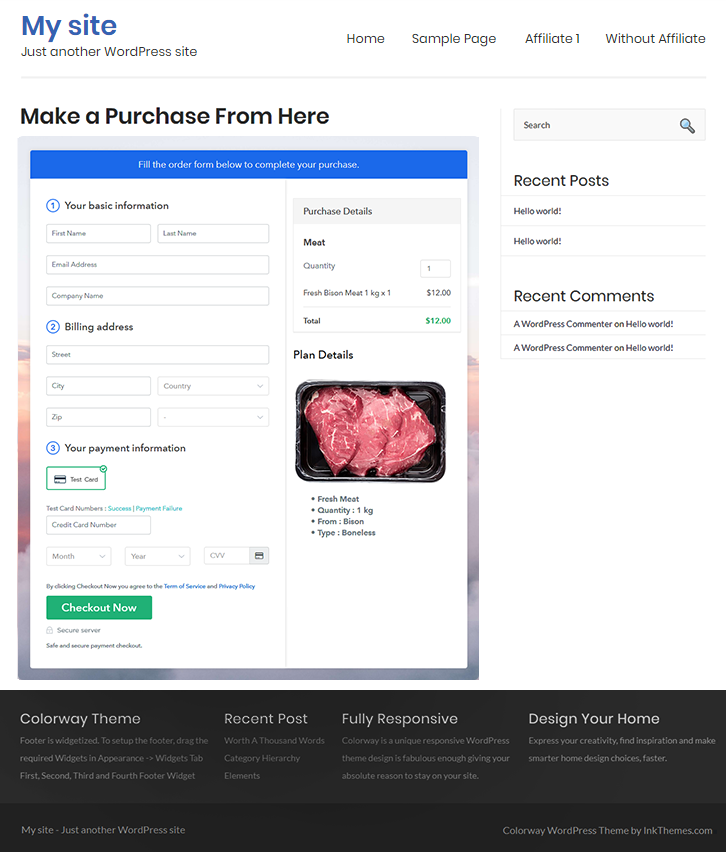
(c) Check out the Final Look of your Checkout Page on WordPress Site

Checkout Page On WordPress Site to Sell Meat Online

Step 10: Multiplan Checkout Page

Note: In case you want to sell multiple products via a single checkout page, you can create a multi-plan checkout page otherwise skip this step.

(a) Click on Add Mutiplan Checkout

Multiplan Checkout

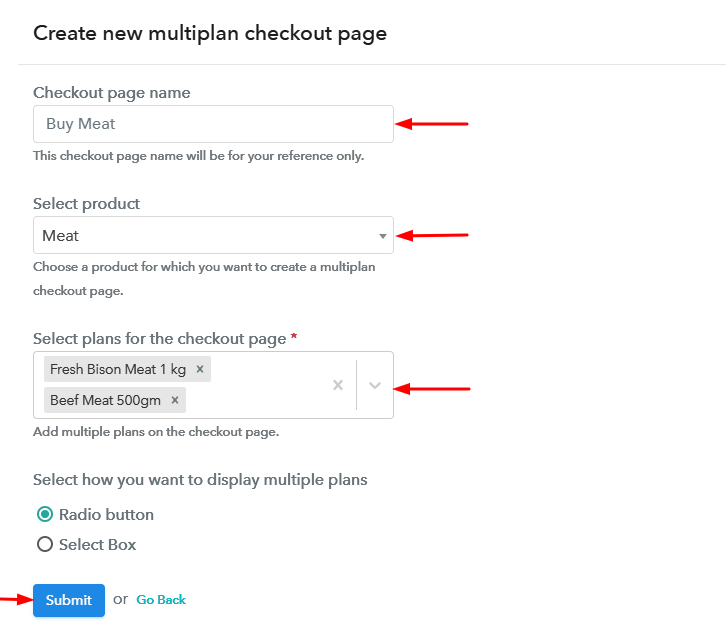
(b) Add Plans to Sell Multiple Meat from Single Checkout Page

Create Multiplan Checkout to Sell Meat Online

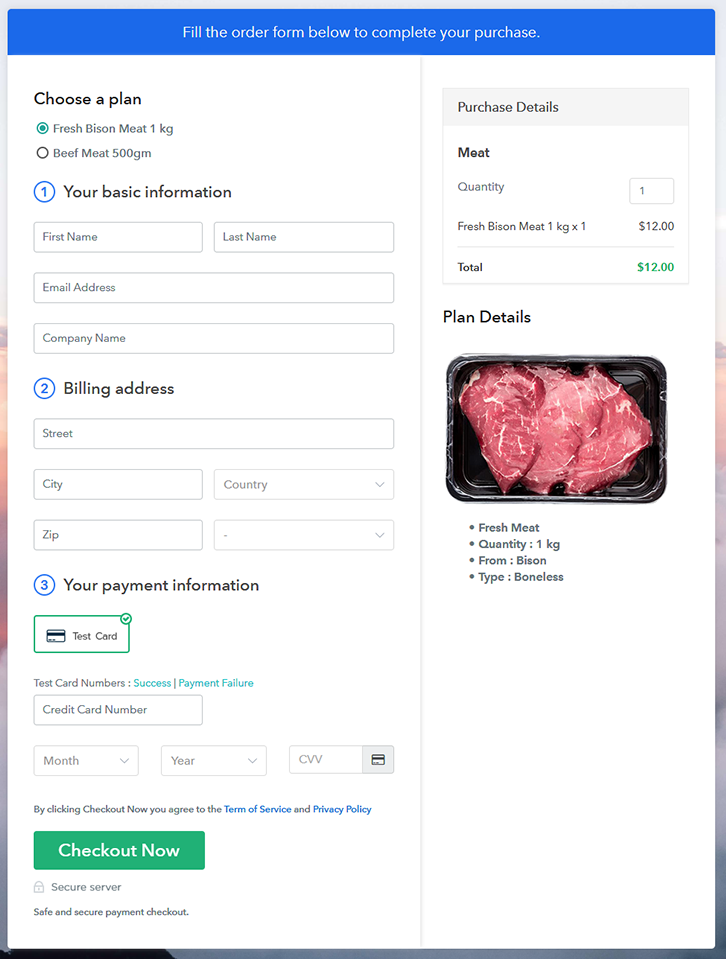
(c) Take a Look at the Checkout Page

Multiplan Checkout Page to Sell Meat Online

Preview Checkout Page

Wrapping Up

This was my take on ‘how to sell meat online’. We’ve used the checkout pages for selling meat online. As you can see, this method is fast & more flexible amongst all the other processes that are available online like designing a website or app & the management could be a great task to handle.

You May Also Like To Read –
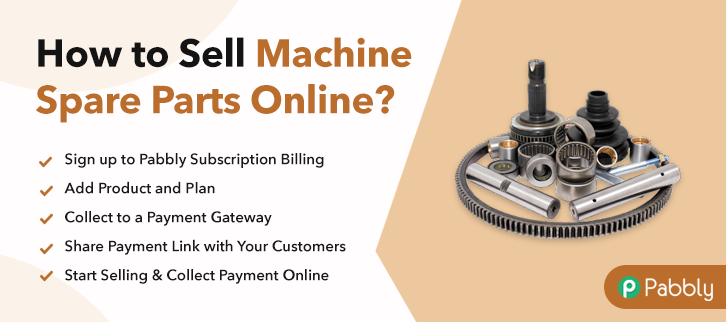
How To Sell Machine Spare Parts Online | Step by Step (Free Method)

Ideal For: All the machine spares manufacturers, spare part owners, small cottage industries owners, and other merchants can use this method to sell machine spare parts online.

How To Sell Machine Spare Parts Online

Why Choose this Method to Sell Machine Spare Parts Online?

Unlike any other solution, this method allows you to:

  • List and sell your  for FREE. Absolutely no payment required.
  • No need to pay commission on any of your sale.
  • Multiple payment options like PayPal, Credit Card, etc to collect payment from a single place.
  • Sell one time or recurring subscriptions of your machine spare parts.
  • Collect payments & sell products in any currency as per your requirement.
  • Give discounts on your products by offering special coupon codes.
  • Add sales commission agents to help you in selling machine spare parts.

Get Pabbly Subscription Billing for Free

Let me tell you why you should consider selling machine spare parts online. According to Forbes eCommerce made an unprecedented growth of 265% from $1.3 trillion to $4.1 trillion in the span of just 4 years. In the same period over 12,000 radio shacks selling machine parts were shut down owing to weak sales. My point is the future is the internet, and therefore many manufacturers are increasingly selling machine spare parts online to get better demands.

Obviously, you can always sell your machine spare parts online on dedicated websites like Industrialboard, GooSpares, etc. But here, you will have to pay excess commissions and follow many unnecessary guidelines. That is why in this article we will recommend Saas tool called Pabbly Subscription Billing that lets you create awesome checkout pages to sell machine spare parts online. The advantages of using this method are

  • Unlimited Product Listing
  • Multiple Billing Models
  • Generate Unlimited Revenues
  • Revenue Tracking
  • Insert Customized Logos
  • Transparent Billing

So, now we are going to build our first checkout page with Pabbly Subscription Billing to sell machine spare parts online.

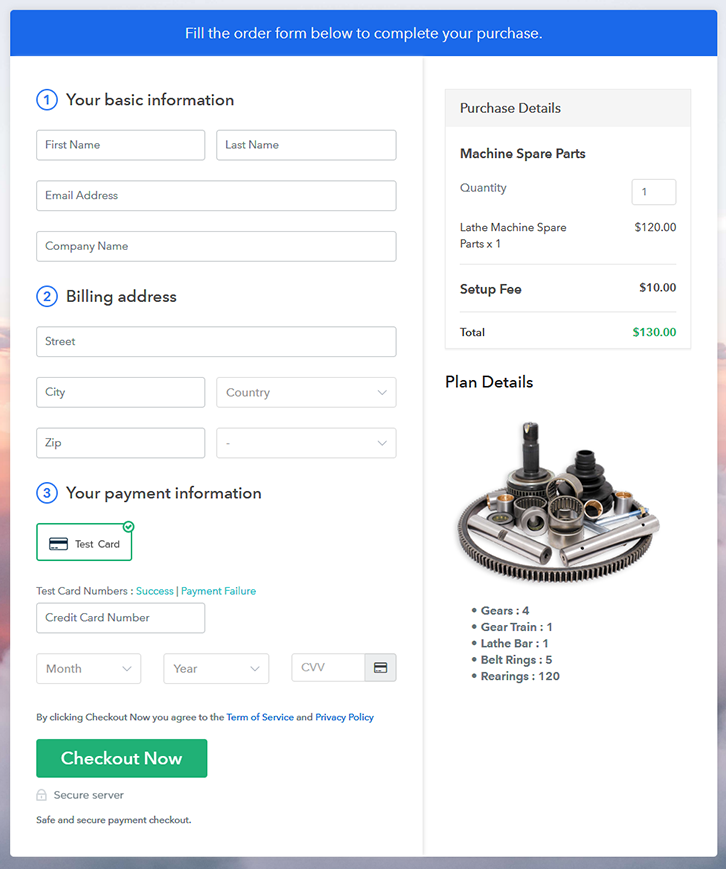
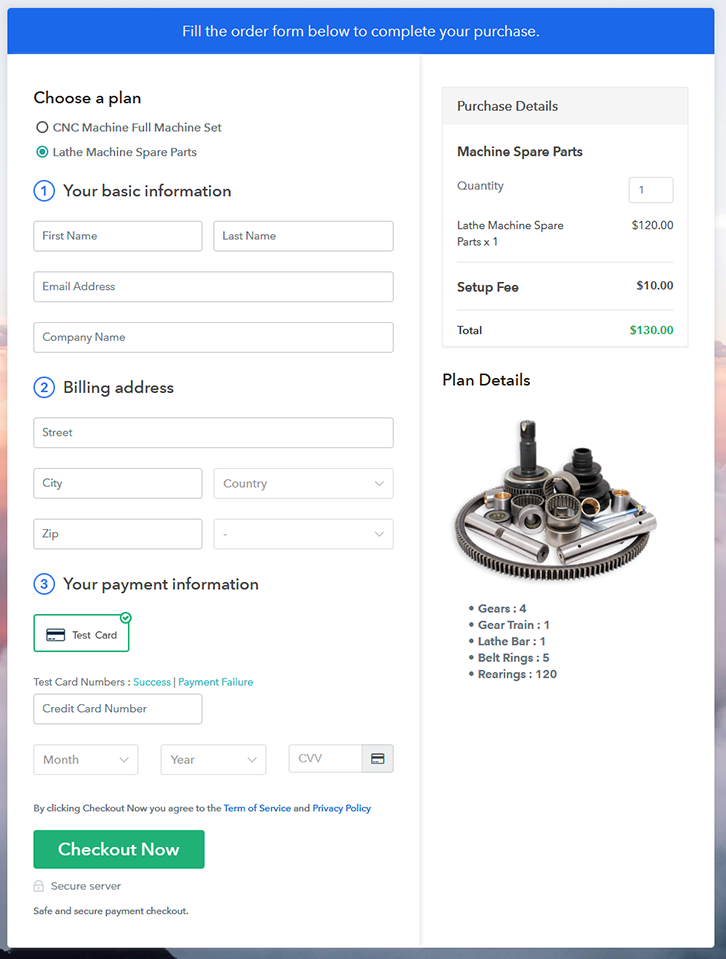
Final View of Checkout Page for your Machine Spare Parts Selling Business

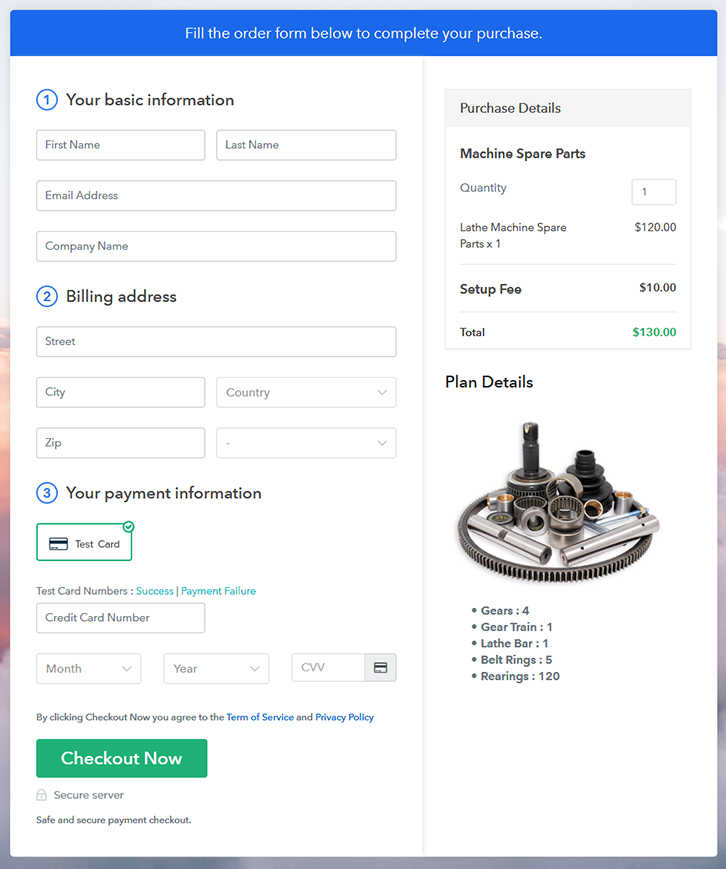
Checkout To Sell Machine Spare Parts Online

Preview Checkout Page

Step 1: Log in to Pabbly Subscription Billing

Signup

First reach for Pabbly Subscription Billing in your browser. Here, click on the “Sign up Free“ button. You can either manually fill all the information or simply sign in using your Gmail account.

Sign Up For Free!

Step 2: Select Subscription Billing

Access Subscription Billing

Step 3: Account Setup

Setup Account

Once you’re done click on the “Access Now” button of Pabbly Subscription Billing, a page will pop-up with details like company name, currency, and contact number. Next, you need to fill those details to go on.

Step 4: Connect Payment Gateways & Start Machine Spare Parts Selling Business Online

Connect Payment Gateway

Here, you can beta test the entire payment experience of the customer. Just click on the “Enable Test Payment” option to start testing out this functionality

Also, with Pabbly Subscription Billing, you can integrate many payment gateways PayPal, Authorize.net, Stripe, etc. Beneath this paragraph, there are integration guides to embed the payment gateway of your choice. So, I am going to enable the test payment option to continue the process.

Step 5: Add Product for your Machine Spare Parts

Add Product

Now click on this blue button

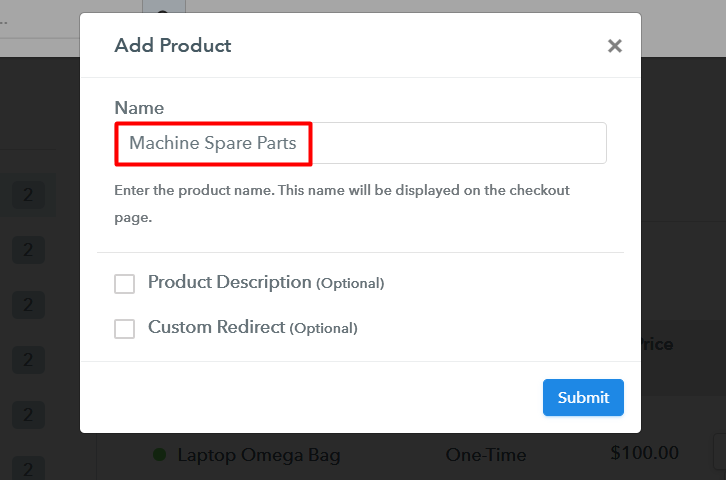
Add Product To Sell Machine Spare Parts Online

Fill out all the details like the name of the product and voila your product is created.

Note: Here you can add all the products related to the similar category by creating plans for each of them.

Step 6: Add Plans 

Now let’s create plans for different kinds of machine spare parts available in your store.

(a) Select Add New Plan

Add Plan

(b) Specify the Plan & Pricing Details

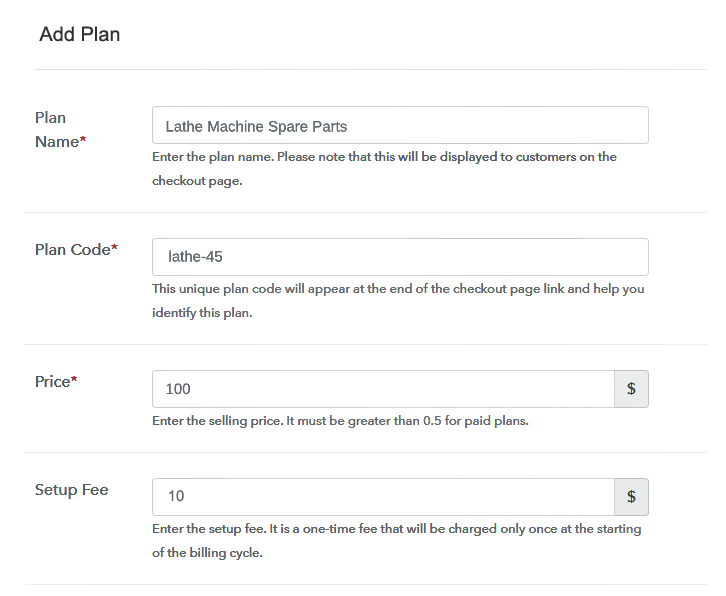
Add Plan To Sell Machine Spare Parts Online

For adding a plan you will be redirected to plan page where you have to fill details like plan name, code, price, setup fees. Furthermore, in a segment below, you will always have the option to change the billing models like one-time payment, recurring, etc. This is one of the most important steps to start selling poultry machine spare parts online.

(c) Add Image & Description of machine spare parts

Add Plan To Sell Machine Spare Parts Online

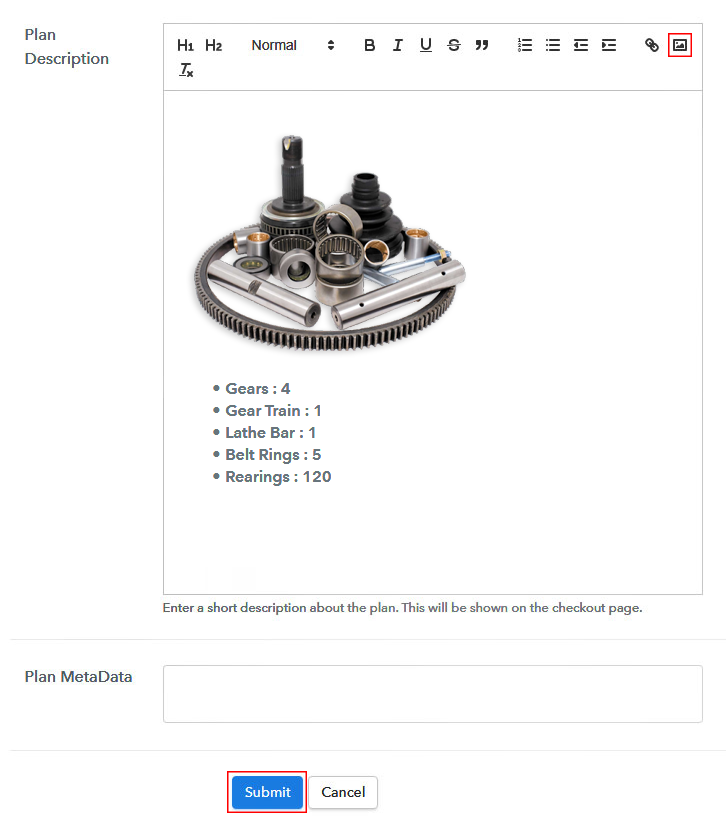
Whatever you want to gears, racks, trains, or any other spare products, take a good picture and insert it here.

Now provide an excellent description of your machine spare parts in bullet points. After writing the product description press the “Submit” button. Furthermore, following the same procedure, you can add many other types of products.

Step 7: Share your Checkout Page

Share Checkout Page on Social Media

  • Share your checkout page on Twitter & Facebook by just pressing the respective buttons.
  • Embed these checkout pages link in email and SMS.
  • Also, you can create some buttons on your website and place these checkout pages in it. Likewise, you can add anchor links to any text on your website.

Step 8: Preview Checkout Page

Follow up the recommended steps to preview the checkout page:

(a) Click on the View Button

View Checkout Plan

(b) Take a Look at the Checkout Page

Add Checkout To Sell Machine Spare Parts Online

Step 9: Embed Checkout Page in Site & Sell Machine Spare Parts Online

Embed Checkout Page on Website

Furthermore, just copy the link and add the checkout page to sell machine spare parts online at any suitable place on your WordPress site.

(a) Edit the Page & Paste the Copied Link

Embed Checkout Page on Website

Further, paste the plan link of the machine spare parts on a text editor of the WordPress dashboard.

(b) Save & Publish the Checkout Page

Save_and_Publish

Next, click the “Publish” button, after making changes.

(c) Check out the Final Look of your Checkout Page on WordPress Site

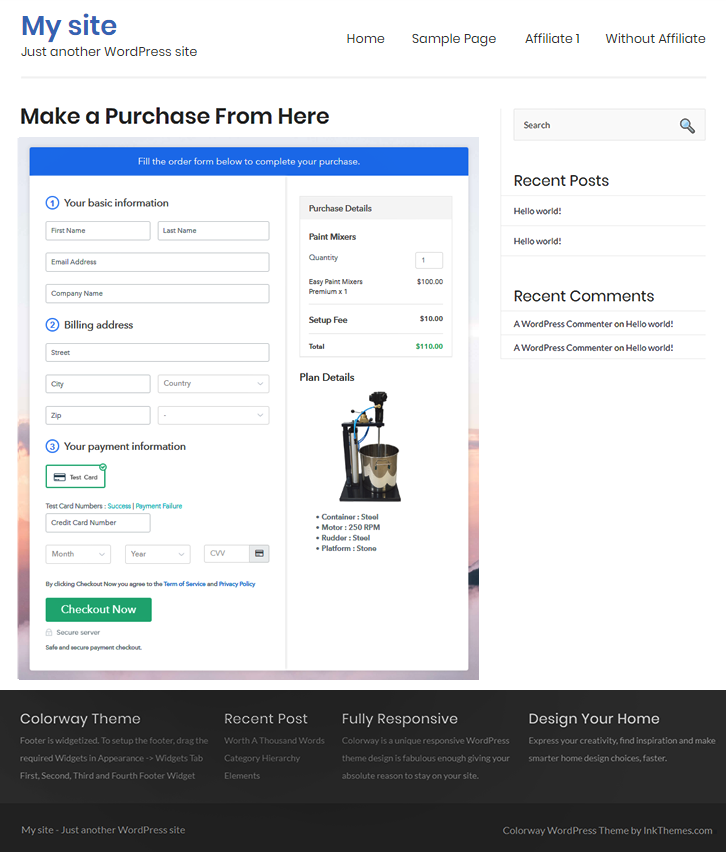
Add WordPress To Sell Machine Spare Parts Online

Step 10: Multiplan Checkout Page

Note: In case you want to sell multiple products via a single checkout page, you can create a multi-plan checkout page otherwise skip this step.

(a) Click on Add Mutiplan Checkout

Multiplan Checkout

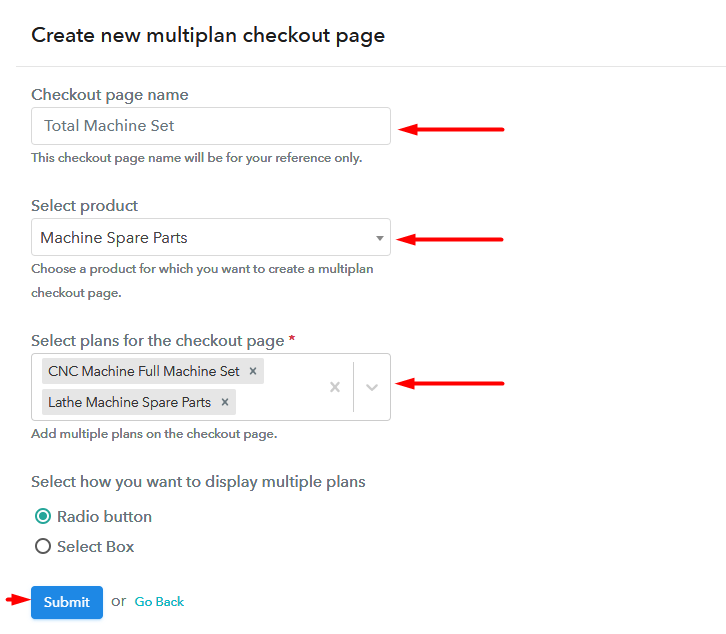
(b) Add Plans to Sell Multiple Machine Spare Parts from Single Checkout Page

Add Checkout To Sell Machine Spare Parts Online

(c) Take a Look at the Checkout Page

Multiplan To Sell Machine Spare Parts Online

Preview Checkout Page

Wrapping Up

Congratulations !! Your final checkout page to sell machine spare parts online rocks!! Now, this is a huge market with many competitors but with Pabbly Subscription Billing, you will surely rise above them. Also, if you have any doubts feel free to communicate with us through the comment section. We will reply at the earliest. Thank You!!

You May Also Like To Read –
How to Sell Gym Water Bottles Online | Step by Step (Free Method)

How to Sell Gym Water Bottles Online

Ideal For: All the water bottle manufacturers, water bottle sellers, gym water bottle dealers, gym water bottle suppliers, personalised gift shop owners and other merchants can use this method to sell gym water bottles online.

How to Sell Gym Water Bottles Online

Why Choose this Method to Sell Gym Water Bottles Online?

Unlike any other solution, this method allows you to:

  • List and sell your gym water bottles for FREE. Absolutely no payment required.
  • No need to pay commission on any of your sales.
  • Multiple payment options like PayPal, Credit Card, etc to collect payment from a single place.
  • Sell one time or recurring subscriptions of your gym water bottles.
  • Collect payments & sell products in any currency as per your requirement.
  • Give discounts on your products by offering special coupon codes.
  • Add sales commission agents to help you in selling gym water bottles online.

Get Pabbly Subscription Billing for Free

Gym water bottles have become a necessary accessory for fitness freaks which is why there is a colossal demand for gym water bottles. And, if you have an offline shop then it is high time to start gym water bottles business online.

Well, there are many perks of starting online stores like lower set-up costs, no middle man, etc. Plus, according to the Business Wire report, the global hydration market is expected to grow at a CAGR of 5.6% which is a promising figure. Gladly, we have a software named Pabbly Subscription Billing that can assist you in starting your own business. Also, benefits like professional invoices, multiple billing modules, payment gateways, etc come handy with it.

Other than this, it has some remarkable features listed below:

  • Add taxation charges
  • Offer unlimited discounts and coupon
  • Collect payment in both online and offline mode

Now, without any ado let’s create a checkout page for selling gym water bottles online using this tool.

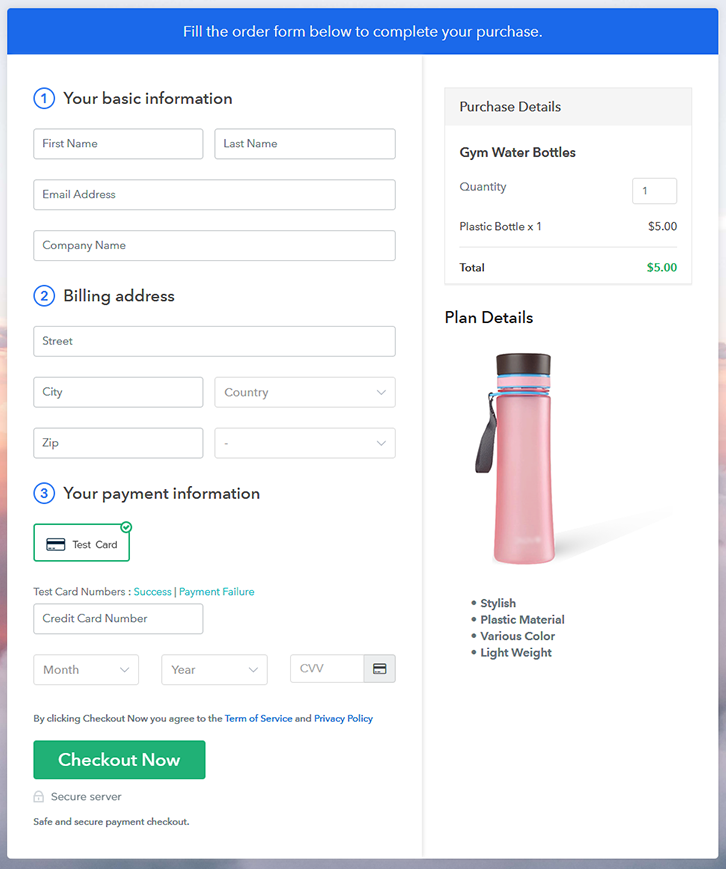
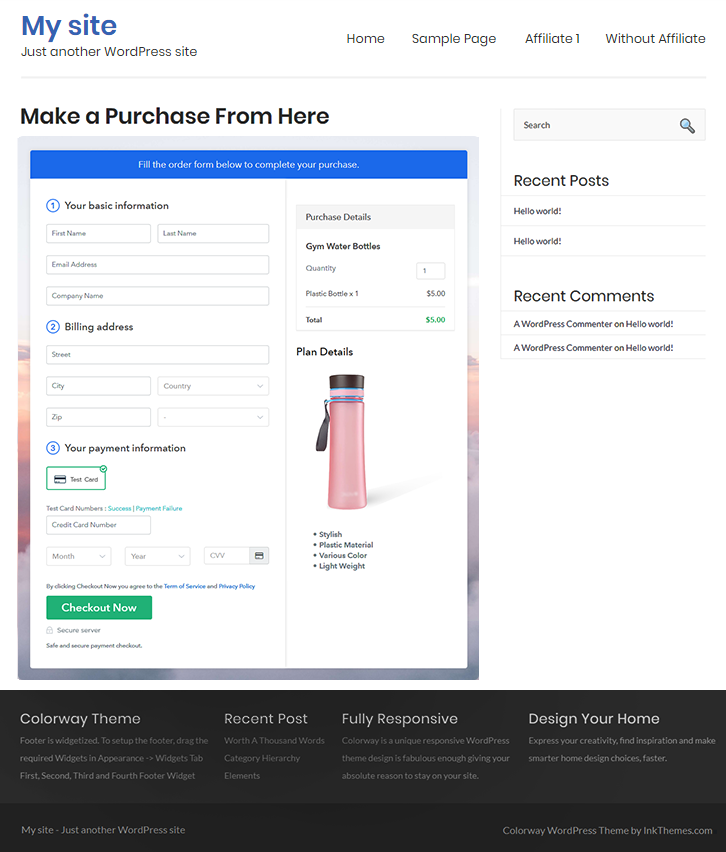
Final View of Checkout Page for your Gym Water Bottles Selling Business

Checkout Page to Sell Gym Water Bottles Online

Preview Checkout Page

Step 1: Log in to Pabbly Subscription Billing

Signup

Begin the process for creating a checkout page for gym water bottles by visiting the Pabbly Subscription Billing in your browser. After that, click on the “Sign up Free“ button. Moreover, either manually filled out the details or sign in using your Gmail account.

Sign Up For Free!

Step 2: Select Subscription Billing

Access Subscription Billing

Step 3: Account Setup

Setup Account

Besides, after clicking on the “Access Now” button of the software, a page will open with fields like company name, select currency, and phone number. Simply fill out those details to continue creating a checkout page forgym water bottles.

Step 4: Connect Payment Gateways & Start Gym Water Bottles Selling Business Online

Connect Payment Gateway

The subsequent step is to gaining knowledge about payment procedures using a “Test Payment Gateway”. Here, we will describe the checkout page process for the gym water bottles with the help of a test payment gateway. Besides this, the tool offers various payment gateways such as PayPal, Stripe, etc. Further, below are the payment integration guides to help you out.

Step 5: Add Product for your Gym Water Bottles

Add Product

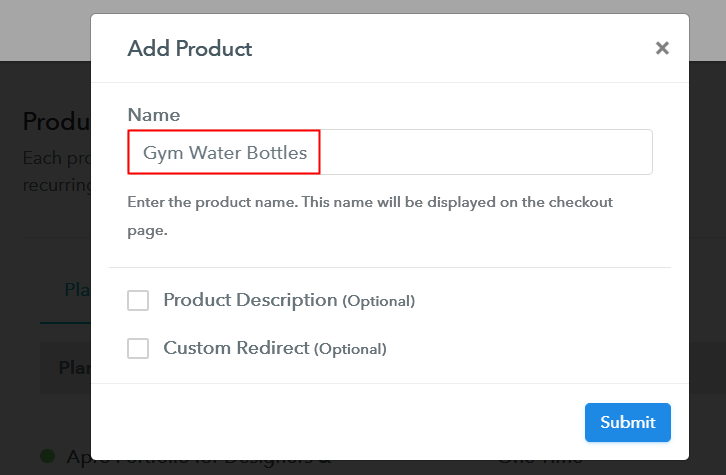
Additionally, add the name, which in our case is “Gym Water Bottles”. Here you can specify the type like classic bottle shaker, sport water bottles, etc. Further, write a short description of the gym water bottles to grab the buyer’s attention.

Add Product to Start Selling Gym Water Bottles Online

Moreover, just fill out all those details and your product is created.

Note: Here you can add all the products related to the similar category by creating plans for each of them.

Step 6: Add Plans 

Let’s reveal plans for different kinds of gym water bottles available in your store.

(a) Select Add New Plan

Add Plan

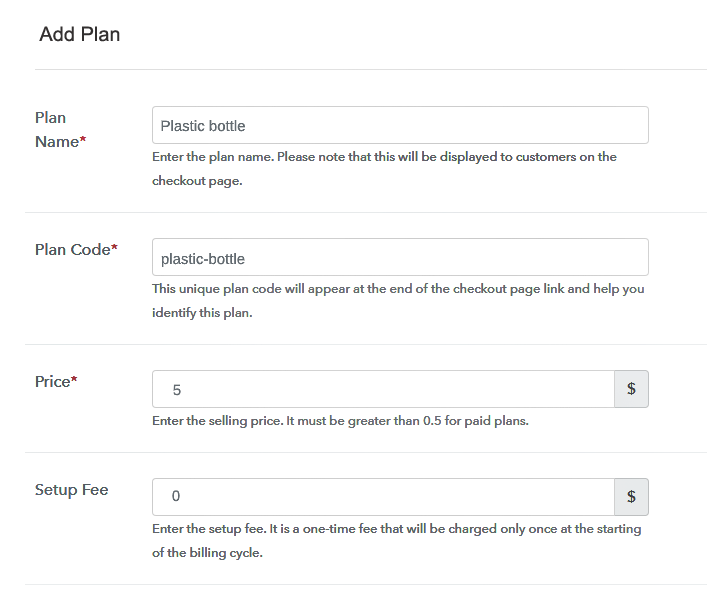
(b) Specify the Plan & Pricing Details

Specify the Plan and Pricing to Sell Gym Water Bottles Online

The next thing to do is fill all the details of the gym water bottles like plan name, code, price, set-up fee, and much more to continue.

(c) Add Image & Description of Gym Water Bottles

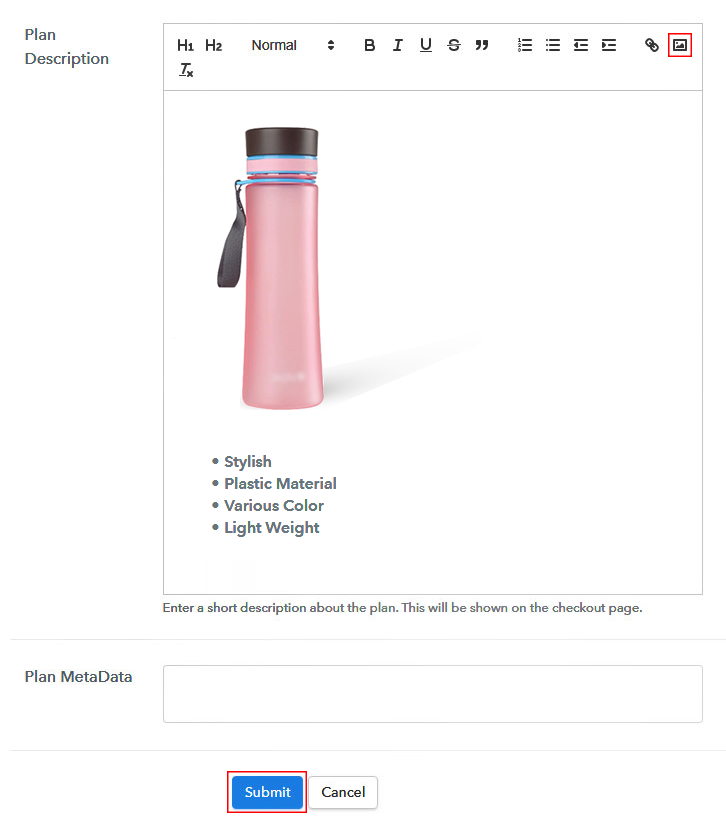
Add Image & Description to Sell Gym Water Bottles Online

Furthermore, it is necessary to write a brief description of the gym water bottles using bullets, images, etc, to bring original buyers to the checkout page.

Next, click on the “Submit” button to add the gym water bottles on the checkout page.

Finally, you can add multiple plans and kinds of gym water bottles in your product list which you want to sell online.

Step 7: Share your Checkout Page

Share Checkout Page on Social Media

  • Moreover, share the checkout page of the gym water bottles on social media accounts like Facebook & Twitter to grab the customer’s attention.
  • Also, you can share the direct link of the gym water bottle’s checkout page with your customers via SMS or email marketing.
  • Additionally, embed the provided plan link of the gym water bottles in the buttons or any anchor text on your website.

Step 8: Preview Checkout Page

Follow up the recommended steps to preview the checkout page:

(a) Click on the View Button

View Checkout Plan

(b) Take a Look at the Checkout Page

Checkout Page to Sell Gym Water Bottles Online

Step 9: Embed Checkout Page in Site & Sell Gym Water Bottles Online

Embed Checkout Page on Website

Just copy the link and add the checkout page to sell gym water bottles online at any proper place on your WordPress site.

(a) Edit the Page & Paste the Copied Link

Paste Link in Text Editor

Further, paste the plan link of gym water bottles on a text editor of the WordPress dashboard.

(b) Save & Publish the Checkout Page

Save_and_Publish

Next, click the “Publish” button, after making changes.

(c) Check out the Final Look of your Checkout Page on WordPress Site

Final Look of your Checkout Page to Sell Gym Water Bottles Online

Step 10: Multiplan Checkout Page

Note: In case you want to sell multiple products via a single checkout page, you can create a multi-plan checkout page otherwise skip this step.

(a) Click on Add Mutiplan Checkout

Multiplan Checkout

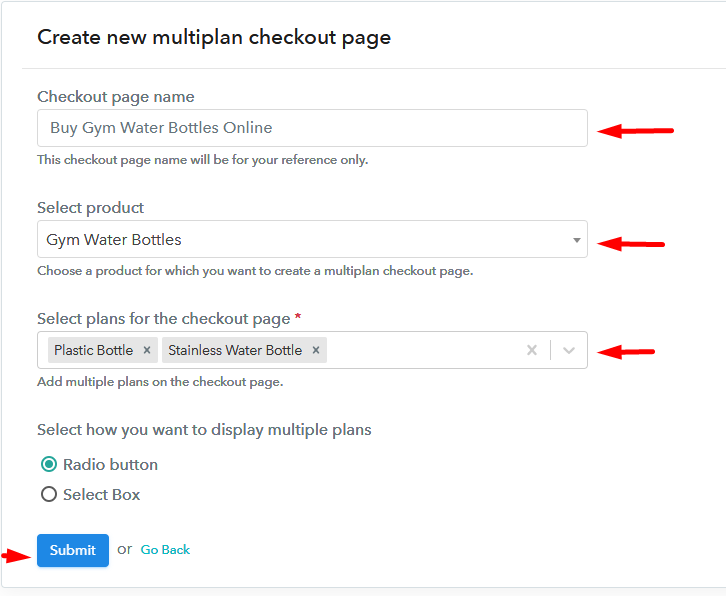
(b) Add Plans to Sell Multiple Gym Water Bottles from Single Checkout Page

Add Multiple Products to Start Selling Gym Water Bottles Online

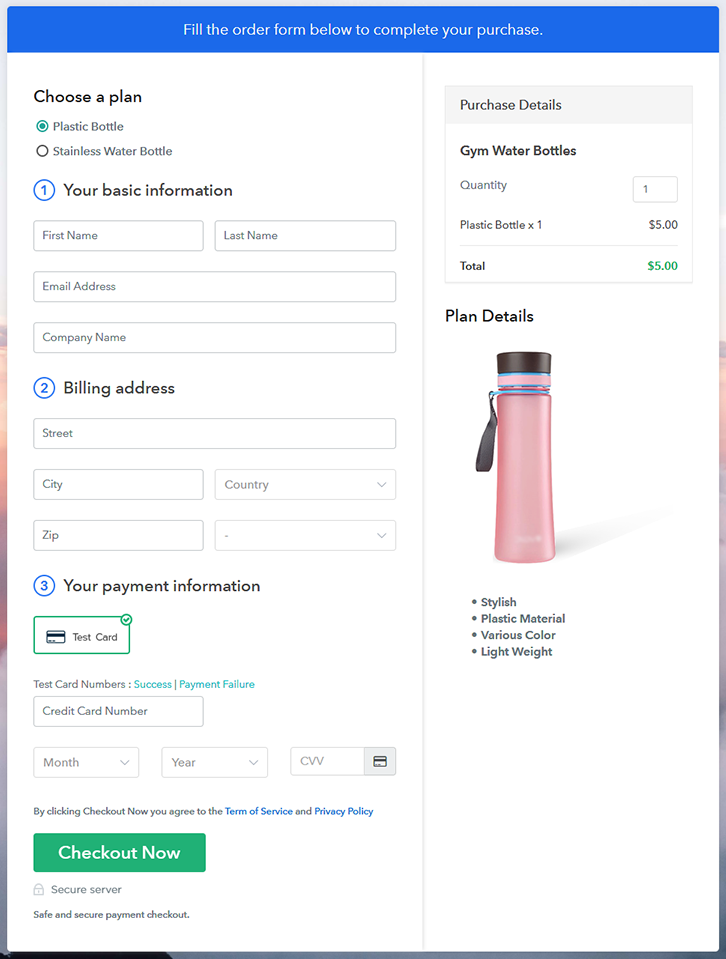
(c) Take a Look at the Checkout Page

Multiplan Checkout Page to Sell Gym Water Bottles Online

Preview Checkout Page

Wrapping Up

Alright! This is our disclosure on “how to sell gym water bottles online” using Pabbly Subscription Billing software. You can start any business online easily with the help of this tool. Just follow all the aforementioned steps and your checkout page for gym water bottles is created in minutes.

So, try this software out and let us know what you think in the comments section.

You May Also Like To Read –
How To Sell Gas Fireplaces Online | Step by Step (Free Method)

Ideal For: All the gas fireplace manufacturers, hearth builders, gas fireplace stores, and other merchants can use this method to sell gas fireplaces online.

How To Sell Gas Fireplaces Online

Why Choose this Method to Sell Gas Fireplaces Online?

Unlike any other solution, this method allows you to:

  • List and sell your gas fireplaces for FREE. Absolutely no payment required.
  • No need to pay commission on any of your sale.
  • Multiple payment options like PayPal, Credit Card, etc to collect payment from a single place.
  • Sell one time or recurring subscriptions of your gas fireplaces.
  • Collect payments & sell products in any currency as per your requirement.
  • Give discounts on your products by offering special coupon codes.
  • Add sales commission agents to help you in selling gas fireplaces.

Get Pabbly Subscription Billing for Free

Gas induced fireplaces can bring both warmth and an aesthetic outlook to your living room. The sales of these fireplaces are growing at an awesome CAGR of 3.87% to reach $19.1 billion in revenues by 2026. And that is why many hearth manufacturers are increasingly planning to sell gas fireplaces online to get business from the global audience.

Some other advantages of selling gas fireplaces online include better marketing abilities, lower logistics, zero middlemen commissions, competitive pricing, etc. But keeping costs, and versatility in mind, I would like to recommend a Saas tool called Pabbly Subscription Billing. The immediate advantage of using this tool is you can list unlimited products and sell them online without worrying about annoying transaction charges. Furthermore, you don’t need any technical skill, it is so easy that even a baby can work with it. Some extra features include:

  • Tracking Revenues
  • Custom Domain
  • Custom Logos
  • Auto Email Alerts
  • Offline/Online Revenue Collection

So, let’s get started to build our first checkout page with Pabbly Subscription Billing to sell gas fireplaces online

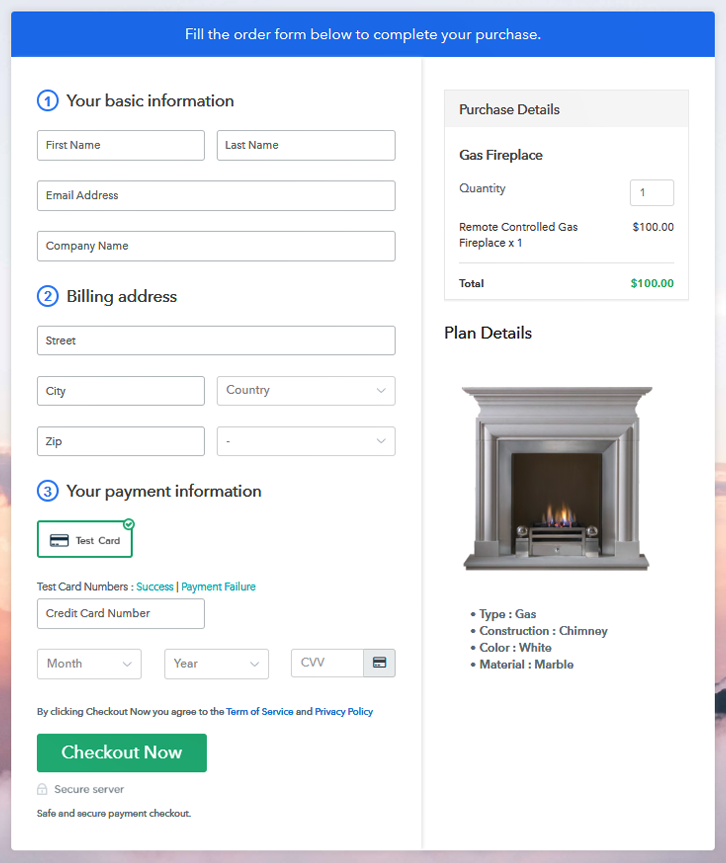
Final View of Checkout Page for your Gas Fireplaces Selling Business

Checkout To Sell Gas Fireplaces Online

Preview Checkout Page

Step 1: Log in to Pabbly Subscription Billing

Signup

Look for the website Pabbly Subscription Billing in your search engine. On landing on their website click on the “Sign up Free“ button. You can either manually fill all the information or simply sign in using your Gmail account.

Sign Up For Free!

Step 2: Select Subscription Billing

Access Subscription Billing

Step 3: Account Setup

Setup Account

Click on the “Access Now” button of the software, a page will redirect with fields like company name, select currency, and phone number. Just fill out those details to continue creating a checkout page for gas fireplaces.

Step 4: Connect Payment Gateways & Start Gas Fireplaces Selling Business Online

Connect Payment Gateway

To prevent glitches during transactions, Pabbly Subscription Billing provides a dummy payment gateway where you can beta test the entire payment experience of the customer in advance.

Payment gateways such as Razorpay, Stripe, and many more can be easily integrated using Pabbly Subscription Billing. There is an integration guide for each of them below this para. But I am going ahead to enable the test payment option to continue the process.

Step 5: Add Product for your Gas Fireplaces

Add Product

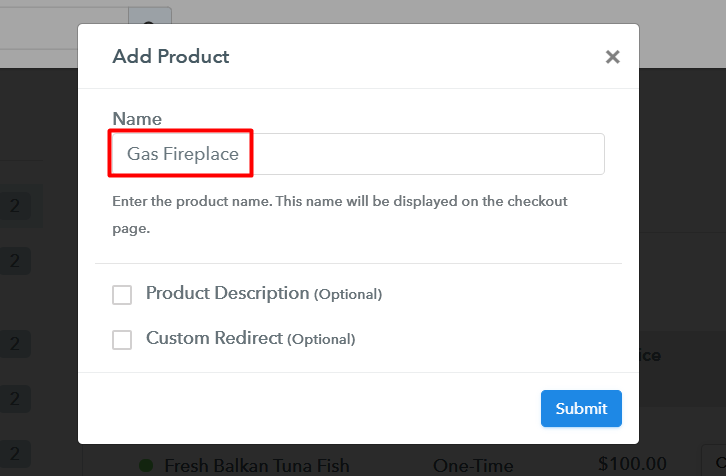
I am hoping that the payment gateway integration went well, so let’s start adding the products. Below the “Enable Payments” segment there is the “Add your product” section click on it. This will generate a dialog box with a blue button “Add New Product”. Click on it.

You have to add the required product title, in this case, it is ‘gas fireplace’.

Add Product To Sell Gas Fireplaces Online

Fill out all the details like the name of the product and voila your product is created.

Note: Here you can add all the products related to the similar category by creating plans for each of them.

Step 6: Add Plans 

Now let’s create plans for different kinds of gas fireplaces available in your store.

(a) Select Add New Plan

Add Plan

(b) Specify the Plan & Pricing Details

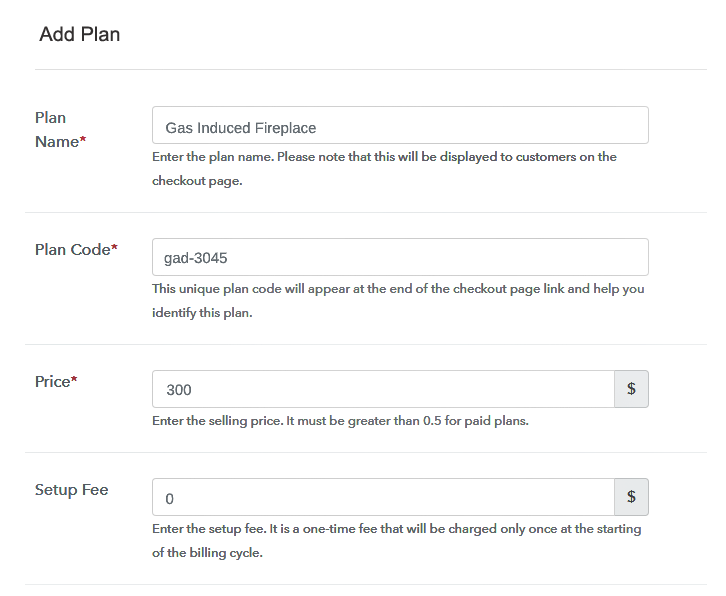
Add Plan To Sell Gas Fireplaces Online

In the plan page, fill in information like plan name, code, price, setup fees, etc. Moreover, while coming down you will find different billing models like one-time payment, recurring, based on cycles, etc. Now, choose the one that interests you the most. Furthermore, you can change it any time you want.

(c) Add Image & Description of Gas Fireplaces

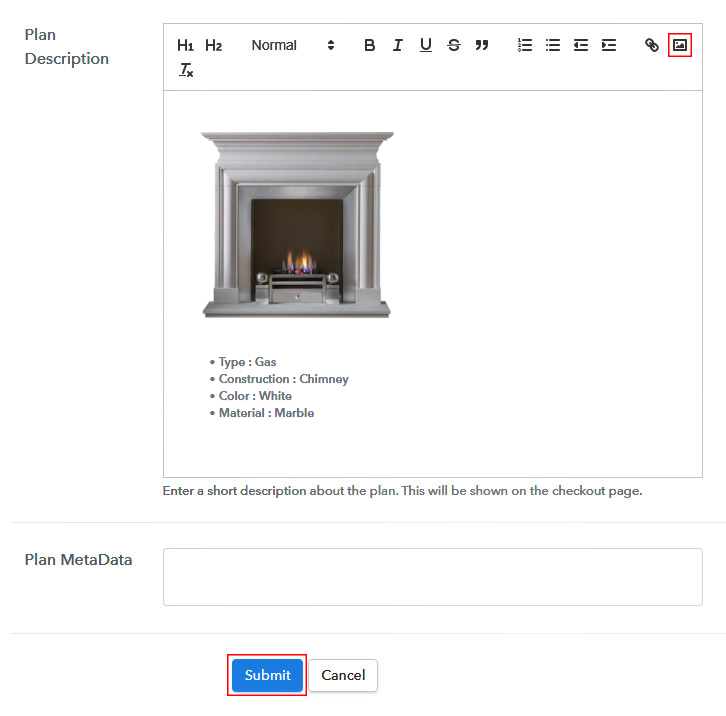
Add Image To Sell Gas Fireplaces Online

Get some good images of your gas fireplace and then upload it by clicking the image button.

Give some info of gas fireplace like material used, furnace temperature, chimneys, etc, and then press the “Submit” button.

By using the same process, you can list more products.

Step 7: Share your Checkout Page

Share Checkout Page on Social Media

  • Also, to create more awareness about your products you can share your checkout page on Twitter & Facebook by just pressing the respective buttons.
  • Moreover, share the checkout pages on email and SMS.
  • Furthermore, you can build buttons on your webpage and paste the checkout links on it. Or you can place it on any anchor text on your website, so the users will be redirected to the checkout page.

Step 8: Preview Checkout Page

Follow up the recommended steps to preview the checkout page:

(a) Click on the View Button

View Checkout Plan

(b) Take a Look at the Checkout Page

Add Checkout To Sell Gas Fireplaces Online

Step 9: Embed Checkout Page in Site & Sell Gas Fireplaces Online

Embed Checkout Page on Website

Now just copy the link and add the checkout page to sell gas fireplaces online at any suitable place on your WordPress site.

(a) Edit the Page & Paste the Copied Link

Embed Checkout Page on Website

Further, paste the plan link of the fast-food on a text editor of the WordPress dashboard.

(b) Save & Publish the Checkout Page

Save_and_Publish

Next, click the “Publish” button, after making changes.

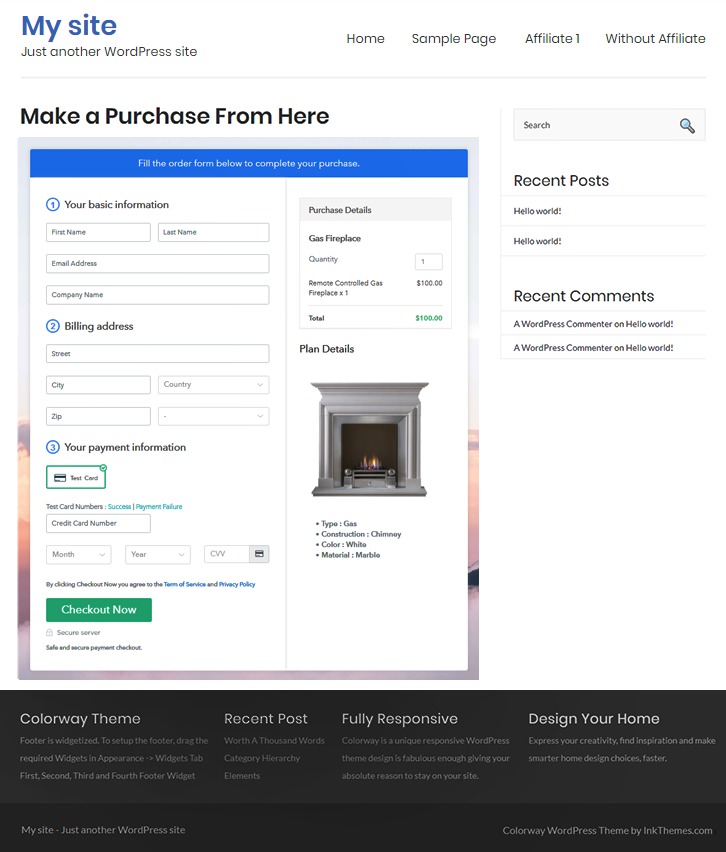
(c) Check out the Final Look of your Checkout Page on WordPress Site

Add WordPress To Sell Gas Fireplaces Online

Step 10: Multiplan Checkout Page

Note: In case you want to sell multiple products via a single checkout page, you can create a multi-plan checkout page otherwise skip this step.

(a) Click on Add Mutiplan Checkout

Multiplan Checkout

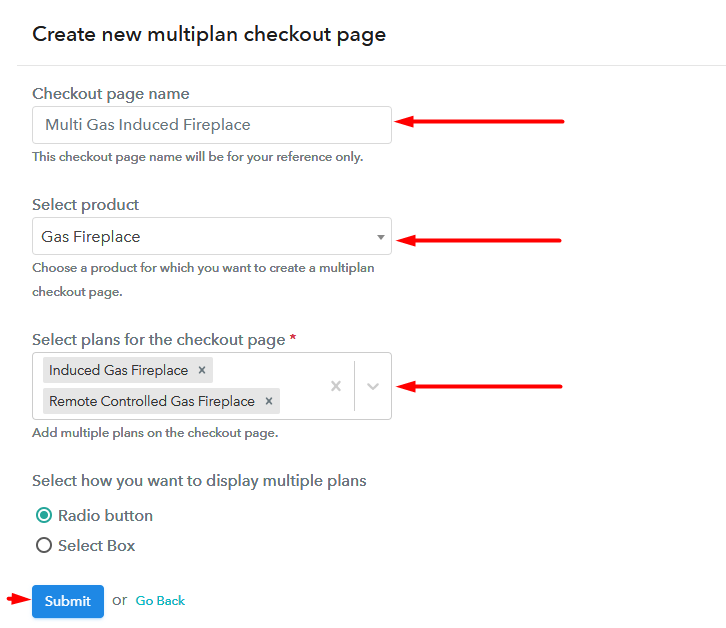
(b) Add Plans to Sell Multiple Gas Fireplaces from Single Checkout Page

Add Multiplan To Sell Gas Fireplaces Online

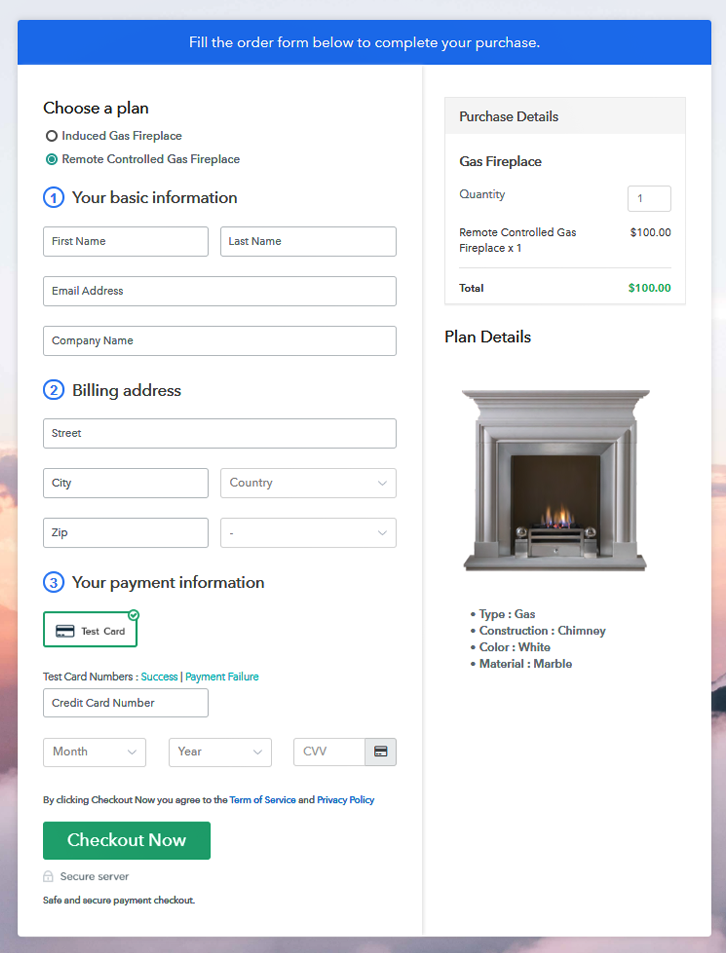
(c) Take a Look at the Checkout Page

Add Multiplan Checkout To Sell Gas Fireplaces Online

Preview Checkout Page

Wrapping Up

Excellent!! Your dexterity has finally paid off, as your first checkout page is ready to sell gas fireplaces online.  Now, you need to understand, that these checkout pages are very versatile as you can sell any kinds of digital or physical products online. You may take some cue from the articles listed below.

Also, if you have ideas or inputs worth sharing, about our article please let us know the comment section below. Thank You !!

You May Also Like To Read –
How to Sell Gift Boxes Online | Step by Step (Free Method)

How to Sell Gift Boxes Online

Ideal For: All the gift box manufacturers, gift box sellers, gift box dealers, gift box suppliers, gift box shop owners and other merchants can use this method to sell gift boxes online.

How to Sell Gift Boxes Online

Why Choose this Method to Sell Gift Boxes Online?

Unlike any other solution, this method allows you to:

  • List and sell your gift boxes for FREE. Absolutely no payment required.
  • No need to pay commission on any of your sales.
  • Multiple payment options like PayPal, Credit Card, etc to collect payment from a single place.
  • Sell one time or recurring subscriptions of your gift boxes.
  • Collect payments & sell products in any currency as per your requirement.
  • Give discounts on your products by offering special coupon codes.
  • Add sales commission agents to help you in selling gift boxes online.

Get Pabbly Subscription Billing for Free

Gift boxes are widely used by people to wrap the presents they are offering to their loved ones on occasions, birthdays, etc. Besides, covering up your presents with a beautiful gift box create a unique surprise feeling. That’s why the demand for gift boxes never goes out of business. Hence, if you have an offline store of gift boxes, then it is high time for you to take your gift boxes business online.

Moreover, there are countless benefits of selling gift boxes online such as you can attract global audiences, increase revenue, and much more. Not only that, setting up an online store is way much convenient due to lower maintenance as compared to offline stores.

Luckily, we have a software named Pabbly Subscription Billing that can help you take your business online effortlessly. This tool enables you to create a checkout page for selling gift boxes online that you can share on your website or social media platforms easily. Some other benefits of using this online tool are:

  • Easy Revenue Management
  • Multiple Billing Models
  • Tax Management
  • Several Payment Gateways
  • Unlimited Coupon Codes & DiscountsNow, let me tell you those 10 easy steps for creating amazing checkout pages to sell gift boxes online.

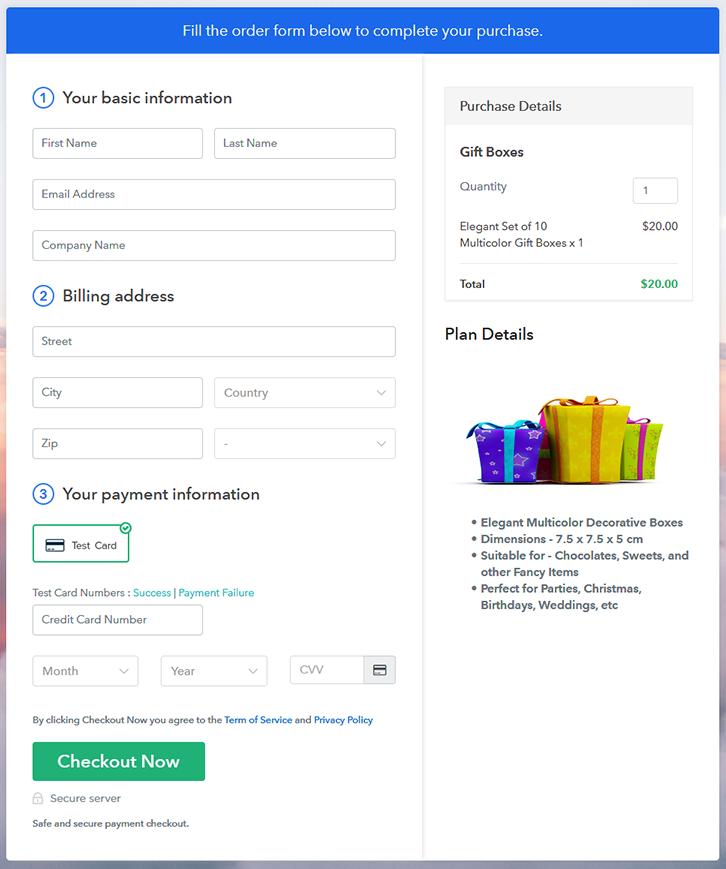
Final View of Checkout Page for your Gift Boxes Selling Business

Checkout Page to Sell Gift Boxes Online

Preview Checkout Page

Step 1: Log in to Pabbly Subscription Billing

Signup

Start the process by visiting the Pabbly Subscription Billing in your browser. After that, tap on the “Sign up Free“ button. Furthermore, either manually filled out the details or sign in using your Gmail account.

Sign Up For Free!

Step 2: Select Subscription Billing

Access Subscription Billing

Step 3: Account Setup

Setup Account

Besides, after clicking on the “Access Now” button of the software, a page will open with fields like company name, select currency, and phone number. Simply fill out those details to continue creating a checkout page for gift boxes

Step 4: Connect Payment Gateways & Start Gift Boxes Selling Business Online

Connect Payment Gateway

The subsequent step is to understand the entire payment procedures using a “Test Payment Gateway”. Here, we will describe the checkout page process for the gift boxes with the help of a test payment gateway. Apart from this, the software offers various payment gateways such as PayPal, Stripe, etc. Moreover, below are the payment integration guides to help you out further.

Step 5: Add Product for your Gift Boxes

Add Product

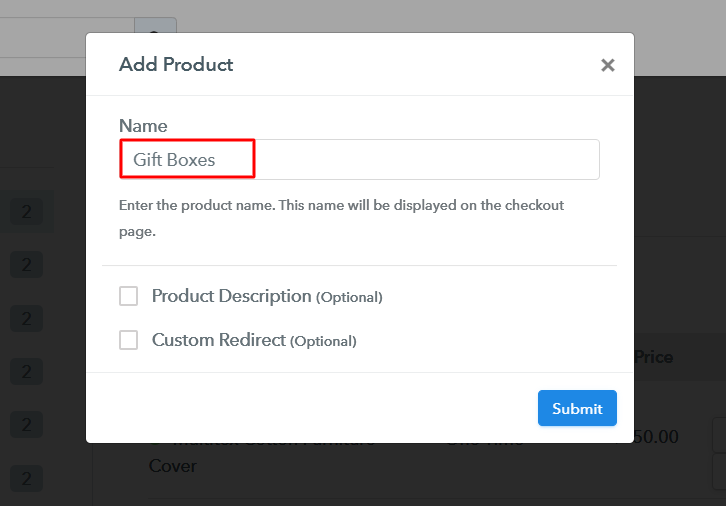
Additionally, add the name, which in our case is “Gift Boxes”. Here you can specify the type like printed gift boxes, multicolor gift boxes, etc and provide a small description of the gift boxes.

Add Product to Start Selling Gift Boxes Online

Moreover, just fill out all those details and your product is created.

Note: Here you can add all the products related to the similar category by creating plans for each of them.

Step 6: Add Plans 

Let’s unfold out plans for different kinds of gift boxes available in your store.

(a) Select Add New Plan

Add Plan

(b) Specify the Plan & Pricing Details

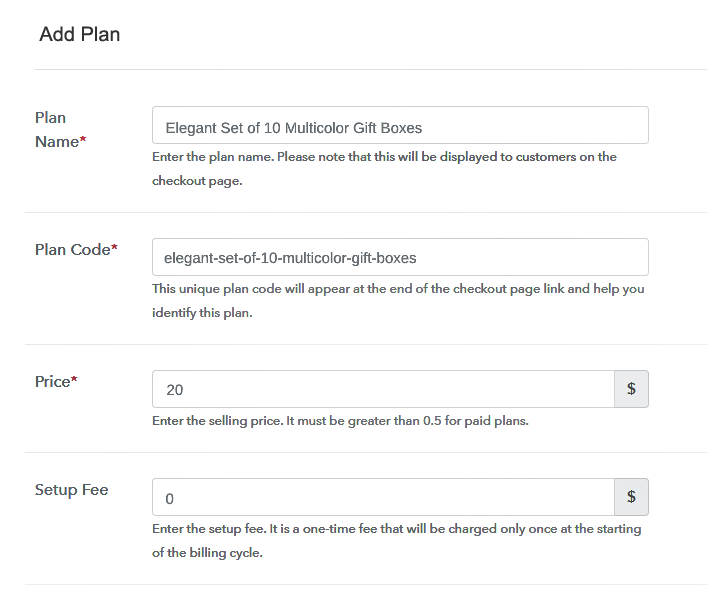
Specify the Plan and Pricing to Sell Gift Boxes Online

The next thing to do is fill all the details of the gift boxes like plan name, code, price, set-up fee, and much more to continue.

(c) Add Image & Description of Gift Boxes

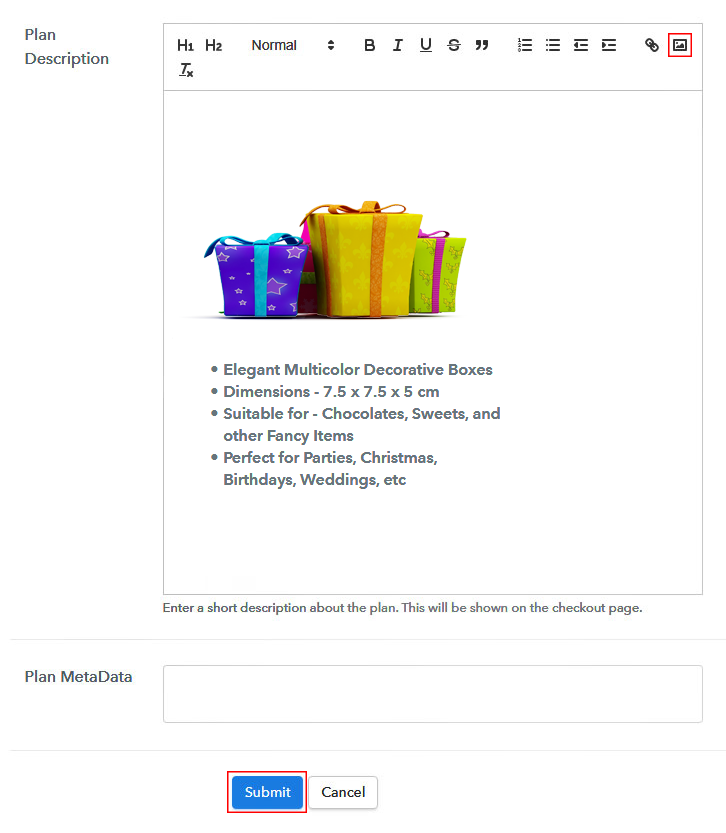
Add Image & Description to Sell Gift Boxes Online

Additionally, now give a brief description of the gift boxes using bullets, images, etc, to the checkout page.

Subsequently, tap on the “Submit” button to add the gift boxes on the checkout page.

Conclusively, you can add multiple plans and kinds of gift boxes in your product list which you want to sell online.

Step 7: Share your Checkout Page

Share Checkout Page on Social Media

  • Further, share the checkout page of the gift boxes on social media accounts like Facebook & Twitter to grab the customer’s attention.
  • Plus, you can share the direct link of the gift boxes checkout page with your customers via SMS or email marketing.
  • Moreover, embed the provided plan link of the gift boxes in the buttons or any anchor text on your website.

Step 8: Preview Checkout Page

Follow up the recommended steps to preview the checkout page:

(a) Click on the View Button

View Checkout Plan

(b) Take a Look at the Checkout Page

Checkout Page to Sell Gift Boxes Online

Step 9: Embed Checkout Page in Site & Sell Gift Boxes Online

Embed Checkout Page on Website

Just copy the link and add the checkout page to sell gift boxes online at any proper place on your WordPress site.

(a) Edit the Page & Paste the Copied Link

Paste Link in Text Editor

Further, paste the plan link of gift boxes on a text editor of the WordPress dashboard.

(b) Save & Publish the Checkout Page

Save_and_Publish

Next, click the “Publish” button, after making changes.

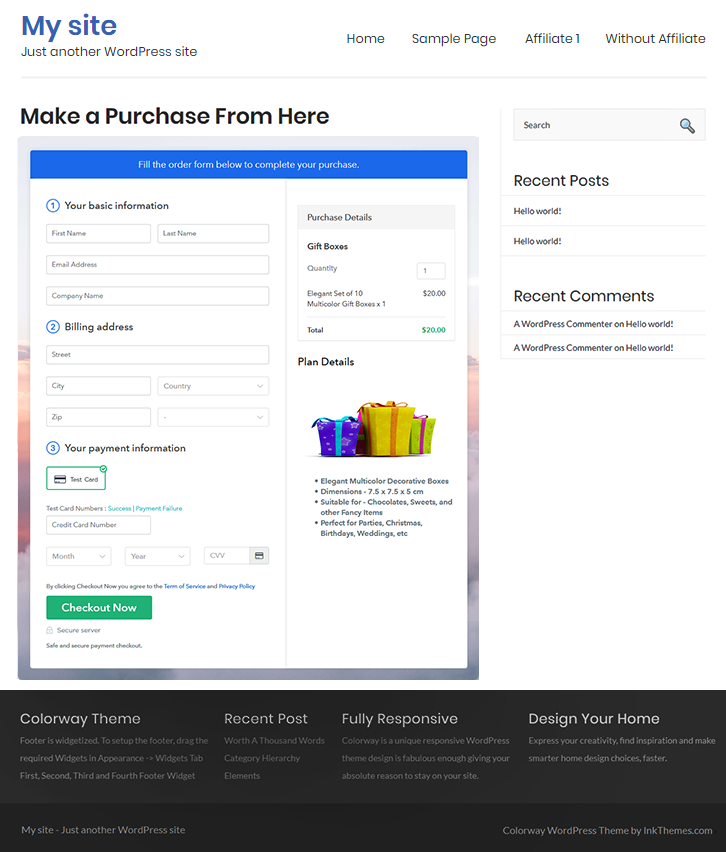
(c) Check out the Final Look of your Checkout Page on WordPress Site

Final Look of your Checkout Page to Sell Gift Boxes Online

Step 10: Multiplan Checkout Page

Note: In case you want to sell multiple products via a single checkout page, you can create a multi-plan checkout page otherwise skip this step.

(a) Click on Add Mutiplan Checkout

Multiplan Checkout

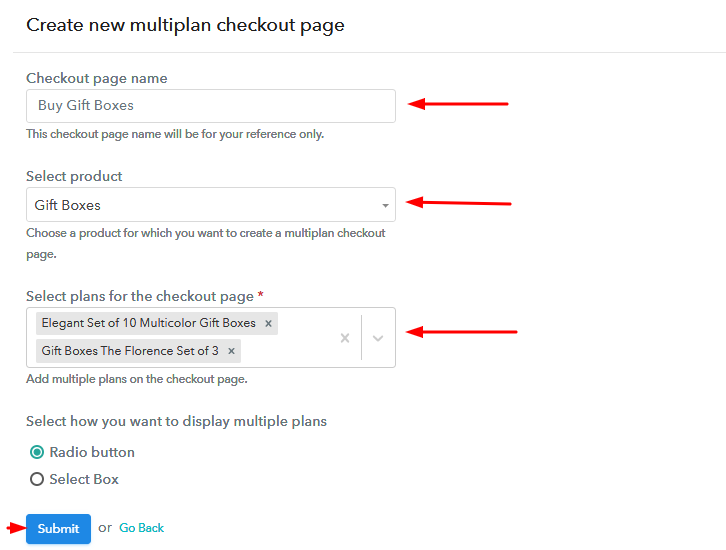
(b) Add Plans to Sell Multiple Gift Boxes from Single Checkout Page

Add Multiple Products to Start Selling Gift Boxes Online

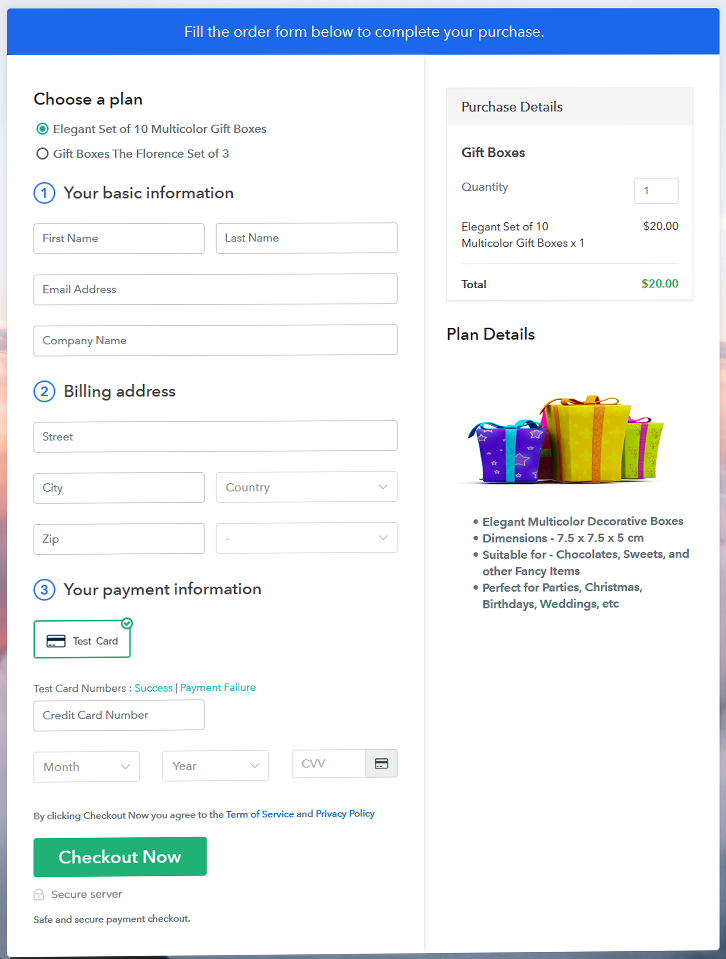
(c) Take a Look at the Checkout Page

Multiplan Checkout Page to Start Selling Gift Boxes Online

Preview Checkout Page

Wrapping Up

Okay! So now you know how easy it is to start gift boxes business online using Pabbly Subscription Billing software. Just go through all the mentioned steps and nothing else. Furthermore, if you have any query or suggestions, write to us in the comment section below, we will get back to you ASAP.

You May Also Like To Read –

How to Sell Gift Cards Online | Step by Step (Free Method)

How to Sell Gift Cards Online

Ideal For: All the gift card merchants, gift card processing companies, gift card vendors, and other sellers can use this method to take their gift cards selling business online.

How to Sell Gift Cards Online

Why Choose this Method To Sell Gift Cards Online?

Unlike any other solution, this method allows you to:

  • List and sell your gift cards for FREE. Absolutely no payment required.
  • No need to pay commission on any of your sales.
  • Multiple payment options like PayPal, Credit Card, etc to collect payment from a single place.
  • Sell one time or recurring subscriptions of your gift cards.
  • Collect payments & sell products in any currency as per your requirement.
  • Give discounts on your products by offering special coupon codes.
  • Add sales commission agents to help you in selling gift cards online.

Get Pabbly Subscription Billing for Free

Sometimes it gets very difficult for people to choose a gift for their loved ones and that’s why they prefer gift cards. By giving someone gift cards you give them freedom of choosing the gifts of their choice. Hence, if you sell gift card then you should definitely take your gift cards selling business online. Starting your gift cards selling business online is easier than opening a new shop and promoting it. Even if you don’t have any money to start your business that’s when online platforms come into play.

You can easily give your gift cards selling business a headstart by taking it online without investing anything. Pabbly Subscription Billing is a platform through which you can sell unlimited gift cards and generate unlimited profit without any restrictions. You can add unlimited products and plans, create coupons and discounts and so much more.
Also, its checkout page is very beneficial for your business. You just have to create it and share its link on your website or on social media and your customers can make purchases directly through it.

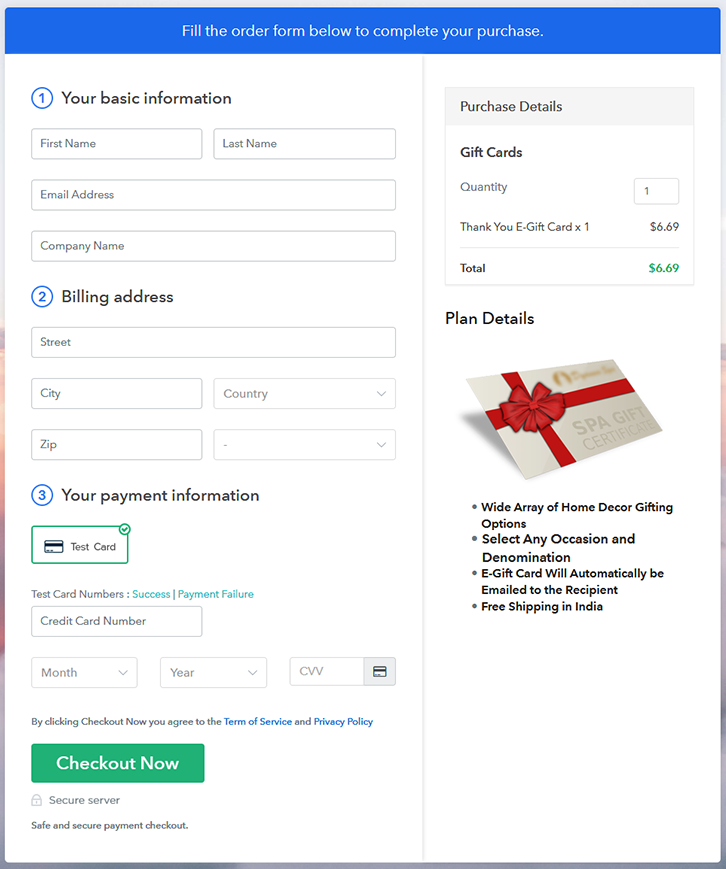
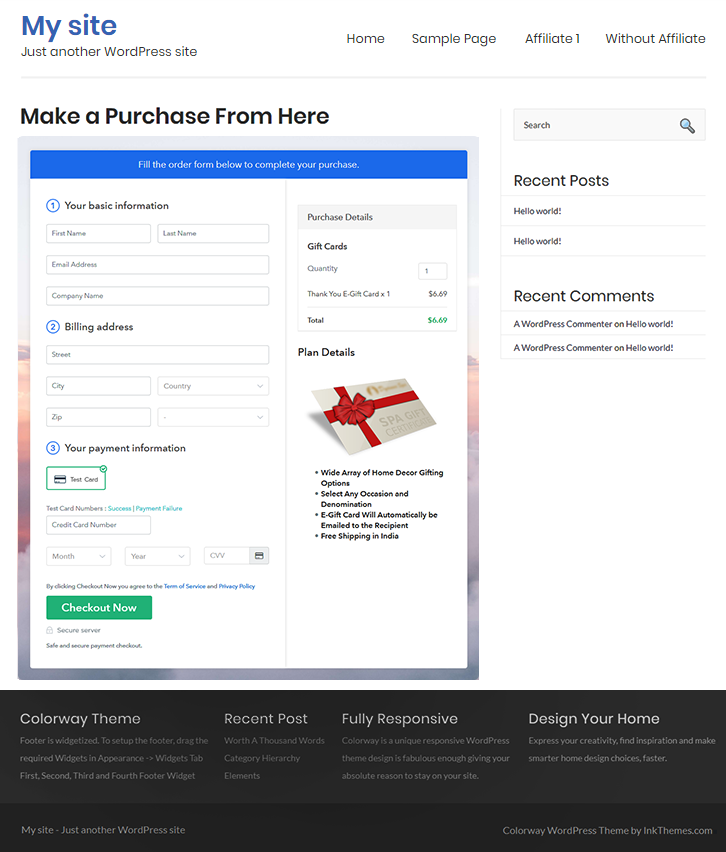
Final View of Checkout Page For Your Gift Cards Selling Business

Preview Checkout Page

Preview Checkout Page

Step 1: Log in to Pabbly Subscription Billing

Signup

Let’s start with visiting Pabbly Subscription Billing website and then click on the “Sign Up Free” button. After clicking the button, you will reach to the signup page, where you can create your account within a few seconds with your Gmail or manually enter your details.

Sign Up For Free!

Step 2: Select Subscription Billing

Access Subscription Billing

Step 3: Account Setup

Setup Account

After you have completed the signup process, now fill up your company details i.e. company name, currency, and contact number in the shown dialogue box.

Step 4: Connect Payment Gateways & Start Gift Cards Selling Business Online

Connect Payment Gateway

Here, the payment collection process is described by enabling the ‘Test Payment’ mode. Further, you can connect with other payment gateways that such as PayPal, Stripe, etc whichever you prefer. The complete integration guide for payment gateways is provided below-

Step 5: Add Product For Your Gift Cards

Add Product

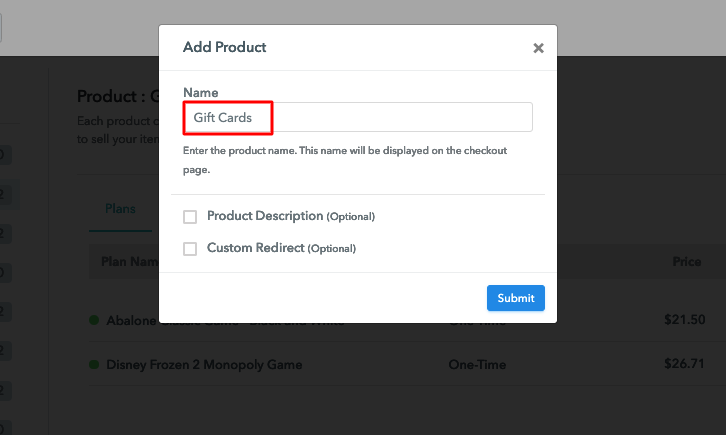
Moving on to this step, now you have to add your first product. You can add gift cards of different categories for example thank you gift card, birthday gift card, etc.

Sell Gift Cards Online Product Name

Add all other types of gift cards in the same product by creating different plans.

Note: Here you can add all the products related to the similar category by creating plans for each of them.

Step 6: Add Plans 

Let’s rollout plans for different kinds of gift cards available in your store.

(a) Select Add New Plan

Add Plan

(b) Specify the Plan & Pricing Details

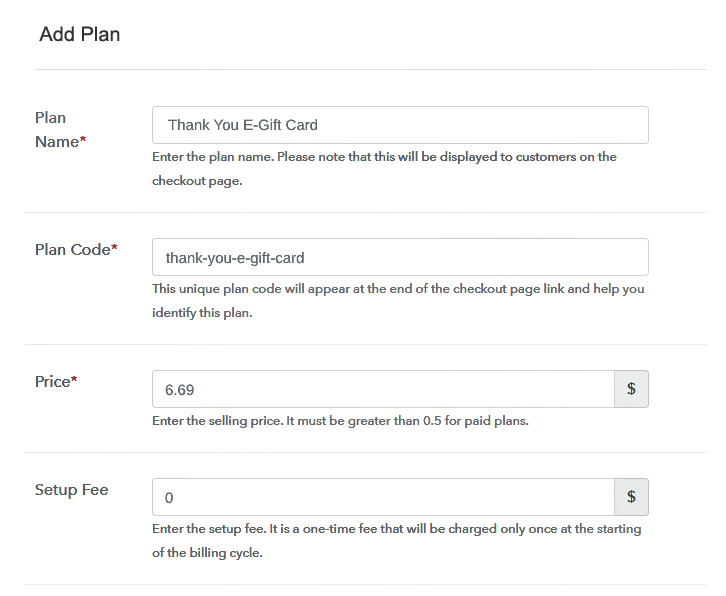
Sell Gift Cards Online Details

Once you click “Add New Plan” button, you will land on the plan page, here you will have to fill the plan details such as plan name, code, billing cycle, price, etc.

(c) Add Image & Description of Gift Cards

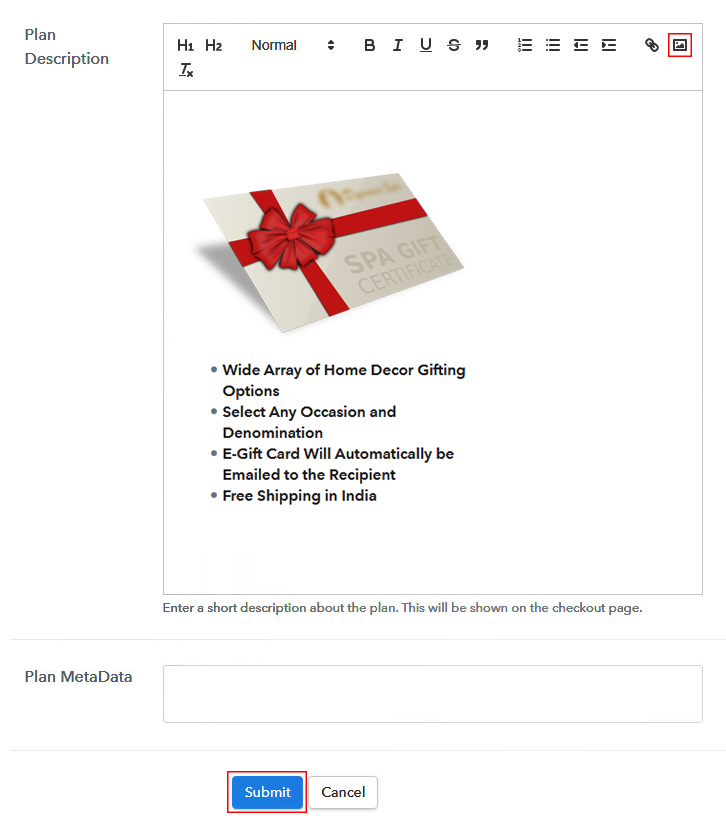
Sell Gift Cards Online Image

Furthermore, write a description of the gift cards that you want to sell along with the product links, images, etc, and click on the submit button to add your plan.
You can create more plans for all the other gift cards similarly.

Step 7: Share your Checkout Page

Share Checkout Page on Social Media

  • To increase your sales share your checkout page on social media like Facebook and Twitter.
  • Also, copy the mentioned link and send it to your customers through SMS or emails directly.
  • Embed your plan link to your website so that your customers can be landed on the checkout page directly.

Step 8: Preview Checkout Page

Follow up the recommended steps to preview the checkout page:

(a) Click on the View Button

View Checkout Plan

(b) Take a Look at the Checkout Page

Preview Checkout Page

Step 9: Embed Checkout Page in Site & Sell Gift Cards Online

Embed Checkout Page on Website

Just copy the provided plan embedding link and embed the checkout page to your WordPress site to sell gift cards online.

(a) Edit the Page & Paste the Copied Link

Embed Checkout Page on Website

Further, paste the plan link on a text editor of the WordPress dashboard.

(b) Save & Publish the Checkout Page

Save_and_Publish

Next, click the “Publish” button, after making changes.

(c) Check out the Final Look of your Checkout Page on WordPress Site

Sell Gift Cards Online Website

Step 10: Multiplan Checkout Page

Note: In case you want to sell multiple products via a single checkout page, you can create a multi-plan checkout page otherwise skip this step.

(a) Click on Add Mutiplan Checkout

Multiplan Checkout

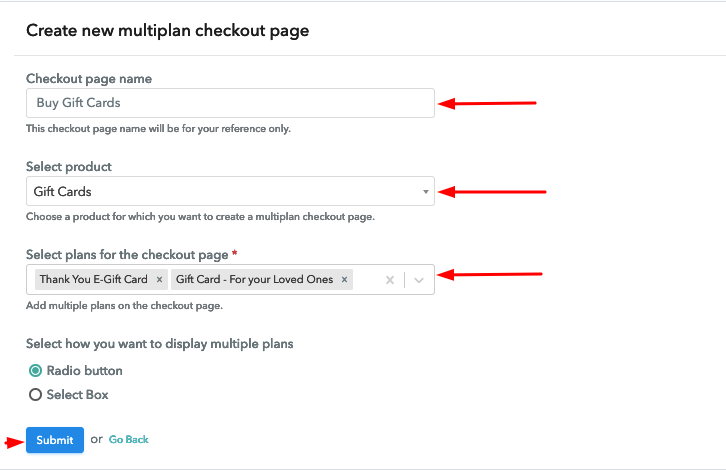
(b) Add Plans to Sell Multiple Gift Cards from Single Checkout Page

Sell Gift Cards Online Multi Details

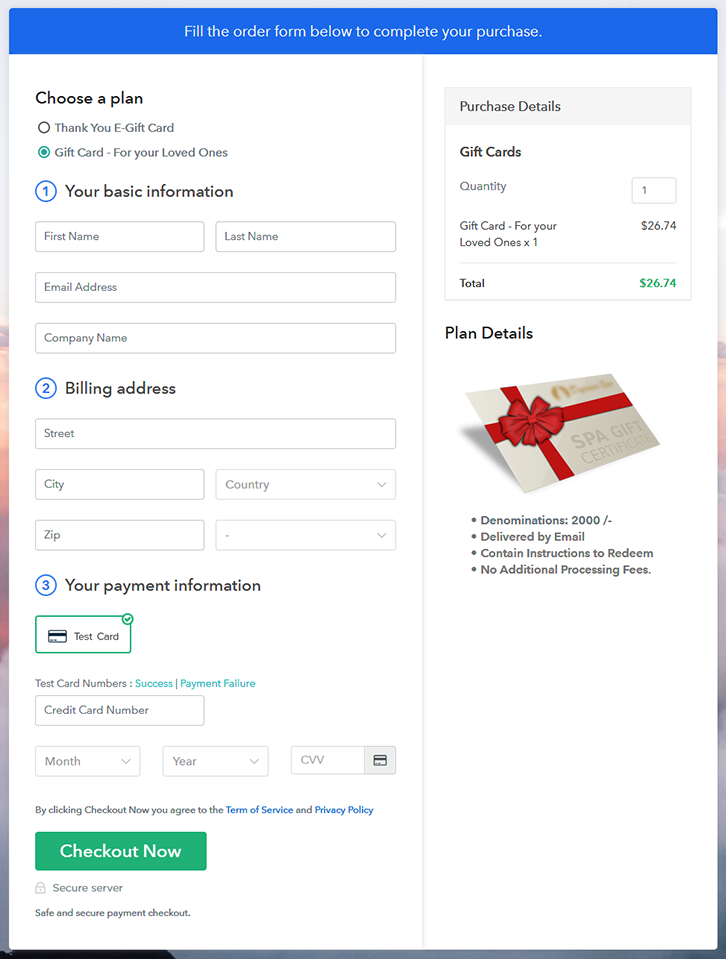
(c) Take a Look at the Checkout Page

Sell Gift Cards Online Multi Checkout

Preview Checkout Page

Wrapping Up

At the completion, we hope that this blog was helpful for you making your decisions for your online business. With Pabbly Subscription Billing you can do so much and that too for free, like collect payments, share invoices, sell unlimited gift cards and the list goes on. Therefore, get up, register now, and start selling. For further queries or suggestions, please contact leave your comments below.

You May Also Like To Read –