How To Sell Vintage Clothing Online | Step by Step (Free Method)

How to Sell Vintage Clothing Online

Ideal For: All vintage manufacturers, sellers, retail cloth shop owners, vintage wholesale vendors, and other merchants can use this method to start selling vintage clothing online.
How to Sell Vintage Clothing Online

Why Choose this Method To Sell Vintage Clothing Online?

Unlike any other solution, this method allows you to:

  • List and sell your vintage clothing for FREE. Absolutely no payment required.
  • No need to pay commission on any of your sale.
  • Multiple payment options like PayPal, Credit Card, etc to collect payment from a single place.
  • Sell one time or recurring subscriptions of your vintage clothing.
  • Collect payments & sell products in any currency as per your requirement.
  • Give discounts on your products by offering special coupon codes.
  • Add sales commission agents to help you in selling vintage clothing online.

Get Pabbly Subscription Billing for Free

It’s not a coincidence that vintage clothing stores have increased when the world is shifting towards sustainable ways of living. After all, what better than to take it back a few decades, following sustainable and eco-friendly shopping. Vintage clothing holds unique value in your wardrobe.

If you feel the need to start selling vintage clothing then you’re at the right place. Here, in this article, we’ll guide you to sell the vintage clothing online through Pabbly Subscription Billing. This software lets you create unlimited products and plans for your vintage clothes without charging any extra fees or transaction charge, With this, you can sell vintage clothing by just creating a checkout page and showing your product on it. Besides this, you can also collect unlimited payments through multiple payment gateways. Some of its advanced features include:

  • Track & record payments
  • Tax management
  • Collect online & offline payments
  • Apply coupons & discounts

Final View of Checkout Page For Your Vintage Clothing Selling Business
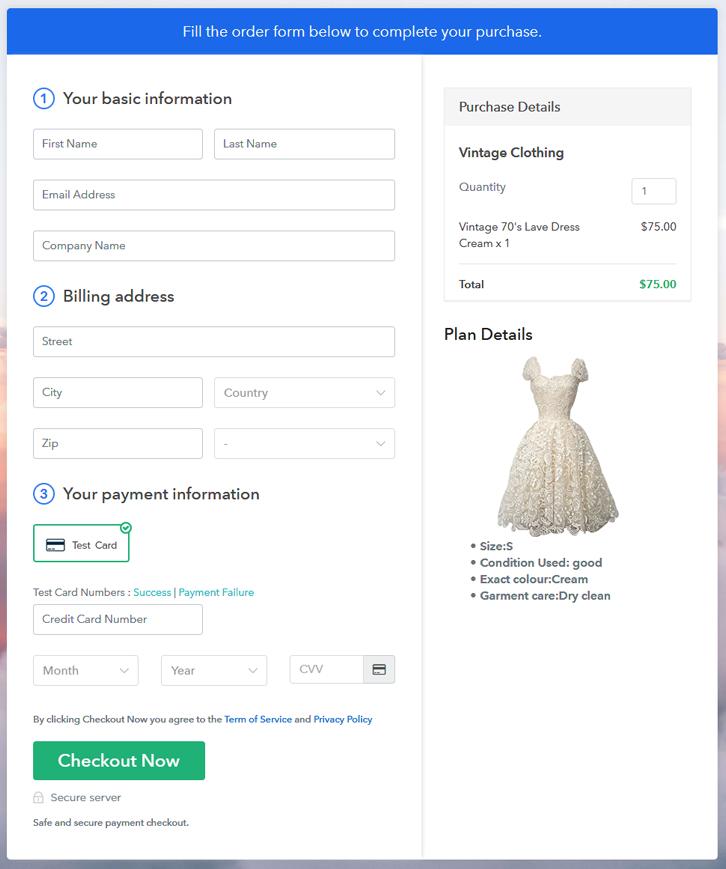
Preview Checkout Page - Sell Vintage Clothing Online

Preview Checkout Page

Step 1: Log in to Pabbly Subscription Billing
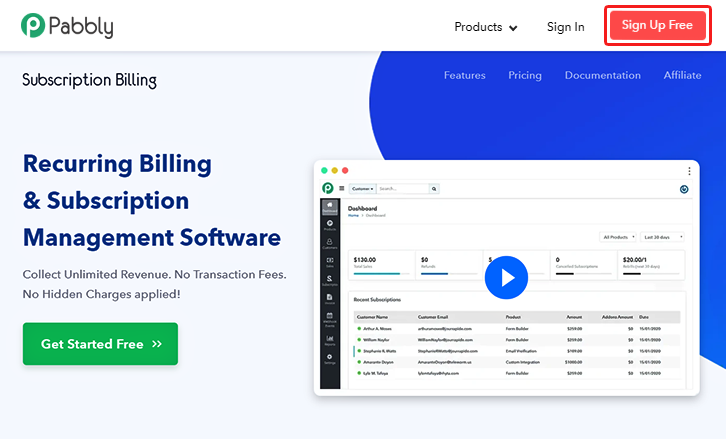
Signup

Browse, Pabbly Subscription Billing and click on the button “Sign up Free”. When you click on the button, a sign-up page will open on the screen. Fill in the required fields or simply sign in using your existing Gmail account.

Sign Up For Free!

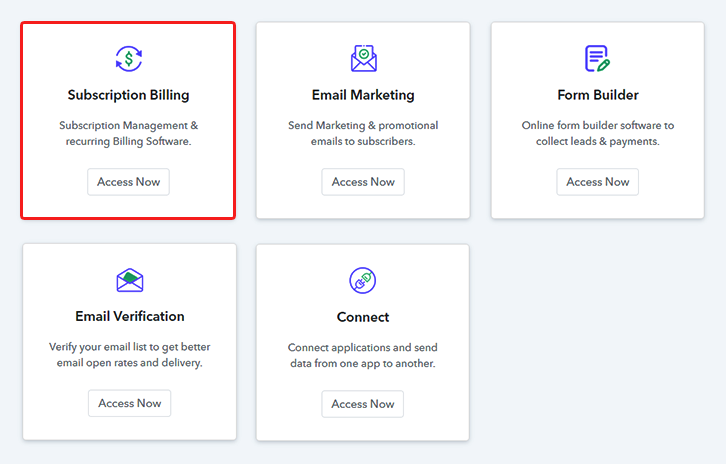
Step 2: Select Subscription Billing

Access Subscription Billing

Step 3: Account Setup
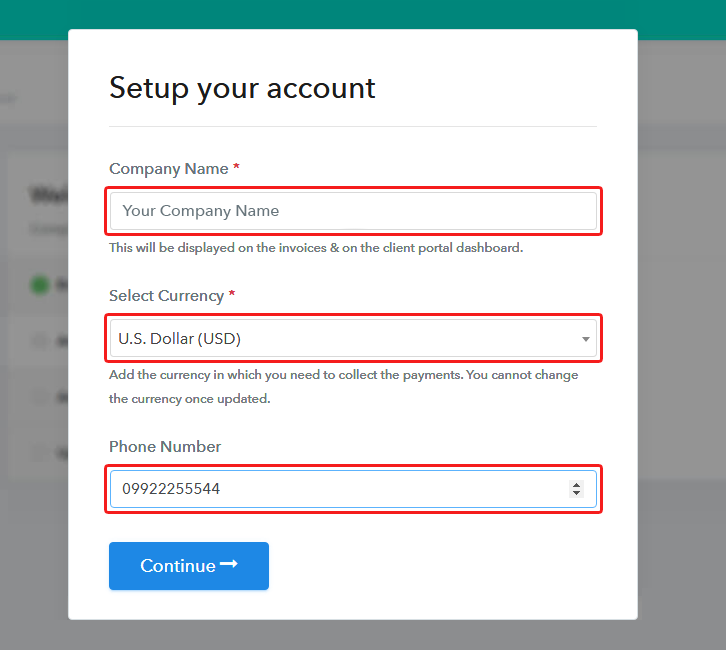
Setup Account

Once you enter into the dashboard, click on “Access Now” on the Subscription billing option. A dialog will appear, you need to fill the company details like name, currency standards, and phone number. Hit on continue button to complete the process.

Step 4: Connect Payment Gateways & Start Vintage Clothing Selling Business Online
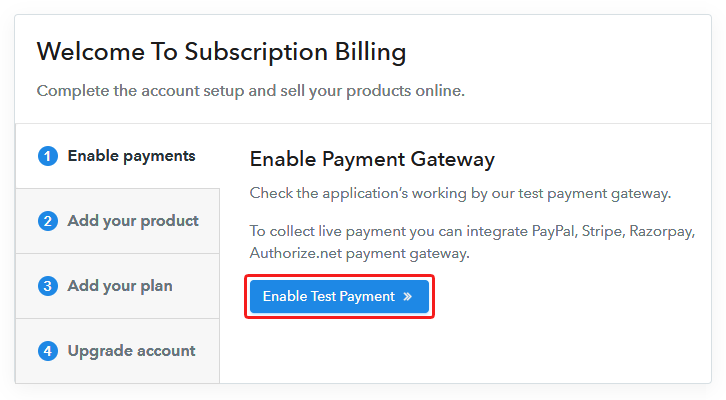
Connect Payment Gateway

If you are a beginner and want to know about the payment collection process, you can enable the test payment mode for the first time and check the payment collection process. Further, you have to connect other payment gateways. The complete integration guide for payment gateways is provided below.

Step 5: Add Product For Your Vintage Clothing
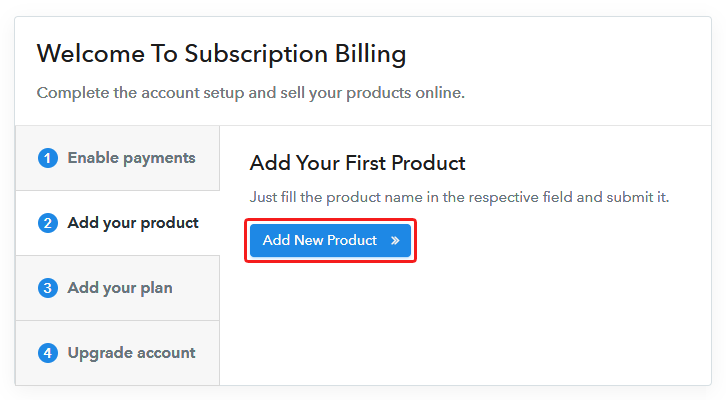
Add Product

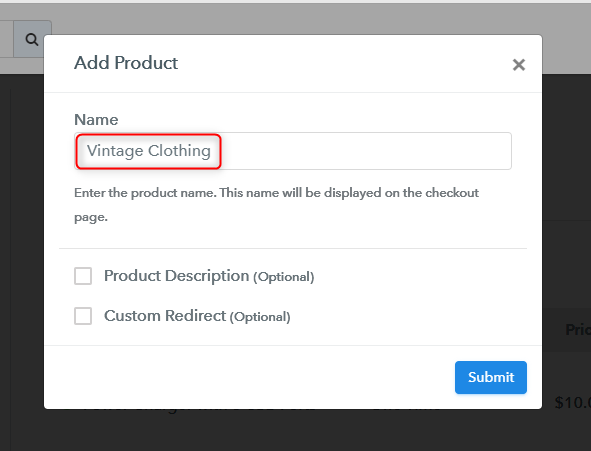
After enabling payment mode, you have to add your product. You can add vintage clothes of different categories like wedding dress, gown, skirts, etc. Moreover, you can add all other types of vintage clothing in the same product by creating different plans.

Add Product

Just by filling up these details, your product section is created.

Note: Here you can add all the products related to the similar category by creating plans for each of them.

Step 6: Add Plans 

Let’s rollout plans for different kinds of vintage clothing available in your store.

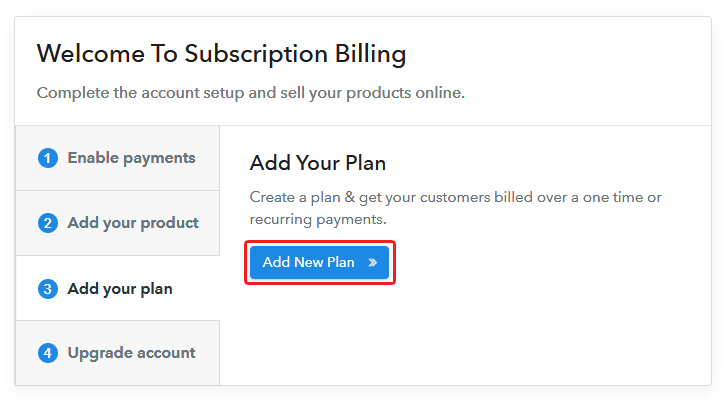
(a) Select Add New Plan

Add Plan

(b) Specify the Plan & Pricing Details
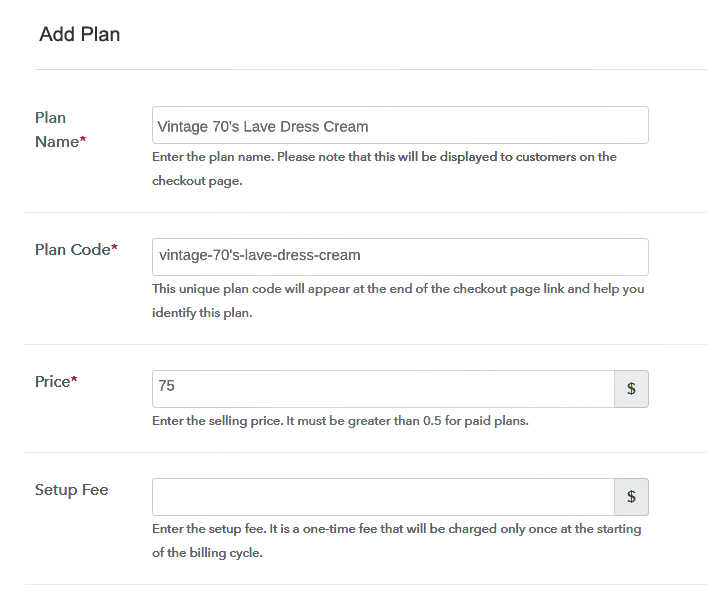
Add Plan

After adding a plan, you are landed on the plan page, where you will have to fill the plan details such as plan name, code, billing cycle, price, description, etc.

(c) Add Image & Description of Vintage Clothing
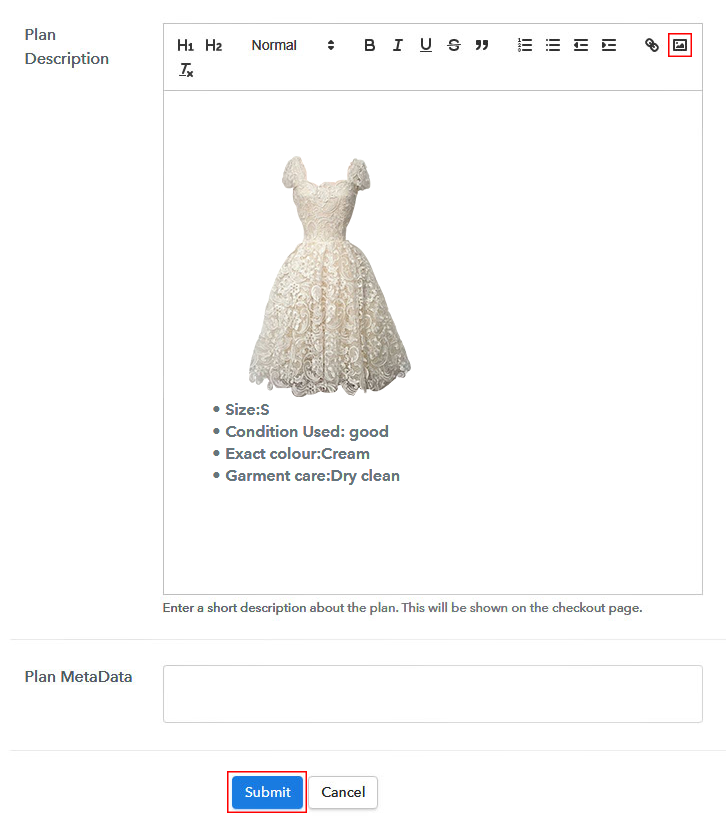
Add Product Image

Now after adding the plan, you also have to write a description of the vintage clothes along with the product links, images, etc. Click on the “Submit” button to add your plan.

You can create more plans for all the vintage clothing in a similar manner.

Step 7: Share your Checkout Page

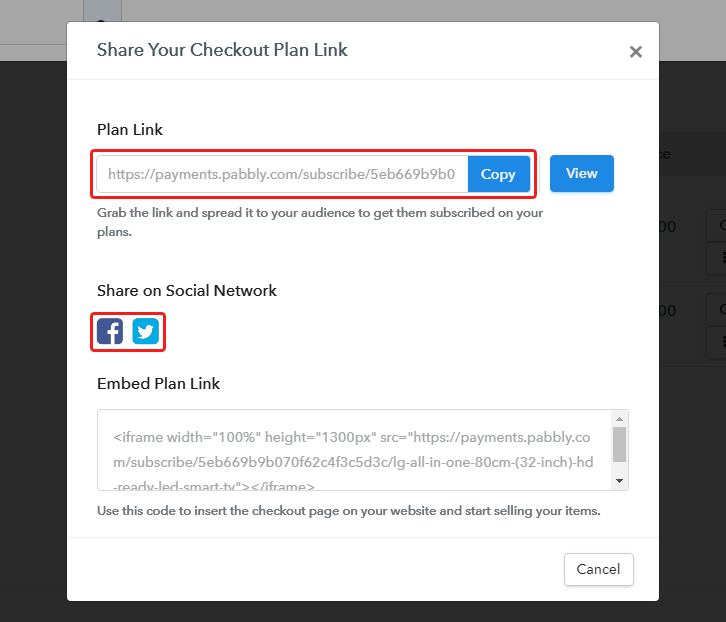
Share Checkout Page on Social Media

  • Share your checkout page on social networking sites such as Facebook and Twitter.
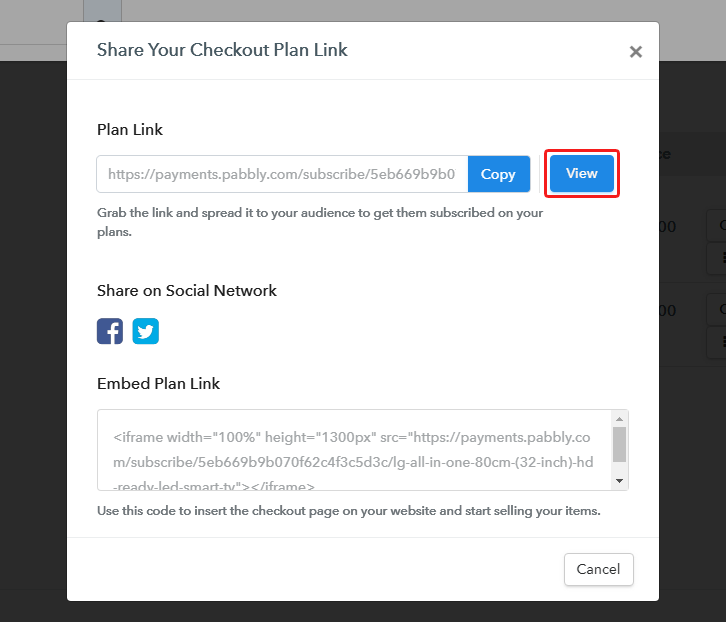
  • Copy the given link and send it to your customers via SMS or emails directly.
  • Embed your plan link to your website so that your customers can be redirected to the checkout page.

Step 8: Preview Checkout Page

Follow up the recommended steps to preview the checkout page:

(a) Click on the View Button

View Checkout Plan

(b) Take a Look at the Checkout Page
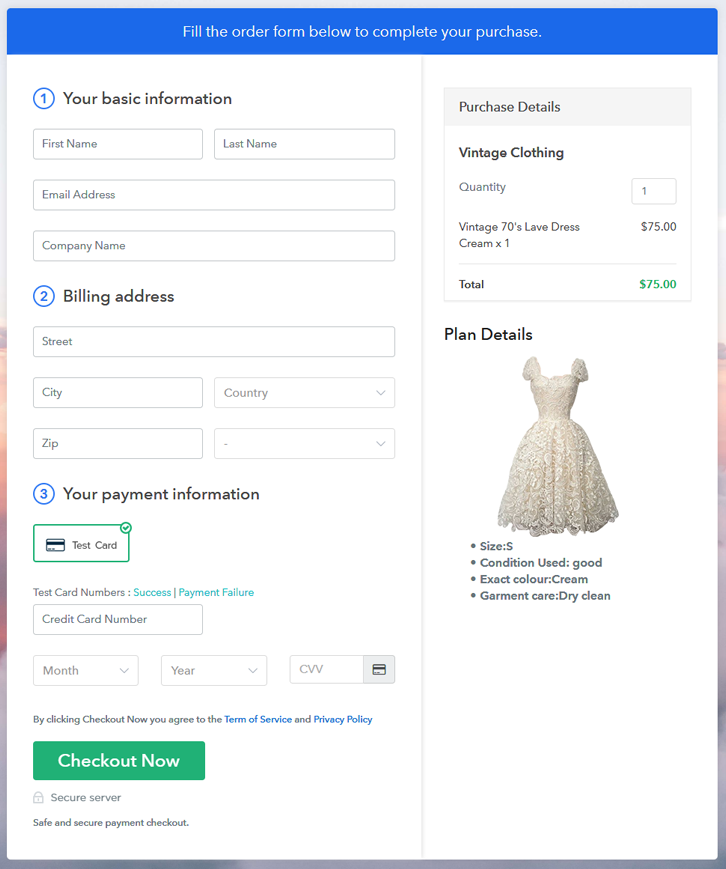
Preview Checkout Page - Sell Vintage Clothing Online

Step 9: Embed Checkout Page in Site & Sell Vintage Clothing Online
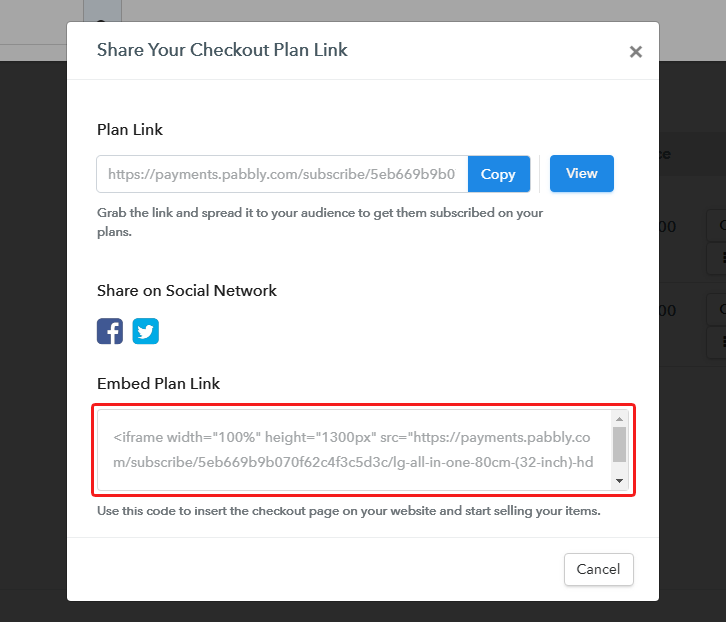
Embed Checkout Page on Website

Easily copy the provided plan embedding link and embed the checkout page to your WordPress site.

(a) Edit the Page & Paste the Copied Link
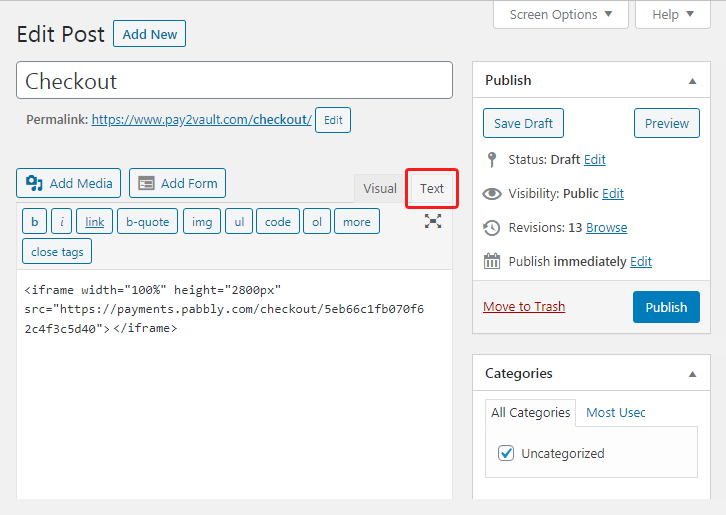
Embed Checkout Page on Website

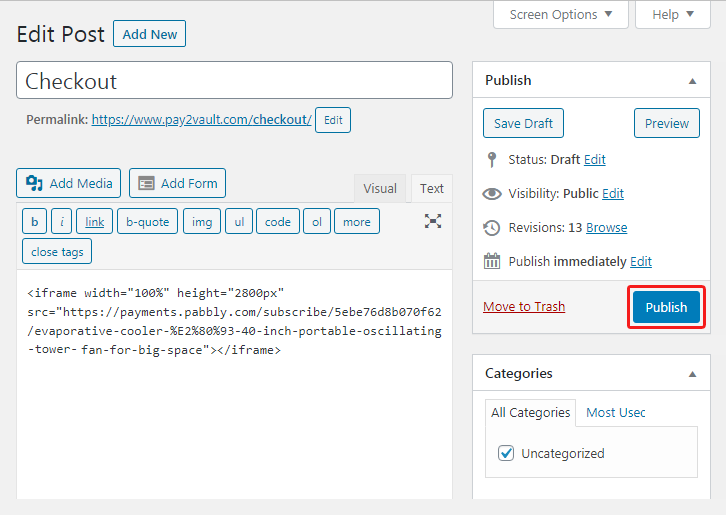
Further, paste the plan link on a text editor of the WordPress dashboard.

(b) Save & Publish the Checkout Page

Save_and_Publish

Next, click the “Publish” button, after making changes.

(c) Check out the Final Look of your Checkout Page on WordPress Site
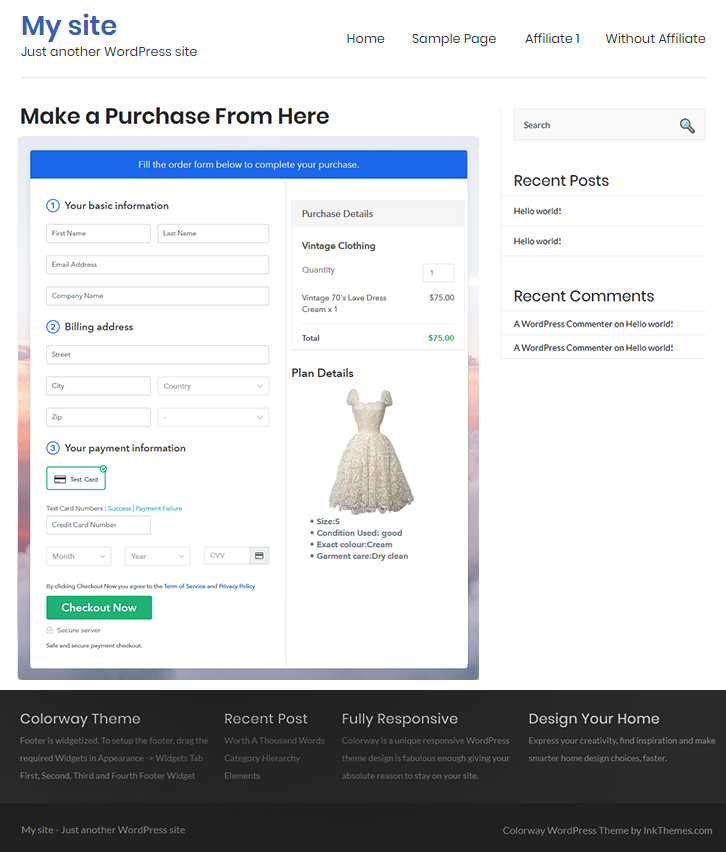
Preview Checkout Page on WordPress Site

Step 10: Multiplan Checkout Page

Note: In case you want to sell multiple products via a single checkout page, you can create a multi-plan checkout page otherwise skip this step.

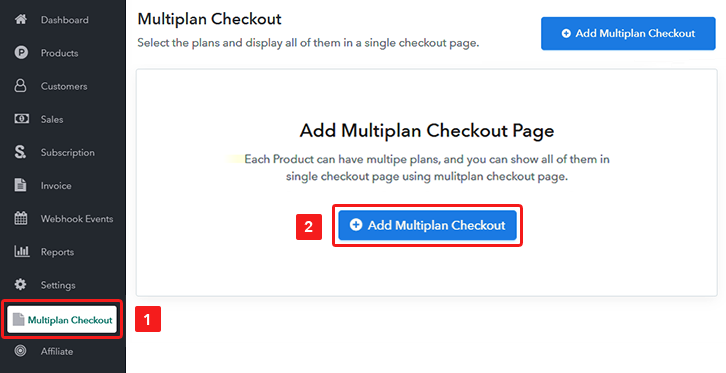
(a) Click on Add Multiplan Checkout

Multiplan Checkout

(b) Add Plans to Sell Multiple Vintage Clothing from Single Checkout Page
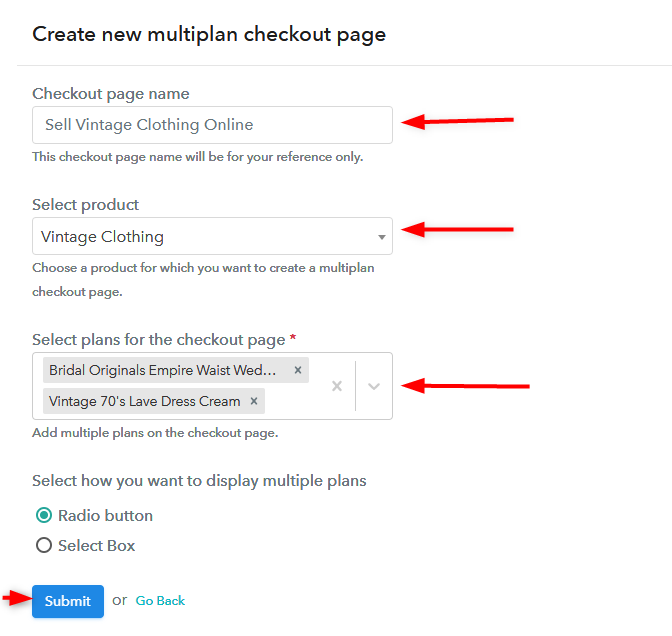
Create MultiPlan Checkout Page

(c) Take a Look at the Checkout Page
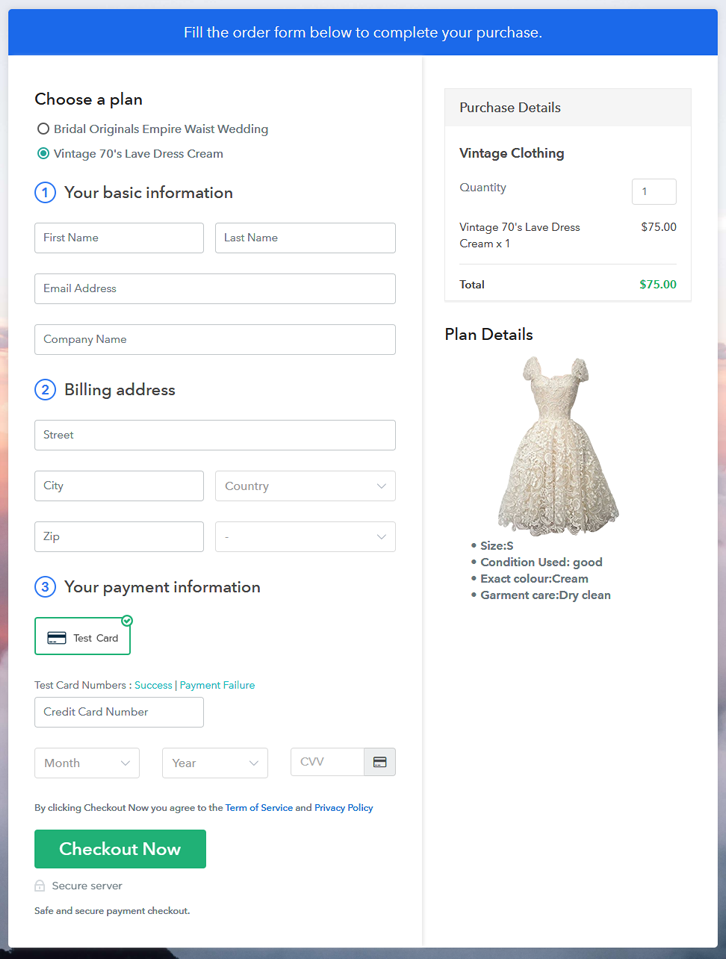
Preview Multiplan Checkout Page - Sell Vintage Clothing Online

Preview Checkout Page

Wrapping Up

This article is for everyone who loves vintage clothing. Vintage is more classic and it has always been there from the past and it will continue to maintain its place in fashion even in the future. So, just follow these steps and start your own business of selling vintage clothing online with Pabbly Subscription Billing. Furthermore, you can always collect payments in any currencies thus expanding your business footprint.

For any queries drop a comment below.

You May Also Like To Read –
How to Sell Water Pumps Online | Step by Step (Free Method)

How to Sell Water Pumps Online

Ideal For: All the water pump manufacturers, water pump sellers, retail water pump shop owners, and other merchants can use this method to take their water pumps selling business online.

How to Sell Water Pumps Online

Why Choose this Method to Sell Water Pumps Online?

Unlike any other solution, this method allows you to:

  • List and sell your water pumps for FREE. Absolutely no payment required.
  • No need to pay commission on any of your sale.
  • Multiple payment options like PayPal, Credit Card, etc to collect payment from a single place.
  • Sell one time or recurring subscriptions of your water pumps.
  • Collect payments & sell products in any currency as per your requirement.
  • Give discounts on your products by offering special coupon codes.
  • Add sales commission agents to help you in selling water pumps online.

Get Pabbly Subscription Billing for Free

Water pumps are used to pull water from the ground. There are many variants of it used worldwide. And if you are planning to sell water pumps online then we can suggest a better method to get started.

In this blog, I’ve explained the process of checkout page creation step-by-step for selling water pumps online. You can use these checkout pages to showcase your water pumps as well as collect payments for the sold ones.

Moreover, you can easily manage the sales procedure using Pabbly Subscription Billing dashboard and automate invoicing. also, you can share the checkout pages on social media and other link sharing platforms like Messenger, SMS, emails, Facebook, WhatsApp etc.

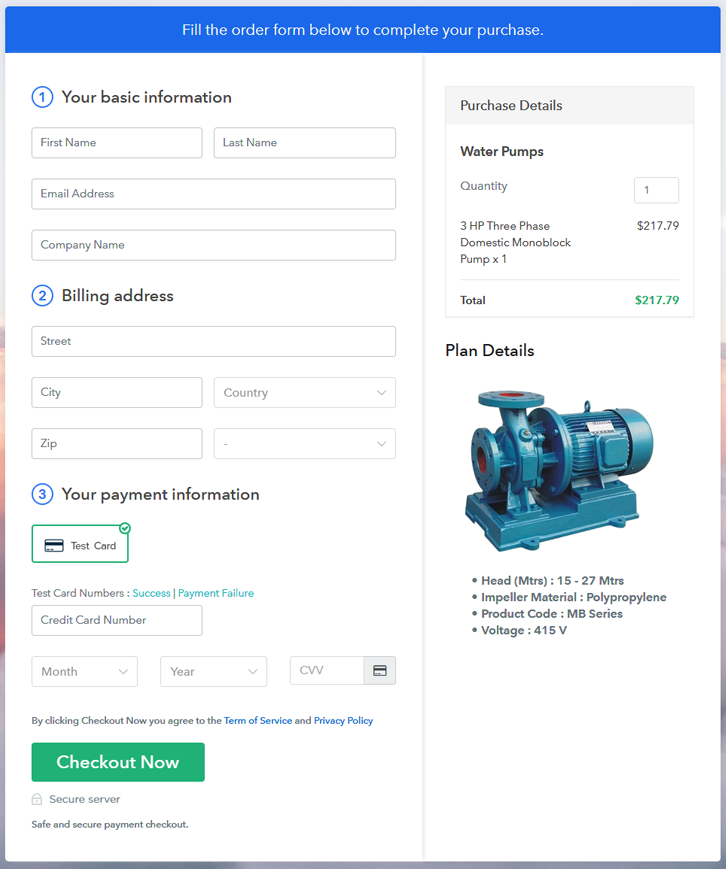
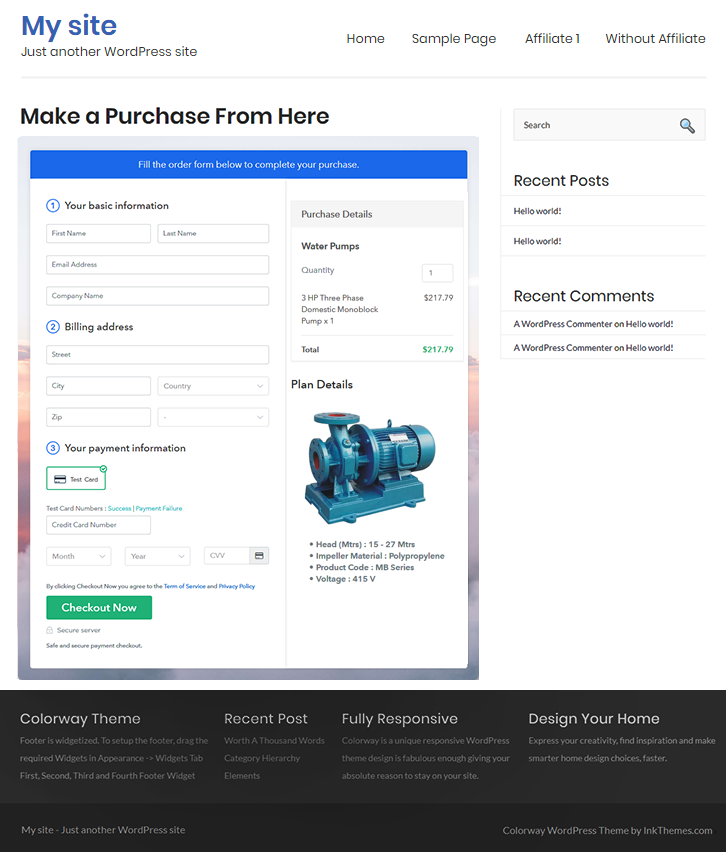
Final View of Checkout Page for your Water Pumps Selling Business

Checkout Page Preview to Sell Water Pumps Online

Preview Checkout Page

Step 1: Log in to Pabbly Subscription Billing

Signup

Firstly, go to Pabbly Subscription Billing and hit the ‘Sign Up Free‘ button there. On the registration page redirect, either sign-up using a Gmail ID or do manual registration by filling out the form details.

Sign Up For Free!

Step 2: Select Subscription Billing

Access Subscription Billing

Step 3: Account Setup

Setup Account

In this pop-up pane, fill out the company information required such as your company name, the currency you prefer and a contact number.

Step 4: Connect Payment Gateways & Start Water Pumps Selling Business Online

Connect Payment Gateway

Next step is integrating a payment method to secure payments. There is an alternative choice to enable the test payment mode just for testing. However, you’ll need to choose & integrate a payment gateway from the following selections to start collecting actual payments for the sold water pumps.

Step 5: Add Product for your Water Pumps

Add Product

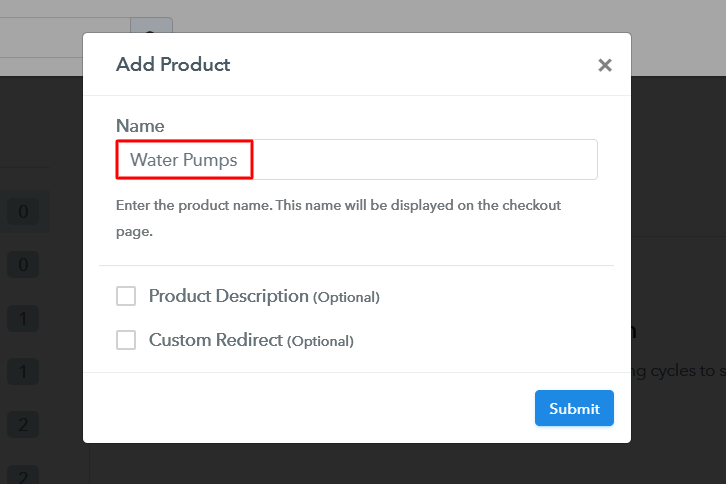
All the system settings are done up to this point and you can start adding products. Strike the ‘Add New Product’ button & name a water pump category. Further, we’ll add plans to the created products.

Add Product to Sell Water Pumps Online

Hit ‘Submit’ on this page & a product will be added in the list.

Note: Here you can add all the products related to the similar category by creating plans for each of them.

Step 6: Add Plans 

Now, let’s start making plans for the different models of water pumps available in your store.

(a) Select Add New Plan

Add Plan

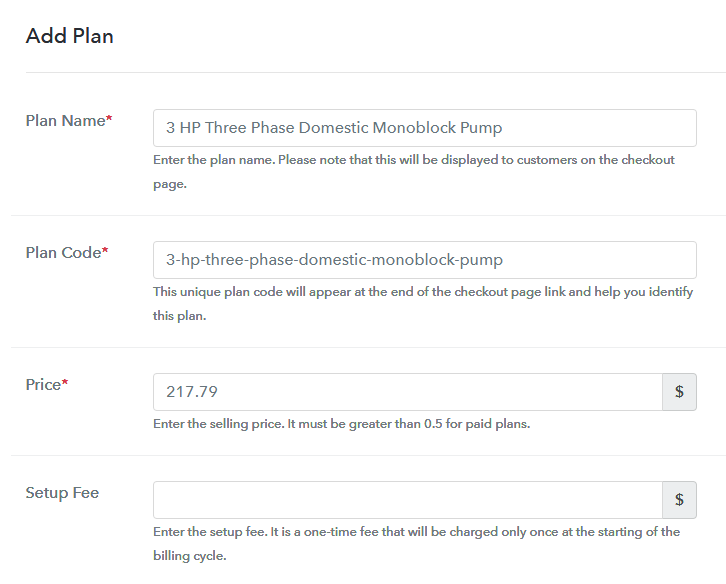
(b) Specify the Plan & Pricing Details

Add Plan to Sell Water Pumps Online

You can define a water pump’s name, it’s code, pricing & other essential details in the plan description page.

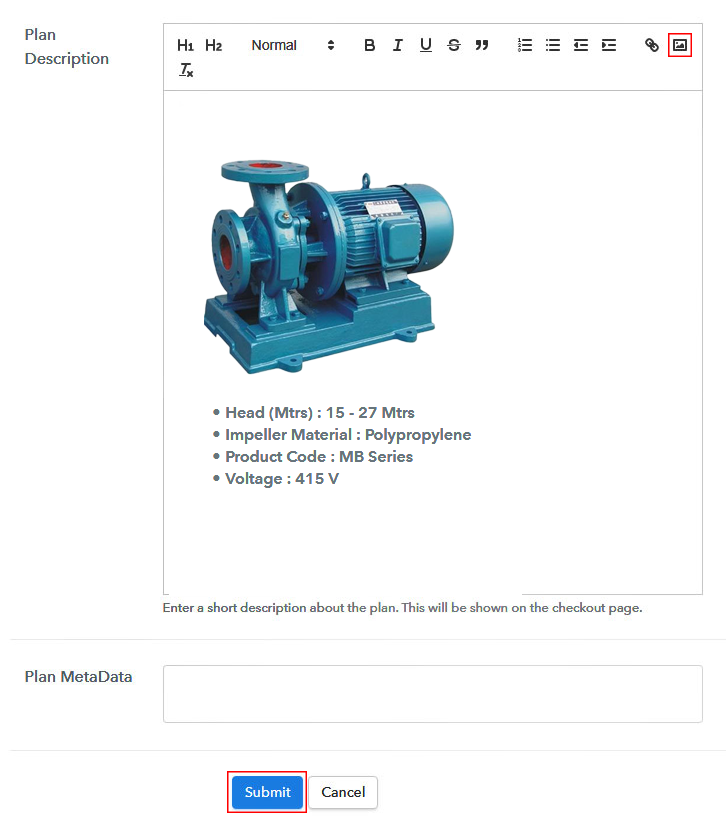
(c) Add Image & Description of Water Pumps

Add Image & Description to Sell Water Pumps Online

Moreover, you can also put an image of the water pump & its features.

Once you click ‘Submit’ on this page a plan will be added immediately and a checkout page to sell water pumps online is created.

Similarly, you can add other water pumps as well.

Step 7: Share your Checkout Page

Share Checkout Page on Social Media

For selling water pumps online, you can share a checkout page with your clients & obtain payments using three ways.

  • First, you can click on the Facebook & Twitter socials icons to share the checkout pages
  • Second, you can share the plan link URL over all the other link sharing channels such as SMS, WhatsApp, emails etc with your buyers.
  • Third, to redirect a customer over the payment checkout page, you can link the plan link of a product within the buttons & text anchors of any website or app

Step 8: Preview Checkout Page

Follow up the recommended steps to preview the checkout page:

(a) Click on the View Button

View Checkout Plan

(b) Take a Look at the Checkout Page

Checkout Page Preview to Sell Water Pumps Online

Step 9: Embed Checkout Page in Site & Sell Water Pumps Online

Embed Checkout Page on Website

Just copy the link and add the checkout page to sell water pumps online at any preferable place on your WordPress site.

(a) Edit the Page & Paste the Copied Link

Embed Checkout Page on Website

Further, paste the plan link on a text editor of the WordPress dashboard.

(b) Save & Publish the Checkout Page

Save_and_Publish

Next, click the “Publish” button, after making changes.

(c) Check out the Final Look of your Checkout Page on WordPress Site

Checkout Page On WordPress Site to Sell Water Pumps Online

Step 10: Multiplan Checkout Page

Note: In case you want to sell multiple products via a single checkout page, you can create a multi-plan checkout page otherwise skip this step.

(a) Click on Add Mutiplan Checkout

Multiplan Checkout

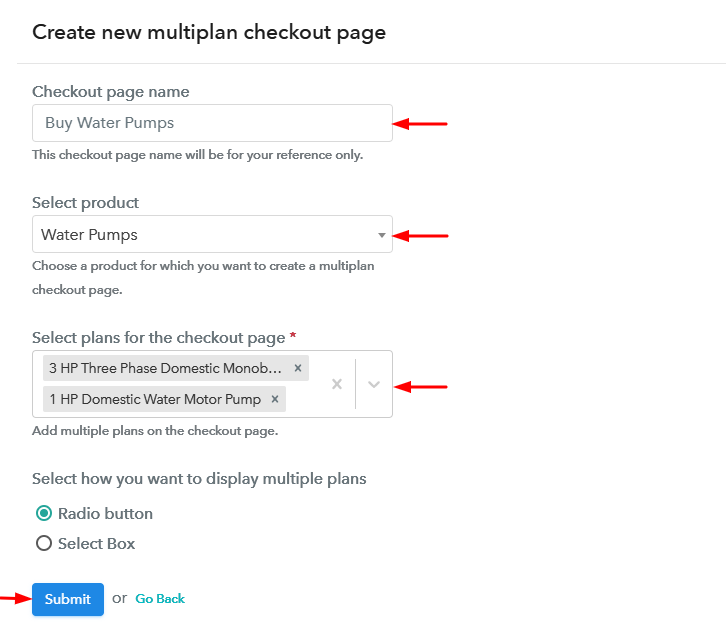
(b) Add Plans to Sell Multiple Water Pumps from Single Checkout Page

Create Multiplan Checkout Page to Sell Water Pumps Online

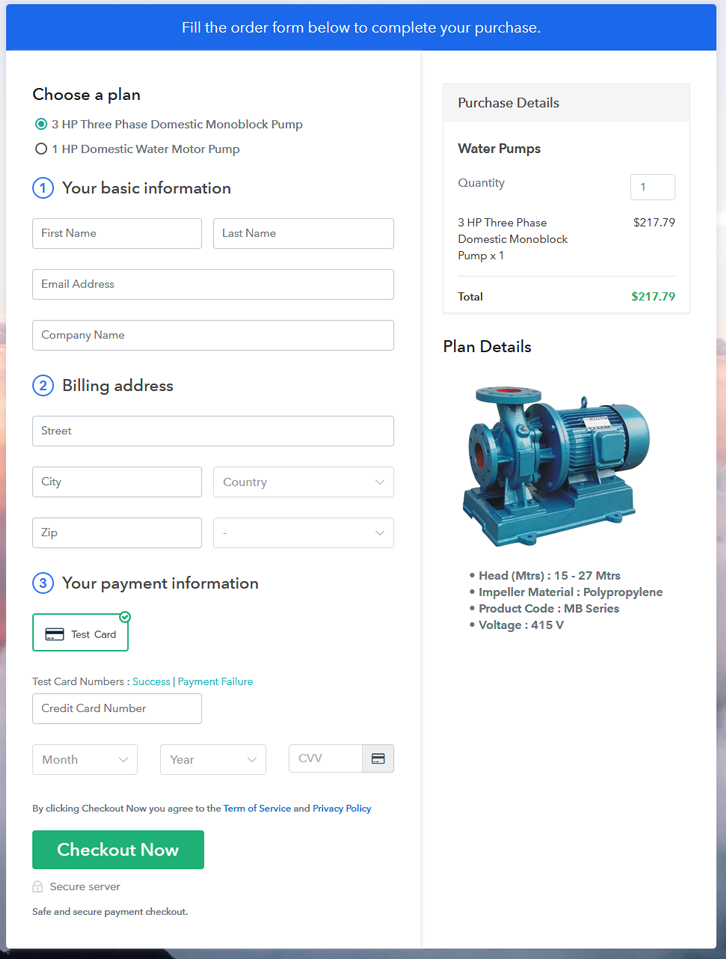
(c) Take a Look at the Checkout Page

Multiplan Checkout Page to Sell Water Pumps Online

Preview Checkout Page

Wrapping Up

This was my take on ‘How to sell water pumps online?’. Both the small as well as large business can use this service to start water pumps business online and become a player in the online market. Additionally, the management also suits all water pump selling needs. I personally like the multiple currencies & gateways choices of Pabbly Subscription Billing.

You May Also Like To Read –
How To Sell Water Tanks Online | Step by Step (Free Method)

Ideal For: All the water tank sellers, water tank shop owners, water tank manufacturers, and other merchants can use this method to sell water tanks online.

 How To Sell Water Tanks Online

Why Choose this Method to Sell Water Tanks Online?

Unlike any other solution, this method allows you to:

  • List and sell your water tanks for FREE. Absolutely no payment required.
  • No need to pay commission on any of your sale.
  • Multiple payment options like PayPal, Credit Card, etc to collect payment from a single place.
  • Sell one time or recurring subscriptions of your water tanks.
  • Collect payments & sell products in any currency as per your requirement.
  • Give discounts on your products by offering special coupon codes.
  • Add sales commission agents to help you in selling water tanks.

Get Pabbly Subscription Billing for Free

Due to high water consumption in the cities, many families do not get a good flow of running water for household consumption. This problem is particularly acute in regions like California, Sub Saharan cities, the whole Middle East, Asia, etc. So to stabilize the water levels people are using water tanks. That is why this market for water tanks is growing at an appreciable rate of 5.8% annually. Now, as a manufacturer, you should consider selling water tanks online to get business orders from these areas.

Besides, there is a huge upside for selling water tanks online. For instance, you can easily get rid of the stockpiles before the season ends. Furthermore, there are other benefits like higher scalability, 24×7 open online shop, revenue tracking, etc. Keeping in regard with these features and low prices in mind, we will recommend Saas tool called Pabbly Subscription Billing. This software lets you generate awesome checkout pages to sell water tanks online. Have a look at some other important features:

  • Generate Unlimited Revenue
  • Tracking Revenues
  • Auto Email Alerts
  • Custom Domain

So, let’s begin to create a checkout page to sell water tanks online with Pabbly Subscription Billing.

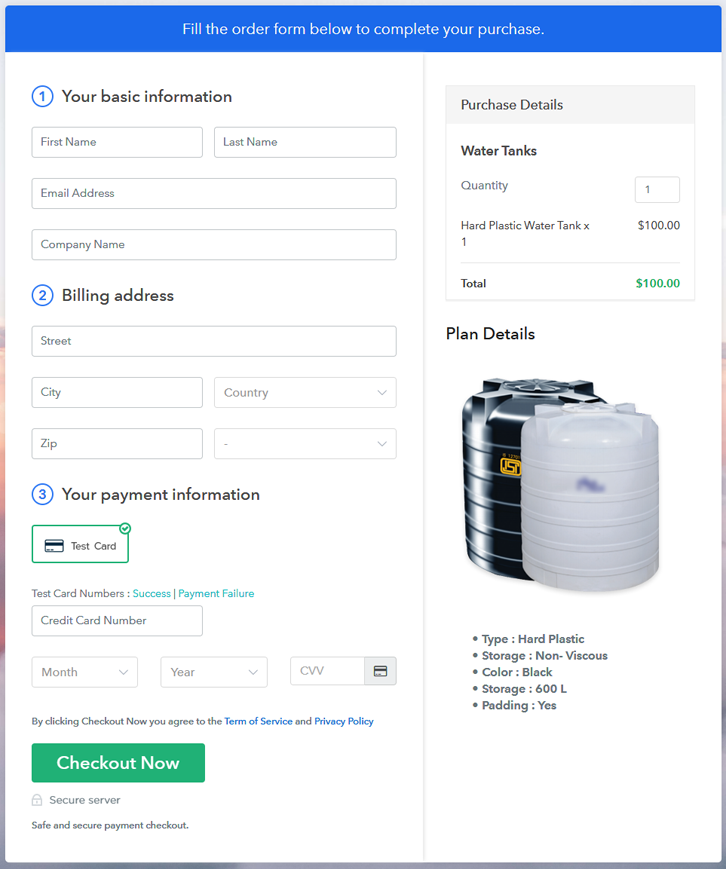
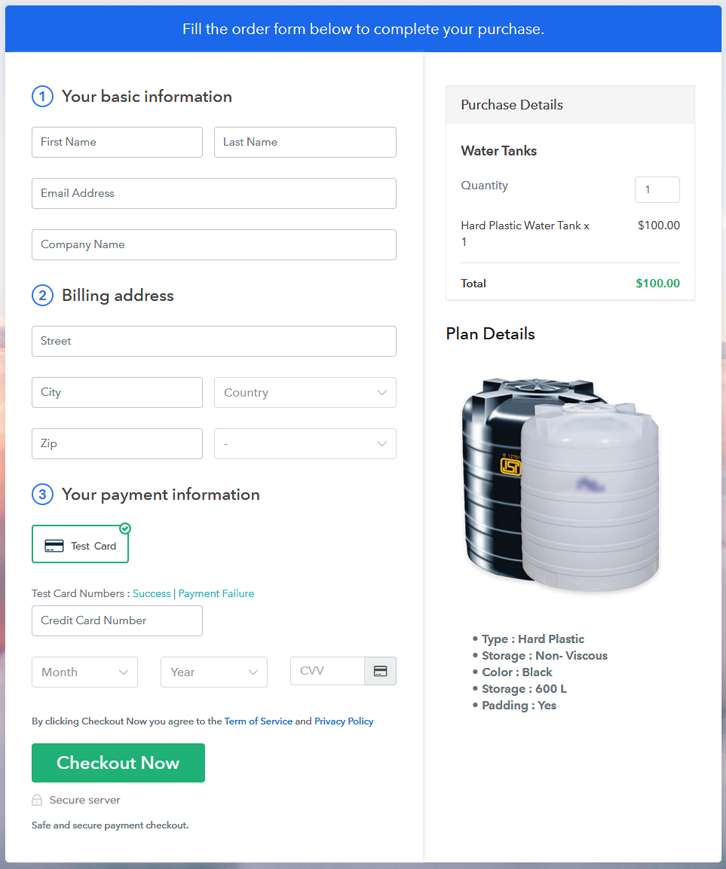
Final View of Checkout Page for your Water Tanks Selling Business

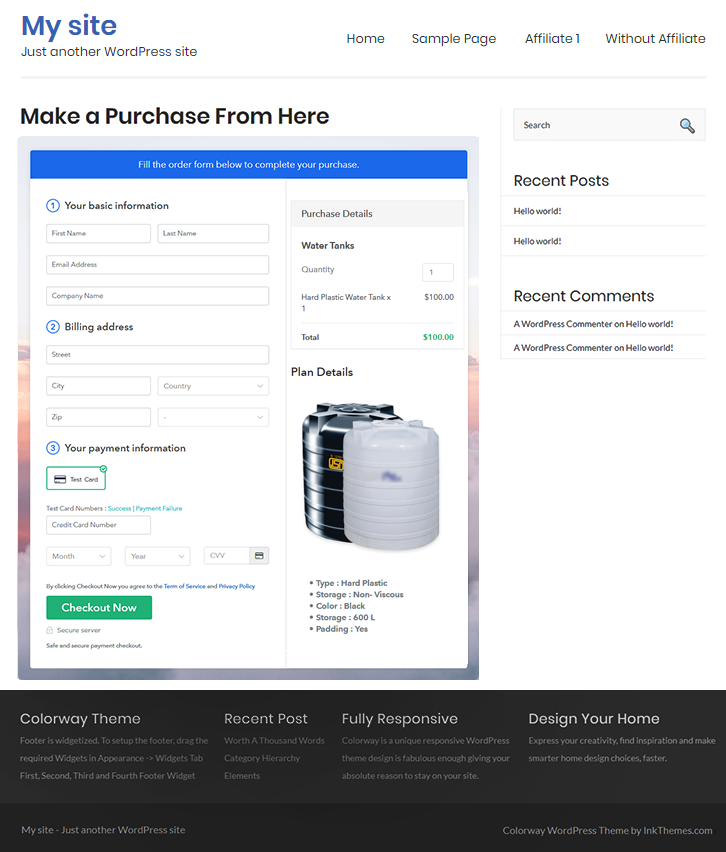
Checkout To Sell Water Tanks Online

Preview Checkout Page

Step 1: Log in to Pabbly Subscription Billing

Signup

Check for Pabbly Subscription Billing in your browser. Now, click on the “Sign up Free“ button. Either fill all the information or simply sign in using your Gmail account.

Sign Up For Free!

Step 2: Select Subscription Billing

Access Subscription Billing

Step 3: Account Setup

Setup Account

Once you’re done click on the “Access Now” button of Pabbly Subscription Billing, a page will pop-up with details like company name, currency, and contact number. Next, you need to fill those details to go on.

Step 4: Connect Payment Gateways & Start Water Tanks Selling Business Online

Connect Payment Gateway

The next step is to understand the payment process using a “Test Payment Gateway”. By pressing this button, you will be having the same payment experience that a customer will have. This will allow you to sort out the glitches and make the transactions seamless. Also, this software allows integrations with payment gateways such as PayPal, Stripe, etc. Furthermore, there are manuals listed below to help you out.

Step 5: Add Product for your Water Tanks

Add Product

Now we will add products and here beneath the  “Enable Payments” segment there is the “Add your product” section click on it. Also, this will generate a dialog box with a blue button “Add New Product”. Click on it.

Now, here you will add the title which is ‘water tanks’


Fill out all the details like the name of the product and voila your product is created.

Note: Here you can add all the products related to the similar category by creating plans for each of them.

Step 6: Add Plans 

Now let’s create plans for different kinds of water tanks available in your store.

(a) Select Add New Plan

Add Plan

(b) Specify the Plan & Pricing Details

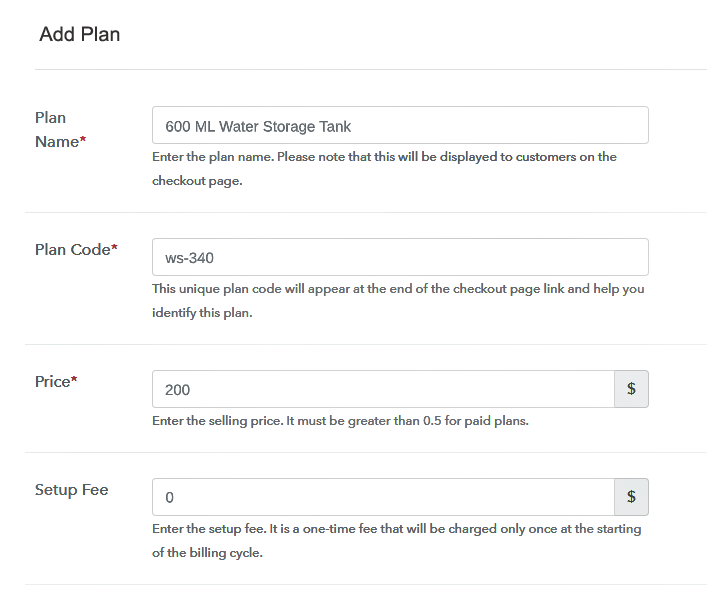
Add Plan To Sell Water Tanks Online

In the plan page, here you have to fill in details like plan name, code, price, setup fees. Moreover, choose your preferred revenue model accordingly and after some time you can even change it according to your choice.

(c) Add Image & Description of Water Tanks

Add Image To Sell Water Tanks Online

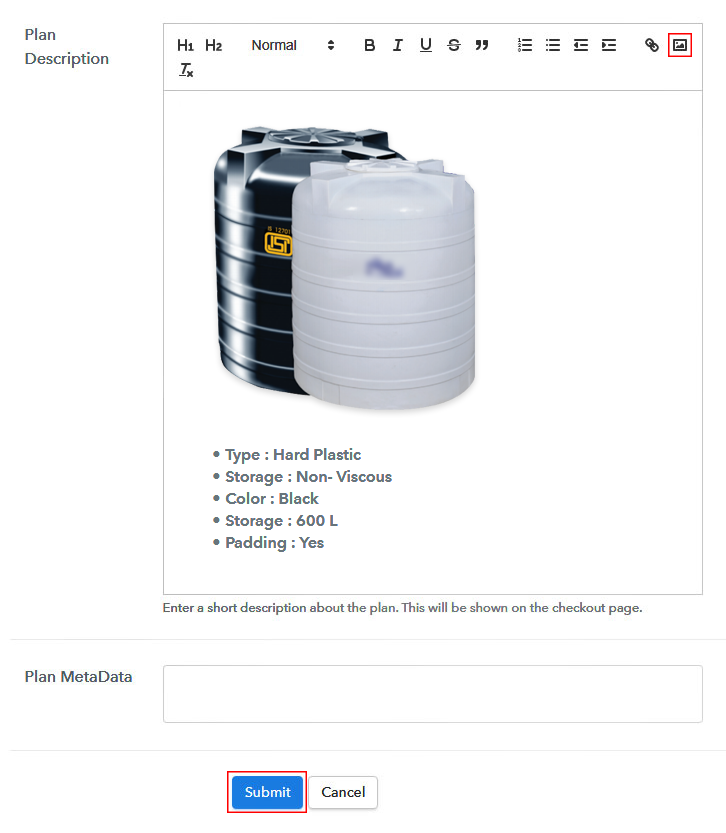
Whatever kind of water tanks you want to sell take a good picture of it and insert it here.

Also, give a description of the water tanks in bullet points. After writing the product description press the “Submit” button. Moreover, following the same procedure, you can add many other types of products

Step 7: Share your Checkout Page

Share Checkout Page on Social Media

Here are some ways, by which you can share the checkout pages through Pabbly Subscription Billing.

  • In this method, you simply just press the respective buttons for Twitter, Facebook and the checkout pages get automatically shared
  • Furthermore, simply paste the checkout pages link on to share it via email and SMS.
  • Also, you can create buttons on your webpage and paste the checkout links on it. Or you can place it on any anchor text on your website, so the users will be redirected to the checkout page.

Step 8: Preview Checkout Page

Follow up the recommended steps to preview the checkout page:

(a) Click on the View Button

View Checkout Plan

(b) Take a Look at the Checkout Page

How

Step 9: Embed Checkout Page in Site & Sell Online

Embed Checkout Page on Website

Moreover, just copy the link and add the checkout page to sell water tanks at any suitable place on your WordPress site.

(a) Edit the Page & Paste the Copied Link

Embed Checkout Page on Website

Further, paste the plan link of the water tanks on a text editor of the WordPress dashboard.

(b) Save & Publish the Checkout Page

Save_and_Publish

Next, click the “Publish” button, after making changes.

(c) Check out the Final Look of your Checkout Page on WordPress Site

Embed WordPress To Sell Water Tanks Online

Step 10: Multiplan Checkout Page

Note: In case you want to sell multiple products via a single checkout page, you can create a multi-plan checkout page otherwise skip this step.

(a) Click on Add Mutiplan Checkout

Multiplan Checkout

(b) Add Plans to Sell Multiple Water Tanks from Single Checkout Page

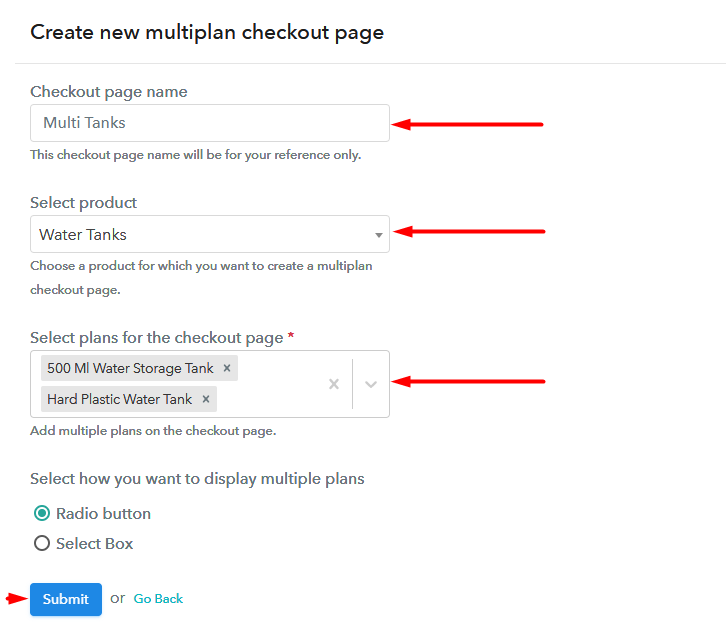
Add Multi Plan To Sell Water Tanks Online

(c) Take a Look at the Checkout Page

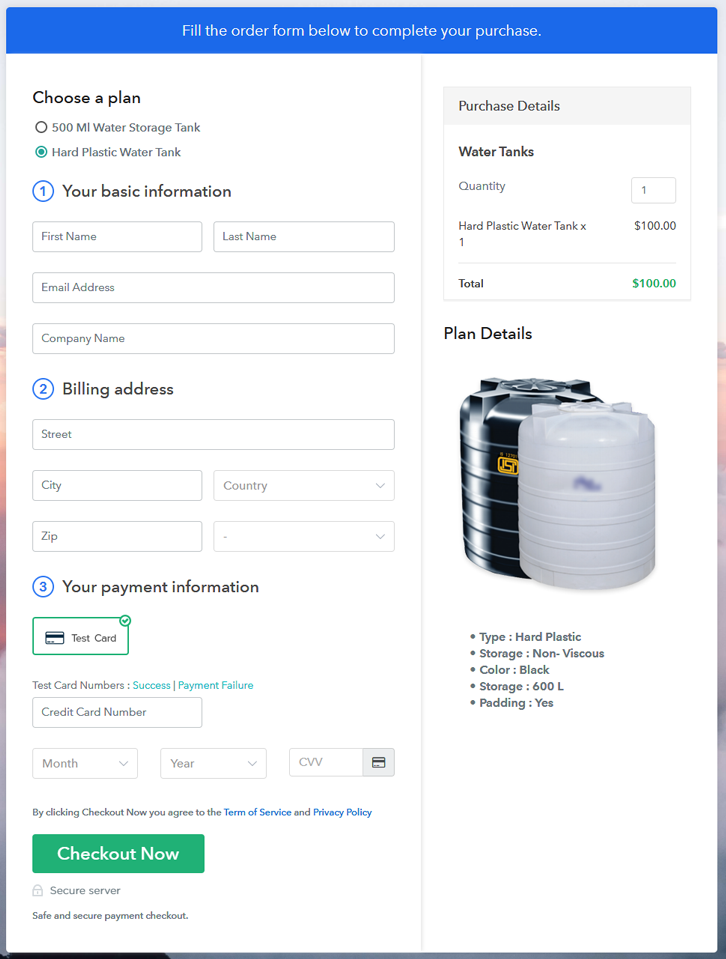
Multiplan To Sell Water Tanks Online

Preview Checkout Page

Wrapping Up

How does to feel to create the first checkout page to sell water tanks online? Awesome isn’t it? Well, it should be as this is your first step into the world of e-commerce. With these checkout pages, you can sell any kinds of products online with ease.

Also, in case if you have any questions, do ask them in the comments section below. Thanks!!

You May Also Like To Read –
How To Sell Tractor Couplers Online | Step by Step (Free Method)

Ideal For: All the tractor couplers owners, tractor couplers manufacturers, tractor couplers dealers and other merchants can use this method to sell tractor couplers online.

How To Sell Tractor Couplers Online

Why Choose this Method to Sell Tractor Couplers Online?

Unlike any other solution, this method allows you to:

  • List and sell your tractor couplers for FREE. Absolutely no payment required.
  • No need to pay commission on any of your sale.
  • Multiple payment options like PayPal, Credit Card, etc to collect payment from a single place.
  • Sell one time or recurring subscriptions of your tractor couplers.
  • Collect payments & sell products in any currency as per your requirement.
  • Give discounts on your products by offering special coupon codes.
  • Add sales commission agents to help you in selling tractor couplers.

Get Pabbly Subscription Billing for Free

The immediate advantage when you start selling tractor couplers online is your product will be accessed by the entire globe. This leads to a higher margin and better cash flow. Also, the setup cost and time are comparatively lower as there are no licensing fees, inspections, security deposits, fines, zoning permits, rents, and utilities. Furthermore, while you can enjoy flexible working hours your automated online shop will keep bringing business 24×7.

Now, this article endorses an online Saas tool called Pabbly Subscription Billing that generates checkout pages to sell tractor couplers online. The benefit of using this method is, without any technical literacy, one can enter the world of e-commerce and do brisk business. Furthermore, you can receive payments in both offline/online modes. Have a look at some awesome features

  • Keep Generating Unlimited Revenues
  • No Need To Pay Any Hidden Transaction Charges
  • Have A Comprehensive Report on Revenue Transactions
  • Auto Email Notifications on Card Declines, Transaction Completion/Failure
  • Custom Domain to Build a Brand
  • Dedicated Social Media Marketing Systems

Obviously, impressed with these gimmicks, you want to build your checkout page to sell tractor couplings online. So let’s start the process.

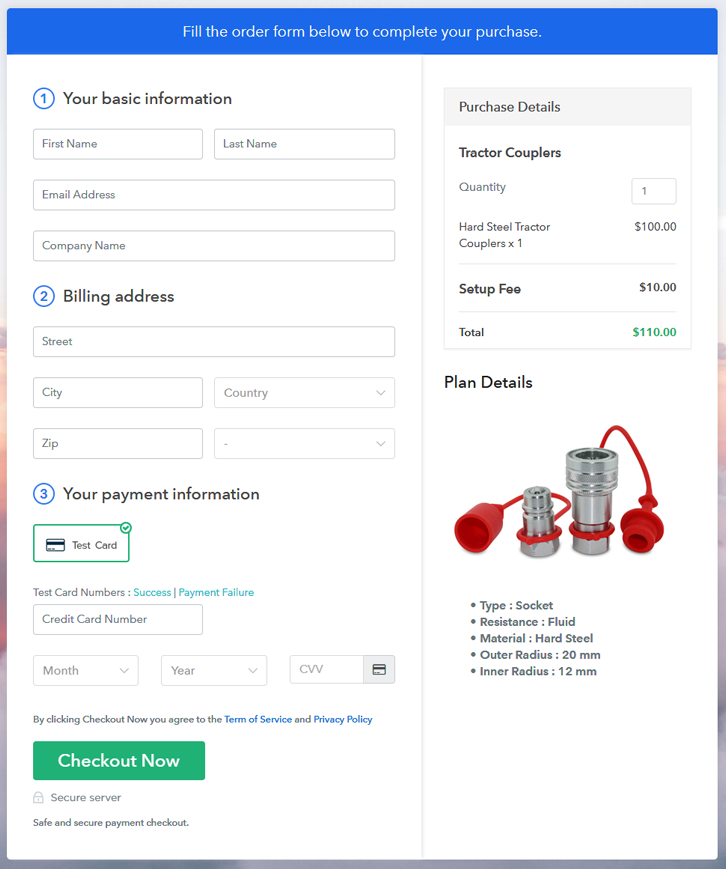
Final View of Checkout Page for your Tractors Couplers Selling Business

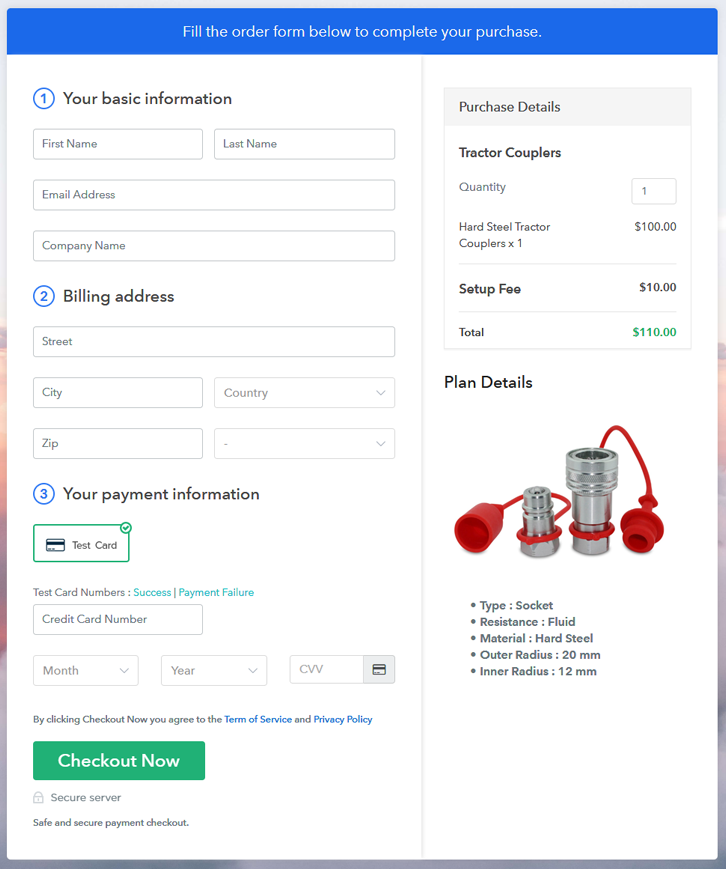
Checkout To Sell Tractor Couplers Online

Preview Checkout Page

Step 1: Log in to Pabbly Subscription Billing

Signup

Using browsers, locate for Pabbly Subscription Billing. On landing on their website click on the “Sign up Free“ button. You can either manually fill all the information or simply sign in using your Gmail account.

Sign Up For Free!

Step 2: Select Subscription Billing

Access Subscription Billing

Step 3: Account Setup

Setup Account

Once you’re done click on the “Access Now” button of Pabbly Subscription Billing, a page will pop-up with details like company name, currency, and contact number. Next, you need to fill those details to go on.

Step 4: Connect Payment Gateways & Start Tractor Couplers Selling Business Online

Connect Payment Gateway

Let’s use the test payment mode so that we can understand all about the software’s payment procedure. Also, the Pabbly Subscription Billing allows integration with multiple payment gateways. Below we are mentioning the payment integration guide to help you out.

Step 5: Add Product for your Tractor Couplers

Add Product

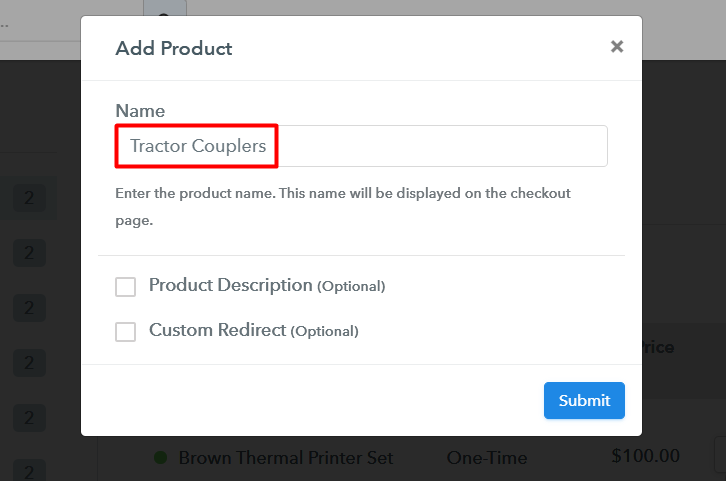
If the payment gateway integration went well, so let’s start adding the products. Beneath the  “Enable Payments” segment there is the “Add your product” section click on it. This will generate a dialog box with a blue button “Add New Product”. Click on it.

You have to add the required product title, in this case, it is ‘tractor couplers’.

Add Products To Sell Tractor Couplers Online

Fill out all the details like the name of the product and voila your product is created.

Note: Here you can add all the products related to the similar category by creating plans for each of them.

Step 6: Add Plans 

Now let’s create plans for different kinds of tractor couplers available in your store.

(a) Select Add New Plan

Add Plan

(b) Specify the Plan & Pricing Details

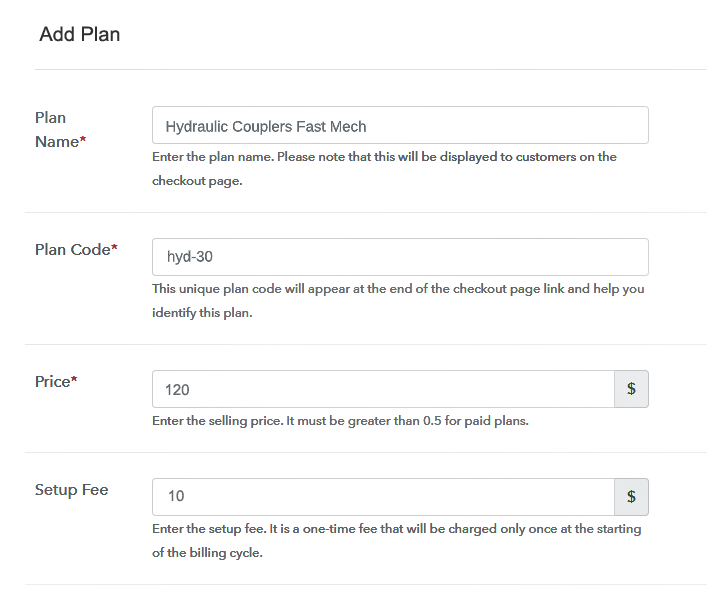
Add Plan To Sell Tractor Couplers Online

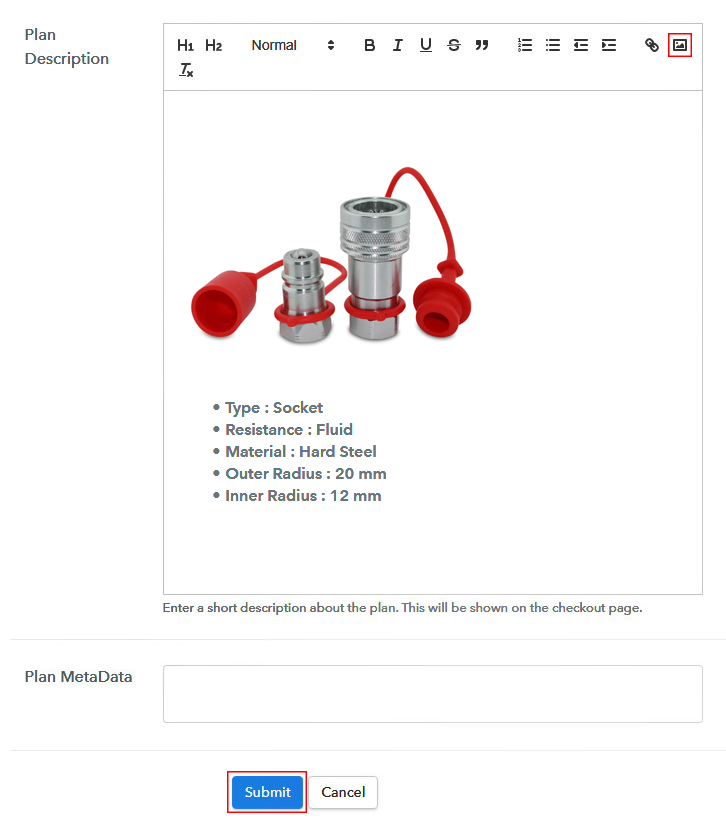
In the plan page, fill in information like plan name, code, price, setup fees, etc. Moreover, while coming down you will find different billing models like one-time payment, recurring, based on cycles, etc. Now, choose the one that interests you the most. Furthermore, you can change it any time you want.

(c) Add Image & Description of Tractor Couplers

Add image To Sell Tractor Couplers Online

Add small info about the tractor couplers in bullet points, add images and links too.

Then, on hitting the submit button, your tractor couplers will be successfully added.

Then create multiple plans and can add all the tractor couplers you want to sell online.

Step 7: Share your Checkout Page

Share Checkout Page on Social Media

  • Share these checkout pages on Twitter & Facebook by just clicking the buttons available.
  • Also, share the checkout pages via email and SMS.
  • You can also create buttons and hook the checkout links in these buttons. Or you can place it on any anchor text on your website, so the users will be redirected to the checkout page.

Step 8: Preview Checkout Page

Follow up the recommended steps to preview the checkout page:

(a) Click on the View Button

View Checkout Plan

(b) Take a Look at the Checkout Page

Add Checkout To Sell Tractor Couplers Online

Step 9: Embed Checkout Page in Site & Sell Tractor Couplers Online

Embed Checkout Page on Website

Now, just copy the link and add the checkout page to sell tractor couplers online at any suitable place on your WordPress site.

(a) Edit the Page & Paste the Copied Link

Embed Checkout Page on Website

Further, paste the plan link of the tractor couplers on a text editor of the WordPress dashboard.

(b) Save & Publish the Checkout Page

Save_and_Publish

Next, click the “Publish” button, after making changes.

(c) Check out the Final Look of your Checkout Page on WordPress Site

Add Checkout To Sell Tractor Couplers Online

Step 10: Multiplan Checkout Page

Note: In case you want to sell multiple products via a single checkout page, you can create a multi-plan checkout page otherwise skip this step.

(a) Click on Add Mutiplan Checkout

Multiplan Checkout

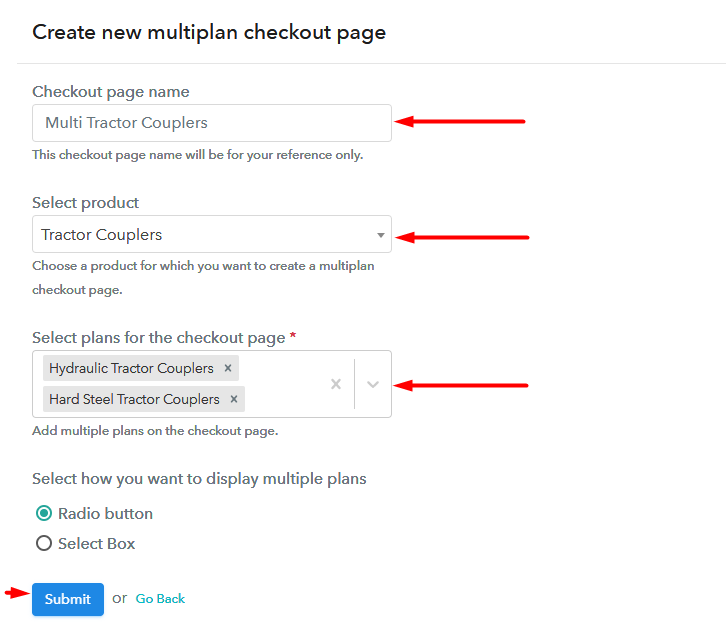
(b) Add Plans to Sell Multiple Tractor Couplers from Single Checkout Page

Multiplan To Sell Tractor Couplers Online

(c) Take a Look at the Checkout Page

Multiplan To Sell Tractor Couplers Online

Preview Checkout Page

Wrapping Up

Great!! Your checkout page to sell tractor couplers is awesome. These checkout pages are so flexible, that with few plus and minus, you can literally sell any products. There is an array of documents and video tutorials available for you to work on this amazing software. So keep exploring and experimenting. Thanks !!

You May Also Like To Read –
 

How to Sell Toilet Seats Online | Step by Step (Free Method)

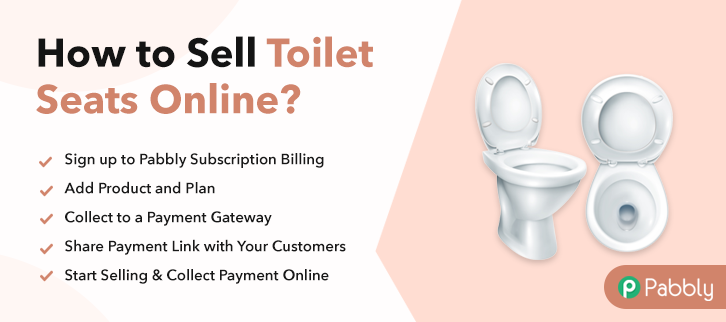
How to Sell Toilet Seats Online

Ideal For: All home cleaning shopkeepers, bathroom accessories sellers, bathroom accessories manufacturer, and other merchants can use this method to start selling toilet seats online.

How to Sell Toilet Seats Online

Why Choose this Method To Sell Toilet Seats Online?

Unlike any other solution, this method allows you to:

  • List and sell your toilet seats for FREE. Absolutely no payment required.
  • No need to pay commission on any of your sale.
  • Multiple payment options like PayPal, Credit Card, etc to collect payment from a single place.
  • Sell one time or recurring subscriptions of your toilet seats.
  • Collect payments & sell products in any currency as per your requirement.
  • Give discounts on your products by offering special coupon codes.
  • Add sales commission agents to help you in selling toilet seats online.

Get Pabbly Subscription Billing for Free

Nowadays almost every business is reaching online and growing. So, why don’t you start your toilet seat selling business online? Well, it can boost your sales and you’ll attract more customers towards your business.

While we speak of any business online many things came to mind like the payment collection, keeping records, management, and much more. So, there are services available to help you out with that. And we’ll be going to discussing a similar kind of service named Pabbly Subscription Billing. It allows you to create checkout pages to sell toilet seats online. Also, it can help you in the following ways:

  • To keep a track of all the payments, refunds and items in stock
  • Collect offline or online payments
  • Automatic invoicing & billing
  • Apply global taxes
  • Offer discounts & coupons
  • Sell unlimited products

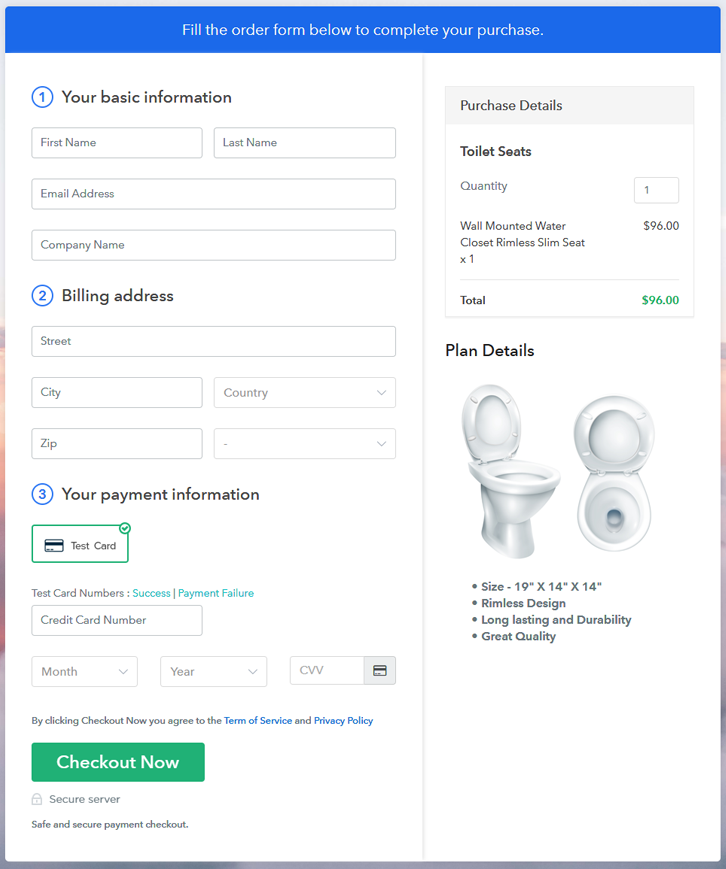
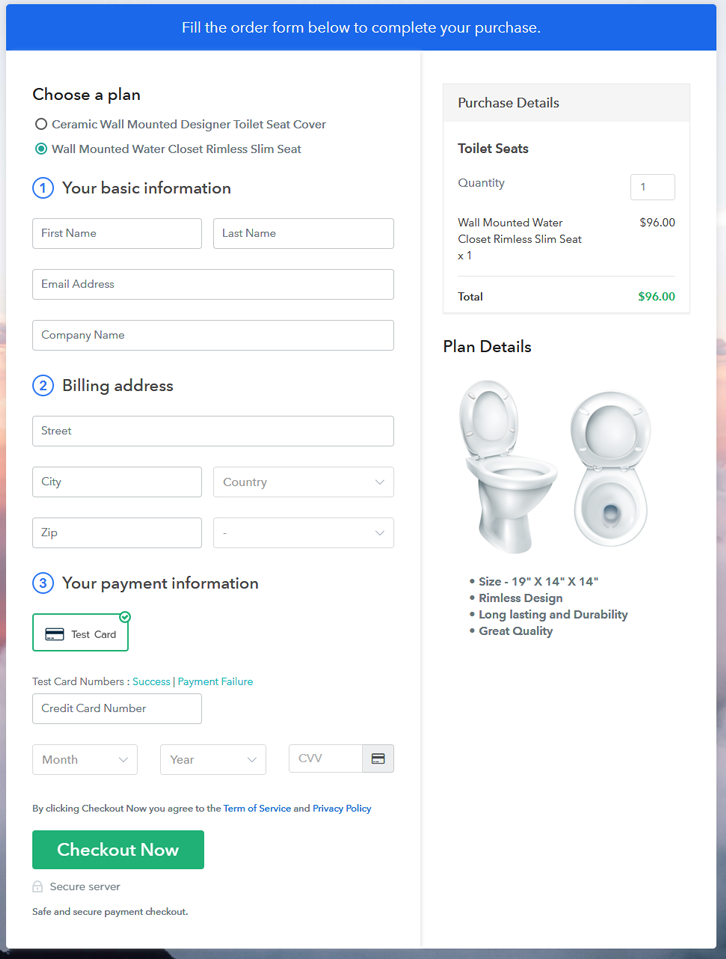
Final View of Checkout Page For Your Toilet Seats Selling Business

Preview Checkout Page - Sell Toilet Seats Online

Preview Checkout Page

Step 1: Log in to Pabbly Subscription Billing

Signup

Firstly, visit Pabbly Subscription Billing official website and reach out to the  “Sign Up Free” button. A signup page will open where you can signup using a Gmail or can create a personal account.

Sign Up For Free!

Step 2: Select Subscription Billing

Access Subscription Billing

Step 3: Account Setup

Setup Account

After successful signup, a window will appear asking for your company name, currency and a contact number. You’ll need to fill out these details.

Step 4: Connect Payment Gateways & Start Toilet Seats Selling Business Online

Connect Payment Gateway

To ease up your very first experience, this service allows you to test its functionalities using a test payment gateway. Also, the service has multiple options to connect many legit payment gateways. Some integration guides are as follows:

Step 5: Add Product For Your Toilet Seats

Add Product

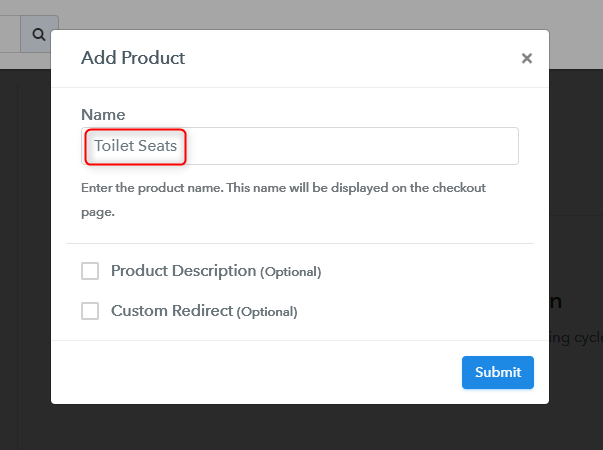
The next is to add the products, you can assign different items a category and add that as a product. For example type of bathroom accessories, toilet seats etc. After that, you’ll need to create plans for each product to add specific auto parts in it.

Add Product

Just add the category & a product will get generated instantly.

Note: Here you can add all the products related to the similar category by creating plans for each of them.

Step 6: Add Plans 

Let’s rollout plans for different kinds of toilet seats available in your store.

(a) Select Add New Plan

Add Plan

(b) Specify the Plan & Pricing Details

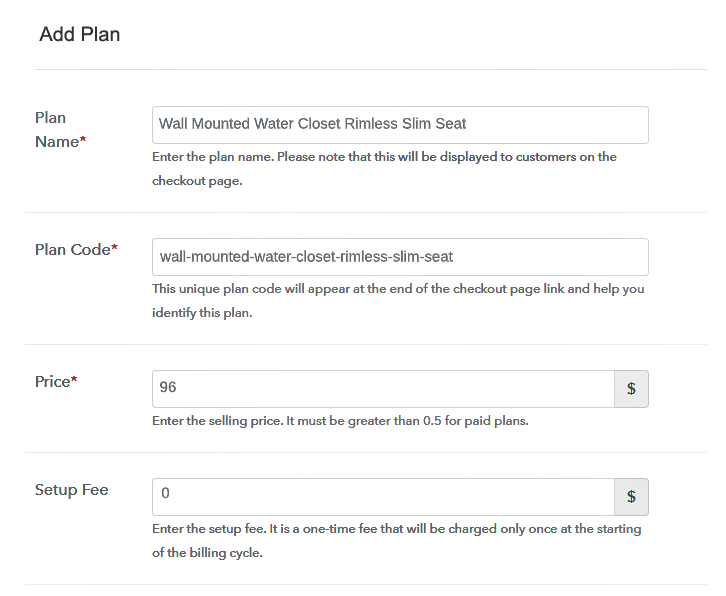
Add Plan - Sell Toilet Seats Online

When you click on the “Add New Plan” button, it redirects you to a similar page as shown above. Here you can fill the item details like name, pricing, setup fee and other related information.

(c) Add Image & Description of Toilet Seats

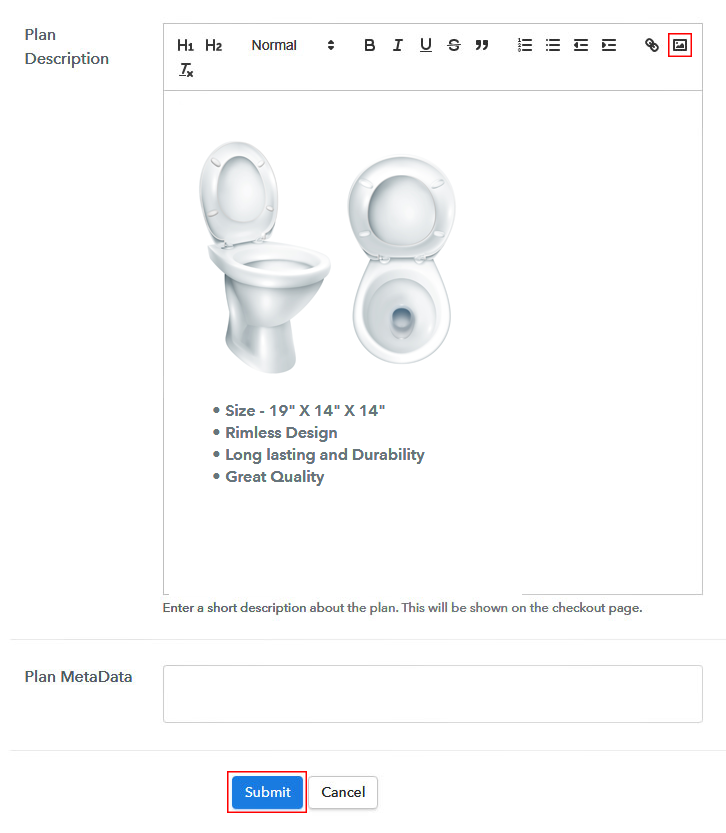
Add Product Image

Under the plan description section, you can add item details using the tools given. Moreover, you can add images, text, bullets, links and text formatting tools like H1, H2, quotes, bold, etc.

Once you are done with the item description, click on the submit button & your auto part will be appended.

Moreover, following the same step, you can add as many products that you want to sell online as plans.

Step 7: Share your Checkout Page

Share Checkout Page on Social Media

  • There are direct options available to share every single checkout page on Facebook & Twitter.
  • Also, you can share a direct link to every plan with your customers via SMS or email marketing.
  • Also, you can add the plan link to the buttons or text anchors on your website to redirect the user on the checkout page.

Step 8: Preview Checkout Page

Follow up the recommended steps to preview the checkout page:

(a) Click on the View Button

View Checkout Plan

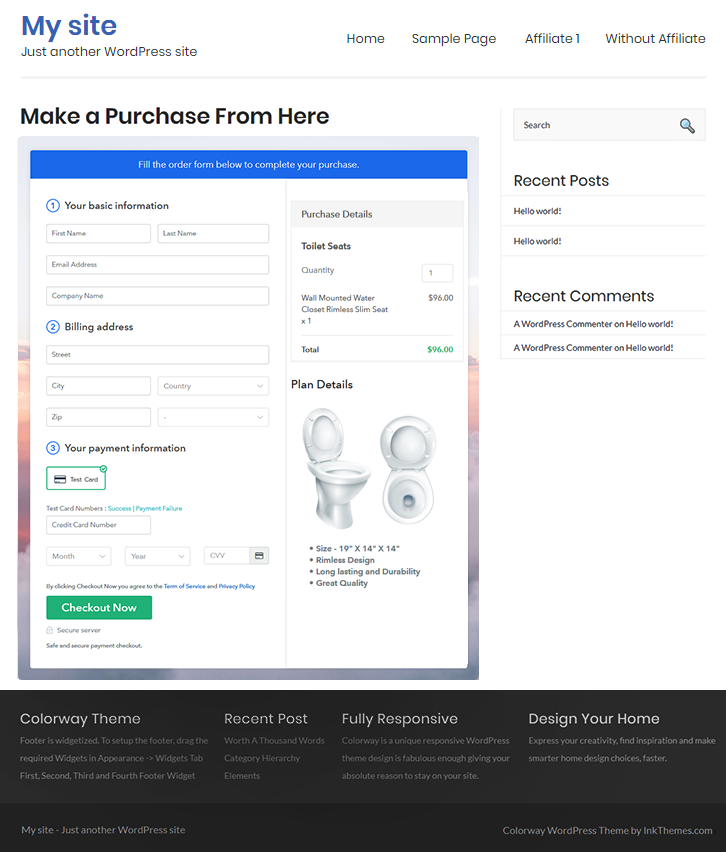
(b) Take a Look at the Checkout Page

Preview Checkout Page - Sell Toilet Seats Online

Step 9: Embed Checkout Page in Site & Sell Toilet Seat Online

Embed Checkout Page on Website

Simply copy the code provided under the “Embed Plan Link” window to add the checkout page anywhere on your WordPress website.

(a) Edit the Page & Paste the Copied Link

Embed Checkout Page on Website

Further, paste the plan link on a text editor of the WordPress dashboard.

(b) Save & Publish the Checkout Page

Save_and_Publish

Next, click the “Publish” button, after making changes.

(c) Check out the Final Look of your Checkout Page on WordPress Site

Preview Checkout Page on WordPress Site

Step 10: Multiplan Checkout Page

Note: In case you want to sell multiple products via a single checkout page, you can create a multi-plan checkout page otherwise skip this step.

(a) Click on Add Multiplan Checkout

Multiplan Checkout

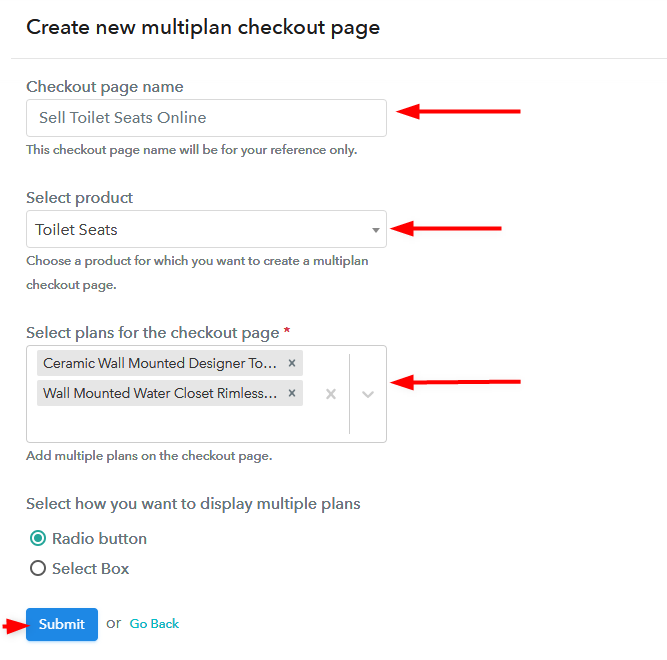
(b) Add Plans to Sell Multiple Toilet Seats from Single Checkout Page

Create Multi-plan Checkout Page

(c) Take a Look at the Checkout Page

Preview Multiplan Checkout Page

Preview Checkout Page

Wrapping Up

Preferably this is the best method to sell toilet seats online. As this method is not only offering to manage the payments and records but is also allowing you to start selling toilet seats online for free.

If you like the process, do comment us below. We’ll get back to you as early as possible.

You May Also Like To Read –
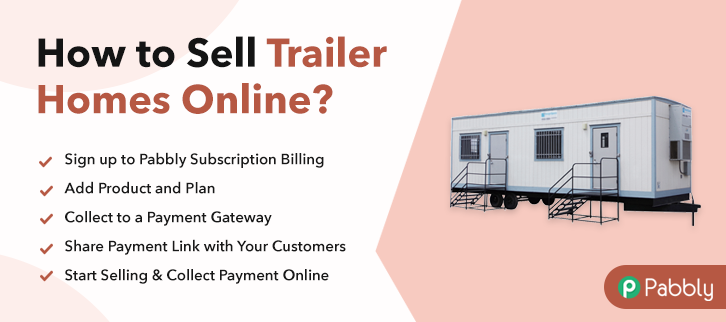
How To Sell Trailer Homes Online | Step by Step (Free Method)

Ideal For: All the trailer house sellers, trailer home manufacturers, mobile home builders, trailer home association owners and other merchants can use this method to sell trailer homes online.

How To Sell Trailer Homes Online

Why Choose this Method to Sell Trailer Homes Online?

Unlike any other solution, this method allows you to:

  • List and sell your trailer homes for FREE. Absolutely no payment required.
  • No need to pay commission on any of your sale.
  • Multiple payment options like PayPal, Credit Card, etc to collect payment from a single place.
  • Sell one time or recurring subscriptions of your trailer homes.
  • Collect payments & sell products in any currency as per your requirement.
  • Give discounts on your products by offering special coupon codes.
  • Add sales commission agents to help you in selling trailer homes.

Get Pabbly Subscription Billing for Free

As the world is becoming overcrowded, the space for mobility and shelter is going down. That is why the demand for mobile shelters like trailer homes are picking-up in record numbers. For instance, the annual global growth of trailer homes is around 6.8% and by 2026 more than 30 million are expected to be sold. But with the advent of the internet, manufacturers are toying with the idea of selling trailer homes online to get better demands not only from local markets but also from other parts of the world.

Other than improving your product discovery there are more benefits of selling trailer homes online like easy product listing and analyzing revenue sources. Furthermore, there is no need to pay land security for renting spaces in trailer parks. Also, your customers will have it easy while choosing the product with their mobile devices.

Now, this article presents a software called Pabbly Subscription Billing to sell trailer homes online. The benefit of using this method is there is no prerequisite for any technical skills. Besides this software doesn’t charge any commission. Have a look at its features

  • Revenue Analysis
  • Multiple Billing Structure
  • Custom Logo
  • Social Media Marketing
  • Auto-Email Notifications

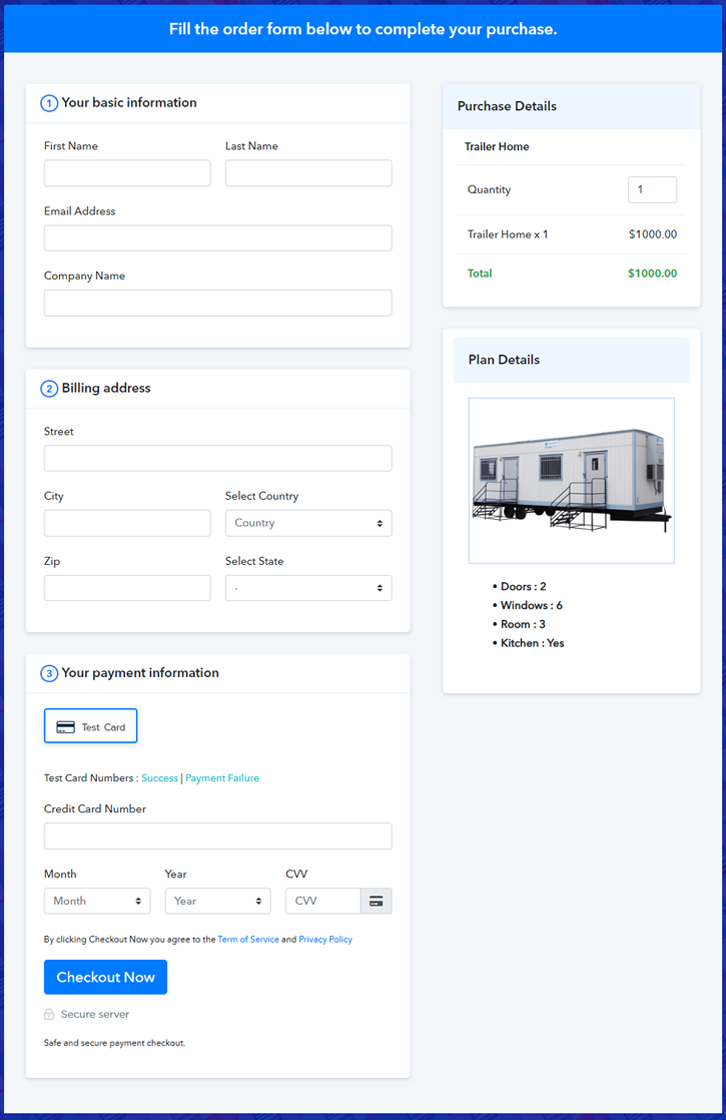
Final View of Checkout Page for your Trailer Homes Selling Business

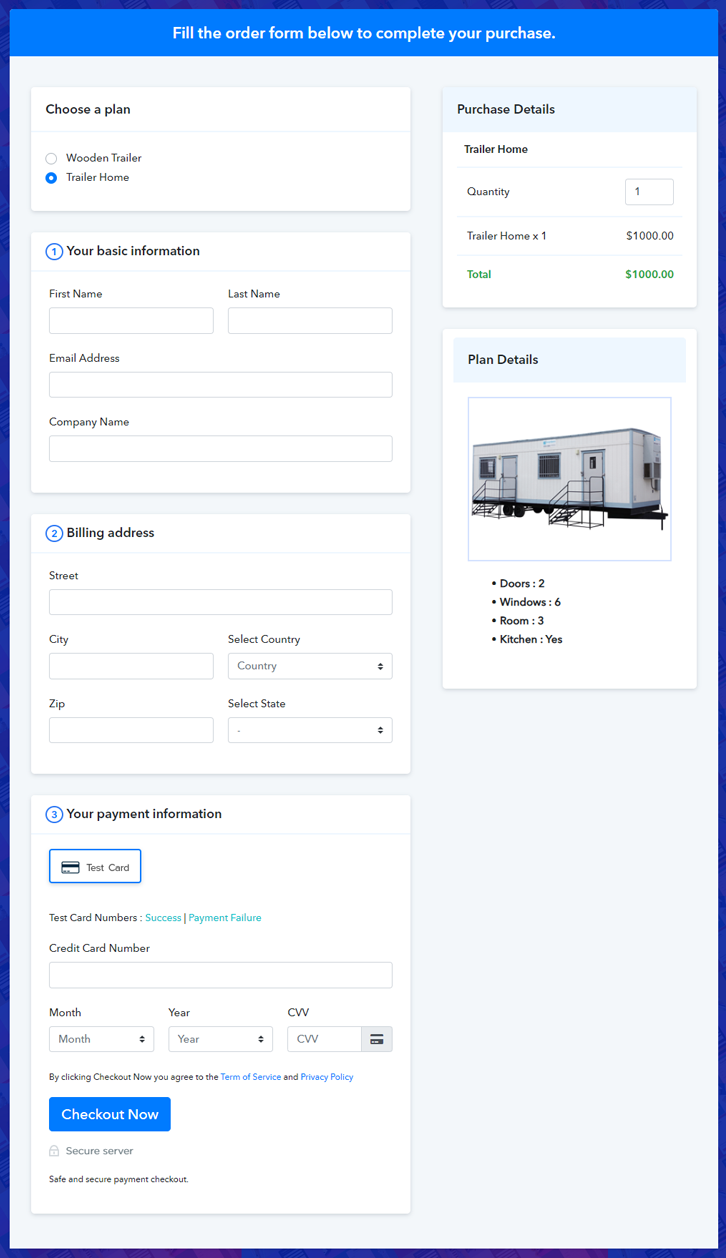
Checkout To Sell Trailer Homes Online

Preview Checkout Page

Step 1: Log in to Pabbly Subscription Billing

Signup

Navigate to Pabbly Subscription Billing in your browser. Here, you have to click on the “Sign up Free“ button. You may either fill all the information or simply sign in using your Gmail account.

Sign Up For Free!

Step 2: Select Subscription Billing

Access Subscription Billing

Step 3: Account Setup

Setup Account

After clicking the “Access Now” button of Pabbly Subscription Billing, a page will pop-up with details like company name, currency, and contact number. Next, you need to fill those details to go on.

Step 4: Connect Payment Gateways & Start Trailer Homes Selling Business Online

Connect Payment GatewayPabbly Subscription Billing gives a fake payment gateway where you can cross-check the payment experience beforehand. This is done by clicking on the “Enable Test Payment” option.

Furthermore, payment gateways can be easily integrated with Pabbly Subscription Billing using the help of the articles given below.

Step 5: Add Product for your Trailer Homes

Add Product

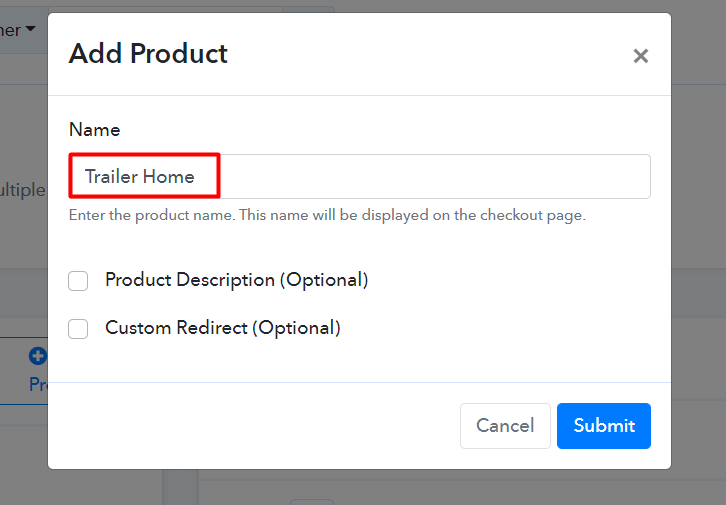
Let’s start to add the products. Also, beneath the  “Enable Payments” segment there is the “Add your product” section click on it. Furthermore, this will generate a dialog box with a blue button “Add New Product”. Click on it.

Add Product To Sell Trailer Homes Online

Fill out all the details like the name of the product and voila your product is created.

Note: Here you can add all the products related to the similar category by creating plans for each of them.

Step 6: Add Plans 

Now let’s create plans for different kinds of trailer homes available in your store.

(a) Select Add New Plan

Add Plan

(b) Specify the Plan & Pricing Details

Add Plan To Sell Trailer Homes Online

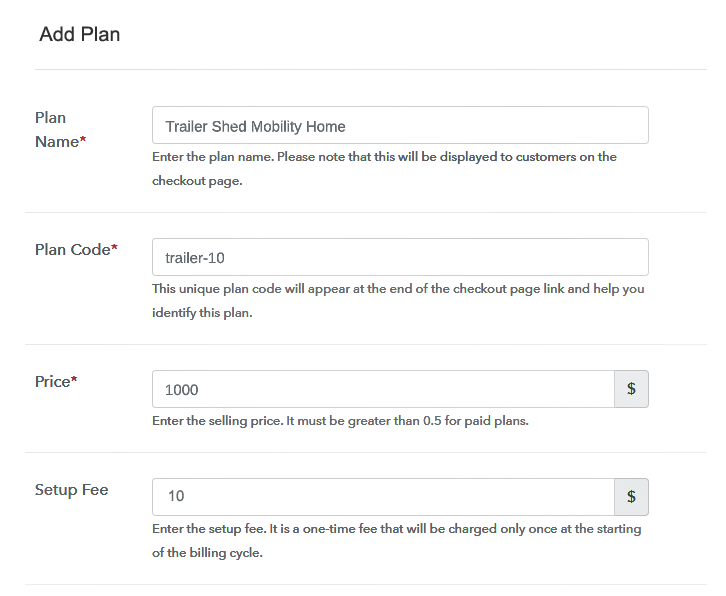
In the plan page, here you have to fill in details like plan name, code, price, setup fees.

Now scroll down, and in the section below you can see the choice to change the billing models like one-time payment, recurring, etc.

Furthermore, choose your preferred revenue model accordingly and after some time you can even change it according to your discretions.

(c) Add Image & Description of Trailer Homes

Add Image To Sell Trailer Homes Online

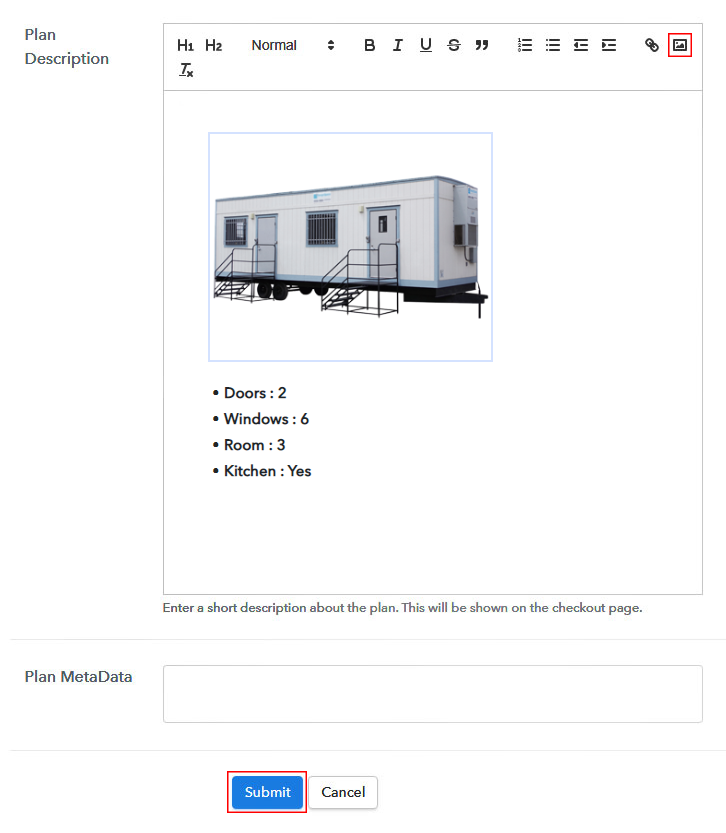
Now upload an image of the trailer home that you want to sell.

Give some info underneath the image like number of rooms, color, mobility, etc, and click the “Submit” button.

Likewise, list more products by using same process.

Step 7: Share your Checkout Page

Share Checkout Page on Social Media

For the digital marketing of your products, Pabby Subscription Billing provides three streams.

  • Pressing the dedicated button for Twitter & Facebook you can share the checkout pages on these websites.
  • Furthermore, you can always share the checkout pages via email and SMS.
  • For more action, you can create a button on your webpage and paste the checkout links on it. Or you can place it on any anchor text on your website, so the users will be redirected to the checkout page.

Step 8: Preview Checkout Page

Follow up the recommended steps to preview the checkout page:

(a) Click on the View Button

View Checkout Plan

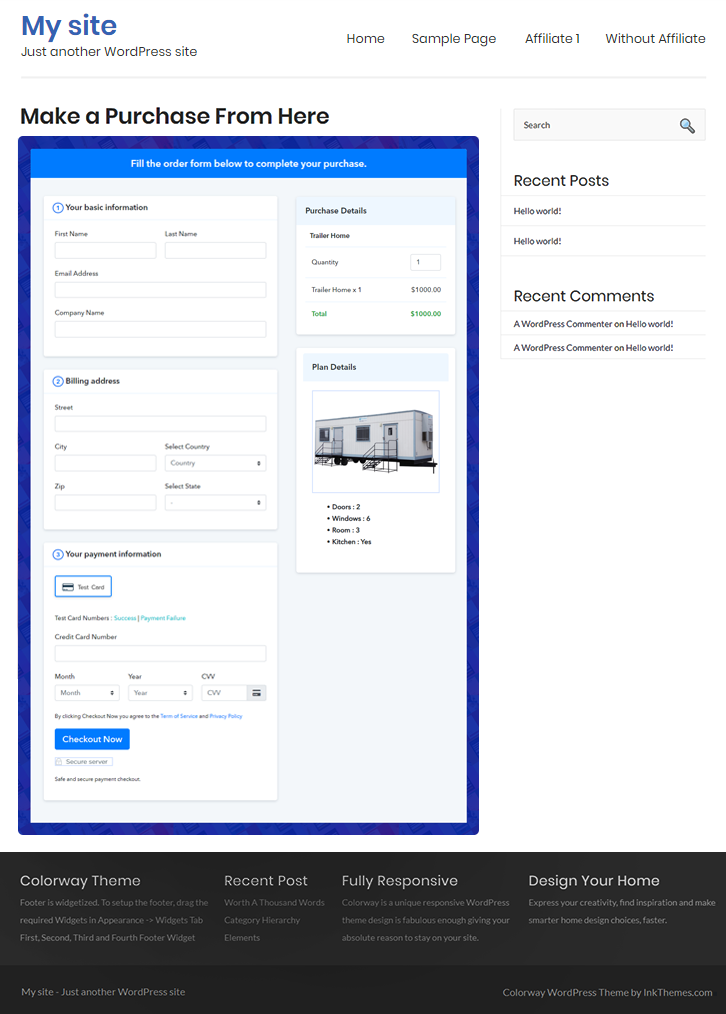
(b) Take a Look at the Checkout Page

Checkout To Sell Trailer Homes Online

Step 9: Embed Checkout Page in Site & Sell Online

Embed Checkout Page on Website

Likewise, just copy the link and add the checkout page to sell trailer homes at any suitable place on your WordPress site.

(a) Edit the Page & Paste the Copied Link

Embed Checkout Page on Website

Further, paste the plan link of the trailer homes a text editor of the WordPress dashboard.

(b) Save & Publish the Checkout Page

Save_and_Publish

Next, click the “Publish” button, after making changes.

(c) Check out the Final Look of your Checkout Page on WordPress Site

Wordpress To Sell Trailer Homes Online

Step 10: Multiplan Checkout Page

Note: In case you want to sell multiple products via a single checkout page, you can create a multi-plan checkout page otherwise skip this step.

(a) Click on Add Mutiplan Checkout

Multiplan Checkout

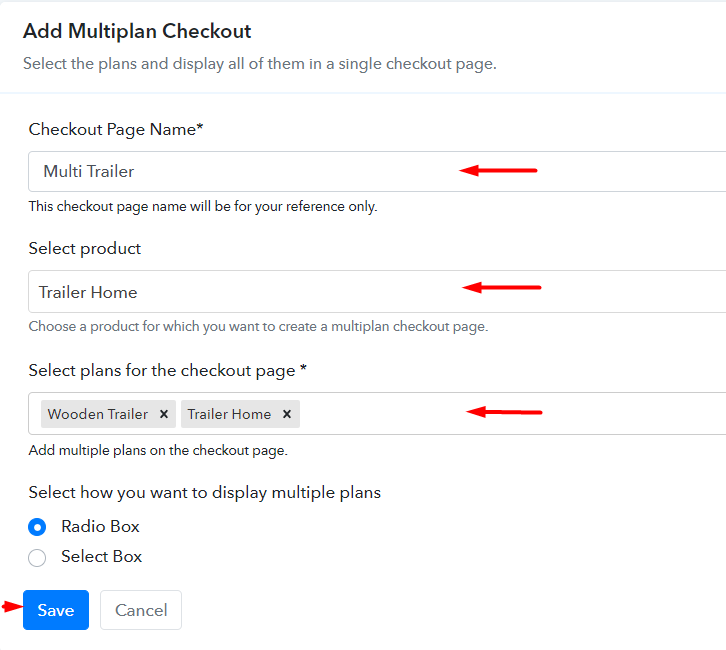
(b) Add Plans to Sell Multiple Trailer Homes from Single Checkout Page

Multiplan To Sell Trailer Homes Online

(c) Take a Look at the Checkout Page

Multiplan To Sell Trailer Homes Online

Preview Checkout Page

Wrapping Up

By 2030 United Nations expect that there will be a housing affordability crisis. But for many manufacturers like you, it could be a huge advantage if you start selling trailer homes online. This checkout page is your little step towards a future dominated by e-commerce. Trust me with Pabbly Subscription Billing by your side you will definitely rule this space. Thank You!!

You May Also Like To Read –
How To Sell USB Cables Online | Step by Step (Free Method)

How to Sell USB Cables Online

Ideal For: All electronic store owners, ‎mobiles & accessories shop stores, USB cables wholesale vendors, and other merchants can use this method to start selling USB cable business online.

How to Sell USB Cables Online

Why Choose this Method To Sell USB Cables Online?

Unlike any other solution, this method allows you to:

  • List and sell your USB cables for FREE. Absolutely no payment required.
  • No need to pay commission on any of your sale.
  • Multiple payment options like PayPal, Credit Card, etc to collect payment from a single place.
  • Sell one time or recurring subscriptions of your USB cables.
  • Collect payments & sell products in any currency as per your requirement.
  • Give discounts on your products by offering special coupon codes.
  • Add sales commission agents to help you in selling USB cables online.

Get Pabbly Subscription Billing for Free

USB cables are an important accessory that helps in transferring data quickly and charging compatible Android devices. The demand for mobile phones, chargers, and other associated devices are increasing day-by-day because consumers are spending most of their time on smartphones and accessories. Therefore, smartphone shops owner prefers to sell their products online.

Hence, we would like to suggest you Pabbly Subscription Billing software that helps you to create checkout pages to sell USB cables online without any trouble. Want to know why we are recommending it? So, let me tell you some of its most prominent features:

  • You can collect payment offline as well as online
  • It allows you to create unlimited products and plans
  • Moreover, You can also provide coupons and discounts to your customers
  • Furthermore, it enables you to add tax and delivery charges

Apart from that, you can also share checkout pages on social media platforms such as Facebook, Twitter, etc. Want to know how? Just follow all the steps mentioned below and you are good to go.

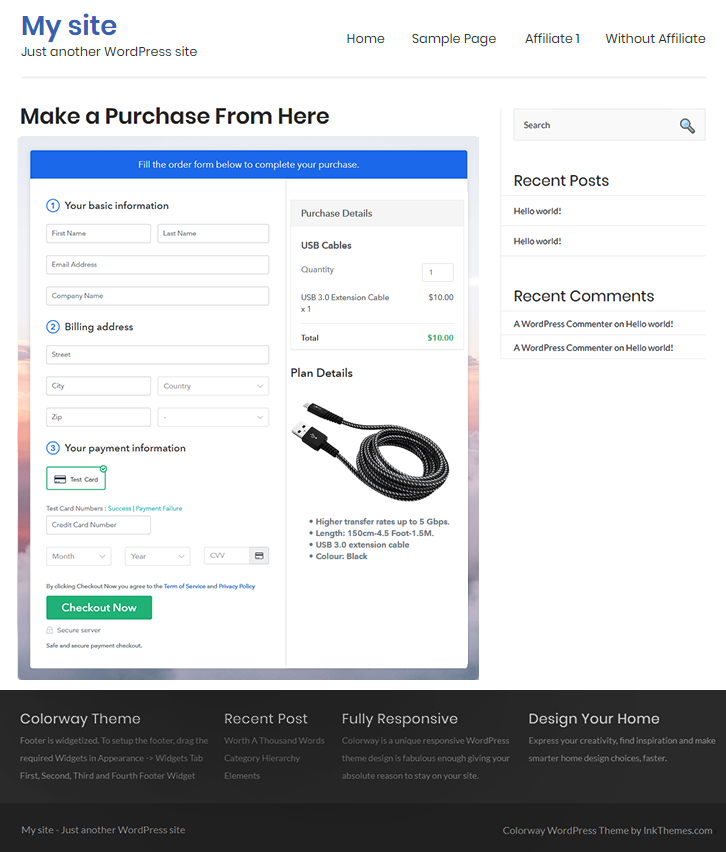
Final View of Checkout Page For Your USB Cables Selling Business

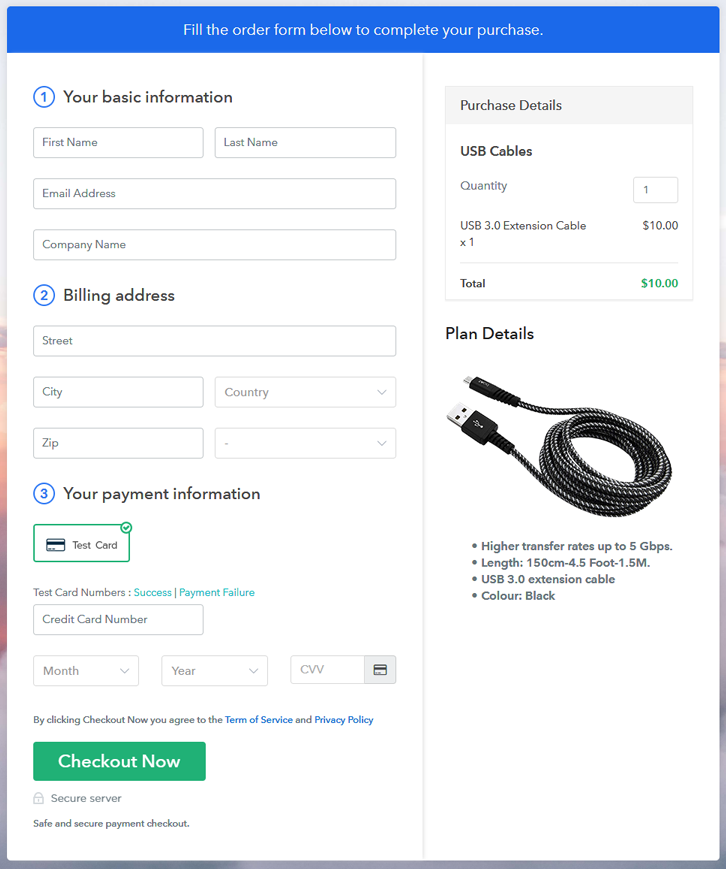
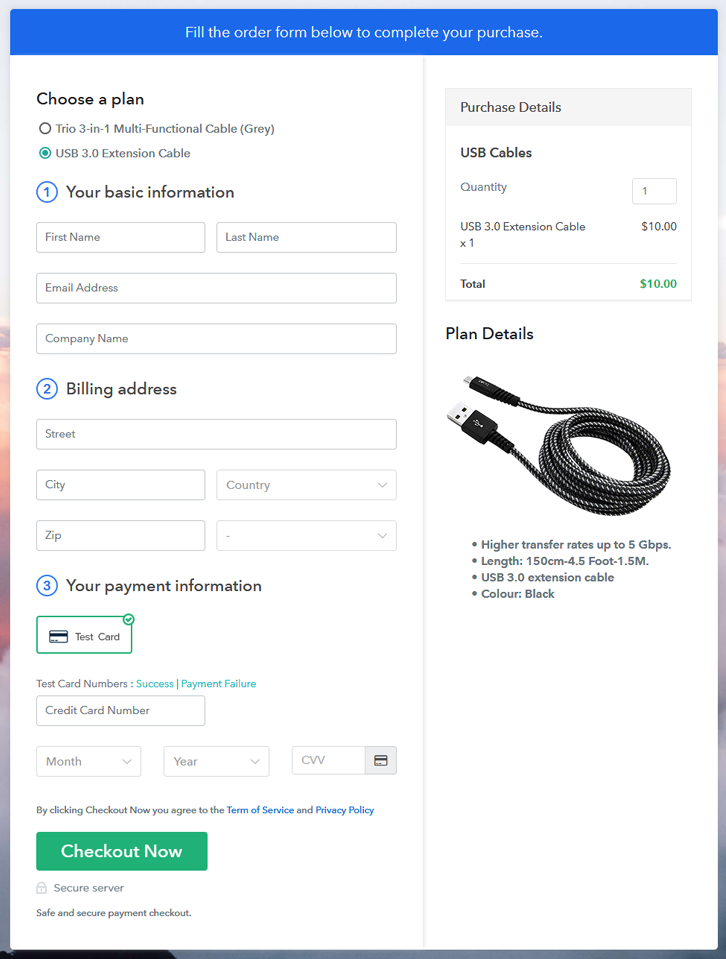
Preview Checkout Page - Sell USB Cable Online

Preview Checkout Page

Step 1: Log in to Pabbly Subscription Billing

Signup

Firstly, go to the site of Pabbly Subscription Billing and after that just press the button “Sign up Free” that will direct you to their sign-up page. Simply enter all the fields either manually or else you can sign in via Gmail account.

Sign Up For Free!

Step 2: Select Subscription Billing

Access Subscription Billing

Step 3: Account Setup

Setup Account

Next, enter all the details of the company like name, currency standards, and phone number. Then, tap on “Continue” to complete the entire process.

Step 4: Connect Payment Gateways & Start USB Cables Selling Business Online

Connect Payment Gateway

Following step is to check the payment gateways in order to stimulate the entire payment experience of a customer. Additionally, Pabbly Subscription Billing provides you multiple payment gateways such as PayPal, Stripe, Razorpay, etc. The complete integration guide for payment gateways is provided below.

Step 5: Add Product For Your USB Cables

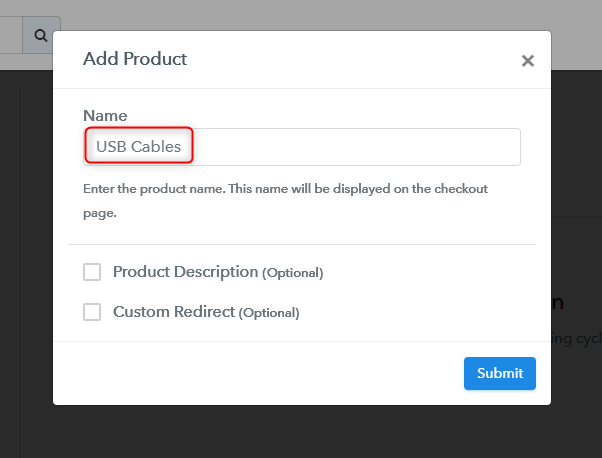
Add Product

Once you successfully embedded the payment gateway, the snext step is to add products. Just press on the “Add New Product” button that will open a dialog box. Afterward, enter the details of the USB cables with their specifications.

Add Product

Enter the details and your product is created.

Note: Here you can add all the products related to the similar category by creating plans for each of them.

Step 6: Add Plans 

Let’s rollout plans for different kinds of USB cables available in your store.

(a) Select Add New Plan

Add Plan

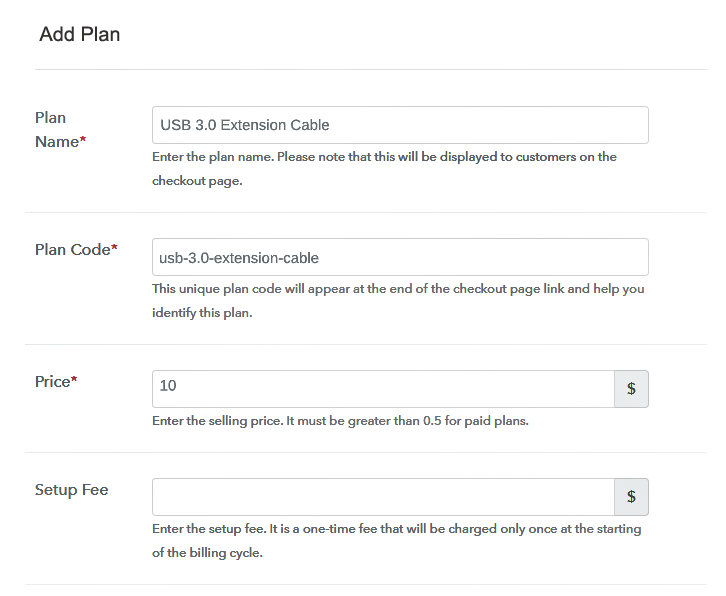
(b) Specify the Plan & Pricing Details

Add Plan

In order to add a plan, you will be redirected to the plan page where you need to fill up the details like name, code, price, setup fees, billing cycle, etc.

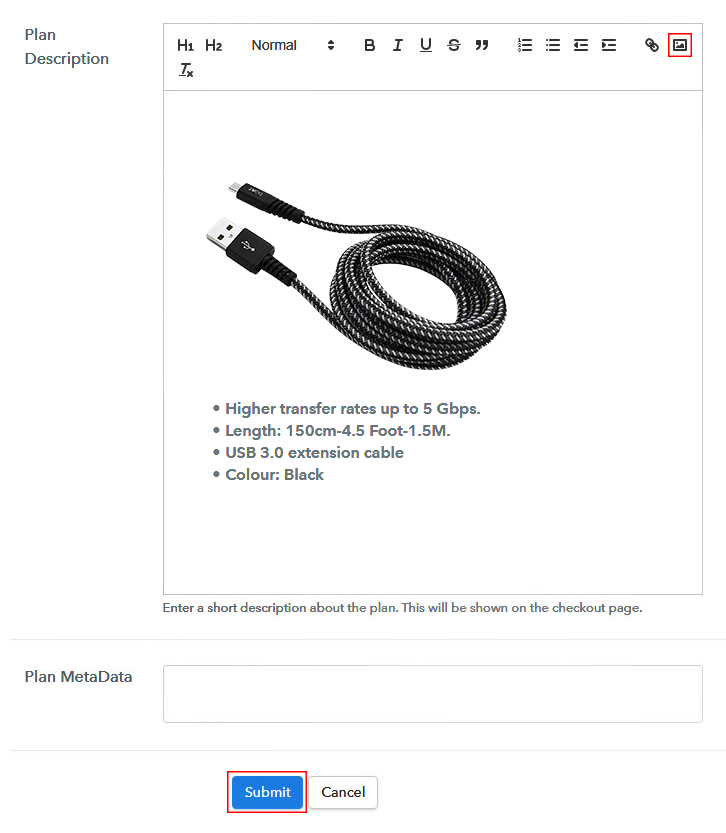
(c) Add Image & Description of USB Cables

Add Product Image

Now, just paste the image of the USB cables that you wish to sell online.

Additionally, give some product information about the USB cables in bullet points such as quantity, quality, etc., and customize the text according to your needs.

After you fillup, the information, just press on the button named “Submit”.

Step 7: Share your Checkout Page

Share Checkout Page on Social Media

  • Share the checkout page on Twitter & Facebook by using their respective buttons.
  • Besides, you can also directly share the checkout page link to customers using emails and SMS.
  • Furthermore, it allows you to add the provided plan link in the buttons. Apart from that, you can even use the anchor text anywhere on your website to redirect users on the checkout page.

Step 8: Preview Checkout Page

Follow up the recommended steps to preview the checkout page:

(a) Click on the View Button

View Checkout Plan

(b) Take a Look at the Checkout Page

Preview Checkout Page - Sell USB Cable Online

Step 9: Embed Checkout Page in Site & Sell Usb Cables Online

Embed Checkout Page on Website

Now, just copy the embed link to insert the checkout page on your WordPress website.

(a) Edit the Page & Paste the Copied Link

Embed Checkout Page on Website

Further, paste the plan link on a text editor of the WordPress dashboard.

(b) Save & Publish the Checkout Page

Save_and_Publish

Next, click the “Publish” button, after making changes.

(c) Check out the Final Look of your Checkout Page on WordPress Site

Preview Checkout Page on WordPress Site

Step 10: Multiplan Checkout Page

Note: In case you want to sell multiple products via a single checkout page, you can create a multi-plan checkout page otherwise skip this step.

(a) Click on Add Multiplan Checkout

Multiplan Checkout

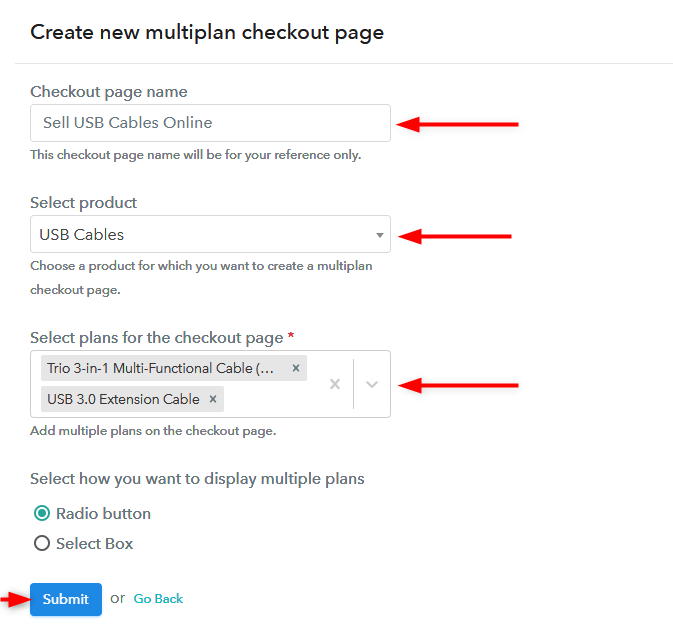
(b) Add Plans to Sell Multiple USB Cables from Single Checkout Page

Create Multiplan Checkout Page

(c) Take a Look at the Checkout Page

Preview Multiplan Checkout Page

Preview Checkout Page

Wrapping Up

We hope this article was helpful to you for solving your query on “How to sell USB cables online?”. All you need to do is follow the above-mentioned steps and you are good to go.

Go ahead and start your online USB cables selling business without any hassle. And, if you have any query, write it in the comment section below. We will get back to you ASAP.

You May Also Like To Read –
How To Sell Used Sports Equipment Online | Step by Step (Free Method)

Ideal For: All the sports equipment sellers, sports shop owners, sports goods manufacturers, and other merchants can use this method to sell used sports equipment online.

How To Sell Used Sports Equipment Online

Why Choose this Method to Sell Used Sports Equipment Online?

Unlike any other solution, this method allows you to:

  • List and sell your used sports equipment for FREE. Absolutely no payment required.
  • No need to pay commission on any of your sale.
  • Multiple payment options like PayPal, Credit Card, etc to collect payment from a single place.
  • Sell one time or recurring subscriptions of your used sports equipment.
  • Collect payments & sell products in any currency as per your requirement.
  • Give discounts on your products by offering special coupon codes.
  • Add sales commission agents to help you in selling the used sports equipment.

Get Pabbly Subscription Billing for Free

Most of the sports equipment can be reused again with some refurbishment. And the immediate benefit of selling used sports equipment online is that you can gauge a fair market value of the product online due to instant bidding. Which otherwise was impossible in traditional brick stores. Furthermore, there are a

While of course, you can sell used sports equipment online on platforms like Quiker, Play It Again Sports, etc. But are you willing to pay their excessive listing charges? Obviously not!! Then let me show you another approach by which you can sell used sports equipment online without paying any nonsensical listing charges or commission based on profits.

This process involves using an awesome Saas tool called Pabbly Subscription Billing. Using this software you can create beautiful checkout pages to list and sell used sports equipment online. Some features worth mentioning are :

  • Unlimited Products Listing
  • Generate Unlimited Revenues
  • Revenue Tracking
  • Create Unlimited Coupons, Plans & Discounts
  • Auto Credit Card Reattempts on Decline

So, lets our first checkout page with Pabbly Subscription Billing to sell fresh tunas online.

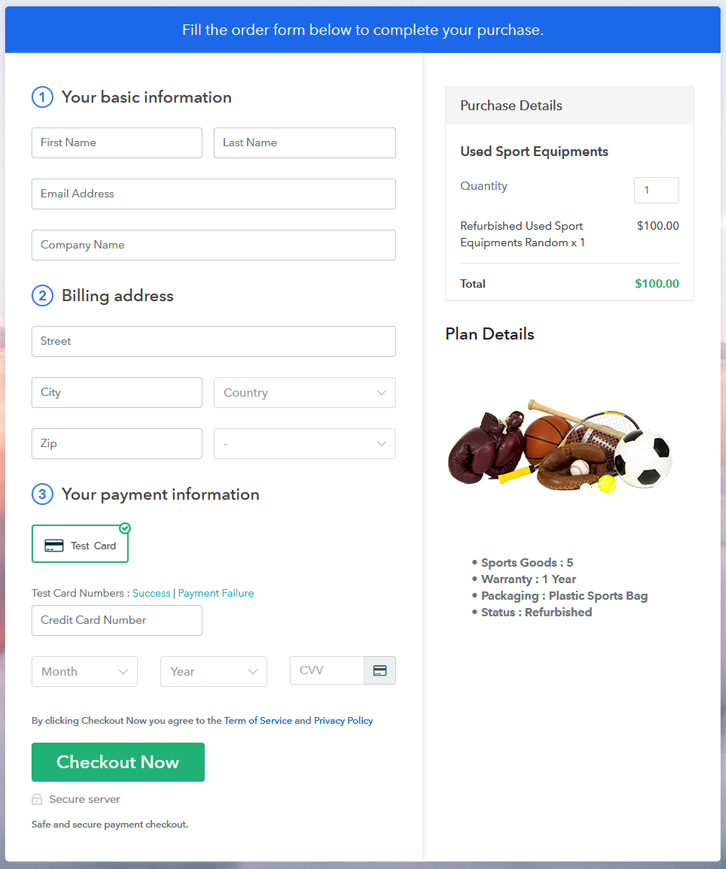
Final View of Checkout Page for your Used Sports Equipment Selling Business

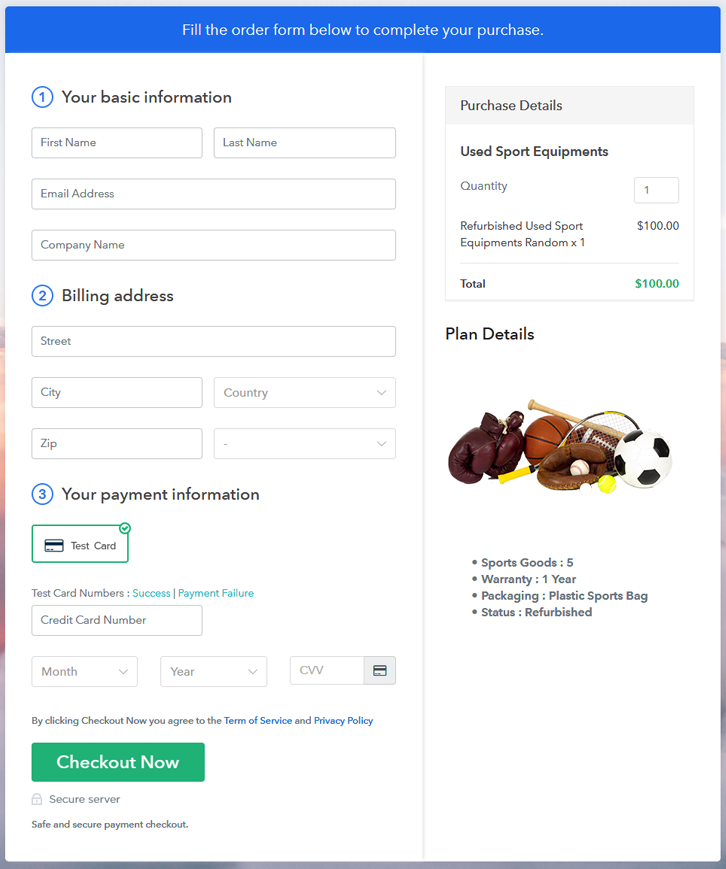
Checkout To Sell Used Sports Equipment Online

Preview Checkout Page

Step 1: Log in to Pabbly Subscription Billing

Signup

Fire your browser to look for Pabbly Subscription Billing. Now, here click on the “Sign up Free“ button. You may fill all the mandated fields or simply sign in using your Gmail account.

Sign Up For Free!

Step 2: Select Subscription Billing

Access Subscription Billing

Step 3: Account Setup

Setup Account

Once you’re done click on the “Access Now” button of Pabbly Subscription Billing, a page will pop-up with details like company name, currency, and contact number. Next, you need to fill those details to go on.

Step 4: Connect Payment Gateways & Start Selling Used Sports Equipment Business Online

Connect Payment GatewayUsing Pabbly Subscription Billing you can dry run the payment experience of a customer using dummy payment gateways. You can do this by clicking on the “Enable Test Payment” option. Furthermore, payment gateways like PayPal, Stripe, Razorpay can be easily integrated using the help of the manuals given below.

Step 5: Add Product for your Used Sports Equipment 

Add Product

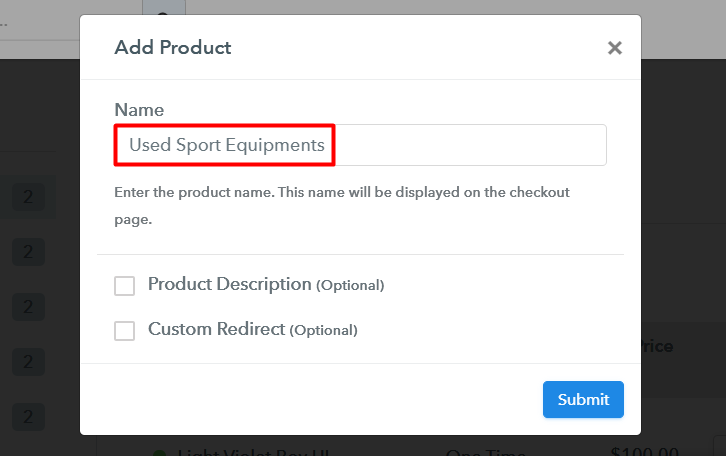
Let’s start to add the products. Also, beneath the  “Enable Payments” segment there is the “Add your product” section click on it. Furthermore, this will generate a dialog box with a blue button “Add New Product”. Click on it.

Also, you have to add the required product title, in this case, it is a ‘used sports equipment’.

Checkout To Sell Used Sports Equipment Online

Fill out all the details like the name of the product and voila your product is created.

Note: Here you can add all the products related to the similar category by creating plans for each of them.

Step 6: Add Plans 

Now let’s create plans for different kinds of used sports equipment available in your store.

(a) Select Add New Plan

Add Plan

(b) Specify the Plan & Pricing Details

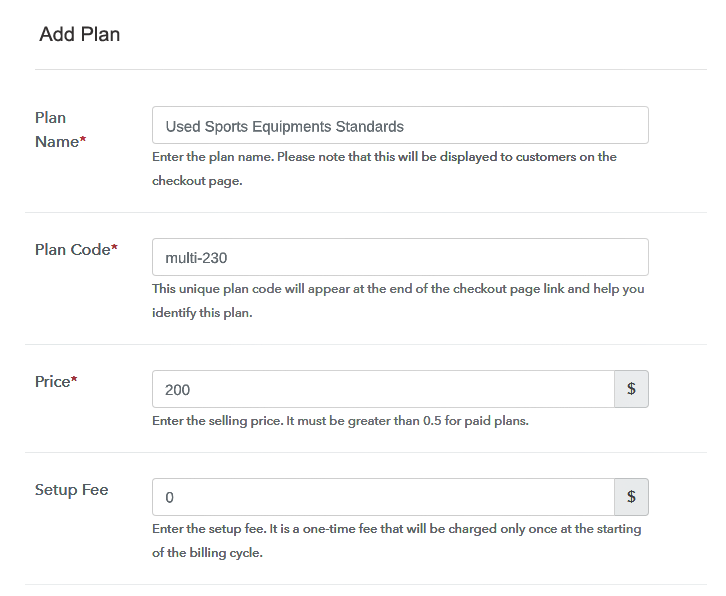
Plan To Sell Used Sports Equipment Online

Fill in information like plan name, code, price, setup fees.

In the segment below you will find the option to change the billing models like one-time payment, recurring, etc.

(c) Add Image & Description of Used Sports Equipment

Image To Sell Used Sports Equipment Online

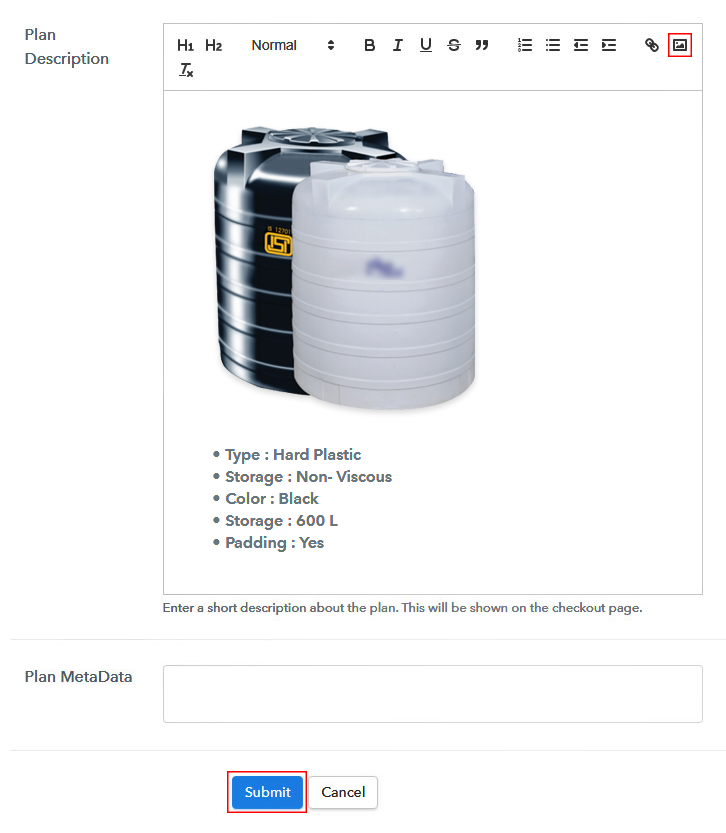
Upload some good images of the used sports equipment and upload it by clicking the image button.

Also under the image, give some description of the sports equipment and then press the “Submit” button.

Furthermore, by using the same process, you can list more products.

Step 7: Share your Checkout Page

Share Checkout Page on Social Media

Pabbly Subscription Billing offers three choices for the marketing of your products. They are :

  • Sharing the checkout page on Twitter & Facebook by simply pressing the dedicated buttons
  • Or if you want, you can always share the checkout pages via email and SMS.
  • Also, you can create buttons on your webpage and paste the checkout links on it. Or you can place it on any anchor text on your website, so the users will be redirected to the checkout page.

Step 8: Preview Checkout Page

Follow up the recommended steps to preview the checkout page:

(a) Click on the View Button

View Checkout Plan

(b) Take a Look at the Checkout Page

Checkout To Sell Used Sports Equipment Online

Step 9: Embed Checkout Page in Site & Sell Online

Embed Checkout Page on Website

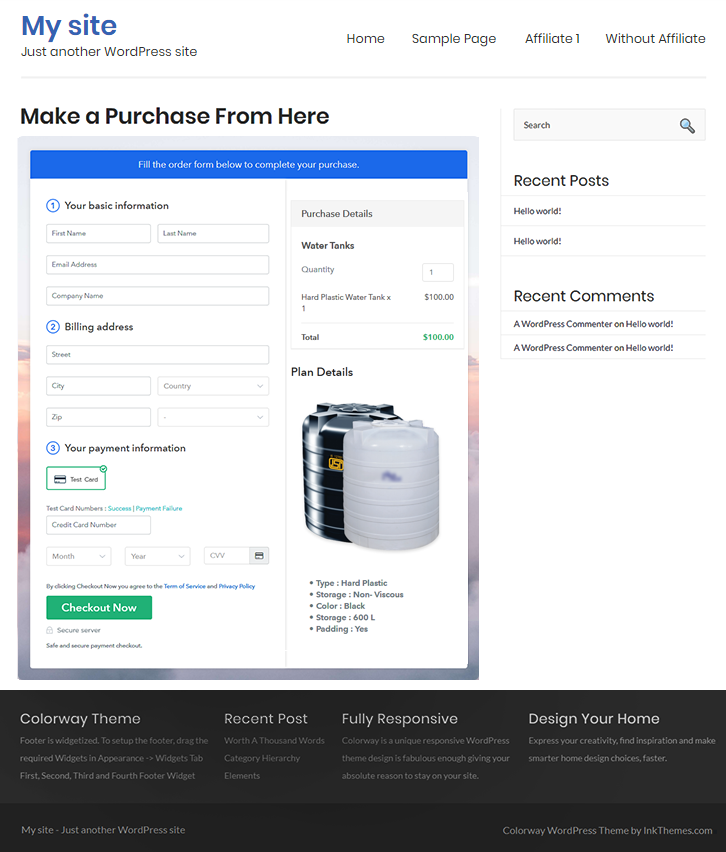
Also just copy the link and add the checkout page to sell used sports equipment at any suitable place on your WordPress site.

(a) Edit the Page & Paste the Copied Link

Embed Checkout Page on Website

Further, paste the plan link of the used sports equipment on a text editor of the WordPress dashboard.

(b) Save & Publish the Checkout Page

Save_and_Publish

Next, click the “Publish” button, after making changes.

(c) Check out the Final Look of your Checkout Page on WordPress Site

Wordpress To Sell Used Sports Equipment Online

Step 10: Multiplan Checkout Page

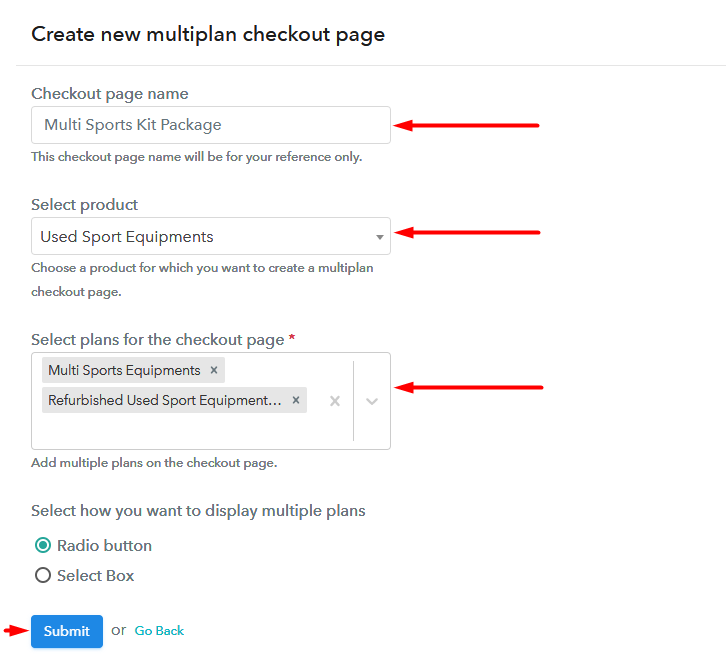
Note: In case you want to sell multiple products via a single checkout page, you can create a multi-plan checkout page otherwise skip this step.

(a) Click on Add Mutiplan Checkout

Multiplan Checkout

(b) Add Plans to Sell Multiple Used Sports Equipment from Single Checkout Page

Add Plan To Sell Used Sports Equipment Online

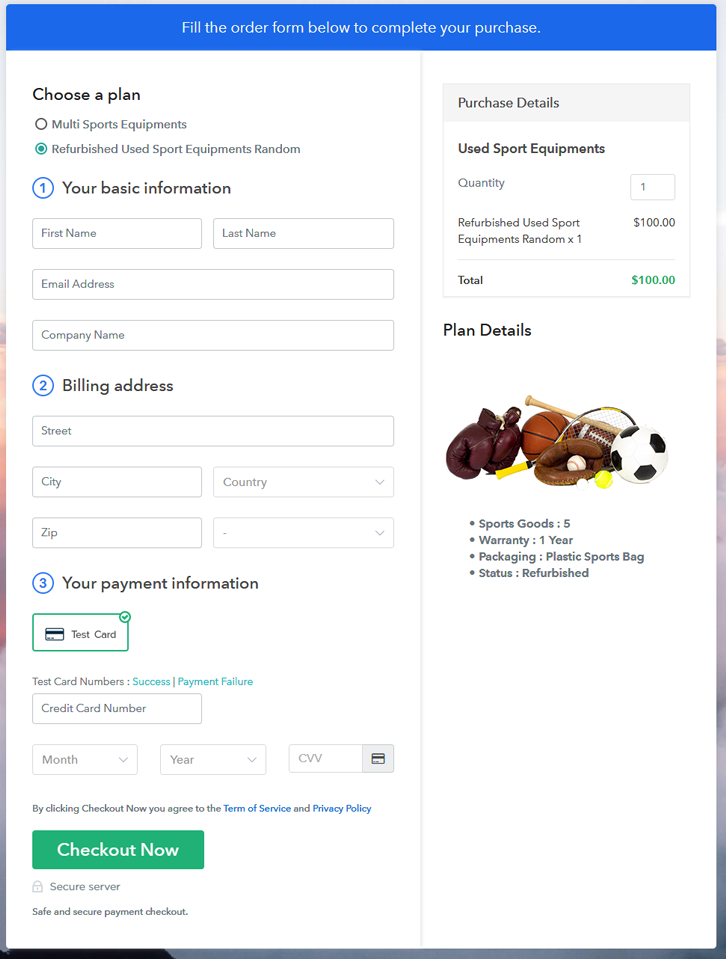
(c) Take a Look at the Checkout Page

Multiplan To Sell Used Sports Equipment Online

Preview Checkout Page

Wrapping Up

Wow!! Stunning isn’t it? Your first checkout page to sell used sports equipment totally rocks!! With some effort, you will be able to create the checkout page in just 5 minutes.

There are a ton of features in Pabbly Subscription BIlling, give us a ping in the comment section to get you video tutorials and documents.

You May Also Like To Read –
 

How To Sell USB Chargers Online | Step by Step (Free Method)

How to Sell USB Chargers Online

Ideal For: All electronic store owners, ‎mobiles & accessories shop stores, USB chargers wholesale vendors, and other merchants can use this method to start selling USB charger business online.

How to Sell USB Chargers Online

Why Choose this Method To Sell USB Chargers Online?

Unlike any other solution, this method allows you to:

  • List and sell your USB chargers for FREE. Absolutely no payment required.
  • No need to pay commission on any of your sale.
  • Multiple payment options like PayPal, Credit Card, etc to collect payment from a single place.
  • Sell one time or recurring subscriptions of your USB chargers.
  • Collect payments & sell products in any currency as per your requirement.
  • Give discounts on your products by offering special coupon codes.
  • Add sales commission agents to help you in selling USB chargers online.

Get Pabbly Subscription Billing for Free

Are you thinking to expand your USB charger business and broaden your customer reach? Well, the smartphone market is remunerative and it can give huge returns on your investments. With online USB charger business, you can earn more money than from offline.

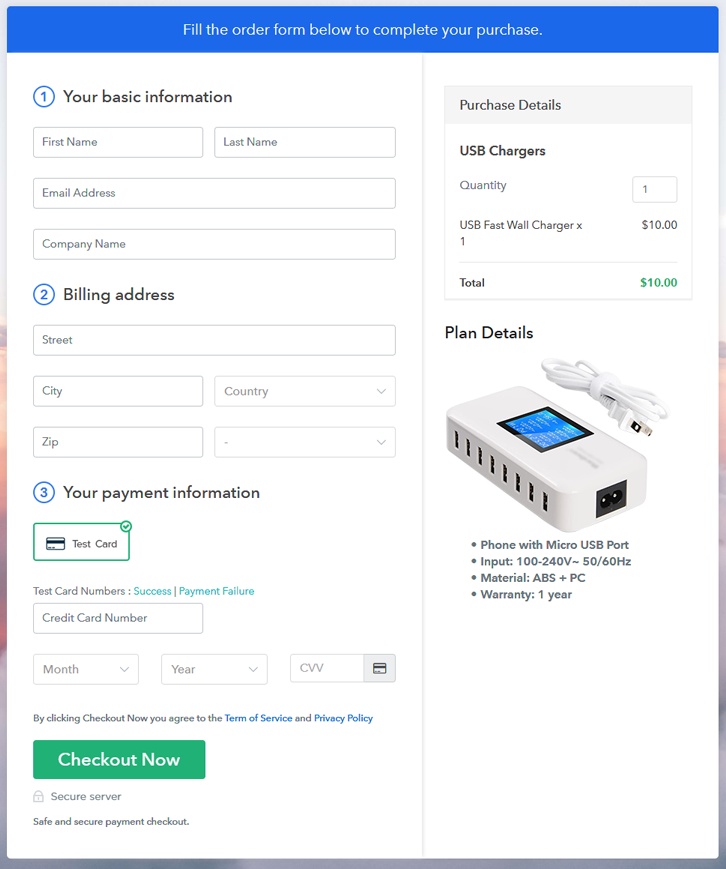
You just have to create checkout pages for your USB chargers and share their links on social media or your website and people can buy your products directly through these links. To create checkout pages and start your USB charger selling an online business there is an amazing and free tool, Pabbly Subscription Billing. With this service, you can kick start your business in a few minutes. Pabbly Subscription Billing offers you many great features such as:

  • Share invoices automatically with users
  • Collect one-time or recurring payments through offline or online modes
  • Integrate it with your website to increase your sales
  • You don’t have to pay any transaction fees

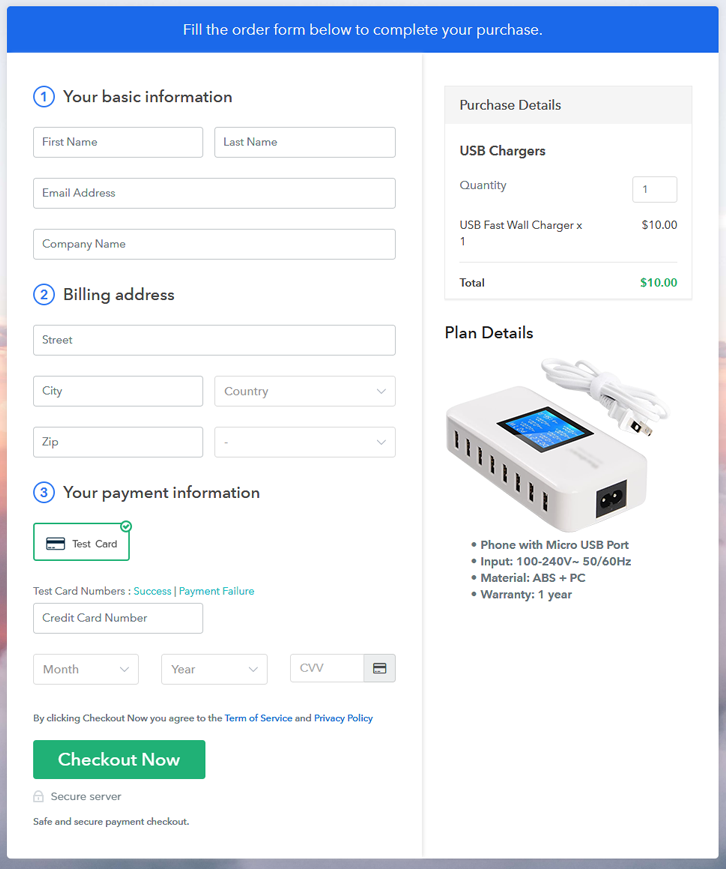
Final View of Checkout Page For Your USB Chargers Selling Business

Preview Checkout Page - Sell USB Charger Online

Preview Checkout Page

Step 1: Log in to Pabbly Subscription Billing

Signup

First of all, visit the Pabbly Subscription Billing website and Sign-Up to the software. You can easily signup either manually or using your Gmail account.

Sign Up For Free!

Step 2: Select Subscription Billing

Access Subscription Billing

Step 3: Account Setup

Setup Account

After finishing the signup process, fill up the basic information like company name, currency, and phone number in the diagonal box.

Step 4: Connect Payment Gateways & Start USB Chargers Selling Business Online

Connect Payment Gateway

Moreover, Pabbly Subscription Billing provides the “Enable Test Payment” button for beginners to learn the billing payment procedures. So, you can check the application’s working by enabling the trial payment mode. After that, you can connect multiple payment gateways like PayPal, Stripe, Razorpay, Authorize.net, and many more to collect payment. Here below we provide the integration guides to help you out

Step 5: Add Product For Your USB Chargers

Add Product

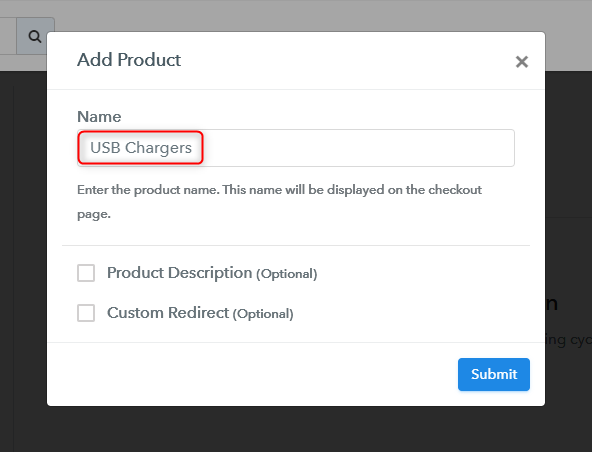
After enabling the payment gateway, specify the product name with details by clicking on the “Add New Product” option. This way, you can also add multiple types of USB chargers like USB-A, USB-B, USB-C, etc., to the same product category by creating different plans.

Add Product

Momentarily, click on the submit button, and your product is created to sell USB chargers online.

Note: Here you can add all the products related to the similar category by creating plans for each of them.

Step 6: Add Plans 

Let’s rollout plans for different kinds of USB chargers available in your store.

(a) Select Add New Plan

Add Plan

(b) Specify the Plan & Pricing Details

Add Plan

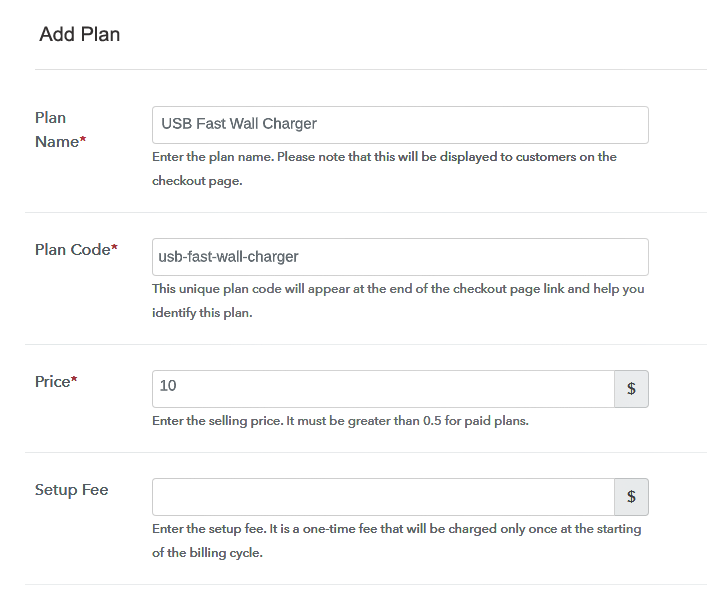
As soon as you click on the add new plan, you will be redirected to the “Add Plan” page. Therein, you can specify the plan details like plan name, plan code, price, setup fee, etc., for selling USB chargers online.

(c) Add Image & Description of USB Chargers

Add Product Image - Sell USB Charger

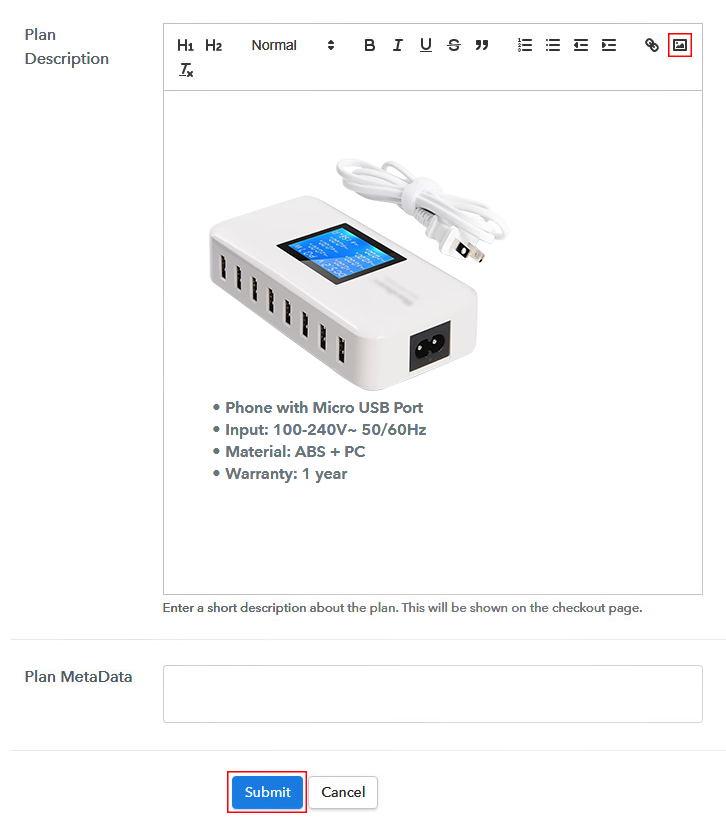
Moreover, you can write a brief description of your product with an image in the “Plan Description” field. Along with that, you can also customize the text and add product links. Once you are done with the changes hit on the “Submit” button and your checkout page is ready for selling USB charger online.

Step 7: Share your Checkout Page

Share Checkout Page on Social Media

Share your checkout page with your buyers with Pabbly Subscription Billing’s sharing options like:

  • Share it with your audience via social media platforms, SMS, emails, etc.
  • Secondly, send the checkout page directly on Facebook and Twitter to increase user engagement.
  • Also, you can embed the checkout page on your website as button so that your customers can be landed on it directly.

Step 8: Preview Checkout Page

Follow up the recommended steps to preview the checkout page:

(a) Click on the View Button

View Checkout Plan

(b) Take a Look at the Checkout Page

Preview Checkout Page - Sell USB Charger Online

Step 9: Embed Checkout Page in Site & Sell USB Chargers Online

Embed Checkout Page on Website

Now, add the checkout page on your WordPress by just copying the checkout page link.

(a) Edit the Page & Paste the Copied Link

Embed Checkout Page on Website

Further, paste the plan link on a text editor of the WordPress dashboard.

(b) Save & Publish the Checkout Page

Save_and_Publish

Next, click the “Publish” button, after making changes.

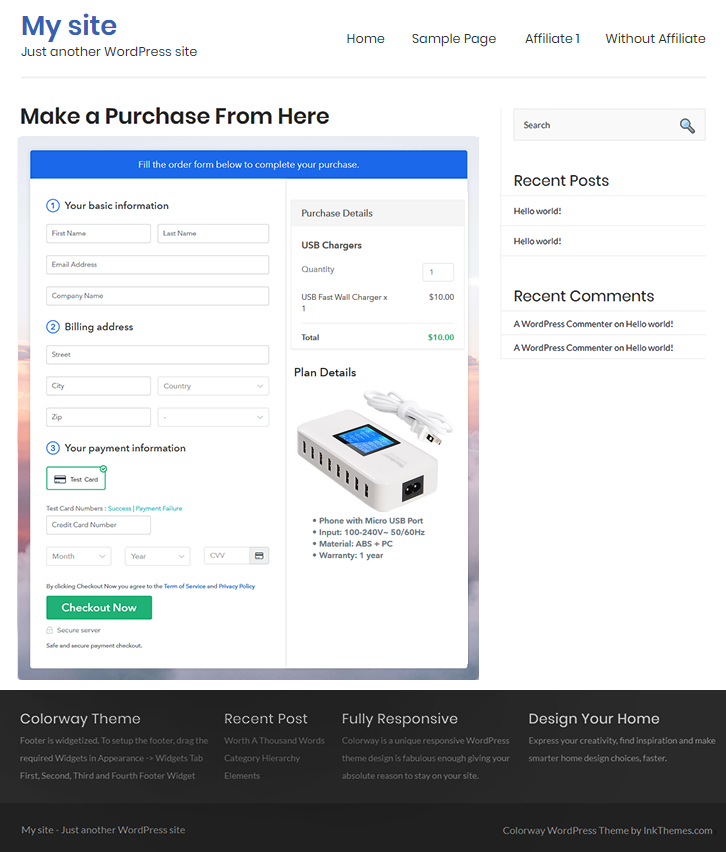
(c) Check out the Final Look of your Checkout Page on WordPress Site

Preview Checkout Page on WordPress Site

Step 10: Multiplan Checkout Page

Note: In case you want to sell multiple products via a single checkout page, you can create a multi-plan checkout page otherwise skip this step.

(a) Click on Add Multiplan Checkout

Multiplan Checkout

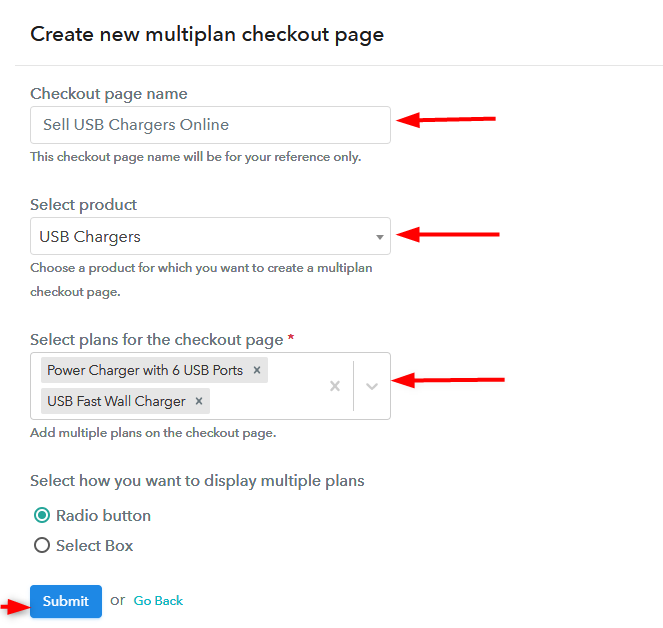
(b) Add Plans to Sell Multiple USB Chargers from Single Checkout Page

Create Multiplan Checkout Page

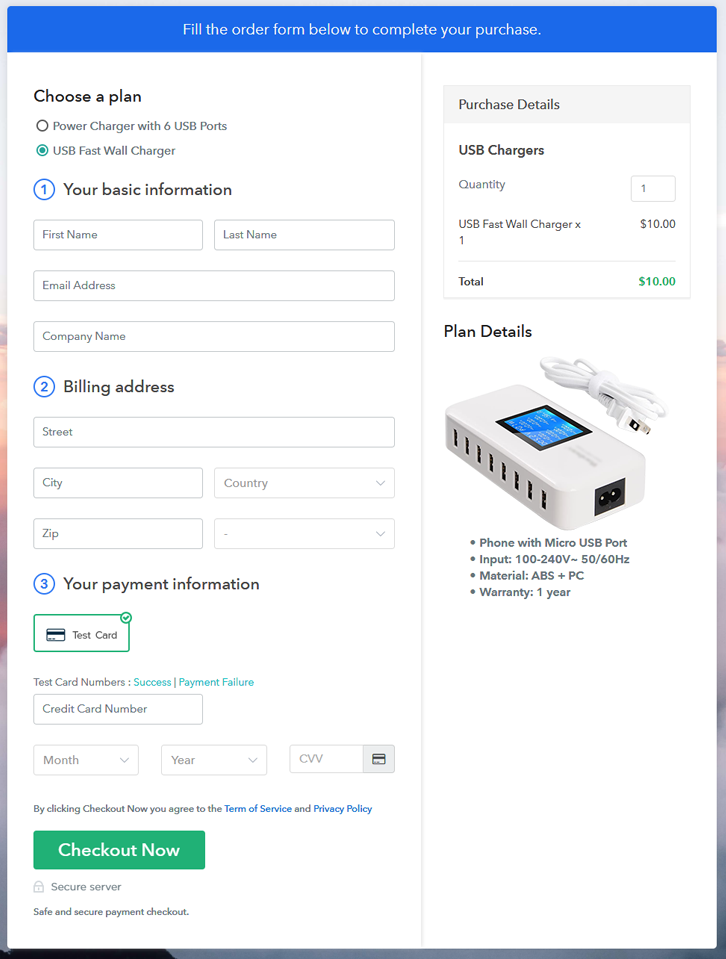
(c) Take a Look at the Checkout Page

Preview Multiplan Checkout Page

Preview Checkout Page

Wrapping Up

One last note, Pabbly Subscription Billing is going to help you in setting up your online USB charger business so much. With Pabbly Subscription Billing, you can easily collect payments, share invoices, create discount coupons, and whatnot. Therefore, stop thinking and start selling USB chargers online.
For further queries or suggestions, please contact us.

You May Also Like To Read –
How To Sell UI Design Online | Step by Step (Free Method)

Ideal For: All the UI design sellers, developers, software companies, and other merchants can use this method to sell UI design online.

How To Sell UI Design Online

Why Choose this Method to Sell UI design Online?

Unlike any other solution, this method allows you to:

  • List and sell your UI design kits for FREE. Absolutely no payment required.
  • No need to pay commission on any of your sale.
  • Multiple payment options like PayPal, Credit Card, etc to collect payment from a single place.
  • Sell one time or recurring subscriptions of your UI design model kits.
  • Collect payments & sell products in any currency as per your requirement.
  • Give discounts on your products by offering special coupon codes.
  • Add sales commission agents to help you in selling the UI design.

Get Pabbly Subscription Billing for Free

In this era, UI is ubiquitous and need by everyone like air for breathing. There is no industry, which can claim they can prosper without UI. Even though it is a billion-dollar industry, the demands are scattered across the globe. That is why many designers are opting to sell UI design online to get more business.

Though I should mention there are some platforms like Dribbble, Uplabs, Fiverr where you can sell UI design online. But you should that these websites take some excess commissions, which might blow a hole in your pocket. Also, they reject any design not keeping up to their outlandish standards. So that why in this article we will work with an online tool called Pabbly Subscription Billion. Using this software one can create checkout pages to sell UI design online. Furthermore, here there are no commissions or cuts, you simply roll out your products and start billing. Some important features worth mentioning are

  • Generate Unlimited Revenues
  • Track Revenues
  • Multiple Billing Models
  • Revenue Tracking
  • Insert Customized Logos
  • Transparent Billing

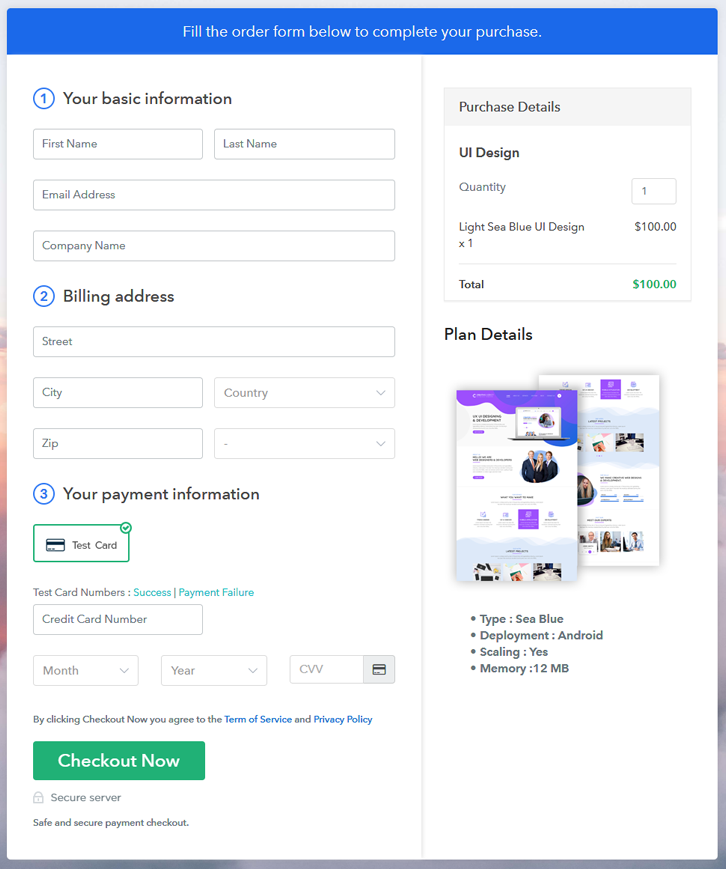
So, why wait? Let us create our first checkout page with Pabbly Subscription Billing to start UI design selling business online.

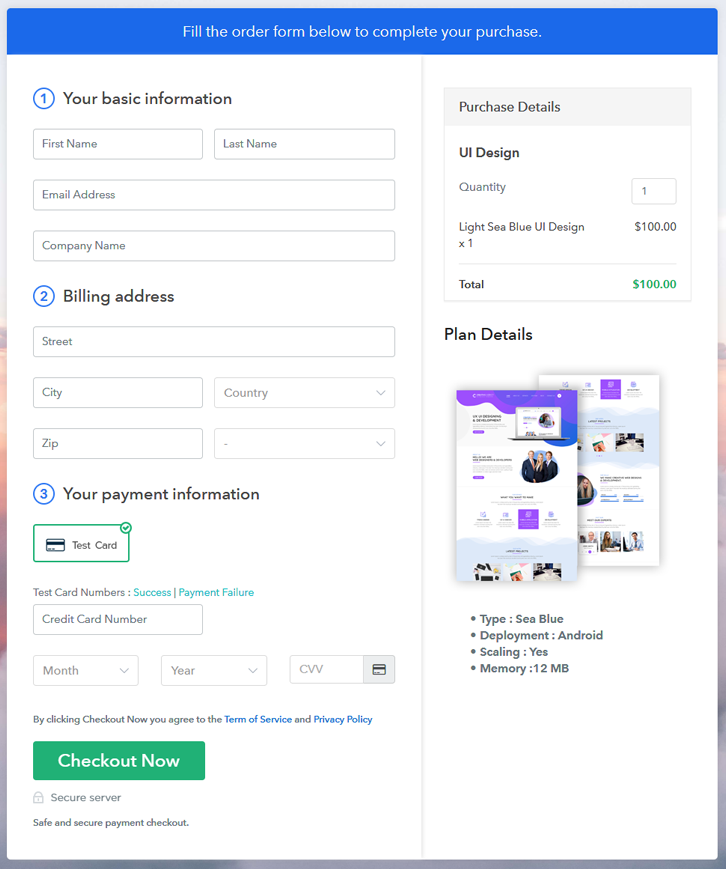
Final View of Checkout Page for your UI Design Selling Business

Checkout To Sell UI Design Online

Preview Checkout Page

Step 1: Log in to Pabbly Subscription Billing

Signup

First of all look for Pabbly Subscription Billing in your browser. Now, click on the “Sign up Free“ button. You may fill all the mandated fields or simply sign in using your Gmail account.

Sign Up For Free!

Step 2: Select Subscription Billing

Access Subscription Billing

Step 3: Account Setup

Setup Account

Once you’re done click on the “Access Now” button of Pabbly Subscription Billing, a page will pop-up with details like company name, currency, and contact number. Next, you need to fill those details to go on.

Step 4: Connect Payment Gateways & Start UI Design Selling Business Online

Connect Payment GatewayUsing Pabbly Subscription Billing you can dry run the payment experience of a customer using dummy payment gateways. You can do this by clicking on the “Enable Test Payment” option. Furthermore, payment gateways like PayPal, Stripe, Razorpay can be easily integrated using the help of the manuals given below.

Step 5: Add Product for your UIs Design

Add Product

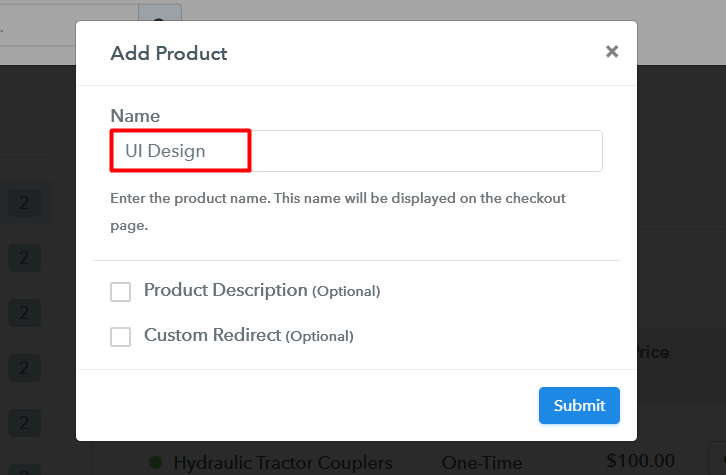
Let’s start to add the products. Also, beneath the  “Enable Payments” segment there is the “Add your product” section click on it. Furthermore, this will generate a dialog box with a blue button “Add New Product”. Click on it.

Also, you have to add the required product title, in this case, it is a ‘UI design ’.

Add Product Checkout To Sell UI Design Online

Fill out all the details like the name of the product and voila your product is created.

Note: Here you can add all the products related to the similar category by creating plans for each of them.

Step 6: Add Plans 

Now let’s create plans for different kinds of UI design available in your store.

(a) Select Add New Plan

Add Plan

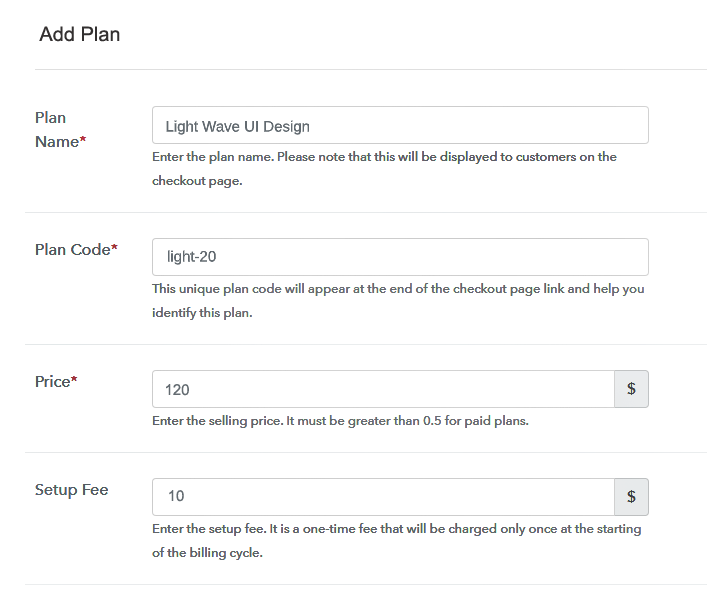
(b) Specify the Plan & Pricing Details

Add Plan Checkout To Sell UI Design Online

In the plan page, here you have to fill in details like plan name, code, price, setup fees.

Now scroll down, and in the section below you can see the choice to change the billing models like one-time payment, recurring, etc.

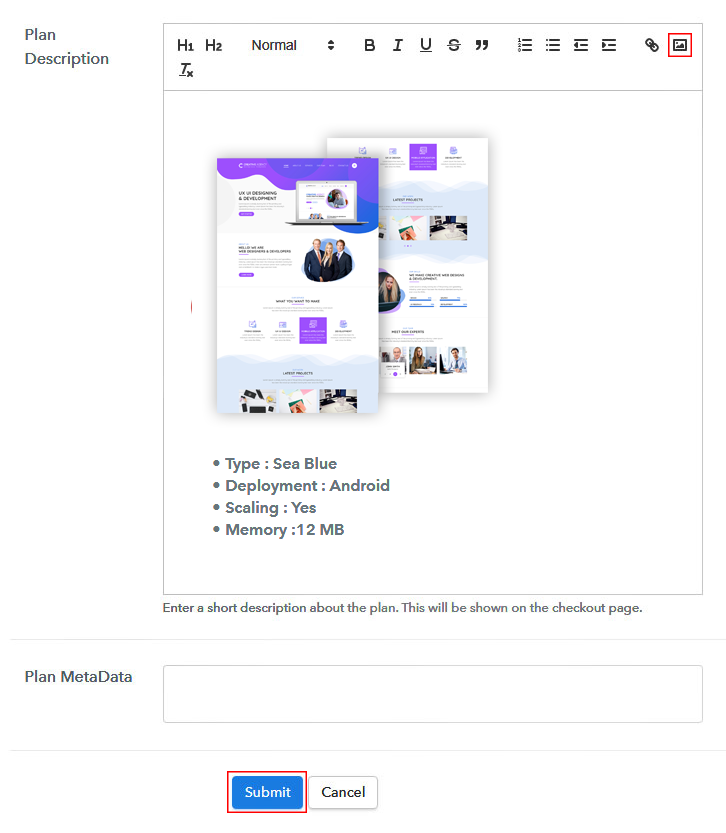
(c) Add Image & Description of  Kits

Add Image Checkout To Sell UI Design Online

Now use some high-quality images of the UIs and upload it

Below the image, insert description about the UIs in bullet points like type, deployment, etc, and then press the “Submit” button.

Also by using the same process, you can list more products.

Step 7: Share your Checkout Page

Share Checkout Page on Social Media

Pabbly Subscription Billing gives three options for digital marketing.

  • First, share your checkout page on Twitter & Facebook by just pressing the respective buttons.
  • Likewise, you can always share the checkout pages via email and SMS.
  • Also, you can create buttons on your webpage and paste the checkout links on it. Or you can place it on any anchor text on your website, so the users will be redirected to the checkout page.

Step 8: Preview Checkout Page

Follow up the recommended steps to preview the checkout page:

(a) Click on the View Button

View Checkout Plan

(b) Take a Look at the Checkout Page

Add Product Checkout To Sell UI Design Online

Step 9: Embed Checkout Page in Site & Sell Online

Embed Checkout Page on Website

Also just copy the link and add the checkout page to sell UI design at any suitable place on your WordPress site.

(a) Edit the Page & Paste the Copied Link

Embed Checkout Page on Website

Further, paste the plan link of the UI design on a text editor of the WordPress dashboard.

(b) Save & Publish the Checkout Page

Save_and_Publish

Next, click the “Publish” button, after making changes.

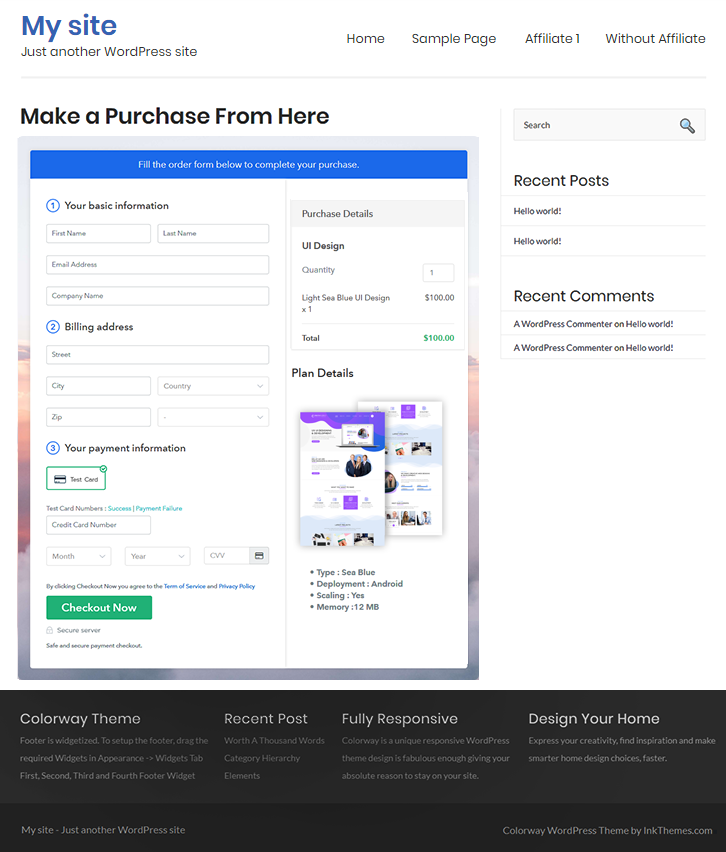
(c) Check out the Final Look of your Checkout Page on WordPress Site

Add WordPress Checkout To Sell UI Design Online

Step 10: Multiplan Checkout Page

Note: In case you want to sell multiple products via a single checkout page, you can create a multi-plan checkout page otherwise skip this step.

(a) Click on Add Mutiplan Checkout

Multiplan Checkout

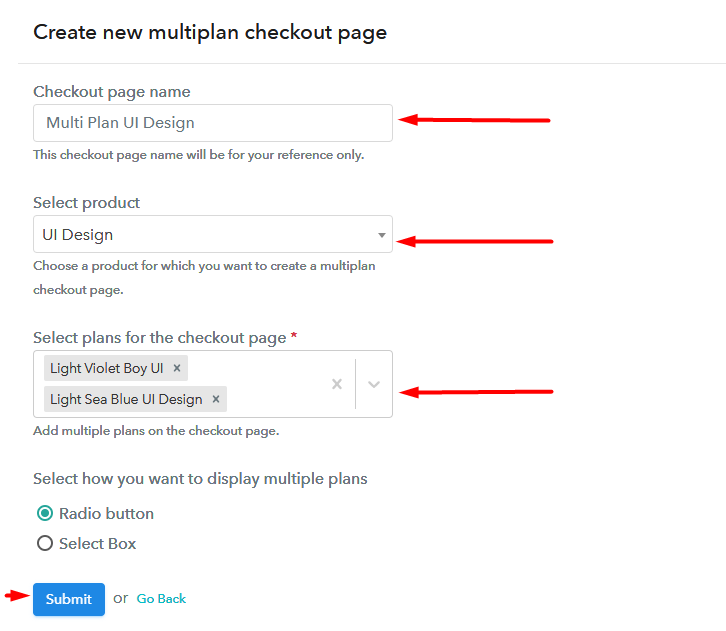
(b) Add Plans to Sell Multiple UI Design from Single Checkout Page

Add Multiplan Checkout To Sell UI Design Online

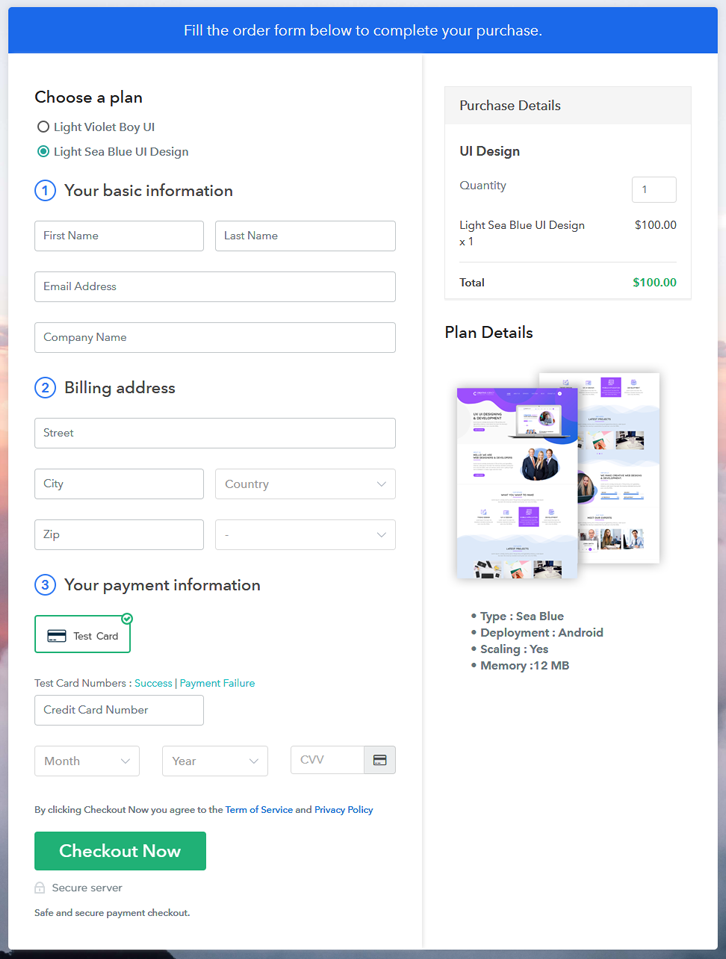
(c) Take a Look at the Checkout Page

Multiplan Checkout To Sell UI Design Online

Preview Checkout Page

Wrapping Up

Yeah!! look how beautiful your checkout and multi-plan checkout pages!! They can be used to sell unlimited UI online. Now, keep exploring and experimenting with features, which help you properly under this system. But, if you have any doubts regarding the process, do contact us in the comment section below. Thank You!!

You May Also Like To Read –