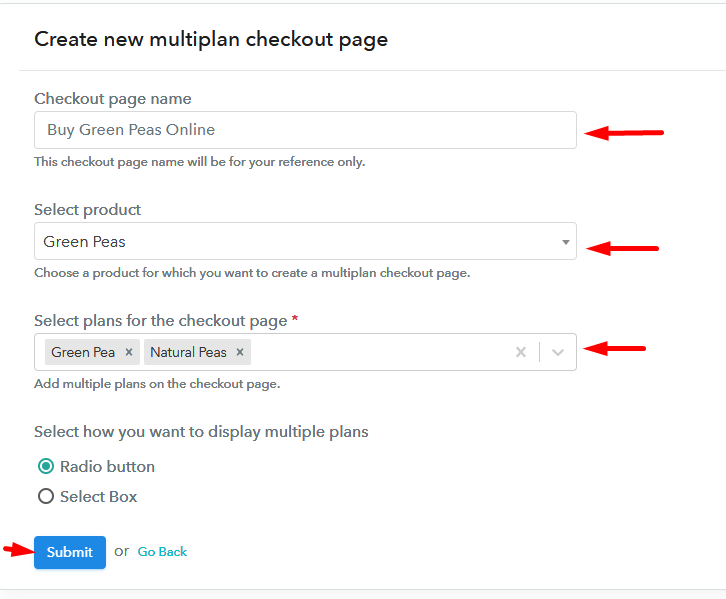
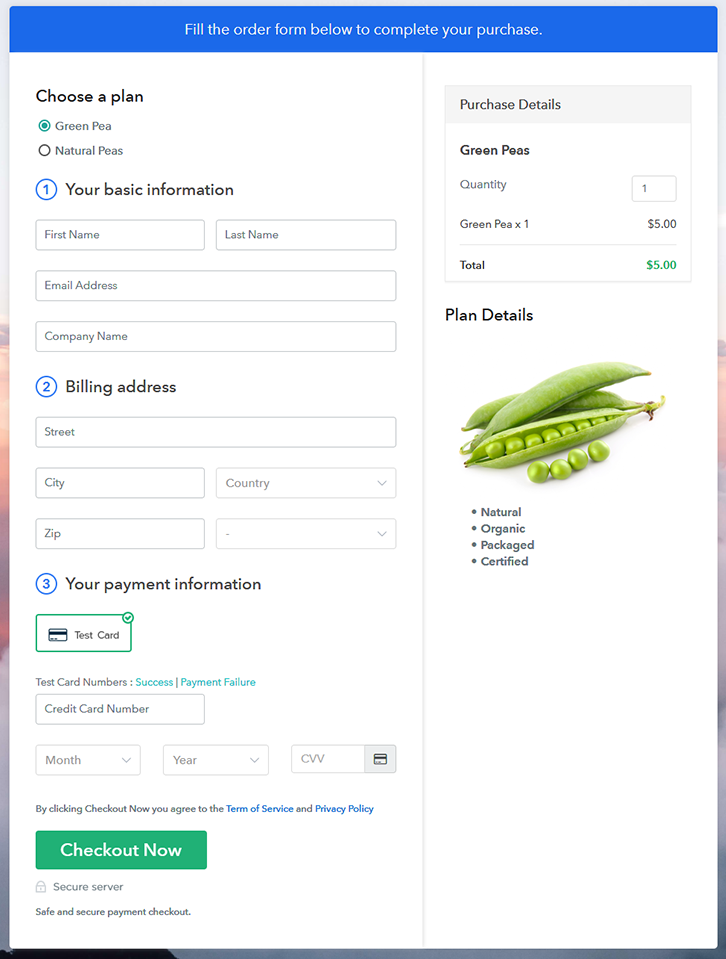
How to Sell iPhone Cases Online | Step by Step (Free Method)

How to Sell iPhone Cases Online

Ideal For: All the phone case manufacturers, iPhone case sellers, designer phone dealers, iPhone case suppliers, customized case shop owners and other merchants can use this method to sell iPhone cases online.

How to Sell iPhone Cases Online

Why Choose this Method to Sell iPhone Cases Online?

Unlike any other solution, this method allows you to:

  • List and sell your iPhone cases for FREE. Absolutely no payment required.
  • No need to pay commission on any of your sales.
  • Multiple payment options like PayPal, Credit Card, etc to collect payment from a single place.
  • Sell one time or recurring subscriptions of your iPhone cases.
  • Collect payments & sell products in any currency as per your requirement.
  • Give discounts on your products by offering special coupon codes.
  • Add sales commission agents to help you in selling iPhone cases online.

Get Pabbly Subscription Billing for Free

Having an iPhone is cool but the fancy iPhone cases make it 100 times better. And, it is hard to deny that there are numerous mobile devices than people in the world. Considering this, it is suitable to start iPhone cases business online to meet the demand.

Starting an online business with a specific niche does wonder, take an instance of Tim Kock’s who build a  “Dropshipping Store” that earned $6,667 within 8 weeks. Amazed? You must be! It can be you. All you need a strong will and software to guide you through the process of starting your own business. Luckily, we have a software named Pabbly Subscription Billing that is actually a great help for entrepreneurs. It allows you to create a checkout page for selling iPhone cases online. Along with that, it keeps you on top of stocks, revenue, invoices, etc.
Some of its remarkable features involve:

  • List various iPhone cases in a single checkout page
  • Add tax and delivery based on the prospect’s location
  • Offer discount and coupon codes to purchasers

So, let’s get started by creating our checkout page with the help of Pabbly Subscription Billing to sell the iPhone cases online.

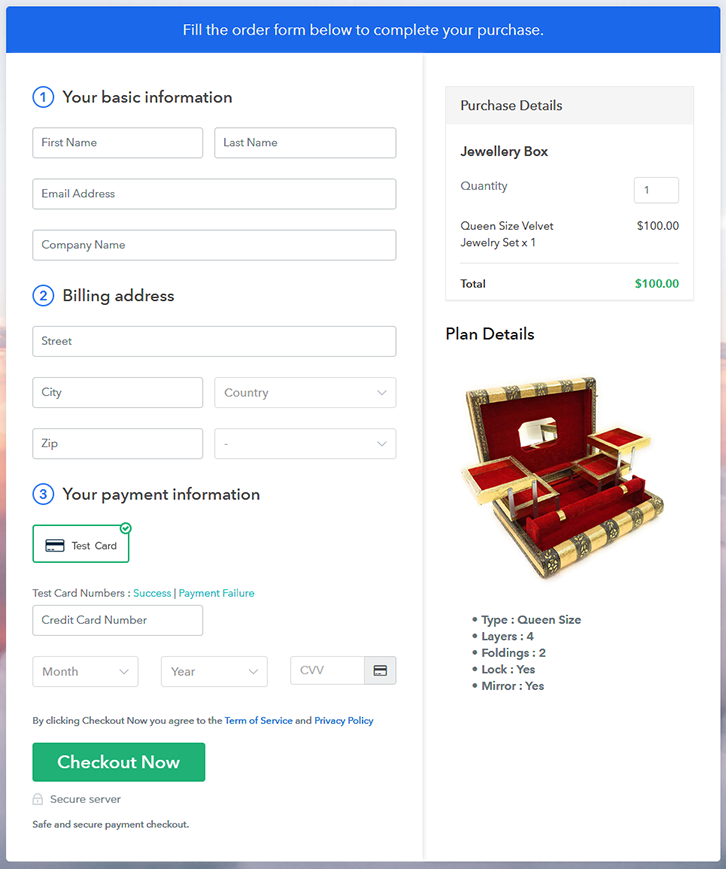
Final View of Checkout Page for your iPhone Cases Selling Business
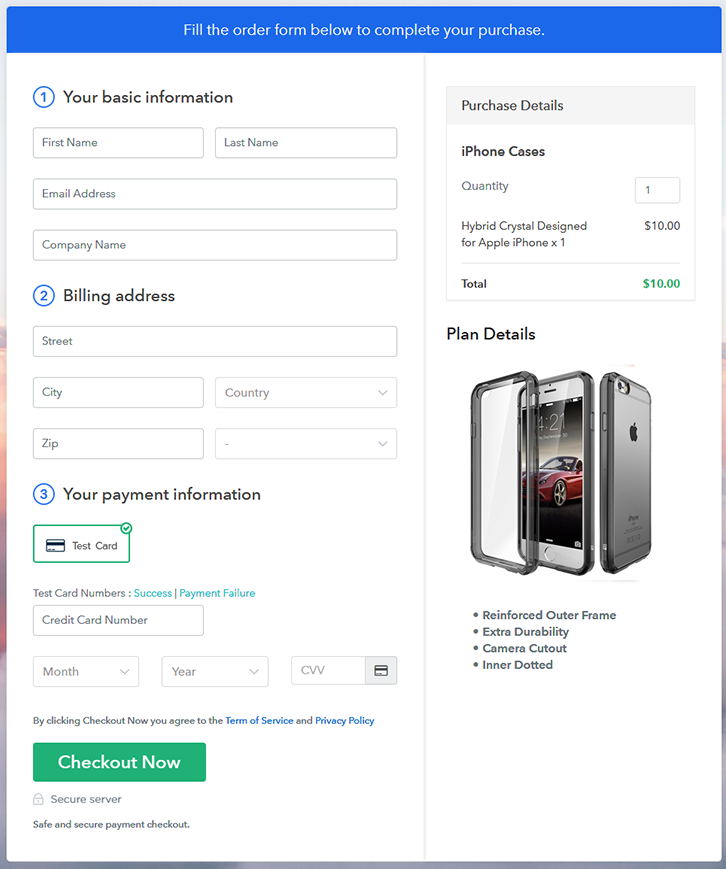
Checkout Page to Sell iPhone Cases Online

Preview Checkout Page

Step 1: Log in to Pabbly Subscription Billing
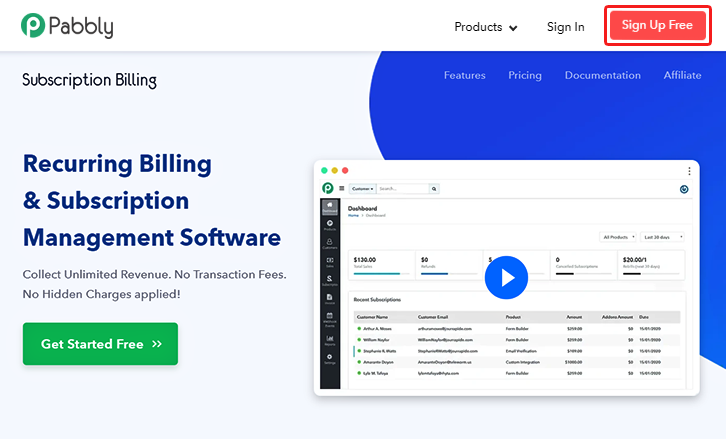
Signup

Start the process for creating a checkout page for iPhone cases by visiting the Pabbly Subscription Billing in your browser. After that, click on the “Sign up Free“ button. Moreover, either manually filled out the details or sign in using your Gmail account.

Sign Up For Free!

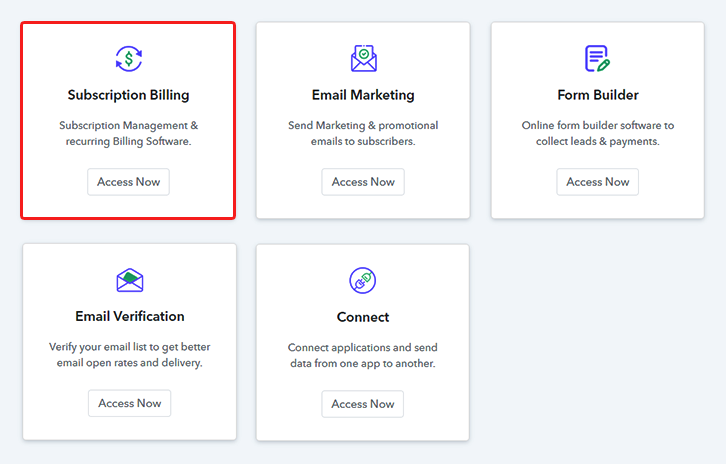
Step 2: Select Subscription Billing

Access Subscription Billing

Step 3: Account Setup
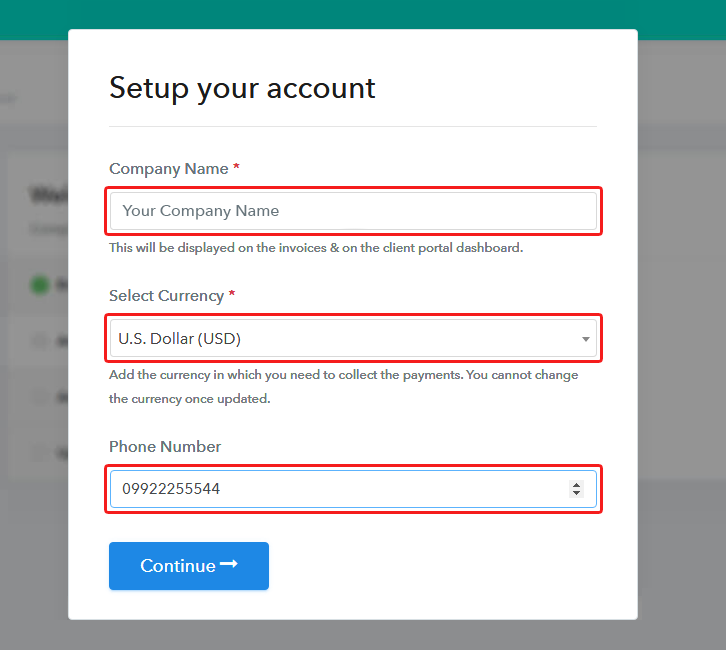
Setup Account

Besides, after clicking on the “Access Now” button of the software, a page will open with fields like company name, select currency, and phone number. Simply fill out those details to continue creating a checkout page for iPhone cases.

Step 4: Connect Payment Gateways & Start iPhone Cases Selling Business Online
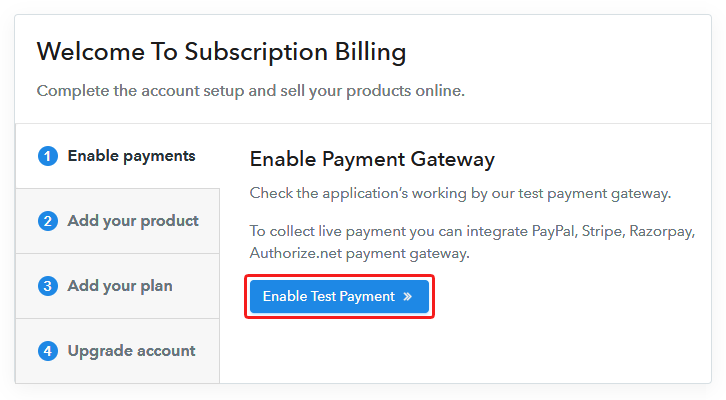
Connect Payment Gateway

The subsequent step is to gaining knowledge about payment procedures using a “Test Payment Gateway”. Here, we will describe the checkout page process for the iPhone cases with the help of a test payment gateway. Besides this, the tool offers various payment gateways such as PayPal, Stripe, etc. Further, below are the payment integration guides to help you out.

Step 5: Add Product for your iPhone Cases
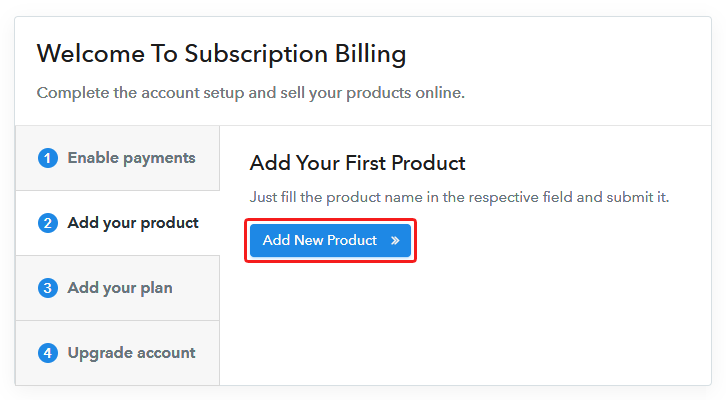
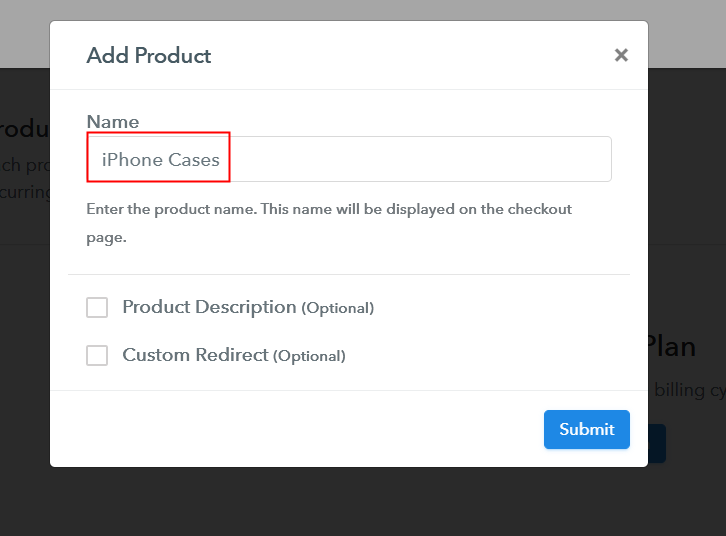
Add Product

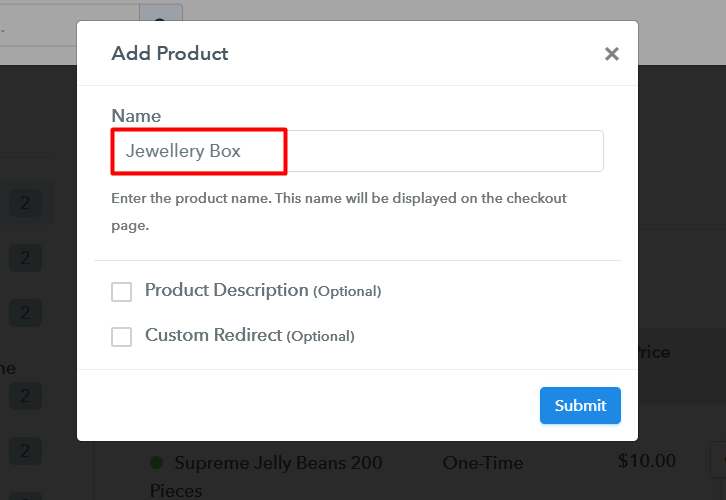
Additionally, add the name, which in our case is “iPhone Cases”. Here you can specify the type like designer iPhone cases, customized iPhone cases, etc. Further, write a short description of the iPhone cases to seize the customer’s attention.

Add Product to Start Selling iPhone Cases Online

Moreover, just fill out all those details and your product is created.

Note: Here you can add all the products related to the similar category by creating plans for each of them.

Step 6: Add Plans 

Let’s expose plans for different kinds of iPhone cases available in your store.

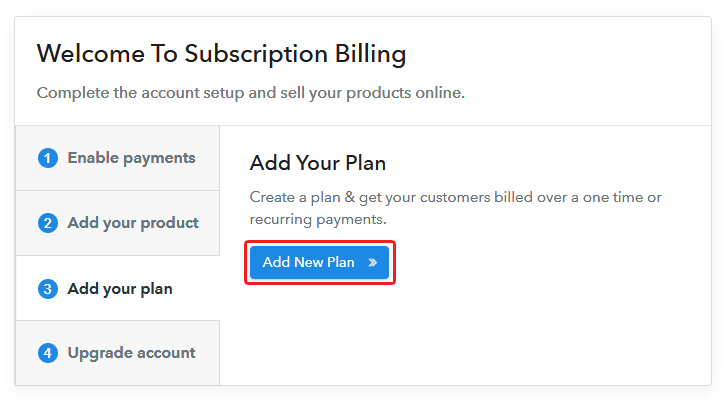
(a) Select Add New Plan

Add Plan

(b) Specify the Plan & Pricing Details
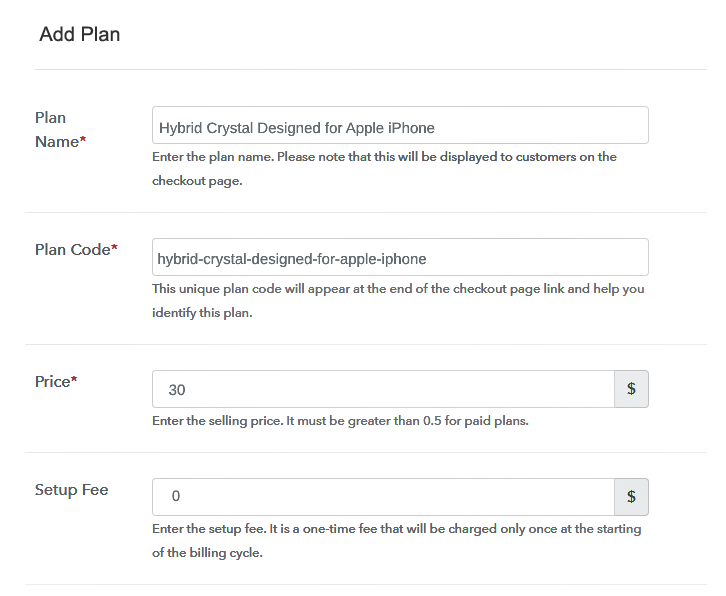
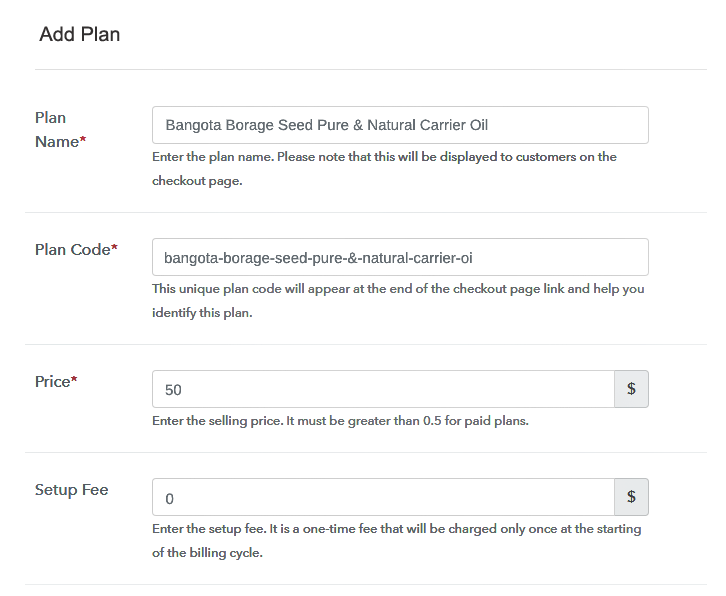
Specify the Plan and Pricing to Sell iPhone Cases Online

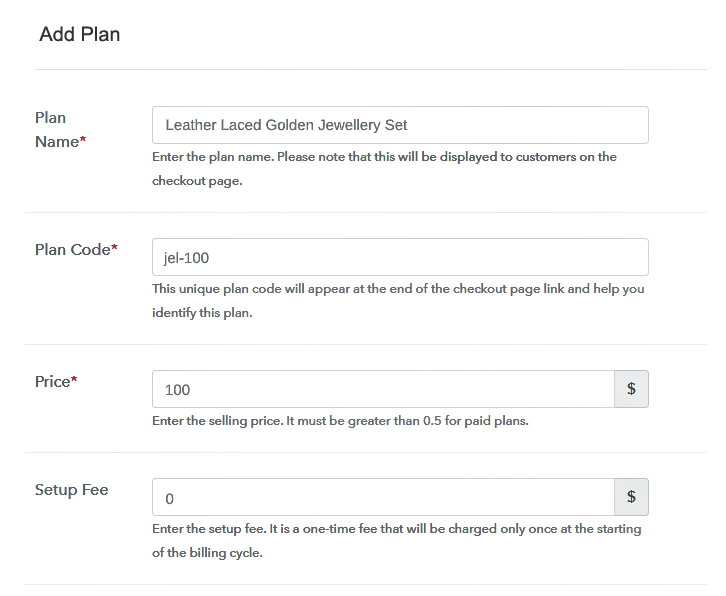
The next thing to do is fill all the details of the iPhone cases like plan name, code, price, set-up fee, and much more to continue.

(c) Add Image & Description of iPhone Cases
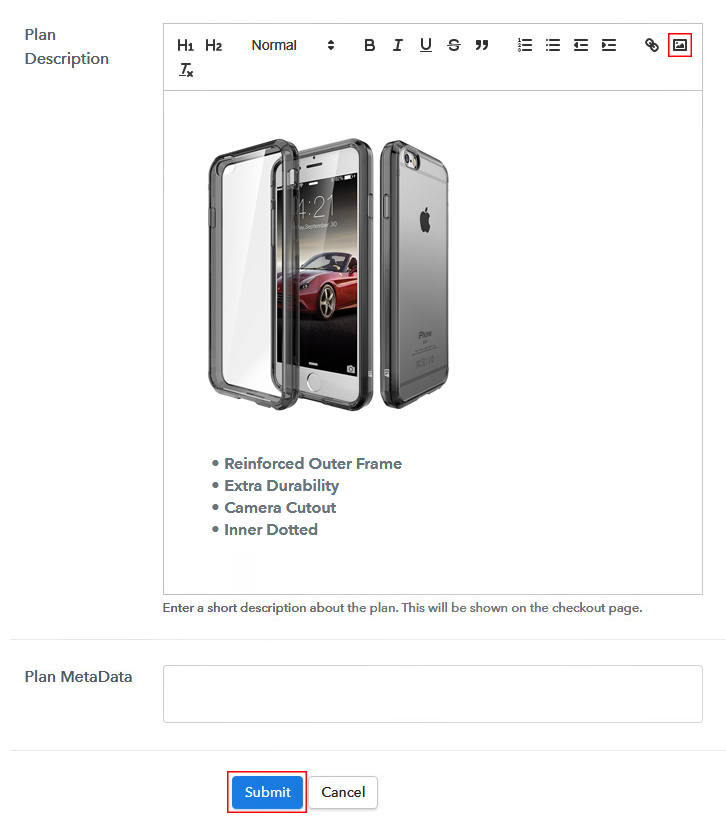
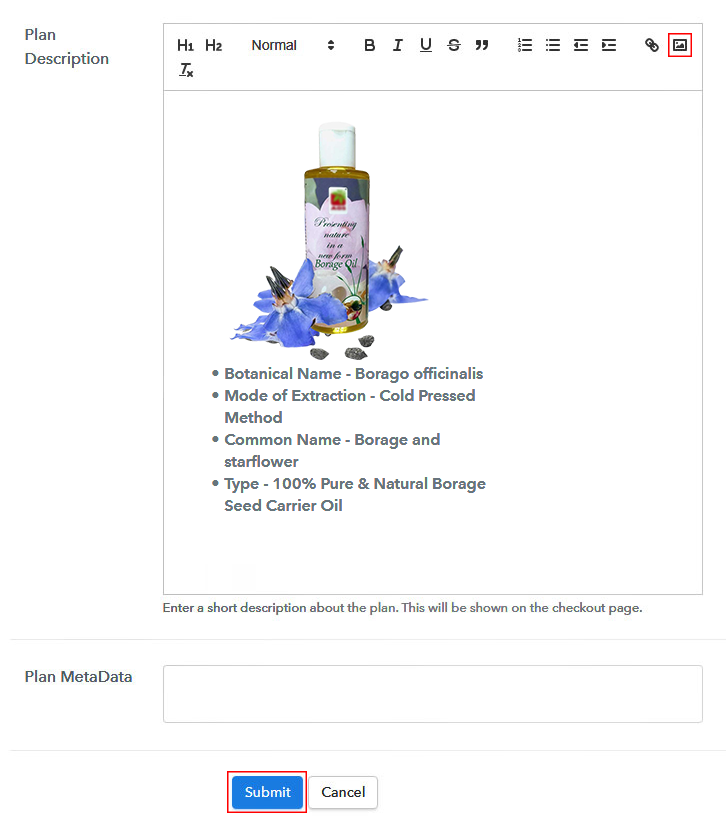
Add Image & Description to Sell iPhone Cases Online

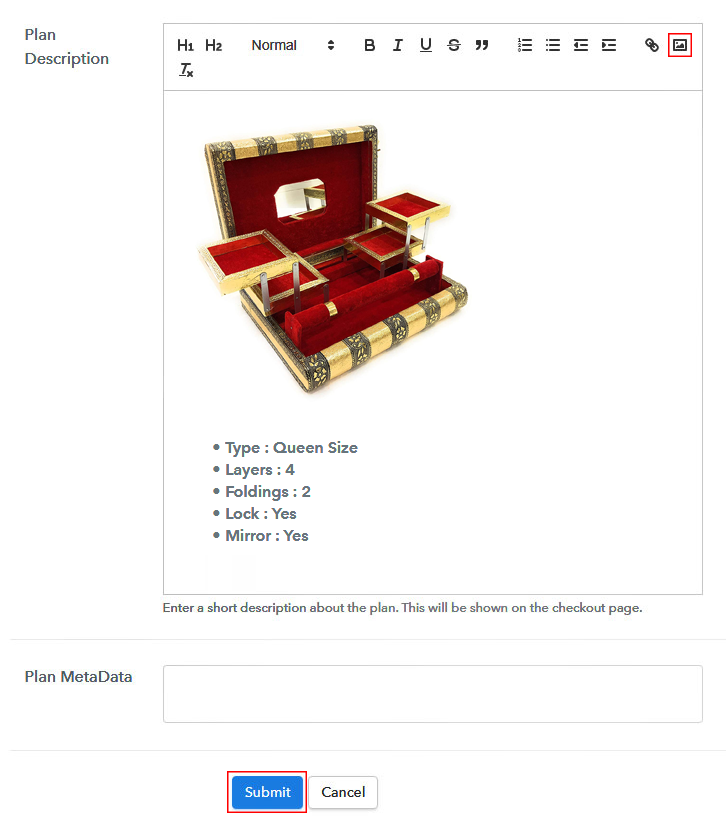
Furthermore, write a brief description of the iPhone cases using bullets, images, etc, to bring original buyers to the checkout page.

Next, click on the “Submit” button to add the iPhone cases on the checkout page.

Finally, you can add multiple plans and kinds of iPhone cases in your product list which you want to market online.

Step 7: Share your Checkout Page

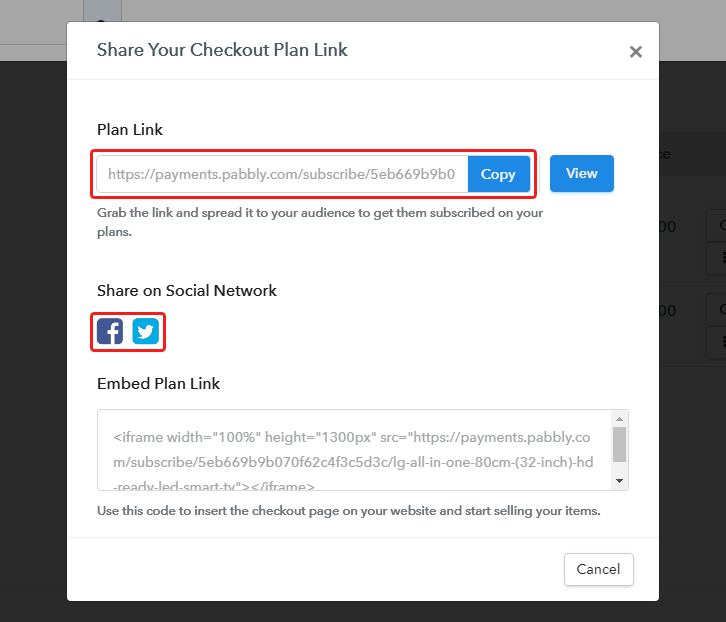
Share Checkout Page on Social Media

  • Moreover, share the checkout page of the iPhone cases on social media accounts like Facebook & Twitter to grab the customer’s attention.
  • Also, you can share the direct link of the iPhone cases checkout page with your customers via SMS or email marketing.
  • Additionally, embed the provided plan link of the iPhone cases in the buttons or any anchor text on your website.

Step 8: Preview Checkout Page

Follow up the recommended steps to preview the checkout page:

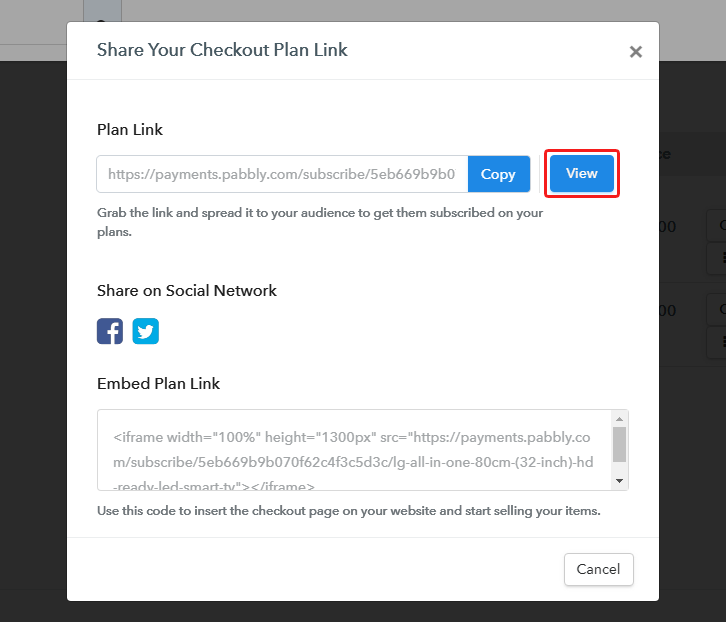
(a) Click on the View Button

View Checkout Plan

(b) Take a Look at the Checkout Page

Checkout Page to Sell iPhone Cases Online

Step 9: Embed Checkout Page in Site & Sell iPhone Cases Online
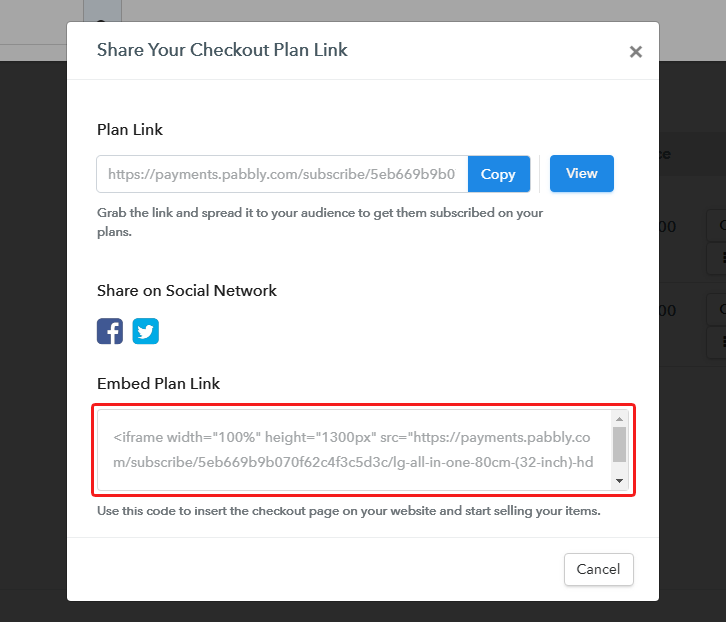
Embed Checkout Page on Website

Just copy the link and add the checkout page to sell iPhone cases online at any proper place on your WordPress site.

(a) Edit the Page & Paste the Copied Link
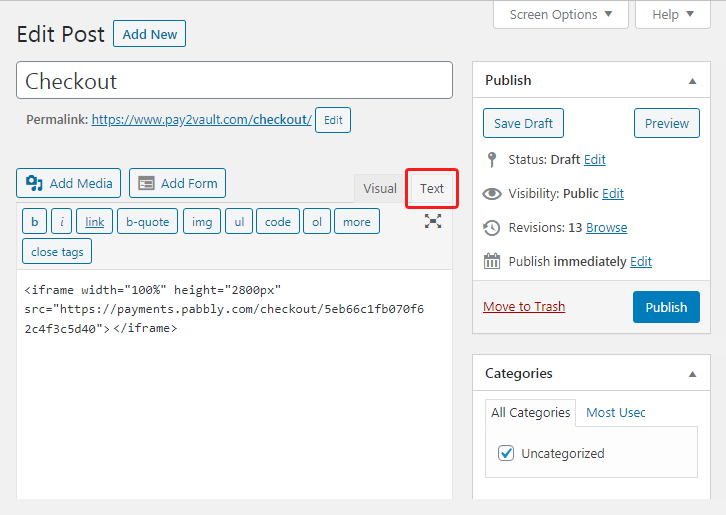
Paste Link in Text Editor

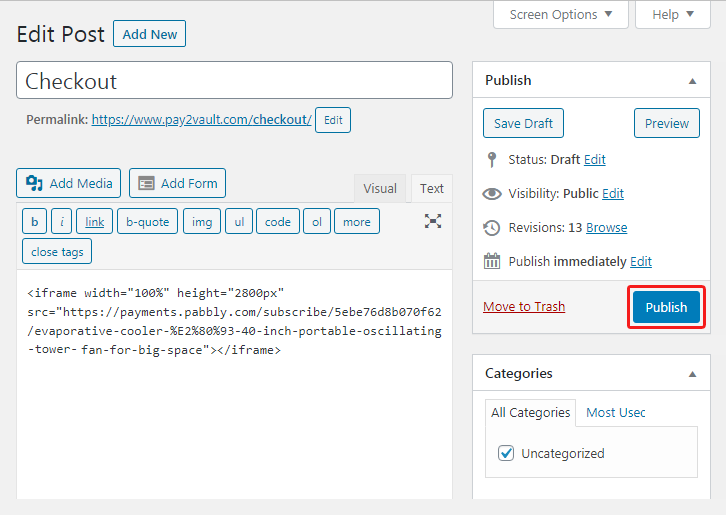
Further, paste the plan link of iPhone cases on a text editor of the WordPress dashboard.

(b) Save & Publish the Checkout Page

Save_and_Publish

Next, click the “Publish” button, after making changes.

(c) Check out the Final Look of your Checkout Page on WordPress Site
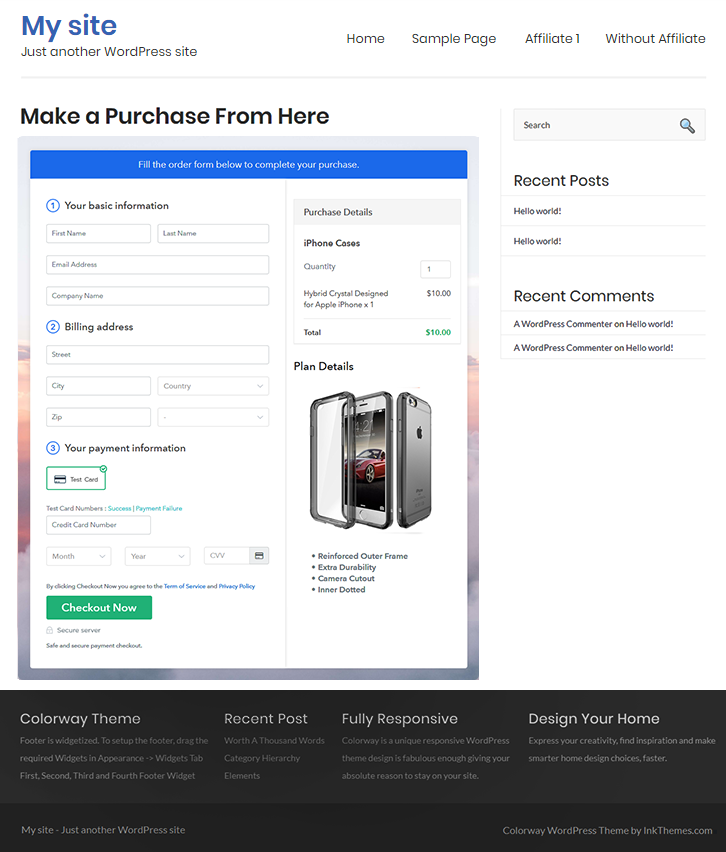
Final Look of your Checkout Page to Sell iPhone Cases Online

Step 10: Multiplan Checkout Page

Note: In case you want to sell multiple products via a single checkout page, you can create a multi-plan checkout page otherwise skip this step.

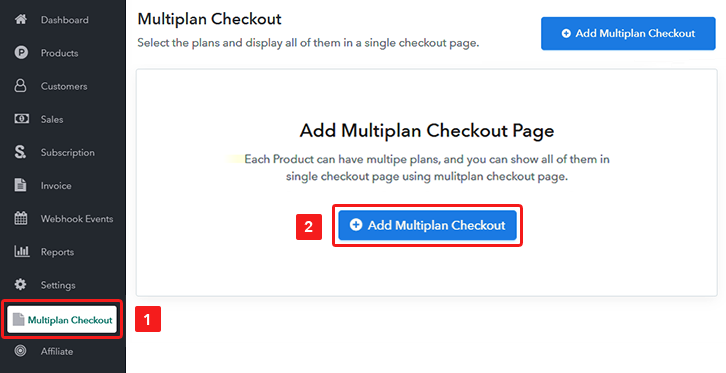
(a) Click on Add Mutiplan Checkout

Multiplan Checkout

(b) Add Plans to Sell Multiple iPhone Cases from Single Checkout Page
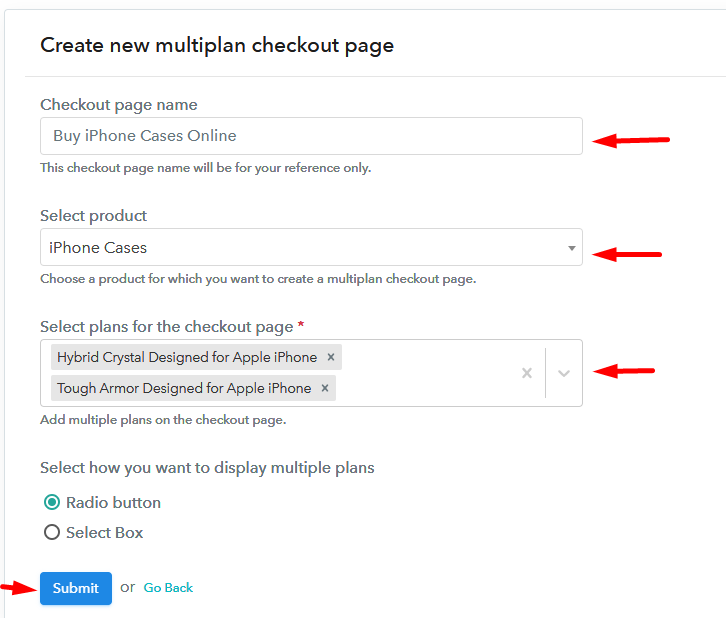
Add Multiple Products to Start Selling iPhone Cases Online

(c) Take a Look at the Checkout Page
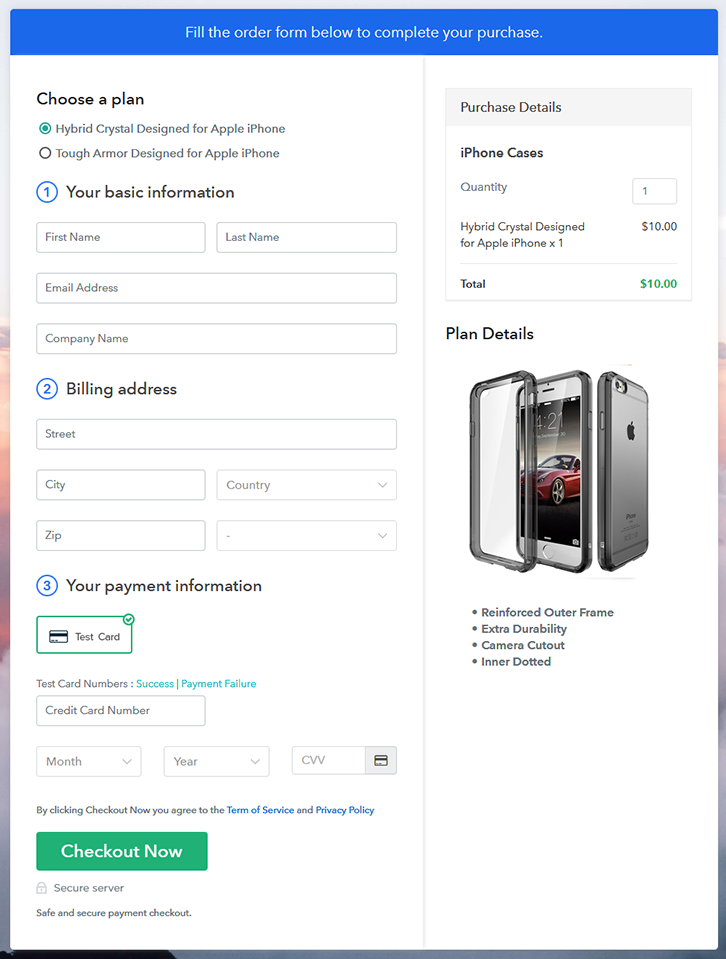
Multiplan Checkout Page to Sell iPhone Cases Online

Preview Checkout Page

Wrapping Up

There you have it! We have hopefully covered all the crucial steps to start iPhone cases selling business online. And don’t just consider us, try this software Pabbly Subscription Billing and raise your sales. Further, it is packed with features like various billing models, revenue tracking, and much more.

So, what are you waiting for? Go and grab a deal.

You May Also Like To Read –
How To Sell Jelly Beans Online | Step by Step (Free Method)

Ideal For: All the jelly beans owners, gift stores, jelly beans manufacturers, jelly beans sellers and other merchants can use this method to sell jelly beans online.

How To Sell Jelly Beans Online

Why Choose this Method to Sell Jelly Beans Online?

Unlike any other solution, this method allows you to:

  • List and sell your fresh jelly beans for FREE. Absolutely no payment required.
  • No need to pay commission on any of your sale.
  • Multiple payment options like PayPal, Credit Card, etc to collect payment from a single place.
  • Sell one time or recurring subscriptions of your jelly beans.
  • Collect payments & sell products in any currency as per your requirement.
  • Give discounts on your products by offering special coupon codes.
  • Add sales commission agents to help you in selling jelly beans.

Get Pabbly Subscription Billing for Free

Jelly Beans are loved by all, and did you know that on average the world consumes 4.4 billion jelly beans every month. And each region of the world has demand for a particular flavor. For instance, Asians prefer the lemon-lime flavor, for Australians, it is bubble gum, in the Middle East it is berry blue and Europeans love their rich tutti-fruity flavors. Now, as a seller, such demands according to regional varieties can only be met if you start selling jelly beans online.

Obviously, the internet offers a variety of tools to sell jelly beans online. But many of these software either require good technical skills or charge some commissions based on profits. That is why in this article we will introduce an awesome Saas tool called Pabbly Subscription Billing to sell jelly beans online. The immediate benefit is there are no ridiculous percentage cuts and the software can be navigated even by a kid. Some other useful features of this software are

  • Generate Unlimited Revenues
  • Versatile Checkout Pages to List and Sell Products
  • Get Payments in Offline/Online Modes
  • Multiple Billing Models
  • Custom Domain

So, let’s get started to build our first checkout page with Pabbly Subscription Billing to start selling jelly beans online.

Final View of Checkout Page for your Jelly Beans Selling Business

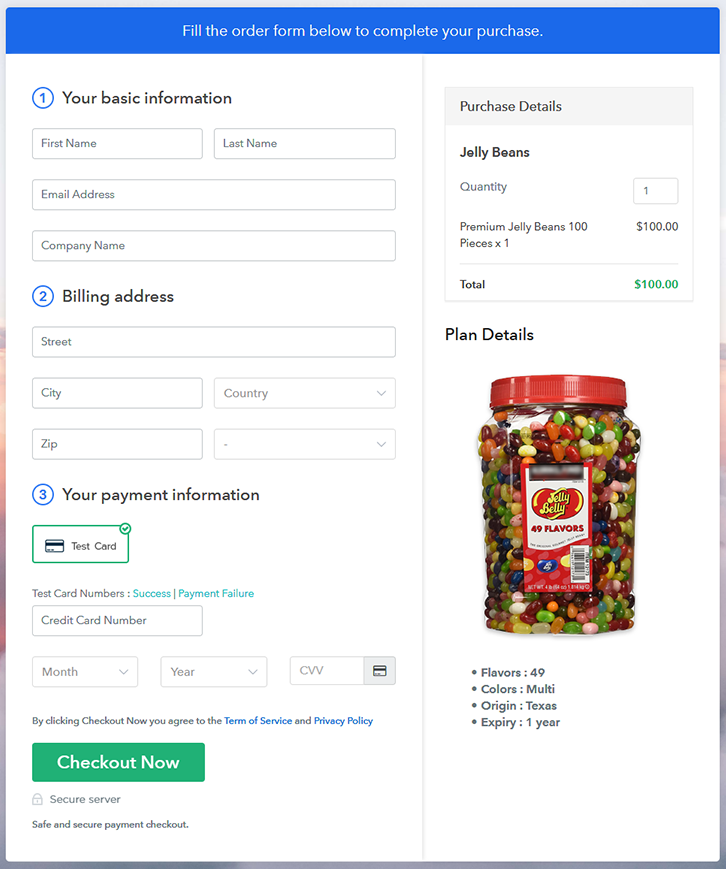
Checkout To Sell Jelly Beans Online

Preview Checkout Page

Step 1: Log in to Pabbly Subscription Billing

Signup

First to start the process look for the website Pabbly Subscription Billing in your search engine. Here click on the “Sign up Free“ button. You can either manually fill all the information or simply sign in using your Gmail account.

Sign Up For Free!

Step 2: Select Subscription Billing

Access Subscription Billing

Step 3: Account Setup

Setup Account

Click on the “Access Now” button of the software, a page will redirect with fields like company name, select currency, and phone number. Just fill out those details to continue creating a checkout page for jelly beans.

Step 4: Connect Payment Gateways & Start Jelly Beans Selling Business Online

Connect Payment Gateway

To prevent glitches during transactions, Pabbly Subscription Billing provides a dummy payment gateway where you can beta test the entire payment experience of the customer in advance.

Payment gateways such as Razorpay, Stripe, and many more can be easily integrated using Pabbly Subscription Billing. There is an integration guide for each of them below this para. But I am going ahead to enable the test payment option to continue the process.

Step 5: Add Product for your Jelly Beans

Add Product

I am hoping that the payment gateway integration went well, so let’s start adding the products. Below the “Enable Payments” segment there is the “Add your product” section click on it. This will generate a dialog box with a blue button “Add New Product”. Click on it.

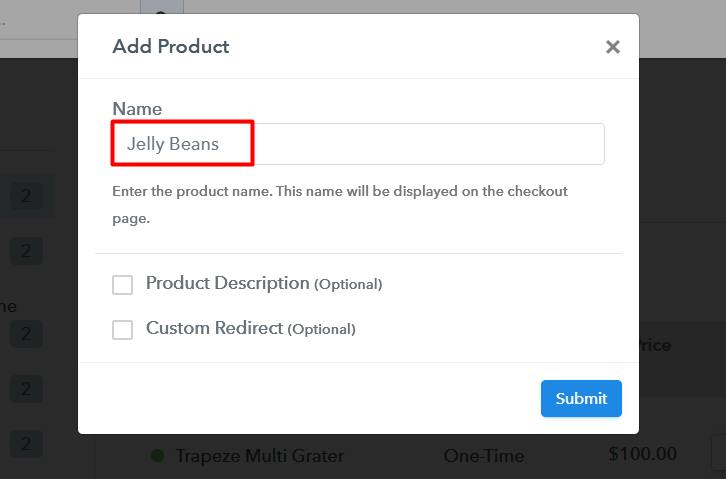
You have to add the required product title, in this case, it is ‘jelly beans’.

Add Products Checkout To Sell Jelly Beans Online

Fill out all the details like the name of the product and voila your product is created.

Note: Here you can add all the products related to the similar category by creating plans for each of them.

Step 6: Add Plans 

Now let’s create plans for different kinds of costumes available in your store.

(a) Select Add New Plan

Add Plan

(b) Specify the Plan & Pricing Details

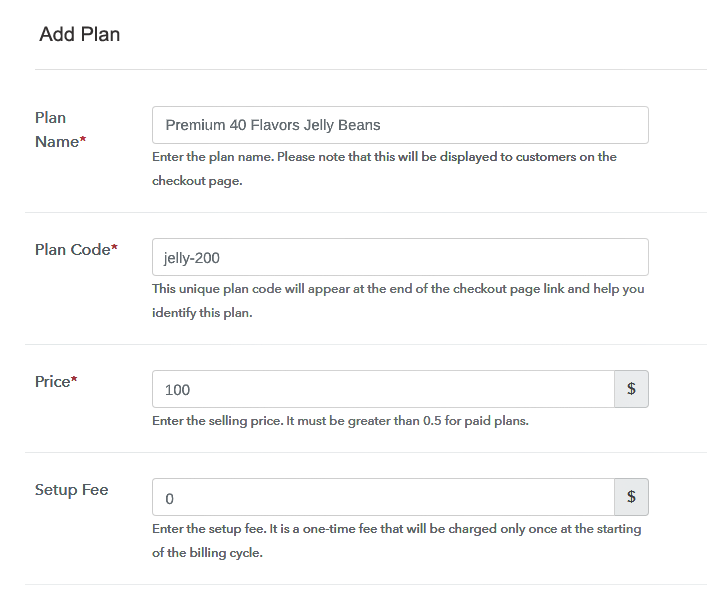
Add Plan Checkout To Sell Jelly Beans Online

In the plan page, fill in information like plan name, code, price, setup fees, etc. Moreover, while coming down you will find different billing models like one-time payment, recurring, based on cycles, etc. Now, choose the one that interests you the most. Furthermore, you can change it any time you want.

(c) Add Image & Description of Jelly Beans

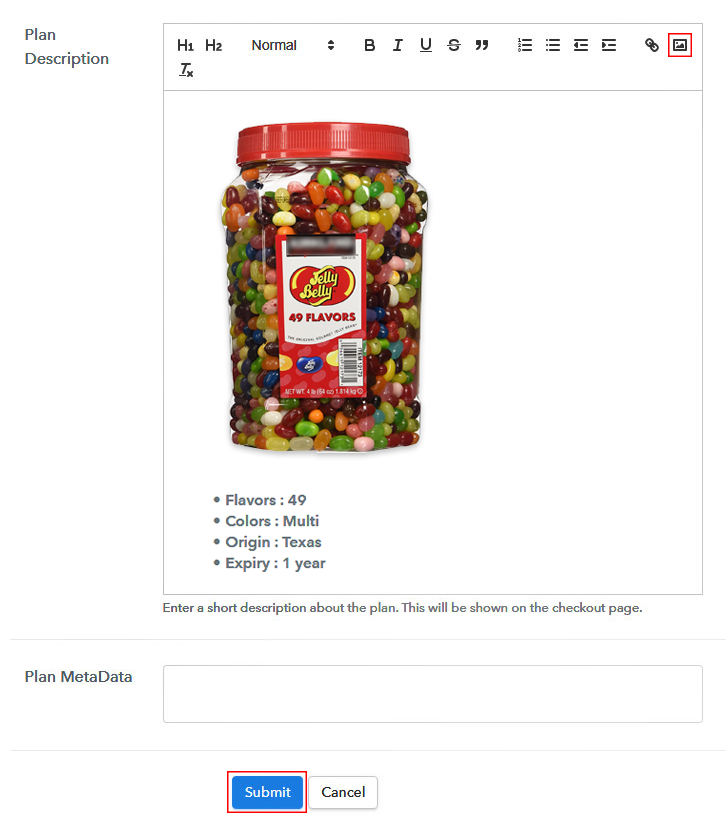
Add Image Checkout To Sell Jelly Beans Online

By clicking the image button you can upload some good images of jelly beans.

Now give some description about the jelly beans like pieces per package, colors, flavors, etc and then press the “Submit” button.

You can list many more products by using the same process.

Step 7: Share your Checkout Page

Share Checkout Page on Social Media

  • Also, to create more awareness about your products you can share your checkout page on Twitter & Facebook by just pressing the respective buttons.
  • Moreover, share the checkout pages on email and SMS.
  • Furthermore, you can build buttons on your webpage and paste the checkout links on it. Or you can place it on any anchor text on your website, so the users will be redirected to the checkout page.

Step 8: Preview Checkout Page

Follow up the recommended steps to preview the checkout page:

(a) Click on the View Button

View Checkout Plan

(b) Take a Look at the Checkout Page

Checkout To Sell Jelly Beans Online

Step 9: Embed Checkout Page in Site & Sell Jelly Beans Online

Embed Checkout Page on Website

Also, just copy the link and add the checkout page to sell the Jelly Beans online at any suitable place on your WordPress site.

(a) Edit the Page & Paste the Copied Link

Embed Checkout Page on Website

Further, paste the plan link of the jelly beans on a text editor of the WordPress dashboard.

(b) Save & Publish the Checkout Page

Save_and_Publish

Next, click the “Publish” button, after making changes.

(c) Check out the Final Look of your Checkout Page on WordPress Site

Wordpress Checkout To Sell Jelly Beans Online

Step 10: Multiplan Checkout Page

Note: In case you want to sell multiple products via a single checkout page, you can create a multi-plan checkout page otherwise skip this step.

(a) Click on Add Mutiplan Checkout

Multiplan Checkout

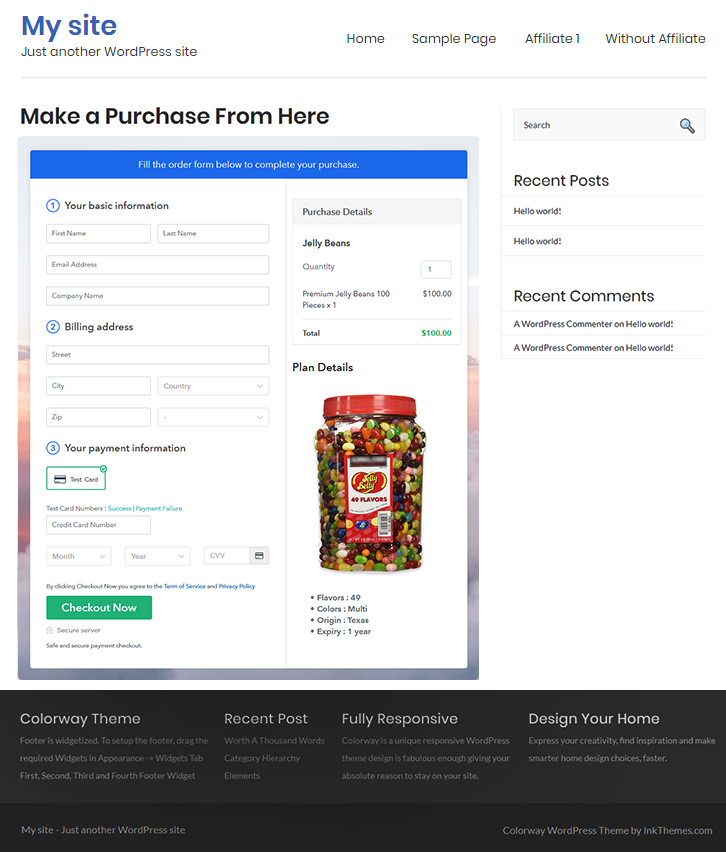
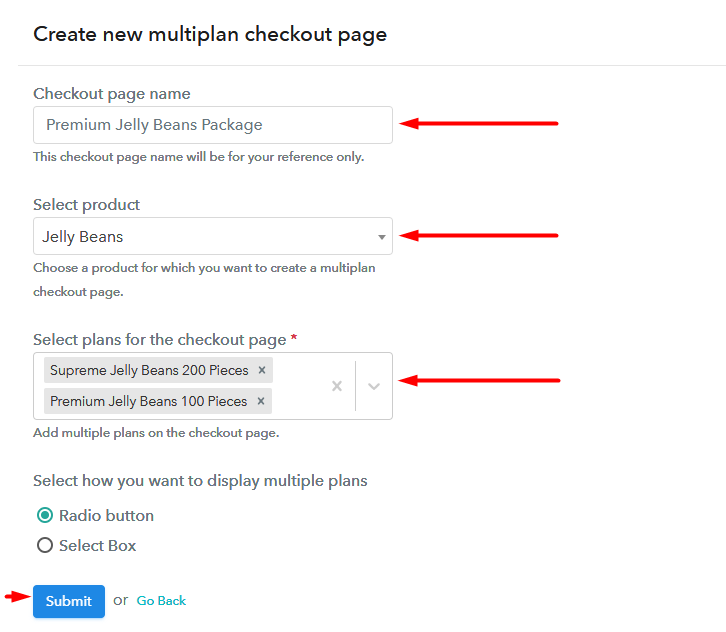
(b) Add Plans to Sell Multiple Jelly Beans Online from Single Checkout Page

Multiplan Checkout To Sell Jelly Beans Online

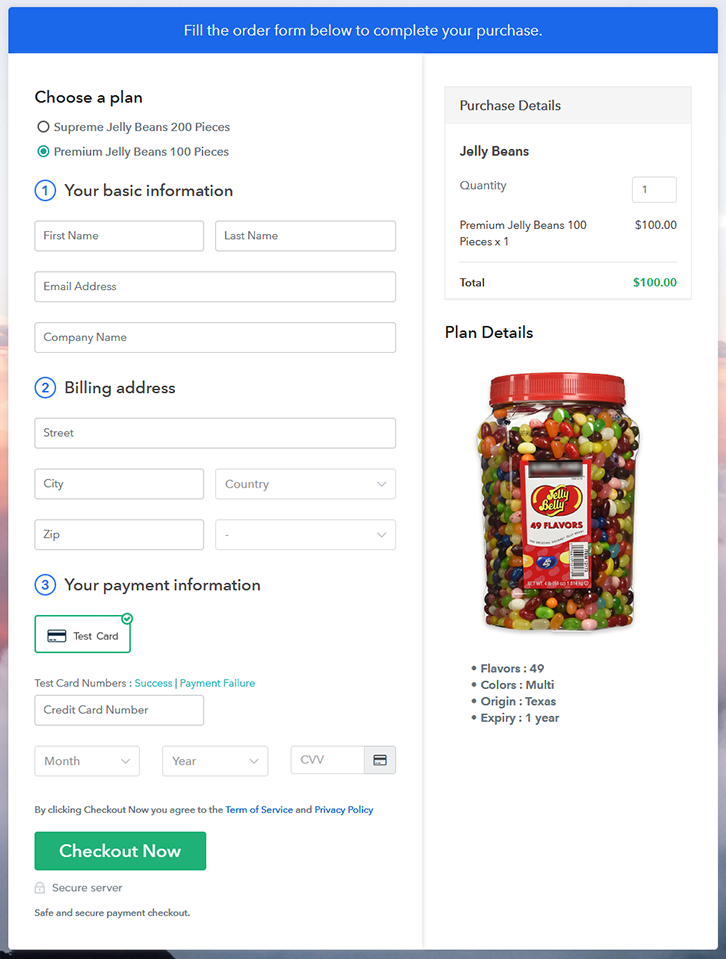
(c) Take a Look at the Checkout Page

Multi Checkout To Sell Jelly Beans Online

Preview Checkout Page

Wrapping Up

You are awesome!! Because you created your first checkout page to sell jelly beans online. However, don’t restrict yourself to these checkout pages. Go ahead and have some fun exploring the features of Pabbly Subscription Billing. It may take some time to master these features but in the long run, they will be extremely beneficial for you. Thank You !!

How To Sell Jewelry Boxes Online | Step by Step (Free Method)

Ideal For: All the jewelry box manufacturers, jewelry store owners, pawn store owners, and other merchants can use this method to sell jewelry boxes online.

How To Sell Jewelry Boxes Online

Why Choose this Method to Sell Jewelry Boxes Online?

Unlike any other solution, this method allows you to:

  • List and sell your jewelry boxes for FREE. Absolutely no payment required.
  • No need to pay commission on any of your sale.
  • Multiple payment options like PayPal, Credit Card, etc to collect payment from a single place.
  • Sell one time or recurring subscriptions of your jewelry boxes.
  • Collect payments & sell products in any currency as per your requirement.
  • Give discounts on your products by offering special coupon codes.
  • Add sales commission agents to help you in selling jewelry boxes

Get Pabbly Subscription Billing for Free

One of the prime reasons why you are looking to sell jewelry boxes online is because of local market saturation. Simply put, your brick and mortar store is not getting enough buyers from the immediate vicinity. But this problem will be instantly sorted out when you start selling jewelry boxes online. That is because the internet exposes your product to a global audience, and ensures higher price discovery.

There are other benefits like customers can peruse the products from the comfort of their homes and order them. Furthermore, the operational costs of your business come down significantly, as you don’t need to pay property insurance, utilities, zoning permits, etc. Also, you can even offer a personalized online experience on the basis of customer data.

Now, in this article, we are recommending a Saas tool called Pabbly Subscription Billing that lets you create awesome checkout pages to sell jewelry boxes online. The advantages of using this method are

  • Unlimited Product Listing
  • Insert Customized Logos
  • Transparent Billing
  • Multiple Billing Models
  • Generate Unlimited Revenues
  • Revenue Tracking

So, buck up as we are going to build our first checkout page with Pabbly Subscription Billing to sell jewelry boxes online

Final View of Checkout Page for your Jewelry Boxes Selling Business

Checkout to Sell Jewelry Boxes Online

Preview Checkout Page

Step 1: Log in to Pabbly Subscription Billing

Signup

Look for Pabbly Subscription Billing in the browser. On landing on their website click on the “Sign up Free“ button. You can either manually fill all the information or simply sign in using your Gmail account.

Sign Up For Free!

Step 2: Select Subscription Billing

Access Subscription Billing

Step 3: Account Setup

Setup Account

Once you’re done click on the “Access Now” button of Pabbly Subscription Billing, a page will pop-up with details like company name, currency, and contact number. Next, you need to fill those details to go on.

Step 4: Connect Payment Gateways & Start Jewelry Boxes Selling Business Online

Connect Payment Gateway

We are going to use the test payment mode so that we can understand all about the software’s payment procedure. Also, the Pabbly Subscription Billing allows integration with multiple payment gateways. Below we are mentioning the payment integration guide to help you out.

Step 5: Add Product for your Jewelry Boxes

Add Product

So I hope payment integration went well, now let’s move on to add products. Below “Enable Payments” you will find the section “Add your product” click on it. This will generate a dialog box with a blue button “Add New Product”. Click it.

This will summon a pop-up box and you can fill the required product title like jewelry box then tick on the checkboxes if you want to add product description and custom redirect.

Add product To Sell Jewelry Boxes Online

Fill out all the details like the name of the product and voila your product is created.

Note: Here you can add all the products related to the similar category by creating plans for each of them.

Step 6: Add Plans 

Now let’s create plans for different kinds of jewelry boxes available in your store.

(a) Select Add New Plan

Add Plan

(b) Specify the Plan & Pricing Details

Add Plan To Sell Jewelry Boxes Online

In the plan page, fill in information like plan name, code, price, setup fees, etc. Moreover, while coming down you will find different billing models like one-time payment, recurring, based on cycles, etc. Now, choose the one that interests you the most. Furthermore, you can change it any time you want.

(c) Add Image & Description of Jewelry Boxes

Add Image To Sell Jewelry Boxes Online

Let’s introduce some incredible screenshots of your jewelry boxes and upload it by clicking the image button.

Now under the image place some concise information of your jewelry boxes such as covering, weight, platforms, etc, and then press the “Submit” button.

Afterward, by using the same process, you can list more products

Step 7: Share your Checkout Page

Share Checkout Page on Social Media

  • Also, to create more awareness about your products you can share your checkout page on Twitter & Facebook by just pressing the respective buttons.
  • Moreover, share the checkout pages on email and SMS.
  • Furthermore, you can build buttons on your webpage and paste the checkout links on it. Or you can place it on any anchor text on your website, so the users will be redirected to the checkout page.

Step 8: Preview Checkout Page

Follow up the recommended steps to preview the checkout page:

(a) Click on the View Button

View Checkout Plan

(b) Take a Look at the Checkout Page

Add Checkout To Sell Jewelry Boxes Online

Step 9: Embed Checkout Page in Site & Sell Jewelry Boxes Online

Embed Checkout Page on Website

Furthermore, just copy the link and add the checkout page to sell jewelry boxes online at any suitable place on your WordPress site.

(a) Edit the Page & Paste the Copied Link

Embed Checkout Page on Website

Further, paste the plan link of the jewelry boxes on a text editor of the WordPress dashboard.

(b) Save & Publish the Checkout Page

Save_and_Publish

Next, click the “Publish” button, after making changes.

(c) Check out the Final Look of your Checkout Page on WordPress Site

Add WordPress To Sell Jewelry Boxes Online

Step 10: Multiplan Checkout Page

Note: In case you want to sell multiple products via a single checkout page, you can create a multi-plan checkout page otherwise skip this step.

(a) Click on Add Mutiplan Checkout

Multiplan Checkout

(b) Add Plans to Sell Multiple Jewelry Boxes from Single Checkout Page

Add Multiplan To Sell Jewelry Boxes Online

(c) Take a Look at the Checkout Page

Checkout To Sell Jewelry Boxes Online

Preview Checkout Page

Wrapping Up

Congratulations!! You have learned the method to sell jewelry boxes online with Pabbly Subscription Billing. This is perhaps the best, simplest and cheapest method to start jewelry boxes business online. With some time you will definitely ace all the features in this software, with the help of the video tutorials or documentation provided.

Furthermore, if you have any doubts then write your queries in the comment section below. You are awesome!! Thank You

You May Also Like To Read –
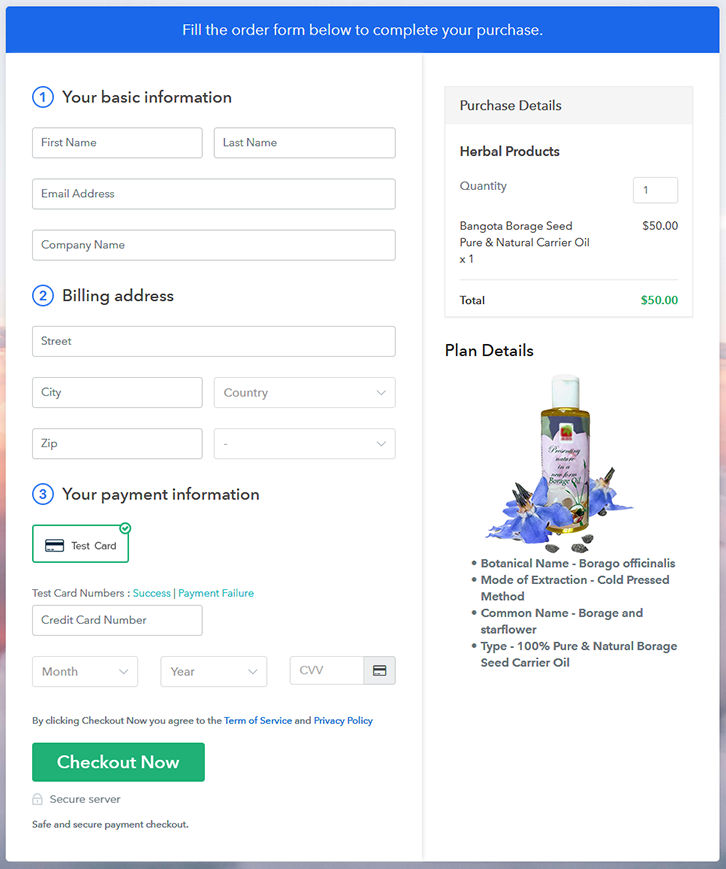
How To Sell Herbal Products Online | Step by Step (Free Method)

How To Sell Herbal Products Online

Ideal For: All the herbal product manufactures, herbal product sellers, herbal product dealers, herbal product suppliers, herbal product shop owners and other merchants can use this method to sell herbal products online.

How To Sell Herbal Products Online

Why Choose this Method to Sell Herbal Products Online?

Unlike any other solution, this method allows you to:

  • List and sell your herbal products for FREE. Absolutely no payment required.
  • No need to pay commission on any of your sales.
  • Multiple payment options like PayPal, Credit Card, etc to collect payment from a single place.
  • Sell one time or recurring subscriptions of your herbal products.
  • Collect payments & sell products in any currency as per your requirement.
  • Give discounts on your products by offering special coupon codes.
  • Add sales commission agents to help you in selling herbal products online.

Get Pabbly Subscription Billing for Free

Herbal products are widely used by people as they don’t harm in any way and provide amazing results. And most probably people use herbal products to keep their lifestyle healthy and fit. That’s a reason why herbal products never go out of business. Therefore, if you own a herbal products shop, then it’s the right time for you to expand your business by starting herbal products business online. As, it will boost your revenue by taking orders from the global audience.

In order to do that, we have a software named Pabbly Subscription Billing that can help you in starting your own herbal products business online. This tool lets you create marvelous checkout pages for selling herbal products online. Some of its prominent features involve:

  • List various herbal products in a single checkout page
  • Add tax and delivery charges as per customer’s location
  • Offer discount and coupon codes to consumers
  • Collect money in both online and offline mode
  • Share checkout pages link on social media websites

So, let’s get started by creating our checkout page using Pabbly Subscription Billing to sell herbal products online.

Final View of Checkout Page for your Herbal Products Selling Business

Final View of Checkout Page for your Herbal Products Selling Business

Preview Checkout Page

Step 1: Log in to Pabbly Subscription Billing

Signup

Begin the process for creating a checkout page for herbal products by visiting the Pabbly Subscription Billing in your browser. After that, click on the “Sign up Free“ button. Moreover, either manually filled out the details or sign in using your Gmail account.

Sign Up For Free!

Step 2: Select Subscription Billing

Access Subscription Billing

Step 3: Account Setup

Setup Account

Furthermore, after pressing on the “Access Now” button of the software, a page will open with fields like company name, select currency, and phone number. Just fill out those details to continue creating a checkout page for herbal products.

Step 4: Connect Payment Gateways & Start Herbal Products Selling Business Online

Connect Payment Gateway

The following step is to understand the whole payment procedures using a “Test Payment Gateway”. Here, we will describe the checkout page process for the herbal products with the help of a test payment gateway. Apart from this, the tool offers various payment gateways such as PayPal, Stripe, etc. Furthermore, below are the payment integration guides to help you further.

Step 5: Add Product for your Herbal Products

Add Product

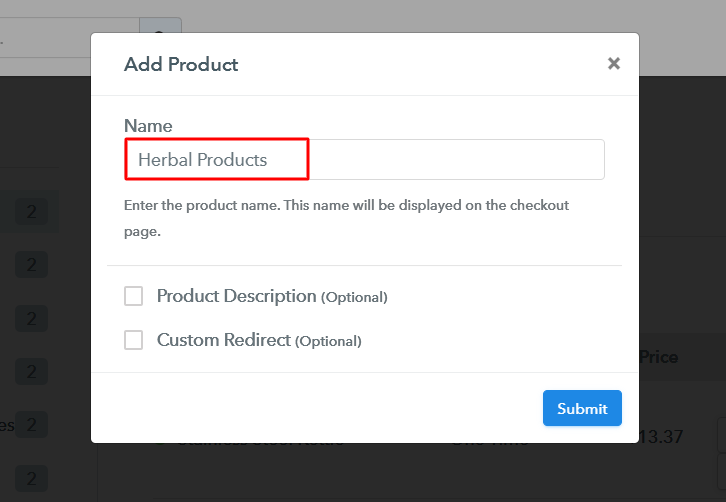
Plus, add the name, which in our case is “Herbal Products”. Here you can specify the type and write a short description of the herbal products too.

Add Product to Start Selling Herbal Products Online

Moreover, just fill out all those details and your product is created.

Note: Here you can add all the products related to the similar category by creating plans for each of them.

Step 6: Add Plans 

Let’s reveal plans for different kinds of herbal products available in your store.

(a) Select Add New Plan

Add Plan

(b) Specify the Plan & Pricing Details

Specify the Plan and Pricing to Sell Herbal Products Online

The subsequent thing to do is fill all the details of the herbal products like plan name, code, price, set-up fee, and much more to continue.

(c) Add Image & Description of Herbal Products

Add Image & Description of Herbal Products

Furthermore, it is necessary to write a brief description of the herbal products using bullets, images, etc, to bring original buyers to the checkout page.

Next, click on the “Submit” button to add the herbal products on the checkout page.

Finally, you can add multiple plans and kinds of herbal products in your product list which you want to sell online.

Step 7: Share your Checkout Page

Share Checkout Page on Social Media

  • Moreover, share the checkout page of the herbal products on social media accounts like Facebook & Twitter to grab the customer’s attention.
  • Also, you can share the direct link of the herbal product’s checkout page with your customers via SMS or email marketing.
  • Additionally, embed the provided plan link of the herbal products in the buttons or any anchor text on your website.

Step 8: Preview Checkout Page

Follow up the recommended steps to preview the checkout page:

(a) Click on the View Button

View Checkout Plan

(b) Take a Look at the Checkout Page

Final View of Checkout Page for your Herbal Products Selling Business

Step 9: Embed Checkout Page in Site & Sell Herbal Products Online

Embed Checkout Page on Website

Just copy the link and add the checkout page to sell herbal products online at any proper place on your WordPress site.

(a) Edit the Page & Paste the Copied Link

Paste Link in Text Editor

Further, paste the plan link of herbal products on a text editor of the WordPress dashboard.

(b) Save & Publish the Checkout Page

Save_and_Publish

Next, click the “Publish” button, after making changes.

(c) Check out the Final Look of your Checkout Page on WordPress Site

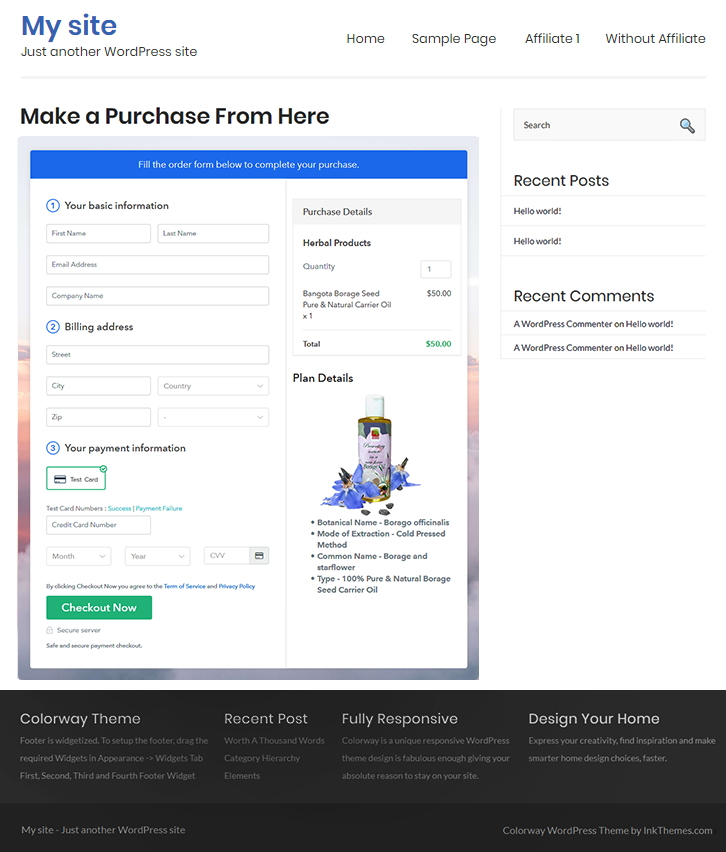
Final Look of your Checkout Page to Sell Herbal Products Online

Step 10: Multiplan Checkout Page

Note: In case you want to sell multiple products via a single checkout page, you can create a multi-plan checkout page otherwise skip this step.

(a) Click on Add Mutiplan Checkout

Multiplan Checkout

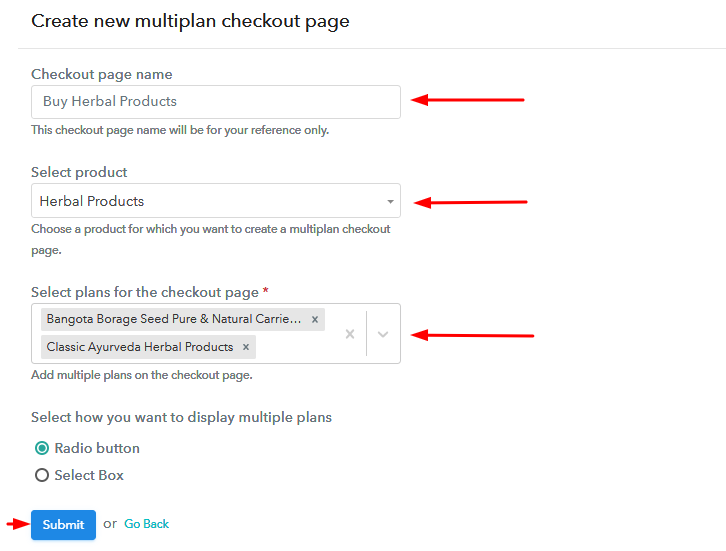
(b) Add Plans to Sell Multiple Herbal Products from Single Checkout Page

Add Plans to Sell Multiple Herbal Products from Single Checkout Page

(c) Take a Look at the Checkout Page

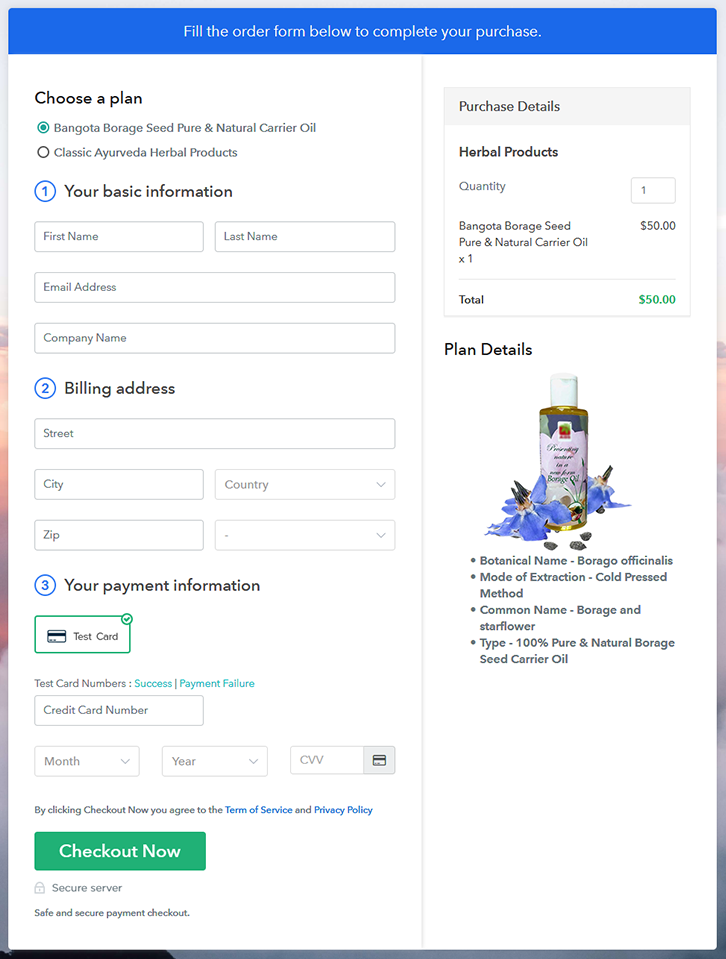
Multiplan Checkout Page to Sell Herbal Products Online

Preview Checkout Page

Wrapping Up

There you go! See, how easy it is to start herbal products business online with the help of Pabbly Subscription Billing software. Simply go through all the steps that are mentioned above and set up your herbal product business effortlessly. Don’t wait anymore, try this software out and let us know about your experience in the comment section below.

You May Also Like To Read –
How To Sell Ice Cream Cones Online | Step by Step (Free Method)

How to Sell Ice Cream Cones Online

Ideal For: All the ice cream cone manufacturers, ice cream cone sellers, retail ice cream cone shop owners, and other merchants can use this method to take their ice cream cones selling business online.

How to Sell Ice Cream Cones Online

Why Choose this Method To Sell Ice Cream Cones Online?

Unlike any other solution, this method allows you to:

  • List and sell your ice cream cones for FREE. Absolutely no payment required.
  • No need to pay commission on any of your sale.
  • Multiple payment options like PayPal, Credit Card, etc to collect payment from a single place.
  • Sell one time or recurring subscriptions of your ice cream cones.
  • Collect payments & sell products in any currency as per your requirement.
  • Give discounts on your products by offering special coupon codes.
  • Add sales commission agents to help you in selling ice cream cones online.

Get Pabbly Subscription Billing for Free

Some ice creams taste even better with perfect ice cream cones. So, if you are planning to sell ice cream cones online then this could be even better as many people want to buy them online but didn’t get a reliable selling platform sometimes.

To start ice cream cones business online, you’ll need to create checkout pages to display your product as well as collect payment for it. In this blog, we’ve explained the process step by step that will definitely help you to sell ice cream cones online within minutes.

Moreover, you don’t even have to take care of any management related to selling ice cream cones online. The service will provide an excellent dashboard to keep all payments and items record as well as allows you to manage them.

Most importantly, you can share as well as embed these checkout pages almost anywhere whether it is a social media platform, link sharing platforms or website.

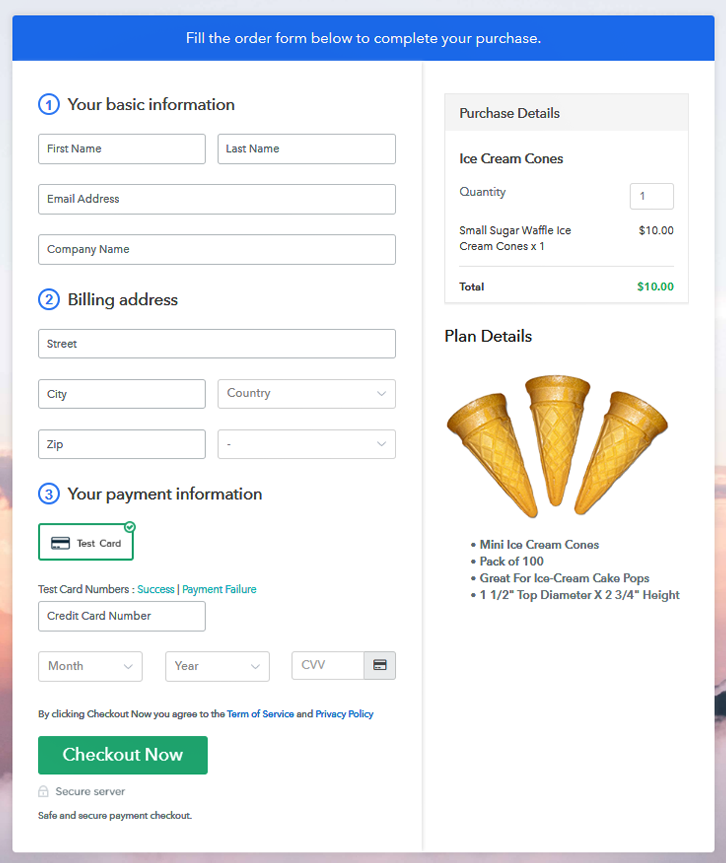
Final View of Checkout Page For Your Ice Cream Cones Selling Business

Checkout Page Preview to Sell Ice Cream Cones Online

Preview Checkout Page

Step 1: Log in to Pabbly Subscription Billing

Signup

To start ice cream cones business online first, visit Pabbly Subscription Billing website & click on ‘Sign Up Free‘. On the redirected page, either use an existing Google account or sign-up manually.

Sign Up For Free!

Step 2: Select Subscription Billing

Access Subscription Billing

Step 3: Account Setup

Setup Account

Next, the system will ask you for some company details to complete the set up. Fill in a company name, select a currency & write down contact number.

Step 4: Connect Payment Gateways & Start Ice Cream Cones Selling Business Online

Connect Payment Gateway

For the first time, you can enable the test payment method & test the software payment collection. I am also demonstrating the process using test payment mode. But, to start collecting payments, you can connect with other payment gateway options available. Here are the links to the complete integration guides:

Step 5: Add Product For Your Ice Cream Cones

Add Product

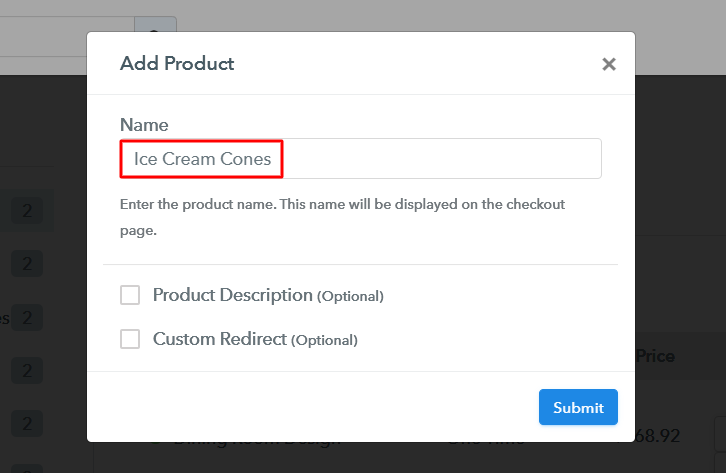
After all these system settings, you can start adding products. You can name a product like a category of ice cream cones such as waffle cones, sugar cones, eggless etc. Further, we’ll add plans in these categories.

Add Product to Sell Ice Cream Cones Online

Fill the details of the product & hit ‘Submit’.

Note: Here you can add all the products related to the similar category by creating plans for each of them.

Step 6: Add Plans 

Now, you can add plans for all different kinds of ice cream cones available in your store.

(a) Select Add New Plan

Add Plan

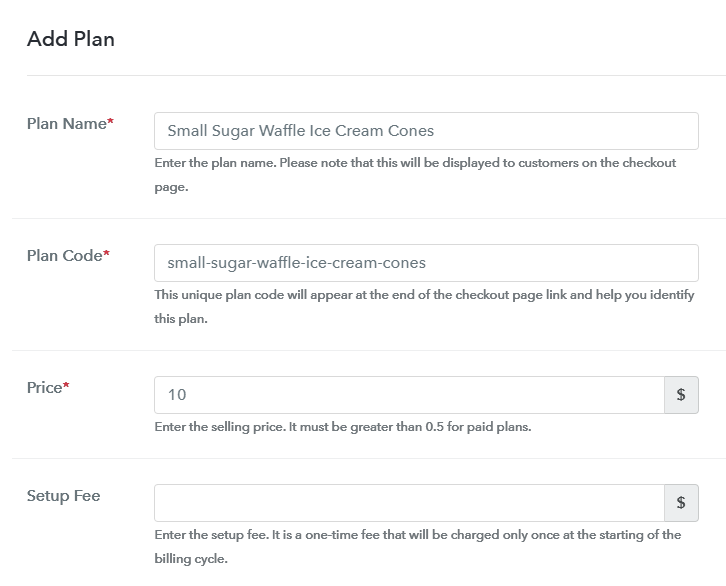
(b) Specify the Plan & Pricing Details

Add Plan to Sell Ice Cream Cones Online

On the plan details page, you can specify information related to ice cream cones that you wanna sell like its name, code, price, set-up fee, billing cycle etc.

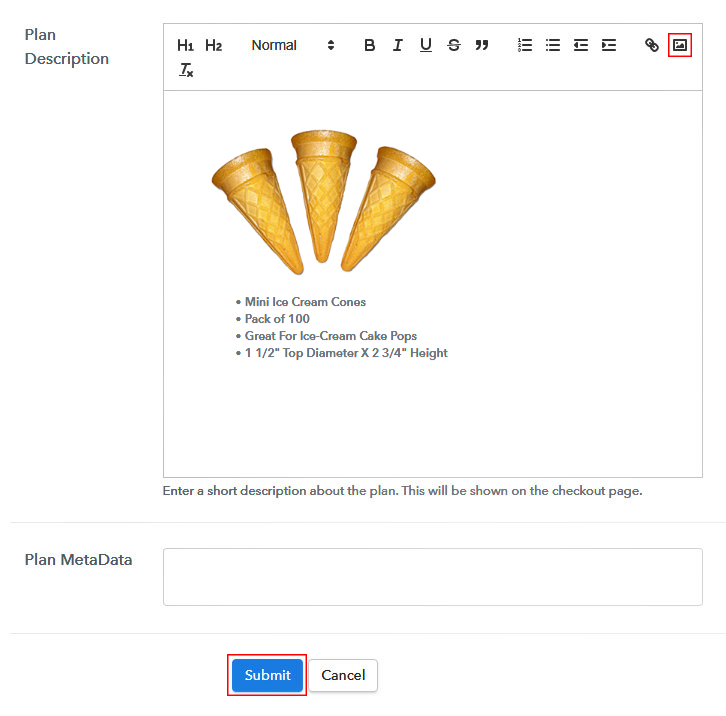
(c) Add Image & Description of Ice Cream Cones

Add Image & Description to Sell Ice Cream Cones Online

Additionally, you can add an image plus some description of the ice cream cones.

Once you are done writing all the details, strike the ‘Submit’ button & a checkout page will be created immediately to sell ice cream cones online.

Likewise, you can also add other ice cream cones to sell online.

Step 7: Share your Checkout Page

Share Checkout Page on Social Media

Now, you’ll need to share/embed the checkout page somewhere to sell ice cream cones online. And for this there are three options available.

  • First, you can directly share the created checkout page on Facebook & Twitter
  • Second, you can share the plan link onto other social media & link sharing platforms such as emails, SMS etc
  • Lastly, you can embed the plan link within buttons & texts of a website’s or apps to redirect a customer on the checkout page to collect payments

Step 8: Preview Checkout Page

Follow up the recommended steps to preview the checkout page:

(a) Click on the View Button

View Checkout Plan

(b) Take a Look at the Checkout Page

Checkout Page Preview to Sell Ice Cream Cones Online

Step 9: Embed Checkout Page in Site & Sell Ice Cream Cones Online

Embed Checkout Page on Website

Just copy the link and add the checkout page to sell ice cream cones online at any preferable place on your WordPress site.

(a) Edit the Page & Paste the Copied Link

Embed Checkout Page on Website

Further, paste the plan link on a text editor of the WordPress dashboard.

(b) Save & Publish the Checkout Page

Save_and_Publish

Next, click the “Publish” button, after making changes.

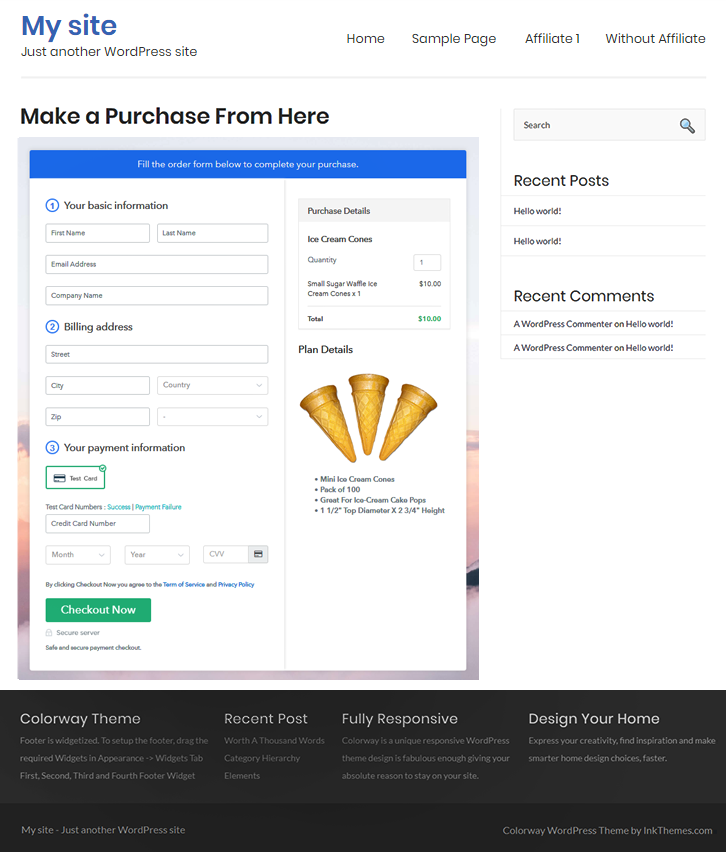
(c) Check out the Final Look of your Checkout Page on WordPress Site

Checkout Page On WordPress Site to Sell Ice Cream Cones Online

Step 10: Multiplan Checkout Page

Note: In case you want to sell multiple products via a single checkout page, you can create a multi-plan checkout page otherwise skip this step.

(a) Click on Add Mutiplan Checkout

Multiplan Checkout

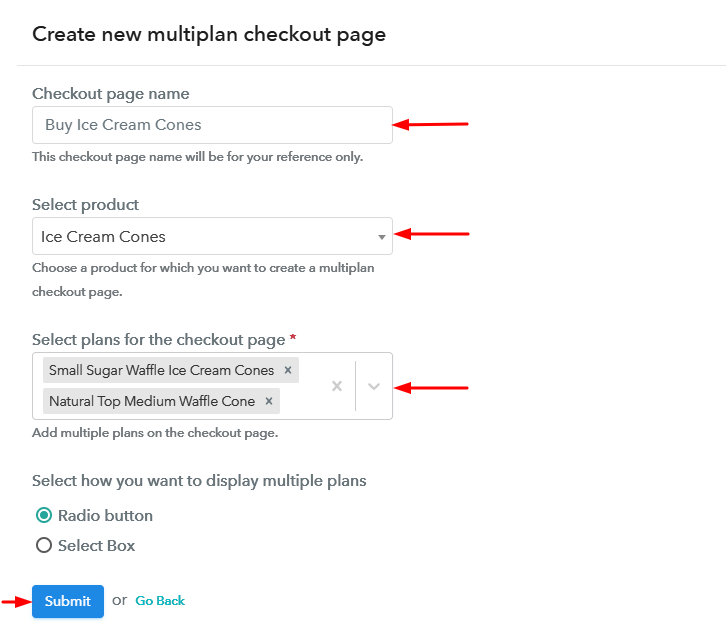
(b) Add Plans to Sell Multiple Ice Cream Cones from Single Checkout Page

Create Multiplan Checkout Page to Sell Ice Cream Cones Online

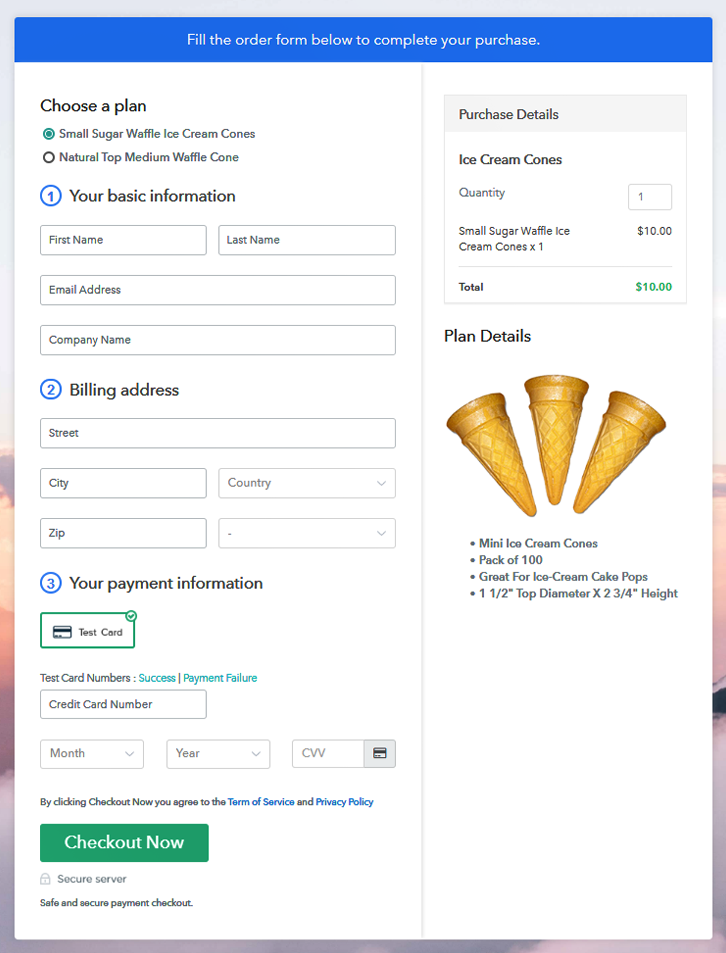
(c) Take a Look at the Checkout Page

Multiplan Checkout Page to Sell Ice Cream Cones Online

Preview Checkout Page

Wrapping Up

Well, up to this point on you can yourself see the flexibility & scalability of this process in selling ice cream cones online. Also, the management, invoicing, billing & other benefits will help you start ice cream cones business online efficiently.

I personally love the ability to sell unlimited ice cream cones online globally and accept payments in multiple currencies.

You May Also Like To Read –
How to Sell Graffiti Online | Step by Step (Free Method)

How to Sell Graffiti Online

Ideal For: All the graffiti makers, graffiti sellers, retail graffiti shop owners, and other merchants can use this method to take their graffiti selling business online.

How to Sell Graffiti Online

Why Choose this Method to Sell Graffiti Online?

Unlike any other solution, this method allows you to:

  • List and sell your graffiti for FREE. Absolutely no payment required.
  • No need to pay commission on any of your sale.
  • Multiple payment options like PayPal, Credit Card, etc to collect payment from a single place.
  • Sell one time or recurring subscriptions of your graffiti.
  • Collect payments & sell products in any currency as per your requirement.
  • Give discounts on your products by offering special coupon codes.
  • Add sales commission agents to help you in selling graffiti online.

Get Pabbly Subscription Billing for Free

There are not as many players in the online graffiti selling market. So if you start now, you can become one of the major players in this business. Well, to get started fast, you’ll need a selling service that takes care of all the management and payments.

In this article, we’ll be explaining a process of checkout page creation that you’ll need to carry out for selling graffiti online. Creating these checkout pages is all you need to for all selling all the different graffiti. And the service itself takes care of the rest of the management that you’ll need to sell graffiti online.

Lastly, you’ll need to share or embed the checkout page somewhere where your customers can find them. For this, there are multiple options available. You can share the checkout pages on Facebook, Twitter, WhatsApp, emails, SMS etc. Also, you can embed the checkout pages in the buttons, text, posts/pages of a website or app.

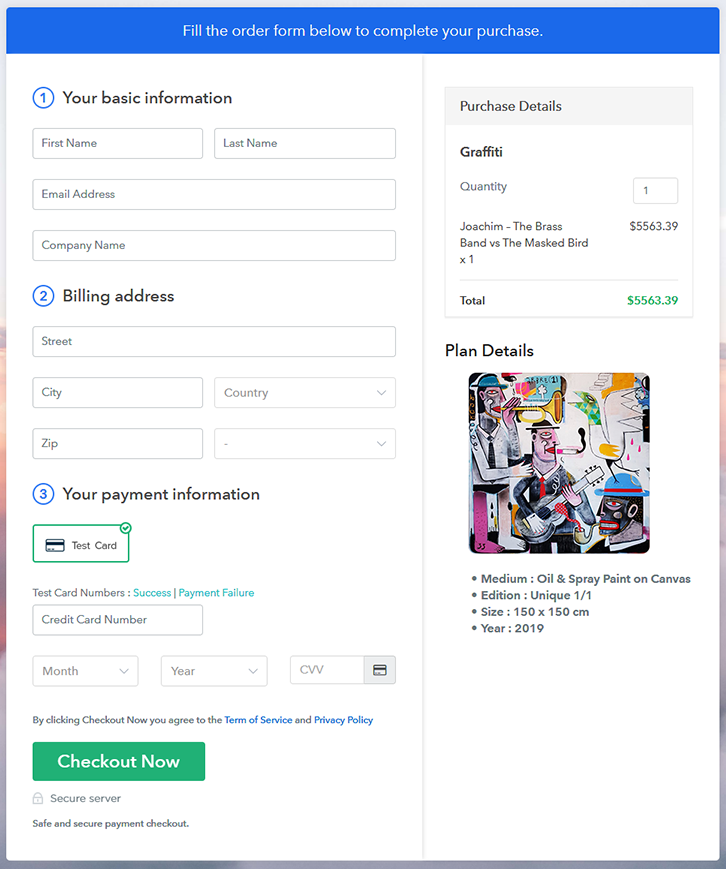
Final View of Checkout Page For Your Graffiti Selling Business

Checkout Page Preview to Sell Graffiti Online

Preview Checkout Page

Step 1: Log in to Pabbly Subscription Billing

Signup

Just visit Pabbly Subscription Billing & click on “Sign Up Free”. On clicking the button, a signup page will open up wherein you can simply signup manually or using your Gmail account.

Sign Up For Free!

Step 2: Select Subscription Billing

Access Subscription Billing

Step 3: Account Setup

Setup Account

As soon as you finish the signup process, a dialogue box will emerge asking for some company details. So, quickly fill in a company name, select the currency you wanna deal in & your phone number to complete the setup.

Step 4: Connect Payment Gateways & Start Graffiti Selling Business Online

Connect Payment Gateway

For the very first time, you can enable the test payment gateway method & test the software payment collection process. Here, I am explaining the procedure using the test payment mode. While you can even connect with other payment gateways. Here’s the link to the integration guides:

Step 5: Add Product For Your Graffiti

Add Product

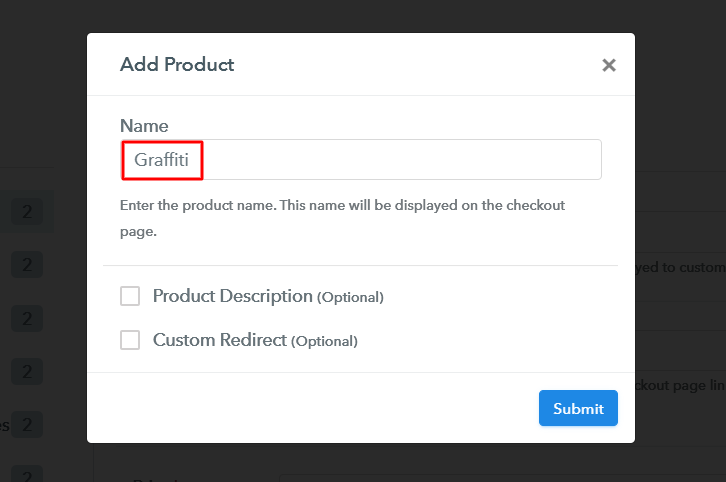
Further, the next step is to add a product. You can add the graffiti from a particular category, & further add all the related graffiti in the same product by creating different plans.

Add Product to Sell Graffiti Online

Fill up the details & your product will be created.

Note: Here you can add all the products related to the similar category by creating plans for each of them.

Step 6: Add Plans 

Now, let’s add plans for different kinds of graffiti available in your store.

(a) Select Add New Plan

Add Plan

(b) Specify the Plan & Pricing Details

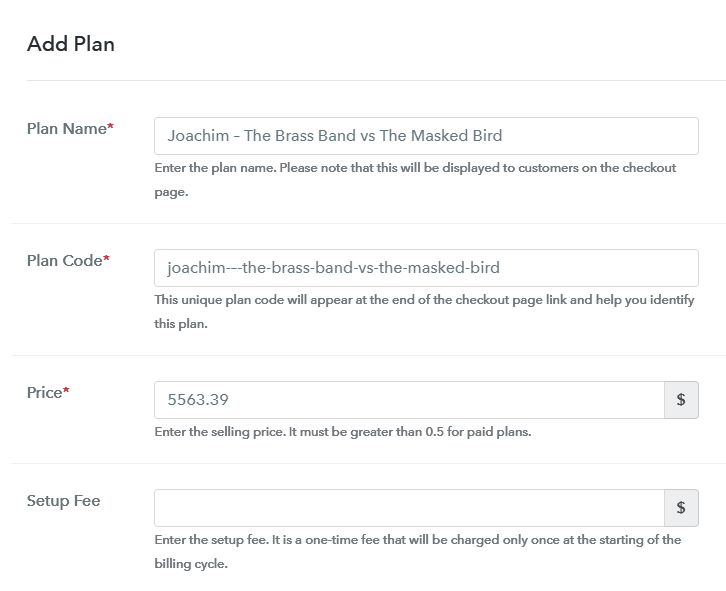
Add Plan to Sell Graffiti Online

On clicking ‘Add a Plan’, you are redirected to the plan page wherein you can fill out the plan details like plan name, code, price, setup fees, billing cycle, and more to sell graffiti online.

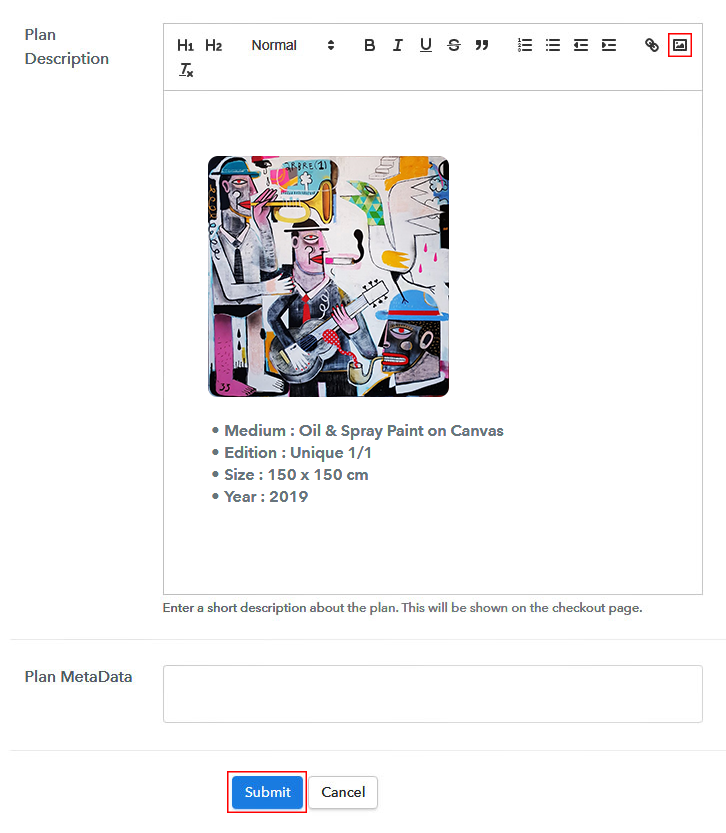
Add Image & Description to Sell Graffiti Online

Further, you can write a description of the graffiti with bullets, links, images, etc

On hitting the submit button, your graffiti will be added instantly.

Similarly, you can create other plans & add all the graffiti items that you want to sell online.

Step 7: Share your Checkout Page

Share Checkout Page on Social Media

To start graffiti business online, you can share/embed the checkout page in three ways.

  • You can share a checkout page on Facebook & Twitter
  • Share the plan link URL with your customers via SMS or emails
  • Also, you can add the plan link in the buttons or anchor texts on your website, so that a user will be redirected to the checkout page

Step 8: Preview Checkout Page

Follow up the recommended steps to preview the checkout page:

(a) Click on the View Button

View Checkout Plan

(b) Take a Look at the Checkout Page

Checkout Page Preview to Sell Graffiti Online

Step 9: Embed Checkout Page in Site & Sell Graffiti Online

Embed Checkout Page on Website

Simply copy the provided plan embedding link to add the checkout page at any preferrable place on your WordPress site.

(a) Edit the Page & Paste the Copied Link

Embed Checkout Page on Website

Further, paste the plan link on a text editor of the WordPress dashboard.

(b) Save & Publish the Checkout Page

Save_and_Publish

Next, click the “Publish” button, after making changes.

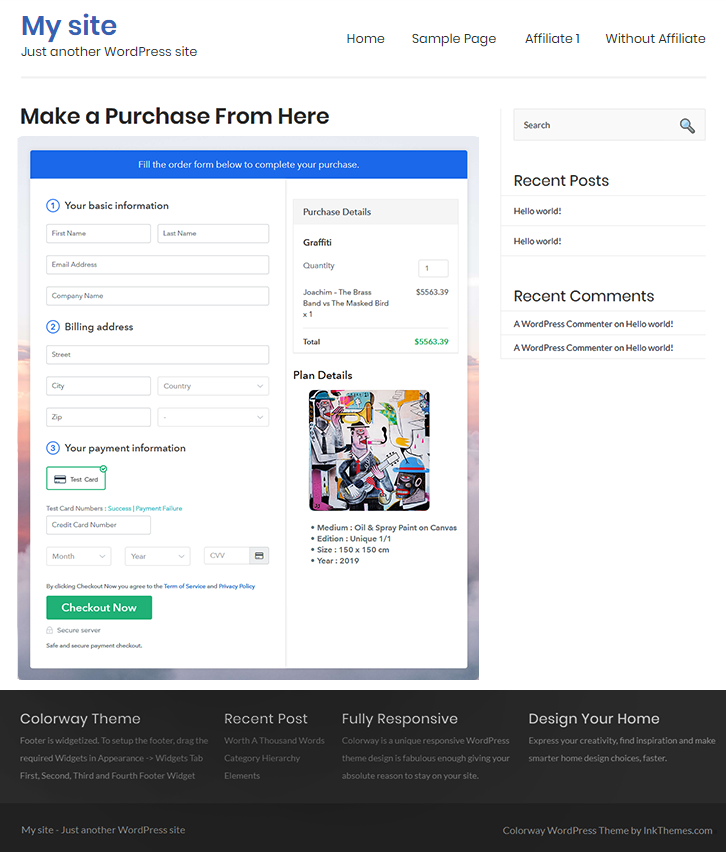
(c) Check out the Final Look of your Checkout Page on WordPress Site

Checkout Page On WordPress Site to Sell Graffiti Online

Step 10: Multiplan Checkout Page

Note: In case you want to sell multiple products via a single checkout page, you can create a multi-plan checkout page otherwise skip this step.

(a) Click on Add Mutiplan Checkout

Multiplan Checkout

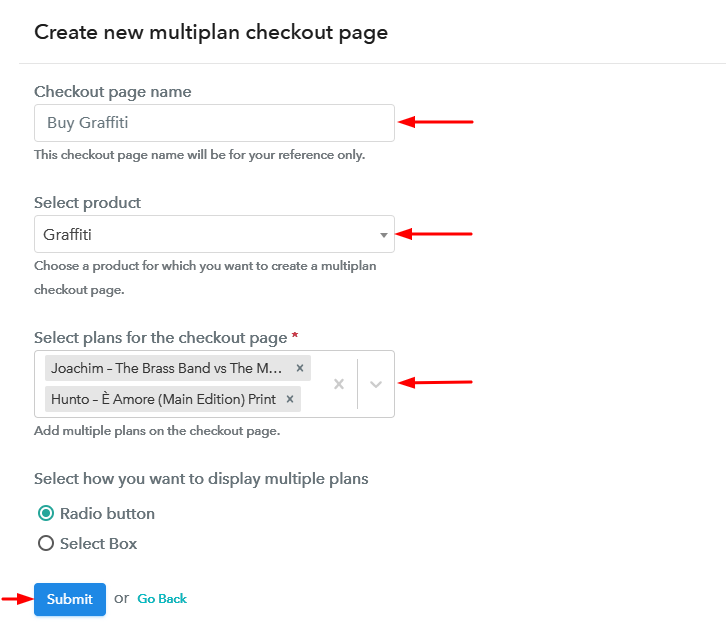
(b) Add Plans to Sell Multiple Graffiti from Single Checkout Page

Create Multiplan Checkout Page to Sell Graffiti Online

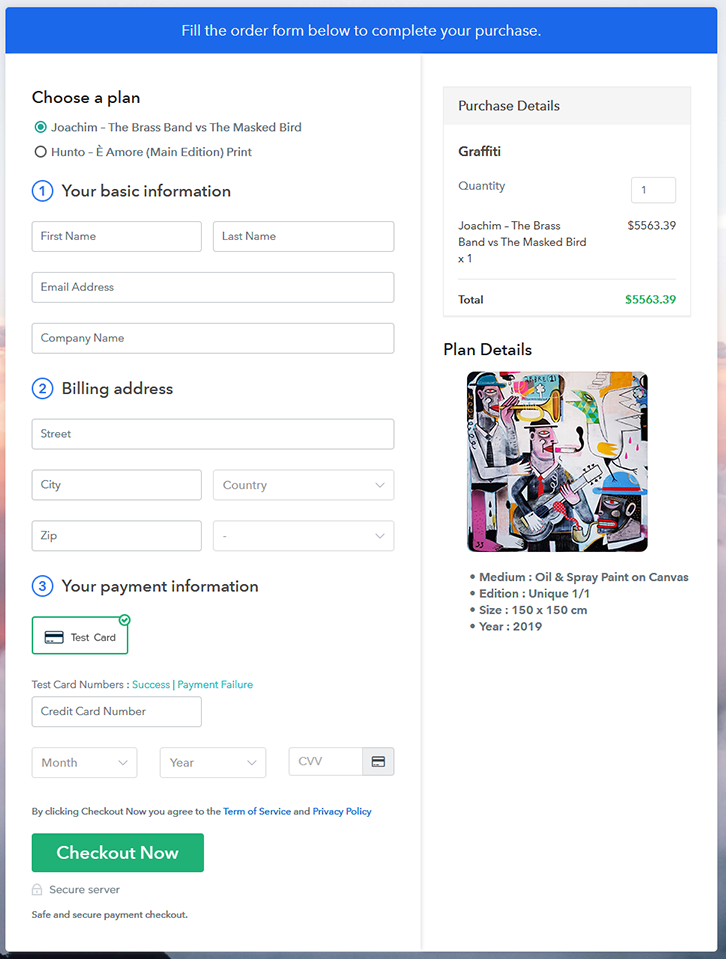
(c) Take a Look at the Checkout Page

Multiplan Checkout Page to Sell Graffiti Online

Preview Checkout Page

Wrapping Up

This was all about ‘How to sell graffiti online? Moreover, there are diverse benefits of selling graffiti online via the checkout page as they make it easy for you to manage everything related to your selling process. These pages work as an online receipt where the user purchases the goods with consent.

Hope this was helpful. For any queries, drop a comment below. We’ll get back to you as early as possible.

You May Also Like To Read –
How to Sell Handicrafts Online | Step by Step (Free Method)

How to Sell Handicrafts Online

Ideal For: All the handicraft manufacturers, handicraft sellers, handicraft dealers, handicraft suppliers, handicraft shop owners and other merchants can use this method to sell handicrafts online.

How to Sell Handicrafts Online

Why Choose this Method to Sell Handicrafts Online?

Unlike any other solution, this method allows you to:

  • List and sell your handicrafts for FREE. Absolutely no payment required.
  • No need to pay commission on any of your sales.
  • Multiple payment options like PayPal, Credit Card, etc to collect payment from a single place.
  • Sell one time or recurring subscriptions of your handicrafts.
  • Collect payments & sell products in any currency as per your requirement.
  • Give discounts on your products by offering special coupon codes.
  • Add sales commission agents to help you in selling handicrafts online.

Get Pabbly Subscription Billing for Free

Handicrafts are widely used by people to decore their homes, hotels, etc for a unique touch. Besides that, handicrafts are also considered as a beautiful gifting item that people prefer to send online. This is the reason why the demand for handicrafts never goes out of business. Therefore, if you have an offline store or making handicrafts is your hobby then it is the right time for you to start handicrafts business online.

Moreover, there are countless benefits of selling handicrafts online such as you can reach out to the global audience, boost up your sales, and much more. Not only that, but setting up an online store is way much convenient due to lower maintenance as compared to offline stores.

Fortunately, we have a tool named Pabbly Subscription Billing that can help you take your business online effortlessly. Using this software, you can easily create checkout pages for selling handicrafts online that can be shared on websites or social media platforms, etc.

Now, let me tell you those 10 easy steps for creating amazing checkout pages to sell handicrafts online using this software.

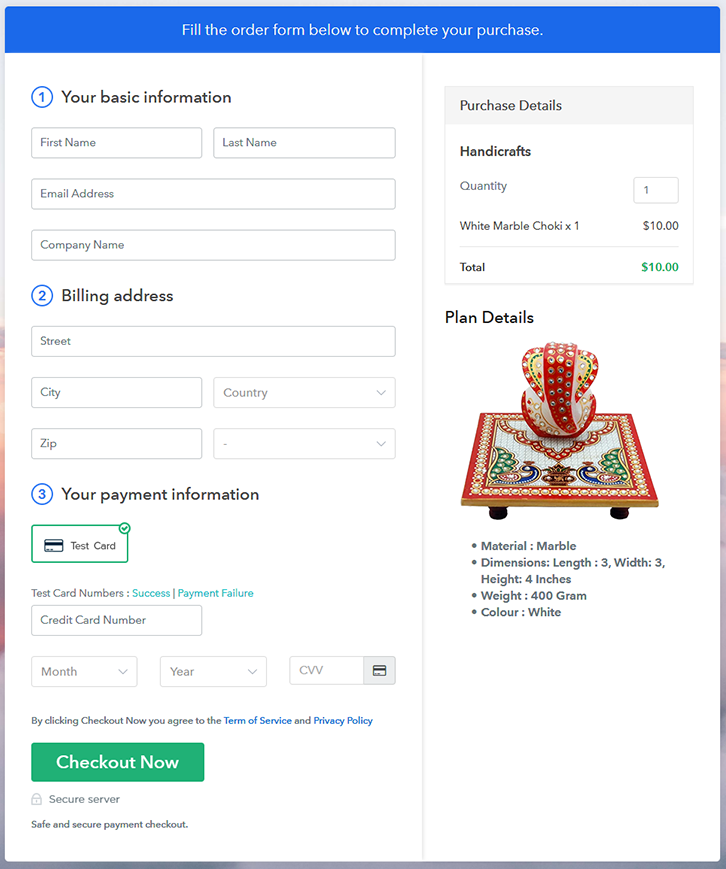
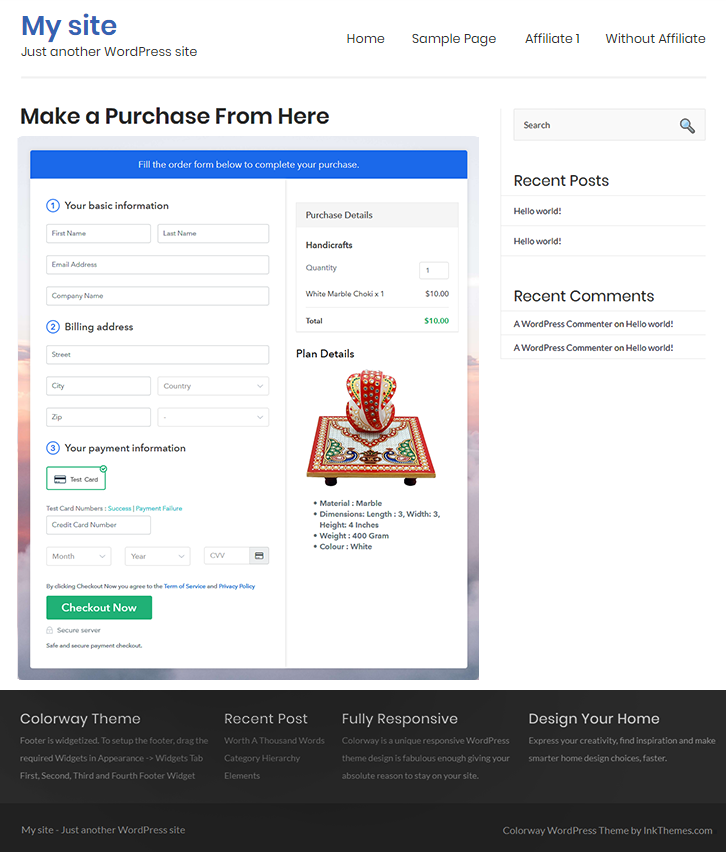
Final View of Checkout Page for your Handicrafts Selling Business

Checkout Page to Sell Handicrafts Online

Preview Checkout Page

Step 1: Log in to Pabbly Subscription Billing

Signup

Start the process by visiting the Pabbly Subscription Billing in your browser. After that, tap on the “Sign up Free“ button. Moreover, either manually filled out the details or sign in using your Gmail account.

Sign Up For Free!

Step 2: Select Subscription Billing

Access Subscription Billing

Step 3: Account Setup

Setup Account

Furthermore, after pressing on the “Access Now” button of the software, a page will open with fields like company name, select currency, and phone number. Just fill out those details to continue creating a checkout page for handicrafts.

Step 4: Connect Payment Gateways & Start Handicrafts Selling Business Online

Connect Payment Gateway

The consequent step is to understand the complete payment procedures using a “Test Payment Gateway”. Here, we will describe the checkout page process for the handicrafts with the help of a test payment gateway. Apart from this, this software offers various payment gateways such as PayPal, Stripe, etc. Besides, below are the payment integration guides to help you out further.

Step 5: Add Product for your Handicrafts

Add Product

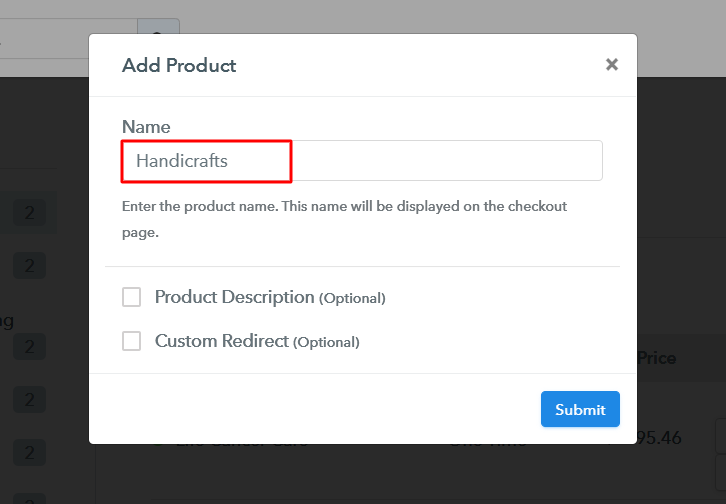
Additionally, add the name, which in our case is “Handicrafts”. Here you can specify the type and provide a small description of the handicrafts.

Add Product to Start Selling Handicrafts Online

Moreover, just fill out all those details and your product is created.

Note: Here you can add all the products related to the similar category by creating plans for each of them.

Step 6: Add Plans 

Let’s unfold out plans for different kinds of handicrafts available in your store.

(a) Select Add New Plan

Add Plan

(b) Specify the Plan & Pricing Details

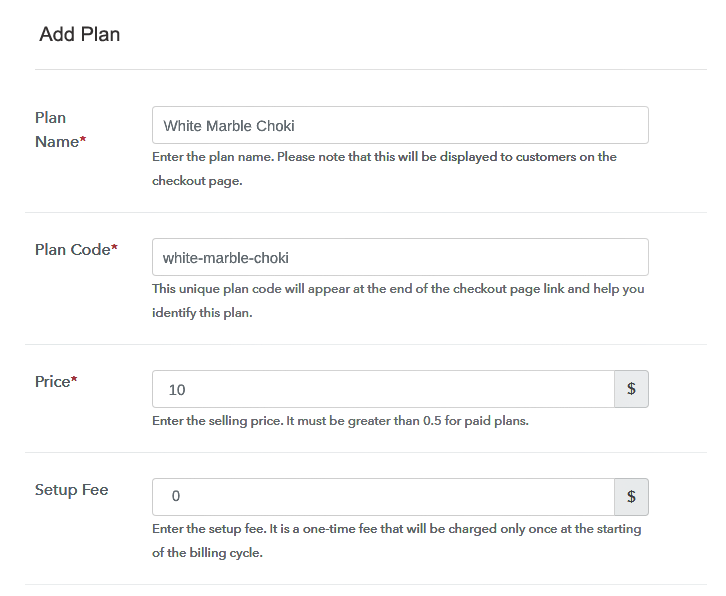
Specify the Plan and Pricing to Sell Handicrafts Online

The next thing to do is fill all the details of the handicrafts like plan name, code, price, set-up fee, and much more to continue.

(c) Add Image & Description of Handicrafts

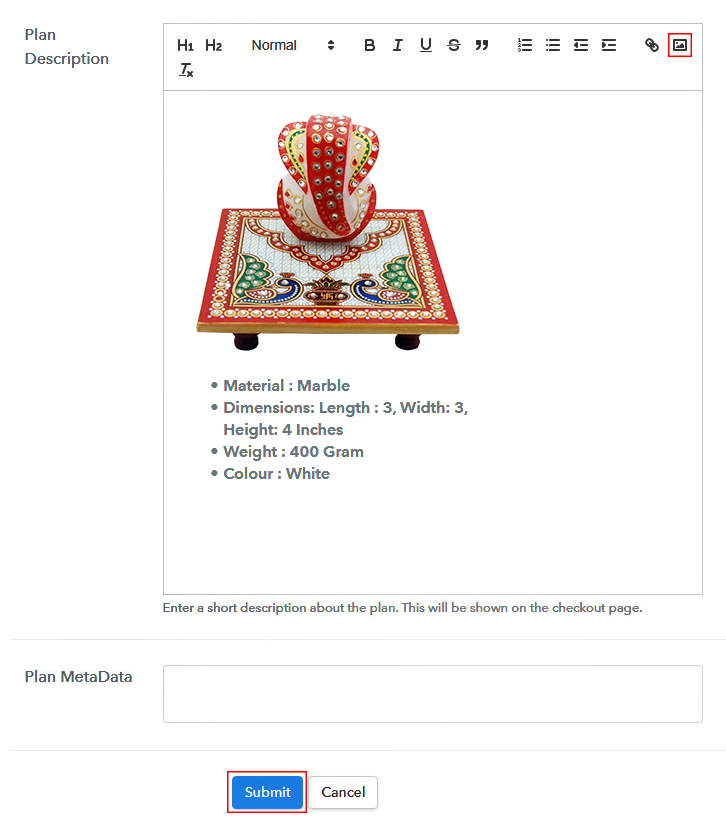
Add Image & Description to Sell Handicrafts Online

Additionally, now give a brief description of the handicrafts using bullets, images, etc, to the checkout page.

Subsequently, tap on the “Submit” button to add the handicrafts on the checkout page.

Conclusively, you can add multiple plans and kinds of handicrafts in your product list which you want to sell online.

Step 7: Share your Checkout Page

Share Checkout Page on Social Media

  • Besides, share the checkout page of the handicrafts on social media accounts like Facebook & Twitter to grab the customer’s attention.
  • Plus, you can share the direct link of the handicrafts checkout page with your customers via SMS or email marketing.
  • Furthermore, embed the provided plan link of the handicrafts in the buttons or any anchor text on your website.

Step 8: Preview Checkout Page

Follow up the recommended steps to preview the checkout page:

(a) Click on the View Button

View Checkout Plan

(b) Take a Look at the Checkout Page

Checkout Page to Sell Handicrafts Online

Step 9: Embed Checkout Page in Site & Sell Handicrafts Online

Embed Checkout Page on Website

Just copy the link and add the checkout page to sell handicrafts online at any proper place on your WordPress site.

(a) Edit the Page & Paste the Copied Link

Paste Link in Text Editor

Further, paste the plan link of handicrafts on a text editor of the WordPress dashboard.

(b) Save & Publish the Checkout Page

Save_and_Publish

Next, click the “Publish” button, after making changes.

(c) Check out the Final Look of your Checkout Page on WordPress Site

Final Look of your Checkout Page to Sell Handicrafts Online

Step 10: Multiplan Checkout Page

Note: In case you want to sell multiple products via a single checkout page, you can create a multi-plan checkout page otherwise skip this step.

(a) Click on Add Mutiplan Checkout

Multiplan Checkout

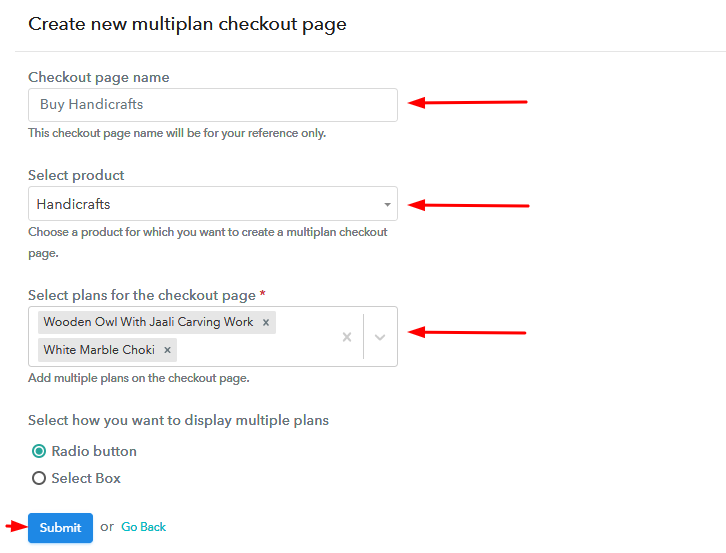
(b) Add Plans to Sell Multiple Handicrafts from Single Checkout Page

Add Plans to Sell Multiple Handicrafts from Single Checkout Page

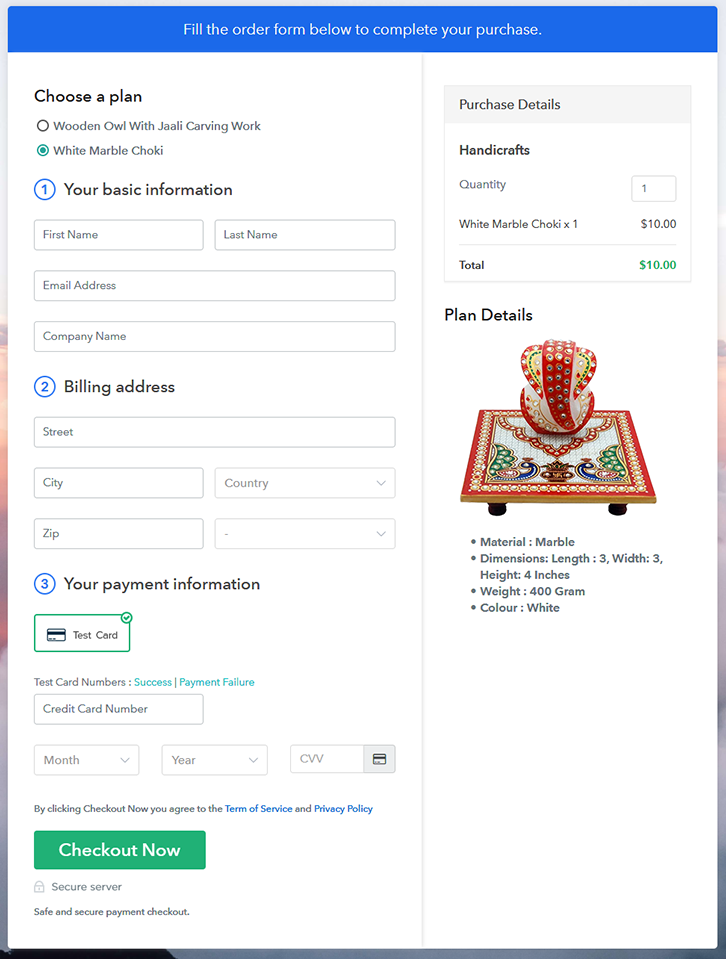
(c) Take a Look at the Checkout Page

Multiplan Checkout Page to Start Selling Handicrafts Online

Preview Checkout Page

Wrapping Up

Okay! So now you know how easy it is to start handicrafts business online using Pabbly Subscription Billing software. Simply go through all the 10 easy steps and nothing else. Moreover, if you have any query or suggestions, write to us in the comment section below, we will get back to you as soon as possible.

You May Also Like To Read –
How To Sell Graters Online | Step by Step (Free Method)

Ideal For: All the grater manufacturers, grater sellers, kitchen appliances stores owners, cottage industries owners, and other merchants can use this method to sell graters online.

How To Sell Graters Online

Why Choose this Method to Sell Graters Online?

Unlike any other solution, this method allows you to:

  • List and sell your graters for FREE. Absolutely no payment required.
  • No need to pay commission on any of your sale.
  • Multiple payment options like PayPal, Credit Card, etc to collect payment from a single place.
  • Sell one time or recurring subscriptions of your graters.
  • Collect payments & sell products in any currency as per your requirement.
  • Give discounts on your products by offering special coupon codes.
  • Add sales commission agents to help you in selling graters.

Get Pabbly Subscription Billing for Free

If you are looking for a method to sell graters online, you came to the right place. But before let me show you a glimpse of the benefits of selling graters online. The immediate advantage is obviously lower set up costs and fast go-to-market time when compared to your traditional brick store. Some other benefits include higher scalability, better cash flows, higher margins, customer data insights, marketing strategy, automation, flexible working hrs, etc.

Now, you can obviously use websites like Amazon, ECWID, etc to sell graters online, but here you will have to compete with other sellers in the same pricing range and even pay a listing commission. So, that is why in this article we will use another approach that ensures the individuality of your product and at the same time don’t need to pay any nonsensical commissions. This method uses a Saas tool called Pabbly Subscription Billing, that creates awesome checkout pages to list and sell grates online. Other advantages are:

  • Unlimited Revenues
  • Tracking Sales
  • Custom Domain
  • Easy Marketing on Facebook, Twitter, Whatsapp, etc
  • Multiple Subscription Models
  • Create Unlimited Coupons, Discounts, Plans
  • Custom Logo in all Checkout Pages

So, now that I have emphasized its main features, let me show you how to create a checkout page in Pabbly Subscription Billing to sell graters online.

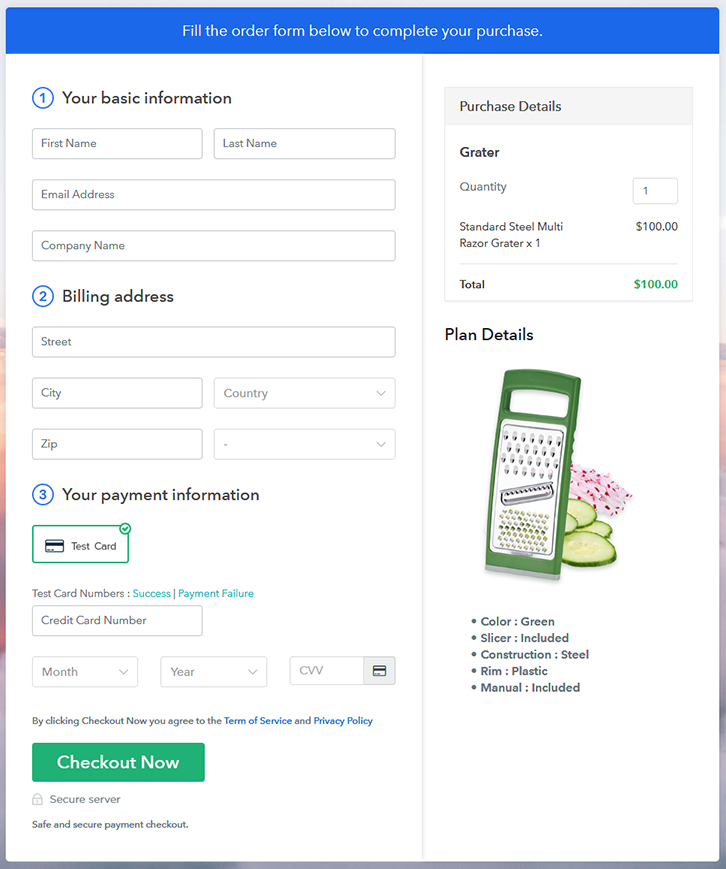
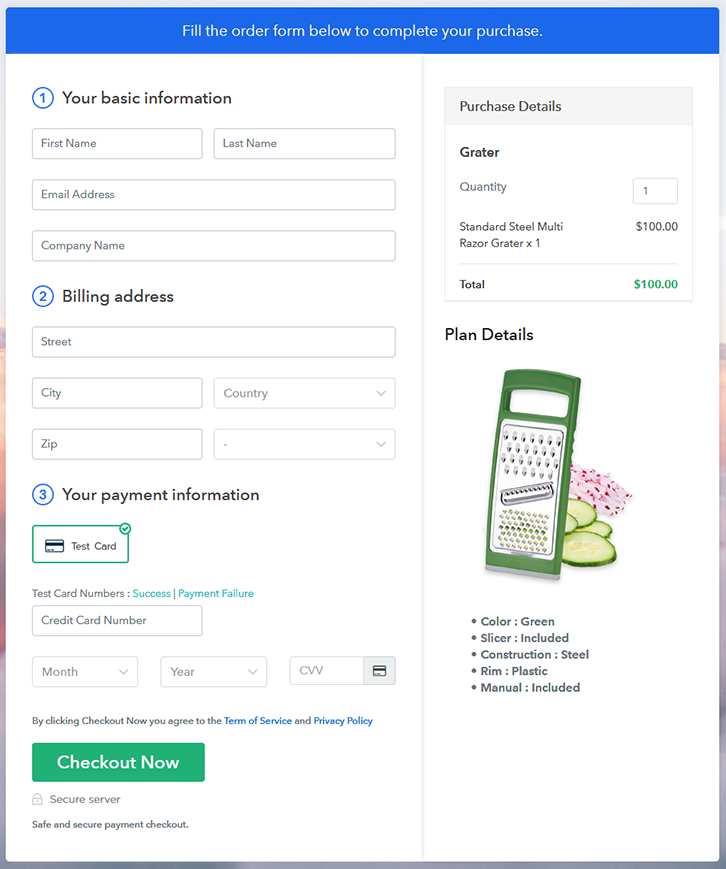
Final View of Checkout Page for your Grater Selling Business

Checkout Page To Sell Graters Online

Preview Checkout Page

Step 1: Log in to Pabbly Subscription Billing

Signup

Find Pabbly Subscription Billing using your search engines. On landing on their website click on the “Sign up Free“ button. You can either manually fill all the information or simply sign in using your Gmail account.

Sign Up For Free!

Step 2: Select Subscription Billing

Access Subscription Billing

Step 3: Account Setup

Setup Account

Once you’re done click on the “Access Now” button of Pabbly Subscription Billing, a page will pop-up with details like company name, currency, and contact number. Next, you need to fill those details to go on.

Step 4: Connect Payment Gateways & Start Graters Selling Business Online

Connect Payment Gateway

We are going to use the test payment mode so that we can understand all about the software’s payment procedure. Also, the Pabbly Subscription Billing allows integration with multiple payment gateways. Below we are mentioning the payment integration guide to help you out.

Step 5: Add Product for your Graters

Add Product

If the payment gateway integration went well, so let’s start adding the products. Beath the  “Enable Payments” segment there is the “Add your product” section click on it. This will generate a dialog box with a blue button “Add New Product”. Click on it.

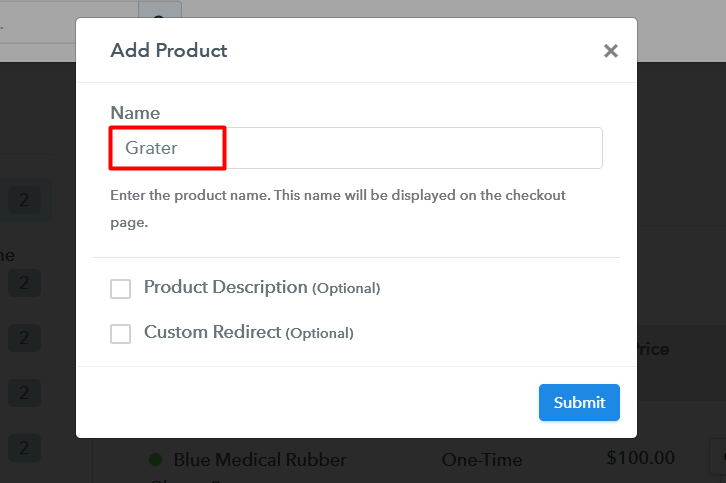
You have to add the required product title, in this case, it is ‘graters’.

Add Product To Sell Graters Online

Fill out all the details like the name of the product and voila your product is created.

Note: Here you can add all the products related to the similar category by creating plans for each of them.

Step 6: Add Plans 

Now let’s create plans for different kinds of graters available in your store.

(a) Select Add New Plan

Add Plan

(b) Specify the Plan & Pricing Details

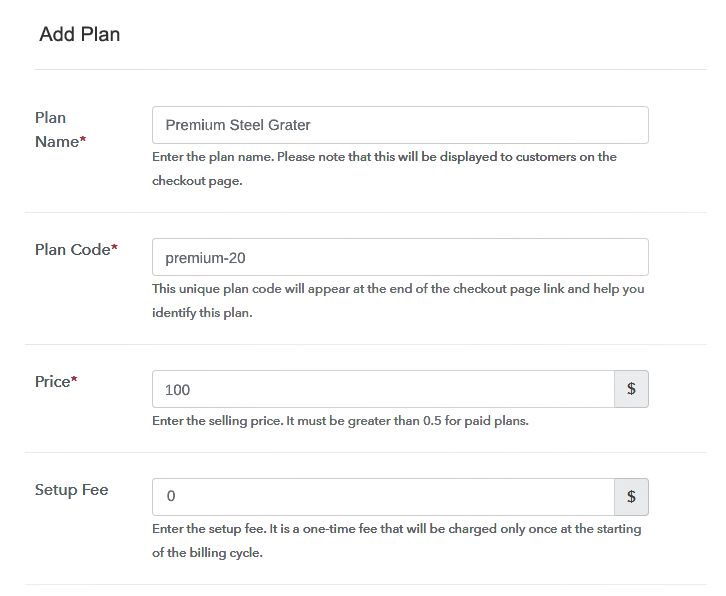
Add Plan To Sell Graters Online

In the plan page, fill in information like plan name, code, price, setup fees, etc. Moreover, while coming down you will find different billing models like one-time payment, recurring, based on cycles, etc. Now, choose the one that interests you the most. Furthermore, you can change it any time you want.

(c) Add Image & Description of Graters

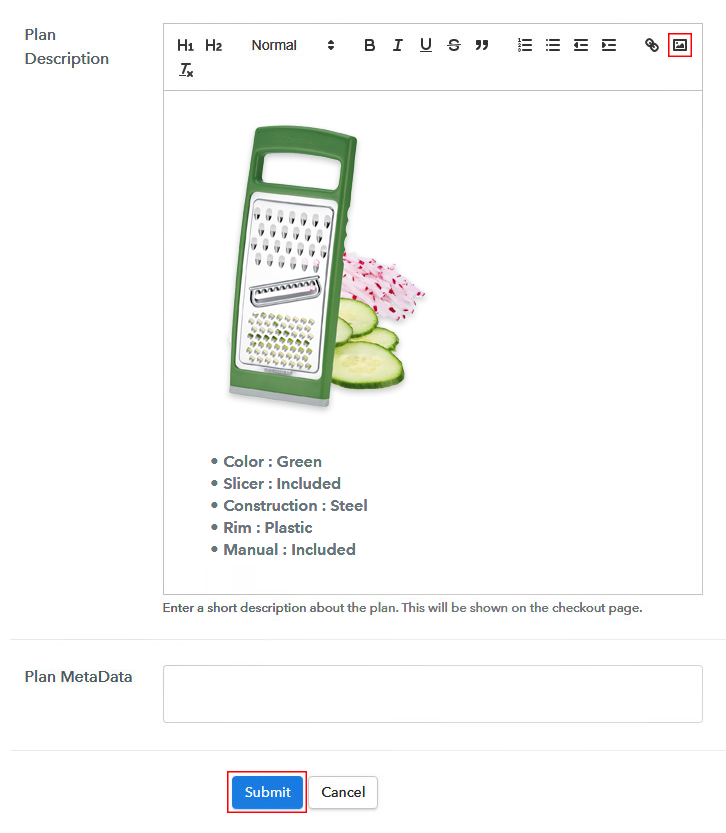
Add Image To Sell Graters Online

Now, give small info about graters in bullet points, add images and links too.

Then, on hitting the submit button, your graters will be successfully added.

Also, you can create multiple plans and can add all the graters you want to sell online.

Step 7: Share your Checkout Page

Share Checkout Page on Social Media

  • Also, to create more awareness about your products you can share your checkout page on Twitter & Facebook by just pressing the respective buttons.
  • Moreover, share the checkout pages on email and SMS.
  • Furthermore, you can build buttons on your webpage and paste the checkout links on it. Or you can place it on any anchor text on your website, so the users will be redirected to the checkout page.

Step 8: Preview Checkout Page

Follow up the recommended steps to preview the checkout page:

(a) Click on the View Button

View Checkout Plan

(b) Take a Look at the Checkout Page

Checkout To Sell Graters Online

Step 9: Embed Checkout Page in Site & Sell Graters Online

Embed Checkout Page on Website

Furthermore, just copy the link and add the checkout page to sell graters online at any suitable place on your WordPress site.

(a) Edit the Page & Paste the Copied Link

Embed Checkout Page on Website

Further, paste the plan link of the fast-food on a text editor of the WordPress dashboard.

(b) Save & Publish the Checkout Page

Save_and_Publish

Next, click the “Publish” button, after making changes.

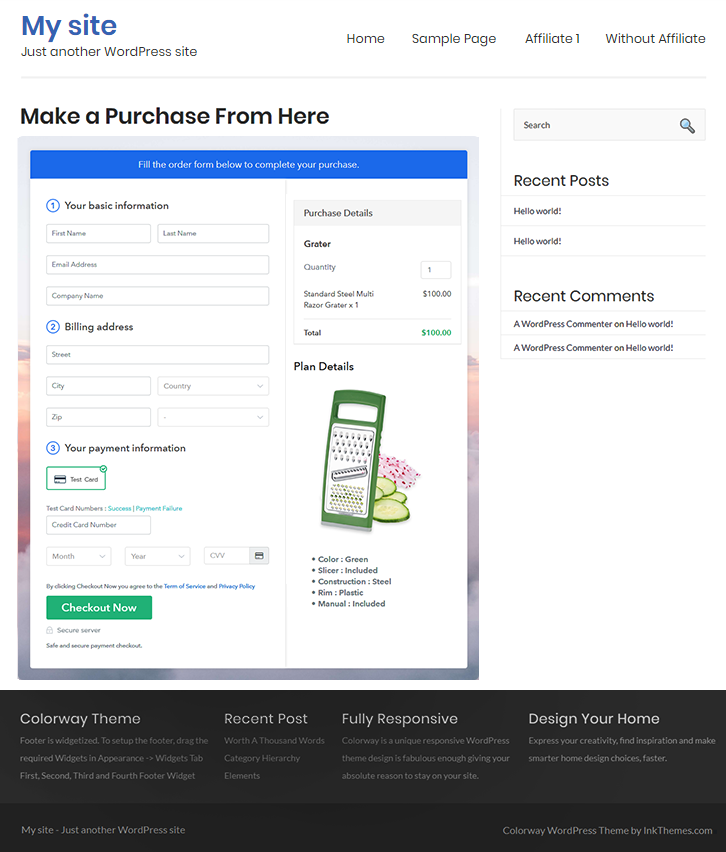
(c) Check out the Final Look of your Checkout Page on WordPress Site

Wordpress To Sell Graters Online

Step 10: Multiplan Checkout Page

Note: In case you want to sell multiple products via a single checkout page, you can create a multi-plan checkout page otherwise skip this step.

(a) Click on Add Mutiplan Checkout

Multiplan Checkout

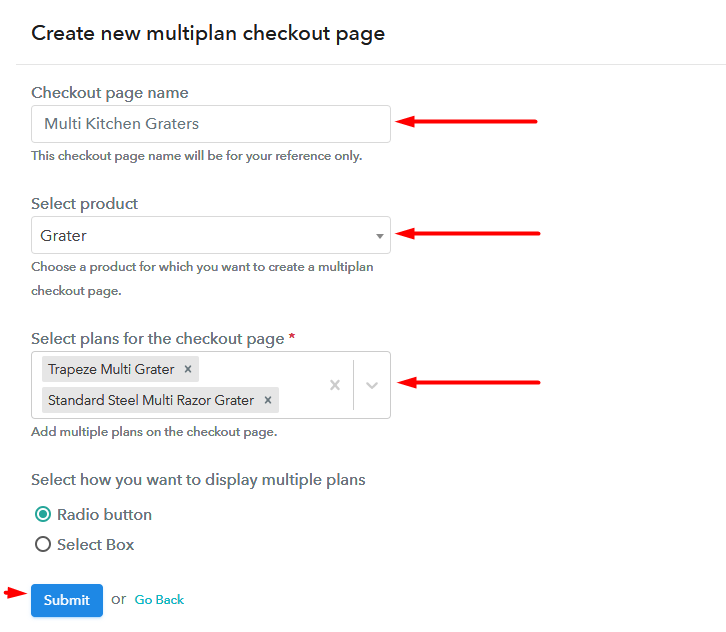
(b) Add Plans to Sell Multiple Graters from Single Checkout Page

Multiplan To Sell Graters Online

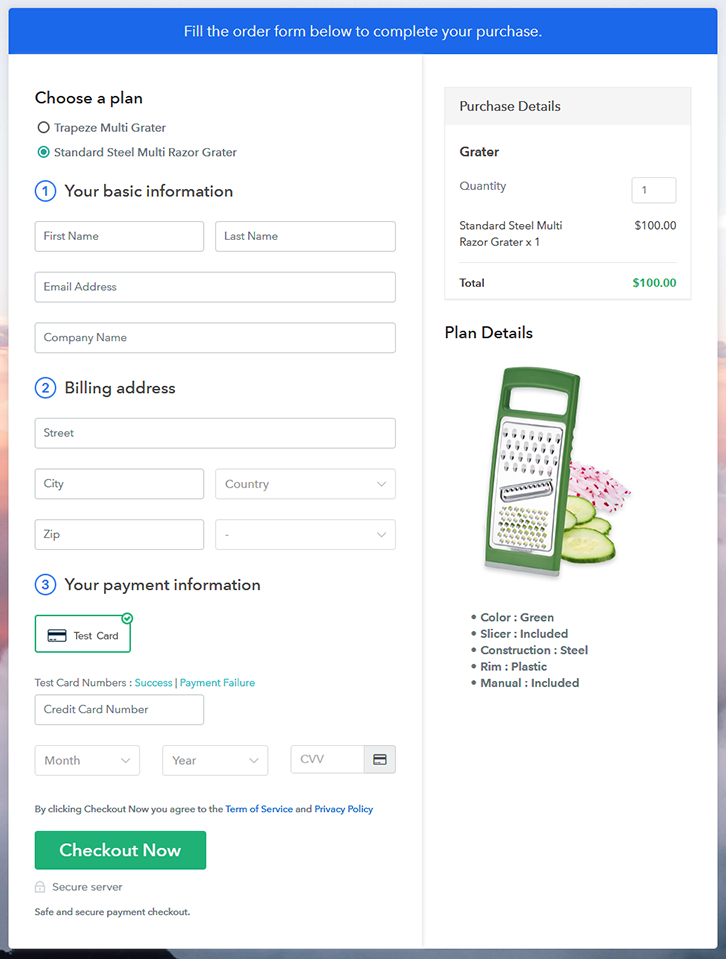
(c) Take a Look at the Checkout Page

Multiplan To Sell Graters Online

Preview Checkout Page

Wrapping Up

Excellent!! Your final checkout page to sell graters online rocks! These checkout pages are so versatile that few tweaks, you can sell any products online. Obviously, more than the listed features, there are many more gimmicks in Paabbly Subscription Billing for you to explore and experiment with. But for now, if you have any doubts, please leave it in the comment section below. Thank You !!

You May Also Like To Read –
How to Sell Gloves Online | Step by Step (Free Method)

Ideal For: All the pharma companies, medical start-ups, pharma shops, gloves manufacturers,cottage industries, and other merchants can use this method to sell gloves online.

How to sell gloves online

Why Choose this Method to Sell Gloves Online?

Unlike any other solution, this method allows you to:

  • List and sell your fresh gloves for FREE. Absolutely no payment required.
  • No need to pay commission on any of your sale.
  • Multiple payment options like PayPal, Credit Card, etc to collect payment from a single place.
  • Sell one time or recurring subscriptions of your gloves.
  • Collect payments & sell products in any currency as per your requirement.
  • Give discounts on your products by offering special coupon codes.
  • Add sales commission agents to help you in selling gloves.

Get Pabbly Subscription Billing for Free

Gloves, especially medical gloves are in high demand because of the unfortunate events unfolding in our world. The obvious choice for many sellers to sell gloves online is through e-commerce platforms like Amazon, Snapdeal, etc. But the main contentious issue with these websites is that you have to follow many unnecessary guidelines and the competition is very stiff as there are many sellers offering the same product.

So that is why I will insist that you carve your market space online with the help of an amazing tool called Pabbly Subscription Billing. The advantage of using this software is you can create your own brand by building incredible checkout pages to sell gloves online. Furthermore there some unique features that will give you an upper hand over your peers like:

  • Revenue Collection in Offline/Online Mode
  • Custom Domain
  • Unlimited Storage
  • Custom Logo
  • Auto Email Alerts
  • Tax Management
  • No Transaction Charges

Now, that I have gotten you interested, let me show you how you will create checkout pages to sell gloves online with Pabbly Subscription Billing.

Note: If you are selling medical gloves online, it should be in tandem with rules established by the respective governing council of medicine.

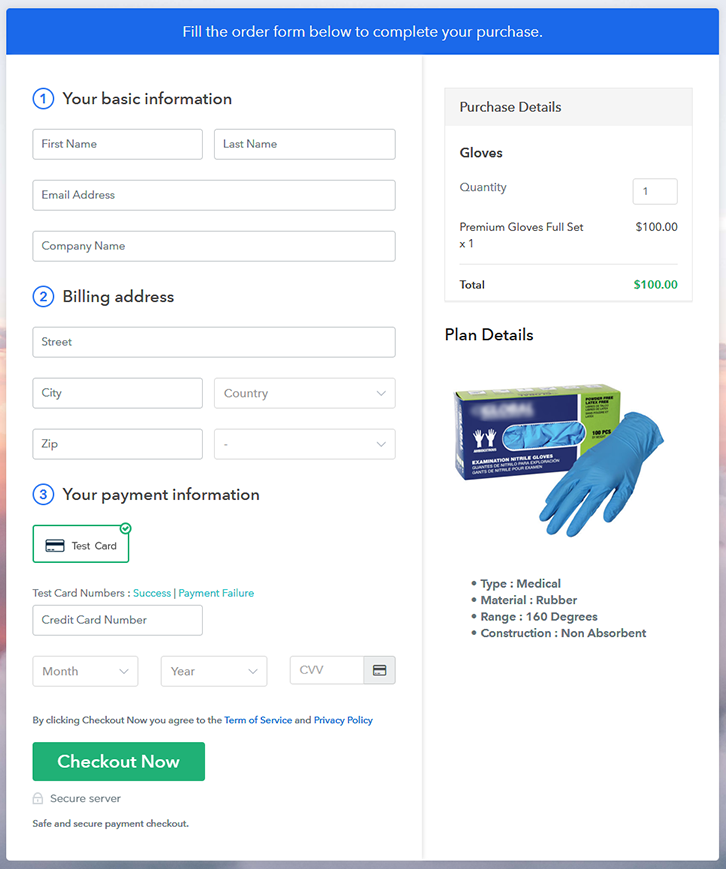
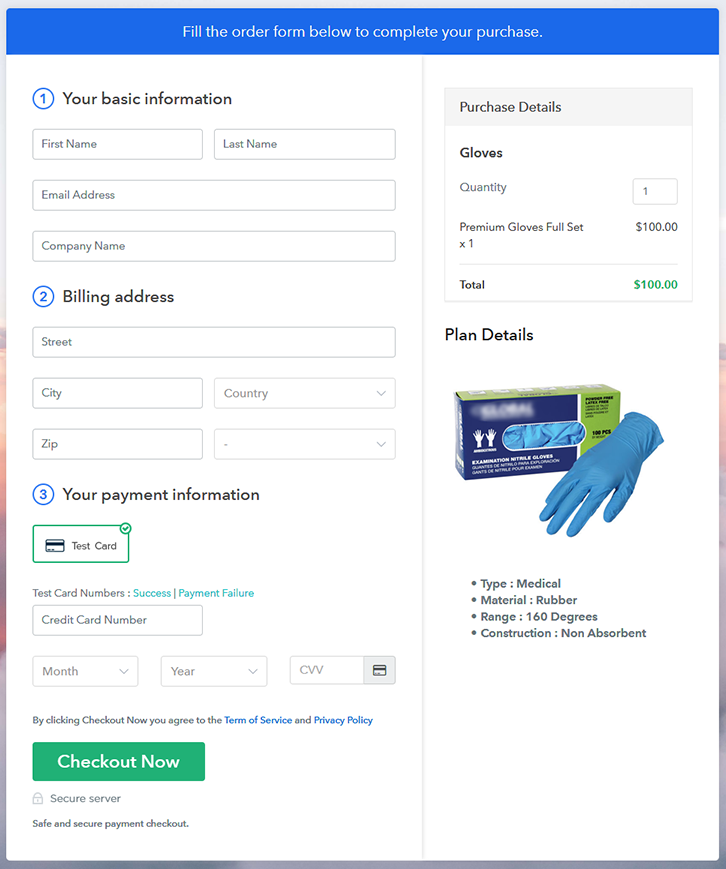
Final View of Checkout Page for your Gloves Selling Business

Checkout to Sell Gloves Online

Preview Checkout Page

Step 1: Log in to Pabbly Subscription Billing

Signup

First to start the process look for the website Pabbly Subscription Billing in your search engine. Here click on the “Sign up Free“ button. You can either manually fill all the information or simply sign in using your Gmail account.

Sign Up For Free!

Step 2: Select Subscription Billing

Access Subscription Billing

Step 3: Account Setup

Setup Account

Click on the “Access Now” button of the software, a page will redirect with fields like company name, select currency, and phone number. Just fill out those details to continue creating a checkout page for gloves.

Step 4: Connect Payment Gateways & Start Gloves Selling Business Online

Connect Payment Gateway

To prevent glitches during transactions, Pabbly Subscription Billing provides a dummy payment gateway where you can beta test the entire payment experience of the customer in advance.

Payment gateways such as Razorpay, Stripe, and many more can be easily integrated using Pabbly Subscription Billing. There is an integration guide for each of them below this para. But I am going ahead to enable the test payment option to continue the process.

Step 5: Add Product for your Gloves

Add Product

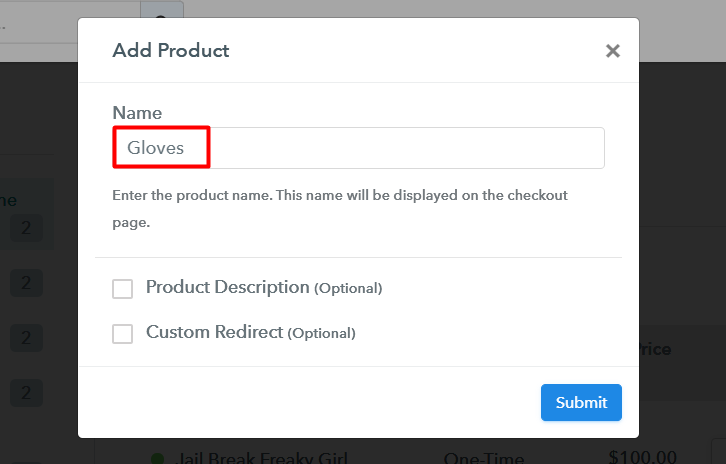
I am hoping that the payment gateway integration went well, so let’s start adding the products. Below the “Enable Payments” segment there is the “Add your product” section click on it. This will generate a dialog box with a blue button “Add New Product”. Click on it.

You have to add the required product title, in this case, it is ‘glove’.

Add Product to Sell Gloves Online

Fill out all the details like the name of the product and voila your product is created.

Note: Here you can add all the products related to the similar category by creating plans for each of them.

Step 6: Add Plans 

Now let’s create plans for different kinds of costumes available in your store.

(a) Select Add New Plan

Add Plan

(b) Specify the Plan & Pricing Details

Add Plans to Sell Gloves Online

In the plan page, fill in information like plan name, code, price, setup fees, etc. Moreover, while coming down you will find different billing models like one-time payment, recurring, based on cycles, etc. Now, choose the one that interests you the most. Furthermore, you can change it any time you want.

(c) Add Image & Description of Glove

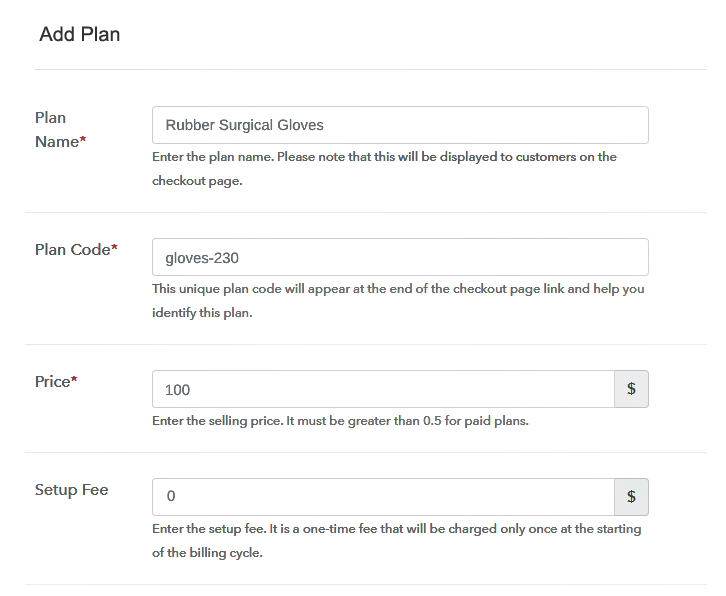
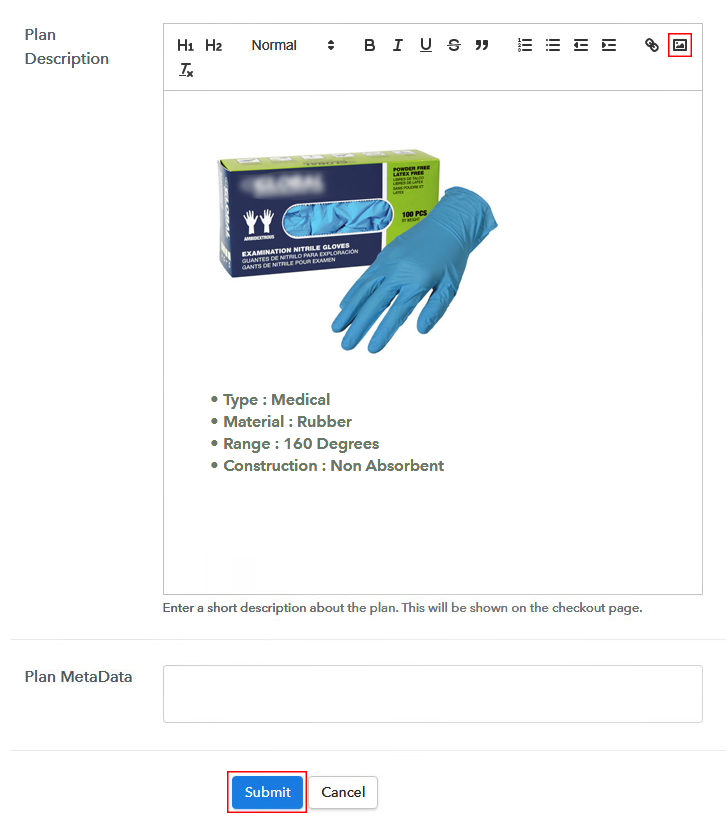
Add Image to Sell Gloves Online

By clicking the image button you can upload some good images of glove.

After uploading the images add some important information about the gloves like material, expiry, elasticity, etc, and then press the “Submit” button.

Also, by using the same process, you can list more products.

Step 7: Share your Checkout Page

Share Checkout Page on Social Media

  • Also, to create more awareness about your products you can share your checkout page on Twitter & Facebook by just pressing the respective buttons.
  • Moreover, share the checkout pages on email and SMS.
  • Furthermore, you can build buttons on your webpage and paste the checkout links on it. Or you can place it on any anchor text on your website, so the users will be redirected to the checkout page.

Step 8: Preview Checkout Page

Follow up the recommended steps to preview the checkout page:

(a) Click on the View Button

View Checkout Plan

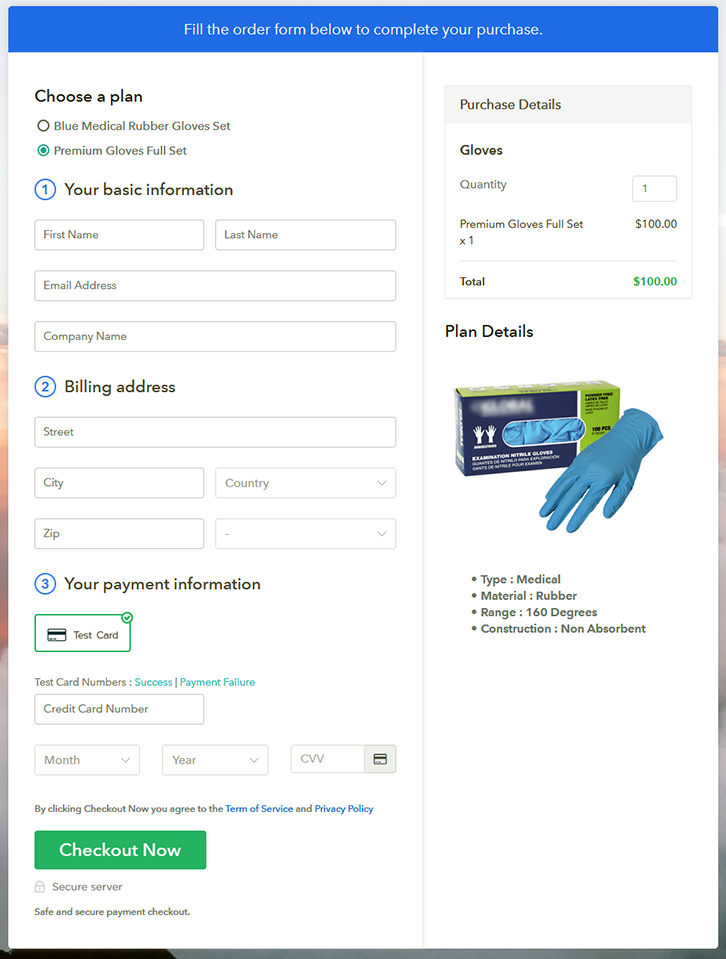
(b) Take a Look at the Checkout Page

Checkout to Sell Gloves Online

Step 9: Embed Checkout Page in Site & Sell Gloves Online

Embed Checkout Page on Website

Also, just copy the link and add the checkout page to sell the gloves online at any suitable place on your WordPress site.

(a) Edit the Page & Paste the Copied Link

Embed Checkout Page on Website

Further, paste the plan link of the fast-food on a text editor of the WordPress dashboard.

(b) Save & Publish the Checkout Page

Save_and_Publish

Next, click the “Publish” button, after making changes.

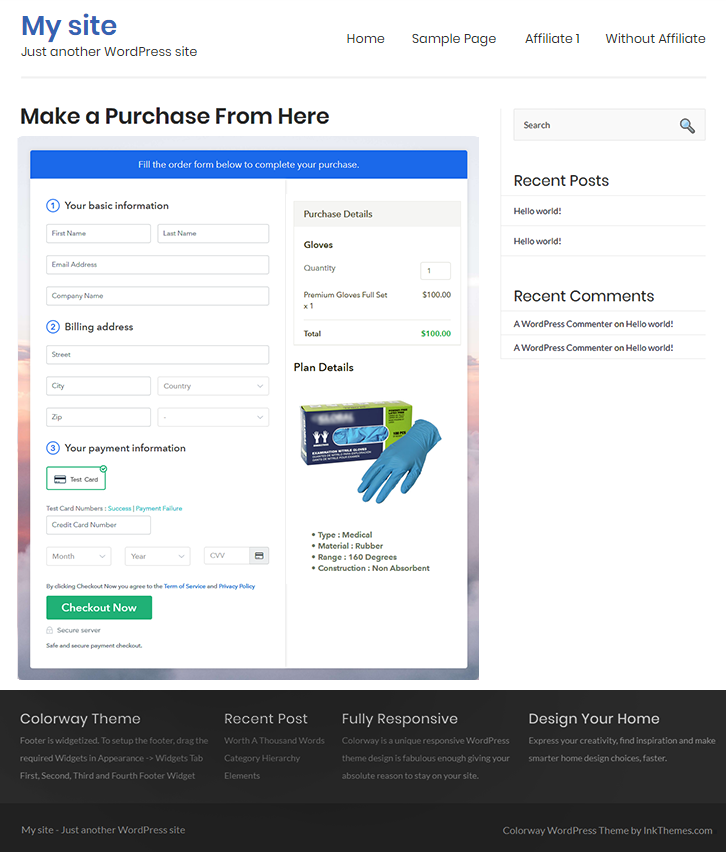
(c) Check out the Final Look of your Checkout Page on WordPress Site

Wordpress to Sell Gloves Online

Step 10: Multiplan Checkout Page

Note: In case you want to sell multiple products via a single checkout page, you can create a multi-plan checkout page otherwise skip this step.

(a) Click on Add Mutiplan Checkout

Multiplan Checkout

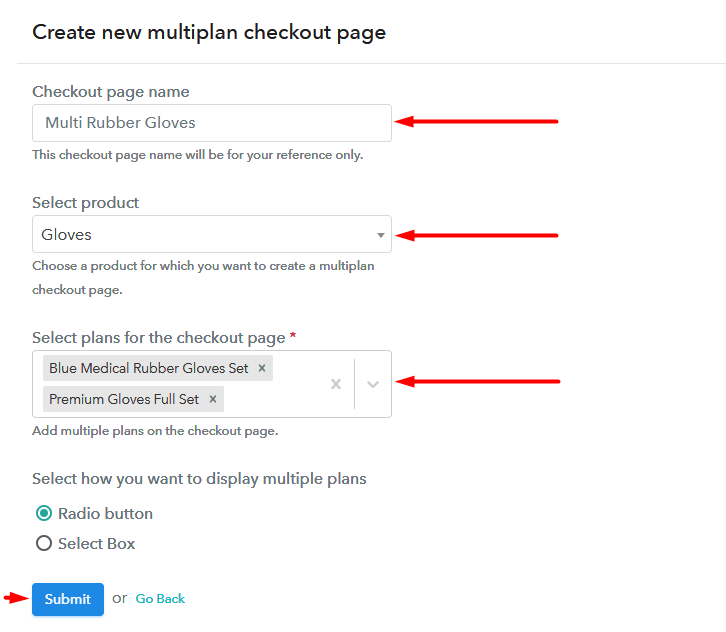
(b) Add Plans to Sell Multiple Gloves Online from Single Checkout Page

Multiplan to Sell Gloves Online

(c) Take a Look at the Checkout Page

Multiplan to Sell Gloves Online

Preview Checkout Page

Wrapping Up

With these 10 easy steps, you have created your final checkout page to sell gloves online. Also, there are many features which you need to explore, to ace the online market.

Also, if you have any doubts feel free to communicate with us through the comment section. We will reply at the earliest. Thank You!!

You May Also Like To Read –
 

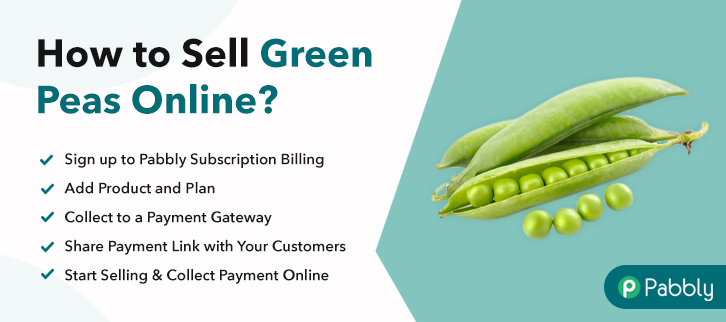
How to Sell Green Peas Online | Step by Step (Free Method)

How to Sell Green Peas Online

Ideal For: All the green peas manufacturers, green peas sellers, green peas dealers, green peas suppliers, grocery store owners and other merchants can use this method to sell green peas online.

How to Sell Green Peas Online

Why Choose this Method to Sell Green Peas Online?

Unlike any other solution, this method allows you to:

  • List and sell your green peas for FREE. Absolutely no payment required.
  • No need to pay commission on any of your sales.
  • Multiple payment options like PayPal, Credit Card, etc to collect payment from a single place.
  • Sell one time or recurring subscriptions of your green peas.
  • Collect payments & sell products in any currency as per your requirement.
  • Give discounts on your products by offering special coupon codes.
  • Add sales commission agents to help you in selling green peas online.

Get Pabbly Subscription Billing for Free

It has been stated that green peas contain heart-healthy minerals like magnesium, potassium, and calcium which is why there is an uprise in its consumption among people. With high consumption comes a high demand which can’t be fulfilled by brick and mortar stores. Thus, it is important to start the green peas business online.

Conventional stores have limited stocks and options whereas in digital stores you can stay on top of the stocks, invoices, revenue, and much more. Also, an online store brings better cashflow. In the online store, “the sky is limit means the world is market”.  Luckily, we came across a software named Pabbly subscription Billing that lets you start your own green peas business online. The tool lets you build an amazing checkout page for selling green peas online. Other than this, it has remarkable features like

  • Countless Discount & Coupons
  • Revenue Tracking
  • One Time and Recurring Billing

Subsequently, now let me show you 10 easy steps that you need to follow for creating checkout pages for selling green peas online.

Final View of Checkout Page for your Green Peas Selling Business

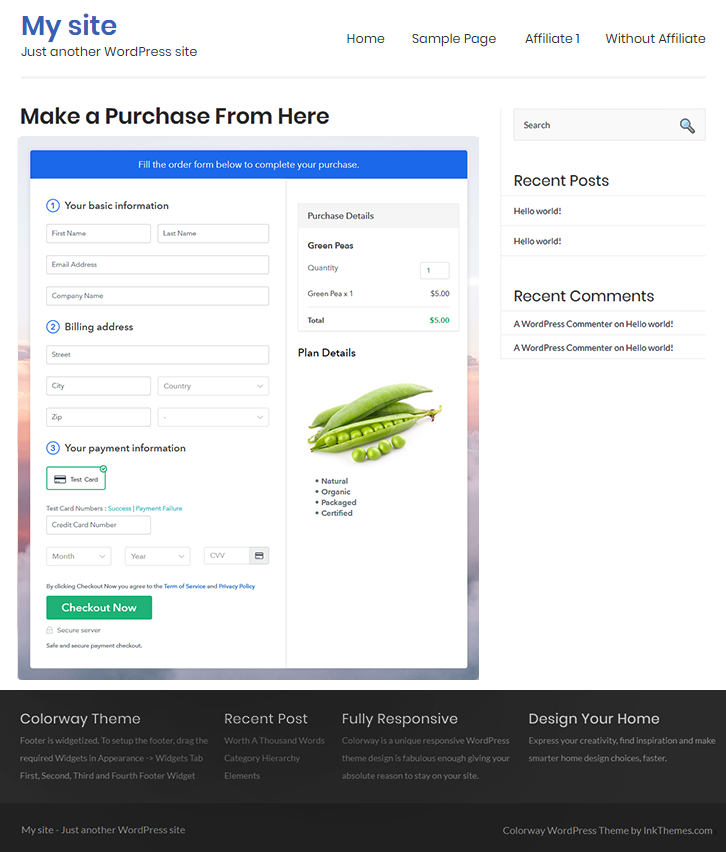
Checkout Page to Sell Green Peas Online

Preview Checkout Page

Step 1: Log in to Pabbly Subscription Billing

Signup

Begin the process for creating a checkout page for green peas by visiting the Pabbly Subscription Billing in your browser. After that, click on the “Sign up Free“ button. Moreover, either manually filled out the details or sign in using your Gmail account.

Sign Up For Free!

Step 2: Select Subscription Billing

Access Subscription Billing

Step 3: Account Setup

Setup Account

Besides, after clicking on the “Access Now” button of the software, a page will open with fields like company name, select currency, and phone number. Simply fill out those details to continue creating a checkout page for green peas.

Step 4: Connect Payment Gateways & Start Green Peas Selling Business Online

Connect Payment Gateway

The subsequent step is to gaining knowledge about payment procedures using a “Test Payment Gateway”. Here, we will describe the checkout page process for the green peas with the help of a test payment gateway. Besides this, the tool offers various payment gateways such as PayPal, Stripe, etc. Further, below are the payment integration guides to help you out.

Step 5: Add Product for your Green Peas

Add Product

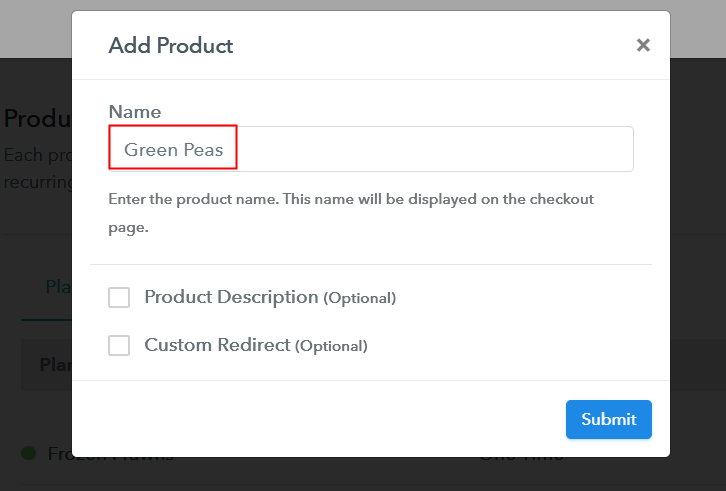
Additionally, add the name, which in our case is “Green Peas”. Here you can specify the type like field peas, frozen peas, etc. Further, write a short description of the green peas to grasp the customer’s attention.

Add Product to Start Selling Green Peas Online

Moreover, just fill out all those details and your product is created.

Note: Here you can add all the products related to the similar category by creating plans for each of them.

Step 6: Add Plans 

Let’s expose plans for different kinds of green peas available in your store.

(a) Select Add New Plan

Add Plan

(b) Specify the Plan & Pricing Details

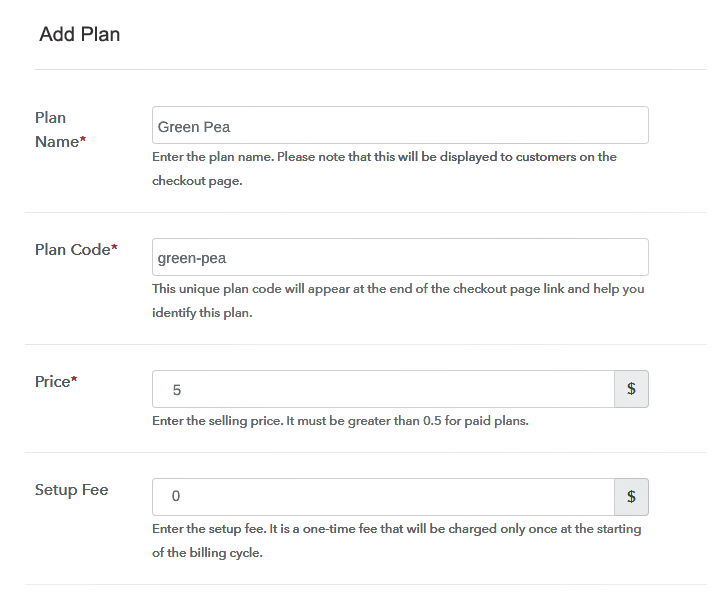
Specify the Plan and Pricing to Sell Green Peas Online

The next thing to do is fill all the details of the green peas like plan name, code, price, set-up fee, and much more to continue.

(c) Add Image & Description of Green Peas

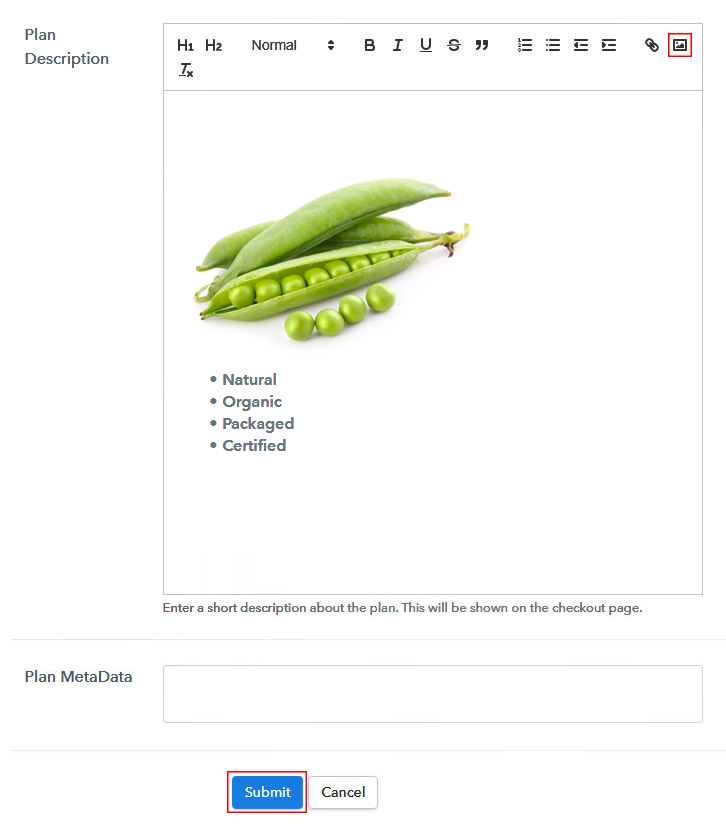
Add Image & Description to Sell Green Peas Online

Furthermore, write a brief description of the green peas using bullets, images, etc, to bring original buyers to the checkout page.

Next, click on the “Submit” button to add the green peas on the checkout page.

Finally, you can add multiple plans and kinds of green peas in your product list which you want to sell online.

Step 7: Share your Checkout Page

Share Checkout Page on Social Media

  • Moreover, share the checkout page of the green peas on social media accounts like Facebook & Twitter to grab the customer’s attention.
  • Also, you can share the direct link of the green peas checkout page with your customers via SMS or email marketing.
  • Additionally, embed the provided plan link of the green peas in the buttons or any anchor text on your website.

Step 8: Preview Checkout Page

Follow up the recommended steps to preview the checkout page:

(a) Click on the View Button

View Checkout Plan

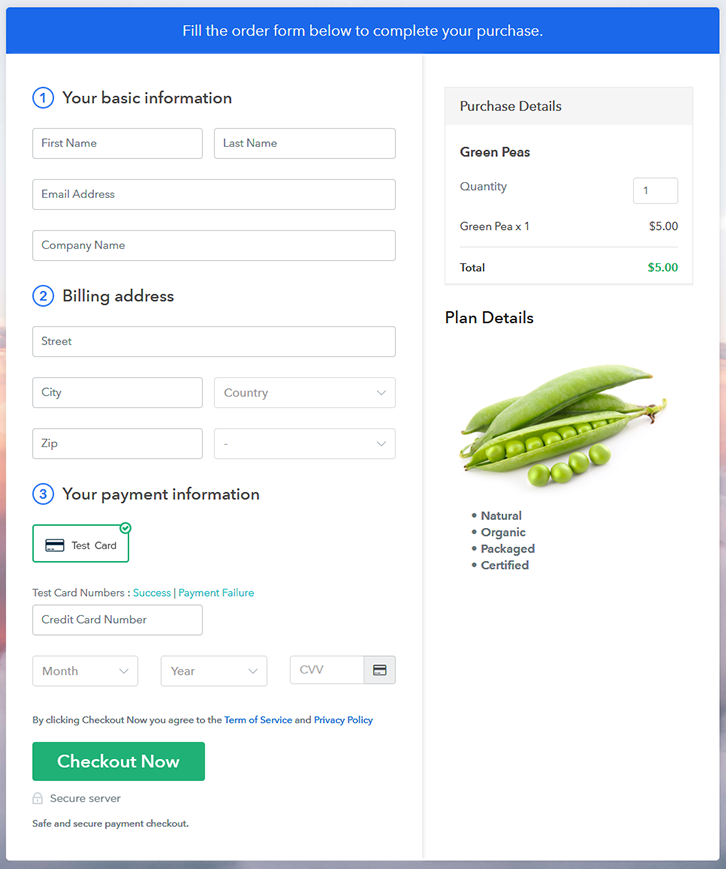
(b) Take a Look at the Checkout Page

Checkout Page to Sell Green Peas Online

Step 9: Embed Checkout Page in Site & Sell Green Peas Online

Embed Checkout Page on Website

Just copy the link and add the checkout page to sell green peas online at any proper place on your WordPress site.

(a) Edit the Page & Paste the Copied Link

Paste Link in Text Editor

Further, paste the plan link of green peas on a text editor of the WordPress dashboard.

(b) Save & Publish the Checkout Page

Save_and_Publish

Next, click the “Publish” button, after making changes.

(c) Check out the Final Look of your Checkout Page on WordPress Site

Final Look of your Checkout Page to Sell Green Peas Online

Step 10: Multiplan Checkout Page

Note: In case you want to sell multiple products via a single checkout page, you can create a multi-plan checkout page otherwise skip this step.

(a) Click on Add Mutiplan Checkout

Multiplan Checkout

(b) Add Plans to Sell Multiple Green Peas from Single Checkout Page

Add Multiple Products to Start Selling Green Peas Online

(c) Take a Look at the Checkout Page

Multiplan Checkout Page to Sell Green Peas Online

Preview Checkout Page

Wrapping Up

Isn’t it amazing to sell green peas online using Pabbly Subscription Billing software? Yes, of course, it is. So, why wait any longer to start the green peas business online and increase your sales in no time. Just log in to Pabbly Subscription Billing and follow the 10 easy steps mentioned above and take your business online. Also, don’t forget to give us your feedback in the comments section below.

You May Also Like To Read –