How to Sell Memory Cards Online | Step by Step (Free Method)

How to Sell Memory Cards Online

Ideal For: All the memory card manufacturers, memory card sellers, mobile accessories dealers, memory card suppliers, digital gadget shop owners and other merchants can use this method to sell memory cards online.
How to Sell Memory Cards Online

Why Choose this Method to Sell Memory Cards Online?

Unlike any other solution, this method allows you to:

  • List and sell your memory cards for FREE. Absolutely no payment required.
  • No need to pay commission on any of your sales.
  • Multiple payment options like PayPal, Credit Card, etc to collect payment from a single place.
  • Sell one time or recurring subscriptions of your memory cards.
  • Collect payments & sell products in any currency as per your requirement.
  • Give discounts on your products by offering special coupon codes.
  • Add sales commission agents to help you in selling memory cards online.

Get Pabbly Subscription Billing for Free

Memory cards are widely used electronic device that can electrically be erased and reprogrammed. Almost everybody uses memory cards either for the camera, phone, tablets, etc. This is a reason why there is a colossal demand for memory cards that can’t be fulfilled by brick and mortar stores. Thus, it is important to start the memory cards business online.

Stereotyped stores have restricted stocks and alternatives whereas in digital stores keeps you on top of the stocks, invoices, revenue, and much more. Also, an online store brings better cashflow as it offers discounts for quick payments. Plus, your store is accessible to whole world. Luckily, we came across a software named Pabbly Subscription Billing that lets you start your own memory cards business online. This tool lets you build an amazing checkout page for selling memory cards online. Other than this, it has remarkable features like

  • Countless Discount & Coupons
  • Revenue Tracking
  • One Time and Recurring Billing

Subsequently, now let me show you 10 easy steps that you need to follow for creating checkout pages for selling memory cards online.

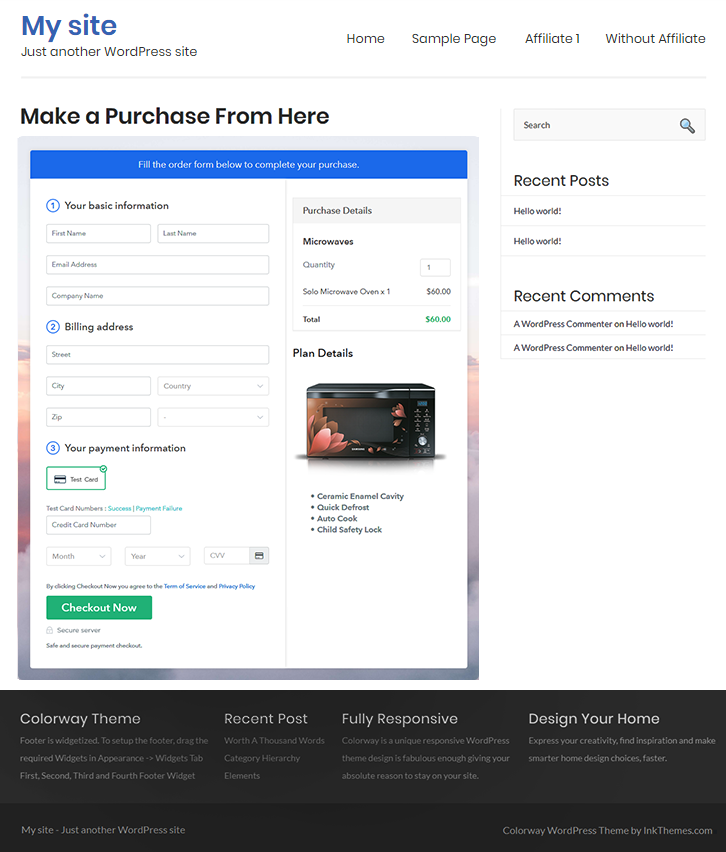
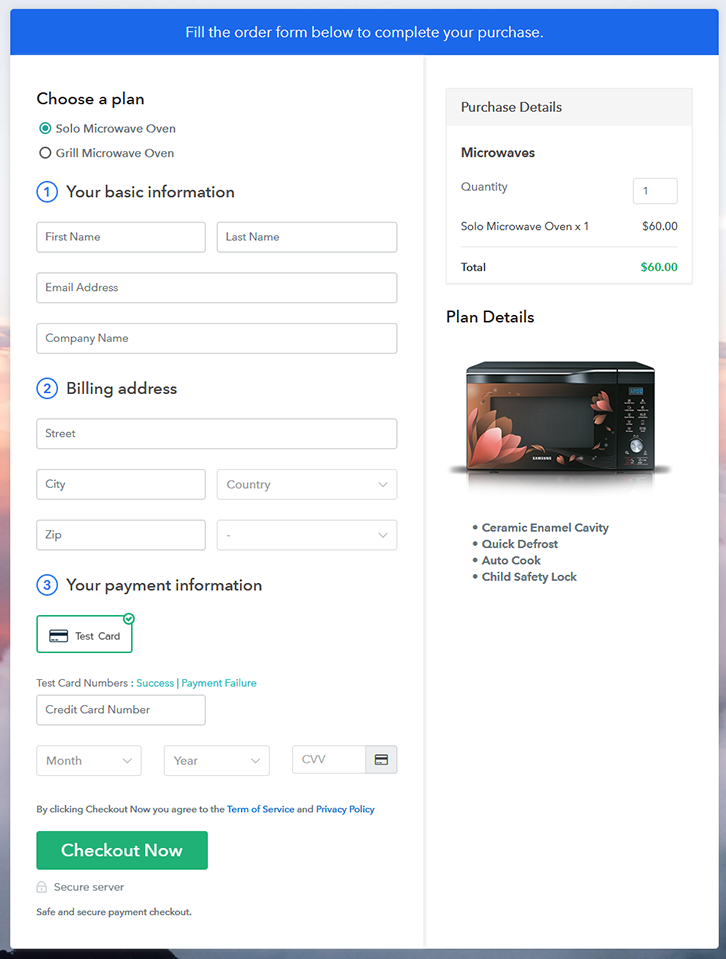
Final View of Checkout Page for your Memory Cards Selling Business
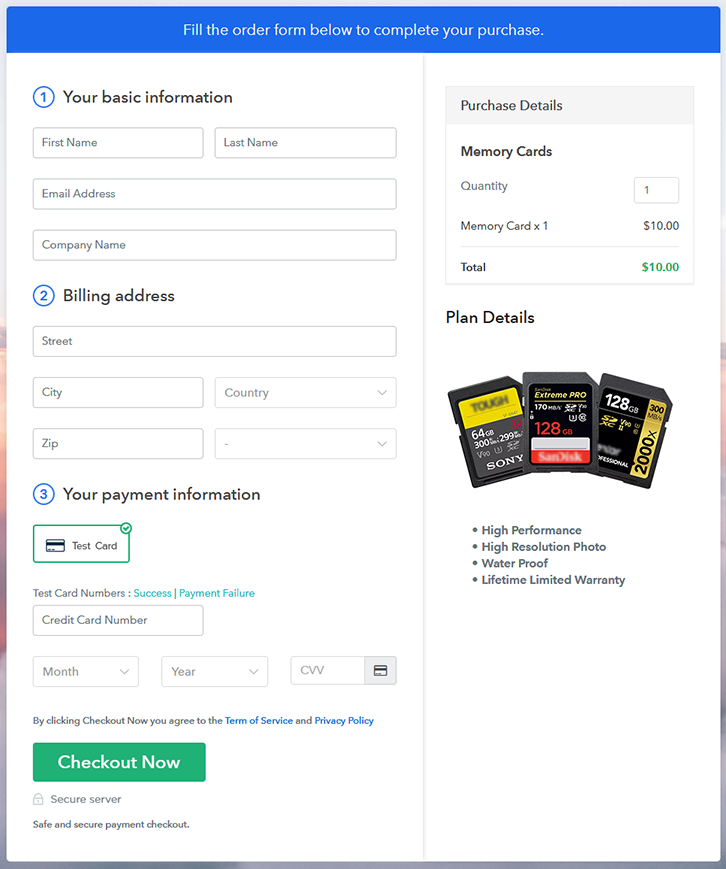
Checkout Page to Sell Memory Cards Online

Preview Checkout Page

Step 1: Log in to Pabbly Subscription Billing
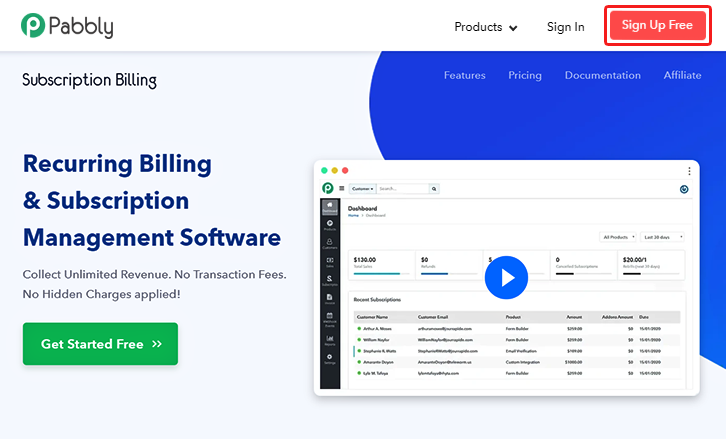
Signup

Start the process for creating a checkout page for memory cards by visiting the Pabbly Subscription Billing in your browser. After that, click on the “Sign up Free“ button. Moreover, either manually filled out the details or sign in using your Gmail account.

Sign Up For Free!

Step 2: Select Subscription Billing

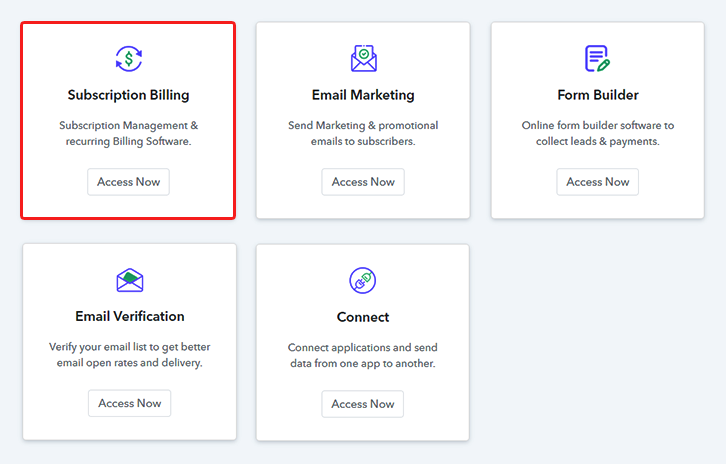
Access Subscription Billing

Step 3: Account Setup
Setup Account

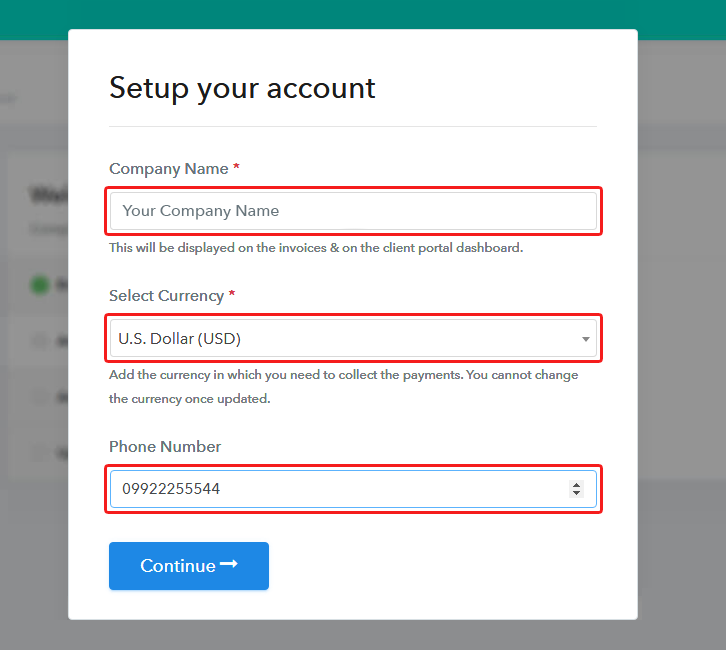
Besides, after clicking on the “Access Now” button of the software, a page will open with fields like company name, select currency, and phone number. Simply fill out those details to continue creating a checkout page for memory cards.

Step 4: Connect Payment Gateways & Start Memory Cards Selling Business Online
Connect Payment Gateway

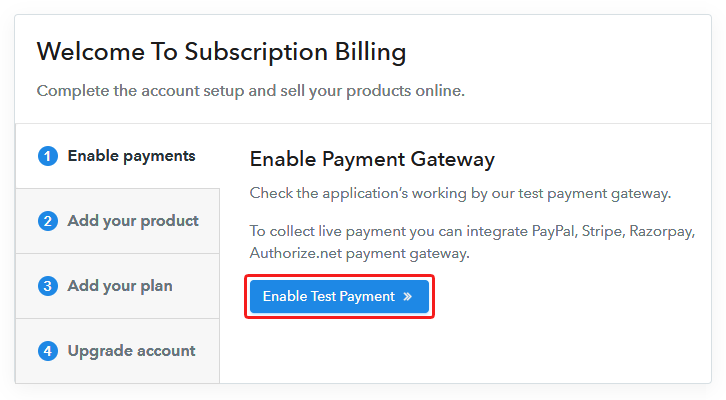
The subsequent step is to gaining knowledge about payment procedures using a “Test Payment Gateway”. Here, we will describe the checkout page process for the memory cards with the help of a test payment gateway. Besides this, the tool offers various payment gateways such as PayPal, Stripe, etc. Further, below are the payment integration guides to help you out.

Step 5: Add Product for your Memory Cards
Add Product

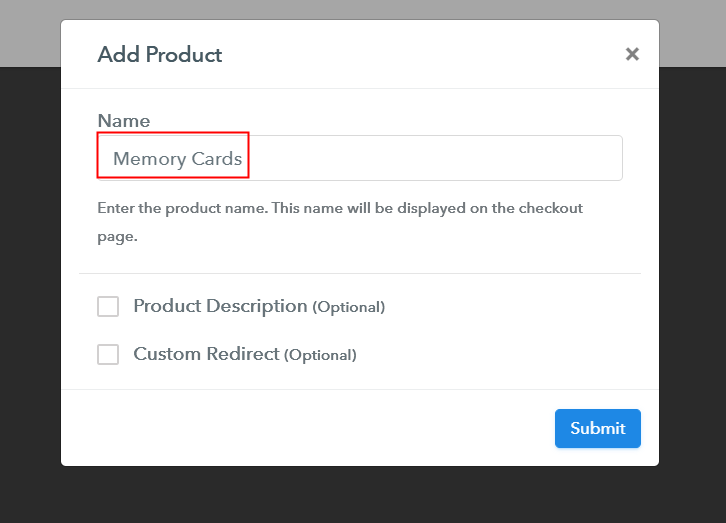
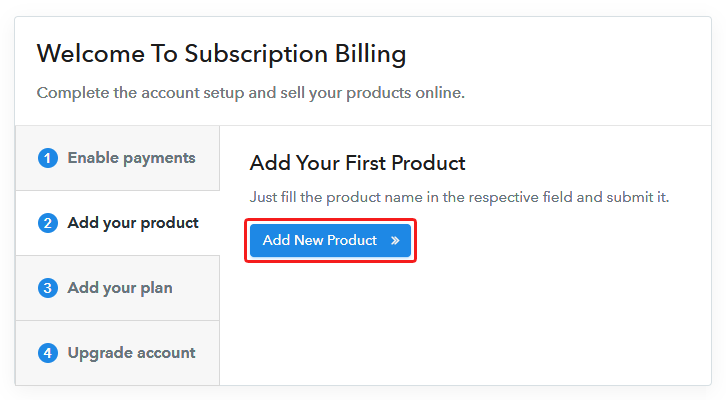
Additionally, add the name, which in our case is “Memory Cards”. Here you can specify the type like mini SD, micro SD, etc. Further, write a short description of the memory cards to seize the customer’s attention.

Add Product to Start Selling Memory Cards Online

Moreover, just fill out all those details and your product is created.

Note: Here you can add all the products related to the similar category by creating plans for each of them.

Step 6: Add Plans 

Let’s expose plans for different kinds of memory cards available in your store.

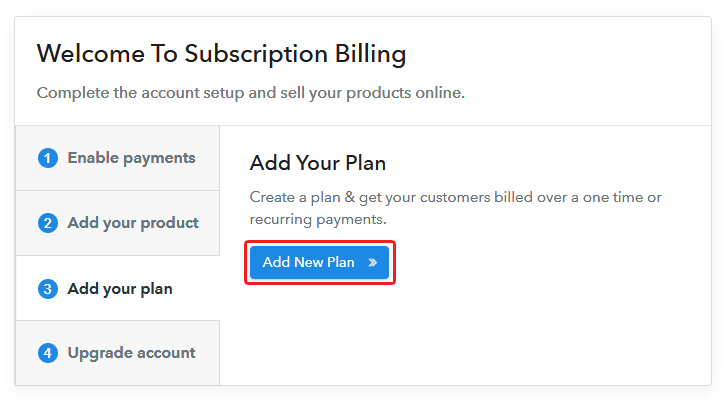
(a) Select Add New Plan

Add Plan

(b) Specify the Plan & Pricing Details
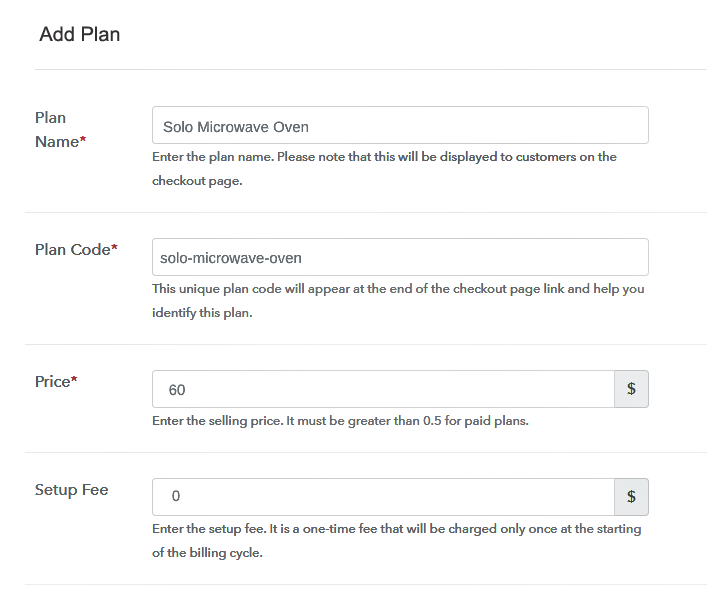
Specify the Plan and Pricing to Sell Memory Cards Online

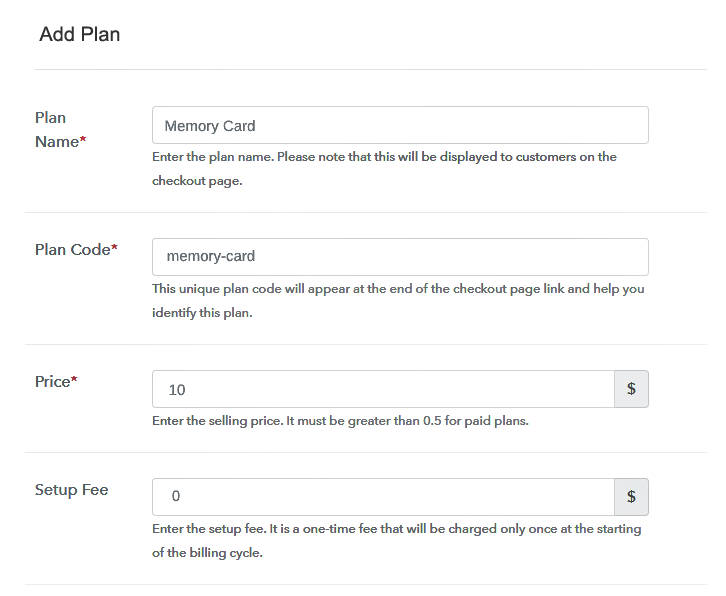
The next thing to do is fill all the details of the memory cards like plan name, code, price, set-up fee, and much more to continue.

(c) Add Image & Description of Memory Cards
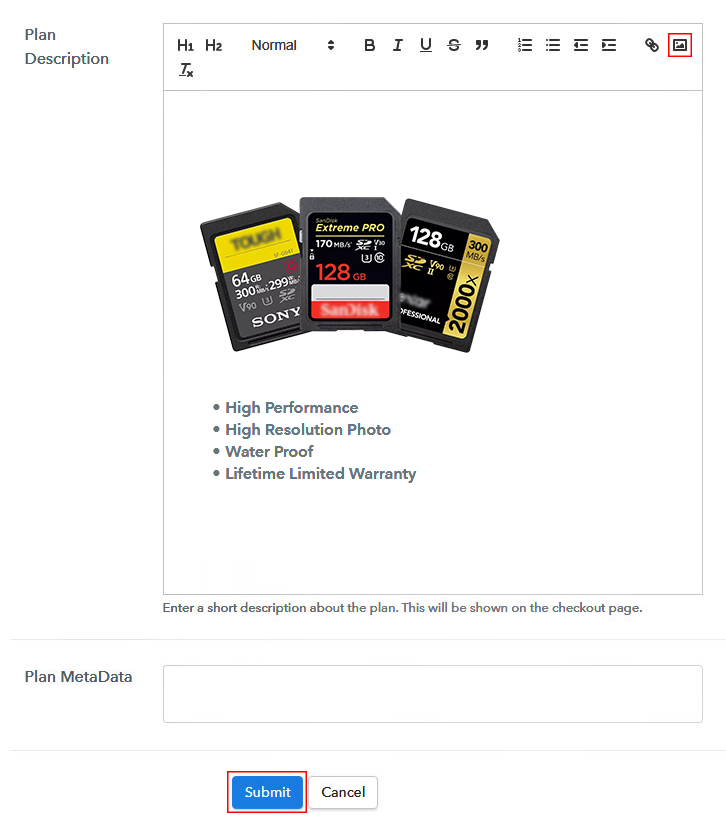
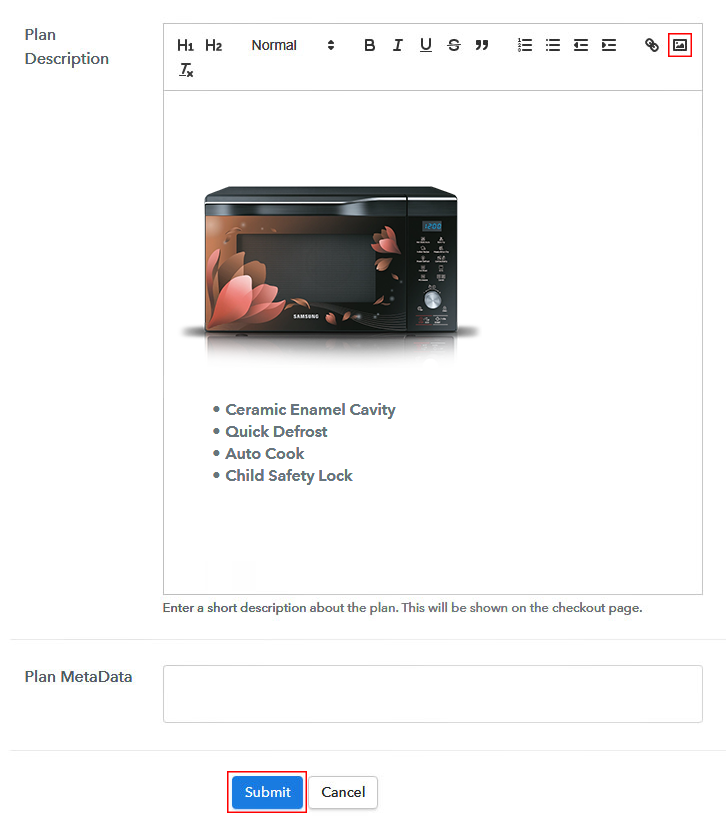
Add Image & Description to Sell Memory Cards Online

Furthermore, write a brief description of the memory cards using bullets, images, etc, to bring original buyers to the checkout page.

Next, click on the “Submit” button to add the memory cards on the checkout page.

Finally, you can add multiple plans and kinds of memory cards in your product list which you want to market online.

Step 7: Share your Checkout Page

Share Checkout Page on Social Media

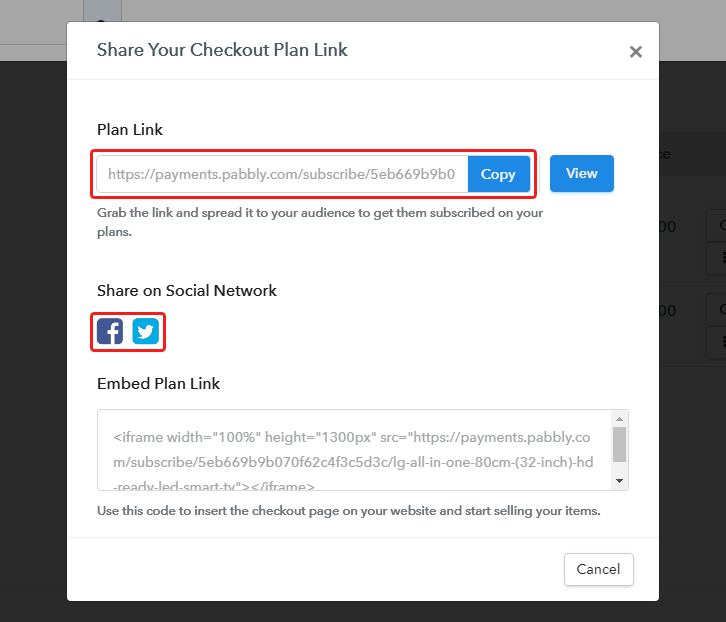
  • Moreover, share the checkout page of the memory cards on social media accounts like Facebook & Twitter to grab the customer’s attention.
  • Also, you can share the direct link of the memory card’s checkout page with your customers via SMS or email marketing.
  • Additionally, embed the provided plan link of the memory cards in the buttons or any anchor text on your website.

Step 8: Preview Checkout Page

Follow up the recommended steps to preview the checkout page:

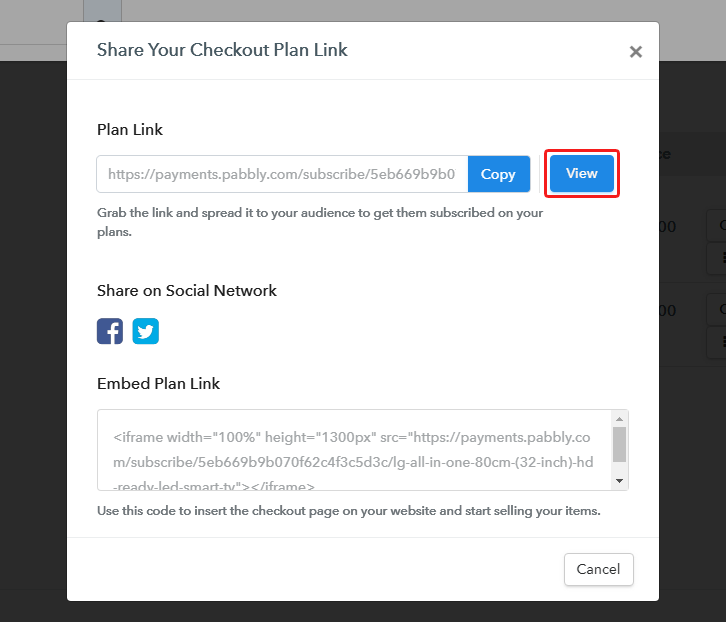
(a) Click on the View Button

View Checkout Plan

(b) Take a Look at the Checkout Page

Checkout Page to Sell Memory Cards Online

Step 9: Embed Checkout Page in Site & Sell Memory Cards Online
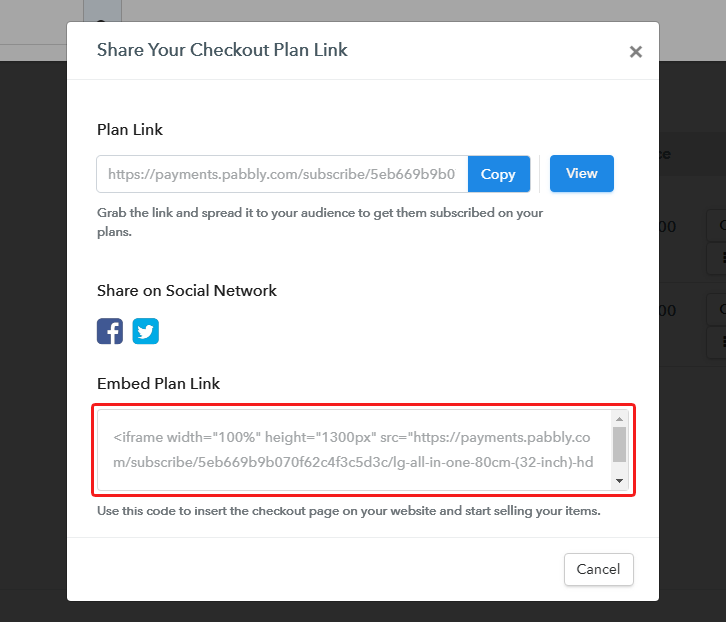
Embed Checkout Page on Website

Just copy the link and add the checkout page to sell memory cards online at any proper place on your WordPress site.

(a) Edit the Page & Paste the Copied Link
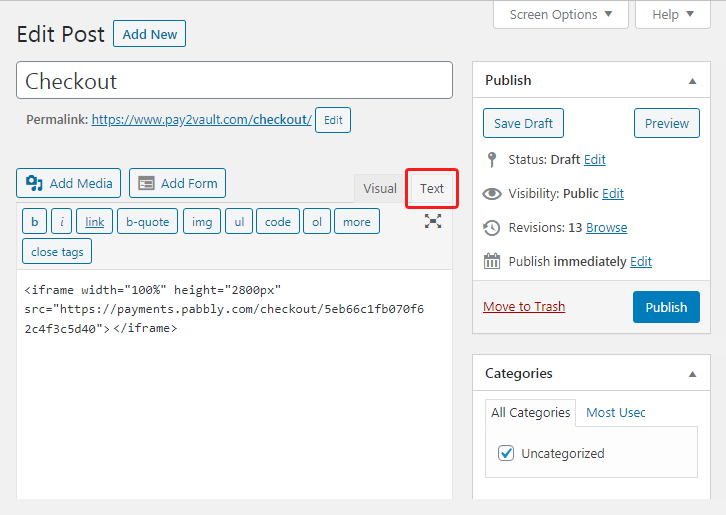
Paste Link in Text Editor

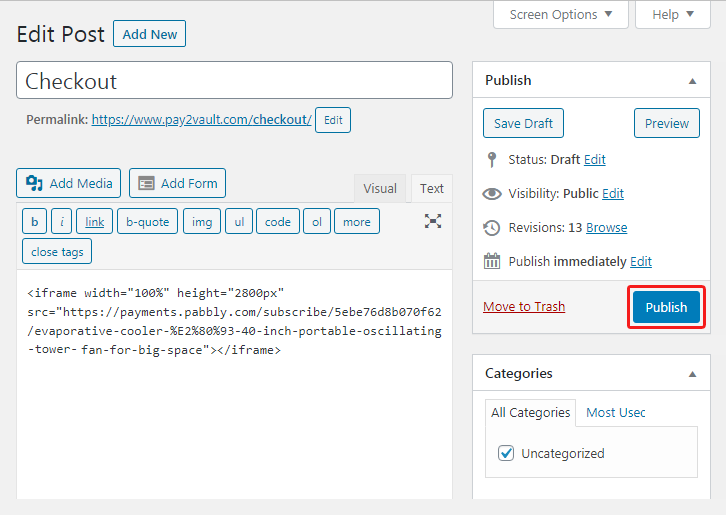
Further, paste the plan link of memory cards on a text editor of the WordPress dashboard.

(b) Save & Publish the Checkout Page

Save_and_Publish

Next, click the “Publish” button, after making changes.

(c) Check out the Final Look of your Checkout Page on WordPress Site
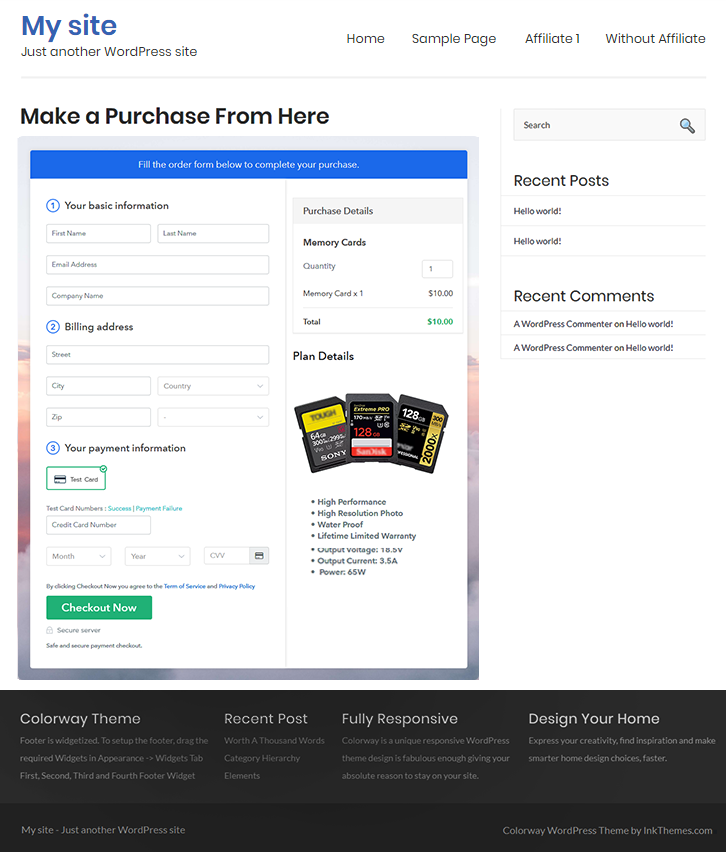
Final Look of your Checkout Page to Sell Memory Cards Online

Step 10: Multiplan Checkout Page

Note: In case you want to sell multiple products via a single checkout page, you can create a multi-plan checkout page otherwise skip this step.

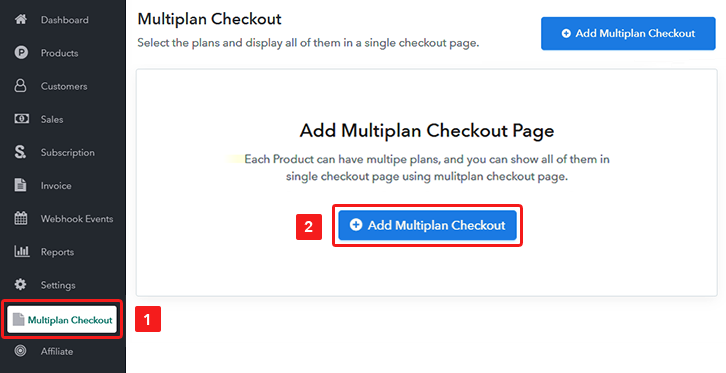
(a) Click on Add Mutiplan Checkout

Multiplan Checkout

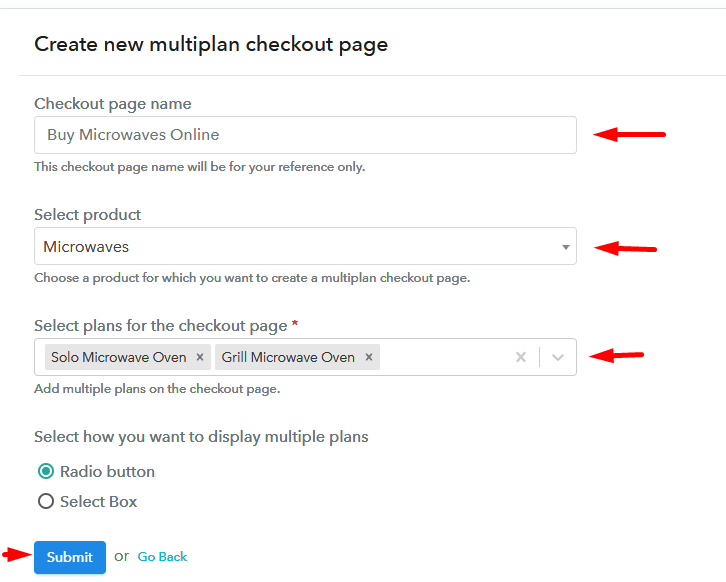
(b) Add Plans to Sell Multiple Memory Cards from Single Checkout Page
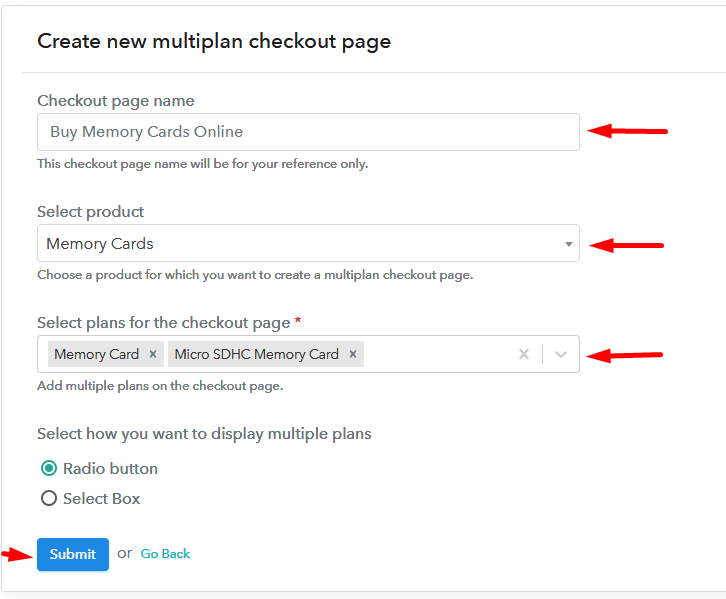
Add Multiple Products to Start Selling Memory Cards Online

(c) Take a Look at the Checkout Page
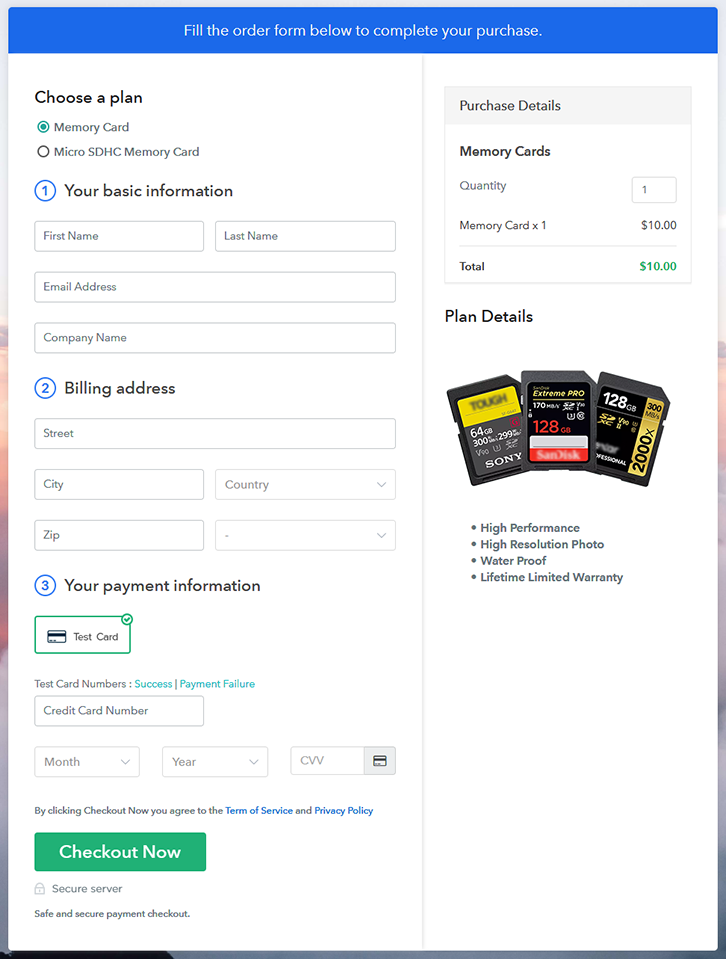
Multiplan Checkout Page to Sell Memory Cards Online

Preview Checkout Page

Wrapping Up

Great! Now we learned “how to sell memory cards online” using Pabbly Subscription Billing software. By following all the implied steps mentioned above, one can create a checkout page for selling memory cards easily with the guidance of a tool. Further, the software sends a timely alert to clients regarding services which helps in strengthening healthy customer relationships.

So, don’t wait anymore, try this software out.

You May Also Like To Read –
How To Sell Lobsters Online | Step by Step (Free Method)

Ideal For: All the lobster fishermen, fish market owners, lobster industry owners, and other merchants can use this method to sell lobsters online.

How To Sell Lobsters Online

Why Choose this Method to Sell Lobsters Online?

Unlike any other solution, this method allows you to:

  • List and sell your lobsters for FREE. Absolutely no payment required.
  • No need to pay commission on any of your sale.
  • Multiple payment options like PayPal, Credit Card, etc to collect payment from a single place.
  • Sell one time or recurring subscriptions of your lobsters.
  • Collect payments & sell products in any currency as per your requirement.
  • Give discounts on your products by offering special coupon codes.
  • Add sales commission agents to help you in selling lobsters.

Get Pabbly Subscription Billing for Free

Julian Klenda, the CEO of a $20 million Portland startup called Maine Lobsters happily restates the formula for his success “First catch, then sell lobsters online”. His company almost doubled their earnings overnight when they started selling lobsters online. You may ask, ‘Is it even possible?’. The answer is yes, everything is possible with the internet. The simple reason for his astounding growth is, earlier his lobsters were purchased only by Portland residents. But now, because of the internet, his product is discovered by the entire globe.

Now, your next question is “Can I also replicate his success?”. Of course, you can, that is why in this article I am recommending an awesome Saas tool called Pabbly Subscription Billing. The reason is, through this software, you can create incredible checkout pages to sell lobsters online. The best part is, there is no prerequisite for any technical skills to create checkout pages, even a baby can do it. Also, you can receive unlimited revenues in both offline/online modes. Some other unique advantages are

  • Unlimited Listing
  • Custom Domain
  • Revenue Tracking
  • Multiple Billing Models
  • Multi Payment Gateway Integration

So, without wasting any more time let us create our first checkout page with Pabbly Subscription Billing to sell lobsters online.

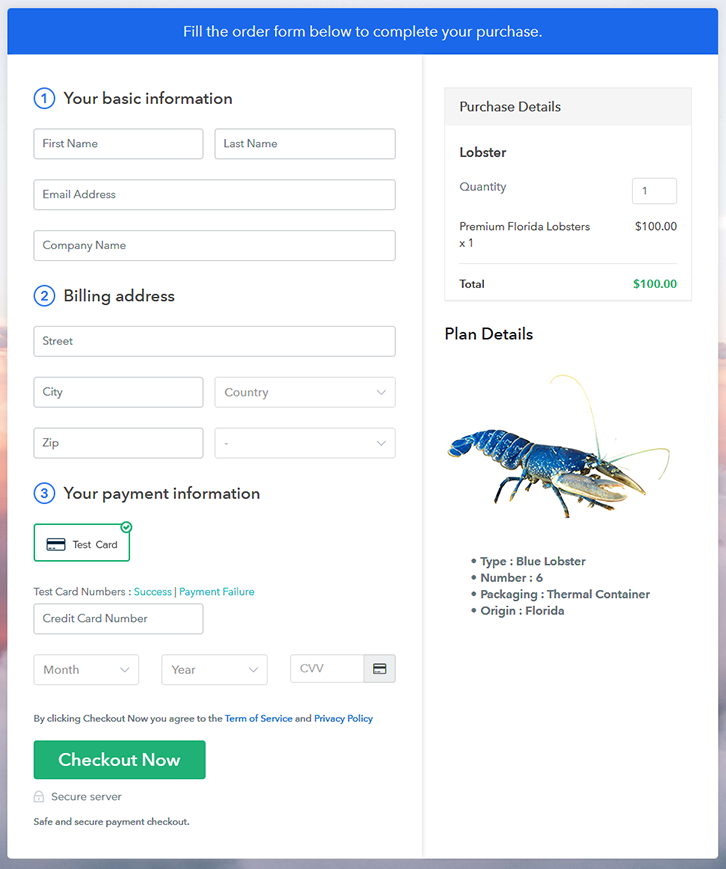
Final View of Checkout Page for your Lobsters Selling Business

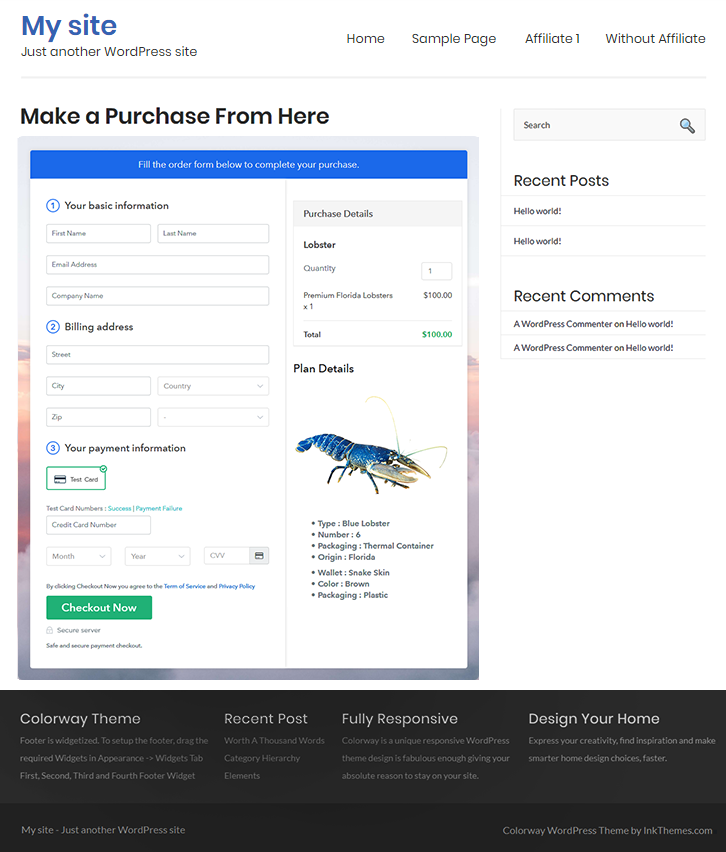
Checkout To Sell Lobsters Online

Preview Checkout Page

Step 1: Log in to Pabbly Subscription Billing

Signup

First search for Pabbly Subscription Billing in your browser. On landing on their website click on the “Sign up Free“ button. You can either manually fill all the information or simply sign in using your Gmail account.

Sign Up For Free!

Step 2: Select Subscription Billing

Access Subscription Billing

Step 3: Account Setup

Setup Account

Once you’re done click on the “Access Now” button of Pabbly Subscription Billing, a page will pop-up with details like company name, currency, and contact number. Next, you need to fill those details to go on.

Step 4: Connect Payment Gateways & Start Lobsters Selling Business Online

Connect Payment Gateway

We are going to use the test payment mode so that we can understand all about the software’s payment procedure. Also, the Pabbly Subscription Billing allows integration with multiple payment gateways. Below we are mentioning the payment integration guide to help you out.

Step 5: Add Product for your Lobsters

Add Product

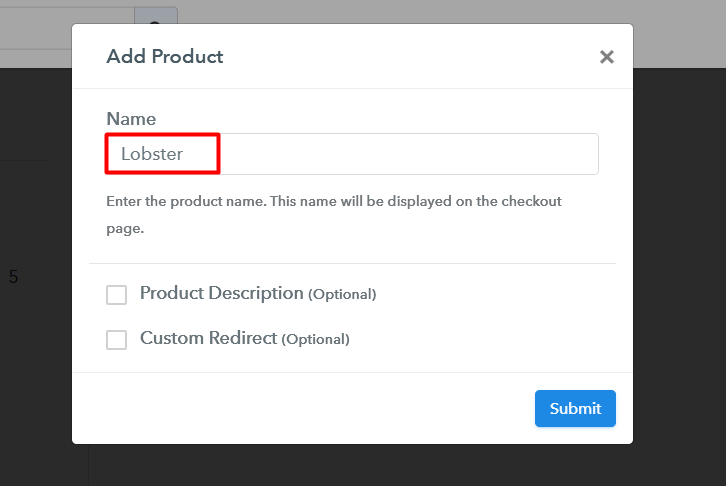
If the payment gateway integration went well, so let’s start adding the products. Beneath the  “Enable Payments” segment there is the “Add your product” section click on it. This will generate a dialog box with a blue button “Add New Product”. Click on it.

You have to add the required product title, in this case, it is ‘lobsters’.

How

Fill out all the details like the name of the product and voila your product is created.

Note: Here you can add all the products related to the similar category by creating plans for each of them.

Step 6: Add Plans 

Now let’s create plans for different kinds of lobsters available in your store.

(a) Select Add New Plan

Add Plan

(b) Specify the Plan & Pricing Details

Add Plan To Sell Lobsters Online

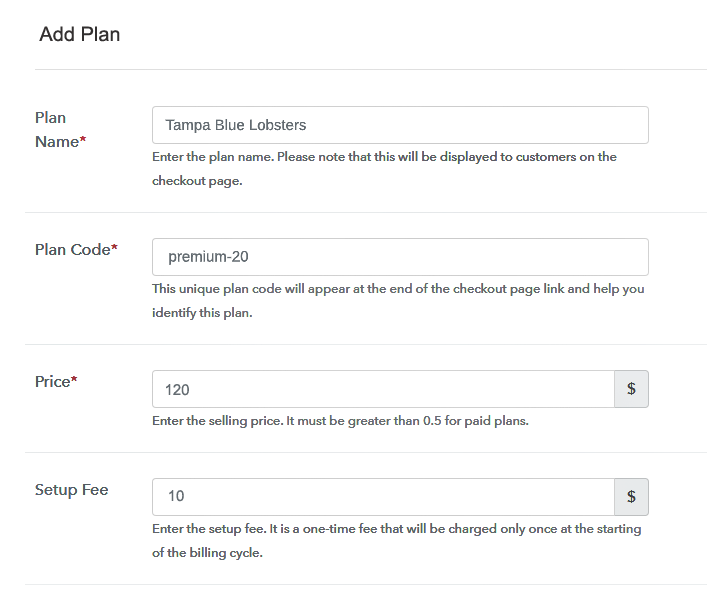
In the plan page, fill in information like plan name, code, price, setup fees, etc. Moreover, while coming down you will find different billing models like one-time payment, recurring, based on cycles, etc. Now, choose the one that interests you the most. Furthermore, you can change it any time you want.

(c) Add Image & Description of lobsters

Add image To Sell Lobsters Online

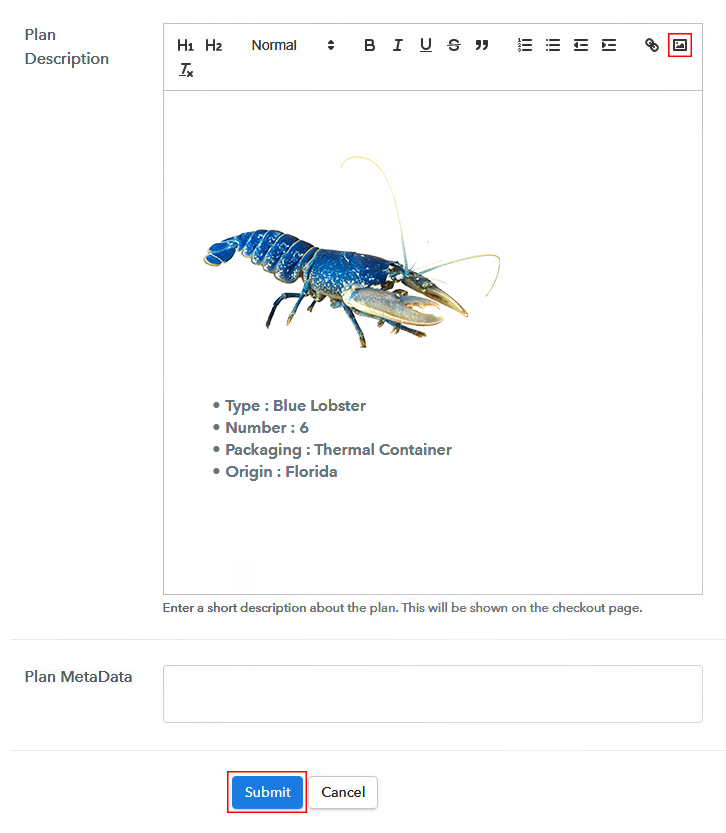
Now, give small info about lobsters in bullet points, add images and links too.

Then, on hitting the submit button, your lobsters will be successfully added.

Also, you can create multiple plans and can add all the lobsters you want to sell online.

Step 7: Share your Checkout Page

Share Checkout Page on Social Media

  • Also, to create more awareness about your products you can share your checkout page on Twitter & Facebook by just pressing the respective buttons.
  • Moreover, share the checkout pages via email and SMS.
  • Furthermore, you can build buttons on your webpage and paste the checkout links on it. Or you can place it on any anchor text on your website, so the users will be redirected to the checkout page.

Step 8: Preview Checkout Page

Follow up the recommended steps to preview the checkout page:

(a) Click on the View Button

View Checkout Plan

(b) Take a Look at the Checkout Page

Add Checkout To Sell Lobsters Online

Step 9: Embed Checkout Page in Site & Sell Lobsters Online

Embed Checkout Page on Website

Furthermore, just copy the link and add the checkout page to sell lobsters online at any suitable place on your WordPress site.

(a) Edit the Page & Paste the Copied Link

Embed Checkout Page on Website

Further, paste the plan link of the lobsters on a text editor of the WordPress dashboard.

(b) Save & Publish the Checkout Page

Save_and_Publish

Next, click the “Publish” button, after making changes.

(c) Check out the Final Look of your Checkout Page on WordPress Site

Add WordPress To Sell Lobsters Online

Step 10: Multiplan Checkout Page

Note: In case you want to sell multiple products via a single checkout page, you can create a multi-plan checkout page otherwise skip this step.

(a) Click on Add Mutiplan Checkout

Multiplan Checkout

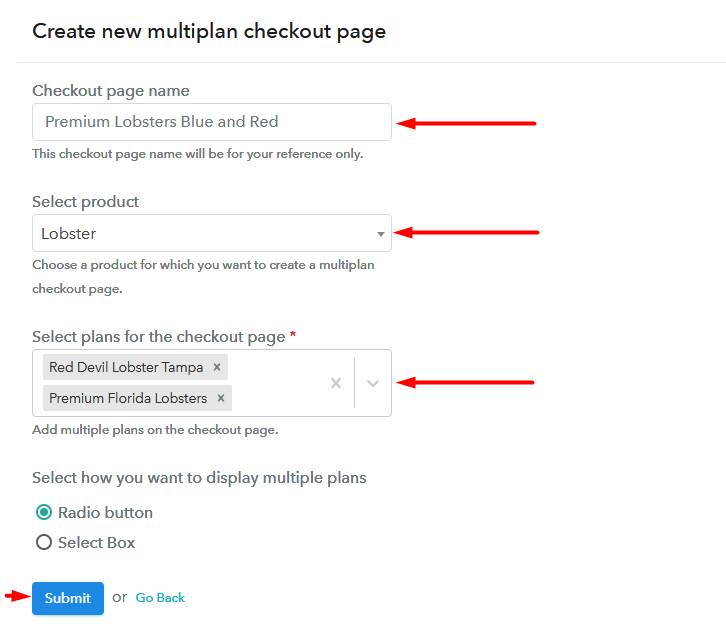
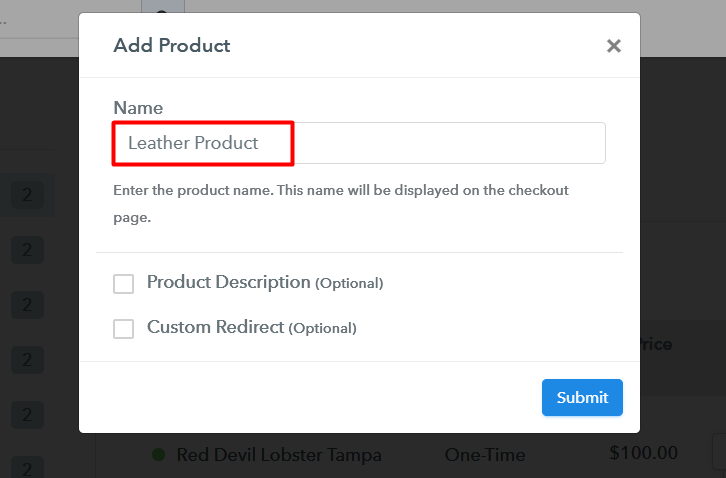
(b) Add Plans to Sell Multiple Lobsters from Single Checkout Page

Multiplan To Sell Lobsters Online

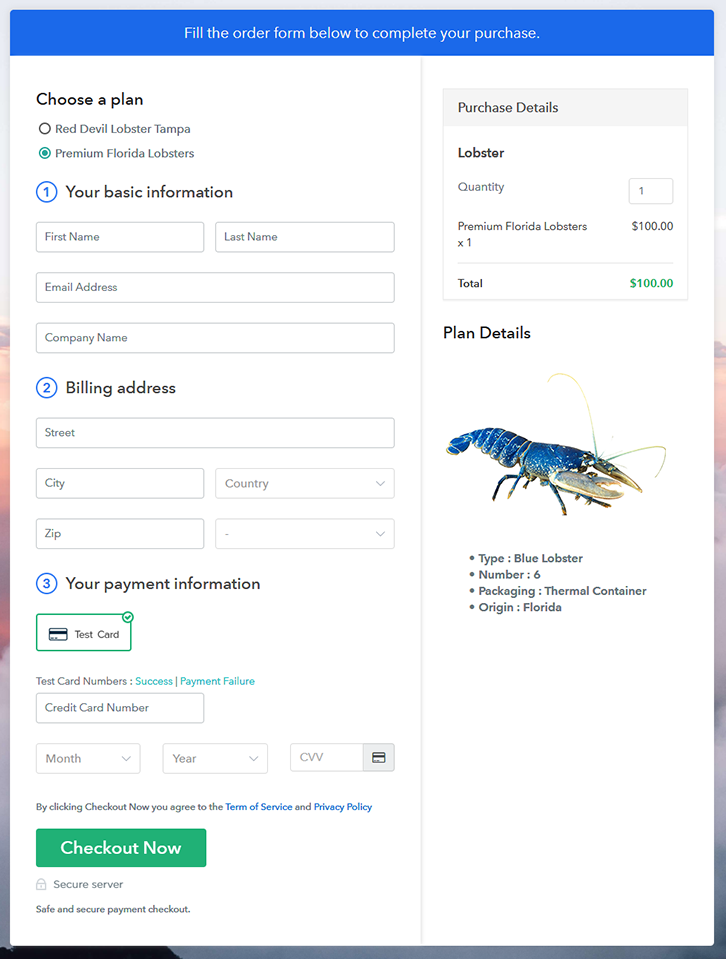
(c) Take a Look at the Checkout Page

Multiplan To Sell Lobsters Online

Preview Checkout Page

Wrapping Up

By 2030 over half of the world will purchasing their products online. Now this checkout page to sell lobsters online will be your first stepping stone to the future. With some effort, you will be able to master all the features of Pabbly Subscription Billing and own the market.

But, for now, if you have any doubts regarding the steps or payment integration, place your queries in the comment section below. Thank You and happy munching!!

You May Also Like To Read –
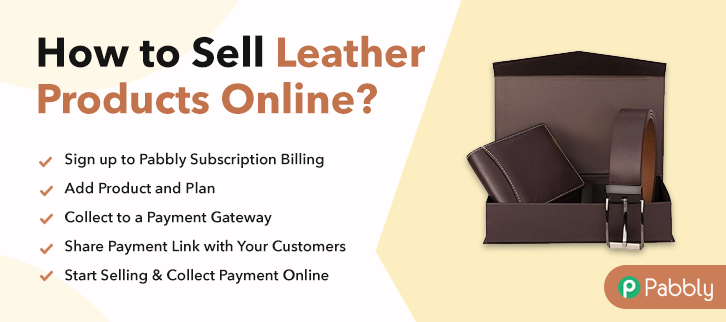
How To Sell Leather Products Online | Step by Step (Free Method)

Ideal For: All the leather product manufacturers, leather shops owners, leather industry owners, and other merchants can use this method to sell leather products online.

How To Sell Leather Products Online

Why Choose this Method to Sell Leather Products Online?

Unlike any other solution, this method allows you to:

  • List and sell your leather products for FREE. Absolutely no payment required.
  • No need to pay commission on any of your sale.
  • Multiple payment options like PayPal, Credit Card, etc to collect payment from a single place.
  • Sell one time or recurring subscriptions of your leather products.
  • Collect payments & sell products in any currency as per your requirement.
  • Give discounts on your products by offering special coupon codes.
  • Add sales commission agents to help you in selling leather products.

Get Pabbly Subscription Billing for Free

Due to the rise in synthetic products, increasing environmental awareness and government regulations, the global demand for leather products is sinking by nearly -0.85 % every year. The situation is so dire that, hardly these days you see any brick stores selling leather commodities. But there are many patrons, who love premium leather merchandise. So to reach these customers I would suggest that you better start selling leather products online.

Now, in this article, we will recommend an online tool called Pabbly Subscription Billing, by which you can create a versatile checkout page to sell leather products online with paying any transaction fees. Moreover, there are dedicated options available to even share these checkout pages on Twitter, Facebook, etc for marketing. Some other advantages are

  • Generate Unlimited Revenue
  • Tracking Revenues
  • Auto Email Alerts
  • Custom Logo

So, let’s begin to create a checkout page to sell leather products online with Pabbly Subscription Billing.

Disclaimer: Some species of animals, are extremely vulnerable or critically endangered, hence it is advisable to follow CITEs guidelines before you sell leather products online. Putting, it succinctly, Pabbly Subscription Billing won’t take responsibility for any misadventure caused due to illegal animal slaughter or trade.

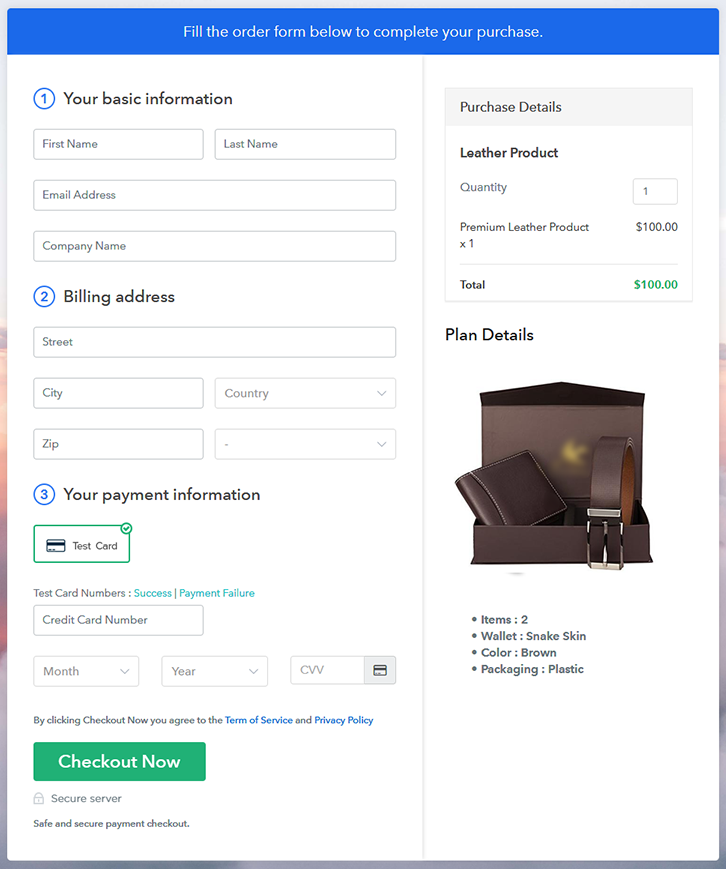
Final View of Checkout Page for your Leather Products Selling Business

Checkout To Sell Leather Products Online

Preview Checkout Page

Step 1: Log in to Pabbly Subscription Billing

Signup

In the beginning look for Pabbly Subscription Billing in your browser. Here, click on the “Sign up Free“ button. You can either manually fill all the information or simply sign in using your Gmail account.

Sign Up For Free!

Step 2: Select Subscription Billing

Access Subscription Billing

Step 3: Account Setup

Setup Account

Once you’re done click on the “Access Now” button of Pabbly Subscription Billing, a page will pop-up with details like company name, currency, and contact number. Next, you need to fill those details to go on.

Step 4: Connect Payment Gateways & Start Leather Products Selling Business Online

Connect Payment Gateway

During payments, an annoyed customer can leave the transactions midway even at the slightest disruption. To avoid this, with Pabbly Subscription Billing, you can work on dummy payment gateways that stimulate the entire payment experience of a customer. This ensures a customer has a seamless transaction experience. All you have to do is click the “Enable Test Payment” option.

Now with Pabbly Subscription Billing, you can opt for any payment gateway like PayPal, Stripe, Razorpay, etc for selling leather products online. The integration is easy with the help of the articles given below. But I am going ahead, by enabling the test payment option to continue the process

Step 5: Add Product for your Leather Products 

Add Product

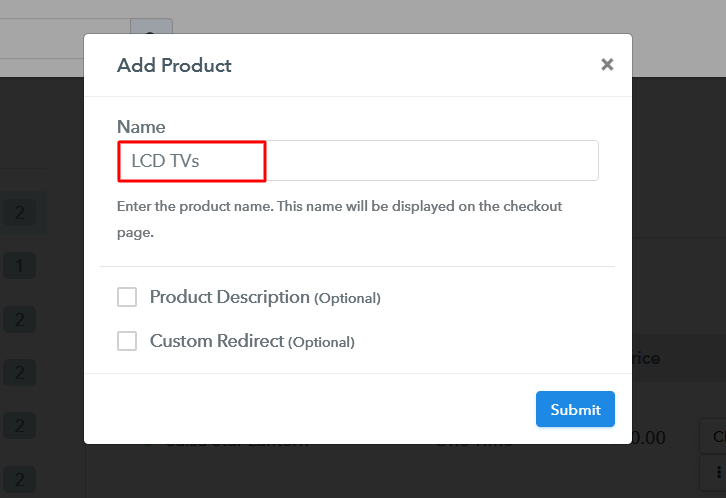
If the payment gateway integration went well, so let’s start adding the products. Beneath the  “Enable Payments” segment there is the “Add your product” section click on it. This will generate a dialog box with a blue button “Add New Product”. Click on it.

You have to add the required product title, in this case, it is ‘leather product’.

Add Product How To Sell Leather Products Online

Fill out all the details like the name of the product and voila your product is created.

Note: Here you can add all the products related to the similar category by creating plans for each of them.

Step 6: Add Plans 

Now let’s create plans for different kinds of leather products available in your store.

(a) Select Add New Plan

Add Plan

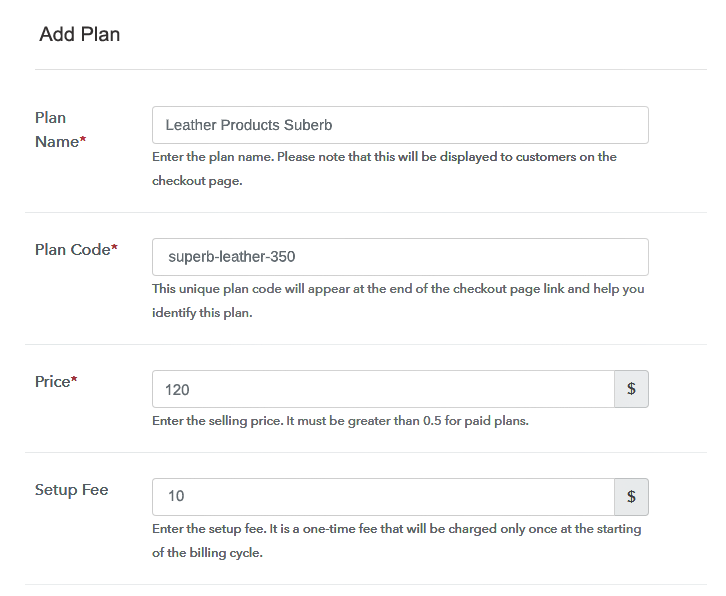
(b) Specify the Plan & Pricing Details

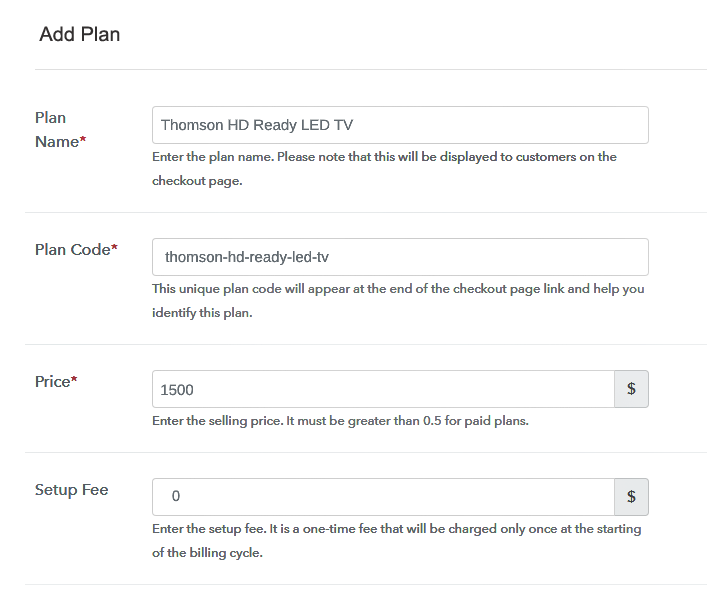
Add Plan How To Sell Leather Products Online

Later, you will reach the plan page, here you have to fill in details like plan name, code, price, setup fees. Now scroll down, and in the section below you can see the choice to change the billing models like one-time payment, recurring, etc. Decide the revenue model, and of course, you can change it any time

(c) Add Image & Description of Leather Products

Add Image To Sell Leather Products Online

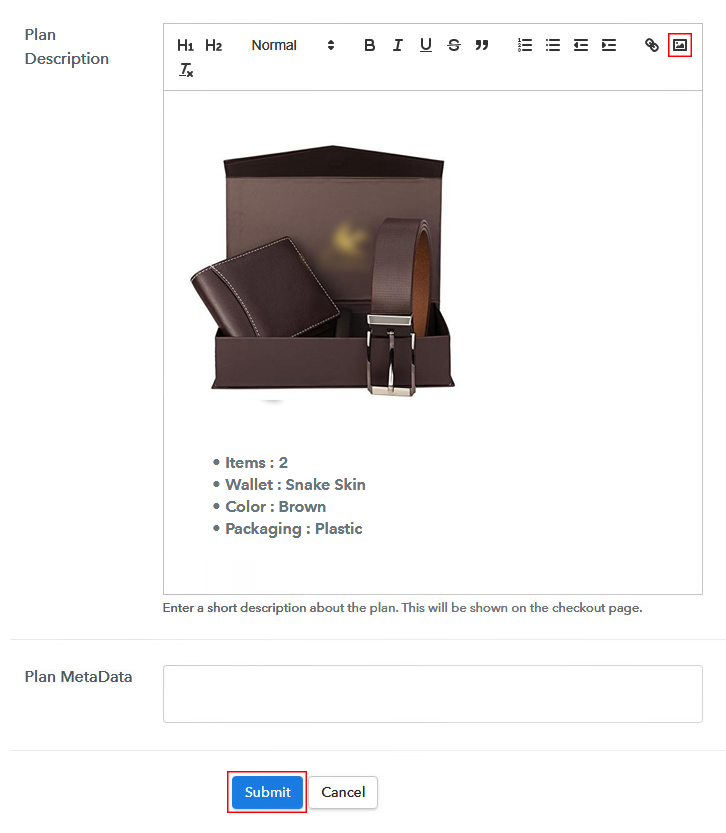
Now, take an amazing picture of your product, upload it here by pressing the image button.

After fixing the image, give a concise description of the leather products like size, weight, color, etc. Later press the “Submit” button. Likewise, following the same process, you can add many other types of products.

Step 7: Share your Checkout Page

Share Checkout Page on Social Media

  • Also, to create more awareness about your products you can share your checkout page on Twitter & Facebook by just pressing the respective buttons.
  • Moreover, share the checkout pages on email and SMS.
  • Furthermore, you can build buttons on your webpage and paste the checkout links on it. Or you can place it on any anchor text on your website, so the users will be redirected to the checkout page.

Step 8: Preview Checkout Page

Follow up the recommended steps to preview the checkout page:

(a) Click on the View Button

View Checkout Plan

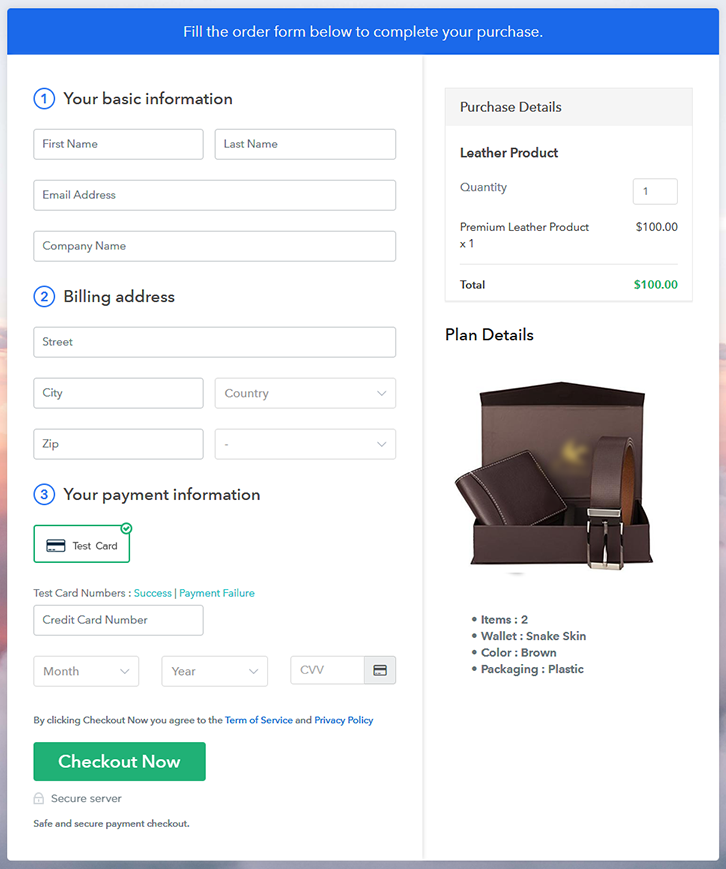
(b) Take a Look at the Checkout Page

Checkout To Sell Leather Products Online

Step 9: Embed Checkout Page in Site & Sell Leather Products Online

Embed Checkout Page on Website

Furthermore, just copy the link and add the checkout page to sell leather products online at any suitable place on your WordPress site.

(a) Edit the Page & Paste the Copied Link

Embed Checkout Page on Website

Further, paste the plan link of the leather products on a text editor of the WordPress dashboard.

(b) Save & Publish the Checkout Page

Save_and_Publish

Next, click the “Publish” button, after making changes.

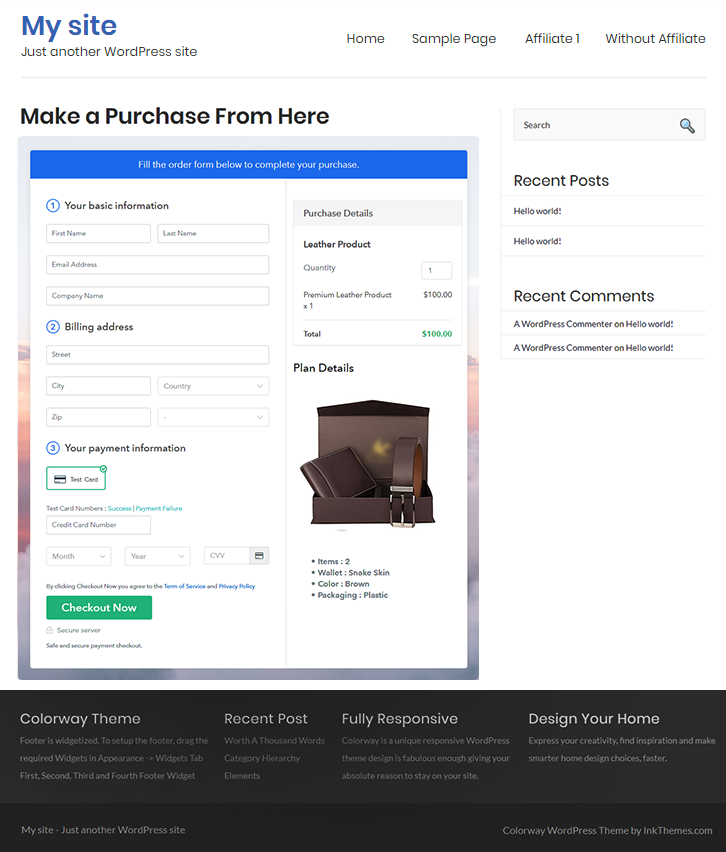
(c) Check out the Final Look of your Checkout Page on WordPress Site

Wordpress to Sell Leather Products Online

Step 10: Multiplan Checkout Page

Note: In case you want to sell multiple products via a single checkout page, you can create a multi-plan checkout page otherwise skip this step.

(a) Click on Add Mutiplan Checkout

Multiplan Checkout

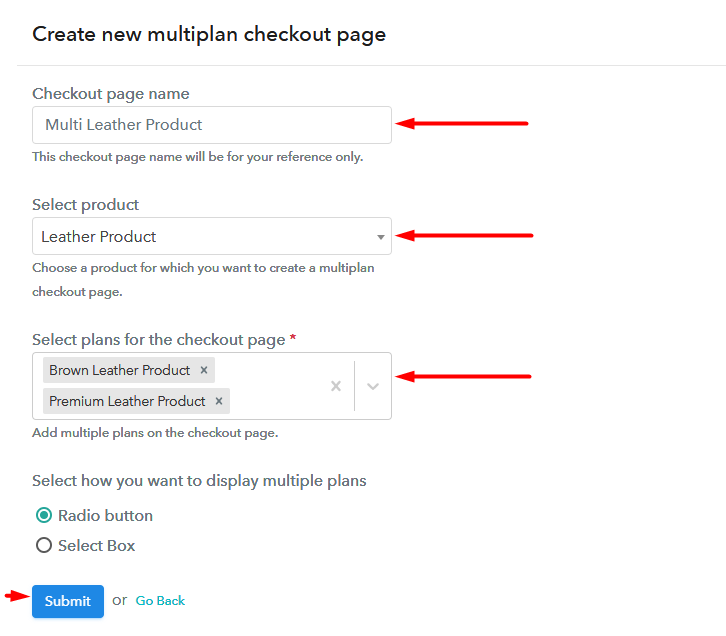
(b) Add Plans to Sell Multiple Leather Products from Single Checkout Page

Multiplan To Sell Leather Products Online

(c) Take a Look at the Checkout Page

Checkout To Sell Leather Products Online

Preview Checkout Page

Wrapping Up

Awesome isn’t it? In just 10 steps you completely reinvented your traditional brick & mortar store to an e-commerce shop that sells leather products online. These checkout pages are so versatile that, you can list and sell any products (digital or physical) online with ease. Do explore all the features and experiment with them. Have fun.

You May Also Like To Read –
How to Sell LCD TVs Online | Step by Step (Free Method)

How to Sell LCD TVs Online

Ideal For: All the LCD TV manufactures, LCD TV sellers, LCD TV dealers, LCD TV suppliers, LCD TV shop owners and other merchants can use this method to sell LCD TVs online.

How to Sell LCD TVs Online

Why Choose this Method to Sell LCD TVs Online?

Unlike any other solution, this method allows you to:

  • List and sell your LCD TVs for FREE. Absolutely no payment required.
  • No need to pay commission on any of your sales.
  • Multiple payment options like PayPal, Credit Card, etc to collect payment from a single place.
  • Sell one time or recurring subscriptions of your LCD TVs.
  • Collect payments & sell products in any currency as per your requirement.
  • Give discounts on your products by offering special coupon codes.
  • Add sales commission agents to help you in selling LCD TVs online.

Get Pabbly Subscription Billing for Free

Who doesn’t love watching TV? Probably everyone. That is the reason why LCD TVs are widely used by people in home, hotels, shops, everywhere and they never goes out of demand. Hence, if you own an LCD TV store, then it’s the right time for you to expand your business by starting LCD TVs business online. Because it will help you boost your sales by taking orders from the global audience.

Therefore, here we would like to suggest amazing software i.e, Pabbly Subscription Billing that can help you in starting your own LCD TV business online. This tool lets you create marvelous checkout pages for selling LCD TVs online. Some of its amazing features involve:

  • List various LCD TVs in a single checkout page
  • Add tax and delivery charges as per customer’s location
  • Offer discount and coupon codes to consumers
  • Collect money in both online and offline mode
  • Share checkout pages link on social media websites

So, let’s get started by creating our checkout page using Pabbly Subscription Billing to sell LCD TVs online.

Final View of Checkout Page for your LCD TVs Selling Business

Final View of Checkout Page for your LCD TVs Selling Business

Preview Checkout Page

Step 1: Log in to Pabbly Subscription Billing

Signup

Begin the process for creating a checkout page for LCD TVs by visiting the Pabbly Subscription Billing in your browser. After that, click on the “Sign up Free“ button. Moreover, either manually filled out the details or sign in using your Gmail account.

Sign Up For Free!

Step 2: Select Subscription Billing

Access Subscription Billing

Step 3: Account Setup

Setup Account

Furthermore, after pressing on the “Access Now” button of the software, a page will open with fields like company name, select currency, and phone number. Just fill out those details to continue creating a checkout page for LCD TVs.

Step 4: Connect Payment Gateways & Start LCD TVs Selling Business Online

Connect Payment Gateway

The following step is to understand the whole payment procedures using a “Test Payment Gateway”. Here, we will describe the checkout page process for the LCD TVs with the help of a test payment gateway. Apart from this, the tool offers various payment gateways such as PayPal, Stripe, etc. Furthermore, below are the payment integration guides to help you further.

Step 5: Add Product for your LCD TVs

Add Product

Plus, add the name, which in our case is “LCD TVs”. Here you can specify the type and write a short description of the LCD TVs too.

Add Product to Start Selling LCD TVs Online

Moreover, just fill out all those details and your product is created.

Note: Here you can add all the products related to the similar category by creating plans for each of them.

Step 6: Add Plans 

Let’s reveal plans for different kinds of LCD TVs available in your store.

(a) Select Add New Plan

Add Plan

(b) Specify the Plan & Pricing Details

Specify the Plan and Pricing to Sell LCD TVs Online

The subsequent thing to do is fill all the details of the LCD TVs like plan name, code, price, set-up fee, and much more to continue.

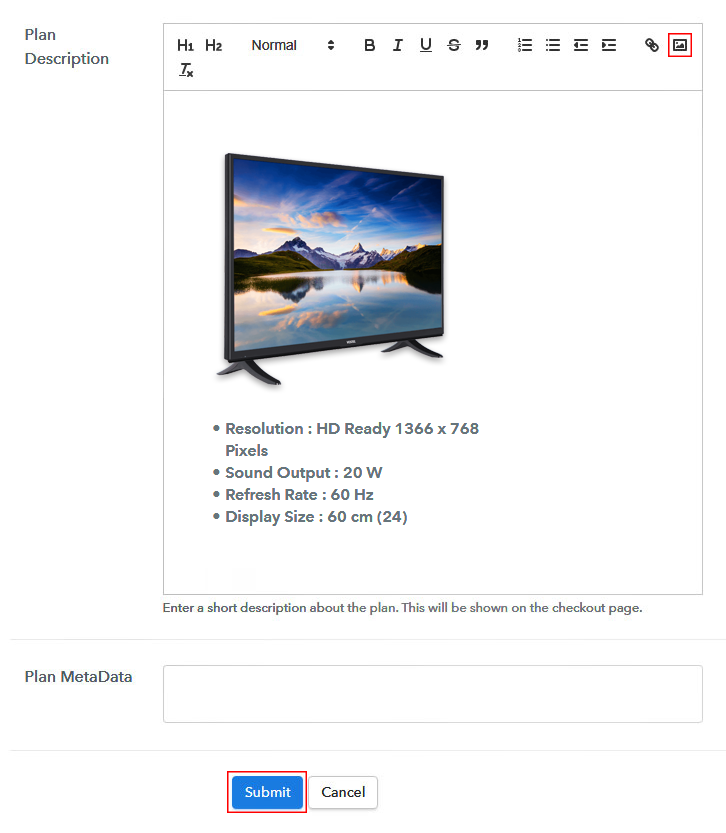
(c) Add Image & Description of LCD TV

Add Image & Description of LCD TV

Furthermore, it is necessary to write a brief description of the LCD TVs using bullets, images, etc, to bring original buyers to the checkout page.

Next, click on the “Submit” button to add the LCD TVs on the checkout page.

Finally, you can add multiple plans and kinds of LCD TVs in your product list which you want to sell online.

Step 7: Share your Checkout Page

Share Checkout Page on Social Media

  • Moreover, share the checkout page of the LCD TVs on social media accounts like Facebook & Twitter to grab the customer’s attention.
  • Also, you can share the direct link of the LCD TV’s checkout page with your customers via SMS or email marketing.
  • Additionally, embed the provided plan link of the LCD TVs in the buttons or any anchor text on your website.

Step 8: Preview Checkout Page

Follow up the recommended steps to preview the checkout page:

(a) Click on the View Button

View Checkout Plan

(b) Take a Look at the Checkout Page

Final View of Checkout Page for your LCD TVs Selling Business

Step 9: Embed Checkout Page in Site & Sell LCD TVs Online

Embed Checkout Page on Website

Just copy the link and add the checkout page to sell LCD TVs online at any proper place on your WordPress site.

(a) Edit the Page & Paste the Copied Link

Paste Link in Text Editor

Further, paste the plan link of LCD TVs on a text editor of the WordPress dashboard.

(b) Save & Publish the Checkout Page

Save_and_Publish

Next, click the “Publish” button, after making changes.

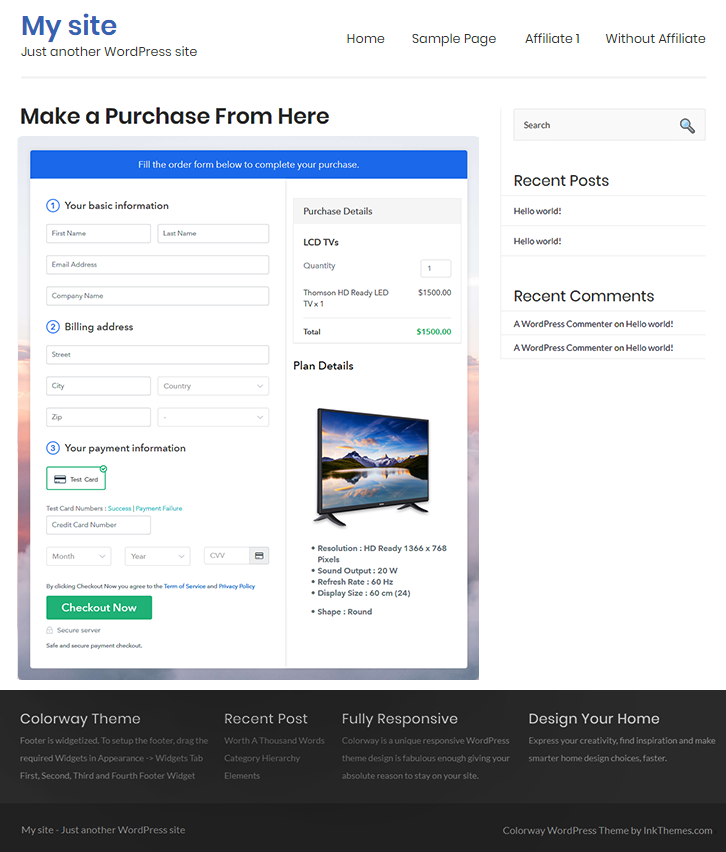
(c) Check out the Final Look of your Checkout Page on WordPress Site

Final Look of your Checkout Page to Sell LCD TVs Online

Step 10: Multiplan Checkout Page

Note: In case you want to sell multiple products via a single checkout page, you can create a multi-plan checkout page otherwise skip this step.

(a) Click on Add Mutiplan Checkout

Multiplan Checkout

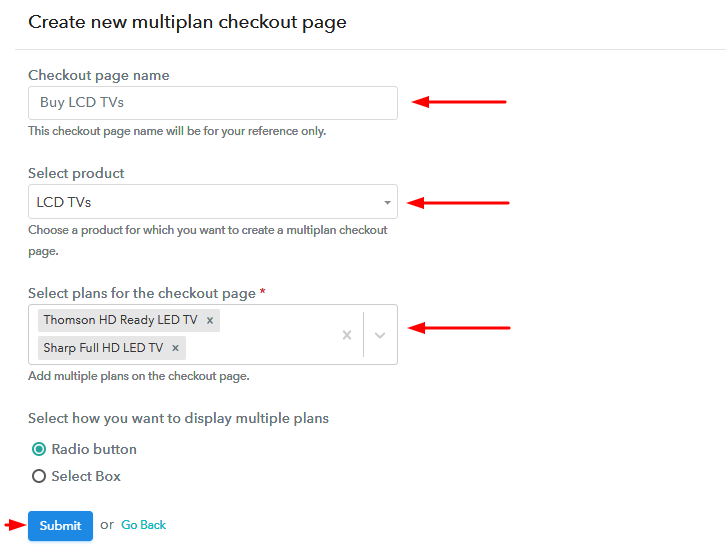
(b) Add Plans to Sell Multiple LCD TVs from Single Checkout Page

Add Plans to Sell Multiple LCD TVs from Single Checkout Page

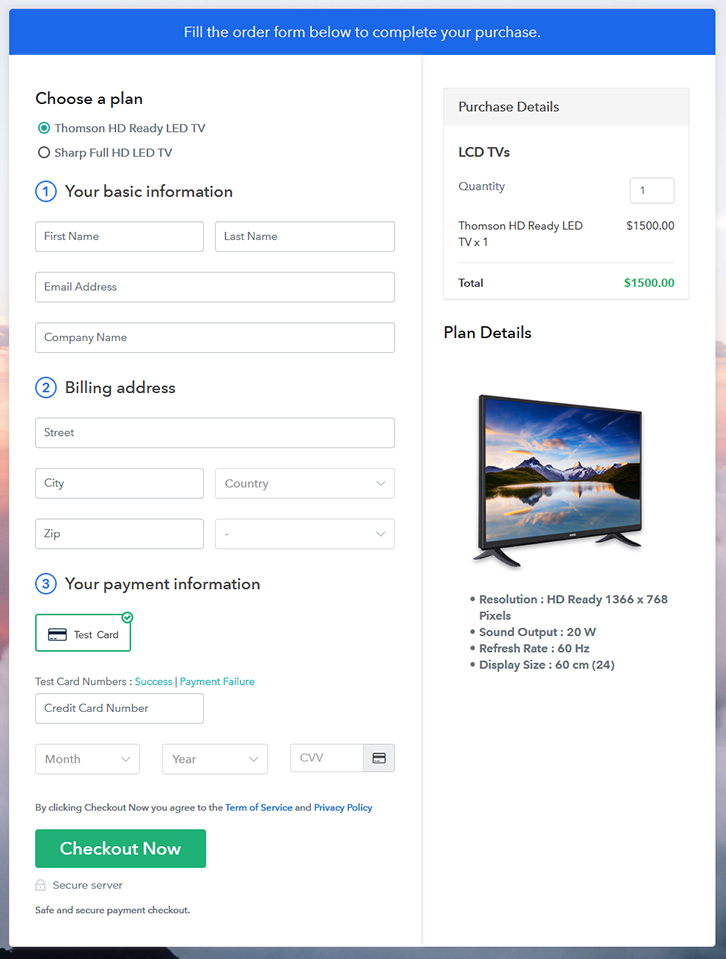
(c) Take a Look at the Checkout Page

Multiplan Checkout Page to Sell LCD TVs Online

Preview Checkout Page

Wrapping Up

There you go! See, how easy it is to start LCD TVs business online with the help of Pabbly Subscription Billing software. Simply go through all the steps that are mentioned above and set up your LCD TV business effortlessly. Don’t wait anymore, try this software out and let us know about your experience in the comment section below.

You May Also Like To Read –
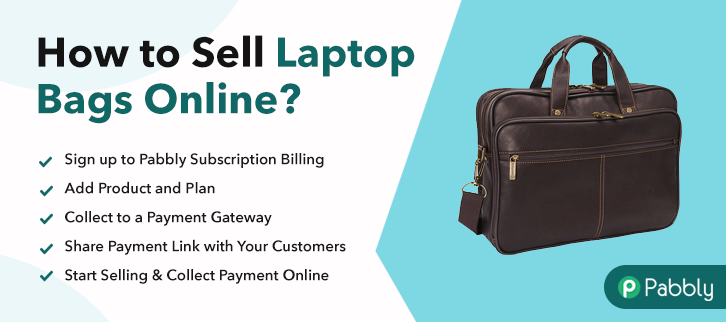
How To Sell Laptop Bags Online | Step by Step (Free Method)

Ideal For: All the laptop bags manufacturers, laptop bags shop owners, laptop industry owners, and other merchants can use this method to sell laptop bags online.

How To Sell Laptop Bags Online

Why Choose this Method to Sell Laptop Bags Online?

Unlike any other solution, this method allows you to:

  • List and sell your laptop bags for FREE. Absolutely no payment required.
  • No need to pay commission on any of your sale.
  • Multiple payment options like PayPal, Credit Card, etc to collect payment from a single place.
  • Sell one time or recurring subscriptions of your laptop bags.
  • Collect payments & sell products in any currency as per your requirement.
  • Give discounts on your products by offering special coupon codes.
  • Add sales commission agents to help you in selling laptop bags.

Get Pabbly Subscription Billing for Free

When a customer purchases a laptop, he is usually provided with a laptop carry bag. Now, these accessory laptop bags are highly mediocre, unusually heavy, lacks RFID blocking and airport features, which eventually causes sheer strain on the customer’s shoulder. And that is why, according to Forbes, there is a $2.2 billion global market for custom laptop bags, which is growing at a rate of 3.9% annum. Now, to serve this huge market, keeping all specifications per customer, you need to sell laptop bags online.

The other advantages of selling laptop bags online include lower logistics and utilities, 24×7 automated online shops, lower manual labor, etc. So, here in this article, we will recommend an amazing online tool called Pabbly Subscription Billing that lets you create awesome checkout pages to sell laptop bags online. Some other benefits include:

  • Unlimited Products Listing
  • Generate Unlimited Revenues
  • Revenue Tracking
  • Auto Credit Card Reattempts on Decline
  • Create Unlimited Coupons, Plans & Discounts

So, let’s our first checkout page with Pabbly Subscription Billing to sell laptop bags online.

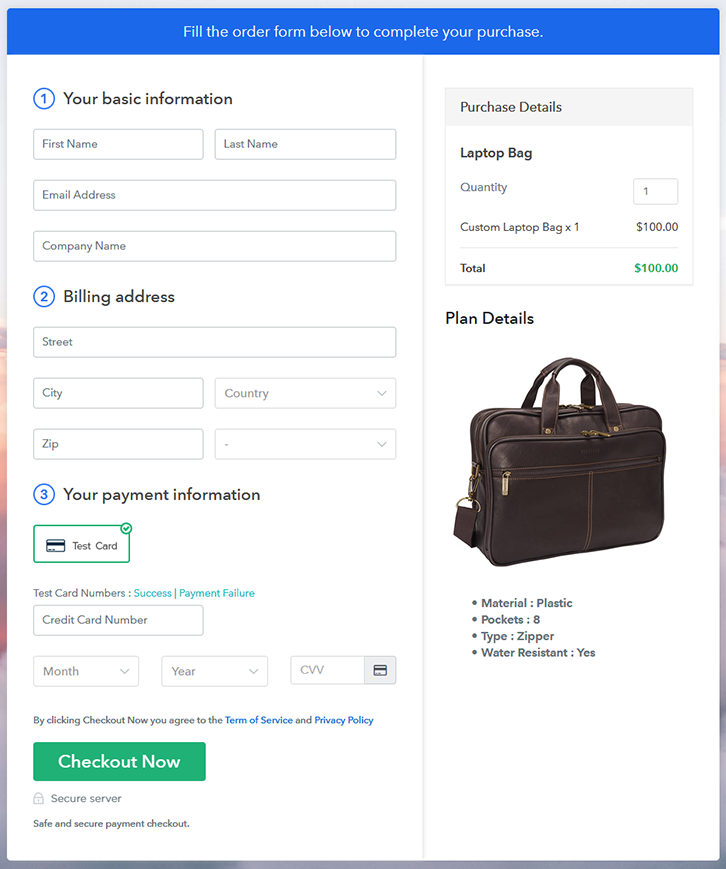
Final View of Checkout Page for your Laptop Bags Selling Business

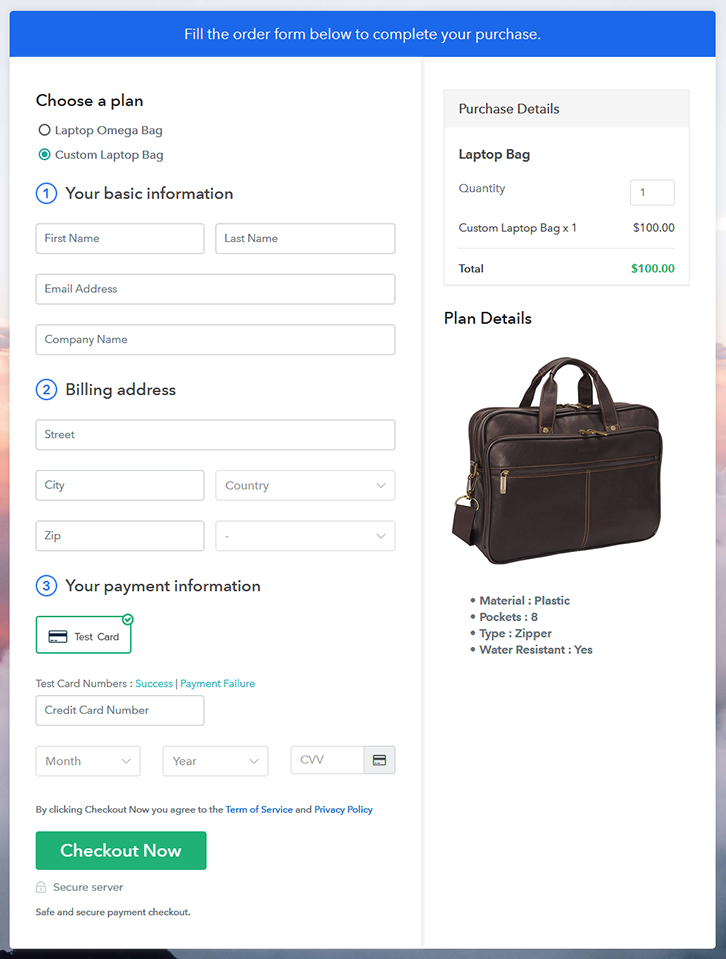
Checkout To Sell Laptop Bags Online

Preview Checkout Page

Step 1: Log in to Pabbly Subscription Billing

Signup

In the beginning look for Pabbly Subscription Billing in your browser. Here, click on the “Sign up Free“ button. You can either manually fill all the information or simply sign in using your Gmail account.

Sign Up For Free!

Step 2: Select Subscription Billing

Access Subscription Billing

Step 3: Account Setup

Setup Account

Once you’re done click on the “Access Now” button of Pabbly Subscription Billing, a page will pop-up with details like company name, currency, and contact number. Next, you need to fill those details to go on.

Step 4: Connect Payment Gateways & Start Laptop Bags Selling Business Online

Connect Payment Gateway

As a merchant, you should avoid any kind of glitches and make the whole payment experience streamlined. That is why with Pabbly Subscription Billing, you can beta test the whole payment experience of a customer using dummy payment gateways. You can do this by clicking on the “Enable Test Payment” option.

Now, with Pabbly Subscription Billing, you can integrate with a ton of payment gateways like Stripe, Razorpay, PayPal, Authorize.net, etc. These payment gateways can be easily integrated using the help of the articles given below. But since we have to set up the payment process, we will click on the “Enable Test Payment” option.

Step 5: Add Product for your Laptop Bags

Add Product

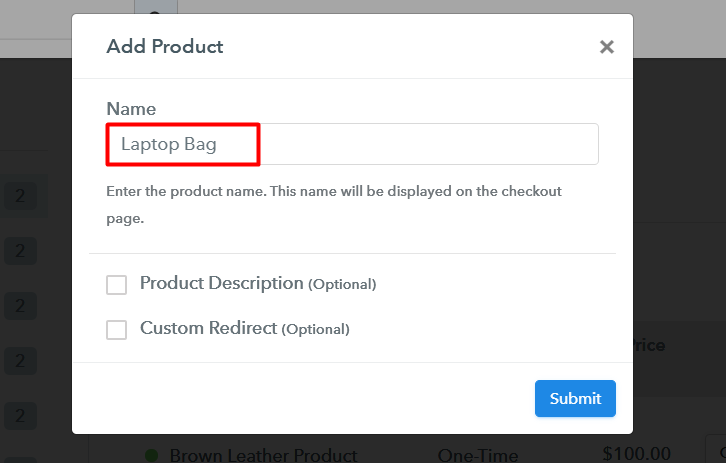
If the payment gateway integration went well, so let’s start adding the products. Beneath the  “Enable Payments” segment there is the “Add your product” section click on it. This will generate a dialog box with a blue button “Add New Product”. Click on it.

You have to add the required product title, in this case, it is ‘laptop bags’.

Add Product Checkout To Sell Laptop Bags Online

Fill out all the details like the name of the product and voila your product is created.

Note: Here you can add all the products related to the similar category by creating plans for each of them.

Step 6: Add Plans 

Now let’s create plans for different kinds of laptop bags available in your store.

(a) Select Add New Plan

Add Plan

(b) Specify the Plan & Pricing Details

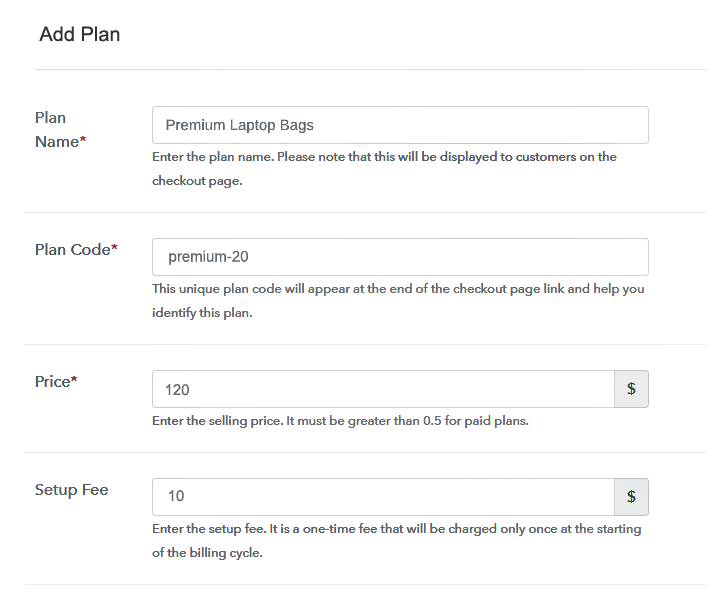
Add Plan Checkout To Sell Laptop Bags Online

Later, you will reach the plan page, here you have to fill in details like plan name, code, price, setup fees. Now scroll down, and in the section below you can see the choice to change the billing models like one-time payment, recurring, etc. Decide the revenue model, and of course, you can change it any time

(c) Add Image & Description of Laptop Bags

Add Image Checkout To Sell Laptop Bags Online

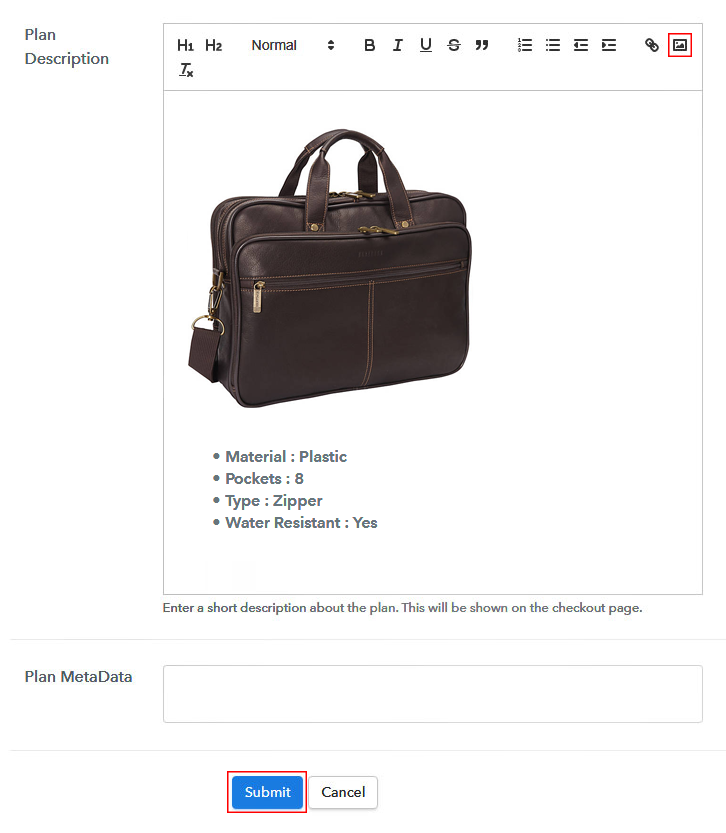
Let’s take some incredible screenshots of your laptop bags, and upload it by clicking the image button.

Now under the image place some concise information of your weight, pockets, type, etc, and then press the “Submit” button.

Later, by using the same process, you can list more products.

Step 7: Share your Checkout Page

Share Checkout Page on Social Media

  • Also, to create more awareness about your products you can share your checkout page on Twitter & Facebook by just pressing the respective buttons.
  • Moreover, share the checkout pages via email and SMS.
  • Furthermore, you can build buttons on your webpage and paste the checkout links on it. Or you can place it on any anchor text on your website, so the users will be redirected to the checkout page.

Step 8: Preview Checkout Page

Follow up the recommended steps to preview the checkout page:

(a) Click on the View Button

View Checkout Plan

(b) Take a Look at the Checkout Page

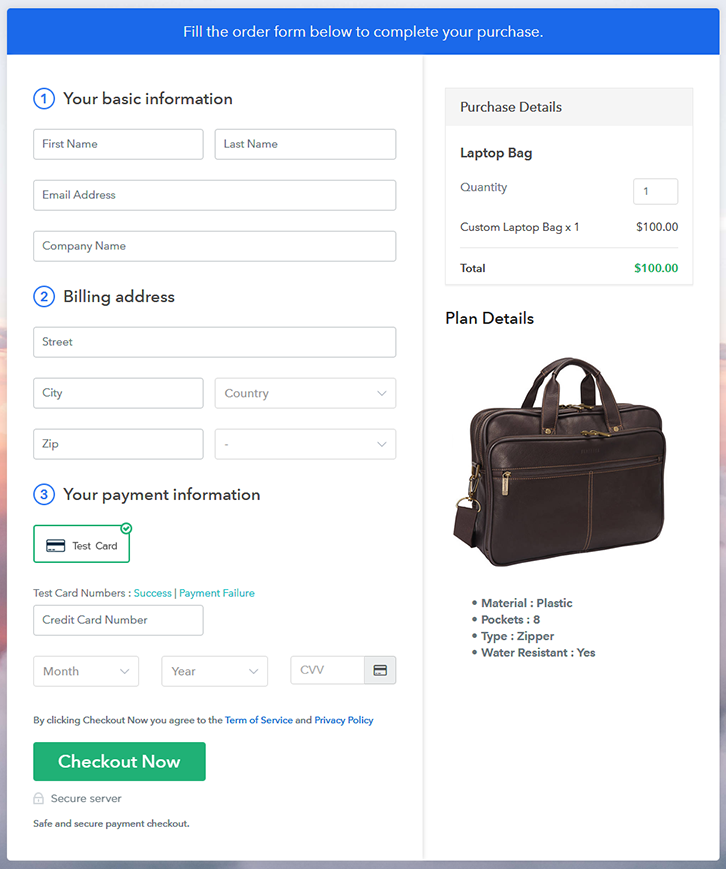
Checkout To Sell Laptop Bags Online

Step 9: Embed Checkout Page in Site & Sell Laptop Bags Online

Embed Checkout Page on Website

Furthermore, just copy the link and add the checkout page to sell laptop bags online at any suitable place on your WordPress site.

(a) Edit the Page & Paste the Copied Link

Embed Checkout Page on Website

Further, paste the plan link of the laptop bags on a text editor of the WordPress dashboard.

(b) Save & Publish the Checkout Page

Save_and_Publish

Next, click the “Publish” button, after making changes.

(c) Check out the Final Look of your Checkout Page on WordPress Site

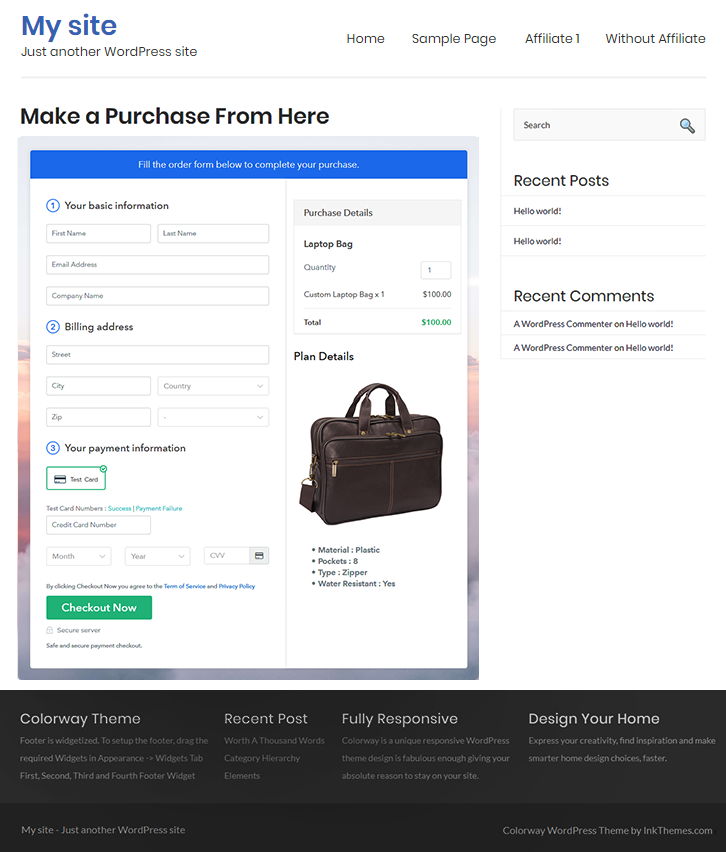
Embed Checkout To Sell Laptop Bags Online

Step 10: Multiplan Checkout Page

Note: In case you want to sell multiple products via a single checkout page, you can create a multi-plan checkout page otherwise skip this step.

(a) Click on Add Mutiplan Checkout

Multiplan Checkout

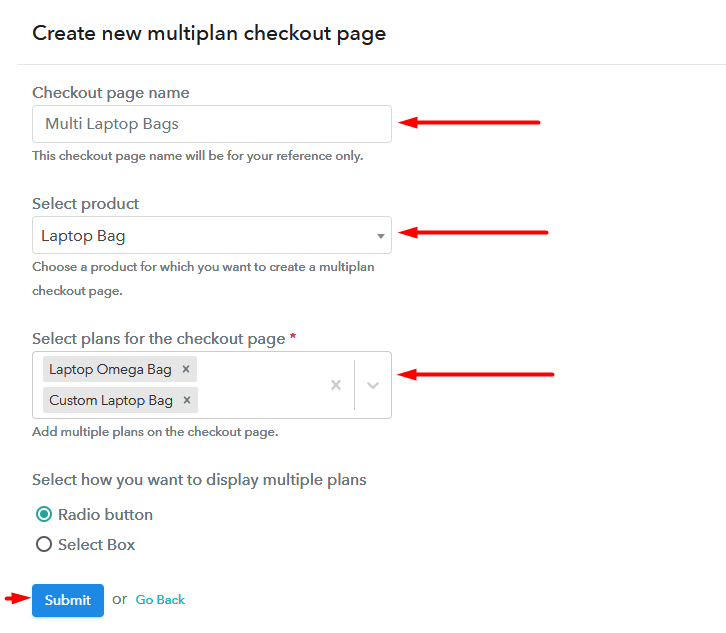
(b) Add Plans to Sell Multiple Laptop Bags from Single Checkout Page

Add Multiplan Checkout To Sell Laptop Bags Online

(c) Take a Look at the Checkout Page

Multiplan Checkout To Sell Laptop Bags Online

Preview Checkout Page

Wrapping Up

Congratulation !! You build your first checkout page with Pabbly Subscription Billing to sell laptop bags online. It barely takes 10 minutes to create one checkout page and soon with practice, you will be able to create a lot of them.

Also, if you have any doubts, please let us know in the comment section below. Thank You !!

You May Also Like To Read –
How to Sell Luxury-Watches Online | Step by Step (Free Method)

How to Sell Luxury Watches Online

Ideal For: All the luxury watch stores, luxury watch shops, luxury watch companies, and other sellers can use this method to take their luxury watches selling business online.

How to Sell Luxury Watches Online

Why Choose this Method To Sell Luxury-Watches Online?

Unlike any other solution, this method allows you to:

  • List and sell your luxury-watches for FREE. Absolutely no payment required.
  • No need to pay commission on any of your sales.
  • Multiple payment options like PayPal, Credit Card, etc to collect payment from a single place.
  • Sell one time or recurring subscriptions of your luxury-watches.
  • Collect payments & sell products in any currency as per your requirement.
  • Give discounts on your products by offering special coupon codes.
  • Add sales commission agents to help you in selling luxury-watches online.

Get Pabbly Subscription Billing for Free

Luxury-watches are loved by people around the world as these are considered one of the status symbols and to buy these watches people are willing to pay heavy prices. So if you sell luxury-watches from your store then take your luxury-watches selling business online to make it easier for you and your customers.

You obviously want to earn profit and not pay more than what you earn. Therefore, today, here we are telling you about a service through which you can start your luxury-watches selling business online for free and that is Pabbly Subscription Billing. It allows you to create beautiful and enticing checkout pages for your products. Simply create checkout pages for your luxury-watches and share their links on any online platforms, to make it easier for your customers to make purchases.

Also, with this service, you get so many amazing features like:

  • Create and share invoices of luxury-watches with customers automatically
  • Sell Unlimited luxury-watches
  • Collect one-time or recurring payments via online or offline modes
  • Discount coupons creation for your customers

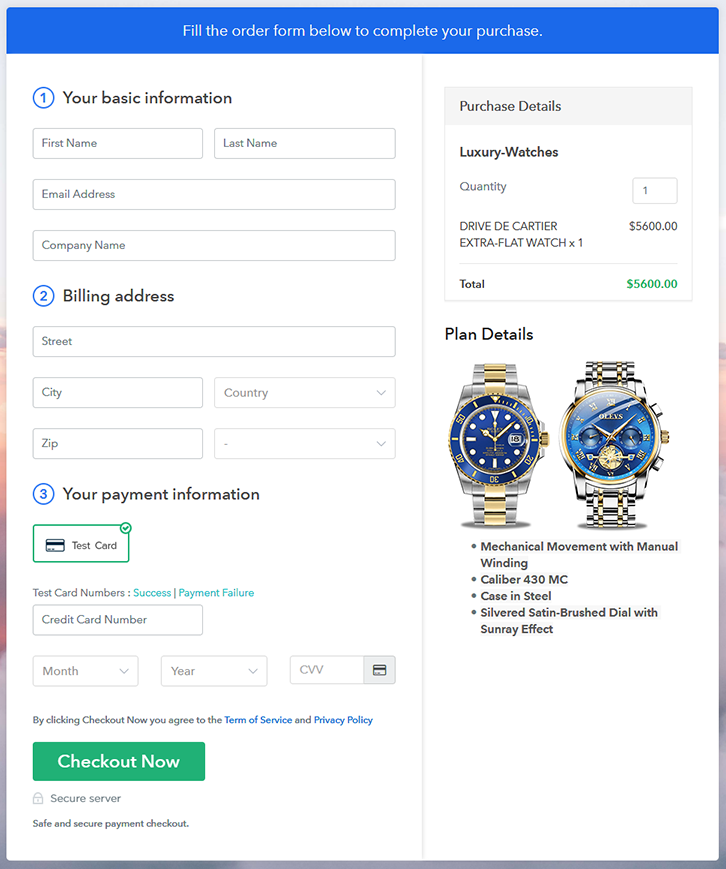
Final View of Checkout Page For Your Luxury-Watches Selling Business

Preview Checkout Page

Preview Checkout Page

Step 1: Log in to Pabbly Subscription Billing

Signup

In the first step, you have to visit Pabbly Subscription Billing website and then click on the “Sign Up Free” button. Once you click the button, you will be redirected on the signup page, where you can create your account with Gmail or manually enter your details.

Sign Up For Free!

Step 2: Select Subscription Billing

Access Subscription Billing

Step 3: Account Setup

Setup Account

Once the signup process is completed, now fill up your company details i.e. company name, currency, and contact number in the appeared dialogue box.

Step 4: Connect Payment Gateways & Start Luxury-Watches Selling Business Online

Connect Payment Gateway

After setting up your account, here, we are showing you the payment collection process by enabling the ‘Test Payment’ mode. Later, you can connect other payment gateways such as PayPal, Stripe, etc of your choice. The complete integration guide for payment gateways is provided below-

Step 5: Add Product For Your Luxury-Watches

Add Product

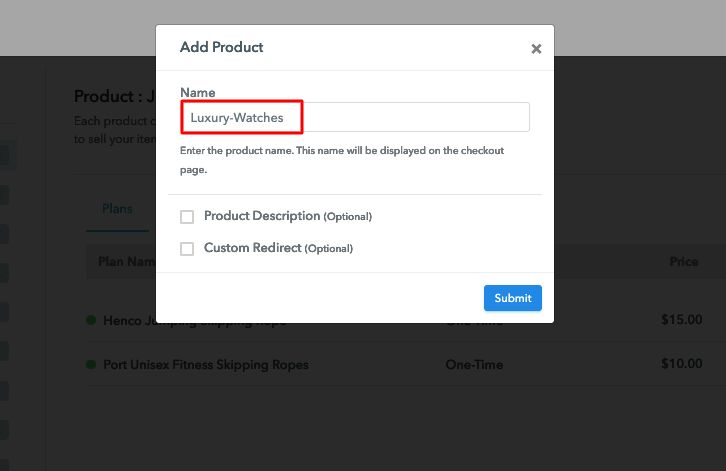
After the payment mode is enabled, then you can add your first product. You can include luxury-watches of different categories for example digital watches, automatic watches, etc.

Sell Luxury Watches Online Product Name

Add all other types of luxury-watches in the same product by creating different plans.

Note: Here you can add all the products related to the similar category by creating plans for each of them.

Step 6: Add Plans 

Let’s rollout plans for different kinds of luxury-watches available in your store.

(a) Select Add New Plan

Add Plan

(b) Specify the Plan & Pricing Details

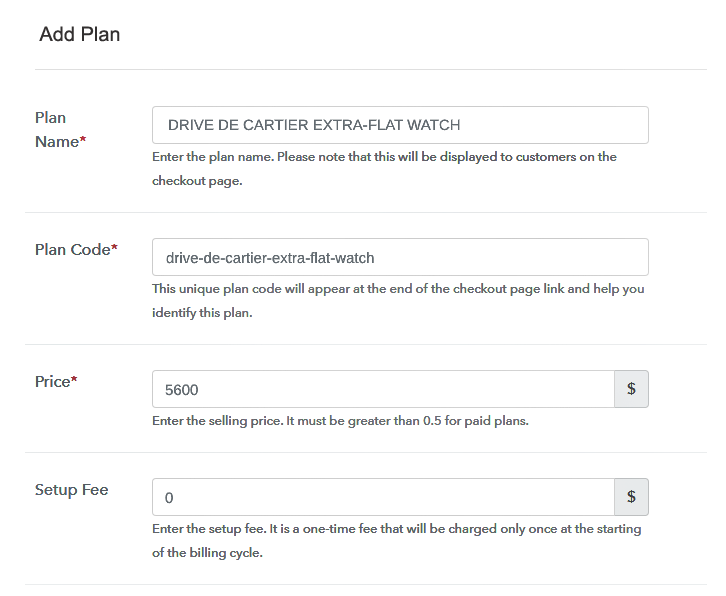
Sell Luxury Watches Online Details

On clicking add new plan, you will be redirected to the plan page. Here, you will have to fill the plan details such as plan name, code, billing cycle, price, etc.

(c) Add Image & Description of Luxury-Watches

Sell Luxury Watches Online Image

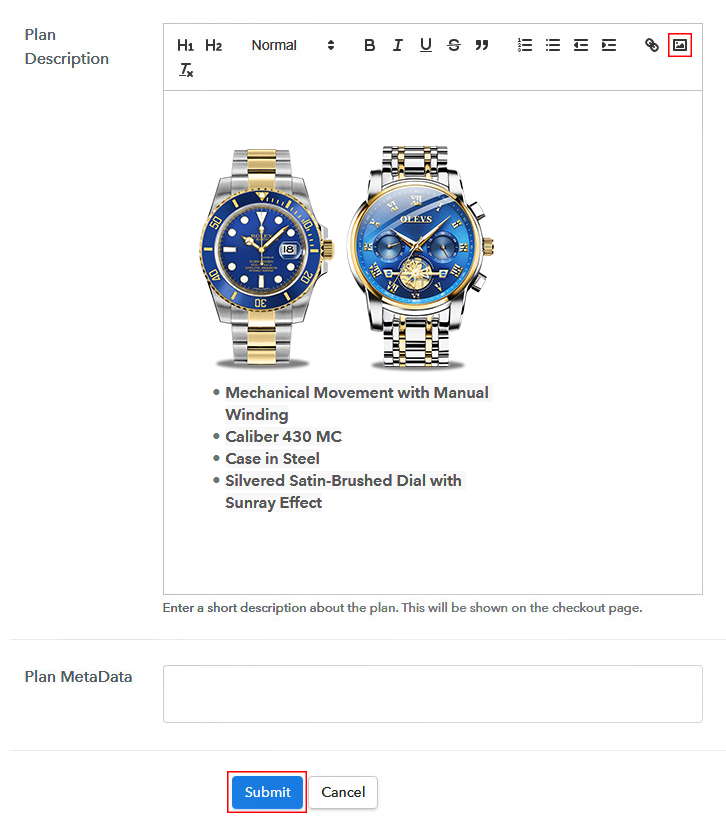
Also, write a description of the luxury-watches that you want to sell along with the product links, images, etc, and click on the submit button to add your plan.
You can create more plans for all the other luxury-watches similarly.

Step 7: Share your Checkout Page

Share Checkout Page on Social Media

Increase your sales by following the given steps:

  • Share your checkout page on social media like Facebook and Twitter.
  • Copy the mentioned link and send it to your customers through SMS or emails directly.
  • Embed your plan link to your website so that your customers can be landed on the checkout page directly.

Step 8: Preview Checkout Page

Follow up the recommended steps to preview the checkout page:

(a) Click on the View Button

View Checkout Plan

(b) Take a Look at the Checkout Page

Preview Checkout Page

Step 9: Embed Checkout Page in Site & Sell Luxury-Watches Online

Embed Checkout Page on Website

Just copy the provided plan embedding link and embed the checkout page to your WordPress site to sell luxury-watches online.

(a) Edit the Page & Paste the Copied Link

Embed Checkout Page on Website

Further, paste the plan link on a text editor of the WordPress dashboard.

(b) Save & Publish the Checkout Page

Save_and_Publish

Next, click the “Publish” button, after making changes.

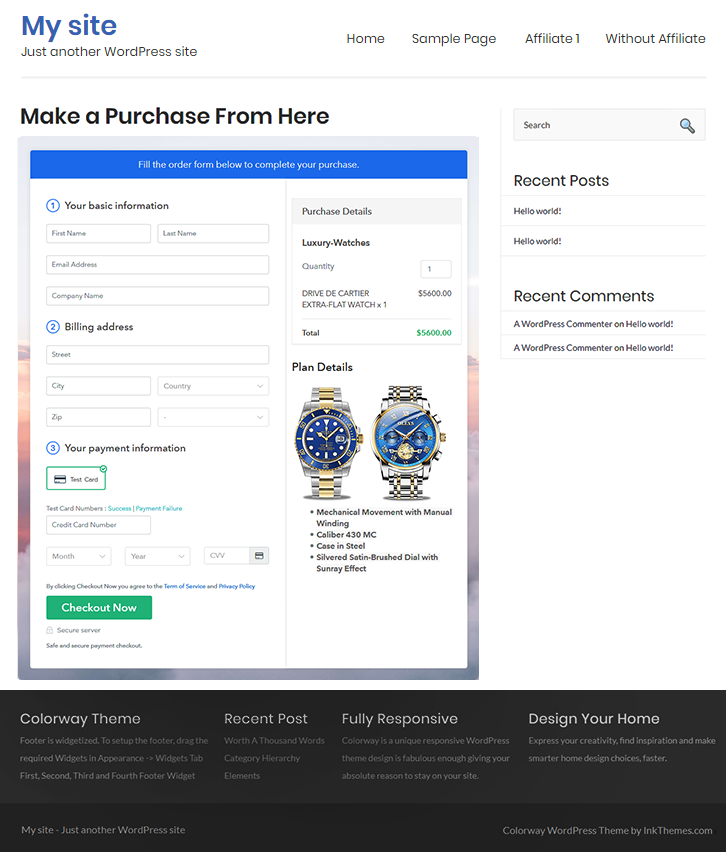
(c) Check out the Final Look of your Checkout Page on WordPress Site

Sell Luxury Watches Online W

Step 10: Multiplan Checkout Page

Note: In case you want to sell multiple products via a single checkout page, you can create a multi-plan checkout page otherwise skip this step.

(a) Click on Add Mutiplan Checkout

Multiplan Checkout

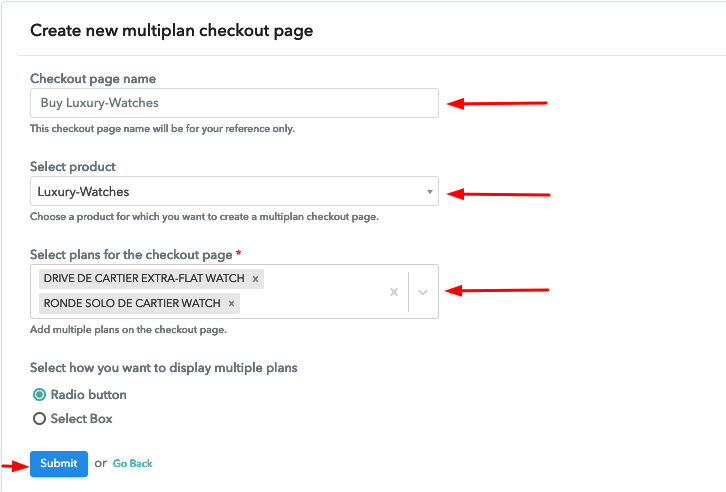
(b) Add Plans to Sell Multiple Luxury-Watches from Single Checkout Page

Sell Luxury Watches Online Multi Details

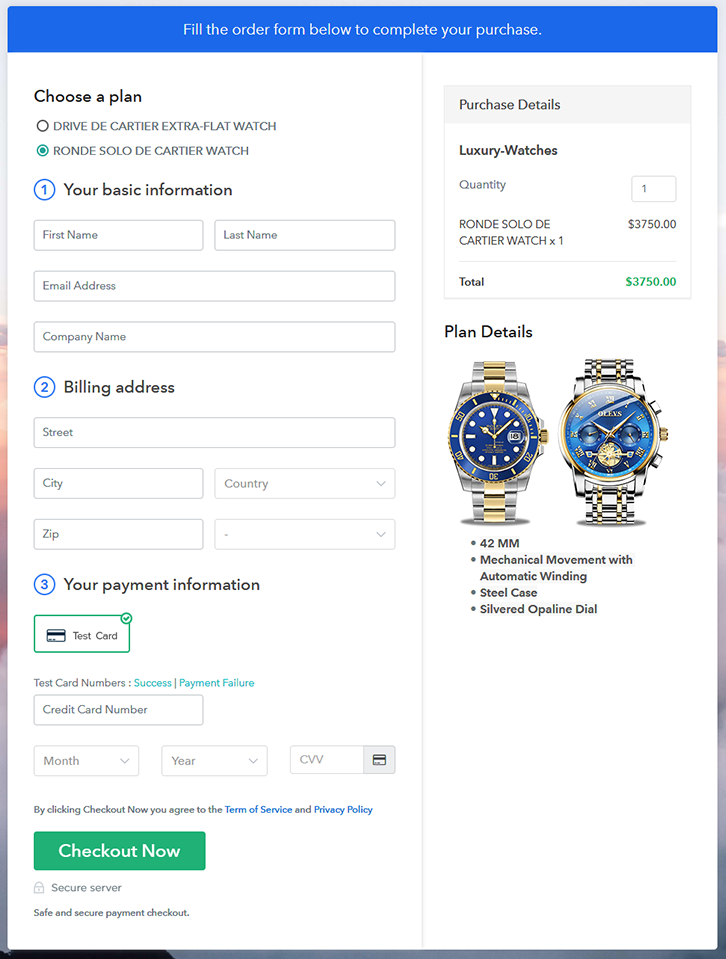
(c) Take a Look at the Checkout Page

Sell Luxury Watches Online Multi

Preview Checkout Page

Wrapping Up

At the end of the blog, if you are looking to sell luxury-watches online then Pabbly Subscription Billing is your answer. You don’t have to spend anything, you can start your online business on your own terms and can be your own boss, from the comfort of your home. So without giving it a second thought, register now and start selling luxury-watches online.
For further queries or suggestions, please leave your comments below.

You May Also Like To Read –
How to Sell Makeup Online | Step by Step (Free Method)

How to Sell Makeup Online

Ideal For: All the makeup shops, makeup stores, makeup showroom, makeup companies, makeup brands, and other sellers can use this method to take their makeup selling business online.

How to Sell Makeup Online

Why Choose this Method To Sell Makeup Online?

Unlike any other solution, this method allows you to:

  • List and sell your makeup for FREE. Absolutely no payment required.
  • No need to pay commission on any of your sales.
  • Multiple payment options like PayPal, Credit Card, etc to collect payment from a single place.
  • Sell one time or recurring subscriptions of your makeup.
  • Collect payments & sell products in any currency as per your requirement.
  • Give discounts on your products by offering special coupon codes.
  • Add sales commission agents to help you in selling makeup online.

Get Pabbly Subscription Billing for Free

Have you been selling makeup from your store but your business has been going down from few years and if you are wondering how you can make up for the losses, then you have reached the right place. You can turn your passion for makeup into a professional online business.

If you start selling makeup online there will be better chances for the profit as people can purchase your makeup from all over the world and your customer reach will also increase. To start your makeup selling online business you only need Pabbly Subscription Billing, which is a completely free platform. With this service, you can create checkout pages for your makeup and share them on online platforms and people can start purchasing your makeup directly through them.

Other than the checkout pages, it also offers many other helpful features for your online business:

  • Add and sell unlimited makeup products
  • Create and share invoices of makeup products automatically with users
  • Discount coupons creation for your customers
  • Collect one-time or recurring payments for your makeup products

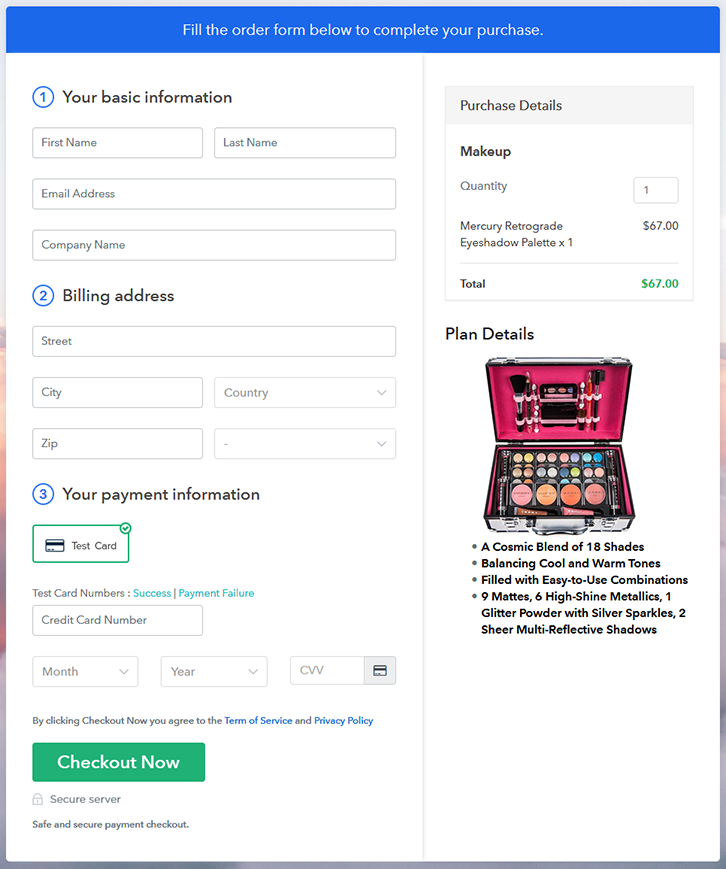
Final View of Checkout Page For Your Makeup Selling Business

Preview Checkout Page

Preview Checkout Page

Step 1: Log in to Pabbly Subscription Billing

Signup

In the first step, you have to visit Pabbly Subscription Billing website and then click on the “Signup Free” button. Once you click the button, the signup page will appear, where you can sign up for free in a few seconds via your Gmail or you can also enter your details manually.

Sign Up For Free!

Step 2: Select Subscription Billing

Access Subscription Billing

Step 3: Account Setup

Setup Account

After you have completed the signup process, here you have to fill up your company details like company name, currency, & phone number in the given dialogue box.

Step 4: Connect Payment Gateways & Start Makeup Selling Business Online

Connect Payment Gateway

Here, the payment collection process is described by enabling the “Test Payment” mode. You can also check the test payment mode before moving forward. However, you have to connect with other payment gateways such as PayPal, Stripe, etc of your choice. The whole payment gateways integration guide is given below-

Step 5: Add Product For Your Makeup

Add Product

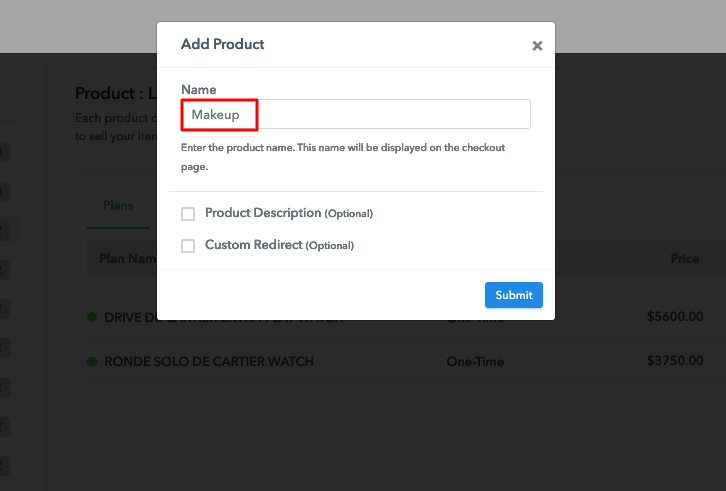
Moving forward to this step, here you have to add your first product. You can add makeup of different types such as mascaras, concealers, etc.

Sell Makeup Online Product Name

Add all the other types of makeup in the same product section by creating different plans for them.

Note: Here you can add all the products related to the similar category by creating plans for each of them.

Step 6: Add Plans 

Let’s create plans for different kinds of makeup available in your store.

(a) Select Add New Plan

Add Plan

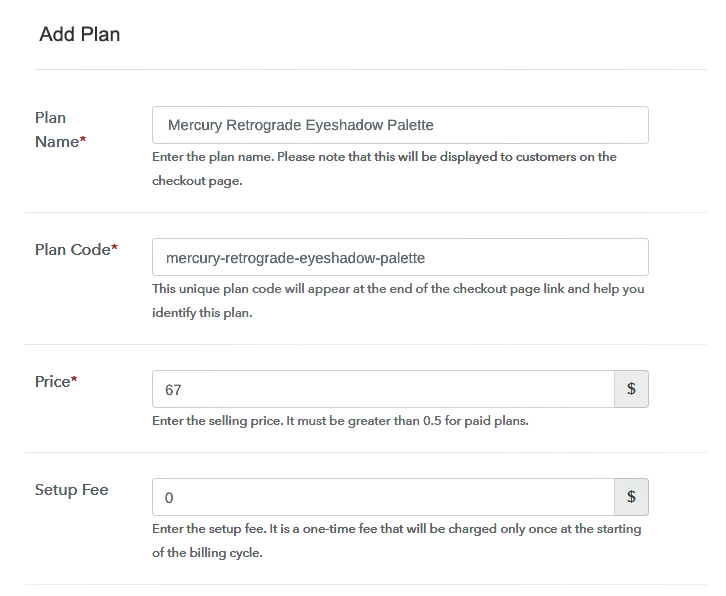
(b) Specify the Plan & Pricing Details

Sell Makeup Online Details

On clicking the “Add New Plan” button, the plan page will open, here you have to add details like plan name, billing cycle, code, price, etc.

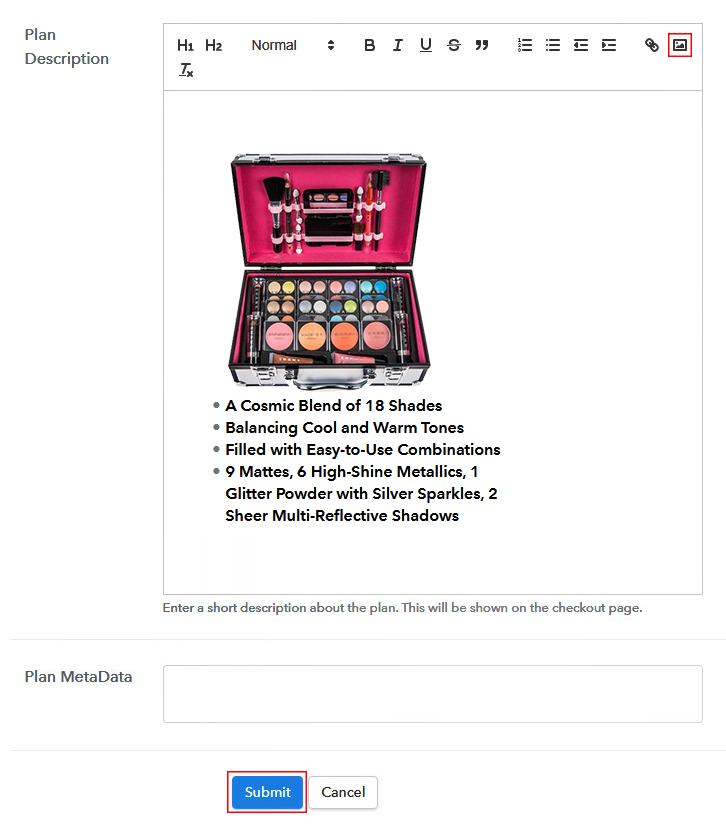
(c) Add Image & Description of Makeup

Sell Makeup Online Image

Also, describe the makeup that you want to sell along with the product images, links, etc, and then click on the submit button to add your plan. You can create more plans for all the other makeup likewise.

Step 7: Share your Checkout Page

Share Checkout Page on Social Media

  • To raise your sales of makeup, share your checkout page on social media like Facebook and Twitter.
  • Also, copy the mentioned link and send it to your customers over SMS or emails directly.
  • Embed your plan link to your website so that your customers can be landed on the checkout page directly.

Step 8: Preview Checkout Page

Follow up the recommended steps to preview the checkout page:

(a) Click on the View Button

View Checkout Plan

(b) Take a Look at the Checkout Page

Preview Checkout Page

Step 9: Embed Checkout Page in Site & Sell Makeup Online

Embed Checkout Page on Website

Just copy the link and add the checkout page to sell makeup online at any preferable place on your WordPress site.

(a) Edit the Page & Paste the Copied Link

Embed Checkout Page on Website

Further, paste the plan link on a text editor of the WordPress dashboard.

(b) Save & Publish the Checkout Page

Save_and_Publish

Next, click the “Publish” button, after making changes.

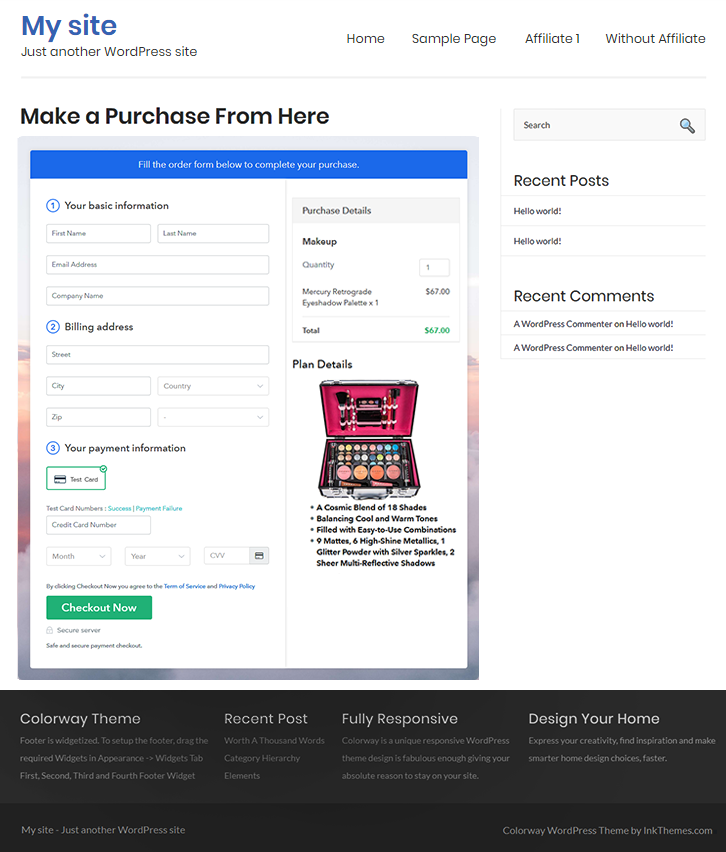
(c) Check out the Final Look of your Checkout Page on WordPress Site

Sell Makeup Online W

Step 10: Multiplan Checkout Page

Note: In case you want to sell multiple products via a single checkout page, you can create a multi-plan checkout page otherwise skip this step.

(a) Click on Add Mutiplan Checkout

Multiplan Checkout

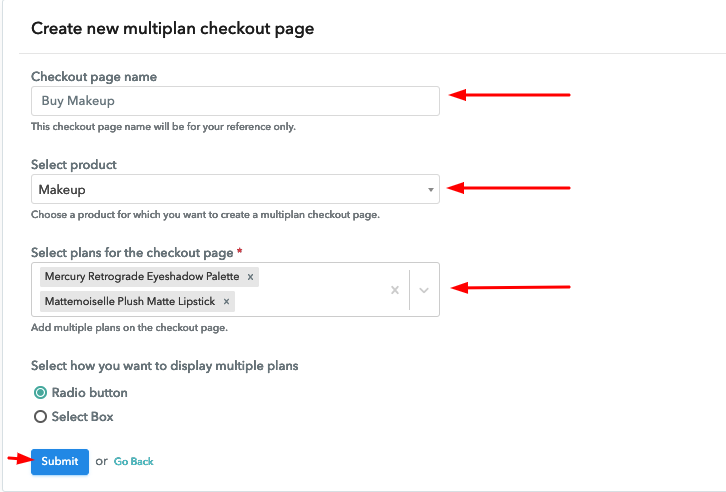
(b) Add Plans to Sell Multiple Makeup from Single Checkout Page

Sell Makeup Online Multi Details

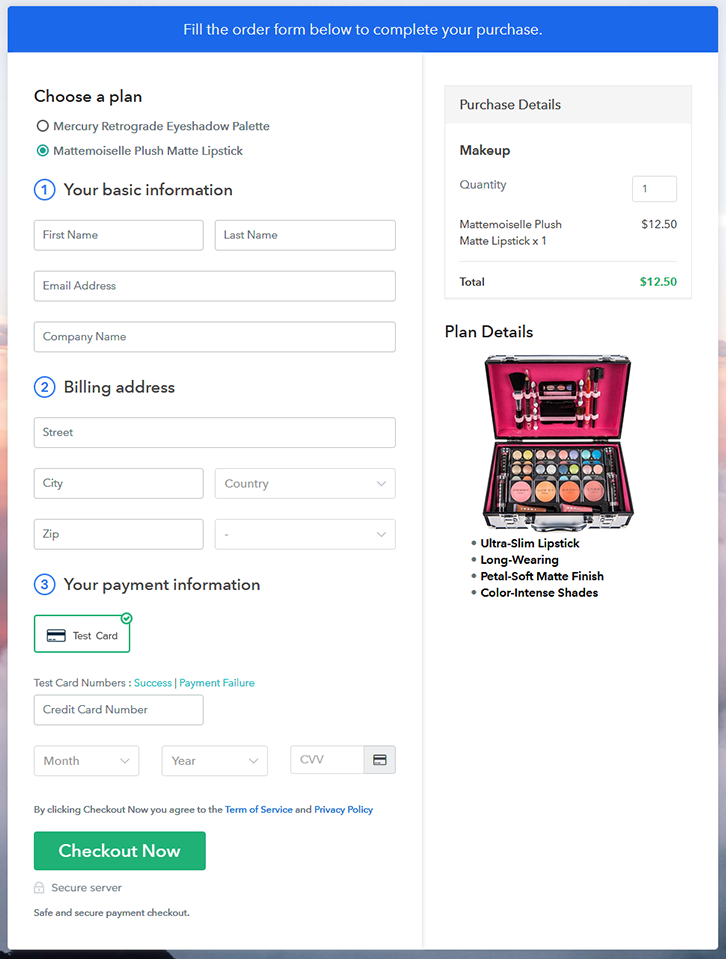
(c) Take a Look at the Checkout Page

Sell Makeup Online Multi

Preview Checkout Page

Wrapping Up

Lastly, this was my take on How to Sell Makeup Online? now you can easily start selling makeup online for free all thanks to Pabbly Subscription Billing. This software makes it a lot easier to sell makeup online through its amazing features. Now you can sell unlimited makeup, create discount coupons, share invoices, and whatnot. We are sure you won’t regret choosing it. Therefore, signup and start selling your makeup now. For further queries or suggestions, please write to us.

You May Also Like To Read –
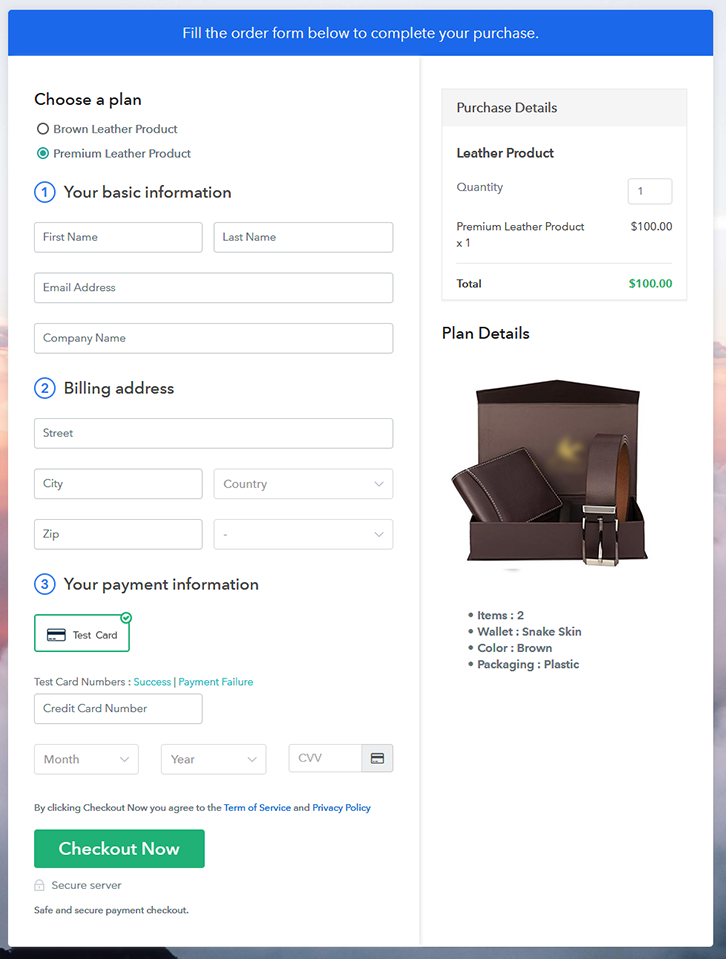
How to Sell Massage Oils Online | Step by Step (Free Method)

How to Sell Massage Oils Online

Ideal For: All the massage oil shops, massage oil stores, massage oil brands, salons, massage oil suppliers, massage oil wholesalers, and other sellers can use this method to take their massage oils selling business online.

How to Sell Massage Oils Online

Why Choose this Method To Sell Massage Oils Online?

Unlike any other solution, this method allows you to:

  • List and sell your massage oils for FREE. Absolutely no payment required.
  • No need to pay commission on any of your sales.
  • Multiple payment options like PayPal, Credit Card, etc to collect payment from a single place.
  • Sell one time or recurring subscriptions of your massage oils.
  • Collect payments & sell products in any currency as per your requirement.
  • Give discounts on your products by offering special coupon codes.
  • Add sales commission agents to help you in selling massage oils online.

Get Pabbly Subscription Billing for Free

You have been selling massage oils from a store but your business has been running in loss from a few years? Don’t you worry, there is another way to earn profit in business and that is to start selling your massage oils online.

By selling massage oils online, you get a large customer reach, increased sales, unlimited revenue, and so many other benefits. Now that you are all thrilled about taking your business online then let me tell you about an incredible software, Pabbly Subscription Billing. It is free, easy to use and you can create checkout pages on it to boost up your business.

Apart from checkout pages, you can also access its other great features for your online business:

  • Add and sell unlimited massage oils online
  • Collect one-time or recurring payments for massage oils
  • Create discount coupons for the customers
  • 24X7 Support available

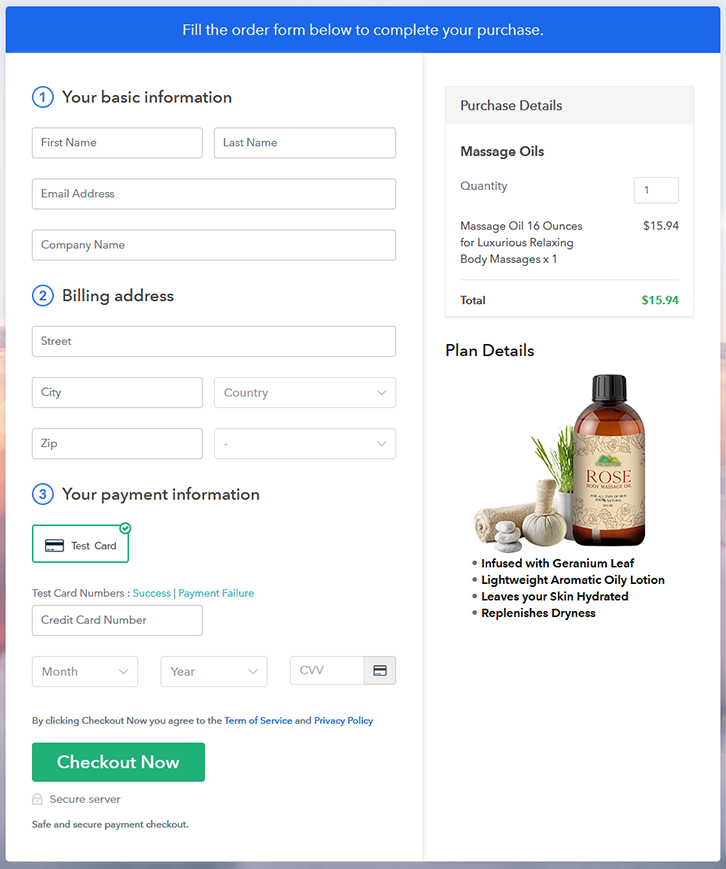
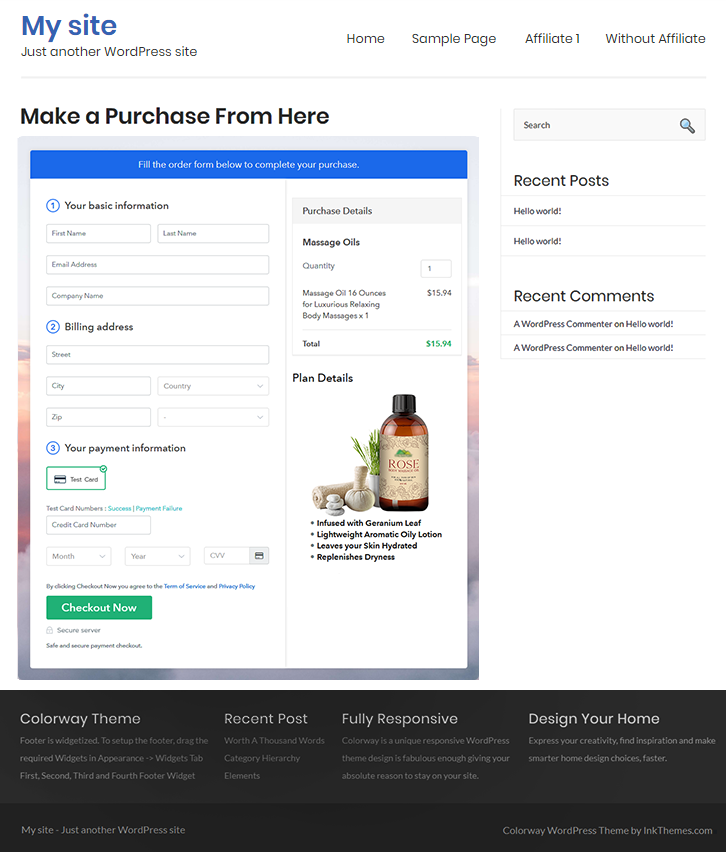
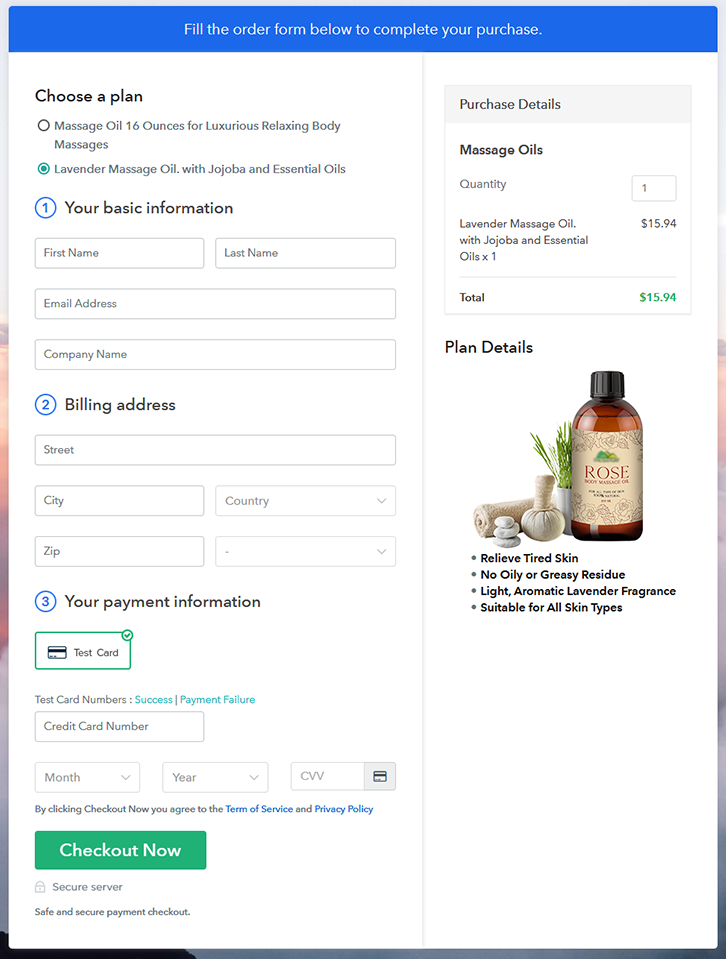
Final View of Checkout Page For Your Massage Oils Selling Business

Preview Checkout Page

Preview Checkout Page

Step 1: Log in to Pabbly Subscription Billing

Signup

Start with visiting Pabbly Subscription Billing Website and then click on the “Signup Free” button. On clicking the button the signup page will appear, where you can create your account in a few seconds via Gmail or you can also enter your details manually.

Sign Up For Free!

Step 2: Select Subscription Billing

Access Subscription Billing

Step 3: Account Setup

Setup Account

After completing the signup process, here you have to fill up your company details like company name, currency, & phone number in the given dialogue box.

Step 4: Connect Payment Gateways & Start Massage Oils Selling Business Online

Connect Payment Gateway

To make payment collection easier for the merchants Pabbly Subscription Billing offers a “Test Payment” mode where you can use and check it to understand the process. After checking with the dummy mode you can connect with other payment gateways of your preference such as PayPal, Stripe, etc. The complete payment gateways integration guide is given below-

Step 5: Add Product For Your Massage Oils

Add Product

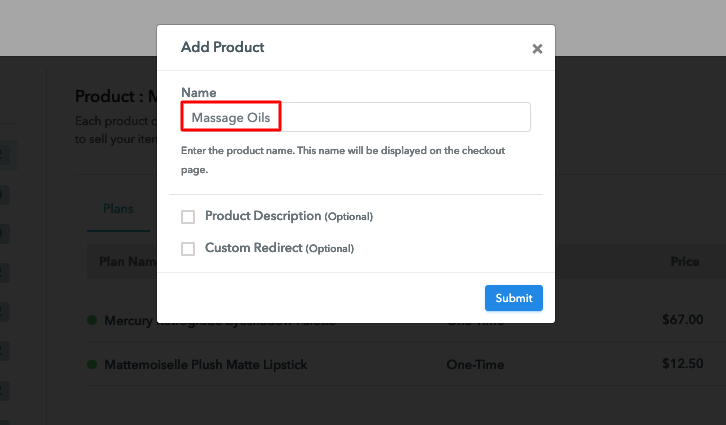
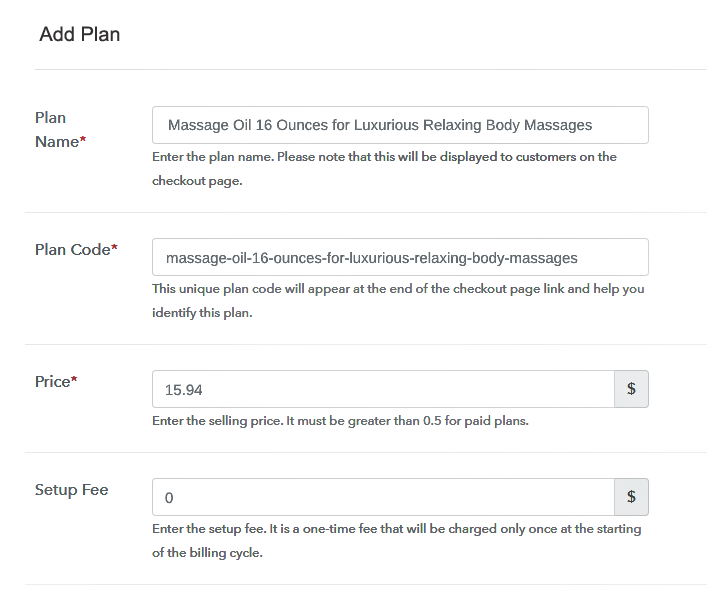
Now, you have to add your first product. By clicking on the “Add New Product” button a dialogue box will appear where you have to name your product. You can add massage oils of different types such as coconut oil, sweet almond oil, etc.

Sell Massage Oils Online Product Name

Add all the other massage oils in the same product section by creating different plans for them.

Note: Here you can add all the products related to the similar category by creating plans for each of them.

Step 6: Add Plans 

Let’s get started and create plans for different types of massage oils that you want to sell.

(a) Select Add New Plan

Add Plan

(b) Specify the Plan & Pricing Details

Sell Massage Oils Online Details

In this step, you will land on the plan page where you have to add details like plan name, plan code, billing cycle, price, etc.

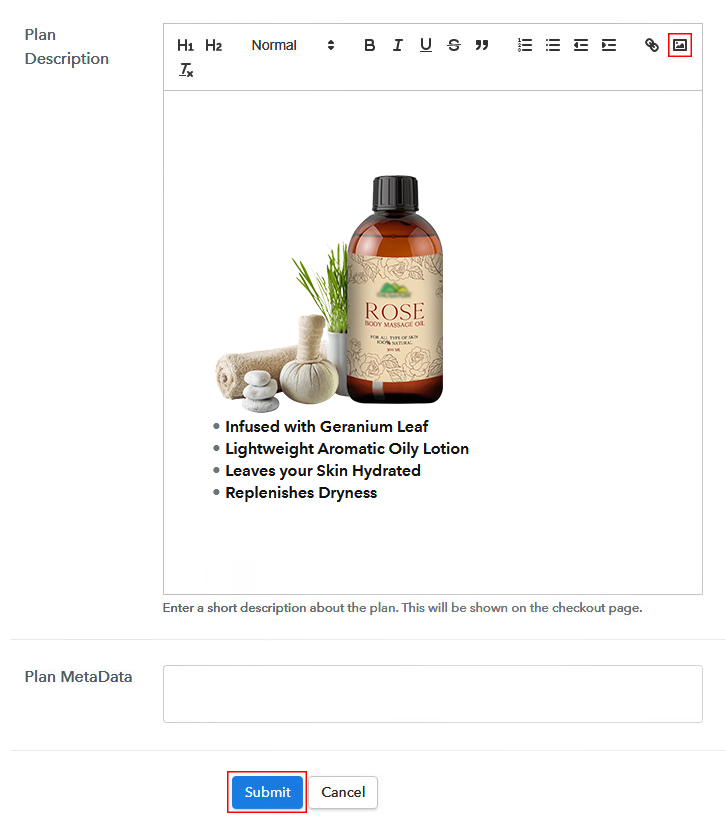
(c) Add Image & Description of Massage Oils

Sell Massage oils Online Image

Further, add an image and a description of the massage oils that you want to sell along with the links and other details. You can create plans for all the other massage oils in a similar way.

Step 7: Share your Checkout Page

Share Checkout Page on Social Media

To increase your sales of massage oils and for better marketing of your product, you need to follow these given steps:

  • Share your checkout page on social media like Facebook and Twitter.
  • Also, copy the mentioned link and send it to your customers through SMS or emails directly.
  • Furthermore, embed your plan link on your website so that your customers can be landed on the checkout page directly.

Step 8: Preview Checkout Page

Follow up the recommended steps to preview the checkout page:

(a) Click on the View Button

View Checkout Plan

(b) Take a Look at the Checkout Page

Preview Checkout Page

Step 9: Embed Checkout Page in Site & Sell Massage Oils Online

Embed Checkout Page on Website

Simply copy the link and add the checkout page to sell massage oils online at any preferable place on your WordPress site.

(a) Edit the Page & Paste the Copied Link

Embed Checkout Page on Website

Further, paste the plan link on a text editor of the WordPress dashboard.

(b) Save & Publish the Checkout Page

Save_and_Publish

Next, click the “Publish” button, after making changes.

(c) Check out the Final Look of your Checkout Page on WordPress Site

Sell Massage Oils Online W

Step 10: Multiplan Checkout Page

Note: In case you want to sell multiple products via a single checkout page, you can create a multi-plan checkout page otherwise skip this step.

(a) Click on Add Mutiplan Checkout

Multiplan Checkout

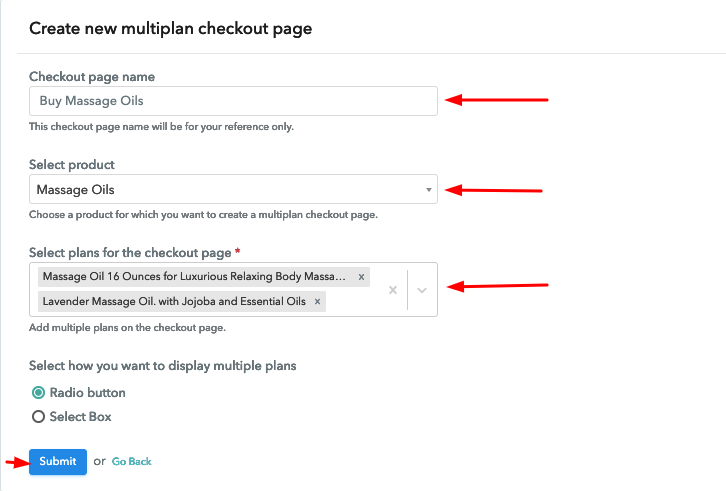
(b) Add Plans to Sell Multiple Massage Oils from Single Checkout Page

Sell Massage Oils Online Multi Details

(c) Take a Look at the Checkout Page

Sell Massage oils Online Multi

Preview Checkout Page

Wrapping Up

Kudos! Now you can smoothly create checkout pages with the help of Pabbly Subscription Billing and start selling massage oils online. Signup and start your online business without any troubles. For further queries or suggestions please write to us.

You May Also Like To Read –
How to Sell Microwaves Online | Step by Step (Free Method)

How to Sell Microwaves Online

Ideal For: All the microwave manufacturers, microwave sellers, microwave dealers, microwave suppliers, microwave shop owners and other merchants can use this method to sell microwaves online.

How to Sell Microwaves Online

Why Choose this Method to Sell Microwaves Online?

Unlike any other solution, this method allows you to:

  • List and sell your microwaves for FREE. Absolutely no payment required.
  • No need to pay commission on any of your sales.
  • Multiple payment options like PayPal, Credit Card, etc to collect payment from a single place.
  • Sell one time or recurring subscriptions of your microwaves.
  • Collect payments & sell products in any currency as per your requirement.
  • Give discounts on your products by offering special coupon codes.
  • Add sales commission agents to help you in selling microwaves online.

Get Pabbly Subscription Billing for Free

According to the Grand View Research report, the global microwave oven market is rising at a CAGR of 2.8%. The reason for the uprise is an increasing desire for frozen and ready-to-eat food. Also, preoccupied schedules of folks in urban cities are apt to feed the demand for microwaves. Considering this, it is suitable to start the microwave business online.

There are various perks of starting microwaves online stores like lower set-up costs, wider audience, no middleman, etc. Plus, you would agree with the fact that online stores give us more choices and options. Hence, here we are suggesting Saas based software named Pabbly Subscription Billing that can assist you in the process of starting your own business.

Not only, it keeps you on top of stocks, bills, purchases but also offers ways to obtain recurring or one-time payment through the checkout page. Further, you can create a single or multiplan checkout page for selling microwaves online.

Some of its extraordinary features involve:

  • List various microwaves in a single checkout page
  • Add taxation charges if any
  • Collect currency via online and offline mode

So, let’s get started by creating our checkout page with the help of Pabbly Subscription Billing to sell the microwaves online.

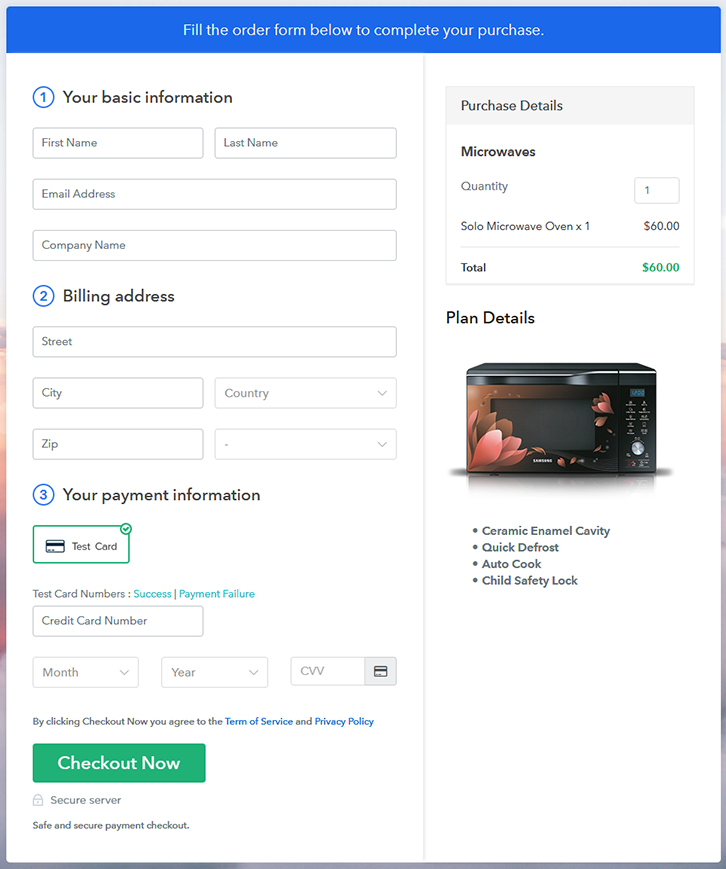
Final View of Checkout Page for your Microwaves Selling Business

Checkout Page to Sell Microwaves Online

Preview Checkout Page

Step 1: Log in to Pabbly Subscription Billing

Signup

Start the process for creating a checkout page for microwaves by visiting the Pabbly Subscription Billing in your browser. After that, click on the “Sign up Free“ button. Moreover, either manually filled out the details or sign in using your Gmail account.

Sign Up For Free!

Step 2: Select Subscription Billing

Access Subscription Billing

Step 3: Account Setup

Setup Account

Besides, after clicking on the “Access Now” button of the software, a page will open with fields like company name, select currency, and phone number. Simply fill out those details to continue creating a checkout page for microwaves.

Step 4: Connect Payment Gateways & Start Microwaves Selling Business Online

Connect Payment Gateway

The subsequent step is to gaining knowledge about payment procedures using a “Test Payment Gateway”. Here, we will describe the checkout page process for the microwaves with the help of a test payment gateway. Besides this, the tool offers various payment gateways such as PayPal, Stripe, etc. Further, below are the payment integration guides to help you out.

Step 5: Add Product for your Microwaves

Add Product

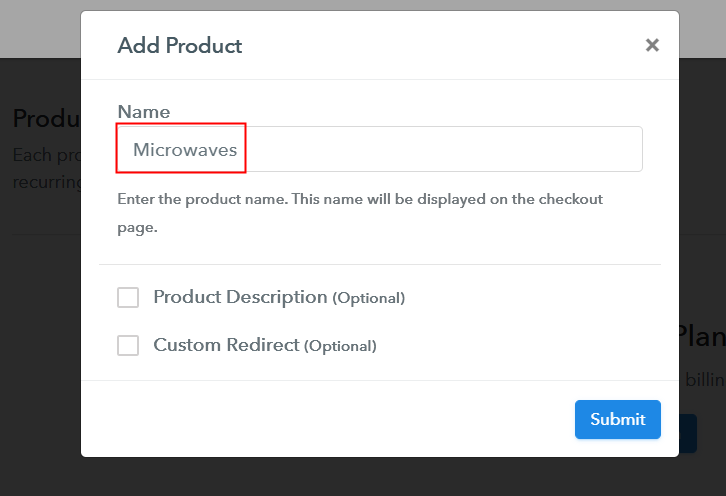
Additionally, add the name, which in our case is “Microwaves”. Here you can specify the type like grill microwaves, convection microwaves, etc. Further, write a short description of the microwaves to seize the customer’s attention.

Add Product to Start Selling Microwaves Online

Moreover, just fill out all those details and your product is created.

Note: Here you can add all the products related to the similar category by creating plans for each of them.

Step 6: Add Plans 

Let’s expose plans for different kinds of microwaves available in your store.

(a) Select Add New Plan

Add Plan

(b) Specify the Plan & Pricing Details

Specify the Plan and Pricing to Sell Microwaves Online

The next thing to do is fill all the details of the microwaves like plan name, code, price, set-up fee, and much more to continue.

(c) Add Image & Description of Microwaves

Add Image & Description to Sell Microwaves Online

Furthermore, write a brief description of the microwaves using bullets, images, etc, to bring original buyers to the checkout page.

Next, click on the “Submit” button to add the microwaves on the checkout page.

Finally, you can add multiple plans and kinds of microwaves in your product list which you want to market online.

Step 7: Share your Checkout Page

Share Checkout Page on Social Media

  • Moreover, share the checkout page of the microwaves on social media accounts like Facebook & Twitter to grab the customer’s attention.
  • Also, you can share the direct link of the microwave’s checkout page with your customers via SMS or email marketing.
  • Additionally, embed the provided plan link of the microwaves in the buttons or any anchor text on your website.

Step 8: Preview Checkout Page

Follow up the recommended steps to preview the checkout page:

(a) Click on the View Button

View Checkout Plan

(b) Take a Look at the Checkout Page

Checkout Page to Sell Microwaves Online

Step 9: Embed Checkout Page in Site & Sell Microwaves Online

Embed Checkout Page on Website

Just copy the link and add the checkout page to sell microwaves online at any proper place on your WordPress site.

(a) Edit the Page & Paste the Copied Link

Paste Link in Text Editor

Further, paste the plan link of microwaves on a text editor of the WordPress dashboard.

(b) Save & Publish the Checkout Page

Save_and_Publish

Next, click the “Publish” button, after making changes.

(c) Check out the Final Look of your Checkout Page on WordPress Site

Final Look of your Checkout Page to Sell Microwaves Online

Step 10: Multiplan Checkout Page

Note: In case you want to sell multiple products via a single checkout page, you can create a multi-plan checkout page otherwise skip this step.

(a) Click on Add Mutiplan Checkout

Multiplan Checkout

(b) Add Plans to Sell Multiple Microwaves from Single Checkout Page

Add Multiple Products to Start Selling Microwaves Online

(c) Take a Look at the Checkout Page

Multiplan Checkout Page to Sell Microwaves Online

Preview Checkout Page

Wrapping Up

Alright! This is our presentation on “how to sell microwaves online” using Pabbly Subscription Billing software. You can headstart any business online easily with the help of this tool. Just follow all the aforementioned steps and your checkout page for microwaves is created in minutes.

So, try this software out and let us know what you think in the comments section.

You May Also Like To Read –
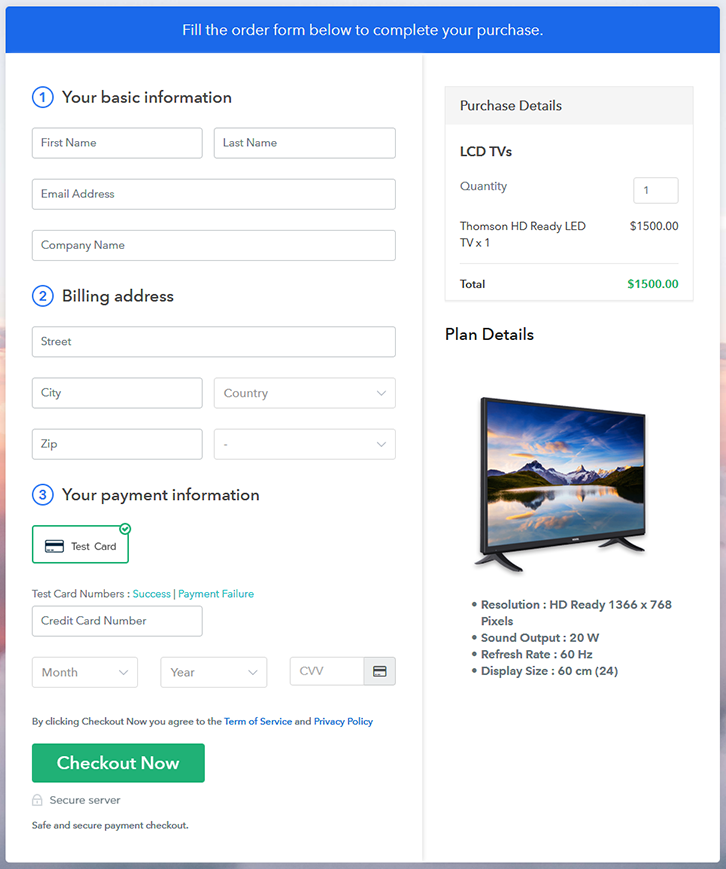
How to Sell Laptop Adapters Online | Step by Step (Free Method)

How to Sell Laptop Adapters Online

Ideal For: All the laptop adapter manufacturers, laptop adapter sellers, laptop accessories dealers, laptop adapter suppliers, laptop shop owners and other merchants can use this method to sell laptop adapters online.

How to Sell Laptop Adapters Online

Why Choose this Method to Sell Laptop Adapters Online?

Unlike any other solution, this method allows you to:

  • List and sell your laptop adapters for FREE. Absolutely no payment required.
  • No need to pay commission on any of your sales.
  • Multiple payment options like PayPal, Credit Card, etc to collect payment from a single place.
  • Sell one time or recurring subscriptions of your laptop adapters.
  • Collect payments & sell products in any currency as per your requirement.
  • Give discounts on your products by offering special coupon codes.
  • Add sales commission agents to help you in selling laptop adapters online.

Get Pabbly Subscription Billing for Free

Do you know 46.51% of traffic on the internet comes from desktop or laptop? Yes, you might be aware of it. And, the laptop can’t go without laptop adapters. Whenever the laptop adapters stop working, the very first place people go looking for an alternative is the internet. This is a reason why you should start a laptop adapters business online to meet the demands.

Well, there are various perks of starting a laptop adapters business online such as global audience, lower set up cost, and much more. Plus, it has been said that the online store offers advanced client services. Also, tap on a screen is always better than paying a visit to the shop. There are many services available that can help you start your business but here we are going to recommend a bundle box of joy software named Pabbly Subscription Billing. The software keeps you on top of stocks, invoices, revenue, and much more. Further, it lets you create beautiful checkout pages for selling laptop adapters online.

Some of its exceptional features involve:

  • Custom Domain
  • Multiple Billing Models
  • Unlimited Discount/Coupon Codes

So, let’s get started by creating our checkout page with the help of Pabbly Subscription Billing to sell the laptop adapters online.

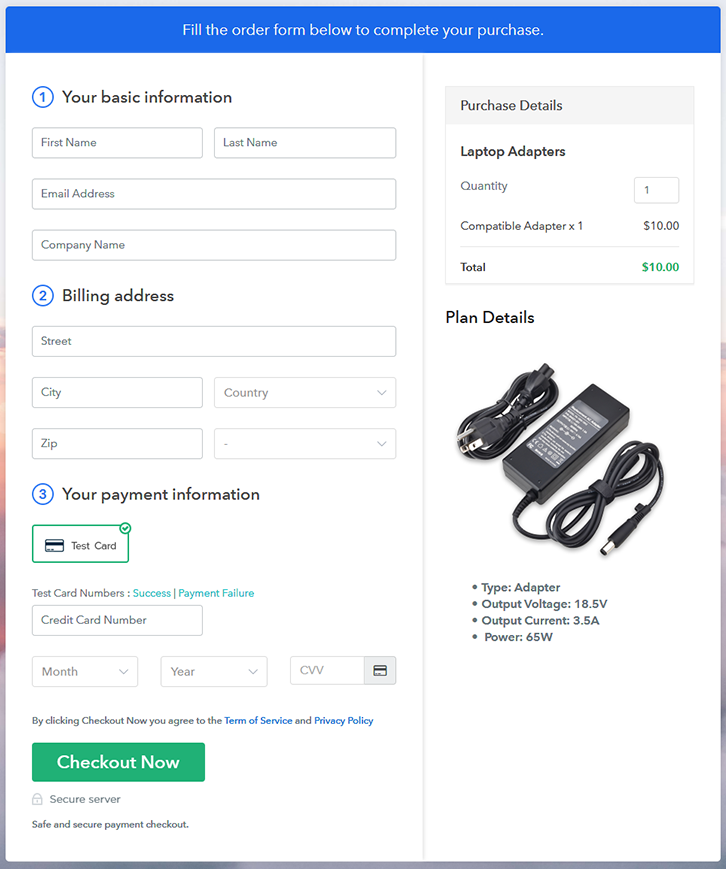
Final View of Checkout Page for your Laptop Adapters Selling Business

Checkout Page to Sell Laptop Adapters Online

Preview Checkout Page

Step 1: Log in to Pabbly Subscription Billing

Signup

Start the process for creating a checkout page for laptop adapters by visiting the Pabbly Subscription Billing in your browser. After that, click on the “Sign up Free“ button. Moreover, either manually filled out the details or sign in using your Gmail account.

Sign Up For Free!

Step 2: Select Subscription Billing

Access Subscription Billing

Step 3: Account Setup

Setup Account

Besides, after clicking on the “Access Now” button of the software, a page will open with fields like company name, select currency, and phone number. Simply fill out those details to continue creating a checkout page for laptop adapters.

Step 4: Connect Payment Gateways & Start Laptop Adapters Selling Business Online

Connect Payment Gateway

The subsequent step is to gaining knowledge about payment procedures using a “Test Payment Gateway”. Here, we will describe the checkout page process for the laptop adapters with the help of a test payment gateway. Besides this, the tool offers various payment gateways such as PayPal, Stripe, etc. Further, below are the payment integration guides to help you out.

Step 5: Add Product for your Laptop Adapters

Add Product

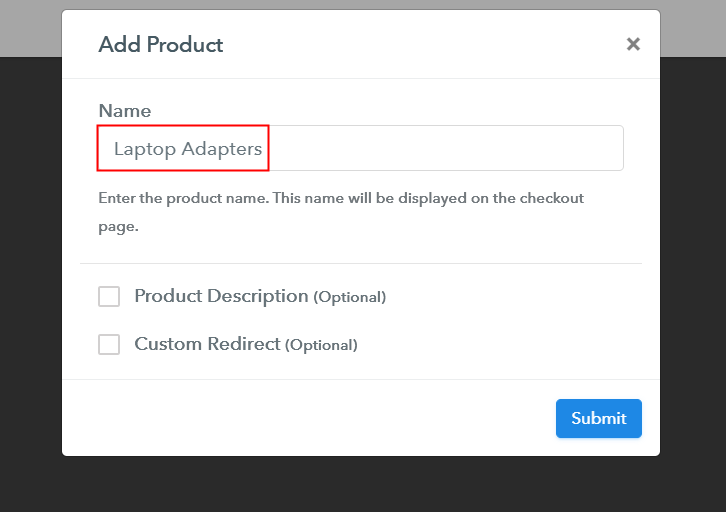
Additionally, add the name, which in our case is “Laptop Adapters”. Here you can specify the type like AC and DC power adapters, connector type power adapters, etc. Further, write a short description of the laptop adapters to seize the customer’s attention.

Add Product to Start Selling Laptop Adapters Online

Moreover, just fill out all those details and your product is created.

Note: Here you can add all the products related to the similar category by creating plans for each of them.

Step 6: Add Plans 

Let’s expose plans for different kinds of laptop adapters available in your store.

(a) Select Add New Plan

Add Plan

(b) Specify the Plan & Pricing Details

Specify the Plan and Pricing to Sell Laptop Adapters Online

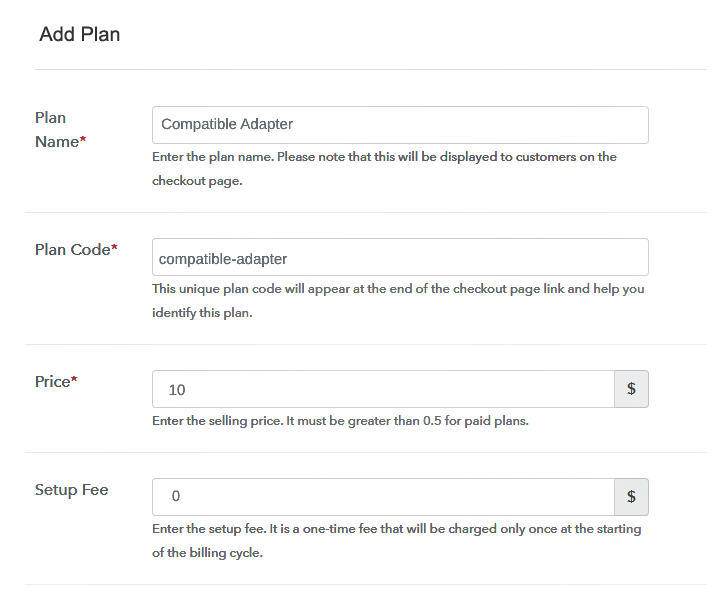
The next thing to do is fill all the details of the laptop adapters like plan name, code, price, set-up fee, and much more to continue.

(c) Add Image & Description of Laptop Adapters

Add Image & Description to Sell Laptop Adapters Online

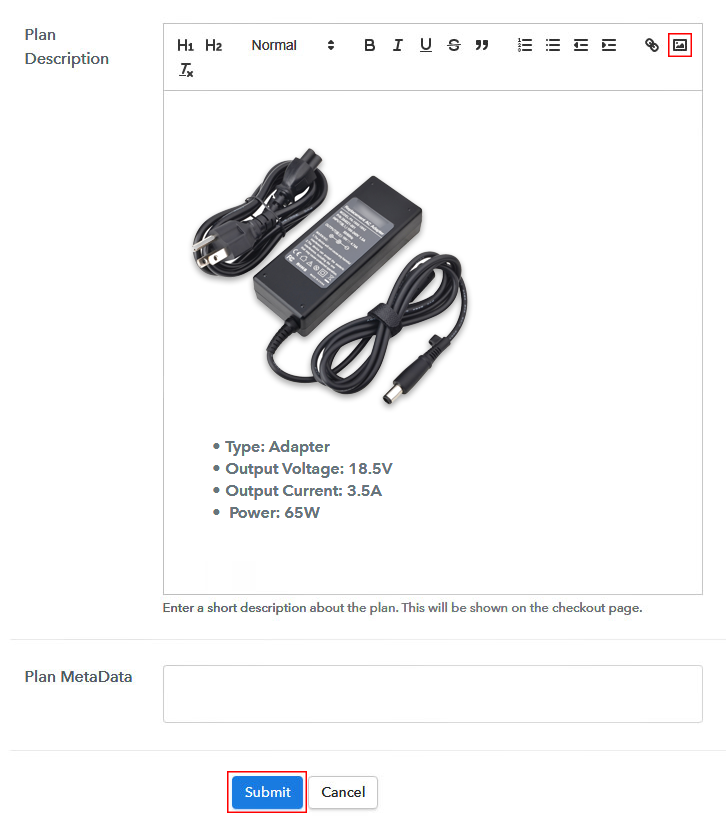
Furthermore, write a brief description of the laptop adapters using bullets, images, etc, to bring original buyers to the checkout page.

Additionally, click on the “Submit” button to add the laptop adapters on the checkout page.

Finally, you can add multiple plans and kinds of laptop adapters in your product list which you want to market online.

Step 7: Share your Checkout Page

Share Checkout Page on Social Media

  • Moreover, share the checkout page of the laptop adapters on social media accounts like Facebook & Twitter to grab the customer’s attention.
  • Also, you can share the direct link of the laptop adapter’s checkout page with your customers via SMS or email marketing.
  • Additionally, embed the provided plan link of the laptop adapters in the buttons or any anchor text on your website.

Step 8: Preview Checkout Page

Follow up the recommended steps to preview the checkout page:

(a) Click on the View Button

View Checkout Plan

(b) Take a Look at the Checkout Page

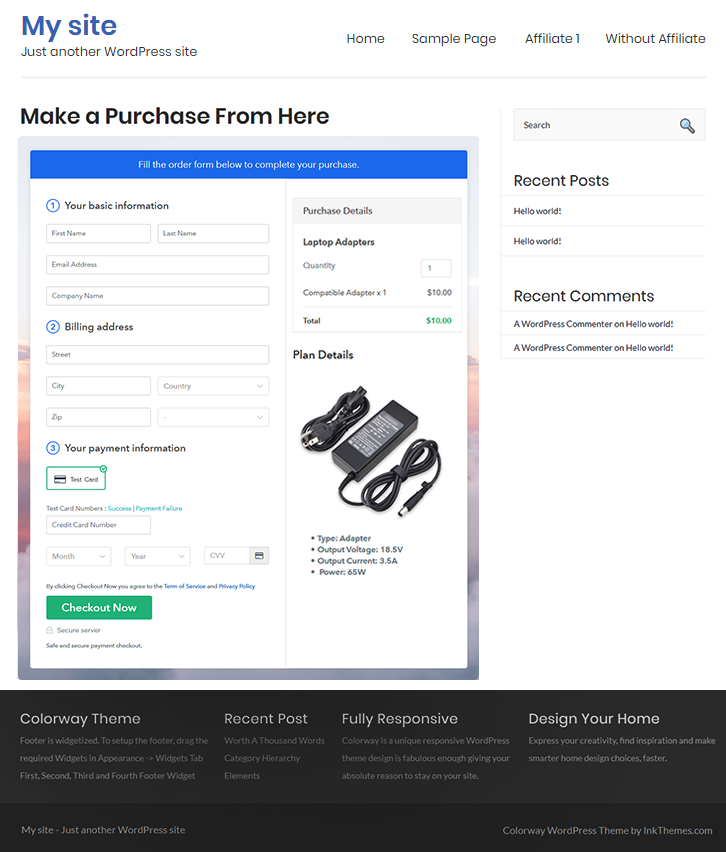
Checkout Page to Sell Laptop Adapters Online

Step 9: Embed Checkout Page in Site & Sell Laptop Adapters Online

Embed Checkout Page on Website

Moreover, just copy the link and add the checkout page to sell laptop adapters online at any proper place on your WordPress site.

(a) Edit the Page & Paste the Copied Link

Paste Link in Text Editor

Further, paste the plan link of laptop adapters on a text editor of the WordPress dashboard.

(b) Save & Publish the Checkout Page

Save_and_Publish

Next, click the “Publish” button, after making changes.

(c) Check out the Final Look of your Checkout Page on WordPress Site

Final Look of your Checkout Page to Sell Laptop Adapters Online

Step 10: Multiplan Checkout Page

Note: In case you want to sell multiple products via a single checkout page, you can create a multi-plan checkout page otherwise skip this step.

(a) Click on Add Mutiplan Checkout

Multiplan Checkout

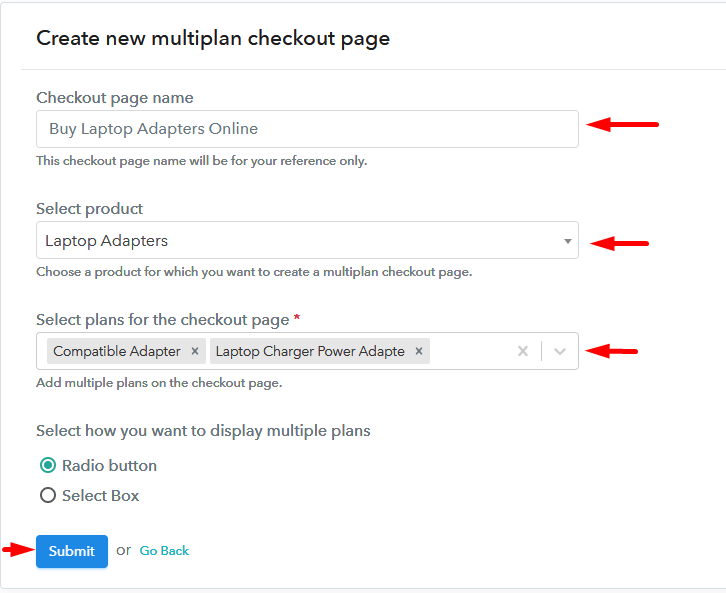
(b) Add Plans to Sell Multiple Laptop Adapters from Single Checkout Page

Add Multiple Products to Start Selling Laptop Adapters Online

(c) Take a Look at the Checkout Page

Multiplan Checkout Page to Sell Laptop Adapters Online

Preview Checkout Page

Wrapping Up

There you have it! We have hopefully covered all the crucial steps to start laptop adapters selling business online. Just follow all the aforementioned steps and you’re good to go. Our suggestion here is to give a try to this software Pabbly Subscription Billing and boost your sales.

So, what are you waiting for? Go and grab a deal.

You May Also Like To Read –