Add Client Details in CRM & Send Personalized Emails Automatically

Watch Step By Step Video Tutorial Below


Integrating LinkedIn with Pabbly Connect

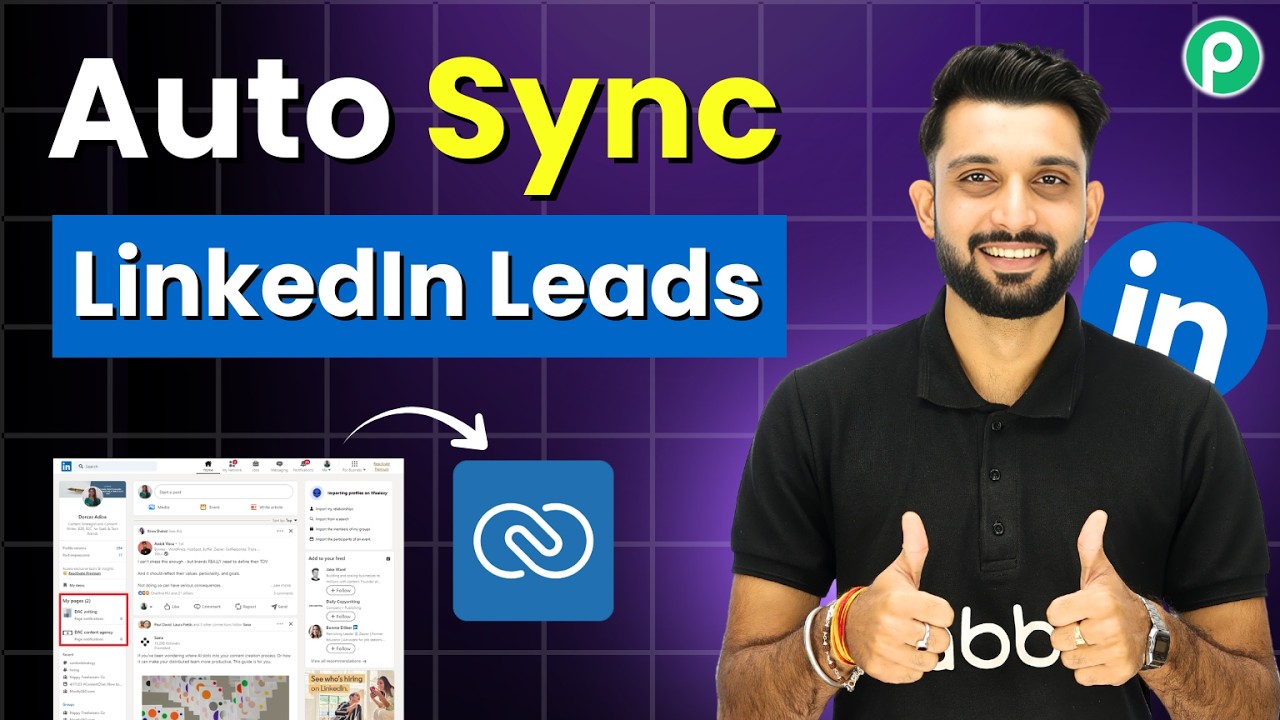
To start automating lead management, you first need to integrate LinkedIn with Pabbly Connect. This integration allows you to capture leads directly from LinkedIn lead ads.

Begin by logging into your Pabbly Connect account. Click on the “Create Workflow” button and select LinkedIn as the trigger application. You will need to authorize Pabbly Connect to access your LinkedIn account, allowing it to capture lead notifications.


Setting Up Pipedrive with Pabbly Connect

Once LinkedIn is integrated, the next step is to set up Pipedrive as your CRM in Pabbly Connect. This will help you store the captured leads effectively.

To do this, select Pipedrive as your action application. You will need to create a connection using your API token from Pipedrive. Here’s how to do it:

  • Log into your Pipedrive account.
  • Navigate to your profile settings and find the API section.
  • Copy your API token and paste it into Pabbly Connect.

After saving the connection, map the fields such as first name, email, and phone number to ensure that the leads are captured accurately in Pipedrive.


Sending Emails with Gmail Using Pabbly Connect

With Pipedrive set up, the final step is to send personalized emails to your leads using Gmail through Pabbly Connect. This ensures immediate engagement with your leads.

Select Gmail as the final action application in your Pabbly Connect workflow. You will need to sign in and authorize Pabbly Connect to send emails on your behalf. Once connected, you can customize the email content.

  • Enter the sender name and email address.
  • Map the recipient’s email from the captured lead data.
  • Craft a personalized email subject and body using dynamic fields.

Once everything is set, click on the “Save and Send Test” button to ensure that the email is sent successfully. This completes the automation process!


Testing Your Pabbly Connect Workflow

After setting up the integrations, it’s crucial to test your entire workflow in Pabbly Connect. This will confirm that leads are captured from LinkedIn, stored in Pipedrive, and that emails are sent via Gmail without any issues.

To test, fill out the LinkedIn lead form and submit it. Monitor your Pipedrive account to see if the new contact appears. Simultaneously, check your Gmail inbox to verify that the personalized email was received. If everything works seamlessly, your Pabbly Connect setup is complete!


Conclusion

In summary, using Pabbly Connect to automate lead management between LinkedIn, Pipedrive, and Gmail significantly enhances efficiency. You can capture leads, store them, and engage them instantly, ensuring no opportunity is missed.

Replace Customer Support with This AI Chatbot (24/7 Automated)

Watch Step By Step Video Tutorial Below


1. Accessing Pabbly Connect for WhatsApp Integration

To start integrating WhatsApp with Pabbly Connect, first, visit the official Pabbly website. Here, you can either sign in if you’re an existing user or create an account by clicking on “Sign Up Free”. This step is crucial as Pabbly Connect will be the central platform for all your automation needs.

Once signed in, navigate to the Pabbly Connect dashboard. This is where you can manage all your integrations. Click on the “Access Now” button for Pabbly Chatflow, which is essential for setting up your WhatsApp integration.


2. Setting Up Your WhatsApp Chatbot with Pabbly Connect

After accessing Pabbly Chatflow, you can create a WhatsApp chatbot. Click on the “Add” button to begin the setup process. You will see options to connect your WhatsApp number, which is necessary for the chatbot to function effectively.

  • Select the method for connecting your WhatsApp account.
  • Follow the prompts to authorize Pabbly Connect to access your WhatsApp.
  • Test the connection to ensure everything is set up correctly.

Upon successful connection, you can configure various settings for your WhatsApp chatbot. This includes setting the response templates and defining the user queries that the bot will handle.


3. Creating Your AI Assistant in Pabbly Connect

To create an AI assistant for your WhatsApp chatbot, go to the AI Assistant section within Pabbly Chatflow. Click on the “Add” button and name your assistant. This assistant will be responsible for handling customer queries automatically.

Next, configure the AI settings, including temperature and response model. A lower temperature setting will provide more focused answers, while a higher setting allows for creative responses. Make sure to select OpenAI as your AI provider and input your API key from your OpenAI account.

  • Set the temperature for response creativity.
  • Select the appropriate model from OpenAI.
  • Input your API key to enable AI functionalities.

Once configured, save your settings and test the assistant to ensure it responds as expected. This will significantly enhance your customer support capabilities via WhatsApp, leveraging the power of Pabbly Connect.


4. Finalizing Your WhatsApp Integration with Pabbly Connect

After setting up your AI assistant, it’s time to finalize the integration. Go back to the main settings of your WhatsApp chatbot and enable the assistant. This will allow it to start responding to customer queries immediately.

Check the auto-reply settings to ensure that your assistant is assigned to the correct contact list. This step is vital for ensuring that all incoming messages are handled by your AI assistant. Click on the “Save” button to apply these settings.

  • Enable the assistant for your WhatsApp chats.
  • Assign the assistant to the appropriate contact list.
  • Click “Save” to finalize your integration.

Your WhatsApp chatbot is now fully operational, ready to assist customers 24/7. With the help of Pabbly Connect, you can streamline your customer support processes efficiently.


5. Testing and Optimizing Your WhatsApp Chatbot

Once your WhatsApp chatbot is live, it’s important to test its functionalities. Send test messages to your WhatsApp number and observe how the assistant responds. This will help you identify any areas that may need improvement.

Additionally, gather feedback from users to optimize the chatbot’s responses. Pabbly Connect allows you to make adjustments easily, ensuring that your chatbot evolves based on user interactions. Regularly check the analytics provided by Pabbly to understand user behavior better.

By continuously optimizing your WhatsApp chatbot, you can enhance user experience and improve customer satisfaction. This is a crucial step in leveraging the full potential of Pabbly Connect for your business automation.


Conclusion

In this tutorial, we explored how to integrate WhatsApp with Pabbly Connect, creating a responsive AI chatbot. By following these steps, you can enhance your customer support and streamline communication effectively.

Bulk WhatsApp Messages for Policy Renewals

Watch Step By Step Video Tutorial Below


1. Accessing Pabbly Chatflow for Bulk Messaging

To send bulk policy renewal messages, start by accessing Pabbly Chatflow. If you’re an existing user, simply log into your dashboard. New users can visit pabbl.com/chartflow and click on “Sign Up for Free” to create an account.

Once signed up, you’ll receive 100 free tasks each month, allowing you to explore the features of Pabbly Chatflow. After logging in, you will see your dashboard where you can start setting up your message broadcasts.


2. Adding Your WhatsApp Number in Pabbly Chatflow

Before sending messages, it’s essential to add your WhatsApp number in Pabbly Chatflow. Click on the “Add WhatsApp Number” button located on the left side of the dashboard. This step is crucial for ensuring your messages go out without issues.

  • Navigate to the “Add WhatsApp Number” button.
  • Follow the prompts to enter your WhatsApp details.
  • Ensure the number is verified to send messages.

After adding your number, proceed to the broadcast section to create your message campaign using Pabbly Chatflow.


3. Creating a Broadcast Campaign in Pabbly Chatflow

To create a new broadcast, navigate to the “Broadcast” section and click on “Add Broadcast”. Here, select the broadcast type as “Broadcast Campaign” and name it, for instance, “Policy Renewal”.

You will then need to select the contact list to whom you want to send these messages. If you haven’t created a contact list yet, go to the “Contact” section and add your contacts. You can also upload bulk contacts by using a CSV file.

  • Create a contact list by adding individual contacts.
  • Upload a CSV file containing your contacts for bulk addition.
  • Select the created contact list for your broadcast.

Now, you can choose the message type—either a pre-approved template message or a regular message. If using a template, ensure it’s approved by Meta before proceeding.


4. Sending Messages Using Pabbly Chatflow

After setting up your broadcast campaign, you can now send messages. If you selected a template, ensure you fill in the dynamic fields, such as the user’s name, using the format $name for personalization.

Once your message is ready, you can test it by entering a user’s details and clicking on “Send Test Message”. This allows you to verify that everything looks correct before sending it to all users.

  • Enter user details for the test message.
  • Click on “Send Test Message” to verify the output.
  • Confirm the message appears correctly in WhatsApp.

Once confirmed, you can either send the broadcast immediately or schedule it for later using Pabbly Chatflow. Choose the appropriate option and set the desired date and time.


5. Viewing Broadcast Stats in Pabbly Chatflow

After sending your broadcast, you can track its performance through the “Stats” section in Pabbly Chatflow. This feature allows you to see how many messages were sent, delivered, read, or failed.

You can also resend any failed messages directly from this section, ensuring that your communication remains effective. This tracking feature is vital for optimizing future broadcasts.

To summarize, Pabbly Chatflow not only facilitates sending bulk messages but also provides valuable insights into your messaging campaigns, enhancing your overall communication strategy.


Conclusion

In this tutorial, we explored how to send bulk WhatsApp policy renewal messages using Pabbly Chatflow. By following these steps, you can effectively manage your messaging campaigns and enhance customer engagement.

Send WhatsApp Messages to Meta Ads Leads Automatically

Watch Step By Step Video Tutorial Below


1. Accessing Pabbly Connect for Integration

To start integrating WhatsApp with Facebook leads, you need to access Pabbly Connect. Open your browser and search for pabbly.com/connect. This will take you to the Pabbly Connect homepage.

Once there, you have two options: either sign in if you are an existing user or click on ‘Sign Up Free’ to create a new account. Signing up gives you access to 300 tasks every month, allowing you to explore the software effectively.


2. Creating a New Workflow in Pabbly Connect

After signing in, navigate to the dashboard of Pabbly Connect. Here, you can create a new workflow by selecting the ‘Create Workflow’ option. You can choose to build a workflow from scratch or use the AI Workflow Builder.

For this tutorial, we will use the AI Workflow Builder. Enter a description of your workflow, such as: “When a new lead comes in from Facebook, send a WhatsApp message.” This will help the AI understand your requirements.

  • Select Facebook Lead Ads as the trigger app.
  • Choose ‘New Lead’ as the trigger event.
  • Connect your Facebook account to Pabbly Connect.

After setting up the trigger, you will see a preview of your workflow. Click on the ‘Create’ button to finalize your workflow setup in Pabbly Connect.


3. Setting Up WhatsApp Integration

Now that your workflow is created, it’s time to set up the WhatsApp integration. In the action step of Pabbly Connect, select ‘Pabbly Chatflow’ as the action app. This allows you to send WhatsApp messages seamlessly.

Next, choose the ‘Send Text Message’ action event. You will need to connect your Pabbly Chatflow account by entering the API token. You can find this token in your Pabbly Chatflow dashboard under the settings section.

  • Enter your WhatsApp mobile number.
  • Map the lead’s details from the previous step.
  • Compose your personalized WhatsApp message.

Once you have filled in all the necessary details, click on the ‘Save and Send Request’ button. This will send a WhatsApp message to the new lead automatically through Pabbly Connect.


4. Testing Your Integration

After setting up your workflow, it’s crucial to test the integration. You can do this by generating a test lead in your Facebook Lead Ads. This will trigger the workflow you created in Pabbly Connect.

Check the Pabbly Connect dashboard for the response received. You should see the lead details captured and the WhatsApp message sent successfully. This confirms that your integration is working as intended.

Make sure to refresh your Facebook Lead Ads page and delete any previous test leads to ensure a clean test environment.


5. Conclusion

In this tutorial, we explored how to integrate WhatsApp with Facebook leads using Pabbly Connect. By automating the follow-up process, you can engage with leads instantly and efficiently. This integration enhances your communication strategy and ensures no lead is left unattended.

Utilizing Pabbly Connect for automating your workflows can significantly improve your business operations. Start leveraging this powerful tool today to streamline your communication with leads.

I Linked Google Sheets to Todoist and It Changed Everything

Watch Step By Step Video Tutorial Below


1. Accessing Pabbly Connect for Integration

To start integrating Google Sheets with To-Doist, you need to access Pabbly Connect. Open a new tab and visit pabby.com/connect. If you’re a first-time user, you can sign up for free, allowing you to explore Pabbly Connect’s features with 100 free tasks each month.

After logging in to Pabbly Connect, you will be directed to the dashboard. Here, you can create new workflows that automate processes between Google Sheets and To-Doist. This integration will ensure that every task added in Google Sheets syncs automatically to your To-Doist account.


2. Creating a Workflow in Pabbly Connect

To create the integration workflow, click on the “Create Workflow” button in Pabbly Connect. Select the option to create using AI, and enter your prompt. For example, type, “Link Google Sheets to To-Doist.” This will set up the trigger as a new row added in Google Sheets.

  • Select Google Sheets as the trigger application.
  • Choose the event as “New Row Added”.
  • Approve and create the workflow.

Once the workflow is created, you will be required to copy the webhook URL provided by Pabbly Connect. This URL is crucial for linking Google Sheets with To-Doist effectively.


3. Setting Up Google Sheets with Pabbly Connect

Next, open your Google Sheets and navigate to the “Extensions” menu. Here, you will need to install the Pabbly Webhooks application. Search for it in the “Get Add-ons” section and install it to facilitate the connection.

Once installed, refresh your Google Sheets. Then, go back to the “Extensions” menu, select Pabbly Webhooks, and initiate the “Initial Setup”. You will need to paste the webhook URL you copied earlier from Pabbly Connect into the designated field.

  • Set the trigger column to the column where task details are added.
  • Click on the submit button to configure the setup successfully.

Don’t forget to enable the “Send on Event” option in the Pabbly Webhooks menu to ensure that new data in Google Sheets is sent to Pabbly Connect instantly.


4. Adding Tasks to To-Doist from Google Sheets

Now that Google Sheets is connected to Pabbly Connect, you can set up the action step to add tasks to To-Doist. In your Pabbly Connect workflow, click on the “Connect” button to create a new connection.

To do this, you will need to provide your API token from To-Doist. Navigate to the developer section in your To-Doist account to copy the token. Paste this token into the designated field in Pabbly Connect and save the connection.

  • Map the task title from the Google Sheets data.
  • Map the task description and other relevant fields.

Once all fields are mapped correctly, click on the “Save and Send Test Request” button. You should receive a positive response, indicating that the task has been created successfully in your To-Doist account.


5. Conclusion

In this tutorial, we explored how to integrate Google Sheets with To-Doist using Pabbly Connect. By following the steps outlined, you can automate the process of task management efficiently.

Now, every task added in Google Sheets will automatically sync with your To-Doist account, streamlining your workflow. This integration helps maintain systematic records of tasks and enhances productivity.

How to Manage Facebook Leads Efficiently

Watch Step By Step Video Tutorial Below


1. Accessing Pabbly Connect for Integration

To start integrating Facebook Lead Ads with Google Sheets, first, you need to access Pabbly Connect. If you are an existing user, simply log into your dashboard. If you’re new, visit pabbl.com/connect to sign up for free.

Once signed in, you will have access to 100 free tasks each month, allowing you to explore the capabilities of Pabbly Connect. After familiarizing yourself with the platform, you can consider upgrading to a subscription plan if you find it beneficial.


2. Creating a Workflow Using Pabbly Connect

To create a new workflow in Pabbly Connect, you can either start from scratch or use the AI workflow builder. For this tutorial, we will use the AI option. Simply enter your requirement, such as adding Facebook leads to Google Sheets.

  • Select the trigger as “New Lead” from Facebook Lead Ads.
  • Choose the action as “Add Row” in Google Sheets.
  • Click on “Approve and Create” to finalize the workflow.

After creating the workflow, you will see it listed on your dashboard. This is where you will connect your applications to automate the process using Pabbly Connect.


3. Connecting Facebook Lead Ads to Pabbly Connect

Next, you need to connect your Facebook Lead Ads to Pabbly Connect. Click on the Facebook Lead Ads option and then select the “Connect” button. You will need to log into your Facebook account to authorize the connection.

Once logged in, select the page and the lead form you are using. If no options appear, click on “Refresh Fields” to load them. After selecting your page and lead form, choose the response format as simple and click on “Save and Send Test Request”.


4. Capturing Lead Details in Pabbly Connect

After sending the test request, Pabbly Connect will wait for a webhook response. To generate this response, you need to create a test lead using the Facebook Lead Ads Testing Tool. Enter the required information and submit the form.

Once the lead is submitted, Pabbly Connect will capture the details automatically. You can then proceed to add these details into your Google Sheets. This automation ensures that every new lead is recorded without manual effort.


5. Adding Leads to Google Sheets Using Pabbly Connect

To add captured lead details into Google Sheets, click on the Google Sheets option in Pabbly Connect. If you haven’t connected it yet, select “Add a New Connection” and sign in with your Google account.

  • Choose the spreadsheet where you want to store the lead details.
  • Map the fields from the lead details to the corresponding columns in your sheet.
  • Click on “Save and Send Test Request” to finalize the addition.

After completing these steps, you will find the lead details populated in your Google Sheets. This automation allows you to manage your leads efficiently, ensuring no lead is missed.


Conclusion

In this tutorial, we explored how to integrate Facebook Lead Ads with Google Sheets using Pabbly Connect. By automating this process, you can efficiently manage your leads and ensure timely follow-ups. Start leveraging Pabbly Connect today for seamless integration!

Build a WhatsApp Chatbot for Service-Based Businesses

Watch Step By Step Video Tutorial Below


1. Accessing Pabbly Chatflow for Your WhatsApp Integration

To start creating your WhatsApp chatbot, you need to access Pabbly Chatflow. Simply type the URL of Pabbly Chatflow in your browser and navigate to the homepage. Here, you will see options to either sign in or sign up for a free account.

If you are a new user, click on the “Sign Up Free” button. This allows you to create an account and receive 100 free credits each month to experiment with Pabbly Chatflow. Existing users can click on “Sign In” to access their account.


2. Creating a Flow in Pabbly Chatflow

Once you are logged into Pabbly Chatflow, navigate to the “Flows” section in the sidebar. Here, you can create a new flow for your WhatsApp chatbot. Give this flow a relevant name, such as “Build a WhatsApp Chatbot for Service-Based Business”.

  • Click on the “Flows” option in the sidebar.
  • Create a new flow and name it appropriately.
  • Define a trigger for your chatbot, such as a keyword.

For the trigger, select “Keyword Regex Match” and enter the keyword that will initiate the chatbot. For example, you can use “hello” as the keyword to start the conversation with your users.


3. Designing Your WhatsApp Chatbot with Pabbly Chatflow

Now that you have set up the trigger, it’s time to design your chatbot using Pabbly Chatflow. Drag and drop message blocks to create a welcome message for users who initiate the chat. You can also create buttons for user actions, such as “Book a Service” and “Get Pricing”.

  • Drag a message block to send a welcome message.
  • Add buttons for user options like booking services.
  • Connect buttons to subsequent actions in the flow.

When users click on these buttons, they will be prompted to provide their full name and location, which you can capture using custom fields in Pabbly Chatflow.


4. Capturing User Input in Pabbly Chatflow

After users select the “Book a Service” button, you can ask them for their full name and location. Use the “Ask Question” action in Pabbly Chatflow to prompt users for this information. This data will be stored in custom fields for future reference.

Make sure to create custom fields for storing user data, such as their name and service type. You can do this by navigating to the settings and selecting “Contact Custom Fields”. Here, you can add new fields as needed.


5. Finalizing and Testing Your WhatsApp Chatbot

After setting up questions and capturing user input, finalize your chatbot flow in Pabbly Chatflow. Add a confirmation message to thank users for their booking and provide them with pricing details when they select the “Get Pricing” button.

Once everything is set up, click on the “Save” button to save your flow. You can now test your WhatsApp chatbot by sending a message to your business number to see how it responds.


Conclusion

Using Pabbly Chatflow, you can effortlessly create a WhatsApp chatbot for your service-based business. This automation allows you to streamline customer interactions and provide instant responses, enhancing your customer service experience.

How to Send Emails Using SMTP Routing in Pabbly

Watch Step By Step Video Tutorial Below


1. Accessing Pabbly Email Marketing for SMTP Routing

To start using Pabbly Email Marketing, navigate to the official website and sign up for a free trial. This platform allows you to manage your email campaigns efficiently by connecting multiple SMTP servers.

Once you are logged in, you will be directed to the dashboard. Here, you can add your business information and proceed to set up your SMTP servers. This is essential for utilizing the SMTP routing feature effectively.


2. Setting Up SMTP Servers in Pabbly Email Marketing

Setting up your SMTP servers in Pabbly Email Marketing is crucial for efficient email delivery. Navigate to the delivery server section on the left sidebar. Here, you can connect various SMTP providers like Gmail, Amazon SES, and SendGrid.

  • Click on ‘Add Delivery Server.’
  • Select your SMTP provider from the list.
  • Enter the required credentials and save.

After connecting your SMTP servers, you can begin utilizing these connections for your email campaigns. This setup allows you to distribute your sending load across multiple servers.


3. Understanding SMTP Routing in Pabbly Email Marketing

SMTP routing is a powerful feature within Pabbly Email Marketing that enables you to distribute your email sends across multiple SMTP servers. This is particularly useful for large campaigns where you need to send a high volume of emails efficiently.

For instance, if you are sending out 100,000 emails, you can split the sending as follows:

  • 30% through Server One.
  • 30% through Server Two.
  • 40% through Server Three.

This distribution helps in balancing the load and improving the overall deliverability of your emails. Using multiple SMTP servers also allows you to test which provider yields better results.


4. Configuring Your Campaign with SMTP Routing

To configure your campaign in Pabbly Email Marketing, go to the campaigns section on the left sidebar. Here, you can create or edit an existing campaign. Make sure to fill in all the necessary details for your campaign.

When you are ready to send your campaign, enable the SMTP routing option. This will allow you to specify how you want to distribute your emails across the connected SMTP servers.

  • Toggle the SMTP routing button to activate it.
  • Enter the percentage of emails you want to send through each server.
  • Click on ‘Save SMTP Routing’ to confirm your settings.

After saving, your emails will be sent according to the specified routing, ensuring efficient delivery.


5. Scheduling Your Campaign in Pabbly Email Marketing

After configuring your campaign and enabling SMTP routing in Pabbly Email Marketing, you can choose to send your emails immediately or schedule them for later. This flexibility allows you to optimize your email delivery times.

To schedule your campaign, select the date and time using the calendar feature. Once you confirm the details, click on ‘Schedule Email’ to finalize your campaign scheduling.

After scheduling, you can view your campaign in the scheduled section, ensuring that everything is set up correctly for future delivery.


Conclusion

In summary, using Pabbly Email Marketing for SMTP routing allows you to efficiently distribute your email campaigns across multiple servers. This enhances deliverability, improves performance testing, and ensures your campaigns reach their intended audience effectively. By following the steps outlined, you can leverage the full potential of SMTP routing in your email marketing efforts.

Automatically Send SMS to Real Estate Leads (Step-by-Step)

Watch Step By Step Video Tutorial Below


1. Accessing Pabbly Connect for Integration

To begin integrating Pabbly with WBook QR, first access Pabbly Connect by visiting Pabbly.com. This powerful automation tool allows you to connect various applications seamlessly.

Once on the homepage, you have two options: “Sign In” if you are an existing user or “Sign Up Free” if you are new. New users can explore 100 free tasks each month, making it easy to test the platform.


2. Creating a Workflow in Pabbly Connect

After signing in, navigate to the dashboard of Pabbly Connect. Here, you can create a new workflow to connect your applications. Click on the “Create Workflow” button to begin.

  • Select “Create from Scratch” to build a workflow tailored to your needs.
  • Name your workflow to easily identify it later.
  • Choose the trigger application, in this case, 99 Acres, to start the automation process.

After defining the trigger, you will set up the actions that follow. This step is crucial as it determines how leads will be managed through the integration.


3. Setting Up Triggers with WBook QR

In this step, you will configure the trigger event in Pabbly Connect. Select the event that will initiate the workflow, specifically when a new lead comes in from 99 Acres. This setup ensures that every new lead triggers the automation.

Once the trigger is selected, copy the webhook URL provided. This URL will be used to capture lead information sent from WBook QR. Ensure to configure this URL with your 99 Acres account to start receiving leads.

  • Log in to your 99 Acres account and navigate to the integration settings.
  • Paste the copied webhook URL into the designated field for lead capture.
  • Save the changes to activate the integration.

With the trigger set up, you can now proceed to test the integration to ensure it captures leads correctly.


4. Sending SMS Notifications via Pabbly Connect

After successfully setting up the trigger, the next step is to configure the action in Pabbly Connect to send SMS notifications. Select the action application, which in this case is the SMS sending application, 12.

Here, you will need to enter the required details such as the sender number, recipient number, and the body of the SMS. The body should include personalized information like the lead’s name to make the follow-up more engaging.

  • Input the SMS body that says, ‘Hi {Name}, thanks for your inquiry. We will contact you shortly with property details.’
  • Map the lead’s name and phone number from the trigger step to personalize the message.
  • Click on “Save and Send Request” to finalize the setup.

Once completed, you can test the entire workflow to ensure that SMS notifications are sent automatically whenever a new lead is captured.


5. Conclusion

In this tutorial, we demonstrated how to integrate Pabbly Connect with WBook QR for automated lead management. By following the steps outlined, you can easily set up a workflow that captures leads and sends personalized SMS notifications.

This integration not only streamlines your lead management process but also enhances communication with potential clients, ensuring timely follow-ups. With Pabbly Connect, you can automate various tasks, making your business operations more efficient.

Transfer Files from Dropbox to Google Drive Automatically

Watch Step By Step Video Tutorial Below


1. Accessing Pabbly Connect to Set Up Automation

To start automating your file backups, first access Pabbly Connect. Go to pabyt.com/connect, where you will find the landing page for Pabbly Connect.

If you are a new user, you can sign up for free and receive 100 free tasks to start your automation journey. This allows you to create your first automation setup without any cost.


2. Creating a Workflow in Pabbly Connect

Once logged in, navigate to the dashboard of Pabbly Connect. Here, you can create a new workflow. Click on ‘Create Workflow’ and choose the ‘Create Using AI’ option.

In the prompt field, type a direct command like “Transfer files from Dropbox to Google Drive automatically”. This will guide the AI to suggest the appropriate trigger and action applications.

  • Select Dropbox as the trigger application.
  • Choose the event ‘New File Added’ as the trigger.
  • Select Google Drive as the action application.
  • Choose ‘Upload File’ as the action.

After selecting the correct options, click on ‘Create and Approve’. This will set up your workflow with Dropbox and Google Drive.


3. Connecting Dropbox to Pabbly Connect

Next, you need to connect your Dropbox account to Pabbly Connect. Click on the ‘Connect with Dropbox’ button within the workflow.

Follow the prompts to log into your Dropbox account. Once connected, specify the folder path where the new files will be uploaded. For example, enter ‘/Important Files/’ to direct Pabbly Connect to the correct location.

  • Upload a new file to the specified Dropbox folder.
  • Click ‘Save and Send Test Request’ to confirm the connection.

Once the file is uploaded, Pabbly Connect will capture the response, confirming that the trigger is working correctly.


4. Setting Up Google Drive in Pabbly Connect

Now that Dropbox is connected, it’s time to set up Google Drive. Click on the ‘Connect with Google’ button in the workflow.

Select the Google account associated with your Google Drive. Allow Pabbly Connect access to manage your Google Drive files. For the URL field, map the downloadable URL from the previous step.

  • Add a slash and then select the downloadable URL.
  • Copy the folder ID of your Google Drive folder and paste it into the appropriate field.
  • Map the file name to ensure the uploaded file retains its original name.

Click ‘Send Test Request’ to finalize the setup. Pabbly Connect will confirm that the file has been successfully uploaded to Google Drive.


5. Conclusion: Automating File Backups with Pabbly Connect

By following these steps, you have successfully automated the backup of files from Dropbox to Google Drive using Pabbly Connect. Now, every time a new file is added to your Dropbox, it will automatically be backed up in your Google Drive.

This integration not only streamlines your workflow but also ensures that your important documents are safe and easily accessible. With Pabbly Connect, you can create multiple automations to enhance your productivity further.

For more automation tips and to explore additional features, consider checking out Pabbly Connect’s offerings. Start automating your workflows today!