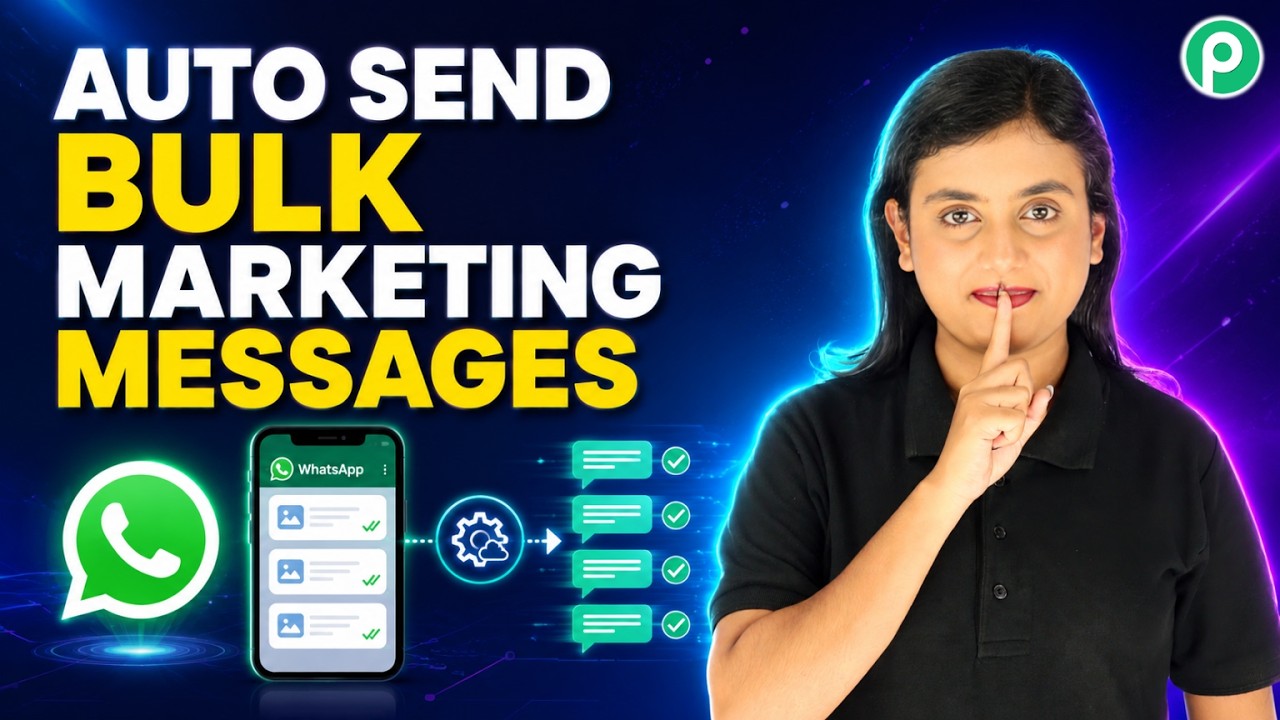
Send Bulk WhatsApp Messages to All Customers (Summer Sale 🤯)

Watch Step By Step Video Tutorial Below


1. Accessing Pabbly Connect for WhatsApp Integration

To start sending bulk WhatsApp messages for your summer sale, first, access Pabbly Connect. Open your browser and navigate to the Pabbly Connect website.

Once there, you can either sign in or sign up for a free account. If you’re a new user, signing up is straightforward. You’ll receive 100 free credits each month, allowing you to test Pabbly Connect’s features. This setup enables you to send up to 100 WhatsApp messages without any cost.


2. Creating a Message Template in Pabbly Connect

After logging into your Pabbly Connect dashboard, the next step is to create a message template. This template will be the basis for your bulk WhatsApp messages.

To create a new template, click on the ‘Add Template’ button. You will be taken to a new template page where you can specify the following:

  • Select the category for your template, such as marketing.
  • Name your template based on your requirements.
  • Choose the language for the message.
  • Select the variable type (e.g., name or number).

After entering these details, click ‘Submit’ to create your template. The template will be submitted for approval by Meta before you can use it for sending messages.


3. Setting Up a Broadcast in Pabbly Connect

Once your template is approved, you can set up a broadcast to send bulk messages. In your Pabbly Connect dashboard, navigate to the ‘Broadcast’ section and click ‘Add Broadcast’.

Here, you will need to fill in the broadcast details:

  • Choose the broadcast type, such as ‘Broadcast Campaign’.
  • Name your broadcast (e.g., “Summer Sale”).
  • Select the contact list containing your customers’ phone numbers.

After filling in these details, select the message type as the pre-approved template you created earlier. This will ensure the correct message is sent to your contacts.


4. Testing and Scheduling Your Broadcast

Before sending your broadcast, it’s essential to test it. In Pabbly Connect, you can add a test number to see how the message will appear to your customers.

After testing, you have the option to send the broadcast immediately or schedule it for later. If you choose to schedule, select the date and time you wish the messages to be sent.

For example, you might schedule your broadcast for a specific date next week at 12:00 PM. Once scheduled, Pabbly Connect will handle sending the messages automatically at the specified time, ensuring your customers are notified about the summer sale.


5. Conclusion: Sending Bulk WhatsApp Messages with Pabbly Connect

Using Pabbly Connect to send bulk WhatsApp messages is an efficient way to promote your summer sale. By following these steps, you can reach all your customers without the risk of being banned by WhatsApp.

This method is safe, straightforward, and requires no coding skills. Automate your WhatsApp messaging with Pabbly Connect and enjoy the benefits of increased customer engagement during your summer sale.

Automatically Send Google Ads Leads to GoHighLevel CRM (No-Code Automation)

Watch Step By Step Video Tutorial Below


1. Accessing Pabbly Connect for Integration

To integrate Google Ads with your CRM, the first step is accessing Pabbly Connect. You can easily do this by typing pabby.com in your browser. Once on the site, sign in to your account using the “Sign In” option if you are an existing user.

If you are new, you can sign up for free and get 100 tasks monthly. After signing in, navigate to the Pabbly Connect dashboard where you can create workflows to automate tasks. This platform is essential for connecting Google Ads with your CRM.


2. Creating a New Workflow in Pabbly Connect

Next, you need to create a new workflow in Pabbly Connect. Click on the “Create Workflow” button and name it “Automatically Send Google Ads Leads to Go High Level CRM.” Select the appropriate folder for organization.

  • Click on the “Create” button to initiate the workflow.
  • This step sets up the trigger application for your workflow.

Once the workflow is created, you will see a prompt to add a trigger application. This is crucial as it activates the workflow whenever a new lead is captured from Google Ads through Pabbly Connect.


3. Setting Google Ads as the Trigger Application

In this step, select Google Ads as your trigger application in Pabbly Connect. Choose the trigger event as “Lead Form Entry” and click on “Connect” to establish the connection.

To finalize the connection, you will receive a webhook URL from Pabbly Connect. This URL is essential as it acts as a bridge between Google Ads and Pabbly Connect. Copy this URL and navigate to your Google Ads account to set it up in your lead form settings.


4. Configuring Google Ads to Use the Webhook URL

In your Google Ads account, go to the campaign settings and find the lead form section. Here, paste the webhook URL you copied from Pabbly Connect into the leads delivery option.

  • Ensure all required fields are selected, including name, email, and phone number.
  • Click on “Send Test” to confirm that the connection is established.

Once the test data is sent, return to Pabbly Connect to verify that the data has been received correctly. This confirms that your setup is functioning as intended, allowing leads from Google Ads to flow into your CRM automatically.


5. Adding Action Step to Send Leads to CRM

After confirming the trigger setup, the next step involves adding an action to send the lead data to your CRM. In Pabbly Connect, select “Lead Connector V2” as your action application and choose “Create Contact” as the action event.

Map the necessary fields to ensure that the lead details from Google Ads are correctly populated in your CRM. This mapping is crucial for maintaining dynamic data transfer, ensuring that each new lead is accurately recorded without manual input.

Finally, click “Save and Send Test Request” to execute the workflow. Check your CRM to confirm that the contact has been created successfully. This completes the integration process, demonstrating how Pabbly Connect facilitates seamless lead management between Google Ads and your CRM.


Conclusion

In this tutorial, we explored how to utilize Pabbly Connect to integrate Google Ads with your CRM effortlessly. By following these steps, you can automate lead capturing and ensure efficient data management.

Auto Generate Invoices and Send via Email (Pabbly Connect)

Watch Step By Step Video Tutorial Below


1. Accessing Pabbly Connect for Invoice Automation

To start automating invoice creation and sending emails, you need to access Pabbly Connect. Open your browser and type the URL for Pabbly Connect. This will direct you to the homepage where you can either sign in or sign up.

If you’re a new user, click on the ‘Sign Up Free’ option. This allows you to explore Pabbly Connect with 100 free tasks monthly. Existing users can click on ‘Sign In’ to access their accounts. This setup is crucial for automating your business processes.


2. Setting Up Your Workflow in Pabbly Connect

Once logged into Pabbly Connect, navigate to the workflow page. Here, you will create a new workflow to automate the invoice process. Start by selecting Shopify as your trigger application.

  • Choose the ‘New Order’ event as your trigger.
  • Click on the ‘Connect’ button to generate a Webhook URL.
  • Copy the Webhook URL to use in your Shopify settings.

This Webhook URL acts as a bridge between your Shopify store and Pabbly Connect. Ensure you save this URL for later setup in Shopify.


3. Configuring the Shopify Webhook

Now that you have your Webhook URL, head to your Shopify account. Navigate to the ‘Settings’ section and select ‘Notifications’. Here, you will set up the Webhook to trigger on new orders.

  • Select ‘Webhooks’ and click on ‘Create Webhook’.
  • Choose ‘Order Creation’ as the event type.
  • Paste the Webhook URL you copied from Pabbly Connect.

After saving, return to Pabbly Connect to check if the status changes to waiting for a Webhook response. This confirms that your Shopify store is linked with Pabbly Connect.


4. Creating Invoices with Zero via Pabbly Connect

After setting up your Shopify Webhook, you will now create an invoice using Zero as your action app in Pabbly Connect. Select Zero and choose ‘Create Invoice’ as the event.

Click on ‘Connect’ to build a new connection. After allowing access, you will see various fields for invoice details. Use the mapping feature to dynamically fill in customer information from Shopify.

  • Select the organization and invoice type.
  • Map the customer’s name and email from the Shopify response.
  • Fill in line items and tax details.

Once all fields are mapped correctly, click ‘Save and Send Test Request’. This will create an invoice in Zero, confirming the integration is successful.


5. Sending Invoices via Gmail through Pabbly Connect

Finally, to send the generated invoice to customers, select Gmail as your action app in Pabbly Connect. Choose ‘Send Email’ as the event. Connect your Gmail account to allow Pabbly Connect to send emails on your behalf.

Fill in the required fields including the sender’s name and email. Use mapping to add the recipient’s email and include the invoice URL from the previous step.

  • Enter a subject line for the email.
  • Compose the body of the email, mapping necessary details.
  • Attach the invoice URL for the customer to access.

After completing these fields, click ‘Save and Send Test Request’. This will send the email to the customer, completing the automation process.


Conclusion

This tutorial demonstrated how to automate invoice creation and email sending using Pabbly Connect with Shopify and Gmail. By following these steps, you can enhance your business efficiency and improve customer experience.

Automatically Add Leads to Pipedrive CRM (Step-by-Step)

Watch Step By Step Video Tutorial Below


1. Access Pabbly Connect to Start Your Automation

To begin integrating Google Ads with Pipe Drive CRM, you first need to access Pabbly Connect. Open your browser and navigate to pabby.com/connect. This platform is essential for automating the process of adding leads from Google Ads to Pipe Drive.

On the homepage, you will see two options: “Sign In” and “Sign Up Free”. If you are a new user, click on “Sign Up Free” to create an account and get 100 free tasks each month. Existing users can simply sign in to their accounts. If you’re planning to purchase a subscription, remember to use the discount code provided in the video for savings.


2. Create a Workflow in Pabbly Connect

Once you are logged into Pabbly Connect, you will see the dashboard. Here, you can create a new workflow by selecting “Create from Scratch” or using the AI Workflow Builder. For this integration, we will use the AI option for simplicity.

In the AI Workflow Builder, input your automation prompt: “When a new lead comes in from Google Ads, add it to Pipe Drive CRM”. The AI will analyze your request and prompt you to select the Google Ads trigger. Choose “New Lead Form Entry” and for Pipe Drive, select “Create a Person”. After reviewing the workflow preview, click on “Approve and Create”.


3. Set Up the Trigger with Google Ads

After creating your workflow in Pabbly Connect, the next step is to set up the trigger. You will receive a webhook URL that is crucial for connecting Google Ads to Pabbly Connect. Copy this URL, as it will be needed in your Google Ads account.

Log into your Google Ads account and navigate to the lead form you have created. Under the lead delivery section, find the option for webhook integration. Paste the copied webhook URL into the designated field and name it as “test”. Select the option to send test data, which will send dummy details to Pabbly Connect for verification.

  • Copy the webhook URL from Pabbly Connect.
  • Paste it into the webhook integration field in Google Ads.
  • Send test data to verify the connection.

After sending the test data, check back in Pabbly Connect to confirm that the test data has been received successfully. This step ensures that your trigger is set up correctly and ready to capture live leads.


4. Add New Leads to Pipe Drive CRM

With the trigger set up, the next task is to configure the action that adds the new leads to Pipe Drive CRM using Pabbly Connect. You will now select Pipe Drive as the action app and choose “Create a Person” as the action event.

For this step, you will need an API token from your Pipe Drive account. Navigate to your Pipe Drive profile, select personal preferences, and copy your API token. Paste this token into Pabbly Connect to establish the connection.

  • Select Pipe Drive as the action app.
  • Choose “Create a Person” as the action event.
  • Enter your API token to connect to Pipe Drive.

After entering the API token, you will map the fields from the Google Ads lead to the corresponding fields in Pipe Drive. This mapping allows for automatic updates with new lead information each time a lead is generated.


5. Finalize the Automation Process

After setting up the mapping in Pabbly Connect, click on “Save and Send Request” to complete the process. You should receive a successful response indicating that a new person has been created in your Pipe Drive account.

To verify, log into your Pipe Drive account and check the contacts. You should see the newly created contact with the details from the Google Ads lead. This automation allows you to efficiently manage leads without manual entry, streamlining your workflow significantly.

In summary, you have successfully integrated Google Ads with Pipe Drive CRM using Pabbly Connect. This process not only saves time but also ensures that no leads are missed, allowing for better follow-up and management of potential clients.


Conclusion

This tutorial demonstrates how to automate the integration of Google Ads leads into Pipe Drive CRM using Pabbly Connect. By following these steps, you can enhance your lead management process efficiently.

Turn WhatsApp into a Customer Support Executive

Watch Step By Step Video Tutorial Below


1. Setting Up Pabbly Connect for WhatsApp Integration

To turn WhatsApp into a customer support executive, first, you need to set up Pabbly Connect. This platform allows you to automate workflows between WhatsApp and other applications seamlessly. Start by signing up for an account on the Pabbly website.

Once logged in, navigate to the dashboard and select the option to create a new workflow. This is essential for linking WhatsApp with your customer service system, ensuring that every query is captured and tracked.


2. Creating the WhatsApp Chatbot Using Pabbly Chatflow

Next, you’ll create a WhatsApp chatbot using Pabbly Chatflow. This tool enables you to design interactive chatbots that can respond to customer inquiries. Start by accessing your Pabbly Chatflow account and selecting the option to add a new flow.

  • Click on ‘Add Flow’ to begin creating your chatbot.
  • Set a trigger keyword, such as ‘support’, which will activate the chatbot when sent by a customer.
  • Design your welcome message with quick reply buttons for easy navigation.

After setting up the initial flow, ensure that your WhatsApp number is linked to Pabbly Chatflow to receive messages. This integration is crucial for providing real-time customer support.


3. Capturing and Tracking Customer Queries

Once your chatbot is live, it will capture customer queries and convert them into support tickets. This is facilitated by Pabbly Connect, which ensures that every interaction is logged appropriately. Customers can raise tickets by simply clicking on the designated button in the WhatsApp chat.

As customers interact with the chatbot, their responses, such as their name and issue type, will be recorded automatically. This data is essential for tracking and managing customer support efficiently.

To implement this, make sure to set up an API request in Pabbly Chatflow that sends all captured data to your Pabbly Connect account. This way, every customer inquiry is documented in real-time.


4. Integrating Customer Data with Google Sheets

Using Pabbly Connect, you can integrate customer data captured by the WhatsApp chatbot directly into Google Sheets. This allows for easy tracking and management of all support tickets. Set up a new action in your Pabbly Connect workflow to add a new row in your Google Sheets whenever a ticket is raised.

  • Select Google Sheets as the action application in your workflow.
  • Map the fields from the chatbot responses to the corresponding columns in your Google Sheet.
  • Test the integration to ensure data is being captured accurately.

This integration not only helps in organizing customer data but also enhances the efficiency of your support team by providing them with all necessary information at their fingertips.


5. Sending Status Updates to Customers

Finally, with Pabbly Connect, you can automate the process of sending status updates to customers regarding their support tickets. Whenever a ticket status changes, your workflow can trigger a message sent via WhatsApp to inform the customer of their ticket’s progress.

To do this, configure another action in your Pabbly Connect workflow that utilizes the WhatsApp messaging feature in Pabbly Chatflow. Ensure that the message includes relevant details about the ticket and any actions taken.

This feature greatly enhances customer satisfaction by keeping them informed and engaged throughout the support process. By leveraging Pabbly Connect, you ensure that customer support is efficient, organized, and responsive.


Conclusion

In this tutorial, we explored how to turn WhatsApp into a customer support executive using Pabbly Connect and Pabbly Chatflow. By following these steps, you can automate ticket creation, track responses, and keep customers informed, enhancing your overall support experience.

Never Miss a Lead: Send Facebook Leads to Salesforce Instantly

Watch Step By Step Video Tutorial Below


1. Introduction to Pabbly Connect

Pabbly Connect is a powerful tool for automating workflows between different applications. In this tutorial, we will explore how to use Pabbly Connect to streamline your processes effectively. By connecting various apps, you can save time and reduce manual tasks.

Understanding the basics of Pabbly Connect is essential. This tool allows you to create automated workflows that can trigger actions in one app based on events in another. This integration is valuable for businesses looking to enhance productivity.


2. Setting Up Your First Integration with Pabbly Connect

To begin using Pabbly Connect, you first need to set up your account. Start by visiting the Pabbly Connect website and signing up. Once your account is created, you can access the dashboard to create your first integration.

Follow these steps to set up your integration:

  • Log in to your Pabbly Connect account.
  • Click on the ‘Create Workflow’ button.
  • Name your workflow for easy identification.

Once your workflow is named, you can select the applications you want to connect. Pabbly Connect supports numerous applications, making it versatile for various business needs.


3. Connecting Applications Using Pabbly Connect

After setting up your workflow, the next step is to connect the applications. Choose the first application that will trigger the workflow. For instance, if you want to connect Google Sheets with Mailchimp, select Google Sheets as your trigger app.

Next, configure the trigger settings by selecting the specific event that will activate the workflow. Here’s how to do it:

  • Select ‘New Spreadsheet Row’ as the trigger event.
  • Connect your Google account to authorize Pabbly Connect.
  • Test the trigger to ensure it works correctly.

Once the trigger is successfully set up, proceed to select Mailchimp as the action app. This will allow you to define what happens in Mailchimp when a new row is added in Google Sheets.


4. Configuring Action Steps in Pabbly Connect

Now that the applications are connected, it’s time to configure the action steps. Select the action event in Mailchimp, such as ‘Add Subscriber’. This step will allow you to add new subscribers automatically based on the data from Google Sheets.

To set this up, follow these steps:

  • Map the fields from Google Sheets to Mailchimp.
  • Enter the required information, such as email address and name.
  • Test the action to ensure it works as expected.

After testing, you can activate your workflow. This means that every time a new row is added to your Google Sheets, a new subscriber will be added to your Mailchimp list automatically.


5. Finalizing and Testing Your Integration

With your workflow set up, it’s crucial to finalize and test the integration. Go back to your Pabbly Connect dashboard and review your workflow settings. Ensure all configurations are accurate to avoid any disruptions.

To test the integration:

  • Add a new row in Google Sheets with subscriber details.
  • Check Mailchimp to see if the subscriber was added.
  • If successful, your integration is complete!

Testing ensures that your workflow operates smoothly. If any issues arise, revisit the settings to troubleshoot and correct them.


In summary, this tutorial demonstrated how to integrate Google Sheets with Mailchimp using Pabbly Connect. By following these steps, you can automate your workflows effectively and enhance productivity.

Create Intelligent WhatsApp AI Agent Easily

Watch Step By Step Video Tutorial Below


1. Accessing Pabbly Connect for WhatsApp Integration

To begin the process of creating a WhatsApp AI agent, you need to access Pabbly Connect. Start by visiting the Pabbly website and navigating to the Pabbly Chatflow section. This platform allows you to connect various applications seamlessly.

After reaching the Pabbly Chatflow homepage, you will see options for signing in or signing up. If you are a new user, click on the “Sign Up Free” option. For existing users, simply log in. Remember, accessing Pabbly Connect is essential for integrating WhatsApp with your AI functionalities.


2. Setting Up Your WhatsApp AI Agent

Once logged into Pabbly Connect, navigate to the Pabbly Chatflow dashboard. Here, you will need to connect your WhatsApp number by clicking the “Start” button. You will be presented with two methods for connecting your WhatsApp account.

  • Choose the method that best suits your needs.
  • Follow the prompts to link your WhatsApp number effectively.

After connecting your WhatsApp number, you can access the AI assistant feature. This is where the magic happens, allowing you to automate responses to customer queries using Pabbly Connect.


3. Creating Your AI Assistant with Pabbly Connect

To create your AI assistant, click on the “Add” button within the AI assistant section. You will be prompted to name your assistant. This step is crucial as it defines how your customers will interact with the AI.

Next, select the instruction type from a dropdown menu. You can opt for a custom prompt or predefined examples like “AI agent” or “customer support agent.” After making your selection, Pabbly Connect will automatically update basic instructions, which you can customize further.

  • Set the AI configuration, including temperature settings for creativity.
  • Choose your AI model, such as GPT 5.2, from the dropdown.
  • Enter your OpenAI API key to connect the AI assistant.

This configuration is essential for ensuring that your WhatsApp AI agent responds accurately to queries.


4. Customizing Your AI Agent’s Response

Once your AI assistant is created, you can customize its responses using Pabbly Connect. Add header and footer messages to enhance the user experience. The header message can be a brief greeting, while the footer can include your support contact.

In the settings, you can also specify keywords that will stop the assistant from replying, ensuring that human intervention is available when needed. This feature is crucial for maintaining customer satisfaction.

  • Add fallback messages to inform users if the AI fails to respond.
  • Upload knowledge sources, such as FAQs, to improve response accuracy.

By customizing these settings, you ensure that your WhatsApp AI agent is both effective and user-friendly.


5. Activating and Assigning Your AI Agent

After configuring your WhatsApp AI agent, it’s time to activate it. Use Pabbly Connect to enable the assistant by clicking the activation button. This step is vital for making your AI agent operational.

To assign your assistant to WhatsApp chats, navigate to the inbox settings. Here, you can enable auto-reply settings and select the contact list to which your assistant will respond. This bulk assignment feature saves time and ensures consistency in responses.

  • You can also assign the assistant to individual chats if needed.
  • Simply select the chat and turn on the assistant for that specific interaction.

By following these steps, you have successfully created and assigned a WhatsApp AI agent using Pabbly Connect. This integration enhances customer interaction and streamlines communication.


Conclusion

In this tutorial, we explored how to create a WhatsApp AI agent using Pabbly Connect. By following the steps outlined, you can automate responses and improve customer engagement effectively. Pabbly Connect makes this integration seamless and efficient.

Send Bulk WhatsApp Messages to Leads

Watch Step By Step Video Tutorial Below


1. Getting Started with Pabbly Connect for WhatsApp Automation

To send bulk WhatsApp messages, you must first access Pabbly Connect. Start by navigating to the Pabbly Chartflow dashboard. If you are a new user, visit pabbl.com/chartflow to sign up for a free account.

Once logged in, you will have access to 100 free credits every month for sending WhatsApp messages. This allows you to test and explore the features of Pabbly Connect before committing to a subscription plan.


2. Adding Your WhatsApp Number in Pabbly Chartflow

After logging into Pabbly Connect, ensure that your WhatsApp number is added to the platform. This is crucial for sending messages. You can find the ‘Add WhatsApp Number’ button on the dashboard.

  • Click on ‘Add WhatsApp Number’ to input your details.
  • Follow the on-screen instructions to complete the addition.
  • Make sure your number is verified to use the messaging features.

Once your WhatsApp number is added, you can proceed to use the broadcast feature to send messages to your contacts.


3. Creating a Broadcast Using Pabbly Connect

To initiate a broadcast, navigate to the broadcast feature within Pabbly Connect. Click on the ‘Add Broadcast’ button to start creating your message campaign.

Here’s how to set it up:

  • Select the broadcast type as ‘Broadcast Campaign’.
  • Enter a name for your broadcast, such as ‘30% Off’.
  • Choose the contact list you wish to send the message to.

After setting up the broadcast, you can select the type of message you want to send, either a pre-approved template or a regular message. Ensure to follow the template guidelines for WhatsApp messaging.


4. Sending and Scheduling Your Broadcast in Pabbly Connect

Once you have created your broadcast in Pabbly Connect, it’s time to test and send it. You can send a test message to verify that everything is set up correctly.

To send or schedule your broadcast:

  • Click on ‘Send Test Message’ to check if the broadcast works as intended.
  • To schedule, select ‘Schedule for Later’ and set your desired date and time.

This allows you to manage your messaging campaigns effectively, ensuring timely delivery to your audience. Monitor the status of your messages directly within the Pabbly Connect dashboard.


5. Tracking Message Delivery Status with Pabbly Connect

After your broadcast is sent, Pabbly Connect provides tools to track the delivery status of your messages. You can view how many messages were sent, delivered, read, or failed.

For effective tracking:

  • Check the ‘View Stats’ section for detailed analytics.
  • Identify failed messages and resend them easily.

This feature ensures that your messaging campaigns are efficient and allows you to refine your approach based on performance metrics. Using Pabbly Connect means you can automate your WhatsApp marketing seamlessly.


Conclusion

In conclusion, using Pabbly Connect to send bulk WhatsApp messages is a straightforward process. This tutorial has equipped you with the necessary steps to automate your messaging effectively, enhancing your marketing strategies.

Instantly Send WhatsApp Notification to Google Forms Leads

Watch Step By Step Video Tutorial Below


1. Setting Up Pabbly Connect for Integration

To start integrating Google Forms with WhatsApp, you need to access Pabbly Connect. This platform serves as the central hub for creating automated workflows.

Once you log into your Pabbly Connect account, navigate to the workflows section. Here, you can create a new workflow that will trigger whenever a new entry is submitted via your Google Form.


2. Creating Your Google Form

Next, you will create a Google Form to collect leads. This form should include fields like name, phone number, email, and requirement type. Using Pabbly Connect, you can ensure that every submission is captured instantly.

  • Open Google Forms and create a new form.
  • Add fields for name, phone number, email, and requirement type.
  • Save your form and ensure it is ready for responses.

After setting up your form, you will link it to a Google Sheet. This is crucial for Pabbly Connect to track new entries automatically.


3. Linking Google Sheet to Pabbly Connect

Now, you need to link your Google Form responses to a Google Sheet. This integration allows Pabbly Connect to capture data in real-time.

To do this, go to the responses tab in your Google Form, click on the link to a sheet, and select your existing spreadsheet or create a new one. This action establishes a connection between your form and the sheet.

  • Select the responses tab in Google Forms.
  • Link to an existing Google Sheet or create a new one.
  • Confirm that the sheet is linked correctly.

With this setup, every new form submission will be automatically added to your Google Sheet, allowing Pabbly Connect to access the data.


4. Configuring Pabbly Connect for WhatsApp Messages

After linking your Google Sheet, return to Pabbly Connect to configure the action step. Here, you will set up the WhatsApp message that will be sent upon form submission.

Click on the plus button to add an action application and select Pabbly Chatflow. Choose the event to send a text message and connect your WhatsApp account using the API token provided by Pabbly Connect.

  • Select Pabbly Chatflow as the action application.
  • Choose ‘Send Text Message’ as the event.
  • Connect your WhatsApp account using the API token.

By doing this, you ensure that every new lead receives a personalized WhatsApp message, enhancing engagement right from the start.


5. Testing Your Integration

Once everything is set up, it’s essential to test your integration. Fill out the Google Form with sample data. This step allows you to verify that Pabbly Connect is functioning as intended.

After submitting the form, check your WhatsApp account to see if the message has been received. If configured correctly, you should see a personalized message confirming receipt of the form.

Testing ensures that your workflow is seamless and that leads are engaged immediately after submission, maximizing conversion potential.


Conclusion

Using Pabbly Connect, you can integrate Google Forms with WhatsApp to automate lead engagement. This setup ensures instant communication, helping businesses convert leads effectively.

Smart WhatsApp AI Assistant for Business Automation (Step-by-Step)

Watch Step By Step Video Tutorial Below


1. Accessing Pabbly Connect for Your AI Assistant

To create an AI-powered WhatsApp assistant, first, access Pabbly Connect by visiting the Pabbly Chatflow URL. This platform enables seamless integration of various applications, making it essential for automating your business processes.

If you’re a new user, click on “Sign Up Free” to create an account, which grants you 100 free credits monthly. Existing users can simply sign in to their accounts. Once logged in, navigate to the AI assistant page within Pabbly Connect to start building your assistant.


2. Creating Your AI Assistant with Pabbly Connect

After accessing Pabbly Connect, choose the instruction type as “AI Agent”. This step is crucial for defining how your assistant will interact with users on WhatsApp.

  • Select the temperature setting, which controls the creativity of responses.
  • Choose the AI model, which should be set to OpenAI GPT-4.1.
  • Input your OpenAI API key to establish a connection.

These configurations within Pabbly Connect ensure your AI assistant is set up correctly to handle customer queries effectively.


3. Building the Knowledge Base for Your Assistant

The knowledge base is the core of your AI assistant, providing it with the necessary information to respond accurately. Within Pabbly Connect, you can upload a knowledge base document in TXT or PDF format.

Make sure to include essential details such as:

  • Business overview to help the AI understand your services.
  • Common customer queries and frequently asked questions.

This structured knowledge base will enhance the AI’s ability to provide accurate responses to customer inquiries.


4. Configuring Your Assistant Settings in Pabbly Connect

With your knowledge base ready, the next step is to configure assistant settings within Pabbly Connect. Here, you can customize various aspects, including header and footer messages, retry attempts, and stop keywords.

For instance, you can:

  • Set the number of retry attempts if the AI fails to respond.
  • Customize the initial messages that users will see when they interact with your assistant.

>These settings ensure that your assistant is user-friendly and responsive, enhancing customer interaction.


5. Embedding Your AI Assistant into Your Business

To finalize your setup, you need to embed your AI assistant into your website or business platform using Pabbly Connect. After saving your assistant, click the embed button to get the script code.

Simply paste this script into your website’s HTML to integrate the AI assistant. This seamless integration allows your customers to interact with the assistant directly through WhatsApp, streamlining communication and improving response times.


Conclusion

Using Pabbly Connect, you’ve learned how to create an AI-powered WhatsApp assistant that automates customer interactions effectively. This setup not only saves time but also enhances customer satisfaction by providing quick and accurate responses.