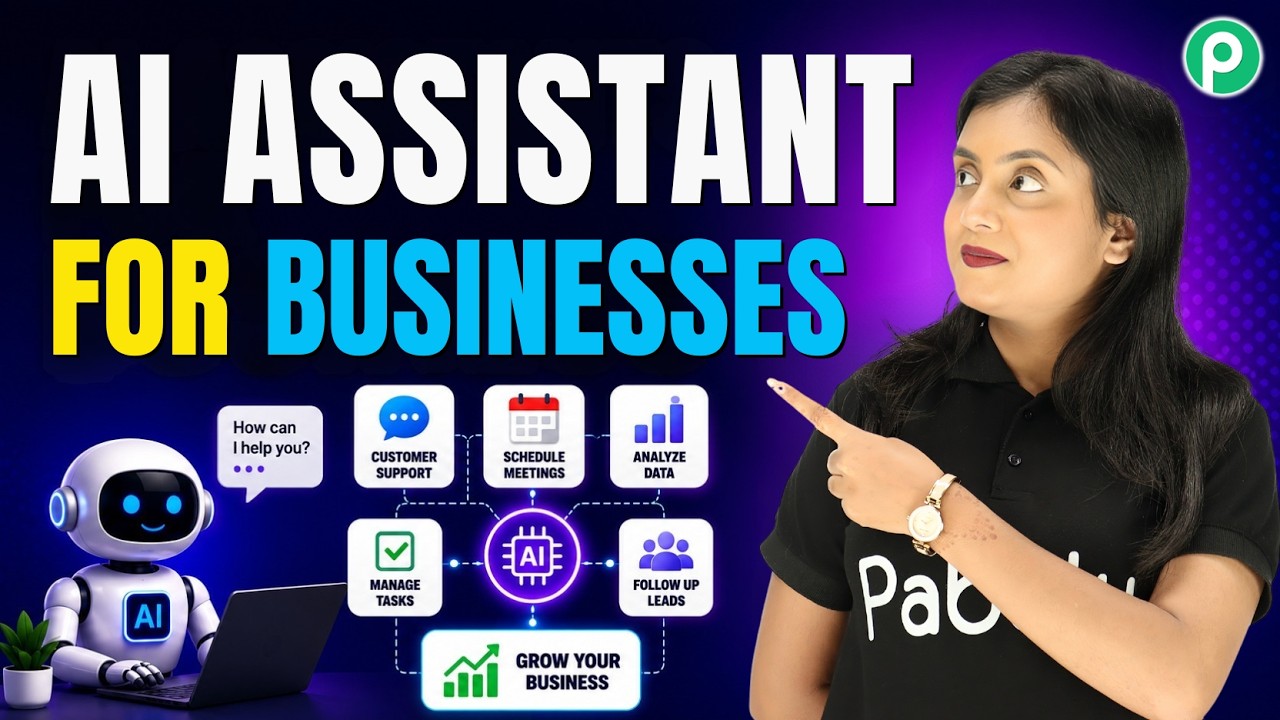
I Built a WhatsApp AI Chatbot for My Clothing Store 🤯

Watch Step By Step Video Tutorial Below


1. Setting Up Pabbly Connect for AI Integration

To begin automating your customer interactions, you first need to set up Pabbly Connect. This platform serves as the backbone for integrating various applications seamlessly. Start by visiting the Pabbly Connect website and signing in or creating a new account.

Once logged in, you will be directed to the dashboard where you can create a new workflow. Select the option to create a new workflow and give it a relevant name, such as “Clothing Store AI Assistant.” This will help you easily identify the purpose of this integration later.


2. Creating Your AI Assistant Using Pabbly Connect

After setting up Pabbly Connect, the next step is to create your AI assistant. To do this, navigate to the assistant section within the Pabbly Chartflow interface. Click on the ‘Add Assistant’ button and name your assistant, for instance, “Clothing Store AI.” This assistant will handle customer queries efficiently.

  • Choose the assistant type as “AI agent”.
  • Set the AI configuration options, including temperature settings for response creativity.
  • Integrate with OpenAI by generating an API key.

With these settings configured, your AI assistant will be ready to assist customers by answering their queries automatically. Make sure to save your settings to ensure everything is properly configured.


3. Setting Up a Knowledge Source for Your Assistant

A crucial part of your AI assistant setup in Pabbly Connect is the knowledge source. This is where you provide the information that your AI will use to answer customer queries. Create a document that outlines your business policies, product details, and any other relevant information.

Upload a PDF or TXT file containing this information to the knowledge source section. Ensure that the document is comprehensive and covers all aspects of your business, including:

  • Product descriptions and sizes.
  • Return and refund policies.
  • Delivery times and charges.

Once uploaded, the AI assistant will use this knowledge base to provide accurate responses to customer inquiries, enhancing their experience and trust in your brand.


4. Customizing Your Assistant’s Interface

After setting up the knowledge source, it’s time to customize your assistant’s interface in Pabbly Connect. This includes adding your brand name and customizing the look and feel of the assistant to match your business’s branding.

In the customization settings, you can modify aspects such as:

  • Brand name display.
  • Initial greeting messages.
  • Color schemes and themes.

By ensuring your assistant reflects your brand, you make it more recognizable and trustworthy to your customers, which can lead to increased engagement and satisfaction.


5. Activating Your AI Assistant in Pabbly Connect

The final step involves activating your AI assistant within Pabbly Connect. This is crucial to ensure that your assistant is ready to respond to customer queries on platforms like WhatsApp. Toggle the activation button to enable the assistant.

After activation, you can embed the assistant on your website or link it to your WhatsApp account. This allows your customers to interact with your AI assistant directly, enhancing their experience. You can also set specific rules for which contacts the assistant will respond to automatically, ensuring that it is tailored to your business needs.

By following these steps, you can successfully create an AI assistant using Pabbly Connect that will help automate customer interactions and improve your service efficiency.


Conclusion

By utilizing Pabbly Connect, you can seamlessly integrate AI into your clothing store operations. Automating customer queries not only saves time but also enhances customer trust and satisfaction.

Turn Ideas into AI Automations with Pabbly Connect (No Code)

Watch Step By Step Video Tutorial Below


1. Accessing Pabbly Connect for Integration

To start using Pabbly Connect, visit the Pabbly website by typing pabyt.com in your browser. This is where you can access all Pabbly applications.

Once on the site, click on the “Sign In” option at the top right corner. If you’re a new user, you can sign up for a free account to get started. After logging in, navigate to the Pabbly Connect dashboard to begin creating your workflow.


2. Creating a Workflow in Pabbly Connect

In this section, you will create a new workflow using Pabbly Connect. Click on the “Create Workflow” button. You will then have the option to create from scratch or use AI features to help set it up.

  • Choose to create from scratch or use AI.
  • Describe the workflow, such as “When a form submission is received on Teleforms, send a WhatsApp message using Pabbly Chatflow.”
  • Click “Approve and Create” to finalize the workflow setup.

After you create the workflow, you will be redirected to the workflow page, where you can start integrating Teleforms with WhatsApp through Pabbly Connect.


3. Setting Up Teleforms with Pabbly Connect

Next, you need to set up Teleforms to connect with Pabbly Connect. Copy the webhook URL provided in your workflow settings. This URL will act as a bridge between Teleforms and Pabbly Connect.

Go to your Teleforms account, navigate to the integrations section, and find the webhook settings. Remove any existing webhook URLs and paste the new one you copied from Pabbly Connect. Save the changes to finalize the connection.


4. Testing the Connection Between Teleforms and WhatsApp

To ensure that your integration is working, perform a test submission on your Teleforms contact form. This will send a sample response to Pabbly Connect.

  • Enter dummy details in the contact form.
  • Submit the form and check the response in Pabbly Connect.
  • Confirm that the details are captured successfully.

If everything is set up correctly, you will see the form submission details reflected in your workflow. This indicates that the connection between Teleforms and Pabbly Connect is functioning properly.


5. Sending WhatsApp Messages Using Pabbly Chatflow

Now, let’s configure Pabbly Chatflow to send WhatsApp messages based on the form submissions received in Pabbly Connect. Click on the Pabbly Chatflow action in your workflow and select “Send Text Message” as the action.

You will need to create a connection to your Pabbly Chatflow account by entering the API token. This token can be found in the settings of your Pabbly Chatflow account. Once the connection is established, you can map the response fields from Teleforms to customize the WhatsApp message.


Conclusion

In this tutorial, we demonstrated how to integrate Teleforms and WhatsApp using Pabbly Connect. By following the steps outlined, you can automate your workflows effectively and enhance communication through WhatsApp.

Automate Meta Ads Leads using Pabbly Connect | Facebook Lead Ads Automation Tutorial

Watch Step By Step Video Tutorial Below


1. Accessing Pabbly Connect for Automation

To start automating your Facebook Lead Ads with Google Sheets, first access Pabbly Connect by visiting pabbly.com/connect. Here, you’ll find options to sign in or sign up for a free account.

If you’re a new user, click on “Sign Up Free” to explore the platform with 100 free tasks each month. Existing users can simply sign in to their accounts. Once logged in, you’ll be directed to the Pabbly apps window where you can access Pabbly Connect.


2. Creating a Workflow in Pabbly Connect

After accessing Pabbly Connect, create a new workflow to connect your Facebook Lead Ads with Google Sheets. Click on “Create from Scratch” or use the AI workflow builder to simplify the process. Enter a prompt like “When a new lead is received in Facebook Lead Ads, then save it in Google Sheets.” This sets the foundation for your automation.

  • Select “New Lead Instant” as the trigger from Facebook Lead Ads.
  • Choose “Add a New Row” as the action for Google Sheets.
  • Review the workflow preview and click “Approve and Create”.

This step creates a connection that will automatically transfer lead data from Facebook to Google Sheets, streamlining your lead management process.


3. Setting Up the Trigger for Facebook Lead Ads

With your workflow created, it’s time to set up the trigger in Pabbly Connect. Here, you will need to connect your Facebook account. Click on “Add New Connection” and grant access to Pabbly Connect for secure data handling.

Next, select your Facebook page and the specific lead form you want to capture leads from. For example, select your page named “Prime Properties” and the lead form associated with it. This ensures that only leads from this specific form are captured.


4. Testing Lead Capture with Facebook Lead Ads

To verify that your setup works, you need to generate a test lead. Use the Meta for Developers tool to create a test submission. Select your page and form, then enter dummy details like name, phone number, and email.

  • Enter a name like “Demo User”.
  • Use a random phone number and email for testing.
  • Select the property type and submit the form.

After submitting, check your Google Sheets to confirm that the lead details have been successfully added. This step ensures that your automation is functioning correctly through Pabbly Connect.


5. Mapping Data to Google Sheets

Now that your trigger is set up and tested, the next step is to map the lead data to your Google Sheets. In Pabbly Connect, select your Google Sheets account and authorize access.

Choose the spreadsheet where you want to add the leads. For instance, select the spreadsheet titled “New Leads” and the appropriate sheet within it. Map the fields from the Facebook lead data to the corresponding columns in your Google Sheets.

  • Map the “Name” field to the corresponding column in Google Sheets.
  • Map the “Email” and “Phone Number” fields similarly.
  • Ensure all required fields are correctly mapped before saving.

Once mapping is complete, click on “Save and Send Test Request” to finalize the setup. This will ensure that every new lead from Facebook is automatically added to your Google Sheets.


Conclusion

In this tutorial, we successfully integrated Facebook Lead Ads with Google Sheets using Pabbly Connect. By following these steps, you can automate lead management effectively and ensure timely follow-ups. This integration not only saves time but also enhances your business efficiency.

Create a Complete WhatsApp Automation System for Your Business (No Coding)

Watch Step By Step Video Tutorial Below


1. Introduction to Pabbly Connect for WhatsApp Automation

Pabbly Connect is a powerful integration platform that enables you to automate various tasks, including WhatsApp interactions. In this tutorial, we will explore how to set up a WhatsApp automation system using Pabbly Connect.

By leveraging Pabbly Connect, you can create a WhatsApp chatbot that responds to customer queries, schedules visits, and saves lead information directly to Google Sheets. This automation not only enhances customer experience but also streamlines your business operations.


2. Setting Up Pabbly Connect for Your WhatsApp Chatbot

To start using Pabbly Connect, you first need to sign up or log in to your Pabbly account. Once you’re in, navigate to the Pabbly Connect dashboard. Here, you can create a new workflow specifically for your WhatsApp automation.

  • Sign up or log in to Pabbly Connect.
  • Create a new workflow for WhatsApp integration.
  • Choose the appropriate trigger for your workflow.

Once the workflow is set up, you can specify the trigger event that will initiate your WhatsApp chatbot. This can be a keyword or user input that starts the interaction.


3. Creating the WhatsApp Chatbot Using Pabbly Connect

Using Pabbly Connect, you can easily create a WhatsApp chatbot that welcomes users and provides them with options. For instance, you can set a keyword like “hello” to trigger the chatbot.

Once the trigger is activated, the chatbot sends a welcome message along with buttons for users to choose from, such as “View Properties” or “Ask Questions”. This interaction is crucial for guiding users through the available services.

  • Set the welcome message in the workflow.
  • Add buttons for user interaction.
  • Define the actions for each button.

This setup allows the chatbot to efficiently handle user queries and provide relevant information based on their selections.


4. Integrating Google Sheets with Pabbly Connect

One of the standout features of Pabbly Connect is its ability to integrate with Google Sheets. This allows you to automatically save lead information collected from WhatsApp interactions directly into a designated Google Sheet.

To set this up, you must create an API request within your Pabbly Connect workflow that connects your WhatsApp chatbot to Google Sheets. When a user schedules a visit, their details are captured and sent to the Google Sheet in real time.

  • Create an API request in your Pabbly Connect workflow.
  • Map the fields from WhatsApp to Google Sheets.
  • Test the integration to ensure data is saved properly.

This seamless integration ensures that all user data is organized and easily accessible, enhancing your business’s operational efficiency.


5. Enhancing User Experience with AI in Pabbly Connect

Another remarkable feature of Pabbly Connect is the ability to integrate an AI assistant into your WhatsApp chatbot. This AI can respond to customer queries automatically, providing immediate assistance.

To implement this, you need to set up an AI response block within your workflow. This block will trigger the AI assistant whenever a user asks a question, ensuring they receive timely and accurate information.

  • Add an AI response block in your Pabbly Connect workflow.
  • Define the knowledge base for the AI assistant.
  • Test the AI responses to ensure accuracy.

This integration not only improves user engagement but also reduces the workload on your customer service team by automating responses to frequently asked questions.


Conclusion

In this tutorial, we explored how to use Pabbly Connect to automate WhatsApp interactions and integrate Google Sheets effectively. By leveraging Pabbly Connect, businesses can enhance customer experience, streamline operations, and save valuable time.

Turn WooCommerce Orders into Instant WhatsApp Notifications (No Code)

Watch Step By Step Video Tutorial Below


1. Accessing Pabbly Chatflow for WooCommerce Integration

To start using Pabbly Chatflow, visit the Pabbly website and sign in to your account. If you are new, you can sign up for free and get access to 100 tasks monthly. This allows you to explore how Pabbly Chatflow works with WooCommerce.

After signing in, navigate to the Pabbly Connect dashboard. Here, you will be able to create workflows that connect WooCommerce with Pabbly Chatflow. This integration will allow you to automate notifications for new orders placed on your WooCommerce store.


2. Creating a New Workflow in Pabbly Connect

Once you are in the Pabbly Connect dashboard, click on the option to create a new workflow. Name your workflow something like “WooCommerce Orders to WhatsApp Notifications.” Choose the new beta workflow builder for a streamlined experience.

  • Select WooCommerce as your trigger application.
  • Set the trigger event to “New Order Created.”
  • Connect your WooCommerce account to Pabbly Chatflow.

After connecting, you will be provided with a webhook URL. Copy this URL as it will be used to link your WooCommerce store with Pabbly Chatflow. Ensure that the webhook is set up correctly in your WooCommerce settings to receive notifications whenever a new order is placed.


3. Configuring the Webhook in WooCommerce

To configure the webhook, go to your WooCommerce settings in WordPress. Navigate to the “Advanced” tab and select “Webhooks.” Here, you can add a new webhook by clicking on the “Add Webhook” button.

  • Name your webhook (e.g., “New Order Notification”).
  • Set the status to “Active.”
  • Paste the webhook URL from Pabbly Chatflow.
  • Select the topic as “Order Creation.”

Once you save the webhook, it will be updated successfully. This allows Pabbly Chatflow to receive notifications every time a new order is created in WooCommerce.


4. Sending WhatsApp Messages Using Pabbly Chatflow

After successfully setting up the webhook, the next step is to send WhatsApp messages using Pabbly Chatflow. Go back to your workflow and add a new action step. Select Pabbly Chatflow as your action application.

Choose the action event as “Send Template Message” and connect your Pabbly Chatflow account. You will need to enter your API token to establish this connection. This token allows Pabbly Chatflow to send messages on your behalf.

  • Specify the recipient’s mobile number, ensuring it includes the country code.
  • Select the WhatsApp template you created for order notifications.
  • Map the variables such as customer name, product, address, and total amount.

Once all details are entered, save the action step. This configuration will ensure that every time a new order is placed, the customer receives a WhatsApp notification automatically via Pabbly Chatflow.


5. Testing the Workflow and Finalizing Setup

To test your setup, create a new order in your WooCommerce store. After placing the order, check your WhatsApp for the notification. If everything is configured correctly, you should receive a message with the order details.

This testing phase is crucial to ensure that the integration between WooCommerce and Pabbly Chatflow is functioning as expected. If you encounter any issues, revisit the webhook settings and the action steps in Pabbly Chatflow to troubleshoot.

Once confirmed, your automation workflow is complete! Now, every time a new order is placed, customers will receive instant WhatsApp notifications, enhancing their shopping experience and keeping them informed.


Conclusion

This tutorial demonstrated how to integrate WooCommerce orders with Pabbly Chatflow for instant WhatsApp notifications. By following the steps outlined, you can automate customer communications effectively.

Convert Cold Leads into Paying Customers Using Email Drip Campaign

Watch Step By Step Video Tutorial Below


1. Accessing Pabbly Connect for Integration

To integrate Pabbly, Ple, Pab, Facebook, and YouTube, the first step is to access Pabbly Connect. Visit the Pabbly website and navigate to the Pabbly Connect section.

Once there, sign in if you are an existing user or create a free account if you are new. This will allow you to start setting up your integrations seamlessly.


2. Setting Up Integration with Pabbly Connect

After logging into Pabbly Connect, you need to set up the integration workflow. Begin by selecting the applications you want to connect, such as Pabbly and Facebook.

  • Select “Create Workflow” from the dashboard.
  • Name your workflow for easy identification.
  • Choose the trigger app, such as Facebook.

Once you’ve chosen the trigger app, you will be prompted to select the specific trigger event to initiate the workflow.


3. Defining Trigger Events in Pabbly Connect

In this step, you will define the trigger event in Pabbly Connect. This involves selecting the event that will start your integration.

For instance, if you choose Facebook as your trigger, select the event like “New Lead”. This means every time a new lead is generated, it will trigger the workflow.

  • Connect your Facebook account to Pabbly Connect.
  • Authorize Pabbly Connect to access your Facebook data.
  • Test the trigger to ensure it captures new leads correctly.

Once the trigger is set up, you can move on to defining the actions that will follow.


4. Configuring Actions in Pabbly Connect

Next, you will configure the actions that will take place when the trigger is activated in Pabbly Connect. This could involve adding new subscribers to your Pabbly email list.

To do this, select the action app, which can be Pabbly Email Marketing, and choose the action event, such as “Add Subscriber”. Input the necessary details like email and name.

Ensure that you map the fields correctly so that the data from Facebook flows into Pabbly Email Marketing seamlessly.


5. Testing and Activating the Workflow

After configuring the actions in Pabbly Connect, it’s crucial to test your workflow. This ensures that everything is functioning as intended before going live.

Run a test by generating a new lead in Facebook and check if it gets added to your Pabbly subscriber list. If the test is successful, you can activate the workflow.

Once activated, your integration will run automatically, converting leads into subscribers effortlessly.


Conclusion

In this tutorial, we explored how to integrate Pabbly, Ple, Pab, Facebook, and YouTube using Pabbly Connect. By following these steps, you can automate your processes and enhance your marketing efforts effectively.

How to Create Templates inside Pabbly Chatflow

Watch Step By Step Video Tutorial Below


1. Accessing Pabbly Chatflow for WhatsApp Integration

To begin your integration process, first access Pabbly Chatflow by clicking on the “Access Now” button in the Pabbly Chatflow box on the All Apps page. This action will direct you to the dashboard of Pabbly Chatflow, where you can start creating your WhatsApp templates.

Once on the dashboard, you will see a left column featuring various options. However, to utilize these features, you must first add your WhatsApp number to Pabbly Chatflow. Click on the button provided, select your preferred method, and add your WhatsApp number.


2. Creating a Template in Pabbly Chatflow

After successfully adding your WhatsApp number, navigate to the “Templates” section in the left column of Pabbly Chatflow. Click on the “Template List” to access the templates page. Here, you can initiate the creation of a new template by clicking the “Add Template” button.

  • Select a category: Marketing, Utility, or Authentication.
  • Name your template using only lower case alphanumeric characters and underscores.
  • Choose the language for your template from the dropdown menu.

For this example, select “Marketing” as the category and name your template appropriately. Ensure the name follows the specified format without spaces.


3. Defining Template Variables in Pabbly Chatflow

Next, you will need to set up the variable type for your template in Pabbly Chatflow. This allows for dynamic fields within your template. You can choose between two variable types: Name and Number. If you select “Name”, format your variable within curly brackets.

For instance, if you choose the Number variable type, format it similarly. After defining the variable type, select the template type, such as Text, Image, or Video. In this example, select “Text”. You can also add optional template header and footer text here.


4. Adding Interactive Elements to Your Template

In this step, you can enhance your template by adding interactive actions using Pabbly Chatflow. Options include Call to Action, Quick Reply, or None. For instance, if you select “Call to Action”, you can input a static URL and button title that will be visible to customers.

  • Add a static URL for your website.
  • Create a button title like “Shop Now” for customer interaction.

Alternatively, you can opt for Quick Replies, allowing customers to respond directly. After configuring these interactive options, finalize your template by clicking the “Submit” button for approval by Meta.


5. Finalizing Your Template in Pabbly Chatflow

After submitting your template, it will undergo a review process by Meta. Once approved, you can use it to send messages directly to your customers via WhatsApp. This entire process showcases how Pabbly Chatflow simplifies creating and managing WhatsApp templates.

Additionally, you can explore various other functionalities within Pabbly Chatflow, such as creating chatbots and scheduling broadcasts. If you’re interested in subscribing, check the pricing options available on the Pabbly website.


Conclusion

In this tutorial, we explored how to create a WhatsApp template using Pabbly Chatflow. By following these steps, you can effectively manage your WhatsApp communications and enhance customer interactions.

Just Copy This Prompt to Build Any Automation 🤯

Watch Step By Step Video Tutorial Below


1. Accessing Pabbly Connect for Automation

To start using Pabbly Connect, open your browser and navigate to pabbl.com/connect. This platform serves as the central hub for automating workflows between various applications.

If you’re a new user, you can sign up for a free account. Click on the “Sign up for free” button at the top right corner, which grants you access to 100 free tasks each month. This allows you to explore the functionalities of Pabbly Connect without any initial investment.


2. Creating Workflows Using AI in Pabbly Connect

Once logged into Pabbly Connect, navigate to the dashboard and click on “Create Workflow”. Select the “Create Using AI” option. This feature simplifies the process of building workflows by using AI to generate automation based on prompts.

  • Enter a reusable prompt for automation.
  • Specify the trigger app and action app.
  • Review and approve the generated workflow.

After entering your prompt, Pabbly Connect will create the workflow automatically. This feature significantly reduces the time spent setting up integrations.


3. Example of Simple Automation with Pabbly Connect

For instance, if you want to automate posting on Twitter whenever a new blog is published, you can use the prompt: “Create an automation workflow where when a new item appears in an RSS feed, the workflow should create a post on Twitter with the article title and link.” This showcases how Pabbly Connect can streamline your social media updates.

After submitting this prompt, select the RSS feed as the trigger app and Twitter as the action app. Once confirmed, your workflow will be ready, allowing you to automate your social media presence effortlessly.


4. Setting Up Multi-Step Automation in Pabbly Connect

Next, let’s create a multi-step automation. If you upload a new video on YouTube and want to promote it across multiple platforms, Pabbly Connect makes this easy. Use the prompt: “Create an automation workflow where when a new video is uploaded on YouTube, the workflow should create a Twitter post, publish a Facebook page post, and send a Discord message with the video link.”

After entering this prompt, select the appropriate trigger and action apps for YouTube, Twitter, Facebook, and Discord. Approve the workflow, and Pabbly Connect will generate a comprehensive automation to manage your content promotion across various platforms.


5. Conclusion: Streamline Your Automation with Pabbly Connect

In conclusion, Pabbly Connect is an invaluable tool for automating workflows between different applications. By using AI prompts, you can easily set up both simple and complex automations, enhancing your productivity and social media engagement.

Take advantage of the free tasks offered by Pabbly Connect to explore its full potential and streamline your operations today!

Automate Complaint Resolution on WhatsApp (No-Code Guide)

Watch Step By Step Video Tutorial Below


1. Setting Up Pabbly Connect for WhatsApp Integration

To begin integrating WhatsApp with Pabbly Connect, you first need to create an account on Pabbly. This platform will serve as the backbone for managing customer complaints.

Once logged in, navigate to the dashboard and select the option to create a new workflow. This is where you will set up how incoming WhatsApp messages will be processed. Ensure you have your WhatsApp number ready for integration.


2. Creating the WhatsApp Chatbot Using Pabbly Chatflow

Next, you will use Pabbly Chatflow to create a WhatsApp chatbot that captures customer complaints. This involves adding the WhatsApp number and defining the trigger event.

  • Add your WhatsApp number in the settings.
  • Select the trigger event as ‘keyword match’ to initiate the chatbot.
  • Create a welcome message for the users when they send a specific keyword.

After setting up the trigger, you need to create buttons for user interaction. This will allow customers to choose options like raising a complaint or talking to support, enhancing their experience.


3. Capturing and Managing Complaints with Pabbly Connect

Once the chatbot is operational, every complaint raised through WhatsApp will be captured by Pabbly Connect. This ensures that all customer interactions are logged for further action.

When a user selects the option to raise a complaint, the chatbot will ask for their name and the details of their issue. This information is then sent to your Pabbly Connect account, where it can be tracked and managed.

  • Ensure that the responses are mapped correctly to capture user details.
  • Use the API request feature to send this data to your Google Sheets for easy tracking.

This integration allows your support team to resolve issues promptly and maintain customer satisfaction by providing timely updates.


4. Sending Updates to Customers via WhatsApp

After capturing a complaint, Pabbly Connect facilitates sending updates back to the customer. This is crucial for keeping customers informed about the status of their complaints.

Using the data collected, you can set up automated messages that inform customers about the expected resolution time and the team handling their issue. This not only improves transparency but also enhances customer trust in your service.

  • Customize the messages based on the complaint category.
  • Integrate with Google Sheets to dynamically update customer details.

By automating these responses, you ensure that your team spends less time on manual updates and more time on resolving issues effectively.


5. Conclusion

Integrating WhatsApp with Pabbly Connect and Pabbly Chatflow streamlines the complaint management process for businesses. This setup not only enhances efficiency but also improves customer satisfaction through timely responses and updates.

By following the steps outlined in this tutorial, you can create a robust system for handling customer complaints, ensuring that no issue goes unresolved. Embrace automation with Pabbly Connect today for a better customer support experience!