My WooCommerce Orders Sync to Airtable Automatically 🤯

Watch Step By Step Video Tutorial Below


1. Accessing Pabbly Connect for Integration

To start automating WooCommerce orders, you need to access Pabbly Connect. Open a new tab and navigate to the Pabbly Connect website.

If you are a new user, sign up for free to receive 100 free tasks every month. This allows you to explore the features of Pabbly Connect without any cost. Once logged in, you will reach the Pabbly Connect dashboard.


2. Creating a Workflow in Pabbly Connect

In the Pabbly Connect dashboard, click on the “Create Workflow” button. Select the option for creating a workflow using the AI Workflow Builder. This feature simplifies the process by allowing you to input a prompt.

  • Enter your requirement: “When a new order is created in WooCommerce, automatically save the order details in Airtable as a new record.”
  • Select the trigger event for WooCommerce.
  • Approve and create the workflow.

This setup facilitates the connection between WooCommerce and Airtable through Pabbly Connect, making the automation seamless.


3. Setting Up the WooCommerce Webhook

Next, you need to set up the webhook in WooCommerce. Go to the WooCommerce settings and navigate to the “Advanced” section. Here, you will find the “Webhooks” option.

  • Click on the “Add Webhook” button.
  • Name the webhook as “New Order Created” and set its status to “Active”.
  • Paste the webhook URL provided by Pabbly Connect.

By saving this webhook, you link WooCommerce to Pabbly Connect, enabling automatic order data capture.


4. Placing an Order in WooCommerce

To test the integration, place a new order in your WooCommerce store. Add a product to your cart and proceed to checkout. Fill in the customer details, including email, name, address, and payment option.

Once the order is placed, you will receive a confirmation message. At this point, Pabbly Connect captures the order details in real-time. Refresh your Pabbly Connect trigger to see the captured response.


5. Connecting Airtable to Pabbly Connect

Now that WooCommerce is set up, the next step is to connect Airtable. Click on the “Connect” button in Pabbly Connect and select “Connect with Airtable”.

Grant access to Pabbly Connect for your Airtable account. Specify the base name and table to store the WooCommerce order details. Map the data fields from WooCommerce to Airtable, ensuring that each field corresponds correctly.

  • Map the first name, last name, email, and address fields.
  • Click on the “Save and Send Test Request” button.

Upon successful mapping, the order details will be saved in Airtable, completing the integration process through Pabbly Connect.


Conclusion

In this tutorial, we explored how to automate WooCommerce order processing using Pabbly Connect. By following these steps, you can streamline your order management efficiently.

Sync Your Leads to CRM Without Manual Work

Watch Step By Step Video Tutorial Below


1. Accessing Pabbly Connect for Automation

To start automating your CRM with Pabbly Connect, first, access the platform by visiting the official URL. This will take you to the Pabbly Connect homepage where you can sign in or sign up for a free account.

New users can click on the Pabbly Connect “Sign Up Free” button. Once signed up, you will receive 100 free tasks each month, allowing you to create multiple contacts in Zoho CRM without any cost.


2. Setting Up Facebook Lead Ads as a Trigger in Pabbly Connect

In this section, we’ll set up the trigger for our automation. The trigger will initiate the workflow every time a new lead is captured via Facebook Lead Ads. In your Pabbly Connect dashboard, navigate to the workflow page.

Click on the Pabbly Connect “Add Trigger” button and select Facebook Lead Ads as your trigger application. Choose the event “New Lead Instant” and connect your Facebook account. Ensure you have logged into your Facebook account for a smooth connection.

  • Select your Facebook page from the dropdown.
  • Choose the lead generation form you wish to use.
  • Set the response format to simple.

After setting up, click on the “Save and Send Test Request” button to ensure everything is working correctly. This will prepare your Pabbly Connect workflow to receive data from Facebook Lead Ads.


3. Testing the Trigger with a Sample Lead Submission

Once the trigger is configured, it’s time to test it. Fill out the Facebook Lead Ads form with sample data to generate a lead. This will allow you to check if the data flows correctly into Pabbly Connect.

After submitting the form, head back to your Pabbly Connect workflow to see if the response has been captured. You should see the details of the lead you just submitted, confirming that the integration is working.

  • Check for the lead’s email, name, and phone number in the response.
  • Ensure the response indicates the successful capture of data.

With this successful test, you can now proceed to set up the action app in your Pabbly Connect workflow.


4. Adding Zoho CRM as the Action App in Pabbly Connect

Next, we will set Zoho CRM as the action app to store the lead information. In your Pabbly Connect workflow, click on the “Add Action” button and select Zoho CRM from the list of applications.

Choose the action event “Create Contact” to add the lead details into Zoho CRM. Connect your Zoho CRM account by entering the required domain, which you can find in the URL of your Zoho CRM dashboard.

  • Map the fields from Facebook Lead Ads to Zoho CRM.
  • Ensure to include first name, last name, email, and phone number.

After mapping the fields, click on the “Save and Send Test Request” button to verify that the contact is created in Zoho CRM. This step confirms that your Pabbly Connect integration is functioning seamlessly.


5. Verifying Integration Success in Zoho CRM

Finally, to complete the integration process, navigate to your Zoho CRM account. Refresh the contacts page to check if the new lead has been added successfully.

You should see the lead details, including the first name, last name, email, and phone number you submitted through the Facebook Lead Ads form. This indicates that your automation is now fully operational.

With Pabbly Connect, you have successfully automated the process of adding new leads from Facebook directly into Zoho CRM, saving you time and effort.


Conclusion

In this tutorial, we demonstrated how to automate your CRM by integrating Facebook Lead Ads with Zoho CRM using Pabbly Connect. This powerful tool streamlines your workflow, ensuring that leads are captured automatically and efficiently.

Auto Add Leads to Salesforce CRM in Seconds

Watch Step By Step Video Tutorial Below


1. Accessing Pabbly Connect for Integration

To start integrating Facebook Lead Ads with Salesforce CRM, first access Pabbly Connect by visiting pabbly.com/connect. This platform allows seamless automation between different applications.

Once on the homepage, you can either sign in if you are an existing user or click on “Sign Up Free” to create a new account. New users get 100 free tasks every month to explore the features of Pabbly Connect.


2. Creating a New Workflow in Pabbly Connect

After signing in, navigate to the Pabbly Connect dashboard and click on “Access Now” to enter the workflow creation area. Here, you can either choose to create a workflow using the AI builder or start from scratch.

  • Select “Create from Scratch” for a custom workflow.
  • Choose the “Beta” version for a modern and flexible approach.
  • Name your workflow, e.g., “Auto Add Leads to Salesforce CRM in Seconds”.

Click the “Create” button to proceed. Now, you will need to set up a trigger, which is essential for the automation process. In this case, select “Facebook Lead Ads” as your trigger application.


3. Setting Up the Trigger for Facebook Lead Ads

After selecting Facebook Lead Ads as the trigger, choose “New Lead Instant” as the event. This tells Pabbly Connect to capture new leads from your Facebook Lead Ads.

You will need to establish a connection by adding your Facebook account. Once connected, select your Facebook page and the lead generation form from the dropdown menu to specify which leads to capture.

  • Ensure to select the correct page, e.g., “Prime Properties”.
  • Choose the lead form, such as “Real Estate Lead Form”.

After configuring these settings, click on “Save and Send Test Request” to test the connection. This will require a test lead submission to confirm that Pabbly Connect can successfully receive data from Facebook.


4. Mapping Lead Data for Salesforce CRM

Upon successful connection, you will see the lead details captured by Pabbly Connect. Since Salesforce requires first and last names separately, you will need to split the full name using the “Text Formatter” feature.

Add an action step and select “Text Formatter” with the event set to “Split Text”. Map the full name from the previous step and specify a space as the separator.

  • Use “Space” as the separator to divide the name.
  • Select “All” for segment index to capture both first and last names.

Click “Save and Send Request” to finalize this step. You will receive a successful response with the first and last names separated, ready for the next step.


5. Adding New Contacts to Salesforce CRM

Now that you have the lead information ready, it’s time to add a new contact in Salesforce CRM. Select Salesforce as the action application and choose “Create Contact” as the event.

Connect your Salesforce account by adding a new connection. Grant the necessary permissions, ensuring that your data is secure with Pabbly Connect.

  • Map the first name and last name from the previous step.
  • Also, map the email address and phone number to the respective fields.

After entering the required details, click on “Save and Send Request”. You should see a confirmation that a new contact has been created in your Salesforce CRM, demonstrating the effectiveness of Pabbly Connect in automating this process.


Conclusion

In this tutorial, we successfully demonstrated how to use Pabbly Connect to automate the integration of Facebook Lead Ads with Salesforce CRM. By following these steps, you can efficiently manage your leads without manual effort.

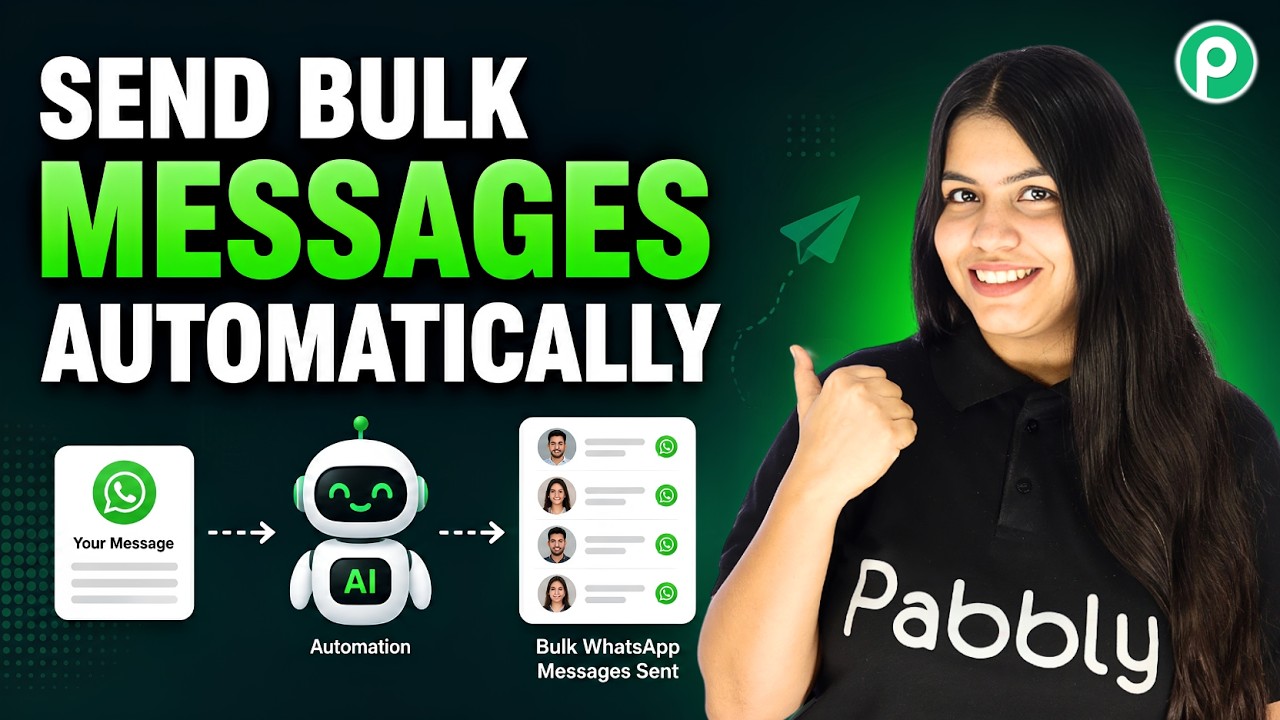
Send Bulk WhatsApp Messages to Real Estate Leads

Watch Step By Step Video Tutorial Below


1. Accessing Pabbly Chatflow to Send Bulk WhatsApp Messages

To send bulk WhatsApp messages, you first need to access Pabbly Chatflow. If you are an existing user, simply log into your dashboard. For new users, navigate to pabbl.com/chartflow to reach the landing page of Pabbly Chatflow.

Once on the landing page, click on the “Sign up for free” button located at the top right corner. This allows you to explore Pabbly Chatflow with 100 free credits each month, enabling you to send up to 100 WhatsApp messages without any cost.


2. Adding Your WhatsApp Number in Pabbly Chatflow

Before sending messages, you need to add your WhatsApp number in Pabbly Chatflow. Click on the “Add WhatsApp Number” button on your dashboard. For detailed guidance on this, refer to the complete tutorial linked in the description.

  • Navigate to the dashboard of Pabbly Chatflow.
  • Click on “Add WhatsApp Number” to input your number.
  • Follow the instructions provided in the tutorial for assistance.

Once your WhatsApp number is added, you can proceed to the “Broadcast” section from the left menu. This is where you will schedule and manage your bulk messages.


3. Scheduling Broadcasts in Pabbly Chatflow

In the Broadcast section of Pabbly Chatflow, click on the “Add Broadcast” button to create a new broadcast. You will be prompted to select the broadcast type, which should be set to “Broadcast Campaign”. Enter a name for your broadcast, such as “New Property Launch”.

Next, you need to select your contact list. If you haven’t created a contact list yet, navigate to the “Contact” section and click on “Add Contact”. You can add either single contacts or upload a CSV file for bulk contacts.

  • Select the contact list you wish to use for the broadcast.
  • Upload a CSV file containing your leads if needed.
  • Choose multiple lists if required.

After selecting your contact list, you can specify the message type for your broadcast, either a regular message or a pre-approved template message.


4. Creating Message Templates in Pabbly Chatflow

To send a pre-approved template message via Pabbly Chatflow, you need to create a WhatsApp template. Navigate to the “Template” section on the left side, and click on “Template List”. Here, you can create a new template by clicking on the “Add Template” button.

Once your template is created, it needs to be approved by Meta before you can use it. After approval, select the template for your broadcast. You can also use AI to generate template messages by entering the required details.

  • Click on “Add Template” to create a new message template.
  • Ensure your template is approved by Meta before use.
  • Select the approved template for your broadcast.

After selecting your template, you can customize it by adding dynamic values, such as the recipient’s name, to personalize the message further.


5. Sending Broadcasts via Pabbly Chatflow

Once your message is prepared, you can test it by entering a username and mobile number to send a test message. This ensures that your message appears correctly before sending it to multiple leads. Click on the “Send Test Message” button to verify.

After testing, you can choose to either send the broadcast instantly or schedule it for later. If scheduling, select a future date and time using the calendar feature in Pabbly Chatflow.

  • Click “Send Test Message” to verify your message.
  • Select “No” for instant sending or “Yes” to schedule.
  • Choose a future date and time for scheduled broadcasts.

After adding your broadcast, you can view statistics on sent, delivered, and read messages. This allows you to track the effectiveness of your campaigns and make necessary adjustments.


Conclusion

In this tutorial, we explored how to send bulk WhatsApp messages using Pabbly Chatflow. By following these steps, you can easily manage your real estate leads and enhance your communication strategy effectively.

Build Advanced OpenAI Agent for Social Media Automation

Watch Step By Step Video Tutorial Below


1. Access Pabbly Connect for Automation

To start automating your social media posts, access Pabbly Connect by visiting pabby.com/connect. Here, you will find options to sign in or sign up for free. If you’re new, click on “Sign Up Free” to create an account and receive 300 tasks monthly.

Once you are logged in, navigate to the Pabbly Connect dashboard. Here, you can create a new workflow by selecting either “Create from Scratch” or using the AI workflow builder. Choose the method that suits your needs best and proceed to set up your automation.


2. Create a New Workflow in Pabbly Connect

In Pabbly Connect, creating a workflow is essential for automation. Click on “Create New Workflow” and name it something relevant, like “Social Media Automation with OpenAI.” Choose the desired folder for organization.

Next, you will set up a trigger. Choose “Google Sheets” as the trigger app and select “New or Updated Spreadsheet Row” as the event. This will allow Pabbly Connect to monitor your Google Sheets for any new entries, which will initiate the automation.

  • Select Google Sheets as the trigger app.
  • Choose “New or Updated Spreadsheet Row” as the trigger event.
  • Name your workflow appropriately.

After setting the trigger, click on “Create” to finalize your workflow setup. This is the first step in connecting your Google Sheets with Pabbly Connect.


3. Connect Google Sheets with Pabbly Connect

To link your Google Sheets with Pabbly Connect, you will need a webhook URL. Once the trigger is set, Pabbly Connect will provide you with a webhook URL. Copy this URL and open your Google Sheets.

In your Google Sheets, install the Pabbly Connect Webhooks add-on. Go to “Extensions” > “Add-ons” > “Get Add-ons” and search for “Pabbly Connect Webhooks”. Install the add-on and refresh your Google Sheets to activate it. After refreshing, set up the webhook by going to “Extensions” > “Pabbly Connect Webhooks” > “Initial Setup”.

  • Paste the copied webhook URL into the setup.
  • Set the trigger column to the last column of your data.
  • Click “Submit” to complete the setup.

After submitting, test the connection by adding a new row in your Google Sheets. This will send data to Pabbly Connect, confirming that the integration is successful.


4. Generate Content Using OpenAI in Pabbly Connect

After successfully connecting Google Sheets to Pabbly Connect, the next step is to generate content using OpenAI. Add an action step in your workflow and select OpenAI as the application. Choose “Create Completion” as the event to generate content based on the data received from Google Sheets.

To connect OpenAI, you will need an API key. Click the link provided in Pabbly Connect to access your OpenAI account and create a new secret key. Copy this key and paste it into Pabbly Connect to establish the connection.

  • Access your OpenAI account to generate an API key.
  • Map the data fields from Google Sheets to the OpenAI prompt.
  • Click “Save and Send” to generate the content.

Once you receive a successful response from OpenAI, the content is ready for posting on social media platforms.


5. Share Generated Content on Social Media Platforms

The final step is to share the generated content on your social media accounts using Pabbly Connect. Add another action step and select Facebook Pages as the application. Choose “Share Page Post” as the event to publish the content on your Facebook page.

Connect your Facebook account and select the page where you want to post. Map the content generated by OpenAI to the message field in the Facebook post. Repeat the process for LinkedIn by selecting LinkedIn as the action application and mapping the same content to the post.

  • Select Facebook Pages and LinkedIn for posting.
  • Map the OpenAI generated content to the post message.
  • Click “Save and Send” to publish your posts.

After executing these steps, you will see the new posts on both your Facebook and LinkedIn accounts, showcasing the content generated by OpenAI through the seamless integration facilitated by Pabbly Connect.


Conclusion

In this tutorial, we explored how to use Pabbly Connect to automate social media posting by integrating Google Sheets and OpenAI. By following these steps, you can efficiently manage your social media content and streamline your marketing efforts.

This WhatsApp Broadcast Trick Will 3X Your Replies 📈

Watch Step By Step Video Tutorial Below


1. Accessing Pabbly Connect for WhatsApp Broadcasts

To start utilizing Pabbly Connect for sending WhatsApp broadcasts, first open a new tab and search for Pabbly Chartflow. This is where you can manage your WhatsApp messaging campaigns effectively.

On the official Pabbly Chartflow page, you will find options to either sign in or sign up for free. New users can sign up to receive 100 free tasks each month, allowing them to send up to 100 WhatsApp messages at no cost.


2. Setting Up Your WhatsApp Broadcast in Pabbly Connect

Once you have signed in to Pabbly Connect, navigate to the dashboard and access the Chartflow feature. Ensure that your WhatsApp number is connected to your Pabbly account, as this is crucial for sending messages.

  • Locate the broadcast feature on the left-hand side.
  • Click on the plus add broadcast button.
  • Select the broadcast type as a campaign.

Next, give your broadcast a name, such as “New Arrivals Update,” and select your contact list. You can create a contact list by adding individual contacts or uploading a CSV file with bulk contacts. This allows for efficient management of your messaging campaigns.


3. Creating Personalized Message Templates in Pabbly Connect

To enhance engagement, it is important to create personalized message templates using Pabbly Connect. After selecting your contact list, choose the message type. Opt for pre-approved template messages to ensure compliance with WhatsApp guidelines.

  • Click on the select WhatsApp template button.
  • Choose a template, such as “New Arrival Update.”
  • Insert a dynamic field using the dollar symbol for personalization.

After completing these steps, click on the done button to upload your template successfully. This personalization will ensure that each message sent is relevant and engaging for the recipient, thus increasing response rates.


4. Scheduling Your WhatsApp Broadcast with Pabbly Connect

With Pabbly Connect, you can also schedule your WhatsApp broadcasts for later. To do this, select the option to schedule the broadcast and choose your desired date and time.

For example, you can set the broadcast for April 10th at 3:55 PM. After confirming the schedule, click on the plus add broadcast button to finalize your setup. This feature allows for strategic messaging, ensuring your audience receives communications at the most opportune times.


5. Tracking and Analyzing Broadcast Results in Pabbly Connect

After sending or scheduling your broadcast through Pabbly Connect, it’s essential to track its performance. You can view the stats of your broadcast by clicking on the view stats button.

This feature allows you to analyze engagement metrics, such as response rates and message delivery success. Additionally, you can export reports to evaluate the effectiveness of your campaigns and make necessary adjustments for future broadcasts.


Conclusion

Using Pabbly Connect for WhatsApp broadcasts allows businesses to send personalized messages effectively. By following these steps, you can enhance engagement and drive better results for your messaging campaigns.

Create an AI-Powered Chatbot for Business Automation

Watch Step By Step Video Tutorial Below


1. Accessing Pabbly Connect for Your AI Assistant

To start integrating your AI assistant using Pabbly Connect, first access the platform. If you are a new user, visit the Pabbly website and sign up for a free account. Existing users can simply log in to their dashboard.

Once logged in, navigate to the Pabbly Connect section. This powerful tool allows you to create workflows that connect various applications, including My AI and WhatsApp. Follow these steps to get started:

  • Visit the Pabbly website and sign up or log in.
  • Go to the Pabbly Connect section.
  • Start creating your first workflow.

By using Pabbly Connect, you can seamlessly integrate your AI assistant into your business operations, allowing for automated responses to customer inquiries.


2. Creating Your AI Assistant with Pabbly Chatflow

Next, you will create your AI assistant using Pabbly Chatflow. This involves setting up the assistant to respond to customer queries effectively. Navigate to the AI assistant section within Pabbly Chatflow.

Here, you can select the type of AI agent you want to create. Choose the appropriate settings to ensure that your assistant is tailored to your business needs:

  • Select ‘AI Agent’ as your instruction type.
  • Set the temperature for creativity (0.5 is recommended).
  • Choose the model, like GPT-5 Mini.

Once configured, you can save your settings. This setup allows Pabbly Connect to effectively manage interactions between your AI assistant and customers, ensuring timely responses.


3. Uploading the Knowledge Base for Your AI Assistant

To enhance your AI assistant’s functionality, you will need to upload a knowledge base. This serves as the information source for your assistant to answer queries accurately. In the knowledge source tab, you can upload documents in either TXT or PDF formats.

Follow these steps to upload your knowledge base:

  • Navigate to the knowledge source tab in Pabbly Chatflow.
  • Select the file you wish to upload.
  • Click on the insert button to upload the document.

With the knowledge base in place, Pabbly Connect will empower your AI assistant to provide accurate information to customers, enhancing their experience.


4. Configuring AI Assistant Settings in Pabbly Connect

After uploading your knowledge base, you need to configure specific settings for your AI assistant. This includes setting up header messages, footer texts, and stop keywords. Access the AI assistant settings tab to make these adjustments.

Ensure you set the following configurations:

  • Enter a header message that reflects your brand.
  • Set a footer message for customer reassurance.
  • Specify any stop keywords to manage conversations effectively.

These settings help tailor the customer interaction experience, making it more personal. By using Pabbly Connect, your AI assistant will be able to handle inquiries efficiently while maintaining brand voice and consistency.


5. Enabling Your AI Assistant on WhatsApp

The final step is to enable your AI assistant on WhatsApp through Pabbly Connect. This integration allows your assistant to respond to customer messages directly within the WhatsApp platform, streamlining communication.

To enable this feature, follow these steps:

  • Go to the settings and select inbox settings.
  • Enable AI auto replies for all contacts or specific contact lists.
  • Choose the AI assistant you created to link with WhatsApp.

With these configurations, your AI assistant is live on WhatsApp, ready to assist customers. This integration showcases the power of Pabbly Connect in automating customer interactions, allowing your business to operate more efficiently.


Conclusion

In this tutorial, we explored how to integrate My AI, Pabi, and WhatsApp using Pabbly Connect. By following these steps, you can automate customer interactions and enhance your business efficiency. Start leveraging the power of AI today!

Instantly Notify Buyers of Price Drops via WhatsApp

Watch Step By Step Video Tutorial Below


1. Accessing Pabbly Chatflow for Price Drop Alerts

To start using Pabbly Chatflow, navigate to the Pabbly Chatflow website. If you are an existing user, click on the “Sign In” button located in the top right corner. New users can create a free account by clicking the “Sign Up Free” button.

Once logged in, you will have access to the dashboard. Here, you can manage broadcasts and integrate with WhatsApp. Make sure to add your WhatsApp number to Pabbly Chatflow for seamless communication with your customers.


2. Creating a Broadcast in Pabbly Chatflow

Creating a broadcast in Pabbly Chatflow is essential for notifying customers about price drops. To do this, select the “Broadcast” option from the left sidebar. Click on the “Add Broadcast” button to start the process.

  • Choose the broadcast type as “Broadcast Campaign”.
  • Give your broadcast a meaningful name, such as “Price Drop Alert”.
  • Select the contact list of customers to whom you want to send the message.

After selecting your contact list, you can move on to the message type. Choose between a pre-approved template or a regular message, depending on your needs. This flexibility allows you to customize your notifications effectively using Pabbly Chatflow.


3. Setting Up Message Templates in Pabbly Chatflow

In this section, you will learn how to set up a message template for your broadcast using Pabbly Chatflow. After selecting the message type, you can either choose a pre-approved template or create a new one.

For a price drop alert, you might want to include dynamic fields like customer name, property details, and pricing. Here’s how to do it:

  • Add a dynamic field for the customer’s name using the format $name.
  • Include the property name, location, old price, and new price in the message body.
  • Test the template to ensure all dynamic fields work correctly.

Once your template is ready, you can proceed to send a test broadcast to ensure everything is functioning as expected with Pabbly Chatflow.


4. Sending and Scheduling Broadcasts with Pabbly Chatflow

After creating your message template, you can send your broadcast to customers using Pabbly Chatflow. You have the option to send the broadcast immediately or schedule it for a later time.

If you choose to schedule, simply select the date and time for the broadcast. This feature allows you to optimize your outreach based on customer availability. After confirming the details, click on the “Add Broadcast” button to finalize your setup.

By using Pabbly Chatflow, you ensure that your customers receive timely notifications about price drops, which can significantly improve your conversion rates.


5. Conclusion

In summary, utilizing Pabbly Chatflow allows you to automate WhatsApp notifications for price drops effectively. By following the steps outlined, you can ensure that interested customers receive timely updates, enhancing your chances of converting leads into sales.

Start using Pabbly Chatflow today to streamline your customer communication and boost your sales efforts.

Turn WhatsApp Leads into HubSpot Contacts Instantly (No-Code)

Watch Step By Step Video Tutorial Below


1. Accessing Pabbly Connect for Integration

To start integrating WhatsApp Cloud API with HubSpot CRM, you need to access Pabbly Connect. Visit the Pabbly website by typing pabby.com in your browser. Once there, sign in to your account using the “Sign In” option at the top right corner.

If you are a new user, click on “Sign Up for Free” to create an account and receive 100 free tasks monthly. After signing in, you will see all Pabbly applications. Click on Pabbly Connect to access the app dashboard where you can manage your workflows.


2. Creating a Workflow in Pabbly Connect

In this section, we will create a new workflow to automate the process of adding WhatsApp leads to HubSpot. Click on “Create Workflow” and choose the “New Beta” workflow builder for a more flexible experience. Name your workflow, for example, “Turn WhatsApp Leads into HubSpot Contacts Automatically”.

  • Select the folder for your workflow, such as “WhatsApp Automations”.
  • Click on “Create” to finalize the workflow setup.

After creating the workflow, you need to set up the trigger application. In this case, select “WhatsApp Cloud API” as the trigger application and “Message Notification” as the trigger event. Click on “Connect” to proceed with the integration.


3. Connecting WhatsApp Cloud API to Pabbly Connect

This step involves connecting your WhatsApp Cloud API to Pabbly Connect using a webhook URL. Copy the webhook URL generated by Pabbly Connect and navigate to the Meta for Developers dashboard. Select your application and go to the WhatsApp configuration settings.

In the configuration settings, paste the webhook URL and enter the verify token from the Pabbly workflow. After pasting the URL, click on “Verify and Save”. This action will establish a connection between WhatsApp Cloud API and Pabbly Connect.

  • Toggle on the message setting in WhatsApp configuration.
  • Send a test message to confirm the connection.

After sending the test message, check your Pabbly workflow to see if the response has been captured successfully. This confirms that the connection setup is working correctly.


4. Adding HubSpot CRM as Action Application

Now that the WhatsApp connection is established, it’s time to add HubSpot CRM as the action application in Pabbly Connect. Click on “Add New Action Step” and select HubSpot from the action application options. Choose “Create a Contact” as the action event.

If you have an existing connection, select it; otherwise, click on “Add New Connection” to connect your HubSpot account to Pabbly Connect. After successful connection, you will need to map the incoming WhatsApp data to the required fields in HubSpot.

  • Map the first name, phone number, and message fields using the data captured from WhatsApp.
  • Ensure that you set default values for any optional fields you wish to leave empty.

Once all the required fields are filled, click on “Save and Send Test Request” to finalize the contact creation in HubSpot CRM.


5. Conclusion: Automating WhatsApp Leads to HubSpot with Pabbly Connect

In this tutorial, we successfully integrated WhatsApp Cloud API with HubSpot CRM using Pabbly Connect. The process involved setting up a trigger for incoming WhatsApp messages and creating contacts in HubSpot based on that data.

This powerful automation allows businesses to streamline their lead management processes efficiently. By using Pabbly Connect, you can ensure that every new WhatsApp lead is captured and organized in your HubSpot CRM without manual intervention.

To summarize, we created a workflow in Pabbly Connect, connected WhatsApp Cloud API, and added HubSpot CRM as an action application. This integration not only saves time but also enhances productivity in managing leads.

Build a Smart WhatsApp Chatbot for Appointment Scheduling

Watch Step By Step Video Tutorial Below


1. Accessing Pabbly Connect for WhatsApp Integration

To create a WhatsApp chatbot for appointment scheduling, you need to access Pabbly Connect. Start by visiting the Pabbly Connect website to log in or sign up. If you’re new, sign up for a free account to explore the features.

Once logged in, you can create a new workflow that will connect your WhatsApp chatbot with your appointment scheduling system. This integration is crucial as it automates the entire process, allowing users to book appointments seamlessly through WhatsApp.


2. Setting Up Pabbly Chatflow for Appointment Booking

Next, navigate to the Pabbly Chatflow page. Here, you’ll configure the chatbot to handle appointment requests. Start by creating a new flow and naming it appropriately, such as “WhatsApp Appointment Chatbot”.

  • Drag and drop a trigger block to initiate the flow.
  • Set the trigger to respond to specific keywords, like “hello”.
  • Add a welcome message to greet users when they start the chat.

By using Pabbly Connect, you ensure that all user interactions are captured and processed correctly, making the appointment scheduling efficient and user-friendly.


3. Configuring Appointment Options in Pabbly Chatflow

After setting up the initial greeting, the next step is to configure the appointment options. This involves creating buttons for users to select treatments or services offered by your clinic.

  • Add a button labeled “Book Appointment” to your welcome message.
  • Create a list of treatments available, such as teeth cleaning and checkups.
  • Link the selected service to a question asking for the preferred appointment date.

This setup allows users to interactively choose their desired service, while Pabbly Connect manages the backend processes, ensuring that the data flows smoothly into your appointment system.


4. Automating Data Collection with Pabbly Connect

Once users provide their appointment details, it’s essential to automate the data collection process. This is where Pabbly Connect plays a pivotal role in capturing and storing user information.

Configure an API request in your Pabbly Chatflow to send the collected data to a Google Sheet. This ensures that all appointment bookings are recorded accurately. You’ll need to:

  • Set up a webhook URL in Pabbly Connect.
  • Map the fields in your Google Sheet to the data collected from users.
  • Test the integration to ensure data is being captured correctly.

This integration allows for real-time updates and helps in managing appointments effectively, showcasing the strength of Pabbly Connect in automating workflows.


5. Finalizing the WhatsApp Chatbot Setup

After configuring all necessary components, it’s time to finalize your WhatsApp chatbot. Review all settings and ensure everything is functioning as intended. This includes checking the messages, appointment confirmations, and data flow.

Once satisfied, click the save button to activate your chatbot. Users can now book appointments directly through WhatsApp, simplifying the process significantly.

With Pabbly Connect, you have created an efficient appointment scheduling system that enhances user experience and streamlines operations. Your chatbot is now ready to assist customers in booking their appointments effortlessly.


Conclusion

By integrating Pabbly Connect and Pabbly Chatflow, you can create a WhatsApp chatbot for appointment scheduling that automates your business processes. This setup not only enhances user experience but also improves efficiency.