How to Sell Cornflakes Online | Step by Step (Free Method)

How To Sell Cornflakes Online

Ideal For: All the cornflakes manufacturers, cornflakes sellers, local shop owners, cornflakes makers, and other merchants can use this method to sell cornflakes online.
How To Sell Cornflakes Online

Why Choose this Method to Sell Cornflakes Online?

Unlike any other solution, this method allows you to:

  • List and sell your cornflakes for FREE. Absolutely no payment required.
  • No need to pay commission on any of your sale.
  • Multiple payment options like PayPal, Credit Card, etc to collect payment from a single place.
  • Sell one time or recurring subscriptions of your cornflakes.
  • Collect payments & sell products in any currency as per your requirement.
  • Give discounts on your products by offering special coupon codes.
  • Add sales commission agents to help you in selling cornflakes online.

Get Pabbly Subscription Billing for Free

Breakfast is considered as the most important meal of the day. And a huge amount of people prefer eating cornflakes in their breakfast as it is rich in fiber proteins, etc. That is the reason why cornflakes selling business never gets down. Therefore, taking this business online could be the right step that can help you increase your revenues in no time.

Hence, we would like to suggest an amazing software that can help you to start cornflakes business online i.e, Pabbly Subscription Billing. Using this tool you can create stunning checkout pages that can be embedded in your websites and shared on social media accounts. Here are the advantages that this software includes:

  • List and Sell Unlimited Designs Online
  • No Transaction Fees
  • Collect Payment Offline/Online
  • Add Tax and Delivery Charges
  • Revenue Management
  • Tracking & Analytics

Now, let’s get started by creating a checkout page with Pabbly Subscription Billing to sell cornflakes online.

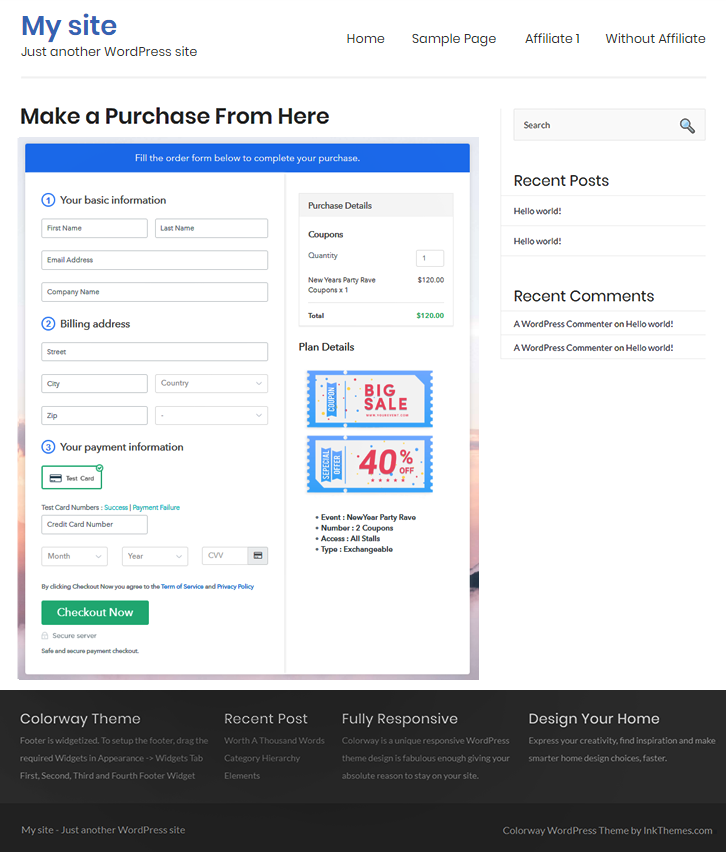
Final View of Checkout Page For Your Cornflakes Selling Business
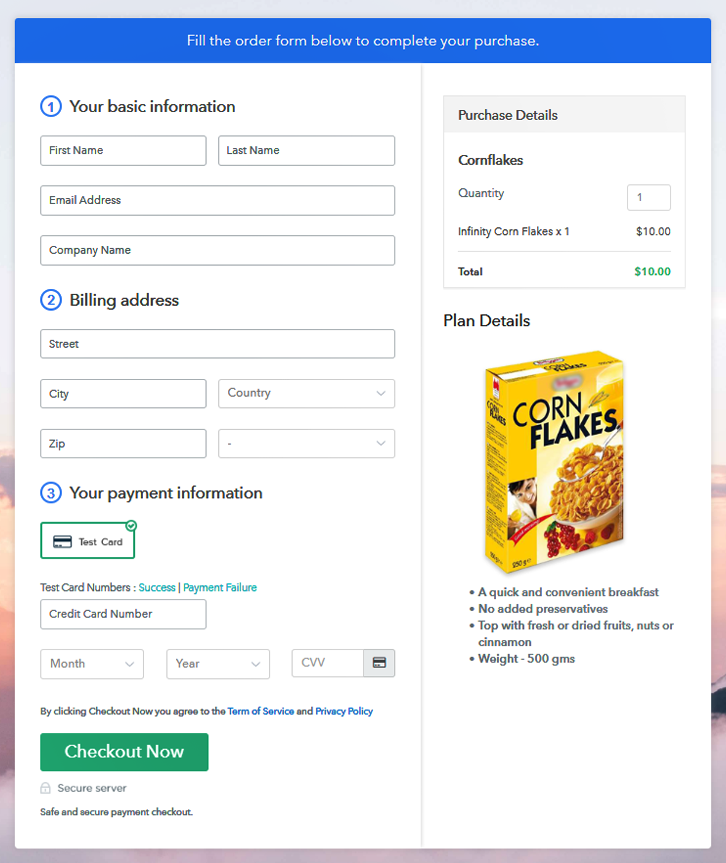
Checkout to Sell Cornflakes Online

Preview Checkout Page

Step 1: Log in to Pabbly Subscription Billing
Signup

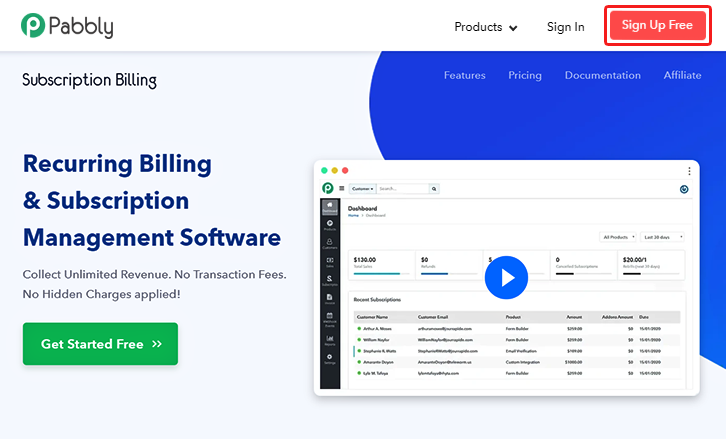
To begin the whole procedure, you need to go on the Pabbly Subscription Billing website. Later, simply click on the “Sign up Free“ button. You can complete the signup process by either manually filling all the details or simply sign in via Gmail account.

Sign Up For Free!

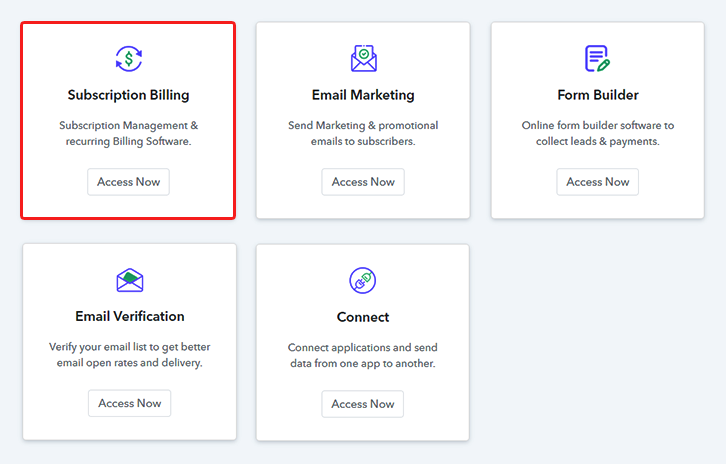
Step 2: Select Subscription Billing

Access Subscription Billing

Step 3: Account Setup
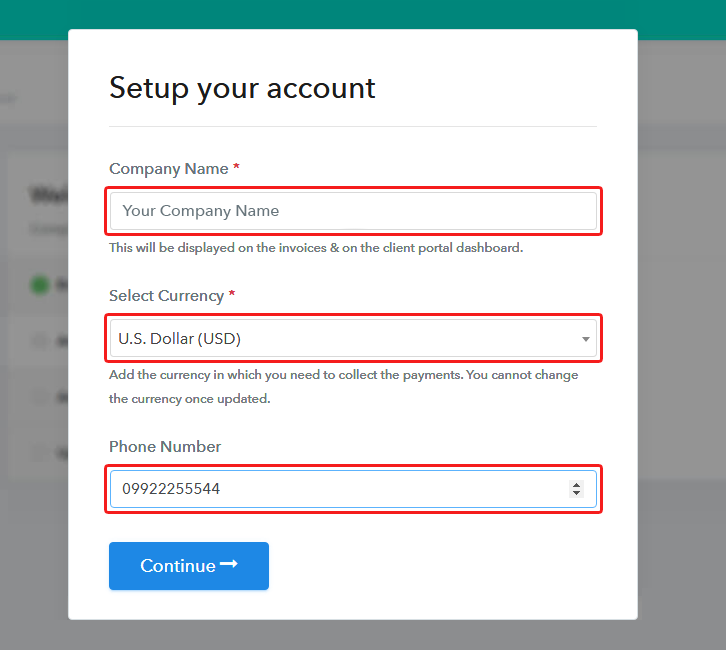
Setup Account

A dialog box will be generated after clicking on the “Acess Now” button where you need to enter the details like company name, currency, phone number, etc. Once you complete filling the whole information, just press the blue “Continue” button to complete the entire process.

Step 4: Connect Payment Gateways & Start Cornflakes Selling Business Online
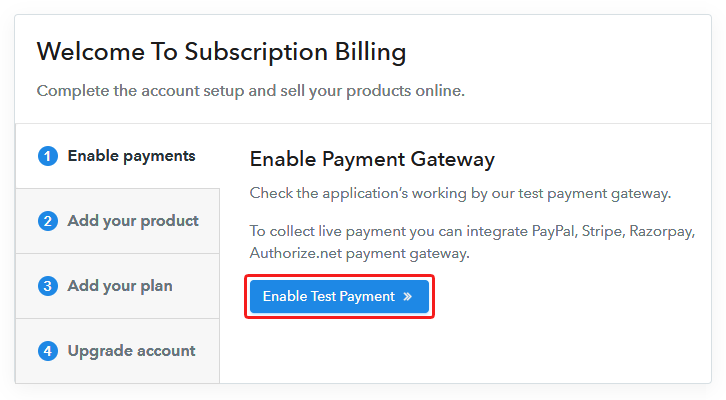
Connect Payment Gateway

Pabbly Subscription Billing provides a dummy payment gateway to provide customers a seamless payment experience. Here, you can test the complete payment experience by pressing the “Enable Test Payment” option. Not only that, but Pabbly Subscription Billing allows you to integrate with many payment gateways like PayPal, Authorize.net, Stripe, etc. Beneath this paragraph, you can find their integration guides to embed the payment gateway of your choice.

Step 5: Add Product for Your Cornflakes
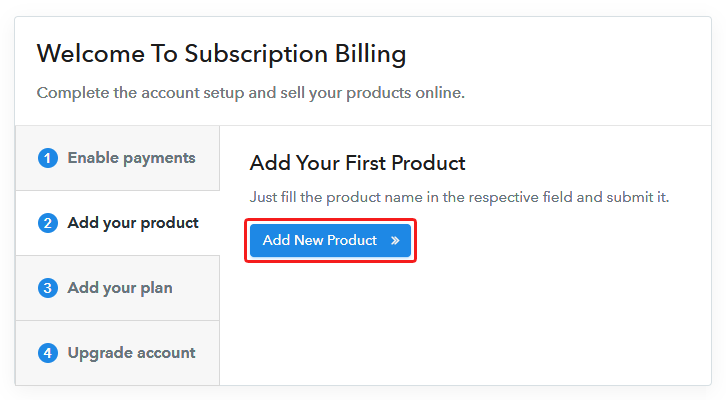
Add Product

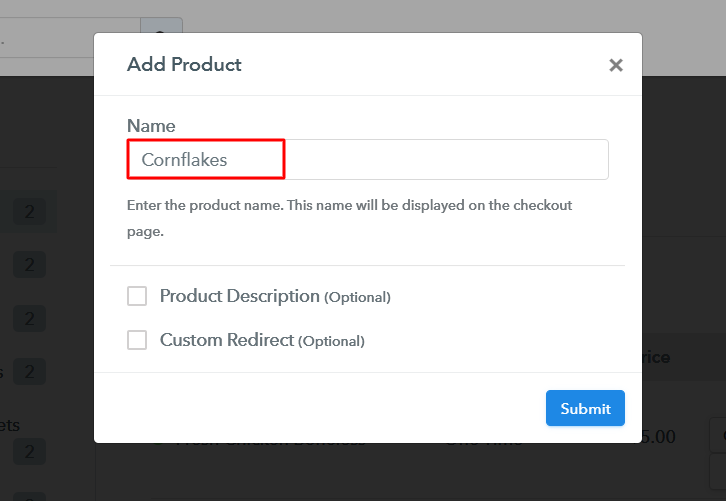
After embedding payment gateway, its time to add your product by pressing the “Add New Product” button. This will generate a dialog box where you need to enter the name of the cornflakes and give a product description.

Add Product Checkout to Sell Cornflakes Online

Fill out all the details like the name of the product and voila your product is created.

Note: Here you can add all the products related to the similar category by creating plans for each of them.

Step 6: Add Plans 

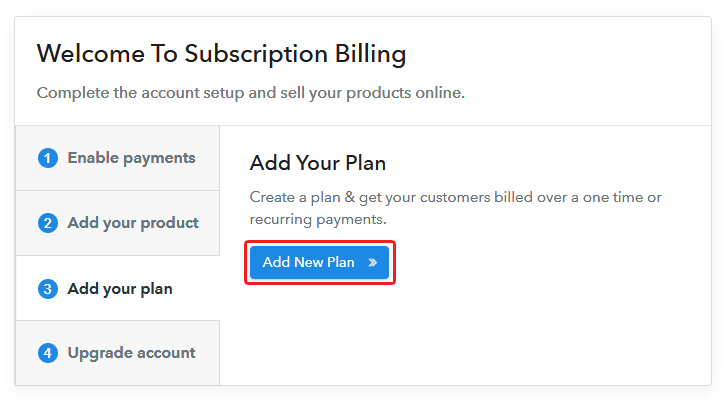
Now, its time to add plans for different varieties of cornflakes available in your shop.

(a) Select Add New Plan

Add Plan

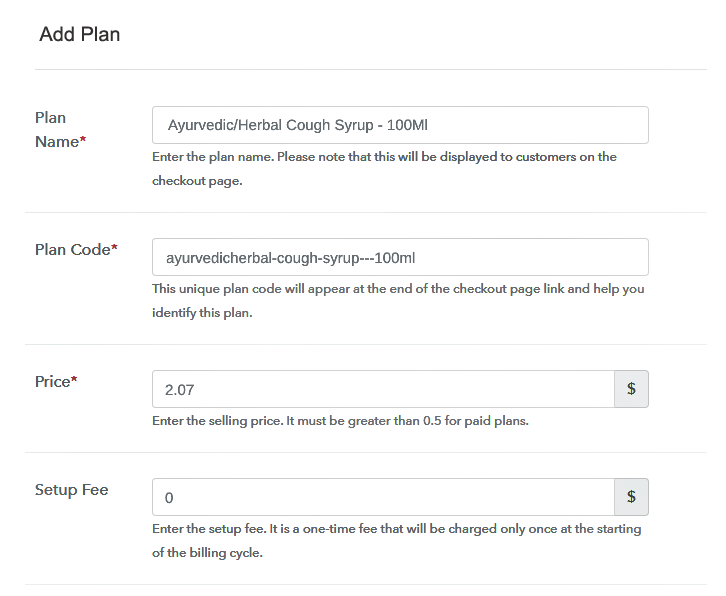
(b) Specify the Plan & Pricing Details
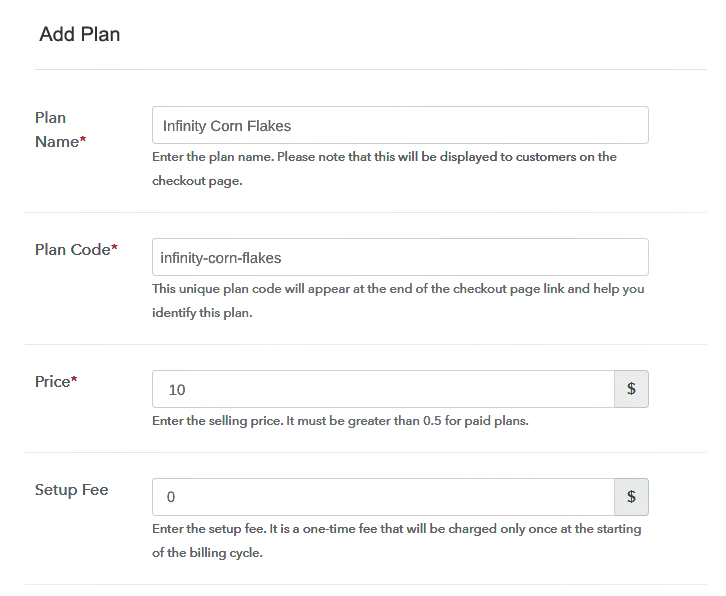
Add Plan Checkout to Sell Cornflakes Online

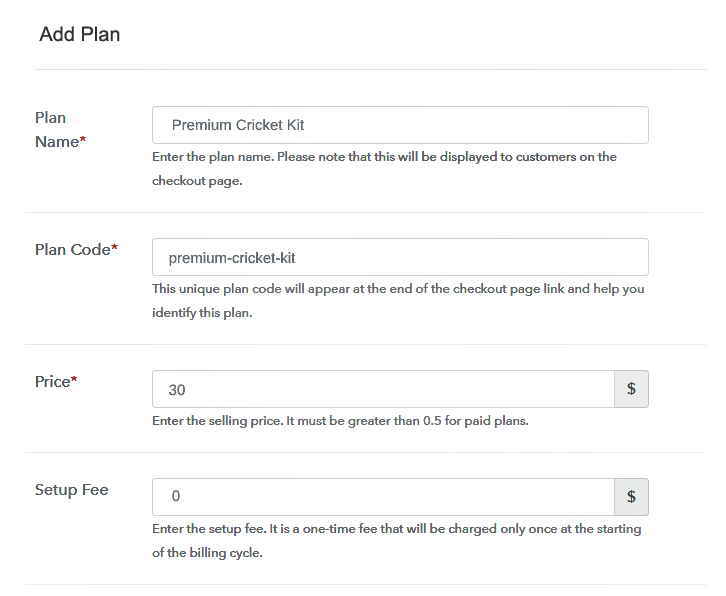
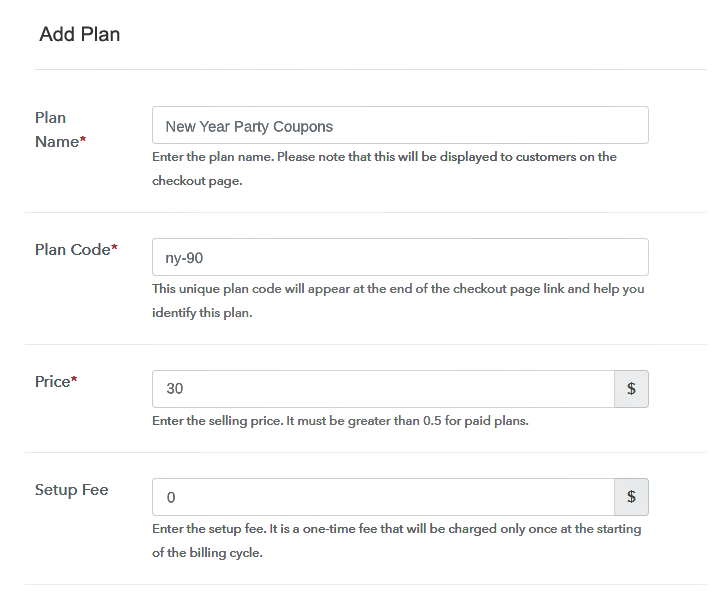
Later, you need to fill in information like plan name, code, price, setup fees, etc to complete the process.

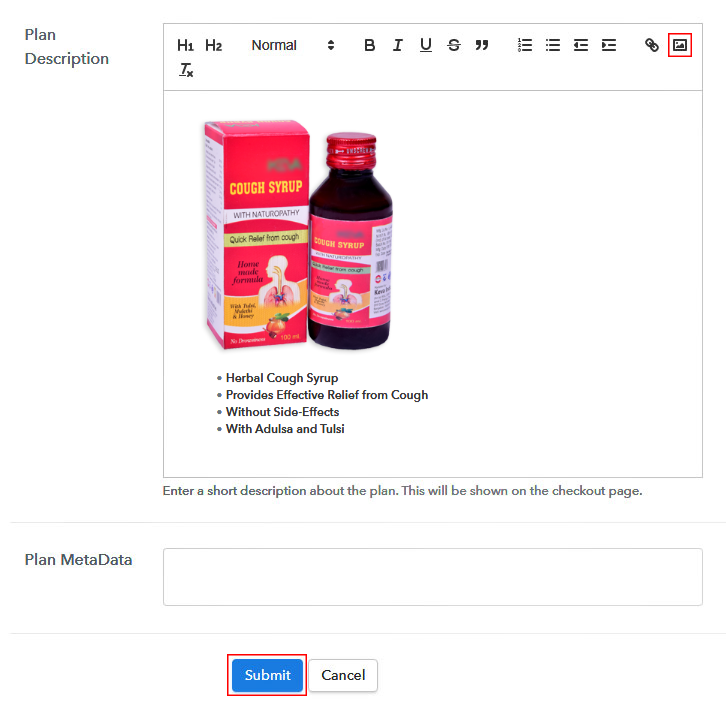
(c) Add Image & Description of Cornflakes
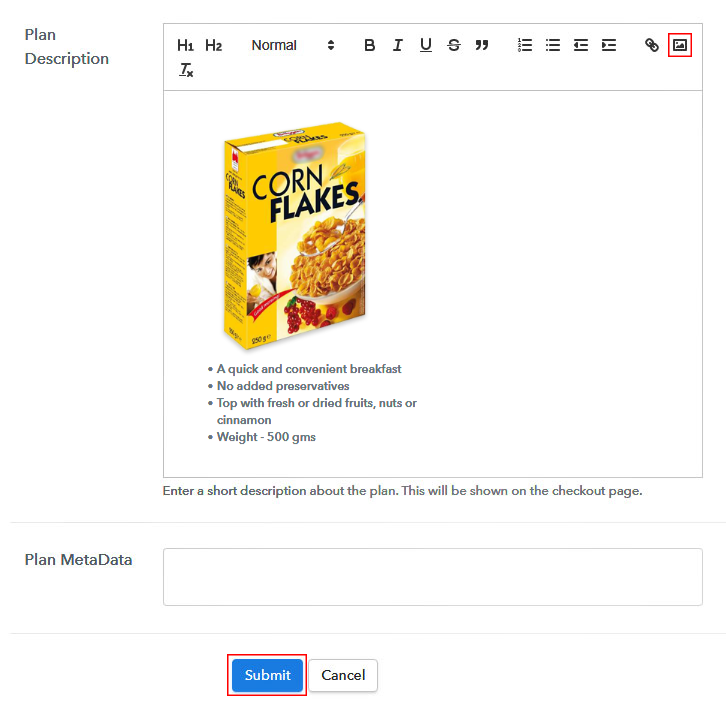
Add Description Checkout to Sell Cornflakes Online

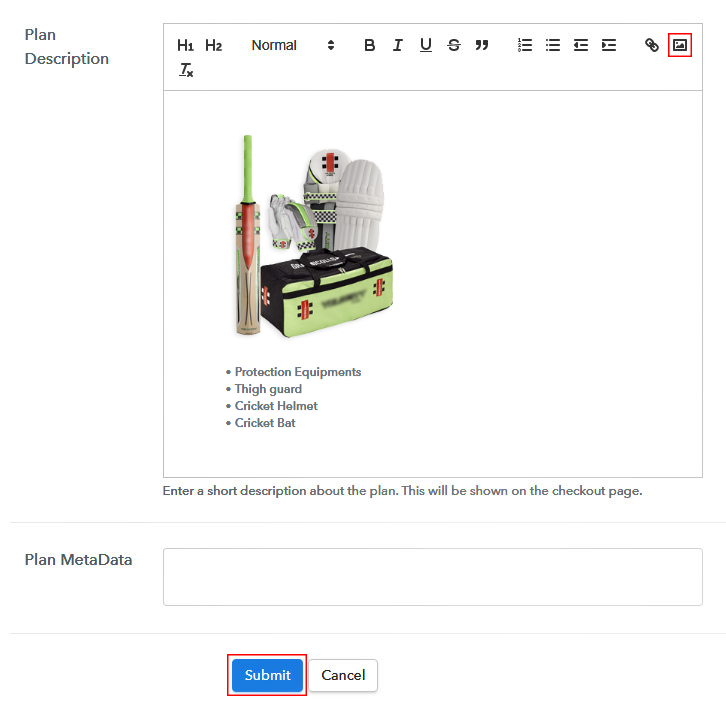
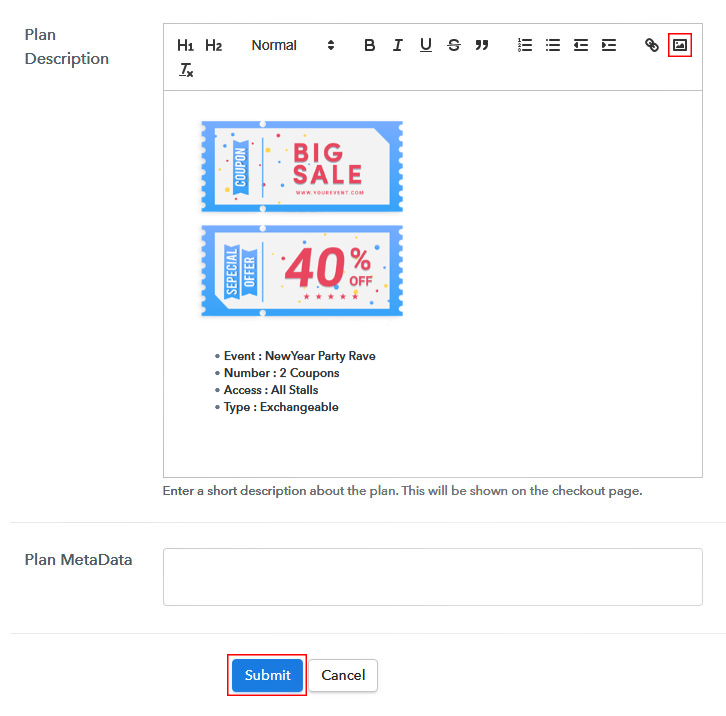
Now add some pictures of your cornflakes and insert them using the upload image button.

Besides that, you can even give a brief about the cornflakes by providing some useful information about cornflakes like flavor, fiber, etc. When you finish doing that just press the “Submit” button.

Moreover, by using the same steps mentioned above you can list more products of cornflakes that you want to sell online.

Step 7: Share your Checkout Page

Share Checkout Page on Social Media

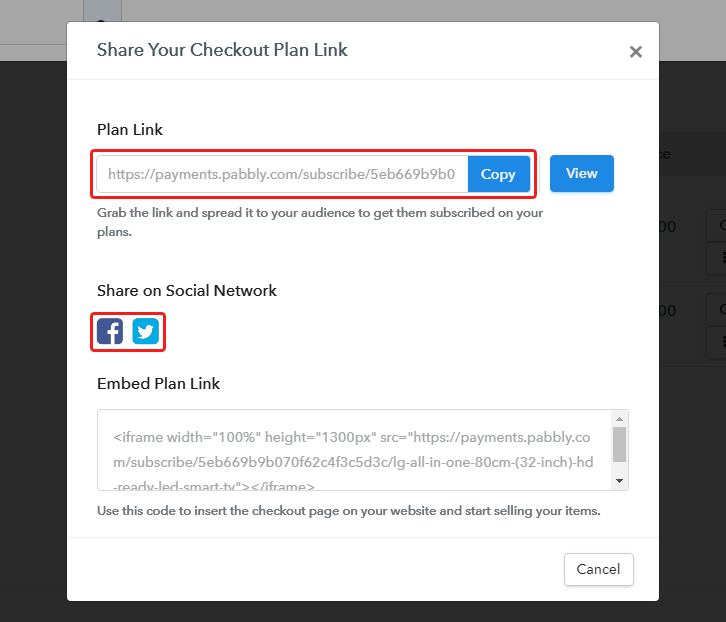
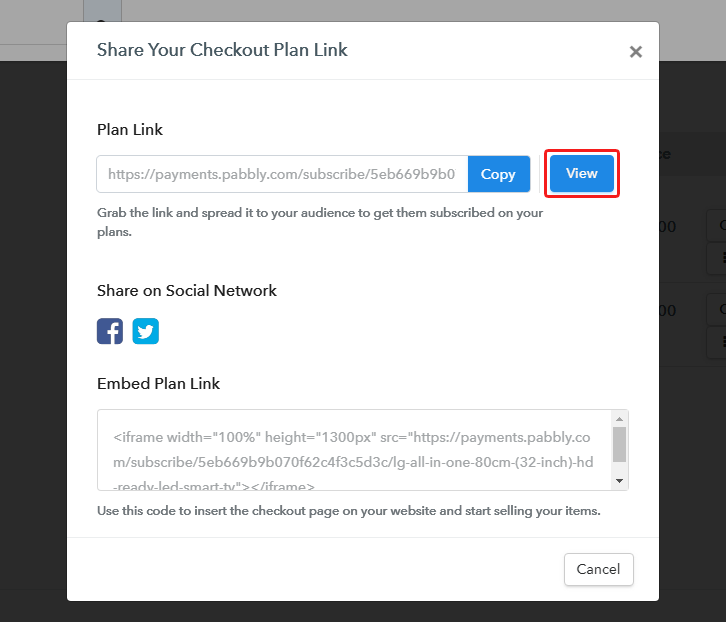
In order to sell your products online, you can share the checkout links by using these three methods:

  • By using the respective buttons of Facebook and Twitter, you can sell cornflakes on social media platforms.
  • Moreover, you can even share the plan link to your customers directly with the help of emails, SMS, etc.
  • Additionally, you can embed the plan link within the buttons & add anchor text where you can place checkout links to redirect customers on checkout pages.

Step 8: Preview Checkout Page

Follow up the recommended steps to preview the checkout page:

(a) Click on the View Button

View Checkout Plan

(b) Take a Look at the Checkout Page

Checkout to Sell Cornflakes Online

Step 9: Embed Checkout Page in Site & Sell Cornflakes Online
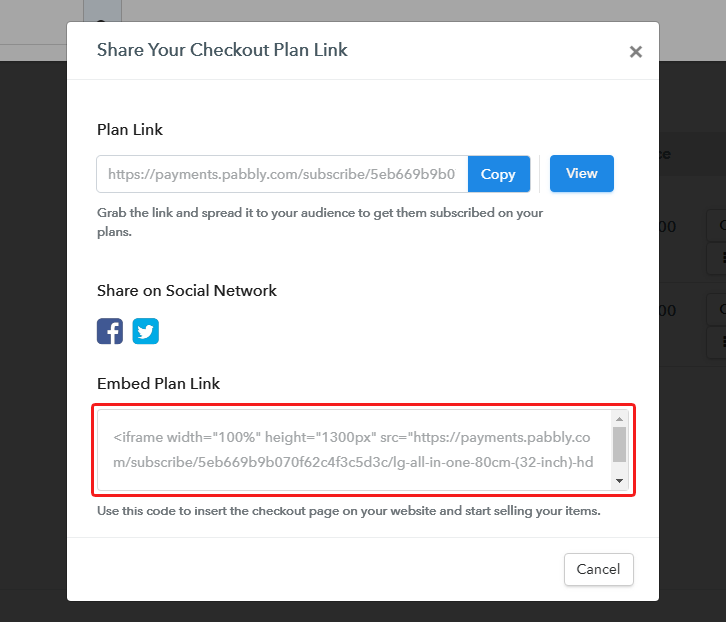
Embed Checkout Page on Website

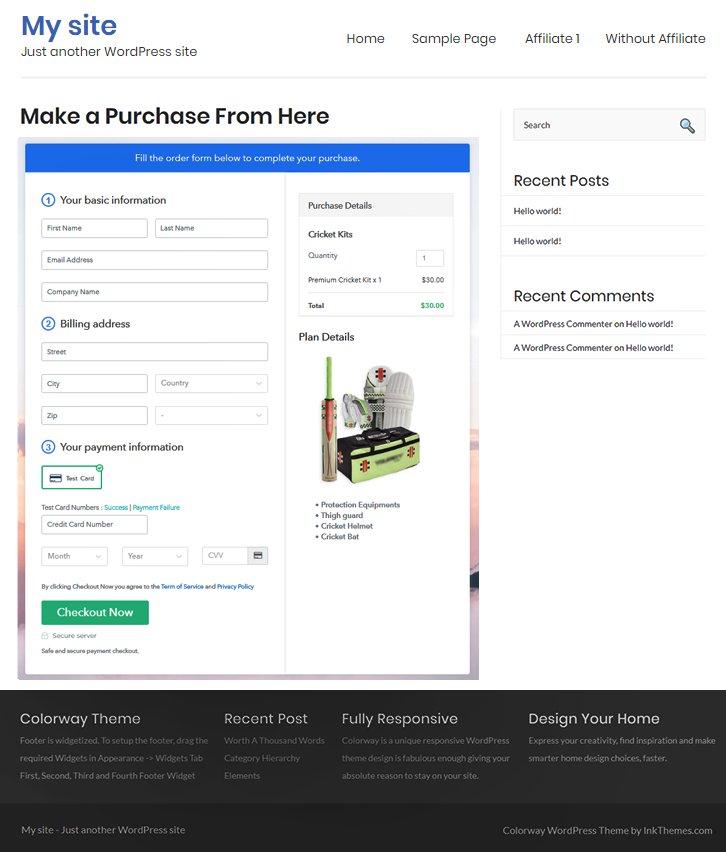
Now, copy the link and add the checkout page to sell cornflakes online at any suitable place on your WordPress site.

(a) Edit the Page & Paste the Copied Link
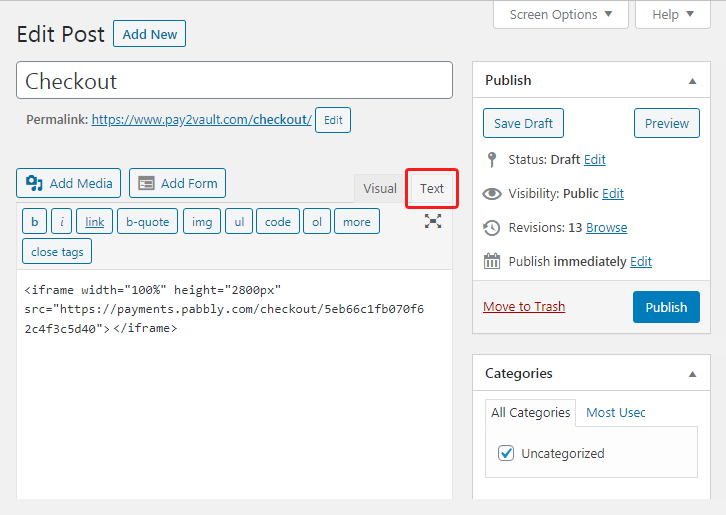
Embed Checkout Page on Website

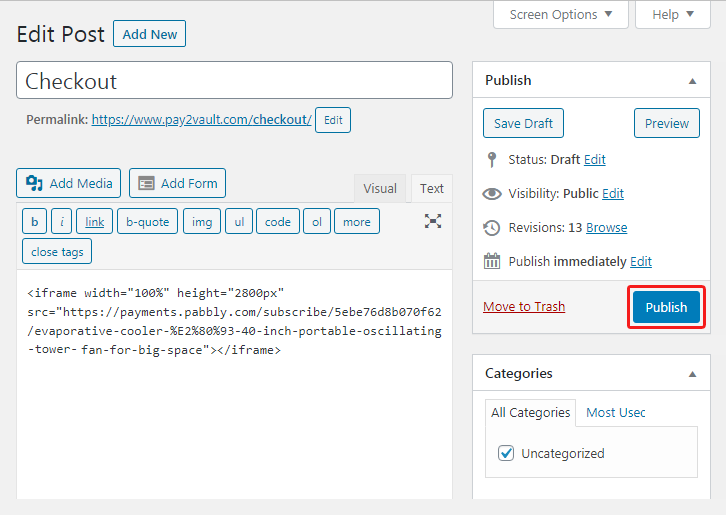
Additionally, paste the plan link of the cornflakes on a text editor of the WordPress dashboard.

(b) Save & Publish the Checkout Page

Save_and_Publish

Subsequently, press the “Publish” button, after making changes.

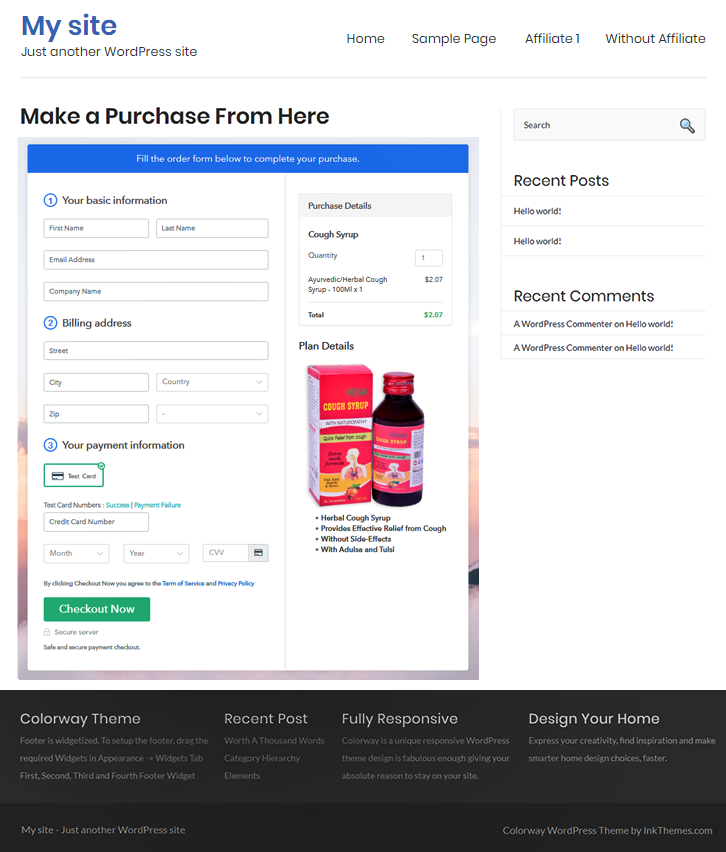
(c) Check out the Final Look of your Checkout Page on WordPress Site
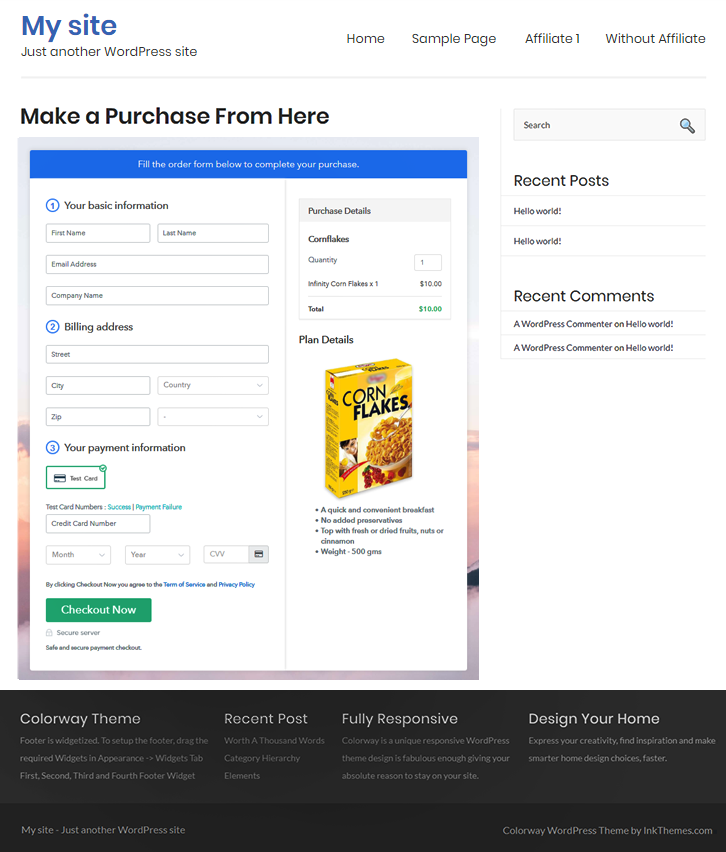
Embed WordPress Checkout to Sell Cornflakes Online

Step 10: Multiplan Checkout Page

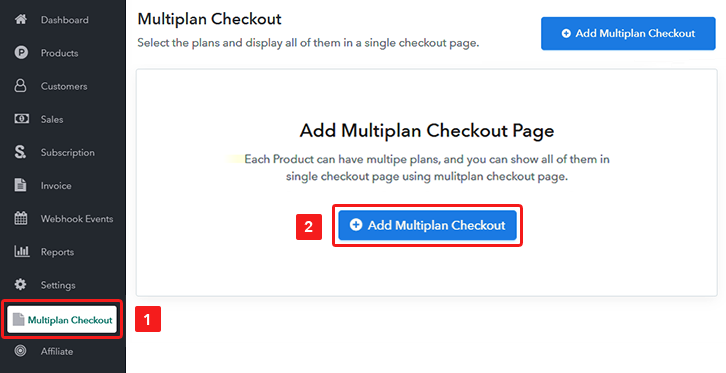
Note: In case you want to sell multiple products via a single checkout page, you can create a multi-plan checkout page otherwise skip this step.

(a) Click on Add Mutiplan Checkout

Multiplan Checkout

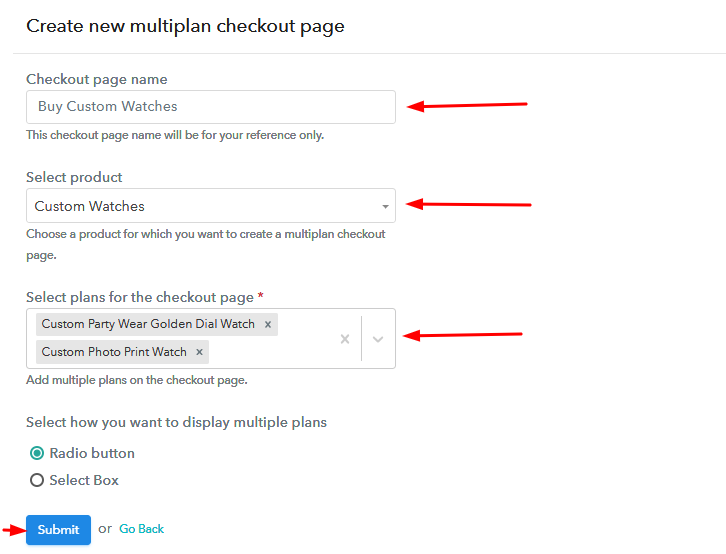
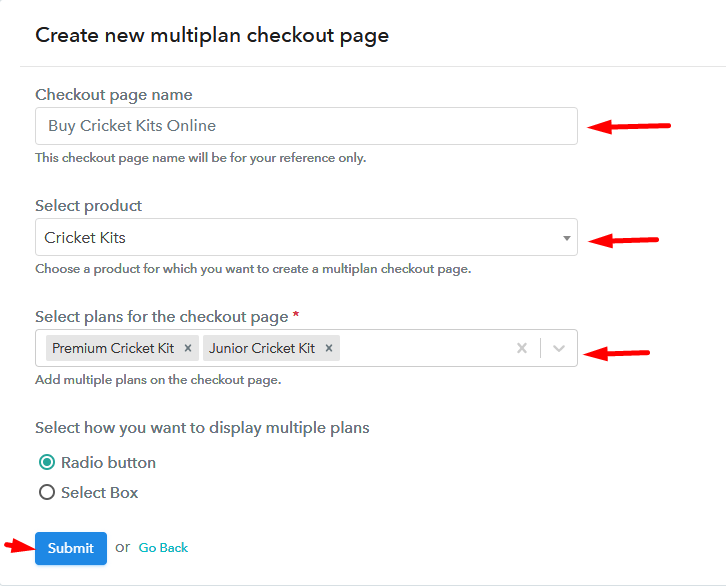
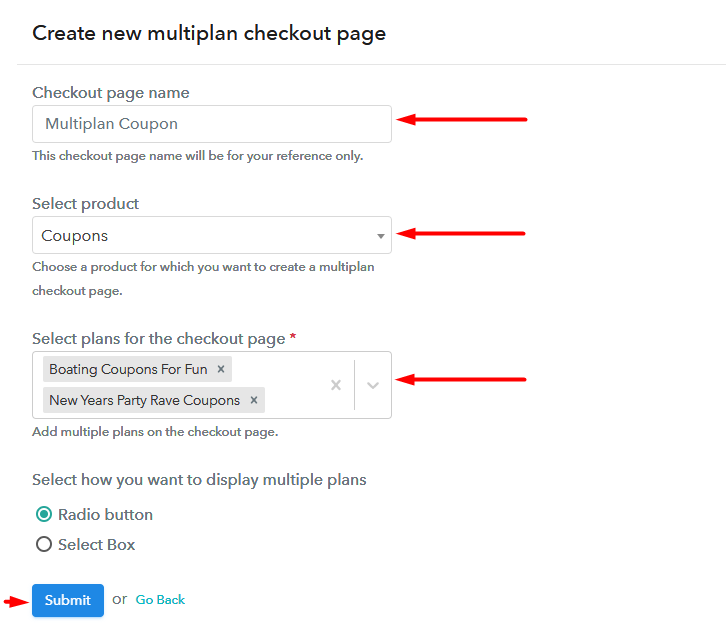
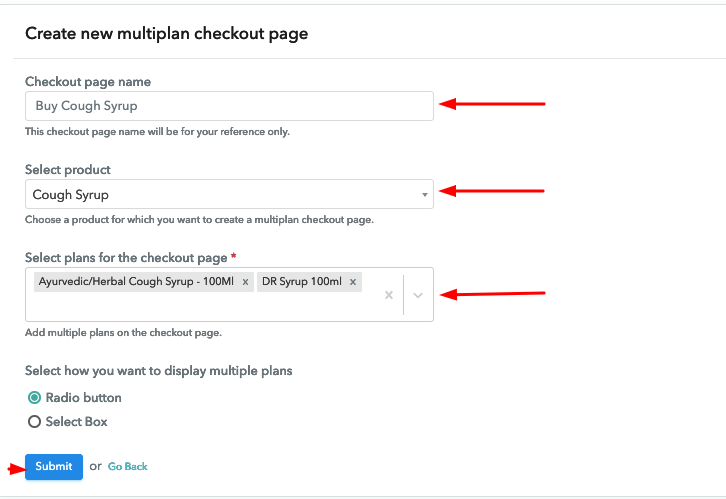
(b) Add Plans to Sell Multiple Cornflakes from Single Checkout Page
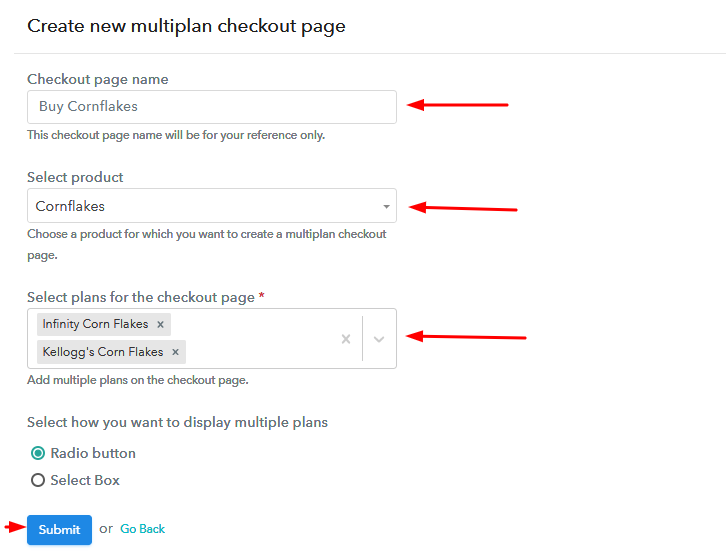
Multiplan Checkout to Sell Cornflakes Online

(c) Take a Look at the Checkout Page
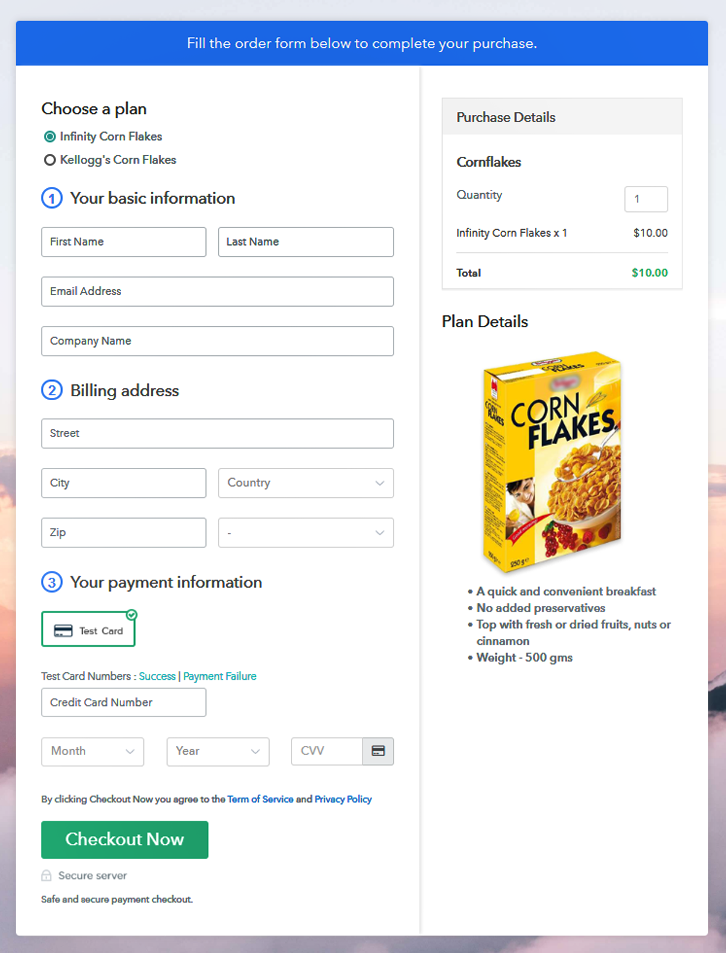
Add Multiplan Checkout Checkout to Sell Cornflakes Online

Preview Checkout Page

Wrapping Up

Just by following these 10 easy steps, you can start your cornflakes business online. All you need to do is log in to Pabbly Subscription Billing and your cornflakes business is set online. So, go ahead and start creating checkout pages to sell cornflakes online. Besides, if you have any query write it in the comment section below. We will get back to you as soon as possible. Thank You!!

You May Also Like To Read –
How to Sell Custom Watches Online | Step by Step (Free Method)

How to Sell Custom Watches Online

Ideal For: All the custom watch manufacturers, custom watches sellers, custom watch dealers, custom watch companies and other merchants can use this method to sell custom watches online.

How to Sell Custom Watches Online

Why Choose this Method to Sell Custom Watches Online?

Unlike any other solution, this method allows you to:

  • List and sell your custom watches for FREE. Absolutely no payment required.
  • No need to pay commission on any of your sales.
  • Multiple payment options like PayPal, Credit Card, etc to collect payment from a single place.
  • Sell one time or recurring subscriptions of your custom watches.
  • Collect payments & sell products in any currency as per your requirement.
  • Give discounts on your products by offering special coupon codes.
  • Add sales commission agents to help you in selling custom watches online.

Get Pabbly Subscription Billing for Free

Custom watches are widely loved by people as it gives them a personal touch. And in this digital age, people nowadays prefer to order customize watches online and send them directly to their loved ones. Thus, this must be the right time for you to start your custom watches business online. And to do so, you might need a software that can assist you in selling custom watches online.

Therefore, we would like to introduce you to the most amazing tool i.e, Pabbly Subscription Billing. This software lets you build amazing checkout pages for selling custom watches online without any hassle. Besides, the link of these checkout pages can be shared on your websites, social media account, or even directly through SMS & email marketing. Furthermore, below are some of its advanced features:

  • List & sell various custom watches via single checkout page
  • Offer unlimited discounts & coupons to your clients
  • Add tax and delivery charges as per the delivery locations
  • Collect payment through various payment gateways

Well, now that you know about its interesting features, its time to focus on creating a checkout page to sell custom watches online.

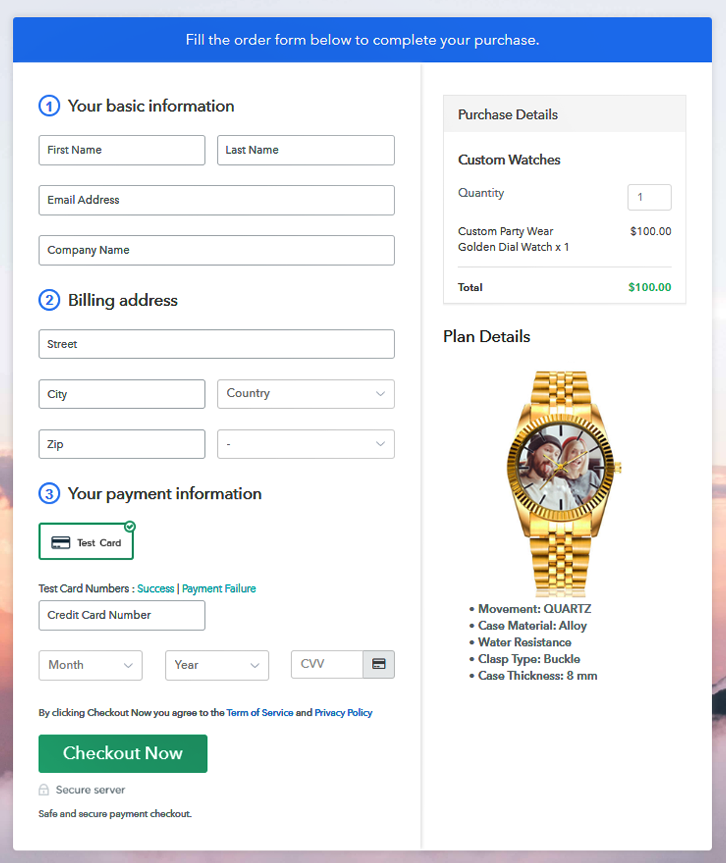
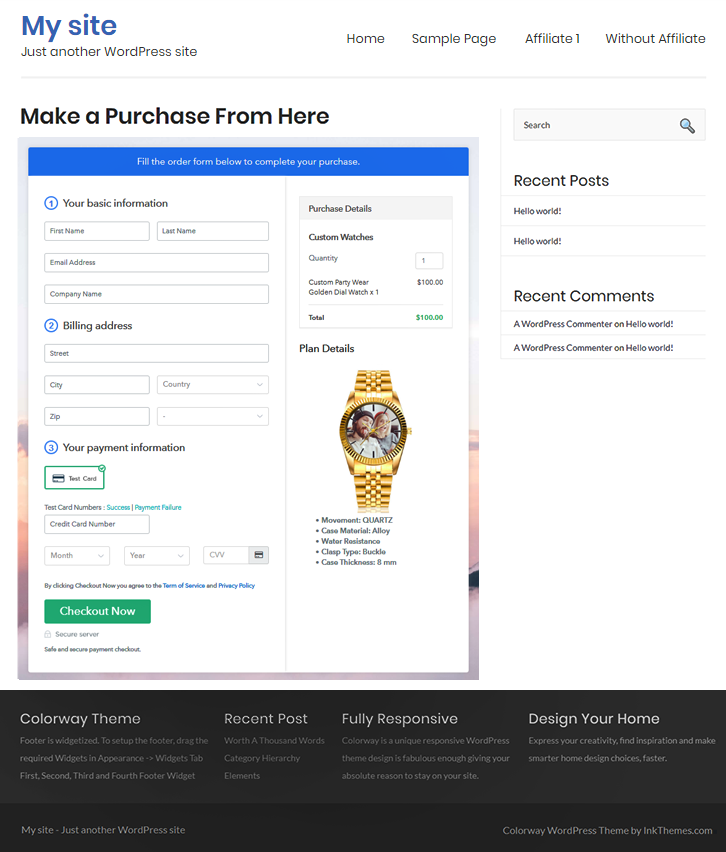
Final View of Checkout Page for Your Custom Watches Selling Business

Checkout Page to Sell Custom Watches Online

Preview Checkout Page

Step 1: Log in to Pabbly Subscription Billing

Signup

Begin the process for creating a checkout page for a custom watches by visiting the Pabbly Subscription Billing website. After that, click on the “Sign up Free“ button. Furthermore, either manually filled out the details or sign in using your Gmail account.

Sign Up For Free!

Step 2: Select Subscription Billing

Access Subscription Billing

Step 3: Account Setup

Setup Account

Additionally, after pressing on the “Access Now” button of the software, a page will open asking for you to enter the details like company name, select currency, and phone number. Simply fill out those details to continue creating a checkout page for custom watches online.

Step 4: Connect Payment Gateways & Start Custom Watches Selling Business Online

Connect Payment Gateway

Now, we are going to demonstrate the payment procedures using a “Test Payment Gateway”. Here, I am going to describe the checkout page process for the custom watches using a test payment gateway. Not only that, but this tool offers various payment gateways such as PayPal, Stripe, etc. Further, here we have provided the payment integration guides in the following.

Step 5: Add Product for Your Custom Watches

Add Product

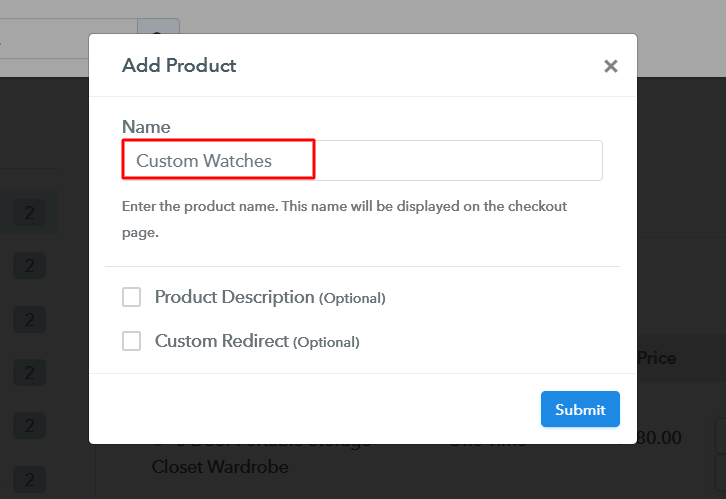
Additionally, add the name, which in our case is “Custom watches”. Now, specify its type along with a short description of the custom watches to grab the customer’s attention.

Add Product to Start Selling Custom Watches Online

Moreover, just fill out all those details and your product is created.

Note: Here you can add all the products related to the similar category by creating plans for each of them.

Step 6: Add Plans 

Let’s discover plans for different kinds of custom watches available in your store.

(a) Select Add New Plan

Add Plan

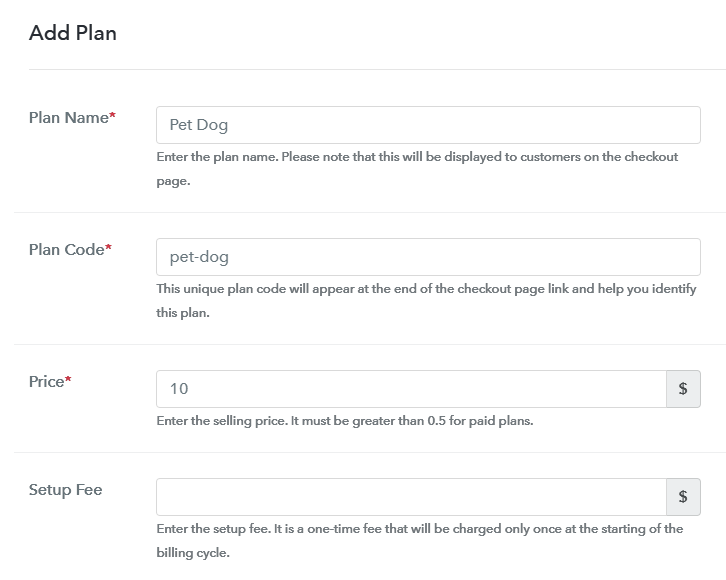
(b) Specify the Plan & Pricing Details

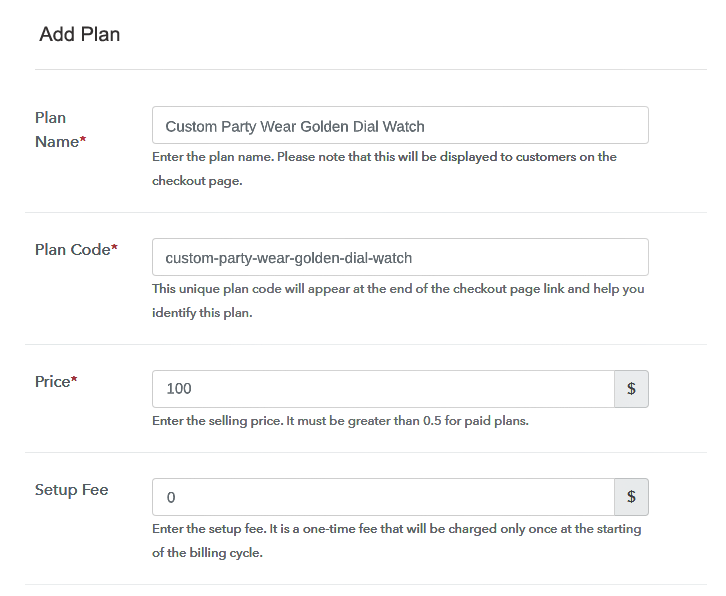
Specify the Plan and Pricing to Sell Custom Watches Online

The next thing to do is fill all the details of the custom watches like plan name, code, price, set-up fee, and much more to continue.

(c) Add Image & Description of Custom watches

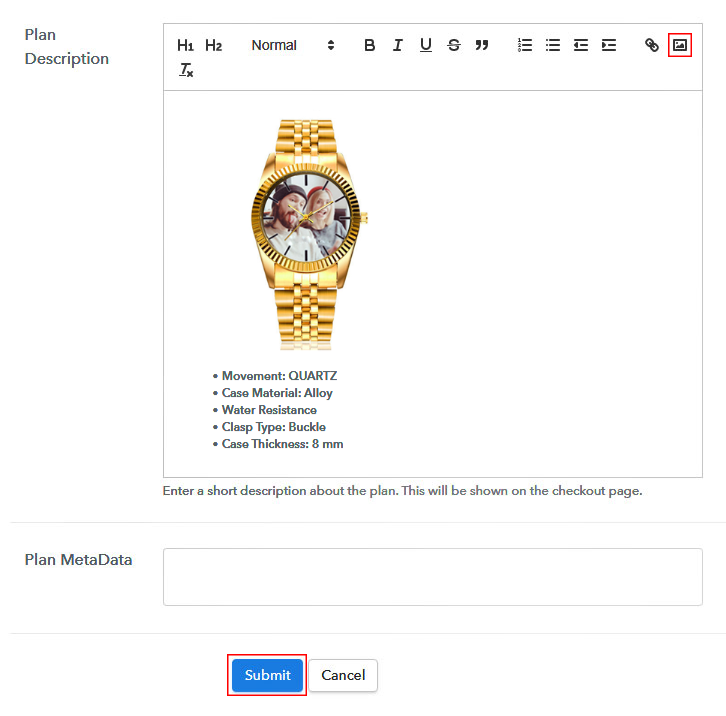
Add Image & Description to Sell Custom Watches Online

Furthermore, you can write a paragraph on custom watches using bullets, images, etc, to add specifications in the checkout page.

Later, hit the “Submit” button in order to add the custom watches on the checkout page.

Finally, you can add multiple plans and kinds of custom watches in your product list which you want to sell online.

Step 7: Share your Checkout Page

Share Checkout Page on Social Media

  • You can easily share the checkout page link of the custom watches on Facebook & Twitter.
  • Either you can directly share the link of the custom watch plan with your customers via SMS or email marketing.
  • Moreover, you can add the plan link provided of a custom watches in the buttons or any anchor text on your website, so the users will be redirected to the checkout page.

Step 8: Preview Checkout Page

Follow up the recommended steps to preview the checkout page:

(a) Click on the View Button

View Checkout Plan

(b) Take a Look at the Checkout Page

Checkout Page to Sell Custom Watches Online

Step 9: Embed Checkout Page in Site & Sell Custom Watches Online

Embed Checkout Page on Website

Just copy the link and add the checkout page to sell custom watches online at any proper place on your WordPress site.

(a) Edit the Page & Paste the Copied Link

Embed Checkout Page on Website

Further, paste the plan link on a text editor of the WordPress dashboard.

(b) Save & Publish the Checkout Page

Save_and_Publish

Next, click the “Publish” button, after making changes.

(c) Check out the Final Look of your Checkout Page on WordPress Site

Final Look of your Checkout Page to Sell Custom Watches Online

Step 10: Multiplan Checkout Page

Note: In case you want to sell multiple products via a single checkout page, you can create a multi-plan checkout page otherwise skip this step.

(a) Click on Add Mutiplan Checkout

Multiplan Checkout

(b) Add Plans to Sell Multiple Custom Watches from Single Checkout Page

Add Multiple Products to Start Selling Custom Watches Online

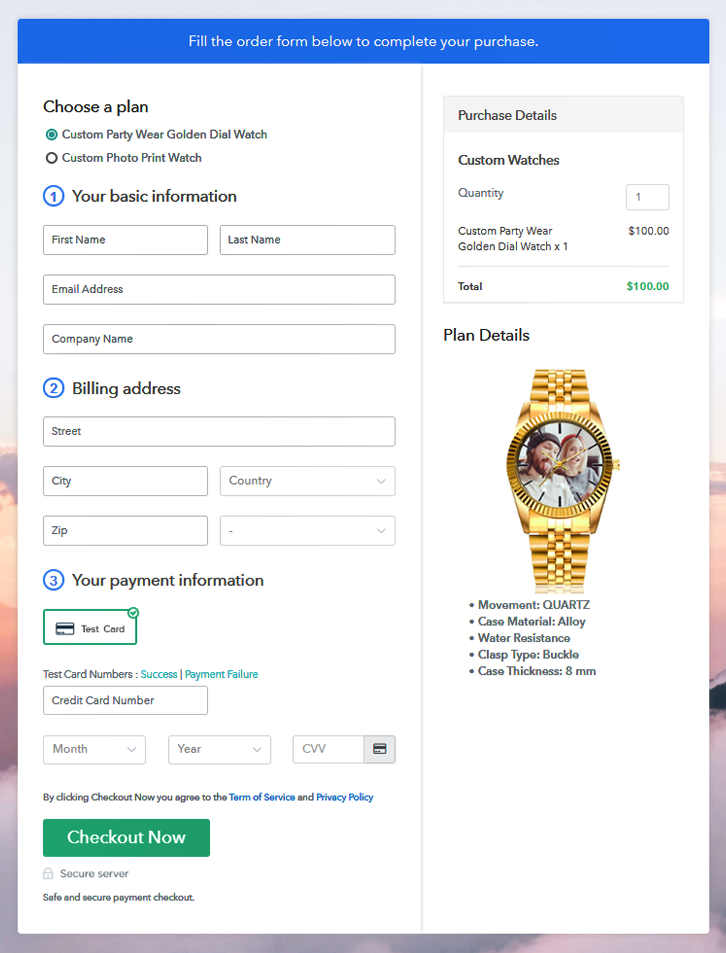
(c) Take a Look at the Checkout Page

Multiplan Checkout Page to Sell Custom Watches Online

Preview Checkout Page

Wrapping Up

There you have it!  Now you know how to start custom watches business online. All you need to do is log in to Pabbly Subscription Billing and follow the steps given above. So, don’t wait anymore, go ahead and try this software out. And for further queries, connect with us by dropping a message in the comments section below.

You May Also Like To Read –
How to Sell Pets Online | Step by Step (Free Method)

How to Sell Pets Online

Ideal For: All the pet keepers, pet sellers, retail pet shop owners, and other merchants can use this method to take their pets selling business online.

How to Sell Pets Online

Why Choose this Method To Sell Pets Online?

Unlike any other solution, this method allows you to:

  • List and sell your pets for FREE. Absolutely no payment required.
  • No need to pay commission on any of your sale.
  • Multiple payment options like PayPal, Credit Card, etc to collect payment from a single place.
  • Sell one time or recurring subscriptions of your pets.
  • Collect payments & sell products in any currency as per your requirement.
  • Give discounts on your products by offering special coupon codes.
  • Add sales commission agents to help you in selling pets online.

Get Pabbly Subscription Billing for Free

Pets promote both mental as well as physical health that can significantly improve our lives. They are a good companion to fight stress, sense of loneliness & help us to increase our social activities. This gives enough reasons to sell pets online and bring joy in other’s life too.

If you’ve planned to do a good deed then we can also help you to continues with it fast and easy. As in this blog, we’ll discuss creating checkout pages to sell pets online. Well, there are many advantages of using this process and they are:

  • You’ll get a dashboard to keep a record of all the available pets to sell
  • Sell pets globally and collect online/offline payments
  • Automatic billing and invoicing
  • Display image & related information of the pet easily
    And much more…

Final View of Checkout Page For Your Pets Selling Business

Checkout Page Preview to Sell Pets Online

Preview Checkout Page

Step 1: Log in to Pabbly Subscription Billing

Signup

At first, visit Pabbly Subscription Billing & click the button to ‘Sign Up Free‘. Now, on the registration page either use a Google account or sign-up manually.

Sign Up For Free!

Step 2: Select Subscription Billing

Access Subscription Billing

Step 3: Account Setup

Setup Account

Next, the system will ask for the company details, So quickly fill in the details asked like the company name, constant number and currency.

Step 4: Connect Payment Gateways & Start Pets Selling Business Online

Connect Payment Gateway

Now, integrate a payment gateway method. You can choose to select the test payment method also for testing the functionality. But, to collect actual payment choose and integrate a method from the following options available.

Step 5: Add Product For Your Pets

Add Product

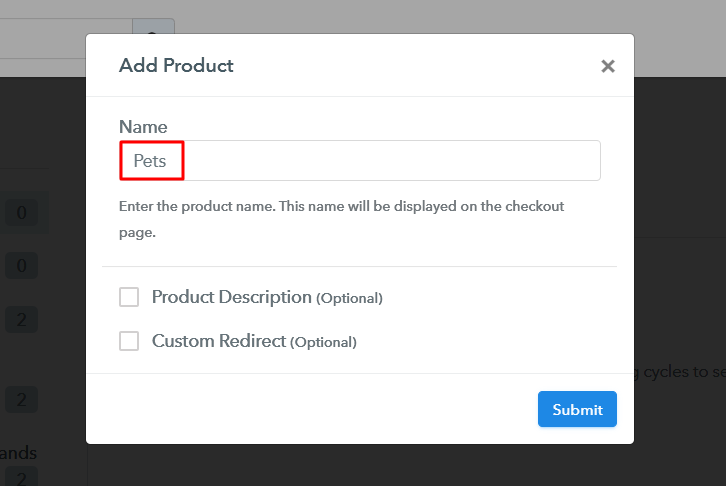
Next is adding a product, for this click on the ‘Add New Product’ button and assign a product name such as cats, dogs, mouse etc. Further, we’ll add pets under these product categories.

Add Product to Sell Pets Online

Specify the required details and a product category will be appended.

Note: Here you can add all the products related to the similar category by creating plans for each of them.

Step 6: Add Plans 

Let’s add plans for different kinds of pets available in your store.

(a) Select Add New Plan

Add Plan

(b) Specify the Plan & Pricing Details

Add Plan to Sell Pets Online

You can mention a name, code, pricing etc details of a pet in the plan details page.

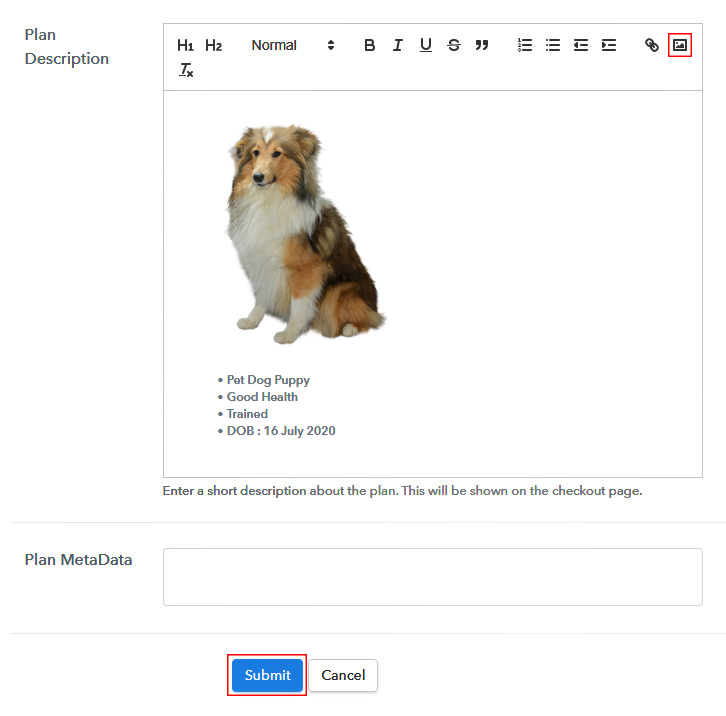
(c) Add Image & Description of Pet

Add Image & Description to Sell Pets Online

Also, you can display a beautiful picture of the pet with some description of it.

Once you push the ‘Submit’ button here a checkout page to sell pets online will be created instantly.

You can also add the other pets in the same manner.

Step 7: Share your Checkout Page

Share Checkout Page on Social Media

To sell a pet, you can share the checkout page using its link.

  • You can share the plan link given with your customers on SMS, emails, other social media and link sharing platforms
  • Also, you can embed this link with the buttons and text of website and apps and redirect the customers onto the checkout pages
  • You can directly share the checkout pages on Facebook & Twitter by clicking the buttons available

Step 8: Preview Checkout Page

Follow up the recommended steps to preview the checkout page:

(a) Click on the View Button

View Checkout Plan

(b) Take a Look at the Checkout Page

Checkout Page Preview to Sell Pets Online

Step 9: Embed Checkout Page in Site & Sell Pets Online

Embed Checkout Page on Website

Just copy the link and add the checkout page to sell pets online at any preferable place on your WordPress site.

(a) Edit the Page & Paste the Copied Link

Embed Checkout Page on Website

Further, paste the plan link on a text editor of the WordPress dashboard.

(b) Save & Publish the Checkout Page

Save_and_Publish

Next, click the “Publish” button, after making changes.

(c) Check out the Final Look of your Checkout Page on WordPress Site

Your Image Here

Step 10: Multiplan Checkout Page

Note: In case you want to sell multiple products via a single checkout page, you can create a multi-plan checkout page otherwise skip this step.

(a) Click on Add Mutiplan Checkout

Multiplan Checkout

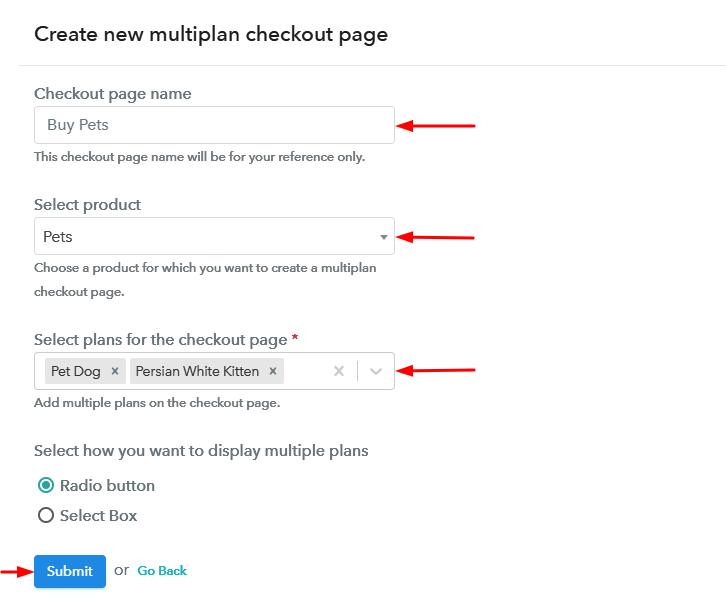
(b) Add Plans to Sell Multiple Pets from Single Checkout Page

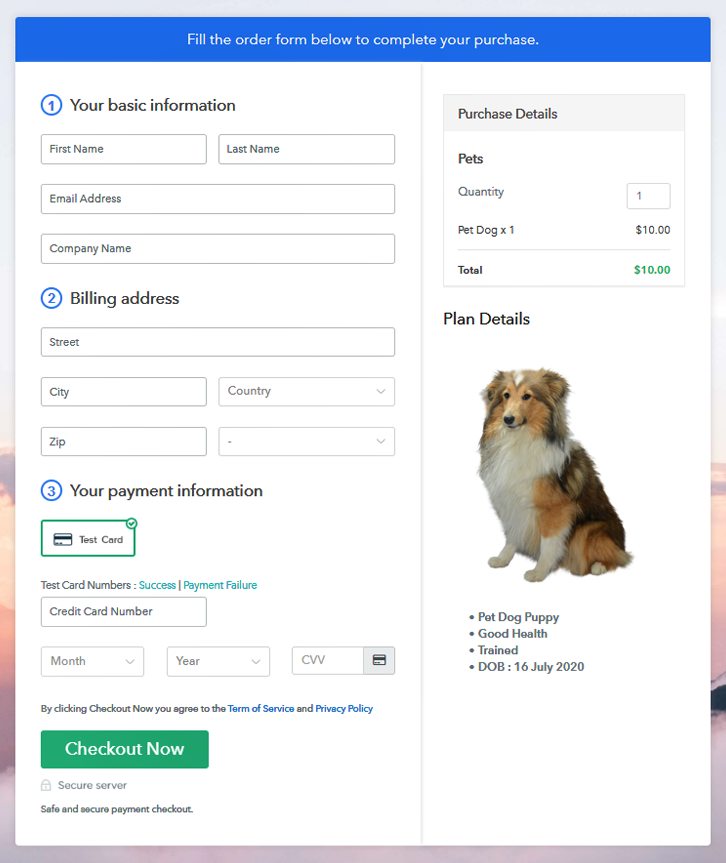
Create Multiplan Checkout Page to Sell Pets Online

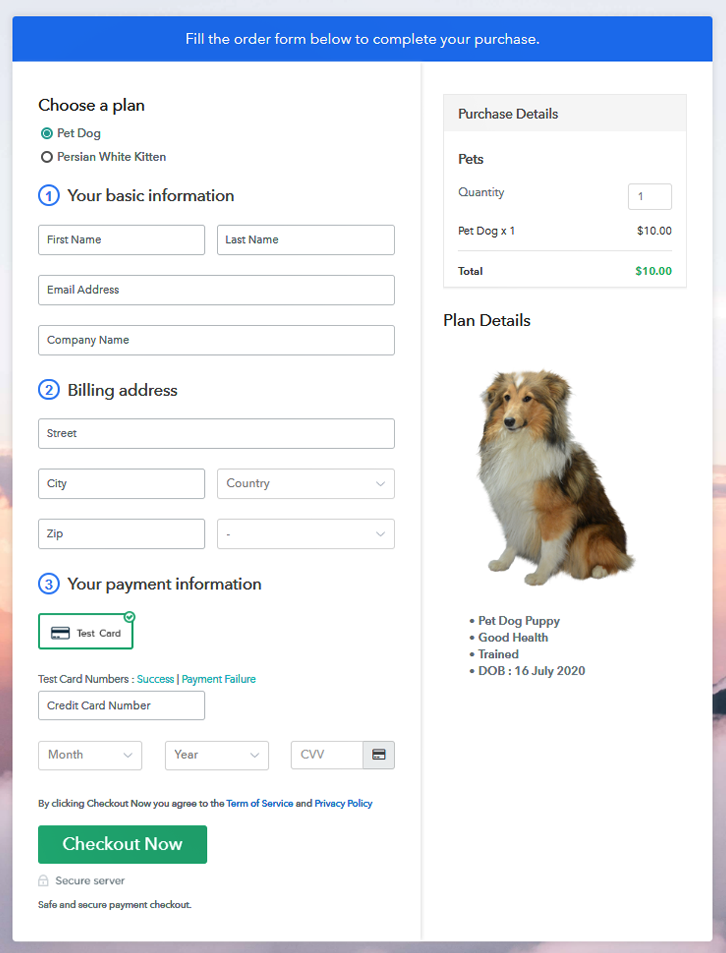
(c) Take a Look at the Checkout Page

Multiplan Checkout Page to Sell Pets Online

Preview Checkout Page

Wrapping Up

Up till now, you can also say that this process is very easy to carry out. As there is no complexity and everything is pretty flexible. Both the page creation and management go hand in hand very smoothly. Also, the multiple gateway options and limitless product’s sale adds up flexibility and scalability too.

You May Also Like To Read –
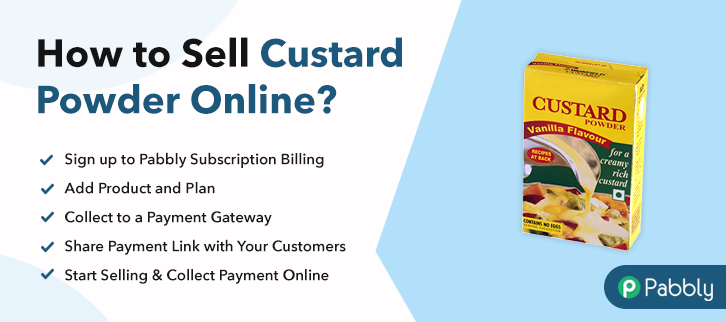
How to Sell Custard Powder Online | Step by Step (Free Method)

How to Sell Custard Powder Online

Ideal For: All the custard powder manufacturers, custard powder sellers, custard powder dealers, custard powder suppliers, custard powder shop owners, and other merchants can use this method to sell custard powder online.

How to Sell Custard Powder Online

Why Choose this Method to Sell Custard Powder Online?

Unlike any other solution, this method allows you to:

  • List and sell your custard powder for FREE. Absolutely no payment required.
  • No need to pay commission on any of your sales.
  • Multiple payment options like PayPal, Credit Card, etc to collect payment from a single place.
  • Sell one time or recurring subscriptions of your custard powder.
  • Collect payments & sell products in any currency as per your requirement.
  • Give discounts on your products by offering special coupon codes.
  • Add sales commission agents to help you in selling custard powder online.

Get Pabbly Subscription Billing for Free

Custard powder is used widely by people to make delicious recipes. And, they are mostly used in homes, restaurants, bakery, etc. This is a reason why the custard powder never goes out of the market. So, this might be the right time for starting custard powder selling business online.

Want to know why? Because selling custard powder online is way much convenient for buyers to purchase as it saves time and effort. Therefore, we would like to suggest an amazing tool that can help you take your custard powder business online i.e, Pabbly Subscription Billing.  This tool allows you to create amazing checkout pages for selling custard powder online. Some of its remarkable features include:

  • Add Unlimited Plans and Products
  • Collect Payments Through Several Payment Gateways
  • Create Professional Invoices using Software
  • Add Tax as well as Delivery Charges
  • Offer Unlimited Discounts and Coupon Codes to Customers

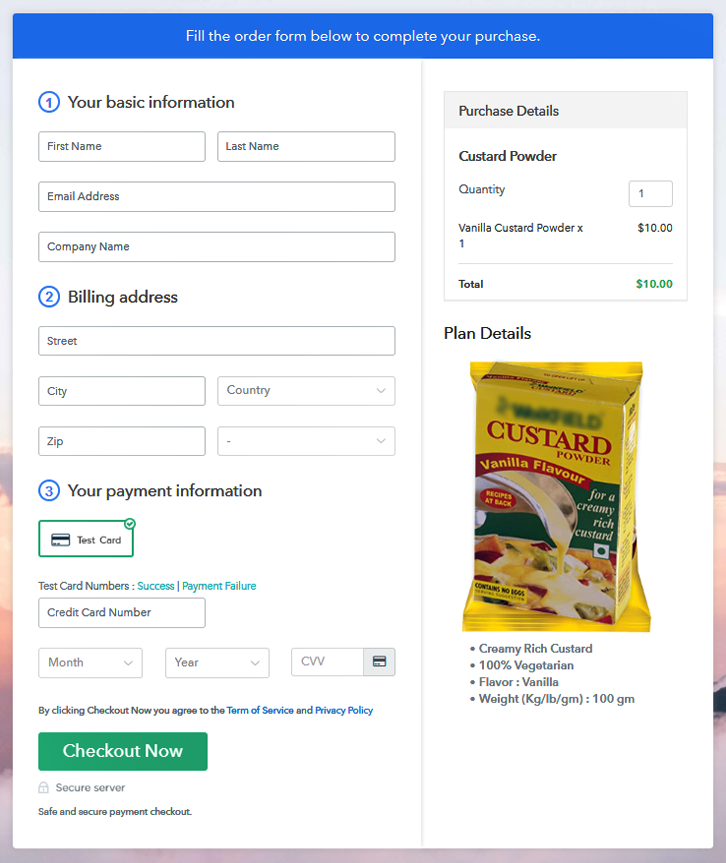
Final View of Checkout Page for Your Custard Powder Selling Business

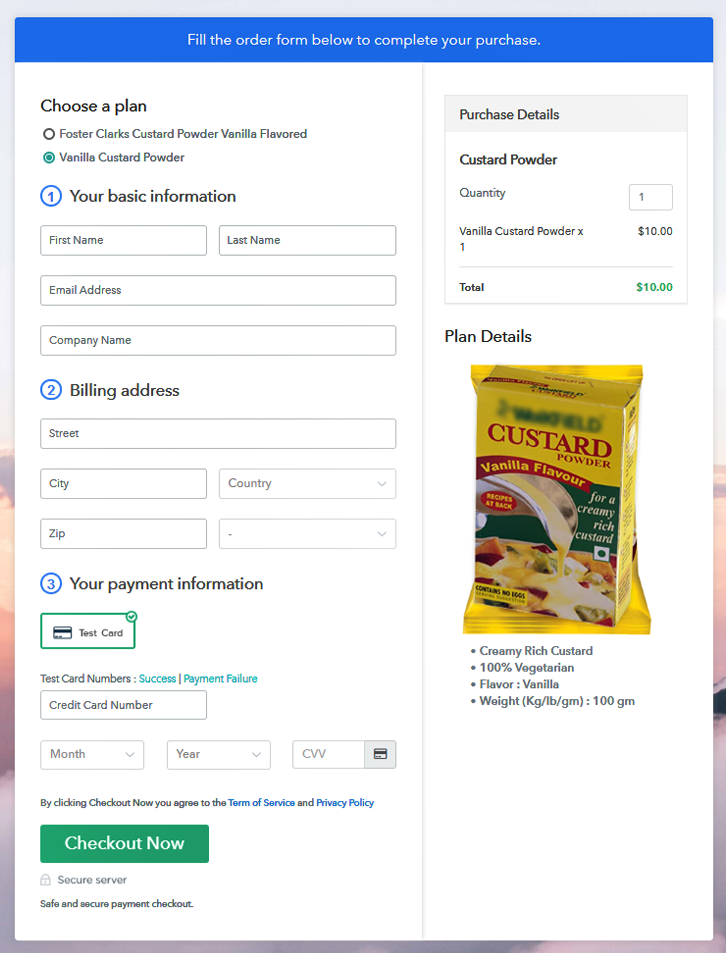
Checkout Page to Sell Custard Powder Online

Preview Checkout Page

Step 1: Log in to Pabbly Subscription Billing

Signup

The very first step is to visit the Pabbly Subscription Billing in your browser. After that, click on the “Sign up Free“ button. Further, either manually filled out the details or sign in using your Gmail account.

Sign Up For Free!

Step 2: Select Subscription Billing

Access Subscription Billing

Step 3: Account Setup

Setup Account

Moreover, after clicking on the “Access Now” button of the software, a page will start with fields like company name, select currency, and phone number. Just fill out those details to continue creating a checkout page for custard powder.

Step 4: Connect Payment Gateways & Start Custard Powder Selling Business Online

Connect Payment Gateway

The succeeding step is to understand the payment procedures using a “Test Payment Gateway”. Here, we will describe the checkout page process for the custard powder with the help of a test payment gateway. Additionally, this tool offers various payment gateways such as PayPal, Stripe, etc. Also, we have provided the payment integration guides below to help you out.

Step 5: Add Product For Your Custard Powder

Add Product

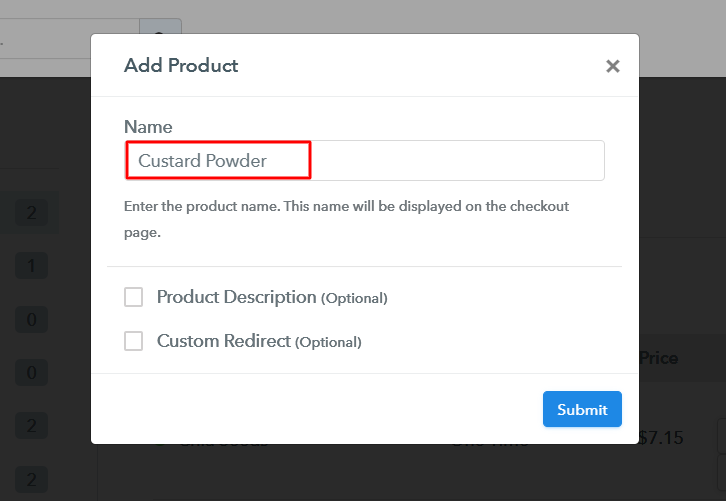
Moreover, add the name, which in our case is “Custard Powder”. Here you can specify the type & write a short description of the custard powder.

Add Product to Start Selling Custard Powder Online

Furthermore, just fill out all those details and your product is created.

Note: Here you can add all the products related to the similar category by creating plans for each of them.

Step 6: Add Plans 

Let’s discover plans for different kinds of custard powder available in your store.

(a) Select Add New Plan

Add Plan

(b) Specify the Plan & Pricing Details

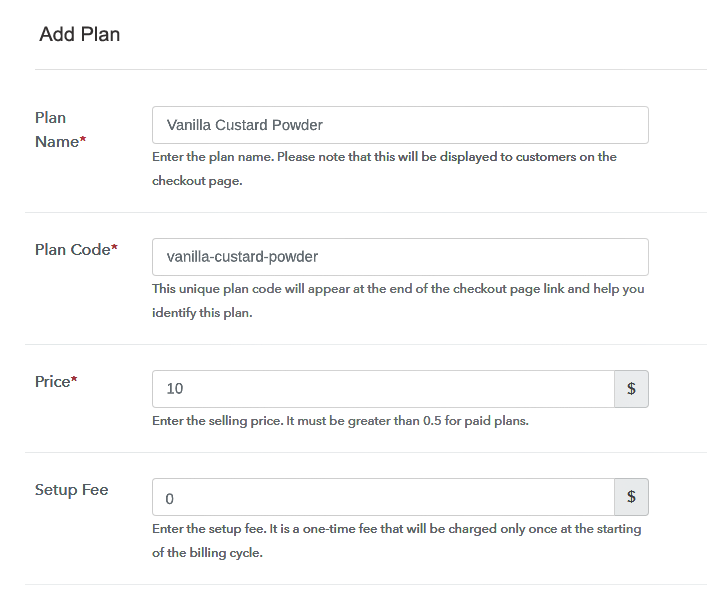
Specify the Plan and Pricing to Sell Custard Powder OnlineSpecify the Plan and Pricing to Sell Custard Powder Online

The next thing to do is fill all the details of the custard powder like plan name, code, price, set-up fee, and much more to continue.

(c) Add Image & Description of Custard Powder

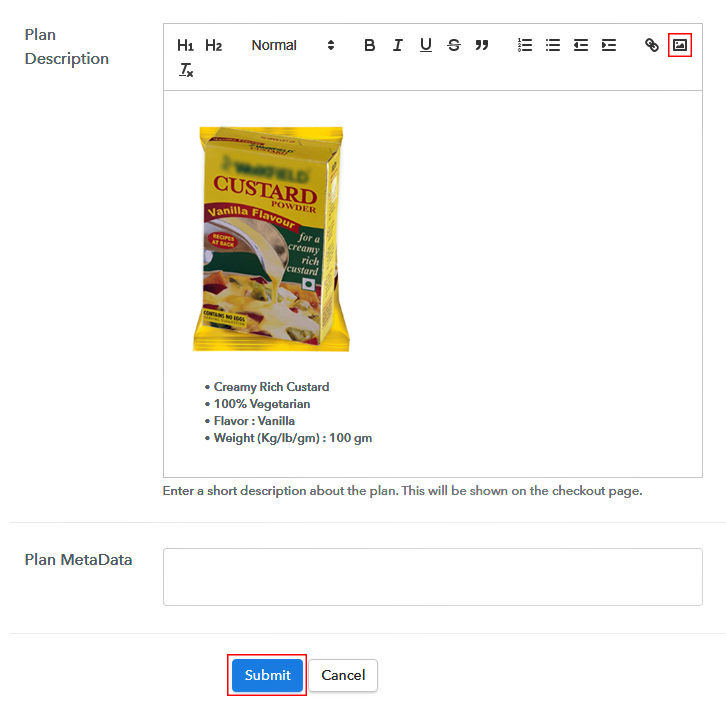
Add Image & Description to Sell Custard Powder Online

Furthermore, write a brief description of custard powder using bullets, images, etc, to the checkout page.

Next, press the “Submit” button to add the custard powder on the checkout page.

Finally, you can add multiple plans and kinds of custard powder in your product list which you want to sell online.

Step 7: Share your Checkout Page

Share Checkout Page on Social Media

  • Moreover, share the checkout page of the custard powder on social media accounts like Facebook & Twitter to grab the customer’s attention.
  • Additionally, you can share the direct link of the custard powder’s checkout page with your customers through SMS or email marketing.
  • Further, you can even embed the provided plan link of the custard powder in the buttons or any anchor text on your website.

Step 8: Preview Checkout Page

Follow up the recommended steps to preview the checkout page:

(a) Click on the View Button

View Checkout Plan

(b) Take a Look at the Checkout Page

Checkout Page to Sell Custard Powder Online

Step 9: Embed Checkout Page in Site & Sell Custard Powder Online

Embed Checkout Page on Website

Just copy the link and add the checkout page to sell custard powder online at any proper place on your WordPress site.

(a) Edit the Page & Paste the Copied Link

Embed Checkout Page on Website

Further, paste the plan link of custard powder on a text editor of the WordPress dashboard.

(b) Save & Publish the Checkout Page

Save_and_Publish

Next, click the “Publish” button, after making changes.

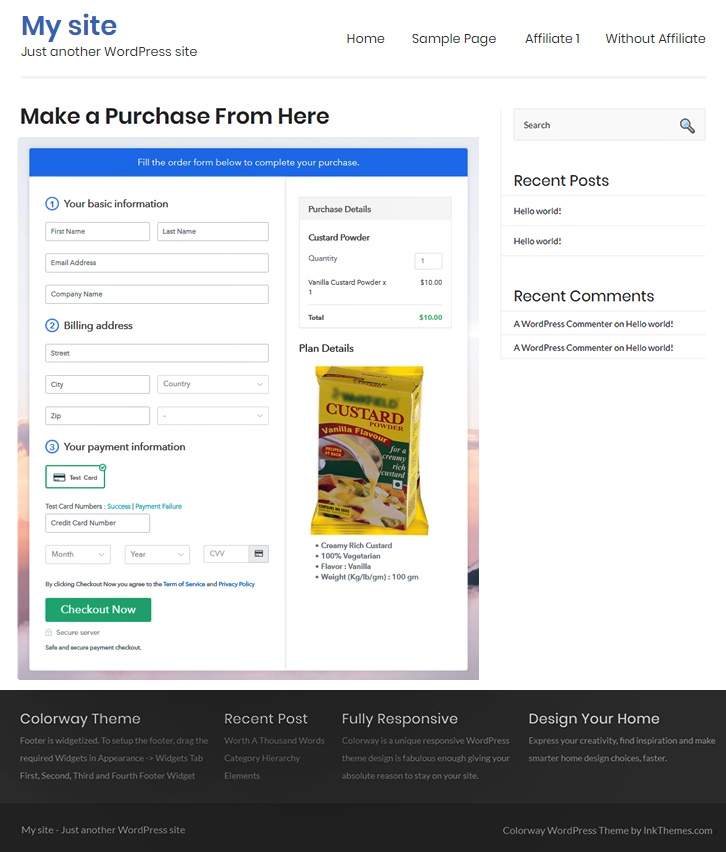
(c) Check out the Final Look of your Checkout Page on WordPress Site

Final Look of your Checkout Page to Sell Custard Powder Online

Step 10: Multiplan Checkout Page

Note: In case you want to sell multiple products via a single checkout page, you can create a multi-plan checkout page otherwise skip this step.

(a) Click on Add Mutiplan Checkout

Multiplan Checkout

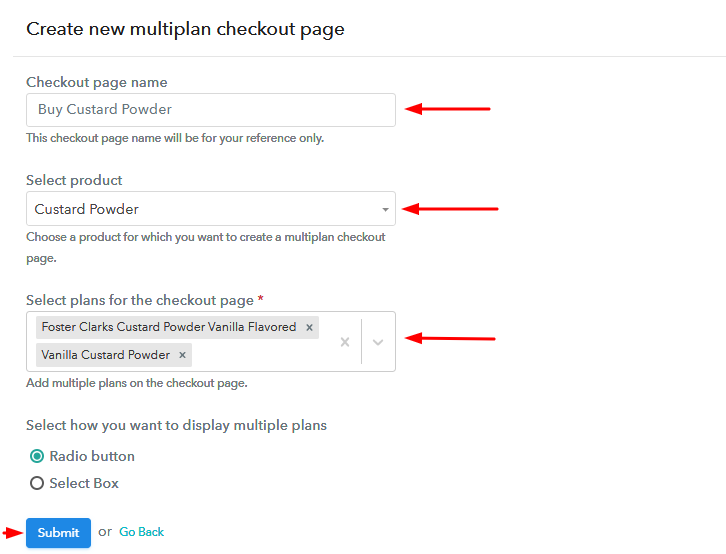
(b) Add Plans to Sell Multiple Custard Powder from Single Checkout Page

Add Multiple Products to Start Selling Custard Powder Online

(c) Take a Look at the Checkout Page

Multiplan Checkout Page to Sell Custard Powder Online

Preview Checkout Page

Wrapping Up

Now that we have resolved your query on “How to sell custard powder online?”. Its time for you to start your own business online using Pabbly Subscription Billing software. Just follow the 10 easy steps and you are good to go. Moreover, in case of any need, write to us in the comments section below. We will get back to you ASAP.

You May Also Like To Read –
How to Sell Cutting Machines Online | Step by Step (Free Method)

How to Sell Cutting Machines Online

Ideal For: All the cutting machine manufacturers, cutting machine sellers, retail cutting machine shop owners, and other merchants can use this method to take their cutting machines selling business online.

How to Sell Cutting Machines Online

Why Choose this Method To Sell Cutting Machines Online?

Unlike any other solution, this method allows you to:

  • List and sell your cutting machines for FREE. Absolutely no payment required.
  • No need to pay commission on any of your sale.
  • Multiple payment options like PayPal, Credit Card, etc to collect payment from a single place.
  • Sell one time or recurring subscriptions of your cutting machines.
  • Collect payments & sell products in any currency as per your requirement.
  • Give discounts on your products by offering special coupon codes.
  • Add sales commission agents to help you in selling cutting machines online.

Get Pabbly Subscription Billing for Free

There are many types of cutting machines that are used to fulfil various cutting needs. Such as steel cutting machines, fabric cutting machines, glass cutting machines etc. And if you are looking for a way to sell cutting machines online then we can tell you the smartest way.

In this article, we’ll go through a process of checkout page creation for selling cutting machines. These checkout pages will help you display an image, description, pricing etc & collect online/offline payments easily.

Also, the billing & invoicing is fully automatic and you’ll get a well functioning dashboard to keep a record of all the available items & payments. Most importantly, you can share the checkout pages on Facebook, Twitter, WhatsApp, emails, SMS, and other link sharing platforms.

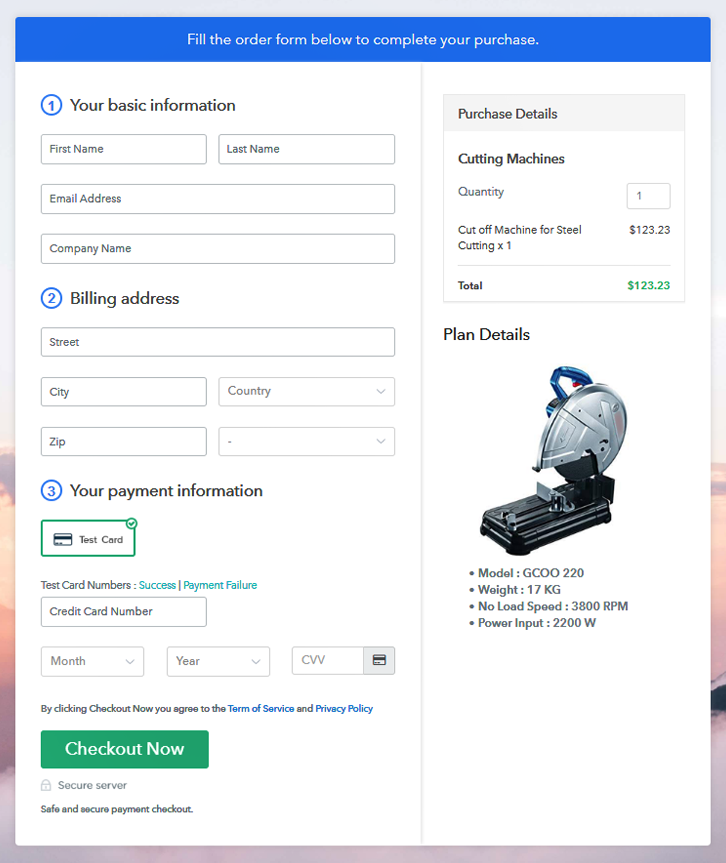
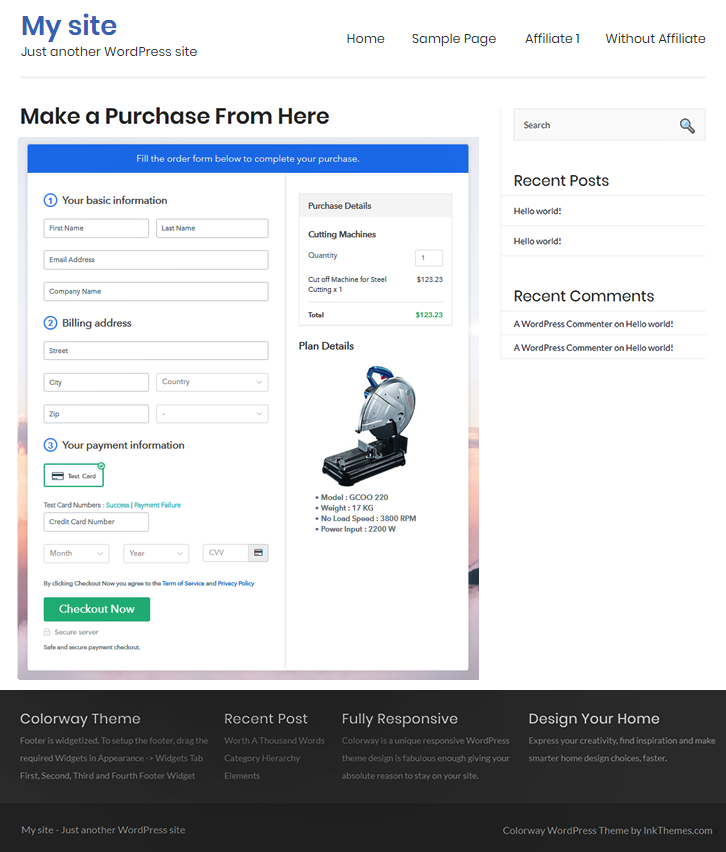
Final View of Checkout Page For Your Cutting Machines Selling Business

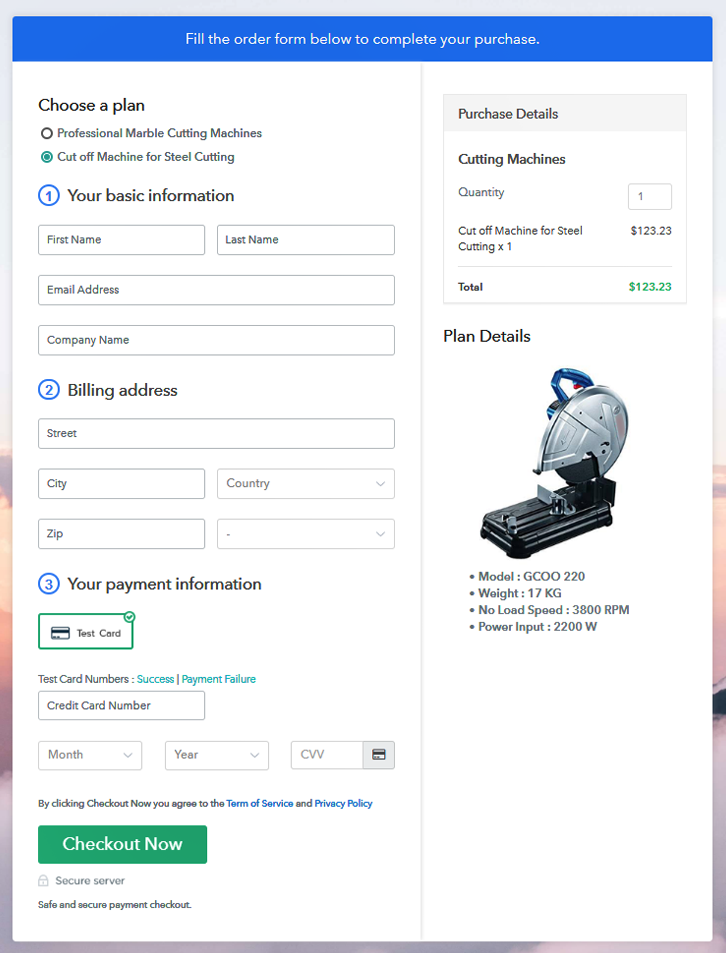
Checkout Page Preview to Sell Cutting Machines Online

Preview Checkout Page

Step 1: Log in to Pabbly Subscription Billing

Signup

To start cutting machines business online first you’ll need to visit the Pabbly Subscription Billing website and then click on the ‘Sign Up Free‘ button. On the redirect page, either use an existing Google ID or sign-up manually.

Sign Up For Free!

Step 2: Select Subscription Billing

Access Subscription Billing

Step 3: Account Setup

Setup Account

Next, the system will request you for some company details. Fill up the required details such as a company name, currency & contact number.

Step 4: Connect Payment Gateways & Start Cutting Machines Selling Business Online

Connect Payment Gateway

In this step, the system will ask you for integrating a payment gateway to start collecting payment. Here, you’ll have two options, you can either select the test payment method for testing the functionality or you can enable a payment method by integrating a payment gateway from the following options available.

Step 5: Add Product For Your Cutting Machines

Add Product

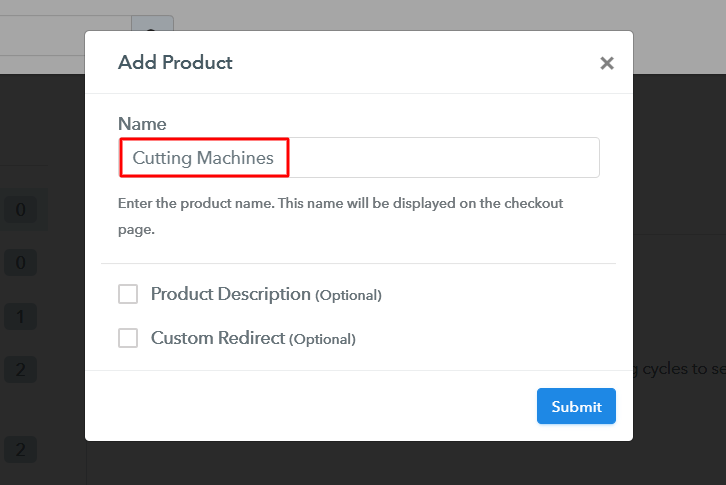
After all the system settings are done, you can start adding products. You can name a product much like a category of cutting machines such as steel cutting machine, glass cutting machines, tiles cutting machines etc. Further, we’ll add plans in every product category.

Add Product to Sell Cutting Machines Online

Fill all the details of the product and hit ‘Submit’.

Note: Here you can add all the products related to the similar category by creating plans for each of them.

Step 6: Add Plans 

Now, we’ll add plans for all different kinds of cutting machines available in your store.

(a) Select Add New Plan

Add Plan

(b) Specify the Plan & Pricing Details

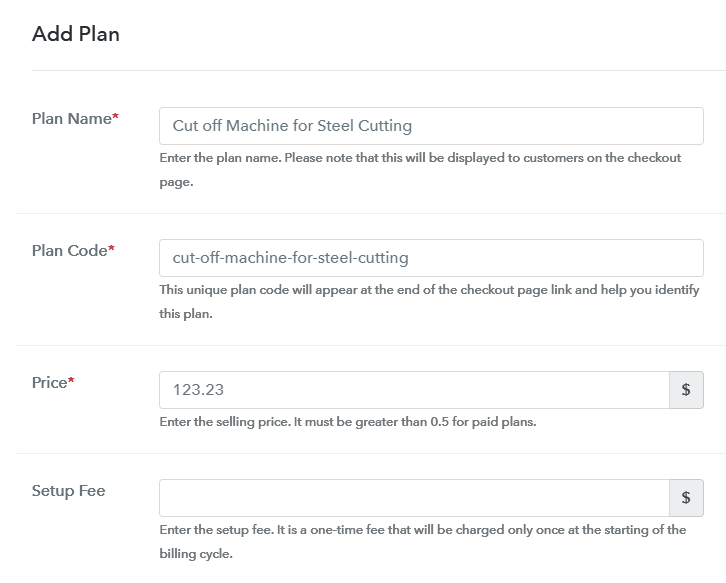
Add Plan to Sell Cutting Machines Online

On the plan page, you can specify information related to a cutting machine like name, code, price, set-up fee, billing cycle etc.

(c) Add Image & Description of Cutting Machines

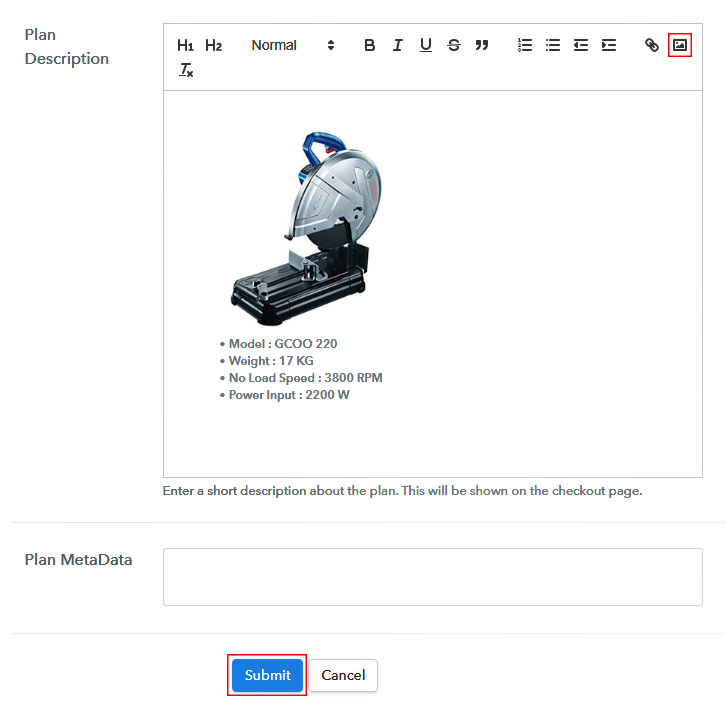
Add Image & Description to Sell Cutting Machines Online

Besides, you can also add an image plus some feature of the cutting machine.

Once you are done writing all the details, strike the ‘Submit’ button here and a  checkout page will be created instantly to cutting machines online.

Similarly, you can also add other items to sell online.

Step 7: Share your Checkout Page

Share Checkout Page on Social Media

Now, you’ll need to share or embed the created checkout page somewhere to redirect the customers onto these pages and collect payments through them.

  • First, you can directly share the checkout page on Facebook & Twitter by clicking on the sharing buttons available
  • Second, you can share the plan link given to share the checkout page on other social media and link sharing platforms such as emails, SMS etc
  • Lastly, you can embed this link within the buttons & texts on a website’s or apps to redirect a user on checkout page to collect payments

Step 8: Preview Checkout Page

Follow up the recommended steps to preview the checkout page:

(a) Click on the View Button

View Checkout Plan

(b) Take a Look at the Checkout Page

Checkout Page Preview to Sell Cutting Machines Online

Step 9: Embed Checkout Page in Site & Sell Cutting Machines Online

Embed Checkout Page on Website

Just copy the link and add the checkout page to sell cutting machines online at any preferable place on your WordPress site.

(a) Edit the Page & Paste the Copied Link

Embed Checkout Page on Website

Further, paste the plan link on a text editor of the WordPress dashboard.

(b) Save & Publish the Checkout Page

Save_and_Publish

Next, click the “Publish” button, after making changes.

(c) Check out the Final Look of your Checkout Page on WordPress Site

Checkout Page On WordPress Site to Sell Cutting Machines Online

Step 10: Multiplan Checkout Page

Note: In case you want to sell multiple products via a single checkout page, you can create a multi-plan checkout page otherwise skip this step.

(a) Click on Add Mutiplan Checkout

Multiplan Checkout

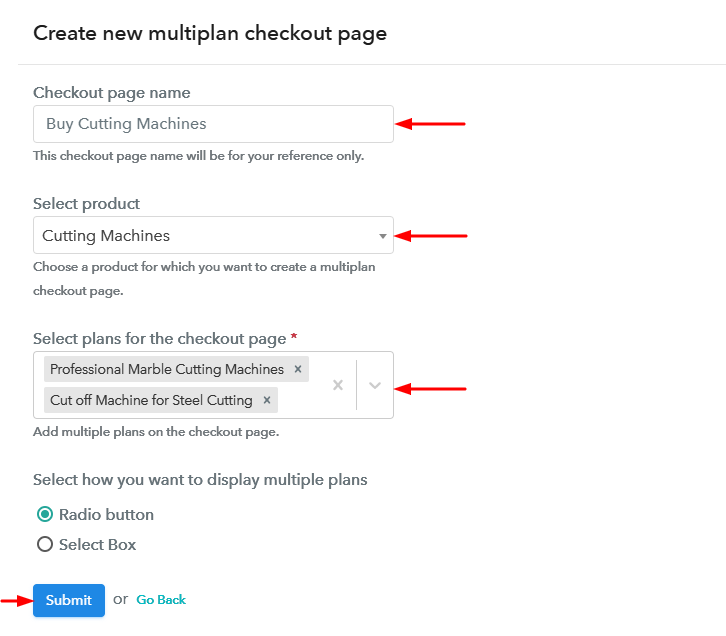
(b) Add Plans to Sell Multiple Cutting Machines from Single Checkout Page

Create Multiplan Checkout to Sell Cutting Machines Online

(c) Take a Look at the Checkout Page

Multiplan Checkout Page to Sell Cutting Machines Online

Preview Checkout Page

Wrapping Up

Well, up to this point you can yourself see the ease to use this process and the benefits that came along. I personally love the flexibility to share and embed the checkout page almost anywhere. You can share the checkout page as well as embed them in posts, pages, buttons and texts.

Also, the ability to sell unlimited cutting machines online globally is great as we can easily apply global taxes and accept payments in almost any currency.

You May Also Like To Read –
How to Sell Cricket Kits Online | Step by Step (Free Method)

How to Sell Cricket Kits Online

Ideal For: All the cricket kit manufacturers, cricket kit sellers, cricket kit dealers, cricket kit suppliers, sports shop owners and other merchants can use this method to sell cricket kits online.

How to Sell Cricket Kits Online

Why Choose this Method to Sell Cricket Kits Online?

Unlike any other solution, this method allows you to:

  • List and sell your cricket kits for FREE. Absolutely no payment required.
  • No need to pay commission on any of your sales.
  • Multiple payment options like PayPal, Credit Card, etc to collect payment from a single place.
  • Sell one time or recurring subscriptions of your cricket kits.
  • Collect payments & sell products in any currency as per your requirement.
  • Give discounts on your products by offering special coupon codes.
  • Add sales commission agents to help you in selling cricket kits online.

Get Pabbly Subscription Billing for Free

Cricket kits are adored by every sportsman, kids, or even adult. With the holiday season hovering over us, you might notice people carrying cricket kits heading towards the playground. This is the reason why in the holiday season demand for cricket kits keeps on increasing. And, taking benefit of opportunity by starting cricket kits business online is a perfect idea.

According to the Technavio report, the global cricket equipment market will grow firmly over the following years and post a CAGR of more than 3% which is a figure to look upon. Plus, online shops brings more opportunities like an overseas client, digital presence, etc. Gladly, we have a software named Pabbly Subscription Billing that can smooth the process of starting an online business. The checkout page draws attention and this tool allows you to create an astonishing checkout page for selling cricket kits online. Some of its highlighted features involve:

  • Multiple Billing Models
  • Professional Invoices
  • Various Payment Gateways

Well, now that I have got you engaged with its incredible features, then let’s focus on creating a checkout page to sell cricket kits online.

Final View of Checkout Page for your Cricket Kits Selling Business

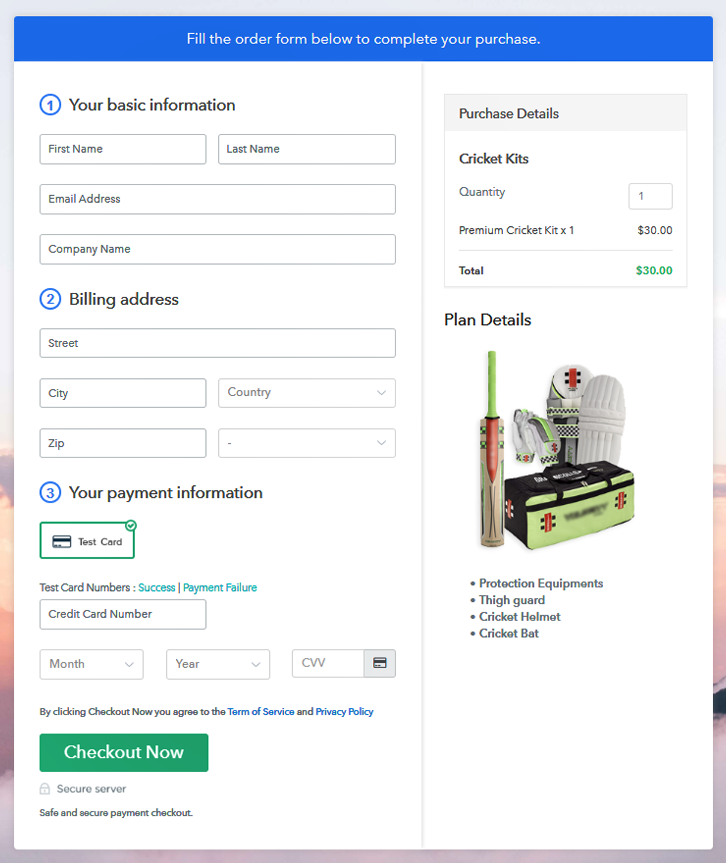
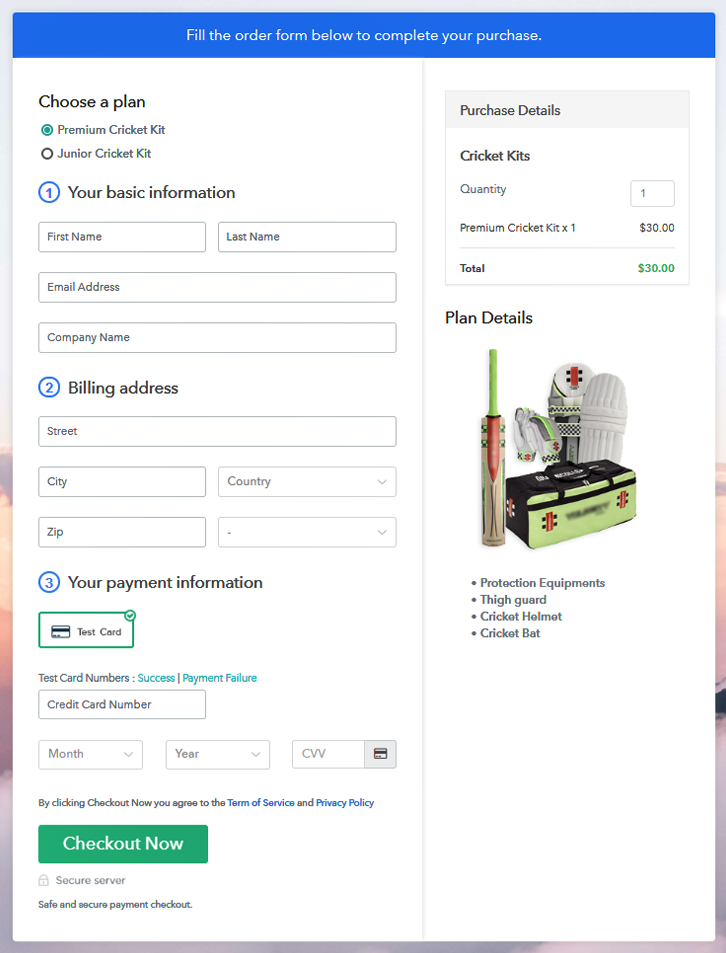
Checkout Page to Sell Cricket Kits Online

Preview Checkout Page

Step 1: Log in to Pabbly Subscription Billing

Signup

Begin the process for creating a checkout page for cricket kits by visiting the Pabbly Subscription Billing in your browser. After that, click on the “Sign up Free“ button. Moreover, either manually filled out the details or sign in using your Gmail account.

Sign Up For Free!

Step 2: Select Subscription Billing

Access Subscription Billing

Step 3: Account Setup

Setup Account

Besides, after clicking on the “Access Now” button of the software, a page will open with fields like company name, select currency, and phone number. Simply fill out those details to continue creating a checkout page for cricket kits.

Step 4: Connect Payment Gateways & Start Cricket Kits Selling Business Online

Connect Payment Gateway

The subsequent step is to gaining knowledge about payment procedures using a “Test Payment Gateway”. Here, we will describe the checkout page process for the cricket kits with the help of a test payment gateway. Besides this, the tool offers various payment gateways such as PayPal, Stripe, etc. Further, below are the payment integration guides to help you out.

Step 5: Add Product for your Cricket Kits

Add Product

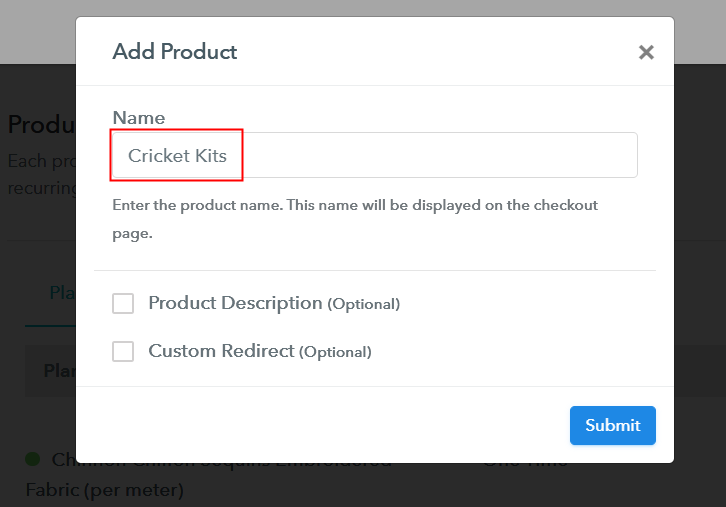
Additionally, add the name, which in our case is “Cricket Kits”. Here you can specify the type like high-quality cricket kits, arm guards, etc. Further, write a short description of the cricket kits to get the customer’s attention.

Add Product to Start Selling Cricket Kits Online

Moreover, just fill out all those details and your product is created.

Note: Here you can add all the products related to the similar category by creating plans for each of them.

Step 6: Add Plans 

Let’s display plans for different kinds of cricket kits available in your store.

(a) Select Add New Plan

Add Plan

(b) Specify the Plan & Pricing Details

Specify the Plan and Pricing to Sell Cricket Kits Online

The next thing to do is fill all the details of the cricket kits like plan name, code, price, set-up fee, and much more to continue.

(c) Add Image & Description of Cricket Kits

Add Image & Description to Sell Cricket Kits Online

Furthermore, it is necessary to write a brief description of the cricket kits using bullets, images, etc, to bring original buyers to the checkout page.

Next, click on the “Submit” button to add the cricket kits on the checkout page.

Finally, you can add multiple plans and kinds of cricket kits in your product list which you want to market online.

Step 7: Share your Checkout Page

Share Checkout Page on Social Media

  • Moreover, share the checkout page of the cricket kits on social media accounts like Facebook & Twitter to grab the customer’s attention.
  • Also, you can share the direct link of the cricket kits checkout page with your customers via SMS or email marketing.
  • Additionally, embed the provided plan link of the cricket kits in the buttons or any anchor text on your website.

Step 8: Preview Checkout Page

Follow up the recommended steps to preview the checkout page:

(a) Click on the View Button

View Checkout Plan

(b) Take a Look at the Checkout Page

Checkout Page to Sell Cricket Kits Online

Step 9: Embed Checkout Page in Site & Sell Cricket Kits Online

Embed Checkout Page on Website

Just copy the link and add the checkout page to sell cricket kits online at any proper place on your WordPress site.

(a) Edit the Page & Paste the Copied Link

Paste Link in Text Editor

Further, paste the plan link of cricket kits on a text editor of the WordPress dashboard.

(b) Save & Publish the Checkout Page

Save_and_Publish

Next, click the “Publish” button, after making changes.

(c) Check out the Final Look of your Checkout Page on WordPress Site

Final Look of your Checkout Page to Sell Cricket Kits Online

Step 10: Multiplan Checkout Page

Note: In case you want to sell multiple products via a single checkout page, you can create a multi-plan checkout page otherwise skip this step.

(a) Click on Add Mutiplan Checkout

Multiplan Checkout

(b) Add Plans to Sell Multiple Cricket Kits from Single Checkout Page

Add Multiple Products to Start Selling Cricket Kits Online

(c) Take a Look at the Checkout Page

Multiplan Checkout Page to Sell Cricket Kits Online

Preview Checkout Page

Wrapping Up

Alright! Cricket kits are essential sports equipment and demand for cricket bats, arm guards, helmet, etc keeps on increasing. With the help of Pabbly Subscription Billing, you can easily start cricket kits business online. All you need to do is follow all the above-mentioned steps.

Just, try this software out and let us know if you have any queries regarding the same.

You May Also Like To Read –
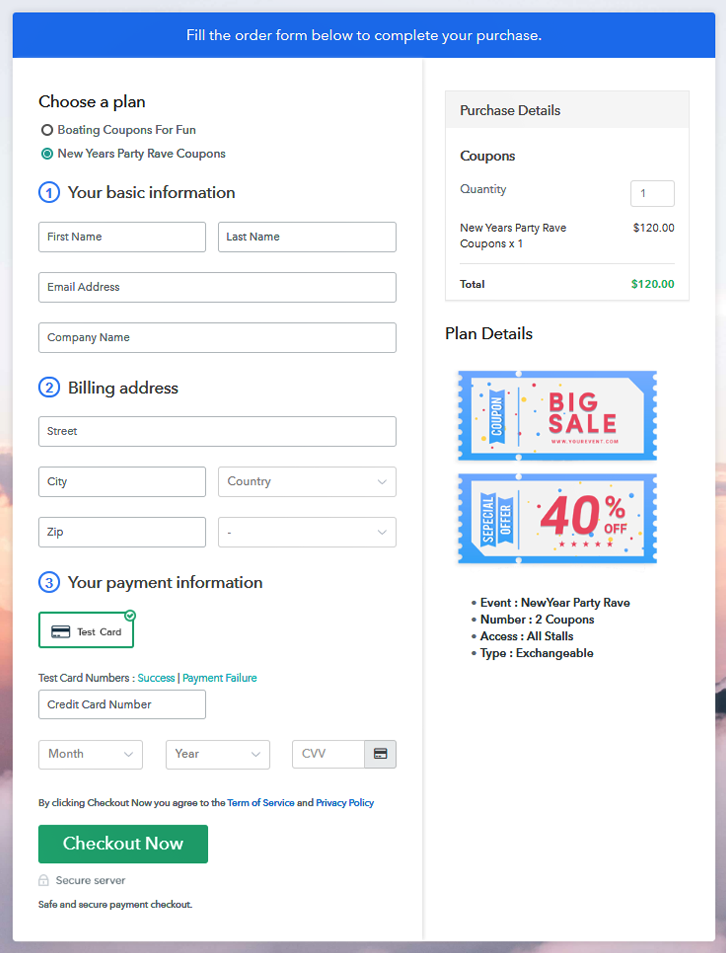
How To Sell Coupons Online | Step by Step (Free Method)

Ideal For: All the coupon sellers, gift shops, super markets, coupon dealers, coupon traders, and other merchants can use this method to sell coupons online.

How To Sell Coupons Online

Why Choose this Method to Sell Coupons Online?

Unlike any other solution, this method allows you to:

  • List and sell your coupons for FREE. Absolutely no payment required.
  • No need to pay commission on any of your sale.
  • Multiple payment options like PayPal, Credit Card, etc to collect payment from a single place.
  • Sell one time or recurring subscriptions of your coupons.
  • Collect payments & sell products in any currency as per your requirement.
  • Give discounts on your products by offering special coupon codes.
  • Add sales commission agents to help you in selling coupons online.

Get Pabbly Subscription Billing for Free

According to Investopedia, over 96% of the customers exhaust their coupons in just 90 days. Simply put, the 21st-century customer loves coupons. That is why startups like Honey, Groupon who specializes in tracing and selling coupons online is having such a momentous growth. Now seeing their business you are also convinced to sell coupons online. But you don’t know where to start. Well, don’t you worry as in the article we will teach you to sell coupons online without needing any technical skills whatsoever.

Of course, there are many tools available online that can help you but in this article, we will be using an awesome tool called
Pabbly Subscription Billing. Through this software, you can construct incredible checkout pages to sell coupons online and collect revenues in both offline and online modes. Some other benefits are :

  • List Unlimited Coupons
  • Apply Different Subscription Models
  • Track Revenues of Sales
  • Easily Import/ Export Customer Data
  • Custom Domain
  • Email Alerts on Card Declines
  • Transparent Billing

So, without wasting any more time lets create our first checkout page with Pabbly Subscription Billing to sell coupons online.

Final View of Checkout Page For Your Coupons Selling Business

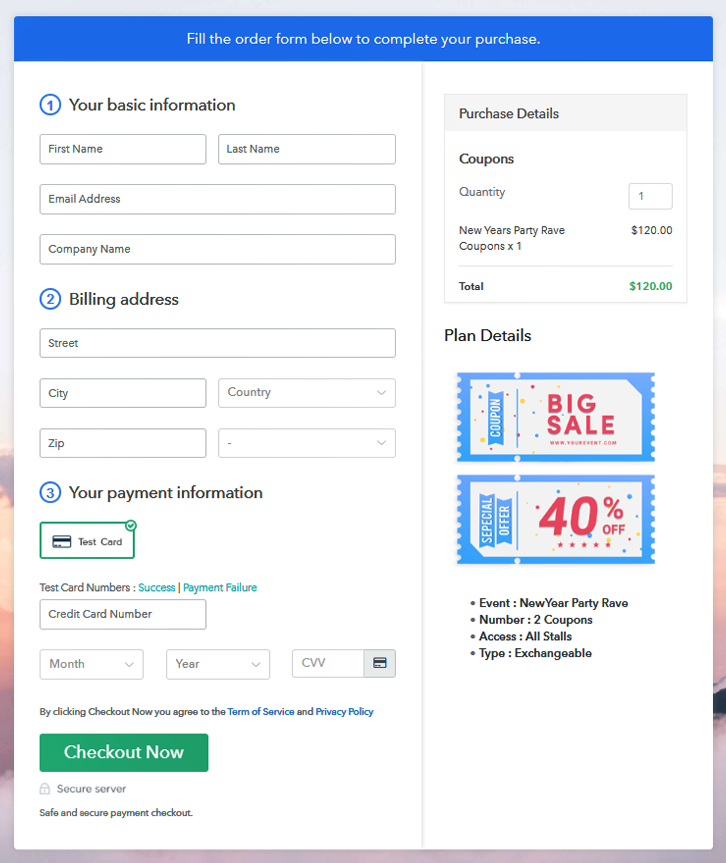
Checkout To Sell Coupons Online

Preview Checkout Page

Step 1: Log in to Pabbly Subscription Billing

Signup

Reach the website Pabbly Subscription Billing through your search engine. Here, click on the “Sign up Free“ button. You can either manually fill all the information or simply sign in using your Gmail account.

Sign Up For Free!

Step 2: Select Subscription Billing

Access Subscription Billing

Step 3: Account Setup

Setup Account

A dialog box will be generated and you will fill in the details like company name, currency, phone number, etc. Now after filing in the information press the blue “Continue” button to complete the process.

Step 4: Connect Payment Gateways & Start Coupons Selling Business Online

Connect Payment Gateway

Pabbly Subscription Billing has a dummy payment gateway for you to beta test the transaction experience of the customer to remove shortcomings beforehand. Just click on the “Enable Test Payment” option to start testing out this feature.

You can integrate many payment gateways PayPal, Authorize.net, Stripe, etc with Pabbly Subscription Billing. Below this paragraph, there are manuals to embed the payment gateway of your choice. So, I am going to enable the test payment option to continue the process.

Step 5: Add Product For Your Coupons

Add Product

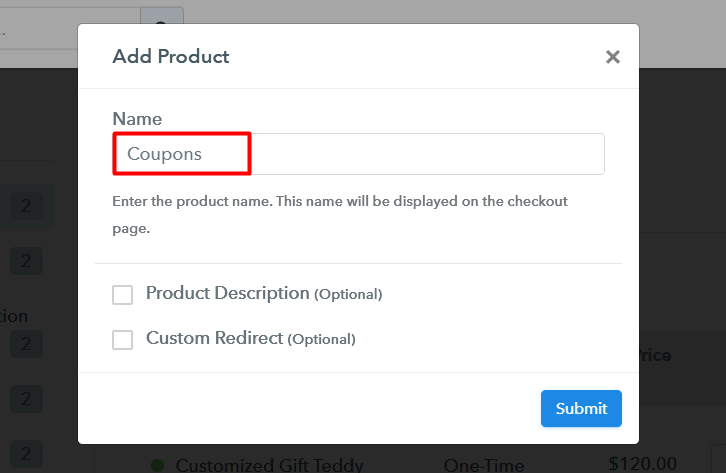
Hopefully, the payment integration went well. So let’s move on to add product with the “Add New Product” button will summon a dialog box. Here you can enter the name of the coupons and provide a product description, also even redirect to a particular website.

Add Products To Sell Coupons Online

Fill out all the details like the name of the product and voila your product is created.

Note: Here you can add all the products related to the similar category by creating plans for each of them.

Step 6: Add Plans 

Let’s rollout plans for different kinds of coupons available in your store.

(a) Select Add New Plan

Add Plan

(b) Specify the Plan & Pricing Details

Add Plans To Sell Coupons Online

In the plan page, fill in information like plan name, code, price, setup fees, etc. Moreover, while coming down you will find different billing models like one-time payment, recurring, based on cycles, etc. Now, choose the one that interests you the most. Furthermore, you can change it any time you want.

(c) Add Image & Description of Coupons

How

Now upload some good images of coupons by clicking on the image button.

Beneath the image, provide some important description of coupons like expiry, type, codes, etc then press the “Submit” button.

Later, using the same process, you can list more products

Step 7: Share your Checkout Page

Share Checkout Page on Social Media

  • Share the checkout page on Facebook & Twitter by clicking their respective button.
  • Also, you can share the plan link given on social media and other platforms like emails, SMS, etc.
  • Furthermore, you can embed the plan link within the buttons & add anchor text to redirect customers on checkout pages.

Step 8: Preview Checkout Page

Follow up the recommended steps to preview the checkout page:

(a) Click on the View Button

View Checkout Plan

(b) Take a Look at the Checkout Page

Checkout To Sell Coupons Online

Step 9: Embed Checkout Page in Site & Sell Coupons Online

Embed Checkout Page on Website

Just copy the link and add the checkout page to sell coupons online at any suitable place on your WordPress site.

(a) Edit the Page & Paste the Copied Link

Embed Checkout Page on Website

Further, paste the plan link of the coupons on a text editor of the WordPress dashboard.

(b) Save & Publish the Checkout Page

Save_and_Publish

Next, click the “Publish” button, after making changes.

(c) Check out the Final Look of your Checkout Page on WordPress Site

Add WordPress To Sell Coupons Online

Step 10: Multiplan Checkout Page

Note: In case you want to sell multiple products via a single checkout page, you can create a multi-plan checkout page otherwise skip this step.

(a) Click on Add Mutiplan Checkout

Multiplan Checkout

(b) Add Plans to Sell Multiple Coupons from Single Checkout Page

Add Multiplan To Sell Coupons Online

(c) Take a Look at the Checkout Page

How

Preview Checkout Page

Wrapping Up

Tada!! Here is your first checkout page made with Pabbly Subscription Billing to sell coupons online. Not just coupons, you can sell any products (physical and digital) online with this method. While it may take some time to fully exploit this software but right now if you have any doubts, ping us below in the comment section. We will reply to you at the earliest.

You May Also Like To Read –
How To Sell Cough Syrup Online | Step by Step (Free Method)

How to Sell Cough Syrup Online

Ideal For: All the medical stores, pharmacies, medicine suppliers, pharmaceuticals, medical supermarkets, and other sellers can use this method to take their cough syrup selling business online.

How to Sell Cough Syrup Online

Why Choose this Method To Sell Cough Syrup Online?

Unlike any other solution, this method allows you to:

  • List and sell your cough syrup for FREE. Absolutely no payment required.
  • No need to pay commission on any of your sales.
  • Multiple payment options like PayPal, Credit Card, etc to collect payment from a single place.
  • Sell one time or recurring subscriptions of your cough syrup.
  • Collect payments & sell products in any currency as per your requirement.
  • Give discounts on your products by offering special coupon codes.
  • Add sales commission agents to help you in selling cough syrup online.

Get Pabbly Subscription Billing for Free

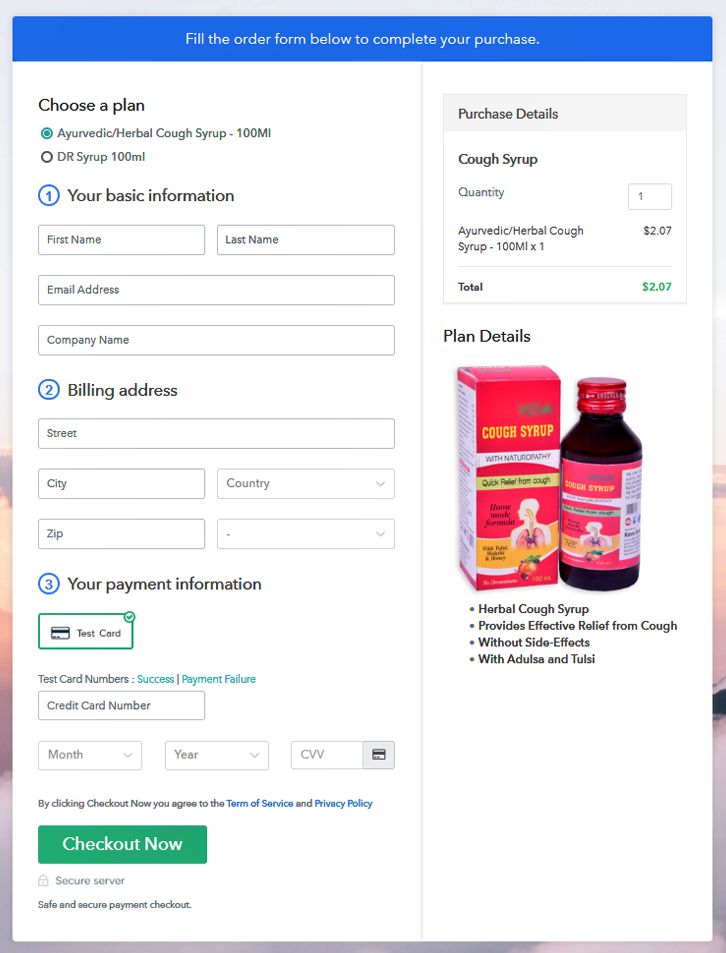
Cough is very common these days and people are falling sick in this changing season. People often hassle around finding the cough syrups offline. Rush in medical stores can be seen clearly for medicines and if you own a medical store then you should take this business to online platforms for some extra money and increased customer reach.

Checkout pages are online pages through which, you can easily increase your sales and get advanced marketing for your products. You just need to create checkout pages for your cough syrup and share them on social media and on your website to start selling cough syrup online. To start your online business we present to you an incredible software, Pabbly Subscription Billing which offers you an absolutely free platform. Other than the checkout pages, it also offers other great features like unlimited selling of products, adding unlimited customers, easy invoicing, unlimited revenue generation, etc.

Let us start creating your first checkout page for your online business.

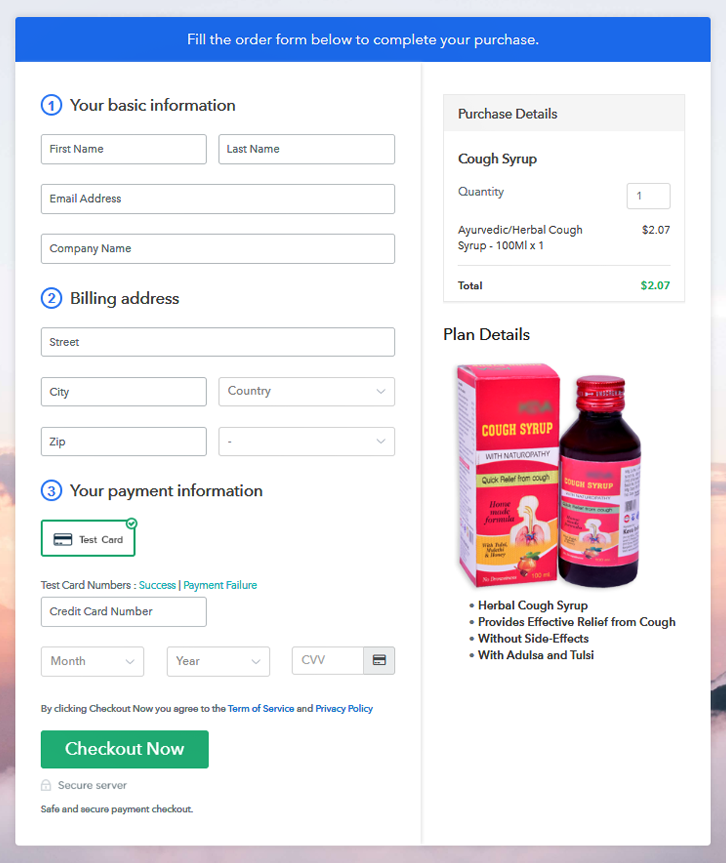
Final View of Checkout Page For Your Cough Syrup Selling Business

Preview Checkout Page

Preview Checkout Page

Step 1: Log in to Pabbly Subscription Billing

Signup

Firstly, you have to visit Pabbly Subscription Billing website and then click on the “Signup Free” button. After clicking the button the signup page will appear, here you can signup for free via Gmail or you can also enter your details manually.

Sign Up For Free!

Step 2: Select Subscription Billing

Access Subscription Billing

Step 3: Account Setup

Setup Account

After you have completed the signup process, then you have to fill up your company details like company name, currency, phone number in the shown dialogue box.

Step 4: Connect Payment Gateways & Start Cough Syrup Selling Business Online

Connect Payment Gateway

It gets really easy to understand the payment collection process through Pabbly Subscription Billing’s “Test Payment” mode for the sellers. Before proceeding further we advise you to check and use the dummy mode once to understand it. Afterwards, you can connect with other payment gateways for payment collection like PayPal, Stripe, etc of your choice. The complete payment gateways integration guide is given below-

Step 5: Add Product For Your Cough Syrup

Add Product

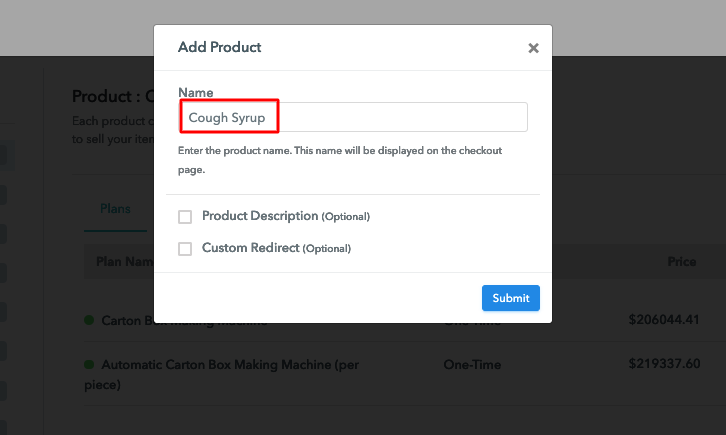
Moving on to this step, you have to add your first product, you can add cough syrups of different types such as antitussive cough syrups, expectorant cough syrups, etc.

Sell Cough Syrup Online Product Name

Add all the other cough syrups in the same product section by creating different plans for them.

Note: Here you can add all the products related to the similar category by creating plans for each of them.

Step 6: Add Plans 

Let’s generate plans for different types of cough syrups that you want to sell.

(a) Select Add New Plan

Add Plan

(b) Specify the Plan & Pricing Details

Sell Cough Syrup Online Details

When you click on the “Add New Plan” button, you will land on the plan page, here you have to fill up details like product name, code, price, billing cycle, etc.

(c) Add Image & Description of Cough Syrup

Sell Cough Syrup Online Image

Also, describe the cough syrup that you want to sell along with the images, links, etc, and then click on the submit button to add your product. You can create more plans for all the other cough syrups in a similar way.

Step 7: Share your Checkout Page

Share Checkout Page on Social Media

To enhance your sales of cough syrup, follow the given steps:

  • Share your checkout page on social media such as Facebook and Twitter.
  • Furthermore, copy the mentioned link and send it to your customers through SMS or emails directly.
  • Embed your plan link on your website so that your customers can be landed on the checkout page directly.

Step 8: Preview Checkout Page

Follow up the recommended steps to preview the checkout page:

(a) Click on the View Button

View Checkout Plan

(b) Take a Look at the Checkout Page

Preview Checkout Page

Step 9: Embed Checkout Page in Site & Sell Cough Syrup Online

Embed Checkout Page on Website

Just copy the link and add the checkout page to sell cough syrup online at any preferable place on your WordPress site.

(a) Edit the Page & Paste the Copied Link

Embed Checkout Page on Website

Further, paste the plan link on a text editor of the WordPress dashboard.

(b) Save & Publish the Checkout Page

Save_and_Publish

Next, click the “Publish” button, after making changes.

(c) Check out the Final Look of your Checkout Page on WordPress Site

Sell Cough Syrup Online Website

Step 10: Multiplan Checkout Page

Note: In case you want to sell multiple products via a single checkout page, you can create a multi-plan checkout page otherwise skip this step.

(a) Click on Add Mutiplan Checkout

Multiplan Checkout

(b) Add Plans to Sell Multiple Cough Syrup from Single Checkout Page

Sell Cough Syrup Online Multi Details

(c) Take a Look at the Checkout Page

Sell Cough Syrup Online Multi Checkout

Preview Checkout Page

Wrapping Up

Concluding, Pabbly Subscription Billing makes it a whole lot easier to start an online business with its free and beneficial features. Now, you can sell unlimited cough syrup online, share invoices automatically, integrate it with your website, and there are many other things that you can do with this service. Hence, signup and start exploring the benefits of the software. For further suggestions or queries, please contact us.

You May Also Like To Read –
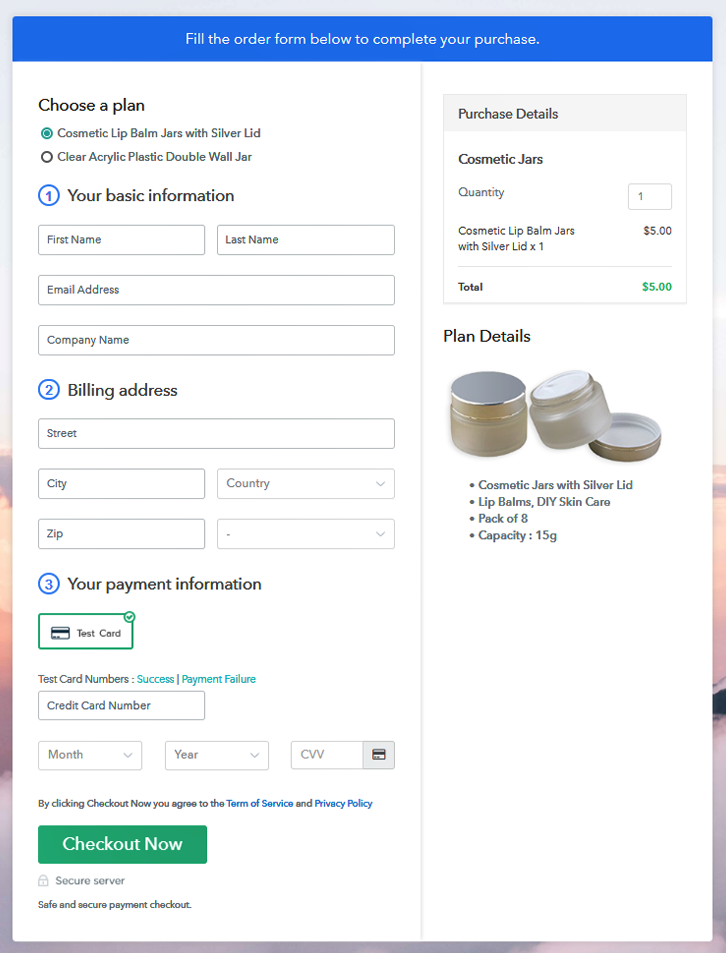
How to Sell Cosmetic Jars Online | Step by Step (Free Method)

How to Sell Cosmetic Jars Online

Ideal For: All the cosmetic jar manufacturers, cosmetic jar sellers, retail cosmetic jar shop owners, and other merchants can use this method to take their cosmetic jars selling business online.

How to Sell Cosmetic Jars Online

Why Choose this Method To Sell Cosmetic Jars Online?

Unlike any other solution, this method allows you to:

  • List and sell your cosmetic jars for FREE. Absolutely no payment required.
  • No need to pay commission on any of your sale.
  • Multiple payment options like PayPal, Credit Card, etc to collect payment from a single place.
  • Sell one time or recurring subscriptions of your cosmetic jars.
  • Collect payments & sell products in any currency as per your requirement.
  • Give discounts on your products by offering special coupon codes.
  • Add sales commission agents to help you in selling cosmetic jars online.

Get Pabbly Subscription Billing for Free

People are looking for cosmetic jars for many DIY and lip care products. So, if you are looking for a way to sell cosmetic products online then we can help you get started.

In this blog, we’ll be discussing process using which you can display your product, its specialities, pricing etc and collect payments through them. Optionally there are many other settings too that are pretty handy in selling cosmetic jars online such as offering coupons/discounts to the customers, accepting one-time/recurring payments etc.

Uses of these checkout pages in selling cosmetic jars online.

  • Display your products
  • Collect online/offline payments
  • Sell single/multiple payments form a single page
  • Build a customer-based using the recurring billing subscribers
  • Selling products globally and applying global taxes easily
  • Collect multi-currency
  • Automatic invoicing
    And much more

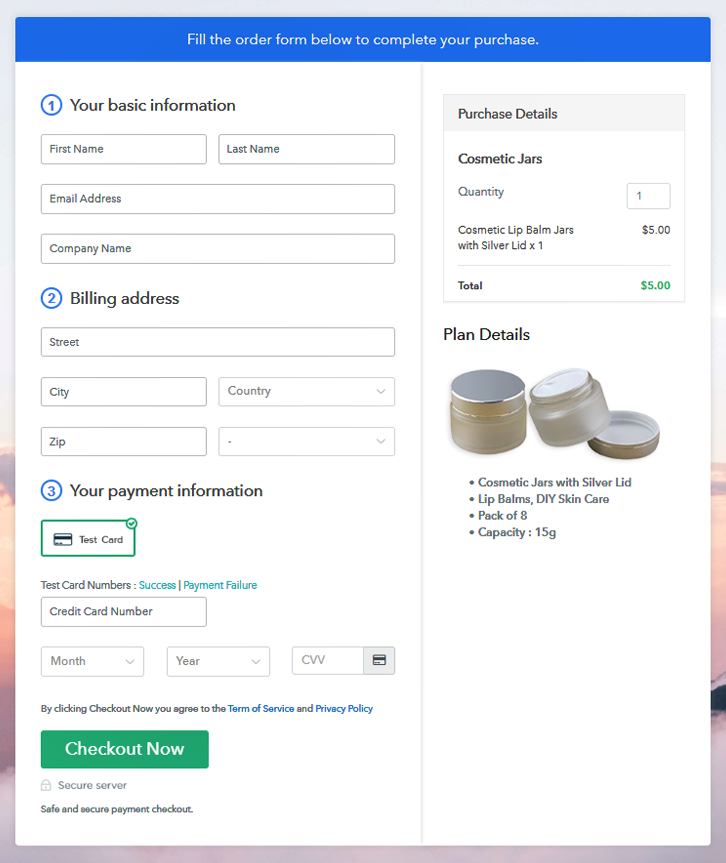
Final View of Checkout Page For Your Cosmetic Jars Selling Business

Checkout Page Preview to Sell Cosmetic Jars Online

Preview Checkout Page

Step 1: Log in to Pabbly Subscription Billing

Signup

Initiate by going on the Pabbly Subscription Billing website and click over the ‘Sign Up Free‘ button. On the registration page, you can either choose the manual or Google sign-up process to get started with creating checkout pages for selling cosmetic jars online.

Sign Up For Free!

Step 2: Select Subscription Billing

Access Subscription Billing

Step 3: Account Setup

Setup Account

Next, you’ll see a pop-up pane asking for your company details. Fill-in the company details such as a company name, phone number & the currency that you wanna deal in.

Step 4: Connect Payment Gateways & Start Cosmetic Jars Selling Business Online

Connect Payment Gateway

Now, you’ll need to integrate a payment gateway for collecting payments successfully. There are two different options that you can choose. One is enabling the test payment mode just to go further in the procedure and test the functionality. Second is selecting an actual payment gateway from the following options available to collect payments for the sold cosmetic jars in future.

Step 5: Add Product For Your Cosmetic Jars

Add Product

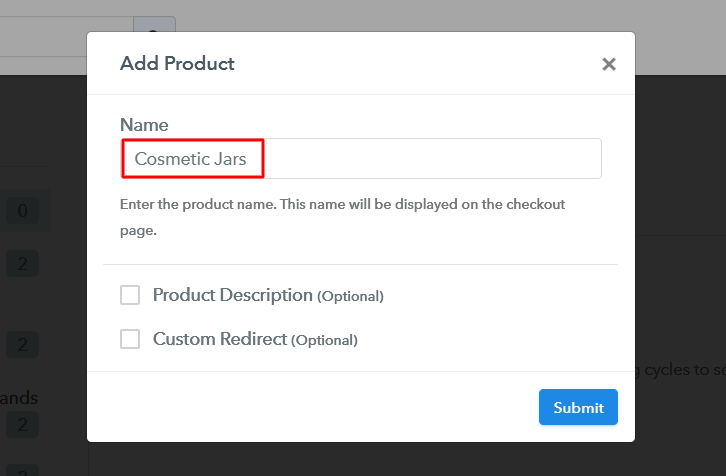
Further, the next step is to add a product and here you can add a particular cosmetic jar category. More further, we’ll be adding cosmetic jar items as plans to these products.

Add Product to Sell Cosmetic Jars Online

Fill up the product details and a product will be created instantly.

Note: Here you can add all the products related to the similar category by creating plans for each of them.

Step 6: Add Plans 

Now, we’ll add plans for different kinds of cosmetic jars available in your store.

(a) Select Add New Plan

Add Plan

(b) Specify the Plan & Pricing Details

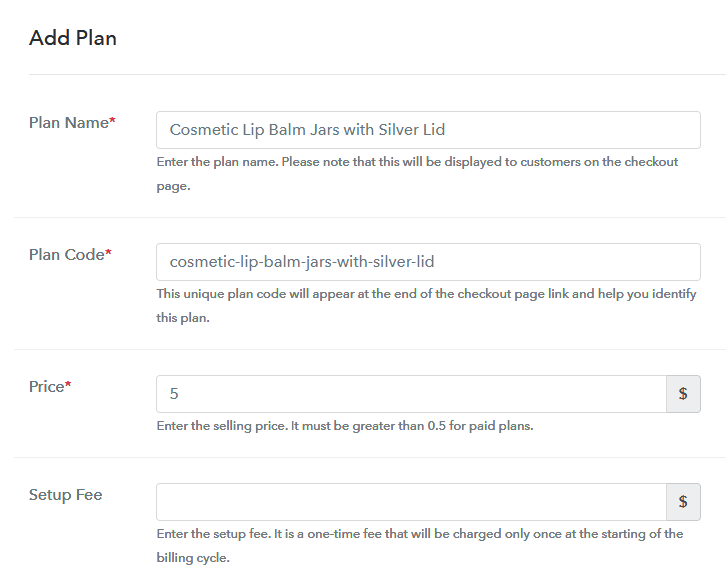
Add Plan to Sell Cosmetic Jars Online

By clicking on the ‘Add Plan’ button, you’ll be redirected to a plan details page. Here you can mention the cosmetic jar’s details such as its name, code, pricing, billing cycle and more.

(c) Add Image & Description of Cosmetic Jar

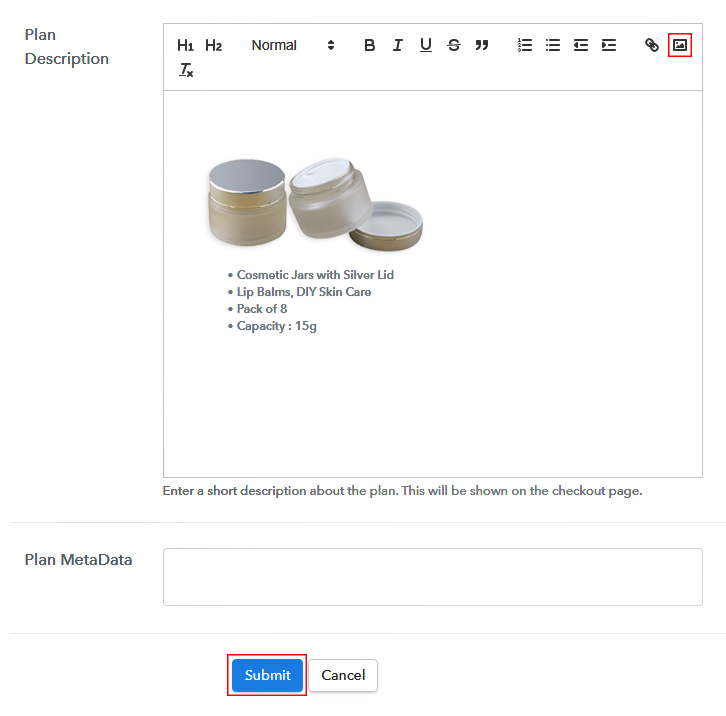
Add Image & Description to Sell Cosmetic Jars Online

Furthermore, you can also add an image of the cosmetic jar with some description about it.

Fill out all the details and strike the ‘Submit’ button.

Likewise, you can add all the other cosmetic jars to sell online.

Step 7: Share your Checkout Page

Share Checkout Page on Social Media

Now, to sell cosmetic jars online you can share/embed the checkout page in three different ways.

  • First, you can share the page directly on Facebook & Twitter by clicking on the sharing button available
  • Second, you can share the plan link URL with the customers on other social media & link sharing channels such as Messengers, emails, SMS etc
  • Lastly, you can redirect your customers on the checkout pages by linking the plan link with buttons and texts of any website or app

Step 8: Preview Checkout Page

Follow up the recommended steps to preview the checkout page:

(a) Click on the View Button

View Checkout Plan

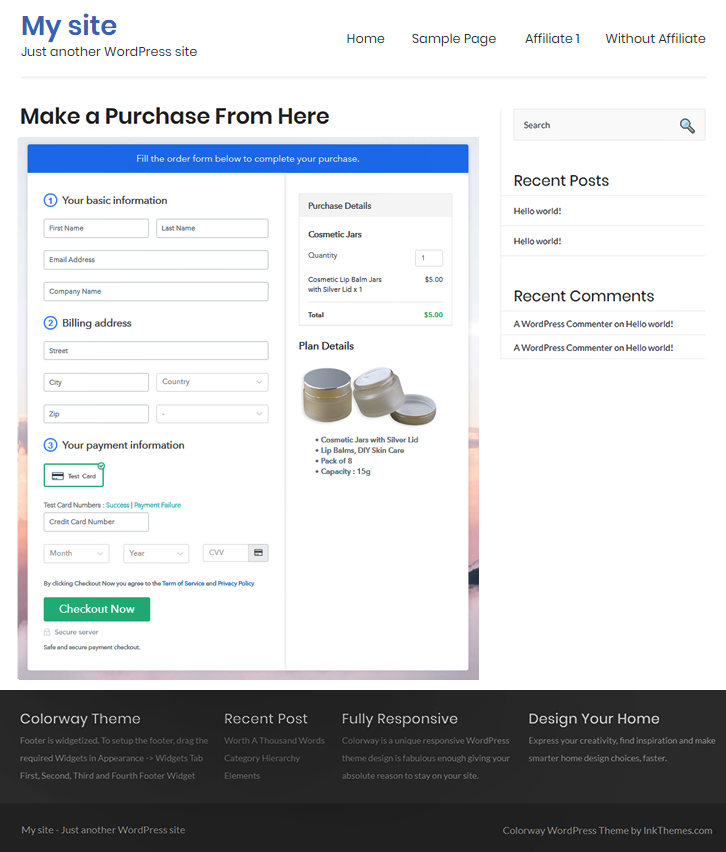
(b) Take a Look at the Checkout Page

Checkout Page Preview to Sell Cosmetic Jars Online

Step 9: Embed Checkout Page in Site & Sell Cosmetic Jars Online

Embed Checkout Page on Website

Just copy the link and add the checkout page to sell cosmetic jars online at any preferable place on your WordPress site.

(a) Edit the Page & Paste the Copied Link

Embed Checkout Page on Website

Further, paste the plan link on a text editor of the WordPress dashboard.

(b) Save & Publish the Checkout Page

Save_and_Publish

Next, click the “Publish” button, after making changes.

(c) Check out the Final Look of your Checkout Page on WordPress Site

Checkout Page WordPress Site to Sell Cosmetic Jars Online

Step 10: Multiplan Checkout Page

Note: In case you want to sell multiple products via a single checkout page, you can create a multi-plan checkout page otherwise skip this step.

(a) Click on Add Mutiplan Checkout

Multiplan Checkout

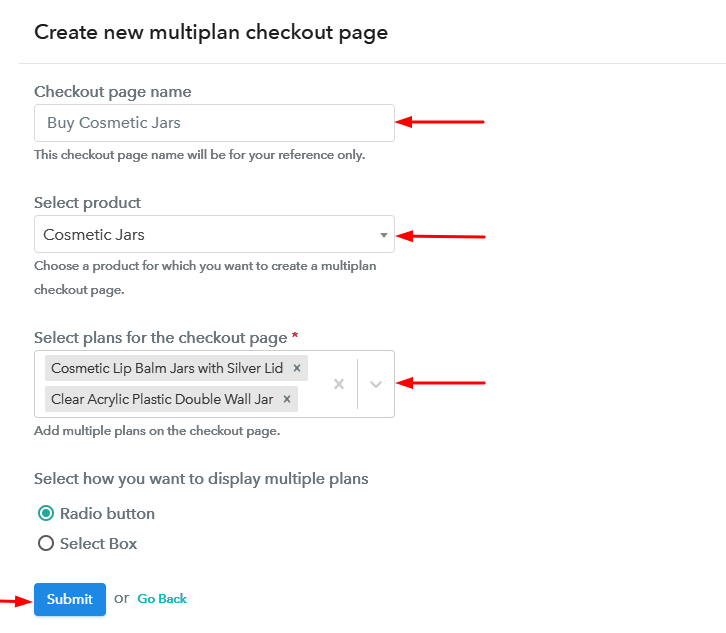
(b) Add Plans to Sell Multiple Cosmetic Jars from Single Checkout Page

Create Multiplan Checkout Page to Sell Cosmetic Jars Online

(c) Take a Look at the Checkout Page

Multiplan Checkout Page to Sell Cosmetic Jars Online

Preview Checkout Page

Wrapping Up

This was my catch on ‘how to sell cosmetic jars online’ easily. As you can see this is the most flexible, fast and well-managed service available at no cost. That too allows you to accept multi-currency and given you options to choose a reliable payment gateway.

You May Also Like To Read –
How To Sell Decks Online | Step by Step (Free Method)

Ideal For: All the deck manufacturers, deck sellers, deck dealers, deck shops and other merchants can use this method to sell decks online.

How To Sell Decks Online

Why Choose this Method to Sell Decks Online?

Unlike any other solution, this method allows you to:

  • List and sell your decks for FREE. Absolutely no payment required.
  • No need to pay commission on any of your sale.
  • Multiple payment options like PayPal, Credit Card, etc to collect payment from a single place.
  • Sell one time or recurring subscriptions of your decks.
  • Collect payments & sell products in any currency as per your requirement.
  • Give discounts on your products by offering special coupon codes.
  • Add sales commission agents to help you in selling decks online.

Get Pabbly Subscription Billing for Free

The advantages of selling decks online are numerous like, your customer can easily browse through a rich catalog of deck collection and order it from the comfort of their home, the capital costs like rent & utilities are lower, precise revenue management, no need to hire excess staff, 24×7 open online shops, higher product discovery, lower carbon footprint, etc.

However, as a seller, you are in a fix as there are plenty of tools available to sell decks online but many of these tools charge an excess commission, thus probably eating up your profits in long run. That is why here in this article we will recommend a Saas tool called Pabbly Subscription Billing, as it can list and sell unlimited decks online without any hidden charges. Other benefits includes:

  • Unlimited Product Listing
  • Revenue Collection in Both Offline/Online Modes
  • Multiple Billing Models
  • Multi-Payment Gateway Integrations
  • Custom Domain
  • Unlimited Revenue Generation
  • Custom Logos
  • Product Marketing on Social Media
  • Email Alerts on Payment Completion/Failure
  • Auto Credit Card Reattempts on Decline

Using these features, you will be on step ahead over other decks sellers. So let’s build our first checkout page with Pabbly Subscription Billing to sell decks online.

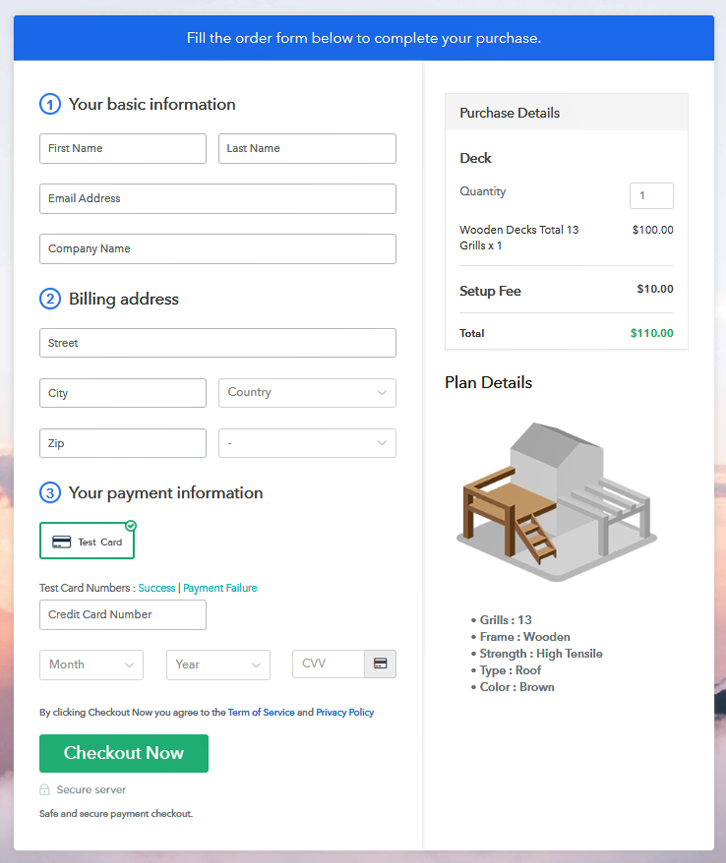
Final View of Checkout Page for your Decks Selling Business

Checkout To Sell Decks Online

Preview Checkout Page

Step 1: Log in to Pabbly Subscription Billing

Signup

For imitating the process, first, you need to visit the website Pabbly Subscription Billing in your search engine. Now on reaching their website click on the “Sign up Free“ button. Either manually fill all the information or simply sign in using your Gmail account.

Sign Up For Free!

Step 2: Select Subscription Billing

Access Subscription Billing

Step 3: Account Setup

Setup Account

In this dialogue box, you have to fill in the details like company name, currency, phone number, etc. Now after filing in the information press the blue “Continue” button to complete the process.

Step 4: Connect Payment Gateways & Start Decks Selling Business Online

Connect Payment Gateway

Pabbly Subscription Billing has a dummy payment gateway for you to beta test the transaction experience of the customer to remove shortcomings beforehand. Just click on the “Enable Test Payment” option to start testing out this feature.

You can integrate many payment gateways PayPal, Authorize.net, Stripe, etc with Pabbly Subscription Billing. Below this paragraph, there are manuals to embed the payment gateway of your choice. So, I am going to enable the test payment option to continue the process.

Step 5: Add Product for your Decks

Add Product

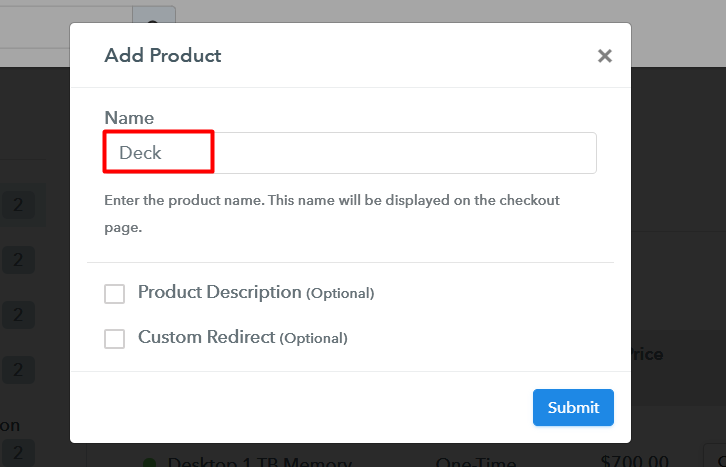
Now click on to add product with the “Add New Product” button will summon a dialog box. Here you can enter the name of the decks and provide a product description, also even redirect to a particular website.

Add Product To Sell Decks Online

Fill out all the details like the name of the product and voila your product is created.

Note: Here you can add all the products related to the similar category by creating plans for each of them.

Step 6: Add Plans 

Let’s rollout plans for different kinds of decks available in your store.

(a) Select Add New Plan

Add Plan

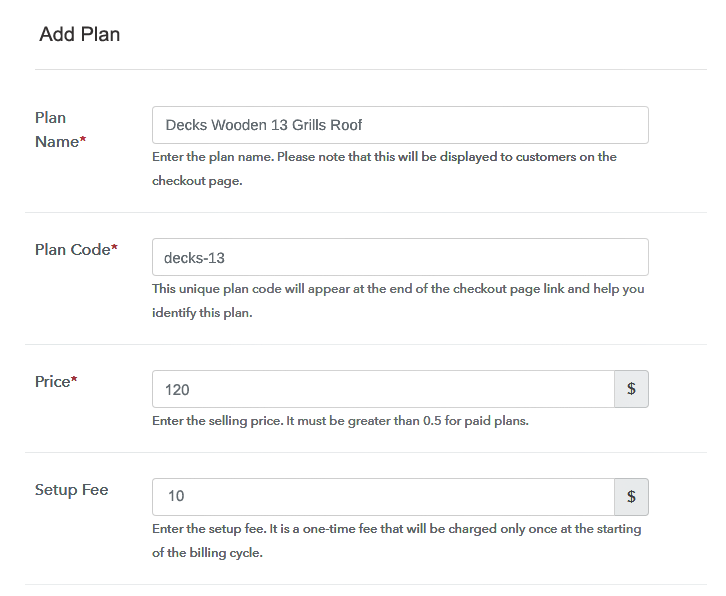
(b) Specify the Plan & Pricing Details

Add Plans To Sell Decks Online

In the plan page, fill in information like plan name, code, price, setup fees, etc. Moreover, while coming down you will find different billing models like one-time payment, recurring, based on cycles, etc. Now, choose the one that interests you the most. Furthermore, you can change it any time you want.

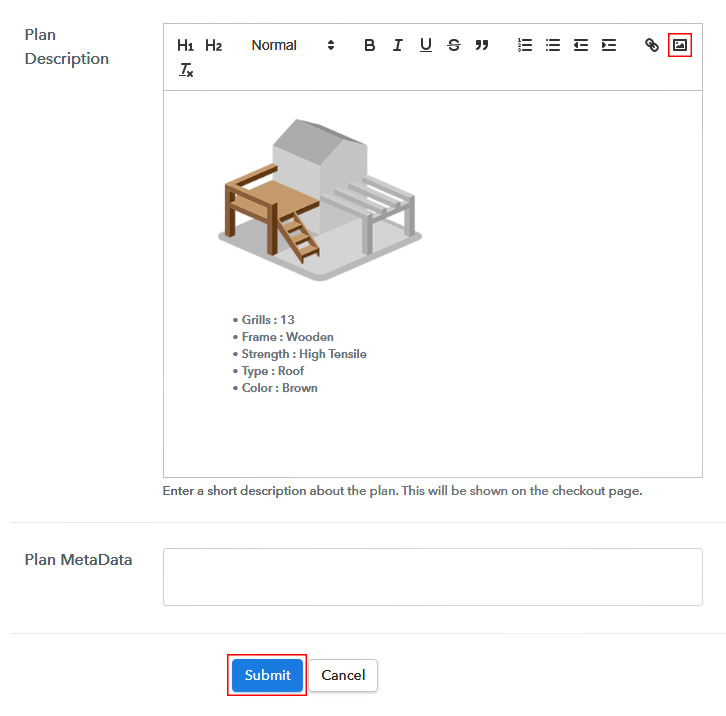
(c) Add Image & Description of Decks

Add Image To Sell Decks Online

Now it is time to insert good images of your decks by clicking on the image button.

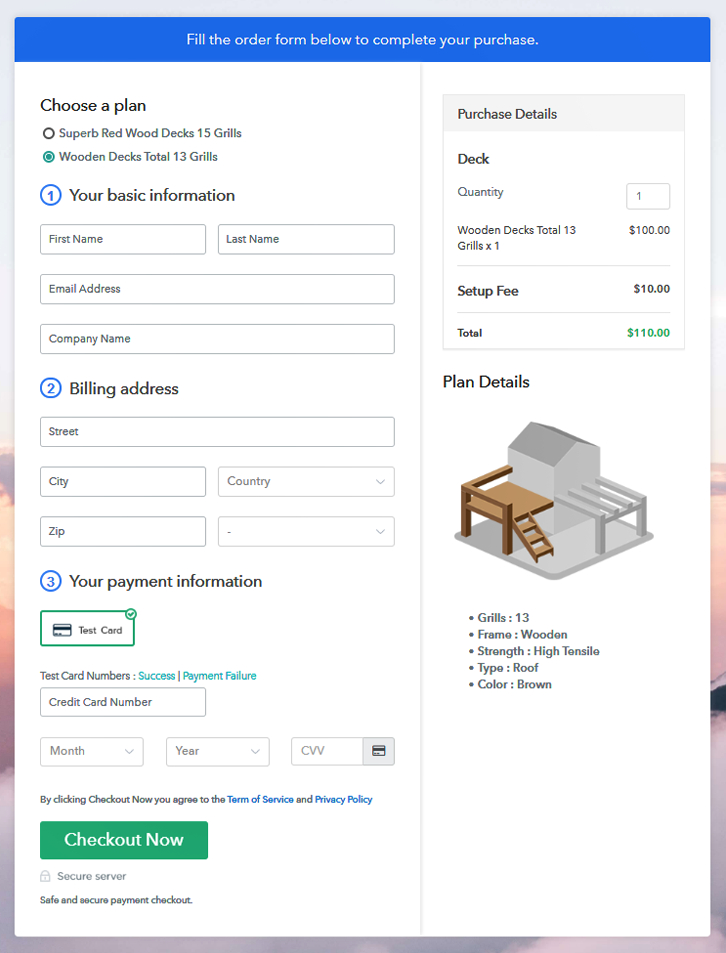
After you have uploaded the image give concise information of your decks like grills, colors, weight, etc, and then press the “Submit” button.

Later, using the same process, you can list more products

Step 7: Share your Checkout Page

Share Checkout Page on Social Media

  • Share the checkout page on Facebook & Twitter by clicking their respective button
  • Also, insert the checkout pages link in platforms like emails, SMS, etc.
  • Moreover, you can create buttons and insert page links & add anchor text to redirect customers to checkout pages.

Step 8: Preview Checkout Page

Follow up the recommended steps to preview the checkout page:

(a) Click on the View Button

View Checkout Plan

(b) Take a Look at the Checkout Page

Checkout To Sell Decks Online

Step 9: Embed Checkout Page in Site & Sell Decks Online

Embed Checkout Page on Website

Just copy the link and add the checkout page to sell decks online at any suitable place on your WordPress site.

(a) Edit the Page & Paste the Copied Link

Embed Checkout Page on Website

Further, paste the plan link of the decks on a text editor of the WordPress dashboard.

(b) Save & Publish the Checkout Page

Save_and_Publish

Next, click the “Publish” button, after making changes.

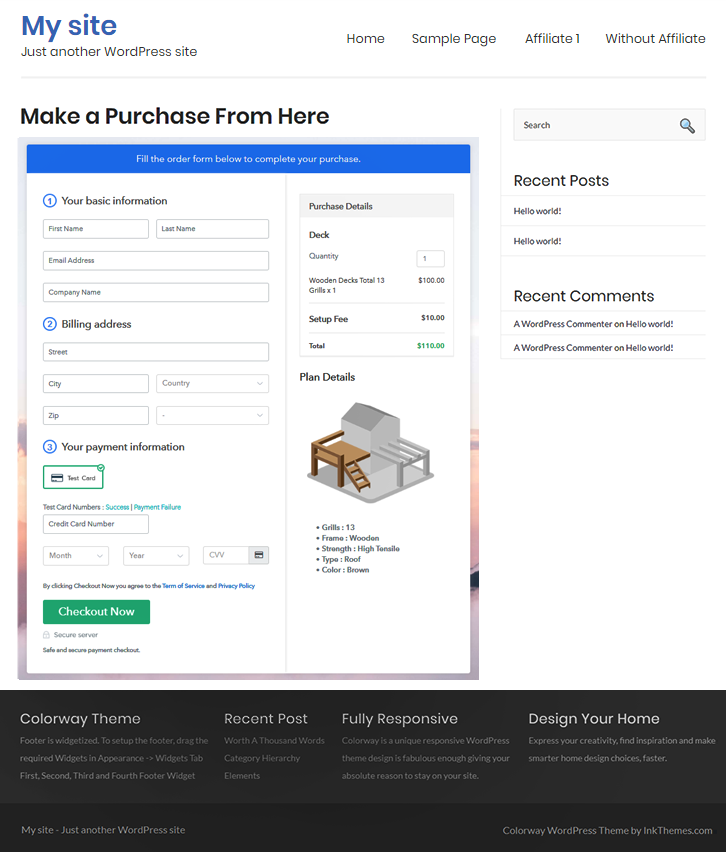
(c) Check out the Final Look of your Checkout Page on WordPress Site

Embed WordPress To Sell Decks Online

Step 10: Multiplan Checkout Page

Note: In case you want to sell multiple products via a single checkout page, you can create a multi-plan checkout page otherwise skip this step.

(a) Click on Add Mutiplan Checkout

Multiplan Checkout

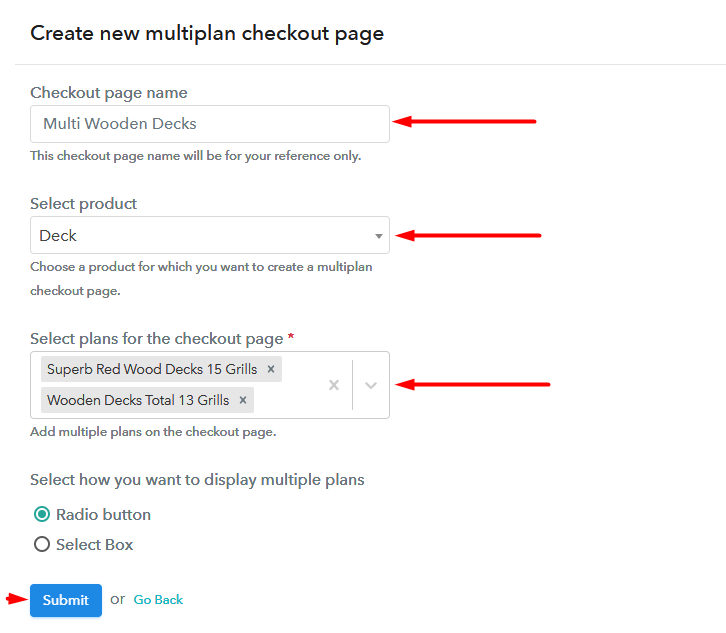
(b) Add Plans to Sell Multiple Decks from Single Checkout Page

Multiplan To Sell Decks Online

(c) Take a Look at the Checkout Page

Multiplan Image To Sell Decks Online

Preview Checkout Page

Wrapping Up

So, with these 10 simple steps, you have created your first checkout pages to sell decks online. With little effort, you will become an expert in Pabbly Subscription Billing and thereby in e-commerce. But now as a beginner, you may face some challenges, that is why in case of doubts drop your queries in the comment section below.

You May Also Like To Read –