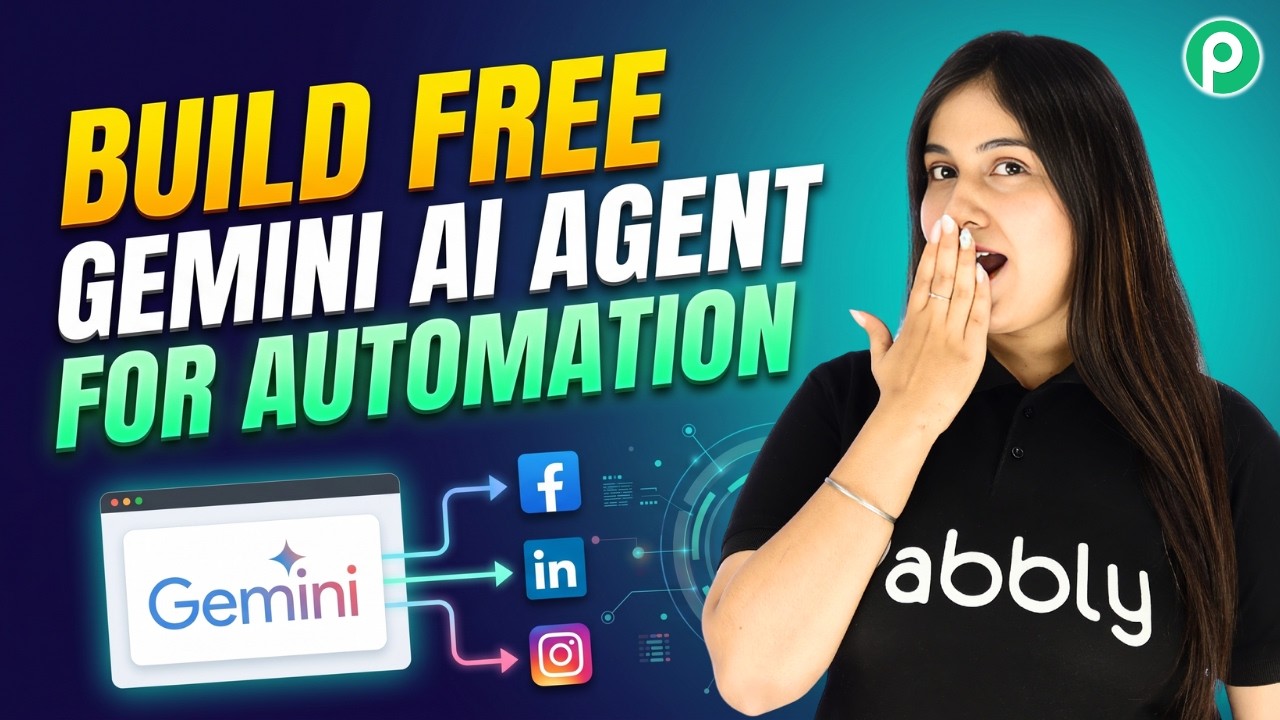
How I Analyze YouTube Videos Without Watching Them (Using Gemini)

Learn how to analyze YouTube videos without watching them by integrating Google Sheets and Gemini with Pabbly Connect. Step-by-step tutorial included. Learn to create powerful connections between your critical applications without requiring specialized programming knowledge or extensive technical background.

Watch Step By Step Video Tutorial Below


1. Accessing Pabbly Connect for YouTube Video Analysis

To analyze YouTube videos without watching them, start by accessing Pabbly Connect. This platform is essential for integrating multiple applications, including Google Sheets and Gemini, to automate the analysis process.

First, go to the Pabbly Connect website. If you don’t have an account, you can sign up for free and receive 100 tasks per month. Once logged in, create a new workflow specifically for analyzing YouTube videos.


2. Setting Up Google Sheets with Pabbly Connect

In this step, you will set up Google Sheets to collect YouTube video links and titles. This is done through Pabbly Connect, which will capture the data entered into the spreadsheet.

Follow these steps to connect Google Sheets with Pabbly Connect:

  • Open Google Sheets and create a new spreadsheet.
  • Go to Extensions > Add-ons > Get Add-ons and search for Pabbly Connect Webhooks.
  • Install the add-on and refresh the spreadsheet.

Once this is set up, you can start entering video titles and URLs into your spreadsheet, which will be captured by Pabbly Connect for further processing.


3. Setting Up the Trigger in Pabbly Connect

Now that your Google Sheets is ready, you need to set up a trigger in Pabbly Connect. This trigger will activate whenever a new video title and URL are added to your spreadsheet.

To set up the trigger:

  • Select Google Sheets as your trigger application.
  • Choose the event ‘New or Updated Spreadsheet Row’.
  • Copy the provided webhook URL and set it in the Pabbly Connect Webhooks add-on in your Google Sheets.

After setting the trigger, your spreadsheet will communicate with Pabbly Connect, allowing it to capture data as soon as it is entered.


4. Analyzing Videos Using Gemini and Pabbly Connect

With your trigger set up, you will now integrate Gemini to analyze the video insights. This step is crucial as Pabbly Connect facilitates the connection between Google Sheets and Gemini to extract valuable information from the videos.

To set up the analysis:

Add an action step in Pabbly Connect and select Gemini. Choose the event ‘Video Insights’ to generate summaries and insights. Map the video URL from your previous step to the Gemini action.

Once the action is configured, Pabbly Connect will send the video URL to Gemini for analysis, generating insights that will be returned to your workflow.


5. Documenting Insights in Google Docs

Finally, you will utilize Google Docs to create a document that contains the insights generated by Gemini. This is where Pabbly Connect plays a vital role in automating the documentation process.

To set up Google Docs for documentation:

Add another action step in Pabbly Connect and select Google Docs. Choose the event ‘Create Document from Template’ and select your template. Map the insights and other relevant data to the appropriate fields in your document.

This step ensures that every time a video is analyzed, a corresponding document is created automatically in Google Docs, thanks to the power of Pabbly Connect.


Conclusion

Using Pabbly Connect, you can efficiently analyze YouTube videos without watching them by integrating Google Sheets and Gemini. This automation saves time and provides valuable insights for content creators.

Ensure you check out Pabbly Connect to create business automation workflows and reduce manual tasks. Pabbly Connect currently offer integration with 2,000+ applications.

How to Send Slack Notifications Automatically

Learn how to automate Slack notifications for new course registrations using Pabbly Connect in this step-by-step tutorial. Discover how to seamlessly connect your essential tools through accessible instructions that make powerful automation available to professionals at every skill level.

Watch Step By Step Video Tutorial Below


1. Accessing Pabbly Connect for Automation

To send Slack notifications automatically, the first step is to access Pabbly Connect. If you are an existing user, simply open your workflow builder. For new users, visit pabbl.com/connect and click on the ‘Sign Up for Free’ button in the top right corner.

Upon signing up, you will receive 100 free tasks every month, allowing you to send up to 100 Slack notifications without any cost. Once you are familiar with Pabbly Connect, you can explore subscription options for additional features.


2. Setting Up the Trigger with Typeform

In this step, you will configure the trigger in Pabbly Connect to respond to new course registrations via Typeform. Click on the ‘Add Trigger’ button and select Typeform as the application. For the event, choose ‘New Entry’ and click on ‘Connect’.

  • Select existing connection if available, or click on ‘Add a New Connection’.
  • Log into your Typeform account to grant necessary permissions.
  • Choose the specific form for course registration.

After saving, click on ‘Save and Send Test Request’ to capture the webhook response. Make sure the response format is set to advanced. Then, perform a test submission on your Typeform to complete the setup.


3. Adding the Action Step to Send Slack Notifications

Next, you will add an action step in Pabbly Connect to send notifications to Slack. Click on the ‘Add New Action Step’ and search for Slack as the application. Choose ‘Send Channel Message’ for the event and click on ‘Connect’.

If you have an existing connection, select it; otherwise, create a new one. You will need to choose the token type, either user or bot. For this automation, select ‘Bot’ and click save. Grant the necessary permissions to Pabbly Connect to connect with Slack.


4. Configuring the Slack Message Details

Now, configure the details of the Slack message. In Pabbly Connect, select the channel where you want to send notifications, such as ‘New Registrations’. For the message, type a notification alert that includes dynamic details from the Typeform submission.

  • Use mapping to insert details like name, email, and phone number dynamically.
  • Leave optional fields like image URL blank if not needed.

Click on ‘Save and Send Test Request’ to verify that the notification is sent successfully. You will receive a confirmation that the message was sent, and you can check your Slack channel for the notification.


5. Conclusion: Automate Slack Notifications with Pabbly Connect

By following these steps, you can automate the process of sending Slack notifications for new course registrations using Pabbly Connect. This powerful automation ensures that your team is instantly notified whenever a new registration occurs.

Ensure you check out Pabbly Connect to create business automation workflows and reduce manual tasks. Pabbly Connect currently offer integration with 2,000+ applications.

Start using Pabbly Connect today to streamline your workflows and improve team communication. With the ability to connect various applications, you can create customized automations that fit your business needs.


In summary, this tutorial guides you through using Pabbly Connect to send Slack notifications automatically, improving team efficiency and communication.

Auto-Send Payment Confirmation Email | Razorpay to GoHighLevel Integration

Learn how to automate payment confirmation emails using Pabbly Connect to integrate Razorpay and GoHighLevel. Step-by-step guide included. Discover hidden automation capabilities within your existing tools. This guide shows you how to connect your essential applications and permanently eliminate redundant manual processes.

Watch Step By Step Video Tutorial Below


1. Accessing Pabbly Connect for Integration

To begin the integration process, first, access Pabbly Connect by visiting the Pabbly website and signing into your account. If you’re a new user, you can sign up for free, which grants you 100 tasks monthly to explore the platform’s capabilities.

Once logged in, navigate to the Pabbly Connect dashboard where you can manage your workflows. Click on the ‘Create Workflow’ button to start setting up the integration between Razorpay and GoHighLevel.


2. Setting Up the Workflow in Pabbly Connect

In this section, you will create a workflow to automate sending payment confirmation emails. Start by selecting Razorpay as the trigger application. You will choose the event as ‘Payment Captured’ to initiate the workflow whenever a payment is made.

  • Select ‘Razorpay’ as the trigger application.
  • Choose ‘Payment Captured’ as the trigger event.
  • Click on ‘Connect’ to establish the connection.

After connecting, Pabbly Connect will provide a webhook URL. This URL needs to be added to Razorpay to allow it to communicate with Pabbly Connect. Go to your Razorpay account, navigate to the ‘Developers’ section, and select ‘Webhooks’ to add this URL.


3. Capturing the Webhook Response

Once the webhook is set up, you need to perform a test transaction to capture the webhook response in Pabbly Connect. Fill in the payment details on your Razorpay payment page to simulate a transaction.

  • Enter dummy details such as email, phone number, and city.
  • Select UPI as the payment method and complete the transaction.
  • Check Pabbly Connect to ensure the webhook response is captured.

This step verifies that Razorpay is successfully sending data to Pabbly Connect, which is essential for the workflow to function correctly.


4. Adding GoHighLevel as an Action Step

After capturing the webhook response, the next step is to add GoHighLevel as an action application in your workflow. Choose ‘Lead Connector V2’ as the action application and select ‘Create Contact’ as the action event.

Connect your GoHighLevel account by following the prompts. You will need to authorize Pabbly Connect to access your GoHighLevel account. Once connected, map the fields from the Razorpay response to the corresponding fields in GoHighLevel.


5. Sending the Payment Confirmation Email via Gmail

Finally, set up Gmail as the last action step to send a payment confirmation email. Select ‘Send Email’ as the action event after connecting your Gmail account to Pabbly Connect.

Map the email fields using the data captured from Razorpay, including the recipient’s email address and payment details. This ensures that customers receive a personalized confirmation email after their payment is processed.


Conclusion

By following these steps, you can effectively automate the process of sending payment confirmation emails using Pabbly Connect to integrate Razorpay with GoHighLevel. This setup enhances customer experience and streamlines your payment processing workflow.

Ensure you check out Pabbly Connect to create business automation workflows and reduce manual tasks. Pabbly Connect currently offer integration with 2,000+ applications.

B2B Order Automation Using WhatsApp Chatbot

Learn how to automate B2B orders using WhatsApp Chatbot with Pabbly Chatflow. Follow our detailed tutorial for seamless integration and order management. Learn how to create intelligent chat workflows that provide instant customer support while qualifying leads 24/7 without human intervention.

Watch Step By Step Video Tutorial Below


1. Accessing Pabbly Chatflow for WhatsApp Chatbot Integration

To start automating B2B orders using WhatsApp Chatbot, the first step is to access Pabbly Chatflow. Navigate to the Pabbly website and select the option to sign up for a free account. This allows you to utilize 100 free credits each month, perfect for testing your chatbot setup.

Once signed up, log in to your Pabbly account and access the Pabbly Chatflow application. Here, you will find options to add your WhatsApp number, which is essential for integrating your chatbot. You can choose between WhatsApp connect or manual token connect for adding your number.


2. Creating Your WhatsApp Chatbot Flow in Pabbly Chatflow

After accessing Pabbly Chatflow, click on the ‘Flows’ option in the sidebar to begin creating your chatbot. Select the ‘Add Flow’ button and name your flow, such as ‘B2B Order Automation using WhatsApp Chatbot’. This name will help you identify the flow later on.

  • Provide a keyword trigger, such as ‘hello’, to initiate the chatbot.
  • Set up message blocks to send welcome messages and options to users.
  • Use buttons for users to select product categories.

With these steps, you create a structured flow that welcomes users and guides them through the order process. This setup is crucial for ensuring your customers have a seamless experience when interacting with your WhatsApp Chatbot.


3. Adding Product Categories and Options in Pabbly Chatflow

Next, you will add product categories to your chatbot flow using Pabbly Chatflow. After the welcome message, create a list that includes various skincare product categories. This allows users to choose from options like ‘Face Wash’ or ‘Moisturizers’.

To do this, use the list node feature to set up categories and add items under each category. For example, under ‘Face Wash’, you might include items like ‘Gentle Foaming Face Wash’. Each item can have a description and an image associated with it, enhancing the user experience.

  • Create separate sections for each product category.
  • Add images and descriptions for each product to make selection easier.
  • Ensure each product has a button for placing orders.

This structured approach helps users navigate your offerings and select products efficiently, laying the foundation for the order process.


4. Setting Up Order Confirmation and User Interaction

Once users select a product, the next step in Pabbly Chatflow is to ask for order details. You will need to create a sequence of questions that gather necessary information such as quantity, full name, and delivery address. This interaction is crucial for processing orders effectively.

Utilize the ‘Ask Question’ feature to prompt users for their desired quantity and personal information. After collecting this data, send a confirmation message that summarizes the order details, ensuring users know their order has been received.

Add questions for quantity, name, and delivery address. Create a confirmation message that includes product details. Use contact custom fields to personalize the confirmation.

This step not only confirms the order but also enhances customer satisfaction by providing clear communication throughout the process.


5. Sharing Your WhatsApp Chatbot with Pabbly Chatflow

After successfully creating your WhatsApp Chatbot in Pabbly Chatflow, you can share it with others. This feature allows team members or colleagues to experience the automation you’ve built, promoting collaboration and feedback.

To share your flow, go back to the flow builder page, select the three dots next to your flow, and choose the ‘Share Flow’ option. This will generate a sharable link that you can distribute to others.

Encouraging others to use Pabbly Chatflow can help expand your business’s automation capabilities. By sharing your work, you not only showcase your efforts but also help others to improve their order management processes.


Conclusion

In conclusion, automating B2B orders using WhatsApp Chatbot with Pabbly Chatflow streamlines the ordering process significantly. By following the steps outlined in this tutorial, you can create a functional chatbot that enhances customer interaction and order management.

Ensure you check out Pabbly Connect to create business automation workflows and reduce manual tasks. Pabbly Connect currently offer integration with 2,000+ applications.

AI WhatsApp Assistant That Sounds Human

Learn how to create a human-sounding WhatsApp assistant using Pabbly Chatflow and Pabbly Chatflow. Step-by-step tutorial for seamless integration. Discover practical methods for designing chat sequences that capture leads, answer questions, and guide users to the next step in your funnel.

Watch Step By Step Video Tutorial Below


1. Setting Up Pabbly Chatflow for Your WhatsApp Assistant

To create your human-sounding WhatsApp assistant, start by accessing Pabbly Chatflow. Open your browser and navigate to Pabbly.com/chatflow. Here, you will find options to sign in or sign up for free.

If you are a new user, click on the ‘Sign Up Free’ button. After signing up, you will be directed to the Pabbly apps window where you can access various applications. Click on the ‘Access Now’ button for Pabbly Chatflow to begin the setup process.


2. Connecting Your WhatsApp Number in Pabbly Chatflow

Once in Pabbly Chatflow, the next step is to connect your WhatsApp number. Click on the ‘Add WhatsApp Number’ button to initiate the connection process. You will see two methods available for connecting your number.

  • Choose the method you prefer for connecting your WhatsApp number.
  • Follow the instructions provided for your selected method.

After connecting your WhatsApp number, you will see it listed in your Pabbly Chatflow dashboard. This connection is crucial for your WhatsApp assistant to function effectively.


3. Creating Your WhatsApp Assistant in Pabbly Chatflow

To create your WhatsApp assistant, navigate to the ‘AI Assistant’ feature in Pabbly Chatflow. Here, you will find options to view existing assistants and create a new one. Click on the ‘Add’ button to start.

Give your assistant a name and proceed to the flow window. Select the instruction type from the dropdown menu. You can either choose a custom prompt or select predefined examples such as ‘AI agent’ or ‘customer support agent.’ For this tutorial, select the ‘AI agent’ option.

  • Set the temperature for the AI’s responses to control creativity.
  • Choose the AI model, such as OpenAI’s GPT-5 Mini.

Once you have configured these settings, click on the ‘Connect’ button to save your assistant.


4. Configuring Your Assistant Settings in Pabbly Chatflow

After creating your assistant, it’s time to configure its settings in Pabbly Chatflow. Start by adding a header message and footer message if desired. These messages will be displayed in your WhatsApp chat.

Next, set up stop keywords that will allow users to halt the assistant’s responses. For example, if you enter the keyword ‘human,’ the assistant will stop replying to that chat when this keyword is received.

Specify the number of retry attempts for failed responses. Enter a fallback message that will be sent if the assistant fails to respond correctly.

By configuring these settings, you ensure a smooth interaction between your customers and your WhatsApp assistant.


5. Activating and Assigning Your Assistant in Pabbly Chatflow

To activate your WhatsApp assistant, enable the activation button in Pabbly Chatflow and click on the ‘Save’ button. This will finalize all the settings you have configured for your assistant.

After activation, you can assign your assistant to specific WhatsApp chats. Access the ‘Inbox Settings’ to enable auto-reply for your contacts and select the assistant you created.

Choose the contact list to which the assistant will be assigned. Click on the ‘Save’ button to apply the changes.

This allows your WhatsApp assistant to interact with customers efficiently, providing them with prompt responses.


Conclusion

In this tutorial, we explored how to create a human-sounding WhatsApp assistant using Pabbly Chatflow. By following these steps, you can enhance customer interactions and streamline communication through your WhatsApp business account. With Pabbly Connect, integrating various applications further enhances your automation capabilities.

Ensure you check out Pabbly Connect to create business automation workflows and reduce manual tasks. Pabbly Connect currently offer integration with 2,000+ applications.

Smart Email Response Automation Powered by Gemini

Learn how to automate your email responses using Pabbly Connect, Google Gemini, and Jotform in this detailed tutorial. Discover how to seamlessly connect your essential tools through accessible instructions that make powerful automation available to professionals at every skill level.

Watch Step By Step Video Tutorial Below


1. Accessing Pabbly Connect for Email Automation

To start automating your email responses, first, you need to access Pabbly Connect. Open a new tab and type the URL Pabbly.com/connect. This will take you to the Pabbly homepage where you can sign in or sign up for free.

If you are a new user, select the ‘Sign Up Free’ option to create your account. Existing users can simply click ‘Sign In’ to access their dashboard. By signing up, you will receive 100 free tasks every month to practice using Pabbly Connect.


2. Creating Your Workflow in Pabbly Connect

Once logged into Pabbly Connect, navigate to the dashboard and click on the ‘Create Workflow’ button. Here, you will have the option to create from scratch or use AI. For this automation, select ‘Create from Scratch’.

  • Choose the beta workflow builder for a modern experience.
  • Name your workflow, for example, ‘Smart Email Response Automation Powered by Gemini’.
  • Select the folder for better organization of your workflows.

After naming your workflow, you will be prompted to add a trigger. This trigger will initiate your workflow whenever a new inquiry is received via Jotform.


3. Setting Up Jotform as the Trigger Application

In the trigger application setup, select Jotform and choose the event ‘New Response’. Click the ‘Connect’ button to generate a webhook URL. This URL will serve as a bridge between Jotform and Pabbly Connect.

Copy the generated webhook URL and head over to your Jotform account. In your form settings, navigate to the integrations section, search for ‘Webhook’, and paste the copied URL. Complete the integration setup to link Jotform with Pabbly Connect.


4. Generating Email Content Using Google Gemini

With your Jotform trigger set, now it’s time to add an action step to generate email content using Google Gemini. Click on ‘Add New Action Step’ and select Gemini as your action application. Choose the event ‘Generate Content’ and connect it using your API key from Google AI Studio.

  • Enter a prompt for Gemini to generate a professional email response.
  • Map the details from the Jotform submission, such as name, email, inquiry type, and specific requirements.
  • Click ‘Save and Send Test Request’ to verify that the email content is generated correctly.

This step ensures that every inquiry receives a personalized response crafted by Google Gemini, facilitated through Pabbly Connect.


5. Sending Automated Emails via Gmail

After generating the email content, the final step is to send the email using Gmail. Click on ‘Add New Action Step’ again and select Gmail, then choose the event ‘Send Email’. Connect your Gmail account to Pabbly Connect.

Fill in the required fields: sender name, sender email, recipient email (mapped from Jotform), email subject (e.g., ‘Regarding Your Inquiry With Us’), and the email content (mapped from the response generated by Gemini). Click ‘Save and Send Test Request’ to send a test email.

Once completed, check your Gmail account to confirm that the email has been successfully received. This automation allows you to respond to inquiries instantly, saving you time and effort through Pabbly Connect.


Conclusion

With Pabbly Connect, automating your email responses is straightforward and efficient. By integrating Jotform, Google Gemini, and Gmail, you can ensure timely communication with your leads without manual effort. Start using Pabbly Connect today to enhance your business automation capabilities.

Ensure you check out Pabbly Connect to create business automation workflows and reduce manual tasks. Pabbly Connect currently offer integration with 2,000+ applications.

How to Send Payment Reminder Emails Automatically

Learn how to automate payment reminder emails using Pabbly Connect with Gmail and Google Sheets. Step-by-step tutorial for seamless integration. Discover how to seamlessly connect your essential tools through accessible instructions that make powerful automation available to professionals at every skill level.

Watch Step By Step Video Tutorial Below


1. Accessing Pabbly Connect for Email Automation

To start sending payment reminder emails automatically, you first need to access Pabbly Connect. If you are a new user, simply open your browser and navigate to pabbl.com/connect. Click on the ‘Sign Up for Free’ option in the top right corner to create your account.

Once you sign up, you will receive 100 free tasks every month. This allows you to send up to 100 payment reminders without any cost. Existing users can directly access the workflow builder within Pabbly Connect to get started.


2. Setting Up the Trigger with Google Sheets

In this section, you will set up the trigger for your workflow using Pabbly Connect and Google Sheets. Click on the ‘Add Trigger’ button in the workflow builder. Search for ‘Google Sheets’ and select it as your trigger application.

  • Choose the event as ‘New or Updated Spreadsheet Row’.
  • Click on the ‘Connect’ button to generate a webhook URL.
  • Copy this webhook URL for later use in Google Sheets.

After copying the URL, open your Google Sheets where you have your customer data. Go to Extensions > Add-ons > Get Add-ons and search for ‘Pabbly Connect Webhooks’ to install the extension. Refresh your Google Sheets to see the new options.


3. Configuring the Webhook in Google Sheets

Now, you need to configure the webhook in your Google Sheets using Pabbly Connect. Click on Extensions > Pabbly Connect Webhooks > Initial Setup. Paste the webhook URL you copied earlier into the designated field.

For the trigger column, specify the final data column where the data will be added. For example, if your final data column is D, enter D as the trigger column. Click on ‘Submit’ to configure the setup. A confirmation message will indicate that the setup was successful.


4. Sending Payment Reminder Emails Using Gmail

Once your trigger is set, the next step is to send automated emails using Gmail through Pabbly Connect. Click on ‘Add New Action Step’ and select Gmail as your action application. Choose ‘Send Email’ as the event and click ‘Connect’.

  • If you have an existing connection, select it; otherwise, create a new connection by signing in with your Google account.
  • Map the recipient’s email address dynamically from the previous step.
  • Enter the email subject and content, ensuring to personalize it using mapped fields.

After entering all the required details, click ‘Save and Send Test Request’ to verify that the email is sent successfully. Check your Gmail inbox to confirm receipt of the email.


5. Sending All Data to Recipients

The final step is to send all the payment reminder emails to your customers at once using Pabbly Connect. Go back to Google Sheets, click on Extensions > Pabbly Connect Webhooks, and select ‘Send All Data’. This action will trigger the sending of all emails to the customers listed in your sheet.

Once the data is sent, you will see the emails being dispatched one by one in your Gmail inbox. Each email will contain personalized information based on the data in Google Sheets. This automation saves you time and ensures that all reminders are sent efficiently.


Conclusion

In this tutorial, we explored how to automate the process of sending payment reminder emails using Pabbly Connect with Gmail and Google Sheets. By following the steps outlined, you can streamline your payment reminders and improve customer engagement.

Ensure you check out Pabbly Connect to create business automation workflows and reduce manual tasks. Pabbly Connect currently offer integration with 2,000+ applications.

Turn Customer Feedback into Social Media Posts

Learn how to automate turning customer feedback into social media posts using Pabbly Connect. Step-by-step tutorial for seamless integration with Google and Facebook. Eliminate manual repetitive tasks from your workflow. Discover proven automation methods with intuitive steps designed for efficiency-minded professionals.

Watch Step By Step Video Tutorial Below


1. Accessing Pabbly Connect for Integration

To begin the process of turning customer feedback into social media posts, you first need to access Pabbly Connect. This platform facilitates seamless integration between Google Forms and Facebook, allowing for automatic posting of customer testimonials.

Start by visiting the Pabbly website and selecting the option to sign in or create a free account. New users can sign up for free and get 100 tasks monthly to explore the features. Once logged in, navigate to the Pabbly Connect dashboard to set up your workflow.


2. Creating a Workflow in Pabbly Connect

After accessing Pabbly Connect, the next step is to create a new workflow that will automate the process. Click on the ‘Create Workflow’ button and name your workflow, such as ‘Turn Customer Feedback into Social Media Posts’. This name will help you identify the workflow later.

  • Select the Beta version for a modern interface.
  • Choose a folder for organization, such as ‘Automations’.
  • Click on the ‘Create’ button to start building your workflow.

Once your workflow is created, you will set up the trigger and action. The trigger will be when a new response is received from the Google Form, and the action will be to post on Facebook. This setup is crucial for automating the feedback process.


3. Setting Up the Trigger with Google Forms

The next step in using Pabbly Connect is to configure the trigger that will initiate the workflow. Select Google Forms as the app and choose the event ‘New Response Received’. This event will capture customer feedback automatically whenever a new response is submitted.

After selecting the trigger, you will need to connect your Google account. Once connected, Pabbly Connect will provide a webhook URL that you will need to add to your Google Form for capturing responses. This step ensures that every time feedback is submitted, it is sent to Pabbly Connect.


4. Filtering Responses for Facebook Posting

In this section, you will set up a filter in Pabbly Connect to ensure that only feedback with a rating of three or more is posted to Facebook. This is important for maintaining quality testimonials on your social media.

  • Select the ‘Filter by Pabbly’ action.
  • Set the filter condition to check if the rating is greater than or equal to 3.
  • Save the filter settings to proceed.

This filter ensures that only positive feedback gets shared, enhancing your brand’s reputation on social media. After setting up the filter, you’ll proceed to configure the action that posts the feedback on Facebook.


5. Posting Customer Feedback on Facebook

Finally, the last step involves using Pabbly Connect to post the filtered customer feedback directly to your Facebook page. Select Facebook Pages as the action app and choose the ‘Create Page Post’ event.

Connect your Facebook account and select the page where you want to post the feedback. In the message field, map the customer feedback and name from the previous steps. This mapping allows the post to dynamically include the actual feedback received from customers.


Conclusion

In conclusion, using Pabbly Connect to automate the process of turning customer feedback into social media posts is a game-changer for businesses. This integration not only saves time but also ensures that positive testimonials are consistently shared, enhancing your online presence.

Ensure you check out Pabbly Connect to create business automation workflows and reduce manual tasks. Pabbly Connect currently offer integration with 2,000+ applications.

Automatically Every Website Form Lead Goes Straight to Your CRM 😱

Learn how to automatically connect your website form submissions to your CRM using Pabbly Connect. Step-by-step guide to streamline your lead management. Follow this definitive guide to creating powerful automated workflows with straightforward, efficiency-focused solutions that save valuable time.

Watch Step By Step Video Tutorial Below


1. Accessing Pabbly Connect for Integration

To start automating your lead management, you need to access Pabbly Connect. Open a new tab and navigate to Pabbly.com/connect. This platform allows you to integrate various applications seamlessly.

If you are new to Pabbly Connect, click on the ‘Sign Up Free’ option to create an account. Existing users should select the ‘Sign In’ option. After logging in, locate the ‘Access Now’ button to reach the Pabbly Connect dashboard, where you can manage your automation workflows.


2. Creating Your Automation Workflow in Pabbly Connect

Once in the Pabbly Connect dashboard, you will create a new workflow by clicking the ‘Create Workflow’ button. Choose the new beta version for a more streamlined experience. Enter the workflow name as ‘Automatically Every Website Form Lead Goes Straight to Your CRM’ and select the appropriate folder.

  • Click on the ‘Create’ button to finalize the workflow setup.
  • This sets the stage for your automation process.

With the workflow created, the next step is to set a trigger. Select ‘Webhook by Pabbly’ as your trigger application. This will act as a bridge between your website form and Pabbly Connect.


3. Setting Up the Webhook for Your Website Form

After selecting the trigger application, choose the ‘Catch Webhook’ event. Click the ‘Connect’ button to generate a unique Webhook URL. Copy this URL as you will need it for your website form integration.

Next, access your website form code. Locate the section where the form submission URL is defined and replace it with the copied Webhook URL. Save the changes and open the form in your browser to test it.

  • Fill out the form with test details such as first name, last name, and contact number.
  • Submit the form to see if the data is captured by Pabbly Connect.

Check the Pabbly Connect dashboard to confirm that the new form submission has triggered the workflow, indicating successful integration.


4. Integrating Zoho CRM with Pabbly Connect

The next step is to add an action application. Here, select ‘Zoho CRM’ to create a new contact whenever a form submission occurs. Choose the ‘Create Contact’ event and click ‘Connect’ to link your Zoho CRM account with Pabbly Connect.

You will be prompted to enter your Zoho domain, typically zoho.com. After entering the domain, click the ‘Save’ button to establish the connection. Grant the necessary permissions for Pabbly Connect to access your Zoho CRM account.

Map the fields from the Webhook data to the corresponding fields in Zoho CRM. This includes mapping first name, last name, email address, and subscription type.

Once the mapping is complete, click the ‘Save and Send Test Request’ button to verify that a new contact is created in your Zoho CRM account.


5. Sending Notifications to Slack via Pabbly Connect

To keep your sales team updated, you can also integrate Slack. Select Slack as your next action application and choose the ‘Send Channel Message’ event. Click on the ‘Connect’ button to link your Slack account with Pabbly Connect.

After connecting, select the channel where you want to send notifications. Compose the message that will be sent when a new lead is captured, including details such as full name, email address, and subscription type.

Use the mapping feature to dynamically insert user details into the message. Test the message by clicking on the ‘Save and Send Test Request’ button.

Check your Slack channel to confirm that the message has been sent successfully, completing the integration process.


Conclusion

Integrating your website form submissions to your CRM using Pabbly Connect is a straightforward process. By following the steps outlined above, you can automate lead management and enhance communication with your sales team. This setup not only saves time but also ensures that no lead goes unnoticed.

Ensure you check out Pabbly Connect to create business automation workflows and reduce manual tasks. Pabbly Connect currently offer integration with 2,000+ applications.

Create Video Scripts in Minutes Using AI

Learn how to automate video script creation using Pabbly Connect with Google Sheets and Docs. Follow this step-by-step guide for seamless integration. Follow this definitive guide to creating powerful automated workflows with straightforward, efficiency-focused solutions that save valuable time.

Watch Step By Step Video Tutorial Below


1. Accessing Pabbly Connect for Automation

To begin automating video script creation, access Pabbly Connect by navigating to pabby.com/connect in your web browser. This is the central platform that allows you to integrate various applications seamlessly.

Once on the homepage, you will find options to sign in or sign up for a free account. If you are a new user, click on ‘Sign Up Free’ to receive 100 free tasks each month, enabling you to explore the features of Pabbly Connect without any cost.


2. Creating a Workflow in Pabbly Connect

After signing in to Pabbly Connect, you will be directed to the dashboard. Click on the ‘Create’ button to start building your automation workflow. Choose the beta version for a modern experience.

In the workflow dialog, name your workflow as ‘Create Video Scripts in Minutes Using AI’ and select a folder for organization. Click ‘Create’ to finalize your workflow setup. This is where the automation process begins, connecting Google Sheets, AI tools, and Google Docs.

  • Select the trigger as Google Sheets.
  • Choose ‘New or Updated Spreadsheet Row’ as the event.
  • Click ‘Connect’ to establish a connection.

With these steps completed, you have successfully set up a workflow in Pabbly Connect that will respond to changes in your Google Sheets.


3. Setting Up Google Sheets with Pabbly Connect

To connect Google Sheets to Pabbly Connect, you need to install the Pabbly Connect Webhooks add-on. Go to ‘Extensions’, select ‘Add-ons’, and then ‘Get Add-ons’. Search for ‘Pabbly Connect Webhooks’ and install it.

After installation, refresh your Google Sheets. Click on ‘Extensions’, select ‘Pabbly Connect Webhooks’, and then ‘Initial Setup’. Here you will input the webhook URL from your workflow and specify the trigger column, which is the final column where data will be added.

  • Copy the webhook URL from Pabbly Connect.
  • Set the trigger column to the last data column (e.g., Column E).
  • Click ‘Submit’ to save your settings.

This setup will allow Pabbly Connect to capture new data entries in Google Sheets and trigger the automation process.


4. Integrating AI Tool for Script Generation

Next, you will configure Pabbly Connect to use an AI tool, such as Gemini, to generate the video script. Add a new action step and select Gemini as the application. Choose ‘Generate Content’ as the event.

To establish the connection, you will need to input your API key from Google AI Studio. Click the hyperlink provided to access your API key, then copy it and paste it into Pabbly Connect to complete the connection.

Map the video topic, key points, duration, tone, and platform from Google Sheets. Select the model and method for content generation. Click ‘Save and Send Test Request’ to generate the script.

Upon successful execution, Pabbly Connect will provide the AI-generated video script, ready for the next step.


5. Saving the Script to Google Docs

After generating the video script, the next action is to save it in Google Docs. Add another action step in Pabbly Connect and select Google Docs as the application. Choose ‘Create a Blank Document’ as the event.

Connect your Google account by signing in and giving necessary permissions. For the document name, map it to the video topic so that each script is saved with a relevant title. Click ‘Save and Send Request’ to create the document.

Select the document ID from the previous response. Map the AI-generated content to insert into the document. Click ‘Save and Send Request’ to finalize the document.

This final step ensures that your video script is saved in Google Docs, completing the automation process facilitated by Pabbly Connect.


Conclusion

In this tutorial, we explored how to create video scripts in minutes using AI by integrating Google Sheets, Gemini, and Google Docs through Pabbly Connect. This automation streamlines your content creation process, saving you time and effort.

Ensure you check out Pabbly Connect to create business automation workflows and reduce manual tasks. Pabbly Connect currently offer integration with 2,000+ applications.