How To Sell Used Sports Equipment Online | Step by Step (Free Method)

Ideal For: All the sports equipment sellers, sports shop owners, sports goods manufacturers, and other merchants can use this method to sell used sports equipment online.
How To Sell Used Sports Equipment Online

Why Choose this Method to Sell Used Sports Equipment Online?

Unlike any other solution, this method allows you to:

  • List and sell your used sports equipment for FREE. Absolutely no payment required.
  • No need to pay commission on any of your sale.
  • Multiple payment options like PayPal, Credit Card, etc to collect payment from a single place.
  • Sell one time or recurring subscriptions of your used sports equipment.
  • Collect payments & sell products in any currency as per your requirement.
  • Give discounts on your products by offering special coupon codes.
  • Add sales commission agents to help you in selling the used sports equipment.

Get Pabbly Subscription Billing for Free

Most of the sports equipment can be reused again with some refurbishment. And the immediate benefit of selling used sports equipment online is that you can gauge a fair market value of the product online due to instant bidding. Which otherwise was impossible in traditional brick stores. Furthermore, there are a

While of course, you can sell used sports equipment online on platforms like Quiker, Play It Again Sports, etc. But are you willing to pay their excessive listing charges? Obviously not!! Then let me show you another approach by which you can sell used sports equipment online without paying any nonsensical listing charges or commission based on profits.

This process involves using an awesome Saas tool called Pabbly Subscription Billing. Using this software you can create beautiful checkout pages to list and sell used sports equipment online. Some features worth mentioning are :

  • Unlimited Products Listing
  • Generate Unlimited Revenues
  • Revenue Tracking
  • Create Unlimited Coupons, Plans & Discounts
  • Auto Credit Card Reattempts on Decline

So, lets our first checkout page with Pabbly Subscription Billing to sell fresh tunas online.

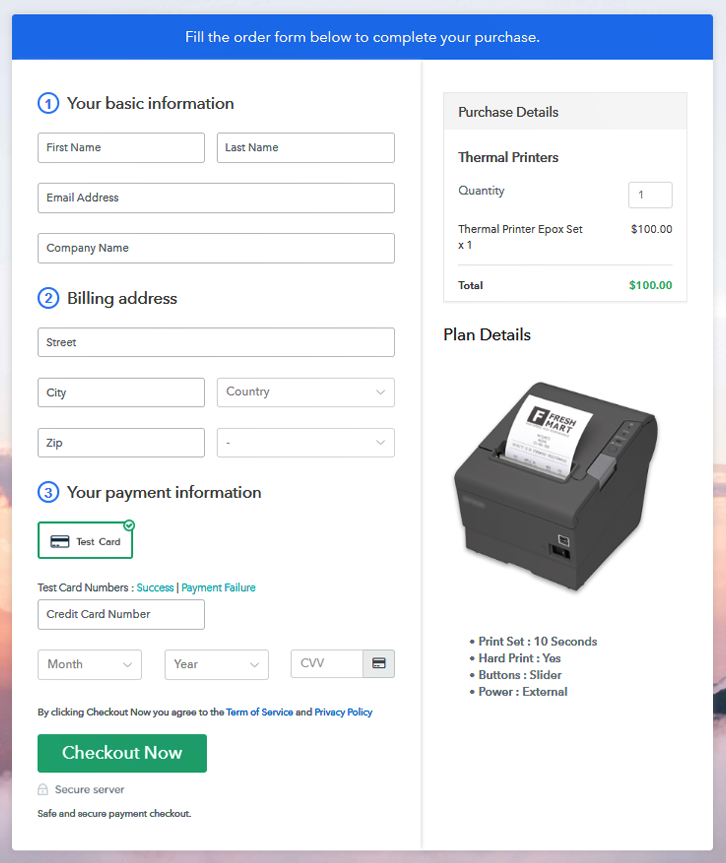
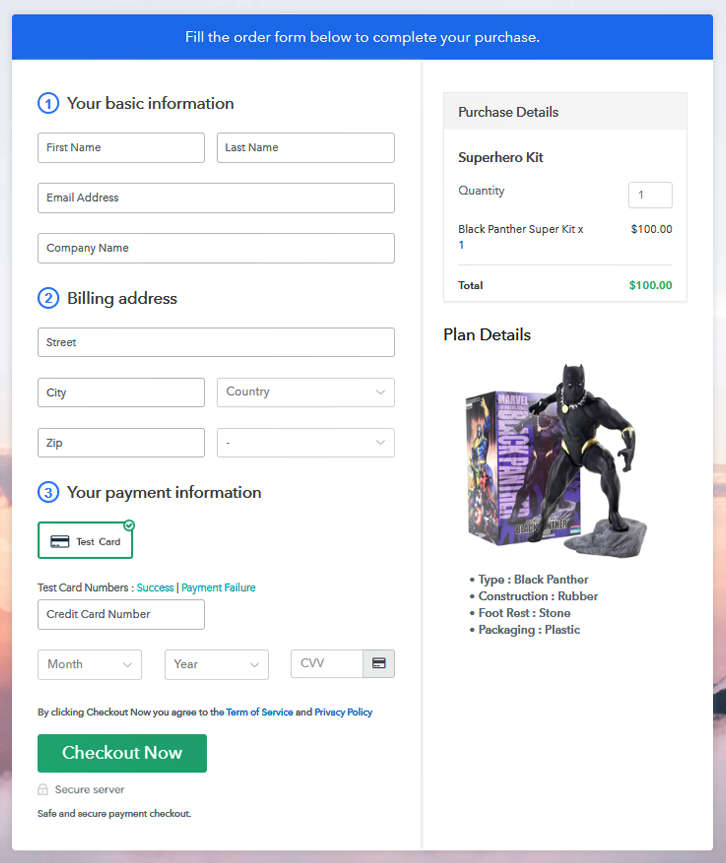
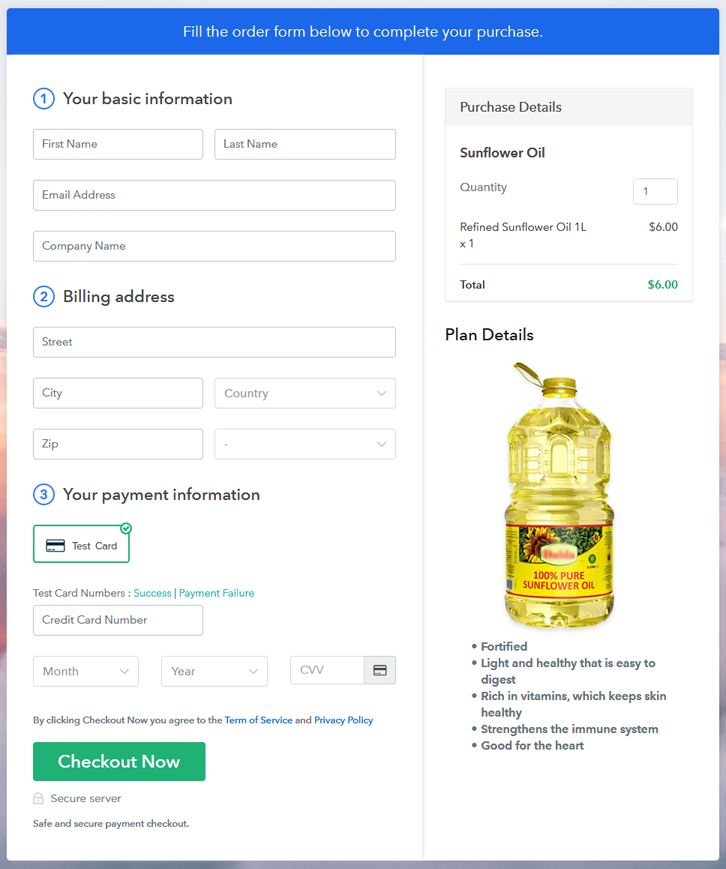
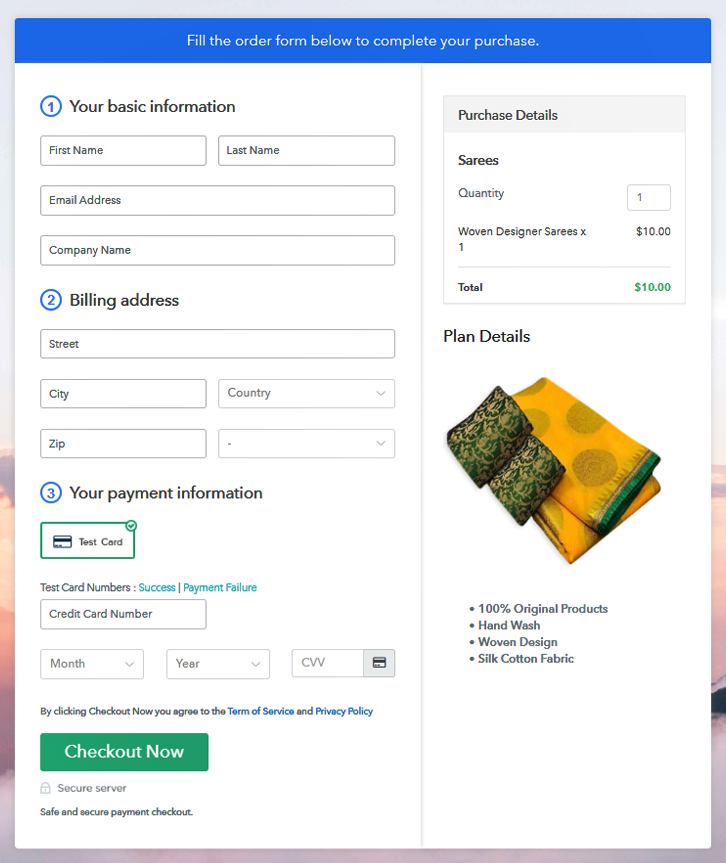
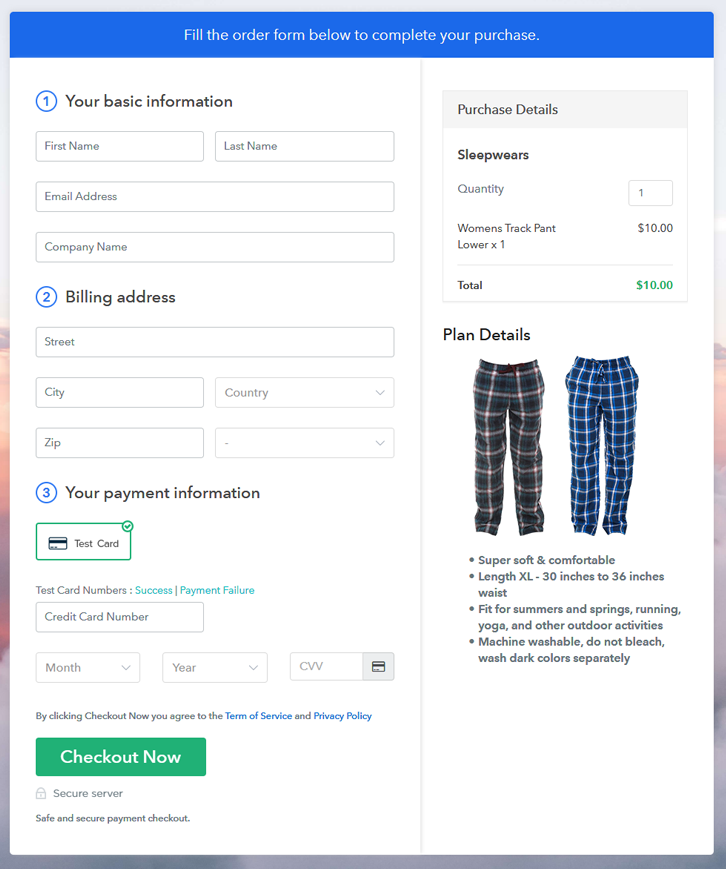
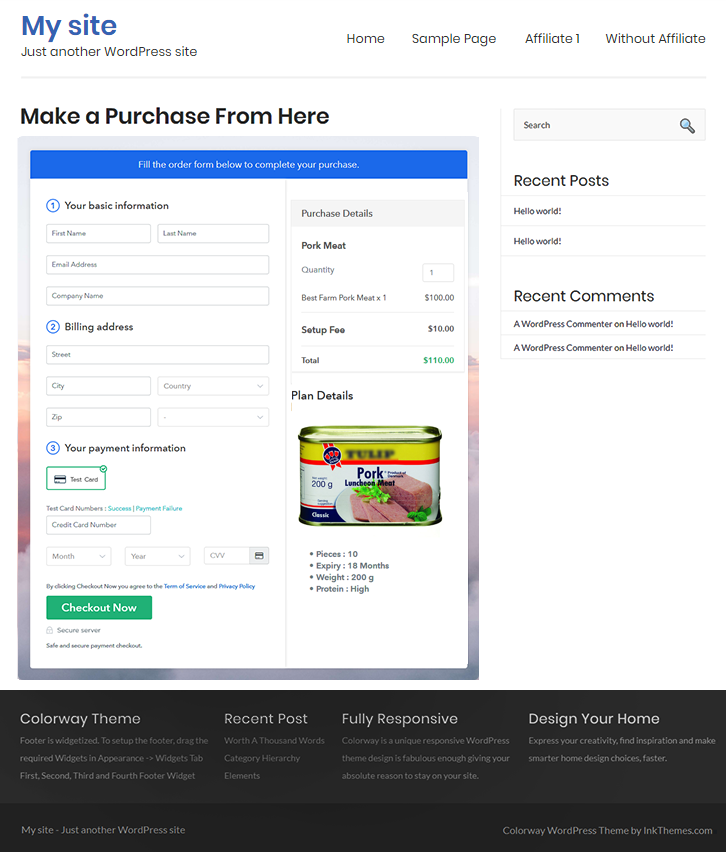
Final View of Checkout Page for your Used Sports Equipment Selling Business
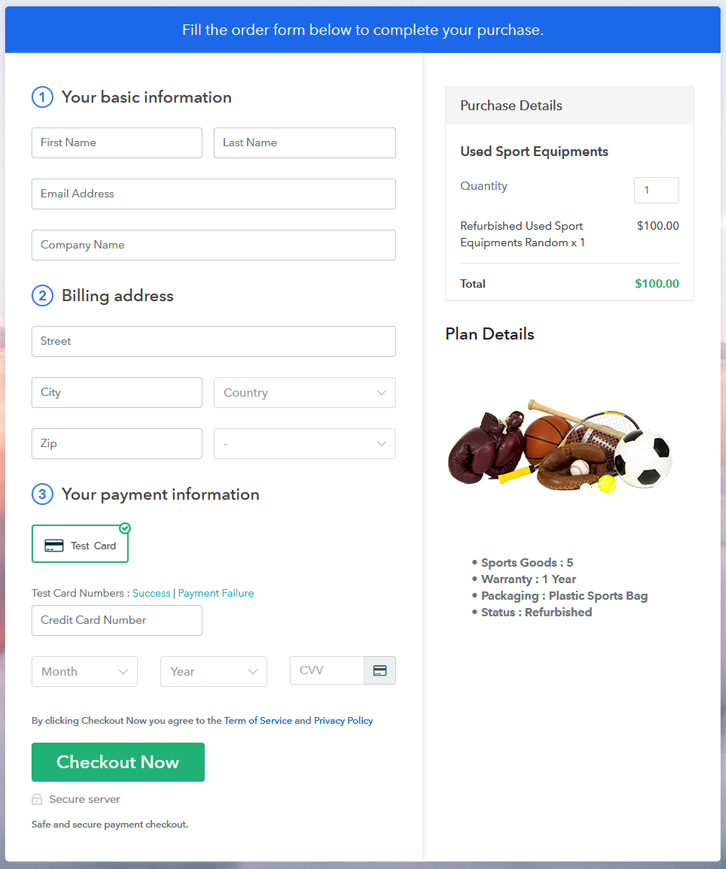
Checkout To Sell Used Sports Equipment Online

Preview Checkout Page

Step 1: Log in to Pabbly Subscription Billing
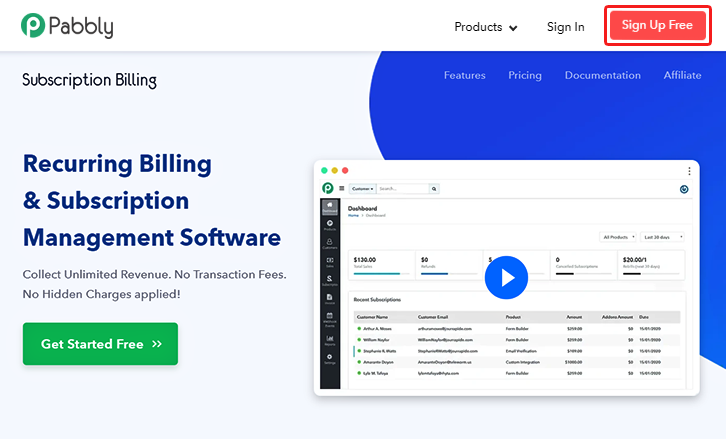
Signup

Fire your browser to look for Pabbly Subscription Billing. Now, here click on the “Sign up Free“ button. You may fill all the mandated fields or simply sign in using your Gmail account.

Sign Up For Free!

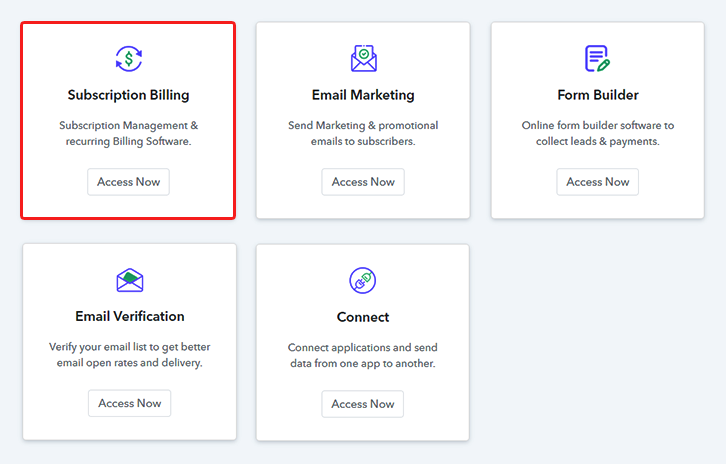
Step 2: Select Subscription Billing

Access Subscription Billing

Step 3: Account Setup
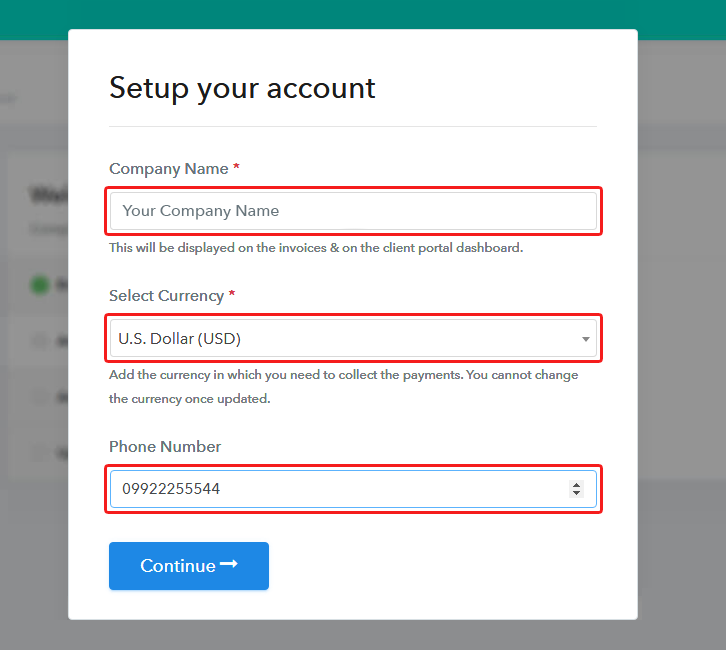
Setup Account

Once you’re done click on the “Access Now” button of Pabbly Subscription Billing, a page will pop-up with details like company name, currency, and contact number. Next, you need to fill those details to go on.

Step 4: Connect Payment Gateways & Start Selling Used Sports Equipment Business Online
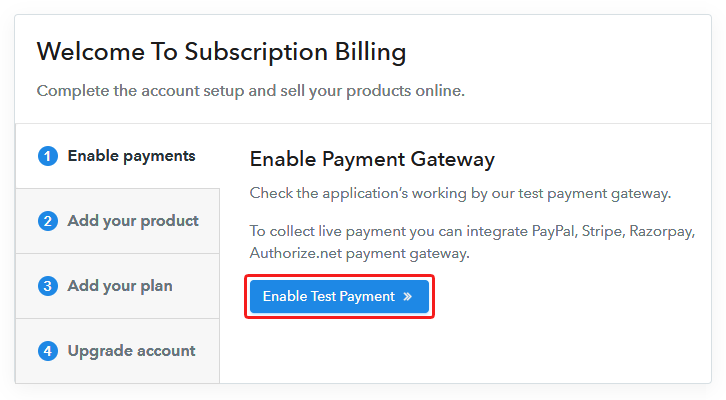
Connect Payment GatewayUsing Pabbly Subscription Billing you can dry run the payment experience of a customer using dummy payment gateways. You can do this by clicking on the “Enable Test Payment” option. Furthermore, payment gateways like PayPal, Stripe, Razorpay can be easily integrated using the help of the manuals given below.

Step 5: Add Product for your Used Sports Equipment 
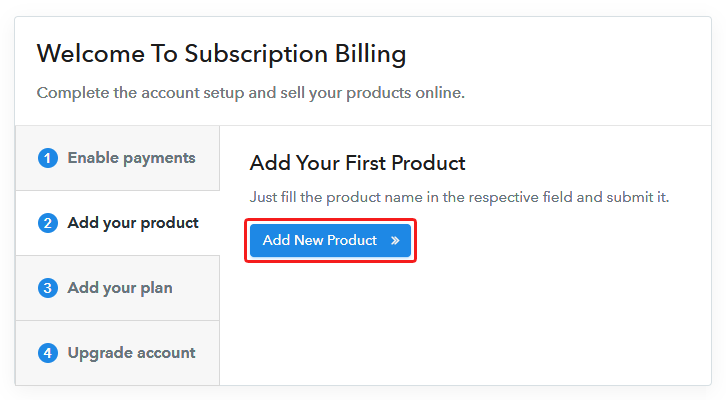
Add Product

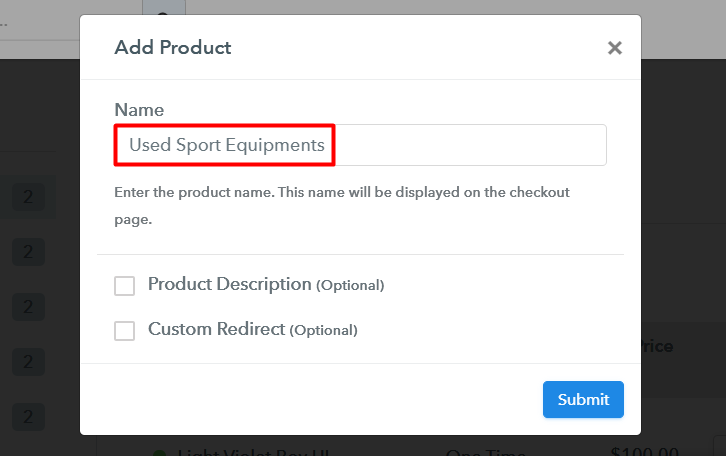
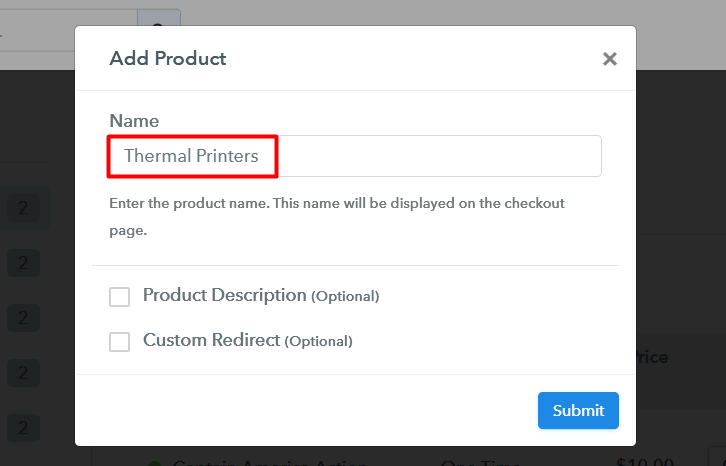
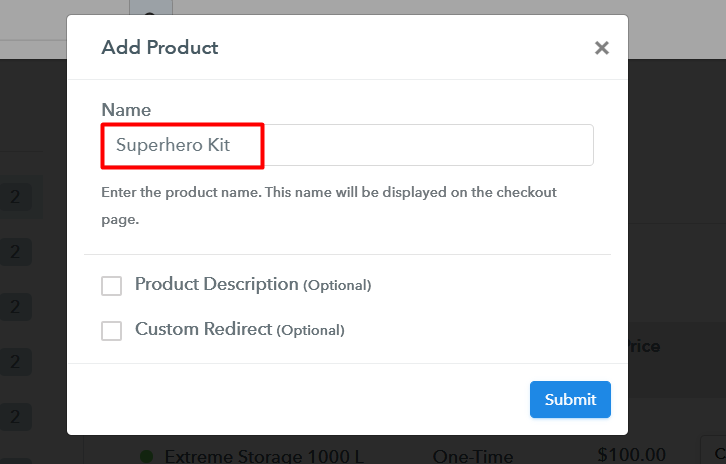
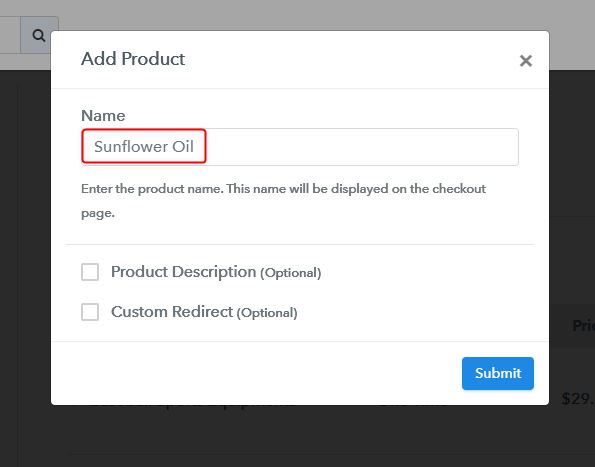
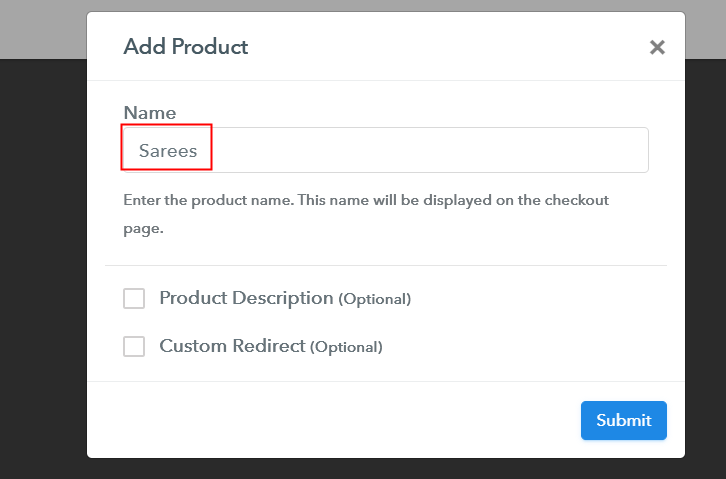
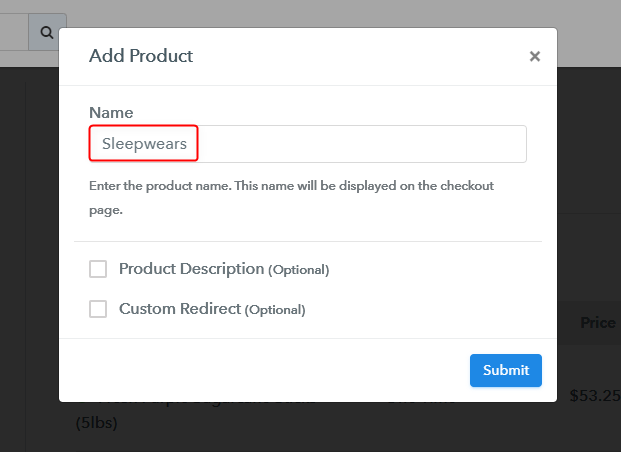
Let’s start to add the products. Also, beneath the  “Enable Payments” segment there is the “Add your product” section click on it. Furthermore, this will generate a dialog box with a blue button “Add New Product”. Click on it.

Also, you have to add the required product title, in this case, it is a ‘used sports equipment’.

Checkout To Sell Used Sports Equipment Online

Fill out all the details like the name of the product and voila your product is created.

Note: Here you can add all the products related to the similar category by creating plans for each of them.

Step 6: Add Plans 

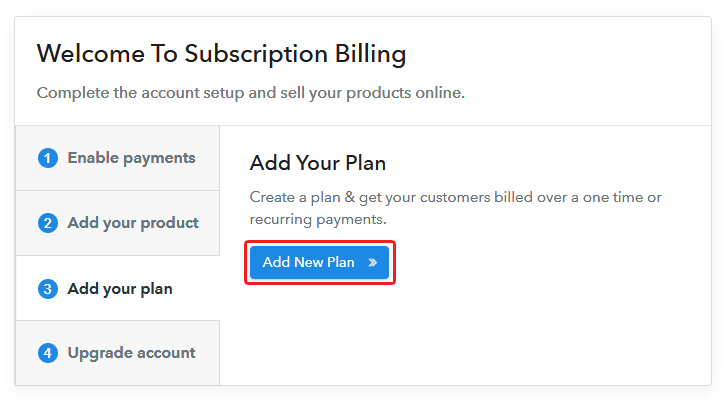
Now let’s create plans for different kinds of used sports equipment available in your store.

(a) Select Add New Plan

Add Plan

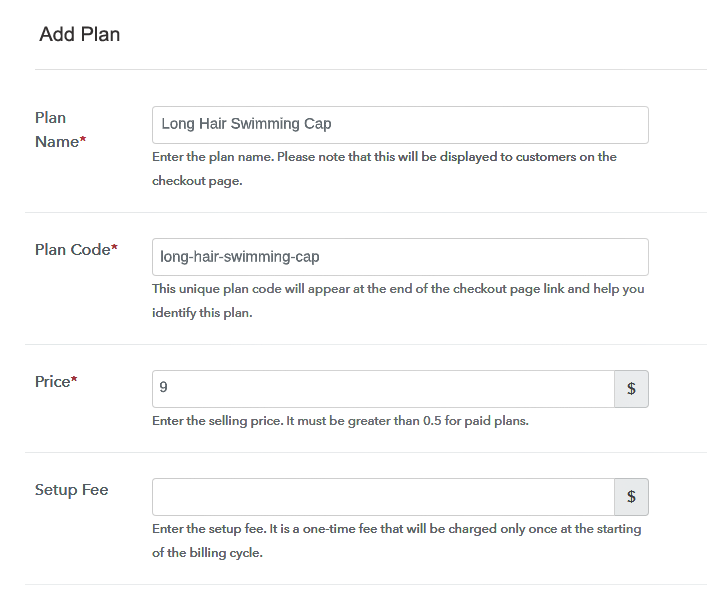
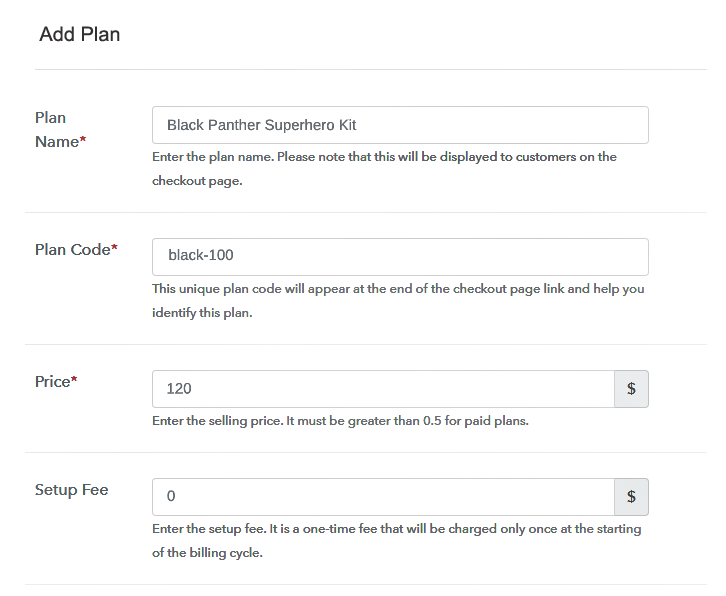
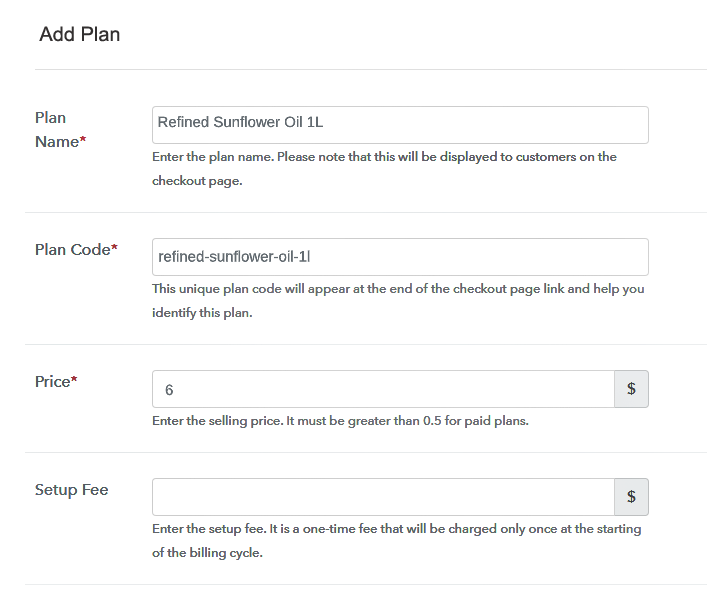
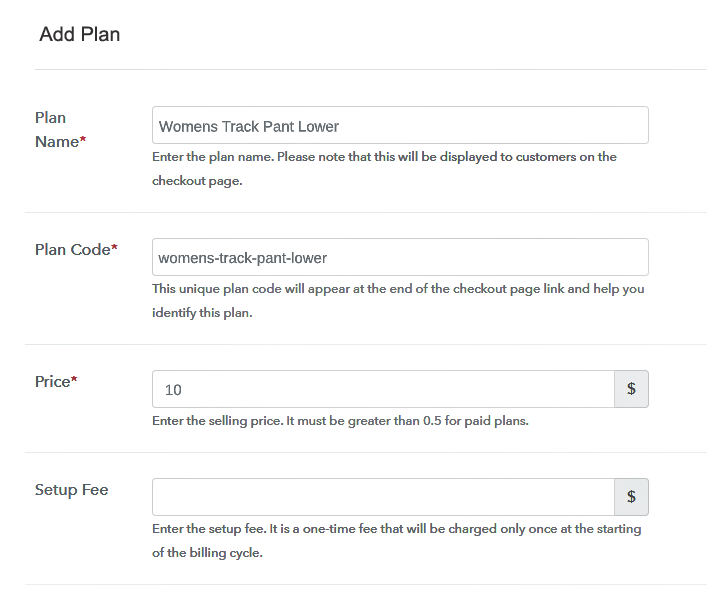
(b) Specify the Plan & Pricing Details
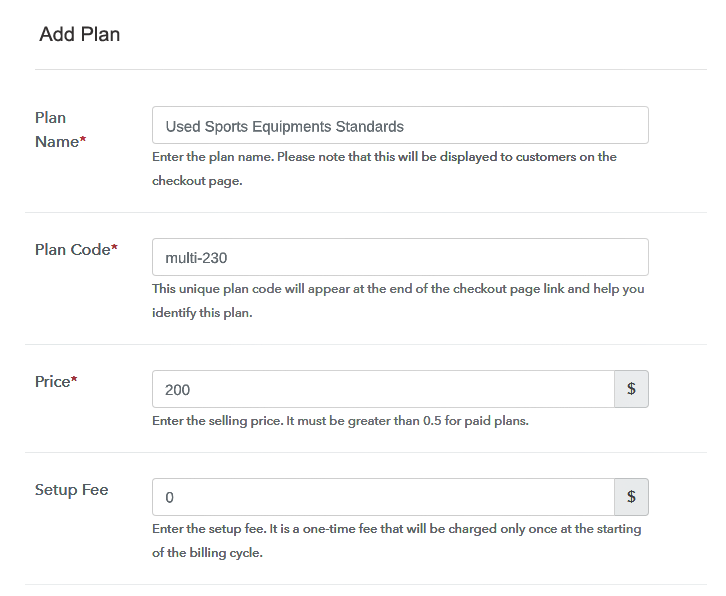
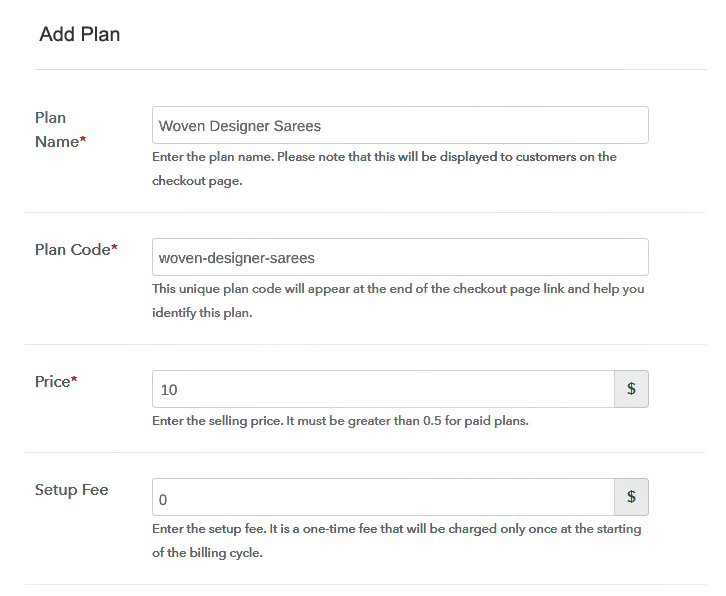
Plan To Sell Used Sports Equipment Online

Fill in information like plan name, code, price, setup fees.

In the segment below you will find the option to change the billing models like one-time payment, recurring, etc.

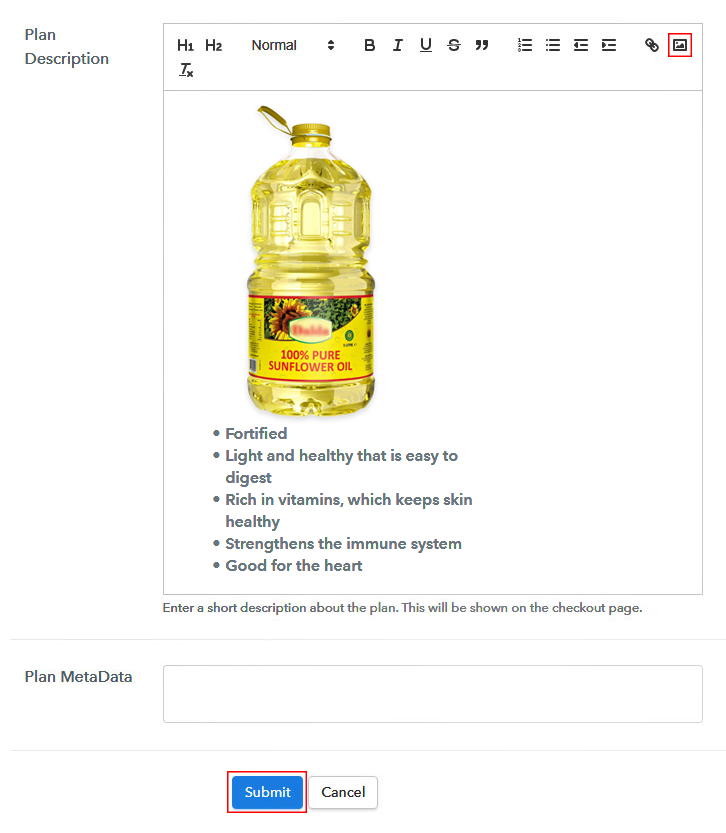
(c) Add Image & Description of Used Sports Equipment
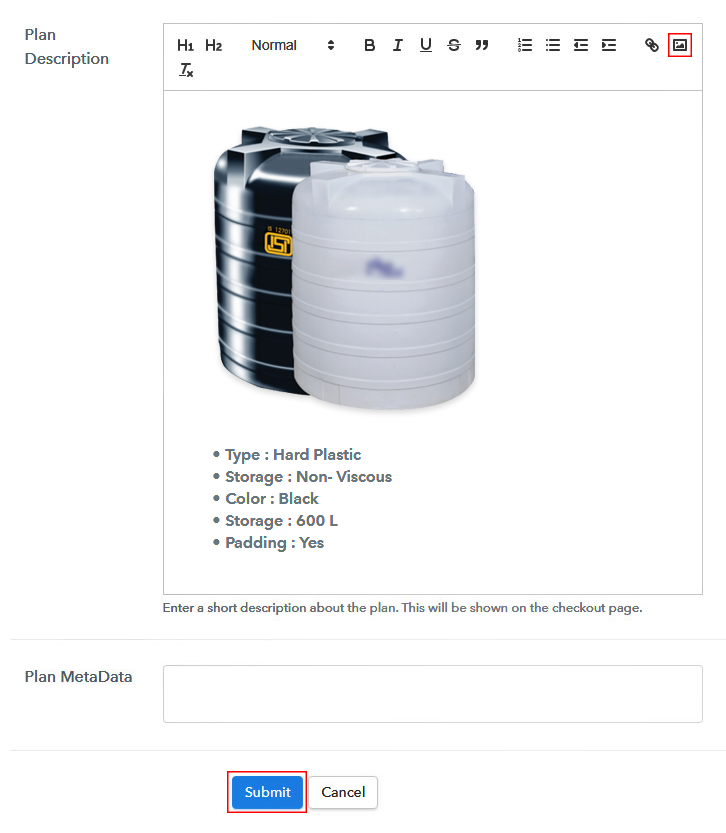
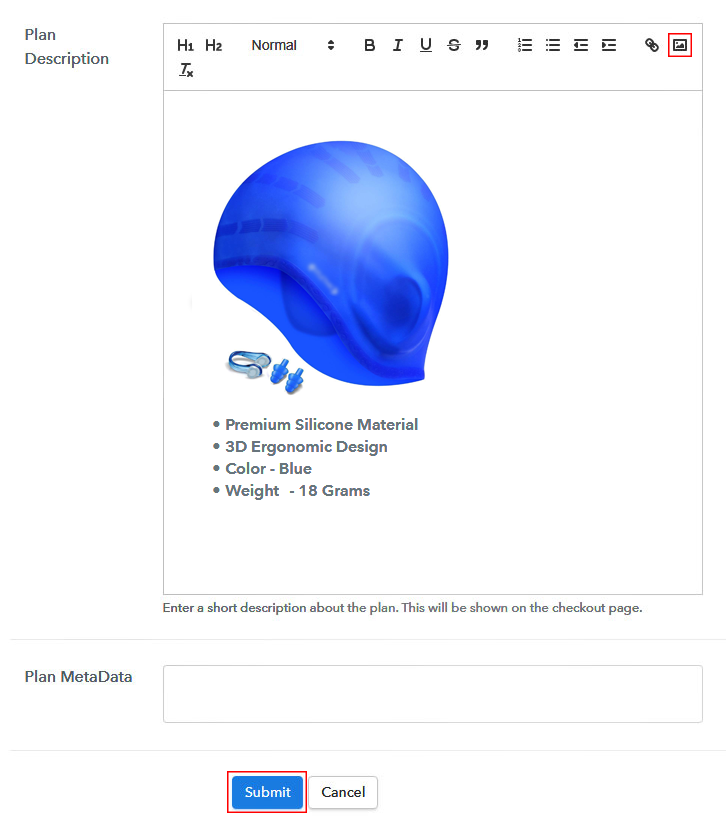
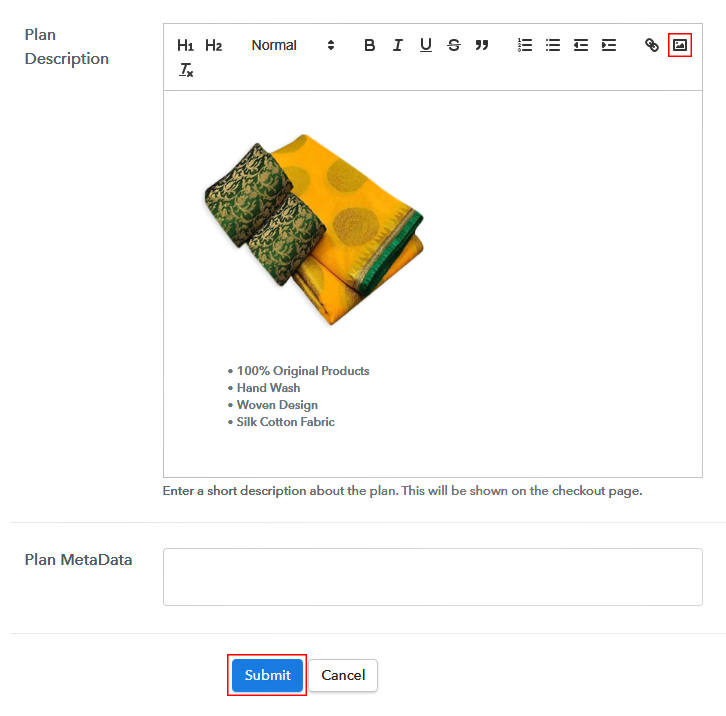
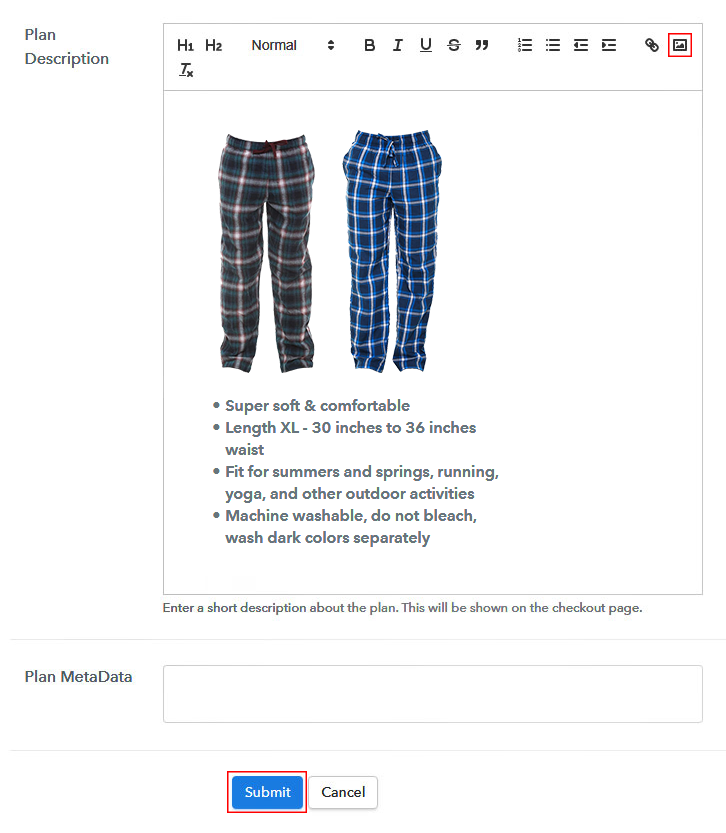
Image To Sell Used Sports Equipment Online

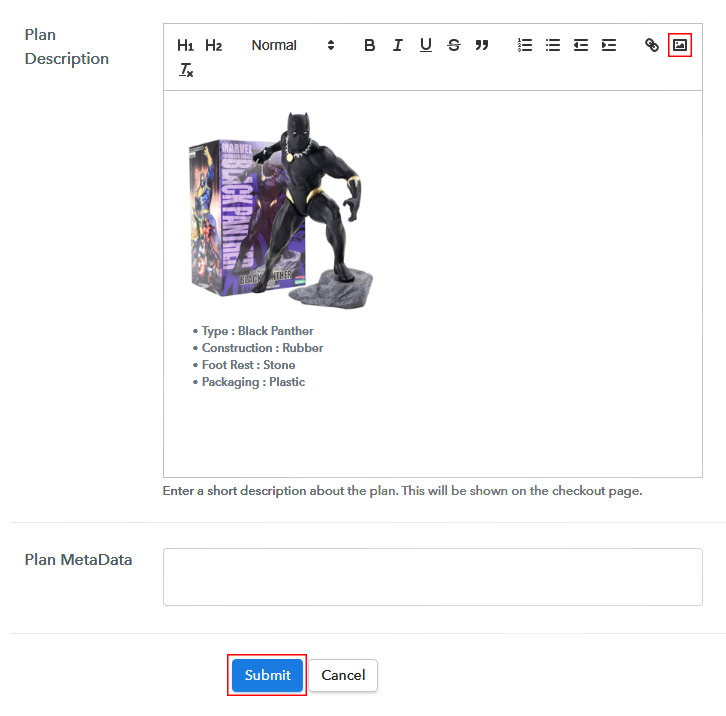
Upload some good images of the used sports equipment and upload it by clicking the image button.

Also under the image, give some description of the sports equipment and then press the “Submit” button.

Furthermore, by using the same process, you can list more products.

Step 7: Share your Checkout Page

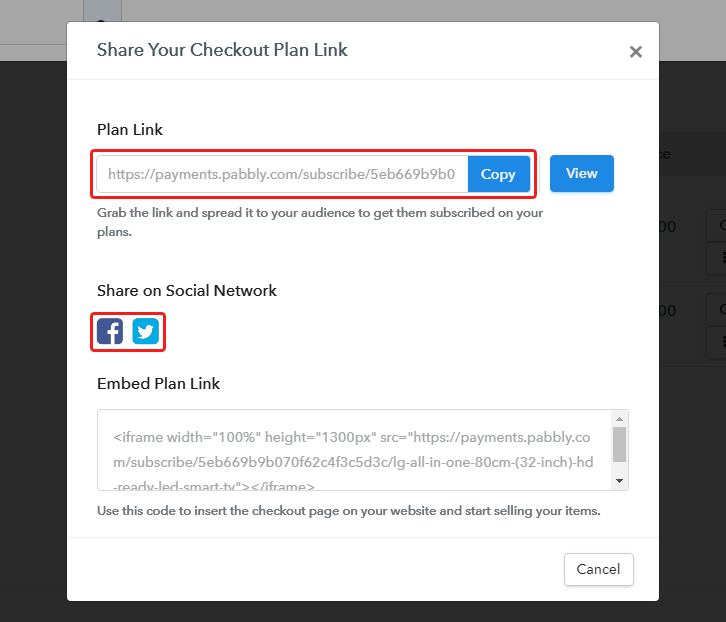
Share Checkout Page on Social Media

Pabbly Subscription Billing offers three choices for the marketing of your products. They are :

  • Sharing the checkout page on Twitter & Facebook by simply pressing the dedicated buttons
  • Or if you want, you can always share the checkout pages via email and SMS.
  • Also, you can create buttons on your webpage and paste the checkout links on it. Or you can place it on any anchor text on your website, so the users will be redirected to the checkout page.

Step 8: Preview Checkout Page

Follow up the recommended steps to preview the checkout page:

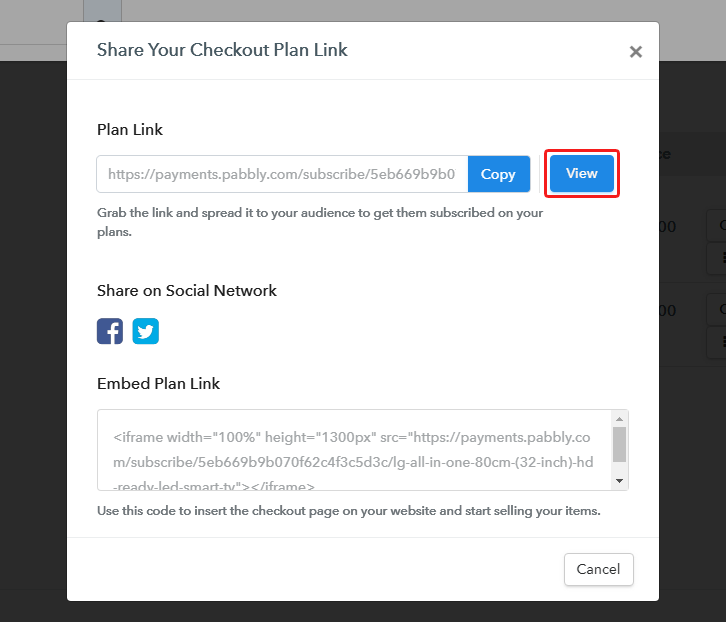
(a) Click on the View Button

View Checkout Plan

(b) Take a Look at the Checkout Page
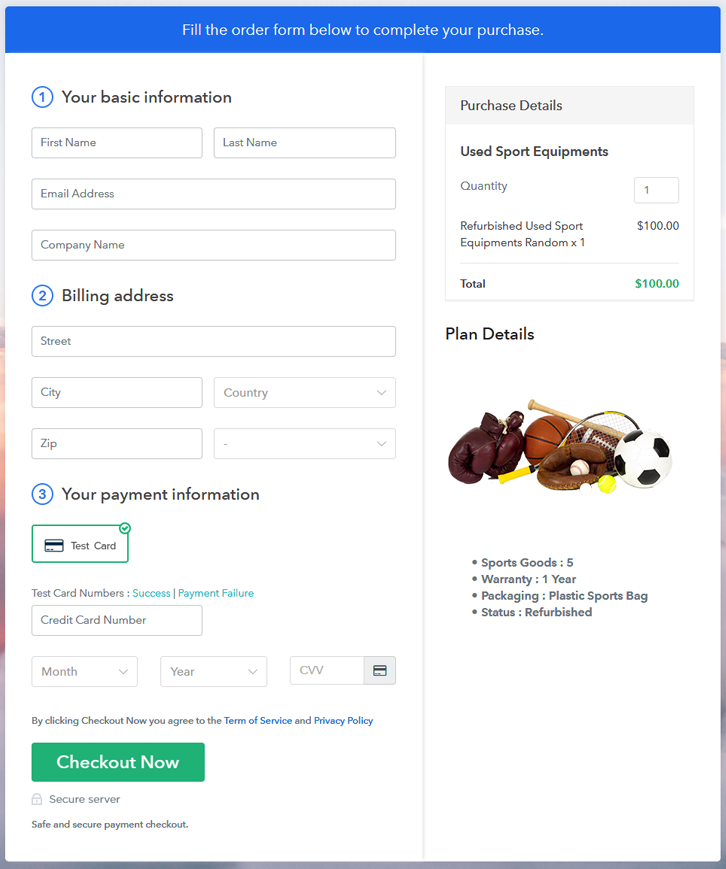
Checkout To Sell Used Sports Equipment Online

Step 9: Embed Checkout Page in Site & Sell Online
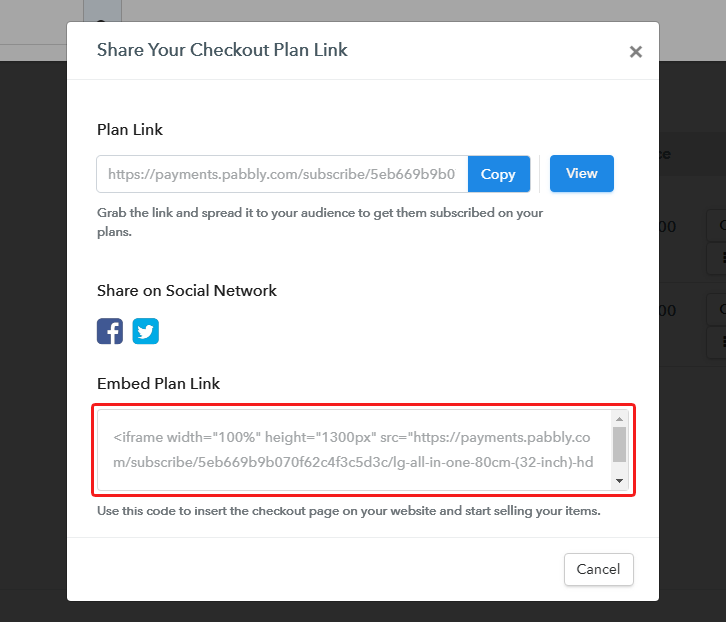
Embed Checkout Page on Website

Also just copy the link and add the checkout page to sell used sports equipment at any suitable place on your WordPress site.

(a) Edit the Page & Paste the Copied Link
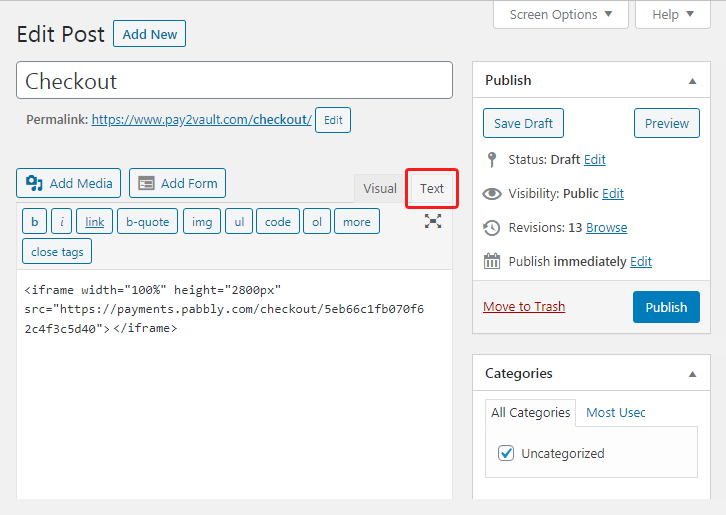
Embed Checkout Page on Website

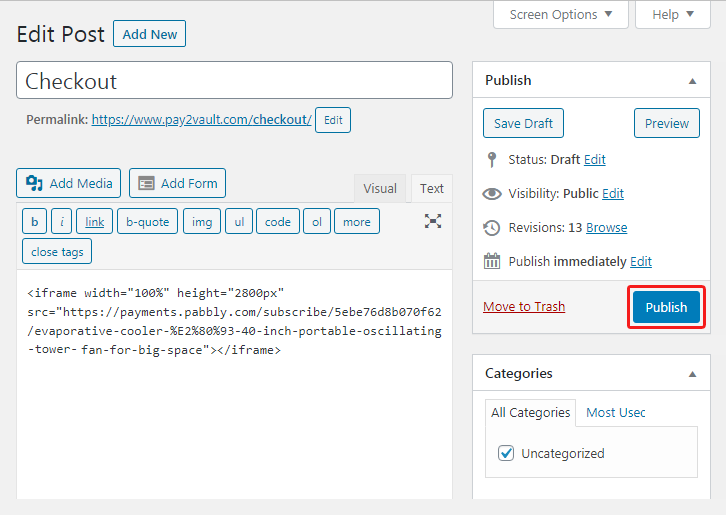
Further, paste the plan link of the used sports equipment on a text editor of the WordPress dashboard.

(b) Save & Publish the Checkout Page

Save_and_Publish

Next, click the “Publish” button, after making changes.

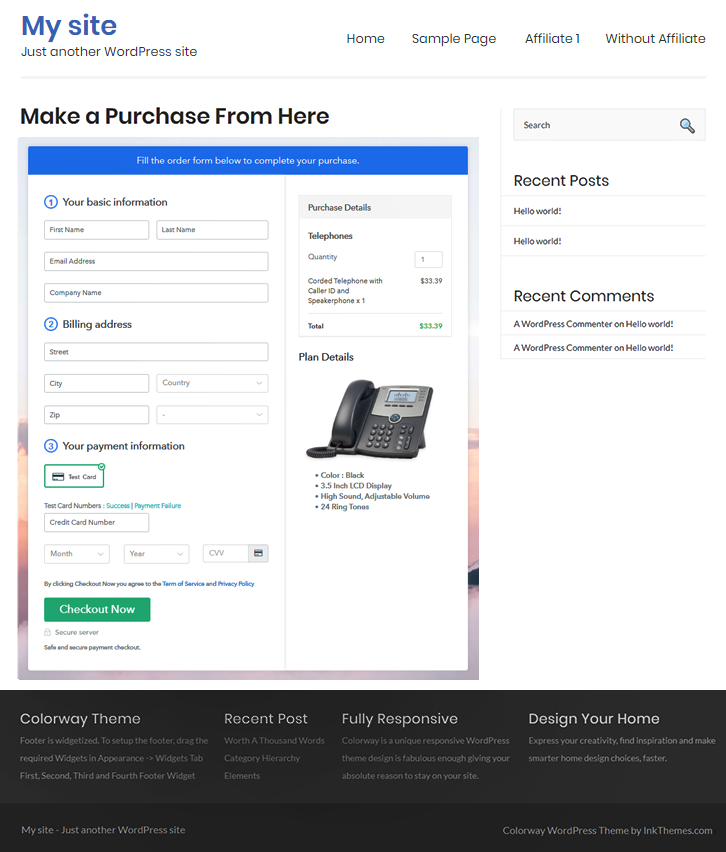
(c) Check out the Final Look of your Checkout Page on WordPress Site
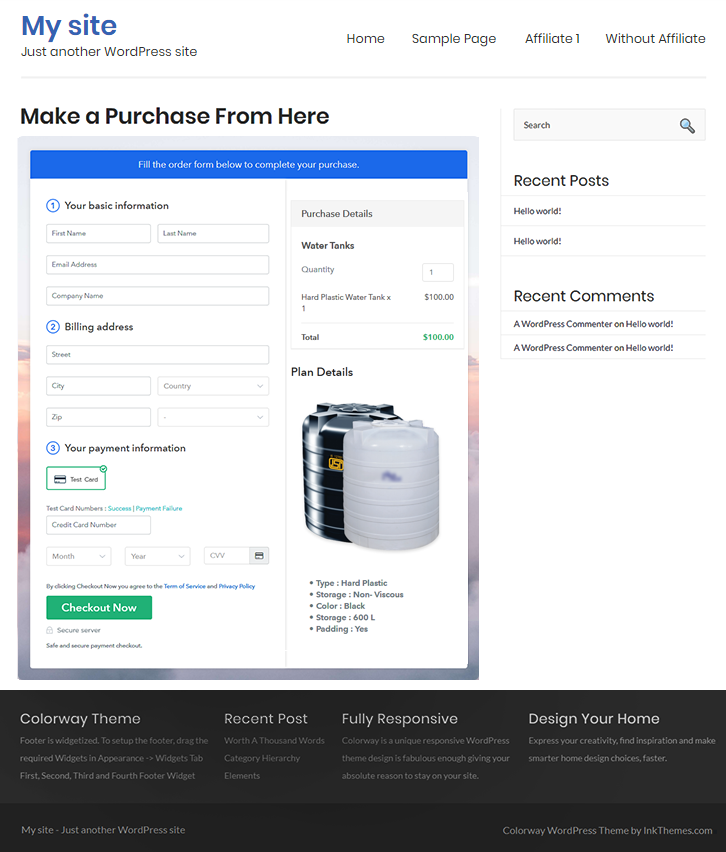
Wordpress To Sell Used Sports Equipment Online

Step 10: Multiplan Checkout Page

Note: In case you want to sell multiple products via a single checkout page, you can create a multi-plan checkout page otherwise skip this step.

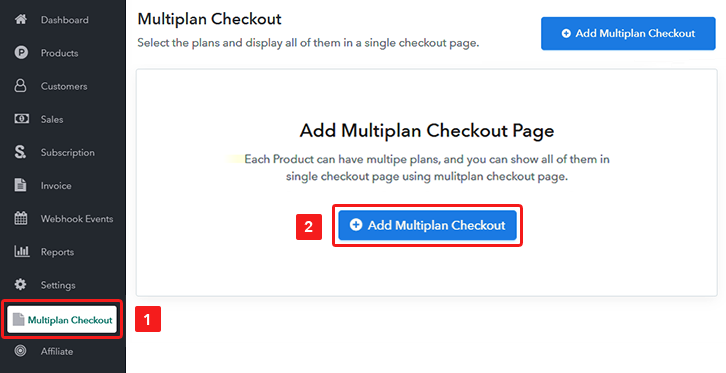
(a) Click on Add Mutiplan Checkout

Multiplan Checkout

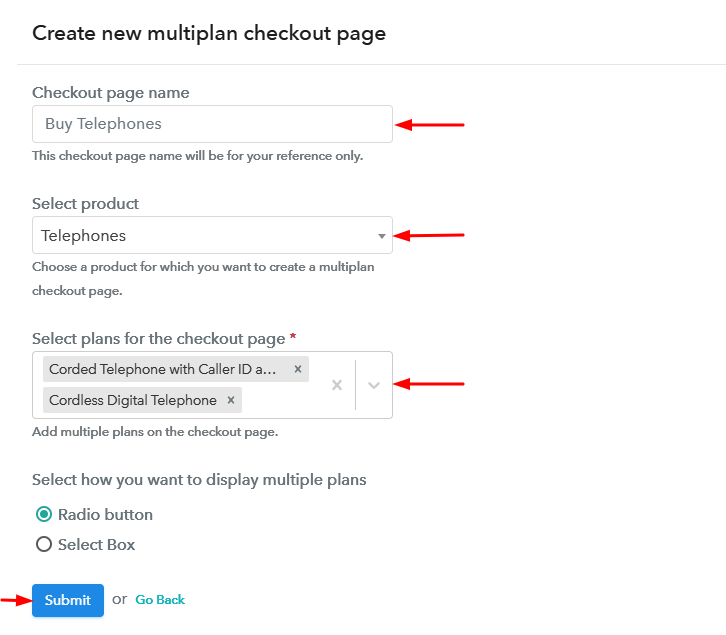
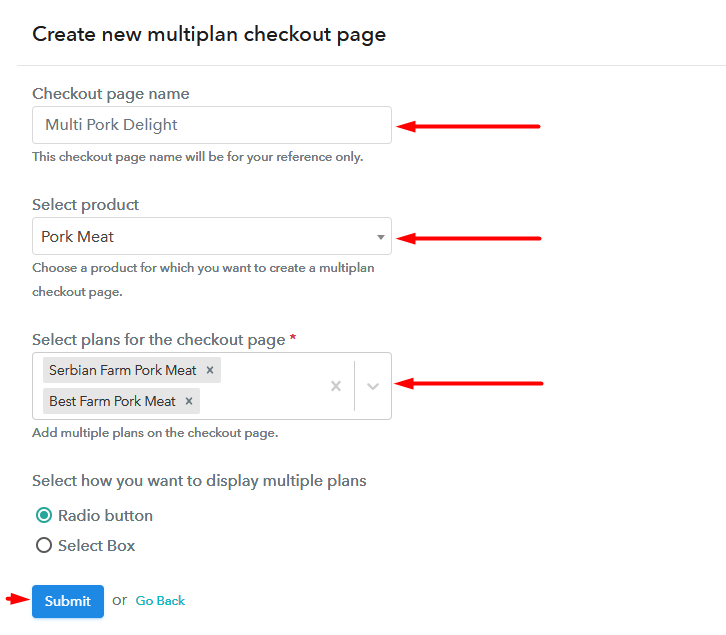
(b) Add Plans to Sell Multiple Used Sports Equipment from Single Checkout Page
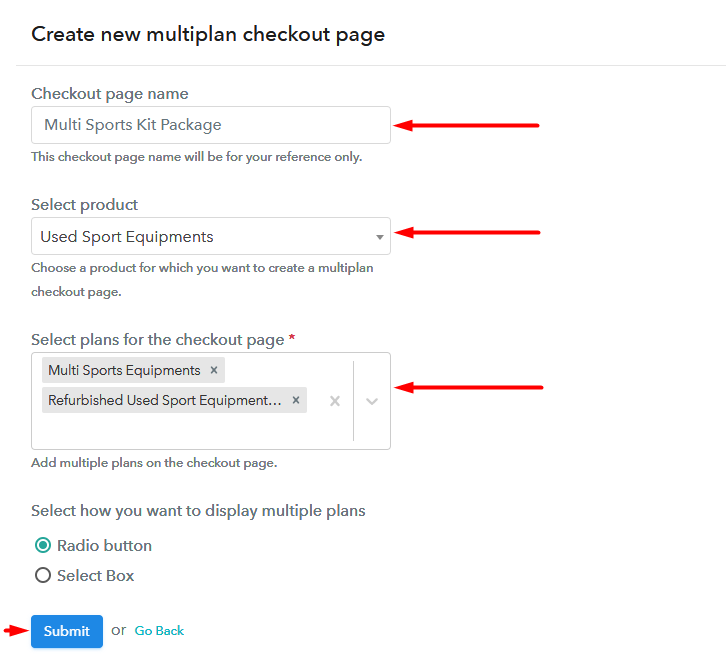
Add Plan To Sell Used Sports Equipment Online

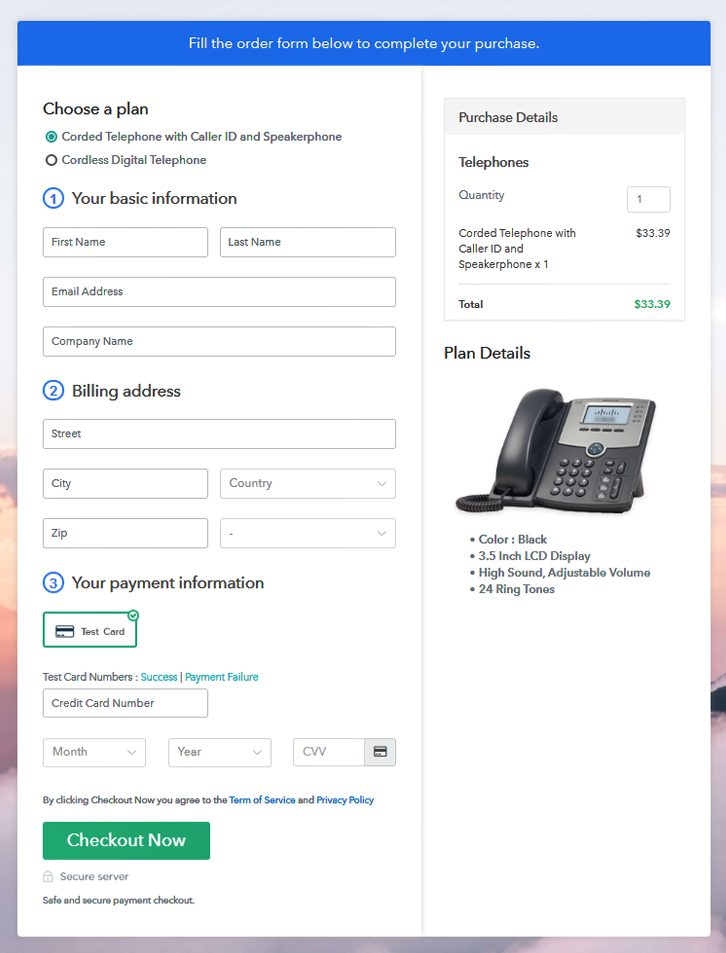
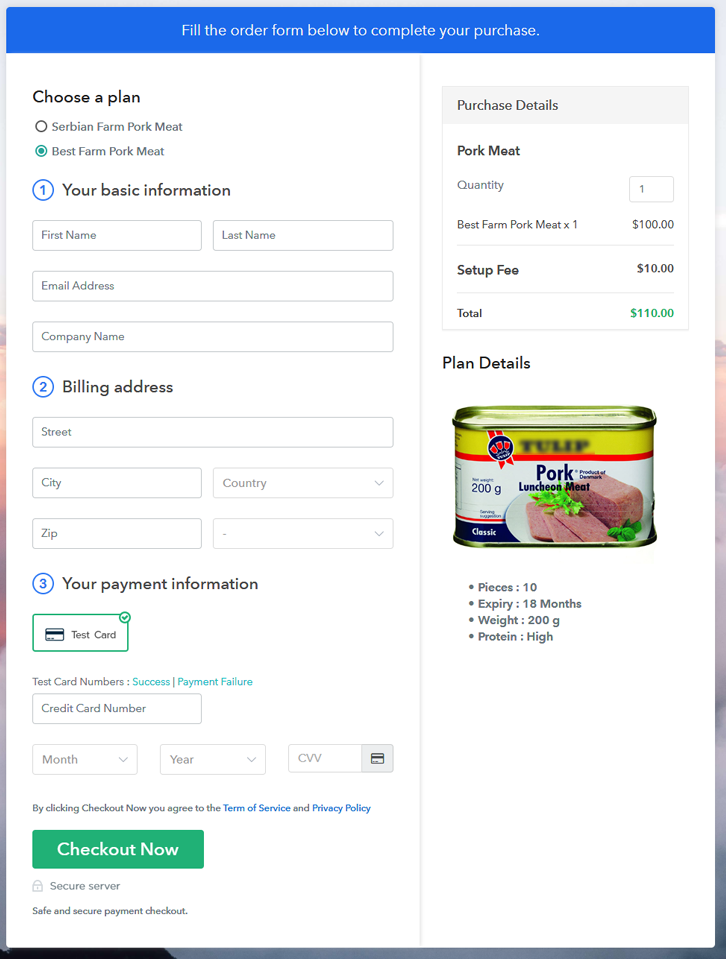
(c) Take a Look at the Checkout Page
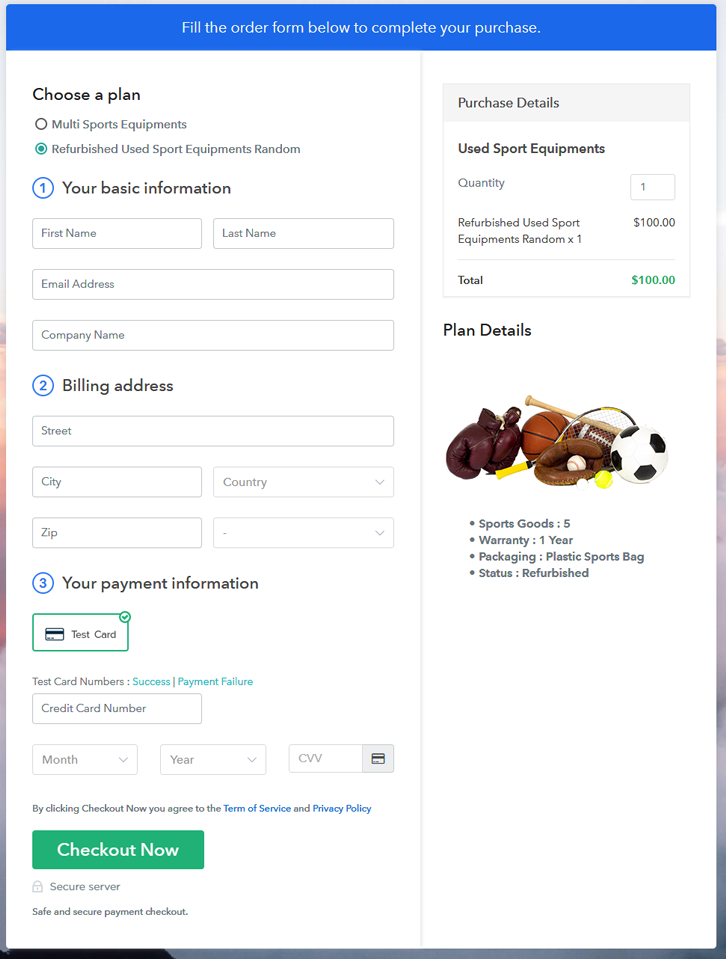
Multiplan To Sell Used Sports Equipment Online

Preview Checkout Page

Wrapping Up

Wow!! Stunning isn’t it? Your first checkout page to sell used sports equipment totally rocks!! With some effort, you will be able to create the checkout page in just 5 minutes.

There are a ton of features in Pabbly Subscription BIlling, give us a ping in the comment section to get you video tutorials and documents.

You May Also Like To Read –
 

How to Sell Telephones Online | Step by Step (Free Method)

How to Sell Telephones Online

Ideal For: All the telephone manufacturers, telephone sellers, retail telephone shop owners, and other merchants can use this method to take their telephones selling business online.

How to Sell Telephones Online

Why Choose this Method to Sell Telephones Online?

Unlike any other solution, this method allows you to:

  • List and sell your telephones for FREE. Absolutely no payment required.
  • No need to pay commission on any of your sale.
  • Multiple payment options like PayPal, Credit Card, etc to collect payment from a single place.
  • Sell one time or recurring subscriptions of your telephones.
  • Collect payments & sell products in any currency as per your requirement.
  • Give discounts on your products by offering special coupon codes.
  • Add sales commission agents to help you in selling telephones online.

Get Pabbly Subscription Billing for Free

Telephones have enhanced our communication capability and because of less harmful effects on the environment, they are still in use. So, if you are finding a way to sell telephones online, we can suggest you a better platform.

The service is called Pabbly Subscription Billing and allows you to create plan checkout pages. These checkout pages carry information related to a product like its name, price, image etc and are able to collect payments safely.

Moreover, you’ll get a well-functioning dashboard from where you can easily keep tracks of the sales and items availability. Also, you can share the checkout pages almost everywhere, for instance, social media or link sharing platforms, websites etc for selling telephones online.

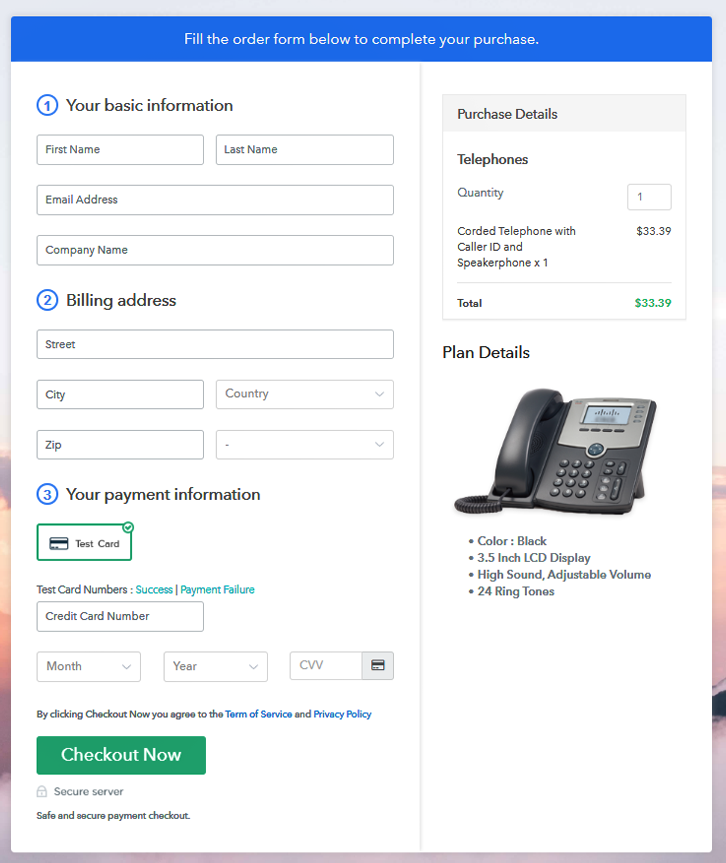
Final View of Checkout Page for your Telephones Selling Business

Checkout Page Preview to Sell Telephones Online

Preview Checkout Page

Step 1: Log in to Pabbly Subscription Billing

Signup

To sell telephones online first, visit Pabbly Subscription Billing. Then hit the ‘Sign Up Free‘ button there & make use of Gmail ID to get into the system or do manual sign-up by filling out a few details.

Sign Up For Free!

Step 2: Select Subscription Billing

Access Subscription Billing

Step 3: Account Setup

Setup Account

Alongside, the system will demand some of your company details in a pop-up pane. Thus, quickly fill in your company name, a phone number & select a preferred currency here.

Step 4: Connect Payment Gateways & Start Telephones Selling Business Online

Connect Payment Gateway

Now, integrate a payment method to collect payments for the telephones that you are going to sell online. Here, you can also skip the actual payment integration by enabling the test payment mode (for testing). However remember, to accept payments you’ll need to choose a payment method from the following options and integrate it. The integration guides are also linked here.

Step 5: Add Product for your Telephones

Add Product

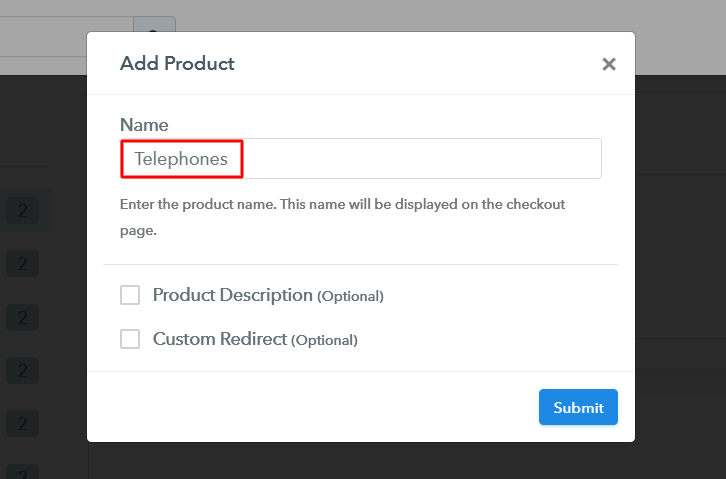
Up to this point, all the system settings are finished & now you can add products. Name a product alike a category of telephones as we’ll be adding plans (telephones items to sell) to them in the next step.

Add Product to Sell Telephones Online

Fill in the product details & click the ‘Submit’ button in here.

Note: Here you can add all the products related to the similar category by creating plans for each of them.

Step 6: Add Plans 

Now, add all the telephones items available as plans to sell online within the different product categories.

(a) Select Add New Plan

Add Plan

(b) Specify the Plan & Pricing Details

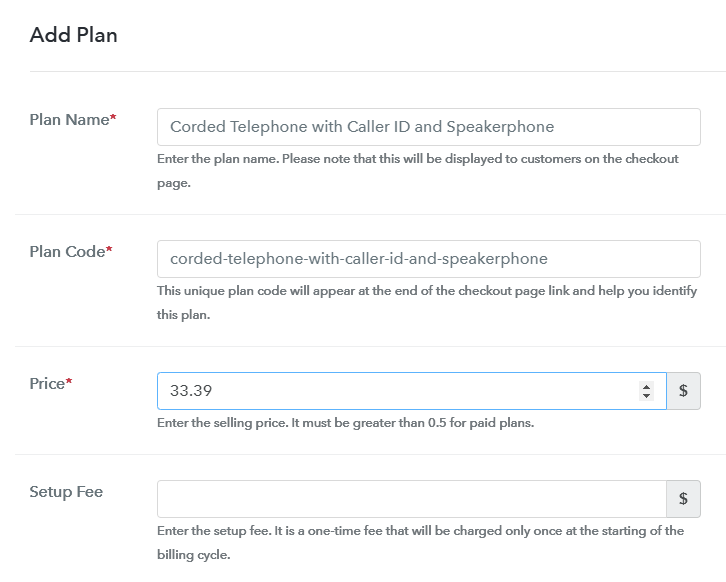
Add Plan to Sell Telephones Online

You can specify the telephone details like name, code, billing cycle, plan status for a telephone item on this page.

(c) Add Image & Description of Telephone

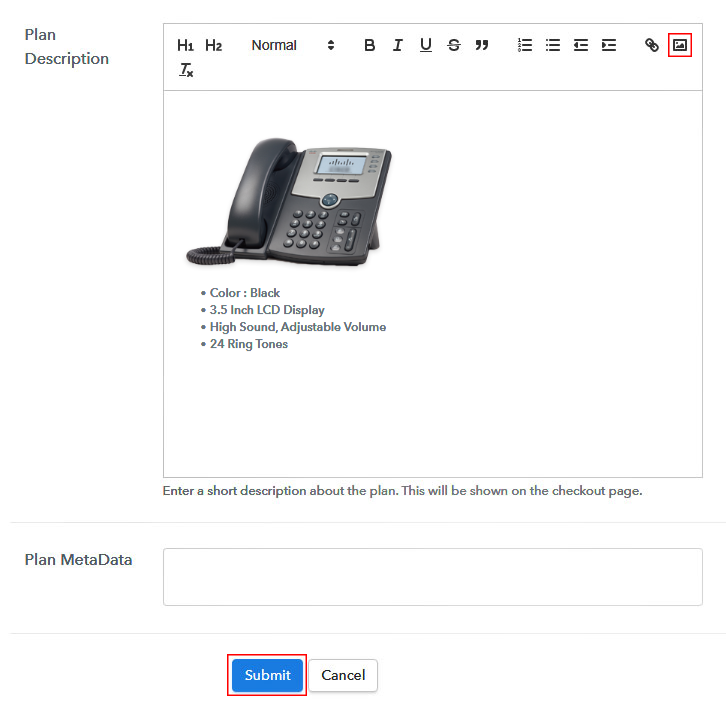
Add Image & Description to Sell Telephones Online

Besides, you can also display an image with some best features of the telephone.

Hit the ‘Submit’ button in here & a plan checkout page will be generated to sell telephones online.

Likewise, you can add all the other telephones too.

Step 7: Share your Checkout Page

Share Checkout Page on Social Media

For selling telephones online, you can share or embed a plan checkout page in the following three ways.

  • Either link the plan link URL within buttons & text anchors of a website and redirect a customer on the payment checkout page
  • Or you can directly hit the Facebook & Twitter buttons to share a plan checkout page
  • Lastly, you can share the payment checkout page on the other social media & link sharing platform to sell telephones online such as emails, WhatsApp, SMS etc

Step 8: Preview Checkout Page

Follow up the recommended steps to preview the checkout page:

(a) Click on the View Button

View Checkout Plan

(b) Take a Look at the Checkout Page

Checkout Page Preview to Sell Telephones Online

Step 9: Embed Checkout Page in Site & Sell Telephones Online

Embed Checkout Page on Website

Just copy the link and add the checkout page to sell telephones online at any preferable place on your WordPress site.

(a) Edit the Page & Paste the Copied Link

Embed Checkout Page on Website

Further, paste the plan link on a text editor of the WordPress dashboard.

(b) Save & Publish the Checkout Page

Save_and_Publish

Next, click the “Publish” button, after making changes.

(c) Check out the Final Look of your Checkout Page on WordPress Site

Checkout Page On WordPress Site to Sell Telephones Online

Step 10: Multiplan Checkout Page

Note: In case you want to sell multiple products via a single checkout page, you can create a multi-plan checkout page otherwise skip this step.

(a) Click on Add Mutiplan Checkout

Multiplan Checkout

(b) Add Plans to Sell Multiple Telephones from Single Checkout Page

Create Multiplan Checkout to Sell Telephones Online

(c) Take a Look at the Checkout Page

Multiplan Checkout Page to Sell Telephones Online

Preview Checkout Page

Wrapping Up

These were the 10 steps of creating a checkout page for selling telephones online. You can see by yourself that you can perform the procedure on your own & start telephones business online in no time. Also, the service dashboard will help you manage the records for selling telephones online easily.

Furthermore, you can also automate the billing & invoicing processes in Pabbly Subscription Billing.

You May Also Like To Read –
How To Sell Thermal Printers Online | Step by Step (Free Method)

Ideal For: All the thermal printer sellers, thermal printer dealers, thermal printer suppliers, thermal printer owners, thermal printer manufacturers, and other merchants can use this method to sell thermal printers online.

How To Sell Thermal Printers Online

Why Choose this Method to Sell Thermal Printers Online?

Unlike any other solution, this method allows you to:

  • List and sell your thermal printers for FREE. Absolutely no payment required.
  • No need to pay commission on any of your sales.
  • Multiple payment options like PayPal, Credit Card, etc to collect payment from a single place.
  • Sell one time or recurring subscriptions of your thermal printers.
  • Collect payments & sell products in any currency as per your requirement.
  • Give discounts on your products by offering special coupon codes.
  • Add sales commission agents to help you in selling thermal printers online.

Get Pabbly Subscription Billing for Free

Because of its very high-speed printing capacities, there is a rising demand for thermal printers in logistics, retail, etc. With a CAGR of 4.5%, this industry will be worth 10.8 billion by 2023. Also, the areas rich in growth are the United States, Western Europe, and South America. Now with the internet being able to connect demands from these areas, manufacturers are keen to sell thermal printers online.

Obviously, one can start selling thermal printers on ubiquitous websites like Amazon, Flipkart, etc. But here large companies offer a significant discount, along with many other rebates and merchandise. This might hurt your prospects to sell thermal printers online on these websites. Also, you cant build a brand here as there are countless other products.

Now, to avoid these problems, I would suggest that you use Saas tool called Pabbly Subscription Billing. Here, you can create checkout pages to sell thermal printers online. Some other features worth mentioning are

  • Build a Brand Using a Custom Domain
  • Generate Unlimited Revenues
  • Transparent Billing
  • Auto Email Alerts

So, buckle up, as we are going to create our first checkout page to sell thermal Printers online

Final View of Checkout Page for your Thermal Printers Selling Business

Checkout To Sell Thermal Printers Online

Preview Checkout Page

Step 1: Log in to Pabbly Subscription Billing

Signup

To start the process of creating a checkout page to sell thermal printers online look Pabbly Subscription Billing in your browser. Then, click on the “Sign up Free“ button. Furthermore, you can either manually filled out the details or sign in using your Gmail account.

Sign Up For Free!

Step 2: Select Subscription Billing

Access Subscription Billing

Step 3: Account Setup

Setup Account

Also, after clicking on the “Access Now” button of the software, a page will open with fields like company name, select currency, and phone number. Just fill out those details to continue creating a checkout page for thermal printing.

Step 4: Connect Payment Gateways & Start Thermal Printers Selling Business Online

Connect Payment Gateway

Here to get some idea about the payment procedures you may start using a “Test Payment Gateway”. Also, this tool offers integration with many payment gateways such as PayPal, Razorpay, Stripe, etc. Further, below are the payment integration guides to help you out.

Step 5: Add Product for your Thermal Printers

Add Product

Also, add the name, which in our case is “thermal printers”. While you are at it, give some description about the thermal printers to get the attention of the customer.

Add Product To Sell Thermal Printers Online

Moreover, just fill out all those details and your product for thermal printers is created.

Note: Here you can add all the products related to the similar category by creating plans for each of them.

Step 6: Add Plans 

Let’s display plans for different kinds of available in your store.

(a) Select Add New Plan

Add Plan

(b) Specify the Plan & Pricing Details

Add Plan To Sell Thermal Printers Online

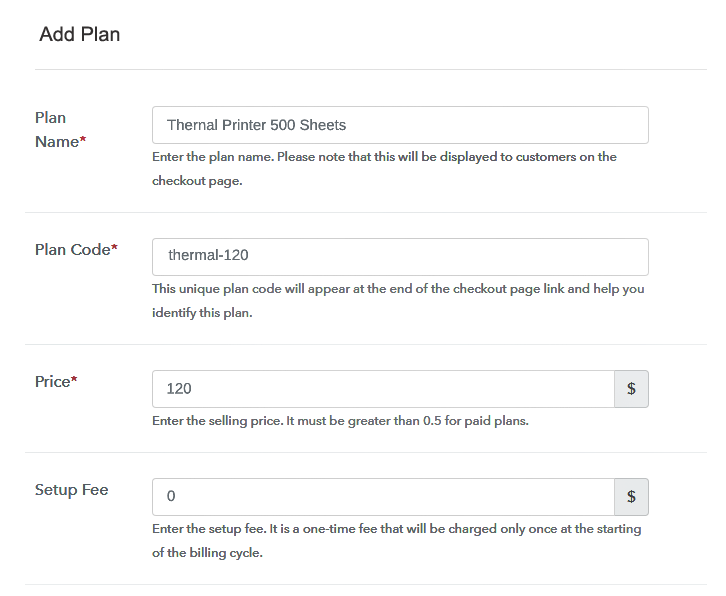
The next thing to do is fill all the details of the thermal printers like plan name, code, price, set-up fee, and much more to continue.

(c) Add Image & Description of Thermal Printers

Add Image To Sell Thermal Printers Online

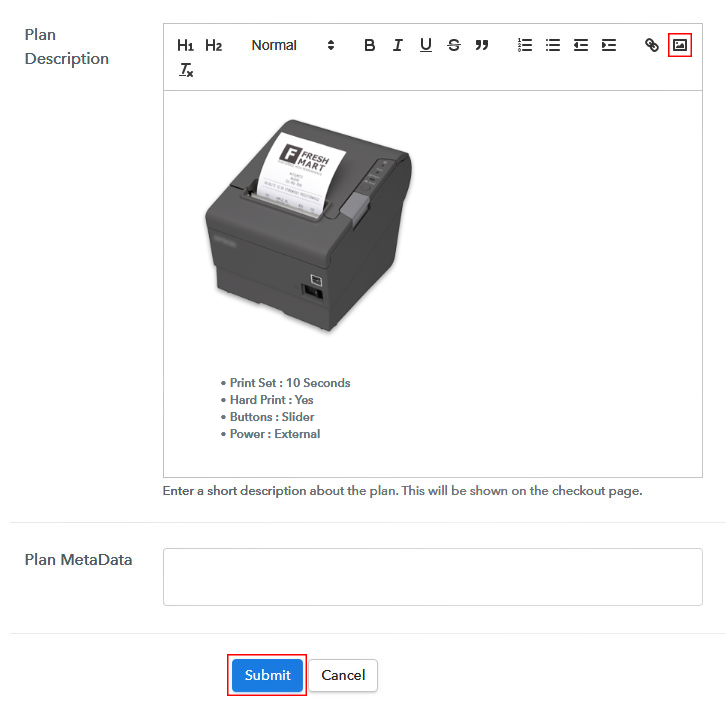
Furthermore, now add some information about the thermal printers using bullets, images, etc, to make your customer interested.

Then click on the “Submit” button.

Add multiple plans and kinds of thermal printers in your product list which you want to market online.

Step 7: Share your Checkout Page

Share Checkout Page on Social Media

  • Share the checkout page of the thermal printers on social media accounts like Facebook & Twitter to grab the customer’s attention.
  • Also, you can share the direct link of the thermal printers checkout page with your customers via SMS or email marketing.
  • Additionally, embed the provided plan link of the thermal printers in the buttons or any anchor text on your website.

Step 8: Preview Checkout Page

Using the recommended steps to preview the checkout page for thermal printers.

(a) Click on the View Button

View Checkout Plan

(b) Take a Look at the Checkout Page

Add Checkout To Sell Thermal Printers Online

Step 9: Embed Checkout Page in Site & Sell Thermal Printers Online

Embed Checkout Page on Website

Just copy the link and add the checkout page to sell thermal printers online at any proper place on your WordPress site.

(a) Edit the Page & Paste the Copied Link

Paste Link in Text Editor

Further, paste the plan link of thermal printers on a text editor of the WordPress dashboard.

(b) Save & Publish the Checkout Page

Save_and_Publish

Next, click the “Publish” button, after making changes.

(c) Check out the Final Look of your Checkout Page on WordPress Site

Wordpress To Sell Thermal Printers Online

Step 10: Multiplan Checkout Page

Note: In case you want to sell multiple products via a single checkout page, you can create a multi-plan checkout page otherwise skip this step.

(a) Click on Add Mutiplan Checkout

Multiplan Checkout

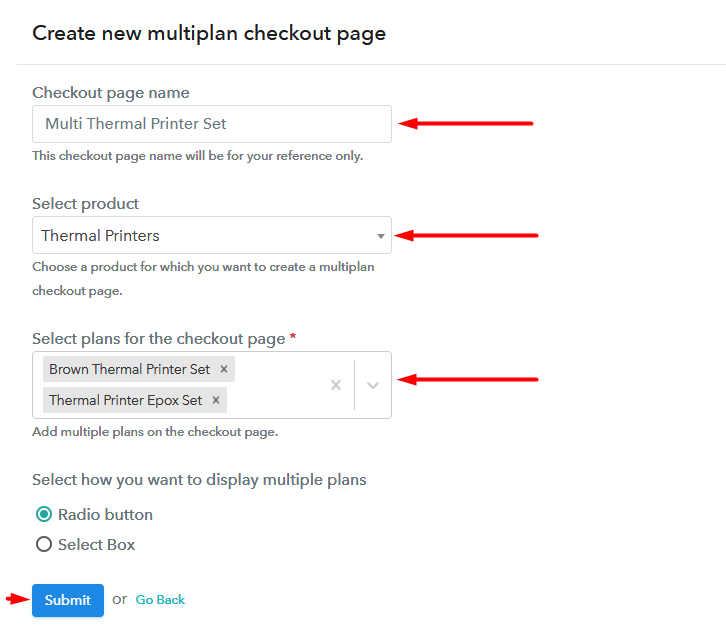
(b) Add Plans to Sell Multiple thermal printers from Single Checkout Page

Add Multiplan To Sell Thermal Printers Online

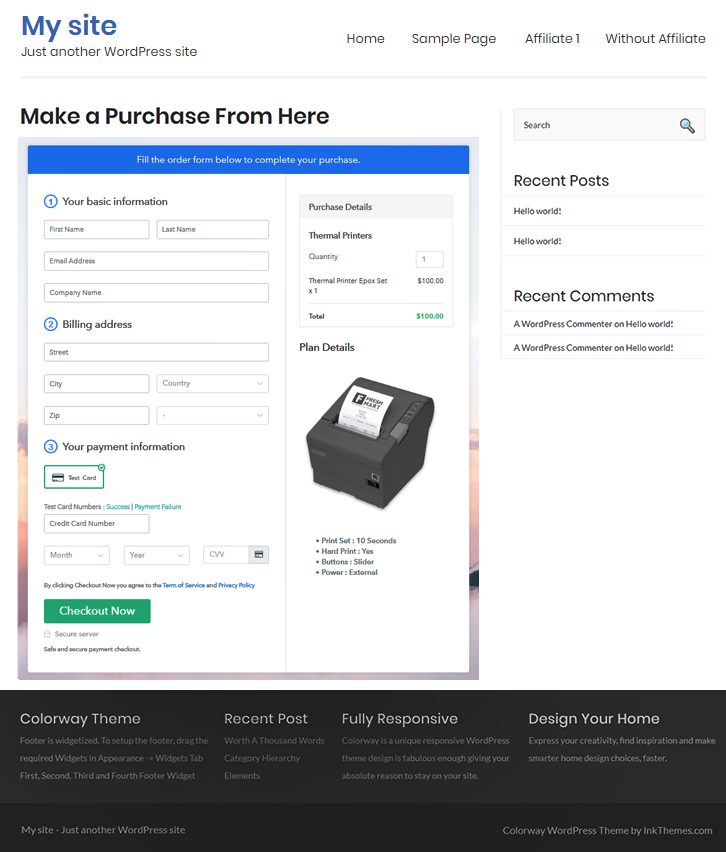
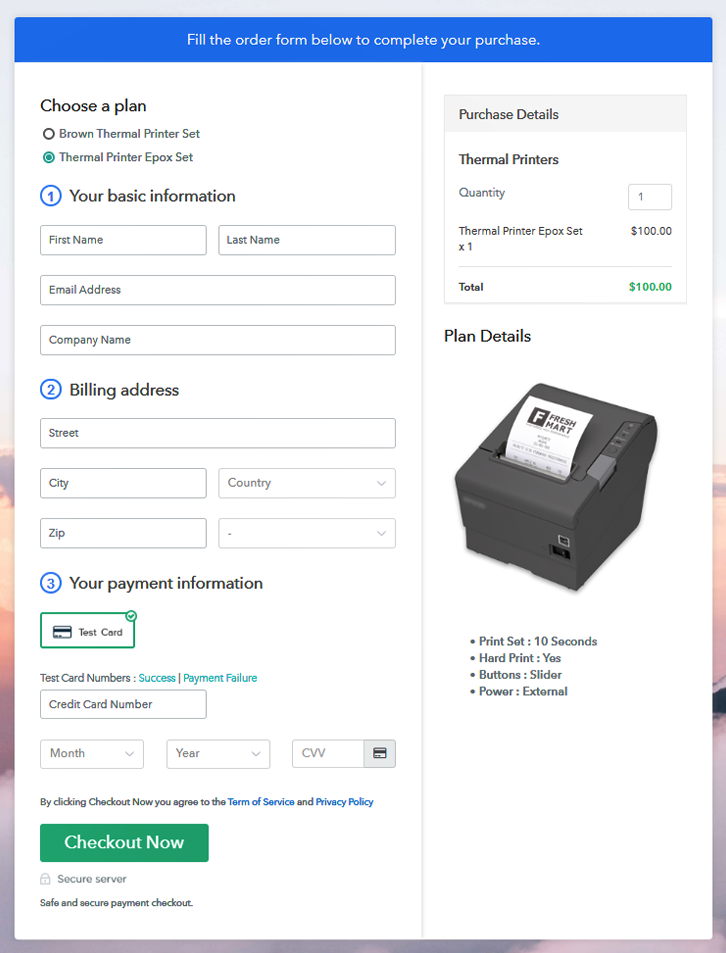
(c) Take a Look at the Checkout Page

Multiplan To Sell Thermal Printers Online

Preview Checkout Page

Wrapping Up

This is how you build a checkout page to sell thermal printers online. There are many features and gimmicks available in Pabbly Subscription Billing for you to explore. With some practice, you will be able to build checkout pages in minutes. But for the moment, if you have any doubts please feel free to convey to us using the comment section. Thank You!!

You May Also Like To Read –
How To Sell Swim Caps Online | Step by Step (Free Method)

How to Sell Swim Caps Online

Ideal For: All the swim caps manufacturers, swim caps sellers, retail swim caps owners and other merchants can use this method to sell swim caps online.

How to Sell Swim Caps Online

Why Choose this Method To Sell Swim Caps Online?

Unlike any other solution, this method allows you to:

  • List and sell your swim caps for FREE. Absolutely no payment required.
  • No need to pay commission on any of your sale.
  • Multiple payment options like PayPal, Credit Card, etc to collect payment from a single place.
  • Sell one time or recurring subscriptions of your swim caps.
  • Collect payments & sell products in any currency as per your requirement.
  • Give discounts on your products by offering special coupon codes.
  • Add sales commission agents to help you in selling swim caps online.

Get Pabbly Subscription Billing for Free

Swimmers wear caps to keep the hair out of the face while swimming. But, you know that swim caps offer a wide array of benefits to all types of swimmers like it reduces drag and be more hydrodynamic, protects the hair, scalp, and ears from pool water, etc.

So, if you want to start an online business then you should start the business of selling swim caps as it serves many uses that all swimmers can benefit from.

Now that you have decided to start selling swim caps online, all you need to create a checkout page where you can show the product details along with all payment details. Hence, in this article, we suggest a tool named Pabbly Subscription Billing that lets you create a checkout page in a few simple steps without any hassle. Moreover, it has some advanced features like:

  • Track & record payments
  • Create unlimited products & plans
  • Tax Management
  • Generate invoices
  • Collect online & offline payment

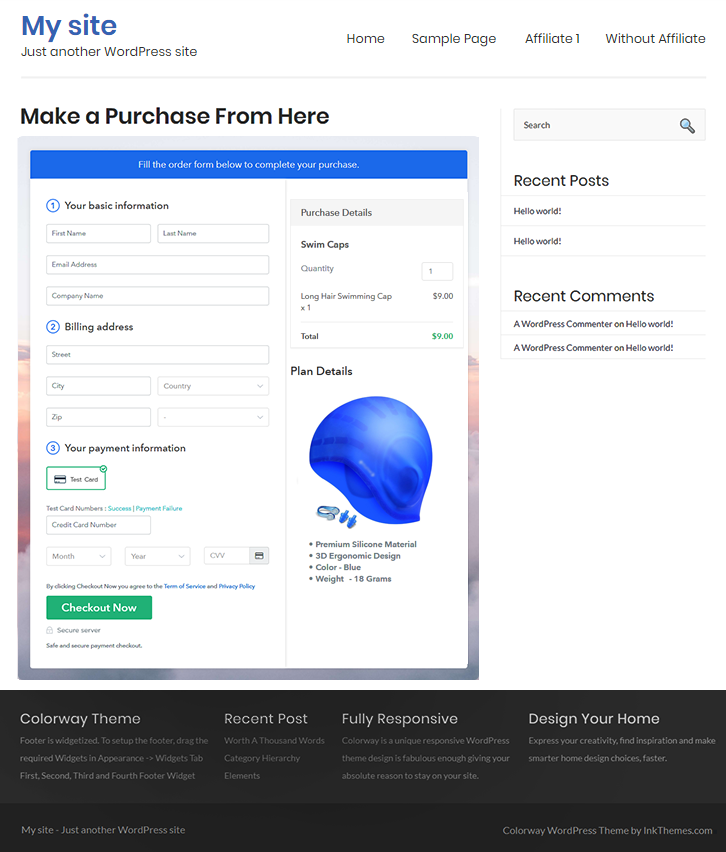
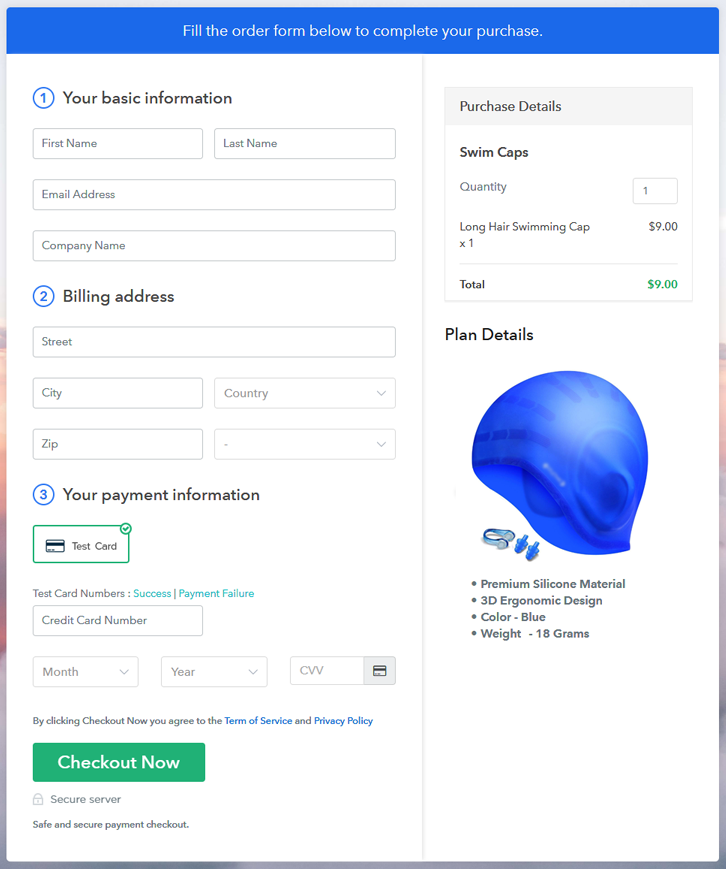
Final View of Checkout Page For Your Swim Caps Selling Business

Preview Checkout Page - Selling Swim Caps Online

Preview Checkout Page

Step 1: Log in to Pabbly Subscription Billing

Signup

Simply visit Pabbly Subscription Billing website and click on “Sign Up Free”. A signup page will open on the screen wherein you can simply signup using your Gmail account or manually.

Sign Up For Free!

Step 2: Select Subscription Billing

Access Subscription Billing

Step 3: Account Setup

Setup Account

As soon as you complete the signup process, a dialogue box will appear asking for your company detail like company name, select the currency you wanna deal in & contact number.

Step 4: Connect Payment Gateways & Start Swim Caps Selling Business Online

Connect Payment Gateway

For the first time, you can enable the test payment gateway and test the software payment collection process. After that, you can even connect with other payment gateways like PayPal, Stripe, Razorpay, and Authorize.net. Here’s the link to the complete guide for integration:

Step 5: Add Product For Your Swim Caps

Add Product

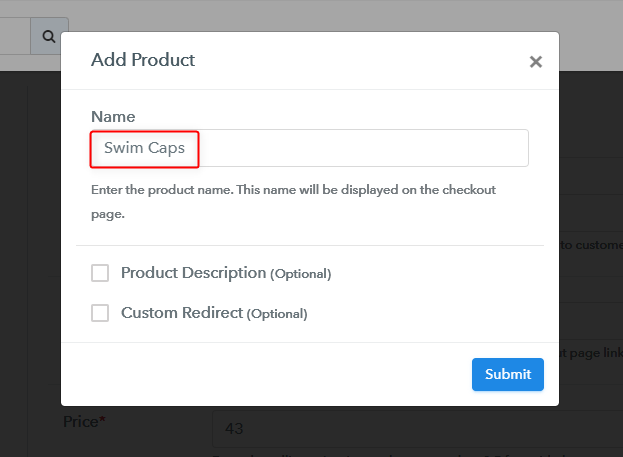
Further, the next step is to add the product. Just add the swim cap name from a particular category, for example, long hairs swimming cap

Moreover, you can add all the related details in the same product by creating different plans.

Add Product

Here, fill up the details to sell swimming caps online and your product is created.

Note: Here you can add all the products related to the similar category by creating plans for each of them.

Step 6: Add Plans 

Let’s rollout plans for different kinds of Swim Caps available in your store.

(a) Select Add New Plan

Add Plan

(b) Specify the Plan & Pricing Details

Add Plan

On adding a plan, you are redirected to the plan page wherein you fill out the plan details like plan name, code, price, setup fees, billing cycle, and more.

(c) Add Image & Description of Swim Caps

Add Product Image

Furthermore, you can write a description of the swim caps with bullets, links, images, etc. On hitting the submit button, your swim caps checkout page will be created.

Similarly, you can create more plans and add all types of swim caps that you want to sell online.

Step 7: Share your Checkout Page

Share Checkout Page on Social Media

  • You can share the checkout page on Facebook & Twitter.
  • Share the direct link to plan with your customers via SMS or email marketing.
  • Also, you can add the plan link provided in the buttons or any anchor text on your website, so the users will be redirected to the checkout page.

Step 8: Preview Checkout Page

Follow up the recommended steps to preview the checkout page:

(a) Click on the View Button

View Checkout Plan

(b) Take a Look at the Checkout Page

Preview Checkout Page - Selling Swim Caps Online

Step 9: Embed Checkout Page in Site & Sell Swim Caps Online

Embed Checkout Page on Website

Additionally, you can embed the plan link on your WordPress website by just copying the plan link.

(a) Edit the Page & Paste the Copied Link

Embed Checkout Page on Website

Further, paste the plan link on a text editor of the WordPress dashboard.

(b) Save & Publish the Checkout Page

Save_and_Publish

Next, click the “Publish” button, after making changes.

(c) Check out the Final Look of your Checkout Page on WordPress Site

Preview Checkout Page on WordPress Website

Step 10: Multiplan Checkout Page

Note: In case you want to sell multiple products via a single checkout page, you can create a multi-plan checkout page otherwise skip this step.

(a) Click on Add Multiplan Checkout

Multiplan Checkout

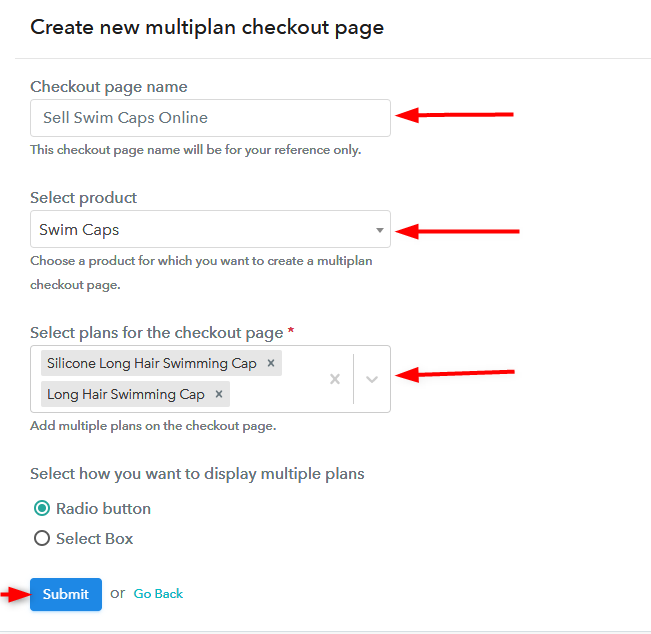
(b) Add Plans to Sell Multiple Swim Caps from Single Checkout Page

Create Multiplan Checkout Page - Sell Swimming Caps

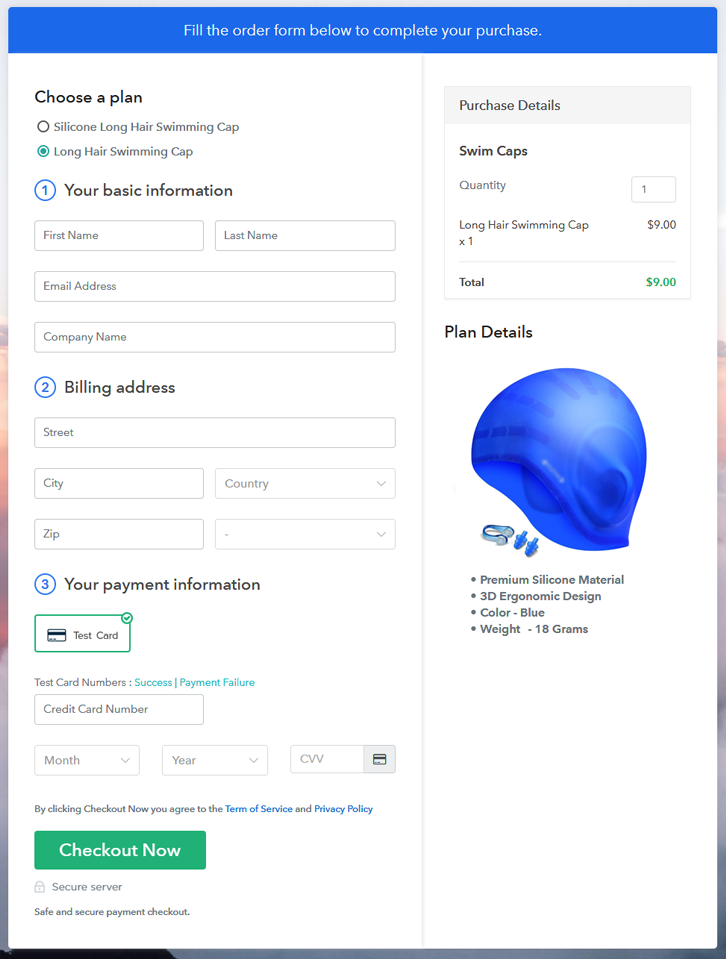
(c) Take a Look at the Checkout Page

Preview Multiplan Checkout Page - Sell Swim Caps

Preview Checkout Page

Wrapping Up

That’s it! By following these steps you can start your own business of selling swimming caps online. Just create the checkout page using Pabbly Subscription Billing software and manage everything related to your selling process.

Besides, you can collect payments in any currency and using any payment gateway like Stripe, PayPal, Razorpay, etc.

Hope this was helpful. For any queries, drop a comment below. We’ll get back to you as early as possible.

You May Also Like To Read –
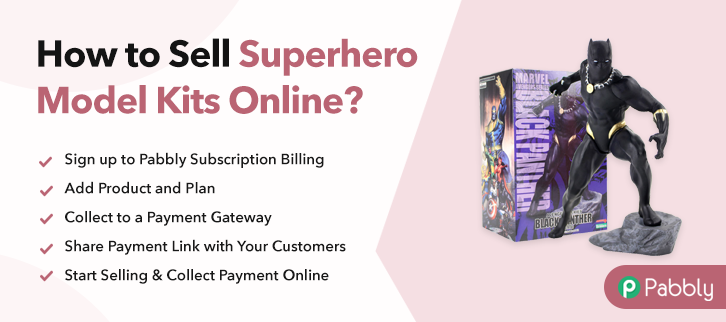
How To Sell Superhero Model Kits Online | Step by Step (Free Method)

Ideal For: All the toys sellers, model shop owners, super hero model kits manufacturers, super hero model sellers, and other merchants can use this method to sell superhero model kits online.

How To Sell Superhero Model Kits Online

Why Choose this Method to Sell Superhero Model Kits Online?

Unlike any other solution, this method allows you to:

  • List and sell your superhero model kits for FREE. Absolutely no payment required.
  • No need to pay commission on any of your sale.
  • Multiple payment options like PayPal, Credit Card, etc to collect payment from a single place.
  • Sell one time or recurring subscriptions of your superhero model kits.
  • Collect payments & sell products in any currency as per your requirement.
  • Give discounts on your products by offering special coupon codes.
  • Add sales commission agents to help you in selling the superhero model kits.

Get Pabbly Subscription Billing for Free

Ever since DC and Marvel comics started churning out movies in record number, the demand for superhero kits has risen exponentially. Currently, this sector is growing handsomely at a rate of 4.6 % and expected to be a $4.5 billion industry by 2026. But did you know that every region has its own favorite superhero? For example, Californians love Batman, whereas in Alabama it is the Wolverine, while the New Yorkers prefer their neighborhood superhero SpiderMan. Now such variation for demands can be only met if you start selling superhero kits online.

Here I am suggesting a Saas tool called Pabbly Subscription Billing which allows you to sell superhero model kits online through checkout pages. Furthermore, it provides a custom domain to build a brand and there are no transaction fees. Moreover, other benefits include:

  • Marketing on Facebook, Twitter, Whatsapp, etc
  • Auto Credit Card Reattempts on Decline
  • No Hidden Charges
  • Revenue Analytics
  • Unlimited Billing

Note: Pabbly Subscription Billing won’t take responsibility for any dispute between parties regarding trademarks associated with superheroes. Manufacturers, please consider this before selling superhero kits online.

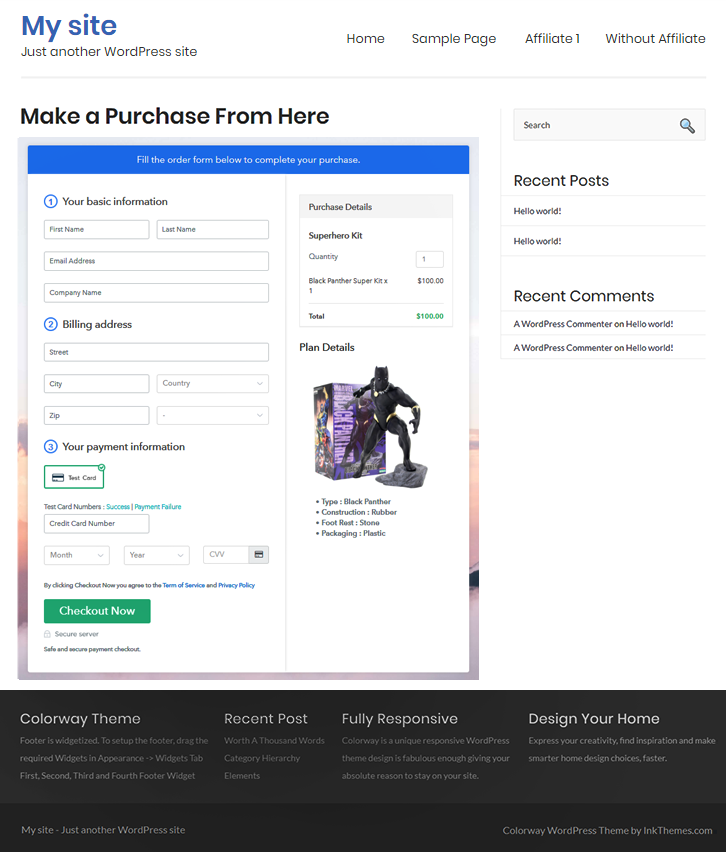
Final View of Checkout Page for your Superhero Model Kits Selling Business

Checkout To Sell Superhero Model Kits Online

Preview Checkout Page

Step 1: Log in to Pabbly Subscription Billing

Signup

First of all look for Pabbly Subscription Billing in your browser. Now, click on the “Sign up Free“ button. You may fill all the mandated fields or simply sign in using your Gmail account.

Sign Up For Free!

Step 2: Select Subscription Billing

Access Subscription Billing

Step 3: Account Setup

Setup Account

Once you’re done click on the “Access Now” button of Pabbly Subscription Billing, a page will pop-up with details like company name, currency, and contact number. Next, you need to fill those details to go on.

Step 4: Connect Payment Gateways & Start Superhero Model Kits Selling Business Online

Connect Payment GatewayUsing Pabbly Subscription Billing you can dry run the payment experience of a customer using dummy payment gateways. You can do this by clicking on the “Enable Test Payment” option. Furthermore, payment gateways like PayPal, Stripe, Razorpay can be easily integrated using the help of the manuals given below.

Step 5: Add Product for your Superhero Model Kits

Add Product

Let’s start to add the products. Also, beneath the  “Enable Payments” segment there is the “Add your product” section click on it. Furthermore, this will generate a dialog box with a blue button “Add New Product”. Click on it.

Also, you have to add the required product title, in this case, it is a ‘superhero model kits’.

Add Product To Sell Superhero Model Kits Online

Fill out all the details like the name of the product and voila your product is created.

Note: Here you can add all the products related to the similar category by creating plans for each of them.

Step 6: Add Plans 

Now let’s create plans for different kinds of superhero model kits available in your store.

(a) Select Add New Plan

Add Plan

(b) Specify the Plan & Pricing Details

Add Plan To Sell Superhero Model Kits Online

In the plan page, here you have to fill in details like plan name, code, price, setup fees.

Now scroll down, and in the section below you can see the choice to change the billing models like one-time payment, recurring, etc.

(c) Add Image & Description of Superhero Model Kits

Add Image To Sell Superhero Model Kits Online

Also, to get visitors’ attention upload some high definition images of the superhero model kit and upload it by clicking the image button.

Beneath the image, give some good information about the pesticides in bullet points like footrest, construction, pose and then press the “Submit” button.

Moreover, by using the same process, you can list more products.

Step 7: Share your Checkout Page

Share Checkout Page on Social Media

Pabbly Subscription Billing gives three options for digital marketing.

  • First, share your checkout page on Twitter & Facebook by just pressing the respective buttons.
  • Likewise, you can always share the checkout pages via email and SMS.
  • Also, you can create buttons on your webpage and paste the checkout links on it. Or you can place it on any anchor text on your website, so the users will be redirected to the checkout page.

Step 8: Preview Checkout Page

Follow up the recommended steps to preview the checkout page:

(a) Click on the View Button

View Checkout Plan

(b) Take a Look at the Checkout Page

Checkout To Sell Superhero Model Kits Online

Step 9: Embed Checkout Page in Site & Sell Online

Embed Checkout Page on Website

Also just copy the link and add the checkout page to sell superhero model kits at any suitable place on your WordPress site.

(a) Edit the Page & Paste the Copied Link

Embed Checkout Page on Website

Further, paste the plan link of the superhero model kits on a text editor of the WordPress dashboard.

(b) Save & Publish the Checkout Page

Save_and_Publish

Next, click the “Publish” button, after making changes.

(c) Check out the Final Look of your Checkout Page on WordPress Site

Wordpress To Sell Superhero Model Kits Online

Step 10: Multiplan Checkout Page

Note: In case you want to sell multiple products via a single checkout page, you can create a multi-plan checkout page otherwise skip this step.

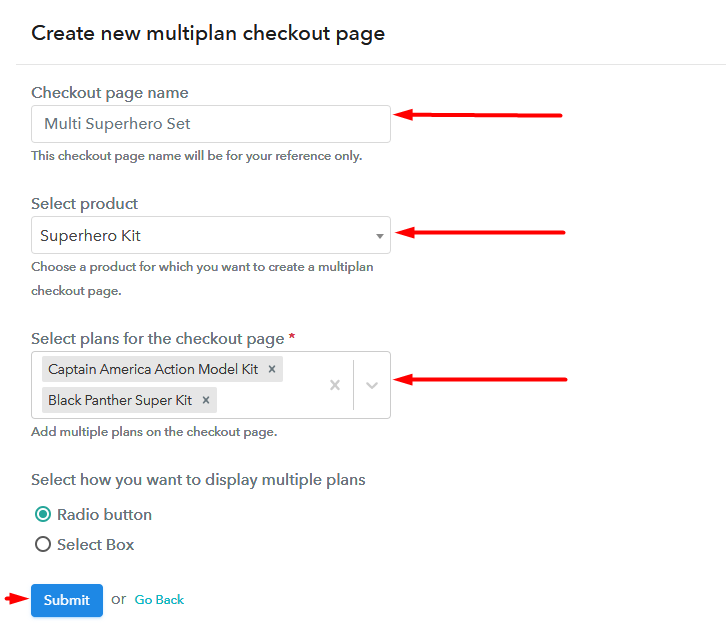
(a) Click on Add Mutiplan Checkout

Multiplan Checkout

(b) Add Plans to Sell Multiple Superhero Model Kits from Single Checkout Page

Multiplan To Sell Superhero Model Kits Online

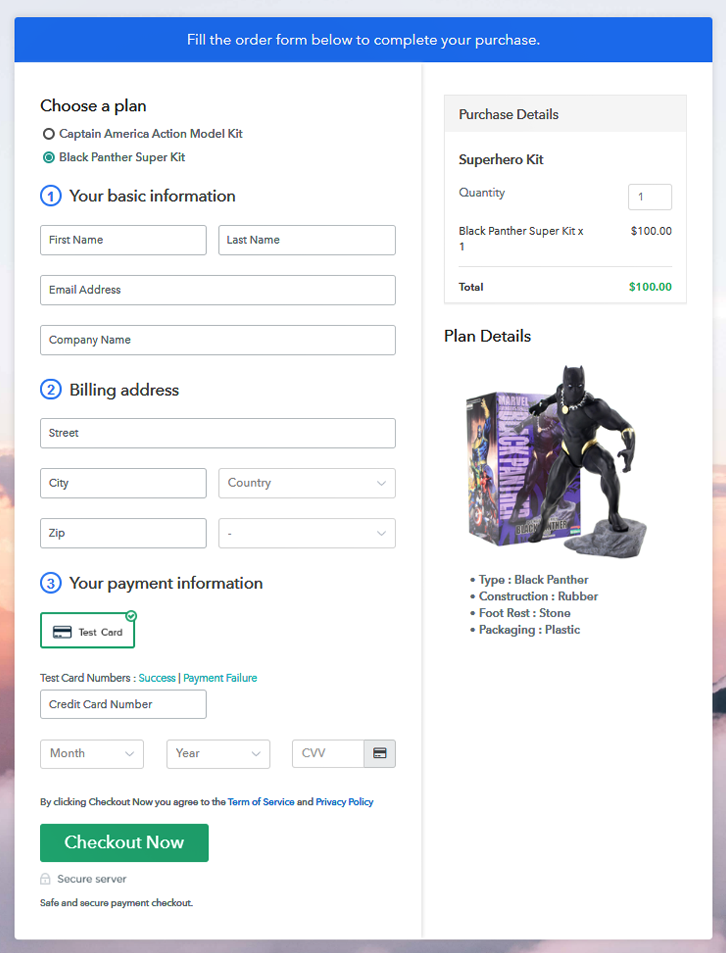
(c) Take a Look at the Checkout Page

Multiplan To Sell Superhero Model Kits Online

Preview Checkout Page

Wrapping Up

Yeah!! look how beautiful your checkout and multi-plan checkout pages!! They can be used to sell unlimited superhero model kits online. Now, keep exploring and experimenting with features, which help you properly under this system. But, if you have any doubts regarding the process, do contact us in the comment section below. Thank You!!

You May Also Like To Read –
 

How To Sell Sunflower Oil Online | Step by Step (Free Method)

How to Sell Sunflower Oil Online

Ideal For: All oil manufacturer industries, general store owners, online shopping store owners, oil suppliers & exporters and other merchants can use this method to sell sunflower oil online.

How to Sell Sunflower Oil Online

Why Choose this Method To Sell Sunflower Oil Online?

Unlike any other solution, this method allows you to:

  • List and sell your sunflower oil for FREE. Absolutely no payment required.
  • No need to pay commission on any of your sales.
  • Multiple payment options like PayPal, Credit Card, etc to collect payment from a single place.
  • Sell one time or recurring subscriptions of your sunflower oil.
  • Collect payments & sell products in any currency as per your requirement.
  • Give discounts on your products by offering special coupon codes.
  • Add sales commission agents to help you in selling sunflower oil online.

Get Pabbly Subscription Billing for Free

If you are a sunflower oil manufacturer/sale business then it is high time to start it online and take it to the next level.

Because sunflower oil is one of the most important oilseed crops and produces a high-quality edible oil. Besides, it is light in taste and supplies more Vitamin E than any other vegetable oil. That’s why the online business of sunflower oil helps you to increase your customers. Online businesses boost your sales as you will be getting orders from all around the world.

Hence to do that, you just have to create checkout pages for sunflower oil and share their links on social media and start collecting payments through them. Therefore, in order to sell sunflower oil online via checkout pages, you only need the Pabbly Subscription Billing tool that lets you create unlimited plans and product at an affordable price to start your online business. Some of its advanced features include:

  • Tax Management
  • Unlimited Products & Plans
  • Manage & Record Payments
  • Generate Invoices

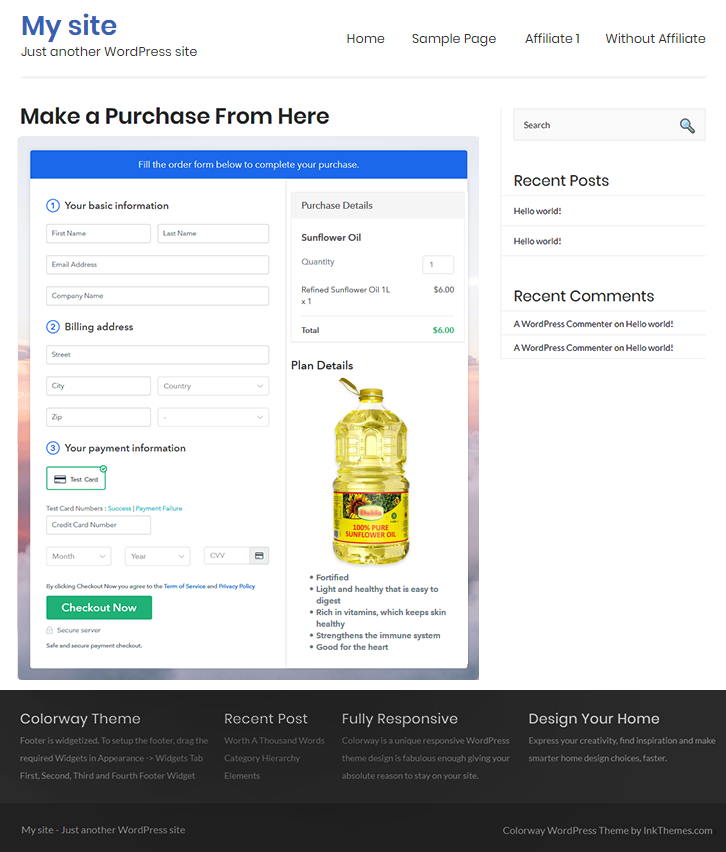
Final View of Checkout Page For Your Sunflower Oil Selling Business

Preview Checkout Page - Sell Sunflower Oil

Preview Checkout Page

Step 1: Log in to Pabbly Subscription Billing

Signup

Firstly, visit the Pabbly Subscription Billing website for creating a checkout page for sunflower oil. After that, click on the “Sign up Free“ button and filled out the form details manually or sign in using your Gmail account.

Sign Up For Free!

Step 2: Select Subscription Billing

Access Subscription Billing

Step 3: Account Setup

Setup Account

Now click on the “Access Now” button of the software, a page will open with fields like company name, select currency, and phone number. Simply fill out those details to continue creating a checkout page for sunflower oil.

Step 4: Connect Payment Gateways & Start Sunflower Oil Selling Business Online

Connect Payment Gateway

The following step is to provide information about payment procedures using a “Test Payment Gateway”. Besides this, Pabbly Subscription Billing offers various payment gateways such as PayPal, Stripe, etc. Further, below are the payment integration guides to help you out.

Step 5: Add Product For Your Sunflower Oil

Add Product

Now, add the product name, specify the type, and write a short description of the oil to seize the customer’s attention.

Add Product

Just fill out all those details and your product for sunflower oil is created.

Note: Here you can add all the products related to the similar category by creating plans for each of them.

Step 6: Add Plans 

Let’s rollout plans for different kinds of sunflower oil available in your store.

(a) Select Add New Plan

Add Plan

(b) Specify the Plan & Pricing Details

Add Plan Details

The next thing to do is fill all the details of the oil like plan name, code, price, set-up fee, and much more to continue.

(c) Add Image & Description of Sunflower Oil

Add Product Image - Sell Sunflower Oil

Furthermore, write a brief description of the sunflower oil using bullets, images, etc, to bring original buyers to the checkout page.

Hit on the “Submit” button to add the sunflower oil on the checkout page.

Additionally, you can add multiple plans and kinds of oil in your product list which you want to market online.

Step 7: Share your Checkout Page

Share Checkout Page on Social Media

  • Moreover, share the checkout page on social media accounts like Facebook & Twitter.
  • Also, you can share the direct link of checkout page with your customers via SMS or email marketing.
  • Lastly, embed the provided plan link of the sunflower oil in the buttons or any anchor text on your website.

Step 8: Preview Checkout Page

Follow up the recommended steps to preview the checkout page:

(a) Click on the View Button

View Checkout Plan

(b) Take a Look at the Checkout Page

Preview Checkout Page - Sell Sunflower Oil

Step 9: Embed Checkout Page in Site & Sell Sunflower Oil S Online

Embed Checkout Page on Website

Just copy the link and add the checkout page to sell sunflower oil online at any proper place on your WordPress site.

(a) Edit the Page & Paste the Copied Link

Embed Checkout Page on Website

Further, paste the plan link on a text editor of the WordPress dashboard.

(b) Save & Publish the Checkout Page

Save_and_Publish

Next, click the “Publish” button, after making changes.

(c) Check out the Final Look of your Checkout Page on WordPress Site

Preview Checkout Page on WordPress Site - Sell Sunflower Oil

Step 10: Multiplan Checkout Page

Note: In case you want to sell multiple products via a single checkout page, you can create a multi-plan checkout page otherwise skip this step.

(a) Click on Add Mutiplan Checkout

Multiplan Checkout

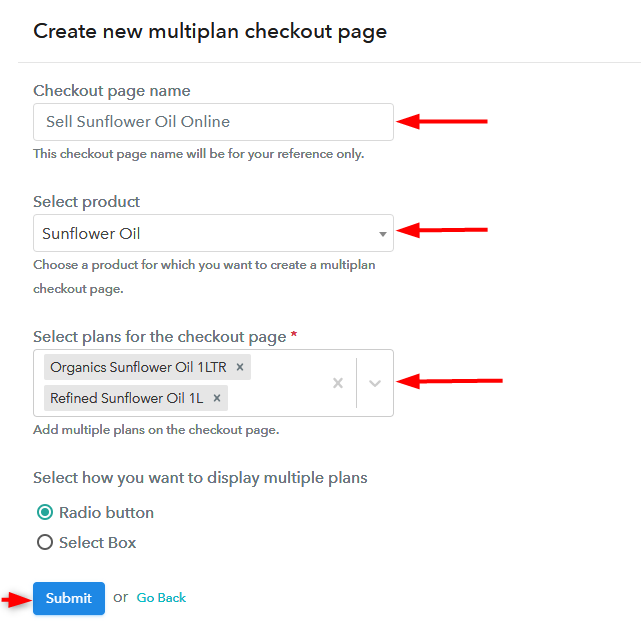
(b) Add Plans to Sell Multiple Sunflower Oil from Single Checkout Page

Create Multiplan Checkout Page - Start Selling Sunflower Oil Online

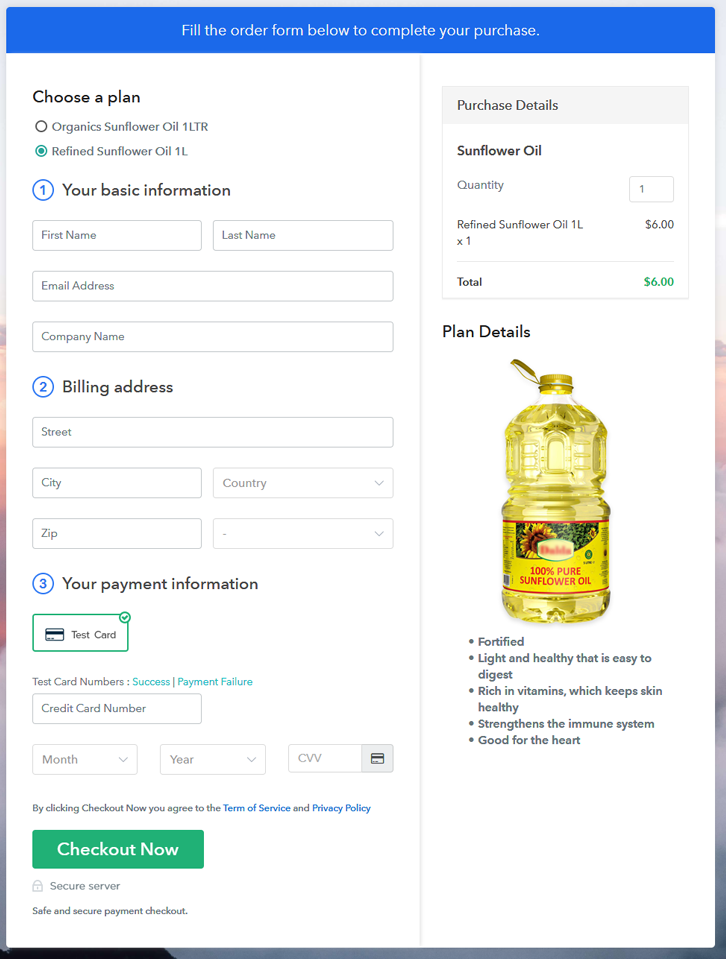
(c) Take a Look at the Checkout Page

Preview Multiplan Checkout Page - Start Selling Sunflower Oil Online

Preview Checkout Page

Wrapping Up

Conclusively! Now you all know how easy is to start sunflower oil business online using Pabbly Subscription Billing software. All you have to do is follow all the above-mentioned steps and you’re good to go.

Furthermore, if you have any queries, just write to us in the comment section below.

You May Also Like To Read –
How To Sell Storage Tanks Online | Step by Step (Free Method)

Ideal For: All the storage tank sellers, storage tank owners, storage tank manufacturers, and other merchants can use this method to sell storage tanks online.

How To Sell Storage Tanks Online

Why Choose this Method to Sell Storage Tanks Online?

Unlike any other solution, this method allows you to:

  • List and sell your storage tanks for FREE. Absolutely no payment required.
  • No need to pay commission on any of your sale.
  • Multiple payment options like PayPal, Credit Card, etc to collect payment from a single place.
  • Sell one time or recurring subscriptions of your storage tanks.
  • Collect payments & sell products in any currency as per your requirement.
  • Give discounts on your products by offering special coupon codes.
  • Add sales commission agents to help you in selling storage tanks.

Get Pabbly Subscription Billing for Free

Due to erratic rainfalls and dry spells, people are increasingly installing water storage tanks in their homes to stabilize water levels. That is why this market is growing at a CAGR of 3.8% to reach $14.5 billion by 2023. The predominant areas of growth are obviously in water scares regions like Western Americas, Middle East, Northern Oceania, etc. Now, for a manufacturer, the demands from these areas can be met only if he starts selling storage tanks online.

Some other benefit of selling storage tanks online includes low set up cost, higher scalability, transparent revenue management, higher product outreach, better marketing channels, etc. Keep these features and affordability in mind I have zeroed in a Saas tool that can sell storage tanks online. The tool is called Pabbly Subscription Billing, here using this software you can create incredible checkout pages to sell unlimited storage tanks online. Some other benefits are :

  • Unlimited Billing
  • Versatile Checkout Pages
  • Tracking Revenues
  • Auto Email Alerts
  • Zero Transaction Fees

So, let us together build our first checkout page to sell storage tanks online.

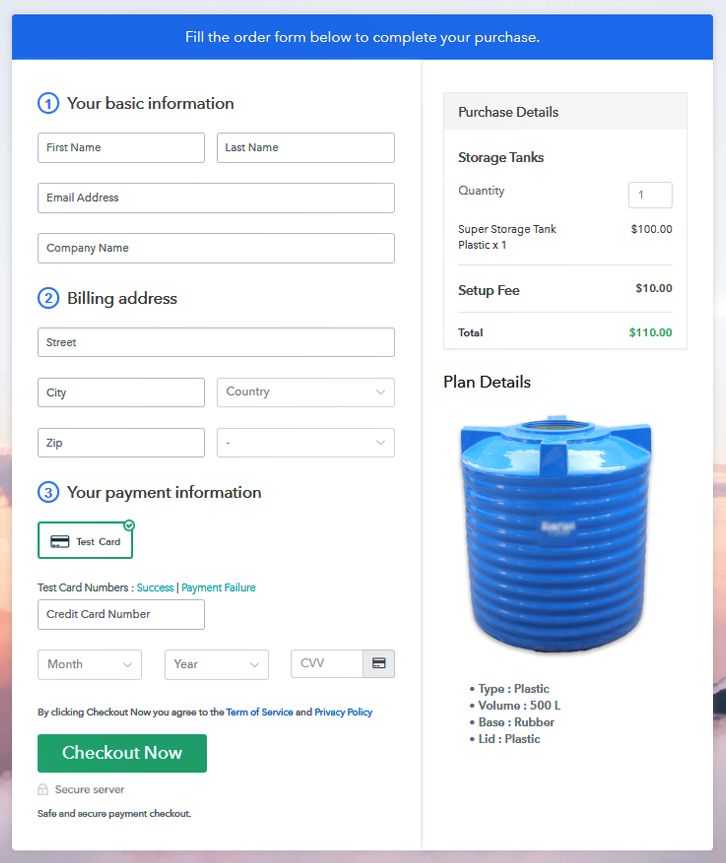
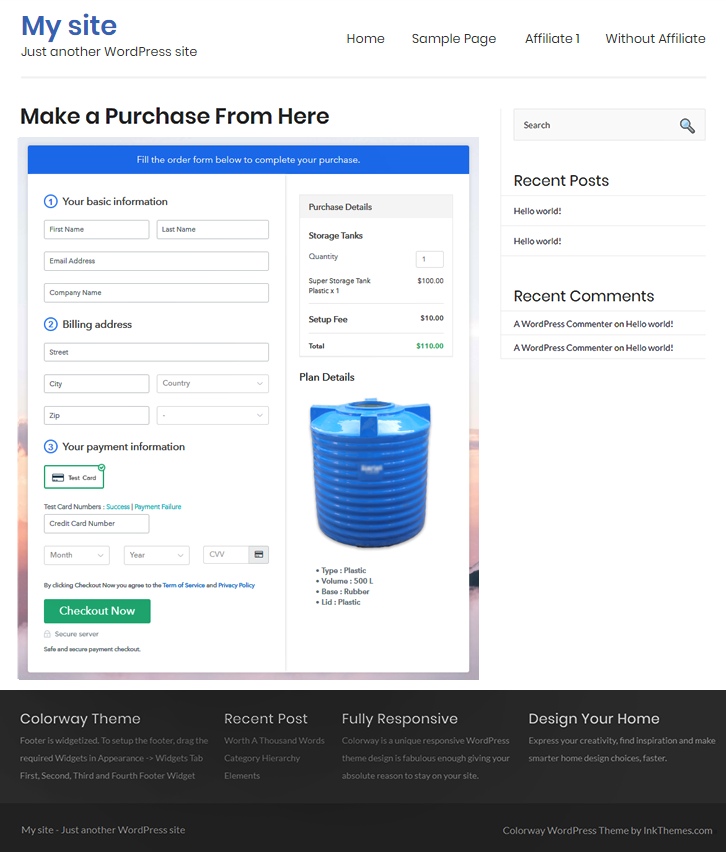
Final View of Checkout Page for your Storage Tanks Selling Business

Checkout To Sell Storage Tanks Online

Preview Checkout Page

Step 1: Log in to Pabbly Subscription Billing

Signup

Check for Pabbly Subscription Billing in your browser. Now, click on the “Sign up Free“ button. Either fill all the information or simply sign in using your Gmail account.

Sign Up For Free!

Step 2: Select Subscription Billing

Access Subscription Billing

Step 3: Account Setup

Setup Account

Now click on the “Access Now” button then, a page will pop-up with details like company name, currency, and contact number will spring out. Next, you need to fill those details to go on.

Step 4: Connect Payment Gateways & Start Storage Tanks Selling Business Online

Connect Payment GatewayNow to know about the payment process, Pabbly Subscription Billing offers “Test Payment Gateway”. By pressing this button, you will be having the same payment experience that a customer will have.

Also, this will ensure, you remove all the disruptions beforehand and make the transactions seamless. Furthermore, this software allows integrations with payment gateways such as PayPal, Stripe, etc. Moreover, there are manuals listed below to help you out.

Step 5: Add Product for your Storage Tanks

Add Product

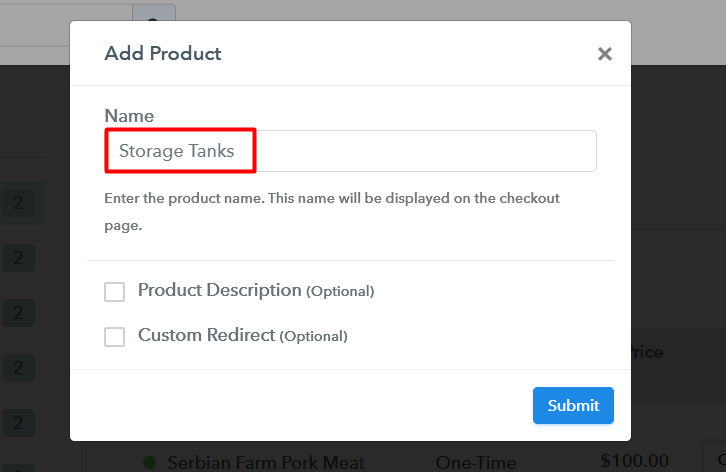
Now we will add products and here beneath the  “Enable Payments” segment there is the “Add your product” section click on it. Also, this will generate a dialog box with a blue button “Add New Product”. Click on it.

Ok, now you will add the title which is ‘storage tanks’

How

Fill out all the details like the name of the product and voila your product is created.

Note: Here you can add all the products related to the similar category by creating plans for each of them.

Step 6: Add Plans 

We are going to build plans for different kinds of storage tanks available in your store.

(a) Select Add New Plan

Add Plan

(b) Specify the Plan & Pricing Details

How

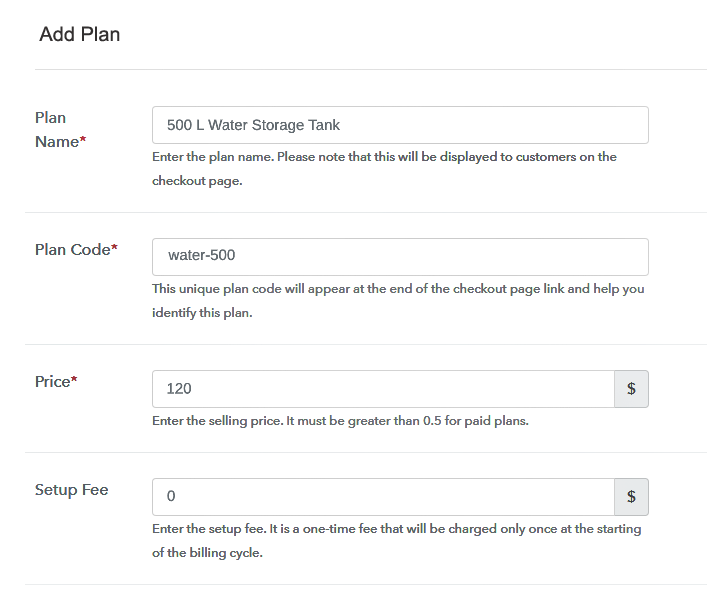
In the plan page, here you have to fill in details like plan name, code, price, setup fees. Moreover, choose your preferred revenue model accordingly and after some time you can even change it according to your choice.

(c) Add Image & Description of Storage Tanks


Also, clicking the image button, you can upload some high-quality pictures of your storage tanks.

Moreover, provide some concise information to get the attention of customers about storage tanks and then press the “Submit” button.

Likewise, by using the same process, you can list more products.

Step 7: Share your Checkout Page

Share Checkout Page on Social Media

To give an impetus to your marketing, Pabbly Subscription Billing offers three mediums of sharing the checkout pages.

  • Automatically share the checkout pages on Twitter, Facebook with the help of dedicated buttons.
  • Furthermore, you can always simply paste the checkout pages link on to share it via email and SMS.
  • If you want you can also create buttons on your webpage and paste the checkout links on it. Or you can place it on any anchor text on your website, so the users will be redirected to the checkout page.

Step 8: Preview Checkout Page

Follow up the recommended steps to preview the checkout page:

(a) Click on the View Button

View Checkout Plan

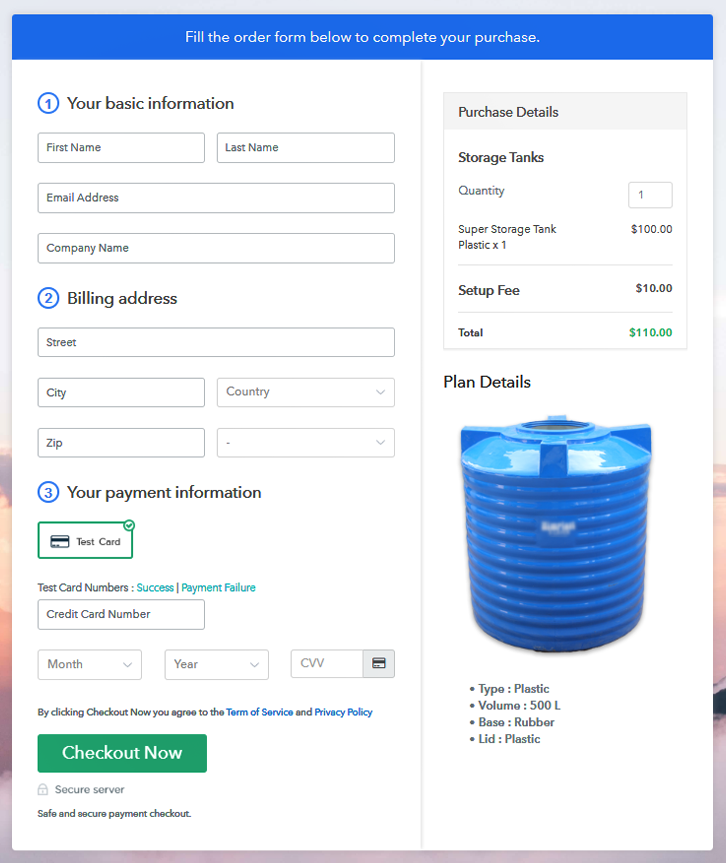
(b) Take a Look at the Checkout Page

Checkout to sell storage tanks online

Step 9: Embed Checkout Page in Site & Sell Online

Embed Checkout Page on Website

Also, you can just copy the link and add the checkout page to sell storage tanks at any suitable place on your WordPress site.

(a) Edit the Page & Paste the Copied Link

Embed Checkout Page on Website

Further, paste the plan link of the storage tanks on a text editor of the WordPress dashboard.

(b) Save & Publish the Checkout Page

Save_and_Publish

Next, click the “Publish” button, after making changes.

(c) Check out the Final Look of your Checkout Page on WordPress Site

Wordpress to sell storage tanks online

Step 10: Multiplan Checkout Page

Note: In case you want to sell multiple products via a single checkout page, you can create a multi-plan checkout page otherwise skip this step.

(a) Click on Add Mutiplan Checkout

Multiplan Checkout

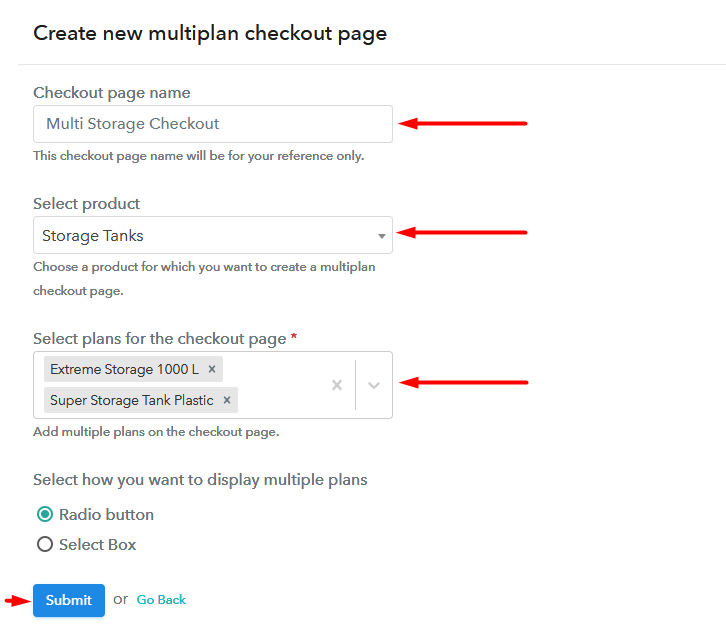
(b) Add Plans to Sell Multiple Storage Tanks from Single Checkout Page

Multiplan to sell storage tanks online

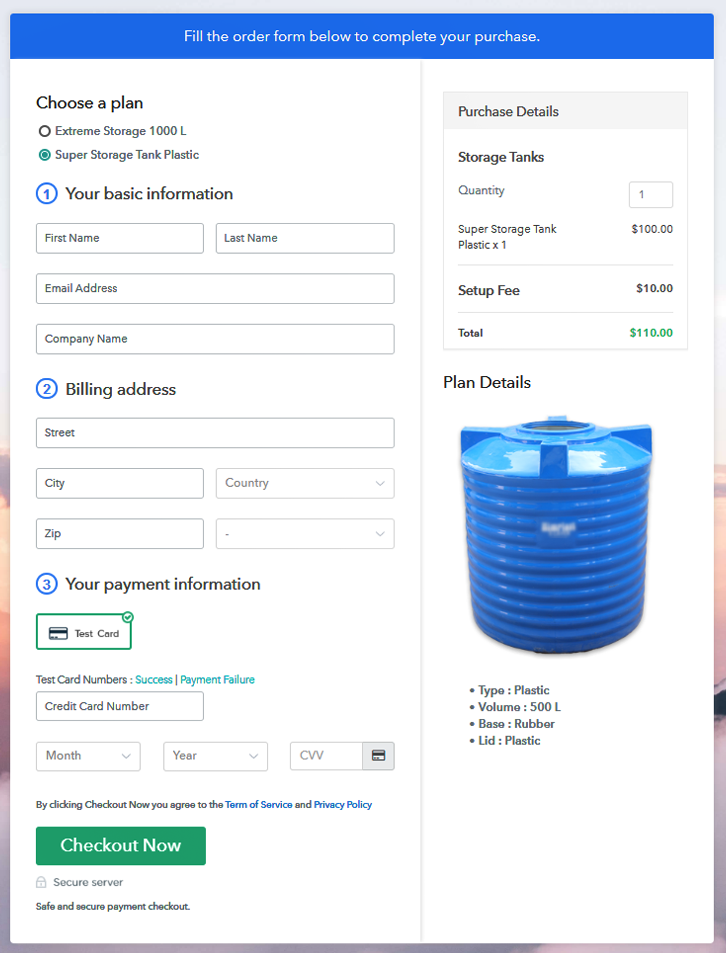
(c) Take a Look at the Checkout Page

Multiplan to sell storage tanks online

Preview Checkout Page

Wrapping Up

The checkout page to sell storage tanks online really turned to be awesome. Of course, it took some time, but with practice, you will be able to build in leads than 5 minutes. Also, if you have any queries, please leave them in the comment section. Thank You !!

You May Also Like To Read –
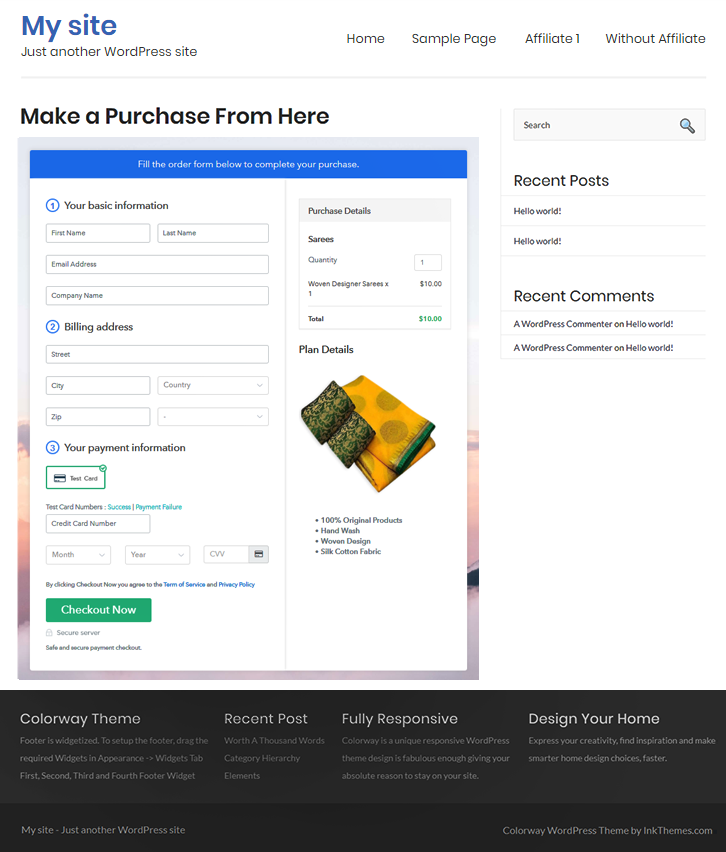
How to Sell Sarees Online | Step by Step (Free Method)

How to Sell Sarees Online

Ideal For: All the saree fabric manufacturers, saree sellers, saree dealers, saree suppliers, saree shop owners, and other merchants can use this method to sell sarees online.

How to Sell Sarees Online

Why Choose this Method to Sell Sarees Online?

Unlike any other solution, this method allows you to:

  • List and sell your sarees for FREE. Absolutely no payment required.
  • No need to pay commission on any of your sales.
  • Multiple payment options like PayPal, Credit Card, etc to collect payment from a single place.
  • Sell one time or recurring subscriptions of your sarees.
  • Collect payments & sell products in any currency as per your requirement.
  • Give discounts on your products by offering special coupon codes.
  • Add sales commission agents to help you in selling sarees online.

Get Pabbly Subscription Billing for Free

The clothing industry is the center of attraction for both women and men. One of the trendiest and contemporary clothing is sarees. With the advancement in technology, people are comfortable buying sarees online. And, if you own saree shop offline, then it is high time to start sarees selling business online.

According to the Business Wire report, the Indian ethnic wear market has attained popularity among the world in the past few years. It is expected to grow at 10% CAGR in the coming years which is something to look upon. Plus, starting an online saree store offers innovative, steady, and seamless buying and shopping experience to prospects. Luckily, we have a software named Pabbly Subscription Billing that can give a headstart to your saree selling business.

The tool lets you create a startling checkout page for selling sarees online. Further, its remarkable feature involves:

  • Multiple Billing Models
  • Unlimited Coupon Codes and Discounts
  • Custom Domain

So, let’s create our checkout page for selling sarees online using the Pabbly Subscription Billing software.

Final View of Checkout Page for Your Sarees Selling Business

Checkout Page to Sell Sarees Online

Preview Checkout Page

Step 1: Log in to Pabbly Subscription Billing

Signup

Begin the process for creating a checkout page for sarees by visiting the Pabbly Subscription Billing in your browser. After that, click on the “Sign up Free“ button. Moreover, either manually filled out the details or sign in using your Gmail account.

Sign Up For Free!

Step 2: Select Subscription Billing

Access Subscription Billing

Step 3: Account Setup

Setup Account

Besides, after clicking on the “Access Now” button of the software, a page will open with fields like company name, select currency, and phone number. Simply fill out those details to continue creating a checkout page for sarees.

Step 4: Connect Payment Gateways & Start Sarees Selling Business Online

Connect Payment Gateway

The subsequent step is to gaining knowledge about payment procedures using a “Test Payment Gateway”. Here, we will describe the checkout page process for the sarees with the help of a test payment gateway. Besides this, the tool offers various payment gateways such as PayPal, Stripe, etc. Further, below are the payment integration guides to help you out.

Step 5: Add Product For Your Sarees

Add Product

Additionally, add the name, which in our case is “Sarees”. Here you can specify the type like party wear sarees, regular wear sarees, etc. Further, write a short description of the sarees to catch the customer’s attention.

Add Product to Start Selling Sarees Online

Moreover, just fill out all those details and your product is created.

Note: Here you can add all the products related to the similar category by creating plans for each of them.

Step 6: Add Plans 

Let’s unfold out plans for different kinds of sarees available in your store.

(a) Select Add New Plan

Add Plan

(b) Specify the Plan & Pricing Details

Specify the Plan and Pricing to Sell Sarees Online

The next thing to do is fill all the details of the sarees like plan name, code, price, set-up fee, and much more to continue.

(c) Add Image & Description of Sarees

Add Image & Description to Sell Sarees Online

Furthermore, it is necessary to write a brief description of sarees using bullets, images, etc, to bring original buyers to the checkout page.

Next, click on the “Submit” button to add the sarees on the checkout page.

Finally, you can add multiple plans and kinds of sarees in your product list which you want to sell online.

Step 7: Share your Checkout Page

Share Checkout Page on Social Media

  • Moreover, share the checkout page of the sarees on social media accounts like Facebook & Twitter to grab the customer’s attention.
  • Also, you can share the direct link of the sarees checkout page with your customers via SMS or email marketing.
  • Additionally, embed the provided plan link of the sarees in the buttons or any anchor text on your website.

Step 8: Preview Checkout Page

Follow up the recommended steps to preview the checkout page:

(a) Click on the View Button

View Checkout Plan

(b) Take a Look at the Checkout Page

Checkout Page to Sell Sarees Online

Step 9: Embed Checkout Page in Site & Sell Sarees Online

Embed Checkout Page on Website

Just copy the link and add the checkout page to sell sarees online at any proper place on your WordPress site.

(a) Edit the Page & Paste the Copied Link

Paste Link in Text Editor

Further, paste the plan link on a text editor of the WordPress dashboard.

(b) Save & Publish the Checkout Page

Save_and_Publish

Next, click the “Publish” button, after making changes.

(c) Check out the Final Look of your Checkout Page on WordPress Site

Final Look of your Checkout Page to Sell Sarees Online

Step 10: Multiplan Checkout Page

Note: In case you want to sell multiple products via a single checkout page, you can create a multi-plan checkout page otherwise skip this step.

(a) Click on Add Mutiplan Checkout

Multiplan Checkout

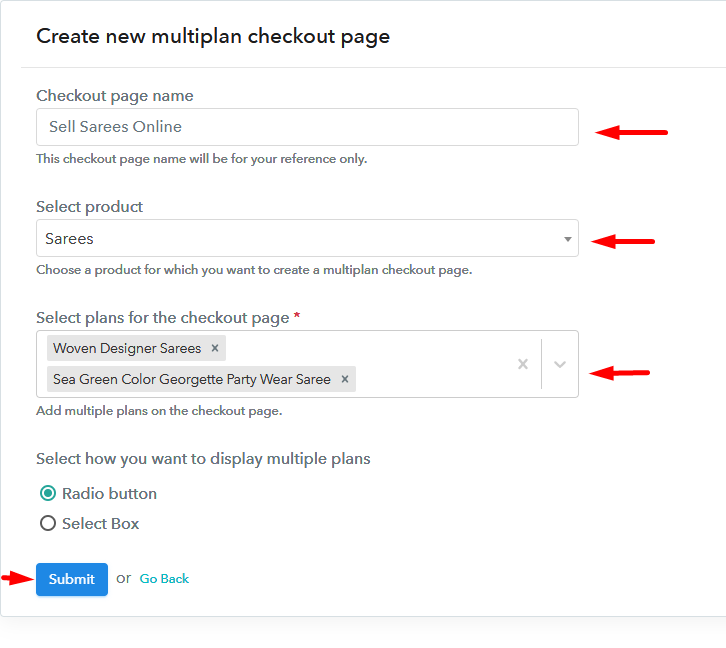
(b) Add Plans to Sell Multiple Sarees from Single Checkout Page

Add Multiple Products to Start Selling Sarees Online

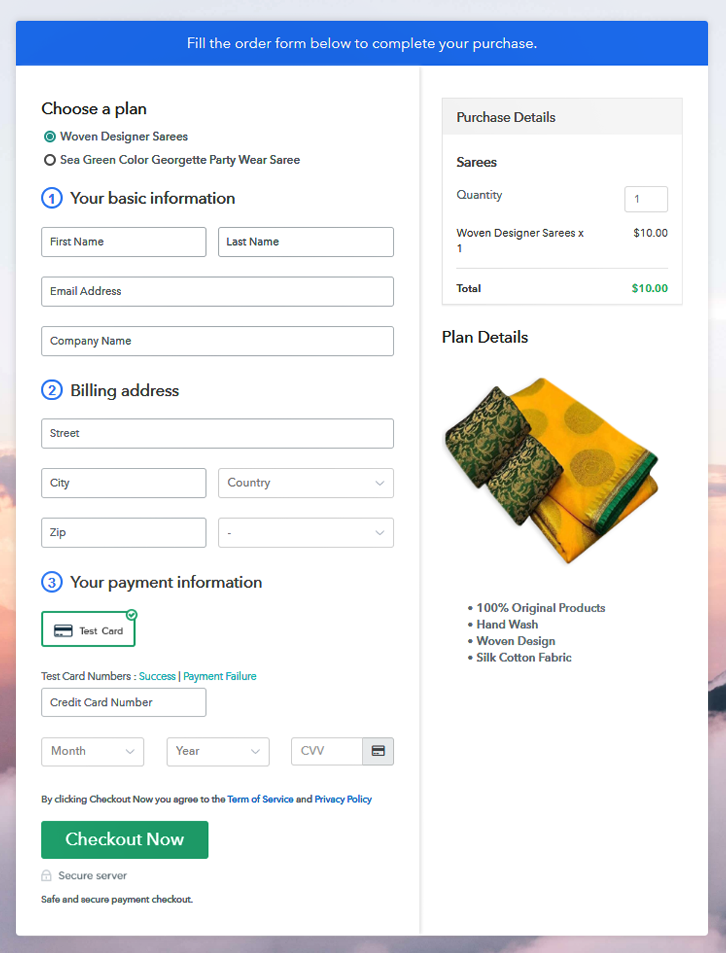
(c) Take a Look at the Checkout Page

Multiplan Checkout Page to Sell Sarees Online

Preview Checkout Page

Wrapping Up

That’s it! Whether it is party wear saree or the ethnic banarasi saree, you can easily sell it online using Pabbly Subscription Billing software. All you have to do is follow all the above-mentioned steps. Further, it allows you to build a strong customer relationship as it sends a timely email alert to customers about the product.

So, try your hands on this amazing software and let us know your reaction in the comments section.

You May Also Like To Read –
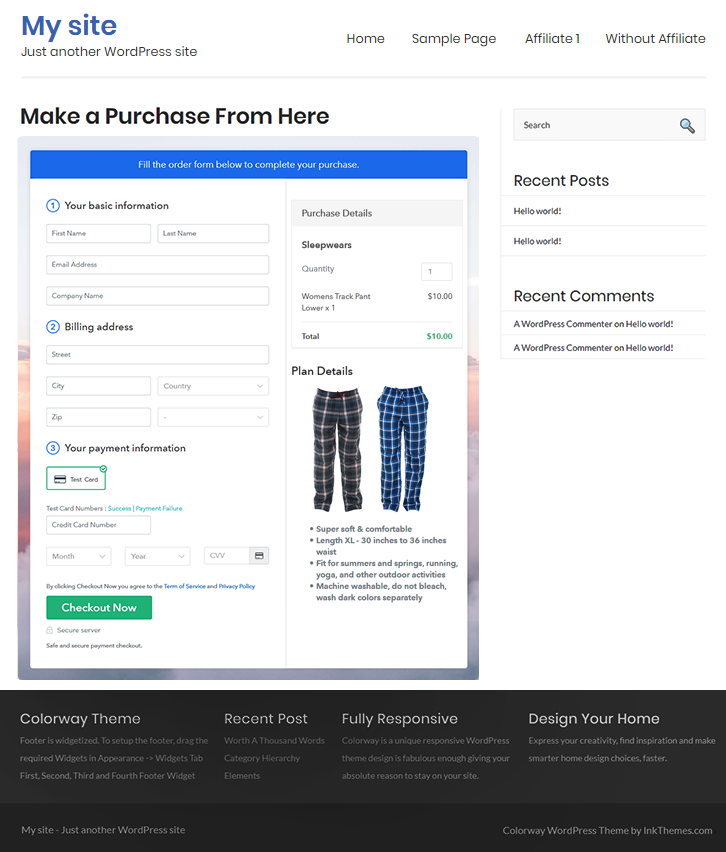
How to Sell Sleepwears Online | Step by Step (Free Method)

How to Sell Sleepwears Online

Ideal For: All the mens & womens cloth manufacturers, sleepwear sellers, retail cloth shop owners, and other merchants can use this method to sell sleepwear online.

How to Sell Sleepwears Online

Why Choose this Method To Sell Sleepwears Online?

Unlike any other solution, this method allows you to:

  • List and sell sleepwears for FREE. Absolutely no payment required.
  • No need to pay commission on any of your sale.
  • Multiple payment options like PayPal, Credit Card, etc to collect payment from a single place.
  • Sell one time or recurring subscriptions of your sleepwear dresses.
  • Collect payments & sell products in any currency as per your requirement.
  • Give discounts on your products by offering special coupon codes.
  • Add sales commission agents to help you in selling sleepwear online.

Get Pabbly Subscription Billing for Free

These days sleepwear market is among the leading players and it has been beholding considerable growth in market share over the last few years. This market even today is largely in the unorganized sector where the price is only its consideration. So, if you are planning to start your own business of selling sleepwear online then we are here to help you out.

Here, in this article, we’ll explain the step by step procedure to create checkout pages for selling nightwears online through Pabbly Subscription Billing software. It provides the easiest way to start online business by sharing the checkout pages. You just need to add the product details, images, pricing into the checkout page. Furthermore, you can also create unlimited plans and collect unlimited payment. Some of its advanced features include:

  • Multiple Billing Models
  • Track Payment Records & Revenue
  • Various Payment Gateways
  • Unlimited Plans & Products
  • Professional Invoices
  • Tax Management

Final View of Checkout Page For Your Sleepwears Selling Business

Preview Checkout Page to Sell Sleepwears Online

Preview Checkout Page

Step 1: Log in to Pabbly Subscription Billing

Signup

To get started first, visit the Pabbly Subscription Billing website and click on the “Sign Up Free” button that will appear on the top-right corner. You can either use an existing Google ID or sign-up manually using email.

Sign Up For Free!

Step 2: Select Subscription Billing

Access Subscription Billing

Step 3: Account Setup

Setup Account

Next, click on the “Access Now” button of the software, a page will open with company details like company name, select currency, and phone number. Simply fill out those details to continue creating a checkout page to start selling sleepwears online.

Step 4: Connect Payment Gateways & Start Sleepwears Selling Business Online

Connect Payment Gateway

In this step, you have to integrate a payment gateway into your checkout page for collecting payments of the sold sleepwear night suits & pajamas. Also, you can enable the test payment option for testing the functionality of this service. Use the following integration guides for integrating a payment gateways.

Step 5: Add Product For Your Sleepwear Dresses

Add Product

Now, add the product name and short details about the sleepwears to attract the user’s attention. Further, you can add as many products based on categories like night suit, pajama, chemise, shorts, etc.

Add Product - Sleepwear Business

Momentarily,  just fill out all those details and your product is created.

Note: Here you can add all the products related to the similar category by creating plans for each of them.

Step 6: Add Plans 

Let’s rollout plans for different kinds of sleepwears available in your store.

(a) Select Add New Plan

Add Plan

(b) Specify the Plan & Pricing Details

Add Plan - Start Selling Sleepwears Online

Here, write the plan details like plan name, price, set-up fees, and much more.

(c) Add Image & Description of Sleepwear Dresses

Add Product Image & Description - Sell Sleepwears

Now, its time to add the product image and description of sleepwears using the various customization options like bullets, images, links, italic & bold text, etc., to the checkout page.

After adding all the details click on the “Submit” button. Furthermore, you can add multiple plans for different types of products which you want to sell online.

Step 7: Share your Checkout Page

Share Checkout Page on Social Media

Next, you have to share the checkout page with your customers using the following options like:

  • Directly share the checkout page link with users through emails and SMS.
  • Also, you can share the plan link on your social media accounts like Facebook & Twitter.
  • Besides, you can embed page link on your website or paste it on a button so that the user gets redirected on the checkout page on clicking.

Step 8: Preview Checkout Page

Follow up the recommended steps to preview the checkout page:

(a) Click on the View Button

View Checkout Plan

(b) Take a Look at the Checkout Page

Preview Checkout Page - Sell Nightwears Online

Step 9: Embed Checkout Page in Site & Sell Sleepwears Online

Embed Checkout Page on Website

Copy the link and add the checkout page to start selling nightwears online at any preferable place on your WordPress site.

(a) Edit the Page & Paste the Copied Link

Embed Checkout Page on Website

Further, paste the plan link on a text editor of the WordPress dashboard.

(b) Save & Publish the Checkout Page

Save_and_Publish

Next, click the “Publish” button, after making changes.

(c) Check out the Final Look of your Checkout Page on WordPress Site

Checkout Page Preview On WordPress Site

Step 10: Multiplan Checkout Page

Note: In case you want to sell multiple products via a single checkout page, you can create a multi-plan checkout page otherwise skip this step.

(a) Click on Add Mutiplan Checkout

Multiplan Checkout

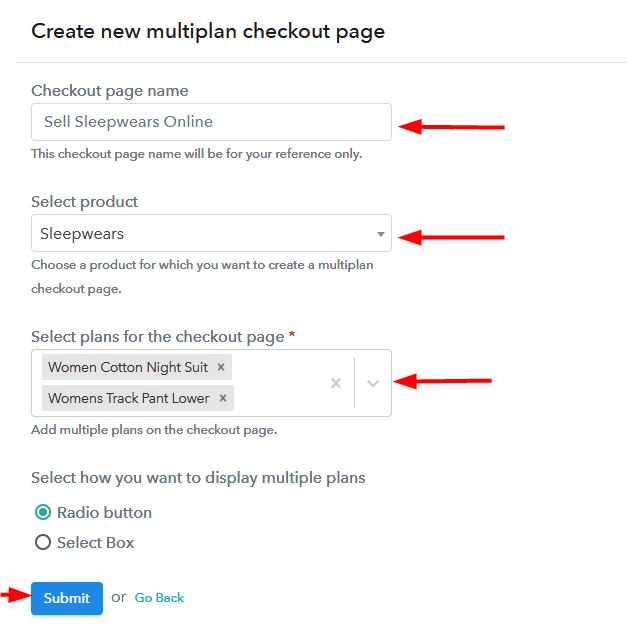
(b) Add Plans to Sell Multiple Sleepwears from Single Checkout Page

Create Multiplan Checkout Page - To Sell Sleepwears Online

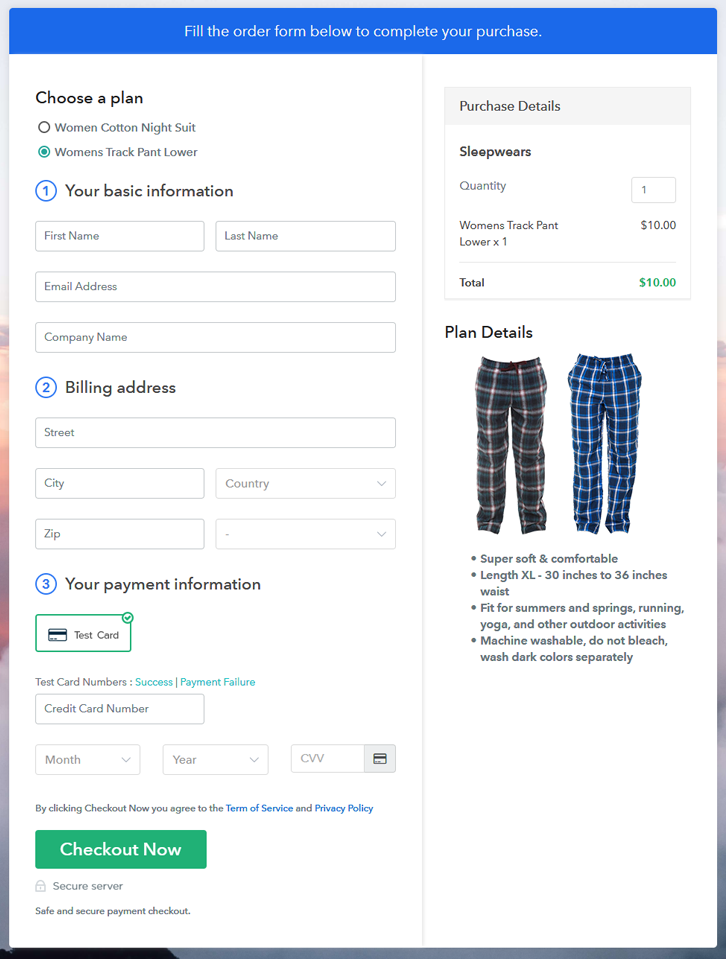
(c) Take a Look at the Checkout Page

Preview Multiplan Checkout Page - Sell Sleepwears Online

Preview Checkout Page

Wrapping Up

That’s it!!

Choosing the right sleepwear is very important for any customer because good night’s sleep is important for us to function normally. Therefore, starting a sleepwear business is a wondrous plan and Pabbly Subscription Billing gives wings to your business. You just need to follow these 10 steps to create the checkout page for selling nightwears online without any hassle.

So, go ahead and try this software out & don’t forget to give us your feedback in the comments section below.

You May Also Like To Read –
How To Sell Pork Meat Online | Step by Step (Free Method)

How to Sell Pork In India

Ideal For: All the pork meat sellers, pork meat owners, pig farmers, and other merchants can use this method to sell pork meat online.

How to Sell Pork In India

Why Choose this Method to Sell Pork Meat Online?

Unlike any other solution, this method allows you to:

  • List and sell your pork meat for FREE. Absolutely no payment required.
  • No need to pay commission on any of your sale.
  • Multiple payment options like PayPal, Credit Card, etc to collect payment from a single place.
  • Sell one time or recurring subscriptions of your pork meat.
  • Collect payments & sell products in any currency as per your requirement.
  • Give discounts on your products by offering special coupon codes.
  • Add sales commission agents to help you in selling pork meat.

Get Pabbly Subscription Billing for Free

The global pork meat consumption has risen in developing countries like China, Korea, and Brazil. Now owing to saturation in the local markets many pig farmers are opting to sell pork meat online to get better demands from these countries.

Other than exposure to global consumers there are many more benefits of selling pork meat online. For example, you will get a very precise automated open online shop that can cater to business 24×7. The setup cost is obviously very low considering no need for zoning permits, licensing fees, utilities, rent, and security. Also, if you need to scale your business, you just need to upgrade your domain and hosting facilities. Well, now comes the prime question How will you sell pork meat online in the first place?

In this article, we will work with an incredible software called Pabbly Subscription Billing to sell pork meat online. The advantage of using this software over others is, even without technical skills, it barely takes 10 minutes to set up the system. Some other features worth mentioning are

  • Generate Unlimited Revenue
  • Transparent Billing
  • Muti-Subscription Models
  • Auto- Card Rettempts on Declines

Note: Some communities and religions, forbade the consumption of pork meat. So do-follow guidelines, before selling pork meat online to avoid hurting religious sensitivities.

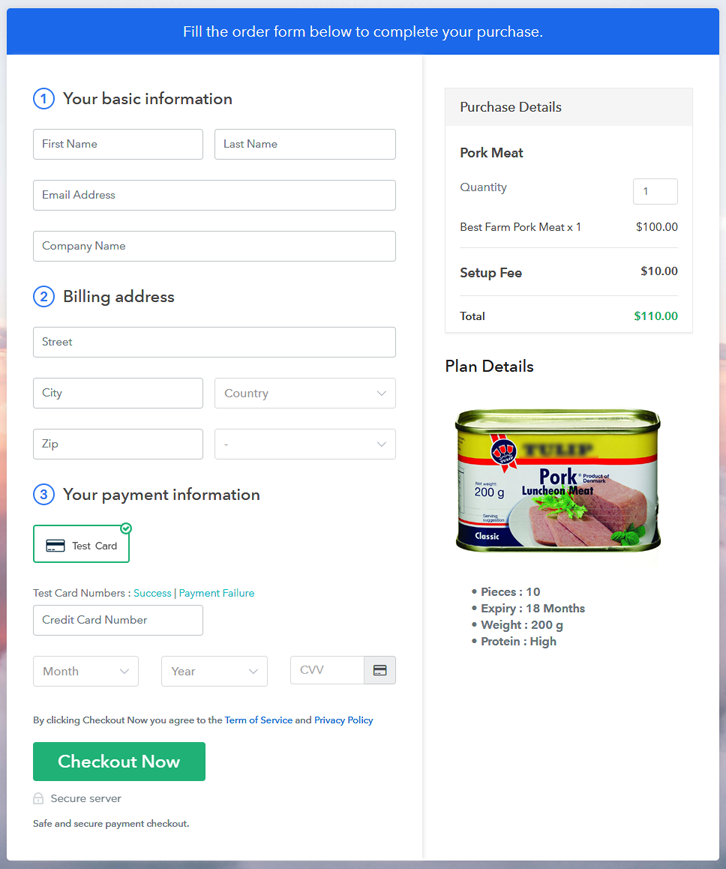
Final View of Checkout Page for your Pork Meat Selling Business

Checkout To Sell Pork Meat Online

Preview Checkout Page

Step 1: Log in to Pabbly Subscription Billing

Signup

Check for Pabbly Subscription Billing in your browser. Now, click on the “Sign up Free“ button. Either fill all the information or simply sign in using your Gmail account.

Sign Up For Free!

Step 2: Select Subscription Billing

Access Subscription Billing

Step 3: Account Setup

Setup Account

Now click on the “Access Now” button then, a page will pop-up with details like company name, currency, and contact number will spring out. Next, you need to fill those details to go on.

Step 4: Connect Payment Gateways & Start Pork Meat Selling Business Online

Connect Payment GatewayThe next step is to understand the payment process using a “Test Payment Gateway”. By pressing this button, you will be having the same payment experience that a customer will have.

Moreover, this will allow you to sort out the glitches and make the transactions seamless. Also, this software allows integrations with payment gateways such as PayPal, Stripe, etc. Furthermore, there are manuals listed below to help you out.

Step 5: Add Product for your Pork Meat

Add Product

Now we will add products and here beneath the  “Enable Payments” segment there is the “Add your product” section click on it. Also, this will generate a dialog box with a blue button “Add New Product”. Click on it.

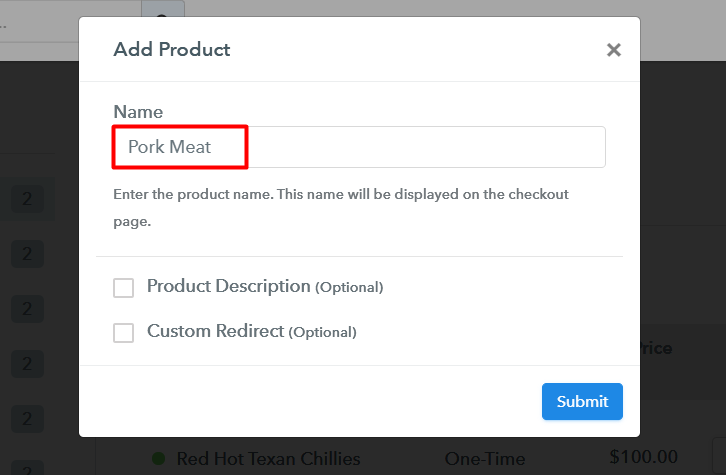
Now, here you will add the title which is ‘pork meat’

Add Product To Sell Pork Meat Online

Fill out all the details like the name of the product and voila your product is created.

Note: Here you can add all the products related to the similar category by creating plans for each of them.

Step 6: Add Plans 

We are going to build plans for different kinds of pork meats available in your store.

(a) Select Add New Plan

Add Plan

(b) Specify the Plan & Pricing Details

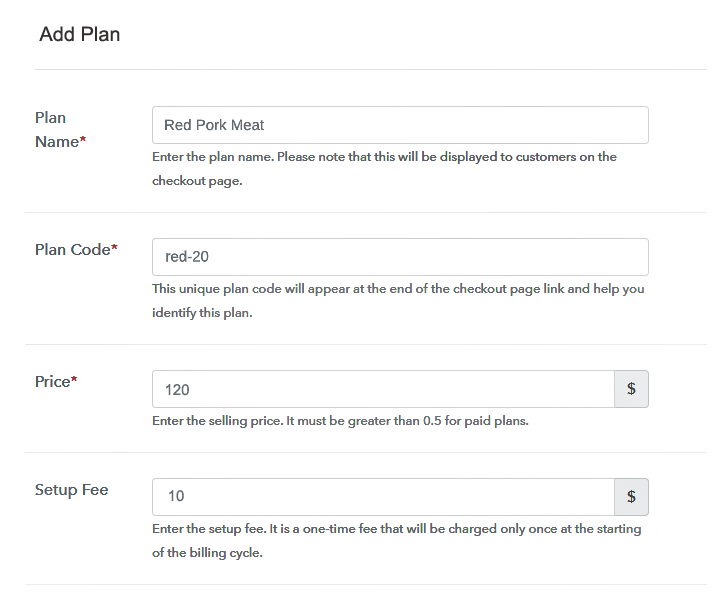
Add Plan To Sell Pork Meat Online

In the plan page, here you have to fill in details like plan name, code, price, setup fees. Moreover, choose your preferred revenue model accordingly and after some time you can even change it according to your choice.

(c) Add Image & Description of Pork Meat

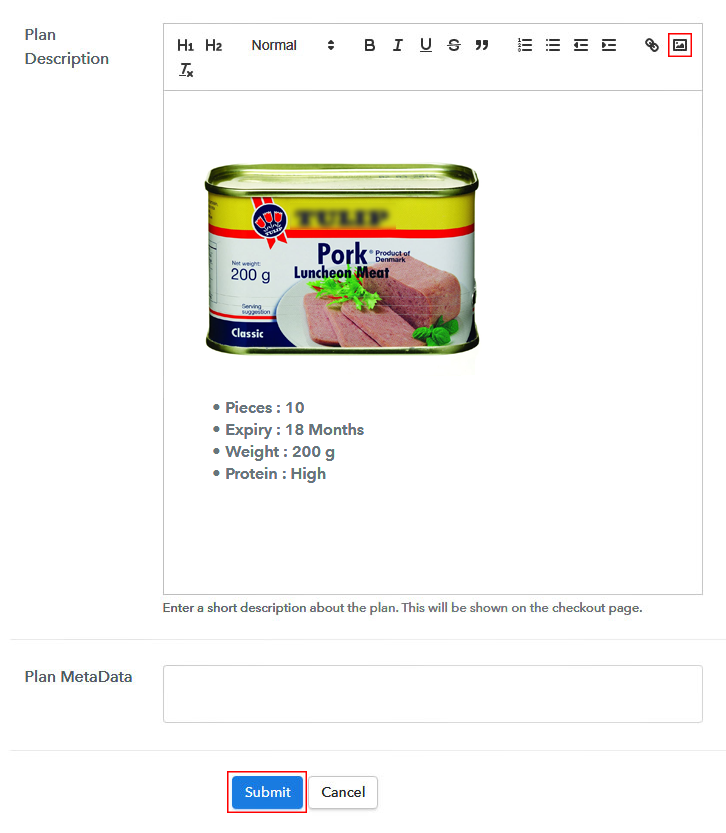
Add Image To Sell Pork Meat Online

Moreover, pressing the image button, you can upload some high-quality pictures of your pork meat.

Furthermore, here below the image give some knowledge about the pork meat in bullet points or numbers like expiry, weight, proteins etc then press the “Submit” button.

Likewise, by using the same process, you can list more products.

Step 7: Share your Checkout Page

Share Checkout Page on Social Media

For actively promoting your pork products you can easily share the checkout page using these three methods.

  • Here, click on respective buttons for Twitter, Facebook and the checkout pages get automatically shared
  • Likewise, simply paste the checkout pages link on to share it via email and SMS.
  • Also, you can create buttons on your webpage and paste the checkout links on it. Or you can place it on any anchor text on your website, so the users will be redirected to the checkout page.

Step 8: Preview Checkout Page

Follow up the recommended steps to preview the checkout page:

(a) Click on the View Button

View Checkout Plan

(b) Take a Look at the Checkout Page

Checkout To Sell Pork Meat Online

Step 9: Embed Checkout Page in Site & Sell Online

Embed Checkout Page on Website

Furthermore, you can just copy the link and add the checkout page to sell pork meat at any suitable place on your WordPress site.

(a) Edit the Page & Paste the Copied Link

Embed Checkout Page on Website

Further, paste the plan link of the pork meat on a text editor of the WordPress dashboard.

(b) Save & Publish the Checkout Page

Save_and_Publish

Next, click the “Publish” button, after making changes.

(c) Check out the Final Look of your Checkout Page on WordPress Site

Wordpress To Sell Pork Meat Online

Step 10: Multiplan Checkout Page

Note: In case you want to sell multiple products via a single checkout page, you can create a multi-plan checkout page otherwise skip this step.

(a) Click on Add Mutiplan Checkout

Multiplan Checkout

(b) Add Plans to Sell Multiple Pork Meat from Single Checkout Page

Multiplan To Sell Pork Meat Online

(c) Take a Look at the Checkout Page

Multiplan To Sell Pork Meat Online

Preview Checkout Page

Wrapping Up

So, these were the steps to help you create a checkout page to pork meat online. Without any transaction fees, good marketing system, and easy setup, you will definitely rock the online marketing with Pabbly Subscription Billing.

But, if you have any doubts regarding the process, do contact us in the comment section below. Thank You!!

You May Also Like To Read –