How to Sell Travel Packages Online | Step by Step (Free Method)

How to Sell Travel Packages Online

Ideal For: All the travel package makers, travel package sellers, travel package shop owners, and other merchants can use this method to take sell travel packages online.
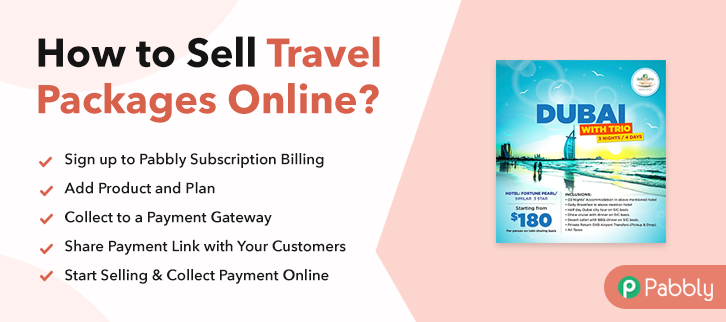
How to Sell Travel Packages Online

Why Choose this Method to Sell Travel Packages Online?

Unlike any other solution, this method allows you to:

  • List and sell your travel packages for FREE. Absolutely no payment required.
  • No need to pay commission on any of your sale.
  • Multiple payment options like PayPal, Credit Card, etc to collect payment from a single place.
  • Sell one time or recurring subscriptions of your travel packages.
  • Collect payments & sell products in any currency as per your requirement.
  • Give discounts on your products by offering special coupon codes.
  • Add sales commission agents to help you in selling travel packages online.

Get Pabbly Subscription Billing for Free

Who doesn’t love traveling? I think everyone does. That is the reason why, market is always filled with so many traveling agency to sell tour packages. Thus, this might be the right time for you to take your travel packages business online. And to do so, you will need a tool that can help you set travel package business online.

Fortunately, we have an amazing tool suggestion for you through which you can sell travel packages online. i.e, Pabbly Subscription Billing. Using this tool, you can create amazing checkout pages and share them on your websites, social media accounts to reach out to the worldwide audience. Here are some of the advantages in the following:

  • You can list unlimited products and plans
  • Besides, you can collect online/offline payments globally
  • Even sell single or multiple products from a single page
  • Send automatic billing and invoicing to your customers
  • Moreover, you can apply global taxes in a few clicks
  • Not only that, but you can also offer discounts and coupons to your customers

Final View of Checkout Page For Your Travel Packages Selling Business
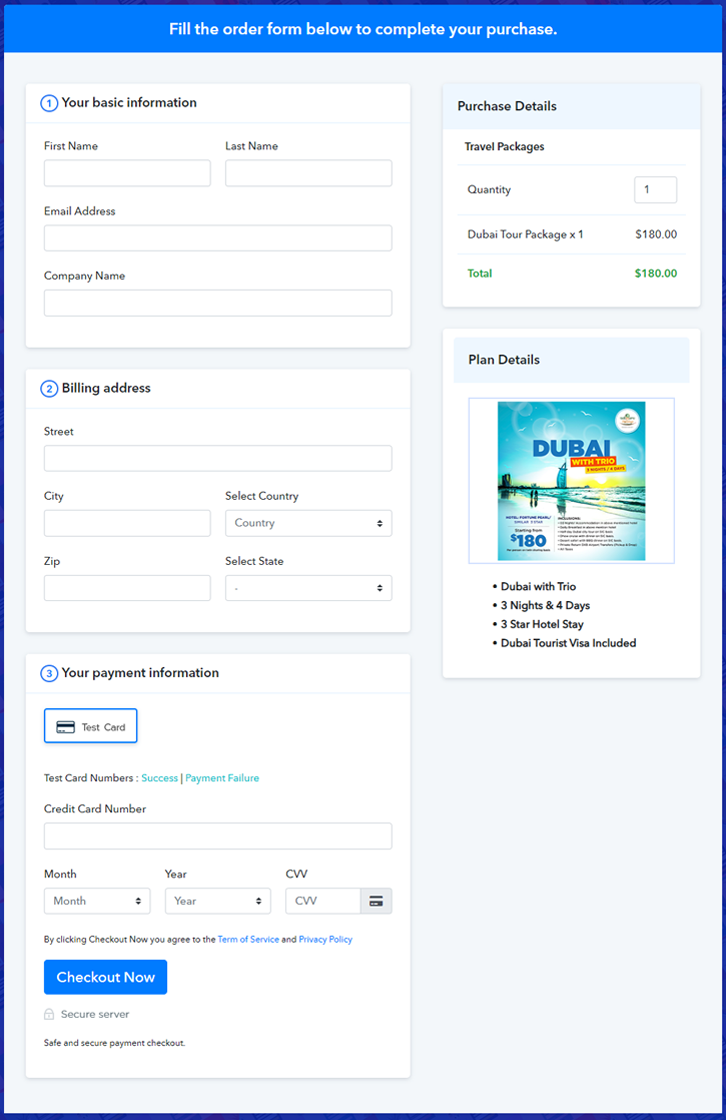
Final View of Checkout Page For Your Travel Packages Selling Business

Preview Checkout Page

Step 1: Log in to Pabbly Subscription Billing
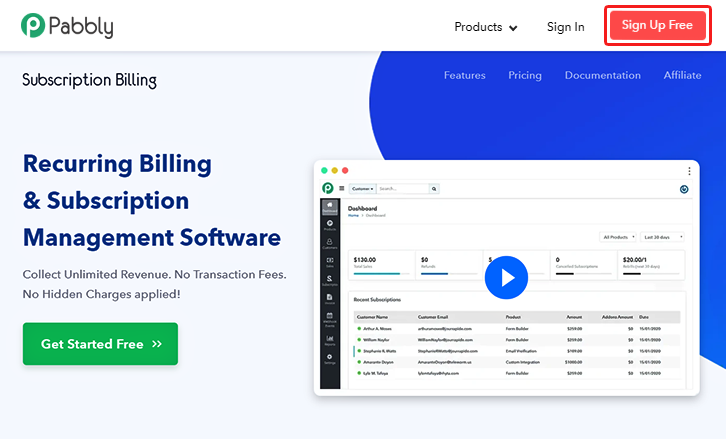
Signup

First of all, go to the Pabbly Subscription Billing website to get started with selling travel packages online. Now, click on ‘Sign Up Free‘ button. Quickly, either manually filled out the details or sign in via Google account.

Sign Up For Free!

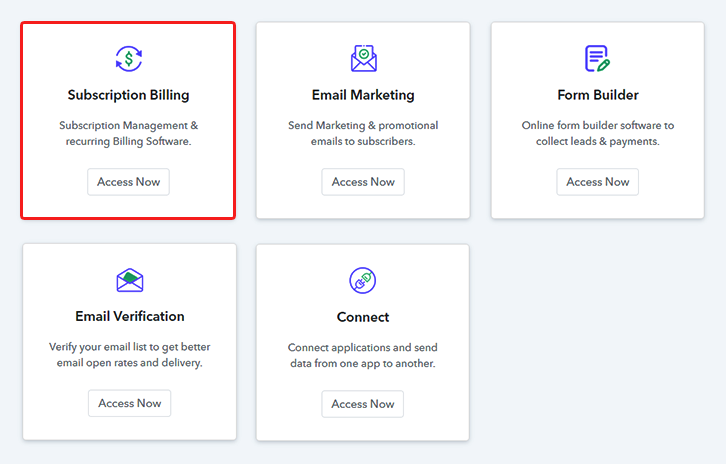
Step 2: Select Subscription Billing

Access Subscription Billing

Step 3: Account Setup
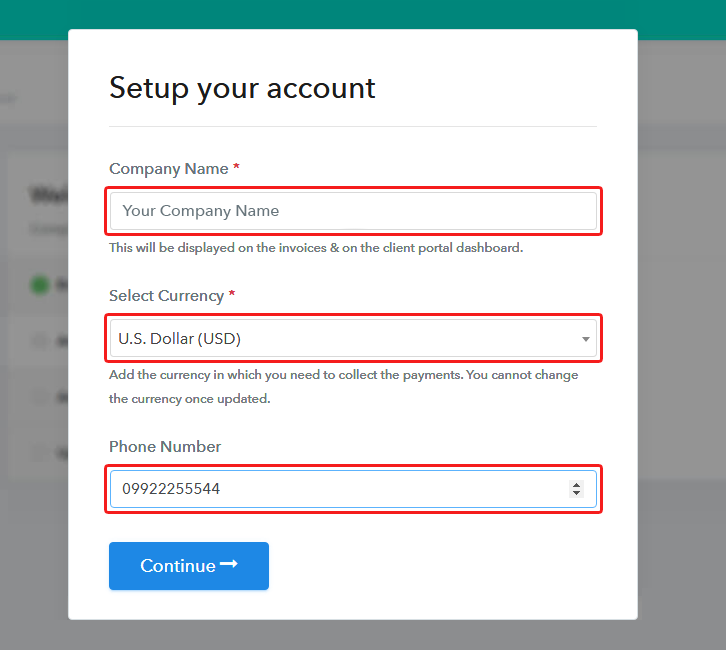
Setup Account

Specify a company name, preferred currency, and phone number in the next pop-up window to go further in the set-up procedure.

Step 4: Connect Payment Gateways & Start Travel Packages Selling Business Online
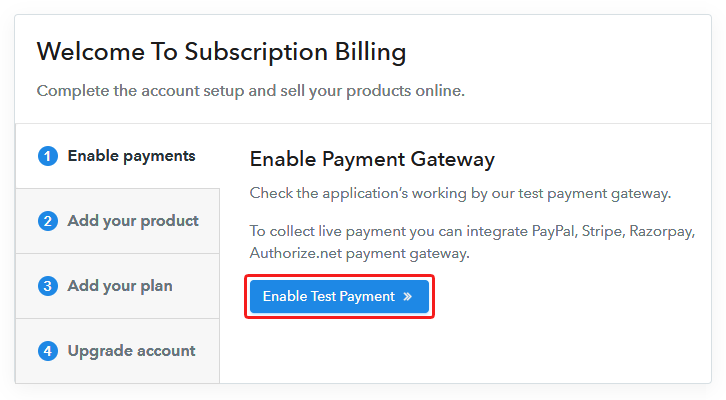
Connect Payment Gateway

The next step is setting up a payment gateway to collect payment for selling travel packages online. Here, I am enabling the test payment gateway just to understand the payment collection through this service. Although, you can also choose from the multiple payment gateways like PayPal, Stripe, etc whose integration guides are given below.

Step 5: Add Product for Your Travel Packages
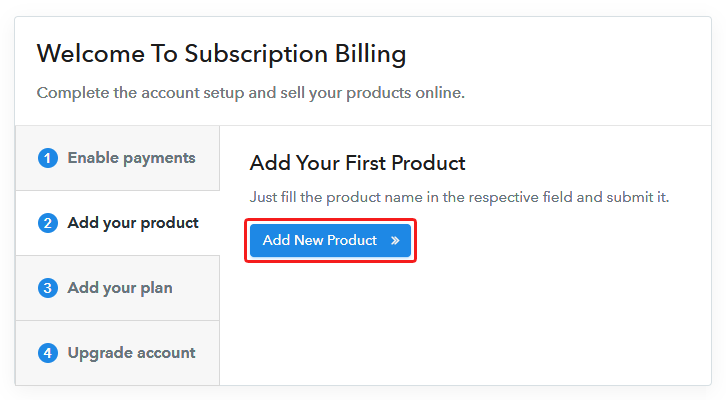
Add Product

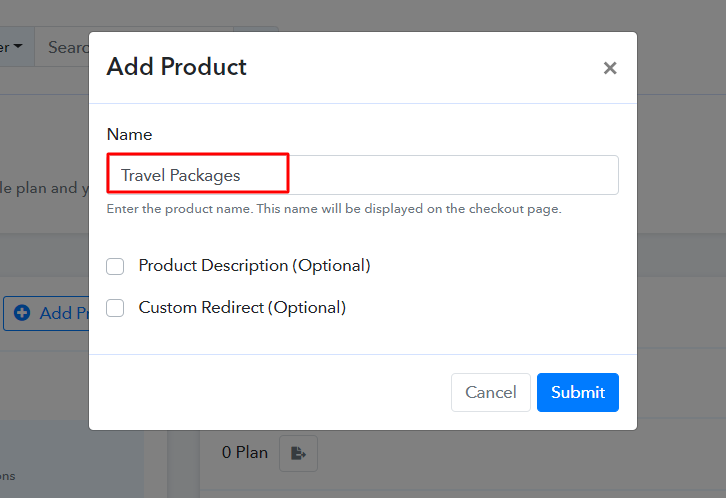
Now up to this point, all the system settings are done and we can start adding product categories. Further, we’ll add plans to sell within these product categories.

Add Product to Sell Travel Packages Online

Hit the submit here and a travel packages product will be added.

Note: Here you can add all the products related to the similar category by creating plans for each of them.

Step 6: Add Plans 

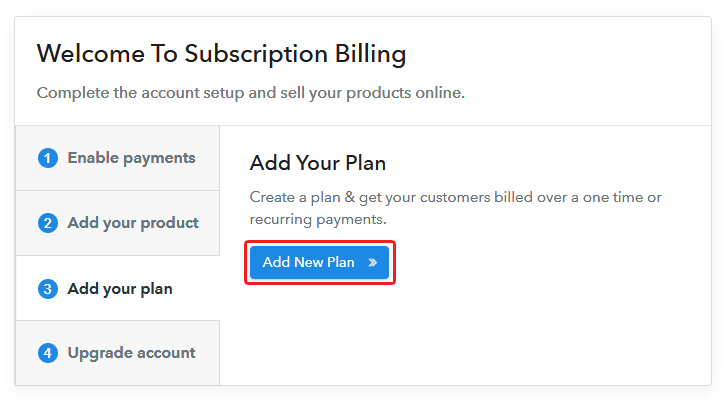
Let’s add plans for the different kinds of travel packages available in your store.

(a) Select Add New Plan

Add Plan

(b) Specify the Plan & Pricing Details
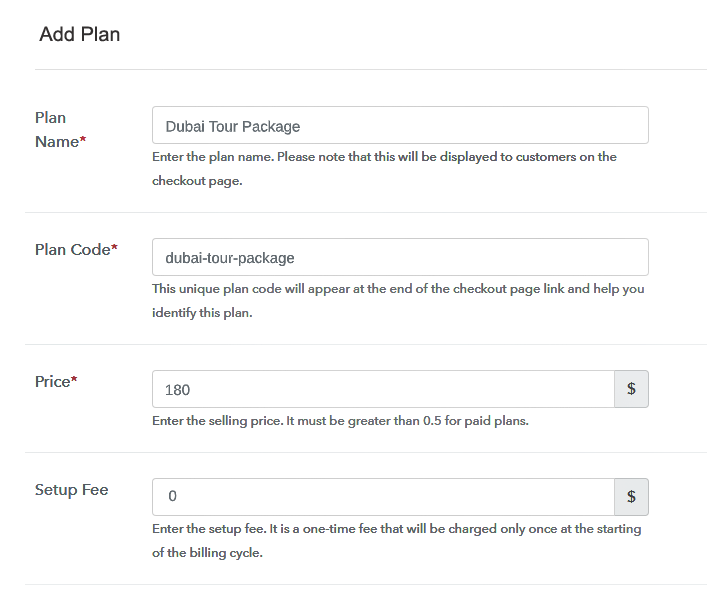
Specify the Plan and Pricing to Sell Travel Packages Online

You can add plan details for any travel packages from here like its name, code, price, billing cycle, etc.

(c) Add Image & Description of Travel Packages
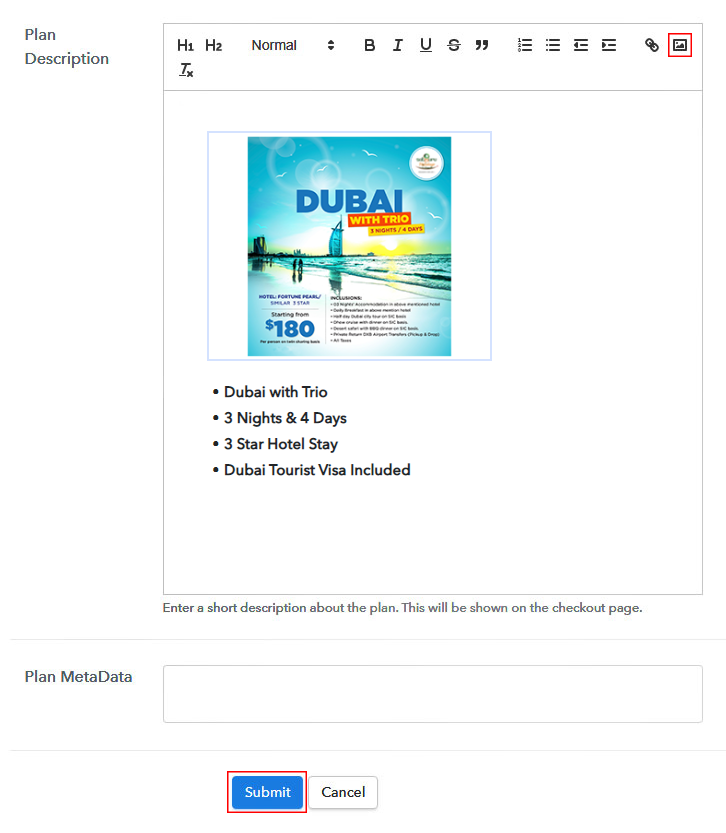
Add Image & Description of Travel Packages

Also, you can add a picture of the travel packages with some description about it.

Once you click on the “Submit” button, your travel packages plan will be ready to sell online.

Furthermore, you can add other travel packages by going through the same procedure.

Step 7: Share your Checkout Page

Share Checkout Page on Social Media

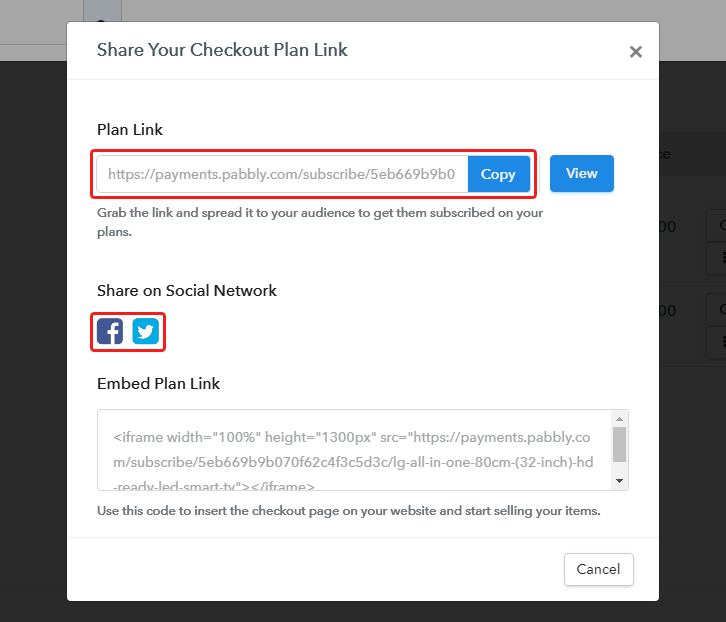
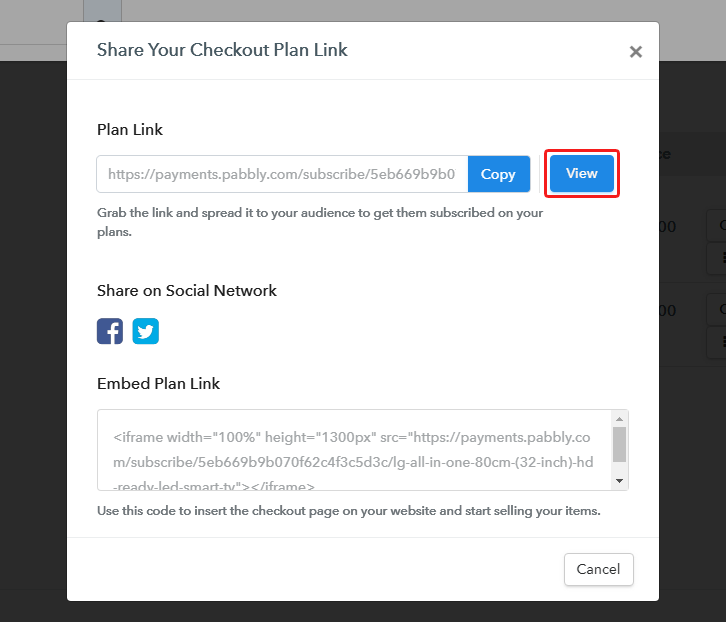
To sell the travel packages online, you’ll need to share or link the checkout pages.

  • You can share the checkout page directly over Facebook & Twitter using the sharing buttons highlighted in the above picture.
  • Not only that, but you can share the plan link given here with your customers on any social media or link sharing platform
  • Last but not the least, you can even link this plan link with the buttons & texts of the website and apps.

Step 8: Preview Checkout Page

Follow up the recommended steps to preview the checkout page:

(a) Click on the View Button

View Checkout Plan

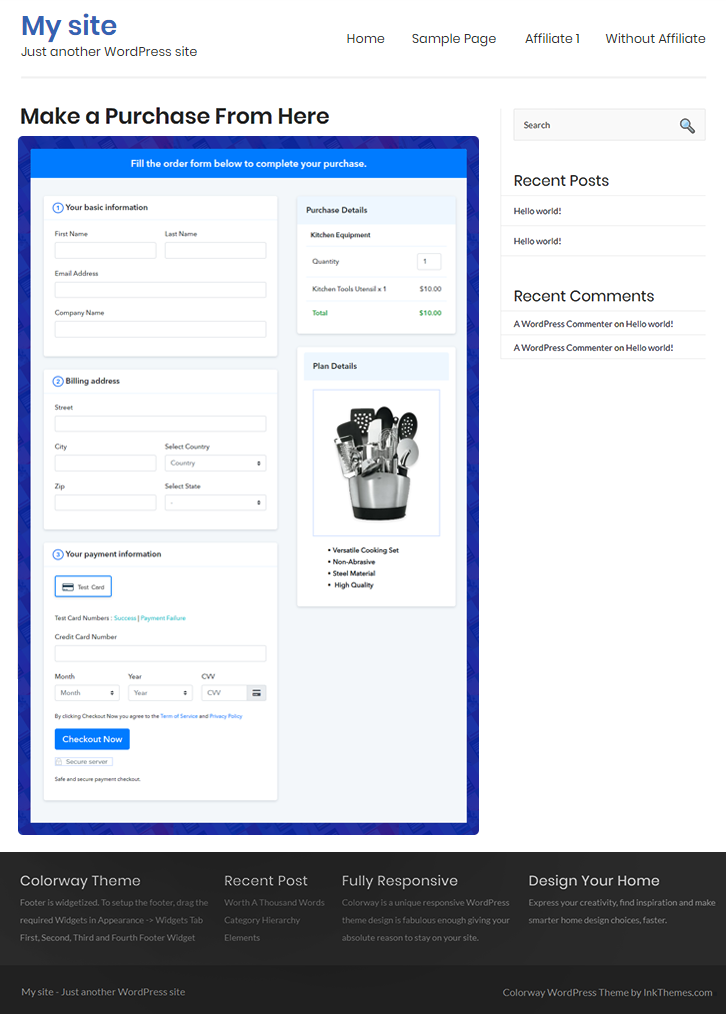
(b) Take a Look at the Checkout Page

Final View of Checkout Page For Your Travel Packages Selling Business

Step 9: Embed Checkout Page in Site & Sell Travel Packages Online
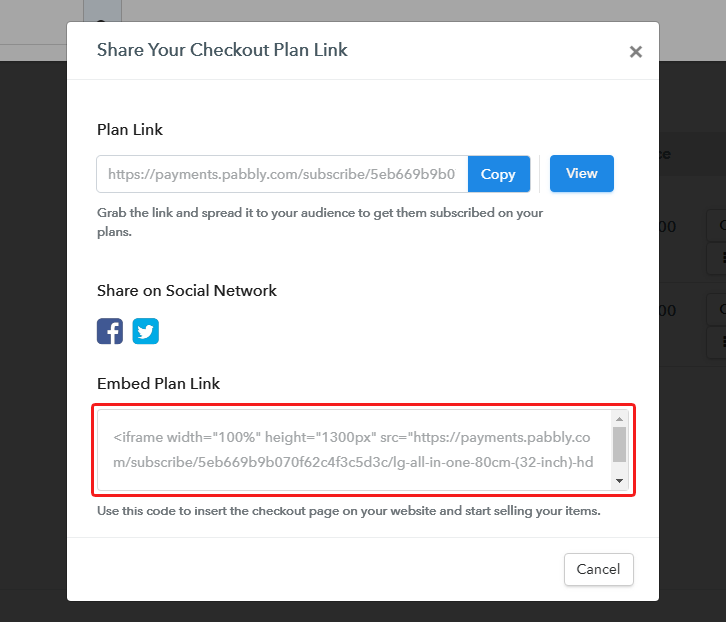
Embed Checkout Page on Website

Just copy the link and add the checkout page to sell travel packages online at any preferable place on your WordPress site.

(a) Edit the Page & Paste the Copied Link
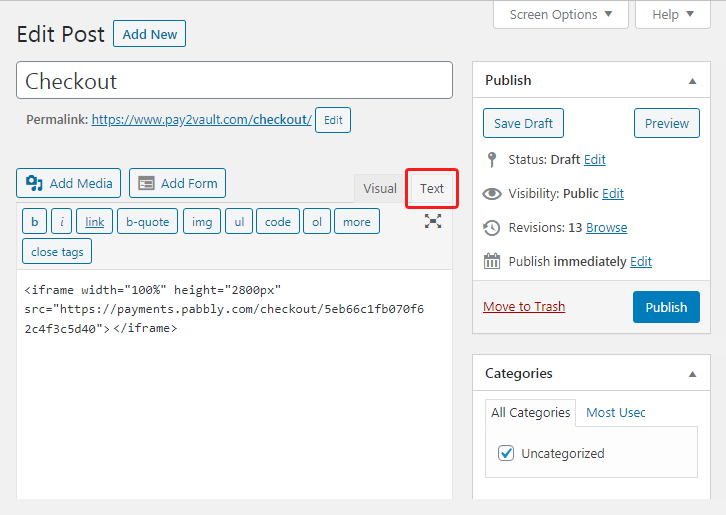
Embed Checkout Page on Website

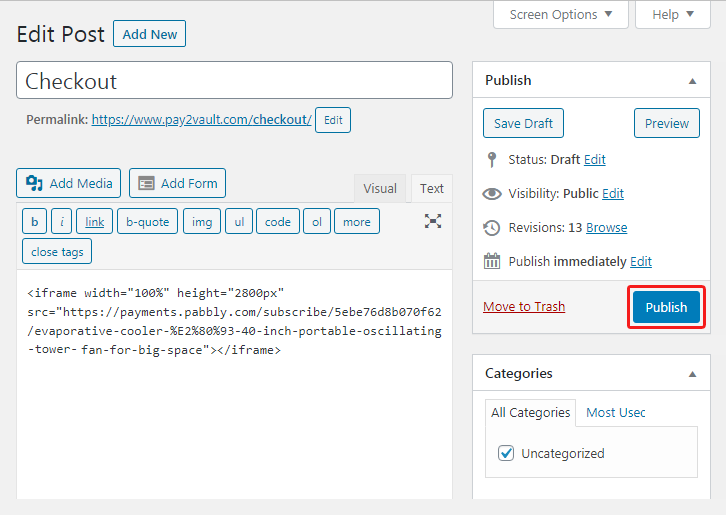
Further, paste the plan link on a text editor of the WordPress dashboard.

(b) Save & Publish the Checkout Page

Save_and_Publish

Next, click the “Publish” button, after making changes.

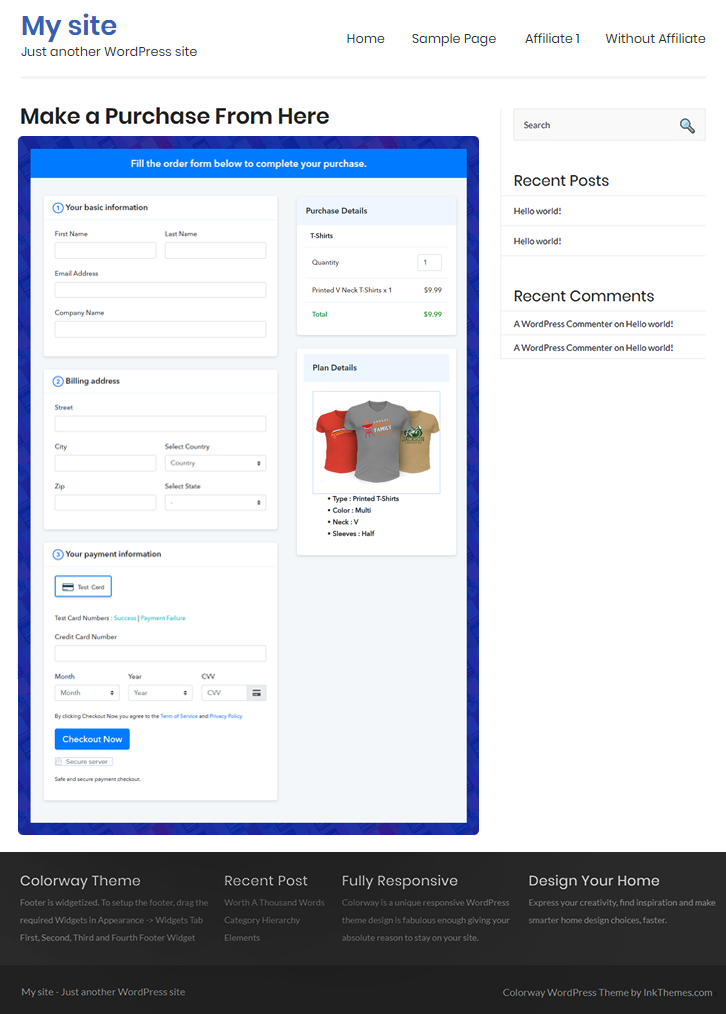
(c) Check out the Final Look of your Checkout Page on WordPress Site
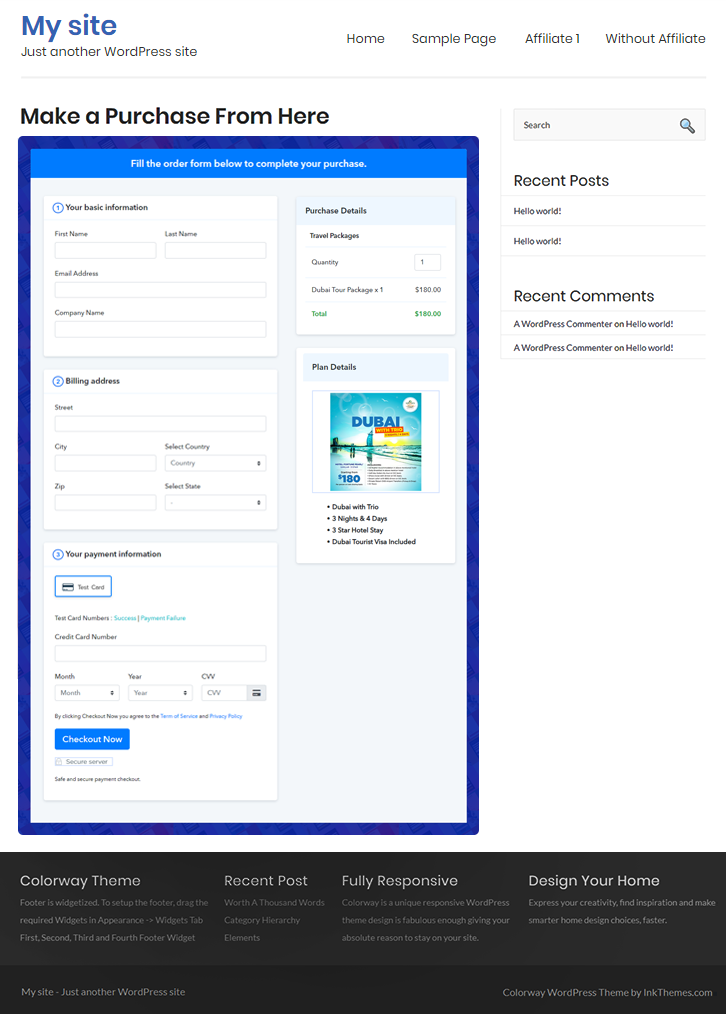
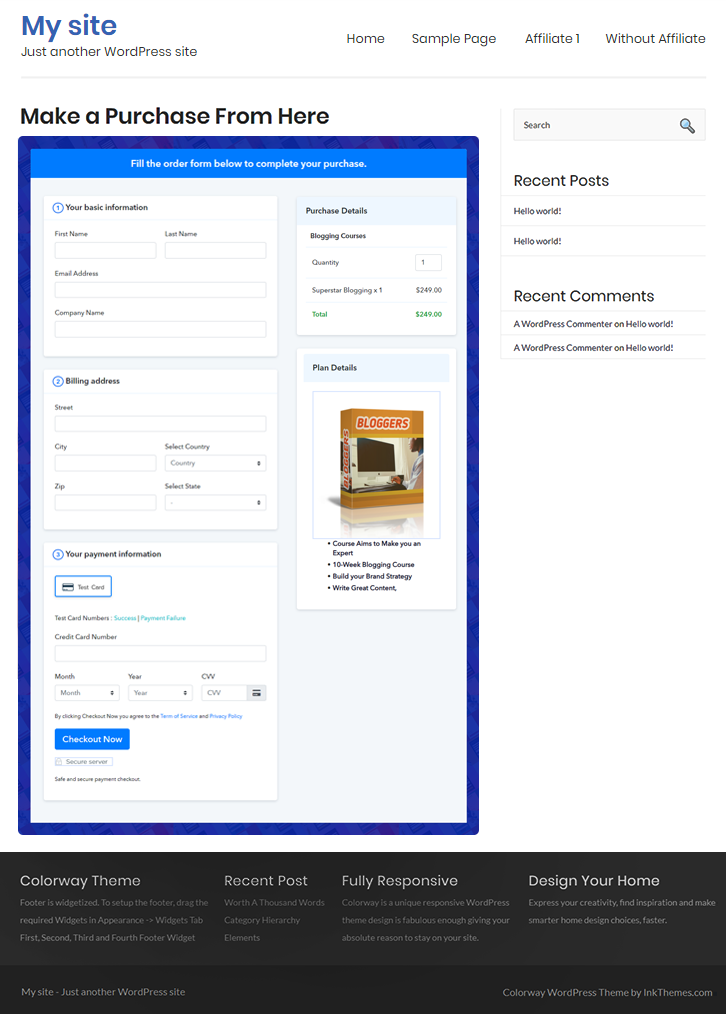
Checkout Page on WordPress Site to Sell Travel Packages Online

Step 10: Multiplan Checkout Page

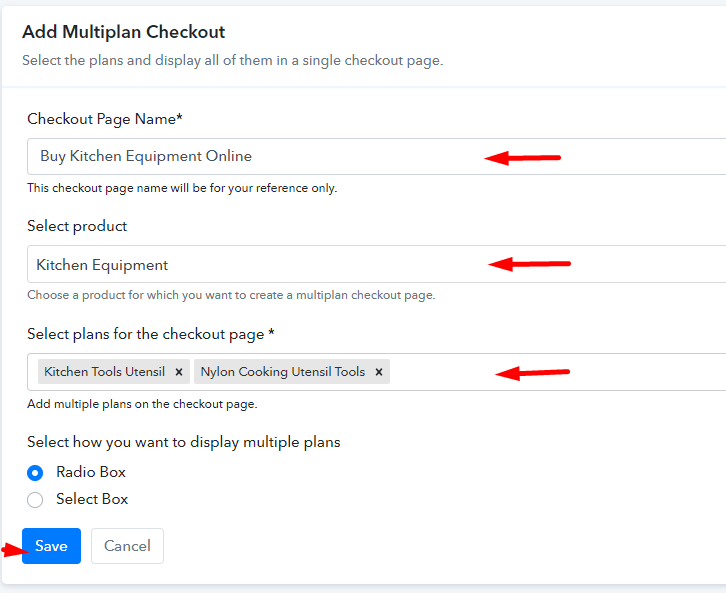
Note: In case you want to sell multiple products via a single checkout page, you can create a multi-plan checkout page otherwise skip this step.

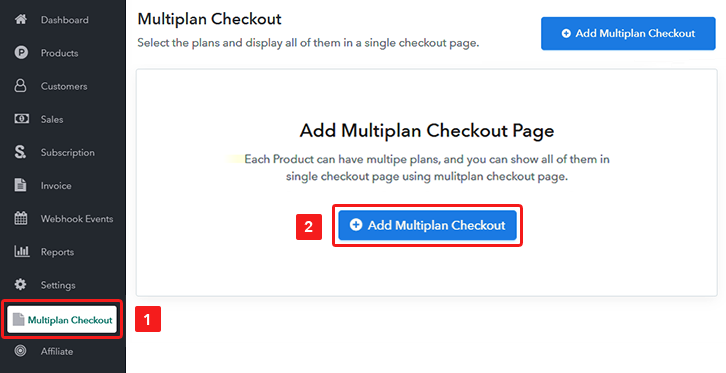
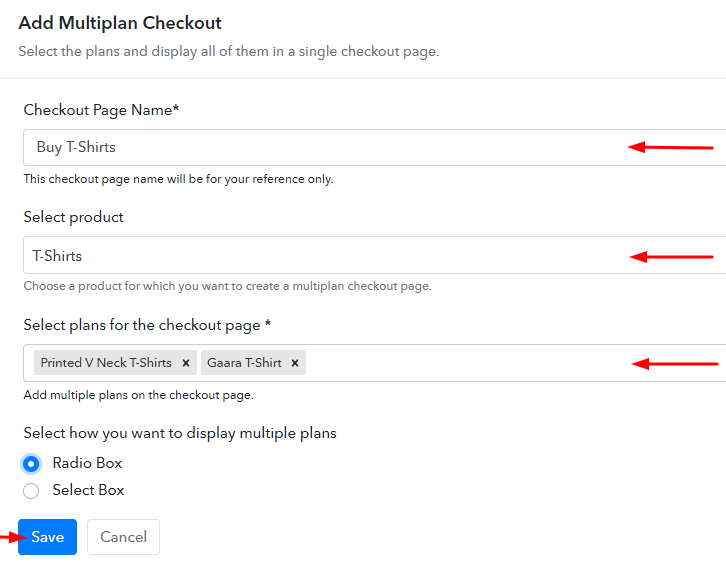
(a) Click on Add Mutiplan Checkout

Multiplan Checkout

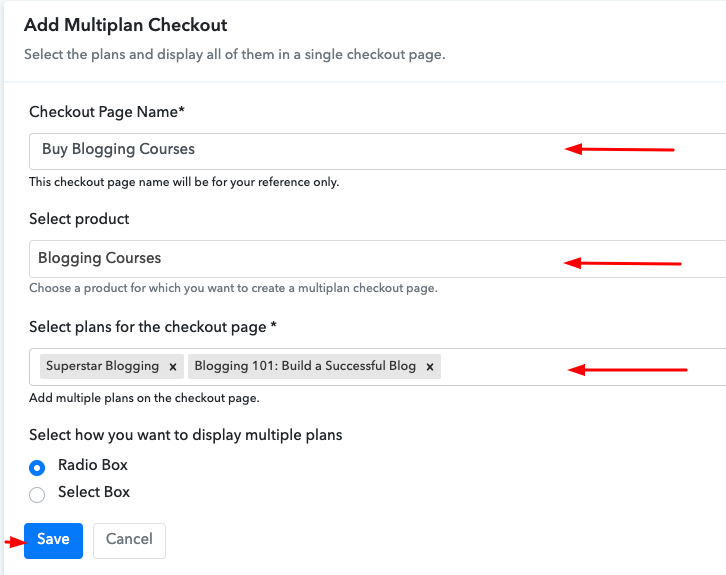
(b) Add Plans to Sell Multiple Travel Packages from Single Checkout Page
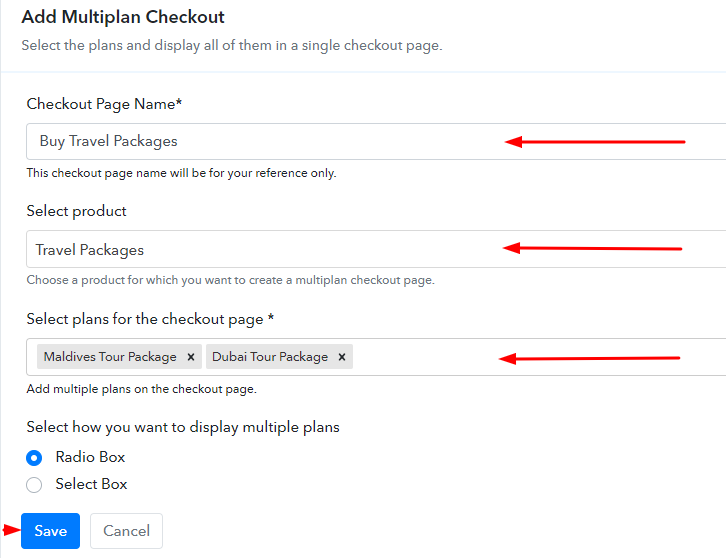
How

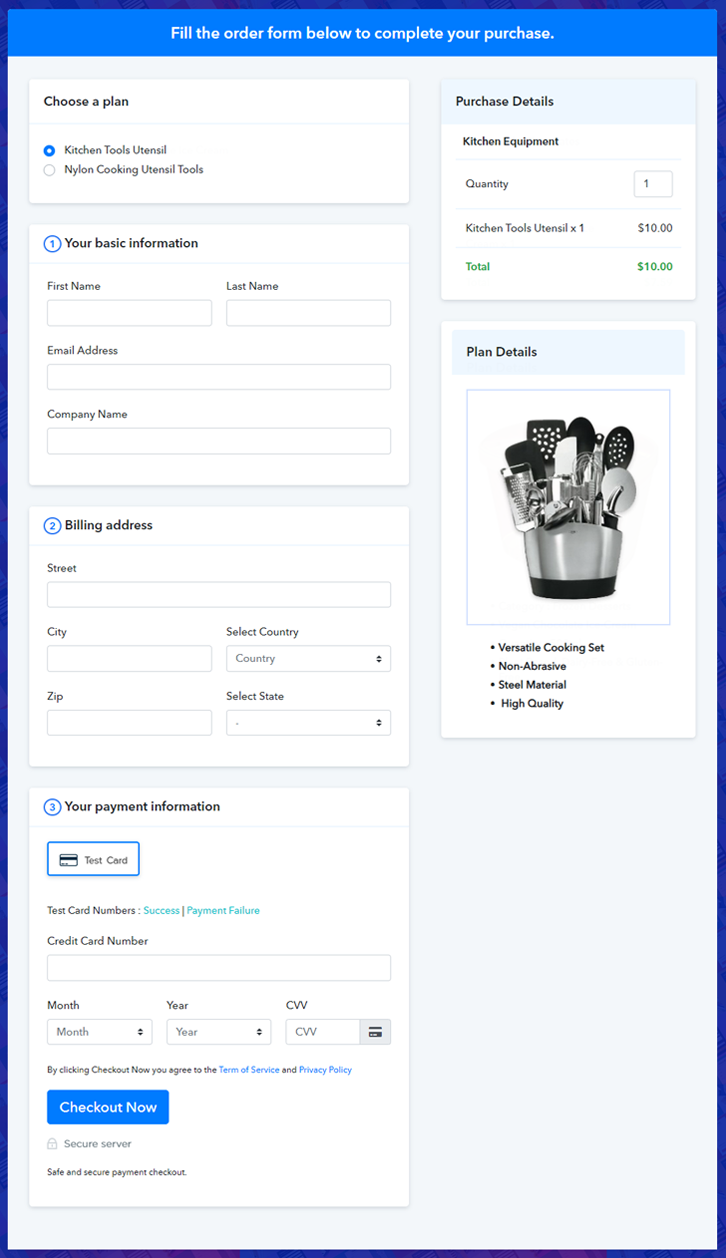
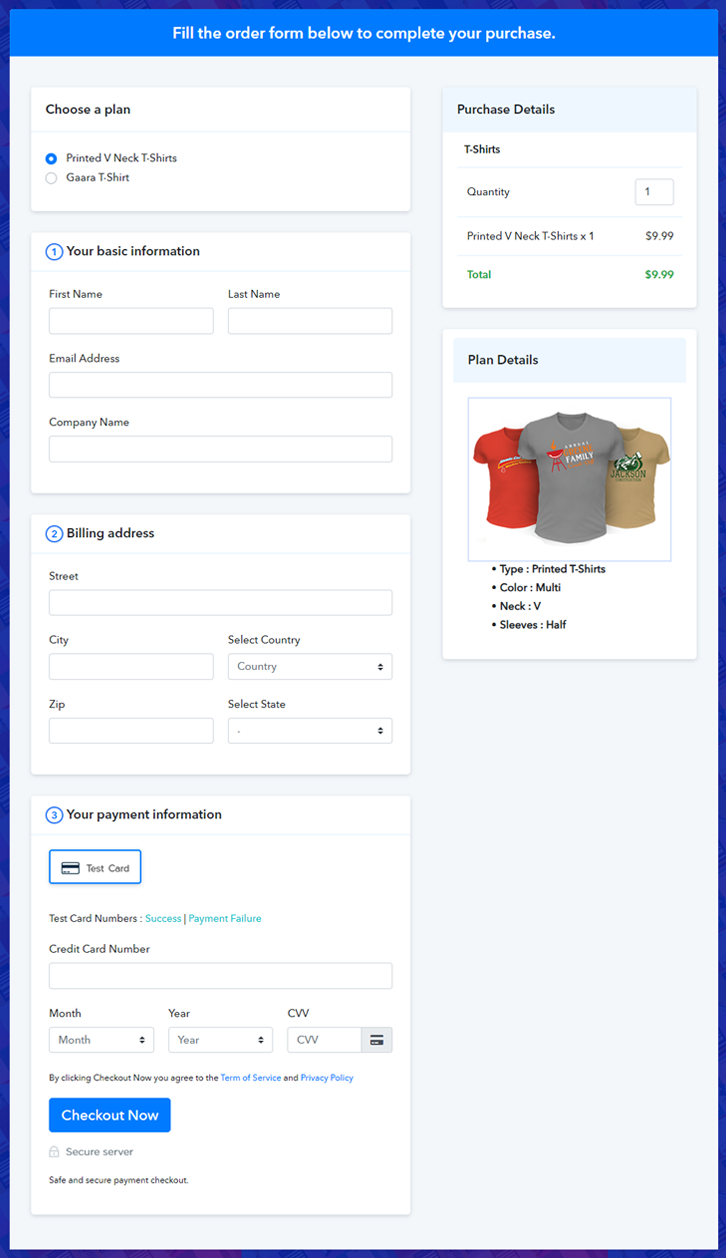
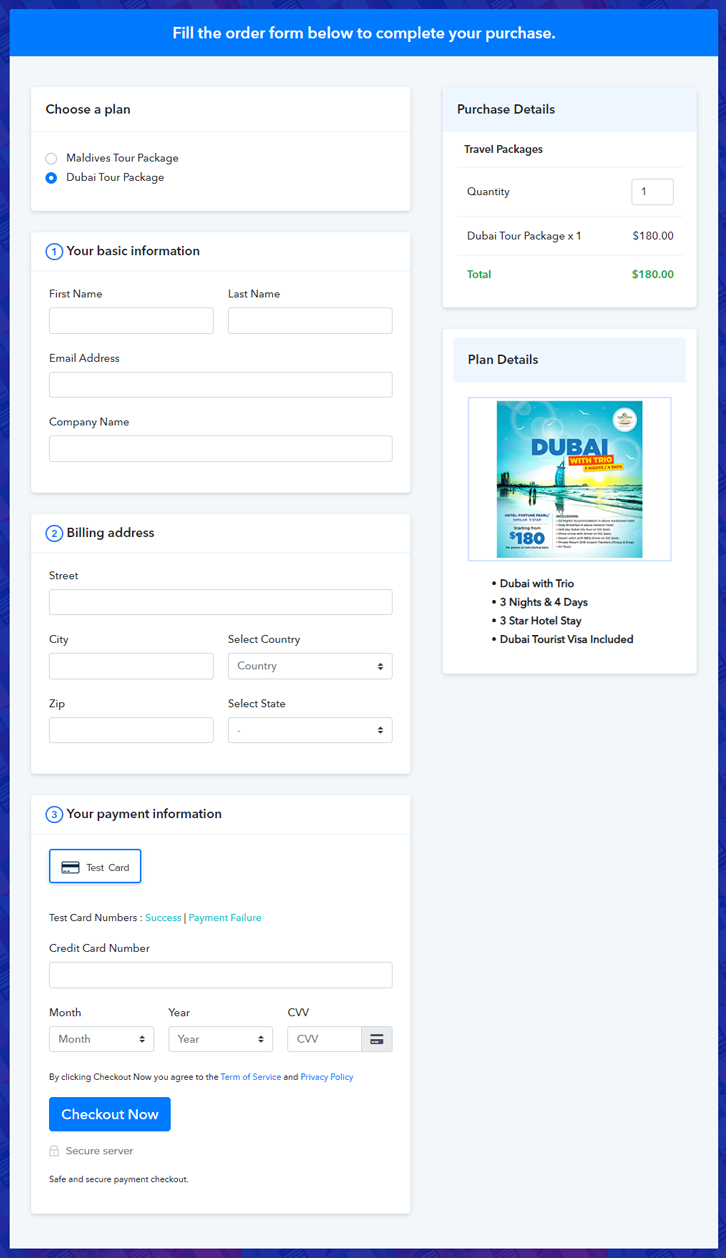
(c) Take a Look at the Checkout Page

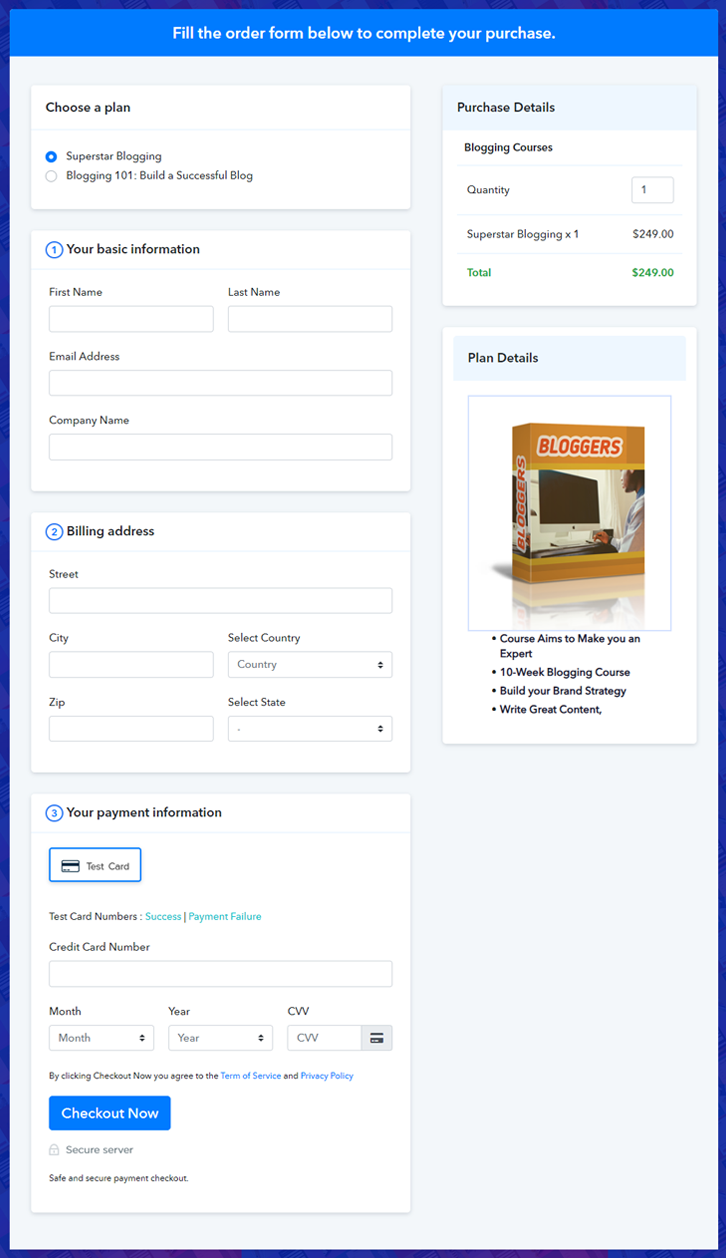
Multiplan Checkout Page to Sell Travel Packages Online

Preview Checkout Page

Wrapping Up

Well, this was all about ‘how to sell travel packages online’. Now, you can easily create checkout pages using Pabbly Subscription Billing by following the 10 easy steps. So, why wait anymore? Just log in to this software and start selling travel packages online without any hassle. Besides, for any queries and suggestions, do write to us in the comment section below. Thank you!

You May Also Like To Read –

How to Sell Cardboard Machinery Online | Step by Step (Free Method)

How to Sell Cardboard Machinery Online

Ideal For: All the cardboard machineryr manufacturers, cardboard machinery sellers, cardboard machinery dealers, cardboard machinery suppliers and other merchants can use this method to sell cardboard machinery online.

How to Sell Cardboard Machinery Online

Why Choose this Method to Sell Cardboard Machinery Online?

Unlike any other solution, this method allows you to:

  • List and sell your cardboard machinery for FREE. Absolutely no payment required.
  • No need to pay commission on any of your sales.
  • Multiple payment options like PayPal, Credit Card, etc to collect payment from a single place.
  • Sell one time or recurring subscriptions of your cardboard machinery.
  • Collect payments & sell products in any currency as per your requirement.
  • Give discounts on your products by offering special coupon codes.
  • Add sales commission agents to help you in selling cardboard machinery online.

Get Pabbly Subscription Billing for Free

Nowadays, marketing has become such an easy task due to selling things online. All you need to do is list up your things and you are good to go. Hence, you must be looking for ways to start cardboard machinery selling business online.

Subsequently, selling goods online has become a very important task for small & large businesses. Therefore, we would like to recommend Pabbly Subscription Billing which is a great software to take your cardboard machinery business online.

This tool lets you create astonishing checkout pages for selling cardboard machinery online which can be shared on social media accounts, websites, etc. So, now let me give you some of the reasons why it is the best tool for selling cardboard machinery online.

  • Track Revenue
  • Custom Domains
  • Unlimited Plans & Products
  • Tax Management
  • Payment Collection
  • Offering Discounts & Coupons

Well, now its time to focus on creating a checkout page to sell cardboard machinery online using this amazing software.

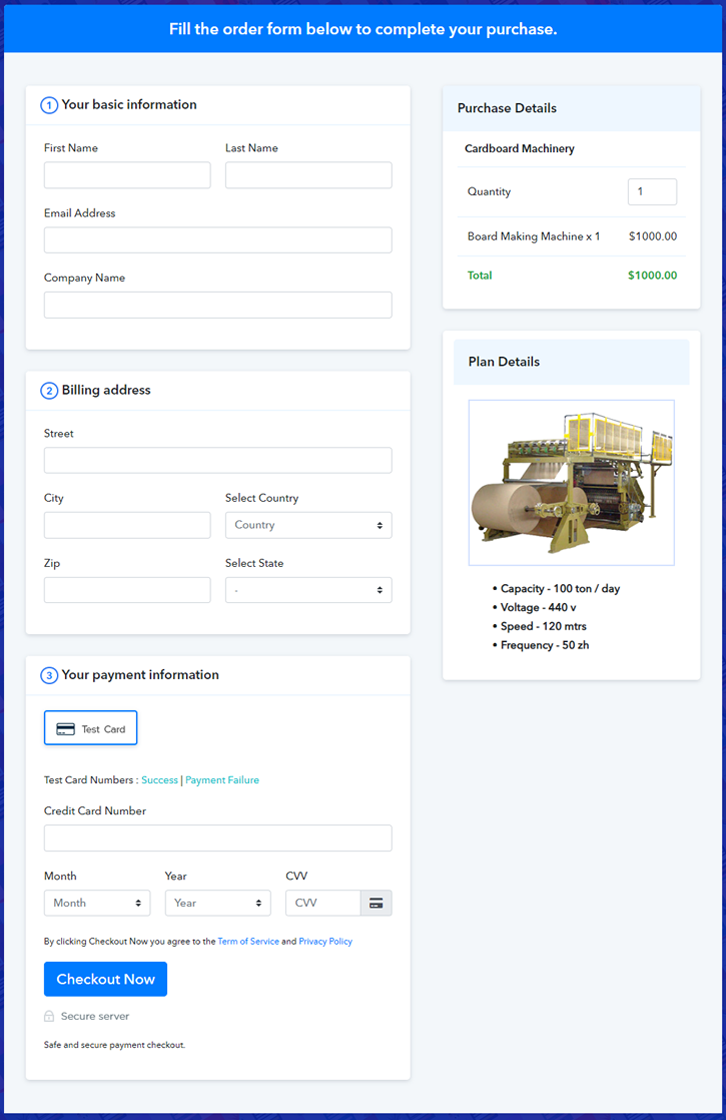
Final View of Checkout Page for your Cardboard Machinery Selling Business

Final View of Checkout Page for your Cardboard Machinery Selling Business

Preview Checkout Page

Step 1: Log in to Pabbly Subscription Billing

Signup

Begin the process for creating a checkout page for cardboard machinery by visiting the Pabbly Subscription Billing in your browser. After that, click on the “Sign up Free“ button. Moreover, either manually filled out the details or sign in using your Gmail account.

Sign Up For Free!

Step 2: Select Subscription Billing

Access Subscription Billing

Step 3: Account Setup

Setup Account

Besides, after clicking on the “Access Now” button of the software, a page will open with fields like company name, select currency, and phone number. Simply fill out those details to continue creating a checkout page for cardboard machinery.

Step 4: Connect Payment Gateways & Start Cardboard Machinery Selling Business Online

Connect Payment Gateway

The subsequent step is to gaining knowledge about payment procedures using a “Test Payment Gateway”. Here, we will describe the checkout page process for the cardboard machinery with the help of a test payment gateway. Besides this, the tool offers various payment gateways such as PayPal, Stripe, etc. Further, below are the payment integration guides to help you out.

Step 5: Add Product for your Cardboard Machinery

Add Product

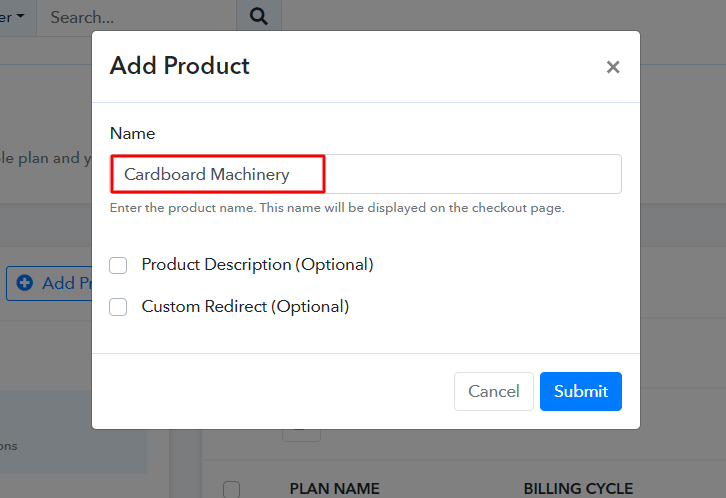
Additionally, add the name, which in our case is “Cardboard Machinery”. Here you can specify the type & write a short description of the cardboard machinery to seize the customer’s attention.

Add Product to Start Selling Cardboard Machinery Online

Moreover, just fill out all those details and your product is created.

Note: Here you can add all the products related to the similar category by creating plans for each of them.

Step 6: Add Plans 

Let’s reveal plans for different kinds of cardboard machinery available in your store.

(a) Select Add New Plan

Add Plan

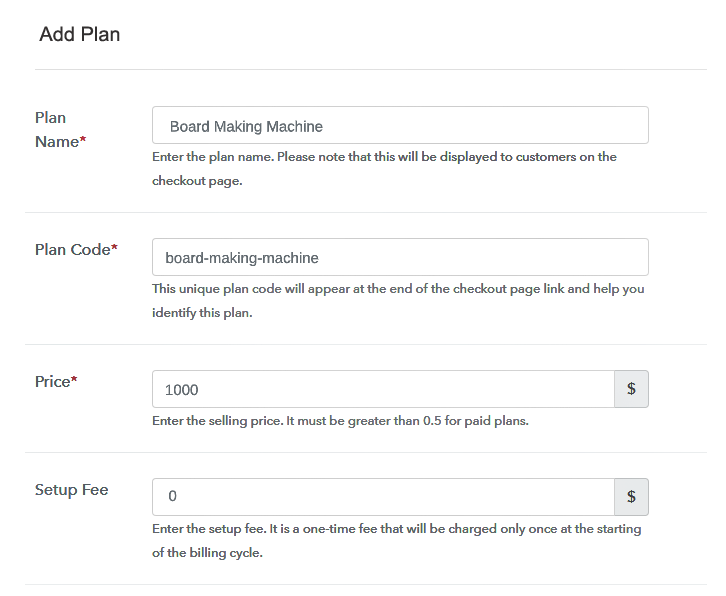
(b) Specify the Plan & Pricing Details

Specify the Plan and Pricing to Sell Cardboard Machinery Online

The next thing to do is fill all the details of the cardboard machinery like plan name, code, price, set-up fee, and much more to continue.

(c) Add Image & Description of Cardboard Machinery

Add Image & Description of Cardboard Machinery

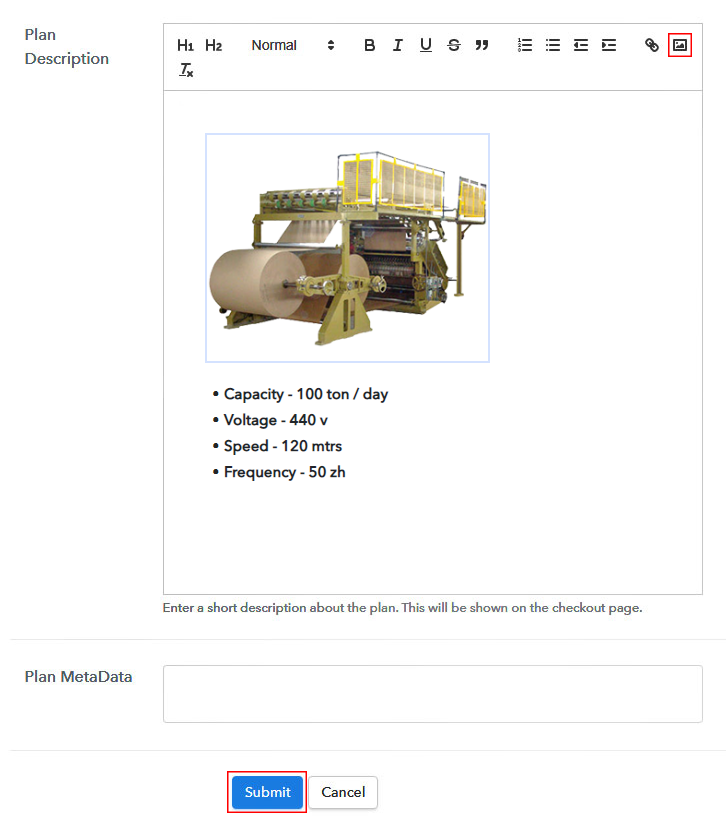
Furthermore, it is necessary to write a brief description of the cardboard machinery using bullets, images, etc, to bring original buyers to the checkout page.

Next, click on the “Submit” button to add the cardboard machinery on the checkout page.

Finally, you can add multiple plans and kinds of cardboard machinery in your product list which you want to market online.

Step 7: Share your Checkout Page

Share Checkout Page on Social Media

  • Moreover, share the checkout page of the cardboard machinery on social media accounts like Facebook & Twitter to grab the customer’s attention.
  • Also, you can share the direct link of the cardboard machinery checkout page with your customers via SMS or email marketing.
  • Additionally, embed the provided plan link of the cardboard machinery in the buttons or any anchor text on your website.

Step 8: Preview Checkout Page

Follow up the recommended steps to preview the checkout page:

(a) Click on the View Button

View Checkout Plan

(b) Take a Look at the Checkout Page

How

Step 9: Embed Checkout Page in Site & Sell Cardboard Machinery Online

Embed Checkout Page on Website

Just copy the link and add the checkout page to sell cardboard machinery online at any proper place on your WordPress site.

(a) Edit the Page & Paste the Copied Link

Paste Link in Text Editor

Further, paste the plan link of cardboard machinery on a text editor of the WordPress dashboard.

(b) Save & Publish the Checkout Page

Save_and_Publish

Next, click the “Publish” button, after making changes.

(c) Check out the Final Look of your Checkout Page on WordPress Site

Final Look of your Checkout Page to Sell Cardboard Machinery Online

Step 10: Multiplan Checkout Page

Note: In case you want to sell multiple products via a single checkout page, you can create a multi-plan checkout page otherwise skip this step.

(a) Click on Add Mutiplan Checkout

Multiplan Checkout

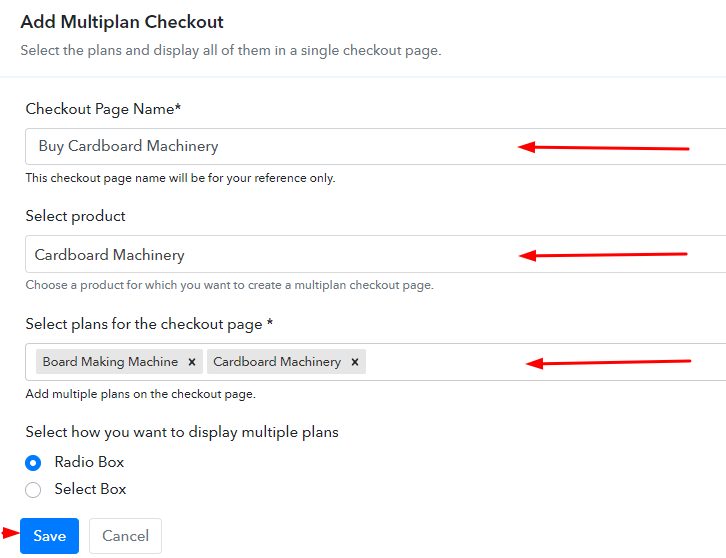
(b) Add Plans to Sell Multiple Cardboard Machinery from Single Checkout Page

Add Plans to Sell Multiple Cardboard Machinery from Single Checkout Page

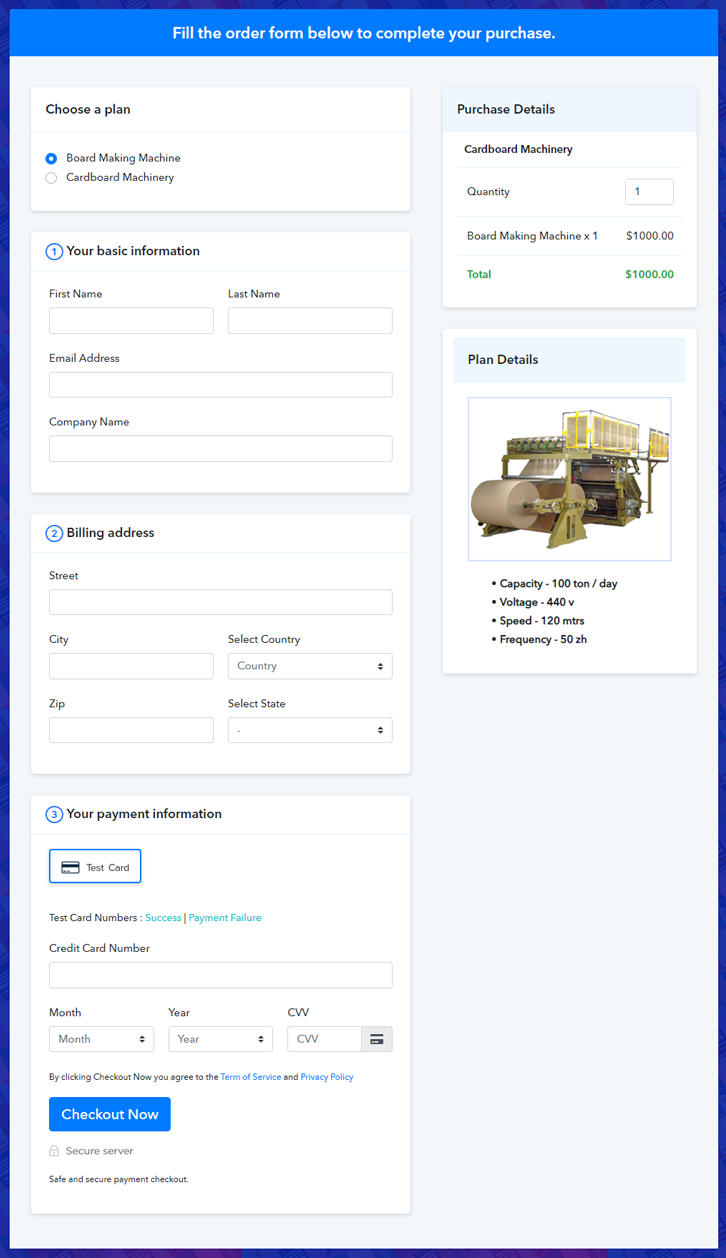
(c) Take a Look at the Checkout Page
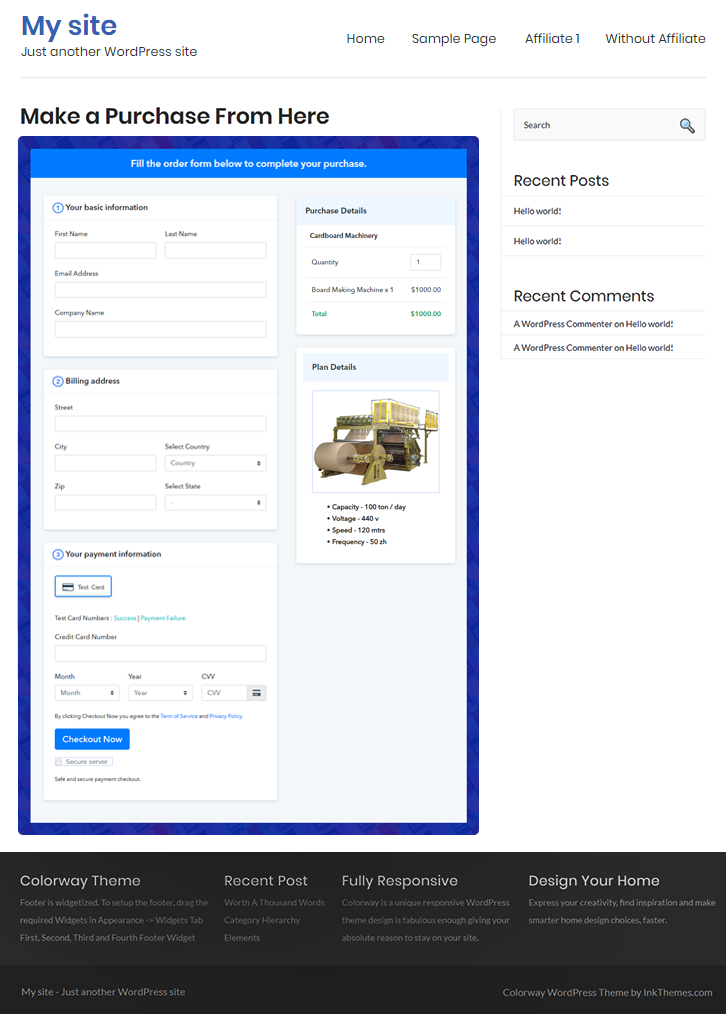
Multiplan Checkout Page to Sell Cardboard Machinery Online

Preview Checkout Page

Wrapping Up

Alright! Now you know all the perks of online business, so starting a cardboard machinery business is the best idea. Why wait? Go ahead and start selling cardboard machinery online using Pabbly Subscription Billing software. Simply go through all the suggested steps and nothing else.

Furthermore, if you have any doubts then write your queries in the comment section below.

You May Also Like To Read –
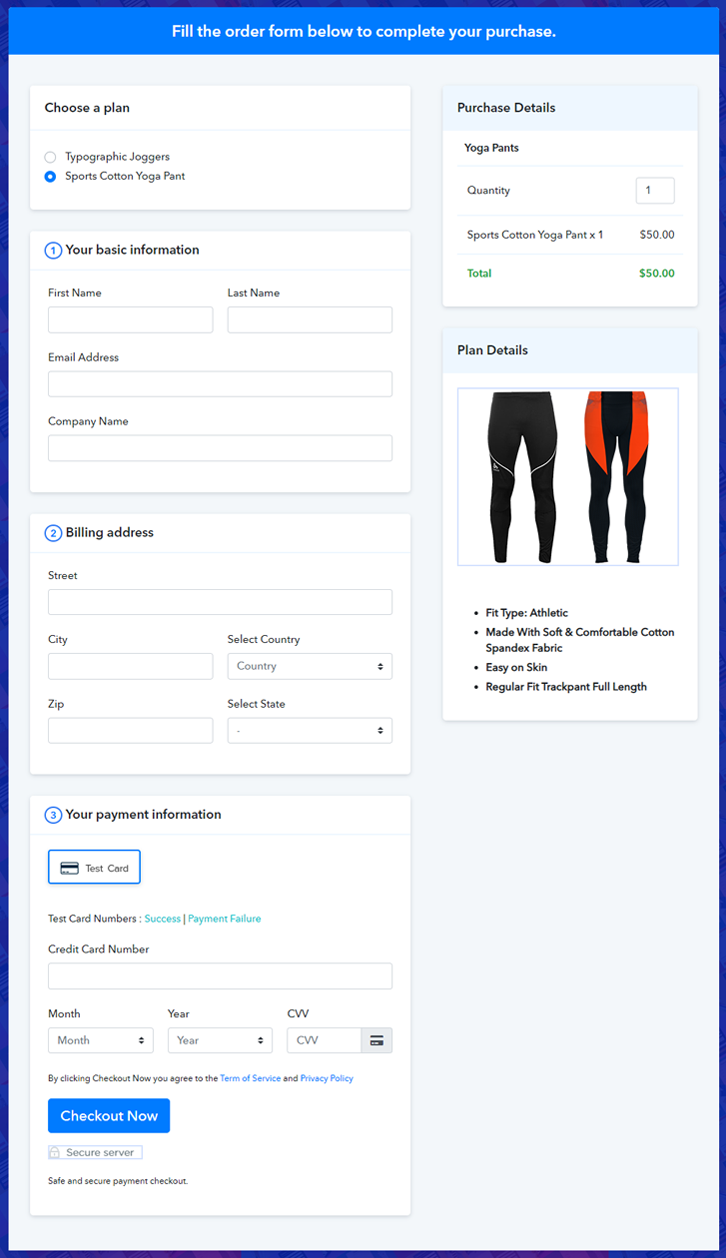
How to Sell Yoga Pants Online | Step by Step (Free Method)

How to Sell Yoga Pants Online

Ideal For: All the yoga pant sellers, yoga pant manufacturers, yoga pant dealers, yoga pant stores, and other merchants can use this method to sell yoga pants online.

How to Sell Yoga Pants Online

Why Choose this Method to Sell Yoga Pants Online?

Unlike any other solution, this method allows you to:

  • List and sell your yoga pants for FREE. Absolutely no payment required.
  • No need to pay commission on any of your sales.
  • Multiple payment options like PayPal, Credit Card, etc to collect payment from a single place.
  • Sell one time or recurring subscriptions of your yoga pants.
  • Collect payments & sell products in any currency as per your requirement.
  • Give discounts on your products by offering special coupon codes.
  • Add sales commission agents to help you in selling yoga pants online.

Get Pabbly Subscription Billing for Free

As everyone already knows, yoga is one of the best exercise that most people prefer to stay healthy and fit. That is the reason why yoga pants are widely used as they are stretchable and comfortable for yoga practice. Thus, if you have a yoga pants store then why not take it online an earn more revenues with it. Well, we understand how confusing it gets when you look for an online tool and it becomes very hard to pick one from them.

To be very honest, in order to build an online store proper guidance is required. Luckily, here we have a perfect tool suggestion for you i.e, Pabbly Subscription Billing that will assist in every single step while creating an online store. With the help of this amazing software, you can build beautiful checkout pages for selling yoga pants online hassle-free.

if you don’t know how a checkout page can help you to sell yoga pants online using Pabbly Subscription Billing tool then have look at the following:

  • Collect Offline/Online Payments
  • Automatic Invoicing & Billing
  • Apply Global Taxes
  • Offer Discounts & Coupons

Now, without any ado let’s create a checkout page for selling yoga pants online using this tool.

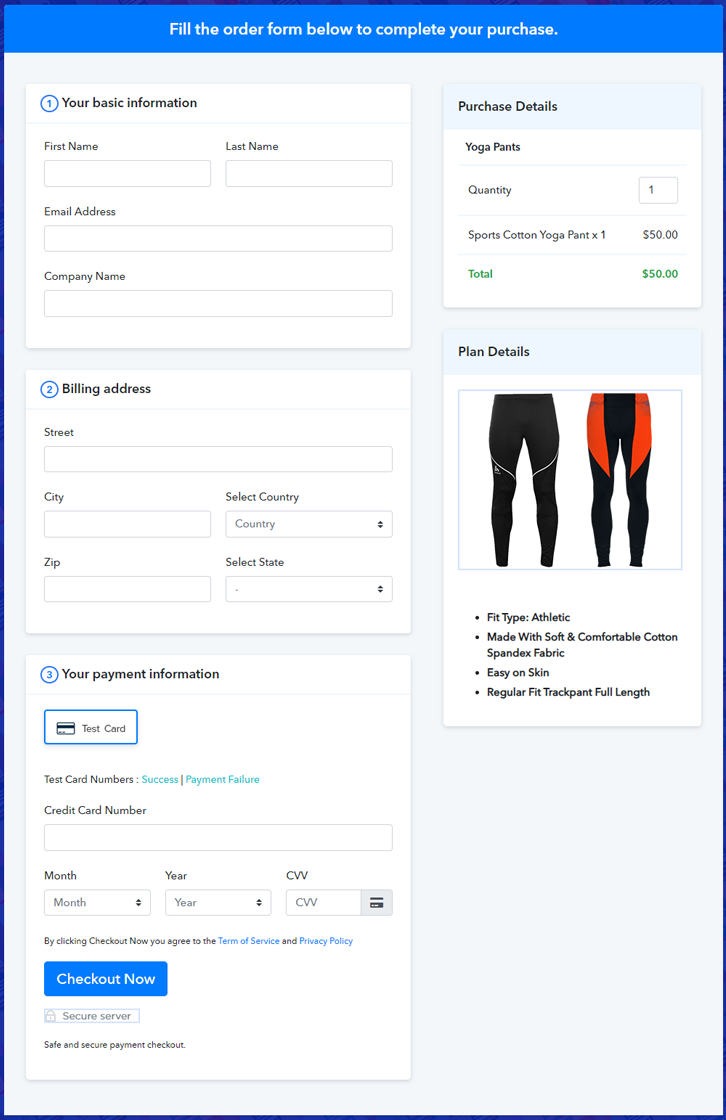
Final View of Checkout Page for your Yoga Pants Selling Business

Final View of Checkout Page for your Yoga Pants Selling Business

Preview Checkout Page

Step 1: Log in to Pabbly Subscription Billing

Signup

Start the process for creating a checkout page for yoga pants by visiting the Pabbly Subscription Billing in your browser. After that, click on the “Sign up Free“ button. Besides, you can either manually fill out the details or else sign in using your Gmail account.

Sign Up For Free!

Step 2: Select Subscription Billing

Access Subscription Billing

Step 3: Account Setup

Setup Account

Also, after clicking on the “Access Now” button of the software, a page will open with fields like company name, select currency, and phone number. Simply fill out those details to continue creating a checkout page for yoga pants.

Step 4: Connect Payment Gateways & Start Yoga Pants Selling Business Online

Connect Payment Gateway

The subsequent step is to gather information regarding payment procedures using a “Test Payment Gateway”. Here, we will describe the checkout page process for yoga pants with the help of a test payment gateway. Besides this, the tool offers various payment gateways such as PayPal, Stripe, etc. Further, below are the payment integration guides to help you out.

Step 5: Add Product for your Yoga Pants

Add Product

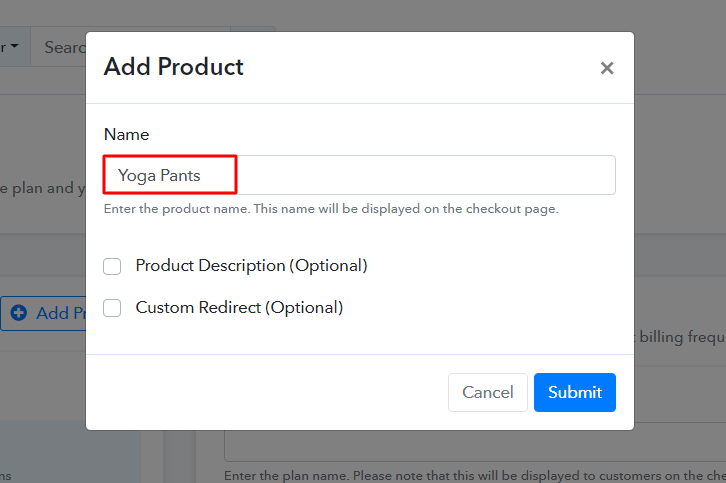
Additionally, add the name, which in our case is “Yoga Pants”. Here you can specify the type & write a short description of the yoga pants to captivate the customer’s attention.

Add Product to Sell Yoga Pants Online

Moreover, just fill out all those details and your product for yoga pants is created.

Note: Here you can add all the products related to the similar category by creating plans for each of them.

Step 6: Add Plans 

Let’s unveil plans for different kinds of yoga pants available in your store.

(a) Select Add New Plan

Add Plan

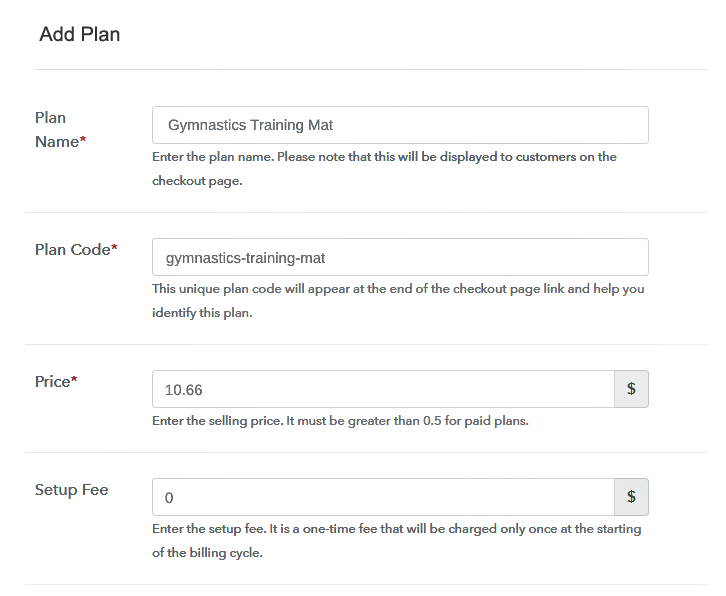
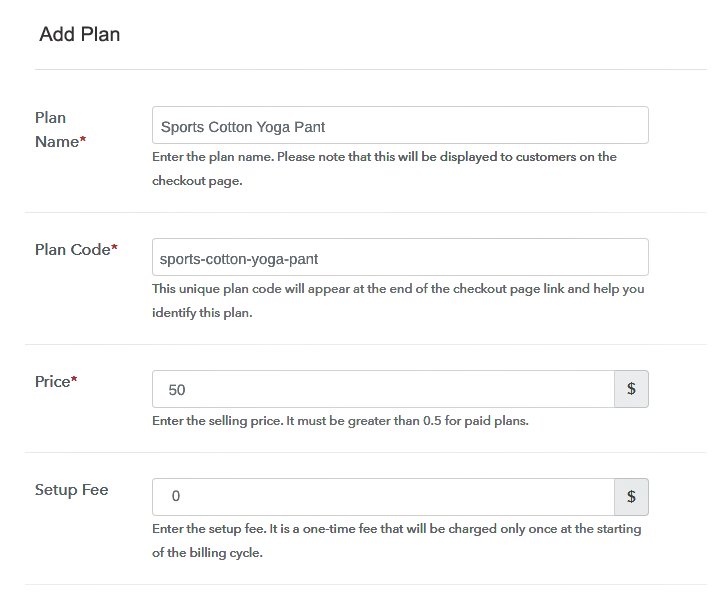
(b) Specify the Plan & Pricing Details

Specify the Plan & Pricing Details to Sell Yoga Pants Online

The next thing to do is fill all the details of the yoga pants like plan name, code, price, set-up fee, and much more to continue.

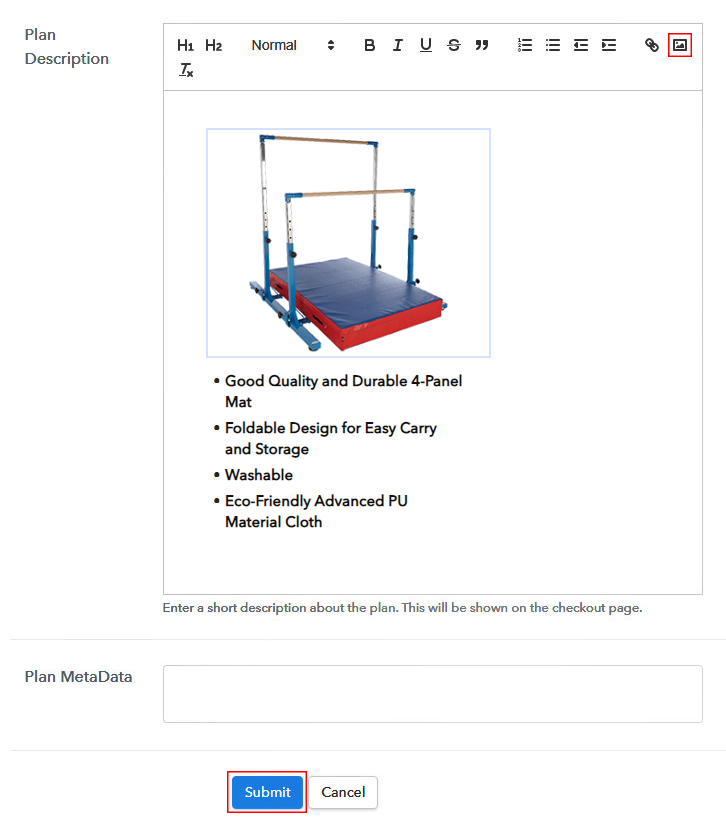
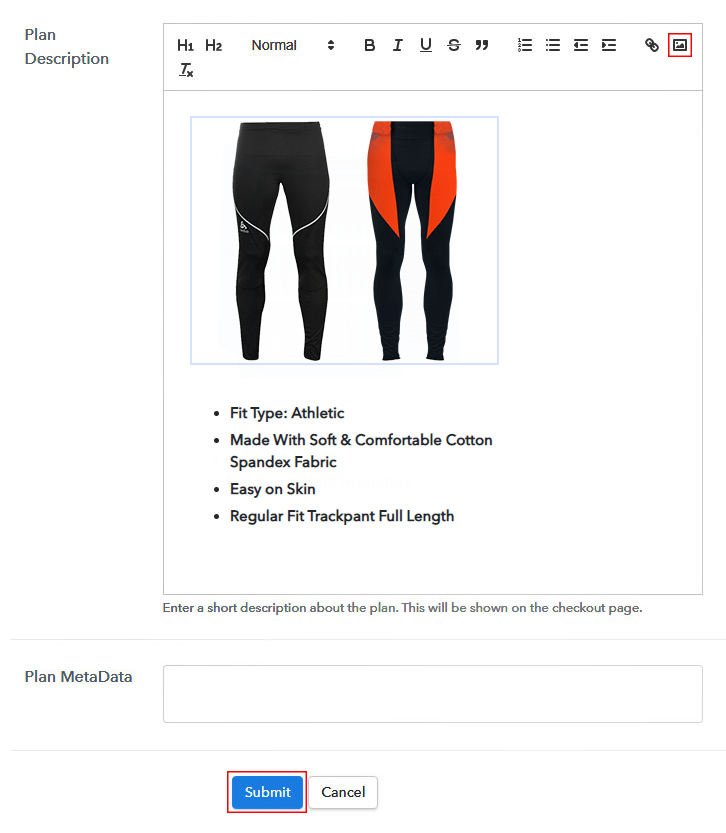
(c) Add Image & Description of Yoga Pants

Add Image & Description of Yoga Pants

Furthermore, write a brief description of the yoga pants using bullets, images, etc, to bring original buyers to the checkout page.

Next, click on the “Submit” button to add the yoga pants on the checkout page.

Finally, you can add multiple plans and kinds of yoga pants in your product list which you want to market online.

Step 7: Share your Checkout Page

Share Checkout Page on Social Media

  • Moreover, share the checkout page of yoga pants on social media accounts like Facebook & Twitter to grab the customer’s attention.
  • Also, you can share the direct link of the yoga pant’s checkout page with your customers via SMS or email marketing.
  • Additionally, embed the provided plan link of the yoga pants in the buttons or any anchor text on your website.

Step 8: Preview Checkout Page

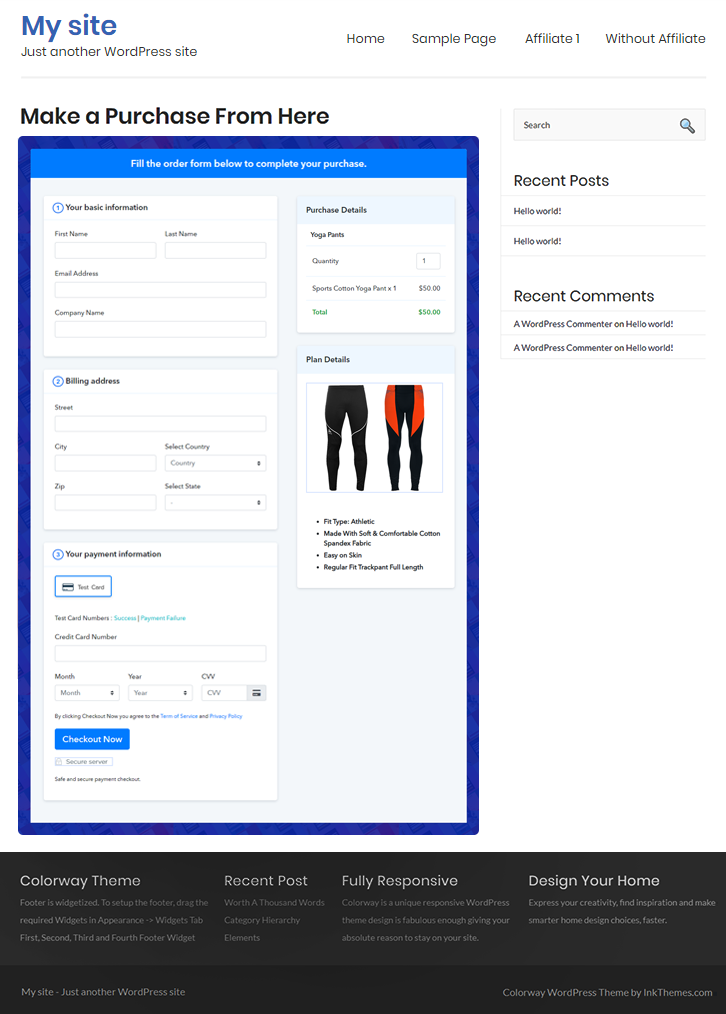
Follow up the recommended steps to preview the checkout page for yoga pants:

(a) Click on the View Button

View Checkout Plan

(b) Take a Look at the Checkout Page

Final View of Checkout Page for your Yoga Pants Selling Business

Step 9: Embed Checkout Page in Site & Sell Yoga Pants Online

Embed Checkout Page on Website

Just copy the link and add the checkout page to sell yoga pants online at any proper place on your WordPress site.

(a) Edit the Page & Paste the Copied Link

Paste Link in Text Editor

Further, paste the plan link of yoga pants on a text editor of the WordPress dashboard.

(b) Save & Publish the Checkout Page

Save_and_Publish

Next, click the “Publish” button, after making changes.

(c) Check out the Final Look of your Checkout Page on WordPress Site

Embed Checkout Page in Site & Sell Yoga Pants Online

Step 10: Multiplan Checkout Page

Note: In case you want to sell multiple products via a single checkout page, you can create a multi-plan checkout page otherwise skip this step.

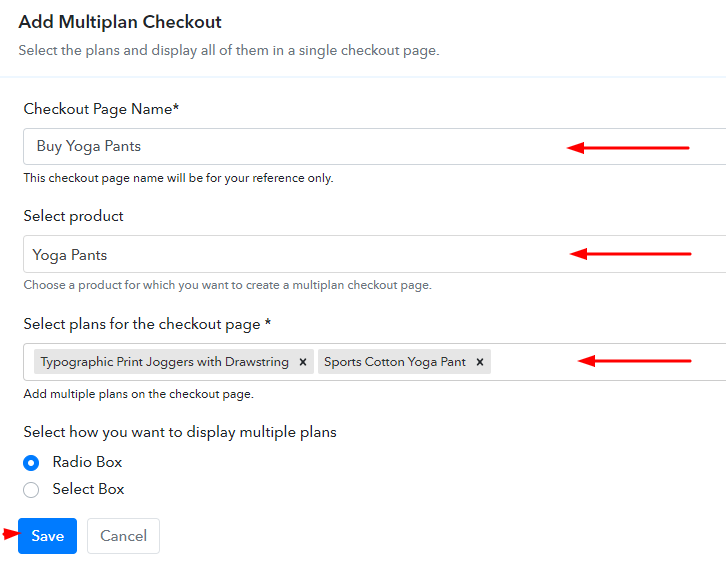
(a) Click on Add Mutiplan Checkout

Multiplan Checkout

(b) Add Plans to Sell Multiple Yoga Pants from Single Checkout Page

Add Plans to Sell Multiple Yoga Pants from Single Checkout Page

(c) Take a Look at the Checkout Page

Multiplan Checkout Page to Sell How to Sell Yoga Pants Online

Preview Checkout Page

Wrapping Up

Hopefully! Now you all know how easy is to start yoga pants business online using Pabbly Subscription Billing software. All you have to do is follow all the above-mentioned steps for creating a checkout page of yoga pants and you’re good to go. So why wait anymore? When you can start your own yoga pants online business for free!!

You May Also Like To Read –
How to Sell Gymnastics Equipment Online | Step by Step (Free Method)

How to Sell Gymnastics Equipment Online

Ideal For: All the gymnastics equipment stores, sports equipment stores, sports equipment manufacturers, sports equipment dealers, sports equipment suppliers, sports equipment wholesalers, and other sellers can use this method to take their gymnastics equipment selling business online.

How to Sell Gymnastics Equipment Online

Why Choose this Method to Sell Gymnastics Equipment Online?

Unlike any other solution, this method allows you to:

  • List and sell your gymnastics equipment for FREE. Absolutely no payment required.
  • No need to pay commission on any of your sales.
  • Multiple payment options like PayPal, Credit Card, etc to collect payment from a single place.
  • Sell one time or recurring subscriptions of your gymnastics equipment.
  • Collect payments & sell products in any currency as per your requirement.
  • Give discounts on your products by offering special coupon codes.
  • Add sales commission agents to help you in selling gymnastics equipment online.

Get Pabbly Subscription Billing for Free

There are many forms of workout for fitness freaks and gymnastics is one of them. Not only public gyms are including gymnastics in their list of services but people are also practicing it at their homes with proper equipment. Hence, you should definitely expand your gymnastics equipment selling business to online platforms to serve more people and of course, generate extra revenue, Other advantages are better pricing for your products, no rent for your store, round the clock available online shop, and so much more.

So here, we are talking about Pabbly Subscription Billing which is a completely free platform through which you can create checkout pages to sell gymnastics equipment online.

Some more great features of Pabbly Subscription Billing are:

  • Collect payments in online or offline modes for gymnastics equipment
  • Unlimited selling of products
  • Tax management of your business
  • Product management at one place

So, let’s get ready to create your first checkout page to sell gymnastics equipment online.

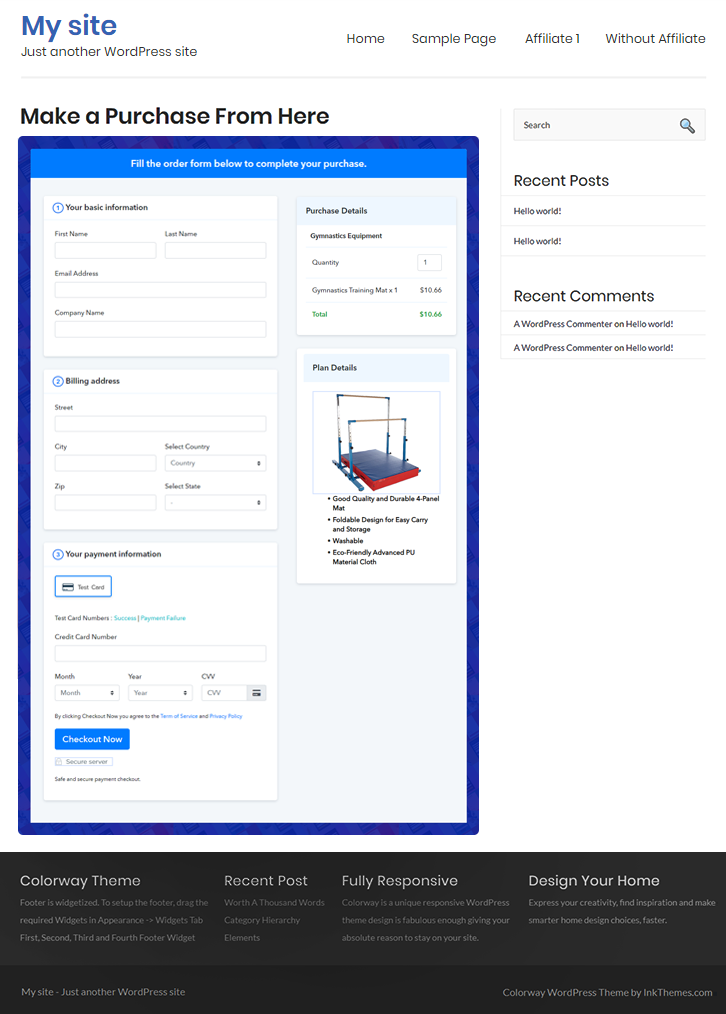
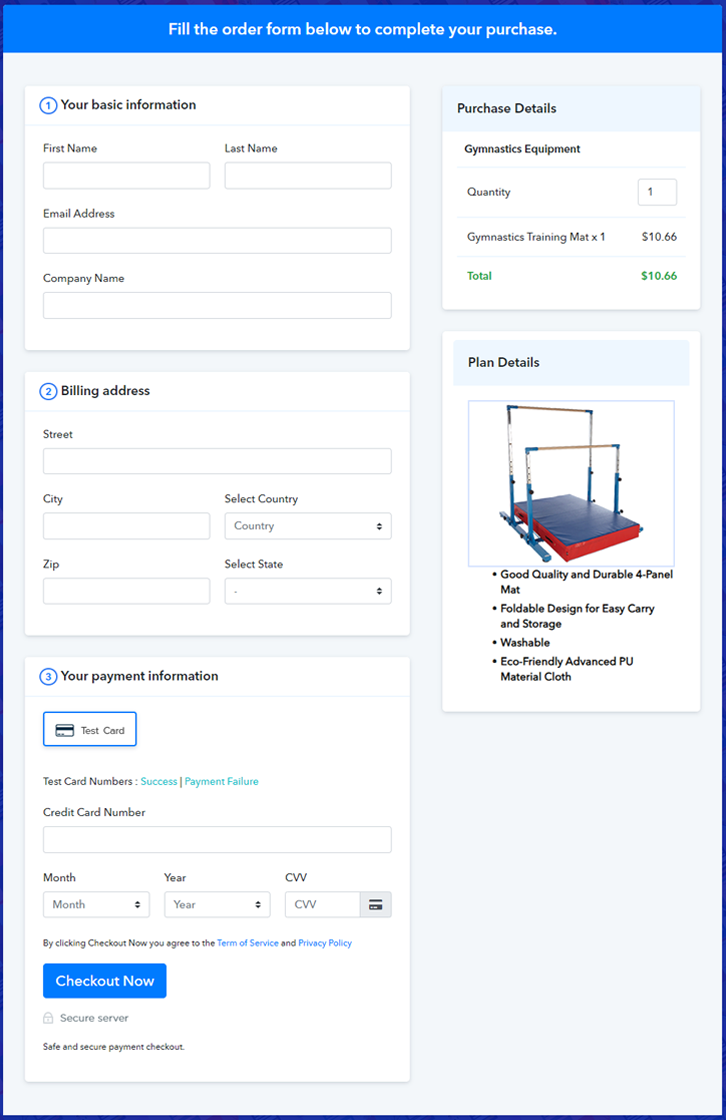
Final View of Checkout Page for your Gymnastics Equipment Selling Business

Preview Checkout Page

Preview Checkout Page

Step 1: Log in to Pabbly Subscription Billing

Signup

The first step includes, you to visit the Pabbly Subscription Billing website and click on the “Sign Up Free” button. Once the button is clicked, you are landed on the signup page, where you can create your account through Google or manually enter your details.

Sign Up For Free!

Step 2: Select Subscription Billing

Access Subscription Billing

Step 3: Account Setup

Setup Account

After the signup process is finished, you have to fill up your company details i.e. company name, currency, and contact number in the appeared dialogue box.

Step 4: Connect Payment Gateways & Start Gymnastics Equipment Selling Business Online

Connect Payment Gateway

Here, we are showing you the payment collection process by enabling the ‘Test Payment’ mode. After testing with the test payment mode you have to connect with the payment gateways of your own choice like PayPal, Razorpay, etc. The complete integration guides for payment gateways are provided below –

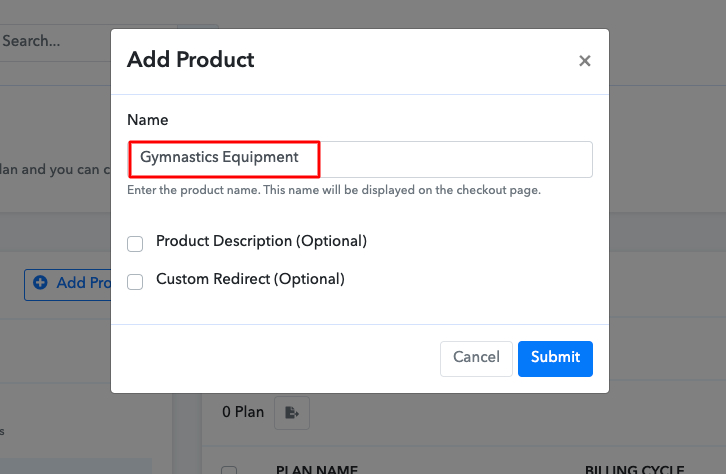
Step 5: Add Product for your Gymnastics Equipment

Add Product

Once the payment mode is enabled, then you can add your first product. You can add gymnastics equipment of different categories, for example, trampolines, training bars, etc.

Sell Gymnastics Equipment Online Product Name

Add all other types of gymnastics equipment in the same product by creating different plans.

Note: Here you can add all the products related to the similar category by creating plans for each of them.

Step 6: Add Plans 

Let’s rollout plans for different kinds of gymnastics equipment available in your store.

(a) Select Add New Plan

Add Plan

(b) Specify the Plan & Pricing Details

Sell Gymnastics Equipment Online Details

On clicking add new plan, you will reach to the plan page. Here, you will have to fill the plan details such as plan name, code, billing cycle, price, etc.

(c) Add Image & Description of Gymnastics Equipment

Sell Gymnastics Equipment Online Image

Further, you can add a description of gymnastics equipment along with the product links, images, etc, and click on the “Submit” button to add your plan.

You can create more plans for all the gymnastics equipment in a similar manner.

Step 7: Share your Checkout Page

Share Checkout Page on Social Media

  • Share your checkout page on social networking sites like Facebook and Twitter to reach to a higher number of buyers.
  • Copy the mentioned link and send it to your customers through SMS or emails directly.
  • Embed your plan link to your website so that your customers can be landed on the checkout page directly.

Step 8: Preview Checkout Page

Follow up the recommended steps to preview the checkout page:

(a) Click on the View Button

View Checkout Plan

(b) Take a Look at the Checkout Page

Preview Checkout Page

Step 9: Embed Checkout Page in Site & Sell Gymnastics Equipment Online

Embed Checkout Page on Website

Just copy the provided plan embedding link and embed the checkout page to your WordPress site to sell gymnastics equipment online.

(a) Edit the Page & Paste the Copied Link

Embed Checkout Page on Website

Further, paste the plan link on a text editor of the WordPress dashboard.

(b) Save & Publish the Checkout Page

Save_and_Publish

Next, click the “Publish” button, after making changes.

(c) Check out the Final Look of your Checkout Page on WordPress Site

Sell Gymnastics Equipment Online W

Step 10: Multiplan Checkout Page

Note: In case you want to sell multiple products via a single checkout page, you can create a multi-plan checkout page otherwise skip this step.

(a) Click on Add Mutiplan Checkout

Multiplan Checkout

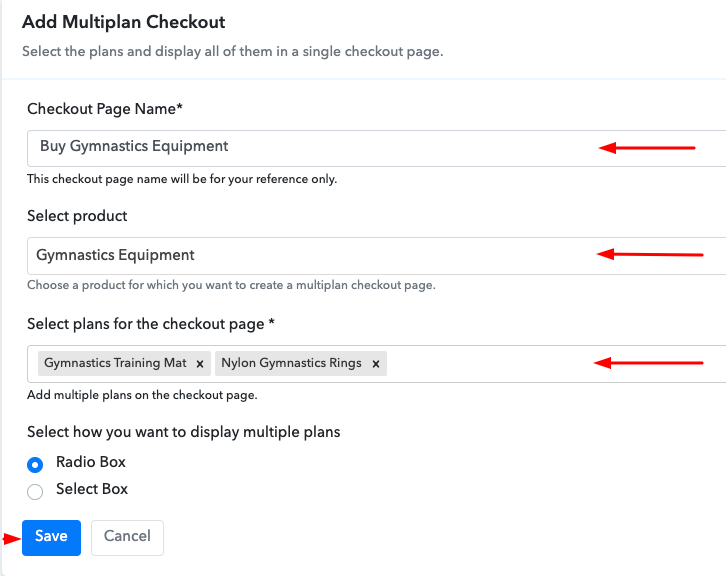
(b) Add Plans to Sell Multiple Gymnastics Equipment from Single Checkout Page

Sell Gymnastics Equipment Online Multi Details

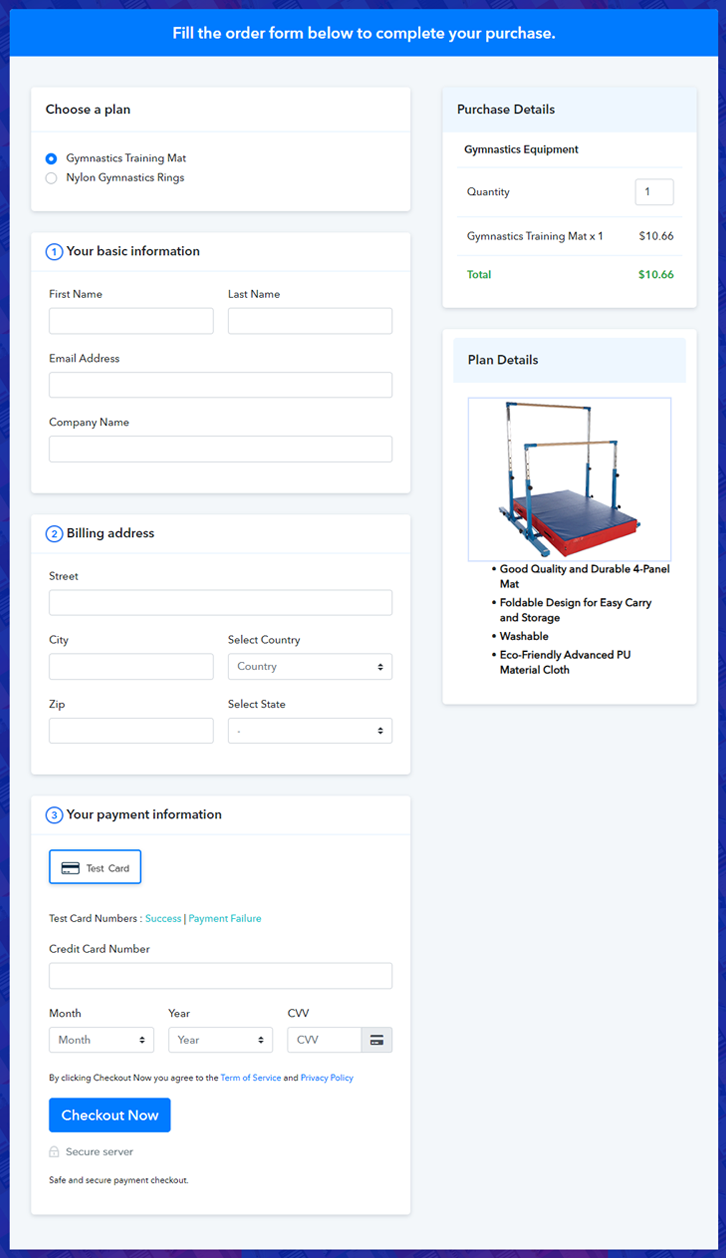
(c) Take a Look at the Checkout Page

Sell Gymnastics Equipment Online M

Preview Checkout Page

Wrapping Up

So, this was the easiest way to sell gymnastics equipment online through Pabbly Subscription Billing. Doubtlessly, there are many other services available in the market but Pabbly Subscription Billing comes with these above mentioned great features plus it is free for everyone. Start your online business with this service and you will surely reach the heights of success in the online market.

If you have doubts please drop your queries in the comment section below.

You May Also Like To Read –
How to Sell Blogging Courses Online | Step by Step (Free Method)

How to Sell Blogging Courses Online

Ideal For: All the content creators, bloggers, creative writers, blog writers, and other sellers can use this method to take their blogging courses selling business online.

How to Sell Blogging Courses Online

Why Choose this Method to Sell Blogging Courses Online?

Unlike any other solution, this method allows you to:

  • List and sell your blogging courses for FREE. Absolutely no payment required.
  • No need to pay commission on any of your sales.
  • Multiple payment options like PayPal, Credit Card, etc to collect payment from a single place.
  • Sell one time or recurring subscriptions of your blogging courses.
  • Collect payments & sell products in any currency as per your requirement.
  • Give discounts on your products by offering special coupon codes.
  • Add sales commission agents to help you in selling blogging courses online.

Get Pabbly Subscription Billing for Free

Blog writing is an art and without any proper training, no one can write perfect blogs. Many people want to start their own blogs but they have no idea where to begin with. Hence, if you are a professional blogger then selling blogging courses online is the correct decision for you to reach worldwide customers and generate extra income.

Therefore, here we are putting forward a remarkable software that can help you to start your blogging courses business online i.e, Pabbly Subscription Billing. Through this free software, you can create eye-catching checkout pages for your products that can be shared on various online platforms.

These are the few benefits that this service offers:

  • List and sell unlimited blogging courses online
  • Collect payment offline/online for blogging courses
  • Add tax and delivery charges on your products
  • Easy product management

Now, let’s create your first checkout page with Pabbly Subscription Billing to sell blogging courses online.

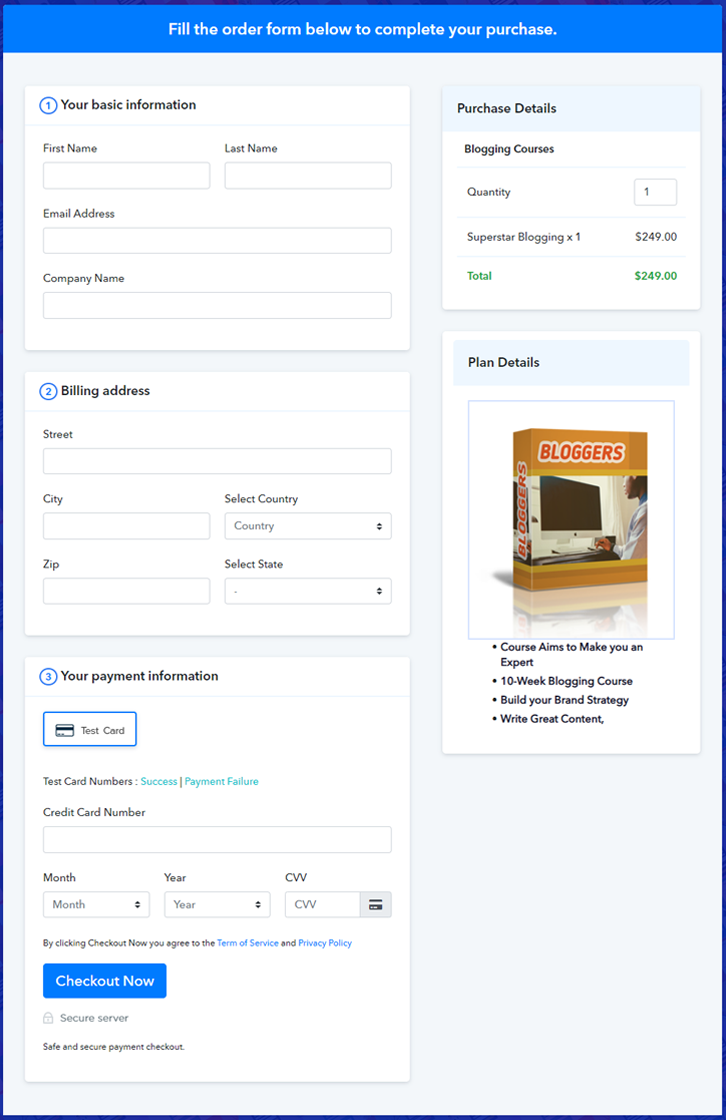
Final View of Checkout Page for your Blogging Courses Selling Business

Preview Checkout Page

Preview Checkout Page

Step 1: Log in to Pabbly Subscription Billing

Signup

In the first step, visit Pabbly Subscription Billing website and then click on the “Sign Up Free” button. Once you click the button, you will be landed on the signup page, where you can create your account with your Gmail account or manually enter your details.

Sign Up For Free!

Step 2: Select Subscription Billing

Access Subscription Billing

Step 3: Account Setup

Setup Account

Once the signup process is completed, now fill up your company details i.e. company name, currency, and contact number in the appeared dialogue box.

Step 4: Connect Payment Gateways & Start Blogging Courses Selling Business Online

Connect Payment Gateway

After setting up your account, here, we are showing you the payment collection process by enabling the ‘Test Payment’ mode. You can also enable it and see for yourself how the payment collection process works. Later, you have to connect other payment gateways such as PayPal, Stripe, etc of your choice. The complete integration guides for payment gateways are provided below –

Step 5: Add Product for your Blogging Courses

Add Product

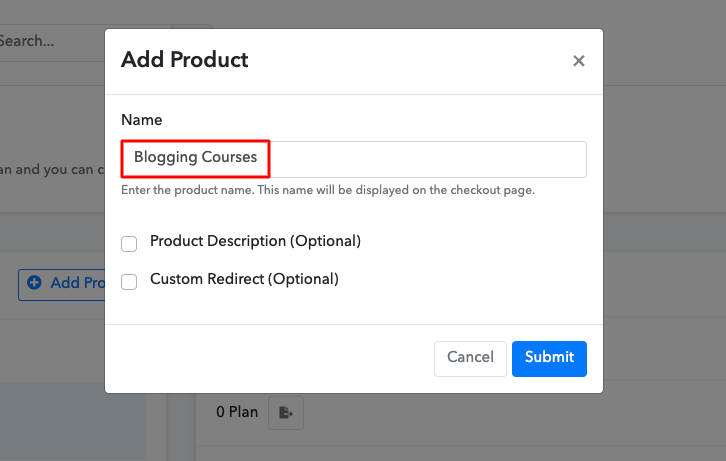
After the payment mode is enabled, you can add your first product. You can include blogging courses of different categories, for example, blogging for business, blogging for a living, etc.

Sell Blogging Courses Online Product Name

Similarly, add all other types of blogging courses in the same product by creating different plans.

Note: Here you can add all the products related to the similar category by creating plans for each of them.

Step 6: Add Plans 

Let’s rollout plans for different kinds of blogging courses that you want to sell.

(a) Select Add New Plan

Add Plan

(b) Specify the Plan & Pricing Details

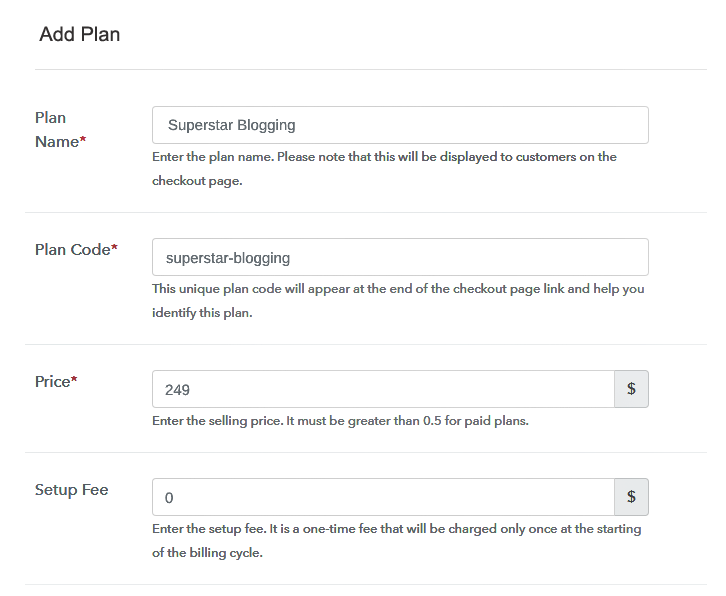
Sell Blogging Courses Online Details

On clicking add new plan, you will be redirected to the plan page. Here, you will have to fill the plan details such as plan name, code, billing cycle, price, etc.

(c) Add Image & Description of Blogging Courses

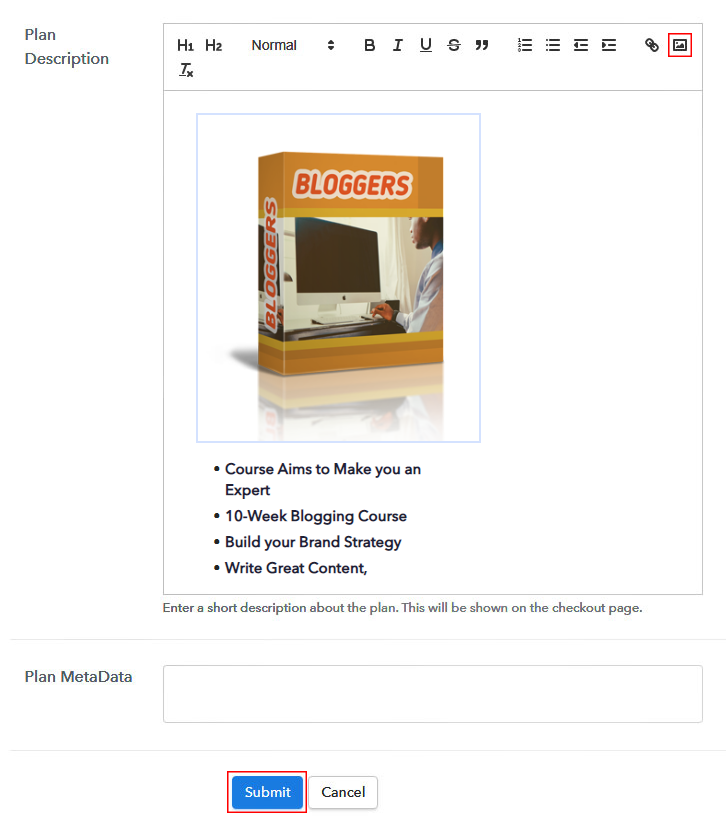
Sell Blogging Courses Online Image

Also, write a description of the blogging courses that you want to sell along with the product links, images, etc, and click on the “Submit” button to add your plan.

You can create more plans for all the blogging courses similarly.

Step 7: Share your Checkout Page

Share Checkout Page on Social Media

Follow the below steps to enhance your sales:

  • Share your checkout page on social media like Facebook and Twitter.
  • Copy the mentioned link and send it to your customers via SMS or emails directly.
  • Embed your plan link to your website so that your customers can be landed on the checkout page directly.

Step 8: Preview Checkout Page

Follow up the recommended steps to preview the checkout page:

(a) Click on the View Button

View Checkout Plan

(b) Take a Look at the Checkout Page

Preview Checkout Page

Step 9: Embed Checkout Page in Site & Sell Blogging Courses Online

Embed Checkout Page on Website

Just copy the provided plan embedding link and embed the checkout page to your WordPress site to sell blogging courses online.

(a) Edit the Page & Paste the Copied Link

Embed Checkout Page on Website

Further, paste the plan link on a text editor of the WordPress dashboard.

(b) Save & Publish the Checkout Page

Save_and_Publish

Next, click the “Publish” button, after making changes.

(c) Check out the Final Look of your Checkout Page on WordPress Site

Sell Blogging Courses Online W

Step 10: Multiplan Checkout Page

Note: In case you want to sell multiple products via a single checkout page, you can create a multi-plan checkout page otherwise skip this step.

(a) Click on Add Mutiplan Checkout

Multiplan Checkout

(b) Add Plans to Sell Multiple Blogging Courses from Single Checkout Page

Sell Blogging Courses Online Multi Details

(c) Take a Look at the Checkout Page

Sell Blogging Courses Online M

Preview Checkout Page

Wrapping Up

Simply follow these easy steps and start your blogging course selling business online. You just have to log in to Pabbly Subscription Billing and start creating checkout pages for your blogging courses. So, start your online business with this free software and spread the word of your blogging skills. Furthermore, if you have any doubts write it in the comment section below. We will get back to you as soon as possible. All the best for your business.

You May Also Like To Read –
How to Sell Banking Courses Online | Step by Step (Free Method)

How to Sell Banking Courses Online

Ideal For: All the tutors, educators, banking course sellers, banking course dealers, banking course suppliers, coaching owners and other merchants can use this method to sell banking courses online.

How to Sell Banking Courses Online

Why Choose this Method to Sell Banking Courses Online?

Unlike any other solution, this method allows you to:

  • List and sell your banking courses for FREE. Absolutely no payment required.
  • No need to pay commission on any of your sales.
  • Multiple payment options like PayPal, Credit Card, etc to collect payment from a single place.
  • Sell one time or recurring subscriptions of your banking courses.
  • Collect payments & sell products in any currency as per your requirement.
  • Give discounts on your products by offering special coupon codes.
  • Add sales commission agents to help you in selling banking courses online.

Get Pabbly Subscription Billing for Free

The banking sector is one of the finest jobs and that’s why every year many aspirants preparing for it. Then, considering this if you’re thinking of sharing the gained banking wisdom with the world then it is not a bad idea.

Now the real question is how you are going to do it. Selling courses online is not that simple if you’re a newbie but with proper guidance, one can easily do it. And there are many perks of selling banking books or tutorials online like a global audience, flexible schedule, better passive income, etc. Coming to the part about how one can start banking courses business online? So we would like to recommend you a software named Pabbly Subscription Billing that can be a huge help. The software allows you to build amazing checkout pages for selling banking courses online.

Also, you can add multiple plans on a single checkout page. Collecting money or fees through the checkout page is easy. Now, let’s move further to the process of creating a checkout page for selling banking courses online using Pabbly Subscription Billing.

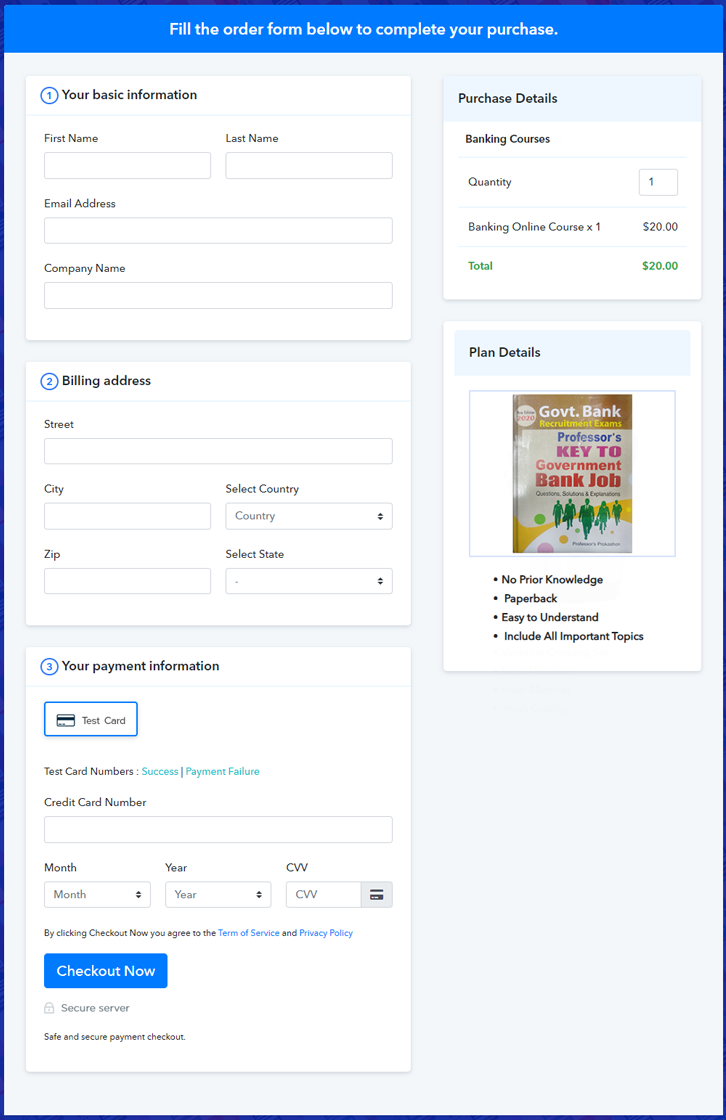
Final View of Checkout Page for your Banking Courses Selling Business

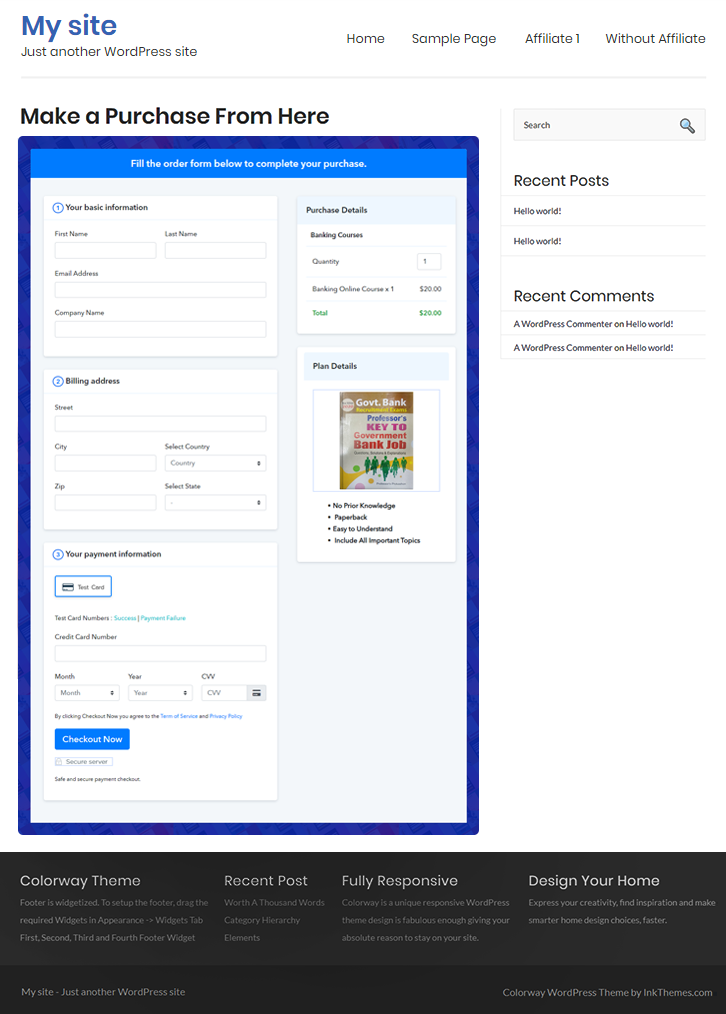
Checkout Page to Sell Banking Courses Online

Preview Checkout Page

Step 1: Log in to Pabbly Subscription Billing

Signup

Start the process for creating a checkout page for banking courses by visiting  Pabbly Subscription Billing in your browser. After that, click on the “Sign up Free“ button. Furthermore, either manually fills out the details or sign in using your Gmail account.

Sign Up For Free!

Step 2: Select Subscription Billing

Access Subscription Billing

Step 3: Account Setup

Setup Account

Besides, after clicking on the “Access Now” button of the software, a page will open with fields like company name, select currency, and phone number. Simply fill out those details to continue creating a checkout page for banking courses.

Step 4: Connect Payment Gateways & Start Banking Courses Selling Business Online

Connect Payment Gateway

The consequent step is to earning information about payment procedures using a “Test Payment Gateway”. Here, we will explain the checkout page process for the banking courses with the help of a test payment gateway. Besides this, the tool offers various payment gateways such as PayPal, Stripe, etc. Moreover, below are the payment integration guides to help you out.

Step 5: Add Product for your Banking Courses

Add Product

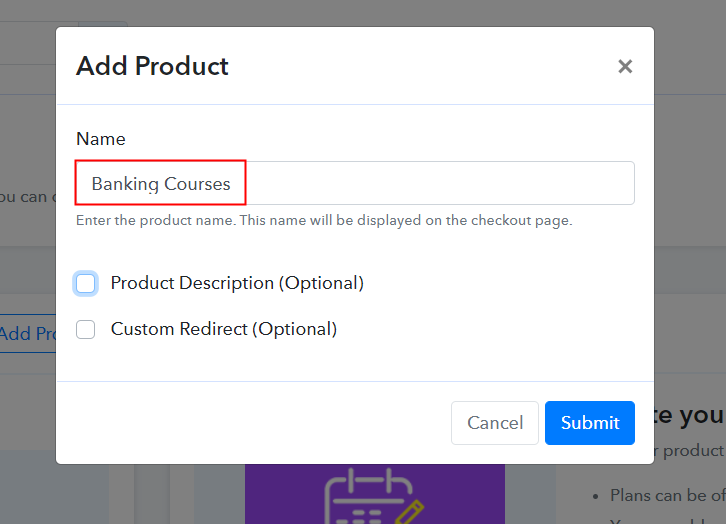
Additionally, add the name, which in our case is “Banking Courses”. Here you can specify the type like diploma banking course, master banking course, etc. Further, write a short description of banking courses to catch the customer’s attention.

Add Product to Start Selling Banking Courses Online

Just fill out all those details, and your product for banking courses is created.

Note: Here you can add all the products related to the similar category by creating plans for each of them.

Step 6: Add Plans 

Let’s expose plans for different kinds of banking courses available in your store.

(a) Select Add New Plan

Add Plan

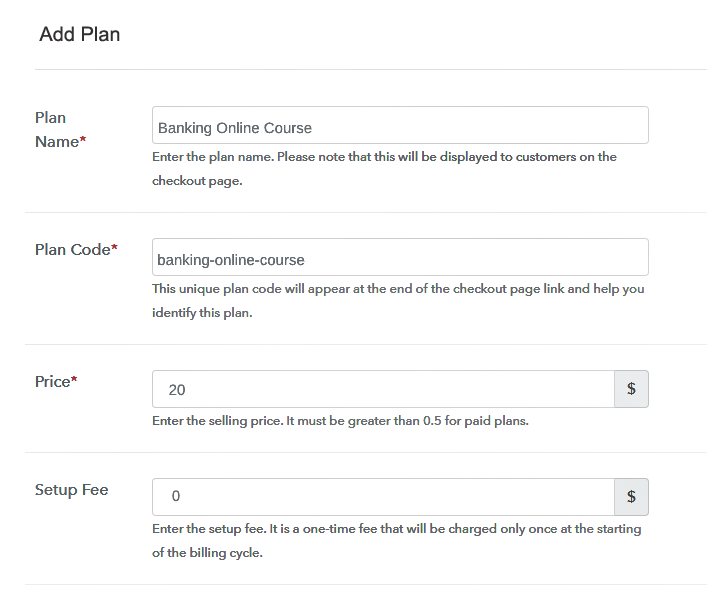
(b) Specify the Plan & Pricing Details

Specify the Plan and Pricing to Sell Banking Courses Online

The next thing to do is fill all the details of the banking courses like plan name, code, price, set-up fee, and much more to continue.

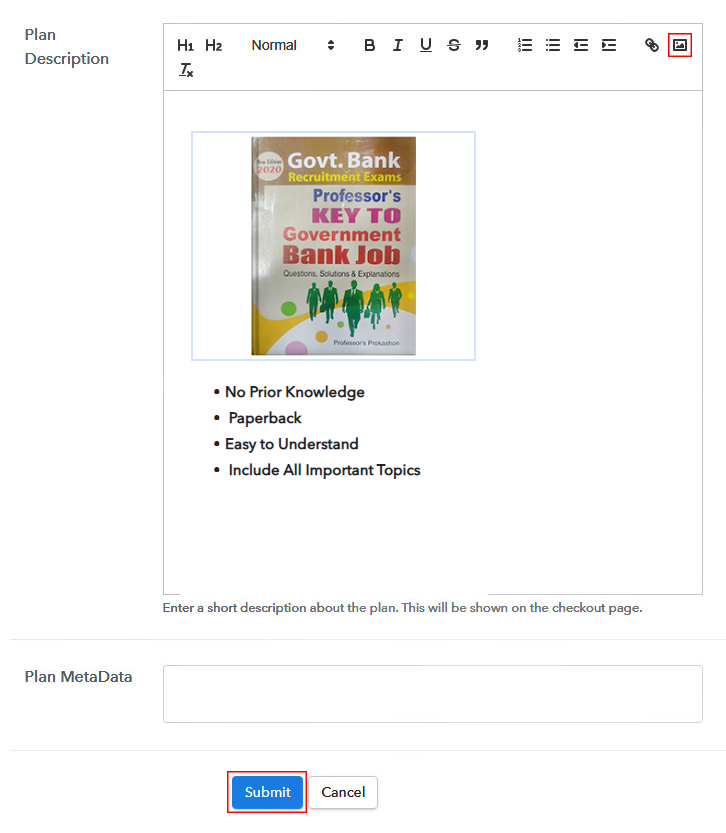
(c) Add Image & Description of Banking Courses

Add Image & Description to Sell Banking Courses Online

Furthermore, write a brief description of the banking courses using bullets, images, etc, to bring original buyers to the checkout page.

Next, click on the “Submit” button to add the banking courses on the checkout page.

Finally, you can add multiple plans and kinds of banking courses in your product list which you want to sell online.

Step 7: Share your Checkout Page

Share Checkout Page on Social Media

  • You can share the checkout page of the banking courses on social media accounts like Facebook & Twitter to grab the customer’s attention.
  • Also, you can share the direct link of the banking courses checkout page with your customers via SMS or email marketing.
  • Additionally, embed the provided plan link of the banking courses in the buttons or any anchor text on your website.

Step 8: Preview Checkout Page

Further, follow up on the recommended steps to preview the checkout page for banking courses:

(a) Click on the View Button

View Checkout Plan

(b) Take a Look at the Checkout Page

Checkout Page to Sell Banking Courses Online

Step 9: Embed Checkout Page in Site & Sell Banking Courses Online

Embed Checkout Page on Website

Additionally, simply copy the link and add the checkout page to sell banking courses online at any proper place on your WordPress site.

(a) Edit the Page & Paste the Copied Link

Paste Link in Text Editor

Moreover, paste the plan link of banking courses on a text editor of the WordPress dashboard.

(b) Save & Publish the Checkout Page

Save_and_Publish

Further, click on the “Publish” button, after making changes.

(c) Check out the Final Look of your Checkout Page on WordPress Site

Final Look of your Checkout Page to Sell Banking Courses Online

Step 10: Multiplan Checkout Page

Note: In case you want to sell multiple products via a single checkout page, you can create a multi-plan checkout page otherwise skip this step.

(a) Click on Add Mutiplan Checkout

Multiplan Checkout

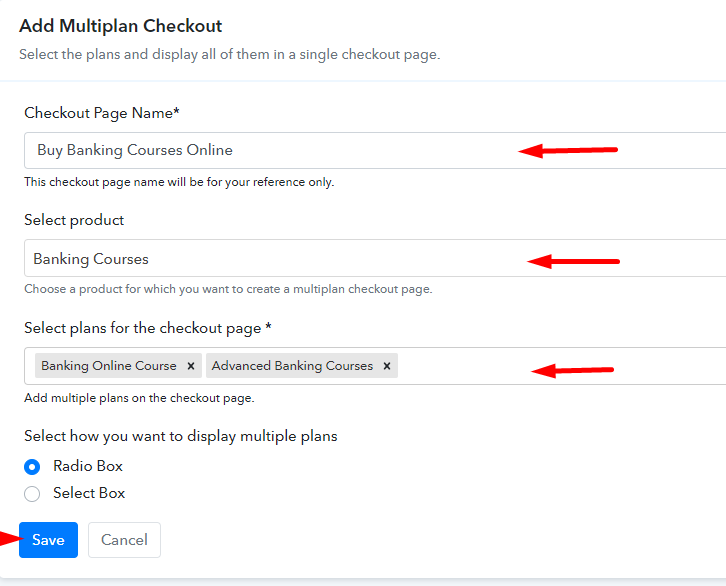
(b) Add Plans to Sell Multiple Banking Courses from Single Checkout Page

Add Multiple Products to Start Selling Banking Courses Online

(c) Take a Look at the Checkout Page

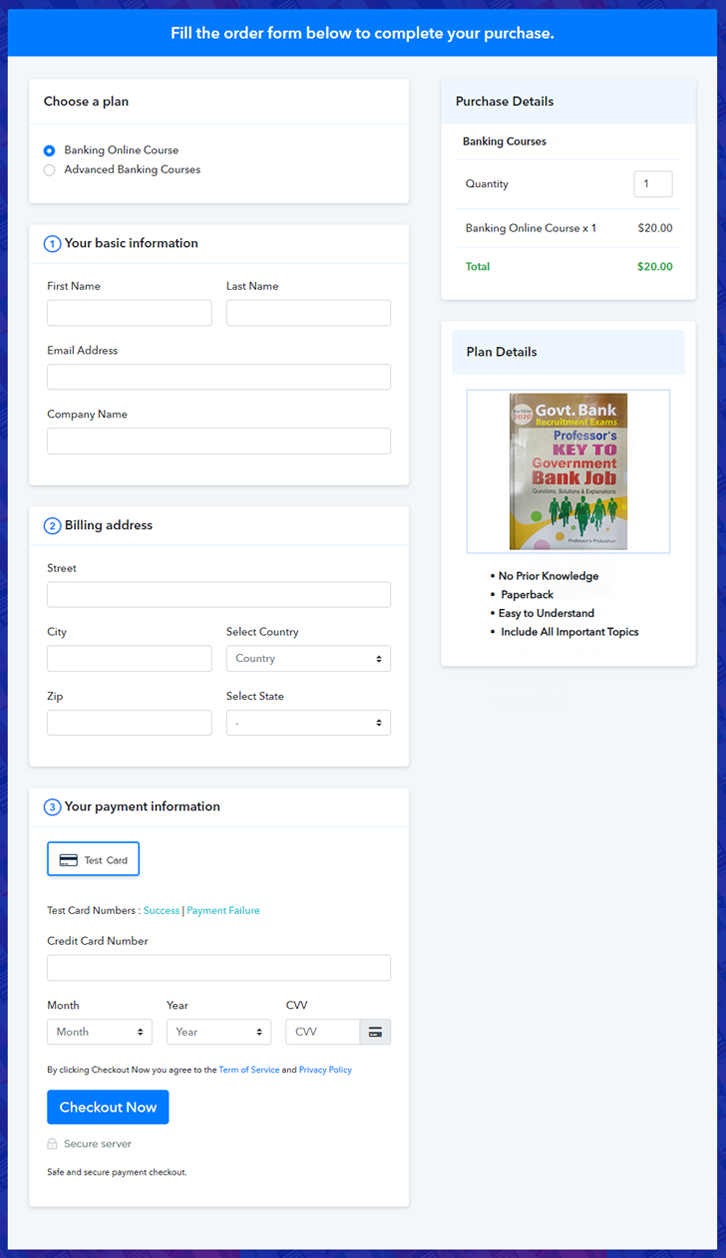
Multiplan Checkout Page to Sell Banking Courses Online

Preview Checkout Page

Wrapping Up

There you have it! This is our outcome on “how to sell banking courses online” using Pabbly Subscription Billing software. Not just banking, you can sell any courses online easily with the help of this tool. Just go through all the aforesaid steps and you’re good to go. Also, it is packed with features like numerous billing modules, unlimited customers, and much more.

So, what’s stopping you now? Go and try this software out.

You May Also Like To Read –
How to Sell Pool Chlorinators Online | Step by Step (Free Method)

Ideal For: All the pool chlorinator sellers, pool chlorinator dealers, chemical shop owners, and other merchants can use this method to sell pool chlorinators online.

How to Sell Pool Chlorinators Online

Why Choose this Method to Sell Pool Chlorinators Online?

Unlike any other solution, this method allows you to:

  • List and sell your pool chlorinators for FREE. Absolutely no payment required.
  • No need to pay commission on any of your sale.
  • Multiple payment options like PayPal, Credit Card, etc to collect payment from a single place.
  • Sell one time or recurring subscriptions of your pool chlorinators.
  • Collect payments & sell products in any currency as per your requirement.
  • Give discounts on your products by offering special coupon codes.
  • Add sales commission agents to help you in selling pool chlorinators.

Get Pabbly Subscription Billing for Free

Revenues from pool chlorinators suffer from seasonal variations, for instance, there is high demand during the summer but it declines during the winters. But do you know that summer season occurs in the northern hemisphere from March to July? And in the Southern Hemisphere, it is from July to March. This means if you can manage to sell pool chlorinators in both hemispheres, you can make a lot of money without worrying about the seasonal variation. But, this can only be possible, if you start selling pool chlorinators online.

Here, in this article, we recommend a Saas tool called Pabbly Subscription Billing to sell pool chlorinators online. The biggest benefit is that it can create incredible checkout pages to sell unlimited pool chlorinators online. Some other benefits are

  • Multiple Billing Models
  • List Unlimited Products
  • Create Unlimited Coupons/Plans/Discounts
  • Precise Revenue Management

Note: Some variants of pool chlorine can cause skin rashes and other allergies, so get prior approval from concerned agencies before you sell pool chlorinators online.

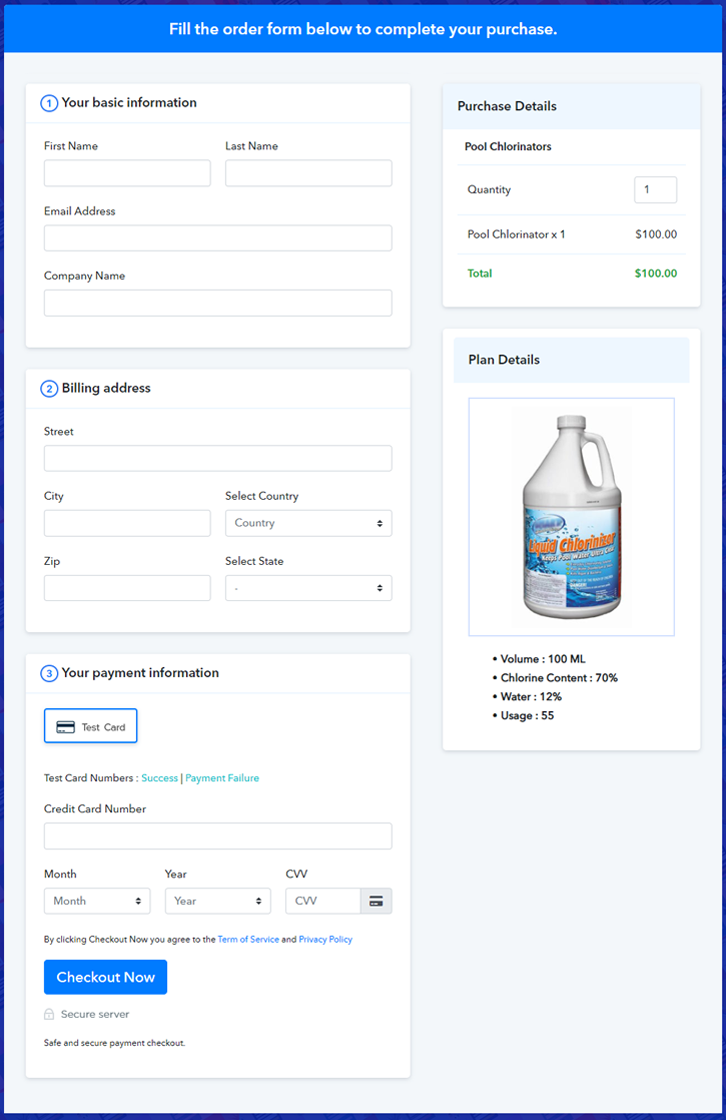
Final View of Checkout Page for your Pool Chlorinators Selling Business

Checkout to Sell Pool Chlorinators Online

Preview Checkout Page

Step 1: Log in to Pabbly Subscription Billing

Signup

Navigate to Pabbly Subscription Billing in your browser. Here, you have to click on the “Sign up Free“ button. You may either fill all the information or simply sign in using your Gmail account.

Sign Up For Free!

Step 2: Select Subscription Billing

Access Subscription Billing

Step 3: Account Setup

Setup Account

Click the “Access Now” button of Pabbly Subscription Billing, a page will pop-up with details like company name, currency, and contact number. Next, you need to fill those details to go on.

Step 4: Connect Payment Gateways & Start Pool Chlorinators Selling Business Online

Connect Payment GatewayThis software offers a fake payment gateway where you can dummy test the payment experience in advance. You can do this by clicking on the “Enable Test Payment” option.

Also, the integration of payment gateways is easy with Pabbly Subscription Billing with the help of the articles given below.

Step 5: Add Product for your Pool Chlorinators

Add Product

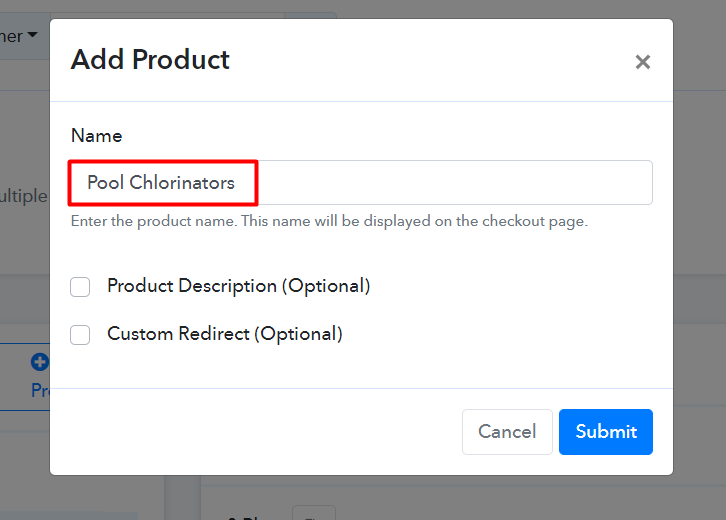
Here on “Add your product” section click on it. Furthermore, this will create a dialogue box with a blue button “Add New Product”. Click on it.

How

Fill out all the details like the name of the product and voila your product is created.

Note: Here you can add all the products related to the similar category by creating plans for each of them.

Step 6: Add Plans 

Now let’s create plans for different kinds of pool chlorinators available in your store.

(a) Select Add New Plan

Add Plan

(b) Specify the Plan & Pricing Details

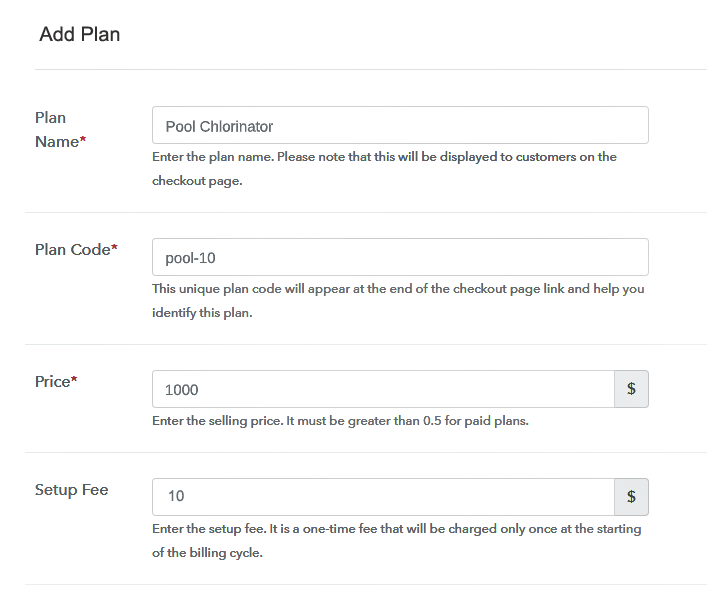
Plan to Sell Pool Chlorinators Online

In the plan page, here you have to fill in details like plan name, code, price, setup fees.

Now scroll down, and in the section below you can see the choice to change the billing models like one-time payment, recurring, etc.

Furthermore, choose your preferred revenue model accordingly and after some time you can even change it according to your discretions.

(c) Add Image & Description of Pool Chlorinators

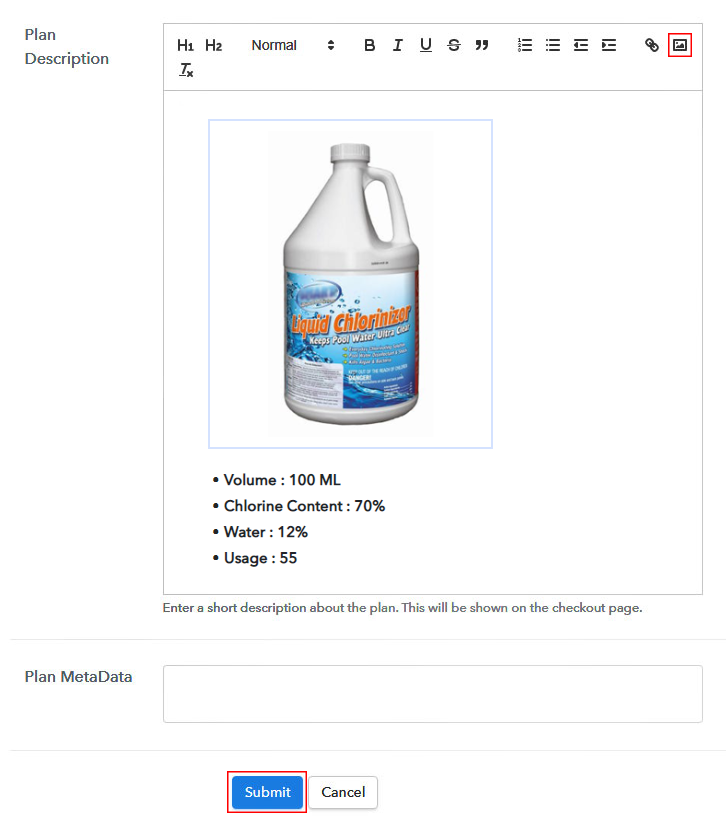
Image to Sell Pool Chlorinators Online

Now upload some good images of pool chlorinators and place some good information underneath the image.

Also, by using the same method, you can list more products.

Step 7: Share your Checkout Page

Share Checkout Page on Social Media

For the digital marketing of your products, Pabby Subscription Billing provides three streams.

  • Pressing the dedicated button for Twitter & Facebook you can share the checkout pages on these websites.
  • Furthermore, you can always share the checkout pages via email and SMS.
  • For more action, you can create a button on your webpage and paste the checkout links on it. Or you can place it on any anchor text on your website, so the users will be redirected to the checkout page.

Step 8: Preview Checkout Page

Follow up the recommended steps to preview the checkout page:

(a) Click on the View Button

View Checkout Plan

(b) Take a Look at the Checkout Page

Checkout to Sell Pool Chlorinators Online

Step 9: Embed Checkout Page in Site & Sell Online

Embed Checkout Page on Website

Also, copy the link and add the checkout page to sell pool chlorinators online at any suitable place on your WordPress site.

(a) Edit the Page & Paste the Copied Link

Embed Checkout Page on Website

Further, paste the plan link of the pool chlorinators online on a text editor of the WordPress dashboard.

(b) Save & Publish the Checkout Page

Save_and_Publish

Next, click the “Publish” button, after making changes.

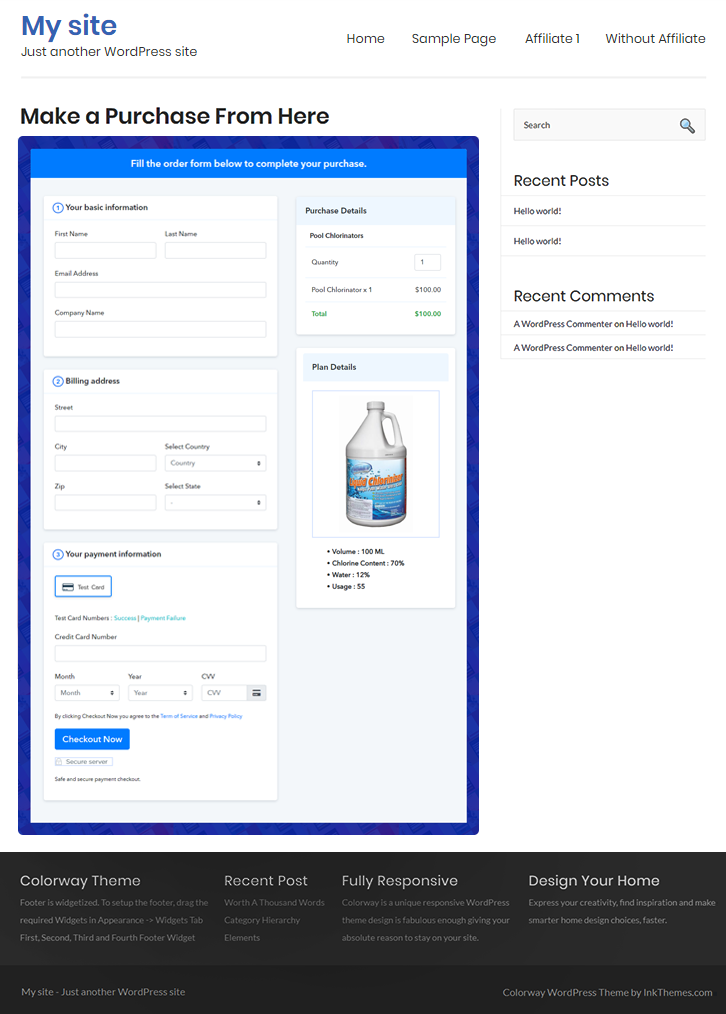
(c) Check out the Final Look of your Checkout Page on WordPress Site

Checkout to Sell Pool Chlorinators Online

Step 10: Multiplan Checkout Page

Note: In case you want to sell multiple products via a single checkout page, you can create a multi-plan checkout page otherwise skip this step.

(a) Click on Add Mutiplan Checkout

Multiplan Checkout

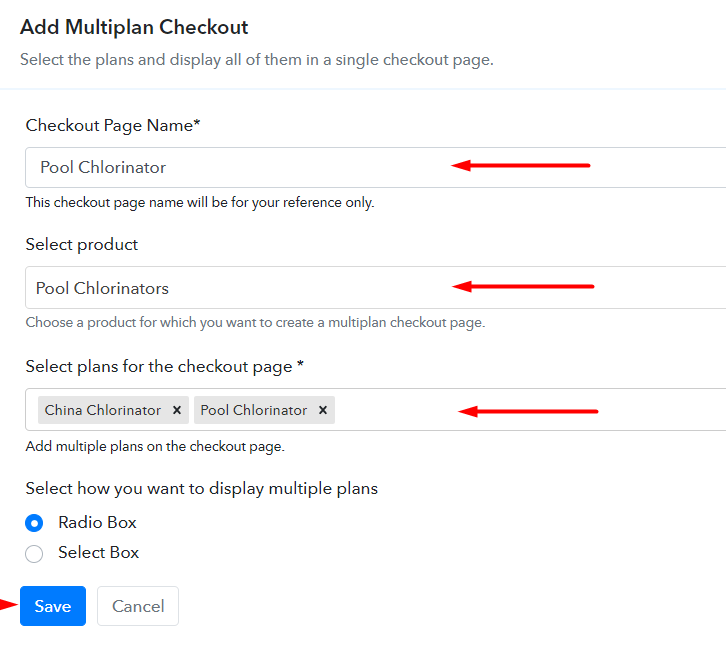
(b) Add Plans to Sell Multiple Pool Chlorinators from Single Checkout Page

Multiplan to Sell Pool Chlorinators Online

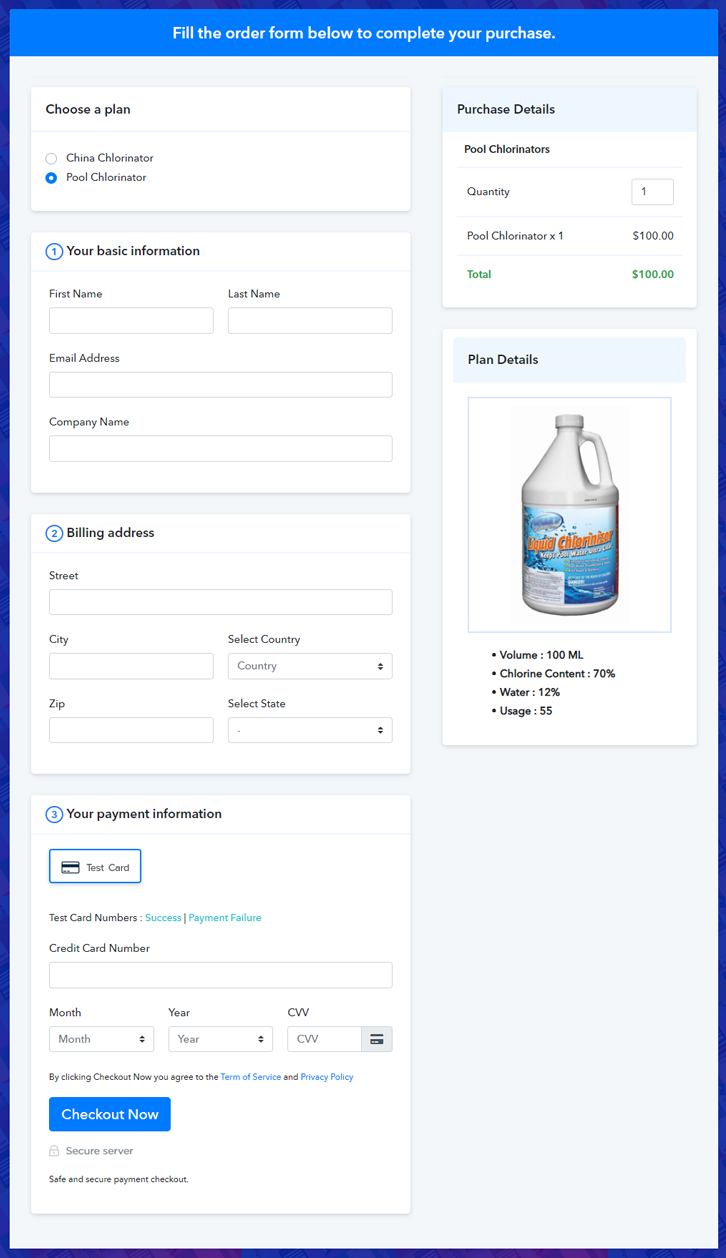
(c) Take a Look at the Checkout Page

Multiplan to Sell Pool Chlorinators Online

Preview Checkout Page

Wrapping Up

Woah! Your checkout page to sell pool chlorinators turned out to be beautiful. I have no doubt, that you will try out many of the existing features in Pabbly Subscription Billing. The features are extremely useful and if you manage to ace them it will put you in a dominant spot in the online market. There are a ton of meticulously prepared video tutorials and documents available for you. Come have a look!!

You May Also Like To Read –
How to Sell Kitchen Equipment Online | Step by Step (Free Method)

How to Sell Kitchen Equipment Online

Ideal For: All the kitchen equipment manufacturers, kitchen equipment sellers, kitchen utensil dealers, kitchen equipment suppliers, utensil shop owners and other merchants can use this method to sell kitchen equipment online.

How to Sell Kitchen Equipment Online

Why Choose this Method to Sell Kitchen Equipment Online?

Unlike any other solution, this method allows you to:

  • List and sell your kitchen equipment for FREE. Absolutely no payment required.
  • No need to pay commission on any of your sales.
  • Multiple payment options like PayPal, Credit Card, etc to collect payment from a single place.
  • Sell one time or recurring subscriptions of your kitchen equipment.
  • Collect payments & sell products in any currency as per your requirement.
  • Give discounts on your products by offering special coupon codes.
  • Add sales commission agents to help you in selling kitchen equipment online.

Get Pabbly Subscription Billing for Free

According to the Grand View Research, the global commercial kitchen appliances market is projected to grow at a CAGR of 6.7%.  The reason for the uprise is fast-paced life, demand for drive-through meals, and much more. So, if you have a kitchenware shop then it is high time to start kitchen equipment business online.

Further, the online kitchen equipment store keeps you on top of stocks, revenues, and sales. Other than this, setting up costs of an online store is relatively low. Moreover, customers are way much convenient in buying kitchen appliances online. Now, you must be looking over the internet for some tool or guide. So don’t you worry we are going to suggest software named Pabbly Subscription Billing that can assist you in the process.

The software allows you to build an amazing checkout page for selling kitchen equipment online. Other than this it is amidst with features like:

  • Infinite Discount & Coupons
  • Revenue Tracking
  • One Time and Recurring Billing

Subsequently, now let me show you 10 easy steps that you need to follow for creating checkout pages for selling kitchen equipment online.

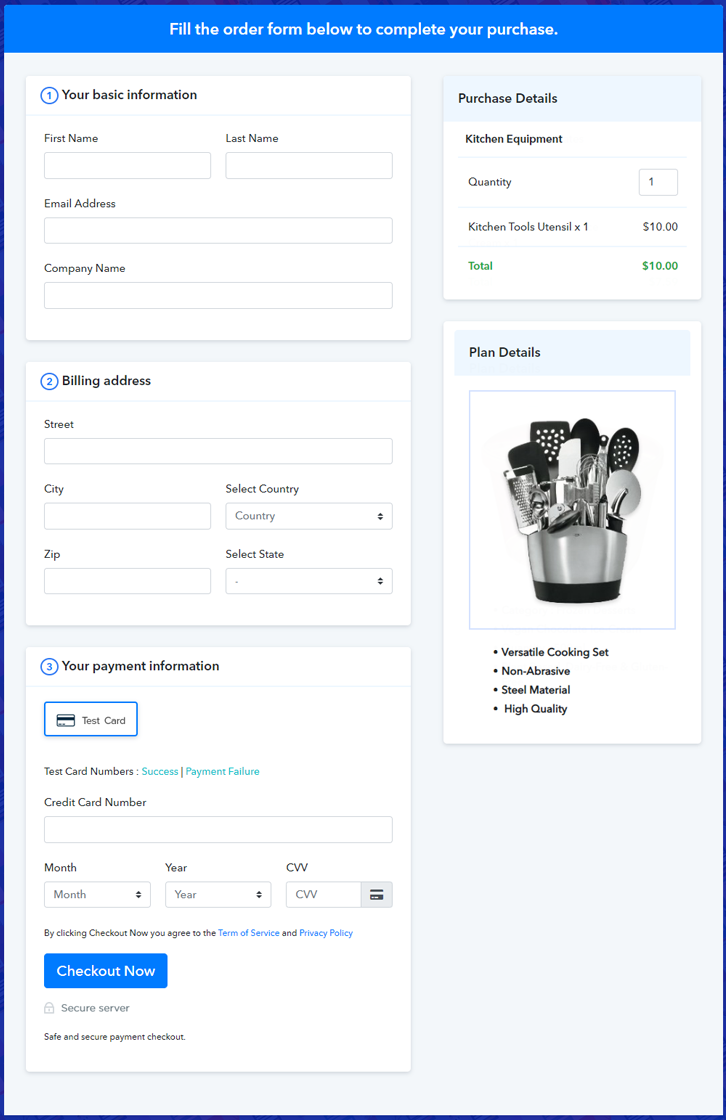
Final View of Checkout Page for your Kitchen Equipment Selling Business

Checkout Page to Sell Kitchen Equipment Online

Preview Checkout Page

Step 1: Log in to Pabbly Subscription Billing

Signup

Start the process for creating a checkout page for kitchen equipment by visiting the Pabbly Subscription Billing in your browser. After that, click on the “Sign up Free“ button. Now, to take benefit of software either manually fills out the details or sign in using your Gmail credential.

Sign Up For Free!

Step 2: Select Subscription Billing

Access Subscription Billing

Step 3: Account Setup

Setup Account

Besides, after clicking on the “Access Now” button of the software, a page will open with fields like company name, select currency, and phone number. Simply fill out those details to continue creating a checkout page for kitchen equipment.

Step 4: Connect Payment Gateways & Start Kitchen Equipment Selling Business Online

Connect Payment Gateway

The next step is to getting information about payment procedures using a “Test Payment Gateway”. Here, we will describe the checkout page process for the kitchen equipment with the help of a test payment gateway. Besides this, the tool offers various payment gateways such as PayPal, Stripe, etc. Further, below are the payment integration guides to help you out.

Step 5: Add Product for your Kitchen Equipment

Add Product

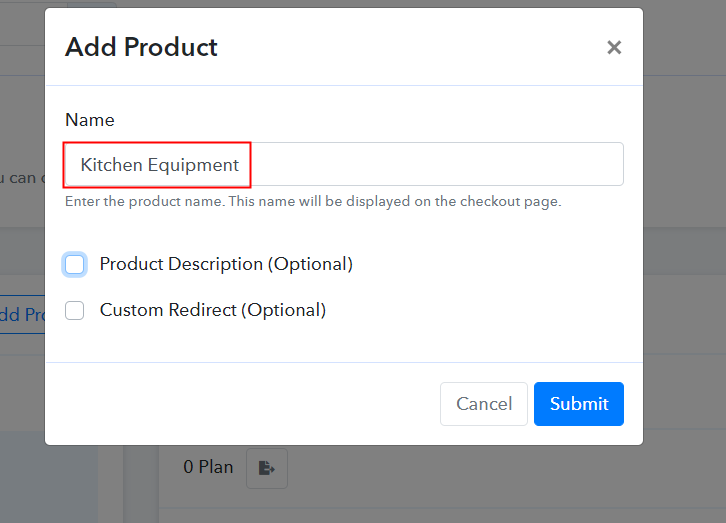
Now the next part is to add the product name which is “Kitchen Equipment”. Here you can define the type like cooking equipment, industrial kitchen equipment, etc. Further, write a short description of the kitchen equipment to seize the customer’s attention.

Add Product to Start Selling Kitchen Equipment Online

Simply fill out all those details, and your product for kitchen equipment is created.

Note: Here you can add all the products related to the similar category by creating plans for each of them.

Step 6: Add Plans 

Let’s expose plans for different kinds of kitchen equipment available in your store.

(a) Select Add New Plan

Add Plan

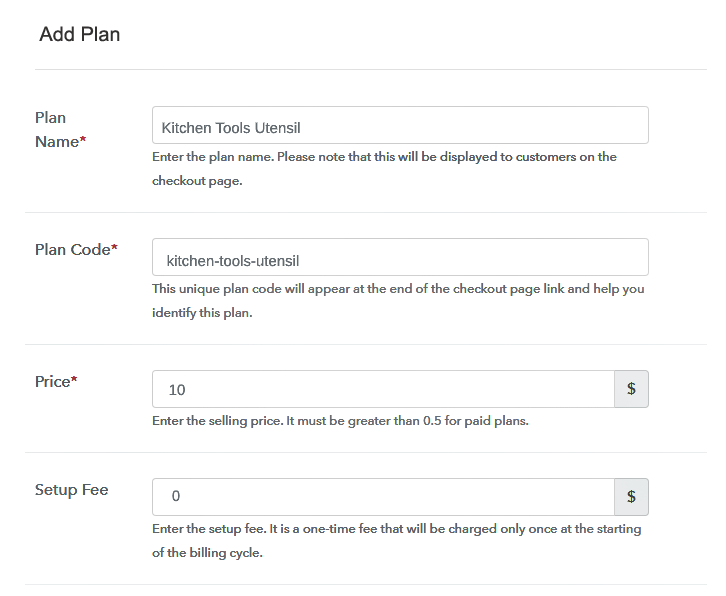
(b) Specify the Plan & Pricing Details

Specify the Plan and Pricing to Sell Kitchen Equipment Online

The next thing to do is fill all the details of the kitchen equipment like plan name, code, price, set-up fee, and much more to continue.

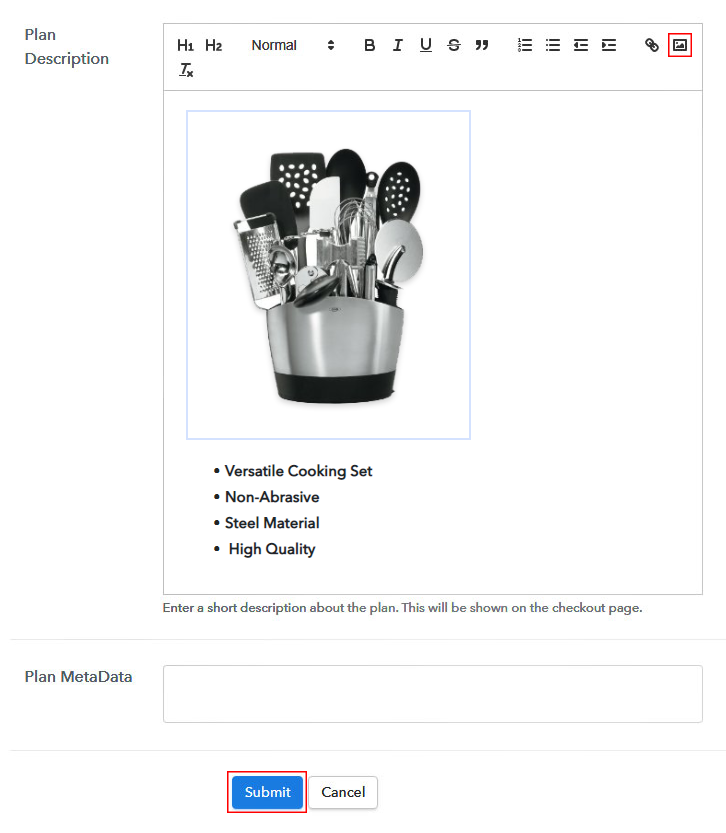
(c) Add Image & Description of Kitchen Equipment

Add Image & Description to Sell Kitchen Equipment Online

Furthermore, write a brief description of the kitchen equipment using bullets, images, etc, to bring original buyers to the checkout page.

Next, click on the “Submit” button to add the kitchen equipment on the checkout page.

Finally, you can add multiple plans and kinds of kitchen equipment in your product list which you want to sell online.

Step 7: Share your Checkout Page

Share Checkout Page on Social Media

  • You can share the checkout page of the kitchen equipment on social media accounts like Facebook & Twitter to grab the customer’s attention.
  • Plus, you can share the direct link of the kitchen equipment checkout page with your customers via SMS or email marketing.
  • Note that you can also embed the provided plan link in the buttons or any anchor text on your website.

Step 8: Preview Checkout Page

Further, follow up on the recommended steps to preview the checkout page for kitchen equipment:

(a) Click on the View Button

View Checkout Plan

(b) Take a Look at the Checkout Page

Checkout Page to Sell Kitchen Equipment Online

Step 9: Embed Checkout Page in Site & Sell Kitchen Equipment Online

Embed Checkout Page on Website

Additionally, simply copy the link and add the checkout page to sell kitchen equipment online at any proper place on your WordPress site.

(a) Edit the Page & Paste the Copied Link

Paste Link in Text Editor

Paste the plan link of kitchen equipment on a text editor of the WordPress dashboard.

(b) Save & Publish the Checkout Page

Save_and_Publish

Further, click on the “Publish” button, after making changes.

(c) Check out the Final Look of your Checkout Page on WordPress Site

Final Look of your Checkout Page to Sell Kitchen Equipment Online

Step 10: Multiplan Checkout Page

Note: In case you want to sell multiple products via a single checkout page, you can create a multi-plan checkout page otherwise skip this step.

(a) Click on Add Mutiplan Checkout

Multiplan Checkout

(b) Add Plans to Sell Multiple Kitchen Equipment from Single Checkout Page

Add Multiple Products to Start Selling Kitchen Equipment Online

(c) Take a Look at the Checkout Page

Multiplan Checkout Page to Sell Kitchen Equipment Online

Preview Checkout Page

Wrapping Up

That’s all! Here we have covered all the demanded steps to starting kitchen equipment selling business online. Using the Pabbly Subscription Billing software one can easily start kitchenware business without any difficulty. The software saved all of us from a crushing process of beginning any business. Also, it is packed with features like numerous billing modules, revenue tracking, and much more.

So, what’s stopping you now? Go and try this software out.

You May Also Like To Read –
How to Sell Dresses Online | Step by Step (Free Method)

How to Sell Dresses Online

Ideal For: All the dress manufacturers, cloth sellers, retail dress shop owners, and other merchants can use this method to take their dresses selling business online.

How to Sell Dresses Online

Why Choose this Method to Sell Dresses Online?

Unlike any other solution, this method allows you to:

  • List and sell your dresses for FREE. Absolutely no payment required.
  • No need to pay commission on any of your sale.
  • Multiple payment options like PayPal, Credit Card, etc to collect payment from a single place.
  • Sell one time or recurring subscriptions of your dresses.
  • Collect payments & sell products in any currency as per your requirement.
  • Give discounts on your products by offering special coupon codes.
  • Add sales commission agents to help you in selling dresses online.

Get Pabbly Subscription Billing for Free

Online clothing products are viewed by more than 3 crore times in a day. If you are a supplier or a manufacturer of clothes, here’s how you can sell dresses online and reach crores of customers worldwide.

Here, in this article, we’ll recommend a software named Pabbly Subscription Billing that helps you to start selling dresses online. You just need to create the checkout page where you can showcase your products with details, share it with your customers, and collect unlimited payments. Furthermore, it has some advanced features such as:

  • Create unlimited products & plans
  • Tax management
  • Support multiple payment gateways
  • Apply discount & coupons
  • and much more..

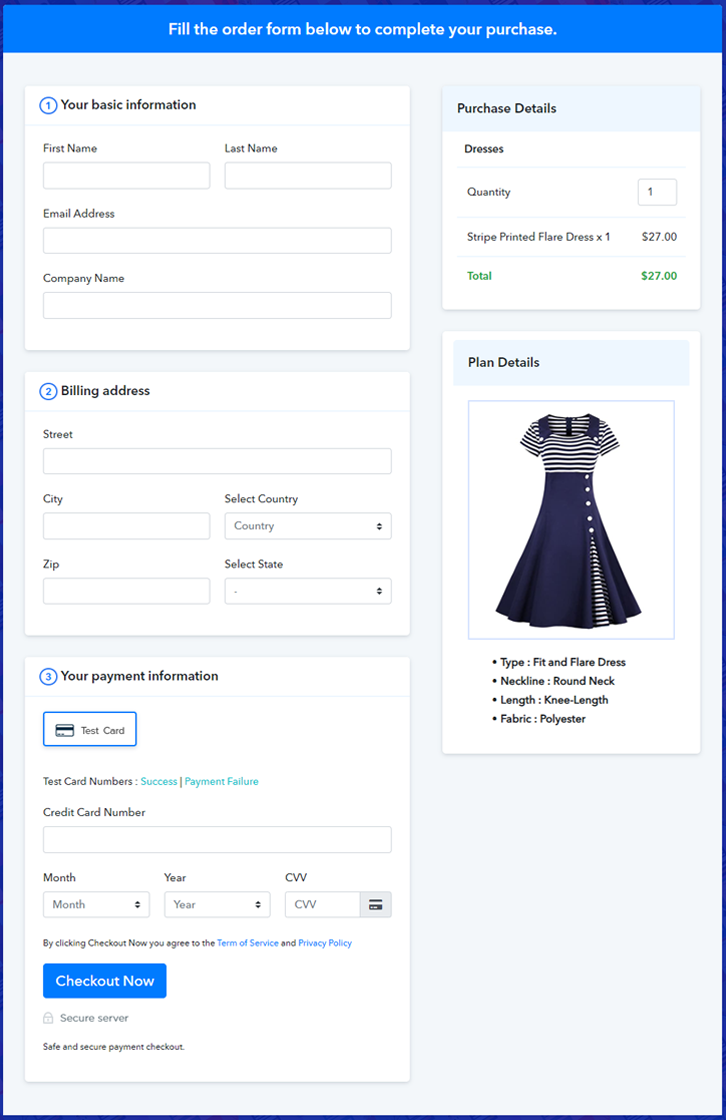
Final View of Checkout Page for your Dresses Selling Business

Preview Checkout Page - Sell Dresses Online

Preview Checkout Page

Step 1: Log in to Pabbly Subscription Billing

Signup

Firstly, visit Pabbly Subscription Billing website and click on the ‘Sign Up Free‘ button. You’ll land over a registration page, here you can either sign-up directly by Gmail or manually fill the form.

Sign Up For Free!

Step 2: Select Subscription Billing

Access Subscription Billing

Step 3: Account Setup

Setup Account

The next step is to fill some company details to finish the system setup. So, fill in the information asked & push ‘Continue’.

Step 4: Connect Payment Gateways & Start Dresses Selling Busines Online

Connect Payment Gateway

Now, to collect payments for the goods that you wanna sell, you’ll need to integrate a payment gateway method. For first time testing, you can use the ‘Enable Test Payment’ option also. Moreover, you can select a payment gateway from the following choices given with their integration guides linked for your reference.

Step 5: Add Product For Your Dresses

Add Product

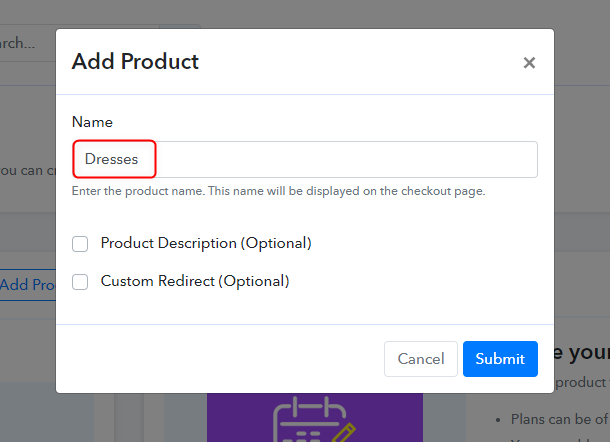
Next, we’ll create products and you can name a product as per a category of dresses like mini dresses, floral dresses, etc. More further, we’ll add plans to these product categories.

Add Product

Note: Here you can add all the products related to the similar category by creating plans for each of them.

Step 6: Add Plans 

Let’s rollout plans for different kinds of dresses available in your store.

(a) Select Add New Plan

Add Plan

(b) Specify the Plan & Pricing Details

Add Plan

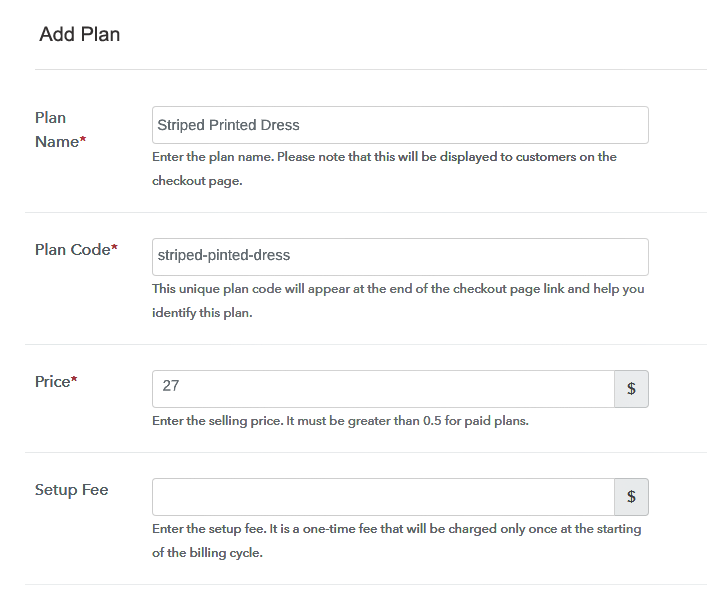
Here, you can state the name, price plus other details of dresses in the plan details page.

(c) Add Image & Description of Dresses

Add Product Details

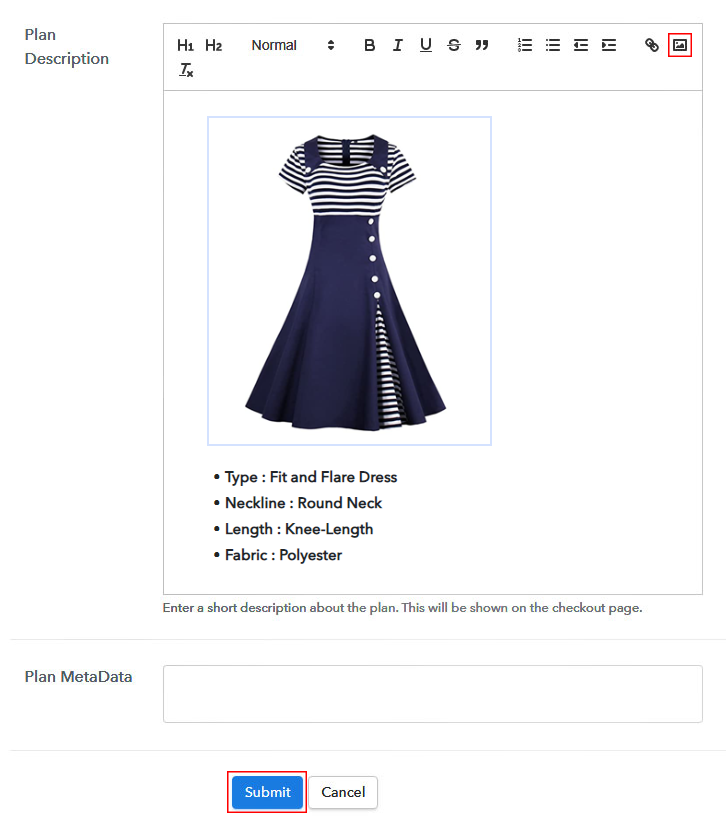
Moreover, if you want to reveal an image with some description of the dress you can mention it under the ‘Plan Description’ field.

Hit the ‘Submit’ button and a plan will be launched immediately to sell dresses online.

Likewise, you can add other dresses also.

Step 7: Share your Checkout Page

Share Checkout Page on Social Media

To start clothes business online, you can share a checkout page & draw customers on the payments page. There are three ways to do so.

  • First, you can share the plan link on social media channels such as SMS, emails, WhatsApp, etc.
  • Second, strike the Facebook & Twitter sharing buttons to directly share a checkout page onto there platforms.
  • Lastly, you can redirect a customer on the payment checkout pages by linking the plan link URL within the buttons and text anchors for a website or app.

Step 8: Preview Checkout Page

Follow up the recommended steps to preview the checkout page:

(a) Click on the View Button

View Checkout Plan

(b) Take a Look at the Checkout Page

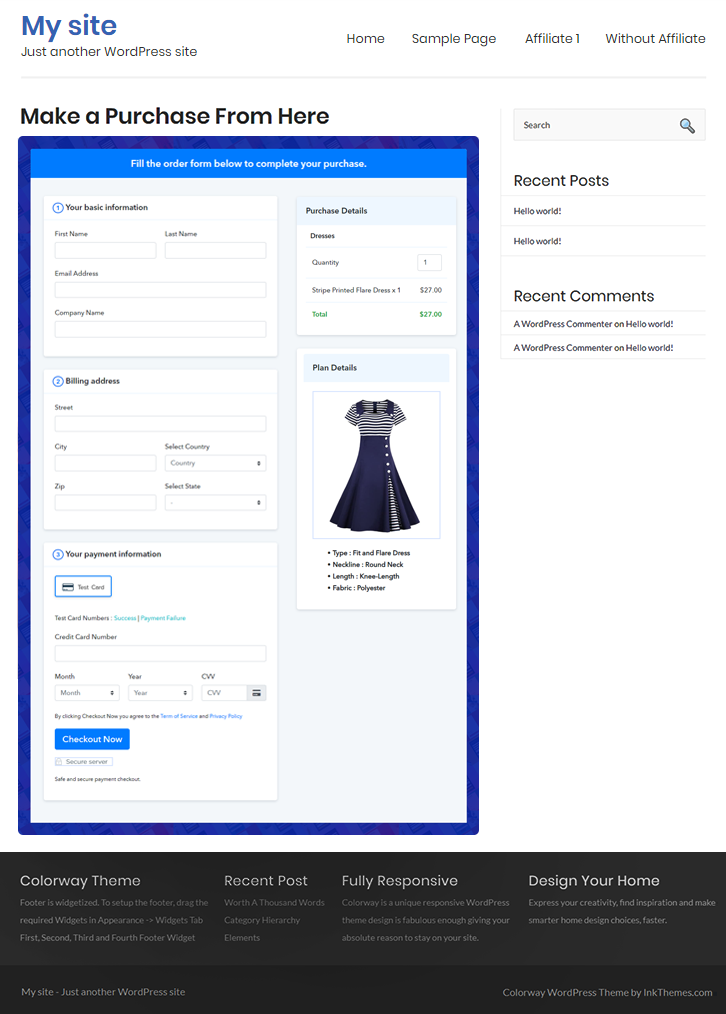
Preview Checkout Page - Sell Dresses Online

Step 9: Embed Checkout Page in Site & Sell Dresses Online

Embed Checkout Page on Website

Just copy the link and add the checkout page to sell Dresses online at any preferable place on your WordPress site.

(a) Edit the Page & Paste the Copied Link

Paste Link in Text Editor

Further, paste the plan link on a text editor of the WordPress dashboard.

(b) Save & Publish the Checkout Page

Save and Publish

Next, click the “Publish” button, after making changes.

(c) Check out the Final Look of your Checkout Page on WordPress Site

Preview Checkout Page on WordPress Site

Step 10: Multiplan Checkout Page

Note: In case you want to sell multiple products via a single checkout page, you can create a multi-plan checkout page otherwise skip this step.

(a) Click on Add Multiplan Checkout

Multiplan Checkout

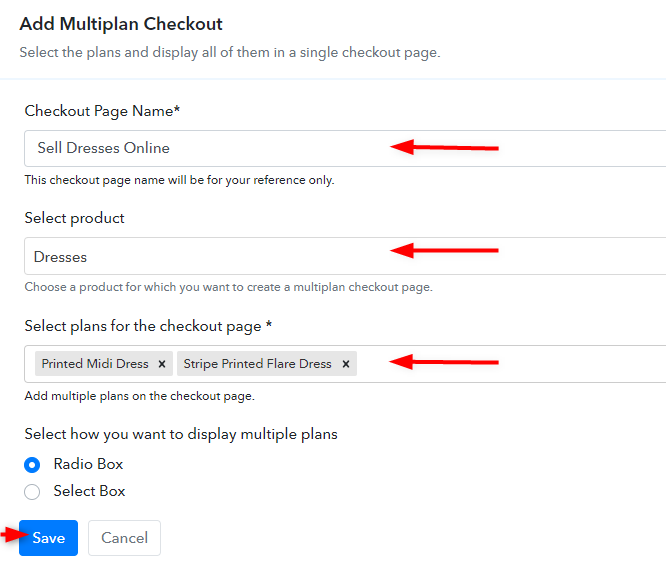
(b) Add Plans to Sell Multiple Dresses from Single Checkout Page

Create Multiplan Checkout Plan

(c) Take a Look at the Checkout Page

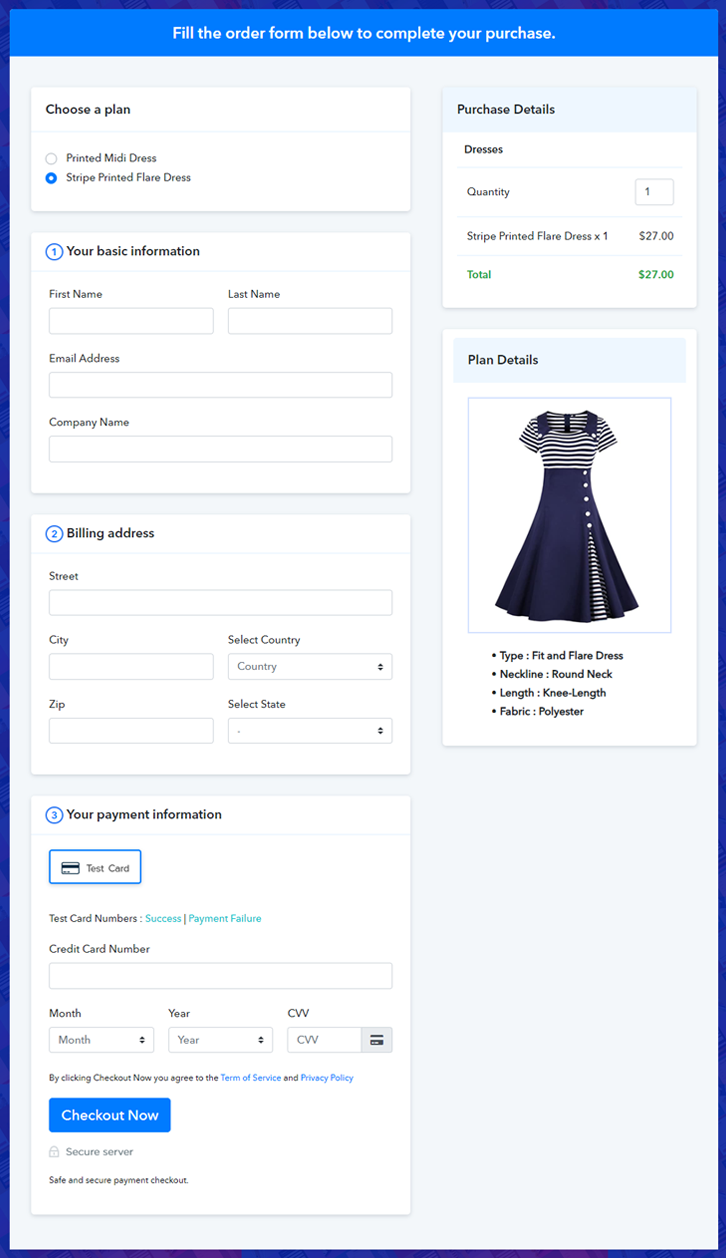
Preview Multiplan Checkout Page

Preview Checkout Page

Final Words

For today’s fashionistas having several pairs of dresses is essential. But choosing the several dresses from stores is complicated. So, provide them multiple options of dresses by setting up an online store. This was the entire procedure for creating checkout pages to sell dresses online. As you can see by yourself that the process is very simple and even a non-techy person can follow them easily.

Besides this, you can automate the billing/invoicing, accept multiple currencies, keep track of the revenue from the dashboard, and can easily sell unlimited dresses worldwide.

You May Also Like To Read –
How to Sell T-Shirts Online | Step by Step (Free Method)

How to Sell T-Shirts Online

Ideal For: All the T-shirt manufacturers, T-shirt sellers, retail T-shirt shop owners, and other merchants can use this method to take their T-shirts selling business online.

How to Sell T-Shirts Online

Why Choose this Method to Sell T-Shirts Online?

Unlike any other solution, this method allows you to:

  • List and sell your T-shirts for FREE. Absolutely no payment required.
  • No need to pay commission on any of your sale.
  • Multiple payment options like PayPal, Credit Card, etc to collect payment from a single place.
  • Sell one time or recurring subscriptions of your T-shirts.
  • Collect payments & sell products in any currency as per your requirement.
  • Give discounts on your products by offering special coupon codes.
  • Add sales commission agents to help you in selling T-shirts online.

Get Pabbly Subscription Billing for Free

The clothing industry has always remained in profit from decades. And this is another business choice that is promising in teams of earnings. So, if you are looking for some way to extend your business and sell T-shirts online then we can give you a head start by suggesting a time-saving way.

You can make use of a selling service called Pabbly Subscription Billing selling service. This service lets you create plan checkout pages to sell t-shirts online. The process will take just a few seconds and you can share the checkout pages on social media and other link sharing platforms for selling t-shirts online.

Moreover, the service also provides a well functioning dashboard to track the sales and keep records of all the products in stock. You can automate the billing and invoicing process. Also, it gives you multiple choices for the payment gateways.

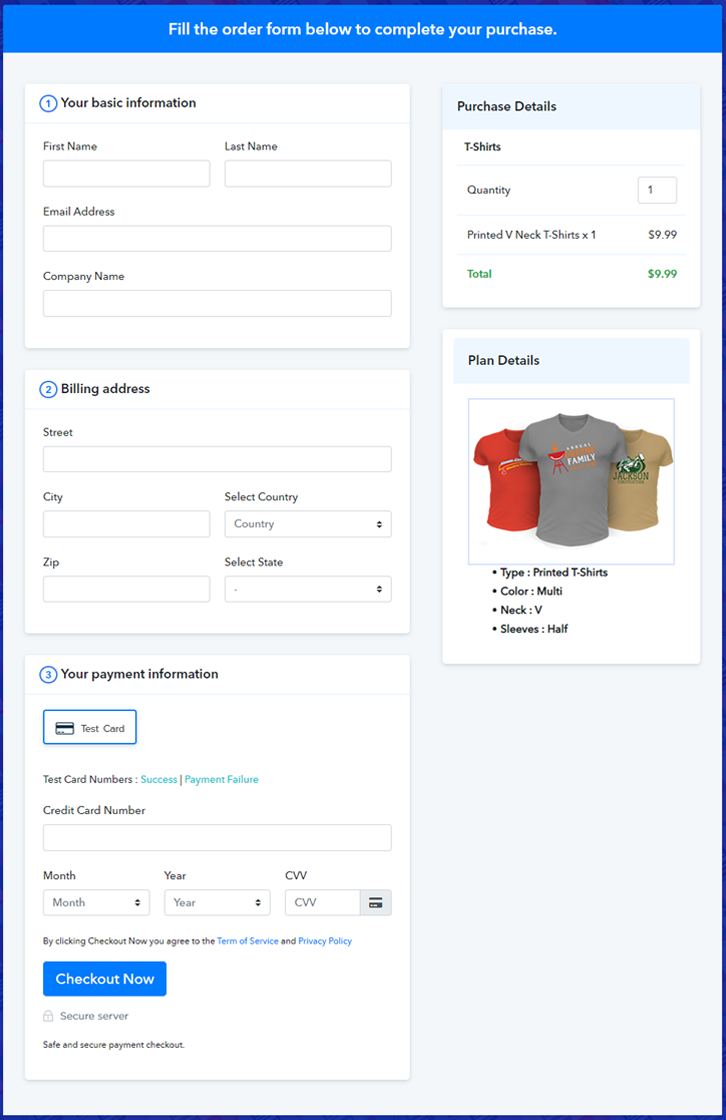
Final View of Checkout Page for your T-Shirts Selling Business

Checkout Page Preview to Sell T-Shirts Online

Preview Checkout Page

Step 1: Log in to Pabbly Subscription Billing

Signup

To get started begin with visiting Pabbly Subscription Billing website and then click on ‘Sign Up Free‘ button there. On the redirected page, either make use of an existing Google account or sign-up manually by filling out the registration form.

Sign Up For Free!

Step 2: Select Subscription Billing

Access Subscription Billing

Step 3: Account Setup

Setup Account

Next, you’ll be requested to fill out some company details in a pop-up window to complete the setup. Quickly fill in your company name, preferable currency & a contact number.

Step 4: Connect Payment Gateways & Start T-Shirts Selling Business Online

Connect Payment Gateway

Now, you can integrate a payment method to collect payments for the sold t-shirts further. You can also choose the test payment option here for testing the functionality of this service. But apart from testing, you must integrate a payment method from the following options given along with their integration guides.

Step 5: Add Product for your T-Shirts

Add Product

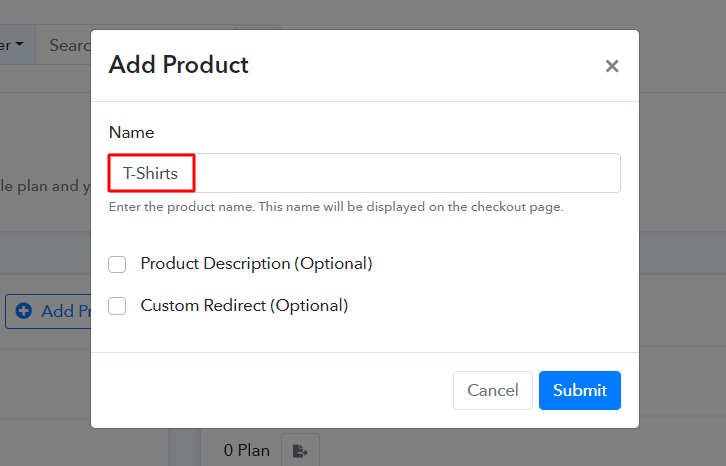
The next step is to add products to sell t-shirts online. Here you can add products based on different categories such as full sleeves, V-neck, printed etc.

Add Product to Sell T-Shirts Online

Mention the required details & a product will be added instantly in the list.

Note: Here you can add all the products related to the similar category by creating plans for each of them.

Step 6: Add Plans 

Now, let’s start adding plans for diverse kinds of t-shirts available in your store.

(a) Select Add New Plan

Add Plan

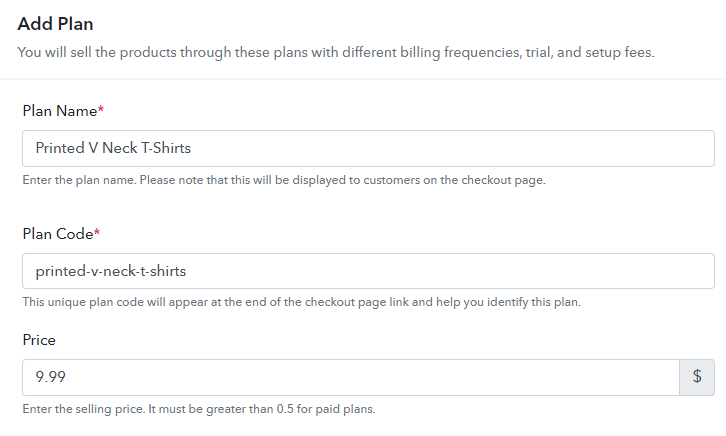
(b) Specify the Plan & Pricing Details

Add Plan to Sell T-Shirts Online

In the plan details page, you can mention the name of the t-shirts, its code, pricing details etc.

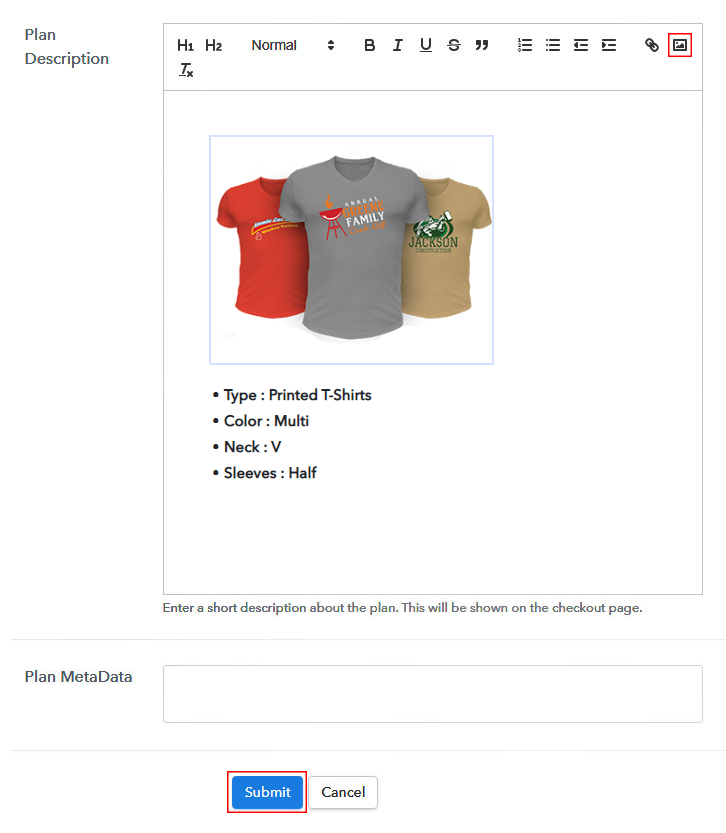
(c) Add Image & Description of T-Shirts

Add Image & Description to Sell T-Shirts Online

Also, you can insert an image & description of the t-shirt using various text formatting options.

Once you hit ‘Submit’ on this page a plan checkout page will be generated.

Similarly, you can add other plans to sell t-shirts online.

Step 7: Share your Checkout Page

Share Checkout Page on Social Media

To start t-shirts business online, you can share the plan checkout pages in the following three ways.

  • First, you can share the checkout page on Facebook & Twitter using the  sharing buttons
  • Next, you can share the checkout pages over emails, SMS, WhatsApp etc by sharing the checkout plan link mentioned
  • Lastly, you can embed the checkout plan link within the buttons & text anchors of any site or app to redirected a customer on the checkout page

Step 8: Preview Checkout Page

Follow up the recommended steps to preview the checkout page:

(a) Click on the View Button

View Checkout Plan

(b) Take a Look at the Checkout Page

Checkout Page Preview to Sell T-Shirts Online

Step 9: Embed Checkout Page in Site & Sell T-Shirts Online

Embed Checkout Page on Website

Just copy the link and add the checkout page to sell T-shirts online at any preferable place on your WordPress site.

(a) Edit the Page & Paste the Copied Link

Paste Link in Text Editor

Further, paste the plan link on a text editor of the WordPress dashboard.

(b) Save & Publish the Checkout Page

Save and Publish

Next, click the “Publish” button, after making changes.

(c) Check out the Final Look of your Checkout Page on WordPress Site

Checkout Page On WordPress Site to Sell T-Shirts Online

Step 10: Multiplan Checkout Page

Note: In case you want to sell multiple products via a single checkout page, you can create a multi-plan checkout page otherwise skip this step.

(a) Click on Add Mutiplan Checkout

Multiplan Checkout

(b) Add Plans to Sell Multiple T-Shirts from Single Checkout Page

Create Multiplan Checkout Page to Sell T-Shirts Online

(c) Take a Look at the Checkout Page

Multiplan Checkout Page to Sell T-Shirts Online

Preview Checkout Page

Wrapping Up

Well, this was all about ‘How to sell t-shirts online?’. You can see by yourself that this is the easiest, cost-effective & the fastest process available for selling t-shirts online. Moreover, the service has no limit over the revenue generated or the number of sales.

Hope this was helpful, Good Luck for your t-shirts business!

You May Also Like To Read –