How to Create leads in Freshsales from New Google Sheets Rows

How to Create leads in Freshsales from New Google Sheets Rows

Have you ever tried to create leads in Freshsales from new Google Sheets rows? Yes, you might have. but here in this blog, we are going to reveal the easiest approach to integrate Freshsales and Google Sheets using Pabbly Connect.
How to Create leads in Freshsales from New Google Sheets Rows

Although the question must be rising in your mind why there is a need of integrating Freshsales and Google Sheets. Basically, Freshsales is a full-fledged sales CRM software for all business needs. Whereas, Google Sheets is spreadsheet software for business and personal use.

By integrating Google Sheets and Freshsales, we can save customers details directly from Google Sheets in Freshsales software as a lead.  As you all know there is no way to directly connect both software, this is why we are recommending an integrating tool named Pabbly Connect.

Why Choose This Method Of Integration?

In contrast with other integration services-

  • Pabbly Connect does not charge you for its in-built apps like filters, Iterator, Router, Data transformer, and more
  • Create “Unlimited Workflows” and smoothly define multiple tasks for each action
  • As compared to other services which offer 750 tasks at $24.99, Pabbly Connect proffers 50000 tasks in the starter plan of $29 itself
  • Unlike Zapier, there’s no restriction on features. Get access to advanced features even in the basic plan
  • Try before you buy! Before spending your money, you can actually signup & try out the working of Pabbly Connect for FREE

Sign Up To Pabbly Connect   

Pabbly Connect allows you to automate all your repetitive work without needing any coding skills. In a matter of time, you can connect multiple applications and allows data transmission among them.

Not just this, the only software available in the market that doesn’t restrict on features like path routers, filters, unlimited workflows, and much more even in its free plan.

Here, in this article, we will understand how to create leads in Freshsales from new Google Sheets rows in real-time.

So, without any further delay, let’s start the process of integrating Freshsales and Google Sheets.

Step 1: Sign up to Pabbly Connect
Sign Up

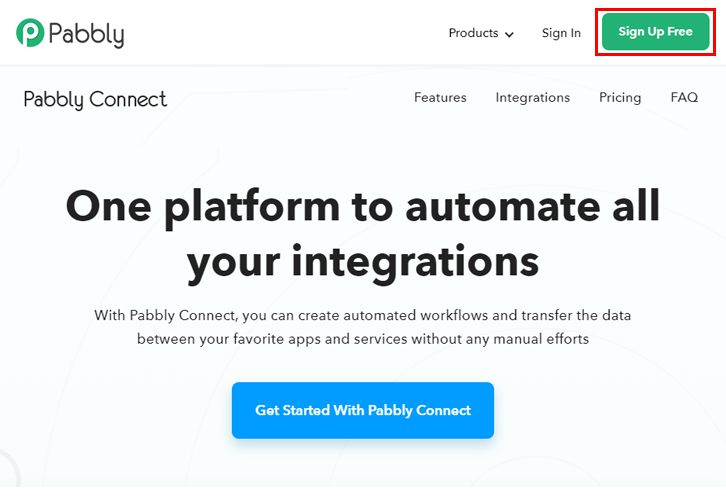
Initiate the process of connecting Freshsales to Google Sheets by clicking on the “Sign Up Free” icon on the Pabbly Connect dashboard. Subsequently, either fill-up the details manually or sign up using Gmail credentials.

Try Pabbly Connect for FREE

Step 2: Access Pabbly Connect

Select Connect

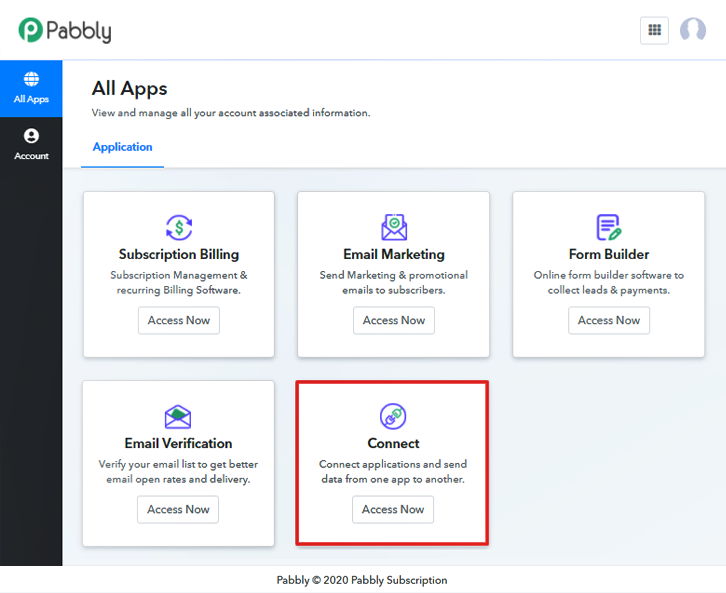
Further, after logging into the account, click on the “Access Now” button as shown in the above image.

Step 3: Workflow for Freshsales to Google Sheets Integration

(a) Start with a New Workflow
Create New Workflow

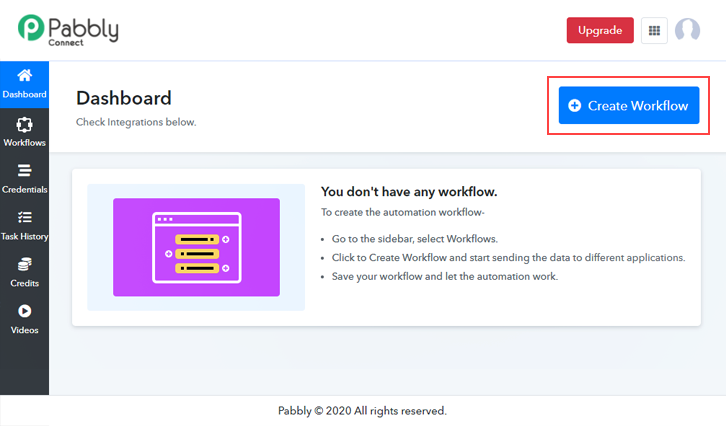
Start the process of building a workflow for integration by clicking on the “Create New Workflow” button.

(b) Name the Workflow

Name the Workflow

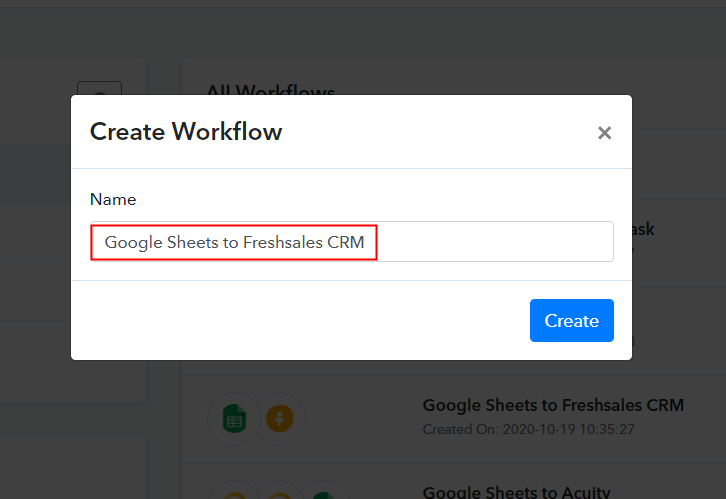
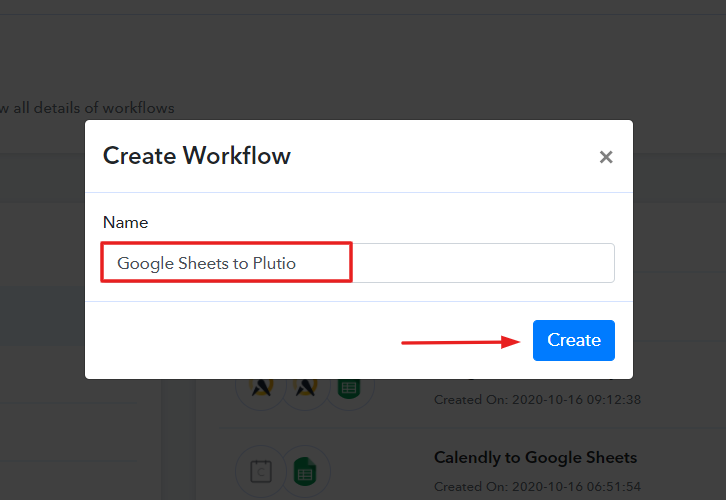
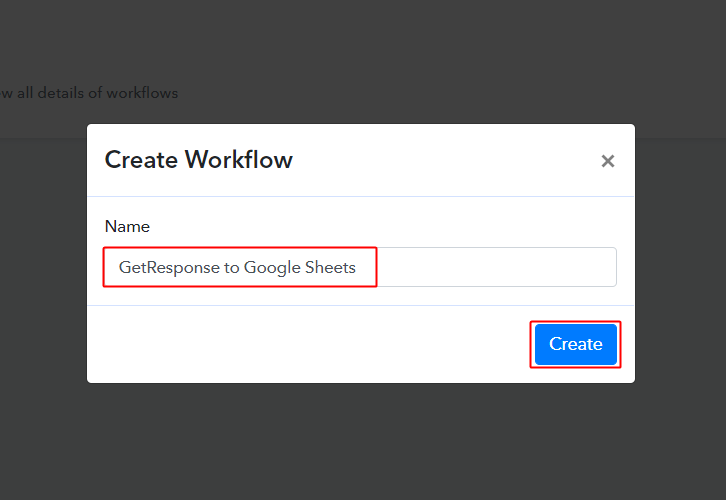
Moreover, add the name of workflow which in our case is “Google Sheets to Freshsales CRM”. Nevertheless, you can always name the workflow according to your requirements.

Step 4: Setting Trigger for Freshsales to Google Sheets Integration

Next, after building a workflow, you have to choose the integration app to add Freshsales leads from Google Sheets. Using Pabbly Connect you can avail unlimited actions and triggers, click here to sign up for unlimited workflows for free.

(a) Select Application you Want to Integrate
Select Google Sheet

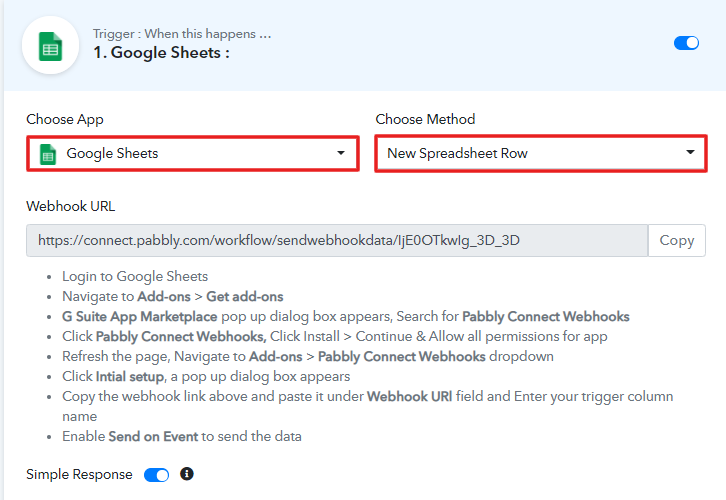
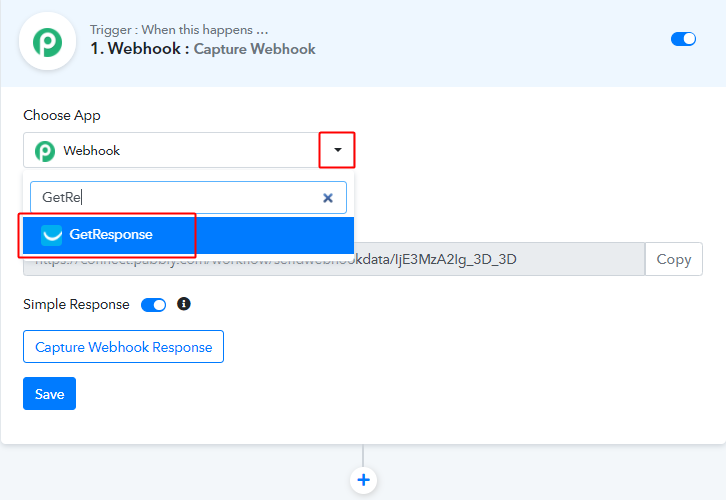
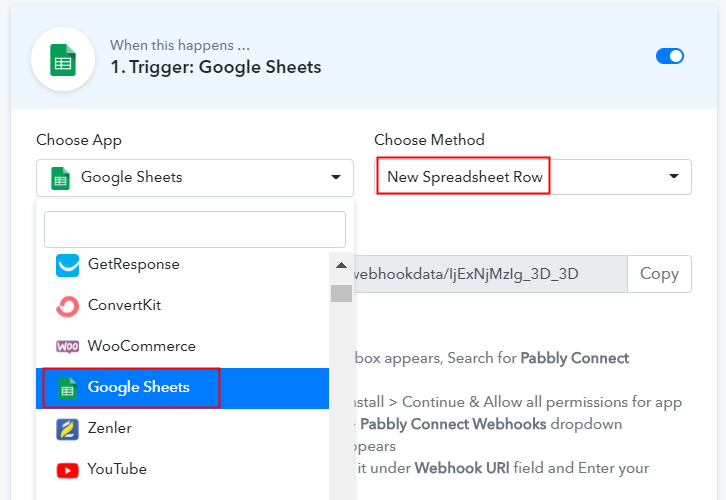
The following step is to select “Google Sheets” from the dropdown, then choose the “New Spreadsheet Row” option to append leads in Freshsales from Google Sheets.

(b) Copy the Webhook URL

Copy the Webhook URL

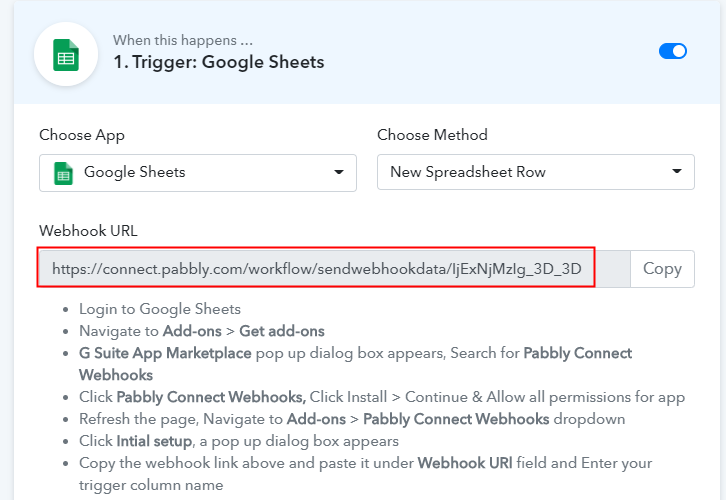
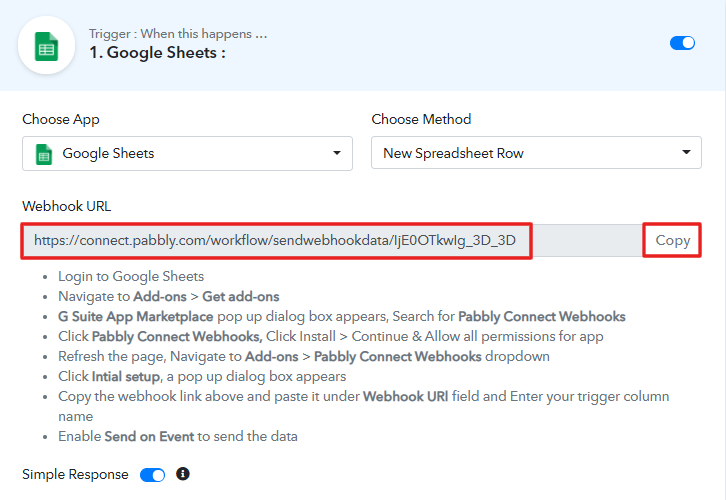
The following step is to copy the webhook URL which is appearing on the dashboard.

Step 5: Connecting Google Sheets with Pabbly Connect

To save leads in Freshsales, you gotta paste the copied Webhook URL in the sheet. But before that, you, have to install the Add-on named Pabbly Connect in your Google Sheet.

(a) Create a Google Sheets
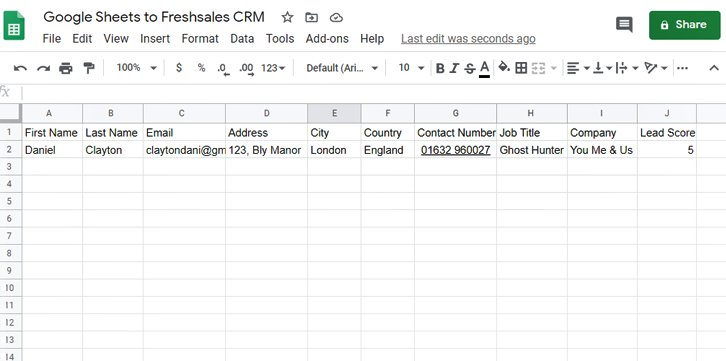
Create Google Sheets

The next thing to do is create a Google Sheets with basic details like the first name, last name, email address, and much more. You can select a sheet of your choice too.

(b) Click on Add-ons
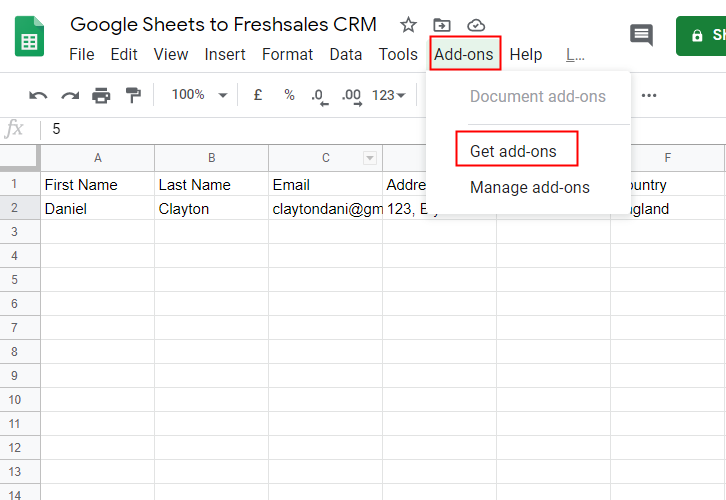
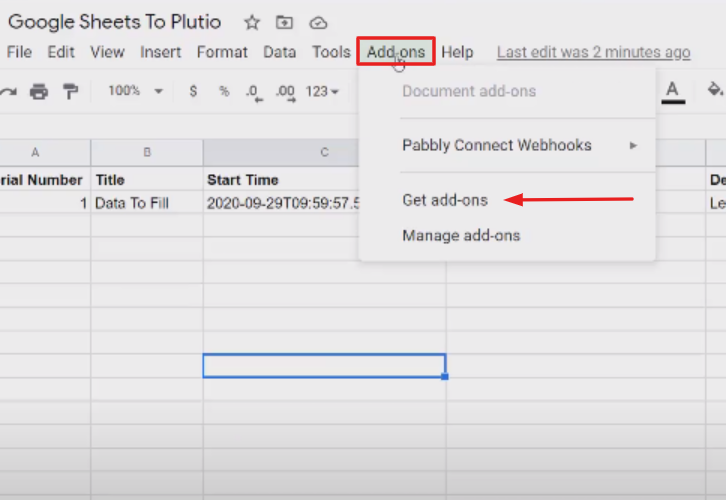
Click on Add-ons

Further, in the add-on section, you have to click on the “Get add-ons” button to download the “Pabbly Connect Webhook”.

(c) Find Pabbly Connect in G Suite Market Place
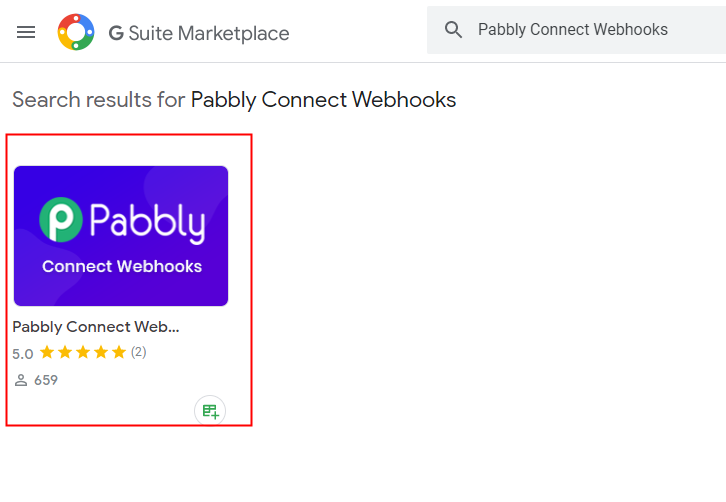
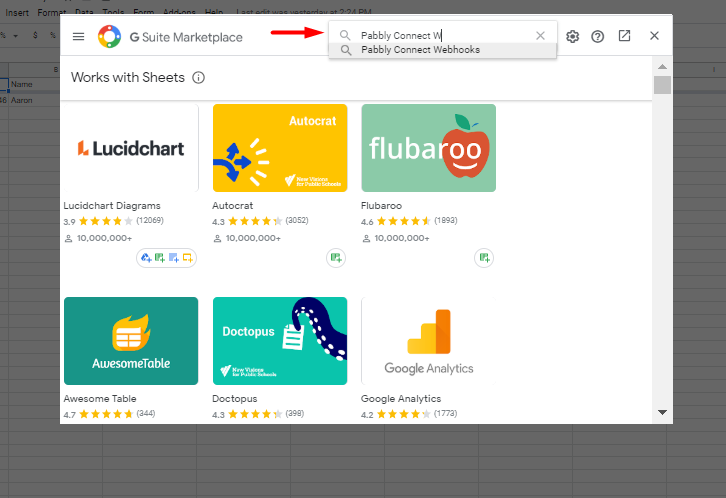
Find Pabbly Connect

After clicking on “Get Add-on” a new window will pop-up. Here in the search bar look for Pabbly Connect Webhooks.

(d) Install Pabbly Connect
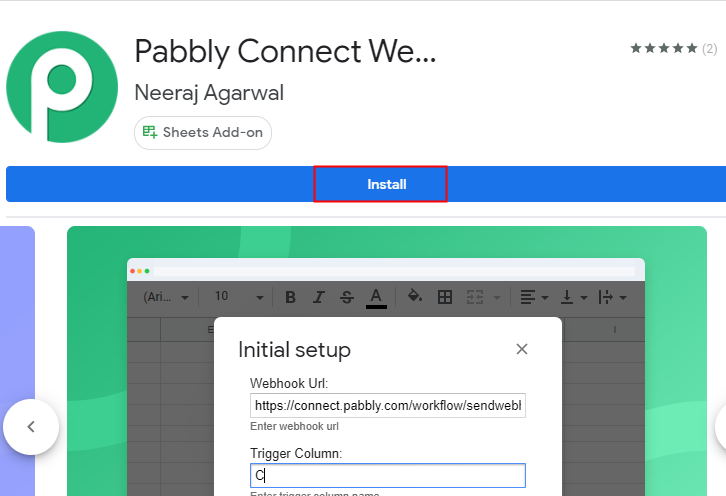
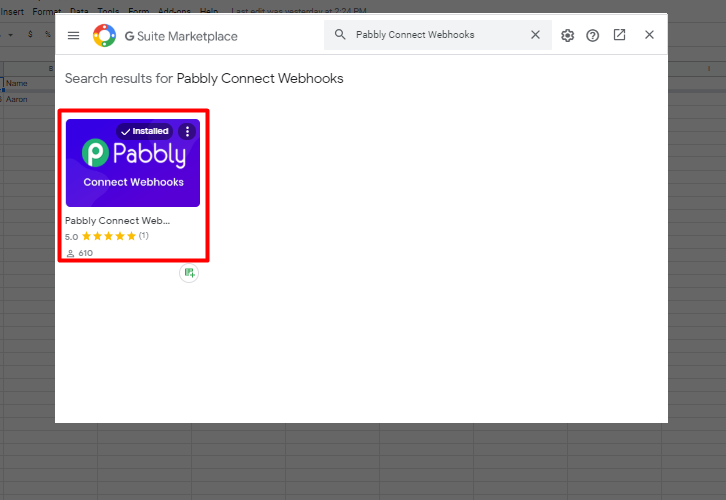
Install Pabbly Connect

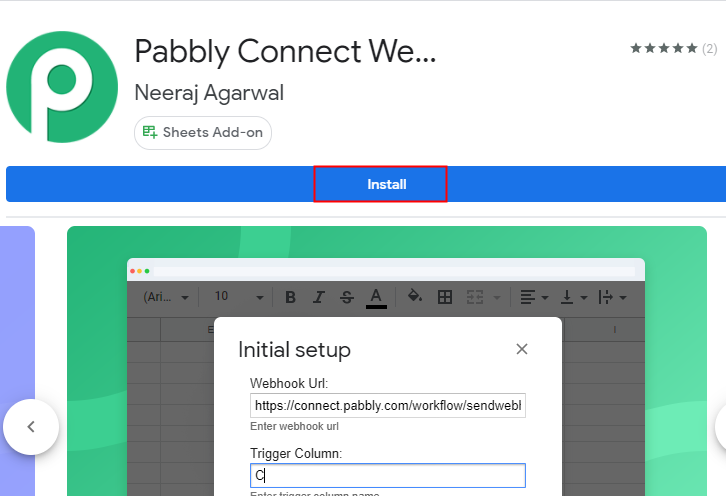
Now just click on the install option and within seconds it will get installed into your Google Sheets.

(e) Press Initial Setup in Google Sheets
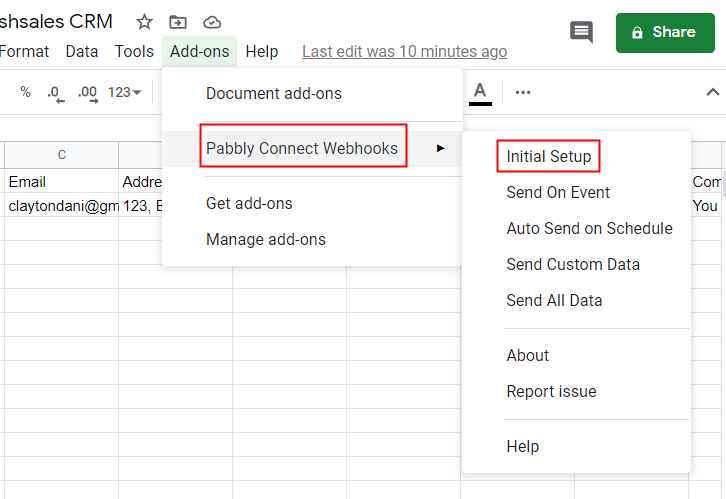
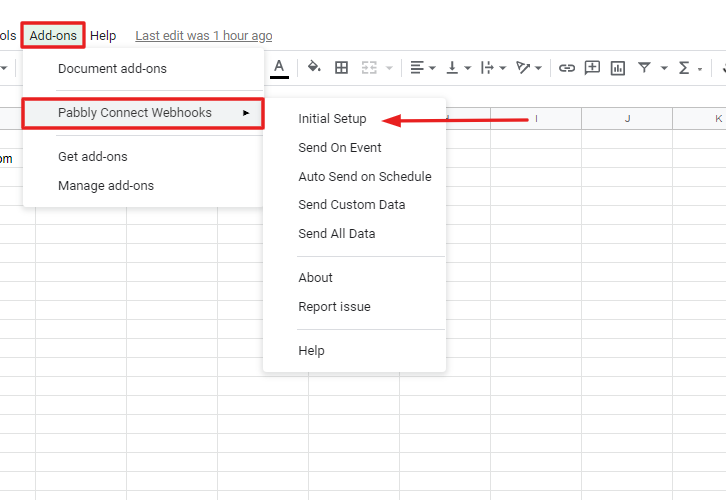
Press Initial Setup in Google Sheets

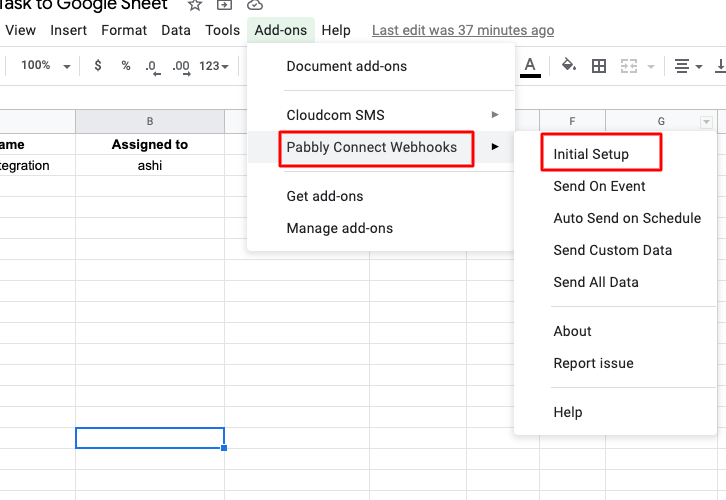
Now, when you click on add-ons, Pabbly Connect Webhook will appear there. Just click on it, it will open certain options, select “Initial Setup” to smooth the whole Google Sheets- Freshsales integration process.

(f) Paste the Webhook URL
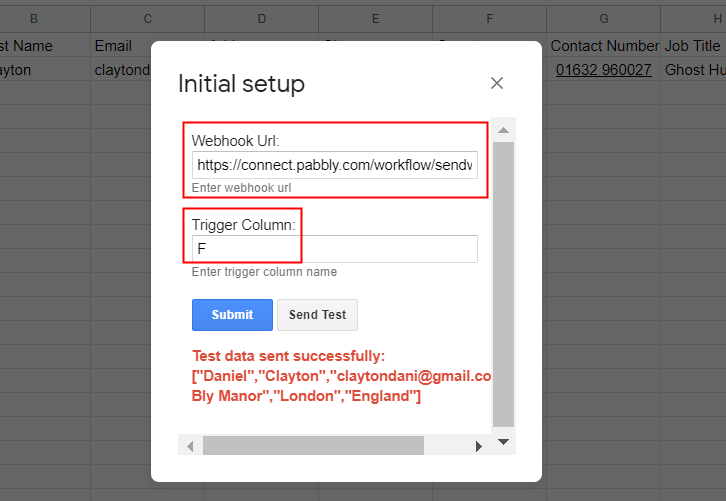
Paste the Webhook URL

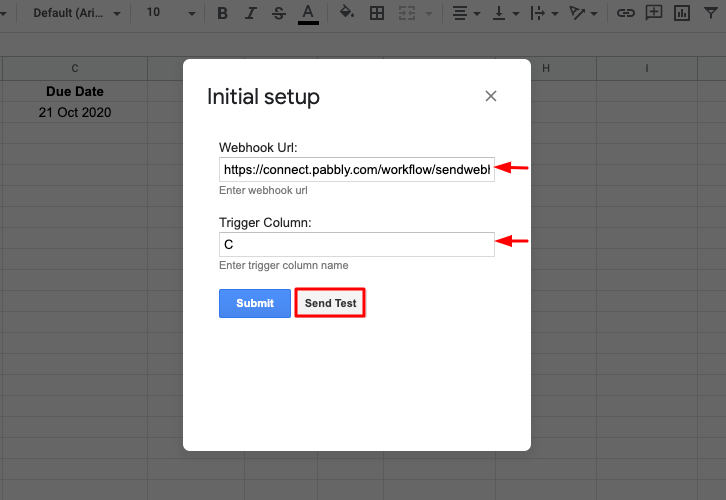
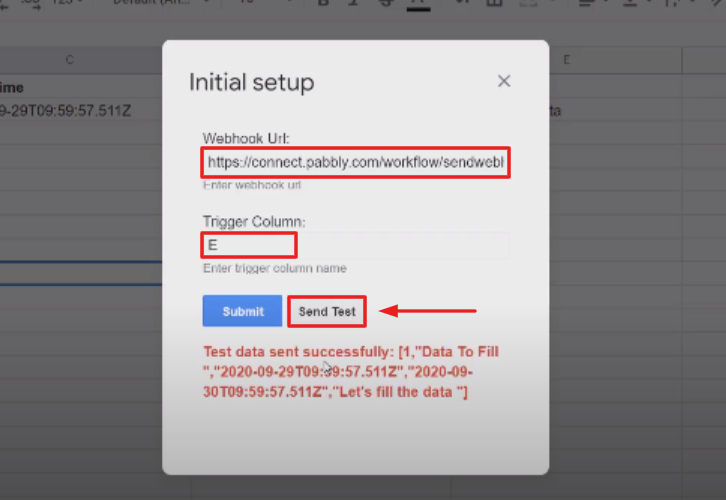
In addition, a window with two choices, the Webhook URL and Trigger Column, will appear when you press “Initial Set-Up”. In that segment, just paste your copied Webhook URL from Pabbly Connect and mention the trigger column as appropriate. To confirm the Google Sheets and Freshsales CRM integration, then click on the ‘Send Test’ button. Before submitting a test message, make sure to press ‘Capture Webhook Response’ on the Pabbly Connect dashboard.

When the test request is received, a message in red letters will indicate that the data has been submitted.

(g) Click Send On Event In Google Sheets
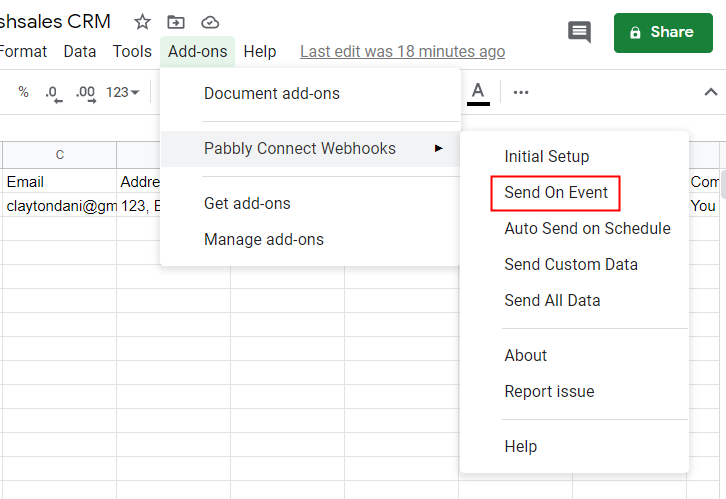
Click Send On Event In Google Sheets

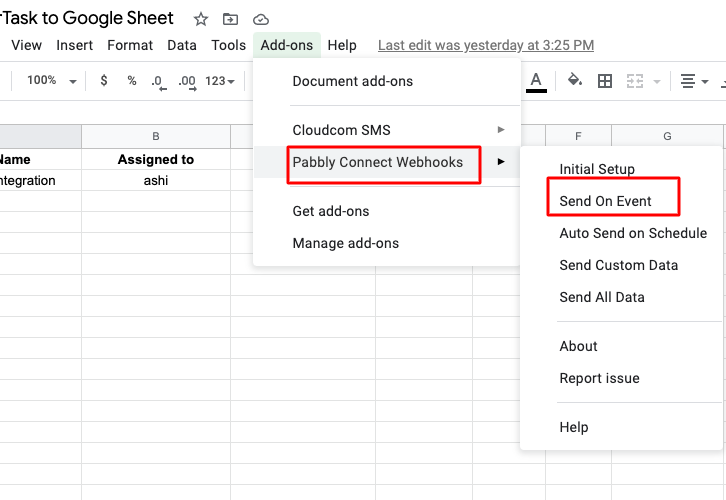
This is the additional step you have to do, to ensure that every time new data added to the sheet it will automatically appear in your Freshsales account. For this, all you have to do is click on “Send on Event” in the “Add-On” option.

Step 6: Test the Response in Pabbly Connect Dashboard
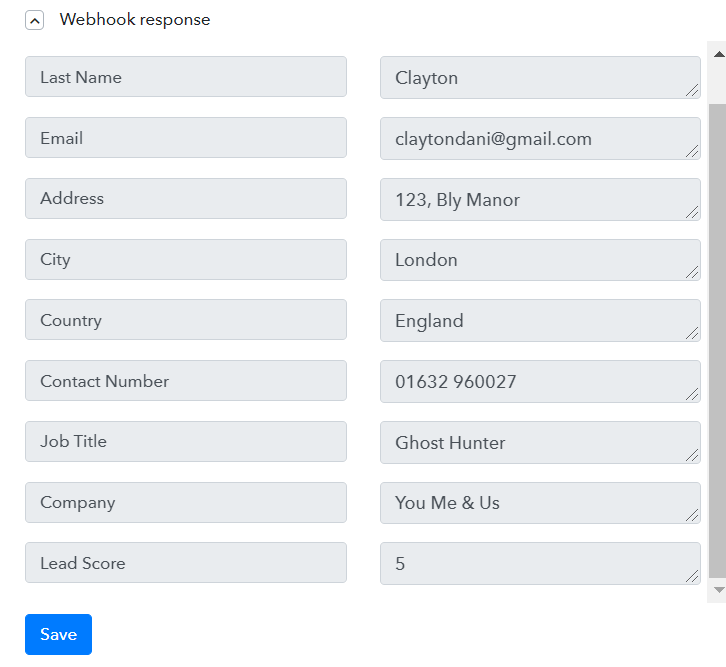
Test the Response

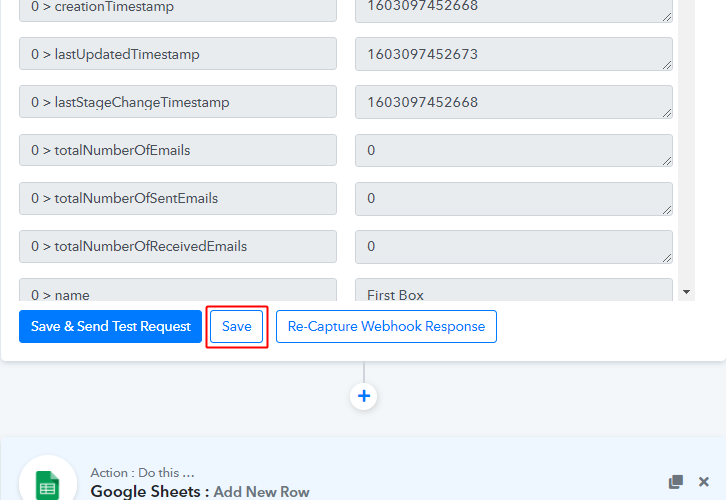
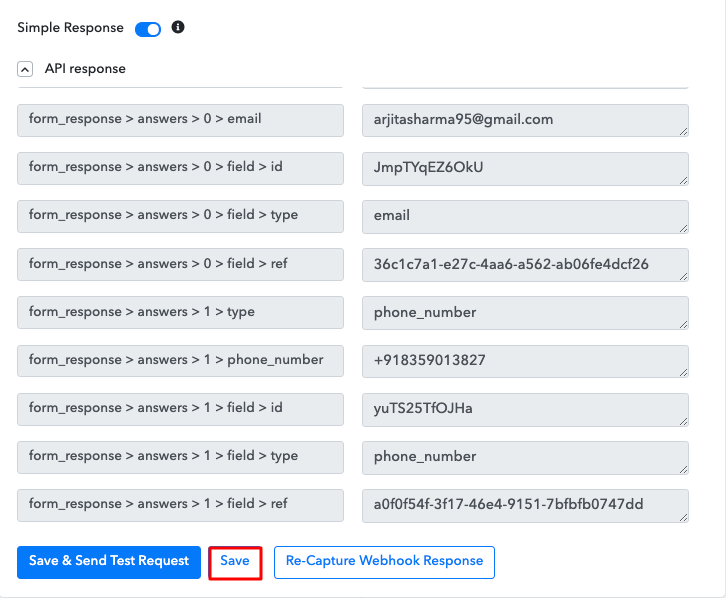
The entry will appear on the ”Pabbly Connect “ dashboard as soon as you click on the “Send Test“ option. Next, click on the ‘Save’ button.

Step 7: Setting Action for Google Sheets & Freshsales Integration

To make Google Sheets and Freshsales integration work, you have to choose the action for your trigger.

(a) Select Application you Want to Integrate
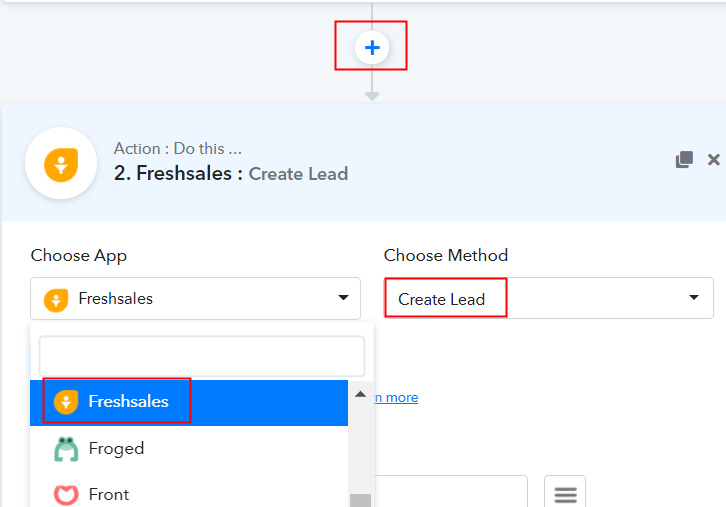
Select Freshsales

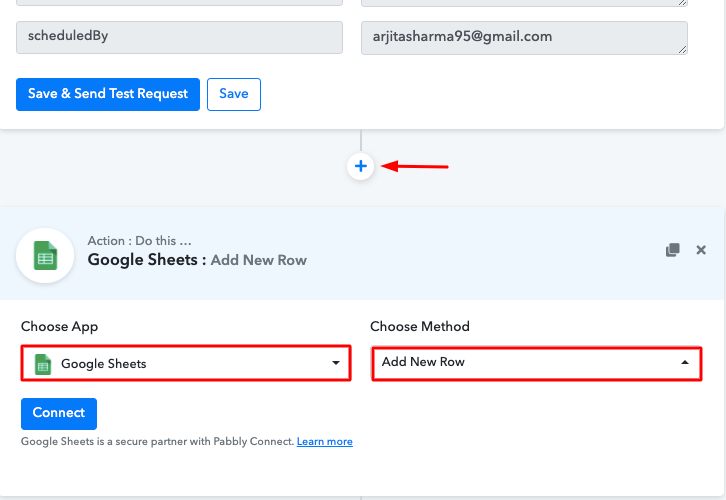
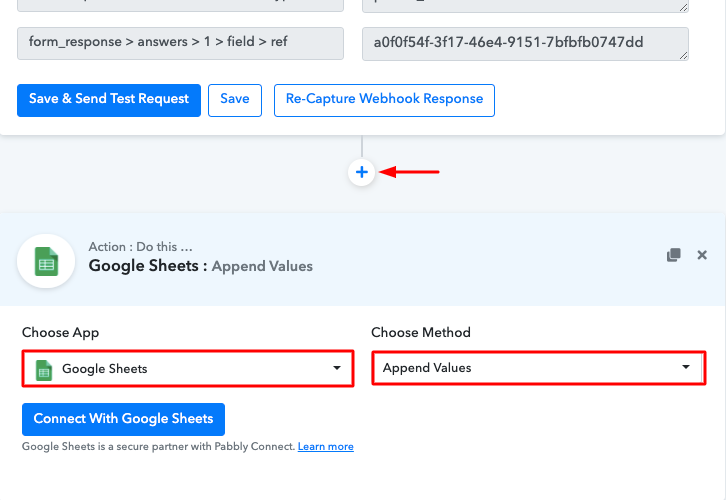
In addition, press the + icon to add an action to the trigger. Here we can pick “Freshsales” from the drop-down. Then choose the method “Create Lead”.

(b) Click the Connect Button
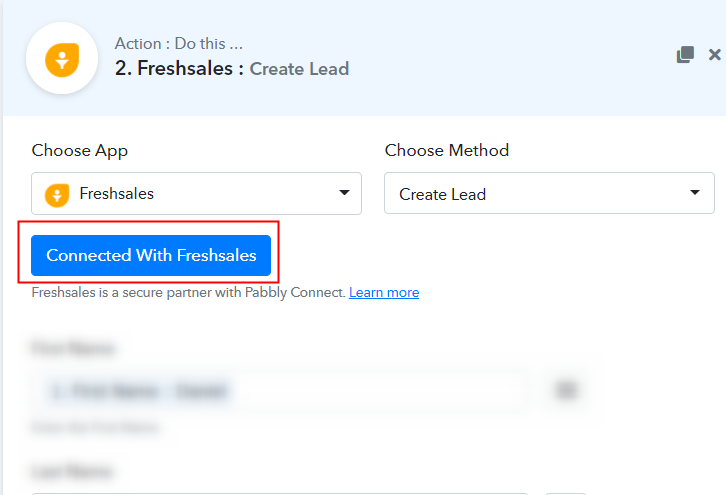
Click the Connect Button

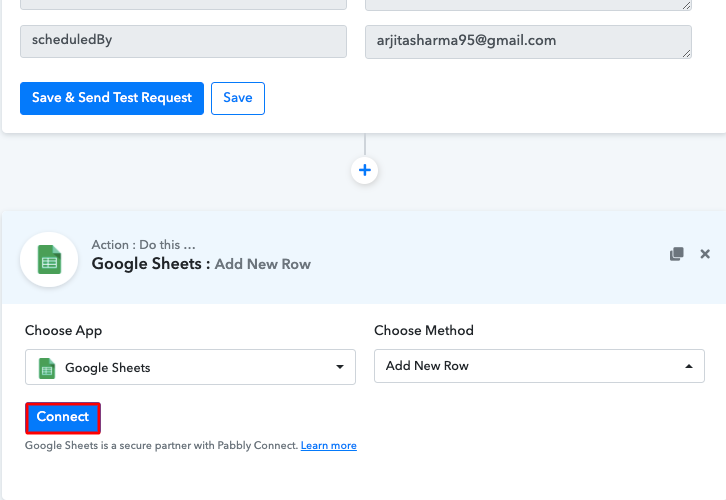
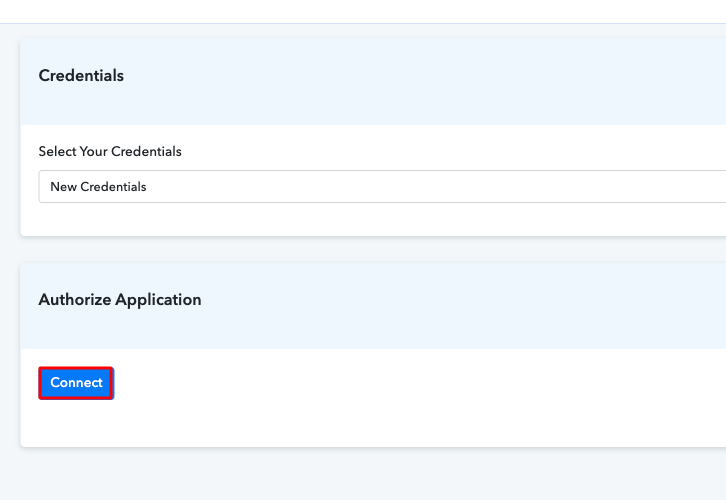
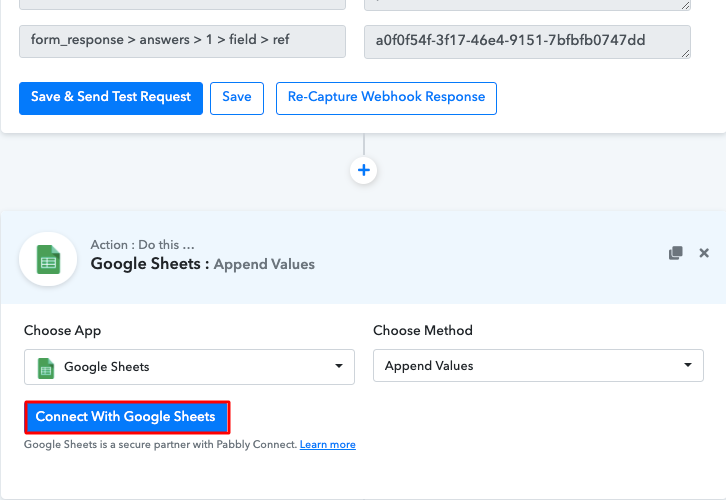
Click on the “Connected with Freshsales” button after making all the necessary adjustments. In addition, the permission window will open asking for an API key for which you have to log in to your Freshsales account.

Step 8: Connecting Freshsales to Pabbly Connect

To connect Google Sheets to Freshsales, you need to paste the “API Key” for which you have to log in to your Freshsales account.

(a) Go to Freshsales Settings
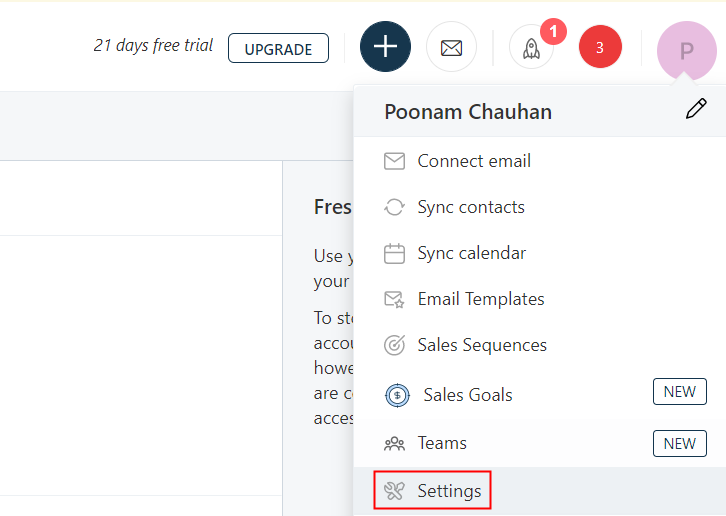
Go to Freshsales Settings

As soon as you entered into the Freshsales dashboard, go to the “Settings” options appearing on the top.

(b) Click on API Settings Option
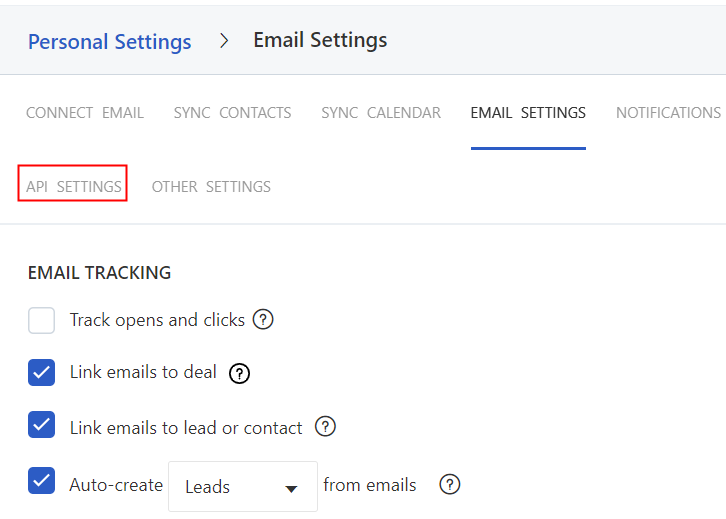
Click on API Settings Option

Further, click on the “API Settings” option.

(c) Copy an API Key
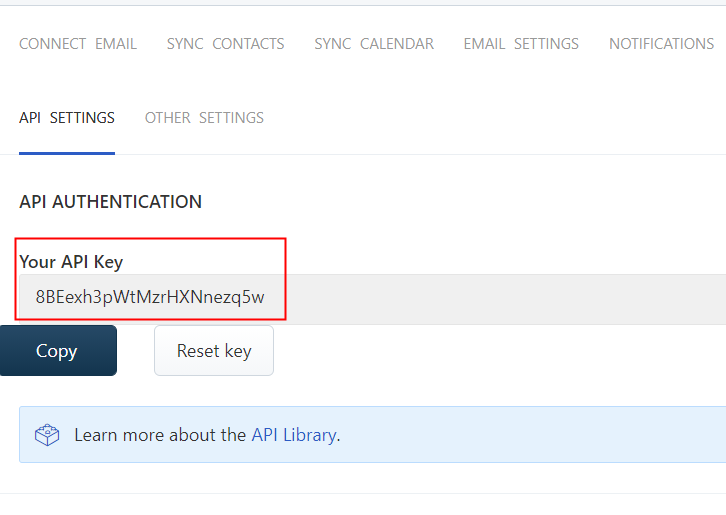
Copy an API Key

Lastly, all you have to is copy an API key appearing on the dashboard.

Step 9: Paste API Key in Pabbly Connect Dashboard

You need to move back to the Pabbly Connect dashboard and paste the API key in order to create leads in Freshsales.

(a) Fill API Key and SubdomainFill API Key and Subdomain
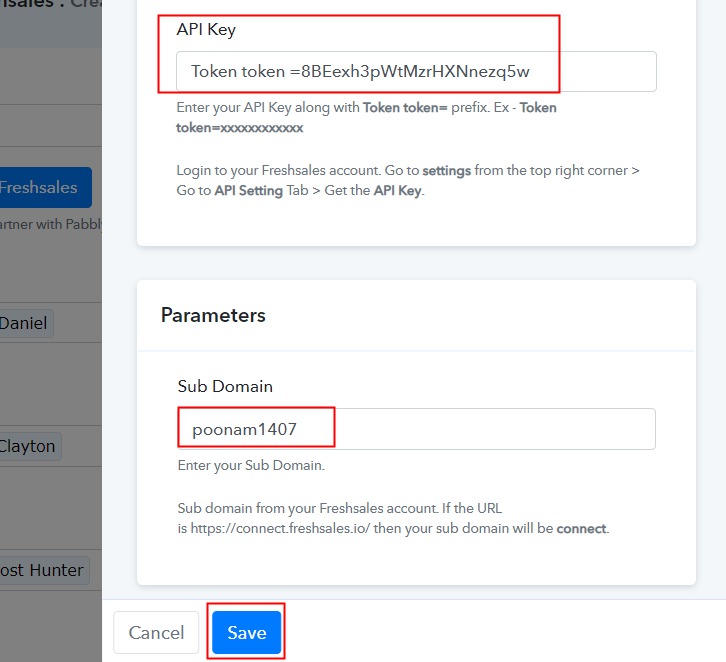
Now fill the copied API key as shown in the image and in subdomain fill your unique id. After pasting the key, simply hit the “Save” button.

(b) Map Field Data
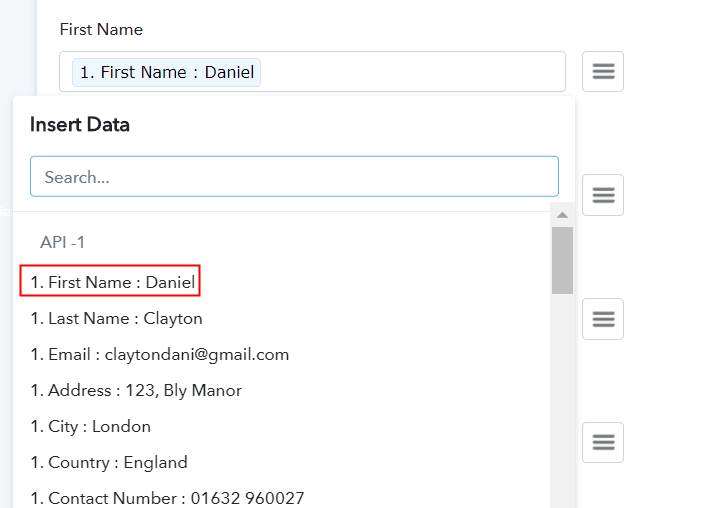
Map Field Data

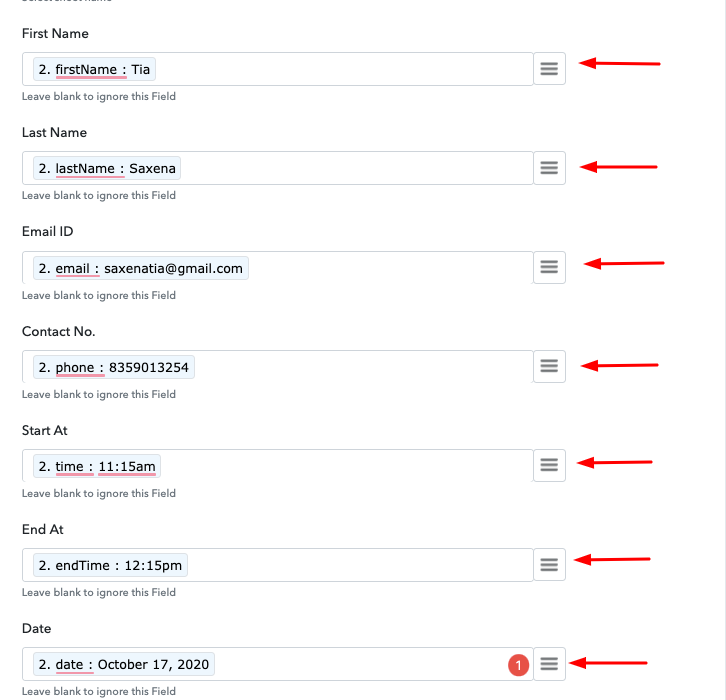
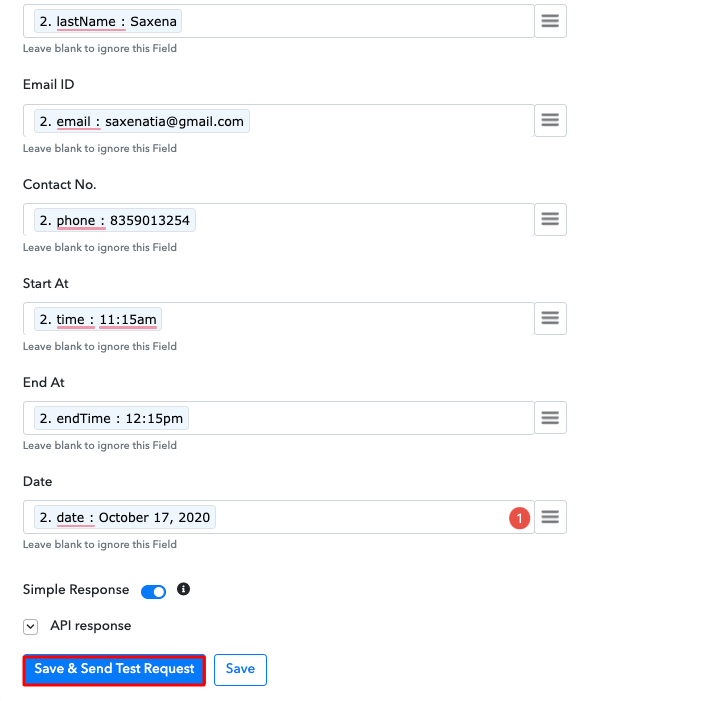
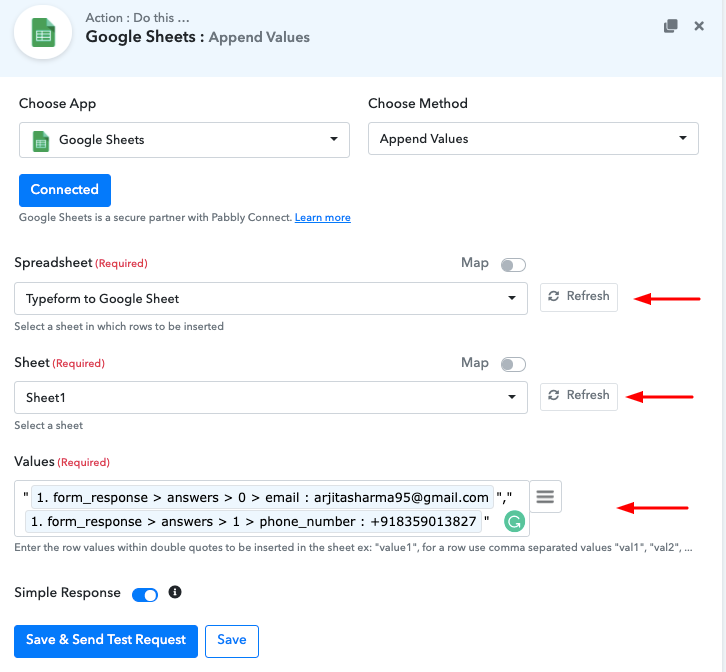
Just map the appropriate field from the drop-down region, such as the email field, select the email option, and select the name option for the name field.

(c) Save and Send Test Request
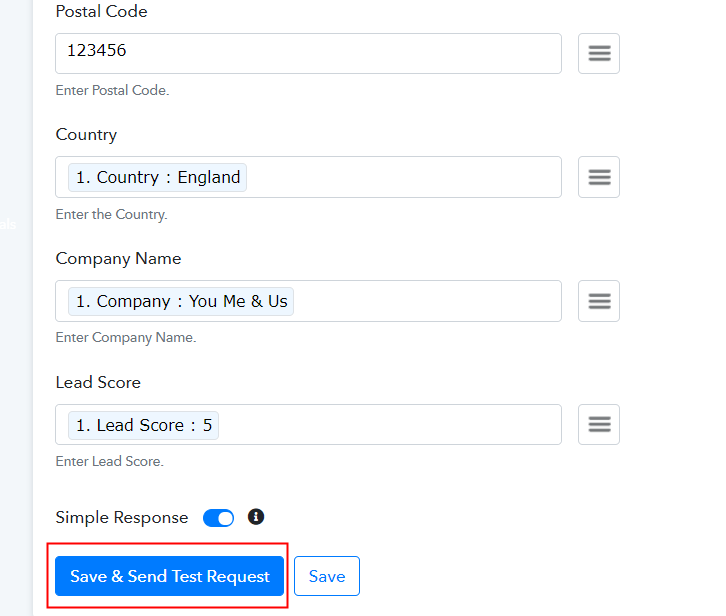
Save and Send Test Request

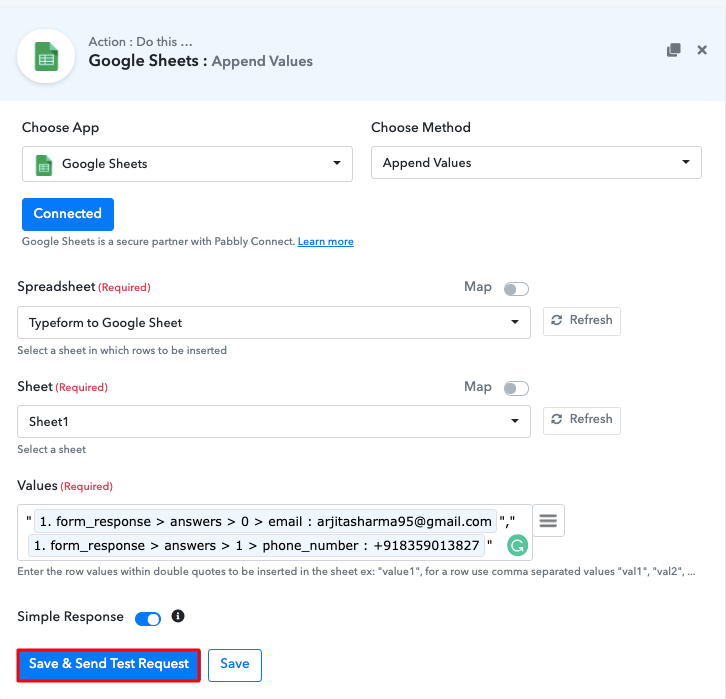
Subsequently, after filling all the details, save the setting and then “Send Test Request” to test the Google Sheets Freshsales integration.

Step 10: Check Response in Freshsales Dashboard
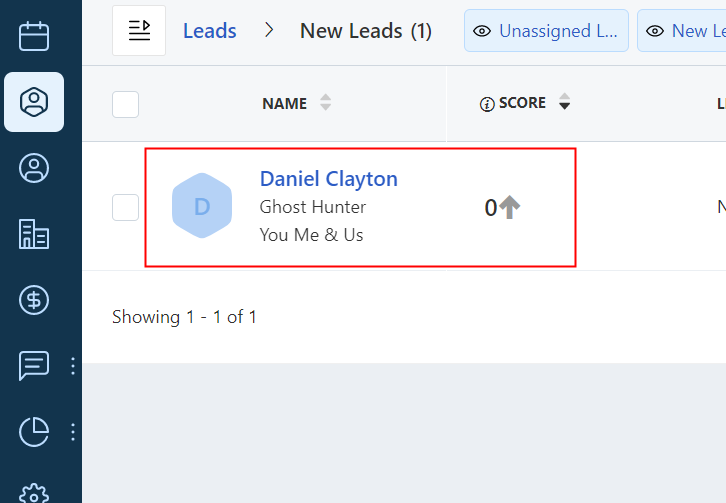
Check Response in Freshsales Dashboard

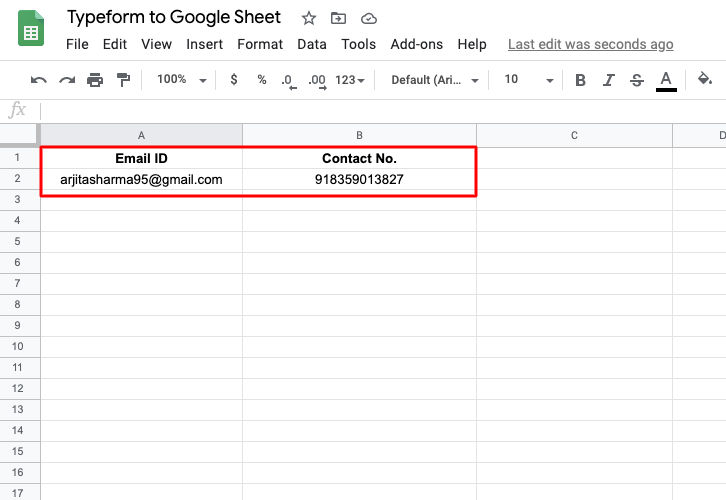
Finally, your submission will immediately appear there when you search the leads segment of Freshsales.

You now know how to connect Google Sheets to Freshsales. This is a one-time operation. The online business automation platform, i.e. Pabbly Connect will now do all the manual work.

Conclusion

Alright! This is our catch on “how to create leads in Freshsales from new Google Sheets rows” using Pabbly Connect. Believe us, it is one of the best integration software in the market that allows data transmission in a matter of time. Just follow all the mentioned steps and nothing else. Plus the software doesn’t restrict you on any features even in its free plan.

So, what’s stopping you now, Go and try Pabbly Connect for Free.

You May Also Like To Read –

How to Sync GitHub Issues to Google Sheets New Rows

Sync GitHub Issues to Google Sheets New Rows

In this blog, we are going to walk you through the step by step procedure to sync the GitHub issues to Google Sheets automatically. As we sometimes need to save all the issues into spreadsheets & further use this data to keep track.

We’ll simply integrate GitHub with Google Sheets using Pabbly Connect to automatically save the new arriving issues in our spreadsheet rows. Pabbly Connect supports connecting two or more services together share information between them in real-time.

Sync GitHub Issues to Google Sheets New Rows

We’ll set up a trigger on GitHub’s ‘New Issue’ event and its respective action for saving the issue detail on Google Sheets rows.

Moreover, Pabbly Connect also allows you to use routers, filters, formatters as well as set up instant triggers to design an unlimited number of workflows. Further, it also has multiple advanced features like multi-step calls, integration with unlimited premium apps etc. All in all, you can make use of many features to automate your tasks and design excellent workflows.

Why Choose This Method Of Integration?

In contrast with other integration services-

  • Pabbly Connect does not charge you for its in-built apps like filters, Iterator, Router, Data transformer and more
  • Create “Unlimited Workflows” and smoothly define multiple tasks for each action
  • As compared to other services which offer 750 tasks at $24.99, Pabbly Connect proffers 50000 tasks in the starter plan of $29 itself
  • Unlike Zapier, there’s no restriction on features. Get access to advanced features even in the basic plan
  • Try before you buy! Before spending your money, you can actually signup & try out the working of Pabbly Connect for FREE

Sign Up To Pabbly Connect  

It enables you to design as well as automate the workflow to add the recently added issue on GitHub to Google Sheets rows in just a minute interval. So, save your time and automate your tasks, access all Pabbly Connect features without any restriction even in the free plan.

Now, let’s dig in the step by step procedure to integrate GitHub to Google Sheets and automatically and save the newly added issue within the rows of the sheet.

Step 1: Sign up to Pabbly Connect

Sign Up

Visit the official website of Pabbly Connect & then hit the ‘Sign-Up Free‘ button. Next, on the registration page signup using an existing Google account or manually fill in the form to get into the system.

Try Pabbly Connect for FREE

Step 2: Access Pabbly Connect

Select Connect

After signing up successfully, click the ‘Access Now’ button of the software ‘Connect’ Pabbly application.

Step 3: Workflow for GitHub with Google Sheets Integration

(a) Start with a New Workflow

Create New Workflow

Start with creating a workflow to sync GitHub issues to Google Sheets new rows and to do this strike the ‘Create New Workflow’ button.

(b) Name the Workflow

GitHub to Google Sheets

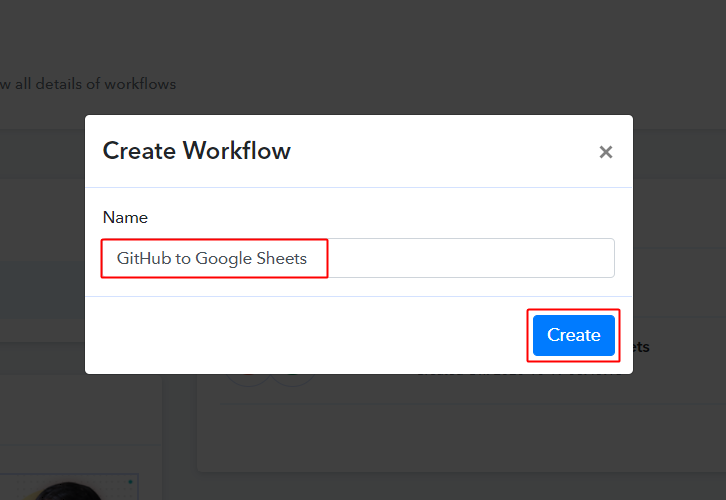
Now, name the workflow as per your need (for instance: GitHub to Google Sheets etc) and push the ‘Save’ button.

Step 4: Setting Trigger for GitHub – Google Sheets Integration

To automatically add newly added issues to Google Sheets as rows whenever a new issue is added, you’ll need to set-up a trigger on the GitHub’s ‘New Issue’ event and its respective action to add the issue details in your Google Sheets as rows.

(a) Select Application you want to integrate

Integrate GitHub

When you hit the save button to create a workflow, a trigger window will open next.

You’ll need to select the ‘GitHub’ option from the ‘Choose App’ field drop-down options.

(b) Connect with GitHub

Connect with GitHub

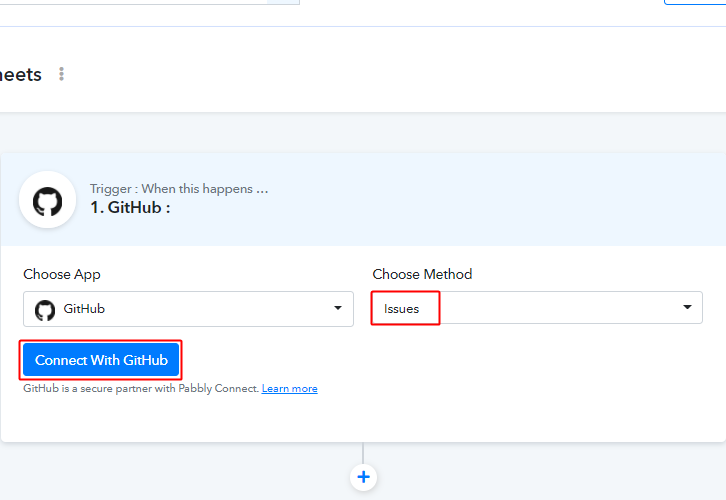
Select the method in here to be ‘Issues’ & click the ‘Connect with GitHub’ button.

(c) Authorize GitHub Account

Authorize GitHub Account

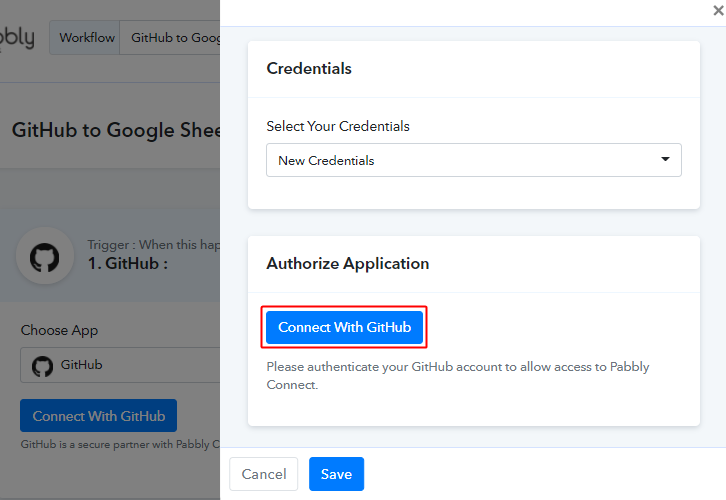
Now, a window will slide in from the right, click the ‘Connect with GitHub’ button there.

(d) Select Repository & Sheet

Select Repository

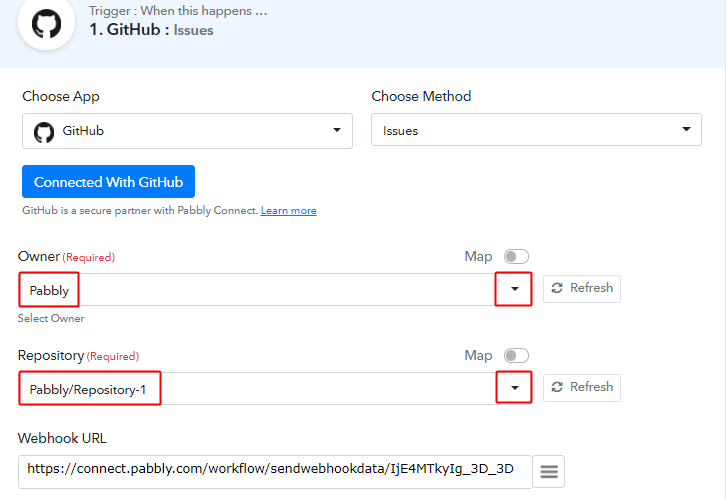
Once the authorization completes, it will auto-populate the various spreadsheets as well as their sub-sheets within the connected account. Select the Spreadsheet and sheet from the drop-down in which you want to save the issue entries.

(e) Save & Send Test Request for Connection

Save & Send Request for Trigger Connection

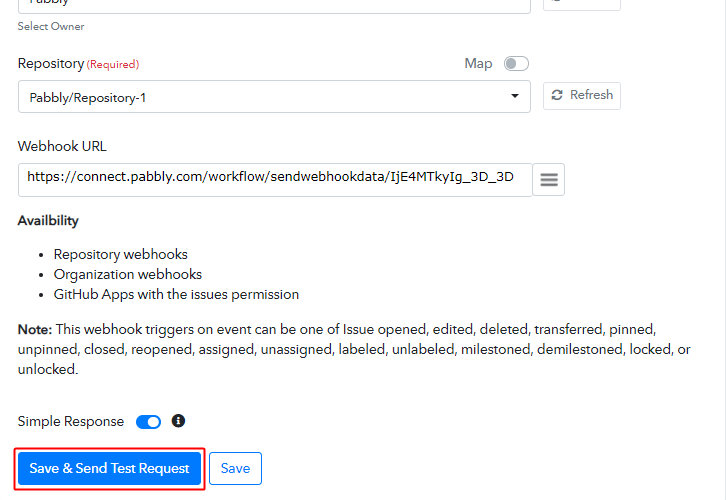
Now, Click the ‘Save & Send Test Request’ button.

(f) Check Connection Request Response

Trigger Connection Response

Check the response of the connection request and observe the success.

Step 5: Test the Trigger Response in Pabbly Connect Dashboard

As we can see, we are done setting up the trigger to save new GitHub issues to Google Sheets as rows. So now, let’s just test the trigger by making a test booking on GitHub trigger set-up.

(a) Capture Webhook Response

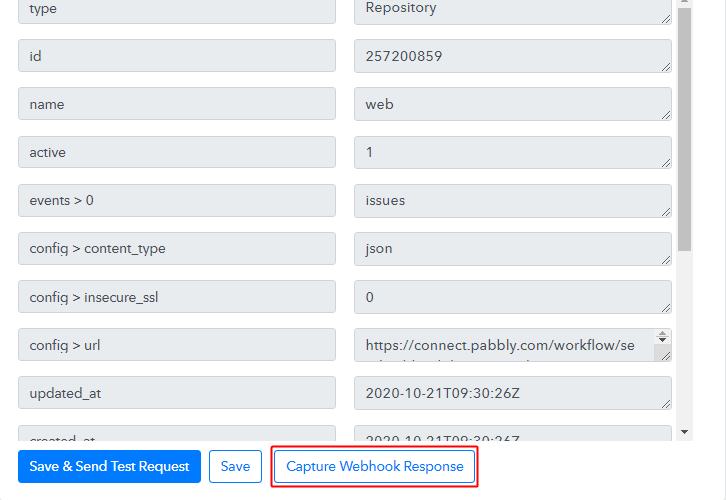
Capture Webhook ResponseClick the ‘Capture Webhook Response’ button first.

(b) Go to Your GitHub Account & Click on ‘Your Repositories’

Select Repository from Menu

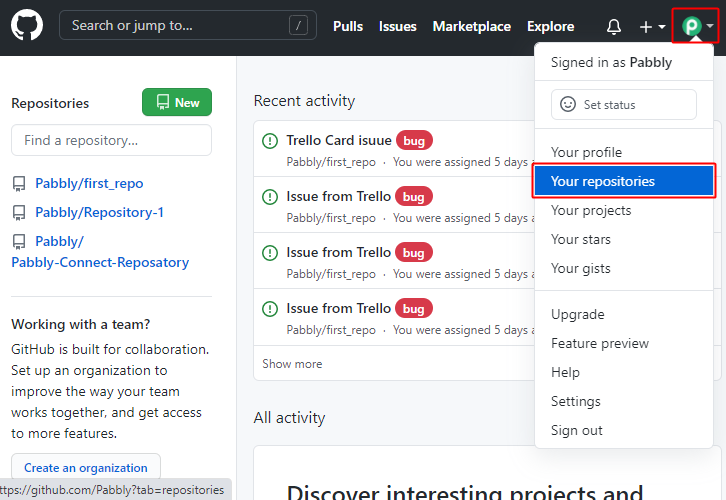
Log in to your GitHub account and then click your account icon present at the very top-right corner of your window. Then, click select the ‘Your Responsitories’ option.

(c) Select a Repository

Open Repository

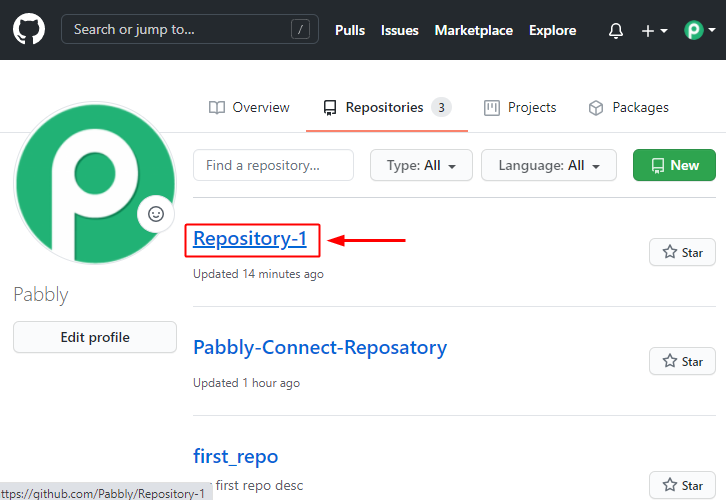
Next, click select the repository that you just connect with Pabbly Connect in the previous step.

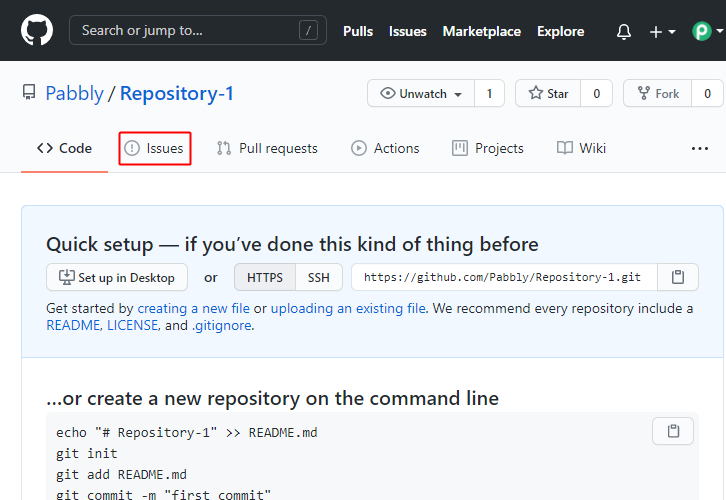
(d) Click on Issues

Click on Issues

Now, click the ‘Issues’ option in the secondary menu option that opens.

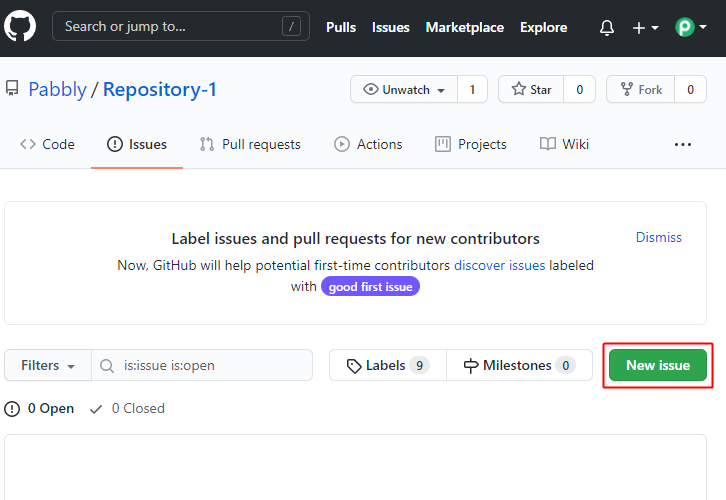
(e) Click on ‘New Issue’

New Issue

Click the ‘New Issue’ button.

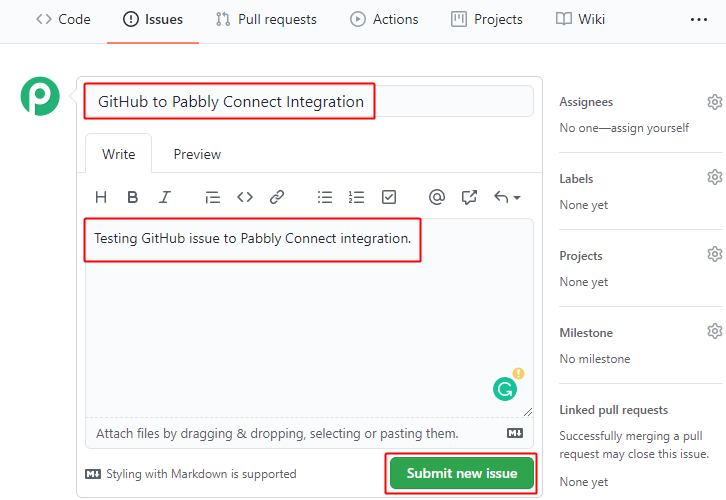
(f) Fill Issue Details

Submit Issue

Mention the issue details and submit the issue.

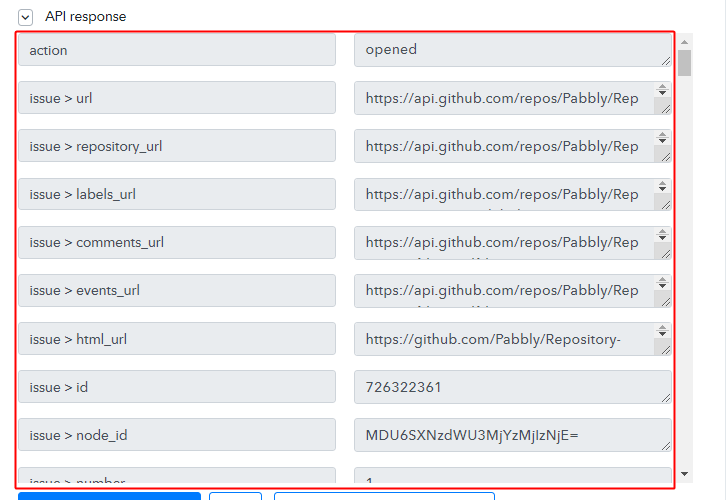
(g) Check the Trigger Response

Trigger Response

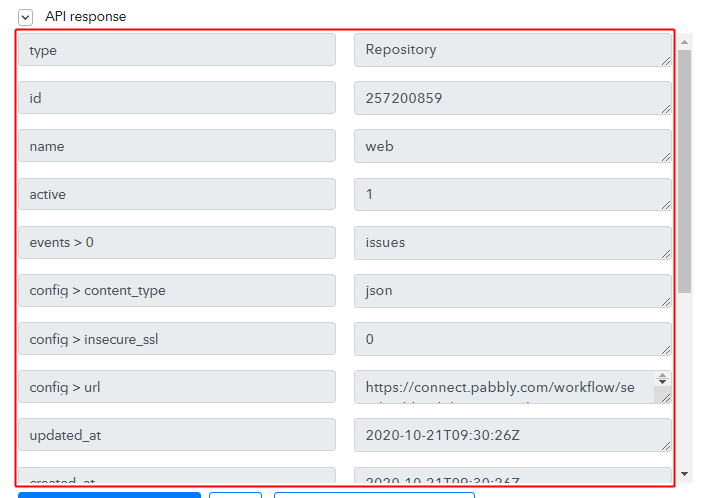
You can check the captured trigger response in the Pabbly Connect trigger window. You can see all the data fed in the created box details in the trigger response.

Step 6: Setting Action for GitHub – Google Sheets Integration

As we can see the response that we got of the GitHub trigger contain the newly added issue’s details. Now, we will simply forward this captures data to Google Sheet rows.

(a) Create Google Sheets

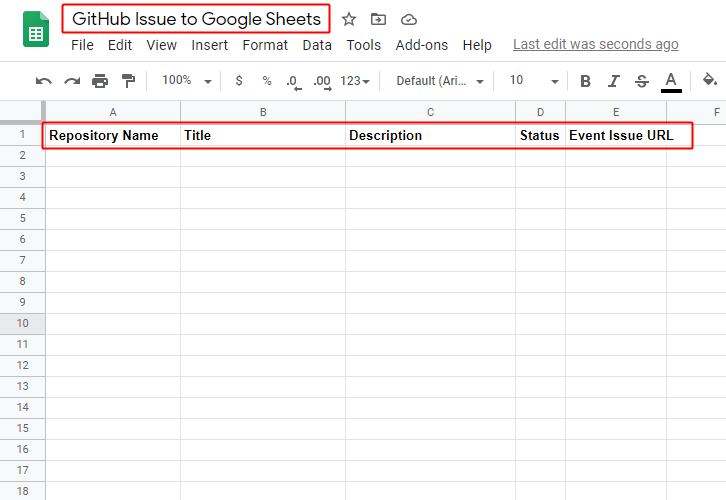
Create Google Sheet

To save the recently added issue within a Google Sheet first, create a spreadsheet within your Google Account.

And also name the columns according to the data that you wanna store from the response.

(b) Select Application You Want to Integrate

Integrate Google Sheets

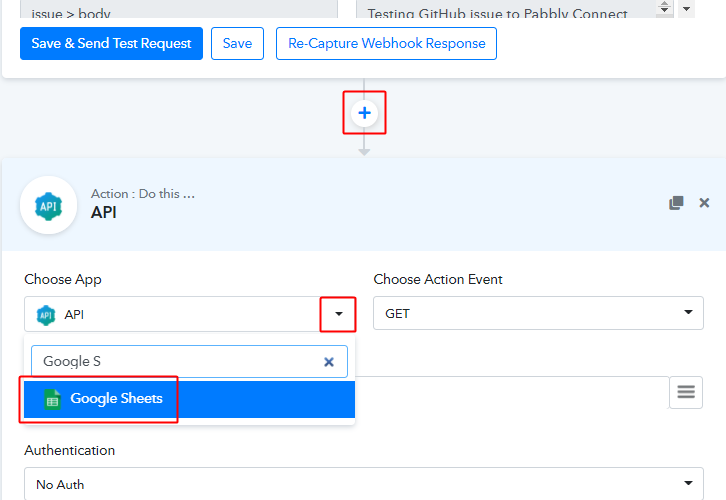
Click the plus button next to your GitHub trigger window.

And in the action window that opens next, choose the ‘Google Sheets’ app from the ‘Choose App’ field’s drop-down menu.

(b) Connect with Google Sheets

Connect with Google Sheets

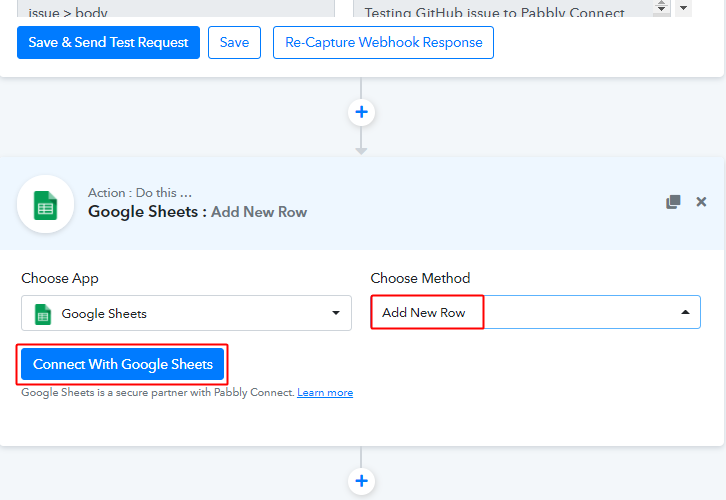
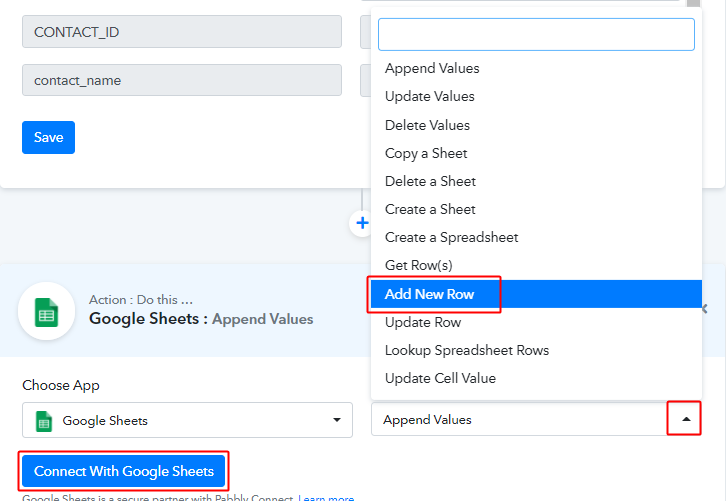
Select the method in here as ‘Add New Row’ and then click the ‘Connect with Google Sheets’ button.

(c) Authorize Google Account

Authorize Google Sheets

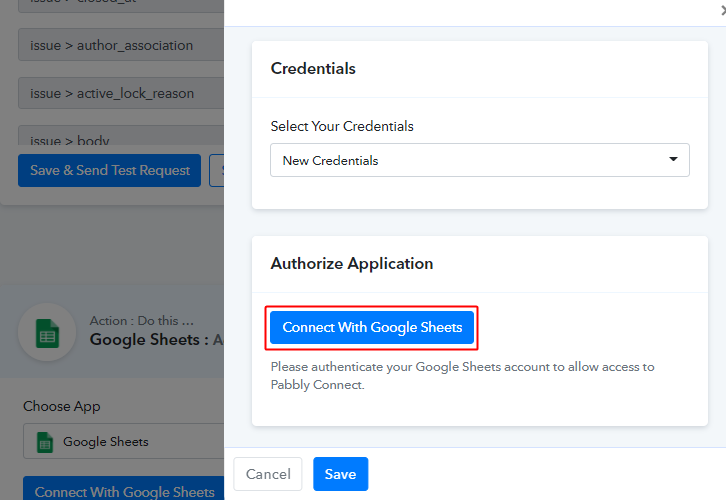
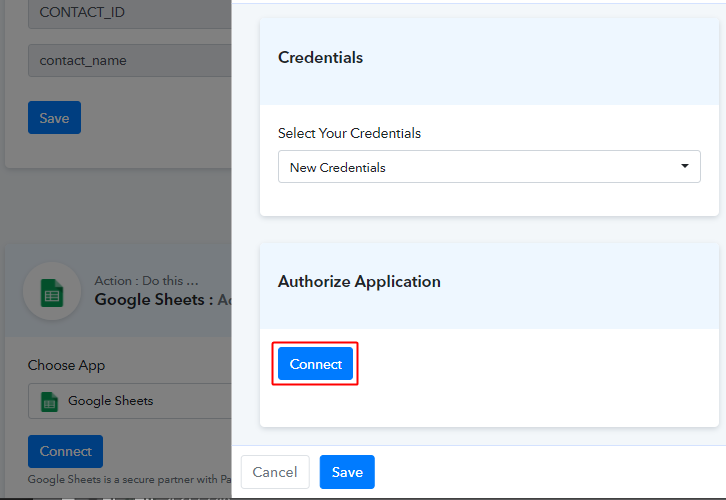
In the next window that slides in from the right click on the ‘Connect’ button. And then complete the authorization by allowing the connection between your Google account and Pabbly Connect.

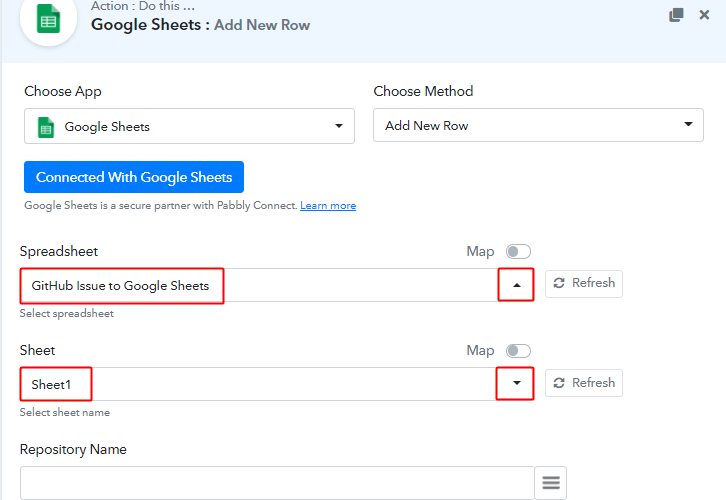
(d) Choose the Spreadsheet & Sheet

Select Spreadsheet

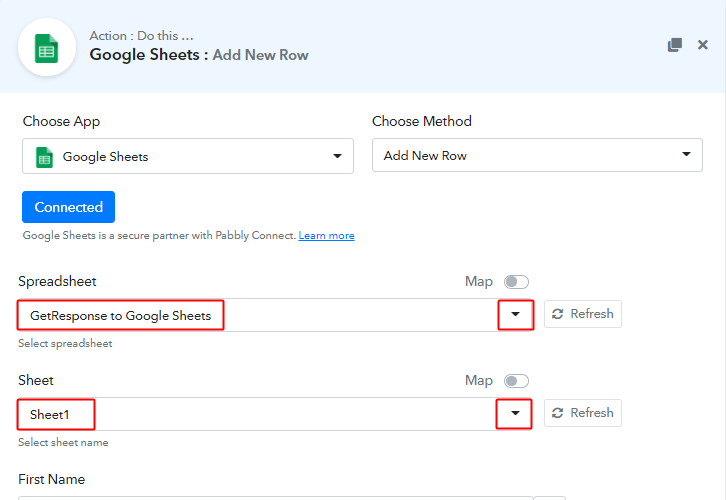
Pick the sheet that you’ve created for this purpose as well as the sheet within for the exact location.

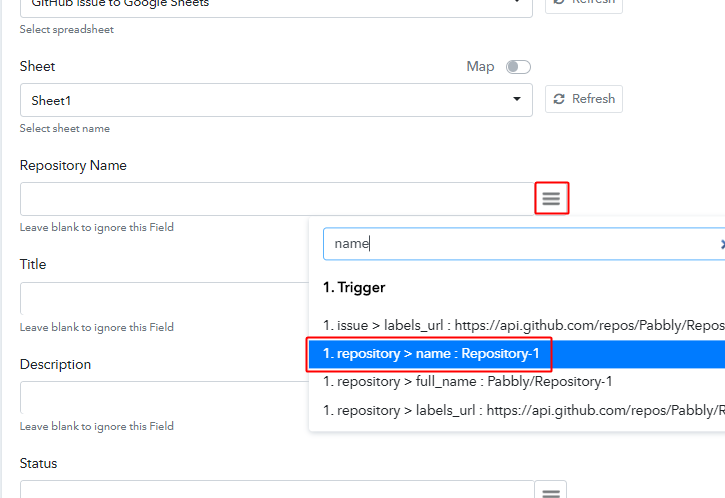
(e) Map Values

Map Values

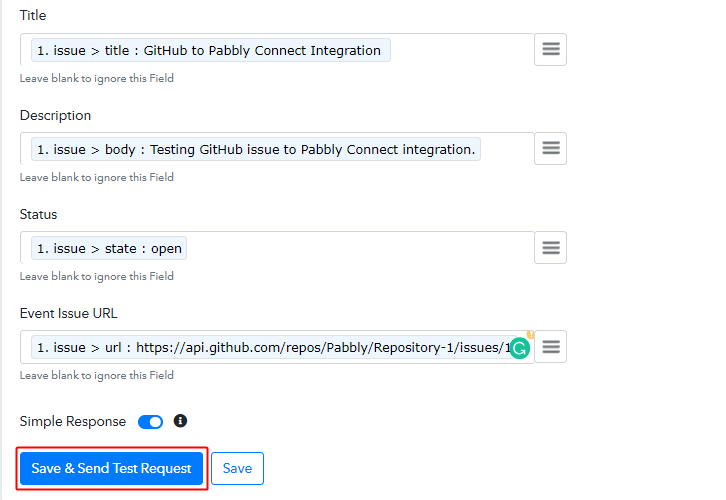
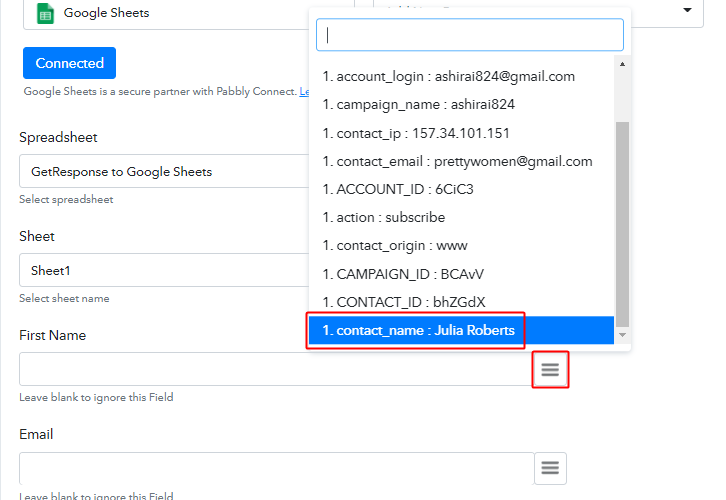
Next, you’ll need to map the trigger API response values that you got from GitHub with the Google Sheets columns.

(f) Save & Send Test Request

Save & Send Test Request for Action

After mapping all the necessary fields, click on the ‘Save & Send Test Request’ button.

Step 7: Check the Action’s Response

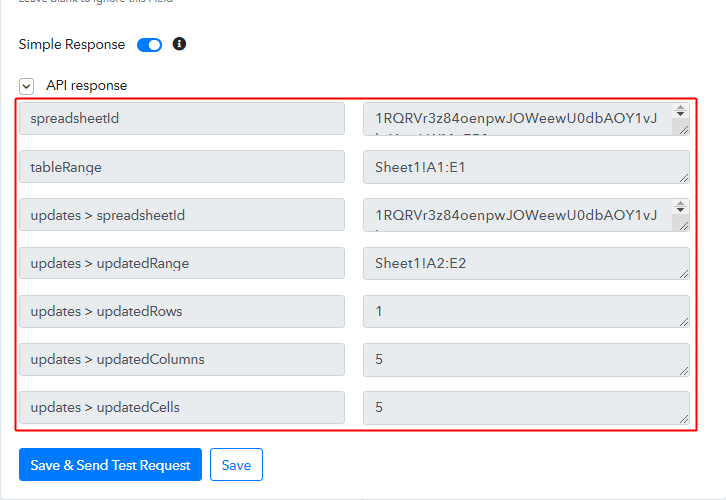
(a) Check the Action API’s Response

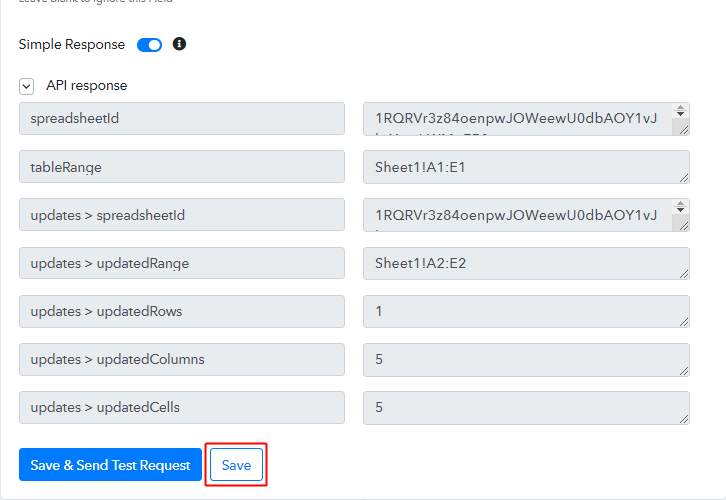
Action API Response

You can check the response of your API in the action window.

(b) Check the Contact Entry in Google Sheets

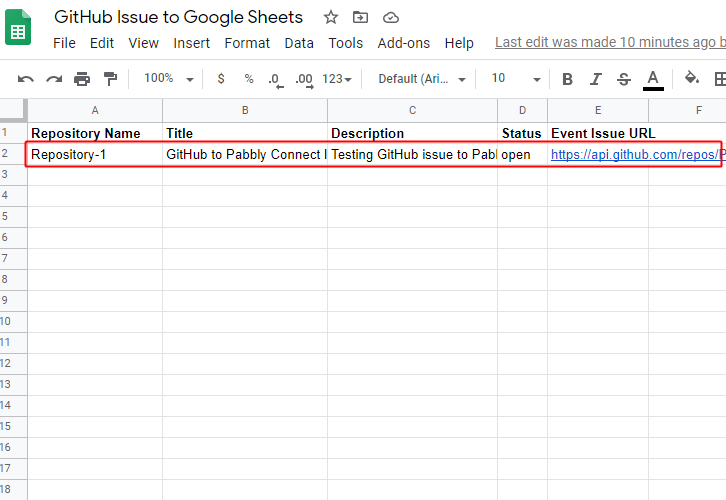
Check Sheet Entry

Also, you can check the entry of a new done in your connected Google Sheets account.

Step 8: Save the Workflow

(a) Save the Action API’s Response

save Action API Response

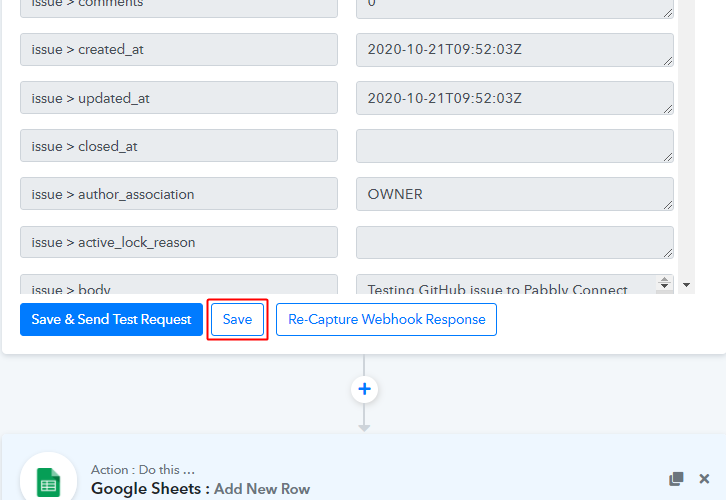
Save the action API’s response by hitting the ‘Save’ button at the bottom of the action API’s response.

(b) Save the Workflow

Save Webhook

As we can see the workflow is working perfectly. So, simply save the webhook by clicking the save button in the trigger window.

Wind-Up

Well, this is all about ‘How to sync GitHub issues to Google Sheets new rows’. Consequently, after completing the step by step procedure, you will end up saving the GitHub issue details on Google Sheets in sync. More importantly, this process is very simple & you don’t need any coding knowledge to follow the steps.

You can also, try Pabbly Connect for FREE.

For further questions, comment below.

You May Also Like to Read:

How to Create MeisterTask Tasks from New Google Sheets Rows

How to Create MeisterTask tasks from new Google Sheets rows

Are you stressing yourself to find a way to create MeisterTask tasks from new Google Sheets rows? If yes, then here in this blog, we will walk you through the process of MeisterTask and Google Sheets integration.

How to Create MeisterTask tasks from new Google Sheets rows

Primarily MeisterTask is an online task management tool for teams. It lets you create visual project boards, invite your team members, and collaborate with them in real-time. On the other hand, Google Sheets enables you to maintain all the data, contacts, etc in one place.

We are aware of the fact that to create tasks in MeisterTask one by one picking from Google Sheets is a tedious process, so to save your time and energy we started looking out for a solution that can easily integrate MeisterTask with Google Sheets. And bingo!! We found incredible software known as Pabbly Connect which can help you connect unlimited applications in a matter of time.

Why Choose This Method Of Integration?

In contrast with other integration services-

  • Pabbly Connect does not charge you for its in-built apps like filters, Iterator, Router, Data transformer, and more
  • Create “Unlimited Workflows” and smoothly define multiple tasks for each action
  • As compared to other services which offer 750 tasks at $24.99, Pabbly Connect proffers 50000 tasks in the starter plan of $29 itself
  • Unlike Zapier, there’s no restriction on features. Get access to advanced features even in the basic plan
  • Try before you buy! Before spending your money, you can actually signup & try out the working of Pabbly Connect for FREE

Sign Up To Pabbly Connect 

Furthermore, by using this amazing software, you can save yourself from all the repetitive tasks by creating seamless workflows without any coding skills. Moreover, it allows you to bind unlimited applications in a few minutes. Not only that but with the help of Pabbly Connect you can easily transfer data in real-time. Besides, it doesn’t restrict you on any features like unlimited workflows, actions, triggers, and many more even with its free plan.

Here, in this blog, we will understand how to create MeisterTask tasks from new Google Sheets rows using an amazing automation and integration tool that is, Pabbly Connect. Therefore without further ado, let’s get started with the blog.

Step 1: Sign up to Pabbly Connect

Sign Up

Initiate the process to create MeisterTask tasks from new Google Sheets rows by visiting the website of Pabbly Connect and then click on the ‘Sign-Up Free‘ button. On the registration page, either signup using an existing Gmail account or manually fill out the form.

Try Pabbly Connect for FREE

Step 2: Access Pabbly Connect

Select Connect

Once you have completed the signup process, click on the Connect section in the dashboard to access Pabbly Connect.

Step 3 : Workflow for Google Sheets with MeisterTask Integrations

(a) Create New Workflow

Create New Workflow

Start with creating a workflow for your project by clicking on the ‘Create Workflow’ button.

(b) Name the Workflow

Name the Workflow

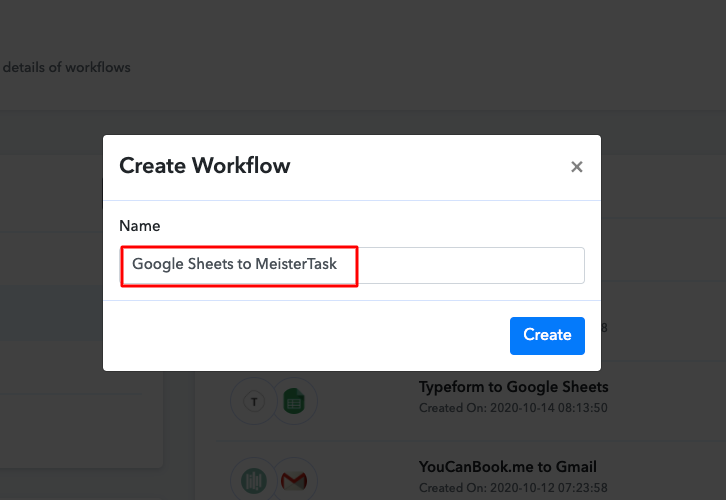
Now, you need to name the workflow just like in the above-shown image. I named the workflow as “Google Sheets to MeisterTask”, you can obviously name the workflow as per your requirements and needs.

Step 4 : Setting Triggers for Google Sheets with MeisterTask Integrations

After naming your workflow, you have to select the application you want to integrate. Sign up for a free account now to integrate thousands of apps.

(a) Select Application you want to Integrate

Select Google Sheets

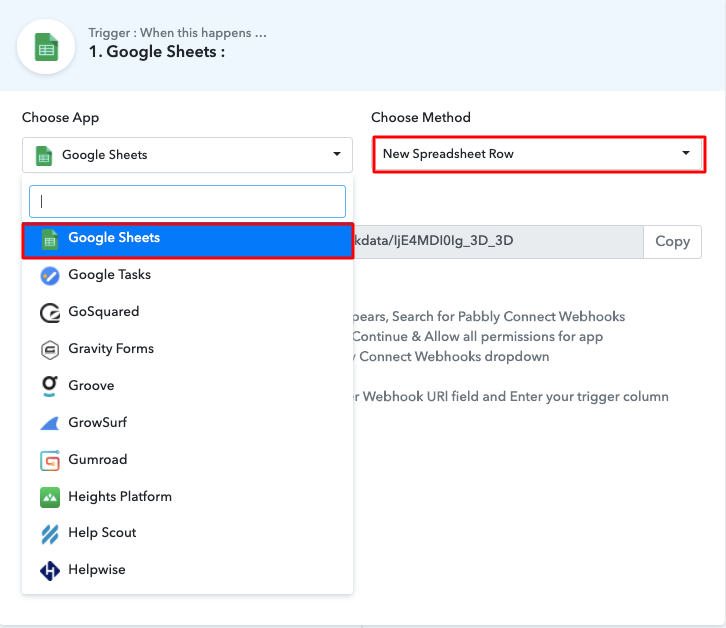
Now, you have to select the application that you want to integrate. In this case, we are choosing “Google Sheets” for integration. After selecting the application select “New Spreadsheet Row” in the choose method section.

(b) Copy the Webhook URL

Copy the Webhook URL

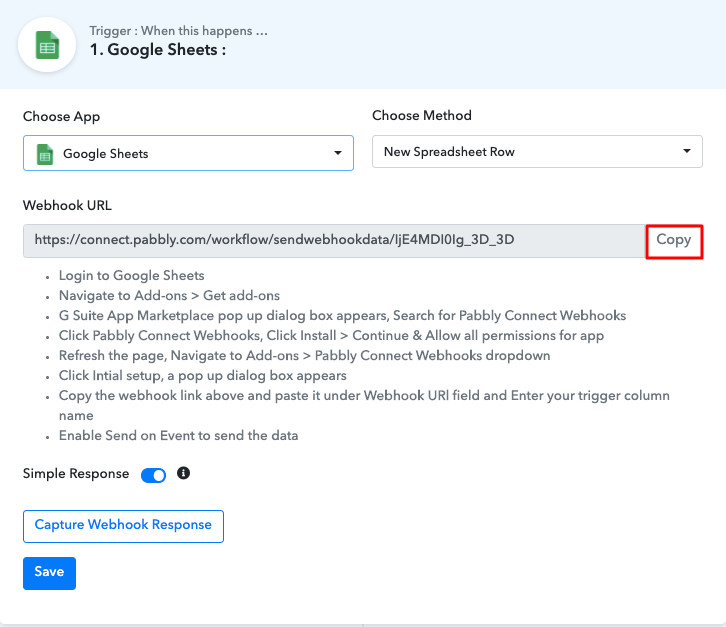
After selecting the application, now you have to copy the webhook URL just like in the above-shown image to take further the integration process.

Step 5 : Connecting Google Sheets to Pabbly Connect

To connect with Google Sheets, you have to paste the copied Webhook URL in your Google Sheets Add-ons section.

(a) Click on Add-ons

Click on Get Add-ons

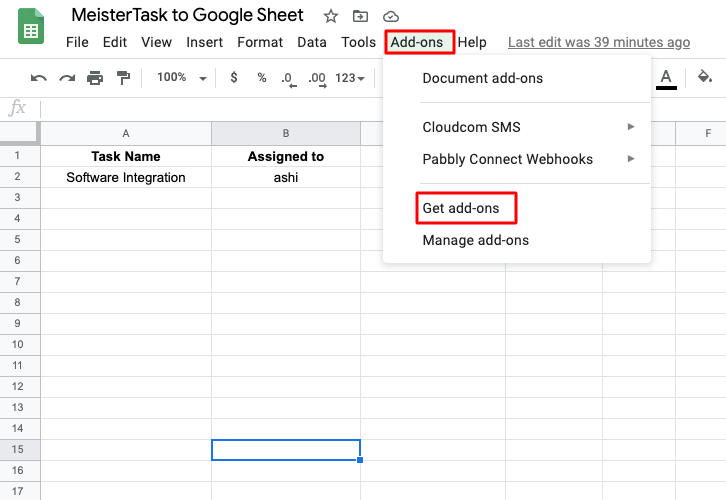
After choosing a spreadsheet that you want to integrate, click in the add-on section, and then click on the “Get add-ons” button to download the “Pabbly Connect Webhook”.

(b) Find Pabbly Connect in G Suite Market Place

Find Pabbly Connect

Now, on clicking ‘Get Add-ons’, a new window will pop-up. Here in the search bar type Pabbly Connect Webhooks.

(c) Install Pabbly Connect

Find Pabbly Connect

Next, simply click on the install option and within seconds it will get installed into your Google Sheets.

(d) Press Initial Setup In Google Sheets

Click on Initial Setup

Now, when you click on add-ons, Pabbly Connect Webhook will appear there. Just click on it and then select “Initial Setup” to paste the copied Webhook URL.

(e) Paste the Webhook URL

Paste the Webhook URL

After selecting the “Initial Set-up” paste the copied webhook URL. Once you have pasted the URL, now you have to mention the trigger column and then click on the “Send Test” button but before hitting the button, click on “Capture Webhook Response” in Pabbly Connect.

(f) Click Send On Event In Google Sheets

Click Send On Event

This is the additional step you have to do, to ensure that every time new data added to the sheet it will automatically create tasks in your MeisterTask account. For this, all you have to do is click on “Send on Event” in the “Add-On” option.

Step 6 : Test the Submission in Pabbly Connect Dashboard

How to Create MeisterTask Tasks from New Google Sheets Rows

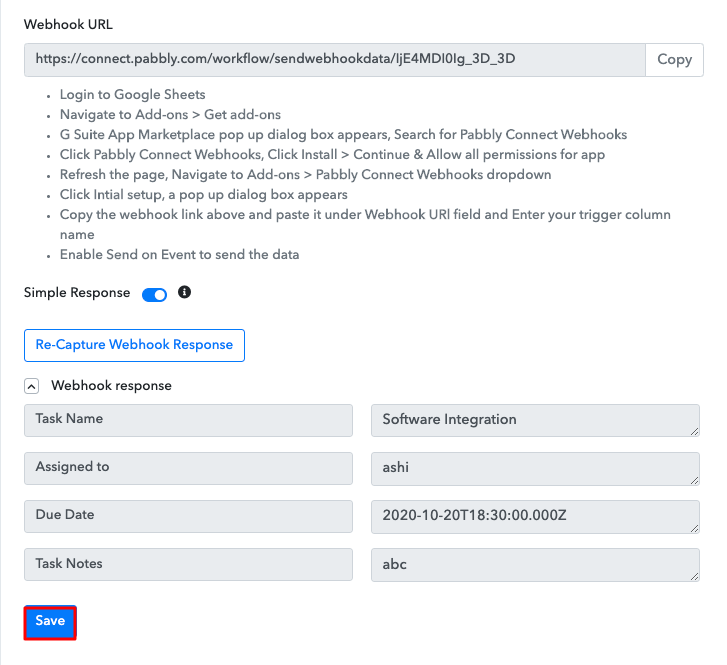
As soon as you click on the “Send Test” in Google Sheet and “Capture Webhook Response” in Pabbly Connect the entry will appear on the Pabbly Connect dashboard. Then, click on the “Save” option.

Step 7 : Setting Action for Google Sheets with MeisterTask Integrations

In this step, we will be adding an action for your trigger to complete this integration process.

(a) Select Application you want to Integrate

Select MeisterTask

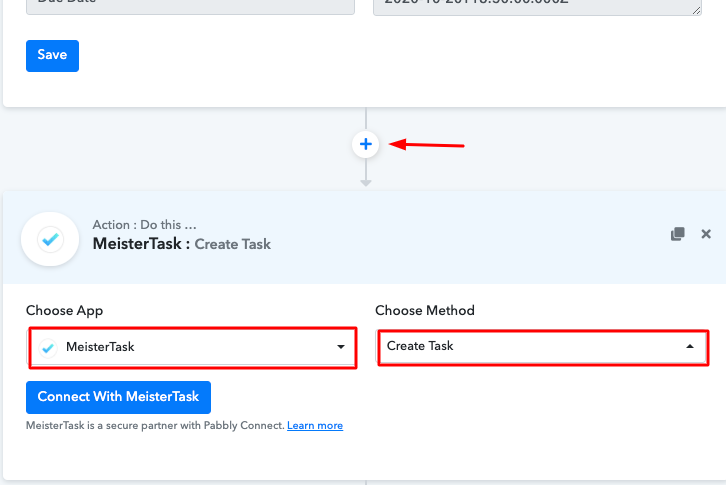
Now in this step, click on the + button below and choose “MeisterTask” and in the method section select “Create Task”.

(b) Click on Connect Button

How to Create MeisterTask Tasks from New Google Sheets Rows

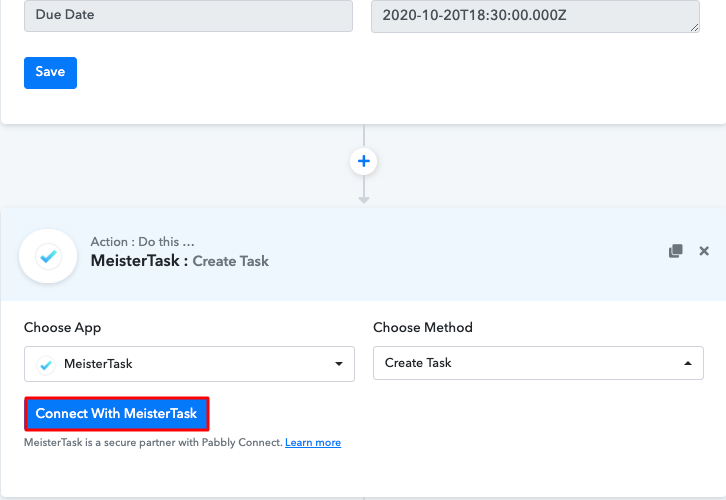
After choosing the application click on the “Connect with MeisterTask” button to move forward.

Step 8 : Connecting MeisterTask to Pabbly Connect

To connect MeisterTask with Pabbly Connect, you need to paste the bearer token from the MeisterTask account into Pabbly Connect.

(a) Click on the API Link

How to Create MeisterTask Tasks from New Google Sheets Rows

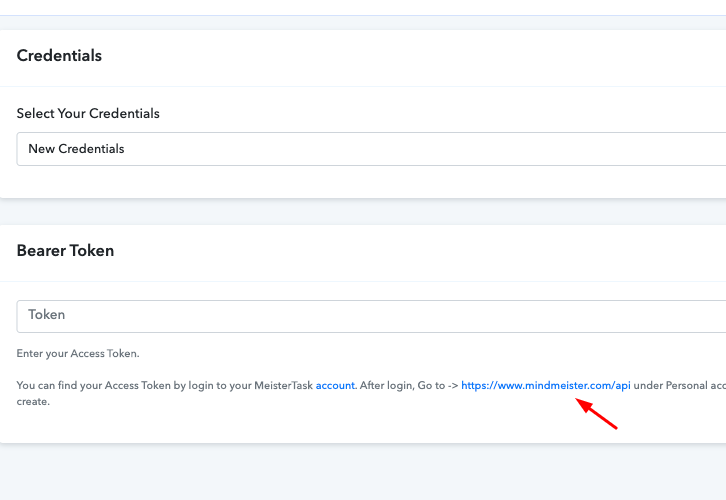
Once you click on the connect button, a pop-up will appear asking for the bearer token, you just have to click on the link given below and you will reach to the integration page of your MeisterTask account.

(b) Copy the Bearer Token

How to Create MeisterTask Tasks from New Google Sheets Rows

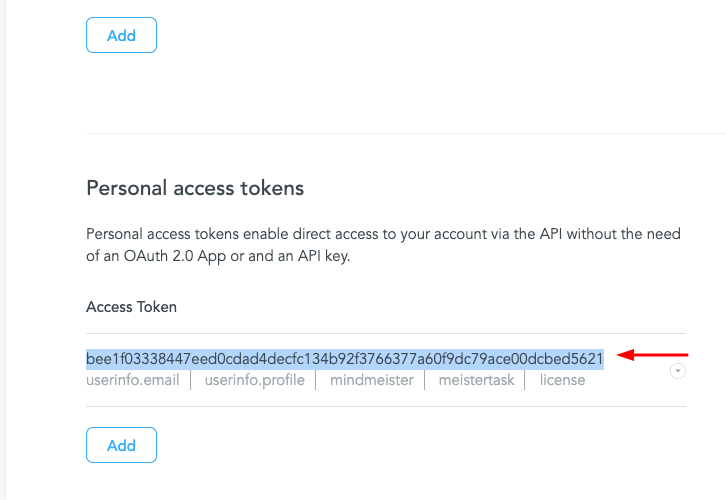
Now, you simply have to copy the bearer token given in the “Personal Access Tokens” section.

(c) Paste the Bearer Token

How to Create MeisterTask Tasks from New Google Sheets Rows

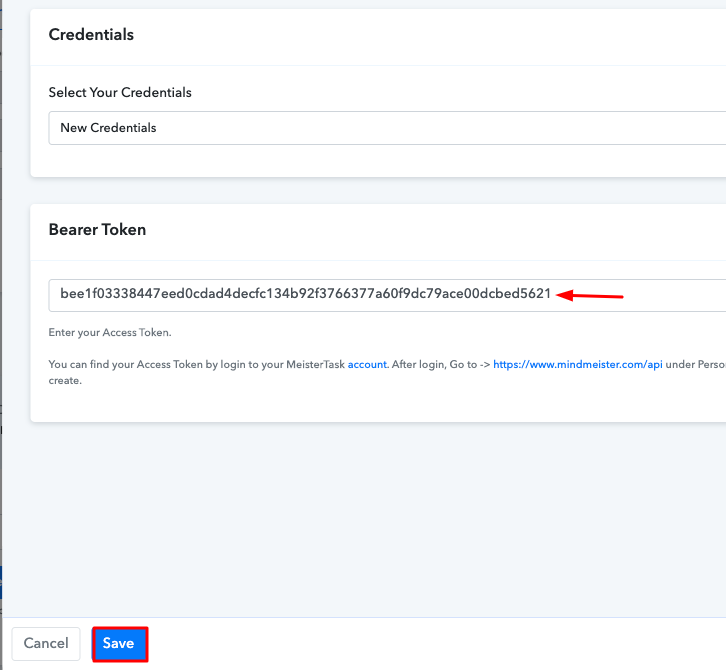
Paste the copied bearer token in the Pabbly Connect dashboard and then hit the “Save” button.

(d) Map the Fields

How to Create MeisterTask Tasks from New Google Sheets Rows

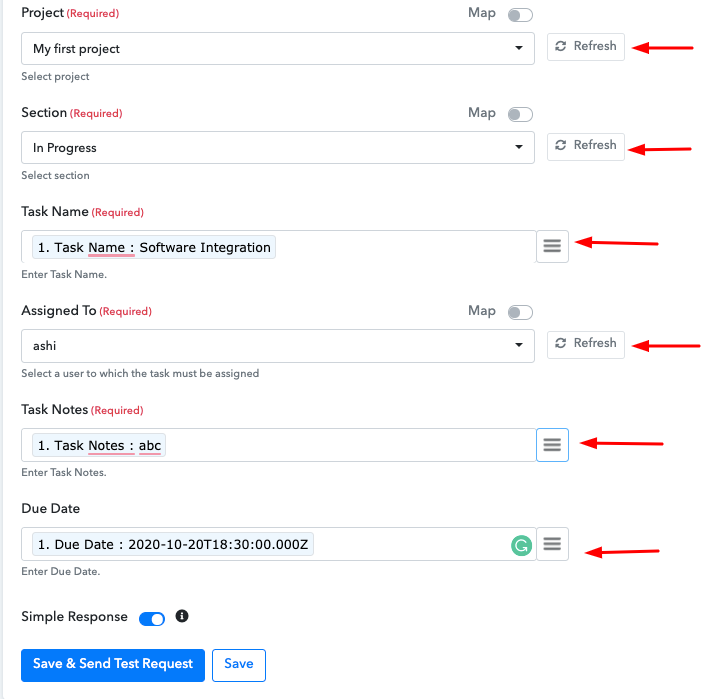
Once you are connected with your MeisterTask account, now you have to add all the field’s data like project name, task name. Map up all the fields quickly.

(e) Send a Test Request

How to Create MeisterTask Tasks from New Google Sheets Rows

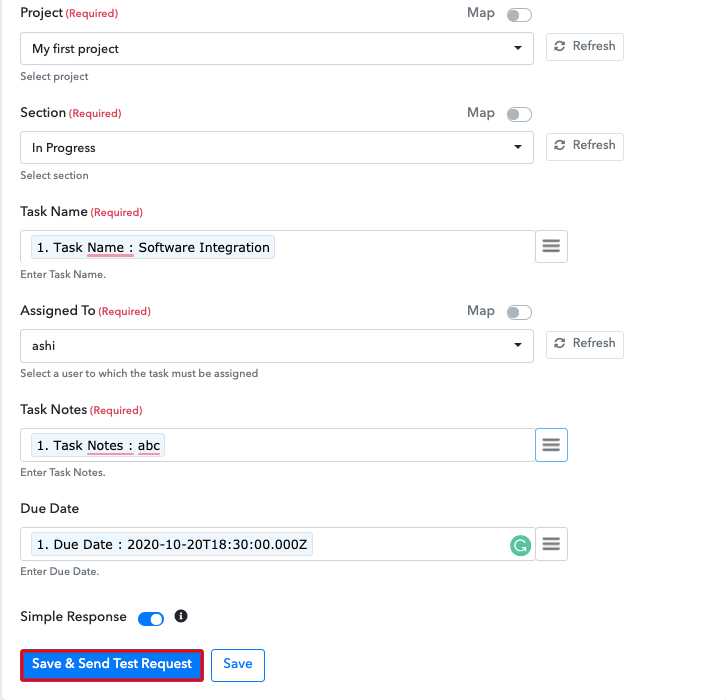
Once you are done mapping up all fields click on the “Save & Send Test Request” button and then save your workflow.

Step 9 : Check Response in MeisterTask

How to Create MeisterTask Tasks from New Google Sheets Rows

Here, you can see that integration was successful and the task has been created in your MeisterTask account automatically. Now in a similar way, whenever there will be any new entries in your Google Sheets, the tasks will be automatically created in your MeisterTask account.

Conclusion –

We hope, now we have answered all your questions about the automation process. Here, through this blog, we learned “How to Create MeisterTask Tasks from New Google Sheets Rows?” All you have to do is follow all the above-mentioned steps & you can easily connect MeisterTask to Google Sheets.

Using this automation, one can easily avoid monotonous work. And in such cases, software like Pabbly Connect is a real time-saver that lets you connect unlimited premium apps. So, don’t wait anymore. Go and get your access by signing up for a free account.

In case of any doubts or suggestions, please drop your comments below. We will try to get back to you as soon as possible.

You May Also Like to Read –

How to Save New Streak Boxes to Google Sheets

Save New Streak Boxes to Google Sheets

In this blog, we are going to walk you through the step by step procedure to save the newly added Streak Boxes to Google Sheets automatically. As we sometimes need to use the data collected from CRM to a spreadsheet and further use it for multiple marketing as well as engagement purposes.

We’ll be integrating Streak Boxes with Google Sheets using Pabbly Connect to automatically save the customer in spreadsheet rows. Pabbly Connect allows you to connect two or more software to share data between them in real-time.

Save New Streak Boxes to Google Sheets

We’ll set up a trigger on the Streak’s ‘New Box’ event and its respective action for saving the box’s detail on Google Sheets rows.

Besides, Pabbly Connect also allows you to use routers, filters, formatters as well as set up instant triggers to design unlimited workflows. Additionally, it also provides many advanced features like multi-step calls, integration with unlimited premium apps etc. All in all, you can make use of many features to automate your tasks and design excellent workflows.

Why Choose This Method Of Integration?

In contrast with other integration services-

  • Pabbly Connect does not charge you for its in-built apps like filters, Iterator, Router, Data transformer and more
  • Create “Unlimited Workflows” and smoothly define multiple tasks for each action
  • As compared to other services which offer 750 tasks at $24.99, Pabbly Connect proffers 50000 tasks in the starter plan of $29 itself
  • Unlike Zapier, there’s no restriction on features. Get access to advanced features even in the basic plan
  • Try before you buy! Before spending your money, you can actually signup & try out the working of Pabbly Connect for FREE

Sign Up To Pabbly Connect  

It enables you to design as well as automate the workflow to add the recently added boxes on Streak Boxes to Google Sheets rows in just a minute interval. So, save your time and automate your tasks, access all Pabbly Connect features without any restriction even in the free plan.

Now, let’s dig in the step by step procedure to integrate Streak Boxes to Google Sheets and automatically save the newly added contacts within sheets rows.

Step 1: Sign up to Pabbly Connect

Sign Up

Visit the official website of Pabbly Connect & then hit the ‘Sign-Up Free‘ button. Next, on the registration page signup using an existing Google account or manually fill in the form to get into the system.

Try Pabbly Connect for FREE

Step 2: Access Pabbly Connect

Select Connect

After signing up successfully, click the ‘Access Now’ button of the software ‘Connect’ Pabbly application.

Step 3: Workflow for Streak Boxes with Google Sheets Integration

(a) Start with a New Workflow

Create New Workflow

Start with creating a workflow to save new Streak Boxes contacts to Google Sheets as rows and to do this strike the ‘Create New Workflow’ button.

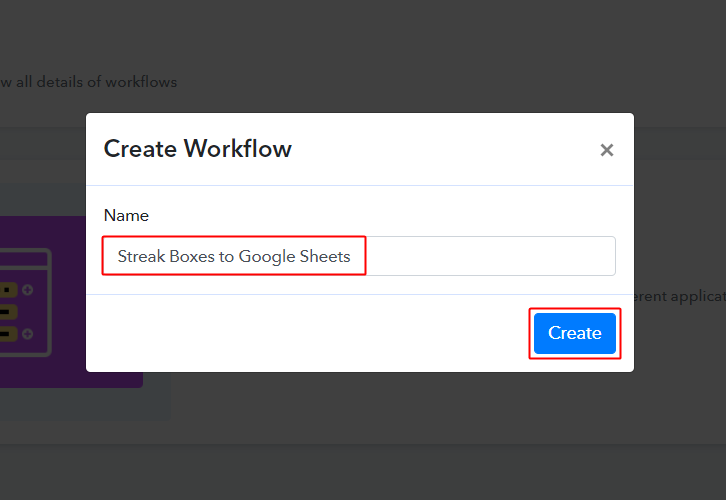
(b) Name the Workflow

Streak Boxes to Google Sheets Workflow

Now, name the workflow as per your need (for instance: Streak Boxes to Google Sheets etc) and push the ‘Save’ button.

Step 4: Setting Trigger for Streak Boxes – Google Sheets Integration

To automatically add new Streak Boxes contacts to Google Sheets as rows whenever a new contact is added, you’ll need to set-up a trigger on ‘New Boxes’ event and its respective action to add the customer details in your Google Sheets as rows.

(a) Select Application you want to integrate

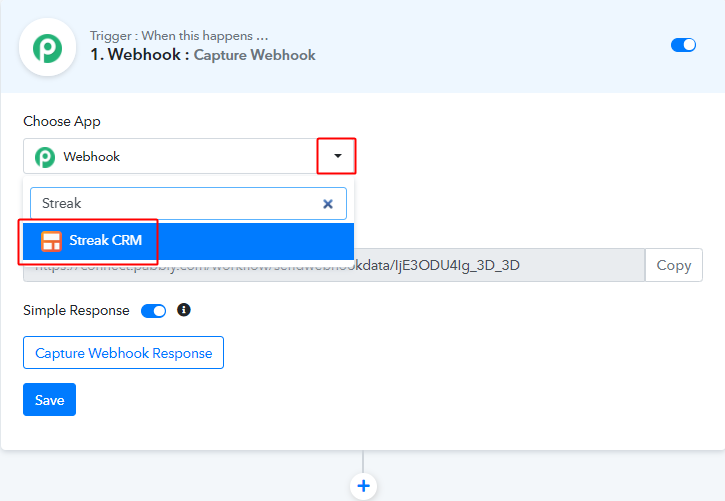
Integrate Streak

When you hit the save button to create a workflow, a trigger window will open next.

You’ll need to select the ‘Streak CRM’ option from the ‘Choose App’ field drop-down options.

(b) Connect with Streak CRM

Connect with Streak

Select the method in here to be ‘New Box’ & copy the ‘Webhook URL’ by clicking the ‘Copy’ button on this page.

Up to this point, we are half-way done with the Streak to Google Sheets integration’s trigger. And now, the system is asking for an API key, we’ll need to paste the Streak API key.

Step 5: Connecting Streak Boxes to Pabbly Connect

To connect your Streak account and Pabbly Connect. First, install the Streak chrome extension and then sign-in into your Gmail account.

(a) Add Streak Chrome Extension

Add Streak Chrome Extension

Install the Streak chrome extention and then sign-in your Gmail account.

Complete the integration by allowing Streak to connect with your Gmail.

(b) Go to Streak Integrations

Streak Integration

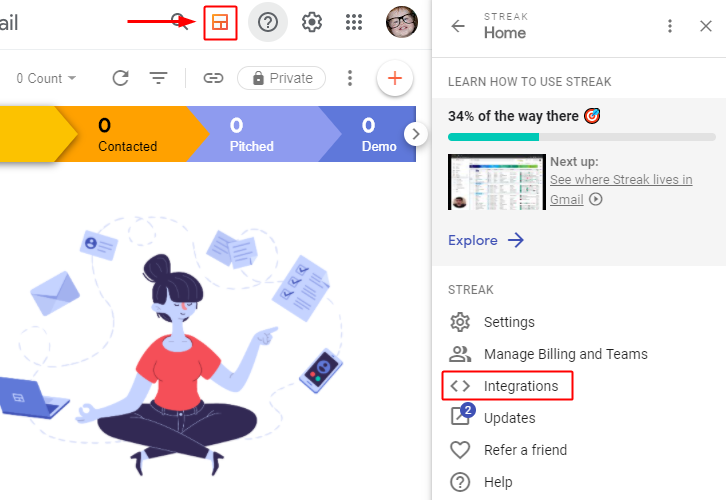
Click on the ‘Streak Icon’ present on your Gmail and then select the ‘Integration’ option from the menu that opens on the right.

(c) Get the API Key

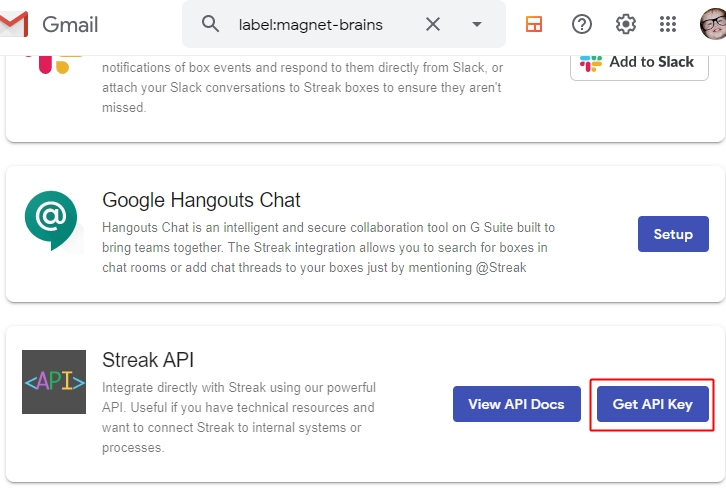
Get API Key

Now, tick the ‘Get API Key’ button, present in the Steak API head.

(d) Copy the API Key

Copy API

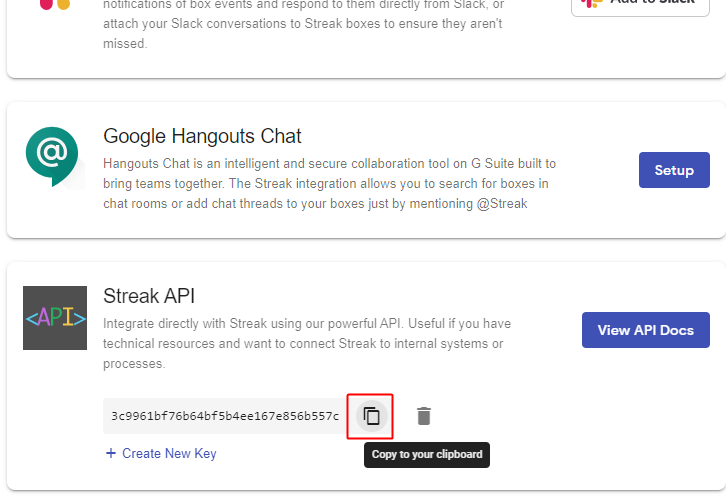
The same field will start showing the Streak API Key for your account. Simply, click the copy icon button to copy the API Key.

(e) Paste API Key

Paste API Key

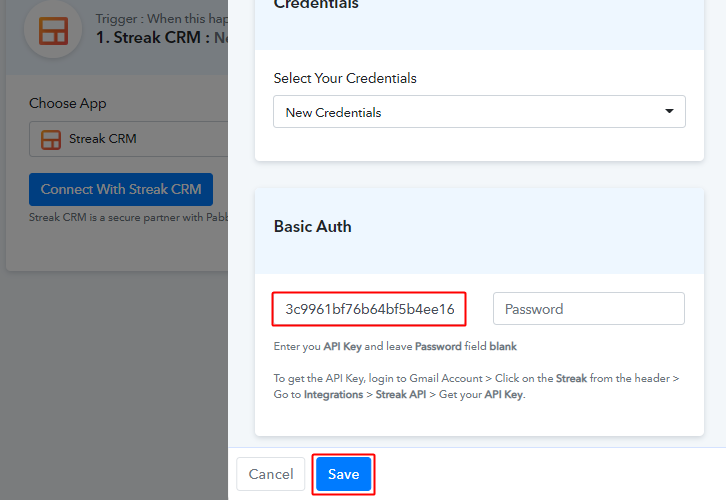
Now, paste the copied API key from Streak to Pabbly Connect trigger and then hit the ‘Save’ button.

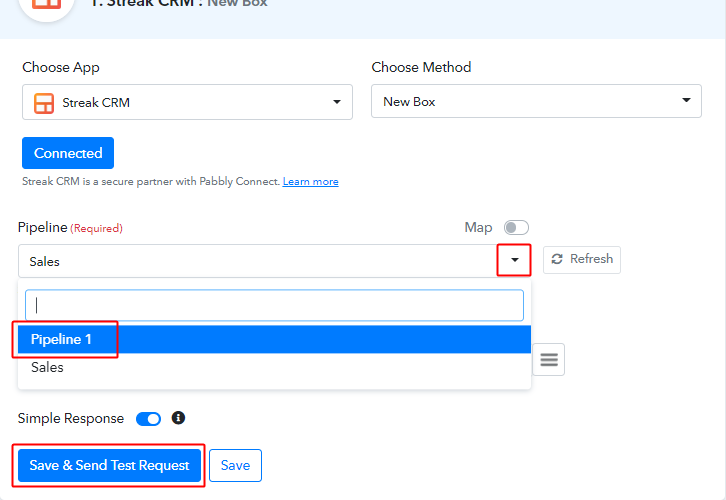
(f) Select Pipeline and Send Test Request

Select the Pipeline & Save and Send Test Request

Select the Pipeline that you created for the purpose and hit ‘Save& Send TestRequest’ button.

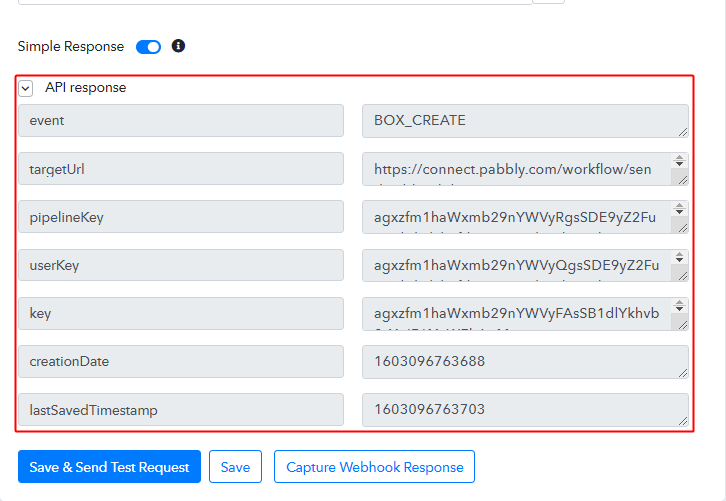
(g) Check the Trigger Connection Response

Streak Connection Response

Check the connection API response.

Step 6: Test the Trigger Response in Pabbly Connect Dashboard

As we can see, we are done setting up the trigger to save new Streak Boxesto Google Sheets as rows. So now, let’s just test the trigger by making a test booking on Streak trigger set-up.

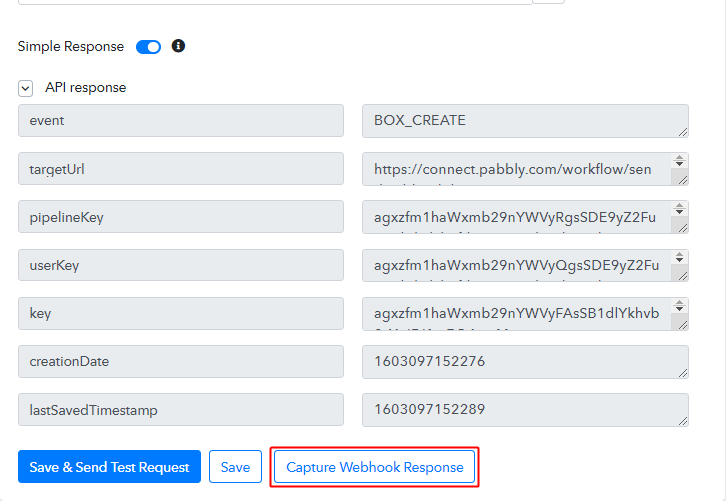
(a) Capture Webhook Response

Capture Webhook Response

To test the trigger, first, hit the ‘Capture Webhook Response’ button on the Pabbly Connect trigger window.

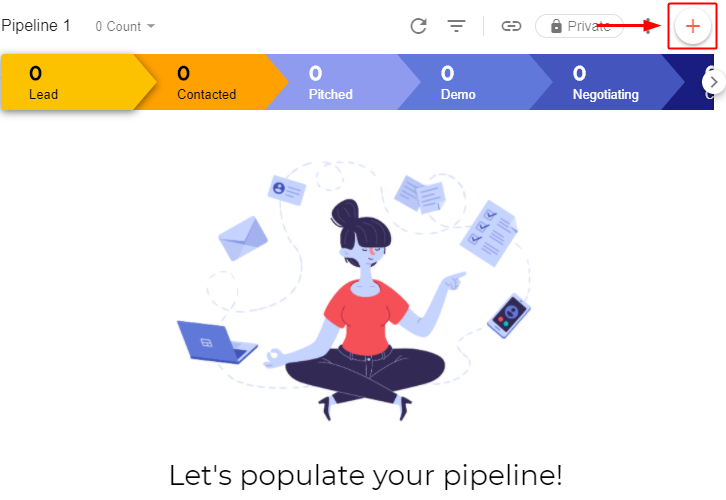
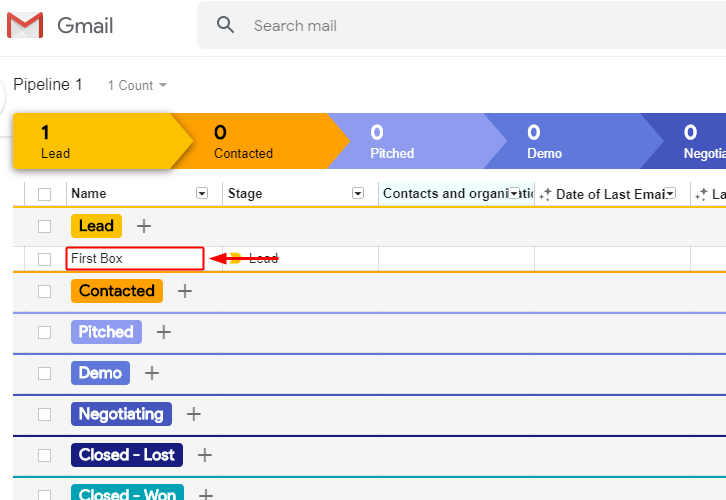
(b) Go to the Selected Pipeline & Click Add Box

Click on Add Box

Now, go to your selected pipeline that you just connected here with the trigger. And click the plus ‘+’ button there.

(c) Name and Add Box

Add Box

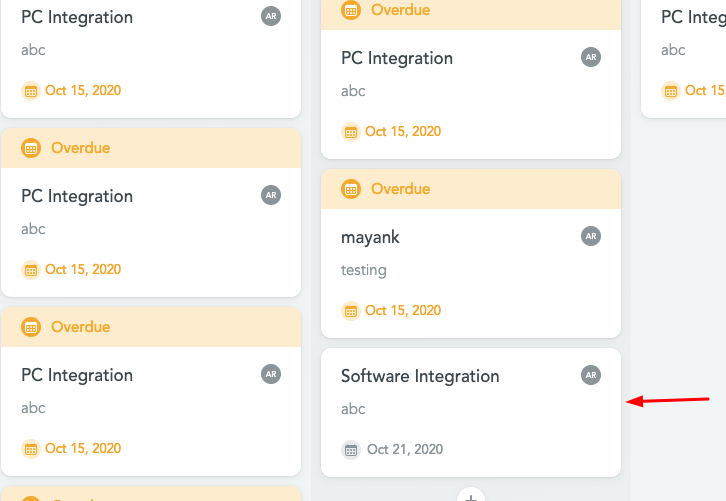
Name and add a box in the selected pipeline.

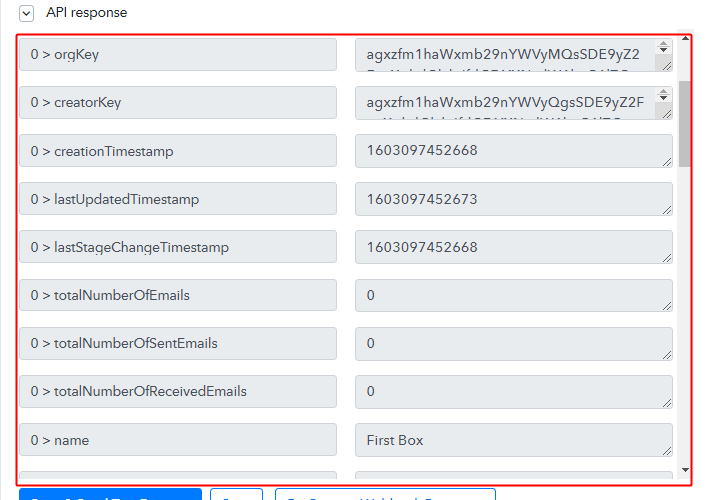
(d) Check the Trigger API Response

Trigger Response

Check the captured trigger response in the Pabbly Connect trigger window. You can see all the data fed in the created box details in the trigger response.

Step 7: Setting Action for Streak – Google Sheets Integration

As we can see the response that we got of the Streak trigger contain the newly added box details. Now, we will simply forward this captures data to Google Sheet rows.

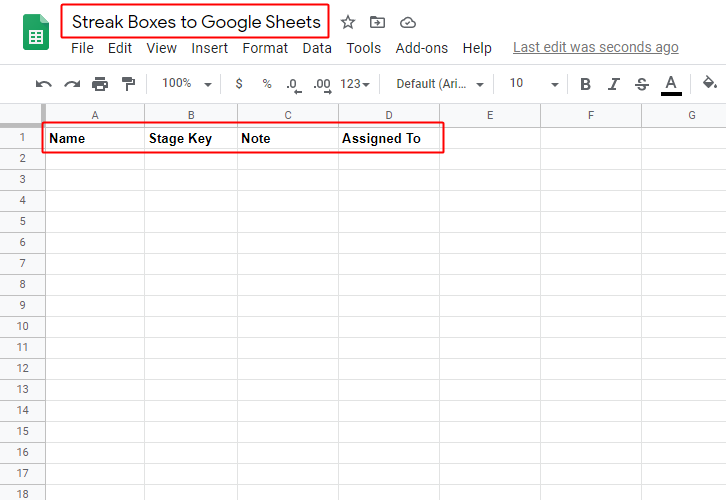
(a) Create Google Sheets

Create Google Sheet

To save the recently added box within a Google Sheet first, create a spreadsheet within your Google Account.

And also name the columns.

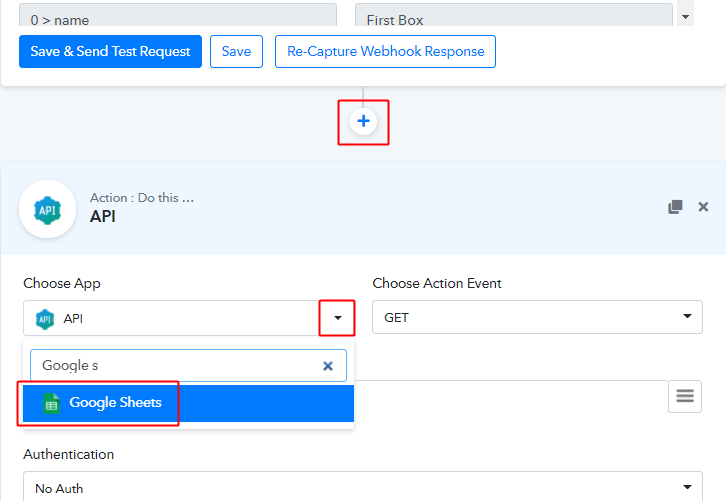
(b) Select Application You Want to Integrate

Integrate Google Sheets App

Click the plus button next to your Streak trigger window.

And in the action window that opens next, choose the ‘Google Sheets’ app from the ‘Choose App’ field’s drop-down menu.

(b) Connect with Google Sheets

Connect with

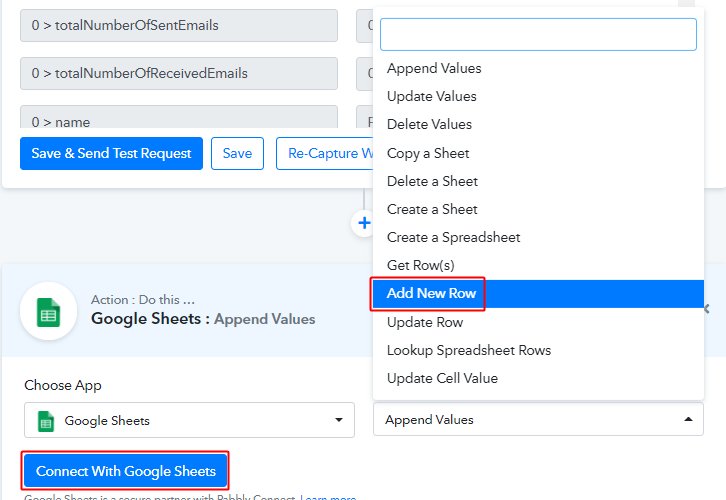
Select the method in here as ‘Add New Row’ and then click the ‘Connect with Google Sheets’ button.

(c) Authorize Google Account

Connect with Google Sheets

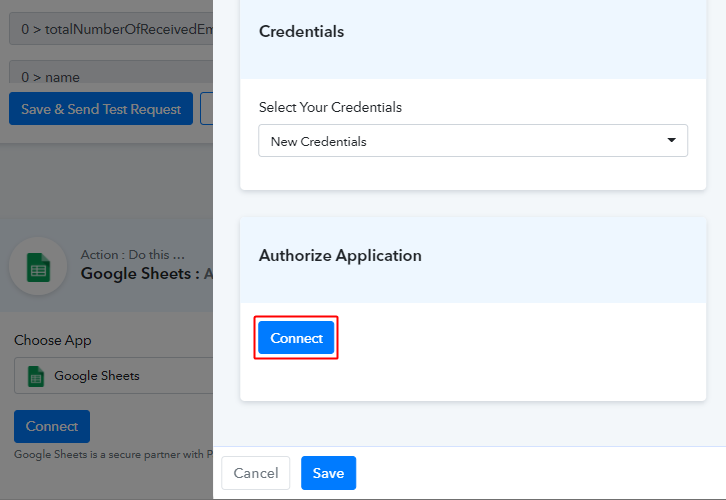
In the next window that slides in from the right click on the ‘Connect’ button. And then complete the authorization by allowing the connection between your Google account and Pabbly Connect.

(d) Choose the Spreadsheet & Sheet

select Spreadsheet & Sheet

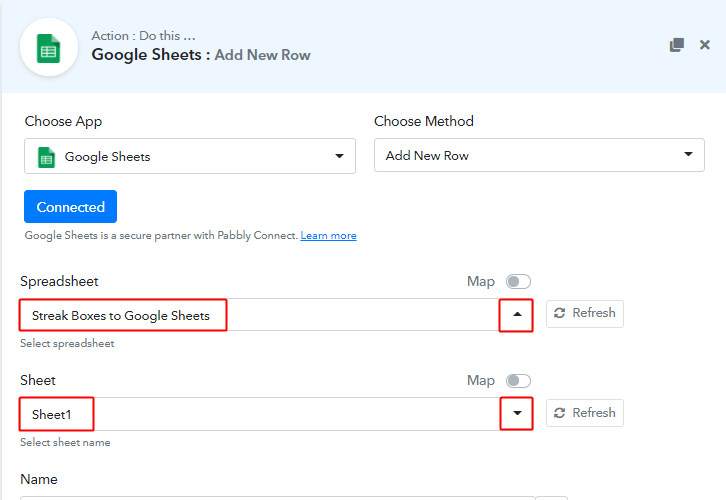
Pick the sheet that you’ve created for this purpose as well as the sheet within for the exact location.

(e) Map Values

Map Values

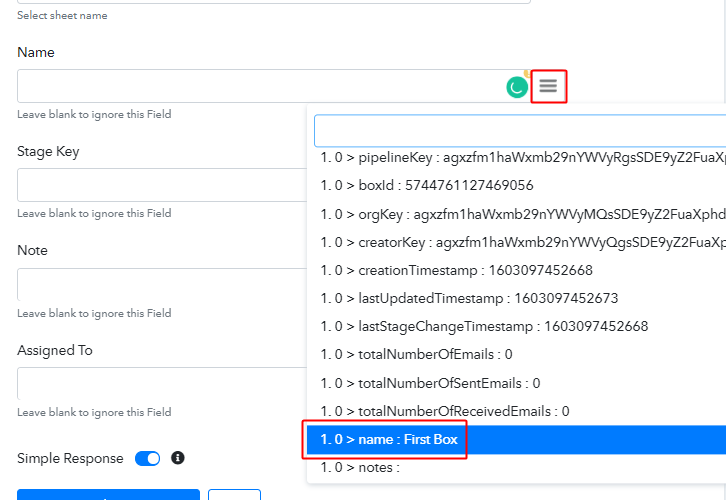
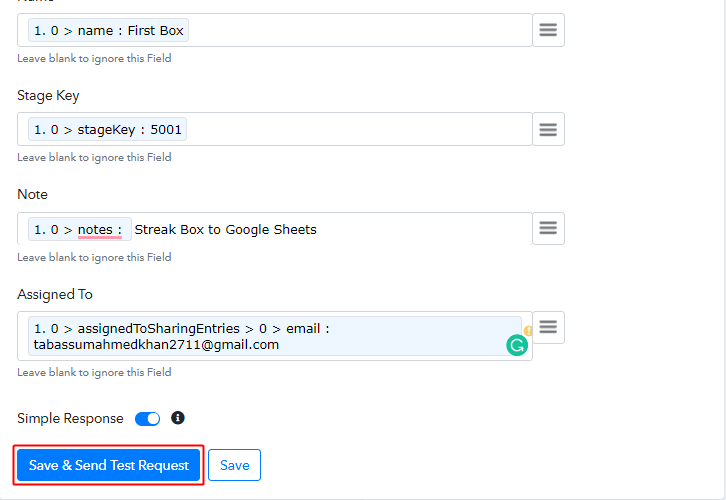
Next, you’ll need to map the trigger API response values that you got from Streak with the Google Sheets columns.

(f) Save & Send Test Request

Save & Send Test Request

After mapping all the necessary fields, click on the ‘Save & Send Test Request’ button.

Step 8: Check the Action’s Response

(a) Check the Action API’s Response

Action API Response

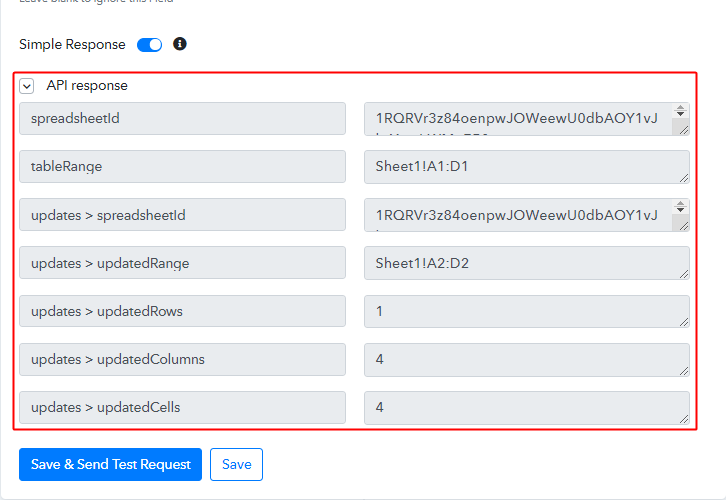
You can check the response of your API in the action window.

(b) Check the Contact Entry in Google Sheets

Google Sheets Response

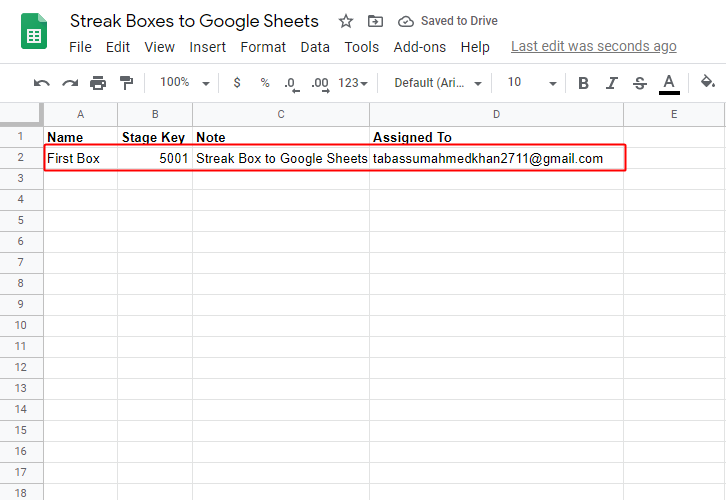
Also, you can check the entry of a new done in your connected Google Sheets account.

Step 9: Save the Workflow

(a) Save the Action API’s Response

Save Action API Response

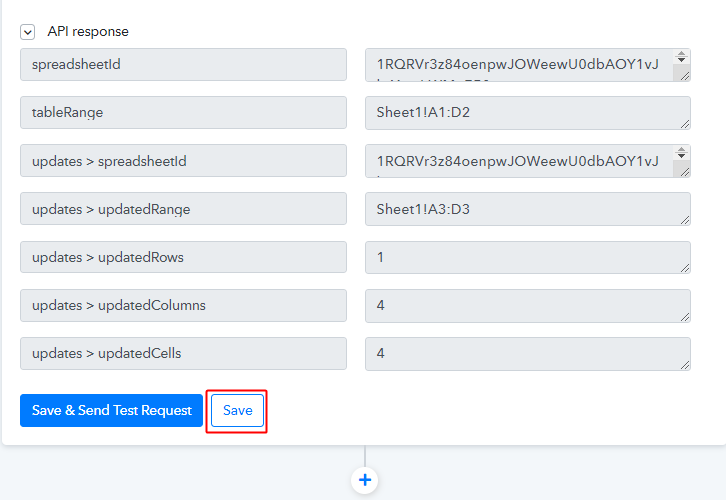
Save the action API’s response by hitting the ‘Save’ button at the bottom of the action API’s response.

(b) Save the Workflow

Save Webhook

As we can see the workflow is working perfectly. So, simply save the webhook by clicking the save button in the trigger window.

Wind-Up

Well, this is all about ‘How to save new Streak Boxes to Google Sheets’. Consequently, after completing the step by step procedure, you will end up saving the Streak box details on Google Sheets. More importantly, this process is very simple & you don’t need any coding knowledge to follow the steps.

You can try Pabbly Connect for FREE.

For further questions, comment below.

You May Also Like to Read:

How to Create Plutio Tasks from New Google Sheets Rows

How to Create Plutio Tasks from New Google Sheets Rows

Tired of finding a way to create Plutio tasks from new Google Sheets rows in real-time?

How to Create Plutio Tasks from New Google Sheets Rows

If Yes!! Then you don’t need to worry about it anymore. As, here we have a perfect tool suggestion for you i.e, Pabbly Connect which will help you to integrate Google Sheets and Plutio without any coding skills.

Pabbly Connect helps you to connect different applications without using a single line of code. Moreover, it lets you build seamless workflows for data transmission in real-time.

Why Choose This Method Of Integration?

In contrast with other integration services-

  • Pabbly Connect does not charge you for its in-built apps like filters, Iterator, Router, Data transformer, and more
  • Create “Unlimited Workflows” and smoothly define multiple tasks for each action
  • As compared to other services which offer 750 tasks at $24.99, Pabbly Connect proffers 50000 tasks in the starter plan of $29 itself
  • Unlike Zapier, there’s no restriction on features. Get access to advanced features even in the basic plan
  • Try before you buy! Before spending your money, you can actually signup & try out the working of Pabbly Connect for FREE

Sign Up To Pabbly Connect 

Furthermore, this software is packed with tools for making data transfer a cakewalk. Not only that, but it also offers features like path-routers, instant triggers, and many more even in its free plan.

Here, in this article, we will understand how to create Plutio Tasks from new Google Sheets rows.

So, let’s begin the process.

Step 1: Sign up to Pabbly Connect

Sign Up

Intiate the process of connecting Google Sheets to Plutio by clicking on the “Sign Up Free” icon on the Pabbly Connect dashboard. Subsequently, either fill-up the details manually or sign up using Gmail credentials.

Try Pabbly Connect for FREE

Step 2: Access Pabbly Connect

Select Connect

Further, after logging into the account, click on the “Access Now” button as shown in the above image.

Step 3: Workflow for Google Sheet to Plutio Integration

(a) Start with a New Workflow

Create New Workflow

Start the process of building a workflow for integration by clicking on the “Create New Workflow” button.

(b) Name the Workflow

Name the Workflow to Create Plutio Tasks from New Google Sheets Rows

Moreover, add the name of the workflow which in our case is “Google Sheet to Plutio”. Nevertheless, you can always name the workflow according to your requirements.

Step 4 : Setting Triggers to Create Plutio Tasks from Google Sheets Spreadsheet

Furthermore, when you are done with creating a workflow, now you have to select the application that you want to integrate. Using Pabbly Connect, you can integrate any two or more applications easily, create your free account now.

(a) Select Application you want to Integrate

Select Application you want to Integrate

Next, select the application that you want to integrate. In this case, we are choosing “Google Sheets” for integration. After selecting Google Sheets, choose “New Spreadsheet Row” in the method section.

(b) Copy the Webhook URL

Copy the Webhook URL

Once you are done selecting the application, just copy the webhook URL as shown in the image above to take further the integration process.

(c) Open your Google Sheets Spreadsheet

Open your Google Sheets Spreadsheet to Create Plutio Tasks from New Google Sheets Rows

First of all, open your Google Sheets Spreadsheet that you want to integrate with Plutio. Next, click on “Add-ons”, here you can choose the option called ‘Pabbly Connect Webhook’. But since you are hearing Pabbly Connect for the first time, this add-on is obviously not installed in your system. So let’s first install Pabbly Connect into Google Sheet by clicking on the option ‘Get add-on’.

(d)  Find Pabbly Connect in G Suite Market Place

Pabbly Connect in G Suite Market Place

Once you click on ‘Get Add-on’ a new window will pop-up. Here in the search bar look for Pabbly Connect Webhooks. If you have it then click it.

(e) Install Pabbly Connect

How

Click on install and within seconds this extremely light add-on gets installed into your Google Sheets.

Step 5 : Connecting Google Sheets to Pabbly Connect

After successfully installing the Pabbly Connect Webhooks, now you have to paste the copied Webhook URL in your Google Sheet Add-ons section.

(a) Click on Add-ons

Click on Add-ons

Go to your Google Sheet that you want to integrate & press the “Add-ons” option above, then select the add-ons. Later choose “Pabbly Connect Webhooks”. After that, select the “Initial Setup” option to paste the webhook URL.

(b) Paste the Webhook URL

Paste the Webhook URL to Create Plutio Tasks from New Google Sheets Rows

After selecting the “Initial Set-up” paste the copied webhook URL. But before you do that, you have to go back to the Pabbly Connect dashboard and press the button named “Capture Webhook Response”. Later on, just tap on the “Send Test” in Google Sheets.

Step 6: Test the Response in Pabbly Connect Dashboard

Test the Response in Pabbly Connect Dashboard to Create Plutio Tasks from New Google Sheets Rows

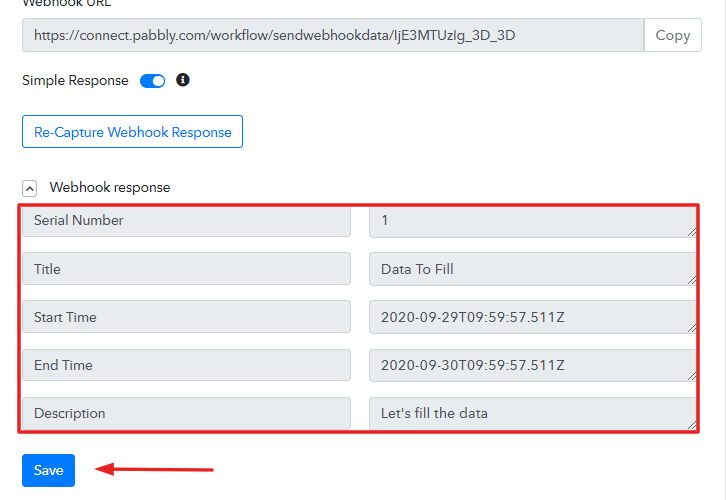
Once you do that, in just a few seconds, the entry will appear on the Pabbly Connect dashboard. Then, click on the “Save” option.

Step 7: Setting Action for Google Sheets & Trello Integration

Subsequently, in order to make this Google Sheets & Plutio integration work, you have to choose the action for your trigger.

(a) Select Application you Want to Integrate

Select Application you Want to Integrate

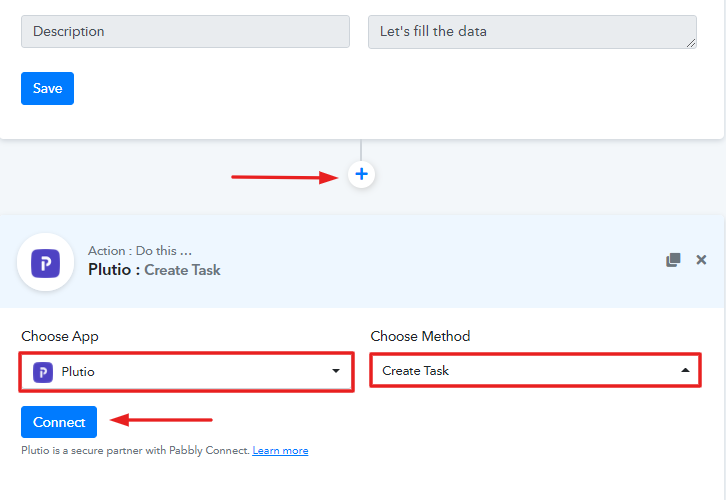
Furthermore, press the “+” icon to add an action for your trigger. Now, I am going to select “Plutio” from the dropdown. Later on, choose the option named  “Create Task”. Then, hit the “Connect” button. Afterward, it will ask for account authorization, hence to do that, you have to fill in certain details for which you have to log in to your Plutio account.

Step 8: Account Authorization

Besides, to integrate Plutio with Google Sheets Spreadsheet, you need to fill in details. Hence to do that, open your Plutio account.

(a) Go to Setting

Go to Setting

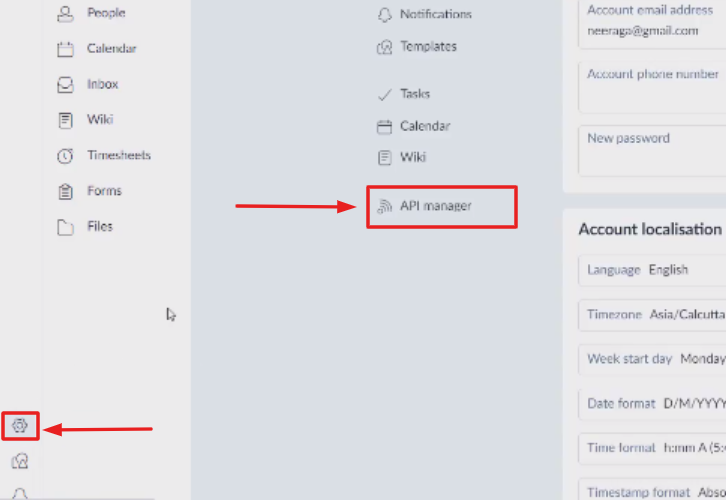
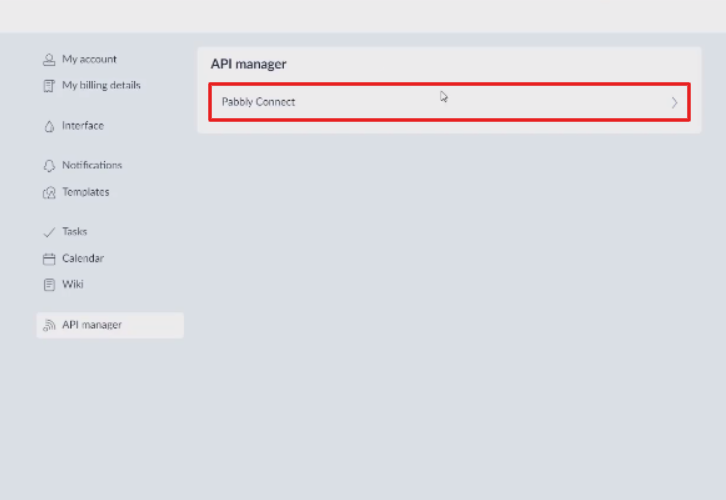
Once you open your Plutio account, the first step is to go to the setting by clicking on the gear icon of settings. After that, just click on the button named “API Manager”.

(b) Click on API Manager

Click on API Manager

After pressing the API manager button, you need to open the API setting as here it is named as Pabbly Connect, simply click on that.

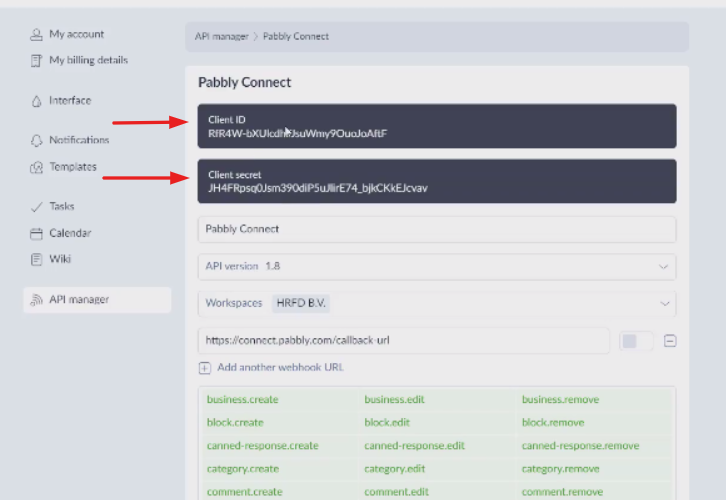
(c) Copy Client ID & Client Secret

Copy Client Id & Secret Key

Now, copy the Client ID along with Client secret in order to paste in the Pabbly Connect dashboard.

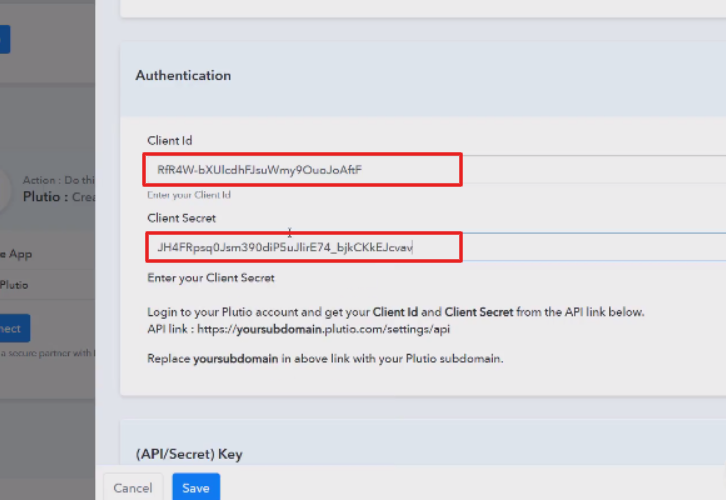
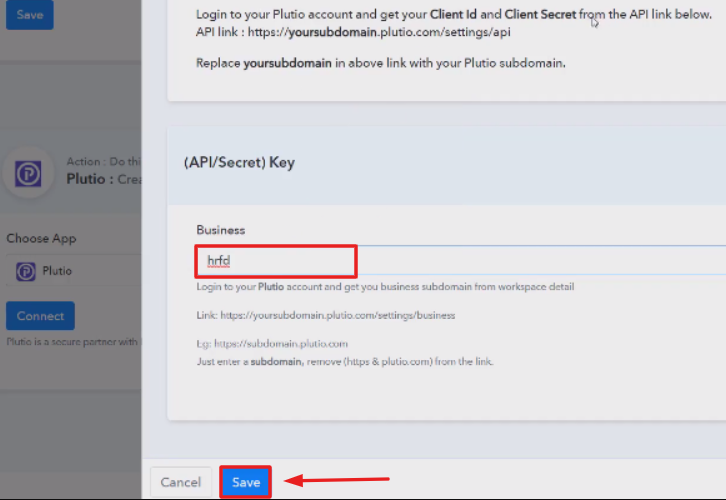
(d) Paste the Client ID & Client Secret

Paste the Client ID & Client Secret

Now, paste both the copied in keys in their respective column.

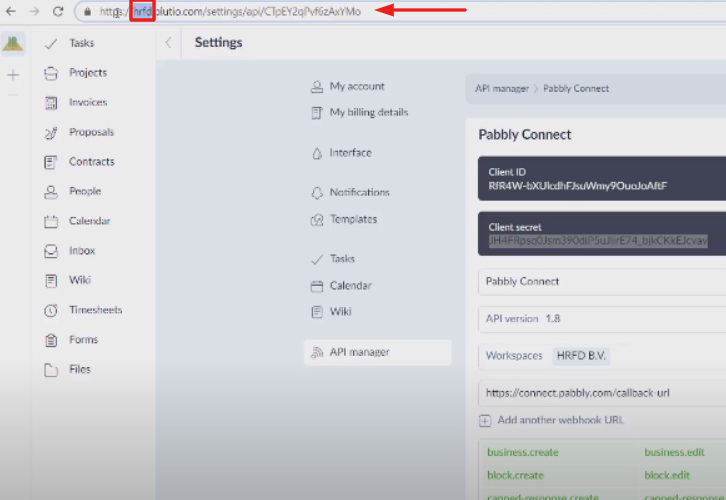
(e) Copy API Key

Copy API Key

Later, now it’s time to copy the API key, and for that, you have to copy your subdomain name from the URL. Just copy it.

(e) Paste Credentials in Pabbly Connect Dashboard

Paste Credentials in Pabbly Connect Dashboard

Simply enter the entire details & click on the “Save” button.

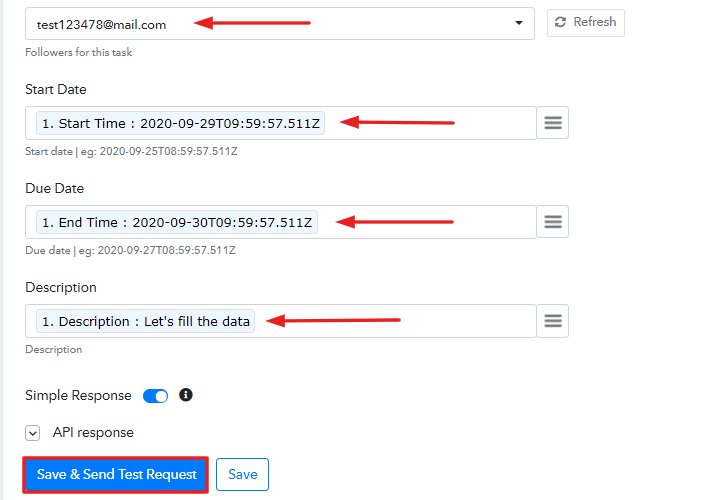
(f) Add Field Data

Add Field Data to Create Plutio Tasks from New Google Sheets Rows

Subsequently, now map the fields in the respective columns to send Google Sheets rows data in Plutio tasks.

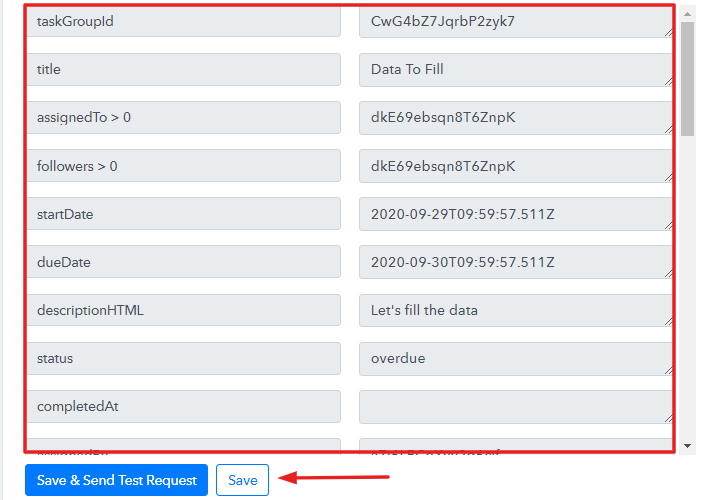
Step 9: Test the Submission and Save

Test the Submission and Save to Create Plutio Tasks from New Google Sheets Rows

As you can see, all the data has been successfully sent to the Plutio account. Now, simply click on the “Save” button to save your workflow.

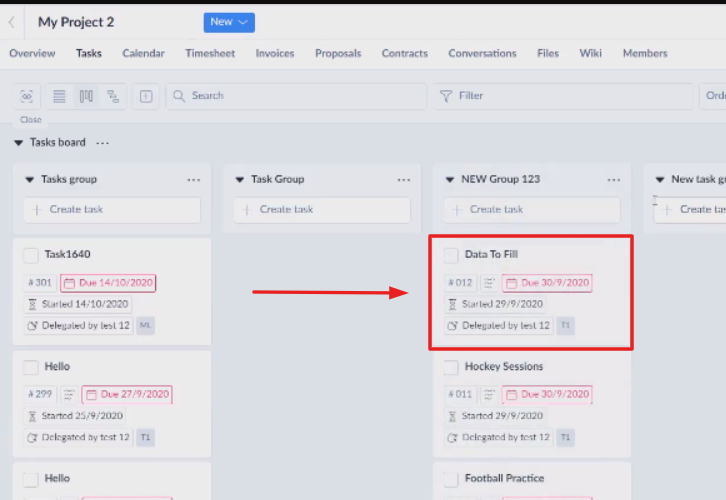
Step 10: Check Response in Plutio

Check Response in Plutio to Create Plutio Tasks from New Google Sheets Rows

Voila!! As you can see, all the tasks details of the Google Sheets row is now visible in your Plutio tasks.

Wrapping Up

Now, you know how to create Trello Cards from new Google Sheets Spreadsheet Rows. This is a one-time process, after this every time you add any details in Google Sheets, all the details will get appended to the Plutio tasks automatically. All you have to do is follow all the above-mentioned steps and you’re good to go. Using Pabbly Connect, you can integrate limitless applications & create unlimited workflows.

So let’s start your automation work with Pabbly Connect. Moreover, if you have any queries, you can always contact us.

You May Also Like To Read –

How to Add Canceled Calendly Events as New Rows to Google Sheets

How to Add Canceled Calendly Events as New Rows to Google Sheets

Have you tried to add canceled Calendly events as new rows to Google Sheets automatically without any manual effort?

How to Add Canceled Calendly Events as New Rows to Google Sheets

No, you haven’t! This is exactly why we are going to show how to integrate Calendly with Google Sheets using Pabbly Connect.

But before moving on to that let’s understand the need for connecting Calendly with Google Sheets. Calendly is an automated scheduling tool used by business professionals to book meetings, schedule events, and much more in advance. On the other hand, Google Sheets is a free online spreadsheet for personal or business use.

By connecting both the software, you can manage all your appointments, meetings, events in a Google spreadsheet. However, integrating both the software can be a lot of work, this is why we are recommending the automation tool Pabbly Connect.

Why Choose This Method Of Integration?

In contrast with other integration services-

  • Pabbly Connect does not charge you for its in-built apps like filters, Iterator, Router, Data transformer, and more
  • Create “Unlimited Workflows” and smoothly define multiple tasks for each action
  • As compared to other services which offer 750 tasks at $24.99, Pabbly Connect proffers 50000 tasks in the starter plan of $29 itself
  • Unlike Zapier, there’s no restriction on features. Get access to advanced features even in the basic plan
  • Try before you buy! Before spending your money, you can actually signup & try out the working of Pabbly Connect for FREE

Sign Up To Pabbly Connect  

Pabbly Connect that lets you connect multiple software, automates the data transmission task, and removes all the manual work through a single interface.

One can use this software without any technical skill which makes it the easiest integration software on the market. With its lifetime deal, you can get access to unlimited premium apps, workflows, path routers, and much more even in its free plan.

Here, in this article, we will understand how to add canceled Calendly events as new rows to Google Sheets in real-time.

How to Add Canceled Calendly Events as New Rows to Google Sheets (step by step)

So, without any ado, let’s headstart the process of integrating Calendly and Google Sheets.

Step 1: Sign up to Pabbly Connect

Sign Up

Start the process of connecting Calendly to Google Sheets by clicking on the “Sign Up Free” icon on the Pabbly Connect dashboard. Subsequently, either fill-up the details manually or sign up using Gmail credentials.

Try Pabbly Connect for FREE

Step 2: Access Pabbly Connect

Select Connect

Further, after logging into the account, click on the “Access Now” button as shown in the above image.

Step 3: Workflow for Calendly to Google Sheets Integration

(a) Start with a New Workflow

Create New Workflow

Start the process of building a workflow for integration by clicking on the “Create New Workflow” button.

(b) Name the Workflow

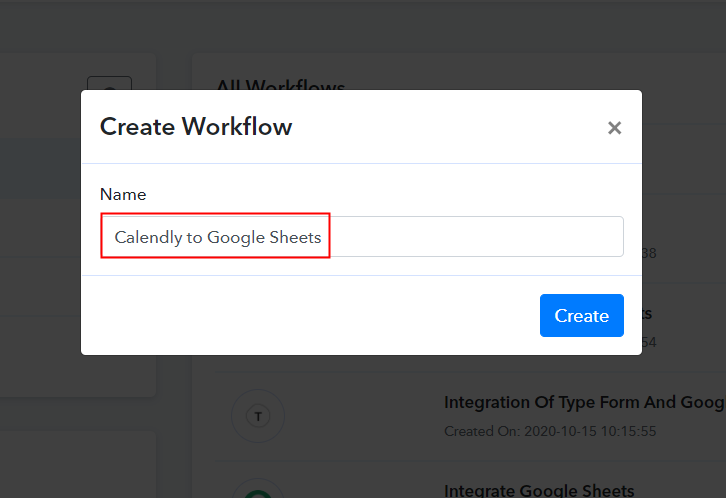
Name the Workflow

Moreover, add the name of workflow which in our case is “Calendly to Google Sheets”. Nevertheless, you can always name the workflow according to your requirements.

Step 4: Setting Trigger for Calendly to Google Sheets Integration

Next, after building a workflow, you have to choose the integration app to add canceled Calendly events as new rows to Google Sheets. Pabbly Connect offers unlimited actions and triggers, click here to sign up for unlimited workflows for free.

(a) Select Application you Want to Integrate

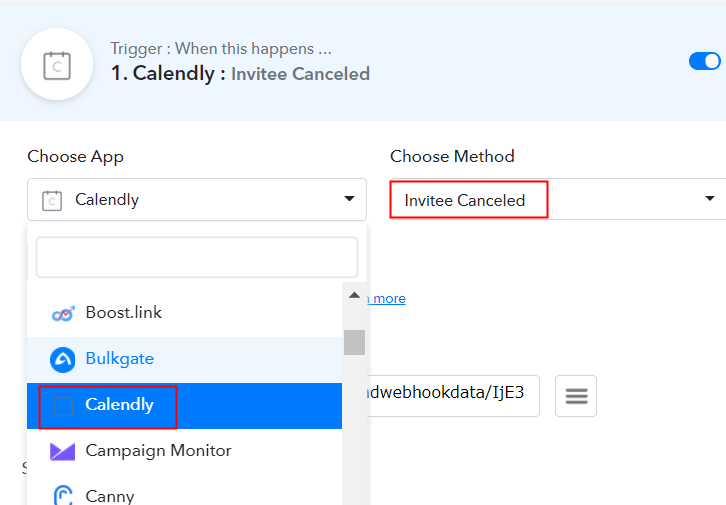
Select Calendly

The following step is to select “Calendly” from the dropdown, then choose the “Invitee Canceled” option to append canceled Calendly events to Google Sheets.

(b) Click on Connect Button

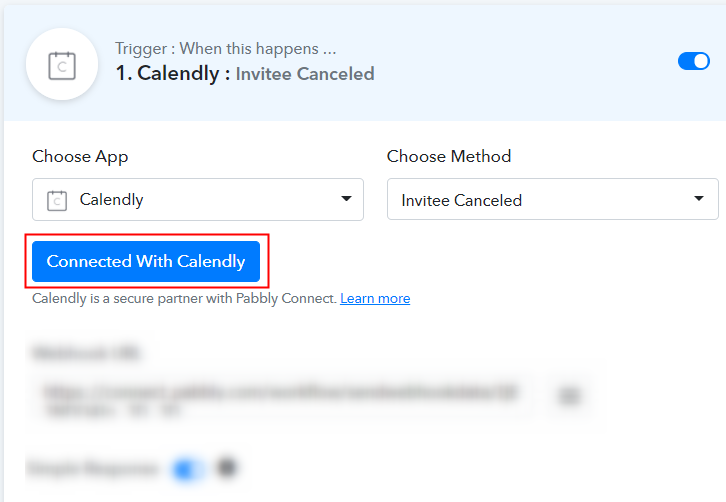
Click on Connect Button

The following step to connect Calendly with Google Sheets is to click on the “Connected with Calendly” button.

Step 5: Connecting Calendly with Pabbly Connect

Now as soon as you click on the “Connected with Calendly” button, it will ask for an API token, for which you have to log in to your Calendly account.

(a) Click on Calendly Integrations Setting

Click on Integrations

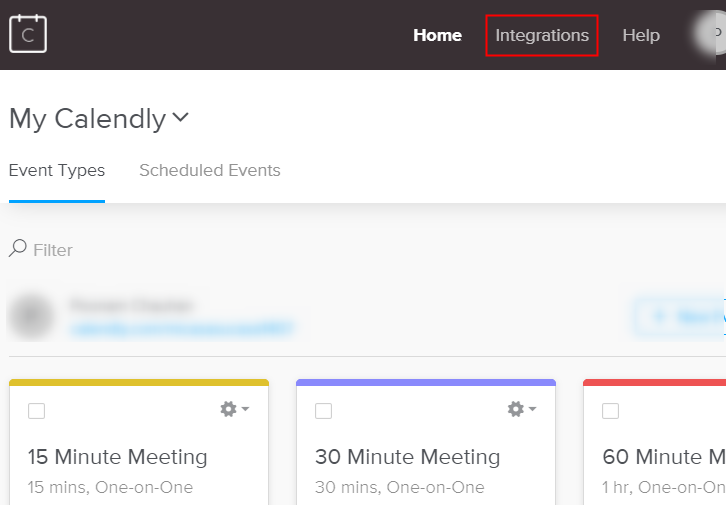
After login to your Calendly account, click on the “Integrations” option appearing on top.

(b) Copy or Regenerate the API Key

Copy or Regenerate the API Key

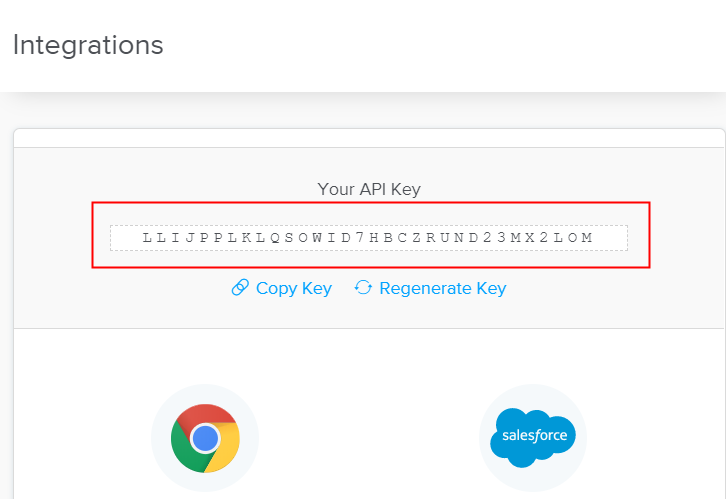
In addition, you can either copy the API key that appears on the dashboard or regenerate the key according to your needs. All you need to do is copy the key.

(c) Paste API Key in Pabbly Connect Dashboard

Paste API Key in Pabbly Connect Dashboard

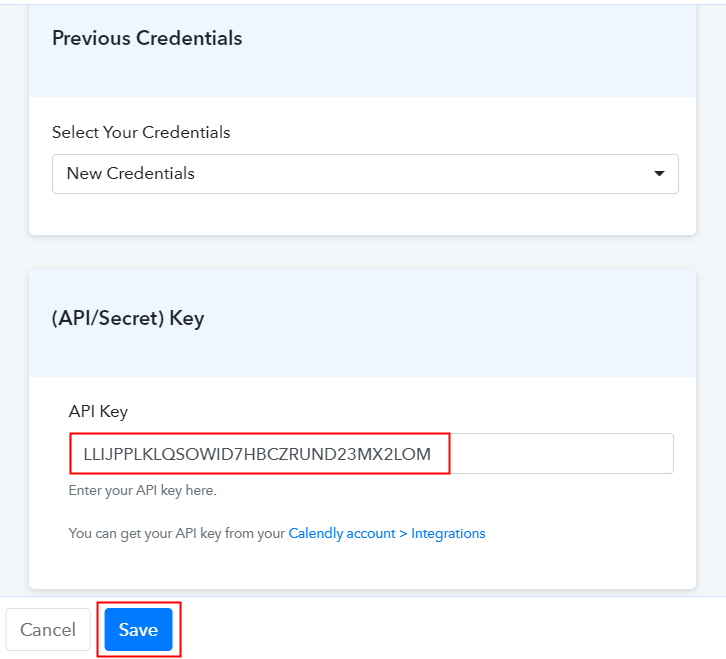
Gradually shift to the Pabbly Connect dashboard now to paste the API key. As we stated above in the post, when you click on the “Connected” button, the “API key” option will open up the page. Just paste the copied API there. Click on the “Save” button.

Step 6: Schedule the Event to Test Calendly Integration

Now to test the Calendly – Google Sheets integration, we have to schedule events in Calendly.

(a) Schedule a Dummy Booking

Schedule a Dummy Booking

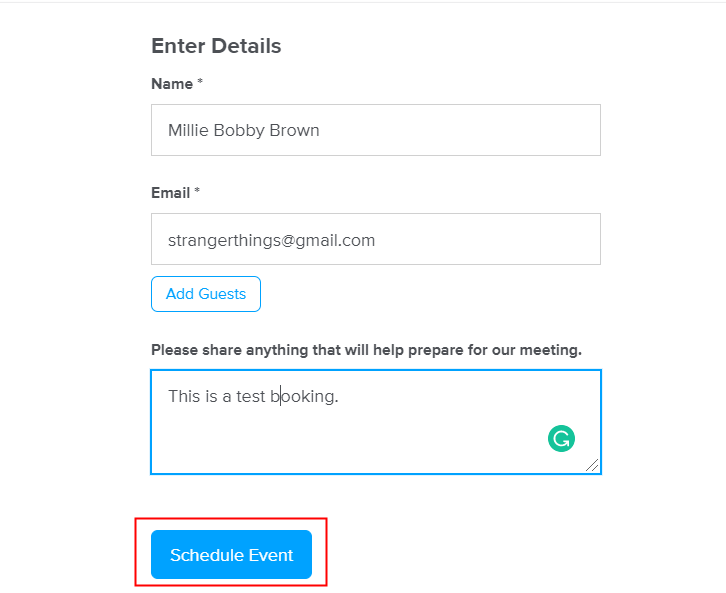
Now to check the Calendly integration we have to schedule an appointment using the software. For this, go back to Calendly software, copy the link of the event and paste in another tab, then book an appointment by filling in all the details. After filling in all the necessary details, click on the “Schedule Event” button.

(b) Cancel an Event

Cancel an Event

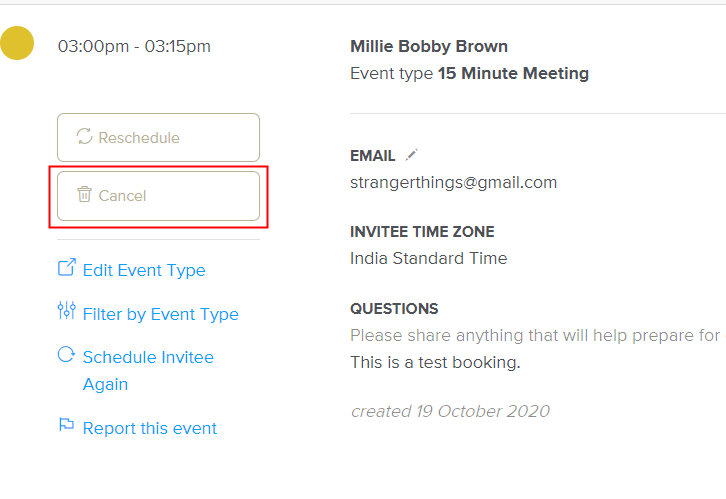
However, in this topic, we want canceled Calendly events in Google Sheets. That’s why we are going to cancel the booking we made earlier by clicking on the “Cancel” button.

Further, a response can take a while to appear so make sure to click “Capture Webhook Response” in Pabbly Connect before canceling an event.

Step 7: Test the Response in Pabbly Connect Dashboard

Test the Response

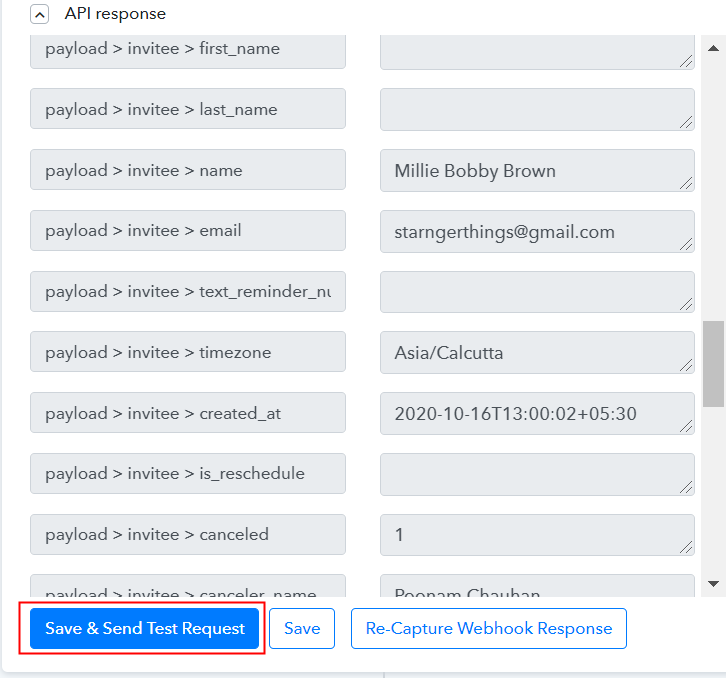
As soon as you submit the response, go back to the Pabbly Connect dashboard where you will see the submitted entry. Then, click on the “Save” button to continue the workflow.

Step 8: Setting Action for Calendly – Google Sheets Integration

Now the next step is to select the action for your trigger. For this, you have to select the application you want to integrate which in our case is Google Sheets.

(a) Select Application you Want to Integrate

Select Google Sheets

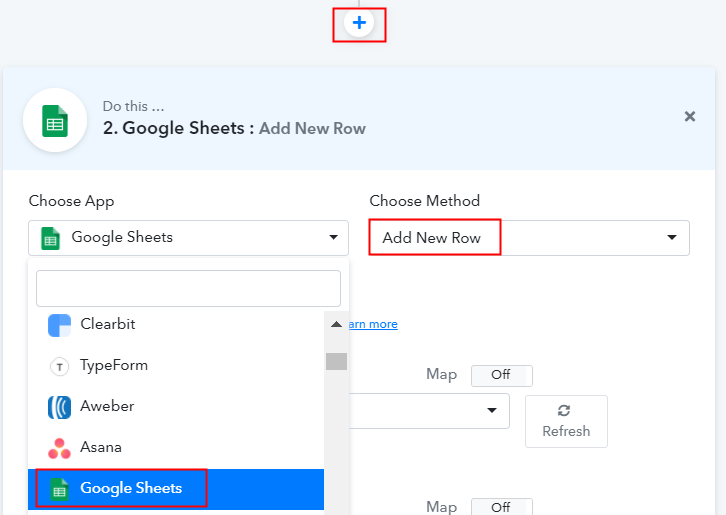
Next, click on the “+” icon to add an action for your trigger. Here we are going to select “Google Sheets” from the dropdown. Then, select the “Add New Row” option.

(b) Click the Connect Button

Connected with Google Sheets

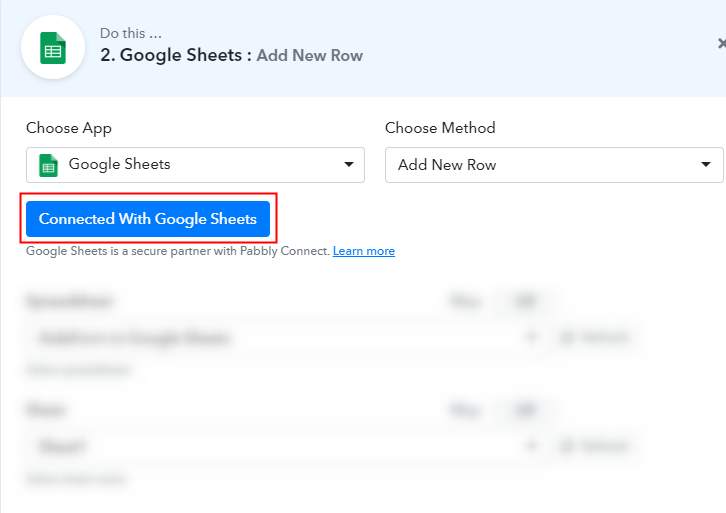
Subsequently, click on the “Connected with Google Sheets” button. It will ask for permission for which you have to log in to your Google account.

(c) Allow Google Sheets Authorization

Integrate with Google Sheets

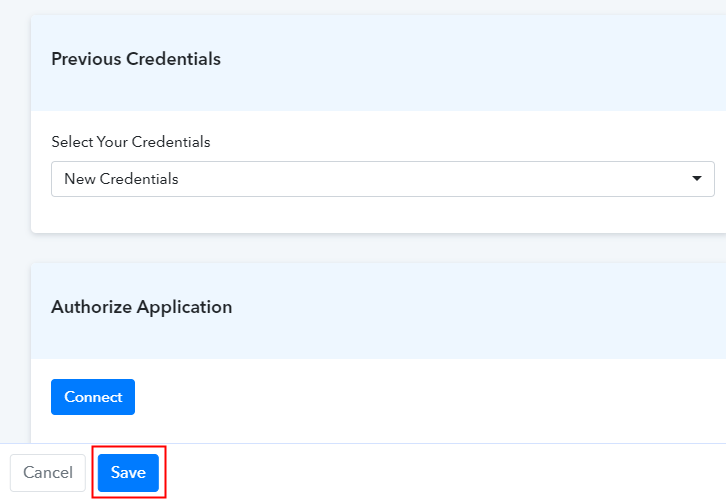
It will ask for authorization for which you have to click on the “Connect” button to give allow access to your Google Sheets.

(d) Map Field Data

Map Field Data

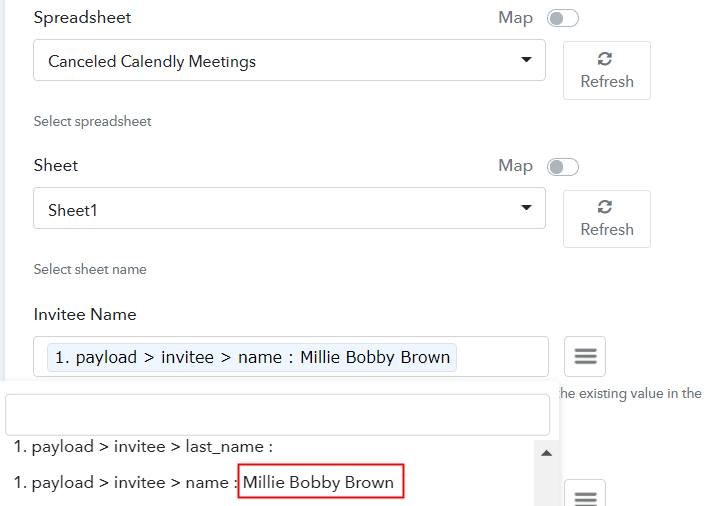
As you see, the software has already fetched the spreadsheet which is “Canceled Calendly Meetings”. After that, map the fields such as for the name, map the name option, and for email, map the email option from the dropdown.

(e) Save and Send Test Request

Save and Send Test Request

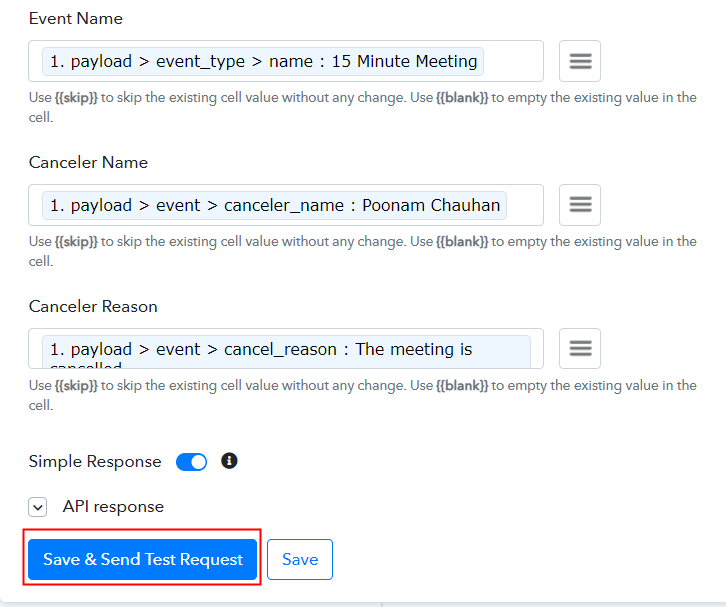
Further, after successfully mapping all the fields, hit “Save and Send Test Request”.

Step 9: Check Response in Google Sheets

Check Response in Google Sheets

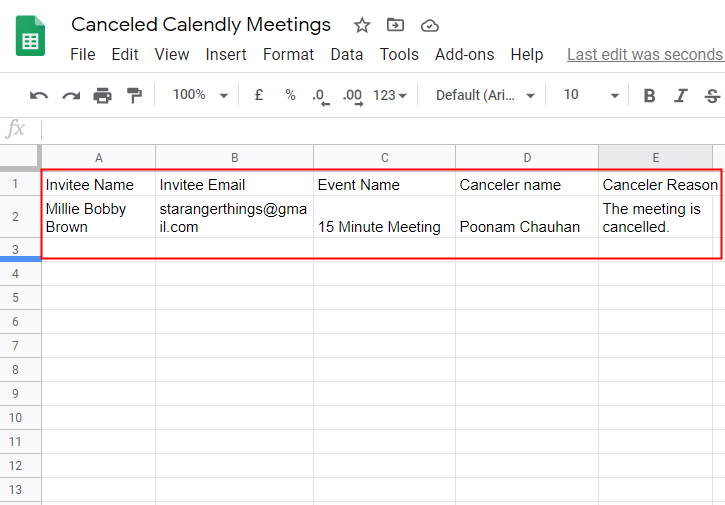
Lastly, when you check the Google Sheets, the entered canceled entry gets auto-populated in a sheet. This is a one time process after that, all the canceled Calendly events will automatically get updated in Google Sheets.

Conclusion –

There you have it! Here we have successfully explained “How to Add Canceled Calendly Events as New Rows to Google Sheets” software. Just follow all the above-mentioned steps and you’re good to go. We all understand the importance of time and that’s why software like Pabbly Connect is a great help as it provides easy integration and automation with zero coding skills.

So, don’t confuse yourself anymore. Try Pabbly Connect for Free.

You May Also Like To Read –

How to Add Acuity Scheduling Appointments to Google Sheets Rows

How to Add Acuity Scheduling Appointments to Google Sheets Rows

Are you wondering if there is a way to add Acuity Scheduling appointments to Google Sheets rows automatically? If yes, then worry no more as today we have brought to you the best solution to all the automation-related problems called Pabbly Connect.

How to Add Acuity Scheduling Appointments to Google Sheets Rows

Pabbly Connect is an incredible integration and automation service, which allows you to integrate two or more applications to automate all the projects. You just have to do the integration once and then everything will be automatically managed by Pabbly Connect.

Why Choose This Method Of Integration?

In contrast with other integration services-

  • Pabbly Connect does not charge you for its in-built apps like filters, Iterator, Router, Data transformer, and more
  • Create “Unlimited Workflows” and smoothly define multiple tasks for each action
  • As compared to other services which offer 750 tasks at $24.99, Pabbly Connect proffers 50000 tasks in the starter plan of $29 itself
  • Unlike Zapier, there’s no restriction on features. Get access to advanced features even in the basic plan
  • Try before you buy! Before spending your money, you can actually signup & try out the working of Pabbly Connect for FREE

Sign Up To Pabbly Connect

In today’s blog, we will be integrating Acuity Scheduling with Google Sheets via Pabbly Connect. After this integration, whenever there will be any new appointments in your Acuity Scheduling account, the data will be updated in your Google Sheets automatically.

Aside from this integration, the software also offers many other useful features:

  • Create unlimited workflows without any restrictions
  • Unlimited premium apps
  • Set unlimited triggers, unlimited actions to those triggers
  • Path routers

and the remarkable part is that you can access all the features even with the free plan.

Consequently, without taking any more of your time, let’s get started with the blog about how to add Acuity Scheduling appointments to Google Sheets rows.

Step 1: Sign up to Pabbly Connect

Sign Up

We will begin the process to add Acuity Scheduling appointments to Google Sheets rows by visiting the website of Pabbly Connect and then click on the ‘Sign-Up Free‘ button. On the registration page, either signup using an existing Gmail account or manually fill out the form.

Try Pabbly Connect for FREE

Step 2: Access Pabbly Connect

Select Connect

Once you have completed the signup process, click on the Connect section in the dashboard to access Pabbly Connect.

Step 3 : Workflow for Acuity Scheduling with Google Sheets Integrations

(a) Create New Workflow

Create New Workflow

Start with creating a workflow for your project by clicking on the ‘Create Workflow’ button.

(b) Name the Workflow

Name the Workflow

Now, you need to name the workflow just like in the above-shown image. I named the workflow as “Google Sheets to Acuity”, you can obviously name the workflow as per your requirements and needs.

Step 4 : Setting Triggers for Acuity Scheduling with Google Sheets Integrations

After naming your workflow, you have to select the application you want to integrate. Through Pabbly Connect, you can combine unlimited applications, create your free account now.

(a) Select Application you want to Integrate

Select Acuity

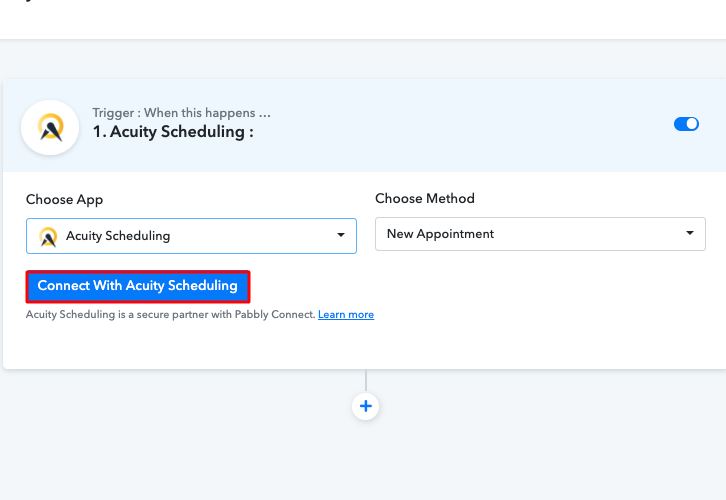
Now, you have to select the application that you want to integrate. In this case, we are choosing “Acuity Scheduling” for integration. After selecting the application select “New Appointment” in the choose method section.

(b) Click Connect Button

Click on Connect

After selecting the application, now you have to click on the “Connect with Acuity Scheduling” button just like in the above-shown image to take further the integration process.

Step 5 : Connecting Acuity Scheduling to Pabbly Connect

To connect Acuity Scheduling with Pabbly Connect, you have to authorize your Acuity Scheduling account, for that, you need to log in to your Acuity Scheduling account.

(a) Authorize Application

Authorize Application

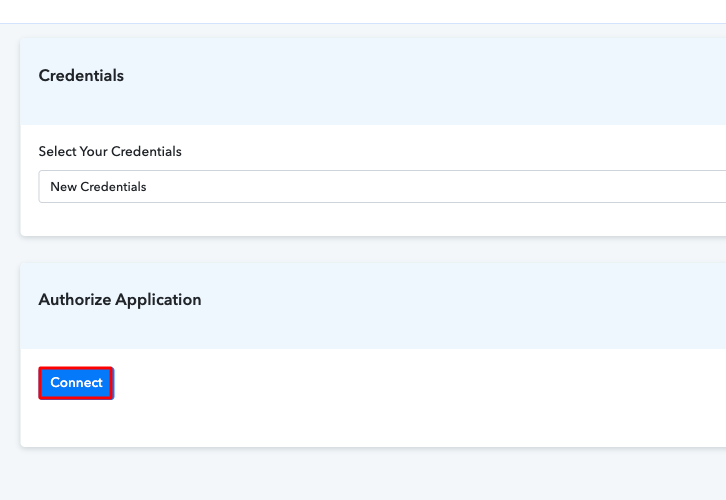
When you click on the “Connect” button, a window will slide in from the right, here you have to again click on the “Connect” button and then choose the account through which we want to log into Acuity Scheduling.

(b) Send Test Request

Click Send Test Request

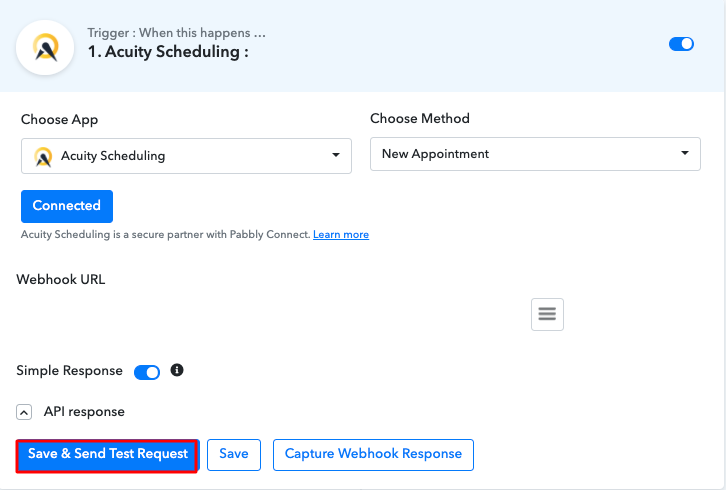
Now after authorizing your Acuity Scheduling account, we will click on the “Save and Send a Test Request” button in Pabbly Connect to check if the integration was successful or not.

Step 6 : Book an Appointment

To check if the integration is capturing data or not, we will book a sample appointment.

(a) Select Time Slot

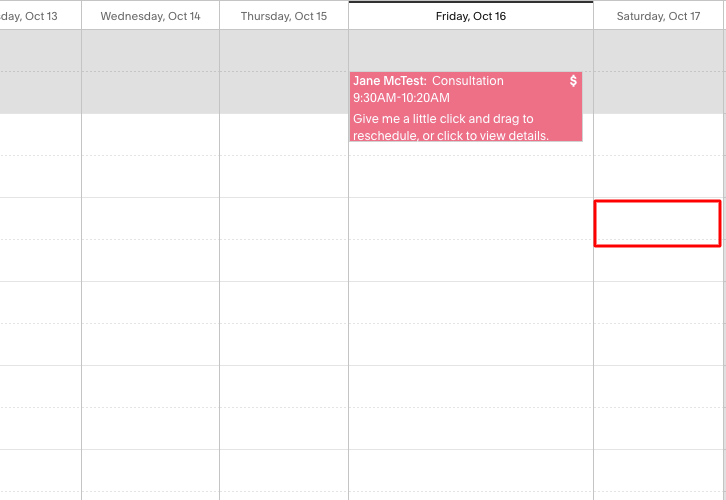
Select date and time

Select the date and time for your appointment according to your needs.

(b) Fill up the Details

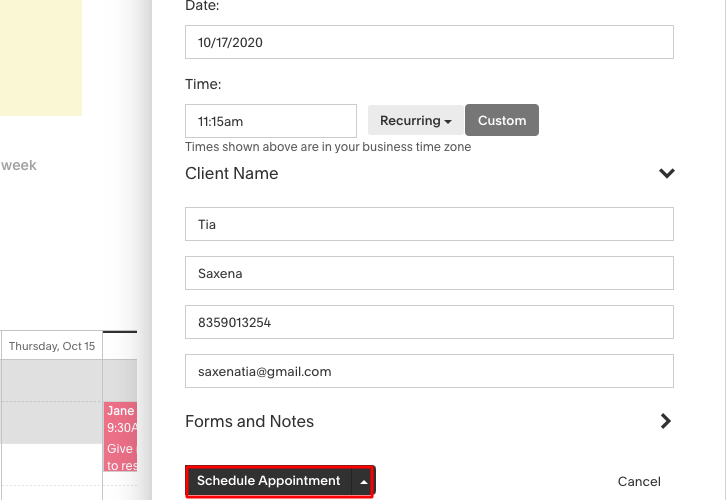
Confirm Appointment

Fill up all the required details and hit the “Schedule Appointment” button. But before that, click on the “Capture Webhook Response” button in the Pabbly Connect dashboard.

Step 7 : Test the Submission in Pabbly Connect Dashboard

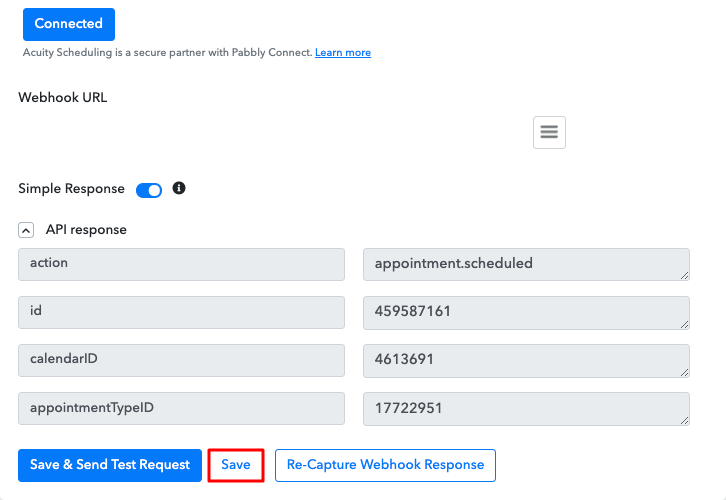
Save the Webhook Response

As soon as you click on the “Schedule Appointment” in Acuity Scheduling and “Capture Webhook Response” in Pabbly Connect the entry will appear on the Pabbly Connect dashboard. Then, click on the “Save” option.

Step 8 : Setting Action for Acuity Scheduling with Google Sheets Integrations

In this step, we will be adding two actions for your trigger to complete this integration process. The first action of Acuity Scheduling to get the booker’s info from the appointment ID and the second action of Google Sheets to update the appointment info.

(a) Select Application you want to Integrate

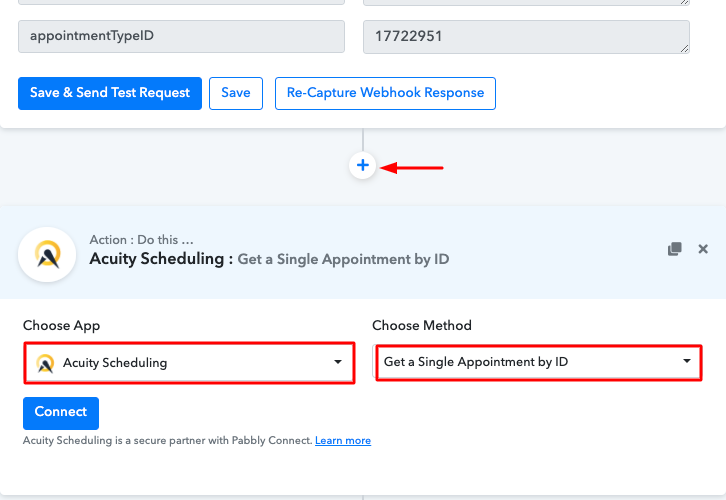
Select Acuity in Action

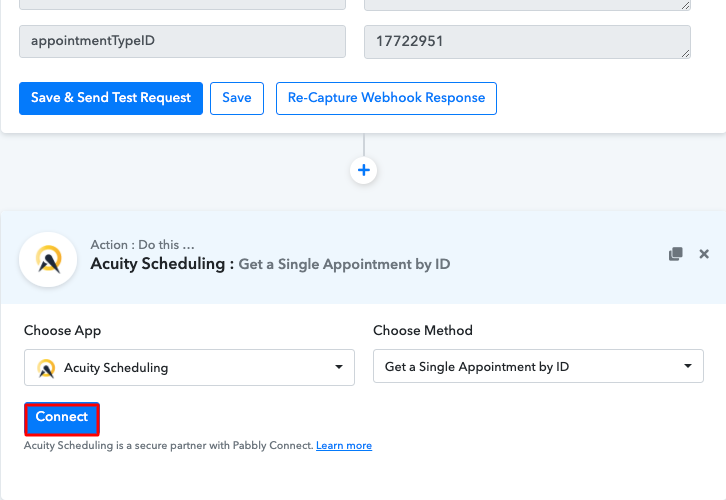
Now in this step, click on the + button below and choose “Acuity Scheduling” and in the method section select “Get a Single Appointment by ID”.

(b) Click on Connect Button

Click Connect in Action

After choosing the application click on the “Connect” button to move forward.

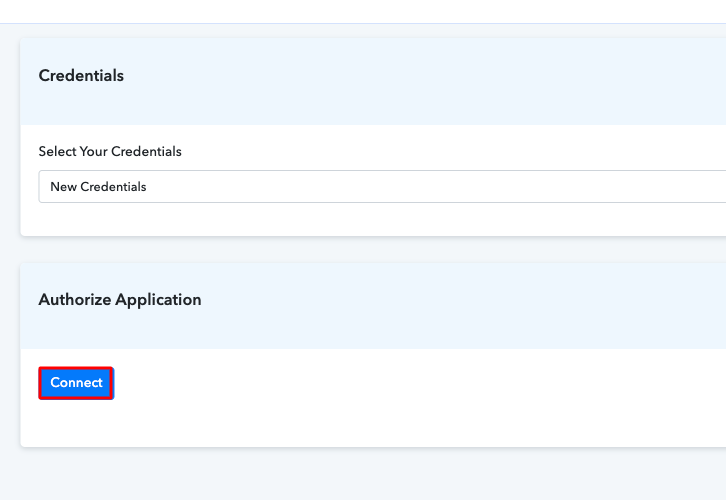
(c) Authorize Application

Authorize Application

Here, you have to again authorize your Acuity Scheduling account by clicking “Connect” button and loging-in.

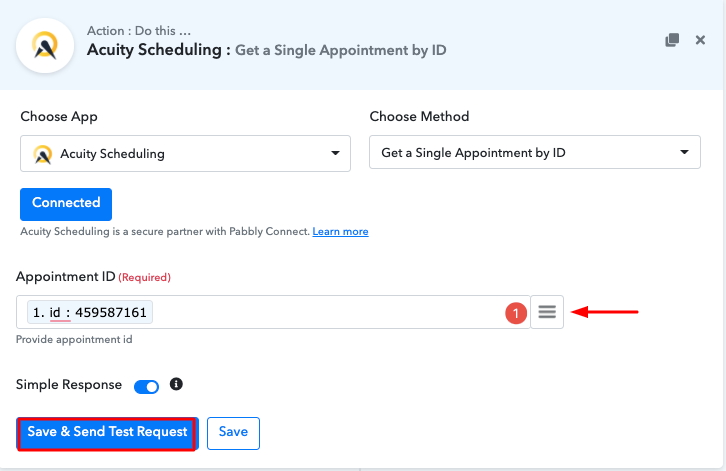
(d) Add Appointment ID

Add Acuity Scheduling Appointments to Google Sheets Rows

Next after authorizing your account, you have to add the appointment ID, which you can copy from the trigger section and then click on the “Save & Send Test Request” button.

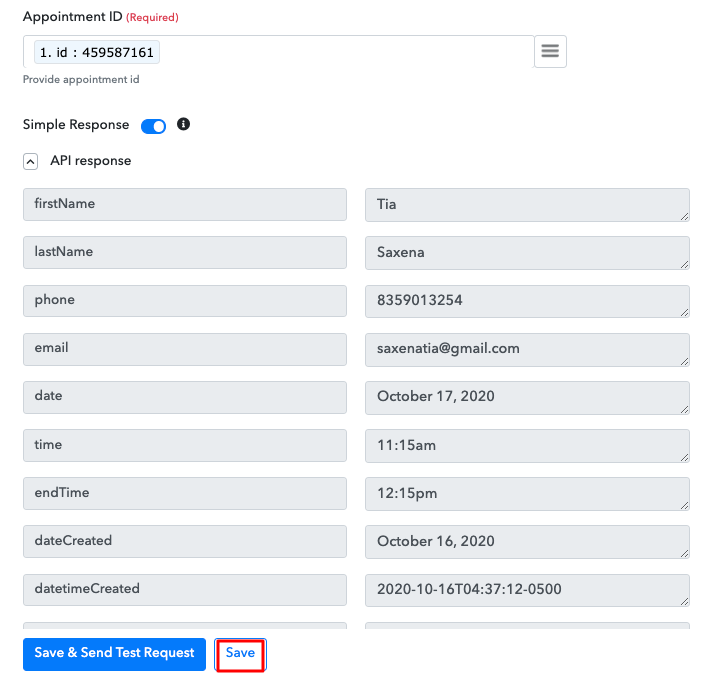
(e) Save the API Response

Add Acuity Scheduling Appointments to Google Sheets Rows

Here, you can see, we have obtained the booker’s info like name, email, etc from the appointment ID. Save the API response and move forward.

(f) Select Application you want to Integrate

Select Google Sheets

Now in this step, click on the + button below and choose “Google Sheets” and in the method section select “Add New Row”.

(g) Click on Connect Button

Add Acuity Scheduling Appointments to Google Sheets Rows

After choosing the application click on the “Connect” button to move forward.

Step 9 : Connecting Google Sheets to Pabbly Connect

To connect Google Sheets with Pabbly Connect, you need to authorize your Google account through which you want to choose the sheet to connect.

(a) Click the Connect Button

Add Acuity Scheduling Appointments to Google Sheets Rows

When you click on the “Connect” button, a window will slide in from the right, here you have to again click on the “Connect” button and then choose the Google account through which we want to integrate.

(b) Map the Fields

Add Acuity Scheduling Appointments to Google Sheets Rows

Once you are connected with your Google account, now you have to add all the field’s data that you want in your Google Sheet like sheet name, email id, etc. Map up all the fields quickly.

(c) Send a Test Request

Add Acuity Scheduling Appointments to Google Sheets Rows

Once you are done mapping up all fields click on the “Send Test Request” button.

Step 10 : Check Response in Google Sheet

Add Acuity Scheduling Appointments to Google Sheets Rows

Here, you can see the integration was successful and the info from the Acuity Scheduling has been added to the Google Sheet automatically. Now in a similar way, whenever there will be any new appointments in your Acuity Scheduling account, the info will be automatically added to the Google Sheets.

Conclusion –

Alright, now that you have learned how to add Acuity Scheduling appointments to Google Sheets rows, now you can easily integrate any applications and automate your projects. Once you start working with Pabbly Connect, there is no going back. You can create unlimited workflows, integrate unlimited applications, work with so many premium apps, and you get all this for free. Therefore stop thinking and signup for your free account today.

In case of any queries or suggestions, please drop your comments below.

You May Also Like to Read –

How to Save New GetResponse Contacts to Google Sheets as Rows

Save New GetResponse contacts to Google Sheets as Rows

In this blog, we are going to show you the step by step procedure to save the newly added GetResponse contacts to Google Sheets rows automatically. As we sometimes need to collect the subscriber’s data for further marketing usage.

We are going to integrate GetResponse with Google Sheets using Pabbly Connect to automatically save the contacts in spreadsheet rows. Pabbly Connect lets you connect two or more services to shares data in real-time as well as take specific actions on them such as send automated emails, record them in spreadsheets, forward it to other partner services etc without hard coding.

Save New GetResponse contacts to Google Sheets as Rows

We’ll set up a trigger on the GetResponse new contact inserted and its respective action for saving the contact details on Google Sheets rows.

Moreover, Pabbly Connect also allows you to set up instant triggers, routers, filters as well as formatters to design unlimited workflows. Besides, it also provides many advanced features like multi-step calls, integration with unlimited premium apps etc. All in all, you can make use of any of these and many more features to automate your tasks.

Why Choose This Method Of Integration?

In contrast with other integration services-

  • Pabbly Connect does not charge you for its in-built apps like filters, Iterator, Router, Data transformer and more
  • Create “Unlimited Workflows” and smoothly define multiple tasks for each action
  • As compared to other services which offer 750 tasks at $24.99, Pabbly Connect proffers 50000 tasks in the starter plan of $29 itself
  • Unlike Zapier, there’s no restriction on features. Get access to advanced features even in the basic plan
  • Try before you buy! Before spending your money, you can actually signup & try out the working of Pabbly Connect for FREE

Sign Up To Pabbly Connect  

It allows you to design as well as automate the workflow to add the recently added contacts on GetResponse to Google Sheets rows in just a minute interval. So, save your time and automate your tasks, access all Pabbly Connect features without any restriction even in the free plan.

Now, let’s dig in the step by step procedure to integrate GetResponse to Google Sheets and automatically save the newly added contacts within sheets rows.

Step 1: Sign up to Pabbly Connect

Sign Up

Visit the official website of Pabbly Connect & then hit the ‘Sign-Up Free‘ button. Next, on the registration page signup using an existing Google account or manually fill in the form to get into the system.

Try Pabbly Connect for FREE

Step 2: Access Pabbly Connect

Select Connect

After signing up successfully, click the ‘Access Now’ button of the software ‘Connect’ Pabbly application.

Step 3: Workflow for GetResponse with Google Sheets Integration

(a) Start with a New Workflow

Create New Workflow

Start with creating a workflow to save new GetResponse contacts to Google Sheets as rows and to do this strike the ‘Create New Workflow’ button.

(b) Name the Workflow

GetResponse to Google Sheets Workflow

Now, name the workflow as per your need (for instance: GetResponse to Google Sheets etc) and push the ‘Save’ button.

Step 4: Setting Trigger for GetResponse – Google Sheets Integration

To automatically add new GetResponse contacts to Google Sheets as rows whenever a new contact is added, you’ll need to set-up a trigger on ‘New Contact’ event and its respective action to add the contact details in your Google Sheets as rows.

(a) Select Application you want to integrate

Integrate GetResponse

When you hit the save button to create a workflow, a trigger window will open next.

You’ll need to select the ‘GetResponse’ option from the ‘Choose App’ field drop-down options.

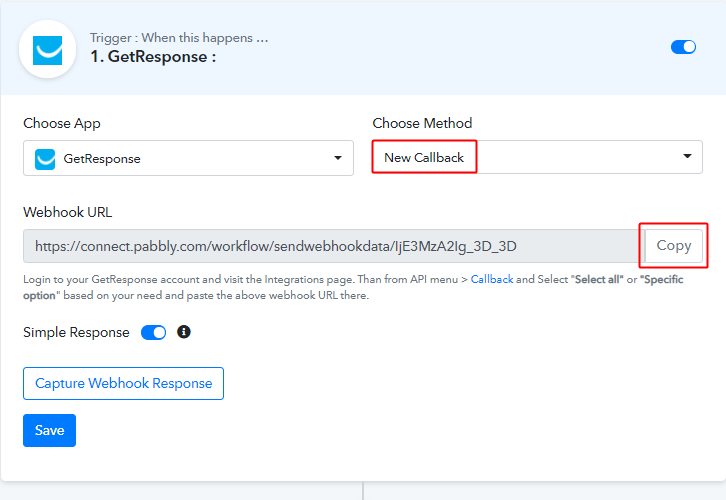
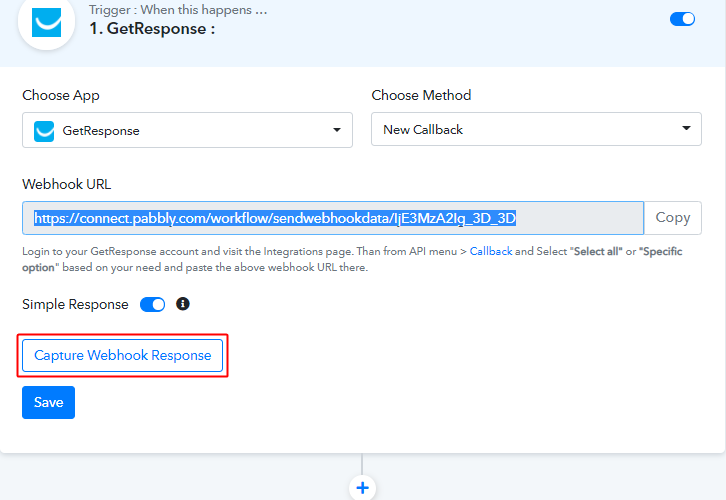
(b) Copy the Webhook URL

Copy Webhook Response

Select the method in here to be ‘New Callback’ & copy the ‘Webhook URL’ by clicking the ‘Copy’ button on this page.

Up to this point, we are half-way done with the GetResponse to Google Sheets integration’s trigger. And now, we’ll need to paste this URL on our GetResponse settings to get the trigger working.

Step 5: Connecting GetResponse to Pabbly Connect

To connect your GetResponse account and Pabbly Connect. First, sign-in into your GetResponse account.

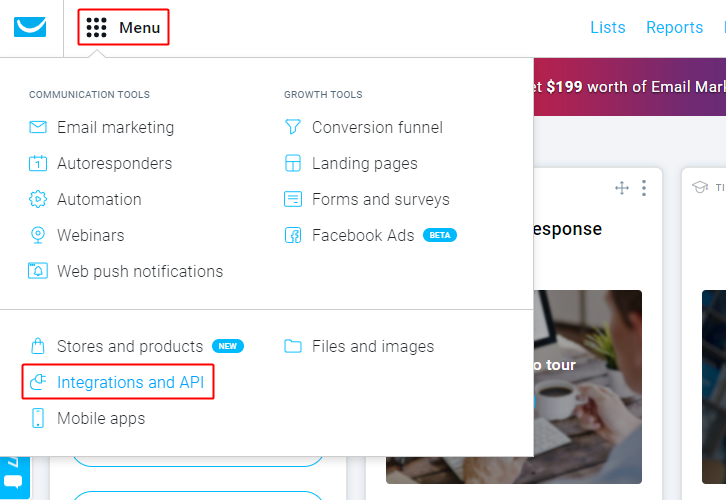
(a) Go to Your GetResponse Menu

GetResponse Menu

After signing in to your GetResponse account, click the ‘Menu’ button to create a booking page.

Select the ‘Integration & API’ option from the menu options.

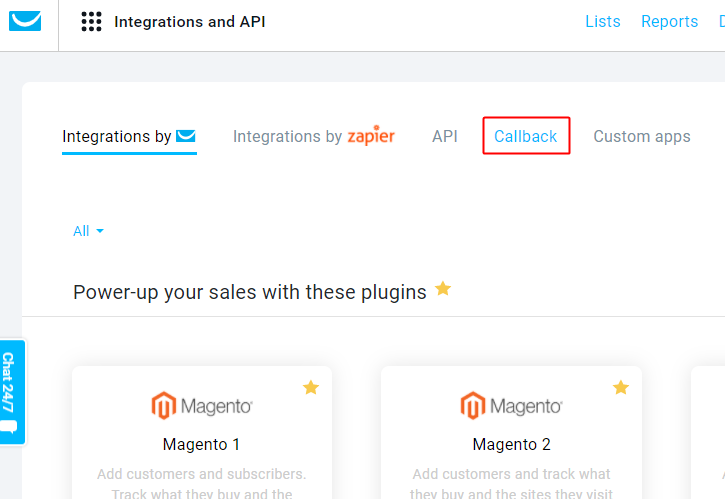
(b) Click on Callback

Click On Callback

Click on the ‘Callback’ option from the top horizontal integration & API menu.

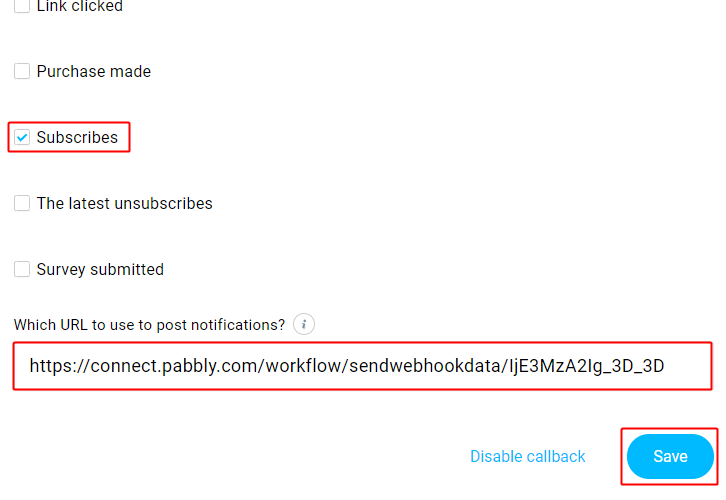
(c) Paste Webhook URL

Paste Webhook URL

Now, tick the ‘Subscribes’ options and then paste the copied webhook URL in the ‘Which URL to use to post notifications?’ field.

Step 6: Test the Trigger Response in Pabbly Connect Dashboard

As we can see, we are done setting up the trigger to save new GetResponse contacts to Google Sheets as rows. So now, let’s just test the trigger by making a test booking on GetResponse.

(a) Capture Webhook Response

Capture Webhook Response

To test the trigger, first, hit the ‘Capture Webhook Response’ button on the Pabbly Connect trigger window.

(b) Fill the GetResponse Form

Fill Form

Fill the details in the response form and then submit the page.

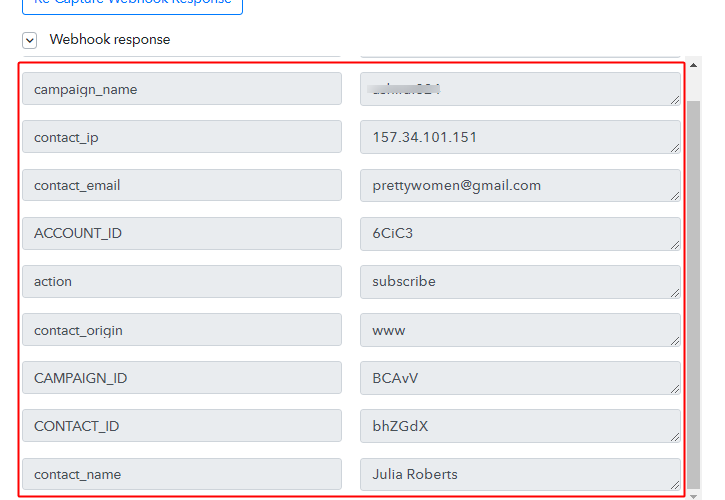
(c) Check Trigger API’s Response

Trigger Response

Check the captured trigger response in the Pabbly Connect trigger window. You can see all the data fed in the Getresponse form in the trigger response.

Step 7: Setting Action for GetResponse – Google Sheets Integration

As we can see the response that we got of the GetResponse trigger contain all the newly added contact details. Now, we will simply forward this captures data to Google Sheet rows.

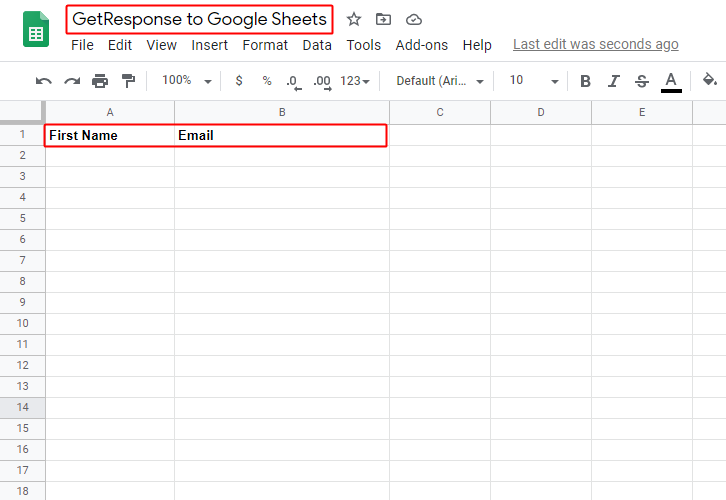
(a) Create Google Sheets

Create Google Sheet

To save the recently added contact within a Google Sheet first, create a spreadsheet within your Google Account.

And also name the columns.

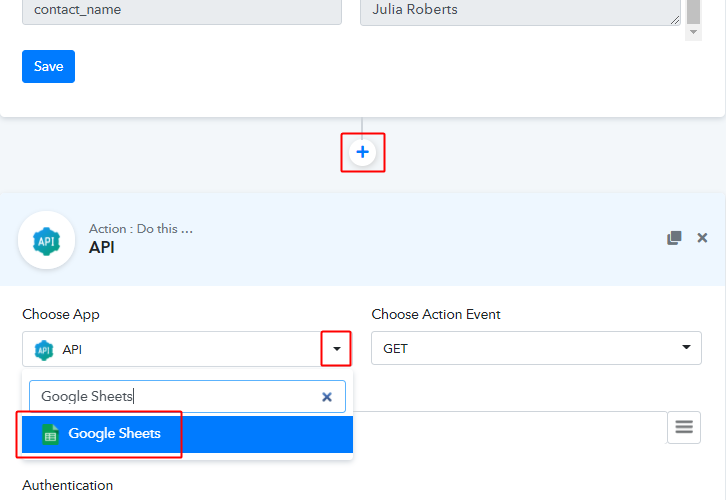
(b) Select Application You Want to Integrate

Integrate Google Sheets

Click the plus button next to your GetResponse trigger window.

And in the action window that opens next, choose the ‘Google Sheets’ app from the ‘Choose App’ field’s drop-down menu.

(b) Connect with Google Sheets

Connect with Google Sheets

Select the method in here as ‘Add New Row’ and then click the ‘Connect with Google Sheets’ button.

(c) Authorize Google Account

Authorize google sheets

In the next window that slides in from the right click on the ‘Connect’ button. And then complete the authorization by allowing the connection between your Google account and Pabbly Connect.

(d) Choose the Spreadsheet & Sheet Within

Choose Spreadsheet

Pick the sheet that you’ve created for this purpose as well as the sheet within for the exact location.

(e) Map Values

Map Values

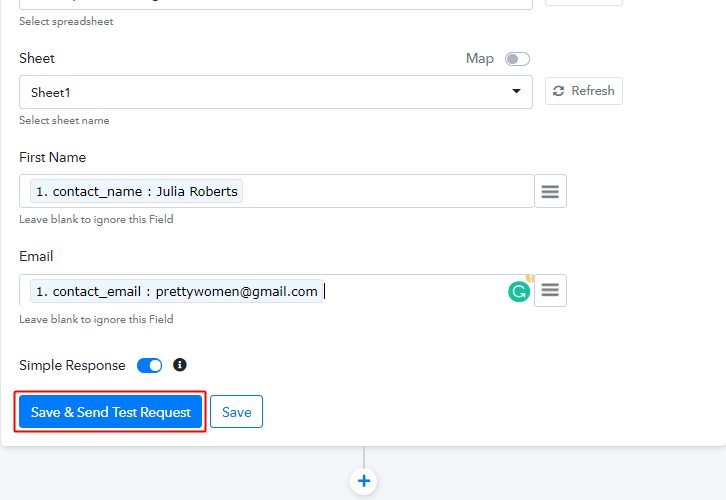
Next, you’ll need to map the trigger API response values that you got from GetResponse with the Google Sheets columns.

(f) Save & Send Test Request

Save & Send Test Request

After mapping all the necessary fields, click on the ‘Save & Send Test Request’ button.

Step 8: Check the Action’s Response

(a) Check the Action API’s Response

Action Response

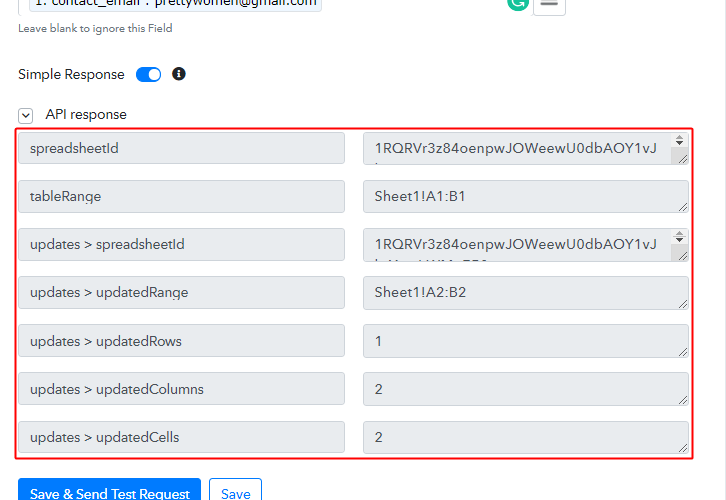
You can check the response of your API in the action window.

(b) Check the Contact Entry in Google Sheets

Google Sheets Entry

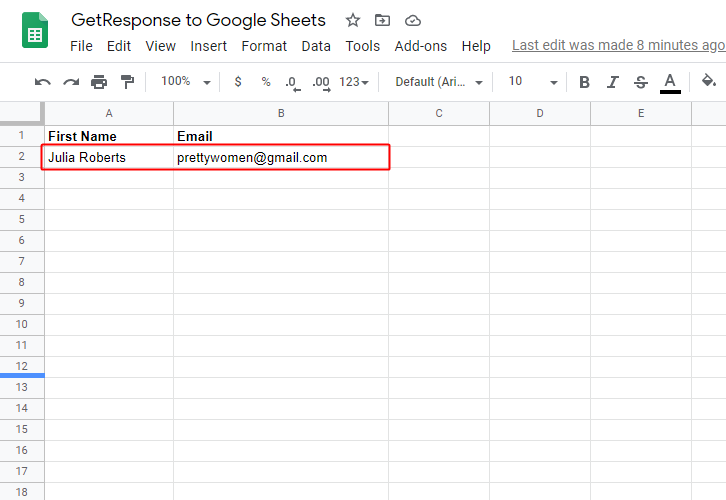
Also, you can check the entry of a new done in your connected Google Sheets account.

Step 9: Save the Workflow

(a) Save the Action API’s Response

Save Action's Response

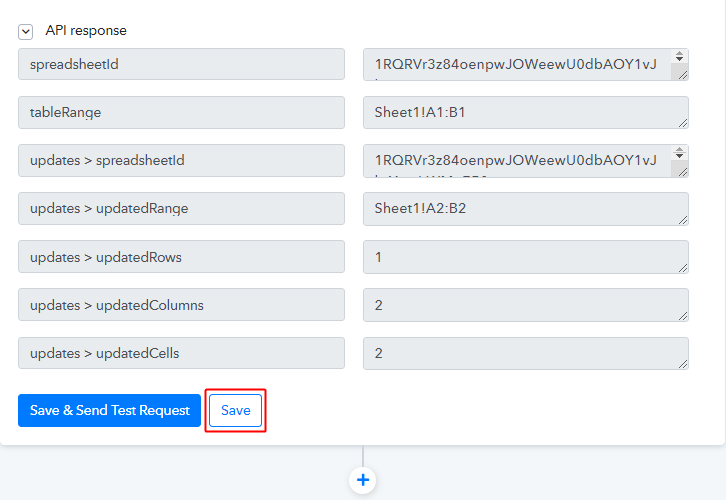
Save the action API’s response by hitting the ‘Save’ button at the bottom of the action API’s response.

(b) Save the Workflow

Save Workflow

As we can see the workflow is working perfectly. So, simply save the webhook by clicking the save button in the trigger window.

Wind-Up

Well, this is all about ‘How to save new GetResponse contacts to Google Sheets as rows’. Consequently, after completing the step by step procedure, you will end up saving the GetResponse contacts on Google Sheets rows. More importantly, this process is very simple & you don’t need any coding knowledge to follow the steps.

Now, you cal also try Pabbly Connect for FREE.

For further questions, comment below.

You May Also Like to Read:

How to Add New ClickUp Tasks to Google Sheets as Rows

How to Add New ClickUp Tasks to Google Sheets as Rows

Wondering about how to add new ClickUp tasks to Google Sheets as rows? If so, then here we are suggesting a way to integrate ClickUp and Google Sheets using Pabbly Connect.

How to Add New ClickUp Tasks to Google Sheets as Rows

Now the question must be why there is a need for integrating ClickUp and Google Sheets. Basically, ClickUp is a one-stop destination to manage all your teamwork such as tasks, docs,  chats, goals, and much more. Whereas Google Sheets is a free online spreadsheet for personal or business use.

By connecting ClickUp with Google Sheets, you can add all your tasks and activity automatically without any trouble. And for doing this we have such an amazing tool named Pabbly Connect.

Why Choose This Method Of Integration?

In contrast with other integration services-

  • Pabbly Connect does not charge you for its in-built apps like filters, Iterator, Router, Data transformer, and more
  • Create “Unlimited Workflows” and smoothly define multiple tasks for each action
  • As compared to other services which offer 750 tasks at $24.99, Pabbly Connect proffers 50000 tasks in the starter plan of $29 itself
  • Unlike Zapier, there’s no restriction on features. Get access to advanced features even in the basic plan
  • Try before you buy! Before spending your money, you can actually signup & try out the working of Pabbly Connect for FREE

Sign Up To Pabbly Connect 

Pabbly Connect lets you connect different applications for data transmission without using a single line of code. In a few minutes, you can create automated workflows and transfer the data between your favorite apps and services without any manual efforts.

Also, the only automation tool that offers unlimited workflows, actions, triggers, and much more even in its free plan.

Here, in this article, we will understand how to add new ClickUp tasks to Google Sheets in real-time.

So, let’s headstart the process.

Step 1: Sign up to Pabbly Connect

Sign Up

Intiate the process of connecting ClickUp to Google Sheets by clicking on the “Sign Up Free” icon on the Pabbly Connect dashboard. Subsequently, either fill-up the details manually or sign up using Gmail credentials.

Try Pabbly Connect for FREE

Step 2: Access Pabbly Connect

Select Connect

Further, after logging into the account, click on the “Access Now” button as shown in the above image.

Step 3: Workflow for ClickUp to Google Sheets Integration

(a) Start with a New Workflow

Create New Workflow

Start the process of building a workflow for integration by clicking on the “Create New Workflow” button.

(b) Name the Workflow

Name the Workflow

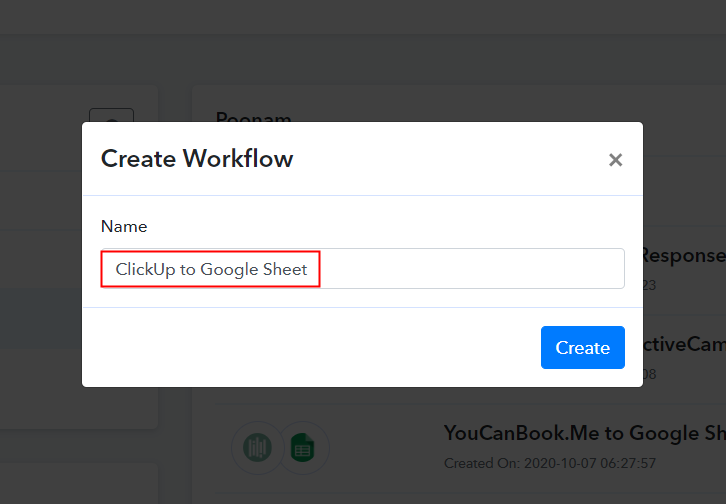
Moreover, add the name of workflow which in our case is “ClickUp to Google Sheets”. Nevertheless, you can always name the workflow according to your requirements.

Step 4: Setting Trigger for ClickUp to Google Sheets Integration

Next, after building a workflow, you have to choose the integration app to add ClickUp tasks to Google Sheets. Pabbly Connect lets you create unlimited workflows within minutes, click here to sign up for unlimited integrations for free.

(a) Select Application you Want to Integrate

Select ClickUp

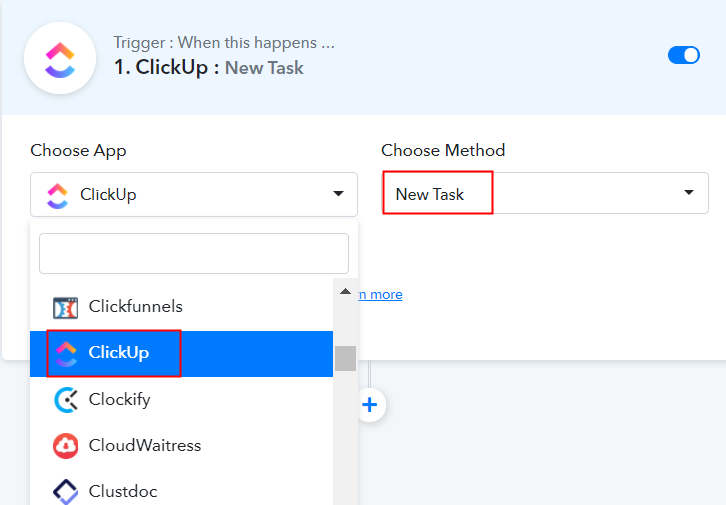
The following step is to select “ClickUp” from the dropdown, then choose the “New task” option to append data from the ClickUp to Google Sheets.

(b) Click on Connect Button

Click on Connect Button

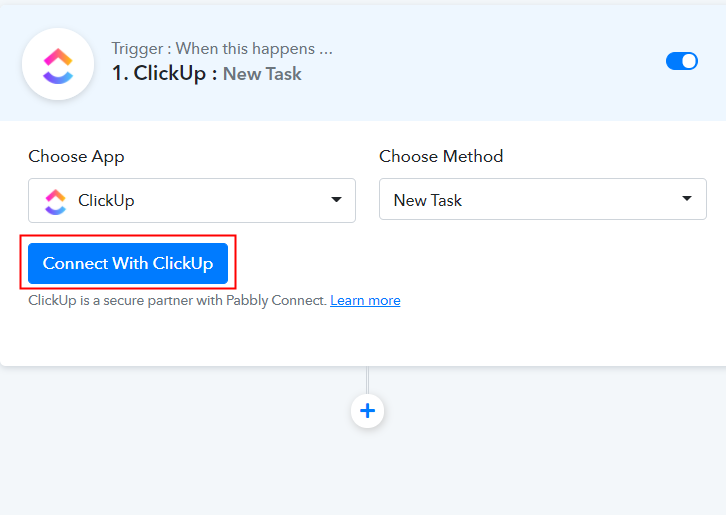
The following step is to click on the “Connected with ClickUp” button.

Step 5: Connecting ClickUp with Pabbly Connect

Now as soon as you click on the “Connected with ClickUp” button, it will ask for an API token, for which you have to log in to your ClickUp account.

(a) Head to ClickUp Profile Option

Click on ClickUp Profile Option

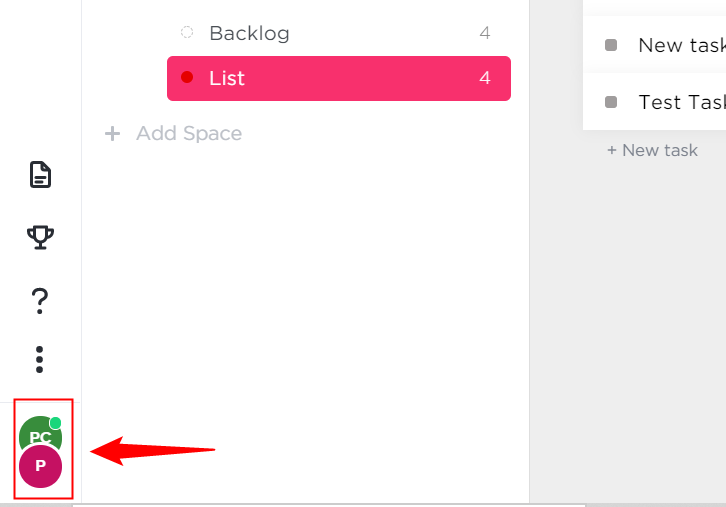
At the bottom of the ClickUp dashboard, you will see the Profile option, simply click on it.

(b) Click on Apps Option

Click on Apps Option

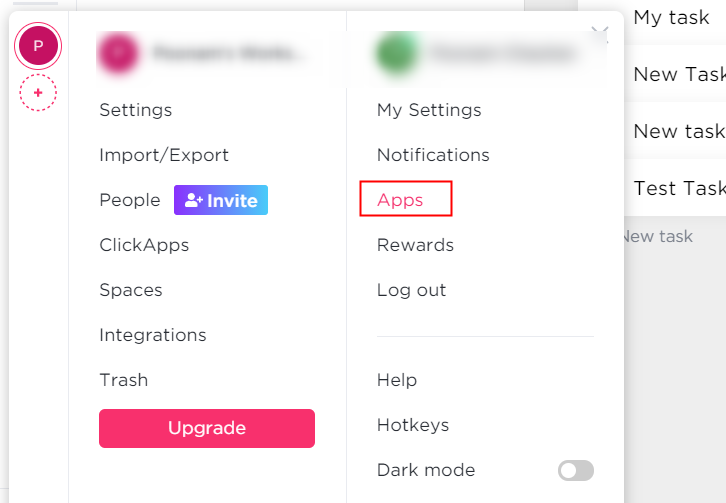
When you click on the profile option, it will open up different options, choose “Apps” from it.

(c) Copy the API Token

Copy the API Token

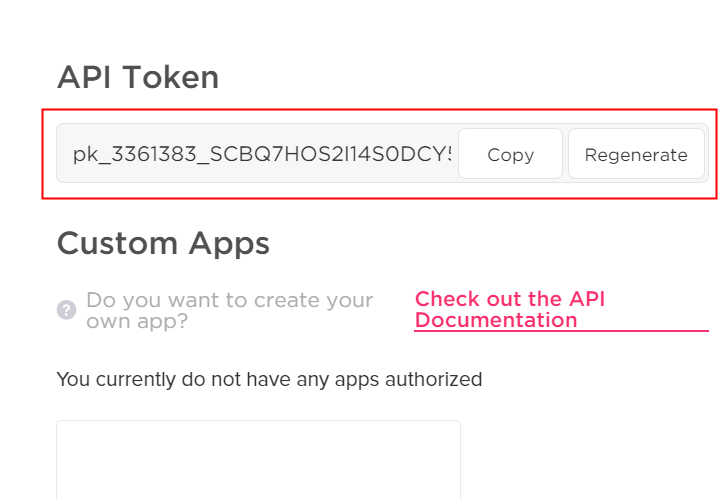
Simply copy the “API Token” appearing on the dashboard.

(d) Create a Task

Create a Task

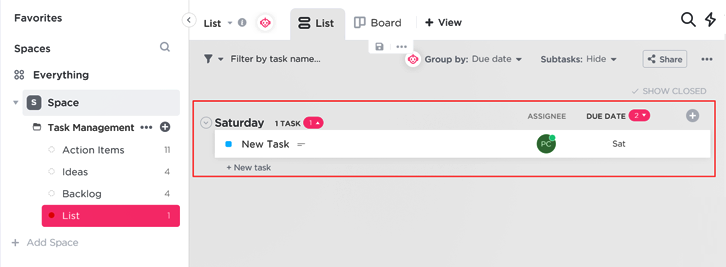
Now before heading back to the Pabbly Connect dashboard to paste the API key, simply create a task by clicking on the “+” icon on the bottom of the dashboard and assign the starting and due date to it.

Step 6: Paste API Key in Pabbly Connect Dashboard

Now after creating a task in ClickUp, move to the Pabbly Connect dashboard to paste the copied API key.

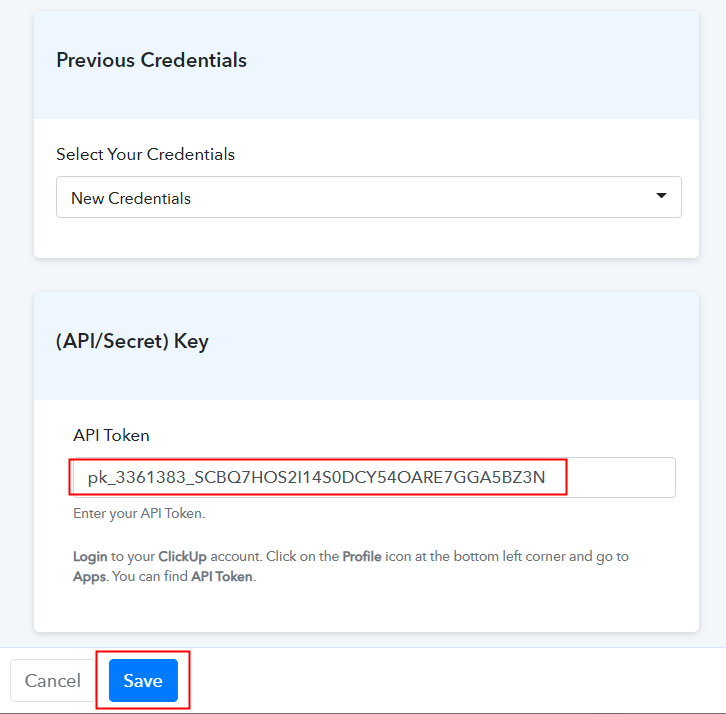
(a) Fill API Key

Fill API Key

Just paste the copied API token and hit the “Save” button.

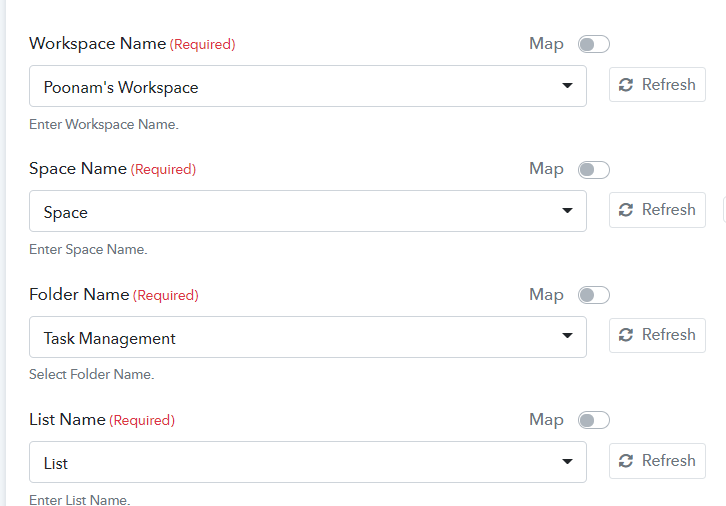
(b) Map Field Data

Map Field Data

When you hit the save button, the software will automatically map all the fields such as workspace name, space name, and much more.

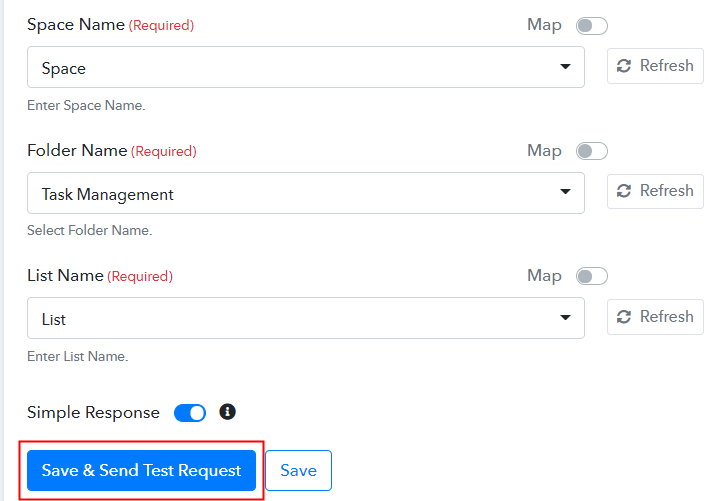
(c) Save and Send Test Request

Save and Send Test Request

Further, to test the trigger set, click on “Save and Send Test Request”, it will automatically fetch the details of the task created in ClickUp.

(d) Test the Response

Test the Response

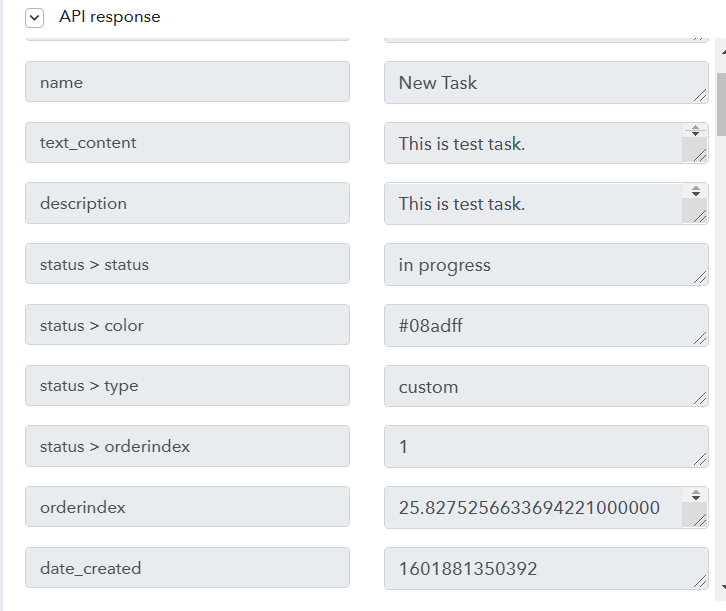
As soon as we click on the “Save and Send Test Request” button, the API response will get captured including the task name, date of creation, due date, and much more. Now as you can see the date captured is not in the required format. For that, we are going to use the Date/Time Formatter feature of Pabbly Connect.

Step 7: Setting Date/Time Formatter to Change Date Format

Now to change the start and due date of the task we are going to use Date/Time Formatter.

(a) Select Application you Want to Integrate

Select Date/Time Formatter

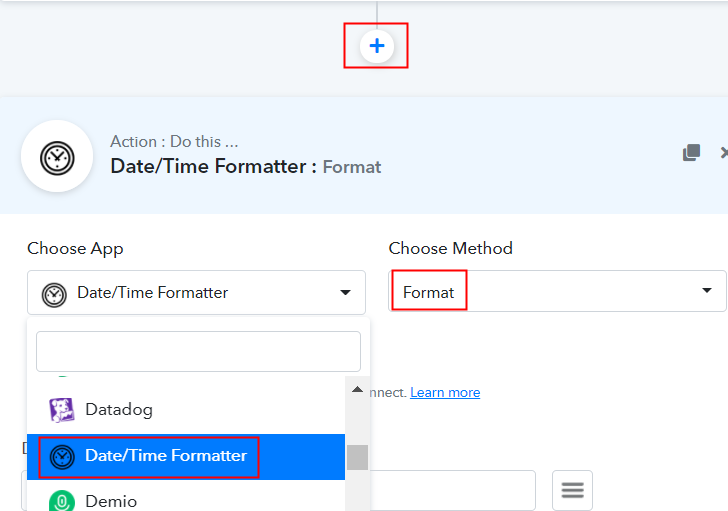
In addition, press the + icon to add a date formatter. Here we can pick “Date/Time Formatter” from the drop-down. Then choose the method “Format”.

(b) Click the Connect Button

Click the Connect Button

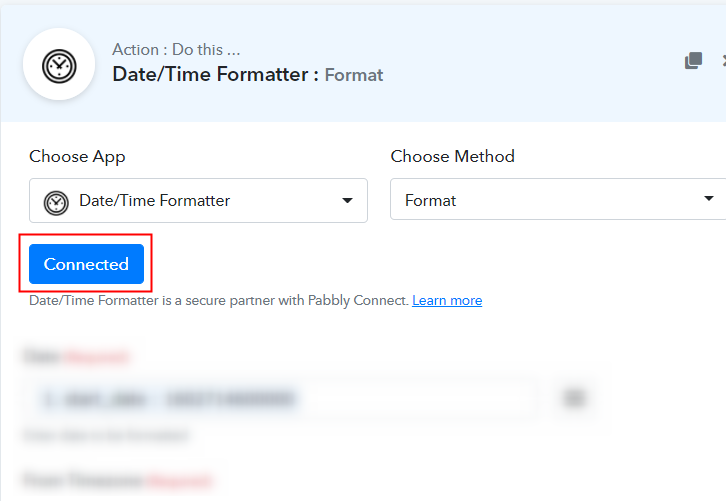
To proceed, click on the “Connected” button.

(c) Map Field Data

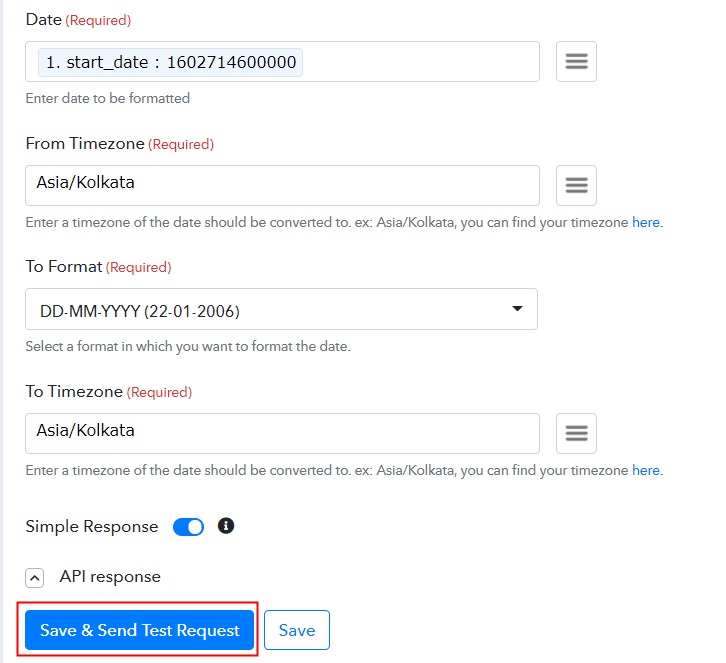
Map Field Data

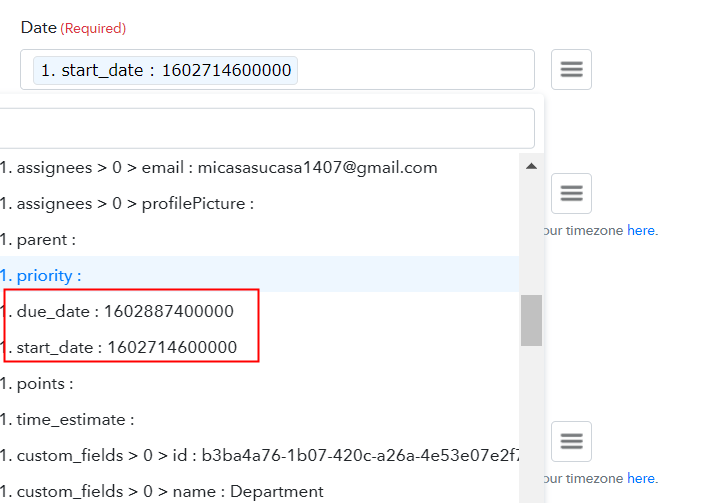
Just select the date whose format you want to change from the dropdown in the Date section. Next, select the From Timezone which in our case is “Asia/Kolkata”.

Now in “To Format” we have to pick the format from the dropdown in which we want our date. Here also we have to select the timezone which in our case is “Asia/Kolkata”.

(d) Save and Send Test Request

Save and Send Test Request

After mapping all the fields, click on “Save and Send Test Request”.

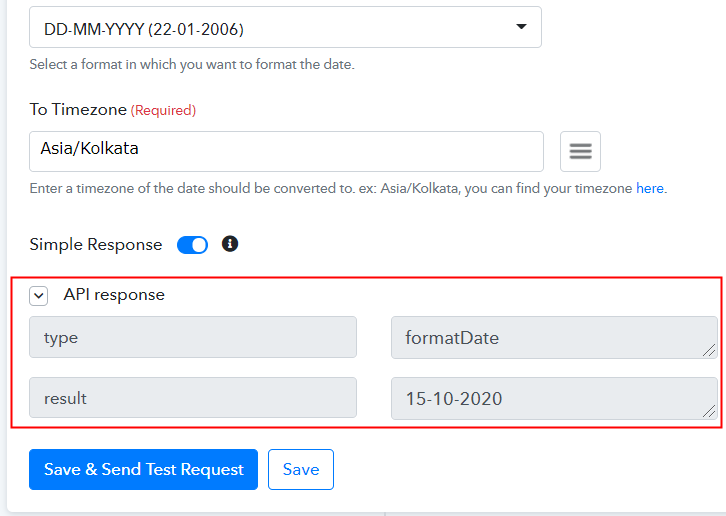
(e) Test the Response

Test the Response

As soon as click on the “Save and Send Test Request”, we will get the response in the required format. In the same way, we create an integration for the due date.

Step 8: Setting Action for ClickUp and Google Sheets Integration

To make Google Sheets and ClickUp integration work, you have to choose the action for your trigger.

(a) Select Application you Want to Integrate

Select Google Sheets

In addition, press the + icon to add an action to the trigger. Here we can pick “Google Sheet” from the drop-down. Then choose the method “Add New Row”.

(b) Click the Connect Button

Connected with Google Sheets

Further, click on the “Connected with Google Sheets” button. It will ask for authorization for which you have to log in to your Google account.

(c) Allow Authorization of Google Sheet

Integrate with Google Sheets

It will ask for authorization for which you have to click on the “Connect” button to give allow access of your Google Sheets.

(d) Map Field Data

Map Field Data

As you see, the software has already fetched the spreadsheet which is “ClickUp to Google Sheets”. After that, map the fields such as for project name use the project name option and so.

(e) Save and Send Test Request

Save and Send Test Request

After successfully mapping all the fields, hit “Save and Send Test Request”.

Step 9: Check Response in Google Sheets

Check Response in Google Sheet

Lastly, when you check the Google Sheets, the entered task gets auto-populated in a sheet. This is a one time process after that, all the ClickUp will automatically get updated in Google Sheet.

Conclusion –

Hopefully, now we have cleared all the air about the automation process to add new ClickUp tasks to Google Sheets as rows. All you have to do is follow all the above-mentioned steps and you can easily connect ClickUp to Google Sheets. With the help of automation, one can easily avoid manual hard work. And in such cases, software like Pabbly Connect is a real savior that lets you connect unlimited premium apps.

So, don’t wait anymore. Go and try Pabbly Connect for Free.
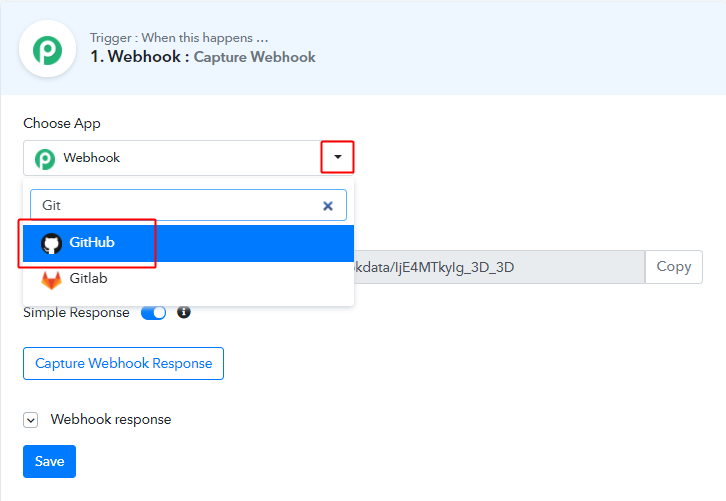
You May Also Like To Read –

How to Save New Typeform Entries to Google Sheets Spreadsheet

How to Save new Typeform Entries to Google Sheets Spreadsheet

Are you in search of a way to save new Typeform entries to Google Sheets spreadsheet automatically? If yes, then your search ends here, as we have the perfect solution for your problem called Pabbly Connect.
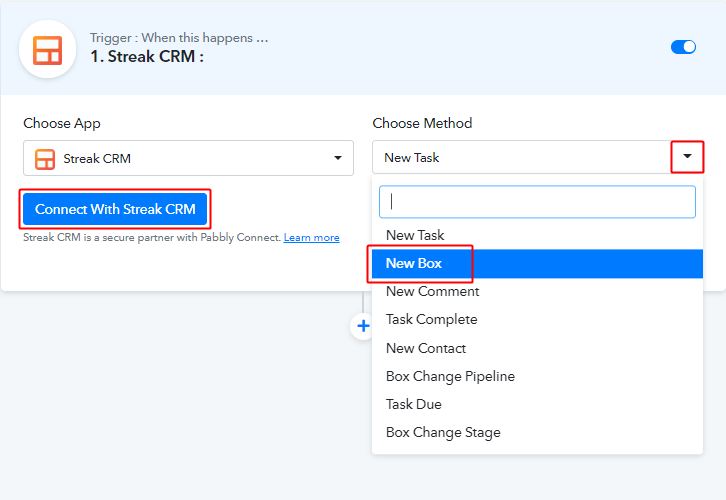
How to Save new Typeform Entries to Google Sheets Spreadsheet

Pabbly Connect is an amazing integration and automation software, which allows you to integrate two or more applications to automate your all the projects. You just have to do the integration once and then everything will be automatically managed by Pabbly Connect.
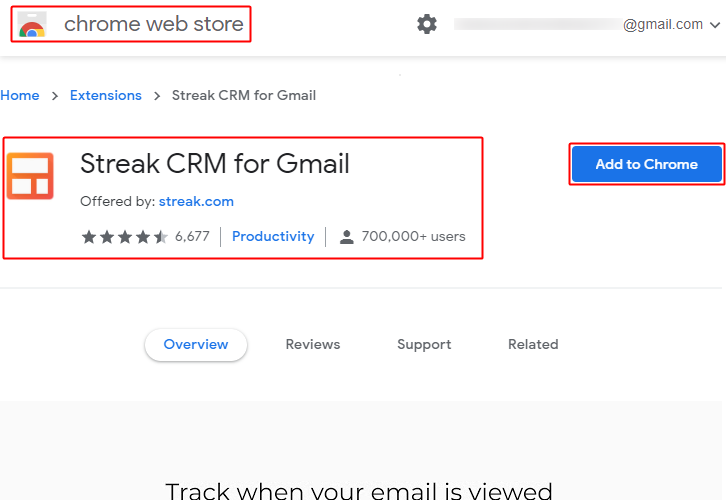
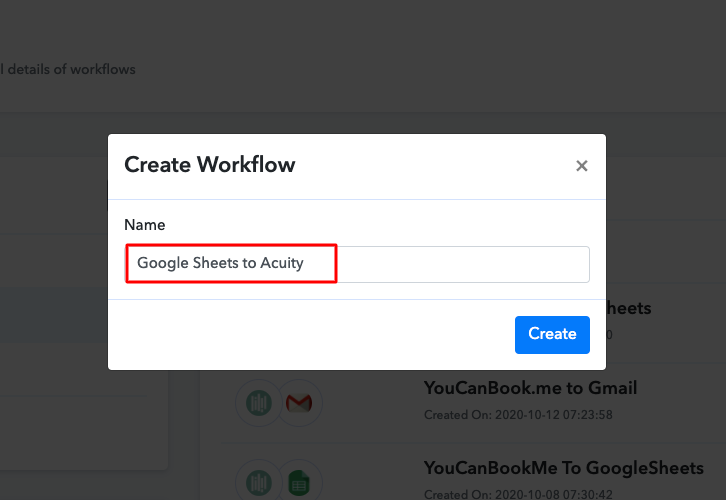
Why Choose This Method Of Integration?

In contrast with other integration services-

  • Pabbly Connect does not charge you for its in-built apps like filters, Iterator, Router, Data transformer, and more
  • Create “Unlimited Workflows” and smoothly define multiple tasks for each action
  • As compared to other services which offer 750 tasks at $24.99, Pabbly Connect proffers 50000 tasks in the starter plan of $29 itself
  • Unlike Zapier, there’s no restriction on features. Get access to advanced features even in the basic plan
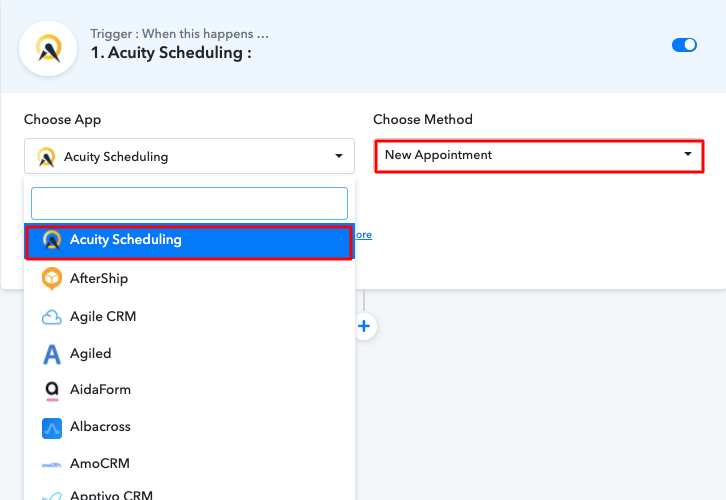
  • Try before you buy! Before spending your money, you can actually signup & try out the working of Pabbly Connect for FREE

Sign Up To Pabbly Connect

Apart from the integrations, the software also offers many other useful features:

  • Create unlimited workflows without any restrictions
  • Unlimited premium apps
  • Set unlimited triggers, unlimited actions to those triggers
  • Path routers

and the amazing part is that you can access all the features even with the free plan.

In today’s blog, we will be integrating Typeform with Google Sheets via Pabbly Connect. After this integration, whenever there will be any new entries in your Typeform forms, the data from the forms will be updated in your Google Sheet automatically.

Thus, without taking any more of your time, let’s get started with the blog about how to save new Typeform entries to Google Sheets spreadsheet.

Step 1: Sign up to Pabbly Connect

Sign Up

Let’s start the process to save new Typeform entries to Google Sheets spreadsheet by visiting the website of Pabbly Connect and then click on the ‘Sign-Up Free‘ button. On the registration page, either signup using an existing Gmail account or manually fill out the form.

Try Pabbly Connect for FREE

Step 2: Access Pabbly Connect

Select Connect

Once you have completed the signup process, click on the Connect section in the dashboard to access Pabbly Connect.

Step 3 : Workflow for Typeform with Google Sheets Integrations

(a) Create New Workflow

Create New Workflow

Start with creating a workflow for your project by clicking on the ‘Create Workflow’ button.

(b) Name the Workflow

Name the Workflow

Now, you need to name the workflow just like in the above-shown image. I named the workflow as “Typeform to Google Sheets”, you can obviously name the workflow as per your requirements and needs.

Step 4 : Setting Triggers for Typeform with Google Sheets Integrations

After creating a workflow, you have to select the application you want to integrate. Using Pabbly Connect, you can integrate any two or more than two applications, create your free account now.

(a) Select Application you want to Integrate

Select Typeform

Now, you have to select the application that you want to integrate. In this case, we are choosing “Typeform” for integration. After selecting the application select “New Entry” in the choose method section.

(b) Click Connect Button

click connect with typeform

After selecting the application, now you have to click on the “Connect with Typeform” button just like in the above-shown image to take further the integration process.

Step 5 : Connecting Typeform to Pabbly Connect

To connect Typeform with Pabbly Connect, you have to authorize your Typeform account, for that, you need to log in to your Typeform account.

(a) Authorize Application

Authorize Applications

When you click on the “Connect” button, a window will slide in from the right, here you have to again click on the “Connect” button and then choose the account through which we want to log into Typeform.

(b) Send Test Request

Click Save and Send Test Request

Now after authorizing your Typeform account, we will click on the “Save and Send a Test Request” button in Pabbly Connect to check if the integration was successful or not.

Step 6 : Fill out the Sample Form

To check if the form connected to Pabbly Connect is capturing data or not, we will fill out a sample form.

(a) Select the form

How to Save New Typeform Entries to Google Sheets Spreadsheet

Select the form to fill that you have integrated with Pabbly Connect.

(b) Fill up the Form

How to Save New Typeform Entries to Google Sheets Spreadsheet

Fill up all the details and then click on the “Submit” button. Before clicking the button, click on the “Capture Webhook Response” button in Pabbly Connect.

Step 7 : Test the Submission in Pabbly Connect Dashboard

How to Save New Typeform Entries to Google Sheets Spreadsheet

As soon as you click on the “Submit” in Typeform and “Capture Webhook Response” in Pabbly Connect the entry will appear on the Pabbly Connect dashboard. Then, click on the “Save” option.

Step 8 : Setting Action for Typeform with Google Sheets Integrations

In this step, we will be adding an action for your trigger to complete this integration process.

(a) Select Application you want to Integrate

Select Google Sheets

Now in this step, click on the + button below and choose “Google Sheets” and in the method section select “Append Values”.

(b) Click on Connect Button

How to Save New Typeform Entries to Google Sheets Spreadsheet

After choosing the application click on the “Connect with Google Sheets” button to move forward.

Step 9 : Connecting Google Sheets to Pabbly Connect

To connect Google Sheets with Pabbly Connect, you need to authorize your Google account through which you want to choose the sheet to connect.

(a) Click the Connect Button

How to Save New Typeform Entries to Google Sheets Spreadsheet

When you click on the “Connect” button, a window will slide in from the right, here you have to again click on the “Connect” button and then choose the Google account through which we want to integrate.

(b) Map the Fields

How to Save New Typeform Entries to Google Sheets Spreadsheet

Once you are connected with your Google account, now you have to add all the field’s data that you want in your Google Sheet like sheet name, email id, etc. Map up all the fields quickly.

(c) Send a Test Request

How to Save New Typeform Entries to Google Sheets Spreadsheet

Once you are done mapping up all fields click on the “Send Test Request” button.

Step 10 : Check Response in Google Sheet

How to Save New Typeform Entries to Google Sheets Spreadsheet

Here, you can see the integration was successful and the info from the Typeform has been added to the Google Sheet automatically. Now in a similar way, whenever there will be any new entry in your forms, the info will be automatically added to the Google Sheets.

Conclusion –

Finally, so this is our way and it is the easiest and fastest method to save new Typeform entries to Google Sheets spreadsheet. Because of Pabbly Connect, you can integrate unlimited apps, create unlimited workflows, automate all your projects, and so much more. You can experience all of these perks without even paying anything as you get to signup for free. You just have to make a few clicks and you are good to go. Therefore, signup now to experience the best integration and automation service.

In case of any queries or suggestions, leave your comments below. We will try to get back to you as soon as possible.

You May Also Like to Read –