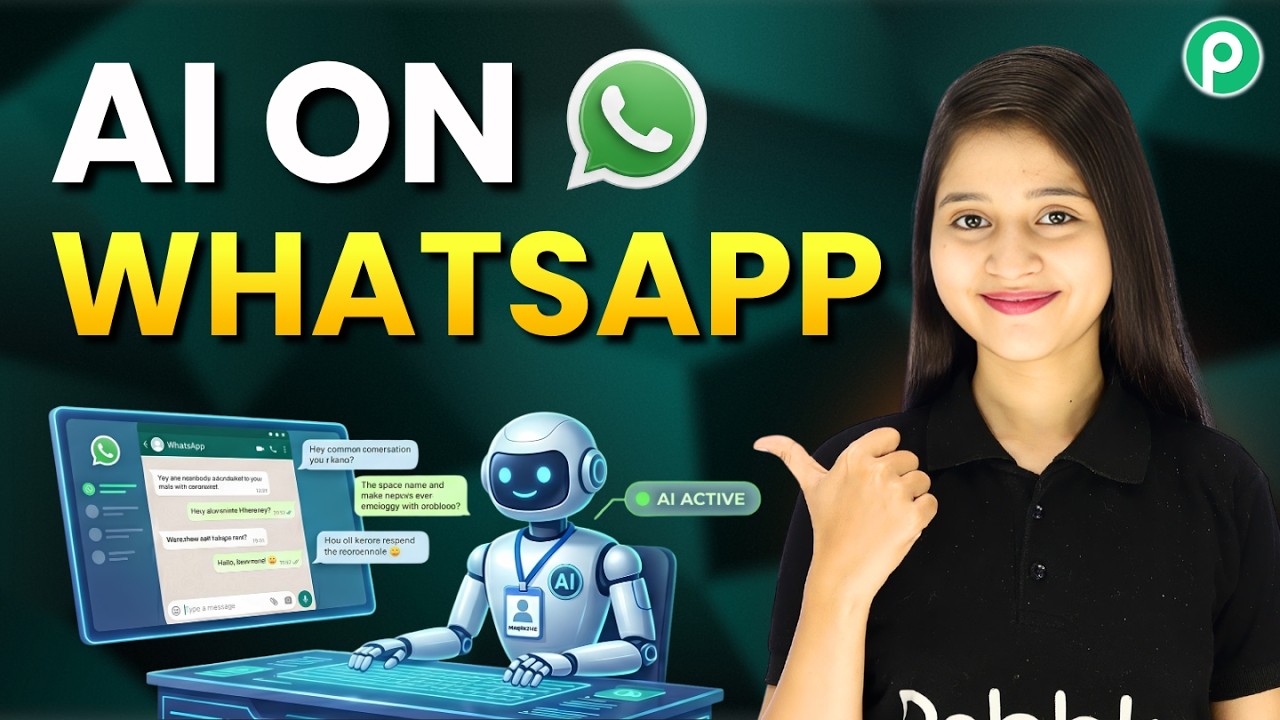
This AI Assistant Handles 90% of SaaS Support Tickets 😱

Learn how to automate 90% of your SaaS support tickets using Pabbly Connect. This detailed tutorial provides step-by-step instructions for setting up your AI assistant.

Watch Step By Step Video Tutorial Below


1. Accessing Pabbly Connect for Your WhatsApp Assistant

To start automating your SaaS support tickets, you need to access Pabbly Connect. Open a new tab and navigate to Pabbly.com/chartflow. This platform is essential for creating your AI assistant that can handle support tickets via WhatsApp.

Once you are on the Pabbly Chart Flow page, you will see options for signing up or logging in. If you are new, click on the ‘Sign Up Free’ button to create an account. Existing users can simply log in. After signing in, you can access the Pabbly Chart Flow dashboard where you can manage your WhatsApp numbers.


2. Setting Up Your AI Assistant in Pabbly Connect

Now that you are in Pabbly Connect, it’s time to create your AI assistant. Click on the ‘AI Assistant’ feature from the left sidebar. Here, you can train your assistant with a knowledge base to answer common questions effectively.

  • Click on the ‘+ AI Assistant’ button.
  • Name your assistant, for example, ‘This AI Assistant Handles SaaS Support Tickets’.
  • Select the instruction type as ‘AI Agency’.

This setup allows your assistant to follow specific rules while replying to user inquiries. You can adjust settings like temperature for creativity and select the AI model provider as OpenAI.


3. Configuring API Settings in Pabbly Connect

Next, you need to configure the API settings in Pabbly Connect. After selecting the AI model, you will need to paste your OpenAI API key. Click on the link provided to create a new secret key on the OpenAI platform.

Once you generate the key, copy it and paste it into the API key field in Pabbly Connect. After saving the key, you will receive a confirmation message indicating that the OpenAI key has been saved successfully.


4. Designing Your Assistant Interface in Pabbly Connect

With the API settings configured, you can now design the interface of your AI assistant using Pabbly Connect. This includes entering a header message, footer message, and customizing the look of your assistant.

  • Set a header message like ‘How can I assist you today?’.
  • Add a footer message for contact information.
  • Enable the toggle to make your assistant active.

After customizing the messages and appearance, click the ‘Save Assistant’ button to finalize your design. This assistant will now be ready to handle user queries effectively.


5. Enabling Auto Replies for Your Assistant in Pabbly Connect

Finally, to ensure your assistant can respond to users automatically, you need to enable auto-replies in Pabbly Connect. Go to the inbox settings and ensure the ‘Enable AI Auto Replies’ toggle is activated.

Select your assistant from the dropdown menu for all contacts or specific users. After making your selections, click the ‘Save’ button to confirm your settings. Your AI assistant is now fully functional and ready to assist users 24/7.


Conclusion

By following these steps using Pabbly Connect, you can automate 90% of your SaaS support tickets. This powerful AI assistant will provide instant replies to your users, significantly improving your customer support efficiency.

Ensure you check out Pabbly Connect to create business automation workflows and reduce manual tasks. Pabbly Connect currently offer integration with 2,000+ applications.

Send Real-Time Facebook Leads Alerts on Telegram

Learn how to automate real-time Facebook leads alerts to Telegram using Pabbly Connect. This step-by-step tutorial simplifies the integration process for you. Implement the precise methodologies leading organizations use to automate repetitive tasks, illustrated with practical examples designed for immediate application.

Watch Step By Step Video Tutorial Below


1. Setting Up Pabbly Connect for Facebook Leads Alerts

To begin with, you need to access Pabbly Connect. If you’re a new user, open your browser and search for pabbl.com/connect. This will take you to the Pabbly Connect landing page. In the top right corner, click on the option to ‘Sign Up for Free’. This allows you to explore 100 free tasks every month, which means you can send up to 100 lead alerts for free.

Once you have signed up, log into your account to access the workflow builder within Pabbly Connect. This is where you will create the automation to send alerts to Telegram whenever a new lead is generated from Facebook. Make sure to familiarize yourself with the interface as it will be crucial for the steps ahead.


2. Creating the Trigger for Facebook Lead Ads in Pabbly Connect

Now, let’s create the trigger for your automation. In your Pabbly Connect workflow, click on the ‘Add Trigger’ button. Search for ‘Facebook Lead Ads’ and select it. For the event, choose ‘New Lead Instant’. This will allow Pabbly Connect to capture new leads as they come in.

  • Ensure you are logged into your Facebook account.
  • If you have existing connections, select ‘Use Existing Connection’; otherwise, click ‘Add New Connection’.
  • Select your Facebook page and the lead form you want to use.

Once you have selected the appropriate page and form, click on ‘Save and Send Test Request’. This will initiate the connection and allow Pabbly Connect to start listening for new leads.


3. Capturing Lead Data in Pabbly Connect

After setting up the trigger, Pabbly Connect will wait for a response from Facebook. To simulate a lead, you will need to use the Meta for Developers platform. Open a new tab and search for Meta for Developers, then navigate to the lead ads testing tool.

In the lead ads testing tool, select the same Facebook page and form you previously configured. Choose the option for lead retrieval and click on the ‘Create Lead’ button. This action will generate a test lead that Pabbly Connect can capture.

  • Make sure to select the correct page and form.
  • Click ‘Create Lead’ to send the test lead.
  • Return to your Pabbly Connect workflow to see the captured data.

Once the test lead is created, Pabbly Connect will display the lead data it has captured, including details like name and email.


4. Setting Up Telegram as the Action Step in Pabbly Connect

Next, you will configure the action step to send notifications to Telegram. Click on ‘Add New Action Step’ in Pabbly Connect and search for ‘Telegram Bot’. Choose the event ‘Send a Text Message’. This will allow you to send the lead details directly to your Telegram group.

When prompted, connect your Telegram account. If you have an existing connection, select it; otherwise, click ‘Add New Connection’. You will need to obtain a token from the BotFather on Telegram. Search for ‘BotFather’ in Telegram, start a chat, and create a new bot. Make sure to save the API key provided by BotFather and paste it into Pabbly Connect.


5. Finalizing the Integration and Testing the Workflow

After successfully connecting Telegram, you will need to specify the chat ID where the messages will be sent. Add your bot to the group as a subscriber and promote it to admin to allow it to send messages. Copy the chat ID and paste it into your Pabbly Connect workflow.

For the message content, you can map the lead details captured earlier. This ensures that each new lead generates a dynamic message with their information. Once you have set everything up, click ‘Save and Send Test Request’ to test if the integration works. If successful, your Telegram group will receive notifications for new leads from Facebook.

Now that your automation is complete, you can rest assured that your team will be notified instantly whenever a new lead is generated, thanks to Pabbly Connect.


Conclusion

In this tutorial, you learned how to automate Facebook leads alerts to Telegram using Pabbly Connect. By following these steps, you can ensure real-time notifications for your team, enhancing your lead management process.

Ensure you check out Pabbly Connect to create business automation workflows and reduce manual tasks. Pabbly Connect currently offer integration with 2,000+ applications.

Stop Posting Manually! Automate Social Media with OpenAI

Discover how to automate social media posting using Pabbly Connect and OpenAI with this detailed tutorial. Learn the exact steps to streamline your social media workflow.

Watch Step By Step Video Tutorial Below


1. Accessing Pabbly Connect for Social Media Automation

To start automating your social media posts, you need to access Pabbly Connect. Open your web browser and go to pave.com/connect. This platform is essential for integrating various applications like Facebook, Instagram, and LinkedIn.

If you are a new user, click on the ‘Sign Up Free’ button to create an account. Existing users can simply sign in. Once logged in, navigate to the Pabbly apps window and select Pabbly Connect to access the dashboard.


2. Creating a Workflow in Pabbly Connect

Now, let’s create a workflow in Pabbly Connect. Click on the ‘Create’ button to initiate a new workflow. You will be prompted to choose between the beta and classic versions. For this tutorial, select the beta version for a faster experience.

  • Click on ‘Create Workflow’ after naming it, e.g., ‘Automate Social Media Using OpenAI’.
  • Select the appropriate folder for your workflow.
  • Understand that each workflow has triggers and actions.

After creating the workflow, you can set up triggers and actions. The first step is to schedule your automation to run daily. This is done by selecting the ‘Scheduled’ option from Pabbly Connect.


3. Setting Up the Trigger in Pabbly Connect

In this section, we will set up the trigger for our automation. Choose the ‘Schedule Workflow’ app event in Pabbly Connect. Specify how often you want the workflow to run, such as every day at a specific time.

  • Select ‘Every Day’ as the frequency.
  • Set the time for the automation to run, e.g., 10:00 AM.

Once you have configured these settings, click on ‘Save’. You should see a successful response confirming that your trigger is set up correctly. This will ensure that your automation runs daily at the designated time.


4. Integrating OpenAI for Content Generation

Next, we will integrate OpenAI to generate content for your social media posts. In Pabbly Connect, add an action step and select OpenAI as the application. Choose the ‘Chat GPT’ event to generate text content.

To create a new connection, you will need an API key from your OpenAI account. Click on the provided link to access your API keys and generate a new secret key. After copying the key, paste it into Pabbly Connect and save the connection.

Select the model, such as GPT-5. Provide a relevant prompt about your content.

After saving your settings, you will receive a response containing the generated caption for your social media post. This step automates the content creation process using AI.


5. Posting to Social Media Platforms

Finally, we will set up the action steps to post on your social media platforms using Pabbly Connect. Start with Instagram by selecting the Instagram for Business application and the ‘Create and Publish Photo’ event.

Map the photo URL and the caption generated by OpenAI. Ensure you are using the shortened URL provided by the file uploader feature in Pabbly Connect. After saving this setup, repeat similar steps for LinkedIn and Facebook.

For LinkedIn, select ‘Share Text with Image’. For Facebook, choose ‘Create Page Photo Post’.

After completing these steps, you will have successfully automated your social media posting process. Each platform will receive the same content at the scheduled time, streamlining your workflow significantly.


Conclusion

By following this tutorial, you have learned how to automate your social media posts using Pabbly Connect and OpenAI. This integration allows you to save time and ensure consistent content delivery across platforms like Facebook, Instagram, and LinkedIn. Embrace automation to enhance your social media strategy efficiently.

Ensure you check out Pabbly Connect to create business automation workflows and reduce manual tasks. Pabbly Connect currently offer integration with 2,000+ applications.

Get Notified When You Receive a 1-Star Google Review

Learn how to set up notifications for 1-star Google reviews using Pabbly Connect. This detailed tutorial guides you through each step of the integration process.

Watch Step By Step Video Tutorial Below


1. Setting Up Pabbly Connect for Notifications

To get notified when you receive a 1-star Google review, you need to use Pabbly Connect as the integration platform. Start by accessing the Pabbly Connect dashboard. If you are a new user, visit pabbl.com/connect and sign up for a free account to explore its features.

Once logged in, you will have access to 100 free tasks every month. This allows you to test the automation process without any cost. After exploring, if you find Pabbly Connect useful, consider using the discount code RIT YT for a subscription discount.


2. Creating Your Workflow in Pabbly Connect

In the Pabbly Connect dashboard, navigate to the workflow builder. This is where you will set up the trigger and action for your integration. Click on the ‘Add Trigger’ button to begin the setup process.

For the trigger application, search for ‘Google Business Profile’ and select it. Choose the event as ‘New Review’ and click on ‘Connect’. If you haven’t created a connection before, you will need to add a new connection by signing in with your Google account to establish a secure link with Pabbly Connect.


3. Configuring the Trigger in Pabbly Connect

After connecting your Google account, select the relevant business location. Click on ‘Save and Send Test Request’ to capture the last review submitted on your Google Business Profile. This step is crucial as it allows Pabbly Connect to pull the latest data, including any 1-star reviews.

Remember, Google Business Profile uses a polling mechanism, which means it checks for new data every 60 minutes. You can adjust this interval from 10 minutes to 24 hours based on your needs. Ensure you have a recent 1-star review to test the automation effectively.


4. Adding a Filter for 1-Star Reviews

The next step in your workflow is to add a filter condition using Pabbly Connect. Click on ‘Add New Action Step’ and select ‘Filter’. For the filter criteria, choose ‘Star Rating’ as the label, set the filter type to ‘Equals To’, and enter the value as ‘1’. This ensures that only 1-star reviews trigger the next action.

  • Choose ‘Star Rating’ as the filter label.
  • Set the filter type to ‘Equals To’.
  • Enter ‘1’ as the value to filter 1-star reviews.

Click on ‘Save and Send Test Request’ to confirm that the condition is true. If the condition is met, the workflow will proceed; otherwise, it will stop here.


5. Notifying Your Team via Slack

Now, it’s time to notify your team about the 1-star review using Pabbly Connect. Click on ‘Add New Action Step’ and select ‘Slack’ as the application. Choose ‘Send Channel Message’ as the event. If you have an existing connection, select it; otherwise, create a new connection by following the Slack authentication process.

Once connected, choose the channel where you want to send the notification. In the message field, you can map the display name and comment from the review dynamically. This is done by inserting the mapped fields from the previous steps, which allows the notification to reflect the specific review details each time.


Conclusion

In conclusion, setting up notifications for 1-star Google reviews using Pabbly Connect is a straightforward process. By following the steps outlined above, you can ensure your team is promptly notified of any negative feedback, allowing for quick responses and improved customer relations. Try implementing this automation today for better management of your business reviews!

Ensure you check out Pabbly Connect to create business automation workflows and reduce manual tasks. Pabbly Connect currently offer integration with 2,000+ applications.

Automatically Handle WhatsApp Messages Using an AI Assistant

Learn how to automatically handle WhatsApp messages using Pabbly Connect and an AI Assistant. Follow this step-by-step guide for seamless integration. Explore efficient methods for automating routine tasks with clear, concise instructions suited for both newcomers and experienced professionals.

Watch Step By Step Video Tutorial Below


1. Accessing Pabbly Connect for WhatsApp Integration

To automatically handle WhatsApp messages, you first need to access Pabbly Connect. Visit pabby.com/chatflow in your browser to reach the Pabbly Chatflow homepage. Here, you will see options to either sign in or sign up for free.

If you are a new user, click on ‘Sign Up Free’ to create an account. Existing users can simply sign in. Once logged in, you will be directed to the Pabbly apps window, where you can access Pabbly Chatflow by clicking on ‘Access Now’.


2. Creating Your WhatsApp Agent Using Pabbly Connect

After accessing Pabbly Chatflow, you can create your WhatsApp agent. Click on the ‘Add’ button to connect your WhatsApp number. There will be two methods available for connection. Choose the method that suits you and follow the prompts. using Pabbly Connect

  • Click on ‘Add’ to connect your WhatsApp number.
  • Select your preferred method for connecting.
  • Follow the on-screen instructions to complete the connection.

Once connected, you can start creating an AI assistant. Click on the ‘AI Assistant’ feature and then the ‘Add’ button to create a new assistant. Provide a name for your assistant and proceed to the flow window.


3. Configuring Your AI Assistant with Pabbly Connect

To configure your AI assistant, select the instruction type from the dropdown menu. You can use a predefined option such as ‘AI Agent’. This will automatically populate basic instructions. Adjust settings like temperature to control the creativity of responses. using Pabbly Connect

  • Choose ‘AI Agent’ as the instruction type.
  • Set the temperature to 0.4 for focused responses.
  • Select OpenAI and the GPT5 mini model for your assistant.

Next, you need to input your OpenAI API key. Click the hyperlink to create a new secret key in your OpenAI account. Copy this key and paste it into the API key field in Pabbly Connect.


4. Assigning Your Assistant to WhatsApp Chats via Pabbly Connect

After configuring your AI assistant, you need to assign it to your WhatsApp chats. Access the inbox settings from the settings section. Here, enable the auto-reply feature and select the contact list to which you want to assign the assistant. using Pabbly Connect

Enable the auto-reply feature in inbox settings. Select the contact list for assignment. Click ‘Save’ to apply the changes.

This process ensures that your assistant can handle all incoming WhatsApp messages efficiently. You can also assign the assistant to individual chats by selecting a specific chat in the inbox section.


5. Finalizing Your WhatsApp Agent with Pabbly Connect

To finalize your WhatsApp agent, enable the assistant and click the save button to store all settings. You can also customize the assistant’s appearance, including the theme and profile pictures. using Pabbly Connect

After saving, you can embed the assistant on your website if needed. With your assistant now active, it will automatically handle WhatsApp messages based on the configurations you set up.

Conclusion

This guide summarizes the key points and helps you understand the essential features and benefits of using this tool.

Ensure you check out Pabbly Connect to create business automation workflows and reduce manual tasks. Pabbly Connect currently offer integration with 2,000+ applications.


In conclusion, using Pabbly Connect allows you to create a powerful WhatsApp assistant that can manage customer queries effectively. By following the steps outlined in this tutorial, you can automate your customer communication seamlessly.

Retail Stores Boosting Sales with AI Product Assistant 🛍️🔥

Learn how to enhance your retail store’s sales using Pabbly Chatflow for an automated AI product assistant on WhatsApp. Master conversational marketing with practical techniques for creating chatbots that engage visitors at exactly the right moment in their journey.

Watch Step By Step Video Tutorial Below


1. Accessing Pabbly Chatflow for Your AI Assistant

To begin using Pabbly Chatflow, open a new browser tab and navigate to Pabbly.com/chatflow. This platform is designed to automate WhatsApp messaging, making it ideal for retail stores looking to boost sales.

On the Pabbly Chatflow page, you will see options to sign in or sign up for free. If you are new, click on the sign up free option to receive 100 free credits monthly. Existing users should proceed with the sign in option. Once logged in, find the access now button to enter the dashboard.


2. Creating Your AI Assistant in Pabbly Chatflow

In the Pabbly Chatflow dashboard, click on the AI Assistant option. Here, you can create an AI assistant by clicking on the plus add assistant button. You will need to name your assistant; for this guide, we will name it ‘Retail Stores Boosting Sales with AI Product Assistant’.

  • Select the instruction type as AI Agent.
  • Set the temperature to 0.5 for balanced responses.
  • Choose the AI model provider as OpenAI and select GPT-4 Mini.

After these selections, you will need to enter your OpenAI API key. Click on the OpenAI API keys page link to generate your API key, which you will copy and paste into the designated field in Pabbly Chatflow. This setup is crucial for your AI assistant to function properly.


3. Configuring Assistant Settings in Pabbly Chatflow

Once you’ve set up your AI assistant, the next step is to configure its settings. In the settings, you can define the header message, footer message, and stop keywords. The header message is what users will see at the beginning of the conversation, while the footer message can provide closing information. using Pabbly Connect

  • Set a welcoming header message like ‘Hello, welcome to Trend Card Fashion Store!’.
  • Add a footer message to thank users for their interaction.
  • Define stop keywords to halt the assistant’s responses when necessary.

Additionally, configure retry attempts for the assistant to ensure it can provide responses consistently. Lastly, set a fallback message for any technical errors during conversations.


4. Uploading Knowledge Source for Your AI Assistant

Your AI assistant will need a knowledge base to provide accurate responses. In Pabbly Chatflow, you can upload a knowledge source file that contains all the necessary information about your retail store, such as product categories, store timings, and delivery policies. using Pabbly Connect

Ensure your knowledge source file is in PDF or TXT format and less than 90 MB. Once you’ve prepared your file, simply drag and drop it into the designated area in Pabbly Chatflow. This knowledge base will enable your assistant to give specific answers rather than generic replies.


5. Finalizing Your AI Assistant Setup in Pabbly Chatflow

After uploading the knowledge base, you can finalize your AI assistant’s design. In Pabbly Chatflow, you can customize the appearance, including themes and colors. Once satisfied, enable the assistant and click on the save assistant button. using Pabbly Connect

Next, you can embed your AI assistant into your website by copying the provided code. This allows your assistant to be accessible from your site, enhancing customer interaction. Finally, navigate to the inbox settings to enable automatic replies for WhatsApp messages, ensuring your assistant responds promptly to user inquiries.


Conclusion

In this tutorial, we explored how to use Pabbly Chatflow to create an AI product assistant for retail stores. By setting up your assistant with the right configurations and knowledge base, you can significantly boost sales and improve customer service through automated responses on WhatsApp. Start using Pabbly Chatflow today to transform your retail business!

Ensure you check out Pabbly Connect to create business automation workflows and reduce manual tasks. Pabbly Connect currently offer integration with 2,000+ applications.

Automatically Create Asana Tasks from Google Sheets (Step-by-Step Tutorial)

Learn how to automatically create Asana tasks from Google Sheets using Pabbly Connect in this step-by-step tutorial. Streamline your workflow today! Explore efficient methods for automating routine tasks with clear, concise instructions suited for both newcomers and experienced professionals.

Watch Step By Step Video Tutorial Below


1. Accessing Pabbly Connect for Integration

To automatically create Asana tasks from Google Sheets, the first step is to access Pabbly Connect. Open a new tab and type the URL Pabbly.com/connect. Once you reach the homepage, you will find options to either sign in or sign up for free.

If you’re a new user, click on the Sign Up Free button. Signing up gives you access to 100 free tasks every month to practice using Pabbly Connect. For existing users, simply sign in to your account to get started with the integration.


2. Creating a Workflow in Pabbly Connect

After signing in to Pabbly Connect, you will see the dashboard where all your applications are listed. To create a new workflow, click on the Create Workflow button. You will be prompted to choose between the new workflow builder and the classic one. Select the new workflow builder for a more modern experience.

  • Choose a name for your workflow, such as Automatically Create Asana Task from Google Sheets.
  • Select a folder to organize your workflows, like Automation.
  • Click on the Create button to proceed.

This sets up the initial structure of your workflow in Pabbly Connect. Now, you will need to add a trigger to start the automation process.


3. Setting Up Google Sheets as the Trigger

In this step, you will set Google Sheets as the trigger application in Pabbly Connect. Click on Add Trigger and select Google Sheets from the list of applications. Choose the event New or Updated Spreadsheet Row to initiate the workflow whenever a new entry is added to the sheet.

After selecting the event, click on the Connect button. You will be provided with a webhook URL, which acts as a bridge between Google Sheets and Pabbly Connect. Copy this URL and proceed to your Google Sheets.


4. Configuring Google Sheets for Automation

In Google Sheets, navigate to Extensions, then Add-ons, and select Get Add-ons. Search for the Pabbly Connect Webhook add-on and install it if you haven’t already. Once installed, go back to Extensions, select Pabbly Connect Webhook, and choose Initial Setup.

  • Paste the webhook URL you copied from Pabbly Connect.
  • Enter the trigger column, which is the last column of your data (e.g., E).

Click Submit to complete the setup. You will receive a success message confirming that the setup is configured successfully. Now, you need to send test data from Google Sheets to Pabbly Connect.


5. Creating a Task in Asana

Now that you have set up the trigger, it’s time to create a task in Asana. In Pabbly Connect, add an action application and select Asana. Choose the event Create Task with Custom Fields. Click the Connect button to establish a connection with your Asana account.

Once connected, you’ll need to select your workspace and project in Asana. For the task name, use the mapping feature to insert the data received from Google Sheets. This allows the task name to dynamically change based on new entries in your Google Sheet. Fill in the notes section using mapped fields for the name, email, phone number, and product from your Google Sheets.

Finally, click the Save and Send Test Request button. If successful, you will see the task created in your Asana account with the details from Google Sheets. This demonstrates how effectively Pabbly Connect automates your workflow between Google Sheets and Asana.


Conclusion

In this tutorial, we explored how to use Pabbly Connect to automatically create Asana tasks from Google Sheets. By following these steps, you can streamline your workflow and focus on growing your business without manual task management.

Ensure you check out Pabbly Connect to create business automation workflows and reduce manual tasks. Pabbly Connect currently offer integration with 2,000+ applications.

I Stopped Updating My Team About Consultation Bookings — Built This Instead

Learn how to automate your consultation bookings using Pabbly Connect and Zoho Bookings. Streamline notifications to your team effortlessly! Build sophisticated automated workflows in less time than you think. This guide translates complex integrations into straightforward steps for immediate implementation.

Watch Step By Step Video Tutorial Below


1. Accessing Pabbly Connect for Automation

To automate consultation bookings, the first step is to access Pabbly Connect. Open a new tab and search for pabby.com/connect. This will take you to the Pabbly Connect landing page, where you can sign in or sign up for free.

If you’re new, sign up for free to get 100 tasks every month to explore Pabbly Connect. After logging in, you will be directed to the workflow interface, where you can start creating your automation.


2. Setting Up the Trigger with Zoho Bookings

In this section, we will set up the trigger using Zoho Bookings in Pabbly Connect. Click on the ‘Create Workflow’ button and name your workflow, for example, ‘New Bookings’. Select Zoho Bookings as the trigger application and choose ‘Booking Created’ as the event.

  • Select ‘Zoho Bookings’ as your trigger application.
  • Choose the event as ‘Booking Created’.
  • Click on the connect button to generate a webhook URL.

Copy the provided webhook URL, as it will be used to connect with your Zoho Bookings account. This is crucial for capturing booking details automatically through Pabbly Connect.


3. Configuring Zoho Bookings with Pabbly Connect

Now, log in to your Zoho Bookings account to set up the webhook. Navigate to the workflow section and create a new workflow named ‘New Bookings’. Set the trigger to ‘Booked’ and select the service for which you want to send notifications.

In the workflow settings, paste the webhook URL provided by Pabbly Connect. Ensure you set the request type to POST and include the booking info in the request parameters. This will allow Zoho Bookings to send booking data to Pabbly Connect whenever a new appointment is scheduled.


4. Notifying Your Team via Slack

Once the trigger is set, the next step is to notify your team members about new bookings. In Pabbly Connect, add an action step and select Slack as the action application. Choose ‘Send Channel Message’ as the event.

  • Connect to Slack using a bot token for notifications.
  • Select the channel where notifications should be sent.
  • Map the booking details such as customer name, email, and booking date in the message.

After mapping the necessary fields, click on ‘Save and Send Test Request’. If successful, your team will receive a notification in Slack whenever a new booking is made, showcasing the power of Pabbly Connect in streamlining communication.


5. Testing the Integration

To ensure everything is working correctly, create a test booking in Zoho Bookings. After scheduling a new appointment, check your Slack channel for the notification. The message should include all relevant details about the booking, confirming that Pabbly Connect has successfully captured the information.

By following these steps, you can automate your consultation booking notifications efficiently. This integration not only saves time but also enhances team communication, making it easier to manage appointments.


Conclusion

In summary, using Pabbly Connect to automate your consultation bookings with Zoho Bookings and Slack can significantly improve your workflow. This integration ensures your team is always updated with the latest booking information, enhancing overall efficiency.

Ensure you check out Pabbly Connect to create business automation workflows and reduce manual tasks. Pabbly Connect currently offer integration with 2,000+ applications.

Automate Movie Ticket Bookings on WhatsApp for Your Cinema Business 🎬

Learn how to automate movie ticket bookings on WhatsApp for your cinema business using Pabbly Connect and Pabbly Chat Flow. Step-by-step tutorial included. Eliminate manual repetitive tasks from your workflow. Discover proven automation methods with intuitive steps designed for efficiency-minded professionals.

Watch Step By Step Video Tutorial Below


1. Access Pabbly Connect to Create Your WhatsApp Chatbot

To automate movie ticket bookings on WhatsApp, you first need to access Pabbly Connect. Start by navigating to the Pabbly website and selecting the Pabbly Connect application. This platform will serve as the central hub for integrating your WhatsApp chatbot with your cinema business.

Once on the Pabbly website, you can either sign in or create a new account. If you are a new user, you will receive 100 free credits to practice using Pabbly Chat Flow. After logging in, you will see all Pabbly applications, and you should select the Pabbly Chat Flow option to begin creating your WhatsApp chatbot.


2. Create a Chatbot Flow for Ticket Booking

After accessing Pabbly Chat Flow, you will be directed to the dashboard. Here, click on the ‘Flows’ option in the sidebar to access the flow builder. You can create a new flow by clicking the ‘Add Flow’ button and naming it ‘Automate Movie Ticket Bookings on WhatsApp for Your Cinema Business’.

  • Select the trigger type as ‘Keyword’ to initiate the chatbot.
  • Set the keyword that will start the chatbot interaction, such as ‘hello’.
  • Use the message block to create a welcome message for users.

With the flow set up, you can now add buttons for user interaction. For example, create a button labeled ‘Browse Movies’ that will allow users to view the current movie listings. This is how Pabbly Connect facilitates the interaction between your customers and your cinema business.


3. Add Movie Options and Theaters

After setting up the welcome message and buttons, the next step is to provide users with movie options. You can create a list node that displays the movies currently showing, such as ‘Avengers Secret Wars’. As users select a movie, you can direct them to choose a theater.

  • Create a list for theaters and add options like ‘Theater 1’, ‘Theater 2’, etc.
  • Assign contact custom fields to each theater option to capture user selections.
  • Ensure that Pabbly Connect captures all user inputs effectively for the next steps.

This structured approach allows your WhatsApp chatbot to guide users through the booking process seamlessly, showcasing the power of Pabbly Connect in managing user interactions.


4. Select Showtime and Ticket Quantity

Once users select a theater, the next step is to provide available showtimes. Create another list node for showtimes and assign custom fields to each option. After users select a showtime, ask them for the number of tickets they wish to book.

Utilizing the ‘Ask Question’ feature in Pabbly Connect, prompt users to enter the number of tickets. Store this information in a contact custom field for later use in the booking summary.

By structuring the flow in this manner, you ensure that users have a clear path to follow when booking tickets. This enhances the user experience and simplifies the booking process for your cinema business.


5. Send Booking Confirmation

After users provide their ticket quantity, create a personalized booking summary message that includes the movie title, selected theater, showtime, and number of tickets. This summary will be sent to users to confirm their booking.

Finally, add a confirmation button labeled ‘Yes’. When users click this button, send them a final confirmation message thanking them for their booking. This entire process is made possible through Pabbly Connect, which handles the flow and ensures that all user inputs are captured correctly.

Once your flow is complete, make sure to save it. You can also share your flow with team members to showcase how Pabbly Connect can automate ticket bookings for any cinema business.


Conclusion

In conclusion, automating movie ticket bookings on WhatsApp for your cinema business using Pabbly Connect is a straightforward process. By following the steps outlined above, you can create an efficient chatbot that enhances customer experience and streamlines ticket sales. With Pabbly Connect’s powerful features, your cinema can thrive in the digital age.

Ensure you check out Pabbly Connect to create business automation workflows and reduce manual tasks. Pabbly Connect currently offer integration with 2,000+ applications.

How AI + Automation Are Transforming Businesses

Learn how to transform your business using AI and automation with Pabbly Connect. Discover step-by-step integrations with Google, Discord, and more. Follow this definitive guide to creating powerful automated workflows with straightforward, efficiency-focused solutions that save valuable time.

Watch Step By Step Video Tutorial Below


1. Accessing Pabbly Connect for Automation

To start transforming your business with AI and automation, the first step is accessing Pabbly Connect. This platform allows you to integrate various applications seamlessly, enabling efficient workflows.

Begin by opening your web browser and navigating to the Pabbly Connect website. Click on the ‘Sign Up for Free’ option located in the top right corner. By signing up, you can access 100 free tasks monthly, allowing you to explore the platform’s capabilities without any initial investment.


2. Integrating Google Sheets with Pabbly Connect

Using Pabbly Connect, you can automate processes involving Google Sheets, which is essential for managing data effectively. This integration allows for real-time updates and data management.

  • Open Pabbly Connect and create a new workflow.
  • Select Google Sheets as your trigger application.
  • Choose the specific trigger event, such as ‘New Spreadsheet Row’.
  • Connect your Google account to Pabbly Connect by following the authentication steps.

After setting up the trigger, you can specify actions that occur whenever new data is added to your Google Sheets. This automation saves time and reduces manual errors in data management.


3. Automating Discord Messages with Pabbly Connect

Another powerful use of Pabbly Connect is automating messages on Discord. This feature allows you to send scheduled messages to your team without manual intervention.

To set up this automation, first create a new workflow in Pabbly Connect. Choose Discord as your action application and select the action event, such as ‘Send Channel Message’. You will need to authenticate your Discord account.

  • Specify the channel where you want the message to be sent.
  • Compose the message you want to send, such as a motivational quote for your team.
  • Set the schedule for when the message should be sent, for example, every day at noon.

This automation enhances team communication by ensuring everyone receives timely updates without manual effort.


4. Managing Social Media with Pabbly Connect

Social media management can be streamlined using Pabbly Connect, allowing businesses to maintain an active online presence effortlessly. By integrating platforms like Facebook, Instagram, and LinkedIn, you can automate posting content across multiple channels.

To automate social media posts, create a new workflow in Pabbly Connect. Select your preferred social media platforms as action applications. For instance, you can choose to post on Facebook and Instagram simultaneously.

Select the action event, such as ‘Create Post’ for each platform. Compose your post content, including images or links. Schedule the time for the posts to go live, ensuring consistent engagement.

This automation is crucial for maintaining engagement with your audience while freeing up valuable time for other tasks.


5. Automating Contract Data Extraction with Pabbly Connect

Extracting data from contracts can be a tedious process, but with Pabbly Connect, this can be automated effectively. This integration helps in reducing errors and saving time.

To set this up, create a new workflow in Pabbly Connect. Use Google Drive as your trigger application and select the event ‘New File in Folder’. This will monitor a specific folder for new contracts.

Connect your Google Drive account to Pabbly Connect. Select the folder where contracts will be uploaded. Set up the action to extract specific details from the contract using AI tools integrated with Pabbly Connect.

This process ensures that important contract details are captured and organized in Google Sheets, minimizing manual entry and potential errors.


Conclusion

In summary, utilizing Pabbly Connect to integrate various applications like Google Sheets, Discord, and social media platforms can significantly enhance business operations. By automating repetitive tasks, businesses can focus on growth and efficiency.

Ensure you check out Pabbly Connect to create business automation workflows and reduce manual tasks. Pabbly Connect currently offer integration with 2,000+ applications.

Implementing these automation strategies not only saves time but also improves accuracy in data handling and communication. Start using Pabbly Connect today to transform your business operations.