How to Sell Sunglasses Cases Online | Step by Step (Free Method)

How to Sell Sunglasses Cases

Ideal For: All the sunglasses case manufacturers, sunglasses case sellers, sunglasses case dealers, sunglasses case suppliers, sunglasses shop owners and other merchants can use this method to sell sunglasses cases online.
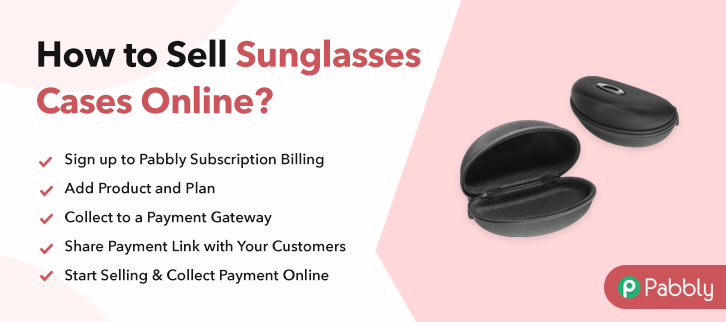
How to Sell Sunglasses Cases

Why Choose this Method to Sell Sunglasses Cases Online?

Unlike any other solution, this method allows you to:

  • List and sell your sunglasses cases for FREE. Absolutely no payment required.
  • No need to pay commission on any of your sales.
  • Multiple payment options like PayPal, Credit Card, etc to collect payment from a single place.
  • Sell one time or recurring subscriptions of your sunglasses cases.
  • Collect payments & sell products in any currency as per your requirement.
  • Give discounts on your products by offering special coupon codes.
  • Add sales commission agents to help you in selling sunglasses cases online.

Get Pabbly Subscription Billing for Free

Sunglasses cases are widely used by people to keep their sunglasses safe and secure. That’s why the business of sunglasses cases never goes out of trend. So, if you want to take your offline sunglasses case store online then you have come to the right place.

There are many advantages of selling sunglasses cases online as you get orders from global audiences, an increase in sales, etc. Besides, online store is way more convenient as compared to an offline store when it comes to management. Luckily, we have an amazing software named Pabbly Subscription Billing that can help you to take your business online. This tool enables you to create a checkout page for selling sunglasses cases online without any hassle.

Some other benefits of using this online tool are in the following:

  • Easy Revenue Management
  • Unlimited Plans & Products
  • Multiple Billing Models
  • Numerous Payment Gateways
  • Professional Invoices
  • Tax Management
  • Unlimited Coupon Codes & Discounts

Final View of Checkout Page for your Sunglasses Cases Selling Business
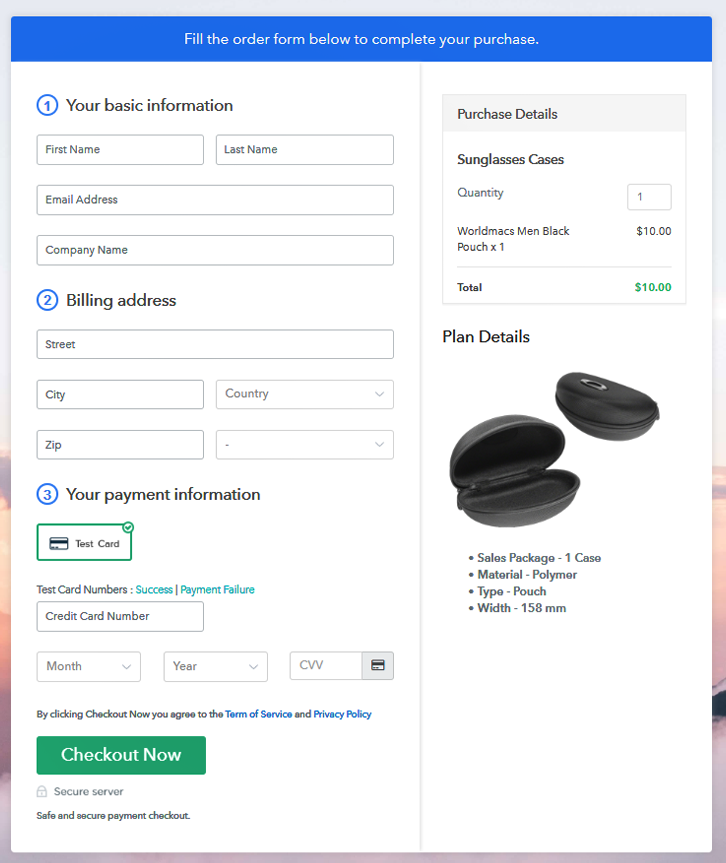
Final View of Checkout Page for your Sunglasses Cases Selling Business

Preview Checkout Page

Step 1: Log in to Pabbly Subscription Billing
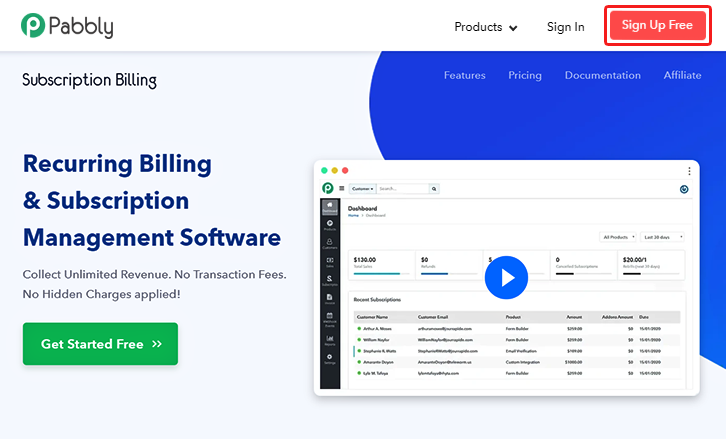
Signup

Begin the process for creating a checkout page for sunglasses cases by visiting the Pabbly Subscription Billing in your browser. After that, click on the “Sign up Free“ button. Moreover, either manually filled out the details or sign in using your Gmail account.

Sign Up For Free!

Step 2: Select Subscription Billing

Access Subscription Billing

Step 3: Account Setup
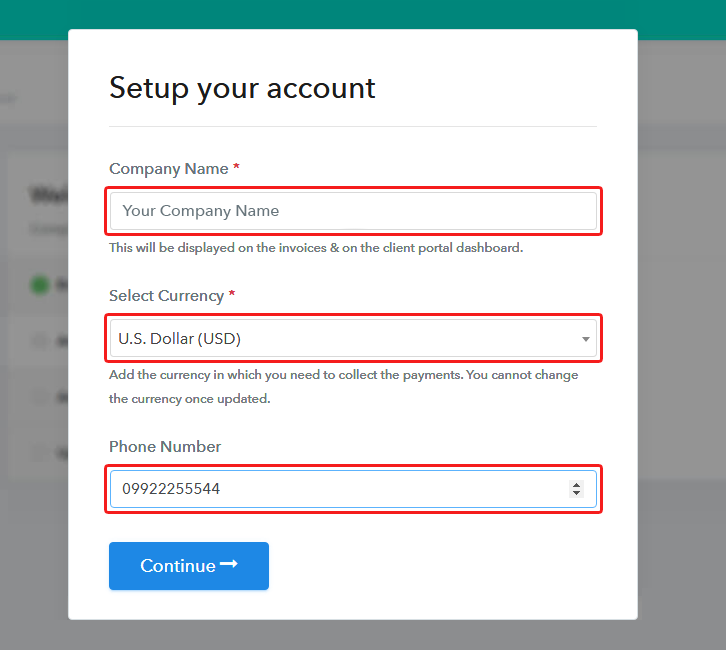
Setup Account

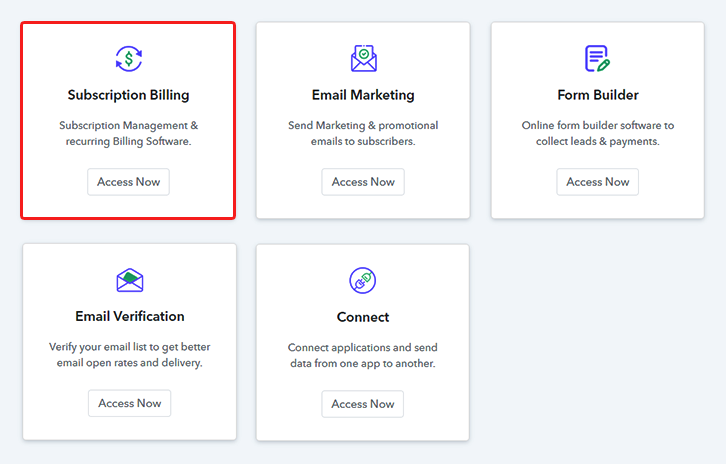
Besides, after clicking on the “Access Now” button of the software, a page will open with fields like company name, select currency, and phone number. Simply fill out those details to continue creating a checkout page for sunglasses cases.

Step 4: Connect Payment Gateways & Start Sunglasses Cases Selling Business Online
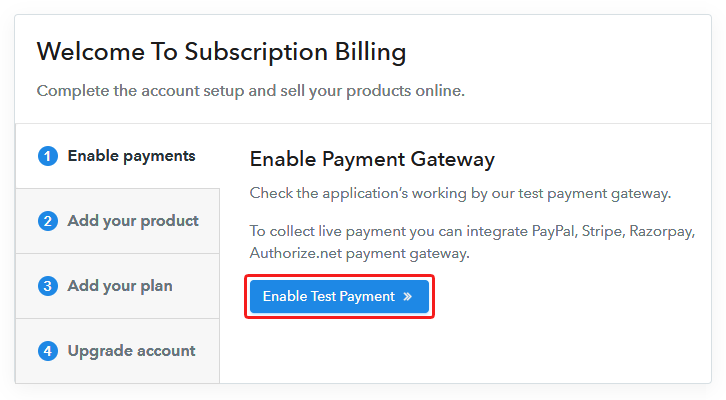
Connect Payment Gateway

The subsequent step is to understand payment procedures using a “Test Payment Gateway”. Here, we will describe the checkout page process for the sunglasses cases with the help of a test payment gateway. Besides this, the tool offers various payment gateways such as PayPal, Stripe, etc. Further, below are the payment integration guides to help you out.

Step 5: Add Product for your Sunglasses Cases
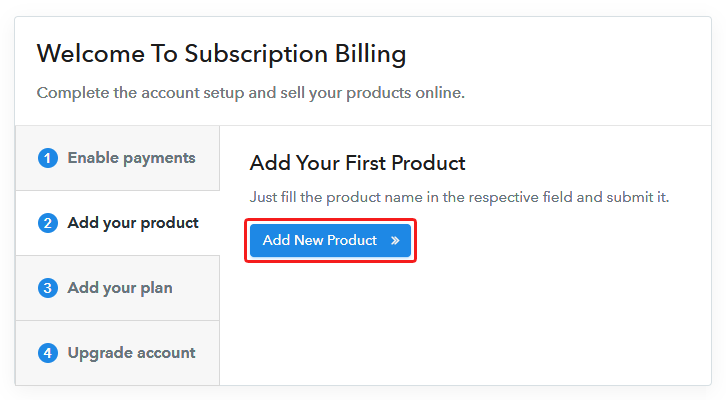
Add Product

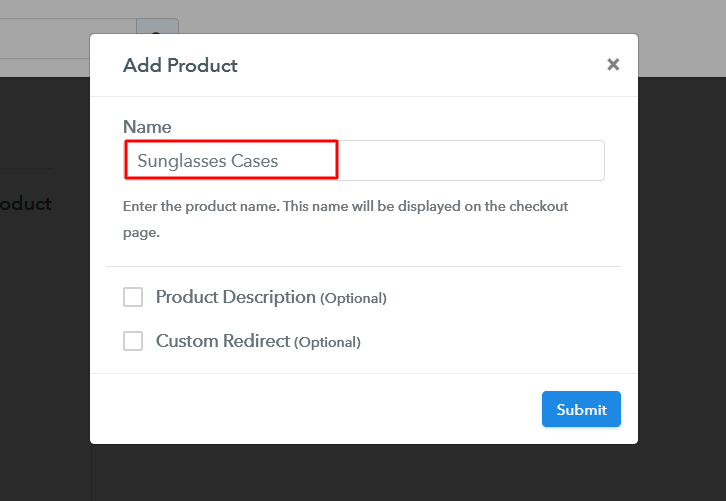
Additionally, add the name, which in our case is “Sunglasses Cases”. Here you can specify the type like printed sunglasses cases, designed sunglasses cases, etc. Further, write a short description of the sunglasses cases to get the customer’s attention.

Add Product to Start Selling Sunglasses Cases Online

Moreover, just fill out all those details and your product is created.

Note: Here you can add all the products related to the similar category by creating plans for each of them.

Step 6: Add Plans 

Let’s unfold out plans for different kinds of sunglasses cases available in your store.

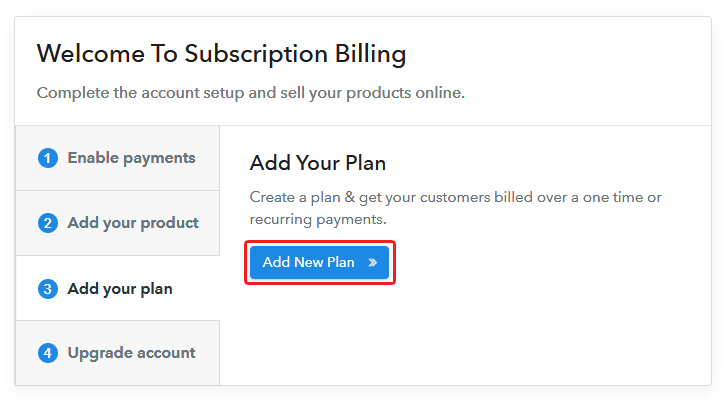
(a) Select Add New Plan

Add Plan

(b) Specify the Plan & Pricing Details
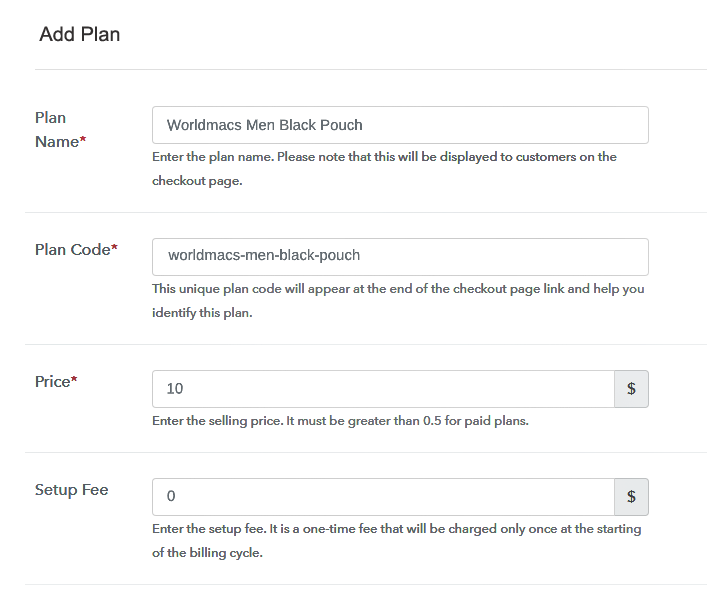
Specify the Plan and Pricing to Sell Sunglasses Cases Online

The next thing to do is fill all the details of the sunglasses cases like plan name, code, price, set-up fee, and much more to continue.

(c) Add Image & Description of Sunglasses Cases
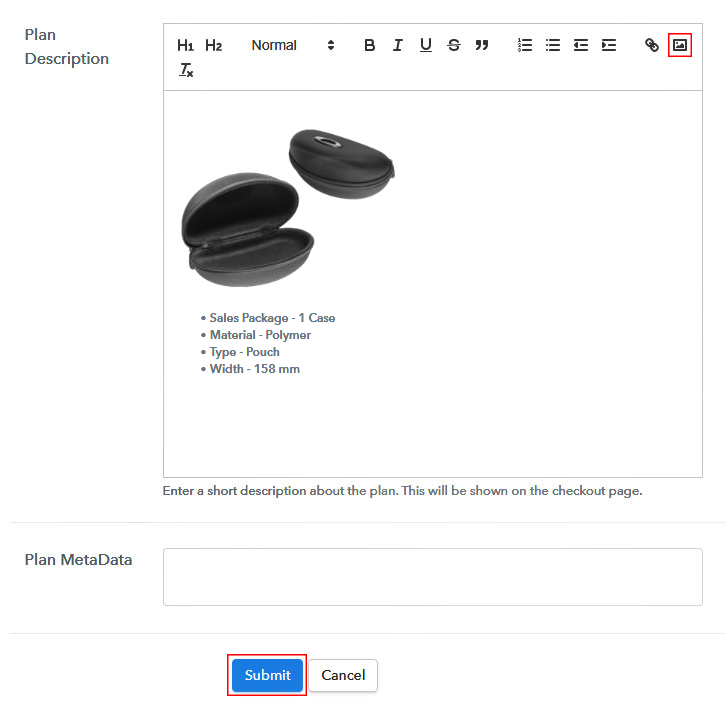
Add Image & Description of Sunglasses Cases

Moreover, provide a brief description of the sunglasses cases using bullets, images, etc, to get buyers attention to the checkout page.

Next, click on the “Submit” button to add the sunglasses cases on the checkout page.

Finally, you can add multiple plans and kinds of sunglasses cases in your product list which you want to sell online.

Step 7: Share your Checkout Page

Share Checkout Page on Social Media

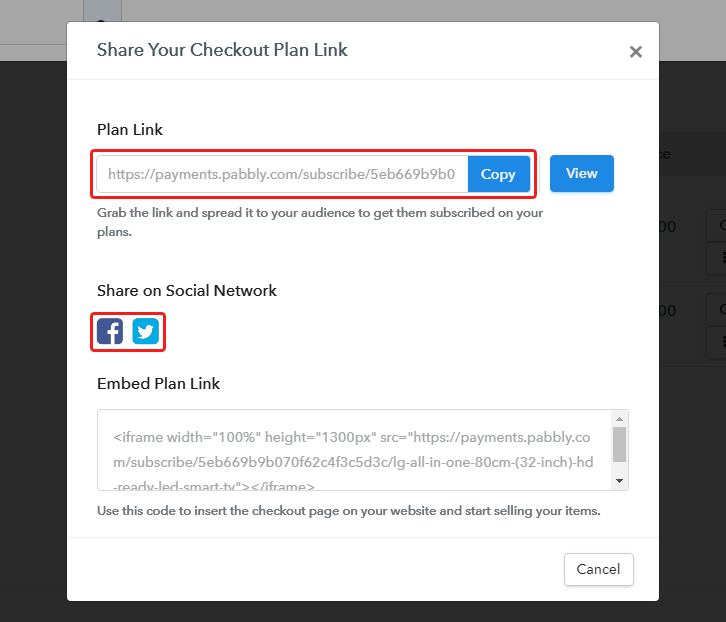
  • Moreover, share the checkout page of the sunglasses cases on social media accounts like Facebook & Twitter to grab the buyer’s attention.
  • Also, you can share the direct link of the sunglasses cases checkout page with your customers via SMS or email marketing.
  • Additionally, embed the provided plan link of the sunglasses cases in the buttons or any anchor text on your website.

Step 8: Preview Checkout Page

Follow up the recommended steps to preview the checkout page:

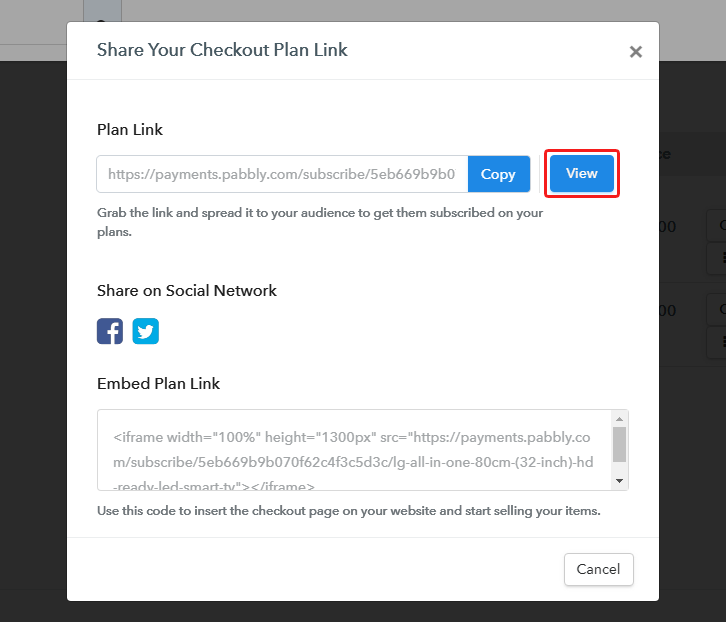
(a) Click on the View Button

View Checkout Plan

(b) Take a Look at the Checkout Page

Final View of Checkout Page for your Sunglasses Cases Selling Business

Step 9: Embed Checkout Page in Site & Sell Sunglasses Cases Online
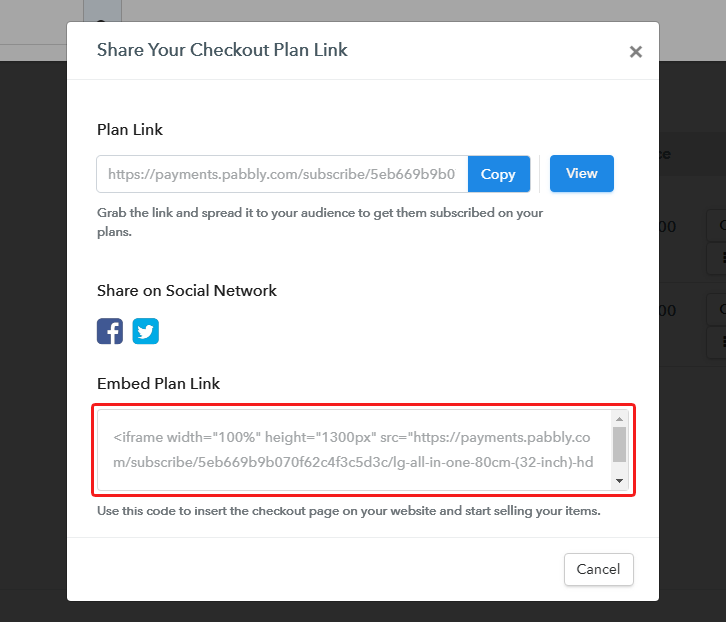
Embed Checkout Page on Website

Just copy the link and add the checkout page to sell sunglasses cases online at any proper place on your WordPress site.

(a) Edit the Page & Paste the Copied Link
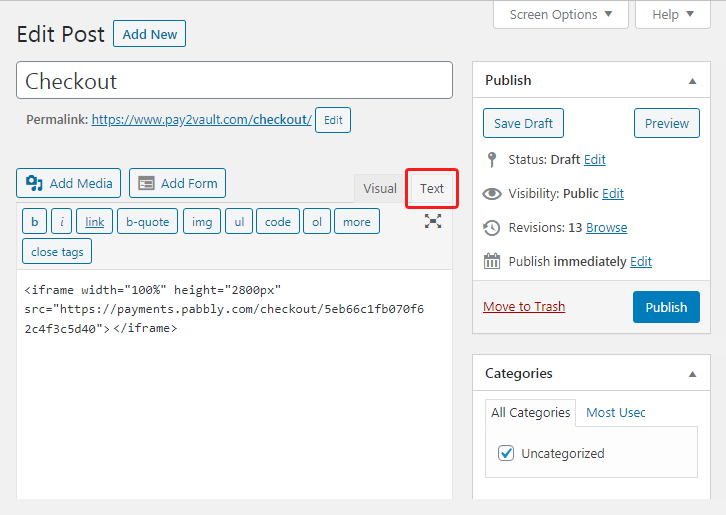
Paste Link in Text Editor

Further, paste the plan link of sunglasses cases on a text editor of the WordPress dashboard.

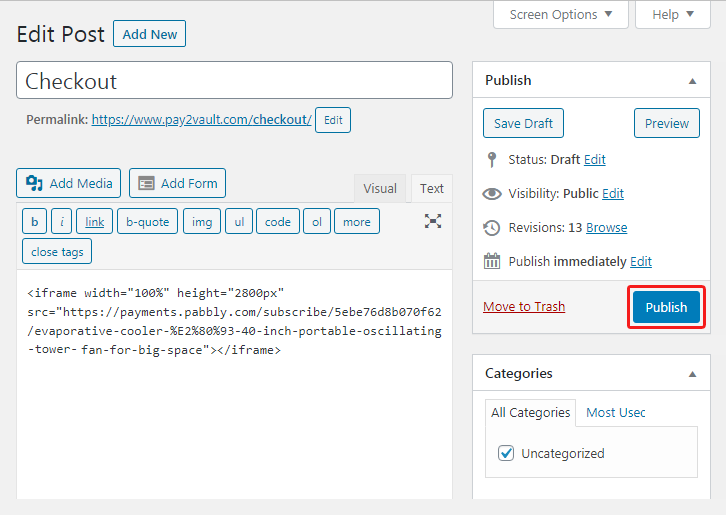
(b) Save & Publish the Checkout Page

Save_and_Publish

Next, click the “Publish” button, after making changes.

(c) Check out the Final Look of your Checkout Page on WordPress Site
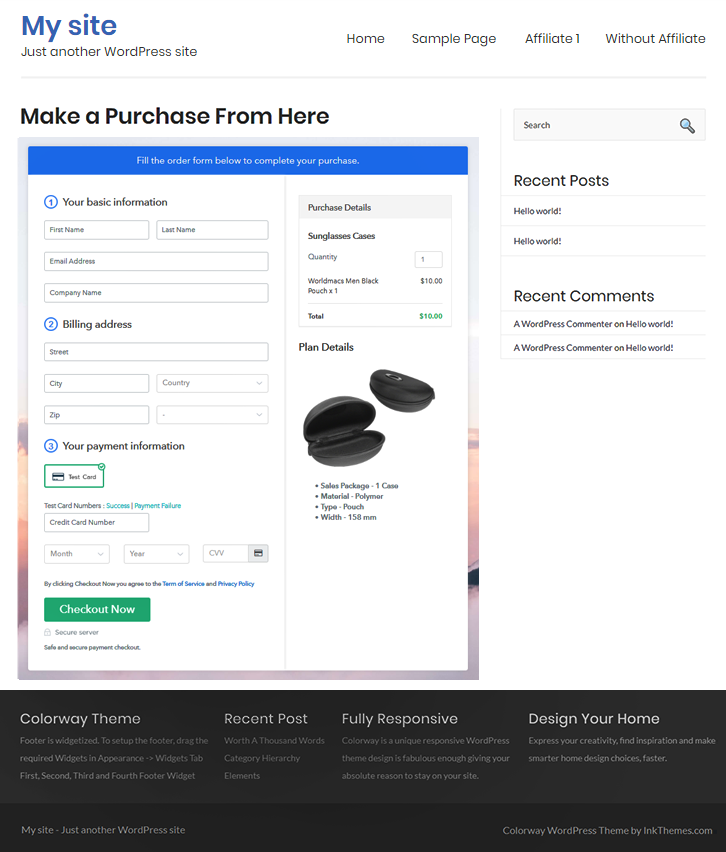
Checkout Page on WordPress Site to Sell Sunglasses Cases Online

Step 10: Multiplan Checkout Page

Note: In case you want to sell multiple products via a single checkout page, you can create a multi-plan checkout page otherwise skip this step.

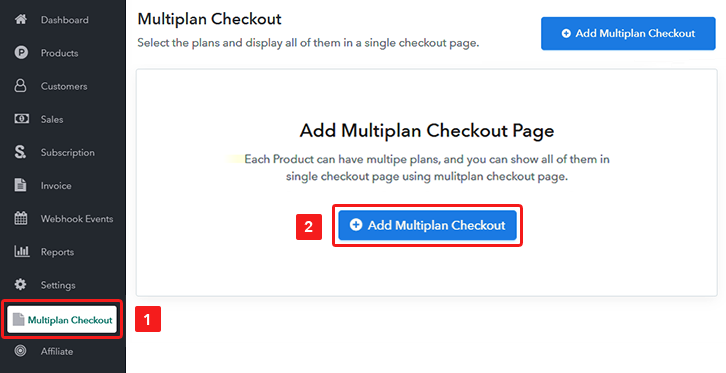
(a) Click on Add Mutiplan Checkout

Multiplan Checkout

(b) Add Plans to Sell Multiple Sunglasses Cases from Single Checkout Page
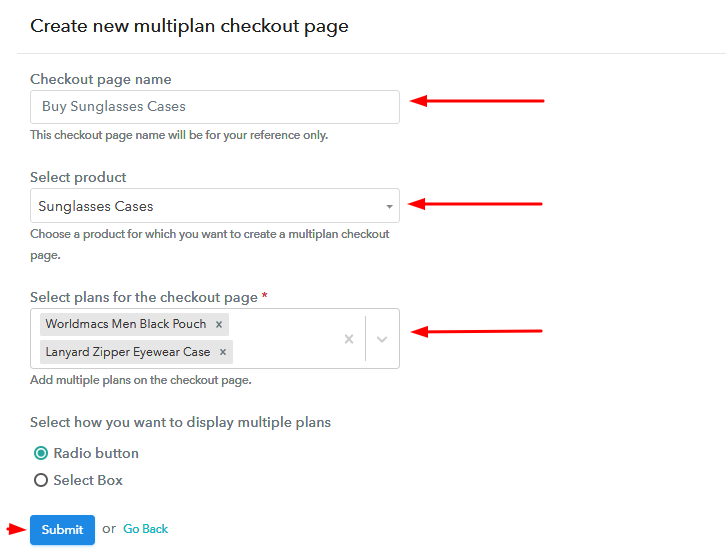
Add Plans to Sell Multiple Sunglasses Cases from Single Checkout Page

(c) Take a Look at the Checkout Page
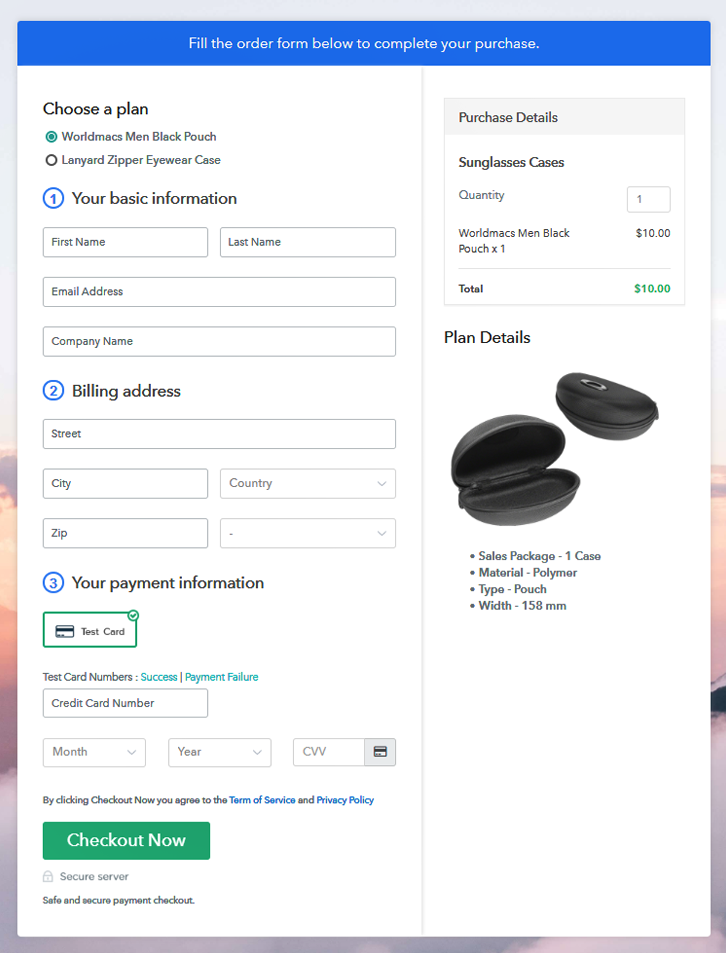
Multiplan Checkout Page to Start Sunglasses Cases Business Online

Preview Checkout Page

Wrapping Up

Okay! So now you know how easy is to start sunglasses cases business online using Pabbly Subscription Billing software. Just go through all the mentioned steps and nothing else. Moreover, in case if you any trouble or query, note it down in the comment section below. We will get back to you as soon as possible. Thank you!!

You May Also Like To Read –
How to Sell Vitamins Online | Step by Step (Free Method)

Ideal For: All the vitamin manufacturers, vitamin sellers, retail vitamin shop owners, and other merchants can use this method to take their vitamins selling business online.

How to Sell Vitamins Online

Why Choose this Method to Sell Vitamins Online?

Unlike any other solution, this method allows you to:

  • List and sell your vitamins for FREE. Absolutely no payment required.
  • No need to pay commission on any of your sale.
  • Multiple payment options like PayPal, Credit Card, etc to collect payment from a single place.
  • Sell one time or recurring subscriptions of your vitamins.
  • Collect payments & sell products in any currency as per your requirement.
  • Give discounts on your products by offering special coupon codes.
  • Add sales commission agents to help you in selling vitamins online.

Get Pabbly Subscription Billing for Free

Due to the lack of vitamins in natural products, there is a great increase in the vitamins consumption year after year. So, we can say this is a good opportunity to sell vitamins online.

You can start vitamins business online in many ways like through website, app etc but, these means are really time-consuming and can cost you more. So, here in this article, I’m going to discuss a service named Pabbly Subscription Billing, it is cost-effective and can help you get started in minutes on your own.

All you need to do is create a checkout page to sell vitamins online. These checkout pages will let you show your product and its details and share them globally to collect payments.

There are many other advantages of using this service. They are:

  • You can keep records of all items in stock
  • Track payments & refunds
  • Collect online/offline payments
  • Apply global taxes
  • Offer coupons & discounts
  • Automate invoicing & billing
    And much more

Now, let’s get started with the process of selling vitamins online.

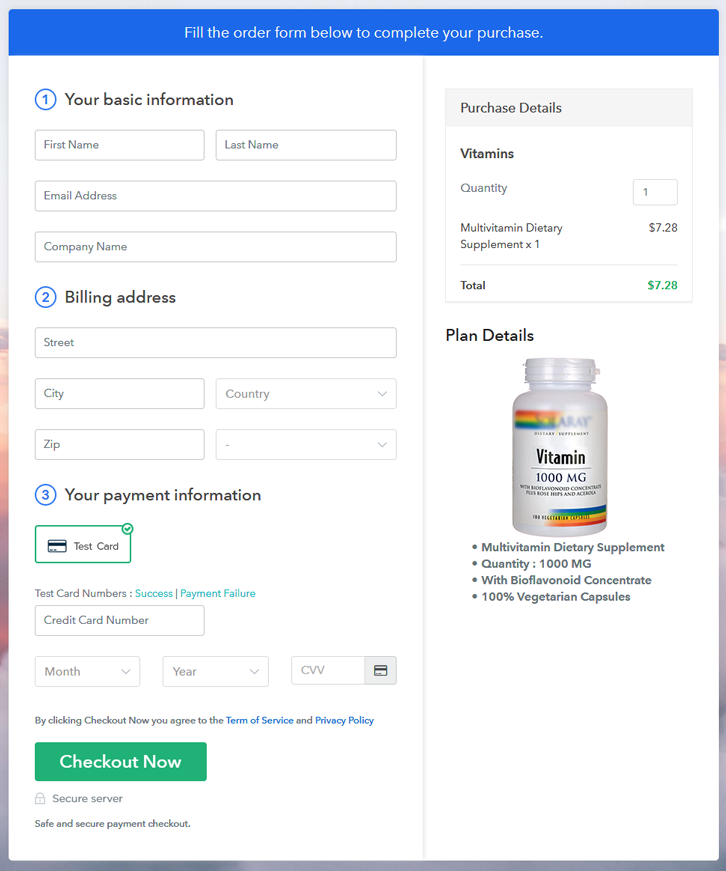
Final View of Checkout Page for your Vitamins Selling Business

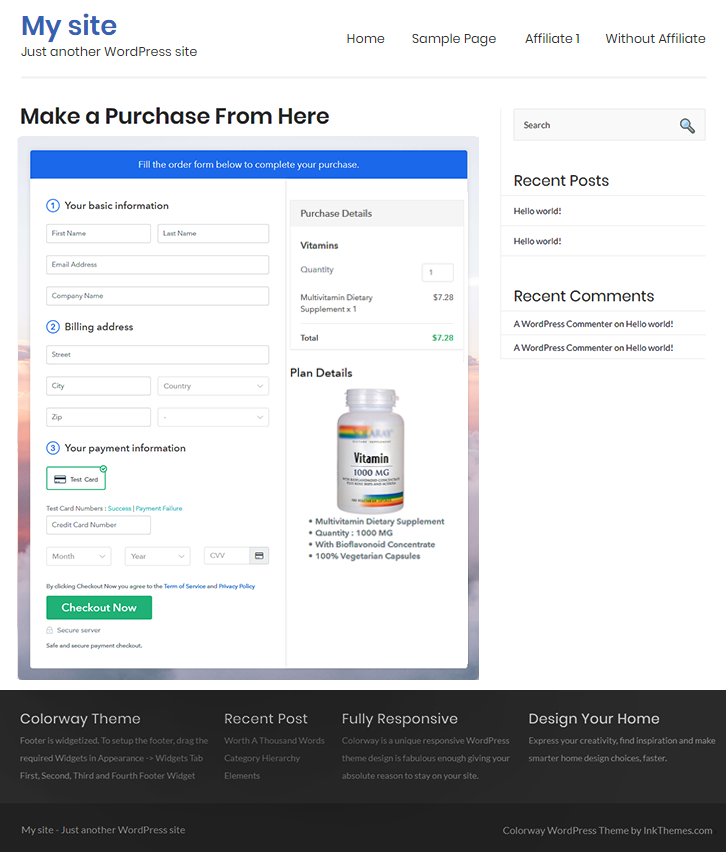
Checkout Page Preview to Sell Vitamins Online

Preview Checkout Page

Step 1: Log in to Pabbly Subscription Billing

Signup

Initiate by visiting Pabbly Subscription Billing & click on ‘Sign Up Free‘ there. On the sign-up page, use Gmail or manual registration option to get started with the process of selling vitamins online.

Sign Up For Free!

Step 2: Select Subscription Billing

Access Subscription Billing

Step 3: Account Setup

Setup Account

Next in this pop-up window, fill in some of your company details such as your company name, phone number & also choose a currency in which you wanna deal.

Step 4: Connect Payment Gateways & Start Vitamins Selling Business Online

Connect Payment Gateway

To prepare the system for collecting payments, you’ve to integrate a payment method for selling vitamins afterwards. You can also enable the test payment method for testing the functionality though. Although integrate a payment gateway method from the following selections with integration guides to start accepting successful payments.

Step 5: Add Product for your Vitamins

Add Product

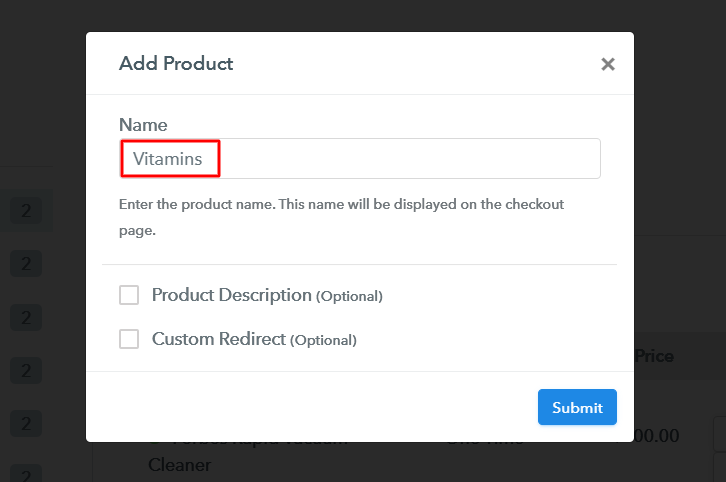
Now, add a vitamin category as a product by clicking on the ‘Add New Product’ button. We’ll add vitamins (items) to sell as plans within this product in the succeeding step.

Add Product to Sell Vitamins Online

Fill the required vitamin product details and click submit.

Note: Here you can add all the products related to the similar category by creating plans for each of them.

Step 6: Add Plans 

Now, let’s start adding plans for various kinds of vitamins available in your store.

(a) Select Add New Plan

Add Plan

(b) Specify the Plan & Pricing Details

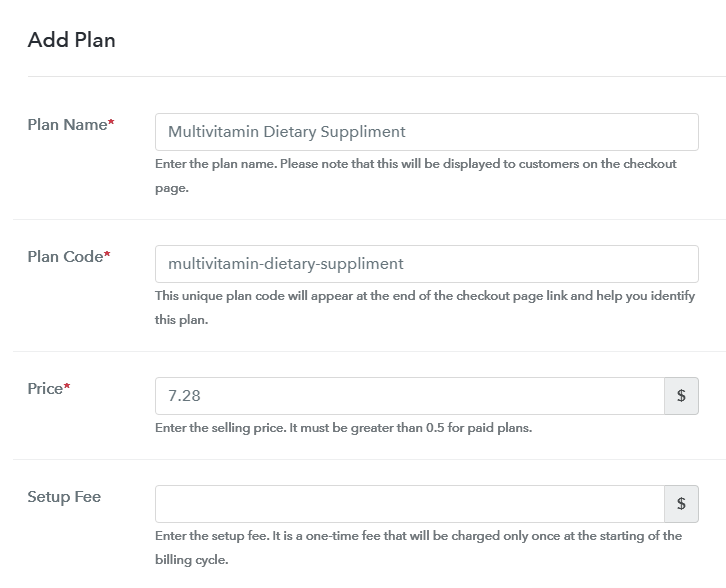
Add Plan to Sell Vitamins Online

You can write a name, code, price, and set billing cycle etc details of a vitamin that you wanna sell.

(c) Add Image & Description of Vitamins

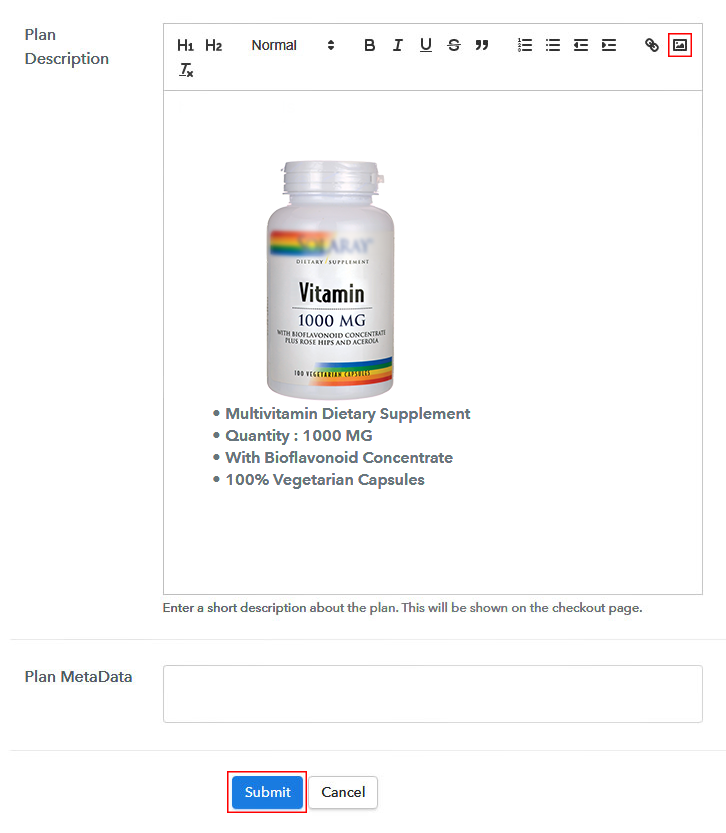
Add Image & Description to Sell Vitamins Online

You can include an image & some description of the vitamin for your customer’s reference.

Click the ‘Submit’ button in here and a checkout page will be created instantly to sell vitamins online.

Similarly, you can add other vitamin plans too.

Step 7: Share your Checkout Page

Share Checkout Page on Social Media

Now, to sell vitamins online, you’ll need to share/embed a plan checkout page. For this, you can do the following:

  • You can share the created checkout page directly on Facebook and Twitter
  • Second, you can share the plan link over the other link sharing and social media platforms such as emails, WhatsApp, SMS etc
  • Lastly, you can set the plan link within the texts & buttons of a website to redirect a customer on the payment pages

Step 8: Preview Checkout Page

Follow up the recommended steps to preview the checkout page:

(a) Click on the View Button

View Checkout Plan

(b) Take a Look at the Checkout Page

Checkout Page Preview to Sell Vitamins Online

Step 9: Embed Checkout Page in Site & Sell Vitamins Online

Embed Checkout Page on Website

Just copy the link and add the checkout page to sell vitamins online at any preferable place on your WordPress site.

(a) Edit the Page & Paste the Copied Link

Embed Checkout Page on Website

Further, paste the plan link on a text editor of the WordPress dashboard.

(b) Save & Publish the Checkout Page

Save_and_Publish

Next, click the “Publish” button, after making changes.

(c) Check out the Final Look of your Checkout Page on WordPress Site

Checkout Page On WordPress Site to Sell Vitamins Online

Step 10: Multiplan Checkout Page

Note: In case you want to sell multiple products via a single checkout page, you can create a multi-plan checkout page otherwise skip this step.

(a) Click on Add Mutiplan Checkout

Multiplan Checkout

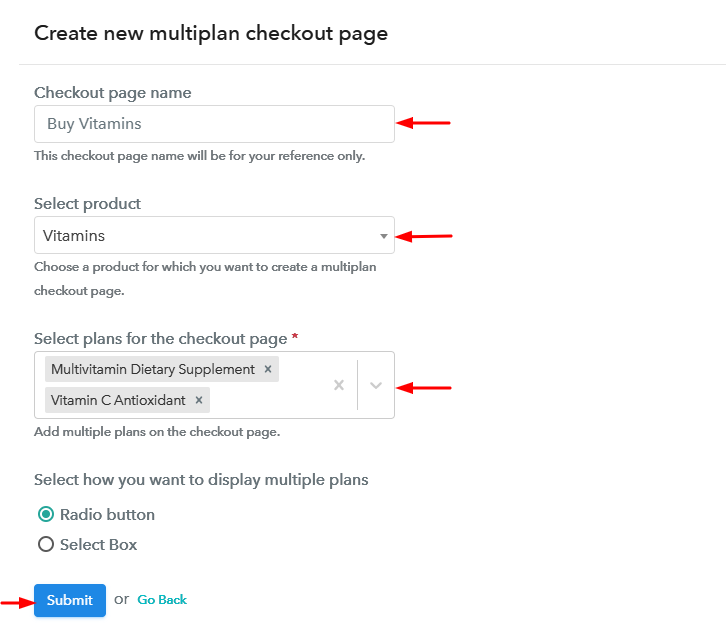
(b) Add Plans to Sell Multiple Vitamins from Single Checkout Page

Create Multiplan Checkout to Sell Vitamins Online

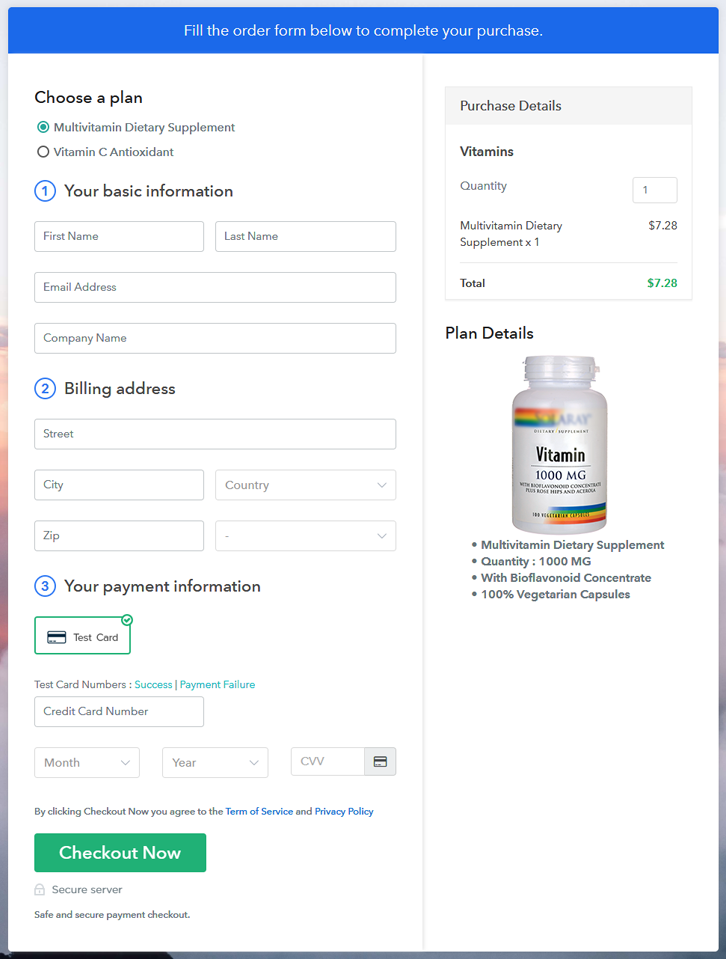
(c) Take a Look at the Checkout Page

Multiplan Checkout Page to Sell Vitamins Online

Preview Checkout Page

Wrapping Up

This was all about the checkout page creation & how to sell vitamins online. To start vitamins business online, you’ll need to carry out these 10 simple steps and share the checkout page.

Moreso, the Pabbly subscription Billing dashboard will help you manage & track the sales and items availability.

You May Also Like To Read –
 

How to Sell Uniforms Online | Step by Step (Free Method)

How to Sell Uniforms Online

Ideal For: All the uniform manufacturers, uniform sellers, retail uniform shop owners, and other merchants can use this method to take their uniforms selling business online.

How to Sell Uniforms Online

Why Choose this Method to Sell Uniforms Online?

Unlike any other solution, this method allows you to:

  • List and sell your uniforms for FREE. Absolutely no payment required.
  • No need to pay commission on any of your sale.
  • Multiple payment options like PayPal, Credit Card, etc to collect payment from a single place.
  • Sell one time or recurring subscriptions of your uniforms.
  • Collect payments & sell products in any currency as per your requirement.
  • Give discounts on your products by offering special coupon codes.
  • Add sales commission agents to help you in selling uniforms online.

Get Pabbly Subscription Billing for Free

Uniforms symbolize team-building and can improve brand awareness. These are used in most of the places of society such as schools, companies, games etc. And if you are willing to sell uniforms online and extend your reach to the internet audience then we can help you get started.

Here in this blog, we have discussed the step by step procedure of creating plan checkout pages for selling uniforms online. A checkout page is capable of many abilities to start uniforms business online. You can showcase your product and its details onto it as well as collect payments through it.

Moreover, the checkout pages also allow you to sell multiple products from a single checkout page. You can further share these checkout pages to sell uniforms globally. Also, you can embed the checkout pages within buttons, texts of a website or app and in WordPress posts/pages.

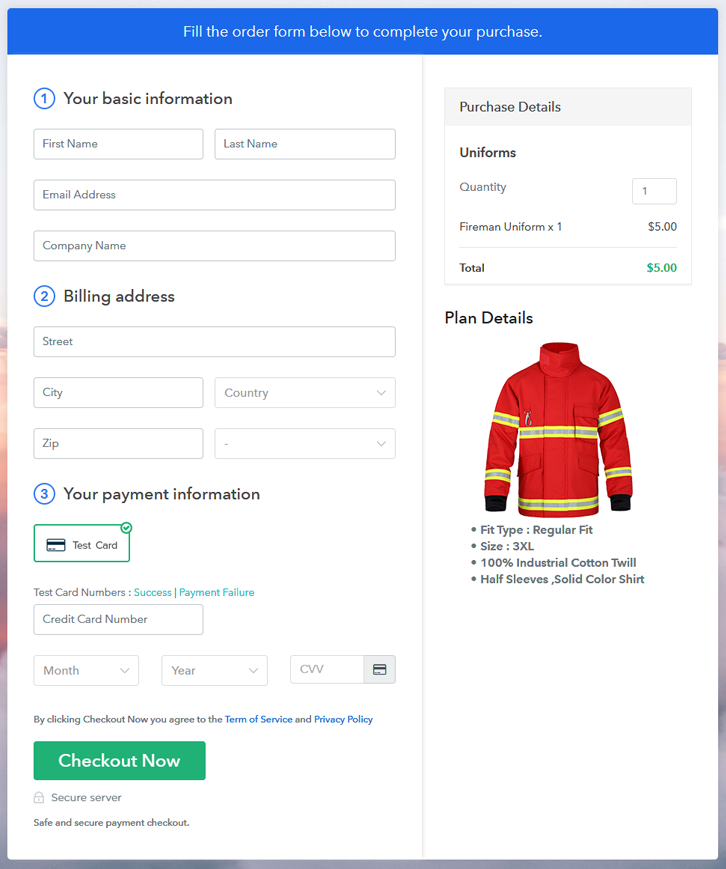
Final View of Checkout Page for your Uniforms Selling Business

Checkout Page Preview to Sell Uniforms Online

Preview Checkout Page

Step 1: Log in to Pabbly Subscription Billing

Signup

To start selling uniforms online using checkout pages, initiate with visiting Pabbly Subscription Billing and on the official website find ‘Sign Up Free‘ button and click it. You’ll land over a registration page, here you can either sign-up directly by Gmail or manually fill the form to create an account on the platform.

Sign Up For Free!

Step 2: Select Subscription Billing

Access Subscription Billing

Step 3: Account Setup

Setup Account

The third step is to feed some company details to finish the system setup. So, fill in the information asked & push ‘Continue’.

Step 4: Connect Payment Gateways & Start Uniforms Selling Business Online

Connect Payment Gateway

Now, to collect payments for the goods that you wanna sell, you’ll need to integrate a payment gateway method . For first time testing, you can use the ‘Enable Test Payment’ option also. Moreover, you can select a payment gateway from the following choices given with their integration guides linked for your reference.

Step 5: Add Product for your Uniforms

Add Product

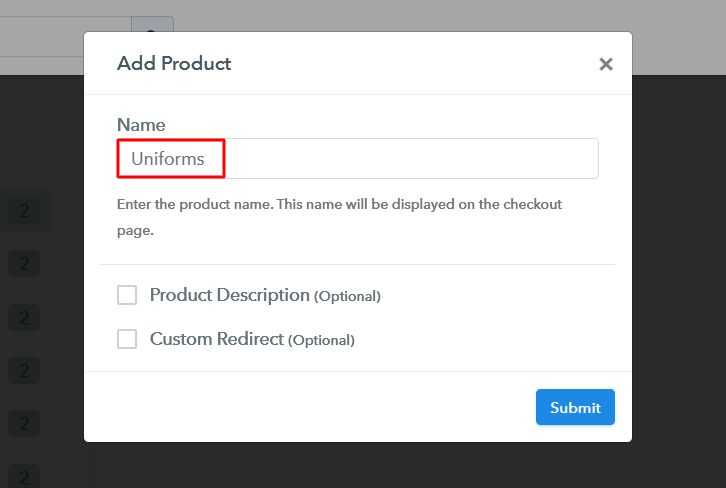
Next, we’ll create products and you can name a product as per a category of uniforms. More further, we’ll add plans to these product categories.

Add Product to Sell Uniforms Online

Fill all the essential product details asked & hit ‘Submit’.

Note: Here you can add all the products related to the similar category by creating plans for each of them.

Step 6: Add Plans 

Now, we’ll add plans for the different uniforms available in your store based on the product category.

(a) Select Add New Plan

Add Plan

(b) Specify the Plan & Pricing Details

Add Plan to Sell Uniforms Online

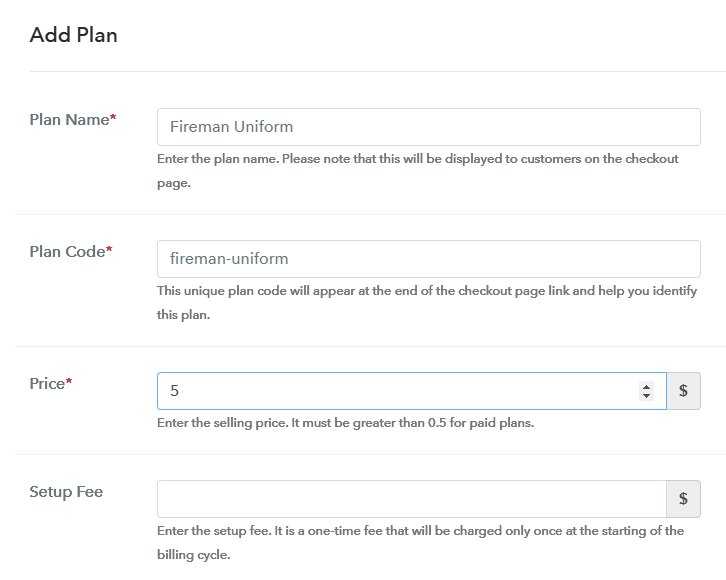
You can state the name, price plus other details of a uniform in the plan details page.

(c) Add Image & Description of Uniform

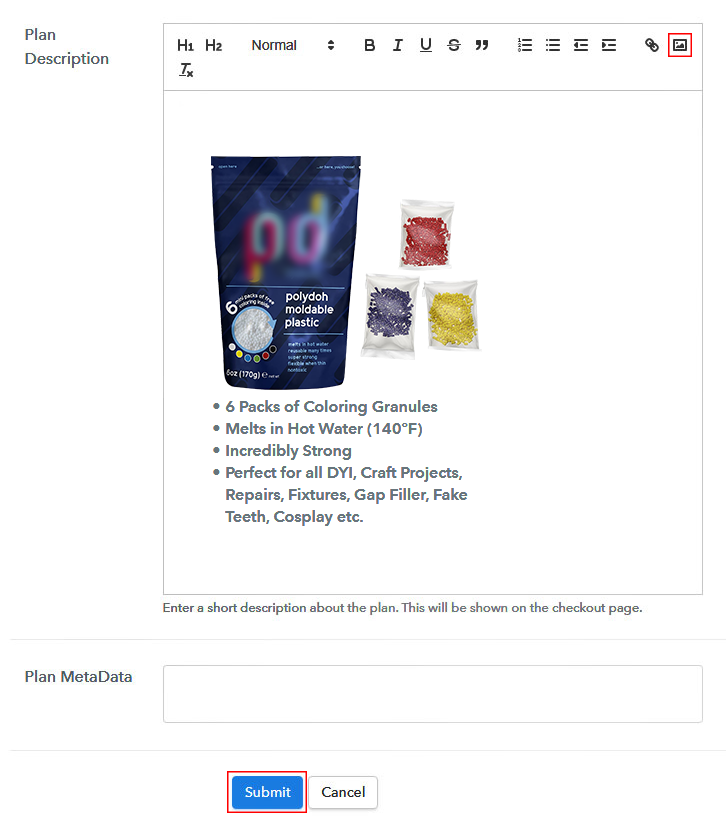
Add Image & Description to Sell Uniforms Online

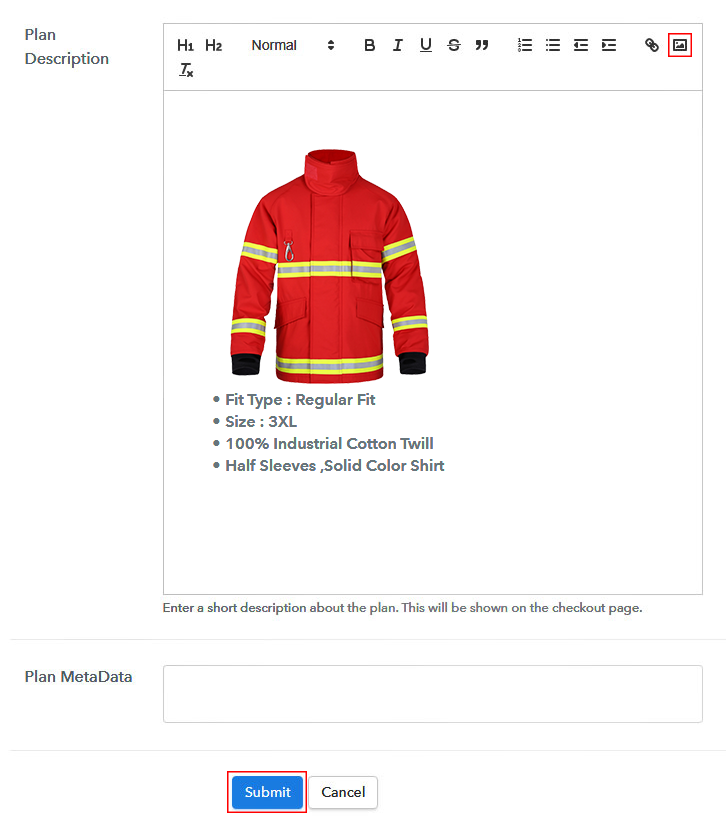
Moreover, if you want to reveal an image with some description of the uniform you can mention it under the ‘Plan Description’ field.

Bang the ‘Submit’ button and a plan will be launched immediately to sell uniforms online.

Likewise, you can add other uniforms also.

Step 7: Share your Checkout Page

Share Checkout Page on Social Media

To start uniforms business online, you can share a checkout page & draw customers on the payments page. There are three ways to do so.

  • First, you can share the plan link of a checkout page on the social media channels such as SMS, emails, WhatsApp etc
  • Second, strike the Facebook & Twitter sharing buttons to directly share a checkout page onto there platforms
  • Lastly, you can redirect a customer on the payment checkout pages by linking the plan link URL within the buttons and text anchors for a website or app

Step 8: Preview Checkout Page

Follow up the recommended steps to preview the checkout page:

(a) Click on the View Button

View Checkout Plan

(b) Take a Look at the Checkout Page

Checkout Page Preview to Sell Uniforms Online

Step 9: Embed Checkout Page in Site & Sell Uniforms Online

Embed Checkout Page on Website

Just copy the link and add the checkout page to sell uniforms online at any preferable place on your WordPress site.

(a) Edit the Page & Paste the Copied Link

Embed Checkout Page on Website

Further, paste the plan link on a text editor of the WordPress dashboard.

(b) Save & Publish the Checkout Page

Save_and_Publish

Next, click the “Publish” button, after making changes.

(c) Check out the Final Look of your Checkout Page on WordPress Site

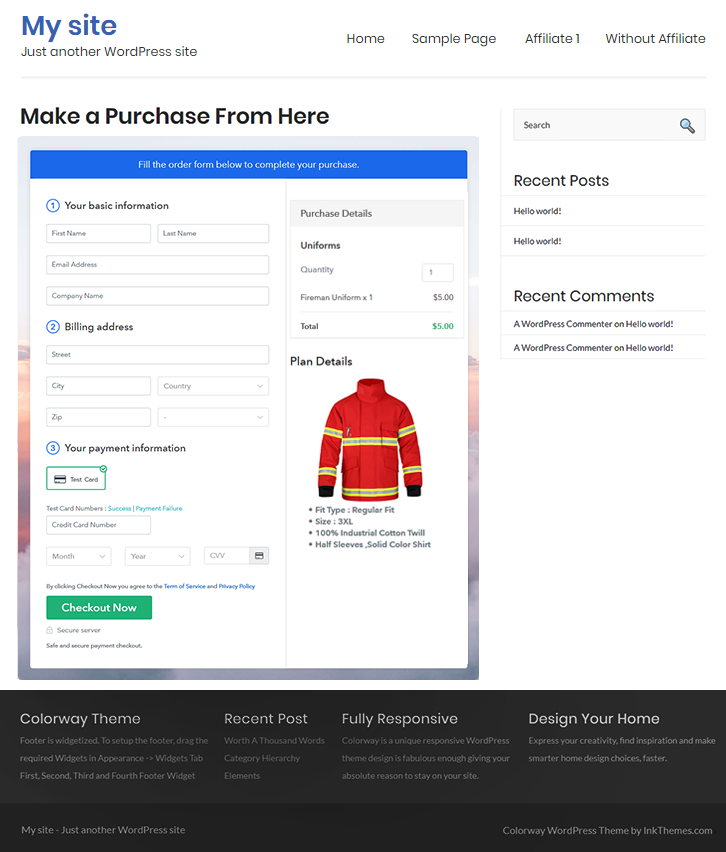
Checkout Page On WordPress Site to Sell Uniforms Online

Step 10: Multiplan Checkout Page

Note: In case you want to sell multiple products via a single checkout page, you can create a multi-plan checkout page otherwise skip this step.

(a) Click on Add Mutiplan Checkout

Multiplan Checkout

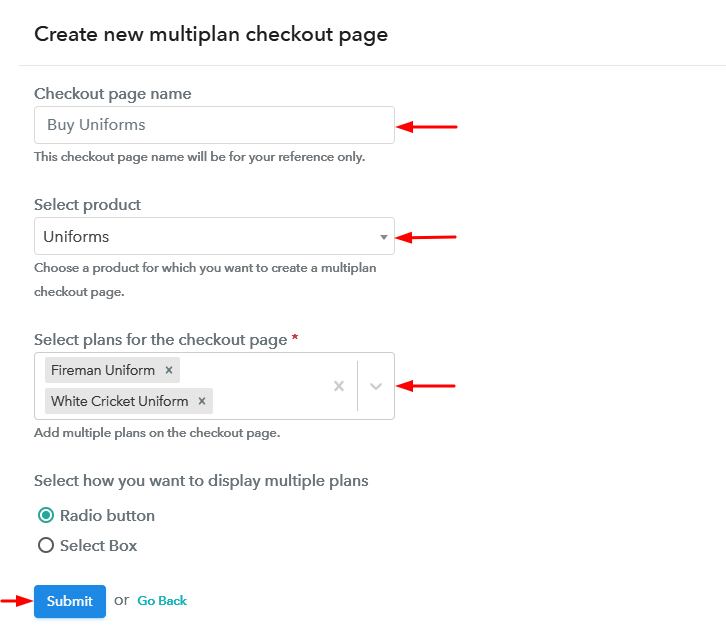
(b) Add Plans to Sell Multiple Uniforms from Single Checkout Page

Create Multiplan Checkout Page to Sell Uniforms Online

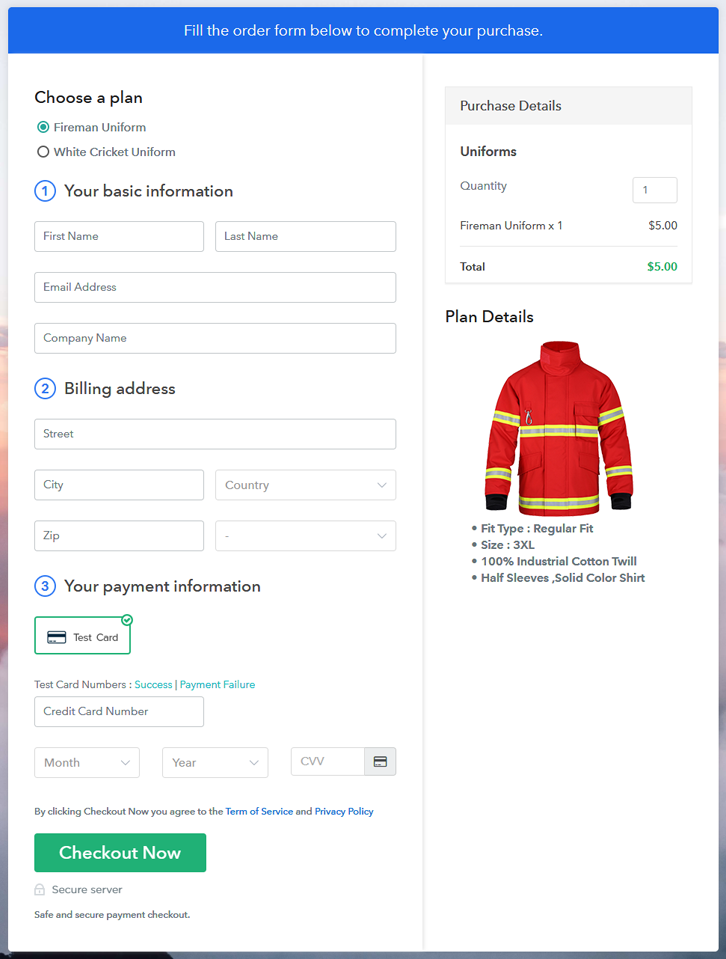
(c) Take a Look at the Checkout Page

Multiplan Checkout Page to Sell Uniforms Online

Preview Checkout Page

Wrapping Up

This was the entire procedure for creating checkout pages to sell uniforms online. As you can see by yourself that the process is very simple and even a non-techy person can follow them easily.

Apart from all that, you can automate the billing/invoicing, accept multiple currencies, keep track of the revenue from the dashboard and can easily sell unlimited uniforms worldwide.

You May Also Like To Read –
 

How to Sell Thermoplastics Online | Step by Step (Free Method)

Ideal For: All the thermoplastic manufacturers, thermoplastic sellers, retail thermoplastic shop owners, and other merchants can use this method to take their thermoplastics selling business online.

How to Sell Thermoplastics Online

Why Choose this Method to Sell Thermoplastics Online?

Unlike any other solution, this method allows you to:

  • List and sell your thermoplastics for FREE. Absolutely no payment required.
  • No need to pay commission on any of your sale.
  • Multiple payment options like PayPal, Credit Card, etc to collect payment from a single place.
  • Sell one time or recurring subscriptions of your thermoplastics.
  • Collect payments & sell products in any currency as per your requirement.
  • Give discounts on your products by offering special coupon codes.
  • Add sales commission agents to help you in selling thermoplastics online.

Get Pabbly Subscription Billing for Free

Thermoplastics are materials which become softer when heated & hard when cooled. They are used in creating many things such as sports equipment, toys, DVDs, plastic grocery bags etc. And if you are planning to sell thermoplastics online we can tell you the best possible way.

You can try Pabbly Subscription Billing service, you can directly create checkout pages using it for selling thermoplastics online. You can use the checkout for displaying your product, its features, pricing etc and at the same time, you can collect payments through it.

To sell thermoplastics online, the service will let you share the checkout pages over all the social media and link sharing platforms. Also, you can embed these checkout pages on WordPress.

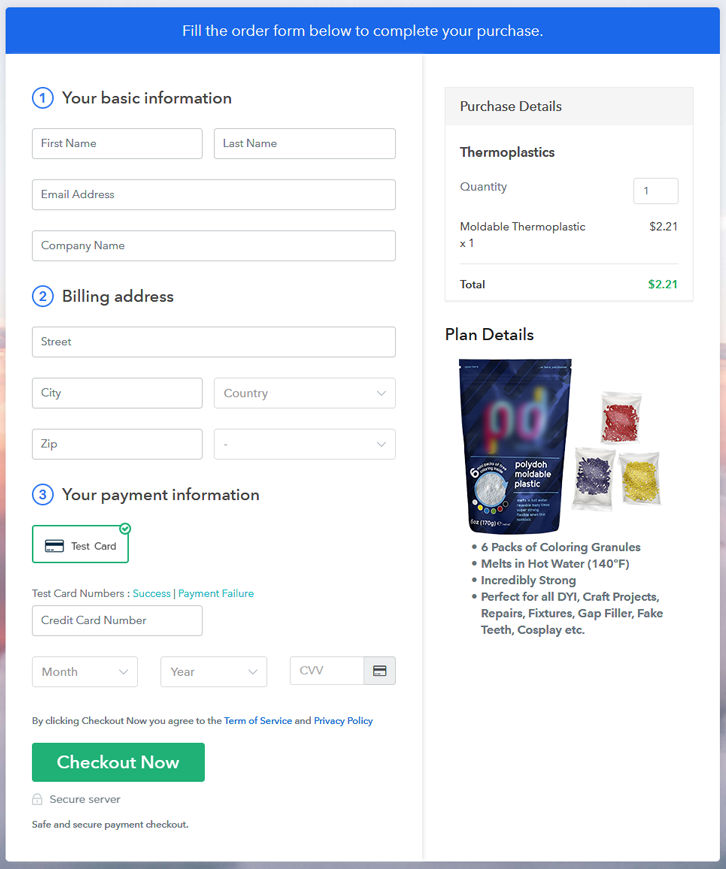
Final View of Checkout Page for your Thermoplastics Selling Business

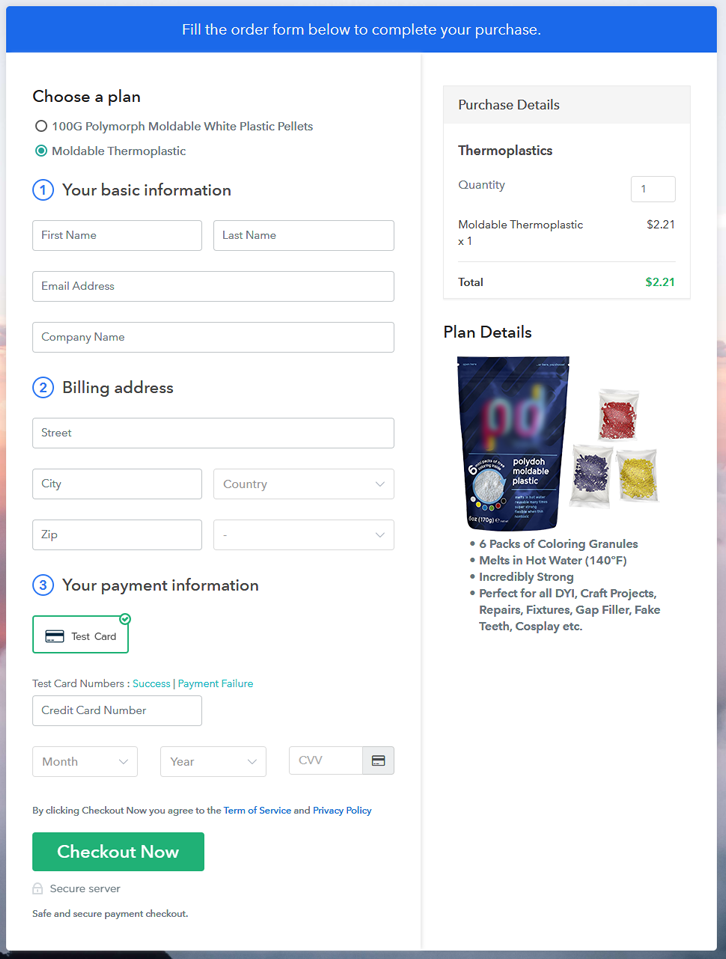
Checkout Page Preview to Sell Thermoplastics Online

Preview Checkout Page

Step 1: Log in to Pabbly Subscription Billing

Signup

To start selling thermoplastics online initiate by visiting Pabbly Subscription Billing. Hit the ‘Sign Up Free‘ button there & use a Gmail ID or manually fill-in the form available.

Sign Up For Free!

Step 2: Select Subscription Billing

Access Subscription Billing

Step 3: Account Setup

Setup Account

Besides, the system will require some company details to finish the setup. So, quickly feed your company name, contact number and pick a currency in which you wanna deal.

Step 4: Connect Payment Gateways & Start Thermoplastics Selling Business Online

Connect Payment Gateway

Next, integrate a payment gateway method to collect payments for selling thermoplastics online afterwards. There is another option to enable a test payment mode for testing purpose. Furthermore, to collect payments from your clients, you must integrate a payment gateway from the following selections. Also, the integration guides for every option is linked for your ease.

Step 5: Add Product for your Thermoplastics

Add Product

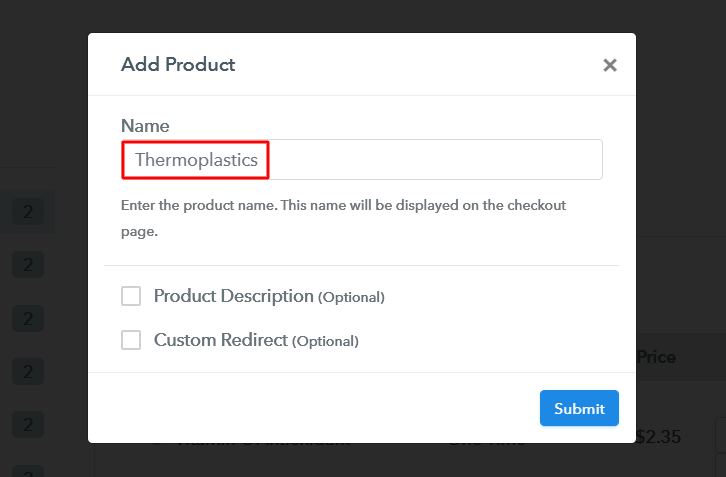
Now, in this step, you can start adding products. For this, strike the ‘Add New Product’ button and name the product much like a thermoplastic category.

Add Product to Sell Thermoplastics Online

Fill in the asked product details & hit ‘Submit’.

Note: Here you can add all the products related to the similar category by creating plans for each of them.

Step 6: Add Plans 

Once a product is created, you can start adding plans for the different types of thermoplastics available in your store.

(a) Select Add New Plan

Add Plan

(b) Specify the Plan & Pricing Details

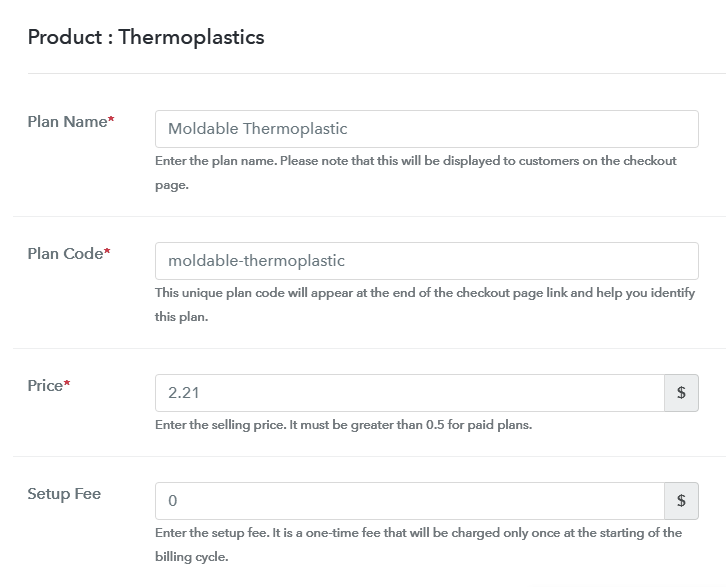
Add Plan to Sell Thermoplastics Online

Specify a name, code, price and set billing cycle etc for an item in the plan details page to sell thermoplastics online.

(c) Add Image & Description of Thermoplastic

Add Image & Description to Sell Thermoplastics Online

Further, you can also add an image and features of the thermoplastic item for customer’s reference.

Hit ‘Submit’ & a plan will be produced to sell thermoplastics online.

Similarly, you can add other thermoplastics as well.

Step 7: Share your Checkout Page

Share Checkout Page on Social Media

To sell thermoplastics online, you’ll need to share or embed the checkout pages & for this, here are some options that you can follow:

  • Directly share a checkout page on Facebook & Twitter
  • Share the plan link over all the other social media channels such as emails, SMS etc
  • Lastly, you can also embed the plan link within the anchor texts & buttons of a website to redirect a customer on the payment page

Step 8: Preview Checkout Page

Follow up the recommended steps to preview the checkout page:

(a) Click on the View Button

View Checkout Plan

(b) Take a Look at the Checkout Page

Checkout Page Preview to Sell Thermoplastics Online

Step 9: Embed Checkout Page in Site & Sell Thermoplastics Online

Embed Checkout Page on Website

Just copy the link and add the checkout page to sell thermoplastics online at any preferable place on your WordPress site.

(a) Edit the Page & Paste the Copied Link

Embed Checkout Page on Website

Further, paste the plan link on a text editor of the WordPress dashboard.

(b) Save & Publish the Checkout Page

Save_and_Publish

Next, click the “Publish” button, after making changes.

(c) Check out the Final Look of your Checkout Page on WordPress Site

Your Image Here

Step 10: Multiplan Checkout Page

Note: In case you want to sell multiple products via a single checkout page, you can create a multi-plan checkout page otherwise skip this step.

(a) Click on Add Mutiplan Checkout

Multiplan Checkout

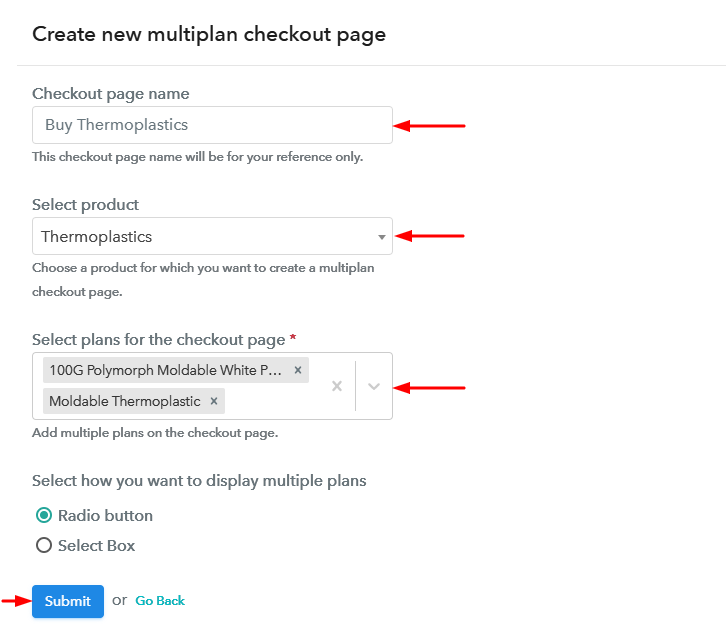
(b) Add Plans to Sell Multiple Thermoplastics from Single Checkout Page

Create Multiplan Checkout to Sell Thermoplastics Online

(c) Take a Look at the Checkout Page

Multiplan Checkout Page to Sell Thermoplastics Online

Preview Checkout Page

Wrapping Up

This was all about the ‘How to sell thermoplastics online’. You can easily follow the steps within this article to start thermoplastics business online. Moreover, the Pabbly subscription Billing dashboard will help you in managing as well as in keeping a record of all your payments & items in stock.

You May Also Like To Read –
 

How to Sell Tofus Online | Step by Step (Free Method)

How to Sell Tofus Online

Ideal For: All the tofu maker, tofu sellers, tofu dealers, tofu suppliers, food shop owners and other merchants can use this method to sell tofus online.

How To Sell Tofus Online

Why Choose this Method to Sell Tofus Online?

Unlike any other solution, this method allows you to:

  • List and sell your tofus for FREE. Absolutely no payment required.
  • No need to pay commission on any of your sales.
  • Multiple payment options like PayPal, Credit Card, etc to collect payment from a single place.
  • Sell one time or recurring subscriptions of your tofus.
  • Collect payments & sell products in any currency as per your requirement.
  • Give discounts on your products by offering special coupon codes.
  • Add sales commission agents to help you in selling tofus online.

Get Pabbly Subscription Billing for Free

Tofus are a source of protein and a lovable vegetarian dish. And the thing which makes us refreshing is that it’s not a bland dish, it is flavourful. This is a reason why tofus never goes out of the market. And making more out of opportunity is the first step of a good businessman. So, starting your own tofus store online is your way towards new heights.

Not just this, there are various perks of starting your own tofus store like lower set-up cost, no opening time restriction, global audience, etc. You must have made your mind about opening your own store and for that, you are probably searching over the internet for some guide or tool that can help you in the process. Thus cut to the chase here we are suggesting a tool named Pabbly Subscription Billing that can give your tofus selling business a wing. It allows you to create a checkout page for selling tofus online.

Also, it keeps you on top of stocks, revenues, sales, and much more. Within seconds you can send professional billing receipts to customers. Plus, using the tool you can keep records of customer billing status and can send a timely alert to customers.

Hereby in this article, we will brief you with the process of making a checkout page for selling tofus online.

Final View of Checkout Page for your Tofus Selling Business

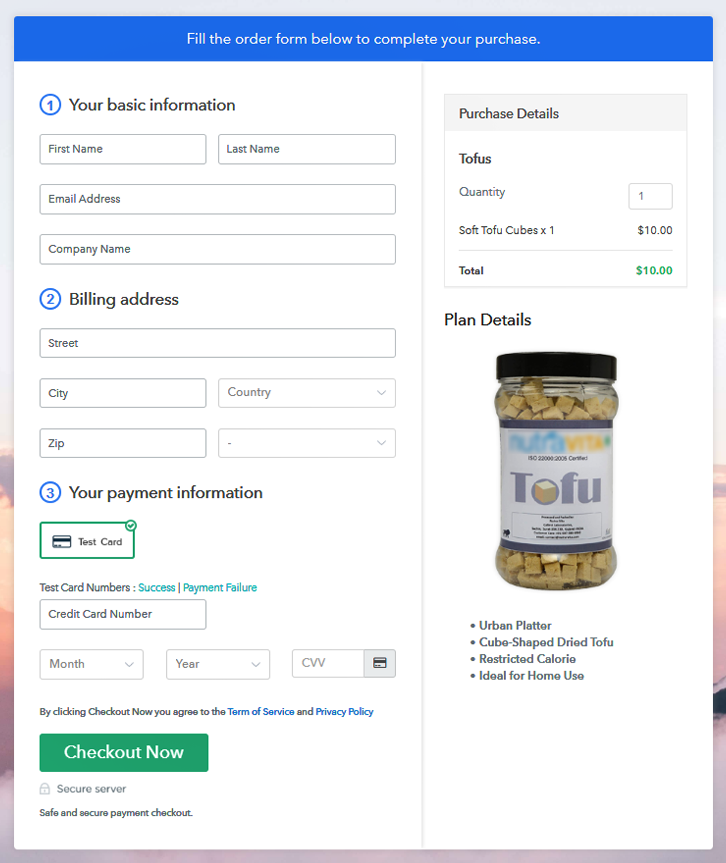
Checkout Page to Sell Tofus Online

Preview Checkout Page

Step 1: Log in to Pabbly Subscription Billing

Signup

Start the process for creating a checkout page for tofus by visiting the Pabbly Subscription Billing in your browser. After that, click on the “Sign up Free“ button. Moreover, either manually filled out the details or sign in using your Gmail account.

Sign Up For Free!

Step 2: Select Subscription Billing

Access Subscription Billing

Step 3: Account Setup

Setup Account

Besides, after clicking on the “Access Now” button of the software, a page will open with fields like company name, select currency, and phone number. Simply fill out those details to continue creating a checkout page for tofus.

Step 4: Connect Payment Gateways & Start Tofus Selling Business Online

Connect Payment Gateway

The consequent step is to earning information about payment procedures using a “Test Payment Gateway”. Here, we will explain the checkout page process for the tofus with the help of a test payment gateway. Besides this, the tool offers various payment gateways such as PayPal, Stripe, etc. Moreover, below are the payment integration guides to help you out.

Step 5: Add Product for your Tofus

Add Product

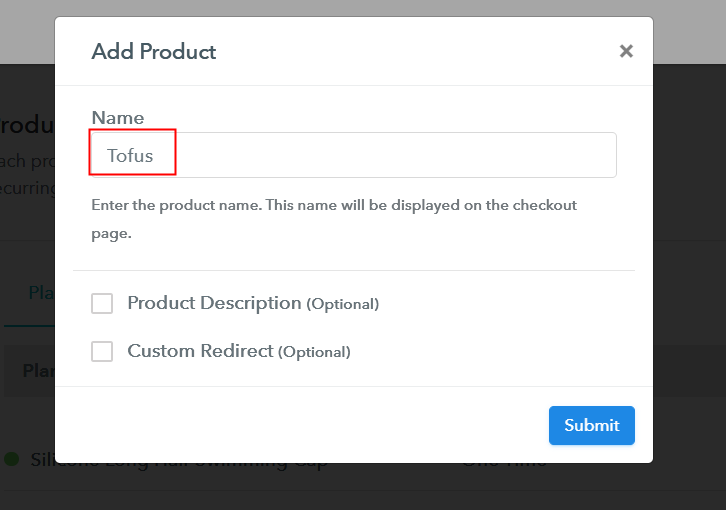
Additionally, add the name, which in our case is “Tofus”. Here you can specify the type like seasoned tofu, smoked tofu, etc. Further, write a short description of the tofus to grab the shopper’s attention.

Add Product to Start Selling Tofus Online

Moreover, just fill out all those details, and your product for tofus is created.

Note: Here you can add all the products related to the similar category by creating plans for each of them.

Step 6: Add Plans 

Let’s expose plans for different kinds of tofu available in your store.

(a) Select Add New Plan

Add Plan

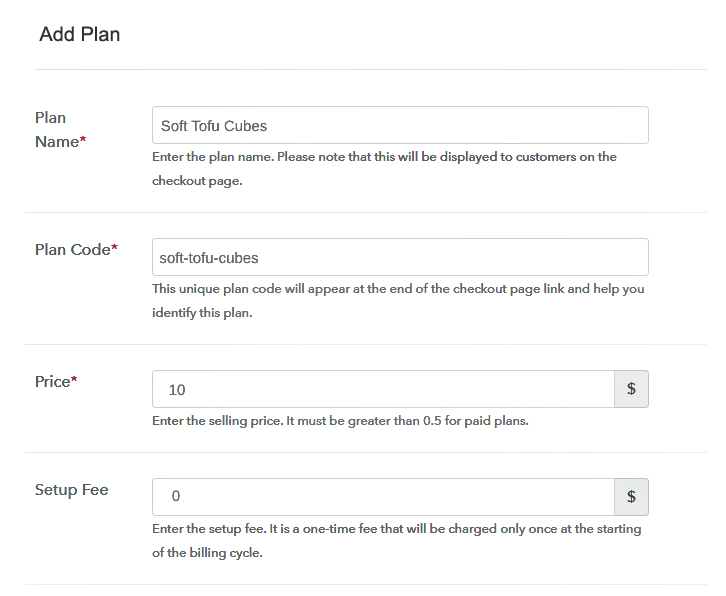
(b) Specify the Plan & Pricing Details

Specify the Plan and Pricing to Sell Tofus Online

The next thing to do is fill all the details of the tofus like plan name, code, price, set-up fee, and much more to continue.

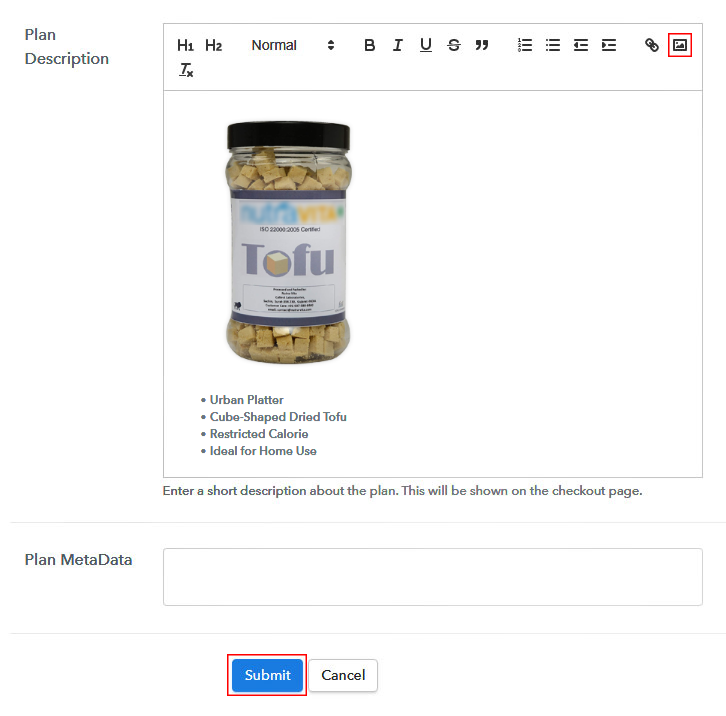
(c) Add Image & Description of Tofus

Add Image & Description to Sell Tofus Online

Furthermore, write a brief description of the tofus using bullets, images, etc, to bring original buyers to the checkout page.

Next, click on the “Submit” button to add the tofus on the checkout page.

Finally, you can add multiple plans and kinds of tofus in your product list which you want to market online.

Step 7: Share your Checkout Page

Share Checkout Page on Social Media

  • Moreover, share the checkout page of the tofus on social media accounts like Facebook & Twitter to grab the customer’s attention.
  • Also, you can share the direct link of the tofu’s checkout page with your customers via SMS or email marketing.
  • Additionally, embed the provided plan link of the tofus in the buttons or any anchor text on your website.

Step 8: Preview Checkout Page

Further, follow up on the recommended steps to preview the checkout page for tofus:

(a) Click on the View Button

View Checkout Plan

(b) Take a Look at the Checkout Page

Checkout Page to Sell Tofus Online

Step 9: Embed Checkout Page in Site & Sell Tofus Online

Embed Checkout Page on Website

Additionally, simply copy the link and add the checkout page to sell tofus online at any proper place on your WordPress site.

(a) Edit the Page & Paste the Copied Link

Paste Link in Text Editor

Moreover, paste the plan link of tofus on a text editor of the WordPress dashboard.

(b) Save & Publish the Checkout Page

Save_and_Publish

Further, click on the “Publish” button, after making changes.

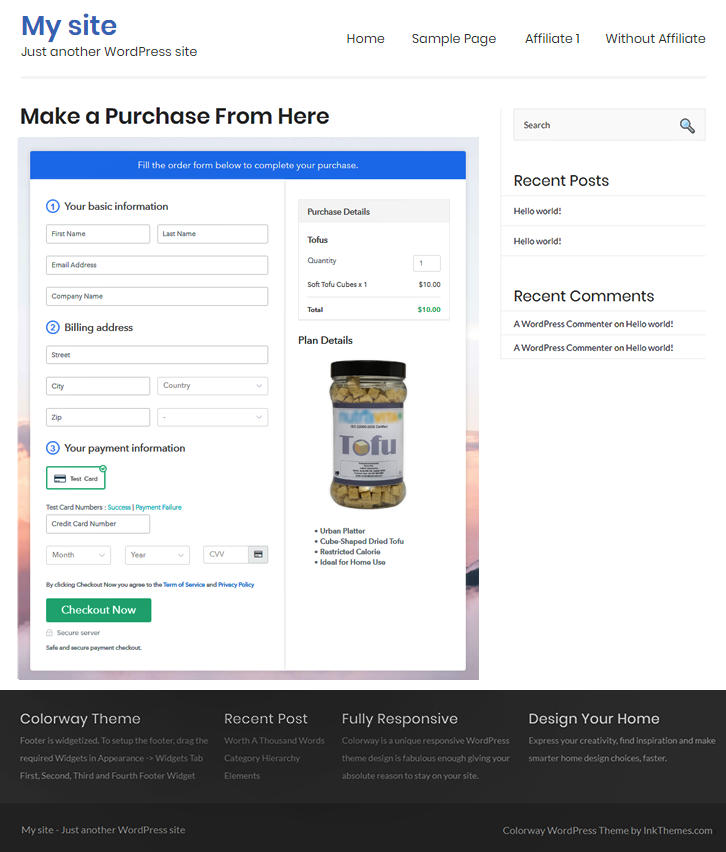
(c) Check out the Final Look of your Checkout Page on WordPress Site

Final Look of your Checkout Page to Sell Tofus Online

Step 10: Multiplan Checkout Page

Note: In case you want to sell multiple products via a single checkout page, you can create a multi-plan checkout page otherwise skip this step.

(a) Click on Add Mutiplan Checkout

Multiplan Checkout

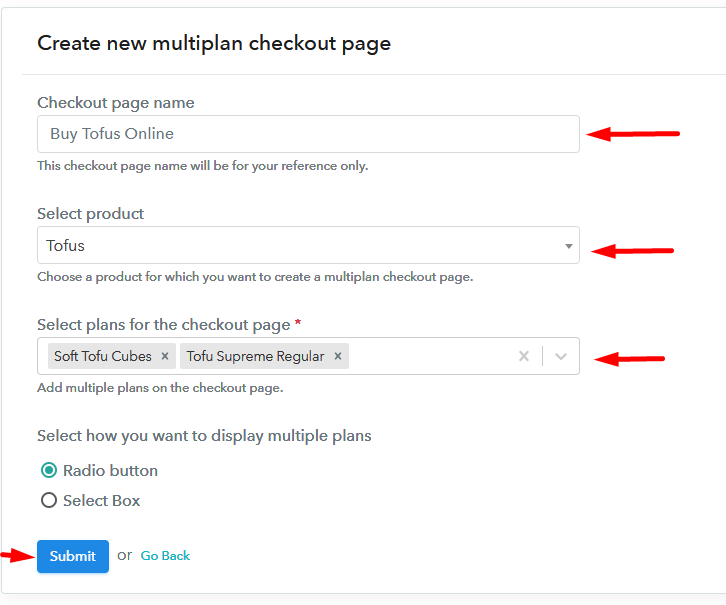
(b) Add Plans to Sell Multiple Tofus from Single Checkout Page

Add Multiple Products to Start Selling Tofus Online

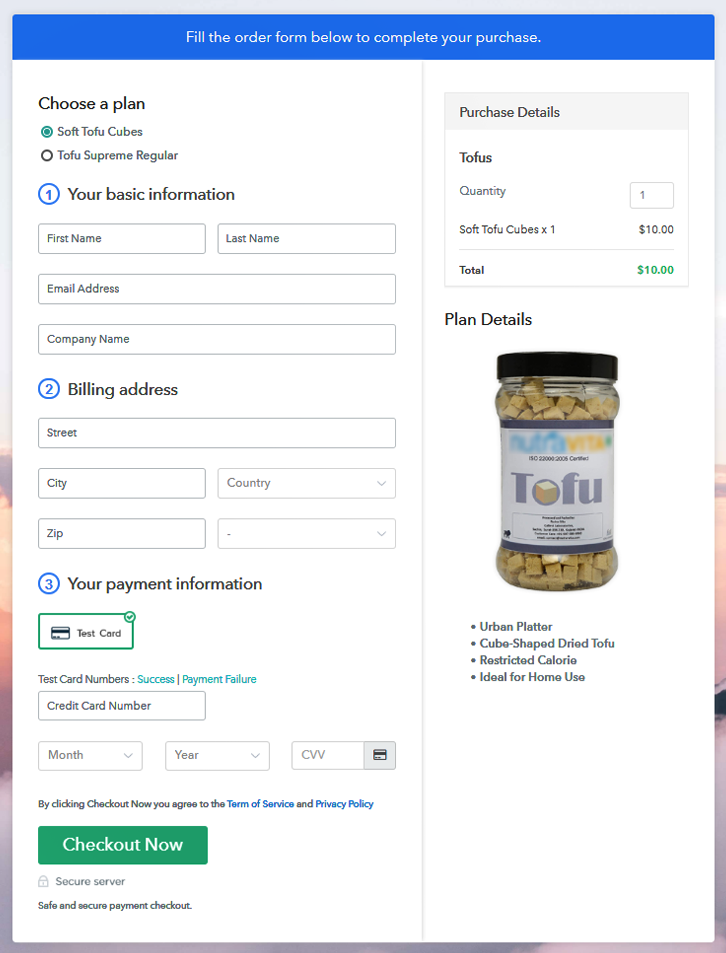
(c) Take a Look at the Checkout Page

Multiplan Checkout Page to Sell Tofus Online

Preview Checkout Page

Wrapping Up

Tada! We have seemingly covered all the vital steps to starting tofus selling business online. And don’t just consider us, try this software Pabbly Subscription Billing and raise your sales of tofus business. Furthermore, it is amidst with unbelievable features like numerous billing models, revenue tracking, and much more.

So, what are you waiting for? Go and try this software out

You May Also Like To Read –
How to Sell Timbers Online | Step by Step (Free Method)

How to Sell Timbers Online

Ideal For: All the timber manufacturer, timber sellers, timber dealers, timber suppliers, hardware shop owners and other merchants can use this method to sell timbers online.

How to Sell Timbers Online

Why Choose this Method to Sell Timbers Online?

Unlike any other solution, this method allows you to:

  • List and sell your timbers for FREE. Absolutely no payment required.
  • No need to pay commission on any of your sales.
  • Multiple payment options like PayPal, Credit Card, etc to collect payment from a single place.
  • Sell one time or recurring subscriptions of your timbers.
  • Collect payments & sell products in any currency as per your requirement.
  • Give discounts on your products by offering special coupon codes.
  • Add sales commission agents to help you in selling timbers online.

Get Pabbly Subscription Billing for Free

According to the Market Watch report, the global timber market is projected to grow at a CAGR of 4.57%  during the upcoming period. The reason for the huge demand is it has multiple uses in different sectors such as construction, furniture, and energy generation. Having a conventional store is cool but to make more dime it is suitable to start timber store online.

Wondering about starting your own timbers selling store and probably scratching your head in search of a software? Then you are at right place as we are going to recommend you a software named Pabbly Subscription Billing that is going to be a major help. The software lets you create a checkout page for selling timbers online. Plus, you can add multiple plans on a single checkout page.

Also, checkout pages are easy to embed on website and you can share direct links on your social media platforms too. Excited? You must be.

Now, without wasting any more time, let’s jump on the process of creating a checkout page for selling timbers online.

Final View of Checkout Page for your Timbers Selling Business

Checkout Page to Sell Timbers Online

Preview Checkout Page

Step 1: Log in to Pabbly Subscription Billing

Signup

Start the process for creating a checkout page for timbers by visiting the Pabbly Subscription Billing in your browser. After that, click on the “Sign up Free“ button. Moreover, either manually filled out the details or sign in using your Gmail account.

Sign Up For Free!

Step 2: Select Subscription Billing

Access Subscription Billing

Step 3: Account Setup

Setup Account

Besides, after clicking on the “Access Now” button of the software, a page will open with fields like company name, select currency, and phone number. Simply fill out those details to continue creating a checkout page for timbers.

Step 4: Connect Payment Gateways & Start Timbers Selling Business Online

Connect Payment Gateway

The consequent step is to earning information about payment procedures using a “Test Payment Gateway”. Here, we will explain the checkout page process for the timbers with the help of a test payment gateway. Besides this, the tool offers various payment gateways such as PayPal, Stripe, etc. Moreover, below are the payment integration guides to help you out.

Step 5: Add Product for your Timbers

Add Product

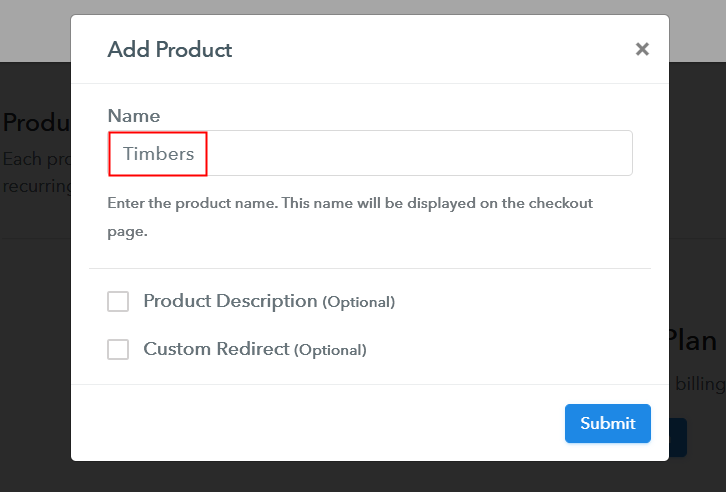
Additionally, add the name, which in our case is “Timbers”. Here you can specify the type like cross-laminated timbers, green timbers, etc. Further, write a short description of the timbers to grab the shopper’s attention.

Add Product to Start Selling Timbers Online

Moreover, just fill out all those details, and your product for timbers is created.

Note: Here you can add all the products related to the similar category by creating plans for each of them.

Step 6: Add Plans 

Let’s expose plans for different kinds of timbers available in your store.

(a) Select Add New Plan

Add Plan

(b) Specify the Plan & Pricing Details

Specify the Plan and Pricing to Sell Timbers Online

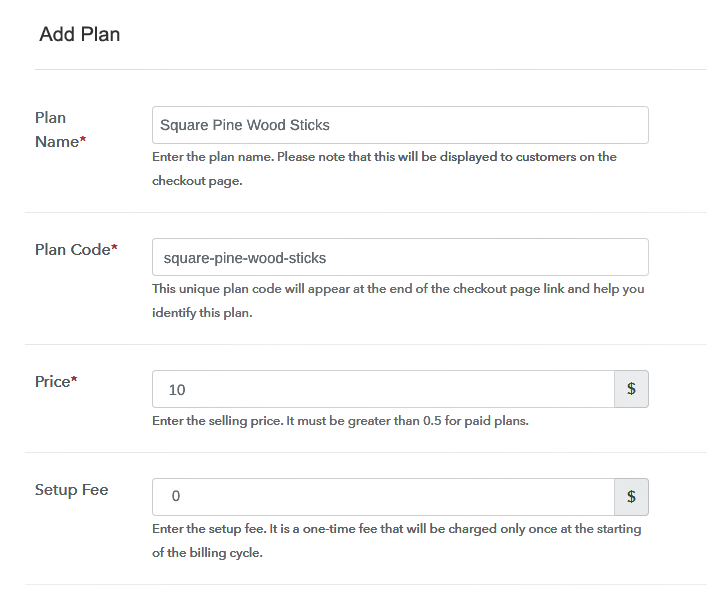
The next thing to do is fill all the details of the timbers like plan name, code, price, set-up fee, and much more to continue.

(c) Add Image & Description of Timbers

Add Image & Description to Sell Timbers Online

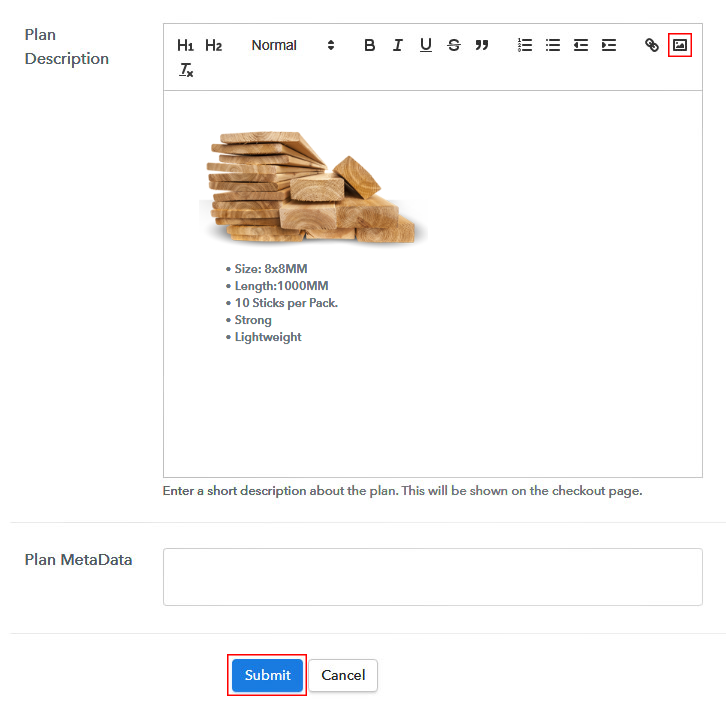
Furthermore, write a brief description of the timbers using bullets, images, etc, to bring original buyers to the checkout page.

Next, click on the “Submit” button to add the timbers on the checkout page.

Finally, you can add multiple plans and kinds of timbers in your product list which you want to market online.

Step 7: Share your Checkout Page

Share Checkout Page on Social Media

  • Moreover, share the checkout page of the timbers on social media accounts like Facebook & Twitter to grab the customer’s attention.
  • Also, you can share the direct link of the timber’s checkout page with your customers via SMS or email marketing.
  • Additionally, embed the provided plan link of the timbers in the buttons or any anchor text on your website.

Step 8: Preview Checkout Page

Follow up the recommended steps to preview the checkout page for timbers:

(a) Click on the View Button

View Checkout Plan

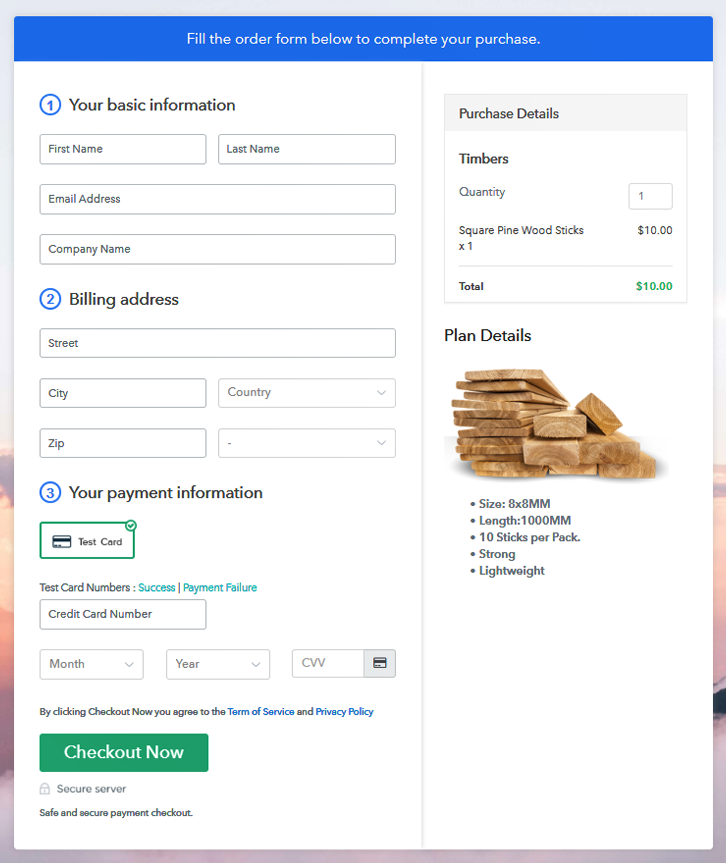
(b) Take a Look at the Checkout Page

Checkout Page to Sell Timbers Online

Step 9: Embed Checkout Page in Site & Sell Timbers Online

Embed Checkout Page on Website

Just copy the link and add the checkout page to sell timbers online at any proper place on your WordPress site.

(a) Edit the Page & Paste the Copied Link

Paste Link in Text Editor

Further, paste the plan link of timbers on a text editor of the WordPress dashboard.

(b) Save & Publish the Checkout Page

Save_and_Publish

Next, click the “Publish” button, after making changes.

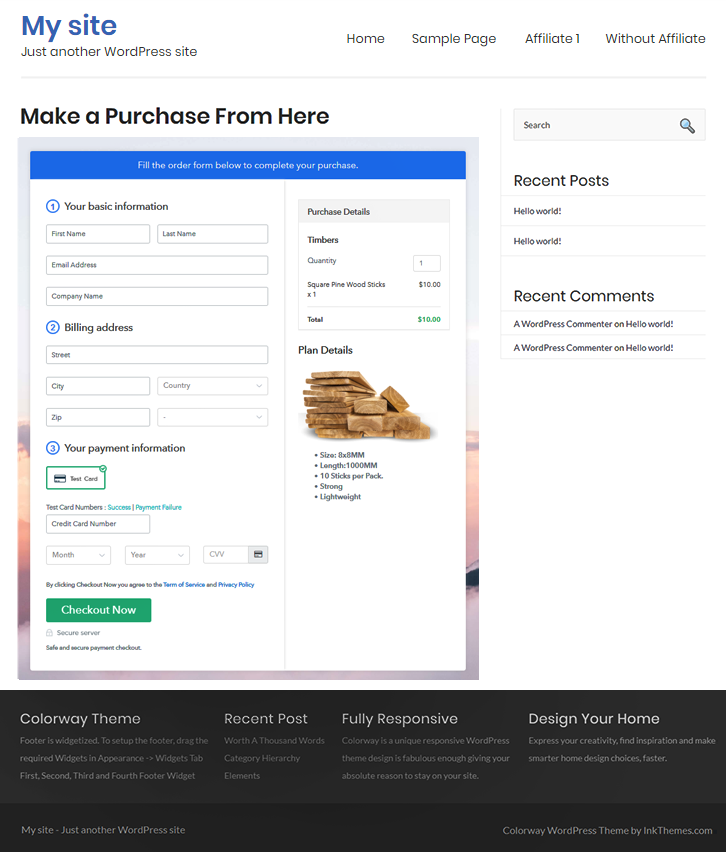
(c) Check out the Final Look of your Checkout Page on WordPress Site

Final Look of your Checkout Page to Sell Timbers Online

Step 10: Multiplan Checkout Page

Note: In case you want to sell multiple products via a single checkout page, you can create a multi-plan checkout page otherwise skip this step.

(a) Click on Add Mutiplan Checkout

Multiplan Checkout

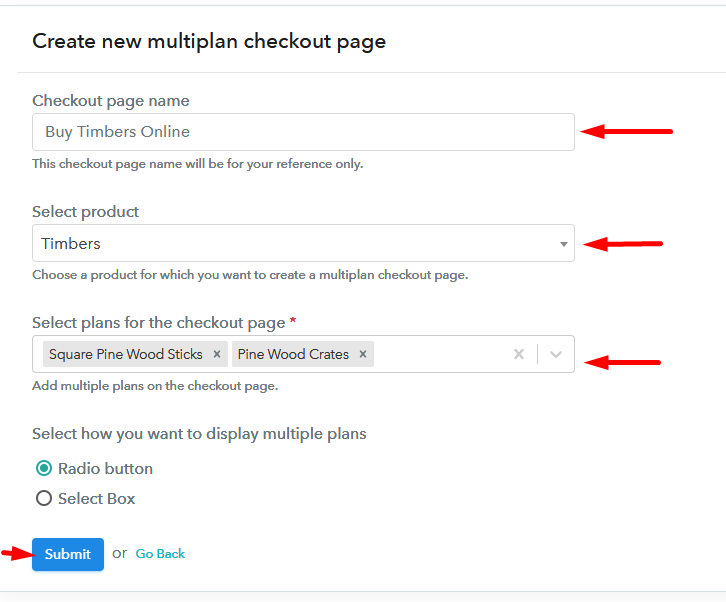
(b) Add Plans to Sell Multiple Timbers from Single Checkout Page

Add Multiple Products to Start Selling Timbers Online

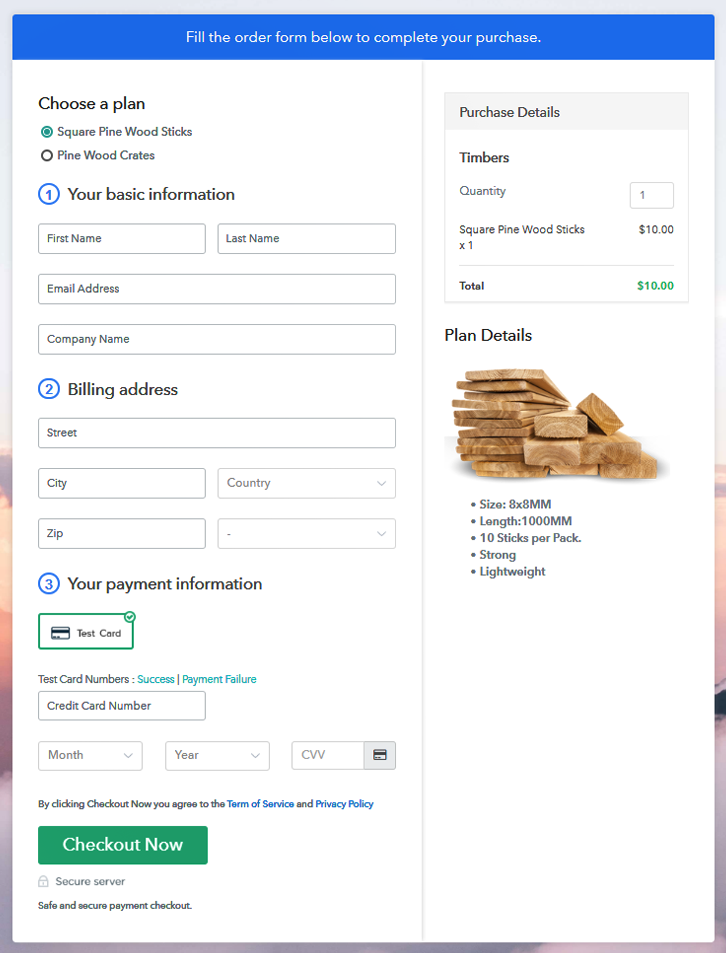
(c) Take a Look at the Checkout Page

Multiplan Checkout Page to Sell Timbers Online

Preview Checkout Page

Wrapping Up

Alright! Everything is possible with proper knowledge, with adequate information you can give a new height to your timber business. So starting your own timbers business online is not a bad idea. Using Pabbly Subscription Billing one can sell timbers online without any difficulty. All you have to do is follow all the above-mentioned steps to create a checkout page for timbers.

You May Also Like To Read –
How to Sell Telescopes Online | Step by Step (Free Method)

How to Sell Telescopes Online

Ideal For: All the telescope manufactures, telescope sellers, telescope dealers, telescope suppliers, telescope shop owners and other merchants can use this method to sell telescopes online.

How to Sell Telescopes Online

Why Choose this Method to Sell Telescopes Online?

Unlike any other solution, this method allows you to:

  • List and sell your telescopes for FREE. Absolutely no payment required.
  • No need to pay commission on any of your sales.
  • Multiple payment options like PayPal, Credit Card, etc to collect payment from a single place.
  • Sell one time or recurring subscriptions of your telescopes.
  • Collect payments & sell products in any currency as per your requirement.
  • Give discounts on your products by offering special coupon codes.
  • Add sales commission agents to help you in selling telescopes online.

Get Pabbly Subscription Billing for Free

Nowadays, marketing has become such an easy task due to selling things online. All you need to do is list up your things and you are good to go. Therefore, you must be looking for ways that how you can sell telescopes online.

Consequently, selling goods online has become a very important task for small & large businesses. Hence, we would like to suggest Pabbly Subscription Billing which is a great tool to take your telescope business online.

This tool lets you create marvelous checkout pages for selling telescopes online which can be shared on social media platforms, websites, etc. So, here let me give you some of the reasons why it is the best tool for selling telescopes online.

  • List various telescopes in a single checkout page
  • Add tax and delivery charges as per customer’s location
  • Offer discount and coupon codes to consumers
  • Collect money in both online and offline mode

So, let’s get started by creating our checkout page using Pabbly Subscription Billing to sell telescopes online.

Final View of Checkout Page for your Telescopes Selling Business

Final View of Checkout Page for your Telescopes Selling Business

Preview Checkout Page

Step 1: Log in to Pabbly Subscription Billing

Signup

First, go to Pabbly Subscription Billing and after you open their website just press on “Sign up Free“. Now, here you have two options that are, either you can sign in using your Gmail account or else you can fill in the required fields like name, email, etc, and tap on the “Sign Up” button.

Sign Up For Free!

Step 2: Select Subscription Billing

Access Subscription Billing

Step 3: Account Setup

Setup Account

A dialog box will pop up asking you to fill out the company details like name, currency, phone number, etc, Once you complete filling up the details just press the blue “Continue” button in order to complete the entire process.

Step 4: Connect Payment Gateways & Start Telescopes Selling Business Online

Connect Payment Gateway

Now, in order to ensure the payment process, you need to test the whole payment experience with the help of a dummy payment gateway in Pabbly Subscription Billing.

Moreover, you can also integrate with a ton of payment gateways such as Razorpay, PayPal, Authorize.net, etc. Just go through the articles that are mentioned below in order to integrate with your preferred payment gateway like PayPal, Stripe, etc. For instance, here I am going to enable the test payment option to continue the process.

Step 5: Add Product for your Telescopes

Add Product

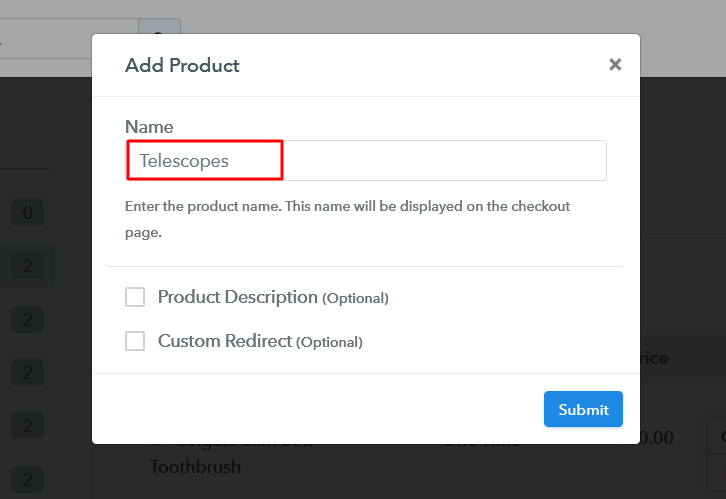
Plus, add the name, which in our case is “Telescopes”. Here you can specify the type and write a short description of the telescopes too.

Add Product to Start Selling Telescopes Online

Moreover, just fill out all those details and your product is created.

Note: Here you can add all the products related to the similar category by creating plans for each of them.

Step 6: Add Plans 

Let’s reveal plans for different kinds of telescopes available in your store.

(a) Select Add New Plan

Add Plan

(b) Specify the Plan & Pricing Details

Specify the Plan and Pricing to Sell Telescopes Online

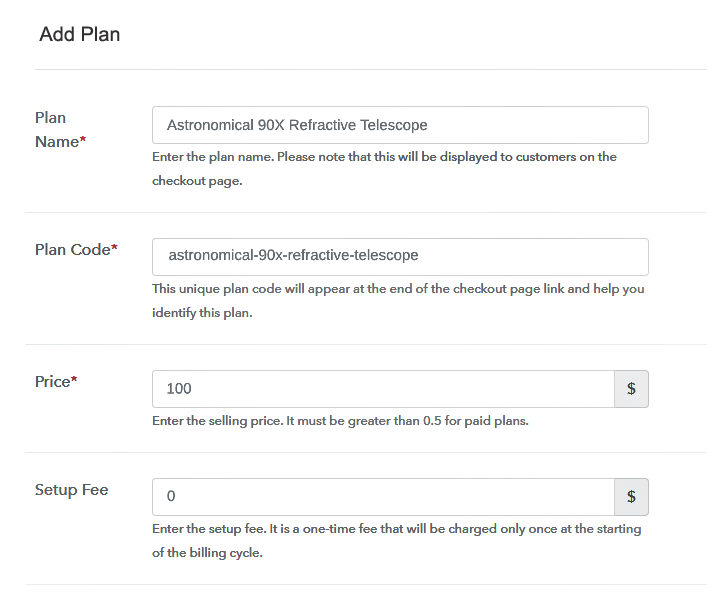
The subsequent thing to do is fill all the details of the telescopes like plan name, code, price, set-up fee, and much more to continue.

(c) Add Image & Description of Telescopes

Add Image & Description of Telescopes

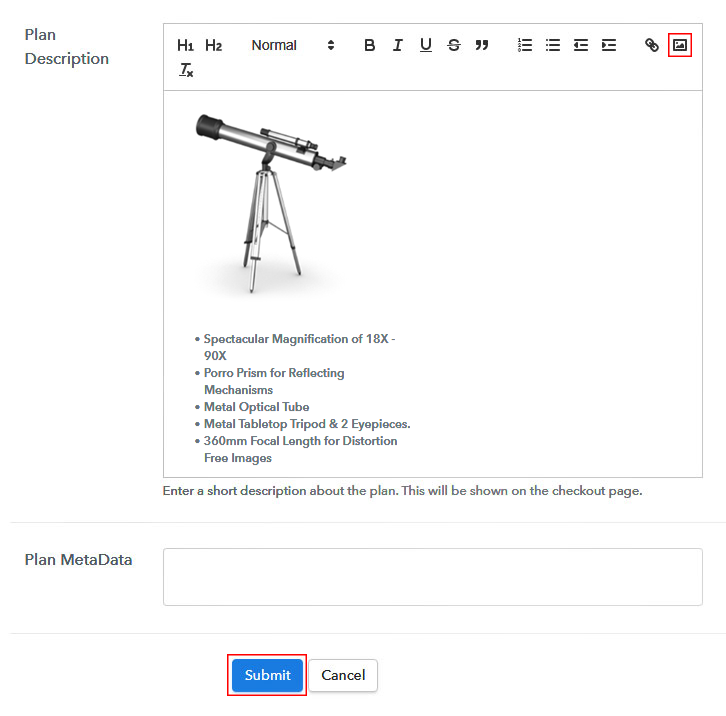
Subsequently, paste the image of the telescopes you wish to sell online.

Further, provide some product information of the telescopes in bullet points like lens specification, focal length, etc.

Once you fillup the information, just tap on the “Submit” button.

Step 7: Share your Checkout Page

Share Checkout Page on Social Media

  • In order to increase sales of your products i.e, telescope, you can share the checkout page on Twitter & Facebook by just pressing the respective buttons.
  • Moreover, you can also emails and SMS the checkout page link to your customers.
  • Further, add the provided plan link in the buttons or any anchor text on your website in order to redirect users to the checkout page.

Step 8: Preview Checkout Page

Follow up the recommended steps to preview the checkout page:

(a) Click on the View Button

View Checkout Plan

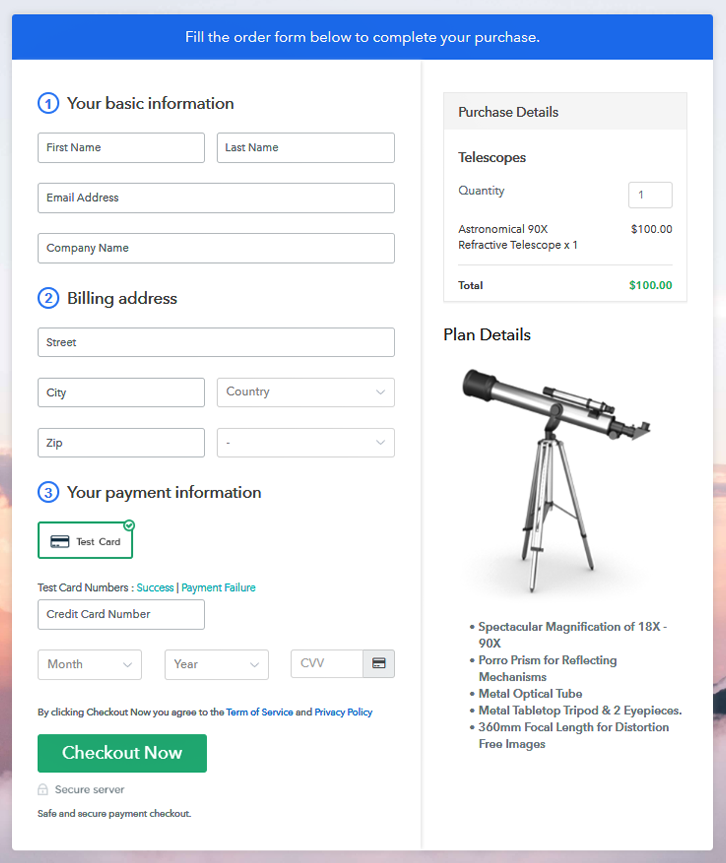
(b) Take a Look at the Checkout Page

Final View of Checkout Page for your Telescopes Selling Business

Step 9: Embed Checkout Page in Site & Sell Telescopes Online

Embed Checkout Page on Website

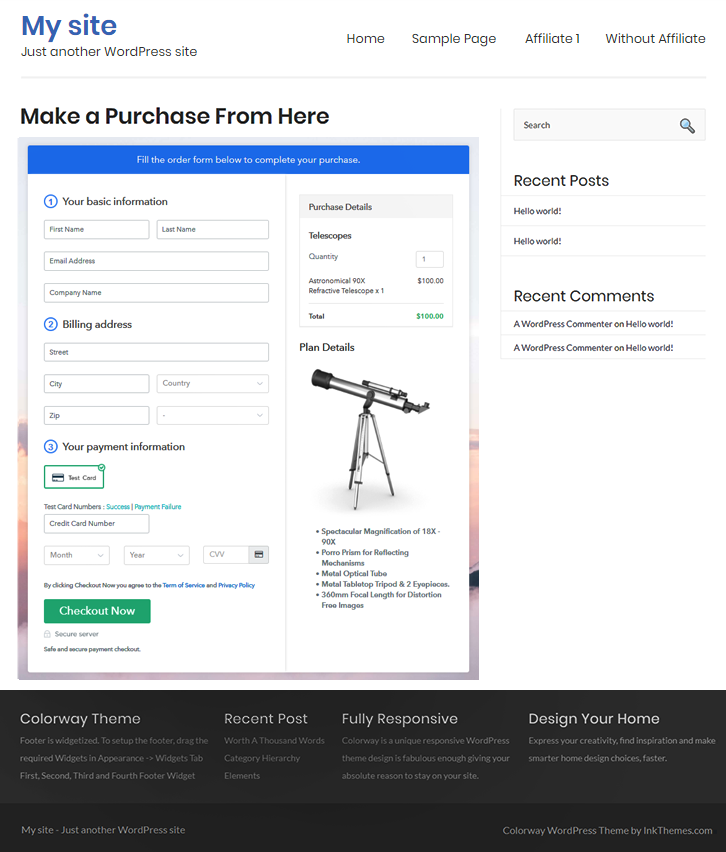
Just copy the link and add the checkout page to sell telescopes online at any proper place on your WordPress site.

(a) Edit the Page & Paste the Copied Link

Paste Link in Text Editor

Further, paste the plan link of telescopes on a text editor of the WordPress dashboard.

(b) Save & Publish the Checkout Page

Save_and_Publish

Next, click the “Publish” button, after making changes.

(c) Check out the Final Look of your Checkout Page on WordPress Site

Final Look of your Checkout Page on WordPress Site to Sell Telescopes Online

Step 10: Multiplan Checkout Page

Note: In case you want to sell multiple products via a single checkout page, you can create a multi-plan checkout page otherwise skip this step.

(a) Click on Add Mutiplan Checkout

Multiplan Checkout

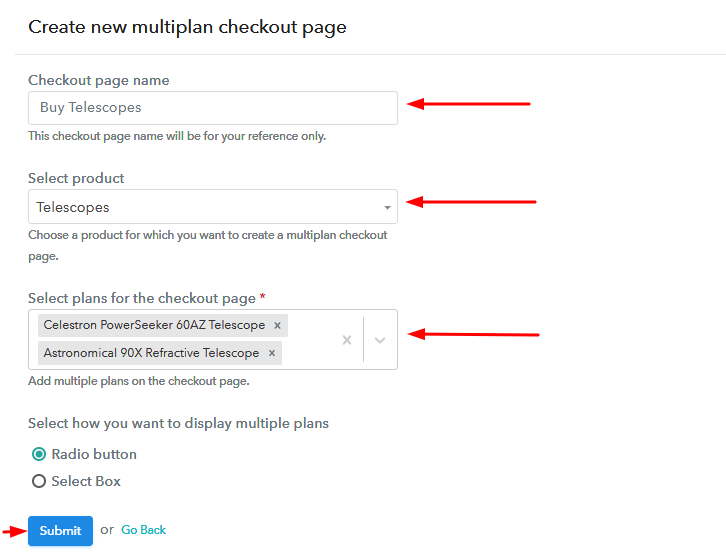
(b) Add Plans to Sell Multiple Telescopes from Single Checkout Page

Add Plans to Sell Multiple Telescopes from Single Checkout Page

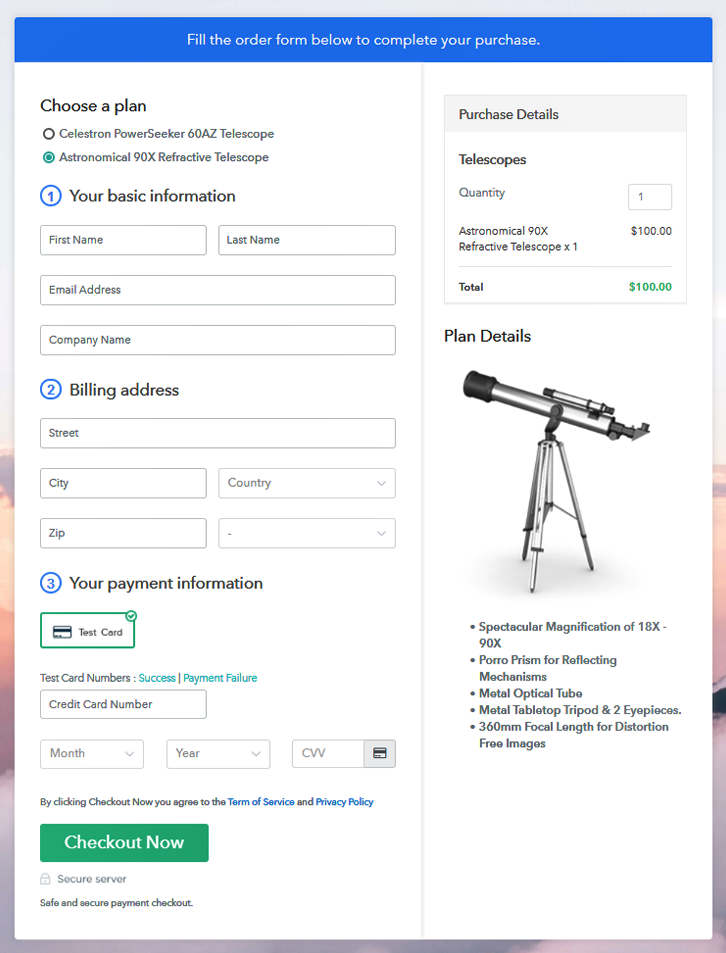
(c) Take a Look at the Checkout Page

Multiplan Checkout Page to Sell How to Sell Telescopes Online

Preview Checkout Page

Wrapping Up

There you go! See, how easy it is to start telescopes business online with the help of Pabbly Subscription Billing software. Simply go through all the steps that are mentioned above and set up your telescope business effortlessly. Don’t wait anymore, try this software out and let us know about your experience in the comment section below.

You May Also Like To Read –
How to Sell Ties Online | Step by Step (Free Method)

How to Sell Ties Online

Ideal For: All the tie stores, tie companies, tie brands, tie wholesalers, tie suppliers, and other sellers can use this method to take their ties selling business online.

How To Sell Ties Online

Why Choose this Method to Sell Ties Online?

Unlike any other solution, this method allows you to:

  • List and sell your ties for FREE. Absolutely no payment required.
  • No need to pay commission on any of your sale.
  • Multiple payment options like PayPal, Credit Card, etc to collect payment from a single place.
  • Sell one time or recurring subscriptions of your (Your Keyword).
  • Collect payments & sell products in any currency as per your requirement.
  • Give discounts on your products by offering special coupon codes.
  • Add sales commission agents to help you in selling (Your Keyword) online.

Get Pabbly Subscription Billing for Free

Ties are considered a part of the elite men’s attire, it is one of the status symbols for men. Men are very much into flaunting their expensive ties on any occasion and if they can get their favorite ties delivered at their doorstep then consider taking your ties selling business online.

You can start your online business through checkout pages. Through these checkout pages, you can sell single as well as multiple products and collect payments directly. Today in this blog we are explaining to you how to create checkout pages for your products on a free and amazing service which is Pabbly Subscription Billing. You can easily create checkout pages on this platform for your ties and share their links on social media and other platforms and start collecting payments through them.

Also, you get unlimited access to its amazing features other than the checkout pages:

  • Collect one-time or recurring payments of your ties
  • Share invoices automatically with buyers
  • Add and sell unlimited ties online
  • Create and offer discount coupons to your buyers

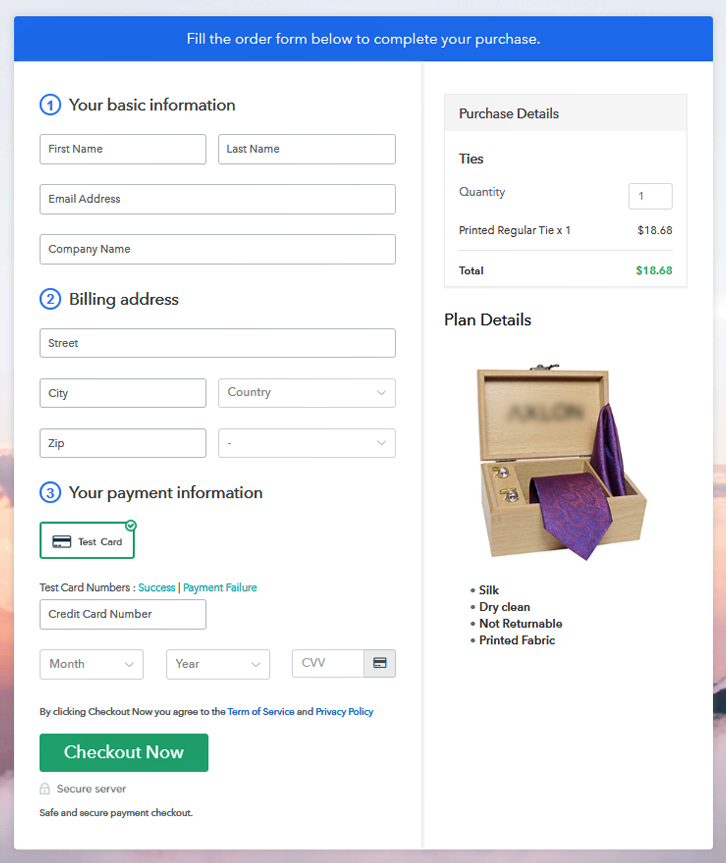
Final View of Checkout Page for your Ties Selling Business

Preview Checkout Page

Preview Checkout Page

Step 1: Log in to Pabbly Subscription Billing

Signup

Log into Pabbly Subscription Billing website and click on the “Signup Free” button. After clicking the button, you will reach to the signup page, where you can create your account automatically via Gmail or you can enter your details manually.

Sign Up For Free!

Step 2: Select Subscription Billing

Access Subscription Billing

Step 3: Account Setup

Setup Account

After you are done with the signup process, now you have to fill up your company details, i.e, company name, currency, and phone number in the given dialogue box.

Step 4: Connect Payment Gateways & Start Ties Selling Business Online

Connect Payment Gateway

To experience a glitch-free payment collection process, there is a “Test Payment” mode available, you can enable it and check it before proceeding further. Later, you have to connect to other payment gateways such as PayPal, Stripe, etc whichever you prefer. The complete payment gateways integration guides are given below-

Step 5: Add Product for your Ties

Add Product

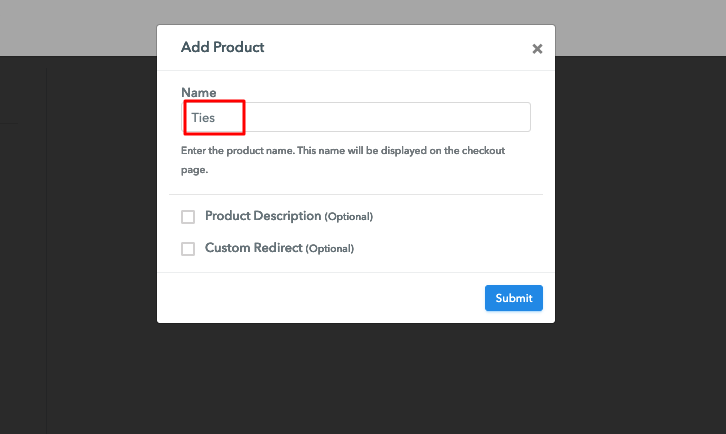
Now, in this step, you have to add your first product. You can ties of different types such as silk ties, cotton ties, etc.

Sell Ties Online Product Name

Similarly, add all the other types of ties in the same product by creating different plans for them.

Note: Here you can add all the products related to the similar category by creating plans for each of them.

Step 6: Add Plans 

Let’s rollout plans for different kinds of ties available in your store.

(a) Select Add New Plan

Add Plan

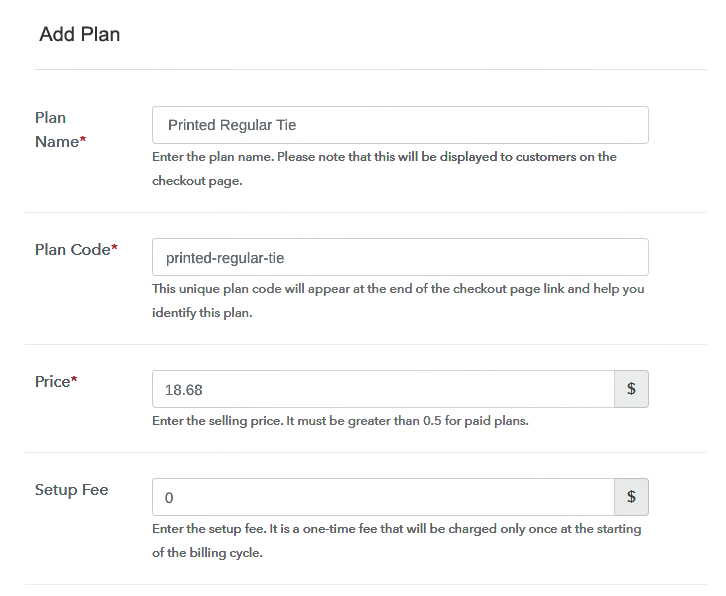
(b) Specify the Plan & Pricing Details

Sell Ties Online Details

When you click on the “Add New Plan” button, the plan page will appear. Here, you have to add details like plan name, code, billing cycle, price, etc.

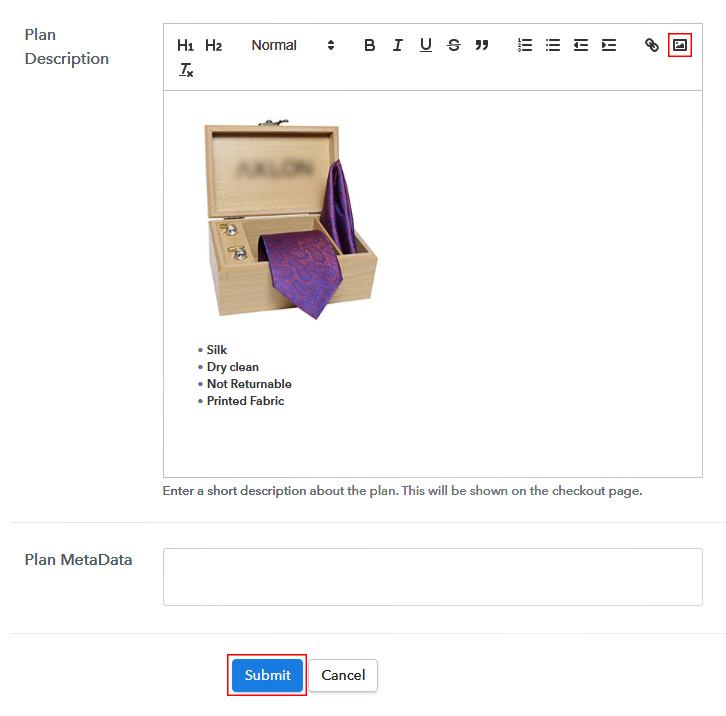
(c) Add Image & Description of Ties

Sell Ties Online Image

Also, you can write a description of the ties that you want to sell along with the product links, images, etc, and click on the “Submit” button to add your plan.

You can create more plans for all the ties in a similar manner.

Step 7: Share your Checkout Page

Share Checkout Page on Social Media

To reach to a higher number of customers, follow the given steps:

  • Share your checkout page on social media like Facebook and Twitter.
  • Also, copy the mentioned link and send it to your customers through SMS or emails directly.
  • Embed your plan link to your website so that your customers can be landed on the checkout page directly.

Step 8: Preview Checkout Page

Follow up the recommended steps to preview the checkout page:

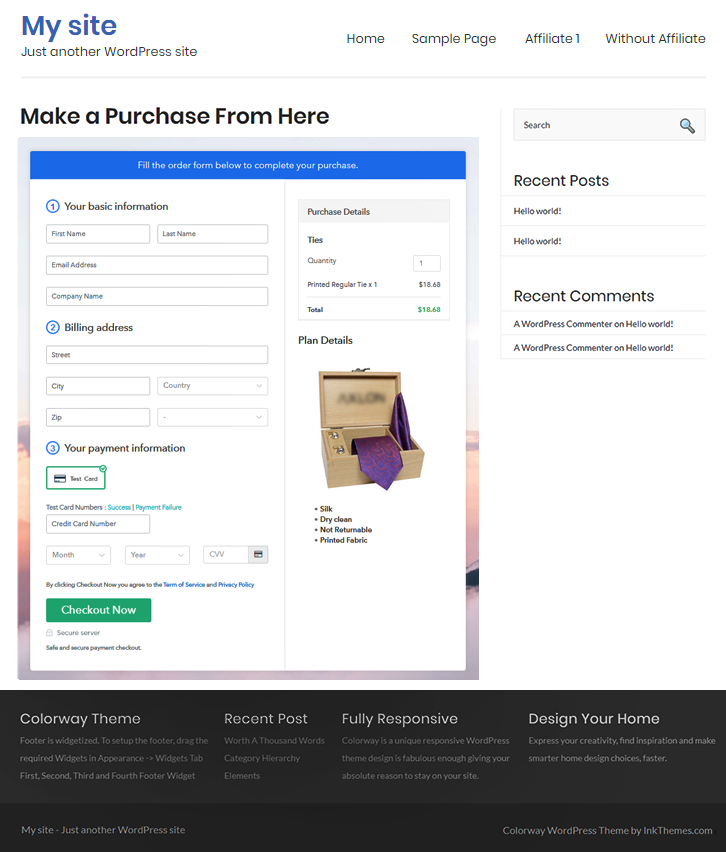
(a) Click on the View Button

View Checkout Plan

(b) Take a Look at the Checkout Page

Preview Checkout Page

Step 9: Embed Checkout Page in Site & Sell Ties Online

Embed Checkout Page on Website

Just copy the provided plan embedding link and embed the checkout page to your WordPress site to sell ties online.

(a) Edit the Page & Paste the Copied Link

Embed Checkout Page on Website

Further, paste the plan link on a text editor of the WordPress dashboard.

(b) Save & Publish the Checkout Page

Save_and_Publish

Next, click the “Publish” button, after making changes.

(c) Check out the Final Look of your Checkout Page on WordPress Site

Sell Ties Online W

Step 10: Multiplan Checkout Page

Note: In case you want to sell multiple products via a single checkout page, you can create a multi-plan checkout page otherwise skip this step.

(a) Click on Add Mutiplan Checkout

Multiplan Checkout

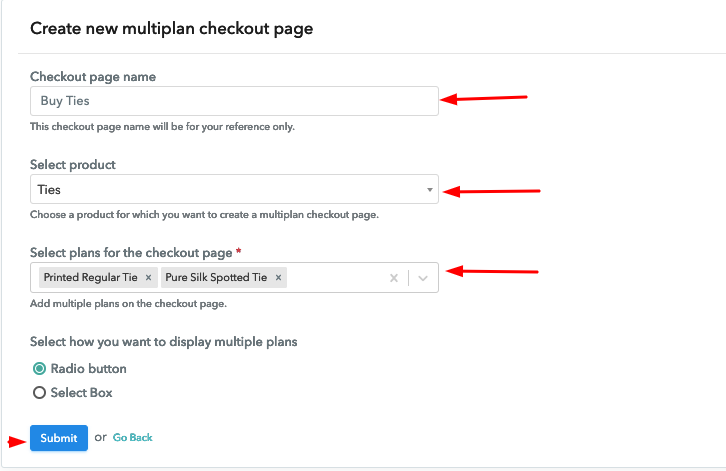
(b) Add Plans to Sell Multiple Ties from Single Checkout Page

Sell Ties Online Multi Details

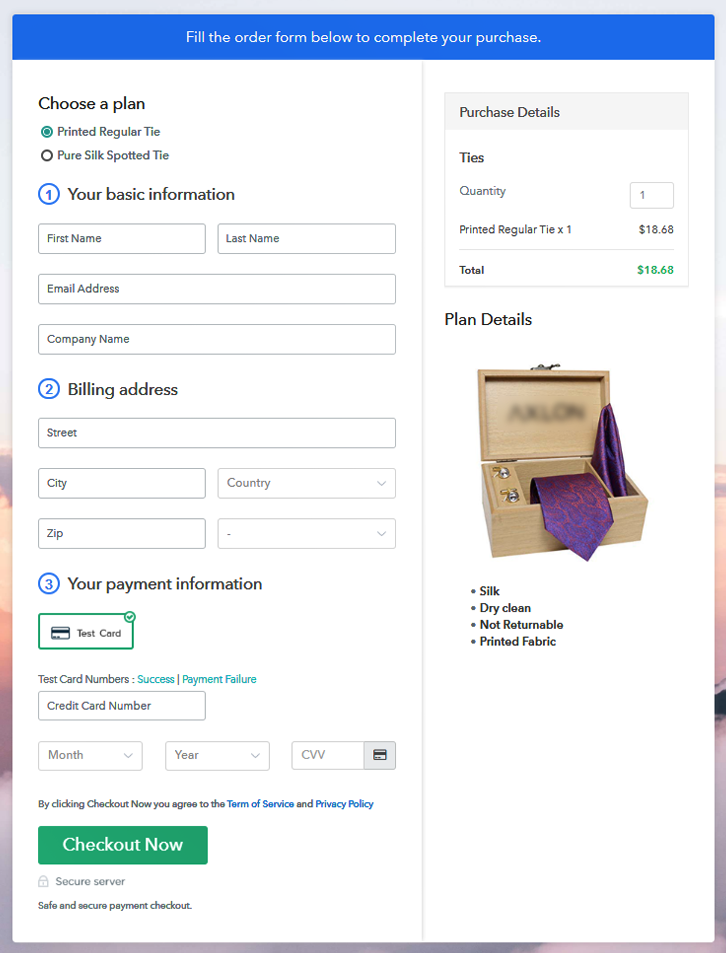
(c) Take a Look at the Checkout Page

Sell Ties Online M

Preview Checkout Page

Wrapping Up

Good job! You have finally learned how to sell ties via creating checkout pages and that is one stunning checkout page you have created in your first try. Now there is no looking back for you, keep on creating checkout pages for your products, and keep boosting up your sales. Good luck for your online business.

For further queries or suggestions, please leave your comments below.

You May Also Like To Read –
How to Sell Thermometers Online | Step by Step (Free Method)

How to Sell Thermometers Online

Ideal For: All the thermometer manufacturers, thermometer sellers, thermometer dealers, thermometer suppliers, medical supplement shop owners and other merchants can use this method to sell thermometers online.

How to Sell Thermometers Online

Why Choose this Method to Sell Thermometers Online?

Unlike any other solution, this method allows you to:

  • List and sell your thermometers for FREE. Absolutely no payment required.
  • No need to pay commission on any of your sales.
  • Multiple payment options like PayPal, Credit Card, etc to collect payment from a single place.
  • Sell one time or recurring subscriptions of your thermometers.
  • Collect payments & sell products in any currency as per your requirement.
  • Give discounts on your products by offering special coupon codes.
  • Add sales commission agents to help you in selling thermometers online.

Get Pabbly Subscription Billing for Free

Keeping thermometers at home or workplace has become a custom. The reason is in a time of need one can examine the affected person’s body temperature using thermometers. This is exactly why there is a massive demand for thermometers. With great demands of the product comes a need of more thermometers stores. So, it is best to start your thermometers business online.

By starting your thermometers stores online, you can meet the needs of a global audience. Also, the potential customers are just a click away from your reach. And, there is no denial in the fact that online stores opens the door to surplus opportunities like better cashflow system, choices, and much more. We understand how overwhelming can be a process of starting your own thermometers business from scratch. Hence, we are recommending software named Pabbly Subscription Billing that can assist you in the whole process. The tool allows you to build an amazing checkout page for selling thermometers online. Some of its remarkable features involve:

  • List various thermometers in a single checkout page
  • Offers infinite discount and coupon codes to prospects
  • Collect currency via online and offline mode

Now, let’s get started creating a checkout page for selling thermometers online with the help of this tool.

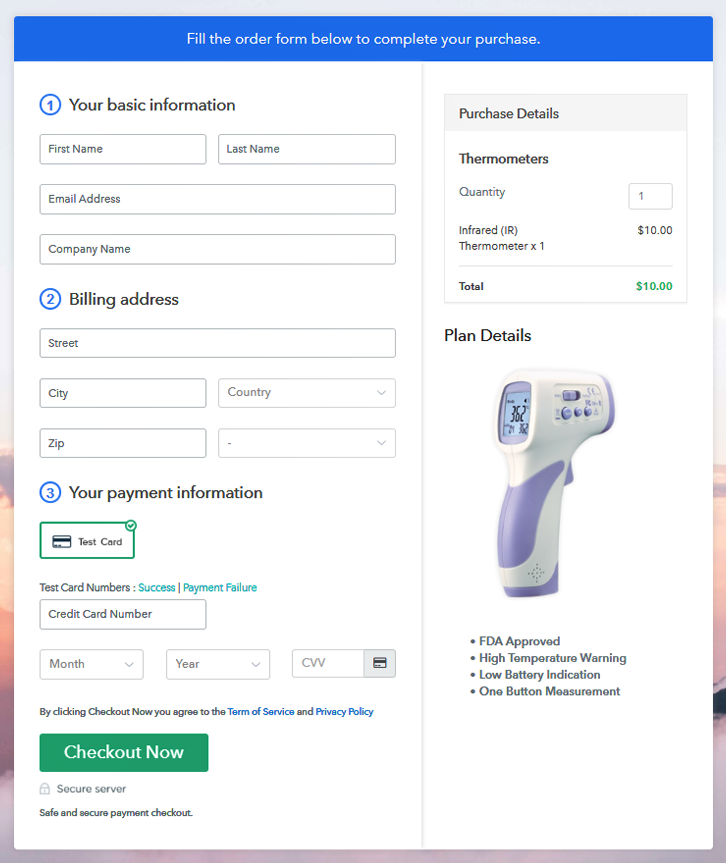
Final View of Checkout Page for your Thermometers Selling Business

Checkout Page to Sell Thermometers Online

Preview Checkout Page

Step 1: Log in to Pabbly Subscription Billing

Signup

Start the process for creating a checkout page for thermometers by visiting the Pabbly Subscription Billing in your browser. After that, click on the “Sign up Free“ button. Moreover, either manually filled out the details or sign in using your Gmail account.

Sign Up For Free!

Step 2: Select Subscription Billing

Access Subscription Billing

Step 3: Account Setup

Setup Account

Besides, after clicking on the “Access Now” button of the software, a page will open with fields like company name, select currency, and phone number. Simply fill out those details to continue creating a checkout page for thermometers.

Step 4: Connect Payment Gateways & Start Thermometers Selling Business Online

Connect Payment Gateway

The consequent step is to earning information about payment procedures using a “Test Payment Gateway”. Here, we will explain the checkout page process for the thermometers with the help of a test payment gateway. Besides this, the tool offers various payment gateways such as PayPal, Stripe, etc. Moreover, below are the payment integration guides to help you out.

Step 5: Add Product for your Thermometers

Add Product

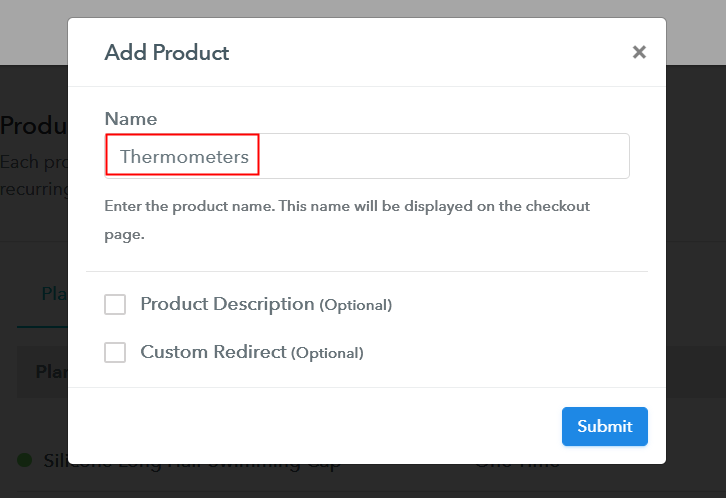
Additionally, add the name, which in our case is “Thermometers”. Here you can specify the type like pacifier thermometers, digital thermometers, etc. Further, write a short description of the thermometers to grab the shopper’s attention.

Add Product to Start Selling Thermometers Online

Moreover, just fill out all those details, and your product for thermometers is created.

Note: Here you can add all the products related to the similar category by creating plans for each of them.

Step 6: Add Plans 

Let’s expose plans for different kinds of thermometers available in your store.

(a) Select Add New Plan

Add Plan

(b) Specify the Plan & Pricing Details

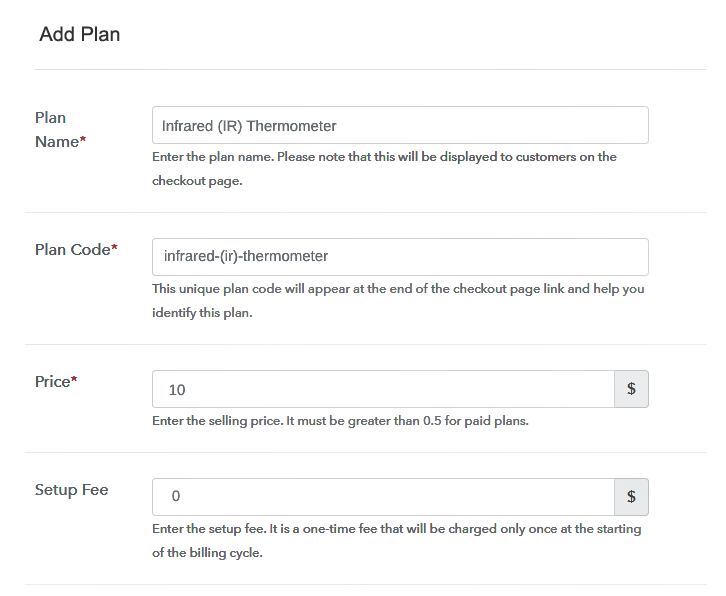
Specify the Plan and Pricing to Sell Thermometers Online

The next thing to do is fill all the details of the thermometers like plan name, code, price, set-up fee, and much more to continue.

(c) Add Image & Description of Thermometers

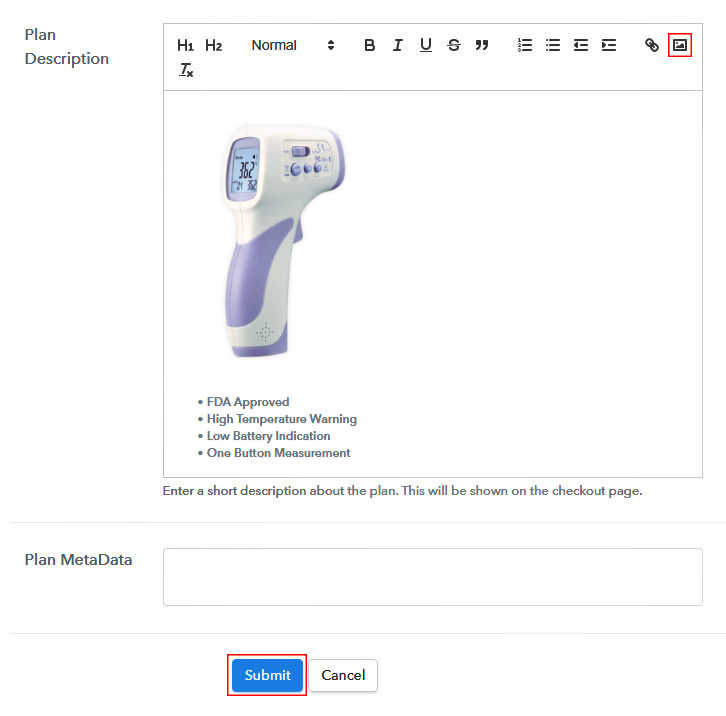
Add Image & Description to Sell Thermometers Online

Furthermore, write a brief description of the thermometers using bullets, images, etc, to bring original buyers to the checkout page.

Next, click on the “Submit” button to add the thermometers on the checkout page.

Finally, you can add multiple plans and kinds of thermometers in your product list which you want to market online.

Step 7: Share your Checkout Page

Share Checkout Page on Social Media

  • Moreover, share the checkout page of the thermometers on social media accounts like Facebook & Twitter to grab the customer’s attention.
  • Also, you can share the direct link of the thermometer’s checkout page with your customers via SMS or email marketing.
  • Additionally, embed the provided plan link of the thermometers in the buttons or any anchor text on your website.

Step 8: Preview Checkout Page

Follow up the recommended steps to preview the checkout page for thermometers:

(a) Click on the View Button

View Checkout Plan

(b) Take a Look at the Checkout Page

Checkout Page to Sell Thermometers Online

Step 9: Embed Checkout Page in Site & Sell Thermometers Online

Embed Checkout Page on Website

Just copy the link and add the checkout page to sell thermometers online at any proper place on your WordPress site.

(a) Edit the Page & Paste the Copied Link

Paste Link in Text Editor

Further, paste the plan link of thermometers on a text editor of the WordPress dashboard.

(b) Save & Publish the Checkout Page

Save_and_Publish

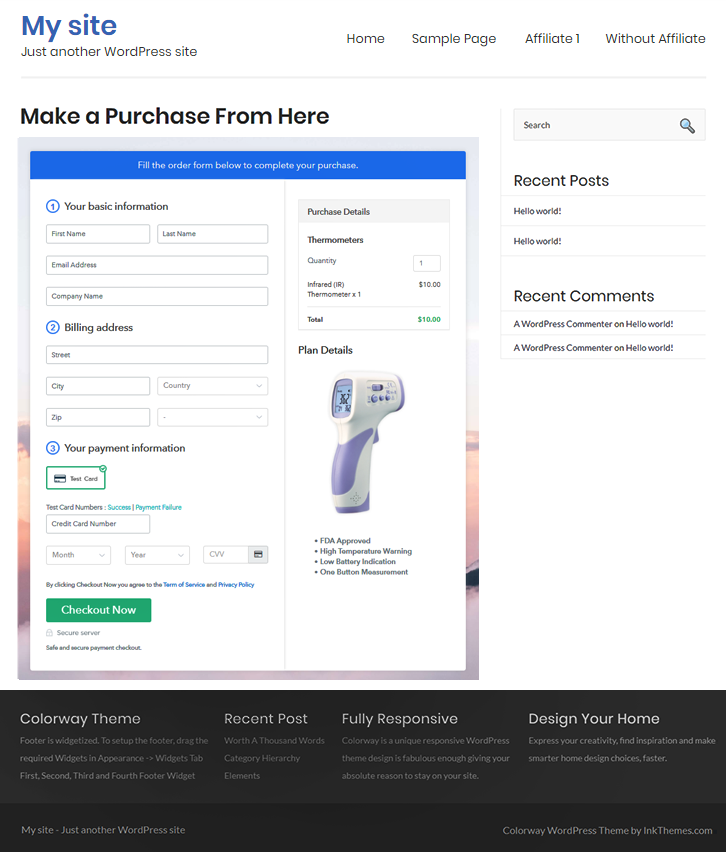
Next, click the “Publish” button, after making changes.

(c) Check out the Final Look of your Checkout Page on WordPress Site

Final Look of your Checkout Page to Sell Thermometers Online

Step 10: Multiplan Checkout Page

Note: In case you want to sell multiple products via a single checkout page, you can create a multi-plan checkout page otherwise skip this step.

(a) Click on Add Mutiplan Checkout

Multiplan Checkout

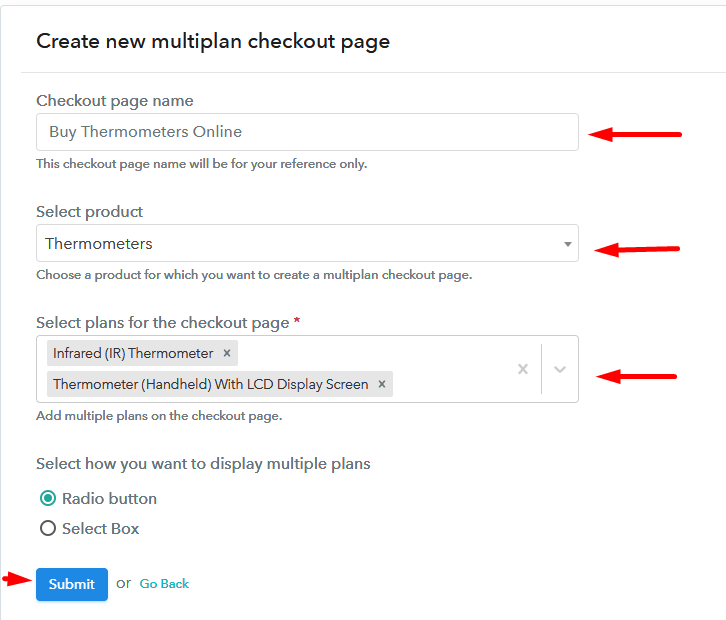
(b) Add Plans to Sell Multiple Thermometers from Single Checkout Page

Add Multiple Products to Start Selling Thermometers Online

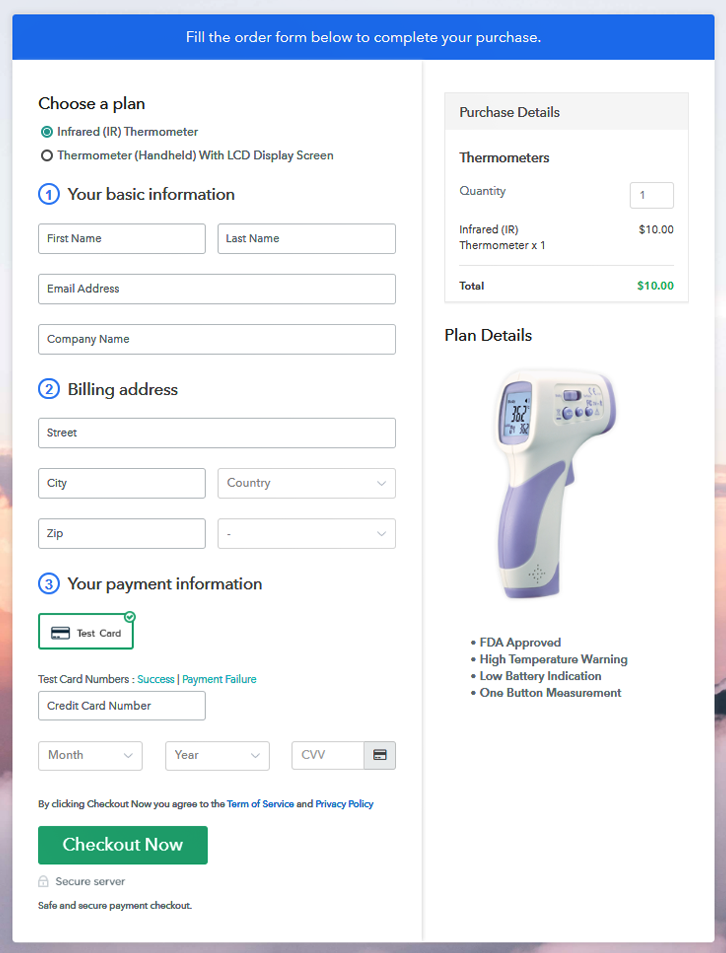
(c) Take a Look at the Checkout Page

Multiplan Checkout Page to Sell Thermometers Online

Preview Checkout Page

Wrapping Up

There you have it!This is our closure on “how to sell thermometers online” using Pabbly Subscription Billing software. You can headstart thermometers business online easily with the help of this tool. Simply follow all the aforementioned steps and your checkout page for thermometers is created in minutes.

So, don’t hustle anymore, try this software out and let us know your reaction in the comments section.

You May Also Like To Read –
How to Sell Sports Equipment Online | Step by Step (Free Method)

How to Sell Sports Equipments Online

Ideal For: All the sport equipment manufacturers, sports gears sellers, sports stores, and other merchants can use this method to sell extreme sports equipment online.

How to Sell Sports Equipments Online

Why Choose this Method To Sell Sports Equipment Online?

Unlike any other solution, this method allows you to:

  • List and sell your sports equipment for FREE. Absolutely no payment required.
  • No need to pay commission on any of your sale.
  • Multiple payment options like PayPal, Credit Card, etc to collect payment from a single place.
  • Sell one time or recurring subscriptions of your sports equipment.
  • Collect payments & sell products in any currency as per your requirement.
  • Give discounts on your products by offering special coupon codes.
  • Add sales commission agents to help you in selling sports equipment online.

Get Pabbly Subscription Billing for Free

Selling sports equipment online is something that was always there on the minds of serial entrepreneurs but the complexities have always been pulling them away from it.

So here we are to reduce your complexity of selling sports equipment online by recommending an awesome software named Pabbly Subscription Billing. The advantage of using this tool over others is that you can use this for creating the checkout pages for unlimited products & plans in few simple steps to sell any products over the internet and collect payments in both offline and online modes. Some other benefits include:

  • Unlimited Listing of Products
  • Tax Management
  • Multi Payment Gateway Integration
  • Revenue Tracking

So, without wasting any more time, let’s create our first checkout page to sell sports equipment online with Pabbly Subscription Billing.

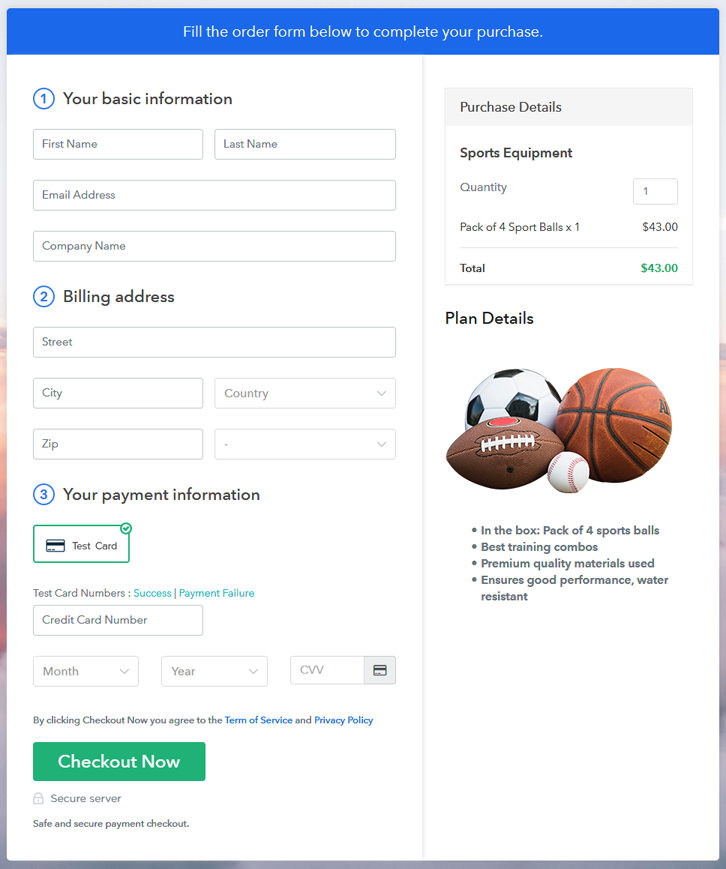
Final View of Checkout Page For Your Sports Equipment Selling Business

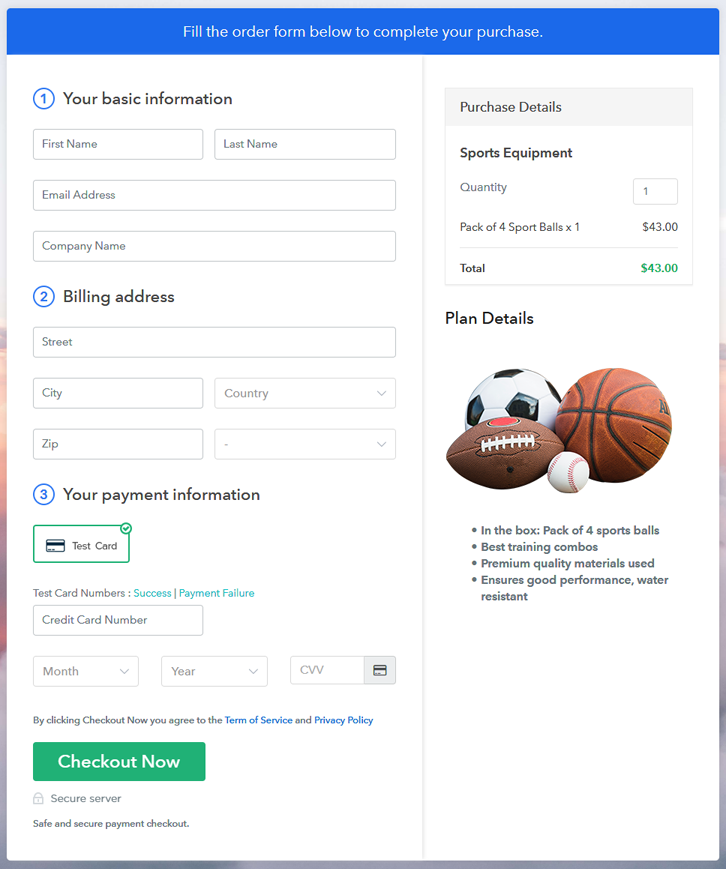
Preview Checkout Page - Sell Sports Equipments Online

Preview Checkout Page

Step 1: Log in to Pabbly Subscription Billing

Signup

Firstly, go to Pabbly Subscription Billing website and click on “Sign Up Free“ button. A signup page will open wherein you can signup using your Gmail account or fill in the details to create the account.

Sign Up For Free!

Step 2: Select Subscription Billing

Access Subscription Billing

Step 3: Account Setup

Setup Account

Once you’re done with the signing up process, a dialogue box will appear asking you to fill company details like your company name, the currency, and phone number.

Step 4: Connect Payment Gateways & Start Sports Equipment Selling Business Online

Connect Payment Gateway

Now, for collecting payments, you need to enable the payment mode. Pabbly Subscription Billing provides a “Test payment gateway ” option for beginners to test the working of the software. Besides, you can also integrate with other payment gateways like PayPal, Stripe, Razorpay, and Authorize.net, here’s the complete guide-

Step 5: Add Product For Your Sports Equipment

Add Product

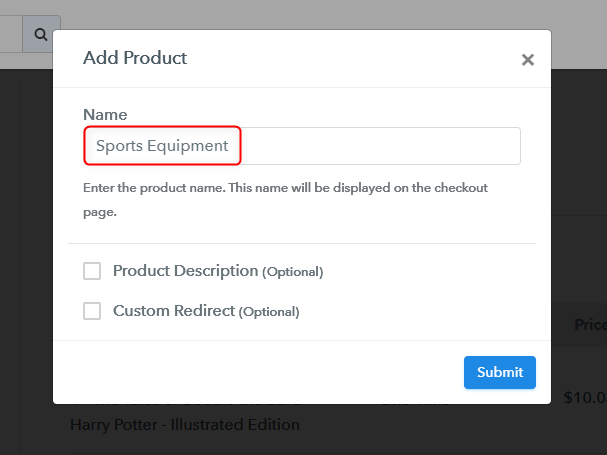
In this step, click on the ‘Add New Product’, a dialogue box will appear where you can add the product name.

Add Product

Fill in the details like the name and its description and your product is created.

Note: Here you can add all the products related to the similar category by creating plans for each of them.

Step 6: Add Plans 

Let’s rollout plans for different kinds of Sports Equipment available in your store.

(a) Select Add New Plan

Add Plan

(b) Specify the Plan & Pricing Details

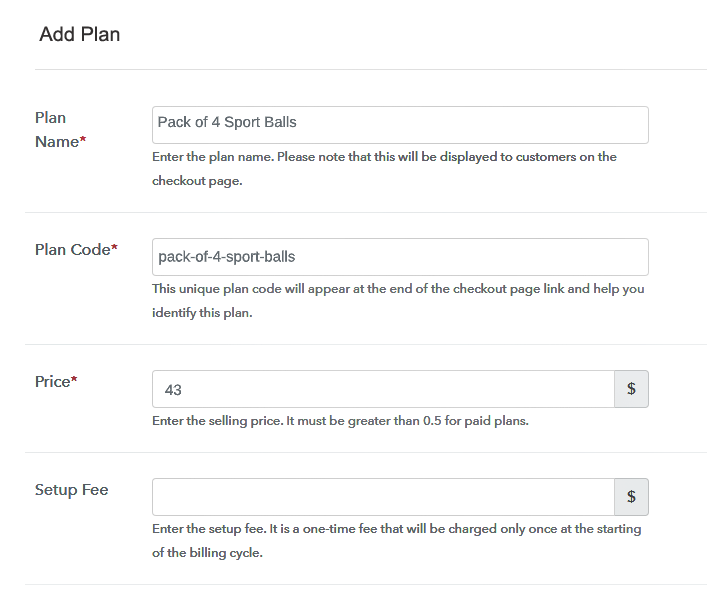
Add Plan Details

After adding the product, you need to add the pricing related details for selling it like product name, specify the price, setup fee and currency in which you wanna sell the product.

(c) Add Image & Description of Sports Equipment

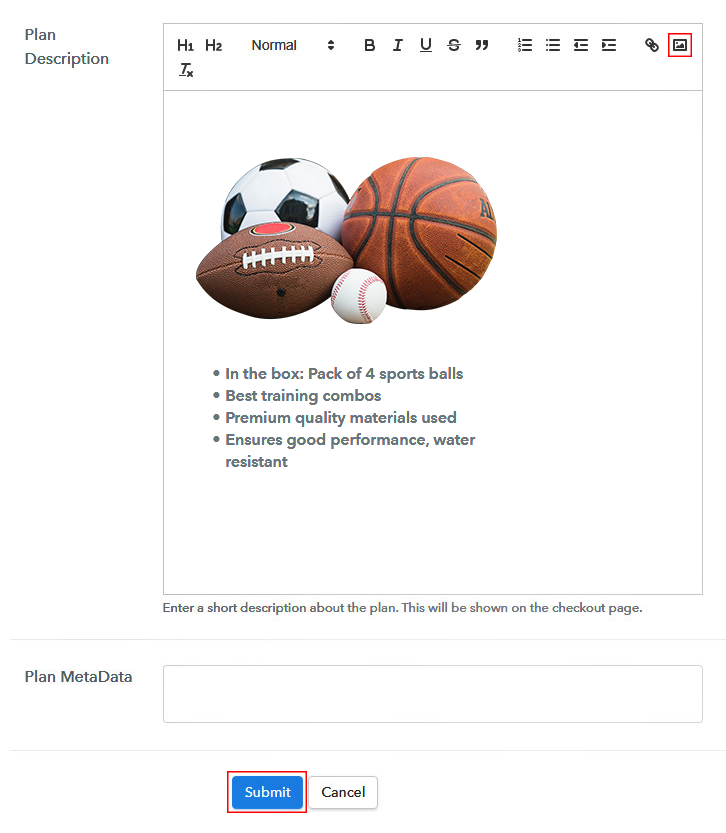
Add Product Image - Sell Sports Equipments

Moreover, you can also write a description of the product with bullets, links, images, etc. Now click on the submit button, your plan will be successfully added for selling sports equipment online.

Similarly, you can create more plans and add all the sports equipment that you want to sell online.

Step 7: Share your Checkout Page

Share Checkout Page on Social Media

  • You can simply copy the link & share it directly with your customers.via Whatsapp, SMS, email, etc.
  • It can also be shared on social networking sites like Facebook and Twitter.
  • Embed the checkout page link on your website’s button or as as anchor text.

This way the customers will easily be able to find your products & you can sell sport equipments online without any hassle.

Step 8: Preview Checkout Page

Follow up the recommended steps to preview the checkout page:

(a) Click on the View Button

View Checkout Plan

(b) Take a Look at the Checkout Page

Preview Checkout Page - Sell Sports Equipments Online

Step 9: Embed Checkout Page in Site & Sell Sports Equipment Online

Embed Checkout Page on Website

Just copy the link and add the checkout page at any proper place on your WordPress site and start selling sports equipment online.

(a) Edit the Page & Paste the Copied Link

Embed Checkout Page on Website

Further, paste the plan link on a text editor of the WordPress dashboard.

(b) Save & Publish the Checkout Page

Save_and_Publish

Next, click the “Publish” button, after making changes.

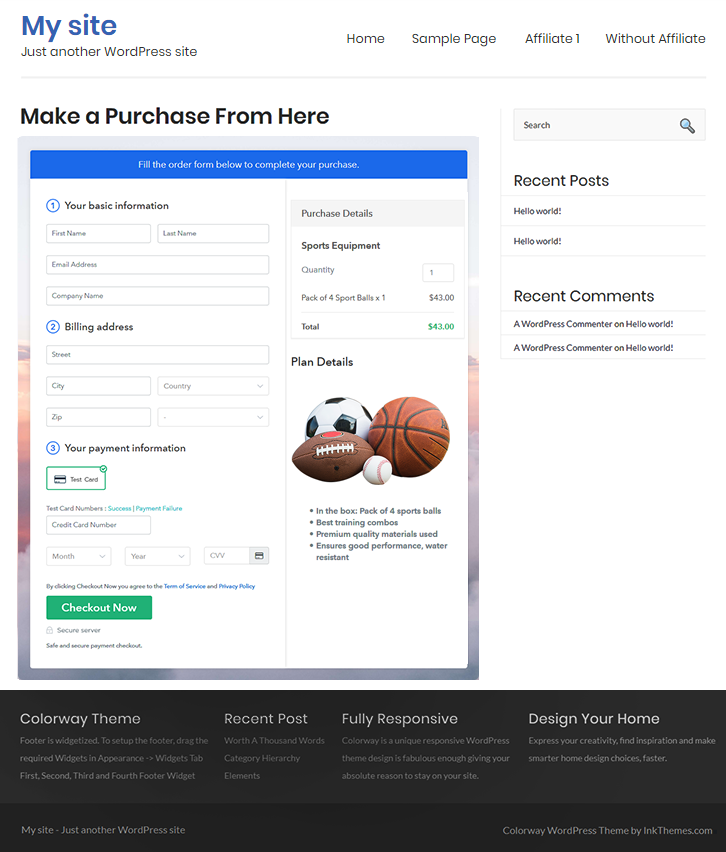
(c) Check out the Final Look of your Checkout Page on WordPress Site

Preview Checkout Page on WordPress Site - Start Selling Sports Equipment

Step 10: Multiplan Checkout Page

Note: In case you want to sell multiple products via a single checkout page, you can create a multi-plan checkout page otherwise skip this step.

(a) Click on Add Multiplan Checkout

Multiplan Checkout

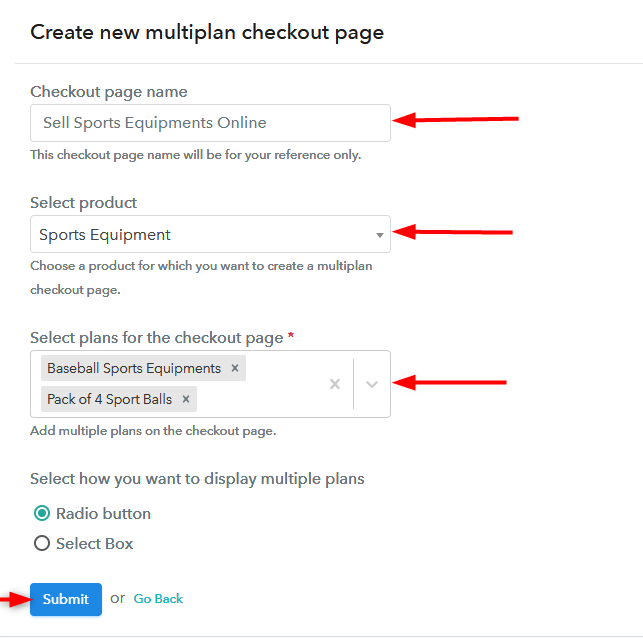
(b) Add Plans to Sell Multiple Sports Equipment from Single Checkout PageCreate Multiplan Checkout Page - Sell Sports Equipment

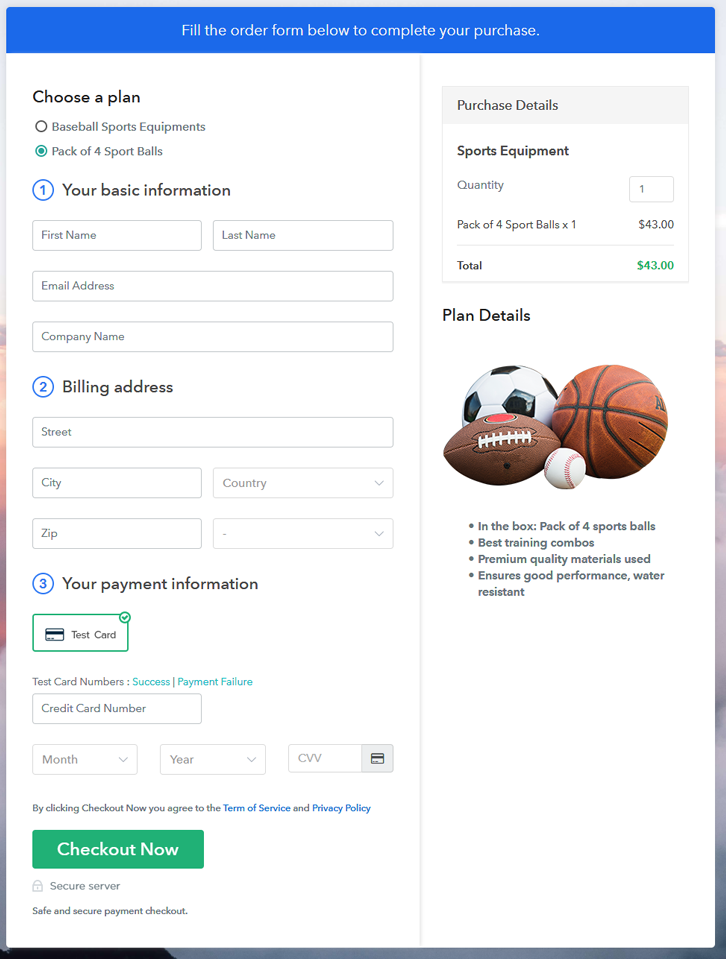
(c) Take a Look at the Checkout Page

Preview Multiplan Checkout Page - Start Selling Sports Equipment Online

Preview Checkout Page

Wrapping Up

Here, in this article, we have explained all the steps to sell sports equipment online. Automate all your tasks and manage all the details of your products at a single place with Pabbly Subscription Billing. It offers seamless options to integrate with multiple payment gateways and much more to assist your sales.

For any more queries, you can reach out to us.

You May Also Like To Read –