How to Sell Noodles Online | Step by Step (Free Method)

How to Sell Noodles Online

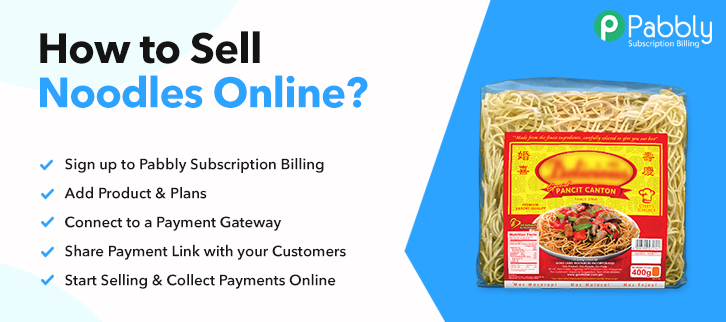
Ideal For: All the noodles sellers, noodle makers, retail noodle selling business owners, and other noodle merchants can use this method to take their noodles selling business online.
How to Sell Noodles Online

Why Choose this Method for Selling Over any Other Solution?

Unlike any other solution, this method allows you to:

  • List and sell your noodles for FREE. Absolutely no payment required.
  • No commission on sales.
  • Collect payment through multiple payment modes from a single checkout page.
  • Sell one time or recurring subscriptions of your noodles.
  • Sell and collect payment in any currency as per your requirement.
  • Give discounts on your products by offering special coupon codes.
  • Add sales commission agents to help you in selling your noodles online.

Get Pabbly Subscription Billing for Free

You can find noodle lovers worldwide. And as there are many varieties of noodles available online like wheat, rice, red rice noodles, you must be finding a way to sell noodles online.

Why would you like to sell noodles online?

There could be many possibilities, maybe you want to bring more noodles to the noodle lovers or you want to kick start noodles business online.

Moreover, if you are planning to sell noodles online you must be finding a way where you can easily start selling noodles online.

Pabbly Subscription Billing could help you with this by managing all the items in stock as well as creating checkout pages for selling noodles. It will take care of the payments, invoicing, taxes, record keeping etc. for free.

All you need to do is sign in and you are on your way to selling noodles online through beautiful checkout pages.

There are many advantages of using this service to excellently showcase your products as well as manage them easily from the dashboard provided. Further, this service also allows you to share these checkout pages on different social media, SMS, and emails. Additionally, you can also embed them as WordPress post/pages.

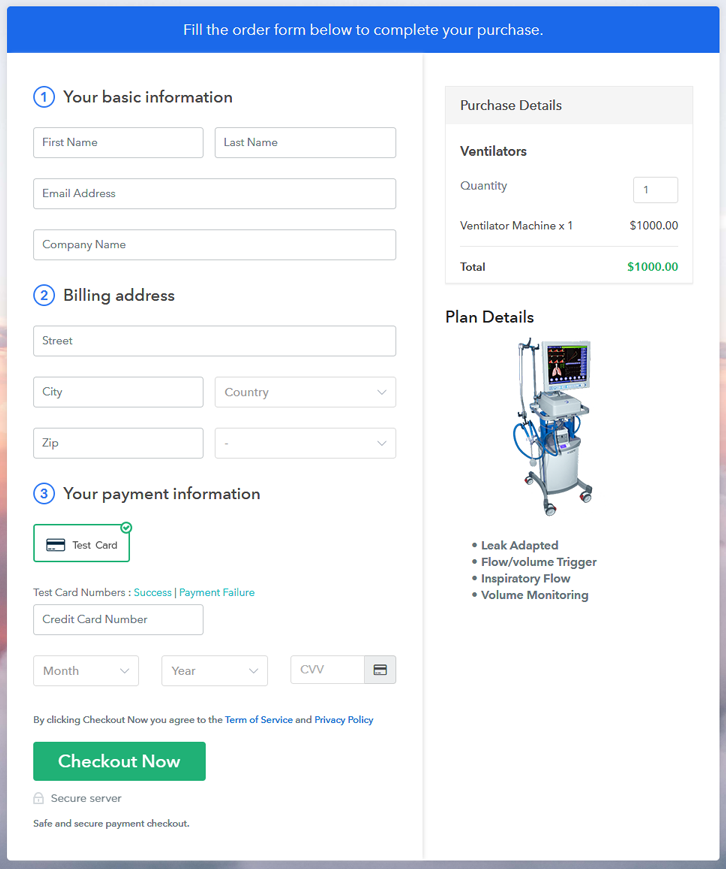
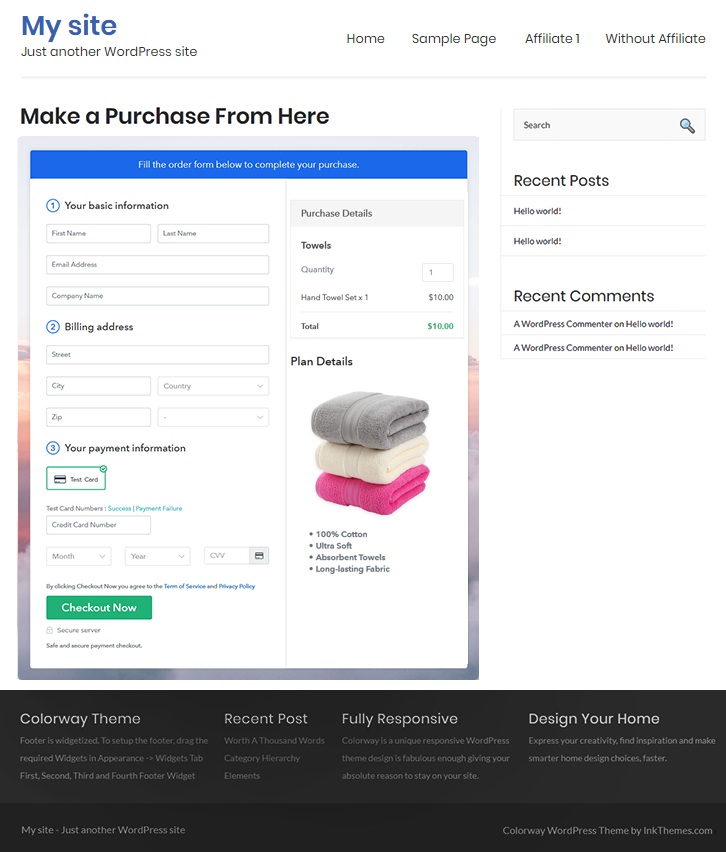
This is How your Checkout Page will Look Like After Creation
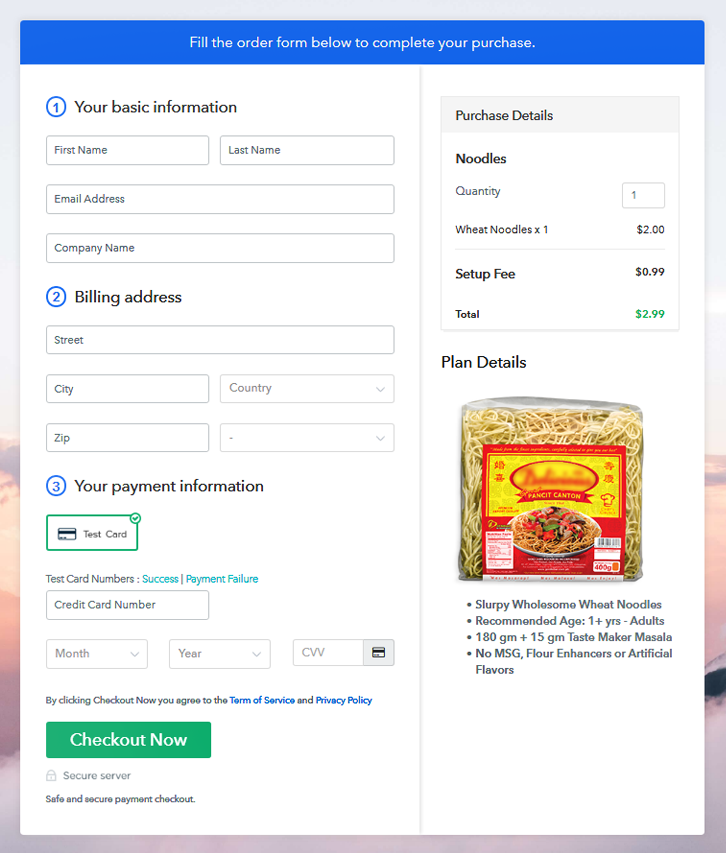
Checkout Page to Sell Noodles Online

Preview Checkout Page

Step 1: Login to Pabbly Subscription Billing
Signup
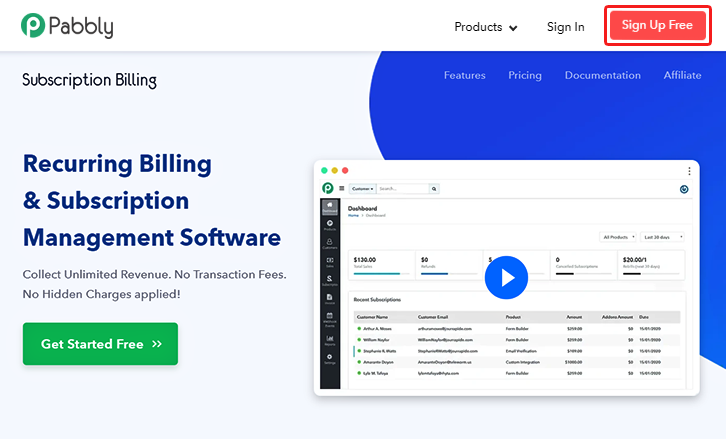
Visit the Pabbly Subscription Billing website and click on the “Sign Up Free” button. This will land you on the login/registration page. Here, you can choose to log in directly from Google or you can also register on the platforms by filling the registration form.

Sign Up For Free!

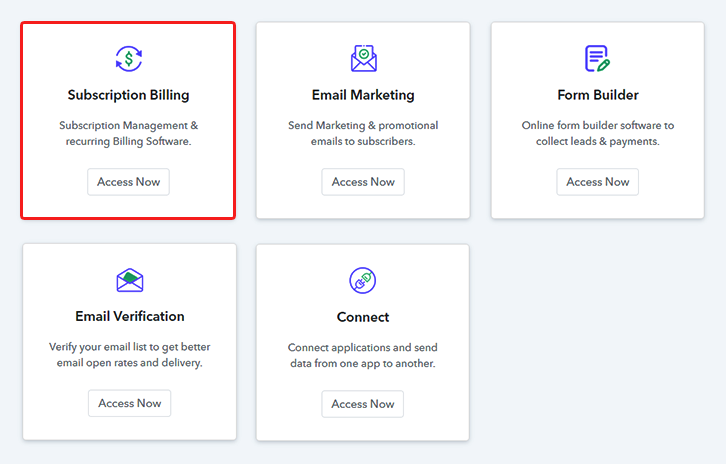
Step 2: Select Subscription Billing

Access Subscription Billing

Step 3: Account Setup
Setup Account

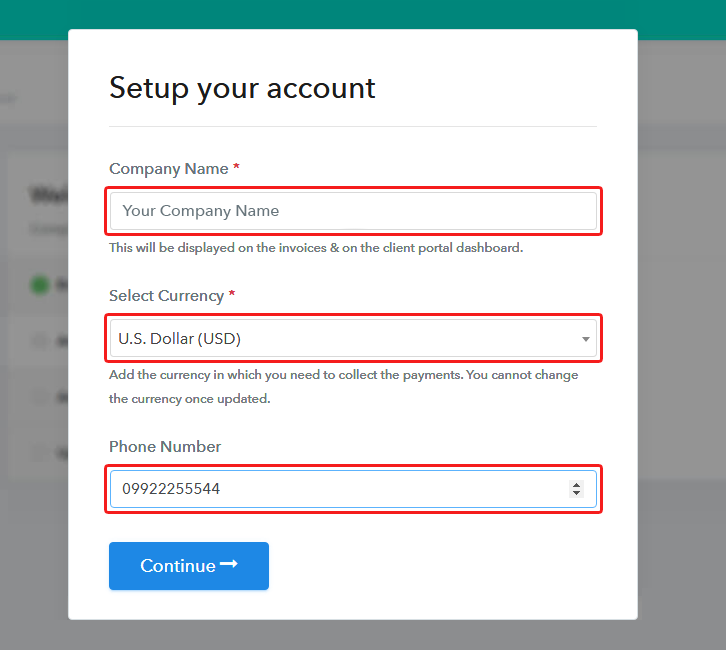
Once you get inside the system by successfully signing in a dialogue box will pop out. You’ll need to fill three details like company name, currency and a phone number.

Step 4: Connect Payment Gateway to Sell Noodles Online
Connect Payment Gateway

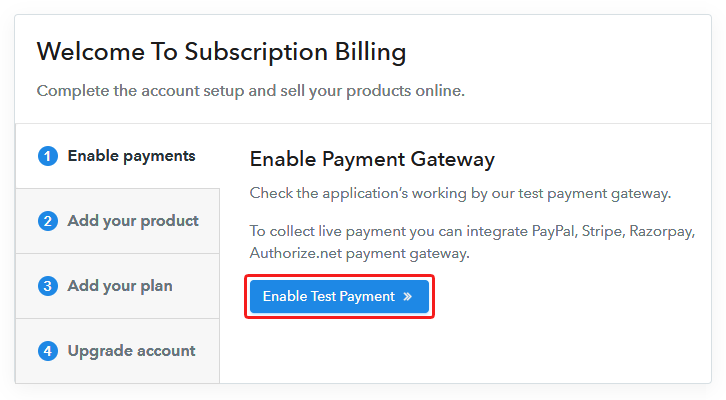
Next, you’ll need to connect a payment gateway. You can connect any of the payment gateways onto which you can rely on. Here, I am explaining the process using a test payment gateway. Although you can connect many payments gateways  & we’ve mentioned some reliable payment method integration guides below.

Step 5: Add Your Product
Add Product

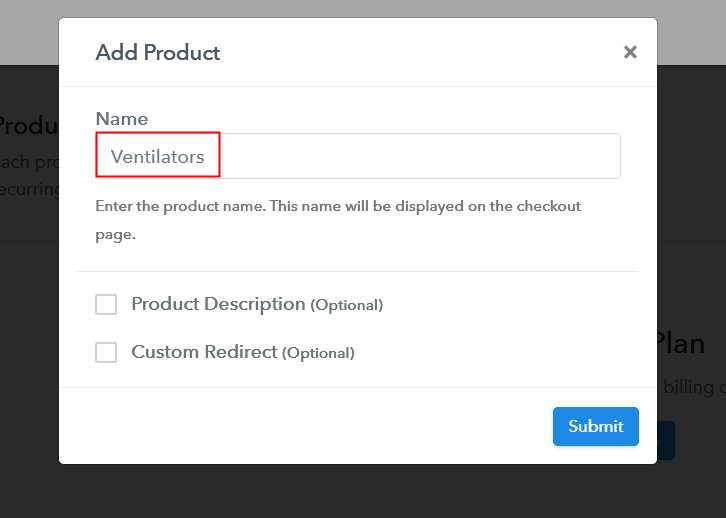
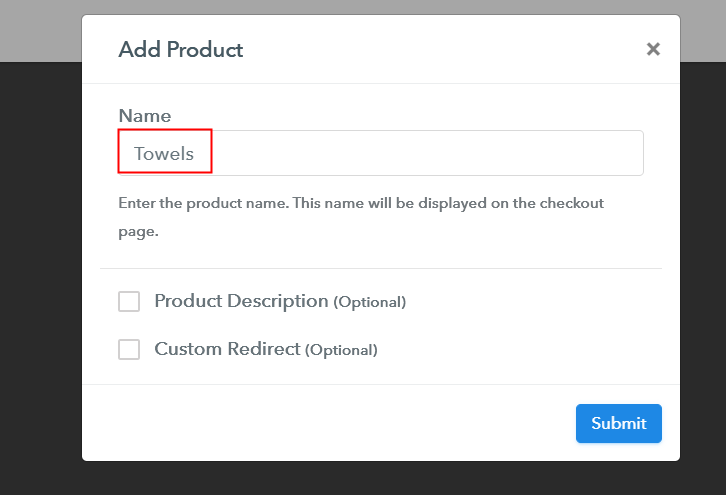
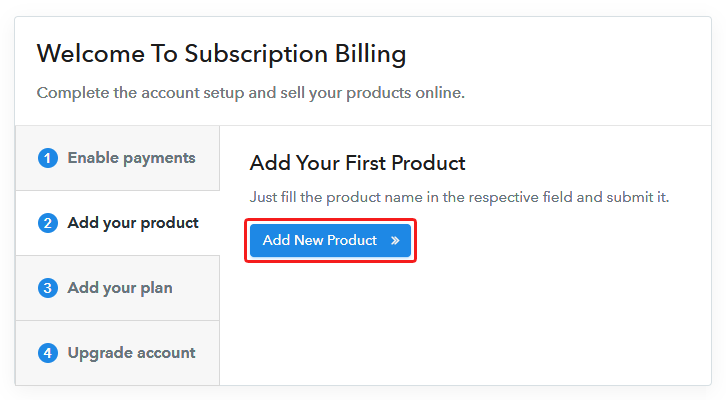
The fifth step is creating a product. For this, you can name a category of noodle as a product. Just click on the “Add New Product” button and fill out the essentials details.
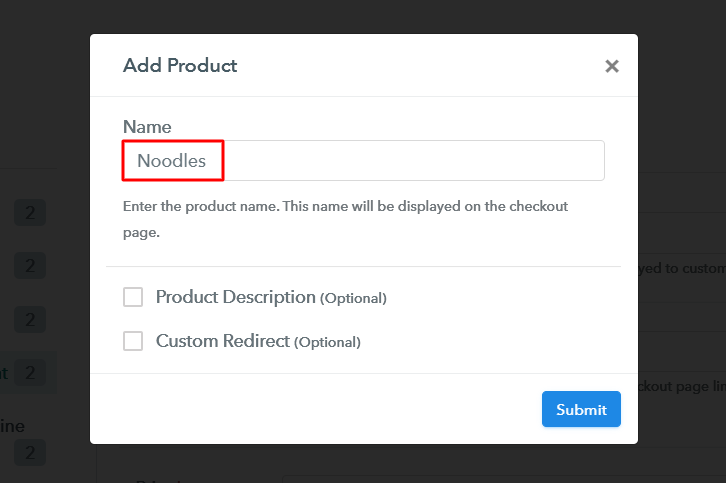
Add Product to Sell Noodles Online

Hit the “Submit” button and a product will be created.

Note: Here you can add all the products related to the similar category by creating plans for each of them.

Step 6: Add Plans

You can add various noodles available as plans. Click on the “Add New Plan” button & a page will open asking for the plan details to mention on the checkout page.

(a) Select Add New Plan
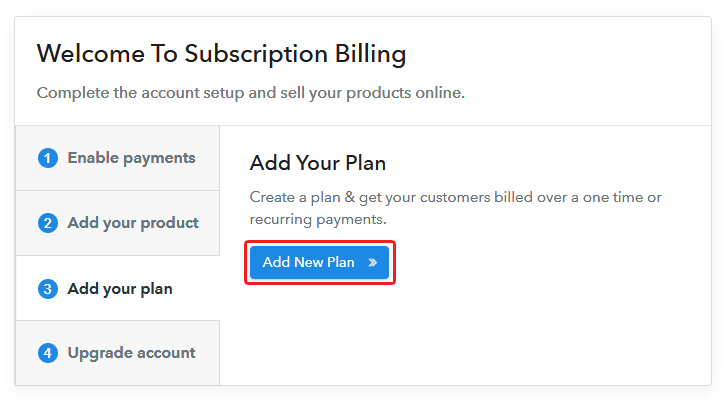
Add Plan

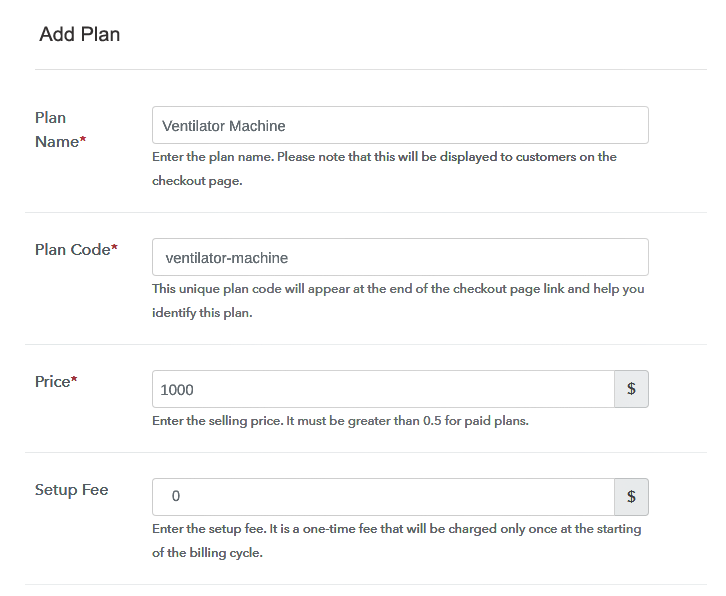
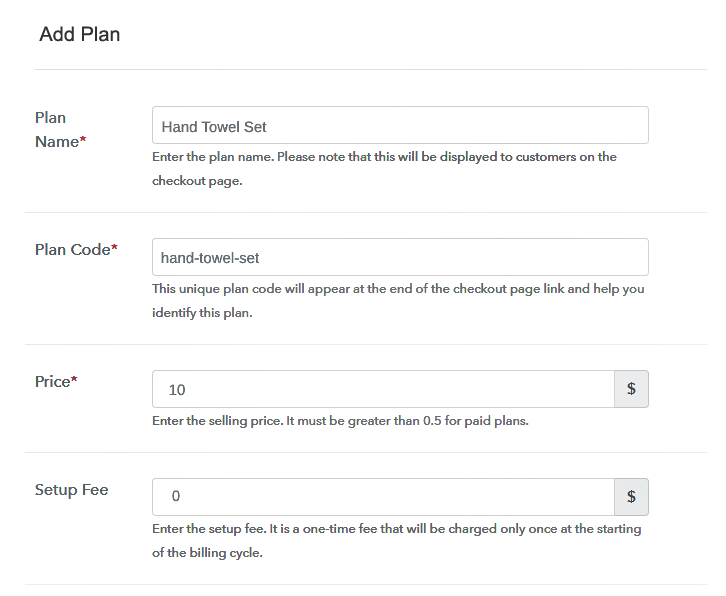
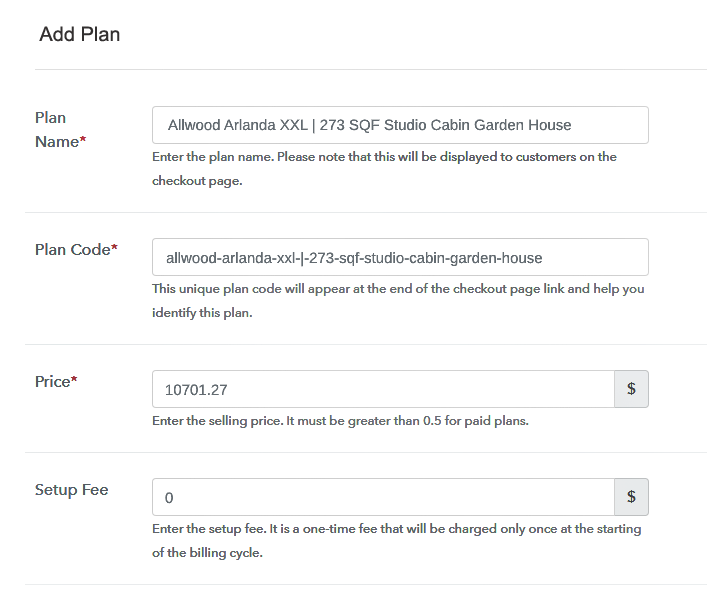
(b) Specify the Plan & Pricing Details
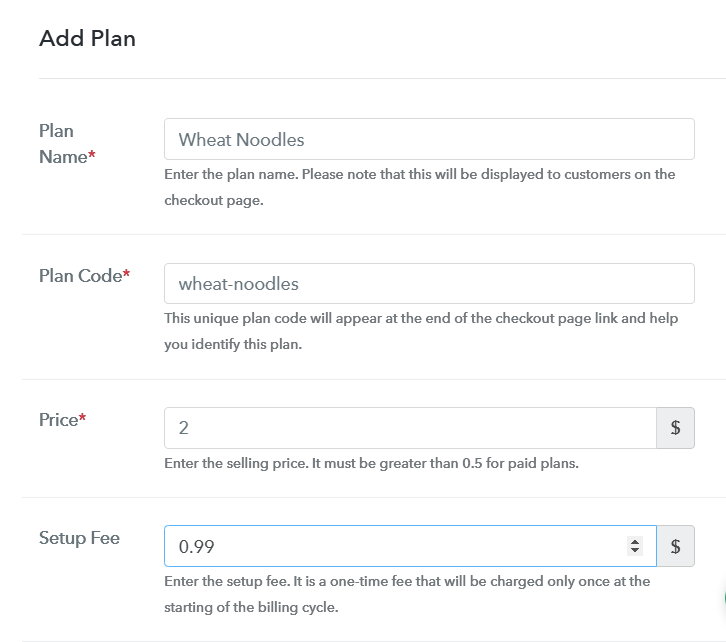
Add Plan to Sell Noodles Online

Name the plan as whichever noodle product you want to sell. Mention the code, price, a setup fee (if required) etc.

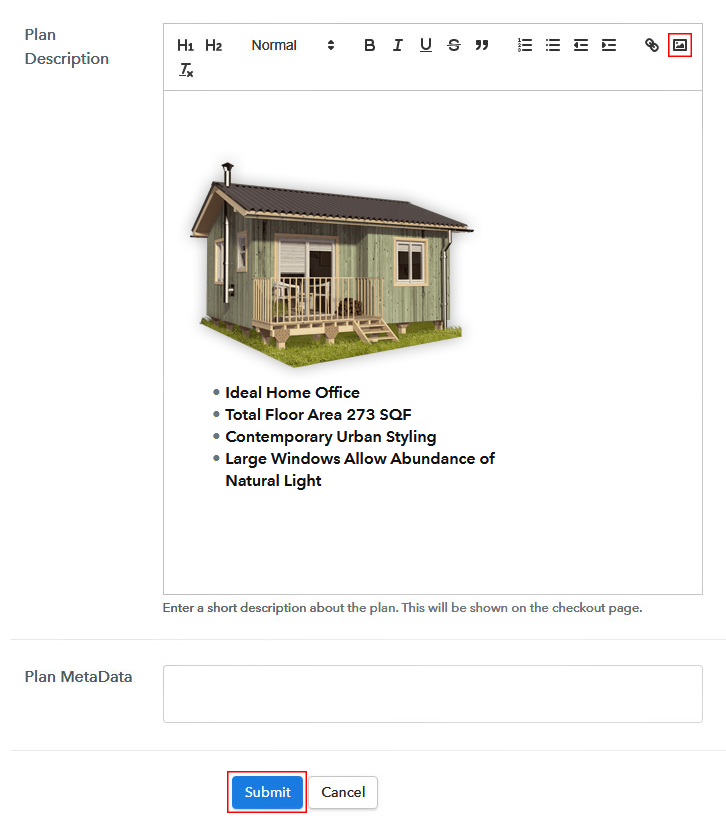
(c) Add Image & Description
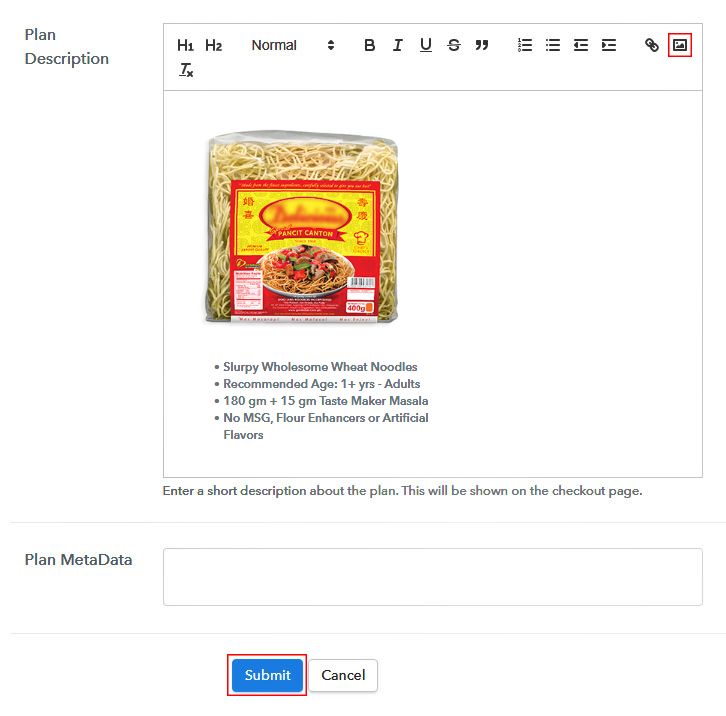
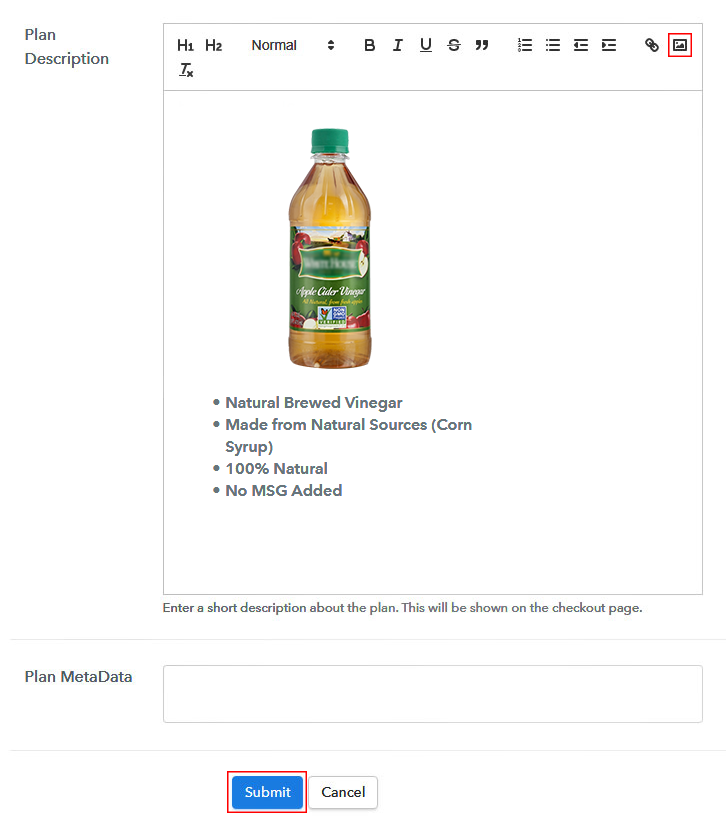
Add Description to Sell Noodles Online

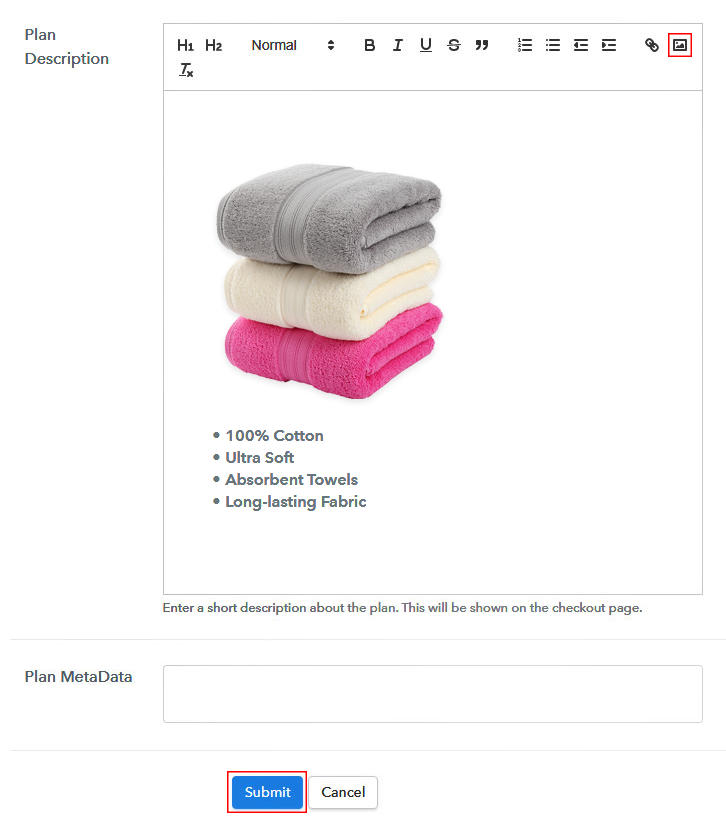
Next, you’ll encounter a filed names as “Add Description”, here you can insert an image and text describing your product. Additionally, you can also make use of the multiple text formatting tools given for text highlighting and additional formatting these are lists, quotes, links, headings etc.

Once you are done with plan details, click on the “Submit” button. An item will get appended to sell online.

You can add as many noodles as you want to sell.

Step 7: Share your Checkout Page
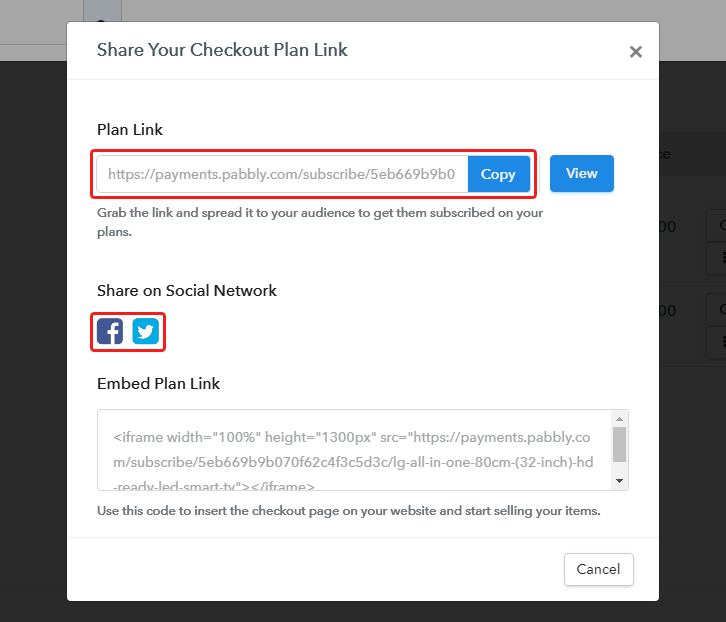
Share Checkout Page on Social Media

After creating a plan, an above-shown window will pop open containing three different options to use the created checkout plan.

  • Firstly, you can share it on social media or emails by sharing the link given under “Plan Link” to sell noodles online.
  • Secondly, you can use this plan link in site buttons & text anchors on your website.
  • Lastly, there are two direct sharing buttons available to share the checkout plan on Facebook & Twitter.

Step 8: Preview Checkout Page

Follow these steps to preview a checkout page:

(a) Click on the View Button
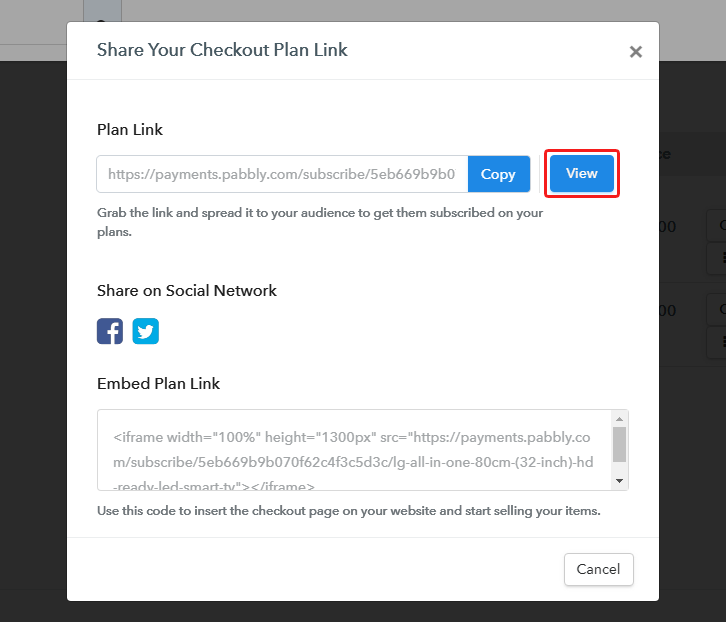
View Checkout Plan

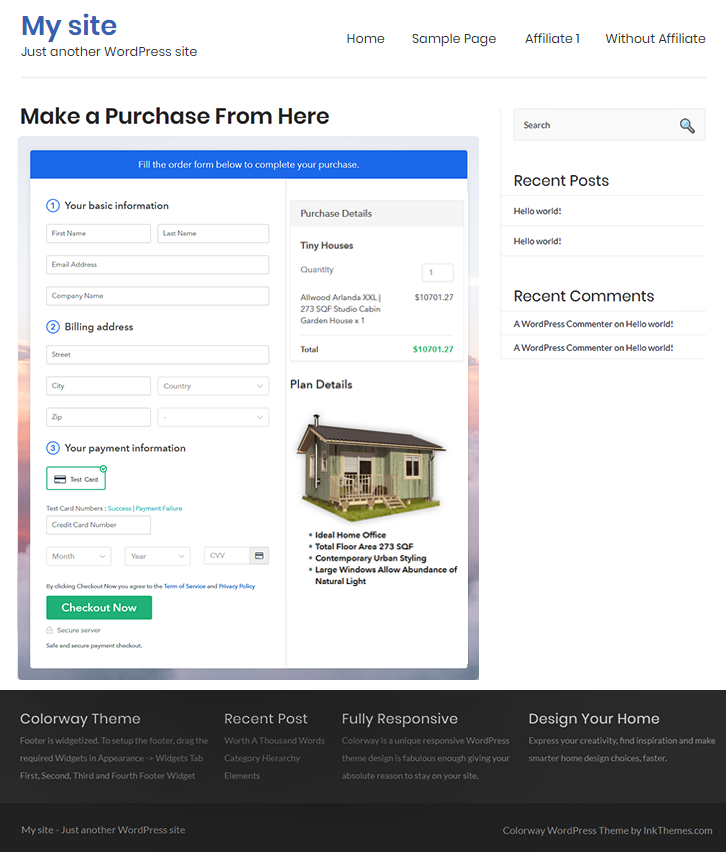
(b) Take a Look at the Checkout Page

Checkout Page to Sell Noodles Online

Step 9: Embed Checkout Page in Site & Sell Tea Online
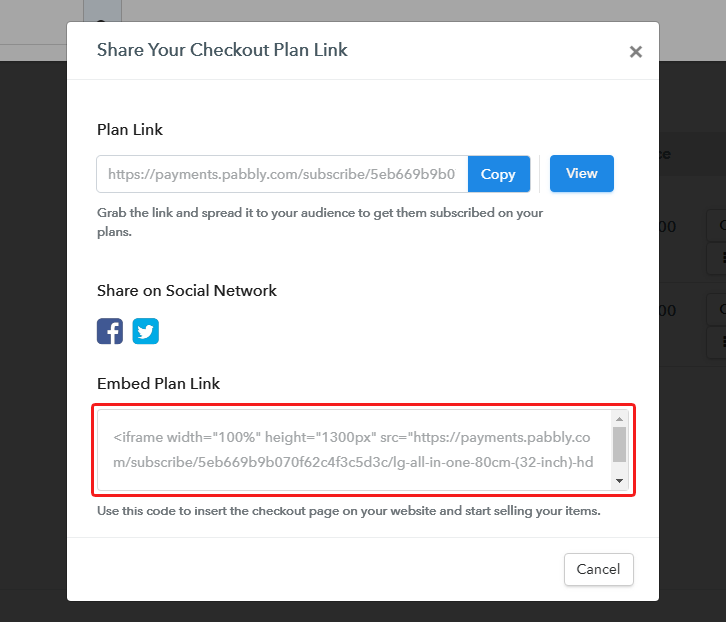
Embed Checkout Page on Website

For those who want to embed a checkout page on WordPress for selling noodles online. First, copy the code given under “Embed Plan Link” window.

(a) Edit the Page & Paste the Copied Link
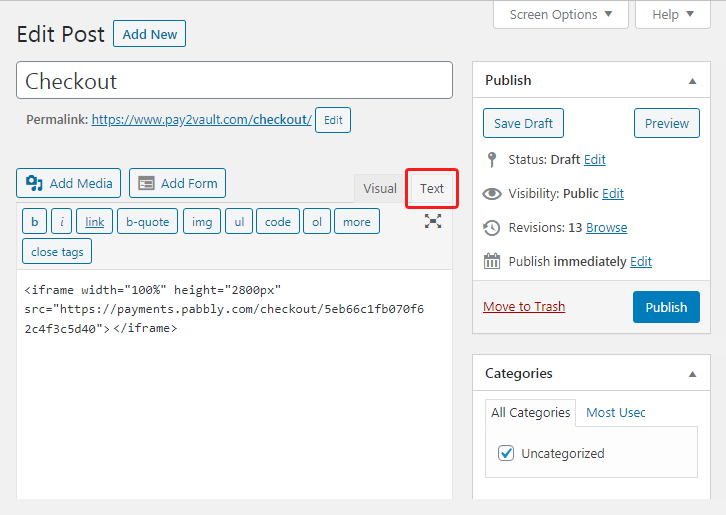
Paste_Link_in_Text_Editor

And then paste the copied code on any post or page’s text area.

(b) Save & Publish the Checkout Page
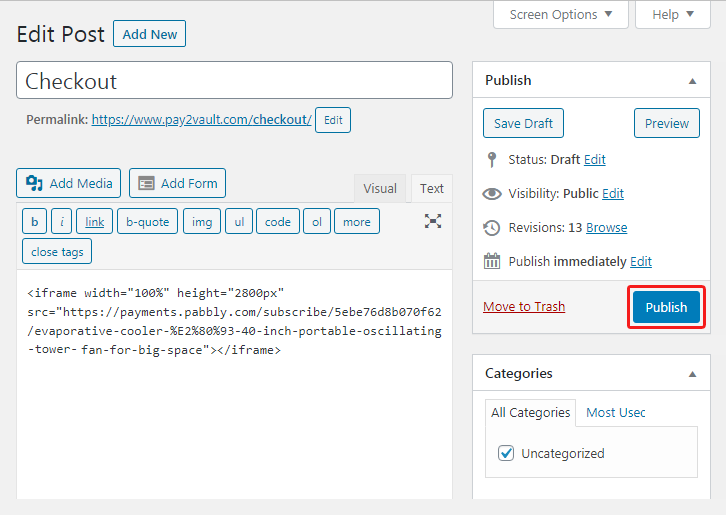
Save_and_Publish

Lastly, hit the ‘Publish’ button of the page or post. A checkout page will be embedded on your website’s page/post.

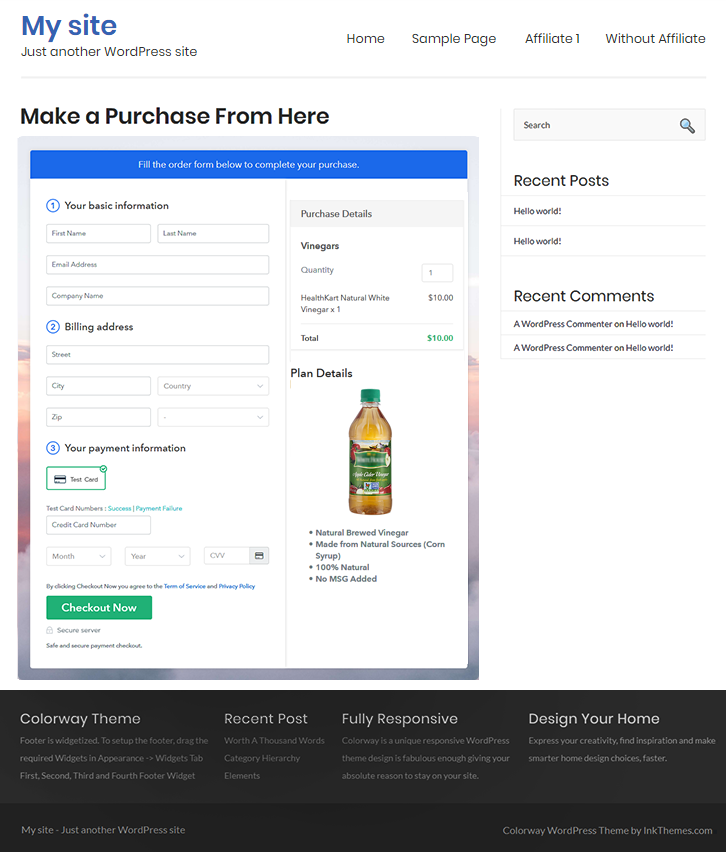
(c) Check out the Final Look of your Checkout Page on WordPress Site
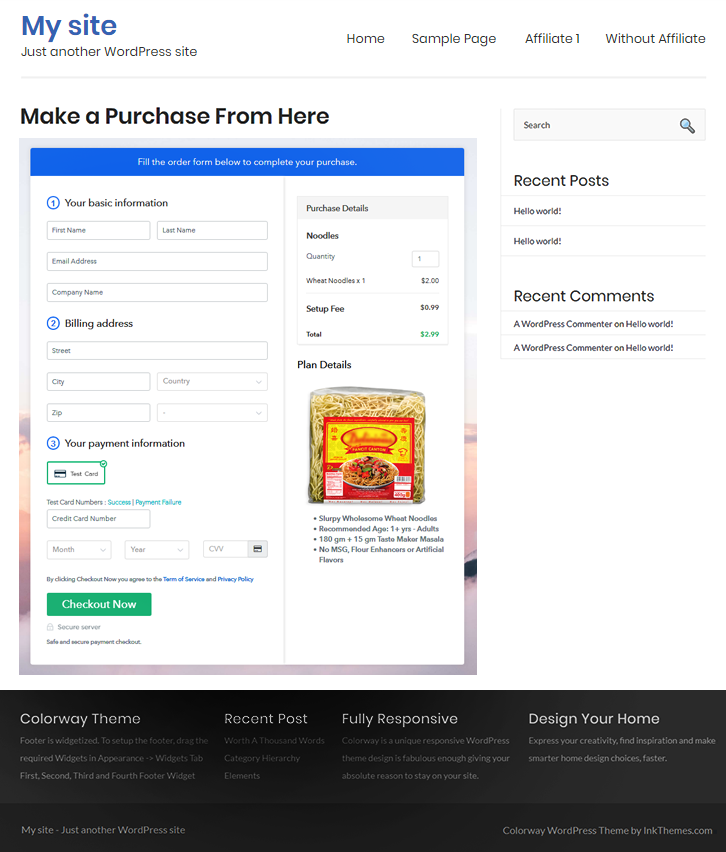
Checkout Page On Site to Sell Noodles Online

Step 10: Multiplan Checkout Page

Note: In case you want to sell multiple products via a single checkout page, you create a multi-plan checkout page otherwise skip this step.

(a) Click on Add Mutiplan Checkout
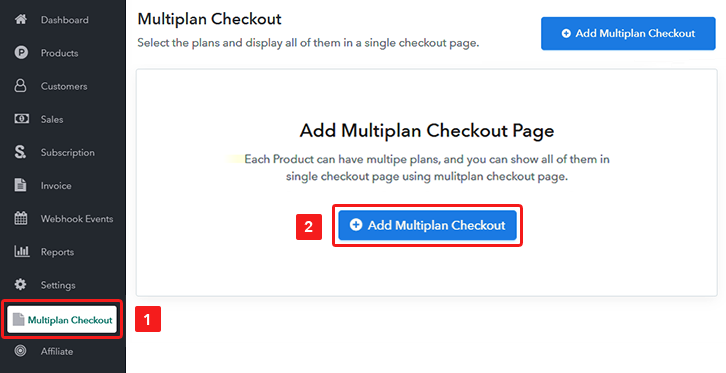
Multiplan_Checkout

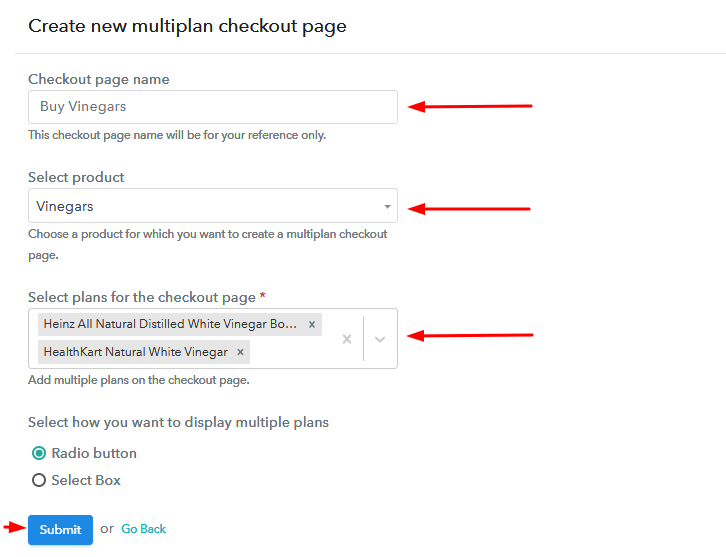
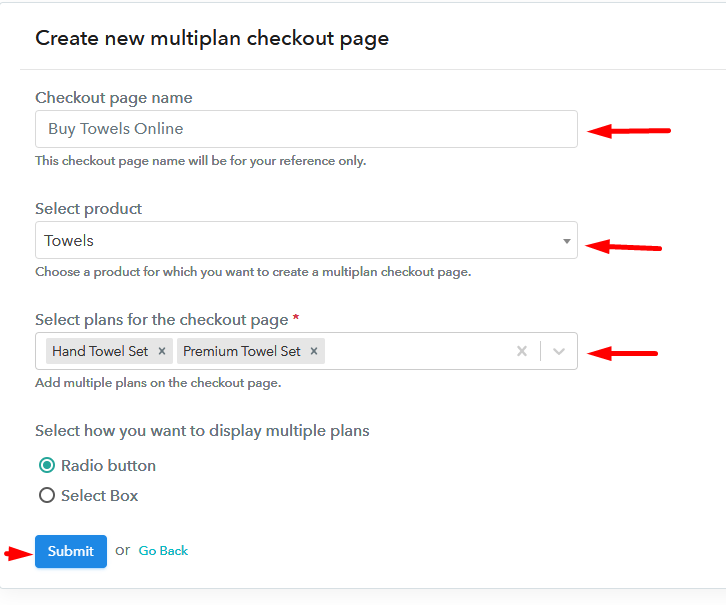
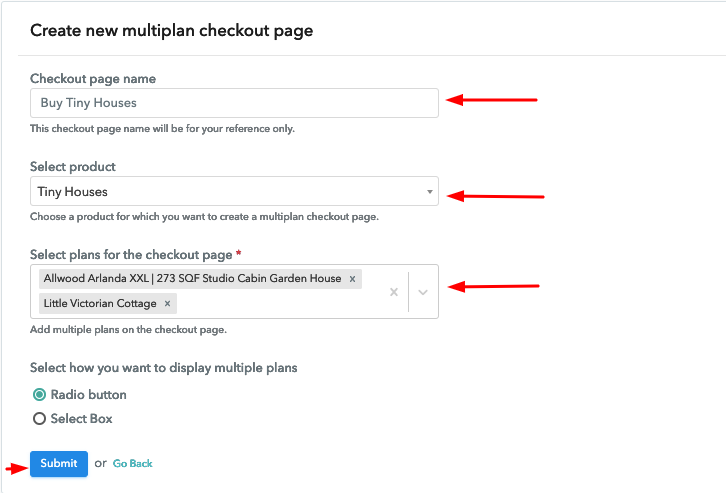
(b) Add Plans to Sell Multiple Noodle Products from Single Checkout Page
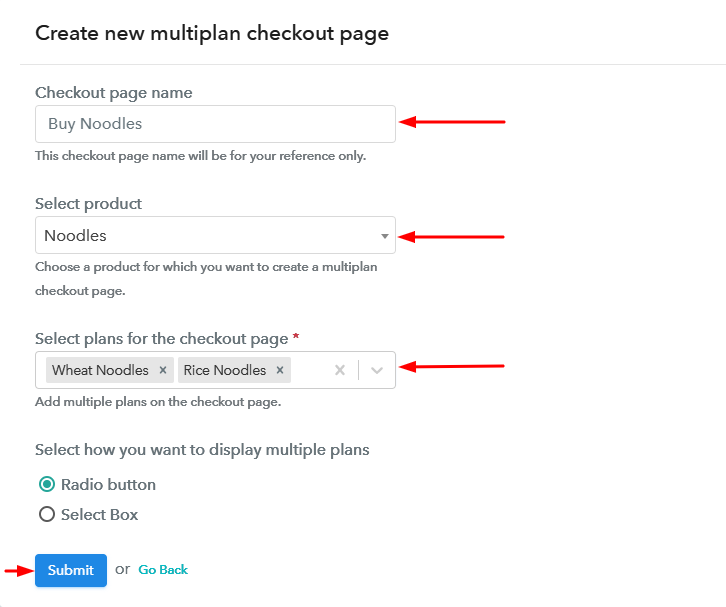
Add Plans to Sell Multiple Noodle Products from Single Checkout Page to Sell Noodles Online

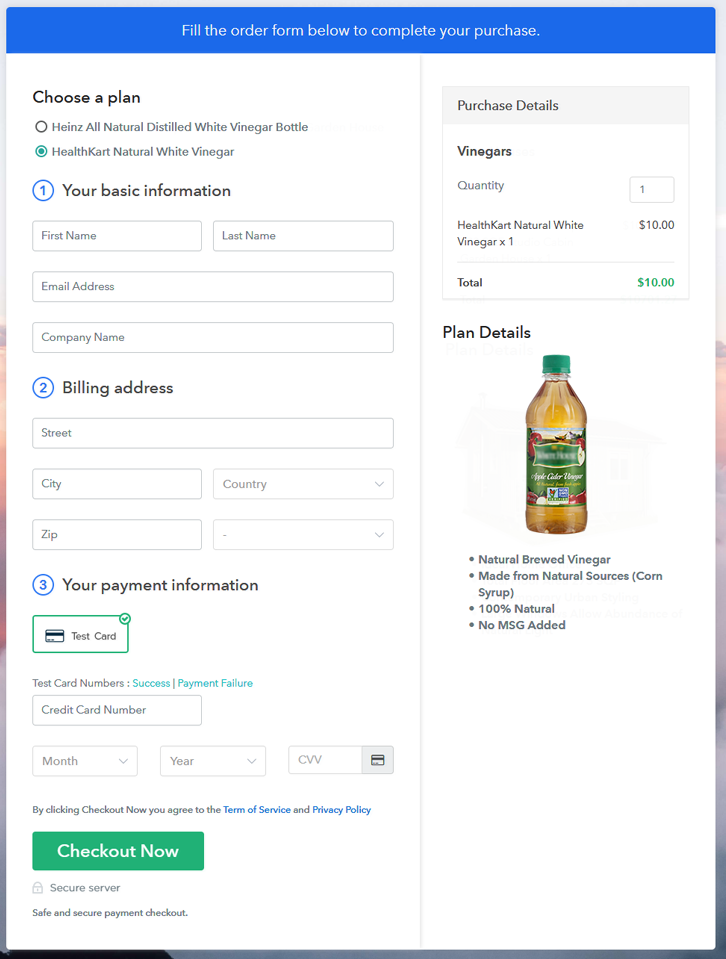
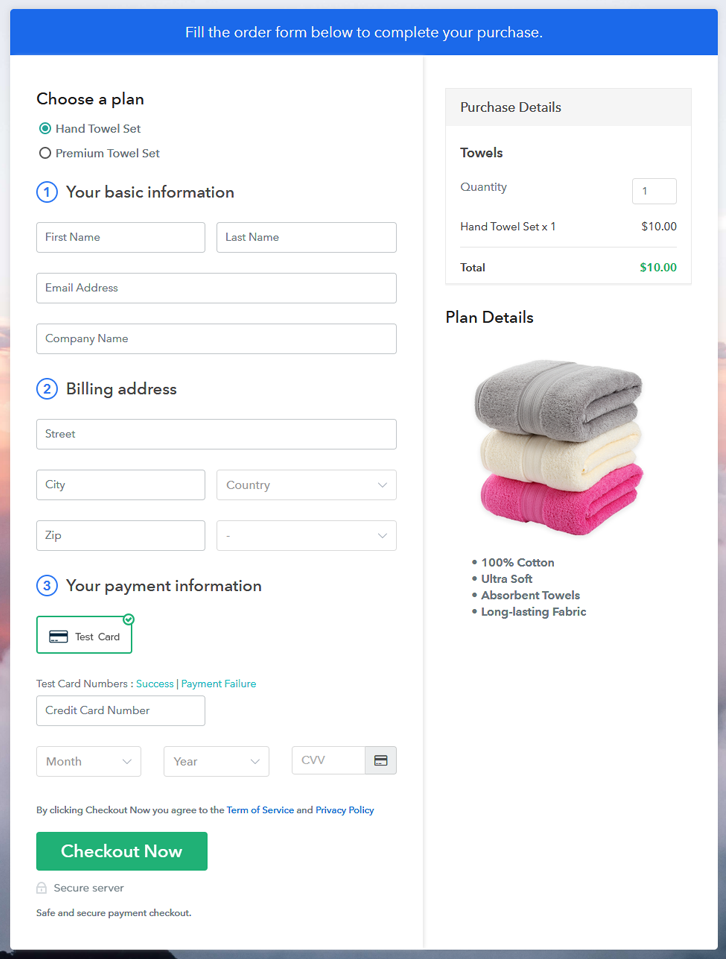
(c) Take a Look at the Checkout Page:
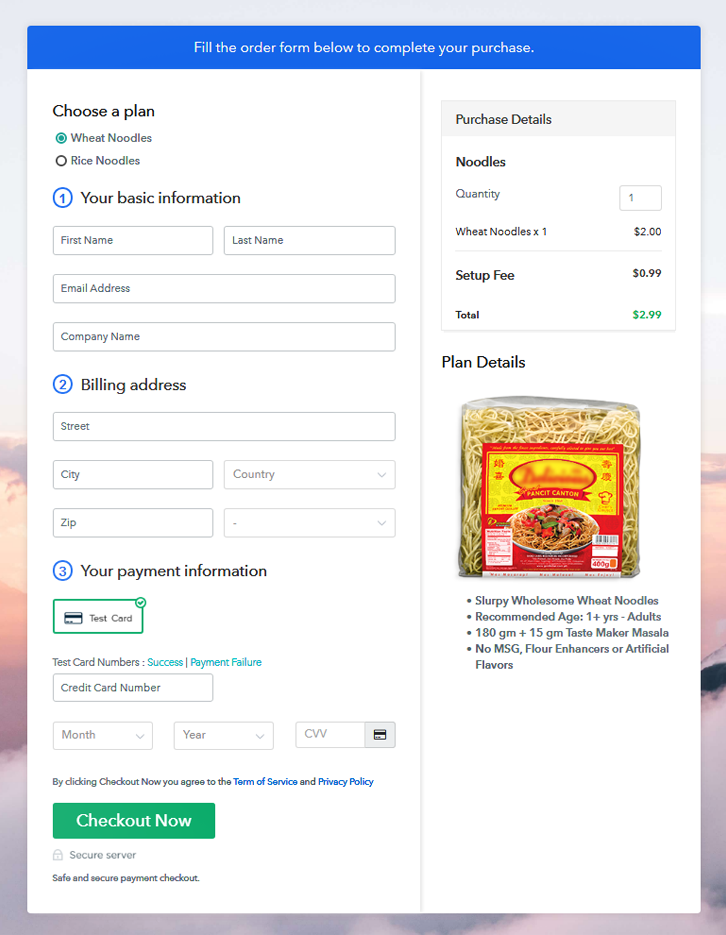
Multiplan Checkout Page to Sell Noodles OnlinePreview Checkout Page

Wrapping Up

This was the easiest method available for selling noodles online. You can follow the steps by step procedure to start the noodles business online. And all this absolutely free no need to wait for designing an eCommerce website.

Manage everything easily from keeping a record of all products in stock to accepting safe and secure payments.

Good Luck! and do comment your feedback in the comment section.
You May Also Like To Read

How to Sell Ventilators Online | Step by Step (Free Method)

How to Sell Ventilators Online

Ideal For: All the ventilator manufacturers, ventilator sellers, ventilator dealers, ventilator suppliers, medical equipment shop owners and other merchants can use this method to sell ventilators online.

How to Sell Ventilators Online

Why Choose this Method to Sell Ventilators Online?

Unlike any other solution, this method allows you to:

  • List and sell your ventilators for FREE. Absolutely no payment required.
  • No need to pay commission on any of your sales.
  • Multiple payment options like PayPal, Credit Card, etc to collect payment from a single place.
  • Sell one time or recurring subscriptions of your ventilators.
  • Collect payments & sell products in any currency as per your requirement.
  • Give discounts on your products by offering special coupon codes.
  • Add sales commission agents to help you in selling ventilators online.

Get Pabbly Subscription Billing for Free

Ventilators are chiefly used in intensive care treatment, home care, and emergency medical conditions by health practitioners. It is widely preferred in hospitals but the demands of home ventilators are also flourishing. Considering this, it would be great if you start selling ventilators online.

By giving headstart to your ventilator stores online, you can reach out to people from all across the globe. Also, the buyers are way much convenient buying stuff online. Furthermore, in online stores, there are no restrictions like opening time, holiday season, etc. And, to help you out with this we are suggesting software named Pabbly Subscription Billing that can support you in the whole process. The tool allows you to build an amazing checkout page for selling ventilators online. Some of its exceptional features involve:

  • List various ventilators in a single checkout page
  • Offers unending discount and coupon codes to prospects
  • Collect currency via both online and offline mode

Now, let’s get started creating a checkout page for selling ventilators online with the help of this tool.

Final View of Checkout Page for your Ventilators Selling Business

Checkout Page to Sell Ventilators Online

Preview Checkout Page

Step 1: Log in to Pabbly Subscription Billing

Signup

Start the process for creating a checkout page for ventilators by visiting the Pabbly Subscription Billing in your browser. After that, click on the “Sign up Free“ button. Furthermore, either manually filled out the details or sign in using your Gmail account.

Sign Up For Free!

Step 2: Select Subscription Billing

Access Subscription Billing

Step 3: Account Setup

Setup Account

Besides, after clicking on the “Access Now” button of the software, a page will open with fields like company name, select currency, and phone number. Simply fill out those details to continue creating a checkout page for ventilators.

Step 4: Connect Payment Gateways & Start Ventilators Selling Business Online

Connect Payment Gateway

The consequent step is to earning information about payment procedures using a “Test Payment Gateway”. Here, we will explain the checkout page process for the ventilators with the help of a test payment gateway. Besides this, the tool offers various payment gateways such as PayPal, Stripe, etc. Moreover, below are the payment integration guides to help you out.

Step 5: Add Product for your Ventilators

Add Product

Additionally, add the name, which in our case is “Ventilators”. Here you can specify the type like mechanical ventilators, low-cost ventilators, etc. Further, write a short description of the ventilators to grab the shopper’s attention.

Add Product to Start Selling Ventilators Online

Moreover, just fill out all those details, and your product for ventilators is created.

Note: Here you can add all the products related to the similar category by creating plans for each of them.

Step 6: Add Plans 

Let’s expose plans for different kinds of ventilators available in your store.

(a) Select Add New Plan

Add Plan

(b) Specify the Plan & Pricing Details

Specify the Plan and Pricing to Sell Ventilators Online

The next thing to do is fill all the details of the ventilators like plan name, code, price, set-up fee, and much more to continue.

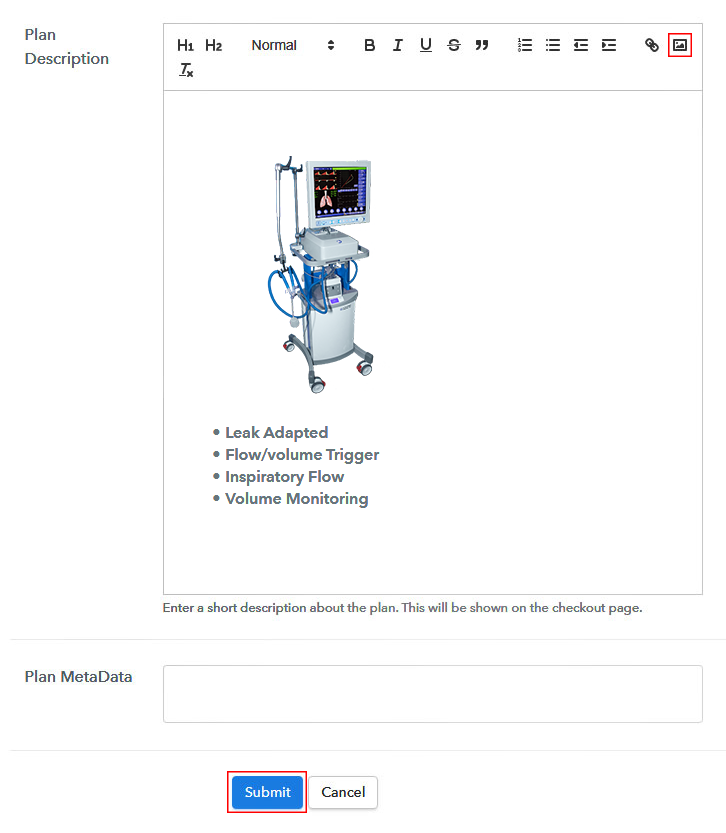
(c) Add Image & Description of Ventilators

Add Image & Description to Sell Ventilators Online

Furthermore, write a brief description of the ventilators using bullets, images, etc, to bring original buyers to the checkout page.

Next, click on the “Submit” button to add the ventilators on the checkout page.

Finally, you can add multiple plans and kinds of ventilators in your product list which you want to market online.

Step 7: Share your Checkout Page

Share Checkout Page on Social Media

  • Moreover, share the checkout page of the ventilators on social media accounts like Facebook & Twitter to grab the customer’s attention.
  • Also, you can share the direct link of the ventilators checkout page with your customers via SMS or email marketing.
  • Additionally, embed the provided plan link of the ventilators in the buttons or any anchor text on your website.

Step 8: Preview Checkout Page

Further, follow up on the recommended steps to preview the checkout page for ventilators:

(a) Click on the View Button

View Checkout Plan

(b) Take a Look at the Checkout Page

Checkout Page to Sell Ventilators Online

Step 9: Embed Checkout Page in Site & Sell Ventilators Online

Embed Checkout Page on Website

Additionally, simply copy the link and add the checkout page to sell ventilators online at any proper place on your WordPress site.

(a) Edit the Page & Paste the Copied Link

Paste Link in Text Editor

Moreover, paste the plan link of ventilators on a text editor of the WordPress dashboard.

(b) Save & Publish the Checkout Page

Save_and_Publish

Further, click on the “Publish” button, after making changes.

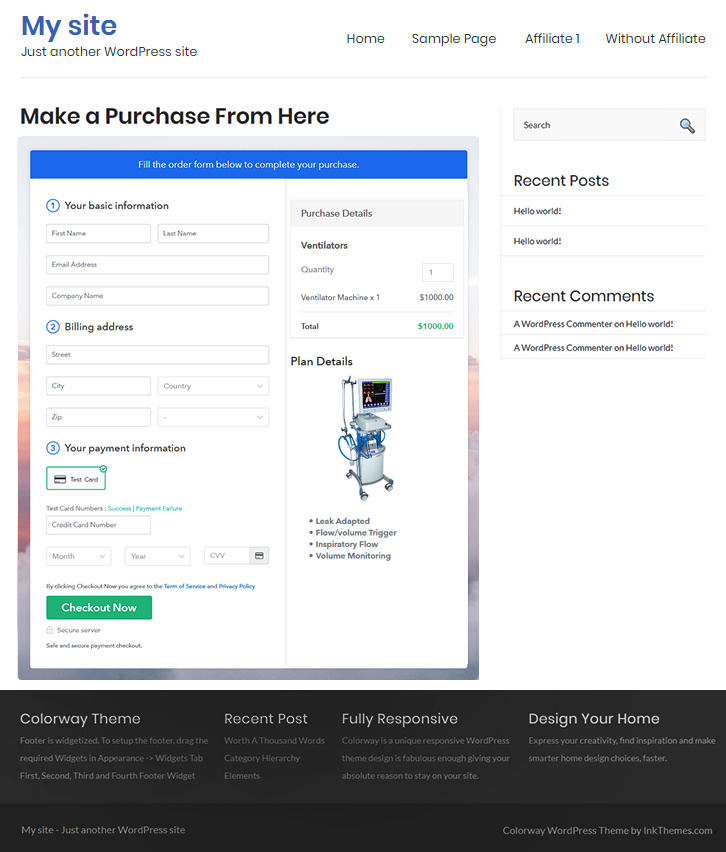
(c) Check out the Final Look of your Checkout Page on WordPress Site

Final Look of your Checkout Page to Sell Ventilators Online

Step 10: Multiplan Checkout Page

Note: In case you want to sell multiple products via a single checkout page, you can create a multi-plan checkout page otherwise skip this step.

(a) Click on Add Mutiplan Checkout

Multiplan Checkout

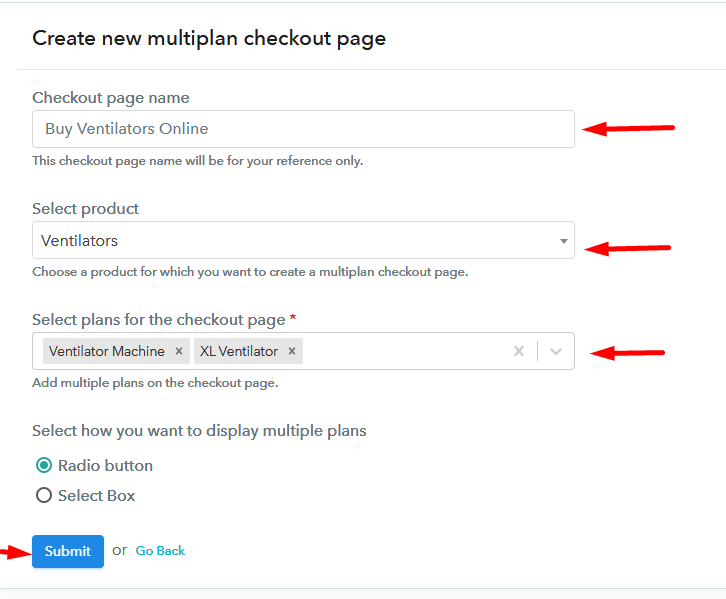
(b) Add Plans to Sell Multiple Ventilators from Single Checkout Page

Add Multiple Products to Start Selling Ventilators Online

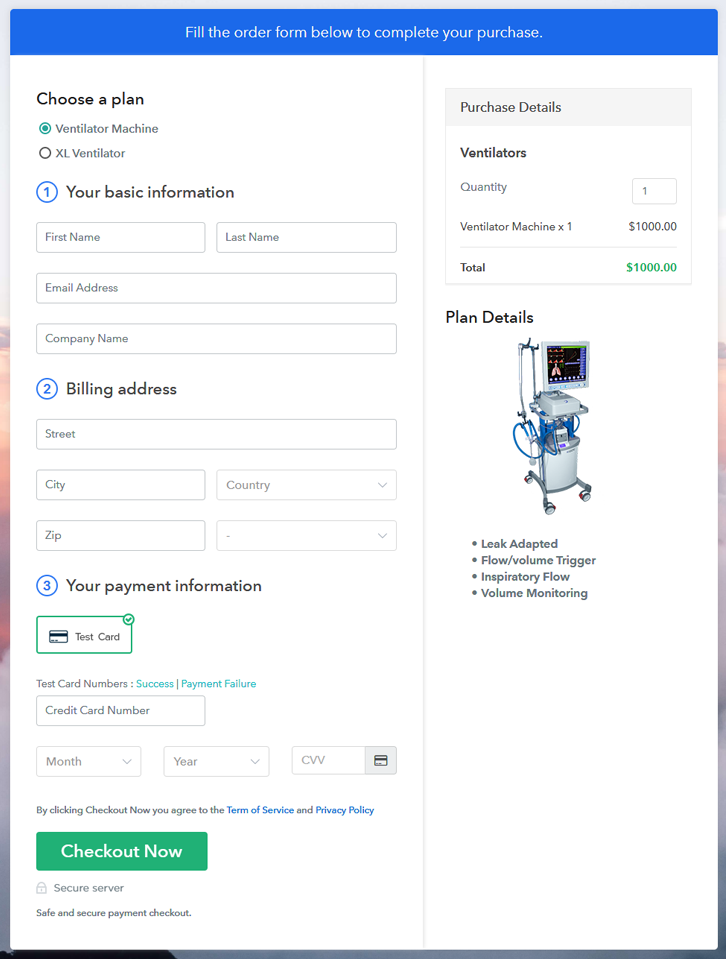
(c) Take a Look at the Checkout Page

Multiplan Checkout Page to Sell Ventilators Online

Preview Checkout Page

Wrapping Up

Alright! Medical equipment such as ventilators demands never goes off throughout the year. So starting a ventilator business is a suitable idea. Now you know how easy is to sell ventilators online using Pabbly Subscription Billing software. Simply pass through all the maneuvered steps and nothing else.

So, don’t anticipate anymore, try this software out.

You May Also Like To Read –

How to Sell Vending Machines Online | Step by Step (Free Method)

How to Sell Vending Machines Online

Ideal For: All the vending machine manufacturers, vending machine dealers, vending machine suppliers, vending machine wholesalers, vending machine distributors, and other sellers can use this method to take their vending machines selling business online.

How to Sell Vending Machines Online

Why Choose this Method to Sell Vending Machines Online?

Unlike any other solution, this method allows you to:

  • List and sell your vending machines for FREE. Absolutely no payment required.
  • No need to pay commission on any of your sales.
  • Multiple payment options like PayPal, Credit Card, etc to collect payment from a single place.
  • Sell one time or recurring subscriptions of your vending machines.
  • Collect payments & sell products in any currency as per your requirement.
  • Give discounts on your products by offering special coupon codes.
  • Add sales commission agents to help you in selling vending machines online.

Get Pabbly Subscription Billing for Free

Vending machines can be seen almost everywhere now, in hospitals, restaurants, schools, etc. You just put a quarter in and get whatever you need, simple and smooth. All the businesses are using vending machines to lure the people and if you sell vending machines then take your business online for better marketing of your product.

If you start selling vending machines online there will be better chances for the profit as people can access your products globally and your customer reach will increase. To start your vending machines selling online business you only need Pabbly Subscription Billing, which is a completely free platform. With this service, you can create checkout pages for your vending machines and share them on social media or other platforms and people can start purchasing your vending machines through them.

Other than the checkout pages, it also offers many other helpful features for your online business:

  • Add and sell unlimited vending machines online
  • Create and share invoices of vending machines automatically with users
  • Integrate it with your business website and other applications
  • Collect one-time or recurring payments for your vending machines

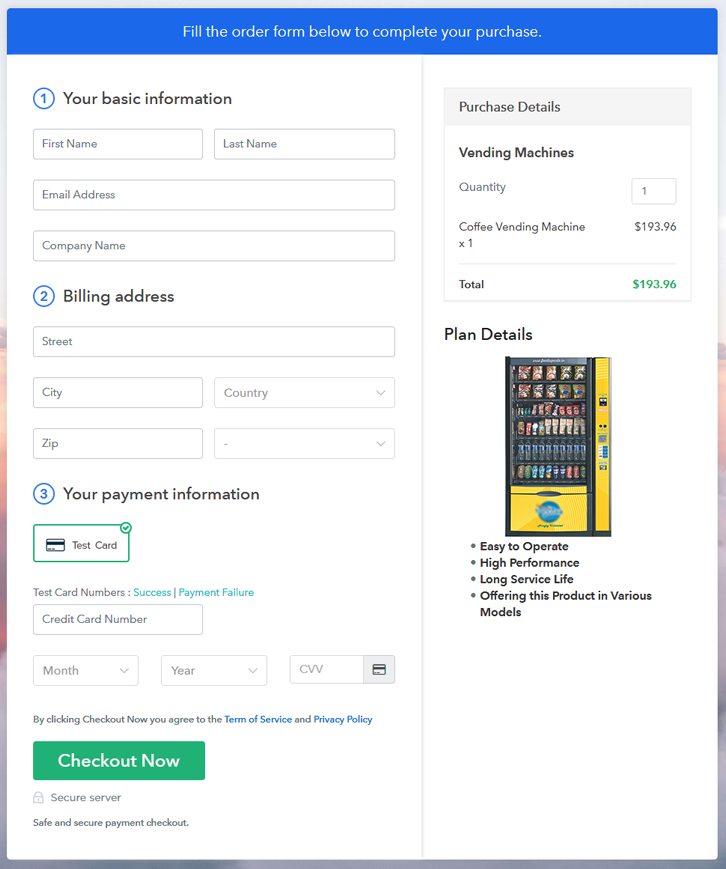
Final View of Checkout Page for your Vending Machines Selling Business

Preview Checkout Page

Preview Checkout Page

Step 1: Log in to Pabbly Subscription Billing

Signup

In the first step, you have to visit Pabbly Subscription Billing website and then click on the “Signup Free” button. Once you click the button, the signup page will appear. Here, you can sign up for free in a few seconds via your Gmail or you can also enter your details manually.

Sign Up For Free!

Step 2: Select Subscription Billing

Access Subscription Billing

Step 3: Account Setup

Setup Account

Once you have completed the signup process, here you have to fill up your company details like company name, currency, & phone number in the given dialogue box.

Step 4: Connect Payment Gateways & Start Vending Machines Selling Business Online

Connect Payment Gateway

Here, the payment collection process is described by enabling the “Test Payment” mode. You can also check the test payment mode before moving forward. However, you have to connect with other payment gateways such as PayPal, Stripe, etc of your choice. The whole payment gateways integration guides are given below-

Step 5: Add Product for your Vending Machines

Add Product

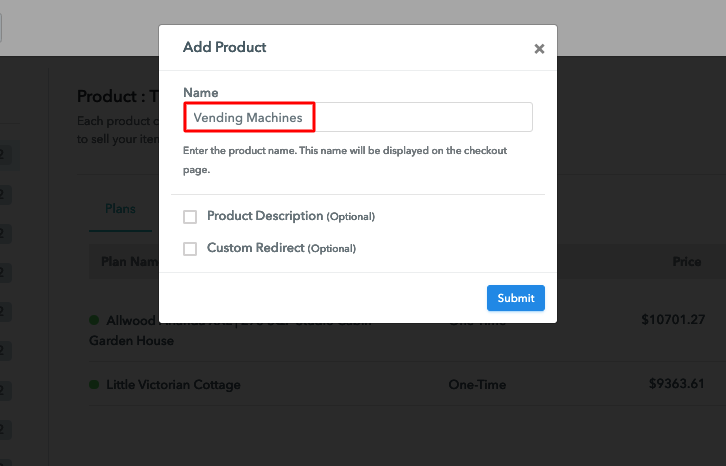
Moving forward to this step, here you have to add your first product. You can add vending machines of different types such as coffee vending machines, snacks vending machines, etc.

Sell Vending Machines Online Product Name

Add all the other vending machines in the same product section by creating different plans for them.

Note: Here you can add all the products related to the similar category by creating plans for each of them.

Step 6: Add Plans 

Let’s rollout plans for different kinds of vending machines available in your store.

(a) Select Add New Plan

Add Plan

(b) Specify the Plan & Pricing Details

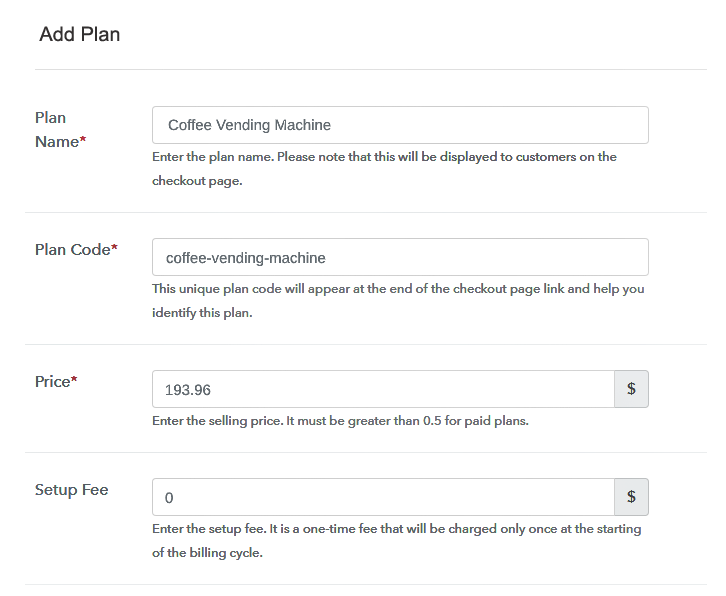
Sell Vending Machines Online Details

On clicking the “Add New Plan” button, the plan page will open, here you have to add details like plan name, billing cycle, code, price, etc.

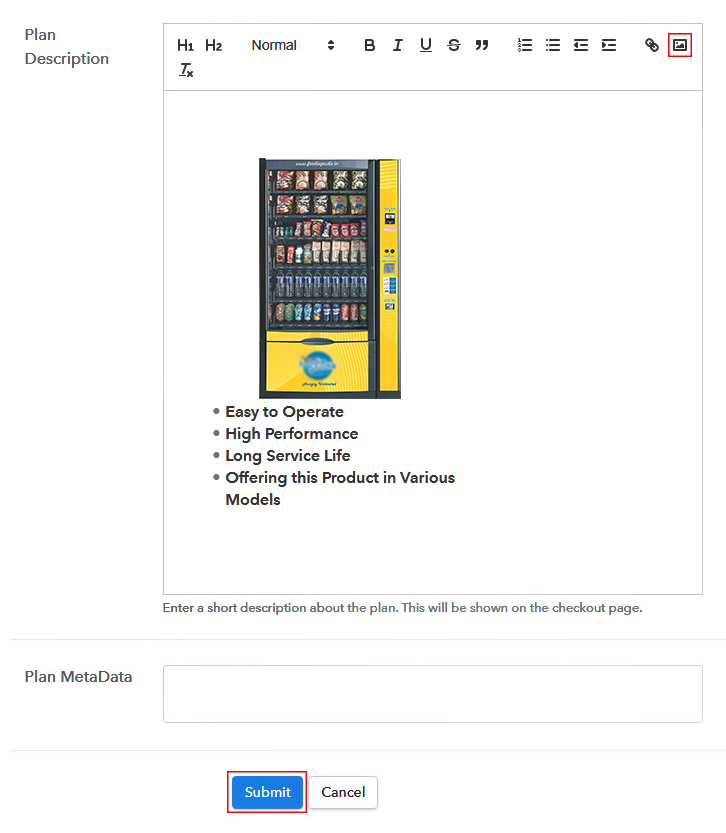
(c) Add Image & Description of Vending Machines

Sell Vending Machines Online Image

Also, you can describe the vending machines that you want to sell along with the product images, links, etc, and then click on the “Submit” button to add your plan.

You can create more plans for all the other vending machines likewise.

Step 7: Share your Checkout Page

Share Checkout Page on Social Media

  • To increase your sales of vending machines, share your checkout page on social media like Facebook and Twitter.
  • Also, copy the mentioned link and send it to your customers over SMS or emails directly.
  • Embed your plan link to your website so that your customers can be landed on the checkout page directly.

Step 8: Preview Checkout Page

Follow up the recommended steps to preview the checkout page:

(a) Click on the View Button

View Checkout Plan

(b) Take a Look at the Checkout Page

Preview Checkout Page

Step 9: Embed Checkout Page in Site & Sell Vending Machines Online

Embed Checkout Page on Website

Just copy the link and add the checkout page to sell vending machines online at any preferable place on your WordPress site.

(a) Edit the Page & Paste the Copied Link

Embed Checkout Page on Website

Further, paste the plan link on a text editor of the WordPress dashboard.

(b) Save & Publish the Checkout Page

Save_and_Publish

Next, click the “Publish” button, after making changes.

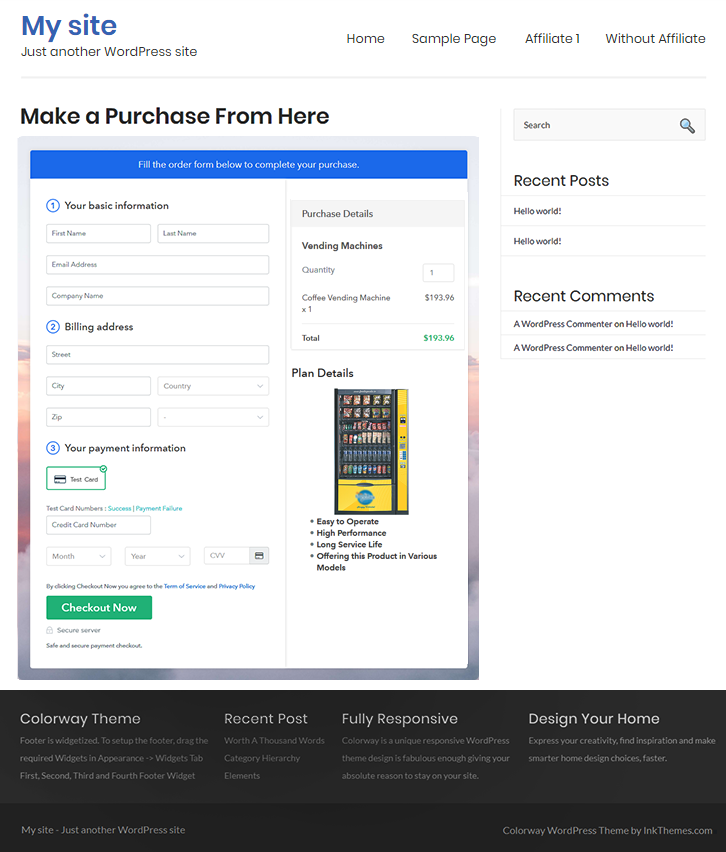
(c) Check out the Final Look of your Checkout Page on WordPress Site

Sell Vending Machines Online W

Step 10: Multiplan Checkout Page

Note: In case you want to sell multiple products via a single checkout page, you can create a multi-plan checkout page otherwise skip this step.

(a) Click on Add Mutiplan Checkout

Multiplan Checkout

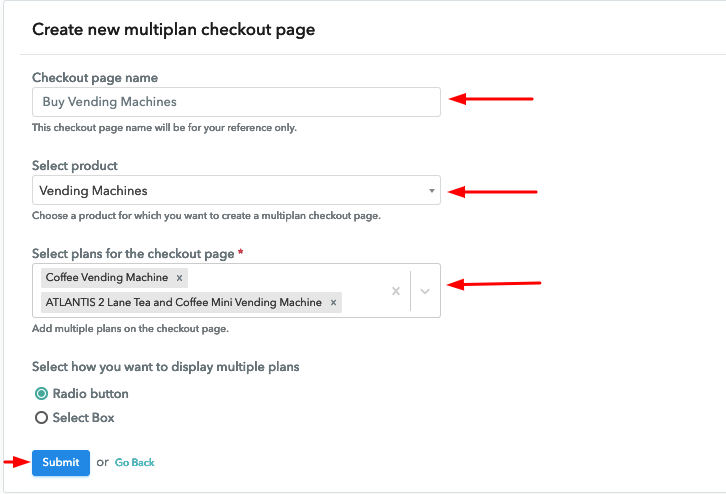
(b) Add Plans to Sell Multiple Vending Machines from Single Checkout Page

Sell Vending Machines Online Multi Details

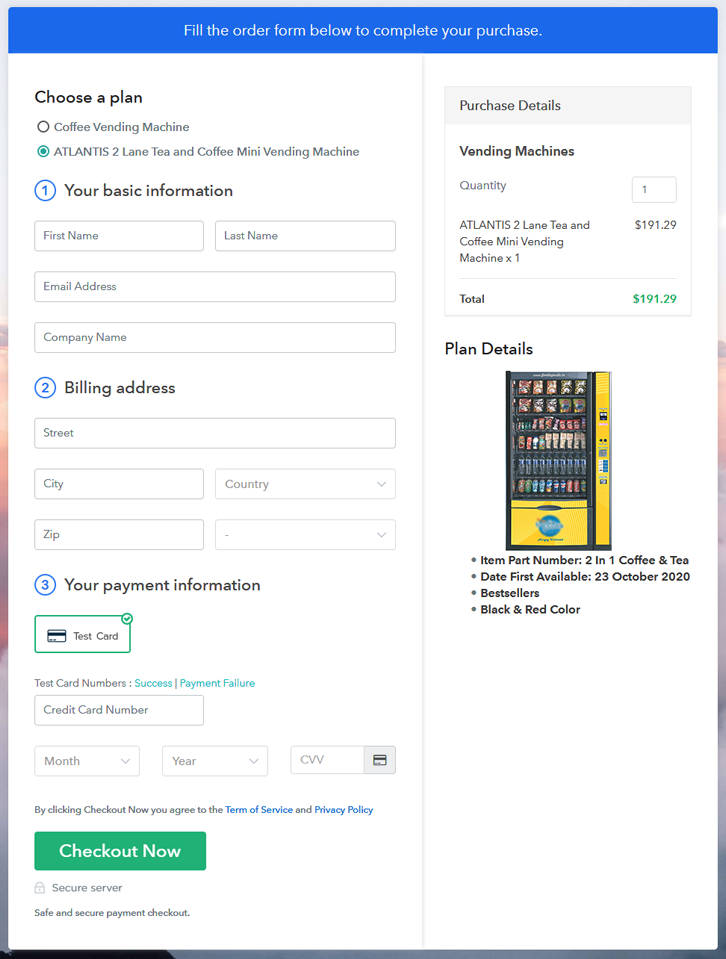
(c) Take a Look at the Checkout Page

Sell Vending Machines Online M

Preview Checkout Page

Wrapping Up

To conclude, now you can start selling vending machines online for free all because of Pabbly Subscription Billing. This software makes it a lot easier to sell vending machines online through its checkout pages.

Now you can sell unlimited vending machines, create discount coupons, share invoices, and whatnot. We are sure this service is going to be very fruitful for your online business. Therefore, signup and start selling vending machines online now.

For further queries or suggestions, please write to us.

You May Also Like To Read –

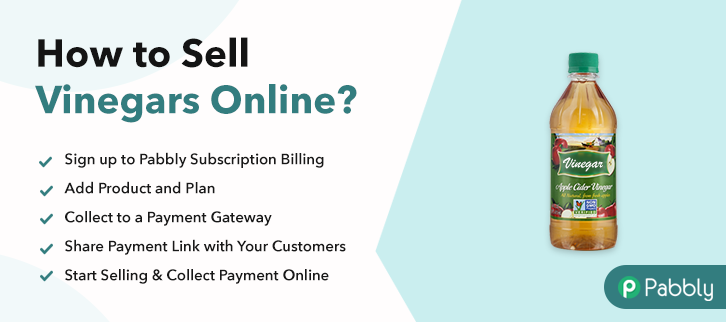
How to Sell Vinegars Online | Step by Step (Free Method)

Ideal For: All the vinegar manufactures, vinegar sellers, vinegar dealers, vinegar suppliers, vinegar shop owners and other merchants can use this method to sell vinegars online.

How to Sell Vinegars Online

Why Choose this Method to Sell Vinegars Online?

Unlike any other solution, this method allows you to:

  • List and sell your vinegars for FREE. Absolutely no payment required.
  • No need to pay commission on any of your sales.
  • Multiple payment options like PayPal, Credit Card, etc to collect payment from a single place.
  • Sell one time or recurring subscriptions of your vinegars.
  • Collect payments & sell products in any currency as per your requirement.
  • Give discounts on your products by offering special coupon codes.
  • Add sales commission agents to help you in selling vinegars online.

Get Pabbly Subscription Billing for Free

Vinegar is widely used in the home, restaurants, etc for cooking delicious food items. And that is the reason why vinegars never go out of business. Also, providing vinegar directly to the buyer’s home in few clicks can be a great initiative for your business. Henceforth, you must be looking for ways that how you can sell vinegars online.

Consequently, selling goods online has become a very important task for big & small businesses. Hence, we would like to recommend Pabbly Subscription Billing which is a great software to take your vinegar business online.

This tool lets you create astonishing checkout pages for selling vinegars online which can be shared on social media accounts, websites, etc. So, here let me give you some of the reasons why it is the best tool for selling vinegars online.

  • List various vinegars in a single checkout page
  • Add tax and delivery charges as per customer’s location
  • Offer discount and coupon codes to consumers
  • Collect money in both online and offline mode

Now, let’s move on to the 10 easy steps for creating checkout pages to sell vinegars online.

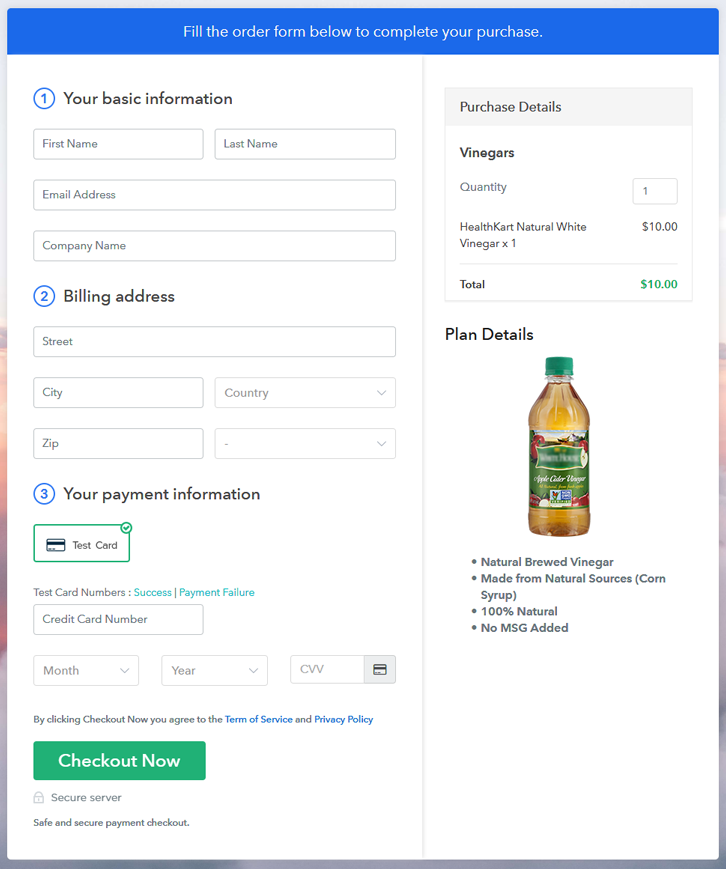
Final View of Checkout Page for your Vinegars Selling Business

Final View of Checkout Page for your Vinegars Selling Business

Preview Checkout Page

Step 1: Log in to Pabbly Subscription Billing

Signup

First, go to Pabbly Subscription Billing and after you open their website just press on “Sign up Free“. Now, here you have two options that are, either you can sign in using your Gmail account or else you can fill in the required fields like name, email, etc, and tap on the “Sign Up” button.

Sign Up For Free!

Step 2: Select Subscription Billing

Access Subscription Billing

Step 3: Account Setup

Setup Account

A dialog box will pop up asking you to fill out the company details like name, currency, phone number, etc, Once you complete filling up the details just press the blue “Continue” button in order to complete the entire process.

Step 4: Connect Payment Gateways & Start Vinegars Selling Business Online

Connect Payment Gateway

Now, in order to ensure the payment process, you need to test the whole payment experience with the help of a dummy payment gateway in Pabbly Subscription Billing.

Moreover, you can also integrate with a ton of payment gateways such as Razorpay, PayPal, Authorize.net, etc. Just go through the articles that are mentioned below in order to integrate with your preferred payment gateway like PayPal, Stripe, etc. For instance, here I am going to enable the test payment option to continue the process.

Step 5: Add Product for your Vinegars

Add Product

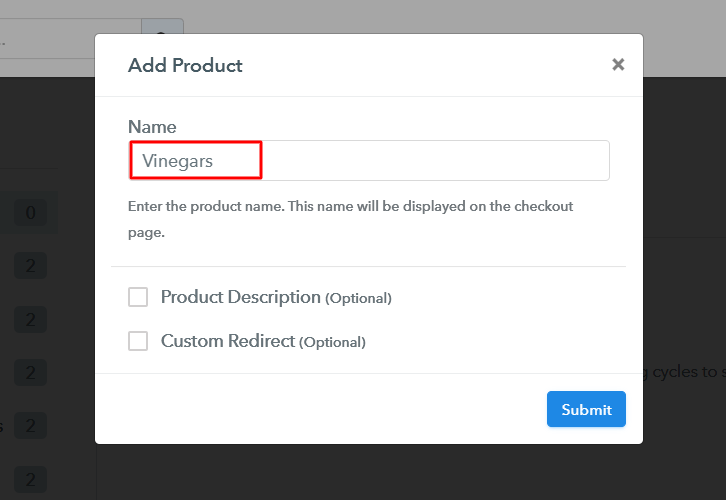
Plus, add the name, which in our case is “Vinegars”. Here you can specify the type and write a short description of the vinegars too.

Add Product to Start Selling Vinegars Online

Moreover, just fill out all those details and your product is created.

Note: Here you can add all the products related to the similar category by creating plans for each of them.

Step 6: Add Plans 

Let’s reveal plans for different kinds of vinegars available in your store.

(a) Select Add New Plan

Add Plan

(b) Specify the Plan & Pricing Details

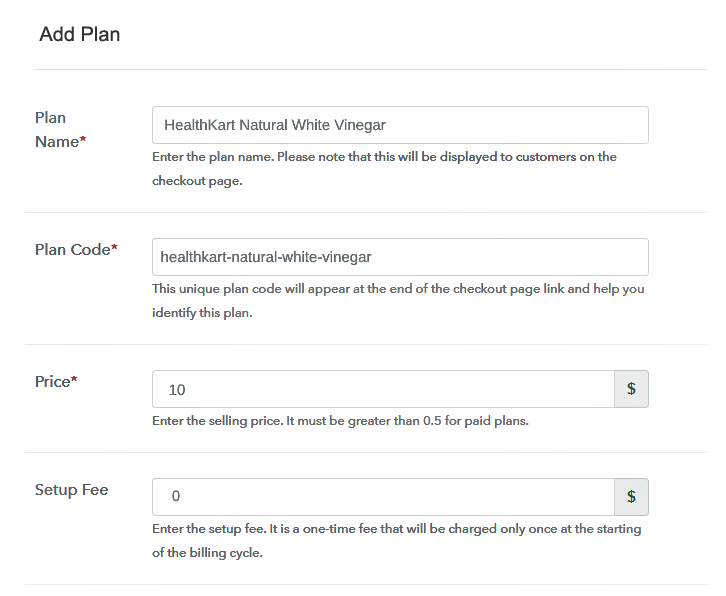
Specify the Plan and Pricing to Sell Vinegars Online

The subsequent thing to do is fill all the details of the vinegars like plan name, code, price, set-up fee, and much more to continue.

(c) Add Image & Description of Vinegars

Add Image & Description of Vinegars

Subsequently, paste the image of the vinegars you wish to sell online.

Further, provide some product information of the vinegars in bullet points like lens specification, focal length, etc.

Once you fillup the information, just tap on the “Submit” button.

Step 7: Share your Checkout Page

Share Checkout Page on Social Media

  • In order to increase sales of your products i.e, vinegars, you can share the checkout page on Twitter & Facebook by just pressing the respective buttons.
  • Moreover, you can also emails and SMS the checkout page link to your customers.
  • Further, add the provided plan link in the buttons or any anchor text on your website in order to redirect users to the checkout page.

Step 8: Preview Checkout Page

Follow up the recommended steps to preview the checkout page:

(a) Click on the View Button

View Checkout Plan

(b) Take a Look at the Checkout Page

Final View of Checkout Page for your Vinegars Selling Business

Step 9: Embed Checkout Page in Site & Sell Vinegars Online

Embed Checkout Page on Website

Just copy the link and add the checkout page to sell vinegars online at any proper place on your WordPress site.

(a) Edit the Page & Paste the Copied Link

Paste Link in Text Editor

Further, paste the plan link of vinegars on a text editor of the WordPress dashboard.

(b) Save & Publish the Checkout Page

Save_and_Publish

Next, click the “Publish” button, after making changes.

(c) Check out the Final Look of your Checkout Page on WordPress Site

Final Look of your Checkout Page on WordPress Site to Sell Vinegars Online

Step 10: Multiplan Checkout Page

Note: In case you want to sell multiple products via a single checkout page, you can create a multi-plan checkout page otherwise skip this step.

(a) Click on Add Mutiplan Checkout

Multiplan Checkout

(b) Add Plans to Sell Multiple Vinegars from Single Checkout Page

Add Plans to Sell Multiple Vinegars from Single Checkout Page

(c) Take a Look at the Checkout Page

Multiplan Checkout Page to Sell How to Sell Vinegars Online

Preview Checkout Page

Wrapping Up

Okay! Vinegar is the most important ingredient used in most of the recipes. That’s why you should start considering taking your vinegar business online. Besides, any business is easy with the help of Pabbly Subscription Billing. Just follow all the 10 easy steps mentioned above and voila! Your business is set in no time.

You May Also Like To Read –

How to Sell Vacuum Cleaners Online | Step by Step (Free Method)

How to Sell Vacuum Cleaners Online

Ideal For: All the vacuum cleaner manufactures, vacuum cleaner sellers, vacuum cleaner dealers, vacuum cleaner suppliers, vacuum cleaner shop owners and other merchants can use this method to sell vacuum cleaners online.

How to Sell Vacuum Cleaners Online

Why Choose this Method to Sell Vacuum Cleaners Online?

Unlike any other solution, this method allows you to:

  • List and sell your vacuum cleaners for FREE. Absolutely no payment required.
  • No need to pay commission on any of your sales.
  • Multiple payment options like PayPal, Credit Card, etc to collect payment from a single place.
  • Sell one time or recurring subscriptions of your vacuum cleaners.
  • Collect payments & sell products in any currency as per your requirement.
  • Give discounts on your products by offering special coupon codes.
  • Add sales commission agents to help you in selling vacuum cleaners online.

Get Pabbly Subscription Billing for Free

Nowadays, marketing has become such an easy task due to selling things online. All you need to do is list up your things and you are good to go. Hence, you must be looking for ways that how you can sell vacuum cleaners online.

Subsequently, selling goods online has become a very important task for small & large businesses. Therefore, we would like to recommend Pabbly Subscription Billing which is a great software to take your vacuum cleaner business online.

This tool lets you create astonishing checkout pages for selling vacuum cleaners online which can be shared on social media accounts, websites, etc. So, now let me give you some of the reasons why it is the best tool for selling vacuum cleaners online.

  • List various vacuum cleaners in a single checkout page
  • Add tax and delivery charges as per customer’s location
  • Offer discount and coupon codes to consumers
  • Collect money in both online and offline mode

Now, let’s get started by creating our checkout page using Pabbly Subscription Billing to sell vacuum cleaners online.

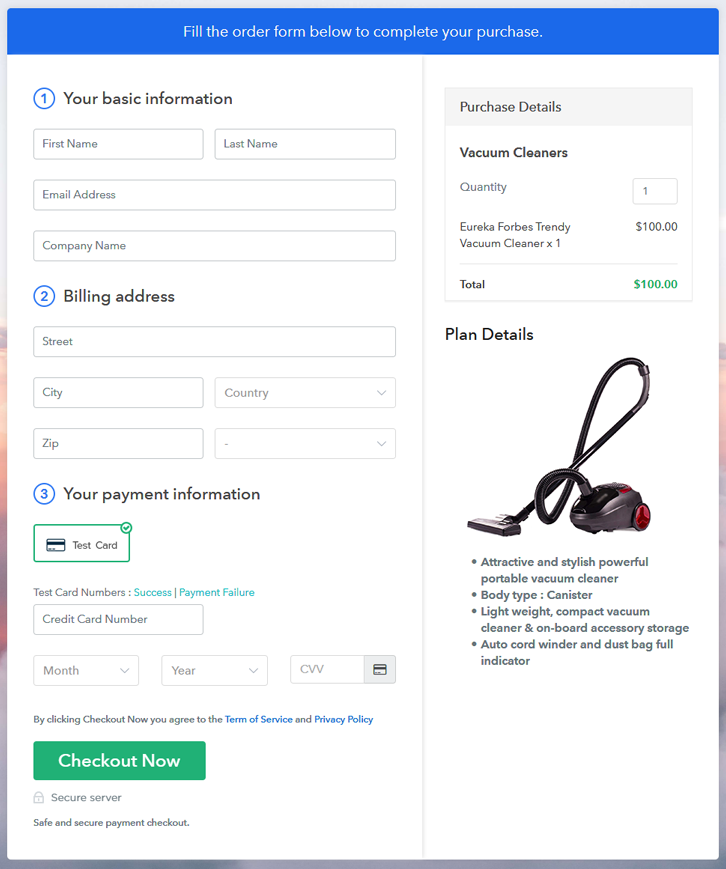
Final View of Checkout Page for your Vacuum Cleaners Selling Business

Final View of Checkout Page for your Vacuum Cleaners Selling Business

Preview Checkout Page

Step 1: Log in to Pabbly Subscription Billing

Signup

First, go to Pabbly Subscription Billing and after you open their website just press on “Sign up Free“. Now, here you have two options that are, either you can sign in using your Gmail account or else you can fill in the required fields like name, email, etc, and tap on the “Sign Up” button.

Sign Up For Free!

Step 2: Select Subscription Billing

Access Subscription Billing

Step 3: Account Setup

Setup Account

A dialog box will pop up asking you to fill out the company details like name, currency, phone number, etc, Once you complete filling up the details just press the blue “Continue” button in order to complete the entire process.

Step 4: Connect Payment Gateways & Start Vacuum Cleaners Selling Business Online

Connect Payment Gateway

Now, in order to ensure the payment process, you need to test the whole payment experience with the help of a dummy payment gateway in Pabbly Subscription Billing.

Moreover, you can also integrate with a ton of payment gateways such as Razorpay, PayPal, Authorize.net, etc. Just go through the articles that are mentioned below in order to integrate with your preferred payment gateway like PayPal, Stripe, etc. For instance, here I am going to enable the test payment option to continue the process.

Step 5: Add Product for your Vacuum Cleaners

Add Product

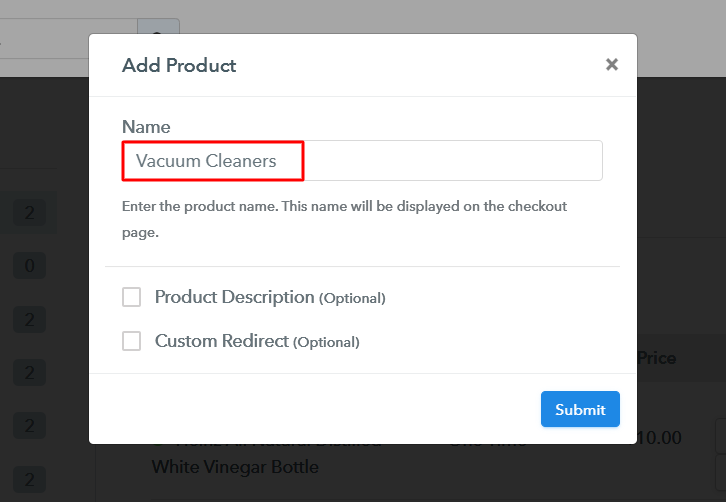
Plus, add the name, which in our case is “Vacuum Cleaners”. Here you can specify the type and write a short description of the vacuum cleaners too.

Add Product to Start Selling Vacuum Cleaners Online

Moreover, just fill out all those details and your product is created.

Note: Here you can add all the products related to the similar category by creating plans for each of them.

Step 6: Add Plans 

Let’s reveal plans for different kinds of vacuum cleaners available in your store.

(a) Select Add New Plan

Add Plan

(b) Specify the Plan & Pricing Details

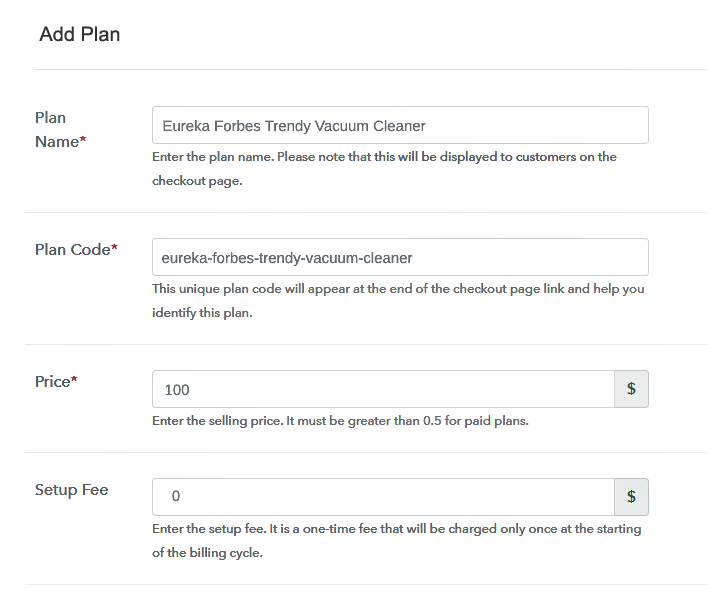
Specify the Plan and Pricing to Sell Vacuum Cleaners Online

The subsequent thing to do is fill all the details of the vacuum cleaners like plan name, code, price, set-up fee, and much more to continue.

(c) Add Image & Description of Vacuum Cleaners

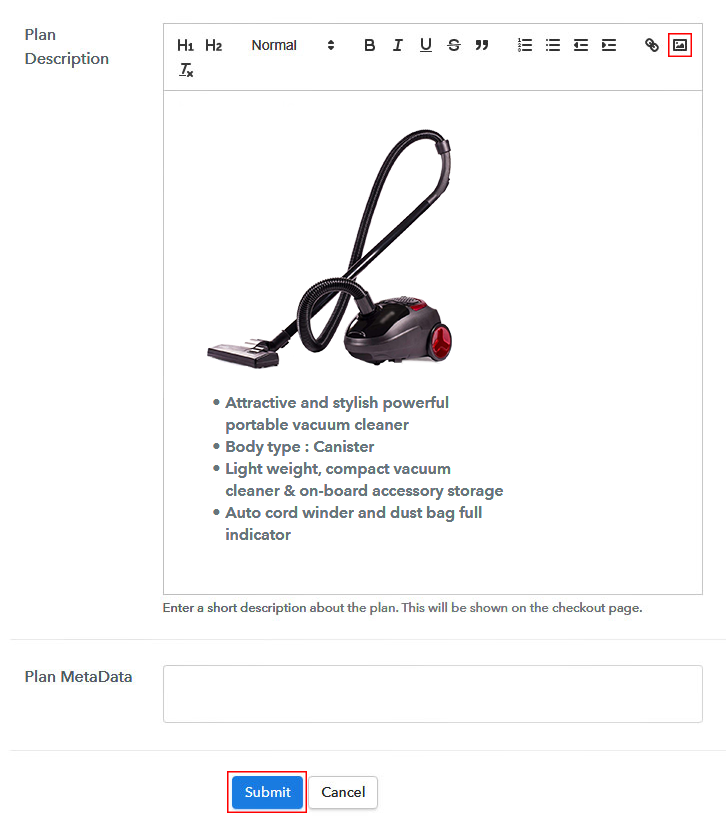
Add Image & Description of Vacuum Cleaners

Subsequently, paste the image of the vacuum cleaners you wish to sell online.

Further, provide some product information of the vacuum cleaners in bullet points like lens specification, focal length, etc.

Once you fillup the information, just tap on the “Submit” button.

Step 7: Share your Checkout Page

Share Checkout Page on Social Media

  • In order to increase sales of your products i.e, vacuum cleaner, you can share the checkout page on Twitter & Facebook by just pressing the respective buttons.
  • Moreover, you can also emails and SMS the checkout page link to your customers.
  • Further, add the provided plan link in the buttons or any anchor text on your website in order to redirect users to the checkout page.

Step 8: Preview Checkout Page

Follow up the recommended steps to preview the checkout page:

(a) Click on the View Button

View Checkout Plan

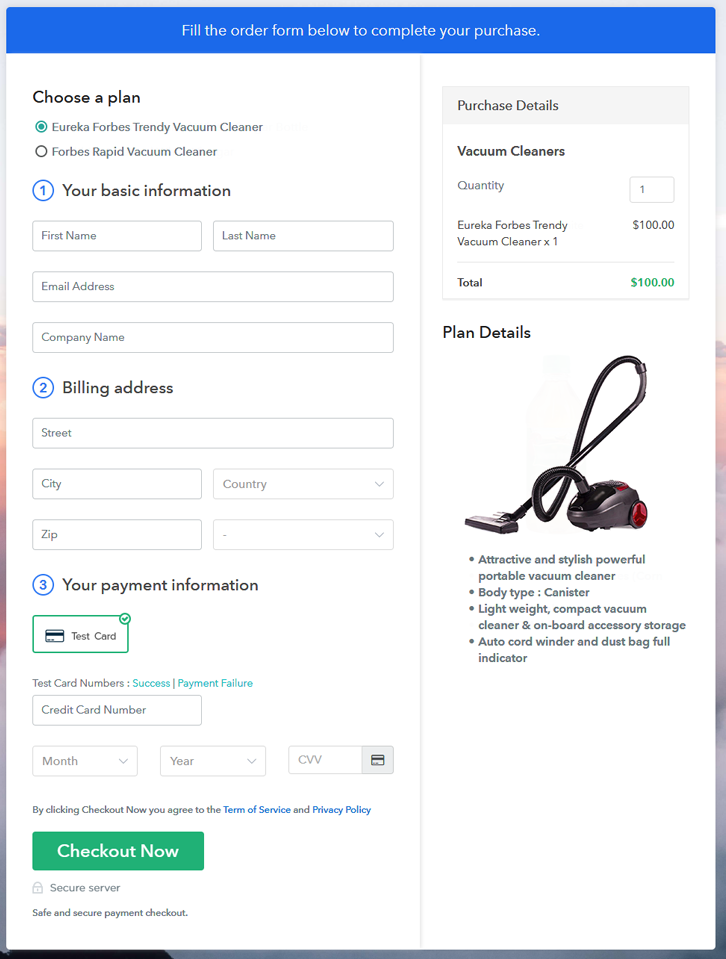
(b) Take a Look at the Checkout Page

Final View of Checkout Page for your Vacuum Cleaners Selling Business

Step 9: Embed Checkout Page in Site & Sell Vacuum Cleaners Online

Embed Checkout Page on Website

Just copy the link and add the checkout page to sell vacuum cleaners online at any proper place on your WordPress site.

(a) Edit the Page & Paste the Copied Link

Paste Link in Text Editor

Further, paste the plan link of vacuum cleaners on a text editor of the WordPress dashboard.

(b) Save & Publish the Checkout Page

Save_and_Publish

Next, click the “Publish” button, after making changes.

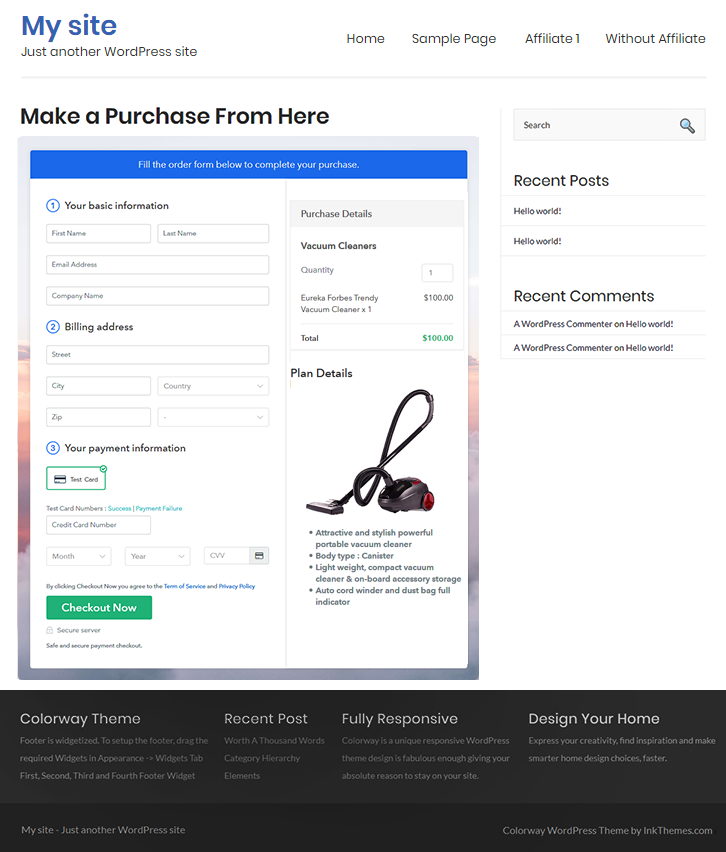
(c) Check out the Final Look of your Checkout Page on WordPress Site

Final Look of your Checkout Page on WordPress Site to Sell Vacuum Cleaners Online

Step 10: Multiplan Checkout Page

Note: In case you want to sell multiple products via a single checkout page, you can create a multi-plan checkout page otherwise skip this step.

(a) Click on Add Mutiplan Checkout

Multiplan Checkout

(b) Add Plans to Sell Multiple Vacuum Cleaners from Single Checkout Page

Add Plans to Sell Multiple Vacuum Cleaners from Single Checkout Page

(c) Take a Look at the Checkout Page

Multiplan Checkout Page to Sell How to Sell Vacuum Cleaners Online

Preview Checkout Page

Wrapping Up

There you go! See, how easy it is to start vacuum cleaners business online with the help of Pabbly Subscription Billing software. Simply go through all the steps that are mentioned above and set up your vacuum cleaner business effortlessly. Don’t wait anymore, try this software out and let us know about your experience in the comment section below.

You May Also Like To Read –

How to Sell Tiny Houses Online | Step by Step (Free Method)

How to Sell Tiny Houses Online

Ideal For: All the tiny house builders, tiny house dealers, estate agents, realtors, real estate brokers, tiny house designers, and other sellers can use this method to take their tiny houses selling business online.

How to Sell Tiny Houses Online

Why Choose this Method to Sell Tiny Houses Online?

Unlike any other solution, this method allows you to:

  • List and sell your tiny houses for FREE. Absolutely no payment required.
  • No need to pay commission on any of your sales.
  • Multiple payment options like PayPal, Credit Card, etc to collect payment from a single place.
  • Sell one time or recurring subscriptions of your tiny houses.
  • Collect payments & sell products in any currency as per your requirement.
  • Give discounts on your products by offering special coupon codes.
  • Add sales commission agents to help you in selling tiny houses online.

Get Pabbly Subscription Billing for Free

Today, tiny houses are more famous than ever. Minimalism is an increasing trend, everyone has started decluttering and narrowing-down like insane. Hence, if you sell tiny houses from a small office then its time to make your business global to increase your profit margin.

You can easily expand your customer reach by going online and online business is considered cheap compared to offline business. You can easily set up your online store through checkout pages that you can create on Pabbly Subscription Billing. Just create checkout pages for your tiny houses and share their links on social media and other platforms, and start collecting payments easily.

Apart from checkout pages, Pabbly Subscription Billing also comes with many useful features:

  • Create countless products and plans for your tiny houses
  • Automatically create and send invoices of tiny houses to your customers
  • Collect one-time or recurring payments via offline or online modes
  • Create discount coupons for your buyers

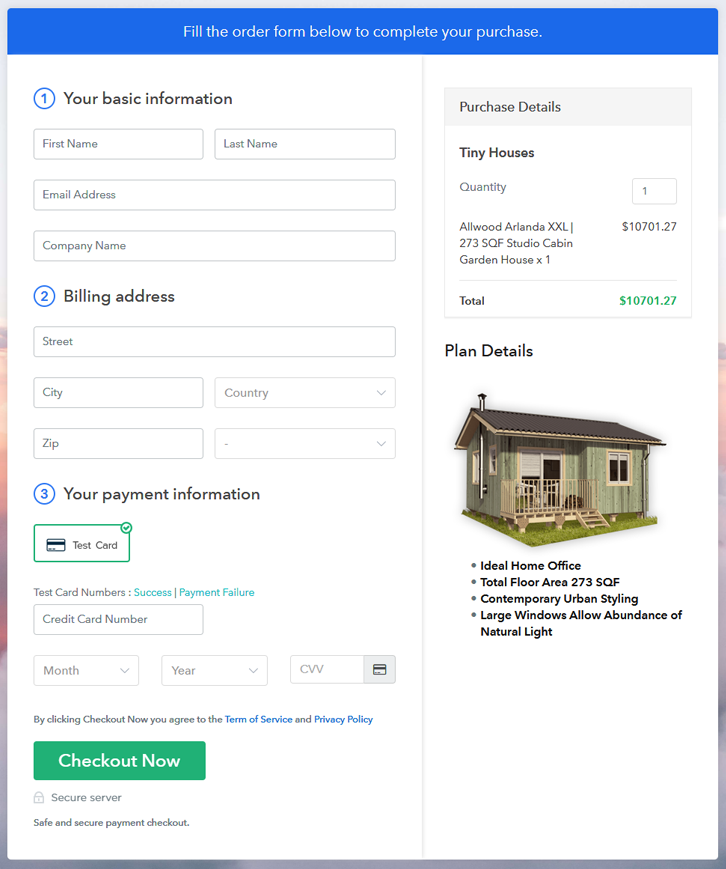
Final View of Checkout Page for your Tiny Houses Selling Business

Preview Checkout Page

Preview Checkout Page

Step 1: Log in to Pabbly Subscription Billing

Signup

You can start by visiting  Pabbly Subscription Billing website and then click on the “Sign Up Free” button. You will reach the signup page, where you can create your account in a few seconds with your Gmail account or manually enter your details.

Sign Up For Free!

Step 2: Select Subscription Billing

Access Subscription Billing

Step 3: Account Setup

Setup Account

Once the signup process is completed, now fill up your company details i.e. company name, currency, and contact number in the appeared dialogue box.

Step 4: Connect Payment Gateways & Start Tiny Houses Selling Business Online

Connect Payment Gateway

After setting up your account, the next step is to add payment gateways for payment collection. We are showing you the payment collection process by enabling the ‘Test Payment’ mode. Later, you can connect other payment gateways of your preference such as PayPal, Stripe, etc. The complete integration guides for payment gateways are provided below-

Step 5: Add Product for your Tiny Houses

Add Product

After enabling the payment mode, you have to add your first product. You can add tiny houses of different categories for example wooden houses, tiny house sheds, etc.

Sell Tiny Houses Online Product Name

Add all other types of tiny houses in the same product by creating different plans.

Note: Here you can add all the products related to the similar category by creating plans for each of them.

Step 6: Add Plans 

Let’s rollout plans for different kinds of tiny houses that you want to sell.

(a) Select Add New Plan

Add Plan

(b) Specify the Plan & Pricing Details

Sell Tiny Houses Online Details

On clicking add new plan, you will be redirected to the plan page, here you will have to fill the plan details such as plan name, code, billing cycle, price, etc.

(c) Add Image & Description of Tiny Houses

Sell Tiny Houses Online Image

Also, you can write a description of tiny houses that you want to sell along with the product links, images, etc, and then click on the “Submit” button to add your plan.

You can create more plans for all the other tiny houses in a similar manner.

Step 7: Share your Checkout Page

Share Checkout Page on Social Media

Reach to a higher number of customers by following the below steps:

  • Share your checkout page on social media like Facebook and Twitter.
  • Copy the mentioned link and send it to your customers through SMS or emails directly.
  • Embed your plan link to your website so that your customers can be landed on the checkout page directly.

Step 8: Preview Checkout Page

Follow up the recommended steps to preview the checkout page:

(a) Click on the View Button

View Checkout Plan

(b) Take a Look at the Checkout Page

Preview Checkout Page

Step 9: Embed Checkout Page in Site & Sell Tiny Houses Online

Embed Checkout Page on Website

Just copy the provided plan embedding link and embed the checkout page to your WordPress site to sell tiny houses online.

(a) Edit the Page & Paste the Copied Link

Embed Checkout Page on Website

Further, paste the plan link on a text editor of the WordPress dashboard.

(b) Save & Publish the Checkout Page

Save_and_Publish

Next, click the “Publish” button, after making changes.

(c) Check out the Final Look of your Checkout Page on WordPress Site

Sell Tiny Houses Online W

Step 10: Multiplan Checkout Page

Note: In case you want to sell multiple products via a single checkout page, you can create a multi-plan checkout page otherwise skip this step.

(a) Click on Add Mutiplan Checkout

Multiplan Checkout

(b) Add Plans to Sell Multiple Tiny Houses from Single Checkout Page

Sell Tiny Houses Online Multi Details

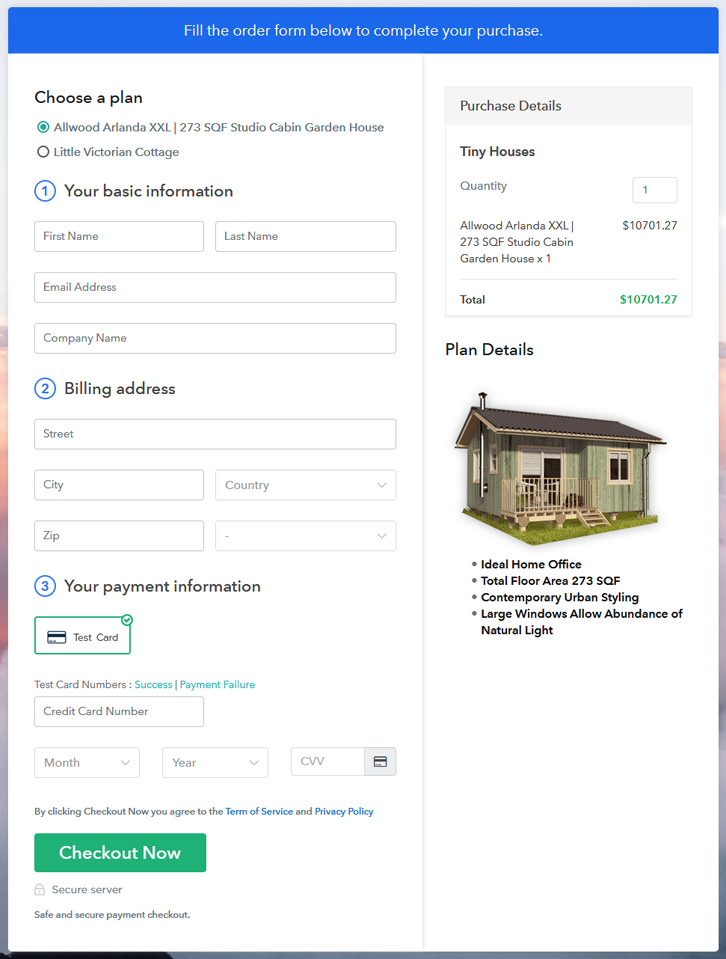
(c) Take a Look at the Checkout Page

Sell Tiny Houses Online M

Preview Checkout Page

Wrapping Up

So, this was the easiest way that you can choose to start your tiny houses selling business online and the awesome part is its completely free. You can collect payments easily, share invoices, sell unlimited scarves and so much more with Pablly Subscription Billing’s checkout pages. Therefore, start your tiny houses selling business online today without spending anything.
Please leave your doubts in the comments section below.

You May Also Like To Read –

How to Sell Toy Boxes Online | Step by Step (Free Method)

How to Sell Toy Boxes Online

Ideal For: All the toy box manufacturers, toy box sellers, toy box dealers, toy box suppliers, toy shop owners and other merchants can use this method to sell toy boxes online.

How to Sell Toy Boxes Online

Why Choose this Method to Sell Toy Boxes Online?

Unlike any other solution, this method allows you to:

  • List and sell your toy boxes for FREE. Absolutely no payment required.
  • No need to pay commission on any of your sales.
  • Multiple payment options like PayPal, Credit Card, etc to collect payment from a single place.
  • Sell one time or recurring subscriptions of your toy boxes.
  • Collect payments & sell products in any currency as per your requirement.
  • Give discounts on your products by offering special coupon codes.
  • Add sales commission agents to help you in selling toy boxes online.

Get Pabbly Subscription Billing for Free

Kids and their billion toys can create a whole new mess for parents to clean. With the invention of toy boxes, parents sighed in relief. This is exactly why toy box purchases never goes downhill. Now, if you’re the one who is managing the traditional toy box store, then it is time to start selling toy boxes online.

Actually, if you start toy boxes business online then you can serve the need of people from different continents. Most importantly, customers won’t require any maps to explore your store, they’ll be just one click away. Also, online stores boost sales and revenues. And, you can manage it all with the help of software named Pabbly Subscription Billing. The software allows you to create amazing checkout for selling toy boxes online. Other than this it is swamped with features like:

  • Infinite Discount & Coupons
  • Revenue Tracking
  • One Time and Recurring Billing

Subsequently, now let me show you 10 easy steps that you need to follow for creating checkout pages for selling toy boxes online.

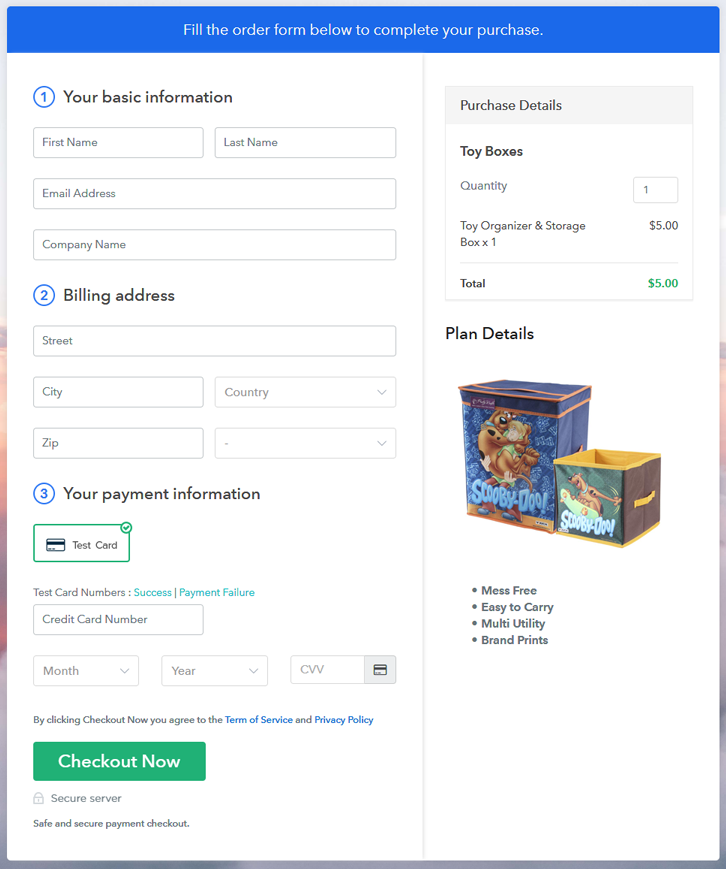
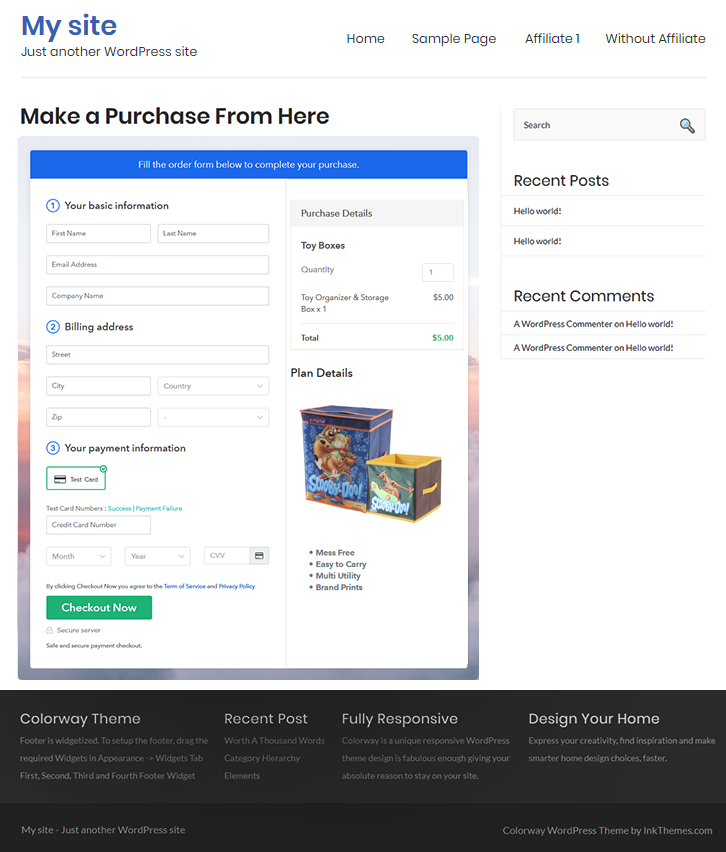
Final View of Checkout Page for your Toy Boxes Selling Business

Checkout Page to Sell Toy Boxes Online

Preview Checkout Page

Step 1: Log in to Pabbly Subscription Billing

Signup

Start the process for creating a checkout page for toy boxes by visiting the Pabbly Subscription Billing in your browser. After that, click on the “Sign up Free“ button. Furthermore, either manually filled out the details or sign in using your Gmail account.

Sign Up For Free!

Step 2: Select Subscription Billing

Access Subscription Billing

Step 3: Account Setup

Setup Account

Besides, after clicking on the “Access Now” button of the software, a page will open with fields like company name, select currency, and phone number. Simply fill out those details to continue creating a checkout page for toy boxes.

Step 4: Connect Payment Gateways & Start Toy Boxes Selling Business Online

Connect Payment Gateway

The consequent step is to earning information about payment procedures using a “Test Payment Gateway”. Here, we will explain the checkout page process for the toy boxes with the help of a test payment gateway. Besides this, the tool offers various payment gateways such as PayPal, Stripe, etc. Moreover, below are the payment integration guides to help you out.

Step 5: Add Product for your Toy Boxes

Add Product

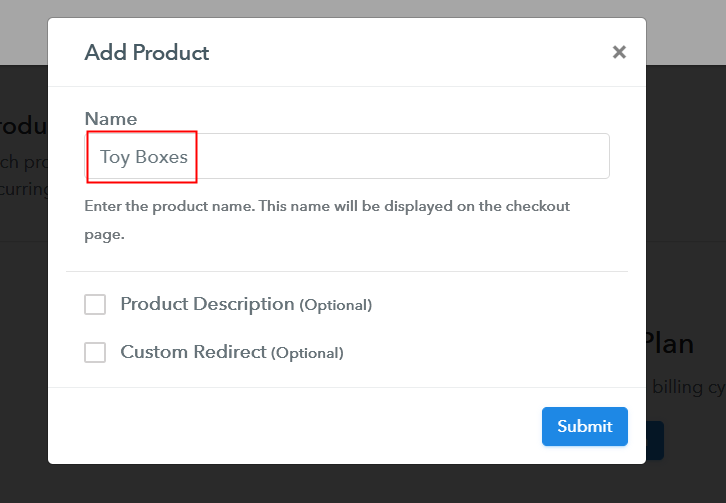
Additionally, add the name, which in our case is “Toy Boxes”. Here you can specify the type like a wooden toy box, plastic toy box, etc. Further, write a short description of the toy boxes to grab the shopper’s attention.

Add Product to Start Selling Toy Boxes Online

Moreover, just fill out all those details, and your product for toy boxes is created.

Note: Here you can add all the products related to the similar category by creating plans for each of them.

Step 6: Add Plans 

Let’s expose plans for different kinds of toy boxes available in your store.

(a) Select Add New Plan

Add Plan

(b) Specify the Plan & Pricing Details

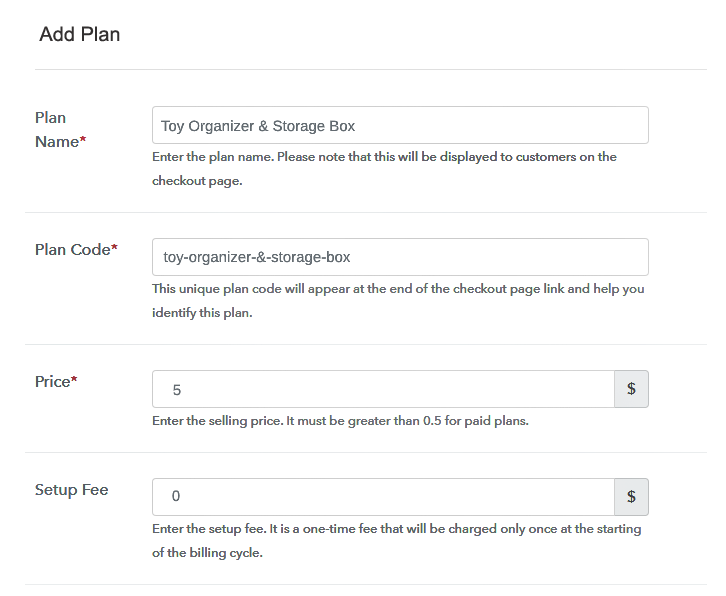
Specify the Plan and Pricing to Sell Toy Boxes Online

The next thing to do is fill all the details of the toy boxes like plan name, code, price, set-up fee, and much more to continue.

(c) Add Image & Description of Toy Boxes

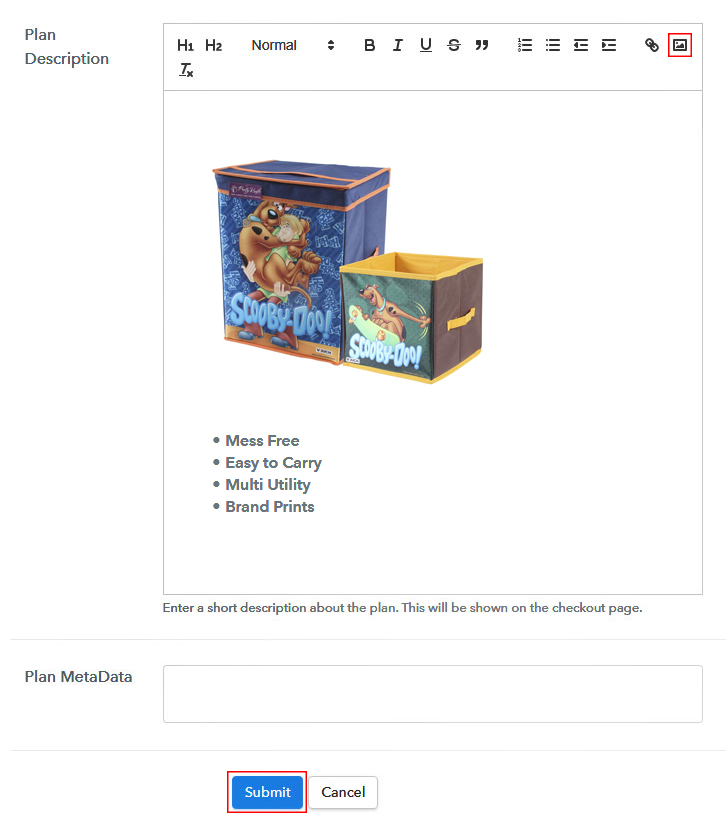
Add Image & Description to Sell Toy Boxes Online

Furthermore, write a brief description of the toy boxes using bullets, images, etc, to bring original buyers to the checkout page.

Next, click on the “Submit” button to add the toy boxes on the checkout page.

Finally, you can add multiple plans and kinds of toy boxes in your product list which you want to sell online.

Step 7: Share your Checkout Page

Share Checkout Page on Social Media

  • Moreover, share the checkout page of the toy boxes on social media accounts like Facebook & Twitter to grab the customer’s attention.
  • Also, you can share the direct link of the toy boxes checkout page with your customers via SMS or email marketing.
  • Additionally, embed the provided plan link of the toy boxes in the buttons or any anchor text on your website.

Step 8: Preview Checkout Page

Further, follow up on the recommended steps to preview the checkout page for toy boxes:

(a) Click on the View Button

View Checkout Plan

(b) Take a Look at the Checkout Page

Checkout Page to Sell Toy Boxes Online

Step 9: Embed Checkout Page in Site & Sell Toy Boxes Online

Embed Checkout Page on Website

Additionally, simply copy the link and add the checkout page to sell toy boxes online at any proper place on your WordPress site.

(a) Edit the Page & Paste the Copied Link

Paste Link in Text Editor

Moreover, paste the plan link of toy boxes on a text editor of the WordPress dashboard.

(b) Save & Publish the Checkout Page

Save_and_Publish

Further, click on the “Publish” button, after making changes.

(c) Check out the Final Look of your Checkout Page on WordPress Site

Final Look of your Checkout Page to Sell Toy Boxes Online

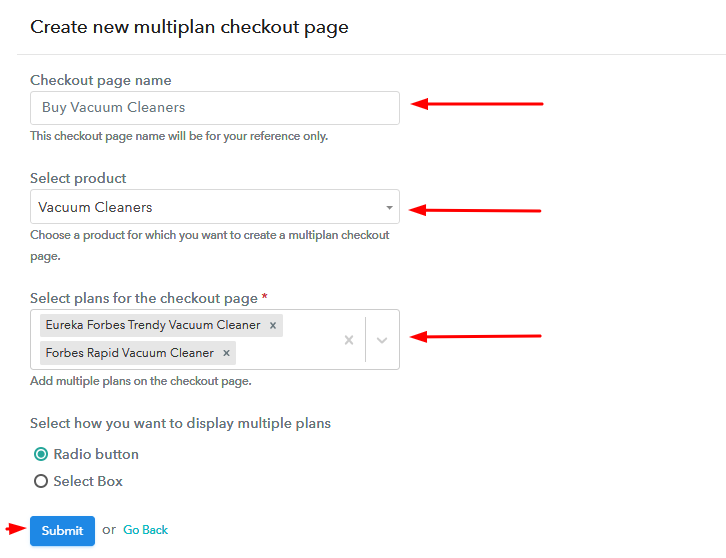
Step 10: Multiplan Checkout Page

Note: In case you want to sell multiple products via a single checkout page, you can create a multi-plan checkout page otherwise skip this step.

(a) Click on Add Mutiplan Checkout

Multiplan Checkout

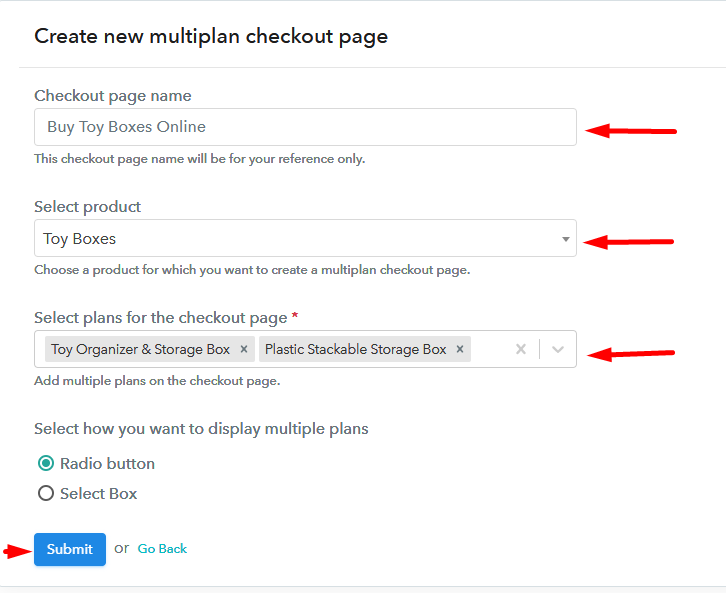
(b) Add Plans to Sell Multiple Toy Boxes from Single Checkout Page

Add Multiple Products to Start Selling Toy Boxes Online

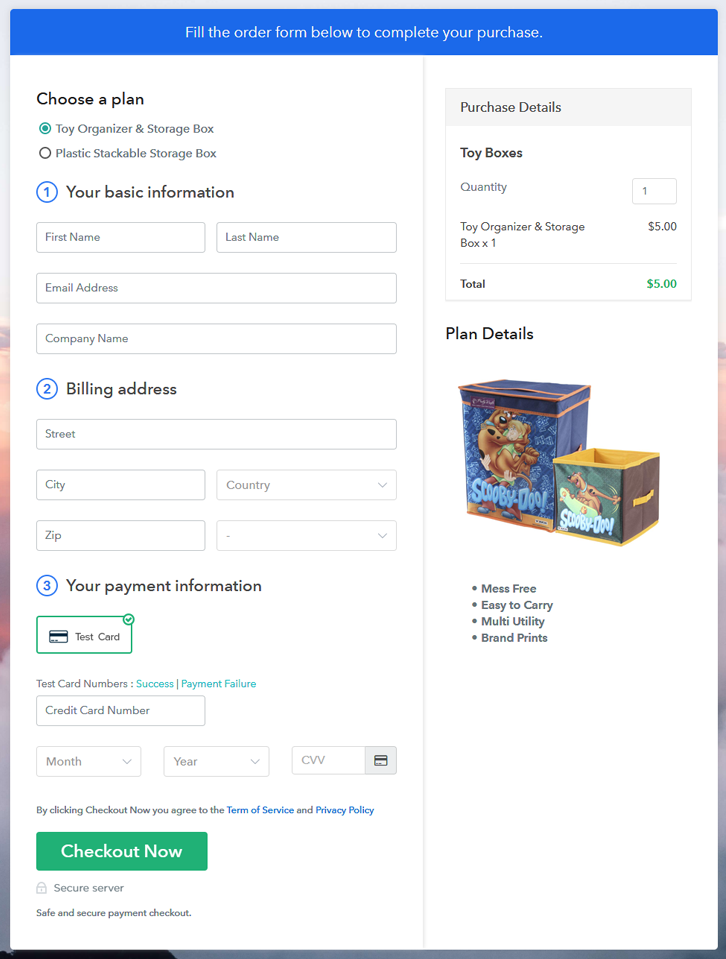
(c) Take a Look at the Checkout Page

Multiplan Checkout Page to Sell Toy Boxes Online

Preview Checkout Page

Wrapping Up

There you have it! This is our conclusion on “how to sell toy boxes online” using Pabbly Subscription Billing software. You can headstart toy boxes business online easily with the help of this tool. Simply follow all the aforementioned steps and you’re good to go.

So, don’t hustle anymore, try this software out and let us what you think about it in the comments section.
You May Also Like To Read –

How to Sell Toiletry Set Online | Step by Step (Free Method)

How to Sell Toiletry Set Online

Ideal For: All the toiletry brands, toiletry companies, toiletry wholesalers, personal care product manufacturers, personal care stores, and other sellers can use this method to take their toiletry set selling business online.

How to Sell Toiletry Set Online

Why Choose this Method to Sell Toiletry Set Online?

Unlike any other solution, this method allows you to:

  • List and sell your toiletry set for FREE. Absolutely no payment required.
  • No need to pay commission on any of your sales.
  • Multiple payment options like PayPal, Credit Card, etc to collect payment from a single place.
  • Sell one time or recurring subscriptions of your toiletry set.
  • Collect payments & sell products in any currency as per your requirement.
  • Give discounts on your products by offering special coupon codes.
  • Add sales commission agents to help you in selling toiletry set online.

Get Pabbly Subscription Billing for Free

Who doesn’t loves to pamper themselves with natural toiletry products? People love to experiment with new shower gels or moisturizers and other toiletries and they would love even more if you could give them the option to shop online. Hence, let’s take your toiletry set selling business online to get more customers on board.

By selling toiletry set online, you get a large customer reach, increased sales, unlimited revenue, and so many other things. Now that you are all excited about taking your business online then let me tell you about an amazing software, Pabbly Subscription Billing. It is free, easy to use and you can create checkout pages on it to boost up your business. You just have to create checkout pages for toiletry sets and share their links on online platforms so that people can buy your products directly via them.

Apart from checkout pages, you can also access its other great features for your online business:

  • Add and sell unlimited toiletry sets online
  • Collect one-time or recurring payments for toiletry set
  • Create discount coupons for the customers
  • 24X7 Support available

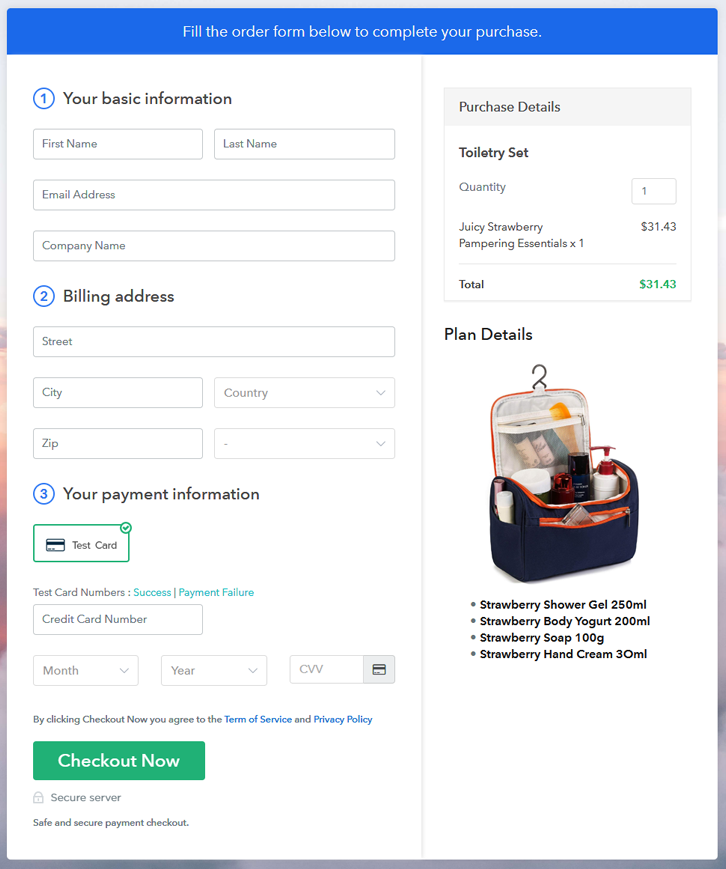
Final View of Checkout Page for your Toiletry Set Selling Business

Preview Checkout Page

Preview Checkout Page

Step 1: Log in to Pabbly Subscription Billing

Signup

Begin with visiting Pabbly Subscription Billing website and then click on the “Signup Free” button. On clicking the button, the signup page will open, here you can create your account in a jiffy via Gmail or you can also enter your details manually.

Sign Up For Free!

Step 2: Select Subscription Billing

Access Subscription Billing

Step 3: Account Setup

Setup Account

After signing up, now you have to fill up your company details like company name, currency, and phone number in the given dialogue box.

Step 4: Connect Payment Gateways & Start Toiletry Set Selling Business Online

Connect Payment Gateway

To make payment collection simpler for the merchants, Pabbly Subscription Billing offers a “Test Payment” mode where you can use and check it to grasp the process. After checking with the dummy mode you can connect with other payment gateways of your preference such as PayPal, Stripe, etc. The complete payment gateways integration guides are given below-

Step 5: Add Product for your Toiletry Set

Add Product

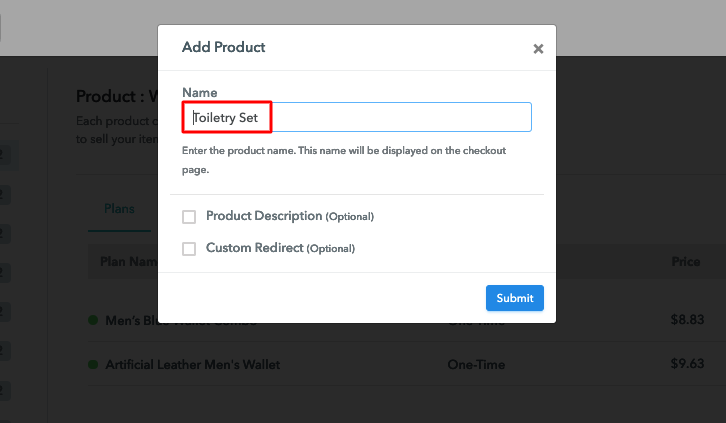
Now, you have to add your first product. By clicking on the “Add New Product” button a dialogue box will appear where you have to name your product. You can add toiletry sets of different types such as shower gel combos, bath salt combos, etc.

Sell Toiletry Set Online Product Name

Add all the other toiletry sets in the same product section by creating different plans for them.

Note: Here you can add all the products related to the similar category by creating plans for each of them.

Step 6: Add Plans 

Let’s create plans for different kinds of toiletry sets available in your store.

(a) Select Add New Plan

Add Plan

(b) Specify the Plan & Pricing Details

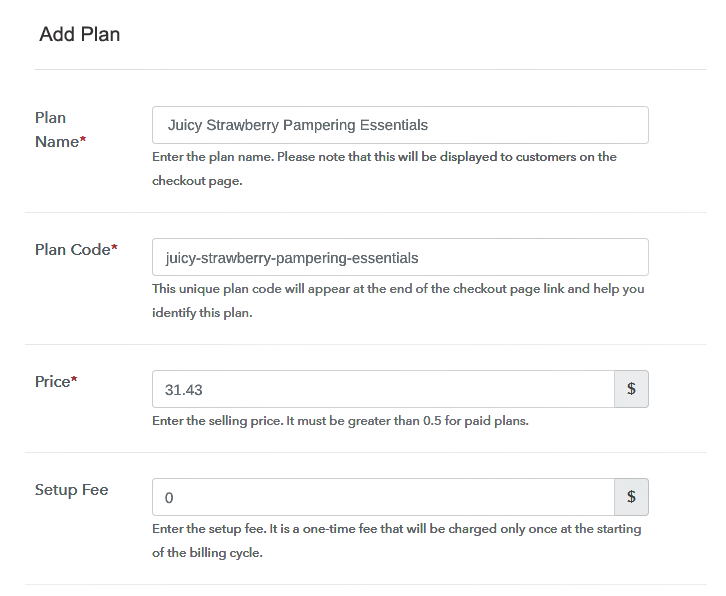
Sell Toiletry Set Online Details

In this step, you will land on the plan page where you have to add details like plan name, plan code, billing cycle, price, etc.

(c) Add Image & Description of Toiletry Set

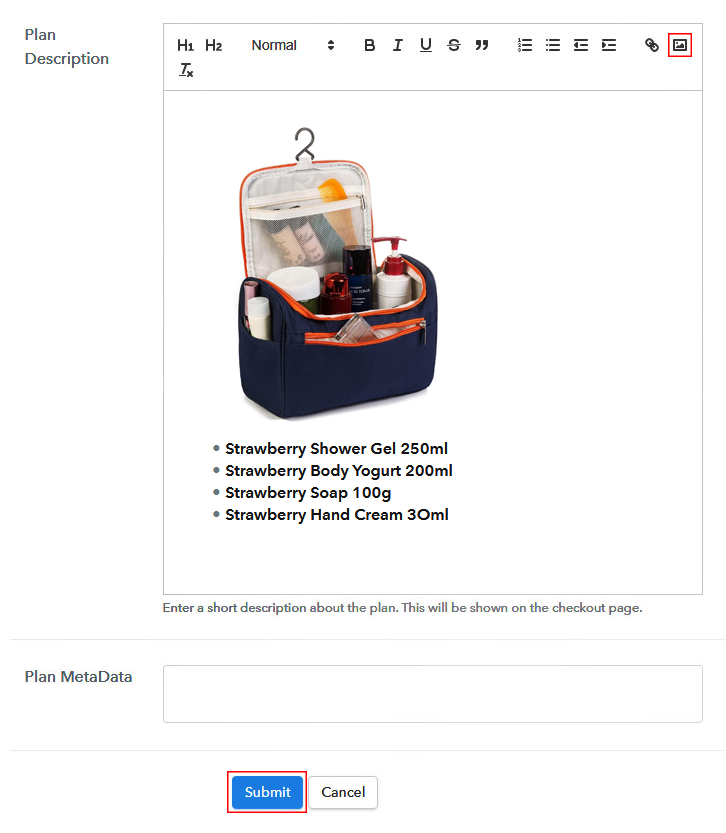
Sell Toiletry Set Online Image

Further, you can add an image and a description of the toiletry set that you want to sell along with the links and other details.

You can create plans for all the other toiletry sets in a similar way.

Step 7: Share your Checkout Page

Share Checkout Page on Social Media

To enhance your sales and for better marketing of your product, you need to follow these given steps:

  • Share your checkout page on social media like Facebook and Twitter.
  • Also, copy the mentioned link and send it to your customers through SMS or emails directly.
  • Furthermore, embed your plan link on your website so that your customers can be landed on the checkout page directly.

Step 8: Preview Checkout Page

Follow up the recommended steps to preview the checkout page:

(a) Click on the View Button

View Checkout Plan

(b) Take a Look at the Checkout Page

Preview Checkout Page

Step 9: Embed Checkout Page in Site & Sell Toiletry Set Online

Embed Checkout Page on Website

Simply copy the link and add the checkout page to sell toiletry set online at any preferable place on your WordPress site.

(a) Edit the Page & Paste the Copied Link

Embed Checkout Page on Website

Further, paste the plan link on a text editor of the WordPress dashboard.

(b) Save & Publish the Checkout Page

Save_and_Publish

Next, click the “Publish” button, after making changes.

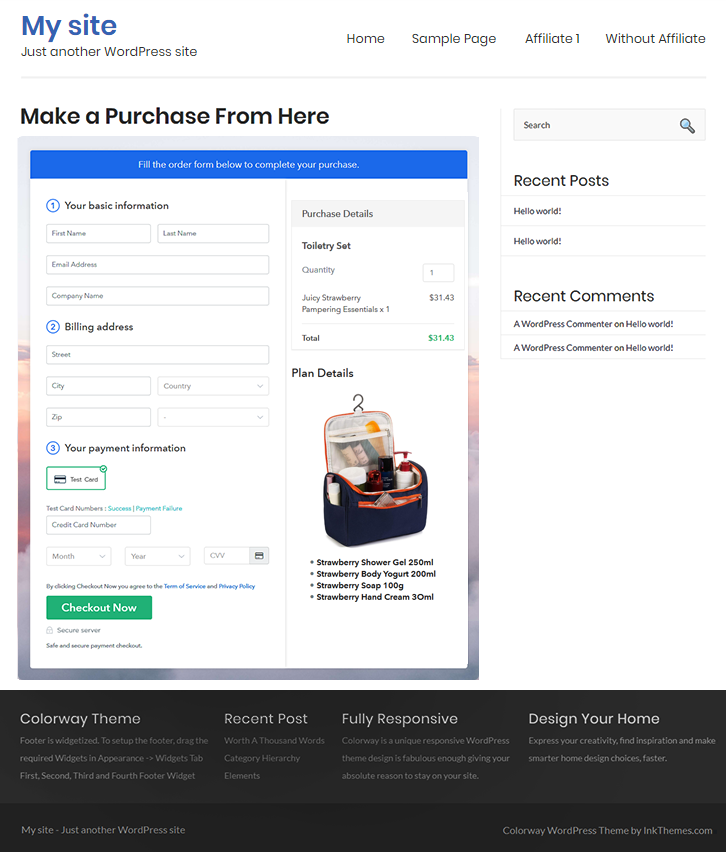
(c) Check out the Final Look of your Checkout Page on WordPress Site

Sell Toiletry Set Online W

Step 10: Multiplan Checkout Page

Note: In case you want to sell multiple products via a single checkout page, you can create a multi-plan checkout page otherwise skip this step.

(a) Click on Add Mutiplan Checkout

Multiplan Checkout

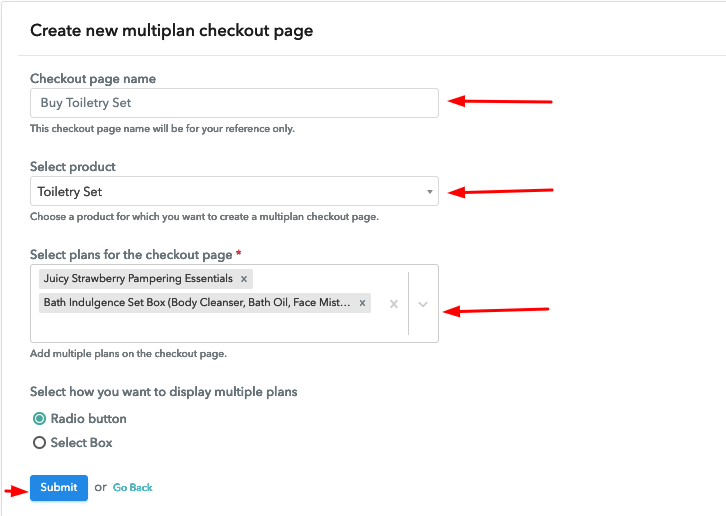
(b) Add Plans to Sell Multiple Toiletry Sets from Single Checkout Page

Sell Toiletry Set Online Multi Details

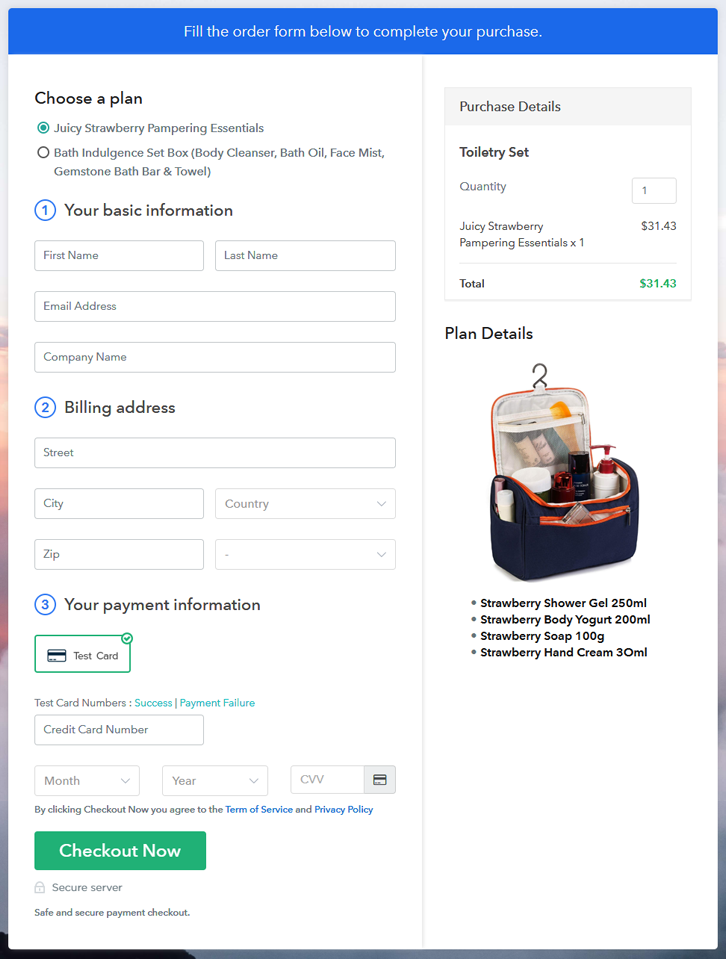
(c) Take a Look at the Checkout Page

Sell Toiletry Set Online M

Preview Checkout Page

Wrapping Up

Congrats! Now you can easily create checkout pages on Pabbly Subscription Billing and start selling toiletry set online. Signup and start your online business without any difficulties and keep adding new milestones in your business journey. For further queries or suggestions please leave your comments below.

You May Also Like To Read –

How to Sell Towels Online | Step by Step (Free Method)

How to Sell Towels Online

Ideal For: All the towel manufacturers, towel sellers, towel dealers, towel suppliers, cloth shop owners and other merchants can use this method to sell towels online.

How to Sell Towels Online

Why Choose this Method to Sell Towels Online?

Unlike any other solution, this method allows you to:

  • List and sell your towels for FREE. Absolutely no payment required.
  • No need to pay commission on any of your sales.
  • Multiple payment options like PayPal, Credit Card, etc to collect payment from a single place.
  • Sell one time or recurring subscriptions of your towels.
  • Collect payments & sell products in any currency as per your requirement.
  • Give discounts on your products by offering special coupon codes.
  • Add sales commission agents to help you in selling towels online.

Get Pabbly Subscription Billing for Free

Hygiene is everybody’s first concern which is a reason why there are massive results for towel search over the internet. So, if you have a traditional towel store, it is good but diving yourself in the online world is not that bad. We know starting a new business is a constant juggle between learning new techniques and handling multiple things along the way. This is a reason why people scared to try something new. But what if we say that without any difficulty, one can start its own towels business online.

You must be wondering how? Actually, we have a software named Pabbly Subscription Billing that can save you from the overwhelming process of starting towels business online. Using the tool, you can stay top of stocks, customer’s needs, and much more. Along with that, it allows you to create an amazing checkout page for selling towels online. Not just this, you can share direct links of checkout with your customers and collect payment through checkout page itself.

Now, let’s get started creating a checkout page for selling towels online with the help of this tool.

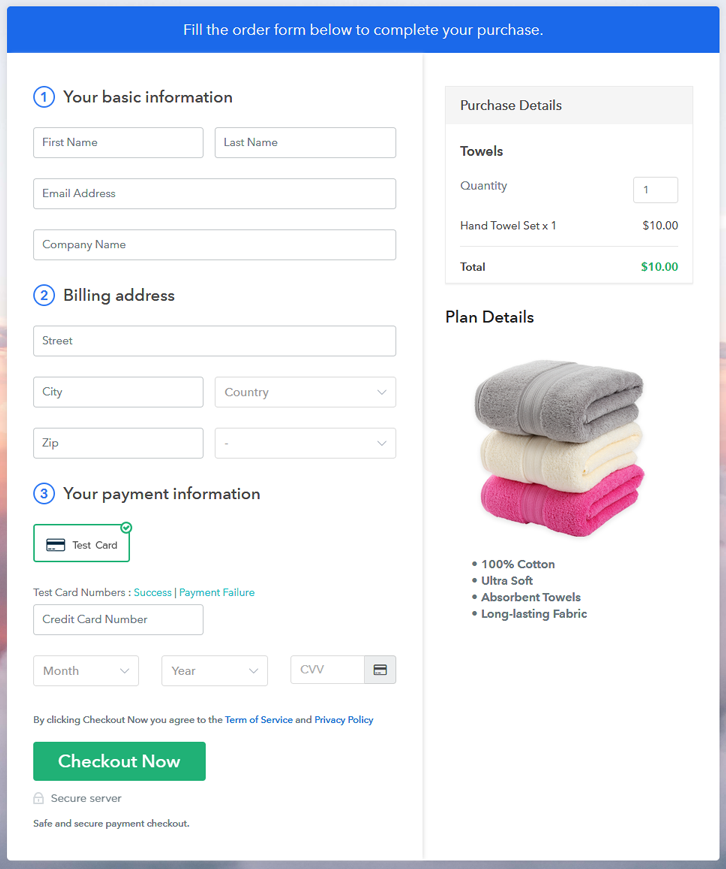
Final View of Checkout Page for your Towels Selling Business

Checkout Page to Sell Towels Online

Preview Checkout Page

Step 1: Log in to Pabbly Subscription Billing

Signup

Start the process for creating a checkout page for towels by visiting the Pabbly Subscription Billing in your browser. After that, click on the “Sign up Free“ button. Furthermore, either manually filled out the details or sign in using your Gmail account.

Sign Up For Free!

Step 2: Select Subscription Billing

Access Subscription Billing

Step 3: Account Setup

Setup Account

Besides, after clicking on the “Access Now” button of the software, a page will open with fields like company name, select currency, and phone number. Simply fill out those details to continue creating a checkout page for towels.

Step 4: Connect Payment Gateways & Start Towels Selling Business Online

Connect Payment Gateway

The consequent step is to earning information about payment procedures using a “Test Payment Gateway”. Here, we will explain the checkout page process for the towels with the help of a test payment gateway. Besides this, the tool offers various payment gateways such as PayPal, Stripe, etc. Moreover, below are the payment integration guides to help you out.

Step 5: Add Product for your Towels

Add Product

Additionally, add the name, which in our case is “Towels”. Here you can specify the type like bath towels, hand towels, etc. Further, write a short description of the towels to grab the shopper’s attention.
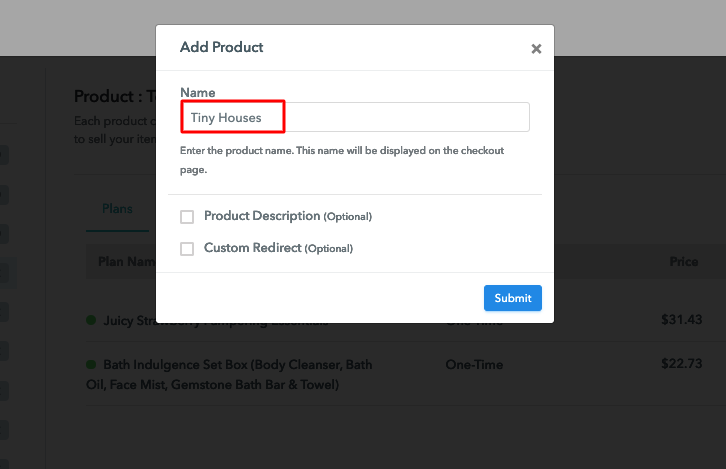
Add Product to Start Selling Towels Online

Moreover, just fill out all those details, and your product for towels is created.

Note: Here you can add all the products related to the similar category by creating plans for each of them.

Step 6: Add Plans 

Let’s expose plans for different kinds of towels available in your store.

(a) Select Add New Plan

Add Plan

(b) Specify the Plan & Pricing Details

Specify the Plan and Pricing to Sell Towels Online

The next thing to do is fill all the details of the towels like plan name, code, price, set-up fee, and much more to continue.

(c) Add Image & Description of Towels

Add Image & Description to Sell Towels Online

Furthermore, write a brief description of the towels using bullets, images, etc, to bring original buyers to the checkout page.

Next, click on the “Submit” button to add the towels on the checkout page.

Finally, you can add multiple plans and kinds of towels in your product list which you want to sell online.

Step 7: Share your Checkout Page

Share Checkout Page on Social Media

  • Moreover, share the checkout page of the towels on social media accounts like Facebook & Twitter to grab the customer’s attention.
  • Also, you can share the direct link of the towel’s checkout page with your customers via SMS or email marketing.
  • Additionally, embed the provided plan link of the towels in the buttons or any anchor text on your website.

Step 8: Preview Checkout Page

Further, follow up on the recommended steps to preview the checkout page for towels:

(a) Click on the View Button

View Checkout Plan

(b) Take a Look at the Checkout Page

Checkout Page to Sell Towels Online

Step 9: Embed Checkout Page in Site & Sell Towels Online

Embed Checkout Page on Website

Additionally, simply copy the link and add the checkout page to sell towels online at any proper place on your WordPress site.

(a) Edit the Page & Paste the Copied Link

Paste Link in Text Editor

Moreover, paste the plan link of towels on a text editor of the WordPress dashboard.

(b) Save & Publish the Checkout Page

Save_and_Publish

Further, click on the “Publish” button, after making changes.

(c) Check out the Final Look of your Checkout Page on WordPress Site

Final Look of your Checkout Page to Sell Towels Online

Step 10: Multiplan Checkout Page

Note: In case you want to sell multiple products via a single checkout page, you can create a multi-plan checkout page otherwise skip this step.

(a) Click on Add Mutiplan Checkout

Multiplan Checkout

(b) Add Plans to Sell Multiple Towels from Single Checkout Page

Add Multiple Products to Start Selling Towels Online

(c) Take a Look at the Checkout Page

Multiplan Checkout Page to Sell Towels Online

Preview Checkout Page

Wrapping Up

Voila! We have professedly met all the vital steps to starting towels selling business online. And don’t just consider us, try this software Pabbly Subscription Billing and raise your sales of towels business. Furthermore, it is amidst with unbelievable features like various billing models, revenue tracking, and much more.

So, what are you waiting for? Go and try this software out

You May Also Like To Read –

How to Sell Toothbrushes Online | Step by Step (Free Method)

How to Sell Toothbrushes Online

Ideal For: All the toothbrush sellers, toothbrush makers, toothbrush manufatures, toothbrush shop owners, toothbrush traders and other merchants can use this method to sell toothbrushes online.

How to Sell Toothbrushes Online

Why Choose this Method to Sell Toothbrushes Online?

Unlike any other solution, this method allows you to:

  • List and sell your toothbrushes for FREE. Absolutely no payment required.
  • No need to pay commission on any of your sales.
  • Multiple payment options like PayPal, Credit Card, etc to collect payment from a single place.
  • Sell one time or recurring subscriptions of your toothbrushes.
  • Collect payments & sell products in any currency as per your requirement.
  • Give discounts on your products by offering special coupon codes.
  • Add sales commission agents to help you in selling toothbrushes online.

Get Pabbly Subscription Billing for Free

Toothbrushes are used by people on a daily basis as it bushing teeth early in the morning is the foremost thing to do. That is the reason why toothbrushes business never goes down. So, if you have a toothbrush store, then it is the right time for you to take it online.

Moreover, in this digital age, everyone is looking out for ways to sell things online. Besides, selling toothbrushes online can turn out to be a great opportunity for people who want to increase their business revenue. So, in order to take your toothbrush business online, you will need a tool that can help you with all the business needs.

Hence, we would like to suggest you Pabbly Subscription Billing as one of the best online software. Using this you can create amazing checkout pages of your toothbrushes and share it on websites, social media platforms, or via emails, SMS. Now, without wasting any of your time, let me take you to the 10 easy steps you need to follow for creating a checkout page to sell toothbrushes online.

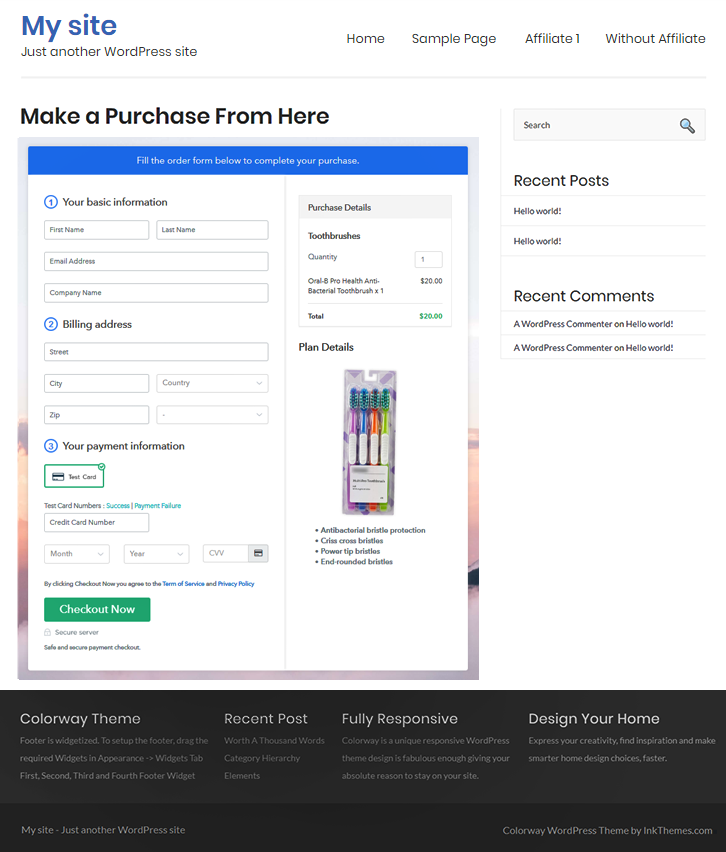
Final View of Checkout Page for Your Toothbrushes Selling Business

Final View of Checkout Page for Your Toothbrushes Selling Business

Preview Checkout Page

Step 1: Log in to Pabbly Subscription Billing

Signup

The process starts by visiting the Pabbly Subscription Billing in your browser. Later, hit the “Sign up Free“ button. Afterward, you can either manually fill out the details or else sign in using your Gmail account.
Sign Up For Free!

Step 2: Select Subscription Billing

Access Subscription Billing

Step 3: Account Setup

Setup Account

Once you hit on the “Access Now” button of the software, a page will open up. That will ask you to fill the fields like company name, select currency, and phone number. Enter all those details in order to continue creating a checkout page for toothbrushes.

Step 4: Connect Payment Gateways & Start Toothbrushes Selling Business Online

Connect Payment Gateway

Eventually, we are going to specify the details regarding payment procedures using a “Test Payment Gateway”. Here, I am going to give a brief detail on the checkout page payment process for the toothbrushes with the help of a test payment gateway. Apart from that, this tool offers various payment gateways such as PayPal, Stripe, etc. Further, below are the payment integration guides to help you out.

Step 5: Add Product for your Toothbrushes

Add Product

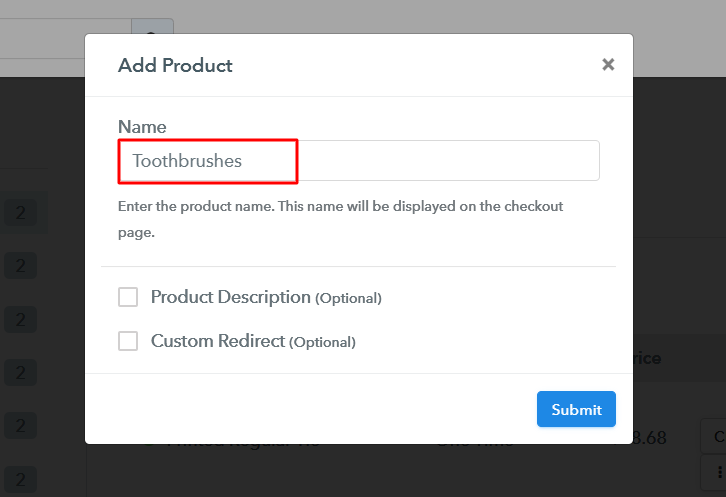
Additionally, add the name, which in our case is “Toothbrushes”. Here you can specify the type & write a short description of the toothbrushes to catch the customer’s attention.
Add Product to Start Selling Toothbrushes Online

Moreover, just fill out all those details and your product is created.
Note: Here you can add all the products related to the similar category by creating plans for each of them.

Step 6: Add Plans 

Let’s cast light on plans for different kinds of toothbrushes available in your store.

(a) Select Add New Plan

Add Plan

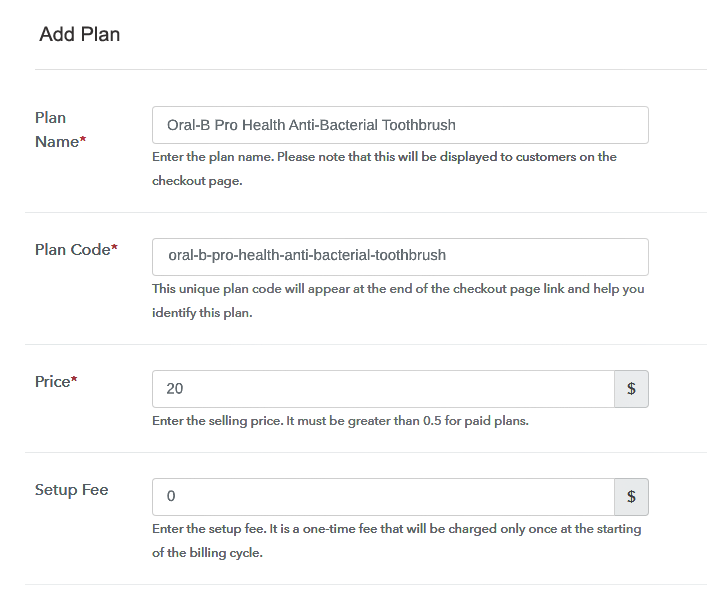
(b) Specify the Plan & Pricing Details

Specify the Plan and Pricing to Sell Toothbrushes Online

The next thing to do is fill all the details of the toothbrushes like plan name, code, price, set-up fee, and much more to continue.

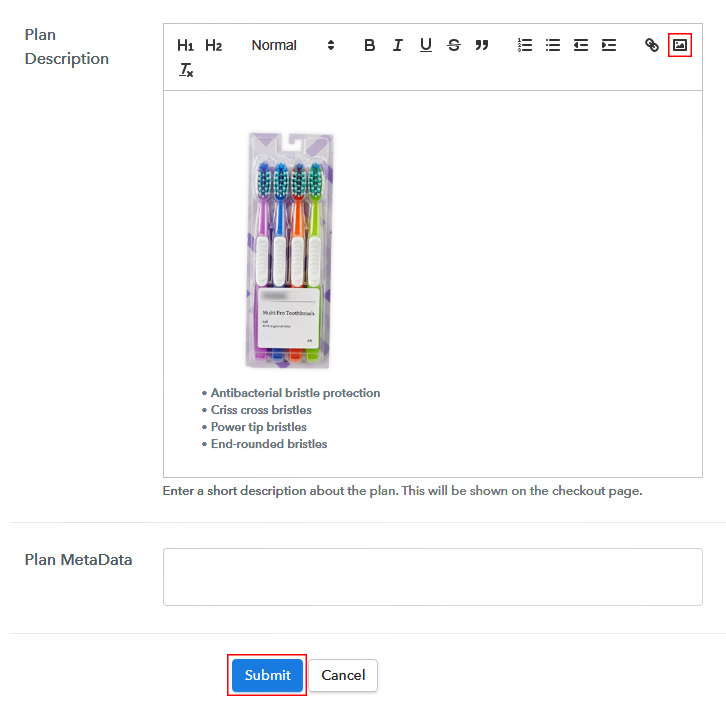
(c) Add Image & Description of Toothbrushes

Add Image & Description of Toothbrushes

Next, give a brief description of toothbrushes with bullets, images, links, etc.

Afterward, press the “Submit” button to add the toothbrushes on the checkout page.

Eventually, add multiple plans along with types of toothbrushes in your product list which you want to sell online.

Step 7: Share your Checkout Page

Share Checkout Page on Social Media

  • Moreover, share the checkout page of the toothbrushes on social media accounts like Facebook & Twitter.
  • Also, you can share the direct link of the toothbrush’s checkout page with your customers with the help of SMS or email marketing.
  • Not only that, but you can also embed the provided plan link of the toothbrushes in the buttons or any anchor text on your website.

Step 8: Preview Checkout Page

Follow up the recommended steps to preview the checkout page:

(a) Click on the View Button

View Checkout Plan

(b) Take a Look at the Checkout Page

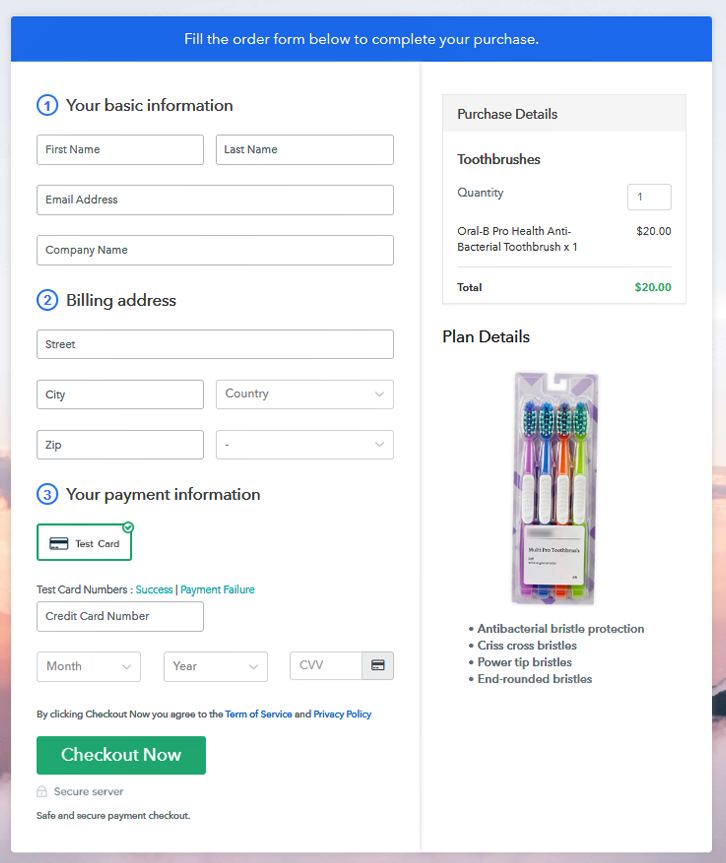
Final View of Checkout Page for Your Toothbrushes Selling Business

Step 9: Embed Checkout Page in Site & Sell Toothbrushes Online

Embed Checkout Page on Website

Just copy the link and add the checkout page to sell toothbrushes online at any proper place on your WordPress site.

(a) Edit the Page & Paste the Copied Link

Embed Checkout Page on Website

Further, paste the plan link on a text editor of the WordPress dashboard.

(b) Save & Publish the Checkout Page

Save_and_Publish

Next, click the “Publish” button, after making changes.

(c) Check out the Final Look of your Checkout Page on WordPress Site

Final Look of your Checkout Page to Sell Toothbrushes Online

Step 10: Multiplan Checkout Page

Note: In case you want to sell multiple products via a single checkout page, you can create a multi-plan checkout page otherwise skip this step.

(a) Click on Add Mutiplan Checkout

Multiplan Checkout

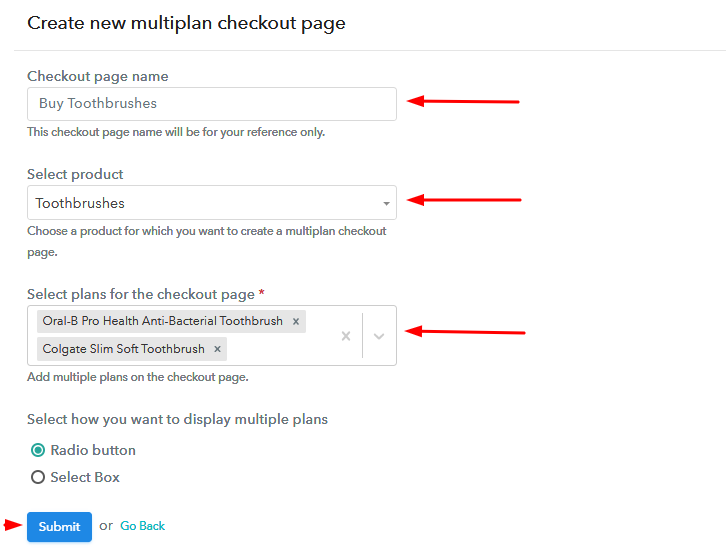
(b) Add Plans to Sell Multiple Toothbrushes from Single Checkout Page

Add Plans to Sell Multiple Toothbrushes from Single Checkout Page

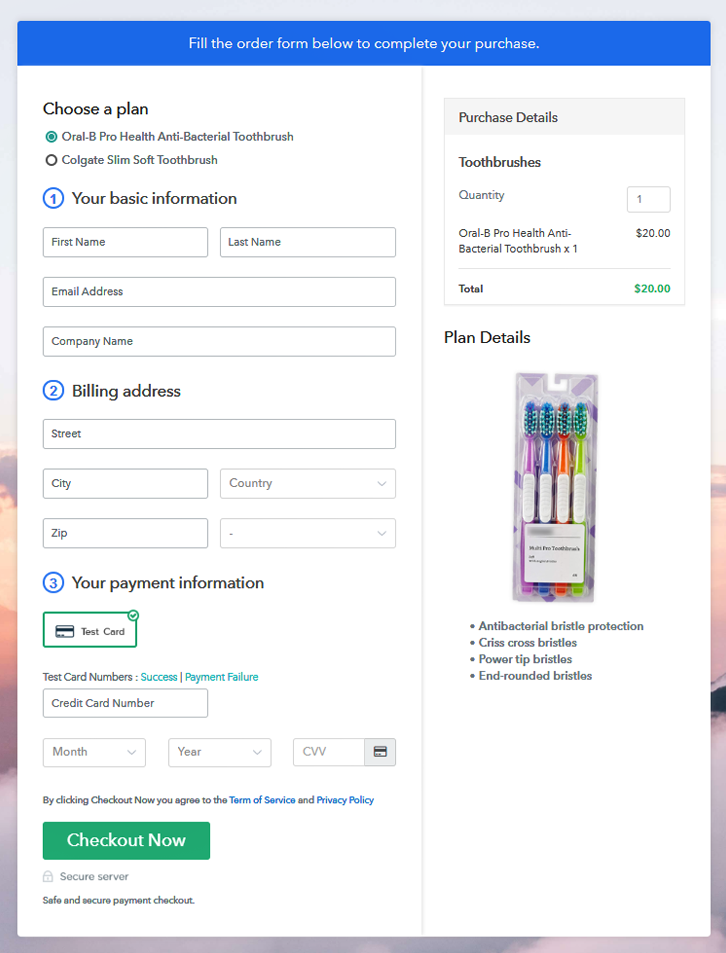
(c) Take a Look at the Checkout Page

Multiplan Checkout Page to Sell Toothbrushes Online

Preview Checkout Page

Wrapping Up

Alright! Now you know how easy it is to start your own toothbrushes business online. Simply log in to Pabbly Subscription Billing and start your own journey of online business in no time. Just follow all the mentioned steps and you’re ready to roll.

Moreover, if you have any queries, just write to us in the comment section below. We will get back to you as soon as possible. So, go ahead and try this software. Thank You!!

You May Also Like To Read –