How to Add Razorpay Payments to GoHighLevel Automatically

Learn how to integrate Razorpay with GoHighLevel automatically using Pabbly Connect. This step-by-step tutorial guides you through the entire process. Learn to create powerful connections between your critical applications without requiring specialized programming knowledge or extensive technical background.

Watch Step By Step Video Tutorial Below


1. Accessing Pabbly Connect for Razorpay and GoHighLevel Integration

To add Razorpay payments to GoHighLevel automatically, you first need to access Pabbly Connect. Open a new tab in your browser and go to pabb.com/connect. Here, you can sign up for free and explore the various features available.

Once you have signed up, log into your Pabbly Connect account. The workflow builder is the main interface where you will create your automation. This section is crucial as it allows you to set up triggers and actions for your integration.


2. Setting Up the Trigger in Pabbly Connect

In Pabbly Connect, the first step is to set up a trigger that will initiate the workflow. Click on the ‘Add Trigger’ button and search for Razorpay. Select Razorpay as the trigger application and choose ‘Payment Captured’ as the event.

  • Click on the ‘Connect’ button to establish the connection.
  • Copy the generated webhook URL provided by Pabbly Connect.
  • Navigate to your Razorpay dashboard to set up the webhook.

In your Razorpay dashboard, go to the ‘Developers’ section and select ‘Webhooks’. Click on the ‘Add New Webhook’ button and paste the copied URL. This establishes a connection between Razorpay and Pabbly Connect.


3. Testing the Webhook Response

After setting up the webhook, it’s essential to test the integration. To do this, go back to Razorpay and simulate a payment. Choose a product, fill in the necessary details, and complete the payment process.

  • Ensure the payment is successful to capture the webhook response.
  • Return to Pabbly Connect to confirm that the response has been captured.

Once the payment is processed, you should see the details, such as the customer’s name and contact information, populated in Pabbly Connect. This confirms that the connection between Razorpay and Pabbly Connect is successfully established.


4. Adding the Action Step to Create Contacts in GoHighLevel

Now that the trigger is set, the next step is to add an action to create a contact in GoHighLevel. Click on ‘Add New Action Step’ and select ‘Lead Connector V2’ as the application.

Choose the event ‘Create or Update a Contact’ and click on ‘Connect’. If prompted, log into your GoHighLevel account and grant the necessary permissions.

Once connected, you will need to map the customer details from Razorpay to the fields in GoHighLevel. This mapping ensures that every new payment automatically creates or updates a contact in your GoHighLevel account through Pabbly Connect.


5. Finalizing Your Integration and Testing

After mapping the details, click on ‘Save and Send Test Request’ to finalize the integration. You should receive a confirmation that the contact has been successfully created in GoHighLevel.

To verify, navigate to the contacts section in your GoHighLevel account. You should see the newly created contact with the same information entered during the test payment. This confirms that the integration between Razorpay and GoHighLevel via Pabbly Connect is working seamlessly.


Conclusion

In this tutorial, we explored how to integrate Razorpay with GoHighLevel automatically using Pabbly Connect. By following these steps, you can streamline your payment processing and customer management effectively.

Ensure you check out Pabbly Connect to create business automation workflows and reduce manual tasks. Pabbly Connect currently offer integration with 2,000+ applications.

How to Add LinkedIn Leads to Omnisend Automatically

Learn how to use Pabbly Connect to automatically add LinkedIn leads to Omnisend. Follow this detailed tutorial for seamless integration. Navigate the automation landscape confidently with clear, structured guidance suitable for professionals regardless of prior technical experience.

Watch Step By Step Video Tutorial Below


1. Accessing Pabbly Connect for Integration

To start integrating LinkedIn leads with Omnisend, you need to access Pabbly Connect. Begin by visiting Pabbly.com/connect in your web browser.

Once on the Pabbly Connect homepage, you will see options to either sign in or sign up. If you are a new user, click on ‘Sign Up Free’ to create an account and explore Pabbly Connect with 100 free tasks per month. Existing users can simply sign in to access their dashboards.


2. Creating a New Workflow in Pabbly Connect

After logging into Pabbly Connect, navigate to the dashboard where you can create a new workflow. Click on the ‘Create Workflow’ button and select the beta version for a modern workflow experience.

  • Click on the ‘Create Workflow’ button.
  • Select the beta version for better features.
  • Name your workflow, e.g., ‘Add LinkedIn Leads to Omnisend Automatically’.

After naming your workflow, select the appropriate folder to organize it. This helps in managing multiple workflows efficiently within Pabbly Connect.


3. Setting Up the Trigger for LinkedIn Leads

With your workflow created, it’s time to set up the trigger. Choose LinkedIn as the trigger application and select ‘Lead Notifications’ as the event. This will allow Pabbly Connect to monitor new leads generated through LinkedIn ads.

To establish the connection, click on ‘Connect’ and select ‘Add a New Connection’. If you’ve previously connected your LinkedIn account, you can opt for an existing connection. After connecting, select your LinkedIn ad account from the drop-down menu and save your settings.


4. Testing the LinkedIn Integration

To ensure that the integration works, you need to perform a test submission. This involves generating a test lead using your LinkedIn lead ad form. Fill in the required fields like email and phone number, then submit the form.

  • Go to your LinkedIn ads campaign manager.
  • Select your test lead form and fill in the details.
  • Submit the test lead to Pabbly Connect.

Once submitted, check Pabbly Connect for a successful response indicating that the lead information has been received. This confirms that your trigger setup is functioning correctly.


5. Adding Omnisend as the Action Step

Now that your trigger is set, the next step is to add Omnisend as the action application. Select Omnisend and choose ‘Create Subscriber’ as the event. This action will allow Pabbly Connect to add new leads as subscribers in your Omnisend account.

To connect to Omnisend, you will need to enter your API key. Log into your Omnisend account, navigate to ‘Store Settings’, and find the API section to create a new API key. Copy this key and paste it into Pabbly Connect to establish the connection.


Conclusion

By following these steps, you can seamlessly integrate LinkedIn leads with Omnisend using Pabbly Connect. This automation not only saves time but also enhances your email marketing efforts by ensuring new leads are added instantly. Start leveraging this powerful integration today!

Ensure you check out Pabbly Connect to create business automation workflows and reduce manual tasks. Pabbly Connect currently offer integration with 2,000+ applications.

How to Use Loop in Pabbly Connect (Complete Beginner Tutorial)

Learn how to use Loop in Pabbly Connect for seamless automation. This beginner-friendly tutorial walks you through each step for effective integration. This comprehensive guide reveals exactly how to connect your applications and automate repetitive tasks — accessible for professionals of all technical backgrounds.

Watch Step By Step Video Tutorial Below


1. Understanding Loop in Pabbly Connect

Pabbly Connect introduces Loop, a powerful module that allows you to repeat actions based on your data. This feature is particularly useful when your trigger application produces multiple items, such as rows or email addresses. By using Pabbly Connect, you can automate the processing of these items one by one, making your workflow efficient.

The Loop module simplifies complex automations by providing automatic branching for repeated actions. This means you can structure your repeated actions and final actions clearly, enhancing the overall organization of your workflow. With Pabbly Connect, you can effectively manage and automate large datasets.


2. Setting Up Loop in Pabbly Connect

To begin using Loop in Pabbly Connect, first, log into your Pabbly Connect account. Create a new workflow and select your trigger application, such as Google Sheets. This will initiate the process of setting up your automation.

Next, configure the trigger settings to specify which data you want to process. You will need to:

  • Select the Google Sheets app as your trigger.
  • Choose the specific spreadsheet you want to work with.
  • Set the lookup value for the data you intend to process.

Once you have set these parameters, you can proceed to add the Loop module to your workflow.


3. Configuring the Loop Module in Pabbly Connect

After adding the Loop module in Pabbly Connect, you will need to configure it to process the data received from your Google Sheets. This step is crucial as it determines how the data will be iterated. You can specify the actions that need to be performed for each item in the dataset.

To configure the Loop, follow these steps:

  • Select the input data from the previous step.
  • Define the actions for each iteration, such as adding contacts to Google Contacts.
  • Finalize your Loop settings to ensure smooth execution.

By doing this, Pabbly Connect will process each item one by one, allowing for efficient bulk processing of your data.


4. Finalizing Your Integration with Pabbly Connect

Once you have configured the Loop module, it’s time to finalize your integration. This involves setting up the final actions that will occur after all items have been processed. In Pabbly Connect, you can add additional steps that will execute once the Loop completes its iterations.

For instance, you may want to send a notification via Google Chat after all contacts have been added. To do this, you would:

Select the Google Chat app in your workflow. Compose your message to notify you of the completed actions. Save your workflow to activate the automation.

After saving, Pabbly Connect will execute the entire workflow as scheduled, ensuring that your tasks are automated efficiently.


5. Testing Your Automation in Pabbly Connect

Testing your automation is a crucial step to ensure everything works as intended. In Pabbly Connect, you can easily test the entire workflow to see if the Loop processes your data correctly. Start by triggering the workflow manually to observe the results.

During the test, check the following:

Verify that all items are processed one by one as expected. Ensure that the final actions are executed correctly after the Loop completes. Check for any errors in the execution logs provided by Pabbly Connect.

By thoroughly testing your automation, you can confidently implement it in your daily operations, maximizing efficiency.


Conclusion

In this tutorial, we explored how to use Loop in Pabbly Connect to automate repetitive tasks efficiently. By leveraging Pabbly Connect, you can easily manage large datasets and streamline your workflows. Implementing the Loop module ensures that your automations are effective and well-structured, enhancing productivity.

Ensure you check out Pabbly Connect to create business automation workflows and reduce manual tasks. Pabbly Connect currently offer integration with 2,000+ applications.

How to Add New Jira Issues in Google Sheets

Learn how to seamlessly integrate Jira issues into Google Sheets using Pabbly Connect. This step-by-step guide covers the entire process. Explore efficient methods for automating routine tasks with clear, concise instructions suited for both newcomers and experienced professionals.

Watch Step By Step Video Tutorial Below


1. Overview of Pabbly Connect for Jira and Google Sheets Integration

To integrate Jira issues into Google Sheets, you will use Pabbly Connect. This powerful automation tool allows you to create workflows that connect different applications without coding. By using Pabbly Connect, you can automate the process of adding new Jira issues directly into your Google Sheets.

First, you need to create a systematic record of issues in your Google Sheets. This is essential for businesses that handle multiple tasks daily. Using Pabbly Connect, you can easily set up this automation to save time and increase efficiency.


2. Setting Up Pabbly Connect for Automation

To begin, navigate to the Pabbly Connect website and sign in or create a new account. Once logged in, you will see the dashboard. Click on the ‘Create Workflow’ button to start your integration process.

  • Click on the ‘Create Workflow’ button.
  • Select the new beta method for a more modern approach.
  • Name your workflow, for example, ‘Add New Jira Issue in Google Sheets.’

After naming your workflow, you will set up the trigger and action steps. The trigger will be the event in Jira that initiates the workflow, while the action will be to add the information to Google Sheets using Pabbly Connect.


3. Configuring the Trigger for Jira Issues

In this step, you will configure the trigger to capture new issues created in Jira. In Pabbly Connect, select ‘Jira Service Management’ as your trigger application.

  • Choose the event ‘Work Item Created’ to capture new Jira issues.
  • Click on the ‘Connect’ button to establish a connection.
  • Copy the webhook URL provided by Pabbly Connect.

Next, log into your Jira account, navigate to the automation settings, and create a new rule. This rule will send data to the webhook URL you copied earlier. This step is crucial as it links Jira to Pabbly Connect for automatic updates.


4. Setting Up the Action to Add Rows in Google Sheets

Once the trigger is set up, you will configure the action in Pabbly Connect to add a new row in Google Sheets. Select ‘Google Sheets’ as your action application.

Choose the event ‘Add New Row’ to input data into your spreadsheet. Connect your Google account to allow Pabbly Connect to access your sheets. Select the spreadsheet and sheet where you want to add the Jira issue data.

Map the fields from the Jira issue to the corresponding columns in your Google Sheet. This includes details like the item ID, name, description, priority level, and due date. By doing this, Pabbly Connect ensures that all relevant information is accurately recorded.


5. Testing Your Automation with Pabbly Connect

To ensure everything is working correctly, create a new issue in Jira after setting up your automation in Pabbly Connect. This will trigger the workflow you just configured.

After creating the issue, check your Google Sheets to verify that the new row has been added with all the details. You should see the created at date, item name, description, priority, and due date populated in your sheet.

This integration allows you to maintain a systematic record of your tasks without manual entry, enhancing productivity and organization. With Pabbly Connect, you can automate your workflows and focus on more critical aspects of your business.


Conclusion

Integrating Jira issues into Google Sheets using Pabbly Connect streamlines your workflow by automating data entry. This tutorial provided a step-by-step guide to set up this integration effectively. By following these steps, you can save time and maintain accurate records of your tasks.

Ensure you check out Pabbly Connect to create business automation workflows and reduce manual tasks. Pabbly Connect currently offer integration with 2,000+ applications.

How to Add Google Ads Leads to Privyr Automatically

Learn how to automate the integration of Google Ads leads into Privyr using Pabbly Connect. Follow our step-by-step tutorial for seamless lead management. Explore efficient methods for automating routine tasks with clear, concise instructions suited for both newcomers and experienced professionals.

Watch Step By Step Video Tutorial Below


1. Accessing Pabbly Connect for Google Ads Integration

To integrate Google Ads leads into Privyr automatically, you first need to access Pabbly Connect. If you are an existing user, simply log in to your Pabbly Connect account. For new users, visit pabbl.com/connect to sign up for a free trial, which provides 100 automation tasks each month.

After logging in, navigate to the workflow builder, which is essential for setting up your automation. This window allows you to define triggers and actions, forming the backbone of your integration process.


2. Setting Up the Trigger for Google Ads

The first step in your automation is to set up the trigger within Pabbly Connect. Click on the ‘Add Trigger’ button and select ‘Google Ads’ as the application. For the event, choose ‘New Lead Form Entry’ and connect your Google Ads account.

  • Click ‘Connect’ to generate a webhook URL.
  • Copy the webhook URL provided by Pabbly Connect.
  • Open your Google Ads account and navigate to the lead form settings.

In your Google Ads account, find the lead delivery settings and paste the copied webhook URL. Ensure you enter the key and click on ‘Send Test Data’ to verify the connection. Once the test data is sent successfully, you will see the captured response in Pabbly Connect, confirming that the integration is set up correctly.


3. Adding Action Step for Privyr Integration

After successfully capturing leads from Google Ads, the next step is to add an action in Pabbly Connect to send this data to Privyr. Click on ‘Add New Action Step’ and select ‘Privyr’ as the application. Choose ‘Create Client’ as the action event.

If you have an existing connection with Privyr, select it; otherwise, create a new connection by entering your Privyr authentication token. To find this token, go to your Privyr account settings, navigate to integrations, and configure the Pabbly Connect option to retrieve your token.


4. Mapping Fields for Lead Data

Mapping is a crucial step in Pabbly Connect that allows you to insert data from Google Ads into Privyr dynamically. In the mapping section, enter the required fields such as first name, last name, email, phone number, and company name. This ensures that each new lead captured from Google Ads is correctly added to Privyr.

  • Map the first name and last name from the Google Ads lead form.
  • Insert the email and phone number as mapped fields.
  • Optionally, add additional fields like city or company name.

Once you have mapped all necessary fields, click on ‘Save and Send Test Request’. If successful, you will receive a confirmation that the client has been created in Privyr, allowing you to manage your leads effectively.


5. Finalizing Your Automation Workflow

With the action step completed, your automation workflow in Pabbly Connect is now ready. Whenever a new lead is generated from Google Ads, it will automatically create a new client in Privyr without any manual intervention. This streamlines your lead management process significantly.

To ensure everything is functioning correctly, you can test the workflow by activating your Google Ads campaign and monitoring the lead generation. With Pabbly Connect handling the integration, you can focus on converting leads while the system works in the background.


Conclusion

In this tutorial, we demonstrated how to automate the process of adding Google Ads leads to Privyr using Pabbly Connect. By following the steps outlined, you can save time and improve your lead management efficiency. Try this powerful integration today to enhance your business operations.

Ensure you check out Pabbly Connect to create business automation workflows and reduce manual tasks. Pabbly Connect currently offer integration with 2,000+ applications.

How to Auto-Add WhatsApp Leads to ActiveCampaign for Drip Emails

Learn how to integrate WhatsApp leads into ActiveCampaign for drip emails using Pabbly Connect. Follow this step-by-step tutorial for seamless automation. Follow this definitive guide to creating powerful automated workflows with straightforward, efficiency-focused solutions that save valuable time.

Watch Step By Step Video Tutorial Below


1. Accessing Pabbly Connect to Create Your Workflow

To start integrating WhatsApp leads into ActiveCampaign for drip emails, you need to access Pabbly Connect. Open your browser and go to Pabbly.com/connect. If you’re a new user, click on the ‘Sign Up Free’ button to create your account. Existing users can simply click on ‘Sign In’.

After signing in, you will be directed to the Pabbly Connect dashboard. Here, click on the ‘Create Workflow’ button. You can also organize your workflows into folders by clicking the plus button to create a new folder. Once you’re ready, select the new beta version of the workflow builder for a more modern experience.


2. Setting Up the Webhook Trigger in Pabbly Connect

Now, it’s time to set up the trigger for your workflow using Pabbly Connect. Name your workflow as ‘Auto Add WhatsApp Leads to ActiveCampaign for Drip Emails’. Click on the ‘Add Trigger’ button, and select ‘Webhook’ as your trigger application.

  • Select ‘Catch Webhook’ as the event.
  • Copy the generated webhook URL.

Next, you will use this webhook URL in your WhatsApp chatbot setup. This webhook will be triggered whenever a new lead interacts with your WhatsApp bot, sending their details to Pabbly Connect.


3. Configuring Your WhatsApp Chatbot with Pabbly Connect

To collect leads through WhatsApp, you need to set up your chatbot. In your Pabbly Chatflow account, create a chatbot and add an API request action. Paste the webhook URL from Pabbly Connect into the API request settings.

  • Set the request type to POST.
  • Enter the contact fields like name, phone, and email in the parameters.

Once configured, test the API request to ensure it’s working correctly. This setup allows the chatbot to send user data directly to Pabbly Connect whenever a new lead interacts with it.


4. Integrating ActiveCampaign with Pabbly Connect

After setting up the webhook, the next step is to integrate ActiveCampaign. In your Pabbly Connect workflow, click on the plus button to add an action step and select ActiveCampaign as the application. Choose the event ‘Subscribe or Unsubscribe Contact’.

To connect ActiveCampaign with Pabbly Connect, you will need to enter your ActiveCampaign API URL and API key. You can find these in your ActiveCampaign account under Settings > Developer. After entering these details, save the connection.


5. Finalizing the Workflow for Drip Emails

Now that you have integrated ActiveCampaign, you must specify the list ID and map the contact fields. Select the list ID for your contacts and map the fields like name, email, and phone number from the webhook response.

After mapping all the necessary fields, click on ‘Save and Send Test Request’. This action will add the contact to your ActiveCampaign list, enabling you to send drip emails. Refresh your ActiveCampaign contacts to see the newly added lead.

With this setup, you have successfully automated the process of adding WhatsApp leads to ActiveCampaign using Pabbly Connect. You can now send targeted drip emails to your leads, enhancing your marketing efforts.


Conclusion

This tutorial demonstrated how to seamlessly integrate WhatsApp leads into ActiveCampaign for drip emails using Pabbly Connect. By following the steps outlined, you can automate lead collection and improve your email marketing strategy effectively.

Ensure you check out Pabbly Connect to create business automation workflows and reduce manual tasks. Pabbly Connect currently offer integration with 2,000+ applications.

How to Add New Contacts in Kommo from Google Sheets

Learn how to seamlessly add new contacts in Kommo from Google Sheets using Pabbly Connect. Follow this step-by-step guide for a hassle-free integration. Discover hidden automation capabilities within your existing tools. This guide shows you how to connect your essential applications and permanently eliminate redundant manual processes.

Watch Step By Step Video Tutorial Below


1. Introduction to Pabbly Connect for Automation

Pabbly Connect is an essential automation tool that simplifies the process of adding new contacts in Kommo from Google Sheets. By using Pabbly Connect, you can automate the transfer of customer data without manual entry, saving time and reducing errors.

In this tutorial, we will explore how to set up this integration step-by-step. This will ensure that every new lead added to your Google Sheets is automatically captured in your Kommo CRM. Using Pabbly Connect eliminates the need for coding skills, making it accessible for everyone.


2. Setting Up Pabbly Connect for Google Sheets Integration

To start, navigate to the Pabbly Connect website and log in to your account. If you are a new user, you can easily sign up and get 100 free tasks every month to explore its features.

  • Visit www.Pabbly.com/connect.
  • Log in or sign up for a new account.
  • Click on the ‘Create Workflow’ button.

After creating a new workflow, select the new beta method for a modern experience. Name your workflow as ‘Add New Contacts in Kommo from Google Sheets’ and create it. This sets the foundation for your automation using Pabbly Connect.


3. Configuring Google Sheets Trigger in Pabbly Connect

Next, to establish the connection, you need to set Google Sheets as the trigger application in Pabbly Connect. This means that any new or updated row in your Google Sheets will trigger the workflow.

In the trigger settings, select ‘New or Updated Spreadsheet Row’ as the event. Click on the connect button to obtain the webhook URL. This URL will be essential for connecting Google Sheets to Pabbly Connect.

  • Copy the webhook URL provided.
  • Open your Google Sheets and go to Extensions > Add-ons > Get Add-ons.
  • Search for Pabbly Connect Webhooks and install it.

After installation, refresh your spreadsheet and set up the initial configuration by pasting the webhook URL and specifying the trigger column. This column will determine which data is sent to Pabbly Connect.


4. Mapping Data from Google Sheets to Kommo

Once the trigger is set up, the next step is to configure the action to create a contact in Kommo. In Pabbly Connect, select Kommo as the action application and choose the event ‘Create Contact’.

Connect your Kommo account by entering your subdomain. After establishing the connection, you will need to map the data fields from Google Sheets to Kommo. This includes first name, last name, email, and phone number, ensuring that the data flows seamlessly.

Map the first name from the previous response. Map the last name, email, and phone number accordingly. Click on ‘Save and Send Test Request’ to verify the setup.

Upon successful mapping, a new contact will be created in your Kommo account, confirming that Google Sheets and Kommo are effectively integrated through Pabbly Connect.


5. Testing the Integration for Success

After setting up the action, it’s crucial to test the integration. Add a new contact in your Google Sheets and check if it appears in your Kommo account. This ensures that the automation is functioning correctly.

For example, input a new customer’s details like first name, last name, email, and phone number in Google Sheets. After a few moments, refresh your Kommo contacts page to see if the new contact has been added. This real-time verification is a vital step in confirming the success of your integration with Pabbly Connect.

By following these steps, you can automate your workflow efficiently, allowing you to focus on other aspects of your business. The integration between Google Sheets and Kommo through Pabbly Connect streamlines your customer management process.


Conclusion

In conclusion, using Pabbly Connect to add new contacts in Kommo from Google Sheets is a straightforward and efficient process. By following these steps, you can automate data entry, ensuring that your customer information is always up-to-date and organized.

Ensure you check out Pabbly Connect to create business automation workflows and reduce manual tasks. Pabbly Connect currently offer integration with 2,000+ applications.

AI-Powered Auto-Blogging — Publish Fresh Content Every Day!

Learn how to automate blogging using Pabbly Connect by integrating Google Sheets, OpenAI, and WordPress to publish fresh content daily. Navigate the automation landscape confidently with clear, structured guidance suitable for professionals regardless of prior technical experience.

Watch Step By Step Video Tutorial Below


1. Introduction to Pabbly Connect for Auto-Blogging

Pabbly Connect is a powerful automation platform that allows you to integrate various applications seamlessly. In this tutorial, we will explore how to use Pabbly Connect to automate the blogging process by connecting Google Sheets, OpenAI, and WordPress. This integration saves time and effort by automatically publishing fresh content every day.

To get started, you need to create an account on Pabbly Connect. Once you’re logged in, you can create a new workflow that will act as the backbone of this automation process. This workflow will connect the applications needed to generate and publish blog content effectively.


2. Setting Up Pabbly Connect Workflow

To set up your workflow in Pabbly Connect, navigate to the dashboard and click on the ‘Create Workflow’ button. You will be prompted to name your workflow; for this tutorial, let’s call it ‘AI Powered Auto Blogging Publish Fresh Content Every Day’.

  • Name your workflow as ‘AI Powered Auto Blogging’.
  • Select a folder for better organization.
  • Choose the trigger application, which will be Google Sheets.

Once your workflow is named and organized, you can proceed to set up the trigger. The trigger will be activated whenever a new title is added to your Google Sheets, kicking off the automated blogging process.


3. Connecting Google Sheets to Pabbly Connect

In this step, we will connect Google Sheets to Pabbly Connect. Start by selecting Google Sheets as your trigger application and choose the event ‘New or Updated Spreadsheet Row’. After selecting this, click on ‘Connect’ to establish the connection.

To connect your Google Sheets with Pabbly Connect, a webhook URL will be provided. This URL acts as a bridge between your Google Sheets and Pabbly Connect. You must copy this URL and paste it into the Google Sheets add-on for Pabbly Connect Webhooks.

  • Open your Google Sheets and navigate to Extensions > Add-ons > Get Add-ons.
  • Search for Pabbly Connect Webhooks and install it.
  • Refresh Google Sheets, then go to Extensions > Pabbly Connect Webhooks > Initial Setup.

After pasting the webhook URL, set the trigger column to the final data entry column (e.g., Column D) and click ‘Send Test’. This will test the connection and ensure that data is being sent correctly to Pabbly Connect.


4. Generating Blog Content Using OpenAI

Now that Google Sheets is connected to Pabbly Connect, the next step is to generate blog content using OpenAI. Add a new action step in your workflow and select OpenAI as the action application. Choose the event ‘Chat GPT’ and click on ‘Connect’.

You will need to enter your OpenAI API key to authorize the connection. Once connected, you can specify the AI model you wish to use (e.g., GPT-4) and set up a prompt that instructs OpenAI to generate a blog post based on the title and other parameters from Google Sheets.

Enter the prompt in a way that includes title, tone, audience, and keywords. Use mapping to dynamically pull data from Google Sheets. Save the action and test the request to see the generated blog content.

After testing, you should receive a response containing the generated blog content, which will be used in the next step to publish on WordPress.


5. Publishing the Generated Blog on WordPress

With the blog content generated, it’s time to publish it on WordPress using Pabbly Connect. Add another action step, select WordPress as your action application, and choose ‘Create Post’ as the event.

Connect to your WordPress account by entering the base URL, username, and password. Once connected, you can map the title and content fields to the corresponding data from the previous steps to ensure that the blog post is created accurately.

Select the post type (e.g., ‘Post’). Map the title and content fields to the generated data from OpenAI. Set the post status to ‘Published’ and click ‘Save’.

After saving, check your WordPress dashboard to confirm that the blog post has been successfully created and published. This completes the automation process, allowing you to publish fresh content daily with minimal effort.


Conclusion

In this tutorial, we demonstrated how to use Pabbly Connect to automate the blogging process by integrating Google Sheets, OpenAI, and WordPress. This powerful combination allows you to publish fresh content every day without manual effort. By following these steps, you can streamline your blogging workflow and enhance your online presence.

Ensure you check out Pabbly Connect to create business automation workflows and reduce manual tasks. Pabbly Connect currently offer integration with 2,000+ applications.

How to Add 99acres Leads to Brevo Automatically

Learn how to automatically add 99acres leads to Brevo using Pabbly Connect. Follow this step-by-step tutorial for seamless integration. Master proven automation processes with practical implementation examples and strategic recommendations you can apply immediately in your workflow.

Watch Step By Step Video Tutorial Below


1. Accessing Pabbly Connect for Integration

To add 99acres leads to Brevo automatically, you will first need to access Pabbly Connect. If you are an existing user, log in directly to your account and navigate to the workflow builder. For new users, open a new tab and search for Pabbly.com/connect.

Once on the landing page, click on the ‘Sign Up for Free’ option in the top right corner. You will receive hundreds of free tasks every month to explore Pabbly Connect. After signing up, log in and open your workflow builder to begin the integration process.


2. Setting Up the Trigger in Pabbly Connect

In Pabbly Connect, the first step is to set up a trigger. Click on the ‘Add Trigger’ button and search for ’99 acres’ to select it. For the event, choose ‘New Leads’ and click on ‘Connect’ to proceed.

  • Select ’99 acres’ as the trigger application.
  • Choose the event as ‘New Leads’.
  • Click ‘Connect’ to generate the webhook URL.

After connecting, you will receive a webhook URL. This URL needs to be configured in your 99 acres account. Contact your account manager to add this webhook URL, as the portal does not allow users to configure it directly.


3. Capturing Lead Details from 99acres

Once your webhook URL is added, Pabbly Connect will start capturing lead details automatically. You can test this by sending a lead from your 99 acres account, which will show up in Pabbly Connect as a webhook response.

The captured lead details will include the first name, last name, phone number, and email address. This information is crucial for creating a new contact in Brevo.


4. Adding Action Step to Create Contact in Brevo

Next, click on the ‘Add New Action’ step in Pabbly Connect. Search for ‘Brevo’ and select it. For the event, choose ‘Create or Update a Contact’ and click ‘Connect’.

  • Select ‘Brevo’ as the action application.
  • Choose the event ‘Create or Update a Contact’.
  • Connect your Brevo account using the domain and API key.

If you have previously connected Brevo, select the existing connection. Otherwise, you will need to provide your Brevo domain and API key. To generate a new API key, navigate to the SMTP and API page in your Brevo account, create a new key, and copy it into Pabbly Connect.


5. Mapping Lead Details to Brevo Contact

After connecting Brevo, it’s time to map the lead details to create a contact. In Pabbly Connect, map the email address, first name, and last name from the captured lead details. This dynamic mapping ensures that the data updates automatically with each new lead.

Once you have mapped the necessary fields, click on ‘Save and Send Test Request’. If everything is set up correctly, you will receive a confirmation that a new contact has been created in Brevo. You can verify this by refreshing your contact list in Brevo.

With this setup, every new lead from 99 acres will automatically be added as a contact in Brevo without any manual intervention. This seamless integration allows you to focus on converting leads into clients.


Conclusion

By following this tutorial, you can effortlessly add 99acres leads to Brevo using Pabbly Connect. This automation allows for efficient lead management and enhances your email marketing campaigns. Start using this integration today to streamline your processes and improve your business outcomes.

Ensure you check out Pabbly Connect to create business automation workflows and reduce manual tasks. Pabbly Connect currently offer integration with 2,000+ applications.

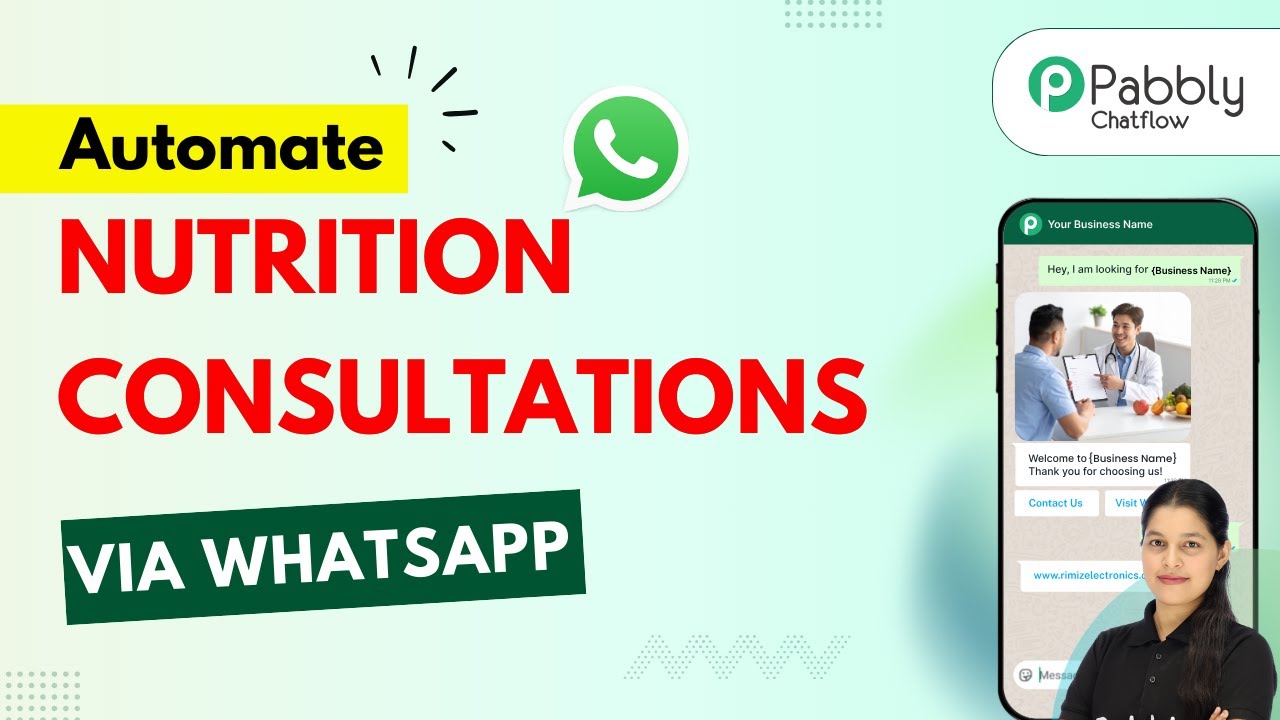
Create a WhatsApp Chatbot for Your Nutrition Consultations🥗

Learn how to create a WhatsApp chatbot for nutrition consultations using Pabbly Chatflow in this detailed step-by-step tutorial. Discover how to design chat experiences that feel personal and responsive while handling customer inquiries automatically around the clock.

Watch Step By Step Video Tutorial Below


1. Accessing Pabbly Chatflow for Your Chatbot

To create a WhatsApp chatbot for your nutrition consultations, you first need to access Pabbly Chatflow. Start by entering the URL Pabbly.com/chatflow in your web browser. This will take you to the Pabbly Chatflow landing page.

On this page, you will find options to sign in or sign up. If you are a new user, click on the ‘Sign Up Free’ button to create an account. Existing users can simply sign in. Remember, signing up gives you 100 free credits each month to practice using Pabbly Chatflow.


2. Creating Your Chatbot Flow in Pabbly Chatflow

Once logged into Pabbly Chatflow, navigate to the dashboard where you will see various options. Click on the ‘Flows’ option from the sidebar to start building your chatbot flow. This will lead you to the flow builder page.

  • Click on the ‘Add Flow’ button.
  • Provide a name for your flow, such as ‘WhatsApp Chatbot for Nutrition Consultation’.
  • Select the trigger event as ‘Keyword Rejects Match’.

In this section, you will set up keywords that will trigger your chatbot. For example, you can use the keyword ‘nutrition’ to initiate the chatbot whenever a user sends a message containing this word. This functionality is crucial for engaging users effectively through Pabbly Chatflow.


3. Designing Chatbot Interactions Using Pabbly Chatflow

After setting up the trigger, it’s time to create the interactions for your users. Use the drag-and-drop feature to add a text node where you will enter a welcome message. For instance, you can greet users with: ‘Hi there! Welcome to XYZ Nutritionist, your personal guide to healthier living. How can I help you today?’

  • Create buttons for user options, such as ‘Consultation Service’ and ‘Talk to Nutritionist’.
  • Set up a list node to display the services offered.
  • Add items to the list, including options like ‘One-Time Diet Plan’ and ‘Monthly Consult’.

By structuring your chatbot interactions this way, Pabbly Chatflow allows you to provide personalized experiences for your clients, enhancing user engagement and satisfaction.


4. Collecting User Information Through Pabbly Chatflow

Once users select a service, your chatbot should collect necessary information such as their name, email address, and preferred consultation date. To do this, create a series of question nodes in Pabbly Chatflow.

For each question, specify the contact custom fields where the responses will be stored. For example, after asking for the user’s full name, you can store this response in a custom field named ‘Full Name’. Similarly, follow this process for collecting email and preferred date.

After gathering this information, you can send a confirmation message back to the user, summarizing their details. This message can include buttons for options like ‘Confirm Details’ or ‘Edit Details’. This feature ensures clarity and allows users to make adjustments if necessary.


5. Testing Your Chatbot with Pabbly Chatflow

After designing your chatbot and collecting user information, it’s essential to test the entire flow. Navigate to the inbox section in Pabbly Chatflow where you can see messages received from users.

Send a test message through WhatsApp to the number connected to your Pabbly Chatflow account. Ensure that the chatbot responds with the correct welcome message and that all buttons and options function as intended.

By testing your chatbot, you can confirm that all interactions are seamless and that users receive timely responses. This step is crucial for ensuring the success of your WhatsApp chatbot for nutrition consultations.


Conclusion

In this tutorial, we explored how to create a WhatsApp chatbot for your nutrition consultations using Pabbly Chatflow. From accessing the platform to designing interactions and testing your chatbot, each step is essential for effective user engagement. Start using Pabbly Chatflow today to enhance your nutrition consultation services!

Ensure you check out Pabbly Connect to create business automation workflows and reduce manual tasks. Pabbly Connect currently offer integration with 2,000+ applications.