Auto-Create Task in Salesforce After JustDial Inquiry Using Pabbly Connect

Learn how to auto-create tasks in Salesforce after receiving inquiries from JustDial with Pabbly Connect. Follow our detailed step-by-step tutorial. Develop expertise in application integration and learn how to design streamlined automation workflows using proven, simplified approaches.

Watch Step By Step Video Tutorial Below


1. Accessing Pabbly Connect to Start Integration

To auto-create tasks in Salesforce after receiving inquiries from JustDial, the first step is to access Pabbly Connect. You can do this by navigating to pabby.com/connect in your web browser. This will take you to the Pabbly Connect homepage where you can either sign up or log in.

If you are a new user, click on ‘Sign Up Free’ to create an account and get started. Existing users can simply click on ‘Sign In’. Once logged in, you will be directed to the Pabbly Connect dashboard, where you can create workflows to automate your tasks.


2. Creating a Workflow in Pabbly Connect

After accessing Pabbly Connect, the next step is to create a workflow. Click on the ‘Create Workflow’ button located at the top right corner of the dashboard. In the dialog box that appears, you will need to name your workflow. For this integration, a suitable name would be ‘Auto-Create Task in Salesforce After JustDial Inquiry’.

  • Name your workflow appropriately.
  • Select a folder to save your workflow.
  • Click ‘Create’ to finalize the workflow setup.

Once you have created the workflow, you will see the two crucial elements of automation: Trigger and Action. The trigger will be set to JustDial, while the action will be configured to create a task in Salesforce.


3. Setting Up the Trigger with JustDial

The next step involves setting up the trigger in Pabbly Connect. Select JustDial as your trigger application and choose the trigger event as ‘New Leads’. This means that every time a new lead is received from JustDial, the workflow will be activated automatically.

After selecting the trigger event, you will receive a webhook URL. This URL is essential for connecting your JustDial account with Pabbly Connect. You will need to send this webhook URL to your JustDial account manager, as JustDial does not allow direct input of the webhook URL within its user interface.


4. Creating a Task in Salesforce

Once you have set up the trigger, the next step is to create a task in Salesforce. In this action step, you will select Salesforce as your action application and choose ‘Create a Record’ as the action event. This is where you will connect your Salesforce account with Pabbly Connect.

  • Connect to Salesforce by clicking ‘Connect’.
  • Select the Salesforce object, which should be ‘Lead’.
  • Map the lead details from the JustDial inquiry to the corresponding fields in Salesforce.

Mapping the data ensures that the new lead information is accurately captured in Salesforce. After mapping the necessary fields, click on ‘Save and Send Test Request’ to verify that the lead record is created successfully.


5. Finalizing the Integration and Creating the Task

After successfully creating the lead record in Salesforce, the final step is to create a task for that lead. Select Salesforce again as your action application and this time choose ‘Create a Task’ as the action event. You can use the existing connection to Salesforce that was established earlier.

In this step, you will need to map the necessary fields such as the task subject, due date, and priority. For the due date, you can use the Date Time Formatter feature in Pabbly Connect to calculate the due date as seven days after the inquiry date. Once all fields are mapped, click on ‘Save and Send Request’. This will create the task in Salesforce, linked to the newly created lead.


Conclusion

In this tutorial, we have detailed how to auto-create tasks in Salesforce after receiving inquiries from JustDial using Pabbly Connect. By following these steps, you can streamline your lead management process and enhance your productivity.

Ensure you check out Pabbly Connect to create business automation workflows and reduce manual tasks. Pabbly Connect currently offer integration with 2,000+ applications.

How to Send Order Confirmation Emails After WooCommerce Purchase Using Gmail with Pabbly Connect

Learn how to automate order confirmation emails in WooCommerce using Pabbly Connect and Gmail. Follow our step-by-step tutorial for seamless integration. Revolutionize your productivity approach with just a few strategic clicks. Uncover professional methods for connecting applications and creating workflows that reclaim hours of your week.

Watch Step By Step Video Tutorial Below


1. Introduction to Pabbly Connect for WooCommerce and Gmail Integration

Pabbly Connect is an automation solution that allows you to send order confirmation emails after a WooCommerce purchase using Gmail. This integration enhances customer experience by ensuring timely and branded communication directly from your Gmail account. using Pabbly Connect

To get started, you need to access Pabbly Connect and set up your workflow. This automation will allow you to connect WooCommerce and Gmail seamlessly, ensuring that every order triggers a confirmation email.


2. Setting Up Your Pabbly Connect Account

First, navigate to the Pabbly Connect website to create or log into your account. If you are a new user, you can sign up for free and explore the features available. Existing users can simply sign in to access their dashboard. using Pabbly Connect

  • Click on ‘Create Workflow’
  • Name your workflow, e.g., ‘Send Order Confirmation Emails’
  • Select the folder to save your workflow

Once you have created your workflow, you will be taken to the workflow window where you can set up triggers and actions. Here, you will select WooCommerce as the trigger application.


3. Configuring WooCommerce as the Trigger Application

To set up WooCommerce as your trigger application in Pabbly Connect, select ‘WooCommerce’ and choose the trigger event as ‘New Order Created’. This will ensure that every time a new order is placed, it will trigger the workflow. using Pabbly Connect

Next, you will receive a webhook URL. This URL needs to be copied and added to your WooCommerce settings to establish the connection. Navigate to your WordPress dashboard, open WooCommerce settings, and find the ‘Advanced’ tab.

  • Go to ‘Webhooks’
  • Click ‘Add Webhook’
  • Enter a name and paste the webhook URL
  • Set the status to ‘Active’ and topic to ‘Order Created’

After saving the webhook, you will confirm the connection is successful. This will allow Pabbly Connect to receive order details from WooCommerce.


4. Mapping Order Details and Sending Emails via Gmail

Once WooCommerce is set up, the next step is to configure Gmail as your action application in Pabbly Connect. Select Gmail and choose the action event as ‘Send Email’. You will need to connect your Gmail account to Pabbly Connect if you haven’t done so already. using Pabbly Connect

For the recipient’s email address, instead of entering it manually, you will map the email address from the WooCommerce order details. This mapping allows for dynamic content, meaning each email will automatically include the correct customer’s address.

Map the recipient’s email from the WooCommerce order Set the sender’s name to your business name Customize the email subject and body using dynamic order data

After setting up the email content, click on ‘Save and Send Test Request’ to ensure everything is working correctly. Check your Gmail to confirm that the order confirmation email has been sent successfully.


5. Finalizing Your Pabbly Connect Workflow

After successfully sending a test email, your workflow is nearly complete. You can now set it to run automatically in the background. This means that every time a new order is created in WooCommerce, an email will be sent to the customer without any manual intervention.

To finalize, ensure that all settings are saved and that your workflow is active. This will automate your order confirmation process, enhancing customer satisfaction and ensuring timely communication.

By using Pabbly Connect, you have created a seamless integration between WooCommerce and Gmail, allowing for efficient order confirmation email delivery. Enjoy the benefits of automation and improved customer experience!


Conclusion

In this tutorial, you have learned how to automate sending order confirmation emails after a WooCommerce purchase using Pabbly Connect and Gmail. By following these steps, you can enhance customer engagement and streamline your order confirmation process.

Ensure you check out Pabbly Connect to create business automation workflows and reduce manual tasks. Pabbly Connect currently offer integration with 2,000+ applications.

Automate Follow-Up Tasks in HubSpot CRM from Facebook Lead Ads Using Pabbly Connect

Learn how to automate follow-up tasks in HubSpot CRM from Facebook Lead Ads using Pabbly Connect. Step-by-step tutorial for seamless integration. Learn to create powerful connections between your critical applications without requiring specialized programming knowledge or extensive technical background.

Watch Step By Step Video Tutorial Below


1. Access Pabbly Connect for Automation

To automate follow-up tasks in HubSpot CRM from Facebook Lead Ads, you first need to access Pabbly Connect. Start by visiting the Pabbly Connect website and signing in to your account. If you’re a new user, you can sign up for a free account, which allows you to explore the platform with limited features.

Once logged in, navigate to the dashboard where you can create a new workflow. This is where the magic happens, as Pabbly Connect will facilitate the integration between Facebook Lead Ads and HubSpot CRM, making it seamless for you to automate tasks.


2. Create a New Workflow in Pabbly Connect

In the Pabbly Connect dashboard, click on the ‘Create Workflow’ button. You will be prompted to name your workflow and choose a folder to save it in. For this automation, name your workflow something like ‘Automate Follow-Up Task in HubSpot CRM from Facebook Lead Ads’ and select an appropriate folder.

  • Click on the ‘Create’ button to initiate the workflow setup.
  • The workflow window will open, allowing you to set up triggers and actions.

Here, you will set a trigger for when a new lead is generated from Facebook Lead Ads, which Pabbly Connect will monitor. This setup is crucial for ensuring that your sales team can follow up promptly.


3. Set Up Trigger with Facebook Lead Ads

Select Facebook Lead Ads as your trigger application within Pabbly Connect. Choose the trigger event as ‘New Lead Instant’. This event will initiate the workflow every time a new lead is submitted through your Facebook Lead Ads form.

To connect your Facebook Lead Ads account, click on ‘Add a New Connection’. You will be prompted to log into your Facebook account and grant necessary permissions. After connecting, choose the Facebook page and lead form associated with your ads.

  • Select your Facebook page, e.g., ‘Digital Dynamics’.
  • Choose the lead form you wish to automate.

Once configured, click on ‘Save and Send Test Request’ to test the connection. This will allow Pabbly Connect to capture the lead information submitted through your Facebook form, setting the stage for the next steps in HubSpot CRM.


4. Create Follow-Up Task in HubSpot CRM

Next, you will set up the action to create a task in HubSpot CRM using Pabbly Connect. Select HubSpot CRM as your action application and choose the action event ‘Create a Task Engagement’. This action will create a new task in HubSpot whenever a new lead is captured from Facebook Lead Ads.

Connect your HubSpot account by selecting ‘Add a New Connection’. Once connected, you need to fill out the task details, including the task subject and body. For example, the subject could be ‘Follow Up with [Lead Name]’ and the body could include the lead’s contact information and their interest.

Map the lead’s first and last name into the task subject. Include details like email and phone number in the task body.

This mapping ensures that every new lead’s information is dynamically inserted into the task created in HubSpot CRM, allowing your sales team to efficiently follow up on leads.


5. Test the Integration and Finalize

After setting up the task details, click on ‘Save and Send Test Request’ in Pabbly Connect. This action will send the task data to HubSpot CRM. Verify that the task appears in your HubSpot account by refreshing the page.

To ensure everything works correctly, conduct a test submission through the Facebook Lead Ads testing tool. Once the submission is made, check if a new task is created in HubSpot CRM with the correct details filled in.

If everything is set up correctly, you should see the task titled ‘Follow Up with [Lead Name]’ in HubSpot CRM. This confirms that Pabbly Connect is successfully automating your follow-up tasks, allowing your sales team to focus on closing deals instead of manual data entry.


Conclusion

Automating follow-up tasks in HubSpot CRM from Facebook Lead Ads using Pabbly Connect streamlines your lead management process. This integration ensures timely follow-ups, enhancing your sales efficiency. Start using Pabbly Connect today to optimize your workflows!

Ensure you check out Pabbly Connect to create business automation workflows and reduce manual tasks. Pabbly Connect currently offer integration with 2,000+ applications.

How to Broadcast WhatsApp Messages for Your Interior Design Studio Using Pabbly Chatflow

Learn how to effectively broadcast WhatsApp messages for your interior design studio using Pabbly Chatflow in just a few easy steps. Discover how to design chat experiences that feel personal and responsive while handling customer inquiries automatically around the clock.

Watch Step By Step Video Tutorial Below


1. Setting Up Pabbly Chatflow for WhatsApp Broadcasting

To broadcast WhatsApp messages for your interior design studio, first, you need to access Pabbly Chatflow. This platform will enable you to connect with your customers efficiently. Start by navigating to the Pabbly Chatflow website and signing in or signing up if you are a new user.

Once logged in, you will be directed to your dashboard. Here, you can manage your WhatsApp number and access various features essential for broadcasting messages. Look for the option to add your WhatsApp number, which is crucial for the integration process.


2. Creating Message Templates in Pabbly Chatflow

The next step in broadcasting WhatsApp messages involves creating message templates. In Pabbly Chatflow, templates allow you to streamline your communication with customers. Navigate to the templates section on the left-hand side of your dashboard.

  • Select the ‘Add Template’ button to create a new message template.
  • Choose a template category, such as marketing, and name your template appropriately.
  • Fill in the required fields, including the template format and any dynamic fields.

After creating your template, ensure it is approved by WhatsApp. Once approved, you can use it for your broadcast messages, enhancing your communication strategy.


3. Broadcasting Messages Using Pabbly Chatflow

Now that you have your templates ready, it’s time to broadcast messages. In Pabbly Chatflow, go to the broadcast section and click on the ‘Add Broadcast’ button. This will take you to the broadcast message setup page.

Here, you will select the broadcast type and name your campaign. Choose the contacts you want to include in your broadcast. You can select from your unassigned contacts or any specific group you have created.

  • Choose the message type, either a pre-approved template message or a regular message.
  • If using a template, select it from the list you created earlier.

Once all selections are made, you can schedule the broadcast or send it immediately. This feature allows you to manage your communications effectively and keep your customers informed.


4. Real-Time Example of WhatsApp Broadcasting

To illustrate how broadcasting works, let’s look at a real-time example using Pabbly Chatflow. After setting up your broadcast message, you send it to your selected contacts. For instance, you could announce a sale at your interior design studio, highlighting discounts and promoting your services.

Once sent, each contact will receive a personalized WhatsApp message. This message can include your studio’s name, ongoing promotions, and a call to action. Such broadcasts are effective for timely updates and engagement with your audience.


5. Conclusion: Enhance Your Communication with Pabbly Chatflow

In conclusion, using Pabbly Chatflow to broadcast WhatsApp messages is a powerful way to connect with your customers. By following the steps outlined in this tutorial, you can effectively share updates and promotions for your interior design studio.

Ensure you check out Pabbly Connect to create business automation workflows and reduce manual tasks. Pabbly Connect currently offer integration with 2,000+ applications.

Utilizing the features of Pabbly Chatflow not only streamlines your communication but also enhances customer engagement. Start broadcasting today and see the difference in your customer interactions!


Creating a WhatsApp Chatbot for Your Guest House Business with Pabbly Chatflow

Learn how to create a WhatsApp chatbot for your guest house business using Pabbly Chatflow. Step-by-step tutorial for seamless integration. Build conversational workflows that guide visitors toward conversion with dynamic, branching dialogs that respond intelligently to user input.

Watch Step By Step Video Tutorial Below


1. Accessing Pabbly Chatflow for Your WhatsApp Chatbot

To create a WhatsApp chatbot for your guest house business, the first step is to access Pabbly Chatflow. Open a new tab and go to Pabbly.com/chatflow. This platform provides an all-in-one solution for automating WhatsApp messages and responses.

Once on the Pabbly Chatflow homepage, you will see options to sign in or sign up. If you are a new user, click on the sign-up button. Existing users can simply sign in. After signing in, navigate to the Pabbly Chatflow dashboard where you can manage your WhatsApp automation.


2. Creating Your WhatsApp Chatbot Flow with Pabbly Chatflow

After accessing Pabbly Chatflow, the next step is to create your WhatsApp chatbot flow. Click on the ‘Flow’ option and then select the ‘+ Add Flow’ button to start a new flow. You will need to name your flow appropriately, such as ‘Guest House WhatsApp Bot’.

  • Click on the ‘+ Add Flow’ button.
  • Enter a name for your flow.
  • Select the appropriate options for your bot.

Once the flow is created, you can start adding messages and actions. Use the message button to create a welcome message that greets users when they initiate a chat. For example, you might write, ‘Welcome to Sunrise Guest House! How can we assist you today?’ This sets the stage for further interactions.


3. Setting Up User Interaction in Pabbly Chatflow

In this step, you will configure how users interact with your WhatsApp chatbot. In Pabbly Chatflow, you can create buttons for different user queries such as room types, booking a room, and getting location details. Each button should connect to specific responses from your bot.

  • Create buttons for ‘Room Types and Rates’, ‘Book a Room’, and ‘Get Location’.
  • Connect these buttons to the respective responses.
  • Ensure each response provides the necessary information.

For instance, when a user clicks on ‘Room Types and Rates’, the bot should respond with available room types and their prices, along with a button to book a room. This interactivity enhances user engagement and provides quick responses to common queries.


4. Finalizing Your WhatsApp Chatbot in Pabbly Chatflow

Now that you have set up the user interactions, it’s time to finalize your WhatsApp chatbot. In Pabbly Chatflow, ensure all connections between messages and actions are properly linked. This ensures a smooth flow of conversation.

After reviewing your chatbot flow, click the save button to update your configuration. This step is crucial as it activates your WhatsApp chatbot, allowing it to respond to users automatically whenever they send a message to your WhatsApp business account.


5. Testing Your WhatsApp Chatbot with Pabbly Chatflow

After creating and saving your WhatsApp chatbot in Pabbly Chatflow, it’s essential to test its functionality. Send a message to your WhatsApp business account to see how the bot responds. For example, sending a simple ‘Hi’ should trigger the welcome message you configured.

Monitor the responses to ensure they align with what you set in the flow. For instance, if you click on ‘Book a Room’, the bot should ask for your full name, check-in date, and checkout date. This testing phase ensures that your chatbot operates efficiently and provides accurate information to users.


Conclusion

Creating a WhatsApp chatbot for your guest house business using Pabbly Chatflow streamlines customer interactions and enhances user experience. By following the steps outlined above, you can automate responses to common inquiries and improve service efficiency. Start building your chatbot today and see the benefits it brings to your business!

Ensure you check out Pabbly Connect to create business automation workflows and reduce manual tasks. Pabbly Connect currently offer integration with 2,000+ applications.

How to Instantly Send Welcome SMS to Instagram Leads Using Pabbly Connect

Learn to automate sending welcome SMS to Instagram leads using Pabbly Connect. Follow our detailed tutorial for seamless integration. Develop expertise in application integration and learn how to design streamlined automation workflows using proven, simplified approaches.

Watch Step By Step Video Tutorial Below


1. Accessing Pabbly Connect for Automation

To automate sending welcome SMS to Instagram leads, the first step is to access Pabbly Connect. Simply open your browser and go to the Pabbly Connect landing page by searching for ‘Pabbly.com/connect’. This platform allows you to integrate various applications seamlessly.

Once you are on the landing page, you will see options to either sign in or sign up. If you are a new user, click on the ‘Sign Up for Free’ button to create an account and get 100 free tasks every month. Existing users should click on ‘Sign In’ to access their account.


2. Creating a Workflow in Pabbly Connect

After signing in, you will be directed to your dashboard. Here, click on the ‘Create Workflow’ button to start setting up the automation process. You will be prompted to name your workflow and select a folder to save it in. using Pabbly Connect

  • Select a name for your workflow, like ‘Instantly Send Welcome SMS to Instagram Leads’.
  • Choose an existing folder or create a new one for better organization.

Once you have named your workflow, click on the ‘Create’ button. This will take you to the workflow window where you can set up triggers and actions. In Pabbly Connect, triggers are events that start the workflow, while actions are the tasks that follow.


3. Setting Up the Trigger for Instagram Leads

In the workflow window, the next step is to set up the trigger. Search for and select ‘Instagram Lead Ads’ as your trigger application. For the trigger event, choose ‘New Lead Instant’. This step is crucial as it determines when the SMS will be sent. using Pabbly Connect

To connect your Instagram account, click on the ‘Connect’ button. You will need to authenticate your Facebook account, as Instagram ads are linked through Facebook. Once authenticated, select the Facebook page associated with your Instagram account and the specific lead generation form to use.


4. Capturing Lead Details for SMS

After setting up the trigger, it is time to capture the lead details. Click on the ‘Save and Send Test Request’ button. Pabbly Connect will wait for a webhook response, which means you need to submit a test lead through the Meta for Developers tool. using Pabbly Connect

Go to the Meta for Developers page and navigate to the lead ads testing tool. Select your Facebook page and the lead form, fill in the required details, and submit the form. Pabbly Connect will then capture the response, including the lead’s name, email, and phone number.

  • Fill out the test lead form with realistic data.
  • Ensure that the phone number is valid for SMS delivery.

Once the test lead is submitted, return to Pabbly Connect to verify that the details have been captured successfully. This data will be used to personalize the SMS sent to the lead.


5. Sending SMS Using Twilio through Pabbly Connect

The final step involves sending the SMS using Twilio. Set Twilio as your action application and choose ‘Send SMS Message’ as the action event. Click on ‘Connect’ to link your Twilio account with Pabbly Connect. using Pabbly Connect

Input your Twilio account SID and authorization token to establish the connection. Next, fill in the SMS body, personalizing it with the lead’s name. Use the mapping feature to insert the lead’s name dynamically from the captured data.

Enter the SMS body, e.g., ‘Hi {Lead Name}, thank you for connecting via Instagram!’. Map the recipient’s phone number from the previous step.

After entering all the required details, click on ‘Save and Send Test Request’. If successful, you will receive a confirmation that the SMS has been sent. This automation ensures that every new lead receives a timely welcome message without any manual effort.


Conclusion

In this tutorial, we explored how to use Pabbly Connect to automatically send welcome SMS to your Instagram leads. By following these steps, you can ensure that every lead receives a personalized message, enhancing engagement and trust in your services.

Ensure you check out Pabbly Connect to create business automation workflows and reduce manual tasks. Pabbly Connect currently offer integration with 2,000+ applications.

How to Send Personalized Welcome SMS After User Registration via Typeform Using Pabbly Connect

Learn how to automate sending personalized welcome SMS after user registration via Typeform using Pabbly Connect in this step-by-step tutorial. Eliminate manual repetitive tasks from your workflow. Discover proven automation methods with intuitive steps designed for efficiency-minded professionals.

Watch Step By Step Video Tutorial Below


1. Accessing Pabbly Connect for Typeform Integration

To start sending personalized welcome SMS after a user registers via Typeform, you need to access Pabbly Connect. This platform allows you to automate tasks between different applications without any coding skills. Simply visit Pabbly Connect and log in or sign up for a free account to get started.

Once logged in, you will be directed to your dashboard. From here, you can create a new workflow specifically for integrating Typeform and SMS sending services. This integration will ensure that every new registration triggers an automatic SMS, enhancing user engagement and streamlining your communication process.


2. Creating a Workflow in Pabbly Connect

In this section, we will create a workflow in Pabbly Connect that connects Typeform with Twilio for SMS sending. Click on the ‘Create Workflow’ button and name your workflow, such as ‘Send Personalized Welcome SMS After User Registers via Typeform.’ Select the appropriate folder for organization.

  • Name your workflow
  • Select a folder to save your workflow
  • Click on ‘Create’ to set up the workflow

After creating the workflow, you will see two boxes: Trigger and Action. The Trigger is what starts the automation, which in this case is a new entry in Typeform. The Action will be sending an SMS via Twilio. This setup ensures that whenever a new user registers, a personalized welcome SMS is sent automatically.


3. Connecting Typeform as a Trigger in Pabbly Connect

To set Typeform as the trigger application in Pabbly Connect, select Typeform from the trigger application dropdown. Then, choose the event ‘New Entry’ to capture new form submissions. Click on ‘Connect’ to establish the connection between Typeform and Pabbly Connect.

You’ll need to authorize the connection by logging into your Typeform account and granting permission. Once authorized, select the specific form you want to use, such as your registration form. After selecting the form, click on ‘Save and Send Test Request’ to confirm that the connection is working properly.

  • Choose Typeform as the trigger application
  • Select ‘New Entry’ as the trigger event
  • Authorize your Typeform account
  • Select the registration form

Once the test request is successful, you will see the details of the form submission in Pabbly Connect. This confirms that the connection between Typeform and Pabbly Connect is established and ready to send SMS notifications.


4. Sending SMS via Twilio in Pabbly Connect

Next, we will set up Twilio as the action application to send SMS messages. In Pabbly Connect, select Twilio and choose the action event ‘Send SMS Message.’ Click on ‘Connect’ to establish a connection with your Twilio account.

Input your Twilio Account SID and Auth Token to authorize the connection. These credentials can be found in your Twilio account dashboard. After connecting, you will need to fill in the SMS details such as the message body, sender number, and recipient phone number. Utilize the mapping feature to dynamically insert the user’s name and phone number from the Typeform submission.

Select Twilio as the action application Fill in the SMS details including the message body Map the user’s name and phone number dynamically

Once all details are filled, click on ‘Save and Send Test Request’ to send a test SMS. If successful, you should receive the personalized welcome SMS on the specified number, confirming that the integration works as intended.


5. Summary of the Integration Process Using Pabbly Connect

In summary, this tutorial demonstrates how to automate sending personalized welcome SMS after a user registers via Typeform using Pabbly Connect. By connecting Typeform with Twilio, you can streamline your communication process and enhance user experience.

The key steps included accessing Pabbly Connect, creating a workflow, connecting Typeform as a trigger, and setting Twilio as the action to send SMS. This automation saves time and ensures that every new user receives immediate acknowledgment.

By implementing this integration, businesses can improve engagement and provide timely communication to their users. With Pabbly Connect, you can explore many more automation possibilities to enhance your business processes.

Conclusion

This guide summarizes the key points and helps you understand the essential features and benefits of using this tool.

Ensure you check out Pabbly Connect to create business automation workflows and reduce manual tasks. Pabbly Connect currently offer integration with 2,000+ applications.


In conclusion, using Pabbly Connect to send personalized welcome SMS after user registration via Typeform is a straightforward process that enhances customer interaction. By following the outlined steps, you can set up this automation efficiently and effectively.

How to Send SMS Reminders for Appointments from Google Calendar Using Pabbly Connect

Learn how to automate SMS reminders for appointments from Google Calendar using Pabbly Connect. Follow our step-by-step tutorial for seamless integration. Implement the precise methodologies leading organizations use to automate repetitive tasks, illustrated with practical examples designed for immediate application.

Watch Step By Step Video Tutorial Below


1. Accessing Pabbly Connect for SMS Reminders

To send SMS reminders for appointments from Google Calendar, you need to access Pabbly Connect. Start by visiting the Pabbly website at pabby.com. Once there, you can either sign in or sign up for a new account if you are a new user. Signing up gives you access to 100 free tasks monthly.

After logging in, navigate to the Pabbly Connect dashboard. Here, you will find options to create new workflows. Click on the ‘Create Workflow’ button to initiate the process of setting up your SMS reminder automation.


2. Creating the Workflow with Pabbly Connect

In this step, you will create a workflow to connect Google Calendar and SMS services. Name the workflow as ‘Send SMS Reminder for Appointments from Google Calendar’ and select a relevant folder for organization. This naming helps in identifying your workflow later.

  • Click on ‘Create’ to finalize the workflow setup.
  • Select Google Calendar as the trigger application.
  • Choose ‘New Event’ as the trigger event.

After setting the trigger, connect your Google Calendar account to Pabbly Connect. You will need to authorize access to your calendar data, allowing Pabbly Connect to monitor for new events.


3. Configuring Google Calendar in Pabbly Connect

Once Google Calendar is connected, select the specific calendar you want to monitor for new events. This is crucial as it determines which events will trigger the SMS reminders. After selecting your calendar, create a test event to ensure the connection is working properly.

After creating an event, return to Pabbly Connect and click on ‘Save and Send Test Request’ to verify that the event details are captured correctly. You should see a successful response indicating that the event has been detected.

Remember that Google Calendar operates on a polling basis, meaning it checks for new events every 10 minutes. Thus, you may not receive instant notifications. Adjust the polling time if necessary to suit your needs.


4. Adding SMS Action Step with Pabbly Connect

After configuring the Google Calendar trigger, the next step is to add an action to send SMS reminders. In this step, select Twilio as the action application for sending SMS messages. Choose the ‘Send SMS’ action event to proceed.

  • Connect your Twilio account by entering your Account SID and Auth Token.
  • Map the SMS body to include event details from Google Calendar.
  • Specify the sender and recipient phone numbers.

Once all the fields are filled, click on ‘Save and Send Test Request’ to send a test SMS. You should receive a confirmation that the SMS was sent successfully, demonstrating that Pabbly Connect has successfully facilitated the integration.


5. Finalizing the Automation with Pabbly Connect

To finalize your automation, ensure all steps are correctly set up and test the entire workflow. After confirming that the SMS reminders are sent correctly, you can activate your workflow. This automation will now run seamlessly, sending SMS reminders for all new appointments added to your Google Calendar.

By utilizing Pabbly Connect, you can automate not only SMS reminders but also integrate various other applications for enhanced productivity. This integration saves time and ensures that important appointments are not missed.

With the automation successfully set up, you can explore more features and integrations offered by Pabbly Connect to enhance your workflows further.


Conclusion

In this tutorial, we demonstrated how to send SMS reminders for appointments from Google Calendar using Pabbly Connect. By following the steps outlined, you can automate your appointment reminders efficiently, ensuring timely notifications for your clients.

Ensure you check out Pabbly Connect to create business automation workflows and reduce manual tasks. Pabbly Connect currently offer integration with 2,000+ applications.

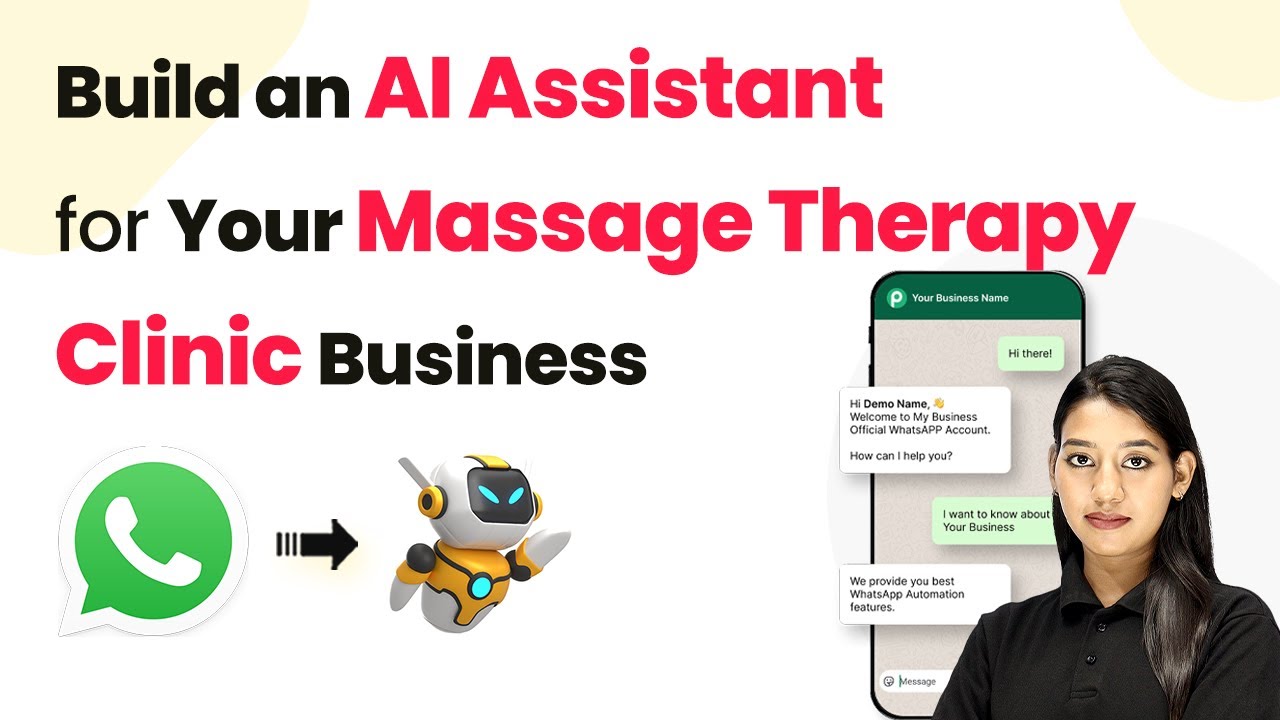
How to Build an AI Assistant for Your Massage Therapy Clinic Using Pabbly Chatflow

Learn how to create an AI assistant for your massage therapy clinic using Pabbly Chatflow. Step-by-step guide with exact integration processes. Master conversational marketing with practical techniques for creating chatbots that engage visitors at exactly the right moment in their journey.

Watch Step By Step Video Tutorial Below


1. Accessing Pabbly Chatflow for Your AI Assistant

To create an AI assistant for your massage therapy clinic, the first step is to access Pabbly Chatflow. Start by opening a new browser tab and entering the URL pabby.com/chatflow. This will take you to the main landing page of Pabbly Chatflow.

If you are a new user, click on the ‘Sign Up for Free’ button. Existing users should click on ‘Sign In’ to access their accounts. Once logged in, click on ‘Access Now’ to enter the Pabbly Chatflow dashboard where you can manage your chatbot functionalities.


2. Creating Your AI Assistant in Pabbly Chatflow

Now that you are in the Pabbly Chatflow dashboard, the next step is to create your AI assistant. Click on the ‘Add AI Assistant’ button. You will need to provide a name for your assistant—here, you can use ‘Massage Therapy Clinic AI Assistant’. using Pabbly Connect

  • Click on the ‘Add AI Assistant’ button.
  • Provide the assistant name.
  • Select the instruction type as ‘AI Agent’.

After naming your assistant, you will be directed to the configuration page. Here, select ‘AI Agent’ from the instruction type options. This is crucial, as it defines the primary functions and constraints of your AI assistant.


3. Configuring AI Settings in Pabbly Chatflow

In this section, you will configure the AI settings for your assistant. Set the creativity level by adjusting the temperature slider; a setting of 0.6 is recommended for a balance between focus and creativity. Choose ‘Open AI’ as your AI tool and select the model as ‘GPT 4.0 Mini’. using Pabbly Connect

To complete this configuration, you will need an API token from Open AI. Visit the Open AI API keys page, create a new secret key, and copy it. Paste this token into the designated field in Pabbly Chatflow and click ‘Connect’. Your AI tool is now linked successfully.


4. Customizing Your AI Assistant’s Interface

With your AI assistant configured, it’s time to customize its interface. In the settings, you can provide a display heading and subheading. For instance, use ‘Massage Therapy Clinic’ as your display heading. The initial message can be customized to greet users, such as ‘Hi there! How can I assist you today?’. using Pabbly Connect

  • Customize the display heading and subheading.
  • Set an initial greeting message.
  • Enable or disable the ‘Powered by Pabbly’ label.

Make sure to include a privacy policy link, as this is essential for user trust. Finally, enable the toggle to activate your AI assistant. Once satisfied with the customizations, click ‘Save’ to store your settings.


5. Testing Your AI Assistant Functionality

Now that your AI assistant is set up and customized, it’s time to test its functionality. Open your WhatsApp and send the message ‘Hey, I need help.’ Your AI assistant should respond with a prompt asking what assistance you require.

For example, if you ask about the types of massage services offered, it should reply with a detailed list of services, such as Swedish massage, deep tissue massage, and more. This real-time interaction showcases how Pabbly Chatflow effectively automates responses, enhancing customer engagement.


Conclusion

By following this detailed tutorial, you can successfully build an AI assistant for your massage therapy clinic using Pabbly Chatflow. This integration allows for efficient customer interaction and automated responses, significantly improving your clinic’s operational efficiency.

Ensure you check out Pabbly Connect to create business automation workflows and reduce manual tasks. Pabbly Connect currently offer integration with 2,000+ applications.

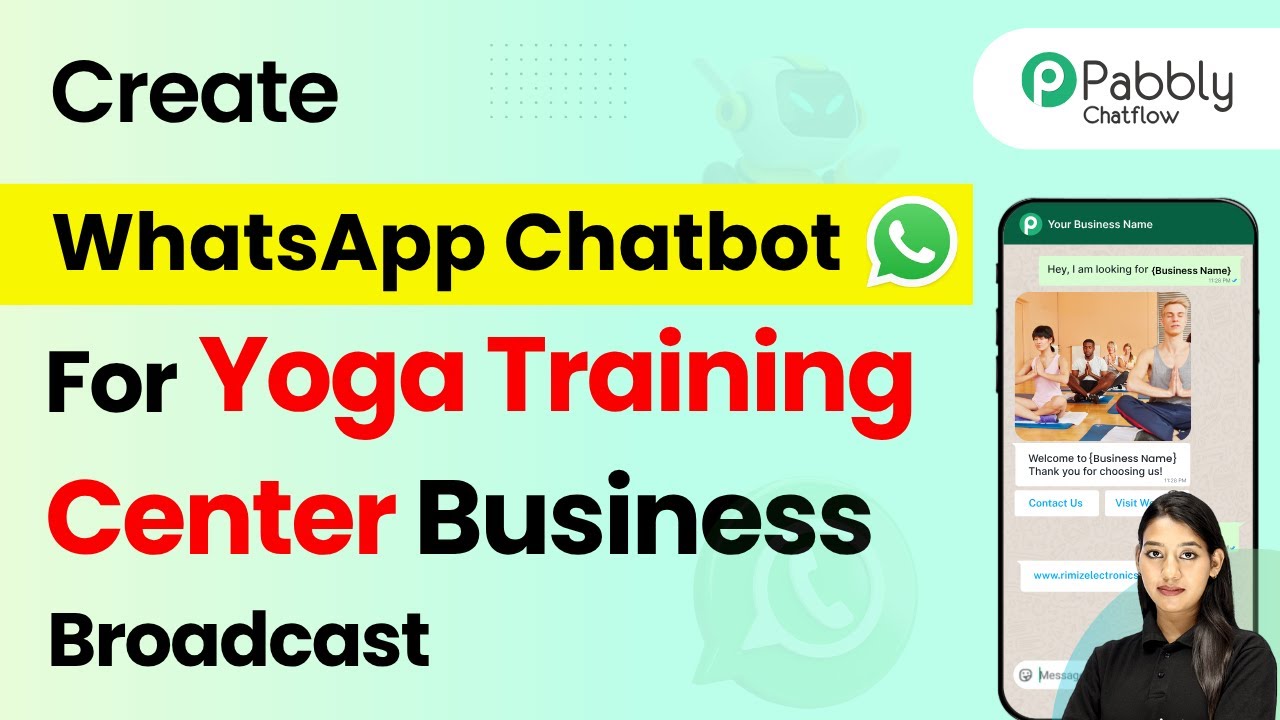
How to Broadcast WhatsApp Messages for Your Yoga Training Center Using Pabbly Chatflow

Learn how to effectively broadcast WhatsApp messages for your yoga training center using Pabbly Chatflow with this step-by-step tutorial. Learn step-by-step how to create, test, and optimize chatbots that enhance customer experience while reducing support workload.

Watch Step By Step Video Tutorial Below


1. Accessing Pabbly Chatflow for Your Yoga Training Center

To broadcast WhatsApp messages for your yoga training center, the first step is to access Pabbly Chatflow. This platform enables you to create and manage broadcasts effectively. Visit the Pabbly Chatflow website by entering the URL pabyt.com/chatflow in your browser.

If you are an existing user, click on ‘Sign In’. New users should click on ‘Sign Up for Free’. After logging in, you will be directed to the Pabbly Chatflow dashboard, where you can access all features necessary for setting up your broadcasts.


Once inside Pabbly Chatflow, you will find various features on the left side of the dashboard. These include:

  • Dashboard: Overview of chatbot performance and stats.
  • Inbox: Manage and reply to customer conversations.
  • Contacts: Store details of users interacting with your chatbot.
  • Broadcast: Send bulk messages to multiple users.

These features will help you set up your WhatsApp broadcasts efficiently. The broadcast feature is particularly important as it allows you to send messages to your yoga training center audience quickly.


3. Setting Up WhatsApp Integration in Pabbly Chatflow

To send WhatsApp messages, you need to integrate your WhatsApp account with Pabbly Chatflow. Navigate to the settings and click on ‘Add WhatsApp Number’. You will have two options: WhatsApp Connect Beta and Manual Token Connect.

Choose Manual Token Connect, which requires you to generate a Meta Access Token from Facebook for developers. Once you have the token, input it into the Pabbly Chatflow settings. This integration is crucial for broadcasting messages to your WhatsApp contacts.


4. Creating a Broadcast Message in Pabbly Chatflow

With your WhatsApp integrated, you can now create a broadcast message. In Pabbly Chatflow, click on the ‘Broadcast’ feature and then select ‘Add Broadcast’. Choose the broadcast type as ‘Broadcast Campaign’ and name it accordingly, such as ‘Yoga Training Center’.

Select a contact list, which you can create in the ‘Contacts’ feature. After creating the contact list, return to the broadcast setup and select it. You can then choose between pre-approved template messages or regular messages for your broadcast.

  • Select a pre-approved template for your message.
  • Provide necessary details and schedule the broadcast.

Once everything is set, click on ‘Add Broadcast’ to finalize your broadcast setup.


5. Testing and Scheduling Your Broadcast in Pabbly Chatflow

After creating your broadcast, it’s essential to test it. In Pabbly Chatflow, you have the option to send a test message to ensure everything is functioning correctly. Input the recipient’s details and click on ‘Send Test Message’.

Once you receive confirmation that the message is sent, check your WhatsApp to see how the template appears. If everything looks good, you can schedule the broadcast for later or send it immediately by selecting the appropriate options.

Finally, confirm your settings and click on ‘Add Broadcast’ to make your broadcast live. This ensures that your yoga training center can effectively communicate with clients through WhatsApp.


Conclusion

In conclusion, using Pabbly Chatflow allows yoga training centers to efficiently broadcast WhatsApp messages. By following the steps outlined in this tutorial, you can create, test, and manage your broadcasts effectively. This integration streamlines communication and enhances engagement with your audience.

Ensure you check out Pabbly Connect to create business automation workflows and reduce manual tasks. Pabbly Connect currently offer integration with 2,000+ applications.