How to Log Webinar Registrants from Google Forms to Salesforce CRM Using Pabbly Connect

Learn how to automate logging webinar registrants from Google Forms to Salesforce CRM using Pabbly Connect. Follow this step-by-step tutorial for seamless integration. Implement the precise methodologies leading organizations use to automate repetitive tasks, illustrated with practical examples designed for immediate application.

Watch Step By Step Video Tutorial Below


1. Accessing Pabbly Connect for Integration

To log webinar registrants from Google Forms to Salesforce CRM, you first need to access Pabbly Connect. Start by visiting the Pabbly website and signing in or creating a free account to get started with automation.

Once you are logged in, navigate to the Pabbly Connect dashboard. From here, you can create a new workflow to facilitate the integration between Google Forms and Salesforce CRM. This is where the automation magic happens.


2. Creating a Workflow in Pabbly Connect

To create a workflow, click on the ‘Create Workflow’ button in your Pabbly Connect dashboard. Name your workflow something descriptive, like ‘Log Webinar Registrants from Google Forms to Salesforce’. This helps you easily identify it later. using Pabbly Connect

  • Select the trigger application as Google Forms.
  • Choose the event as ‘New Response Received’.
  • Click on ‘Connect’ to link your Google Forms account.

After setting up the trigger, you will receive a webhook URL. This URL is crucial as it allows Pabbly Connect to capture the responses from your Google Forms automatically.


3. Setting Up Google Forms to Connect with Pabbly Connect

Next, you need to set up your Google Form to send responses to Pabbly Connect. Open your Google Form, navigate to the settings, and locate the ‘Responses’ section. Here, you will find an option to link your form to a Google Sheet.

Once linked, copy the webhook URL provided by Pabbly Connect and return to your Google Form. In the Google Sheets linked to your form, click on ‘Extensions’, then ‘Add-ons’, and install the Pabbly Connect Webhook add-on. This will allow your Google Sheets to communicate with Pabbly Connect.


4. Configuring Salesforce CRM to Receive Data

Now that your Google Form is set up, it’s time to configure Salesforce to receive the data. In Pabbly Connect, add an action step and select Salesforce as your action application. Choose the event as ‘Create Lead’. This step will create a new lead in your Salesforce account whenever a new response is submitted through Google Forms. using Pabbly Connect

  • Connect your Salesforce account to Pabbly Connect.
  • Map the fields from your Google Form to the corresponding Salesforce fields.
  • Test the connection to ensure data is flowing correctly.

By completing these steps, you ensure that every time a registrant fills out your Google Form, their details are automatically logged into your Salesforce CRM, streamlining your lead management process.


5. Testing the Integration

After configuring both Google Forms and Salesforce, it’s essential to test the integration. Go back to your Google Form and submit a test entry. Once submitted, check your Salesforce account to confirm that a new lead has been created with the information provided in the form.

If the lead appears in Salesforce, congratulations! You have successfully set up the automation using Pabbly Connect. If not, revisit your workflow in Pabbly Connect and check the configurations to ensure everything is set up correctly.


Conclusion

In this tutorial, we demonstrated how to log webinar registrants from Google Forms to Salesforce CRM using Pabbly Connect. By following these steps, you can automate your lead management process and ensure no inquiry slips through the cracks. This integration will help you manage your leads more efficiently and effectively.

Ensure you check out Pabbly Connect to create business automation workflows and reduce manual tasks. Pabbly Connect currently offer integration with 2,000+ applications.

How to Add Web Form Leads to HubSpot CRM Automatically Using Pabbly Connect

Learn how to automatically add web form leads to HubSpot CRM using Pabbly Connect. Step-by-step guide for seamless integration. Develop expertise in application integration and learn how to design streamlined automation workflows using proven, simplified approaches.

Watch Step By Step Video Tutorial Below


1. Accessing Pabbly Connect for HubSpot Integration

To add web form leads to HubSpot CRM automatically, you will first need to access Pabbly Connect. Begin by typing the URL Pabbly.com/connect in your browser. This will take you to the Pabbly Connect landing page where you can either sign in or sign up.

If you are new to Pabbly, click on the sign up free button. Existing users should click on sign in. After signing in, you will be directed to the Pabbly Connect dashboard, where you can create your workflow.


2. Creating Your Workflow in Pabbly Connect

Once on the dashboard, select the Pabbly Connect option and click on the create workflow button. You will be prompted to choose between the new beta workflow and the classic workflow builder. For this tutorial, select the classic workflow builder.

  • Click on create workflow.
  • Enter a name for your workflow, such as Web Form Leads.
  • Select your desired folder for the workflow.

After naming your workflow, click on the create button. You will see a confirmation message that your workflow has been created successfully. Now, you need to set up a trigger for your workflow.


3. Setting Up the Trigger with Elementor

In this section, you will select the trigger app, which is Pabbly Connect integrated with Elementor. Type Elementor in the trigger app field and select it. The next step is to choose the trigger event, which should be New Form Submission.

After selecting the trigger event, you will receive a webhook URL. This URL is crucial as it connects your Elementor form to Pabbly Connect. Copy this webhook URL to your clipboard and proceed to your WordPress site.


4. Configuring Your Elementor Form

Log in to your WordPress dashboard and navigate to the pages section. Click on add new and then edit with Elementor. Drag and drop a form widget into your page. Customize your form by adding fields like First Name, Last Name, Email, and Phone Number.

  • Remove any unnecessary fields from the form.
  • Go to Actions After Submit and select Webhook.
  • Paste the webhook URL copied from Pabbly Connect.

After configuring the form, click on publish to make it live. This setup ensures that whenever someone submits the form, the data will be sent to Pabbly Connect.


5. Finalizing the Integration with HubSpot CRM

Now, return to Pabbly Connect to finalize the integration. You should see that it is waiting for a response. Fill out the Elementor form you just created and submit it. This action will trigger the webhook.

Once the form is submitted, go back to Pabbly Connect and you should see the response with the details you filled in the form. Next, select HubSpot CRM as your action app and choose the action event as Create a Contact.

Click on the connect button to authorize the connection between Pabbly Connect and HubSpot CRM. Map the fields from your Elementor form to the corresponding fields in HubSpot CRM, such as First Name, Last Name, Email, and Phone Number. Finally, click on Save and Send Test Request to complete the integration.


Conclusion

This tutorial has shown you how to use Pabbly Connect to automatically add web form leads to HubSpot CRM. By following the steps outlined, you can streamline your lead management process and enhance your business efficiency.

Ensure you check out Pabbly Connect to create business automation workflows and reduce manual tasks. Pabbly Connect currently offer integration with 2,000+ applications.

Integrating IndiaMART Leads with Pabbly Connect and Pipedrive

Learn how to seamlessly integrate IndiaMART leads into Pipedrive using Pabbly Connect. This step-by-step guide covers everything you need to know. Eliminate manual repetitive tasks from your workflow. Discover proven automation methods with intuitive steps designed for efficiency-minded professionals.

Watch Step By Step Video Tutorial Below


1. Accessing Pabbly Connect for Integration

To integrate IndiaMART leads into Pipedrive, start by accessing Pabbly Connect. Open your browser and navigate to the Pabbly Connect landing page by searching for ‘Pabbly.com/connect’. This platform is essential for automating your lead management process.

Once on the site, you’ll see options to either sign in or sign up. If you are a new user, click on ‘Sign up for free’ to explore the features. Existing users can simply click on ‘Sign in’. After logging in, you will be directed to the dashboard where you can create your workflow.


2. Creating a Workflow in Pabbly Connect

After accessing Pabbly Connect, click on the ‘Create Workflow’ button. You will be prompted to choose between the new and classic workflow builders. For this tutorial, select the classic builder for a familiar interface.

  • Name your workflow ‘Add New India Leads as Pipedrive Contacts’.
  • Choose a folder to save your workflow, like ‘Automations’.

Once you have named your workflow and selected the folder, click on the ‘Create’ button. This will take you to the workflow window where you can set your trigger and action.


3. Setting Up the Trigger in Pabbly Connect

In the workflow window, you will need to set a trigger for your automation. For this integration, select IndiaMART as your trigger application. This means that whenever a new lead is generated, it will initiate the workflow.

Choose the trigger event as ‘New Leads’. Pabbly Connect will provide you with a webhook URL. Copy this URL as it will be used to connect IndiaMART with Pabbly Connect.

  • Open your IndiaMART account and navigate to the Lead Manager.
  • Select ‘Import Export Leads’ and then ‘Push API’.
  • Choose ‘Other’ as the source and enter ‘Pabbly Connect’ in the CRM platform name.

Paste the copied webhook URL into the web listener URL field and click on ‘Save Details’. This action successfully connects your IndiaMART leads to Pabbly Connect.


4. Configuring Pipedrive as the Action Application

After setting up the trigger, it’s time to configure Pipedrive as the action application. In your Pabbly Connect workflow, search for Pipedrive and select it. The action event you need to choose is ‘Create a Person’. using Pabbly Connect

Click on ‘Connect’ and then ‘Add a New Connection’. You will need to provide your Pipedrive API token. To find this, go to your Pipedrive account, click on your profile picture, select ‘Personal Preferences’, and then go to ‘API’. Copy the API token and paste it back into Pabbly Connect.

Map the fields from the previous step to the Pipedrive fields. Ensure to fill in all required fields like name, phone number, and email.

Once all details are mapped, click on ‘Save and Send Test Request’. This will create a new contact in Pipedrive with the information received from IndiaMART.


5. Testing the Integration and Final Steps

With the workflow set up, it’s important to test the integration to ensure everything is functioning correctly. After clicking on ‘Save and Send Test Request’, you should receive a confirmation that a new person has been created in your Pipedrive account.

Check your Pipedrive account to verify that the new lead appears with the correct details. This confirms that your integration is working as intended. Now, every time a new lead is generated in IndiaMART, it will automatically be added to your Pipedrive contacts through Pabbly Connect.

By utilizing Pabbly Connect, you can streamline your lead management process, enhancing your sales efficiency and ensuring that no leads are missed.


Conclusion

Integrating IndiaMART leads into Pipedrive using Pabbly Connect simplifies your workflow and enhances productivity. With this step-by-step guide, you can automate your lead management process effectively.

Ensure you check out Pabbly Connect to create business automation workflows and reduce manual tasks. Pabbly Connect currently offer integration with 2,000+ applications.

Automate Birthday Greetings with Pabbly Connect: A Step-by-Step Guide

Learn how to send automated birthday greetings to clients using Pabbly Connect, Google Sheets, and Gmail. Follow this detailed tutorial for seamless integration. Transform complex automation concepts into accessible, actionable steps that eliminate unnecessary manual work while maximizing existing application capabilities.

Watch Step By Step Video Tutorial Below


1. Accessing Pabbly Connect for Automated Birthday Greetings

To send automated birthday greetings to clients, the first step is to access Pabbly Connect. Open your browser and go to the Pabbly Connect landing page by entering ‘Pabbly.com/connect’. This is where you can create your automation workflow.

Once on the Pabbly Connect page, you will see options to sign in or sign up. If you are a new user, click on ‘Sign up for free’ to create an account and receive hundreds of tasks free each month. Existing users should click ‘Sign in’ to access their dashboard.


2. Creating Your Workflow in Pabbly Connect

After signing in, click on the ‘Create Workflow’ button to begin setting up your automation. You will be prompted to select the workflow builder. Choose the new workflow builder for a modern interface. using Pabbly Connect

  • Click on ‘Create’ after naming your workflow.
  • This opens the workflow window where you can set triggers and actions.
  • Select ‘Schedule’ as your trigger application to run this workflow daily.

Now, set the event to ‘Schedule Workflow’ and connect it. Specify that you want this workflow to run every day at 9:00 AM. After saving this, your automated birthday greetings workflow will be ready to trigger daily.


3. Fetching Current Date for Birthday Checks

The next step involves fetching the current date using Pabbly Connect. Add another action step and select ‘Date Time Format’ as the action application. This allows you to format and retrieve the current date.

Set the event to ‘Current Date’ and connect it. Specify the format as ‘Date, Month, Year’. This ensures that the workflow retrieves the date correctly for comparison with client birthdays.

  • Map the current date to exclude the year, focusing only on the day and month.
  • Add another action step with ‘Text Formatter’ to split the date.
  • Use ‘Split Text’ to separate the day and month for further processing.

After processing the date, your workflow can now check against the birthday data stored in Google Sheets.


4. Integrating Google Sheets to Retrieve Client Birthdays

Now, it’s time to integrate Google Sheets using Pabbly Connect. Add an action step and select Google Sheets as the application. Choose ‘Lookup Spreadsheet Rows’ as the event and connect your Google Sheets account.

Once connected, specify the spreadsheet name where client details are stored, and select the relevant sheet. For the lookup value, map the date and month you retrieved earlier. This allows the workflow to find any client whose birthday matches the current date.

Enter the lookup column as ‘E’ and the data column as ‘F’ where client information is stored. Make sure to capture advanced responses for detailed client data.

After saving this step, the workflow will successfully retrieve the details of clients whose birthdays are on the current date.


5. Sending Birthday Emails via Gmail

Finally, it’s time to send birthday greetings using Gmail through Pabbly Connect. Add a new action step and select Gmail as the application. Choose ‘Send Email V1’ as the event and connect your Gmail account.

Map the recipient email address from the previous response to personalize each birthday greeting. Fill in the sender’s name, subject, and content of the email. Use HTML formatting for a visually appealing message.

Map the client’s first and last name into the email content for personalization. Test the email to ensure it sends correctly.

After completing this setup, your automated birthday greetings workflow is fully functional. Each day at 9:00 AM, it will check for birthdays and send personalized greetings automatically.


Conclusion

This tutorial demonstrated how to use Pabbly Connect to automate birthday greetings for clients using Google Sheets and Gmail. By following these steps, you can ensure that your clients receive personalized messages on their special day without manual intervention.

Ensure you check out Pabbly Connect to create business automation workflows and reduce manual tasks. Pabbly Connect currently offer integration with 2,000+ applications.

How to Send SMS Reminders for Appointments Using Google Calendar with Pabbly Connect

Learn how to automate SMS reminders for Google Calendar appointments using Pabbly Connect. Follow this detailed tutorial for seamless integration. Discover how to seamlessly connect your essential tools through accessible instructions that make powerful automation available to professionals at every skill level.

Watch Step By Step Video Tutorial Below


1. Accessing Pabbly Connect for SMS Reminders

To send SMS reminders for appointments using Google Calendar, you need to access Pabbly Connect. Start by visiting the Pabbly Connect landing page by searching for ‘Pabbly.com/connect’ in your browser. This platform allows you to integrate various applications without any coding knowledge.

Once on the landing page, you will see options to either sign in or sign up for free. If you are a new user, click on ‘Sign Up for Free’ to explore the features. Existing users can simply click on ‘Sign In’ to access their accounts. After signing in, navigate to the dashboard and select the option to create a new workflow.


2. Creating a Workflow in Pabbly Connect

In the Pabbly Connect dashboard, click on the ‘Create Workflow’ button to begin setting up your SMS reminder automation. You will be prompted to choose between the new workflow builder or the classic one. For a modern interface, select the new workflow builder. using Pabbly Connect

  • Choose a name for your workflow, such as ‘Send SMS Reminders for Appointments Using Google Calendar’.
  • Select a folder to save your workflow or create a new one if needed.
  • Click on the ‘Create’ button to open the workflow window.

This window is crucial as it allows you to set up triggers and actions. The trigger will be Google Calendar, which activates when a new appointment is scheduled. The action will be to send an SMS through Twilio, ensuring that your attendees receive timely reminders.


3. Setting Up Google Calendar Trigger

To set up the trigger, search for Google Calendar in the provided options within Pabbly Connect. Select it and choose ‘New Event’ as the trigger event. After that, click on ‘Connect’ to establish a connection between Pabbly Connect and your Google Calendar account.

If you have previously connected your Google Calendar, you can select the existing connection. Otherwise, click on ‘Add New Connection’ and sign in with your Google account. After granting the necessary permissions, select the specific calendar you want to monitor for new events.


4. Sending SMS Reminders via Twilio

After setting up the Google Calendar trigger, the next step is to send SMS reminders using Twilio. Add an action step and select Twilio from the application options. Choose ‘Send SMS Message’ as your action event and click on ‘Connect’ to link your Twilio account. using Pabbly Connect

  • Map the phone number and message body in the SMS settings.
  • For the message body, include a personalized greeting using the recipient’s name.
  • Specify the sender’s number from your Twilio account.

Once you have filled in all required fields, click on ‘Save and Send Test Request’ to verify that the SMS is sent successfully. This ensures your reminders are correctly configured before going live.


5. Finalizing the Workflow for Automated SMS

To enhance your workflow, add a delay step to send reminders at specific intervals, such as one day and one hour before the appointment. Use the delay feature in Pabbly Connect to set these timings based on your requirements.

After configuring the delays, copy the Twilio action step and modify the message body to reflect the timing of the reminder. For instance, change the message for the one-hour reminder while keeping the core content similar. This allows you to send different messages based on the timing of the SMS.

With everything set up, your workflow will automatically send SMS reminders when a new appointment is added to Google Calendar, helping to minimize no-shows and keep attendees informed.


Conclusion

In this tutorial, we explored how to use Pabbly Connect to automate SMS reminders for appointments scheduled in Google Calendar. By integrating these applications, you can ensure that your clients receive timely notifications, reducing the chances of missed appointments. This setup not only saves time but also enhances communication efficiency.

Ensure you check out Pabbly Connect to create business automation workflows and reduce manual tasks. Pabbly Connect currently offer integration with 2,000+ applications.

How to Track New Leads from Google Lead Ads to Salesforce CRM Using Pabbly Connect

Learn how to seamlessly track new leads from Google Lead Ads to Salesforce CRM using Pabbly Connect with this step-by-step tutorial. Transform complex automation concepts into accessible, actionable steps that eliminate unnecessary manual work while maximizing existing application capabilities.

Watch Step By Step Video Tutorial Below


1. Accessing Pabbly Connect for Google Lead Ads and Salesforce Integration

To track new leads from Google Lead Ads to Salesforce CRM, you will need to access Pabbly Connect. Start by opening your web browser and searching for ‘Pabbly.com/connect’. This will take you to the Pabbly Connect landing page where you can either sign in or sign up for free.

If you are a new user, click on the ‘Sign up for free’ button to create an account. Existing users should click on ‘Sign in’. Once signed in, you will see all the Pabbly tools, but today we will focus on Pabbly Connect to facilitate the integration process.


2. Creating a Workflow in Pabbly Connect

After accessing Pabbly Connect, click on the ‘Create Workflow’ button. You will be prompted to choose between the new workflow builder and the classic builder. For this tutorial, select the new workflow builder for a more modern experience.

  • Click on ‘Create Workflow’.
  • Enter a name for your workflow, such as ‘Track New Leads from Google Lead Ads to Salesforce CRM’.
  • Select the folder to save your workflow.

Once you have named your workflow, click ‘Create’. This will take you to the workflow window where you will set up your trigger and action. Remember, the trigger will be Google Ads and the action will be Salesforce.


3. Setting Up the Trigger for Google Lead Ads

In the workflow window, click on ‘Add Trigger’ and select Google Ads as your trigger application. For the trigger event, choose ‘New Lead Form Entry’. This will initiate the workflow whenever a new lead is generated.

After selecting the trigger event, click ‘Connect’. Pabbly Connect will provide you with a webhook URL. Copy this URL as it will be used to connect Google Ads to Pabbly Connect.

  • Open your Google Ads account and navigate to the lead delivery options.
  • Paste the copied webhook URL into the appropriate field.
  • Send test data to ensure the connection works.

Once the test data is successfully sent, return to Pabbly Connect to verify that the response has been captured. You should see the test lead details reflected in your workflow.


4. Adding Salesforce as the Action in Pabbly Connect

After confirming that the trigger is set up correctly, it’s time to add Salesforce as the action application. Click on ‘Add Action Step’ and select Salesforce from the list.

For the action event, choose ‘Create Lead’ and click ‘Connect’. You will need to enter your Salesforce account credentials to establish a connection. Once connected, you can map the lead details from Google Ads to Salesforce using Pabbly Connect.

Map the first name, last name, company name, email, and phone number from the Google Ads lead data. Set the lead source as ‘Web’ and the status as ‘Open’. Click ‘Save and Send Test Request’ to create the lead in Salesforce.

After the test request is sent, check your Salesforce account to confirm that the new lead has been created successfully with all the mapped details.


5. Finalizing the Automation with Pabbly Connect

With the lead successfully created in Salesforce, you have completed the automation process. Whenever a new lead is generated from Google Ads, Pabbly Connect will automatically add the lead details into your Salesforce account without any manual intervention.

This seamless integration helps your sales team follow up with leads promptly. You can now relax as this workflow runs in the background, ensuring that no leads are missed.

To try this automation for your own business, sign up for a free trial of Pabbly Connect. If you have any questions or need assistance, feel free to reach out to the Pabbly community for support.


Conclusion

In this tutorial, we explored how to use Pabbly Connect to track new leads from Google Lead Ads to Salesforce CRM. This integration streamlines lead management, ensuring that your sales team can act swiftly on new opportunities. Start automating your workflows today with Pabbly Connect!

Ensure you check out Pabbly Connect to create business automation workflows and reduce manual tasks. Pabbly Connect currently offer integration with 2,000+ applications.

How to Send Event Registration Reminders from Google Forms to Gmail Using Pabbly Connect

Learn how to automate event registration reminders from Google Forms to Gmail using Pabbly Connect with this step-by-step tutorial. Implement the precise methodologies leading organizations use to automate repetitive tasks, illustrated with practical examples designed for immediate application.

Watch Step By Step Video Tutorial Below


1. Setting Up Pabbly Connect for Google Forms and Gmail Integration

To start sending event registration reminders from Google Forms to Gmail, you need to access Pabbly Connect. Navigate to the Pabbly Connect website and sign in or sign up for a free account. This platform allows you to automate workflows without any coding skills.

After signing in, you will reach the Pabbly Connect dashboard. To create a new workflow, click on the ‘Create Workflow’ button. You will see two options: the new beta method and the classic method. Choose the classic method for this tutorial. Name your workflow as ‘Send Event Registration Reminders from Google Forms to Gmail’ and select the appropriate folder before clicking the ‘Create’ button.


2. Configuring the Trigger in Pabbly Connect

In this step, you will set up the trigger for your workflow in Pabbly Connect. Click on the trigger application and select ‘Google Forms’ as your trigger app. For the trigger event, choose ‘New Response Received’. This setup will allow Pabbly Connect to capture responses from your Google Forms automatically.

  • Select Google Forms as the trigger application.
  • Choose ‘New Response Received’ as the trigger event.
  • Copy the provided webhook URL for further configuration.

Next, open your Google Form and navigate to the ‘Responses’ section. Click on the ‘Link to Sheets’ option to create a new spreadsheet. This spreadsheet will automatically collect responses from your Google Form, ensuring that every participant’s registration is stored for future reference.


3. Connecting Google Sheets to Pabbly Connect

After setting up your Google Form, you will need to connect it to Pabbly Connect via Google Sheets. Install the Pabbly Connect Webhooks add-on in Google Sheets by going to Extensions, then Add-ons, and selecting ‘Get Add-ons’. Search for ‘Pabbly Connect Webhooks’ and install it. using Pabbly Connect

Once installed, refresh your spreadsheet. Go to Extensions, select Pabbly Webhooks, and choose ‘Initial Setup’. Paste the webhook URL you copied earlier into the designated field and set the trigger column (for example, Column E) where new data will be entered. Click ‘Submit’ to save your settings.


4. Setting Up Action Steps to Send Reminders via Gmail

Now that your trigger is configured, it’s time to set up the action steps in Pabbly Connect. You will need to add a delay for sending reminders. Start by selecting ‘Delay by Pabbly’ as your action application and choose ‘Add Delay Time’ as the action event. Set the delay to execute a week before the event.

  • Select ‘Delay by Pabbly’ as the action application.
  • Choose ‘Add Delay Time’ as the action event.
  • Set the delay date and time format as required.

After setting the delay, add another action step to send an email via Gmail. Choose ‘Gmail’ as the action application and select ‘Send Email v1’. Connect your Gmail account and map the recipient’s email address from the Google Form response. Fill in the email subject and body to customize your reminder message.


5. Sending the Final Reminder Before the Event

In the last step, you will set up the second reminder to be sent a day before the event using the same process. Add another delay using ‘Delay by Pabbly’ and set it to the day before the event. Then, repeat the action step to send an email via Gmail.

Ensure to customize the subject and body of the email for the second reminder, including any relevant details such as the Zoom link for the event. After configuring these settings, test your workflow to ensure that everything is functioning properly.

Once the test is successful, your workflow is ready to send automated event registration reminders to participants using Pabbly Connect. This automation saves time and ensures that all registrants are informed about the upcoming event seamlessly.


Conclusion

In conclusion, using Pabbly Connect allows you to efficiently automate the process of sending event registration reminders from Google Forms to Gmail. By following these steps, you can ensure that your participants receive timely notifications without any manual effort. This integration enhances communication and keeps your attendees engaged.

Ensure you check out Pabbly Connect to create business automation workflows and reduce manual tasks. Pabbly Connect currently offer integration with 2,000+ applications.

How to Add Instagram Lead Ads Data to Google Sheets Using Pabbly Connect

Learn how to integrate Instagram Lead Ads with Google Sheets for easy tracking using Pabbly Connect. Step-by-step guide to automate lead data management. Explore efficient methods for automating routine tasks with clear, concise instructions suited for both newcomers and experienced professionals.

Watch Step By Step Video Tutorial Below


1. Accessing Pabbly Connect for Integration

To begin integrating Instagram Lead Ads data into Google Sheets, you must first access Pabbly Connect. This powerful automation tool allows you to connect various applications seamlessly. Simply visit the Pabbly Connect website and sign in or create a free account.

Once logged in, you will be greeted by the Pabbly Connect dashboard, where you can create workflows to automate tasks. The integration process starts by clicking on the ‘Create Workflow’ button, which will guide you through setting up your automation.


2. Setting Up the Trigger with Instagram Lead Ads

In this step, we will set up the trigger that will initiate the automation whenever a new lead is generated through Instagram Lead Ads. Within Pabbly Connect, select Instagram Lead Ads as your trigger application.

  • Choose ‘New Lead’ as the event to trigger the workflow.
  • Connect your Instagram account by clicking on ‘Connect with Instagram’.
  • Select your Facebook account linked to Instagram.

After selecting your Facebook account, you will need to choose the specific page and lead form that you want to capture leads from. Once this is done, click on ‘Save and Send Test Request’ to ensure that the connection is successful and that Pabbly Connect can receive leads from Instagram.


3. Adding Google Sheets as the Action Application

Now that you have set up the trigger, the next step is to add Google Sheets as the action application in Pabbly Connect. This step involves configuring how the lead data will be added to your Google Sheets.

  • Select Google Sheets as the action application.
  • Choose ‘Add New Row’ as the action event.
  • Connect your Google account to allow Pabbly Connect to access your sheets.

After connecting your Google account, select the specific spreadsheet and worksheet where you want the lead data to be stored. Map the fields from the Instagram lead data to the corresponding columns in your Google Sheets.


4. Testing the Integration for Successful Data Transfer

With the setup complete, it’s time to test the integration. In Pabbly Connect, click on ‘Test & Review’ to simulate the lead submission process. This will help you confirm that the lead data is correctly transferred to your Google Sheets.

To conduct a test, generate a test lead using the Meta Lead Ads Testing Tool. Ensure that all fields are filled out correctly, such as first name, last name, email, phone number, and property type. After submitting the test lead, check your Google Sheets to verify that the new row has been added with the correct information.


5. Finalizing the Automation Workflow

After successful testing, you can finalize your automation in Pabbly Connect. Click on the ‘Save’ button to ensure all settings are saved. You can also enable the workflow to ensure that it runs automatically whenever a new lead is generated.

Congratulations! Your integration between Instagram Lead Ads and Google Sheets is now complete. You can manage and track all your leads in one place, making it easier to analyze your marketing efforts and follow up with potential clients.


Conclusion

In this tutorial, we explored how to integrate Instagram Lead Ads with Google Sheets using Pabbly Connect. By automating this process, you can easily track and manage your leads. This integration enhances your efficiency and allows you to focus on growing your business.

Ensure you check out Pabbly Connect to create business automation workflows and reduce manual tasks. Pabbly Connect currently offer integration with 2,000+ applications.

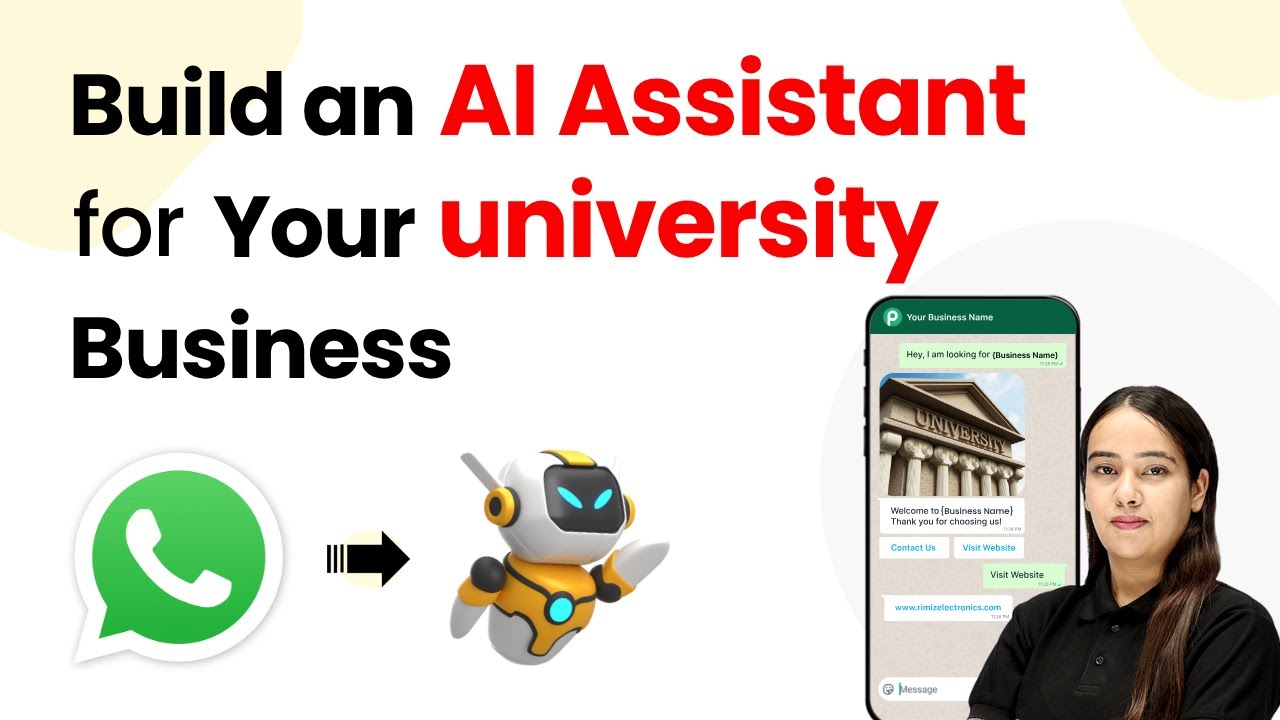
How to Build an AI Assistant for Your University Using Pabbly Chatflow

Learn how to create an AI assistant for your university using Pabbly Chatflow and Pabbly Chatflow. Step-by-step guide with detailed instructions. Discover how to design chat experiences that feel personal and responsive while handling customer inquiries automatically around the clock.

Watch Step By Step Video Tutorial Below


1. Getting Started with Pabbly Chatflow

To build an AI assistant for your university, the first step is accessing Pabbly Chatflow. Start by visiting Pabbly’s website and signing in or creating a new account if you are a first-time user.

Once logged in, navigate to the Pabbly Chatflow dashboard. Here, you can manage your WhatsApp numbers and set up your AI assistant. The dashboard provides a user-friendly interface to streamline the integration process.


2. Adding Your WhatsApp Number to Pabbly Chatflow

Adding your WhatsApp number is essential for the AI assistant to function effectively. In the Pabbly Chatflow dashboard, click on the ‘Add WhatsApp Number’ button located at the top right corner. You will see two options: WhatsApp Connect and Manual Token Connect. using Pabbly Connect

  • Select WhatsApp Connect for an easier setup.
  • Verify your Meta Business Manager account to link your WhatsApp Business account.

After verifying, you can manage all your WhatsApp conversations from one place. This integration allows your AI assistant to respond to queries efficiently and effectively.


3. Creating Your AI Assistant in Pabbly Chatflow

To create your AI assistant, navigate to the ‘AI Assistant’ section in Pabbly Chatflow. Click on the ‘Add AI Assistant’ button. You will need to provide a name and description for your assistant, which will represent your university.

Next, set the AI instructions, configuration, API key, and AI settings. Choose an AI instruction type, such as AI Agent, and configure the temperature setting to control the creativity of responses. A recommended setting is 0.3 for focused but slightly creative responses.

  • Select the AI model, such as OpenAI, and input your API key.
  • Upload a knowledge base file in plain text format for your assistant.

Once you complete these settings, your AI assistant will be ready to engage with users.


4. Configuring Assistant Settings in Pabbly Chatflow

After creating your AI assistant, it’s crucial to configure its settings. This includes defining the initial messages, branding, and user interactions. In the Assistant interface, set up the initial message that the assistant will send when a user initiates a conversation. using Pabbly Connect

Customize the branding by adding a brand name and display header. You can also choose to display or hide your company label in the chat interface. This personalization helps in creating a familiar experience for users.

Set up a footer message to provide additional information or links. Style your assistant by changing themes and background colors.

Once configured, save your settings to ensure your AI assistant is ready for interaction.


5. Testing Your AI Assistant on WhatsApp

To test your AI assistant, open WhatsApp Web and send a message that triggers the assistant, such as ‘I need help’. The assistant should respond promptly with a message asking how it can assist you today.

For example, if you ask about available clubs and extracurricular activities, the assistant will provide a detailed list of options. This showcases how Pabbly Chatflow can efficiently handle multiple queries without manual intervention.

By utilizing Pabbly Chatflow, your AI assistant can manage customer inquiries seamlessly, providing immediate responses and improving user engagement.


Conclusion

In conclusion, building an AI assistant for your university using Pabbly Chatflow is a straightforward process. By following these steps, you can create a responsive and effective support system that enhances user experience and engagement. Start utilizing Pabbly Chatflow today to automate your university’s customer interactions.

Ensure you check out Pabbly Connect to create business automation workflows and reduce manual tasks. Pabbly Connect currently offer integration with 2,000+ applications.

How to Track New Sales from Razorpay to Google Sheets Using Pabbly Connect

Learn how to automate tracking new sales from Razorpay to Google Sheets using Pabbly Connect. Step-by-step guide to streamline your sales process. Explore systematic approaches to creating efficient automation solutions that convert technical concepts into practical, implementable instructions.

Watch Step By Step Video Tutorial Below


1. Accessing Pabbly Connect for Integration

To track new sales from Razorpay to Google Sheets, you need to access Pabbly Connect. Start by navigating to the Pabbly Connect website by typing ‘pabyt.com/connect’ in your browser. This platform allows you to create automation workflows without any coding skills.

Once on the Pabbly Connect site, sign in to your account. If you are a new user, you can sign up for free, which gives you access to 100 tasks every month. After signing in, you will reach the dashboard where you can create new workflows to connect Razorpay and Google Sheets.


2. Creating a New Workflow in Pabbly Connect

After accessing your Pabbly Connect dashboard, click on the ‘Create Workflow’ button. This is where you will name your workflow. For this integration, name it ‘Track New Sales from Razorpay to Google Sheets’. Select the appropriate folder for organization purposes, such as ‘Razor Pay Automations’.

  • Click on ‘Create’ to finalize your workflow setup.
  • You will see an ‘Add Trigger’ box appear.
  • Select Razorpay as the trigger application.

In this workflow, the trigger will be a new payment captured in Razorpay. Therefore, select ‘Payment Captured’ as your trigger event. This setup ensures that whenever a new sale occurs, the details will automatically be sent to Google Sheets using Pabbly Connect.


3. Connecting Razorpay to Pabbly Connect

Next, you will need to establish a connection between Razorpay and Pabbly Connect. A webhook URL will be provided for this purpose. Copy this URL and head to your Razorpay account.

In your Razorpay dashboard, navigate to the ‘Developers’ section, where you will find options for APIs and webhooks. Click on ‘Webhooks’ and then ‘Add New Webhook’. Paste the copied webhook URL into the designated field and enter a random secret. Make sure to select the event type as ‘Payment Captured’ to trigger the workflow.


4. Testing the Connection and Payment Capture

After saving your webhook in Razorpay, return to your Pabbly Connect workflow. You will see a message indicating that it is waiting for a webhook response. To test this, you need to simulate a payment in Razorpay.

  • Click on ‘Payment Pages’ in Razorpay.
  • Select a product and complete the payment process.
  • Ensure that the payment is successful to receive a response in Pabbly Connect.

Once the payment is completed, you should see the details captured in your Pabbly Connect workflow. This confirms that the connection between Razorpay and Pabbly Connect is functioning correctly, and all relevant sale details are now available for further processing.


5. Adding Sale Details to Google Sheets

Now that you have successfully captured the payment details in Pabbly Connect, the next step is to add this information to Google Sheets. In your workflow, add a new action step and select Google Sheets as the action application.

Choose ‘Add New Row’ as the action event. You will need to connect your Google Sheets account to Pabbly Connect. Once connected, select the relevant spreadsheet where you want to store the sales data. Use the mapping feature to automatically fill in the fields with the data received from Razorpay.

Map customer name, email, product, and payment details from the Razorpay response. This ensures that every new sale is recorded accurately in your Google Sheets.

After mapping all necessary fields, click on ‘Save and Send Test Request’. Check your Google Sheets to confirm that the sales details have been added successfully. This completes the integration process using Pabbly Connect.


Conclusion

In this tutorial, we demonstrated how to track new sales from Razorpay to Google Sheets using Pabbly Connect. By automating this process, you can save time and ensure accurate sales tracking. Follow the steps outlined to streamline your sales operations effectively.

Ensure you check out Pabbly Connect to create business automation workflows and reduce manual tasks. Pabbly Connect currently offer integration with 2,000+ applications.