How to Log Leads from Instagram Ads into Pipedrive CRM Automatically Using Pabbly Connect

Learn how to log leads from Instagram Ads into Pipedrive CRM automatically using Pabbly Connect. Step-by-step tutorial for seamless integration. Learn to create powerful connections between your critical applications without requiring specialized programming knowledge or extensive technical background.

Watch Step By Step Video Tutorial Below


1. Access Pabbly Connect to Set Up Automation

To log leads from Instagram Ads into Pipedrive CRM automatically, you need to access Pabbly Connect. Start by visiting the Pabbly Connect landing page by typing ‘Pabbly.com/connect’ in your browser. This platform allows you to create seamless integrations without any coding knowledge.

Once on the landing page, you have the option to either sign in if you are an existing user or sign up for free if you are new. By signing up, you can explore the features of Pabbly Connect with 100 free tasks every month. After signing in, navigate to the dashboard to begin creating your workflow.


2. Create a Workflow in Pabbly Connect

After accessing your Pabbly Connect dashboard, click on the ‘Create Workflow’ button to start. You will be asked to choose between the new workflow builder and the classic one. Opt for the new workflow builder for a modern setup.

  • Enter a name for your workflow, such as ‘Log Leads from Instagram Ads into Pipedrive CRM Automatically’.
  • Select a folder to save your workflow, or create a new one if needed.
  • Click the ‘Create’ button to proceed.

Once the workflow is created, you will see the workflow window where you can set up the trigger and action for logging leads. This is where Pabbly Connect facilitates the automation process effectively.


3. Set Up the Trigger for Instagram Lead Ads

To log leads, you need to set up a trigger in Pabbly Connect. Click on the ‘Add Trigger’ button and select ‘Instagram Lead Ads’ as your trigger application. For the trigger event, choose ‘New Lead Instant’ and click on ‘Connect’.

When prompted, you can either select an existing connection or add a new one. If you are creating a new connection, you will need to connect your Instagram account via the associated Facebook page. Once connected, select your Facebook page and the lead form you are using for your Instagram ads.


4. Capture Test Lead and Configure Action

After setting up your trigger, you need to capture a test lead. Open a new tab and go to the Meta for Developers page to access the Lead Ads Debug Tool. This tool allows you to create a test lead to ensure the connection works properly.

  • Select your Facebook page and lead form.
  • Fill in the required details such as service of interest and contact information.
  • Submit the form to generate a test lead.

Once the test lead is submitted, return to Pabbly Connect to see if the lead details have been captured successfully. This step is crucial for ensuring your automation works as intended.


5. Create a New Contact in Pipedrive CRM

Now that you have captured the test lead, it’s time to create a new contact in Pipedrive CRM. Click on ‘Add New Action Step’ and search for ‘Pipedrive’. Select ‘Create a Person’ as the action event and click on ‘Connect’.

You will need to provide your Pipedrive API token to establish the connection. Retrieve the API token from your Pipedrive account under Personal Preferences, then paste it into Pabbly Connect. After saving the connection, map the fields from the test lead to the corresponding fields in Pipedrive.

Finally, click on ‘Save and Send Test Request’ to confirm that the new contact is created successfully in Pipedrive. You can check your Pipedrive account to verify that the contact has been added with the correct details.


Conclusion

In this tutorial, we explored how to log leads from Instagram Ads into Pipedrive CRM automatically using Pabbly Connect. By following these steps, you can streamline your lead management process and ensure no potential leads are missed. Start using Pabbly Connect today to enhance your business automation!

Ensure you check out Pabbly Connect to create business automation workflows and reduce manual tasks. Pabbly Connect currently offer integration with 2,000+ applications.

How to Send Product-Specific Email Sequences Using Mailchimp for Landing Page Form Leads with Pabbly Connect

Learn how to automate sending product-specific email sequences using Mailchimp for landing page leads with Pabbly Connect. Step-by-step tutorial included. Discover hidden automation capabilities within your existing tools. This guide shows you how to connect your essential applications and permanently eliminate redundant manual processes.

Watch Step By Step Video Tutorial Below


1. Accessing Pabbly Connect for Automation

To send product-specific email sequences using Mailchimp for landing page form leads, you first need to access Pabbly Connect. Start by visiting the Pabbly Connect homepage by searching for ‘Pabbly.com/connect’ in your browser. This platform is essential for integrating your landing page with Mailchimp.

Once on the Pabbly Connect homepage, you will have the options to sign in or sign up. If you are a new user, click on ‘Sign up free’ to create an account and explore 100 tasks every month. If you already have an account, simply click on ‘Sign in’. After logging in, you will be directed to the dashboard where you can start creating workflows.


2. Creating a Workflow in Pabbly Connect

To automate the process of adding new subscribers to Mailchimp, you need to create a workflow using Pabbly Connect. Click on the ‘Create Workflow’ button located in the top right corner of the dashboard. You will be prompted to select the workflow builder; choose the ‘New Beta’ version for a modern experience.

  • Click the ‘Create’ button to start a new workflow.
  • Name your workflow, such as ‘Send Product Specific Email Sequences Using Mailchimp for Landing Page Form Leads’.
  • Select a folder to save your workflow, or create a new one if needed.

After setting up these details, you will see the workflow interface where you can add triggers and actions. This is where the automation begins, allowing you to link your landing page to Mailchimp using Pabbly Connect.


3. Setting Up the Trigger in Pabbly Connect

The next step involves setting up a trigger in Pabbly Connect. Click on the ‘Add Trigger’ button and select your trigger application, which in this case is ‘Landing G’. Choose ‘New Lead from Landing Page’ as the event. This setup will ensure that every new lead from your landing page initiates an action in Mailchimp.

Upon selecting your trigger, Pabbly Connect will provide you with a webhook URL. Copy this URL, as it will be used to connect your landing page form to Pabbly Connect. Go to your Landing G account, edit the form settings, and paste the webhook URL into the integration settings.

  • Select the method as ‘POST’ to ensure data is sent to the webhook.
  • Map your form fields such as name, email, and phone number to the corresponding fields in your server.

After saving these settings, you will test the connection to confirm that Pabbly Connect is receiving data from your landing page successfully.


4. Adding Action to Pabbly Connect Workflow

Now that your trigger is set up, the next step is to add an action to your workflow in Pabbly Connect. Click on the ‘Add Action’ button and select ‘Mailchimp’ as your action application. Choose ‘Add a New Member with Custom Fields’ as the event. This will allow you to add the new lead as a subscriber in your Mailchimp account.

To connect your Mailchimp account, you will need to provide an API key and data center. Retrieve the API key from your Mailchimp account by navigating to your profile settings under ‘Extras’ > ‘API keys’. After generating a new API key, copy it and paste it into Pabbly Connect. Also, obtain your data center from the Mailchimp URL and input it into the workflow.

Select your audience list from Mailchimp. Map the lead’s email address and phone number from the previous step.

Once all details are filled, click on ‘Save and Send Test Request’ to create a new subscriber in Mailchimp. This completes the action setup in Pabbly Connect.


5. Testing the Integration in Pabbly Connect

To ensure everything is working correctly, it’s important to test the integration set up in Pabbly Connect. Go back to your landing page and submit a test form with dummy details. This will trigger the workflow you created, sending the details to Mailchimp.

After submitting the form, check your Mailchimp account to see if the new subscriber has been added successfully. Make sure that all the details, including email and phone number, are correctly populated. This confirms that Pabbly Connect is functioning as intended, automating the process of adding new leads from your landing page.

With this test, you can confidently say that you have successfully set up an automation using Pabbly Connect to send product-specific email sequences via Mailchimp for landing page form leads. This integration streamlines your marketing efforts and enhances user engagement.


Conclusion

In this tutorial, we explored how to send product-specific email sequences using Mailchimp for landing page form leads through Pabbly Connect. By following the steps outlined, you can automate the process of adding new subscribers and improve your marketing efficiency. Implementing this integration will help you manage your leads effectively and enhance your email marketing strategies.

Ensure you check out Pabbly Connect to create business automation workflows and reduce manual tasks. Pabbly Connect currently offer integration with 2,000+ applications.

How to Send Thank-You Emails for WooCommerce Orders Using Pabbly Connect

Learn how to automate thank-you emails for WooCommerce orders using Pabbly Connect. This step-by-step guide covers integration with Gmail and WooCommerce. Master proven automation processes with practical implementation examples and strategic recommendations you can apply immediately in your workflow.

Watch Step By Step Video Tutorial Below


1. Accessing Pabbly Connect for WooCommerce Integration

To automate thank-you emails for WooCommerce orders, start by accessing Pabbly Connect. Open your browser and type Pabbly.com/connect to reach the landing page.

Once on the landing page, you can either sign in if you are an existing user or sign up for free to explore the features. Pabbly Connect offers a free trial, allowing you to test the integration capabilities without any upfront costs.


2. Creating a Workflow in Pabbly Connect

After logging into Pabbly Connect, click on the ‘Create Workflow’ button to initiate your automation setup. You will be prompted to select between the new or classic workflow builder. Choose the new builder for a more modern interface.

  • Enter the workflow name as ‘Send Thank You Emails for WooCommerce Orders’.
  • Select the folder as ‘Automations’ to keep your workflow organized.
  • Click on the ‘Create’ button to proceed.

Once created, you will access the workflow window where you can set up the trigger and action for your automation.


3. Setting Up the Trigger for New WooCommerce Orders

In the workflow window, click on the ‘Add Trigger’ button. Search for ‘WooCommerce’ and select it as the trigger application. Choose the event as ‘New Order Created’ to capture new orders from your store.

Pabbly Connect will generate a webhook URL that you need to copy. Navigate to your WooCommerce account, go to the settings, and then to the ‘Advanced’ tab. Click on ‘Webhooks’ and add a new webhook.

  • Name the webhook as ‘New Order’.
  • Set the status to ‘Active’.
  • Select the topic as ‘Order Created’.
  • Paste the copied URL as the delivery URL.

Click on ‘Save Webhook’ to complete the setup. This establishes the connection between WooCommerce and Pabbly Connect.


4. Capturing Order Details for Email

To send a thank-you email, you need to capture the order details. In Pabbly Connect, click on ‘Recapture Webhook Response’. Then, simulate an order by purchasing a product from your WooCommerce store.

Complete the checkout process and place the order. Once you return to Pabbly Connect, it will capture the new order details, including customer name, email address, and order number.

Ensure the captured details match the order you just placed. This data will be used for personalizing the thank-you email.

With the order details captured, you are now ready to set up the action step to send the email.


5. Sending Thank-You Emails via Gmail

To send the thank-you email, click on ‘Add Action Step’ and select ‘Gmail’ as the action application. Choose ‘Send Email’ as the action event.

Connect your Gmail account by clicking ‘Add New Connection’ and follow the prompts to authorize Pabbly Connect to access your Gmail. Fill in the required fields such as sender’s name and email address, and for the recipient, map the customer’s email address captured in the previous step.

Set the email subject as ‘Thank You for Your Order, [Customer Name]’. Compose your email content, ensuring to map the customer’s name for personalization.

Finally, click on ‘Save and Send Test Request’ to send a test email. Check your Gmail inbox to confirm that the email has been successfully sent. This completes the integration setup using Pabbly Connect.


Conclusion

In this tutorial, we explored how to send automated thank-you emails for WooCommerce orders using Pabbly Connect. By integrating WooCommerce with Gmail, you can enhance customer engagement effortlessly. This automation not only saves time but also ensures that your customers feel appreciated after their purchase.

Ensure you check out Pabbly Connect to create business automation workflows and reduce manual tasks. Pabbly Connect currently offer integration with 2,000+ applications.

Set Up AI Assistant to Answer Rental Queries with Pabbly Chatflow

Learn how to set up an AI assistant using Pabbly Chatflow to automate responses for rental queries effectively. Step-by-step guide included. Learn step-by-step how to create, test, and optimize chatbots that enhance customer experience while reducing support workload.

Watch Step By Step Video Tutorial Below


1. Accessing Pabbly Chatflow for Rental Queries

To set up an AI assistant to answer rental queries, you first need to access Pabbly Chatflow. Simply visit www.Pabbly.com/chatflow in your browser. Once there, you will need to log in to your Pabbly account.

On the Pabbly Chatflow homepage, you will see options to log in or sign up. If you are a new user, click on ‘Sign Up for Free’ to receive 100 credits monthly. Existing users should click on ‘Sign In’ to access their dashboard. After logging in, you’ll see various Pabbly applications, including Pabbly Chatflow.


2. Creating Your AI Assistant in Pabbly Chatflow

To create an AI assistant in Pabbly Chatflow, navigate to the AI Assistant section on the left side of the dashboard. Click on ‘Add AI Assistant’ to begin the setup process.

  • Name your assistant as ‘Setup AI Assistant to Answer Rental Queries’.
  • Select AI instructions as ‘AI Agent’ from the dropdown menu.
  • Set the temperature for AI responses, defaulting to 0.7 for creative responses.

After setting up these parameters, click on ‘Add AI Assistant’ to save your configuration. This step is crucial as it lays the foundation for how your AI will interact with users regarding rental queries.


3. Configuring AI Settings in Pabbly Chatflow

Once your AI assistant is created, you can configure its settings in Pabbly Chatflow. You will need to enter your OpenAI API key for authentication. Click on the link to create a new secret key if you don’t have one yet.

In the AI assistant settings, toggle on the header and footer messages if you want to include them. Additionally, set up stop keywords to halt the conversation when necessary. You can also customize the fallback message that users will receive if the AI fails to respond properly.

  • Enter keywords like ‘stop’ to end the conversation.
  • Adjust the retry attempts for fallback responses.
  • Upload a knowledge base document that includes rental property details.

This setup ensures that your AI assistant is equipped to handle various inquiries about rental properties efficiently.


4. Testing Your AI Assistant on WhatsApp

After configuring your AI assistant in Pabbly Chatflow, it’s time to test its functionality. Send a message through WhatsApp asking for details about rental properties. The AI should respond with a prompt asking for more specific information.

For example, if you ask about a 3BHK apartment, the assistant should provide options based on your query. This interaction demonstrates how well the AI can handle rental queries, guiding users through the information they need.

Send a message like ‘I want to know about 3BHK apartments’. Expect a response with available options and details.

Testing ensures that your AI assistant is ready to interact with users effectively, providing relevant information and assistance.


5. Enabling AI Auto Reply for Rental Queries

To ensure that your AI assistant is always available to respond to rental queries, enable the AI auto-reply feature in Pabbly Chatflow. Go to the inbox settings and toggle on the ‘Enable AI Auto Replies’ option.

After enabling this feature, you can select which contact lists will receive AI responses. This allows for flexibility in managing inquiries while ensuring that all rental queries are addressed promptly.

Choose to enable for all contacts or specific lists. Save your settings to activate the AI assistant.

By enabling AI auto-reply, you ensure that your AI assistant in Pabbly Chatflow can manage rental queries efficiently, providing timely responses to all inquiries.


Conclusion

Setting up an AI assistant to answer rental queries using Pabbly Chatflow streamlines your communication process. By following these steps, you can automate responses, ensuring timely assistance for your clients. This integration enhances efficiency and improves customer satisfaction.

Ensure you check out Pabbly Connect to create business automation workflows and reduce manual tasks. Pabbly Connect currently offer integration with 2,000+ applications.

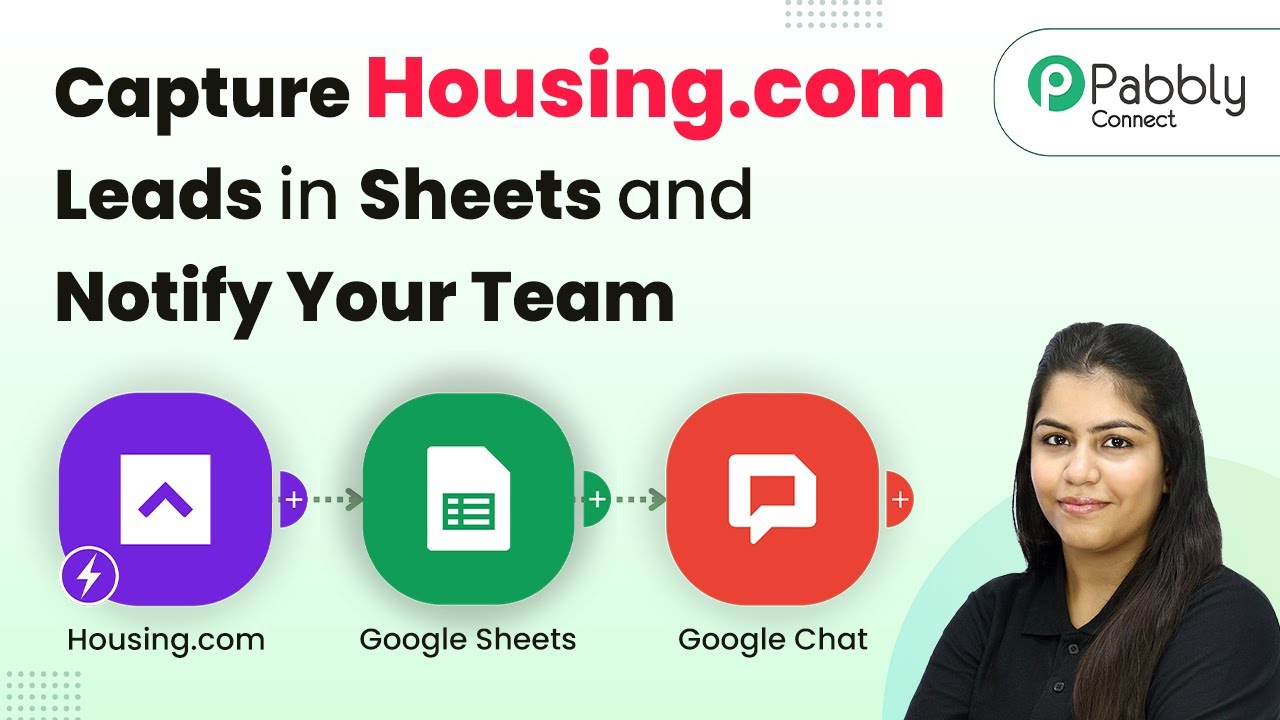
How to Capture Housing.com Leads in Sheets and Notify Your Team Using Pabbly Connect

Learn how to effectively capture Housing.com leads in Google Sheets and notify your team using Pabbly Connect. Step-by-step guide included! Eliminate manual repetitive tasks from your workflow. Discover proven automation methods with intuitive steps designed for efficiency-minded professionals.

Watch Step By Step Video Tutorial Below


1. Accessing Pabbly Connect for Automation

To start capturing Housing.com leads in Google Sheets, you need to access Pabbly Connect. Open a new tab and enter ‘Pabbly.com/connect’ in your browser to reach the Pabbly Connect landing page.

Once on the landing page, you have two options: ‘Sign In’ for existing users or ‘Sign Up for Free’ for new users. If you’re new, select the free plan to get started. After signing in, you will access the dashboard where you can create your workflow.


2. Creating a Workflow in Pabbly Connect

To create a workflow in Pabbly Connect, click on the ‘Create a Workflow’ button. You’ll be prompted to choose between the new workflow builder and the classic one. Select the new workflow builder for a modern interface.

  • Enter ‘Capture Housing.com Leads and Sheets’ as the workflow name.
  • Choose ‘Automations’ as the folder to save your workflow.
  • Click the ‘Create’ button to proceed.

Once created, you will see the workflow window, where you can set up triggers and actions. Triggers start the automation process, while actions are the results of that trigger. Click on ‘Add Trigger’ to begin.


3. Setting Up the Trigger for Housing.com Leads

In this step, you will set up the trigger for capturing leads from Housing.com using Pabbly Connect. Search for ‘Housing.com’ in the trigger application section and select it. For the trigger event, choose ‘New Leads’ and click on ‘Connect’.

Pabbly Connect will provide you with a webhook URL that you need to configure in your Housing.com account. Reach out to your Housing.com account manager to add this URL, as it cannot be added directly from the user interface.


4. Adding Lead Details to Google Sheets

After successfully capturing leads, the next step is to add these details to Google Sheets using Pabbly Connect. Click on ‘Add New Action Step’ and search for ‘Google Sheets’. For the action event, select ‘Add New Row’ and click on ‘Connect’.

  • Choose to add a new connection or select an existing one.
  • Sign in with your Google account to grant access.
  • Select the spreadsheet where you want to add the lead details.

Map the lead details from the trigger to the corresponding fields in your Google Sheets. This dynamic mapping ensures that each new lead is accurately recorded. Finally, click on ‘Save and Send Test Request’ to verify that the details are correctly added to your sheet.


5. Notifying Your Team on Google Chat

To ensure your team is notified about new leads, you will set up a notification system using Pabbly Connect. Click on ‘Add New Action Step’ and search for ‘Google Chat’. Select ‘Create Message’ as the event and click on ‘Connect’.

You will need to provide a chat webhook URL for the Google Chat space where notifications will be sent. Create a webhook in your Google Chat space and copy the link. Paste this link into your Pabbly Connect workflow.

Next, create a message template that includes the lead details. Use the mapping feature to dynamically insert the lead information into your message. Click on ‘Save and Send Test Request’ to send a test notification to your team on Google Chat.


Conclusion

By following these steps, you can efficiently capture leads from Housing.com into Google Sheets and notify your team using Pabbly Connect. This automation not only saves time but also ensures that your team is always updated with the latest leads. Start using Pabbly Connect today to streamline your lead management process!

Ensure you check out Pabbly Connect to create business automation workflows and reduce manual tasks. Pabbly Connect currently offer integration with 2,000+ applications.

Creating an AI Assistant for Hotel Bookings with Pabbly Chatflow

Learn how to create an AI assistant for hotel bookings using Pabbly Chatflow. This detailed tutorial guides you through the integration process step-by-step. Learn how to create intelligent chat workflows that provide instant customer support while qualifying leads 24/7 without human intervention.

Watch Step By Step Video Tutorial Below


1. Accessing Pabbly Chatflow for Your AI Assistant

To create an AI assistant for hotel bookings, you first need to access Pabbly Chatflow. Open your browser and enter Pabbly.com/chatflow. This will take you to the Pabbly Chatflow landing page where you can either sign up for a free account or sign in if you are an existing user.

If you are new, click on the ‘Sign up free’ button to create your account. Pabbly Chatflow offers 100 free credits every month for new users, allowing you to create AI agents without any initial investment. Once you are signed in, you will be directed to the dashboard where you can manage your AI assistant.


2. Adding Your WhatsApp Number in Pabbly Chatflow

The next step in creating your AI assistant involves adding your WhatsApp number to Pabbly Chatflow. In the dashboard, locate the ‘Add WhatsApp Number’ button. You will be presented with two options: WhatsApp Connect and Open Connect Method. Choose your preferred method to add your WhatsApp number.

  • Click on the ‘Add WhatsApp Number’ button.
  • Select either WhatsApp Connect or Open Connect Method.
  • Follow the prompts to complete the WhatsApp integration.

After successfully adding your number, it will be visible at the top of the dashboard. This integration is crucial as it allows your AI assistant to communicate with users via WhatsApp, enhancing customer interaction.


3. Creating Your AI Assistant in Pabbly Chatflow

Now that your WhatsApp number is linked, it’s time to create your AI assistant. Navigate to the ‘AI Assistant’ feature in Pabbly Chatflow. Here, you can see existing assistants and add a new one by clicking on the ‘Add AI Assistant’ button.

When prompted, give your AI assistant a meaningful name, such as ‘Hotel Booking AI Assistant’. This name will help identify your assistant’s purpose. After naming, you will proceed through four main steps: AI Instructions, Knowledge Source, Assistant Interface, and Styling.

  • Select the instruction type for your AI assistant.
  • Configure AI settings, including temperature and model selection.
  • Upload a knowledge source to provide information to your AI assistant.

This setup is essential for ensuring your AI assistant can effectively respond to customer inquiries about hotel bookings.


4. Configuring AI Instructions and Knowledge Source

In this step, you will configure the AI instructions for your assistant in Pabbly Chatflow. Start by selecting the instruction type as ‘AI Agent’. You can then customize the role and constraints if needed. The temperature setting, which balances creativity and focus, should remain at 0.5 for optimal performance.

Next, you will upload a knowledge source. This can be a PDF or TXT file containing relevant information about your hotel bookings. Ensure that the file size is less than 90 MB. Once uploaded, this knowledge source will enable your AI assistant to provide accurate responses to customer inquiries.

Select the instruction type as ‘AI Agent’. Upload your knowledge source file. Confirm the successful upload and processing of the knowledge source.

These configurations are critical as they determine how your AI assistant interacts with users and retrieves information.


5. Styling and Embedding Your AI Assistant

After configuring the AI instructions and knowledge source, proceed to the styling options in Pabbly Chatflow. Here, you can customize the appearance of your AI assistant, including header and footer messages, theme colors, and the shape of the assistant interface. These visual elements enhance user experience and brand identity.

Once styling is complete, you can enable the AI assistant and save your settings. To embed the assistant on your website, click on the ‘Embed’ button to get the script. Copy this script and paste it into your website’s HTML. This step allows your AI assistant to function seamlessly on your web platform.

Customize the assistant’s appearance through styling options. Enable the AI assistant and save your configurations. Copy the embed script to integrate the AI assistant into your website.

This final step ensures that your AI assistant is not only functional but also visually appealing to your users.


Conclusion

In this tutorial, you learned how to create an AI assistant for hotel bookings using Pabbly Chatflow. By following the detailed steps, you can set up an efficient AI agent that enhances customer interaction and streamlines booking processes. Start leveraging the power of automation in your hotel business today!

Ensure you check out Pabbly Connect to create business automation workflows and reduce manual tasks. Pabbly Connect currently offer integration with 2,000+ applications.

Unlocking All Features of Pabbly Hook – Complete Guide

Learn how to unlock all features of Pabbly Connect with this step-by-step guide on using Pabbly Connect for seamless integration. Explore efficient methods for automating routine tasks with clear, concise instructions suited for both newcomers and experienced professionals.

Watch Step By Step Video Tutorial Below


1. Introduction to Pabbly Hook and Pabbly Connect

Pabbly Connect is the central platform that allows you to integrate various applications seamlessly. In this section, we will explore how Pabbly Hook functions as a dedicated webhook management tool. It captures and processes webhook events effectively, ensuring that your business operations run smoothly.

Pabbly Hook offers features such as real-time event capturing, rate limiting, automatic retries, and detailed logging. This makes it an essential tool for businesses looking to manage their webhook traffic efficiently. By utilizing Pabbly Connect, you can enhance your automation workflows significantly.


2. Creating a Connection in Pabbly Hook

To get started with Pabbly Hook, you need to create a new connection. First, access your Pabbly Hook dashboard and click on the ‘Create Connection’ button located at the top right corner. A dialog box will appear prompting you to enter a name for your connection.

  • Enter a name for your connection (e.g., ‘New Connection’).
  • Select a folder to save your connection.
  • Click on the ‘Create’ button to finalize.

Once your connection is created, you will need to set up the necessary details such as selecting the HTTP methods and the destination webhook URL. Remember, Pabbly Connect will facilitate this process by providing the necessary webhook URL to connect.


3. Setting Up the Webhook URL and Method

After creating your connection, the next step is to set up the webhook URL. This URL is where Pabbly Hook will send the processed webhook data. To obtain the destination webhook URL, you will access Pabbly Connect and create a test workflow.

In Pabbly Connect, click on the ‘Add Trigger’ button and select ‘Webhook by Pabbly’ as your trigger application. Here’s how to do it:

  • Choose the app event as ‘Catch Webhook’.
  • Copy the generated webhook URL.
  • Paste this URL into the destination webhook URL field in Pabbly Hook.

By completing these steps, you ensure that any event response received in Pabbly Hook will be automatically transferred to the destination URL specified in your Pabbly Connect workflow.


4. Configuring Webhook Rate Limits and Conditions

Next, you can configure webhook rate limits in Pabbly Hook to control how many webhooks are forwarded within a specific timeframe. This feature is crucial for preventing server overload and API throttling issues.

Here’s how to set it up:

Enable the rate limit feature and specify the maximum number of webhooks allowed per second, minute, or hour. Set conditions and modifications for forwarding webhook events using filters and transformations.

With these configurations, you can ensure that your webhooks are managed efficiently, improving the reliability of your workflows facilitated by Pabbly Connect.


5. Testing and Monitoring Webhook Responses

After setting up your connection and configurations, it’s essential to test the connection to ensure everything works as expected. You can use tools like Postman to send a test webhook to the Pabbly Hook URL.

Once you send a test request, you can monitor the incoming webhooks in Pabbly Hook’s request section. Here’s how to check:

Access the request section to view incoming webhooks. Check the status of the webhook to ensure it was accepted and processed correctly.

This monitoring capability allows you to track the performance of your webhooks and troubleshoot any issues that may arise, ensuring your integration via Pabbly Connect remains seamless and efficient.


Conclusion

In this guide, we explored how to unlock all features of Pabbly Hook using Pabbly Connect. By following the steps outlined, you can effectively manage your webhook integrations, ensuring reliable data transfer and automation. Pabbly Connect serves as the backbone of this process, enhancing your ability to streamline operations.

Ensure you check out Pabbly Connect to create business automation workflows and reduce manual tasks. Pabbly Connect currently offer integration with 2,000+ applications.

How to Send WhatsApp Property Details to JustDial Leads Automatically Using Pabbly Connect

Learn how to automate sending WhatsApp property details to JustDial leads using Pabbly Connect. Step-by-step tutorial with detailed instructions. Follow this definitive guide to creating powerful automated workflows with straightforward, efficiency-focused solutions that save valuable time.

Watch Step By Step Video Tutorial Below


1. Accessing Pabbly Connect for Automation

To automate sending WhatsApp property details to JustDial leads, we will use Pabbly Connect. Start by visiting the Pabbly website at pabby.com. If you’re a new user, sign up for a free account to get started. Existing users can log in directly.

Once logged in, navigate to the Pabbly Connect dashboard. Here, you can create a new workflow to set up the integration. Click on the ‘Create Workflow’ button to begin the process of automating your lead notifications.


2. Creating a Workflow in Pabbly Connect

In this section, we will create a workflow that connects JustDial and WhatsApp Cloud API using Pabbly Connect. After clicking on ‘Create Workflow’, name your workflow something descriptive, like ‘Send WhatsApp Property Details to JustDial Leads Automatically’.

  • Select the folder where you want to save your workflow.
  • Choose the trigger application as JustDial.
  • Set the trigger event to ‘New Lead’.

Next, click on ‘Connect’ to establish the connection between JustDial and Pabbly Connect. This will allow you to capture new leads automatically whenever they come in.


3. Setting Up the Trigger Application

To complete the trigger setup, you need to configure the webhook URL provided by Pabbly Connect in your JustDial account. This step is crucial for the integration to work seamlessly. Reach out to your JustDial account manager and provide them with the webhook URL.

Once the webhook is configured, Pabbly Connect will be able to listen for new leads from JustDial. After receiving a lead, the data will be captured in your workflow, allowing you to proceed with sending the WhatsApp message.


4. Sending WhatsApp Messages Using Pabbly Connect

After setting up the trigger, the next step is to configure the action application, which is the WhatsApp Cloud API. In your Pabbly Connect workflow, select WhatsApp Cloud API as the action application. using Pabbly Connect

  • Choose the action event as ‘Send Complete Message’.
  • Connect to WhatsApp Cloud API by entering the required credentials: token, phone number ID, and WhatsApp business account ID.
  • Map the phone number field to the lead’s phone number received from JustDial.

Ensure that you utilize the mapping feature to dynamically insert lead information into your WhatsApp messages. This makes your messages personalized and relevant, enhancing customer engagement.


5. Testing the Integration

After completing the setup, it’s time to test the integration. Use the ‘Save and Send Test Request’ feature in Pabbly Connect to verify that your workflow functions correctly. This will send a test WhatsApp message to the specified number.

Check your WhatsApp to confirm that the message has been received. The message should include the lead’s name and property details as specified in your WhatsApp template. If everything works as expected, your automation is successfully set up!


Conclusion

In this tutorial, we’ve demonstrated how to send WhatsApp property details to JustDial leads automatically using Pabbly Connect. By setting up triggers and actions, you can streamline your communication process and enhance your real estate business efficiency. Automate your workflows today with Pabbly Connect for seamless operations!

Ensure you check out Pabbly Connect to create business automation workflows and reduce manual tasks. Pabbly Connect currently offer integration with 2,000+ applications.

How to Instantly Send Personalized WhatsApp Welcome Messages to Facebook Leads Using Pabbly Connect

Learn how to use Pabbly Connect to send personalized WhatsApp welcome messages to your Facebook leads instantly. Follow this step-by-step guide for seamless integration. Eliminate manual repetitive tasks from your workflow. Discover proven automation methods with intuitive steps designed for efficiency-minded professionals.

Watch Step By Step Video Tutorial Below


1. Accessing Pabbly Connect for Automation

To start sending personalized WhatsApp welcome messages to Facebook leads, first, access Pabbly Connect. Simply search for Pabbly.com/n in your browser, which will take you to the Pabbly Connect home page.

Once on the homepage, you can either sign in if you are an existing user or click on ‘Sign Up Free’ to create a new account. New users get 100 free tasks each month, allowing you to explore the software effectively.


2. Creating a Workflow in Pabbly Connect

After logging into Pabbly Connect, you will need to create a workflow. Click on the ‘Create Workflow’ button located at the top right corner of the dashboard. A dialog box will appear, prompting you to name your workflow.

For this tutorial, name your workflow ‘Instantly Send Personalized WhatsApp Welcome Messages to Facebook Leads’. You can also select a folder to organize your workflows. In this case, choose the folder labeled ‘Facebook Lead Ads’.

  • Click on ‘Create’ to finalize the workflow setup.
  • Ensure you select the Beta version for a modern interface.

Once the workflow is created, you will see two main principles of automation: Trigger and Action. The trigger will be set up first to begin the automation process.


3. Setting Up the Trigger for Facebook Leads

To set up the trigger, click on the ‘Add Trigger’ button. In the trigger options, select ‘Facebook Lead Ads’ as the application. Then, choose the event as ‘New Lead’.

Next, connect your Facebook account by clicking on ‘Connect with Facebook Lead Ads’. Make sure you are logged into your Facebook account in the same browser. This will allow Pabbly Connect to access your Facebook leads seamlessly.

  • Select the Facebook page associated with your business.
  • Choose the lead form you want to use for this automation.

After selecting your page and lead form, click on ‘Save and Send Test Request’ to ensure that the trigger is functioning correctly.


4. Adding Action Step to Send WhatsApp Messages

Once the trigger is successfully set, you will need to add an action step. Click on the ‘Add Action Step’ button and select ‘WhatsApp Cloud API’ as the application. The action event should be set to ‘Send Template Message’.

Connect your WhatsApp Cloud API account by entering the necessary details such as Token, Phone Number ID, and WhatsApp Business Account ID. These details can be obtained from your Meta account settings.

Map the phone number field from the Facebook lead to the WhatsApp message recipient. Select the template you created for the welcome message.

By mapping the data correctly, Pabbly Connect ensures that the right information is sent in the WhatsApp message, making it personalized for each lead.


5. Testing and Finalizing Your Workflow

To test your workflow, generate a test lead through your Facebook lead form. This will trigger the automation in Pabbly Connect. Check your WhatsApp to confirm that you received the personalized welcome message.

If the message is received successfully, your workflow is set up correctly! You can now monitor the workflow and make any adjustments if necessary. This automation will save you time and ensure that every new lead receives a warm welcome.

With Pabbly Connect, you can easily manage and automate your business processes, enhancing customer engagement and satisfaction.


Conclusion

In this tutorial, we explored how to use Pabbly Connect to instantly send personalized WhatsApp welcome messages to your Facebook leads. By setting up triggers and actions, you can automate your communication effectively, enhancing customer experiences.

Ensure you check out Pabbly Connect to create business automation workflows and reduce manual tasks. Pabbly Connect currently offer integration with 2,000+ applications.

Utilizing Pabbly Connect not only streamlines your workflow but also ensures that your leads feel valued right from the start. Start automating today!

How to Send Personalized Service Offer Emails Using SendGrid with Pabbly Connect

Learn how to send personalized service offer emails using SendGrid and Pabbly Connect for website form leads. Step-by-step tutorial included. Follow this definitive guide to creating powerful automated workflows with straightforward, efficiency-focused solutions that save valuable time.

Watch Step By Step Video Tutorial Below


1. Accessing Pabbly Connect for Integration

To send personalized service offer emails using SendGrid for website form leads, first, access Pabbly Connect. Open your browser and navigate to Pabbly.com/connect. This platform is essential for integrating various applications seamlessly.

Once on the Pabbly Connect homepage, you will see options to sign in or sign up. If you are a new user, click on the ‘Sign Up Free’ button to create an account and receive 300 tasks every month. Existing users should click on ‘Sign In’ to access their accounts.


2. Creating a Workflow in Pabbly Connect

After signing in, you will be directed to the Pabbly Apps window. Click on Pabbly Connect to access the dashboard. To initiate the integration, click on the ‘Create Workflow’ button located at the top right corner.

  • Select the ‘New Beta’ version for a modern experience.
  • Name your workflow, e.g., ‘Send Personalized Service Offer Emails Using SendGrid for Website Form Leads.’
  • Choose a folder to save your workflow, such as ‘Automations.’

After naming your workflow and selecting a folder, click on the ‘Create’ button to finalize the setup. This action creates a new workflow where you will define triggers and actions.


3. Setting Up the Trigger with Element Forms

In this step, you will set up a trigger that activates the workflow. Click on the ‘Add Trigger’ button and select ‘Element Forms’ as the application. Choose the event ‘New Form Submission’ to capture submissions from your website form. using Pabbly Connect

Click on ‘Connect’ to establish a connection with your Element Forms account. Pabbly Connect will provide a webhook URL that you will use to connect your form. Copy this URL for the next steps.

Next, log into your WordPress account where you have created your Element Forms. Edit the form and navigate to the ‘Actions After Submit’ section. Select ‘Webhook’ and paste the copied URL to complete the integration.


4. Sending Emails Using SendGrid

Now that the trigger is set, it’s time to send emails using SendGrid. In your Pabbly Connect workflow, add an action step by selecting ‘SendGrid’ as the application and ‘Send Email’ as the event. using Pabbly Connect

Click on ‘Connect’ to establish a connection with your SendGrid account by entering your API key. To obtain this key, log into your SendGrid account, navigate to ‘Settings’, then ‘API Keys’, and create a new API key with full access. Copy this API key and paste it into Pabbly Connect.

  • Map the recipient’s email address from the form submission data.
  • Enter a subject line, e.g., ‘Thank you for showing your interest.’
  • Input the sender’s email address and name.

After filling in the required fields, click on ‘Save and Send Request’ to complete the email sending process. You will receive a successful response indicating that the email has been sent.


5. Testing the Automation

To ensure that your automation works correctly, conduct a test submission through your Element Forms. Fill in the form with dummy data and submit it. This action will trigger the workflow you created in Pabbly Connect.

Check the Pabbly Connect dashboard to see if the submission data has been received. You should see the details captured from the form submission, confirming that the trigger is functioning properly.

Next, verify the recipient’s email inbox to ensure that the personalized service offer email was received. The email should reflect the details entered in the form, including the personalized greeting. This confirms that the entire integration process using Pabbly Connect has been successfully implemented.


Conclusion

In this tutorial, we explored how to send personalized service offer emails using SendGrid for website form leads through Pabbly Connect. By following the steps outlined, you can automate your email responses efficiently and effectively.

Ensure you check out Pabbly Connect to create business automation workflows and reduce manual tasks. Pabbly Connect currently offer integration with 2,000+ applications.