WhatsApp AI Assistant with Knowledge Base for Accurate Responses

Watch Step By Step Video Tutorial Below


1. Accessing Pabbly Connect for Integration

To begin integrating Pabi and Pabi Chat, you’ll first need to access Pabbly Connect. This platform serves as the backbone for all integrations, allowing seamless communication between various applications.

Once you are on the Pabbly Connect dashboard, you can create a new workflow. This involves selecting Pabi as your trigger application. Ensure you have your Pabi account credentials ready for authentication.


2. Setting Up Pabi Chat in Pabbly Connect

After establishing your Pabbly Connect account, the next step is to set up Pabi Chat. This involves linking your Pabi Chat account to Pabbly Connect, which facilitates the automation of responses to customer queries.

  • Log into your Pabbly Connect account.
  • Select the option to create a new workflow.
  • Choose Pabi Chat as the action application.

By doing this, you enable Pabbly Connect to manage interactions through Pabi Chat, ensuring that all customer queries are handled efficiently.


3. Creating a Knowledge Base for Your AI Assistant

Next, you need to create a knowledge base that will serve as the core for your AI assistant. This knowledge base is crucial for providing accurate responses to customer inquiries.

Make sure to include comprehensive details about your services, such as:

  • Overview of your business.
  • Details about packages and pricing.
  • Common customer queries.

Utilizing Pabbly Connect, you can upload this knowledge base and ensure your AI assistant is well-equipped to answer customer questions accurately.


4. Configuring Your AI Assistant with Pabbly Connect

Once your knowledge base is ready, the next step involves configuring your AI assistant using Pabbly Connect. This includes setting parameters such as the assistant’s name, temperature for responses, and the API key for OpenAI.

Follow these steps to configure your AI assistant:

  • Add your assistant name.
  • Set the temperature for response creativity.
  • Input your OpenAI API key.

This configuration ensures that your AI assistant is not only functional but also tailored to your business needs, providing a personalized customer experience through Pabbly Connect.


5. Enabling Your AI Assistant for Customer Interactions

Finally, you need to enable your AI assistant for customer interactions through Pabbly Connect. This allows the assistant to respond to queries automatically, enhancing customer service efficiency.

To enable your assistant, navigate to the settings in Pabbly Connect and ensure the AI auto-replies feature is turned on. You can also specify which contacts or contact lists will have access to the assistant.

This setup will ensure that your AI assistant is ready to handle customer queries around the clock, allowing you to focus on other aspects of your business while Pabbly Connect manages customer interactions effectively.


Conclusion

In this tutorial, we explored how to integrate Pabi and Pabi Chat using Pabbly Connect. By following the steps outlined, you can create an efficient AI assistant that enhances customer interactions and improves service delivery.
Stop Losing Customers with This AI Agent

Watch Step By Step Video Tutorial Below


1. Accessing Pabbly Chatflow to Create Your AI Assistant

To begin using Pabbly Chatflow, navigate to the Pabbly Chatflow website. If you are a new user, click on “Sign Up Free” to create an account, which provides you with 100 free credits monthly.

Once logged in, you can access the dashboard where you will find various applications. Click on the “Access Now” button under the Pabbly Chatflow section to proceed to the dashboard, where you can start building your AI assistant.


2. Setting Up Your WhatsApp Integration with Pabbly Chatflow

In this step, you will add your WhatsApp number to Pabbly Chatflow. Click on the button to select one of the two methods provided for adding your number.

  • Choose the first method to link your WhatsApp account.
  • Alternatively, use the second method for a different integration approach.

After adding your WhatsApp number, you can start creating your AI assistant by clicking on the “AI Assistant” box in the dashboard. This will direct you to a page where all your assistants will be stored.


3. Creating Your AI Customer Retention Agent in Pabbly Chatflow

To create your AI retention agent, click on the “Add Assistant” button. Name your assistant meaningfully, such as “AI Customer Retention Agent”. This name helps in identifying the assistant’s purpose.

Next, you will set up the AI instructions. Select the instruction type from the dropdown menu, choosing “AI Agent”. In the instruction box, provide detailed guidelines on how the assistant should respond to customer queries, ensuring it aligns with your business goals.

  • Set the temperature for responses to control creativity.
  • Add your OpenAI API key for integration.

Finally, configure the assistant settings, including header messages and stop keywords, to ensure it operates effectively within the Pabbly Chatflow environment.


4. Uploading Knowledge Sources for Your AI Assistant

For your AI assistant to respond accurately, upload a knowledge base file containing essential information about your business. This file should include FAQs, company background, and other relevant details.

Ensure the file is less than 90 MB and in TXT or PDF format. Once prepared, drag and drop the file into Pabbly Chatflow. This file will serve as the brain of your assistant, enabling it to provide informed responses.

  • Upload a PDF with no more than 10 pages if it contains images.
  • Make sure the content is comprehensive to assist customer queries.

After uploading, customize the assistant interface by changing the brand name and initial messages to align with your business identity.


5. Testing Your AI Assistant in Pabbly Chatflow

Now that your AI assistant is set up, it’s time to test its functionality. Create a flow that triggers the assistant when specific keywords, such as “cancel”, are sent by customers in WhatsApp.

In the flow builder, select the trigger event as “Keyword Match”. Add the keyword “cancel” and connect it to the action step, which assigns your AI assistant to the customer. This ensures that when the keyword is detected, your assistant responds instantly.

  • Save the flow to activate it.
  • Test the integration by sending the keyword in WhatsApp.

Once you send the keyword, the AI assistant should trigger and send a welcome message, confirming that the setup is successful.


Conclusion

In this tutorial, we explored how to create an AI retention agent using Pabbly Chatflow. By following the steps outlined, you can effectively manage customer cancellations and enhance your service retention strategies.

Sell Online Courses on Autopilot with Automation

Watch Step By Step Video Tutorial Below


1. Accessing Pabbly Connect for Integration

To start using Pabbly Connect, simply navigate to pabbl.com/connect and sign up for free. This platform allows you to automate workflows between various applications, making it easier to manage tasks like course enrollments.

Once inside the Pabbly Connect dashboard, you can create a new workflow. This is where you will set up the integration process, starting with the trigger and action steps.


2. Setting Up the Trigger with Razer Pay

The first step in your workflow is to set up a trigger. Click on the ‘Add Trigger’ button and select Razer Pay as your application. Choose the event as “Payment Captured” to monitor successful transactions.

  • Select ‘Razer Pay’ from the list of applications.
  • Choose ‘Payment Captured’ as the event.
  • Copy the webhook URL provided by Pabbly Connect.

After copying the URL, go to your Razer Pay dashboard and navigate to Account Settings. Under Webhooks, create a new webhook and paste the URL there. This action connects Razer Pay to Pabbly Connect.


3. Testing the Trigger with a Test Payment

With the webhook now set up, it’s time to test the trigger. Make a test payment through Razer Pay using the course purchase option. Ensure you enter the UPI ID correctly to complete the transaction.

Once the payment is confirmed, return to Pabbly Connect to check if the webhook response has been captured. You should see the details of the transaction displayed in the workflow.

This successful capture confirms that the connection between Razer Pay and Pabbly Connect is working properly, allowing you to proceed to the next steps in your automation.


4. Adding a Filter for Course Enrollment

Next, you need to ensure that only specific course purchases trigger the next actions. Add a filter step in your workflow after the trigger. This step will check if the purchased course is “Digital Marketing”.

  • Select ‘Filter’ as your application.
  • Set the condition to check if the course name equals “Digital Marketing”.

This filter ensures that only the correct course enrollments proceed to the next step. If the condition is met, the workflow continues; if not, it stops, preventing incorrect enrollments.


5. Enrolling the Student and Sending WhatsApp Messages

After adding the filter, the next action is to enroll the student in your course. Choose the Heights platform as your action application and select “Enroll Student” as the event.

Map the student’s name and email from the previous steps to dynamically insert their details into the enrollment process. This ensures that each new student is correctly registered.

Finally, to notify the student, add another action step using Pabbly Chatflow to send a WhatsApp message. Input the recipient’s number and create a message confirming their enrollment. This automation completes the process, ensuring students are informed immediately after payment.


Conclusion

In this tutorial, we explored how to integrate Razer Pay and WhatsApp using Pabbly Connect and Pabbly Chatflow. This automation enhances your workflow by streamlining course enrollments and notifications, allowing for efficient management of student interactions.

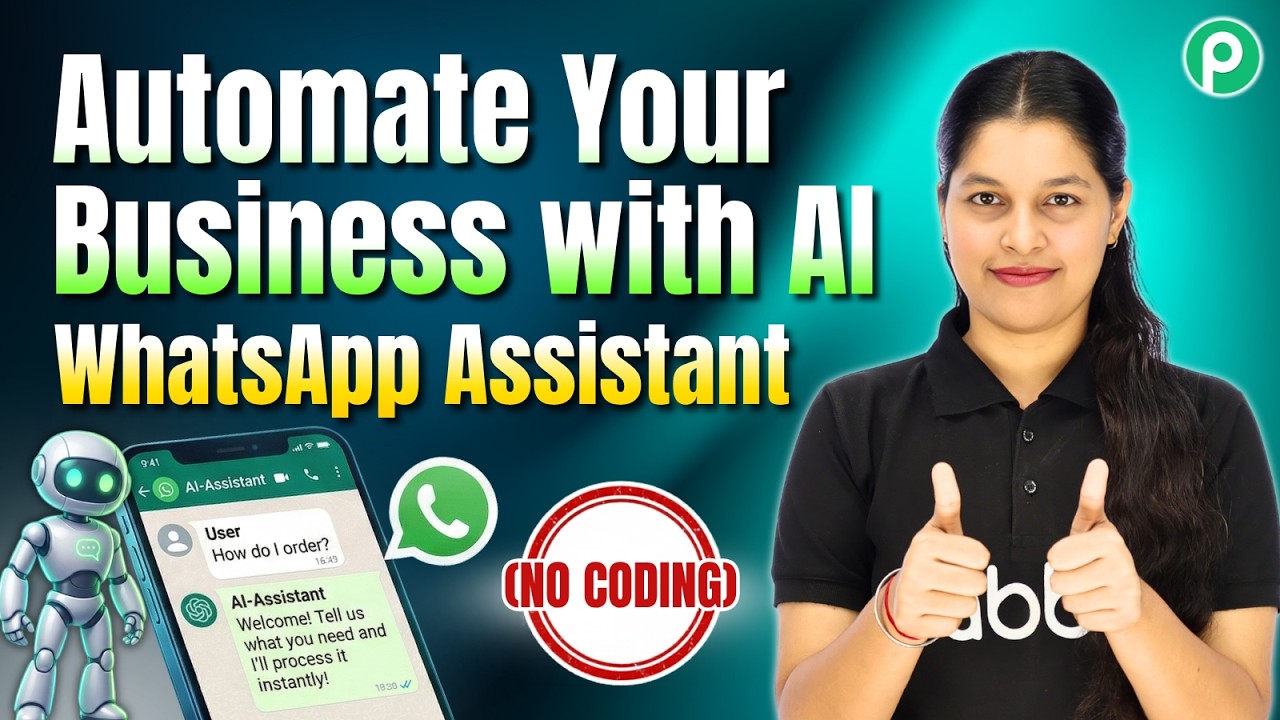
AI-Powered WhatsApp Assistant for Business Automation (No Coding)

Watch Step By Step Video Tutorial Below


1. Accessing Pabbly Chatflow for WhatsApp Integration

To create an AI-powered WhatsApp assistant, you first need to access Pabbly Chatflow. Open a new tab and type the URL pabbly.com/chatflow. You will land on the homepage where you can either sign in or sign up for free.

If you are a new user, select the “Sign Up Free” option. Signing up provides you with 100 free credits every month to explore Pabbly Chatflow and its features. After signing up, you can log in to start creating your AI assistant.


2. Creating Your AI Assistant in Pabbly Chatflow

Once logged into Pabbly Chatflow, navigate to the AI assistant section in the sidebar. Click on the “Add Assistant” button to begin the setup process. You will be prompted to enter a name for your assistant, such as “AI Powered WhatsApp Assistant for Business Automation.” After entering the name, click on the “Add Assistant” button.

  • Enter a unique name for your assistant.
  • Select the assistant type as “AI Agent”.
  • Click on “Add Assistant” to save your settings.

After this, you’ll be directed to the AI instructions tab. Here, you can set the instruction type and modify the instructions based on your business needs. The configuration section allows you to adjust the creativity level of the AI assistant by setting the temperature. A temperature of 0.5 is recommended for a friendly yet focused interaction.


3. Configuring Your AI Assistant Settings

In the AI assistant settings of Pabbly Chatflow, you can manage various configurations. Start by entering your OpenAI API key, which is necessary for connecting the AI model. To obtain this key, visit the OpenAI API key page and create a new secret key.

  • Navigate to the OpenAI API key creation page.
  • Click on “Create New Secret Key” and follow the prompts.
  • Enter the key in the designated field in Pabbly Chatflow.

Additionally, you can set up header and footer messages, stop keywords, and retry attempts. Ensure that your retry attempts are set according to your business needs for fallback responses. Once all settings are configured, click the “Save” button to apply the changes.


4. Setting Up Your Knowledge Base in Pabbly Chatflow

The knowledge base is crucial for your AI assistant to provide accurate responses. In Pabbly Chatflow, you can upload your knowledge base in either TXT or PDF format. Ensure your knowledge base contains all the essential details about your business, including services offered, pricing, and frequently asked questions.

  • Prepare your knowledge base document with clear and concise information.
  • Upload the document in the designated section of Pabbly Chatflow.
  • Verify the upload to ensure your assistant can access the information.

Once uploaded, your assistant will leverage this knowledge base to respond accurately to customer queries. The better the knowledge base, the more effective your AI assistant will be in providing relevant answers.


5. Enabling Your AI Assistant for Customer Queries

After setting up your AI assistant and knowledge base, it’s time to enable it for your customers. Go to the inbox settings in Pabbly Chatflow and select the option to enable AI auto replies. You can choose to enable it for all contacts or specific contact lists.

To enable the assistant for a particular chat, select the chat from the inbox, then choose your AI assistant from the options provided. Click the “Save” button to activate the assistant for that chat. This allows your AI assistant to handle customer queries automatically, providing instant responses.

With your AI assistant enabled, you can now focus on growing your business while it manages customer interactions efficiently. This automation will help you save time and ensure no customer query goes unanswered.


Conclusion

In summary, using Pabbly Chatflow to create an AI-powered WhatsApp assistant can significantly enhance your customer service. By following the steps outlined, you can automate responses effectively and ensure a seamless experience for your customers.

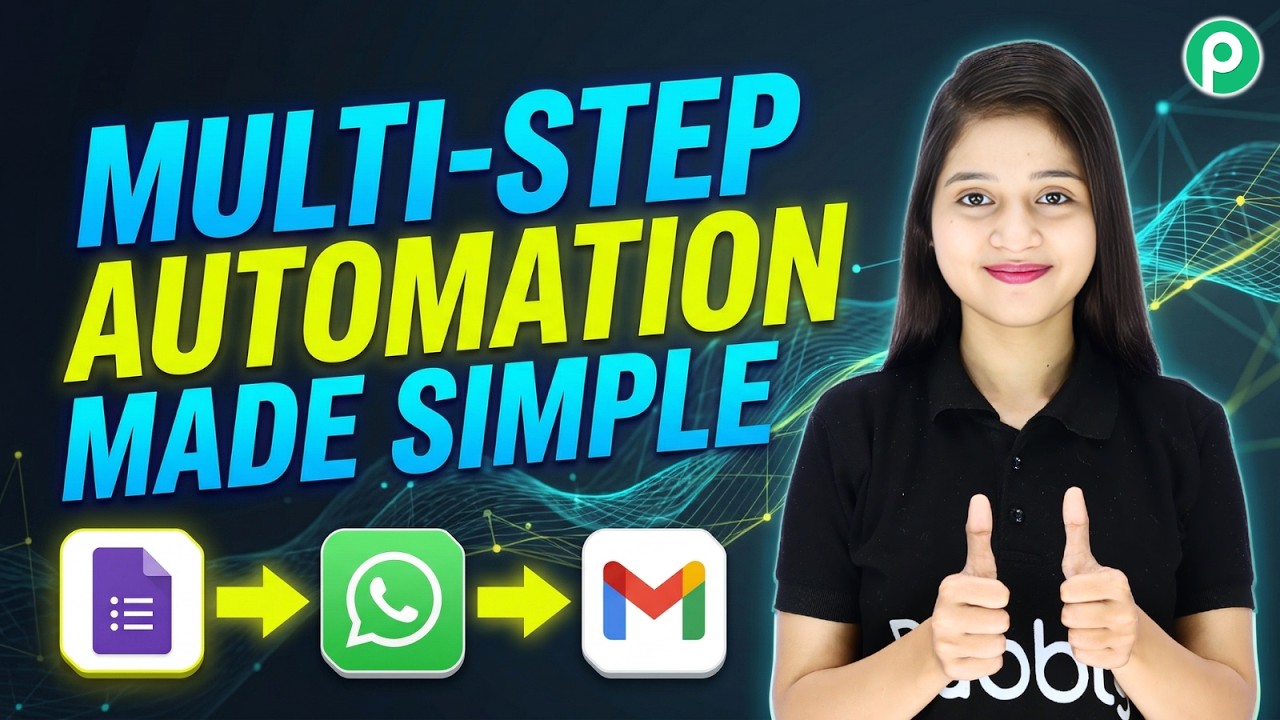
Create Multi-Step Automation Workflows with Pabbly Connect

Watch Step By Step Video Tutorial Below


1. Accessing Pabbly Connect for Automation

To start automating your workflow, first, access Pabbly Connect by visiting the official site. Once there, you can either sign up for a free account or log in if you are an existing user. This platform is essential for integrating various applications seamlessly.

After logging in, navigate to the dashboard where you can manage all your workflows. Click on the “Create Workflow” button to initiate the setup process. This step is crucial as it sets the stage for the integration between Google Forms, WhatsApp, and Gmail.


2. Setting Up Google Forms as a Trigger

In this section, we will set Google Forms as the trigger application in Pabbly Connect. This means that whenever a new form submission occurs, it will initiate the automation process. Start by selecting Google Forms as your trigger app.

  • Select “New Response Received” as the trigger event.
  • Click on the “Connect” button to establish the connection.
  • Copy the generated webhook URL to link it with your Google Form.

Next, go to your Google Forms account and open the form you want to use. Ensure you publish the form to start receiving responses. Once published, fill out the form to test if the integration works correctly. This step confirms that your Google Forms are effectively linked to Pabbly Connect.


3. Sending WhatsApp Messages via Pabbly Connect

After successfully setting up Google Forms, the next step is to send WhatsApp messages using Pabbly Connect. This action takes place after a form is submitted. Select “Pabbly Chatflow” as your action application.

  • Choose “Send Text Message” as the action event.
  • Click on the “Connect” button and create a new connection by entering your API token.
  • Map the recipient’s mobile number and customize the message content.

This mapping is crucial as it ensures that each user receives a personalized message based on their form submission. Once everything is set up, test the integration to confirm that messages are sent correctly through WhatsApp.


4. Sending Confirmation Emails via Gmail

The final step in your automation process is to send confirmation emails using Gmail through Pabbly Connect. This ensures that users receive all necessary information after submitting the form.

Begin by selecting Gmail as your action application and choose “Send Email” as the action event. Establish a new connection by signing in to your Google account and granting Pabbly Connect the necessary permissions.

  • Map the recipient’s email address from the Google Forms response.
  • Customize the email subject and body to include personalized details.
  • Select the email content type, ideally HTML for better formatting.

After configuring these settings, test the email functionality to ensure that users receive their confirmation emails promptly after form submission.


5. Conclusion: Automate Your Business with Pabbly Connect

In conclusion, using Pabbly Connect to automate the integration of Google Forms with WhatsApp and Gmail enhances your business efficiency. By implementing this workflow, you ensure that users receive immediate responses, increasing the likelihood of conversion.

Automating these processes not only saves time but also improves customer satisfaction. Start using Pabbly Connect today to streamline your business operations and enhance user engagement.

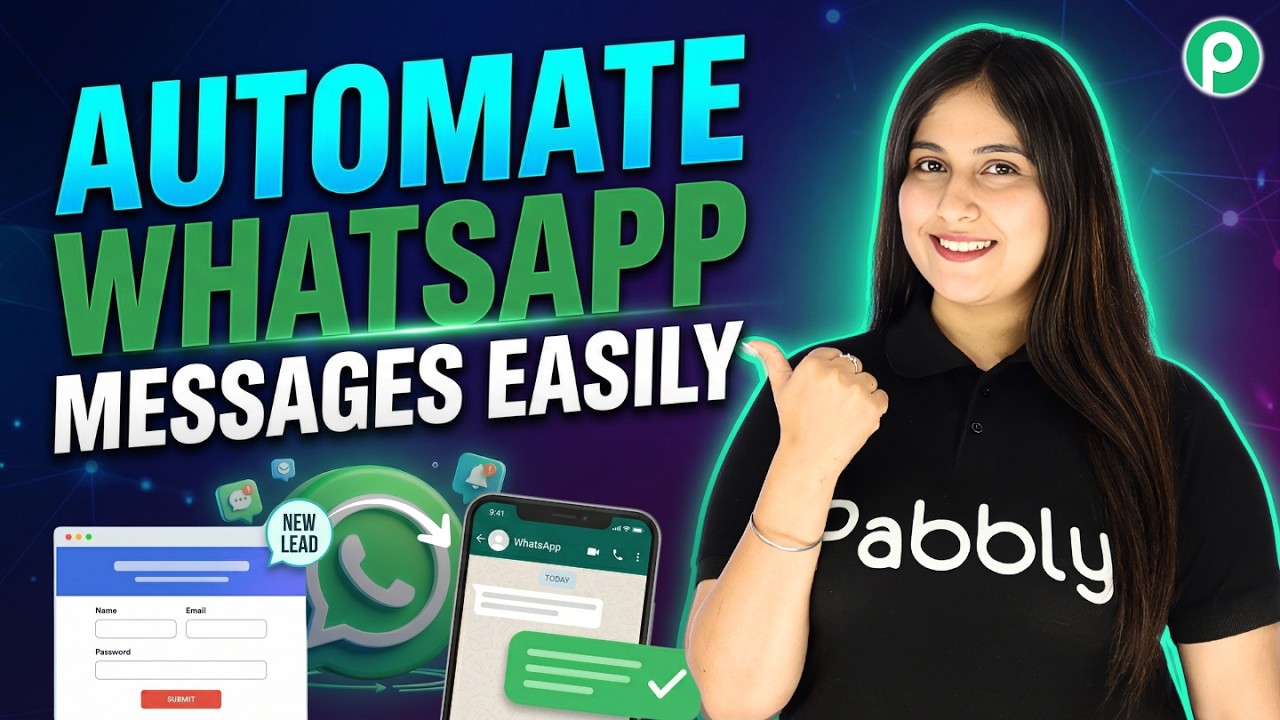
How to Automate WhatsApp Messages (Step-by-Step)

Watch Step By Step Video Tutorial Below


1. Accessing Pabbly Connect for Automation

To start automating WhatsApp messages, you need to access Pabbly Connect. Visit pabbly.com/connect in your browser to reach the homepage. Here, you have two options: sign in if you’re an existing user or click on “Sign Up Free” if you’re new.

If you choose to sign up, you can get 100 free tasks every month to explore the software. Once logged in, you can access all Pabbly applications, but for this tutorial, focus on Pabbly Connect to create your automation.


2. Creating a New Workflow in Pabbly Connect

After logging into Pabbly Connect, navigate to the dashboard and select “Create from Scratch” to build a new workflow. You will see two options: “New Beta” and “Classic”. Choose “New Beta” for a modern experience.

  • Name your workflow, e.g., “Automate WhatsApp Messages”.
  • Select a folder for organization.
  • Click the “Create” button to finalize.

This step sets the foundation for your automation, allowing you to define triggers and actions within Pabbly Connect.


3. Setting Up the Trigger with Typeform

For this automation, the trigger will be a form submission through Typeform. In Pabbly Connect, select Typeform as your trigger application and choose “New Entry” as the event. This means your automation will start when a new entry is submitted.

To connect Typeform to Pabbly Connect, you will need to create a new connection. If you are already logged into your Typeform account, it will request access. Once connected, select the specific form you want to use, such as “Sign Up Form”, and set the response format to simple.


4. Adding Action Step to Send WhatsApp Messages

Once your trigger is set, it’s time to add the action step. Select Pabbly Chatflow as the action application to send WhatsApp messages. Choose “Send Text Message” as the action event. Here, you will need to build a new connection by entering your API token from Pabbly Chatflow.

To find your API token, go to the settings in Pabbly Chatflow and select “API and Webhooks”. Copy the token and paste it into Pabbly Connect. You will then need to map the WhatsApp number and message content dynamically based on the previous steps. This ensures that each message is personalized for the recipient.


5. Testing and Finalizing Your Automation

After setting up the action step, it’s essential to test your automation. Submit a test entry through your Typeform to see if Pabbly Connect successfully triggers the WhatsApp message. You should receive a message that includes the personalized name and any other details you set up.

Once you confirm that everything is working correctly, your automation is complete! You can now automate WhatsApp messages to your leads or customers seamlessly using Pabbly Connect and Pabbly Chatflow.


Conclusion

In this tutorial, we learned how to automate WhatsApp messages using Pabbly Connect. By integrating Typeform and Pabbly Chatflow, you can send personalized messages to your leads effortlessly. This setup enhances customer engagement and streamlines communication.

Build a Smart AI Wealth Management Assistant

Watch Step By Step Video Tutorial Below


1. Accessing Pabbly Chatflow for WhatsApp Integration

To start using Pabbly Chatflow for your WhatsApp integration, first, visit pabby.com/chatflow. Here, you will find options to either sign up for a free account or log in if you are an existing user. This is the first step to creating your AI assistant.

Once logged in, you will be directed to the Pabbly Chatflow dashboard. From here, the next step is to add your WhatsApp number. Click on the relevant button and follow the prompts to successfully integrate your WhatsApp account with Pabbly Chatflow. This will allow you to manage your WhatsApp interactions effectively.


2. Creating Your AI Assistant in Pabbly Chatflow

After integrating WhatsApp, the next step is to create your AI assistant using Pabbly Chatflow. Click on the ‘AI Assistant’ option in the dashboard. Here, you can see any existing assistants and create a new one by clicking the ‘Add Assistant’ button.

  • Name your assistant, for example, “AI Financial Advisor”.
  • Set the AI instructions and configure the assistant’s settings.
  • Connect the knowledge source by uploading relevant documents.

This process will create a functional AI assistant capable of interacting with users on WhatsApp through Pabbly Chatflow. Make sure to save your changes as you proceed through these steps to ensure everything is set up correctly.


3. Configuring Assistant Settings in Pabbly Chatflow

Once you have created your AI assistant, it’s crucial to configure its settings effectively. In Pabbly Chatflow, you can adjust the temperature setting, which controls the creativity of the AI responses. A temperature of 0.5 is recommended for a balance of focus and creativity.

Next, you need to set up the API key for OpenAI. This involves purchasing a subscription from OpenAI, generating a secret key, and then pasting it into the designated field in Pabbly Chatflow. Ensure that you save this configuration to establish a connection.

  • Turn on any additional settings you wish to use, such as headers or footers.
  • Add stop keywords to halt responses when necessary.
  • Upload necessary knowledge files that your assistant will use to respond to users.

These configurations are essential for ensuring that your AI assistant operates smoothly and provides accurate responses based on user queries.


4. Testing Your AI Assistant with WhatsApp

After setting up your AI assistant, it’s time to test its functionality. In Pabbly Chatflow, you can create a flow that will trigger your AI assistant based on specific keywords. For instance, when a user sends the keyword “invest”, the assistant should respond accordingly.

To set up this trigger, navigate to the flow builder in Pabbly Chatflow. You will need to add a flow and specify the trigger event. After naming your flow, select the keyword match option and enter “invest” as the keyword.

  • Connect the action step to assign the AI assistant to the user.
  • Save your flow to ensure it functions as intended.

By testing this setup, you can confirm that your AI assistant is working correctly and can assist users effectively through WhatsApp.


5. Conclusion

In conclusion, using Pabbly Chatflow to create an AI assistant for WhatsApp is a straightforward process. By following the steps outlined, you can set up a functional assistant that provides personalized investment advice based on user input. This integration not only enhances user experience but also streamlines your advisory services.

With the ability to automate responses and provide tailored advice, Pabbly Chatflow proves to be an invaluable tool for businesses looking to improve their customer engagement on WhatsApp. Start building your AI assistant today to revolutionize your client interactions.

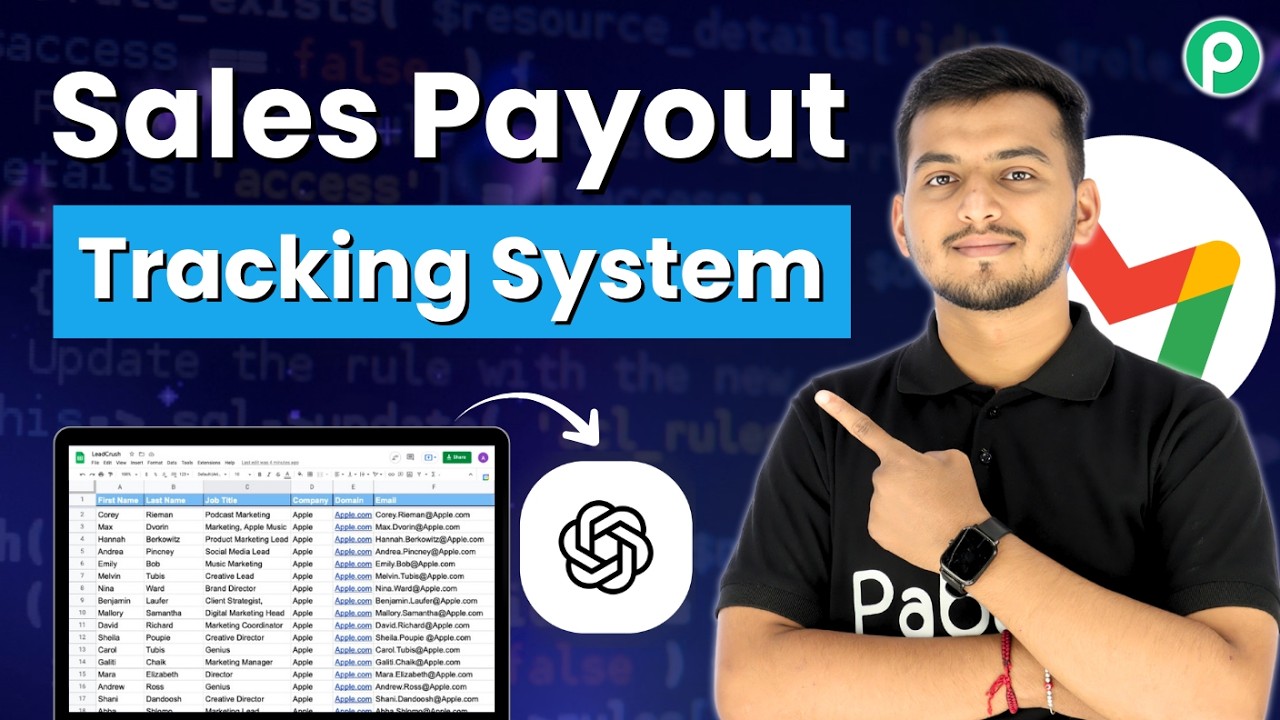
Automate Payout Tracking for Sales Teams

Watch Step By Step Video Tutorial Below


1. Accessing Pabbly Connect for Integration

To begin automating your sales commission tracking, access Pabbly Connect by visiting the official website. If you are new to Pabbly, click on the “Signup Free” button to create an account, which provides 100 free tasks each month.

After signing up, log in to your account. You will be directed to a dashboard where you can create workflows. Click on the “Create Workflow” button to start setting up your automation for tracking sales commissions.


2. Creating a Workflow in Pabbly Connect

In the Pabbly Connect dashboard, select the option to create a workflow from scratch. You will be prompted to choose between the new beta version or the classic version of the workflow builder. Select the new beta version for a more modern interface.

  • Name your workflow as “Automate Payout Tracking for Sales Team”.
  • Choose a folder to save your workflow.
  • Click on the “Create” button to finalize your workflow setup.

Once created, you can start adding applications to your workflow. The first application will be Google Sheets, which will trigger the workflow whenever a new row is added to your sales data sheet.


3. Triggering the Workflow with Google Sheets

To set up the trigger, select Google Sheets as your application in Pabbly Connect. For the event, choose “New or Updated Spreadsheet Row”. This ensures that your workflow triggers every time a new sale is recorded in the Google Sheet.

After selecting the event, create a connection between Google Sheets and Pabbly Connect by clicking the “Connect” button. You will receive a webhook URL that must be copied and pasted into your Google Sheets add-ons for proper integration.

  • Go to Google Sheets, click on Extensions, then Add-ons, and select Get Add-ons.
  • Search for the Pabbly Connect Webhook and install it.
  • After installation, configure the webhook by pasting the copied URL and setting the trigger column.

Once configured, every new row added to your sales data will automatically trigger the workflow in Pabbly Connect.


4. Updating Commission Data in Google Sheets

Next, you will set up the action step to look up commission data for the salesperson. In Pabbly Connect, add Google Sheets again as your application and choose the “Lookup” event. Create a new connection as previously shown.

Select the spreadsheet and sheet where the commission tracker is located. For the lookup value, map the salesperson’s name dynamically from the previous step to ensure accurate data retrieval. Specify the lookup column and end column in the Google Sheet.

  • Lookup Column: A (where salesperson names are stored).
  • End Column: D (where commission data is stored).

After setting this up, click “Save and Send Test Request”. You should receive a response with the commission data for the salesperson, confirming that the lookup step is functioning correctly.


5. Notifying the Sales Team with Gmail

Finally, to notify your sales team about their commissions, add Gmail as the next application in your workflow. Select the “Send Email” event and create a connection with your Gmail account.

Fill in the required fields, including the sender name, sender email, recipient email, subject, and email content. Use dynamic data from the previous steps to personalize the message, ensuring that each salesperson receives their specific commission details.

  • Sender Name: Sales Management Automation
  • Subject: New Sale Record
  • Content: Include details such as salesperson name, sale amount, and commission.

Click “Save and Send Test Request” to send the email. Check your Gmail to confirm that the notification has been sent successfully, completing the automated commission tracking system using Pabbly Connect.


Conclusion

In this tutorial, we demonstrated how to automate sales commission tracking using Pabbly Connect. By integrating Google Sheets and Gmail, you can efficiently manage sales data and notify your team instantly.

Boost Your Business with a Fully Automated WhatsApp Chatbot

Watch Step By Step Video Tutorial Below


1. Accessing Pabbly Connect for Integration

To start integrating WhatsApp with Google Sheets, you first need to access Pabbly Connect. This platform enables seamless automation between various applications, including WhatsApp and Google Sheets.

Upon accessing Pabbly Connect, you will need to log in or sign up for a new account. This will give you access to the integration features that allow you to connect your WhatsApp and Google Sheets.


2. Creating a WhatsApp Chatbot with Pabbly Connect

Once you are logged into Pabbly Connect, the next step is to create a WhatsApp chatbot. This chatbot will handle customer queries and event planning requests. To do this, navigate to the Pabbly Chatflow application.

  • Open the Pabbly Chatflow app from your dashboard.
  • Select the option to create a new flow for your chatbot.
  • Set up the trigger event for the chatbot using keywords.

After setting up the trigger, you can design the flow of conversation. This includes greeting messages and options for users to select, which will guide them through the event planning process.


3. Collecting Event Details Using Pabbly Connect

In this section, you will use Pabbly Connect to collect details about the event from users. After the user selects options in the WhatsApp chatbot, you will ask for their name, event type, date, number of guests, and location.

  • Ask for the user’s name and store it in a custom field.
  • Request the event type by providing a list of options.
  • Collect the date, number of guests, and location from the user.

These details will be stored in the variables created in Pabbly Connect, which will later be used to populate the Google Sheet.


4. Integrating WhatsApp with Google Sheets Using Pabbly Connect

After collecting the event details, the next step is to integrate the WhatsApp chatbot with Google Sheets using Pabbly Connect. This integration allows you to automatically save the collected data into a Google Sheet.

To do this, you will create an API request in Pabbly Connect that sends the event data to your Google Sheet. You will specify the fields that need to be filled in the sheet, such as the user’s name, event type, date, and location.


5. Sending Confirmation Messages and Using AI Assistant

Upon successful data entry into Google Sheets, you can send a confirmation message back to the user through WhatsApp. This will inform them that their event planning request has been received.

Additionally, you can assign an AI assistant within Pabbly Connect to answer any further queries the user may have. This AI assistant can respond based on the knowledge base you provide, ensuring accurate and helpful responses.

Make sure to save your flow in Pabbly Connect to retain all the settings and configurations you have made.


Conclusion

In this tutorial, we explored how to integrate WhatsApp with Google Sheets using Pabbly Connect. By following these steps, you can automate customer interactions and efficiently manage event planning tasks.

Generate WordPress Articles from YouTube Content with AI

Watch Step By Step Video Tutorial Below


1. Accessing Pabbly Connect for Integration

To begin automating your YouTube to WordPress workflow, first access Pabbly Connect by navigating to its official URL. Once there, you will see options to sign in or sign up for free. Signing up gives you access to 100 free tasks each month, allowing you to practice using the platform.

After signing in, you will land on the workflow page, which is essential for creating your automation. Here, you can set up triggers and actions that will automate the process of turning your YouTube videos into blog posts.


2. Setting Up YouTube Trigger in Pabbly Connect

In this section, we will set up the trigger for our automation. The trigger is the event that starts the workflow, which in this case is publishing a new video on YouTube. Select YouTube as your trigger app in Pabbly Connect.

  • Choose the trigger event as “New Video in Channel”.
  • Connect your YouTube account by signing in with your Google credentials.
  • Select your YouTube channel ID from the dropdown menu.

Once you have completed these steps, click on “Save and Send Test Request”. This will fetch the latest video details, confirming that the trigger is set up correctly in Pabbly Connect.


3. Generating Blog Content with OpenAI

Next, we will use OpenAI to generate blog content based on the title of the YouTube video. Add OpenAI as your action app in Pabbly Connect. This integration allows you to create dynamic content for your WordPress blog.

  • Select the OpenAI model you want to use, such as ChatGPT.
  • Enter your OpenAI API key to establish a connection.
  • Map the title of your YouTube video to the prompt field for content generation.

After setting up the prompt, click on “Save and Send Test Request” to generate the blog post content. This step shows how Pabbly Connect automates content creation based on your YouTube uploads.


4. Creating a WordPress Post with Pabbly Connect

The final step is to create a new post on your WordPress blog using the content generated by OpenAI. Add WordPress as your action app in Pabbly Connect and select the “Create Post” event.

  • Connect your WordPress account by entering your username, password, and base URL.
  • Map the title and content fields with the respective data from OpenAI.
  • Set the post status to “Publish”.

Click on “Save and Send Test Request” to publish the post. This integration demonstrates how Pabbly Connect seamlessly connects YouTube and WordPress, automating your blogging process.


5. Conclusion

In this tutorial, we explored how to automate the process of publishing blog posts from YouTube videos using Pabbly Connect. By setting up triggers and actions, you can save time and enhance your online presence.

Utilizing Pabbly Connect not only streamlines your workflow but also helps in promoting your YouTube content effectively. Start automating your processes today!