How to Add 99acres Leads to Brevo Automatically

Learn how to automatically add 99acres leads to Brevo using Pabbly Connect. Follow this step-by-step tutorial for seamless integration. Master proven automation processes with practical implementation examples and strategic recommendations you can apply immediately in your workflow.

Watch Step By Step Video Tutorial Below


1. Accessing Pabbly Connect for Integration

To add 99acres leads to Brevo automatically, you will first need to access Pabbly Connect. If you are an existing user, log in directly to your account and navigate to the workflow builder. For new users, open a new tab and search for Pabbly.com/connect.

Once on the landing page, click on the ‘Sign Up for Free’ option in the top right corner. You will receive hundreds of free tasks every month to explore Pabbly Connect. After signing up, log in and open your workflow builder to begin the integration process.


2. Setting Up the Trigger in Pabbly Connect

In Pabbly Connect, the first step is to set up a trigger. Click on the ‘Add Trigger’ button and search for ’99 acres’ to select it. For the event, choose ‘New Leads’ and click on ‘Connect’ to proceed.

  • Select ’99 acres’ as the trigger application.
  • Choose the event as ‘New Leads’.
  • Click ‘Connect’ to generate the webhook URL.

After connecting, you will receive a webhook URL. This URL needs to be configured in your 99 acres account. Contact your account manager to add this webhook URL, as the portal does not allow users to configure it directly.


3. Capturing Lead Details from 99acres

Once your webhook URL is added, Pabbly Connect will start capturing lead details automatically. You can test this by sending a lead from your 99 acres account, which will show up in Pabbly Connect as a webhook response.

The captured lead details will include the first name, last name, phone number, and email address. This information is crucial for creating a new contact in Brevo.


4. Adding Action Step to Create Contact in Brevo

Next, click on the ‘Add New Action’ step in Pabbly Connect. Search for ‘Brevo’ and select it. For the event, choose ‘Create or Update a Contact’ and click ‘Connect’.

  • Select ‘Brevo’ as the action application.
  • Choose the event ‘Create or Update a Contact’.
  • Connect your Brevo account using the domain and API key.

If you have previously connected Brevo, select the existing connection. Otherwise, you will need to provide your Brevo domain and API key. To generate a new API key, navigate to the SMTP and API page in your Brevo account, create a new key, and copy it into Pabbly Connect.


5. Mapping Lead Details to Brevo Contact

After connecting Brevo, it’s time to map the lead details to create a contact. In Pabbly Connect, map the email address, first name, and last name from the captured lead details. This dynamic mapping ensures that the data updates automatically with each new lead.

Once you have mapped the necessary fields, click on ‘Save and Send Test Request’. If everything is set up correctly, you will receive a confirmation that a new contact has been created in Brevo. You can verify this by refreshing your contact list in Brevo.

With this setup, every new lead from 99 acres will automatically be added as a contact in Brevo without any manual intervention. This seamless integration allows you to focus on converting leads into clients.


Conclusion

By following this tutorial, you can effortlessly add 99acres leads to Brevo using Pabbly Connect. This automation allows for efficient lead management and enhances your email marketing campaigns. Start using this integration today to streamline your processes and improve your business outcomes.

Ensure you check out Pabbly Connect to create business automation workflows and reduce manual tasks. Pabbly Connect currently offer integration with 2,000+ applications.

Create a WhatsApp Chatbot for Your Nutrition Consultations🥗

Learn how to create a WhatsApp chatbot for nutrition consultations using Pabbly Chatflow in this detailed step-by-step tutorial. Discover how to design chat experiences that feel personal and responsive while handling customer inquiries automatically around the clock.

Watch Step By Step Video Tutorial Below


1. Accessing Pabbly Chatflow for Your Chatbot

To create a WhatsApp chatbot for your nutrition consultations, you first need to access Pabbly Chatflow. Start by entering the URL Pabbly.com/chatflow in your web browser. This will take you to the Pabbly Chatflow landing page.

On this page, you will find options to sign in or sign up. If you are a new user, click on the ‘Sign Up Free’ button to create an account. Existing users can simply sign in. Remember, signing up gives you 100 free credits each month to practice using Pabbly Chatflow.


2. Creating Your Chatbot Flow in Pabbly Chatflow

Once logged into Pabbly Chatflow, navigate to the dashboard where you will see various options. Click on the ‘Flows’ option from the sidebar to start building your chatbot flow. This will lead you to the flow builder page.

  • Click on the ‘Add Flow’ button.
  • Provide a name for your flow, such as ‘WhatsApp Chatbot for Nutrition Consultation’.
  • Select the trigger event as ‘Keyword Rejects Match’.

In this section, you will set up keywords that will trigger your chatbot. For example, you can use the keyword ‘nutrition’ to initiate the chatbot whenever a user sends a message containing this word. This functionality is crucial for engaging users effectively through Pabbly Chatflow.


3. Designing Chatbot Interactions Using Pabbly Chatflow

After setting up the trigger, it’s time to create the interactions for your users. Use the drag-and-drop feature to add a text node where you will enter a welcome message. For instance, you can greet users with: ‘Hi there! Welcome to XYZ Nutritionist, your personal guide to healthier living. How can I help you today?’

  • Create buttons for user options, such as ‘Consultation Service’ and ‘Talk to Nutritionist’.
  • Set up a list node to display the services offered.
  • Add items to the list, including options like ‘One-Time Diet Plan’ and ‘Monthly Consult’.

By structuring your chatbot interactions this way, Pabbly Chatflow allows you to provide personalized experiences for your clients, enhancing user engagement and satisfaction.


4. Collecting User Information Through Pabbly Chatflow

Once users select a service, your chatbot should collect necessary information such as their name, email address, and preferred consultation date. To do this, create a series of question nodes in Pabbly Chatflow.

For each question, specify the contact custom fields where the responses will be stored. For example, after asking for the user’s full name, you can store this response in a custom field named ‘Full Name’. Similarly, follow this process for collecting email and preferred date.

After gathering this information, you can send a confirmation message back to the user, summarizing their details. This message can include buttons for options like ‘Confirm Details’ or ‘Edit Details’. This feature ensures clarity and allows users to make adjustments if necessary.


5. Testing Your Chatbot with Pabbly Chatflow

After designing your chatbot and collecting user information, it’s essential to test the entire flow. Navigate to the inbox section in Pabbly Chatflow where you can see messages received from users.

Send a test message through WhatsApp to the number connected to your Pabbly Chatflow account. Ensure that the chatbot responds with the correct welcome message and that all buttons and options function as intended.

By testing your chatbot, you can confirm that all interactions are seamless and that users receive timely responses. This step is crucial for ensuring the success of your WhatsApp chatbot for nutrition consultations.


Conclusion

In this tutorial, we explored how to create a WhatsApp chatbot for your nutrition consultations using Pabbly Chatflow. From accessing the platform to designing interactions and testing your chatbot, each step is essential for effective user engagement. Start using Pabbly Chatflow today to enhance your nutrition consultation services!

Ensure you check out Pabbly Connect to create business automation workflows and reduce manual tasks. Pabbly Connect currently offer integration with 2,000+ applications.

Auto-Post Blogger Articles to Facebook — Share Content Instantly!

Learn how to seamlessly integrate Google Blogger with Facebook using Pabbly Connect to automate your social media sharing. Explore systematic approaches to creating efficient automation solutions that convert technical concepts into practical, implementable instructions.

Watch Step By Step Video Tutorial Below


1. Accessing Pabbly Connect for Integration

To start the process of integrating Google Blogger with Facebook, you first need to access Pabbly Connect. Visit the Pabbly website by typing ‘Pabbly.com’ in your browser. Once on the site, sign in to your existing account or create a new one to get started. New users can enjoy 100 free tasks per month.

After signing in, navigate to the Pabbly Connect dashboard. You will find all your workflows here. To create a new automation, click on the ‘Create Workflow’ button. Select the classic workflow builder for a familiar interface and name your workflow as ‘Auto Post Blogger Articles to Facebook’. This is the first step in setting up your automation.


2. Setting Up the Trigger with Google Blogger

The next step involves setting up the trigger for your workflow. In Pabbly Connect, a trigger is an event that starts the automation. For this integration, select Google Blogger as your trigger application. Choose the trigger event as ‘New Post Added’. This means every time a new blog post is created on Google Blogger, it will trigger the workflow.

  • Select ‘Google Blogger’ from the applications list.
  • Choose ‘New Post Added’ as the trigger event.
  • Connect your Google account to authorize Pabbly Connect.

Once connected, you can set the polling time. Google Blogger checks for new posts every 8 hours by default, but you can change this to 90 minutes for quicker updates. This adjustment ensures that Pabbly Connect checks for new posts more frequently.


3. Creating a New Blog Post in Google Blogger

After setting up the trigger, it’s time to create a new blog post in Google Blogger. Navigate to your Google Blogger account and click on ‘New Post’. Enter the title and content for your blog. For example, you might title your post ‘Why Automation is Becoming the Backbone of Modern Content Creation’.

Once you have filled in the post details, click on ‘Publish’ to make it live. After publishing, return to Pabbly Connect and click on ‘Save and Send Test Request’. This action will fetch the details of the newly created blog post, which will then be used in the next step of the automation.

  • Enter the blog title and content.
  • Publish the post to make it live.
  • Click ‘Save and Send Test Request’ in Pabbly Connect.

This process will ensure that the blog post details are captured and ready to be shared on Facebook.


4. Sharing the Blog Post on Facebook

With the blog post created and details fetched, the next step is to share this content on Facebook using Pabbly Connect. For this, select Facebook Pages as the action application. Choose the action event ‘Create Page Post’. This will allow you to post the blog link directly to your Facebook page.

Connect your Facebook account to Pabbly Connect if you haven’t done so already. After connecting, you will need to select the Facebook page where you want to share the post. Use the mapping feature to insert the blog title and URL dynamically into the post message. This means each time a new blog is published, the corresponding details will automatically populate in the Facebook post.

Select ‘Facebook Pages’ as the action application. Choose ‘Create Page Post’ as the action event. Map the blog title and URL into the post message.

Once all details are mapped, click on ‘Save and Send Test Request’ to publish the post on your Facebook page. You should see the post appear on your selected Facebook page shortly after.


5. Conclusion: Automating Blogger to Facebook Posts

In conclusion, integrating Google Blogger with Facebook using Pabbly Connect streamlines the process of sharing new blog posts. By setting up a trigger for new posts in Google Blogger and an action to share on Facebook, you can automate your social media presence effortlessly.

Ensure you check out Pabbly Connect to create business automation workflows and reduce manual tasks. Pabbly Connect currently offer integration with 2,000+ applications.

Check out Pabbly Connect – Automate your business workflows effortlessly! Sign Up Free – Start your journey with ease! 10,000+ Video Tutorials – Learn step by step! Join Pabbly Facebook Group – Connect with 21,000+ like minded people!
This integration not only saves time but also ensures that your audience is always updated with your latest content. With Pabbly Connect, you can focus on creating quality content while it handles the sharing process for you.

By following the steps outlined in this tutorial, you can successfully automate the sharing of your Blogger articles to Facebook, enhancing your online reach and engagement.

How to Send Google Ads Leads to Mailchimp Instantly

Learn how to effortlessly send Google Ads leads to Mailchimp using Pabbly Connect. Follow our step-by-step guide for seamless integration. Revolutionize your productivity approach with just a few strategic clicks. Uncover professional methods for connecting applications and creating workflows that reclaim hours of your week.

Watch Step By Step Video Tutorial Below


1. Accessing Pabbly Connect for Google Ads Leads

To start sending Google Ads leads to Mailchimp instantly, you need to access Pabbly Connect. Begin by visiting the Pabbly Connect website by entering ‘Pabbly.com/connect’ in your browser.

If you are new to Pabbly, you can sign up for a free account which includes 100 tasks every month. Existing users can simply log in. After logging in, navigate to the ‘All Pabbly Apps’ window and click on ‘Access Now’ under Pabbly Connect to reach the dashboard.


2. Creating a Workflow in Pabbly Connect

Once you’re in the Pabbly Connect dashboard, the next step is to create a workflow. Click on the ‘Create Workflow’ button. You will be prompted to choose between the new beta version or the classic version; select the beta version for a modern interface. using Pabbly Connect

  • Click on the ‘Create’ button to start building your workflow.
  • Name your workflow, for example, ‘Send Google Ads Leads to Mailchimp Instantly’.
  • Select a folder for your workflow or create a new one.

After naming your workflow, you will see that it consists of two main principles: the trigger and the action. The trigger signifies when an event occurs, while the action is the response to that event.


3. Setting Up Google Ads Trigger in Pabbly Connect

Now it’s time to set up the trigger in Pabbly Connect. Since we are using Google Ads to receive leads, select Google Ads as your trigger application and the event as ‘New Lead Form Entry’.

Upon connecting, you will receive a webhook URL. Copy this URL to integrate with your Google Ads account. In your Google Ads account, navigate to the lead form you wish to use. Scroll down to the lead delivery section and paste the webhook URL into the appropriate field.

  • Set the key name as ‘test’.
  • Send test data to confirm the integration.

Once you send the test data, check your Pabbly Connect workflow for an instant response confirming the receipt of lead details.


4. Adding Mailchimp Action Step in Pabbly Connect

The next step involves adding Mailchimp as the action application in Pabbly Connect. Select Mailchimp and choose ‘Add New Member with Custom Fields’ as the event.

To connect your Mailchimp account, you will need to provide your API key and data center. To find these, go to your Mailchimp account, click on your profile, and navigate to ‘Account and Billing’. From there, select ‘Extras’ and then ‘API Keys’ to generate a new key.

Copy the API key and data center. Map the necessary fields such as email address, first name, last name, and phone number.

Once you’ve mapped the fields correctly, click on ‘Save and Send Test Request’ to add the new subscriber to your Mailchimp account.


5. Verifying Integration in Pabbly Connect

After saving the action step, it’s essential to verify that the integration works correctly. Go back to your Mailchimp account and refresh the subscriber list to see if the new lead has been added successfully.

Upon refreshing, you should see the new subscriber with all the details such as email, first name, last name, and phone number. This confirms that your setup is complete and working as intended.

With this, you have successfully automated the process of sending Google Ads leads to Mailchimp using Pabbly Connect. This integration allows you to manage your leads efficiently and enhance your email marketing campaigns.


Conclusion

In this tutorial, we explored how to send Google Ads leads to Mailchimp instantly using Pabbly Connect. By following the steps outlined, you can streamline your lead management process and enhance your email campaigns effectively.

Ensure you check out Pabbly Connect to create business automation workflows and reduce manual tasks. Pabbly Connect currently offer integration with 2,000+ applications.

AI Project Management Assistant for Agencies 📂🚀

Learn how to create an AI Project Management Assistant for agencies using Pabbly Chatflow to automate responses and manage inquiries efficiently. Explore how leading businesses automate customer interactions with carefully designed chat sequences that feel natural and helpful.

Watch Step By Step Video Tutorial Below


1. Accessing Pabbly Chatflow to Create Your AI Assistant

To create an AI Project Management Assistant, you first need to access Pabbly Chatflow. This platform allows you to automate responses to customer queries via WhatsApp. Start by navigating to the Pabbly Chatflow website at Pabbly.com/chatflow and click on either the ‘Sign Up Free’ or ‘Sign In’ button, depending on whether you are a new or existing user.

Once logged in, you will see the dashboard of Pabbly Chatflow. Here you can manage your WhatsApp numbers and create your AI assistant. If you are a new user, Pabbly Chatflow offers 100 free credits every month for practice, making it an excellent option for beginners.


2. Creating Your AI Assistant in Pabbly Chatflow

After accessing the dashboard of Pabbly Chatflow, the next step is to create your AI assistant. Click on the ‘AI Assistant’ option from the sidebar. You will be directed to the AI assistant page where you can see existing assistants and the option to add a new one.

  • Click on the ‘Add AI Assistant’ button.
  • Enter a name for your assistant, such as ‘Project Management AI’.
  • Select the instruction type as ‘AI Agent’.

Once you have named your assistant and selected the instruction type, you will be taken to the AI instructions tab. Here, you can customize various settings, including the temperature of the AI, which determines its creativity level. For a balanced response, set the temperature to 0.5.


3. Configuring the Knowledge Source for Your AI Assistant

Next, you need to configure the knowledge source for your AI assistant in Pabbly Chatflow. This knowledge base will provide the AI with information to answer customer queries accurately. You can upload your knowledge base in either .txt or .pdf format.

  • Choose the ‘Knowledge Source’ tab in your AI assistant settings.
  • Click on ‘Choose or Drag a File Here’ to upload your knowledge base.
  • Ensure your file is in the correct format to avoid upload errors.

After successfully uploading your knowledge base, you will receive a confirmation message. This step is crucial as it enables your AI assistant to fetch relevant data and respond to user inquiries based on the provided information.


4. Customizing the AI Assistant Interface in Pabbly Chatflow

With the knowledge base configured, the next step is to customize the interface of your AI assistant in Pabbly Chatflow. You can modify the appearance and initial messages to align with your brand identity. Start by entering a header and subheader for your assistant.

For example, you can set the header to ‘XYZ Agency’ and the subheader to ‘We are online and happy to assist you’. Additionally, you can customize the initial message that users will see when they first interact with the assistant. This could be something like ‘Hi there! How can I help you today?’


5. Enabling Your AI Assistant for Customer Interactions

The final step is to enable your AI assistant for customer interactions through Pabbly Chatflow. Go to the ‘Inbox Settings’ where you can enable AI auto-replies for all contacts or specific contact lists. This feature allows your AI assistant to respond to inquiries automatically.

Scroll down to find the option for ‘Enable AI Auto Replies’. Select the contact list or all contacts for which you want to enable the assistant. Save your settings to activate the assistant.

After enabling your AI assistant, it will start responding to customer queries via WhatsApp, providing assistance based on the knowledge base you created. This automation can significantly enhance your agency’s efficiency and customer satisfaction.


Conclusion

In conclusion, using Pabbly Chatflow to create an AI Project Management Assistant can streamline your agency’s customer interactions. By following the steps outlined, you can automate responses and ensure your clients receive timely assistance.

Ensure you check out Pabbly Connect to create business automation workflows and reduce manual tasks. Pabbly Connect currently offer integration with 2,000+ applications.

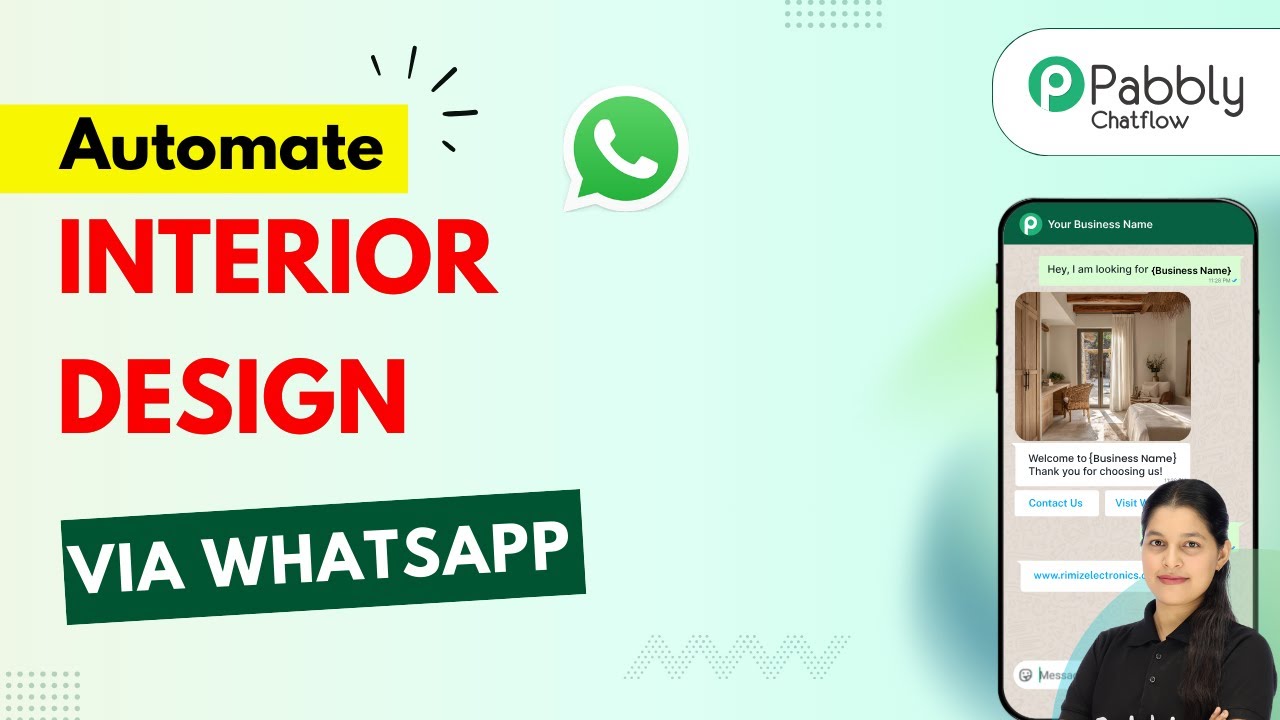
WhatsApp Chatbot for Your Interior Design Business🛋️

Learn how to set up a WhatsApp chatbot for your interior design business using Pabbly Chatflow. Follow our step-by-step guide for seamless integration. Explore how leading businesses automate customer interactions with carefully designed chat sequences that feel natural and helpful.

Watch Step By Step Video Tutorial Below


1. Accessing Pabbly Chatflow for Your WhatsApp Chatbot

To create a WhatsApp chatbot for your interior design business, you need to access Pabbly Chatflow. Start by entering the URL Pabbly.com/chatflow in your browser. This will take you to the Pabbly Chatflow landing page.

Once you are on the landing page, you will see two options: ‘Sign In’ and ‘Sign Up Free.’ If you are a new user, click on ‘Sign Up Free’ to create an account. Existing users can simply sign in. Remember, signing up grants you 100 free credits every month to practice using Pabbly Chatflow.


2. Creating Your WhatsApp Chatbot Flow in Pabbly Chatflow

After signing in, navigate to the Pabbly Chatflow dashboard. Here, you can see your connected WhatsApp numbers. To start creating your chatbot, click on ‘Add WhatsApp Number’ if you haven’t connected one yet.

  • Choose between ‘WhatsApp Connect’ or ‘Manual Token Connect’ options.
  • Follow the prompts to link your WhatsApp number to Pabbly Chatflow.

Once your number is connected, click on ‘Flows’ in the sidebar to access the flow builder. Click on ‘Add Flow’ to create a new flow for your WhatsApp chatbot. Enter a name for your flow, such as ‘WhatsApp Chatbot for Your Interior Design Business.’ This flow will manage the responses and interactions with users.


3. Setting Up Triggers in Pabbly Chatflow

The next step involves setting up triggers that will activate your chatbot. In Pabbly Chatflow, triggers are actions that initiate the chatbot. Select the trigger event as ‘Keyword Match’ and input the keyword that users will send to start the conversation, such as ‘interior design.’ Press enter to save this keyword.

After setting up the keyword trigger, it’s time to create a welcome message for users. Drag and drop the ‘Text’ button node into the flow and enter a friendly welcome message. You can also add buttons for user interaction, like ‘View Services’ and ‘Contact Our Team.’ This will enhance user engagement and provide clear options.


4. Building the Chatbot Flow with Pabbly Chatflow

Now, you will build the main features of your WhatsApp chatbot. After the welcome message, create a ‘List’ node that will display the services offered by your interior design business. Input the body of the list and add items such as ‘Room Makeover’ and ‘Color Consult.’ Each item should be linked to a contact custom field to capture user responses. using Pabbly Connect

  • Create a section titled ‘Services’ and add items with descriptions.
  • Connect each list item to the corresponding custom field to save user selections.

After users select a service, prompt them with questions to gather their details, such as their name, city, and preferred date for consultation. Use the ‘Ask Question’ node for this, ensuring that each question is linked to the appropriate contact custom field.


5. Finalizing Your WhatsApp Chatbot in Pabbly Chatflow

Once you have created the flow and all necessary questions, it’s time to finalize your chatbot. Use the ‘Text’ button again to send a thank you message after users complete the questionnaire. This will confirm their submission and inform them that a design expert will contact them shortly. using Pabbly Connect

Finally, save your flow by clicking the ‘Save’ button. You will receive a notification confirming that your flow has been updated successfully. You can also test your chatbot by sending a message to your WhatsApp number to see how it interacts with users.


Conclusion

Setting up a WhatsApp chatbot for your interior design business using Pabbly Chatflow is straightforward and efficient. By following these steps, you can enhance customer interaction and streamline your consultation process. Start using Pabbly Chatflow today to elevate your business communication!

Ensure you check out Pabbly Connect to create business automation workflows and reduce manual tasks. Pabbly Connect currently offer integration with 2,000+ applications.

Add WooCommerce Orders to Monday.com Automatically

Learn how to automate the integration of WooCommerce orders into Monday.com using Pabbly Connect. Follow this step-by-step guide for seamless workflow management. Navigate the automation landscape confidently with clear, structured guidance suitable for professionals regardless of prior technical experience.

Watch Step By Step Video Tutorial Below


1. Accessing Pabbly Connect for Integration

To start integrating WooCommerce orders with Monday.com, first access Pabbly Connect. Open your browser and go to the Pabbly Connect website, where you can sign up for a free account. Once signed in, navigate to the workflow builder, which is essential for setting up your automation.

In the workflow builder, you will see options to create triggers and actions. The trigger will initiate the process when a new order is created in WooCommerce, and the action will send this information to Monday.com. This setup will allow you to manage your orders seamlessly.


2. Setting Up WooCommerce Trigger in Pabbly Connect

Now, let’s set up the trigger in Pabbly Connect. Click on the ‘Add Trigger’ button and search for WooCommerce. Select it and choose the event ‘New Order Created’. After connecting, you will receive a webhook URL that you need to copy for the next step.

  • Click on ‘Add Trigger’
  • Search for WooCommerce
  • Select ‘New Order Created’
  • Copy the webhook URL

Next, open your WordPress account where WooCommerce is installed. Navigate to WooCommerce settings, find the ‘Advanced’ tab, and then go to ‘Webhooks’. Here, you will create a new webhook using the URL copied from Pabbly Connect.


3. Creating a Webhook in WooCommerce

In the WooCommerce settings, click on ‘Add Webhook’. Name it something like ‘New Order’. Set its status to active and select ‘Order Created’ as the topic. Paste the webhook URL from Pabbly Connect in the delivery URL field. Finally, save the webhook.

Once saved, WooCommerce will confirm that the webhook was created successfully. This establishes a connection between WooCommerce and Pabbly Connect. You can now test this by placing a new order to see if the data is captured correctly.


4. Testing the Integration with a New Order

To test the integration, go back to your WooCommerce store and purchase a product. Fill in the necessary customer details and complete the checkout process. After placing the order, return to Pabbly Connect to check if the webhook response has been captured.

If successful, you will see the order details populated in the webhook response. This includes the customer’s name, email, phone number, and order ID. This data is critical for the next step of sending it to Monday.com.


5. Adding Order Details to Monday.com

Now that you have successfully captured the order details in Pabbly Connect, it’s time to send this information to Monday.com. Click on ‘Add New Action Step’ and select Monday.com as the action application. Choose the event ‘Create Item’ and connect your Monday.com account using the API token.

After connecting, select the board where you want to add the order details. Map the fields from the webhook response to the corresponding fields in Monday.com. This includes mapping the customer’s name, email, phone number, and product name. Finally, save and send a test request to ensure everything works correctly.

Once the test is successful, you will see the new order details appear in your Monday.com board. This automation allows you to manage and track your WooCommerce orders efficiently, all thanks to Pabbly Connect.


Conclusion

In conclusion, using Pabbly Connect to integrate WooCommerce orders with Monday.com streamlines your order management process. By following the steps outlined, you can automate the addition of new orders into your Monday.com dashboard, enhancing your team’s organization and efficiency.

Ensure you check out Pabbly Connect to create business automation workflows and reduce manual tasks. Pabbly Connect currently offer integration with 2,000+ applications.

How to Add Real Estate Leads to Systeme.io Automatically

Learn how to automate adding real estate leads to your Systeme.io account using Pabbly Connect. Follow this step-by-step tutorial for seamless integration. Explore efficient methods for automating routine tasks with clear, concise instructions suited for both newcomers and experienced professionals.

Watch Step By Step Video Tutorial Below


1. Accessing Pabbly Connect for Real Estate Leads

To automate adding real estate leads to your Systeme.io account, you need to access Pabbly Connect. Start by visiting pabby.com/connect in your browser. This will direct you to the Pabbly Connect homepage.

If you are a new user, click on the ‘Sign Up Free’ button to create an account and receive 100 free tasks per month. Existing users can simply sign in to their accounts. Once logged in, you will see all Pabbly applications. Click on ‘Access Now’ to enter the Pabbly Connect dashboard.


2. Creating a Workflow in Pabbly Connect

After accessing Pabbly Connect, the next step is to create a new workflow for adding real estate leads. Click on the ‘Create Workflow’ button. You will be prompted to select between the new beta version or the classic version of the workflow builder. Choose the beta version for a faster experience.

  • Click on ‘Select’ to proceed with the beta version.
  • Name your workflow as ‘Add Real Estate Leads to Systeme.io Automatically’.
  • Select the folder where you want to save this workflow.

Once you have named your workflow and selected the appropriate folder, click on the ‘Create’ button. This sets the stage for your automation process.


3. Setting Up Trigger and Action with Pabbly Connect

In this section, you will configure the trigger and action for your workflow using Pabbly Connect. Since you will be receiving leads from 99 Acres, select it as your trigger application and choose ‘New Leads’ as the event.

After selecting the trigger, click on ‘Connect’. You will receive a webhook URL that you need to copy and configure in your 99 Acres account. This webhook will allow Pabbly Connect to receive lead information automatically.

  • Send the copied webhook URL to your 99 Acres account manager for activation.
  • Wait for confirmation that the webhook has been activated.
  • Once activated, Pabbly Connect will start receiving lead data.

After receiving a successful response from the webhook, you can proceed to set the action step.


4. Connecting to Systeme.io Using Pabbly Connect

Now that the trigger is set up, the next step is to add an action in Pabbly Connect. Choose Systeme.io as your action application and select ‘Create Contact’ as the action event. Click on ‘Connect’ to proceed.

You will need to create a new connection by entering your API key and domain. To find the API key, log in to your Systeme.io account, go to your profile settings, and find the API key section. Generate a new key if needed.

Copy the API key and paste it into Pabbly Connect. Ensure the domain is correctly entered. Click ‘Save’ to establish the connection.

Once connected, you can map the lead details to the contact fields in Systeme.io.


5. Mapping Lead Details to Systeme.io with Pabbly Connect

The final step involves mapping the lead details received from 99 Acres to the corresponding fields in Systeme.io using Pabbly Connect. In the action setup, input the required fields such as email address, first name, last name, and phone number.

Instead of manually entering these details, you can map them dynamically from the previous trigger step. This ensures that every new lead captured is automatically updated in your Systeme.io account.

Map the email address, first name, last name, and phone number fields. Leave optional fields blank if they are not required. Click on ‘Save and Send Test Request’ to verify the integration.

After saving, check your Systeme.io account to confirm that the contact has been successfully created. This completes the automation setup for adding real estate leads to your Systeme.io account.


Conclusion

In this tutorial, we explored how to automate adding real estate leads to your Systeme.io account using Pabbly Connect. By following these steps, you can ensure that every new lead is captured and managed effectively, streamlining your real estate business operations.

Ensure you check out Pabbly Connect to create business automation workflows and reduce manual tasks. Pabbly Connect currently offer integration with 2,000+ applications.

Add Gravity Forms Leads to ActiveCampaign Automatically

Learn how to automatically add leads from Gravity Forms to ActiveCampaign using Pabbly Connect. Follow this step-by-step guide for seamless integration. Discover hidden automation capabilities within your existing tools. This guide shows you how to connect your essential applications and permanently eliminate redundant manual processes.

Watch Step By Step Video Tutorial Below


1. Setup Pabbly Connect for Integration

To automatically add leads from Gravity Forms to ActiveCampaign, you first need to set up Pabbly Connect. Begin by logging into your Pabbly Connect account or create a new account by visiting pabbl.com/connect. Once logged in, navigate to the workflow builder.

The workflow builder is crucial as it allows you to set up triggers and actions. Click on the Add Trigger button to begin. Here, search for ‘Gravity Forms’ and select it as your trigger application. Choose the event as New Response and connect it to your Gravity Forms account.


2. Setting Up Gravity Forms with Pabbly Connect

Next, you need to configure your Gravity Forms to communicate with Pabbly Connect. Make sure you have the Gravity Forms plugin installed on your WordPress site. You will also need to install the Webhooks add-on for Gravity Forms.

  • Install the Webhooks add-on for Gravity Forms.
  • Activate the Webhooks plugin.
  • Select the form you want to integrate.

After activating the Webhooks add-on, go to your form settings and select the Webhooks option. Here, click on Add New and enter a name for your webhook, such as ‘New Lead’. Paste the webhook URL provided by Pabbly Connect into the Request URL field, select the request method as POST, and set the format to JSON.


3. Testing the Webhook Response

Once you have set up the webhook in Gravity Forms, it’s time to test the connection through Pabbly Connect. To do this, you need to submit a test response through your Gravity Forms. Preview your form and fill in the required fields, then click on Submit.

After submitting the form, go back to your Pabbly Connect workflow. You should see that Pabbly Connect has captured the response from Gravity Forms. This includes all the details such as email address, first name, and last name. This step is crucial as it confirms that the integration is working correctly.


4. Creating or Updating Contacts in ActiveCampaign

Now that you have successfully tested the webhook response, the next step is to create or update a contact in ActiveCampaign using Pabbly Connect. Add a new action step in your workflow and search for ActiveCampaign. Select it and choose the event as Create or Update a Contact.

If you have an existing connection, select it; otherwise, create a new connection. You will need to provide the API URL and key from your ActiveCampaign account. To find these, log into ActiveCampaign, navigate to the settings, and then to the developer section. Copy the API URL and key, ensuring to remove the ‘https://’ from the URL before pasting it into Pabbly Connect.


5. Mapping Fields and Finalizing the Integration

After connecting ActiveCampaign with Pabbly Connect, you will need to map the fields from your Gravity Forms submission to the corresponding fields in ActiveCampaign. This mapping is essential for ensuring that the correct data is sent to ActiveCampaign.

  • Map the email address, first name, and last name fields.
  • Select the appropriate list in ActiveCampaign.
  • Click Save and Send Test Request.

Once you have mapped all the fields, click on Save and Send Test Request. A confirmation message will appear if the contact has been successfully created in ActiveCampaign. You can verify this by refreshing your contact list in ActiveCampaign to see the new lead.


Conclusion

Using Pabbly Connect, you can automate the process of adding Gravity Forms leads to ActiveCampaign seamlessly. This integration allows you to efficiently manage your leads and enhance your marketing strategies. Start using Pabbly Connect today to streamline your lead management process.

Ensure you check out Pabbly Connect to create business automation workflows and reduce manual tasks. Pabbly Connect currently offer integration with 2,000+ applications.

How to Add LinkedIn Leads to Systeme.io Automatically

Learn how to automatically add LinkedIn leads to Systeme.io using Pabbly Connect. Follow our step-by-step guide to streamline your lead management process. Build sophisticated automated workflows in less time than you think. This guide translates complex integrations into straightforward steps for immediate implementation.

Watch Step By Step Video Tutorial Below


1. Accessing Pabbly Connect for LinkedIn Integration

To begin the process of adding LinkedIn leads to Systeme.io automatically, you need to access Pabbly Connect. If you are an existing user, log in directly to your Pabbly Connect account. If you are new, open a new tab and search for ‘Pabbly.com/connect’ to reach the Pabbly Connect landing page.

Once on the landing page, click on the ‘Sign Up for Free’ button. This will allow you to explore Pabbly Connect with hundreds of free tasks each month. After signing up, log into your account and navigate to the workflow builder, where you will set up the integration.


2. Setting Up the Trigger in Pabbly Connect

In Pabbly Connect, the first step is to set up a trigger that will initiate the workflow. Click on the ‘Add Trigger’ button and search for ‘LinkedIn’ in the trigger application options. Select ‘LinkedIn’ and choose the event as ‘Lead Notifications’.

  • Click on ‘Connect’ to establish a connection.
  • If you have an existing connection, select it; otherwise, click on ‘Add a New Connection.’
  • Enter your LinkedIn credentials to connect your account.

After connecting your LinkedIn account, select the sponsored account from the dropdown menu. If you don’t see the options, click on ‘Refresh Fields’. Save the settings and click on ‘Save and Send Test Request’ to capture the webhook response.


3. Capturing the Webhook Response

After clicking ‘Save and Send Test Request’, Pabbly Connect will display a message saying it is waiting for a webhook response. To capture this response, you need to submit a lead form from your LinkedIn ad. Open the ad where you collect lead details and click on ‘Apply Now’. using Pabbly Connect

Fill in the lead form with test lead details, including the email address and phone number. If your campaign is in draft mode, you may not see all fields like first name or last name. Submit the lead form, and Pabbly Connect will capture the webhook response shortly.


4. Adding Action Step to Create Contact in Systeme.io

Once Pabbly Connect captures the webhook response, the next step is to add an action to create a new contact in Systeme.io. Click on ‘Add New Action Step’ and search for ‘Systeme.io’. Select it and choose the event as ‘Create Contact’. using Pabbly Connect

Click on ‘Connect’ and if you have an existing connection, select it. Otherwise, click on ‘Add a New Connection’ and enter your Systeme.io API key. To obtain the API key, log into your Systeme.io account, go to your profile settings, and find the Pabbly API keys section. Create a new key and copy it into Pabbly Connect.


5. Mapping Lead Details to Systeme.io

After connecting your Systeme.io account, you will be prompted to enter the lead’s email address. Instead of manually entering it, use the mapping feature in Pabbly Connect. Mapping allows you to dynamically insert data from the previous step.

Fill in the required fields such as email address, first name, last name, and phone number as necessary. Click on ‘Save and Send Test Request’ to create the contact. You should receive a confirmation that the contact has been successfully created in Systeme.io. Now, every time a new lead is generated from LinkedIn, a contact will be automatically created in Systeme.io without any manual intervention.


Conclusion

In this tutorial, we explored how to use Pabbly Connect to automatically add LinkedIn leads to Systeme.io. By following the steps outlined, you can streamline your lead management process and ensure that every lead is captured efficiently. Start your free trial of Pabbly Connect today and enhance your automation experience!

Ensure you check out Pabbly Connect to create business automation workflows and reduce manual tasks. Pabbly Connect currently offer integration with 2,000+ applications.