Automate Pet Grooming Appointments on WhatsApp 🐶

Learn how to automate pet grooming appointments on WhatsApp using Pabbly Chatflow. Step-by-step tutorial for seamless integration and customer interaction. Learn step-by-step how to create, test, and optimize chatbots that enhance customer experience while reducing support workload.

Watch Step By Step Video Tutorial Below


1. Accessing Pabbly Chatflow for Automation

To automate pet grooming appointments on WhatsApp, the first step is accessing Pabbly Chatflow. Start by opening your web browser and navigating to the Pabbly Chatflow dashboard.

Once there, if you are a new user, click on the ‘Sign Up Free’ button to create an account. Existing users should click on ‘Sign In’ to access their dashboard. By signing up, you can avail of 100 free credits monthly, which is essential for testing your chatbot functionalities.


2. Setting Up Your WhatsApp Number in Pabbly Chatflow

After signing in to Pabbly Chatflow, the next step is to add your WhatsApp number. Click on the ‘Add WhatsApp Number’ button, where you can choose between the WhatsApp connect method or the manual token connect method.

  • Select the WhatsApp connect method for seamless integration.
  • Alternatively, use the manual token method if preferred.

Once you’ve added your WhatsApp number successfully, proceed to the ‘Flows’ section to start creating your chatbot. This is where you will define how your WhatsApp chatbot interacts with customers.


3. Creating Your WhatsApp Chatbot in Pabbly Chatflow

In the ‘Flows’ section of Pabbly Chatflow, click on the ‘Add Flow’ button to start creating your WhatsApp chatbot. First, provide a meaningful name for your flow, such as ‘Automate Pet Grooming Appointments’.

Next, you will set a trigger event for your chatbot. Select the ‘Keyword or Reject Match’ trigger to initiate the chatbot when a user sends a specific keyword, such as ‘hello’. This allows the chatbot to respond automatically to customer inquiries.

  • Enter keywords like ‘start’ to trigger the chatbot.
  • Configure the reject match if needed for more complex interactions.

Once the trigger is set, you can start adding action steps, such as sending a welcome message to engage the customer.


4. Adding Interaction Steps in Pabbly Chatflow

To enhance user interaction, drag and drop the ‘Text’ action from the messages feature to send a welcome message. For instance, your welcome message could say, ‘Welcome to Fluffy Glow Grooming! How can I assist you today?’ This personal touch encourages customer engagement. using Pabbly Connect

Next, add buttons for user responses like ‘View Services’. This button should link to another action that sends a list of services offered by your grooming business. To set this up, drag the ‘List’ action and fill in the header, body, and footer with relevant information.

Create a section titled ‘Available Services’ to categorize grooming options. Add items like ‘Nail Trimming’ or ‘Bath and Groom’ for selection.

These steps ensure that customers can easily navigate your services, leading to increased bookings.


5. Finalizing Your Chatbot and Testing

After setting up the interaction steps in Pabbly Chatflow, it’s crucial to finalize your chatbot. Make sure to connect all action steps correctly and save your flow. This ensures that all interactions are seamless and functional.

To test your chatbot, return to your WhatsApp account and send the keyword ‘hello’. You should receive the welcome message and be able to interact with the services list. If everything works smoothly, your chatbot is ready to assist customers in booking grooming appointments.

With Pabbly Chatflow, you can create a fully automated experience for your customers, making it easier for them to schedule appointments and for you to manage your business efficiently.


Conclusion

Automating pet grooming appointments on WhatsApp using Pabbly Chatflow simplifies customer interactions and streamlines your business operations. By following the steps outlined, you can create an effective chatbot that enhances customer service and boosts bookings.

Ensure you check out Pabbly Connect to create business automation workflows and reduce manual tasks. Pabbly Connect currently offer integration with 2,000+ applications.

Create a WhatsApp Shopping Chatbot Using Pabbly Chatflow

Learn how to create a WhatsApp shopping chatbot using Pabbly Chatflow with this detailed tutorial. Automate your online store efficiently! Learn how to create intelligent chat workflows that provide instant customer support while qualifying leads 24/7 without human intervention.

Watch Step By Step Video Tutorial Below


1. Accessing Pabbly Chatflow for Your WhatsApp Chatbot

To create a WhatsApp shopping chatbot using Pabbly Chatflow, start by navigating to the official website at Pabbly.com/chatflow. Here, you can sign up for a free account, which grants you 100 free credits every month to explore the software.

Once signed in, you’ll be directed to the Pabbly Chatflow dashboard. This is where you can manage your WhatsApp numbers and see your credits. If you need to add a new WhatsApp number, click on the ‘Add WhatsApp Number’ button, which allows you to choose between WhatsApp connect and manual token connect. This setup is crucial for automating your WhatsApp interactions.


2. Creating Your WhatsApp Shopping Chatbot Flow

With Pabbly Chatflow open, click on the ‘Flows’ option to begin creating your chatbot. Select the ‘Add Flow’ button, where you will name your flow, for instance, ‘Create a WhatsApp Shopping Chatbot Using Pabbly Chatflow.’ This naming is essential for identifying your project later.

  • Click on the ‘Add Flow’ button.
  • Name your flow appropriately.
  • Select your trigger event, such as ‘Keyword/Regex Match.’

After naming your flow, you need to set your trigger event. This involves entering keywords that will activate the chatbot. For example, entering keywords like ‘hello’ or ‘products’ will prompt the bot to respond when users send these messages. This setup is vital for initiating interactions with your customers.


3. Designing Responses and Interactions in Pabbly Chatflow

In this section, you will define how your chatbot will respond to user inputs. Using Pabbly Chatflow, drag a text button to create a welcome message. For instance, you could write, ‘Hi there! Welcome to Mega Online. How can I help you today?’ This message sets the tone for your customer interactions.

Next, add buttons for user options. For example, create two buttons labeled ‘View Products’ and ‘Contact Us.’ These buttons guide users on what they can do next. Connect these buttons to their respective responses, ensuring that when users click on ‘View Products,’ they receive a list of available product categories.

  • Add a welcome message to greet users.
  • Create buttons for user interactions.
  • Connect buttons to their respective responses.

By properly designing these interactions, you enhance the user experience and streamline the shopping process. Remember to save your flow regularly to avoid losing progress.


4. Collecting User Information via Pabbly Chatflow

Once users select a product category, your Pabbly Chatflow bot should prompt them for more details. For instance, ask users to share their full name and product quantity. Use the ‘Ask Question’ feature to create these prompts, specifying the contact custom fields for each input.

It’s crucial to set validation messages and the number of attempts for user responses. For example, if you want to ensure users provide their name correctly, you can set the number of attempts to zero, meaning they must respond correctly on the first try. This helps maintain data integrity and ensures a smooth order process.


5. Finalizing Orders and Sending Confirmations

After collecting user information, your Pabbly Chatflow bot should summarize the order details. For example, it could say, ‘Thank you for sharing your details. Here’s a summary of your order: [Product Name], Quantity: [Quantity], Name: [Full Name].’ This dynamic message provides clarity to users.

Finally, add buttons for users to confirm their order or change products. If they confirm, the bot should respond with a message like, ‘Your order has been confirmed. You will receive a call shortly for payment confirmation.’ This finalizes the transaction and reassures the customer about their order status.

With these steps, your WhatsApp shopping chatbot will be fully functional, allowing you to manage customer interactions effortlessly.


Conclusion

Creating a WhatsApp shopping chatbot using Pabbly Chatflow streamlines your customer service process. By following the detailed steps outlined above, you can automate responses, collect user information, and manage orders efficiently. This ensures a seamless shopping experience for your customers.

Ensure you check out Pabbly Connect to create business automation workflows and reduce manual tasks. Pabbly Connect currently offer integration with 2,000+ applications.

How to Add Google Ads Leads to Zoho Sheet Automatically

Learn how to automatically add Google Ads leads to Zoho Sheet using Pabbly Connect with this step-by-step tutorial. Streamline your lead management process now! Transform complex automation concepts into accessible, actionable steps that eliminate unnecessary manual work while maximizing existing application capabilities.

Watch Step By Step Video Tutorial Below


1. Accessing Pabbly Connect for Google Ads and Zoho Integration

To start adding Google Ads leads to Zoho Sheet automatically, you need to access Pabbly Connect. If you are an existing user, simply log in to your Pabbly Connect account. For new users, open a new tab and search for pabbl.com/connect to reach the Pabbly Connect landing page.

Once on the landing page, click on the ‘Sign Up for Free’ button at the top right corner. This will give you access to hundreds of free tasks each month, allowing you to explore the capabilities of Pabbly Connect. After signing up, log into your account and open the workflow builder to begin the integration process.


2. Setting Up the Trigger for Google Ads Leads

The next step involves setting up a trigger in Pabbly Connect. Click on the ‘Add Trigger’ button and search for ‘Google Ads’. Select it and choose the event as ‘New Lead Form Entry’. Once selected, click on the ‘Connect’ button.

  • Search for Google Ads in the trigger application.
  • Select ‘New Lead Form Entry’ as the event.
  • Click on ‘Connect’ to proceed.

After clicking connect, you will receive a webhook URL. Copy this URL and head over to your Google Ads account. In your Google Ads account, find the lead form you are using and scroll down to locate the ‘Lead Delivery’ option. Here, paste the copied webhook URL into the designated field and click on ‘Send Test Data’ to ensure the connection works properly.


3. Capturing Lead Data from Google Ads

Once you have sent the test data, return to Pabbly Connect to verify that the lead data has been captured successfully. You should see fields like first name, last name, email, phone number, and company name populated with the test data you just sent.

If you’re running a live campaign, you can capture real lead details as they come in. However, for testing purposes, using the test lead data is perfectly fine. You can also click on ‘Recapture Webhook Response’ if you want to fetch real-time leads later on.


4. Adding Google Ads Leads to Zoho Sheet Automatically

Now that you have set up the trigger, it’s time to add the lead details into Zoho Sheet using Pabbly Connect. Click on the ‘Add New Action Step’ and search for ‘Zoho Sheets’. Select it and choose the event as ‘Create Row’. Then click on ‘Connect’.

  • Select ‘Create Row’ as the action event.
  • Connect your Zoho Sheets account to Pabbly Connect.
  • Map the fields from the Google Ads lead to Zoho Sheet.

If you have a previous connection, you can select it, or otherwise, create a new connection by entering your Zoho domain. You can find this domain in the URL of your Zoho Sheet. After entering the domain, click on ‘Save’ and grant necessary permissions to Pabbly Connect.


5. Mapping Lead Details to Zoho Sheet

After connecting to Zoho Sheet, you will need to select the specific workbook and worksheet where you want to add the lead details. Click on ‘Refresh Fields’ to load your workbooks and worksheets. Once loaded, select the appropriate ones. using Pabbly Connect

Now, map the fields from the Google Ads lead data to the corresponding columns in your Zoho Sheet. Mapping allows you to insert dynamic data, ensuring that every new lead updates automatically in the sheet.

After mapping all required fields such as first name, last name, email, and phone number, click on ‘Save and Send Test Request’. You should receive a confirmation that the details have been successfully added to your Zoho Sheet. Now every time a new lead comes in from Google Ads, the details will be automatically updated in Zoho Sheets without any manual intervention.


Conclusion

In this tutorial, we explored how to use Pabbly Connect to automate the process of adding Google Ads leads to Zoho Sheet. By following these steps, you can streamline your lead management and ensure that your data is always up to date.

Ensure you check out Pabbly Connect to create business automation workflows and reduce manual tasks. Pabbly Connect currently offer integration with 2,000+ applications.

Automate Instagram Leads to Zoho CRM & WhatsApp

Learn how to automate Instagram leads to Zoho CRM and WhatsApp using Pabbly Connect in this detailed tutorial. Develop expertise in application integration and learn how to design streamlined automation workflows using proven, simplified approaches.

Watch Step By Step Video Tutorial Below


1. Accessing Pabbly Connect for Automation

To start automating Instagram leads to Zoho CRM and WhatsApp, first, access Pabbly Connect. Simply enter the URL Pabbly.com/connect in your browser. This will take you to the Pabbly Connect landing page.

Here, you have two options: Sign In or Sign Up Free. If you’re a new user, click on Sign Up Free to create an account. Existing users can log in directly. Remember, signing up gives you 100 free tasks every month to practice using Pabbly Connect.


2. Creating a Workflow in Pabbly Connect

Once logged in, you will land on the dashboard of Pabbly Connect. Here, you can create a new workflow by clicking on the Create Workflow button. You will be prompted to choose between two workflow builders: the Beta version or the Classic version.

  • Select the Beta version for a modern and flexible experience.
  • Name your workflow, e.g., ‘Automate Instagram Leads to Zoho CRM and WhatsApp’.
  • Choose a folder to save your workflow.

After setting this up, click the Create button. You will see a notification that your workflow has been created successfully. Now, it’s time to add a trigger to initiate the automation.


3. Setting Up the Trigger for Instagram Leads

In Pabbly Connect, click on the Add Trigger button to select the trigger app. In this case, choose Instagram Lead Ads as your trigger application. The event that will trigger this workflow is New Lead Instant.

After selecting the trigger, click on the Connect button. If you need to create a new connection, select Add New Connection and connect your Facebook account associated with your Instagram account. Once connected, choose the specific page and form from which you want to receive leads.


4. Adding Action Steps: Sending WhatsApp Messages

Now that your trigger is set up, it’s time to add action steps. Click on the Add New Action Step button and select WhatsApp Cloud API as your action app. The event for this action will be Send Template Message.

  • Connect your WhatsApp account by providing the necessary credentials.
  • Map the recipient’s phone number from the previous Instagram lead step.
  • Select the appropriate message template for the WhatsApp message.

Once you have completed these steps, click on the Save and Send Test Request button to ensure everything works correctly. You should receive a confirmation message indicating that the WhatsApp message has been sent successfully.


5. Integrating with Zoho CRM

The final step is to integrate with Zoho CRM. Click on Add New Action Step again and select Zoho CRM as the action application. The event will be Create Contact.

For this connection, you need to provide your Zoho CRM domain and allow access to your account. Once connected, you can map the fields such as first name, last name, email, and phone number from the Instagram lead data.

After mapping all necessary fields, click on Save and Send Test Request. You can then check your Zoho CRM account to confirm that the contact has been created successfully, completing your automation process.


Conclusion

This tutorial demonstrated how to automate Instagram leads to Zoho CRM and WhatsApp using Pabbly Connect. By following these steps, you can streamline your lead management process and enhance your business’s efficiency. Start using Pabbly Connect today to automate your workflows effortlessly.

Ensure you check out Pabbly Connect to create business automation workflows and reduce manual tasks. Pabbly Connect currently offer integration with 2,000+ applications.

Track All Your Calendar Events in Google Sheets Automatically!

Learn how to automate tracking Google Calendar events in Google Sheets using Pabbly Connect. Follow this step-by-step guide for seamless integration. Discover hidden automation capabilities within your existing tools. This guide shows you how to connect your essential applications and permanently eliminate redundant manual processes.

Watch Step By Step Video Tutorial Below


1. Introduction to Pabbly Connect for Automation

Pabbly Connect is an automation tool that allows you to integrate various applications seamlessly. In this tutorial, we will explore how to use Pabbly Connect to automatically track all your Google Calendar events in Google Sheets.

By leveraging the capabilities of Pabbly Connect, you can eliminate the manual effort involved in logging event details. This integration will help you maintain an organized record of your calendar events effortlessly.


2. Setting Up Your Pabbly Connect Account

To start using Pabbly Connect, visit the official website and sign up for a free account. Once you have created your account, log in to access the Pabbly Connect dashboard.

  • Go to www.Pabbly.com/connect.
  • Click on ‘Sign Up’ if you are a new user.
  • For existing users, click on ‘Sign In’.

Once inside the dashboard, you can create a new workflow by clicking on the ‘Create Workflow’ button. This will set the stage for automating the process of tracking your Google Calendar events.


3. Creating the Workflow for Google Calendar to Google Sheets

In your Pabbly Connect dashboard, click on the ‘Create Workflow’ button. Give your workflow a name, such as ‘Track All Your Calendar Events in Google Sheets Automatically’. This will help you identify the workflow later.

Next, select the trigger application, which will be Google Calendar. Set the trigger event to ‘New or Updated Event’. This action will prompt Pabbly Connect to capture any new events you create in your Google Calendar.

  • Choose Google Calendar as the trigger application.
  • Select ‘New or Updated Event’ as the trigger event.
  • Connect your Google account by clicking on ‘Sign in with Google’.

After connecting, select the specific calendar from which you want to track events. This enables Pabbly Connect to monitor that particular calendar for any new events created.


4. Mapping Data to Google Sheets

Once your trigger is set up, the next step is to add an action to send the captured data to Google Sheets. Choose Google Sheets as your action application and select ‘Add New Row’ as the action event.

You will need to connect your Google Sheets account, similar to how you did with Google Calendar. After connecting, select the specific spreadsheet where you want the event details to be recorded.

Select the spreadsheet where events will be logged. Map the fields from Google Calendar to the corresponding columns in your spreadsheet. Ensure to include title, description, start time, and end time.

This mapping process ensures that every time a new event is created in Google Calendar, Pabbly Connect will automatically log the details into your specified Google Sheets.


5. Testing and Activating the Workflow

After setting up the mapping, it is crucial to test your workflow to ensure everything is functioning correctly. Click on the ‘Test’ button in Pabbly Connect to verify that the integration works as intended.

Once you confirm that the test has successfully logged an event into Google Sheets, you can activate your workflow. This means that from now on, every new event created in your Google Calendar will automatically be recorded in your Google Sheets without any manual input.

To activate the workflow, simply toggle the switch to ‘On’. Now, you can enjoy the benefits of automated tracking of your calendar events, thanks to Pabbly Connect.


Conclusion

In this tutorial, we explored how to use Pabbly Connect to automate the tracking of Google Calendar events in Google Sheets. This integration saves time and ensures that all event details are accurately recorded without manual effort. By following these steps, you can streamline your workflow and focus on what matters most in your business.

Ensure you check out Pabbly Connect to create business automation workflows and reduce manual tasks. Pabbly Connect currently offer integration with 2,000+ applications.

How to Use the New Task History UI in Pabbly Connect

Learn how to effectively use the new Task History UI in Pabbly Connect to streamline your workflows and manage tasks efficiently. Explore efficient methods for automating routine tasks with clear, concise instructions suited for both newcomers and experienced professionals.

Watch Step By Step Video Tutorial Below


1. Accessing Pabbly Connect for the New Task History UI

To begin utilizing the new Task History UI in Pabbly Connect, first, log into your Pabbly Connect account. This platform serves as the backbone for managing your integrations seamlessly. Once you are logged in, navigate to the dashboard where you can access various workflows.

In the dashboard, you will find the option to view your existing workflows. Click on the workflow that you want to analyze with the new Task History UI. This step is crucial as it allows you to monitor the execution of tasks within your defined workflows.


2. Understanding Workflows in Pabbly Connect

In Pabbly Connect, workflows are essential for automating tasks. For instance, if you are collecting orders from your WooCommerce store, you can set up a workflow to manage these orders effectively. This workflow might include various steps such as filtering and looping through the data collected.

  • Set up a trigger for WooCommerce to collect order details.
  • Add filter steps to manage specific conditions for orders.
  • Utilize loops to process multiple items efficiently.

By understanding these components, you can effectively utilize the new Task History UI to track which steps have been executed successfully and which have not. This clarity is essential for troubleshooting and optimizing your workflows.


3. Exploring the New Task History UI

The new Task History UI in Pabbly Connect offers a streamlined view of your workflow executions. To access this feature, click on the arrow at the top of the dashboard next to the Task History option. You will be presented with two options: ‘Classic’ and ‘Beta’ Task History. Select the Beta option to explore the new features.

Once inside the new Task History UI, you will see a clear timeline of your tasks. This includes the main branch and any loop branches you have set up. You can easily identify which tasks have been executed and their outcomes, significantly improving your ability to debug workflows.

  • Select the main branch to view overall task execution.
  • Click on the loop branches to see iterations and their results.
  • Review the conditions for each route to determine success or failure.

This enhanced visibility allows you to pinpoint where issues may arise within your workflows, making it easier to optimize your automation processes.


4. Executing a Workflow with Pabbly Connect

To test your setup in Pabbly Connect, execute a workflow that collects orders from your WooCommerce store. For example, place an order for products and observe how the workflow processes the order details. This practical test will demonstrate the functionality of the new Task History UI.

After placing an order, check your Google Sheets to verify that the order details have been captured correctly. You should also receive an email confirmation for the order placed. This confirmation is a sign that your workflow is functioning as intended.

After executing the workflow, return to the Task History UI to analyze the results. Check both the main branch and loop branches to confirm that all steps were executed successfully. This will help you ensure that your workflow is optimized and running smoothly.


5. Conclusion: Maximizing Efficiency with Pabbly Connect

In conclusion, the new Task History UI in Pabbly Connect is a powerful tool for managing and optimizing your workflows. By understanding how to access and utilize this feature, you can streamline your processes and enhance your productivity. The ability to track task execution clearly allows for better debugging and workflow management.

Ensure you check out Pabbly Connect to create business automation workflows and reduce manual tasks. Pabbly Connect currently offer integration with 2,000+ applications.

Utilizing Pabbly Connect effectively will ensure that your automation tasks run smoothly and efficiently. With these insights, you are now equipped to leverage the new Task History UI to its fullest potential.

Write & Post Job Descriptions in Seconds with Gemini for Free

Learn how to automate posting job descriptions on LinkedIn using Pabbly Connect and Gemini. Step-by-step tutorial to streamline your hiring process. Eliminate manual repetitive tasks from your workflow. Discover proven automation methods with intuitive steps designed for efficiency-minded professionals.

Watch Step By Step Video Tutorial Below


1. Setting Up Pabbly Connect for Job Descriptions

To automate posting job descriptions on LinkedIn, you need to start with Pabbly Connect. This powerful integration platform enables seamless connections between Google Sheets and LinkedIn.

Begin by visiting Pabbly Connect in your browser. If you’re a new user, sign up for a free account to get started. Once logged in, navigate to the workflow builder where you will set up your automation.


2. Creating a Google Sheets Trigger in Pabbly Connect

In this section, you will create a trigger that activates when new data is entered into Google Sheets. This is a crucial step in using Pabbly Connect for automation.

Follow these steps to create the trigger:

  • Select Google Sheets as your trigger application.
  • Choose the event ‘New or Updated Spreadsheet Row’.
  • Connect to your Google account and copy the webhook URL provided.

After copying the webhook URL, go to your Google Sheets, install the Pabbly Connect Webhooks add-on, and paste the URL in the initial setup. Set your trigger column, usually the last column where data is added, and click submit.


3. Generating Job Descriptions Using Gemini

Once the Google Sheets trigger is set, the next step involves using Pabbly Connect to generate job descriptions with Gemini. This integration allows you to create customized job descriptions automatically.

To generate job descriptions, follow these steps:

  • Add a new action step and select Gemini as the action application.
  • Choose the event ‘Generate Content’.
  • Enter your API key from Google AI Studio to connect Gemini with Pabbly Connect.

After entering the API key, map the data from Google Sheets to the prompt field in Gemini. This allows for dynamic content generation based on the information entered in your Google Sheet.


4. Posting Job Descriptions on LinkedIn via Pabbly Connect

The final step is to post the generated job descriptions on LinkedIn using Pabbly Connect. This integration ensures that your job postings are automated and reach potential candidates instantly.

To post job descriptions, follow these steps:

Add a new action step and select LinkedIn as the action application. Choose the event ‘Share Status Update’. Connect your LinkedIn account to Pabbly Connect.

Once connected, map the content generated from Gemini to the LinkedIn post field and set the visibility options. After saving and testing the request, your job description will be posted on LinkedIn automatically.


5. Conclusion

By utilizing Pabbly Connect to integrate Google Sheets and LinkedIn, you can automate the process of posting job descriptions efficiently. This not only saves time but also streamlines your hiring process.

Ensure you check out Pabbly Connect to create business automation workflows and reduce manual tasks. Pabbly Connect currently offer integration with 2,000+ applications.

Check out Pabbly Connect – Automate your business workflows effortlessly! Sign Up Free – Start your journey with ease! 10,000+ Video Tutorials – Learn step by step! Join Pabbly Facebook Group – Connect with 21,000+ like minded people!
With the steps outlined in this tutorial, you can easily set up automated job postings using Gemini and Pabbly Connect. Start leveraging automation today to enhance your recruitment efforts!

How to Write High-Quality Articles with Gemini Instantly

Learn how to automate article creation using Pabbly Connect, Google Sheets, and Google Gemini for high-quality content generation. Transform complex automation concepts into accessible, actionable steps that eliminate unnecessary manual work while maximizing existing application capabilities.

Watch Step By Step Video Tutorial Below


1. Accessing Pabbly Connect for Article Automation

To begin automating article creation, you need to access Pabbly Connect. Start by visiting the Pabbly Connect website and signing in or creating a new account. If you are new, you can sign up for free to get 100 tasks every month.

Once logged in, navigate to the Pabbly Connect dashboard. This is where you will create your workflow for integrating Google Sheets, Google Gemini, and WordPress. Pabbly Connect acts as the central hub for managing these integrations.


2. Creating a Workflow in Pabbly Connect

After accessing Pabbly Connect, click on the ‘Create Workflow’ button in the top right corner. You will be prompted to choose between the new beta version or the classic version. Select the beta version for a more modern experience.

  • Name your workflow ‘Write High-Quality Articles with Gemini Instantly’.
  • Choose a folder to save your workflow, such as ‘Automations’.
  • Click on the ‘Create’ button to finalize the workflow setup.

This workflow will define the trigger and action steps necessary for automating your article creation process. With Pabbly Connect, you can easily set up these integrations without any coding knowledge.


3. Setting Up the Trigger with Google Sheets

The first step in your workflow is to set a trigger using Google Sheets. Select Google Sheets as your trigger app and choose the event ‘New or Updated Spreadsheet Row’. Click on ‘Connect’ to establish the connection. using Pabbly Connect

Copy the provided webhook URL and head to your Google Sheets. You need to install the Pabbly Connect Webhooks add-on in your Google Sheets. After installation, refresh your Google Sheets, and select ‘Initial Setup’ from the Pabbly Connect menu. Here, paste the webhook URL and specify the trigger column, which should be the last column where data is added.


4. Generating Content with Google Gemini

With the trigger set, the next action is to generate content using Google Gemini. In Pabbly Connect, add an action step and select Google Gemini as the application. Choose the event ‘Generate Content’ and click on ‘Connect’ to create a new connection. using Pabbly Connect

To connect, you will need an API key from Google AI Studio. Once you have the API key, input it into Pabbly Connect. After connecting, you will set up the parameters for your article, including topic, key points, tone, and length. Use the mapping feature to dynamically insert these details from your Google Sheets data.


5. Posting the Article to WordPress

After generating the article, the final step is to post it to your WordPress site. Add another action step in Pabbly Connect and select WordPress as your application. Choose the event ‘Create Post’ and connect using your WordPress credentials. using Pabbly Connect

Map the title and content generated by Google Gemini into the corresponding fields in Pabbly Connect. Set the post status as ‘Draft’ to allow your team to review it before publishing. After completing the setup, click ‘Save and Send Test Request’ to create the post. You will see a successful response indicating that the post has been drafted in WordPress.


Conclusion

Using Pabbly Connect, you can automate the process of creating high-quality articles with Google Gemini and posting them on WordPress. This integration streamlines your workflow, allowing you to focus on content quality while Pabbly Connect handles the technical details. Start using Pabbly Connect today to enhance your article generation process!

Ensure you check out Pabbly Connect to create business automation workflows and reduce manual tasks. Pabbly Connect currently offer integration with 2,000+ applications.

Send Email Instantly When QR Code Is Scanned

Learn how to automate sending emails instantly when a QR code is scanned using Pabbly Connect. Follow this detailed tutorial for seamless integration. Develop expertise in application integration and learn how to design streamlined automation workflows using proven, simplified approaches.

Watch Step By Step Video Tutorial Below


1. Introduction to Pabbly Connect for Automation

Pabbly Connect is a powerful integration platform that allows you to automate processes effortlessly. In this tutorial, we will show you how to send an email instantly when a QR code is scanned, using Pabbly Connect as the central tool.

By utilizing Pabbly Connect, you can streamline your workflow and eliminate manual tasks. This integration will help you send course overviews to students automatically upon scanning a QR code linked to a Google Form.


2. Setting Up the Integration with Google Forms

To begin, access your Pabbly Connect account by visiting the Pabbly Connect website. Once signed in, click on the ‘Create Workflow’ button to start your automation.

  • Select the new beta method for a modern workflow.
  • Name your workflow, e.g., ‘Send Email Instantly When QR is Scanned’.
  • Choose Google Forms as the trigger application.

After selecting Google Forms, set the event to ‘New Response Received’ and click the connect button. This will create a webhook URL that serves as a bridge between Google Forms and Pabbly Connect.


3. Connecting Google Forms to Pabbly Connect

In order to connect Google Forms to Pabbly Connect, copy the webhook URL provided. Then, open your Google Form and navigate to the ‘Responses’ section to link it to a Google Sheets document.

  • Select ‘Link to Sheets’ and create a new spreadsheet.
  • Install the Pabbly Connect Webhooks add-on from the Google Sheets add-ons menu.
  • Set up the webhook URL in the add-on settings.

Once the setup is complete, your Google Form will send data to Pabbly Connect whenever a new response is submitted. This step is crucial for automating your email sending process.


4. Sending Emails Automatically with Gmail

After successfully connecting Google Forms to Pabbly Connect, the next step is to set up Gmail to send emails. Add an action step and select Gmail as the action application.

Choose the ‘Send Email’ event within Gmail. Connect your Gmail account to Pabbly Connect. Map the recipient’s email from the form submission to the email field.

Fill in the email subject and body with the course overview details. Ensure that the content type is set to HTML for better formatting. This way, students will receive a well-structured email with all the necessary information once they submit the form.


5. Testing the Integration for Success

To ensure everything is working correctly, perform a test by scanning the QR code linked to your Google Form. Fill out the form with sample data and submit it.

Check your Gmail account to confirm that the email has been sent successfully. You should receive an email containing the course overview and planning document as an attachment, demonstrating how Pabbly Connect automates this process seamlessly.

If the email is received as expected, your integration is successfully set up. If not, revisit the steps to ensure all connections and mappings are correctly configured.


Conclusion

In this tutorial, we explored how to use Pabbly Connect to send emails instantly when a QR code is scanned. By integrating Google Forms and Gmail through Pabbly Connect, you can automate your email sending process efficiently.

Ensure you check out Pabbly Connect to create business automation workflows and reduce manual tasks. Pabbly Connect currently offer integration with 2,000+ applications.

This automation not only saves time but also enhances the experience for your students by providing them with immediate access to important course information.

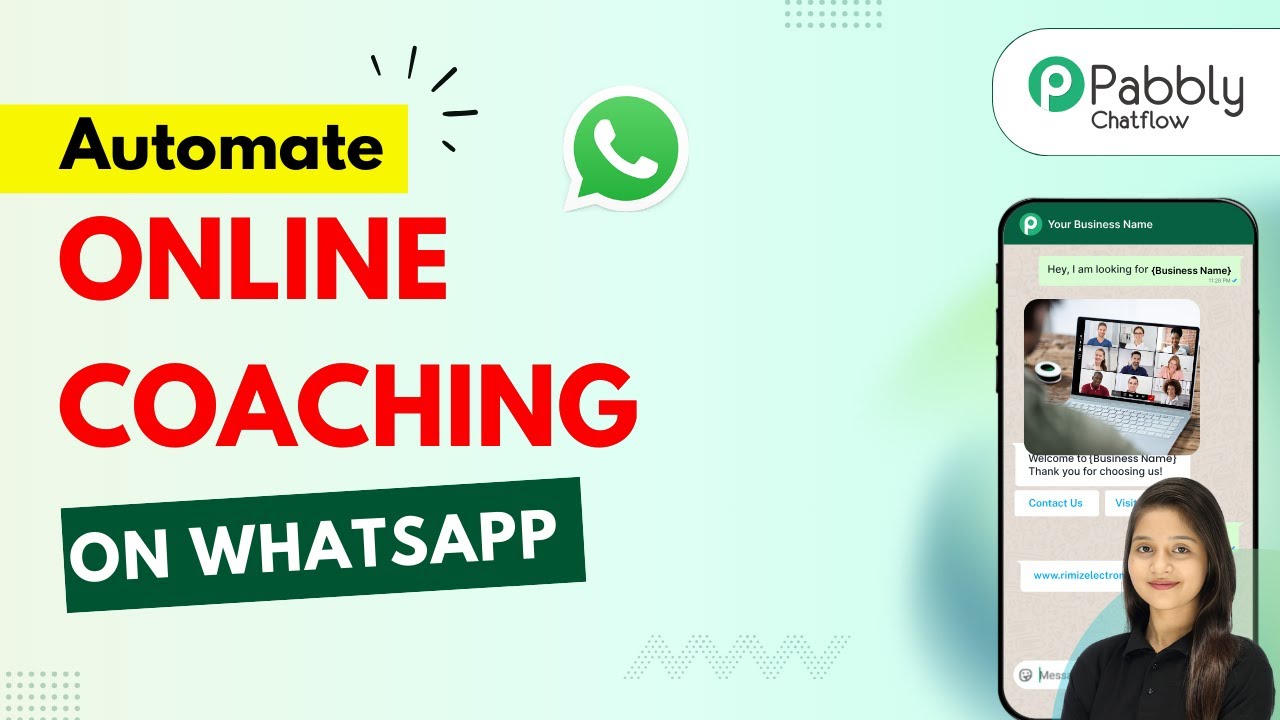
How to Build a WhatsApp Chatbot for Online Coaching

Learn how to create an automated WhatsApp chatbot for online coaching using Pabbly Chatflow. Follow our step-by-step guide to streamline your coaching business. Implement professional chat automation that answers common questions, qualifies leads, and books appointments without human intervention.

Watch Step By Step Video Tutorial Below


1. Accessing Pabbly Chatflow for WhatsApp Integration

To create an automated WhatsApp chatbot for online coaching, the first step is accessing Pabbly Chatflow. You can do this by visiting Pabbly.com/chatflow in your browser. This platform is designed to facilitate WhatsApp automation for various business needs.

Once on the Pabbly Chatflow page, you will see options to sign in or sign up. If you are a new user, click on the ‘Sign Up Free’ option to create an account. Existing users can simply sign in. After logging in, you will be directed to the Pabbly Chatflow dashboard where you can manage your WhatsApp numbers and create flows.


2. Creating Your WhatsApp Chatbot Flow in Pabbly Chatflow

Now that you have accessed Pabbly Chatflow, the next step is to create your chatbot flow. Click on the ‘Flows’ option in the left menu, then click on the ‘+ Add Flow’ button. You will need to name your flow, for example, ‘Build a WhatsApp Chatbot for Online Coaching’.

  • Select the trigger event for your flow.
  • Choose the type of interaction, such as keywords.
  • Set up your welcome message and buttons for user interaction.

After naming your flow, you will set up the trigger event. For this, choose the ‘Keyword/Regex’ option to respond to specific keywords sent by users. Enter keywords such as ‘hello’, ‘hi’, and ‘coaching class’. These keywords will activate your chatbot whenever users send them to your WhatsApp business account.


3. Designing User Interactions with Pabbly Chatflow

With your trigger set, the next step is to design the interactions users will have with your Pabbly Chatflow powered chatbot. Start by creating a welcome message that greets users and offers them options. Use the text button feature to write a message like, ‘Hello! Welcome to Brightmind’s Online Coaching. How can I help you today?’ Add buttons such as ‘View Courses’ and ‘Contact Support’ for user navigation.

To provide users with a list of courses, select the ‘List’ button feature. Enter a message body like ‘Here are the courses we offer’ and set up the course types. You can add multiple courses to this list, ensuring that users can easily select their desired option. This setup will allow your bot to respond dynamically based on user selections.


4. Collecting User Information with Pabbly Chatflow

Once users select their desired course, your Pabbly Chatflow bot will need to collect their information. Use the ‘Ask Question’ button to prompt users for their full name and contact number. Make sure to set the contact custom fields for each piece of information to ensure that your bot can store and recall this data effectively.

  • Ask for the user’s full name and contact number.
  • Set up custom fields to store this information.
  • Ensure the flow is saved to prevent data loss.

After collecting the user’s details, connect these questions to the next steps in your flow. This will create a seamless experience where users are guided through the booking process without confusion. Ensure that you save your flow to keep all your progress intact.


5. Finalizing and Testing Your WhatsApp Chatbot

After setting up the entire flow in Pabbly Chatflow, it is crucial to finalize and test your WhatsApp chatbot. Review the connections between each step, ensuring that all buttons and messages are correctly linked. Once everything is in order, click the save button to update your flow.

To test your chatbot, send a message to your WhatsApp account using one of the keywords you set up earlier. The bot should respond immediately with the welcome message and available options. This testing phase will confirm that your chatbot is functioning as intended, providing a smooth experience for your users.


Conclusion

In conclusion, using Pabbly Chatflow to build a WhatsApp chatbot for online coaching streamlines communication with your students. By following these detailed steps, you can automate responses and manage inquiries efficiently, enhancing your coaching business.

Ensure you check out Pabbly Connect to create business automation workflows and reduce manual tasks. Pabbly Connect currently offer integration with 2,000+ applications.