How to Send WhatsApp Booking Confirmation for Elementor Form Submissions Using Pabbly Connect

Learn how to automate WhatsApp booking confirmations for Elementor form submissions using Pabbly Connect. Step-by-step tutorial for seamless integration. Transform complex automation concepts into accessible, actionable steps that eliminate unnecessary manual work while maximizing existing application capabilities.

Watch Step By Step Video Tutorial Below


1. Accessing Pabbly Connect for Automation

To automate the process of sending WhatsApp booking confirmations for Elementor form submissions, first access Pabbly Connect. This powerful automation tool allows users to connect various applications without coding skills. Start by visiting Pabbly’s website and logging into your account.

If you are a new user, you can sign up for free and receive 100 tasks monthly. Once logged in, navigate to the Pabbly Connect dashboard to create a new workflow specifically for sending WhatsApp messages upon receiving form submissions.


2. Creating a Workflow in Pabbly Connect

After accessing Pabbly Connect, click on the ‘Create Workflow’ button. Name your workflow as ‘Send WhatsApp Booking Confirmation for Elementor Form Submissions’. You can select a folder for organization, such as ‘WhatsApp Automations’. This workflow will trigger when a new form submission occurs.

  • Click on the ‘Create’ button after naming your workflow.
  • You will see trigger and action boxes appear on the screen.
  • Select ‘Elementor’ as the trigger application and ‘WhatsApp Cloud API’ as the action application.

Setting up the trigger is essential as it defines the event that will initiate the automation. In this case, it is when a new form submission is received.


3. Setting Up the Trigger with Elementor

In the trigger application, select ‘Elementor’ and set the trigger event to ‘New Form Submission’. Pabbly Connect will provide you with a webhook URL that acts as a bridge between Elementor and Pabbly Connect. Copy this URL for the next steps.

Next, open your Elementor form within WordPress, and paste the copied webhook URL into the designated field for webhooks. Click on ‘Publish’ to save the changes. This setup ensures that whenever a form submission occurs, the data will be sent to Pabbly Connect.


4. Testing the Connection with a Form Submission

Once the webhook URL is successfully added, it’s time to test the connection. Go back to your Elementor form and submit a test entry. Enter dummy details such as your name, email, and appointment date, then click on submit.

  • Ensure all fields are filled out accurately.
  • Check the Pabbly Connect dashboard to see if the response is captured.

Upon successful submission, you should see the response in your Pabbly Connect workflow, confirming that the connection between Elementor and Pabbly Connect is established and functioning correctly.


5. Sending WhatsApp Confirmation Messages

Now that the connection is set up, it’s time to configure the action that sends the WhatsApp confirmation message. In the action application, select ‘WhatsApp Cloud API’ and set the action event to ‘Send Template Message’. using Pabbly Connect

To connect to the WhatsApp API, you will need to enter details such as the phone number ID and WhatsApp business account ID, which can be found in your WhatsApp API setup on the Facebook developer portal. After entering these details, click on ‘Save’ to establish the connection.

Utilize the mapping feature to dynamically insert data from the Elementor form submission into your WhatsApp message. This allows you to personalize each message sent to customers, confirming their booking details.


Conclusion

In this tutorial, we explored how to automate sending WhatsApp booking confirmations for Elementor form submissions using Pabbly Connect. By following the steps outlined, you can streamline your communication process and enhance customer experience effortlessly.

Ensure you check out Pabbly Connect to create business automation workflows and reduce manual tasks. Pabbly Connect currently offer integration with 2,000+ applications.

Automate LinkedIn Lead Ads to Google Sheets and Asana with Pabbly Connect

Learn how to automate storing LinkedIn Lead Ads leads in Google Sheets and create Asana tasks automatically using Pabbly Connect in this step-by-step tutorial. Revolutionize your productivity approach with just a few strategic clicks. Uncover professional methods for connecting applications and creating workflows that reclaim hours of your week.

Watch Step By Step Video Tutorial Below


1. Getting Started with Pabbly Connect for LinkedIn Lead Ads

To automate the process of storing LinkedIn Lead Ads leads in Google Sheets and creating Asana tasks, we will use Pabbly Connect. Begin by visiting the Pabbly website and signing in to your account. If you are new, you can sign up for free and receive 100 tasks monthly.

Once signed in, navigate to the Pabbly Connect dashboard. Here, you can create new workflows that will connect LinkedIn, Google Sheets, and Asana. This integration will allow you to automatically store lead details whenever a new lead is generated through LinkedIn.


2. Creating a New Workflow in Pabbly Connect

In the Pabbly Connect dashboard, click on the ‘Create Workflow’ button. You will be prompted to select a workflow builder; choose the classic option for a stable experience. Name your workflow, such as ‘Store LinkedIn Lead Ads Leads in Google Sheets and Create Tasks in Asana Automatically,’ and select a folder for organization. using Pabbly Connect

  • Click on the ‘+’ icon to create a new workflow.
  • Select ‘LinkedIn’ as the trigger application.
  • Choose the trigger event as ‘Lead Notification.’

After setting the trigger, connect your LinkedIn account to Pabbly Connect. This step is crucial as it allows Pabbly Connect to access your LinkedIn lead data. Once connected, you will be able to capture lead notifications directly from LinkedIn.


3. Capturing Lead Data from LinkedIn Using Pabbly Connect

After connecting LinkedIn, you will need to perform a test submission to capture lead data. This involves generating a lead through your LinkedIn campaign. Fill out the lead generation form with test data and submit it. Pabbly Connect will then capture this response.

The captured response will include details such as the lead’s first name, last name, email address, phone number, and company name. This information will be used in the next steps to populate your Google Sheets and create tasks in Asana.

  • Ensure all fields in the lead form are filled out correctly.
  • Click on ‘Save and Send Test Request’ to retrieve the lead data.
  • Confirm that the lead information is displayed correctly in Pabbly Connect.

Once you see the captured response, you can proceed to add this data to your Google Sheets automatically using Pabbly Connect.


4. Adding Lead Data to Google Sheets with Pabbly Connect

In this step, we will use Pabbly Connect to add the captured lead data to Google Sheets. Select Google Sheets as your action application and choose the action event as ‘Add New Row.’ Connect your Google Sheets account by signing in and allowing access.

Next, select the specific spreadsheet where you want to store the lead data. Ensure that your spreadsheet is prepared with the necessary columns like First Name, Last Name, Email, Phone, and Company. Using the mapping feature, link the captured lead data from LinkedIn to the corresponding fields in Google Sheets.

Map the first name, last name, email, phone number, and company fields from the LinkedIn response. Click on ‘Save and Send Test Request’ to send the data to Google Sheets. Verify that the data appears correctly in your Google Sheets.

After confirming the data transfer, you will be ready to create a task in Asana for the new lead using Pabbly Connect.


5. Creating Asana Tasks from Leads with Pabbly Connect

For the final step, select Asana as your action application in Pabbly Connect. Choose the action event as ‘Create Task.’ Connect your Asana account and select the appropriate workspace and project where the task should be created.

Fill in the task details, including the task name, which could be the lead’s name, and add any relevant notes such as their email address and phone number. After mapping these fields, click on ‘Save and Send Test Request’ to create the task in Asana.

Select the project ID for the task creation. Ensure all required fields are filled before testing. Check Asana to confirm the task has been created successfully.

This integration allows you to streamline your lead management process by automatically creating tasks in Asana for new leads captured from LinkedIn, all facilitated by Pabbly Connect.


Conclusion

Using Pabbly Connect, you can efficiently automate the process of storing LinkedIn Lead Ads leads in Google Sheets and creating tasks in Asana. This integration saves time and ensures that all lead data is captured and organized effectively.

Ensure you check out Pabbly Connect to create business automation workflows and reduce manual tasks. Pabbly Connect currently offer integration with 2,000+ applications.

How to Log Leads from Instagram Lead Ads to Zoho CRM Automatically with Pabbly Connect

Learn how to automatically log leads from Instagram Lead Ads to Zoho CRM using Pabbly Connect in this detailed tutorial. Follow the step-by-step guide to streamline your lead management.

Watch Step By Step Video Tutorial Below


1. Accessing Pabbly Connect for Instagram and Zoho CRM Integration

To log leads from Instagram Lead Ads to Zoho CRM automatically, you first need to access Pabbly Connect. Open your browser and navigate to Pabbly.com/connect. This platform allows you to integrate various applications without any coding knowledge.

Once on the Pabbly Connect landing page, you can either sign in if you’re an existing user or click on ‘Sign Up for Free’ to create a new account. This will give you access to numerous tasks every month to explore the powerful features of Pabbly Connect.


2. Creating a Workflow in Pabbly Connect

After logging into your account, click on the ‘Create Workflow’ button. You will be prompted to select between the new workflow builder and the classic one. Choose the new workflow builder for a modern interface. Name your workflow something like ‘Log Leads from Instagram Lead Ads to Zoho CRM Automatically’ and select a folder to save it in.

  • Click on ‘Create’ to proceed to the workflow window.
  • In the workflow window, you’ll define triggers and actions.
  • Triggers start the process, while actions are the outcomes.

This setup is crucial as it forms the basis of how Pabbly Connect will operate to log leads from Instagram Lead Ads into Zoho CRM.


3. Setting Up the Trigger for Instagram Lead Ads

To set up the trigger, click on the ‘Add Trigger’ button and search for ‘Instagram Lead Ads’. Select it, and for the trigger event, choose ‘New Lead Instant’. This ensures that every time a new lead is generated, it will trigger the workflow automatically.

Next, click on the ‘Connect’ button. If you haven’t connected your Instagram Lead Ads account yet, select ‘Add a New Connection’. You will need to connect your Facebook account, as Instagram Lead Ads are managed through Facebook.

  • Select your Facebook page linked to your Instagram account.
  • Choose the lead form you are using for your ads.

After setting this up, click on ‘Save and Send Test Request’ to capture the lead data. This step is essential to ensure that Pabbly Connect can receive data from Instagram Lead Ads.


4. Setting Up the Action Step in Zoho CRM

After successfully capturing the lead data, it’s time to set up the action in Zoho CRM. Click on the ‘Add New Action Step’ button and search for ‘Zoho CRM’. Select it and for the event, choose ‘Create Contact’.

To connect Zoho CRM with Pabbly Connect, you will need to add a new connection. Enter your Zoho domain, which can be found in the URL of your Zoho account. After entering the domain, click ‘Save’ and grant the necessary permissions.

Map the lead details from Instagram to the relevant fields in Zoho CRM. Make sure to include first name, last name, email, and phone number.

Once all details are mapped correctly, send a test request to verify the integration. This ensures that Pabbly Connect successfully creates a new contact in Zoho CRM with the lead details.


5. Verifying the Integration and Testing

Now that the workflow is set up, it’s crucial to verify if the integration works as intended. Go back to the Instagram Lead Ads testing tool and create a test lead. Fill in the required fields and submit the form.

Check your Zoho CRM to see if the new contact has been added. Refresh the contacts page in Zoho CRM to view the new lead details. This step confirms that Pabbly Connect is effectively logging leads from Instagram Lead Ads into Zoho CRM.

If the test lead appears in Zoho CRM, your integration is successful. You can now automate the process of logging leads from Instagram Lead Ads to Zoho CRM, saving time and ensuring no leads are missed.


Conclusion

In this tutorial, we explored how to log leads from Instagram Lead Ads to Zoho CRM automatically using Pabbly Connect. By following the steps outlined, you can streamline your lead management process and ensure that every lead is captured efficiently. Start using Pabbly Connect today to enhance your business automation!

Ensure you check out Pabbly Connect to create business automation workflows and reduce manual tasks. Pabbly Connect currently offer integration with 2,000+ applications.

Automate Trial Class Booking for Yoga Studios via WhatsApp with Pabbly Chatflow

Learn how to automate trial class booking for yoga studios via WhatsApp using Pabbly Chatflow. Step-by-step guide for seamless integration. Learn how to create intelligent chat workflows that provide instant customer support while qualifying leads 24/7 without human intervention.

Watch Step By Step Video Tutorial Below


1. Introduction to Pabbly Chatflow for Yoga Studios

Pabbly Chatflow is an essential tool for automating trial class booking for yoga studios via WhatsApp. With this platform, yoga studios can streamline their booking processes and enhance customer interaction. By leveraging Pabbly Chatflow, studios can create a WhatsApp chatbot that efficiently manages booking requests.

To get started, visit the Pabbly Chatflow website and sign in or create an account. Once logged in, you can access various features that allow you to set up your chatbot for trial class bookings. This tutorial will guide you through the steps necessary to automate the booking process seamlessly.


2. Creating a WhatsApp Chatbot with Pabbly Chatflow

To create your WhatsApp chatbot for trial class booking, navigate to the flows section in Pabbly Chatflow. Click on the ‘Add Flow’ button to start a new project. Name your flow appropriately, such as ‘Automate Trial Class Booking for Yoga Studios via WhatsApp.’ This name will help you identify the flow easily.

  • Click on the trigger module.
  • Select the ‘Keyword/Regex Match’ trigger event.
  • Enter keywords like ‘trial class’ to activate the chatbot.

These keywords will help the chatbot recognize when a user wants to book a trial class. Once the trigger is set up, you can begin adding the necessary steps to gather booking details from the users.


3. Gathering Booking Details via Pabbly Chatflow

After setting up the trigger, the next step in Pabbly Chatflow is to gather the necessary booking details from the user. You can do this by adding action nodes to your flow. Start by asking the user for their preferred date for the trial class.

  • Ask for the preferred date using the ‘Ask Question’ node.
  • Request the preferred time for the class.
  • Collect the user’s full name and contact number.

By implementing these questions, the chatbot can effectively collect all necessary information required to confirm a booking. Ensure to link all nodes properly so that the chatbot can navigate through the questions seamlessly.


4. Confirming the Booking with Pabbly Chatflow

Once the user has provided their details, the final step in Pabbly Chatflow is to send a confirmation message. This message should thank the user and confirm their trial class details based on the information they provided.

Utilize the text button to create a personalized confirmation message. For example, include the user’s name, the date, and time of the trial class. This step ensures that the user feels acknowledged and informed about their booking.

After setting up the confirmation message, make sure to save your flow. Once saved, your WhatsApp chatbot is ready to automate trial class bookings for yoga studios seamlessly.


5. Conclusion: Automate Trial Class Booking with Pabbly Chatflow

In conclusion, using Pabbly Chatflow to automate trial class booking for yoga studios via WhatsApp is an efficient solution. By following the steps outlined in this tutorial, yoga studios can enhance their booking process, improve customer engagement, and save time.

Ensure you check out Pabbly Connect to create business automation workflows and reduce manual tasks. Pabbly Connect currently offer integration with 2,000+ applications.

Check out Pabbly Connect – Automate your business workflows effortlessly! Sign Up Free – Start your journey with ease! 10,000+ Video Tutorials – Learn step by step! Join Pabbly Facebook Group – Connect with 21,000+ like minded people!
With Pabbly Chatflow, you can create a fully functional WhatsApp chatbot that manages bookings effortlessly. Start automating your trial class bookings today and experience the benefits of streamlined operations.

How to Send Discount Codes via WhatsApp for WooCommerce Abandoned Carts Using Pabbly Connect

Learn how to automate sending discount codes via WhatsApp for WooCommerce abandoned carts using Pabbly Connect. Step-by-step tutorial included! Explore efficient methods for automating routine tasks with clear, concise instructions suited for both newcomers and experienced professionals.

Watch Step By Step Video Tutorial Below


1. Accessing Pabbly Connect for Automation

To send discount codes via WhatsApp for WooCommerce abandoned carts, first, access Pabbly Connect. This powerful automation tool allows you to integrate WooCommerce with WhatsApp Cloud API seamlessly. Start by navigating to Pabbly.com and sign in to your account. If you are a new user, you can sign up for free and get 100 tasks monthly.

Once logged in, select Pabbly Connect from the dashboard. Here, you can create a new workflow that will automate the process of sending reminders to customers who abandon their carts. This integration will save you time and ensure that your customers receive timely notifications about their abandoned carts.


2. Creating a Workflow in Pabbly Connect

After accessing Pabbly Connect, the next step is to create a new workflow. Click on the ‘Create Workflow’ button and choose the classic builder. Name your workflow ‘Send Discount Codes via WhatsApp for WooCommerce Abandoned Cart’ and select a folder for organization.

  • Select ‘WooCommerce’ as the trigger application.
  • Choose ‘New Cart Abandonment’ as the trigger event.
  • Connect WooCommerce to Pabbly Connect using a webhook URL.

Completing these steps establishes the foundation for your automation. The trigger will activate whenever a cart is abandoned in your WooCommerce store, allowing you to send a WhatsApp message with a discount code automatically.


3. Configuring WooCommerce for Cart Abandonment

To ensure that Pabbly Connect receives the necessary data, configure your WooCommerce settings. Install the Cart Abandonment plugin from your WordPress dashboard. After installation, navigate to the plugin settings and enable tracking for abandoned carts.

Set the cart abandonment cutoff time to your preference (minimum 10 minutes). Enable the webhook option and paste the webhook URL provided by Pabbly Connect. Save your changes to activate the integration.

Now that WooCommerce is set up, you can test the integration. Abandon a cart by adding a product and navigating away from the checkout page. After the specified time, you will see if the webhook response is captured in Pabbly Connect.


4. Sending WhatsApp Messages with Pabbly Connect

Once the cart abandonment trigger is set, it’s time to configure the action step to send a WhatsApp message. In your Pabbly Connect workflow, select ‘WhatsApp Cloud API’ as the action application. Choose ‘Send Template Message’ as the action event.

  • Connect to WhatsApp Cloud API by entering your access token and phone number ID.
  • Map the phone number and template ID from the WooCommerce response.
  • Customize your message template to include discount codes and checkout links.

This setup allows you to send personalized messages to customers, reminding them of their abandoned carts and offering discounts to encourage them to complete their purchase.


5. Testing the Integration and Finalizing Setup

After configuring the WhatsApp message settings in Pabbly Connect, it’s essential to test the entire workflow. Trigger a cart abandonment by adding a product to your WooCommerce store and leaving the checkout process. Wait for the defined cutoff time.

Check your WhatsApp to see if the message has been sent successfully. If everything is set up correctly, you should receive a personalized message with the discount code and checkout link. This confirms that your integration between WooCommerce and WhatsApp via Pabbly Connect is functioning as intended.

In conclusion, by following these steps, you can automate the process of sending discount codes via WhatsApp for abandoned carts in WooCommerce using Pabbly Connect. This not only enhances customer engagement but also helps recover potentially lost sales.


Conclusion

In this tutorial, we explored how to use Pabbly Connect to automate sending discount codes via WhatsApp for WooCommerce abandoned carts. By integrating these applications, you can enhance customer engagement and recover lost sales effectively.

Ensure you check out Pabbly Connect to create business automation workflows and reduce manual tasks. Pabbly Connect currently offer integration with 2,000+ applications.

How to Set Up Webhooks in LinkedIn for Social Actions Using Pabbly Connect

Learn how to set up webhooks in LinkedIn for social actions using Pabbly Connect. Follow our step-by-step guide to automate your LinkedIn interactions. Transform complex automation concepts into accessible, actionable steps that eliminate unnecessary manual work while maximizing existing application capabilities.

Watch Step By Step Video Tutorial Below


1. Access Pabbly Connect for LinkedIn Integration

To set up webhooks in LinkedIn using Pabbly Connect, first, log into your Pabbly Connect account. This platform allows you to automate tasks between LinkedIn and other applications seamlessly.

Once logged in, navigate to the dashboard and click on ‘Create Workflow.’ This is where you will set up the integration to capture social actions from LinkedIn. Ensure that you have your LinkedIn account ready for connection.


2. Set Up Trigger in Pabbly Connect

In this step, you will configure the trigger for your LinkedIn integration using Pabbly Connect. Select LinkedIn as your trigger application. You will see various trigger events such as ‘Comment Added,’ ‘Post Liked,’ and ‘Post Shared.’

  • Choose the trigger event that suits your needs, for example, ‘Comment Added.’
  • Click on the ‘Connect’ button to establish a connection with LinkedIn.

After selecting your trigger event, click on ‘Connect’ to proceed. A pop-up will prompt you to add a new connection by logging into your LinkedIn account. This connection is crucial for Pabbly Connect to capture data from LinkedIn.


3. Configure LinkedIn Connection in Pabbly Connect

After successfully logging into your LinkedIn account, you will need to configure the connection settings in Pabbly Connect. Select the appropriate sponsored account and member ID from the dropdown menus.

Next, you will need to enter the organization ID. You can find this by navigating to your LinkedIn profile and locating the organization you wish to monitor. This ID is essential for tracking specific activities related to your organization.


4. Test Your Setup in Pabbly Connect

Now that you have configured the settings, it’s time to test your setup. Click on the ‘Save and Send Test Request’ button in Pabbly Connect. This action will initiate the connection and check if everything is working correctly.

To verify, go to your LinkedIn account and perform the action you set up, such as adding a comment. Then, return to Pabbly Connect and check if the new comment has been captured successfully. This will confirm that your webhook is functioning as intended.


5. Automate Your Social Actions with Pabbly Connect

With the webhook successfully set up, you can now automate various social actions on LinkedIn using Pabbly Connect. This means you can receive instant notifications for actions like comments, likes, or shares without manual intervention.

By utilizing Pabbly Connect, you can create efficient workflows that enhance your LinkedIn experience and streamline your business operations. Explore other trigger events available in Pabbly Connect to maximize your automation capabilities.


Conclusion

Setting up webhooks in LinkedIn for social actions using Pabbly Connect is a straightforward process that enhances your ability to interact with your audience. By following these steps, you can automate notifications for comments, likes, and more, making your LinkedIn management more efficient.

Ensure you check out Pabbly Connect to create business automation workflows and reduce manual tasks. Pabbly Connect currently offer integration with 2,000+ applications.

How to Sync New Leads from Google Ads to Zoho CRM Automatically Using Pabbly Connect

Learn how to automatically sync new leads from Google Ads to Zoho CRM using Pabbly Connect with our step-by-step tutorial. Eliminate manual repetitive tasks from your workflow. Discover proven automation methods with intuitive steps designed for efficiency-minded professionals.

Watch Step By Step Video Tutorial Below


1. Accessing Pabbly Connect for Integration

To sync new leads from Google Ads to Zoho CRM automatically, first, we need to access Pabbly Connect. Open your web browser and navigate to the Pabbly Connect landing page by entering ‘Pabbly.com/connect’. This platform is essential for creating the integration workflow.

Once on the Pabbly Connect page, you will see options to sign in or sign up. If you are a new user, click on ‘Sign up for free’ to explore the application with 100 free tasks per month. If you are an existing user, click on ‘Sign in’. After logging in, select ‘Access Now’ under the Pabbly Connect application to start creating your workflow.


2. Creating a Workflow in Pabbly Connect

After accessing Pabbly Connect, you will need to create a new workflow to sync leads. Click on the ‘Create Workflow’ button. You will be prompted to choose between the new and classic workflow builders. The new builder is recommended for its speed and modern interface.

  • Select the new workflow builder for a better experience.
  • Enter a workflow name: ‘Sync New Leads from Google Ads to Zoho CRM Automatically’.
  • Choose a folder to save your workflow or create a new folder if necessary.

After entering these details, click on ‘Create’. This action opens the workflow window where you will set up the trigger and action for the integration.


3. Setting Up the Trigger with Google Ads

In the workflow window, the first step is to set up the trigger. Click on the ‘Add Trigger’ button and select ‘Google Ads’ as the application. For the trigger event, choose ‘New Lead Form Entry’. This tells Pabbly Connect to listen for new leads from Google Ads.

After selecting the trigger, you will receive a webhook URL. Copy this URL as it will be used to connect your Google Ads lead form with Pabbly Connect. Now, go to your Google Ads campaign where you have set up the lead form. In the lead delivery section, paste the webhook URL and click on ‘Send Test Data’ to ensure the connection is working.


4. Adding Action Step to Create Contact in Zoho CRM

Once the trigger is set up, it’s time to add the action step. Click on ‘Add New Action’ and select ‘Zoho CRM’ as the application. For the action event, choose ‘Create Contact’. This step will allow you to automatically create a new contact in Zoho CRM whenever a new lead is captured.

Next, you will need to connect your Zoho CRM account with Pabbly Connect. Click on ‘Connect with Zoho CRM’ and enter your domain, which can be found in your Zoho CRM URL. After entering the domain, click ‘Save’ and grant the necessary permissions. Once connected, you can now map the lead details from Google Ads to the fields in Zoho CRM.

  • Map the first name, last name, and email address fields from the Google Ads lead form.
  • Select ‘Advertisement’ as the lead source.
  • Click ‘Save and Send Test Request’ to create a test contact in Zoho CRM.

After successfully mapping the details, you will receive a confirmation that a new contact has been created in Zoho CRM.


5. Verifying the Integration in Zoho CRM

To verify that the integration works, open your Zoho CRM and navigate to the contacts list. Refresh the page to see if the new contact has been added. You should see the contact details, including the first name, last name, email, and phone number that were captured during the test submission from Google Ads.

This integration ensures that every time a new lead form entry occurs in Google Ads, a corresponding contact is automatically created in Zoho CRM without any manual intervention. With Pabbly Connect, you can streamline your lead management process effectively.


Conclusion

In conclusion, using Pabbly Connect to sync new leads from Google Ads to Zoho CRM automatically simplifies your lead management. By following the steps outlined in this tutorial, you can ensure that every lead is captured and organized efficiently in your CRM system.

Ensure you check out Pabbly Connect to create business automation workflows and reduce manual tasks. Pabbly Connect currently offer integration with 2,000+ applications.

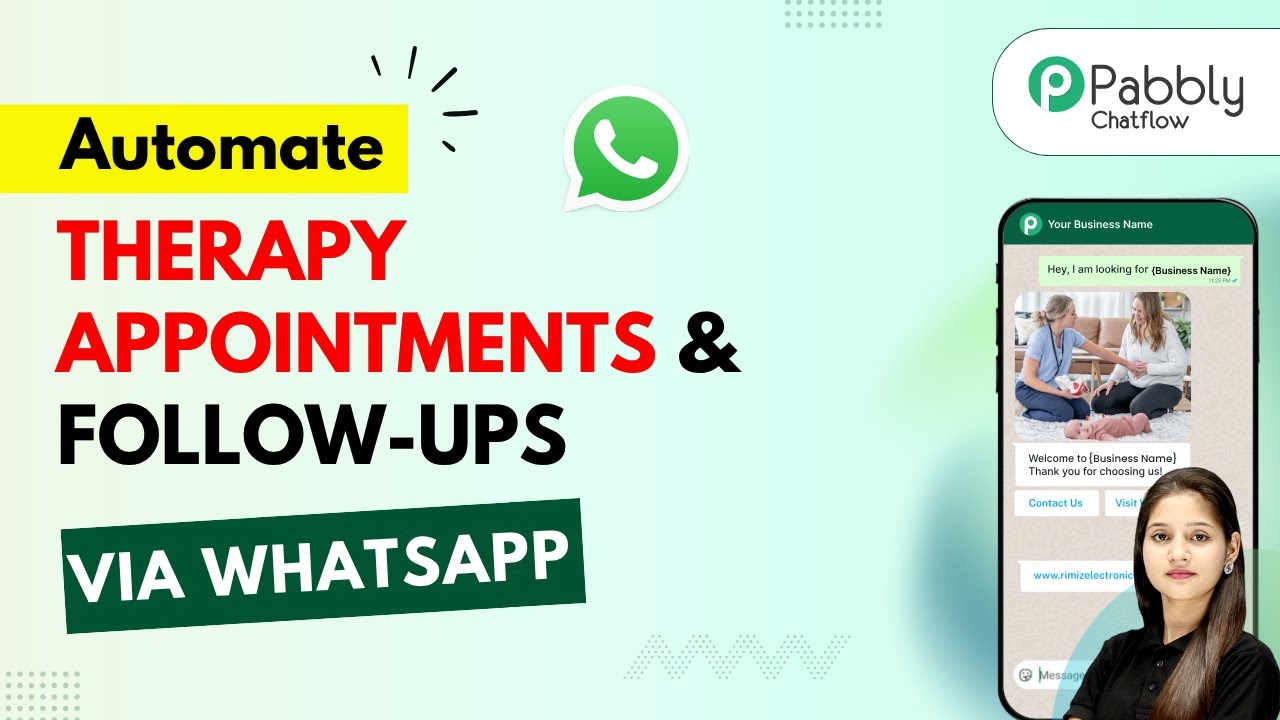
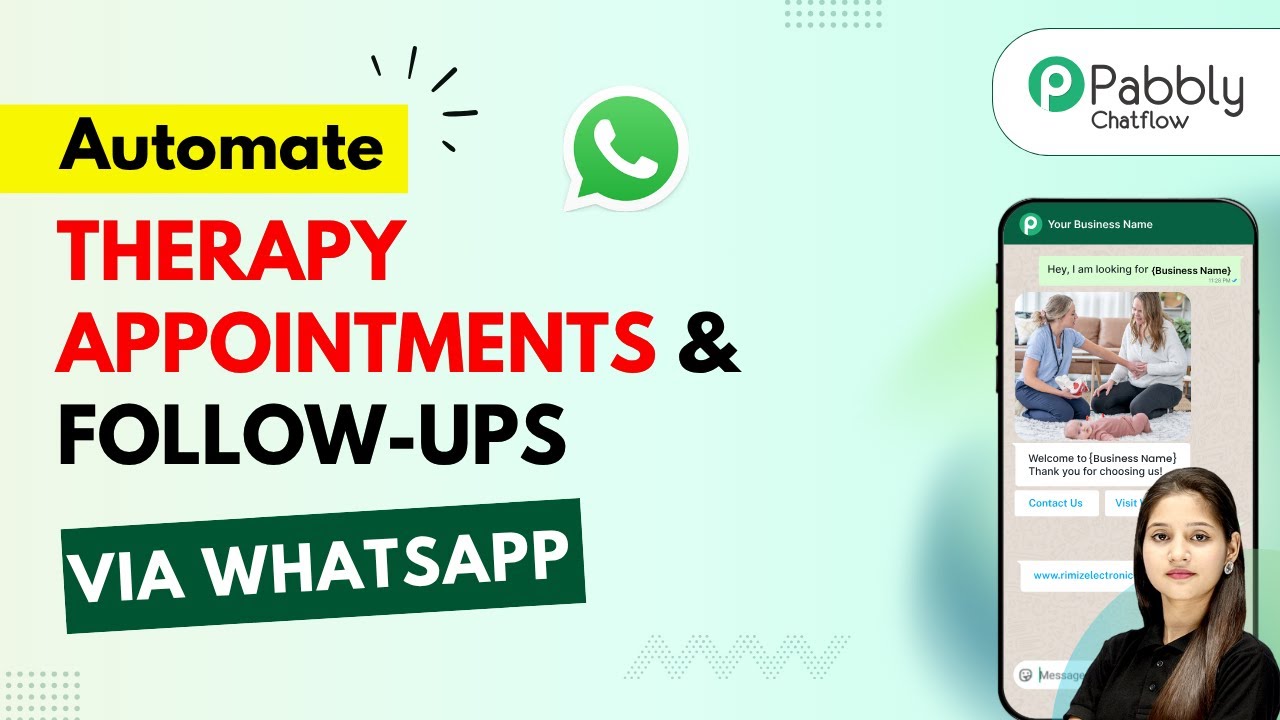
Automate Client Appointments and Follow-Ups for Therapy Centers via WhatsApp with Pabbly Chatflow

Learn how to automate therapy center client appointments and follow-ups via WhatsApp using Pabbly Chatflow. Step-by-step guide included. Discover how to design chat experiences that feel personal and responsive while handling customer inquiries automatically around the clock.

Watch Step By Step Video Tutorial Below


1. Accessing Pabbly Chatflow for Automation

To automate client appointments and follow-ups for therapy centers, you first need to access Pabbly Chatflow. Start by navigating to the official Pabbly Chatflow website, where you can either sign in or create a new account.

If you’re a new user, click on the ‘Sign Up’ button to create your account and receive 100 free credits. Existing users should click on ‘Sign In’. Once logged in, look for the Pabbly Chatflow application and click on the ‘Access Now’ button to proceed.


2. Creating a WhatsApp Chatbot with Pabbly Chatflow

After accessing Pabbly Chatflow, you will arrive at the dashboard. Here, you can manage your WhatsApp numbers and view your credit balance. To create a new WhatsApp chatbot, click on the ‘Flow’ feature, which allows you to design your chatbot using a no-code drag-and-drop builder.

  • Click on the ‘+ Add Flow’ button.
  • Select the trigger event, such as ‘Keyword/Reaction’.
  • Name your chatbot flow appropriately.

Once you have set up the initial trigger, you can start adding responses that the bot will provide when users send specific keywords.


3. Defining Keywords and Responses in Pabbly Chatflow

In Pabbly Chatflow, defining keywords is crucial for the bot to understand user requests. Add keywords such as ‘book appointment’, ‘therapy session’, and ‘counseling’. Each keyword will trigger a specific response from the bot.

After entering your keywords, connect them to a message that prompts users to choose from a list of therapy services. This list can include options like counseling, cognitive therapy, and massage therapy. Ensure that the connection between keywords and responses is seamless to provide a smooth user experience.


4. Capturing Client Details for Appointments

Once the user selects a therapy service, your bot should ask for essential details to complete the appointment booking. Use Pabbly Chatflow to set up a series of questions that capture the appointment date, time, full name, and contact number.

  • Ask for the preferred appointment date.
  • Request the user’s preferred time for the appointment.
  • Collect the user’s full name and contact number for confirmation.

By efficiently capturing these details, Pabbly Chatflow ensures that your therapy center can manage client appointments effectively without manual input.


5. Sending Confirmation Messages and Completing the Flow

After gathering all necessary information, Pabbly Chatflow allows you to send a personalized confirmation message to the user. This message should include the therapy type, appointment date, and time. Use dynamic fields to ensure that the confirmation message reflects the user’s selections accurately.

Finally, save your flow in Pabbly Chatflow to ensure that all settings are applied. Your automated WhatsApp chatbot is now ready to handle therapy appointment bookings efficiently, providing a seamless experience for both clients and staff.


Conclusion

Automating client appointments and follow-ups for therapy centers via WhatsApp using Pabbly Chatflow streamlines the booking process and enhances client satisfaction. By following the steps outlined in this tutorial, you can create an effective chatbot that manages appointments effortlessly.

Ensure you check out Pabbly Connect to create business automation workflows and reduce manual tasks. Pabbly Connect currently offer integration with 2,000+ applications.

How to Add Webinar Registrants from ActiveCampaign Contact to WebinarJam Using Pabbly Connect

Learn how to integrate ActiveCampaign with WebinarJam using Pabbly Connect to automate webinar registrations. Step-by-step tutorial included. Eliminate manual repetitive tasks from your workflow. Discover proven automation methods with intuitive steps designed for efficiency-minded professionals.

Watch Step By Step Video Tutorial Below


1. Accessing Pabbly Connect for Integration

To start integrating ActiveCampaign with WebinarJam, you need to access Pabbly Connect. This platform allows you to automate the process of adding webinar registrants easily.

Begin by visiting the Pabbly website at Pabbly.com. Once there, sign in to your existing account or create a new one by clicking on the ‘Sign Up for Free’ button. This will provide you with 100 free tasks monthly, allowing you to explore the platform.


2. Creating a New Workflow in Pabbly Connect

After logging into Pabbly Connect, navigate to the dashboard where you can manage your workflows. Click on the ‘Create Workflow’ button to start a new automation.

  • Select the Classic workflow builder for a stable experience.
  • Name your workflow as ‘Add Webinar Registrants from ActiveCampaign Contact to WebinarJam’.
  • Choose a folder to save your workflow, like ‘All Automations’.

Click on ‘Create’ to finalize your workflow setup. You will see two boxes appear: one for the trigger and one for the action, which are essential for the automation process.


3. Setting Up the Trigger with ActiveCampaign

In this step, you will configure the trigger for your workflow using Pabbly Connect. Select ActiveCampaign as your trigger application and choose the ‘Contact Added’ event.

Next, connect your ActiveCampaign account by entering the API key and URL. To find these, go to your ActiveCampaign account settings, then to the Developer section. Copy the URL and API key, removing the ‘https://’ part from the URL as instructed.


4. Creating Registrants in WebinarJam

Now, it’s time to set up the action in Pabbly Connect to create registrants in WebinarJam. Choose WebinarJam as your action application and select the ‘Register a Participant to Webinar’ event.

Connect your WebinarJam account by entering the required API key found in the WebinarJam dashboard under the advanced settings. Once connected, you will need to fill in the details for the registrant, such as first name, last name, email, and phone number.

  • Map the fields from ActiveCampaign to WebinarJam to ensure data flows correctly.
  • Use the phone number and country code as required by WebinarJam.

After entering the details, click on ‘Save and Send Test Request’ to confirm that the integration works successfully.


5. Testing and Confirming the Integration

To finalize the integration, you must test the workflow created in Pabbly Connect. Submit a test contact through your ActiveCampaign form to ensure that the data is captured and sent to WebinarJam correctly.

Once you submit the form, check your WebinarJam account to see if the new registrant appears. This will confirm that your automation is functioning as intended, allowing for seamless webinar registration.

By following these steps, you will have successfully created an automated workflow that adds webinar registrants from ActiveCampaign to WebinarJam using Pabbly Connect.


Conclusion

In this tutorial, we demonstrated how to integrate ActiveCampaign with WebinarJam using Pabbly Connect. This automation streamlines the process of adding registrants, saving you valuable time and effort. With Pabbly Connect, you can enhance your webinar management efficiently.

Ensure you check out Pabbly Connect to create business automation workflows and reduce manual tasks. Pabbly Connect currently offer integration with 2,000+ applications.

Automate Client Appointments and Follow-Ups for Therapy Centers via WhatsApp with Pabbly Chatflow

Learn how to automate client appointments and follow-ups for therapy centers using Pabbly Chatflow and WhatsApp. Follow our step-by-step tutorial for seamless integration. Learn how to create intelligent chat workflows that provide instant customer support while qualifying leads 24/7 without human intervention.

Watch Step By Step Video Tutorial Below


1. Getting Started with Pabbly Chatflow

To automate client appointments and follow-ups for therapy centers, you need to start with Pabbly Chatflow. This platform allows you to create WhatsApp chatbots that respond to user inquiries automatically. Begin by visiting the Pabbly Chatflow official page at Pabbly.com/chatflow and either sign in or create a new account to access your dashboard.

Once logged in, you can access various features of Pabbly Chatflow. The dashboard will show your WhatsApp numbers, credits, and other essential options. To create a new WhatsApp chatbot, navigate to the flow feature where you can build your automation process using a user-friendly interface.


2. Creating Your WhatsApp Chatbot

In this section, we will create your WhatsApp chatbot using Pabbly Chatflow. Click on the ‘Add Flow’ button to start. You will be prompted to select a trigger event for your bot. Choose the keyword trigger, which will activate the bot when a user sends specific keywords like ‘book appointment’.

  • Select the keyword trigger event.
  • Name your chatbot appropriately.
  • Add keywords such as ‘book appointment’, ‘therapy session’, and ‘counseling’.

After setting up the keywords, connect your bot to a message action, prompting users to choose from available therapy services. This interaction is crucial as it guides users through the appointment booking process, ensuring they receive the correct information.


3. Setting Up Appointment Details

Once users select a therapy service, your Pabbly Chatflow bot will need to confirm the appointment details. This involves asking for the appointment date and time. Use the ‘Ask a Question’ feature to gather this information from users. Ensure to select the appropriate custom fields for storing the date and time.

  • Prompt users for their preferred appointment date.
  • Ask for the preferred time for the appointment.
  • Capture user’s full name and contact number for confirmation.

This step is critical as it ensures that all necessary details for the appointment are collected efficiently. The bot should confirm these details back to the user, providing a seamless experience.


4. Finalizing the Appointment

After collecting all the necessary information, your Pabbly Chatflow bot will send a confirmation message to the user. This message should include the therapy type, appointment date, and time. Use the dynamic response feature to personalize the confirmation message, ensuring it reflects the details provided by the user.

For example, your confirmation message could read: ‘Your appointment for [therapy type] is confirmed on [date] at [time].’ This level of personalization enhances user satisfaction and builds trust in your therapy center.


5. Conclusion

By following these steps, you can effectively automate client appointments and follow-ups for therapy centers using Pabbly Chatflow. This integration not only saves time but also improves client engagement through prompt responses. Start using Pabbly Chatflow today to enhance your therapy center’s communication and efficiency.

Ensure you check out Pabbly Connect to create business automation workflows and reduce manual tasks. Pabbly Connect currently offer integration with 2,000+ applications.