How to Add Facebook Leads to Notion Automatically Using Pabbly Connect

Learn how to seamlessly integrate Facebook Leads with Notion using Pabbly Connect. Follow our step-by-step guide for automatic lead management. Develop expertise in application integration and learn how to design streamlined automation workflows using proven, simplified approaches.

Watch Step By Step Video Tutorial Below


1. Accessing Pabbly Connect for Integration

To begin the process of adding Facebook leads to Notion automatically, you first need to access Pabbly Connect. Simply open your browser and type in Pabbly.com/connect to reach the Pabbly Connect landing page.

Once on the landing page, you have two options: Sign In if you are an existing user or Sign Up for Free if you are new. If you choose to sign up, you will receive 100 free tasks every month to explore the application.


2. Creating a Workflow in Pabbly Connect

After signing in, you will be directed to the Pabbly Connect dashboard. Click on the Create Workflow button to start setting up your automation. You will be prompted to choose between the new workflow builder and the classic one; select the new workflow builder for a modern interface. using Pabbly Connect

  • Enter a name for your workflow, such as Add Facebook Leads to Notion Automatically.
  • Select a folder to save your workflow.
  • Click on Create to proceed.

This will open the workflow window, where you can set up triggers and actions. Triggers initiate the process, while actions define what happens as a result.


3. Setting Up Facebook Lead Ads as the Trigger

In the workflow window, click on the Add Trigger button and search for Facebook Lead Ads. Select it as your trigger application and choose New Lead Instant as the trigger event.

Next, click on the Connect button. If you have previously connected your Facebook account, select it; otherwise, choose Add a New Connection. Follow the prompts to connect your Facebook Lead Ads account to Pabbly Connect.

  • Select your Facebook page from the dropdown.
  • Choose the lead ad form you want to connect.
  • Click Save and Send Test Request to capture the lead details.

This step ensures that your Facebook leads are captured in real-time, ready to be sent to Notion.


4. Adding Notion as an Action Step

After setting up the trigger, it’s time to add Notion as the action step. Click on Add New Action Step, search for Notion, and select it. Choose Create Database Item as the action event.

Click on the Connect button to establish a connection between Pabbly Connect and Notion. You will need to grant permissions to access specific pages in Notion. Select the page where you want to store lead details, such as Lead Details, and allow access.

Map the fields from the Facebook lead to the corresponding fields in Notion. For example, map first name, last name, email, and phone number. Click Save and Send Test Request to finalize the action.

This step allows Pabbly Connect to add new leads directly into your Notion database automatically.


5. Testing the Integration

To ensure everything is set up correctly, you need to test the integration. Go back to the Facebook Lead Ads testing tool and create a test lead. After submitting the lead form, return to Pabbly Connect to check if the lead details have been captured.

Once you verify that the lead information has been captured successfully, refresh your Notion database to see if the new lead appears. This confirms that your automation is functioning as expected.

Now, every time a new lead is generated from Facebook Lead Ads, it will automatically be added to your Notion database, streamlining your lead management process.


Conclusion

In this tutorial, we have demonstrated how to integrate Facebook Leads with Notion using Pabbly Connect. This automation not only saves time but also enhances lead management efficiency. By following these steps, you can easily set up your own automated workflow.

Ensure you check out Pabbly Connect to create business automation workflows and reduce manual tasks. Pabbly Connect currently offer integration with 2,000+ applications.

Introducing GPT-5o Inside Pabbly Connect for Your AI Automations

Learn how to leverage GPT-5o with Pabbly Connect for creating powerful AI automations. Step-by-step guide on integrating various applications seamlessly. Implement the precise methodologies leading organizations use to automate repetitive tasks, illustrated with practical examples designed for immediate application.

Watch Step By Step Video Tutorial Below


1. Introduction to GPT-5o and Pabbly Connect

In this section, we will explore how Pabbly Connect integrates with GPT-5o to enhance AI automations. Pabbly Connect allows users to create powerful workflows that utilize the capabilities of GPT-5o, making automations faster and more efficient.

The integration of GPT-5o within Pabbly Connect offers numerous benefits including smarter responses and enhanced accuracy. With this new model, users can streamline their processes and achieve more with less effort.


2. Setting Up Pabbly Connect for AI Automations

To begin using Pabbly Connect for your AI automations, you first need to access the platform. Start by visiting the Pabbly Connect website and signing in to your account. If you are a new user, you can easily sign up for free to explore the features available.

  • Go to Pabbly Connect and click on ‘Sign In’ or ‘Sign Up for Free’.
  • Select the ‘Create Workflow’ button to start a new automation.
  • Choose between the new or classic workflow builder based on your preference.

Once you have set up your account and chosen your workflow builder, you can begin creating automations that leverage GPT-5o’s capabilities through Pabbly Connect.


3. Creating AI YouTube SEO Automation

One of the first automations you can create with Pabbly Connect and GPT-5o is for YouTube SEO. This automation generates SEO titles, descriptions, and tags based on the video concept you provide. To set this up, follow these steps:

  • Add the video concept to your designated field in the workflow.
  • Wait for a few seconds as GPT-5o processes the information.
  • The generated title, description, and tags will be automatically added to your Google Sheets.

This integration showcases how Pabbly Connect can automate content creation tasks, saving you time and effort while ensuring quality output.


4. Generating Blog Ideas Using Pabbly Connect and GPT-5o

Another powerful automation you can create is for generating blog ideas. By using Pabbly Connect with GPT-5o, you can automate the brainstorming process based on keywords and target audience. Here’s how to set it up:

Start by defining the keywords and target audience in your workflow. Once these details are entered, GPT-5o will generate relevant blog ideas in real-time.

Input the keyword topic, niche, and target audience into the specified fields. Allow GPT-5o to process the information and generate ideas. The generated ideas will be displayed in your Google Sheets for review.

This automation effectively illustrates how Pabbly Connect can enhance your content strategy by providing instant access to creative ideas.


5. Creating SEO Audit Reports with Pabbly Connect

Using Pabbly Connect, you can also automate the generation of SEO audit reports through GPT-5o. This process involves entering the company name and website URL, which triggers the AI to generate a comprehensive report. Here’s the step-by-step guide:

Once the company details are inputted, GPT-5o will analyze the website and provide an SEO audit report link in real-time.

Enter the company name and website URL into the workflow. Wait for GPT-5o to generate the SEO report. Access the report link provided by the automation.

This integration demonstrates how Pabbly Connect can facilitate thorough analysis and reporting, enhancing your SEO efforts.


Conclusion

In conclusion, leveraging Pabbly Connect with GPT-5o empowers users to create dynamic and efficient AI automations. From generating YouTube SEO content to creating blog ideas and SEO audit reports, the possibilities are vast. By following the steps outlined in this tutorial, you can harness the power of AI to streamline your workflows and enhance productivity.

Ensure you check out Pabbly Connect to create business automation workflows and reduce manual tasks. Pabbly Connect currently offer integration with 2,000+ applications.

Automatically Post Blog Updates to Twitter from WordPress Using Pabbly Connect

Learn how to automatically post blog updates from WordPress to Twitter using Pabbly Connect with this detailed step-by-step tutorial. Explore systematic approaches to creating efficient automation solutions that convert technical concepts into practical, implementable instructions.

Watch Step By Step Video Tutorial Below


1. Accessing Pabbly Connect for Integration

To automatically post blog updates from WordPress to Twitter, you first need to access Pabbly Connect. This powerful automation platform allows you to create workflows without any coding skills. Simply visit the Pabbly website and sign in to your account.

Once logged in, navigate to the Pabbly Connect dashboard. Here, you can create a new workflow that will connect your WordPress blog to your Twitter account. Click on the ‘Create Workflow’ button to begin setting up your automation.


2. Creating a Workflow to Post Blog Updates

In this section, you will create a workflow in Pabbly Connect specifically designed for posting updates. After selecting ‘Create Workflow’, name your workflow as ‘Automatically Post Blog Updates to Twitter from WordPress’. Choose the appropriate folder for your workflow.

  • Name the workflow appropriately.
  • Select the correct folder for organization.
  • Click on ‘Create’ to finalize the workflow.

After creating the workflow, you will see two options: Trigger and Action. The trigger will be set to WordPress, while the action will connect to Twitter. This setup ensures that every time a new post is published on WordPress, it will automatically be tweeted on Twitter.


3. Setting Up the Trigger from WordPress

To set up the trigger in Pabbly Connect, select WordPress as the trigger application. The specific event we want to trigger is ‘New Post Published’. This means every time a new blog post is created, it will initiate the workflow.

Next, you will need to connect Pabbly Connect with your WordPress account. A webhook URL will be provided, which acts as a bridge between WordPress and Pabbly Connect. Copy this URL and proceed to your WordPress dashboard.

  • Go to settings in WordPress and navigate to WP Webhooks.
  • Add the webhook URL and name it appropriately.
  • Select the post type and status as published.

After saving the settings, your WordPress account will be linked to Pabbly Connect, allowing it to send data whenever a new post is published.


4. Setting Up the Action to Post on Twitter

Now, it’s time to set up the action step in Pabbly Connect. Here, you will select Twitter as the action application. The action event will be ‘Create Tweet’. Click on connect to establish the link between Pabbly Connect and your Twitter account.

If you do not have an existing connection, you will be prompted to enter your Twitter API credentials, including Client ID and Client Secret. These can be obtained from the Twitter Developer Portal. After entering this information, authorize the application to connect.

Select the correct action event as ‘Create Tweet’. Enter the required API credentials for Twitter. Authorize the application to finalize the connection.

Once connected, you can set up the tweet message. Use dynamic mapping to pull in the blog post title and permalink from the previous response. This ensures that every new tweet will reflect the latest blog post automatically.


5. Testing the Integration and Finalizing Setup

After configuring both the trigger and action, it’s essential to test the integration in Pabbly Connect. Create a new post in your WordPress account to see if it triggers the workflow correctly. Once the post is published, check your Twitter account to verify that the tweet appears as expected.

If the test is successful, you will see the tweet reflecting the new blog post instantly. This confirms that the integration between WordPress and Twitter through Pabbly Connect is functioning as intended.

In case you encounter any issues, revisit the settings in both WordPress and Pabbly Connect to ensure everything is configured correctly. With this setup, you can now automatically post updates to Twitter every time you publish a new blog post on WordPress.


Conclusion

In this tutorial, we explored how to use Pabbly Connect to automatically post blog updates from WordPress to Twitter. By following the steps outlined, you can enhance your online presence without the hassle of manual posting. Automate your social media updates today to save time and increase engagement.

Ensure you check out Pabbly Connect to create business automation workflows and reduce manual tasks. Pabbly Connect currently offer integration with 2,000+ applications.

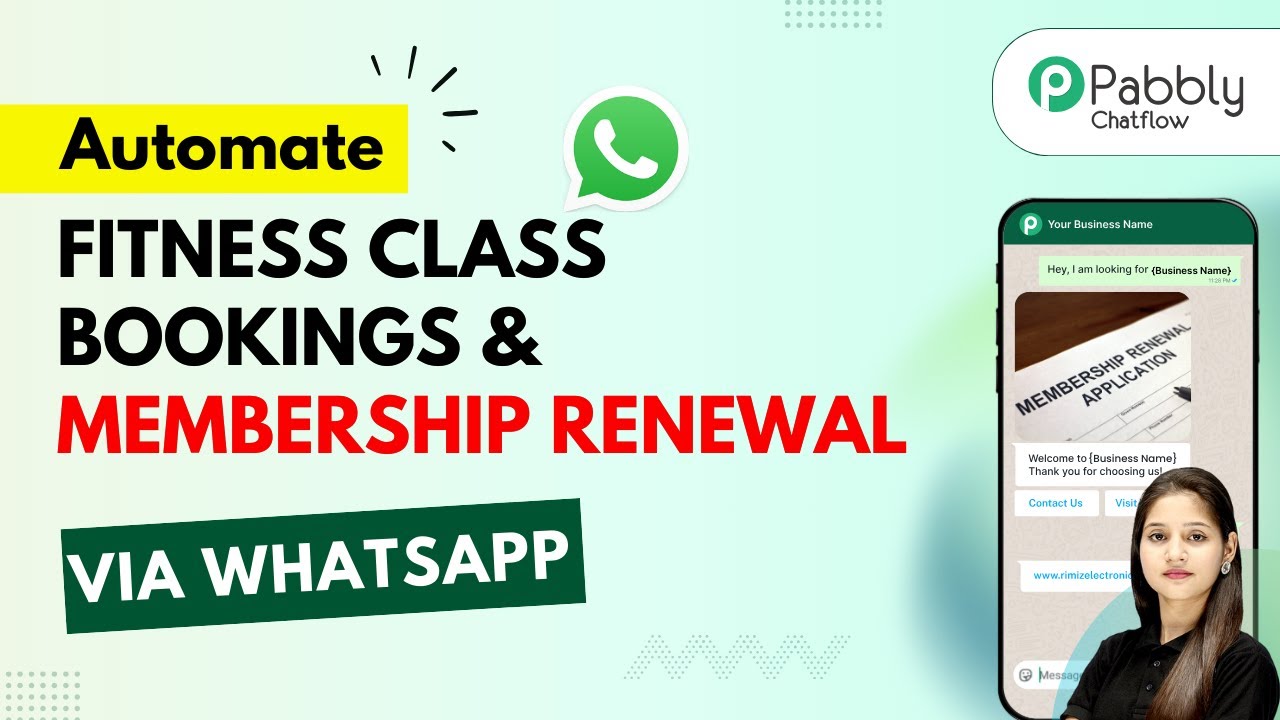
Automate Fitness Class Bookings and Membership Renewal via WhatsApp with Pabbly Chatflow

Learn how to automate fitness class bookings and membership renewal via WhatsApp using Pabbly Chatflow. Step-by-step guide for seamless integration. Discover practical methods for designing chat sequences that capture leads, answer questions, and guide users to the next step in your funnel.

Watch Step By Step Video Tutorial Below


1. Accessing Pabbly Chatflow for Automation

To automate fitness class bookings and membership renewal via WhatsApp, first, access Pabbly Chatflow by visiting the official website. This platform is designed to streamline your WhatsApp communications and automate responses efficiently.

Once on the Pabbly Chatflow homepage, you will see options for signing in or signing up. If you are a new user, click on the ‘Sign Up’ button to create your account and receive 100 free credits. Existing users can log in using the ‘Sign In’ option. After logging in, navigate to the Pabbly Chatflow dashboard to begin setting up your automation.


2. Setting Up Your WhatsApp Chatbot in Pabbly Chatflow

In the Pabbly Chatflow dashboard, click on the ‘Access Now’ button for the Chatflow app. This will take you to the flow builder where you can create a WhatsApp chatbot. Click on the ‘Plus Add Flow’ button to start a new flow for automating fitness class bookings. using Pabbly Connect

  • Provide a name for your bot, such as ‘Automate Fitness Class Bookings and Membership Renewal’.
  • Select the trigger event for your flow, using the ‘Keyword/Regex’ option to respond to specific user inquiries.
  • Add a list button to prompt users to choose a class type, such as Yoga, Zumba, or HIIT.

These steps will set the foundation for your WhatsApp chatbot, allowing it to respond to users automatically when they send messages related to fitness class bookings.


3. Creating the Flow for Class Bookings

After setting up the initial flow, you will need to configure how your bot interacts with users. Start by adding a message that prompts users to select a class. Use the list button feature to provide options like Yoga, Zumba, and HIIT. using Pabbly Connect

Once a user selects a class, the bot should ask for the date and time they wish to attend. Add an ‘Ask a Question’ button to capture this information, ensuring that the contact custom fields are set up to store the date and time.

  • Prompt for the user’s full name after confirming the class details.
  • Ensure the bot provides a confirmation message that includes the selected class, date, and time.

This structured interaction allows users to easily book classes through WhatsApp, making the process efficient and user-friendly.


4. Handling Membership Renewals with Pabbly Chatflow

In addition to class bookings, your WhatsApp chatbot should handle membership renewals. After collecting the user’s details, the bot should present options for either renewing their membership or making a new booking. using Pabbly Connect

Utilize the quick button feature to allow users to select their choice. Based on their selection, the bot should respond with a customized message confirming their action and providing a payment link. This ensures that users can complete their transactions smoothly.

Connect the membership renewal option to a payment processing link. Ensure the bot sends a dynamic message that includes the class name and payment details.

By integrating membership renewals into your chatbot, you can enhance user satisfaction and streamline your operations.


5. Finalizing Your Pabbly Chatflow Automation

Once you have configured all interactions within your flow, it’s crucial to save your settings. Click the ‘Save’ button to ensure that all changes are applied and your bot is ready to interact with users.

Your final flow should allow users to seamlessly book fitness classes and renew memberships via WhatsApp, with the bot providing necessary information and payment links dynamically. This automation will save you time and enhance customer engagement.

Remember, the entire process can be done without any coding skills, thanks to the user-friendly interface of Pabbly Chatflow.


Conclusion

In conclusion, automating fitness class bookings and membership renewals via WhatsApp is made easy with Pabbly Chatflow. This platform allows for seamless integration and efficient communication, enhancing user experience and operational efficiency.

Ensure you check out Pabbly Connect to create business automation workflows and reduce manual tasks. Pabbly Connect currently offer integration with 2,000+ applications.

How to Sync New Stripe Orders with Google Sheets Using Pabbly Connect

Learn how to sync new Stripe orders with Google Sheets using Pabbly Connect. This detailed tutorial guides you through the exact steps for seamless integration.

Watch Step By Step Video Tutorial Below


1. Accessing Pabbly Connect for Integration

To begin syncing new Stripe orders with Google Sheets, you need to access Pabbly Connect. Start by navigating to the Pabbly Connect homepage by entering ‘Pabbly.com/connect’ in your browser.

Once on the homepage, you will see options to either sign in or sign up. If you’re new to Pabbly Connect, click on ‘Sign Up Free’ to create an account and receive 100 free tasks monthly. Existing users should click on ‘Sign In’ to access their account.


2. Creating a Workflow in Pabbly Connect

After signing in, you will be directed to the Pabbly Apps window. From here, click on Pabbly Connect to access the dashboard. To create a new workflow, click on the ‘Create Workflow’ button located at the top right corner.

  • Select the workflow builder (choose between the new beta version or classic).
  • Name your workflow, e.g., ‘Sync New Stripe Orders with Google Sheets’.
  • Select a folder to save your workflow.

Once you have set up your workflow, click on the ‘Create’ button to proceed. This initiates the automation process where you will set up the trigger and action steps.


3. Setting Up the Trigger for Stripe Payments

In this step, you will configure the trigger that will activate the workflow. Click on the ‘Add Trigger’ button and select Pabbly Connect as the trigger application. Choose ‘New Charge’ as the event.

After selecting the event, you will receive a webhook URL. Copy this URL, as it will be used to connect your Stripe account with Pabbly Connect. Log in to your Stripe account, navigate to the ‘Developers’ section, and select ‘Webhooks’ to set up a new webhook using the copied URL.

  • Click on ‘Add Endpoint’ in Stripe Webhooks.
  • Select ‘Charge Succeeded’ as the event to listen for.
  • Paste the webhook URL in the endpoint URL field and click ‘Create Destination’.

With the webhook set up, return to Pabbly Connect and proceed to test the connection by making a test payment in Stripe.


4. Configuring the Action Step in Google Sheets

After successfully setting up the trigger, it’s time to configure the action step that will add new order details to Google Sheets. In Pabbly Connect, click on ‘Add Action’ and select Google Sheets as the action application. Choose ‘Add a New Row’ as the event.

Next, connect your Google Sheets account by clicking ‘Sign in with Google’. Select your account and allow access to Pabbly Connect. Once connected, select the spreadsheet where you want to store the order details.

Choose the spreadsheet you created for Stripe payments. Select the specific sheet within the spreadsheet. Map the fields such as name, email, amount, and payment method from the Stripe response.

After mapping the required fields, click on ‘Save and Send Test Request’ to finalize the action. Verify that the new order details appear in your Google Sheets.


5. Finalizing the Integration and Testing

With both the trigger and action steps configured, your integration between Stripe and Google Sheets via Pabbly Connect is nearly complete. To ensure everything is working correctly, conduct a test payment in your Stripe account.

Check your Google Sheets to confirm that the order details have been added as a new row. If the details appear correctly, your automation is functioning as intended. You can now seamlessly sync new Stripe orders with Google Sheets using Pabbly Connect.

In summary, this integration allows you to automate the process of recording new Stripe orders in Google Sheets, enhancing efficiency and accuracy in your business operations.


Conclusion

By following this tutorial, you have learned how to sync new Stripe orders with Google Sheets using Pabbly Connect. This powerful integration streamlines your order management process, ensuring that every payment is recorded accurately and efficiently.

Ensure you check out Pabbly Connect to create business automation workflows and reduce manual tasks. Pabbly Connect currently offer integration with 2,000+ applications.

Utilizing Pabbly Connect not only saves time but also minimizes the risk of errors in data entry. Now you can focus on growing your business while Pabbly Connect handles the automation for you.

Automate Course Enrollment for E-learning Institutes on WhatsApp Using Pabbly Chatflow

Learn how to automate course enrollment for e-learning institutes on WhatsApp using Pabbly Chatflow and Pabbly Chatflow. Step-by-step tutorial included. Implement professional chat automation that answers common questions, qualifies leads, and books appointments without human intervention.

Watch Step By Step Video Tutorial Below


1. Accessing Pabbly Chatflow for Course Enrollment Automation

To automate course enrollment for e-learning institutes on WhatsApp, the first step is to access Pabbly Chatflow. Start by visiting the Pabbly Chatflow website at www.Pabbly.com/chatflow. You will need to sign in to your account or create a new one if you are a first-time user.

Once you are logged in, you will see the dashboard displaying your credits and available features. To proceed, ensure that your WhatsApp number is connected by clicking on the ‘Add WhatsApp Number’ button. This integration is crucial for enabling automated responses through the WhatsApp chatbot.


2. Creating a WhatsApp Chatbot with Pabbly Chatflow

Next, you will create a WhatsApp chatbot using Pabbly Chatflow. Navigate to the ‘Flows’ section on the left sidebar and click on the ‘Add Flow’ button. This will take you to the flow builder where you can set up your chatbot’s responses.

  • Click on the trigger event and select ‘Keyword Regex Match’ to start the flow.
  • Enter keywords like ‘registration’ and ‘enroll’ to activate the chatbot when users send messages containing these terms.
  • Set up the regex to capture various expressions related to course enrollment.

After configuring the trigger, you can set the initial message that users will receive. For instance, the bot can greet users with a message like, ‘Hi, welcome to Learn Smart Academy. Please choose the course you want to enroll in.’ This interaction sets the stage for further questions regarding the user’s enrollment.


3. Collecting User Information through Pabbly Chatflow

Once the user selects a course, Pabbly Chatflow will prompt them for essential information. The bot will ask for the user’s full name, email address, and phone number. This is done through the ‘Ask Question’ feature in the flow builder.

  • For each question, create a contact custom field to store responses.
  • Ensure the format for each field matches the type of data being collected (e.g., text for names, email for addresses).
  • Save the flow regularly to avoid losing any progress.

As users provide their information, Pabbly Chatflow captures these details, creating a personalized experience. After collecting the information, the chatbot will send a confirmation message, thanking the user for enrolling and providing course details.


4. Integrating Pabbly Connect with Google Sheets

To manage user data efficiently, you can integrate Pabbly Chatflow with Google Sheets using Pabbly Connect. This integration allows you to store all collected user information in a structured format. Start by creating a workflow in Pabbly Connect and select ‘Webhook by Pabbly’ as the trigger.

Copy the webhook URL provided by Pabbly Connect and paste it into the API request in your Chatflow. Map the fields from the Chatflow responses (name, email, phone) to the corresponding columns in your Google Sheet. Test the connection to ensure that data is being sent correctly.

This integration not only streamlines data collection but also ensures that all user enrollment details are easily accessible in Google Sheets for future reference.


5. Testing and Launching the WhatsApp Chatbot

After completing the setup, it’s essential to test your WhatsApp chatbot created with Pabbly Chatflow. Send a message like ‘I want to register for your course’ to your WhatsApp number. The bot should respond with the course options and proceed to collect user information as designed.

Ensure that all functionalities work as expected and that the data is correctly recorded in Google Sheets via Pabbly Connect. After confirming everything is operational, you can officially launch your chatbot for users to access and enroll in courses seamlessly.


Conclusion

In this tutorial, we explored how to automate course enrollment for e-learning institutes on WhatsApp using Pabbly Chatflow and Pabbly Connect. By following these steps, you can create a functional chatbot that enhances user experience and streamlines the enrollment process.

Ensure you check out Pabbly Connect to create business automation workflows and reduce manual tasks. Pabbly Connect currently offer integration with 2,000+ applications.

Automate Job Applications and Resume Screening via WhatsApp with Pabbly Chatflow

Learn how to automate job applications and resume screening via WhatsApp using Pabbly Chatflow. Step-by-step tutorial on creating a WhatsApp chatbot. Build conversational workflows that guide visitors toward conversion with dynamic, branching dialogs that respond intelligently to user input.

Watch Step By Step Video Tutorial Below


1. Getting Started with Pabbly Chatflow

To automate job applications and resume screening via WhatsApp, the first step is to access Pabbly Chatflow. This platform allows you to create a WhatsApp chatbot that can respond to job applicants automatically. Start by navigating to Pabbly Chatflow and signing up or logging in if you already have an account.

Once logged in, you will see the dashboard where you can manage your WhatsApp numbers. Click on the ‘Add WhatsApp Number’ option to integrate your WhatsApp account with Pabbly Chatflow. You can use either the WhatsApp connect option for scanning a QR code or the manual token connect using your Meta access token.


2. Creating a WhatsApp Chatbot with Pabbly Chatflow

After setting up your WhatsApp number, it’s time to create your chatbot using Pabbly Chatflow. Click on the ‘Flow’ option in the left sidebar and then click on the ‘+ Add Flow’ button. Name your flow, for example, ‘Automate Job Applications and Resume Screening via WhatsApp’. This name will help you easily identify your chatbot later.

  • Click on the ‘Add Flow’ button.
  • Name your flow appropriately.
  • Select the trigger event for your chatbot.

For this automation, select the trigger event as ‘Keyword’ to allow the bot to respond to specific messages from users. You can set keywords like ‘job application’, ‘apply now’, and ‘career opportunity’. After entering the keywords, click enter to save them.


3. Designing the Chatbot Flow in Pabbly Chatflow

Now that you have set up the keywords, it’s time to design the flow of your WhatsApp chatbot. In Pabbly Chatflow, you can use various options like messages and actions. Start by dragging a ‘List’ option into your flow to display job positions.

  • Drag the ‘List’ option into your flow.
  • Enter the message body asking users to select a job position.
  • Add job types like Software Developer, Marketing Manager, and Sales Executive.

Ensure that you connect your trigger event to the list option. This way, when users send a message containing any of the keywords, the bot will automatically respond with the job options. Follow this by adding custom fields to capture user responses for each job type.


4. Capturing User Information with Pabbly Chatflow

Next, you will want to capture essential user information such as their full name and contact number. In Pabbly Chatflow, you can use the ‘Ask a Question’ button to prompt users for their details. Drag this button into your flow and write a message asking, ‘What’s your full name for the application?’ and select the appropriate custom field to store their response.

After capturing the name, you can add another ‘Ask a Question’ button to request their contact number. This ensures that you have all the necessary information for follow-ups. After these steps, connect each part of your flow to maintain a seamless user experience.


5. Finalizing the Chatbot Flow in Pabbly Chatflow

Finally, after capturing the user’s name and contact number, you will want to request their resume. Use the ‘Ask Media’ button to prompt users to upload their resume. Set the message as ‘Please upload your resume to complete the application process’ and select the document type in the settings.

Once all information is captured, you can set a tag for the application, such as ‘Job Application Received’. This helps in categorizing applicants for future reference. Finally, connect all parts of your flow and save your work in Pabbly Chatflow to activate your WhatsApp chatbot.


Conclusion

By following these steps, you can successfully automate job applications and resume screening via WhatsApp using Pabbly Chatflow. This integration streamlines your hiring process, allowing you to respond to applicants efficiently without manual effort. Start creating your WhatsApp chatbot today and enhance your recruitment process!

Ensure you check out Pabbly Connect to create business automation workflows and reduce manual tasks. Pabbly Connect currently offer integration with 2,000+ applications.

How to Store New JustDial Inquiries in Airtable Using Pabbly Connect

Learn how to integrate JustDial with Airtable using Pabbly Connect for better management and reporting of inquiries. Follow this definitive guide to creating powerful automated workflows with straightforward, efficiency-focused solutions that save valuable time.

Watch Step By Step Video Tutorial Below


1. Accessing Pabbly Connect for Integration

To store new JustDial inquiries in Airtable, the first step is to access Pabbly Connect. Open your browser and navigate to the Pabbly Connect landing page by typing Pabbly.com/connect. This platform is essential for creating automated workflows between JustDial and Airtable.

Once on the Pabbly Connect page, you will see two options: ‘Sign In’ and ‘Sign Up for Free’. If you are a new user, you can sign up and receive 100 free tasks every month. For existing users, click on ‘Sign In’ to access your account and proceed with the integration.


2. Creating a Workflow in Pabbly Connect

After signing in, you will be directed to the Pabbly Connect dashboard. Here, you will need to create a new workflow to connect JustDial and Airtable. Click on the ‘Create Workflow’ button and choose the new workflow builder for a modern interface.

  • Name your workflow ‘Store New JustDial Inquiries in Airtable’.
  • Select an appropriate folder to save your workflow.

Click on the ‘Create’ button to access the workflow window where you will set up the trigger and action for your automation. This is where Pabbly Connect becomes crucial, as it allows you to automate the data transfer between JustDial and Airtable.


3. Setting Up Trigger with JustDial

In the workflow window, the next step is to define the trigger for your automation. Click on the ‘Add Trigger’ button and search for JustDial. Select it as your trigger application and choose the ‘New Lead’ event.

To connect JustDial with Pabbly Connect, you will need to copy the webhook URL provided. This URL must be configured in your JustDial account. Contact your JustDial account manager to add this URL, as it cannot be done through the user interface.


4. Configuring Airtable as Action Step

Once the trigger is set, the next step is to add Airtable as the action application. Click on ‘Add New Action Step’ and select Airtable. For the action event, choose ‘Create Record’ and click on ‘Connect’.

  • If you have an existing connection, select it; otherwise, create a new connection.
  • Grant Pabbly Connect the necessary permissions to access your Airtable base.

After granting permissions, select the base and table where you want to store the inquiry details. This integration with Pabbly Connect ensures that every new lead from JustDial is automatically added to your Airtable database.


5. Mapping Fields and Testing the Integration

The final step involves mapping the fields from the JustDial response to your Airtable columns. You will see fields for phone number, name, email, and company name. Instead of typing these details manually, use the mapping feature in Pabbly Connect to dynamically insert data from the JustDial trigger.

After mapping all the necessary fields, click on ‘Save and Send Test Request’. If successful, you will receive a confirmation that the details have been added to your Airtable. Now, whenever a new lead comes in from JustDial, it will be automatically stored in Airtable without any additional manual effort.


Conclusion

In this tutorial, we explored how to use Pabbly Connect to automate the storage of new JustDial inquiries in Airtable. This integration simplifies management and reporting, allowing you to focus on growing your business without missing any leads. Start using Pabbly Connect today to enhance your workflow!

Ensure you check out Pabbly Connect to create business automation workflows and reduce manual tasks. Pabbly Connect currently offer integration with 2,000+ applications.

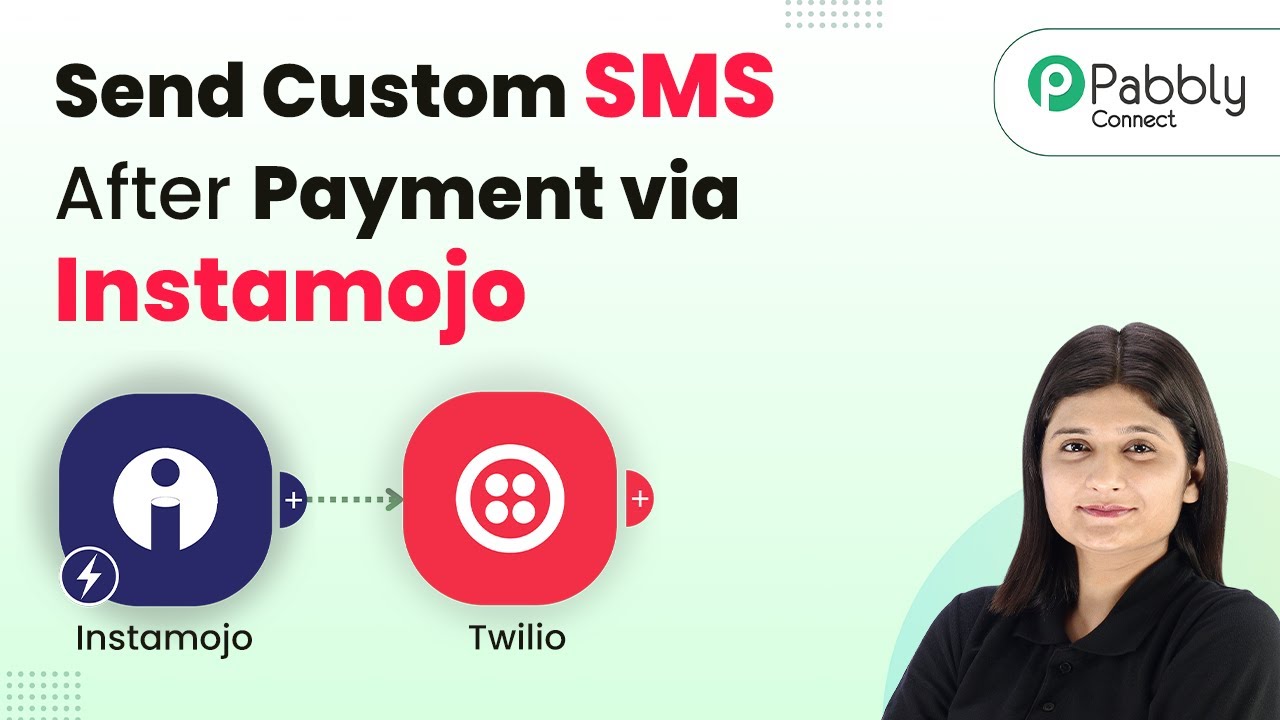
How to Send Custom SMS After Payment via Instamojo Using Pabbly Connect

Learn how to send custom SMS after payment via Instamojo using Pabbly Connect. This detailed tutorial walks you through the integration process step-by-step. Develop expertise in application integration and learn how to design streamlined automation workflows using proven, simplified approaches.

Watch Step By Step Video Tutorial Below


1. Accessing Pabbly Connect for Integration

To send custom SMS after payment via Instamojo, the first step is accessing Pabbly Connect. Start by visiting the Pabbly website and signing into your account. If you are a new user, you can sign up for free and receive 100 tasks monthly.

Once logged in, navigate to the Pabbly apps page and select Pabbly Connect. This is where you will create your automation workflow that connects Instamojo with Twilio to send SMS notifications after payments.


2. Creating a Workflow in Pabbly Connect

In this section, you will create a new workflow in Pabbly Connect. Click on the ‘Create Workflow’ button and choose the classic workflow builder. Name your workflow as ‘Send Custom SMS After Payment via Instamojo’ and select a folder for organization.

  • Click on ‘Create’ to finalize your workflow.
  • You will see two boxes: one for the trigger and one for the action.

Set the trigger application to Instamojo and the action application to Twilio. This setup will ensure that whenever a payment is received through Instamojo, a custom SMS will be sent automatically via Twilio.


3. Setting Up Instamojo in Pabbly Connect

Next, you need to configure your trigger by selecting Instamojo as the application and ‘Successful Payment’ as the trigger event in Pabbly Connect. A webhook URL will be generated, which acts as a bridge between Instamojo and Pabbly Connect.

Log into your Instamojo account and navigate to the smart pages section. Select the page you want to edit, and in the page settings, find the webhook section. Here, paste the webhook URL you copied from Pabbly Connect and set the trigger to successful payment.


4. Testing the Connection Between Instamojo and Pabbly Connect

After configuring the webhook, it’s time to test the connection. Go back to your workflow in Pabbly Connect, which should now display ‘Waiting for Webhook Response’. To test, make a payment on your Instamojo page.

Once the payment is successful, return to Pabbly Connect to check if the response has been captured. This response will include details like the payment status, amount, and customer information, confirming that the integration is working correctly.


5. Sending Custom SMS Using Twilio

Now, you will set up Twilio as the action application in your Pabbly Connect workflow. Select Twilio and choose the event ‘Send SMS Message’. If this is your first time connecting Twilio, you will need to enter your Twilio account SID, token, and phone number.

  • Enter the message body for the SMS, including dynamic fields from the Instamojo response.
  • Ensure to map the customer name, payment amount, and product name dynamically using the data received from Instamojo.

After filling in the required details, click on ‘Save and Send Test Request’. You should receive a confirmation SMS on your phone, indicating that the custom SMS has been successfully sent.


Conclusion

In this tutorial, we explored how to send custom SMS after payment via Instamojo using Pabbly Connect. By automating this process, you can enhance customer communication effortlessly. With Pabbly Connect, integrating various applications becomes seamless, allowing you to focus on growing your business.

Ensure you check out Pabbly Connect to create business automation workflows and reduce manual tasks. Pabbly Connect currently offer integration with 2,000+ applications.

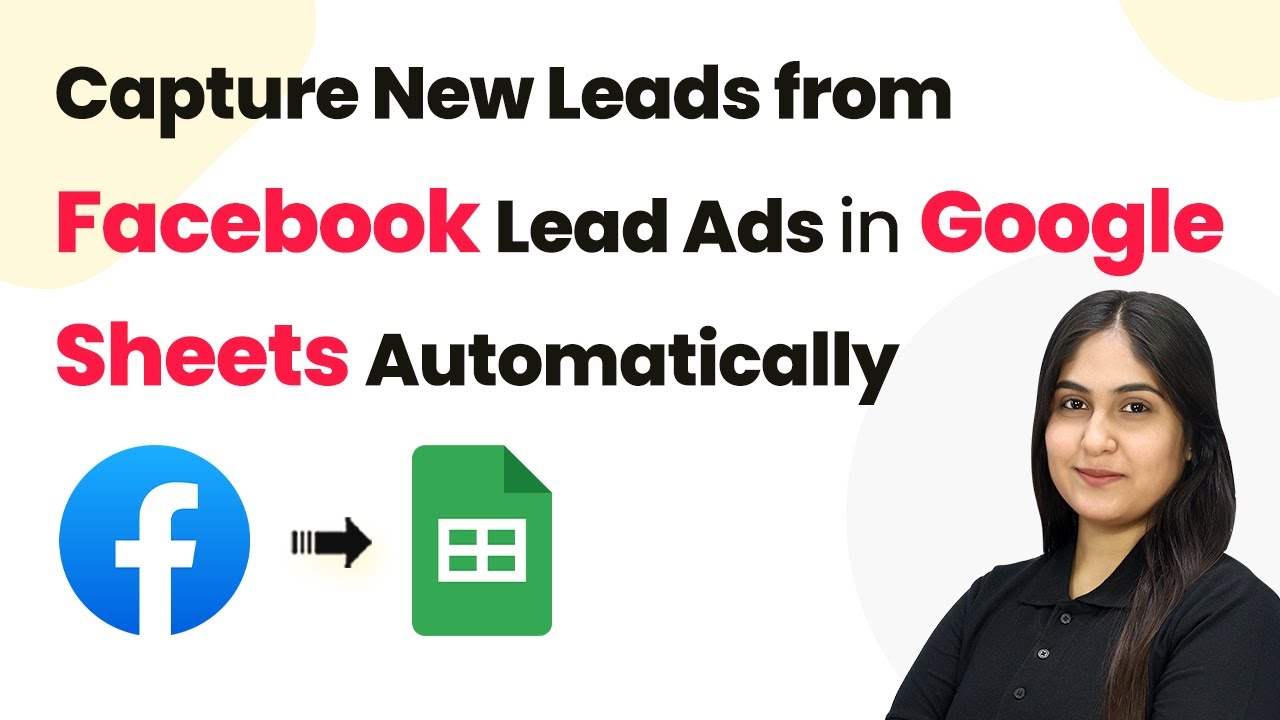
How to Capture New Leads from Facebook Lead Ads in Google Sheets Automatically using Pabbly Connect

Learn how to automatically capture new leads from Facebook Lead Ads into Google Sheets using Pabbly Connect. Follow our step-by-step tutorial for seamless integration. Develop expertise in application integration and learn how to design streamlined automation workflows using proven, simplified approaches.

Watch Step By Step Video Tutorial Below


1. Accessing Pabbly Connect for Automation

To begin capturing new leads from Facebook Lead Ads into Google Sheets automatically, you first need to access Pabbly Connect. This platform enables seamless integration between various applications, including Facebook and Google Sheets.

Open your web browser and navigate to Pabbly.com. If you are a new user, click on ‘Sign Up Free’ to create an account. Existing users can simply log in. Once logged in, you will be directed to the Pabbly Connect dashboard, where you can create your automation workflows.


2. Creating a New Workflow in Pabbly Connect

Once you are on the Pabbly Connect dashboard, the next step is to create a new workflow. Click on the ‘Create Workflow’ button located at the top right corner. This will allow you to set up the automation process for capturing leads.

  • Select a name for your workflow, such as ‘Capture New Leads from Facebook Lead Ads in Google Sheets’.
  • Choose a folder to save your workflow, like ‘Google Sheet’.

After naming your workflow and selecting a folder, click on the ‘Create’ button. This will initiate the workflow setup process in Pabbly Connect, allowing you to define triggers and actions needed to automate lead capture.


3. Setting Up the Trigger for Facebook Lead Ads

In this step, you will set up the trigger to capture new leads from Facebook Lead Ads. Click on the ‘Add Trigger’ button and select ‘Facebook Lead Ads’ as your trigger application. Choose the event as ‘New Lead’ to ensure that the workflow activates whenever a new lead is generated.

Next, you will need to connect your Facebook account. If you have already connected your Facebook account to Pabbly Connect, you can select the existing connection. Otherwise, click on ‘Add New Connection’ to log in and grant access. Once connected, select the specific Facebook page and lead form you want to capture leads from.


4. Adding Action Step to Send Data to Google Sheets

After setting up the trigger, the next step is to add an action that sends the captured lead data to Google Sheets. Click on the ‘Add Action Step’ button and select ‘Google Sheets’ as the action application. Choose the action event as ‘Add a New Row’ to insert lead details into your spreadsheet.

  • Connect your Google Sheets account to Pabbly Connect.
  • Select the specific spreadsheet and worksheet where you want to store the lead data.

Map the fields from the Facebook lead data to the corresponding columns in your Google Sheets. This ensures that each new lead’s details, such as name, email, phone number, and city, are accurately recorded in the right columns.


5. Testing the Automation Process

With the workflow configured, it’s essential to test the automation to ensure it works correctly. Go back to the Facebook Lead Ads testing tool and generate a test lead by filling in the required details. Once submitted, Pabbly Connect will capture this lead and add it to your specified Google Sheets automatically.

Check your Google Sheets to confirm that the new lead details have been successfully added as a new row. If everything looks good, your automation is now set up and ready to capture new leads from Facebook Lead Ads into Google Sheets automatically!


Conclusion

In this tutorial, we explored how to use Pabbly Connect to automate the process of capturing new leads from Facebook Lead Ads directly into Google Sheets. By following the outlined steps, you can streamline your lead management process effectively.

Ensure you check out Pabbly Connect to create business automation workflows and reduce manual tasks. Pabbly Connect currently offer integration with 2,000+ applications.

With Pabbly Connect, integrating various applications like Facebook and Google Sheets becomes effortless, allowing you to focus more on your business growth.