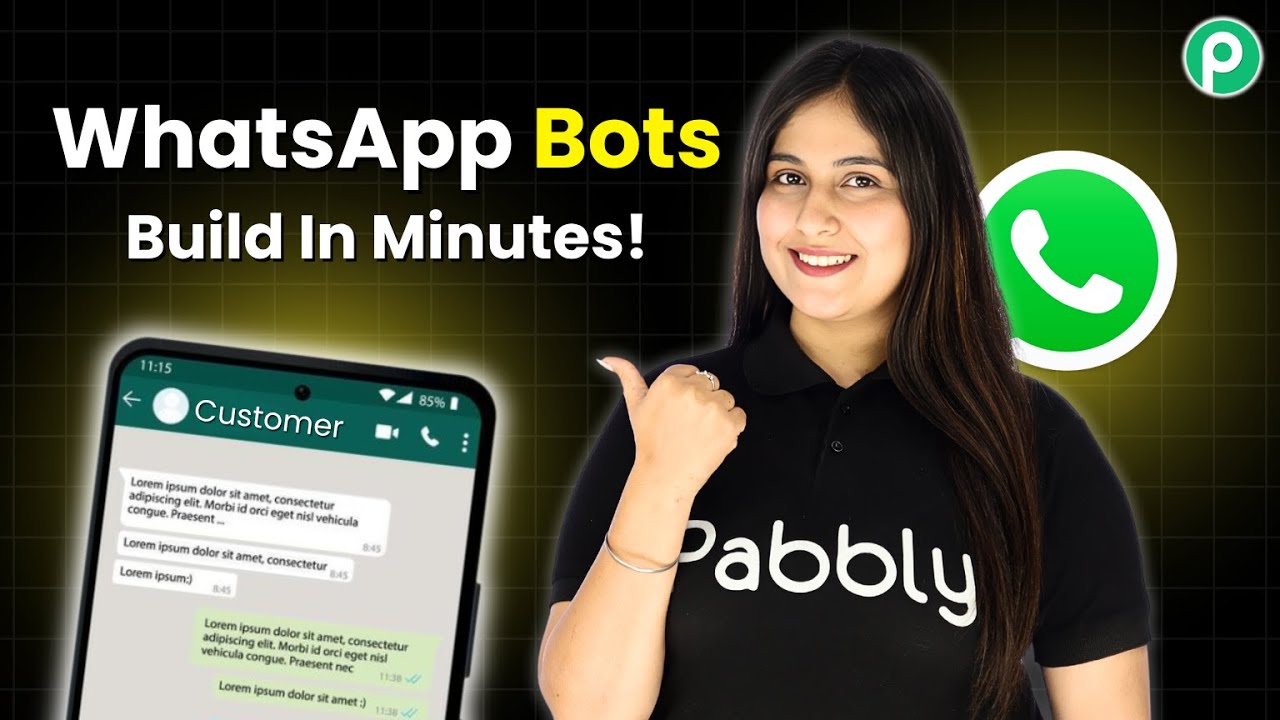
Interactive WhatsApp Bots: Build in Minutes!

Learn how to build interactive WhatsApp bots using Pabbly Chatflow. Follow our step-by-step tutorial to integrate various applications seamlessly. Discover how to design chat experiences that feel personal and responsive while handling customer inquiries automatically around the clock.

Watch Step By Step Video Tutorial Below


1. Accessing Pabbly Chatflow to Create Your WhatsApp Bot

To create interactive WhatsApp bots, you first need to access Pabbly Chatflow. Simply search for Pabbly.com/chatflow in your browser.

Once on the Pabbly Chatflow homepage, you will see two options: ‘Sign In’ and ‘Sign Up Free.’ If you’re new, click ‘Sign Up Free’ to start your free trial. For existing users, select ‘Sign In’ to enter your account.


2. Setting Up WhatsApp Integration in Pabbly Chatflow

After signing in, navigate to the Pabbly apps window and select Pabbly Chatflow by clicking on ‘Access Now.’ This will direct you to the dashboard where you can set up your WhatsApp integration.

  • Click on the ‘Add WhatsApp Number’ button.
  • Choose ‘WhatsApp Connect’ for the preferred connection method.
  • Follow any additional prompts to complete the connection.

Make sure to check the video for detailed guidance on adding your WhatsApp number. This integration is crucial for your bot to function effectively.


3. Creating Your AI Assistant in Pabbly Chatflow

Next, you’ll create your AI assistant using Pabbly Chatflow. Click on the ‘Add Assistant’ button to begin. You will need to name your assistant and then proceed to the flow window.

In the flow window, select the instruction type from the drop-down menu. You can choose from predefined options like ‘AI Agent’ or create a custom prompt. Once selected, basic instructions will appear, which you can modify according to your needs.

  • Set the AI temperature to control response creativity.
  • Select the AI model, such as GPT-4 Mini.
  • Enter your OpenAI API key for authentication.

Ensure you have a paid OpenAI account to use the API key effectively. This step is essential for enabling your assistant’s capabilities.


4. Configuring Your Assistant Settings in Pabbly Chatflow

With your AI assistant created, it’s time to configure its settings in Pabbly Chatflow. You can set a header message, footer message, and specify stop keywords that users can type to halt the assistant’s responses.

For example, you might want to add a stop keyword like ‘human’ to allow users to request human assistance. Additionally, you can specify retry attempts for fallback responses if the assistant fails to reply correctly.

Define a fallback message for unresponsive API situations. Upload a knowledge source document to assist your AI in providing accurate responses. Customize the assistant’s interface with your brand details.

These configurations will enhance the user experience and ensure your bot can handle various customer inquiries effectively.


5. Activating and Assigning Your Assistant in Pabbly Chatflow

After setting up your assistant, you need to activate it in Pabbly Chatflow. Enable the assistant and click on the ‘Save Assistant’ button to confirm your settings.

You can assign this assistant to your WhatsApp chats in bulk by accessing the inbox settings. Enable AI auto-reply settings and select the contact list for assignment.

Choose your assistant from the list to assign it to the selected contacts. Save your settings to finalize the assignment.

This process ensures that your WhatsApp assistant is ready to interact with customers efficiently, providing instant responses to their queries.


Conclusion

In this tutorial, we explored how to create interactive WhatsApp bots using Pabbly Chatflow. By following the detailed steps, you can integrate various applications and enhance customer interactions through automated responses.

Ensure you check out Pabbly Connect to create business automation workflows and reduce manual tasks. Pabbly Connect currently offer integration with 2,000+ applications.

Utilizing Pabbly Chatflow not only streamlines the setup process but also ensures your business remains responsive and efficient. Start building your WhatsApp bot today!
Razorpay → Zoho CRM | Complete Automation Tutorial

Learn how to automate the integration between Razorpay and Zoho CRM using Pabbly Connect. Follow this step-by-step tutorial for seamless workflow automation. Master proven automation processes with practical implementation examples and strategic recommendations you can apply immediately in your workflow.

Watch Step By Step Video Tutorial Below


1. Accessing Pabbly Connect for Integration

To start automating the connection between Razorpay and Zoho CRM, you need to access Pabbly Connect. If you are a new user, open a new tab and search for pabbl.com/connect in your browser.

Once on the Pabbly Connect page, look for the ‘Sign up for free’ button in the top right corner. Click on it to create an account and receive 100 free tasks each month to explore Pabbly Connect. After signing up, log in to your account and open the workflow builder to begin the integration process.


2. Setting Up the Trigger with Razorpay

In Pabbly Connect, the first step is to set up a trigger that will initiate the workflow. Click on the ‘Add Trigger’ button and search for Razorpay. Select it as your trigger application.

For the event, choose ‘Payment Captured’ and click on ‘Connect’. You will receive a webhook URL that you need to copy. Go to your Razorpay dashboard, navigate to the developers section, and click on ‘Webhooks’. Here, click on the ‘Add New Webhook’ button and paste the copied URL. Set the active event as ‘Payment Captured’ and click ‘Create Webhook’. Now, your Razorpay is connected to Pabbly Connect.


3. Testing the Webhook Response

After setting up the webhook in Razorpay, you need to test it to confirm that the connection is working. To do this, go back to your Razorpay dashboard and proceed to purchase a product. For example, select a product and complete the payment process.

  • Open the payment page URL in a new tab.
  • Fill in your details and click on ‘Pay’.
  • Choose your payment method, enter the required details, and complete the payment.

Once the payment is successful, return to Pabbly Connect. You should see that it has captured the webhook response, including customer details such as first name, last name, phone number, and email address. This confirms that the trigger is set up correctly and is working as intended.


4. Creating a Contact in Zoho CRM

The next step is to create a contact in Zoho CRM whenever a payment is captured. In Pabbly Connect, click on ‘Add New Action Step’ and search for Zoho CRM. Select it as your action application.

For the event, choose ‘Create Contact’ and click on ‘Connect’. If you have an existing connection, select it; otherwise, create a new connection by entering your Zoho CRM domain. After connecting, you will need to map the fields from the Razorpay payment to the Zoho CRM contact fields, ensuring that the data flows correctly.


5. Finalizing the Integration and Testing

Once you have mapped the necessary fields, click on ‘Save and Send Test Request’. If successful, you will receive a confirmation that the contact has been created in Zoho CRM. You can verify this by refreshing your contact list in Zoho CRM.

To ensure everything is working seamlessly, you can perform additional test payments. Each time a new payment is captured in Razorpay, a new contact will automatically be created in Zoho CRM through Pabbly Connect. This automation saves time and reduces manual data entry.


Conclusion

In this tutorial, we explored how to automate the integration between Razorpay and Zoho CRM using Pabbly Connect. By following these steps, you can streamline your workflow and create contacts automatically, enhancing efficiency in your business operations.

Ensure you check out Pabbly Connect to create business automation workflows and reduce manual tasks. Pabbly Connect currently offer integration with 2,000+ applications.

How to Add Facebook Messenger Chat Messages in Microsoft Excel

Learn how to seamlessly integrate Facebook Messenger chat messages into Microsoft Excel using Pabbly Connect. Follow our step-by-step tutorial for automation. Navigate the automation landscape confidently with clear, structured guidance suitable for professionals regardless of prior technical experience.

Watch Step By Step Video Tutorial Below


1. Introduction to Pabbly Connect for Facebook Messenger and Excel Integration

In this tutorial, we will explore how to use Pabbly Connect to seamlessly integrate Facebook Messenger chat messages into Microsoft Excel. This integration allows you to capture customer inquiries automatically, saving time and ensuring systematic record-keeping.

By utilizing Pabbly Connect, you can create a workflow that captures messages from your Facebook page and logs them into an Excel spreadsheet. This automation is vital for businesses that receive numerous inquiries through Messenger.


2. Accessing Pabbly Connect and Setting Up Your Workflow

To start the integration process, navigate to the Pabbly Connect website at www.Pabbly.com/connect. Once there, you will have the option to sign in or sign up for a free account. Existing users should log in, while new users can create an account to access Pabbly Connect.

  • Click on the ‘Access Now’ button to enter the Pabbly Connect dashboard.
  • Select the ‘Create Workflow’ button to initiate a new automation.
  • Choose the classic version for a stable workflow experience.

After creating your workflow, name it appropriately, such as ‘Add Facebook Messenger Chat Messages in Microsoft Excel.’ This name will help you identify the workflow easily in the future. With Pabbly Connect, you’re ready to set up your automation.


3. Setting Up the Trigger with Facebook Messenger

The first step in your workflow is to set up a trigger. In Pabbly Connect, select Facebook Messenger as your trigger application. This trigger will activate whenever a new message is sent to your Facebook page.

For the event, choose ‘New Message Sent to Page’ and then click on the connect button. You will be prompted to connect your Facebook account. Follow the instructions to authorize Pabbly Connect to access your Facebook Messenger.

  • Select the Facebook page where you want to capture messages.
  • Toggle the option to capture simple responses.
  • Click on ‘Save and Send Test Request’ to check the connection.

After sending a test message from a different account, return to Pabbly Connect to confirm that the message has been captured successfully. This step ensures that your trigger is working correctly and ready to log messages into Excel.


4. Adding the Action to Microsoft Excel

With the trigger successfully set up, it’s time to add the action that will log the messages into Microsoft Excel. For this, select Microsoft Excel as the action application in Pabbly Connect.

Choose the event ‘Add Row to Worksheet’ and click on the connect button. If you have previously connected your Excel account, you can select it; otherwise, create a new connection by authorizing Pabbly Connect to access your Excel account.

Select the workbook where you want to log the messages (e.g., FB Messages). Choose the worksheet (e.g., Sheet1) where the data will be stored. Map the fields for first name, last name, and message from the previous step.

After mapping the required fields, click on ‘Save and Send Test Request’ to ensure that the data is being logged correctly. This will complete the automation process, allowing you to track inquiries efficiently.


5. Conclusion: Automating Your Messenger to Excel Integration with Pabbly Connect

In conclusion, using Pabbly Connect to integrate Facebook Messenger chat messages into Microsoft Excel streamlines your customer inquiry management. This automation saves time and reduces manual data entry, allowing businesses to focus on responding to inquiries efficiently.

Ensure you check out Pabbly Connect to create business automation workflows and reduce manual tasks. Pabbly Connect currently offer integration with 2,000+ applications.

Check out Pabbly Connect – Automate your business workflows effortlessly! Sign Up Free – Start your journey with ease! 10,000+ Video Tutorials – Learn step by step! Join Pabbly Facebook Group – Connect with 21,000+ like minded people!

With the steps outlined in this tutorial, you can set up a reliable workflow that captures messages automatically. Whether you run a fashion business or any other industry, Pabbly Connect is the ideal solution for managing customer interactions effectively.


How to Automatically Send Google Sheets Data to Notion

Learn how to automatically send Google Sheets data to Notion using Pabbly Connect with this step-by-step tutorial. Streamline your workflow today! Master proven automation processes with practical implementation examples and strategic recommendations you can apply immediately in your workflow.

Watch Step By Step Video Tutorial Below


1. Accessing Pabbly Connect for Integration

To automatically send Google Sheets data to Notion, you first need to access Pabbly Connect. Start by visiting pabby.com/connect in your web browser. This will take you to the Pabbly Connect homepage where you can either sign in or sign up for a free account.

If you are a new user, click on the ‘Sign Up Free’ option to get 100 free tasks every month. Existing users can simply sign in. After signing in, click on ‘Access Now’ under Pabbly Connect to enter the dashboard.


2. Creating a New Workflow in Pabbly Connect

Once you are in the Pabbly Connect dashboard, the next step is to create a new workflow. Click on the ‘Create Workflow’ button. You will be prompted to select between the new beta version or the classic version. For this tutorial, choose the beta version for a modern experience. using Pabbly Connect

  • Click on the ‘Select’ button for the beta version.
  • Name your workflow as ‘Automatically Send Google Sheets Data to Notion’.
  • Select an appropriate folder for your workflow, such as ‘Google Sheets’.

Now, you have successfully created a workflow. Remember, automation involves triggers and actions. In this case, the trigger will be when new data is added to Google Sheets.


3. Setting Up the Trigger with Google Sheets

The next step is to set up the trigger in Pabbly Connect. Choose Google Sheets as your trigger application and select the event as ‘New or Updated Spreadsheet Row’. Click on the ‘Connect’ button to establish a connection.

Upon connecting, you will receive a webhook URL. Copy this URL as you will need it to link Google Sheets with Pabbly Connect. To set this up, you must install the Pabbly Connect Webhooks add-on in Google Sheets.

  • Open Google Sheets, click on ‘Extensions’, then ‘Add-ons’, and select ‘Get Add-ons’.
  • Search for ‘Pabbly Connect Webhooks’ and install the add-on.
  • After installation, refresh Google Sheets to see the Pabbly Connect option.

After refreshing, click on ‘Extensions’, select ‘Pabbly Connect Webhooks’ and then ‘Initial Setup’. Paste the webhook URL and set the trigger column, typically the last column with data.


4. Testing the Connection with Google Sheets

After configuring the webhook, it’s essential to test the connection. In Google Sheets, click on ‘Extensions’, select ‘Pabbly Connect Webhooks’ and click ‘Send Test’. If the test data is sent successfully, you will see a confirmation in Pabbly Connect. using Pabbly Connect

Next, enable the ‘Send On Event’ option in the same menu. This ensures that any new data added to Google Sheets will automatically trigger the webhook and send the data to Pabbly Connect.

Upon successful configuration, you will see a tick mark next to ‘Send On Event’, confirming that everything is set up correctly. Now, Pabbly Connect is ready to receive data from Google Sheets.


5. Adding Action to Notion in Pabbly Connect

Now that the trigger is set up, the next step is to add an action to send data to Notion. In Pabbly Connect, select Notion as your action application and choose the event as ‘Create Database Item’. Click on ‘Connect’ to establish a connection with your Notion account. using Pabbly Connect

When prompted, select the pages and databases where you want the data to be sent. Map the data fields from Google Sheets to the corresponding fields in Notion, such as email, city, company name, etc.

Map the email address from the Google Sheets data. Map the city, company name, and mobile number accordingly. Leave any unnecessary fields blank.

Once all fields are mapped, click on ‘Save and Send Test Request’. If successful, you will see the new item added to your Notion database, confirming that the integration works perfectly.


Conclusion

In this tutorial, we demonstrated how to use Pabbly Connect to automatically send Google Sheets data to Notion. By setting up triggers and actions, you can streamline your workflow effectively. This integration allows for seamless data management between Google Sheets and Notion, enhancing productivity.

Ensure you check out Pabbly Connect to create business automation workflows and reduce manual tasks. Pabbly Connect currently offer integration with 2,000+ applications.

How to Add Google Ads Leads to Kommo CRM

Learn how to seamlessly integrate Google Ads leads into Kommo CRM using Pabbly Connect with this step-by-step guide. Revolutionize your productivity approach with just a few strategic clicks. Uncover professional methods for connecting applications and creating workflows that reclaim hours of your week.

Watch Step By Step Video Tutorial Below


1. Accessing Pabbly Connect for Google Ads and Kommo CRM Integration

To begin integrating Google Ads leads into Kommo CRM, you first need to access Pabbly Connect. Start by navigating to the Pabbly Connect homepage at pav.com/connect. Here, you will find options to sign in or sign up for a free account.

If you are a new user, click on the ‘Sign Up Free’ option to create your account and receive 100 free tasks each month. Existing users can simply sign in to access their dashboard. Once logged in, you can begin creating your workflow for integrating Google Ads leads into Kommo CRM.


2. Creating a Workflow in Pabbly Connect

After signing in to Pabbly Connect, the next step is to create a new workflow. Click on the ‘Create Workflow’ button. You will be prompted to select the workflow builder; choose the ‘New Beta’ version for a modern experience.

  • Click on ‘Create’ to start your workflow.
  • Name your workflow, such as ‘Add Google Ads Leads to Kommo CRM’.
  • Select a folder to organize your workflow, like ‘Contacts’.

Confirm your selections, and you will see your newly created workflow ready for configuration. Remember, each automation will consist of a trigger and an action.


3. Setting Up the Trigger for Google Ads Leads

In this section, you will set up the trigger for your workflow using Pabbly Connect. Since you are receiving leads from Google Ads, select Google Ads as your trigger application. Choose the event as ‘New Lead Form Entry’.

Click on ‘Connect’ to generate a webhook URL. Copy this URL as it will be used in your Google Ads account to send lead data to Pabbly Connect. After copying, navigate to your Google Ads account where you have set up a lead form.

  • Paste the webhook URL into the lead delivery settings of your Google Ads lead form.
  • Set a key for the webhook, such as ‘test’.
  • Send a test lead to ensure the connection is working.

Once the test data is sent, return to Pabbly Connect to verify that you have received the lead details successfully.


4. Configuring the Action to Create Contacts in Kommo CRM

Now that your trigger is set, it’s time to configure the action step in Pabbly Connect. Select Kommo CRM as the action application and choose ‘Create Contact’ as the event.

Click on ‘Connect’ to establish a new connection with Kommo CRM. You will need to enter your Kommo subdomain, which can be found in the URL of your Kommo account. After entering the subdomain, click ‘Save’ to connect.

Map the lead data from the Google Ads trigger to the respective fields in Kommo CRM. Ensure that first name, last name, email, and phone number fields are filled with data from the Google Ads lead. Click on ‘Save and Send Test Request’ to create the contact in Kommo CRM.

After successfully creating the contact, you will receive a confirmation response from Pabbly Connect. You can now check your Kommo CRM to verify that the new contact has been added.


5. Finalizing the Integration and Testing

With the action configured, the final step is to test the entire integration process using Pabbly Connect. Make sure to refresh your Kommo CRM to see the newly created contact from the test lead.

To summarize, every time a new lead is generated from your Google Ads, Pabbly Connect will automatically add that lead as a new contact in your Kommo CRM. This automation saves you time and ensures that no leads are missed.

If you want to refine or adjust your workflow, you can always return to Pabbly Connect to make changes. This flexibility allows you to adapt your automation as your business needs evolve.


Conclusion

In this tutorial, we explored how to integrate Google Ads leads into Kommo CRM using Pabbly Connect. By following these steps, you can automate lead management and ensure efficient tracking of potential customers.

Ensure you check out Pabbly Connect to create business automation workflows and reduce manual tasks. Pabbly Connect currently offer integration with 2,000+ applications.

Utilizing Pabbly Connect not only streamlines your workflow but also enhances your overall productivity. Start integrating today to maximize your business efficiency!

How to Send SMS Notifications from Jotform with Twilio

Learn how to send SMS notifications from Jotform using Pabbly Connect in this detailed tutorial. Step-by-step guide to automate SMS alerts effortlessly! Discover how to seamlessly connect your essential tools through accessible instructions that make powerful automation available to professionals at every skill level.

Watch Step By Step Video Tutorial Below


1. Accessing Pabbly Connect for SMS Notifications

To send SMS notifications from Jotform, the first step is to access Pabbly Connect. You can do this by visiting the Pabbly Connect website at Pabbly.com/connect. Once there, you will see options to either sign in or sign up. If you are a new user, click on ‘Sign Up Free’ to create an account and receive 100 free tasks each month.

Once logged in, you will be taken to the Pabbly apps window. Here, click on the ‘Access Now’ button under Pabbly Connect to reach the dashboard. This is where you will create your workflow to automate SMS notifications whenever a feedback form is submitted.


2. Creating a Workflow in Pabbly Connect

To create a new workflow in Pabbly Connect, click on the ‘Create Workflow’ button. You will be prompted to select a workflow builder. Choose the beta version for a more modern experience. Then, a dialog box will appear asking you to name your workflow. You can name it something like ‘Send SMS Notification from Jotform’ and select a folder for organization.

  • Select the beta version of the workflow builder.
  • Name your workflow appropriately.
  • Choose a folder to save your workflow.

After naming your workflow and selecting a folder, click on the ‘Create’ button. This will set up your workflow, where you will define the trigger and action steps for sending SMS notifications.


3. Setting Up the Trigger with Jotform

In this step, you will set up the trigger for your workflow in Pabbly Connect. Since you want to trigger the SMS notification when a customer submits their feedback form, select ‘Jotform’ as your trigger app and choose ‘New Response’ as the event. Click on ‘Connect’ to proceed.

You will receive a webhook URL that you will use to connect Jotform with Pabbly Connect. Copy this URL and head over to your Jotform account. In your Jotform dashboard, edit the feedback form you created and navigate to the settings. Under ‘Integrations’, select ‘Webhooks’ and add the copied URL. This will allow Jotform to send data to Pabbly Connect upon submission.


4. Adding Action Step for Twilio SMS

After setting up the trigger, it is time to add the action step for sending SMS via Twilio. In Pabbly Connect, select ‘Twilio’ as your action app and choose the event ‘Send SMS Message’. Click on ‘Connect’ to create a new connection. You will need to enter your Twilio account SID and authorization token, which you can find in your Twilio console.

Once connected, you will need to set up the SMS body. Here, you can customize the message you want to send to your customers. For instance, you can write: ‘Hi {{first_name}}, thank you for sharing your feedback. We appreciate your time and will use your input to improve our services.’ Replace {{first_name}} with the mapped first name from the Jotform response.


5. Testing the Automation

To ensure everything is functioning correctly, perform a test submission on your Jotform feedback form. After submitting, check Pabbly Connect for the webhook response. If everything is set up correctly, you will see the response containing the submitted data.

Finally, check your phone for the SMS notification. If you have followed all the steps accurately, you should receive a personalized SMS thanking you for your feedback. This confirms that your automation is successfully sending SMS notifications via Twilio whenever a new response is received in Jotform.


Conclusion

In this tutorial, we explored how to send SMS notifications from Jotform using Pabbly Connect. By following the steps outlined, you can automate SMS alerts for feedback submissions seamlessly. This integration enhances communication with your customers and ensures they feel appreciated.

Ensure you check out Pabbly Connect to create business automation workflows and reduce manual tasks. Pabbly Connect currently offer integration with 2,000+ applications.

Real Estate Superpower: Sync 99acres Leads to Zoho CRM Instantly!

Learn how to sync your 99acres leads to Zoho CRM instantly using Pabbly Connect. Follow this step-by-step guide for seamless integration. Develop expertise in application integration and learn how to design streamlined automation workflows using proven, simplified approaches.

Watch Step By Step Video Tutorial Below


1. Accessing Pabbly Connect for Integration

To sync your 99acres leads to Zoho CRM instantly, you first need to access Pabbly Connect. Start by visiting the Pabbly website at Pabbly.com. Here, you can sign in or create a new account if you are a first-time user.

Once logged in, navigate to the Pabbly Connect dashboard. This is where you will create your automation workflow. Pabbly Connect allows you to seamlessly integrate various applications without any coding skills required.


2. Creating Your Workflow in Pabbly Connect

After accessing Pabbly Connect, the next step is to create a new workflow. Click on the ‘Create Workflow’ button. You will be prompted to choose between the new beta workflow builder and the classic version. For this tutorial, select the new beta option for its modern features.

  • Click on the ‘Create’ button after naming your workflow.
  • Select a folder for your workflow, such as ‘All Automations’.

Once your workflow is created, you will see a prompt to set up a trigger application. This is the application that will start the automation process whenever a new lead is received from 99acres.


3. Setting Up the Trigger with 99acres

In this step, you will configure 99acres as your trigger application in Pabbly Connect. Select 99acres and choose the trigger event as ‘New Leads’. This configuration ensures that every time a new lead is generated, it will initiate the workflow.

Next, you will need to connect 99acres with Pabbly Connect using a webhook URL. This URL acts as a bridge between the two applications. Since 99acres does not allow direct input of this URL, you will need to send it to your account manager at 99acres, who will set it up for you.


4. Adding Action Step to Insert Leads into Zoho CRM

After successfully setting up the trigger, the next step is to add an action step to insert the captured leads into Zoho CRM using Pabbly Connect. Select Zoho CRM as your action application and choose the action event as ‘Insert/Update Record with Sub Form Data’.

  • Connect to Zoho CRM by entering the required domain.
  • Map the lead details from 99acres to the corresponding fields in Zoho CRM.

Make sure to use the mapping feature instead of entering static data, ensuring that every new lead is dynamically added to your CRM. After completing the mapping, click on ‘Save and Send Test Request’ to verify that the integration works correctly.


5. Verifying the Integration Success

Finally, to confirm that your integration is successful, check Zoho CRM for the newly created lead. Refresh the Zoho CRM page, and you should see the lead details accurately reflected in your CRM system, thanks to Pabbly Connect.

This entire process demonstrates how effectively Pabbly Connect automates the lead capturing from 99acres to Zoho CRM, saving you valuable time and effort. You can now focus on managing your leads rather than manually entering them into your CRM.


Conclusion

By following this guide, you have successfully integrated 99acres leads with Zoho CRM using Pabbly Connect. This automation not only simplifies your workflow but also enhances your efficiency in managing real estate leads.

Ensure you check out Pabbly Connect to create business automation workflows and reduce manual tasks. Pabbly Connect currently offer integration with 2,000+ applications.

Add Justdial Leads to Monday.com Automatically

Learn how to automatically add Justdial leads to Monday.com using Pabbly Connect with this step-by-step tutorial. Optimize your lead management today! Follow this definitive guide to creating powerful automated workflows with straightforward, efficiency-focused solutions that save valuable time.

Watch Step By Step Video Tutorial Below


1. Accessing Pabbly Connect for Integration

To start adding Justdial leads to Monday.com automatically, you need to access Pabbly Connect. If you’re a new user, go to your browser and search for pabbl.com/connect. This will take you to the landing page of Pabbly Connect.

In the top right corner, click on the option to sign up for free. This allows you to explore Pabbly Connect with hundreds of free tasks every month. Once you log in, open your workflow builder to begin setting up the automation.


2. Setting Up the Trigger in Pabbly Connect

To set up your automation, you need to configure the trigger in Pabbly Connect. Click on the ‘Add Trigger’ button and search for Justdial. Select it as your trigger application.

  • Choose the event as ‘New Leads’.
  • Click on ‘Connect’ to generate the webhook URL.

Copy the generated webhook URL. You will need to configure this URL in your Justdial account by contacting your account manager, as Justdial does not allow users to add webhook URLs directly through their interface.


3. Capturing Lead Details from Justdial

After setting up the webhook, you can capture lead details from Justdial through Pabbly Connect. Ensure that your account manager has added the webhook URL correctly to your Justdial account.

Once the webhook is configured, you will see the lead details captured in Pabbly Connect. This includes the first name, last name, phone number, email, and company name. This data will be essential for the next steps in your automation.


4. Adding Captured Leads to Monday.com

Now that you have captured the lead details, it’s time to add them to Monday.com using Pabbly Connect. Click on ‘Add New Action Step’ and select Monday.com as your action application.

  • Choose the event as ‘Create Item’.
  • Click on ‘Connect’ and either select an existing connection or create a new one.

If creating a new connection, you will need to provide your API token from Monday.com. This can be found in your Monday.com account under your profile settings in the ‘Developers’ section. Copy the API token and paste it into Pabbly Connect to establish the connection.


5. Mapping Lead Details to Monday.com

With the connection established, you can now map the lead details to the appropriate fields in Monday.com. Select the board where you want to add the lead details. using Pabbly Connect

For the item name, you can enter a static name like ‘New Lead from Justdial’. Then, map the lead details such as name, email, and phone number to their respective fields in Monday.com. Ensure that the status is set to ‘Working on it’ by default, which your team can update later.

After mapping all the details, click on ‘Save and Send Test Request’. If successful, you will receive a confirmation that the details have been added to Monday.com. Your sales team will now have instant access to these leads without any manual entry.


Conclusion

Using Pabbly Connect to automate the addition of Justdial leads to Monday.com streamlines your workflow significantly. This integration allows your sales team to access lead information instantly, improving efficiency and response times.

Ensure you check out Pabbly Connect to create business automation workflows and reduce manual tasks. Pabbly Connect currently offer integration with 2,000+ applications.

Try this automation for your business today and experience the benefits of seamless lead management with Pabbly Connect.

Instant Instagram Leads to Brevo — Grow Your Audience Without Lifting a Finger

Learn how to automate your Instagram leads to Brevo using Pabbly Connect. Follow this step-by-step tutorial to grow your audience effortlessly. Discover hidden automation capabilities within your existing tools. This guide shows you how to connect your essential applications and permanently eliminate redundant manual processes.

Watch Step By Step Video Tutorial Below


1. Accessing Pabbly Connect for Instagram Leads

To start automating your Instagram leads to Brevo, first, you need to access Pabbly Connect. Open your web browser and type in Pabbly.com to reach the homepage. From there, sign in to your Pabbly account. If you are new, you can sign up for free and get 100 tasks monthly.

Once logged in, navigate to the Pabbly Connect dashboard. Here, you can create a new workflow that connects your Instagram lead ads to Brevo. This automation will save you time by automatically adding new leads to your Brevo account without manual intervention.


2. Creating a Workflow in Pabbly Connect

After accessing Pabbly Connect, you will see the option to create a new workflow. Click on the ‘Create Workflow’ button, and then select the new beta workflow builder. Name your workflow something like ‘Instant Instagram Leads to Brevo’.

  • Select the folder for organization, e.g., Instagram Automations.
  • Choose Instagram Lead Ads as your trigger application.
  • Set the trigger event to ‘New Lead’.

Click on ‘Connect’ to link your Instagram account. You will need to authorize Pabbly Connect to access your Instagram Lead Ads. This setup is crucial for the automation to function properly.


3. Configuring Instagram Lead Ads in Pabbly Connect

In this step, configure the Instagram Lead Ads to ensure that leads are captured correctly. Within Pabbly Connect, select the specific Facebook page associated with your Instagram account. Make sure your Instagram and Facebook are linked correctly.

  • Choose the lead form you want to use for capturing leads.
  • Test the connection by sending a test request from the lead form.
  • Ensure that Pabbly Connect is set to receive the webhook response.

Once the setup is complete, you can test the lead generation process. This will help ensure that leads are correctly sent to Brevo through Pabbly Connect.


4. Connecting Brevo in Pabbly Connect

Now that your Instagram Lead Ads are configured, it’s time to connect Brevo. In your workflow, select Brevo as the action application. Choose ‘Create or Update Contact’ as the action event. Click on ‘Connect’ to establish the link between Pabbly Connect and Brevo.

You will need to enter your Brevo API key to authorize the connection. To obtain this, log into your Brevo account, navigate to the API section, and generate a new key. Copy this key and paste it into Pabbly Connect. This step is essential for the automation to work seamlessly.


5. Testing the Integration Workflow

With both Instagram Lead Ads and Brevo connected through Pabbly Connect, it’s time to test the entire workflow. Use the lead testing tool to submit a dummy lead. Enter the required information such as name, email, and phone number.

After submitting the lead, check your Brevo account to ensure the contact has been created. Refresh the page in Brevo, and you should see the new lead listed. This confirms that your automation is functioning correctly, allowing you to grow your audience effortlessly.


Conclusion

In this tutorial, we explored how to automate the process of capturing Instagram leads and sending them to Brevo using Pabbly Connect. By following the step-by-step instructions, you can streamline your lead generation process and enhance your audience growth effectively.

Ensure you check out Pabbly Connect to create business automation workflows and reduce manual tasks. Pabbly Connect currently offer integration with 2,000+ applications.

Automate WhatsApp Leads to Google Sheets in Minutes!

Learn how to automate WhatsApp leads to Google Sheets using Pabbly Connect in minutes. Follow this step-by-step tutorial for seamless integration. Navigate the automation landscape confidently with clear, structured guidance suitable for professionals regardless of prior technical experience.

Watch Step By Step Video Tutorial Below


1. Access Pabbly Connect for Integration

To automate WhatsApp leads to Google Sheets, start by accessing Pabbly Connect. Simply open a new tab and enter the URL Pabbly.com/connect. This will direct you to the Pabbly Connect landing page.

If you are a new user, click on the sign up free button to create your account. By doing this, you gain access to 100 free tasks every month. Existing users should click on the sign in button to access their accounts.


2. Create a Workflow in Pabbly Connect

Once logged into Pabbly Connect, you will see the dashboard. Click on the create workflow button to start the automation process. You will have the option to select between a classic version and a new beta version; choose the beta version for enhanced features.

Next, give your workflow a meaningful name, such as automate WhatsApp leads to Google Sheets, and select a folder for organization. Click on the create button to proceed. This will take you to a new window where you can set up the trigger for your workflow.

  • Select WhatsApp Cloud API as the trigger application.
  • Choose message notification as the event that triggers the workflow.
  • Click on the connect button to establish the connection.

After setting the trigger, copy the webhook URL provided by Pabbly Connect. This URL will be used to connect your WhatsApp Cloud API account.


3. Configure WhatsApp Cloud API with Pabbly Connect

To connect your WhatsApp Cloud API with Pabbly Connect, go to the Meta for Developers page and create your Meta account if you haven’t done so already. Once logged in, navigate to my apps and select your application. From there, access the WhatsApp dropdown and click on configuration.

Paste the webhook URL you copied earlier into the callback URL field. For the verify token, copy the provided token from your WhatsApp Cloud API page and paste it into the Meta configuration. Click on verify and save to finalize the connection.

  • Select the WhatsApp business account.
  • Subscribe to messages and click test to send a test notification to Pabbly Connect.

Check your Pabbly Connect account to see if the webhook response was received successfully. This indicates that your trigger setup is functioning correctly.


4. Set Up Google Sheets Integration with Pabbly Connect

Now that your WhatsApp Cloud API is connected, the next step is to set up Google Sheets within Pabbly Connect. Select Google Sheets as your action application and choose add new row as the action event. Click on connect to link your Google account.

Once connected, select the spreadsheet and sheet where you want to store lead information. You will need to map the relevant fields such as customer name, phone number, and city. For example, map the customer name to the corresponding response from WhatsApp.

Use the mapping feature to fill in customer details accurately. Leave the lead status empty for team members to fill later.

After mapping all necessary fields, click on save and send test request. This will add a new row in your Google Sheets with the lead details, confirming that the integration is working as intended.


5. Assign Team Member and Send Confirmation

To enhance lead management, you can assign a team member based on the city provided by the customer. Use a router in Pabbly Connect to create conditional workflows. Set up filters based on the city name, such as Indor or Bopal, to route the lead to the appropriate team member.

For each condition, select Google Sheets again and choose update cell value as the action event. Map the assigned team member’s name to the corresponding cell in the Google Sheets. This ensures that the lead is assigned correctly based on the city.

Use the text formatter in Pabbly Connect to extract city names from messages. Send a confirmation message back to the customer via WhatsApp once the lead is assigned.

Finally, test the entire workflow by sending a message through WhatsApp. Verify that all details are captured correctly in Google Sheets and that the confirmation message is sent back to the customer, completing the integration successfully.


Conclusion

In this tutorial, we have demonstrated how to automate WhatsApp leads to Google Sheets using Pabbly Connect. By following these steps, you can streamline your lead management process effectively. Enjoy the benefits of automation to enhance your business operations without hassle.

Ensure you check out Pabbly Connect to create business automation workflows and reduce manual tasks. Pabbly Connect currently offer integration with 2,000+ applications.