How to Auto Reply to YouTube Comments Using Google Gemini

Learn how to automate YouTube comment replies using Pabbly Connect and Google Gemini. Follow this detailed tutorial for seamless integration. Transform complex automation concepts into accessible, actionable steps that eliminate unnecessary manual work while maximizing existing application capabilities.

Watch Step By Step Video Tutorial Below


1. Setting Up Pabbly Connect for YouTube Comment Automation

To automate replies to YouTube comments, the first step is accessing Pabbly Connect. If you’re a new user, go to pabbl.com/connect and click on ‘Sign up for free’ in the top right corner. This gives you access to 100 free tasks each month, allowing you to explore the capabilities of Pabbly Connect.

Existing users can simply log in to their Pabbly Connect account. Once logged in, navigate to the workflow builder, which is essential for setting up the automation. This is where you will create the trigger and action that will facilitate the reply automation.


2. Creating the Trigger for New YouTube Comments

The next step involves creating a trigger that activates when a new comment is posted on your YouTube channel. In the workflow builder of Pabbly Connect, click on the ‘Add Trigger’ button and select ‘YouTube’ as the application.

  • Choose the event as ‘New Comment on Channel’.
  • Connect your YouTube account by selecting ‘Add a New Connection’.
  • Sign in with your Google account that manages the YouTube channel.

After granting permissions, you will need to set the maximum results parameter, which determines how many comments will be fetched. Set this to your desired number, typically 1 for simplicity. Click ‘Save and Send Test Request’ to capture the latest comment for the next steps.


3. Generating Replies Using Google Gemini

With the trigger set, the next step is to generate a reply using Google Gemini. In Pabbly Connect, add a new action step and select ‘Gemini’ as the application. Choose the event as ‘Generate Content’.

  • If prompted, connect your Google Gemini account using the API key obtained from Google AI Studio.
  • Enter a specific prompt that includes the context of your YouTube channel and FAQs.
  • Map the author’s name and comment dynamically to personalize the reply.

After setting up your prompt, click ‘Save and Send Test Request’ to generate a reply. This reply will be used in the next action step to respond to the original comment.


4. Replying to YouTube Comments Automatically

The final action in this automation is to post the generated reply back to YouTube. Add a new action step in Pabbly Connect and select ‘YouTube’ again. This time, choose the event ‘Reply to a Comment’.

Use the existing connection you created earlier. Map the reply text generated by Gemini and the comment ID from the trigger.

Click ‘Save and Send Test Request’ to finalize the process. After refreshing your YouTube channel, you will see the automated reply posted under the original comment.


5. Conclusion: Automate Your YouTube Comment Replies with Pabbly Connect

By following these steps, you can effectively automate replies to comments on your YouTube channel using Pabbly Connect and Google Gemini. This integration allows you to engage with your audience even when you are not available.

Ensure you check out Pabbly Connect to create business automation workflows and reduce manual tasks. Pabbly Connect currently offer integration with 2,000+ applications.

Check out Pabbly Connect – Automate your business workflows effortlessly! Sign Up Free – Start your journey with ease! 10,000+ Video Tutorials – Learn step by step! Join Pabbly Facebook Group – Connect with 21,000+ like minded people!

With the ability to generate personalized responses, you can enhance viewer interaction and satisfaction on your channel. Start using Pabbly Connect today to streamline your YouTube comment management.
Create Automatic Invoices from Google Sheets in Minutes

Learn how to create automatic invoices from Google Sheets using Pabbly Connect in this step-by-step tutorial. Discover hidden automation capabilities within your existing tools. This guide shows you how to connect your essential applications and permanently eliminate redundant manual processes.

Watch Step By Step Video Tutorial Below


1. Accessing Pabbly Connect for Automation

To begin creating automatic invoices from Google Sheets, you first need to access Pabbly Connect. Simply navigate to Pabbly’s official website and sign in or create a free account. This platform serves as the central hub for all your automation needs, allowing seamless integration between Google Sheets and Zoho.

Once logged in, you will see options to create workflows. Click on ‘Create Workflow’ to start setting up your automation. Here are the steps to follow:

  • Go to Pabbly Connect’s dashboard.
  • Select ‘Create Workflow’.
  • Name your workflow (e.g., ‘Automatic Invoices from Google Sheets’).

After setting up the workflow, you can proceed to configure the trigger that will initiate the invoice creation process.


2. Setting Up the Trigger in Pabbly Connect

In this section, you will set up the trigger that will capture new entries in your Google Sheets. Select Google Sheets as your trigger application in Pabbly Connect. The event you need to choose is ‘New or Updated Spreadsheet Row’.

After selecting Google Sheets, you will be prompted to connect your Google account. Follow these steps:

  • Click on ‘Connect’ to link your Google Sheets account.
  • Authorize Pabbly Connect to access your Google Sheets.
  • Select the specific spreadsheet you want to monitor.

Once the connection is established, you can test the trigger to ensure it is capturing data correctly from your Google Sheets.


3. Configuring Zoho for Invoice Creation

After successfully setting up the trigger, the next step is to configure the action that will create an invoice in Zoho Books through Pabbly Connect. Choose Zoho Books as your action application and select the event ‘Create Invoice’.

To connect your Zoho account, follow these steps:

Click ‘Connect’ to link your Zoho Books account. Authorize Pabbly Connect to access your Zoho Books account. Map the required fields from your Google Sheets to the corresponding fields in Zoho Books.

Ensure that all necessary information, such as customer details and invoice items, are accurately mapped to facilitate the invoice creation process.


4. Testing Your Automation Workflow

With both the trigger and action set up, it’s crucial to test your automation in Pabbly Connect. This ensures that everything works as intended. Start by adding a new row in your Google Sheets with the relevant invoice details.

After entering the data, go back to Pabbly Connect and click on the ‘Test’ button to check if the new invoice is created in Zoho Books. You should see a success message indicating that the data has been sent correctly.

If everything is successful, you can now refresh your Zoho Books account to see the newly created invoice. This confirms that the integration between Google Sheets and Zoho Books via Pabbly Connect is functioning correctly.


5. Finalizing Your Automation Setup

After confirming that your automation workflow works seamlessly, it’s time to finalize the setup in Pabbly Connect. You can enable the automation so that it runs automatically whenever a new entry is made in Google Sheets.

Additionally, you can customize your workflow further by adding filters or additional actions if needed. This allows you to refine how invoices are generated based on specific criteria.

To complete the setup, ensure you save your workflow and monitor it for any potential issues. With everything in place, your automatic invoicing process is now fully operational!


Conclusion

In this tutorial, you learned how to create automatic invoices from Google Sheets using Pabbly Connect. By following the steps outlined, you can streamline your invoicing process and save time for your business. Start automating today with Pabbly Connect to enhance your efficiency!

Ensure you check out Pabbly Connect to create business automation workflows and reduce manual tasks. Pabbly Connect currently offer integration with 2,000+ applications.

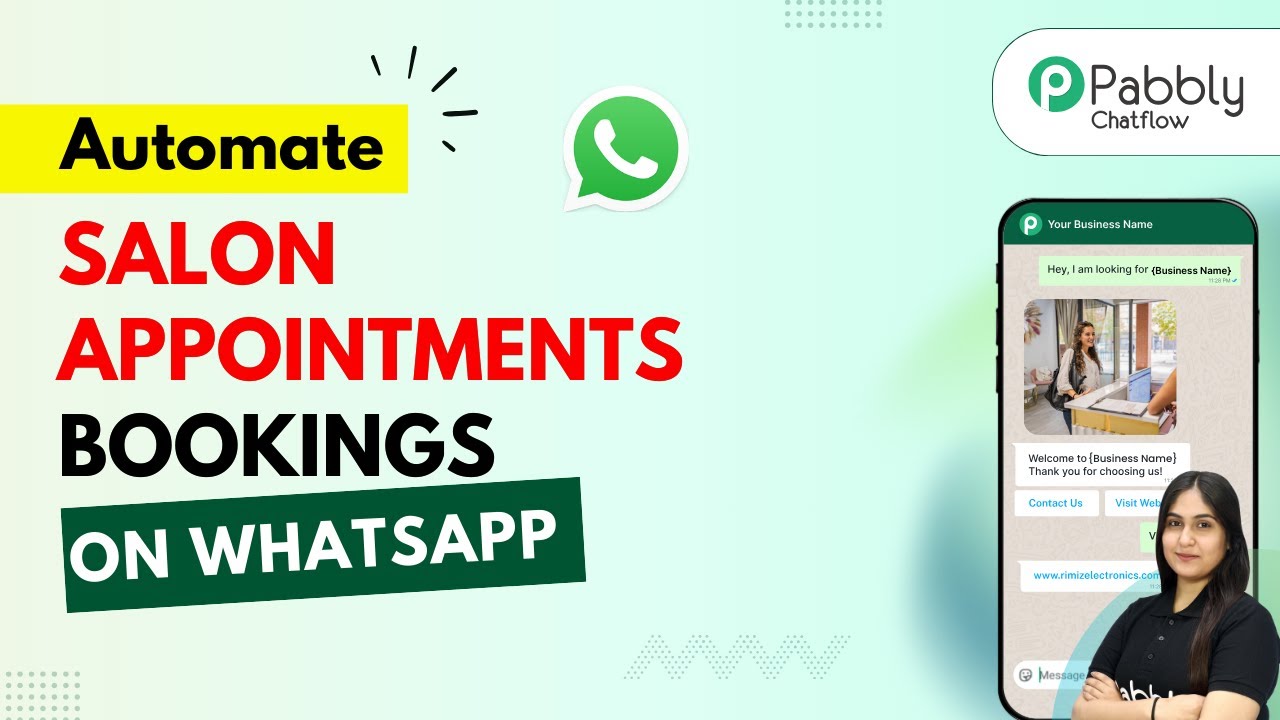
WhatsApp Automation for Salon Appointments & Service Bookings

Learn how to automate salon appointments and service bookings using WhatsApp and Pabbly Chatflow in this detailed step-by-step tutorial. Explore how leading businesses automate customer interactions with carefully designed chat sequences that feel natural and helpful.

Watch Step By Step Video Tutorial Below


1. Accessing Pabbly Chatflow for WhatsApp Automation

To start automating salon appointments and service bookings, first access Pabbly Chatflow. You can do this by visiting Pabbly’s official website and navigating to the Chatflow section.

Once there, you have two options: sign in if you are an existing user, or click on ‘Sign Up Free’ to create a new account. After signing in, you will be directed to the Chatflow dashboard, where you can begin setting up your WhatsApp automation.


2. Connecting Your WhatsApp Number in Pabbly Chatflow

In this step, you will connect your WhatsApp number to Pabbly Chatflow. This is essential for enabling the AI agent to communicate with your customers effectively.

To connect your WhatsApp number, click on the ‘Add WhatsApp Number’ button. You will see two options: ‘WhatsApp Connect’ and ‘Manual Token Connect.’ Choose ‘WhatsApp Connect’ for a seamless integration process. Follow these steps:

  • Click on ‘Add WhatsApp Number’.
  • Select ‘WhatsApp Connect’.
  • Follow the prompts to complete the connection process.

Once connected, you will see your WhatsApp number listed in the dashboard, confirming that Pabbly Chatflow is ready to facilitate your salon’s communication.


3. Creating an AI Agent with Pabbly Chatflow

Now that your WhatsApp number is connected, the next step is to create an AI agent using Pabbly Chatflow. This agent will respond to customer inquiries automatically, streamlining your appointment bookings.

To create your AI agent, click on the ‘Add Assistant’ button. You will need to provide a name for your assistant and then select the type of instructions it will follow. Here’s how:

  • Click on ‘Add Assistant’.
  • Name your assistant.
  • Select ‘AI Agent’ from the instruction type options.

After naming your assistant, configure its settings like temperature and API key to ensure it operates effectively. This will allow Pabbly Chatflow to manage customer interactions smoothly.


4. Configuring AI Settings in Pabbly Chatflow

With your AI agent created, it’s time to configure its settings in Pabbly Chatflow. This includes setting up the response templates and knowledge sources for your assistant.

In the AI settings section, you can specify the response style, add knowledge sources, and set fallback messages. Here are the steps to follow:

Set the response style, such as formal or casual. Add knowledge sources by uploading documents that contain FAQs and service details. Configure fallback messages for when the AI cannot respond.

Once these settings are configured, your AI assistant will be well-equipped to handle customer inquiries regarding salon services and bookings.


5. Assigning Your AI Assistant to WhatsApp Chats

The final step is to assign your AI assistant to your WhatsApp chats using Pabbly Chatflow. This will allow your assistant to start responding to customer messages automatically.

To do this, navigate to the inbox settings and enable the AI auto-reply feature. You will need to select the contact list for which the assistant will be assigned. Here’s how:

Go to inbox settings. Enable AI auto-reply. Select the contact list and assign the assistant.

After saving these settings, your AI assistant is now live and ready to assist customers with their salon appointments and service bookings through WhatsApp.


Conclusion

In this tutorial, we explored how to automate salon appointments and service bookings using WhatsApp and Pabbly Chatflow. By following these steps, you can create an efficient AI assistant that enhances customer interaction and streamlines your booking process.

Ensure you check out Pabbly Connect to create business automation workflows and reduce manual tasks. Pabbly Connect currently offer integration with 2,000+ applications.

Utilizing Pabbly Chatflow not only saves time but also provides a better customer experience, ensuring that your salon runs smoothly.

AI Blog Writer | Draft Daily Blogs Automatically in Minutes

Learn how to automate daily blog drafting on WordPress with Pabbly Connect and Google Gemini. Follow this step-by-step guide for seamless integration. Build sophisticated automated workflows in less time than you think. This guide translates complex integrations into straightforward steps for immediate implementation.

Watch Step By Step Video Tutorial Below


1. Accessing Pabbly Connect for Blog Automation

To automate daily blog drafting, you need to start with Pabbly Connect. Begin by visiting the Pabbly Connect website and signing up for a free account. This allows you to explore the features of Pabbly Connect without any cost.

Once logged in, navigate to the workflow builder. This interface is crucial as it enables you to set up triggers and actions. Triggers initiate the workflow, while actions are the tasks executed as a result of the trigger. Now, let’s dive into creating your first automation.


2. Setting Up the Schedule Trigger in Pabbly Connect

The first step in your automation is to set up a schedule with Pabbly Connect. Click on the ‘Add Trigger’ button and search for ‘Schedule by Pabbly’. This feature allows you to schedule workflows to run at specific times.

  • Select ‘Schedule Workflow’ as the event.
  • Set the frequency to run daily.
  • Choose the time for the workflow to run, such as 12 PM.

After configuring these settings, click ‘Save’ to finalize the trigger setup. Your workflow is now scheduled to run daily, initiating the blog drafting process.


3. Generating Blog Content with Google Gemini

Next, we will use Google Gemini to generate content for your blog. In Pabbly Connect, click on ‘Add New Action Step’ and search for ‘Google Gemini’. Select the ‘Generate Content’ event to create the blog title and content.

If you have a pre-existing connection, select it; otherwise, create a new connection by entering your API key from Google AI Studio. Follow these steps to retrieve your API key:

  • Go to the ‘Get API Key’ section in Google AI Studio.
  • Click on ‘Create API Key’ and fill in the required details.
  • Copy the generated key and paste it into Pabbly Connect.

Once the connection is established, provide the prompt for title generation. After clicking ‘Save and Send Test Request’, Google Gemini will generate the title for your blog post.


4. Drafting the Blog Post in WordPress

With the title generated, it’s time to draft the blog post in WordPress using Pabbly Connect. Add a new action step, search for ‘WordPress’, and select ‘Create a Post’ as the event. If a connection exists, choose it; otherwise, create a new connection by entering your WordPress credentials and base URL.

Ensure you input the base URL correctly, excluding any suffixes like ‘/wp-admin’. After saving the connection, map the title and content generated by Google Gemini to the respective fields in the WordPress post settings:

Select the post type as ‘Draft’ to allow for review before publishing. Map the title and content fields with the data from Google Gemini.

Finally, click on ‘Save and Send Test Request’ to create the draft post in your WordPress account. You can check your WordPress dashboard to confirm that the draft has been successfully created.


5. Conclusion: Automate Your Blogging with Pabbly Connect

By following these steps, you can automate the process of drafting daily blog posts on WordPress using Pabbly Connect and Google Gemini. This integration allows you to save time and streamline your content creation process.

Ensure you check out Pabbly Connect to create business automation workflows and reduce manual tasks. Pabbly Connect currently offer integration with 2,000+ applications.

Check out Pabbly Connect – Automate your business workflows effortlessly! Sign Up Free – Start your journey with ease! 10,000+ Video Tutorials – Learn step by step! Join Pabbly Facebook Group – Connect with 21,000+ like minded people!

With Pabbly Connect, your blog posts will be generated automatically at your specified time each day, ensuring that you always have fresh content ready for your audience. Start using Pabbly Connect today to enhance your blogging workflow!

Save Facebook Leads Automatically & Send WhatsApp Messages

Learn how to automate saving Facebook leads to Google Sheets and sending WhatsApp messages using Pabbly Connect. Step-by-step guide included! Explore systematic approaches to creating efficient automation solutions that convert technical concepts into practical, implementable instructions.

Watch Step By Step Video Tutorial Below


1. Accessing Pabbly Connect for Automation

To start automating the process of saving Facebook leads automatically and sending WhatsApp messages, access Pabbly Connect by visiting its website. This platform allows you to integrate various applications seamlessly.

Once on the homepage, you have two options: sign in if you already have an account or sign up for free if you’re a new user. Signing up gives you access to 100 free tasks every month, allowing you to practice and explore the features of Pabbly Connect.


2. Creating a Workflow in Pabbly Connect

After logging into Pabbly Connect, the next step is to create a new workflow. Click on the ‘Create Workflow’ button and select the modern workflow builder. You will then need to name your workflow, such as ‘Save Facebook Leads to Google Sheets and Send WhatsApp Messages’.

  • Click on ‘Add Trigger’ to start the integration process.
  • Choose ‘Facebook Lead Ads’ as your trigger app.
  • Select ‘New Lead Instant’ as the app event.

Once you complete these steps, you will be prompted to connect your Facebook account with Pabbly Connect. Ensure that you are logged into your Facebook account to proceed seamlessly.


3. Testing Facebook Lead Submission

With the trigger set up in Pabbly Connect, it’s time to test the integration. Navigate to the Facebook Lead Ads testing tool and select the page and form you want to use. Fill out the form with the required information, such as name, email, phone number, and city, and submit it.

After submitting the form, return to Pabbly Connect to check if the lead data has been captured correctly. You should see a positive response indicating that the new lead has been successfully retrieved from Facebook.


4. Saving Data to Google Sheets

Now that the lead data is captured, the next step is to save this information to Google Sheets using Pabbly Connect. Click on ‘Add New Action Step’ and select ‘Google Sheets’ as your action app.

  • Choose ‘Add New Row’ as the action event.
  • Connect your Google account and select the spreadsheet where you want to save the leads.
  • Map the fields from the Facebook lead to the corresponding columns in Google Sheets.

Once you have mapped the fields, click on ‘Save and Send Test Request’ to verify that the data is correctly saved in your Google Sheets. You should see a confirmation that the data has been added successfully.


5. Sending WhatsApp Messages

Finally, to complete the automation, you will set up the action to send WhatsApp messages. In Pabbly Connect, click on ‘Add New Action Step’ and select ‘WhatsApp Cloud API’ as your action app.

Choose ‘Send Template Message’ as the action event. Connect your WhatsApp Cloud API account by entering the necessary credentials such as the access token and phone number ID. Map the recipient’s phone number and the message template to the corresponding fields.

Once everything is set up, click on ‘Save and Send Test Request’ to send a test WhatsApp message. Check your WhatsApp application to confirm that the message has been received successfully.


Conclusion

This tutorial demonstrated how to automate the process of saving Facebook leads automatically and sending WhatsApp messages using Pabbly Connect. By following the steps outlined, you can streamline your lead management process and enhance customer engagement.

Ensure you check out Pabbly Connect to create business automation workflows and reduce manual tasks. Pabbly Connect currently offer integration with 2,000+ applications.

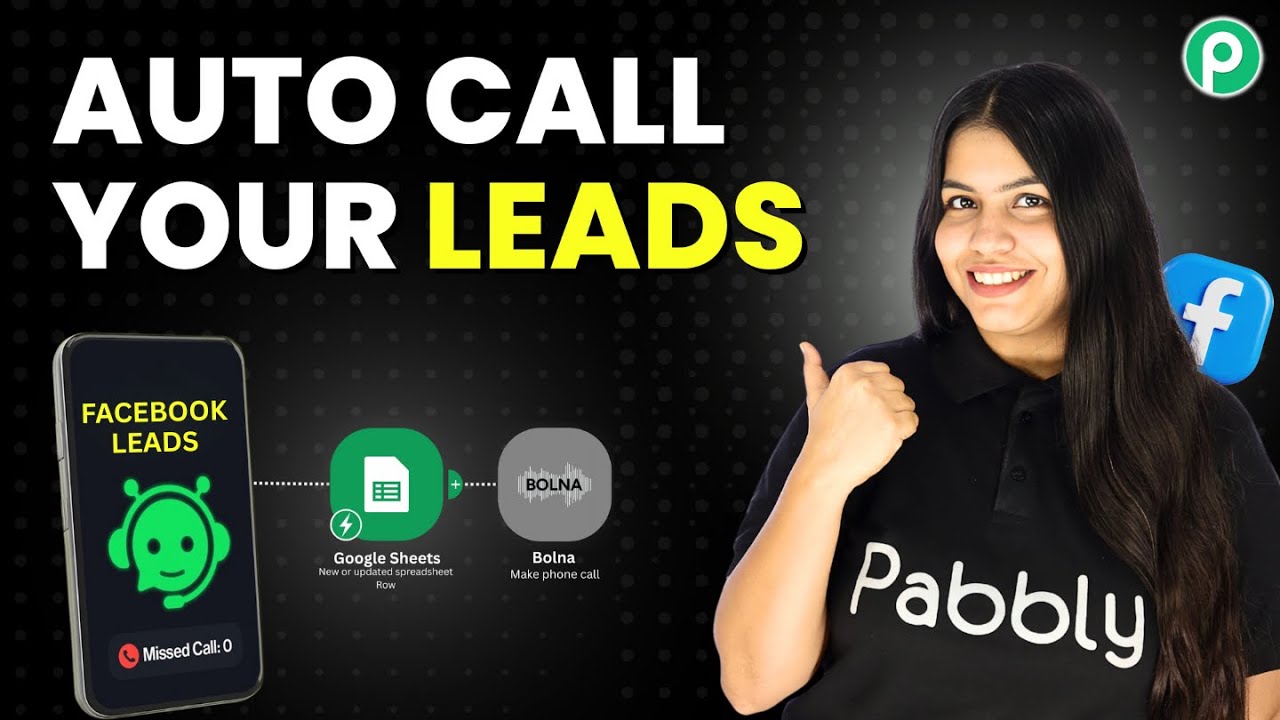
Auto Call & Follow-Up Facebook Leads Using Bolna AI + Pabbly

Learn how to automate calling and follow-up for Facebook leads using Pabbly Connect and Bolna AI in this detailed tutorial. Master proven automation processes with practical implementation examples and strategic recommendations you can apply immediately in your workflow.

Watch Step By Step Video Tutorial Below


1. Integrate Facebook Leads with Pabbly Connect

To automate the calling and follow-up process for Facebook leads, you first need to set up Pabbly Connect. This platform serves as the central hub for integrating various applications, including Facebook, Google Sheets, and Bolna AI. Start by signing up for a free account at Pabbly Connect.

Once logged in, navigate to the workflow builder within Pabbly Connect. Here, you will create a new workflow that will trigger when a new lead is generated from Facebook Lead Ads. Select Facebook Lead Ads as your trigger application and choose the event as ‘New Lead Instant’.


2. Configure Google Sheets with Pabbly Connect

After setting up the trigger, the next step involves adding the lead details to Google Sheets using Pabbly Connect. This is crucial as it helps in maintaining a record of all leads. Choose Google Sheets as your action application and select the event ‘Add New Row’.

  • Select the spreadsheet where you want to add lead details.
  • Map the lead details from the Facebook form to the corresponding fields in Google Sheets.
  • Click on ‘Save and Send Test Request’ to ensure the data is added correctly.

This integration allows you to keep track of leads efficiently and prepares you for the next step in the automation process using Pabbly Connect.


3. Schedule Calls with Bolna AI Using Pabbly Connect

Now that your leads are captured in Google Sheets, it’s time to schedule calls using Bolna AI through Pabbly Connect. To do this, add a new action step in your workflow and select Bolna AI as the application. Choose the event ‘Make Phone Call’.

For this step, you need to connect your Bolna AI account by entering your API key. Once connected, select the agent you created for the call. Map the recipient’s phone number and schedule the call using the modified date and time from the previous steps in Pabbly Connect.


4. Set Up Follow-Up Calls with Pabbly Connect

The final step is to set up follow-up calls for leads who did not answer the initial call. This can be done by creating another action step in Pabbly Connect and again selecting Bolna AI. Use the same process as before but modify the timing to schedule this call for 72 hours later.

  • Copy the previous date-time formatter step to get the modified date for follow-up.
  • Select the follow-up agent you created.
  • Map the recipient’s phone number and schedule the follow-up call.

This ensures that every lead receives a second chance to engage with your business, demonstrating the efficiency of Pabbly Connect in automating your follow-up process.


5. Conclusion

In this tutorial, we explored how to automate the calling and follow-up process for Facebook leads using Pabbly Connect and Bolna AI. By integrating these applications, you can ensure timely communication with leads, enhancing your business efficiency.

Ensure you check out Pabbly Connect to create business automation workflows and reduce manual tasks. Pabbly Connect currently offer integration with 2,000+ applications.

Utilizing Pabbly Connect allows you to streamline your workflow, ensuring that no lead is left unattended. Implement this automation today to improve your lead management process.

How to Generate AI Replies for Google Reviews Using Google Gemini (Step-by-Step)

Learn how to automate replies for Google Reviews using Pabbly Connect and Google Gemini with this step-by-step tutorial. This comprehensive guide reveals exactly how to connect your applications and automate repetitive tasks — accessible for professionals of all technical backgrounds.

Watch Step By Step Video Tutorial Below


1. Accessing Pabbly Connect for Google Reviews Automation

To automate replies for Google Reviews, you first need to access Pabbly Connect. Start by visiting pabby.com and signing in or signing up for a free account. This platform allows you to create automated workflows seamlessly.

Once you log in, navigate to the Pabbly Connect dashboard. This is where you can manage all your workflows. To start, click on the ‘Create Workflow’ button. Here, you will set up the automation that connects Google Reviews with Google Gemini through Pabbly Connect.


2. Creating a Workflow in Pabbly Connect

After accessing Pabbly Connect, you will need to create a new workflow. Click on the ‘Create Workflow’ button and name it ‘Generate AI Replies for Google Reviews Using Google Gemini’. Select the appropriate folder for your workflow.

  • Navigate to the ‘Create Workflow’ option.
  • Name your workflow appropriately.
  • Select a folder for organizing your workflows.

Once named and organized, you will see a prompt to select your trigger application. Choose Google Business as the trigger application, which will initiate the workflow whenever a new review is posted.


3. Setting Up the Trigger for New Google Reviews

In this step, you will configure the trigger for your workflow using Pabbly Connect. Select Google Business as the trigger application and set the trigger event to ‘New Review’. This means that every time a new review is submitted, the automation will begin.

Next, you will need to connect your Google Business account to Pabbly Connect. Click on ‘Connect’ and follow the prompts to sign in to your Google account. Grant the necessary permissions to allow Pabbly Connect to access your Google Business profile.


4. Generating AI Replies Using Google Gemini

After setting up the trigger, the next step involves generating replies using Google Gemini through Pabbly Connect. Add a new action step and select Google Gemini as your action application. Choose ‘Generate Content’ as the action event.

To connect Google Gemini, you will need to input your API key. Click on the provided link to access the AI studio and create a new API token. Copy this token back into Pabbly Connect to establish the connection.

  • Select Google Gemini as the action application.
  • Input your API key to connect.
  • Set up the prompt for generating replies.

In the prompt, specify the details you want the AI to include in the reply, ensuring it maintains a professional tone. Use dynamic mapping to pull in the review details automatically.


5. Posting the Generated Replies to Google Reviews

Once you have generated the reply using Google Gemini, the final step is to post this reply back to your Google Business profile using Pabbly Connect. Add another action step and select Google Business once again, this time choosing the ‘Create Reply’ action event.

Map the response generated by Google Gemini to the appropriate field in the Google Business action step. This ensures that every new review receives a personalized reply automatically. After mapping the fields, save and test the workflow to confirm that replies are being posted as expected.


Conclusion

In this tutorial, you learned how to automate replies for Google Reviews using Pabbly Connect and Google Gemini. This integration streamlines the process of responding to customer feedback, enhancing engagement and efficiency for your business. By following these steps, you can ensure that every review receives a timely and professional response.

Ensure you check out Pabbly Connect to create business automation workflows and reduce manual tasks. Pabbly Connect currently offer integration with 2,000+ applications.

Stop Replying Manually! Let WhatsApp Bots Handle It for You!

Learn how to automate WhatsApp replies using Pabbly Chatflow. This guide covers integration steps with YouTube and more for seamless customer interactions. Explore how leading businesses automate customer interactions with carefully designed chat sequences that feel natural and helpful.

Watch Step By Step Video Tutorial Below


1. Accessing Pabbly Chatflow for WhatsApp Automation

To start automating your WhatsApp replies, access Pabbly Chatflow by visiting Pabbly.com/chatflow. This platform is essential for creating automated chatbots that can handle customer queries without manual input.

Once on the Pabbly Chatflow page, you can either sign up for a free account or log in if you are an existing user. This will grant you access to the flow builder, where you can design your WhatsApp chatbot.


2. Creating Your WhatsApp Chatbot Flow in Pabbly Chatflow

After logging into Pabbly Chatflow, click on the ‘Add Flow’ button to start creating your WhatsApp chatbot. Name your flow something descriptive, such as ‘Stop Replying Manually! Let WhatsApp Bots Handle It for You.’ This will help you identify the flow later.

  • Select your trigger event as ‘Keyword/Message’ to set up keyword-based responses.
  • Enter keywords like ‘hi,’ ‘hello,’ and ‘help’ that will trigger the bot’s response.

Once the keywords are set, the bot will automatically respond whenever these keywords are sent to your WhatsApp business account. This setup is crucial for initiating conversations with customers.


3. Designing Responses with Pabbly Chatflow

In this step, you will design the initial response that your bot will send. Use the message option in Pabbly Chatflow to send a welcome message along with a media button to enhance interaction.

  • Upload an image related to your business to make the response visually appealing.
  • Add two buttons: ‘Schedule Visit’ and ‘Talk to Agent’ to guide user actions.

Connect this message to the trigger point you created earlier. This will ensure that the bot responds immediately when a user sends a keyword. This interaction is vital for engaging users effectively.


4. Managing User Inputs and Custom Fields

Once users interact with the buttons, you need to manage their inputs effectively. Using Pabbly Chatflow, you can create custom fields to capture user information like full name, contact number, and viewing date.

Add questions for users to provide their full name and contact number. Set the format for each input field to ensure correct data entry.

This setup allows the bot to collect and store user information, making it easier to manage bookings and inquiries. This is essential for providing personalized responses.


5. Finalizing Your Chatbot Flow in Pabbly Chatflow

After setting up user inputs, finalize your chatbot flow in Pabbly Chatflow by adding a summary message that displays the booking details. This message can include dynamic fields to personalize the response.

Use the dollar symbol to include variables like the user’s name and selected property type in the summary. Add buttons for users to confirm or change their booking, enhancing user experience.

Once everything is set, click the save button to ensure your flow is active. This final step is crucial for making your chatbot operational and ready to assist users.


Conclusion

In this tutorial, we explored how to automate WhatsApp replies using Pabbly Chatflow. By following these steps, you can create a fully functional WhatsApp chatbot that enhances customer interaction and streamlines your business processes.

Ensure you check out Pabbly Connect to create business automation workflows and reduce manual tasks. Pabbly Connect currently offer integration with 2,000+ applications.

Send Brochures in Bulk to All Customers on WhatsApp for Free

Learn how to send brochures in bulk to customers on WhatsApp for free using Pabbly Chatflow. Follow our detailed tutorial for seamless integration! Discover how to design chat experiences that feel personal and responsive while handling customer inquiries automatically around the clock.

Watch Step By Step Video Tutorial Below


1. Accessing Pabbly Chatflow for WhatsApp Integration

To send brochures in bulk via WhatsApp, first, access Pabbly Chatflow by visiting pabbl.com/chartflow. This platform enables seamless integration with various applications, making it essential for your automation needs.

Once on the Pabbly Chatflow landing page, click on the ‘Sign Up for Free’ option in the top right corner. After signing up, you will receive 100 free credits each month, allowing you to send up to 100 messages. If you are an existing user, simply sign in to your account.


2. Setting Up WhatsApp in Pabbly Chatflow

After logging into Pabbly Chatflow, ensure you have added your WhatsApp number. You can do this by selecting either the WhatsApp connect method or the manual token connect method.

  • Choose WhatsApp connect or manual token connect.
  • Follow the instructions provided in the tutorial linked in the description.

Once your WhatsApp number is connected, ensure you have a contact list ready. You can add bulk contacts by clicking on the ‘Add Contact’ button and uploading a CSV file that contains your customer details.


3. Creating a Contact List from Google Sheets

To create a contact list, first enter the details of your customers in Google Sheets. After entering all necessary information, download the sheet in CSV format.

  • Open Google Sheets and input customer details.
  • Go to ‘File’ -> ‘Download’ -> ‘Comma-separated values (.csv)’.

Next, return to Pabbly Chatflow and upload the CSV file. The details will auto-populate, allowing you to create your contact list efficiently.


4. Creating a Broadcast in Pabbly Chatflow

Navigate to the ‘Broadcast’ section in Pabbly Chatflow and click on the ‘Add Broadcast’ button. Select ‘Broadcast Campaign’ as the type and enter a campaign name, for example, ‘Offers’.

Choose your contact list from the available options. Select the message type as either a pre-approved template or a regular message.

For a pre-approved template, select the WhatsApp template you have created. Make sure to input the dynamic fields, such as the customer’s name, in the message body to personalize your outreach.


5. Sending the Broadcast and Testing

After configuring your broadcast message, you can test it before sending it to all customers. Enter a test phone number and click on ‘Send Test Message’. Check your WhatsApp to ensure the message appears correctly.

If everything looks good, you can choose to send the broadcast instantly or schedule it for a later date. Ensure to select the correct date format when scheduling your broadcast.

Once the broadcast is sent, you can view the statistics, including sent, delivered, and read messages, directly in Pabbly Chatflow. This allows you to track the effectiveness of your campaign.


Conclusion

Using Pabbly Chatflow simplifies the process of sending brochures in bulk to customers on WhatsApp. By following the steps outlined in this tutorial, you can effortlessly automate your messaging and enhance customer engagement.

Ensure you check out Pabbly Connect to create business automation workflows and reduce manual tasks. Pabbly Connect currently offer integration with 2,000+ applications.

How to Generate Free Stories Using Gemini (Fast & Easy!)

Learn to generate free stories using Gemini integrated with Google Sheets and Pabbly Connect. Follow this detailed tutorial for step-by-step guidance. Explore efficient methods for automating routine tasks with clear, concise instructions suited for both newcomers and experienced professionals.

Watch Step By Step Video Tutorial Below


1. Accessing Pabbly Connect for Story Generation

To generate free stories using Gemini, you first need to access Pabbly Connect. Start by navigating to Pabbly.com/connect in your browser. This will take you to the Pabbly Connect homepage where you can either sign in or sign up for free.

If you are a new user, click on ‘Sign Up Free’ to create an account and receive 100 free tasks every month. Existing users can simply sign in. Once logged in, you will see the Pabbly apps window, where you can access all the applications offered by Pabbly.


2. Creating a Workflow in Pabbly Connect

After accessing Pabbly Connect, the next step is to create a workflow. Click on the ‘Create Workflow’ button. You will have options for the new beta version or classic version. For this tutorial, select the beta version for a more modern experience.

  • Click on the ‘Create’ button to initiate the workflow.
  • Name your workflow as ‘Generate Free Stories Using Gemini’.
  • Select a folder for your workflow, such as ‘Automations’.

Once you have created the workflow, remember that every automation consists of a trigger and an action. The trigger indicates when an action should be executed. In this case, we will set up Google Sheets as our trigger app.


3. Setting Up Google Sheets as a Trigger

To set Google Sheets as the trigger, select Google Sheets from the app options and choose the event as ‘New or Updated Spreadsheet Row’. Click on ‘Connect’ to establish the connection.

Pabbly Connect will provide you with a webhook URL. Copy this URL as it will be used to connect your Google Sheets with Pabbly Connect.

  • Open your Google Sheets and go to Extensions > Add-ons > Get Add-ons.
  • Search for ‘Pabbly Connect Webhooks’ and install it.
  • Refresh your Google Sheets and set up the webhook using the copied URL.

Once the webhook is set up successfully, you can test the connection by adding new details in your Google Sheets. This will trigger the automation process in Pabbly Connect.


4. Integrating Gemini for Story Generation

With the Google Sheets trigger set, the next step is to add Gemini as the action app to generate the story. Select Gemini and choose ‘Generate Content’ as the action event. Click on ‘Connect’ to set up the connection. using Pabbly Connect

To connect Gemini, you will need an API key from Google AI Studio. Click on the provided hyperlink to access Google AI Studio and retrieve your API key.

Add the API key to the Pabbly Connect integration. Map the necessary fields such as story idea, genre, tone, and character name from your Google Sheets. Save and send a test request to generate the story.

Once the story is generated successfully, you can proceed to create a document in Google Docs to save the story.


5. Saving the Generated Story in Google Docs

The final step is to save the generated story in Google Docs. Select Google Docs as the action app and choose ‘Create a Blank Document’ as the event. Click on ‘Connect’ and sign in to your Google account.

Map the document name to the story ID you generated earlier. After saving this document, you can append the generated story content into this document.

Select ‘Append a Paragraph to a Document’ as the next action event. Connect using the existing Google Docs connection. Map the document ID and the generated story content.

After successfully appending the story, you can also save it as a PDF in Google Drive by utilizing the Google Drive integration within Pabbly Connect.


Conclusion

Using Pabbly Connect, you can effortlessly automate the process of generating free stories with Gemini and save them in Google Docs and Google Drive. This integration enhances your storytelling capabilities while streamlining your workflow. Start automating today!

Ensure you check out Pabbly Connect to create business automation workflows and reduce manual tasks. Pabbly Connect currently offer integration with 2,000+ applications.