End 90% of Repetitive Queries Overnight with this Chatbot

Learn how to create a WhatsApp chatbot using Pabbly Chatflow to automate responses and end repetitive queries effectively. Learn step-by-step how to create, test, and optimize chatbots that enhance customer experience while reducing support workload.

Watch Step By Step Video Tutorial Below


1. Accessing Pabbly Chatflow for Your WhatsApp Chatbot

To create a WhatsApp chatbot that answers repetitive queries, start by accessing Pabbly Chatflow. Open a new tab and go to Pabbly.com/chatflow to reach the Pabbly Chatflow landing page.

On the page, you will find options to sign in or sign up. If you are new, click on ‘Sign Up Free’ to create an account and receive 100 free credits monthly. If you already have an account, simply click ‘Sign In’ to proceed to your dashboard.


2. Creating Your WhatsApp Chatbot Flow in Pabbly Chatflow

Once logged into Pabbly Chatflow, navigate to the dashboard where you can manage your flows. Click on the ‘Flows’ option and then on the ‘Add Flow’ button to start creating your WhatsApp chatbot.

In the flow builder, you will need to set up a trigger event. Select ‘Keyword or Reject Match’ as your trigger event. Enter the keywords that will activate your chatbot, such as ‘hello’ and ‘support’. Press the ‘Enter’ key after each keyword to ensure they are saved.

  • Access the Flows section in Pabbly Chatflow.
  • Click ‘Add Flow’ to create a new chatbot.
  • Select ‘Keyword or Reject Match’ as your trigger event.
  • Enter your keywords and press ‘Enter’ after each.

After setting up the trigger, you can proceed to configure the action step for your WhatsApp chatbot.


3. Configuring Action Steps in Pabbly Chatflow

In Pabbly Chatflow, after setting the trigger, you will need to define the action that occurs when a keyword is received. Drag the ‘Text’ action button into the flow to send a welcome message to users who trigger the chatbot.

Connect the trigger to the text action, then enter your welcome message. For example, you might say, ‘Hi, welcome to Shift Care support! I can help you with order status, pricing, delivery, refunds, and store information.’ After the welcome message, add a list for users to choose from.

  • Drag ‘Text’ to send a welcome message.
  • Connect the trigger to the text action.
  • Enter your welcome message.
  • Add a list for users to select options.

After configuring these actions, you can set up the options that users can select from the list.


4. Setting Up User Selection Options in Pabbly Chatflow

To enhance your Pabbly Chatflow WhatsApp chatbot, you’ll need to create options for the users. After the welcome message, drag the ‘List’ action into your flow. Define the header, body, and footer of the list.

Next, click on ‘Add Section’ to create a section within the list. For each option, click ‘Add Items’ to specify the choices available to users. You might include options like ‘Product Pricing’, ‘Delivery and Shipping’, ‘Return and Refund Policy’, and more.

Drag ‘List’ action into the flow. Define the header, body, and footer of your list. Click ‘Add Section’ and then ‘Add Items’ for options. Include various options for users to select.

After setting up these options, ensure to connect them back to the flow for seamless user experience.


5. Testing Your WhatsApp Chatbot in Pabbly Chatflow

Once your WhatsApp chatbot is fully configured in Pabbly Chatflow, it’s time to test its functionality. Save the flow to ensure all configurations are applied. Open your WhatsApp and send the keyword ‘hello’ to check if the chatbot responds correctly.

You should receive the welcome message followed by the list of options you set up. This confirms that your WhatsApp chatbot is working properly and ready to handle repetitive queries from users effectively.

By following these steps, you can create a robust WhatsApp chatbot using Pabbly Chatflow that automates responses and enhances customer support.


Conclusion

In this tutorial, we learned how to create a WhatsApp chatbot using Pabbly Chatflow. By following each step, you can automate responses to repetitive queries and improve customer support efficiency.

Ensure you check out Pabbly Connect to create business automation workflows and reduce manual tasks. Pabbly Connect currently offer integration with 2,000+ applications.

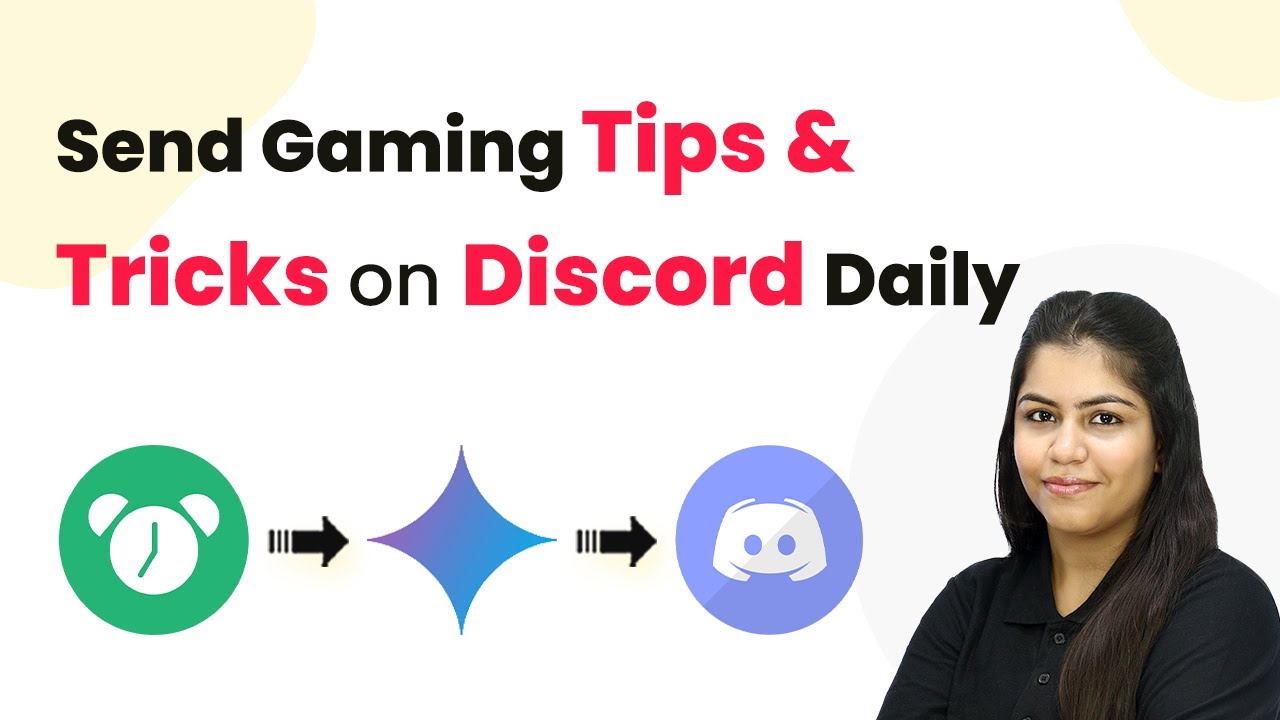
Auto Send Gaming Tips & Tricks on Discord Daily

Learn how to automate sending gaming tips daily on Discord using Pabbly Connect, Google Gemini, and more. Follow this step-by-step guide. This comprehensive guide reveals exactly how to connect your applications and automate repetitive tasks — accessible for professionals of all technical backgrounds.

Watch Step By Step Video Tutorial Below


1. Accessing Pabbly Connect for Automation

To automate sending gaming tips on Discord, start by accessing Pabbly Connect. If you’re a new user, visit Pabbly.com/connect and sign up for free. This allows you to explore the platform with up to 100 tasks monthly, making it an excellent way to test out the automation features.

Once signed up, navigate to the workflow builder in Pabbly Connect. This is where you’ll create the automation that connects Discord and Google Gemini. The workflow builder allows you to set triggers and actions that will facilitate the automated messaging process.


2. Setting Up the Trigger in Pabbly Connect

In the workflow builder, the first step is to set up a trigger. Click on the ‘Add Trigger’ button and search for ‘Scheduled by Pabbly’. This will allow you to schedule your workflow to run at specific intervals. using Pabbly Connect

  • Select ‘Scheduled Workflow’ as the event.
  • Choose the frequency as ‘Every Day’.
  • Set the time to your preferred hour, such as 9:00 AM.

After configuring these settings, click ‘Save’. Your trigger is now set up to run daily, initiating the automation process to send gaming tips to your Discord server.


3. Generating Gaming Tips Using Google Gemini

Next, you need to generate the content for your gaming tips. Click on ‘Add New Action Step’ and search for ‘Google Gemini’. Select ‘Google AI Studio’ for the action event. using Pabbly Connect

After connecting to Google Gemini, you will need to generate content. Enter your API key from Google AI Studio to establish a connection. Here’s how to find your API key:

  • Open Google AI Studio and navigate to the API key section.
  • Click on ‘Create API Key’ and fill in the required details.
  • Copy the generated key and paste it into Pabbly Connect.

Once connected, set the prompt to generate your gaming tips and select the model (e.g., Gemini 2.5 flash). Click ‘Save and Send Test Request’ to generate the content. This content will be used in the next step to send messages to Discord.


4. Sending Generated Tips to Discord

After generating the tips, it’s time to send them to your Discord channel. Click on ‘Add New Action Step’ and search for ‘Discord’. Choose ‘Send Channel Message’ as the event. using Pabbly Connect

To connect Discord, you will need to use a webhook URL. Here’s how to get it:

Open Discord and go to your server settings. Navigate to ‘Integrations’ and click on ‘New Webhook’. Choose the channel for the message and copy the webhook URL.

Paste the webhook URL into Pabbly Connect, and map the message field to the content generated from Google Gemini. Click ‘Save and Send Test Request’ to confirm that the message is sent successfully to your Discord channel.


5. Automating the Process for Daily Updates

With everything set up, your automation is now complete. The workflow in Pabbly Connect will run daily at the scheduled time, generating new gaming tips and sending them to your Discord server without any manual input.

This automation streamlines your communication with your gaming community, ensuring that they receive fresh content every day. You can monitor the workflow in Pabbly Connect to ensure everything runs smoothly and make adjustments as needed.

By utilizing Pabbly Connect, you can not only automate this process but also explore numerous other integrations to enhance your Discord server or any other applications you use. Start automating today!


Conclusion

In this tutorial, we explored how to automate sending gaming tips daily on Discord using Pabbly Connect and Google Gemini. This integration allows for seamless updates to your community without manual effort, enhancing engagement and interaction.

Ensure you check out Pabbly Connect to create business automation workflows and reduce manual tasks. Pabbly Connect currently offer integration with 2,000+ applications.

Reduce Support Tickets by 70%! (Automate Order Tracking on WhatsApp)

Learn how to reduce support tickets by 70% by automating order tracking on WhatsApp using Pabbly Chatflow and Pabbly Chatflow. Follow this detailed tutorial shows you how to build powerful chat automation that engages visitors and converts prospects—without any coding required.

Watch Step By Step Video Tutorial Below


1. Access Pabbly Chatflow to Create Your WhatsApp Chatbot

To automate order tracking on WhatsApp, start by accessing Pabbly Chatflow. Open a new tab and navigate to Pabbly.com/chatflow. Here, you can sign in or sign up for a free account. If you are a new user, you will receive 100 free credits every month, which is perfect for exploring the platform.

After logging in, you will see your dashboard. Ensure that you add your WhatsApp number by selecting either the WhatsApp connect method or the manual token connect method. This setup is essential for the chatbot to function effectively.


2. Create Your WhatsApp Chatbot in Pabbly Chatflow

Once you are on the dashboard of Pabbly Chatflow, navigate to the flows section. Here, you can create a new flow for your WhatsApp chatbot. Click on the ‘Add Flow’ button and name your chatbot, for example, ‘Automate Order Tracking on WhatsApp’.

  • Click on the trigger button to select the event that will start your chatbot.
  • Choose the ‘Keyword’ trigger event and enter keywords like ‘help’ and ‘hello’ to initiate the chatbot.
  • Connect the trigger to the action step where you will send a welcome message to the user.

After setting the trigger, drag in the text button to send a welcome message. You can personalize the message by including the customer’s name using the contact custom field. This initial setup is crucial for engaging users effectively.


3. Collect Order ID from Users Using Pabbly Chatflow

Following the welcome message, your Pabbly Chatflow bot should ask users for their order ID. Use the ‘Ask Question’ feature to prompt users for this information. Make sure to set the response format to accept both letters and numbers, as order IDs often contain a mix.

  • Drag the ‘Ask Question’ button into your flow and enter a prompt asking for the order ID.
  • Connect this step to the API request action where you will send the order ID to Pabbly Connect.
  • Ensure that the order ID is captured correctly to process the next steps.

This setup allows your chatbot to gather essential data from customers, which is necessary for the order tracking process. Ensure that each step is connected properly to maintain the flow.


4. Integrate Pabbly Connect for Order Tracking

The next step involves integrating Pabbly Connect to process the order ID received from users. Here, you will create a workflow that checks the order ID against your Google Sheets where order details are stored. In Pabbly Connect, click on ‘Create Workflow’ and select the webhook option as your trigger.

Copy the webhook URL generated by Pabbly Connect and paste it into the API request in your Pabbly Chatflow. Map the parameters such as name, phone number, and order ID to be sent to Pabbly Connect. Test the API request to ensure data is sent correctly.

This integration allows you to fetch order details dynamically based on the order ID provided by customers, significantly reducing the need for support tickets.


5. Send Order Status to Users via WhatsApp

After validating the order ID in your Google Sheets, the next action in Pabbly Chatflow is to send the order status back to the user. You can set up conditional responses using the router feature based on whether the order ID exists in your sheet.

If the order ID exists, send a detailed message including product, status, and expected delivery date. If the order ID does not exist, inform the user that the ID is incorrect. Connect these responses back to the WhatsApp messaging feature in Pabbly Chatflow.

By implementing this final step, you ensure that customers receive timely updates about their orders directly on WhatsApp, enhancing their experience and significantly reducing support tickets.


Conclusion

In conclusion, using Pabbly Chatflow in conjunction with Pabbly Connect allows businesses to automate order tracking on WhatsApp effectively. By following the steps outlined in this tutorial, you can reduce support tickets by 70% while enhancing customer satisfaction.

Ensure you check out Pabbly Connect to create business automation workflows and reduce manual tasks. Pabbly Connect currently offer integration with 2,000+ applications.

Add Leads to Zoho CRM in Minutes (Automatic & No-Code)

Learn how to automate lead addition to Zoho CRM using Pabbly Connect in this detailed step-by-step tutorial. Explore efficient methods for automating routine tasks with clear, concise instructions suited for both newcomers and experienced professionals.

Watch Step By Step Video Tutorial Below


1. Accessing Pabbly Connect for Automation

To automate lead addition to Zoho CRM, you first need to access Pabbly Connect. Start by visiting the Pabbly website and navigating to the Pabbly Connect page.

Click on the ‘Sign Up Free’ button if you are a new user, or ‘Sign In’ if you already have an account. After signing in, you will be directed to your Pabbly apps window where you can access Pabbly Connect by clicking on ‘Access Now’.


2. Creating a New Workflow in Pabbly Connect

Once inside Pabbly Connect, the next step is to create a new workflow. Click on the ‘Create Workflow’ button to begin. You will be prompted to choose between the new beta and classic versions; select the beta version for a more modern experience.

  • Click on ‘Create Workflow’.
  • Name your workflow, for example, ‘Add Leads to Zoho CRM in Minutes’.
  • Choose a folder for your workflow, such as ‘Contacts’.

After naming your workflow and selecting the folder, click on the ‘Create’ button to finalize the setup of your new workflow.


3. Setting Up the Trigger in Pabbly Connect

In this section, you will set up the trigger that initiates the workflow in Pabbly Connect. Select ‘Google Ads’ as your trigger application and choose ‘New Lead Form Entry’ as the event.

Upon clicking ‘Connect’, a webhook URL will be generated. Copy this URL as you will need to paste it into your Google Ads account to connect it with Pabbly Connect.

  • Log into your Google Ads account.
  • Navigate to your lead form settings and find the webhook integration option.
  • Paste the copied webhook URL from Pabbly Connect.

After setting up the webhook, send test data to ensure that Pabbly Connect receives the lead information correctly.


4. Adding an Action Step to Create Contacts in Zoho CRM

Now that your trigger is set, it’s time to add an action step in Pabbly Connect. Select ‘Zoho CRM’ as the action application and choose ‘Create Contact’ as the action event.

To connect to Zoho CRM, click on ‘Connect’ and then ‘Add a New Connection’. You will need to provide your Zoho domain (for example, zoho.in) to establish the connection.

Select ‘Connect with Zoho CRM’. Authorize Pabbly Connect to access your Zoho CRM data. Map the lead’s details such as first name, last name, and phone number from the trigger step.

After mapping the required fields, click on ‘Save and Send Test Request’ to ensure that a new contact is created successfully in your Zoho CRM account.


5. Conclusion: Effortless Lead Management with Pabbly Connect

By following these steps, you can automate the process of adding leads to Zoho CRM using Pabbly Connect. This integration saves time and ensures that no leads are missed, helping you manage your contacts efficiently.

Ensure you check out Pabbly Connect to create business automation workflows and reduce manual tasks. Pabbly Connect currently offer integration with 2,000+ applications.

Check out Pabbly Connect – Automate your business workflows effortlessly! Sign Up Free – Start your journey with ease! 10,000+ Video Tutorials – Learn step by step! Join Pabbly Facebook Group – Connect with 21,000+ like minded people!
Utilizing Pabbly Connect for this automation allows for seamless data transfer between Google Ads and Zoho CRM, enhancing your lead management capabilities.

With just a few clicks, you can set up this powerful integration and focus on growing your business while Pabbly Connect handles the rest.


Auto-Add LinkedIn Leads to FluentCRM (Step-by-Step Automation Guide)

Learn how to automate the process of adding LinkedIn leads to FluentCRM using Pabbly Connect. Follow this detailed step-by-step guide for seamless integration. Follow this definitive guide to creating powerful automated workflows with straightforward, efficiency-focused solutions that save valuable time.

Watch Step By Step Video Tutorial Below


1. Setting Up Pabbly Connect for LinkedIn and Fluent CRM Integration

To auto-add LinkedIn leads to Fluent CRM, you need to set up Pabbly Connect. Start by visiting the Pabbly Connect website and signing in or signing up for a free account. This platform allows you to automate tasks without any coding knowledge.

Once logged in, navigate to the Pabbly Connect dashboard where you can create new workflows. Click on ‘Create Workflow’ and name it ‘Auto Add LinkedIn Leads to Fluent CRM’. This step is crucial as it sets the foundation for your automation process.


2. Creating the Workflow in Pabbly Connect

After naming your workflow, the next step involves defining the trigger application. In this case, select LinkedIn as your trigger application within Pabbly Connect. This action will initiate the workflow whenever a new lead is captured.

  • Choose the trigger event as ‘New Notification’.
  • Connect your LinkedIn account by entering your credentials.
  • Select the sponsored account you want to use.

Once you’ve set up the trigger, click on ‘Save and Send Test Request’. This allows Pabbly Connect to capture the webhook response, which is essential for the next steps in your automation.


3. Testing the Lead Generation from LinkedIn

To ensure everything is working correctly, you need to generate a test lead in LinkedIn. Open your LinkedIn lead generation form and fill in the necessary details. It’s important to use realistic data to test the integration thoroughly.

After submitting the form, return to Pabbly Connect and check if the response from LinkedIn has been captured correctly. This will confirm that the connection between LinkedIn and Pabbly Connect is functioning as expected.


4. Adding the LinkedIn Lead to Fluent CRM

With the LinkedIn lead captured, the next step is to add this lead to Fluent CRM. In your Pabbly Connect workflow, select Fluent CRM as the action application. Choose the action event as ‘Create Contact’. This step ensures that the lead information is transferred to your CRM.

  • Connect your Fluent CRM account by entering your WordPress site URL and credentials.
  • Map the fields from LinkedIn to Fluent CRM, ensuring all necessary information is included.
  • Set the status of the contact to ‘Subscribed’.

After completing these steps, click ‘Save and Send Request’ to finalize the process. This will add the new lead to your Fluent CRM, automating your lead management effectively.


5. Final Verification of the Automation Process

To conclude, verify that the lead has been successfully added to Fluent CRM. Navigate to your Fluent CRM dashboard and check the contacts section. You should see the new lead listed there, confirming that the automation via Pabbly Connect worked flawlessly.

This entire workflow illustrates the power of Pabbly Connect in automating lead management between LinkedIn and Fluent CRM, saving you time and ensuring no leads are missed.


Conclusion

In this tutorial, we explored how to use Pabbly Connect to automate the process of adding LinkedIn leads to Fluent CRM. By following these steps, you can streamline your lead management and enhance your business efficiency. Start using Pabbly Connect today to simplify your workflows.

Ensure you check out Pabbly Connect to create business automation workflows and reduce manual tasks. Pabbly Connect currently offer integration with 2,000+ applications.

How to Send WhatsApp Messages to Everyone at Once

Learn how to send automated WhatsApp messages to all your contacts at once using Pabbly Chatflow with this detailed tutorial. Create intelligent chat experiences that delight users while collecting valuable information and moving prospects through your sales process.

Watch Step By Step Video Tutorial Below


1. Accessing Pabbly Chatflow for WhatsApp Integration

To send automated WhatsApp messages to all your contacts at once, you first need to access Pabbly Chatflow. Start by navigating to pabby.com/chatflow in your web browser. Here, you will find options to sign in or sign up for free.

If you’re a new user, click on the ‘Sign Up Free’ button to create your account. Existing users can simply log in. After logging in, you will see the Pabbly apps dashboard. Click on ‘Access Now’ under Pabbly Chatflow to proceed to the dashboard where you can manage your WhatsApp messages.


2. Adding Your WhatsApp Number in Pabbly Chatflow

Once you are in the Pabbly Chatflow dashboard, the next step is to add your WhatsApp number. Look for the ‘Add WhatsApp Number’ button and click on it. You will be presented with two options: WhatsApp Connect and Manual Token Connect.

  • Choose WhatsApp Connect as your preferred method for adding your number.
  • Follow the prompts to connect your WhatsApp account securely.

After successfully adding your number, you will be ready to create and send broadcast messages. This integration is crucial for automating your WhatsApp communications effectively.


3. Creating a Template Message in Pabbly Chatflow

To send personalized messages, you need to create a template message in Pabbly Chatflow. Navigate to the templates section and click on the ‘Add Template’ button. Fill in the required details for your template.

Make sure to name your template appropriately, such as ‘Announcement’. Once created, your template will need to be approved before you can use it. After approval, you can utilize this template for sending automated WhatsApp messages to your contacts.


4. Setting Up a Broadcast in Pabbly Chatflow

With your template ready, you can now set up a broadcast in Pabbly Chatflow. Go to the Broadcast section and click on the ‘Add Broadcast’ button. Here, you will select the type of broadcast, naming it something like ‘New Announcement’.

  • Choose your contact list that you have previously created.
  • Select the message type as ‘Pre-approved Template Message’ to use your created template.

This step is essential for ensuring that your broadcast reaches all intended contacts with the correct message format.


5. Scheduling and Sending Your Broadcast

After setting up your broadcast in Pabbly Chatflow, you can choose to send it immediately or schedule it for later. If scheduling, select the date and time, ensuring it follows the required format of month, day, year.

Once you have confirmed the details, click on ‘Add Broadcast Message’. You will then see a confirmation that your broadcast has been scheduled successfully. You can later review the statistics of your broadcast to analyze its performance.


Conclusion

In this tutorial, we explored how to use Pabbly Chatflow to send automated WhatsApp messages to all your contacts at once. By following these steps, you can streamline your communication process efficiently.

Ensure you check out Pabbly Connect to create business automation workflows and reduce manual tasks. Pabbly Connect currently offer integration with 2,000+ applications.

How to Generate Daily Inspirational Tweets Using AI

Learn how to automate daily inspirational tweets using Pabbly Connect, integrating Google Gemini and Twitter seamlessly. Follow this definitive guide to creating powerful automated workflows with straightforward, efficiency-focused solutions that save valuable time.

Watch Step By Step Video Tutorial Below


1. Accessing Pabbly Connect for Automation

To generate daily inspirational tweets using AI, the first step is to access Pabbly Connect. If you are an existing user, simply log in to your Pabbly Connect dashboard. For new users, visit pabbl.com/connect to sign up for a free account, allowing you to explore the platform with 100 tasks monthly.

Once logged in, find the option to create a workflow on your dashboard. Click on ‘Create Workflow’ to open the workflow builder. This interface is crucial as it allows you to set up the automation for your tweets. Remember, Pabbly Connect will serve as the central hub for this entire process.


2. Setting Up the Trigger in Pabbly Connect

In the workflow builder, you need to establish a trigger for your automation. Click on the ‘Add Trigger’ button and search for ‘Schedule by Pabbly’. This feature enables you to set the frequency of your workflow.

  • Select ‘Schedule Workflow’ as the event.
  • Set the frequency to ‘Every Day’.
  • Choose the time for the workflow to run, for example, 12:00 PM.

After configuring these settings, click ‘Save’. This setup ensures that your workflow will trigger daily at the specified time, allowing Pabbly Connect to automate the tweet generation process seamlessly.


3. Generating Content with Google Gemini

Next, to generate the inspirational tweets, you need to add an action step using Google Gemini. Click on ‘Add New Action Step’ and search for ‘Google Gemini’. Select the option to generate content from Google AI Studio.

For the event, choose ‘Generate Content’ and click ‘Connect’. If you haven’t set up a connection before, you will need to create a new one by entering your API key from Google AI Studio. Navigate to the API key section in your Google AI Studio to create and copy your key.

  • Enter the prompt for the content generation.
  • Select the model as ‘Gemini 2.5 Flash’.
  • Click ‘Save and Send Test Request’ to generate the content.

This process allows Pabbly Connect to fetch the generated content from Google Gemini, setting you up for the next step of posting on Twitter.


4. Posting the Generated Tweet on Twitter

After generating the tweet, the next action is to post it on Twitter. Click on ‘Add New Action Step’ and select Twitter, now referred to as X. Choose ‘Create Tweet’ as the event and click ‘Connect’. If you already have a connection, select it; otherwise, create a new connection using your client ID and client secret.

To obtain the client ID and secret, visit the Twitter Developer Portal. Create an app and navigate to the ‘Keys and Tokens’ section to copy your client ID and secret. Paste these into Pabbly Connect and authorize the app.

Map the generated content from Google Gemini into the tweet message field. Optionally, enter a code tweet ID or message deep link. Click ‘Save and Send Test Request’ to post the tweet.

Once you complete this step, you will see a confirmation that the tweet has been posted successfully. This integration showcases how Pabbly Connect can automate your social media presence effectively.


5. Conclusion: Automate Your Twitter with Pabbly Connect

In conclusion, using Pabbly Connect to generate daily inspirational tweets is a straightforward process. By integrating Google Gemini for content generation and Twitter for posting, you can automate your social media tasks efficiently.

Ensure you check out Pabbly Connect to create business automation workflows and reduce manual tasks. Pabbly Connect currently offer integration with 2,000+ applications.

With daily automation set up, you can focus on other aspects of your business while still engaging your audience with fresh content. Explore the features of Pabbly Connect today and enhance your automation capabilities.


Build Smart Integrations Using Pabbly Connect

Learn how to build smart integrations using Pabbly Connect with Google Sheets and WhatsApp. Follow this detailed guide for seamless automation. Learn to create powerful connections between your critical applications without requiring specialized programming knowledge or extensive technical background.

Watch Step By Step Video Tutorial Below


1. Accessing Pabbly Connect for Automation

To begin building smart integrations using Pabbly Connect, the first step is to access the platform. Open a new tab and navigate to Pabbly.com/connect. This is the official page for Pabbly Connect, an all-in-one automation tool designed for seamless integrations.

If you are a new user, click on the ‘Sign Up Free’ option to get started with 100 free tasks per month. Existing users can simply click on ‘Sign In’. Once logged in, click on ‘Access Now’ to enter the Pabbly Connect dashboard where you can manage all your automation workflows.


2. Creating a New Workflow in Pabbly Connect

After accessing Pabbly Connect, you can create a new workflow by clicking the ‘+ Create Workflow’ button. You will be prompted to select between the new beta and classic workflow builders. For this integration, choose the new beta version for a modern experience.

  • Enter the workflow name as ‘Build Smart Integration Using Pabbly Connect’.
  • Select the folder for your workflow, such as ‘Pabbly Connect’.
  • Click the ‘Create’ button to finalize your workflow setup.

Now your workflow is successfully created, and you can proceed to set up the trigger for your automation. This is a crucial step as it determines the conditions under which your automation will run.


3. Setting Up the Trigger with Google Sheets

In this section, you will configure the trigger for your integration using Pabbly Connect. The goal is to trigger an action whenever a new entry is added to your Google Sheets. Select ‘Google Sheets’ as the trigger application and choose the event as ‘New or Updated Spreadsheet Row’.

Click on the ‘Connect’ button, and a webhook URL will be generated. Copy this URL as you will need it to link your Google Sheets to Pabbly Connect. Navigate to your Google Sheets account, open the sheet where you store customer details, and click on the ‘Extensions’ menu. Select ‘Pabbly Connect’ and then ‘Initial Setup’.

  • Paste the copied webhook URL into the designated field.
  • Set the trigger column as ‘D’, which is your final data column.
  • Click on ‘Send Test’ to verify the connection.

Once the test is successful, you will see a confirmation that your Google Sheets is now connected to Pabbly Connect. Ensure that the ‘Send on Event’ option is enabled to allow the automation to function correctly.


4. Configuring the Action to Send WhatsApp Messages

Next, you will set up the action in your workflow to send WhatsApp messages using Pabbly Connect. Click on the ‘+’ icon to add a new action application and search for ‘Pabbly Chartflow’. Select the event ‘Send Template Message’ to send personalized messages to users.

Click ‘Connect’, and you will be prompted to add a new connection. You will need an API token from your Pabbly Chartflow account. Access your Pabbly Chartflow dashboard, go to ‘Settings’, and then ‘API and Webhooks’ to find your API token.

Copy the API token and paste it into the Pabbly Connect connection field. Select the template you wish to send, ensuring it includes dynamic variables for personalization. Map the recipient’s WhatsApp number using the data captured from Google Sheets.

Once all fields are configured, click on ‘Save and Send Test Request’. You should receive a confirmation message indicating that your WhatsApp message has been successfully sent. This confirms that your automation is functioning as intended.


5. Finalizing and Testing Your Pabbly Connect Workflow

After successfully setting up the action, it is essential to finalize your workflow in Pabbly Connect. Make sure to enable the toggle for the workflow to remain active. If this toggle is disabled, your automation will not work as expected.

To test the entire process, add a new entry to your Google Sheets. Check your WhatsApp to confirm that the message has been received, which should include the personalized details as set in your template. This end-to-end testing ensures that your integration is robust and ready for real-world use.

In conclusion, with the help of Pabbly Connect, you can build powerful automation workflows that save time and enhance productivity. Feel free to customize this workflow further to suit your specific business needs or integrate additional applications as required.


Conclusion

This tutorial demonstrated how to build smart integrations using Pabbly Connect to automate sending WhatsApp messages from Google Sheets. By following these steps, you can streamline your communication and improve efficiency in your business operations.

Ensure you check out Pabbly Connect to create business automation workflows and reduce manual tasks. Pabbly Connect currently offer integration with 2,000+ applications.

WhatsApp Messaging for E-Commerce Promotions

Learn how to send personalized WhatsApp messages for e-commerce promotions using Pabbly Chatflow. Step-by-step tutorial for effective integration. This detailed guide shows you how to build powerful chat automation that engages visitors and converts prospects—without any coding required.

Watch Step By Step Video Tutorial Below


1. Accessing Pabbly Chatflow for WhatsApp Integration

To begin sending WhatsApp messages for e-commerce promotions, you must first access Pabbly Chatflow. Open your web browser and navigate to Pabbly.com/chatflow. Here, you will see options to sign in or sign up for a free account.

If you are a new user, click on the ‘Sign up free’ button to create your account. Existing users can simply sign in. Once logged in, you will be directed to the Pabbly applications window where you can access Pabbly Chatflow by clicking on ‘Access Now’.


2. Connecting Your WhatsApp Number in Pabbly Chatflow

After accessing Pabbly Chatflow, you need to connect your WhatsApp number. Click on the ‘Add WhatsApp Number’ button. You will see two options: WhatsApp Connect and Manual Token Connect. It is recommended to use the WhatsApp Connect method for seamless integration.

  • Click on ‘Add WhatsApp Number’.
  • Select the WhatsApp Connect option.
  • Follow the prompts to connect your number.

Once connected, you can access various features of Pabbly Chatflow, including the ability to send WhatsApp messages to your customers. Ensure your WhatsApp number is connected properly to utilize the broadcast feature later.


3. Creating a Template Message in Pabbly Chatflow

To send personalized messages, you need to create a template in Pabbly Chatflow. Navigate to the ‘Templates’ option in the left sidebar. Here, you can see the templates you have created and their statuses.

To create a new template, click on the ‘Add Template’ button. Fill in the required details, ensuring your message is tailored for your e-commerce promotions. Remember to get your template approved before sending it out to your customers.

  • Click on ‘Add Template’.
  • Fill in the required fields for your template.
  • Submit for approval.

Once your template is approved, you can use it to send messages to your WhatsApp contacts through Pabbly Chatflow.


4. Broadcasting Messages to WhatsApp Contacts

To send your promotional message, go to the ‘Broadcast’ section in Pabbly Chatflow. Click on the ‘Add Broadcast’ button to create a new broadcast. Select ‘Broadcast Campaign’ as the type and name your broadcast (e.g., ‘Ecommerce Offer’).

Next, you will need to select your contact list. If you have not added contacts yet, you can do so by clicking on the ‘Add Contact’ button and importing from a CSV file. Once your contacts are in Pabbly Chatflow, select the appropriate list to send your message.

Select ‘Add Broadcast’. Choose your contact list. Select the message type (pre-approved template or regular message).

After selecting your message type, you can either type a regular message or select your approved template. Make sure to personalize the message using variables to address each customer by name.


5. Testing and Scheduling Your Broadcast Message

Before sending out your broadcast, it is crucial to test the message. In Pabbly Chatflow, you can send a test message to your own number. Enter your name and phone number, then click on ‘Send Test Message’. You will receive a preview of how the message will appear to your contacts.

If you are satisfied with the test message, you can proceed to schedule the broadcast. Select the date and time for your message to be sent. Ensure you follow the correct format (month, day, year for date; hour and minute for time) and choose a future date to avoid sending it immediately.

Send a test message to verify. Select a future date and time for scheduling. Click on ‘Add Broadcast’ to finalize.

After scheduling, you can view the statistics of your broadcast in Pabbly Chatflow, including metrics like sent, delivered, and read rates. This will help you analyze the effectiveness of your promotional messages.


Conclusion

Using Pabbly Chatflow, you can efficiently send personalized WhatsApp messages for your e-commerce promotions. By following the outlined steps, you can integrate your WhatsApp with ease, create templates, broadcast messages, and analyze their performance. This process will enhance your customer engagement and streamline your promotional strategies.

Ensure you check out Pabbly Connect to create business automation workflows and reduce manual tasks. Pabbly Connect currently offer integration with 2,000+ applications.

How to Create an AI Agent for Social Content Strategy Studio

Learn how to create an AI agent for Social Content Strategy Studio using Pabbly Chatflow. Step-by-step guide on integrating various applications for effective content management.

Watch Step By Step Video Tutorial Below


1. Accessing Pabbly Chatflow for Your AI Agent

To create an AI agent for your Social Content Strategy Studio, you first need to access Pabbly Chatflow. Simply navigate to the Pabbly Chatflow website by entering www.Pabbly.com/chatflow in your browser. Once there, you can sign in or sign up for a free account to start using the platform.

After signing in, you’ll be directed to the Pabbly Chatflow dashboard. Here, you can manage your WhatsApp number and explore various features. For a first-time user, you will receive 100 free credits monthly to test the functionalities. This allows you to evaluate how Pabbly Chatflow can fit into your business needs.


2. Setting Up WhatsApp Connection in Pabbly Chatflow

Next, you will need to connect your WhatsApp account to Pabbly Chatflow. This is crucial for automating your responses. On the dashboard, locate the ‘Add WhatsApp Number’ button. You can either use the preferred method or enter a manual token for connection.

  • Click on ‘Add WhatsApp Number’.
  • Choose the preferred connection method.
  • Follow the prompts to connect your WhatsApp.

Once connected, you can view the WhatsApp number added in your dashboard. This integration is vital for your AI agent to respond to customer queries effectively using Pabbly Chatflow.


3. Creating Your AI Agent in Pabbly Chatflow

To create your AI agent, navigate to the ‘AI Assistant’ option on the left side of the dashboard. Click on it, then select ‘Add AI Assistant’. You will need to name your assistant, for instance, ‘Social Content Strategy Studio’. This step is crucial as it defines the identity of your AI agent.

Next, configure the AI settings. Set the instruction type to AI Agent, and adjust the temperature for how creative or focused the responses should be. Choose OpenAI as the AI to use, and select the GPT-4 model. Make sure to enter your API key obtained from OpenAI, which is essential for functionality.

  • Select instruction type as AI Agent.
  • Set the temperature between 0 and 1 for response style.
  • Enter your OpenAI API key.

After completing these steps, click ‘Connect’ to save your settings. This configuration is vital for your AI agent to operate effectively within Pabbly Chatflow.


4. Training Your AI Agent with Knowledge Base

Once your AI agent is created, the next step is to train it using a knowledge base. In Pabbly Chatflow, you can upload a file containing all necessary information about your business. This could include service details, pricing, and FAQs.

To upload your knowledge base, click on the ‘Upload File’ option. You can use TXT or PDF formats. Ensure that the document contains all relevant information that the AI agent will use to respond to customer queries accurately. For example, include business hours, contact details, and service descriptions.

Click on ‘Upload File’. Select the appropriate file format (TXT/PDF). Ensure the document contains comprehensive information.

With the knowledge base uploaded, your AI agent will be better equipped to handle inquiries, thus enhancing customer interactions through Pabbly Chatflow.


5. Assigning Your AI Agent to Contacts

The final step is to assign your AI agent to specific contacts or groups in Pabbly Chatflow. Navigate to the ‘Inbox’ section where you can view all your chats. Select the chat where you want to assign the AI agent.

Click on ‘Choose AI Assistant’ and select the AI assistant you created. Save this configuration to enable the AI agent to respond to inquiries in that chat. You can also set up auto-replies for all contacts, making it easier to manage multiple queries efficiently.

Select the chat from the ‘Inbox’. Click ‘Choose AI Assistant’ and select your assistant. Save the changes to assign the assistant.

This assignment allows your AI agent to engage with customers effectively, providing timely responses through Pabbly Chatflow.


Conclusion

Creating an AI agent for your Social Content Strategy Studio using Pabbly Chatflow is a streamlined process that enhances customer interaction. By following the steps outlined, you can automate responses and improve engagement on platforms like WhatsApp. Utilize the features of Pabbly Chatflow to create a responsive and efficient AI agent for your business.

Ensure you check out Pabbly Connect to create business automation workflows and reduce manual tasks. Pabbly Connect currently offer integration with 2,000+ applications.