B2B Lead Management in 2 Minutes | Auto-Add to CRM

Learn how to automate B2B lead management using Pabbly Connect for seamless integration with LinkedIn and Zoho CRM. Follow our step-by-step guide now! Build sophisticated automated workflows in less time than you think. This guide translates complex integrations into straightforward steps for immediate implementation.

Watch Step By Step Video Tutorial Below


1. Accessing Pabbly Connect for Lead Management

To start automating your B2B lead management, first access Pabbly Connect. If you’re a new user, open your browser and search for pabbl.com/connect to reach the landing page.

Once there, click on the ‘Sign Up for Free’ option at the top right corner. By signing up, you will receive 100 tasks free each month, allowing you to explore the features of Pabbly Connect effectively.


2. Creating Your Automation Workflow in Pabbly Connect

After accessing Pabbly Connect, navigate to the workflow builder. This is where you will create the automation that connects LinkedIn and Zoho CRM for lead management.

  • Click on the ‘Add Trigger’ button.
  • Search for LinkedIn as your trigger application.
  • Select ‘Lead Notifications’ as the trigger event.

Once you have set up the trigger, you need to connect your LinkedIn account with Pabbly Connect. If prompted, enter your LinkedIn login credentials to establish a connection.


3. Capturing Lead Data from LinkedIn

With your LinkedIn account connected, Pabbly Connect will wait for lead data. To test this, submit a lead form on your LinkedIn ad. This step is crucial to ensure that Pabbly Connect captures the lead details accurately.

  • Fill in the lead form with an email address and phone number.
  • Click on ‘Submit’ to send the information to Pabbly Connect.

After submission, Pabbly Connect will capture the response. You can choose to proceed with the test lead details or wait for actual leads to be captured.


4. Integrating Zoho CRM with Pabbly Connect

Now that you have captured the lead data, it’s time to integrate Zoho CRM using Pabbly Connect. Click on ‘Add New Action Step’ and search for Zoho CRM.

Select ‘Create Contact’ as the action event. If you have an existing connection, select it; otherwise, create a new one.

To connect, you will need your Zoho CRM domain from the URL. After entering the domain, grant the necessary permissions to Pabbly Connect to access your Zoho CRM data.


5. Mapping Lead Data to Zoho CRM

Once connected, Pabbly Connect allows you to map the lead data from LinkedIn to Zoho CRM. This dynamic mapping ensures that every new lead is added automatically.

Map fields such as last name and email address from the lead data. You can also fill in additional details if needed.

After mapping, click on ‘Save and Send Test Request’. You will receive a confirmation that the contact has been created in Zoho CRM, completing your automation setup with Pabbly Connect.


Conclusion

In conclusion, using Pabbly Connect for B2B lead management allows you to automate the process of adding leads from LinkedIn to Zoho CRM effortlessly. This integration enhances efficiency and ensures you never miss a lead again.

Ensure you check out Pabbly Connect to create business automation workflows and reduce manual tasks. Pabbly Connect currently offer integration with 2,000+ applications.

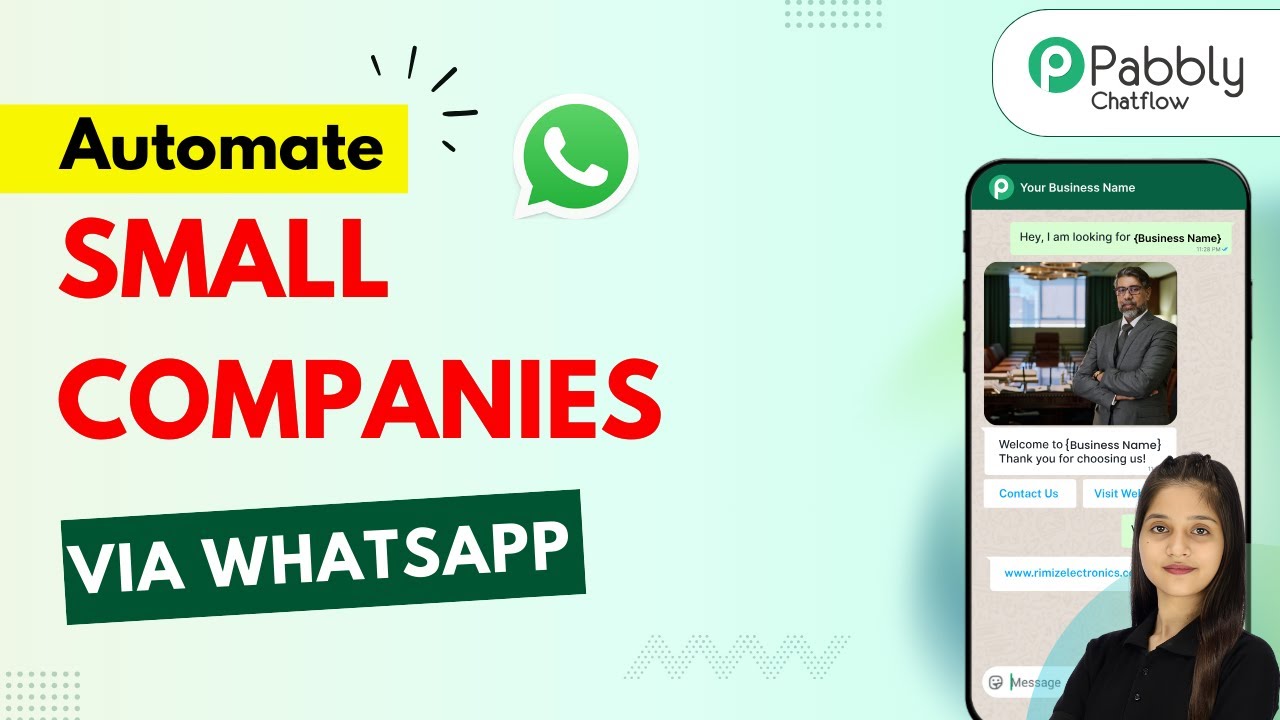
WhatsApp Business Automation for Small Companies

Learn how to automate WhatsApp Business for small companies using Pabbly Chatflow in this detailed step-by-step tutorial. Learn how to create intelligent chat workflows that provide instant customer support while qualifying leads 24/7 without human intervention.

Watch Step By Step Video Tutorial Below


1. Introduction to Pabbly Chatflow for WhatsApp Automation

In this section, we will explore how to access and utilize Pabbly Chatflow for automating WhatsApp Business communications. Pabbly Chatflow is a robust tool designed to streamline customer interactions for small businesses.

To get started, navigate to Pabbly Chatflow by visiting Pabbly.com/chatflow. You can sign up for a free account to explore the features. Once logged in, you will see the dashboard where you can manage your WhatsApp numbers and create automated flows.


2. Setting Up Your WhatsApp Chatbot with Pabbly Chatflow

To create a WhatsApp chatbot, click on the ‘Flows’ option in the Pabbly Chatflow dashboard. This is where you can design your automated chatbot using a no-code drag-and-drop builder. Start by clicking the ‘+ Add Flow’ button to create a new flow.

  • Enter a name for your flow, such as ‘Business Automation for Small Companies’.
  • Select your trigger event, which can be keywords like ‘hi’ or ‘hello’.
  • Add a media button to send an image related to your business.

After setting the trigger, you can customize the welcome message that users will receive when they initiate a chat. This is where Pabbly Chatflow allows you to enhance customer engagement right from the start.


3. Creating Interactive User Responses with Pabbly Chatflow

Once your welcome message is set, you can provide users with options to interact further. For instance, you can add buttons like ‘Book Consultation’ and ‘View Services’. This feature of Pabbly Chatflow helps to guide users through the conversation smoothly.

To implement this, drag and drop the button elements into your flow. Connect these buttons to subsequent actions, like asking users to select a service type. For example, when a user clicks ‘Book Consultation’, they should receive a list of services such as:

  • Accounting and Bookkeeping
  • GST Tax Filing
  • Company Registration
  • Financial Advisory

By using Pabbly Chatflow, you can ensure that users receive timely responses and can easily navigate through your services, enhancing their overall experience.


4. Capturing User Information via Pabbly Chatflow

After users select a service type, you can prompt them to provide their full name and contact number. This is crucial for follow-ups and ensuring personalized service. Pabbly Chatflow allows you to create custom fields for capturing this information dynamically.

To do this, you will need to add action nodes that ask users for their name and contact details. For instance, you might set a question like ‘May I have your full name please?’ and link the response to a custom field for user data.

Once you have collected the necessary information, you can send a confirmation message back to the user, summarizing their request. This message can include:

Client Name Contact Number Selected Service Type

This feature ensures that your business can efficiently manage client inquiries without manual effort, showcasing the power of Pabbly Chatflow in streamlining operations.


5. Finalizing Your Pabbly Chatflow Automation

After completing the flow design, it is crucial to save your work in Pabbly Chatflow. Click the ‘Save’ button to ensure all your settings are applied. You can then test your chatbot to verify that it responds correctly to user inputs.

Once everything is functioning as intended, you can deploy your WhatsApp chatbot to handle customer inquiries 24/7. This automation is particularly beneficial for small companies looking to enhance customer support without increasing operational costs.

In summary, Pabbly Chatflow provides a comprehensive solution for businesses to automate their WhatsApp communications, ensuring efficient and responsive customer service.


Conclusion

In this tutorial, we explored how to automate WhatsApp for small companies using Pabbly Chatflow. By following these steps, you can create an effective chatbot that enhances customer engagement and streamlines communication. Implement this solution to improve your business operations today!

Ensure you check out Pabbly Connect to create business automation workflows and reduce manual tasks. Pabbly Connect currently offer integration with 2,000+ applications.

Auto Send Daily Messages on Microsoft Teams (Step-by-Step)

Learn how to automate daily motivational messages on Microsoft Teams using Pabbly Connect. Follow our detailed step-by-step tutorial for seamless integration. Implement the precise methodologies leading organizations use to automate repetitive tasks, illustrated with practical examples designed for immediate application.

Watch Step By Step Video Tutorial Below


1. Accessing Pabbly Connect to Start Automation

To begin automating daily messages on Microsoft Teams, you need to access Pabbly Connect. Open a new tab and go to pabbl.com/connect to reach the Pabbly Connect landing page.

If you are a new user, click on the ‘Sign Up for Free’ button in the top right corner. You will receive 100 free tasks every month, which allows you to send approximately 100 messages without any cost. This is a great way to explore the functionalities of Pabbly Connect.


2. Setting Up Your Workflow in Pabbly Connect

Once you are logged into Pabbly Connect, you will be directed to the workflow builder. This is where you will set up your automation. The workflow consists of triggers and actions, which are essential for the automation process.

  • Click on the ‘Add Trigger’ button.
  • Search for ‘Schedule by Pabbly’ and select it.
  • Choose ‘Schedule Workflow’ as the event and click ‘Connect’.

Next, you will set the frequency of the workflow. Choose to run it every day at 9:00 AM. Adjust the time according to your business needs and click ‘Save’. This will schedule your workflow to send daily messages automatically.


3. Generating Daily Messages with Google Gemini

After setting up the trigger, the next step is to generate a motivational message using Google Gemini through Pabbly Connect. Click on ‘Add New Action Step’ and search for ‘Gemini’. Select it as your action application.

For the event, choose ‘Generate Content’ and click ‘Connect’. If you have previously connected Gemini with Pabbly Connect, select the existing connection. If not, you will need to create a new connection using your API key from Google AI Studio.

  • Open Google AI Studio and navigate to the ‘Get API Key’ section.
  • Create a new API key and copy it.
  • Paste the API key into your workflow in Pabbly Connect.

Once the connection is established, input the prompt for generating the motivational message. After setting the model and method, click on ‘Save and Send Test Request’. Google Gemini will generate the motivational message for your team.


4. Sending Messages to Microsoft Teams

With the motivational message ready, the next step is to send this message to Microsoft Teams using Pabbly Connect. Click on ‘Add New Action Step’ and search for ‘Microsoft Teams’.

Select the event as ‘Send Message in a Channel’ and click ‘Connect’. Similar to the previous steps, if you have already created a connection, select it; otherwise, create a new connection by logging into your Microsoft account and granting the necessary permissions.

Select the appropriate team and channel where the message will be sent. Map the message generated by Google Gemini into the message field. Click on ‘Save and Send Test Request’ to send the message.

Once you complete these steps, check your Microsoft Teams to confirm that the motivational message has been posted successfully. This process will now run every day at the scheduled time without any manual intervention.


5. Conclusion: Automate Your Daily Messaging with Pabbly Connect

By following these steps, you can effectively automate the process of sending daily motivational messages on Microsoft Teams using Pabbly Connect. This integration not only saves time but also ensures consistent communication with your team.

Ensure you check out Pabbly Connect to create business automation workflows and reduce manual tasks. Pabbly Connect currently offer integration with 2,000+ applications.

Check out Pabbly Connect – Automate your business workflows effortlessly! Sign Up Free – Start your journey with ease! 10,000+ Video Tutorials – Learn step by step! Join Pabbly Facebook Group – Connect with 21,000+ like minded people!
Utilizing Pabbly Connect allows you to connect multiple applications seamlessly, enhancing productivity in your business. Now you can focus on other important tasks while Pabbly Connect handles your daily messaging needs.


Pabbly Chatflow Tutorial: Build Your First AI Agent in Minutes!

Learn to build your first AI agent using Pabbly Chatflow. This tutorial covers integration steps with YouTube and AI API for seamless automation. Learn step-by-step how to create, test, and optimize chatbots that enhance customer experience while reducing support workload.

Watch Step By Step Video Tutorial Below


1. Accessing Pabbly Chatflow for Your AI Agent

To start building your first AI agent, you need to access Pabbly Chatflow. Simply type the URL Pabbly.com/chatflow into your browser. This will take you to the landing page where you can either sign in or sign up for a free account.

If you are a new user, click on the ‘Sign Up Free’ button. After signing up, you will receive 100 free credits every month to practice using Pabbly Chatflow. Existing users can sign in using their credentials.


2. Creating Your AI Agent in Pabbly Chatflow

Once you are signed in to Pabbly Chatflow, navigate to the dashboard. Here, click on ‘Add AI Assistant’ to begin creating your AI agent. You will need to provide a name for your assistant, such as ‘Your First AI Assistant’.

  • Click on ‘Add AI Assistant’.
  • Enter the assistant name.
  • Select the ‘Add AI Assistant’ button.

After creating your assistant, you will be directed to the AI instructions page where you can customize the assistant’s behavior and responses. This setup is crucial for ensuring your AI responds accurately to user queries.


3. Configuring Your AI Assistant Settings

In this section, you will configure your AI assistant’s settings in Pabbly Chatflow. Here, you can set the temperature, which affects the creativity of responses. A setting of 0.5 is recommended for a friendly tone.

  • Choose the AI model, such as GPT-4 Mini.
  • Enter your OpenAI API key.
  • Set up fallback messages and retry attempts.

After configuring these settings, click the ‘Connect’ button to save your API key. This integration will allow your AI assistant to function effectively using the OpenAI model within Pabbly Chatflow.


4. Building Your Knowledge Base for the AI Assistant

To ensure your AI assistant can respond accurately, you need to create a knowledge base. This can be done by uploading a .txt or PDF file that contains information about your business. Navigate to the knowledge source tab in Pabbly Chatflow to upload your file.

Prepare your knowledge base file in the correct format. Upload the file via the knowledge source tab. Confirm successful upload via the popup notification.

Once your knowledge base is uploaded, your AI assistant will have the necessary data to respond to user queries effectively. This integration is crucial for maintaining accurate and relevant communication with your customers.


5. Enabling Your AI Assistant for Use

After setting up your AI assistant and knowledge base, the final step is to enable it for your contacts. In Pabbly Chatflow, navigate to the settings and select ‘Inbox Settings’. Here, you can enable the AI auto-reply feature.

Select the contact list or all contacts for AI assistant activation. Choose the AI assistant you created. Save the settings to enable your assistant.

With the AI assistant enabled, it will now automatically respond to messages from your customers, providing them with instant support. This automation through Pabbly Chatflow will greatly enhance your business operations and customer satisfaction.


Conclusion

In this tutorial, we explored how to build your first AI agent using Pabbly Chatflow. By following the outlined steps, you can create an effective AI assistant that automates customer interactions and enhances your business efficiency.

Ensure you check out Pabbly Connect to create business automation workflows and reduce manual tasks. Pabbly Connect currently offer integration with 2,000+ applications.

Connect Any App Without Coding Using Pabbly Connect 🛠️

Learn how to connect Razer Pay to Google Sheets effortlessly without coding using Pabbly Connect. Follow our detailed tutorial for seamless integration. Build sophisticated automated workflows in less time than you think. This guide translates complex integrations into straightforward steps for immediate implementation.

Watch Step By Step Video Tutorial Below


1. Introduction to Pabbly Connect and Automation

Pabbly Connect is a powerful automation tool that allows you to connect different applications without any coding. In this tutorial, we will demonstrate how to use Pabbly Connect to integrate Razer Pay with Google Sheets. This integration will automatically save payment details in Google Sheets whenever a payment is captured in Razer Pay.

Understanding how Pabbly Connect works is essential for setting up this automation. You will be able to create workflows that streamline your business processes by connecting various applications seamlessly.


2. Setting Up Pabbly Connect for Razer Pay Integration

To get started with Pabbly Connect, open your browser and navigate to Pabbly.com/connect. If you are a new user, click on the ‘Sign Up Free’ option to create your account. Existing users can simply click on ‘Sign In’ to access their dashboard.

  • Click on the ‘Access Now’ button to enter the Pabbly Connect dashboard.
  • Click on the ‘+ Create Workflow’ button to start a new workflow.
  • Select the ‘New Beta’ version for the workflow builder.

Once you have created the workflow, name it ‘Connect Any App Without Coding Using Pabbly Connect’ and click on the ‘Create’ button. This initiates the setup process for your automation.


3. Configuring Razer Pay as the Trigger Application

In this step, we will set Razer Pay as the trigger application in Pabbly Connect. The trigger is what starts the automation process. Search for Razer Pay in the trigger application field and select it.

Next, choose the event ‘Payment Captured’ to specify that this automation will activate whenever a payment is made. After selecting the event, click on the ‘Connect’ button to generate a webhook URL. Copy this URL for the next steps.

  • Go to your Razer Pay account and navigate to the ‘Developers’ section.
  • Click on ‘Webhooks’ and then ‘Add New Webhook’.
  • Paste the copied webhook URL and select the active event as ‘Payment Captured’.

Once done, click on the ‘Create Webhook’ button to finalize the setup. This will allow Pabbly Connect to receive data from Razer Pay whenever a payment is processed.


4. Testing the Integration with a Sample Payment

Now that Razer Pay is configured as the trigger, it’s time to test the integration. Make a test payment using the payment page URL provided in your Razer Pay account. Fill in the required fields like first name, last name, email, phone number, and product name, then click the ‘Pay’ button.

Wait for a few seconds until the payment is confirmed. Once it’s completed, Pabbly Connect will receive a webhook response with the payment details. Check your workflow in Pabbly Connect to verify that a new response has been captured, which will include all the details entered during the payment.

Ensure that the payment is successful to receive the response. Confirm that the response includes all the user details.

Once you confirm that the response is received, your Razer Pay trigger setup is complete, and you are ready to move to the next step of integrating Google Sheets.


5. Adding Google Sheets as the Action Application

The final step is to add Google Sheets as the action application in your workflow. In Pabbly Connect, click on the plus icon to add another application and search for Google Sheets. Select it and choose the event ‘Add New Row’.

Click on the ‘Connect’ button, and if you don’t have an existing connection, select ‘Add New Connection’. Sign in with your Google account and grant the necessary permissions. Once connected, select the spreadsheet you want to use for storing the payment details.

Map the fields from the Razer Pay response to the corresponding columns in Google Sheets. Ensure to include fields like full name, product name, phone number, email, address, and pin code.

Once all fields are mapped, click on the ‘Save and Send Test Request’ button. Verify that a new row is added in your Google Sheets with the payment details. This confirms that your automation is functioning perfectly.


Conclusion

In this tutorial, we demonstrated how to connect Razer Pay to Google Sheets using Pabbly Connect, allowing you to automate data entry without any coding. By following these steps, you can streamline your payment processing and data management efficiently.

Ensure you check out Pabbly Connect to create business automation workflows and reduce manual tasks. Pabbly Connect currently offer integration with 2,000+ applications.

Utilizing Pabbly Connect not only saves time but also reduces manual errors, enhancing your business operations. Start integrating your applications today for a more automated workflow!

Auto-Add Insurance Leads to CRM Using Pabbly

Learn how to automatically add insurance leads to your CRM using Pabbly Connect. Follow this step-by-step tutorial to streamline your lead management process. Develop expertise in application integration and learn how to design streamlined automation workflows using proven, simplified approaches.

Watch Step By Step Video Tutorial Below


1. Accessing Pabbly Connect for Automation

To start automating the addition of insurance leads to your CRM, you need to access Pabbly Connect. If you are a new user, open a new tab and visit pabbl.com/connect to reach the Pabbly Connect landing page.

In the top right corner, click on the ‘Sign up for free’ button. This allows you to explore Pabbly Connect with 100 free tasks per month, enabling you to add up to 100 lead details without any cost. If you find it useful, you can opt for a subscription plan later.


2. Creating Your Workflow in Pabbly Connect

Once you are signed in to Pabbly Connect, navigate to the workflow builder. This is where you will set up the trigger and action for your automation. The trigger is the event that starts the process, while the action is what happens as a result.

  • Click on the ‘Add Trigger’ button.
  • Search for ‘Google Ads’ and select it as the trigger application.
  • Choose ‘New Lead Form Entry’ as the event.

After selecting the event, click on ‘Connect’. You will receive a web URL that you need to copy. This URL will be used to connect your Google Ads campaign to Pabbly Connect.


3. Setting Up Google Ads for Lead Capture

Now that you have your webhook URL from Pabbly Connect, go to your Google Ads campaign. Here, you will create a lead form and specify the details you want to collect from leads. Recommended fields include first name, last name, email, and phone number.

  • Open your Google Ads campaign and create a lead form.
  • Select the details to collect, keeping it minimal to avoid losing potential leads.
  • Paste the copied URL into the lead delivery option in Google Ads.

After pasting the URL, enter your test key and click on ‘Send Test Data’. This will allow Pabbly Connect to capture the test response from Google Ads.


4. Integrating Zoho CRM with Pabbly Connect

With the test data captured, it’s time to add the lead details to your CRM. In this example, we will use Zoho CRM. Click on ‘Add New Action Step’ and search for Zoho CRM. Select ‘Create Contact’ as the event.

If you have previously connected Zoho CRM to Pabbly Connect, select the existing connection. If not, create a new connection by entering your Zoho domain. You can find this in your Zoho CRM URL, which typically appears as crm.zoho.com.

Enter your domain in the specified field. Grant necessary permissions for Pabbly Connect to access your Zoho CRM. Map the lead details from the previous step to the appropriate fields in Zoho CRM.

Once you have mapped the fields, click on ‘Save and Send Test Request’. If successful, you will see a confirmation message indicating that the lead details have been added to Zoho CRM.


5. Finalizing Your Automation with Pabbly Connect

After successfully adding the lead details to Zoho CRM, you can verify the addition by refreshing your contact list in Zoho. You should see the new lead entry with the details you provided.

This automation through Pabbly Connect allows you to add insurance leads to your CRM without any manual intervention. Your sales team can now focus on contacting leads instead of entering data manually.

With this setup, you can efficiently manage your leads and enhance your insurance agency’s workflow. Try this automation today and streamline your lead management process using Pabbly Connect.


Conclusion

In this tutorial, we demonstrated how to use Pabbly Connect to automatically add insurance leads to your CRM. By setting up triggers and actions between Google Ads and Zoho CRM, you can eliminate manual data entry and enhance your lead management efficiency.

Ensure you check out Pabbly Connect to create business automation workflows and reduce manual tasks. Pabbly Connect currently offer integration with 2,000+ applications.

Create High-Engagement WhatsApp Chatbots 📈

Learn how to create high-engagement WhatsApp chatbots using Pabbly Chatflow. Step-by-step guide to automate customer interactions effectively. Master conversational marketing with practical techniques for creating chatbots that engage visitors at exactly the right moment in their journey.

Watch Step By Step Video Tutorial Below


1. Accessing Pabbly Chatflow for WhatsApp Automation

To create high-engagement WhatsApp chatbots, you first need to access Pabbly Chatflow. Open a new tab and navigate to the official Pabbly Chatflow page by searching ‘Pabbly.com/chartflow’. This platform offers comprehensive WhatsApp automation tools that can enhance customer interaction.

Once on the Pabbly Chatflow page, you will see options to sign in or sign up free. If you are a new user, click on sign up free to receive 100 free credits each month. Existing users can simply sign in to their accounts to start creating chatbots.


2. Creating Your WhatsApp Chatbot Flow in Pabbly Chatflow

After signing in, navigate to the Pabbly Chatflow dashboard. Here, you can create a new flow by clicking on the add flow button. Name your flow, such as ‘Create High Engagement WhatsApp Chatbots’, to easily identify it later.

  • Click on the flows option from the left sidebar.
  • Select add flow and enter a name for your chatbot.
  • Choose the active/inactive toggle to keep your flow active.

This flow will allow you to automate responses based on keywords sent by users. For instance, you can set up triggers using keywords like ‘high’ or ‘hello’ to initiate interactions with your users.


3. Setting Up Keywords and Initial Responses

In this section, you will set up the keywords that will trigger your chatbot responses in Pabbly Chatflow. Click on the trigger event option and select keywords. Enter the keywords you expect users to send.

  • Enter the first keyword in the enter keywords box, such as ‘high’.
  • Press enter to add the keyword to the list.
  • Repeat for additional keywords like ‘hello’.

Once the keywords are set, you can add a welcome message along with an image to engage users. This will make the chatbot more interactive, prompting users to respond effectively.


4. Customizing Chatbot Responses and Actions

Now that you have set up the keywords, it’s time to customize the responses in Pabbly Chatflow. You can add media and text messages to enhance user engagement. Start by adding a media button to send an image related to your business.

After adding the image, include a text message that welcomes users and asks how they can be assisted. You can also add quick reply buttons for common actions like booking a waste pickup or contacting support. This step is crucial for guiding users through their interactions.


5. Finalizing Your Chatbot Flow and Testing

Once you have customized all responses, you need to finalize your chatbot flow in Pabbly Chatflow. Click the save button to ensure all your settings are stored. Make sure to test your chatbot by sending the keywords you configured.

For example, sending ‘hello’ should trigger the welcome message and prompt further interaction. This testing phase is essential to ensure your chatbot operates smoothly and effectively engages users.


Conclusion

Creating high-engagement WhatsApp chatbots using Pabbly Chatflow allows businesses to automate customer interactions efficiently. By following this guide, you can set up a responsive chatbot that enhances user experience and saves time in managing customer queries.

Ensure you check out Pabbly Connect to create business automation workflows and reduce manual tasks. Pabbly Connect currently offer integration with 2,000+ applications.

AI Agent for Legal & Tax Consultancy — Automate Client Queries, Consultation Booking & More

Learn how to automate client queries and consultation bookings using Pabbly Chatflow in this step-by-step tutorial for legal and tax consultancy. Master conversational marketing with practical techniques for creating chatbots that engage visitors at exactly the right moment in their journey.

Watch Step By Step Video Tutorial Below


1. Accessing Pabbly Chatflow for Your Consultancy

To get started with automating client queries using Pabbly Chatflow, you need to access the platform. Open your web browser and go to www.Pabbly.com/chatflow. If you are a new user, click on ‘Sign up for free’ to create an account and receive 100 free credits monthly.

For existing users, simply click on ‘Sign In’. Once logged in, you will be directed to the Pabbly applications page. From there, select Pabbly Chatflow to access the dashboard where you can manage your AI agents and automate client interactions.


2. Creating Your AI Agent in Pabbly Chatflow

The next step involves creating your AI agent to handle client queries. In Pabbly Chatflow, navigate to the AI assistants section and click on ‘Add AI Assistant’. Name your assistant, for example, ‘AI Agent for Legal and Tax Consultancy’.

  • Select the instruction type as ‘AI Agent’.
  • Set AI configurations, keeping creativity at 0.7.
  • Input your OpenAI API key for enhanced responses.

After setting these configurations, toggle on the options for header and footer messages if needed. The header and footer can provide users with additional context about your services.


3. Setting Up Knowledge Source for Your AI Agent

To ensure your AI agent provides accurate responses, you need to set up a knowledge source. In Pabbly Chatflow, select the knowledge source option and choose to upload a file. This file should contain essential information such as company details, services offered, and contact information.

Your knowledge base can be created in Google Docs and exported as a PDF. Ensure the PDF is within the 10-page limit if it contains images. This knowledge base will guide the AI agent in responding accurately to client queries.


4. Configuring the Assistant Interface in Pabbly Chatflow

Once your knowledge source is set, you can configure the assistant interface in Pabbly Chatflow. Customize the appearance by selecting a theme mode (light or dark) and configuring chat bubble colors, text colors, and profile pictures for your AI agent.

  • Choose the assistant shape: circle, square, or rounded square.
  • Set the footer link to direct users to your privacy policy.

After making these adjustments, toggle the button to activate your AI assistant. Don’t forget to save your configurations to avoid losing any progress.


5. Assigning Your AI Assistant to Contacts

The final step is to assign your AI assistant to specific contacts or groups. In Pabbly Chatflow, go to the inbox settings and enable AI auto-replies. Select the contacts you want the AI assistant to respond to.

This feature allows you to manage how your AI agent interacts with clients effectively. You can assign the assistant to all contacts or specific groups, ensuring that every client receives timely responses to their queries.


Conclusion

In this tutorial, we explored how to automate client queries and consultation bookings using Pabbly Chatflow. By creating an AI agent, setting up a knowledge source, and configuring the assistant interface, you can significantly enhance client interaction in your legal and tax consultancy business. Start leveraging Pabbly Chatflow today to streamline your client communications and improve efficiency.

Ensure you check out Pabbly Connect to create business automation workflows and reduce manual tasks. Pabbly Connect currently offer integration with 2,000+ applications.

How to Automatically Send Google Forms Leads to Your CRM (No Coding)

Learn how to automatically send Google Forms leads to your CRM using Pabbly Connect. Step-by-step tutorial with detailed integration instructions. Develop expertise in application integration and learn how to design streamlined automation workflows using proven, simplified approaches.

Watch Step By Step Video Tutorial Below


1. Accessing Pabbly Connect for Integration

To start the process of automatically sending Google Forms leads to your CRM, first, you need to access Pabbly Connect. Go to the official Pabbly Connect website by typing ‘Pabbly.com/connect’ in your browser. This powerful automation tool allows you to integrate various applications seamlessly without any coding.

Once on the Pabbly Connect page, you can either sign in or sign up for a free account. New users will be greeted with a free plan that includes 100 tasks per month, which is perfect for exploring the features of Pabbly Connect. After signing in, navigate to the dashboard where you can manage your automation workflows.


2. Creating a New Workflow in Pabbly Connect

After accessing your Pabbly Connect dashboard, click on the ‘Create Workflow’ button. You will be prompted to choose between the new beta version and the classic version of the workflow builder. Select the new beta version for a more modern and flexible experience.

Next, enter a name for your workflow, such as ‘Automatically Send Google Forms Leads to Zoho CRM’. Choose a suitable folder for your workflow, like ‘Pabbly Connect’. Once you click the ‘Create’ button, your workflow is set up and ready for configuration.

  • Click on the ‘Create Workflow’ button.
  • Select the new beta version of the workflow builder.
  • Enter a descriptive name for your workflow.

Your new workflow is now created, and it’s time to set up the trigger application.


3. Setting Up Google Forms as the Trigger

In this step, we will configure Google Forms as the trigger for your workflow in Pabbly Connect. Click on the trigger application option and search for Google Forms. Select it, then choose the event as ‘New Response Received’. This means that every time a new form submission is made, it will trigger the workflow.

After selecting the trigger event, Pabbly Connect will provide you with a webhook URL. Copy this URL as you will need it to connect Google Forms to your workflow. Now, go to your Google Forms account and open the form you want to integrate.

  • Select Google Forms as the trigger application.
  • Choose ‘New Response Received’ as the event.
  • Copy the provided webhook URL for integration.

With the webhook URL copied, proceed to set up the Google Form to send responses to Pabbly Connect.


4. Connecting Google Forms to Pabbly Connect

To connect Google Forms with Pabbly Connect, open your Google Form and navigate to the ‘Responses’ tab. Click on ‘View in Sheets’ to create a Google Sheet linked to your form responses. Now, go to the Extensions menu, find the Pabbly Connect Webhook option, and select ‘Initial Setup’.

In the setup window, paste the webhook URL you copied earlier into the designated field and set the trigger column to the final data column, which is usually the last column where data will be added. Click the ‘Send Test’ button to ensure the connection is working properly.

Navigate to the ‘Responses’ tab in Google Forms. Select ‘View in Sheets’ to link responses to a Google Sheet. Complete the Initial Setup in Pabbly Connect.

Once the test is successful, you can verify that Pabbly Connect has received the response data from Google Forms.


5. Integrating Zoho CRM with Pabbly Connect

Now that Google Forms is connected to Pabbly Connect, it’s time to set up Zoho CRM as the action application. Click the plus icon to add a new action application, search for Zoho CRM, and select it. Choose the action event as ‘Create Contact’. This means that every new response in Google Forms will create a new contact in Zoho CRM.

Click on the connect button to set up the connection. You will need to provide your Zoho CRM domain, typically ‘zoho.com’. Once you enter your domain and click save, authorize the connection to allow Pabbly Connect to access your Zoho CRM account. After a successful connection, you’ll be able to map the fields from Google Forms to Zoho CRM.

Set up Zoho CRM as the action application in Pabbly Connect. Select ‘Create Contact’ as the action event. Map the fields from Google Forms to Zoho CRM.

Finally, click the ‘Save and Send Test Request’ button to ensure that the integration is working correctly. Check your Zoho CRM to see if the new contact has been created based on the data submitted in the Google Form.


Conclusion

In this tutorial, we demonstrated how to automatically send Google Forms leads to your CRM using Pabbly Connect. By following these steps, you can streamline your lead management process and ensure that all new submissions are captured in real-time. This integration not only saves time but also improves the efficiency of your sales team.

Ensure you check out Pabbly Connect to create business automation workflows and reduce manual tasks. Pabbly Connect currently offer integration with 2,000+ applications.

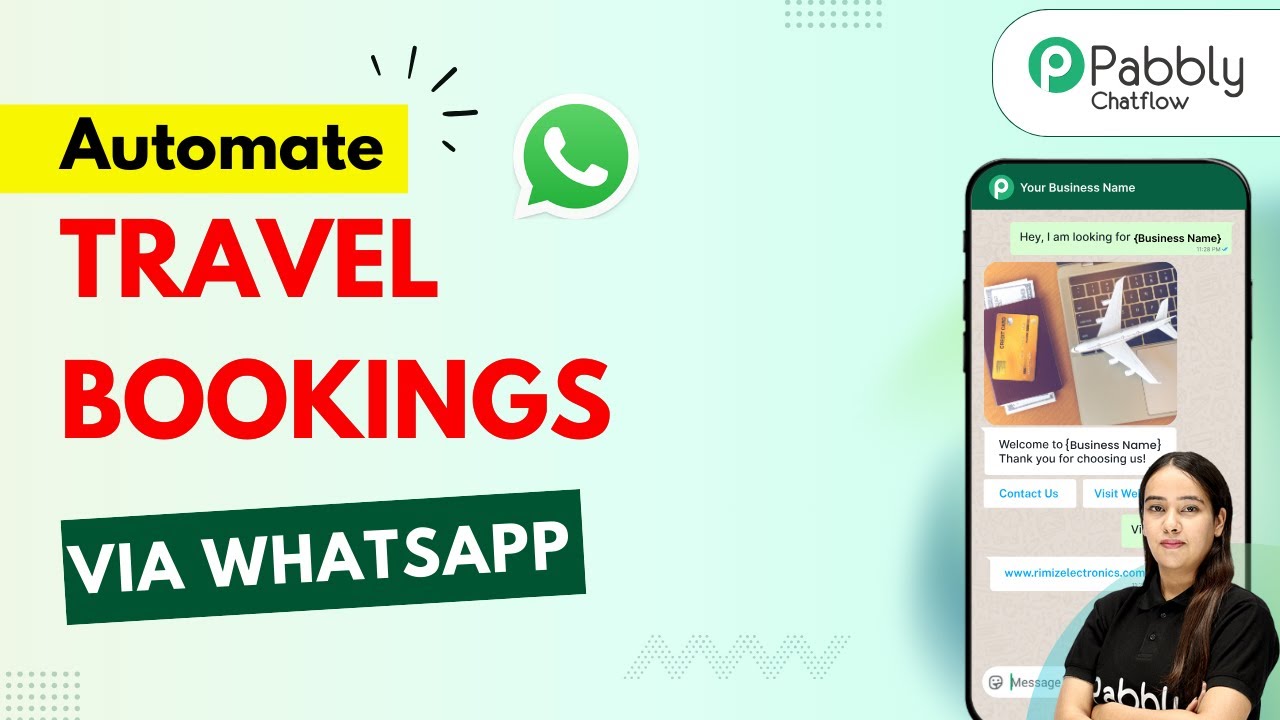
Automate Travel Bookings via WhatsApp

Learn how to automate travel bookings via WhatsApp using Pabbly Chatflow. Follow this step-by-step tutorial to enhance customer service and streamline bookings. Master conversational marketing with practical techniques for creating chatbots that engage visitors at exactly the right moment in their journey.

Watch Step By Step Video Tutorial Below


1. Accessing Pabbly Chatflow for Travel Bookings

To automate travel bookings via WhatsApp, the first step is to access Pabbly Chatflow. Start by navigating to the Pabbly Chatflow website. Here, you can either sign up for a free account or log in if you’re an existing user.

After logging in, the dashboard will provide you with various options to manage your WhatsApp communications. Click on the ‘Add WhatsApp Number’ button to set up your WhatsApp account within Pabbly Chatflow. This setup is crucial as it enables you to interact with your customers seamlessly.


2. Creating a Chatbot in Pabbly Chatflow

Once you have your WhatsApp number set up, the next step is to create a chatbot using Pabbly Chatflow. Click on the ‘Flow’ feature and then select the ‘Add Flow’ button. Name your chatbot appropriately, such as ‘Auto Travel Booking via WhatsApp’.

  • Select a trigger event to initiate the conversation.
  • Use keywords to start the conversation with customers.
  • Drag and drop elements to build your flow.

After naming your chatbot, set up the trigger event. This will allow the chatbot to respond when customers send specific keywords related to travel bookings. Drag and drop the necessary elements to create an engaging interaction.


3. Setting Up Customer Interaction in Pabbly Chatflow

To enhance customer interaction, you can set up a welcome message using Pabbly Chatflow. After the trigger, use the ‘Media’ button to upload an image and provide a warm welcome message to your customers. This creates a friendly atmosphere for the booking process.

Next, you can add buttons for different booking options such as flights, hotels, and holiday packages. For each button, set up a corresponding message that prompts customers for more details. This ensures a smooth flow of information and keeps customers engaged.


4. Finalizing Bookings through Pabbly Chatflow

After customers select their desired booking option, you can guide them through the finalization process using Pabbly Chatflow. For example, if a customer selects a holiday package, prompt them to provide essential details such as travel dates, number of travelers, and room preferences.

  • Request travel dates and number of passengers.
  • Ask for room preferences and any special requests.
  • Confirm the booking details with a summary message.

Once all details are collected, send a confirmation message thanking them for their request and informing them that your team will review the booking. This keeps the customer informed and enhances their experience.


5. Activating Your Chatbot in Pabbly Chatflow

The final step is to activate your chatbot in Pabbly Chatflow. Ensure that all flows are saved correctly and that the chatbot is set to run in real-time. This is essential for providing timely responses to customer inquiries.

Once activated, your chatbot will be ready to assist customers with travel bookings via WhatsApp. This automation not only saves time but also improves customer satisfaction by providing quick responses.


Conclusion

In conclusion, automating travel bookings via WhatsApp using Pabbly Chatflow significantly enhances customer service. By following the steps outlined in this tutorial, you can create an efficient chatbot that manages bookings seamlessly. Start using Pabbly Chatflow today to improve your travel booking process.

Ensure you check out Pabbly Connect to create business automation workflows and reduce manual tasks. Pabbly Connect currently offer integration with 2,000+ applications.