Automatically Add TikTok Leads to Salesforce

Learn how to automatically add TikTok leads to Salesforce using Pabbly Connect with this step-by-step tutorial. Streamline your lead management process today! Revolutionize your productivity approach with just a few strategic clicks. Uncover professional methods for connecting applications and creating workflows that reclaim hours of your week.

Watch Step By Step Video Tutorial Below


1. Accessing Pabbly Connect for TikTok and Salesforce Integration

To automatically add TikTok leads to Salesforce, you first need to access Pabbly Connect. If you are an existing user, simply open the Pabbly Connect dashboard. New users can create an account by searching for Pabbly Connect in their browser and signing up for free.

Once logged in, you can explore the features of Pabbly Connect. The platform offers 100 free tasks each month, allowing you to test the integration process without any cost. This is an excellent opportunity to familiarize yourself with how Pabbly Connect functions.


2. Setting Up Your Workflow in Pabbly Connect

In this step, we will set up the workflow in Pabbly Connect. Click on the ‘Add Workflow’ button to create a new automation. You will be prompted to select a trigger application, which in this case is TikTok.

  • Select ‘TikTok Lead Generation’ as the trigger event.
  • Choose the event as ‘New Lead’ and click on ‘Connect’.
  • If you have an existing connection, select it; otherwise, create a new connection.

Once you have set the trigger, Pabbly Connect will request permissions to access your TikTok account. Confirm these permissions to continue. This step is crucial for allowing Pabbly Connect to pull lead information from TikTok.


3. Capturing Lead Data from TikTok

After setting up the trigger, you need to capture the lead data from TikTok. You can either wait for a real lead to come in or generate a test lead using the TikTok Lead Generation app. This will help you test the integration.

  • Click on ‘Generate Test Lead’ to simulate a new lead.
  • Pabbly Connect will capture the details of the test lead, including first name, last name, email, and phone number.

Once the test lead is generated, you can see the response captured by Pabbly Connect. This data will be used in the next step to create a new contact in Salesforce automatically.


4. Adding Leads to Salesforce Using Pabbly Connect

Now that you have captured the lead data, it’s time to add this information to Salesforce. Click on the ‘Add Action Step’ button in Pabbly Connect and select Salesforce as your action application.

Choose the action event as ‘Create Contact’. Connect your Salesforce account to Pabbly Connect by clicking on ‘Connect’. Map the fields from the TikTok lead data to the corresponding fields in Salesforce.

After mapping the fields, click on ‘Save and Send Test Request’. If everything is set up correctly, you will receive a success response indicating that a new contact has been created in Salesforce using the information from TikTok.


5. Finalizing Your Integration in Pabbly Connect

With the test successful, you can finalize your integration in Pabbly Connect. This means that every time a new lead is generated from TikTok, it will automatically create a new contact in Salesforce without any manual input.

To ensure everything runs smoothly, refresh your Salesforce contact list. You should see the new contact you created during the test. This automation saves time and ensures that no leads are missed.

By using Pabbly Connect, you have successfully automated the process of adding TikTok leads to Salesforce. This integration allows for seamless lead management and enhances your marketing efforts by ensuring timely follow-ups with potential customers.


Conclusion

In conclusion, using Pabbly Connect to automatically add TikTok leads to Salesforce streamlines your lead management process. This integration ensures that you never miss a lead and can focus on converting them into customers.

Ensure you check out Pabbly Connect to create business automation workflows and reduce manual tasks. Pabbly Connect currently offer integration with 2,000+ applications.

Turn Manual Tasks into Automation in 5 Mins

Learn how to automate your real estate follow-up process using Pabbly Connect, Gmail, and Google Sheets in just 5 minutes. Streamline your tasks now! Revolutionize your productivity approach with just a few strategic clicks. Uncover professional methods for connecting applications and creating workflows that reclaim hours of your week.

Watch Step By Step Video Tutorial Below


1. Accessing Pabbly Connect to Start Automation

To begin automating your tasks, first, access Pabbly Connect by visiting the official website. This platform allows you to seamlessly integrate various applications without any coding knowledge.

Once on the site, you can either sign in if you already have an account or click on ‘Sign Up Free’ to create a new account. As a new user, you will receive 100 free tasks every month to explore the software.


2. Creating a Workflow in Pabbly Connect

After logging into Pabbly Connect, the next step is to create a new workflow. Click on the ‘Create Workflow’ button and name your workflow ‘Turn Manual Tasks into Automation in 5 Minutes’.

  • Select the folder for your workflow as ‘Pabbly Connect’.
  • Click on the ‘Create’ button to finalize your workflow setup.

Your workflow is now created successfully, and you will need to set a trigger to initiate the automation process.


3. Setting Up Google Sheets as a Trigger in Pabbly Connect

The next step involves setting up Google Sheets as your trigger application within Pabbly Connect. Select ‘Google Sheets’ from the application options.

  • Choose the event as ‘New or Updated Spreadsheet Row’.
  • Click on the ‘Connect’ button to generate a webhook URL.

Copy the webhook URL and navigate to your Google Sheets account. In your sheet, go to ‘Extensions’ and select ‘Webhooks’ to set up the connection.


4. Mapping Gmail for Email Notifications

Now, you will set up Gmail as the action application in Pabbly Connect to send personalized emails. Click on the plus icon to add a new action and select ‘Gmail’.

Choose the action to ‘Send Email’. Connect your Gmail account by signing in and granting permissions.

In the email setup, map the recipient email address field with the email data from Google Sheets. This mapping allows the email to be personalized for each recipient automatically.


5. Testing the Automation Workflow

After completing the setup, it’s time to test your workflow in Pabbly Connect. Enter a new lead in your Google Sheets to see if the email notification is sent correctly.

Check your Gmail account to see if the email has been received. Ensure that the email contains all the mapped details such as name, property type, and location.

If the email is received as expected, then your workflow is functioning perfectly. Don’t forget to enable the toggle to keep your automation active.


Conclusion

In this tutorial, we demonstrated how to automate your real estate follow-up process using Pabbly Connect with Google Sheets and Gmail. By following these steps, you can streamline your manual tasks into an efficient automated workflow.

Ensure you check out Pabbly Connect to create business automation workflows and reduce manual tasks. Pabbly Connect currently offer integration with 2,000+ applications.

Now you can save time and improve your productivity by leveraging the power of automation with Pabbly Connect. Start automating today!

Smart WhatsApp Automation for Rapid Growth 📈

Learn how to automate WhatsApp messaging for rapid business growth using Pabbly Chatflow. Step-by-step guide to set up your WhatsApp chatbot effectively. Learn how to create intelligent chat workflows that provide instant customer support while qualifying leads 24/7 without human intervention.

Watch Step By Step Video Tutorial Below


1. Accessing Pabbly Chatflow for WhatsApp Automation

To start your journey with Pabbly Chatflow, visit the Pabbly website and navigate to the Chatflow section. This platform is specifically designed for WhatsApp automation, allowing businesses to streamline their messaging processes. If you are new, click on the ‘Sign Up Free’ option to create an account and receive 100 free credits monthly.

After signing up or logging in, you will be directed to the Pabbly Chatflow dashboard. Here, you can easily add your WhatsApp number by clicking on the ‘Plus Add WhatsApp Number’ button. This step is crucial as it connects your WhatsApp account to the Pabbly Chatflow system, enabling the automation of responses.


2. Creating Your WhatsApp Chatbot with Pabbly Chatflow

In this section, you will learn how to build your WhatsApp chatbot using Pabbly Chatflow. Click on the ‘Flows’ option to access the flow builder. This user-friendly tool allows you to create a chatbot without any coding knowledge. To start, click on the ‘Plus Add Flow’ button and name your flow, for example, ‘Smart WhatsApp Automation for Rapid Growth.’

  • Click on the ‘Plus Add Flow’ button.
  • Name your flow appropriately.
  • Select a trigger event to start your flow.

Next, select the trigger event for your chatbot. For this automation, choose the ‘Keywords’ option. Enter keywords like ‘hi’ and ‘hello’ that users might send to initiate the conversation. These keywords will trigger your WhatsApp bot to respond automatically, enhancing user interaction.


3. Configuring Chatbot Responses in Pabbly Chatflow

Once your keywords are set, it’s time to configure the responses your chatbot will provide. Using Pabbly Chatflow, add a text button to send a welcome message. For example, you can write, ‘Hello, welcome to Techare IT Solutions. How may I assist you today?’ This message sets a friendly tone for the interaction.

  • Add a text button for the welcome message.
  • Include quick reply buttons such as ‘View Services’ and ‘Contact Support.’
  • Link the trigger point to the welcome message.

By linking the trigger to your welcome message, your bot will automatically greet users when they send the specified keywords. This feature of Pabbly Chatflow ensures that your users receive instant responses, improving engagement and satisfaction.


4. Dynamic User Interaction with Pabbly Chatflow

To enhance user interaction, configure your chatbot to ask follow-up questions. After the welcome message, set up a series of questions to gather user information, such as their full name, company name, and service needs. This is done using the ‘Ask Question’ button in Pabbly Chatflow.

For each question, set the contact custom fields accordingly:

Ask for the user’s full name. Request the company name and email address. Inquire about the service description needed.

This dynamic interaction allows your bot to collect essential information, making it easier to tailor responses and services to user needs. Pabbly Chatflow’s capabilities ensure that each interaction feels personalized and relevant.


5. Finalizing Your WhatsApp Chatbot with Pabbly Chatflow

After setting up the questions, finalize your chatbot by adding a confirmation message that includes the user’s provided details. For instance, create a message that says, ‘Request received successfully. Thank you for connecting, [Full Name], for [Service Type] from [Company Name].’ This message dynamically pulls user information using contact custom fields.

Once everything is configured, click the ‘Save’ button to ensure all your changes are stored. To test your chatbot, send a message with one of the keywords you set earlier. The bot should respond with the welcome message and follow the flow you created.

Using Pabbly Chatflow, you can create a highly functional and automated WhatsApp chatbot that significantly improves user experience and business efficiency. The ability to customize responses based on user input is a game-changer for businesses looking to grow rapidly.


Conclusion

In conclusion, automating WhatsApp messaging with Pabbly Chatflow is an effective way to enhance customer interaction and streamline business processes. By following the steps outlined in this tutorial, you can create a responsive WhatsApp chatbot that meets your business needs and fosters growth.

Ensure you check out Pabbly Connect to create business automation workflows and reduce manual tasks. Pabbly Connect currently offer integration with 2,000+ applications.

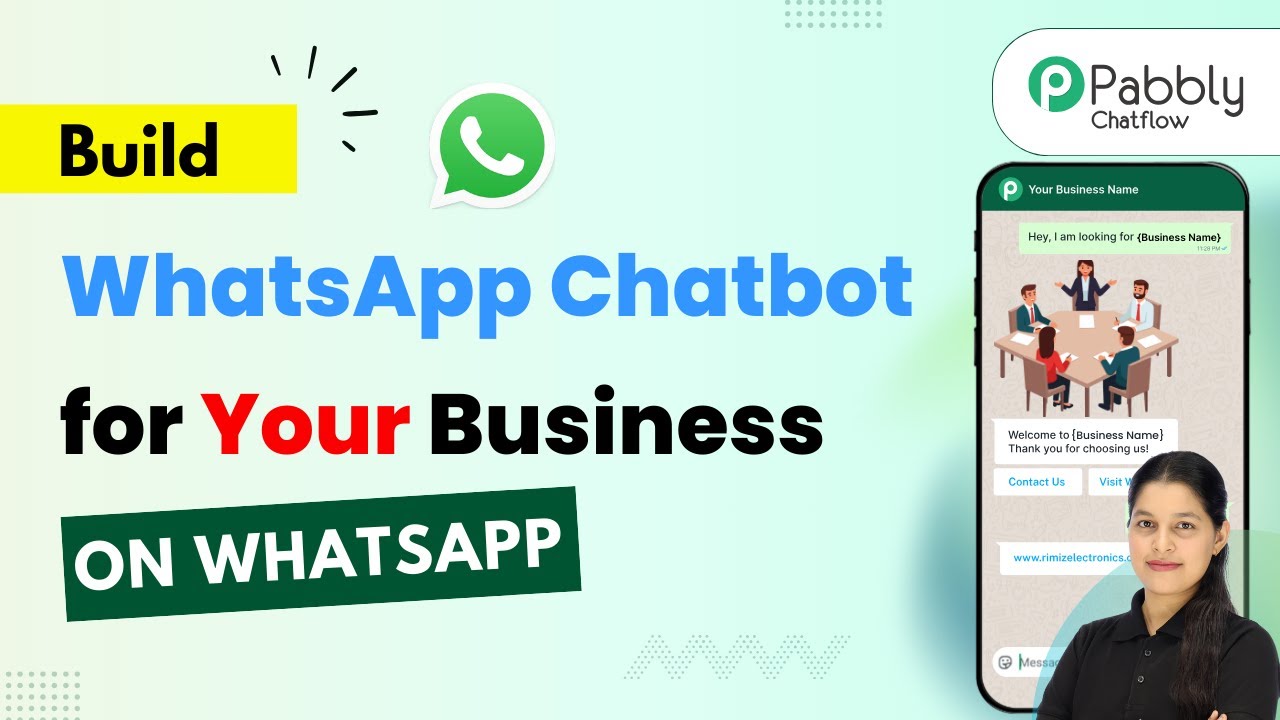
Build a WhatsApp Chatbot for Your Business Using Pabbly Chatflow

Learn how to create a WhatsApp chatbot for your business using Pabbly Chatflow with this detailed step-by-step tutorial. Discover practical methods for designing chat sequences that capture leads, answer questions, and guide users to the next step in your funnel.

Watch Step By Step Video Tutorial Below


1. Accessing Pabbly Chatflow for Your WhatsApp Chatbot

To create a WhatsApp chatbot for your business, the first step is to access Pabbly Chatflow. Open your web browser and enter the URL Pabbly.com/chatflow. Once there, you’ll find options to either sign in or sign up for free.

If you are a new user, click on ‘Sign Up Free’ to create your account. After signing up, you will receive 100 free credits every month to practice using Pabbly Chatflow. If you already have an account, simply click ‘Sign In’ to proceed.


2. Creating Your WhatsApp Chatbot Flow in Pabbly Chatflow

After logging into Pabbly Chatflow, navigate to the dashboard and click on the ‘Access Now’ button for Pabbly Chatflow. You will see your connected WhatsApp numbers. If you need to add a new number, click on the ‘Add WhatsApp Number’ button.

  • Select ‘WhatsApp Connect’ for easy integration.
  • Alternatively, use ‘Manual Token Connect’ if needed.

Once your number is set up, click on ‘Flows’ in the sidebar to access the flow builder. Here, you can create a new flow by clicking on the ‘Add Flow’ button. Give your flow a name, such as ‘Build a WhatsApp Chatbot for Your Business.’ This is where the automation starts.


3. Setting Up the Trigger for Your Chatbot

In Pabbly Chatflow, the next step is to set up a trigger for your WhatsApp chatbot. A trigger is an event that initiates your chatbot’s response. Choose the trigger event as ‘Keyword Reject Match’ to start the flow when a user sends a specific keyword.

For example, type the keyword ‘hello’ to initiate the chatbot whenever this word is used. After setting up the keyword, you can proceed to create the welcome message that your chatbot will send to users.

  • Drag and drop a text button to add your welcome message.
  • Include a button for users to access your services.

By doing this, your chatbot will greet users and provide options for further interaction, enhancing customer engagement.


4. Customizing Interaction with Users in Pabbly Chatflow

In this section, you will customize how your WhatsApp chatbot interacts with users. After the welcome message, you can create a list of services that your business offers. This can be accomplished by dragging and dropping a list node into your flow. using Pabbly Connect

In the list node, add a header and body. For example, you could use ‘Here’s what we can help you with’ as the body text. Then, create sections for each service and add items to the list. This will help users understand what services they can select from.

Add items for each service, such as Social Media Marketing, Google Ads, and SEO. Set up contact custom fields to capture user selections.

Setting up these features ensures that your WhatsApp chatbot can effectively guide users through your offerings, making their experience seamless and informative.


5. Finalizing Your WhatsApp Chatbot Setup in Pabbly Chatflow

After customizing your chatbot interactions, it’s time to finalize your setup in Pabbly Chatflow. You can add questions to gather user information, such as their full name and email address. Use the ‘Ask Question’ action node to prompt users for their details.

Once users provide their information, send a personalized thank-you message using their name. This can be done by using the format ‘Thank you, $full_name, your free marketing consultation has been booked.’ This personalization enhances user experience and builds rapport.

Finally, save your flow by clicking the ‘Save’ button. You will see a confirmation message indicating that your flow has been updated successfully. Now, your WhatsApp chatbot is ready to interact with users and automate conversations for your business.


Conclusion

In this tutorial, we demonstrated how to build a WhatsApp chatbot for your business using Pabbly Chatflow. By following the outlined steps, you can create a fully functional chatbot that automates customer interactions and enhances engagement. Start using Pabbly Chatflow now to streamline your business operations and improve customer service.

Ensure you check out Pabbly Connect to create business automation workflows and reduce manual tasks. Pabbly Connect currently offer integration with 2,000+ applications.

Save E-Commerce Orders to Google Sheets

Learn how to automate saving e-commerce orders to Google Sheets using Pabbly Connect. Follow this step-by-step tutorial for seamless integration. Implement the precise methodologies leading organizations use to automate repetitive tasks, illustrated with practical examples designed for immediate application.

Watch Step By Step Video Tutorial Below


1. Accessing Pabbly Connect for E-Commerce Automation

To save e-commerce orders to Google Sheets, you first need to access Pabbly Connect. Start by searching for ‘Pabbly Connect’ in your browser or go directly to the Pabbly website.

Once on the homepage, you can either sign in if you are an existing user or click on ‘Sign Up Free’ to create a new account. New users receive 100 free tasks every month to explore the automation capabilities of Pabbly Connect.


2. Creating a New Workflow in Pabbly Connect

After signing in, navigate to the Pabbly Connect dashboard and click on the ‘Create Workflow’ button. This action will prompt you to select the workflow builder version. Choose the ‘Beta’ version for a modern experience.

  • Click on ‘Create Workflow’.
  • Name your workflow (e.g., ‘Save E-Commerce Orders to Google Sheets’).
  • Select the folder as Google Sheets from the dropdown.

Once you have named your workflow, click on the ‘Create’ button to proceed. You will now see the workflow interface where you can set up triggers and actions using Pabbly Connect.


3. Setting Up the Trigger for Shopify Orders

In this step, you will set up a trigger to capture new orders from your Shopify store. Select ‘Shopify’ as the trigger app and choose the event as ‘New Order’. This action tells Pabbly Connect to listen for new orders placed in your Shopify store.

After selecting the trigger, click on ‘Connect’ to establish a connection. You will receive a webhook URL from Pabbly Connect. Copy this URL as you will need to paste it into your Shopify settings.

  • Log in to your Shopify account.
  • Navigate to Settings > Notifications.
  • Create a new Webhook and paste the copied URL.

Set the event to ‘Order Creation’ and format to JSON. After saving, your Shopify store will now send new order details to Pabbly Connect.


4. Adding Action to Save Orders in Google Sheets

Now that the trigger is set, the next step is to configure the action to save the order details in Google Sheets. In the Pabbly Connect workflow, select ‘Google Sheets’ as the action app and choose ‘Add a New Row’ as the action event.

Click on ‘Connect’ and sign in to your Google account to authorize Pabbly Connect to access your Google Sheets. After successful connection, select the spreadsheet where you want to save the order data.

Choose the spreadsheet titled ‘Shopify Orders’. Select the specific sheet where data will be added. Map the order details to the corresponding columns in your sheet.

After mapping the fields such as customer name, email, phone number, product name, order ID, amount, and status, click on ‘Save’ to finalize the action step. With this, Pabbly Connect will now automatically save every new order from Shopify into your Google Sheets.


5. Testing the Automation Workflow

To ensure everything is set up correctly, it’s crucial to test the automation. Go back to your Shopify store and place a test order. Once the order is placed, Pabbly Connect will receive the order details through the webhook you set up earlier.

Check your Google Sheets to confirm that the new order details have been added successfully. You should see all relevant information such as customer name, email, order ID, and status reflected in the sheet.

With this test, you can verify that the integration between Shopify and Google Sheets via Pabbly Connect is functioning perfectly. This automation will save you time by eliminating manual data entry for each order.


Conclusion

In this tutorial, we explored how to use Pabbly Connect to automate the process of saving e-commerce orders from Shopify to Google Sheets. By following the steps outlined, you can streamline your order management and ensure accurate record-keeping.

Ensure you check out Pabbly Connect to create business automation workflows and reduce manual tasks. Pabbly Connect currently offer integration with 2,000+ applications.

Utilizing Pabbly Connect not only enhances efficiency but also reduces the chances of errors associated with manual data entry. Start automating your workflows today with Pabbly Connect for a more productive business operation.

Send Bulk New Year Wishes on WhatsApp WITHOUT Getting Blocked!

Learn how to send bulk New Year wishes on WhatsApp without getting blocked using Pabbly Chatflow. Step-by-step tutorial for seamless integration. This detailed guide shows you how to build powerful chat automation that engages visitors and converts prospects—without any coding required.

Watch Step By Step Video Tutorial Below


1. Using Pabbly Chatflow to Send Bulk New Year Wishes

To send bulk New Year wishes on WhatsApp without getting blocked, start by accessing Pabbly Chatflow. This powerful tool allows you to automate sending messages to multiple contacts simultaneously, ensuring your wishes reach everyone efficiently.

First, log in to your Pabbly Chatflow account. Once inside, navigate to the dashboard where you can manage your contacts and messages. This is where the automation magic happens, allowing you to set up broadcasts without any coding skills.


2. Creating a Template Message in Pabbly Chatflow

Next, you need to create a template message for your New Year wishes. In Pabbly Chatflow, go to the template list section and click on the ‘Add Template’ button. This is crucial for ensuring your messages are formatted correctly before sending them out.

  • Select the template category (e.g., Marketing).
  • Name your template (e.g., Test).
  • Choose the language and type (text, image, etc.).
  • Add a header and message body.

After filling in the necessary details, click on the submit button to create your template. Remember, the template must be approved by Meta before you can use it for broadcasting messages.


3. Sending Broadcast Messages with Pabbly Chatflow

With your template ready, it’s time to send the broadcast messages. In Pabbly Chatflow, go to the broadcast section and click on ‘Add Broadcast’. Here, you can select the type of broadcast campaign you want to set up.

  • Name your broadcast (e.g., New Year Wish 2026).
  • Select the contact list you want to send the message to.
  • Choose the pre-approved template you created earlier.

Once you’ve selected all the options, you can either send the message instantly or schedule it for a later time. This flexibility is one of the key features of Pabbly Chatflow.


4. Scheduling Broadcasts in Pabbly Chatflow

To ensure your New Year wishes are sent at the perfect time, you can schedule your broadcast using Pabbly Chatflow. After creating your broadcast, select the date and time you want the message to be sent.

For example, you might want to schedule your message for December 31st at 12:00 PM. Simply select this date and time in the scheduling options. Once set, click on the ‘Add Broadcast’ button to confirm your schedule.

By using Pabbly Chatflow, you can easily manage when your messages go out, ensuring that your New Year wishes are timely and relevant.


5. Testing Your Template in Pabbly Chatflow

Before sending out your broadcast, it’s important to test your template message. In Pabbly Chatflow, you can do this by entering a test contact number and sending a test message to see how it appears.

This step ensures that everything looks perfect before the actual broadcast. Simply enter your phone number in the designated field and click on ‘Send Test Message’. This allows you to verify the message format and content.

Once you’re satisfied with the test, you can proceed with sending the actual broadcast. This testing feature in Pabbly Chatflow helps prevent any mistakes in your New Year wishes.


Conclusion

In conclusion, using Pabbly Chatflow to send bulk New Year wishes on WhatsApp is a straightforward process. By creating a template, scheduling broadcasts, and testing your messages, you can ensure your wishes reach all your contacts without getting blocked. Embrace automation this New Year with Pabbly Chatflow for seamless communication.

Ensure you check out Pabbly Connect to create business automation workflows and reduce manual tasks. Pabbly Connect currently offer integration with 2,000+ applications.

How to Add Telegram Messages to Google Sheets Automatically

Learn how to integrate Telegram messages into Google Sheets automatically using Pabbly Connect. Follow this step-by-step tutorial for seamless automation. Transform complex automation concepts into accessible, actionable steps that eliminate unnecessary manual work while maximizing existing application capabilities.

Watch Step By Step Video Tutorial Below


1. Accessing Pabbly Connect for Telegram and Google Sheets Integration

To begin the process of adding Telegram messages to Google Sheets automatically, the first step is to access Pabbly Connect. Open your web browser and navigate to www.Pabbly.com/connect. Upon reaching the landing page, you will see options to sign in or sign up for free.

If you are a new user, click on the sign-up button to create an account. This will allow you to explore the features of Pabbly Connect with 100 free tasks every month. If you already have an account, simply sign in to access the dashboard.


2. Creating a New Workflow in Pabbly Connect

Once you are signed into your account, click on the ‘Create Workflow’ button to initiate the automation process. For this integration, select the new beta method for a modern and flexible workflow. Name your workflow as ‘Add Telegram Messages to Google Sheets Automatically’ and choose the appropriate folder for organization. using Pabbly Connect

This action sets up the main framework for your integration. The workflow consists of two major components: trigger and action. The trigger will capture new messages from Telegram, while the action will send these messages to Google Sheets. You will now set up the Telegram trigger.


3. Setting Up the Telegram Trigger in Pabbly Connect

In the trigger application, select Telegram Bot as the source of messages. You need to connect your Telegram bot to Pabbly Connect by clicking on the connect button. If you need to create a new connection, you will be prompted to provide a token.

To obtain this token, log into your Telegram account and search for ‘BotFather’. Start a chat with BotFather and follow these steps:

  • Click on the ‘New Bot’ button.
  • Name your bot (e.g., Class 10th Bot).
  • Choose a username that ends with ‘_bot’.

After creating the bot, copy the token provided by BotFather and paste it into the designated field in Pabbly Connect.


4. Adding the Bot to Your Telegram Group

To ensure that your bot captures messages from a specific group, you must add the bot to that group. Open the group in Telegram and add the bot as a member. Make sure to promote the bot to admin status so it can read messages.

After adding the bot, go back to your Pabbly Connect workflow and click on the ‘Save and Send Test Request’ button. This action will wait for a webhook response from Telegram. Now, send a test message in your Telegram group to verify that the trigger is working correctly.


5. Sending Data to Google Sheets Using Pabbly Connect

With the trigger set up, the next step is to configure the action to send the captured messages to Google Sheets. In the action application, select Google Sheets and choose the event ‘Add New Row’. Click the connect button and sign in with your Google account to grant permission. using Pabbly Connect

Once connected, select the spreadsheet where you want to store the messages (e.g., ‘Telegram Messages Class 10th Group’) and the specific sheet (e.g., ‘Sheet1’). Map the necessary fields, including name, message, date, and chat ID, from the previous steps. This mapping ensures that the data flows correctly from Telegram to Google Sheets.

After completing the mapping, click on the ‘Save and Send Test Request’ button. If everything is set up correctly, a new row will be added to your Google Sheets with the message details. This automation allows you to efficiently track messages without manual entry.


Conclusion

In this tutorial, we explored how to use Pabbly Connect to automatically add Telegram messages to Google Sheets. By following the detailed steps outlined, you can set up an efficient workflow that saves time and enhances productivity. Enjoy seamless integration and automation with Pabbly Connect!

Ensure you check out Pabbly Connect to create business automation workflows and reduce manual tasks. Pabbly Connect currently offer integration with 2,000+ applications.

How to Send Automated Emails to B2B Leads

Learn how to automate sending emails to B2B leads using Pabbly Connect with Mailchimp and Gmail. Step-by-step guide to streamline your email marketing. Navigate the automation landscape confidently with clear, structured guidance suitable for professionals regardless of prior technical experience.

Watch Step By Step Video Tutorial Below


1. Accessing Pabbly Connect for Email Automation

To start sending automated emails to B2B leads, you need to access Pabbly Connect. Open your web browser and search for Pabbly Connect to reach its homepage. Here, you will find options to either sign in or sign up for a free account.

If you are a new user, click on ‘Sign Up Free’ to create an account. This will allow you to explore Pabbly Connect with 100 free tasks every month. Existing users can simply click on ‘Sign In’ to access their dashboard.


2. Creating a New Workflow in Pabbly Connect

Once signed in, navigate to Pabbly Connect and click on the ‘Access Now’ button to enter the dashboard. To create a new workflow, click on the ‘Create Workflow’ button. You will be prompted to choose between the Beta or Classic version; select the Beta version for a more modern experience. using Pabbly Connect

  • Click on ‘Create Workflow’.
  • Name your workflow, such as ‘Send Automated Emails to B2B Leads’.
  • Select a folder for organizing your workflows.

After naming your workflow and selecting a folder, click on the ‘Create’ button. This will set up your workflow in Pabbly Connect, where you can define triggers and actions.


3. Setting Up the Trigger for New Leads

In this step, you will configure the trigger in Pabbly Connect. Click on the trigger application and select ‘LinkedIn’ as your source of new leads. This is crucial as you will be receiving notifications for new leads through LinkedIn. using Pabbly Connect

Next, select the event as ‘Lead Notifications’ and click on ‘Connect’. Here, you can either choose an existing connection or create a new one. For a new connection, you will need to input your LinkedIn account email and password to establish the link.


4. Configuring Gmail to Send Automated Emails

After setting up the trigger, it’s time to add an action step to send emails via Gmail. Select ‘Gmail’ as your action application and choose the event as ‘Send Email’. Click on ‘Connect’ to link your Gmail account with Pabbly Connect. using Pabbly Connect

  • Choose your Gmail account and allow access to Pabbly Connect.
  • Enter the sender name and email address.
  • Map the recipient’s email address from the trigger step.

Additionally, enter the email subject and body content. Make sure to personalize the email using dynamic fields from the lead information received from LinkedIn.


5. Testing the Automation and Finalizing the Setup

Before finalizing, it’s essential to test the entire workflow. To do this, generate a test lead through your LinkedIn account. Submit the details, and Pabbly Connect will capture this lead information as a response.

Check the workflow in Pabbly Connect to confirm that it has successfully received the lead details. If everything looks good, the automated email will be sent to the new lead’s email address via Gmail.

By following these steps, you have successfully set up an automation that sends personalized emails to B2B leads using Pabbly Connect. This efficient workflow helps in managing your leads and enhancing communication.


Conclusion

Using Pabbly Connect, you can easily automate sending personalized emails to B2B leads through Gmail and LinkedIn. This setup streamlines your email marketing efforts and enhances lead management.

Ensure you check out Pabbly Connect to create business automation workflows and reduce manual tasks. Pabbly Connect currently offer integration with 2,000+ applications.

Automate Business Tasks Instantly Using Pabbly Connect

Learn how to automate your business tasks instantly using Pabbly Connect with Google, Zoho, and more. Step-by-step tutorial included. Follow this definitive guide to creating powerful automated workflows with straightforward, efficiency-focused solutions that save valuable time.

Watch Step By Step Video Tutorial Below


1. Accessing Pabbly Connect for Automation

To automate your business tasks instantly using Pabbly Connect, start by visiting the Pabbly Connect website. Open a new browser tab and enter Pabbly.com/connect. This is the landing page where you can log in or sign up for a new account.

If you are a new user, click on the ‘Sign Up Free’ option to get started with 100 free tasks each month. Existing users can simply click on the ‘Sign In’ option. Once logged in, navigate to the ‘Pabbly Connect’ section by clicking on the ‘Access Now’ button. This dashboard is where you will create and manage all your automation workflows.


2. Creating a Workflow in Pabbly Connect

After accessing Pabbly Connect, click on the ‘Create Workflow’ button to begin setting up your automation. You will be prompted to choose between two workflow builders: the new beta version and the classic version. For this tutorial, select the new beta version for a modern and flexible experience.

  • Enter the workflow name: ‘Automate Business Tasks Instantly Using Pabbly Connect’.
  • Select the folder as ‘Pabbly Connect’.
  • Click on the ‘Create’ button to finalize your workflow setup.

Now that your workflow is created, the next crucial step is setting up the trigger. The trigger is the event that starts your automation process. In this case, you will choose ‘Webhook by Pabbly’ as your trigger application, as it acts as a bridge between your website form and Pabbly Connect.


3. Setting Up the Trigger with Webhook

To set up the trigger in Pabbly Connect, select ‘Webhook by Pabbly’ and choose the ‘Catch Webhook’ event. Click the ‘Connect’ button to generate a unique webhook URL. This URL will be used to capture data from your landing page form.

Copy the generated webhook URL and navigate to your landing page form code. In the form code, locate the fetch field and paste the webhook URL there. Save the changes to your code. Now, return to the form in your browser and click on ‘Capture Webhook Response’. This action will prepare the form to send data to Pabbly Connect.

  • Fill in the form with test details: First Name, Last Name, Email, and Phone Number.
  • Click the ‘Submit’ button to send the data.

After submitting the form, return to your Pabbly Connect workflow to check if the webhook response has been received. If successful, you will see all the lead details captured from the form.


4. Connecting Zoho CRM as the Action Application

With the webhook successfully configured, the next step is to set the action application in Pabbly Connect. Click on the plus icon to add an action application and search for ‘Zoho CRM’. Once selected, choose the action event as ‘Create Contact’ and click on the ‘Connect’ button.

You will be prompted to either add a new connection or select an existing one. Since this is a new setup, choose ‘Add New Connection’ and click on ‘Connect with Zoho CRM’. Enter your Zoho domain (e.g., zoho.com) and click the ‘Save’ button. Grant the necessary permissions to connect your Zoho CRM account with Pabbly Connect.

Map the fields from the webhook response to Zoho CRM fields. Select the first name, last name, email, and phone number for mapping.

This mapping step is crucial as it ensures that the data captured from the form is accurately reflected in your Zoho CRM. After mapping the fields, click on the ‘Save and Send Test Request’ button to verify the connection.


5. Finalizing Your Automation in Pabbly Connect

Once the test request is successful, head over to your Zoho CRM account and refresh the page to check if the new contact has been created. You should see the contact with the details you entered in the form. This confirms that your automation is working as intended through Pabbly Connect.

To ensure the workflow runs smoothly, remember to enable the toggle switch for your workflow in Pabbly Connect. If this toggle is disabled, your automation will not function. This setup will save you time and eliminate repetitive tasks, allowing you to focus on growing your business.

Now that you have successfully automated your business tasks using Pabbly Connect, feel free to explore more integrations and automations that can benefit your business. If you have any questions or need assistance, don’t hesitate to reach out for support.

Conclusion

This guide summarizes the key points and helps you understand the essential features and benefits of using this tool.

Ensure you check out Pabbly Connect to create business automation workflows and reduce manual tasks. Pabbly Connect currently offer integration with 2,000+ applications.


In this tutorial, we demonstrated how to automate business tasks instantly using Pabbly Connect with Google, Zoho CRM, and other applications. By following these steps, you can streamline your workflows and enhance productivity.

Add E-commerce Leads to CRM Automatically

Learn how to automate adding e-commerce leads to your CRM with Pabbly Connect. Follow our step-by-step guide to streamline your lead management process. Eliminate manual repetitive tasks from your workflow. Discover proven automation methods with intuitive steps designed for efficiency-minded professionals.

Watch Step By Step Video Tutorial Below


1. Setting Up Pabbly Connect for E-commerce Leads

To start automating the process of adding e-commerce leads to your CRM, you need to access Pabbly Connect. If you are a new user, visit pabbl.com/connect to sign up for a free trial. This allows you to handle up to 100 leads per month without any cost.

Once you have logged into Pabbly Connect, you will see the option to create a blank workflow. This is essential for setting up the automation process. You will be guided through the steps to connect your e-commerce platform with your CRM seamlessly.


2. Triggering the Integration with Google Ads

The next step involves setting up the trigger for your workflow in Pabbly Connect. Click on the ‘Add Trigger’ button and search for Google Ads. Select it and choose the event labeled ‘New Lead Form Entry’. This event will initiate the workflow whenever a new lead is captured.

  • Select Google Ads as the trigger application.
  • Choose the ‘New Lead Form Entry’ event.
  • Click on ‘Connect’ to establish the connection.

After connecting, you will receive a webhook URL. Copy this URL and head over to your Google Ads account to configure the lead form. This connection is crucial as it ensures that all new leads are captured and sent to Pabbly Connect.


3. Configuring Google Ads for Lead Capture

In Google Ads, select the campaign where you want to add the lead form. Create a new lead form and paste the copied webhook URL in the lead delivery settings. This step is vital for linking Google Ads to Pabbly Connect, allowing it to receive lead data automatically.

Once you have configured the form, send a test lead to ensure the connection is established correctly. This will allow Pabbly Connect to capture the test lead details, which will be used to set up the automation.


4. Adding Zoho CRM as an Action Step

After successfully capturing the lead details in Pabbly Connect, the next step is to set up the action that will occur when a new lead is received. Click on ‘Add New Action Step’ and search for Zoho CRM. Select it and choose the event ‘Create Contact’.

  • Select Zoho CRM as the action application.
  • Choose ‘Create Contact’ as the action event.
  • Connect your Zoho CRM account to Pabbly Connect.

Provide the required domain from your Zoho CRM account during the connection process. This ensures that Pabbly Connect can access your CRM to create new contacts automatically.


5. Finalizing the Automation Process

Once the connection with Zoho CRM is established, you will need to map the lead details from Google Ads to the appropriate fields in Zoho CRM. This process is known as mapping, and it allows Pabbly Connect to dynamically insert the correct data into your CRM.

After mapping the fields, click on ‘Save and Send Test Request’ to confirm that the integration is working correctly. If successful, you will see the new contact created in your Zoho CRM account. This automation means that every time a new lead is generated from Google Ads, it will be added to your CRM without any manual effort.


Conclusion

By using Pabbly Connect, you can effortlessly automate the process of adding e-commerce leads to your CRM. This not only saves time but also ensures that all leads are captured accurately. Start your free trial today and streamline your lead management process!

Ensure you check out Pabbly Connect to create business automation workflows and reduce manual tasks. Pabbly Connect currently offer integration with 2,000+ applications.