Automate Feedback-Based Marketing Emails Using an AI Agent

Learn how to automate feedback-based marketing emails using Pabbly Connect with Google Forms, OpenAI, and Gmail in this step-by-step tutorial. Build sophisticated automated workflows in less time than you think. This guide translates complex integrations into straightforward steps for immediate implementation.

Watch Step By Step Video Tutorial Below


1. Accessing Pabbly Connect for Automation

To automate feedback-based marketing emails using Pabbly Connect, start by visiting the Pabbly website at Pabbly Connect. Once there, sign in to your existing account or sign up for a new one. New users can enjoy 100 free tasks monthly to explore the platform’s features.

After signing in, navigate to the Pabbly Connect dashboard. Here, you can view all your workflows. To create a new workflow, click on the ‘Create Workflow’ button. Choose the modern workflow builder for a more flexible experience. Name your workflow as ‘Automate Feedback-Based Marketing Emails Using an AI Agent’ and select a folder to organize your workflows.


2. Setting Up Google Forms in Pabbly Connect

In this section, we will integrate Google Forms as the trigger application in Pabbly Connect. Select Google Forms as your trigger application and choose the event ‘New Response Received’. This event will trigger the automation whenever a new feedback form is submitted.

  • Select Google Forms in the trigger application.
  • Choose ‘New Response Received’ as the trigger event.
  • Click ‘Connect’ to establish a connection with Google Forms.

To connect Google Forms with Pabbly Connect, a webhook URL will be provided. Open your Google Form, ensure all required fields are set, and navigate to the responses section. Click on the ‘View in Sheets’ button to link your form responses to a Google Sheets document, which will help facilitate the data transfer to Pabbly Connect.


3. Configuring the Webhook in Google Sheets

Next, we will configure the webhook in Google Sheets to send data to Pabbly Connect. In your linked Google Sheets, go to the Extensions menu, select Add-ons, and then search for ‘Pabbly Connect Webhooks’ to install it. After installation, refresh the Google Sheets to ensure the add-on is active.

  • Click on Extensions, then Pabbly Connect Webhooks.
  • Select ‘Initial Setup’ and paste the webhook URL from Pabbly Connect.
  • Set the trigger column to the final data entry column (e.g., Column G).

After entering the required details, click ‘Send Test’ to verify the connection. Once the test data is sent successfully, click ‘Submit’ to complete the setup. This ensures that any future responses will be sent to Pabbly Connect for processing.


4. Generating Responses Using OpenAI in Pabbly Connect

Once the Google Forms integration is set up, the next step is to use OpenAI to generate responses based on the feedback received. In Pabbly Connect, add OpenAI as your action application and select the event ‘Chat’. This will allow you to create a response based on the feedback data.

To connect OpenAI, you will need to enter your API token. You can create a new token by visiting the OpenAI API keys page. After entering the token, select the AI model (e.g., GPT-4 Mini) and craft a prompt that instructs the AI on how to respond to the feedback received. Make sure to include specific details in your prompt for accurate responses.

Select OpenAI as the action application. Choose ‘Chat’ as the action event. Map fields from Google Forms to the prompt for dynamic responses.

After setting up the prompt and mapping the necessary fields, click ‘Save and Send Test Request’ to generate a response. The AI will provide a tailored reply based on the feedback, which can then be sent via email.


5. Sending Emails via Gmail Using Pabbly Connect

In the final step, we’ll set up Gmail as the action application to send the generated response. In Pabbly Connect, add Gmail and select ‘Send Email’ as the action event. Connect your Gmail account by signing in and granting the necessary permissions.

Once connected, map the fields for the email, including the recipient’s address, subject, and content. Use the response generated by OpenAI as the email content to ensure the feedback is addressed appropriately. After entering all the required details, click ‘Save and Send Request’ to send the email.

Select Gmail as the action application. Choose ‘Send Email’ as the action event. Map the email fields and use the OpenAI response for the email content.

After sending the email, check your Gmail inbox to confirm that the feedback response has been successfully sent to the user. This completes the automation process for feedback-based marketing emails using Pabbly Connect.


Conclusion

In this tutorial, we explored how to automate feedback-based marketing emails using Pabbly Connect, Google Forms, OpenAI, and Gmail. By following the steps outlined, you can streamline your feedback response process and enhance customer engagement effectively.

Ensure you check out Pabbly Connect to create business automation workflows and reduce manual tasks. Pabbly Connect currently offer integration with 2,000+ applications.

Automate HR Requests Through WhatsApp (Leave, Policies, Payroll FAQs)

Learn how to automate HR requests using Pabbly Chatflow. This detailed tutorial covers the integration process with steps for WhatsApp automation. Discover practical methods for designing chat sequences that capture leads, answer questions, and guide users to the next step in your funnel.

Watch Step By Step Video Tutorial Below


1. Accessing Pabbly Chatflow for HR Automation

To start automating HR requests through WhatsApp, you need to access Pabbly Chatflow. Visit the Pabbly Chatflow website and sign up for a free account. This account provides you with 100 free credits each month, which can be used to create your AI assistant.

Once registered, log in to your account and navigate to the Pabbly Chatflow dashboard. Here, you will find options to add your WhatsApp number. Click on the designated button to proceed with adding your WhatsApp number, which is essential for the automation process.


2. Creating Your AI Assistant in Pabbly Chatflow

In this section, you will create an AI assistant that can handle HR requests. Click on the ‘AI Assistant’ option in the left sidebar of Pabbly Chatflow. To create a new assistant, click on the ‘Add AI Assistant’ button located at the top right corner.

  • Name your assistant, e.g., ‘Automate HR Requests Through WhatsApp’.
  • Follow the four steps: AI Instructions, Knowledge Source, Assistant Interface, and Styling.

Fill in the AI instructions with relevant details about the audience and purpose. Set the temperature for creativity and select the OpenAI model for your assistant. This configuration is crucial for the AI to respond accurately to HR-related queries.


3. Uploading Knowledge Source for Your AI Assistant

After setting up the AI instructions, the next step in Pabbly Chatflow is to upload a knowledge source. This knowledge base should contain FAQs, company policies, and other relevant documents that your AI assistant will use to answer employee queries.

  • Download your knowledge base in PDF or plain text format.
  • Ensure the file size is under 90 MB and meets the format requirements.

Once you’ve prepared your knowledge file, return to Pabbly Chatflow and upload it in the designated section. This file acts as the brain of your AI assistant, allowing it to provide accurate information in response to user queries.


4. Setting Up Chatbot Flow in Pabbly Chatflow

Now that your AI assistant is configured, it’s time to set up the chatbot flow. Click on the ‘Flows’ section in Pabbly Chatflow and then click on the ‘Add Flow’ button. Name your flow, e.g., ‘Automate HR Requests Through WhatsApp’.

Select a trigger event for your chatbot. For this setup, choose the ‘Keyword or Regex Match’ option. Input the keywords like ‘hello HR’ and ‘leave request’ that will trigger the AI assistant when sent by users.

Connect the trigger to your AI assistant. Ensure the AI assistant responds to the specified keywords.

After configuring the flow, click the ‘Save’ button to ensure your chatbot is operational. This step is crucial for the AI assistant to function correctly when users send their queries.


5. Testing Your AI Assistant on WhatsApp

Once everything is set up in Pabbly Chatflow, it’s time to test your AI assistant. Open your WhatsApp and send the keyword you configured, such as ‘hello HR’. Your AI assistant should respond instantly with a welcome message and options for assistance.

Monitor the responses to ensure that the AI assistant is functioning as intended. If the responses are accurate, your setup is successful, and your employees can now use this AI assistant for HR queries.

With Pabbly Chatflow, automating HR requests has never been easier. Your AI assistant can now efficiently handle inquiries regarding leave balances, company policies, and payroll FAQs, freeing up valuable time for your HR team.


Conclusion

In this tutorial, we explored how to automate HR requests through WhatsApp using Pabbly Chatflow. By following the steps outlined, you can create a responsive AI assistant that efficiently handles employee inquiries, enhancing productivity and responsiveness in your HR processes.

Ensure you check out Pabbly Connect to create business automation workflows and reduce manual tasks. Pabbly Connect currently offer integration with 2,000+ applications.

How to Use AI to Respond to Leads Automatically

Learn how to automate lead responses using Pabbly Connect and Google JNi. Follow this detailed guide for seamless integration and efficient lead management. Develop expertise in application integration and learn how to design streamlined automation workflows using proven, simplified approaches.

Watch Step By Step Video Tutorial Below


1. Accessing Pabbly Connect for Lead Automation

To start automating lead responses, you need to access Pabbly Connect. Open your web browser and search for Pabbly Connect. This will direct you to the homepage where you can either sign in or sign up for free.

If you’re a new user, click on ‘Sign Up Free’ to create an account. Existing users can simply log in. Pabbly Connect provides a free trial with 100 tasks to explore its features, making it easy to set up your automation workflow.


2. Creating a New Workflow in Pabbly Connect

After signing in, navigate to the dashboard of Pabbly Connect. Click on the ‘Create Workflow’ button to initiate a new workflow. You will be prompted to select between the New Beta and Classic versions. Choose the Beta version for a more modern experience.

  • Click on ‘Select’ to choose the Beta version.
  • Provide a name for your workflow, such as ‘Use AI to Respond to Leads Automatically’.
  • Select the appropriate folder for organizing your workflow.

Once you have named your workflow and selected the folder, click on the ‘Create’ button to proceed. This sets the foundation for your automation process.


3. Setting Up Trigger for New Leads

The next step in your automation is to set up a trigger in Pabbly Connect. Since leads are being received through Google Ads, select Google Ads as your trigger application. For the event, choose ‘New Lead Form Entry’.

  • Click on ‘Connect’ to establish a connection with your Google Ads account.
  • Copy the Webhook URL provided by Pabbly Connect.
  • Add this URL in your Google Ads lead form settings under Webhook integration.

After setting up the webhook in Google Ads, you can test the connection by sending a dummy lead. Pabbly Connect will capture the lead details, confirming that the trigger is working correctly.


4. Integrating AI for Personalized Responses

Now that you have set up the trigger, the next step is to integrate AI using Pabbly Connect. Select the AI application, such as Google JNi, and choose the event as ‘Generate Content’. This will allow the AI to create personalized email responses based on the lead information.

Click on ‘Connect’ to establish a connection with Google JNi. Provide your API key to enable the connection. Map the lead details to the AI prompt for generating personalized content.

After mapping the required fields, save the settings. This integration will ensure that whenever a new lead is captured, the AI generates a personalized email response automatically.


5. Sending the Generated Email via Gmail

Finally, to send the generated email, you need to add an action step in Pabbly Connect using Gmail as the application. Choose the event ‘Send Email’ to configure the email settings.

Connect your Gmail account by clicking ‘Sign in with Google’. Fill in the sender name and email address. Map the recipient’s email address and the content generated by the AI.

After entering all the required details, click on ‘Save and Send Request’. This will send the personalized email to the lead, ensuring immediate engagement and enhancing your brand’s trustworthiness.


Conclusion

In conclusion, using Pabbly Connect to automate responses to leads can significantly enhance your business efficiency. By integrating Google Ads, AI, and Gmail, you can ensure timely and personalized communication with potential customers.

Ensure you check out Pabbly Connect to create business automation workflows and reduce manual tasks. Pabbly Connect currently offer integration with 2,000+ applications.

Follow these steps to set up your automation and start converting leads into paying customers effectively.

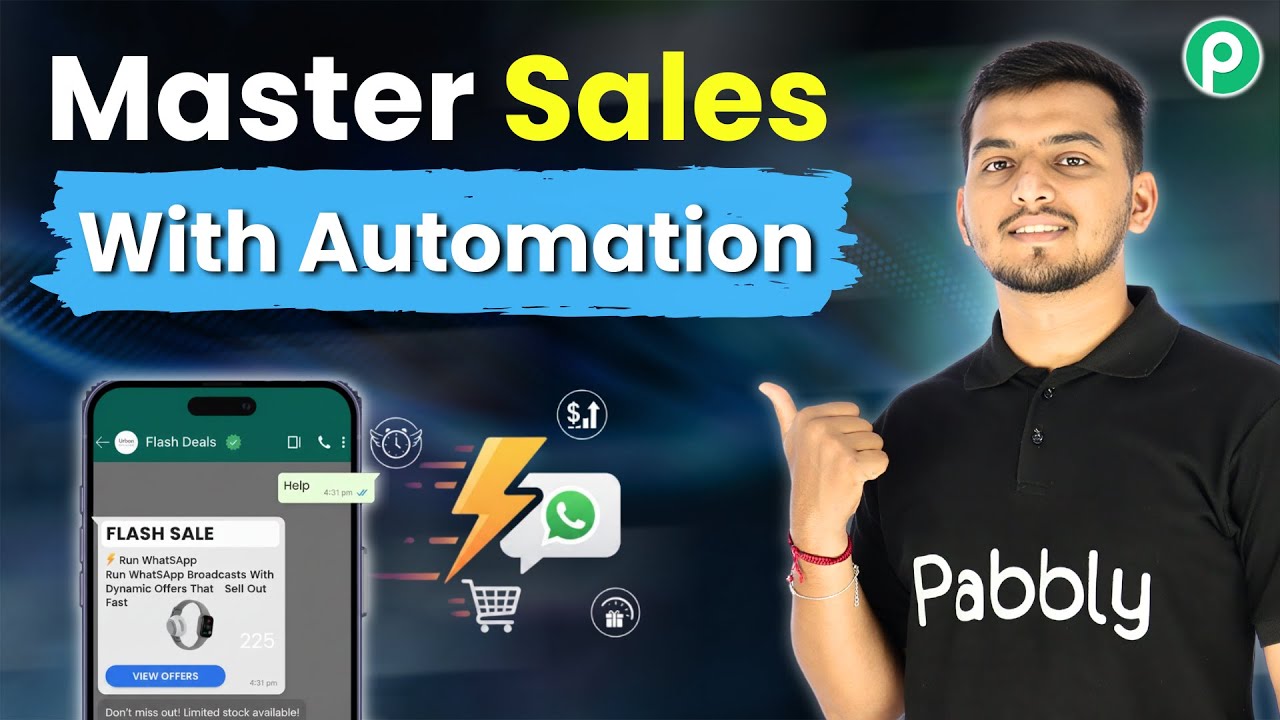
Run Flash Sale WhatsApp Broadcasts With Dynamic Offers That Sell Out Fast

Learn how to run flash sale WhatsApp broadcasts with dynamic offers using Pabbly Chatflow. Step-by-step tutorial to maximize sales instantly. This detailed guide shows you how to build powerful chat automation that engages visitors and converts prospects—without any coding required.

Watch Step By Step Video Tutorial Below


1. Accessing Pabbly Chatflow for Flash Sale Broadcasts

To run flash sale WhatsApp broadcasts with dynamic offers, start by accessing Pabbly Chatflow. Open a new tab and navigate to Pabbly.com/chatflow. This will direct you to the Pabbly Chatflow landing page.

On the top right corner of the page, you will see options to sign in or sign up. New users should click on ‘Sign Up Free’ to create an account, which includes 100 free credits each month. Existing users can click ‘Sign In’ to access their dashboard. Once logged in, you are ready to start your flash sale broadcast.


2. Setting Up Your WhatsApp Number in Pabbly Chatflow

After logging into Pabbly Chatflow, the next step is to set up your WhatsApp number. On the dashboard, locate the area displaying your WhatsApp number. Click on the button to add your WhatsApp number using either the WhatsApp connect method or the manual token connect method.

  • Choose the WhatsApp connect method for easier integration.
  • Use the manual token connect method if you prefer a more hands-on approach.

Once your WhatsApp number is added, you can proceed to create your broadcast. This setup is crucial for sending dynamic offers during your flash sale.


3. Creating a Flash Sale Broadcast in Pabbly Chatflow

To create a broadcast, click on the ‘Broadcasts’ option on the left-hand side. Then, select the ‘Add Broadcast’ button. You will need to fill in specific details about your broadcast, including the campaign type and name. using Pabbly Connect

  • Select ‘Broadcast Campaign’ as the type.
  • Name your broadcast, for example, ‘New Year Sale Broadcast’.
  • Choose the contact list you want to send the broadcast to.

Make sure to select the correct contact list that you have previously created. This step ensures that your offers reach the right audience during your flash sale.


4. Selecting Message Type and Template in Pabbly Chatflow

Next, you need to select the message type for your broadcast. There are two options: pre-approved template message or regular message. For this process, select the pre-approved template message to ensure compliance with WhatsApp’s policies. using Pabbly Connect

Now, click on the ‘Select WhatsApp Template’ button to choose your template. You can create a dynamic template by including fields for customer names and coupon validity dates. For instance, use the dollar sign format to make the name field dynamic.

Enter the validity date for your coupon code. Ensure that your template is approved by Meta to avoid delivery issues.

By setting up your message correctly, you enhance the likelihood of customer engagement during your flash sale.


5. Scheduling and Sending Your Broadcast

Finally, decide whether to send your broadcast immediately or schedule it for later. If you want to send it instantly, click ‘No’ when prompted. Otherwise, select ‘Yes’ and choose the date and time for your broadcast.

After confirming your settings, click the ‘Add Broadcast’ button to finalize. You will see a confirmation that your broadcast has been sent successfully to all contacts in your selected list.

Utilizing Pabbly Chatflow for your flash sale broadcasts allows you to communicate time-sensitive offers effectively, ensuring that your customers receive them promptly.


Conclusion

In this tutorial, we explored how to run flash sale WhatsApp broadcasts using Pabbly Chatflow. By following the steps outlined, you can create dynamic offers that reach your customers instantly, driving sales effectively. Implement these strategies for your next flash sale to maximize your outreach and engagement.

Ensure you check out Pabbly Connect to create business automation workflows and reduce manual tasks. Pabbly Connect currently offer integration with 2,000+ applications.

WhatsApp Broadcast Automation for Business

Learn how to set up WhatsApp Broadcast Automation using Pabbly Chatflow to send personalized messages to your contacts easily. Explore how leading businesses automate customer interactions with carefully designed chat sequences that feel natural and helpful.

Watch Step By Step Video Tutorial Below


1. Accessing Pabbly Chatflow for WhatsApp Automation

To start using Pabbly Chatflow for WhatsApp broadcast automation, you need to visit the Pabbly website. Simply search for Pabbly.com/chatflow in your browser. This will take you to the home page of Pabbly Chatflow.

Once there, you will see two options: ‘Sign In’ and ‘Sign Up Free’. If you are a new user, click on ‘Sign Up Free’ to create an account. For existing users, simply click on ‘Sign In’ to access your dashboard. This is where you can manage all your WhatsApp broadcasts.


2. Setting Up Your WhatsApp Number in Pabbly Chatflow

After logging into Pabbly Chatflow, you need to connect your WhatsApp number. Click on the ‘Add WhatsApp Number’ option. You will see two methods: WhatsApp Connect and Manual Token Connect.

  • WhatsApp Connect: Use this for easy integration.
  • Manual Token Connect: Ideal for those who prefer manual setup.

Choose the method that suits you best and follow the prompts to successfully connect your WhatsApp number to your Pabbly Chatflow account. This connection is essential for sending messages through the platform.


3. Creating a WhatsApp Template in Pabbly Chatflow

To send personalized messages, you must first create a WhatsApp template in Pabbly Chatflow. Navigate to the ‘Templates’ section from the left sidebar. Here, you can see existing templates or create a new one by clicking the ‘Add Template’ button.

When creating a template, ensure it is approved, as only approved templates can be used for sending messages. Fill in the necessary details like template name and message content, ensuring personalization options are included, such as customer names.


4. Setting Up WhatsApp Broadcast Automation

Once your template is ready, it’s time to set up the broadcast. In Pabbly Chatflow, go to the ‘Broadcast’ section and click on ‘Add Broadcast’. Select the type of broadcast you want to create and give it a name, such as ‘New Offer Message’.

You will then need to choose your contact list, which can be imported from Google Sheets or added manually. Make sure your contacts are formatted correctly for the broadcast to work seamlessly. After selecting the contacts, choose your message type, either pre-approved template or a regular message.

  • Select the pre-approved template you created earlier.
  • Customize the message with variables to personalize it for each recipient.

Lastly, you can choose to send the message immediately or schedule it for a later date. This feature allows for efficient planning of your communications through Pabbly Chatflow.


5. Testing Your WhatsApp Broadcast

Before finalizing your broadcast, it’s critical to test it. In Pabbly Chatflow, you can send a test message to your WhatsApp number. This ensures that everything is set up correctly and that the message appears as intended.

After sending the test, check your WhatsApp to confirm you received the message. Once confirmed, you can proceed with scheduling or sending your broadcast to all selected contacts. This step is crucial for ensuring your messages are delivered successfully.


Conclusion

In this tutorial, we covered how to automate WhatsApp broadcasts using Pabbly Chatflow. By following these steps, you can easily send personalized messages to your contacts, enhancing your business communication.

Ensure you check out Pabbly Connect to create business automation workflows and reduce manual tasks. Pabbly Connect currently offer integration with 2,000+ applications.

Utilizing Pabbly Chatflow for WhatsApp broadcast automation not only saves time but also ensures that your messages reach your audience effectively.

Add Lead Details to Monday.com Automatically

Learn how to automatically add lead details to Monday.com using Pabbly Connect. This step-by-step tutorial covers integration with Google Ads and more. Implement the precise methodologies leading organizations use to automate repetitive tasks, illustrated with practical examples designed for immediate application.

Watch Step By Step Video Tutorial Below


1. Accessing Pabbly Connect for Integration

To begin adding lead details to Monday.com automatically, you need to access Pabbly Connect. If you are an existing user, simply log in to your account. For new users, visit the Pabbly Connect website and sign up for free, which allows you to explore the platform with 100 free leads each month.

Once logged in, navigate to the workflow builder, which is essential for setting up your automation. This interface will allow you to create a connection between Google Ads and Monday.com, enabling automatic lead entry into your Monday.com board.


2. Setting Up the Trigger in Pabbly Connect

In this step, you will establish a trigger within Pabbly Connect that activates when a new lead is generated through Google Ads. Click on the ‘Add Trigger’ button and select Google Ads as your application.

  • Choose the event as ‘New Lead Form Entry’
  • Click ‘Connect’ to generate a web URL
  • Copy the web URL for use in Google Ads

After copying the URL, open your Google Ads account and navigate to the campaign where you want to add the lead form. Paste the web URL in the lead delivery settings to establish the connection between Google Ads and Pabbly Connect.


3. Capturing Lead Details from Google Ads

Once the connection is set up, you need to test it by sending a test lead from Google Ads. This allows Pabbly Connect to capture the lead details such as company name, phone number, email, first name, and last name.

After sending the test data, return to the workflow in Pabbly Connect to ensure that the response has been successfully captured. You will see the details displayed in the workflow, confirming that the integration is working correctly.


4. Adding Lead Details to Monday.com

Now that you have captured the lead details, it’s time to add them to Monday.com. In Pabbly Connect, click on ‘Add New Action Step’ and select Monday.com as your action application.

  • Choose the event as ‘Create Item’
  • Connect to your Monday.com account using the API token
  • Select the board ID and group name where the lead details will be added

After setting up the action, map the details from the previous step to the appropriate fields in Monday.com. This ensures that every new lead will automatically populate the correct information in your Monday.com board.


5. Testing and Activating the Automation

Finally, after configuring the automation, it’s important to test it. Click on ‘Save and Send Test Request’ in Pabbly Connect to verify that the lead details are correctly added to Monday.com. If successful, you will see the new lead entry in your Monday.com board.

Once confirmed, your automation is now active, and you no longer need to manually add leads. This seamless integration allows your sales team to work efficiently with new leads directly from Monday.com.


Conclusion

By following this tutorial, you have learned how to use Pabbly Connect to automate the addition of lead details from Google Ads to Monday.com. This integration streamlines your workflow and saves valuable time for your team. Start using Pabbly Connect today to enhance your business processes!

Ensure you check out Pabbly Connect to create business automation workflows and reduce manual tasks. Pabbly Connect currently offer integration with 2,000+ applications.

How to Auto-Categorize Leads in HubSpot from Facebook Lead Ads

Learn how to automate lead categorization in HubSpot from Facebook Lead Ads using Pabbly Connect. Follow this step-by-step tutorial for seamless integration. Explore systematic approaches to creating efficient automation solutions that convert technical concepts into practical, implementable instructions.

Watch Step By Step Video Tutorial Below


1. Introduction to Pabbly Connect for Lead Automation

Pabbly Connect is the central platform that automates the lead categorization process in HubSpot from Facebook Lead Ads. This integration saves time and eliminates manual data entry. using Pabbly Connect

By using Pabbly Connect, you can seamlessly transfer lead data from Facebook to HubSpot without any coding. This automation allows businesses to focus on nurturing leads rather than managing them manually.


2. Setting Up Pabbly Connect for Facebook Lead Ads

To get started, visit Pabbly Connect and sign in to your account. If you are a new user, you can sign up for free and get 100 free tasks every month.

  • Go to the Pabbly Connect dashboard.
  • Click on ‘Create Workflow’ to set up a new automation.
  • Select the ‘New Beta Builder’ for a modern workflow experience.

Once you have set up your workflow, name it according to your task, such as ‘Lead in HubSpot from Facebook Lead Ads.’ This naming helps in identifying the workflow later.


3. Configuring Facebook Lead Ads in Pabbly Connect

In this step, you will configure the trigger for your workflow. Select Facebook Lead Ads as your app and choose the event as ‘New Lead Instant.’ This will allow Pabbly Connect to capture leads as they come in. using Pabbly Connect

Next, connect your Facebook account by adding a new connection. After successful connection, select the page from which you want to capture leads and the lead generation form.

  • Choose your Facebook page.
  • Select the lead gen form to capture new leads.
  • Enable the simple response toggle to receive immediate feedback.

After configuring these settings, save and send a test request to ensure that the connection works correctly.


4. Mapping Data to HubSpot Using Pabbly Connect

Now that your trigger is set up, it’s time to add an action step to map the captured lead data to HubSpot. Search for HubSpot and select the action event as ‘Create Contact.’ This will allow you to create a new contact whenever a new lead is captured. using Pabbly Connect

Connect your HubSpot account by adding a new connection. After granting access, map the fields from the Facebook lead to the corresponding fields in HubSpot, such as email address, first name, last name, phone number, and city.

Map the email address from the Facebook lead to HubSpot. Link the first name and last name accordingly. Ensure the phone number and city are correctly mapped.

Once all fields are mapped, save and send a test request to confirm that the data is correctly entered into HubSpot.


5. Testing and Activating Your Workflow

After successfully mapping the data, it’s crucial to test the entire workflow to ensure everything functions as intended. Fill out the Facebook lead ad form to generate a new lead.

Once the form is submitted, check HubSpot to see if the lead information appears correctly. You should see the name, email address, phone number, and city captured from the lead ad.

After verifying that the data is correctly transferred, activate your workflow in Pabbly Connect. This will ensure that every new lead from Facebook is automatically categorized in HubSpot without any manual effort.


Conclusion

In conclusion, using Pabbly Connect to auto-categorize leads in HubSpot from Facebook Lead Ads streamlines your lead management process. This automation not only saves time but also minimizes the risk of human error, allowing you to focus on other important business tasks.

Ensure you check out Pabbly Connect to create business automation workflows and reduce manual tasks. Pabbly Connect currently offer integration with 2,000+ applications.

How to Automatically Save LinkedIn Leads to Google Contacts for Digital Marketing Agencies

Learn how to automatically save LinkedIn leads to Google Contacts using Pabbly Connect. Step-by-step tutorial for digital marketing agencies. Explore efficient methods for automating routine tasks with clear, concise instructions suited for both newcomers and experienced professionals.

Watch Step By Step Video Tutorial Below


1. Accessing Pabbly Connect for Integration

To begin automating the process of saving LinkedIn leads to Google Contacts, you first need to access Pabbly Connect. Start by visiting the Pabbly website and signing in to your account. If you are a new user, you can sign up for a free account, which allows you to use 100 tasks monthly to test the platform.

Once logged in, navigate to the Pabbly Connect dashboard. Here, you can create new workflows that will facilitate the integration of LinkedIn and Google Contacts. This is where you will set up the automation that triggers whenever a new lead is generated from LinkedIn.


2. Creating a New Workflow in Pabbly Connect

In the Pabbly Connect dashboard, click on the ‘Create Workflow’ button. You will be prompted to name your workflow. For this integration, name it ‘Automatically Save LinkedIn Leads to Google Contacts for Digital Marketing Agencies’. Select an appropriate folder for organization, such as ‘LinkedIn Automation’.

  • Click on the ‘Create’ button to finalize your workflow setup.
  • Choose LinkedIn as your trigger application, and select ‘Lead Notifications’ as the trigger event.
  • Connect your LinkedIn account to Pabbly Connect by entering your credentials.

After connecting LinkedIn, you will need to select the sponsored account you want to use for this workflow. Once selected, click on ‘Save and Send Test Request’ to confirm that the connection is working properly.


3. Testing the LinkedIn Integration

To test the integration, you need to generate a lead through LinkedIn. Open your LinkedIn campaign and fill out the lead generation form with the necessary details, such as email and phone number. Once the form is submitted, Pabbly Connect will capture this data as part of the workflow.

After submission, return to the Pabbly Connect dashboard to check if the lead details have been successfully captured. You should see the email and phone number you entered in the test submission. This confirms that the LinkedIn trigger is properly set up and functioning.


4. Adding Google Contacts Integration in Pabbly Connect

Next, you will set up the action step that adds the captured lead to Google Contacts. In the Pabbly Connect workflow, click on ‘Add New Action Step’ and select Google Contacts as your action application. Choose ‘Create Contact’ as the action event.

  • Connect your Google account by signing in and granting permission to Pabbly Connect.
  • Map the fields from the LinkedIn lead to the Google Contacts fields, such as first name, last name, email, and phone number.
  • Ensure that mapping is done correctly to keep the data dynamic for future leads.

After mapping the fields, click on ‘Save and Send Request’ to finalize the integration. This will create a new contact in your Google Contacts based on the lead information captured from LinkedIn.


5. Verifying the Google Contacts Integration

Once you have saved the action step, it is time to verify that the integration works as intended. Open your Google Contacts and refresh the page to check if the new lead has been added successfully. You should see the contact created with the details you provided during the LinkedIn lead submission.

This final step confirms that your automation workflow between LinkedIn and Google Contacts via Pabbly Connect is fully operational. Whenever a new lead is generated in LinkedIn, it will automatically be saved in your Google Contacts.


Conclusion

In this tutorial, we have successfully set up an automation workflow using Pabbly Connect to save LinkedIn leads directly to Google Contacts. This process streamlines lead management for digital marketing agencies, ensuring no lead is missed. By following these steps, you can enhance your marketing efforts and improve efficiency.

Ensure you check out Pabbly Connect to create business automation workflows and reduce manual tasks. Pabbly Connect currently offer integration with 2,000+ applications.

Extract YouTube New Comments & Store in Google Sheets

Learn how to extract YouTube comments and store them in Google Sheets using Pabbly Connect. Step-by-step tutorial with detailed instructions. Explore systematic approaches to creating efficient automation solutions that convert technical concepts into practical, implementable instructions.

Watch Step By Step Video Tutorial Below


1. Access Pabbly Connect for YouTube Comment Extraction

To begin extracting YouTube comments and storing them in Google Sheets, you need to access Pabbly Connect. Start by navigating to the Pabbly website and selecting the Connect option. This platform allows you to efficiently integrate various applications, including YouTube and Google Sheets, without manual coding.

Once on the Pabbly Connect page, you can either sign up for a free account or log in if you’re an existing user. The platform provides a user-friendly interface to create automation workflows. You will find options to create a new workflow, which is essential for setting up your YouTube comment extraction process.


2. Create a Workflow in Pabbly Connect

After logging into Pabbly Connect, the next step is to create a new workflow. Click on the ‘Create Workflow’ button, and you will be prompted to name your workflow. For this task, name it ‘Extract YouTube New Comments and Store in Google Sheets’ to keep it organized.

In this section, you will also choose the folder where your workflow will be stored. After naming your workflow, click on the ‘Create’ button to proceed. This workflow will serve as the backbone for automating the extraction of comments from your YouTube videos.

  • Click on ‘Create Workflow’.
  • Name your workflow appropriately.
  • Select a folder for organization.

Once your workflow is created, you can start adding triggers and actions. This is where the automation process will begin, making your YouTube comments instantly available in Google Sheets.


3. Setting Up the Trigger with YouTube

The next step involves setting up the trigger for your workflow in Pabbly Connect. Click on the option to add a trigger and choose YouTube as your application. The specific event you want to select is ‘New Comment on a Channel.’ This event will initiate the workflow every time a new comment is posted on your selected YouTube channel.

To connect your YouTube account, you will need to add a new connection. This requires signing in with your Google account and granting the necessary permissions. Once connected, you can specify the channel name from which you want to extract comments and set a maximum result limit, such as 100, to control how many comments are fetched at a time.

  • Select ‘New Comment on a Channel’ as the event.
  • Connect your YouTube account.
  • Set the maximum result limit.

After configuring these settings, click on ‘Save and Send Test Request’ to ensure that the trigger is set up correctly. You should receive a response with the latest comment details, enabling you to move forward with the automation process.


4. Fetching Video Details Using Pabbly Connect

After successfully setting up the trigger, the next step in Pabbly Connect is to fetch video details associated with the new comments. To do this, add another action step and select YouTube again, this time choosing the event ‘Get Video ID.’ This action will allow you to retrieve the video ID related to the comment that triggered the workflow.

As before, connect to your existing YouTube connection. You will then map the video ID from the previous step to ensure that the correct video title is fetched along with the comment details. Once set, click on ‘Save and Send Test Request’ to verify that the video title is successfully extracted.

Select ‘Get Video ID’ as the event. Connect using the existing YouTube connection. Map the video ID from the previous step.

This step is crucial as it ensures that you have all necessary details, including the video title, which will be saved in your Google Sheets along with the comments.


5. Saving Comments to Google Sheets

Now that you have both the comment details and the video title, the final step in Pabbly Connect is to save this information into Google Sheets. To do this, add another action step and search for Google Sheets, selecting the event ‘Add New Row.’ This action will allow you to insert a new row in your specified Google Sheets document.

Connect to your Google Sheets account by adding a new connection and signing in. Select the spreadsheet where you want the comments to be stored. You will then need to map the details such as the commenter’s name, comment date, comment text, and video title into the corresponding columns of your Google Sheet. After mapping all required fields, click on ‘Save and Send Test Request’ to finalize the process.

Once completed, you will see that the new comment has been successfully added to your Google Sheet, including all relevant details. This automation saves you from manual work and allows you to focus on engaging with your audience.


Conclusion

In this tutorial, we explored how to extract YouTube comments and store them in Google Sheets using Pabbly Connect. By following the steps outlined, you can automate the process without any coding, ensuring you never miss important comments again. This integration enhances your productivity and streamlines your workflow.

Ensure you check out Pabbly Connect to create business automation workflows and reduce manual tasks. Pabbly Connect currently offer integration with 2,000+ applications.

How to Add TikTok Leads to HubSpot Automatically

Learn how to integrate TikTok leads into HubSpot automatically using Pabbly Connect with this step-by-step tutorial. Learn to create powerful connections between your critical applications without requiring specialized programming knowledge or extensive technical background.

Watch Step By Step Video Tutorial Below


1. Accessing Pabbly Connect for Integration

To begin the process of adding TikTok leads to HubSpot automatically, you first need to access Pabbly Connect. This powerful automation tool allows seamless integration between different applications. If you’re a new user, simply visit Pabbly.com/connect to sign up for a free account.

Once you’re on the Pabbly Connect landing page, click on the ‘Sign Up for Free’ button located in the top right corner. You’ll receive 100 free tasks every month, which is perfect for testing out your TikTok and HubSpot integrations. After registering, you can explore Pabbly Connect’s features and create your first automation workflow.


2. Creating Your Workflow in Pabbly Connect

After logging into Pabbly Connect, navigate to the workflow builder. This is where you will set up the automation to add TikTok leads to HubSpot. Click on the ‘Add New Workflow’ button to get started, and give your workflow a meaningful name.

  • Click on ‘Add Trigger’ to select your trigger application.
  • Search for ‘TikTok Lead Generation’ and select it.
  • Choose ‘New Lead’ as the event.

Once you have set up the trigger, click on ‘Connect’ to link your TikTok account with Pabbly Connect. If you haven’t connected TikTok yet, you’ll be prompted to log into your TikTok for Business account and grant the necessary permissions.


3. Configuring the TikTok Connection

After successfully connecting TikTok to Pabbly Connect, you need to select the appropriate advertiser ID and form ID for your leads. This step is crucial as it determines which leads will be sent to HubSpot.

Ensure that you set the response format to ‘Advanced’ and click on ‘Save and Send Test Request’. At this point, Pabbly Connect will wait for a webhook response from TikTok. You can either wait for a real lead or create a test lead to proceed.

  • To create a test lead, add a new action step and select ‘TikTok Trigger’.
  • Choose ‘Create Test Lead’ as the event.

Once you create the test lead, you will capture the lead details, such as name, email, and phone number, which will be used in the subsequent steps of your integration.


4. Adding HubSpot Connection in Pabbly Connect

Next, you will add HubSpot as the action application in your workflow. Search for ‘HubSpot CRM’ and select it as the action app. Choose ‘Create Contact’ as the action event and click ‘Connect’ to link your HubSpot account with Pabbly Connect.

If you have previously connected HubSpot, simply select the existing connection. If not, you will need to log into your HubSpot account and authorize Pabbly Connect to access your HubSpot data.

Map the lead details from TikTok into the corresponding fields in HubSpot. Ensure to include the email address and any other relevant information.

After mapping the details, click on ‘Save and Send Test Request’. This will create a new contact in HubSpot using the information from your TikTok lead.


5. Verifying the Integration in HubSpot

Finally, it’s time to verify that the integration is working correctly. Go to your HubSpot CRM and check if the new contact has been created successfully. The details should match what you entered during the test session in Pabbly Connect.

With the integration set up, every time you receive a new lead from TikTok, a new contact will automatically be created in HubSpot CRM. This seamless process eliminates the need for manual data entry, saving you time and effort.

Now you can enjoy the benefits of having your TikTok leads automatically added to HubSpot, enhancing your lead management process. For any questions or assistance, feel free to reach out to the Pabbly support team.


Conclusion

Using Pabbly Connect to automatically add TikTok leads to HubSpot is a powerful way to streamline your lead management. This integration allows you to save time and ensure that your leads are always up-to-date in your CRM.

Ensure you check out Pabbly Connect to create business automation workflows and reduce manual tasks. Pabbly Connect currently offer integration with 2,000+ applications.

By following the detailed steps outlined above, you can set up this automation quickly and efficiently. Start using Pabbly Connect today to enhance your business processes!