How to Create Facebook Posts with AI and Google Sheets

Learn how to automate Facebook posts using AI and Google Sheets with Pabbly Connect. Follow this detailed tutorial for easy integration steps. Discover how to seamlessly connect your essential tools through accessible instructions that make powerful automation available to professionals at every skill level.

Watch Step By Step Video Tutorial Below


1. Accessing Pabbly Connect to Start Automation

To begin creating Facebook posts using AI and Google Sheets, you need to access Pabbly Connect. Start by visiting the Pabbly website and navigating to the Connect section. If you are a new user, click on ‘Sign Up Free’ to create an account, which allows you to explore 100 free tasks every month.

Existing users can simply sign in. After signing in, you will see the dashboard where all Pabbly applications are listed. Click on the ‘Access Now’ button to enter Pabbly Connect. This platform is essential for integrating Google Sheets with Facebook, enabling seamless automation of your posting process.


2. Creating a Workflow in Pabbly Connect

Once you are in Pabbly Connect, the next step is to create a new workflow. Click on the ‘Create Workflow’ button and name your workflow, such as ‘Create Facebook Posts with AI and Google Sheets’. Choose an appropriate folder for organization. using Pabbly Connect

  • Click on the ‘Create’ button to initiate the workflow.
  • Select the ‘Beta’ version for a modern experience.
  • Once the workflow is created, set up a trigger and action for automation.

In this workflow, the trigger will be an update in Google Sheets. This is where Pabbly Connect shines, as it allows you to automate tasks based on real-time data updates, ensuring your Facebook posts are always current.


3. Setting Up Google Sheets as a Trigger

To set Google Sheets as your trigger, select ‘Google Sheets’ from the list of applications in Pabbly Connect. Choose the trigger event as ‘New Updated Spreadsheet Row’. This means the workflow will activate whenever a new row is added to your Google Sheet.

Copy the webhook URL provided by Pabbly Connect and paste it into your Google Sheets add-on. This will link your Google Sheet directly to Pabbly Connect, allowing it to receive updates. Make sure to add a new detail in your Google Sheet to test the connection.

  • Open your Google Sheet and navigate to Extensions.
  • Select ‘Add-ons’, then ‘Get Add-ons’ to install the Pabbly Connect Webhooks add-on.
  • Follow the prompts to complete the installation.

Once the add-on is installed, refresh your Google Sheet and set up the webhook to ensure it captures the new data accurately. This is a critical step in ensuring your automation works smoothly with Pabbly Connect.


4. Generating AI Content for Facebook Posts

After successfully setting up your trigger, the next step is to generate content for your Facebook posts using AI. Select an AI tool like Gemini or OpenAI within Pabbly Connect to create the content based on the details added to your Google Sheet. using Pabbly Connect

In this step, you will need to map the data from the Google Sheet to the AI tool. Specify the text you want to generate by entering relevant prompts. This mapping allows Pabbly Connect to send the correct information to your AI tool, ensuring the generated content is relevant and engaging.

Select the action application as your chosen AI tool. Choose the event as ‘Generate Content’. Map the required fields from the Google Sheet to the AI tool.

Once the content is generated, Pabbly Connect will handle the next step of posting it to your Facebook page, streamlining the entire process.


5. Posting Generated Content to Facebook

The final step in this automation process is to post the generated content to your Facebook page. In Pabbly Connect, select ‘Facebook Pages’ as your action application and choose the event as ‘Create Page Post’. This action will automatically share the content generated by the AI tool on your Facebook page.

When setting up this action, connect your Facebook account to Pabbly Connect. After connecting, choose the page where you want to post the content. Map the generated content from the AI tool to the post content field in Pabbly Connect.

Ensure you have selected the correct Facebook page. Map the generated text to the appropriate field. Click on ‘Save and Send Test Request’ to ensure everything works.

Once you have confirmed that the post is successfully created, you can check your Facebook page to see the new post live. This integration showcases the power of Pabbly Connect in automating your social media management effectively.


Conclusion

In this tutorial, we explored how to automate Facebook posts using AI and Google Sheets with Pabbly Connect. By following these steps, you can streamline your social media content creation, ensuring timely and relevant posts without manual effort.

Ensure you check out Pabbly Connect to create business automation workflows and reduce manual tasks. Pabbly Connect currently offer integration with 2,000+ applications.

How to Add New Leads to Privyr Automatically

Learn how to automatically add new leads to Privyr using Pabbly Connect. This step-by-step tutorial covers all the necessary integrations and actions. Discover how to seamlessly connect your essential tools through accessible instructions that make powerful automation available to professionals at every skill level.

Watch Step By Step Video Tutorial Below


1. Getting Started with Pabbly Connect

To begin with, Pabbly Connect is the automation platform that will facilitate the integration of Google Ads with Privyr. If you are a new user, open a new tab and search for pabbl.com/connect to access Pabbly Connect’s landing page. Here, you can sign up for free, allowing you to explore its features and automate tasks without any cost.

Once you are logged into Pabbly Connect, navigate to the workflow builder where you can set up your automation. This is where you will define triggers and actions that will enable the automatic transfer of lead data from Google Ads to Privyr.


2. Setting Up the Trigger in Pabbly Connect

In the workflow builder of Pabbly Connect, the first step is to add a trigger. Click on the ‘Add Trigger’ button and search for Google Ads as your trigger application. Select the event as ‘New Lead Form Entry’ and click on ‘Connect’.

  • Search for Google Ads in the trigger application.
  • Choose ‘New Lead Form Entry’ as the event.
  • Click ‘Connect’ to generate a webhook URL.

Copy the generated webhook URL and head over to your Google Ads campaign. In your lead form settings, paste the webhook URL into the lead delivery section. This establishes the connection between Google Ads and Pabbly Connect, enabling it to capture lead details automatically.


3. Capturing Lead Data in Pabbly Connect

After setting up the trigger, the next step is to capture lead data. In Google Ads, send a test lead through the lead form to see if Pabbly Connect captures the data correctly. You will see the captured response in your workflow, which includes the lead’s first name, last name, email, and phone number.

If you want to test with real leads, you can click on ‘Recapture Webhook Response’ to wait for actual lead data to be sent. However, using test data is sufficient for setting up your automation. Once the data is captured, you can proceed to the next step.


4. Adding an Action Step to Create a New Client in Privyr

Now that you have captured the lead data, it’s time to add an action step in Pabbly Connect. Click on ‘Add New Action Step’ and search for Privyr as the action application. Select ‘Create Client’ as the event and click ‘Connect’. If you have an existing connection, select it; otherwise, create a new connection by entering your Privyr authentication token.

  • Search for Privyr in the action application.
  • Choose ‘Create Client’ as the action event.
  • Enter your Privyr authentication token to connect.

After connecting, you need to map the lead details from the previous step. Mapping allows you to dynamically insert data, ensuring that each new lead’s information is captured accurately. Enter the required details such as first name, last name, email, and phone number, ensuring they are mapped correctly from the captured data.


5. Testing and Saving the Workflow in Pabbly Connect

After mapping the lead details, click on ‘Save and Send Test Request’. This action will create a new client in Privyr using the test data. You should receive a positive response indicating that the client has been successfully created.

To verify, go back to your Privyr account and check the client section to see the newly created client with all the mapped details. This confirms that your automation is functioning correctly, and from now on, every new lead from Google Ads will automatically create a new client in Privyr through Pabbly Connect.


Conclusion

In this tutorial, we explored how to use Pabbly Connect to automate the process of adding new leads to Privyr from Google Ads. This integration not only saves time but also ensures that your lead data is captured accurately and efficiently. By following these steps, you can enhance your lead management process and focus on growing your business.

Ensure you check out Pabbly Connect to create business automation workflows and reduce manual tasks. Pabbly Connect currently offer integration with 2,000+ applications.

Facebook Leads Are Wasted If You Don’t Do This Immediately

Learn how to automate your Facebook leads using Pabbly Connect with Google Sheets and Gmail for efficient lead management. Develop expertise in application integration and learn how to design streamlined automation workflows using proven, simplified approaches.

Watch Step By Step Video Tutorial Below


1. Accessing Pabbly Connect for Automation

To automate your Facebook leads, the first step is accessing Pabbly Connect. Open a new tab and navigate to the Pabbly Connect website.

Click on the ‘Sign Up Free’ button if you’re a new user or ‘Sign In’ if you already have an account. New users receive 100 free tasks each month, allowing them to explore the platform effectively.


2. Creating a Workflow in Pabbly Connect

Once logged into Pabbly Connect, click on the ‘Create Workflow’ button. This will allow you to set up a new automation process.

  • Select the new beta version of the workflow builder.
  • Name your workflow, for example, ‘Instant Facebook Lead Alerts.’
  • Choose a folder to organize your workflow.

After naming your workflow, click the ‘Create’ button to proceed. This sets the stage for integrating Facebook Lead Ads with other applications.


3. Integrating Facebook Lead Ads with Pabbly Connect

In this step, you will set Facebook Lead Ads as your trigger application in Pabbly Connect. Select Facebook Lead Ads and choose the event ‘New Lead’ to trigger the workflow.

Click the ‘Connect’ button and select ‘Add New Connection’ to link your Facebook account. Once connected, select the page and lead form you want to use for capturing leads.

  • Choose your Facebook page from the dropdown.
  • Select the lead form created for capturing leads.

This integration ensures that every new lead captured through Facebook will trigger the subsequent actions in your workflow.


4. Adding Lead Data to Google Sheets via Pabbly Connect

Next, you will set Google Sheets as the action application in Pabbly Connect. This allows you to automatically add new leads into a designated Google Sheet.

Choose the action event ‘Add New Row’ and click ‘Connect’ to link your Google account. After successful connection, select the spreadsheet and specific sheet where you want to store the lead data.

Select the spreadsheet name, e.g., ‘New Leads.’ Choose the sheet, for example, ‘Sheet1.’

Map the fields from the Facebook lead response to the corresponding columns in your Google Sheet. This dynamic mapping ensures that new lead data is automatically updated in your sheet.


5. Sending Email Notifications to Your Sales Team

The final step involves setting up Gmail to send email notifications about new leads captured through Facebook. In Pabbly Connect, select Gmail as the action application.

Choose the event ‘Send Email’ and connect your Gmail account. Fill in the required fields such as sender name, recipient email, subject, and email content.

Map the lead name, phone number, and email from the previous step. Customize your email content to include lead details.

Once all fields are filled in, click ‘Save and Send Test Request’ to verify that your email is sent successfully. This ensures your sales team is promptly notified of new leads.


Conclusion

By utilizing Pabbly Connect, you can seamlessly automate the process of capturing Facebook leads, adding them to Google Sheets, and notifying your sales team through Gmail. This integration not only saves time but also enhances lead management efficiency.

Ensure you check out Pabbly Connect to create business automation workflows and reduce manual tasks. Pabbly Connect currently offer integration with 2,000+ applications.

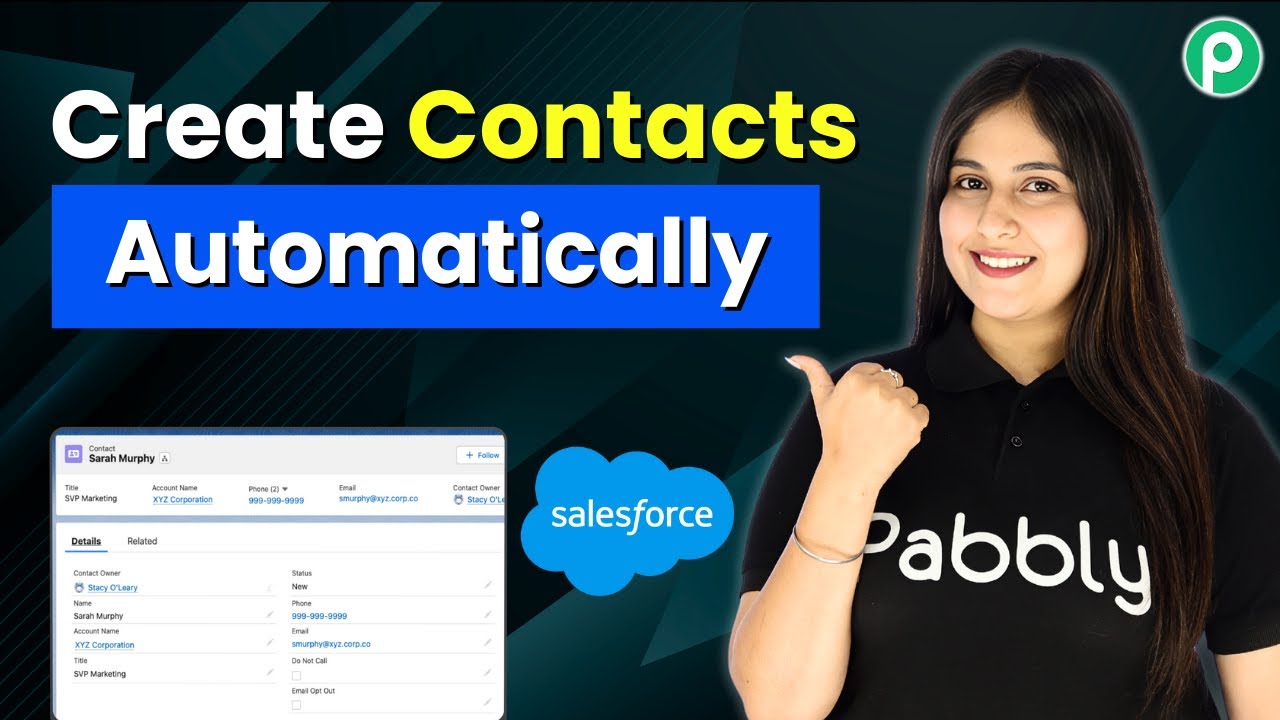
Create Bulk Contacts in Salesforce in One Click

Learn how to create bulk contacts in Salesforce with Pabbly Connect in just one click. Follow our step-by-step guide for seamless integration. Explore systematic approaches to creating efficient automation solutions that convert technical concepts into practical, implementable instructions.

Watch Step By Step Video Tutorial Below


1. Accessing Pabbly Connect for Salesforce Integration

To create bulk contacts in Salesforce, you first need to access Pabbly Connect. Start by navigating to Pabbly’s website and signing in or creating a free account. This platform will serve as the central hub for integrating your Google Sheets with Salesforce.

Once logged in, you can access the Pabbly Connect dashboard. Here, you will find options to create a new workflow. This is essential for automating your contact creation process. Select the ‘Create Workflow’ button to begin setting up your integration.


2. Creating a Workflow in Pabbly Connect

After accessing Pabbly Connect, you will need to create a new workflow specifically for bulk contact creation in Salesforce. Click on the ‘Create Workflow’ button and enter a name for your workflow, such as ‘Create Bulk Contacts in Salesforce’. Choose a suitable folder for your workflow from the dropdown menu.

  • Select the folder where you want to save your workflow.
  • Choose the beta version for a modern interface.
  • Click on the ‘Create’ button to finalize your workflow setup.

Your workflow is now created and ready for further configuration. This step is crucial as it lays the foundation for integrating Google Sheets with Salesforce through Pabbly Connect.


3. Setting Up the Trigger in Pabbly Connect

In this section, you will set up the trigger for your workflow. Select Google Sheets as the trigger application and choose the event as ‘New Updated Spreadsheet Row’. This will allow Pabbly Connect to monitor your Google Sheets for any new entries, which will then be sent to Salesforce.

To connect Google Sheets with Pabbly Connect, you will need to copy the webhook URL provided. This URL is essential for linking your Google Sheets data with the workflow you just created. Follow the instructions to set up the webhook in your Google Sheets account.


4. Configuring Google Sheets to Work with Pabbly Connect

Once you have set up the webhook URL, the next step is to configure your Google Sheets. You will need to install the Pabbly Connect add-on in your Google Sheets. Go to the Extensions menu, select Add-ons, and then Get Add-ons to search for Pabbly Connect.

  • Install the Pabbly Connect add-on in your Google Sheets.
  • Open the add-on and select ‘Initial Setup’.
  • Paste the webhook URL and set the trigger column.

After configuring these settings, refresh your Google Sheets to ensure everything is working correctly with Pabbly Connect. This setup will enable automatic data capture whenever new leads are added to your Google Sheets.


5. Creating Contacts in Salesforce with Pabbly Connect

Now that your Google Sheets is configured, it’s time to set up the action step in Pabbly Connect to create contacts in Salesforce. Select Salesforce as the action application and choose the event ‘Create Contact’. This will allow Pabbly Connect to automatically create a new contact in your Salesforce account based on the data from your Google Sheets.

Map the fields from your Google Sheets to the corresponding fields in Salesforce, such as first name, last name, email address, and phone number. Once you have completed the mapping, click on the ‘Save and Send Test Request’ button to test the integration. You should see a successful response indicating that the contact has been created in Salesforce.


Conclusion

In conclusion, using Pabbly Connect allows for seamless integration between Google Sheets and Salesforce, enabling you to create bulk contacts in just one click. By following the steps outlined in this tutorial, you can automate your contact creation process efficiently and effectively.

Ensure you check out Pabbly Connect to create business automation workflows and reduce manual tasks. Pabbly Connect currently offer integration with 2,000+ applications.

Follow Up Automatically with Every Lead (No CRM Needed)

Learn how to follow up automatically with every lead using Pabbly Connect, integrating TikTok, Google Sheets, and WhatsApp for seamless lead management. Explore systematic approaches to creating efficient automation solutions that convert technical concepts into practical, implementable instructions.

Watch Step By Step Video Tutorial Below


1. Accessing Pabbly Connect for Automation

To start automating your lead follow-up process, first, access Pabbly Connect by visiting Pabbly.com/connect. This platform allows you to integrate various applications seamlessly.

Once on the Pabbly Connect landing page, you will find options to either sign in or sign up for a free account. New users can create an account to receive 100 free tasks monthly, which helps you explore the platform without any cost.


2. Creating a Workflow in Pabbly Connect

After logging into your Pabbly Connect account, navigate to the dashboard and click on the ‘Create Workflow’ button. This will allow you to set up a new automation process.

  • Select between the new beta version or the classic version of the workflow builder.
  • Name your workflow to identify it later, such as ‘TikTok Lead Follow-Up System.’
  • Choose a folder to save your workflow for better organization.

With the workflow created, you can now add triggers and actions to automate your lead follow-up process using Pabbly Connect.


3. Integrating TikTok for Lead Generation

To begin, click on the ‘Add Trigger’ button in your workflow. Here, you will select TikTok as your trigger application. This integration allows you to receive leads directly from your TikTok account. using Pabbly Connect

For the event, choose ‘New Lead’ and establish a connection by clicking on the ‘Connect’ button. If you are setting this up for the first time, you will need to create a new connection. Once connected, select your advertiser ID and form ID from TikTok.


4. Adding Leads to Google Sheets via Pabbly Connect

Next, you will add a new action step to your workflow to store lead details in Google Sheets. Click the plus button and select Google Sheets as your action application. Choose the ‘Add New Row’ event to log each new lead.

  • Connect your Google Sheets account to Pabbly Connect.
  • Select the spreadsheet where you want to add the lead details.
  • Map the fields from TikTok to the corresponding columns in your Google Sheet.

Once you have mapped all necessary fields, press the ‘Save and Send Test Request’ button. This will ensure that the lead details are correctly added to your Google Sheet using Pabbly Connect.


5. Sending WhatsApp Messages Automatically

The final step in your automation is to send a welcome message via WhatsApp. Add another action step by selecting WhatsApp Cloud API as your application, and choose the ‘Send Text Message’ event.

After connecting to WhatsApp, you will need to enter the recipient’s mobile number and the message you want to send. Make sure to map the lead’s name within the message for personalization.

Once everything is set, click on the ‘Save and Send Test Request’ button. This will send a welcome message to your lead, confirming that your automation setup through Pabbly Connect is functioning properly.


Conclusion

In this tutorial, we demonstrated how to automate lead follow-up using Pabbly Connect. By integrating TikTok, Google Sheets, and WhatsApp, you can efficiently manage your leads without needing a CRM. Start using Pabbly Connect today to streamline your business processes!

Ensure you check out Pabbly Connect to create business automation workflows and reduce manual tasks. Pabbly Connect currently offer integration with 2,000+ applications.

This AI Salesman Took Me Only 10 Minutes to Build 😳 | No Code

Learn how to build an AI salesman in just 10 minutes using Pabbly Connect to integrate Google Sheets and Bola AI effortlessly. Explore systematic approaches to creating efficient automation solutions that convert technical concepts into practical, implementable instructions.

Watch Step By Step Video Tutorial Below


1. Accessing Pabbly Connect for Your AI Salesman

To create an AI salesman, you first need to access Pabbly Connect. Open a new tab and navigate to Pabbly.com/connect. This is where you will set up your automation.

If you are a new user, sign up for a free account to explore the features of Pabbly Connect. You will receive 100 free tasks every month, which is perfect for testing your automation setup.


2. Setting Up Google Sheets Integration with Pabbly Connect

The first step in creating your AI salesman is to set up Google Sheets in Pabbly Connect. This will act as your data source for leads. In your Pabbly Connect dashboard, create a new workflow.

For the trigger application, select Google Sheets and the event as ‘New or Updated Spreadsheet Row.’ Click the connect button to establish the connection. Follow the on-screen instructions to copy the webhook URL provided by Pabbly Connect.

  • Go to your Google Sheets and install the Pabbly Connect Webhooks add-on.
  • Paste the copied webhook URL into the add-on setup.
  • Set the trigger column to the one where you will be entering phone numbers.

Once you have completed these steps, your Google Sheets will be connected to Pabbly Connect, ready to capture new lead data automatically.


3. Creating Your AI Salesman with Bola AI

Next, you need to set up your AI salesman using Bola AI. In Pabbly Connect, add an action step and select Bola AI as the application, with the event set to ‘Make Phone Call.’ This step allows you to initiate calls using your AI agent.

To connect Bola AI, you will need an API key. Log into your Bola AI account, navigate to the developers section, and create a new API key. Copy this key and return to Pabbly Connect to paste it into the connection setup.

  • Select the AI agent you created for your business.
  • Map the recipient’s phone number from the Google Sheets trigger response.
  • Schedule the call by adding a delay using the date/time formatter in Pabbly Connect.

By following these steps, your AI salesman will be set up to call leads automatically, answering their queries effectively.


4. Testing Your AI Salesman Integration

After setting up both Google Sheets and Bola AI, it’s time to test your AI salesman. Enter a new lead’s information in your Google Sheets, including their name, email, and phone number.

Once you have added the lead data, check your Pabbly Connect workflow. You should see the trigger activated, and the AI salesman will initiate a call to the provided phone number.

Ensure the call is scheduled correctly and that the AI responds as programmed. Test with multiple leads to confirm consistent performance.

Testing is crucial to ensure that your Pabbly Connect setup works seamlessly and that your AI salesman can effectively convert leads into customers.


5. Conclusion: Build Your AI Salesman with Pabbly Connect

In this tutorial, you learned how to create an AI salesman in just 10 minutes using Pabbly Connect to integrate Google Sheets and Bola AI. This powerful automation allows you to manage leads efficiently and convert them into customers.

Ensure you check out Pabbly Connect to create business automation workflows and reduce manual tasks. Pabbly Connect currently offer integration with 2,000+ applications.

By following the steps outlined, you can replicate this process for your business, enhancing your sales capabilities without any coding skills required. Start using Pabbly Connect today to automate your workflows and improve your sales processes.


Shopify to WhatsApp — Automate Order Alerts with Pabbly Chatflow

Learn how to automate order alerts from Shopify to WhatsApp using Pabbly Connect and Pabbly Connect in this step-by-step tutorial. Master proven automation processes with practical implementation examples and strategic recommendations you can apply immediately in your workflow.

Watch Step By Step Video Tutorial Below


1. Setting Up Pabbly Connect for Shopify and WhatsApp Integration

To automate order alerts from Shopify to WhatsApp, we will use Pabbly Connect. First, access Pabbly Connect by visiting Pabbly.com and signing in to your account. If you’re new, you can sign up for free and get 100 tasks monthly to test the service.

Once logged in, navigate to the Pabbly Connect dashboard. Here, you can create a new workflow. Click on Create Workflow, select the new beta workflow builder, and name it appropriately. This workflow will serve as the bridge between Shopify and WhatsApp.


2. Creating a Webhook in Shopify

Next, we need to create a webhook in Shopify to send order details to Pabbly Connect. Go to your Shopify admin, click on Settings, then Notifications. Scroll down to find the Webhooks section and click on Create Webhook.

  • Select Order Creation as the event.
  • Set the format to JSON.
  • Paste the webhook URL provided by Pabbly Connect.
  • Save the webhook settings.

By doing this, Shopify will send order details to Pabbly Connect whenever a new order is placed, triggering the automation workflow.


3. Mapping Data in Pabbly Connect

After setting up the webhook, return to your Pabbly Connect workflow. Here, you will see that it is waiting for a webhook response. To test this, create a new order in your Shopify store. Fill in the necessary details and complete the order.

Once the order is placed, Pabbly Connect will capture the order details. You will see all the relevant information including the customer’s name, email, and address. This is where Pabbly Connect shines, as it allows you to map this data for further actions.


4. Sending WhatsApp Alerts Using Pabbly Chatflow

Now that we have the order details, it’s time to send a WhatsApp alert. For this, we will use Pabbly Chatflow. Add a new action step in your workflow and select Pabbly Chatflow as the application.

  • Choose Send Template Message as the action event.
  • Connect your Pabbly Chatflow account using the API token.
  • Map the customer’s phone number and order details in the message template.

With this setup, every time a new order is placed, Pabbly Connect will trigger a WhatsApp message to the customer, confirming their order and providing details.


5. Testing and Finalizing the Integration

Finally, it’s essential to test the entire integration to ensure it works smoothly. Place a test order in your Shopify store and check if the WhatsApp message is received. This confirmation message will include the order details and assure the customer that their order is being processed.

If everything is set up correctly, Pabbly Connect will automatically send the WhatsApp alert without any manual intervention. This automation not only saves time but also enhances customer experience by providing instant notifications.


Conclusion

In this tutorial, we explored how to automate order alerts from Shopify to WhatsApp using Pabbly Connect and Pabbly Chatflow. By setting up a webhook in Shopify and mapping the order data, you can ensure that customers receive timely updates about their orders. This integration enhances efficiency and improves customer satisfaction.

Ensure you check out Pabbly Connect to create business automation workflows and reduce manual tasks. Pabbly Connect currently offer integration with 2,000+ applications.

I Built an AI Assistant for an Automotive Company on WhatsApp

Learn how to create an AI assistant for your automotive business on WhatsApp using Pabbly Chatflow. Follow this step-by-step tutorial for seamless integration. Create intelligent chat experiences that delight users while collecting valuable information and moving prospects through your sales process.

Watch Step By Step Video Tutorial Below


1. Accessing Pabbly Chatflow for Your AI Assistant

To create an AI assistant for your automotive business using Pabbly Chatflow, start by visiting the Pabbly Chatflow website. If you are a new user, you can sign up for free and receive 100 credits each month to explore its features.

Once you are on the Pabbly Chatflow landing page, click on the ‘Access Now’ button to log in to your account. If you already have an account, simply enter your credentials to access the dashboard where you can create your AI assistant.


2. Creating Your AI Assistant in Pabbly Chatflow

After logging into Pabbly Chatflow, navigate to the ‘Assistant’ section. Here, click on the ‘Add Assistant’ button to start creating your AI assistant specifically designed for your automotive company.

  • Name your assistant to reflect its purpose, such as ‘Assistant for Automotive Company’.
  • Fill in the required fields such as instructions, knowledge source, and assistant interface.
  • Choose the type of AI agent you wish to create, selecting options that fit your business needs.

Once these initial settings are configured, your AI assistant will be set up to respond to customer inquiries effectively.


3. Configuring Your AI Assistant Settings

In Pabbly Chatflow, configuring your AI assistant is crucial for its performance. You’ll need to set the instruction type, which can be selected as ‘AI Agent’. This will define how the assistant interacts with customers.

Next, configure the AI settings, including the temperature setting that controls the creativity level of responses. For example, setting it to 0.5 allows for a balance of creativity and focus in replies. Make sure to enter your OpenAI API key to connect your assistant with the AI model.

  • Select the AI model, such as GPT-3, depending on your subscription.
  • You can toggle options for header/footer messages and fallback messages for unresponsive tokens.

Completing these configurations ensures your assistant is ready to handle inquiries effectively.


4. Setting Up Knowledge Source for Your Assistant

The knowledge source is a key component in Pabbly Chatflow for your AI assistant. This section allows you to upload documentation that contains all necessary information about your automotive business, such as services, pricing, and customer support details.

Upload your knowledge base in either .txt or .pdf format. Ensure the file contains comprehensive information to assist the AI in responding accurately to customer inquiries. If your knowledge base includes images, remember that it is limited to 10 pages.

Click the upload button to add your knowledge base. Check the knowledge sources section to confirm that your file has been uploaded successfully.

With a well-prepared knowledge source, your AI assistant will be equipped to provide detailed responses to customer questions.


5. Testing Your AI Assistant on WhatsApp

To ensure your AI assistant is functioning correctly, test it by asking questions through WhatsApp. Using your WhatsApp number, send inquiries like ‘What is the price of your best SUV?’ and observe how quickly the Pabbly Chatflow assistant responds.

Your assistant should provide instant replies based on the knowledge base you uploaded. For instance, it might respond with details about various SUV models and their prices. This testing phase confirms that your AI assistant is ready to assist customers effectively.

Ask about different vehicle types or services offered by your automotive company. Ensure the assistant provides accurate and helpful information based on your knowledge source.

Once satisfied with its performance, you can fully activate your AI assistant to handle inquiries automatically.


Conclusion

Creating an AI assistant for your automotive business using Pabbly Chatflow is an efficient way to manage customer inquiries on WhatsApp. By following the steps outlined in this tutorial, you can set up an effective assistant that responds to queries instantly, enhancing customer satisfaction.

Ensure you check out Pabbly Connect to create business automation workflows and reduce manual tasks. Pabbly Connect currently offer integration with 2,000+ applications.

Build an AI Agent to Handle Lead Enquiries

Learn how to create an AI agent for WhatsApp using Pabbly Chatflow to handle lead enquiries effectively. Step-by-step guide included. Learn how to create intelligent chat workflows that provide instant customer support while qualifying leads 24/7 without human intervention.

Watch Step By Step Video Tutorial Below


1. Accessing Pabbly Chatflow for Your AI Agent

To create an AI agent for handling lead enquiries, start by accessing Pabbly Chatflow. This platform allows you to automate responses via WhatsApp efficiently. Simply search for Pabbly.com in your browser, and you will be directed to the home page of Pabbly.

If you are a new user, click on ‘Sign Up Free’ to create an account. Existing users can sign in directly. Once logged in, navigate to the Pabbly Chatflow application to begin setting up your AI agent.


2. Creating Your AI Agent in Pabbly Chatflow

After accessing Pabbly Chatflow, click on ‘Add AI Assistant’ to create a new agent. You will need to provide a name for your assistant and select the type of agent you want to create. Choose from options like AI Agent, Customer Support Agent, or Sales Agent.

  • Select the agent type that best fits your business needs.
  • Fill in the required fields such as the assistant’s name.
  • Click on ‘Add AI Assistant’ to proceed.

Once you’ve created the AI agent, you can start configuring its settings. This includes setting the temperature for responses and selecting the AI model, such as GPT-3 or GPT-5, depending on your subscription.


3. Configuring AI Settings in Pabbly Chatflow

In this section, you will configure the AI settings for your agent in Pabbly Chatflow. Set the temperature to determine the creativity of responses. A lower value will yield more focused answers, while a higher value will allow for creative responses.

Next, you’ll need to input your API key from your OpenAI account to connect your AI assistant with the necessary resources. Make sure to copy the API key accurately and paste it into the designated field in Pabbly Chatflow.

  • Go to your OpenAI account to generate a new API key.
  • Click on ‘Create New Secret Key’ and name your key.
  • Copy the key and paste it in Pabbly Chatflow.

After entering your API key, click on the ‘Connect’ button to save your settings. This step is crucial for enabling your AI agent to function correctly.


4. Uploading Knowledge Source in Pabbly Chatflow

To enhance your AI agent’s capability, upload a knowledge source in Pabbly Chatflow. This is where you will provide information that the AI can use to answer customer queries accurately. You can upload a file in plain text or PDF format, ensuring it contains relevant details about your business.

Once you have your knowledge source file ready, click on ‘Upload File’ and select the document you wish to use. After the file is uploaded, your AI agent will be able to reference this information when responding to enquiries.


5. Finalizing Your AI Agent Setup in Pabbly Chatflow

After configuring all necessary settings and uploading your knowledge source, it’s time to finalize your AI agent in Pabbly Chatflow. Activate the assistant by clicking the ‘Activate’ button. This will enable your agent to start responding to customer queries on WhatsApp.

Once activated, you can test your AI agent by sending a message to your business WhatsApp number. The agent should reply promptly, showcasing its ability to handle lead enquiries effectively.

To ensure everything is working smoothly, consider performing multiple test queries to check the responses. This will help you refine your AI agent’s capabilities further.


Conclusion

In this tutorial, we explored how to create an AI agent using Pabbly Chatflow to handle lead enquiries effectively. By following these steps, you can automate responses and enhance customer interactions through WhatsApp. Start your journey with Pabbly Chatflow today to streamline your business communications!

Ensure you check out Pabbly Connect to create business automation workflows and reduce manual tasks. Pabbly Connect currently offer integration with 2,000+ applications.

Never Miss a Lead: Auto-Add to Your CRM Instantly

Learn how to automatically add leads from Google Ads to your CRM using Pabbly Connect. Follow this step-by-step tutorial to streamline your lead management process.

Watch Step By Step Video Tutorial Below


1. Accessing Pabbly Connect for CRM Integration

To start the process of automatically adding leads to your CRM, you need to access Pabbly Connect. If you are an existing user, simply log in to your dashboard. For new users, open a new tab and navigate to pabbl.com/connect. Click on the ‘Sign Up for Free’ button in the top right corner to create an account and explore the platform.

Once logged in, you will be welcomed with a dashboard where you can access the workflow builder. This is where the automation magic happens. You can utilize the free plan to add up to 100 leads each month, making it an excellent opportunity to test Pabbly Connect before deciding to subscribe. Remember, a discount coupon is available for video viewers for future subscriptions.


2. Creating a Trigger for Google Ads in Pabbly Connect

Now that you are in the workflow builder of Pabbly Connect, it’s time to set up the trigger. Click on the ‘Add Trigger’ button. In the application search bar, type and select ‘Google Ads’. For the event, choose ‘New Lead Form Entry’ and click on ‘Connect’. This will generate a webhook URL that you will use to connect Google Ads with Pabbly Connect.

  • Search for ‘Google Ads’ in the trigger application.
  • Select ‘New Lead Form Entry’ as the event.
  • Copy the generated webhook URL.

Next, navigate to your Google Ads campaign where you have set up your lead form. In the lead delivery settings, paste the copied webhook URL into the designated field. This establishes a connection between Google Ads and Pabbly Connect, allowing you to capture leads automatically.


3. Testing the Webhook Connection in Pabbly Connect

After setting up the webhook in Google Ads, it’s essential to test the connection. In the Google Ads lead form settings, send test data to ensure everything is functioning correctly. Click on ‘Send Test Data’ in Google Ads, and Pabbly Connect will capture this test lead response.

You should see the captured data in your Pabbly Connect workflow, including fields like phone number, email, first name, and last name. This confirms that the integration is working correctly. If you wish to create this automation for real leads, you can wait for actual lead responses or continue testing with the test lead data.


4. Adding HubSpot CRM as the Action in Pabbly Connect

With the trigger successfully set up, it’s time to add an action step. Click on ‘Add New Action Step’, search for ‘HubSpot CRM’, and select it. For the event, choose ‘Create a Contact’ and click on ‘Connect’. If you have previously connected HubSpot with Pabbly Connect, select the existing connection; otherwise, click on ‘Add New Connection’.

  • Select ‘Create a Contact’ as the action event.
  • Choose to connect to your HubSpot CRM account.
  • Grant necessary permissions for Pabbly Connect to access your HubSpot account.

Once connected, map the lead details from the previous step into the required fields in HubSpot CRM. This mapping process allows you to dynamically insert lead data, ensuring that every new lead is added to your CRM without manual entry.


5. Finalizing and Testing the Integration in Pabbly Connect

After mapping all necessary fields such as email, phone number, first name, and last name, click on ‘Save and Send Test Request’. This action will create a new contact in your HubSpot CRM using the test lead data. You should receive a confirmation response indicating that the contact was successfully created.

To verify, refresh your HubSpot CRM dashboard, and you will see the new contact listed with the correct information. This confirms that your automation is complete. Now, every time a new lead is generated from Google Ads, Pabbly Connect will automatically create a new contact in HubSpot CRM without any manual work required.


Conclusion

By following this tutorial, you can seamlessly integrate Google Ads with your CRM using Pabbly Connect. This automation ensures that you never miss a lead, as new contacts are added instantly. Try Pabbly Connect today to streamline your lead management process and enhance your business efficiency.

Ensure you check out Pabbly Connect to create business automation workflows and reduce manual tasks. Pabbly Connect currently offer integration with 2,000+ applications.