How to Add Razorpay Customer Details to CRM Automatically

Learn how to integrate Razorpay with your CRM automatically using Pabbly Connect. Follow this step-by-step tutorial for seamless automation. Explore efficient methods for automating routine tasks with clear, concise instructions suited for both newcomers and experienced professionals.

Watch Step By Step Video Tutorial Below


1. Accessing Pabbly Connect for Automation

To start integrating Razorpay customer details into your CRM, you first need to access Pabbly Connect. Open your browser and navigate to Pabbly.com/connect. If you’re a new user, click on the ‘sign up for free’ button in the top right corner to create an account.

Once you have signed up, you can explore the features of Pabbly Connect. You will receive 100 tasks free every month, allowing you to add up to 100 customer details into your CRM without any cost. This is a great opportunity to try out the automation capabilities of Pabbly Connect.


2. Creating a Workflow in Pabbly Connect

After logging into Pabbly Connect, navigate to the workflow builder. This is where you will create the automation process. Click on the ‘Add Trigger’ button to start setting up your workflow.

  • Search for Razorpay as your trigger application.
  • Select the event ‘New Payment Captured’.
  • Click on ‘Connect’ to establish a connection.

Once you have set this up, Pabbly Connect will provide you with a webhook URL. This URL is crucial for capturing payment details from Razorpay.


3. Setting Up the Razorpay Webhook

To capture payment details, you need to set up the webhook in your Razorpay dashboard. Copy the webhook URL provided by Pabbly Connect and navigate to the Razorpay dashboard.

  • Go to the ‘Developer’ section on the left side of the Razorpay dashboard.
  • Select the ‘Webhooks’ option and click on ‘New Webhook’.
  • Paste the copied webhook URL and select ‘Payment Captured’ as the active event.

Click on ‘Create Webhook’ to finalize the setup. This step ensures that Razorpay will send payment details to Pabbly Connect every time a payment is made.


4. Testing the Integration

To test the integration, you need to make a payment through Razorpay. Open your payment page and complete a transaction by entering your UPI ID and selecting the payment method.

Once the payment is successful, return to Pabbly Connect to see if the webhook has captured the payment details. You should see customer information such as first name, last name, email, and phone number.

With this data, you can now proceed to create a new contact in your CRM using Pabbly Connect. This ensures that your CRM is updated automatically with new customer details.


5. Adding Customer Details to Zoho CRM

Now that you have captured the payment details, it’s time to add this information to Zoho CRM. Click on ‘Add New Action Step’ in Pabbly Connect and search for Zoho CRM as your action application.

Select the event ‘Create Contact’ and click on ‘Connect’. If prompted, provide your Zoho CRM domain and grant permissions for Pabbly Connect to access your CRM. Map the customer details from the Razorpay payment to the corresponding fields in Zoho CRM.

After mapping the details, click on ‘Save and Send Test Request’. If successful, you will see the new contact added to your Zoho CRM, confirming that Pabbly Connect has automated the process seamlessly.


Conclusion

In this tutorial, we demonstrated how to automatically add Razorpay customer details to your CRM using Pabbly Connect. By following the steps outlined, you can streamline your customer management process and enhance efficiency. With Pabbly Connect, integrating various applications becomes a straightforward task, allowing you to focus on growing your business.

Ensure you check out Pabbly Connect to create business automation workflows and reduce manual tasks. Pabbly Connect currently offer integration with 2,000+ applications.

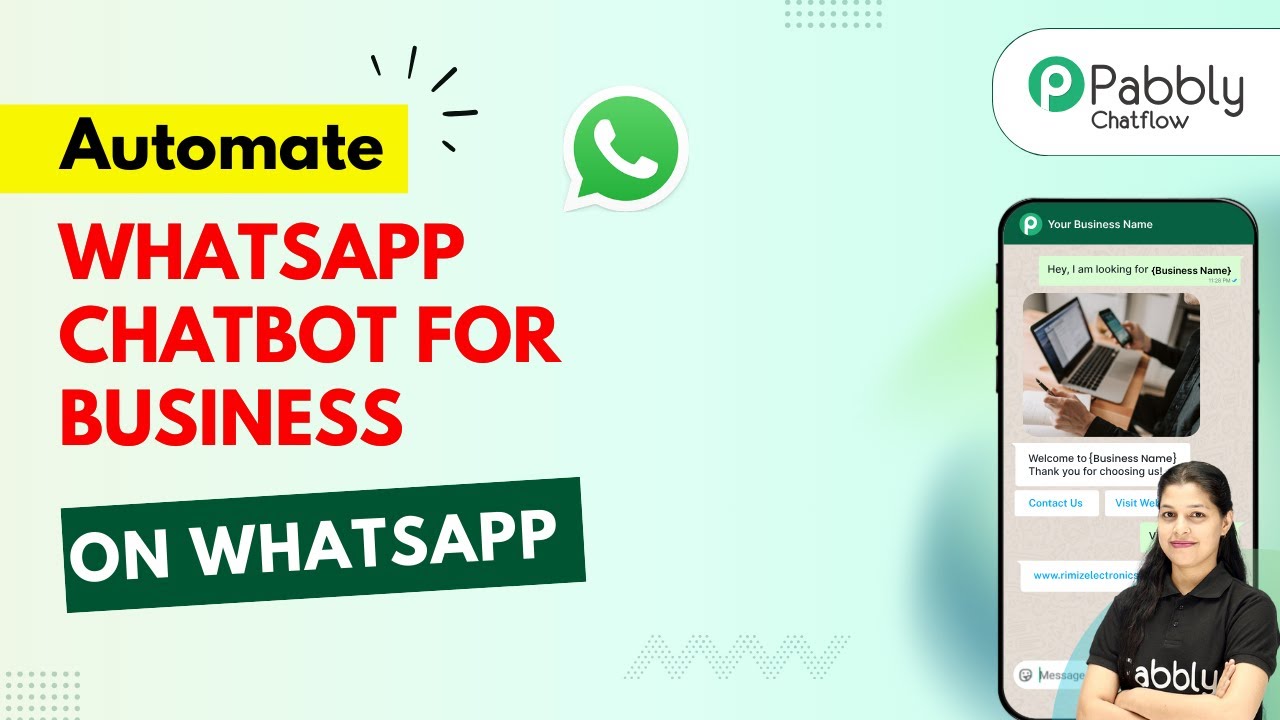
How to Create a WhatsApp Chatbot in Pabbly Chatflow (Beginner Friendly)

Learn how to create a WhatsApp chatbot using Pabbly Chatflow in this step-by-step guide. Automate customer interactions effortlessly! Learn how to create intelligent chat workflows that provide instant customer support while qualifying leads 24/7 without human intervention.

Watch Step By Step Video Tutorial Below


1. Accessing Pabbly Chatflow for WhatsApp Chatbot Creation

To create a WhatsApp chatbot, the first step is to access Pabbly Chatflow. Open a new tab and type the URL: Pabbly.com/chatflow. This will direct you to the Pabbly Chatflow homepage.

Once you are on the homepage, you will see two options: ‘Sign In’ and ‘Sign Up Free’. If you are a new user, click on ‘Sign Up Free’ to create your account. This will give you access to 100 free credits every month to explore Pabbly Chatflow.


2. Creating Your WhatsApp Chatbot Flow in Pabbly Chatflow

After signing in, navigate to the ‘Access Now’ button under the Pabbly Chatflow app. This will take you to the dashboard where you can manage your WhatsApp numbers connected to Pabbly Chatflow.

To create a new chatbot, click on the ‘Flows’ option in the sidebar. Here’s how to set up your flow:

  • Click on the ‘Add Flow’ button.
  • Name your flow, e.g., ‘Create a WhatsApp Chatbot’.
  • Select a trigger event, such as ‘Keyword or Regex Match’.

Once you have set the trigger, you can start building your chatbot flow in Pabbly Chatflow. This involves adding message and action blocks that will define how the chatbot responds to user inputs.


3. Designing the User Interaction in Pabbly Chatflow

In this section, you will design how the chatbot interacts with users. Drag and drop a text button to provide a welcome message. For example, you can write: ‘Hello and welcome! Thank you for contacting us. Please choose an option below to continue.’

Next, add a button labeled ‘Services’. For this button, you can select its type as either a quick reply or a link. After setting the button, you can create a list of services offered. To do this, drag and drop the list node and add items corresponding to your services.

  • Create sections for your services.
  • Add items like ‘Website Development’ and ‘Digital Marketing’.
  • Assign contact custom fields for each service item.

This structured approach allows your Pabbly Chatflow chatbot to provide personalized responses based on user selections.


4. Finalizing Your WhatsApp Chatbot Setup in Pabbly Chatflow

After designing the user interaction, it’s time to finalize your WhatsApp chatbot setup. You can add questions to gather user information, such as full name, email, appointment date, and preferred time. Each question should be linked to a corresponding contact custom field.

To add a question, drag and drop the ‘Ask Question’ node and specify the question details. For instance, ask for the user’s full name and set the format as ‘Name’. Repeat this for email and appointment details.

Ensure to provide validation messages for incorrect inputs. Add a confirmation message at the end of the flow.

Finally, save your flow in Pabbly Chatflow to ensure all changes are stored. This completes the chatbot setup process.


5. Testing and Sharing Your WhatsApp Chatbot

Now that your WhatsApp chatbot is set up, it’s essential to test its functionality. Navigate to the ‘Inbox’ section in Pabbly Chatflow to view customer interactions. Ensure that automated replies are sent correctly when users send messages to your WhatsApp number.

To share your created flow, go back to the flow builder page, click on the three dots next to your flow, and select ‘Share Flow’. This generates a shareable link that you can distribute to your team or colleagues.

By using Pabbly Chatflow, you can automate your customer interactions effectively and enhance your business operations. Start leveraging this powerful tool today!


Conclusion

Creating a WhatsApp chatbot using Pabbly Chatflow is a straightforward process that allows you to automate customer interactions efficiently. By following the steps outlined, you can set up a functional chatbot that enhances user engagement and improves service delivery.

Ensure you check out Pabbly Connect to create business automation workflows and reduce manual tasks. Pabbly Connect currently offer integration with 2,000+ applications.

How to Automatically Add Shopify Customers to CRM

Learn how to automatically add Shopify customers to your CRM using Pabbly Connect. This step-by-step tutorial covers everything you need to know. Master proven automation processes with practical implementation examples and strategic recommendations you can apply immediately in your workflow.

Watch Step By Step Video Tutorial Below


1. Accessing Pabbly Connect for Integration

To automate the process of adding Shopify customers to your CRM, you first need to access Pabbly Connect. Start by navigating to Pabbly’s website and entering Pabbly.com/connect in your browser.

Once there, you will see options to either sign in or create a free account. If you’re a new user, click on the ‘Sign Up Free’ button to get started with 100 free tasks every month. Existing users can simply log in to their account.


2. Creating a New Workflow in Pabbly Connect

After logging into Pabbly Connect, you will be directed to the dashboard. Here, you need to create a new workflow by clicking on the ‘Create Workflow’ button. This will open a dialog box where you can name your workflow.

  • Name your workflow something descriptive like ‘Automatically Add Shopify Customers to CRM’.
  • Select a folder for your workflow, such as ‘Automations’.

Once you have named your workflow and selected the appropriate folder, click on the ‘Create’ button to proceed. This will set up the framework for your automation process.


3. Setting Up the Trigger for Shopify Orders

The next step involves setting up the trigger for your workflow in Pabbly Connect. Since you want to capture new orders from Shopify, select Shopify as your trigger application. Choose the event as ‘New Order’ and click on ‘Connect’.

You will receive a Webhook URL that needs to be copied and added to your Shopify account. Go to your Shopify settings, navigate to notifications, and create a new Webhook. Set the event to ‘Order Creation’ and paste the Webhook URL from Pabbly Connect.


4. Mapping Data from Shopify to Zoho CRM

Now that the trigger is set, the next step is to map the data from Shopify to your Zoho CRM using Pabbly Connect. For this, select Zoho CRM as your action application and choose the event as ‘Create Contact’.

  • Map the fields such as first name, last name, email, and phone number from Shopify to Zoho CRM.
  • Ensure that you have selected the correct domain for Zoho CRM.

After mapping the data, click on ‘Save & Send Test Request’. This will create a new contact in your Zoho CRM based on the Shopify order details.


5. Testing the Integration

Finally, it’s crucial to test your integration to ensure everything works smoothly. Place a test order on your Shopify store and check if the customer details appear in your Zoho CRM. You should see the new contact created automatically.

If everything is set up correctly, you will receive a confirmation in Pabbly Connect that the data has been sent successfully. This confirms that your automation is working as intended, allowing you to focus on other aspects of your business.


Conclusion

In conclusion, using Pabbly Connect to automatically add Shopify customers to your CRM streamlines your business processes. By following these steps, you can ensure that every new customer is recorded without manual effort, enhancing your efficiency and productivity.

Ensure you check out Pabbly Connect to create business automation workflows and reduce manual tasks. Pabbly Connect currently offer integration with 2,000+ applications.

How to Add LinkedIn Leads to Zoho Bigin Automatically

Learn how to automate adding LinkedIn leads to Zoho Bigin using Pabbly Connect with this detailed tutorial. Explore step-by-step instructions and optimize your lead management.

Watch Step By Step Video Tutorial Below


1. Accessing Pabbly Connect for Automation

To add LinkedIn leads to Zoho Bigin automatically, you first need to access Pabbly Connect. If you are an existing user, simply open your workflow builder. For new users, navigate to pabbl.com/connect in your browser.

Once on the Pabbly Connect landing page, click on the ‘Sign Up for Free’ option in the top right corner. This allows you to explore the platform with 100 free tasks each month, making it easy to test the integration with Zoho Bigin.


2. Creating a Workflow in Pabbly Connect

In this step, you will create a workflow to connect LinkedIn with Zoho Bigin using Pabbly Connect. Click on the ‘Add Trigger’ button to start. Search for LinkedIn as the trigger application.

  • Select ‘Lead Notifications’ as the event.
  • If you have an existing connection, select it; otherwise, click ‘Add a New Connection’.
  • Log into your LinkedIn account when prompted.

After connecting, refresh the fields to select your sponsored account. Click on ‘Save and Send Test Request’ to capture the webhook response from LinkedIn.


3. Capturing Lead Data from LinkedIn

Once you submit the lead form on LinkedIn, Pabbly Connect will capture the webhook response. Ensure you have filled out the necessary fields in the lead form, such as email and phone number.

After submitting the form, Pabbly Connect will display the captured lead details, including first name, last name, company name, email address, and phone number. This data is crucial for creating a new contact in Zoho Bigin.


4. Adding Leads to Zoho Bigin Automatically

Now that you have captured the lead data, it’s time to add this information to Zoho Bigin. Click on ‘Add New Action Step’ and select Zoho Bigin as the action application. using Pabbly Connect

  • Choose ‘Create Contact’ as the event.
  • If you have an existing connection with Zoho Bigin, select it; otherwise, create a new connection.
  • Input your Zoho Bigin domain when prompted.

After establishing the connection, map the lead details from LinkedIn to the respective fields in Zoho Bigin. This mapping process ensures that the data is dynamically inserted for each new lead.


5. Testing and Verifying the Integration

Once you have mapped all necessary fields, click on ‘Save and Send Test Request’ to verify that a new contact is created in Zoho Bigin. Refresh your Zoho Bigin dashboard to see the new contact populated with the lead details.

This successful integration means that every time you receive a lead from LinkedIn, Pabbly Connect will automatically create a new contact in Zoho Bigin. This automation saves you time and ensures no lead is missed.


Conclusion

In this tutorial, we explored how to use Pabbly Connect to automate the process of adding LinkedIn leads to Zoho Bigin. By following the steps outlined, you can efficiently manage your leads and enhance your business operations.

Ensure you check out Pabbly Connect to create business automation workflows and reduce manual tasks. Pabbly Connect currently offer integration with 2,000+ applications.

Auto-Create CRM Contacts from Facebook Leads

Learn how to automate CRM contact creation from Facebook leads using Pabbly Connect. Follow this step-by-step guide to streamline your workflow. Revolutionize your productivity approach with just a few strategic clicks. Uncover professional methods for connecting applications and creating workflows that reclaim hours of your week.

Watch Step By Step Video Tutorial Below


1. Accessing Pabbly Connect for Automation

To automate CRM contact creation from Facebook leads, you first need to access Pabbly Connect. Start by opening a new tab and navigating to Pabbly.com/connect. This is the official page where you can either sign in or sign up for free to explore the automation capabilities.

If you are a new user, click on the ‘Sign Up Free’ button to get started with 100 free tasks every month. Existing users can simply sign in. After logging in, click on the ‘Access Now’ button to enter the Pabbly Connect dashboard.


2. Creating a Workflow in Pabbly Connect

Once inside the Pabbly Connect dashboard, click on the ‘+ Create Workflow’ button. You will be prompted to select a workflow builder. Choose the new beta version for this integration.

Next, name your workflow ‘Auto-Create CRM Contacts from Facebook Leads’ and select the folder where you want to save it. After naming it, click on the ‘Create’ button. Your workflow is now set up, and you are ready to configure the trigger for the automation.


3. Setting Up the Trigger with Facebook Leads Ads

The first step in your automation is setting up a trigger. For this, select ‘Facebook Leads Ads’ as the trigger application. The event you want to trigger is ‘New Lead Instant.’ Click on the ‘Connect’ button to establish a connection. using Pabbly Connect

You will see options to add a new connection or select an existing one. Since this is a new setup, select ‘Add New Connection’. After connecting with Facebook, choose the page you are using, such as ‘The Magic Makers’. Then select your lead generation form and click ‘Save and Send Test Request’ to check for a response.

  • Select Facebook Leads Ads as the trigger application.
  • Choose the event as New Lead Instant.
  • Connect your Facebook account and select your page.

After successfully receiving a response, you will know that your trigger is functioning correctly, and you can proceed to the next step of integrating with Zoho CRM.


4. Configuring Action to Create Contacts in Zoho CRM

Now that your trigger is set, it’s time to configure the action application. Select ‘Zoho CRM’ as the action application and choose the event ‘Create Contact.’ Click on the ‘Connect’ button to establish the connection. using Pabbly Connect

As with the previous connection, you will have the option to add a new connection. Enter your Zoho domain, typically ‘zoho.com’, and click ‘Save’. After granting permission, you will map the fields from your Facebook leads to the Zoho CRM contact fields.

  • Select Zoho CRM as the action application.
  • Choose the event to create a contact.
  • Map the fields from Facebook to Zoho CRM.

Make sure to map the user’s first name, last name, email, and phone number correctly. Once the mapping is done, click on ‘Send Test Request’ to confirm that the contact creation works as intended.


5. Finalizing the Workflow and Testing

After successfully testing the action step, you need to enable the toggle to ensure your workflow is active. This is crucial; if you forget to enable it, your automation will not run.

To test the workflow, fill out the Facebook lead form again with new details. After submitting, check your Zoho CRM account to confirm that the new contact has been created successfully. This step validates that your Pabbly Connect workflow is functioning properly.

By following these steps, you can automate your CRM contact creation from Facebook leads effectively. With Pabbly Connect, you can streamline your lead management process without manual intervention.


Conclusion

By utilizing Pabbly Connect, you can seamlessly automate the creation of CRM contacts from Facebook leads. This integration enhances efficiency and reduces manual errors in your workflow.

Ensure you check out Pabbly Connect to create business automation workflows and reduce manual tasks. Pabbly Connect currently offer integration with 2,000+ applications.

Auto Call TikTok Leads Using AI | Bolna AI + Pabbly

Learn how to automate calls to TikTok leads using Pabbly Connect and Bolna AI in this detailed tutorial. Follow step-by-step instructions for seamless integration. Revolutionize your productivity approach with just a few strategic clicks. Uncover professional methods for connecting applications and creating workflows that reclaim hours of your week.

Watch Step By Step Video Tutorial Below


1. Accessing Pabbly Connect for Automated Calls

To automate calls to TikTok leads, the first step is accessing Pabbly Connect. Open your browser and navigate to pabbl.com/connect to reach the Pabbly Connect landing page. If you’re a new user, click on the ‘Sign up for free’ option in the top right corner. This allows you to explore Pabbly Connect with 100 free calls every month.

Once signed up, you can begin creating your automation workflow. If you already have an account, simply log in to access the workflow builder. This is where the integration process with TikTok and Bolna AI will take place using Pabbly Connect.


2. Creating Your Workflow in Pabbly Connect

After logging into Pabbly Connect, click on the ‘Add Workflow’ button to start creating your automation. This workflow will trigger a call through Bolna AI whenever a new lead is generated from TikTok. Select ‘TikTok Lead Generation’ as your trigger application and choose the event ‘New Lead’.

  • Search for ‘TikTok Lead Generation’ in the trigger application.
  • Select ‘New Lead’ as the trigger event.
  • Connect your TikTok account by clicking ‘Add New Connection’.

Once connected, you will need to authorize Pabbly Connect to access your TikTok account. After successful authorization, fill in the required details like the advertiser ID and form ID before saving and testing the request.


3. Integrating Bolna AI for Call Automation

Next, you will connect Bolna AI to your Pabbly Connect workflow. Click on ‘Add New Action Step’ and search for Bolna AI. Select the event ‘Make Phone Call’ to initiate the call process. If you haven’t connected Bolna AI yet, click on ‘Add New Connection’.

To connect Bolna AI, you will need an API token from your Bolna account. Navigate to the provider settings in Bolna AI and create a new API key. Once you have the API key, paste it into Pabbly Connect and save the connection.

  • Select the agent you want to use for the calls.
  • Map the recipient’s phone number from the TikTok lead data.
  • Schedule the call by setting the date and time.

This setup will enable Pabbly Connect to automate calls to your TikTok leads using Bolna AI, ensuring timely follow-ups.


4. Scheduling Calls with Pabbly Connect

To ensure calls are made promptly, you need to schedule them through Pabbly Connect. Use the ‘Date Time Formatter’ by Pabbly to modify the current date and time. This will allow you to set a buffer time, typically 10 minutes, before the call is made.

Configure the Date Time Formatter by selecting the format you want for the scheduled call and set the time zone to UTC. Add 10 minutes to the current time to ensure that the call is made shortly after the lead is received.

Select the format for the date and time. Add 10 minutes as a buffer time for the call. Map the scheduled date and time into the Bolna AI action step.

After setting up the scheduling, you will be able to automate the timing of calls made to leads generated from TikTok, enhancing your response time and efficiency.


5. Testing and Finalizing Your Workflow

Once all configurations are complete, it’s time to test your Pabbly Connect workflow. Click on ‘Save and Send Test Request’ to ensure everything is functioning correctly. If the test is successful, you will see a confirmation that the call is scheduled.

Make sure to replace any dummy phone numbers with actual lead details during testing. This will ensure that your workflow is set up correctly and ready for live leads. With everything in place, your automation will now call TikTok leads automatically within 10 minutes of their submission.

By using Pabbly Connect, you can streamline your lead follow-up process, allowing you to focus on more important aspects of your business while automation handles the calls.


Conclusion

In this tutorial, we explored how to automate calls to TikTok leads using Pabbly Connect and Bolna AI. By following the steps outlined, you can efficiently manage lead follow-ups and enhance your business operations.

Ensure you check out Pabbly Connect to create business automation workflows and reduce manual tasks. Pabbly Connect currently offer integration with 2,000+ applications.

How to Add Facebook Leads to Google Sheets for Dental Clinics

Learn how to automate the process of adding Facebook leads to Google Sheets for dental clinics using Pabbly Connect. Step-by-step guide with detailed instructions. Implement the precise methodologies leading organizations use to automate repetitive tasks, illustrated with practical examples designed for immediate application.

Watch Step By Step Video Tutorial Below


1. Introduction to Pabbly Connect for Dental Clinics

Pabbly Connect is the automation solution that allows dental clinics to seamlessly integrate Facebook leads into Google Sheets. By using Pabbly Connect, you can automate the process of adding leads directly into your Google Sheets without manual entry.

To start, visit the Pabbly website and navigate to the Pabbly Connect section. Once there, you can sign up for free and explore the features. For existing users, sign in to access your dashboard and begin creating your workflow.


2. Creating a New Workflow in Pabbly Connect

To create a new workflow, click on the ‘Create Workflow’ button in your Pabbly Connect dashboard. Name your workflow as ‘Add Facebook Leads to Google Sheets for Dental Clinics’ and choose a suitable folder to save it.

This workflow consists of two main parts: the trigger and the action. The trigger will capture new leads from Facebook Lead Ads, while the action will send this information to Google Sheets. Here’s how you can set it up:

  • Click on ‘Create Workflow’.
  • Enter the workflow name and select a folder.
  • Choose ‘Facebook Lead Ads’ as the trigger application.

After setting up the trigger, you will need to connect your Facebook account to Pabbly Connect. This connection allows Pabbly to access your lead data from Facebook.


3. Setting Up Facebook Lead Ads Trigger

Once you have selected Facebook Lead Ads as your trigger, choose the event ‘New Lead Instant’. This setting ensures that every time a new lead is generated, Pabbly Connect captures the information automatically. using Pabbly Connect

Next, connect your Facebook account by clicking on the ‘Connect’ button. Make sure you are logged into your Facebook account in a separate tab to facilitate a smooth connection. After connecting, select the Facebook page (e.g., Pro Health Specialist) and the lead form (e.g., Dental Clinic Form) you want to use for your leads.

  • Select your Facebook page from the dropdown.
  • Choose the lead form you created earlier.
  • Click ‘Save and Send Test Request’ to ensure everything is set up correctly.

After completing these steps, you can generate a test lead using Meta’s Lead Ads testing tool to verify that the connection works as intended.


4. Adding Action to Google Sheets

After confirming that your Facebook Lead Ads trigger is working, it’s time to set up the action in Google Sheets. In your Pabbly Connect workflow, select Google Sheets as the action application and choose ‘Add New Row’ as the event.

Connect your Google account by clicking on the ‘Sign in with Google’ button. Select the appropriate account and allow the necessary permissions for Pabbly Connect to access your Google Sheets. Then, choose the spreadsheet (e.g., Leads Details) and the specific sheet (e.g., Sheet 1) where you want to store the lead information.

Select your spreadsheet from the dropdown list. Choose the sheet where the data will be added. Map the lead data (name, email, phone number) from the trigger step.

Finally, click the ‘Save and Send Test Request’ button to test if the data is correctly added to your Google Sheets. If successful, you will see the new lead information reflected in your spreadsheet.


5. Finalizing the Integration

After testing the action step, your workflow is almost complete. Whenever a new lead is generated from your Facebook ads, Pabbly Connect will automatically add the lead details to your selected Google Sheet.

To finalize, make sure to save your workflow. This automation will save you time and streamline your lead management process. You can now focus on following up with your leads rather than manually entering data.

With Pabbly Connect, you can also explore additional automations to enhance your dental clinic’s operational efficiency. Feel free to reach out for support or check out other workflows that can be created using Pabbly Connect.


Conclusion

In summary, using Pabbly Connect to integrate Facebook leads into Google Sheets for dental clinics is a straightforward process that automates lead management. By following the steps outlined above, you can enhance your clinic’s workflow and improve lead tracking efficiently.

Ensure you check out Pabbly Connect to create business automation workflows and reduce manual tasks. Pabbly Connect currently offer integration with 2,000+ applications.

Top 3 AI Automations Every Business Should Try in 2026

Discover the top 3 AI automations for businesses in 2026, powered by Pabbly Connect. Learn how to integrate Google and YouTube seamlessly for your automation needs.

Watch Step By Step Video Tutorial Below


1. Accessing Pabbly Connect for Your Automations

To start automating your business with Pabbly Connect, first, you need to access the platform. Simply search for ‘Pabbly Connect’ in your browser. This will direct you to the homepage of Pabbly Connect. using Pabbly Connect

On the homepage, you will see two options: sign in or sign up for free. If you are a new user, click on ‘Sign Up Free’ to get started with 100 free tasks every month. Existing users can simply sign in to their accounts.


2. Creating Your First Workflow in Pabbly Connect

After signing in to Pabbly Connect, you will arrive at the dashboard where you can create your first workflow. To do this, click on the ‘Create Workflow’ button. This will open a new window where you can select your workflow builder. using Pabbly Connect

  • Click on ‘Create Workflow’
  • Select your desired applications to connect
  • Set up your trigger and action steps

Once you have selected your applications, you can proceed to set up the trigger and action steps. This is where Pabbly Connect shines, allowing you to automate tasks seamlessly between different applications.


3. Automating Google Blogger Posts with Pabbly Connect

The first automation we’ll explore is generating blog posts automatically on Google Blogger using Pabbly Connect. This automation requires setting a trigger for when to create a new post. using Pabbly Connect

Within Pabbly Connect, you can select Google Blogger as your action application. Specify the details such as the title and content of the blog post. Pabbly Connect will handle the integration, ensuring that your blog posts are published automatically based on the schedule you set.

  • Choose Google Blogger as your action application
  • Define the title and content for the blog post
  • Schedule the posting time using Pabbly Connect’s features

By automating this process, you can ensure that your content is consistently published without manual effort, making your blogging routine efficient and effective.


4. Creating a Telegram Bot with Pabbly Connect

The second automation involves creating a Telegram bot that interacts with users and generates images based on their requests. Using Pabbly Connect, you can set up a workflow where the bot captures user input and generates an image using an AI tool. using Pabbly Connect

In this setup, your trigger will be the Telegram bot receiving a message. Once a message is received, Pabbly Connect will process the input and send it to the AI tool to generate the corresponding image. The image will then be sent back to the user through the Telegram bot.

Set the Telegram bot as your trigger application Capture user input from the chat Generate images using an AI tool and send back the response

This automation not only enhances user interaction but also showcases the capabilities of Pabbly Connect in integrating various applications seamlessly.


5. Automating LinkedIn Posts with Pabbly Connect

The final automation focuses on automating your LinkedIn posts using Pabbly Connect and an AI tool called Perplexity AI. This automation allows you to generate new post ideas and publish them directly to your LinkedIn account. using Pabbly Connect

To set this up, you will connect your Google Sheets with Pabbly Connect and specify the details for your LinkedIn post. When a new post idea is added in Google Sheets, Pabbly Connect captures this and sends it to Perplexity AI for content generation before posting it on LinkedIn.

Integrate Google Sheets with Pabbly Connect Send new post ideas to Perplexity AI Publish generated content directly to LinkedIn

This automation not only saves time but also enhances your LinkedIn presence by ensuring consistent posting without manual intervention, showcasing the power of Pabbly Connect in business automation.


Conclusion

In conclusion, using Pabbly Connect, businesses can leverage powerful AI automations for Google Blogger, Telegram, and LinkedIn. These integrations streamline processes, enhance productivity, and allow for effortless content generation across platforms.

Ensure you check out Pabbly Connect to create business automation workflows and reduce manual tasks. Pabbly Connect currently offer integration with 2,000+ applications.

Complete WhatsApp Business Chatbot (No Coding)

Learn how to build a complete WhatsApp Business Chatbot using Pabbly Chatflow. Step-by-step tutorial for automating customer interactions without coding. Learn how to create intelligent chat workflows that provide instant customer support while qualifying leads 24/7 without human intervention.

Watch Step By Step Video Tutorial Below


1. Accessing Pabbly Chatflow for WhatsApp Business Chatbot

To create a complete WhatsApp Business Chatbot, start by accessing Pabbly Chatflow. Open a new tab and type in the URL Pabbly.com/chatflow. This will lead you to the Pabbly homepage where you can sign in or sign up for free.

If you are new to Pabbly, click on the sign up free option. By signing up, you will receive 100 free credits each month to explore the features of Pabbly Chatflow. Once logged in, navigate to the Pabbly Chatflow dashboard to begin creating your chatbot.


2. Creating Your WhatsApp Business Chatbot Flow in Pabbly Chatflow

Next, you will create the flow for your WhatsApp Business Chatbot using Pabbly Chatflow. On the dashboard, click on the flows option in the sidebar. Then, click the add flow button to start a new flow.

  • Name your flow as Complete WhatsApp Business Chatbot.
  • Set up a trigger event that initiates the chatbot.
  • Select the keyword trigger, for instance, hello, to start the conversation.

After setting up the trigger, you can add a welcome message to greet users. This is done by dragging a message block into the flow and entering your welcome text. You can also create buttons that users can click to proceed with their inquiries.


3. Setting Up Interaction Buttons in Pabbly Chatflow

In this section, you will set up interaction buttons using Pabbly Chatflow. After your welcome message, add buttons that allow users to choose options like Courses Offered or Ask Counselor. This enhances user engagement and provides clear pathways for interaction.

  • For each button, define its action type, such as quick reply.
  • Link the Courses Offered button to a list of available courses.
  • Ensure the Ask Counselor button provides contact details for further assistance.

By setting up these buttons, you create a structured flow that guides users through the chatbot experience, ensuring they receive the information they need efficiently.


4. Collecting User Information with Pabbly Chatflow

Once users select the Book Demo Class button, you can collect their information using Pabbly Chatflow. Create a sequence of questions that ask for their full name, email address, preferred date, and timing for the demo class.

For each question, use the ask question node to prompt users. Personalize responses by incorporating their previous answers into your messages, such as using Thank you, [User’s Name] in your confirmation messages.

After gathering all necessary information, confirm the booking with a message that summarizes their details. This not only enhances user experience but also ensures clarity in communication.


5. Sending Reminders and Follow-Ups via Pabbly Chatflow

To enhance customer engagement, set up reminder messages using Pabbly Chatflow. After booking a demo class, you can send a reminder message after a specified delay, such as one minute.

Use the delay node to define when the reminder should be sent. You can choose options like delay for, delay until, or delay until a specific weekday to customize your reminders.

Create a reminder message that informs users about their upcoming demo class. Ensure the reminder includes personalized details for a better user experience.

By implementing reminders, you can keep your customers informed and engaged, which is crucial for maintaining a good relationship with them.


Conclusion

In conclusion, using Pabbly Chatflow allows you to create a complete WhatsApp Business Chatbot without any coding. This tutorial outlined the steps to set up a chatbot that automates customer interactions, collects user information, and sends reminders. Start using Pabbly Chatflow today to enhance your business communication!

Ensure you check out Pabbly Connect to create business automation workflows and reduce manual tasks. Pabbly Connect currently offer integration with 2,000+ applications.

Instant Bulk Contact Creation for Zoho Bigin (One Click)

Learn how to instantly create bulk contacts in Zoho Bigin using Pabbly Connect with this step-by-step tutorial. Integrate Google Sheets and Zoho Bigin seamlessly. Develop expertise in application integration and learn how to design streamlined automation workflows using proven, simplified approaches.

Watch Step By Step Video Tutorial Below


1. Setting Up Pabbly Connect for Bulk Contact Creation

To start the process of instant bulk contact creation in Zoho Bigin, you need to access Pabbly Connect. If you’re a new user, go to pabbl.com/connect and sign up for free. This allows you to explore the features of Pabbly Connect and utilize up to 100 tasks monthly for free.

Once you are logged into Pabbly Connect, navigate to the workflow builder. This is where you will create the automation that connects Google Sheets and Zoho Bigin. By setting up this integration, you can automate the process of adding multiple contacts with just a single click.


2. Creating the Workflow in Pabbly Connect

In your Pabbly Connect dashboard, click on the ‘Add Trigger’ button. You will need to select Google Sheets as your trigger application and choose the event ‘New or Updated Spreadsheet Row’. This sets the stage for capturing data from Google Sheets.

  • Select Google Sheets as the trigger application.
  • Choose the event ‘New or Updated Spreadsheet Row’.
  • Connect your Google Sheets account to Pabbly Connect.

After connecting, you will receive a webhook URL. Copy this URL and move to your Google Sheets. In the extensions menu, install the Pabbly Connect Webhooks add-on. This will allow your Google Sheets to send data to Pabbly Connect whenever a new row is added.


3. Configuring Google Sheets for Integration

To configure Google Sheets, go to the extensions menu and find the Pabbly Connect Webhooks option. Click on ‘Initial Setup’ and paste the webhook URL you copied earlier. Set the trigger column to the final data column where new entries will be added.

After setting this up, send a test data row from Google Sheets to Pabbly Connect by clicking on the ‘Send Test’ button. This action will help confirm that your integration is working correctly and that Pabbly Connect is capturing the data as expected.

  • Go to Extensions > Pabbly Connect > Webhooks > Initial Setup.
  • Paste the webhook URL and set the trigger column.
  • Click ‘Send Test’ to check the connection.

Once the test is successful, you will see the data captured in Pabbly Connect. This confirms that your Google Sheets is now properly integrated into the workflow.


4. Adding Zoho Bigin as the Action Step

Next, you will add Zoho Bigin as the action application in your Pabbly Connect workflow. Click on ‘Add New Action Step’ and choose Zoho Bigin. For the event, select ‘Create Contact’.

Connect your Zoho Bigin account to Pabbly Connect. You will need to provide the domain, which you can find in your Zoho Bigin account URL. After connecting, you will map the fields from your Google Sheets to Zoho Bigin to create new contacts.

Select Zoho Bigin as the action application. Choose ‘Create Contact’ as the event. Map the necessary fields from Google Sheets.

After mapping the fields, click on ‘Save and Send Test Request’. This action will create a new contact in Zoho Bigin using the data from Google Sheets, confirming that your workflow is functioning correctly.


5. Bulk Contact Creation in Zoho Bigin

To create multiple contacts in Zoho Bigin at once, return to your Google Sheets. Click on the Pabbly Connect Webhooks extension and select ‘Send All Data’. This action will send all the rows of data to your Pabbly Connect workflow.

Once the data is sent, Pabbly Connect will automatically create multiple contacts in Zoho Bigin based on the information in your Google Sheets. This bulk creation process saves time and effort, allowing you to manage your contacts efficiently.

Click on ‘Send All Data’ in the Pabbly Connect Webhooks menu. Confirm that all data rows are sent to Pabbly Connect. Check Zoho Bigin to see the newly created contacts.

By following these steps, you can efficiently create bulk contacts in Zoho Bigin using Pabbly Connect, enhancing your workflow and productivity.


Conclusion

In this tutorial, we demonstrated how to use Pabbly Connect to instantly create bulk contacts in Zoho Bigin. By integrating Google Sheets with Zoho Bigin through Pabbly Connect, you can automate contact management effectively. Try this automation today to streamline your workflow!

Ensure you check out Pabbly Connect to create business automation workflows and reduce manual tasks. Pabbly Connect currently offer integration with 2,000+ applications.