Stripe is an online payment processing platform for internet businesses that helps to accept payments online.
With just one click, you're all set with the Stripe & Quickbooks Online integrations.
One Click & Ready-to-Use Stripe & Quickbooks Online Integrations


Triggers
Actions
Triggers when a new customer is added.
Triggers when you add a new account.
Triggers when a new invoice is created.
Triggers when a new bill added.
Triggers when a new order is created.
Triggers when you add a new customer.
Triggers when a new refund is created.
Triggers when you add a new estimate .
Triggers when someone's credit card is charged.
Triggers when a new payment is received.
Triggers when a customer's subscription ends.
Triggers when you add a new invoice.
Triggers when a new stripe coupon is added.
Triggers when you add a new sales receipt.
Triggers when a new stripe plan is added.
Triggers when a new purchase order is added.
Triggers when a new invoice item is listed.
Triggers when you add a new vendor.
Triggers when a new subscription is create.
Triggers when you add a new deposit.
Triggers when a subscription schedule is canceled.
Triggers whenever an invoice payment attempt succeeds.
Triggers when the paymentintent has failed the attempt to create a payment method or a payment.
Triggers when a new dispute created.
Triggers when checkout session completed.
Creates a new customer.
Create an invoice with line items.
Creates a new product.
Create an invoice with custom fields.
Creates a new subscription.
Create an invoice with line items.
Creates a new paymentIntent.
Updates existing invoice with line items.
Creates an invoice for a customer.
Voids an existing invoice.
Creates an item to be added to a draft invoice along with new price object.
Create an account.
Creates an item to be added to a draft invoice.
Creates a account based new bill .
Creates a new payment method.
Creates a account based new bill .
Creates a Price
Create a customer
Creates a refund
Creates a new vendor
Creates a new card.
Creates a new expense.
Creates a new card token.
Creates an estimate.
Creates a new coupon.
Creates a new sales receipt.
Creates a payout.
Updates an existing estimate.
Updates a existing customer.
Delete an invoice.
Updates the specified refund by setting the values of the parameters passed.
Finds bill by doc number.
Attaches a payment method to a Customer.
Find customer by email.
Send an invoice for manual payment.
Finds vendor by display name.
Charges a card.
Finds invoice by doc number.
Retrieves an existing customer on the basis of his email.
Finds sales receipt by sales receipt number or doc number.
Retrieves an existing customer from your Stripe account.
Retrieves existing bill by ID.
Retrieves an existing charge by ID.
Retreive existing sales receipt by id.
Retrieve a charge with stripe fee.
Retreive existing sales term under which a sale is made.
Retrieves the subscription.
Retreive existing tax details from QuickBooks account.
Retrieves a subscription by customer ID.
Retreive existing invoice by id.
Get invoice details by invoice ID.
Creates a new item with type inventory.
Retrieve product on the basis of product id.
Creates a new Product of type non-inventory.
Searches for a product by name.
Creates a new item with type service.
Retrieves details of card or bank account sources.
Get Prodcut/Service details by name.
Retrieves the details of a PaymentIntent that has previously been created.
Retreive specific sales term by name.
Retrieves the balance transaction with the given ID.
Sends a sales receipt.
Retrieves the details of an existing refund.
Send an invoice.
Retrieves the current account balance.
Updates a customer.
Retrieves the details of an existing payout.
Creates a new class.
Retrieves the details of an event.
Finds class by display name.
Retrieves the details of a report type.
Lists all the Product(items).
Cancels an existing paymentintent.
Lists all the Tax Codes.
Cancels a subscription.
Lists all the estimates.
Deletes a customer.
Retrieves vendor details by ID.
Retrieve a checkout session's line items by checkout session ID.
Updates an existing vendor
Add bulk invoice line items
Creates a payment.
Retrieves the balance transaction with the given ID.
Create an invoice with line items.
Creates a payment link.
Find customer by display email.
Updates a payment link.
Retrieves Stripe payment link details by ID.
Retrieves a payment link line items by ID.
Retrieves all payment links from Stripe.
Retrieves a list of prices from Stripe.
Create your custom integration by selecting the Trigger event and Action to be performed.
With Pabbly Connect, you can easily connect and integrate Stripe and Quickbooks Online with different applications associated with CRM, Sales, Marketing, Productivity, or any other apps.
Stripe
Stripe is an online payment processing platform for internet businesses that helps to accept payments online.

Quickbooks Online
Stripe
Stripe is an online payment processing platform for internet businesses that helps to accept payments online.

Quickbooks Online
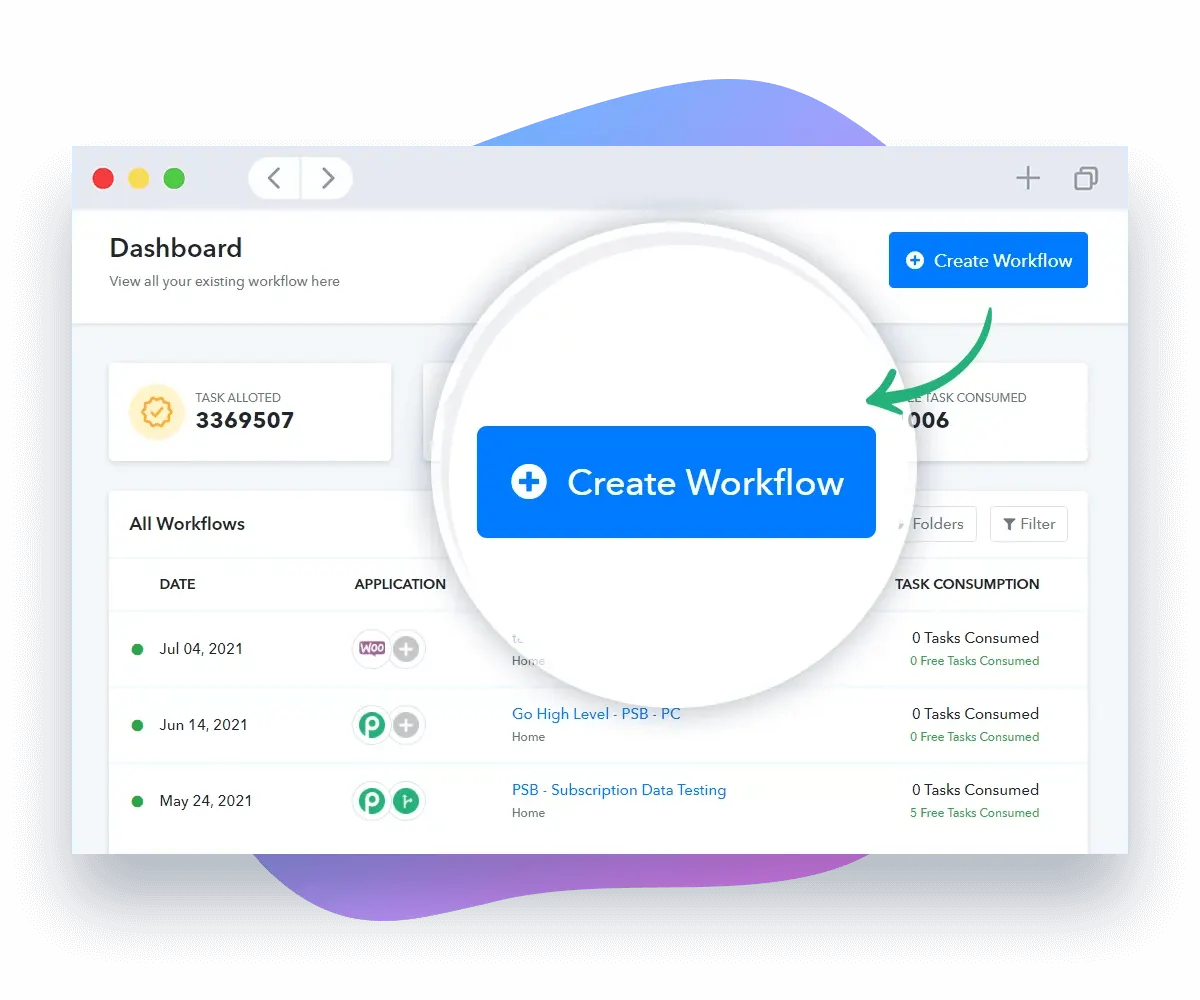
Pabbly Connect is an integration application that connects multiple applications together so that you can send data from one application to another application. Just 3 simple steps and you're good to go ahead with Stripe and Quickbooks Online integrations!
Step 1
Start building automation workflow by setting up triggers and actions.
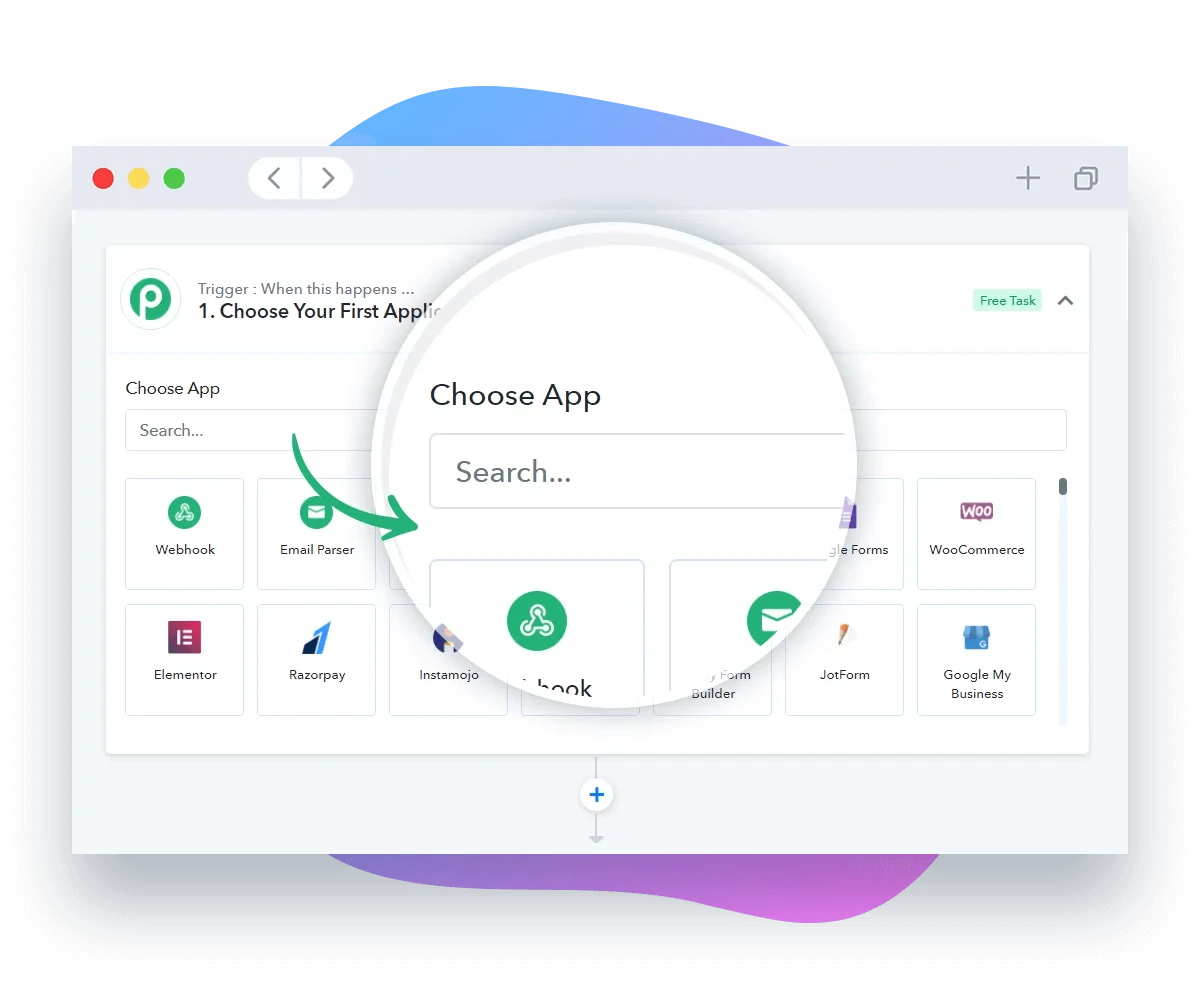
Step 2
Select the apps you would like to integrate into the workflow.
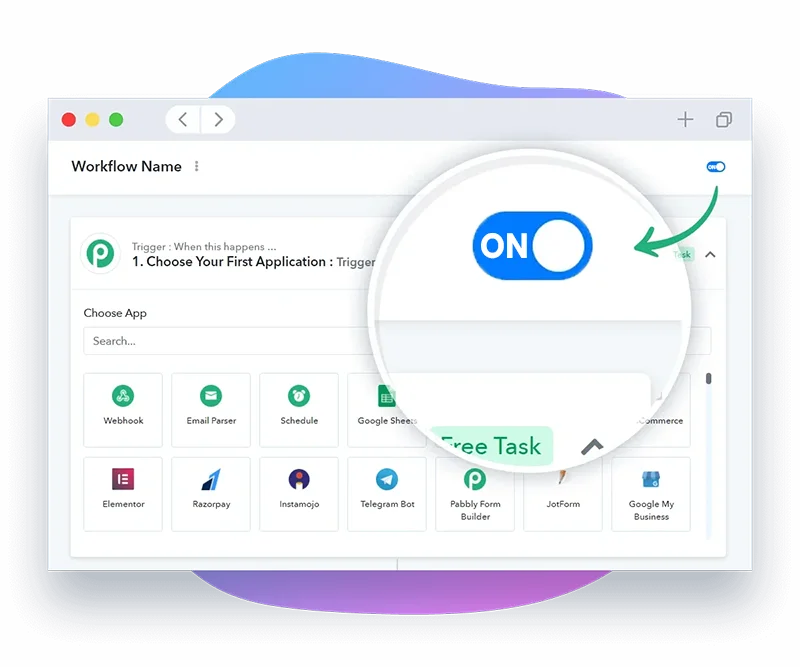
Step 3
Enable your workflow and start saving countless hours of manual work.
Start building automation workflow by setting up triggers and actions.
Select the apps you would like to integrate into the workflow.
Enable your workflow and start saving countless hours of manual work.
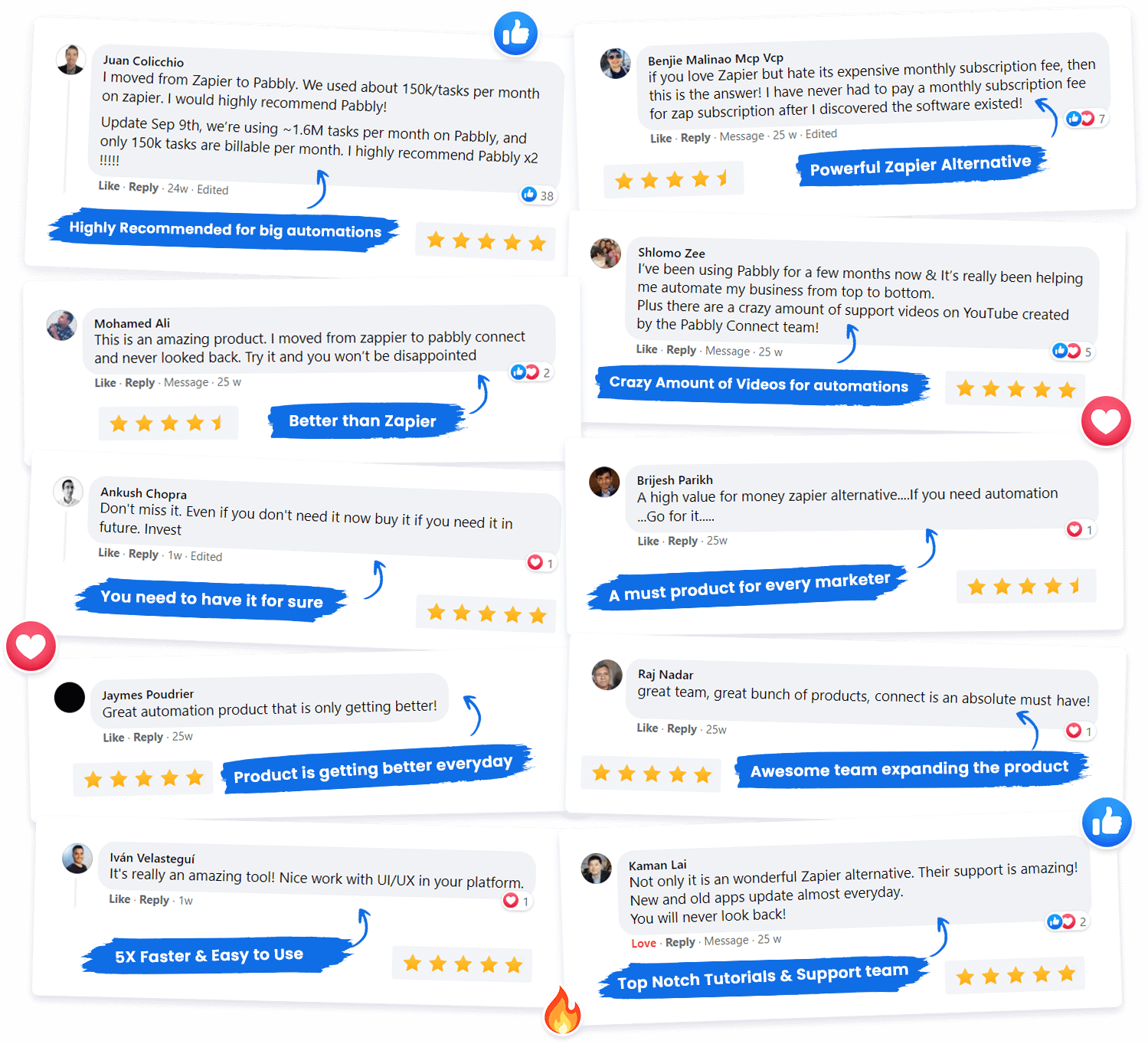
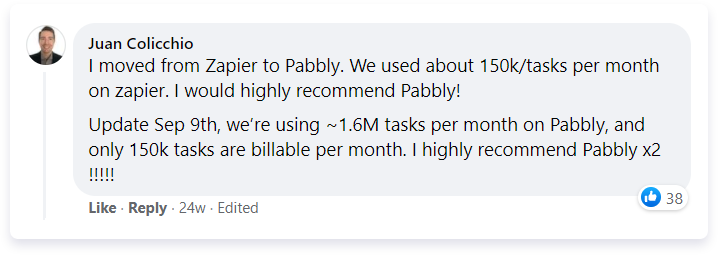
“ I moved from Zapier to Pabbly. We’re using ~1.6M tasks per month on Pabbly, and only 150k tasks are billable per month. I highly recommend Pabbly x2 !!!! "
Juan Colicchio,
LGG Media
How to integrate Stripe with Quickbooks Online?
We know you want to automate your tasks and that's why are offering a step-by-step guide in integrating multiple applications.
Unlike others, Pabbly Connect does not charge for trigger and internal steps. Do up to 3X more workflow executions with Stripe and Quickbooks Online compared to other platforms.
To ensure seamless operations, security, privacy and compliance needs to be coherent. Pabbly is SOC2 Type 2 and ISO 27001:2022 certified. We ensure that the customers data is protected without any lapses in the security. You're safe with us.
Get answers to most commonly asked questions.
Pabbly Connect is an integration application that connects multiple applications together, so that you can send data from one of your applications to another and sync your data across multiple applications. Know more here
Any action performed within your workflow is considered a task. Triggers are not included in the task count. Only action steps are included. Internal tasks of Pabbly Connect, such as Filter, Router, and Formatter, are not counted as tasks.
For example, sending one lead from Facebook Lead Ad to MailChimp counts as one task. If you have a multi-step automation workflow, the task count will depend on the number of action steps. For example, sending one lead from Facebook Lead Ad to MailChimp and then to Google Sheets would count as two tasks. Learn more.

Every check made to an external application to see if there is any new data in a day is counted as an operation. So, if a check is made every 5 minutes, that is 288 operations in a day, whether or not there is any new data. However, Pabbly Connect does not charge for operations. That’s why we say we provide unlimited operations.
For example, if you have a workflow that constantly checks a Google My Business page for new reviews and sends replies, each check of the page to see if there are any new reviews counts as an operation. So, whether or not you send a reply, you will always use 288 operations in a day.
A workflow consists of a trigger and one or more action steps involving the applications you want to integrate. A workflow can have a single trigger and one or more actions. When you turn on your workflow, the action steps will run every time the trigger event occurs.
Yes, all data will be synced automatically once you set up your triggers and actions correctly. Automation software works on the principle of “set it and forget it,” running automatically around the clock for you.
Yes, Pabbly Connect includes filters and path routers for advanced automation. You can specify filters based on values coming in through triggers and webhooks.
For example, with filters and path routers, you can specify that you want to send a customer who made a purchase of more than $1000 to the MailChimp premium list and a purchase of less than $1000 to the MailChimp normal users list.
No, not at all. Unlike others, we don’t count tasks for internal apps like filters, routers, text formatters, number formatters, schedules, iterators, date/time formatters, email parsers, data forwarders, and data formatters.
Yes, Pabbly Connect supports multi-step integrations. For example, when a new payment happens in Stripe or WooCommerce, you can send the customer details to MailChimp, add the customer email to a CRM for follow-up, and receive an SMS on your phone once everything is done.
Yes, Pabbly Connect is proud to be ISO 27001:2022 certified. This certification demonstrates our commitment to maintaining the highest standards of information security. ISO 27001:2022 is a globally recognized standard that provides a framework for establishing, implementing, maintaining, and continually improving an Information Security Management System (ISMS).
The pricing plans are based on the number of tasks allotted to an account. We have plans that offer a range of task allotments, from 12,000 to 9 million tasks per month. It’s worth noting that we are the only provider who doesn’t count tasks for triggers and internal applications
Yes, we can provide you with custom plans if you need more than 7 million tasks per month. Please contact us at [email protected] for more information.
Yes, you will be eligible for all future integrations and updates at no extra cost.
Yes. You can drop an email at [email protected] for more information on it.
Yes, you can cancel your subscription at any time. Just send an email to [email protected] with your request and we will take care of it for you.
Yes, you can signup here to become an affiliate and start promoting us – https://www.pabbly.com/affiliates/
You can always post your questions in our community forum where you can quickly get replies to all of your questions.
Yes, we do have a roadmap that allows you to see what we are working on. Click here to view roadmap..
Yes, we do. Keep in mind that annual subscriptions are 25% less than monthly ones along with additional bonuses and features so if you really want to get more, we highly recommend choosing the annual subscription instead!
Tier 1: 12,000 Tasks every month
Tier 2: 24,000 Tasks every month
Tier 3: 50,000 Tasks every month
Tier 4: 100,000 Tasks every month
Tier 5: 200,000 Tasks every month
Tier 6: 400,000 Tasks every month
Tier 7: 800,000 Tasks every month
Yes, Pabbly Connect is compliant with SOC2 Type 2 standards. This compliance signifies that our system’s design meets the trust principles set out by the American Institute of CPAs (AICPA) regarding security, availability, and confidentiality. SOC2 Type 2 compliance is particularly relevant for technology and cloud-based organizations like Pabbly, as it assures our customers that we have implemented rigorous controls to protect their data against unauthorized access and threats.
Create, manage and promote your entire business with a single Pabbly account with access to powerful tool applications like form builder, email marketing, subscription billing & much more.


Get my lifetime Pabbly Connect account now!