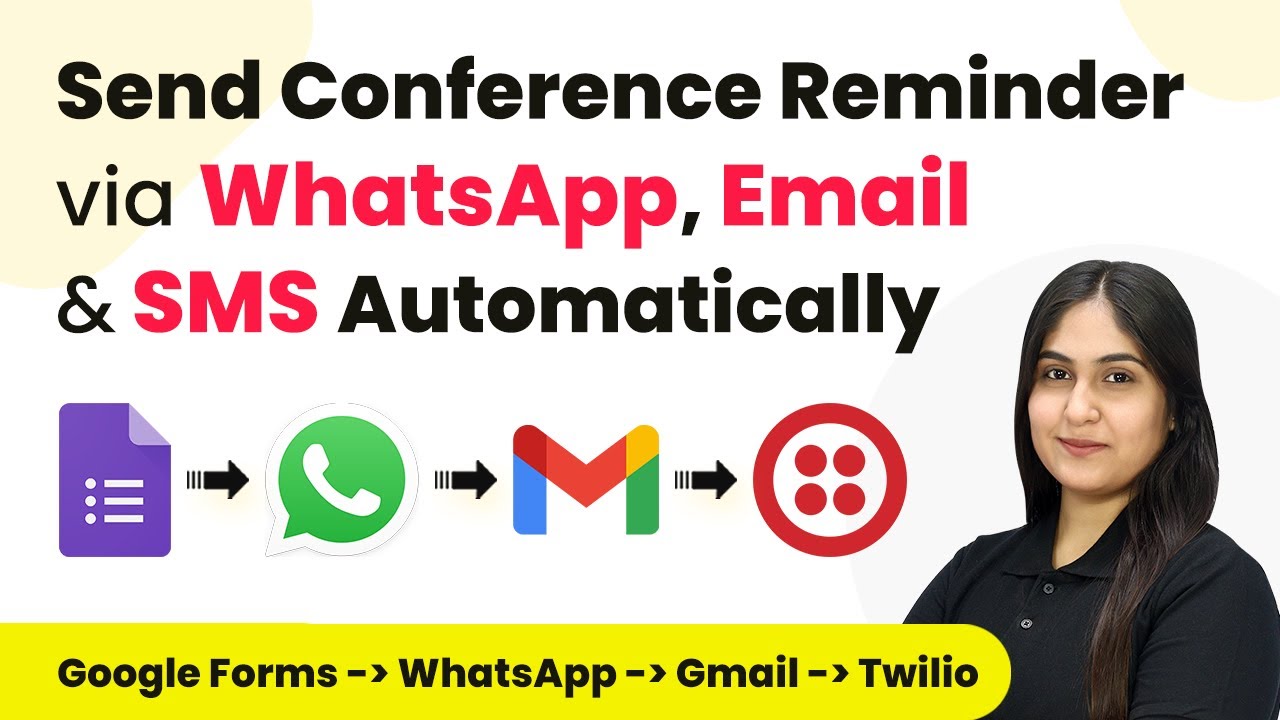
How to Automate Conference Reminders Using Pabbly Connect and WhatsApp

Learn how to automate conference reminders through WhatsApp using Pabbly Connect in this detailed tutorial. Step-by-step guide included. Revolutionize your productivity approach with just a few strategic clicks. Uncover professional methods for connecting applications and creating workflows that reclaim hours of your week.

Watch Step By Step Video Tutorial Below


1. Accessing Pabbly Connect for Automation

To start automating conference reminders, first access Pabbly Connect. This platform enables seamless integration between various applications, including Google Forms and WhatsApp.

Begin by signing into your Pabbly Connect account. If you are a new user, you can sign up for free and receive 100 free tasks each month. Once logged in, navigate to the dashboard to initiate the automation process.


2. Creating a Workflow in Pabbly Connect

To create a workflow, click on the ‘Create Workflow’ button in the top right corner of the Pabbly Connect dashboard. This will open a dialog box where you can name your workflow.

  • Name your workflow as ‘Send Conference Reminder via WhatsApp Automatically’.
  • Select a folder in which to save this workflow.

After naming your workflow and selecting the folder, click on the ‘Create’ button. This will set up your workflow, allowing you to configure triggers and actions.


3. Setting Up the Trigger with Google Forms

The next step involves setting up the trigger for your workflow using Google Forms. Select Google Forms as the trigger application in Pabbly Connect.

Choose the trigger event as ‘New Response Received’. This event captures responses from your Google Form as soon as participants register for the conference. After selecting this, Pabbly Connect will provide you with a unique webhook URL.

  • Copy the webhook URL provided by Pabbly Connect.
  • Link this URL to your Google Form by going to the Responses tab and selecting ‘Link to Sheets’.

After linking, ensure that every form submission is captured in the linked Google Sheets, which will be monitored by Pabbly Connect.


4. Sending WhatsApp Reminders

Now that your Google Form is connected, it’s time to set up the action that sends WhatsApp reminders. For this, select WhatsApp by AI Sensei as your action application in Pabbly Connect.

Choose the action event as ‘Send Template Message’. Ensure you have created a WhatsApp message template that includes personalized variables, such as the participant’s name. This enables you to send tailored messages to each registrant.

Map the participant’s mobile number and name fields from the Google Sheets response. Test the WhatsApp integration to confirm that messages are sent successfully.

Once this is set up, participants will receive reminders via WhatsApp, ensuring they are informed about the conference.


5. Adding Delays for Timely Reminders

To ensure reminders are sent at the right times, you need to add delays in your workflow. Use the ‘Delay by Pabbly’ application to set up a delay for one day before the conference and another for one hour before the event.

For the first delay, select the action event as ‘Add Delay Time’ and set it to one day before the event. For the second delay, repeat the process and set it to one hour before the event.

Map the event date and time from the Google Sheets response. Ensure the delays are set correctly to match the conference schedule.

This setup allows Pabbly Connect to manage the timing of reminders effectively, ensuring participants receive notifications at the right moments.


Conclusion

In this tutorial, we explored how to automate conference reminders using Pabbly Connect and WhatsApp. By following the steps outlined, you can ensure timely notifications for your events, enhancing participant engagement and reducing manual effort.

Ensure you check out Pabbly Connect to create business automation workflows and reduce manual tasks. Pabbly Connect currently offer integration with 2,000+ applications.

Automate Tagging ConvertKit Subscribers with System.io Using Pabbly Connect

Learn how to automate tagging ConvertKit subscribers from System.io using Pabbly Connect with this step-by-step tutorial. Streamline your workflow, save valuable time, and eliminate repetitive tasks through powerful automation capabilities.

Watch Step By Step Video Tutorial Below


Setting Up Pabbly Connect for Automation

In this section, we will set up Pabbly Connect to automate the process of tagging ConvertKit subscribers from System.io. First, navigate to the Pabbly Connect dashboard by signing in to your account. If you are a new user, you can sign up for a free trial to access the features.

Once logged in, click on the ‘Create New Workflow’ button. This will prompt you to name your workflow. Choose a relevant name that reflects the purpose of your automation, such as ‘Tagging ConvertKit Subscribers’. After naming, you will see two boxes labeled ‘Trigger’ and ‘Action’ that will be used to configure the workflow.


Defining the Trigger Event in Pabbly Connect

To set up the trigger event, select System.io as your trigger application. This means that your automation will start whenever a specific event occurs in System.io. In this case, we want to trigger the automation when a contact is tagged in System.io. using Pabbly Connect

Next, you need to select the specific event that will trigger this automation. Choose the ‘Contact Tag Added’ event from the dropdown menu. This ensures that every time a contact is tagged, the workflow will initiate. After selecting the event, click on the ‘Save and Continue’ button to proceed.

  • Select System.io as the trigger application.
  • Choose ‘Contact Tag Added’ as the trigger event.
  • Click ‘Save and Continue’ to proceed.

After saving, you will be prompted to connect your System.io account with Pabbly Connect. Follow the authentication steps provided by Pabbly Connect to establish this connection.


Setting Up the Action Event in Pabbly Connect

Now that you have defined the trigger, it’s time to set up the action event. Select ConvertKit as your action application. This action will be executed once the trigger from System.io is activated. using Pabbly Connect

In the action event options, choose ‘Create Subscriber’. This will allow you to add a new subscriber to ConvertKit whenever a contact is tagged in System.io. After selecting the action, click on the ‘Save and Continue’ button.

  • Select ConvertKit as the action application.
  • Choose ‘Create Subscriber’ as the action event.
  • Click ‘Save and Continue’ to proceed.

Next, you will need to map the data fields from System.io to ConvertKit. This includes entering subscriber information such as email address, first name, and last name. Make sure to fill in all required fields to ensure successful subscriber creation.


Testing the Automation with Pabbly Connect

After setting up the action, it’s crucial to test the automation to ensure everything works correctly. Start by going back to your System.io account and tagging a contact. This action should trigger the workflow you just created. using Pabbly Connect

Once you tag a contact, return to Pabbly Connect and click on the ‘Test & Review’ button. This will check if the data from System.io is being correctly sent to ConvertKit. If the test is successful, you will see a confirmation message indicating that the subscriber has been created in ConvertKit.

Finally, verify in your ConvertKit account that the subscriber has been added successfully. If everything is correct, your automation is now live, and you can start tagging contacts in System.io to automatically create subscribers in ConvertKit!


Conclusion

This tutorial demonstrated how to automate tagging ConvertKit subscribers from System.io using Pabbly Connect. By following the steps outlined, you can streamline your workflow and enhance your email marketing efforts effectively.

Thanks for following along with this tutorial! Remember to subscribe to the channel for more helpful content like this.

If you found this guide useful, please consider giving it a thumbs up and sharing it with others who might benefit from it.

Integrating Trigger with Engineering Solutions: A Step-by-Step Guide

Learn how to integrate Trigger with Engineering Solutions and automate inquiries in Google Sheets using P Connect. Follow this detailed tutorial for seamless automation. Build sophisticated automated workflows in less time than you think. This guide translates complex integrations into straightforward steps for immediate implementation. with Pabbly Connect.

Watch Step By Step Video Tutorial Below


1. Setting Up Trigger Integration with P Connect

To start automating inquiries through Trigger, the first step is setting up the integration with P Connect. This integration allows you to connect Trigger with Engineering Solutions seamlessly. Begin by visiting the P Connect website and signing in or creating a new account. using Pabbly Connect

Once logged in, navigate to the dashboard. Click on the ‘Create Workflow’ button to initiate the process. Here, you will name your workflow to reflect its purpose, such as ‘Integrating Trigger with Engineering Solutions for Inquiry Management.’ Select the appropriate folder for your workflow, ensuring it is organized for easy access.


2. Connecting Trigger to India Mart for New Leads

The next step is to establish the connection between Trigger and India Mart. In your P Connect workflow, search for the Trigger application and select it. For the trigger event, choose ‘New Leads’ to ensure that every new inquiry is captured automatically. using Pabbly Connect

  • Select the Trigger application.
  • Choose ‘New Leads’ as the trigger event.
  • Copy the webhook URL provided for connecting to India Mart.

After copying the webhook URL, log into your India Mart account. Navigate to the Lead Manager and select the option to use Push API for integration. Fill in the required fields, including the platform name as ‘P Connect,’ and paste the copied webhook URL to establish the connection.


3. Configuring Google Sheets Integration for Inquiry Tracking

After successfully connecting Trigger with India Mart, the next step is to configure Google Sheets for tracking inquiries. In your P Connect workflow, search for Google Sheets and select it as the action application. This will allow you to store all inquiry details efficiently. using Pabbly Connect

For the action event, select ‘Add New Row’ to ensure that each new inquiry is recorded in your Google Sheets. You will need to connect your Google Sheets account to P Connect by clicking on ‘Add New Connection’ and signing in with your Google account.

  • Select Google Sheets as the action application.
  • Choose ‘Add New Row’ as the action event.
  • Connect your Google Sheets account.

Once connected, select the specific spreadsheet where you want to store your inquiries. Ensure that the columns in your spreadsheet match the data fields from India Mart, such as sender name, email, and inquiry message.


4. Mapping Inquiry Details from India Mart to Google Sheets

With the Google Sheets integration configured, the next step is to map the inquiry details from India Mart to your spreadsheet. This involves linking the fields from the inquiry responses to the corresponding columns in your Google Sheets. using Pabbly Connect

In your P Connect workflow, you will see options to map various fields like sender name, email address, and inquiry message. Click on each field to select the corresponding response from India Mart, ensuring that all essential details are captured accurately.

Once you have mapped all the necessary fields, click on ‘Save and Send Test’ to verify that the integration works correctly. This will send a test inquiry from India Mart to Google Sheets, allowing you to check if the data is recorded properly.


5. Testing and Finalizing the Integration Workflow

After mapping the inquiry details, it’s crucial to test the integration to ensure everything functions as expected. Generate a test inquiry through India Mart to trigger the workflow. This will help confirm that inquiries are being recorded in Google Sheets accurately. using Pabbly Connect

Once the test inquiry has been generated, return to P Connect to see if the response has been received. If successful, you should see the inquiry details reflected in your Google Sheets, confirming that the integration is working seamlessly.

Finally, save your workflow in P Connect and monitor it for any future inquiries. This automation will save time and streamline the inquiry management process for your Engineering Solutions business.

Conclusion

This guide summarizes the key points and helps you understand the essential features and benefits of using this tool.

Thanks for following along with this tutorial! Remember to subscribe to the channel for more helpful content like this.

If you found this guide useful, please consider giving it a thumbs up and sharing it with others who might benefit from it.


In conclusion, integrating Trigger with Engineering Solutions using P Connect allows for efficient management of inquiries through automation. By following these steps, you can ensure that every new lead is captured and organized in Google Sheets, enhancing your workflow and improving lead management.

Integrating Google with Facebook: A Step-by-Step Guide

Learn how to seamlessly integrate Google with Facebook to automate your tasks efficiently. Follow this detailed tutorial for step-by-step instructions. Discover hidden automation capabilities within your existing tools. This guide shows you how to connect your essential applications and permanently eliminate redundant manual processes. with Pabbly Connect.

Watch Step By Step Video Tutorial Below


1. Setting Up Google and Facebook Integration

Google integration with Facebook is essential for automating tasks effectively. To begin, log into your Google account and navigate to the integration settings on Facebook. using Pabbly Connect

Once logged in, you will need to grant permissions for Facebook to access your Google account. This step is crucial for the integration process to function seamlessly.


2. Creating a New Task in Google

Creating a new task in Google is the next step in integrating Google with Facebook. You will start by selecting the ‘Tasks’ feature in your Google account. using Pabbly Connect

  • Click on the ‘Create Task’ button.
  • Enter the task title and details.
  • Set a due date for your task.

After filling in the necessary details, click on the ‘Save’ button to ensure your task is created successfully. This task will now be linked to your Facebook integration.


3. Automating Task Creation from Facebook

Automating task creation from Facebook is where the integration becomes powerful. You will need to set up triggers in your Facebook account to send data to Google. using Pabbly Connect

To do this, navigate to the Facebook settings and look for the integration options. Here, you can select the type of event that will trigger the task creation in Google.

  • Choose ‘New Lead’ as the trigger event.
  • Connect to your Google account by clicking ‘Sign In with Google.’
  • Authorize Facebook to access your Google tasks.

Once the connection is established, every new lead generated on Facebook will automatically create a task in Google. This automation saves time and improves efficiency.


4. Testing the Integration

Testing the integration between Google and Facebook is crucial to ensure everything works as expected. After setting up the automation, create a test lead in your Facebook account. using Pabbly Connect

Check your Google tasks to see if the new task appears. If everything is set up correctly, you should see the task reflecting the details from the Facebook lead.

In case the task does not appear, revisit the integration settings on both platforms to troubleshoot any issues. Ensure that permissions are granted and that the correct events are selected for triggering tasks.


5. Managing Your Tasks in Google

Managing your tasks in Google becomes easier with the integration from Facebook. You can view, edit, and complete tasks directly from your Google account. using Pabbly Connect

Utilize the features in Google to prioritize tasks, set reminders, and collaborate with team members. This ensures that everyone stays on the same page regarding project deadlines.

Regularly check your Google tasks to update the status of tasks created from Facebook leads. This ongoing management helps maintain productivity and efficiency in your workflow.

Conclusion

This guide summarizes the key points and helps you understand the essential features and benefits of using this tool.

Thanks for following along with this tutorial! Remember to subscribe to the channel for more helpful content like this.

If you found this guide useful, please consider giving it a thumbs up and sharing it with others who might benefit from it.


In conclusion, integrating Google with Facebook streamlines your task management process. By following the steps outlined, you can automate task creation effectively and enhance your team’s productivity.

Integrating Synchro MSP with Pabbly Connect: A Step-by-Step Guide

Learn how to integrate Synchro MSP with Pabbly Connect to automate ticket management and notifications effectively. Follow our detailed tutorial for seamless integration. Eliminate manual repetitive tasks from your workflow. Discover proven automation methods with intuitive steps designed for efficiency-minded professionals.

Watch Step By Step Video Tutorial Below


1. Setting Up Pabbly Connect for Synchro MSP Integration

To start integrating Synchro MSP with Pabbly Connect, first access your Pabbly Connect account. This platform will serve as the central hub for your automation tasks. By using Pabbly Connect, you can easily link Synchro MSP with various applications to automate your workflow.

Once logged in, navigate to the workflow section where you can create a new automation. Here, you will set Synchro MSP as your trigger application for the automation process. This setup allows you to respond to specific events within Synchro MSP.


2. Selecting the Trigger Event in Pabbly Connect

In this section, you will select the trigger event that initiates the automation. The trigger event can be a ticket created, a ticket resolved, or a ticket status changed. For this tutorial, we will choose the ‘ticket is resolved’ trigger. This selection is crucial as it determines when the automation will activate.

  • Select Synchro MSP as the trigger application.
  • Choose ‘ticket is resolved’ as the trigger event.
  • Copy the provided webhook URL for further steps.

After selecting the trigger event, Pabbly Connect will generate a unique webhook URL. This URL is essential for connecting your Synchro MSP account to the automation workflow. Ensure you copy this URL for later use in the Synchro application.


3. Configuring Synchro MSP for Webhook Integration

Next, log into your Synchro MSP account and navigate to the notification center under Synchro Administration. This step is vital for configuring the webhook to ensure that it communicates correctly with Pabbly Connect.

In the notification center, create a new notification set. Here, you will enter a name for the notification, paste the copied webhook URL, and select the event ‘ticket was resolved’. This setup allows Synchro MSP to send data to Pabbly Connect whenever a ticket is resolved.

  • Click on ‘Add New Notification Set’.
  • Enter a name for the notification (e.g., ‘Testing’).
  • Paste the webhook URL in the designated field.

After configuring these settings, confirm by clicking on ‘Create Notification Set’. This action will finalize the webhook setup, allowing Pabbly Connect to receive data from Synchro MSP.


4. Testing the Integration with Pabbly Connect

Once the webhook is set up in Synchro MSP, it’s time to test the integration. Resolve a ticket in your Synchro MSP account to trigger the webhook. This action will send the relevant data to Pabbly Connect, allowing you to verify that everything is working correctly.

After resolving the ticket, return to Pabbly Connect and check if the webhook response has been captured. If successful, you will see the details of the resolved ticket in your workflow. This confirmation is essential to ensure that your integration is functioning as intended.

Navigate to the ticket section in Synchro MSP. Resolve a ticket to trigger the webhook. Check Pabbly Connect for the webhook response.

Once you confirm the response is captured, you have successfully tested the integration. This allows you to set up further actions, such as notifying your team on Slack or Microsoft Teams using Pabbly Connect.


5. Next Steps with Pabbly Connect Automations

Now that you have successfully integrated Synchro MSP with Pabbly Connect, you can explore additional automation possibilities. You can set up actions to notify team members via various platforms like Slack, Microsoft Teams, or Google Chat whenever a ticket is resolved.

To add these actions, simply select your desired application in Pabbly Connect and configure the notification settings. This flexibility allows you to customize your workflow according to your team’s needs.

Choose an action application (e.g., Slack). Set up the notification message for the action. Test the action to ensure it works as expected.

In conclusion, Pabbly Connect offers a powerful way to automate your workflows with Synchro MSP and other applications. By following these steps, you can streamline your ticket management processes and improve team communication significantly.


Conclusion

In this tutorial, we explored how to integrate Synchro MSP with Pabbly Connect, enabling automated ticket notifications. Using Pabbly Connect simplifies the process and enhances productivity across teams.

Ensure you check out Pabbly Connect to create business automation workflows and reduce manual tasks. Pabbly Connect currently offer integration with 2,000+ applications.

Automate Wedding Invitations via WhatsApp Using Pabbly Connect

Learn how to automate sending wedding invitations via WhatsApp using Pabbly Connect. Follow this detailed step-by-step tutorial for seamless integration. Learn to create powerful connections between your critical applications without requiring specialized programming knowledge or extensive technical background.

Watch Step By Step Video Tutorial Below


1. Access Pabbly Connect for WhatsApp Integration

To automate sending wedding invitations via WhatsApp, the first step is to access Pabbly Connect. Open your browser and navigate to the Pabbly Connect landing page. Here, you will find options to sign in or sign up for free, allowing new users to utilize 100 tasks free every month.

As an existing user, click on the ‘Sign In’ button. This will take you to the Pabbly dashboard where you can access various tools. Select Pabbly Connect by clicking on the ‘Access Now’ button. You will then be directed to your dashboard where you can create workflows for your automation needs.


2. Create a Workflow in Pabbly Connect

In this section, you will set up a workflow in Pabbly Connect to automate WhatsApp invitations. Click on the ‘Create Workflow’ button, and you will be prompted to name your workflow. Enter a relevant name like ‘Automate Wedding Invitations via WhatsApp’ and choose a folder to save it in.

  • Click on ‘Create’ to open the workflow window.
  • Select ‘Google Sheets’ as the trigger application.
  • Choose ‘New Row’ as the trigger event to start the workflow.

After selecting your trigger, Pabbly Connect will generate a webhook URL. This URL is essential for connecting your Google Sheets with the workflow. Copy this URL as you will need it in the next steps.


3. Set Up Google Sheets for Pabbly Connect

Now, you will set up Google Sheets to work with Pabbly Connect. Open your Google Sheets account and create a new spreadsheet for your wedding guests. Go to the ‘Extensions’ menu, select ‘Add-ons’, and then ‘Get add-ons’ to install the Pabbly Connect Webhook extension.

  • Search for ‘Pabbly Connect Webhook’ and install it.
  • After installation, refresh your Google Sheets.
  • Navigate to ‘Extensions’, select ‘Pabbly Connect Webhook’, and click on ‘Initial Setup’.

In the setup window, paste the webhook URL you copied earlier. Specify the trigger column where the guest details will be filled. This setup allows Pabbly Connect to capture the data from your Google Sheets whenever a new row is added or updated.


4. Configure WhatsApp Action in Pabbly Connect

With your Google Sheets set up, it’s time to configure the action in Pabbly Connect to send WhatsApp messages. Select ‘Vati’ as the action application for sending WhatsApp messages. Then choose ‘Send Template Message’ as the action event.

To connect your Vati account, click on ‘Add New Connection’ and provide the API endpoint and access token from your Vati dashboard. After entering these details, click ‘Save’. This integration allows Pabbly Connect to send automated messages to your guests via WhatsApp.

Map the WhatsApp number field to the corresponding data from the Google Sheets. Select the template for your message, ensuring it includes dynamic elements like the guest’s name. Set the broadcast name for your WhatsApp messages.

Once configured, click ‘Save and Send Test Request’ to verify that everything is working correctly. You should receive a test message on WhatsApp, confirming the successful setup.


5. Send Invitations to All Guests

Finally, you can send wedding invitations to all guests listed in your Google Sheets using Pabbly Connect. Ensure that the ‘Send on Event’ option is enabled in the Pabbly Connect Webhook settings. This enables the automation to trigger every time a new guest is added.

To send invitations, go back to your Google Sheets and click on ‘Send All Data’ in the Pabbly Connect Webhook menu. This action will initiate the process, and Pabbly Connect will capture the details of all guests and send personalized WhatsApp messages accordingly.

Check your WhatsApp for messages sent to each guest. You can also add new guests to the spreadsheet, and they will receive invitations automatically.

This workflow not only saves time but also ensures that all guests receive their invitations promptly, enhancing engagement and allowing you to focus on creating memorable experiences.


Conclusion

In this tutorial, we explored how to automate sending wedding invitations via WhatsApp using Pabbly Connect. By integrating Google Sheets and Vati, you can efficiently manage guest communications and enhance your wedding planning process.

Ensure you check out Pabbly Connect to create business automation workflows and reduce manual tasks. Pabbly Connect currently offer integration with 2,000+ applications.

Automate Conference Reminders with Pabbly Connect: A Step-by-Step Guide

Learn how to automate conference reminders through WhatsApp, SMS, and Gmail using Pabbly Connect. Follow this detailed tutorial for seamless integration. Discover how to seamlessly connect your essential tools through accessible instructions that make powerful automation available to professionals at every skill level.

Watch Step By Step Video Tutorial Below


1. Setting Up Pabbly Connect for Conference Reminders

To automate conference reminders using Pabbly Connect, start by accessing the platform. Sign in to your account or create a new one to get started. Once logged in, navigate to the dashboard where you can create a new workflow.

Click on the ‘Create Workflow’ button and name it appropriately, such as ‘Send Conference Reminder via WhatsApp, SMS, and Email.’ Select a folder for organization, and then proceed to set up your trigger application.


2. Creating a Trigger with Google Forms in Pabbly Connect

In this section, you will configure Google Forms as your trigger application in Pabbly Connect. This integration allows you to capture new registrations automatically. Select Google Forms and set the trigger event to ‘New Response Received.’ This means whenever a new submission is received, it will trigger the workflow.

  • Select Google Forms as the trigger application.
  • Choose ‘New Response Received’ as the trigger event.
  • Copy the webhook URL provided by Pabbly Connect.

Next, integrate this webhook with your Google Form by accessing the form settings and linking it to the Google Sheets where responses are collected. This ensures all form submissions are captured effectively.


3. Linking Google Sheets with Pabbly Connect

Once your Google Forms is set up, the next step is to link Google Sheets to Pabbly Connect. This allows the data from form responses to flow into your automation. Ensure your Google Sheets is already linked to the Google Form.

In Google Sheets, go to Extensions, select Add-ons, and search for ‘Pabbly Connect Webhooks’ to install the add-on. After installation, refresh the sheet and configure the webhook URL in the add-on settings.

  • Access Google Sheets and go to Extensions > Add-ons.
  • Install the ‘Pabbly Connect Webhooks’ add-on.
  • Configure the webhook URL in the add-on settings.

After setting up the webhook, test the connection by sending a test response through your Google Form to ensure everything is working seamlessly.


4. Setting Up Reminders Using Pabbly Connect

Now that your trigger and Google Sheets are set up, you can configure the reminder actions in Pabbly Connect. Start by adding a delay action that will hold the workflow until one day before the conference. Use the ‘Delay by Pabbly’ feature to set this up.

Next, configure the action to send reminders via WhatsApp, SMS, and Email. For WhatsApp, use the WhatsApp by Sensi integration to send template messages. Similarly, set up Twilio for SMS reminders and Gmail for email notifications.

Use ‘Delay by Pabbly’ to set the reminder timing. Select WhatsApp by Sensi for WhatsApp reminders. Configure Twilio for SMS reminders and Gmail for email notifications.

Ensure all message templates are properly formatted and include dynamic variables for personalization, such as the registrant’s name.


5. Finalizing the Workflow in Pabbly Connect

After setting up the reminders, review your workflow in Pabbly Connect to ensure everything is linked correctly. Test the entire flow by submitting a dummy response through your Google Form to see if the reminders are sent as expected.

Once confirmed, you can activate the workflow to start sending automated reminders to all registrants one day before and two hours before the conference.

This automation not only saves time but also ensures that all attendees receive timely notifications, reducing the chances of missed events. With Pabbly Connect, managing your conference reminders becomes hassle-free.


Conclusion

In this tutorial, we explored how to automate conference reminders using Pabbly Connect, integrating Google Forms, Google Sheets, WhatsApp, SMS, and Gmail. This seamless workflow enhances communication and ensures your attendees stay informed about important events.

Ensure you check out Pabbly Connect to create business automation workflows and reduce manual tasks. Pabbly Connect currently offer integration with 2,000+ applications.

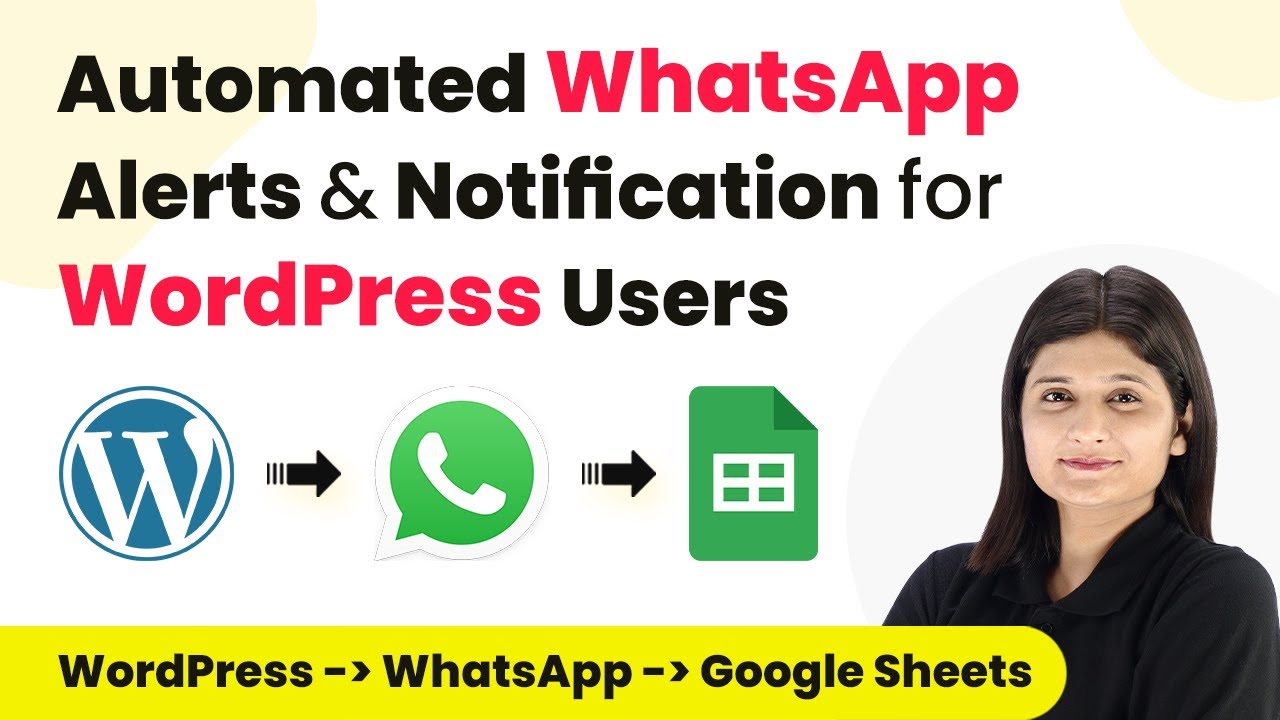
Integrating WordPress with WhatsApp and Google Sheets Using Pabbly Connect

Learn how to automate WhatsApp messages and Google Sheets entries for new WordPress users using Pabbly Connect. Step-by-step tutorial for seamless integration. Transform complex automation concepts into accessible, actionable steps that eliminate unnecessary manual work while maximizing existing application capabilities.

Watch Step By Step Video Tutorial Below


1. Accessing Pabbly Connect for Integration

To integrate WordPress, WhatsApp, and Google Sheets, you first need to access Pabbly Connect. Start by visiting the Pabbly Connect website.

Once on the site, sign in to your existing account or create a new one. If you’re new, you can sign up for free and get access to 100 tasks monthly. After logging in, navigate to the Pabbly Connect dashboard to start creating your workflow.


2. Creating a Workflow in Pabbly Connect

In the Pabbly Connect dashboard, click on the ‘Create Workflow’ button. This is where you’ll set up the automation for sending WhatsApp messages and adding entries to Google Sheets. using Pabbly Connect

  • Name your workflow, for example, ‘WhatsApp Notification for New WordPress Users.’
  • Select the folder where you want to save this workflow.
  • Click on the ‘Create’ button to finalize your workflow setup.

After creating the workflow, you will see two boxes: one for the trigger and one for the action. The trigger will be set to WordPress, specifically when a new user registers.


3. Setting Up WordPress Integration with Pabbly Connect

To connect WordPress with Pabbly Connect, you need to set up a webhook. In your Pabbly Connect workflow, select WordPress as the trigger app and choose ‘User Registers’ as the trigger event.

This will generate a webhook URL that you need to copy. Next, go to your WordPress dashboard, navigate to the Plugins section, and install the WP Webhooks plugin if you haven’t done so already. After installation, access the plugin settings to add the webhook URL.

  • Select ‘User Created’ in the WP Webhooks settings.
  • Paste the copied webhook URL into the appropriate field.
  • Save the settings to activate the webhook.

Now, every time a new user registers on your WordPress site, this webhook will send the data to Pabbly Connect.


4. Sending WhatsApp Messages Using AI Sensei

With the WordPress integration set up, the next step is to send a WhatsApp message using AI Sensei through Pabbly Connect. In the action application, select WhatsApp by AI Sensei and choose ‘Send Template Message’ as the action event.

Connect your AI Sensei account by entering the required API key from your AI Sensei account. This key can be found in the manage section of your AI Sensei account. Once connected, you will need to fill in the campaign name and the message template.

Enter the mobile number of the user who registered. Map the user’s first and last name as template parameters. Click ‘Save and Send Test Request’ to verify the setup.

After completing these steps, you should receive a WhatsApp message welcoming the new user, confirming that the integration is functioning correctly.


5. Adding User Details to Google Sheets

Finally, to store the user details, integrate Google Sheets with Pabbly Connect. In your action application, select Google Sheets and choose ‘Add New Row’ as the action event.

Connect your Google Sheets account by signing in and granting the necessary permissions. Once connected, select the spreadsheet where you want to store the user details, such as ‘Customer Registration Details.’

Map the fields from WordPress registration (name, email, phone) to the corresponding columns in Google Sheets. Click ‘Save and Send Test Request’ to check if the data is added correctly.

Once confirmed, every new user registration will automatically add their details to Google Sheets, completing the integration process.


Conclusion

By following this tutorial, you can effectively automate WhatsApp messaging and Google Sheets entries for new WordPress users using Pabbly Connect. This integration streamlines your workflow and enhances customer engagement.

Ensure you check out Pabbly Connect to create business automation workflows and reduce manual tasks. Pabbly Connect currently offer integration with 2,000+ applications.

Automate WhatsApp Messages with India M and AI Sensei Integration

Learn how to automate WhatsApp messages for India M inquiries using AI Sensei and P Connect. Follow our detailed step-by-step tutorial to streamline your communication. with Pabbly Connect.

Watch Step By Step Video Tutorial Below


1. Setting Up the Trigger with India M

To start automating WhatsApp messages, we will set up a trigger with India M. This trigger will activate whenever a new inquiry is received through the India M platform. First, log into your P Connect account and navigate to the dashboard.

Next, create a new workflow by clicking on the ‘Create Workflow’ button. In the pop-up window, name your workflow appropriately, such as ‘Automated WhatsApp Messages for India M Inquiries’. Choose a folder to save your workflow, then click ‘Create’ to proceed.


2. Selecting the Trigger Event for New Leads

In this step, we will select the trigger event for our workflow. The trigger event is crucial as it determines when the automation will kick in. For this, search for India M in the trigger application section.

  • Select India M as your trigger application.
  • Choose ‘New Leads’ as the trigger event.
  • Copy the provided webhook URL for later use.

After selecting the trigger, you will need to connect India M with P Connect using the copied webhook URL. This URL acts as a bridge between the two applications, allowing data transfer whenever a new inquiry is made.


3. Creating Push API Integration in India M

Now that we have set up the trigger, we need to create a Push API integration in India M. This integration will allow inquiries to be sent automatically to P Connect. Go to your India M account and navigate to the Lead Manager section.

Click on the menu button, then select ‘Import/Export Leads’. Choose the option for Push API and fill in the required details:

  • Enter the platform name as India M.
  • Paste the previously copied webhook URL into the listener URL field.
  • Select a reason for connecting and generate an OTP.

Once you have entered all the details, click ‘Save’ to complete the integration. This setup ensures that every new inquiry is sent directly to P Connect.


4. Setting Up Action Step with AI Sensei

With the trigger and integration in place, the next step is to set up the action that will send WhatsApp messages using AI Sensei. In your P Connect workflow, go to the action section and search for AI Sensei.

Select ‘WhatsApp by AI Sensei’ and choose the action event ‘Send Template Message’. You will need to connect your AI Sensei account to P Connect by providing your API key:

Log into your AI Sensei account and navigate to the API management section. Generate a new API key and copy it. Paste the API key into the connection setup in P Connect.

Once the connection is established, you can create a WhatsApp message template that will be sent to inquiries. Ensure that your template is approved by AI Sensei before proceeding.


5. Finalizing Workflow Automation

To finalize your automation, go back to your P Connect workflow. Here, you will add the campaign name and the recipient’s mobile number, which will be mapped from the inquiry data received from India M.

Using the mapping feature, ensure that the mobile number is formatted correctly, removing any unnecessary characters. After mapping all necessary fields, test your workflow by generating a test inquiry in India M:

Generate a test inquiry from your India M account. Check P Connect for the response to ensure the inquiry is captured. Verify that the WhatsApp message is sent successfully.

Once confirmed, your workflow is now fully automated. Every new inquiry through India M will automatically trigger a WhatsApp message via AI Sensei to the inquirer, streamlining your communication process.


Conclusion

In this tutorial, we explored how to automate WhatsApp messages for inquiries received through India M using AI Sensei and P Connect. By following the detailed steps outlined, you can enhance your customer communication and improve response times effectively.

Thanks for following along with this tutorial! Remember to subscribe to the channel for more helpful content like this.

If you found this guide useful, please consider giving it a thumbs up and sharing it with others who might benefit from it.

Automate Zoho Desk with Simply Integration: A Step-by-Step Guide

Learn how to automate Zoho Desk using Simply integration. Follow this detailed tutorial to streamline customer support and enhance productivity with Pabbly Connect. Explore efficient methods for automating routine tasks with clear, concise instructions suited for both newcomers and experienced professionals.

Watch Step By Step Video Tutorial Below


1. Introduction to Simply and Zoho Desk Integration

Simply integration with Zoho Desk allows businesses to automate customer support tasks effortlessly. By connecting Simply with Zoho Desk, you can streamline ticket management and enhance customer interactions. using Pabbly Connect

This integration is beneficial for teams looking to reduce manual work and improve response times. With Simply, you can create workflows that automatically handle tickets and notifications based on specific triggers.


2. Setting Up Simply Integration with Zoho Desk

To set up Simply integration with Zoho Desk, first, navigate to the Simply homepage. If you’re a new user, click on ‘Sign Up for Free’ to create an account. Existing users can log in directly. using Pabbly Connect

  • Click on ‘Create Workflow’ to start a new automation.
  • Name your workflow, for example, ‘Automate Zoho Desk’.
  • Select the appropriate folder to save your workflow.

After naming your workflow, you will see options for triggers and actions. Choose Zoho Desk as your trigger application to begin the automation process.


3. Configuring Zoho Desk as a Trigger

To configure Zoho Desk as a trigger, select it from the list of applications. Then, choose the trigger event, such as ‘New Ticket Created’. This event will initiate the workflow whenever a new ticket is generated in Zoho Desk. using Pabbly Connect

Next, connect your Zoho Desk account by entering your domain, which can be found in the URL of your Zoho Desk account. Click ‘Connect’ and grant the necessary permissions to allow Simply to access your Zoho Desk data.

  • Enter your domain from the Zoho Desk URL.
  • Accept the permissions requested by Simply.
  • Name the webhook, e.g., ‘New Ticket Notification’.

After saving these settings, Simply will wait for a response from Zoho Desk whenever a new ticket is created. This setup ensures that your team can respond promptly to customer inquiries.


4. Setting Up Action Steps in Simply

Once the trigger is configured, the next step is to set up the action that will take place in response to the trigger. For instance, you can have Simply create a new entry in Google Sheets whenever a new ticket is created in Zoho Desk. using Pabbly Connect

To do this, select Google Sheets as your action application. Choose the action event, such as ‘Create Spreadsheet Row’. Connect your Google Sheets account similarly by providing the necessary permissions.

Select the Google Sheets action event. Map the fields from Zoho Desk to Google Sheets. Test the action to ensure the data is transferred correctly.

After testing, you should see the new ticket details populated in your Google Sheets, demonstrating the successful integration between Simply and Zoho Desk.


5. Conclusion and Benefits of Using Simply with Zoho Desk

In conclusion, integrating Simply with Zoho Desk significantly enhances customer support efficiency. By automating ticket management and notifications, your team can focus on resolving customer issues more effectively.

Thanks for following along with this tutorial! Remember to subscribe to the channel for more helpful content like this.

If you found this guide useful, please consider giving it a thumbs up and sharing it with others who might benefit from it.

This integration not only saves time but also improves accuracy in handling customer requests. With Simply, you can seamlessly connect various applications like Google Sheets, enhancing your overall workflow.


Learn how to automate your customer support processes with Simply and Zoho Desk. This integration allows for efficient ticket management, ensuring timely responses and improved customer satisfaction.