How to Set Up Webhook Inside ConvertBox with Pabbly Connect

Learn how to set up a webhook inside ConvertBox using Pabbly Connect for seamless integration of new leads and data management. Develop expertise in application integration and learn how to design streamlined automation workflows using proven, simplified approaches.

Watch Step By Step Video Tutorial Below


1. Setting Up Pabbly Connect Webhook

To set up a webhook inside ConvertBox, you will first need to access Pabbly Connect. This platform acts as a bridge, allowing you to connect your ConvertBox account with other applications efficiently. Start by navigating to the Pabbly Connect dashboard.

Once you are in Pabbly Connect, search for ConvertBox in the trigger window. Select it as your trigger application and choose the event as ‘New Lead Submission.’ This event will activate whenever a new lead is created in your ConvertBox account.


2. Retrieving the Webhook URL from Pabbly Connect

After selecting the trigger event, Pabbly Connect will generate a webhook URL for you. This URL is crucial as it links your ConvertBox account to Pabbly Connect. Make sure to copy this URL, as it will be used in the next steps. using Pabbly Connect

To ensure you have the correct URL, you will find a help desk note in Pabbly Connect. Follow these instructions carefully to understand how to integrate this URL into your ConvertBox settings.

  • Access your Pabbly Connect account.
  • Select ConvertBox as the trigger application.
  • Copy the provided webhook URL.

Now that you have the webhook URL, you can proceed to your ConvertBox account to complete the setup.


3. Configuring ConvertBox Integration

Log into your ConvertBox account and navigate to your dashboard. Here, you will find the ConvertBox you created earlier. Click on the ‘Edit’ option to modify the settings of your form. using Pabbly Connect

In the form settings, locate the ‘Integrations’ section on the left sidebar. Click on the plus icon to add a new integration. Select ‘Webhooks’ as your integration type and paste the webhook URL you copied from Pabbly Connect.

  • Go to the Integrations section in ConvertBox.
  • Click on ‘Add Integration’ and select Webhooks.
  • Paste the copied webhook URL into the Webhook URL field.

After pasting the URL, you can test the integration by sending test data to ensure that everything is functioning correctly.


4. Testing the Webhook Integration

Once you have pasted the webhook URL into ConvertBox, it is essential to test the integration. You can do this by sending test data through ConvertBox. Click on the ‘Send Test’ button to submit the test data. using Pabbly Connect

Pabbly Connect will receive this test submission, and you will see a response indicating that the webhook has been successfully set up. This confirmation is crucial as it verifies that your ConvertBox account is correctly linked to Pabbly Connect.

Click on ‘Send Test’ in ConvertBox. Check Pabbly Connect for a successful response. Confirm that the test data is correctly received.

After confirming the test data is received, save your settings in ConvertBox to finalize the integration.


5. Finalizing Integration and Next Steps

With the integration successfully tested, you can now finalize the setup in ConvertBox. Click on the ‘Save’ button to ensure all changes are applied. You will see a confirmation message indicating that your webhook has been set up successfully.

Now, every time a new lead is generated in your ConvertBox account, the details will automatically be sent to Pabbly Connect. This automated process enhances your workflow and ensures that you can manage leads efficiently.

In summary, using Pabbly Connect to set up a webhook in ConvertBox allows for seamless data transfer and lead management. You can now explore additional integrations with other applications to enhance your automation capabilities.


Conclusion

Setting up a webhook inside ConvertBox using Pabbly Connect is a straightforward process that ensures new leads are efficiently captured. This integration streamlines your workflow and enhances data management capabilities.

Ensure you check out Pabbly Connect to create business automation workflows and reduce manual tasks. Pabbly Connect currently offer integration with 2,000+ applications.

Generate Unique Content for Social Media Using AI with Pabbly Connect

Learn how to automate social media content generation using Pabbly Connect, Google Sheets, and OpenAI for unique posts effortlessly. Transform complex automation concepts into accessible, actionable steps that eliminate unnecessary manual work while maximizing existing application capabilities.

Watch Step By Step Video Tutorial Below


1. Accessing Pabbly Connect for Automation

To generate unique content for social media, you first need to access Pabbly Connect. Begin by navigating to the Pabbly Connect website and either sign in or sign up for a free account.

Once logged in, you will be directed to the dashboard. Here, you can create a new workflow that will facilitate the integration of Google Sheets and OpenAI for content generation. This setup allows for seamless automation without any coding skills.


2. Creating a Workflow in Pabbly Connect

After accessing Pabbly Connect, the next step is to create a new workflow. Click on the ‘Create Workflow’ button and name it appropriately, such as ‘Generate Unique Content for Social Media Using AI.’

  • Select a folder to save your workflow.
  • Choose Google Sheets as the trigger application.
  • Set the trigger event to ‘New or Updated Spreadsheet Row.’

Once these steps are completed, you will receive a webhook URL from Pabbly Connect. This URL will be used to connect Google Sheets to your workflow, enabling it to send data whenever a new row is added.


3. Setting Up Google Sheets with Pabbly Connect

To set up Google Sheets, you need to install the Pabbly Connect Webhooks add-on. This allows Google Sheets to communicate with Pabbly Connect. After installation, you will need to paste the webhook URL into the add-on’s initial setup.

In the setup, specify the trigger column which will send data to Pabbly Connect. For example, if your titles are in column A, select that as your trigger column. This ensures that whenever a new title is added, it will trigger the workflow.


4. Generating Content and Images Using OpenAI

Once the Google Sheets setup is complete, the next step is to integrate OpenAI into your workflow using Pabbly Connect. Select OpenAI as the action application and choose the action event to generate content, such as using ChatGPT.

  • Map the title from Google Sheets to the prompt in OpenAI.
  • Specify the model you want to use, like ChatGPT-4.
  • Click on ‘Save and Send Test Request’ to generate the content.

This will produce unique captions for your social media posts based on the titles provided in Google Sheets, automating the content creation process.


5. Posting Generated Content to Social Media

The final step involves posting the generated content and images to your social media accounts. Using Pabbly Connect, select Facebook Pages as the action application and set the action event to create a photo post.

Map the generated content and image URL to the appropriate fields in the Facebook post. After setting this up, click on ‘Save and Send Test Request’ to publish the post. This automates the entire process, allowing you to share unique content effortlessly.


Conclusion

In summary, using Pabbly Connect streamlines the process of generating unique content for social media. By integrating Google Sheets and OpenAI, you can effortlessly automate your content creation and posting tasks.

Ensure you check out Pabbly Connect to create business automation workflows and reduce manual tasks. Pabbly Connect currently offer integration with 2,000+ applications.

How to Create Elastic Email Contact on ConvertBox Form Submission Using Pabbly Connect

Learn how to integrate ConvertBox Form Submission with Elastic Email using Pabbly Connect in this step-by-step tutorial. Master proven automation processes with practical implementation examples and strategic recommendations you can apply immediately in your workflow.

Watch Step By Step Video Tutorial Below


1. Accessing Pabbly Connect for Integration

To create an Elastic Email contact on ConvertBox form submission, you first need to access Pabbly Connect. Begin by visiting the Pabbly Connect homepage and signing in to your account. If you are a new user, click on ‘Sign Up Free’ to get started with 100 free tasks every month.

After logging in, you will see the dashboard where all Pabbly applications are listed. Here, you will select Pabbly Connect to start creating your workflow for the integration process. Click on the ‘Create Workflow’ button located at the top right corner to begin.


2. Creating a Workflow in Pabbly Connect

In this step, you will name your workflow and select a folder for better organization. Name your workflow as ‘Create Elastic Email Contact on ConvertBox Form Submission’ and choose a folder named ‘Automations’. This helps in managing multiple workflows efficiently. using Pabbly Connect

  • Name your workflow appropriately for easy identification.
  • Select a folder to keep your workflows organized.

After setting up the name and folder, click on the ‘Create’ button. You will now see a trigger and action setup screen. The trigger will be ConvertBox and the action will be Elastic Email.


3. Setting Up the Trigger for ConvertBox

To set up the trigger, select Pabbly Connect as your trigger application and choose ‘New Lead Submission’ as the trigger event. This means that whenever a new lead is submitted through ConvertBox, it will trigger the workflow to create a contact in Elastic Email.

Once you select the trigger event, Pabbly Connect will provide you with a webhook URL. This URL is essential for connecting ConvertBox with Pabbly Connect. You will need to copy this URL and go to your ConvertBox account.

  • Select ConvertBox as the trigger application.
  • Choose ‘New Lead Submission’ as the trigger event.
  • Copy the webhook URL provided by Pabbly Connect.

Now, navigate to your ConvertBox account, select your form, and go to the settings to add this webhook URL under integrations. This will ensure that every form submission is sent to Pabbly Connect.


4. Configuring the Action to Create Elastic Email Contact

After setting up the trigger in ConvertBox, it’s time to configure the action in Pabbly Connect. Select Elastic Email as your action application and choose the ‘Create Contact’ action event. This will create a contact in your Elastic Email account whenever a new lead is submitted.

Now, you will need to connect your Elastic Email account with Pabbly Connect. If you haven’t connected it yet, click on ‘Add New Connection’. You will be prompted to enter your API key from your Elastic Email account. You can find this key in the settings of your Elastic Email account.

Select Elastic Email as the action application. Choose ‘Create Contact’ as the action event. Enter your Elastic Email API key to connect.

Once connected, map the fields from the ConvertBox submission to the corresponding fields in Elastic Email. This will ensure that the data is correctly transferred from ConvertBox to Elastic Email.


5. Testing the Integration and Finalizing

Now that the integration is set up, it’s time to test it. Go back to your ConvertBox form and submit a test entry. Fill in the required fields and click on submit. After doing this, return to Pabbly Connect and check the webhook response to see if the data was received correctly.

If the test is successful, you should see the submitted data in the response. You can then check your Elastic Email account to confirm that the new contact has been created. This verifies that the integration between ConvertBox and Elastic Email via Pabbly Connect is working smoothly.

Submit a test entry in your ConvertBox form. Check the webhook response in Pabbly Connect. Verify the new contact in Elastic Email.

With successful testing, you can now enable the workflow. This completes the integration process using Pabbly Connect to create Elastic Email contacts from ConvertBox form submissions.


Conclusion

In this tutorial, we explored how to create Elastic Email contacts on ConvertBox form submission using Pabbly Connect. This integration allows for seamless data transfer and automation between the two platforms, enhancing your email marketing efforts.

Ensure you check out Pabbly Connect to create business automation workflows and reduce manual tasks. Pabbly Connect currently offer integration with 2,000+ applications.

How to Send WooCommerce Order Confirmation SMS using KrispCall via Pabbly Connect

Learn how to send WooCommerce order confirmation SMS using KrispCall through Pabbly Connect. Follow this detailed tutorial for seamless integration. This comprehensive guide reveals exactly how to connect your applications and automate repetitive tasks — accessible for professionals of all technical backgrounds.

Watch Step By Step Video Tutorial Below


1. Accessing Pabbly Connect for WooCommerce Order Confirmation SMS

To send WooCommerce order confirmation SMS using Pabbly Connect, start by accessing the platform. Type in ‘Pabbly.com/connect’ in your browser to reach the login page.

Once there, you can either sign in if you’re an existing user or click on ‘Sign up for free’ if you are new. Pabbly Connect offers 100 free tasks each month, making it an excellent choice for automation.


2. Creating a New Workflow in Pabbly Connect

After signing in, navigate to your dashboard and click on the ‘Create Workflow’ button located in the right-hand corner. Name your workflow as ‘Send WooCommerce Order Confirmation SMS using KrispCall’ for clarity.

  • Select a folder for organization; in this case, choose ‘WooCommerce to KrispCall Automation’.
  • Click ‘Create’ to set up your new workflow.

This sets the stage for your automation process, where Pabbly Connect will act as the bridge between WooCommerce and KrispCall.


3. Setting Up Trigger and Action in Pabbly Connect

In this step, you will define the trigger and action for your workflow. The trigger application will be WooCommerce, with the event set to ‘New Order Created’. This means every time a new order is placed, the workflow will initiate.

Next, set up the action application as KrispCall, with the action event being ‘Send SMS’. This configuration ensures that once an order is created, an SMS will be sent automatically.

  • Search for WooCommerce in the trigger section and select ‘New Order’.
  • In the action section, choose KrispCall and select the ‘Send SMS’ action.

At this point, you have successfully set up the trigger and action in Pabbly Connect, which is crucial for the automation to work.


4. Connecting WooCommerce with Pabbly Connect

To link WooCommerce with Pabbly Connect, you need to create a webhook. Navigate to your WordPress dashboard, go to WooCommerce settings, and then to the Advanced tab.

Under the Advanced section, select Webhooks and create a new webhook. Name it ‘WooCommerce Order’ and set the status to active. For the topic, choose ‘Order Created’ and paste the webhook URL provided by Pabbly Connect.

Click ‘Save Webhook’ to complete the setup. You should see a message confirming the webhook was updated successfully.

Now, whenever a new order is created in WooCommerce, the details will be sent to Pabbly Connect, triggering the SMS automation.


5. Testing the Automation with Pabbly Connect

To ensure everything is working correctly, create a test order on your WooCommerce store. Go through the checkout process and place an order to generate a new order event.

Once the order is placed, return to Pabbly Connect. You should see a response indicating that the new order data has been received. This response includes details such as the order amount, customer information, and shipping details.

Use the details from the response to map the SMS content, such as customer name, order details, and payment method. Click ‘Save’ and then send a test SMS to confirm the functionality.

After successful testing, your automation is complete! Now, every time a new order is created, a confirmation SMS will be sent to the customer automatically via Pabbly Connect.


Conclusion

In this tutorial, we covered how to send WooCommerce order confirmation SMS using KrispCall through Pabbly Connect. By following these steps, you can automate your order confirmation process seamlessly. Enjoy the benefits of automated SMS notifications for your WooCommerce store!

Ensure you check out Pabbly Connect to create business automation workflows and reduce manual tasks. Pabbly Connect currently offer integration with 2,000+ applications.

How to Set Up Webhook Inside Twilio Using Pabbly Connect

Learn how to set up a webhook inside Twilio using Pabbly Connect to capture SMS details effectively. Follow this step-by-step tutorial. Navigate the automation landscape confidently with clear, structured guidance suitable for professionals regardless of prior technical experience.

Watch Step By Step Video Tutorial Below


1. Setting Up Pabbly Connect for Twilio Integration

To set up a webhook inside Twilio, you first need to access Pabbly Connect. This platform acts as a bridge to connect your Twilio account with other applications. Start by logging into your Pabbly Connect account and navigating to the trigger window.

Once you are in Pabbly Connect, search for Twilio as your trigger application. Select it, and then choose the trigger event as ‘New SMS’. This event will activate whenever a new SMS is received on your registered Twilio number.


2. Configuring the Webhook URL in Twilio

After selecting the trigger event in Pabbly Connect, you will receive a Webhook URL. This URL is crucial as it connects your Twilio account to Pabbly Connect. Next, log into your Twilio account and navigate to the Phone Numbers section.

  • Go to the ‘Manage’ section.
  • Select ‘Active Numbers’.
  • Click on the number you wish to configure.

Inside the configuration settings, scroll down to the Messaging Configuration section. Here, select ‘Webhook’ from the dropdown menu in the ‘Message Comes In’ field. Paste the Webhook URL you copied from Pabbly Connect into the URL field and save your configuration.


3. Testing the Webhook Integration

With the webhook configuration completed in Twilio, the next step is to test the integration using Pabbly Connect. Go back to your Pabbly Connect dashboard, where it will indicate that it is waiting for a Webhook response. To generate a test response, send an SMS to your Twilio number.

For example, send an SMS saying, ‘Hello, I am a demo user interested in your services.’ After sending the SMS, return to Pabbly Connect to see if the SMS details have been captured. You should see the SMS SID, the status of the SMS, and the content of the message displayed in Pabbly Connect.


4. Capturing SMS Details in Pabbly Connect

Once the SMS is received, Pabbly Connect will display all the relevant details from the SMS. This includes the SMS SID, the sender’s number, and the message body. This real-time capture allows you to automate further actions based on the incoming SMS.

For instance, you can set up actions within Pabbly Connect to forward this SMS to another application or store the details in a database. This enables streamlined workflows and enhances productivity by automating repetitive tasks.


5. Conclusion

In conclusion, setting up a webhook inside Twilio using Pabbly Connect is a straightforward process. By following the steps outlined, you can efficiently capture SMS details and automate your workflows. This integration not only saves time but also enhances communication management.

Ensure you check out Pabbly Connect to create business automation workflows and reduce manual tasks. Pabbly Connect currently offer integration with 2,000+ applications.

Utilizing Pabbly Connect for such integrations opens up numerous possibilities for automating various applications, making it a powerful tool for your business needs.

Integrating ConvertBox Responses into Microsoft Excel with Pabbly Connect

Learn how to seamlessly integrate ConvertBox form responses into Microsoft Excel using Pabbly Connect with this step-by-step tutorial. Follow this definitive guide to creating powerful automated workflows with straightforward, efficiency-focused solutions that save valuable time.

Watch Step By Step Video Tutorial Below


1. Accessing Pabbly Connect for Integration

To begin integrating ConvertBox form responses into Microsoft Excel, you first need to access Pabbly Connect. Start by searching for ‘Pabbly.com connect’ in your browser. Once the landing page loads, you will see options to sign in or sign up.

If you are a new user, click on the ‘Sign up for free’ option to get started with 100 free tasks each month. Existing users should click ‘Sign in’ to access their dashboard. After signing in, select ‘Access Now’ under Pabbly Connect to begin creating your workflow.


2. Creating Your Workflow in Pabbly Connect

Once you’re in Pabbly Connect, the next step is to create a new workflow. Click on the ‘Create Workflow’ button, and you will be prompted to name your workflow. Name it ‘How to Add ConvertBox Form Responses in Microsoft Excel’ and select the folder where you want to save it.

  • Click ‘Create’ to open the workflow window.
  • This window will allow you to set up triggers and actions for your integration.

In this window, you will set up the trigger, which is the first step in your automation process. Select ‘ConvertBox’ as your trigger application and choose ‘New Lead Submission’ as the trigger event. This selection will activate the workflow whenever a new form response is submitted in ConvertBox.


3. Setting Up ConvertBox for Integration

After setting up the trigger in Pabbly Connect, you will receive a webhook URL. This URL is crucial for connecting your ConvertBox account with your workflow. Copy this webhook URL and log into your ConvertBox account.

In ConvertBox, locate the form you want to integrate. Click on ‘Edit’ to open the form settings. Navigate to ‘Integrations’ and click on ‘Add Integrations’. Choose ‘Webhooks’ as the integration type and paste the copied webhook URL into the provided field. Finally, click on ‘Add Integration’ to save your settings.


4. Testing the Integration with Pabbly Connect

With the webhook URL successfully added to ConvertBox, return to Pabbly Connect to test the integration. To do this, you need to submit a test response through your ConvertBox form. Fill in the required fields such as first name, last name, email, phone number, street address, city, state, and postal code. Click ‘Submit’ to send the test data.

  • Wait a few seconds for Pabbly Connect to capture the response.
  • Check the workflow in Pabbly Connect to see if the data has been received.

If successful, you will see the captured response details in your Pabbly Connect dashboard, confirming that the integration is working correctly.


5. Adding ConvertBox Responses to Microsoft Excel

Now that the integration is tested and confirmed, it’s time to set up the action in Pabbly Connect to add the form responses into Microsoft Excel. Select ‘Microsoft Excel’ as your action application and choose ‘Add Row to Worksheet’ as the action event.

Click on ‘Connect’ to establish a connection with your Microsoft Excel account. If you haven’t set up a connection yet, select ‘Add New Connection’ and grant the necessary permissions. Once connected, specify the workbook and worksheet names where you want the data to be added.

Next, map the fields from the ConvertBox response to the corresponding columns in your Excel worksheet. This mapping ensures that the data from each submission is accurately placed in the right columns. After mapping, click on ‘Save and Send Test Request’ to finalize the setup.


Conclusion

In this tutorial, we demonstrated how to use Pabbly Connect to integrate ConvertBox form responses into Microsoft Excel. By following these steps, you can automate data entry and streamline your workflow effectively. This integration enhances productivity by ensuring that every new lead from ConvertBox is automatically recorded in your Excel sheets.

Ensure you check out Pabbly Connect to create business automation workflows and reduce manual tasks. Pabbly Connect currently offer integration with 2,000+ applications.

How to Set Up Webhook Inside OptinMonster Using Pabbly Connect

Learn how to set up a webhook inside OptinMonster using Pabbly Connect to integrate applications seamlessly and capture leads effectively. Discover how to seamlessly connect your essential tools through accessible instructions that make powerful automation available to professionals at every skill level.

Watch Step By Step Video Tutorial Below


1. Setting Up Pabbly Connect for OptinMonster

To begin the integration process, access Pabbly Connect where you will set up the webhook for OptinMonster. Start by navigating to your Pabbly Connect dashboard and selecting the option to create a new workflow. This platform acts as the bridge to connect your OptinMonster account with other applications.

Once in Pabbly Connect, search for OptinMonster as your trigger application. Select the trigger event labeled ‘New Lead,’ which will activate whenever a new lead is added to your campaign. This setup ensures that every lead captured will be sent directly to Pabbly Connect.


2. Copying the Webhook URL from Pabbly Connect

After selecting the trigger event in Pabbly Connect, you will be presented with a unique webhook URL. This URL is crucial as it will allow OptinMonster to send data to Pabbly Connect whenever a new lead is generated. Copy this URL to your clipboard for the next steps.

Now, let’s move to your OptinMonster account. Follow these steps to integrate the copied webhook URL:

  • Login to your OptinMonster account.
  • Select the campaign you want to integrate.
  • Go to the ‘Integrations’ tab.
  • Click on ‘Add New Integration’ and select ‘Webhook’ from the options.

Confirm that you have pasted the webhook URL correctly in the designated field before proceeding.


3. Connecting OptinMonster to Pabbly Connect

With the webhook URL copied to OptinMonster, it is time to establish the connection. In your OptinMonster campaign, after adding the webhook, click on the ‘Connect to Webhook’ button. This action will link your OptinMonster account with Pabbly Connect, enabling data transfer.

Once the connection is successful, you will receive a confirmation message indicating that the new webhook has been created. This integration allows you to capture leads seamlessly as they fill out the forms on your OptinMonster campaigns.

To verify the integration, return to Pabbly Connect and start waiting for the webhook response. This is where you will test the connection to ensure that data is flowing correctly from OptinMonster.


4. Testing the Webhook Integration

To test the integration, you need to perform a test submission using the OptinMonster form. Navigate back to your OptinMonster campaign and fill out the form with test data. For instance, enter a name, email address, and any other required fields before clicking on the subscribe button.

Once you submit the form, check back in Pabbly Connect to see if the webhook has captured the new lead details. You should see a response that includes all the submitted information, confirming that the integration is working as intended.

If everything is functioning correctly, you will see the lead’s information reflected in both your OptinMonster leads section and within the Pabbly Connect dashboard. This successful test signifies that your webhook setup is complete and operational.


5. Conclusion

In this tutorial, we explored how to set up a webhook inside OptinMonster using Pabbly Connect. By following the precise steps outlined, you can automate lead capture and ensure that new leads are seamlessly integrated into your systems. This integration enhances your lead generation efforts and improves overall efficiency.

Ensure you check out Pabbly Connect to create business automation workflows and reduce manual tasks. Pabbly Connect currently offer integration with 2,000+ applications.

Utilizing Pabbly Connect as a central platform allows for smooth data transfer between applications, making it an essential tool for marketers. Now, you can effectively use webhooks to streamline your lead management process.

How to Create a Reddit Post for Your Published YouTube Video Using Pabbly Connect

Learn how to automate sharing your YouTube videos on Reddit using Pabbly Connect. This detailed tutorial guides you through the integration process step-by-step. Transform complex automation concepts into accessible, actionable steps that eliminate unnecessary manual work while maximizing existing application capabilities.

Watch Step By Step Video Tutorial Below


1. Accessing Pabbly Connect for YouTube and Reddit Integration

To create a Reddit post for your published YouTube video, you first need to access Pabbly Connect. This platform allows you to automate the integration between your YouTube channel and your Reddit community.

Navigate to the Pabbly Connect homepage by typing ‘Pabbly.com/connect’ in your browser. Here, you can sign in if you are an existing user or sign up for free if you are new. Upon signing up, you will receive 100 free tasks every month to explore its features.


2. Creating a Workflow in Pabbly Connect

After signing into Pabbly Connect, you will be directed to the dashboard where you can manage your workflows. To start, click on the ‘Create Workflow’ option.

In the dialog box that appears, name your workflow as ‘Create Reddit Post for Published YouTube Video’ and select a folder to save it. For instance, you can choose a folder named ‘Social Media Automations’. Click on ‘Create’ to proceed.

  • Name the workflow appropriately
  • Select the folder for organization
  • Click on ‘Create’ to finalize

Now, you will see two windows: one for the trigger and another for the action. The trigger will be YouTube, which will initiate the workflow, and the action will be Reddit, where the post will be shared.


3. Setting Up the YouTube Trigger in Pabbly Connect

The next step involves setting up the trigger application, which in this case is YouTube. Select YouTube as your trigger application and choose the trigger event as ‘New Video in Channel with Video URL’.

Click on ‘Connect’ and select ‘Add New Connection’ to link your YouTube account. This requires you to authorize Pabbly Connect to access your YouTube data. Once connected, select your channel ID and click on ‘Save and Send Test Request’ to verify the connection.

  • Choose ‘New Video in Channel with Video URL’ as the trigger event
  • Connect your YouTube account
  • Click ‘Save and Send Test Request’ to test the connection

After the test, you should receive a response containing details about your latest video, confirming that the connection is successful. This response includes the video URL, title, and description, which will be used in the Reddit post.


4. Setting Up the Reddit Action in Pabbly Connect

Now, it’s time to set up the action application, which is Reddit. Select Reddit as your action application and choose ‘Submit a Link Post’ as the action event.

Click on ‘Connect’ and select ‘Add New Connection’ to connect your Reddit account. You will need to authorize Pabbly Connect to access your Reddit account. After a successful connection, you will need to fill in the required fields such as the title of the post, subreddit name, and the video URL.

Select ‘Submit a Link Post’ as the action event Authorize Pabbly Connect to access your Reddit Fill in the title, subreddit name, and video URL fields

Make sure to map the data from the previous step to ensure that the title and URL are dynamically updated with each new video you publish. Finally, click on ‘Save and Send Test Request’ to post to your Reddit community.


5. Conclusion: Automating Your YouTube to Reddit Posts

In summary, using Pabbly Connect allows you to seamlessly automate the sharing of your YouTube videos on your Reddit community. By setting up a workflow that connects YouTube and Reddit, you ensure that every new video is automatically posted without manual intervention.

Ensure you check out Pabbly Connect to create business automation workflows and reduce manual tasks. Pabbly Connect currently offer integration with 2,000+ applications.

Check out Pabbly Connect – Automate your business workflows effortlessly! Sign Up Free – Start your journey with ease! 10,000+ Video Tutorials – Learn step by step! Join Pabbly Facebook Group – Connect with 21,000+ like minded people!

With just a few simple steps, you can create a powerful automation that saves you time and enhances your online presence. Whenever you publish a new video, it will be shared on Reddit, helping you reach a wider audience effortlessly.


In this tutorial, we explored how to use Pabbly Connect to integrate your YouTube channel with your Reddit community. This automation streamlines your posting process, allowing you to focus on creating content while your videos are shared automatically.

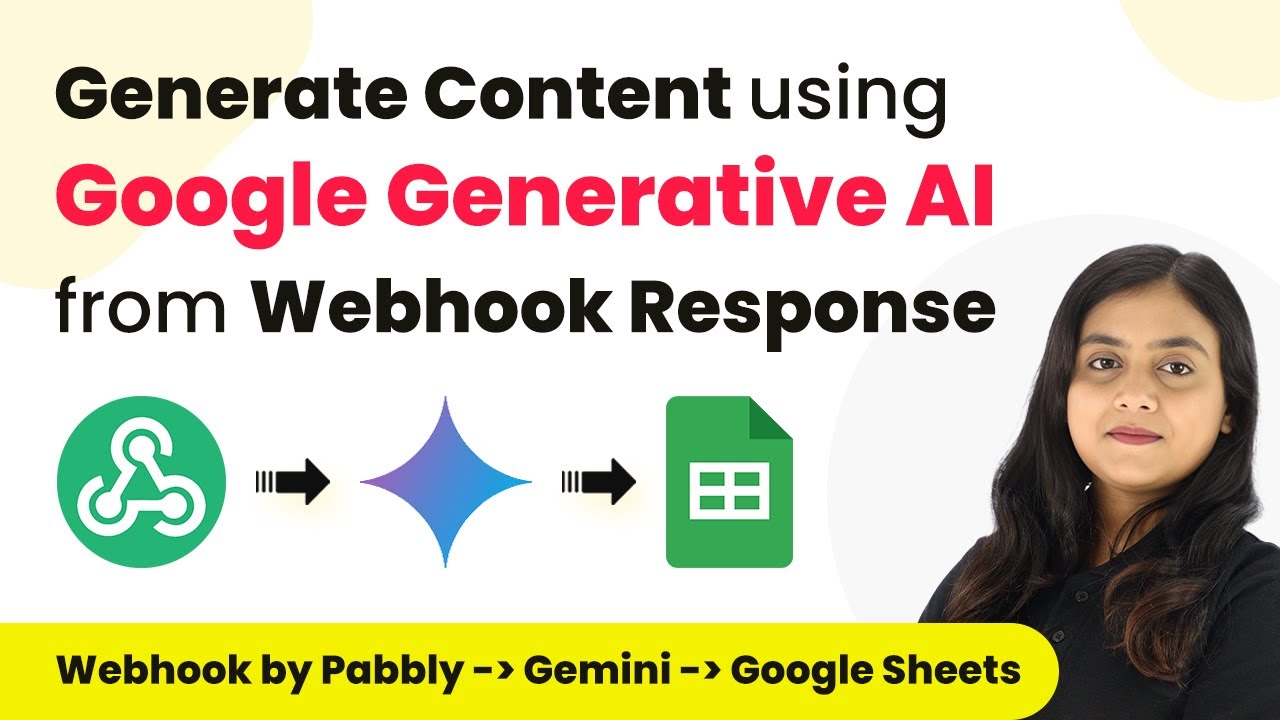
How to Generate Content using Google Generative AI from Webhook Response and Add in Google Sheets

Learn how to use Pabbly Connect to generate content using Google Generative AI and automate data entry into Google Sheets from webhook responses. This comprehensive guide reveals exactly how to connect your applications and automate repetitive tasks — accessible for professionals of all technical backgrounds.

Watch Step By Step Video Tutorial Below


1. Accessing Pabbly Connect for Integration

To automate content generation using Google Generative AI and manage data in Google Sheets, start by accessing Pabbly Connect. Sign in to your Pabbly Connect account or create a new one to get started.

Once logged in, you will see the dashboard. Here, you can create a new workflow by clicking on the ‘Create Workflow’ button. This is where you will set up the automation that captures webhook responses and generates content using Google Gemini.


2. Creating a New Workflow in Pabbly Connect

In this section, we will create a workflow named ‘Generate Content using Google Generative AI from Webhook Response and Add in Google Sheets’ within Pabbly Connect. Select the appropriate folder to save your workflow.

  • Click on the ‘Create Workflow’ button.
  • Name your workflow.
  • Select a folder for saving the workflow.

After creating the workflow, you will see two main sections: Trigger and Action. The Trigger will be set to capture responses from the webhook, while the Action will generate content using Google Gemini.


3. Setting Up the Trigger in Pabbly Connect

To set up the trigger, click on the arrow in the Trigger section and select ‘Webhook by Pabbly’. This allows you to capture responses from applications that are not natively integrated with Pabbly Connect.

Choose the ‘Catch Webhook’ event, and you will receive a unique webhook URL. Copy this URL to use with the application you want to connect, such as Pabbly Form Builder.

  • Select ‘Webhook by Pabbly’ as the trigger application.
  • Choose ‘Catch Webhook’ as the event.
  • Copy the generated webhook URL.

Integrate the copied URL with your Pabbly Form Builder to send data to Pabbly Connect. After setting this up, you can test the webhook by submitting a form.


4. Generating Content with Google Gemini in Pabbly Connect

Once the webhook response is captured in Pabbly Connect, the next step is to generate content using Google Gemini. In the Action section, select ‘Google Generative AI’ as your action application.

Choose the ‘Generate Content’ action event. You will need to connect your Google Generative AI account by providing the API key. This key can be obtained from the Google AI studio, where you can create a new API key for access.

Select ‘Google Generative AI’ as the action application. Choose ‘Generate Content’ as the action event. Input the API key from Google AI studio.

Once connected, you can map the data from the webhook response to generate dynamic content. This ensures that every new response triggers a fresh content generation process.


5. Adding Data to Google Sheets with Pabbly Connect

After generating the content, the final step is to add the details into Google Sheets. In the Action section of your workflow in Pabbly Connect, select ‘Google Sheets’ as the action application.

Choose the ‘Add New Row’ action event to insert the captured data and generated content into your Google Sheets document. Connect your Google Sheets account, select the spreadsheet, and map the necessary fields from the webhook response and the generated content.

Select ‘Google Sheets’ as the action application. Choose ‘Add New Row’ as the action event. Map the fields to include first name, last name, email, phone number, rating, remark, and generated content.

Click ‘Save and Send Test Request’ to ensure that the data is correctly added to your Google Sheets. After testing, you will see the new entries reflecting in your spreadsheet.


Conclusion

This tutorial demonstrates how to use Pabbly Connect to generate content using Google Generative AI and automatically add it to Google Sheets from webhook responses. By following these steps, you can streamline your data management and enhance your content generation process.

Ensure you check out Pabbly Connect to create business automation workflows and reduce manual tasks. Pabbly Connect currently offer integration with 2,000+ applications.

How to Delete Monday.com Item for Cancelled Calendly Appointment Using Pabbly Connect

Learn how to delete Monday.com items automatically when a Calendly appointment is cancelled using Pabbly Connect. Follow our step-by-step guide for seamless integration! Implement the precise methodologies leading organizations use to automate repetitive tasks, illustrated with practical examples designed for immediate application.

Watch Step By Step Video Tutorial Below


1. Accessing Pabbly Connect for Integration

To delete a Monday.com item for a cancelled Calendly appointment, you first need to access Pabbly Connect. Start by visiting the Pabbly Connect homepage and signing in or registering for a new account. If you’re a new user, you can sign up for free and get access to 300 tasks monthly.

Once logged in, navigate to the dashboard where you can see all the applications available within Pabbly Connect. This platform will enable you to create a workflow connecting Calendly and Monday.com seamlessly.


2. Creating a Workflow in Pabbly Connect

Next, you’ll create a new workflow within Pabbly Connect. Click on the ‘Create Workflow’ button at the top right corner of your dashboard. Name your workflow something descriptive, like ‘Delete Monday.com Item for Cancelled Calendly Appointment’. You can also organize your workflows into folders for better management.

  • Click on ‘Create’ after naming your workflow.
  • You will see a trigger and action setup screen.

Here, you will set up your trigger application, which is Calendly, and the event type as ‘Invite Cancelled’. This setup ensures that whenever an appointment is cancelled in Calendly, it will trigger the subsequent actions in Monday.com through Pabbly Connect.


3. Connecting Calendly to Pabbly Connect

After setting up your trigger, you need to connect your Calendly account to Pabbly Connect. Click on the ‘Connect’ button, then choose ‘Add New Connection’. Make sure you are logged into your Calendly account for a smooth connection process.

Once connected, select your organization ID and the user account to proceed. Afterward, click on ‘Save and Send Test Request’ to ensure the connection is working. You will need to cancel an appointment in your Calendly account to test this connection. After cancelling, you should receive a successful response in Pabbly Connect confirming the trigger setup.


4. Setting Up Action in Monday.com Through Pabbly Connect

Now, it’s time to set up the actions in Monday.com using Pabbly Connect. Select Monday.com as your action application and the event type as ‘Search Item by Column Value’. This step allows you to find the specific item in Monday.com that corresponds to the cancelled appointment.

  • Connect your Monday.com account using the API token found in your profile settings.
  • Select the board and the column to search for the item.
  • Map the email address from the Calendly response to search for the item.

After successfully searching for the item, you will need to add another action to delete the item from Monday.com. Choose ‘Delete Item’ as the action event, and map the Item ID you retrieved from the previous action step. This ensures that the correct item is deleted automatically through Pabbly Connect.


5. Testing Your Automation

Finally, test your automation to ensure everything works as expected. Cancel another appointment in your Calendly account, and check your Monday.com board to verify that the item has been deleted. This step is crucial to confirm that Pabbly Connect is functioning correctly and that your workflow is set up properly.

If the item has been successfully removed, your automation is complete! This integration allows you to manage your appointments efficiently, ensuring that your Monday.com items are always up-to-date.


Conclusion

In this tutorial, we explored how to delete a Monday.com item for a cancelled Calendly appointment using Pabbly Connect. By following these steps, you can automate your workflow and manage your appointments with ease. This integration streamlines your process and keeps your data synchronized across platforms.

Ensure you check out Pabbly Connect to create business automation workflows and reduce manual tasks. Pabbly Connect currently offer integration with 2,000+ applications.