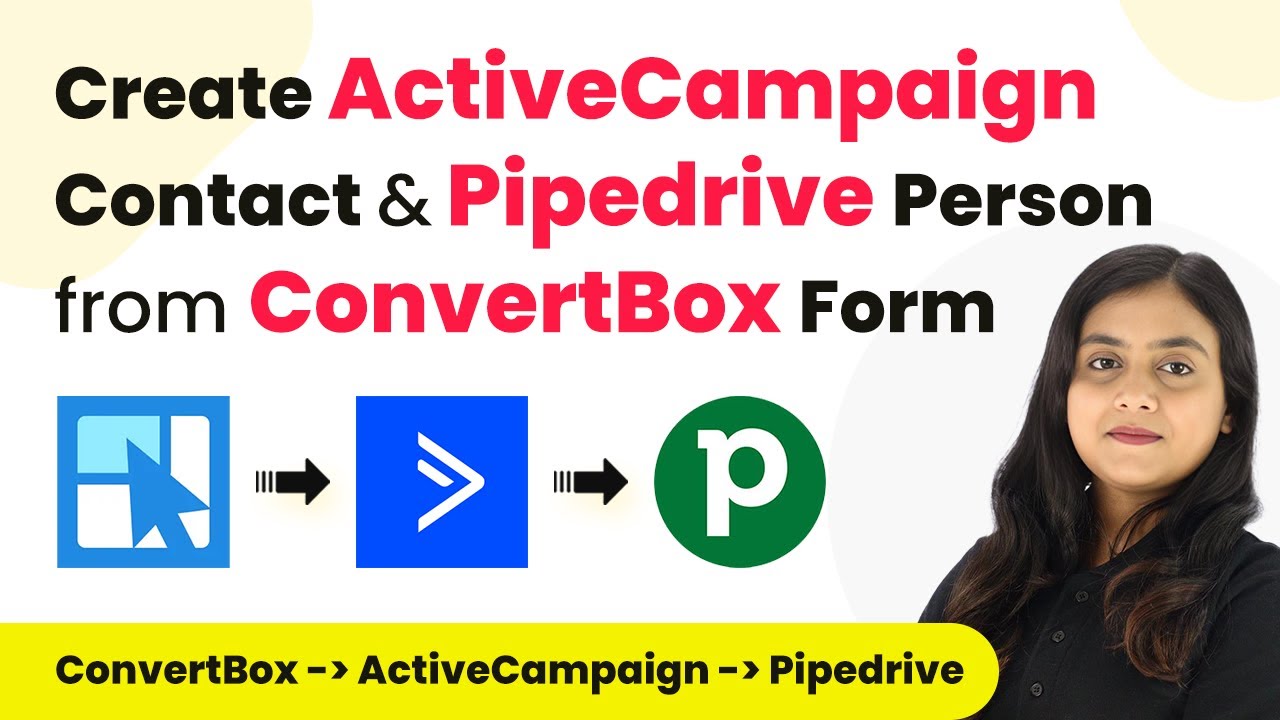
Integrating Convert Box with Active Campaign and Pipe Drive Using Pabbly Connect

Learn how to integrate Convert Box with Active Campaign and Pipe Drive using Pabbly Connect in this detailed tutorial. Step-by-step guide included. This comprehensive guide reveals exactly how to connect your applications and automate repetitive tasks — accessible for professionals of all technical backgrounds.

Watch Step By Step Video Tutorial Below


1. Accessing Pabbly Connect for Integration

To begin the integration process, you first need to access Pabbly Connect. Start by visiting the Pabbly Connect website and signing into your account. If you are a new user, you can sign up for free, which includes 100 free tasks each month.

Once signed in, you will see the Pabbly Connect dashboard. Here, you can create a new workflow for your integration. Click on the ‘Create Workflow’ button in the top right corner to initiate this process.


2. Creating a Workflow in Pabbly Connect

In this step, you will set up a workflow that connects Convert Box, Active Campaign, and Pipe Drive using Pabbly Connect. After clicking on ‘Create Workflow’, a dialog box will appear asking for a workflow name. Enter a descriptive name like ‘Create Active Campaign Contact and Pipe Drive Person from Convert Box Form Submission’.

  • Enter a descriptive name for your workflow.
  • Select a folder to save your workflow.
  • Click on ‘Create’ to finalize your workflow setup.

After creating the workflow, you will see two sections labeled ‘Trigger’ and ‘Action’. The trigger initiates the workflow, while actions are the responses to that trigger. You will first set up the trigger step.


3. Setting Up the Trigger with Convert Box

To set the trigger, click on the dropdown arrow in the trigger section and select Convert Box as your trigger application. Choose the trigger event as ‘New Lead Submission’. Pabbly Connect will generate a unique webhook URL for this integration.

Copy the webhook URL provided by Pabbly Connect. Now, navigate to your Convert Box account. Open the form you created and go to the form settings. Under actions, select ‘Go to Next Step’ and then click on ‘Integrations’. Add a new integration and select ‘Webhook’ as the type.

  • Paste the copied webhook URL into the integration settings.
  • Click on ‘Add Integration’ to finalize the connection.
  • Save the settings and finish the process.

Once saved, go back to your Pabbly Connect workflow dashboard. It should indicate that it is waiting for a webhook response.


4. Testing the Form Submission

Now, it’s time to test the integration between Convert Box and Pabbly Connect. Fill out the form you created in Convert Box with dummy data, including first name, last name, email, phone number, street address, postal code, city, and state.

After filling in the details, click on the submit button. This action will trigger the webhook and send the data to Pabbly Connect. You can then check the workflow to see if the response has been captured successfully. Ensure that all the details match the submitted data.


5. Setting Up Actions in Active Campaign and Pipe Drive

After confirming that the trigger is working, you will now set up actions in Active Campaign and Pipe Drive. Start by selecting Active Campaign as the action application and choose ‘Create a Contact’ as the action event. Connect your Active Campaign account by providing the API key and URL from your Active Campaign settings. using Pabbly Connect

Once connected, map the fields from the Convert Box submission to the corresponding fields in Active Campaign. This includes first name, last name, email, and phone number. After mapping, click on ‘Save and Send Test Request’ to check if the contact is created successfully in Active Campaign.

Next, add another action step by selecting Pipe Drive and choosing ‘Create a Person’ as the action event. Connect to Pipe Drive using the API token from your Pipe Drive account. Map the relevant fields similarly, ensuring that all information is correctly transferred. Finally, test this connection to confirm that a new person is created in Pipe Drive.


Conclusion

In this tutorial, we demonstrated how to integrate Convert Box with Active Campaign and Pipe Drive using Pabbly Connect. By following these steps, you can automate the process of creating contacts and persons from form submissions efficiently. This integration simplifies the data management process for your business.

Ensure you check out Pabbly Connect to create business automation workflows and reduce manual tasks. Pabbly Connect currently offer integration with 2,000+ applications.

How to Create WordPress Post for Published YouTube Video Using Pabbly Connect

Learn how to automate WordPress posts for your published YouTube videos using Pabbly Connect. Step-by-step guide for seamless integration with Google Gemini. This comprehensive guide reveals exactly how to connect your applications and automate repetitive tasks — accessible for professionals of all technical backgrounds.

Watch Step By Step Video Tutorial Below


1. Accessing Pabbly Connect for YouTube and WordPress Integration

To create a WordPress post for your published YouTube videos, you first need to access Pabbly Connect. Start by navigating to the Pabbly Connect website and signing in to your account. If you are a new user, you can sign up for free and enjoy 100 free tasks every month.

Once you have signed in, you will see the Pabbly Connect dashboard. From here, you will create a new workflow by clicking the ‘Create Workflow’ button in the top right corner. Enter a name for your workflow, such as ‘Create WordPress Post for Published YouTube Videos,’ and select a folder to organize your workflow.


2. Setting Up the Trigger with YouTube in Pabbly Connect

The next step is to set up the trigger in Pabbly Connect. Select YouTube as your trigger application and choose the event ‘New Video in Channel with Video URL.’ This ensures that whenever a long video is published on your YouTube channel, Pabbly Connect captures the event.

  • Click on ‘Connect’ to link your YouTube account.
  • Authorize Pabbly Connect to access your YouTube data.
  • Select your channel ID from the drop-down menu.

After setting up the trigger, click on ‘Save and Send Test Request’ to verify that Pabbly Connect successfully captures the latest video details from your YouTube channel. You will receive a response containing the video title and description, confirming that the trigger is functioning correctly.


3. Filtering Videos to Exclude YouTube Shorts

In this step, we will use Pabbly Connect to filter out YouTube Shorts from the automation process. This is crucial because we only want to create posts for long videos. Add a new action step and select ‘Filter by Pabbly Connect’ as the application.

  • Set the filter type to ‘Does Not Contain’ for the title of the video.
  • Input ‘shorts’ as the value to ensure only long videos proceed.

Once the filter is applied, click on ‘Save and Send Test Request’ to confirm that the filter condition is true. This means that only videos without ‘shorts’ in their title will continue to the next step of content generation.


4. Generating Content Using Google Gemini

Now that we have filtered the videos, it’s time to generate content using Google Gemini through Pabbly Connect. Add another action step and select Google Generative AI as the application, with the action event set to ‘Generate Content.’ This will allow you to create content based on the title of the long video.

Connect Google Gemini to Pabbly Connect using your API key. Input your prompt, which should include the title of the video. Specify that the content should be generated in HTML format.

After setting up the content generation, click on ‘Save and Send Test Request’ to generate the content. You will receive a response with the generated content, confirming that the integration is working effectively.


5. Posting the Generated Content on WordPress

The final step is to post the generated content on your WordPress account using Pabbly Connect. Add another action step and select WordPress as the application, with the action event set to ‘Create a Post.’ This will enable you to publish the content generated from Google Gemini directly to your WordPress site.

Connect your WordPress account by entering your username, password, and base URL. Map the title and content fields to the respective data from the previous steps. Set the post status to ‘Publish’ to make the content live.

After completing the setup, click on ‘Save and Send Test Request’ to successfully create the post. Check your WordPress account to confirm that the new post has been published with the correct title and content.


Conclusion

In this tutorial, we explored how to use Pabbly Connect to automate the process of creating WordPress posts for your published YouTube videos. By integrating YouTube, Google Gemini, and WordPress, you can streamline your content creation process efficiently.

Ensure you check out Pabbly Connect to create business automation workflows and reduce manual tasks. Pabbly Connect currently offer integration with 2,000+ applications.

How to Create LiveAgent Customer from Mailchimp Subscriber Using Pabbly Connect

Learn how to automate the creation of LiveAgent customers from Mailchimp subscribers using Pabbly Connect. Follow this step-by-step tutorial for seamless integration. Discover hidden automation capabilities within your existing tools. This guide shows you how to connect your essential applications and permanently eliminate redundant manual processes.

Watch Step By Step Video Tutorial Below


1. Accessing Pabbly Connect for Automation

To begin automating the creation of a LiveAgent customer from a Mailchimp subscriber, first, access Pabbly Connect. Open your browser and type in Pabbly.com/connect to reach the landing page.

On this page, you will find options to sign in or sign up for free. If you are an existing user, simply sign in. New users can click on the ‘Sign up for free’ button to create an account and enjoy 100 free tasks every month.


2. Creating a New Workflow in Pabbly Connect

Once logged in to Pabbly Connect, navigate to your dashboard. To create a new workflow, click on the ‘Create Workflow’ button located in the upper right corner. Name your workflow ‘Create LiveAgent Customer from Mailchimp Subscriber’ and save it in the folder called ‘Mailchimp to LiveAgent Automation’.

  • Click on the ‘Create Workflow’ button.
  • Name the workflow appropriately.
  • Save it in the desired folder.

After saving, you will be directed to a window that prompts you to set up a trigger and an action. The trigger signifies when an event occurs, while the action defines what happens as a result.


3. Setting Up the Trigger with Mailchimp

In the trigger section of Pabbly Connect, search for ‘Mailchimp Asma’ and select it as your trigger application. The trigger event will be set to ‘New Subscriber’, which will activate whenever a new subscriber is added to your Mailchimp account.

Next, you will need to set up a connection between Mailchimp and Pabbly Connect. A webhook URL will be provided, which acts as a bridge for this connection. Copy this URL and proceed to your Mailchimp account.

  • Navigate to the audience settings in Mailchimp.
  • Select ‘Manage Audience’ and then click on ‘Settings’.
  • Scroll down to ‘Webhooks’ and add a new webhook.

Paste the copied webhook URL into the callback URL field and select the option to receive updates for subscribers only. After saving, you will see that a new webhook has been successfully added.


4. Testing the Integration with a New Subscriber

With the webhook set up, it’s time to test the integration. Go back to Pabbly Connect and ensure it is ready to receive a test response. Create a new subscriber in your Mailchimp account by filling out the subscription form.

After subscribing, check your Mailchimp account under ‘All Contacts’ to confirm that the new subscriber has been added successfully. You should see the subscriber’s details, including their email address, first name, last name, and other information.

Fill out the form with subscriber details. Confirm the subscription. Verify the subscriber’s details in your Mailchimp account.

Once confirmed, return to Pabbly Connect to see the test response received from Mailchimp, confirming that the integration is functioning as intended.


5. Adding the Customer to LiveAgent

Now that you have verified the subscriber’s details in Pabbly Connect, it’s time to add them as a customer in your LiveAgent account. Click on the action section and search for ‘LiveAgent’. Choose the action event as ‘Add New Customer’.

For this step, you will need to map the subscriber’s details from the previous step into the fields required by LiveAgent. This includes their name, email, phone number, and gender. Ensure you have connected Pabbly Connect with your LiveAgent account by entering the required API key and domain name.

Enter your LiveAgent API key and domain name. Map the fields from the Mailchimp response to LiveAgent. Click on ‘Save and Test Request’ to complete the process.

Upon successful mapping and testing, you will see a confirmation that the customer has been created in your LiveAgent account. You can check the customers section in LiveAgent to verify the new addition.


Conclusion

This tutorial demonstrates how to use Pabbly Connect to automate the creation of a LiveAgent customer from a Mailchimp subscriber. By following these detailed steps, you can streamline your customer management processes effectively.

Ensure you check out Pabbly Connect to create business automation workflows and reduce manual tasks. Pabbly Connect currently offer integration with 2,000+ applications.

Integrate WooCommerce with Google Sheets Using Pabbly Connect: A Step-by-Step Guide

Learn how to integrate WooCommerce with Google Sheets using Pabbly Connect to store order details in different rows based on products. Step-by-step tutorial included. Learn to create powerful connections between your critical applications without requiring specialized programming knowledge or extensive technical background.

Watch Step By Step Video Tutorial Below


1. Accessing Pabbly Connect for Integration

To integrate WooCommerce with Google Sheets, we will use Pabbly Connect. Start by visiting the Pabbly Connect website. If you are a new user, click on ‘Sign Up for Free’ to create an account. Existing users can directly sign in.

Once logged in, you will find the dashboard where you can manage your workflows. Click on ‘Create Workflow’ to initiate the process. Name your workflow appropriately, such as ‘Store Order Details in Different Rows Based on Products’. This sets the stage for the integration process.


2. Setting Up WooCommerce as the Trigger in Pabbly Connect

In this step, we will set WooCommerce as the trigger application in Pabbly Connect. Select ‘WooCommerce’ from the list of applications. For the trigger event, choose ‘New Order’ to ensure that the workflow activates whenever a new order is placed.

  • Select ‘WooCommerce’ as the trigger application.
  • Choose ‘New Order’ as the trigger event.
  • Copy the provided webhook URL to connect WooCommerce with Pabbly Connect.

After copying the webhook URL, navigate to your WooCommerce settings in your WordPress dashboard. Go to WooCommerce > Settings > Advanced, and then select ‘Webhooks’. Click on ‘Add Webhook’ and fill in the necessary details, including the webhook name and the copied URL. Set the status to active and choose ‘Order Created’ as the topic.


3. Capturing Order Details from WooCommerce

With the webhook set up, it’s time to capture the order details. After placing a test order in WooCommerce, return to Pabbly Connect and click on ‘Recapture Webhook Response’. This allows you to fetch the latest order details.

Ensure that the ‘Simple Response’ option is toggled off, as this will allow you to receive all product details in a single response format. Once the response is captured, you will see all relevant order details, including product names, quantities, and customer information.

  • Toggle off ‘Simple Response’ to get advanced format.
  • Click on ‘Recapture Webhook Response’ to fetch order details.
  • Verify that you receive a comprehensive response containing all product details.

After capturing the response, you can see that the connection between WooCommerce and Pabbly Connect is successful, and the details are ready for the next step.


4. Using Iterator to Process Order Details for Google Sheets

Next, we will utilize the Iterator function in Pabbly Connect to process the captured order details. This step is crucial as it allows us to split the order details into separate rows in Google Sheets based on each product.

Select ‘Iterator’ as the action application and choose the action event as ‘Process Array’. Map the line items from the previous step to ensure that each product’s details are processed individually.

Select ‘Iterator’ as the action application. Choose ‘Process Array’ as the action event. Map the line items to ensure individual processing.

By using the Iterator, you will receive responses for each product separately, which will be essential for adding them to Google Sheets in different rows. This setup ensures that the order details are organized and easy to read in your spreadsheet.


5. Adding Order Details to Google Sheets via Pabbly Connect

Finally, we will connect Google Sheets to Pabbly Connect to store the order details. Select ‘Google Sheets’ as the action application and choose ‘Add New Row’ as the action event. This will allow each product’s details to be added to a new row in your Google Sheets.

Connect your Google Sheets account if you haven’t done so already. Once connected, select the spreadsheet and sheet where you want the order details to be stored. Map each field with the corresponding data from the previous steps, ensuring that all relevant information is included.

Select ‘Google Sheets’ as the action application. Choose ‘Add New Row’ as the action event. Map the fields to ensure all order details are captured.

After mapping the fields, click on ‘Save and Send Test Request’. This will add the details to your Google Sheets, confirming that the integration is successful. Now, whenever a new order is placed in WooCommerce, the details will automatically populate in Google Sheets in separate rows based on each product.


Conclusion

In this tutorial, we demonstrated how to integrate WooCommerce with Google Sheets using Pabbly Connect. By automating the process, you can easily store order details in different rows based on products, enhancing your workflow efficiency. This integration provides a seamless way to manage your e-commerce orders.

Ensure you check out Pabbly Connect to create business automation workflows and reduce manual tasks. Pabbly Connect currently offer integration with 2,000+ applications.

How to Set Up Webhook Inside Sendy Using Pabbly Connect

Learn how to set up a webhook inside Sendy using Pabbly Connect to automate your email marketing processes with WhatsApp and other applications. Discover hidden automation capabilities within your existing tools. This guide shows you how to connect your essential applications and permanently eliminate redundant manual processes.

Watch Step By Step Video Tutorial Below


1. Setting Up Pabbly Connect for Sendy Integration

To set up a webhook inside Sendy using Pabbly Connect, you will first need to access your Pabbly Connect account. This platform serves as the integration hub that allows you to connect Sendy with various applications like WhatsApp, Google Sheets, and Slack.

After logging into your Pabbly Connect account, you will initiate a new workflow. Select Sendy as your trigger application and define the trigger event based on your needs, such as a new subscriber being added.


2. Configuring the Webhook in Sendy

Once you have set up your trigger in Pabbly Connect, the next step is to configure the webhook in Sendy. You will need to copy the webhook URL provided by Pabbly Connect. This URL will act as a bridge for data transfer.

  • Log into your Sendy account.
  • Navigate to the campaign section and select the rule option.
  • Create a new rule and set the trigger to ‘on subscribe’.
  • Paste the copied webhook URL into the designated field.

After adding the rule, click on ‘Add’ to finalize the setup. Your Sendy account is now ready to send data to Pabbly Connect whenever a new subscriber is added.


3. Testing the Sendy and Pabbly Connect Integration

After configuring the webhook in Sendy, it’s essential to test the integration to ensure it works correctly. You can do this by adding a new subscriber through the Sendy subscribe form.

To test, follow these steps:

  • Open the subscribe form link in an incognito window.
  • Fill in the subscriber details, such as name and email.
  • Submit the form.

Once you submit the form, check your Pabbly Connect dashboard to see if the new subscriber’s data is captured successfully. This confirms that your webhook setup is functioning as intended.


4. Utilizing Subscriber Data from Sendy

With the webhook successfully set up, you can now utilize the subscriber data captured by Pabbly Connect. This data can be sent to various applications for different purposes, such as sending notifications or storing in spreadsheets.

For instance, you can:

Send a WhatsApp message to the new subscriber using WhatsApp Cloud API. Store subscriber information in Google Sheets. Notify your team via Slack or Discord.

By leveraging Pabbly Connect, you can automate these actions effortlessly, enhancing your marketing workflow.


5. Flexibility of Using Pabbly Connect for Automation

The beauty of using Pabbly Connect lies in its flexibility. You can customize your workflows to include multiple actions based on the triggers you set up. This means you can expand your automation as needed.

For example, if you wanted to add an action for unsubscribing, you could easily set that up by selecting the appropriate trigger in Pabbly Connect. This allows for comprehensive management of your email marketing efforts.

Additionally, Pabbly Connect supports various applications, making it a versatile tool for integrating different platforms seamlessly. This means you can automate processes without any coding knowledge, streamlining your business operations.


Conclusion

In conclusion, setting up a webhook inside Sendy using Pabbly Connect enables you to automate your email marketing processes effectively. By following the steps outlined in this tutorial, you can integrate Sendy with various applications such as WhatsApp and Google Sheets, enhancing your marketing capabilities.

Ensure you check out Pabbly Connect to create business automation workflows and reduce manual tasks. Pabbly Connect currently offer integration with 2,000+ applications.

How to Send Discord Channel Messages for RSS Feed Using Pabbly Connect

Learn how to integrate Discord with RSS Feed using Pabbly Connect to send messages seamlessly to your Discord channel. Follow this step-by-step tutorial. This comprehensive guide reveals exactly how to connect your applications and automate repetitive tasks — accessible for professionals of all technical backgrounds.

Watch Step By Step Video Tutorial Below


1. Access Pabbly Connect for Integration

To send Discord channel messages for RSS Feed updates, first, access Pabbly Connect. This platform allows seamless integration between various applications, including Discord and RSS feeds. Start by visiting the Pabbly Connect homepage.

If you are a new user, click on the ‘Sign Up Free’ button to create an account. Existing users can simply click on ‘Sign In’ to access their dashboard. Once logged in, you will see the dashboard where you can create workflows for your integrations.


2. Create a New Workflow in Pabbly Connect

In this step, you will create a new workflow in Pabbly Connect to connect your RSS feed to Discord. Click on the ‘Create Workflow’ button located at the top right corner of the dashboard. You will be prompted to name your workflow.

For this integration, name your workflow something like ‘Send Discord Channel Messages for RSS Feed’. You can also choose a folder to organize your workflows. After naming, click on the ‘Create’ button to proceed.

  • Click on the ‘Create Workflow’ button.
  • Name your workflow.
  • Select a folder for organization.

After successfully creating your workflow, you can now start setting up the trigger for your RSS feed.


3. Set Up RSS Feed Trigger in Pabbly Connect

To set up the trigger, select ‘RSS by Pabbly’ as your trigger application in Pabbly Connect. The trigger event should be set to ‘New Item in Feed’. This means that whenever a new item is published in your selected RSS feed, it will trigger the workflow.

Next, you will need to enter the feed URL. For example, if you are using an RSS feed from ADTV, locate the specific section you want updates from, such as Sports. Copy the feed URL and paste it into the provided field in Pabbly Connect. After entering the URL, click on the ‘Save and Send Test Request’ button to ensure it captures the latest items correctly.

  • Select ‘RSS by Pabbly’ as the trigger application.
  • Set the trigger event to ‘New Item in Feed’.
  • Paste the copied feed URL into the field.

Once you receive a successful response, you can proceed to the action step where messages will be sent to Discord.


4. Set Up Discord Action in Pabbly Connect

Now it’s time to set up the action step in Pabbly Connect. Select ‘Discord’ as your action application and choose the action event as ‘Send Channel Message’. This step ensures that every new item captured by the RSS feed will be sent as a message to your specified Discord channel.

To connect your Discord account, click on the ‘Connect’ button. You will need to provide the Webhook URL from your Discord channel. To obtain this URL, create a new channel in Discord, navigate to the channel settings, and generate a Webhook. Copy this URL and paste it back into Pabbly Connect.

Select ‘Discord’ as the action application. Set the action event to ‘Send Channel Message’. Paste the Webhook URL from Discord.

After entering the required details, map the message content you want to send, such as the title and link from the RSS feed. Finally, click on ‘Save and Send Test Request’ to verify that the message is sent successfully to your Discord channel.


5. Finalize Your Integration and Test

With the setup complete, it’s time to finalize your integration in Pabbly Connect. Ensure that all the information is correctly mapped, including the message text and any additional parameters you want to include. This is crucial for ensuring the messages are formatted as desired.

After confirming the mapping, conduct a final test by triggering a new item in your RSS feed. Check your Discord channel to see if the message appears as expected. If everything works smoothly, your integration is now complete!

By following these steps, you can successfully automate sending Discord channel messages for RSS feed updates using Pabbly Connect. This automation saves time and keeps your community informed with the latest updates.


Conclusion

In this tutorial, we explored how to send Discord channel messages for RSS feed updates using Pabbly Connect. By following the steps outlined, you can automate message delivery seamlessly, enhancing communication in your Discord community.

Ensure you check out Pabbly Connect to create business automation workflows and reduce manual tasks. Pabbly Connect currently offer integration with 2,000+ applications.

How to Add Razorpay Payment Details in Google Sheets Using Pabbly Connect

Learn how to integrate Razorpay with Google Sheets using Pabbly Connect. This step-by-step tutorial guides you through setting up automated payment details tracking. This comprehensive guide reveals exactly how to connect your applications and automate repetitive tasks — accessible for professionals of all technical backgrounds.

Watch Step By Step Video Tutorial Below


1. Introduction to Pabbly Connect for Google Sheets Integration

Pabbly Connect is a powerful tool that automates the integration between Razorpay and Google Sheets. This integration allows you to automatically capture payment details from Razorpay into your Google Sheets. using Pabbly Connect

To get started, you first need to log into your Pabbly Connect account. If you don’t have an account, you can sign up for free and explore the features offered. Once logged in, you can create a new workflow to set up the integration.


2. Setting Up Your Workflow in Pabbly Connect

To set up the workflow in Pabbly Connect, click on the ‘Create Workflow’ button located in the top right corner of the dashboard. You will then be prompted to name your workflow. using Pabbly Connect

  • Give your workflow a name, such as ‘Razorpay Payment Details in Google Sheets’.
  • Select a folder for your workflow, or create a new one if necessary.
  • Click on the ‘Create’ button to proceed.

After creating your workflow, you will see the trigger and action setup. The trigger will be Razorpay, and the action will be Google Sheets. This setup allows Pabbly Connect to listen for new payments and then log them in your specified Google Sheet.


3. Configuring Razorpay as the Trigger Application

In this step, you will select Razorpay as the trigger application. Click on the ‘Select App’ option and choose Razorpay. Next, select the trigger event as ‘Payment Captured’. using Pabbly Connect

Once the trigger is set, Pabbly Connect will provide you with a webhook URL. This URL needs to be added to your Razorpay account under the webhooks section. This action enables Razorpay to send payment data to Pabbly Connect whenever a new payment is made.

  • Log into your Razorpay account and navigate to ‘Account Settings’.
  • Select ‘Webhooks’ and click on ‘Add New Webhook’.
  • Paste the webhook URL from Pabbly Connect and select the event as ‘Payment Captured’.

After saving the webhook, you can test it by making a dummy payment to ensure everything is set up correctly. Pabbly Connect will capture this payment data for the next steps.


4. Setting Up Google Sheets as the Action Application

Now that Razorpay is configured as the trigger, it’s time to set Google Sheets as the action application. In Pabbly Connect, click on ‘Select App’ and choose Google Sheets. using Pabbly Connect

Next, select the action event as ‘Add Row’. This will allow you to add a new row in your Google Sheet each time a payment is captured. You will need to connect your Google account to Pabbly Connect and authorize access to your Google Sheets.

Choose the Google Sheet where you want to record the payment details. Select the specific sheet within that Google Sheet to which the data will be added. Map the fields from Razorpay to the corresponding columns in Google Sheets.

This mapping is crucial as it ensures that the correct payment details are logged in the right columns. Once the mapping is complete, you can save the action settings.


5. Testing and Finalizing the Integration

With both the trigger and action set up, it’s time to test the integration. Go back to your Razorpay account and make a test payment to see if the details are captured in Google Sheets.

Once the payment is made, return to Pabbly Connect and check the webhook response. If everything is configured correctly, you should see the payment details logged successfully in your Google Sheet.

Verify that the customer’s name, email, phone number, and payment amount are recorded accurately. If there are any discrepancies, revisit your mapping settings in Pabbly Connect. Once confirmed, your integration is complete and ready for use.

Now you can enjoy seamless tracking of Razorpay payments directly in Google Sheets, thanks to Pabbly Connect. This automation saves time and reduces manual entry errors.


Conclusion

In this tutorial, we explored how to integrate Razorpay with Google Sheets using Pabbly Connect. By following these steps, you can automate the process of logging payment details, enhancing your workflow efficiency significantly.

Ensure you check out Pabbly Connect to create business automation workflows and reduce manual tasks. Pabbly Connect currently offer integration with 2,000+ applications.

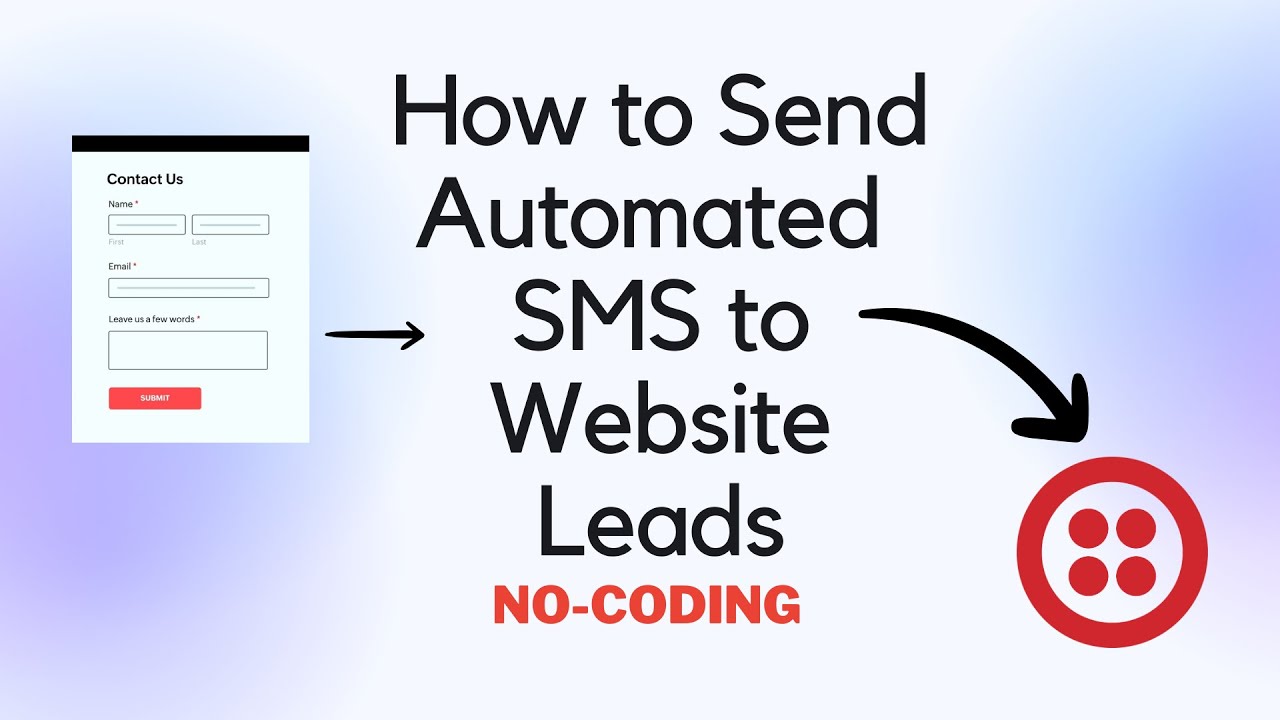
Automate SMS Sending to Website Leads with Pabbly Connect

Learn how to automate SMS sending to website leads using Pabbly Connect and Twilio. Follow our step-by-step tutorial for seamless integration. Streamline your workflow, save valuable time, and eliminate repetitive tasks through powerful automation capabilities.

Watch Step By Step Video Tutorial Below


Setting Up Pabbly Connect for SMS Automation

To automate SMS sending to website leads, you first need to set up Pabbly Connect. This automation software allows you to connect various applications seamlessly. Start by signing up or logging into your Pabbly Connect account.

Once logged in, you will see the dashboard. From here, you can create a new workflow by clicking on the ‘Create Workflow’ button located at the top right corner. This initiates the process of linking your applications.


Creating a New Workflow in Pabbly Connect

After clicking ‘Create Workflow’, you will need to name your workflow. For this example, name it ‘Send Automated SMS to Website Leads’. You can also choose a folder for better organization, such as ‘Automations’.

Next, click the ‘Create’ button to proceed. You will now see the workflow window where you can set up the trigger and action. The trigger application will be Webhooks by Pabbly, and the action application will be Twilio.

  • Select ‘Webhooks by Pabbly’ as the trigger application.
  • Choose ‘Catch Webhook’ as the trigger event.
  • Copy the generated webhook URL for later use.

With the trigger set, you can now move on to setting up the action with Twilio.


Setting Up Twilio for SMS Sending

To configure Twilio, you need to connect it with Pabbly Connect. Click on ‘Add New Connection’ under the Twilio action setup. You will be prompted to enter your Account SID and Authorization Token from your Twilio console.

Once you have entered these details, click on ‘Save’ to establish the connection. After successfully connecting, you will need to set up the SMS message details. This includes the sender’s number, recipient’s number, and the message body.

  • Input the sender’s Twilio number.
  • Map the recipient’s number from the webhook response.
  • Compose your message, including dynamic fields if needed.

After filling in all required fields, click on ‘Save and Send Test Request’ to ensure everything is set up correctly.


Testing Your SMS Automation

To verify that your automation works, conduct a test submission through your website form. Enter dummy data, such as a name, email, and phone number, and submit the form.

After submission, return to your Pabbly Connect dashboard to check if the webhook response was captured successfully. You should see the lead details including the phone number in the response.

Next, check your Twilio account to confirm that the SMS was sent to the recipient’s number. This step ensures that the integration is functioning as expected.

Conclusion

This guide summarizes the key points and helps you understand the essential features and benefits of using this tool.

Thanks for following along with this tutorial! Remember to subscribe to the channel for more helpful content like this.

If you found this guide useful, please consider giving it a thumbs up and sharing it with others who might benefit from it.


Final Steps and Conclusion

If the test is successful, your automation is now complete. You can now automate SMS sending to all your website leads using Pabbly Connect and Twilio. This integration not only saves time but also enhances communication efficiency.

In conclusion, using Pabbly Connect to automate SMS sending through Twilio is a straightforward process. By following the steps outlined, you can set up a reliable workflow that keeps your customers informed and engaged.

How to Create Facebook Page Post from Telegram Messages Using Pabbly Connect

Learn how to create Facebook page posts from Telegram messages using Pabbly Connect in this detailed tutorial. Follow the step-by-step guide for seamless integration. Revolutionize your productivity approach with just a few strategic clicks. Uncover professional methods for connecting applications and creating workflows that reclaim hours of your week.

Watch Step By Step Video Tutorial Below


1. Accessing Pabbly Connect for Integration

To create Facebook page posts from Telegram messages, you first need to access Pabbly Connect. You can do this by visiting the Pabbly Connect website and signing in to your account. If you’re new, you can sign up for free to get started.

Once logged in, navigate to the Pabbly Connect dashboard. Here, you will see various applications offered by Pabbly. Click on the Pabbly Connect option to begin setting up your workflow.


2. Creating a Workflow in Pabbly Connect

In this section, we will create a workflow to automate the process of posting on Facebook when a new Telegram message is received. Start by clicking on the ‘Create Workflow’ button in Pabbly Connect. You will be prompted to name your workflow. Enter a suitable name like ‘Create Facebook Page Post from Telegram Messages’ and select a folder to save it in.

  • Click on the ‘Create’ button to proceed.
  • This will take you to the workflow window where you can set triggers and actions.

In this window, you will define the trigger application. Since we want to trigger the workflow with a new Telegram message, select Telegram as your trigger application. Choose ‘Set Webhook / Watch Updates’ as the trigger event and click on ‘Connect’.


3. Setting Up Telegram in Pabbly Connect

To connect Telegram with Pabbly Connect, you need to create a bot. Open your Telegram account and search for the BotFather. Start a conversation and type ‘/newbot’ to create a new bot. Follow the prompts to set a name and username for your bot. Once created, you will receive a token that you need to copy.

  • Paste the token into the connection field in Pabbly Connect.
  • Ensure that the bot has admin access to the Telegram group where messages will be sent.

After pasting the token, click on ‘Save’. Now, send a test message in your Telegram group to check if the connection is successful. Go back to Pabbly Connect and click on ‘Save and Send Test Request’ to capture the response.


4. Posting on Facebook Using Pabbly Connect

Once you have set up the Telegram integration, the next step is to post the received message on Facebook. In Pabbly Connect, add another action by selecting Facebook as the application. Choose the action event ‘Create Page Photo Post’.

Connect your Facebook account by clicking on ‘Connect’ and selecting your page. Map the photo URL and description from the Telegram message response.

After mapping the required fields, click on ‘Save and Send Test Request’. This will send the post to your Facebook page. Verify by checking your Facebook page to see if the post has been created successfully.


5. Testing the Integration in Real-Time

To ensure the integration works seamlessly, send another message in your Telegram group. This time, include an image and a caption. After sending the message, check Pabbly Connect for the captured response.

Once the response is captured, go to your Facebook page and refresh it to see the new post. The integration should automatically create a post with the image and caption sent via Telegram.

By following these steps, you can successfully automate the process of posting on Facebook from Telegram messages using Pabbly Connect. This integration not only saves time but also keeps your audience updated in real-time.


Conclusion

In this tutorial, we explored how to create Facebook page posts from Telegram messages using Pabbly Connect. This integration allows for efficient automation, ensuring your audience stays informed with the latest updates from your Telegram group. Implementing this workflow is straightforward and enhances your social media management.

Ensure you check out Pabbly Connect to create business automation workflows and reduce manual tasks. Pabbly Connect currently offer integration with 2,000+ applications.

How to Set Up Webhook Inside LiveAgent Using Pabbly Connect

Learn how to set up a webhook inside LiveAgent using Pabbly Connect to automate your customer support processes effectively. Eliminate manual repetitive tasks from your workflow. Discover proven automation methods with intuitive steps designed for efficiency-minded professionals.

Watch Step By Step Video Tutorial Below


1. Introduction to Pabbly Connect for LiveAgent Integration

To set up a webhook inside LiveAgent, you will first need to access Pabbly Connect. This powerful integration platform allows you to connect LiveAgent with various applications seamlessly. By using Pabbly Connect, you can automate processes and enhance your customer support operations.

In this section, we will discuss how to initiate the integration process. Start by logging into your Pabbly Connect account. Once logged in, you will be directed to the dashboard where you can create a new workflow specifically for LiveAgent.


2. Setting Up the Trigger in Pabbly Connect

To establish a connection, the first step is to set up a trigger in Pabbly Connect. This trigger will be activated when a specific event occurs in LiveAgent. Select LiveAgent as your trigger application and choose the event labeled ‘New Rule’. This event will trigger the webhook whenever a new ticket is created.

  • Select LiveAgent as the trigger application.
  • Choose ‘New Rule’ as the trigger event.
  • Copy the provided webhook URL for future use.

After copying the webhook URL, you can proceed to configure the LiveAgent settings. This URL will serve as the bridge for transferring data from LiveAgent to Pabbly Connect whenever a ticket is created. Make sure to follow the instructions provided in the Pabbly Connect interface carefully.


3. Configuring LiveAgent Settings for Webhook

Next, navigate to your LiveAgent account to configure the webhook settings. Go to the settings menu and select ‘Automations’ followed by ‘Rules’. Here, you will create a new rule that will utilize the webhook URL from Pabbly Connect.

To create the rule, click on ‘Create Rule’ and ensure the status is set to active. Name your rule appropriately, such as ‘New Test Tickets’. Under ‘Apply When’, select the option that triggers the rule when a new ticket is created.

  • Set the rule status to active.
  • Input the rule name and description.
  • Select ‘HTTP Request’ as the action type.

Finally, paste the copied webhook URL into the URL field, select ‘POST’ as the HTTP method, and enter the required parameters in the body section as specified. Ensure to set the encoding method to JSON encoded before saving the rule.


4. Testing the Webhook Connection

After setting up the webhook in LiveAgent, the next step is to test the connection to ensure it is functioning correctly. You can do this by creating a test ticket in your LiveAgent account. This process will trigger the webhook and allow you to verify the data transfer to Pabbly Connect.

To create a test ticket, navigate to the tickets section in LiveAgent, click on the plus sign, and fill in the necessary details such as department, agent, and customer. Once the ticket is created, return to Pabbly Connect to check for the response.

Create a new ticket in LiveAgent. Ensure all ticket details are filled correctly. Check Pabbly Connect for the incoming response.

If the integration is successful, you will see the ticket details received in Pabbly Connect, confirming that the webhook is working as intended.


5. Conclusion on Setting Up Webhook in LiveAgent

In summary, using Pabbly Connect to set up a webhook inside LiveAgent allows for seamless automation of customer support tasks. By following the steps outlined in this tutorial, you can effectively connect LiveAgent with other applications, enhancing your team’s efficiency.

Ensure you check out Pabbly Connect to create business automation workflows and reduce manual tasks. Pabbly Connect currently offer integration with 2,000+ applications.

Automating your processes through Pabbly Connect not only saves time but also improves communication within your team. This integration ensures that no customer queries go unnoticed, enabling you to provide better service.


In conclusion, setting up a webhook inside LiveAgent using Pabbly Connect is a straightforward process that can significantly improve your customer support workflow. By automating ticket notifications, you ensure timely responses and better team collaboration.