Create Zoom Meeting from Google Calendar Events Using Pabbly Connect

Learn how to create and update Zoom meetings from Google Calendar events using Pabbly Connect. Step-by-step tutorial for seamless integration. Explore systematic approaches to creating efficient automation solutions that convert technical concepts into practical, implementable instructions.

Watch Step By Step Video Tutorial Below


1. Setting Up Pabbly Connect for Google Calendar and Zoom Integration

To create a Zoom meeting from Google Calendar events, you first need to set up Pabbly Connect. This platform acts as the central integration tool that connects Google Calendar and Zoom seamlessly. Start by logging into your Pabbly Connect account and navigating to the dashboard.

Once in the dashboard, click on the ‘Create Workflow’ button. Here, you will be prompted to name your workflow. Choose a descriptive name like ‘Google Calendar to Zoom Meeting’ for easy identification. This setup is crucial as it will allow you to automate the meeting creation process effectively.


2. Connecting Google Calendar to Pabbly Connect

In this section, you will connect your Google Calendar to Pabbly Connect. Click on ‘Add New Connection’ and select Google Calendar from the list of applications. You will then be asked to authorize Pabbly Connect to access your Google Calendar data.

  • Choose the Google account you wish to connect.
  • Grant the necessary permissions to allow access.
  • Once connected, select the calendar from which events will be fetched.

After successful connection, you can now set up the trigger event. Choose the ‘New Event’ option to initiate a Zoom meeting whenever a new event is created in your Google Calendar. This automation streamlines your scheduling process significantly.


3. Creating a Zoom Meeting via Pabbly Connect

With your Google Calendar connected, the next step is to create a Zoom meeting using Pabbly Connect. Add another action step and select Zoom from the applications list. Choose the ‘Create Meeting’ action.

In this step, you will fill in the required fields to set up the Zoom meeting. You need to enter details like the meeting topic, description, date, time, and duration. Ensure these details are dynamically fetched from the Google Calendar event to maintain consistency.

  • Meeting Topic: Fetch from the Google Calendar event title.
  • Meeting Description: Use the event description from Google Calendar.
  • Start Time: Set this to the event’s start time.

Once you have filled in all the necessary information, click on the ‘Save’ button to create the Zoom meeting. This integration allows you to automate the process of creating meetings directly from your calendar events.


After creating the Zoom meeting, the next step is to update the meeting link back in Google Calendar using Pabbly Connect. Add another action step and select Google Calendar again. Choose the ‘Update Event’ action.

In this step, you will need to specify which event to update. Use the event ID from the previous step to ensure the correct event is modified. Enter the Zoom meeting link in the description or location field of the calendar event to make it easily accessible.

Select the calendar where the event is located. Use the event ID to target the specific event. Update the event description with the new Zoom meeting link.

After entering the required details, click on ‘Save’. This ensures that the meeting link is updated in your Google Calendar, making it easy for participants to join the meeting.


5. Conclusion

By using Pabbly Connect, you can effortlessly create and update Zoom meetings from Google Calendar events. This integration streamlines your scheduling process, ensuring that all meeting details are automatically updated. With just a few clicks, you can enhance your productivity and keep your calendar organized.

Ensure you check out Pabbly Connect to create business automation workflows and reduce manual tasks. Pabbly Connect currently offer integration with 2,000+ applications.

Start using Pabbly Connect today to simplify your workflow between Google Calendar and Zoom, making your meeting management seamless and efficient.



Automatically Add New VBOUT Subscribers to Zendesk Sell as Leads Using Pabbly Connect

Learn how to automatically add new VBOUT subscribers to Zendesk Sell as leads using Pabbly Connect. Follow this step-by-step tutorial for seamless integration. Build sophisticated automated workflows in less time than you think. This guide translates complex integrations into straightforward steps for immediate implementation.

Watch Step By Step Video Tutorial Below


1. Access Pabbly Connect to Start Integration

To begin the integration process for automatically adding new VBOUT subscribers to Zendesk Sell as leads, first, access Pabbly Connect. Open your internet browser and type in the URL Pabbly.com/connect. Here, you can either sign up for a new account or sign in to your existing account.

Once logged in, navigate to the dashboard of Pabbly Connect. Click on the ‘Create Workflow’ button to initiate a new workflow for this integration. Name your workflow something relevant, such as ‘Add VBOUT Subscribers to Zendesk as New Leads’ and click on ‘Create’ to proceed.


2. Connect VBOUT to Pabbly Connect Using Webhook

In this step, you will connect VBOUT to Pabbly Connect using a webhook URL. Click on the trigger section in your workflow and select VBOUT as the application. Next, choose the trigger event as ‘New User Joins to a List’. This action will generate a webhook URL that you will use to connect to VBOUT.

Now, go to your VBOUT account and navigate to the Automation section. Create a new automation by dragging the ‘Joined’ module into your workspace. Double-click this module to set the trigger criteria. Choose the target list in which you want to add contacts, such as the ‘Zendesk’ list, and save your configuration. Follow up by syncing to a third party and pasting the webhook URL from Pabbly Connect into the Post API URL field.


3. Test the Connection Between VBOUT and Pabbly Connect

After configuring the webhook, you need to test the connection. Create a new contact in VBOUT by filling out the required details and adding them to the Zendesk list. When you add a contact, Pabbly Connect will capture this data automatically. Refresh your Pabbly Connect dashboard to see if the data has been received successfully.

  • Fill in the contact details in VBOUT.
  • Select the ‘Zendesk’ list for the new subscriber.
  • Check Pabbly Connect for the captured data.

Once you confirm that the data is captured, you can proceed to the next step. This testing ensures that the integration is working correctly before moving forward with sending data to Zendesk Sell.


4. Add New Leads to Zendesk Sell Using Pabbly Connect

Now that you have tested the connection, it’s time to add the new subscriber as a lead in Zendesk Sell. In your Pabbly Connect workflow, click on the plus icon to add a new action step. Choose Zendesk Sell as the application and select the action event as ‘Create Lead’. Authenticate your Zendesk Sell account to allow Pabbly Connect to create leads on your behalf.

Next, map the data fields from the captured subscriber information to the lead fields in Zendesk. This includes mapping the first name, last name, email, and any other relevant details. After you have filled in all necessary fields, click on ‘Save and Send Test Request’. This action will create a new lead in Zendesk Sell with the details of the subscriber you added in VBOUT.


5. Review and Finalize Your Integration Workflow

After successfully creating a lead in Zendesk Sell, review your entire workflow in Pabbly Connect. Ensure that all steps are correctly configured and that data is flowing seamlessly from VBOUT to Zendesk Sell. This review is crucial for ensuring that your integration runs smoothly without any errors.

Once you are satisfied with the setup, click on ‘Save’ to finalize your workflow. You can now automatically add new VBOUT subscribers to Zendesk Sell as leads without any manual intervention, enhancing your customer relationship management process.


Conclusion

In this tutorial, you learned how to automatically add new VBOUT subscribers to Zendesk Sell as leads using Pabbly Connect. By following these steps, you can streamline your lead management process and improve customer relationships efficiently.

Ensure you check out Pabbly Connect to create business automation workflows and reduce manual tasks. Pabbly Connect currently offer integration with 2,000+ applications.

Automatically Enroll Students into Heights Platform from Google Sheets Using Pabbly Connect

Learn how to automatically enroll students into the Heights platform from Google Sheets using Pabbly Connect in this detailed tutorial. Master proven automation processes with practical implementation examples and strategic recommendations you can apply immediately in your workflow.

Watch Step By Step Video Tutorial Below


1. Accessing Pabbly Connect for Integration

To start the process of automatically enrolling students into the Heights platform from Google Sheets, you first need to access Pabbly Connect. This powerful automation tool allows seamless integration between various applications, including Google Sheets and Heights.

Begin by visiting the Pabbly Connect website. Click on the ‘Sign Up’ button to create a free account. This step is crucial as it provides you access to the automation features necessary for this integration.


2. Creating a New Workflow in Pabbly Connect

Once you have logged into your Pabbly Connect account, the next step is to create a new workflow. This workflow will manage the data transfer from Google Sheets to the Heights platform.

  • Click on the ‘Create Workflow’ button.
  • Name your workflow appropriately, for example, ‘Enroll Students’.
  • Select Google Sheets as your trigger application.

This setup ensures that every time a new student is added to your Google Sheets, the workflow is triggered. The integration will then automatically send the student details to the Heights platform.


3. Setting Up the Trigger in Google Sheets

After creating the workflow, you need to set up the trigger in Google Sheets. This involves selecting the specific sheet that contains the student data.

In the Pabbly Connect interface, choose the trigger event as ‘New Spreadsheet Row’. This option allows Pabbly Connect to monitor your Google Sheet for any new entries. Make sure to connect your Google account to allow access to the sheets.


4. Configuring the Action in Heights Platform

With the trigger set, the next step is to configure the action that will occur in the Heights platform. This action is crucial as it defines what happens with the data received from Google Sheets. using Pabbly Connect

  • Select Heights as the action application.
  • Choose the action event as ‘Enroll Student’.
  • Map the fields from Google Sheets to the corresponding fields in Heights.

By doing this, you ensure that student details from Google Sheets are accurately sent to Heights, allowing for automated enrollment.


5. Testing and Activating the Integration

After configuring the action, it’s important to test your integration to ensure everything works smoothly. In Pabbly Connect, you will find an option to test the workflow.

Once the test is successful, activate your workflow. This step is essential as it allows the integration to run automatically. Now, every time a new student is added to Google Sheets, they will be automatically enrolled in the Heights platform.


Conclusion

Using Pabbly Connect, you can seamlessly automate the enrollment of students into the Heights platform from Google Sheets. This integration saves time and ensures accuracy, making it an essential tool for educational institutions.

Ensure you check out Pabbly Connect to create business automation workflows and reduce manual tasks. Pabbly Connect currently offer integration with 2,000+ applications.

Subscribe New Shopify Customers to VBOUT List Automatically with Pabbly Connect

Learn how to automatically subscribe new Shopify customers to your VBOUT list using Pabbly Connect in this detailed tutorial. This comprehensive guide reveals exactly how to connect your applications and automate repetitive tasks — accessible for professionals of all technical backgrounds.

Watch Step By Step Video Tutorial Below


1. Access Pabbly Connect to Start the Integration

To subscribe new Shopify customers to a VBOUT list automatically, you first need to access Pabbly Connect. Open your web browser and navigate to Pabbly’s website. From the homepage, hover over the ‘Products’ tab and select ‘Pabbly Connect’. You can create a free account by clicking on the ‘Sign Up Free’ button. After signing up, log in to your account.

Once logged in, you will be directed to the Pabbly Connect dashboard. Here, you can create workflows that automate tasks between applications. Click on the ‘Create Workflow’ button to begin setting up your integration.


2. Create a Workflow in Pabbly Connect

In your new workflow, give it a relevant name like ‘Add VBOUT Subscriber from Shopify’. This helps you identify the workflow later. Now, you need to set up a trigger that will start the automation process. Click on the trigger field and select ‘Shopify’ as the application.

  • Choose ‘New Customer’ as the trigger event.
  • Pabbly Connect will generate a webhook URL for you.
  • Copy this webhook URL as it will be used to connect Shopify with Pabbly Connect.

Next, go to your Shopify dashboard and navigate to the ‘Settings’ section. From there, click on ‘Notifications’ and find the ‘Webhooks’ option. Click on ‘Create Webhook’ and select ‘Customer Creation’ from the event dropdown. Paste the copied webhook URL into the URL field and save the webhook. This step connects Shopify with Pabbly Connect.


3. Test the Webhook and Capture Customer Data

After setting up the webhook, you need to test it by creating a new customer in your Shopify store. Log out of your Shopify account and create a new customer account. Fill in the required details and click on ‘Create’. Once the account is created, go back to Pabbly Connect and check if the customer data has been captured.

If successful, you will see the customer details appear in Pabbly Connect’s interface. This confirms that the integration is working, and customer data is being sent from Shopify to Pabbly Connect. Now, you can proceed to add this customer to your VBOUT list.


4. Add Customer to VBOUT List Using Pabbly Connect

Now that you have captured the customer data, it’s time to send this information to VBOUT. In Pabbly Connect, click on the action step and select ‘VBOUT’ as the application. Choose the action event as ‘Add Contact to List’.

  • Connect your VBOUT account by entering your API user key.
  • Select the list you want to add the new customer to, for example, ‘Shopify Customer List’.
  • Map the customer data fields from Shopify to VBOUT, such as name and email address.

Finally, click on ‘Save and Send Test Request’ to add the customer to your VBOUT list. If done correctly, you will receive a confirmation message indicating that the contact has been successfully created in VBOUT. This shows that Pabbly Connect has effectively integrated Shopify with VBOUT.


Conclusion

By following these steps, you can easily automate the process of subscribing new Shopify customers to your VBOUT list using Pabbly Connect. This integration not only saves time but also enhances customer relationship management effectively. Automate your workflows today with Pabbly Connect to streamline your business processes.

Ensure you check out Pabbly Connect to create business automation workflows and reduce manual tasks. Pabbly Connect currently offer integration with 2,000+ applications.

Sync LiveWebinar and VBOUT Using Pabbly Connect: A Step-by-Step Guide

Learn how to sync LiveWebinar and VBOUT by adding LiveWebinar event details to create a list using Pabbly Connect. Follow this detailed tutorial for seamless integration.

Watch Step By Step Video Tutorial Below


1. Introduction to Pabbly Connect for LiveWebinar and VBOUT Integration

Pabbly Connect serves as the central integration platform to sync LiveWebinar and VBOUT. This powerful tool allows you to automate the process of adding registrants from LiveWebinar to a list in VBOUT seamlessly. By using Pabbly Connect, you can eliminate manual data entry, ensuring that your leads are automatically captured and organized. using Pabbly Connect

With Pabbly Connect, you can create workflows that link LiveWebinar and VBOUT, making it easier to manage your webinar registrations. This integration allows you to create a new list in VBOUT each time a webinar is scheduled, streamlining your marketing efforts.


2. Setting Up Pabbly Connect for LiveWebinar

To start using Pabbly Connect, navigate to the Pabbly website and log in to your account. Once logged in, access the Pabbly Connect dashboard. Here, you will create a new workflow that connects LiveWebinar to VBOUT. using Pabbly Connect

Follow these steps to set up your Pabbly Connect workflow:

  • Click on the ‘Create Workflow’ button.
  • Name your workflow (e.g., ‘LiveWebinar Events Data to VBOUT in a New List’).
  • Select LiveWebinar as the trigger application.

After completing these steps, your Pabbly Connect setup will be ready to capture data from LiveWebinar events automatically.


3. Connecting LiveWebinar to Pabbly Connect

In this step, you will connect LiveWebinar to Pabbly Connect using a webhook URL. This URL enables Pabbly Connect to receive data whenever a new webinar is created in LiveWebinar. using Pabbly Connect

To connect LiveWebinar to Pabbly Connect, follow these instructions:

  • Access the LiveWebinar dashboard and navigate to the Integrations section.
  • Select the REST Webhooks option and click on ‘Add New Webhook’.
  • Paste the webhook URL from Pabbly Connect into the URL field and save the changes.

Once this setup is complete, Pabbly Connect will be ready to receive data from LiveWebinar whenever a new event is created.


4. Capturing Event Data in Pabbly Connect

After connecting LiveWebinar to Pabbly Connect, the next step is to capture the event data. This is accomplished by creating a new webinar in LiveWebinar, which will trigger the webhook and send the event details to Pabbly Connect. using Pabbly Connect

To capture the event data, do the following:

Create a new webinar in LiveWebinar with the desired details (name, date, agenda). Once the webinar is scheduled, Pabbly Connect will receive the event data automatically. Verify that the data has been captured in the Pabbly Connect dashboard.

This step ensures that all relevant information about the webinar is available for the next integration step with VBOUT.


5. Sending Data to VBOUT to Create a List

The final step involves sending the captured event data from Pabbly Connect to VBOUT to create a new list for your webinar registrants. This allows you to manage your leads effectively. using Pabbly Connect

To send data to VBOUT, follow these steps:

Select VBOUT as the action application in Pabbly Connect. Choose the ‘Create Email List’ action event. Map the event name from LiveWebinar to the list name field in VBOUT.

After completing these steps, a new list will be created in VBOUT, capturing all registrants from the LiveWebinar event, allowing you to initiate marketing campaigns efficiently.


Conclusion

By using Pabbly Connect, you can seamlessly sync LiveWebinar and VBOUT to automate the process of adding webinar registrants to a mailing list. This integration not only saves time but also enhances your marketing efforts by ensuring that no leads are missed. Start leveraging Pabbly Connect today to optimize your webinar management!

Ensure you check out Pabbly Connect to create business automation workflows and reduce manual tasks. Pabbly Connect currently offer integration with 2,000+ applications.

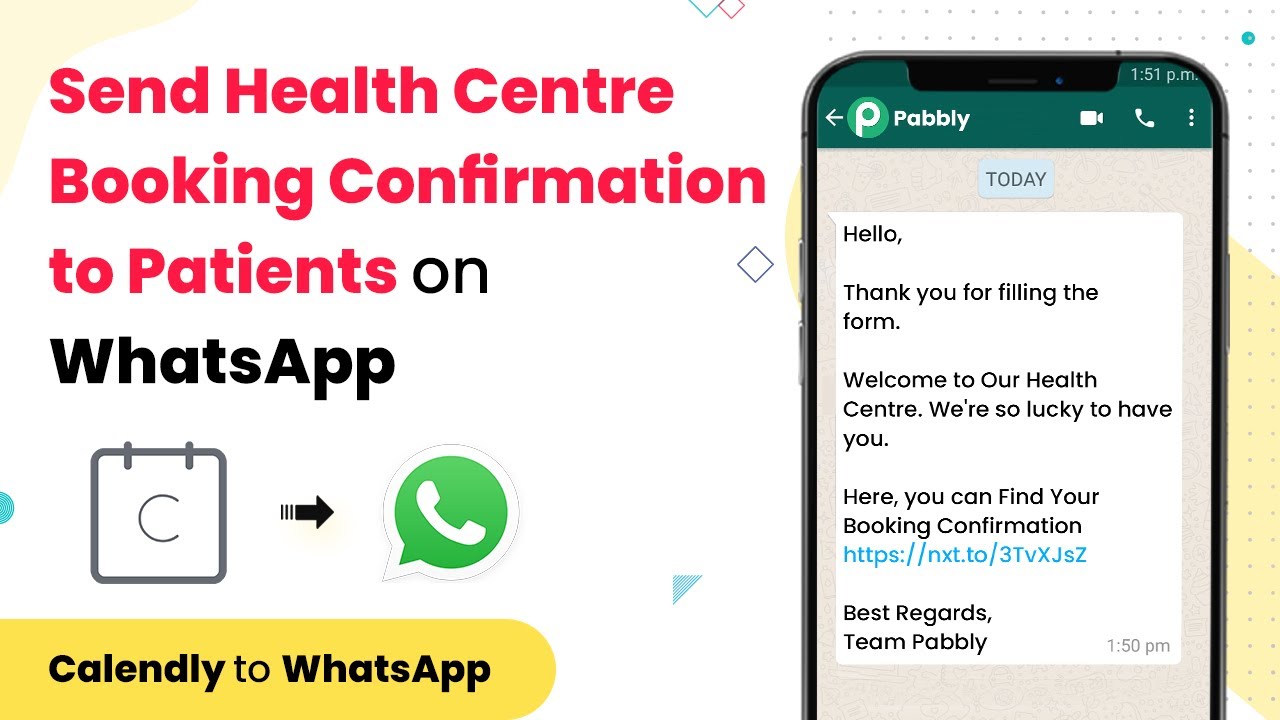
Send Confirmation Messages to Patients on WhatsApp Using Pabbly Connect

Learn how to send confirmation messages to patients on WhatsApp when they register at your lab center using Pabbly Connect. Step-by-step tutorial included. Navigate the automation landscape confidently with clear, structured guidance suitable for professionals regardless of prior technical experience.

Watch Step By Step Video Tutorial Below


1. Accessing Pabbly Connect for Integration

To send confirmation messages to your patients on WhatsApp, you first need to access Pabbly Connect. This powerful integration platform allows you to automate workflows between different applications seamlessly.

Start by signing up for a Pabbly account if you haven’t already. Once logged in, navigate to the dashboard where you can create a new workflow. This is where the magic happens, enabling you to connect Facebook, YouTube, Calendly, and WhatsApp Web.


2. Creating Your Workflow in Pabbly Connect

Once you are in Pabbly Connect, click on the ‘Create Workflow’ button. This will allow you to set up the integration for sending confirmation messages. Name your workflow appropriately, such as ‘Send WhatsApp Confirmation’. using Pabbly Connect

  • Select the trigger application (Calendly) to initiate the workflow.
  • Set the trigger event to ‘New Appointment Scheduled’.
  • Connect your Calendly account to Pabbly Connect.

After setting the trigger, you will need to test the connection to ensure that Pabbly Connect can fetch data from Calendly. This step is crucial for the workflow to function correctly.


3. Configuring WhatsApp Integration with Pabbly Connect

Next, you will configure the WhatsApp integration. Select WhatsApp as your action application within Pabbly Connect. This is where you will define how the confirmation messages are sent to your patients.

  • Choose the action event as ‘Send Message’.
  • Connect your WhatsApp account using the API key provided by your WhatsApp service.
  • Map the necessary fields such as patient name and appointment details from the Calendly data.

This configuration ensures that every time a new appointment is scheduled, a confirmation message will automatically be sent to the patient’s WhatsApp number using Pabbly Connect.


4. Testing Your Integration

After setting up the WhatsApp action, it’s time to test your integration. In Pabbly Connect, you can easily test the workflow by simulating a new appointment in Calendly.

Check if the confirmation message is sent to the specified WhatsApp number. If everything is set up correctly, you should see the message delivered in real-time. This step is essential to ensure that your workflow is functioning as intended.


5. Finalizing Your Setup

Once you have tested the integration successfully, you can finalize your setup. Make sure to save your workflow in Pabbly Connect to ensure that it runs automatically whenever a new appointment is scheduled.

Additionally, you can customize the message template that will be sent via WhatsApp to make it more personal and informative for your patients. This enhances customer experience and strengthens your relationship with them.


Conclusion

In conclusion, using Pabbly Connect to send confirmation messages to patients via WhatsApp is a straightforward process that enhances communication and customer relations. By integrating applications like Calendly and WhatsApp, you can automate your workflows efficiently.

Ensure you check out Pabbly Connect to create business automation workflows and reduce manual tasks. Pabbly Connect currently offer integration with 2,000+ applications.

Follow the steps outlined in this tutorial to set up your integration and improve your lab center’s appointment confirmation process.

Create QR Code for New Link Posted in Telegram with Pabbly Connect

Learn how to create a QR code for new links posted in Telegram and send it to a specified Telegram channel using Pabbly Connect. Follow this step-by-step guide!

Watch Step By Step Video Tutorial Below


1. Access Pabbly Connect for Integration

To create a QR code for new links posted in Telegram, you first need to access Pabbly Connect. This platform enables seamless integration between various applications, including Telegram.

Start by logging into your Pabbly Connect account. If you don’t have an account, you can sign up for free. Once logged in, navigate to the dashboard where you can create a new workflow.


2. Create a New Workflow in Pabbly Connect

In this section, you will create a new workflow that connects Telegram with the QR code generation process. Click on the ‘Create New Workflow’ button in your Pabbly Connect dashboard.

  • Enter a name for your workflow, such as ‘Telegram QR Code Generator’.
  • Select Telegram as the trigger application.
  • Choose the trigger event, which should be ‘New Message Posted’.

After setting up the trigger, click on the ‘Connect’ button to link your Telegram account with Pabbly Connect. Follow the prompts to authorize the connection, allowing Pabbly Connect to access your Telegram messages.


3. Generate QR Code from the New Link

Once the trigger is set up, the next step is to generate a QR code from the new link received in Telegram. For this, you will need to add an action step in your Pabbly Connect workflow.

Select a QR code generation application from the action step options. Enter the link you want to convert into a QR code. Ensure that this link is dynamically pulled from the Telegram message trigger.

  • Choose the QR code format you prefer, such as PNG or JPEG.
  • Set any additional options, such as size and error correction level.

Click on ‘Generate QR Code’ to create the QR code. This process will utilize Pabbly Connect to convert the link into a QR code automatically.


4. Send QR Code to a Specified Telegram Channel

The final step is to send the generated QR code to a specified Telegram channel. In your Pabbly Connect workflow, add another action step to send a message to Telegram.

Select the Telegram application again and choose the action event as ‘Send Message’. Specify the channel where you want to send the QR code. You can format the message to include a brief description along with the QR code image.

Attach the QR code image generated in the previous step. Customize the message text to inform channel members about the new link.

Once all details are filled in, click on ‘Send Message’. This will use Pabbly Connect to deliver the QR code to your specified Telegram channel seamlessly.


Conclusion

Using Pabbly Connect, you can efficiently create a QR code for new links posted in Telegram and send it to a specified channel. This integration simplifies the process and enhances your communication strategy.

Ensure you check out Pabbly Connect to create business automation workflows and reduce manual tasks. Pabbly Connect currently offer integration with 2,000+ applications.

How to Shorten URLs in Bulk & Add to Airtable Record Automatically Using Pabbly Connect

Learn how to shorten URLs in bulk and integrate them with Airtable records automatically using Pabbly Connect. Step-by-step tutorial included. Build sophisticated automated workflows in less time than you think. This guide translates complex integrations into straightforward steps for immediate implementation.

Watch Step By Step Video Tutorial Below


1. Accessing Pabbly Connect for URL Shortening

To start shortening URLs in bulk and adding them to Airtable records automatically, you need to access Pabbly Connect. First, go to the Pabbly Connect website and create an account if you haven’t already. Once logged in, you will be able to create a new workflow that connects various applications.

Using Pabbly Connect, you can seamlessly integrate applications like Facebook, YouTube, and Airtable. This allows for automatic URL shortening and data entry into your Airtable records. Make sure to have your Airtable API key handy for the next steps.


2. Setting Up the Integration with Pabbly Connect

In this section, we will set up the integration using Pabbly Connect. Start by selecting the ‘Create Workflow’ option. Name your workflow something relevant, such as ‘Bulk URL Shortening to Airtable’. This will help you easily identify it later.

  • Select the trigger application, which in this case is either Facebook or YouTube, depending on where your URLs are sourced from.
  • Set the trigger event to ‘New Post’ or similar, which allows Pabbly Connect to capture new URLs automatically.
  • Connect your account by following the authentication prompts.

After setting up the trigger, proceed to add an action step. Choose the URL shortening service you prefer, and configure it to shorten the captured URLs. This is where Pabbly Connect truly shines, allowing you to automate the entire process.


3. Adding Shortened URLs to Airtable Records

Now that your URLs are being shortened, it’s time to add them to Airtable records using Pabbly Connect. Add another action step and select Airtable as the application. Choose ‘Create Record’ as the action event.

  • Connect your Airtable account by entering your API key.
  • Select the base and table where you want to store the shortened URLs.
  • Map the fields accordingly, ensuring that the shortened URL is directed to the correct column in Airtable.

By completing these steps, you ensure that every new shortened URL is automatically added to your Airtable records, streamlining your workflow significantly with Pabbly Connect.


4. Testing the Integration with Pabbly Connect

After setting up the integration, it’s crucial to test it to ensure everything is working correctly. Use Pabbly Connect to run a test trigger and see if it captures a new URL from your selected application.

Check your Airtable to confirm that the record has been created with the shortened URL. If everything looks good, you can activate your workflow. This testing phase is essential to validate that the integration operates smoothly and automatically processes URLs as intended.


5. Conclusion

In conclusion, using Pabbly Connect to shorten URLs in bulk and automatically add them to Airtable records is a powerful way to streamline your processes. By following the steps outlined in this tutorial, you can easily set up a workflow that saves time and enhances productivity.

Ensure you check out Pabbly Connect to create business automation workflows and reduce manual tasks. Pabbly Connect currently offer integration with 2,000+ applications.

With this integration, you can focus on more important tasks while Pabbly Connect handles the URL shortening and data entry seamlessly. Start automating your workflows today!

Integrate vbout with Pipedrive Using Pabbly Connect: A Step-by-Step Guide

Learn how to integrate vbout with Pipedrive using Pabbly Connect to automate subscriber management from new deals. Follow this detailed tutorial for seamless integration! Build sophisticated automated workflows in less time than you think. This guide translates complex integrations into straightforward steps for immediate implementation.

Watch Step By Step Video Tutorial Below


1. Setting Up Pabbly Connect for vbout and Pipedrive

To begin integrating vbout with Pipedrive, first, access Pabbly Connect. This platform acts as the central hub for connecting various applications, enabling seamless automation.

Log into your Pabbly Connect account and navigate to the dashboard. Here, you will create a new workflow specifically for adding subscribers from new Pipedrive deals.


2. Creating a New Workflow in Pabbly Connect

Once logged into Pabbly Connect, click on the ‘Create Workflow’ button. This action will initiate a new integration setup.

  • Enter a name for your workflow (e.g., ‘Add vbout Subscribers from Pipedrive’).
  • Select ‘Pipedrive’ as the trigger application.
  • Choose ‘New Deal’ as the trigger event.

After configuring these settings, click ‘Save and Continue’ to proceed to the next step of the integration process.


3. Configuring Pipedrive in Pabbly Connect

In this section, you’ll need to connect your Pipedrive account with Pabbly Connect. Start by clicking on the ‘Connect’ button.

Follow the prompts to authorize Pabbly Connect to access your Pipedrive data. You will be asked to provide your Pipedrive API token, which can be found in your Pipedrive account settings. Once entered, click ‘Save.’ This step ensures that Pabbly Connect can retrieve new deal information from Pipedrive.


4. Adding Subscribers to vbout

Next, you’ll set up the action in Pabbly Connect to add subscribers to vbout. Select ‘vbout’ as the action application.

  • Choose ‘Add Subscriber’ as the action event.
  • Map the fields from Pipedrive to vbout, ensuring that all necessary subscriber information is included.

After mapping the fields, click ‘Save and Continue’ to finalize the setup. This action allows Pabbly Connect to automatically add new subscribers to vbout whenever a new deal is created in Pipedrive.


5. Testing the Integration

Finally, test your integration to ensure everything is functioning correctly. Click on the ‘Test’ button in Pabbly Connect to verify that a subscriber is added in vbout when a new deal is created in Pipedrive.

If the test is successful, you will see the new subscriber listed in your vbout account. This verification confirms that your integration is working as intended, allowing for efficient subscriber management through Pabbly Connect.


Conclusion

In this tutorial, we explored how to integrate vbout with Pipedrive using Pabbly Connect. By following these steps, you can automate the process of adding subscribers from new Pipedrive deals seamlessly. This integration enhances your marketing efforts and streamlines subscriber management.

Ensure you check out Pabbly Connect to create business automation workflows and reduce manual tasks. Pabbly Connect currently offer integration with 2,000+ applications.

Creating an Event Ticketing System with Pabbly Connect

Learn how to create an event ticketing system using Pabbly Connect to integrate Google Sheets, Gmail, and QR codes seamlessly. Explore systematic approaches to creating efficient automation solutions that convert technical concepts into practical, implementable instructions.

Watch Step By Step Video Tutorial Below


1. Setting Up Pabbly Connect for Event Ticketing

To create an event ticketing system, the first step is to set up Pabbly Connect. This integration platform allows you to connect various applications seamlessly. Start by navigating to the Pabbly website and signing up for a free trial if you haven’t already.

Once you have access, log in to your Pabbly Connect dashboard. Here, you can create a new workflow by clicking on the ‘Create Workflow’ button. Name your workflow something relevant, such as ‘Event Ticketing System’. This will help you identify it later. Now, you are ready to integrate Google Sheets.


2. Integrating Google Sheets with Pabbly Connect

Next, you will integrate Google Sheets using Pabbly Connect. This integration allows you to collect customer details for ticket purchases. In your Pabbly Connect dashboard, select Google Sheets as the application for the trigger event.

  • Choose the trigger event as ‘New or Updated Spreadsheet Row’.
  • Copy the webhook URL generated by Pabbly Connect.
  • In Google Sheets, install the Pabbly Connect Webhooks add-on.
  • Paste the webhook URL into the add-on’s initial setup.

After setting up the webhook, refresh your Google Sheets to ensure the add-on is active. This step is crucial for ensuring that data flows correctly between Google Sheets and Pabbly Connect.


3. Generating QR Codes Using Pabbly Connect

With Google Sheets integrated, the next step is to generate QR codes for your tickets using Pabbly Connect. This is done through the QR.io application. In your workflow, add a new action step and select QR.io.

  • Select the action event as ‘Generate QR Code’.
  • Connect your QR.io account by entering the API key.
  • Map the URL where the QR code will redirect users.

Once the QR code is generated, it will be saved in a PNG format, which can be used in your ticket. This automation ensures that every ticket purchased comes with a unique QR code, simplifying the payment process for your customers.


4. Sending Tickets via Email with Pabbly Connect

After generating the QR codes, the next step is to send the tickets to customers via email using Pabbly Connect and Gmail. In your workflow, add another action and select Gmail as the application.

Choose ‘Send Email with Attachment’ as the action event. Connect your Gmail account to Pabbly Connect. Map the recipient’s email address from Google Sheets.

Fill in the email subject and body, including a link to the ticket and the QR code. This step automates the process of sending tickets, ensuring that customers receive their tickets promptly without manual intervention.


5. Updating Email Status in Google Sheets

Finally, to keep track of which tickets have been sent, you can update the email status in your Google Sheets using Pabbly Connect. Add one last action step and select Google Sheets again.

Choose the action event ‘Update Cell Values’. Map the appropriate cell in your Google Sheets where you want to indicate that the email has been sent. This ensures that your records are always up to date and prevents sending duplicate emails to customers.

By automating this process, you enhance efficiency and accuracy within your event ticketing system, allowing you to focus on other aspects of event planning.


Conclusion

In conclusion, using Pabbly Connect to create an event ticketing system streamlines the process of collecting customer data, generating tickets, and sending them via email. By integrating Google Sheets, Gmail, and QR codes, you can automate your event ticketing workflow effectively.

Ensure you check out Pabbly Connect to create business automation workflows and reduce manual tasks. Pabbly Connect currently offer integration with 2,000+ applications.

Implementing this system not only saves time but also improves the customer experience, making it easier for attendees to receive their tickets promptly and securely.