Automate Blogger to WhatsApp Sharing with Pabbly Connect

Learn how to automate sharing your Blogger posts to WhatsApp using Pabbly Connect and WhatsApp Cloud API seamlessly. Revolutionize your productivity approach with just a few strategic clicks. Uncover professional methods for connecting applications and creating workflows that reclaim hours of your week.

Watch Step By Step Video Tutorial Below


1. Setting Up Pabbly Connect for Blogger and WhatsApp Integration

To start automating the sharing of your Blogger posts to WhatsApp, you need to set up Pabbly Connect. First, visit the Pabbly Connect dashboard by navigating to Pabbly.com/connect. Here, you can create a free account in just a few minutes by clicking the ‘Sign Up Free’ button.

Once registered, log in to your account and click on the ‘Create Workflow’ button. Name your workflow, for example, ‘Send Blog Link on WhatsApp’. This workflow will automate the process of sharing your new blog posts automatically on WhatsApp.


2. Configuring the Trigger with Blogger

The next step in your integration involves setting up the trigger in Pabbly Connect. Select ‘Blogger’ from the app list as your trigger application. In the trigger event, choose ‘New Post Added’. This selection will ensure that every time you publish a new blog post, it triggers the workflow.

  • Choose ‘Blogger’ as the trigger app.
  • Select ‘New Post Added’ as the trigger event.
  • Connect your Google Blogger account to authorize access.

After connecting your Blogger account, select the blog you wish to monitor for new posts. Make sure to set the status to ‘Live’ to only fetch active posts. Click on ‘Save and Send Test Request’ to see if the integration is working correctly and to fetch the latest blog details.


3. Fetching Contact Data from Google Sheets

Once the Blogger trigger is set, the next step involves fetching contact data from Google Sheets using Pabbly Connect. Add a new action step and select ‘Google Sheets’ as the application. Choose ‘Get Row’ as the action event to retrieve the contacts you want to send the WhatsApp message to.

Connect your Google Sheets account and select the spreadsheet and specific sheet that contains your contact information. Specify the range of data you want to retrieve, such as A2:C19, which includes names and WhatsApp numbers. Ensure to toggle off the simple response option to get the data in array format for further processing.


4. Shortening the URL with Bitly

After retrieving the contact data, the next action in Pabbly Connect is to shorten the blog URL using Bitly. Add another action step and select ‘Bitly’ as the application. Choose ‘Shorten Link’ as the action event. Connect your Bitly account to authorize access.

  • Choose ‘Bitly’ as the action app.
  • Select ‘Shorten Link’ as the action event.
  • Map the long URL from the Blogger trigger to shorten it.

Once the link is shortened, click on ‘Save and Send Test Request’ to verify that the link has been successfully shortened. This will ensure that the link sent via WhatsApp is clean and user-friendly.


5. Sending Messages via WhatsApp Cloud API

To complete the automation, the final step is to send the shortened link via WhatsApp using the WhatsApp Cloud API integrated through Pabbly Connect. Select ‘WhatsApp Cloud API’ as your action app and choose ‘Send Template Message’ as the action event.

Connect your WhatsApp Cloud API account by providing the required permanent access token, phone number ID, and business account ID. After successfully connecting, select the message template you created for sharing your blog updates. Map the recipient’s WhatsApp number and any dynamic fields like the blog title and shortened URL to personalize the message.

Click on ‘Save and Send Test Request’ to send a test message. If everything is set up correctly, the recipient will receive a WhatsApp message containing the blog link and relevant details.


Conclusion

Using Pabbly Connect to automate the sharing of your Blogger posts to WhatsApp is a straightforward process. By following the steps outlined, you can easily connect Blogger, Google Sheets, Bitly, and WhatsApp Cloud API to enhance your blog’s visibility and engagement. This integration not only saves time but also ensures your audience is promptly notified of new content.

Ensure you check out Pabbly Connect to create business automation workflows and reduce manual tasks. Pabbly Connect currently offer integration with 2,000+ applications.

Automatically Add New Users Enrolled in Teachable to Mailchimp as Contact Using Pabbly Connect

Learn how to automate adding new users from Teachable to Mailchimp using Pabbly Connect with this step-by-step tutorial. Streamline your workflow today! Learn to create powerful connections between your critical applications without requiring specialized programming knowledge or extensive technical background.

Watch Step By Step Video Tutorial Below


1. Introduction to Pabbly Connect for Teachable and Mailchimp Integration

Pabbly Connect is an automation platform that allows you to connect various applications seamlessly. In this tutorial, we will explore how to use Pabbly Connect to automatically add new users enrolled in Teachable to Mailchimp as contacts. This integration eliminates the need for manual data entry, saving you time and effort.

To start, access Pabbly Connect by visiting the website and signing up for a free account. Once logged in, you can create a new workflow specifically for the integration between Teachable and Mailchimp.


2. Creating the Workflow in Pabbly Connect

To create the workflow in Pabbly Connect, click on the ‘Create Workflow’ button on the dashboard. Name your workflow, for example, ‘Teachable to Mailchimp,’ and click on ‘Create.’ This will open a new workflow interface with trigger and action windows.

  • Click on the trigger window and search for ‘Teachable.’
  • Select the trigger event ‘New Enrollment’ to capture new user data.
  • Copy the provided webhook URL to connect Teachable with Pabbly Connect.

After copying the webhook URL, navigate to your Teachable dashboard. In the settings section, find the webhooks option. Click on ‘Add Webhook,’ paste the copied URL, and ensure to enable JSON array payload settings. Select the ‘New Enrollment’ event and save the changes. This setup allows Pabbly Connect to receive new user data automatically.


3. Enrolling a New Student in Teachable

Now that the webhook is set up, it’s time to enroll a new student in your Teachable course. Go to the ‘Courses’ section in Teachable, select a course, and click on the ‘Add Student’ button. Enter the student’s name and email address, ensuring that the checkboxes for enrollment are selected.

After enrolling the student, Pabbly Connect will automatically receive the enrollment data. This process allows for efficient data transfer without manual input. Check your Pabbly Connect dashboard to confirm that the new student data is received correctly.


4. Sending Data to Mailchimp Using Pabbly Connect

Once the new enrollment data is received in Pabbly Connect, the next step is to send this information to Mailchimp. In the action window, select Mailchimp as the application and choose the action event ‘Add New Member with Custom Field.’ Connect your Mailchimp account by entering the API key and data center name.

  • Map the email address and name fields from the Teachable data to Mailchimp.
  • Add tags based on the course name for better organization in Mailchimp.
  • Set the subscriber status to ‘Subscribed’ to ensure they receive communications.

After mapping the fields, click on ‘Save and Send Test Request’ to verify that the integration is functioning correctly. If successful, the new student will be added to your Mailchimp contact list with the course name as a tag, ensuring proper categorization.


5. Testing the Integration in Real-Time

To ensure everything is working as intended, conduct a real-time test by enrolling another student in your Teachable course. Follow the same process of adding a new student, ensuring all necessary fields are filled out correctly.

After enrolling the student, check your Mailchimp account to confirm that the new contact appears with the correct details and tags. This confirms that Pabbly Connect is effectively automating the process of adding new users from Teachable to Mailchimp.


Conclusion

In this tutorial, we explored how to use Pabbly Connect to automate the process of adding new users enrolled in Teachable to Mailchimp as contacts. This integration streamlines your workflow, saving time and ensuring accurate data management. By following the steps outlined, you can easily set up this automation and enhance your online education business.

Ensure you check out Pabbly Connect to create business automation workflows and reduce manual tasks. Pabbly Connect currently offer integration with 2,000+ applications.

Automate Course Delivery with Pabbly Connect: Razorpay and Teachable Integration

Learn how to automate course delivery using Pabbly Connect by integrating Razorpay and Teachable for seamless online course management. This comprehensive guide reveals exactly how to connect your applications and automate repetitive tasks — accessible for professionals of all technical backgrounds.

Watch Step By Step Video Tutorial Below


1. Accessing Pabbly Connect for Course Delivery Automation

To automate course delivery using Pabbly Connect, start by visiting the Pabbly Connect website. This platform allows you to integrate various applications seamlessly, including Razorpay and Teachable.

After navigating to Pabbly Connect, create your free account. Once logged in, you can begin setting up your automation workflow. Pabbly Connect offers 100 free tasks to test your integration, making it a valuable tool for course sellers.


2. Setting Up Razorpay and Pabbly Connect Integration

The first step in automating course delivery is to connect Razorpay with Pabbly Connect. For this, you will need to create a new workflow. Name it something descriptive, such as ‘Automate Course Delivery in Teachable and Razorpay.’ Click on create to set up the trigger and action.

  • Choose the trigger event as ‘Payment Captured’ in Razorpay.
  • Copy the webhook URL provided by Pabbly Connect.
  • In Razorpay, navigate to Settings and add a new webhook with the copied URL.

After setting up the webhook, perform a test payment to ensure that Razorpay is successfully connected to Pabbly Connect. Once the payment is captured, you will see the details reflected in your Pabbly dashboard, confirming the successful integration.


3. Enrolling Users in Teachable via Pabbly Connect

Once Razorpay is integrated, the next step is to enroll users in your Teachable course automatically. To do this, add a new action in your Pabbly Connect workflow. Select Teachable as the application and choose the action event ‘Enroll User in Course.’ This step is crucial for automating the course delivery process.

When setting up the Teachable action, you will need to provide the necessary credentials to connect your Teachable account with Pabbly Connect. This includes your email, password, and subdomain. Once connected, you can select the course where users will be enrolled.

  • Map the user’s email from the Razorpay payment details to the enrollment field.
  • Skip the username and password fields if you want users to create their own login credentials.

Finally, test the action step to ensure that the user is enrolled in the course successfully. This automation saves time and enhances the user experience by providing instant access to course materials.


4. Setting Filters for Product-Specific Course Delivery

To ensure that only specific products trigger the enrollment process, you can set filters in Pabbly Connect. This step is essential when you have multiple courses in Razorpay. Create a filter condition that checks if the product name matches the course you want to automate.

In the filter setup, specify that the product name must equal the exact name of your course (e.g., ‘PHP Course by Neeraj Agarwal’). This condition ensures that only relevant payments will trigger the enrollment action in Teachable.

Set the filter condition to check the product name from Razorpay’s payment data. Save the filter condition to activate it in your workflow.

Once the filter is saved, any payment matching this product will proceed to enroll the user in the specified course automatically. This targeted approach enhances your automation efficiency.


5. Conclusion: Streamlining Course Delivery with Pabbly Connect

In conclusion, using Pabbly Connect to integrate Razorpay and Teachable allows you to automate course delivery efficiently. By following the steps outlined, you can ensure that every payment made through Razorpay results in automatic enrollment in your Teachable courses.

Ensure you check out Pabbly Connect to create business automation workflows and reduce manual tasks. Pabbly Connect currently offer integration with 2,000+ applications.

This integration not only saves time but also enhances the user experience by providing immediate access to course content. Start using Pabbly Connect today to simplify your online course management!


Integrate Teachable with Instamojo and Encharge Using Pabbly Connect

Learn how to enroll new users in Teachable on successful Instamojo payments and create contacts in Encharge using Pabbly Connect in this detailed tutorial. Discover hidden automation capabilities within your existing tools. This guide shows you how to connect your essential applications and permanently eliminate redundant manual processes.

Watch Step By Step Video Tutorial Below


1. Accessing Pabbly Connect for Integration

To begin the integration process, you first need to access Pabbly Connect. This powerful automation tool allows you to connect various applications seamlessly. Start by navigating to your browser and visiting Pabbly Connect, where you can sign up or log in to your existing account.

Once logged in, you will land on the Pabbly Connect dashboard. From here, click on the ‘Create Workflow’ button. Name your workflow appropriately, such as ‘Instamojo to Teachable to Encharge’, and click on ‘Create’ to proceed. This will set the stage for automating the enrollment of new users in Teachable after receiving payments through Instamojo.


2. Setting Up Triggers with Instamojo in Pabbly Connect

The next step involves setting up a trigger in Pabbly Connect to capture payment details from Instamojo. In the trigger window, select ‘Instamojo’ as your app and choose the ‘New Sale’ trigger event. This event will initiate the workflow every time a payment is made.

  • Choose ‘Instamojo’ from the app list.
  • Select the ‘New Sale’ event.
  • Copy the webhook URL provided by Pabbly Connect.

After configuring the trigger, you need to set this webhook URL in your Instamojo payment link. Create or edit your payment link in Instamojo and paste the webhook URL in the designated section. This will ensure that every successful payment triggers the workflow in Pabbly Connect.


3. Retrieving Payment Details from Instamojo

Once the payment is made, the next step is to retrieve the payment details using Pabbly Connect. In the action window, select ‘Instamojo’ again and choose the ‘Get Payment Details’ action event. This step is crucial to obtain the customer’s information who made the payment.

To establish this connection, you will need your private API key and authentication token from your Instamojo account. Navigate to the API section in your Instamojo dashboard to find these credentials. Once you have them, input these into Pabbly Connect.

  • Input the payment ID received from the trigger response.
  • Map the payment ID in the action step to retrieve customer details.

After setting this up, click on ‘Save and Send Test Request’ to confirm that you can successfully retrieve the payment details, including the customer’s name, email, and phone number.


4. Enrolling Users in Teachable via Pabbly Connect

Now that you have the customer details, it’s time to enroll them in your Teachable course using Pabbly Connect. In the action step, select ‘Teachable’ and choose the ‘Enroll User in Course’ action event. This is where you will specify which course the user will be enrolled in.

To connect your Teachable account, enter your login credentials and the subdomain of your Teachable school. Once connected, you can select the course you wish to enroll the user in from the dropdown menu. Map the customer’s email and name to the respective fields, ensuring they receive their login details.

Select the course from the dropdown. Map the email and name of the customer.

Click ‘Save and Send Test Request’ to verify that the user has been successfully enrolled in your Teachable course.


5. Creating Contact in Encharge Using Pabbly Connect

Finally, to complete the integration, you will add the same customer as a contact in Encharge. In the action step, choose ‘Encharge’ and select the ‘Add or Update Person’ action event. This step ensures that your CRM is updated with the latest customer information. using Pabbly Connect

Connect your Encharge account by authorizing Pabbly Connect. Once connected, map the customer’s email, name, and phone number from the previous steps. This will create a new contact or update an existing one with the latest details.

Map the email and name fields. Ensure the phone number is also mapped.

After mapping all necessary fields, click on ‘Save and Send Test Request’ to confirm that the contact has been successfully created in Encharge. This integration ensures that all customer interactions are tracked in your CRM.


Conclusion

In this tutorial, we explored how to automate the enrollment of new users in Teachable using successful payments from Instamojo and create contacts in Encharge. By leveraging Pabbly Connect, you can streamline this process and save significant time, ensuring that no customer details are missed during the enrollment process.

Ensure you check out Pabbly Connect to create business automation workflows and reduce manual tasks. Pabbly Connect currently offer integration with 2,000+ applications.

Automate Certificate Creation with Pabbly Connect: Google Docs to WhatsApp

Learn how to automate the creation and sending of certificates from Google Docs via WhatsApp using Pabbly Connect. Step-by-step tutorial included. Develop expertise in application integration and learn how to design streamlined automation workflows using proven, simplified approaches.

Watch Step By Step Video Tutorial Below


1. Setting Up Pabbly Connect for Certificate Automation

To automate the creation and sending of certificates using Pabbly Connect, the first step is to access the Pabbly Connect dashboard. You can do this by visiting the Pabbly website and signing up for a free account. Once signed up, you will have access to 100 free automation tasks each month.

After logging in, click on the ‘Create Workflow’ button from the dashboard. You will need to give your workflow a name, such as ‘Send Certificates on WhatsApp,’ and then click on the create button to proceed. This sets the stage for your automation process using Pabbly Connect.


2. Configuring Google Sheets to Collect Participant Data

In this section, you will use Google Sheets to collect the details of participants for whom you want to create certificates. This is a crucial step as it serves as the data source for your automation in Pabbly Connect.

  • Create a new Google Sheet with columns for Name, WhatsApp Number, and Blood Group.
  • Fill in the details of the participants in the respective columns.
  • Ensure the sheet is accessible for Pabbly Connect to retrieve data.

Now that your Google Sheet is set up, you can proceed to connect it within Pabbly Connect. This will allow you to fetch participant details automatically when creating certificates.


3. Setting Up the Trigger in Pabbly Connect

Next, you will set up a trigger in Pabbly Connect that will initiate the workflow. In this case, you will use the ‘Scheduler’ feature to determine when to run the workflow. This is essential for scheduling the sending of certificates after the event.

Choose the ‘Once’ option under the Scheduler settings and set the date and time for when you want the certificates to be sent. For example, if the event is on the 20th, you can schedule the sending for the 22nd at 10:30 AM. This ensures that all certificates are sent automatically at the specified time.


4. Creating Certificates in Google Docs via Pabbly Connect

After setting the trigger, the next step is to create the certificates using Google Docs. You will need to have a template ready that includes placeholders for participant details like name and blood group.

  • Select Google Docs as the action app in Pabbly Connect.
  • Choose the ‘Create Document from Template’ action event.
  • Map the fields such as Name, Blood Group, and Date from the previous steps.

This will allow Pabbly Connect to generate a unique certificate for each participant, replacing the placeholders in the template with their respective details.


5. Sending Certificates via WhatsApp Using Pabbly Connect

The final step in the automation process is to send the generated certificates via WhatsApp. For this, you will need to set up the WhatsApp Cloud API within Pabbly Connect.

After configuring the WhatsApp API, use the ‘Send Template Message’ action event to send the certificates. Ensure to map the recipient’s WhatsApp number and the link to the generated certificate document. This way, participants will receive their certificates directly on WhatsApp.


Conclusion

In this tutorial, we have demonstrated how to automate the creation and sending of certificates using Pabbly Connect, Google Docs, and WhatsApp. By following these steps, you can streamline the process and ensure that participants receive their certificates automatically, saving time and effort.

Ensure you check out Pabbly Connect to create business automation workflows and reduce manual tasks. Pabbly Connect currently offer integration with 2,000+ applications.

How to Auto-forward Facebook Leads to Email Using Pabbly Connect

Learn how to auto-forward Facebook leads to a specific email using Pabbly Connect in this detailed tutorial. Integrate Facebook Lead Ads and Gmail effortlessly! This comprehensive guide reveals exactly how to connect your applications and automate repetitive tasks — accessible for professionals of all technical backgrounds.

Watch Step By Step Video Tutorial Below


1. Setting Up Pabbly Connect for Facebook Leads

To start auto-forwarding Facebook leads to a specific email, you need to set up Pabbly Connect. First, visit the Pabbly Connect dashboard by signing up at the official website. This platform allows you to create automated workflows without any coding knowledge.

Once you have logged in, you can create a new workflow by clicking on the ‘Create Workflow’ button. Name your workflow, for example, ‘Facebook Leads to Gmail’, and click on ‘Create’. This workflow will capture leads from Facebook Lead Ads and send them to your email automatically.


2. Configuring Facebook Lead Ads in Pabbly Connect

Next, you need to configure the Facebook Lead Ads integration in Pabbly Connect. Select the Facebook Lead Ads icon as your trigger app and choose the ‘New Lead Instant’ trigger event. This setup will activate whenever a new lead is submitted through your Facebook Lead Ads.

  • Select ‘Connect’ to link your Facebook account.
  • Choose the Facebook page associated with your lead ads.
  • Map the lead generation form to capture the necessary details.

After selecting the correct page and form, save your settings. You can then create a test lead to ensure that the data is captured properly in your workflow. Click on ‘Save and Send Test Request’ to initiate the process.


3. Sending Email Notifications via Gmail

Once the lead data is captured, the next step is to send an email notification using Gmail through Pabbly Connect. Select Gmail as the action app and choose the ‘Send Email’ action event. This will allow you to send the lead details to your specific team member.

  • Connect your Gmail account to Pabbly Connect.
  • Enter the recipient’s email address, which should be your team member’s email.
  • Compose the email subject and body, including mapped lead details.

Make sure to include the lead’s name, email, and other relevant information in the email body. Once everything is set up, click on ‘Save and Send Test Request’ to send a test email and verify that the workflow is functioning correctly.


4. Finalizing the Integration with Pabbly Connect

After testing the email functionality, it’s time to finalize your integration in Pabbly Connect. Review all the settings in your workflow to ensure that the trigger and action are correctly configured. This review ensures that every new lead captured will automatically send an email notification.

Once you confirm that everything is functioning as expected, your automation is complete. You can now sit back and let Pabbly Connect handle the lead forwarding process. Each time a new lead is generated from your Facebook Lead Ads, an email will be sent to the designated team member automatically.


Conclusion

In this tutorial, we demonstrated how to use Pabbly Connect to auto-forward Facebook leads to a specific email. This automation streamlines your lead management process, allowing your team to respond promptly and effectively to potential customers. With just a few simple steps, you can enhance your lead generation strategy using Pabbly Connect.

Ensure you check out Pabbly Connect to create business automation workflows and reduce manual tasks. Pabbly Connect currently offer integration with 2,000+ applications.

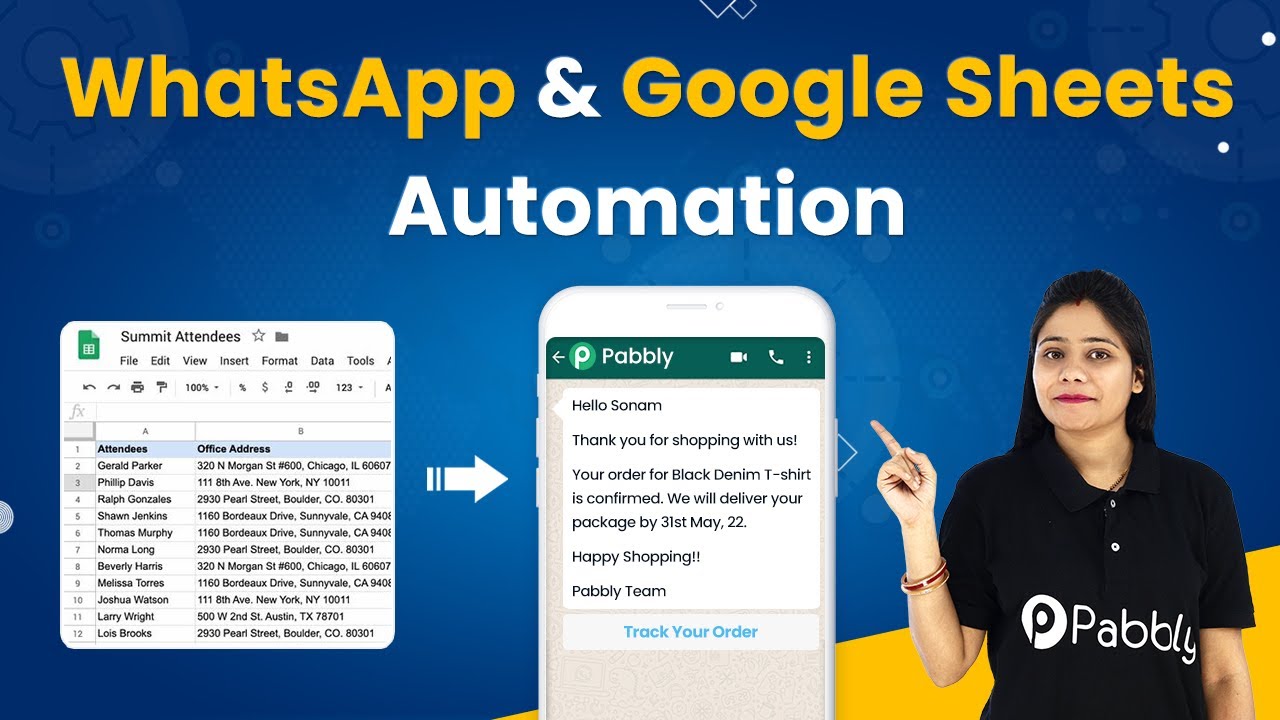
Automate WhatsApp Messages from Google Sheets Using Pabbly Connect

Learn how to automate WhatsApp messages from Google Sheets using Pabbly Connect and the WhatsApp Official Cloud API in this detailed tutorial. Transform complex automation concepts into accessible, actionable steps that eliminate unnecessary manual work while maximizing existing application capabilities.

Watch Step By Step Video Tutorial Below


1. Setting Up Pabbly Connect for Google Sheets and WhatsApp Integration

To begin with, you need to access Pabbly Connect to set up the integration between Google Sheets and WhatsApp. First, navigate to Pabbly.com and select the Pabbly Connect option. Sign up for a free account or log in if you already have one. This platform provides you with 100 free tasks every month, which is perfect for testing your automation.

Once logged in, you will be directed to the Pabbly Connect dashboard. Click on the blue button to create a new workflow, naming it something like ‘Google Sheets to WhatsApp Automation’. This name will help you identify the automation later. After naming your workflow, you will see two boxes labeled Trigger and Action. The Trigger is what starts the automation, while the Action is what happens as a result.


2. Configuring Google Sheets as a Trigger in Pabbly Connect

In this step, you will set Google Sheets as the trigger application in Pabbly Connect. Select Google Sheets from the list of applications and choose the event as ‘New or Updated Spreadsheet Row’. This means that whenever a new row is added or an existing row is updated in your Google Sheets, it will trigger the automation.

Next, you will be provided with a webhook URL. Copy this URL as you will need to paste it into your Google Sheets. To do this, go to your Google Sheets, click on Extensions, then Add-ons, and finally Get Add-ons. Search for Pabbly Connect Webhooks and install it. After installation, find Pabbly Connect Webhooks from the Extensions menu and click on Initial Setup. Paste the copied webhook URL into the designated field and specify the trigger column, which is typically the last column of data entries.

  • Navigate to Extensions > Add-ons > Get Add-ons.
  • Search for Pabbly Connect Webhooks and install it.
  • Click on Extensions > Pabbly Connect Webhooks > Initial Setup.

After pasting the URL and setting the trigger column, click on Send Test. If successful, you will see a confirmation that the test data has been sent to Pabbly Connect, indicating that the connection is established.


3. Sending WhatsApp Messages Using Pabbly Connect

Now that you have configured Google Sheets as a trigger, it’s time to send WhatsApp messages using Pabbly Connect. You will need to use the WhatsApp Official Cloud API for this purpose. First, click on the Action step and select WhatsApp Cloud API as the application. Choose the action event as ‘Send Template Message’.

Before you can send messages, you need to connect your WhatsApp Cloud API account to Pabbly Connect. Go to developers.facebook.com to create an app and generate a permanent access token. Once you have your token, enter it along with the Phone Number ID and WhatsApp Account ID into Pabbly Connect. This connection is crucial for sending messages through WhatsApp.

  • Create an app on developers.facebook.com.
  • Generate a permanent access token for WhatsApp Cloud API.
  • Input the token, Phone Number ID, and WhatsApp Account ID in Pabbly Connect.

Once connected, you can map the template name and recipient mobile number from the Google Sheets data. Make sure to include the country code for the phone number to ensure the message is sent correctly. After mapping all necessary fields, click on Save and Send Test Request to send a test message.


4. Conditional Messaging Based on Fee Status

In this section, you will set up conditions for sending different messages based on the fee status of students using Pabbly Connect. You need to use the Router feature to create two conditions: one for when the fee is due and another for when it is paid. This allows you to send customized messages based on the student’s payment status.

To set up the Router, click on the Router icon in Pabbly Connect. Create two routes: one for ‘Fees Due’ and another for ‘Fees Paid’. For each route, you will set the condition based on the fee status retrieved from Google Sheets. You can easily map the fee status data from the previous steps.

Create two routes in the Router: ‘Fees Due’ and ‘Fees Paid’. Set conditions for each route based on the fee status from Google Sheets. Map the fee status data to determine which route to follow.

Once the conditions are set, you can configure the WhatsApp message templates for each route. For instance, when the fees are due, you might send a reminder message, while a confirmation message can be sent when the fees are paid. After setting this up, test each route to ensure the correct messages are sent based on the fee status.


5. Finalizing Your Automation with Pabbly Connect

After configuring the conditions and WhatsApp messaging, it’s time to finalize your automation in Pabbly Connect. Review all steps to ensure that the triggers and actions are correctly set up and that the data is being mapped accurately. This is crucial for the automation to function as expected.

Once everything is set, you can save your workflow and enable it. Now, every time a new row is added or updated in Google Sheets, Pabbly Connect will automatically send the appropriate WhatsApp message based on the fee status. This automation can save you significant time and effort in communicating with students or clients.

To ensure everything works seamlessly, you can conduct a few tests by updating the Google Sheets data and checking if the correct WhatsApp messages are sent. This will confirm that your automation is fully operational.


Conclusion

In this tutorial, you learned how to automate WhatsApp messages from Google Sheets using Pabbly Connect and the WhatsApp Official Cloud API. By following the steps outlined, you can efficiently manage communications based on specific conditions, ensuring timely and relevant messaging for your needs.

Ensure you check out Pabbly Connect to create business automation workflows and reduce manual tasks. Pabbly Connect currently offer integration with 2,000+ applications.

Recover Razorpay Cart Abandonment Payment Failed – Send WhatsApp Messages to Customers with Pabbly Connect

Learn how to recover Razorpay cart abandonment by sending WhatsApp messages using Pabbly Connect. Step-by-step tutorial for seamless integration. Implement the precise methodologies leading organizations use to automate repetitive tasks, illustrated with practical examples designed for immediate application.

Watch Step By Step Video Tutorial Below


1. Setting Up Pabbly Connect for Razorpay Integration

To recover Razorpay cart abandonment payments, we will use Pabbly Connect. First, access Pabbly Connect by visiting the website and signing up for a free account. This process is straightforward and does not require coding skills.

Once you are logged into Pabbly Connect, click on ‘Create Workflow’ to begin. Name your workflow, for instance, ‘Razorpay to WhatsApp,’ and then click on ‘Create’ to open the workflow dashboard.


2. Configuring the Trigger Event with Razorpay

In this step, we will set up the trigger event in Pabbly Connect. Select Razorpay as the application in the trigger window, and choose the trigger event as ‘Payment Failed.’ This setup will allow us to capture any payment failures directly from Razorpay.

  • Search for Razorpay in the Choose App section.
  • Select the trigger event as ‘Payment Failed’.
  • Copy the webhook URL provided by Pabbly Connect.

Next, navigate to your Razorpay dashboard, go to Settings, and then to Webhooks. Here, you will add the copied webhook URL. This connection allows Pabbly Connect to receive data whenever a payment fails, ensuring you can act on it promptly.


3. Testing the Trigger to Ensure Functionality

After configuring the webhook, it’s essential to test the trigger. Go back to your Razorpay payment page and simulate a failed payment. Fill in the details of a dummy customer, such as Kunal Kapoor, and proceed to abandon the payment.

Once the payment is abandoned, check Pabbly Connect to see if the trigger has captured the payment failure details. You should see the payment amount, status, and customer details, confirming that the integration is functioning correctly.


4. Adding Filters to Control Message Sending

Next, we will add a filter in Pabbly Connect to ensure that WhatsApp messages are sent only for specific payment failures. This is crucial to avoid sending unnecessary messages for every failed payment.

  • Select ‘Filter’ in the action step.
  • Set the condition to check if the payment was canceled by the user.
  • Save the filter and test it to ensure it works correctly.

This filter will ensure that only relevant messages are sent, improving customer experience and reducing spam. By using Pabbly Connect, you can easily manage these conditions without any coding knowledge.


5. Sending WhatsApp Messages to Customers

Finally, we will set up the action to send WhatsApp messages through the WhatsApp Cloud API using Pabbly Connect. Select WhatsApp Cloud API as the application and choose ‘Send Template Message’ as the action event.

Enter the necessary details such as the template name and the recipient’s mobile number. Ensure that the phone number is formatted correctly without the plus sign. After mapping the customer’s name from the Razorpay response, test this action to confirm that the WhatsApp message is sent successfully.


Conclusion

Using Pabbly Connect, you can effectively recover Razorpay cart abandonment payments by sending automated WhatsApp messages to customers. This integration not only enhances customer engagement but also helps in recovering lost sales efficiently.

Ensure you check out Pabbly Connect to create business automation workflows and reduce manual tasks. Pabbly Connect currently offer integration with 2,000+ applications.

How to Create a Template in WhatsApp Cloud API with Pabbly Connect

Learn how to create a template in WhatsApp Cloud API using Pabbly Connect. Follow our step-by-step guide to streamline your messaging process. Follow this definitive guide to creating powerful automated workflows with straightforward, efficiency-focused solutions that save valuable time.

Watch Step By Step Video Tutorial Below


1. Accessing Pabbly Connect for WhatsApp Cloud API

To create a template in WhatsApp Cloud API, start by accessing Pabbly Connect. This platform allows you to integrate various applications seamlessly, including WhatsApp Cloud API.

Ensure you have your WhatsApp Cloud API account set up, including a permanent access token. Once you log into the Pabbly Connect dashboard, you will be ready to establish connections with WhatsApp Cloud API.


2. Navigating to the Template Creation Section in WhatsApp Cloud API

After logging into your WhatsApp Cloud API dashboard, you will find essential details like the access token, phone number ID, and WhatsApp business account ID. These details are crucial for setting up the integration through Pabbly Connect.

  • Locate the ‘Send Message with the API’ section.
  • Click on the hyperlink that redirects you to the message template page.
  • Here, you will see all the templates you have created.

Now, click on the ‘Create Message Template’ button on the right side. This action will initiate the template creation process where you will provide necessary details for the template.


3. Filling Out Template Details in Pabbly Connect

In the template creation page, you will need to enter specific details such as the category, name, and language of the template. Choose a category like ‘Marketing’ if you are creating a birthday wish template.

  • Enter a name for your template using underscores instead of spaces, e.g., birthday_wishes.
  • Select the language for your template, such as English (US).
  • Click on the ‘Continue’ button to move to the next step.

Once you click continue, you will be directed to the drafting area for your template message. This is where you will craft the actual content of your WhatsApp message using Pabbly Connect.


4. Drafting Your WhatsApp Message Template

In the drafting area, you can add a header, body text, footer, and buttons to your WhatsApp message. Start by selecting whether you want to add a header text or media file.

For instance, if you choose to add a header text, you can write something like ‘Happy Birthday’ and add a dynamic variable for personalization. You can also upload an image as a header if desired.

Draft the body of your message, including personalized variables. Optionally, add footer text to your message. Add buttons such as ‘Call Me’ or ‘Visit Website’ with relevant actions.

Utilizing Pabbly Connect allows you to create a dynamic and engaging WhatsApp message that can be sent to users effectively.


5. Submitting Your Template for Approval

After drafting your message template, you will need to add sample data for the dynamic fields. This is an essential step to ensure that your template is approved when submitted to Meta.

Once you have added the sample data, review your message in the preview section. If everything looks good, click on the ‘Submit’ button to send your template for approval.

Confirm your submission when prompted. Wait for approval, which typically takes 1 to 48 hours. Once approved, you can start using your template to send messages.

This final step highlights how Pabbly Connect plays a crucial role in managing your WhatsApp messaging templates efficiently.


Conclusion

Creating a template in WhatsApp Cloud API is straightforward with Pabbly Connect. By following the outlined steps, you can efficiently set up your messaging templates and streamline communication with your users.

Ensure you check out Pabbly Connect to create business automation workflows and reduce manual tasks. Pabbly Connect currently offer integration with 2,000+ applications.

Integrating Stripe with WhatsApp using Pabbly Connect: A Step-by-Step Guide

Learn how to automate WhatsApp messages for new Stripe payments using Pabbly Connect. This tutorial covers all steps for seamless integration. Eliminate manual repetitive tasks from your workflow. Discover proven automation methods with intuitive steps designed for efficiency-minded professionals.

Watch Step By Step Video Tutorial Below


1. Setting Up Pabbly Connect for Stripe and WhatsApp Integration

To start the integration process, you must first access Pabbly Connect. Navigate to your browser and go to Pabbly.com/connect. Here, you can create a new account or sign in if you already have one. After logging in, click on the ‘Create Workflow’ button and name your workflow, for example, ‘Stripe to WhatsApp.’ This sets the stage for automating your payment notifications.

Once your workflow is created, you will see two main sections: the trigger window and the action window. The trigger window is where you will collect payment details from your Stripe account. The action window will be used to send WhatsApp messages. This setup allows Pabbly Connect to facilitate the integration seamlessly.


2. Configuring Stripe as the Trigger in Pabbly Connect

In the trigger window, search for ‘Stripe’ and select it. Choose the trigger event as ‘New Charge’. This event will activate the workflow whenever a new payment is received. After selecting the trigger event, Pabbly Connect will provide you with a webhook URL. This URL is crucial for connecting Stripe to Pabbly Connect.

  • Copy the webhook URL provided by Pabbly Connect.
  • Log in to your Stripe dashboard.
  • Navigate to the ‘Developers’ section and click on ‘Webhooks’.
  • Add a new endpoint and paste the webhook URL.

After setting up the webhook, select the event ‘charge.succeeded’ to ensure that Pabbly Connect receives data only when a payment is successfully processed. This step effectively links Stripe with Pabbly Connect, allowing for real-time notifications.


3. Testing the Integration with a Dummy Payment

To verify that your integration works correctly, you need to make a test payment. Go back to your Stripe account and navigate to the products section. Select a product and copy its payment link. Open this link in an incognito tab and fill in the details of a dummy customer.

Make sure to enter a valid phone number, as this is where the WhatsApp message will be sent. After entering the payment details, click on ‘Pay’. Once the payment is successful, return to your Pabbly Connect workflow.

  • Check if Pabbly Connect shows a response indicating that it has received payment data.
  • Make sure the response includes customer details such as email and phone number.

This step confirms that Pabbly Connect is properly capturing payment details from Stripe, setting the foundation for sending WhatsApp notifications.


4. Sending WhatsApp Messages Using WhatsApp Cloud API

Next, you will set up the action to send a WhatsApp message. In the action window of Pabbly Connect, search for ‘WhatsApp Cloud API’ and select it. Choose the action event as ‘Send Template Message’. This action will send a predefined message to the customer who made the payment.

Before proceeding, ensure you have created a WhatsApp template message in your WhatsApp Cloud API account. You will need to input the template name, phone number ID, and your permanent access token. These details can be found in your WhatsApp Cloud API dashboard.

Enter the phone number ID and WhatsApp Business Account ID. Paste your permanent access token to authenticate the connection. Select the template message you created earlier.

After entering all required information, map the customer’s phone number and payment amount into the message template. This ensures that each customer receives a personalized confirmation message via WhatsApp, facilitated through Pabbly Connect.


5. Final Verification of the Workflow

To ensure everything is functioning correctly, make another test payment using the same process as before. After completing the payment, check the WhatsApp account associated with the phone number provided during the payment process. You should receive the WhatsApp message confirming the payment.

This final verification step is crucial. It confirms that your integration between Stripe, WhatsApp Cloud API, and Pabbly Connect is successful, allowing for automated payment notifications.

Additionally, you can revisit your Pabbly Connect dashboard to monitor and manage this workflow. You can also clone this workflow for future use or modify it as needed. This flexibility is one of the key benefits of using Pabbly Connect.


Conclusion

In this tutorial, we explored how to integrate Stripe with WhatsApp using Pabbly Connect. By following the steps outlined, you can automate the process of sending WhatsApp messages for new payments, enhancing customer communication. This integration not only saves time but also ensures that your customers receive timely payment confirmations.

Ensure you check out Pabbly Connect to create business automation workflows and reduce manual tasks. Pabbly Connect currently offer integration with 2,000+ applications.