Create a Social Media Marketing Calendar for Your Real Estate Business Using Pabbly Connect

Learn how to automate your real estate business’s social media marketing calendar using Pabbly Connect for seamless integration across platforms like Facebook and Twitter. Revolutionize your productivity approach with just a few strategic clicks. Uncover professional methods for connecting applications and creating workflows that reclaim hours of your week.

Watch Step By Step Video Tutorial Below


1. Accessing Pabbly Connect for Your Real Estate Business

To create a social media marketing calendar for your real estate business, the first step is accessing Pabbly Connect. Start by visiting the Pabbly Connect website and signing up for a free account. This platform allows you to automate your social media postings efficiently.

Once registered, log in to your Pabbly Connect dashboard. Here, you can create a new workflow to manage your social media posts. Follow these steps to set up your automation:

  • Go to the dashboard and click on ‘Create Workflow’.
  • Name your workflow, for example, ‘Google Sheets to Facebook and Twitter’.
  • Click on ‘Create’ to start building your automation.

By using Pabbly Connect, you set the foundation for automating your social media marketing efforts, making it easier to manage your posts across various platforms.


2. Setting the Trigger in Pabbly Connect

The trigger is essential for your automation. In Pabbly Connect, you will need to set a schedule to run your workflow daily. This ensures that your posts are automatically shared at the right time. To do this, select the ‘Schedule’ app in the trigger window.

Configure the schedule settings as follows:

  • Choose ‘Every Day’ for the frequency.
  • Set the time you want the automation to run, for example, 12 PM.

After saving these settings, your automation will be ready to retrieve data from Google Sheets daily, ensuring that your posts are timely and relevant. This seamless integration is made possible through Pabbly Connect.


3. Fetching Data from Google Sheets Using Pabbly Connect

After scheduling your workflow, the next step is to fetch post details from Google Sheets. In Pabbly Connect, you will select the ‘Google Sheets’ app in the action window. This integration allows you to retrieve the information required for your social media posts.

To configure the Google Sheets action:

Select ‘Get Rows’ as the action event. Connect your Google Sheets account to Pabbly Connect. Choose the spreadsheet containing your social media post details.

With this setup, Pabbly Connect will retrieve all relevant data from your Google Sheets, ensuring that your social media marketing calendar is populated with the latest posts for your real estate business.


4. Iterating Data and Scheduling Posts with Pabbly Connect

Once the data is retrieved, you will need to iterate through each row to process individual posts. This is crucial for ensuring that each post is shared on its designated date. In Pabbly Connect, add the ‘Iterator’ action to handle this task.

After setting up the iterator, you will also need to compare the post date from Google Sheets with the current date. Use the ‘Date Time Formatter’ app to get the current date and set up a filter to ensure that posts are only shared when their scheduled date matches the current date.

Here’s how to set this up:

Add a ‘Date Duration Calculator’ to compare the two dates. Set conditions to check if the difference in days, months, and years is zero.

This step ensures that only the relevant posts are shared on their respective dates, streamlining your social media marketing efforts through Pabbly Connect.


5. Sharing Posts on Social Media Platforms Using Pabbly Connect

Finally, it’s time to share your posts on social media platforms like Facebook and Twitter using Pabbly Connect. In the action steps, select the respective social media apps and set up the actions to create posts.

For Facebook, choose the ‘Create Page Photo’ action and for Twitter, select ‘Create Tweet with Media’. Ensure that you map the necessary fields such as image URL and post captions from your Google Sheets data.

To complete the integration:

Authenticate your Facebook and Twitter accounts in Pabbly Connect. Map the image URL and captions from the iterator data.

After saving these configurations, your posts will be automatically shared on the specified platforms, ensuring your real estate marketing efforts are consistent and effective with the help of Pabbly Connect.


Conclusion

In conclusion, using Pabbly Connect to create a social media marketing calendar for your real estate business allows you to automate your posting process across various platforms like Facebook and Twitter. By following the steps outlined in this tutorial, you can streamline your social media efforts and save valuable time while enhancing your marketing strategy.

Ensure you check out Pabbly Connect to create business automation workflows and reduce manual tasks. Pabbly Connect currently offer integration with 2,000+ applications.

Automate WhatsApp Messages for Graphy Course Enrollment with Pabbly Connect

Learn how to automate WhatsApp messages for student enrollment in Graphy using Pabbly Connect. Follow this step-by-step guide for seamless integration. Build sophisticated automated workflows in less time than you think. This guide translates complex integrations into straightforward steps for immediate implementation.

Watch Step By Step Video Tutorial Below


1. Setting Up Pabbly Connect for WhatsApp Automation

To start automating WhatsApp messages for student enrollment in Graphy, you first need to access Pabbly Connect. Visit the Pabbly website and sign up for a free account or log in if you already have one.

Once you are on the Pabbly Connect dashboard, click on ‘Create Workflow’ and name it something relevant, like ‘Graphy to WhatsApp’. This will initiate the process of setting up your automation workflow.


2. Setting Up Trigger from Graphy in Pabbly Connect

Next, you need to configure the trigger in Pabbly Connect. In the trigger window, search for ‘Graphy’ and select it. Choose the trigger event as ‘New Enrollment’. This will allow Pabbly Connect to listen for new student enrollments.

  • Select ‘New Enrollment’ as the trigger event.
  • Copy the webhook URL provided by Pabbly Connect.
  • Go to your Graphy account, navigate to Integrations, and paste the webhook URL.

After pasting the URL, click on ‘Test’ in Graphy to send a dummy enrollment response back to Pabbly Connect. This confirms that the integration is working correctly and captures the student data.


3. Integrating WhatsApp Cloud API in Pabbly Connect

Now that you’ve set up the trigger, it’s time to configure the action that sends the WhatsApp message. In the action window of Pabbly Connect, search for ‘WhatsApp Cloud API’ and select it. Choose ‘Send Template Message’ as the action event.

Click on ‘Connect’ and select ‘Add New Connection’. You will need to input your WhatsApp Cloud API details, including the temporary access token, phone number ID, and WhatsApp Business Account ID. If you haven’t set up your WhatsApp Cloud API account, refer to the dedicated video linked in the description.


4. Creating a WhatsApp Message Template

Before you can send messages, you need to create a message template in your WhatsApp Cloud API account. This template should be approved by Meta. Go to your Cloud API dashboard and create a template named ‘Course Enroll’.

  • Include dynamic fields in your template, such as student name and course name.
  • Make sure the template is approved before using it in Pabbly Connect.

Once your template is created and approved, return to Pabbly Connect and select your template from the dropdown menu. This will allow you to send personalized messages to each student upon enrollment.


5. Finalizing the Workflow and Testing

With the WhatsApp template selected, you need to map the recipient’s mobile number and other dynamic fields in Pabbly Connect. Make sure to format the mobile number correctly, as the API requires it without the plus sign.

After mapping the necessary fields, click on ‘Save and Send Test Request’. This will send a test message to verify that everything is functioning as expected. Check the WhatsApp account of the student to confirm receipt of the message.

Once confirmed, your automation is fully set up! You can now enroll new students in your Graphy course, and they will automatically receive a WhatsApp message confirming their enrollment.


Conclusion

By following these steps, you can successfully automate WhatsApp messages for students enrolling in your Graphy courses using Pabbly Connect. This integration streamlines communication and enhances the student experience, making it easier for you to manage enrollments effectively.

Ensure you check out Pabbly Connect to create business automation workflows and reduce manual tasks. Pabbly Connect currently offer integration with 2,000+ applications.

How to Add User in Uteach Course on Form Submission Using Pabbly Connect

Learn how to automate adding users to Uteach courses upon form submission using Pabbly Connect. Follow our step-by-step guide for seamless integration. Explore efficient methods for automating routine tasks with clear, concise instructions suited for both newcomers and experienced professionals.

Watch Step By Step Video Tutorial Below


1. Setting Up Pabbly Connect for Uteach Integration

To begin automating the process of adding users to Uteach courses, you first need to set up Pabbly Connect. This powerful integration tool allows you to connect various applications seamlessly. Start by accessing your Pabbly Connect dashboard and clicking on ‘Create Workflow’. Name your workflow, for instance, ‘Uteach Course Enrollment’ and click on ‘Create’.

In this workflow, you will see two windows: the trigger window and the action window. The trigger window will initiate the automation when a user submits a form, while the action window will define what happens next. This setup is crucial for streamlining the addition of users to your Uteach courses through Pabbly Connect.


2. Configuring Trigger for Form Submission in Pabbly Connect

Next, you will configure the trigger in Pabbly Connect to capture form submissions. In the trigger window, search for the form application you are using, such as Pabbly Form Builder. Select ‘New Form Submission’ as the trigger event. Pabbly Connect will generate a webhook URL, which you will use to connect your form.

  • Copy the webhook URL provided by Pabbly Connect.
  • Go to your Pabbly Form Builder and navigate to the Integrations section.
  • Select Webhooks and create a new webhook, pasting the URL you copied.

Once the webhook is set up, any new form submission will be captured by Pabbly Connect, allowing you to automate the process of adding users to Uteach courses.


3. Capturing Form Responses in Pabbly Connect

After setting up the trigger, it’s time to capture the form responses in Pabbly Connect. To do this, preview the form you created in Pabbly Form Builder and submit a test entry with dummy user details. This will allow Pabbly Connect to receive the form submission data.

Once you submit the form, return to the Pabbly Connect dashboard. You should see the captured response, which will include details such as the user’s first name, last name, email, and phone number. This confirms that the integration is working correctly and that Pabbly Connect is receiving the data as intended.


4. Creating a User in Uteach Based on Form Submission

With the form submission data captured, the next step is to create a user in Uteach using Pabbly Connect. In the action window, search for Uteach and select the action event ‘Create Student’. Connect your Uteach account by entering your domain and API key, which can be found in your Uteach account settings under Integrations.

  • Map the first name and last name fields using the data received from the form submission.
  • Also, map the email address to ensure the user is created with the correct credentials.

After mapping the necessary fields, click on ‘Save and Send Test Request’. If successful, you will see a confirmation that the user has been created in your Uteach account, completing this step of the automation.


5. Enrolling the User in a Uteach Course

The final step in this automation process is to enroll the newly created user in a specific course using Pabbly Connect. In the action window, add another action step and select Uteach again, this time choosing ‘Add Student to Course’ as the action event. Use the existing connection you created previously to avoid re-entering your domain and API key.

Map the email address of the student you just created and enter the course slug. To find the course slug, navigate to your Uteach account, access the learning content section, and copy the course URL. The slug is the text that appears after the last slash in the URL.

After entering the course slug, click ‘Save and Send Test Request’. If successful, you will receive a confirmation that the user has been successfully added to the course, completing the integration process.


Conclusion

By following this tutorial, you have learned how to use Pabbly Connect to automate the addition of users to Uteach courses upon form submission. This integration not only saves time but also streamlines your workflow, allowing for efficient user management in your online courses.

Ensure you check out Pabbly Connect to create business automation workflows and reduce manual tasks. Pabbly Connect currently offer integration with 2,000+ applications.

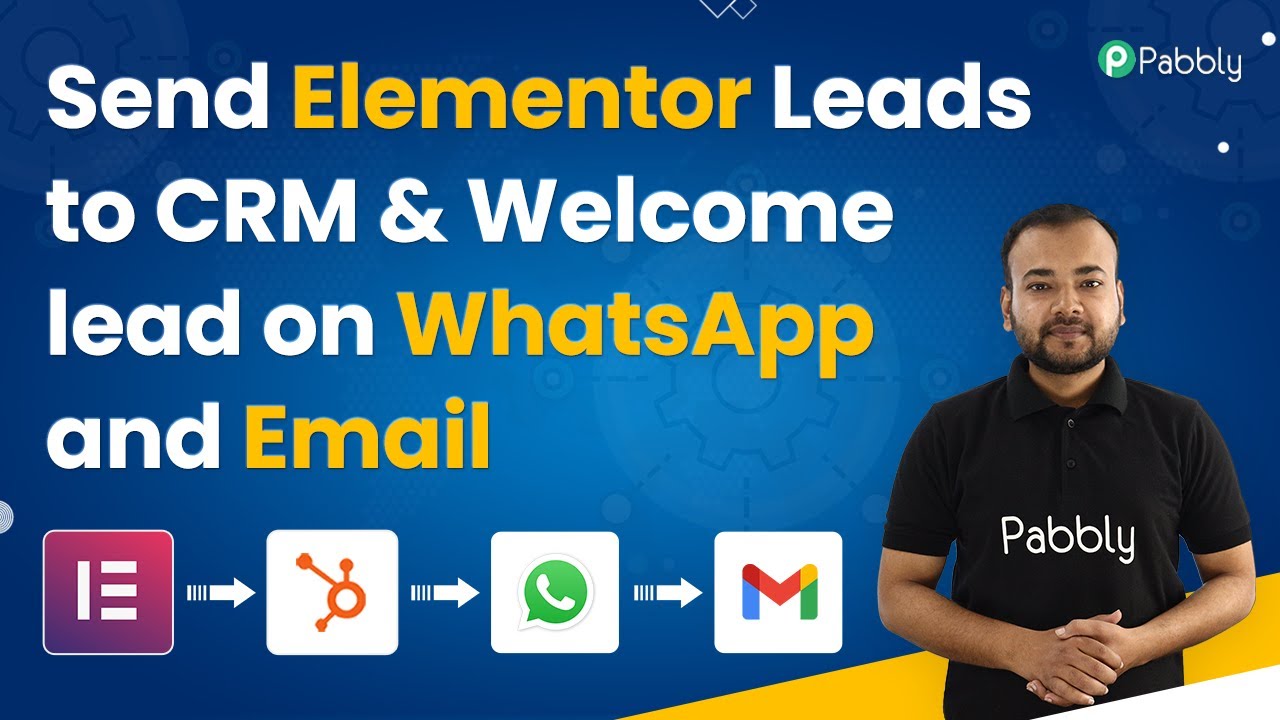
Integrate Elementor Leads with HubSpot and Send Welcome Messages via WhatsApp Using Pabbly Connect

Learn how to automate lead collection from Elementor to HubSpot and send welcome messages via WhatsApp using Pabbly Connect. Step-by-step tutorial included. Master proven automation processes with practical implementation examples and strategic recommendations you can apply immediately in your workflow.

Watch Step By Step Video Tutorial Below


1. Setting Up Pabbly Connect for Automation

To start the integration process, first access Pabbly Connect. This powerful automation tool allows you to connect various applications seamlessly. Visit the Pabbly Connect dashboard by navigating to the official website and signing up for a free account, which includes 100 free automation tasks each month.

Once logged in, create a new workflow by clicking on the ‘Create Workflow’ button. Name your workflow something relevant, such as ‘Lead Collection and Nurturing from Elementor to HubSpot and WhatsApp’. This will help you easily identify the automation later on.


2. Configuring Elementor as the Trigger in Pabbly Connect

In this step, you will configure Elementor to act as the trigger for your workflow. Select ‘Elementor’ from the list of applications available in Pabbly Connect. The trigger event you need to choose is ‘New Form Submission’. This event will initiate the workflow whenever a new lead fills out the Elementor form.

  • Choose the ‘Elementor’ application as the trigger.
  • Select ‘New Form Submission’ as the trigger event.
  • Copy the provided webhook URL.

After copying the webhook URL, integrate it into your Elementor form settings. Go to your form in Elementor, click on ‘Edit with Elementor’, and find the ‘Actions After Submit’ option. Add the webhook action and paste the copied URL. Save the form to complete this setup.


3. Testing the Elementor Integration with Pabbly Connect

Now that you have set up the trigger, it’s time to test the integration. Fill out the Elementor form with test data to ensure that the lead data is captured correctly in Pabbly Connect. After submitting the form, check the response section in Pabbly Connect to confirm that the data has been received.

  • Fill out the form with sample lead information.
  • Submit the form and check for a successful submission message.
  • Verify that the lead’s data appears in the response section of Pabbly Connect.

Once you have confirmed that the data is being received, you can proceed to add the next action in your workflow.


4. Adding HubSpot Integration to Pabbly Connect Workflow

With the lead data successfully captured, the next step is to add HubSpot as an action in your workflow. In Pabbly Connect, click on the plus icon to add a new action step. Search for ‘HubSpot’ and select it as the application. The action event you need to choose is ‘Create a Contact’, which will allow you to add the lead to your HubSpot CRM. using Pabbly Connect

To connect HubSpot, you will need to enter your HubSpot API key. This can be found in your HubSpot account under the settings menu. After entering the API key, map the lead data fields from the Elementor submission to the corresponding fields in HubSpot, such as first name, last name, email, and phone number.


5. Sending a Welcome Message via WhatsApp Using Pabbly Connect

Finally, you can set up a welcome message to be sent to the new lead via WhatsApp. Add another action step in Pabbly Connect and select ‘WhatsApp Cloud API’ as the application. For the action event, choose ‘Send Template Message’. This allows you to send a predefined message to the lead’s WhatsApp number.

Before sending the message, ensure you have set up your WhatsApp Cloud API and have your permanent token, phone number ID, and business account ID ready. Map the recipient’s WhatsApp number and customize the message template to include personalized details such as the lead’s name. After configuring these settings, test the action to confirm that the message is sent successfully.


Conclusion

In this tutorial, we demonstrated how to use Pabbly Connect to automate the process of collecting leads from an Elementor form, adding them to HubSpot, and sending welcome messages via WhatsApp. This seamless integration enhances your lead management and communication efforts, ensuring that you can nurture your leads effectively.

Ensure you check out Pabbly Connect to create business automation workflows and reduce manual tasks. Pabbly Connect currently offer integration with 2,000+ applications.

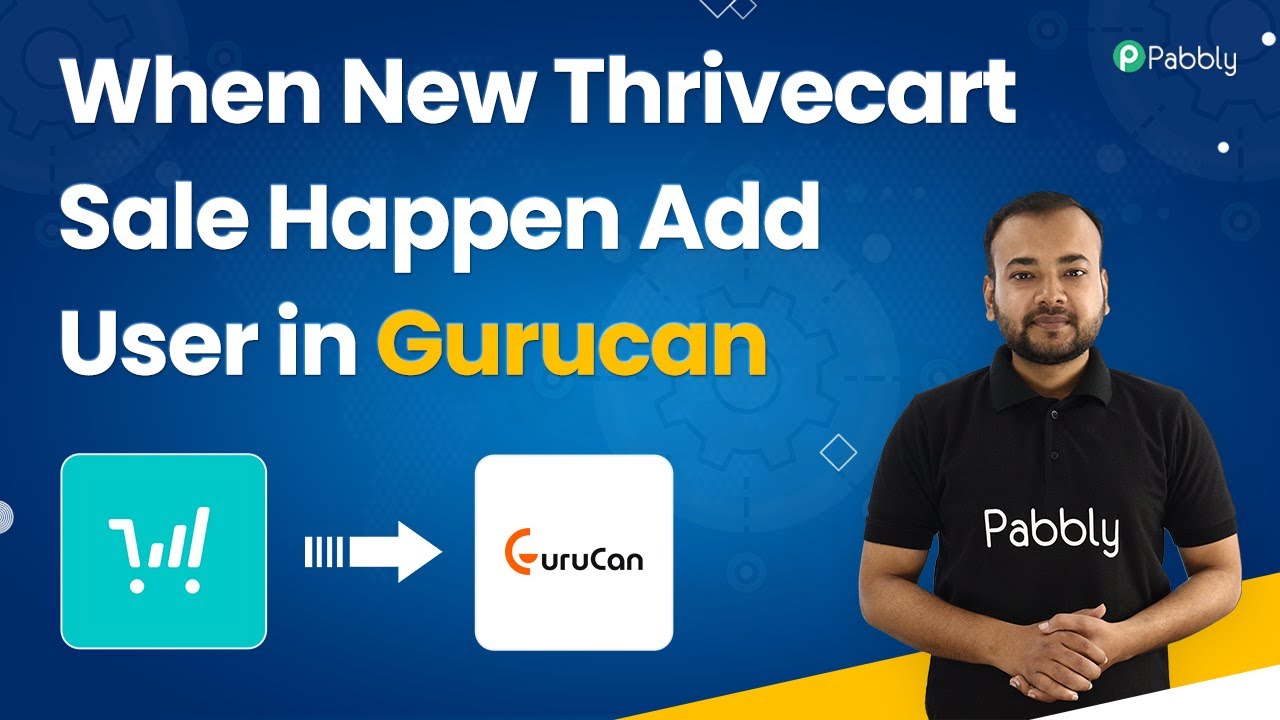
Integrate ThriveCart with Gurucan Using Pabbly Connect

Learn how to seamlessly integrate ThriveCart with Gurucan using Pabbly Connect. Follow our step-by-step guide to automate user enrollment effortlessly. Develop expertise in application integration and learn how to design streamlined automation workflows using proven, simplified approaches.

Watch Step By Step Video Tutorial Below


1. Access Pabbly Connect to Set Up Integration

To start integrating ThriveCart with Gurucan, you first need to access Pabbly Connect. This is the central platform that facilitates the automation process. Go to the Pabbly Connect dashboard by visiting Pabbly.com/connect and create a free account if you haven’t already.

Once logged in, you can begin setting up your automation workflow. Click on the ‘Create Workflow’ button. Name your workflow something relevant, such as ‘ThriveCart to Gurucan Integration’. This will help you identify it later on your dashboard.


2. Setting Up Trigger Event in Pabbly Connect

In this step, you will configure the trigger event for your workflow in Pabbly Connect. The trigger event will be based on a new sale occurring in ThriveCart. Start by selecting ThriveCart as your trigger application.

  • Choose ‘ThriveCart’ from the app options.
  • Select ‘Product Purchase’ as the trigger event.
  • Connect your ThriveCart account by entering the API key found in your ThriveCart settings.

After connecting, you will need to specify the product you want to track. Select the relevant product from the dropdown list, ensuring it matches the course you are selling. Once configured, click ‘Save and Send Test Request’ to verify the connection.


3. Performing a Test Purchase to Validate Integration

To ensure that the trigger is working correctly, you need to perform a test purchase. This step is crucial as it allows Pabbly Connect to capture the data from the sale. Navigate to your ThriveCart checkout page and fill in the customer details.

Make a sample purchase using test card details. After completing the order, return to your Pabbly Connect workflow to check if the data has been received. You should see the details of the purchase, including the customer’s name and email address.


4. Creating a Student in Gurucan Using Pabbly Connect

With the purchase data received, the next step is to create a student in Gurucan. This is where Pabbly Connect plays a vital role. Select Gurucan as your action application and choose ‘Create Student’ as the action event.

  • Connect to Gurucan by entering the API key and domain name.
  • Map the customer data received from the ThriveCart purchase.
  • Click ‘Save and Send Test Request’ to create the student in Gurucan.

After sending the test request, you should verify that the student has been successfully added to your Gurucan dashboard. Check the user section to confirm the new student appears with the correct details.


5. Enrolling the Student into a Course in Gurucan

The final step in this integration is to enroll the newly created student into a specific course in Gurucan. Again, this is done through Pabbly Connect. Add another action step in your workflow, selecting Gurucan and then ‘Enroll into Course’ as the action event.

Map the email of the student and select the course name from the dropdown. Since the payment has already been processed, you can skip sending a payment email. Click ‘Save and Send Test Request’ to complete the enrollment process. Once you receive a successful response, check the Gurucan dashboard to confirm the student is enrolled in the course.


Conclusion

By following these steps, you can effectively integrate ThriveCart with Gurucan using Pabbly Connect. This automation saves time and reduces manual effort by enrolling students automatically after a purchase. Start using this powerful integration today to streamline your course enrollment process.

Ensure you check out Pabbly Connect to create business automation workflows and reduce manual tasks. Pabbly Connect currently offer integration with 2,000+ applications.

How to Solve LearnDash Permission Issue in Pabbly Connect?

Learn how to resolve LearnDash permission issues using Pabbly Connect. Follow this step-by-step tutorial to seamlessly integrate your applications. Transform complex automation concepts into accessible, actionable steps that eliminate unnecessary manual work while maximizing existing application capabilities.

Watch Step By Step Video Tutorial Below


1. Accessing Pabbly Connect for Integration

To resolve the LearnDash permission issue, you first need to access Pabbly Connect. This platform is essential for integrating various applications seamlessly, including LearnDash, WordPress, and more.

Log into your Pabbly Connect account and start by creating a new workflow. This workflow will help you automate the process of enrolling users in LearnDash courses based on data from your spreadsheet application.


2. Setting Up the Trigger in Pabbly Connect

The first step in your Pabbly Connect workflow is to set up a trigger. This trigger will capture student details from a spreadsheet application. Select the appropriate spreadsheet application as your trigger. using Pabbly Connect

  • Choose the spreadsheet application where student data is stored.
  • Set the trigger event to capture new entries.
  • Test the trigger to ensure data is being captured correctly.

Once the trigger is set, you will see the captured data displayed in Pabbly Connect. This data will be used in the next steps to check if the user exists in WordPress.


3. Searching for Users in WordPress

After capturing the student data, the next step is to search for the user in WordPress using Pabbly Connect. This action is crucial to determine if the student already has an account.

In Pabbly Connect, add an action step to search for the user in WordPress. Here’s how:

  • Select WordPress as the application for the action step.
  • Choose the action event as ‘Search User’.
  • Map the email or username from the trigger data to search for the user.

Once you have set up the action, test it to ensure that Pabbly Connect can successfully find the user in your WordPress site. This step is essential before proceeding to enroll the user in a course.


4. Enrolling Users in LearnDash Courses

With the user successfully found in WordPress, the next step is to enroll them in a course using Pabbly Connect. This is where the integration with LearnDash occurs.

Add another action step in your workflow to enroll the user in LearnDash:

Select LearnDash as the application. Choose the action event ‘Enroll into Course’. Connect to your LearnDash account by providing the necessary credentials.

Once connected, you can select the course in which the user should be enrolled. Make sure to map the user ID from the previous step correctly to ensure they are enrolled in the right course.


5. Resolving Permission Issues with Pabbly Connect

If you encounter permission issues, it may be due to missing authentication settings in WordPress. To resolve this, you need to install a basic authentication handler plugin. using Pabbly Connect

Follow these steps to resolve the permission issue:

Download the basic authentication handler plugin from the provided link. Upload the plugin to your WordPress site and activate it. Reconnect to LearnDash in Pabbly Connect to refresh the connection.

After completing these steps, you should no longer face the permission issue, and the courses should display correctly in Pabbly Connect.


Conclusion

In this tutorial, we explored how to resolve the LearnDash permission issue using Pabbly Connect. By following the steps outlined, you can successfully integrate and automate the enrollment process for your online courses.

Ensure you check out Pabbly Connect to create business automation workflows and reduce manual tasks. Pabbly Connect currently offer integration with 2,000+ applications.

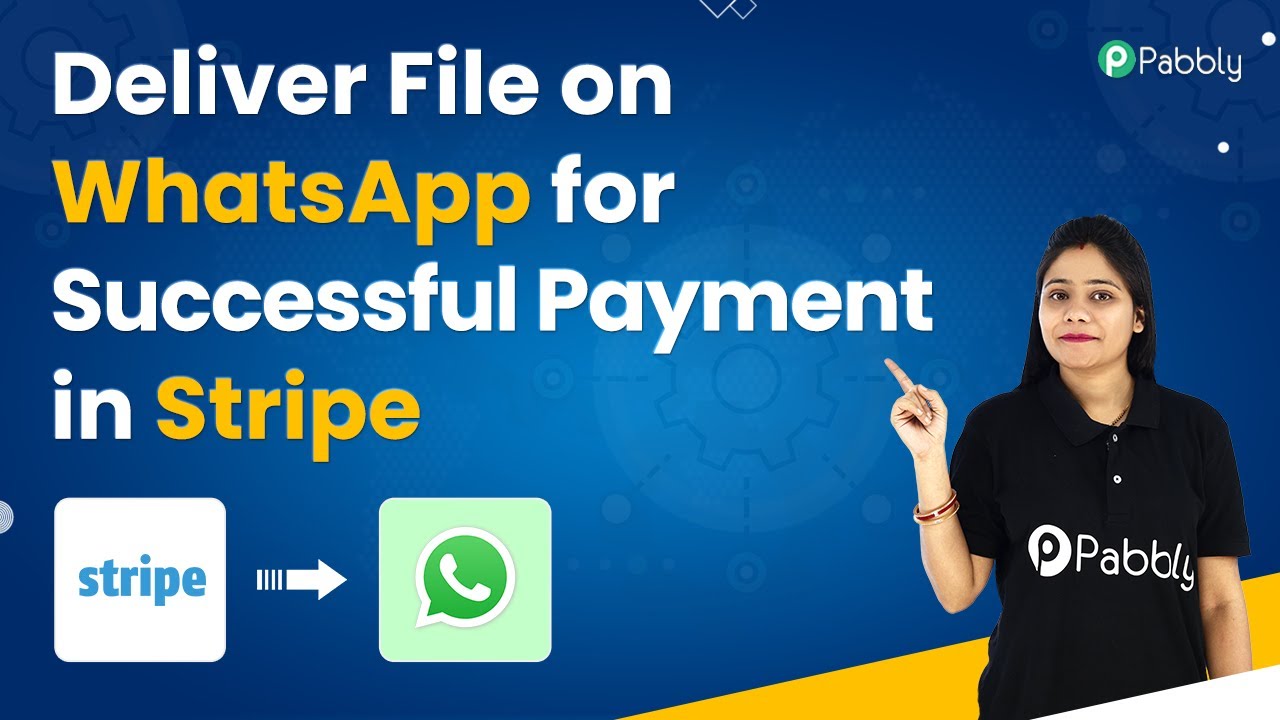
Automate File Delivery on WhatsApp Using Pabbly Connect and Stripe

Learn how to automate file delivery on WhatsApp after receiving payments in Stripe using Pabbly Connect. Step-by-step guide with detailed instructions. Navigate the automation landscape confidently with clear, structured guidance suitable for professionals regardless of prior technical experience.

Watch Step By Step Video Tutorial Below


1. Accessing Pabbly Connect for Integration

To start automating the delivery of files on WhatsApp after receiving payments in Stripe, first, access Pabbly Connect. Navigate to the Pabbly website and create your free account. This process is straightforward and allows you to utilize 100 free tasks per month to test your automation workflows.

Once you have created your account, log in to Pabbly Connect and click on the ‘Create Workflow’ button. You will be prompted to name your workflow. For this tutorial, you can name it ‘Deliver File on WhatsApp when Payment is Done in Stripe’. Click on the ‘Create’ button to proceed.


2. Setting Up Stripe Trigger in Pabbly Connect

In this section, we will configure the Stripe trigger in Pabbly Connect. After creating your workflow, you will see two boxes: one for the trigger and another for the action. Select Stripe as your trigger application and choose the event as ‘Charge New Charge’. This event will trigger the workflow whenever a new payment is received in Stripe.

Once you select the trigger event, Pabbly Connect will provide you with a webhook URL. Copy this URL and head over to your Stripe account. In Stripe, navigate to the Webhooks settings and click on ‘Add Endpoint’. Paste the copied URL, set the event to ‘Charge Succeeded’, and click on ‘Add Event’. This connects Stripe with Pabbly Connect successfully.


3. Testing the Stripe Integration

Now that the Stripe trigger is set up, it’s time to test whether Pabbly Connect is capturing the payment data correctly. Go back to your Stripe account and make a test payment using the provided test card details. Ensure you are in test mode while performing this action.

After completing the payment, return to Pabbly Connect. You should see that it is waiting for a webhook response. Once the payment is processed, Pabbly Connect will capture the payment details in JSON format. Verify that all required details, such as email and amount, are present in the captured data.


4. Configuring WhatsApp Action in Pabbly Connect

With Stripe successfully integrated, the next step is to set up WhatsApp as the action application in Pabbly Connect. Click on the action box, select WhatsApp Cloud API, and choose the event as ‘Send Template Message’. This allows you to send a pre-approved message template to your customers via WhatsApp.

Before proceeding, ensure you have created a WhatsApp template in your WhatsApp Cloud API account. You will need to provide the template name and relevant details such as the recipient’s phone number. To get the recipient’s number, you will use the customer ID captured from the Stripe payment data. This involves adding an action step to retrieve the customer details from Stripe.


5. Finalizing the Workflow and Sending Files

In the final step, configure the WhatsApp message template with the necessary details. Map the recipient’s phone number and include the file URL you want to deliver. Ensure the message body contains any variables that will personalize the message sent to each customer.

Once everything is set up, click on ‘Save and Send Test Request’. Check the WhatsApp of the customer who made the payment to confirm the file delivery. If everything is configured correctly, the customer will receive the message along with the file automatically, demonstrating the power of Pabbly Connect in automating this process.


Conclusion

In this tutorial, we explored how to use Pabbly Connect to automate file delivery on WhatsApp after receiving payments in Stripe. By following these steps, you can streamline your workflow and enhance customer experience.

Ensure you check out Pabbly Connect to create business automation workflows and reduce manual tasks. Pabbly Connect currently offer integration with 2,000+ applications.

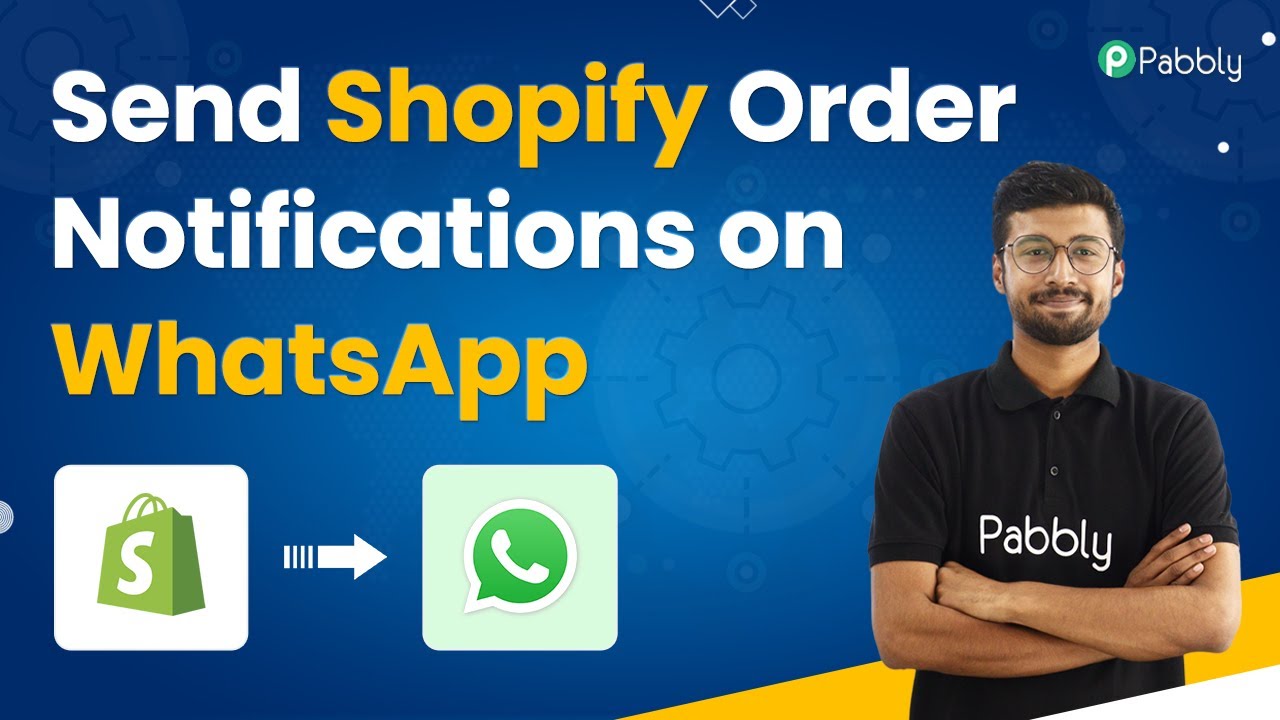
How to Send Shopify Order Notifications on WhatsApp Using Pabbly Connect

Learn how to automate Shopify order notifications on WhatsApp using Pabbly Connect. Follow this detailed tutorial for seamless integration. Master proven automation processes with practical implementation examples and strategic recommendations you can apply immediately in your workflow.

Watch Step By Step Video Tutorial Below


1. Setting Up Pabbly Connect for Shopify and WhatsApp Integration

To start sending Shopify order notifications on WhatsApp, you need to access Pabbly Connect. First, visit the Pabbly Connect website and sign up for a free account if you don’t have one. This platform will serve as the automation tool that connects your Shopify store with WhatsApp.

Once logged in, navigate to the dashboard where you can create a new workflow. Click on the ‘Create Workflow’ button and name it something relevant, like ‘Shopify to WhatsApp’. This workflow will enable you to automate the process of sending WhatsApp messages for new Shopify orders.


2. Configuring the Shopify Trigger in Pabbly Connect

In this step, you will set up the trigger that will notify Pabbly Connect whenever a new order is placed in your Shopify store. In the trigger window, select Shopify as the app and choose the trigger event as ‘New Order’. This tells Pabbly Connect to listen for new orders.

After selecting the trigger event, Pabbly Connect will generate a webhook URL. This URL will be used to connect Shopify to Pabbly Connect. Copy this URL and head over to your Shopify account. In the Shopify dashboard, go to Settings, then Notifications, and scroll down to the Webhooks section. Click on ‘Create Webhook’, select the event as ‘Order Creation’, set the format to JSON, and paste the copied webhook URL.

  • Select ‘Order Creation’ as the event.
  • Set the format to JSON.
  • Paste the webhook URL from Pabbly Connect.

Click ‘Save’ to finish connecting Shopify with Pabbly Connect. Now, every time an order is placed, the order details will be sent to Pabbly Connect.


3. Receiving and Processing Order Details in Pabbly Connect

Once you have configured the webhook, it’s time to test the integration. Place a test order in your Shopify store. After the order is placed, return to your Pabbly Connect dashboard where you will see the order details captured in the trigger window. This confirms that the integration is working correctly.

The details include the customer’s name, email, and phone number, which will be crucial for sending the WhatsApp message. You can also add additional information like the expected delivery date. This is where Pabbly Connect shines, as it allows you to manipulate and format the data as needed before sending it to WhatsApp.

  • Confirm that the customer details are received correctly.
  • Add any additional information such as expected delivery date.
  • Ensure data is formatted correctly for WhatsApp messaging.

After confirming the order details, you are ready to proceed to the next step where you will send this information to WhatsApp.


4. Sending Notifications via WhatsApp Cloud API

In this step, you will configure the action step in Pabbly Connect to send WhatsApp messages. Click on ‘Add Action Step’ and select WhatsApp Cloud API from the app list. Choose ‘Send Template Message’ as the action event.

Next, you will need to connect your WhatsApp Cloud API account. Enter the required details such as the token, phone number ID, and WhatsApp business account ID. If you haven’t set up a WhatsApp Cloud API account yet, you can refer to the Pabbly Connect resources for guidance on creating one.

Connect your WhatsApp Cloud API account to Pabbly Connect. Select the template message you created for order notifications. Map the customer’s phone number and order details to the message body fields.

After setting up the action step, send a test message to confirm that everything is working correctly. Your WhatsApp message should include the customer’s name, order details, and expected delivery date, demonstrating the effectiveness of Pabbly Connect in automating your notifications.


5. Final Testing and Conclusion

Now that you have set up the complete workflow, it’s essential to test the entire process. Place another order in your Shopify store and ensure that the WhatsApp message is sent out automatically with all the correct details. This testing phase is crucial to confirm that your integration is functioning as intended.

Once you verify that the WhatsApp notifications are being sent successfully for new orders, you can confidently use this automation in your Shopify store. With Pabbly Connect, you streamline your order notification process, saving time and enhancing customer communication.

In summary, using Pabbly Connect to integrate Shopify and WhatsApp Cloud API allows you to automate order notifications efficiently. This setup not only improves your workflow but also enhances customer satisfaction by providing timely updates on their orders.

Conclusion

This guide summarizes the key points and helps you understand the essential features and benefits of using this tool.

Ensure you check out Pabbly Connect to create business automation workflows and reduce manual tasks. Pabbly Connect currently offer integration with 2,000+ applications.


By following this tutorial, you can easily implement automated Shopify order notifications on WhatsApp using Pabbly Connect. This integration will help keep your customers informed and engaged with their purchases, ultimately enhancing their shopping experience.

Integrate Zoom Registrants to Airtable Using Pabbly Connect: A Step-by-Step Guide

Learn how to automatically add new Zoom registrants to Airtable using Pabbly Connect. This detailed tutorial walks you through each step of the integration process.

Watch Step By Step Video Tutorial Below


1. Setting Up Pabbly Connect for Zoom and Airtable Integration

To start integrating Zoom with Airtable, you’ll first need to access Pabbly Connect. This platform enables seamless automation between various applications. Begin by visiting the Pabbly Connect dashboard at Pabbly.com/connect, where you can either sign up for a new account or log in to your existing account.

Once logged in, click on ‘Create Workflow’ to initiate your integration. Name your workflow, for instance, ‘Zoom to Airtable’, and click on ‘Create’. This sets the stage for connecting Zoom and Airtable through Pabbly Connect. You will see two windows: the trigger window and the action window, which are essential for setting up the automation.


2. Connecting Zoom with Pabbly Connect

In the trigger window, search for Zoom and select it as your app. Next, choose the trigger event as ‘New Meeting Registrant’. This selection allows Pabbly Connect to capture data whenever a new registrant is added to your Zoom meeting.

  • Select Zoom from the app list.
  • Choose ‘New Meeting Registrant’ as the trigger event.
  • Copy the webhook URL provided by Pabbly Connect.

After copying the webhook URL, go to your Zoom account dashboard, navigate to the ‘Advanced’ section, and click on ‘App Marketplace’. Here, create a new app by selecting ‘Webhook Only’ and provide a name for it, such as ‘Pabbly Integration’. Fill in necessary details and enable event subscriptions by pasting the copied webhook URL. Select the event ‘Meeting Registrant Created’ to receive notifications for new registrants. Click ‘Save’ to finalize the setup.


3. Testing the Zoom Registrant Trigger

With Zoom successfully connected to Pabbly Connect, the next step is to test the integration by registering a new participant for your Zoom meeting. Use the registration link for the meeting you scheduled and fill in the required details such as first name, last name, email, and phone number.

After completing the registration, Pabbly Connect will automatically capture the registrant’s details. You will see a response in the Pabbly Connect dashboard indicating that the data has been received successfully. This confirms that the trigger is functioning correctly.


4. Connecting Airtable to Pabbly Connect

Now that you have confirmed the trigger is working, it’s time to connect Airtable to Pabbly Connect. In the action window, search for Airtable and select it as the app. Choose ‘Create Record’ as the action event, which will allow you to add new registrant details to your Airtable database.

  • Select Airtable from the app list.
  • Choose ‘Create Record’ as the action event.
  • Connect your Airtable account by entering the API key.

To retrieve your API key, log into your Airtable account, go to your profile settings, and copy the API key. Paste it into Pabbly Connect and select the base where you want to store the registrant data. Choose the appropriate table and map the fields from the new registrant data, such as first name, last name, email, and phone number. Click on ‘Save and Send Test Request’ to ensure the data is added correctly.


5. Final Testing of the Automation

After setting up the connection between Airtable and Pabbly Connect, it’s crucial to conduct a final test. Go back to your Zoom meeting registration page and register another dummy user. Once the registration is complete, check your Airtable database to see if the new record appears as expected.

If the details of the newly registered user are reflected in Airtable, the automation is working perfectly. This integration allows you to manage registrant data efficiently without manual data entry, showcasing the power of Pabbly Connect in automating workflows.


Conclusion

In this tutorial, we explored how to integrate Zoom with Airtable using Pabbly Connect. This automation streamlines the process of adding new registrants to your Airtable database, enhancing efficiency and accuracy. With Pabbly Connect, you can easily manage your workflows and focus on what truly matters.

Ensure you check out Pabbly Connect to create business automation workflows and reduce manual tasks. Pabbly Connect currently offer integration with 2,000+ applications.

How to Get Notified on WhatsApp When Products Go Out of Stock in Shopify Using Pabbly Connect

Learn how to set up notifications on WhatsApp for out-of-stock products in Shopify with Pabbly Connect. Step-by-step guide for seamless integration. Navigate the automation landscape confidently with clear, structured guidance suitable for professionals regardless of prior technical experience.

Watch Step By Step Video Tutorial Below


1. Setting Up Pabbly Connect for Shopify Notifications

To get started with receiving notifications on WhatsApp when products go out of stock in Shopify, you first need to access Pabbly Connect. Begin by visiting the Pabbly Connect dashboard at Pabbly.com/connect. Here, you can create a free account, which allows you to set up automation workflows with ease.

After logging in, click on the ‘Create Workflow’ button. You will be prompted to name your workflow. For this integration, you can name it ‘Shopify Product Out of Stock Notification’. Once you click ‘Create’, the workflow page will load, allowing you to set up your trigger and action steps.


2. Setting Up the Trigger Event in Shopify

The next step involves configuring the trigger event in your Pabbly Connect workflow. Select Shopify as your trigger application and choose the event ‘New Product Updated’. This event will allow you to capture updates when any product in your Shopify store goes out of stock.

Once you select the trigger event, Pabbly Connect will provide you with a webhook URL. Copy this URL as you will need it to connect to your Shopify store. In your Shopify dashboard, navigate to Settings > Notifications and scroll down to the Webhooks section. Click on ‘Create Webhook’ and select ‘Product Updated’ as the event. Paste the webhook URL you copied from Pabbly Connect into the URL field and set the format to JSON.

  • Choose ‘Product Updated’ from the event section.
  • Set the format to JSON.
  • Click ‘Save’ to store the webhook settings.

After saving, return to your Pabbly Connect workflow, where it will show that it is waiting for a response from Shopify. This indicates that the connection is set up correctly and ready to capture data.


3. Testing the Connection with Shopify

To test the connection, you will need to simulate a product going out of stock. To do this, navigate to your Shopify store and purchase a product that has low inventory, ensuring it goes out of stock. Once the purchase is made, refresh your inventory page to confirm the product is no longer available.

After completing the test purchase, return to Pabbly Connect. You should see the data captured in the response section, indicating that the product has been updated. This includes vital information such as the product name and inventory status, which will be used for sending notifications.

  • Confirm the product is out of stock in Shopify.
  • Check the response section in Pabbly Connect for captured data.

This data is crucial for the next steps, where you will set conditions to filter out specific notifications for out-of-stock products.


4. Filtering Out Stock Notifications Using Pabbly Connect

Now that you have the product data captured, it’s time to set up a filter to ensure you only receive notifications for products that are out of stock. In your Pabbly Connect workflow, add a new action step and select ‘Filter’ from the options. This allows you to specify conditions based on the data received from Shopify.

Configure the filter by selecting the inventory quantity label and setting the condition to ‘Equals’ and the value to ‘0’. This means that the workflow will only continue if the product quantity is zero, indicating it is out of stock. Save this filter to ensure it works correctly.

Select ‘Filter’ as the action step. Set the condition to check if inventory quantity equals zero.

Once the filter is set, you can proceed to configure the action step that will send the WhatsApp notification.


5. Sending WhatsApp Notifications via Pabbly Connect

For the final step, you will set up the action to send WhatsApp notifications using the WhatsApp Cloud API through Pabbly Connect. Select the WhatsApp Cloud API as your action application and choose the ‘Send Template Message’ action event. This will allow you to send a pre-defined message whenever a product goes out of stock.

Before sending the message, you will need to connect your WhatsApp Cloud API account to Pabbly Connect. Provide the required information, including your permanent access token, phone number ID, and business account ID. After entering these details, test the connection to ensure it works correctly.

Select ‘Send Template Message’ as the action event. Fill in the required WhatsApp API details. Test the connection to verify it works.

Once the connection is established, you can map the fields for the message body, including the product name and ID. This ensures that the notification is personalized for each out-of-stock product. After setting up the message template, save your workflow.


Conclusion

Using Pabbly Connect, you can efficiently set up notifications for out-of-stock products in your Shopify store directly to WhatsApp. This integration saves you time and ensures you never miss an important inventory update. Follow the steps outlined above to automate your notifications seamlessly.

Ensure you check out Pabbly Connect to create business automation workflows and reduce manual tasks. Pabbly Connect currently offer integration with 2,000+ applications.